
Black Seiren Elite - Microphone RAZER - Free user manual and instructions
Find the device manual for free Black Seiren Elite RAZER in PDF.


| Product Type | Dynamic Streaming Microphone |
| Brand | Razer |
| Model | Seirēn Elite |
| Connectivity | USB (Micro-USB to USB cable) |
| Polar Pattern | Cardioid |
| Capsule Type | Single Dynamic |
| Frequency Response | 50 Hz – 20 kHz |
| Sample Rate | 44.1 kHz / 48 kHz |
| Bit Rate | 16-bit |
| Maximum SPL | 120 dB |
| Headphone Amplifier Impedance | ≥ 16 Ω |
| Headphone Amplifier Power Output | 85 mW (at 16 Ω) |
| Zero-Latency Monitoring | Yes |
| Diameter | 60.2 mm / 2.40 in |
| Height | 224.6 mm / 8.84 in |
| Weight | 785 g / 1.73 lbs |
| System Requirements | PC or Mac with free USB port, Windows 7 64-bit / OS X 10.8 or higher, internet connection |
| Included Accessories | Desk stand, Micro-USB to USB cable, microphone windscreen, important product information guide |
| Controls | Mute button, gain control, headphone volume control, high-pass filter button |
| Indicators | Peaking indicator, mute LED (red when muted) |
| Warranty | 1 year limited manufacturer's warranty |
| Maintenance | Clean monthly with soft cloth; unplug before cleaning; do not use soap or harsh agents |
Frequently Asked Questions - Black Seiren Elite RAZER
User questions about Black Seiren Elite RAZER
0 question about this device. Answer the ones you know or ask your own.
Ask a new question about this device
Download the instructions for your Microphone in PDF format for free! Find your manual Black Seiren Elite - RAZER and take your electronic device back in hand. On this page are published all the documents necessary for the use of your device. Black Seiren Elite by RAZER.
USER MANUAL Black Seiren Elite RAZER
RAZER SEIRÊN ELITE
MASTER GUIDE
The RazestSeinere Editelified pro-grade dynamic
streaming microphone designed to take the quality of your stream to the next level. It produces a warm and rich vocal quality, further enhanced by the addition of a high-pass filter and a digital/analog limiter that produces exceptionally clean audio.
CONTENTS
- PACKAGE CONTENTS / SYSTEM REQUIREMENTS .... 3
- REGISTRATION / TECHNICAL SUPPORT....4
- TECHNICAL SPECIFICATIONS....5
- DEVICE LAYOUT....6
- SETTING UP YOUR RAZER SEIRÊN ELITE....7
- USING YOUR RAZER SEIRÊN ELITE....11
- SAFETY AND MAINTENANCE .... 14
8.LEGALESE....15
1. PACKAGE CONTENTS / SYSTEM REQUIREMENTS
PACKAGE CONTENTS
- Razer Bite professional grade dynamic streaming microphone
- Desk stand
■ Micro-USB to USB cable
■ Microphone windscreen
■ Important Product Information Guide
SYSTEM REQUIREMENTS
- PC or Mac with a free USB port
- Windows® 7 64-bit / OS X® 10.8 (or higher)
- Internet connection
- Third party software: Open Broadcaster Software [obsproject.com] or XSplit* [xsplit.com]
*Software license fee may apply.
2. REGISTRATION / TECHNICAL SUPPORT
REGISTRATION
Register your product online at razer-id.razerzone.com/warranty using your Razer ID to get real-time information on your product's warranty status.
If you haven't registered for a Razer ID yet, register now at razer-id.razerzone.com to get a wide range of Razer benefits.
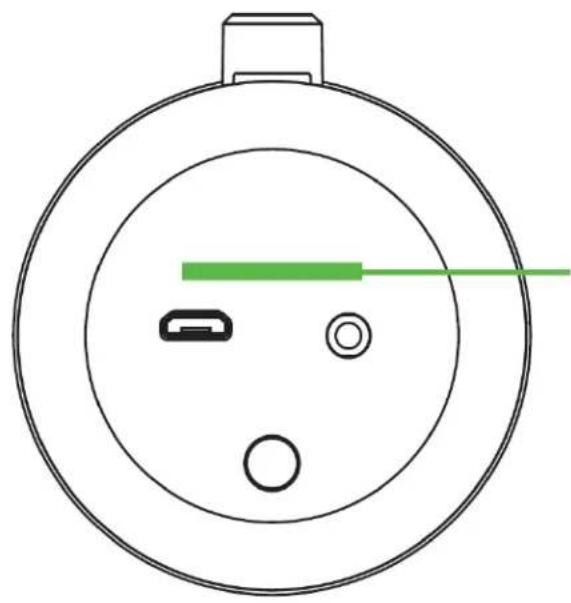
Your product's serial number can be found here.
TECHNICAL SUPPORT
What you'll get:
■ 1 year limited manufacturer's warranty.
■ Free online technical support at support.razerzone.com
3. TECHNICAL SPECIFICATIONS
MICROPHONE SPECIFICATIONS
■ Sample Rate: min 44.1kHz / max 48kHz
- Bit Rate: 16bit
■ Capsule: Single Dynamic Capsule
■ Polar patterns: Cardioid
■ Frequency response: 50Hz-20kHz
■ Connectivity: USB only
Max SPL: 120dB
HEADPHONE AMPLIFIER
■ Impedance: ≥ 16
■ Power output (RMS): 85mW (at 16 Ω)
■ Flat Frequency Response: Yes
■ Zero-Latency Monitoring: Yes
APPROXIMATE SIZE & WIDTH
■ Diameter: 60.2 mm / 2.40 in
■ Height: 224.6 mm / 8.84 in
■ Weight: 785 g / 1.73 lbs
4. DEVICE LAYOUT

A. Peaking indicator
B. Headphone volume control
C. Microphone gain control
D. Microphone mute button
E. Desk stand with adjustable knobs
F. Micro-USB port
G. High-pass filter button
H. 3.5 mm headphone port
1. Microphone windscreen
J. Micro-USB to USB cable
5. SETTING UP YOUR RAZER SEIRÊN ELITE
- Loosen the desktop mounting knobs and adjust the microphone's angle so that the top portion of the microphone is facing the sound source. You may then tighten the knobs until the microphone is secured in place.

- Connect the Razer Seirēn Elite to your computer using the Micro-USB to USB cable.
Note: You may connect an analog audio output device (such as a headphone) to the 3.5 mm headphone port, to listen to the audio being recorded by your Razer Sat the same time.
![graph TD A["Remote Device"] --> B["USB to Micro-USB cable"] B --> C["Computer 1"] B --> D["Computer 2"] B --> E["Computer 3"] B --> F["Computer 4"]](/content/2026/06/1211503/images/bf9913a96b7ee07cf3d1a59195b2521f7fa688f92feb5a2ff5630b8e32675643.jpg)
- Set the Razer Seirēn Elite as the default playback and recording device of your computer. This is required if you are using the Razer Seirēn Elite for the first time.
A. For Windows users
Step 1: Open your Sound settings from Control Panel > Hardware and Sound > Manage audio devices. You can also right-click on the sound icon in the system tray, and then select Playback devices.

Step 2: In the Playback tab, select Razer Seirēn Elite from the list and click the Set Default button.
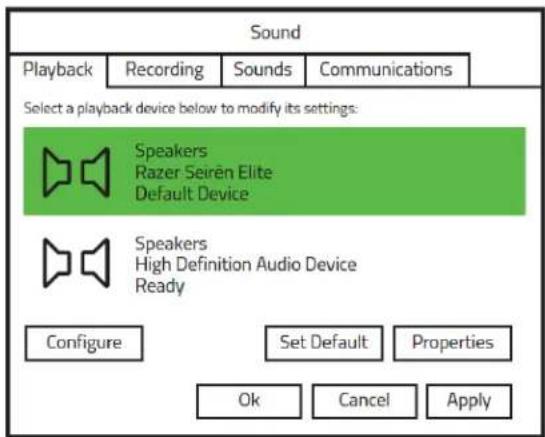
Step 3: In the Recording tab, select Razer Seirēn Elite from the list and click the Set Default button.

B. For Mac users
Step 1: Open your Sound settings from System Preferences > Sound.
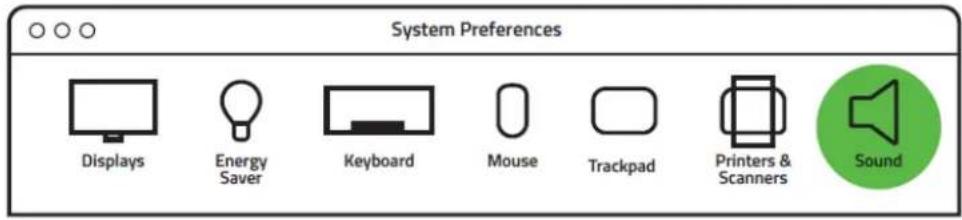
Step 2: In the Input tab, select Random SierListElite
| Sound Effects | Output | Input |
| Name | Type |
| External MicrophoneLine In | Microphone portAudio line-in port |
| Razer Seirën Elite | USB |
Step 3: In the Output tab, select Raven SierListElite
| Sound Effects | Output | Input |
| Name | Type |
| Headphones | Built-in Output |
| Line Out | Built-in Line Output |
| Razer Seirén Elite | USB |
Congratulations, you are now ready to use your Ealter Seiren
6. USING YOUR RAZER SEIRÊN ELITE
ADJUSTING THE HEADPHONE VOLUME
Rotate the headphone volume control clockwise or counterclockwise to increase or decrease the headphone volume.


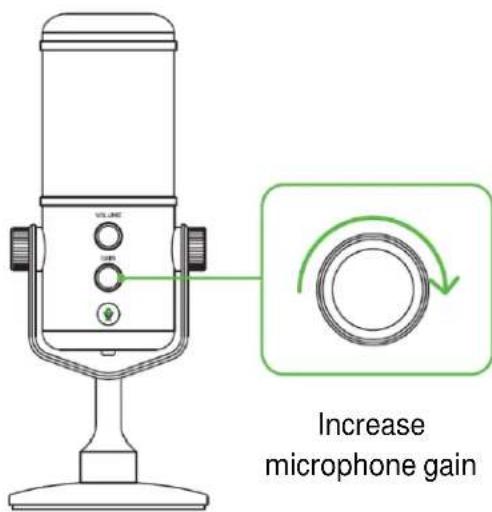
Rotate the microphone gain control clockwise or counterclockwise to increase or decrease the sensitivity of the microphone when capturing sound. This is recommended if the microphone is capturing too much ambient noise and vice versa.
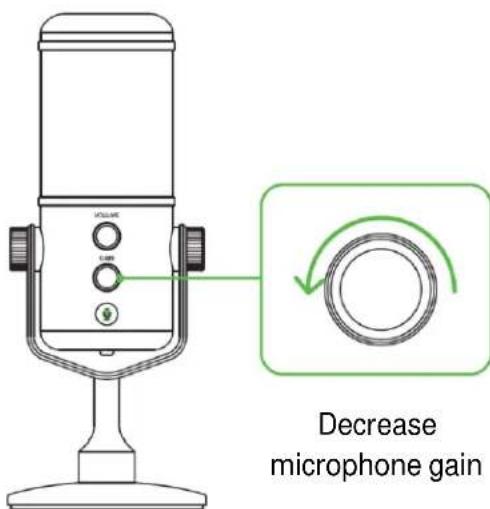
Press the microphone mute button to mute or unmute the microphone. The microphone mute LED will light up in red when the microphone is muted.
![graph TD A["Volume"] --> B["Gain"] B --> C["Enabled"] C --> D["Muted"] D --> E["Hand Clicking to Enable"]](/content/2026/06/1211503/images/42748ff81223e0785dd67dde652db003ac893fbdf5a849c355ecf68c538809ce.jpg)
UNDERSTANDING THE PEAKING INDICATOR
The Peaking Indicator will light up and fade off to show that the microphone's Digital / Analog limiter adjusted the volume of the captured sound to prevent unwanted audio distortions and voice clipping.

Note: You may disable or enable the Peaking indicator by pressing and holding the Microphone mute button for at least 6 seconds. Do take note that the Digital / Analog limiter will remain enabled even with the Peaking indicator disabled.
ENABLING / DISABLING THE HIGH-PASS FILTER
Press the high-pass filter button to enable or disable the high-pass filter function of your Razer Seirēn Elite. By enabling the high-pass filter function, low-end rumbles and hums, such as wind noise from the air conditioning systems and cars driving by in a distance, are automatically filtered out without requiring post-recording edits.
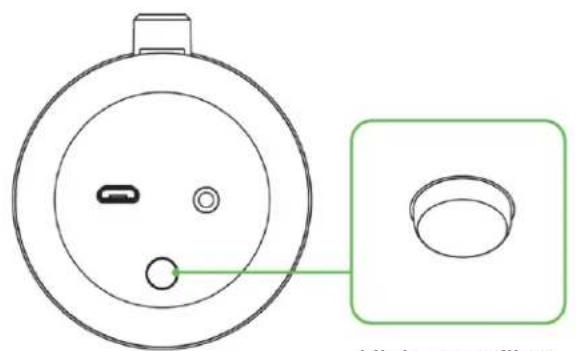
High-pass filter enabled

High-pass filter disabled
7. SAFETY AND MAINTENANCE
SAFETY GUIDELINES
In order to achieve maximum safety while using the Razer Saver suggest that you adopt the following guidelines:
Should you have trouble operating the device properly and troubleshooting does not work, unplug the device and contact the Razer hotline or go to support.razerzone.com for support.
Do not take apart the device (doing so will void your warranty) and do not attempt to operate it under abnormal current loads.
Keep the device and its components away from liquid, humidity or moisture. Operate the device and its components only within the specific temperature range of 0° C ( 32° F) to 40° C ( 104° F). Should the temperature exceed this range, unplug and switch off the device in order to let the temperature stabilize to an optimal level.
Listening to excessively loud volumes over extended periods of time can damage your hearing. Furthermore, legislation of certain countries permits a maximum sound level of 86dB to affect your hearing for 8 hours a day. We therefore recommend that you reduce the volume to a comfortable level when listening for prolonged periods of time. Please, take good care of your hearing.
MAINTENANCE AND USE
The Razer Secure Ebite minimum maintenance to keep it in optimum condition. Once a month we recommend you unplug the device from the computer and clean it using a soft cloth or cotton to prevent dirt buildup. Do not use soap or harsh cleaning agents.
8. LEGALESE
COPYRIGHT AND INTELLECTUAL PROPERTY INFORMATION
©2018 Razer Inc. All rights reserved. Razer, the triple-headed snake logo, Razer logo, "For Gamers. By Gamers.", and "Powered by Razer Chroma" logo are trademarks or registered trademarks of Razer Inc. and/or affiliated companies in the United States or other countries.
Windows and the Windows logo are trademarks or registered trademarks of the Microsoft group of companies.
OS X, Mac and the Mac logo are trademarks or registered trademarks of Apple.
XSplit and XSplit Broadcaster is a registered trademark of Splitmedialabs Limited. All other trademarks are registered to their respective owners.
Razer Inc. ("Razer") may have copyright, trademarks, trade secrets, patents, patent applications, or other intellectual property rights (whether registered or unregistered) concerning the product in this guide. Furnishing of this guide does not give you a license to any such copyright, trademark, patent or other intellectual property right. The Razer Seirēn Elite (the "Product") may differ from pictures whether on packaging or otherwise. Razer assumes no responsibility for such differences or for any errors that may appear. Information contained herein is subject to change without notice.
LIMITED PRODUCT WARRANTY
For the latest and current terms of the Limited Product Warranty, please visit razerzone.com/warranty.
LIMITATION OF LIABILITY
Razer shall in no event be liable for any lost profits, loss of information or data, special, incidental, indirect, punitive or consequential or incidental damages, arising in any way out of distribution of, sale of, resale of, use of, or inability to use the Product. In no event shall Razer's liability exceed the retail purchase price of the Product.
COSTS OF PROCUREMENT
For the avoidance of doubt, in no event will Razer be liable for any costs of procurement unless it has been advised of the possibility of such damages, and in no case shall Razer be liable for any costs of procurement liability exceeding the retail purchase price of the Product.
GENERAL
These terms shall be governed by and construed under the laws of the jurisdiction in which the Product was purchased. If any term herein is held to be invalid or unenforceable, then such term (in so far as it is invalid or unenforceable) shall be given no effect and deemed to be excluded without invalidating any of the remaining terms. Razer reserves the right to amend any term at any time without notice.
- THE RAZESTSEINERE EDITELIFIED PRO-GRADE DYNAMIC
- CONTENTS
- PACKAGE CONTENTS / SYSTEM REQUIREMENTS
- PACKAGE CONTENTS
- SYSTEM REQUIREMENTS
- REGISTRATION / TECHNICAL SUPPORT
- REGISTRATION
- TECHNICAL SUPPORT
- TECHNICAL SPECIFICATIONS
- MICROPHONE SPECIFICATIONS
- HEADPHONE AMPLIFIER
- APPROXIMATE SIZE & WIDTH
- DEVICE LAYOUT
- SETTING UP YOUR RAZER SEIRÊN ELITE
- USING YOUR RAZER SEIRÊN ELITE
- ADJUSTING THE HEADPHONE VOLUME
- UNDERSTANDING THE PEAKING INDICATOR
- ENABLING / DISABLING THE HIGH-PASS FILTER
- SAFETY AND MAINTENANCE
- SAFETY GUIDELINES
- MAINTENANCE AND USE
- LEGALESE
- COPYRIGHT AND INTELLECTUAL PROPERTY INFORMATION
- LIMITED PRODUCT WARRANTY
- LIMITATION OF LIABILITY
- COSTS OF PROCUREMENT
- GENERAL
Brand : RAZER
Model : Black Seiren Elite
Category : Microphone