LCS500UNPS - Car Radio LG - Free user manual and instructions
Find the device manual for free LCS500UNPS LG in PDF.


User questions about LCS500UNPS LG
0 question about this device. Answer the ones you know or ask your own.
Ask a new question about this device
Download the instructions for your Car Radio in PDF format for free! Find your manual LCS500UNPS - LG and take your electronic device back in hand. On this page are published all the documents necessary for the use of your device. LCS500UNPS by LG.
USER MANUAL LCS500UNPS LG
CAR CD/MP3/WMA Receiver
Please read this manual carefully before operating your set and retain it for future reference.
MODEL
LCS300ANS/ LCS300ARS
LCS500UNS/ LCS500URS
P/NO : MFL63287345
www.lg.com.mx
Table of Contents
3 Safety Note
4 Front Panel
5 Remote Control (OPTIONAL)
Battery installation
6 About detachable control panel Attaching the control panel Detaching the control panel
7 Installation
Basic installation
Removing the existing receiver unit
ISO-DIN installation
8 Connection
9-10 Basic operation
Mute
Using the EQ
Using XDSS+ (Extreme Dynamic Sound System)
Checking the clock
Turning off the display light
Resetting the unit
Adjusting general settings
10-11 Listening to a CD
Pausing or restarting CD playback
Searching for a section within a track /file
Skipping to another track/ file
Checking information about your music
Playing back tracks/files in a way you want
11 Listening to music from an external device
12-13 Listening to the radio
Storing desired frequencies manually
Listening to a preset station
Adjusting tuner settings
13 Using an USB device (OPTIONAL)
Moving to another drive
Quick search of a desired file
14-17 STEERING REMOTE CONTROL
18 Troubleshooting
19 Specifications
Safety Note


CAUTION : TO REDUCE THE RISK OF ELECTRIC SHOCK DO NOT SPLIT COVER(OR BACK) NO USER SERVICEABLE PARTS INSIDE. REFER SERVICING TO QUALIFIED SERVICE PERSONNEL.

This lightning flash with arrowhead symbol within an equilateral triangle is intended to alert the user to the presence of uninsulated dangerous voltage within the product's enclosure that may be of sufficient magnitude to constitute a risk of electric shock to persons.

The exclamation point within an equilateral triangle is intended to alert the user to the presence of important operating and maintenance (servicing) instructions in the literature accompanying the product.

Always operate the vehicle in a safe manner.

Do not become distracted by the vehicle while driving, and always be fully aware of all driving condition. Do not change settings, or any functions. Pull over in a safe and legal manner before attempting such operations.

Do not use for many hours at extremely low or high temperature. (-10 °C to 60 °C)

To reduce the risk of electric shock, do not remove the cover or back of this product. There are no user-serviceable parts inside. Refer servicing to qualified service personnel.

To reduce the risk of fire or electric shock, do not expose this product to dripping or splashing water, rain, or moisture.

The temperature of unit's outside can be extremely high, please use the unit after proper installation in your vehicle.
This unit cannot play 8 cm disc (use 12 cm disc only).
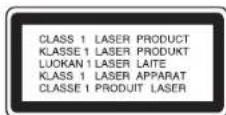
CAUTION: This product uses a Laser System.
To ensure proper use of this product, please read this owner's manual carefully and retain it for future reference.
Should the unit require maintenance, contact an authorized service center. Performing controls, adjustments, or carrying out procedures other than those specified herein may result in hazardous radiation exposure.
To prevent direct exposure to laser beam, do not try to open the enclosure. Visible laser radiation when open. DO NOT STARE INTO BEAM.
*This device is equipped with a portable battery or accumulator.
Safe way to remove the battery or the battery from the equipment:
Remove the old battery or battery pack, follow the steps in reverse order than the assembly. To prevent contamination of the environment and bring on possible threat to human and animal health, the old battery or the battery put it in the appropriate container at designated collection points. Do not dispose of batteries or battery together with other waste. It is recommended that you use local, free reimbursement systems batteries and accumulators."
The battery shall not be exposed to excessive heat such as sunshine, fire or the like.

When being connected in a wrong way, the unit displays as follows.
- Antenna port short: "ANTENNA ON PORT SHORT CIRCUIT CHECK" After connecting it again, restart the unit.
Front Panel
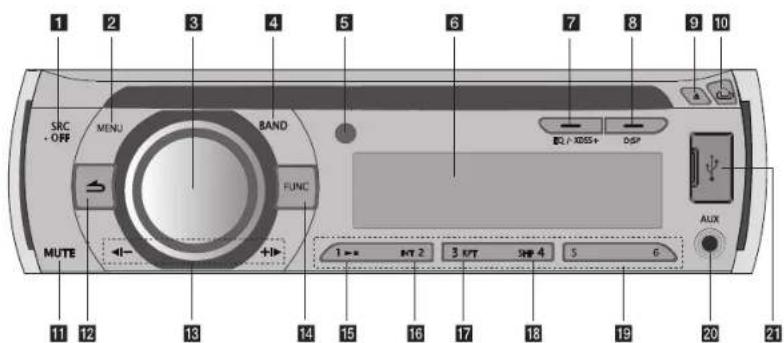
text_image
1 2 3 4 5 6 7 8 9 10 SRC. + OFF MENU BAND FUNC MUTE ←- 1 → RPT 2 3 RPT SPF 4 5 6 DLP / XRESS+ DSP ALUX 11 12 13 14 15 16 17 18 19 20 211 [SRC] Selects function sources.
[• OFF] Power on/ off.
2[MENU] Activates setting menu.
3 Volume knob
- Adjusts volume level.
- Confirms the settings.
- Checking tracks or files in CD mode or preset stations in TUNER mode.
4[BAND] Selects a band.
[• TA] Traffic Announcement (OPTIONAL)
Searches stations that have TA/TP information.
5 Remote Sensor
6 Display window
7 [EQ]/[• XDSS+]
Improves sound quality.
8[DISP]
- Press it, you can check the clock time.
- Press and hold it, you can turn off the display light.
9[▲] Releases a disc.
10[ ] opens the front panel.
11[MUTE]
Temporarily stops the sound.
12[ ] Returns to the previous step.
13 ◀I-/+I▶
Skip / Search / Seek / Tune
14 [FUNC] In each mode, sets playback items.
15▶II Plays and pauses playback.
16[INT] Intro scan
17[RPT] Repeat function
18[SHF] Shuffle
19Numeric buttons
Selects a numbered preset station in TUNER
20 [AUX] If connected to other portable player, you can enjoy musics from it on the unit.
21USB port (OPTIONAL)
Remote Control (OPTIONAL)
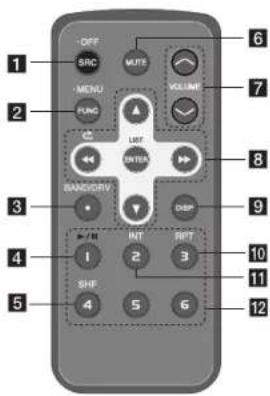
text_image
1 2 3 4 5 6 7 8 9 10 11 12 SRC MENU VOLUME LIFT ENTER BANDWRIV INT RPT 3 4 5 6 7 8 9 10 11 121 [SRC] Selects function sources. [• OFF] Power off.
2[• MENU] Activates setting menu [FUNC] In each mode, sets playback items.
3[BAND/DRV]
- Selects a band.
- Moves to a next USB drive (OPTIONAL)
4 [▶/11]
Plays or pauses playback
5[SHF] Shuffle
6[MUTE]
Temporarily stops the sound.
7 Adjusts volume level.

Skip/ Search/ Seek/ Tune [ ]
Returns to the previous step.
[▲▼]
- List up/ down
- Adjusts settings.
- Moves 10 MP3/WMA tracks backward or forward if there is no folder or one folder on a CD
- Moves to the previous or next folder if there are more than 2 folders on a CD.
[ENTER/ LIST]
- Confirms the settings.
- Checks tracks or files in CD mode or preset stations in TUNER mode.
9 [DISP]
- Press it, you can check the clock time.
- Press and hold it, you can turn off the display light.
10[RPT] Repeat function
11[INT] Intro scan
12 Numeric buttons
Selects a numbered preset station in TUNER.
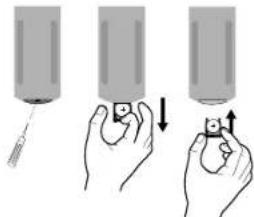
Battery Installation
natural_image
Illustration of three hands holding cylindrical objects with arrows indicating motion (no text or symbols)1 Pull out the battery holder with a sharp product like a ball point pen.
2 Put the battery with ar# cor-rectly on the battery holder.
3 Push the battery holder back into its original position.

- Use only one CR2025 (3 V) lithium battery.
- Remove the battery if the remote control is not used for a long period of time.
- Do not leave the product in a hot or humid place.
- Do not handle the battery with metallic tools.
- Do not store the battery with metallic materials.
About detachable control panel
Attaching the control panel
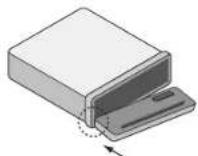
1 Align the left side of the panel with the stopper.
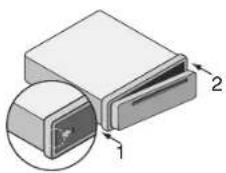
2 Push the right side or panel into the unit until it clicks.

Caution
- The control buttons may not work properly if the control panel is not attached properly. If this occurs, gently press the display.
- Do not leave the control panel in any area exposed to high temperatures or direct sunlight.
- Do not drop the control panel or otherwise subject it to strong impact.
- Do not allow such volatile agents as benzine, thinner, or insecticides to come into contact with the surface of the control panel.
Detaching the control panel

1 Press the to open the control panel.
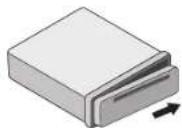
2 Push the control panel to right.

text_image
Control panel Protective Case3 Pull the control panel out of the unit. 4 Put the detached control panel into the protective case.

Note

Periodically wipe the contacts on the back of the control panel with a cotton swap moistened with alcohol. For safety, turn off the ignition before cleaning, and remove the key from the ignition switch.
Installation
Basic Installation

text_image
Bend the claws according to the thickness of the dashboard Control panelBefore installing, make sure that the ignition-switch is set to OFF and remove the terminal of the car battery to avoid short-circuiting.
1 Remove the existing receiver unit.
2 Make the necessary connections.
3 Install the installation sleeve.
4 Install the unit into the installation sleeve.
ISO-DIN Installation

text_image
Technical diagram of a device with numbered components, likely illustrating a multi-layered assembly or packaging layout.Control panel
1 Slide the unit into the ISO-DIN frame.
2 Fit screws removed from the old unit.
3 Slide the unit and frame into the dash opening.
4 Install the dash panel or adapter plate.
5 Install the trim ring to the unit.
6 Install the control panel to the unit.
Removing the existing receiver unit
text_image
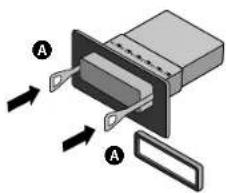
Diagram of a device with labeled components A and directional arrows indicating flow or movementIf there is already an installation sleeve for the receiver unit in the dashboard, it must be removed.
1 Remove the rear support from the unit.
2 Remove the control panel and trim ring from the unit.
3 Insert the lever Ⓐ into the hole on one side of the unit.
Perform the same operation on the other side and pull the unit out from the mounting sleeve.
Connection
Before connecting, make sure that the ignition switch is set to OFF, and remove the battery ⊖ terminal to avoid short circuits.
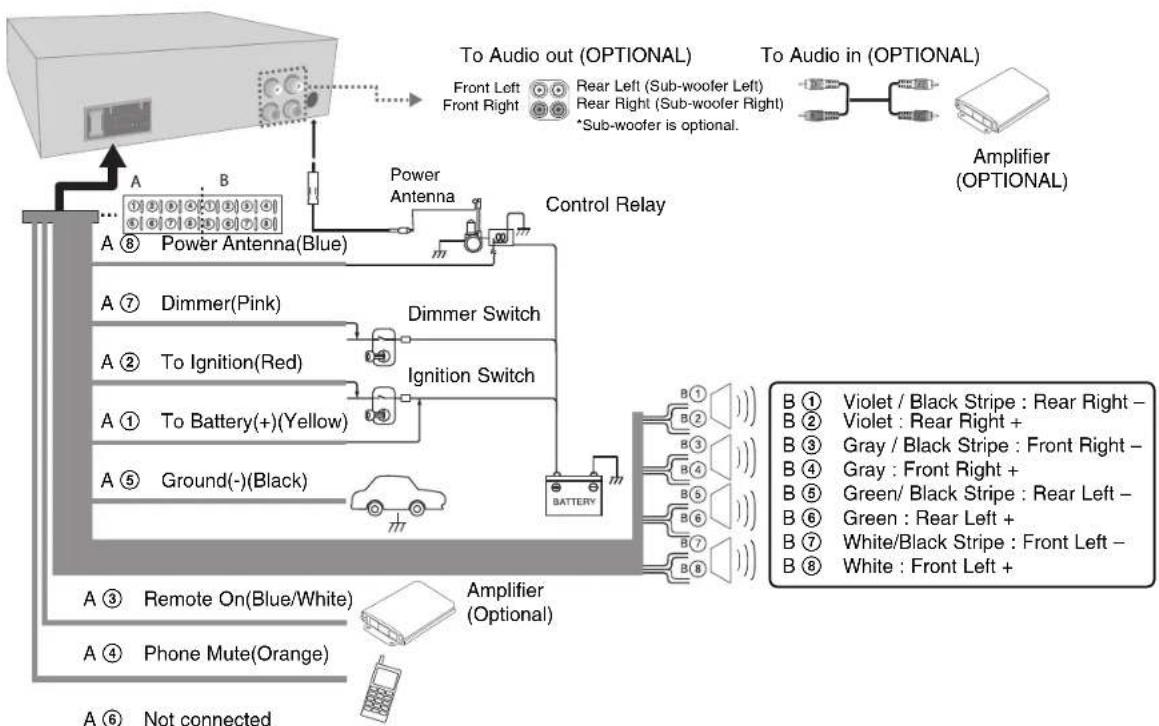
flowchart
graph TD
    A["Power Antenna(Blue)"] --> B["Control Relay"]
    B --> C["Amplifier (Optional)"]
    C --> D["B ① Violet/Black Stripe: Rear Right -"]
    C --> E["B ② Violet: Rear Right +"]
    C --> F["B ③ Gray/Black Stripe: Front Right -"]
    C --> G["B ④ Gray: Front Right +"]
    C --> H["B ⑤ Green/Black Stripe: Rear Left -"]
    C --> I["B ⑥ Green: Rear Left +"]
    C --> J["B ⑦ White/Black Stripe: Front Left -"]
    C --> K["B ⑧ White: Front Left +"]
    L["A ① To Battery(+)(Yellow)"] --> M["Ignition Switch"]
    N["A ② To Ignition(Red)"] --> O["Dimmer Switch"]
    P["A ③ Remote On(Blue/White)"] --> Q["Amplifier (Optional)"]
    R["A ④ Phone Mute(Orange)"] --> S["Not connected"]
    T["A ⑥"] --> U["Antenna"]
    V["Front Left Front Right"] --> W["To Audio out (OPTIONAL)"]
    W --> X["To Audio in (OPTIONAL)"]
    X --> Y["Amplifier (OPTIONAL)"]
Basic Operation
| ON PLAYER | |
| 1. Turn the unit on. | Any key |
| 2. Select a source. | SRC |
| 3. Adjust the volume. | Rotate the volume knob |
| 4. Turn the unit off. | Press and holdOFF |
Basic operation - more you can do
Mute
- Press MUTE to cut the sound.
- To cancel it, press again.
Using EQ(Equalizer)
EQ is to increase or decrease the signal strength of audio frequencies. The function helps you to enjoy sound more plentifully.
Press EQ/• XDSS+ on the unit repeatedly. The indicator lights up in the following order.
POP → CLASSIC → ROCK → JAZZ → VOCAL → SALSA → SAMBA → REGGAE → RUSSY → USER1 → USER2 → Off(not displayed)

- When XDSS+ is set to "Off", you can adjust the EQ settings.
- You can adjust sound level to your preference. Once you select a USER mode and press [SOUND], then adjust the sound level(BASS(bass), MID(middle), TRB(treble)), it will be automatically stored for the currently selected USER mode. Refer to the "For sound setting" for USER 1/2 mode.
Using XDSS+ (Extreme Dynamic Sound System)
It improves the treble and bass sound.
- Press and hold EQ/• XDSS+ on the unit.
- To cancel it, press and hold it again.
Checking the clock
- Press DISP once to check the clock.
- Press it again to remove it.
Turning off the display light
- Press and hold DISP.
- Press and hold it again to turn it on.
Note
Under the light-off condition, press any keys, the light is turned on and then off automatically if you don't press it within a few seconds.
Resetting the unit
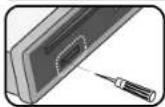
It resets the unit when it does not operate properly.
- Press [und pull out the front panel.
(Refer to page 6 for detaching the control panel.) - Prick the RESET hold with sharp object.
Adjusting general settings
You can adjust sound, light and other settings by using the MENU button.
On the Unit
- Press MENU.
- Rotate the volume knob to select [SOUND], [LIGHT], or [OTHER] and press it.
- Rotate the volume knob to select the item and press it.
- Rotate the volume knob clockwise or counterclockwise to adjust the level.
- Press the volume knob to confirm the setting.
If you want to return to the previous step, press ↗
On the Remote Control (OPTIONAL)
- Press and hold FUNC/·MENU
- Press ▲ or ▼ to select [SOUND], [LIGHT], or [OTHER] and press ENTER.
- Press ▲ or ▼ to select the mode and press ENTER.
- Press ▲ or ▼ to adjust the level.
- Press ENTER to confirm the setting
If you want to return to the previous step, press ↻
For Sound setting
You can adjust sound quality by adjusting the level of BAL(left/right speaker), FAD(front/rear speaker) and S--W(Sub-woofer:optional).
For Light setting
You can adjust the light effects by adjusting LED, DIM, or DIM L.
- LED COL1/ COL2/ AUTO: You can change the LED window color.
- DIM(Dimmer) OFF / ON / AUTO : You can change the brightness of the display window during the power-on status. When you set DIMMER to AUTO, the dimmer operates according to the car dimmer setting.
- DIM L (Dimmer Level): When you set DIM to ON/AUTO, you can adjust the dimmer level. (-2,-1,0,+1,+2)
For Other setting
● AUX (Auxiliary) ON / OFF It is possible to use auxiliary equipment with this unit. Activate the auxiliary setting when using auxiliary equipment connected to this unit. - BEEP 2ND / ALL BEEP 2ND : The beep is generated when a key is long pressed. (1 sec) BEEP ALL : The beep is generated when any key is pressed.
- A-EQ(Auto EQ) ON/OFF AUTO EQ operates only in the music file supported with Genre in the device. When you set AUTO EQ to ON, POP, CLASSIC, ROCK, or JAZZ is automatically selected according to the music genre.
- SW(Subwoofer) OFF / SW 55 Hz / SW 85 Hz / SW 120 Hz You can enable the subwoofer.
SW OFF <-> SW 55 Hz <-> SW 85 Hz <-> SW 120 Hz.
- DEMO OFF/ ON
You can change the initial indication on the display to information name (function name, EQ name, etc...) while listening to a source. - CLK(Clock)
For the model RDS is not supported or even for a RDS supported unit, when RDS CT information is not received and then you set CT on the setting menu to OFF, you can adjust the time by yourself. Refer to the page 10 for setting the CT(Clock Time) ON/OFF.
Listening to a CD
| ON PLAYER | |
| 1. Insert a CD. | - |
| 2. Adjust the volume. | Rotate the volume knob |
Listening to a CD - more you can do
Pausing or restarting CD playback
- Press ▶ on the player during playback.
- Press it to resume playback.
Searching for a section within a track / file
- Press and hold ◀l- or +▶ on the player for about 1 second during playback.
- Press ▶ on the player at the point you want.
Skipping to another track/ file
Press ◀- or +▶ on the unit.
Or
- Press the volume knob or ENTER on the remote control.
- Rotate the volume knob on unit or press ▲ or ▼ on the remote control to select a desired track or file.
- Press ENTER (Or the volume knob) to start playback.

To skip to previous track, press briefly ◀- within 3 seconds of playing time.
Checking information about your music
MP3/WMA files often come with tags. The tag gives the Title, Artist or Album. Press DISP repeatedly during MP3/WMA/CD TEXT file playback. If there is no information, "NO TEXT" will be shown in the display window.
Playing back tracks/files in a way you want
On the Unit
-
Press FUNC.
-
Rotate the volume knob to select an item and press it.
-
Rotate the volume knob to set the option.
-
Press the volume knob to confirm the setting.
If you want to return to the previous step, press
On the Remote Control (OPTIONAL)
-
Press FUNC/· MENU.
-
Press ▲ or ▼ to select an item and press it.
-
Press ▲ or ▼ to set the option.
-
Press ENTER to confirm the setting.
If you want to return to the previous step, press
- INT (Intro Scan)
Each files in the current selected folder (INT) or the first 10 seconds of each tracks/files (INT) on the disc are played.
RPT (Repeat)
The current selected tracks/files (1 RPT) or folder (■ RPT) on the disc is played repeatedly.
- SHF (Shuffle)
Each files in the current selected folder (■ SHF) or all of the tracks/files (SHF) on the disc is played randomly. During random playback, even if you press ◀I-, you won't go back to the previous track.
Note
• The icon is displayed during MP3/WMA playback.
- MP3/WMA Disc compatibility with this unit is limited as follows:
-
Sampling Frequency / 8 kHz to 48 kHz (MP3) 22.05 kHz to 48 kHz (WMA)
-
Bit rate / within 8 kbps to 320 kbps (include VBR) (MP3)
32 kbps to 320 kbps (WMA)
-
CD-R/CD-RW file system should be "ISO 9660"
-
If you record MP3/WMA files using software which cannot create a FILE SYSTEM, for example "Direct-CD" etc., it will not be possible to playback MP3/WMA files. We recommend that you use "Easy-CD Creator" which creates an ISO9660 file system.
You have to set the disc format option to [Mastered] in order to make the discs compatible with the LG players when formatting rewritable discs.
When setting the option to Live File System, you cannot use it on LG players. (Mastered/Live File System : Disc format system for Windows Vista)
Customers should also note that permission is required in order to download MP3/WMA files and music from the Internet. Our company has no right to grant such permission. Permission should always be sought from the copyright owner.
Listening to music from an external device
| ON PLAYER | |
| 1. Connect an external device to the AUX jack with line input cable. | - |
| 2. Select a source to AUX. | SRC |
| 3. Play the connected Auxiliary Equipment. | - |
| 4. Adjust the volume. | Rotate the volume knob |
Listening to music from an external device - more you can do
Preventing radical changes in volume as switching sources
Only when you set AUX to ON as switching sources, you can adjust the volume level of each source to prevent radical changes in volume by selecting GAIN LOW or HIGH.
-
Press FUNC on the unit or FUNC/• MENU on the remote control.
-
Rotate the volume knob on unit or press ▲ or ▼ on the remote control to set the option(GIN L/H).
-
Press the volume knob on unit or ENTER on the remote control to confirm the setting.
-
If you want to return to the previous step, press
Listening to the radio
| ON PLAYER | |
| 1. Select a source to tuner. | SRC |
| 2. Select a band. | BAND |
| 3. Auto seek.Manual seek. | ◄I-/+I► |
| Press and hold◄I-/+I► |
Listening to the radio - more you can do
Storing desired frequencies manually
- Press BAND to select a desired band you want to store.
- Press and hold ◀l- or +▶ on the unit or ◀◀ or ▶▶ on the remote control until the beep sound is heard.
- Press it repeatedly to select a desired frequency.
- Press and hold one of preset buttons among 1 to 6 until the beep sound is heard.
- Repeat steps 1 to 4 to preset other stations.
Note - When a station is stored on the preset numbers on which another station of the same band has already been preset, the previously preset station is automatically erased.
Listening to a preset station
- Press BAND to select a desired band.
- Press the volume knob or ENTER on the remote control.
- Rotate the volume knob or press ▲ or ▼ on the remote control to select a preset station.
- Press the volume knob or ENTER on the remote control.
0
Press BAND and then the desired preset button among 1 to 6.
Adjusting TUNER settings
On the Unit
- Press FUNC.
- Rotate the volume knob to select an item and press it.
- Rotate the volume knob to set the option and press it.
- If you want to return to the previous step, press
On the Remote Control (OPTIONAL)
- Press FUNC/•MENU
- Press ▲ or ▼ to select an item and press ENTER
- Press ▲ or ▼ to set the option and press ENTER.
- If you want to return to the previous step, press ↻
● PTY (vrsti programa/OPTIONAL)
It searches the radio stations by program type of FM tuner in a way as follows;
The program types are displayed as follows.
| NEWS | VARIED | LEISURE | JAZZ |
| AFFAIRS | WEATHER | DOCUMENT | COUNTRY |
| INFO | FINANCE | POP M | NATION M |
| SPORT | CHILDREN | ROCK M | OLDIES |
| EDUCATE | SOCIAL | EASY M | FOLK M |
| DRAMA | RELIGION | LIGHT M. | |
| CULTURE | PHONE IN | CLASSICS | |
| SCIENCE | TRAVEL | OTHER M |
- PI (Programme Identification) SOUND/ MUTEOPTIONAL
PI SOUND: When the frequency of a tuned station switches to an AF(Alternative frequency) with an unidentified PI, it keeps the sound.
PI MUTE: When the frequency of a tuned station switches to an AF with an unidentified PI, it mutes the sound until the PI is identified.
- CT (Clock Time) ON/OFFROPTIONAL
You can use the RDS CT information to update the time. When RDS CT information is not received and then you set CT to OFF, you can adjust the time by yourself. Refer to the page 10 for setting the clock.
• TA(Traffic Announcement) ALARM/SEEK(OPTIONAL)
TA ALARM: When the tuned station has no TP information for 5 seconds, a double beep sound is output.
TA SEEK: When the tuned station does not receive TP information for 5 seconds, the receiver returns to the next station that has the TP information.
- REG (Region) ON/OFF (OPTIONAL)
REG ON : The unit switches to another station, within the same network, broadcasting the same program when the receiving signals from the current station become weak.
REG OFF : The unit switches to another station, within the same network when the receiving signals from the current station become weak. (This mode, the program may differ from the one currently received.)
● AF(Alternative frequency) ON/ OFF (OPTIONAL)
When the reception quality drops, the tuner automatically changes to another station in the network, broadcasting a better reception quality, using the PI and AF codes.
●SENS(Tuner sensitivity) MID/ HI/ LOW
In an area in which signal reception is weak, it helps the tuner to search more stations. The weaker the reception is, the lower option you should set to.
- PS(Preset scan)
Each preset station appears. To cancel, press ENTER (Or the volume knob).
AS (Auto Store)
The six strongest broadcasting frequencies will be stored under preset button 1 to 6 in the order of their signal strength. To cancel, press ENTER (Or the volume knob).
Using an USB device (OPTIONAL)
| ON PLAYER | |
| 1. Open the USB cover. | - |
| 2. Connect the USB device. | - |
| 3. Adjust the volume. | Rotate the volume knob |
Using an USB device - more you can do
Moving to another drive
When connecting this unit to multi reader, press BAND to go to the next drive. Each time you press the button, the driver modes changes.
Quick search of a desired file
You can select and play a desired file regardless of the order in USB.
- Press ENTER (Or the volume knob) to check all files.
- Rotate the volume knob on unit or press ▲ or ▼ on the remote control to select a desired file.
- Press ENTER (Or the volume knob) to start playback.
Note
- Press and hold ENTER (Or the volume knob) to check all folders. Then, repeat the previous the steps from 1 to 3 for playing a desired file.
- If the USB device is already connected, press SRC to select a source to USB.
- Other functions are same with "Listening to a CD - more you can do". Refer to page 10.
Look out for the followings
- Do not extract the USB device while in operation.
- For a large capacity USB, it may take longer than a few minutes to be searched
• To prevent data loss, back up all data. - If you use a USB extension cable or USB hub, the USB device is not recognized.
- Using NTFS file system is not supported. (Only FAT(16/32) file system is supported.
- External HDD, Card readers, Locked devices, or hard type usb devices are not supported.
- USB port of the unit cannot be connected to PC. The unit can not be used as a storage device.
STEERING REMOTE CONTROL
Appellation
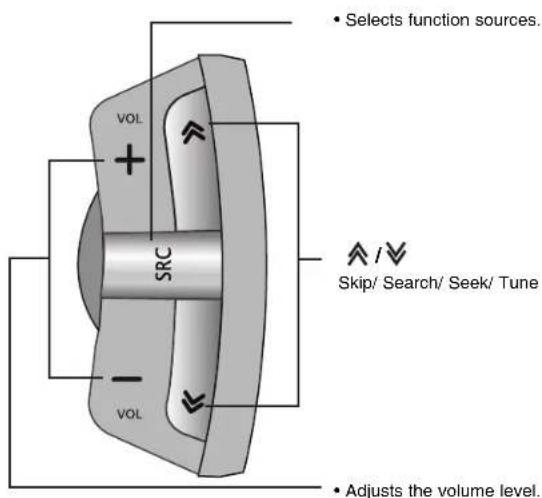
text_image
• Selects function sources. VOL + SRC - VOL • Adjusts the volume level. ✓/✓ Skip/ Search/ Seek/ TuneNOTES
- Press and hold SCR, you can turn the unit off during operation.
- Button on the car receiver head unit and remote control unit with same name have the same function.
- Depending on the car receiver, there may not be some buttons with the same names as those on this unit.
- This unit can not be used for a car receiver that does not accept a remote control unit.
Before Use
Install the specified battery in this unit
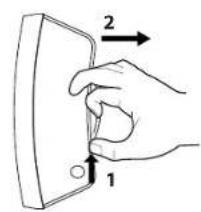
text_image
Diagram showing a hand holding a rectangular object with two directional arrows labeled 1 and 2 indicating movement or force.- Pull out the battery holder while pressing the bottom of it.
- Put the battery with +nd - correctly on the battery holder.
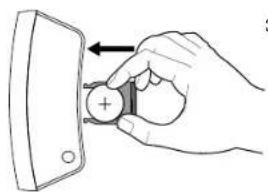
natural_image
Hand holding a battery with an arrow indicating left motion (no text or symbols)- Push the battery holder back into its original position.
NOTES
- Use only one CR2025 (3 V) lithium battery.
- Remove the battery if the remote control is not used for long.
- Do not recharge, disassemble, heat or dispose of the battery in fire.
- Do not handle the battery with metallic tools.
- Do not store the battery with metallic materials.
- In the event of battery leakage, wipe the remote control completely clean and install a new battery.
- Always check carefully that you are loading battery with its (+) and (-) poles facing in the proper directions.
- Do not eat lithium battery.
Installation
WARNING
- Avoid installing this unit in such a location where the operation of safety devices such as airbags is prevented by this unit. Otherwise, there is danger of a fatal accident.
- Fix this unit securely to the steering wheel with the belt attached to the unit. If this unit is loose, it disturbs driving stability, which may result in a traffic accident.
- Do not attach this unit to the outer circumference of the steering wheel. Otherwise, it disturbs driving stability, causing a traffic accident. Always attach this unit to the inner circumference of steering wheel as shown.
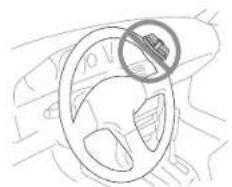
natural_image
Line drawing of a car steering wheel with a circular symbol indicating no hazard or absence (no text or labels)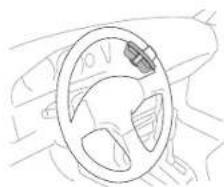
natural_image
Line drawing of a car dashboard with steering wheel and dashboard (no text or symbols)NOTES
- Do not install this unit in such a place as may obstruct the driver's view.
- Since inferior layout differs depending on the type of vehicle, the ideal installation location for the unit also differ. When installing the unit, select a location that assures optimum transmission of signals from the unit to car receiver.
Left-Hand-Drive Car
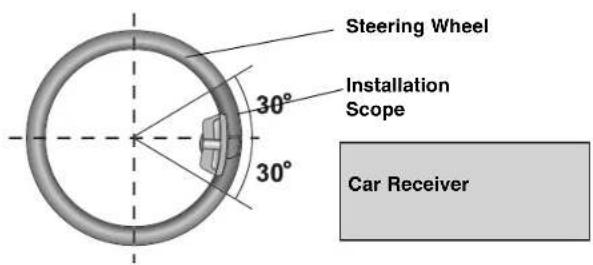
text_image
Steering Wheel 30° Installation Scope 30° Car ReceiverRight-Hand-Drive Car

text_image
Steering Wheel 30° Installation Scope 30° Car Receiver- If you install in place other than installation scope, this unit in not operated.
Installation
Installing the unit on a Left-Hand-Drive Car.
- When the unit is installed on a Right-Hand-Drive car, the horizontal position are inverted.
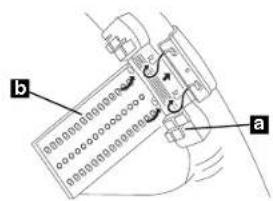
- Secure Cover holder the inner circumference of the steering wheel with belt b Fit the Cover holder a the steering wheel so that the arrow-marked side faces the driver as shown by picture.
text_image
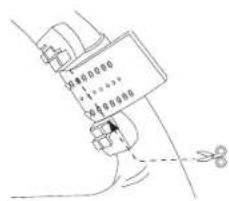
b a- Cut the extra portion of the belt at the center of the cover holder.
text_image
20100000 +...... 20100000 -- Install the remote control unit in the holder.

natural_image
Mechanical component diagram showing a curved assembly with rotational arrows (no text or symbols)- When removing the remote control unit from the holder, move the corrugated release section toward the steering wheel as far as possible before sliding the remote control unit toward you.

natural_image
Pure line drawing of a hand gripping a rectangular object with a circular arrow indicating rotation (no text or symbols)Troubleshooting
| Symptom Cause Correction | |||
| General | Power doesn’t turn on/ The unit doesn’t operate. | Leads and connectors are not properly. | Confirm once more that all connections are correct. |
| The fuse is blown. | Rectify the problem that caused the fuse to blow, and then replace it. Be very sure to install the correct fuse with the same rate. | ||
| Noise and other factors are causing the built-in microprocessor to operate incorrectly. | Turn the unit off and then on. | ||
| No sound is heard / The volume level will not rise. | Cables are not connected correctly. | Connect the cables correctly. | |
| CD | There’s audio skipping. | This unit is not firmly secured. | Secure this unit firmly. |
| The playback is not possible. | The disc is dirty. | Clean the disc. | |
| The loaded disc is of a type this unit cannot play. | Check what type the disc. | ||
| Radio | Radio stations cannot be tuned in. | The signal strength of the stations is too weak(when tuning in with automatic tuning.) | Tune in the stations manually. |
| No station has been preset or preset stations have been cleared(when tuning by scanning preset stations.) | Preset the stations.(Refer to the page 12) | ||
| Remote control | The unit does not operate correctly even when the appropriate remote control buttons are pressed. | Battery power is low. | Load a new battery. |
Specifications
General
Output Power 53 W x 4 CH (Max.)
Power Source DC 12 V
Speaker impedance 4Ω
Ground System Negative
Dimensions (W x H x D) 178 x 50 x 169 mm (Without Control Panel)
Net Weight 1.37 kg
Tuner
FM
Frequency Range 87.5 MHz to 107.9, 87.5 MHz to 108 MHz,
65 MHz to 74 MHz, or 87.5 MHz to 108 MHz
S/N Ratio 55 dB
Distortion
0.7
%
Usable Sensitivity 12 dBμV
AM (MW)
Frequency Range
520 MHz to 1720 or 522 MHz to 1620 kHz
S/N Ratio 50 dB
Distortion 1.0%
Usable Sensitivity 28 dBμV
CD
Frequency Response 20 Hz to 20 kHz
S/N Ratio 80 dB
Distortion 0.12 %
Channel Separation (1 kHz) 55 dB
AUX
Frequency Response 20 Hz to 20 kHz
S/N Ratio 80 dB
Distortion 0.1 %
Channel Separation (1 kHz) 45 dB
Max Input Level (1 kHz) 1.1 V
USB
Version
USB 1.1
Line OUT
Frequency Response 20 Hz to 20 kHz
Output Voltage
2 V (Max.)
Subwoofer (optional)
Frequency Response 20 Hz to 120 Hz
Output Voltage 2.0 V (Max.)
Designs and specifications are subject to change without notice.

LG
Life's Good