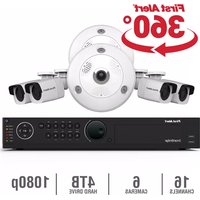
NVR1640 - Security Camera FIRST ALERT - Free user manual and instructions
Find the device manual for free NVR1640 FIRST ALERT in PDF.


| Product Type | 16-Channel Network Video Recorder (NVR) with PoE |
| Brand | First Alert |
| Model | NVR1640 |
| Dimensions (W × D × H) | 445 mm × 390 mm × 70 mm (19-inch rack-mounted 1.5U chassis) |
| Weight | ≤ 8 kg (17.64 lb) without hard disk or DVD-R/W |
| Power Supply | 100 ~ 240 VAC, 6.3 A, 50 ~ 60 Hz; Consumption ≤ 40 W; PoE: 12 VDC @ 1 A × 16 |
| Video Input | 16 IP channels; Incoming bandwidth 80 Mbps |
| Recording Resolution | 5 MP / 3 MP / 1080p / UXGA / 720p / VGA / 4CIF / DCIF / 2CIF / CIF / QCIF |
| Playback Resolution | Same as recording resolution; synchronous playback up to 16 channels |
| Video Output | 1 HDMI (up to 1920×1080p@60Hz), 1 VGA (up to 1920×1080p@60Hz), 1 CVBS BNC |
| Audio | 2-ch audio input (RCA), 2-ch audio output (BNC), 1-ch two-way audio (BNC) |
| Hard Drive Support | Up to 4 SATA HDDs (up to 4 TB each); 1 eSATA interface; supports NAS and IP SAN |
| Network Interfaces | 1 RJ-45 10/100/1000 Mbps Ethernet; 16 independent 100 Mbps PoE network interfaces |
| USB Interfaces | 3 × USB 2.0 |
| Alarm I/O | 16 alarm inputs, 4 alarm outputs |
| Serial Interfaces | 1 RS-232, 1 RS-485 (reserved), 1 RS-485 keyboard interface |
| PTZ Control | Supports PTZ cameras via RS-485; presets, patrols, patterns |
| Motion Detection | Advanced motion detection with configurable areas and sensitivity |
| Recording Modes | Manual, scheduled, motion/ alarm triggered; pre-record and post-record up to 5 s |
| Remote Access | Via web browser, CMS software, or SmartBridge HD mobile app (iOS/Android) |
| Operating Temperature | -10 °C to +55 °C (14 °F to 131 °F) |
| Operating Humidity | 10% to 90% |
| Safe Use | Unplug all power sources before opening; use only First Alert accessories; avoid exposure to rain/moisture |
| Maintenance | Keep vents clean; use static-free workstation when handling HDD; clean with dry cloth |
| Spare Parts / Repairability | Hard drive and DVD-R/W replaceable; contact BRK Brands for service; warranty: 1 year limited parts and labor |
Frequently Asked Questions - NVR1640 FIRST ALERT
User questions about NVR1640 FIRST ALERT
0 question about this device. Answer the ones you know or ask your own.
Ask a new question about this device
Download the instructions for your Security Camera in PDF format for free! Find your manual NVR1640 - FIRST ALERT and take your electronic device back in hand. On this page are published all the documents necessary for the use of your device. NVR1640 by FIRST ALERT.
USER MANUAL NVR1640 FIRST ALERT
Welcome
Thank you for choosing First Alert for your security needs!
For more than half a century, First Alert has made the home-safety and security products that make your job easier. Our products are built to the highest standard which has earned us a leadership role in the home-safety and security product categories. We are committed to serving our customers, from the professionals who install our products, to the families and businesses who count on them. First Alert has been helping families and businesses stay safe for over 50 years. By having a First Alert Security System, you're taking the first step in protecting your home or business from damage or theft. We're watching, even when you're not.
This manual is written for the Network Video Recorder. It was accurate at the time it was completed. However, because of our ongoing effort to constantly improve our products, additional features and functions may have been added since that time and on-screen displays may change. We encourage you to visit our website at www.firstalert.com or www.brkelectronics.com to check for the latest manuals (English and Spanish), firmware updates, downloads, other security camera products and announcements. Please visit www.firstalert.com for software downloads and manual updates.
© 2015 BRK Brands, Inc. All rights reserved. Distributed by BRK Brands, Inc., Aurora, Illinois 60504. BRK Brands, Inc. is a subsidiary of Jarden Corporation (NYSE: JAH). First Alert® and SmartBridge™ are registered trademarks of the First Alert Trust. Due to continuing product development, the product inside the packaging may look slightly different than the one on the package. To obtain warranty service, contact the Consumer Affairs Division at 1-800-323-9005, Monday through Friday, 7:30 a.m. - 5 p.m., Central Standard Time. Made in China
Main Description
Sixteen channel digital video recorder with Internet remote surveillance, motion detection, PTZ and alarm control suitable for applications such as high-end residential - new or remodel, light commercial, small business/retail, small warehouse or small grocery.
Product Features
• Auto IP connection capability
- Record, playback, mobile phone live view, backup, control, & remote access
- Supports up to 4TB SATA hard drive and can support up to 4 HDD's depending on model
• Supports smart phone live view
• High Definition 720P/1080P Viewing Modes
- Advanced motion detection activated recording
• 24/7 Scheduled Recording
• Network monitoring through internet access
• Supports USB or external DVD backup
• Hi-speed backup/upgrade/record via USB2.0
- PTZ camera control
- HDMI Video Out
- e-Sata Interface
• 16 Channel POe
PRODUCT OVERVIEW PACKAGE CONTENTS
What's in the Box\*
NVR Device

You will Need...
• Monitor or Television with HDMI or VGA inputs
• VGA cable (If not using included HDMI cable)

natural_image
Close-up of a silver CD or DVD disc with a flat center and circular rim (no text or symbols visible)Installation Software & Manual

natural_image
Front view of a white surveillance camera with 'First Alert' branding (no additional text or symbols visible)IR Bullet Camera
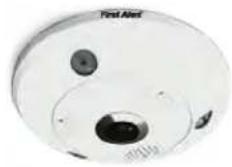
360^ Camera

natural_image
Black cable with two connectors, no visible text or symbolsPower Cord for NVR

natural_image
Black computer mouse with USB cable and cord, isolated on white background (no text or symbols)USB Mouse

natural_image
Coiled beige cable with connectors, no visible text or symbolsEthernet Cable

IR Remote Control

natural_image
Two dark blue metal plate panels with four circular holes, no text or symbols visibleBrackets

natural_image
Close-up of a mechanical component with a curved handle and two small parts, no visible text or symbols.Screws & Mounting Parts

HDMI Cable

Quick Start Guide
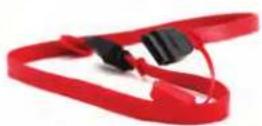
SATA Cable
PRODUCT OVERVIEW
CAMERA AND POWER CONNECTIONS

Use First Alert Cameras Only

natural_image
Close-up of a white electronic device labeled 'Piret Alert' with circular ports and a blue connector (no readable text beyond label)PTZ & Alarm Connections (Cameras not included)
Installing Cameras
Installing Cable-Safe Mounting Bracket
Decide if the camera is to be wall or ceiling mounted and if cable will be fed through mounting surface hidden directly behind the bracket or fed through the side of the bracket so cable is exposed. Mark area where you will drill your hole. The Cable-Safe Mounting Bracket has three Adjusting Points. 1) Rotates Bracket 360° relative to mounting surface, 2) Adjusts bracket hinge 180° and 3) Rotates camera body 360° to level image.
Step 1: Select the position for the camera and drill your hole for the cable. Feed cable through mounting surface. Mount bracket to surface.
Step 2: Aim camera at target and using Adjusting Points 1 and 2 in tandem position camera. Tighten Ring and Thumb Screw.
Step 3: Rotate camera body using Adjusting Point 3 to the proper view angle making sure the Camera Shield is always on top and parallel to the ground so the image is level in the Live View Screen. See "Camera Orientation" Info box. Tighten screw.
Step 4: Attach proper length of Ethernet cable and run from camera to NVR location.
Step 5: Check camera orientation via the Live View screen. Adjust as required.
Connecting Devices
Follow this diagram to make device connections. Note, some devices are not included with this kit. See "What's in the Box" for included devices.

SECTION DESCRIPTION PAGE #
| Product Overview | ||
| Package Contents 4 | ||
| Camera and Power Connections 5 | ||
| Safety Caution Statements 8 | ||
| Safety Caution Statements 9 | ||
| Front Panel 10 | ||
| Rear Panel 11 | ||
| Remote Control 13 | ||
| USB Mouse 14 | ||
| Virtual Keypad 15 | ||
| Initial Setup | ||
| Startup and Shutdown 16 | ||
| Setup Wizard 17 | ||
| Adding and Connecting Cameras 20 | ||
| Live View | ||
| Live View Introduction 21 | ||
| Operations 22 | ||
| PTZ Controls | ||
| Configuring PTZ Settings | 25 | |
| Setting PTZ Presets, Patrols, and Controls | 25 | |
| Recording and Capture Settings | ||
| Configuring Parameters | 31 | |
| Configuring Recording/Capture Schedule | 32 | |
| Configuring Motion Detection Recording and Capture | 33 | |
| Manual Recording and Continuous Capture | 35 | |
| Configuring Holiday Recording and Capture | 35 | |
| Configuring Redundant Recording and Capture | 36 | |
| Configuring HDD Group for Recording Capture | 37 | |
| File Protection | 38 | |
| Playback | ||
| Playing Back Record Files | 40 | |
| Auxiliary Functions of Playback | 45 | |
| Picture Playback | 46 | |
| Backup | ||
| Backing Up Record Files | 47 | |
| Backing Up Pictures | 53 | |
| Managing Backup Devices | 53 | |
| Hot Spare Device Backup | 55 | |
| Alarm Settings | ||
| Setting Motion Detection Alarm | 57 | |
| Setting Sensor Alarms | 58 | |
| Detecting Video Loss Alarm | 59 | |
| Detecting Video Tampering Alarm | 59 | |
| Handling Exceptions Alarm | 60 | |
| Setting Alarm Response Actions | 60 | |
INTRODUCTION TABLE OF CONTENTS
| SECTION DESCRIPTION PAGE # | ||
| 8 | Network Setting | |
| Configuring General Settings 63 | ||
| Configuring Advanced Settings 63 | ||
| Checking Network Traffic 69 | ||
| Configuring Network Detection 69 | ||
| HDD Management | ||
| 9 | Initializing HDDs 71 | |
| Managing a Network HDD 72 | ||
| Managing eSATA 73 | ||
| Managing HDD Group 73 | ||
| Configuring Quota Mode 75 | ||
| Configuring Disk Clone 76 | ||
| Checking HDD Status 77 | ||
| HDD Detection 77 | ||
| Configuring HDD Error Alarms | 78 | |
| 10 | Camera Settings | |
| Configuring OSD Settings | 79 | |
| Configuring Privacy Mask | 79 | |
| Configuring Video Parameters | 80 | |
| Management and Maintenance | ||
| Viewing Device Information | 81 | |
| Viewing Camera Information | 81 | |
| Viewing Record Information | 81 | |
| Viewing Alarm Information | 82 | |
| Viewing Network Information | 82 | |
| 11 | Viewing HDD Information | 83 |
| Search Log Files | 83 | |
| Export Log Files | 84 | |
| Export/Import IP Camera Information | 85 | |
| Export/Import Configuration Files | 86 | |
| Upgrading by Local Backup Device | 86 | |
| Upgrading by FTP | 87 | |
| Restore Default Settings 87 | ||
| Additional Information | ||
| 12 | RS-232 Serial Port Configuration | 88 |
| General Settings | 88 | |
| DST Settings | 89 | |
| Smartbridge Function - P2P | 83 | |
| More Settings | 91 | |
| User Account Management | 92 | |
| Deleting and Editing Users | 94 | |
| Mobile App | ||
| Accessing Your Device From the App | 95 | |
| Appendix | ||
| 14 | Hard Drive | 96 |
| Specifications | 97 | |
| FAQ's | 98 | |
| Troubleshooting | 99 | |
| Warranty | 100 | |
SAFETY CAUTION STATEMENTS
Safety Precautions
- Do not drop, puncture, or disassemble the cameras or NVR.
- Do not tug on the power adapter. Use the plug to remove it from the wall.
-
Do not expose the cameras or NVR to high temperatures.
-
For your own safety, avoid using the NVR when there is a storm or lightning in your area.
- Use the cameras and NVR with care. Avoid pressing hard on the cameras or NVR body.
- Do not use power cable if it is damaged or crushed.
Safety Precautions
Instructions for Use
• Always purchase the correct size and grade of battery most suitable for the intended use.
- Replace all batteries of a set at the same time.
- Clean the battery contacts and also those of the device prior to battery installation.
- Ensure the batteries are installed correctly with regard to polarity (+ and -).
- Remove batteries from equipment that is not to be used for an extended period of time.
- Remove used batteries promptly.
FCC Compliance
FCC Compliance Class B Digital Device
This equipment has been tested and found to comply with the limits for a Class B digital device, pursuant to Part 15 of the FCC rules. These limits are designed to provide reasonable protection against harmful interference in a residential installation. This equipment generates, uses and can radiate radio frequency energy and, if not installed and used in accordance with the instructions, may cause harmful interference to radio communications.
However, there is no guarantee that the interference will not occur in a particular installation. If this equipment does cause harmful interference to radio or television reception, which can be determined by turning the equipment off and on, the user is encouraged to try to correct the interference by one or more of the following measures:
- Reorient or relocate the receiving antenna.
- Increase the separation between the equipment and receiver.
- Connect the equipment into an outlet on a circuit different from that of the receiver.
- Consult the dealer or an experienced radio or TV technician for help.
Notice: Only peripherals complying with FCC class B limits may be attached to this equipment. Operation with non-compliant peripherals or peripherals not recommended by First Alert / BRK Brands, Inc. is likely to result in interference to radio and TV reception. Changes or modifications to the product, not expressly approved by First Alert / BRK Brands, Inc., could void the user's authority to operate the equipment.
Important: The information shown in the FCC Declaration of Conformity paragraph below is a requirement of the FCC and is intended to supply you with information regarding the FCC approval of this device. The phone number listed below is for FCC related questions only and not intended for questions regarding the connection or operation for this device.
FCC Declaration of Conformity for devices with the FCC logo. Responsible Party: First Alert / BRK Brands, Inc., 3901 Liberty Street Rd., Aurora, IL. 60504-8122 Telephone: (630) 851 - 7330. Product / Model: NVR1640. We, First Alert / BRK Brands, Inc. declare under our sole responsibility that the device to which this declaration relates: Complies with Part 15 of the FCC Rules. Operation is subject to the following two conditions: (1) this device may not cause harmful interference, and (2) this device must accept any interference received, including interference that may cause undesired operation.
FCC Certification (if applicable)
This device contains a radio transmitter. Accordingly, it has been certified as compliant with 47 CFR Part 15 of the FCC Rules for intentional radiators. Products that contain a radio transmitter are labeled with an FCC ID.
Fire and Electric Shock Hazard Statement

CAUTION
RISK OF ELECTRIC SHOCK

CAUTION: TO REDUCE THE RISK OF ELECTRIC SHOCK. UNPLUG ALL POWER SOURCES, INCLUDING CAMERAS FROM THE NVR BEFORE REMOVING COVER. FAILURE TO DO SO CAN RESULT IN DAMAGE TO THE NVR OR ITS COMPONENTS AS WELL AS INJURY OR DEATH

Caution!
When working with electrostatic sensitive devices such as hard disk or NVR unit, make sure you use a static-free workstation. Any electrostatic energy coming in contact with the hard disk or NVR can damage it permanently.

The lightning flash with arrowhead symbol, within an equilateral triangle, is intended to alert the user to the presence of un-insulated “dangerous voltage” within the product’s enclosure that may be of sufficient magnitude to constitute a risk of electric shock.

The exclamation point within an equilateral triangle, is intended to alert the user to the presence of important operating and maintenance (servicing) instructions in the literature accompanying the appliance.
WARNING: TO PREVENT FIRE OR SHOCK HAZARD, DO NOT EXPOSE THIS NVR UNIT TO RAIN OR MOISTURE
CAUTION: TO PREVENT ELECTRIC SHOCK, MATCH WIDE BLADE OF THE PLUG TO THE WIDE SLOT AND FULLY INSERT
Disposal

These symbols indicate that it is prohibited to dispose of these batteries in the household waste. Take spent batteries that can no longer be charged to the designated collection points in your community.
PRODUCT OVERVIEW
Front Panel

| ITEM FUNCTION DESCRIPTION | ||
| 1 | Status Indicators | Power Displays green when power is on |
| Ready Displays green when device is functioning properly | ||
| Status Displays green when the IR remote control is enabledDisplays red when the function on the composite keys (SHIFT) are usedNo display when neither the IR remote control is enabled or composite keys used | ||
| Alarm Displays red when an alarm occurs | ||
| HDD Flashes red when HDD is reading/writing | ||
| Tx/Rx Flashes green when network connection is functioning properly | ||
| 2 | Control Buttons | DirectionMenu mode Navigate between different fields and items and select setting parameters |
| Playback mode Control playing speed with up and down buttonsForward or rewind recording by 30 seconds with left and right buttons | ||
| Image Setting interface Adjust level bar of the image parameters with up and down buttons | ||
| Live View mode Switch channelsEnterMenu mode Confirm selection or select checkbox fields and ON/OFF switch | ||
| Playback mode Play or pause video | ||
| Single-Frame Play mode Play video by a single frame | ||
| Auto-Sequence View Pause or resume auto sequence mode | ||
PRODUCT OVERVIEW
| ITEM FUNCTION DESCRIPTION | ||
| 3 | Composite Keys | Shift Switch between letters, numbers, and functions of the following composite keys |
| Enter the number 1 or access the main menu | ||
| Enter the number 2 or the letters A, B, or CUse F1 in a list field to select all itemsPTZ Control mode - zoom out | ||
| Enter the number 3 or the letters D, E, or FUse F2 to change tab pagesPTZ Control mode - zoom in | ||
| Enter the number 4 or the letters G, H, or IUse ESC to exit and return to previous screen | ||
| Enter the number 5 or the letters J, K, or LUse EDIT to delete characters before the cursor, to check checkboxes, and to select ON/OFFPlayback mode - start/stop record clipping | ||
| Enter the number 6 or the letters M, N, or OUse PLAY for direct access to Playback interface | ||
| Enter the number 7 or the letters P, Q, R, or SUse REC to open the Manual Record interface | ||
| Enter the number 8 or the letters T, U, or VAccess the PTZ Control interface | ||
| Enter the number 9 or the letters W, X, Y, or ZMulti-channel display in Live View | ||
| Enter the number 0Shift input methods in the editing text field (upper and lowercase, alphanumeric, or symbols input)Press twice to switch main and auxiliary output | ||
| Jog Shuttle Control | Cycle through channels in Live ViewJump 30 seconds forward/back in Playback modeMove up or down in active selection in a menuControl PTZ camera movement in PTZ Control mode | |
| Power On/Off Power on or off | ||
| USB Interfaces Plug in additional USB devices such as USB mouse or USB hard disk drive (HDD) | ||
PRODUCT OVERVIEW
Rear Panel

| ITEM FUNCTION DESCRIPTION | ||
| 1 | Video Out For connecting to a BNC monitor for video output | |
| 2 | CVBS Audio Out | For connecting to a BNC monitor for audio output (synchronized with CVBS video output) |
| VGA Audio Out | For connecting to a BNC monitor for audio output (synchronized with VGA video output) | |
| 3 | Line In For connecting to a BNC monitor for audio output | |
| 4 | RS-232 Interface For connecting RS-232 devices | |
| 5 | VGA For DB9 connector for VGA output (display local video output and menu) | |
| 6 | HDMI For connecting an HDMI video output cord | |
| 7 | eSATA | For connecting external SATA HDD, CD/DVD-RM |
| 8 | Network Interface | One network interface provided |
| 9 | Termination Switch | RS-485 termination switchUp position is not terminatedDown position is terminated with 120 Ω resistance |
| 10 | RS-485 Interface | For connecting RS-485 devices |
| Controller Port | D+, D- pin connects to Ta, Tb pin of controller. (for cascading devices, the first NVR's D+, D- pin should be connected with the D+, D- pin of the next NVR) | |
| Alarm In | For connecting alarm input | |
| Alarm Out | For connecting alarm output | |
| 11 | Ground | Ground connection (must be connected to start NVR) |
| 12 | AC 100V ~ 240V AC 100V ~ 240V power supply | |
| 13 | Power | Power on or off |
| 14 | USB Interface | For connecting additional USB devices |
| 15 | Network Interfaces with PoE function | For interfacing cameras over network and providing power over Ethernet |
Remote Control
The remote control provided requires two (2) AAA batteries. Install batteries before operating.
| ITEM FUNCTION DESCRIPTION | ||
| 1 | Power Power on or off | |
| 2 | DEV Enable/disable remote control | |
| 3 | Alphanumeric Buttons Same as alphanumeric buttons on front panel | |
| 4 | EDIT Sames as EDIT button on front panel | |
| 5 | A Same as A button on front panel | |
| 6 | REC Same as REC button on front panel | |
| 7 | PLAY | Same as PLAY button on front panel |
| 8 | INFO | Reserved for future use |
| 9 | VOIP/MON | Same as MAIN/SPOT/ZOOM on front panel |
| 10 | MENU | Same as MENU button on front panel |
| 11 | PREV | Same as PREV button on front panel |
| 12 | Direction/Enter | Same as direction buttons on front panel |
| 13 | PTZ | Same as PTZ button on front panel |
| 14 | ESC | Same as ESC button on front panel |
| 15 | Reserved | Reserved for future use |
| 16 | F1 | Same as F1 button on front panel |
| 17 | PTZ Control | Adjust iris, focus, and zoom of a PTZ camera |
| 18 | F2 | Same as F2 button on front panel |

Troubleshooting Remote Control
Make sure batteries are properly installed and that the remote is aimed directly at the IR receiver on the front panel. If remote still does not work properly, take the following steps:
- Go to MENU > CONFIGURATION > GENERAL > MORE SETTINGS.
- Check and note NVR ID# (default is 255).
- Press DEV on remote control.
- Enter NVR ID# from step 2.
- Press ENTER on remote control.
- Check status indicator on front panel (blue = remote is functioning properly).
NOTE:
If status indicator does not turn blue and remote does not respond, repeat steps 1 through 6 or contact device provider.
PRODUCT OVERVIEW
USB Mouse
A standard three-button (left/right/scroll-wheel) USB mouse can be used with this NVR. To use a USB mouse, simply plug the USB mouse into one of the USB interfaces on the front panel.
NOTE:
The NVR will automatically detect a compatible mouse.
Follow the steps below to operate the USB mouse.
1 Left-Button:
- Click to select a menu option.
- Click to select channel and show quick set menu in Live View.
- Double-click in Live View to switch between single-screen and multi-screen.
- Click and drag in PTZ Control to pan, tilt, and zoom.
- Click and drag to select target area in Video Tampering, Privacy Mask, and Motion Detection.
- Click and drag to select target area in Digital Zoom.
- Click and drag to drag channel/time bar in Live View.
2 Right-Button:
- Click to show menu in Live View.
- Click to exit current menu to upper-level menu.
3 Scroll-Wheel:
- Scroll up in Live View to go to previous screen.
- Scroll up in any menu to go to previous item.
- Scoll down in Live View to go to next screen.
- Scroll down in menu to go to next item.

PRODUCT OVERVIEW
Virtual Keypad
To enter text or numerical data, the system uses a virtual keypad. In fields where letters or numbers can be entered, you can switch between various formats — numbers, upper case letters (ABC), and lowercase letters (abc).
Virtual Keypad 1 Virtual Keypad 2


| ITEM | BUTTON DESCRIPTION | |
| 1 | Alphanumeric Buttons Letters and Number Keys | |
| 2 | Shift / Caps Lock | |
| 3 | Delete / Backspace | |
| 4 | Switch to number keypad | |
| 5 | Space Bar | |
| 6 |  | Direction Controls |
| 7 | Enter  | |
| 8 | Switch to alphabet keypad | |
| 9 | Switch to  ypad ypad |

Powering your NVR
Make sure the voltage of the extra power supply meets the NVR's requirement and that the ground connection is working properly.
Start Up and Shut Down
Starting Up
- Make sure the power cord is properly plugged into an electrical outlet. Using an Uninterruptible Power Supply (UPS) is highly recommended. The Power indicator LED on the front panel will display red when the device has power.
- Press Power on the front panel. The Power indicator will display blue when the device starts.
- After startup, the Power indicator should remain green. The following screen will appear with the status of HDD. The row of icons at the bottom of the screen shows the HDD status. "X" means the HDD is not installed or cannot be detected.
Shutting Down
There are two options for shutting down the NVR.
Standard Shutdown:
- Menu > Shutdown
- Shutdown
- Yes
Front-Panel Shutdown:
- Press and hold Power for three seconds
- Enter administrator's username and password in dialog box
- Click Yes
Rebooting
- Menu > Shutdown
- Reboot
NOTE:
The Logout button will lock the NVR.

Setup Wizard
Quick Startup
After the initial system power up, the Setup Wizard will automatically launch. Click "Next" in the Wizard screen to work through the Setup Wizard.
To skip the Setup Wizard temporarily, check the "Start wizard when device starts" box and then click "Exit."

To login to the Setup Wizard, enter the default admin password 12345. Check the New Admin Password box. Enter and confirm a new password and then click Next to set the date and time.


Set the correct time zone.
Choose from the dropdown menu to set preferred date format.
* Click on the calendar icon to set the current system date.
Click on the clock icon to set the current system time and then click Next to set the network parameters.
INITIAL SETUP
Network Wizard
Check mark "Enable DHCP" and choose "Next"

HDD Management
After the network has been configured, the HDD needs to be initialized in order to activate the HD. Click Init and then Next.

INITIAL SETUP
Adding an IP Camera
After initializing the HDD, IP cameras can be added through the IP Camera interface.
To find an online IP camera, click Search. Select the IP camera and click Add.
Click Next to move to the next menu to configure the recording for the added IP camera.


Once an IP camera is added, configure the recording settings and click Ok to complete the Setup Wizard.
Adding and Connecting Cameras

Before you start
Connect network cameras via the PoE interfaces. If there are three fisheye cameras, connect them to any PoE interfaces.
Protocol over Ethernet
The Protocol Over Ethernet (PoE) interface allows electrical power and data to safely pass from Ethernet cables to connected network cameras. This NVR allows up to 16 direct network PoE camera connections. If the PoE interface is disabled, online network cameras can be connected.
To add cameras with the PoE function, enter the Camera Management interface: Menu > Camera > Camera.
NOTE: Fisheye cameras have five channels. When connected to the NVR, the first fisheye channel will be added automatically. The four other channels can be added manually.
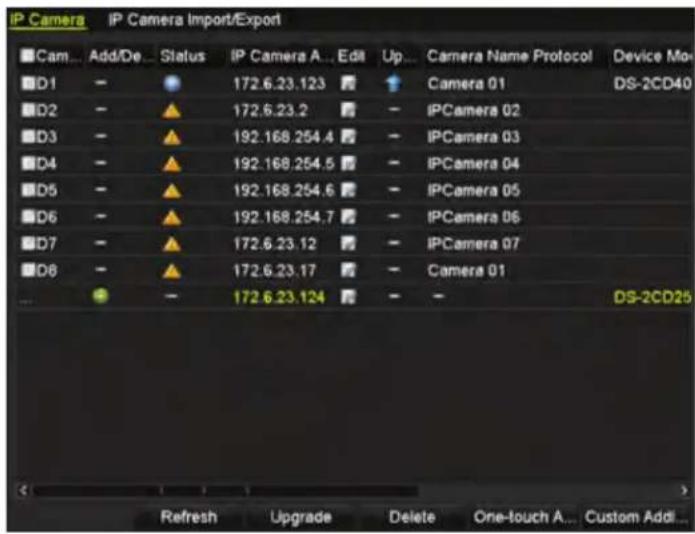
-
Click the button and select the adding method in the dropdown list.
-
Change Plug-and-Play to Manual.
-
Input IP address, channel port, administrator user name and password manually.
-
Click OK to add other channels.
NOTE: To add a second channel of the fisheye camera, configure channel port to 2.

Live View Introduction
What is Live View?
The Live View setting displays the real-time images from each camera. When powered on, the NVR automatically enters Live View mode.

natural_image
Exterior view of a modern multi-story building with glass facade and adjacent street (no signage)Live View Icons
The Live View icons show the status of the record and alarm for each channel. The icons are located at the upper-right portion of the screen.
| ICON DESCRIPTION | |
 | Alarm (video loss, video tampering, motion detection, or sensor) |
 | Record (manual record, schedule record, motion detection or alarm triggered record) |
 | Alarm and Record |
 | Event/Exception (motion detection, sensor alarm or exception information) — will appear at the lower-left corner of the screen |
Operations
Operations in Live View?
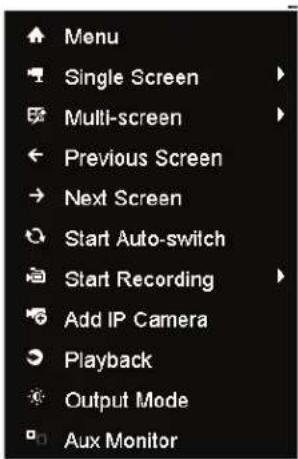
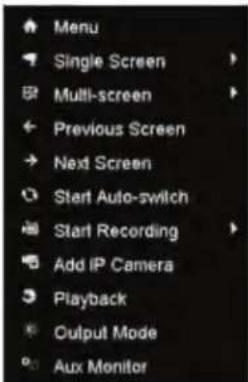
Live View offers the following functions:
| FUNCTION DESCRIPTION | |
| Single Screen Displays only one screen on the monitor | |
| Multi-Screen Simultaneously displays multiple screens on the monitor | |
| Auto-Switch | Use to auto switch between screensDwell time for each screen must be set in the Configuration menu before enabling(Menu >Configuration >Live View >Dwell Time) |
| Start Recording Continuously record (motion detection record supported) | |
| Output Mode Set output to Standard, Bright, Gentle, or Vivid | |
| Add IP Camera Shortcut to IP Camera Management interface | |
| Playback Play current day's recorded videos | |
| Aux/Main Output Switch | Defines the main and auxiliary output interfacesPriority level for the main and aux output is HDMI >VGA >CVBS(if HDMI is used, VGA will be main output and if VGA is used, CVBS will be main output) |
Priority Chart
| HDMI | VGA | CVBS | MAIN OUTPUT | AUXILIARY OUTPUT | |
| 1 √√ | √ HDMI VGA | ||||
| 2 √ | x | √ HDMI | CVBS | ||
| 3 | x | √√ | VGA CVBS | ||
| 4 | x | x | √ CVBS | ||
√ means interface is in use
x means interface is out of use or connection is invalid

Choosing Live View Functions
The Live View functions described on the previous page can be set using either the front panel, the USB mouse, or an auxiliary monitor. Only certain features are available with each type of operation. The following table describes the functions available for each.
| FUNCTION | FRONT PANEL OPERATION | MOUSE OPERATION(RIGHT-CLICK MENU) | AUXILIARY MONITOR |
| Single Screen | Press corresponding alphanumeric button (e.g. “2” to display screen for channel 2 only) | Choose channel number from dropdown list | Select camera from dropdown list and switch to full-screen display of that camera |
| Multi-Screen Press PREV/FOCUS button | Choose screen layout from dropdown list | Choose screen layout from dropdown list | |
| Previous/Next Screen | Use right/down buttons to move to next screen and left/up buttons to move to previous screen | Click on Previous Screen or Next Screen | Click Next Screen to switch to the next set of displays when viewing less than the maximum number of cameras in Live View |
| Auto-Switch Press ENTER | Click Start Auto-Switch to enable Click Stop Auto-Switch to disable | ||
| Playback Press PLAY | Click Playback Enter Playback mode | ||
| Main/Aux Output Switch | Press MAIN/AUX button to switch between main and auxiliary output | Click Aux Monitor to disable main output | |
| Menu Right click to enter main menu | |||
| Start Recording | Click Start Recording to start continuous or motion-detection recording of all channels | ||
| Add IP Camera Click Add IP Camera | |||
| Output Mode | Click Output Mode to choose Standard, Bright, Gentle, or Vivid | ||
| Aux Monitor Click Aux Monitor | |||
| Main Monitor Enter Main operation mode | |||
| PTZ Enter PTZ Control mode | |||
| NOTE: | The dwell time of the Live View configuration must be set before using the Start Auto-Switch.The mouse will not work if in Aux monitor mode and aux monitor is not connected. | While Aux output mode is enabled in the main output monitor, the menu operation is not available.In Live View on the main output monitor, the menu operation is not available while Aux output mode is enabled. | |
Live View Quick Setting Toolbar
Each channel offers a quick setting toolbar for single-click mouse options in the corresponding screen.
| 5m | ||||||||||
| ICON | FUNCTION | ICON | FUNCTION |
 | Enable / Disable manual record PTZ Co |  | |
 | Capture Live View Strategy |  | |
 | Image Settings |  | Mute / Audio On |
 | Close Digital Zoom |  | |
 | Instant Playback Stream Informa |  |
NOTE: Image settings menu allows you to customize parameters like contrast, brightness, saturation & hue.
Instant playback only shows last five minutes of recording. No record found means no record for last five minutes.
Set strategy with Live View Strategy including realtime, balanced and fluency.
To use Digital Zoom, left-click and drag to draw a box around the selected area to zoom.
Stream Information shows real time stream information including frame rate, bitrate and resolution.
Adjust Live View Settings
To configure Live View settings (such as the Output interface, dwell time, mute or audio on, or screen number for each channel), Enter the Live View interface: Menu > Configuration > Live View.
| SETTING FUNCTION | |
| Video Output Interface | Designates output settings for HDMI, VGA, Main CVBS, and Spot Output |
| Live View Mode Designates the Display Mode to be used for Live View | |
| Dwell Time | Time (in seconds) to delay between switching channels when enabling auto-switch in Live View |
| Enable Audio Output Enables / Disables audio output for selected video output | |
| Volume | Adjust volume of Live View, Playback, and two-way audio for selected output interface |
| Event Output Designates the output to show event video | |
| Full Screen Monitoring Dwell Time | Time (in seconds) to show alarm event screen |
- Select a View Mode in □□□□□ including
1/4/6/8/16/25/32/36-window division modes.
-
Select small window and double click on channel number.
-
Click Apply.
| General View Channel-Zero Encoding | |
| Video Output Interface | VGA/HDMI |
| Live View Mode | 4 * 4 |
| Dwell Time | No Switch |
| Enable Audio Output | |
| Volume | |
| Event Output | Main CVBS |
| Full Screen Monitoring D... | 10s |

NOTE: You can also click and drag the camera to the desired window on the live view interface to set camera order.
Channel-Zero Encoding
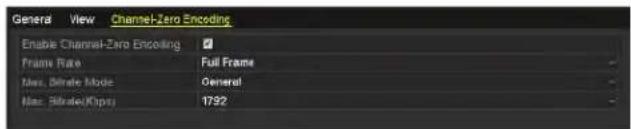
In order to decrease bandwidth without affecting the image quality, channel-zero encoding is supported to get a remote view of many channels in real time from web browser of CMS software. Enter Live View Settings interface: Menu > Configuration > Live View> Channel-Zero Encoding.
- Enable Channel-Zero Encoding.
- Configure Frame Rate, Max. Bitrate Mode, and Max. Bitrate.
After you set the Channel-Zero encoding, you can get a view in the remote client or web brower of 16 channels in one screen.
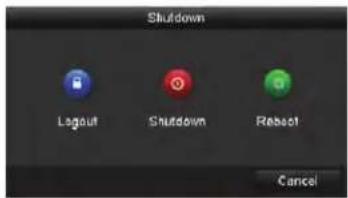
User Logout
After logging out, the monitor turns to live view mode. After logging out of the system, menu operation on screen is invalid. It is required to input a username and password.
- Enter Shutdown Menu: Menu > Shutdown.
- Click Logout.
Configuring PTZ Settings

Before you start
Make sure the PTZ and NVR are properly connected through the RS-485 interface.
PTZ is an acronym for pan, tilt, zoom. PTZ cameras that allow the camera to pan left and right, tilt up and down, and zoom in and out. To set the parameters of a PTZ camera, enter the PTZ Settings interface: Menu > Camera > PTZ.
- Choose camera from Camera dropdown list.
- Enter parameters (should match PTZ camera parameters).
- Click Apply.

Setting PTZ Presets, Patrols, and Controls
Customizing Presets
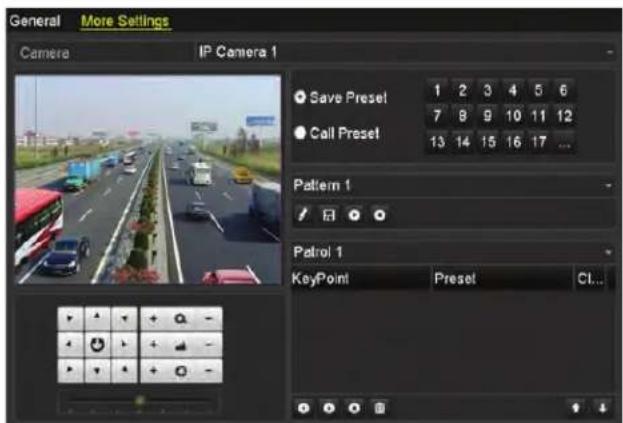
Set a preset location for a PTZ camera to point to when an event takes place: Menu > Camera > PTZ > More Settings.
- Use directional button to wheel camera to desired location.
- Click Save Preset.
- Choose present number.
- Repeat to save more presets. If number of presets is more than 17, click [...] and choose available numbers.

PTZ Controls
Calling Presets in PTZ Setting Interface
Enable a position for a PTZ camera to point to when an event takes place: Menu > Camera > PTZ > More Settings.
- Check Call Preset.
- Choose preset number.

Calling Presets in Live View Mode
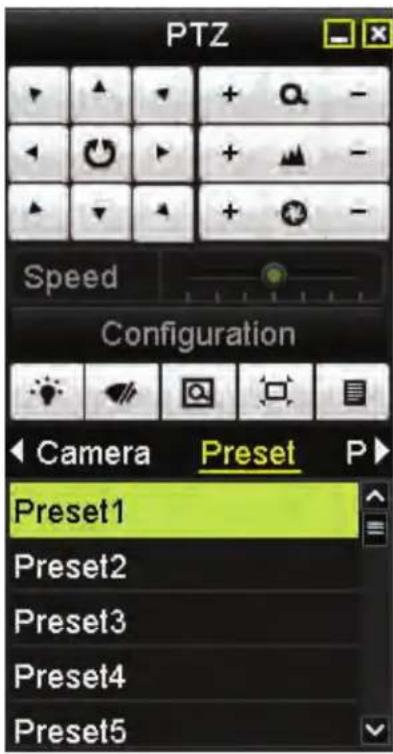
- Click PTZ button.
- Choose camera from list.
- Double-click Preset from list.

Customizing Patrols
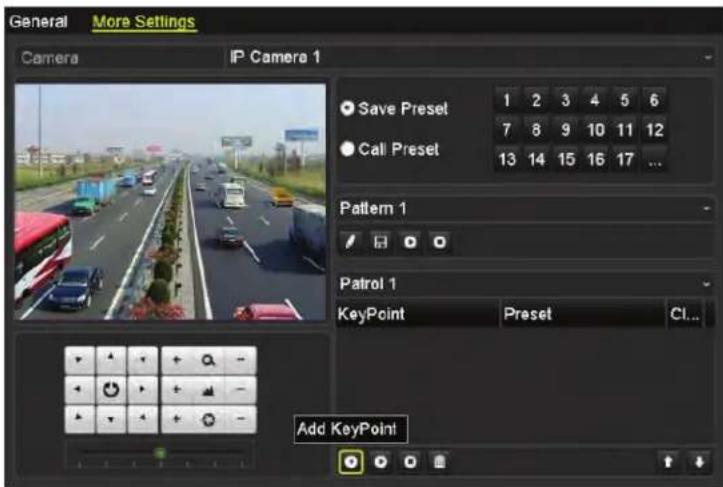
Patrols allow a PTZ camera to move to different points for set durations before moving to the next point. Key points correspond to presets: Menu > Camera > PTZ > More Settings.
- Select patrol number from dropdown.
- Click ☐ to add key point.
- Configure key point parameters. The Key Point No. determines order.
- Click OK.

Choose corresponding preset number.
Choose time duration to stay at key point.
Choose speed at which PTZ camera will move to next key point.
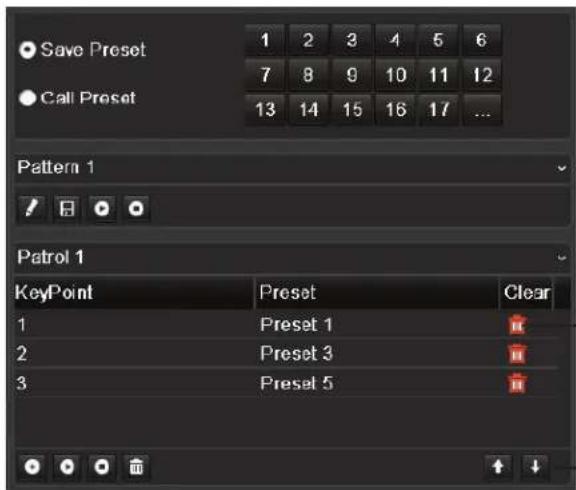
Delete key point
To reorder key points, select a key point and use the arrows
PTZ Controls
Calling Patrols in PTZ Setting Interface
Start moving PTZ camera according to pre-defined patrol path in the PTZ setting interface: Menu > Camera > PTZ > More Settings.
- Select patrol number and click 📄 to call the patrol.
- Click to stop it.

Calling Patrols in Live View Mode
Start moving PTZ camera according to pre-defined patrol path in Live View mode by clicking the PTZ button in the PTZ Setting interface or by pressing the PTZ icon 📋 on the front panel.
- Choose Patrol on control bar.
- Double click patrol or select the patrol and click 📋 to call it.

Customizing Patterns
Set patterns by recording the movement of the PTZ camera and call the pattern to make the PTZ camera movement according to the predefined path: Menu > Camera > PTZ > More Settings.
- Choose pattern number.
- Click find use mouse to drag image or click directional buttons. The movement of the PTZ camera is recorded as the pattern.
- Click ☐ save.

Calling Patterns in PTZ Setting Interface
Move PTZ camera according to predefined patterns in PTZ setting interface: Menu > Camera > PTZ > More Settings.
- Choose pattern number.
- Click ▶ The PTZ moves according to the pattern.
- Click ☐ to stop it.

PTZ Controls
Calling Patterns in Live View Mode
Move PTZ camera according to predefined patterns in Live View mode by clicking the PTZ button on the screen or pressing the PTZ button on the front panel.
- Choose pattern number.
- Double click pattern or select pattern and click 📋 to call it.
PTZ Control Panel
Option 1: In PTZ settings interface, click PTZ button in lower right corner.
Option 2: In Live View mode, press PTZ Control button on front panel or remote control, or choose 📄 PTZ icon.
Click configuration button on control panel.


NOTE: In PTZ control mode, the PTZ panel will be displayed when mouse is connected. If no mouse is connected,
PTZ icon appears in lower left corner of window, indicating that camera is in PTZ control mode.
| ICON | DESCRIPTION | ICON | DESCRIPTION | |
 | Direction and auto-cycle Zoom + / Focus + / Iris + | + | ||
 | Speed of PTZ movement Zoom - / Focus - / Iris - | - | ||
| 3D-Zoom Light On / Off | ||||
| Previous item Wiper On / Off | ||||
| Next item Image centralization | ||||
| Patrol Menu | ||||
| Pattern Start pattern / patrol | ||||
| Preset Minimize window | ||||
| Stop patrol or pattern movement Exit | ||||
RECORDING AND CAPTURE SETTINGS
Configuring Parameters
Check the storage mode of the HDD: Menu > HDD > General.
- Click Advanced
- If HDD mode is Quota: Set maximum record capacity and maximum picture capacity. If HDD mode is Group: Set the HDD group.

Configure parameters to define image quality including transmission stream type and resolution. Enter the Record Settings interface to set recording parameters: Menu > Record > Parameters > Record.
- Configure parameters according to table below.
- Click Apply.

Before you start
Make sure the HDD has already been installed and initialized.
| Camera | IP Camera 1 | |
| Encoding Parameters | Main Stream(Continuous) | Main Stream(Event) |
| Stream Type | Video & Audio | Video & Audio |
| Resolution | 704'576(4CIF) | 704'576(4CIF) |
| Bitrate Type | Variable | Variable |
| Video Quality | Medium | Medium |
| Frame Rate | Full Frame | Full Frame |
| Max. Bitrate Mode | General | General |
| Max. Bitrate(Kbps) | 2048 | 2048 |
| Max. Bitrate Range Reco... | 1152~1920(Kbps) | 1152~1920(Kbps) |
| Pre-record | 5s | |
| Post-record | 5s | |
| Expired Time (day) | 0 | |
| Redundant Record/Capt... | ||
| SETTING FUNCTION | |
| Pre-Record Time set to record before a scheduled event | |
| Post-Record Time set to record after a scheduled time or event | |
| Expired Time | The longest time for a record file to be kept in the HDD before deleting. “0” will keep a file from being deleted. |
| Redundant Record / Capture Enable to save record and captured picture in redundant HDD | |
| Record Audio Enable / Disable audio recording | |
| Video Stream | Choose between main stream or sub-stream (Sub-stream allows longer record time with the same storage space) |
NOTE: Redundant HDD must be configured in HDD settings prior to use.
NOTE: Main stream parameters are read-only.
To set sub-stream parameters, enter sub-stream tab page.
| Camera | IP Camera 1 |
| Stream Type | Video |
| Resolution | 352*288(CIF) |
| Bitrate Type | Variable |
| Video Quality | Medium |
| Frame Rate | Full Frame |
| Max. Bitrate Mode | General |
| Max. Bitrate(Kbps) | 256 |
| Max. Bitrate Range Reco... | 384~640(Kbps) |
To set parameters for capture, click Capture.
| Record Substream Capture | ||
| Camera | IP Camera 4 | |
| Parameter Type | Continuous | Event |
| Resolution | 704*480(4CIF) | 704*480(4CIF) |
| Picture Quality | Medium | Medium |
| Interval | 2s | 2s |
- Use the dropdown lists to set each parameter.
-
Click Apply.
-
Use the dropdown lists to set each parameter.
- Click Apply.
NOTE: The interval is the time period between two capturing actions. You can configure all the parameters on this menu on your demand.
RECORDING AND CAPTURE SETTINGS
Configuring Recording/Capture Schedule
Record schedules are used to set times for cameras to automatically start or stop. The following steps can also be taken to set a schedule for automatic capture by entering the Capture tab in the Schedule interface: Menu > Record/Capture > Schedule > Record/Capture Schedule.

- Choose the camera to schedule.
- Check Enable Schedule.
- Click Edit or choose a color icon under the Edit button and draw the schedule line on the panel.
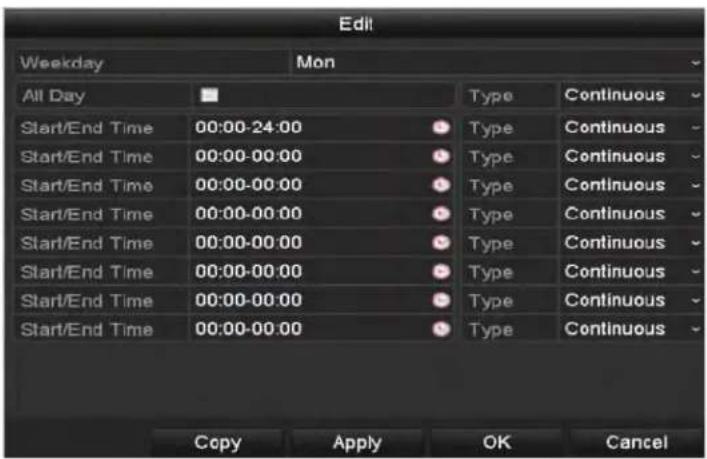
- Select the day of the week to schedule
- Check All Day item to schedule an all-day recording. Click on the the clock to set the accurate Start / End times for the recording.
- For a non-All Day schedule, leave All Day unchecked and set the Start / End time (up to eight recording periods can be schedule for each day and times cannot overlap).
- Select the record type from the dropdown list.
NOTE: To enable Motion, Alarm, M | A (motion or alarm), M & A (Motion and alarm) and VCA (Video Content Analysis) triggered recording and capture, configure motion detection settings, alarm input settings or VCA settings. The VCA settings are only available to the smart IP cameras.
- Click Copy to copy settings to another day of the week.
- Click OK to save setting and return to upper level menu.
- Click Apply in Record Schedule interface.
RECORDING AND CAPTURE SETTINGS
Drawing a Schedule
- Click on the color to determine the schedule type as continuous or an event.
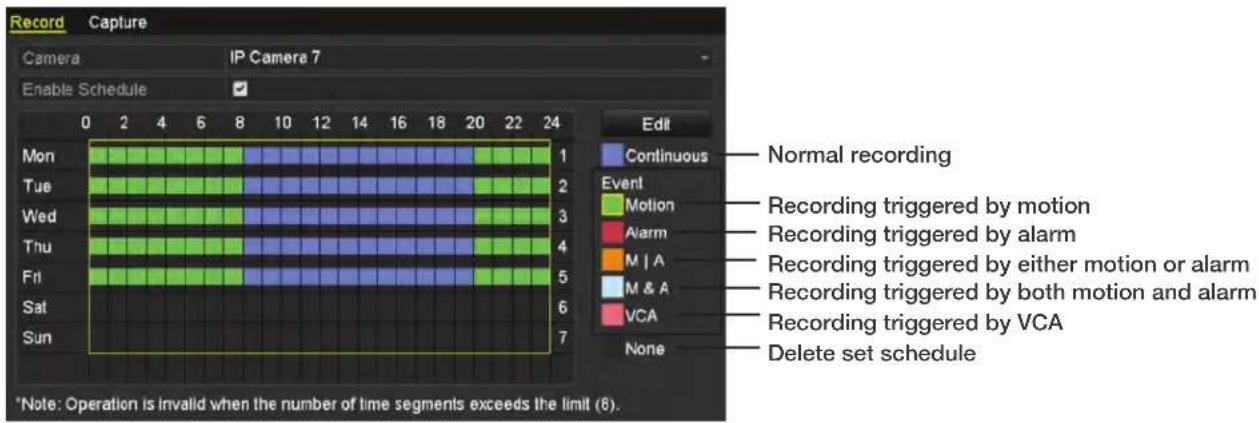
- Click Apply. (To apply to other channels, click Copy and select channels).
Configuring Motion Detection Recording and Capture
The motion detection setting can automatically trigger recording, full screen monitoring, audio warning, notification to surveillance center, and more when enabled. To enable: Menu > Camera > Motion.

- Choose the camera.
- Check Enable Motion Detection.
- Drag and draw a box on area for motion detection using left mouse button or choose "Full Screen" to enable motion detection for the entire viewing area. Click Clear to remove a motion detection area.
- Click Settings for the Channel Information pop up.

- Select the channels which you want the motion detection event to trigger recording.
- Click Apply
- Click OK to return to the previous menu and exit the motion detection menu.
RECORDING AND CAPTURE SETTINGS
Configuring Motion Detection Recording and Capture
Enter the Alarm Setting interface: Menu > Configuration > Alarm and click Alarm Input.

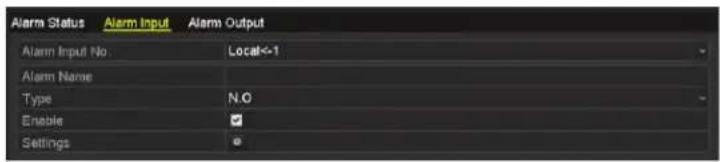

NOTE: Alarm Inputs can be copied by clicking Copy and selecting the alarm input numbers.
- Select Alarm Input No and configure parameters.
- Choose N.O (Normally Open) or N.C (Normally Closed).
- Check Enable.
- Click Settings.
- Choose the alarm triggered recording channel.
- Click Apply to save the settings.
- Click OK to return to upper level menu.

RECORDING AND CAPTURE SETTINGS
Manual Recording and Continuous Capture
Enter the Manual Settings interface: Menu > Manual or press the REC/SHOT button on the front panel.

- Click Record.
- Click status button to change 📄 . 📆
- Click ☐o enable manual recording. Click disable manual recording.

Green ON icon means the channel is configured to the record schedule. Reboot will activate all changes.
To set continuous capture, click Continuous Capture.

- Click Continuous Capture.
- Click status button to change ON to ON
- Click ☐ to enable continuous capture. Click disable continuous capture.


Green ON icon means the channel is configured to the capture schedule. Reboot will activate all changes.
Configuring Holiday Recording and Capture
To configure recording and capture settings for holidays, enter the Record Setting interface: Menu > Record > Holiday. Click on the holiday and then press the button.


- Check Enable Holiday.
- Select Mode from dropdown list.
- Set Start Date and End Date.
- Click Apply.
- Click OK.
RECORDING AND CAPTURE SETTINGS
Configuring Redundant Recording and Capture

Before you start
Storage mode in HDD Advanced Settings must be set to Group before the HDD Property can be set to Redundant.
Redundant recording and capture enhances data safety and reliability. To configure, enter the HDD Information interface: Menu > HDD. Select the HDD and click

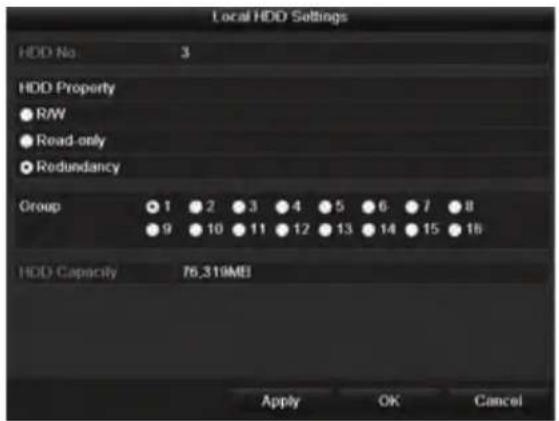
- Set HDD Property to Redundancy.
- Click Apply.
- Click OK.
NOTE: You must set the Storage mode in the HDD advanced settings to Group before you set the HDD property to Redundant. There should be at least another HDD which is in Read/Write status.
Enter the Record Setting interface: Menu > Record > Parameters.

- Select Record.
- Select Camera to configure from dropdown list.
- Check Redundant Record/Capture.
- Click OK.
RECORDING AND CAPTURE SETTINGS
Configuring HDD Group for Recording and Capture
Record files and captured pictures can be saved to certain HDD groups. To configure HDD groups, enter the HDD Setting interface: Menu > HDD.


- Click Advanced.
- Set Mode to Group, click Apply and select Yes to Reboot.

- Select General.
- Click to enter Editing interface.
-
Configure HDD group:
-
Choose a group number.
- Click Apply.
- Click Yes in pop-up window.
-
Click OK.
-
Choose destination channels to save record files in HDD group:
-
Select Advanced.
- Choose Group Number in dropdown list.
- Check appropriate channels.
- Click Apply.
NOTE: After configuring HDD groups, you can configure Recording and Capture settings.
RECORDING AND CAPTURE SETTINGS
File Protection
Record files can be protected from deletion by locking record files or setting the HDD Property to Read-Only.
Locking Recording Files in Playback
Enter the Playback interface: Menu > Playback.

- Check the channel and double-click to set calendar date.
- During playback, click the 📄 button to lock current recording file.
NOTE: In multi-channel playback mode, click the button to lock all recorded files related to playback channels.
- Click the button to open File Management interface.

- Click the Locked File tab.
- Click to lock file and to unlock file.
RECORDING AND CAPTURE SETTINGS
Locking Recording Files in Export
Enter the Export Setting interface: Menu > Export.

- Select channels to review.
- Configure Record Type, File Type, Start Time and End Time.
- Click Search to view results.

- Select files to protect.
- Click to unlock file and to lock and protect file.
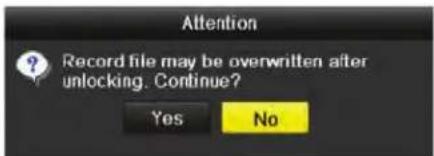
NOTE: When unlocking a previously locked file, this message will appear:
Setting HDD Property to Read-Only
Enter the HDD Setting interface: Menu > HDD.
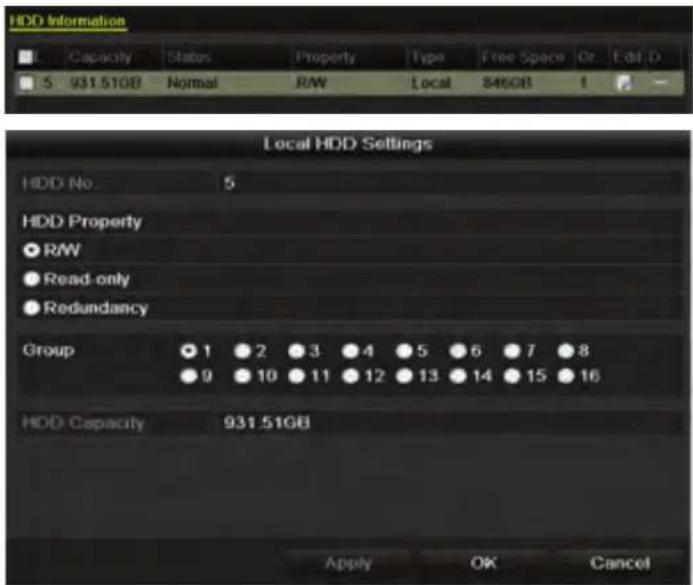
- Click ☐ to edit the preferred HDD.
NOTE: To edit HDD property, set the storage mode of the HDD to Group. - Set HDD Property to Read-only.
- Click OK.
NOTE: Files can only be saved when HDD Property is set to R/W.
NOTE: NVR cannot record files with HDD if it is set to Read-only.
PLAYBACK
Playing Back Record Files
Instant Playback by Channel
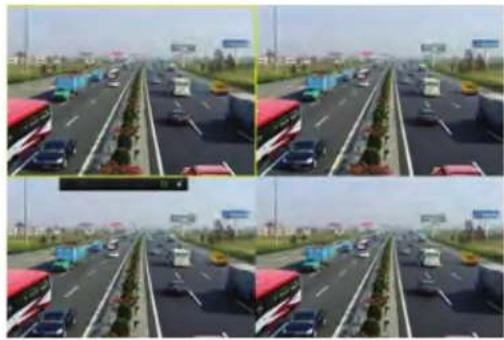
In Live View mode, choose a channel to view by clicking the button on the quick setting toolbar.
NOTE: Instant playback will only play files recorded on the selected channel during the previous five minutes.
natural_image
Four-panel highway surveillance photo showing multiple lanes with vehicles and traffic, no visible text or symbolsPlayback by Channel
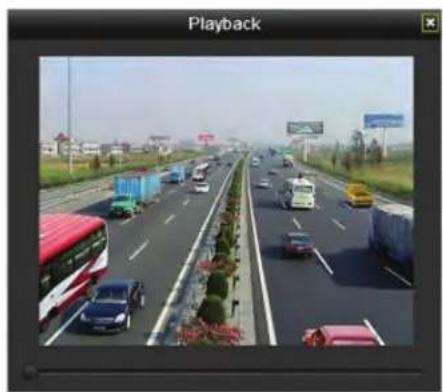
Enter the Playback interface: Menu > Playback (on mouse) or by pressing PLAY on front panel.
Use bottom toolbar to control playing progress. Use the mouse to click any point of the progress bar to locate special frames, and drag the cursor to show thumbnails of the current time.
06-27-2013 08:58:59--06-27-2013 09:44:02
Indicates the start / end time of the record.
■ Represents normal recording
■ Represents event recording
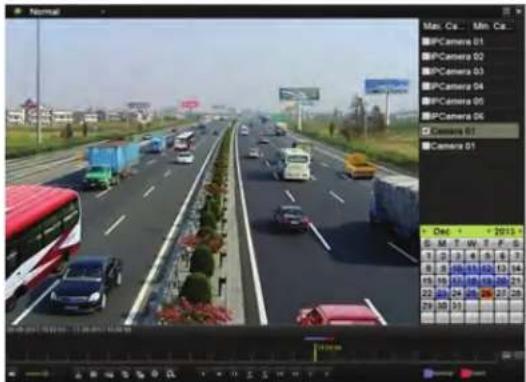
To play recorded files from a specified time duration, enter the Playback interface: Menu > Playback. Choose the desired channel and click the calendar. See table on page 34 for details on Playback Controls.

NOTE: Dates highlighted as 10 contain recorded files.
NOTE: Dates displayed as 10 do not contain recorded files.

Playback by Event Search
To play recorded files on one or more channels by a restricting event type, enter the Playback interface: Menu > Playback. Choose the Event on the left.

- Select the Event from dropdown list (Alarm Input, Motion or VCA).
- Edit the Start Time and End Time.
- Click Search.
- Play back the preferred file by clicking the 📋 button.

— Return to previous screen
PLAYBACK
Playback by Tag
Video tags allow records to be tagged with labels in order to appear in future searches. Before tags can be searched, they must be added. To add a tag, enter the Playback interface: Menu > Playback and find the record to tag.
Click add default tag.
Click add customized tag and imput tag name.
NOTE: Maximum 64 tags can be added to a single video file.
See table on page 34 for more details on Playback Controls.


To manage tags through the File Management interface:
- Click 📄 to enter the File Management interface.
- Click the Tag tab.
- Check, edit and delete tags.
PLAYBACK
To search available tags, access the Playback interface: Menu > Playback.

- Select the Tag from dropdown list in Playback interface.
- Choose the channels and edit Start Time and End Time.
- Click Search.
NOTE: Enter keyword in the Keyword to search the tag on your demand.
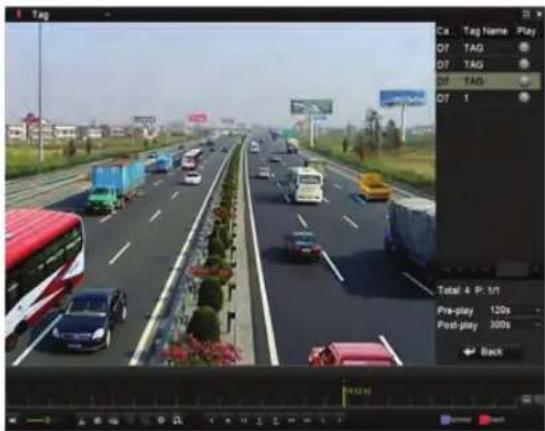
- Click 📄 to play back the file.
- Click Back to return to search interface.
See table on page 34 for more details on Playback Controls.
Smart Playback
Smart Playback allows the system to analyze video containing motion or VCA information, mark it green, and play it back at normal speed while video without motion plays at 16 times faster. This makes it easy to work through uneventful data. To use, enter the Playback interface: Menu > Playback.
- Select Smart from the dropdown list.
- Select the camera and select date in calendar.
- Click the button to play.
■ Represents normal recording
■ Represents event recording
■ Represents smart search result
Enters the search area editing interface.
See table on page 34 for more details on Playback Controls.

PLAYBACK
Playback by System Logs
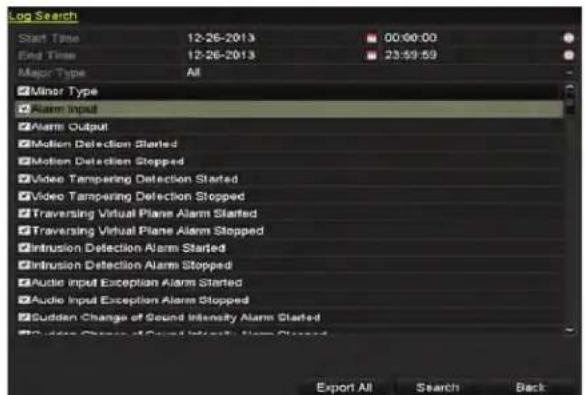
To play record files associated with system logs, enter the Log Information interface: Menu > Maintenance > Log Information. Click the Log Search tab.
- Set search time and type.
- Click Search.
- Choose a log with record file and click to enter the Playback interface. See table on page 34 for more details on Playback Controls.
NOTE: If there is no record file at the time point of the log, the message box "No Result Found" will pop up.

natural_image
Highway scene with multiple vehicles and traffic, no visible text or symbols on the road or surroundings.External File Playback
To play record files from external devices, enter the Playback interface: Menu > Playback.
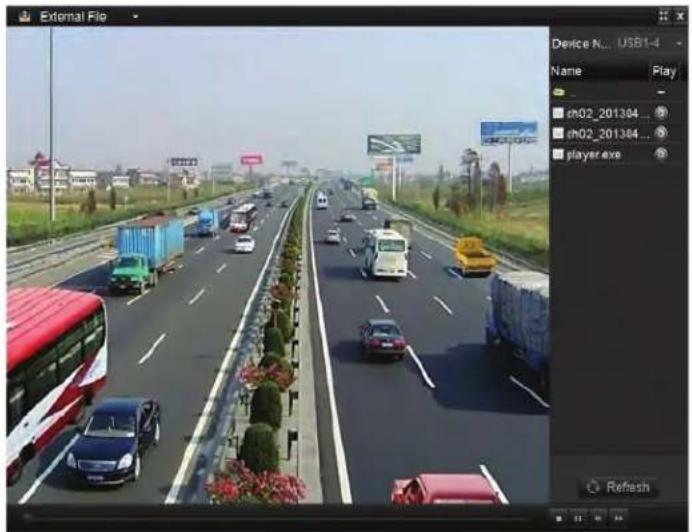
- Select External File in dropdown list.
- Select file and click 📋 to play back the file.
- Adjust playback speed by clicking and .
NOTE:
Click
C Refrask
the file list.
Auxiliary Functions of Playback
Frame-by-Frame Playback
Enter the Playback interface: Menu > Playback.
| USING MOUSE | USING FRONT PANEL |
| In record file, click 📋 until speed adjusts to single-frame and one click on the playback screen represents the playback of one frame.To reverse playback, click 📋 until speed adjusts to single-frame and one click on the playback screen represents the reverse playback of one frame. | Rotate and hold outer ring on Jog Shuttle counter clockwise or click 📋 to adjust speed to single-frame.One click on 📋 one click on the Playback screen or Enter button represents reverse playback of one frame. |
Digital Zoom
Enter the Digital Zoom interface by clicking 📄 in the playback control bar. Use the mouse to draw a red rectangle to enlarge the image inside the rectangle up to 16 times its size. Right-click to exit.

natural_image
Highway scene with vehicles and trucks, residential buildings in background (no visible text or symbols)Reverse Playback of Multi-Channel
To play multi-channel record files in reverse, enter the Playback interface: Menu > Playback. Select channel(s) and date on the calendar. Click to play file in reverse.
NOTE: The record files will be marked by two lines on the process bar. The upper indicates the record files of the selected channel. The lower indicates the record files of all the selected channels.

PLAYBACK
Picture Playback
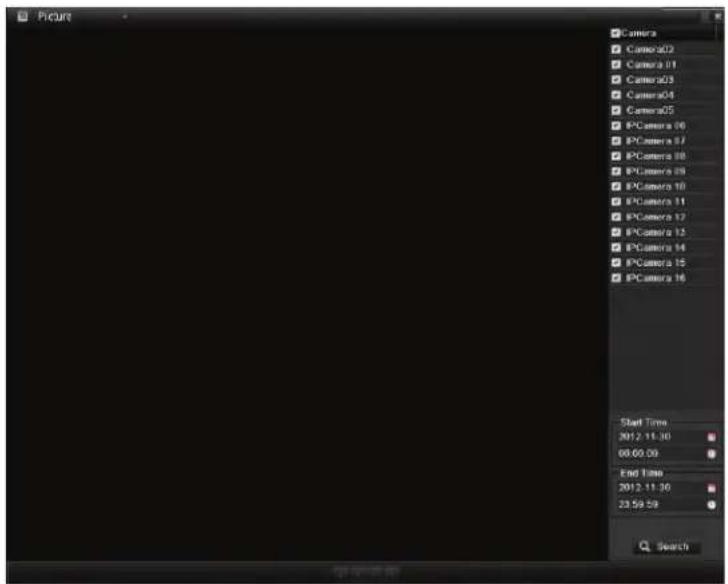
To play captured pictures that are stored in the HDD, enter the Playback interface: Menu > Playback. Select the picture in the dropdown list. Select channels and edit start/end times. Click Search. Choose a picture you want to view and click 📄. You can click Back to return to search interface.

| BUTTON OPERATION | |
| Play in Reverse | |
| Play | |
| Previous Picture | |
| Next Picture | |
Backing Up Record Files
Quick Export
To quickly export record files to a backup device, enter the Video Export interface: Menu > Export > Normal.
- Choose the channel to back up.
- Click Quick Export.
- Click Export to begin exporting.

NOTE: If duration of record files on a specified channel exceed one day, the following message will appear: "Max 24 hours are allowed for quick export."
NOTE: Stay in Exporting interface until all files are exported.

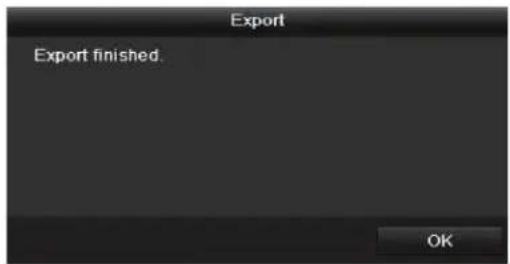
- To check backup result, choose the file in the Export interface and click 📋.
NOTE: The Player player.exe will be exported automatically during record file export.

BACKUP
Normal Video Search Backup
Backup Using USB Flash Drive and USB HDD-enter the Export interface: Menu > Export > Normal.
-
Set search condition and click Search.
-
Select the files to back up. Click 📋 to play the record file if you want to check it.
NOTE: The size of the currently selected files is displayed in the lower-left corner.


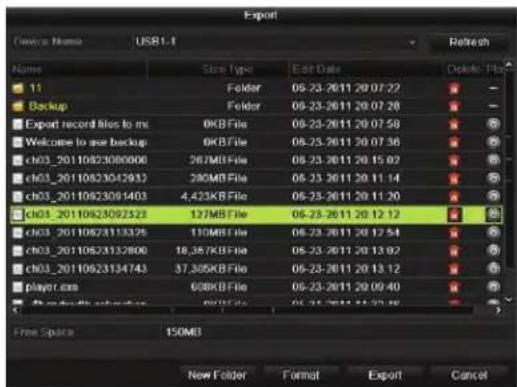

- Click Export All to export all recording files, or click Export to enter the Export interface.
NOTE: If USB not recognized, click Refresh, reconnect device, or check compatibility. You can also reformat USB flash drives or USB HDDs via the device.
NOTE: Stay in interface until "Export finished" message appears.
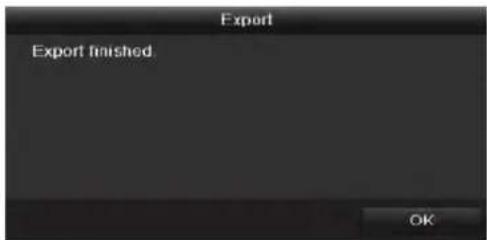
- To check backup result, choose the file in the Export interface and click
NOTE: The Player player.exe will be exported automatically during record file export.
Backup Using USB Writer and SATA Writer-enter the Export interface: Menu > Export > Normal.
-
Set search condition and click Search.
-
Select the files to back up. Click 📋 to play the record file if you want to check it.
NOTE: The size of the currently selected files is displayed in the lower-left corner.
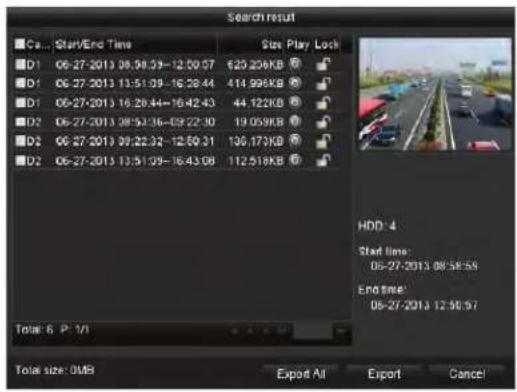
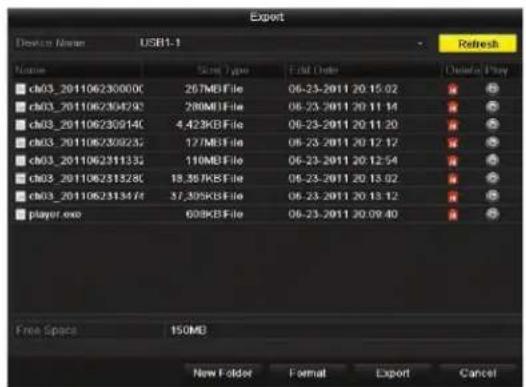
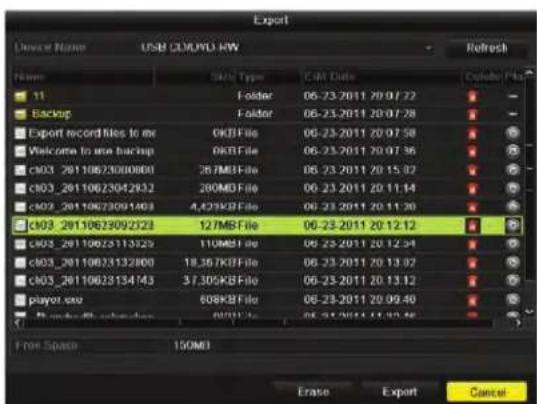
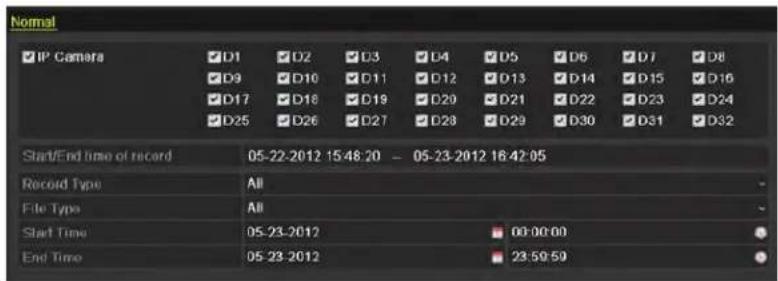
- Click Export.
NOTE: If USB writer or SATA is not recognized, click Refresh, reconnect device, or check compatibility.
NOTE: Stay in interface until "Export finished" message appears.
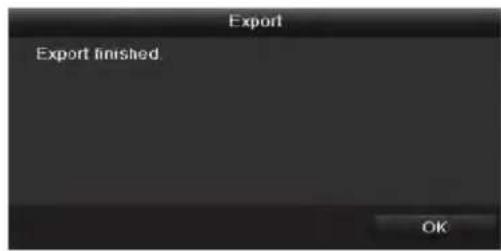
- To check backup result, choose the file in the Export interface and click
NOTE: The Player player.exe will be exported automatically during record file export.
BACKUP
Backup Using eSATA HDDs-
Enter Menu > Record > Advanced.
- Choose eSATA and set usage at Export.
- Click Yes to reboot system.
NOTE: The usages of eSATA HDD contain Record/ Capture and Export. Changes in usage will take effect after rebooting.
- Enter Export interface: Menu > Export > Normal.
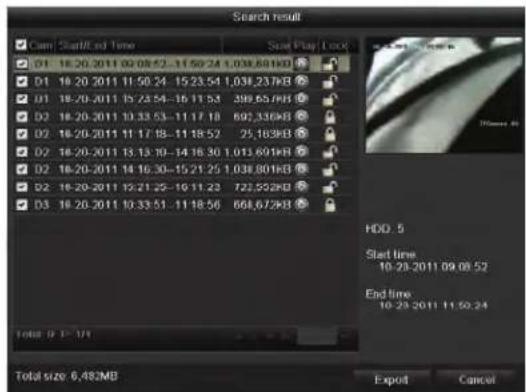

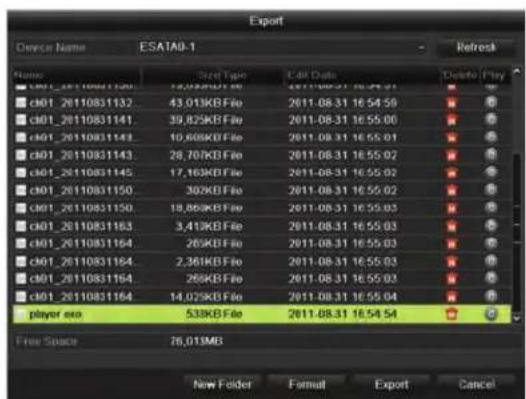

- Set search condition and click Search.
- Select files to back up. Click 📋 to play the record file if you want to check it.
NOTE: The size of the currently selected files is displayed in the lower-left corner.
- Click Export All to export all recording files, or click Export to enter the Export interface.
NOTE: Format the eSATA first when using it for the first time. If the inserted eSATA HDD is not recognized, click Refresh, reconnect device, or check compatibility. You can also reformat SATA HDD via the device.
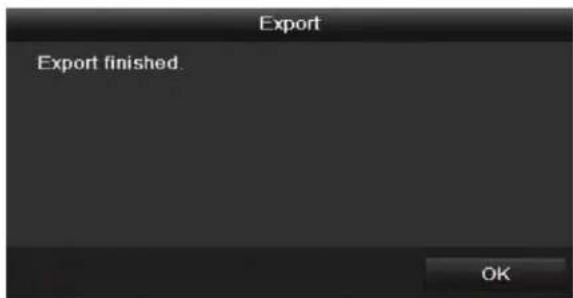
NOTE: Stay in interface until "Export finished" message appears.

- To check backup result, choose the file in the Export interface and click 📋.
NOTE: The Player player.exe will be exported automatically during record file export.
Backup by Event Search
To back up event-related files, enter the Export interface: Menu > Export > Event.
- Select Alarm Input from Event Type dropdown list.
- Select Alarm Input No. and time.
- Click Search.
NOTE: Event types contain Alarm Input, Motion and VCA; we take export by alarm input as an example.


- Select record files to export and click Quick Export.
- Click Details to view more information.
- Click Export All to export all recording files, or click Export to enter the Export interface.
NOTE: If USB not recognized, click Refresh, reconnect device, or check compatibility. You can also reformat USB flash drives or USB HDDs via the device.

NOTE: Stay in interface until "Export finished" message appears.
- Check backup result.
NOTE: The Player player.exe will be exported automatically during record file export.
BACKUP
Backup Video Clips
Enter the Playback interface: Menu > Playback.
- During playback, use and buttons in playback toolbar to start and stop clipping.
- Click the Button to enter the File Management interface.
- Click the Video Clips tab to check and export files.
NOTE: A maximum of 30 clips can be selected per channel.
- Check files and click Export to start backup or click Export All to export all recording files.
NOTE: If USB device is not recognized, click Refresh, reconnect device, or check compatibility. You can also format the USB flash drive or USB HDDs via the device.


NOTE: Stay in interface until "Export finished" message appears.
- Check backup result.
NOTE: The Player player.exe will be exported automatically during record file export.
Backing Up Pictures
Backup Using Captured Pictures in Playback- Enter the Playback interface: Menu > Playback.
- During playback, click the 📷 button to capture picture.
- Click the Button to enter the File Management interface.
- Click the Playback Capture tab to check and export pictures.


Backup All Types of Captured Pictures-
Enter the Export interface: Menu > Export > Picture.
- Select the channel, image type, Start Time and End Time.
- Click Search.
- Select pictures to back up.
- Click Export All to export all recording files, or click Export to enter the Export interface.
- Check backup result.

NOTE: Stay in interface until "Export finished" message appears.
Managing Backup Devices
Management of USB Flash Drives, USB
HDDs, and eSATA HDDs - Enter the Search
Result interface: Menu > Export > Normal.
- Set search condition and click Search.

At least one channel should be selected.
- Click Export All to export all recording files, or click Export to enter the Export interface.

At least one file should be selected.
- Select pictures to back up.
- Click Export or Export All

BACKUP
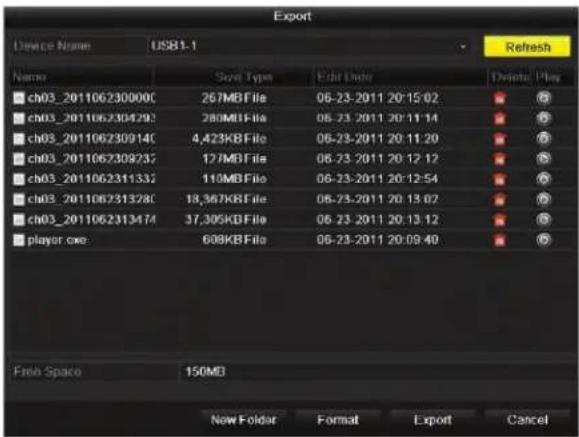
To manage backup device:
- Click New Folder if needed.
- Select a record file or folder in backup device and click button to delete or button to play.
- Click Format to format backup device.
NOTE: If USB not recognized, click Refresh, reconnect device, or check compatibility.
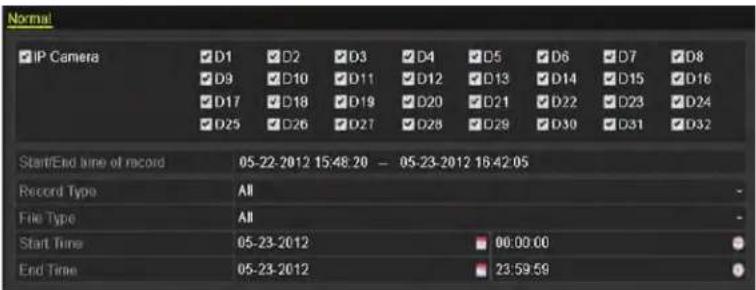
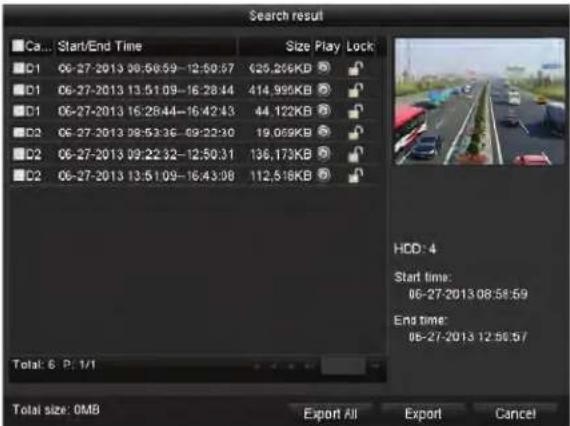
Management of USB Writers and DVD-R/W- Enter the Search Result interface: Menu > Export > Normal.
- Set search condition and click Search.
NOTE: At least one channel should be selected. - Select files to back up.
- Click Export All to export all recording files, or click Export to enter the Export interface.
NOTE: At least one file should be selected.
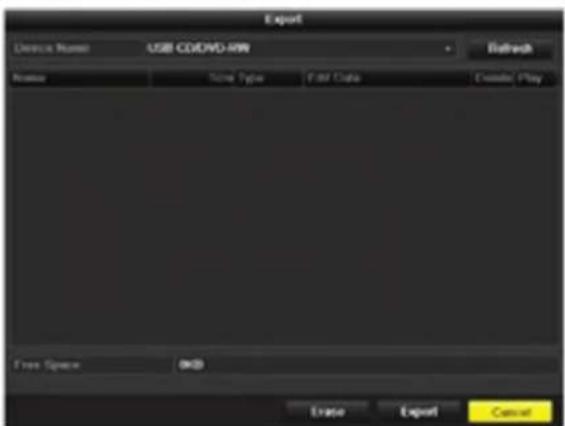
Click Erase if files from a rewritable CD/DVD need to be erased.
NOTE: Rewritable CD/DVD must be inserted at time of operation.
NOTE: If USB Writer is not recognized, click Refresh, reconnect device, or check compatibility.
Hot Spare Device Backup

Before you start
At least two devices must be online. A bidirectional connection is required to be built between the hot spare device and each working device.

flowchart
graph LR
    A["Start Finish"] --> B["Set a hot spare device"]
    B --> C["Add a hot spare device on normal device"]
    C --> D["Add the normal device on the hot spare device"]
    D --> E["End"]
Setting Hot Spare Device
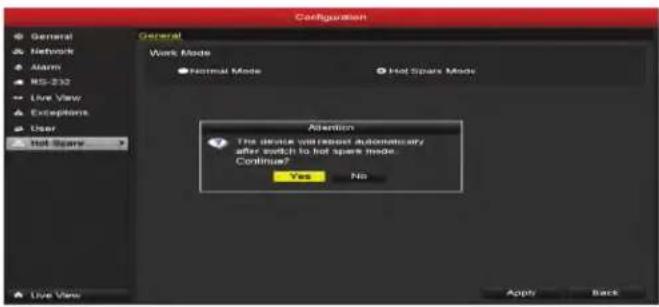
Enter the Hot Spare Settings interface:
Menu > Configuration > Hot Spare.
- Set the Work Mode as Hot Spare.
- Click Apply.
- Click Yes to reboot device.
NOTE: The camera connection will be disabled when the device works in hot spare mode. It's highly recommended to restore the defaults of the device after switching the working mode of the hot spare device to normal mode to ensure the normal operation afterwards.
Setting Working Device
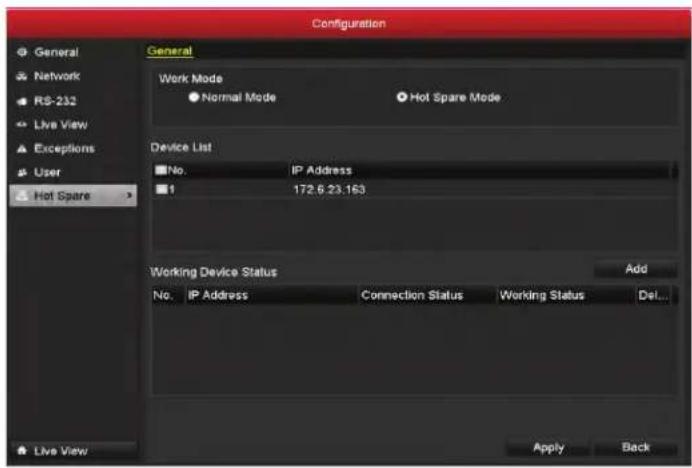
Enter the Hot Spare Settings interface:
Menu > Configuration > Hot Spare.
- Set the Work Mode as Normal (default).
- Check Enable.
- Enter IP address and admin password of hot spare device.
- Click Apply.

BACKUP
Managing Hot Spare System
Enter the Hot Spare Settings interface:
Menu > Configuration > Hot Spare.
-
Check the box to select the working device from the device list.
-
Click Add.

A hot spare device can connect up to 32 working devices.
View the working status on the Working Status list. When working properly, "No Record" displays.
When offline, the hot spare device will record the video of the IP Camera connected to the working device for backup. The status of the hot spare device will display as "Backing Up."

The record backing up can be functioned for 1 g device at a time.
When working device comes online, the lost files will be restored by the record synchronization function, and the working status of the hot spare device will display as "Synchronizing."

Record synchronization can be enabled for one g device at a time.



Setting Motion Detection Alarm
Enter the Motion Detection interface of Camera Management Management and choose a camera you want to set up motion detection: Menu > Camera > Motion.
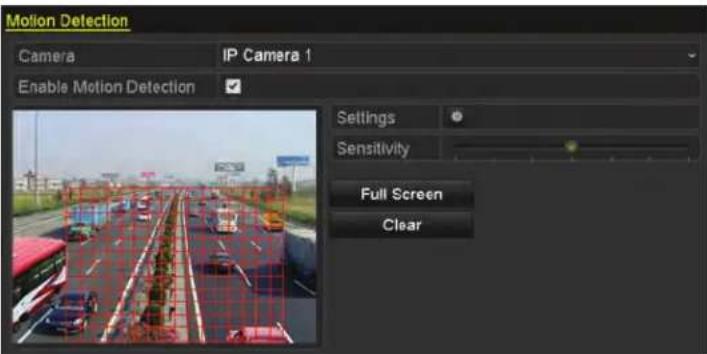
- Click the Trigger Channel tab.
- Select one or more channels to start record/capture or to monitor in full-screen when motion alarm is triggered.
-
Click Apply.
-
Check Enable Motion Detection and draw the detection area with the mouse.
- Drag the Sensitivity bar to set sensitivity level.
- Click the button to set alarm response options.
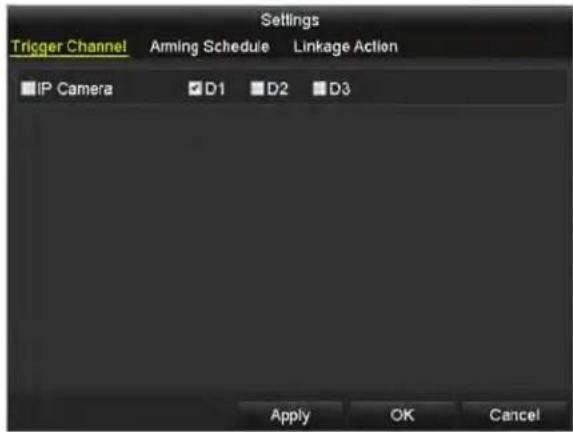

To set arming schedule of a channel:
- Select Arming Schedule.
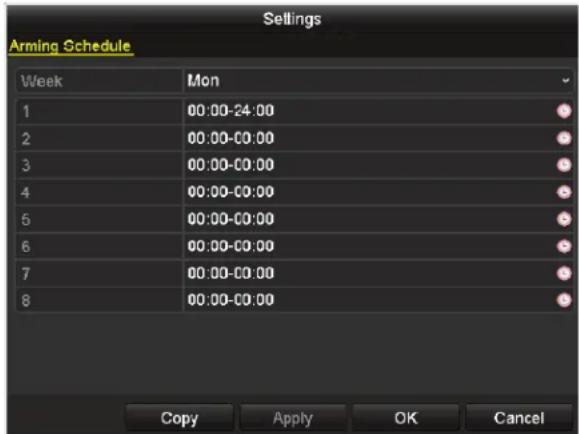
- Choose one day of the week and time periods (up to eight per day — time periods cannot overlap).
- Click Apply.
NOTE: To set alarm response actions of a motion alarm, click Handling.
NOTE: Settings can be copied to other channels by clicking Copy.
ALARM SETTINGS
Setting Sensor Alarms
Enter Alarm Settings of System Configuration interface: Menu > Configuration > Alarm > Alarm Input.
Check Enable and click Settings.
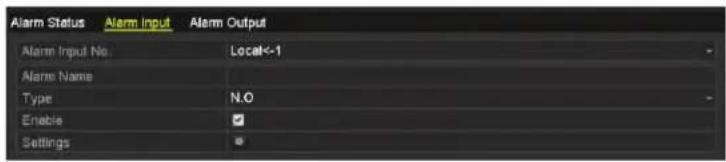

- Select Trigger Channel and select channels to start record/capture or to monitor in full-screen when an external alarm is input.
- Click Apply and then select Arming Schedule.
- Choose day of the week and up to eight time periods.
- Click Apply.
NOTE: Settings can be copied to other days by clicking Copy.
The Linkage Action tab can be used to set up alarm response actions of the alarm input.
To set PTZ linkage of the alarm input, click on PTZ Linking. Complete the settings and click OK.
NOTE: Check whether the PTZ or speed dome supports PTZ linkage. One alarm input can trigger presets, patrol or pattern of more than one channel. But presets, patrols and patterns are exclusive.

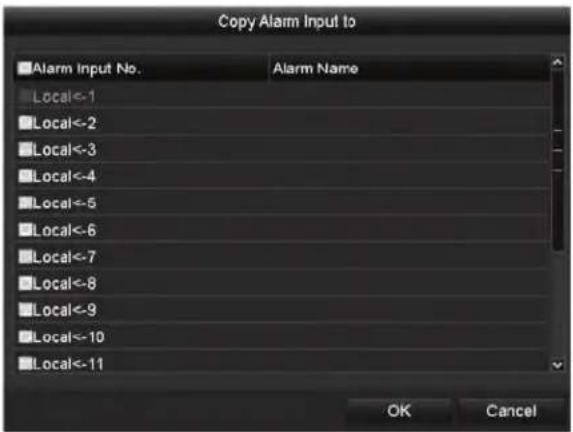
NOTE: Settings can be copied by clicking the Copy button on the Alarm Input Setup interface.
Detecting Video Loss Alarm
Enter the Video Loss interface of Camera Management: Menu > Camera > Video Loss and select the channel to detect.
- Check Enable Video Loss Alarm and click 📄 to set up handling of video loss.
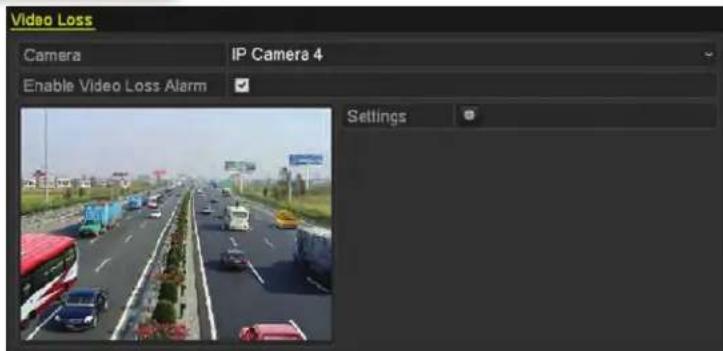

- Select Arming Schedule.
- Choose a day of the week and up to eight time periods (time periods cannot overlap).
- Click Apply.
- Select Linkage Action to set up alarm response action of video loss. Click OK.
Detecting Video Tampering Alarm
Video tampering triggers an alarm when a lens is covered. To configure a video tampering alarm, enter the Video Tampering interface of Camera Management: Menu > Camera > Video Tampering and select the channel to detect.
- Check Enable Video Tampering and drag sensitivity bar to adjust the sensitivity.
- With the mouse, draw the area you want to detect video tampering.


- Click 📋 to set up handling of video tampering.
- Select Arming Schedule tab.
- Choose one day of week up to eight time periods (time periods cannot overlap).
- Click Apply.
- Select Linkage Action to set up alarm response actions of video tampering. Click OK.
ALARM SETTINGS
Handling Exceptions Alarm
To handle various exception alarms, enter the Exception interface: Menu > Configuration > Exceptions.

| EXCEPTION DESCRIPTION | |
| HDD Full The HDD is full | |
| HDD Error A writing error occurred or the HDD is not formatted | |
| Network Disconnected Disconnected network cable | |
| IP Conflicted Duplicated IP address | |
| Illegal Login Incorrect user ID or password | |
| Record/Capture Exception No space for saving recorded files or captured images | |
| Hot Spare Exception Disconnected from working network device |
Setting Alarm Response Actions
Event Hint Display - Alarm response actions will activate when an alarm or exception occurs, including Event Hint Display, Full Screen Monitoring, Audible Warning (buzzer), Notify Surveillance Center, Trigger Alarm Output and Send Email.
To configure, enter the Exception interface: Menu > Configuration > Exceptions.
-
Check Enable Event Hint and click 🙏️.
-
Set event type to be displayed on image.
-
Click OK.
NOTE: When an event or exception happens, a hint will be displayed on the lower-left corner of live view. Click the icon to check the detials.


Full Screen Monitoring - When an alarm is triggered, the local monitor (VGA, HDMI or BNC monitor) will display, in full screen, the video image from the alarming channel configured for full screen monitoring.
If alarms are triggered simultaneously in several channels, their full-screen images will be switched at an interval of 10 seconds (default dwell time). A different dwell time can be set by going to Menu>Configuration>Live View>Full Screen Monitoring Dwell Time.
Auto-switch will terminate once the alarm stops and the Live View interface will appear.
NOTE: You must select the channel you want to make full screen in "Trigger Channel" settings.
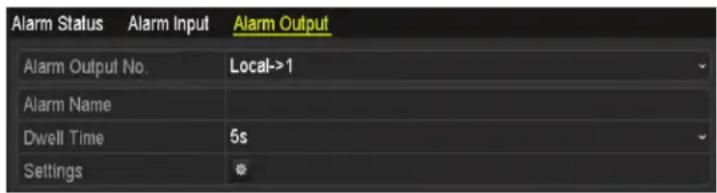
Trigger Alarm Output - To configure, enter the Alarm Output interface: Menu > Configuration > Alarm > Alarm Output.
- Select an alarm output and set alarm name and dwell time.
NOTE: If "Manually Clear" is selected in the dropdown list of Dwell Time, you can only clear it by going to Menu > Manual > Alarm.
-
Click Schedule to set up arming schedule of alarm output. Choose one day of week up to eight time periods (time periods cannot overlap).
-
Click OK
NOTE: Settings can be copied to other days and to other Channels by clicking Copy.
Audible Warning - Trigger an audible beep when an alarm is detected.
Notify Surveillance Center - Send an exception or alarm signal to the remote alarm host when an event occurs. The alarm host refers to the PC installed with Remote Client.
NOTE: The alarm signal will be transmitted automatically at detection mode when the remote alarm host is configured.
Email Linkage - Send an email with alarm information to a user or users when an alarm is detected.
ALARM SETTINGS
Setting Alarm Response Actions
To manually trigger or clear an alarm output, enter the Alarm interface: Menu > Manual > Alarm.
| Alarm Output No. | Alarm Name | Trigger |
| Local->1 | No | |
| Local->2 | No | |
| Local->3 | No | |
| Local->4 | No | |
| 172.6.23.105:8000->1 | No |
Click Trigger/Clear if you want to trigger or clear an alarm output.
Click Trigger All if you want to trigger all alarm outputs.
Click Clear All if you want to clear all alarm outputs.
Configuring General Settings
Enter the Network Settings interface: Menu > Configuration > Network > General. Set the appropriate parameters and click Apply.
NOTE: Network settings must be properly configured before you operate NVR over network.
NOTE: If the DHCP server is available, click the checkbox to automatically obtain an IP address and other network settings from that server.
| NIC Type | 10M/100M/1000M Self-adaptive |
| Enable DHCP | |
| IPv4 Address | 172.6 .23 .199 |
| IPv4 Subnet Mask | 255.255.255.0 |
| IPv4 Default Gateway | 172.6 .23 .1 |
| IPv4 Address 1 | fe80..212:42#.fe8d.ec46/64 |
| IPv4 Address 2 | |
| IPv4 Default Gateway | |
| MAC Address | 00:12:42:fd:ec:46 |
| MTU(Bytes) | 1500 |
| Preferred DNS Server | |
| Alternate DNS Server | |
| Internal NIC IPv4 Address | 192.168.254.1 |
Configuring Advanced Settings
Configuring PPPoE Setting
To configure the Point-to-Point Protocol over Ethernet (PPPoE) setting, enter the Network Settings interface: Menu > Configuration > Network > PPPoE.

- Check Enable PPPO.
- Enter user name and password and click Apply.
NOTE: The User ID and password should be assigned by your ISP. - Reboot system to enable changes.
NETWORK SETTING

Configuring DDNS
To configure the Dynamic DNS (DDNS), enter the Network Settings interface: Menu > Configuration > Network > DDNS.
NOTE: Prior registration with your ISP is required before configuring the system to use DDNS.
-
Check Enable DDNS.
-
Select the DDNS Type (options include IPServer, DynDNS, PeanutHull, NO-IP, and SimpleDDNS). Follow the instructions in the table below.
-
Click Apply.
| DDNS TYPE INSTRUCTIONS | |
| IPServer Enter Server Address for IPServer. | |
| DynDNS | Enter Server Address. Enter domain obtained from DynDNS website in NVR Domain Name field.Enter User Name and Password registered in the DynDNS website. |
| PeanutHull Enter User Name and Password opted from PeanutHull website. | |
| NO-IP | Enter Server Address for NO-IP. Enter domain obtained from NO-IP website in NVR Domain Name field.Enter User Name and Password registered in the NO-IP website. |
| HiDDNS | Server Address of SimpleDDNS server appears by default: www.simpleddns.com.Enter Device Domain Name. You can enter domain name directly on NVR to create a new one. |
Configuring NTP Server
A Network Time Protocol (NTP) can be configured to ensure the accuracy of system date and time. To configure, enter the Network Settings interface: Menu > Configuration > Network > NTP.
- Check Enable NTP.
- Set the Time Interval, NTP Server, and NTP Port.
- Click Apply.

- Time interval between the two synchronizing actions with NTP server (can be set from 1 to 10080 minutes - default is 60 minutes).
IP address of NTP server
NETWORK SETTING
Configuring SNMP

Before you start
Download the SNMP software and manage to receive device information via SNMP port before configuring the SNMP. By setting the Trap Address, the NVR is allowed to send the alarm even and exception message to the surveillance center.
Access the SNMP to get device status and parameter-related information by entering the Network Settings interface: Menu > Configuration > Network > SNMP.
- Check Enable SNMP.
- Configure Trap Address and Trap Port.
- Click Apply.

Configuring Remote Alarm Host
Configuring the Remote Alarm Host allows the NVR to send the alarm event or exception message to the host whenever an alarm is triggered. The Network Video Surveillance software must be installed.
To configure, enter the Network Settings interface: Menu > Configuration > Network > More Settings.
1, Enter Alarm Host IP and Alarm Host Port.
- Click Apply.

Alarm Host IP refers to the IP address of the remote PC on which the Network Video Surveillance Software is installed.
Alarm Host Port must be the same as the alarm monitoring port configured in the software.
Configuring Multicast
Configure the Multicast to realize Live View for more than 128 connections through the network. To configure, enter the Network Settings interface: Menu > Configuration > Network > More Settings.
-
Set Multicast IP (address can span the Class-D IP range of 224.0.0.0 to 239.255.255.255 — a range of 239.252.0.0. to 239.255.255.255 is recommended).
-
Click Apply.
-
Set Multicast IP (address can span the Class-D IP range of 224.0.0.0 to 239.255.255.255 — a range of 239.252.0.0. to 239.255.255.255 is recommended).
- Click Apply.

When adding a device Network Video Surveillance Software, the multicast address must be the same as the NVR's multicast IP.
NOTE: The multicast function should be supported by the network switch to which the NVR is connected.
NETWORK SETTING
Configuring RTSP
The Real Time Streaming Protocol (RTSP) controls streaming media servers. To configure, enter the Network Settings interface: Menu > Configuration > Network > More Settings.
- Enter the RTSP port in the RTSP Service Port field (the default RTSP port is 554).
- Click Apply.
Configuring Server and HTTP Ports
To configure, enter the Network Settings interface: Menu > Configuration > Network > More Settings.
- Enter new Server Port (the default is 8000).
- Enter HTTP Port (the default is 80).
- Click Apply.
Configuring and HTTPS Port
HTTPS provides protection against attacks. The HTTPS Port must be configured through the web browser.
| RTSP Port | 554 |
| Server Port | 8000 |
| HTTP Port | 60 |
| Multicast IP | 239.221 2.78 |
NOTE: The Server Port should be set to a range of 2000-65535 and it is used for remote client software access. The HTTP port is used for remote web browser access.
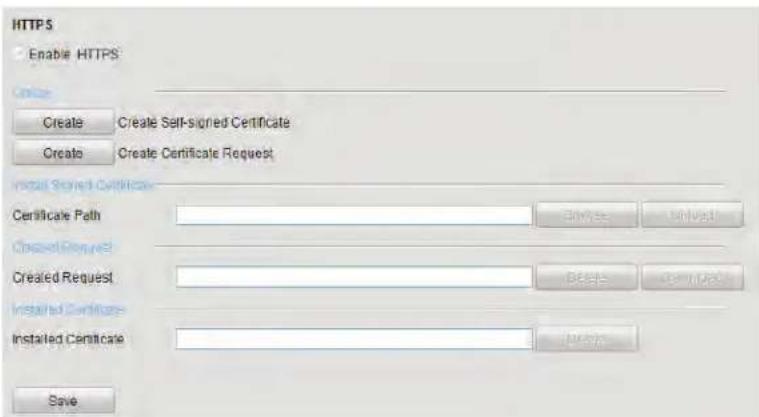
To configure:
- Open browser and input IP address of device.
- Input user name and password.
- Click Login.
- Enter HTTPS Settings interface: Configuration > Remote Configuration > Network Settings > HTTPS.
- Create a self-signed certificate or authorized certificate.
To create the self-signed certificate:
- Click Create.
- Complete the fields.
- Click OK.

To create the authorized certificate:
- Click Create.
- Download the certificate request.
- Submit to the trusted certificate authority for a signature.
- Import certificate to the device after receiving the signed valid certificate.

- Enable the HTTPS function.
- Click Save.
NETWORK SETTING
Configuring Email

Before you configure email settings
The NVR must be connected to a local area network (LAN) that maintains an SMTP mail server. It must also be connected to either an intranet or the Internet — depending on the location of the email accounts to which the emails will be sent.
Email notifications can be sent to all designated users when an alarm event is detected, when a motion event is detected, or when the administrator password is changed. To configure emails, enter the Network Settings interface: Menu > Configuration > Network.

- Set the IPv4 Address, IPv4 Subnet Mask, IPv4 Gateway, and the Preferred DNS server.
- Click Apply.
- Click on Email.
- Configure the settings according to the diagram/list below.
- Click Apply.
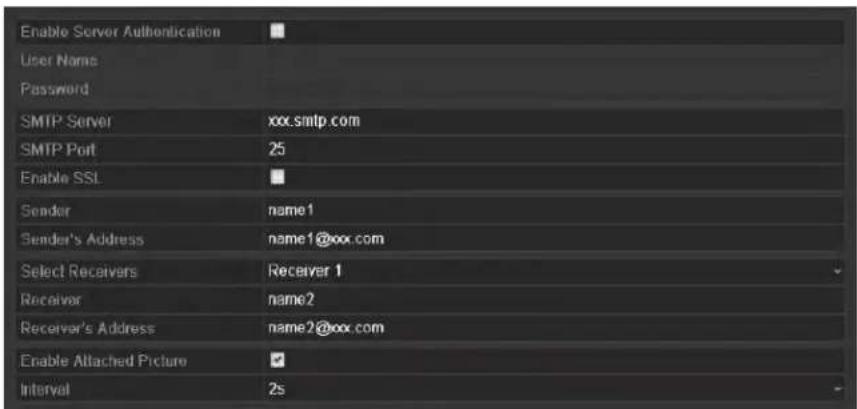
- Clicking Test will display one of the following messages.

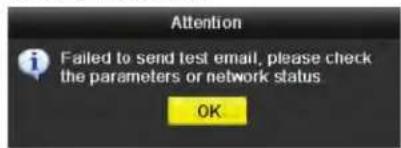
Enable Server Authentication: Optional.
User name: user account of sender's Email for SMTP server authentication.
Password: password of sender's Email for SMTP server authentication.
SMTP Server IP address or host name
SMTP Port No: The default TCP/IP port used is 25.
Enable SSL: Optional.
Sender: Name of sender.
Sender's Address: Email address of sender.
Receiver: Name of user to be notified.
Receiver's Address: Email addres of notified user. Up to 3 can be configured.
Enable Attached Pictures: Enabling allows alarm images to be attached to emails.
Interval: Time (in seconds) between two actions of sending attached pictures.
Configuring NAT

Before you start
To utilize Universal Plug and Play (UPnP™) on the NVR, the UPnP™ function must first be enabled on the router connected to the NVR. When the network working mode of device is set as multi-address, the Default Route of the device should be in the same network segment as that of the LAN IP address of the router.
Universal Plug and Play (UPnP ^™ ) allows the NVR to seamlessly discover the presence of other devices on the network and establish functional network services for data sharing, communications, and more. Use the UPnP ^™ function to enable the fast connection of the device to the WAN via a router without port mapping.
To configure, access the Network Settings interface: Menu > Configuration > Network.
- Select NAT tab.
- Check Enable UPnP.
- Select Mapping Type.
NOTE: For Auto Mapping, simply choose Auto in the Mapping Type dropdown list and click Apply. If Auto is selected, the Port Mapping items are read-only, and the external ports will be set by the router automatically.
NOTE: For Manual mapping, choose Manual in the Mapping Type dropdown list. Click the button to activate the External Port Settings dialog box. Configure the port settings. If Manual is selected, you can edit the external port on your demand.
- Click Apply.
- Click Refresh to get the latest status of the port mapping.
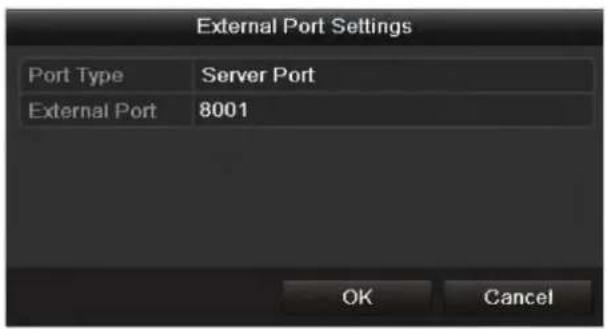
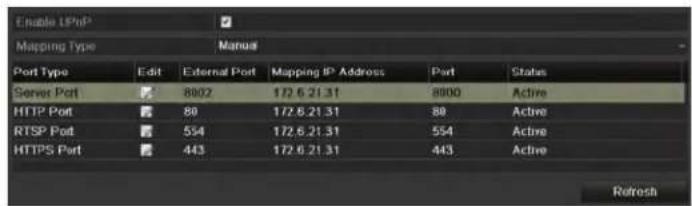


Before you start
Make sure the router supports the configuration of internal port and external port in the interface of Forwarding.
NOTE: The RTSP Port number should be 554 or between 1024 and 65535 while the other port numbers should be between 1 and 65535. The value for each must be different.
NETWORK SETTING
If router does not support the UPnP™ function, follow these steps:
Enter the Network Settings interface: Menu > Configuration > Network.
- Select NAT tab
-
Leave Enable UPnP box uncheked.
-
Click the button to activate the External Port settings dialog box.
-
Configure as mentioned on the previous page.
-
Click OK and then Apply.
-
Enter virtual server setting page of router and populate Internal Source IP.
Configuring High-Speed Download
The High-Speed Download function widens the outgoing bandwidth of the NVR. This helps to speed up the download of record files through the web browse or CMS software.
NOTE: This function affects local menu operation. Disable this function after completing remote downloading.
To configure, enter the Network Settings interface: Menu > Configuration > Network > More Settings.
- Check box and click OK.
- Then click Apply.
Virtual Host Settings
NOTE: This function can only be configured through the web browser.
Enter the Advanced settings interface: Configuration > Remote Configuration > Network Settings > Advanced.
- Check Enable Virtual Host.
- Click Save.
- Enter IP Camera Management interface: Configuration > Remote Configuration > Camera Management > IP Camera.

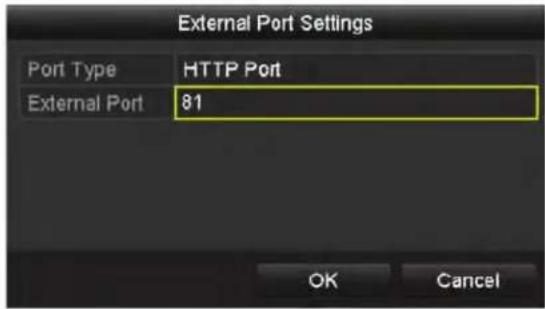

NOTE: Each item should correspond with the device port, including server port, http port, RTSP port and https port. The above virtual server setting is for reference only, it may be different due to different router manufacturers.



NETWORK SETTING
Telnet Settings
The Telnet function provides easy access to the NVR. Enter the Advanced settings interface: Configuration > Remote Configuration > Network Settings > Advanced.
- Check Enable Telnet.
- Click Save.
- Open the Command Prompt window on the PC, and input "telnet IP Address" to connect with the NVR.
![Microsoft Windows [Version 6.1.7%01] Copyright (c) 2009 Microsoft Corporation. All rights reserved. G:\Users\Telnet 192.8.8.64_](/content/2026/06/1210770/images/8b62c77293c73ae57847b115aa02f3ef0be0268762c14ddc5f4e72abbe510769.jpg)
For example, if the IP address of the NVR is 192.0.0.64, you can input "telnet 192.0.0.64" and then press Enter to connect.
Checking Network Traffic
To check network traffic and real-time information of the NVR, access the Network Traffic interface: Menu > Maintenance > Net Detect.
NOTE:
Traffic data is refreshed every one second.
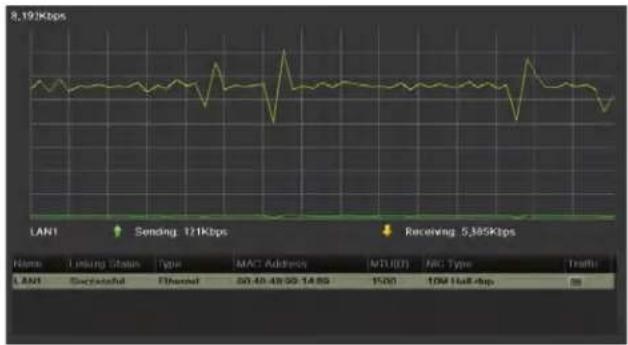
line
| Name | Latency Status | Type | MAC Address | M21(D) | NRC Type | Traffic | |------|-----------------|------|--------------|--------|----------|---------| | LAN1 | Secrytychshal | Ethernet | 30-40-48-99 14:59 | 1501 | 10M Hali-6ps | ■ | | Sending | 121 Kbps | | | | | | | Receiving | 5,385 Kbps | | | | | |Configuring Network Detection
Testing Network Delay and Packet Loss
Enter the Network Traffic interface: Menu > Maintenance > Net Detect > Network Detection.
- Enter Destination Address.
- Click Test.
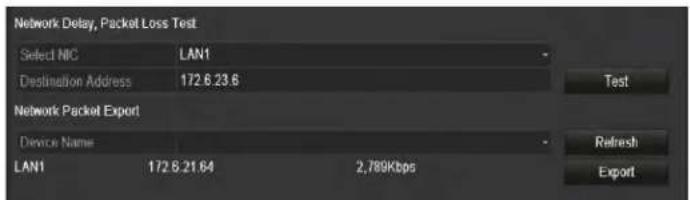
NOTE:
Clicking Test will display one of the following messages.


NETWORK SETTING
Exporting Network Packet
To export the captured network data packet to a USB-flash disk, SATA/eSATA, DVD-R/W and other local devices, enter the Network Traffic interface: Menu > Maintenance > Net Detect > Network Detection.
- Select backup device from Device Name dropdown list
NOTE: Click Refresh if connected local backup device is not displayed. When it fails to detect the backup device, please check whether it is compatible with the NVR. You can format the backup device if the format is incorrect.
-
Click Export.
-
After export is complete, click OK.
NOTE: Up to 1M data can be exported each time.


Checking Network Status
To check network status and quick set the network parameters, enter the Network Detection page: Menu > Maintenance > Net Detect > Network Detection
- Click Status.
NOTE: If the network is normal the following message will appear:

Checking Network Statistics
To obtain real-time information on the NVR, enter the Network Detection interface: Menu > Maintenance > Net Detect > Network Stat.

NOTE: Check the bandwidth of IP Camera, bandwidth of Remote Live View, bandwidth of Remote Playback, bandwidth of Net Receive Idle and bandwidth of Net Send Idle.
NOTE: Click Refresh to get the newest status.
HDD MANAGEMENT
Initializing HDDs
If a hard disk drive (HDD) has not been initialized, the following message will appear when the NVR starts.
Click Yes to immediately initialize.

The HDD can also be initialized through the HDD Information interface: Menu > HDD > General.
-
Select the HDD.
-
Click Init.

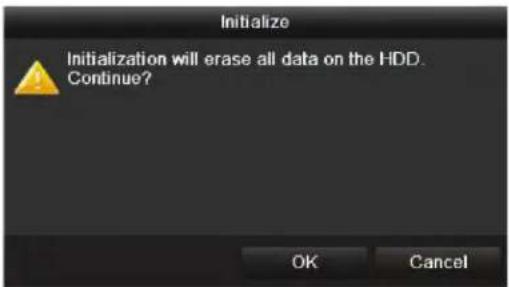
- Click OK.
Once initialized, this menu will appear with the status Normal.

HDD MANAGEMENT
Managing a Network HDD
To use an allocated NAS or disk of IP SAN as the network HDD of the NVR.
Enter the HDD Information interface: Menu > HDD > General.


- Click Add to enter the Add NetHDD interface.
- Add the allocated NetHDD.
- Choose NAS or IP SAN as the type.
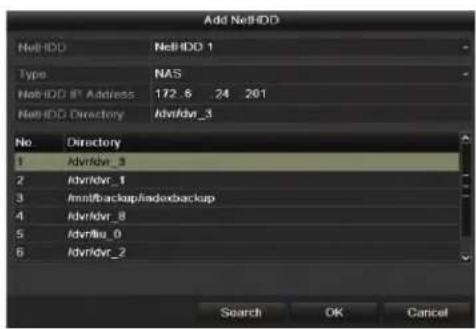
- Configure the NAS or IP SAN settings.
- Add NAS disk:
a. Enter the NetHDD IP address in the text field.
b. Click Search to find available NAS disks.
c. Select from the list or manually enter the directory in the NetHDD Directory field.
d. Click OK to add the configured NAS disk.
NOTE:
Up to 8 NAS disks can be added.
- Add IP SAN:
- Enter the NetHDD IP address in the text field.
- Click Search to find available IP SAN disks.
- Select from the list.
- Click OK to add the selected IP SAN disk.
NOTE:
Up to 1 IP SAN disk can be added.
After having successfully added the NAS or IP SAN disk, return to the HDD Information menu. The added NetHDD will be displayed in the list.
NOTE:
If the added NetHDD is uninitialized, select it and click the Init button alization.


Managing eSATA
When there is an external eSATA device connected to NVR, you can configure eSATA for the use of Record/Capture or Export, and you can manage the eSATA in the NVR. Enter the Advanced Record Settings interface: Menu > Record > Advanced.
- Select the eSATA type to Export or Record/Capture from the dropdown list of eSATA. Export: use the eSATA for backup. Record/Capture: use the eSATA for record/capture.
- When the eSATA type is selected to Record/Capture, enter the HDD Information interface: Menu > HDD > General
- Edit the property of the selected eSATA, or initialize it is required.

Two storage mode eSATA when it is us

Managing HDD Group
Setting HDD Groups
Multiples HDDs can be managed in groups. To record video from specified channels onto a particular HDD group,
Enter the Storage Mode interface:
Menu > HDD > Advanced > Storage Mode.
- Set the Mode to Group.

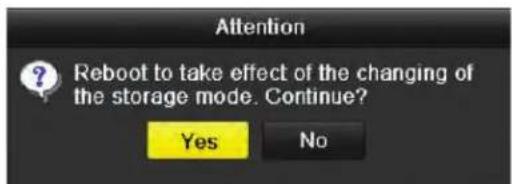
- Click the Apply button and the Attention box to the left will pop up.
- Click Yes to reboot the device to activate the changes.
- After reboot of device, enter the HDD information interface. Menu > HDD > General.
HDD MANAGEMENT
- Select HDD from the list and click icon to enter the Local HDD settings interface.

- Select the Group number for the current HDD.
NOTE: The default group No. for each HDD is 1.
- Click OK to confirm the settings.
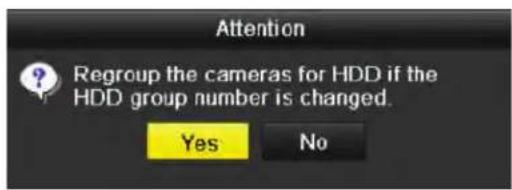
- Click Yes to finish the settings.
Setting HDD Property

Enter the HDD Information interface:
Menu > HDD > General.
- Select HDD from the list and click the 📄 icon to enter the Local HDD Settings interface.
- Set the HDD property to either R/W, Read-Only, or Redundancy. 3. Click Apply and then the OK button.
NOTE: Read-only to prevent recorded files from being overwritten when the HDD becomes full in overwrite recording mode.
NOTE: Redundancy allows video to be recorded both onto the redundancy HDD and the read/write HDD simultaneously to ensure high security and reliability of video data.
NOTE: At least two hard disks must be installed on the NVR when the HDD is set to Redundancy and one is set to R/W.
- Click Apply and then the OK button.
- In the HDD Information menu, the HDD property will be displayed in the list.
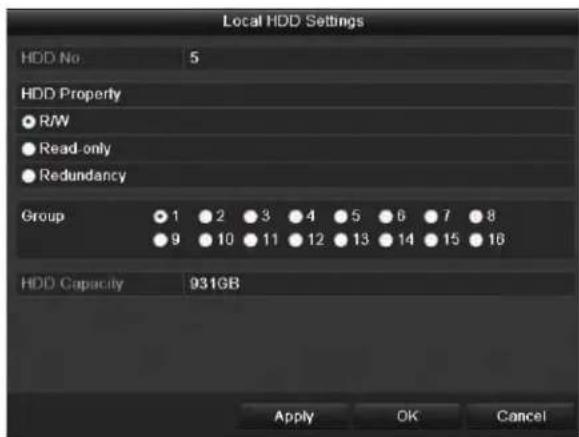
Configuring Quota Mode
To configure each camera with allocated quota for the storage of recorded files and captured pictures.
Enter the Storage Mode interface: Menu > HDD > Advanced.
- Set Mode to Quota.
NOTE:
Reboot the NVR to enable changes.
- After the reboot, return to this screen and select a camera.
- Enter the storage capacity.


NOTE: Settings can be copied to other cameras if needed by clicking Copy. Select the camera to apply the settings to and click OK.
NOTE: You can also click the checkbox of IP Camera to select all cameras.
4. In the next screen, click Apply.
NOTE: A quota setting of "0" means that all cameras will use the total capacity of HDD for record and picture capture.

HDD MANAGEMENT
Configuring Disk Clone

ore you start
SATA disk should be connected to the NVR before starting.
If the S.M.A.R.T detection result declares the HDD is abnormal, you can choose to clone all the data on the HDD to an inserted eSATA disk manually.
An eSATA disk should be connected to the device.
- Enter the HDD Advanced Setting interface: Menu > HDD > Advanced.
-
Click the Disk Clone tab.
-
Make sure usage of the eSATA disk is set to Export. If it is not, click Set, choose Export and click OK.

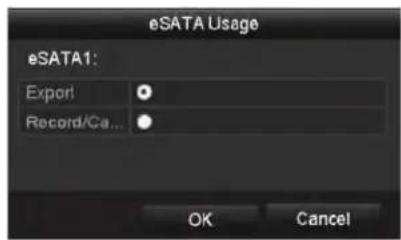
NOTE: Capacity of the destination disk should match the clone source disk.
- Check the box of the HDD to be cloned in the Clone Source list.
- Click the Clone button and a message box pops up.
- Click Yes.
NOTE: If it is not, click "Set", choose "Export" and click "OK."
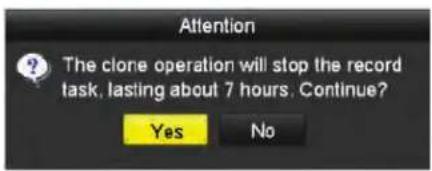
Checking HDD Status
To check the status on the installed HDDs, enter the HDD Information interface: Menu > HDD > General.
NOTE: Normal or Sleeping status means the HDD is working normally. Uninitialized or Abnormal means the HDD needs to be initialized or possibly replaced.
-
Enter the System Information Interface: Menu > Maintenance > System Info.
-
Click the HDD tab to view the status of each HDD displayed on the list.
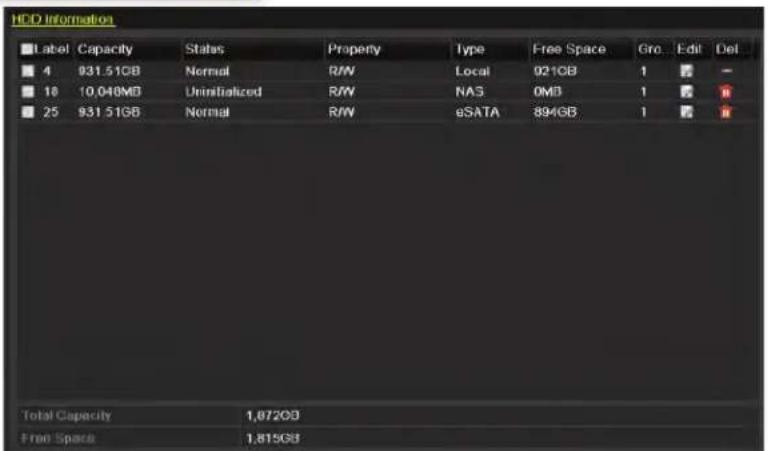
HDD Detection
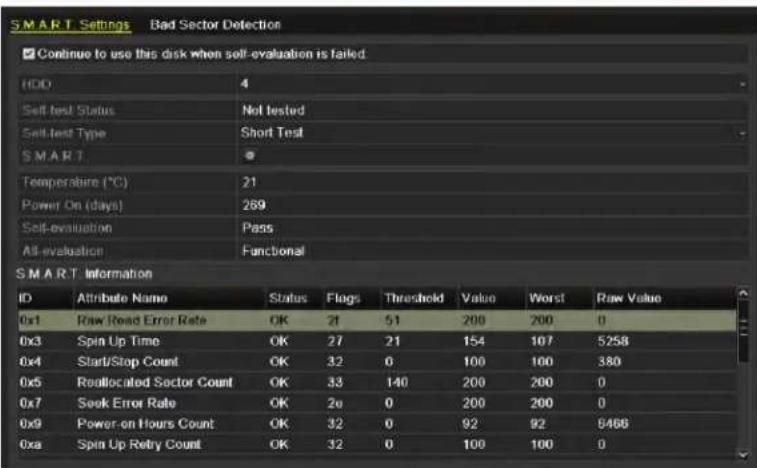
To detect the HDD with the S.M.A.R.T. (Self-Monitoring, Analysis and Reporting Technology), enter the S.M.A.R.T. Settings interface: Menu > Maintenance > HDD Detect.
Select the HDD to view its S.M.A.R.T. information. The related information of the S.M.A.R.T. is shown on the interface.
Choose self-test types as Short Test, Expanded Test, or the Conveyance Test. Click Star" to start the S.M.A.R.T. self-evaluation.

NOTE: If you want to use the HDD even when the S.M.A.R.T checking is failed, you can check the checkbox of the Continue to use the disk when evaluation is failed item.
To detect the HDD with the Bad Sector Detection:
- Select the Bad Sector Detection tab.
- Select the HDD number.
- Choose All Detection or Key Area Detection as the Detection type.
- Click Detect.

HDD MANAGEMENT
Configuring HDD Error Alarms
When HDD status is Uninitialized or Abnormal, configure the HDD through the Exception interface: Menu > Configuration > Exceptions.

- Choose HDD Error as the Exception Type and then check the box for the desired alarm type.
NOTE: When the Trigger Alarm Output is selected, the Alarm Output can also be detected.
- Click Apply.
CAMERA SETTINGS
Configuring OSD Settings
Enter the OSD Configuration interface: Menu > Camera > OSD. Make appropriate changes and click Apply.
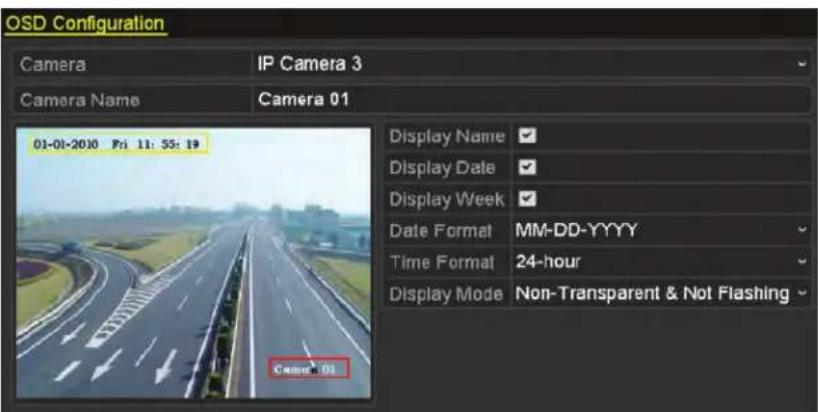
- Select camera to configure.
- Edit camera name.
- Check boxes to configure display name, date, and week.
- Select date and time formats and display mode.
NOTE: Click and drag mouse on preview window to adjust OSD position.
Configuring Privacy Mask
To prevent certain surveillance areas from being viewed by the Operator or recorded, configure a four-sided privacy mask. Enter the Privacy Mask Settings interface: Menu > Camera > Privacy Mask. Make appropriate changes and click Apply.

- Select camera to set mask.
- Check box to enable mask.
- Select camera to set mask.
NOTE: Up to four privacy mask zones can be set. Size can be adjusted. Each zone will be marked with a different color frame.

NOTE: Left-click and hold mouse to drag and draw mask zone on window.
NOTE: Clear zones individually or all at one time.
CAMERA SETTINGS
Configuring Video Parameters
Enter the Image Settings interface: Menu > Camera > Image. Make appropriate changes and click Apply. Select camera to configure.

NOTE:
Use the arrows to change each parameter value.
MANAGEMENT AND MAINTENANCE
Viewing Device Information
Enter the System Information interface:
Menu > Maintenance > System Info > Device Info.
| Device Info. | Camera | Record | Alarm | Network | HDD |
| Device Name | Embedded Net DVR | ||||
| Model | |||||
| Serial No. | 1620120518BBRR408508857MCVU | ||||
| Firmware Version | |||||
| Encoding Version | V1.0, Build 121210 | ||||
Viewing Camera Information
Enter the System Information interface:
Menu > Maintenance > System Info > Camera.
| Device Info | Camera | Record | Alarm | Network | HDD | ||
| Camera ... | Camera Name | Status | Motion Detection | Tamper-proof | Video Loss | ||
| D1 | Camera02 | Connected | Occur | Used | Not used | ||
| D2 | Camera 01 | Disconnected | Not supported | Not supported | Not supported | ||
| D3 | Camera03 | Disconnected | Not supported | Not supported | Not supported | ||
| D4 | Camera04 | Disconnected | Not supported | Not supported | Not supported | ||
| D5 | Camera05 | Disconnected | Not supported | Not supported | Not supported | ||
Viewing Record Information
Enter the System Information interface:
Menu > Maintenance > System Info > Record.
| Device Info | Camera | Record | Alarm | Network | HDD | |||
| Camera No | Recording | Stream Typ | Frame Rate | Bitrate(Kbps) | Resolution | Record Typ | Encoding P | Redundant |
| D1 | Used | Video & Au | 30fps | 2048 | 704*576(4CIF) | Manual | Event | No |
| D2 | Used | Video | 30fps | 2048 | 1600*1200(UXG Manual | Normal | No | |
| D3 | Not used | Video & Au | 30fps | 2048 | 704*576(4CIF) | Normal | No | |
| D5 | Not used | Video | 30fps | 2048 | 4CIF | Normal | No | |
| D6 | Not used | Video & Au | 30fps | 2048 | 4CIF | Normal | No | |
| D7 | Not used | Video | 30fps | 2048 | 4CIF | Normal | No | |
MANAGEMENT AND MAINTENANCE
Viewing Alarm Information
Enter the System Information interface:
Menu > Maintenance > System Info > Alarm.
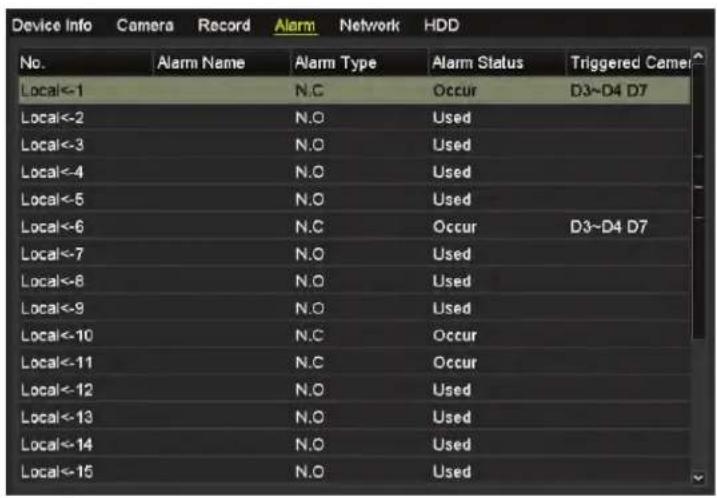
Viewing Network Information
Enter the System Information interface:
Menu > Maintenance > System Info > Network.

MANAGEMENT AND MAINTENANCE
Viewing HDD Information
Enter the System Information interface: Menu > Maintenance > System Info > HDD.

Search Log Files
Operation, alarm, exception, and NVR information stored in log files can be viewed or exported at any time. Enter the Log Search interface: Menu > Maintenance > Log Information > Log Search.

- Set conditions for log search.
- Click Search.
MANAGEMENT AND MAINTENANCE

- Click the √ button to view the log details.
- Click the 🎯 button to view a log's related video files.
NOTE: All logs meeting set conditions will display (up to 2,000 at a time).
Export Log Files
To export log files, enter the Log Information interface: Menu > Maintenance > Log Information > Log Export. Select the backup device and click Export.
NOTE:
Exports are named by time.
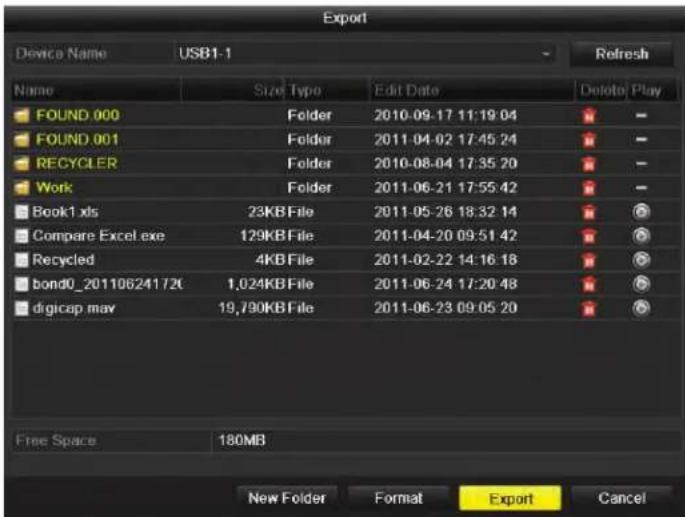

Connecting Backup Device NVR
Make sure the backup device is connected to the NVR before attempting a log export.
NOTE: Please connect the backup device to NVR before operating log export.
NOTE: The log files exported to the backup device are named by exporting time.
- Create a new folder in backup device.
- Formate backup device before log export.
MANAGEMENT AND MAINTENANCE
To export all log files, enter the Log Information interface: Menu > Maintenance > Log Information > Log Export. Check the HDD checkbox and click Export.

Export/Import IP Camera Information
To export IP camera information to an Excel file or local device for backup, enter the Camera Management interface: Menu > Camera > IP Camera Import/Export and click Export.
To import a file, select the file from the backup device and click Import.

NVR must be rebooted after an import.
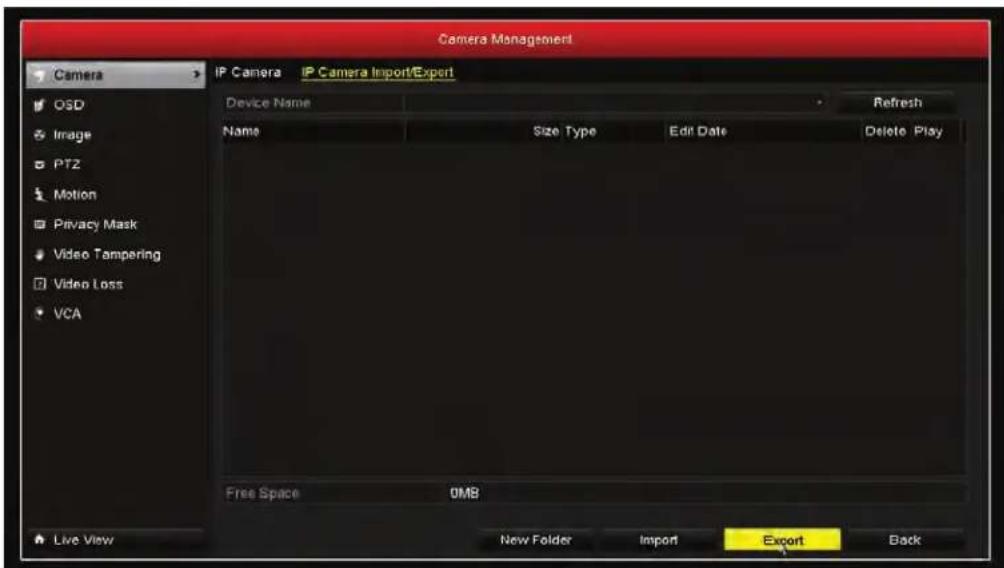
MANAGEMENT AND MAINTENANCE
Export/Import Configuration Files
To export configuration files to a device for backup, enter the Import/Export Configuration File interface: Menu > Maintenance > Import/Export > and click Export.
To import a file, select the file from the backup device and click Import.
NOTE:
NVR must be rebooted after an import and will automatically after import completes.
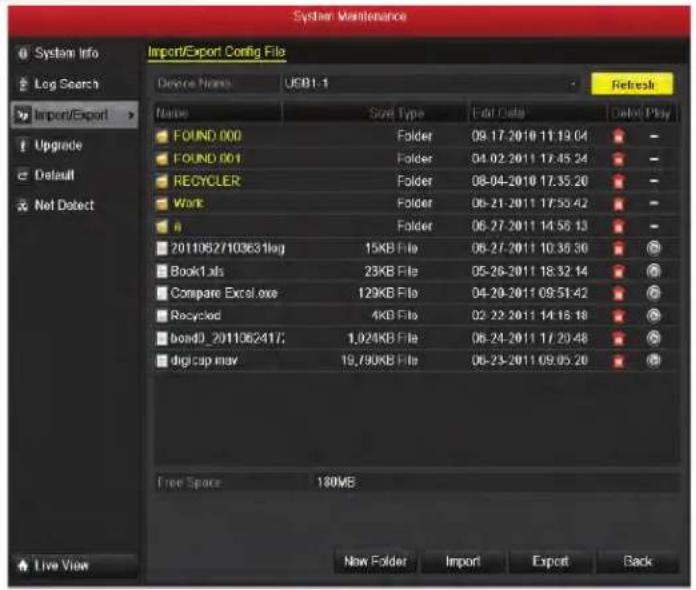
Upgrading by Local Backup Device
Enter the Upgrade interface: Menu > Maintenance > Upgrade > Local Upgrade. Select the update file and click Upgrade.
NOTE:
NVR must be rebooted after upgrade to activate new firmware.
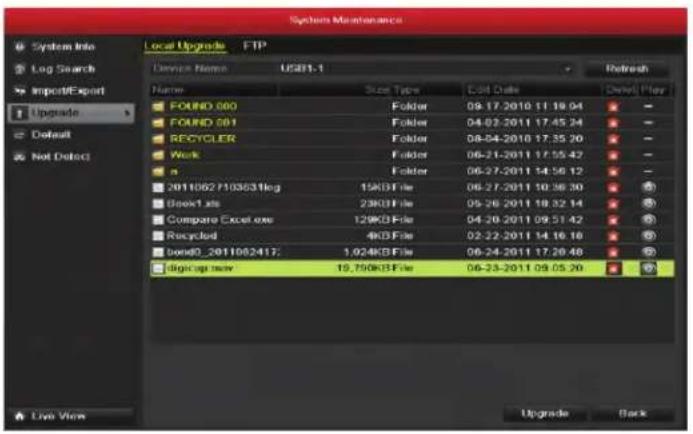

Before you start
Connect NVR to local backup device where firmware file is located.
MANAGEMENT AND MAINTENANCE
Upgrading by FTP
Enter the Upgrade interface: Menu > Maintenance > Upgrade > FTP. Enter the FTP Server Address and click Upgrade.
NOTE:
NVR must be rebooted after upgrade to activate new firmware.


Before you start
Configure PC and NVR to same Local Area Network before starting. Run the third-party software on the PC and copy firmware into the root directory of FTP.
NOTE:
All NVR parameters will revert to the default settings using the network parameters: IP address, mask, gateway, MTU, NIC working mode, route, and server port.
ADDITIONAL INFORMATION
RS-232 Serial Port Configuration
Enter the RS-232 Settings interface to use the RS-232 port for connecting a PC to the NVR or to connect a serial device to the NVR: Menu > Configuration > RS-232. Configure settings and then click Apply.
| RS-232 Settings | ||
| Baud Rate | 115200 | |
| Data Bit | 8 | |
| Stop Bit | 1 | |
| Parity | None | |
| Flow Ctrl | None | |
| Usage | Console | |
General Settings
Configuration
BNC output standard, VGA output resolution, and mouse pointer speed can all be configured through the General Settings interface: Menu > Configuration > General > General. Configure settings and click Apply.
| General | DST Settings | More Settings |
| Language | English | |
| CVBS Output Standard | NTSC | |
| VGA Resolution | 1024*768/60HZ | |
| HDMI Resolution | 1920*1080/60HZ(1080P) | |
| Time Zone | (GMT+08:00) Beijing, Urumqi, Singapore | |
| Date Format | MM-DD-YYYY | |
| System Date | 04-25-2013 | |
| System Time | 11:35:35 | |
| Mouse Pointer Speed | ||
| Enable Wizard | ||
| Enable Password | ||
SETTING FUNCTION
| Language The default language is English |
| CVBS Output Standard Set CVBS output standard to NTSC or PAL, which must be the same with video input standard |
| VGA Resolution VGA output resolution must be the same with monitor screen resolution |
| HDMI Resolution HDMI output resolution must be the same with monitor screen resolution |
| Time Zone / Date Format Set time zone and date format |
| System Time / Date Set system time and date |
| Mouse Pointer Speed Set speed of mouse pointer; 4 levels are configurable |
| Enable Wizard Enable / Disable Wizard when device starts up |
| Enable Password Enable / Disable use of login password |
ADDITIONAL INFORMATION
DST Settings
Enter the General Settings interface: Menu > Configuration > General > DST Settings.

NOTE: You can check the checkbox before the Auto DST Adjustment Item, or you can manually check the Enable DST checkbox, and then choose the date of the DST period.
Smartbridge Function
The NVR must be connected to the Internet to enable the P2P feature. The P2P feature can be enabled through the DDNS interface: Configuration > Network > DDNS.

- Check the box to enable.
- Define a six-letter, all-uppercase custom verification code.

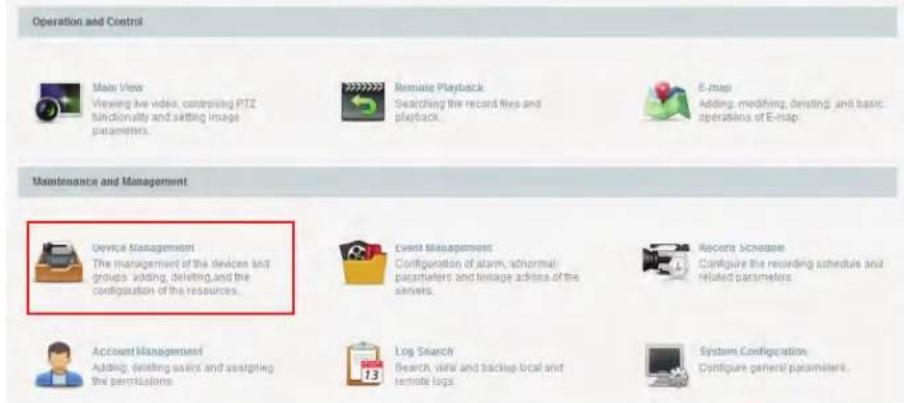
- Click on Device Management to install and open a PC.
ADDITIONAL INFORMATION
1. Click Add New Device Type.

2. Select Device on Cloud and click Register.

3. Complete fields and click Register.

NOTE: Clicking the Get Email Code will trigger an email with the code needed to register.
ADDITIONAL INFORMATION
- Click Login and enter the information from the previous step.

- Enter Serial No. and Verification Code.
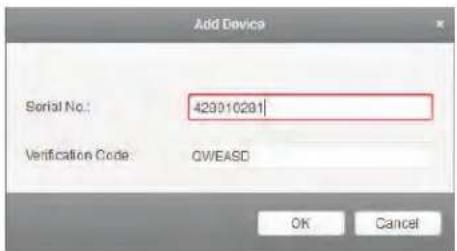
Find this in Configuration > System Info > Device Info > Serial No. Choose just the middle part of the number beginning from "4".
This is the six-letter, all-uppercase custom verification code previously created.
More Settings
To configure more settings, access the General Settings interface: Menu > Configuration > General > More Settings. Once configured, click Apply.
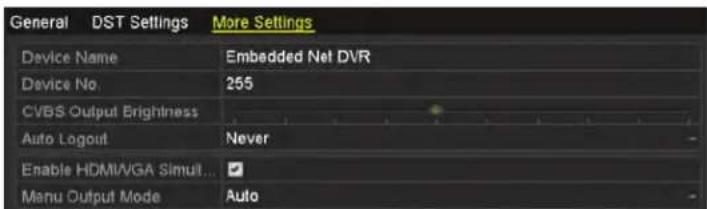
| SETTING FUNCTION | |
| Device Name Edit the name of NVR | |
| Device No. Edit serial number of NVR. The Device No. can be set in the range of 1-255. (Default is 255) | |
| CVBS Output Brightness Adjust the video output brightness | |
| Auto Logout Set timeout for menu inactivity. | |
| Enable HDMI/VGA Simultaneous Output | By default the video outputs from HDMI and VGA can be operated separately. Set the simultaneous output by checking the option. |
| Menu Output Mode Choose the menu display on different video output: Auto, HDMI, VGA, and Main CVBS. | |
ADDITIONAL INFORMATION
User Account Management
The Administrator is the default account for the NVR with a username of "admin" and a password of "12345". Administrator permissions allow the ability to add and delete users and to configure user parameters.
Adding a User
Access the User Management interface: Menu > Configuration > User and then click Add.

Enter the new user's information, click Apply and then click OK.

Level options include Guest or Operator.
- By default, Operator can use two-way audio in remote configuration and has all operating permission in camera configuration.
- By default, Guest only has permission for local/remote playback in camera configuration.
The MAC address of the remote PC that logs into the NVR. If configured and enabled, it only allows the remote user with this MAC address to access the NVR.
Click OK to save the settings.
The new user will appear in this screen. Click the button to enter permission settings.
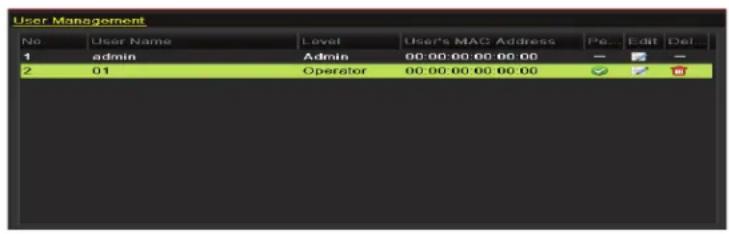
ADDITIONAL INFORMATION

Set each configuration for the user and then click OK.
| Local ConfigurationLocal Log Search to search and view logs and system informationLocal Parameters Settings to configure parameters, restore factory defaults, and import/export configuration files (*only Admin can restore factory defaults)Local Camera Management to add, delete, and edit IP camerasLocal Advanced Operation to initialize HDD and set HDD properties, upgrade system firmware, and clear I/O alarm outputLocal Shutdown/Reboot to shutdown or reboot NVR |
| Remote ConfigurationRemote Log Search to remotely view logs on NVRRemote Parameter Settings to remotely configure parameters, restore factory defaults, and import/export configuration files (*only Admin can restore factory defaults)Remote Camera Management to remotely add, delete, and edit IP camerasRemote Serial Port Control to configure RS-232 and RS-485 port settingsRemote Video Output Control to send remote button control signalTwo-Way Audio to realize two-way radio between remote client and NVRRemote Alarm Control to remotely arm and control alarm outputRemote Advanced Operation to remotely initialize HDD and set HDD properties, upgrade system firmware, and clear I/O alarm outputRemote Shutdown/Reboot to remotely shutdown or reboot NVR |
| Camera ConfigurationRemote Live View to remotely view live video of selected camera(s)Local Manual Operation to locally start or stop manual recording, picture capture, and alarm output of selected camera(s)Remote Manual Operation to remotely start or stop manual recording, picture capture, and alarm output of selected camera(s)Local Playback to locally play recorded files of selected camera(s)Remote Playback to remotely play recorded files of selected camera(s)Local PTZ Control to locally control PTZ movement of selected camera(s)Remote PTZ Control to remotely control PTZ movement of selected camera(s)Local Video Export to locally export recorded files of selected camera(s) |

Only the admin user account has the permission of restoring factory default parameters.
ADDITIONAL INFORMATION
Deleting a User
Access the User Management interface: Menu > Configuration > User.
- Select the user
- Click the button to delete.
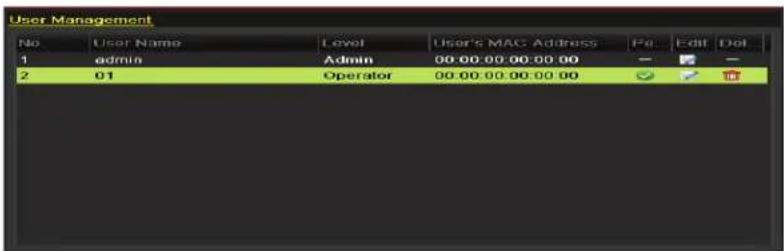
Editing a User
Access the User Management interface: Menu > Configuration > User.
- Select the user
-
Click the button to edit.
-
Make necessary edits and click OK.

Screen for editing Operator and Guest. Screen for editing Admin.
NOTE: Operator and Guest:
You can edit the user information, including user name, password, permission level and MAC address. Check the checkbox of Change Password if you want to change the password, and input the correct old password, and the new one in the text field of Password and Confirm.
NOTE: The admin user can also be edited.

NOTE: Admin:
You are only allowed to edit password and MAC address. Check the checkbox of Change Password if you want to change the password, and input the correct old password, and the new one in the text field of Password and Confirm.
SmartBridge High Definition Mobile App
First Alert offers both a Smartphone as well as Tablet optimized app for mobile access to your live video stream!
This manual was accurate at the time it was completed. However, because of our ongoing effort to constantly improve our products, additional features and functions may have been added since that time and on-screen displays may change. We encourage you to visit our website at www.firstalert.com to check for the latest manuals (English and Spanish), firmware updates, downloads, other security camera products and announcements.
ACCESSING YOUR DEVICE FROM THE APP
To control your NVR system from a tablet or smartphone, download the Smartbridge HD App and follow the steps below.
- From the main dropdown menu , click the Cloud and log into your Cloud Account. Click Add Device. Enter 9 digit Device Code from NVR. If you do not have a Cloud Account, register for one using a valid e-mail address. A four-digit code will be e-mailed to you within minutes which you will need to reference to complete registration.

NOTE:
To obtain your Device Code, access your NVR system directly using the mouse provided with the NVR. Right click, select Menu and enter login info. Click Maintenance. Find the 9-digit code within the Serial No. field highlighted above and write it below for future reference:
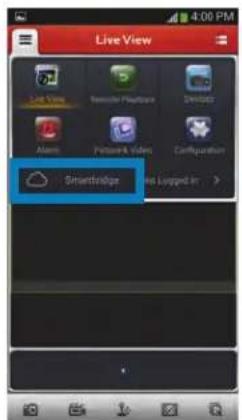
- Click back into Devices, and click on the Icon in the list. Hit Live View.
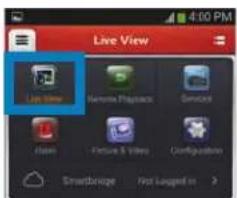
- Simple DDNS (on remote network). Click Devices. Click the + icon. In the Register Mode field, select simpleddns. Enter your NVR login information.

APPENDIX HARD DRIVE
Hard Drive Removal and Installation
HDD Installation
To replace the hard drive in the NVR:
- CAUTION: TO REDUCE THE RISK OF ELECTRIC SHOCK. UNPLUG ALL POWER SOURCES, INCLUDING CAMERAS FROM THE NVR BEFORE REMOVING COVER. FAILURE TO DO SO CAN RESULT IN DAMAGE TO THE NVR OR ITS COMPONENTS AS WELL AS INJURY OR DEATH
- Remove screws securing the cover of the NVR and remove cover.
- Disconnect the hard drive power and data cables.
- Remove old hard drive and replace with the new one.
- Re-install the screws securing the hard drive to the bottom of the NVR.
- Re-connect the hard drive power and data cables.
- Replace the cover and screws. NOTE: Format hard drive per instructions in HDD MANAGEMENT section.

Caution!
When working with electrostatic sensitive devices such as hard disk or NVR unit, make sure you use a static-free workstation. Any electrostatic energy
coming in contact with the hard disk or NVR can damage it permanently.

Hard Drive Format
NOTE: A new hard drive must be formatted after installation. Format per instructions in the HDD MANAGEMENT section of this manual.

CAUTION!
RISK OF ELECTRIC SHOCK

CAUTION: TO REDUCE THE RISK OF ELECTRIC SHOCK. UNPLUG ALL POWER SOURCES, INCLUDING CAMERAS FROM THE NVR BEFORE REMOVING COVER. FAILURE TO DO SO CAN RESULT IN DAMAGE TO THE NVR OR ITS COMPONENTS AS WELL AS INJURY OR DEATH.

The lightning flash with arrowhead symbol, within an equilateral triangle, is intended to alert the user to the presence of un-insulated "dangerous voltage" within the product's enclosure that may be of sufficient magnitude to constitute a risk of electric shock.
The exclamation point within an equilateral triangle, is intended to alert the user to the presence of important operating and maintenance (servicing) instructions in the literature accompanying the appliance.

natural_image
Technical line drawing of a rectangular electronic device with mounting holes and screwdriver (no text or symbols)Hard Drive Remove/Install Screws from Below
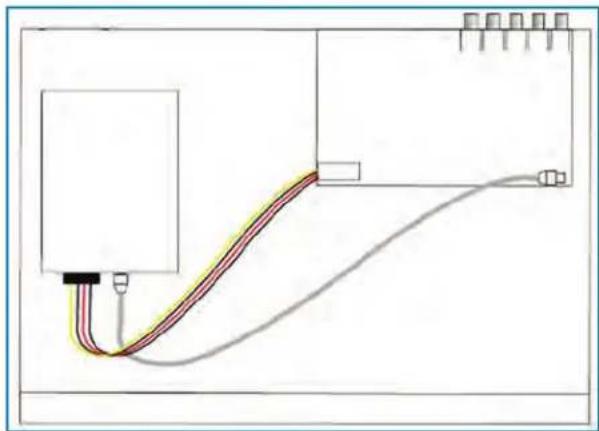
natural_image
Pure electrical circuit lines without any symbolsHard Drive - Connected to Circuit Board
Technical Specifications
| -000 (NVR16XX-360H) DS-7716NI-SP | |
| Video/Audio input | |
| IP video input 16-ch | |
| Two-way audio input 1-ch, BNC (2.0 Vp-p, 1kΩ) | |
| Incoming bandwidth 80Mbps | |
| Video/Audio output | |
| Recording resolution 5MP / 3MP / 1080P / UXGA / 720P / VGA / 4CIF / DCIF / 2CIF / CIF / QCIF | |
| CVBS output 1-ch, BNC (1.0 Vp-p, 75 Ω) Resolution: 704 × 576 (PAL); 704 × 480 (NTSC) | |
| HDMI output | 2-ch audio input, impedance 600Ω, RCA: 1920 × 1080P /60Hz, 1920 × 1080P / 50Hz, 1600 × 1200 /60Hz, 1280 × 1024 /60Hz, 1280 × 720 /60Hz, 1024 × 768 /60Hz |
| VGA output | 1-ch, resolution: 1920 × 1080P /60Hz, 1600 × 1200 /60Hz, 1280 × 1024 /60Hz, 1280 × 720 /60Hz, 1024 × 768 /60Hz |
| Audio output 2-ch, BNC (Linear, 600Ω) | |
| Playback resolution 5MP / 3MP / 1080P / UXGA / 720P / VGA / 4CIF / DCIF / 2CIF / CIF / QCIF | |
| Synchronous playback 16-ch | |
| Hard disk | |
| SATA 4 SATA interfaces for 2 HDDs + 1 DVD-R/W (default), or 4HDDs | |
| eSATA 1 eSATA interface | |
| Capacity Up to 4TB capacity for each HDD | |
| External Interface | |
| Network interface | 1 RJ-45 10 / 100 / 1000 Mbps self-adaptive Ethernet interface16 independent 100 Mbps PoE network interfaces |
| Serial interface | 1 RS-232 interface (for parameters configuration, maintenance, transparent channel); 1 RS-485 interface (reserved);1 RS-485 keyboard interface (for special keyboard control) |
| USB interface | 3 × USB 2.0 |
| Alarm in | 16 |
| Alarm out | 4 |
| General | |
| Power supply | 100 ~ 240VAC, 6.3A, 50 ~ 60Hz |
| Consumption | ≤ 40 W |
| PoE | 12VDC @ 1A X 16 |
| Working temperature | -10 oC ~ +55 oC |
| Working humidity | 10% ~ 90% |
| Chassis | 19-inch rack-mounted 1.5U chassis |
| Dimensions (W × D ×H) | 445mm × 390mm × 70mm |
| Weight | ≤ 8 Kg (17.64 lb) (without hard disk or DVD-R/W) |
| Revision Numbers | |
| Firmware Version | V3.1.1, Build 141203 |
| Encoding Version | V1.0, Build 140508 |
FAQ's
If your problem is not listed below, please call our toll-free number for more support. Tech Services: 800-323-9005.
Question: Why does NVR not work after starting? Why did the NVR stop working?
Answer:
- Check that the power adapter is plugged into the NVR properly
- Check the power source and all power cord connections are properly connected
- Make sure the power on-off switch on the back of the NVR unit is on
Question: Why does the NVR reboot automatically? Or stop for several minutes after starting?
Answer:
- Check the supply voltage to be sure it is stable
- Bad track on hard drive or the hard drive is bad
• Instability of the front-end video signal - High temperature, too much dust, bad NVR operating environment
Question: Why is there no video output on single, multi or all channels?
Answer:
- Check if the camera adaptor is properly connected
- Check the cable for connecting video input/output in the back panel of NVR
- Insert the video source directly into the display device and check if they are causing the problem.
- Check the brightness of the picture and bring it back to its original default setting
- No video input signal or too weak
Question: What is the meaning of? Answer:
| Start / Stop Recording | |
| Instant Playback | |
| Audio On | |
| Capture | |
| PTZ Control | |
| Digital Zoom | |
| Image Settings | |
| Live View Strategy | |
| Information | |
| Close |
Question: Why does NVR have problems with real-time images, such as bad image color or serious brightness distortion?
Answer:
- If PAL and NTSC are not correctly selected, the images will be in black and white and possibly a rolling screen.
• NVR is not compatible with monitor - Adjust the NVR color settings
Question: Why is there no audio sound when monitoring? Answer:
- Check sound box or speaker functions. Also check possible short circuit.
- Audio source may be connected to the video channel. You can click to full-screen to check.
• The hardware of NVR is defective - Cameras are not audio capable
- Speakers need to have an amplifier
• Channel being monitored is not connected to an audio camera
• Volume regulate is turned down
Question: Why is there no audio when playing back? Answer:
- Check to see that the audio settings for the channels are correct.
• Audio is off in record menu
Question: Why is my system time not correct? Answer:
- Wrong setting or user did not click OK to confirm
Question: Why doesn't motion detection work? Answer:
- The setting of motion detection area is not correct
- Sensitivity is too low
Question: Why do I have no disc or disc mount error? Answer:
- The data being downloaded exceeds the capacity of backup device
- The backup device is incompatible
• The backup device is damaged
Question: Why doesn't the Remote Control work? Answer:
• The remote control is too far from the NVR
- Remote control batteries are dead or low
- Remote control is damaged, check by using the control on the NVR
Question: Why can't I log in over the Internet? Answer:
- Check the network to see if it is connected. Check if LINK or 100M LED is displayed normally on the panel; use ping xxx.xxx.xxx.xxx (NVR IP) to check if the Internet is linked properly.
- Make sure you are running Windows 7, Vista or XP operating system and Internet Explorer 6.0 - 8.0
• Refer to the network setup section in the manual.
Troubleshooting
| Error Possible Cause Solutions | ||
| System is not receiving power or is not powering up | Cable from power adapter is loose or is unplugged | Confirm that all cables are connected correctlyConfirm that the power adapter is securely connected to the back of the unit |
| Cables are connected, but system is not receiving sufficient power | Confirm that the system is powered on (LED indicators on the front should be ON)If the unit is connected through a power bar or surge protector, try bypassing the bar and connecting the power directly to the wall outletConfirm that there is power at the outletConnect the power cable to another outletTest the outlet with another plugged device | |
| Remote control not detected by the system | Battery in the remote control is drained or is missing | Install two fresh AAA alkaline batteries in the remote control |
| Hard drive is not detected by the system | Hard drive cables are loose or not properly connected | Remove the housing and check that hard drive cables are firmly connected |
| Open the housing and install a 3.5 SATA hard drive | ||
| Mouse not detected by system | Mouse cable is not connected or is not firmly connected to the system | Firmly connect the mouse cable to the USB Mouse port (not the USB Data port) on the front panel. |
| System needs to be reset | Power off the system (Turn power switch off position on back of unit). Firmly connect a USB mouse to the USB Mouse port on the front panel of the system. Power on the system (Turn power switch to on position on back of unit). | |
| There is no picture on selected channels/camera picture is not being displayed | Camera cables are loose or have become disconnected | Check the camera video cable and connectionsDisconnect and reconnect the cable at the system and at the cameraTry moving the camera to another channel or use another cable |
| The image on the NVR appears but does not have sound | Audio cables are loose or have been disconnected Check the AUDIO connections to the NVR | |
| Audio channels are disabled insert check the system settings | Check the Configurations: System Setup>Channel>Audio | |
| Volume on external speakers (not included) is low or off | Increase volume on external speakers (not included) | |
| Cameras are not audio capable or a powered microphone is not attached | Add audio capable cameras or a powered microphone (not included with this kit) | |
| The system beeps at startup The beep at startup is normal | ||
Warranty
PRODUCT LIMITED WARRANTY
BRK Brands, Inc., ("BRK") the maker of First Alert® brand products warrants that for a period of one year from the date of purchase (the "Warranty Period"), this product will be free from defects in material and workmanship. BRK, at its sole option, will repair or replace this product or any component of the product found to be defective during the Warranty Period. Replacement or repair will be made with a new or remanufactured product or component. If the product is no longer available, replacement may be made with a similar product of equal or greater value. This is your exclusive warranty.
This warranty is valid for the original retail purchaser only from the date of initial retail purchase and is not transferable. In order to obtain warranty service, you must keep the original sales receipt and proof of purchase in the form of the UPC code from the package. BRK dealers, service centers, or retail stores selling BRK products do not have the right to alter, modify or any way change the terms and conditions of this warranty.
WARRANTY EXCLUSIONS
Parts and Labor: 1 year limited (warranted parts do not include bulbs, LEDs, and batteries)
This warranty does not apply to bulbs, LEDs, and batteries supplied with or forming part of the product.
This warranty is invalidated if non-BRK accessories are or have been used in or in connection with the product or in any modification or repair is made to the product.
This warranty does not apply to defects or damages arising by use of the product in other than normal (including normal atmospheric, moisture and humidity) conditions or by installation or use of the product other than in strict accordance with the instructions contained in the product owner's manual.
This warranty does not apply to defects in or damages to the product caused by (i) negligent use of the product, (ii) misuse, abuse, neglect, alteration, repair or improper installation of the product, (iii) electrical short circuits or transients, (iv) usage not in accordance with product installation, (v) use of replacement parts not supplied by BRK, (vi) improper product maintenance, or (vii) accident, fire, flood or other Acts of God.
This warranty does not cover the performance or functionality of any computer software included in the package with the product. BRK makes no warranty that the software provided with the product will function without interruption or otherwise be free of anomalies, errors, or "Bugs." This warranty does not cover any costs relating to removal or replacement of any product or software installed on your computer.
BRK reserves the right to make changes in design or to make additions to or improvements in its products without incurring any obligations to modify any product which has already been manufactured. BRK will make every effort to provide updates and fixes to its software via its website. This warranty does not cover any alteration or damage to any other software that may be or may become resident on the users system as a result of installing the software provided. This warranty is in lieu of other warranties, expressed or implied, and BRK neither assumes nor authorizes any person to assume for it any other obligation or liability in connection with the sale or service of the product. In no event shall BRK be liable for any special or consequential damages arising from the use of the product or arising from the malfunctioning or non-functioning of the product, or for any delay in the performance of this warranty due to any cause beyond its control.
BRK does not make any claims or warranties of any kind whatsoever regarding the product's potential, ability, or effectiveness to prevent, minimize, or in any way affect personal or property damage or injury. BRK is not responsible for any personal damage, loss, or theft related to the product or to its use for any harm, whether physical or mental related thereto. Any and all claims or statements, whether written or verbal, by salespeople, retailers, dealers, or distributors to the contrary are not authorized by BRK, and do not affect this provision of this warranty.
BRK's responsibility under this, or any other warranty, implied or expressed, is limited to repair, replacement or refund, as set forth above. These remedies are the sole and exclusive remedies for any breach of warranty. BRK is not responsible for direct, special, incidental, or consequential damages resulting from any breach of warranty or under any other legal theory including but not limited to, loss profits, downtime, goodwill, damage to or replacement of equipment and property and any costs of recovering, reprogramming or reproducing any program or data stored in or used with a system containing the product accompanying software. BRK does not warrant the software will operate with any other software except that which is indicated. BRK cannot be responsible for characteristics of their party hardware or software which may effect the operation of the software included.
Except to the extent prohibited by applicable law, any implied warranty of merchantability or fitness for a particular purpose is limited in duration to the duration of the above Warranty Period. Some states, provinces, or jurisdictions do not allow the exclusion or limitation of incidental or consequential damages or limitations on how long an implied warranty lasts, so the above limitations or exclusion may not apply to you. This warranty gives you specific legal rights, and you may also have other rights that vary from state to state, or province to province, or jurisdiction to jurisdiction.
OBTAINING SERVICE
If service is required, do not return the product to your place of purchase. In order to obtain warranty service, contact the Consumer Affairs Division at 1-800-323-9005, 7:30 a.m. – 5:00 a.m. Central Standard Time, Monday through Friday. To assist us in serving you, please have the model number and date of purchase available when calling.
After contacting the Consumer Affairs Division and it is determined that the product should be returned for Warranty Service, please mail the product to: BRK Brands, Inc., 3901 Liberty Street Road, Aurora, IL 60504-8122.
NOTES
NOTES
NOTES
First Alert®
©2015 BRK Brands, Inc.
A Jarden Corporation Company (NYSE:JAH)
3901 Liberty Street Road, Aurora, IL 60504-8122
Phone: 630-851-7330 Tech Services: 800-323-9005
www.firstalert.com / www.brkelectronics.com
NVR1640-360H
- Thank you for choosing First Alert for your security needs!
- Main Description
- Product Features
- PRODUCT OVERVIEW PACKAGE CONTENTS
- What's in the Box\*
- PRODUCT OVERVIEW
- CAMERA AND POWER CONNECTIONS
- Installing Cameras
- Installing Cable-Safe Mounting Bracket
- Connecting Devices
- INTRODUCTION TABLE OF CONTENTS
- SAFETY CAUTION STATEMENTS
- Safety Precautions
- Instructions for Use
- FCC Compliance
- FCC Compliance Class B Digital Device
- FCC Certification (if applicable)
- Fire and Electric Shock Hazard Statement
- Caution!
- Disposal
- Front Panel
- Remote Control
- Troubleshooting Remote Control
- USB Mouse
- Left-Button:
- Right-Button:
- Scroll-Wheel:
- Virtual Keypad
- Powering your NVR
- Start Up and Shut Down
- Starting Up
- Shutting Down
- Standard Shutdown:
- Front-Panel Shutdown:
- Rebooting
- Setup Wizard
- Quick Startup
- INITIAL SETUP
- Network Wizard
- HDD Management
- Adding an IP Camera
- Adding and Connecting Cameras
- Before you start
- Protocol over Ethernet
- Live View Introduction
- What is Live View?
- Live View Icons
- Operations
- Operations in Live View?
- Choosing Live View Functions
- Live View Quick Setting Toolbar
- Adjust Live View Settings
- Channel-Zero Encoding
- User Logout
- Configuring PTZ Settings
- Setting PTZ Presets, Patrols, and Controls
- Customizing Presets
- PTZ Controls
- Calling Presets in PTZ Setting Interface
- Calling Presets in Live View Mode
- Customizing Patrols
- Calling Patrols in PTZ Setting Interface
- Calling Patrols in Live View Mode
- Customizing Patterns
- Calling Patterns in PTZ Setting Interface
- Calling Patterns in Live View Mode
- PTZ Control Panel
- RECORDING AND CAPTURE SETTINGS
- Configuring Parameters
- Configuring Recording/Capture Schedule
- Drawing a Schedule
- Configuring Motion Detection Recording and Capture
- Manual Recording and Continuous Capture
- Configuring Holiday Recording and Capture
- Configuring Redundant Recording and Capture
- Configuring HDD Group for Recording and Capture
- File Protection
- Locking Recording Files in Playback
- Locking Recording Files in Export
- Setting HDD Property to Read-Only
- PLAYBACK
- Playing Back Record Files
- Instant Playback by Channel
- Playback by Channel
- 06-27-2013 08:58:59--06-27-2013 09:44:02
- Playback by Event Search
- Playback by Tag
- Smart Playback
- Playback by System Logs
- External File Playback
- Auxiliary Functions of Playback
- Frame-by-Frame Playback
- Digital Zoom
- Reverse Playback of Multi-Channel
- Picture Playback
- Backing Up Record Files
- Quick Export
- BACKUP
- Normal Video Search Backup
- Backup Using USB Writer and SATA Writer-enter the Export interface: Menu > Export > Normal.
- Backup Using eSATA HDDs-
- Backup by Event Search
- Backup Video Clips
- Backing Up Pictures
- Backup All Types of Captured Pictures-
- Managing Backup Devices
- Management of USB Flash Drives, USB
- To manage backup device:
- Management of USB Writers and DVD-R/W- Enter the Search Result interface: Menu > Export > Normal.
- Hot Spare Device Backup
- Setting Hot Spare Device
- Setting Working Device
- Managing Hot Spare System
- Setting Motion Detection Alarm
- ALARM SETTINGS
- Setting Sensor Alarms
- Detecting Video Loss Alarm
- Detecting Video Tampering Alarm
- Handling Exceptions Alarm
- Setting Alarm Response Actions
- Configuring General Settings
- Configuring Advanced Settings
- Configuring PPPoE Setting
- NETWORK SETTING
- Configuring DDNS
- Configuring NTP Server
- Configuring SNMP
- Configuring Remote Alarm Host
- Configuring Multicast
- Configuring RTSP
- Configuring Server and HTTP Ports
- Configuring and HTTPS Port
- Configuring Email
- Before you configure email settings
- Configuring NAT
- Configuring High-Speed Download
- Virtual Host Settings
- Telnet Settings
- Checking Network Traffic
- Configuring Network Detection
- Testing Network Delay and Packet Loss
- Exporting Network Packet
- Checking Network Status
- Checking Network Statistics
- Initializing HDDs
- Managing a Network HDD
- NOTE:
- Managing eSATA
- Managing HDD Group
- Setting HDD Groups
- Setting HDD Property
- Configuring Quota Mode
- Configuring Disk Clone
- ore you start
- Checking HDD Status
- HDD Detection
- Configuring HDD Error Alarms
- CAMERA SETTINGS
- Configuring OSD Settings
- Configuring Privacy Mask
- Configuring Video Parameters
- MANAGEMENT AND MAINTENANCE
- Viewing Device Information
- Viewing Camera Information
- Viewing Record Information
- Viewing Alarm Information
- Viewing Network Information
- Viewing HDD Information
- Search Log Files
- Export Log Files
- Connecting Backup Device NVR
- Export/Import IP Camera Information
- Export/Import Configuration Files
- Upgrading by Local Backup Device
- Upgrading by FTP
- ADDITIONAL INFORMATION
- RS-232 Serial Port Configuration
- General Settings
- Configuration
- DST Settings
- Smartbridge Function
- Click Add New Device Type.
- Select Device on Cloud and click Register.
- Complete fields and click Register.
- More Settings
- User Account Management
- Adding a User
- Deleting a User
- Editing a User
- NOTE: Operator and Guest:
- NOTE: Admin:
- SmartBridge High Definition Mobile App
- ACCESSING YOUR DEVICE FROM THE APP
- APPENDIX HARD DRIVE
- Hard Drive Removal and Installation
- HDD Installation
- Hard Drive Format
- FAQ's
- Question: Why does NVR not work after starting? Why did the NVR stop working?
- Answer:
- Question: Why does the NVR reboot automatically? Or stop for several minutes after starting?
- Question: Why is there no video output on single, multi or all channels?
- Question: Why does NVR have problems with real-time images, such as bad image color or serious brightness distortion?
- Question: Why is there no audio sound when monitoring? Answer:
- Question: Why is there no audio when playing back? Answer:
- Question: Why is my system time not correct? Answer:
- Question: Why doesn't motion detection work? Answer:
- Question: Why do I have no disc or disc mount error? Answer:
- Question: Why doesn't the Remote Control work? Answer:
- Question: Why can't I log in over the Internet? Answer:
- Warranty
- PRODUCT LIMITED WARRANTY
- WARRANTY EXCLUSIONS
- OBTAINING SERVICE
- NOTES
- First Alert®
Brand : FIRST ALERT
Model : NVR1640
Category : Security Camera