ER7SIDE4812 - Inverter APC - Free user manual and instructions
Find the device manual for free ER7SIDE4812 APC in PDF.


User questions about ER7SIDE4812 APC
0 question about this device. Answer the ones you know or ask your own.
Ask a new question about this device
Download the instructions for your Inverter in PDF format for free! Find your manual ER7SIDE4812 - APC and take your electronic device back in hand. On this page are published all the documents necessary for the use of your device. ER7SIDE4812 by APC.
USER MANUAL ER7SIDE4812 APC
Open-Side Racks and Accessories Installation
May 2021

natural_image
Line drawing of a server rack cabinet with internal compartments and mounting points (no text or symbols)Legal Information
The Schneider Electric brand and any trademarks of Schneider Electric SE and its subsidiaries referred to in this guide are the property of Schneider Electric SE or its subsidiaries. All other brands may be trademarks of their respective owners.
This guide and its content are protected under applicable copyright laws and furnished for informational use only. No part of this guide may be reproduced or transmitted in any form or by any means (electronic, mechanical, photocopying, recording, or otherwise), for any purpose, without the prior written permission of Schneider Electric.
Schneider Electric does not grant any right or license for commercial use of the guide or its content, except for a non-exclusive and personal license to consult it on an "as is" basis. Schneider Electric products and equipment should be installed, operated, serviced, and maintained only by qualified personnel.
As standards, specifications, and designs change from time to time, information contained in this guide may be subject to change without notice.
To the extent permitted by applicable law, no responsibility or liability is assumed by Schneider Electric and its subsidiaries for any errors or omissions in the informational content of this material or consequences arising out of or resulting from the use of the information contained herein.
Table of Contents
Introduction....5
Safety....6
Safety Instructions ....7
Component Identification....8
Hardware....8
Tools Provided 9
Rack Installation....10
Move the Rack ....10
Level the Rack 12
Join the Racks....12
Ground the Rack ....13
Secure the Rack....14
Roof, and Doors 14
Roof Removal....14
Door Removal 15
Door Installation....15
Reverse the Front Door 16
Equipment Installation....18
Adjust the Vertical Mounting Flanges....18
Zero U Accessory Mounting Brackets....21
Install the Equipment 22
Accessories 24
Specifications 27
Five-Year Factory Warranty....28
Introduction
The APC by Schneider Electric Open-Side Easy Racks are quality racks for storage of industry-standard (EIC/ECA-310), 19 in. (483 mm) rack-mounted hardware, which includes servers and voice, data, networking, internetworking, and power protection equipment.
This manual covers the general installation and customization of the open-sided racks in the Easy Rack family and their accessories.
| SKU Rack Description(W = Width, D = Depth) | SKU Accessory Description | ||
| ER6200 42U, 600W x 1000D ER7BP1U | Blanking Panel | ||
| ER6220 42U, 600W x 1200D ER7BP2U | Blanking Panel | ||
| ER6800 48U, 600W x 1000D ER7RCC42 | Rear Cable Channel | ||
| ER6820 48U, 600W x 1200D ER7RCC48 | Rear Cable Channel | ||
| ER8200 42U, 800W x 1000D ER7DCM | Cable Manager 1U depth | ||
| ER8220 42U, 800W x 1200D ER7HCM | Horizontal Cable Manager | ||
| ER8800 48U, 800W x 1000D ER7VCM42 | Vertical Cable Manager 42U | ||
| ER8820 48U, 800W x 1200D ER7VCM48 | Vertical Cable Manager 48U | ||
| ER7PDUBRKT PDU | Mounting Bracket for 1100 mm and 1200 mm depth Easy Racks | ||
| ER7PDUBRKTS PDU | Mounting Bracket for 800 mm and 1000 mm depth Easy Racks | ||
| ER7SHELF Adjustable Shelf, 50kg, for use in 800mm depth rack | |||
| ER7SHELFS | Accessory Shelf | ||
| ER7SIDE4210 | Side Panel for 42U/1000mm Easy Racks | ||
| ER7SIDE4212 | Side Panel for 42U/1200mm Easy Racks | ||
| ER7SIDE4810 | Side Panel for 48U/1000mm Easy Racks | ||
| ER7SIDE4812 | Side Panel for 48U/1200mm Easy Racks | ||
Safety
Read the instructions carefully to become familiar with the equipment before trying to install, operate, service or maintain it.
The addition of this symbol to a Danger or Warning safety label indicates that an electrical hazard exists which will result in personal injury if the instructions are not followed.
This is the safety alert symbol. It is used to alert you to potential personal injury hazards. Obey all safety message that follows this symbol to avoid possible injury or death.
⚠️ DANGER
DANGER indicates an imminently hazardous situation which, if not avoided, will result in death or serious injury.
Failure to follow these instructions will result in death or serious injury.
▲WARNING
WARNING indicates a potentially hazardous situation which, if not avoided, can result in death or serious injury.
Failure to follow these instructions can result in death, serious injury, or equipment damage.
▲CAUTION
CAUTION indicates a potentially hazardous situation which, if not avoided, can result in minor or moderate injury.
Failure to follow these instructions can result in injury or equipment damage.
NOTICE
NOTICE addresses practices not related to physical injury including certain environmental hazards, potential damage or loss of data.
Failure to follow these instructions can result in equipment damage.
Safety Instructions
This manual contains important instructions that must be followed during the installation and customization of the rack.
⚠️ DANGER
ELECTRIC SHOCK HAZARD
Connection of the rack to the Common Bonding Network (CBN) of the building is required.
Failure to follow these instructions will result in death or serious injury.
▲WARNING
TIP/HEAVY EQUIPMENT HAZARD
- This rack may be easily tipped. Use extreme caution when unpacking or moving.
- At least two people are required to unpack and move the rack.
- Before moving the rack on its casters, load 158 kg (350 lb) of equipment into the bottom of the rack for extra stability.
- Make sure the leveling feet are up and push the rack only from the front or rear when moving the rack on its casters. Never push the rack from the sides.
Failure to follow these instructions can result in death, serious injury, or equipment damage.
▲CAUTION
LIFTING HAZARD
- Use M10 eye bolts with a shoulder rated for 181 kg (400 lb).
- Use appropriate lifting hardware to assure straight-line pull on lifting eye bolts.
Failure to follow these instructions can result in injury or equipment damage.
▲CAUTION
FALLING EQUIPMENT HAZARD
Do NOT install cage nuts vertically with the tabs engaging the top and bottom of the square hole.
Failure to follow these instructions can result in injury or equipment damage.
Component Identification
ER6820 shown (48U, 600W x 1200D)

text_image
Technical diagram of an open refrigerator with numbered components for identification and assembly reference.| Item | Description Item Description | ||
| 1 Roof | 6 Leveling Feet (4) | ||
| 2 Rear | Doors (2) | 7 Hardware bag | |
| 3 Zero | U Accessory Mounting Bracket (4)Can be mounted in various locations throughout the rack to support small accessories and equipment. | 8 Removable and reversible front door | |
| 4 Cabinet | 9 Key (2) | ||
| 5 | Caster (4) 10 Vertical Mounting Flange (4) | ||
Hardware
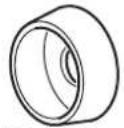 Plastic Cup Washer M6(50) Plastic Cup Washer M6(50) |  Cage Nut (50) Cage Nut (50) |  M5 x 12 Phillips screw (4) M5 x 12 Phillips screw (4) |  M6 x 16 Phillips screw (50) M6 x 16 Phillips screw (50) |
Tools Provided

text_image
Torx T30 / #2 Phillips tool (1) Cage nut tool (1)Rack Installation
Move the Rack
▲WARNING
TIP HAZARD
- This rack is easily tipped. Use extreme caution when unpacking or moving.
- At least two people are required to unpack and move the rack.
- Make sure the leveling feet are up and push the rack only from the front or rear when moving the rack on its casters. Never push the rack from the sides.
Failure to follow these instructions can result in death, serious injury, or equipment damage.
Labels
Labels can be found on the rack that serve to communicate:
Tip Hazard
Extend Slide-Mounted Hardware One Piece at a time
Casters: The rack can be moved (Dynamic Load) on its casters with up to 600 kg (1320 lb) of equipment installed. With the leveling feet lowered, the static rack can be loaded with up to 1200 kg (2640 lb) of equipment (Static Load).

Eye Bolts
CAUTION
LIFTING HAZARD
- Use M10 eye bolts with a shoulder rated for 181 kg (400 lb).
- Use appropriate lifting hardware to assure straight-line pull on lifting eye bolts.
Failure to follow these instructions can result in injury or equipment damage.
Use M10 eye bolts with a shoulder rated for 181 kg (400 lb) when lifting the Easy Rack.

natural_image
Technical illustration of a server rack cabinet with an inset showing a rotating component (no text or symbols present)Assure a straight-line pull on the lifting eye bolts when lifting the Easy Rack.

natural_image
Technical line drawing of a mechanical device with a magnified inset showing a component (no text or symbols present)Level the Rack
The leveling feet at the corners of the Easy Rack provide a stable base if the floor is uneven, but they cannot compensate for a badly sloped surface.
Ensure the rack is in its intended location.
Use a 13mm open-ended wrench to lower the leveling feet if the rack is loaded with equipment.
Adjust each foot and, using a level, adjust the feet until the rack is level and plumb.

text_image
Technical diagram of an industrial control cabinet with a magnified inset showing internal components and a downward arrow indicating assembly or inspection.Join the Racks
Join racks with the provided brackets to provide alignment and added stability. Racks may be joined with or without the side panels installed.
▲WARNING
TIP HAZARD
Joining racks provides limited stability to the racks. Secure the rack to the floor before installing equipment.
Failure to follow these instructions can result in death, serious injury, or equipment damage.
If installed, remove the front and rear doors. See the "Door Removal" section for instructions.
Choose between 24 in. or 600 mm centers.
Align the racks and locate the joining brackets. There are two brackets on the front and two brackets on the back of each rack.
Racks are joined using a M5 x 12 countersunk screw, provided in the hardware bag. Using the Phillips head end of the provided tool or a Phillips head screwdriver, insert the screw into the designated hole and tighten.

text_image
600 mm 24 in. X4Install the doors. See the "Door Installation" section for instructions.
Ground the Rack
⚠️ DANGER
ELECTRIC SHOCK HAZARD
Connection of the rack to the Common Bonding Network (CBN) of the building is required.
Failure to follow these instructions will result in death or serious injury.
Each rack should be bonded directly to a common ground using one of the designated grounding locations (two M6 threaded inserts) at the top or bottom of the cabinet.
- Use a Common Bonding Network Kit (for example: Listed [KDER] Panduit® RGCBNJ660PY or equivalent).
- Use paint-piercing washers between the ground terminal and the rack frame, or remove the paint on the frame under the ground terminals, per NEC NFPA 70 Article 250.12.
- Torque the screws to 6.9 N·m (60 lb-in.).
NOTE: Additional functional grounding points are available at the top of the rack. Do not connect the building CBN to these functional grounding points.

natural_image
Technical line drawing of a server rack with mounting hardware and a magnified inset showing bolt installation (no text or symbols)
natural_image
Simple line drawing of a rectangular prism with two circular holes at the bottom (no text or symbols)Secure the Rack
▲WARNING
TIP HAZARD
Secure the rack to the floor before installing equipment.
Failure to follow these instructions can result in death, serious injury, or equipment damage.
NOTE: Secure the rack to the floor only with the casters and leveling feet installed and the leveling feet in position to firmly and levelly support the rack.
The rack can be bolted to the floor as shown below. Open or remove the doors to access the mounting points on the rack's frame. Use the brackets that secured the rack to the pallet for shipping.
The illustration shows the brackets at the front and rear of the rack. Doors removed for clarity.

natural_image
Technical line drawing of a metal enclosure or support structure with mounting feet and structural supports (no text or symbols)Roof, and Doors
Roof Removal
From the inside of the rack, remove the two screws at the back of the roof then push up. The roof can then be removed from the outside.

text_image
The (S: NO STE)Door Removal
Unlock and open the front door.
Disconnect the ground wire and any other wire connections that may interfere with the removal of the doors.

text_image
Technical diagram showing installation of an electrical cabinet with a cable and connection point, including a magnified detail view.The hinges come apart by lifting the door up and away from the rack.

natural_image
Technical line drawing of a modular server rack cabinet with open door and internal compartments (no text or symbols)Door Installation
The doors self-align on hinge pins when properly installed. With the door at a 90 degree angle to the front of the rack, position the door over the hinge pins.
Slowly lower the door into the rack frame ensuring that the door hinges correctly align to the rack frame hinges.

natural_image
Technical line drawing of an electrical cabinet with a magnified inset showing internal components (no text or symbols)Connect the ground wire and any other wire connections.

text_image
Technical diagram showing a cable installation with a magnified inset highlighting the connection point of a cabinet.Reverse the Front Door
NOTE: The front door can be reversed so that the door opens in the other direction. This procedure assumes that initially, when facing the cabinet, the hinges are on the left and the door is opening from the right.
Remove the handle by removing the screw-plate. Pull the handle from the door.

natural_image
Technical line drawing showing mechanical components and a cabinet open, with no visible text or symbols.Disconnect the ground wire, and any other connections. Remove the door from the frame.

text_image
Technical diagram showing electrical connection to a cabinet with labeled components and a magnified detail view.Locate the upper hinge on the rack frame. Remove the two screws holding the hinge in place. Install the hinge onto the other side of the rack frame. Repeat this step for the lower hinge.

text_image
the ge.Rotate the door. Remove the hinges from the door, and install them to the alternate hole location. The hinges on the door should now align with the hinges on the rack.

text_image
Diagram illustrating a door panel assembly with labeled parts and directional arrows indicating rotation or movement.Install the door to the hinges now on the reverse side of the rack. Connect the ground wire and any other wire connections previously disconnected.
Locate the lock handle. Remove the cam screw cam washer, and cam.


Rotate the cam washer 90 degrees, and the latch 180 degrees. Install the handle on the door.

text_image
Diagram showing two mechanical components with directional arrows indicating assembly or alignment, likely illustrating a mechanical or electrical assembly.
natural_image
Technical line drawing of an open electrical cabinet or rack unit (no text or symbols visible)Rotate the door logo
When the door has been reversed, the logo will now be located on the bottom of the door. The logo is attached to the perforated holes in the door with three (3) clips. Remove the logo by carefully pulling each clip from its perforated hole, rotate it, and install it at the top of the door.

text_image
door.Equipment Installation
NOTE: Easy Racks are intended for use with Listed equipment. If un-Listed equipment is installed, you should evaluate the safety of your configuration.
Adjust the Vertical Mounting Flanges
Vertical mounting flanges come factory-installed at 737 mm (29 in.), the proper location for use with rack-mountable equipment.
The mounting flanges are adjustable towards the front or the rear of the cabinet to accommodate different rails or equipment with other depths.
A common application for the 800 mm (31.5 in. racks is to move the flanges to a depth of 476 mm (18.75.) to accommodate networking and telecommunications equipment.

text_image
e n) ins 162 fbPosition the Vertical Mounting Flanges
Configuration 1: The Accessory Channel is installed. The Vertical Mounting Flanges can be installed a minimum distance of (a) and can extend as far as (b).
Configuration 2: The Accessory Channel is removed. The Vertical Mounting Flanges can extend as far as (c).

text_image
e ① b D a W
text_image
② c D W ns3108a| SKU Cabinet Width (W) | Cabinet Depth (D) | a | b | c | |
| ER6200 | 600 mm 1000 | mm 190.5 | mm(7.5 in.) | 749.3 mm(29.5 in.) | 838.2 mm(33 in.) |
| ER6220 | 600 mm 1200 | mm 190.5 | mm(7.5 in.) | 876.3 mm(34.5 in.) | 1041.4 mm(41 in.) |
| ER8200 | 800 mm 1000 | mm 241.6 | 64 mm(9.51 in.) | 749.3 mm(29.5 in.) | 838.2 mm(33 in.) |
| ER8220 | 800 mm 1200 | mm 241.6 | 64 mm(9.51 in.) | 876.3 mm(34.5 in.) | 1041.4 mm(41 in.) |
| ER6820 | 600 mm 1200 | mm 190.5 | mm(7.5 in.) | 876.3 mm(34.5 in.) | 1041.4 mm(41 in.) |
| ER6800 | 600 mm 1000 | mm 190.5 | mm(7.5 in.) | 749.3 mm(29.5 in.) | 838.2 mm(33 in.) |
| ER8820 | 800 mm 1200 | mm 241.6 | 64 mm(9.51 in.) | 876.3 mm(34.5 in.) | 1041.4 mm(41 in.) |
| ER8800 | 800 mm 1000 | mm 241.6 | 64 mm(9.51 in.) | 749.3 mm(34.5 in.) | 838.2 mm(33 in.) |
Vertical Mounting Flange Adjustment
▲WARNING
FALLING EQUIPMENT
Remove all equipment installed on the vertical mounting flanges before performing any adjustments.
Failure to follow these instructions can result in death, serious injury, or equipment damage.
Loosen the top and bottom screws holding the vertical mounting flange in place. The brackets, all held in place by the screws, will now be loose. Move all three brackets to the desired position.
Brackets for 600 mm wide cabinet:

text_image
Technical diagram showing assembly of a vertical metal ruler with inset close-up views of internal components and mounting holes.Brackets for 800 mm wide cabinet:

text_image
ns3108Zero U Accessory Mounting Brackets
The Zero U Accessory Mounting Brackets may be moved to different locations within the rack in order to mount your equipment. There are two different Mounting Brackets in the rack. One for the left side and one for the right side. The smallest part of the mounting holes in the bracket should be at the bottom when it is in the proper position.
To reposition the Zero U Mounting Bracket
The Mounting Bracket is attached to the rack with two (2) M6 x 12 pan head T30 screws and two (2) cage nuts.
- Remove the two (2) M6 x 12 pan head T30 screws with the Torx tool (provided).
- Remove the Mounting Bracket and then, remove the cage nuts from their current location.
- Install the cage nuts in the location you have chosen to mount your equipment.
- Install the Mounting Bracket with the two (2) M6 x 12 pan head T30 screws.
- Mount your equipment. Mounting a Rack PDU with a toolless mounting bracket is shown in the illustration below.

text_image
Left RightThe Easy Rack is shown with doors removed for clarity.
Install the Equipment
▲WARNING
TIP HAZARD
- This rack is easily tipped. Make sure you have secured the rack to the floor before installing equipment.
• Install the heaviest equipment first and toward the bottom of the rack to prevent the rack from becoming top-heavy. - Do not extend equipment on sliding rails until you have 150 kg (350 lb) of equipment installed in the bottom of the rack for stability or until the rack is bolted to the floor and secured to neighboring racks in the row. Never extend more than one piece of equipment on sliding rails at a time.
Failure to follow these instructions can result in death, serious injury, or equipment damage.
To install rack-mount equipment in the cabinet:
- Review the equipment manufacturer's installation instructions.
- Locate the top and bottom U space on the vertical mounting rails. Every third hole on the mounting rails is numbered to indicate the middle of a U space.
- Install the cage nuts on the interior of the vertical mounting rail; then install the equipment.

text_image
1U 7 6 5 ns0014aCage Nuts
Cage nuts are provided in the hardware bag inside the rack.
CAUTION
FALLING EQUIPMENT HAZARD
Do NOT install cage nuts vertically with the tabs engaging the top and bottom of the square hole.
Failure to follow these instructions can result in injury or equipment damage.
• Install cage nuts horizontally, with the tabs engaging the sides of the square hole.
• Install the cage nuts on the interior of the vertical mounting rail.

text_image
ns1768aInstallation:
- From the inside of the rack, insert the cage nut into the square hole.
- Hook one tab of the cage nut assembly through the far side of the hole.
- Place the cage nut tool on the other side of the cage nut and pull to snap it into position.

natural_image
Technical diagram showing mechanical components and a curved arrow symbol (no text or labels)Removal:
- Remove any attached screw.
- Grasp the cage nut and squeeze the sides to release it from the square hole.
Accessories
Optional accessories can be ordered separately. Installation hardware is included with the accessory. See accessory list below.
| SKU Description | ||
| ER7BP1U 1U Blanking panel, Qty 10 |  | |
| ER7BP2U 2U Blanking panel, Qty 10 |  | |
| ER7DCM 1U Cable manager, for use along the depth of the Easy Rack, Qty 1 |  | |
| ER7RCC42 0U Rear Cable Channel, for use in 42U Easy Rack, Qty 2 |  | |
| ER7RCC48 0U Rear Cable Channel, for use in 48U Easy Rack, Qty 2 |  | |
| ER7VCM42 42U Vertical cable manager for installation in rear of 42U Easy Rack, Qty 1 |  | |
| ER7VCM48 48U Vertical cable manager for installation in rear of 48U Easy Rack, Qty 1 | 48U[x3x7] | |
| ER7HCM 1U Horizontal cable management for installation in front of Easy Rack, Qty 1 |  | |
| ER7SHELF Shelf, 50kg, for use in 800mm depth rack, Qty 1 |  | |
| ER7SHELFS Accessory Shelf, Qty 1 |  | |
| ER7PDUBRKT Mounting bracket (left and right), for installation on rear of 1100 and 1200 depth Easy Racks to install PDU or cable manager, 2 pair |  | |
| ER7PDUBRKTS Mounting bracket (left and right), for installation on rear of 800 and 1000 depth Easy Racks to install a Rack PDU or cable manager, 2 pair |  | |
| ER7SIDE4210 Side Panels, black, top with lock and bottom, for use with 42U/1000mm deep Easy Racks |  | |
| ER7SIDE4212 Side Panels, black, top with lock and bottom, for use with 42U/1200mm deep Easy Racks | ||
| ER7SIDE4810 Side Panels, black, top with lock and bottom, for use with 48U/1000mm deep Easy Racks | ||
| ER7SIDE4812 Side Panels, black, top with lock and bottom, for use with 48U/1200mm deep Easy Racks | ||
Specifications
General specifications for Open-Side Easy Racks:
| SKU Height with Castor | Height without Castor | Width Depth U Space | |||
| ER6200 | 1991 mm (78.38 in.) | 1955 mm (76.96 in.) | 600 mm (23.6 in.) | 1000 mm (39.37 in.) | 42 U |
| ER6220 | 1991 mm (78.38 in.) | 1955 mm (76.96 in.) | 600 mm (23.6 in.) | 1200 mm (47.24 in.) | 42 U |
| ER8200 | 1991 mm (78.38 in.) | 1955 mm (76.96 in.) | 800 mm (31.49 in.) | 1000 mm (39.37 in.) | 42 U |
| ER8220 | 1991 mm (78.38 in.) | 1955 mm (76.96 in.) | 800 mm (31.49 in.) | 1200 mm (47.24 in.) | 42 U |
| ER6820 | 2258 mm (88.89 in.) | 2222 mm (87.48 in.) | 600 mm (23.6 in.) | 1200 mm (47.24 in.) | 48 U |
| ER6800 | 2258 mm (88.89 in.) | 2222 mm (87.48 in.) | 600 mm (23.6 in.) | 1000 mm (39.37 in.) | 48 U |
| ER8820 | 2258 mm (88.89 in.) | 2222 mm (87.48 in.) | 800 mm (31.49 in.) | 1200 mm (47.24 in.) | 48 U |
| ER8800 | 2258 mm (88.89 in.) | 2222 mm (87.48 in.) | 800 mm (31.49 in.) | 1000 mm (39.37 in.) | 48 U |
| SKU Front and Rear Door Perforation Pattern | Weight Rating: Static Load1 | Weight Rating: Dynamic (Rolling) Load2 |
| All 80.8% open area 1200 kg (2640 lb.) 600 kg (1320 lb.) | ||
| 1Lower the leveling feet if the static weight is over 1200 kg (2640 lb).2Dynamic (Rolling) rating valid only for rolling the rack into position. | ||
Five-Year Factory Warranty
The limited warranty provided by APC by Schneider Electric in this Statement of Limited Factory Warranty applies only to products you purchase for your commercial or industrial use in the ordinary course of your business.
Terms of Warranty
APC by Schneider Electric warrants its products to be free from defects in materials and workmanship for a period of five years from the date of purchase. The obligation of APC by Schneider Electric under this warranty is limited to repairing or replacing, at its sole discretion, any such defective products. This warranty does not apply to equipment that has been damaged by accident, negligence, or misapplication or has been altered or modified in any way. Repair or replacement of a defective product or part thereof does not extend the original warranty period. Any parts furnished under this warranty may be new or factory-remanufactured.
Non-transferable warranty
This warranty extends only to the original purchaser who must have properly registered the product. The product may be registered at the APC by Schneider Electric website, www.apc.com.
Exclusions
APC by Schneider Electric shall not be liable under the warranty if its testing and examination disclose that the alleged defect in the product does not exist or was caused by end user's or any third person's misuse, negligence, improper installation or testing. Further, APC by Schneider Electric shall not be liable under the warranty for unauthorized attempts to repair or modify wrong or inadequate electrical voltage or connection, inappropriate on-site operation conditions, corrosive atmosphere, repair, installation, start-up by non-APC by Schneider Electric designated personnel, a change in location or operating use, exposure to the elements Acts of God, fire, theft, or installation contrary to APC by Schneider Electric serial number has been altered, defaced, or removed, or any other cause beyond the range of the intended use.
THERE ARE NO WARRANTIES, EXPRESS OR IMPLIED, BY OPERATION OF LAW OR OTHERWISE, OF PRODUCTS SOLD, SERVICED OR FURNISHED UNDER THIS AGREEMENT OR IN CONNECTION HERewith. APC BY SCHNEIDER ELECTRIC DISCLAIMS ALL IMPLIED WARRANTIES OF MERCHANTABILITY, SATISFACTION AND FITNESS FOR A PARTICULAR PURPOSE. APC BY SCHNEIDER ELECTRIC EXPRESS WARRANTIES WILL NOT BE ENLARGED, DIMINISHED, OR AFFECTED BY AND NO OBLIGATION OR LIABILITY WILL ARISE OUT OF, APC BY SCHNEIDER ELECTRIC RENDERING OF TECHNICAL OR OTHER ADVICE OR SERVICE IN CONNECTION WITH THE PRODUCTS. THE FOREGOING WARRANTIES AND REMEDIES ARE EXCLUSIVE AND IN LIEU OF ALL OTHER WARRANTIES AND REMEDIES. THE WARRANTIES SET FORTH ABOVE CONSTITUTE APC BY SCHNEIDER ELECTRIC'S SOLE LIABILITY AND PURCHASER'S EXCLUSIVE REMEDY FOR ANY BREACH OF SUCH WARRANTIES. APC BY SCHNEIDER ELECTRIC WARRANTIES EXTEND ONLY TO PURCHASER AND ARE NOT EXTENDED TO ANY THIRD PARTIES.
IN NO EVENT SHALL APC BY SCHNEIDER ELECTRIC, ITS OFFICERS, DIRECTORS, AFFILIATES OR EMPLOYEES BE LIABLE FOR ANY FORM OF INDIRECT, SPECIAL, CONSEQUENTIAL OR PUNITIVE DAMAGES, ARISING OUT OF THE USE, SERVICE OR INSTALLATION, OF THE PRODUCTS, WHETHER SUCH DAMAGES ARISE IN CONTRACT OR TORT,
IRRESPECTIVE OF FAULT, NEGLIGENCE OR STRICT LIABILITY OR WHETHER APC BY SCHNEIDER ELECTRIC HAS BEEN ADVISED IN ADVANCE OF THE POSSIBILITY OF SUCH DAMAGES. SPECIFICALLY, APC BY SCHNEIDER ELECTRIC IS NOT LIABLE FOR ANY COSTS, SUCH AS LOST PROFITS OR REVENUE, LOSS OF EQUIPMENT, LOSS OF USE OF EQUIPMENT, LOSS OF SOFTWARE, LOSS OF DATA, COSTS OF SUBSTITUTES, CLAIMS BY THIRD PARTIES, OR OTHERWISE.
NO SALESMAN, EMPLOYEE OR AGENT OF APC BY SCHNEIDER ELECTRIC IS AUTHORIZED TO ADD TO OR VARY THE TERMS OF THIS WARRANTY. WARRANTY TERMS MAY BE MODIFIED, IF AT ALL, ONLY IN WRITING SIGNED BY AN APC BY SCHNEIDER ELECTRIC OFFICER AND LEGAL DEPARTMENT.
Warranty Claims
Customers with warranty claims issues may access the APC by Schneider Electric customer support network through the Support page of the APC by Schneider Electric website, www.apc.com/support. Select your country from the country selection pull-down menu at the top of the Web page. Select the Support tab to obtain contact information for customer support in your region.
APC by Schneider Electric
70 Mechanic Street
02035 Foxboro, MA
USA
www.apc.com
As standards, specifications, and design change from time to time, please ask for confirmation of the information given in this publication.