GV-N970XTREME C-4GD - Graphic card GIGABYTE - Free user manual and instructions
Find the device manual for free GV-N970XTREME C-4GD GIGABYTE in PDF.


User questions about GV-N970XTREME C-4GD GIGABYTE
0 question about this device. Answer the ones you know or ask your own.
Ask a new question about this device
Download the instructions for your Graphic card in PDF format for free! Find your manual GV-N970XTREME C-4GD - GIGABYTE and take your electronic device back in hand. On this page are published all the documents necessary for the use of your device. GV-N970XTREME C-4GD by GIGABYTE.
USER MANUAL GV-N970XTREME C-4GD GIGABYTE
NVIDIA® Graphics Accelerator
User's Manual
Rev. 105
Copyright
© 2012 GIGABYTE TECHNOLOGY CO., LTD
Copyright by GIGA-BYTE TECHNOLOGY CO., LTD. ("GBT"). No part of this manual may be reproduced or transmitted in any form without the expressed, written permission of GBT.
Trademarks
Third-party brands and names are the properties of their respective owners.
Notice
Please do not remove any labels on this graphics card. Doing so may void the warranty of this card.
Due to rapid change in technology, some of the specifications might be out of date before publication of this this manual. The author assumes no responsibility for any errors or omissions that may appear in this document nor does the author make a commitment to update the information contained herein.
Rovi Product Notice:
This product incorporates copyright protection technology that is protected by U.S. patents and other intellectual property rights. Use of this copyright protection technology must be authorized by Rovi Corporation, and is intended for home and other limited viewing uses only unless otherwise authorized by Rovi Corporation. Reverse engineering or disassembly is prohibited.
Table of Contents
- Introduction....3
1.1. Minimum System Requirements ...... 3
- Hardware Installation....5
2.1.SLI Technology 5
- Software Installation....7
3.1.Driver and Utility Installation 7
3.1.1. Driver Installation....7
3.1.2. GIGABYTE OC Guru II....9
3.2. Display Properties Pages 19
3.3. Accessing NVIDIA Control Panel 20
-
Troubleshooting Tips ......28
-
Appendix....29
5.1. Regulatory Statements ...... 29
1. Introduction
1.1. Minimum System Requirements
- Hardware
- Intel ^® Pentium ^® 4 or AMD Athlon ^TM XP class
- 2GB system memory (4GB recommended)
- Optical drive for software installation (CD-ROM or DVD-ROM drive)
- Operating System
- Windows® 8
- Windows ^® 7
- Windows® Vista

Expansion cards contain very delicate Integrated Circuit (IC) chips. To protect them against damage from static electricity, you should follow some precautions whenever you work on your computer.
- Turn off your computer and unplug power supply.
- Use a grounded wrist strap before handling computer components. If you do not have one, touch both of your hands to a safely grounded object or to a metal object, such as the power supply case.
- Place components on a grounded antistatic pad or on the bag that came with the components whenever the components are separated from the system.
The card contains sensitive electric components, which can be easily damaged by static electricity, so the card should be left in its original packing until it is installed.
Unpacking and installation should be done on a grounded anti-static mat. The operator should be wearing an anti-static wristband, grounded at the same point as the anti-static mat.
Inspect the card carton for obvious damage. Shipping and handling may cause damage to your card. Be sure there are no shipping and handling damages on the card before proceeding.

DO NOT APPLY POWER TO YOUR SYSTEM IF THE GRAPHICS CARD IS DAMAGED.

In order to ensure that your graphics card can work correctly, please use official GIGABYTE BIOS only. Using non-official GIGABYTE BIOS might cause problem(s) on the graphics card.
2.1. Hardware Installation
Now that you have prepared your computer, you are ready to install your graphics card.
Step 1.
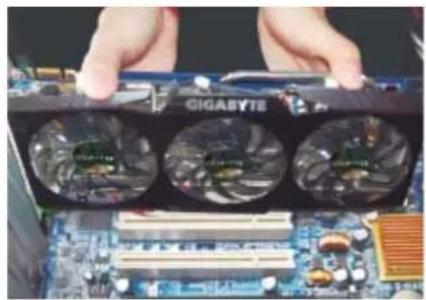
Locate the PCI Express x16 slot. If necessary, remove the metal cover from this slot; then align your graphics card with the PCI Express x16 slot, and press it in firmly until the card is fully seated.

Make sure that the gold edge connector of the graphics card is securely inserted.
natural_image
Close-up of hands holding a GIGabyte processor with three fans on a motherboard (no visible text or symbols)Step 2.
Replace the screw to fasten the card in place, and replace the computer cover.

natural_image
Close-up of a computer motherboard showing a fan, ventilation ducts, and a battery compartment (no visible text or symbols)Step 3.
Connect the appropriate cable to the card and the display.
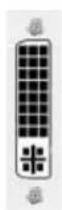
To Flat Panel Display To Flat Panel Display To HDMI Monitor


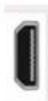
To Mini HDMI Monitor
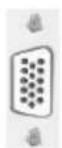
To D-sub Monitor

To Mini DisplayPort Monitor

To Mini DisplayPort Monitor
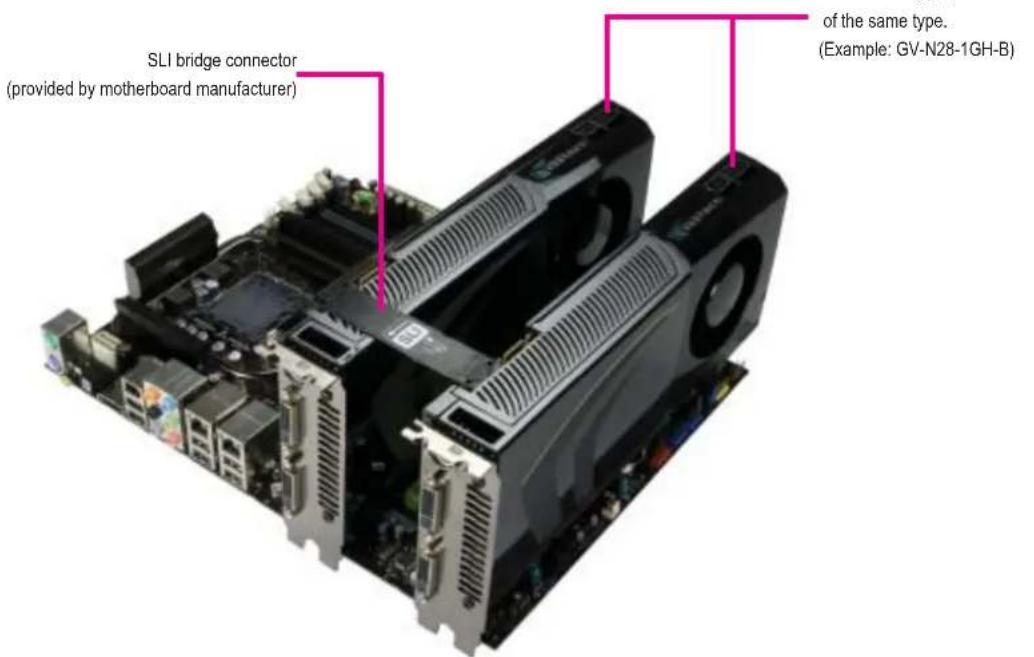
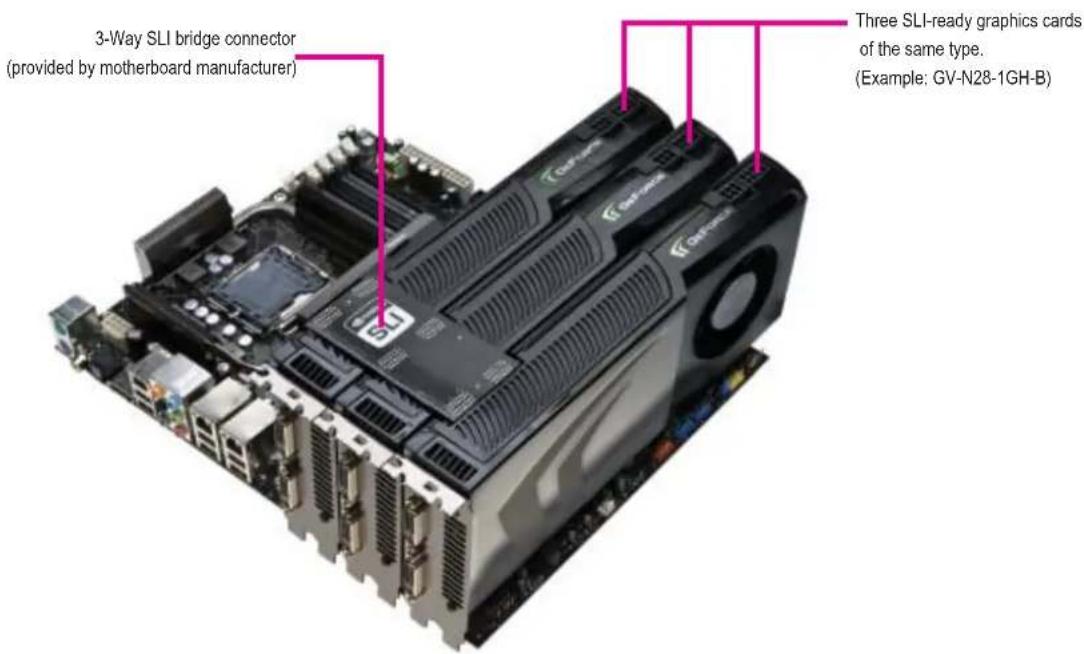
How NVIDIA® SLI™ (Scalable Link Interface) technology works:
If you are planning on using this graphics card as part of an SLI system, the following are required:
- An SLI certified motherboard with two/three PCIe x16 slots and correct chipset driver
- An SLI bridge connector or 3-way SLI bridge connector
In an SLI configuration, two/three SLI-ready graphics cards of the same model and the same manufacturers are connected together via SLI bridge connector in a system that provides two/three x16 PCI Express slots to scale graphics performance. The picture below shows that two and three graphics cards are linked in parallel in an SLI configuration.
SLI Confi guration:
text_image
SLI bridge connector (provided by motherboard manufacturer) of the same type. (Example: GV-N28-1GH-B)3-Way SLI Configuration:
text_image
3-Way SLI bridge connector (provided by motherboard manufacturer) Three SLI-ready graphics cards of the same type. (Example: GV-N28-1GH-B)3. Software Installation
Notice the following guidelines before installing the drivers:
- First make sure your system has installed DirectX 9 or later version.
- Make sure your system has installed the appropriate motherboard drivers (for the motherboard drivers, please contact the motherboard manufacturer.)
Notice : The photos in this manual are for reference only and may not match what you exactly see on your screen
3.1. Driver and Utility Installation
3.1.1. Driver Installation
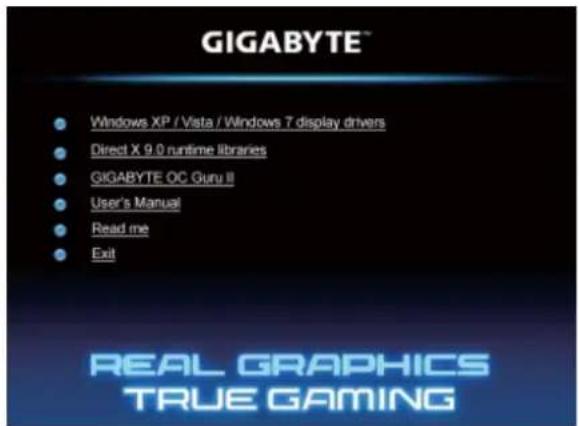
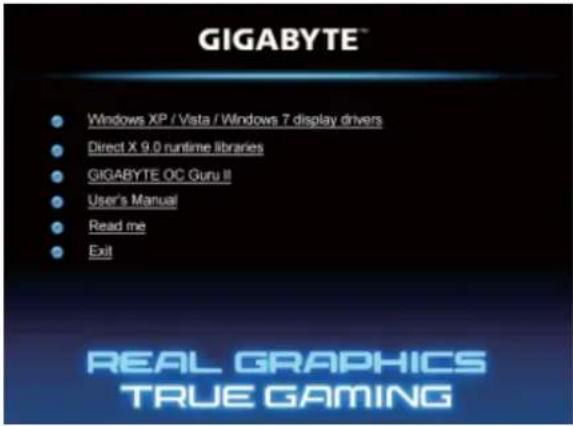
After installing the operating system, insert the driver disk into your optical drive. The driver Autorun screen is automatically displayed which looks like that shown in the screen shot below. (If the driver Autorun screen does not appear automatically, go to My Computer, double-click the optical drive and execute the setup.exe program.)
text_image
GIGABYTE™ ● Windows XP / Vista / Windows 7 display drivers ● Direct X 9.0 runtime libraries ● GIGABYTE OC Guru II ● User's Manual ● Read me ● Exit REAL GRAPHICS TRUE GAMINGStep 1:
Click the Install Display Driver item.

text_image
NVIDIA Graphics Driver Version 205 62 System Check License Agreement Options Install Finish NVIDIA software license agreement Please read the following NVIDIA software license agreement carefully. License For Customer Use of NVIDIA Software IMPORTANT NOTICE - READ CAREFULLY: This License For Customer Use of NVIDIA Software ("LICENSE") is the agreement which governs use of the software of NVIDIA Corporation and its subsidiaries ("NVDA") downloadable hereafter, including computer software and associated posted materials ("SOFTWARE"). By downloading, installing, copying, or otherwise using the SOFTWARE, you agree to be bound by the terms of this LICENSE. If you do not agree to the terms of this LICENSE, do not download the SOFTWARE. Click agree and continue if you accept the terms of the agreement. AURE AND CORTAIN CANCELStep 2:
Click the AGREE AND CONTINUE button.

For software MPEG support in Windows XP, you must install DirectX first. Users who run Windows XP with Service Pack 2 or above do not need to install DirectX separately.

text_image
NVIDIA Installer NVIDIA Graphics Driver Version 285.62 System Check License Agreement Options Install Finish Installation options Express (Recommended) Upgrade existing drivers and relates current NVIDIA settings. Custom (Advanced) Allows you to select the components you want to install and provides the option for a clean installation. Note: Some flushing right occur during the installation.Step 3: Check the Express then click the NEXT button.

text_image
NVIDIA Installer NVIDIA Graphics Driver Version 285.62 Options System Check License Agreement Install Finish Installation options Install NVIDIA Update Analyze system information, checks for software updates and notify you when updates are available. Limit 2009 PACK Print PuzzleStep 4: Check the Install NVIDIA Update then click the NEXT button.
text_image
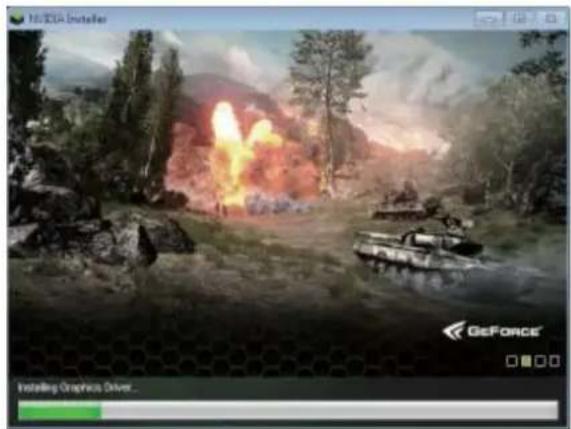
HIV3DA Installer GeForce Installing Graphics Driver...The system is installing the components.
text_image
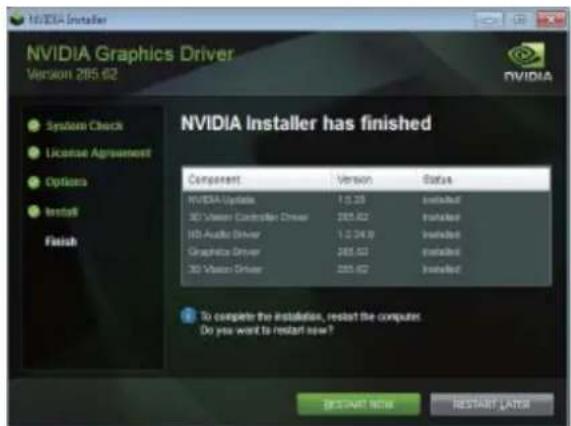
NVIDIA Installer NVIDIA Graphics Driver Version 285.62 System Check License Agreement Options Install Finish NVIDIA Installer has finished Component Version Status NVIDIA Upgrade 1.0.33 Installed 3D Vision Connection Driver 285.62 Installed HD Audio Driver 1.0.24.9 Installed Graphics Driver 285.62 Installed 3D Vision Driver 285.62 Installed To complete the installation, restart the computer. Do you want to restart now? BESTART NOW RESTART LATORStep 5: Click the RESTART NOW button to restart the computer. Then the driver installation is completed.
3.1.2. GIGABYTE OC Guru II
text_image
GIGABYTE™ • Windows XP / Vista / Windows 7 display drivers • Direct X 9.0 runtime libraries • GIGABYTE OC Guru II • User's Manual • Read me • Exit REAL GRAPHICS TRUE GAMINGStep 1:
Click the GIGABYTE OC Guru II item.
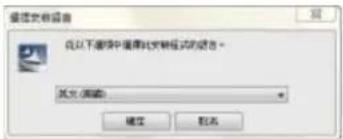
Choose the language for the installation and click the OK button.

text_image
GIGABYTE OC_GURU II - InstallShield Wizard Setup Type Select the setup-type to install. Click the type of setup you preke, then click Next Typical Program will be installed with the most common options. Recommended for next users. Compact Program will be installed with necessary required options. Custom You may select the options you want to install. Recommended for advanced users. < Back Next > CancelStep 3:
Choose the Typical and click the Next button
text_image
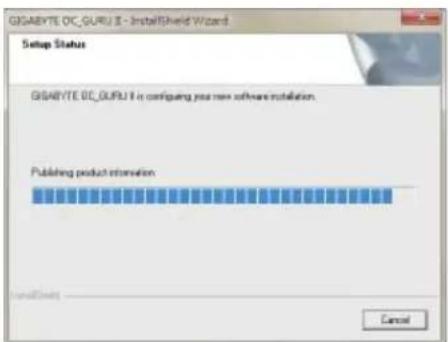
GSABYTE OC_GURU II - InstallShield Wizard Setup Status GSABYTE OC_GURU II is configuring your new software installation. Publishing product information CancelThe system is installing the components.
text_image
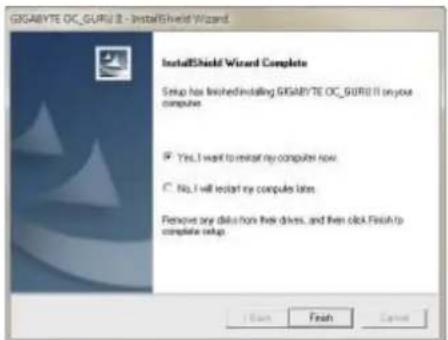
GIGABYTE OC_GURU II - InstallShield Wizard InstallShield Wizard Complete Setup has finished installing GIGABYTE OC_GURU II on your computer. Yes, I want to restart my computer now. No, I will restart my computer later. Remove any disk or more their drives, and then click Finish to complete setup. I Start Finish CancelStep 4:
Click the Finish button. Then the installation of the GIGABYTE OC Guru II is completed.
OC GURU II: Profi les
Users have 5 Profiles, 1/2/3/4/5, to set different profiles. By clicking 1/2/3/4/5, users can switch around these profiles

text_image
GIGABYTE OC GURU PROFILES APPLY CANCEL DEFAULT MONITORING GPU 324 MHz MEMORY 648 MHz GPU CLOCK BASE / BOOST 1137/1202 MHz MEMORY CLOCK 6200 MHz FAN SPEED 35 % MODE AUTO MINIMUM VOLTAGE 0.988 v POWER TARGET 100 % OPTIONS +0.000 v +0 % OSD HOT KEY Ctrl + F1 ONLINE SUPPORT OPTIONSThis page indicates where users can set up MONITORING、GPU CLOCK、MEMORY CLOCK、FAN、MINIMUM VOLTAGE、POWER TARGET、OSD、ONLINE SUPPORT.
Function: When it's locked, GPU CLOCK/MEMORY CLOCK/MINIMUM VOLTAGE/POWER TARGET can not be changed.

Function: When it's unlocked, GPU CLOCK/MEMORY CLOCK/MINIMUM VOLTAGE/POWER TARGET can be adjusted.

Function: Apply to what has just been setup.

Function: Return to the previous applied setup.
Function: Restore the default setup.
MONITORING:
text_image
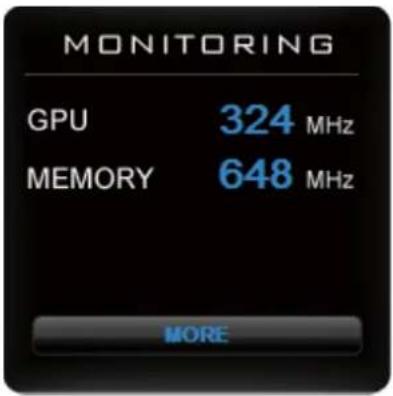
MONITORING GPU 324 MHz MEMORY 648 MHz MOREShow real time GPU Clock/MEMORY Clock

Click MORE to MONITORING PANEL
MONITORING PANEL:
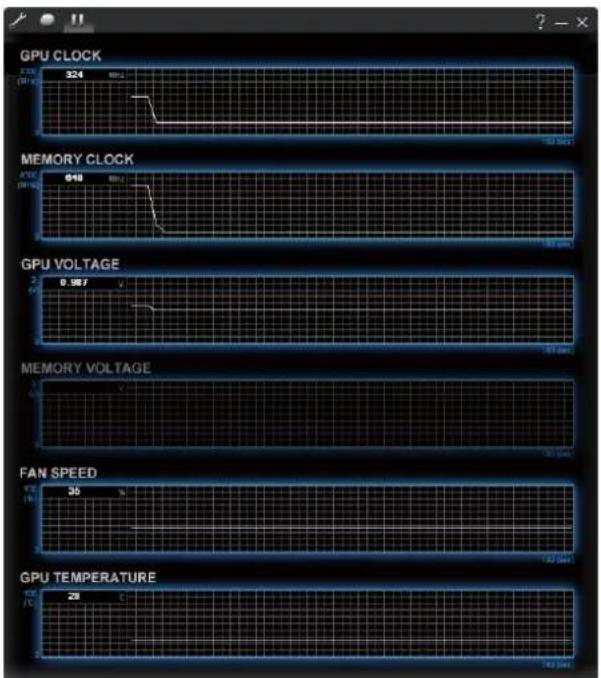
text_image
GPU CLOCK 324 MEMORY CLOCK 0.187 GPU VOLTAGE 0.187 MEMORY VOLTAGE FAN SPEED 35 GPU TEMPERATURE


Function: Monitoring Panel Settings.
Function: Start recording.
Function: Stop recording.
Monitoring panel settings:
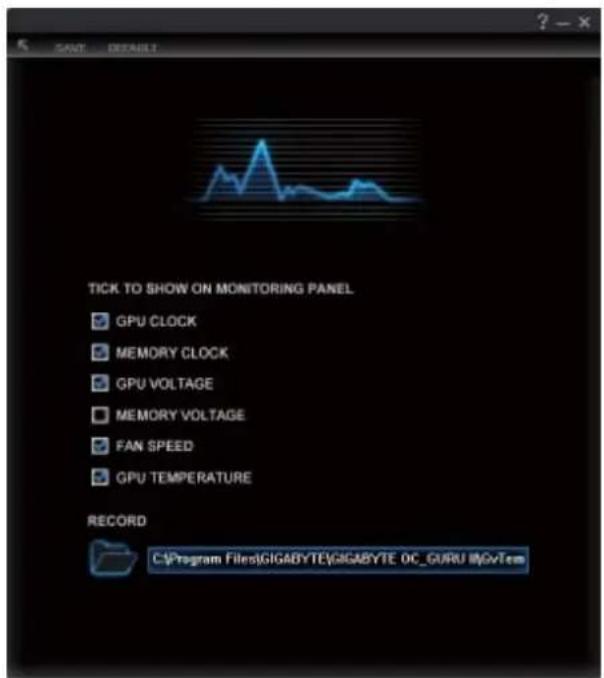
text_image
SANT DEFAULT TICK TO SHOW ON MONITORING PANEL GPU CLOCK MEMORY CLOCK GPU VOLTAGE MEMORY VOLTAGE FAN SPEED GPU TEMPERATURE RECORD C:\Program Files\GIGABYTE\GIGABYTE OC_GURU IMGVtem
Function: Show the chosen items on the MONITORING PANEL.
RECORD

C:\Program Files\GIGABYTE\GIGABYTE OC_GURU II\GvTem
Function: Set up a folder to save the recorded files.

Function: Return to MONITORING Page.
SAVE
Function: Save the settings.
DEFAULT
Function: Restore the default setup.
GPU CLOCK
Under nVIDIA new structure, there are BASE and BOOST CLOCK under GPU Clock. BASE CLOCK is the combination of DEFAULT BASEC LOCK and OFFSET. BOOST CLOCK is the combination of DEFAULT BOOST CLOCK and OFFSET. Under most cases, BASE CLOCK is smaller/ equal to BOOST CLOCK.
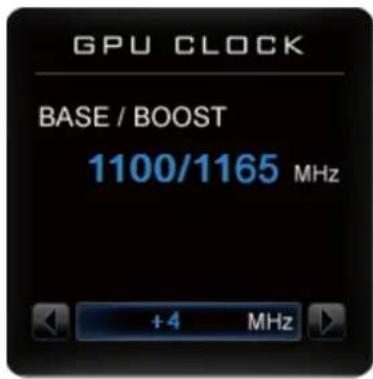
text_image
GPU CLOCK BASE / BOOST 1100/1165 MHz +4 MHz
text_image
GPU CLOCK 525 MHz +5 MHz
When changing DEFAULT CLOCK,

represents PLUS and

represents MINUS.

Show GPU OFFSET, users can enter numbers directly to change GPU OFFSET.
MEMORY CLOCK:
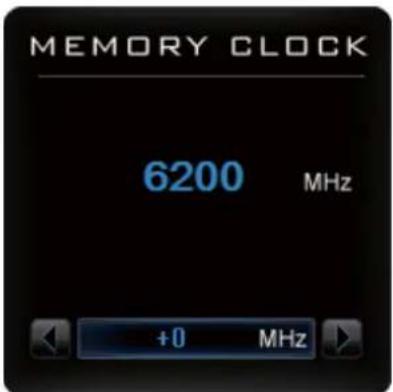
text_image
MEMORY CLOCK 6200 MHz +0 MHzMEMORY CLOCK is the combination of DEFAULT CLOCK and OFFSET.
When changing MEMORY CLOCK,

represents PLUS and

represents MINUS.
Show MEMORY OFFSET, users can enter numbers directly to change MEMORY OFFSET.
FAN
SPEED: shows real time fan speed, it will show 0% if using a passive graphics card.
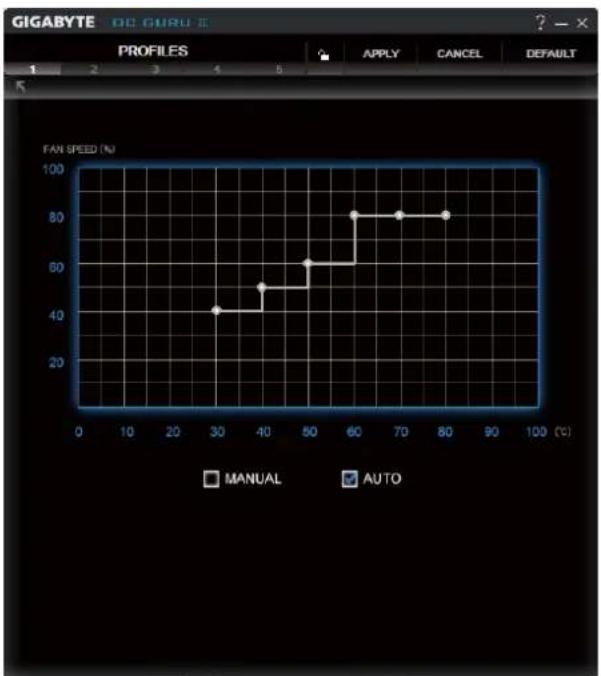
MODE: shows Auto mode or Manual mode, users can set up in SETTINGS
SETTINGS:
line
| Temperature (°C) | Manual Fan Speed (N) | AUTO Fan Speed (N) | |---|---|---| | 30 | 42 | - | | 40 | 52 | - | | 50 | 62 | - | | 60 | 81 | - | | 70 | 81 | - | | 80 | 81 | - |
AUTO
AUTO mode, fans will be controlled automatically.

MANUAL
MANUAL mode, users can adjust fan behavior by adjusting the blue point on the fan graph.

Return to PROFILES page.
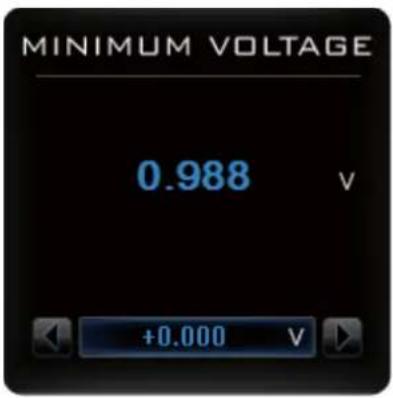
MINIMUM VOLTAGE
text_image
MINIMUM VOLTAGE 0.988 V +0.000 VShow and set up MINIMUM VOLTAGE

When changing MINIMUM VOLTAGE, represents PLUS and represents MINUS.

Users can enter numbers directly to change MINIMUM VOLTAGE.
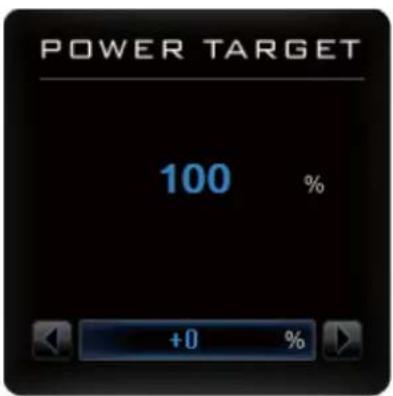
POWER TARGET
text_image
POWER TARGET 100 % +0 %Show and set up POWER TARGET
When changing POWER TARGET, represents PLUS and represents MINUS.

text_image
OSD HOT KEY Ctrl + F1 SETTINGSShow OSD HOT KEY and OSD location

Click SETTINGS to OSD settings
OSD settings:

text_image
GIGABYTE OC_GURU 2 PROFILES APPLY CANCEL DEFAULT ON-SCREEN DISPLAY LOCATION OSD HOT KEY Ctrl + F1 SCREEN SHOT HOT KEY Ctrl + F2 C:\Program Files\GIGABYTE\GIGABYTE OC_GURU\MGVTes SCREEN SETTINGS BRIGHTNESS 50 CONTRAST 50 GANNA 1.00
Function: Return to SETTINGS Page.
text_image
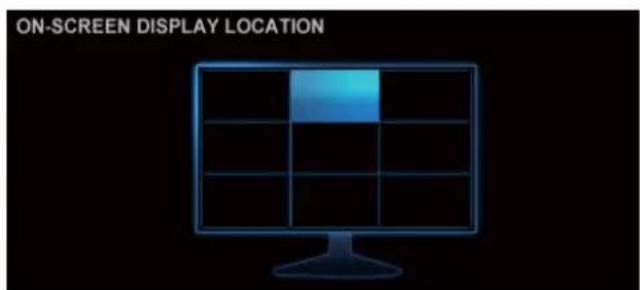
ON-SCREEN DISPLAY LOCATIONFunction: Set up where OSD will show during games through clicking on one of the 9 squares.

text_image
OSD HOT KEY Ctrl + F1Function: Setup a shortcut key for SOFTWARE On-Screen Display (OSD).

text_image
SCREEN SHOT HOT KEY Ctrl + F2 C:\Program Files\GIGABYTE\GIGABYTE OC_GURU II\GvTenFunction: Setup shortcut keys and a folder to save screenshots.
text_image
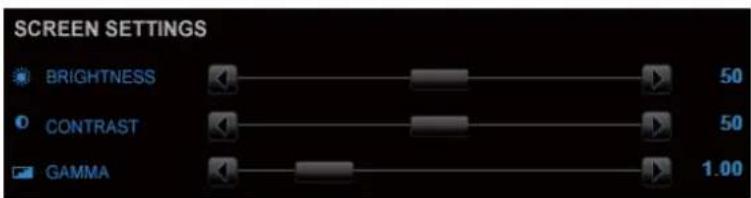
SCREEN SETTINGS BRIGHTNESS 50 CONTRAST 50 GAMMA 1.00The settings can be adjusted by clicking on


or by dragging the scrollbar.
ONLINE SUPPORT
text_image
ONLINE SUPPORTClick to enter ONLINE SUPPORT
ONLINE SUPPORT:

text_image
GIGABYTE OS GUI PROFILES 1 2 3 4 5 APPLY CANCEL DEFAULT BIOS DRIVER OC GURU VERSION: F1 VERSION: 8.17 13.110 VERSION: V1.00 i @ ?1. Update BIOS:

text_image
BIOSThe BIOS version of your VGA is shown in the page. By clicking the item while you are connected to the internet, the software detects if there is an updated BIOS version available. You can download the updated BIOS version and it installs automatically.
2.Update Driver

text_image
DRIVERThe DRIVER version of your VGA is shown in the page. By clicking the item while you are connected to the internet, the software detects if there is an updated DRIVER version available. You can download the updated DRIVER version and it installs automatically.
3. Update OC GURU

text_image
OC GURUThe OC GURU version of your VGA is shown in the page.
By clicking the item while you are connected to the internet, the software detects if there is an updated OC GURU version available. You can download the updated OC GURU version and it installs automatically.
4.PRODUCT INFO

natural_image
Blue information icon inside a circle on black background (no text or symbols)When you are connected to the internet, clicking the item will link to the official GIGABYTE product page.
5. CONTECT US

natural_image
Blue neon-style email envelope icon with @ symbol on black background (no text or symbols)When you are connected to the internet, clicking the item will link to the official GIGABYTE CONTECT US page.
6.FAQ

natural_image
Blue illuminated document icon with a question mark, no text or symbols presentWhen you are connected to the internet, clicking the item will link to the official GIGABYTE product FAQ page.
3.2. Display Properties Pages
Display Settings (Resolutions and Color Quality for Windows)
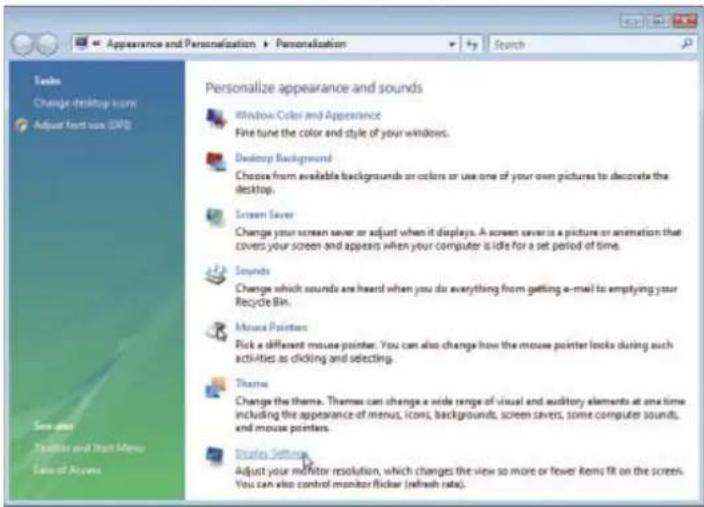
To access Display Settings page, right-click on desktop and select Personalize, then the Personalization windows will show up. Select Display Settings to adjust the screen resolution and color quality settings.
text_image
Appearance and Personalization ▶ Personalization Search Tools Change desktop menu Adjust font size (FAS) Save and Preview and Help Menu Save of Access Personalize appearance and sounds Window Color and Appearance Fine tune the color and style of your windows. Desktop Background Choose from available backgrounds or colors or use one of your own pictures to decorate the desktop. Screen Saver Change your screen saver or adjust when it displays. A screen saver is a picture or animation that covers your screen and appears when your computer is idle for a set period of time. Sounds Change which sounds are heard when you do everything from getting e-mail to emptying your Recycle Bin. Mouse Pointers Pick a different mouse pointer. You can also change how the mouse pointer looks during such activities as clicking and selecting. Theme Change the theme. Themes can change a wide range of visual and auditory elements at one time including the appearance of menus, icons, backgrounds, screen savers, some computer sounds, and mouse pointers. Displays Settings Adjust your monitor resolution, which changes the view so more or fewer Rems MR on the screen. You can also control monitor flicker (refresh rate).
text_image
Display Settings Monitor Drag the icons to match your monitors. Identify Monitors 1 2 Generic PoP Monitor on NVIDIA GeForce GTS 250 This is my mass monitor Extend the desktop onto this monitor Resolution: Low High Colone: Highest (32 bit) 1690 by 1200 pixels How do I get the best display? Advanced Settings... OK Cancel Apply You can move the slider to change the resolution. You can click the item to change the color quality. Click the Advanced button for advanced settings.3.3. Accessing NVIDIA Control Panel
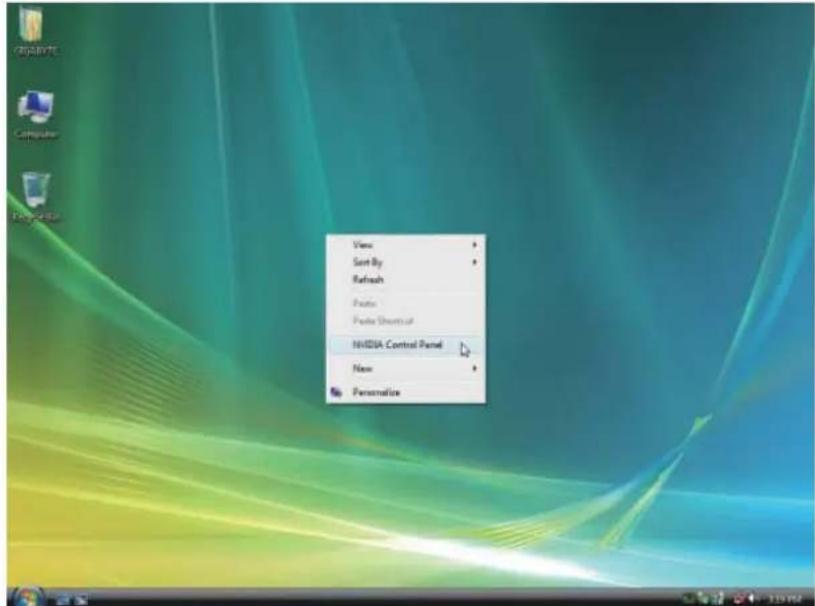
After installation of the display driver, right-click on the desktop and select NVIDIA Control Panel. The NVIDIA Control Panel is used to configure all your graphics card settings.
text_image
View Sort By Refresh Paste Paste Shorts NVIDIA Control Panel New PersonalizeRight-click on the desktop and select NVIDIA Control Panel.
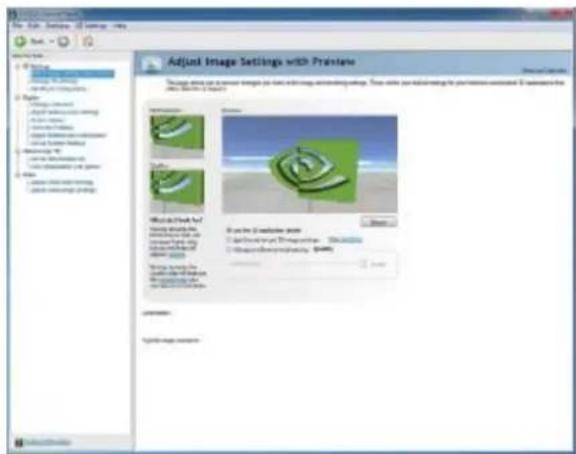
text_image
Adjust Image Settings with Preview Previewing: Previewing Previewing Previewing Previewing Previewing Previewing Previewing Previewing Previewing Previewing Previewing Previewing Previewing Previewing Previewing Previewing Previewing Previewing Previewing Previewing Previewing Previewing Previewing Previewing Previewing Previewing Previewing Previewing Previewing Previewing Previewing Previewing Previewing Previewing Preprint Previewing Previewing Previewing Previewing Previewing Previewing Previewing Previewing Previewing Previewing Previewing Previewing Previewing Previewing Previewing Previewing Previewing Previewing Previewing Previewing Previewing Previewing Previewing Previewing Previewing Previewing Previewing Previewing Previewing Previewing Previewing Previewing PreviewingIn the NVIDIA Control Panel, select a category to alter specific NVIDIA display settings.
■ 3D settings
■ Display
■ Stereoscopic 3D
Video
3D Settings
Tasks in the 3D Settings pages allow you to do the following:
- Change the image and rendering settings of your 3D applications and games that utilize Direct3D and OpenGL technology.
- Override the shipped clocked frequencies of your GPU and GPU memory to increase your GPU performance.
- Assign specific 3D settings to a game so that these settings automatically load when a game is launched.
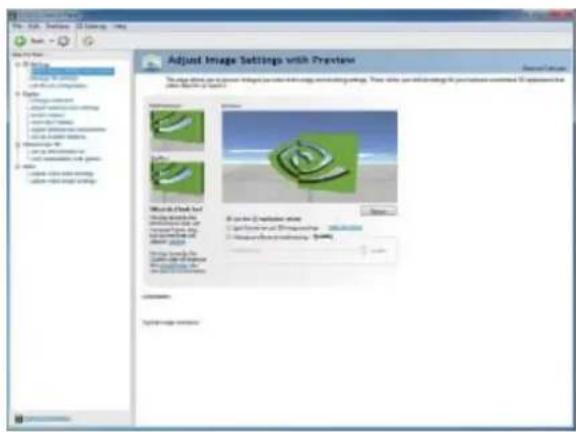
text_image
Adjust Image Settings with Preview The image shows the image in the image on a specific image, consisting of images. They use color mapping to the image content. To be applied that other image is selected. Preview Preview Preview Preview Preview Preview Preview Preview Preview Preview Preview Preview Preview Preview Preview Preview Preview Preview Preview Preview Preview Preview Preview Preview Preview Preview Preview Preview Preview Preview Preview Preview Preview Preview Preview Preview Preview Preview Preview Preview Preview Preview Preview Preview Preview Preview Preview Preview Preview Preview Preview■ Adjust Image Settings with Preview
If you are unfamiliar with 3D technology or not an advanced graphics user, use the Adjust Image Settings with Preview page to preview any changes you make for improved image quality and rendering.
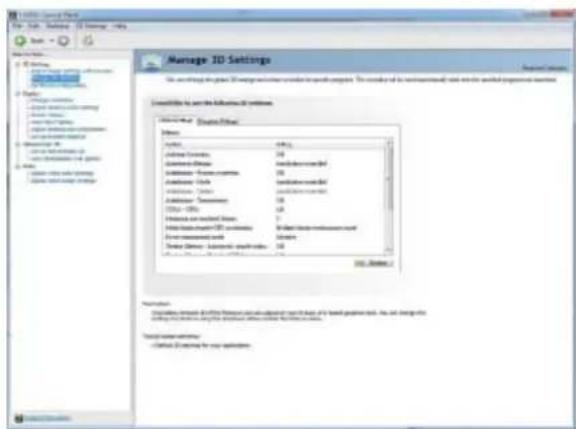
text_image
Manage 3D Settings Use existing data to manage the number of specific components. The number of data is not necessarily available in the installed programs department. Connect to use the information system. Show Data Show Data Name: Address Address: Address Address: Address Address: Address Address: Address Address: Address Address: Address Address: Address Address: Address Address: Address Address: Address Address: Address Address: Address Address: Address Address: Address Address: Address Address: Address Address: Address Address: Address Address: Address Address: Address Address: Address Address: Address Address: Address Address: Address Address: Address Address: Address Address: Source: Provide access to the Information and other related web sites of a local government web, but can change this setting by any other local government web or other relevant online settings. Tested as reference: Check up to ensure your application.■ Manage 3D Settings
The Manage 3D Settings page enables you to establish default 3D settings to use for all your Direct3D or OpenGL applications and to establish a unique set of 3D settings for a particular game or application.
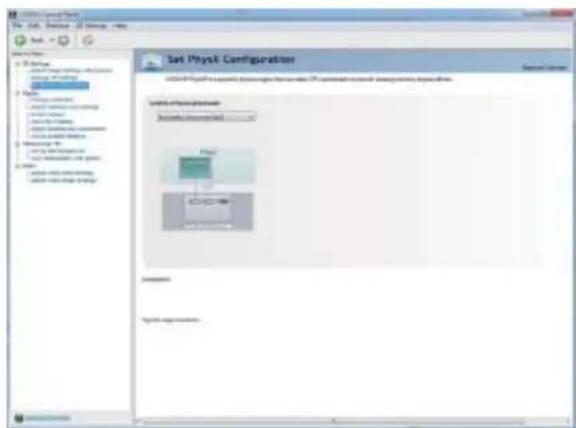
text_image
Set PhysX Configuration SOLIDATED SYSTEMS System architecture Automotive Engine Tool Process System architecture■ Set PhysX configuration
NVIDIA ^® PhysX ^® is a powerful physics engine that can utilize GPU acceleration to provide amazing real-time physics effects.
Display
A variety of display features enable you to further manipulate and configure your display settings to optimize the use of your displays. Tasks in the Display pages allow you to do the following:
- Move CRT screen position
- Change resolution
- Adjust desktop color settings
- Rotate display
- Manage custom resolutions
- Set up multiple displays

text_image
Sub- Display Display Help Sub- Display Change Resolution This is designed to ensure that the resolution setting is required and/or not necessary. This is designed to set the minimum solution (which is required) in the image file. The chart also includes a description of the resolution setting for change. 1. What is the 'Display Procedure' of change. 2. Use the following options: Current: 0.0000000000000000000000000000000000000000000000000000000000000000000000000000000000000000000000000000 Description: Close-up response■ Change Resolution
Using the Change Resolution controls, you can change the color setting, reduce screen flickering, or adjust the amount of information appearing on your display.
text_image
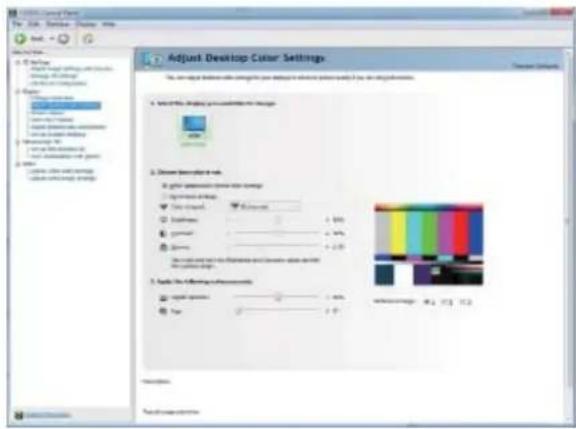
Adjust Desktop Color Settings The image displays the color range in pixels by selecting the color type. The image is designed to create a new color palette with a color palette selection tool (a) and a color palette selection tool (b). The color palette includes: 1. Visible the image is used to create a new color palette. 2. Draw visual color space 3. Get preview to show color range 4. View color range 5. Display color 6. Image color 7. Color mode 8. Select the following colors: 9. Apply the following: 0-100% 10. Select the following: 0-100% 11. Select the following: 0-100% 12. Select the following: 0-100% 13. Select the following: 0-100% 14. Select the following: 0-100% 15. Select the following: 0-100% 16. Select the following: 0-100% 17. Select the following: 0-100% 18. Select the following: 0-100% 19. Select the following: 0-100% 20. Select the following: 0-100% 21. Select the following: 0-100% 22. Select the following: 0-100% 23. Select the following: 0-100% 24. Select the following: 0-100% 25. Select the following: 0-100% 26. Select the following: 0-100% 27. Select the following: 0-100% 28. Select the following: 0-100% 29. Select the following: 0-100% 30. Select the following: 0-100% 31. Select the following: 0-100% 32. Select the following: 0-100% 33. Select the following: 0-100% 34. Select the following: 0-100% 35. Select the following: 0-100% 36. Select the following: 0-100% 37. Select the following: 0-100% 38. Select the following: 0-100% 39. Select the following: 0-100% 40. Select the following: 0-100% 41. Select the following: 0-100% 42. Select the following: 0-100% 43. Select the following: 0-100% 44. Select the following: 0-100% 45. Select the following: 0-100% 46. Select the following: 0-100% 47. Select the following: 0-100% 48. Select the following: 0-100% 49. Select the following: 0-100% 50. Select the following: 0-100% 51. Select the following: 0-100% 52. Select the following: 0-100% 53. Select the following: 0-100% 54. Select the following: 0-100% 55. Select the following: 0-100% 56. Select the following: 0-100% 57. Select the following: 0-100% 58. Select the following: 0-100% 59. Select the following: 0-100% 60. Select the following: 0-100% 61. Select the following: 0-100% 62. Select the following: 0-100% 63. Select the following: 0-100% 64. Select the following: 0-100% 65. Select the following: 0-100% 66. Select the following: 0-100% 67. Select the following: 0-100% 68. Select the following: 0-100% 69. Select the following: 0-100% 70. Select the following: 0-100% 71. Select the following: 0-100% 72. Select the following: 0-100% 73. Select the following: 0-100% 74. Select the following: 0-100% 75. Select the following: 0-100% 76. Select the following: 0-100% 77. Select the following: 0-100% 78. Select the following: 0-100% 79. Select the following: 0-100% 80. Select the following: 0-100% 81. Select the following: 0-100% 82. Select the following: 0-100% 83. Select the following: 0-100% 84. Select the following: 0-100% 85. Select the following: 0-100% 86. Select the following: 0-100% 87. Select the following: 0-100% 88. Select the following: 0-100% 89. Select the following: 0-100% 90. Select the following: 0-100% 91. Select the following: 0-100% 92. Select the following: 0-100% 93. Select the following: 0-100% 94. Select the following: 0-100% 95. Select the following: 0-100% 96. Select the following: 0-100% 97. Select the following: 0-100% 98. Select the following: 0-100% 99. Select the following: 0-100% 1 Subtitle Subtitle name Subtitle position Subtitle color Subtitle size Subtitle color Subtitle color Subtitle color Subtitle size Subtitle color Subtitle color Subtitle size Subtitle color Subtitle size Subtitle color Subtitle size Subtitle color Subtitle size Subtitle color Subtitle size Subtitle color Subtitle size Subtitle color Subtitle size Subtitle color Subtitle size Subtitle color Subtitle size Subtitle color Subtitle size Subtitle color Subtitle size Subtitle color Subtitle size Subtitle color Subtitle size Subtitle size Subtitle size Subtitle size Subtitle size Subtitle size Subtitle size Subtitle size Subtitle size Subtitle size Subtitle size Subtitle size Subtitle size Subtitle size Subtitle size Subtitle size Subtitle size Subtitle size Subtitle size Subtitle size Subtitle size Subtitle size Subtitle size Subtitle size Subtitle size Subtitle sizes Subtitle sizes Subtitle sizes Subtitle sizes Subtitle sizes Subtitle sizes Subtitle sizes Subtitle sizes Subtitle sizes Subtitle sizes Subtitle sizes Subtitle sizes Subtitle sizes Subtitle sizes Subtitle sizes Subtitle sizes Subtitle sizes Subtitle sizes Subtitle sizes Subtitle sizes Subtitle sizes Subtitle sizes Subtitle sizes Subtitle sizes Subtitle sizes Subtitle size Subtitle size Subtitle size Subtitle size Subtitle size Subtitle size Subtitle size Subtitle size Subtitle size Subtitle size Subtitle size Subtitle size Subtitle size Subtitle size Subtitle size Subtitle size Subtitle size Subtitle size Subtitle size Subtitle size Subtitle size Subtitle size Subtitle size Subtitle size Subtitle sized: Subtitle sized: Subtitle sized: Subtitle sized: Subtitle sized: Subtitle sized: Subtitle sized: Subtitle sized: Subtitle sized: Subtitle sized: Subtitle sized: Subtitle sized: Subtitle sized: Subtitle sized: Subtitle sized: Subtitle sized: Subtitle sized: Subtitle sized: Subtitle sized: Subtitle sized: Subtitle sized: Subtitle sized: Subtitle sized: Subtitle sized: Subtitle sized: Subtitle sized:■ Adjust Desktop Color Settings
Use this page to set the contrast, sharpness, and color depth (Digital Vibrance) of the images on your desktop. These changes will not affect any video playback. To change video color settings, go to Adjust Video Color Settings under the Video and TV section from the Start page.

text_image
Rotate Display The 2013.7.1.1: New software displaying the version of the latest. The installed product is stored in a shared library information tool for the creation of new software (e.g. software). Browse the configuration: 8 versions: 1 version: 2 version: Excel 3 version: Excel Categories: Total sample count:■ Rotate Display
The NVIDIA Rotate features enable you to change the orientation of your desktop to portrait, landscape, and inverted modes. This is useful if you have rotated your physical display and need to rotate the desktop to match the orientation of your display.
text_image
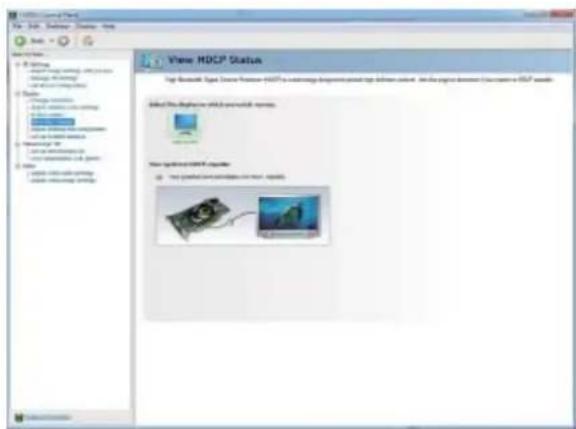
View HDCP Status Top Bluetooth Signal Source Feature HDCP is maintaining diagnosis point up software content. This program is created by the version in HDCP website. Add the following: 12.0 minutes View desktops at 6:30 AM View desktops at 6:30 AM View desktops at 6:30 AM View desktops at 6:30 AM View desktops at 6:30 AM View desktops at 6:30 AM View desktops at 6:30 AM View desktops at 6:30 AM View desktops at 6:30 AM View desktops at 6:30 AM■ View HDCP status
Use this page to check if your system is HDCP-capable.

text_image
Adjust Desktop Size and Position Use the adjust to create an app in a library. 1. To find the display size and position in this image. 2. Use the following options: - Building a new file - Create a new file - Create a new file - Create a new file - Create a new file - Create a new file - Create a new file - Create a new file - Create a new file - Create a new file - Create a new file - Create a new file - Create a new file - Create a new file - Create a new file - Create a New file - Create a New file - Create a New file - Create a New file - Create a New file - Create a New file - Create a New file - Create a New file - Create a New file - Create a New file - Create a New file - Create a New file - Create a New file - Create a New file - Create a New file■ Adjust Desktop Size and Position
You can adjust desktop size and position for your displays.
text_image
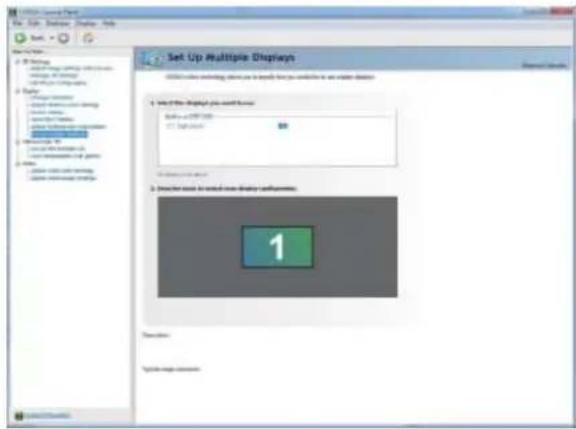
Set Up Multiple Displays 1. Find the display job search result Body 2017-2018 3. Click to action 2. Click more targeted new display configuration: 1 Transaction System name: concom■ Set Up Multiple Displays
NVIDIA nView technology enables you to view your desktop in one of several multi-display modes to make the best use of the displays (monitors) that are connected to your computer.
Dual-Monitor Setup
You can set the display to output from two monitors on the Set Up Multiple Displays page.

text_image
Set Up Multiple Displays Microsoft Office Technology allows you to specify how you would file or use multiple displays. 1. Tested the display you need to use. Solutions: 57.000 Microsoft Windows My display is not more. 2. Use your display configuration. 1° Prints Status PropertiesSelect your preferred nView display modes here.
- Only use one display (Single)
• The same on both display (Clone) - Configured independently from each other (Dualview)
- As one large horizontal desktop (Horizontal span)
• As one large vertical desktop (Vertical span)
(1) The same on both display (Clone)
Clone mode indicates that both displays in the display pair show images of the same desktop.

natural_image
Two computer monitors displaying a cartoon food item with green eyes, labeled 'Clone Mode' below (no other text or symbols visible)(2) Configured independently from each other (Dualview)
Dualview mode indicates that both displays in the display pair function as one virtual desktop. Unlike Horizontal Span or Vertical Span mode, Dualview treats each display as a separate device. This means that the taskbar will not be stretched across displays and 3D applications are not accelerated as efficiently as when the application spans displays.

text_image
Dualview Mode(3) As one large horizontal desktop (Horizontal span)
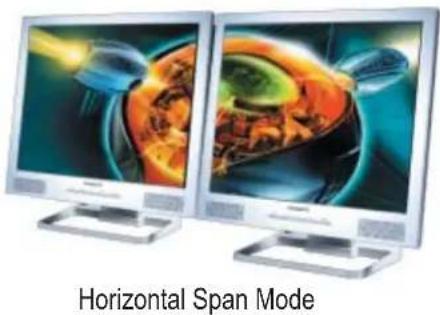
Horizontal Span mode indicates that both displays in the display pair function as one wide virtual desktop. The width of each display is half the width of the total virtual desktop width.
natural_image
Two computer monitors displaying abstract colorful images, labeled 'Horizontal Span Mode' below (no other text or symbols visible)(4) As one large vertical desktop (Vertical span)
Vertical Span mode indicates that both displays in the display pair function as one tall virtual desktop. The height of each display is half the height of the total virtual desktop height.

natural_image
Two computer monitors displaying a fantasy character in ornate armor, labeled 'Vertical Span Mode' below (no other text or symbols visible)Stereoscopic 3D
Tasks in the Stereoscopic 3D pages allow you to do the following:
- Set up stereoscopic 3D
• View compatibility with games

text_image
Set Up Stereoscope: 3D Parameters: 10 pixels in case 20 stereochemistry. For the design using stereochemistry settings. Apply the following stereochemistry (Stereoplot): - Stereochemistry: 3 - 100% - 100% - 100% - 100% - 100% - 100% - 100% - 100% - 100% - 100% - 100% - 100% - 100% - 100% - 100% - 100% - 100% - 150% - 150% - 150% - 150% - 150% - 150% - 150% - 150% - 150% - 150% - 150% - 150% - 150% - 150% - 150% - 150% - 150% - -150% - -150% - -150% - -150% - -150% - -150% - -150% - -150% - -150% - -150% - -150% - -150% - -150% - -150% - -150% - -150% - -150%■ Set Up Stereoscopic 3D
You can enable stereoscopic 3D, set depth, and set your 3D displays and 3D glasses. (To enable stereoscopic 3D function, you will need 3D displays and glasses. The details: http://www.nvidia.com/object/3d-vision-main.html)

text_image
View Compatibility With Games The game project is set to an important game. The computer game change in the converted category gets up from the original game. View the game's view on the computer compatibility in addition to games View Game: 100% (100%) View Game: 100% (100%) View Game: 100% (100%) View Game: 100% (100%) View Game: 100% (100%) View Game: 100% (100%) View Game: 100% (100%) View Game: 100% (100%) View the game project Outlook Outlook Outlook Outlook Outlook Outlook Outlook Outlook Outlook Outlook Outlook Outlook Outlook Outlook Outlook Outlook Outlook Outlook Outlook Outlook Outlook Outlook Outlook Outlook Outlook Outlook Outlook Outlook Outlook Outlook Outlook Outlook Outlook Outlook■ View Compatibility With Games
You can view stereoscopic 3D compatibility with games.
Video & Television
Video and television features are similar to those for analog for optimal viewing. Tasks in the Video & Television pages allow you to do the following:
- Adjust your television picture quality and video color settings for the best possible viewing in its environment.
- Change the position and size of the desktop video to best fit your television screen.
text_image
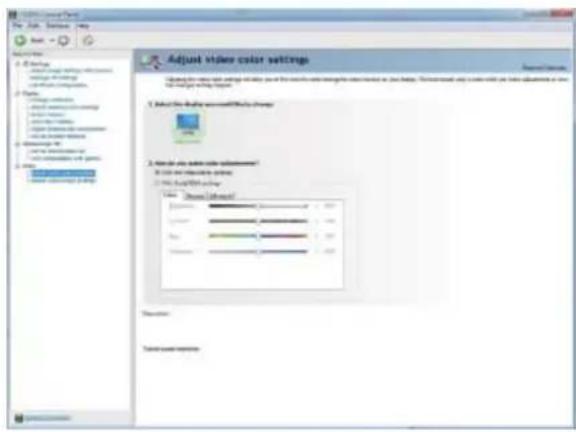
Adjust vials color settings 1. Adjust the right color adjustment. 2. Adjust the left color adjustment? 3. Adjust the right color adjustment. 4. Adjust the left color adjustment. 5. Adjust the right color adjustment. 6. Adjust the left color adjustment. 7. Adjust the right color adjustment. 8. Adjust the left color adjustment. 9. Adjust the right color adjustment. 10. Adjust the left color adjustment. 11. Adjust the right color adjustment. 12. Adjust the left color adjustment. 13. Adjust the right color adjustment. 14. Adjust the left color adjustment. 15. Adjust the right color adjustment. 16. Adjust the left color adjustment. 17. Adjust the right color adjustment. 18. Adjust the left color adjustment. 19. Adjust the right color adjustment. 20. Adjust the left color adjustment. 21. Adjust the right color adjustment. 22. Adjust the left color adjustment. 23. Adjust the right color adjustment. 24. Adjust the left color adjustment. 25. Adjust the right color adjustment. 26. Adjust the left color adjustment. 27. Adjust the right color adjustment. 28. Adjust the left color adjustment. 29. Adjust the right color adjustment. 30. Adjust the left color adjustment. 31. Adjust the right color adjustment. 32. Adjust the left color adjustment. 33. Adjust the right color adjustment. 34. Adjust the left color adjustment. 35. Adjust the right color adjustment. 36. Adjust the left color adjustment. 37. Adjust the right color adjustment. 38. Adjust the left color adjustment. 39. Adjust the right color adjustment. 40. Adjust the left color adjustment. 41. Adjust the right color adjustment. 42. Adjust the left color adjustment. 43. Adjust the right color adjustment. 44. Adjust the left color adjustment. 45. Adjust the right color adjustment. 46. Adjust the left color adjustment. 47. Adjust the right color adjustment. 48. Adjust the left color adjustment. 49. Adjust the right color adjustment. 50. Adjust the left color adjustment. 51. Adjust the right color adjustment. 52. Adjust the left color adjustment. 53. Adjust the right color adjustment. 54. Adjust the left color adjustment. 55. Adjust the right color adjustment. 56. Adjust the left color adjustment. 57. Adjust the right color adjustment. 58. Adjust the left color adjustment. 59. Adjust the right color adjustment. 60. Adjust the left color adjustment. 61. Adjust the right color adjustment. 62. Adjust the left color adjustment. 63. Adjust the right color adjustment. 64. Adjust the left color adjustment. 65. Adjust the right color adjustment. 66. Adjust the left color adjustment. 67. Adjust the right color adjustment. 68. Adjust the left color adjustment. 69. Adjust the right color adjustment. 70. Adjust the left color adjustment. 71. Adjust the right color adjustment. 72. Adjust the left color adjustment. 73. Adjust the right color adjustment. 74. Adjust the left color adjustment. 75. Adjust the right color adjustment. 76. Adjust the left color adjustment. 77. Adjust the right color adjustment. 78. Adjust the left color adjustment. 79. Adjust the right color adjustment. 80. Adjust the left color adjustment. 81. Adjust the right color adjustment. 82. Adjust the left color adjustment. 83. Adjust the right color adjustment. 84. Adjust the left color adjustment. 85. Adjust the right color adjustment. 86. Adjust the left color adjustment. 87. Adjust the right color adjustment. 88. Adjust the left color adjustment. 89. Adjust the right color adjustment. 90. Adjust the left color adjustment. 91. Adjust the right color adjustment. 92. Adjust the left color adjustment. 93. Adjust the right color adjustment. 94. Adjust the left color adjustment. 95. Adjust the right color adjustment. 96. Adjust the left color adjustment. 97. Adjust the right color adjustment. 98. Adjust the left color adjustment. 99. Adjust the right color adjustment. 100. Adjust the left color adjustment.■ Adjust Video Color Settings
Use the controls on this page to fine tune the color settings for video content on your display. Select one of the test images to monitor your changes. For best results, play a video while you make adjustment to view the changes as they happen.
text_image
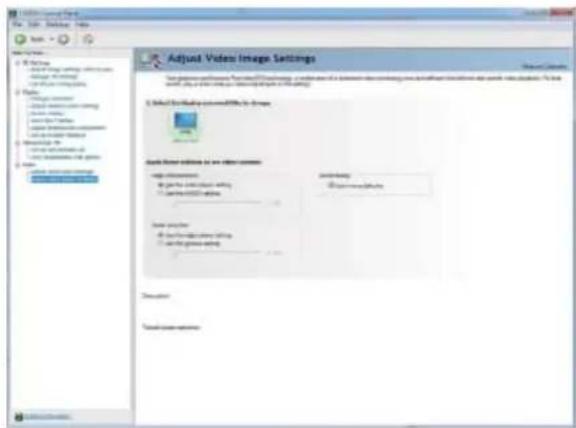
Adjust Video Image Settings File Edit View Help Add Options Add Image Views Add Video Image Views Add Image Views Add Video Views Add Image Views Add Video Views Add Image Views Add Video Views Add Image Views Add Video Views Add Image Views Add Video Views Add Image Views Add Video Views Add Image Views Add Video Views Add Image Views Add Video Views Add Image Views Add Video Views Add Image Views Add Video Views Add Image Views Add Video Views Add Image Views Add Video Views Add Image Views Add Video Views Add Video Views Add Image Views Add Video Views Add Image Views Add Video Views Add Image Views Add Video Views Add Image Views Add Video Views Add Image Views Add Video Views Add Image Views Add Video Views Add Image Views Add Video Views Add Image Views Add Video Views Add Image Views Add Video Views Add Image Views Add Video Views Add Image Views Add Video Views Add Image Views AddVideo■ Adjust Video Image Settings
Use the controls on this page to fine tune the image settings for video content on your display. You can choose to use inverse telecine, adjust edge sharpness, or apply noise filtering. For best results, play a video while you make adjustment to view the changes as they happen.
Note:
Support for some features under Windows Vista is in development and may not be available with your ForceWare graphics driver version. Consult the release notes for updated information on supported features.
4. Troubleshooting Tips
The following troubleshooting tips may help if you experience problems. Contact your dealer or GI-GABYTE for more advanced troubleshooting information.
- Check that the card is seated properly in the PCI Express x16 slot.
■ Ensure that the display cable is securely fastened to the card's display connector.
■ Make sure that the monitor and computer are plugged in and receiving power.
■ If necessary, disable any built-in graphics capabilities on your motherboard. For more information, consult your computer's manual or manufacturer.
(NOTE: Some manufacturers do not allow the built-in graphics to be disabled or to become the secondary display.)
■ Make sure you selected the appropriate display device and graphics card when you install the graphics driver.
■ Restart your computer.
Press
After getting into Safe Mode, in Device Manager check whether the driver for the graphics card is correct.
■ For more assistance, use the Troubleshooting Guide located in the Windows Help or contact your computer manufacturer.
■ If you are not able to find the desired monitor color/resolution settings:
The color and screen resolution options available for selection depend on the graphics card being installed.

If necessary, adjust your monitor's setting using monitor's adjust panel to make the screen look focused, crisp, and sharp. (Please refer to the monitor's manual.)
5.1. Regulatory Statements
Regulatory Notices
This document must not be copied without our written permission, and the contents there of must not be imparted to a third party nor be used for any unauthorized purpose. Contravention will be prosecuted. We believe that the information contained herein was accurate in all respects at the time of printing. GI-GABYTE cannot, however, assume any responsibility for errors or omissions in this text. Also note that the information in this document is subject to change without notice and should not be construed as a commitment by GIGABYTE.
Our Commitment to Preserving the Environment
In addition to high-efficiency performance, all GIGABYTE VGA Card fulfill European Union regulations for RoHS (Restriction of Certain Hazardous Substances in Electrical and Electronic Equipment) and WEEE (Waste Electrical and Electronic Equipment) environmental directives, as well as most major worldwide safety requirements. To prevent releases of harmful substances into the environment and to maximize the use of our natural resources, GIGABYTE provides the following information on how you can responsibly recycle or reuse most of the materials in your "end of life" product.
Restriction of Hazardous Substances (RoHS) Directive Statement
GIGABYTE products have not intended to add and safe from hazardous substances (Cd, Pb, Hg, Cr+6, PBDE and PBB). The parts and components have been carefully selected to meet RoHS requirement. Moreover, we at GIGABYTE are continuing our efforts to develop products that do not use internationally banned toxic chemicals.
Waste Electrical & Electronic Equipment (WEEE) Directive Statement
GIGABYTE will fulfill the national laws as interpreted from the 2002/96/EC WEEE (Waste Electrical and Electronic Equipment) directive. The WEEE Directive specifies the treatment, collection, recycling and disposal of electric and electronic devices and their components. Under the Directive, used equipment must be marked, collected separately, and disposed of properly.
WEEE Symbol Statement
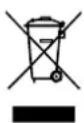
The symbol shown below is on the product or on its packaging, which indicates that this product must not be disposed of with other waste. Instead, the device should be taken to the waste collection centers for activation of the treatment, collection, recycling and disposal procedure. The separate collection and recycling of your waste equipment at the time of disposal will help to conserve natural resources and ensure that it is recycled in a manner that protects human health and the environment. For more information about where you can drop off your waste equipment for recycling, please contact your local government office, your household waste disposal service or where you purchased the product for details of environmentally safe recycling.
- When your electrical or electronic equipment is no longer useful to you, "take it back" to your local or regional waste collection administration for recycling.
- If you need further assistance in recycling, reusing in your "end of life" product, you may contact us at the Customer Care number listed in your product's user's manual and we will be glad to help you with your effort.
Finally, we suggest that you practice other environmentally friendly actions by understanding and using the energy-saving features of this product (where applicable), recycling the inner and outer packaging (including shipping containers) this product was delivered in, and by disposing of or recycling used batteries properly. With your help, we can reduce the amount of natural resources needed to produce electrical and electronic equipment, minimize the use of landfills for the disposal of "end of life" products, and generally improve our quality of life by ensuring that potentially hazardous substances are not released into the environment and are disposed of properly.
China Restriction of Hazardous Substances Table
The following table is supplied in compliance with China's Restriction of Hazardous Substances (China RoHS) requirements:

Management Methods on Control of Pollution from Electronic Information Products
(China RoHS Declaration)