iTunes Server - NAS NETGEAR - Free user manual and instructions
Find the device manual for free iTunes Server NETGEAR in PDF.


User questions about iTunes Server NETGEAR
0 question about this device. Answer the ones you know or ask your own.
Ask a new question about this device
Download the instructions for your NAS in PDF format for free! Find your manual iTunes Server - NETGEAR and take your electronic device back in hand. On this page are published all the documents necessary for the use of your device. iTunes Server by NETGEAR.
USER MANUAL iTunes Server NETGEAR
iTunes Server and AirPlay Setup for Routers
User Manual
September 2015
202-11594-01
350 East Plumeria Drive
San Jose, CA 95134
USA

natural_image
Abstract geometric composition with overlapping colored triangles (no text or symbols)iTunes Server and AirPlay Setup for Routers
Support
Thank you for purchasing this NETGEAR product. You can visit www.netgear.com/support to register your product, get help, access the latest downloads and user manuals, and join our community. We recommend that you use only official NETGEAR support resources.
Conformity
For the current EU Declaration of Conformity, visit http://kb.netgear.com/app/answers/detail/a_id/11621.
Compliance
For regulatory compliance information, visit http://www.netgear.com/about/regulatory.
See the regulatory compliance document before connecting the power supply.
Trademarks
© NETGEAR, Inc. NETGEAR and the NETGEAR Logo are trademarks of NETGEAR, Inc. Any non-NETGEAR trademarks are used for reference purposes only.
Contents
Chapter 1 Set Up the Router as an iTunes Server
Set Up the Router as an iTunes Server.... 5
Supported NETGEAR Routers for iTunes Server. 5
Supported USB Storage Devices.... 5
Supported File Formates for iTunes Server.... 5
Maximum Number of Files iTunes Server Supports.... 6
Set Up the Router's iTunes Server With iTunes.... 6
Set Up the Router's iTunes Server With the Remote App 8
Chapter 2 Set Up AirPlay and Stream Media Using iTunes Server
Set Up AirPlay and Stream Media Using iTunes Server 14
Set Up the Router as an iTunes Server
1
This chapter contains the following sections:
- Set Up the Router as an iTunes Server
- Set Up the Router's iTunes Server With iTunes
- Set Up the Router's iTunes Server With the Remote App
For more information about the topics covered in this manual, visit the support website at http://support.netgear.com.
Set Up the Router as an iTunes Server
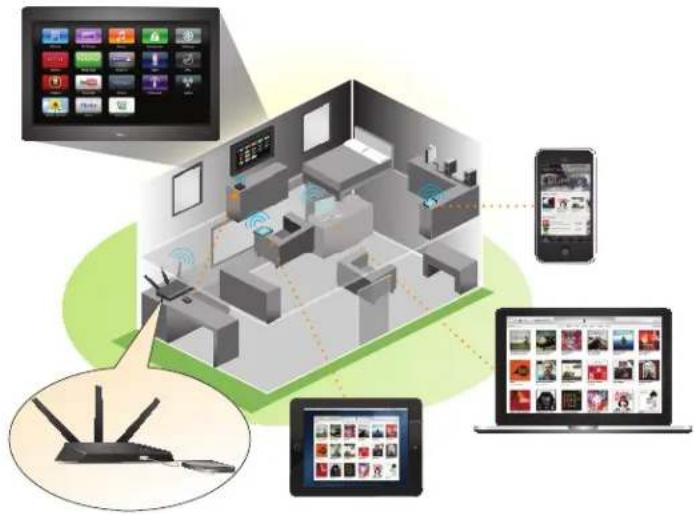
If your router can be set up as an iTunes server, the router's iTunes Server lets you play music from a USB storage device that is connected to a USB port on your router with iTunes on your Mac computer or with the Apple Remote app on your iPhone or iPad. You can also use the Apple Remote app from an iPhone or iPad to play music on any AirPlay devices, such as Apple TV or AirPlay-supported receivers.
text_image
Diagram illustrating smart home connectivity with devices like a router, tablet, and smartphone, showing wireless connections between home office and mobile devices.Note: The router shown in this image is the Nighthawk R7000.
Supported NETGEAR Routers for iTunes Server
To determine if your NETGEAR router can be set up as an iTunes server, see your router's user manual, which is available at http://downloadcenter.netgear.com.
Supported USB Storage Devices
For the most up-to-date list of USB storage devices that your router supports, visit http://kbserver.netgear.com/readyshare.
Supported File Formates for iTunes Server
The following music file formats are supported with iTunes Server:
• MP3
• AAC
• FLAC
Maximum Number of Files iTunes Server Supports
The maximum number of music files supported is 10,000.
Set Up the Router's iTunes Server With iTunes
You can play music from a USB storage device that is connected to your router with iTunes on your Windows or Mac computer using Home Sharing. To set up Home Sharing, you need an Apple account and the latest version of iTunes installed on your computer.
Note: The iTunes images used in this section were taken with a MacBook Air with iTunes version 12.2.1.16 installed.
To set up the router's iTunes server to play music on iTunes:
- Connect a USB storage device to a USB port on your router.
- Launch a web browser from a computer or WiFi device that is connected to your router's network.
- Enter http://www.routerlogin.net.
A login window displays. - Enter the router user name and password.
The user name is admin. The default password is password. The user name and password are case-sensitive.
The BASIC Home page displays.
- Select ADVANCED > USB Functions > ReadySHARE Storage.
The USB Storage (Advanced Settings) page displays.
Note: This navigation path might be different depending on your router. See your router's user manual for more information. Your router's user manual is available online at http://downloadcenter.netgear.com.
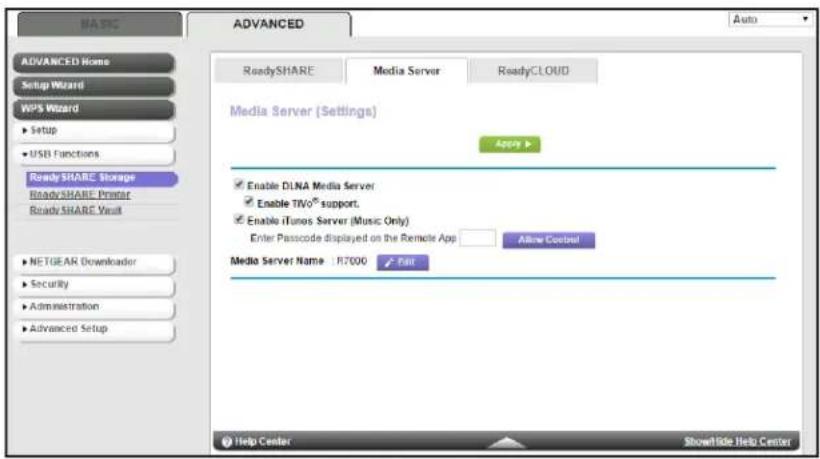
6. Select the Media Server tab.
text_image
NARE ADVANCED ReadySHARE Media Server ReadyCLOUD ADVANCED Home Setup Wizard WPS Wizard Setup USB Functions ReadySHARE Storage ReadySHARE Printer ReadySHARE Vault NETGEAR Downloader Security Administration Advanced Setup Media Server (Settings) Apply > Enable DLNA Media Server Enable TWO® support. Enable iTunes Server (Music Only) Enter Passcode displayed on the Remote App Allow Control Media Server Name : R7000 ✓ Fail Help Center ShowHide Help Center- Select the Enable iTunes Media Server (Music Only) check box and click the Apply button.
Your settings are saved.
-
On your Windows or Mac computer, launch iTunes.
-
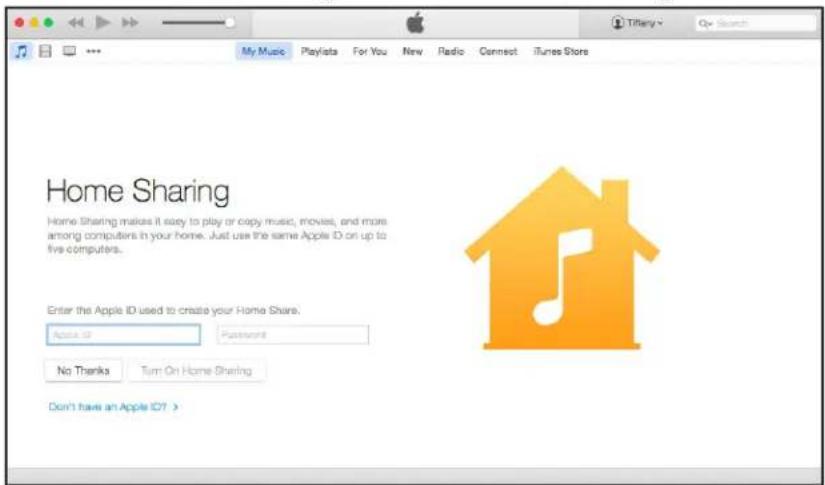
Select File > Home Sharing > T urn On Home Sharing.
text_image
Home Sharing Home Sharing makes it easy to play or copy music, movies, and more among computers in your home. Just use the same Apple ID on up to five computers. Enter the Apple ID used to create your Home Share. Apple ID Passroom No Thanks Turn On Home Sharing Don't have an Apple ID?- Enter your Apple ID email address and password and click the Turn On Home Sharing button.
When Home Sharing is enabled, a Home Sharing icon displays in iTunes
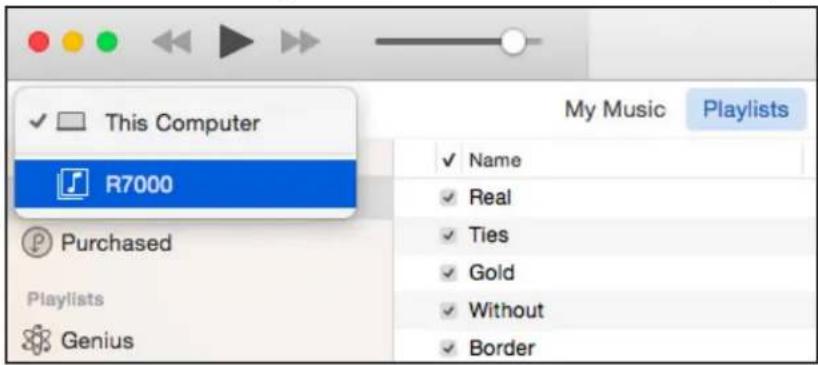
- Click the Home Sharing icon 🔍 and from the menu, select your router.
text_image
This Computer R7000 Purchased Playlists Genius My Music Playlists ✓ Name ✓ Real ✓ Ties ✓ Gold ✓ Without ✓ BorderThe music that is on the USB storage device that is connected to the router displays in iTunes.
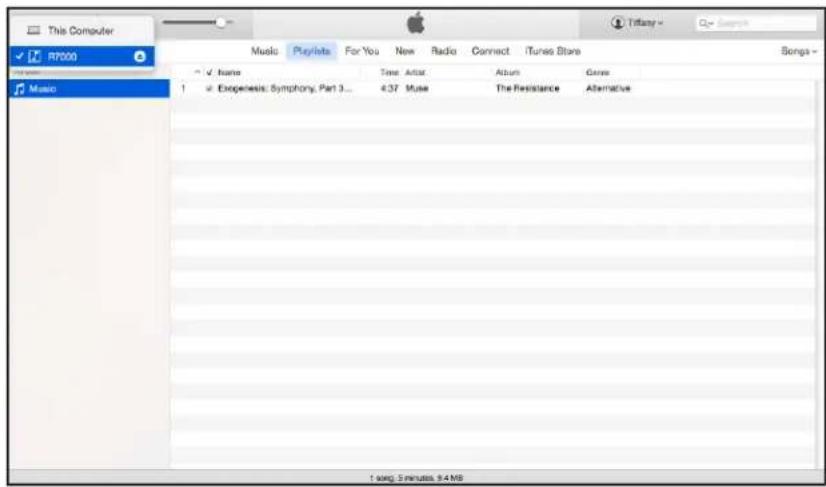
text_image
This Computer RP000 Music Playlists For You New Radio Connect iTunes Store Songs 1 Expelexia: Symphony Part 3... 4.37 Musie The Resistance Alternative 1 song, 2 minutes, 3.4 msSet Up the Router's iTunes Server With the Remote App
You can play music from a USB storage device that is connected to your router on your iPhone or iPad using the Apple Remote app.
Note: The Remote app images used in this section were taken with an iPhone 5S running iOS 8.4.
To set up the router's iTunes server to play music on your iPhone or iPad:
- Connect a USB storage device to a USB port on your router.
- Connect your iPhone or iPad to your router's WiFi network.
-
Download the Remote app from the Apple App Store.
-
Launch the Remote app from your iPhone or iPad.
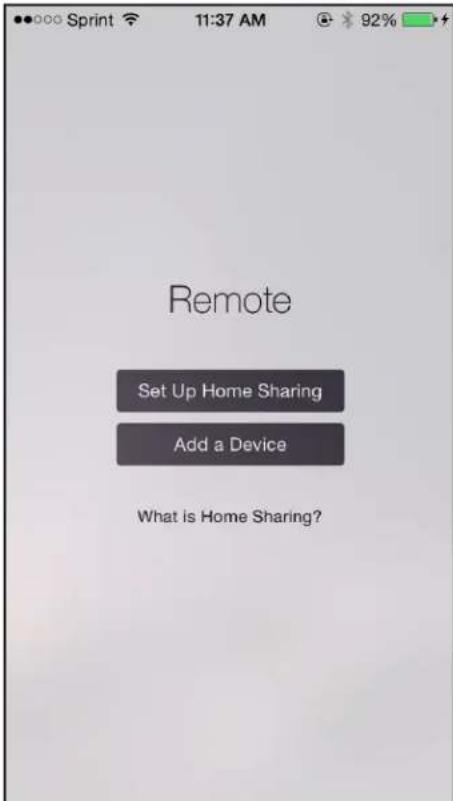
text_image
Remote Set Up Home Sharing Add a Device What is Home Sharing?- Click the Add a Device button.
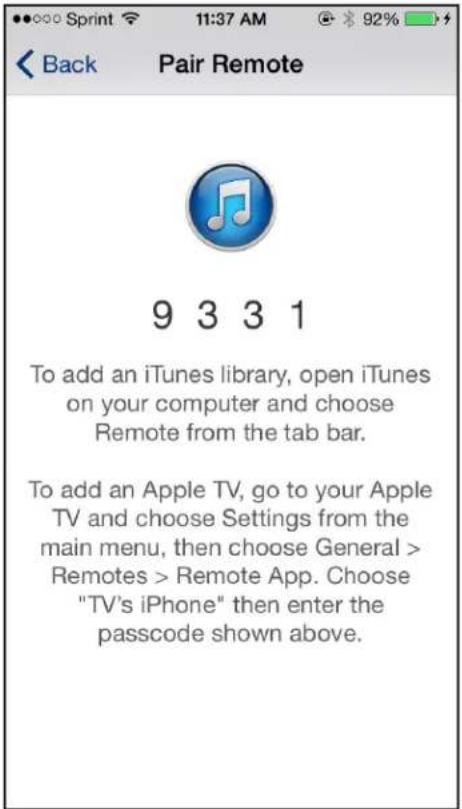
text_image
Back Pair Remote 9 3 3 1 To add an iTunes library, open iTunes on your computer and choose Remote from the tab bar. To add an Apple TV, go to your Apple TV and choose Settings from the main menu, then choose General > Remotes > Remote App. Choose "TV's iPhone" then enter the passcode shown above.- Specify the passcode in the router to set up your iTunes Server:
a. Launch a web browser from a computer or WiFi device that is connected to your router's network.
b. Enter http://www.routerlogin.net.
A login window displays.
c. Enter the router user name and password.
The user name is admin. The default password is password. The user name and password are case-sensitive.
The BASIC Home page displays.
d. Select ADVANCED > USB Functions > ReadySHARE Storage.
The USB Storage (Advanced Settings) page displays.
Note: This navigation path might be different depending on your router. See your router's user manual for more information. Your router's user manual is available online at http://downloadcenter.netgear.com.
e. Select the Media Server tab.
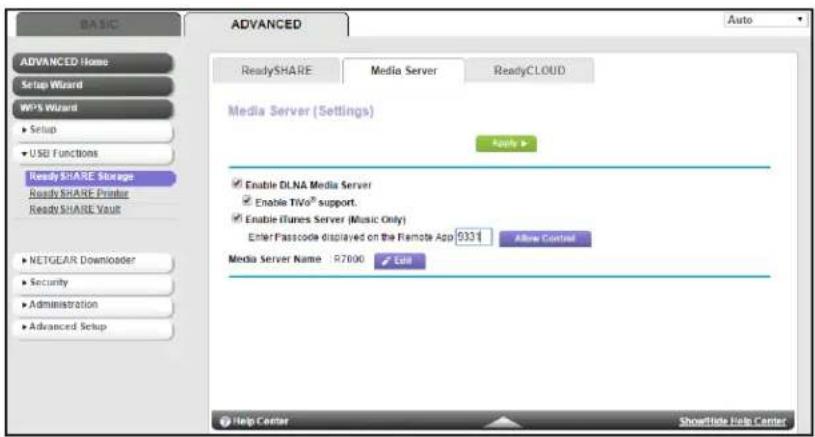
text_image
BASIC ADVANCED ReadySHARE Media Server ReadyCLOUD ADVANCED Home Setup Wizard WP5 Wizard Setup USB Functions Ready SHARE Storage Ready SHARE Eventor Ready SHARE Your NETGEAR Downloader Security Administration Advanced Setup Media Server (Settings) Apply > Enable DLNA Media Server Enable TiVo® support. Enable iTunes Server (Music Only) Enter Passcode displayed on the Remote App 9331 Allow Control Media Server Name : R7000 Edit Help Center Showtide Help Centerf. Select the Enable iTunes Media Server (Music Only) check box and click the Apply button.
g. Enter the passcode and click the Allow Control button.
Your settings are saved.
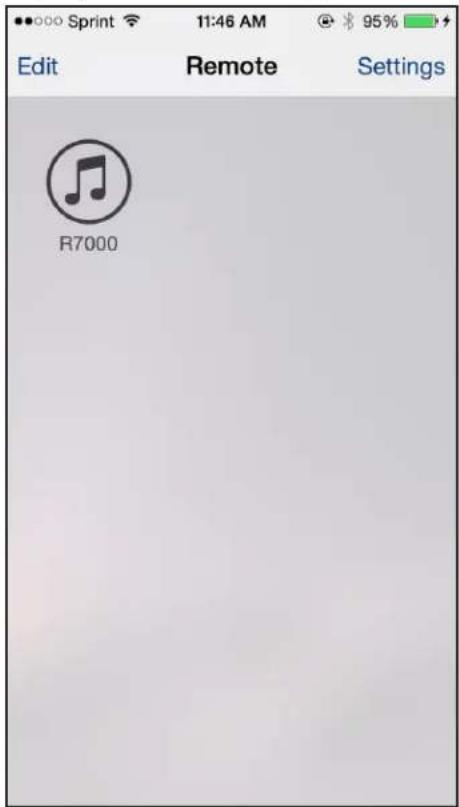
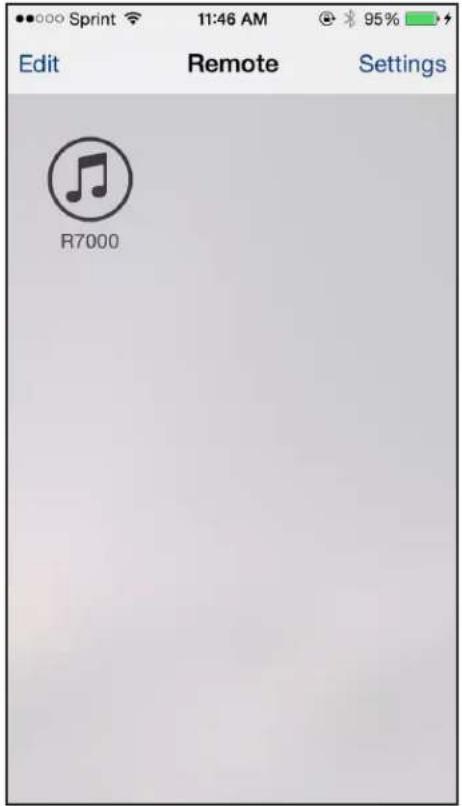
Your iPhone or iPad pairs with the router and the iTunes Server is ready. The router displays in the Remote app.
text_image
Edit Remote Settings R7000- In the Remote app, tap the router your iPhone or iPad is connected to.
iTunes Server and AirPlay Setup for Routers
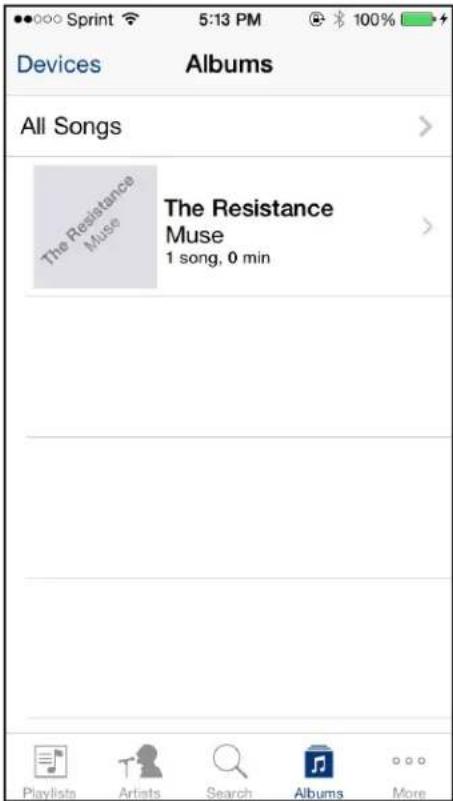
The music that is on the USB storage device that is connected to the router displays in the app.
text_image
●●○○○ Sprint 5:13 PM ★ 100% Devices Albums All Songs > The Resistance Muse The Resistance Muse 1 song, 0 min Playlists Artists Search Albums MoreSet Up AirPlay and Stream Media Using iTunes Server
2
If you own an Apple TV, you can use AirPlay to stream media from a USB storage device connected to your router onto a TV.
Set Up AirPlay and Stream Media Using iTunes Server
You must first set up iTunes server on your iOS device before you can stream the media from the USB storage device. For more information about setting up iTunes server, see Set Up the Router's iTunes Server With the Remote App on page 8.
To use an Apple TV and the Remote app to stream media from your USB storage device to a TV:
- Make sure that your Apple TV is connected to your router's network.
For more information, see the documentation that came with your Apple TV.
- Connect a USB storage device to a USB port on the router.
- Connect your iOS device to the router's WiFi network.
- Set up iT unes server on your iOS device using the Remote app.
For more information see, Set Up the Router's iTunes Server With the Remote App on page 8.
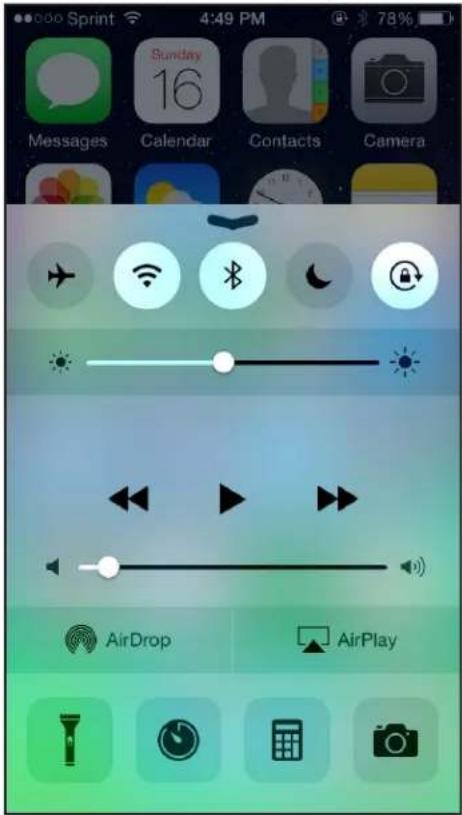
- On your iOS device, swipe up from the bottom of your screen.
The Control Center displays.
text_image
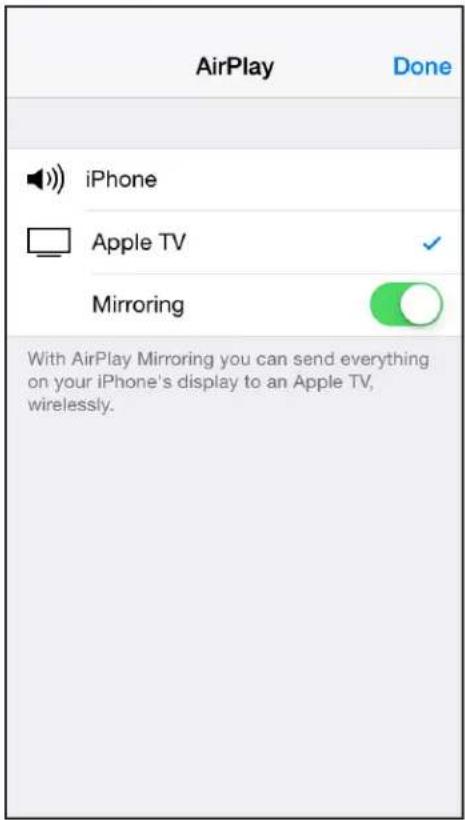
Sprint 4:49 PM Sunday 16 Contacts Camera Messages Calendar Contacts Camera AirDrop AirPlay6. Tap AirPlay.
text_image
AirPlay Done iPhone Apple TV Mirroring With AirPlay Mirroring you can send everything on your iPhone's display to an Apple TV, wirelessly.- Tap Apple TV.
-
Slide the Mirroring slider to right to display your iOS device's screen on the TV.
-
On your iOS device, open the remote app.
text_image
Edit Remote Settings R7000-
Tap the router your iPhone or iPad is connected to.
-
Tap a media file.
The media file displays on your TV.