ReadyNAS R00RPL1 - NAS NETGEAR - Free user manual and instructions
Find the device manual for free ReadyNAS R00RPL1 NETGEAR in PDF.


User questions about ReadyNAS R00RPL1 NETGEAR
0 question about this device. Answer the ones you know or ask your own.
Ask a new question about this device
Download the instructions for your NAS in PDF format for free! Find your manual ReadyNAS R00RPL1 - NETGEAR and take your electronic device back in hand. On this page are published all the documents necessary for the use of your device. ReadyNAS R00RPL1 by NETGEAR.
USER MANUAL ReadyNAS R00RPL1 NETGEAR
November 2010 202-10727-01 v1.0
©2010 NETGEAR, Inc. All rights reserved.
No part of this publication may be reproduced, transmitted, transcribed, stored in a retrieval system, or translated into any language in any form or by any means without the written permission of NETGEAR, Inc.
Technical Support
Thank you for choosing NETGEAR. To register your product, get the latest product updates, or get support online, visit us at http://support.netgear.com.
Phone (US & Canada only): 1-888-NETGEAR
Phone (Other Countries): See Support information card.
Trademarks
NETGEAR, the NETGEAR logo, ReadyNAS, ProSafe, Smart Wizard, Auto Uplink, X-RAID2, and NeoTV are trademarks or registered trademarks of NETGEAR, Inc. Microsoft, Windows, Windows NT, and Vista are registered trademarks of Microsoft Corporation. Other brand and product names are registered trademarks or trademarks of their respective holders.
Statement of Conditions
To improve internal design, operational function, and/or reliability, NETGEAR reserves the right to make changes to the products described in this document without notice. NETGEAR does not assume any liability that may occur due to the use, or application of, the product(s) or circuit layout(s) described herein.
Revision History
Publication Part Number Version Publish Date Comments
202-10727-01 v1.0 November 2010 First publication
Contents
Chapter 1 ReadyNAS Replicate Overview
About NETGEAR® ReadyNAS Replicate™....6
ReadyNAS Replicate Features and Benefits ....6
Simplified, Efficient Data Management....7
Centralized Management Console 8
Management Features 8
Chapter 2 Install ReadyNAS Replicate Add-On
About ReadyNAS Add-ons....10
ReadyNAS Replicate Add-on 10
Basic Setup 10
Other NETGEAR Add-ons ....10
ReadyNAS Replicate Setup 11
Installing the .bin File .....13
Access ReadyNAS Replicate 14
ReadyNAS Remote ID 15
Proxy Settings 16
About ReadyNAS Remote 17
Chapter 3 ReadyNAS Replicate Views
Monitor the Network....19
About Jobs ....20
Monitor Jobs. 21
Run Job Reports....22
Chapter 4 ReadyNAS Replicate Tools
Data Backup....24
Backup Data....24
Backup System. 27
Data Restoration....29
Restore Data 29
Appendix A Network Virtualization and Architecture
ReadyNAS Replicate Virtualization .....32
Architecture 33
Security....34
Performance....35
Index
ReadyNAS Replicate Overview
An Introduction
1
NETGEAR® ReadyNAS Replicate™ is a licensed-based software solution that offers small to medium-sized businesses a simplified, reliable backup and restore solution that protects business data against downtime and disasters.
This chapter discusses:
- About NETGEAR® ReadyNAS Replicate™
• Simplified, Efficient Data Management
• Centralized Management Console
About NETGEAR® ReadyNAS Replicate™
ReadyNAS Replicate is a license-based software solution that offers cost-effective data protection that helps minimize downtime and avoid disaster by backing up, then recovering data files, complete systems, and even virtual environments in minutes.
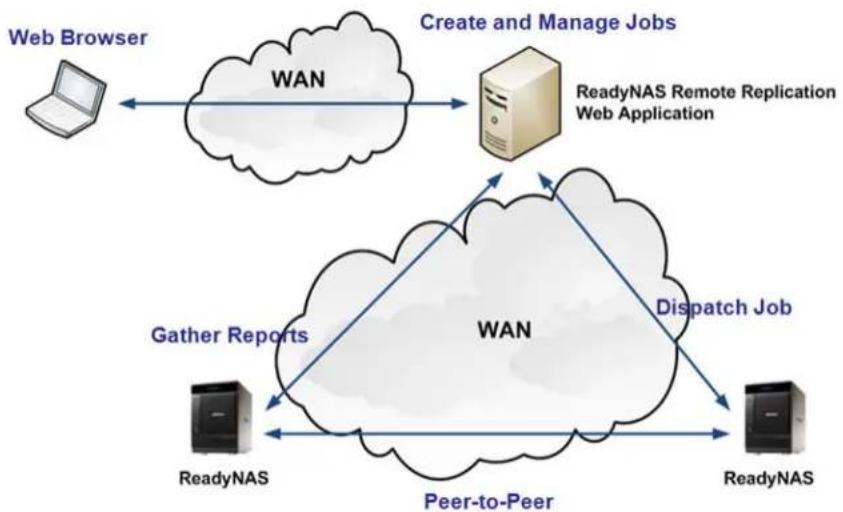
ReadyNAS Replicate can be deployed on any business-class ReadyNAS device, and allows data from one ReadyNAS device to be backed up and restored to and from another ReadyNAS device.
Using a centralized web portal, create, manage, and monitor backup and restore tasks that operate across ReadyNAS devices from multiple locations.
flowchart
graph TD
    A["Web Browser"] --> B["WAN"]
    B --> C["Create and Manage Jobs"]
    C --> D["ReadyNAS Remote Replication Web Application"]
    D --> E["Team"]
    E --> F["ReadyNAS"]
    F --> G["Team"]
    G --> H["Team"]
    H --> I["Team"]
    I --> J["Team"]
    J --> K["Team"]
    K --> L["Team"]
    L --> M["Team"]
    M --> N["Team"]
    N --> O["Team"]
    O --> P["Team"]
    P --> Q["Team"]
    Q --> R["Team"]
    R --> S["Team"]
    S --> T["Team"]
    T --> U["Team"]
    U --> V["Team"]
    V --> W["Team"]
    W --> X["Team"]
    X --> Y["Team"]
    Y --> Z["Team"]
    Z --> A
Figure 1. ReadyNAS Replicate network architecture
ReadyNAS Replicate Features and Benefits
• Online application for managing replication and recovery tasks
• Simplified, efficient data management
• Centralized management console
- Manage all jobs on all devices from a common interface
• Network Virtualization
• Create backup or restore jobs between any two ReadyNAS systems
• View consolidated reports
• Backup and restore system and data - whole or incremental, with options
• Backup revision control
- Restore to any network device - not just the job source
- Restore from any available date point
Simplified, Efficient Data Management
Managing efficient backup and restore tasks can be complex, even with the most sophisticated tools. Coordination between the data source and backup target is required to efficiently and consistently backup data or systems.
ReadyNAS Replicate automates and simplifies these complexities, creating point-in-time backups, even if a backup job takes hours. It is as if the data on your ReadyNAS is taken from a snapshot in time while the backup job executes. The data stored in each backup job is cataloged and can be easily searched; even a single file within a job can be restored by date.
Because backups are incremental, only data that has changed is backed up, however each and every backup revision behaves as a full backup. By selecting a backup job and a restore location, single points of data or an entire system are automatically restored without manual copying or downloading.
Data is backed up from one ReadyNAS (called the source) to another ReadyNAS (called the target). The target ReadyNAS contains most of the intelligence and manages the backup and restore process. The source checks which blocks in a file have changed and only sends the changed blocks, while the target catalogs the data from each backup occurrence in a manner that makes it searchable with a fully indexed behaving like a full backup but at the cost of only an incremental backup.
In addition, the target instructs the source to create a snapshot of the data to be backed up and then instructs the source to release the snapshot when the backup is completed. Having the intelligence in the target also allows data to be easily restored to any ReadyNAS device.
ReadyNAS Replicate can also be used to backup and restore unstructured file data across your ReadyNAS devices, no matter where they are located. To back up structured data, such as database files or virtual machine disk (LUN) on the ReadyNAS, these backups are "crash consistent." If applications, such as databases or virtual machines, do not quiesce and buffer flushed, the data in the backup could appear as if the server was halted before all the data in memory could be written to disk. However, most modern applications are designed to recover from crash consistent data. Creating crash consistent backups has the advantage of putting no load on the source host whether a database or virtual machine environment.
Centralized Management Console
Although backup and restore tasks happen between ReadyNAS units, the central management portal gives you full control over every aspect of the process.
Always available from multiple locations, use the centralized management portal to control data on your ReadyNAS units from anywhere, even when the ReadyNAS is unattended. Use the management console to schedule jobs, immediately store and restore data, disable and resume jobs, view consolidated reports, and much more.
Configure and control every aspect of a backup and restore task across multiple locations through the centralized management portal. The easy to use management portal runs in the cloud and dispatches tasks to your ReadyNAS devices where the backup or restore job runs.
You can restore a single file by date from one ReadyNAS to another from anywhere with no need to download and copy the file, or the need for remote access to the network - it is all done with few simple clicks.
Management Features
- Access all your devices from one convenient location. The ReadyNAS Replicate management portal is accessible from any browser and provides one location in which to manage all your data protection tasks.
- Use the graphical interface to schedule backup jobs. With a few mouse clicks you can schedule a backup job according to most any scheduling pattern.
- Backup and restore an entire system. You can backup an entire system just as easily as backing up a single file. Additionally, restoring an entire system is completely automated, by selecting the system backup job and then selecting the device you want to assume the role of the backed device. This process saves precious time in a disaster recovery situation.
- Easily disable and enable a job. To temporality stop a job from running and start it on its schedule at a later date takes just one click. No need to access any of the ReadyNAS devices.
• Real time reports and progress monitoring. From the Replicate management portal you can monitor pending and active jobs, and easily skip pending jobs or cancel active jobs. - Aggregated reports. All reports from all backup and restore tasks are aggregated and searchable from on convenient location.
- Restore a single file to any ReadyNAS in your network. The Replicate portal allows you to browse backups by date and restore a single file without needing to restore the file to the originating ReadyNAS; you can bring it back to any ReadyNAS in your network with a few simple mouse clicks.
Install ReadyNAS Replicate Add-On
Activate Add-on
2
The ReadyNAS Replicate add-on is one of many add-ons offered by NETGEAR.
This chapter discusses:
• About ReadyNAS Add-ons
• ReadyNAS Replicate Setup
• ReadyNAS Remote ID
- Proxy Settings
• About ReadyNAS Remote
Note: NETGEAR® ReadyNAS Replicate™ is designed for business-class ReadyNAS systems and will not work on Stora, ReadyNAS Duos, or sparc-based systems.
About ReadyNAS Add-ons
ReadyNAS Replicate Add-on
To benefit from ReadyNAS Replicate, you need:
• two or more devices on your network
• a ReadyNAS Remote ID
• a valid license key
A ReadyNAS Remote ID can be easily obtained through the FrontView Management Console on your ReadyNAS system, or you can create one during the ReadyNAS Replicate installation process.
A ReadyNAS Replicate license key can be purchased from a reseller, or through a link on the application. Without a license key, you can register for a 45-day trial period, after which a permanent ReadyNAS Replicate license is required. Without a valid license, you will be denied access to ReadyNAS Replicate.
Basic Setup
- Install the ReadyNAS Remote Add-on from the FrontView Management Console.
- Create a ReadyNAS Remote ID, if you do not already have one.
- Purchase a license key or utilize the 45-day trial license.
- Sign in using your ReadyNAS Remote ID.
- Register your license information.
- Register your devices.
Other NETGEAR Add-ons
NETGEAR offers an array of additional features and services accessed by installing various add-ons developed by NETGEAR, NETGEAR's partners, and community developers.
To view and download additional ReadyNAS add-ons that are not pre-installed on your system, visit http://readynas.com/addons and http://readynas.com/community_addons.
Note: For more information about ReadyNAS Add-Ons see the ReadyNAS for Business Software Manual.
ReadyNAS Replicate Setup
To install ReadyNAS Replicate:
-
Log into the ReadyNAS FrontView Management Console.
-
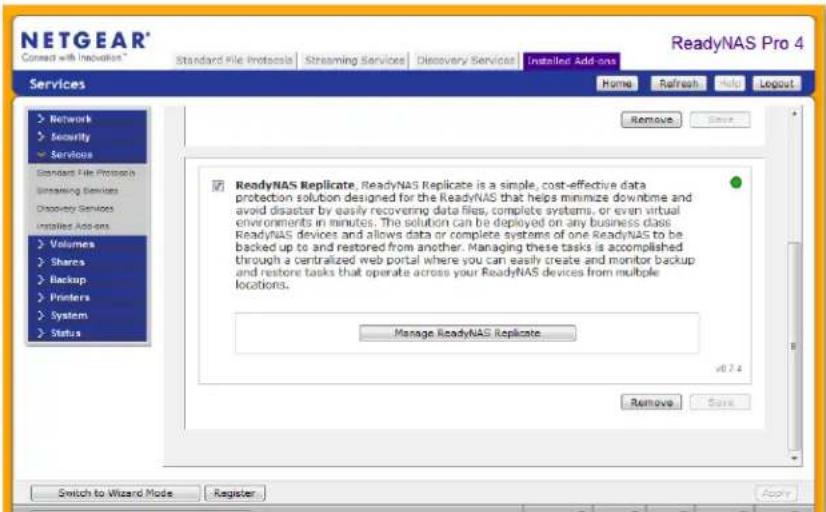
Go to Services > Installed Add-ons.
-
Select the ReadyNAS Replicate check box and click Save.
If you do not see the ReadyNAS Replicate add-on listed in your firmware, you can download it at www.replicate.readynas.com. See Installing the .bin File on page 13.
text_image
NETGEAR® Connect with Inoukines™ Standard File Protocols Streaming Services Discovery Services Installed Add-ons ReadyNAS Pro 4 Services Home Refresh Help Logout Network Security Services Standard File Protocols Streaming Services Discovery Services Installed Add-ons Volumes Shares Backup Printers System Status Remove... Save ReadyNAS Replicate. ReadyNAS Replicate is a simple, cost-effective data protection solution designed for the ReadyNAS that helps minimize downtime and avoid disaster by easily recovering data files, complete systems, or even virtual environments in minutes. The solution can be deployed on any business class ReadyNAS devices and allows data or complete systems of one ReadyNAS to be backed up to and restored from another. Managing these tasks is accomplished through a centralized web portal where you can easily create and monitor backup and restore tasks that operate across your ReadyNAS devices from multiple locations. Manage ReadyNAS Replicate v0 24 Remove... Save Switch to Wizard Mode Register Apply- Click the Manage ReadyNAS Replicate button to allow remote access to ReadyNAS Replicate. You will be prompted to enter a license key. If you do not have a license, you can:
• purchase a license using the link on the screen.
• purchase a license from your reseller.
• select the 45 day trial button to use the product without entering a key.
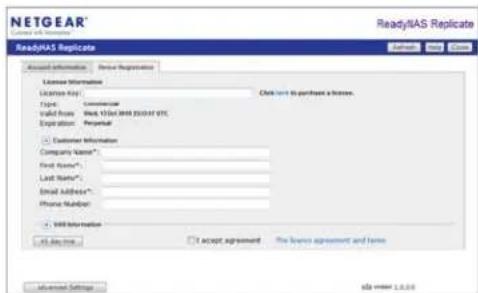
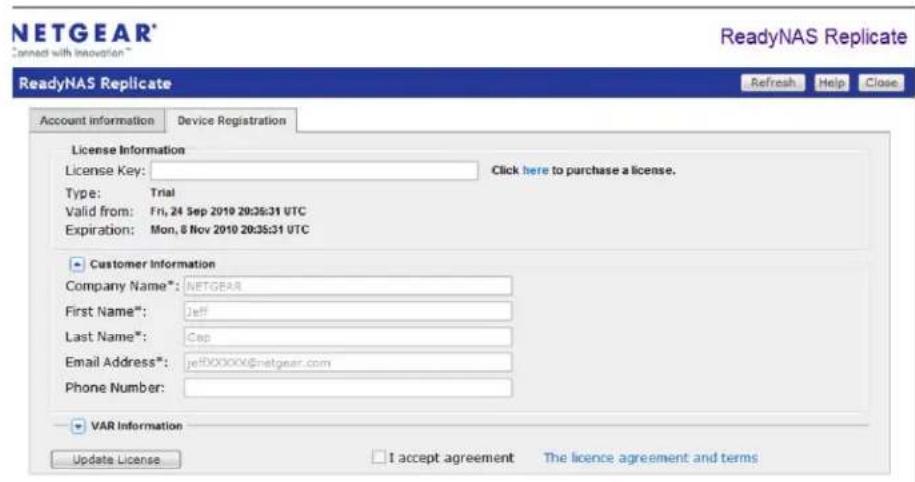
If you have purchased a license, you will receive an email confirmation with the license key. If you use the trial license, once you actually purchase a license, return to this screen, enter the valid license key, and press the Update License button to activate the product.
text_image
NETGEAR® ReadyNAS Replicate ReadyNAS Replicate License Information Location Key: Fax: Copyright Valid from: Web 1234.008.2010.07.07C Export status: Perpetual Customer Information Company Name(*): First Name(*): Last Name(*): Email Address(*): Phone Number: 1000 Information All data: Accept agreement For leave agreement and leave Advanced Settings SIA www.sia.org- Enter the license key to register your license information.
A valid license key auto-populates your account information. This account is used to administer the application on the device.
text_image
NETGEAR® Connected with Innovation™ ReadyNAS Replicate Refresh Help Close Account information Device Registration License Information License Key: Click here to purchase a license. Type: Trial Valid from: Fri, 24 Sep 2019 20:35:31 UTC Expiration: Mon, 8 Nov 2010 20:35:31 UTC Customer Information Company Name*: NETGEAR First Name*: Jeff Last Name*: Cap Email Address*: jeFDXXXXX@netgear.com Phone Number: VAR Information Update License □ I accept agreement The licence agreement and terms- Register the device.
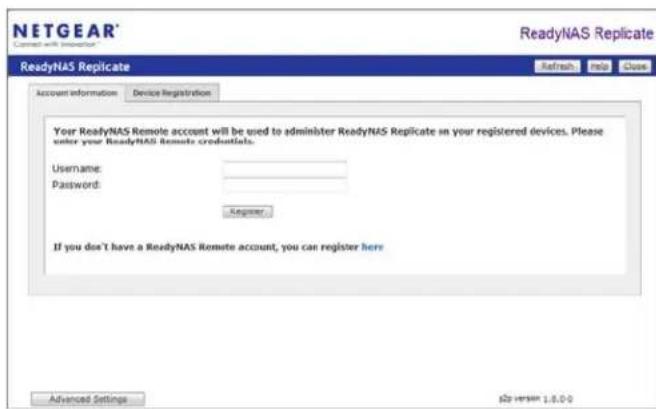
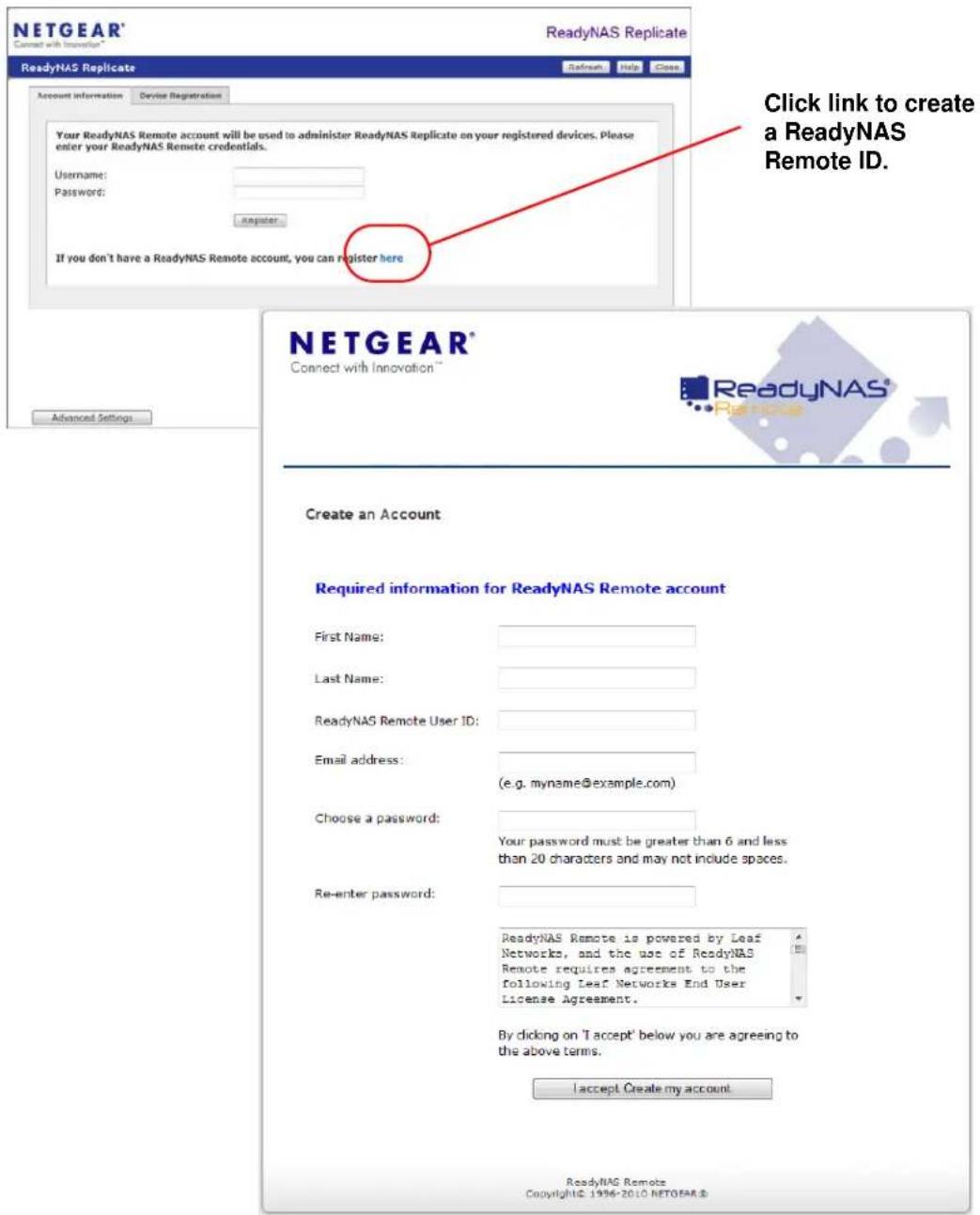
Once the license is registered, enter your ReadyNAS Remote ID to register the device so that it appears in the management portal. If you do not have a ReadyNAS Remote account, click the link to create one. See ReadyNAS Remote ID on page 15 to see the form.
text_image
NETGEAR® ReadyNAS Replicate Refresh Help Close ReadyNAS Replicate Account information Device Registration Your ReadyNAS Remote account will be used to administer ReadyNAS Replicate on your registered devices. Please enter your ReadyNAS Remote credentials. Username: Password: Register If you don't have a ReadyNAS Remote account, you can register here Advanced Settings No version 1.0.0Note: If the device is behind an http proxy, server, the license and user registration will not be possible until you enter the proxy setting. The values can be entered using the Advanced Settings button, which enables the configuration tab. See Proxy Settings on page 16.
Installing the .bin File
If the ReadyNAS Replicate add-on is not available on your firmware, you can download it from the Remote ID login screen, then upload it to your ReadyNAS using the FrontView Management Console.
To install the ReadyNASReplicate.bin file:
- Go to www.replicate.readynas.com.
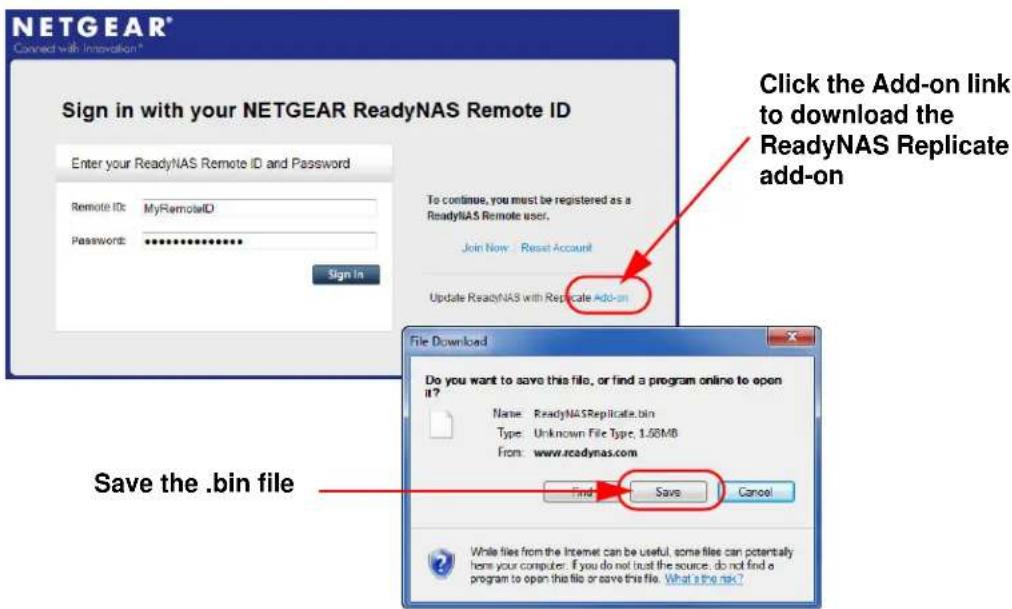
- Click the Update ReadyNAS with Replicate Add-on link, and save the ReadyNASReplicate.bin file to your computer, a USB drive, or other transfer medium.
text_image
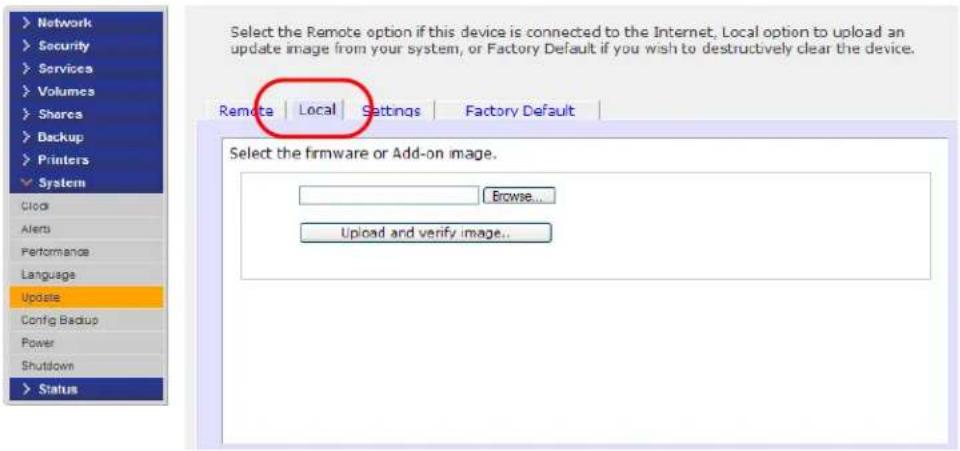
NETGEAR® Connect with Innovation® Sign in with your NETGEAR ReadyNAS Remote ID Enter your ReadyNAS Remote ID and Password Remote ID: MyRemoteID Password: ********** Sign In To continue, you must be registered as a ReadyNAS Remote user. Join Now - Reset Account Update ReadyNAS with Replicate Add-on Click the Add-on link to download the ReadyNAS Replicate add-on File Downloaded Do you want to save this file, or find a program online to open it? Name: ReadyNASReplicate.bin Type: Unknown File Type, 1.68MB From: www.readymas.com Find Save Cancel Save the .bin file While files from the Internet can be useful, some files can potentially have your computer. If you do not trust the source, do not find a program to open this file or save this file. What's the risk?- Once downloaded, open the FrontView Management Console on your ReadyNAS, go to Update > Local, and upload the .bin file. The process takes several minutes, after which you need to reboot the system. You can then proceed with the upgrade.
text_image
Select the Remote option if this device is connected to the Internet, Local option to upload an update image from your system, or Factory Default if you wish to destructively clear the device. Remote | Local | Settings | Factory Default | Select the firmware or Add-on image. Browse... Upload and verify image...Access ReadyNAS Replicate
To log into ReadyNAS Replicate:
1. Go to www.replicate.readynas.com.
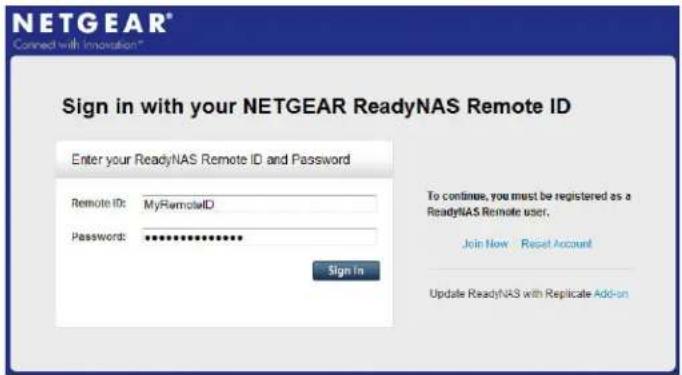
Enter your ReadyNAS Remote ID and password to launch the ReadyNAS Replicate application. The default home screen is Views > Network. From here you can see and manage all the registered devices on the network.
• If you do not have a Remote ID yet, click the Join now link.
- If you already have a Remote ID, but have forgotten your User ID or password, click the Reset account link.
text_image
NETGEAR® Connect with Innovation® Sign in with your NETGEAR ReadyNAS Remote ID Enter your ReadyNAS Remote ID and Password Remote ID: MyRemoteID Password: ********** Sign In To continue, you must be registered as a ReadyNAS Remote user. Join Now Reset Account Update ReadyNAS with Replicate Add-on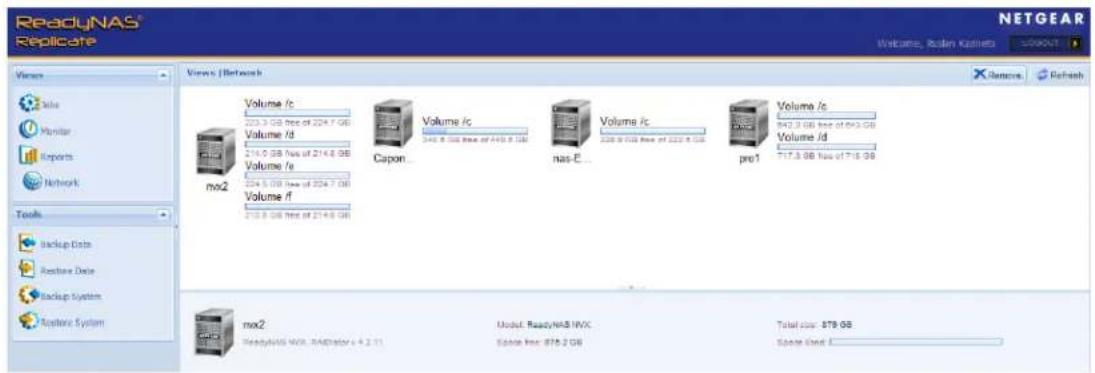
text_image
ReadyNAS® Replicate NetGEAR Welcome, Rostan Kashiyo NETGEAR Views | Networks Volume /c 203.3 GB free of 224.7 GB Volume /d 214.0 GB free of 214.8 GB Volume /e 224.5 GB free of 224.7 GB Volume /f 212.8 GB free of 214.8 GB Volume /c Volume /d Capon... Volume /c Volume /d Volume /f Volume /c Volume /d Volume /f Volume /c Volume /d Volume /f Volume /c Volume /d Volume /f Volume /c Volume /d Volume /f Volume /c Volume /d Volume /f Volume /c Volume /d Volume /f Volume /c Volume /d Volume /f Volume /c Volume /d Volume /f Volume /cReadyNAS Remote ID
To get a ReadyNAS Remote ID:
- If you do not have a ReadyNAS Remote account, click the link to create one.
text_image
NETGEAR® Connect with Innovation™ ReadyNAS Replicate Account information Device Registration Your ReadyNAS Remote account will be used to administer ReadyNAS Replicate on your registered devices. Please enter your ReadyNAS Remote credentials. Username: Password: Register: If you don't have a ReadyNAS Remote account, you can register here Click link to create a ReadyNAS Remote ID. Advanced Settings NETGEAR® Connect with Innovation™ ReadyNAS® Create an Account Required information for ReadyNAS Remote account First Name: Last Name: ReadyNAS Remote User ID: Email address: (e.g. myname@example.com) Choose a password: Your password must be greater than 6 and less than 20 characters and may not include spaces. Re-enter password: ReadyNAS Remote is powered by Leaf Networks, and the use of ReadyNAS Remote requires agreement to the following Leaf Networks End User License Agreement. By clicking on 'I accept' below you are agreeing to the above terms. I accept Create my account. ReadyNAS Remote Copyright© 1996-2010 NETGEAR®Proxy Settings
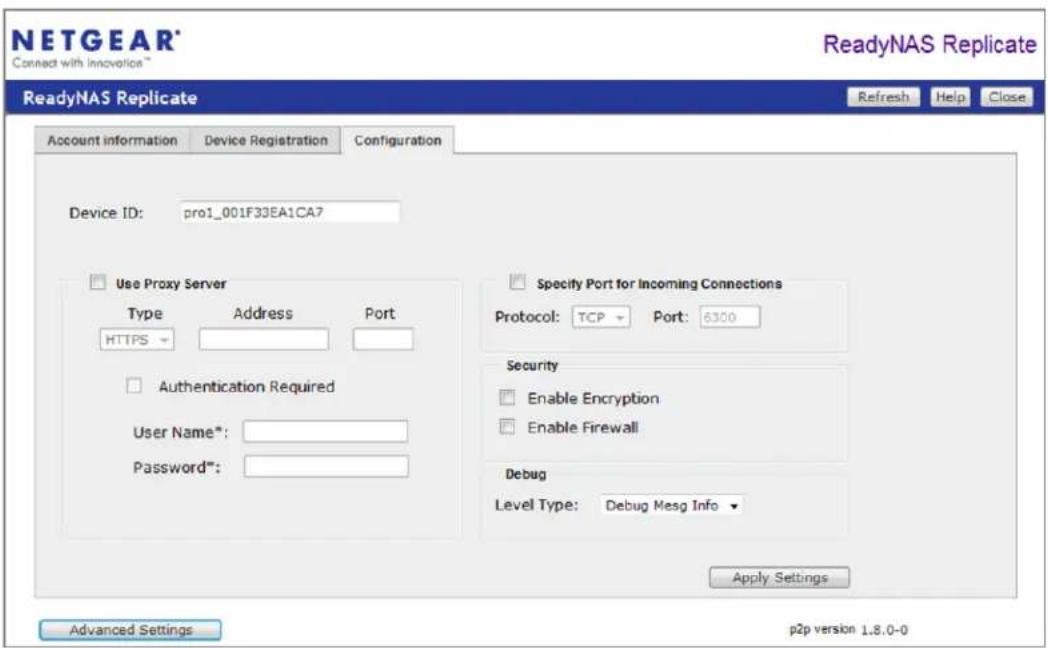
If the device is behind an http proxy, server, the license and user registration will not be possible until you enter the proxy setting.
The values can be entered using the Advanced Settings button, which enables the configuration tab.
To configure Proxy Settings:
- Go to the Configuration tab.
- Fill out the required fields.
- Click Apply Settings to save the changes.
text_image
NETGEAR® Connect with Innovation™ ReadyNAS Replicate Refresh Help Close Account information Device Registration Configuration Device ID: pro1_001F33EA1CA7 Use Proxy Server Type Address Port HTTPS Authentication Required User Name*: Password*: Specify Port for Incoming Connections Protocol: TCP Port: 6300 Security Enable Encryption Enable Firewall Debug Level Type: Debug Mesg Info Apply Settings Advanced Settings p2p version 1.8.0-0About ReadyNAS Remote
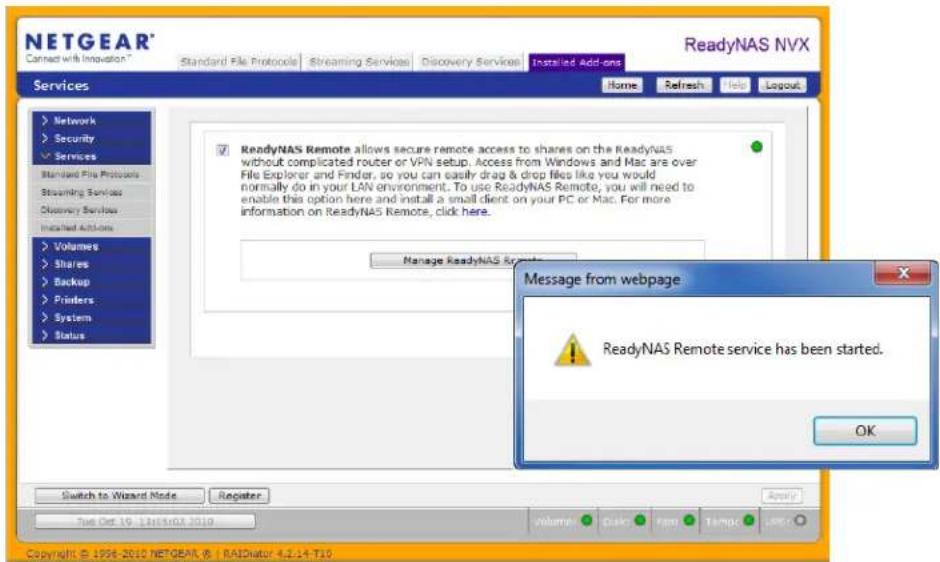
ReadyNAS Remote comes preinstalled on any ReadyNAS system, and allows secure, remote access to shares on your system. A ReadyNAS Remote ID is required in order to access the ReadyNAS Replicate application.
To install ReadyNAS Remote:
- Log into the ReadyNAS FrontView Management Console.
- Go to Services > Installed Add-ons.
- Select the ReadyNAS Replicate Remote check box and click Save.
text_image
NETGEAR® Connect with Innovation™ Standard File Protocols Streaming Services Discovery Services Installed Add-ons ReadyNAS NVX Services Home Refresh Help Logout Network Security Services Standard File Protocols Streaming Services Discovery Services Installed Actions Volumes Shares Backup Printers System Status ReadyNAS Remote allows secure remote access to shares on the ReadyNAS without complicated router or VPN setup. Access from Windows and Mac are over File Explorer and Finder, so you can easily drag & drop files like you would normally do in your LAN environment. To use ReadyNAS Remote, you will need to enable this option here and install a small client on your PC or Mac. For more information on ReadyNAS Remote, click here. Manage ReadyNAS Remote Message from webpage ReadyNAS Remote service has been started. OK Switch to Wizard Mode Register Apply Tue Oct 19 | Initioxt 2019 Volume Click Fast Tempo LPS Copyright © 1996-2010 NETGEAR® | RAIDuator 4.2.14-T10- Click the here link on the screen and follow the instructions in the article How to setup remote access with ReadyNAS Remote located on the website.
Here is a direct link to the website: http://www.readynas.com/?p=1435.
- Enable ReadyNAS Remote.
Be sure to note your UserID, email address, and password.
UserID:
email:
password:
For more information about how to set up remote access with ReadyNAS Remote, click the link on the FrontView Management Console interface, or go to http://readynas.com/remote.
See the ReadyNAS for Business Software Manual for more information about add-ons.
From the ReadyNAS Replicate Views area, you can create jobs, monitor your devices, and generate reports.
This chapter discusses the features in the View area:
• Monitor the Network
- About Jobs
• Monitor Jobs
- Run Job Reports
Monitor the Network
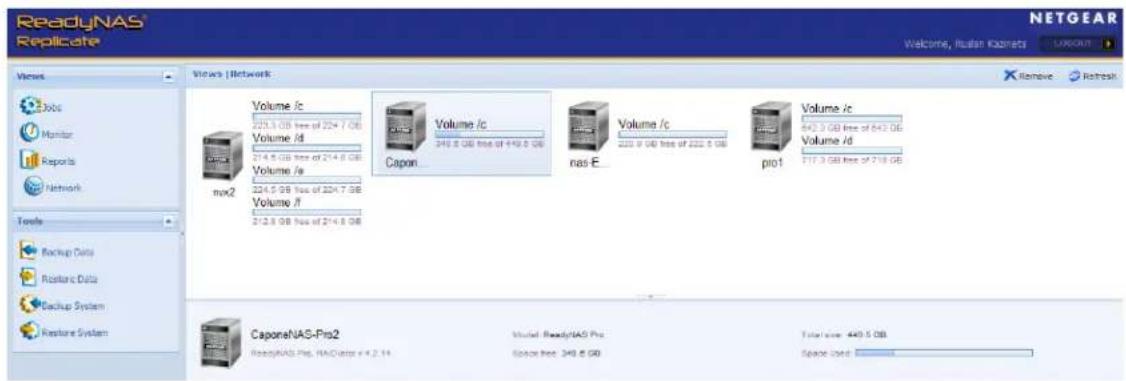
The ReadyNAS Replicate home page graphically displays all the devices registered on the network, and its status. Use this area to quickly see the exact parameters of all devices on your network.
The top panel shows the following information:
• Device name
• Each volume in the device
• Total size of each volume in the device
• Amount of space used on each volume
The bottom shows the following information:
- Device name
• RAIDiator firmware version
• Device model
• Free space on the device
• Total size of all volumes on the device
• Total space used on all volumes on the device
text_image
ReadyNAS Replicate Views | Network Volume /c 224.3 GB free of 224.7 GB Volume /d 214.5 GB free of 214.8 GB Volume /e 224.5 GB free of 224.7 GB Volume /f 212.3 GB free of 214.8 GB Volume /c 349.8 GB free of +49.0 GB Capone Volume /c 220.9 GB free of 222.5 GB nas-E Volume /c 642.3 GB free of 642.0 GB Volume /d 217.3 GB free of 218 GB pro1 Volume /c 642.3 GB free of 642.0 GB Volume /d 217.3 GB free of 218 GB CaponeNAS-Pro2 ReadyNAS Pro, NASCbps # 4.2.14 Model: ReadyNAS Pro Space free: 349.8 GB Total size: 449.5 GB Space Unit:About Jobs
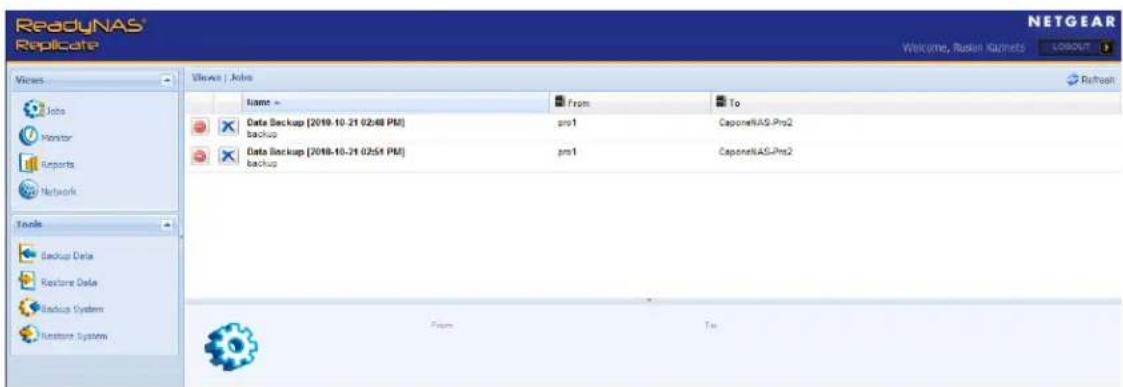
The Jobs area provides an easy way to add, and delete backup jobs.
Once a job is created, ReadyNAS Replicate will run that job based on the defined schedule set for that job.
In addition to the regularly scheduled job, at any time you have the option to:
• Disable the job by clicking the red icon.
• Re-enable a disabled job by clicking the red icon again.
- Delete the job by clicking the blue X icon.

To create a job:
- See Chapter 4, ReadyNAS Replicate Tools for more information.
text_image
ReadyNAS® Replicate Welcome, Russian Karnets NETGEAR Welcome, Russian Karnets Reboot Views Jobs Monitor Reports Network Tools Backup Data Restore Data Backup System Restore System Views / Jobs Name From To Data Backup [2018-10-21 02:48 PM] pri1 CaporeNAS-Pro2 backup Data Backup [2018-10-21 02:51 PM] pri1 CaporeNAS-Pro2 backup From TaxMonitor Jobs
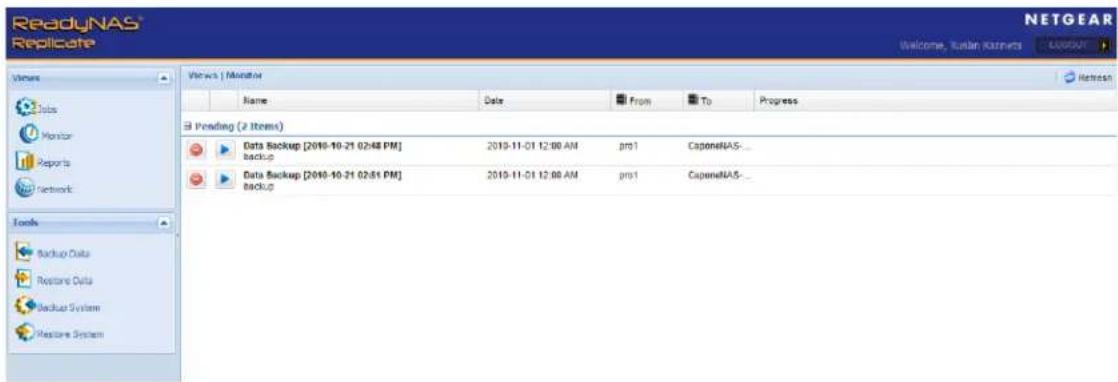
The Monitor area allows you to view the status of pending and active jobs. Active jobs are those currently running, while pending jobs are the next occurrence of a scheduled job. If you want, you can run a job immediately from the Monitor area.
At any time you have the option to:
- Skip the next occurrence of a scheduled job by clicking the red icon.
- Return the skipped job back to an enabled state by clicking the red icon again.
• Immediately run the job by clicking the blue play button.


text_image
ReadyNAS® Replicate Welcome, Rutan Kornets NetGEAR Lockout Views | Monitor Name Date From To Progress Pending (2 items) Data Backup [2010-10-21 02:48 PM] 2019-11-01 12:00 AM pro1 CaponeNAS... backup Data Backup [2010-10-21 02:51 PM] 2019-11-01 12:00 AM pro1 CaponeNAS...Run Job Reports
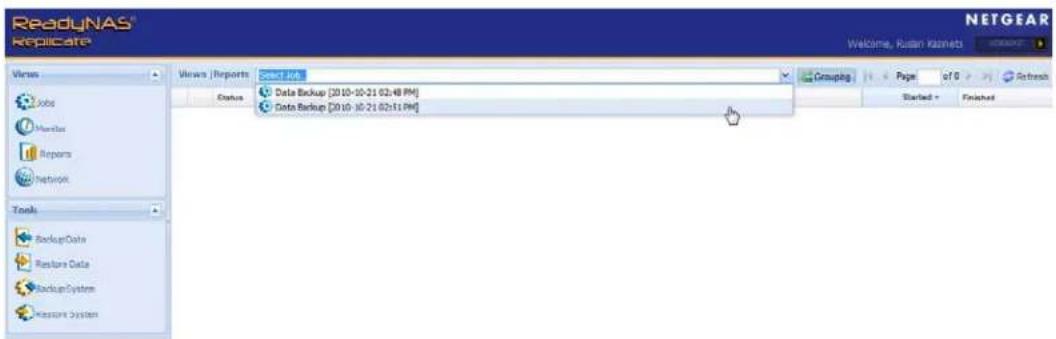
At your request, ReadyNAS Replicate generates reports that shows the outcome of a scheduled job.
To run a report:
- Select a job from the pulldown menu.
The report runs automatically, and generates a detailed progress report.
Click the + icon to see the specific details of the job. If a job fails, a generated report shows exactly where the problem occurred.
text_image
ReadyNAS® Replicate® Welcome, Rudin Karnets NETGEAR Views | Reports Status Backup Data Restore Data Backup System Restore System Data Backup [2010-10-21 02:48 PM] Data Backup [2010-10-21 02:51 PM] Groups Page of G Refresh Started > Finished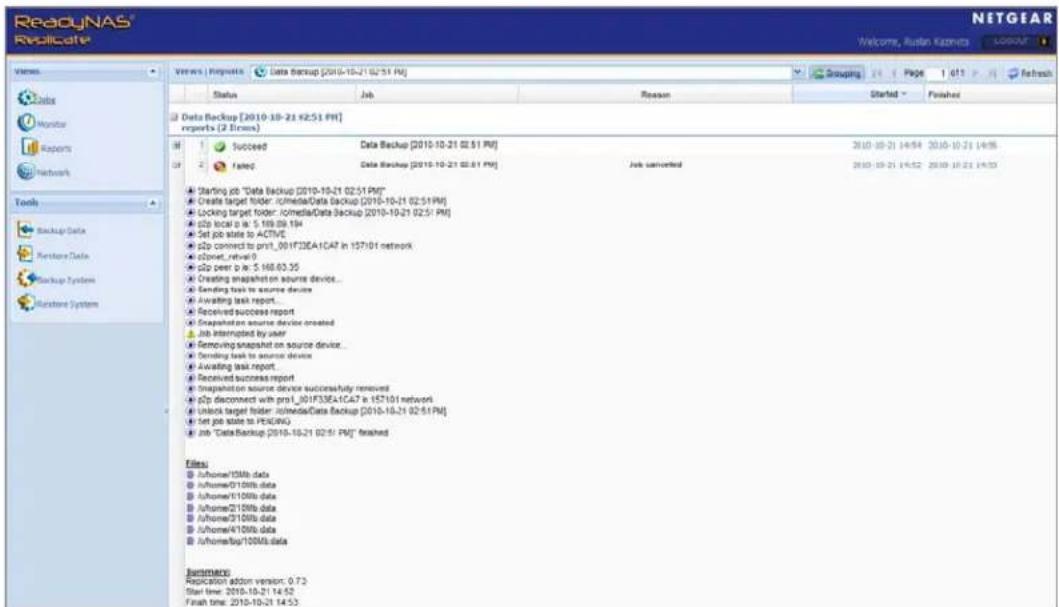
text_image
ReadyNAS® Replicate® Welcome Status Job Reason Starting job "Data backup (2010-10-21 02:51 PM) Succeed Data Backup (2010-10-21 02:51 PM) Failed Data Backup (2010-10-21 02:51 PM) Job cancelled 2010-10-21 14:54 2010-10-21 14:55 Starting job "Data backup (2010-10-21 02:51 PM)" Create target folder: icl/media/Data Backup (2010-10-21 02:51 PM) Locking target folder: icl/media/Data Backup (2010-10-21 02:51 PM) zip local job: 5.169.08.194 Set job state to ACTIVE zip connected to prot_001F3EA1CA7 in I57/01 network zipnet_reval:0 zip peer job: 5.168.63.35 Creating snapshot on source device... Sending task to source device Awaiting task report... Received success report Snapshot on source device created Job interrupted by user Removing snapshot on source device... Sending task to source device Awaiting task report... Received success report Snapshot on source device successfully removed zip disconnect with prot_001F3EA1CA7 in I57/01 network Unlock target folder: icl/media/Data Backup (2010-10-21 02:51 PM) Set job state to PENDING Job "Data Backup (2010-10-21 02:51 PM)" finished Files: #Home/10Mb data #Home/01Mb data #Home/21Mb data #Home/21Mb data #Home/41Mb data #Home/Up/10Mb data Remarks: Replication addon version: 0.73 Start time: 2010-10-21 14:52 Finish time: 2010-10-21 14:53Use the ReadyNAS Replicate Tools area to backup and restore data or the entire system.
This chapter discusses the features in the Tools area:
- Data Backup
• Data Restoration
Data Backup
Backup Data
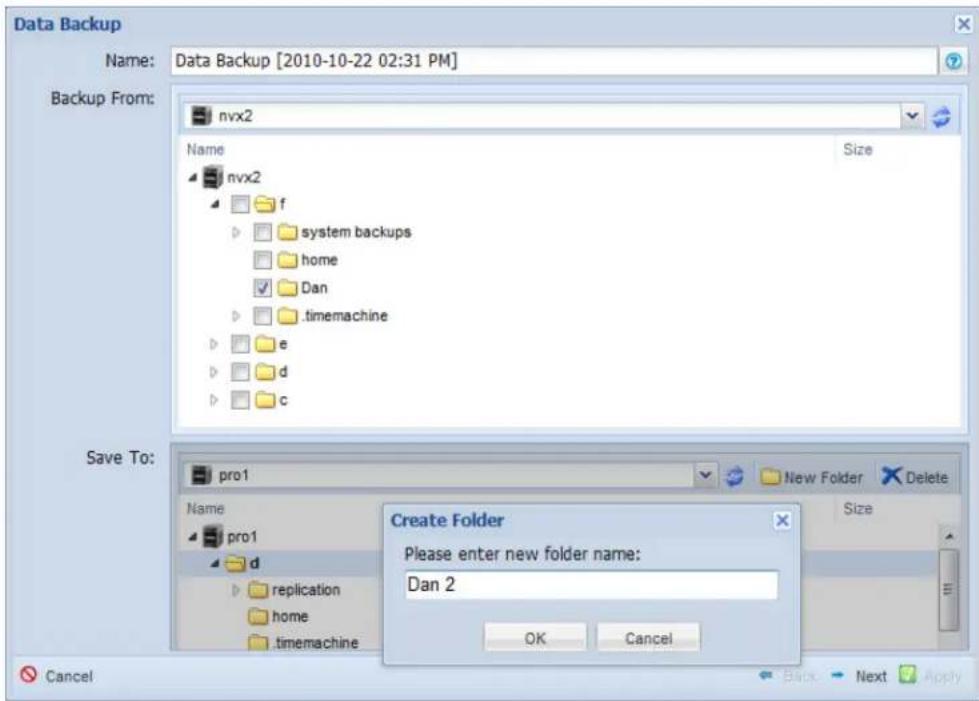
Scheduling backup jobs is easy and straight-forward. Use this option to backup data at the individual folder level.
To backup data:
- Click Backup Data from the Tools navigation panel.
- From the Backup From pulldown menu,
a. Select the device with the data you want to backup.
b. Check the folder with the data you want to backup.
If you do not check the box, you will get a message later telling you to select the data.
- From the Save To pulldown menu,
a. Select the device on which to copy the data.
If needed, click the New Folder button to create a new folder for it.
text_image
Data Backup Name: Data Backup [2010-10-22 02:31 PM] Backup From: nvx2 Name nvx2 f system backups home Dan .timemachine e d c Size Save To: pro1 New Folder Delete Name pro1 d replication home .timemachine Create Folder Please enter new folder name: Dan 2 OK Cancel Cancel Back Next Apply- Click Next to setup the backup job.
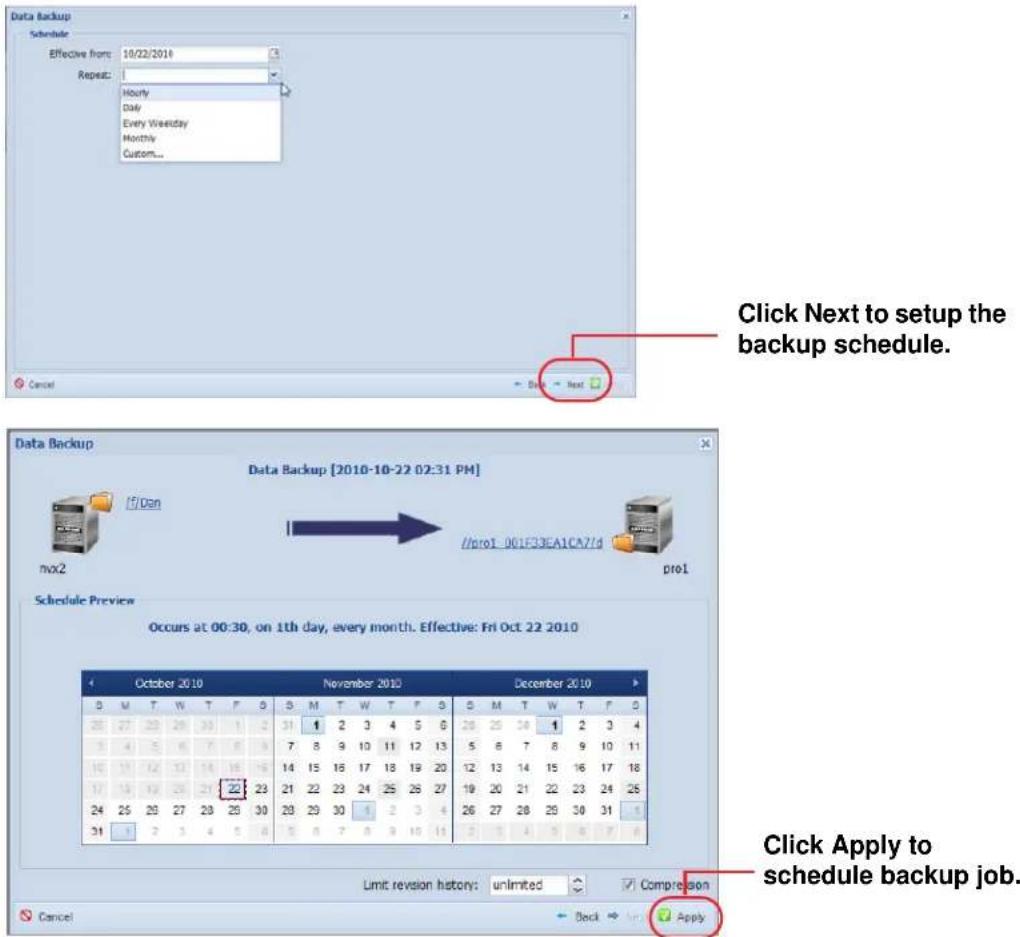
a. Select the date you want the backup to take effect.
b. Select a pattern from the Repeat pulldown menu.
Options are:
• Hourly
Daily
• Every weekday
• Monthly
- Custom
c. Depending on your choice, enter the fields, then
The custom setting offers hourly, daily, weekly and monthly options.
d. Click Next to preview the scheduled job, then click Apply to schedule the job.
text_image
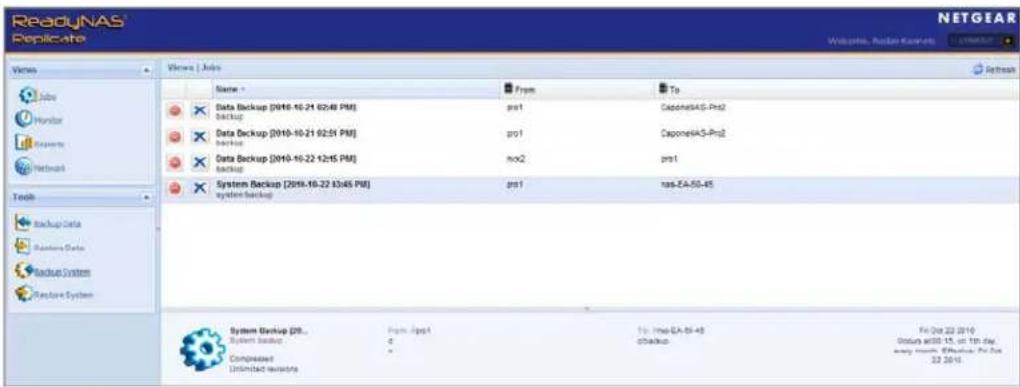
Data Backup Schedule Effective from: 10/22/2010 Repeat: Hourly Daily Every Weekday Monthly Custom... Cancel Data - Next Click Next to setup the backup schedule. Data Backup Data Backup [2010-10-22 02:31 PM] [/f:/Dan no2 //pro1_001F33EA1CA7/d pro1 Schedule Preview Occurs at 00:30, on 1th day, every month. Effective: Fri Oct 22 2010 October 2010 November 2010 December 2010 Limit revision history: unlimited Compression Apply Cancel Back- View the scheduled backup on the Jobs screen.
See Chapter 3, ReadyNAS Replicate Views for more information.
text_image
ReadynAS Replicate NetGEAR Welcome, Reader Kua-er Views | Jobs Name From To Data Backup [2010-10-21 62:48 PM] prot1 Capone645-Pro2 Backup prot1 Capone645-Pro2 Data Backup [2010-10-21 62:51 PM] prot1 Backup no2 prot1 Data Backup [2010-10-22 12:45 PM] prot1 Backup ns-ZA-50-45 System Backup [2010-10-22 13:45 PM] system backup System Backup (20... System backup Compressed Unlimited installers From: jgs1 d * To: time EN-01-45 checkup File Date 22.2010 Status add: 15, or 19 day. every month. Effective. File Date 22.2010.Backup System
Backing up an entire system is just as easy as backing up smaller data folders.
To backup system data:
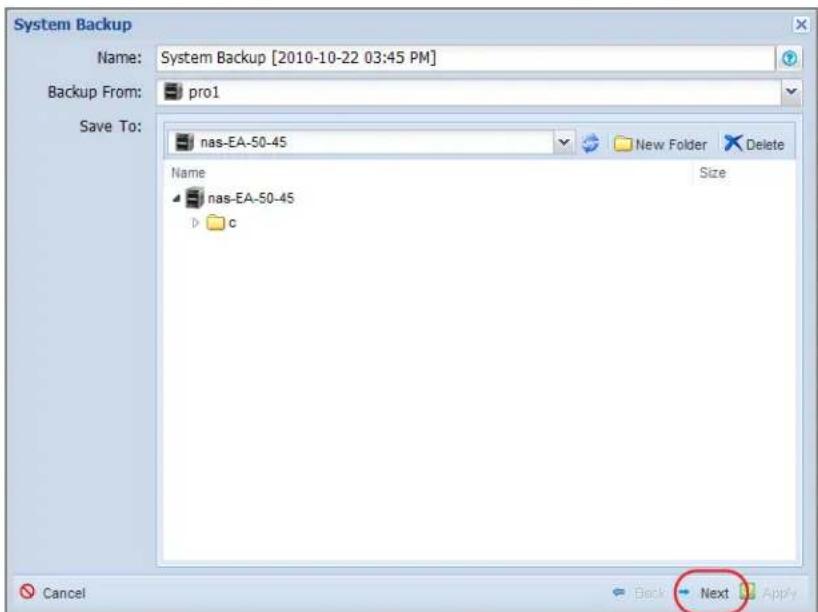
- Click Backup System from the Tools navigation panel.
- From the Backup From select the device from the pulldown menu.
- From the Save To pulldown menu, select the destination folder in which to copy the data. If needed, click the New Folder button to create a new folder.
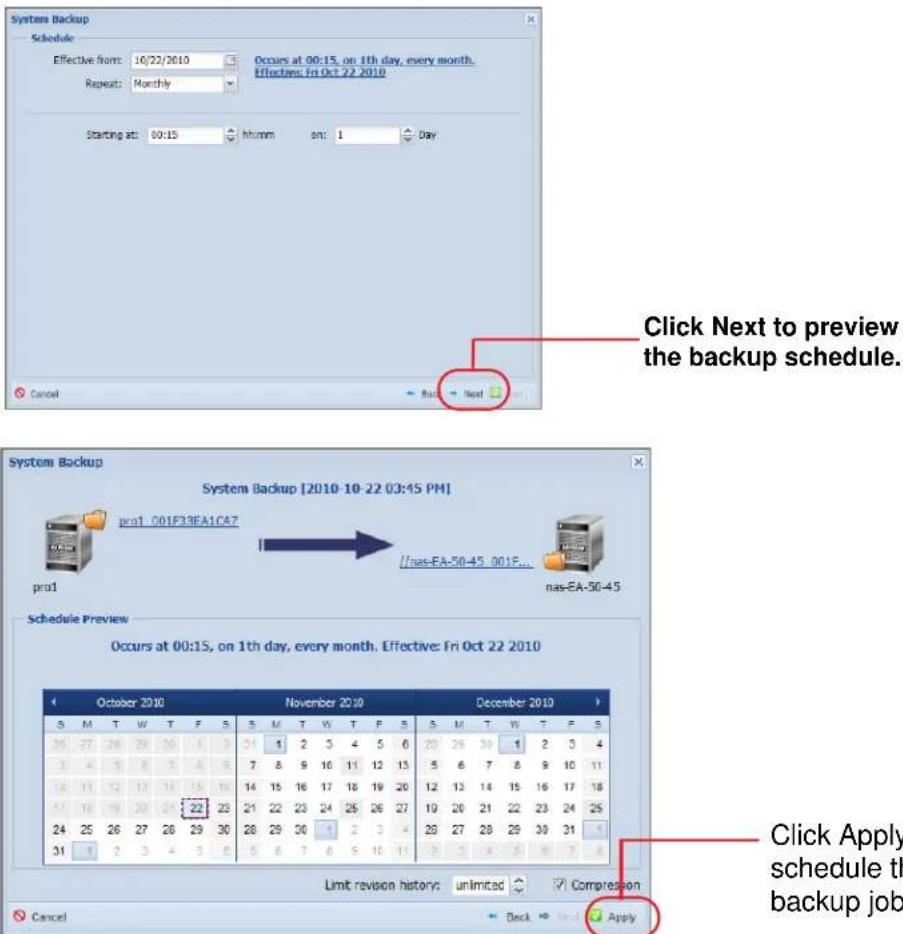
- Click Next to schedule the job.
a. Select the backup effective date from the Effective from field.
b. Select a pattern from the Repeat pulldown menu. Depending on your choice enter the information in the fields provided. Options are:
• Hourly
Daily
• Every weekday
• Monthly
- Custom
text_image
System Backup Name: System Backup [2010-10-22 03:45 PM] Backup From: pro1 Save To: nas-EA-50-45 New Folder Delete Name Size nas-EA-50-45 c Cancel Back Next ApplyClick Next to setup the backup schedule.
c. Click Next to preview the scheduled job, then click Apply to schedule the job.
text_image
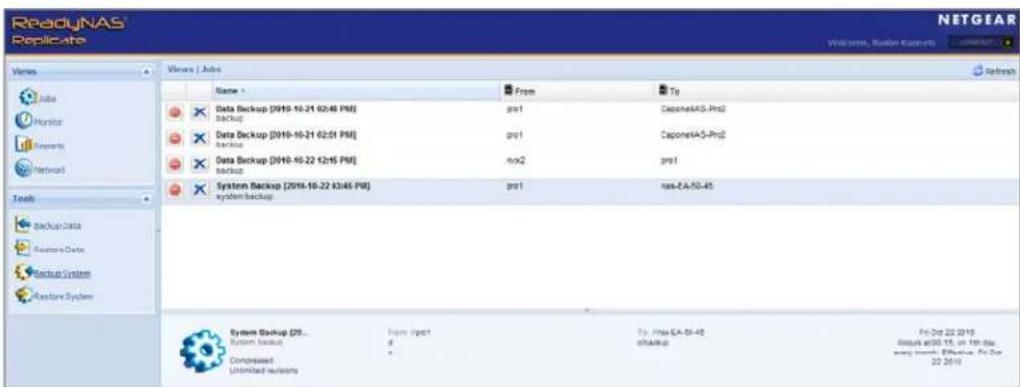
System Backup Schedule Effective from: 16/22/2010 Occurs at 00:15, on 1th day, every month. Repeat: Monthly Effectives Fri Oct 22 2010 Starting at: 00:15 hh:mm on: 1 Day Cancel Next Click Next to preview the backup schedule. System Backup System Backup [2010-10-22 03:45 PM] pro1.001F33EA1C47 //nas-EA-50-45 001F... pro1 nas-EA-50-45 Schedule Preview Occurs at 00:15, on 1th day, every month. Effective: Fri Oct 22 2010 October 2010 November 2010 December 2010 S M T W T F S S M T W T F S S M T W T F S 28 27 28 29 30 1 3 54 1 2 3 4 5 6 20 28 30 1 2 3 4 3 4 5 6 7 8 9 10 11 12 13 5 6 7 8 9 10 11 16 17 18 19 20 21 22 23 24 25 26 27 19 20 21 22 23 24 25 17 18 19 20 21 22 23 24 25 26 27 24 25 26 27 28 29 30 28 29 30 1 2 3 4 31 32 33 34 35 Limit revision history: unlimited ▼ Compression Apply Cancel Back Apply- View the scheduled system backup on the Jobs screen.
See Chapter 3, ReadyNAS Replicate Views for more information.
text_image
ReadyNAS® Replicate NetGEAR Welcome, Router Comms Refresh Views | Jobs Name > From To Data Backup [2019-10-21 62:48 PM] Backup pro1 CaponeiAS-Prs2 Data Backup [2019-10-21 62:51 PM] Backup pro1 CaponeiAS-Prs2 Data Backup [2019-10-22 12:15 PM] Backup nox2 pro1 System Backup [2019-10-22 43:45 PM] system backup pro1 has-EA-50-45 System Backup (DS... System backup d Compressed Unlimited installers To: has-EA-50-45 checkup Fri-Oct 22 2015 Status with 10:15, on 1st day, every month Effective. Fri Oct 22 2015Data Restoration
Restore Data
Restoring jobs is easy and straight-forward. Use this option to restore data at the individual folder level.
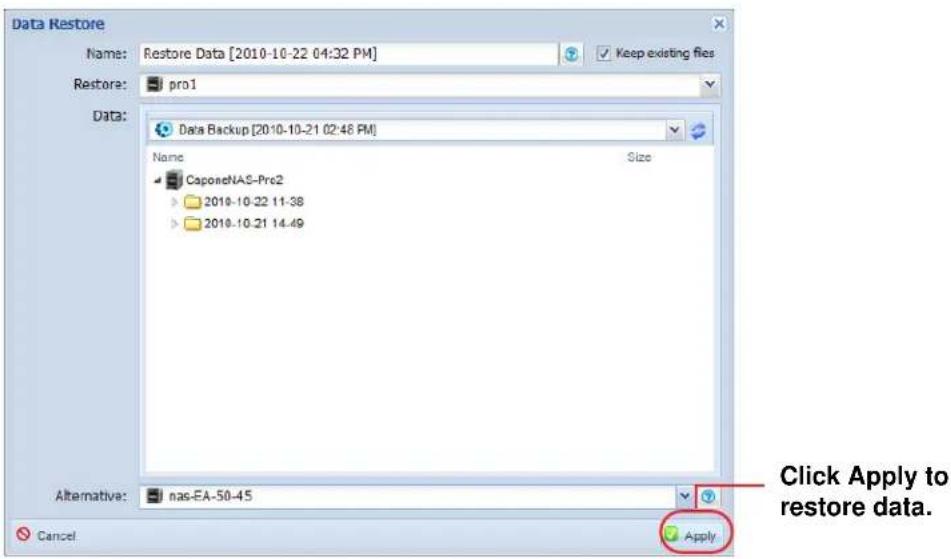
To restore data:
- Click Restore Data from the Tools navigation panel.
- From the Restore pulldown menu, select the device with the data you want to restore.
- From the Data pulldown menu, select the backup job to restore.
- If desired, select an Alternate device from the pulldown menu.
- Click Apply to accept the parameters.
text_image
Data Restore Name: Restore Data [2010-10-22 04:32 PM] Keep existing files Restore: pro1 Data: Data Backup [2010-10-21 02:48 PM] Name Size CaponeNAS-Pro2 2010-10-22 11-38 2010-10-21 14.49 Alternative: nas-EA-50-45 Cancel Apply Click Apply to restore data.Restore System
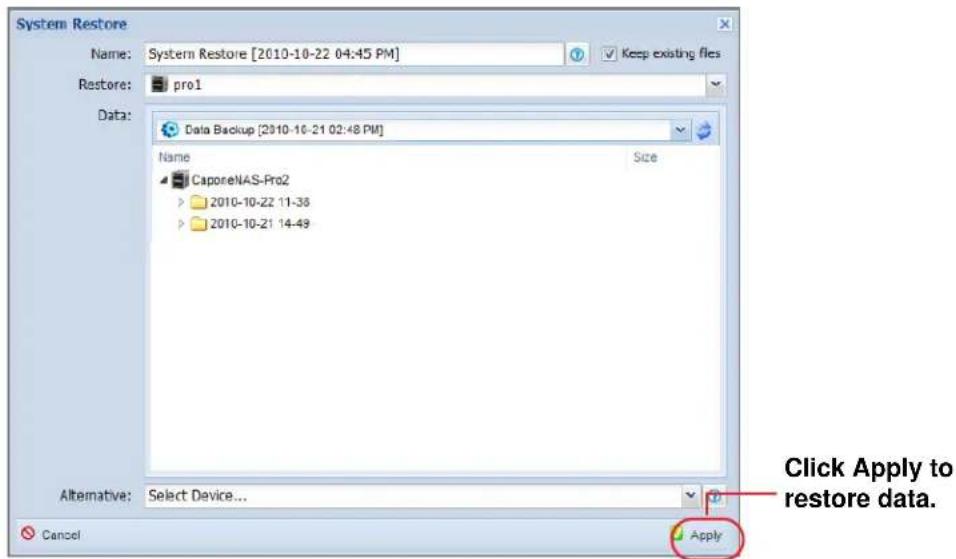
Use this option to perform a data restore at the system level.
To restore system data:
- Click Restore System from the Tools navigation panel.
- From the Restore pulldown menu, select the device with the data you want to restore.
- From the Data pulldown menu, select the backup job to restore.
- If desired, select an Alternate device from the pulldown menu.
- Click Apply to accept the parameters.
text_image
System Restore Name: System Restore [2010-10-22 04:45 PM] Keep existing files Restore: pro1 Data: Data Backup [2010-10-21 02:48 PM] Name Size CaporeNAS-Pro2 2010-10-22 11-38 2010-10-21 14-49 Alternative: Select Device... Cancel Apply Click Apply to restore data.Network Virtualization and Architecture

Network Virtualization is the process of combining hardware and software network resources and network functionality into a single, software-based administrative entity.
Virtualizing ReadyNAS devices on a single virtual LAN simplifies the setup and configuration of backup and restore jobs. Use ReadyNAS Remote to automatically create on-demand, encrypted point-to-point connections between ReadyNAS units, without the need for manual network setup or configuration.
Once your ReadyNAS is added to your replication network, you can use it as either a source or a target for replication tasks. Additionally, there is no need to set up a VPN or SSH tunnel for secure communications between devices.
This chapter discusses:
• ReadyNAS Replicate Virtualization
- Architecture
- Security
• Performance
ReadyNAS Replicate Virtualization
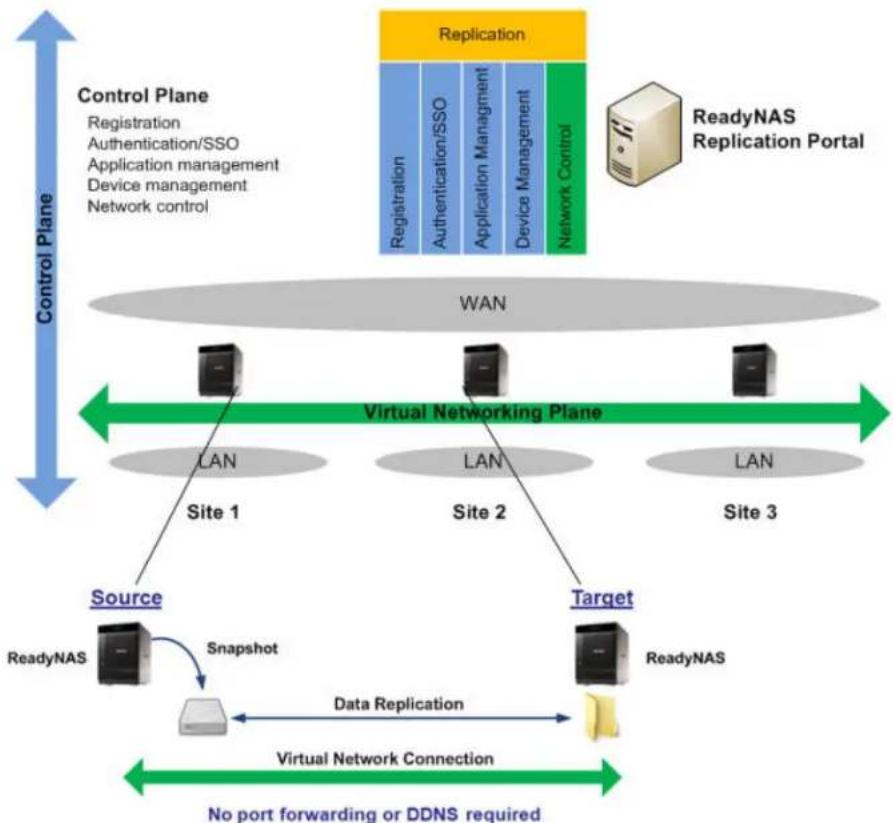
With ReadyNAS Replicate you control your own virtual local area network using a cloud-based management portal that allows you to add or remove devices from your network from anywhere.
flowchart
graph TD
    A["Control Plane"] --> B["Replication"]
    B --> C["ReadyNAS Replication Portal"]
    C --> D["Virtual Networking Plane"]
    D --> E["Source"]
    E --> F["ReadyNAS"]
    F --> G["Snapshot"]
    G --> H["Data Replication"]
    H --> I["Virtual Network Connection"]
    I --> J["No port forwarding or DDNS required"]
    style A fill:#f9f,stroke:#333
    style B fill:#ccf,stroke:#333
    style C fill:#cfc,stroke:#333
    style D fill:#fcc,stroke:#333
    style E fill:#cff,stroke:#333
    style F fill:#ffc,stroke:#333
    style G fill:#cfc,stroke:#333
    style H fill:#fcc,stroke:#333
    style I fill:#ffc,stroke:#333
Figure 2. Data replication using network virtualization and web portal management application
Once a device is added to your network and is registered with the centralized management portal, it can participate in any backup or restore task, and maintains a persistent connection used by the portal to manage replication tasks. Devices in your network communicate as if there were on the same local area connection. The fully encrypted private virtual connection created between units is created on demand without the need for manual network configuration.
Architecture
ReadyNAS Replication software application allows you to create an on-demand virtual private connection between two or more ReadyNAS units. Unlike traditional VPN application, this connection is established without the need for any complicated setup; all you need to do is add your ReadyNAS to your virtual network and register the unit with the centralized management portal. Once the connection is formed, your devices act as if they are on the same LAN.
ReadyNAS Replication runs on business-class ReadyNAS units, and forms a direct connection between any two devices. This connection is facilitated by our ReadyNAS Remote servers. With few exceptions, once the connection is established, the ReadyNAS Remote servers are not used, and forms a direct connection between your units. With a direct or relayed connection your data is safe and fully encrypted using NETGEAR's end-to-end security model; only the endpoints can decode the data. In very few cases, when a direct connection cannot be formed, our relay servers are used to create the connection ^1 .
In order to form a connection between your ReadyNAS units, both devices need to be registered with our ReadyNAS Remote servers. Your ReadyNAS automatically registers itself once the Replication add on has been enabled. Your device uses its unique MAC address as its user name, but there is no reason to remember this user name since it is always readily available in your Replication network.
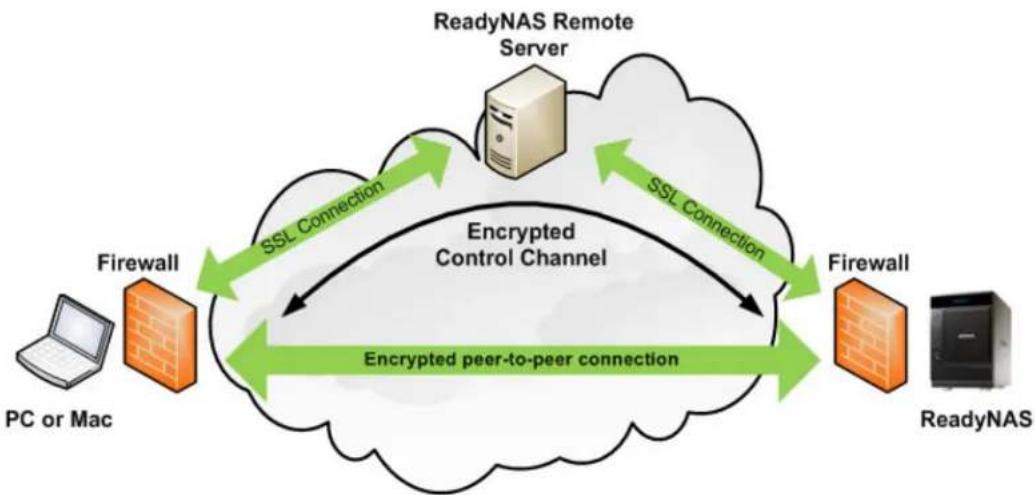
Once your ReadyNAS devices are registered, they log into and form an SSL connection with the ReadyNAS Remote servers. The ReadyNAS Remote servers are then used to form a control channel. The control channel is used to route end-to-end control messages between ReadyNAS units.
For example, one ReadyNAS might request a connection to another ReadyNAS. In this case, a control message flows from the caller, through the ReadyNAS Remote Servers, to the callee. The receiving ReadyNAS can choose to accept or decline the incoming connection request, and send a response back to the caller over the same control channel. If the connection is allowed by the ReadyNAS, the connection setup begins.
During the connection setup phase, our patented NAT traversal technique is used to setup a direct peer-to-peer connection between ReadyNAS units so no port-forwarding or dynamic DNS is required. The connection setup phase requires temporary use of ReadyNAS Remote servers, and exchanges AES keys, which are only shared between endpoints so the data the flows between the devices is protected by end-to-end encryption. Once the peer-to-peer connection is formed, the data travels directly between your ReadyNAS devices.
Figure 3 shows how the control channel is used to route messages between units, send responses back to the caller, and uses NAT traversal technique so no port-forwarding or dynamic DNS is required.
flowchart
graph TD
    A["PC or Mac"] --> B["Firewall"]
    B --> C["Encrypted Control Channel"]
    C --> D["ReadyNAS Remote Server"]
    D --> E["Firewall"]
    E --> F["ReadyNAS"]
    F --> G["Encrypted peer-to-peer connection"]
    G --> C
    C --> H["SSL Connection"]
    H --> D
    D --> I["SSL Connection"]
    I --> C
    style A fill:#f9f,stroke:#333
    style B fill:#ccf,stroke:#333
    style C fill:#cfc,stroke:#333
    style D fill:#fcc,stroke:#333
    style E fill:#cff,stroke:#333
    style F fill:#ffc,stroke:#333
    style G fill:#cfc,stroke:#333
    style H fill:#fcc,stroke:#333
    style I fill:#cff,stroke:#333
Figure 3. Connection setup with ReadyNAS Remote
Security
ReadyNAS Replication offers end-to-end security for remote data access, as outlined below:
- ReadyNAS Replication running on the ReadyNAS securely (SSL) authenticates with and connects to ReadyNAS Remote server.
- The administrator of the ReadyNAS Replication securely (SSL) logs into the ReadyNAS Replication configuration page locally and adds the ReadyNAS to his/her replication network.
- Once the devices have authenticated, the ReadyNAS Remote server will send over SSL connection, a list of ReadyNAS devices to which are in the Replication administrator's network.
- Using the control channel setup with the ReadyNAS Remote server, ReadyNAS sends a connection setup request to another ReadyNAS. If the requesting ReadyNAS is in the access control list located on the ReadyNAS, the connection setup is allowed to proceed.
- During the connection setup, the ReadyNAS units then exchange 256 AES keys with so that the keys are only known by the two endpoints.
- Once the connection is formed, all data is encrypted and transported directly between the two endpoints and only the endpoint can decrypt the data.
It is not possible for users or devices that are not in the access control list, or who has not been authenticated with the ReadyNAS Remote server can access your ReadyNAS.
Although ReadyNAS Remote could potentially be used as a VPN connection to your ReadyNAS, it is only allowed to transport replication services between your ReadyNAS devices; all other ports on the virtual network are blocked.
Performance
As typical of any VPN application, ReadyNAS Remote uses an additional TCP or UDP header that introduces marginal bandwidth overhead in order to tunnel from the private network interface. The relative overhead depends on the size of the packet being transmitted, however, on average, the ReadyNAS Remote overhead is approximately 5%.
Since ReadyNAS Remote is a user space application (as opposed to a kernel application) it also consumes some CPU resources. All traffic flowing over the virtual network is encrypted and with a packet-inspected firewall to allow only CIFS/SMB and AFP traffic. The amount of CPU resources used depends on the data transfer rate.
For example, if using ReadyNAS Remote and transferring data over a 100 Mbps LAN you may see some measurable CPU usage. The CPU usage may be reduced by not encrypting the traffic flow.
To disable encryption and improve performance:
- Go to Properties in the Mac or Windows client and choose the option to disable Encryption.

WARNING!
NETGEAR does not suggest disabling encryption, but it is an option if you are comfortable with your networking environment and need to boost performance.
Index
A
add-ons
remote 15, 17
architecture 33
B
backup 7
C
control channel 33
E
encryption 35
F
features 6
M
management features 8
management portal 8
O
overview 6
R
remote add-on 15, 17
remote data access 34
restore 7
S
security 34
T
technical support 2
trademarks 2
U
unstructured file data 7
V
virtualization 31