RT338 - Router NETGEAR - Free user manual and instructions
Find the device manual for free RT338 NETGEAR in PDF.


User questions about RT338 NETGEAR
0 question about this device. Answer the ones you know or ask your own.
Ask a new question about this device
Download the instructions for your Router in PDF format for free! Find your manual RT338 - NETGEAR and take your electronic device back in hand. On this page are published all the documents necessary for the use of your device. RT338 by NETGEAR.
USER MANUAL RT338 NETGEAR
Reference Guide for the Model RT338 ISDN Router
NETGEAR
NETGEAR, Inc. 4500 Great American Parkway Santa Clara, CA 95054 USA
M-RT338NA-1 October 2000
© 2000 by NETGEAR, Inc. All rights reserved.
Trademarks
NETGEARTM is a trademark of Netgear, Inc. Windows® is a registered trademark of Microsoft Corporation. Other brand and product names are trademarks or registered trademarks of their respective holders. Information is subject to change without notice. All rights reserved.
Statement of Conditions
In the interest of improving internal design, operational function, and/or reliability, NETGEAR reserves the right to make changes to the products described in this document without notice.
NETGEAR does not assume any liability that may occur due to the use or application of the product(s) or circuit layout(s) described herein.
Federal Communications Commission (FCC) Compliance Notice: Radio Frequency Notice
This device complies with part 15 of the FCC Rules. Operation is subject to the following two conditions:
- This device may not cause harmful interference.
- This device must accept any interference received, including interference that may cause undesired operation.
Note: This equipment has been tested and found to comply with the limits for a Class B digital device, pursuant to part 15 of the FCC Rules. These limits are designed to provide reasonable protection against harmful interference in a residential installation. This equipment generates, uses, and can radiate radio frequency energy and, if not installed and used in accordance with the instructions, may cause harmful interference to radio communications. However, there is no guarantee that interference will not occur in a particular installation. If this equipment does cause harmful interference to radio or television reception, which can be determined by turning the equipment off and on, the user is encouraged to try to correct the interference by one or more of the following measures:
- Reorient or relocate the receiving antenna.
- Increase the separation between the equipment and receiver.
- Connect the equipment into an outlet on a circuit different from that to which the receiver is connected.
- Consult the dealer or an experienced radio/TV technician for help.
EN 55 022 Declaration of Conformance
This is to certify that the Model RT338 ISDN Router is shielded against the generation of radio interference in accordance with the application of Council Directive 89/336/EEC, Article 4a. Conformity is declared by the application of EN 55 022 Class B (CISPR 22).
Certificate of the Manufacturer/Importer
It is hereby certified that the Model RT338 ISDN Router has been suppressed in accordance with the conditions set out in the BMPT-AmtsblVfg 243/1991 and Vfg 46/1992. The operation of some equipment (for example, test transmitters)
in accordance with the regulations may, however, be subject to certain restrictions. Please refer to the notes in the operating instructions.
Federal Office for Telecommunications Approvals has been notified of the placing of this equipment on the market and has been granted the right to test the series for compliance with the regulations.
VCCI-2 Statement
This equipment is in the 2nd Class category (information equipment to be used in a residential area or an adjacent area thereto) and conforms to the standards set by the Voluntary Control Council for Interference by Data Processing Equipment and Electronic Office Machines aimed at preventing radio interference in such residential areas.
When used near a radio or TV receiver, it may become the cause of radio interference.
Read instructions for correct handling.
Customer Support
For assistance with installing and configuring your NETGEAR system or with post-installation questions or problems, contact your point of purchase representative.
To contact customer support or to purchase additional copies of this document and publications for other NETGEAR products, you can contact NETGEAR at the following numbers:
- Phone:
Australia: 1800-787-638 Korea: 00308-11-0319
Austria: 00800-06384327 Netherlands: 0800-023-0981
(00800-0-NETGEAR) New Zealand: 00800-1233-4566
Denmark: 808-82179 Norway: 800-12041
Canada: 1-888-NETGEAR Singapore: 001-800-1233-4566
Finland: 0800-111-036 Sweden: 0200-298-298
France: 0800-77-17-53 Switzerland: 00800-0638-4327
Germany: 00800-06384327 (00800-0-NETGEAR)
(00800-0-NETGEAR) United Kingdom: 020-7216-0014
Hong Kong: 001-800-1233-4566 United States: 1-888-NETGEAR
Japan: 0120-66-5402 All Other Countries: +1 801-236-8499
World Wide Web
NETGEAR maintains a World Wide Web home page that you can access at the universal resource locator (URL) http://www.NETGEAR.com. A direct connection to the Internet and a Web browser such as Internet Explorer or Netscape are required.
Contents
Preface
Purpose ....xix
Audience ....xix
Conventions ...... xx
Special Message Formats .... xx
Use of Enter, Type, Press, and Click .... xx
Other Conventions ......xxi
Related Publications ....xxi
Chapter 1 Introduction
About the Router 1-1
Features 1-1
Key Features 1-2
ISDN Support 1-3
Multilink PPP Support 1-4
TCP/IP Support 1-4
IP Address Masquerading by Dynamic NAT+ 1-4
Port Forwarding with NAT 1-4
Automatic Configuration of Attached PCs by DHCP 1-4
DNS Proxy 1-5
Security 1-5
Calling Line Identification 1-5
PAP and CHAP Authentication 1-5
Callback 1-5
Management Support 1-6
Contents v
Basic Router Concepts ....1-6
What is a Router? 1-6
Routing Information Protocol 1-7
IP Addresses and the Internet 1-7
Netmask 1-9
Subnet Addressing 1-10
Private IP Addresses 1-12
Single IP Address Operation Using NAT 1-12
MAC Addresses and Address Resolution Protocol 1-14
Domain Name System Server 1-14
IP Configuration by DHCP 1-15
Chapter 2
Installing and Connecting the Router
Package Contents 2-1
Local Network Requirements 2-2
Hardware Requirements 2-2
Software Requirements 2-2
Router Description 2-3
Connecting the Serial Cable (Optional) 2-6
Connecting to the ISDN Port 2-6
Connecting the Ethernet Cable 2-6
Connecting the Model RT338 Router to a Single PC 2-6
Connecting the Model RT338 Router to a Hub or Switch 2-7
Connecting a Telephone, Fax Machine, or Modem 2-7
Connecting the Power Adapter 2-7
Verifying Power 2-8
Chapter 3
Preparing Your Network
ISDN Services Checklist 3-1
ISP Checklist 3-2
Single-User Account 3-2
LAN Account 3-3
Account Information 3-3
Installing TCP/IP 3-4
vi Contents
Configuring TCP/IP 3-4
Selecting IP Addresses for Your Network 3-5
Connecting for Configuration 3-6
Connecting Through a Serial Port 3-6
Connecting with Microsoft Windows HyperTerminal ....3-7
Reconnecting with Microsoft Windows HyperTerminal 3-11
Connecting Through a Telnet Connection ....3-12
Chapter 4
Initial Router Configuration
Configuration Methods 4-1
Using the FirstGear Router Configuration Utility 4-2
Installing FirstGear 4-2
Choosing Between the Setup Wizard and Advanced Setup 4-3
Starting FirstGear 4-3
Reading the Current Configuration ....4-4
Using the Manager Interface Configuration Method ....4-4
Turning On Power to the Router 4-4
Navigating the Manager 4-5
Manager Menu Summary 4-6
General Setup Menu 4-7
ISDN Setup Menu 4-8
ISDN Advanced Setup Menu 4-10
Ethernet Setup 4-12
General Setup Menu 4-12
TCP/IP and DHCP Setup 4-12
Setting the Manager Password 4-16
Chapter 5
Using FirstGear to Configure Internet Access
Configuring Internet Access with the Wizard 5-1
Entering the ISDN Line Information 5-2
Initializing ISDN and Performing the Loopback Test ....5-3
Setting ISP Parameters ....5-4
Performing the ISP Connection Test 5-6
Completing the Configuration ....5-7
Contents vii
Using Advanced Setup 5-8
Advanced Setup 5-8
Menu Bar Commands 5-11
General Tab 5-12
ISDN Tab 5-13
ISDN Advanced Features Tab 5-15
Ethernet Tab 5-17
Remote Node Tab 5-19
Selecting PPP Detail on the Remote Node Tab 5-23
Selecting TCP/IP Detail on the Remote Node Tab 5-25
Static Routes Tab 5-27
Chapter 6
Using the Manager Interface to Configure Internet Access
Information Checklist 6-1
Configuring Internet Access 6-2
Configuring for Local Servers with NAT 6-4
Local Web and FTP Server Example 6-5
Local Game Host or Videoconference Example 6-6
Backup ISP Accounts 6-7
Configuring for a Backup ISP 6-7
Switching to a Backup ISP 6-9
Chapter 7
Remote Node Configuration
LAN-to-LAN Application 7-2
Remote Node Setup 7-2
Editing PPP Options 7-7
Bandwidth on Demand 7-9
Editing IP Options 7-10
Editing Filter Sets 7-12
Setting Static Routes 7-14
viii Contents
Chapter 8
Configuring Dial-In Access
Setting Up Default Dial-In Access 8-2
Setting Up Dial-In Users 8-5
RADIUS Authentication 8-8
RADIUS Server Configuration 8-8
RADIUS Client Configuration 8-9
The Key Field 8-10
Adding Users to the RADIUS Database 8-10
Using RADIUS Authentication for CLID 8-11
Chapter 9
Configuring Filters
Router Filter Structure 9-2
Configuring a Filter Set 9-2
Configuring a Filter Rule 9-5
TCP/IP Filter Rule 9-5
Generic Filter Rule 9-7
Applying a Filter Set 9-8
Reducing Unnecessary Calls by Microsoft Windows 9-9
Diagnosing the Situation 9-9
Implementing the Filter 9-11
Applying the Filter 9-14
Chapter 10
Advanced Phone Features
Setting Up Supplemental Phone Service 10-1
Call Waiting 10-2
Three Way Calling 10-3
Call Transfer 10-4
Call Forwarding 10-4
Contents ix
Chapter 11
System Maintenance
System Status 11-1
System Information 11-4
Terminal Baud Rate 11-5
Log and Trace 11-6
View Error Log 11-6
UNIX Syslog and Accounting 11-7
Diagnostic Menu 11-9
Call Testing and TCP/IP Tools 11-10
System Tools 11-12
Back Up and Restore Configuration 11-12
Backing Up and Restoring the Configuration with a Serial Connection ....11-12
Backing Up and Restoring the Configuration Using TFTP 11-13
Software Update 11-14
Updating Router Software Using a Serial Connection ....11-14
Updating Router Software Using TFTP 11-15
Using Command Interpreter Mode ....11-15
Configuring Call Control 11-16
Configuring the Blacklist 11-16
Configuring Budget Management 11-16
Viewing Call History 11-17
Setting Call Control Parameters 11-17
Configuring the Manager Password 11-18
Chapter 12
Troubleshooting
Basic Functioning 12-1
PWR LED 12-1
Test LED 12-2
LAN Link LED 12-2
Troubleshooting the ISDN Line 12-2
ISDN Initialization or Reset 12-3
ISDN Loopback Test 12-3
x Contents
Troubleshooting a TCP/IP Network Using a Ping Utility 12-4
Testing the LAN Path to Your Router 12-4
Testing the Path from Your PC to a Remote Device 12-5
Troubleshooting a Remote Node or ISP Connection 12-5
Troubleshooting a Remote User Connection 12-8
Troubleshooting Multilink Operation 12-8
Troubleshooting Internet Applications 12-10
Troubleshooting the Manager Interface 12-11
Testing the Phone Ports 12-11
Restoring the Default Configuration and Password 12-12
Appendix A
Technical Specifications
General Specification ...... A-1
Appendix B
Configuring Windows TCP/IP
Configuring Windows 95 or Windows 98 for IP Networking ...... B-1
Configuring TCP/IP Properties by DHCP B-2
Configuring TCP/IP Properties Manually B-3
Verifying TCP/IP Properties B-4
Appendix C
Ordering ISDN Lines
Ordering the Line C-1
Provisioning for Switches in North America C-2
Provisioning for AT&T 5ESS Switch C-3
Provisioning for Northern Telecom Switch C-5
Supplemental Voice Services ......C-6
Appendix D
ISDN Clearing Codes
Clearing Codes ...... D-1
Contents xi
Appendix E
Using the Protocol Analyzer and Trace Tools
The Diagnostic Process ...... E-1
ISDN Protocol Analyzer E-2
Packet Tracing E-5
Packet Trace Display Format ...... E-8
Glossary
Index
xii Contents
Figures
Figure 1-1. Three Main Address Classes ....1-8
Figure 1-2. Example of Subnetting a Class B Address .....1-10
Figure 1-3. Single IP Address Operation Using NAT ....1-13
Figure 2-1. Front Panel of Model RT338 Router 2-3
Figure 2-2. Rear Panel of Model RT338 Router ....2-5
Figure 3-1. HyperTerminal Window and Connection Description Dialog Box ....3-7
Figure 3-2. HyperTerminal Connect To Dialog Box ....3-8
Figure 3-3. COM Port Properties Dialog Box ....3-9
Figure 3-4. Router Password Prompt in HyperTerminal Window ....3-10
Figure 3-5. Router Main Menu in HyperTerminal Window ....3-11
Figure 4-1. Start-up Display ....4-4
Figure 4-2. Manager Main Menu ....4-6
Figure 4-3. Menu 1 - General Setup 4-7
Figure 4-4. Menu 2 - ISDN Setup 4-8
Figure 4-5. Menu 2.1 - ISDN Advanced Setup ....4-10
Figure 4-6. Menu 3 - Ethernet Setup 4-12
Figure 4-7. Menu 3.2 - TCP/IP and DHCP Ethernet Setup ....4-13
Figure 4-8. Menu 23 - System Security ....4-16
Figure 4-9. Menu 23 - System Password ....4-16
Figure 5-1. Internet Access Wizard ISDN Line Setup Window .....5-2
Figure 5-2. Internet Access Wizard ISP Parameters Window ....5-4
Figure 5-3. Internet Access Wizard ISP Test Complete Window ....5-7
Figure 5-4. Advanced Setup Window ....5-9
Figure 5-5. General Tab ....5-12
Figure 5-6. ISDN Tab 5-13
Figure 5-7. Advanced ISDN Features Tab 5-15
Figures xiii
Figure 5-8. Ethernet Tab ....5-17
Figure 5-9. Remote Node Tab ....5-19
Figure 5-10. Add/Modify Remote Node Tab ....5-20
Figure 5-11. PPP Detail Tab ....5-23
Figure 5-12. TCP/IP Detail Tab ....5-25
Figure 5-13. Static Routes Tab ....5-27
Figure 5-14. Add/Modify Static Route Tab ....5-28
Figure 6-1. Menu 4 - Internet Access Setup 6-2
Figure 6-2. Menu 15 - Multiple Server Configuration ......6-5
Figure 6-3. Menu 11 - Remote Node Setup ......6-7
Figure 6-4. Menu 11.1 - Remote Node Profile ......6-8
Figure 6-5. Menu 11.3 - Remote Node Network Layer Options ......6-9
Figure 7-1. LAN-to-LAN Application ....7-2
Figure 7-2. Menu 11.1 - Remote Node Profile ......7-3
Figure 7-3. Menu 11.2 - Remote Node PPP Options ....7-7
Figure 7-4. Menu 11.3 - Remote Node Network Layer Options ......7-10
Figure 7-5. Menu 21 - Filter Set Configuration .....7-12
Figure 7-6. Menu 11.5 - Remote Node Filters 7-13
Figure 7-7. Menu 24 - System Maintenance ....7-14
Figure 7-8. IP Static Routing Table Example ......7-15
Figure 7-9. Menu 12 - IP Static Route Setup 7-16
Figure 7-10. Menu 12.1 - Edit IP Static Route ......7-16
Figure 8-1. Menu 13 - Default Dial-in Setup ....8-2
Figure 8-2. Menu 14 - Dial-in User Setup ....8-5
Figure 8-3. Menu 14.1 - Edit Dial-in User ....8-6
Figure 8-4. Menu 23.2 - System Security - External Server ....8-9
Figure 9-1. Outgoing Packet Filtering Process ....9-1
Figure 9-2. Menu 21 - Filter Set Configuration ......9-2
Figure 9-3. Menu 21.3 - Filter Rules Summary ......9-3
Figure 9-4. LAN Packet Which Triggered Last Call 9-9
Figure 9-5. Menu 21 - Filter Set Configuration ......9-11
Figure 9-6. Menu 21.1.1 - TCP/IP Filter Rule Menu ....9-12
xiv Figures
Figure 9-7. Filter Rules Summary Menu ......9-13
Figure 9-8. Menu 11.5 - Remote Node Filters Menu ....9-14
Figure 11-1. Menu 24.1 - System Maintenance - Status ....11-2
Figure 11-2. Packet Examples ....11-4
Figure 11-3. Menu 24.2.1 - System Maintenance - Information .....11-4
Figure 11-4. Menu 24.2.2 - System Maintenance - Change Console Port Speed .....11-5
Figure 11-5. Menu 24.3.2 - System Maintenance - UNIX Syslog and Accounting .....11-7
Figure 11-6. Menu 24.4 - System Maintenance - Diagnostic ....11-9
Figure 11-7. Trace Display for a Successful TCP/IP Protocol Connection .....11-11
Figure 11-8. Trace Display for a Failed TCP/IP Protocol Connection .....11-11
Figure 12-1. Trace Display for a Successful TCP/IP Protocol Connection .....12-6
Figure 12-2. Trace Display for a Successful Multilink Connection ....12-9
Figure E-1. ISDN Protocol Analyzer Display ...... E-4
Figure E-2. Trace Screen ...... E-7
Figure E-3. Packet Trace Display Definitions E-8
Figure E-4. PPP Message Definitions ...... E-8
Figures xv

RT338LOF.fm Page xvi Friday, October 6, 2000 5:17 PM

xvi Figures


Tables
Table 1-1. Address Classes .....1-8
Table 1-2. Netmask Notation Translation Table for One Octet 1-11
Table 1-3. Netmask Formats .....1-11
Table 2-1. LED Descriptions .....2-4
Table 3-1. Hyperterminal COM Port Properties ....3-9
Table 4-1. Manager Menu Commands ....4-5
Table 4-2. Manager Menu Summary ....4-6
Table 4-3. ISDN Setup Menu Parameters for North America ....4-9
Table 4-4. ISDN Advanced Setup Menu Fields 4-11
Table 4-5. Menu 3 - Ethernet Setup Menu Fields ....4-14
Table 5-1. Advanced Router Configuration Tabs 5-10
Table 5-2. Menu Bar Commands ....5-11
Table 5-3. General Tab Fields ....5-12
Table 5-4. ISDN Tab Fields .....5-14
Table 5-5. Advanced ISDN Features Tab ....5-16
Table 5-6. Ethernet Tab Fields ....5-17
Table 5-7. Remote Node Tab Fields .....5-21
Table 5-8. PPP Detail Tab ....5-24
Table 5-9. TCP/IP Detail Tab ....5-25
Table 5-10. Add/Modify Static Route Tab Fields .....5-29
Table 6-1. Menu 15 Field Entries (Example) ......6-5
Tables xvii
Table 7-1. Remote Node Profile Fields .....7-4
Table 7-2. Remote Node PPP Options Fields .....7-8
Table 7-3. Relationship Between BTR and MTR ......7-9
Table 7-4. Remote Node Network Layer Options Fields ......7-11
Table 7-5. Remote Node Filters Fields ......7-13
Table 7-6. Edit IP Static Route Fields ......7-17
Table 8-1. Default Dial-in Setup Fields ......8-3
Table 8-2. Edit Dial-in User Fields ......8-7
Table 8-3. System Security - External Server Fields ......8-10
Table 9-1. Filter Rules Summary Abbreviations ......9-4
Table 9-2. Filter Type IP Abbreviations 9-4
Table 9-3. Filter Type GEN Abbreviations ......9-4
Table 9-4. TCP/IP Filter Rule Fields ......9-5
Table 9-5. Generic Filter Rule Fields ......9-7
Table 10-1. Default Key Sequences ......10-2
Table 11-1. System Maintenance Status Menu Commands ......11-2
Table 11-2. System Maintenance - Status Fields 11-3
Table 11-3. System Maintenance - Information Fields ......11-5
Table 11-4. System Maintenance - Log and Trace Fields ......11-6
Table 11-5. System Maintenance - Syslog and Accounting Fields .....11-7
Table 11-6. System Maintenance - Diagnostic Fields ......11-10
Table 12-1. Code Numbers for Failed ISDN Initialization .....12-3
Table C-1. Switch Types Supported C-2
Table C-2. National ISDN-1 Services with AT&T 5ESS Switch ......C-3
Table C-3. Multipoint Service with AT&T 5ESS Switch C-3
Table C-4. Point-to-Point Service with AT&T 5ESS Switch ...... C-4
Table C-5. National ISDN-1 Service with Northern Telecom Switch ......C-5
Table C-6. Custom ISDN Service with Northern Telecom Switch ......C-5
Table C-7. Available Phone Company Features ...... C-6
Table D-1. ISDN Call Clearing Codes ...... D-1
xviii Tables
Preface
Congratulations on your purchase of the NETGEAR ^™ Model RT338 ISDN Router.
This ISDN router provides connection for one or more computer workstations to the Internet or to the office over Integrated Services Digital Network (ISDN) lines. The router operates at a speed of up to 512 kilobits per second (Kbps) or 128 Kbps without compression. At these speeds, you can download video clips, music, or high-resolution color graphics from the World Wide Web or other online services many times faster than you can with an analog modem. The router supports concurrent data and voice communications, reducing cost and administration of multiple phone lines.
Purpose
This guide describes the features of the Model RT338 ISDN Router and provides installation and configuration instructions.
Audience
To configure and install the Model RT338 router, you should have the following background and experience:
- Working knowledge of basic network concepts and terminology
- Working knowledge of tools and procedures for installing and operating sensitive electronic equipment
Preface xix
Reference Guide for the Model RT338 ISDN Router
Conventions
This section describes the conventions used in this guide.
Special Message Formats
This guide uses the following formats to highlight special messages:

Note: This format is used to highlight information of importance or special interest.

Caution: This format is used to highlight information that will help you prevent equipment failure or loss of data.

Warning: This format is used to highlight information about the possibility of injury or equipment damage.

Danger: This format is used to alert you that you may incur an electrical shock by mishandling equipment.
Use of Enter, Type, Press, and Click
This guide uses “enter,” “type,” and “press” to describe the following actions:
- When you read "enter," type the text and press the Enter key.
- When you read "type," type the text, but do not press the Enter key.
- When you read "press," press only the alphanumeric or named key.
- When you read "click," click the left mouse button.
xx Preface
Other Conventions
This guide uses the following typographical conventions:
italics Book titles and UNIX file, command, and directory names.
courier font Screen text, user-typed command-line entries.
Initial Caps Menu titles and window and button names.
[Enter] Named keys in text are shown enclosed in square brackets. The notation [Enter] is used for the Enter key and the Return key.
[Ctrl]+C Two or more keys that must be pressed simultaneously are shown in text linked with a plus (+) sign.
ALL CAPS DOS file and directory names.
Related Publications
Detailed applications information and a list of Frequently Asked Questions can be found on the Model RT338 Resource CD included with the router.
In several places in this document, the user is directed to various RFC documents for further information. In this context, an RFC is a Request For Comment (RFC) published by the Internet Engineering Task Force (IETF), an open organization that defines the architecture and operation of the Internet. The RFC documents outline and define the standard protocols and procedures for the Internet. The documents are listed on the Web at www.ietf.org and are mirrored and indexed at many other sites worldwide.
For more information about address assignment, refer to RFC 1597, Address Allocation for Private Internets, and RFC 1466, Guidelines for Management of IP Address Space.
For more information about IP address translation, refer to RFC 1631, The IP Network Address Translator (NAT).

Preface.fm Page xxii Friday, October 6, 2000 5:18 PM




Chapter 1 Introduction
This chapter describes the features of the NETGEAR Model RT338 ISDN Router and discusses planning considerations for installation.
About the Router
The Model RT338 router transports data from one local area network (LAN) to another through a wide area network (WAN) connection.
The router compares the network addresses of data packets sent through the LAN to the entries in its address tables. If a match is found for a destination network, the router passes the packet to the path indicated by the entry in the routing table.
The entry in the path list contains the ISDN phone number(s) of the target router. The router sends the number to the ISDN port for the call to be connected. The WAN path is established, and the data is sent to the remote unit. At the receiving end, the process operates in the reverse order, from the ISDN port to the LAN port.
Features
The Model RT338 router is a flexible, high-performance, easy-to-use router. This router provides a cost-effective solution for intelligent networking access across an ISDN line. With minimum setup, you can install and use the router within minutes to meet a wide variety of networking requirements.
Key Features
The Model RT338 router provides the following features:
- Standard basic rate ISDN (BRI) connection
– ISDN, 2B+D, providing two 64 Kbps data channels and a 16 Kbps control channel
- Two-wire U interface with internal NT-1 adapter
- Protocol Support
- IP routing
- Multilink Point-to-Point Protocol (PPP) for 128 Kbps operation
– Dynamic bandwidth-on-demand with Bandwidth Allocation Control Protocol (BACP)
– Dynamic extended Network Address Translation (dNAT+) with port forwarding for operation with a single static or dynamic IP address
– Dynamic Host Configuration Protocol (DHCP) server for dynamically assigning network configuration information to PCs on the LAN
– DHCP client and DHCP relay for dynamically obtaining configuration information from the Internet service provider (ISP) or remote server
– DNS proxy for simplified configuration
• Industry-standard compression
- Hi/fn (Stac LZS) compression with CCP
- Easy installation and management
- FirstGear ™ graphical user interface (GUI) management software for Windows® users
- Built-in menu-based Manager interface for Macintosh, UNIX, and PC users, accessible by terminal or Telnet Protocol
- Configuration through the LAN—no serial connection required
- Security
– Access control on management functions
– Dial-in access control by Calling Line Identification (CLID) and Callback
– PAP and CHAP authentication support
• 10M or 100M Ethernet connectivity
– RJ-45 interface allowing connection to a 10BASE-T or 100BASE-T network
- Autosensing
- Analog voice ports
- Provides two RJ-11 interfaces
– Provides CallerID signaling to external attached devices
- Allows a standard analog Public Switched Telephone Network (PSTN) device (for example, telephone, fax, or modem) to make and receive calls from other ISDN or PSTN connected devices
- Eliminates the need for a separate PSTN line in a SOHO (small office/home office) environment
- Front panel LEDs for easy monitoring of status and activity
- Flash EPROM for firmware upgrade
- Upgrade by serial connection or by TFTP over the LAN or WAN
- Five-year warranty
• Free technical support seven days a week, twenty-four hours a day
ISDN Support
The Model RT338 router is designed to take advantage of Integrated Services Digital Network (ISDN) for transmission of data over digital telephone networks. A basic rate interface (BRI), which is the usual ISDN implementation, consists of two 64 kilobit per second (Kbps) B channels for data and one 16 Kbps D channel for control information.
One advantage of using ISDN to connect routers is that the connection is set up only if there is data to be sent to the remote network. The router sets up a call, transfers the data, and then hangs up automatically when the connection is no longer needed. In addition, the ISDN call setup takes only a few seconds, so that a disconnect and later reconnect may not be noticeable by the user.
A nailed-up mode is also supported, allowing the router to dial and hold up a connection, emulating a leased line.
Multilink PPP Support
When the single-channel ISDN line utilization exceeds a configurable threshold, the router can automatically establish an additional ISDN call to provide additional bandwidth. During heavy traffic, the two 64 Kbps B channels are combined using Multilink PPP to provide a fast 128 Kbps pipe. When traffic slows down, one of the B channels is idled to save toll charges. The router also reverts back to one B channel for data when an analog port is used.
TCP/IP Support
The Model RT338 router supports the Transmission Control Protocol/Internet Protocol (TCP/IP) and Routing Information Protocol (RIP), which ensures that ISDN connections are established only when passing data.
For further information about TCP/IP, refer to "Basic Router Concepts" on page 1-6.
IP Address Masquerading by Dynamic NAT+
The Model RT338 router lets several networked PCs share an Internet account using only a single IP address, which may be statically or dynamically assigned by your Internet service provider (ISP). This technique, an extension of Network Address Translation (NAT), is also known as IP address masquerading. It lets you use an inexpensive single-user ISP account.
Port Forwarding with NAT
Although NAT prevents Internet locations from directly accessing the PCs on the LAN, the router lets incoming traffic be forwarded to specific PCs based on the service port number of the incoming request.
Automatic Configuration of Attached PCs by DHCP
The Model RT338 router dynamically assigns network configuration information, including IP, gateway, and domain name server (DNS) addresses, to attached PCs on the LAN using the Dynamic Host Configuration Protocol (DHCP). This feature greatly simplifies configuration of LAN-attached PCs.
DNS Proxy
When DHCP is enabled and no DNS addresses are specified, the router provides its own address as a DNS server to the attached PCs. The router obtains actual DNS addresses from the ISP during connection setup and forwards DNS requests from the LAN.
Security
The Model RT338 router is equipped with several features designed to maintain security, as described in this section.
Calling Line Identification
The use of Calling Line Identification (CLID or Caller ID) ensures that incoming ISDN calling numbers are checked against known numbers before a call is answered and access is granted, thus providing a first level of security. In many areas, you must specifically request that CLID be enabled by the telephone company for your ISDN line. In some regions, CLID may not be available. In the Model RT338 router, the CLID information is transmitted on the analog phone ports.
PAP and CHAP Authentication
For connecting to other routers, the Model RT338 router supports two authentication protocols: Password Authentication Protocol (PAP) and Challenge Handshake Authentication Protocol (CHAP). PAP sends the user name and password in plain text. CHAP scrambles the password before it is sent over the wire.
Callback
For security and simplified cost accounting, the router implements Callback. When a remote user dials in, the router can disconnect the call and call the user back, so that any further call charges are incurred by the location of the router. The caller can provide the callback numbers; or, for security, the router can be programmed to call back a predetermined number.
Management Support
The router is designed to be installed and made operational within minutes after connection to the network.
If you use a PC computer, you can use the FirstGear software to easily configure the unit from the Windows environment. For more information about the FirstGear software, see Chapter 5, "Using FirstGear to Configure Internet Access."
If you use a Macintosh, UNIX, or PC computer, you can connect to the built-in Manager interface, which can be accessed through a terminal connected to the MANAGER port or through a Telnet session across the network. The internal Manager interface manages and configures the unit through an easily understood screen process. For more information about using the Manager interface, see Chapter 6, “Using the Manager Interface to Configure Internet Access.”
Basic Router Concepts
In general, the cost of providing network bandwidth is proportional to the data speed and the distance over which the network extends. Large amounts of bandwidth are provided easily and relatively inexpensively in a local area network, such as an office, department, or home. However, providing high data speeds between two local networks that are physically distant may be costly. To avoid this expense, high-speed local area networks (LANs) are usually interconnected by slower-speed links to form a wide area network (WAN).
In order to make the best use of the slower WAN links, a mechanism must be in place for selecting and transmitting only the data meant for another location. The router performs the function of selecting and forwarding this data.
What is a Router?
A router is a device that forwards traffic between networks. A router uses network layer information in the data and on routing tables it maintains. In these routing tables, a router builds up a logical picture of the overall network by gathering and exchanging information with other routers in the network. Using this information, the router chooses the best path for forwarding network traffic.
Routers vary in performance and scale, number of routing protocols supported, and types of physical WAN connections supported. The Model RT338 router is a small office router that routes the IP protocol over a dial-up ISDN connection.
Routing Information Protocol
One of the protocols used by a router to build and maintain a picture of the network is the Routing Information Protocol (RIP). Using RIP, routers update one another periodically and check if there are changes to be added to the routing table. The Model RT338 router supports both the older RIP-1 and the newer RIP-2 protocols. Among other improvements, RIP-2 supports subnet and multicast protocols. RIP is not required for most home applications.
IP Addresses and the Internet
Because TCP/IP networks are interconnected widely across the world, every computer on the Internet must have a unique address to make sure that transmitted data reaches the correct destination. Blocks of addresses are assigned to organizations by the Internet Assigned Numbers Authority (IANA). Individual users and small organizations may obtain their addresses from IANA or from an Internet service provider (ISP).
The Internet Protocol (IP) uses a 32-bit address structure. The address is usually written in dot notation, which is also called dotted-decimal notation. Each group of eight bits is written in decimal form, separated by decimal points. For example, the binary address:
11000011 00100010 00001100 00000111
is normally written as:
195.34.12.7
which is easier to remember and easier to enter into your computer.
The 32 bits of the address are subdivided into two parts. The first part of the address identifies the network. The second part of the address identifies the host node or station on the network. The dividing point may vary depending on the address range and the application.
There are five standard classes of IP addresses. The address classes determine the network and host sections of the address differently. Address classes allow for different numbers of hosts on a network. Each address type begins with a unique bit pattern, which is used by the TCP/IP software to identify the address class. After the address class has been determined, the software can correctly identify the host section of the address. The three main address classes are illustrated in Figure 1-1, which shows the network and node sections of the address for each address type.
Class A

Network Node
Class B

Network Node
Class C

Network Node
7261
Figure 1-1. Three Main Address Classes
IP address classes are described in Table 1-1.
Table 1-1. Address Classes
| Address Class | Range Description | |
| A 1.x.x.x to | 126.x.x.x Class A | addresses can have up to 16,777,214 hosts on a single network.They use an 8-bit network number and a 24-bit node number. |
| B 128.1.x.x | to191.254.x.x | Class B addresses can have up to 65,354 hosts on a network. They use a 16-bit network number and a 16-bit node number. |
| C 192.0.1.x | to223.255.254.x | Class C addresses can have 254 hosts on a network. They use 24 bits for the network address and 8 bits for the node. |
| D 224.0.0.0 | to239.255.255.255 | Class D addresses are used for multicasts (messages sent to many hosts). |
| E Class E | addresses are for ex | perimental use. |
1-8 Introduction
This addressing structure lets IP uniquely identify each physical network and each node on each physical network.
For each unique value of the network portion of the address, the base address of the range (host address of all zeros) is known as the network address and is not usually assigned to a host. The top address of the range (host address of all ones) is not assigned but is used as the broadcast address for sending a packet simultaneously to all hosts with the same network address.
Netmask
In each of the above address classes, the size of the two parts (network address and node address) is implied by the class. This partitioning scheme can also be expressed by a netmask associated with the IP address. A netmask is a 32-bit quantity that, when logically ANDed with an IP address, yields the network address. For instance, the netmasks for Class A, B, and C addresses are 255.0.0.0, 255.255.0.0, and 255.255.255.0, respectively.
For example, the address 192.168.170.237 is a Class C IP address, where the network portion is the upper 24 bits. When ANDed with the Class C netmask, as shown here, only the network portion of the address remains:
11000000 10101000 10101010 11101101 (192.168.170.237)
ANDed with:
11111111 11111111 11111111 00000000 (255.255.255.0)
Equals:
11000000 10101000 10101010 00000000 (192.168.170.0)
As a shorter alternative to dotted-decimal notation, the netmask may also be expressed in terms of the number of ones from the left. This number is appended to the IP address, following a backward slash (/), as “/n.” In the example, the address could be written as 192.168.170.237/24, indicating that the netmask is 24 ones followed by 8 zeros.
Subnet Addressing
By looking at the addressing structures, you can see that even with a Class C address there are a large number of hosts per network. If each end of a routed link requires a different network number, such a structure is an inefficient use of addresses. It is unlikely that smaller office LANs require that many devices. You can resolve this problem by using a technique known as subnet addressing.
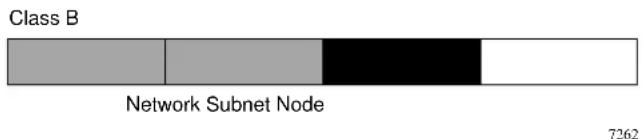
Subnet addressing lets you split one IP network address into smaller multiple physical networks, known as subnetworks. Some of the node numbers are used as a subnet number. A Class B address provides 16 bits of node numbers, translating to 64,000 nodes. Most organizations do not use 64,000 nodes; free bits can be reassigned. Subnet addressing makes use of those bits that are free, as illustrated in Figure 1-2.
text_image
Class B Network Subnet Node 7262Figure 1-2. Example of Subnetting a Class B Address
A Class B address can be effectively translated into multiple Class C addresses. For example, the IP address of 172.16.0.0 is assigned, but node addresses are limited to 255 maximum, allowing 8 extra bits to use as a subnet address. The IP address of 172.16.97.235 would be interpreted as IP network address 172.16, subnet number 97, and node number 235. In addition to extending the number of addresses available, subnet addressing provides other benefits. Subnet addressing lets a network manager construct an address scheme for the network by using different subnets for other geographical locations in the network or for other departments in the organization.
Although the preceding example uses the entire third octet for a subnet address, note that you are not restricted to octet boundaries in subnetting. To create more network numbers, you need only shift some bits from the host address to the network address. For instance, to partition a Class C network number (192.68.135.0) into two, you shift 1 bit from the host address to the network address. The new netmask (or subnet mask) is 255.255.255.128. The first subnet has network number 192.68.135.0 with hosts 192.68.135.1 to 129.68.135.126, and the second subnet has network number 192.68.135.128 with hosts 192.68.135.129 to 192.68.135.254.

Note: The number 192.68.135.127 is not assigned because it is the broadcast address of the first subnet. And 192.68.135.128 is not assigned because it is the network address of the second subnet.
Table 1-2 lists the additional subnet mask bits in dotted-decimal notation. To use the table, write down the original class netmask and replace the 0 value octets with the dotted-decimal value of the additional subnet bits. For instance, to partition your Class C network 204.247.203.0 with subnet mask 255.255.255.0 into 16 subnets (4 bits), the new subnet mask becomes 255.255.255.240.
Table 1-2. Netmask Notation Translation Table for One Octet
| Number of Bits Dotted-Decimal Value |
| 1 128 |
| 2 192 |
| 3 224 |
| 4 240 |
| 5 248 |
| 6 252 |
| 7 254 |
| 8 255 |
Table 1-3 displays several common netmask values in both the dotted-decimal and the masklength formats.
Table 1-3. Netmask Formats
| Dotted-Decimal Masklength |
| 255.0.0.0 /8 |
| 255.255.0.0 /16 |
| 255.255.255.0 /24 |
Introduction 1-11
Table 1-3. Netmask Formats
| 255.255.255.128 /25 |
| 255.255.255.192 /26 |
| 255.255.255.224 /27 |
| 255.255.255.240 /28 |
| 255.255.255.248 /29 |
| 255.255.255.252 /30 |
| 255.255.255.254 /31 |
| 255.255.255.255 /32 |
NETGEAR strongly advises that all hosts on a LAN segment use the same netmask for the following reasons:
- Hosts recognize local IP broadcast packets
When a device broadcasts to its segment neighbors, it uses a destination address of the local network address with all ones for the host address. In order for this scheme to work, all devices on the segment must agree on which bits comprise the host address.
- Local routers or bridges can determine which addresses are local or remote
Private IP Addresses
If your networks are isolated from the Internet (for example, only between your two branch offices), you can assign any IP addresses to the hosts without problems. However, the IANA has reserved the following three blocks of IP addresses specifically for private networks:
10.0.0.0 - 10.255.255.255
172.16.0.0 - 172.31.255.255
192.168.0.0 - 192.168.255.255
NETGEAR recommends that you choose your private network number from this range. The DHCP server of the Model RT338 router is preconfigured to automatically assign private addresses.
Regardless of your particular situation, do not create an arbitrary IP address; always follow the guidelines explained here. For more information about address assignment, refer to RFC 1597, Address Allocation for Private Internets, and RFC 1466, Guidelines for Management of IP Address Space.
Single IP Address Operation Using NAT
In the past, if you needed multiple PCs on a LAN to access the Internet simultaneously, you would have to obtain a range of IP addresses from the Internet service provider (ISP). This type of Internet account is more costly than a single-address account typically used by a single user with a modem rather than a router. The Model RT338 router employs an address-sharing method called Network Address Translation (NAT). This method lets several networked PCs share an Internet account using only a single IP address, which may be statically or dynamically assigned by your ISP.
The router accomplishes address sharing by translating the internal LAN IP addresses to a single address that is globally unique on the Internet. The internal LAN IP addresses can be either private addresses or registered addresses. For more information about IP address translation, refer to RFC 1631, The IP Network Address Translator (NAT).
Figure 1-3 illustrates a single IP address operation.
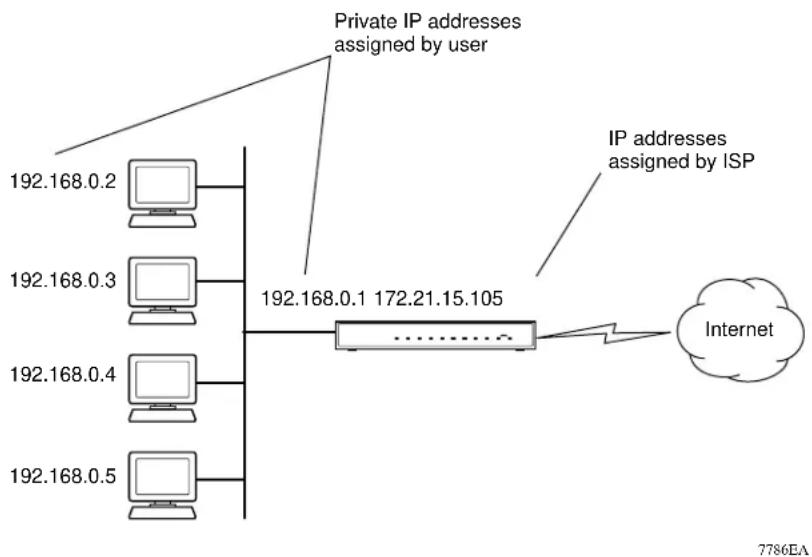
flowchart
graph TD
    A["192.168.0.2"] --> B["192.168.0.1 172.21.15.105"]
    C["192.168.0.3"] --> B
    D["192.168.0.4"] --> B
    E["192.168.0.5"] --> B
    B --> F["Internet"]
    style A fill:#f9f,stroke:#333
    style C fill:#f9f,stroke:#333
    style D fill:#f9f,stroke:#333
    style E fill:#f9f,stroke:#333
    style B fill:#ccf,stroke:#333
    style F fill:#cff,stroke:#333
Figure 1-3. Single IP Address Operation Using NAT
This scheme offers the additional benefit of protection similar to that of a firewall. Internal LAN addresses are not available to the Internet through the translated connection. All incoming inquiries are filtered out by the router. Filtering can prevent intruders from probing your system. You can use the port forwarding feature to allow specific services (for example, a Web server) on your local network to be accessible to outside users.
MAC Addresses and Address Resolution Protocol
An IP address alone cannot be used to deliver data from one LAN device to another. In order for data to be sent between LAN devices, you must convert the IP address of the destination device to its media access control (MAC) address. Each device on an Ethernet network has a unique MAC address, which is a 48-bit number assigned to each device by the manufacturer. The technique that associates the IP address with a MAC address is known as address resolution. Internet protocol uses the Address Resolution Protocol (ARP) to resolve MAC addresses.
If a device sends data to another station on the network and the destination MAC address is not yet recorded, ARP is used. An ARP request is broadcast onto the network. All stations on the network receive and read the request. The destination IP address for the chosen station is included as part of the message so that only the station with this IP address responds to the ARP request. All other stations discard the request.
The station with the correct IP address responds with its own MAC address directly to the sending device. The receiving station provides the transmitting station with the required destination MAC address. The IP address data and MAC address data for each station are held in an ARP table. The next time data is sent, the address can be obtained from the address information in the table.
Domain Name System Server
Many of the resources on the Internet can be addressed by simple descriptive names such as www.NETGEARinc.com. This addressing is very helpful at the application level, but the descriptive name must be translated to an IP address in order for a user to actually contact the resource. Just as a telephone directory maps names to phone numbers, or as an ARP table maps IP addresses to MAC addresses, a domain name system (DNS) server maps descriptive names of network resources to IP addresses.
When a PC accesses a resource by its descriptive name, it first contacts a DNS server to obtain the IP address of the resource. The PC sends the desired message using the IP address. Many large organizations such as ISPs maintain their own DNS servers and allow their customers to use the servers to look up addresses.
IP Configuration by DHCP
When an IP-based local area network is installed, each PC must be configured with an IP address. If the PCs need to access the Internet, they should be configured with a gateway address and one or more DNS server addresses. As an alternative to manual configuration, there is a method by which each PC on the network can obtain this configuration information automatically. A device on the network may act as a Dynamic Host Configuration Protocol (DHCP) server. The DHCP server stores a list or pool of IP addresses, along with other information (such as gateway and DNS addresses) that it may assign to the other devices on the network. The Model RT338 router has the capacity to act as a DHCP server.
The Model RT338 router also functions as a DHCP client when connecting to the ISP. The router automatically obtains an IP address, subnet mask, DNS server addresses, and a gateway address if the ISP provides this information by DHCP.
Chapter 2
Installing and Connecting the Router
This chapter provides instructions for installing the Model RT338 ISDN Router and connecting to the Manager interface through a serial port or Telnet connection. Refer to Chapter 4, “Initial Router Configuration” for instructions on using the Manager interface, and other configuration utilities.
Package Contents
The product package should contain the following items:
• Model RT338 ISDN Router
• DC power adapter, 12 V DC output
• 10-foot Category 5 Ethernet cable, straight-through wiring (white)
- 10-foot Category 5 Ethernet cable, crossover wiring (red)
- 8-pin to 6-pin ISDN cable (black)
- 9-pin RS-232 serial cable
- 9-pin D-connector to 25-pin D-connector adapter
- Model RT338 ISDN Router Installation Guide
- RT338 Resource CD-ROM containing FirstGear, Manual, and Application Notes
• Warranty & Owner Registration card
• Support Information Card
Call your dealer if there are any wrong, missing, or damaged parts. Keep the carton, including the original packing materials, to repack the router if there is a need to return it for repair.
Local Network Requirements
Hardware Requirements
The Model RT338 ISDN Router is intended for use in a network of workstations that are interconnected by twisted pair Ethernet or Fast Ethernet cables.
Each workstation in the network must meet the following requirements:
• Each workstation must have an installed Ethernet network interface card (NIC).
• Each workstation must be connected by a hub or switch. If all workstations on the network do not run at the same speed (10 Mbps or 100 Mbps), a dual-speed hub or switch must be used.
• Each workstation with a link operating at 100 Mbps must be connected with Category 5 cable.
Software Requirements
The Model RT338 ISDN Router uses the Internet Protocol (IP). The IP configuration of your network must satisfy the following requirements:
- All PCs must have TCP/IP installed and selected as the networking protocol.
- All PCs and the router must be assigned IP addresses. If your ISP has not assigned registered IP addresses, your local network uses private addresses as described below. If you are using the default Dynamic Host Configuration Protocol (DHCP) function of the router, these private addresses are assigned automatically by the router when the PCs are rebooted.
- All PCs must have the IP address of the router defined as the default gateway. If you are using the default DHCP function of the router, this IP address is assigned automatically by the router when the PCs are rebooted.
Router Description
The front panel of the Model RT338 router (Figure 2-1), contains status LEDs.
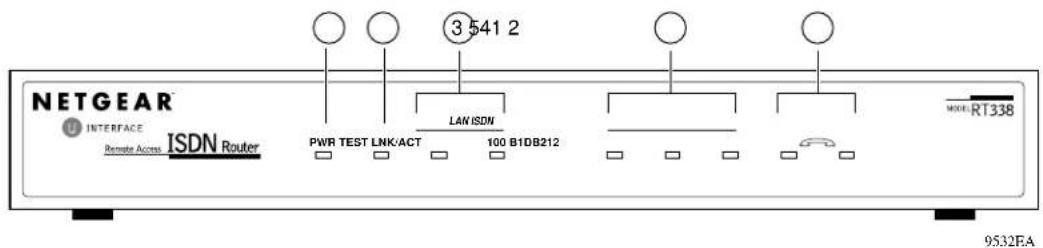
text_image
NETGEAR INTERFACE Remote Access ISDN Router PWR TEST LINK/ACT LAN ISDN 100 B1DB212 3 541 2 MODEL RT338 9532FAKey:
1 = PWR (Power) LED
2 = TEST LED
3 = Link/Activity and 100 Mbps LAN LEDs
4 = Channel D, B1, and B2 ISDN LEDs
5 = PHONE 1 and PHONE 2 LEDs
Figure 2-1. Front Panel of Model RT338 Router
You can use some of the LEDs to verify connections. Table 2-1 lists and describes each LED on the front panel of the router. These LEDs are green when lit.
Table 2-1. LED Descriptions
| Label Activity Description | ||
| PWR On Power is supplied to the router. | ||
| TEST Blinking/Off This | LED blinks as | the router is booting and then turns off, indicating that the router is functioning properly. |
| LAN:LNK/ACT On100 Off | BlinkingOn | The LAN port has detected link with an attached device.Data is being sent or received on the port.The LAN is operating at 10Mbps.The LAN is operating at 100Mbps. |
| ISDN:D On The router is successfully synchronized with the attached ISDN line.B1 On There is an active call on the channel,or the channel is making or receiving a call.B2 On There is an active call on the channel,or the channel is making or receiving a call. | ||
| Phone 1 On The device (telephone, fax, or modem) connected to the PHONE 1 port is in use. | ||
| Phone 2 On The device (telephone, fax, or modem) connected to the PHONE 2 port is in use. | ||
The rear panel of the Model RT338 router is shown in Figure 2-2. Refer to this diagram to identify all of the ports on the router when you attempt to make any connections.
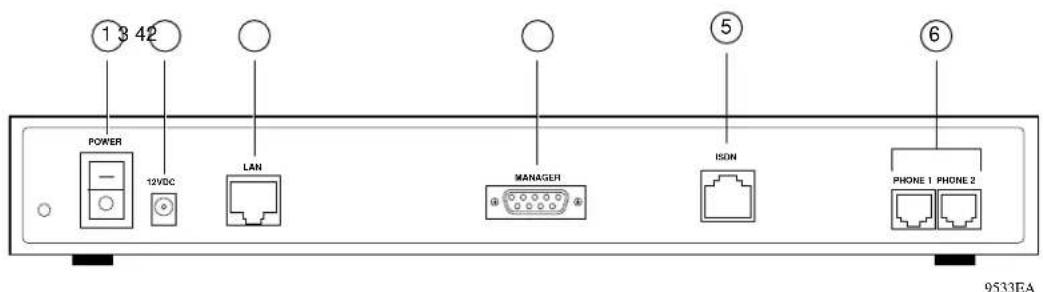
text_image
POWER 12VDC LAN MANAGER ISDN PHONE 1 PHONE 2 9533EAKey:
1 = Power switch
2 = DC adapter outlet for connecting the DC adapter to the router
3 = UTP Ethernet port for connecting the router to the LAN with UTP cable
4 = RS-232 MANAGER port for connecting the router to the serial port of a PC
5 = ISDN port for connecting the router to ISDN cable
6 = Phone ports for connecting the router to a telephone, fax, or modem
Figure 2-2. Rear Panel of Model RT338 Router
| Warning: Several of the connectors and connection cables are very similar. It is important that you use the correct cable for each connection and that you do not connect the ports incorrectly, because serious damage to your router could result. |
Connecting the Serial Cable (Optional)
If you are planning to configure your router using a serial connection instead of a telnet connection, you must connect the serial cable to the MANAGER port on the rear panel of the router.
To connect the serial cable:
- Plug one end of the 9-pin RS-232 cable into the MANAGER port.
- Plug the other end into a serial port (such as COM1 or COM2) of your PC.

Note: You must use the included 9-pin to 25-pin adapter if your PC has only a 25-pin port available.
Connecting to the ISDN Port
The ISDN cable has an 8-pin RJ-45 connector on one end and a 6-pin RJ-11 connector on the other end. Plug the 8-pin connector into the ISDN port of the router. Connect the other end of the cable directly to your ISDN wall jack. Your wall jack may have either an 8-pin RJ-45 or a 6-pin RJ-11 connector. The 6-pin cable connector plugs into the center of an 8-pin wall jack.
Connecting the Ethernet Cable
The LAN port on the Model RT338 router is wired as a PC rather than as a hub. Follow the procedures below that are appropriate for your installation. If you are connecting to a 100Mbps Fast Ethernet network or a mixed 10/100Mbps network, remember that all 100Mbps connections should be made with Category 5 rated Ethernet cable, such as those included with your router.
Connecting the Model RT338 Router to a Single PC
To connect the router to a single PC:
- Connect the LAN port of the Model RT338 router directly to the PC's Ethernet port using the red crossover Ethernet cable that is included with your router.
Connecting the Model RT338 Router to a Hub or Switch
To connect the router to a hub or switch:
- Connect the LAN port of the Model RT338 router to a hub or switch using the white straight-through Ethernet cable that is included with your router.
You can connect the Model RT338 router to a 10Mbps or 100Mbps hub or switch port.
The router senses the speed of the connected port and automatically sets its speed to match.
Connecting a Telephone, Fax Machine, or Modem
To connect the router to a telephone, fax machine, or modem:
- Use either one of the phone ports (PHONE 1 or PHONE 2) for connecting your router to an analog telephone, fax, or modem.
Be sure that the ISDN line provided by your telephone company is capable of both data and voice calls.
Connecting the Power Adapter
To connect the router to the power adapter:
- Plug the connector of the power adapter into the 12 V DC adapter outlet on the rear panel of the router.
- Plug the other end of the adapter into a standard wall outlet.
Verifying Power
After connecting the power adapter to the router and a power source, complete the following steps to verify that power is correctly applied to the router:
- Switch the POWER switch to ON.
- Verify that the PWR LED is lit.
- Verify that the TEST LED begins to blink within a few seconds.
- After approximately 30 seconds, verify that:
a. The TEST LED turns off.
b. The LNK/ACT LED is lit.
If the LNK/ACT LED is lit, the router has established a link to the Ethernet network.
- If the LOCAL port is connected to a 100 Mbps device, verify that the 100 LED is lit.
You are now ready to begin configuration of your network, as described in Chapter 3, “Preparing Your Network.”
Chapter 3
Preparing Your Network
This chapter describes how to prepare to connect your PCs to the Internet or a remote LAN using the Model RT338 ISDN Router. Before configuring your router, you must perform the following tasks:
- Order ISDN service from your phone company.
- Configure your PCs for using the TCP/IP networking protocol.
- Order Internet service from an Internet service provider (ISP).
Details of these tasks are given in the following sections.
ISDN Services Checklist
Contact the ISDN ordering center of your local phone company to order an ISDN Basic Rate Interface (BRI) phone line. In most of North America, your telephone company can properly provision your ISDN line when you provide them with an ISDN ordering code (IOC) or EZ-ISDN code. The NETGEAR Model RT338 router supports the following ordering codes:
• IOC-S (basic voice and data service)
• IOC-U (basic voice and data plus supplemental voice services)
- EZ-ISDN-1 (basic voice and data plus supplemental voice services)
Note that the IOC-S capability package does not enable any supplemental voice services such as call waiting. You must ask your ISDN service provider to enable them for you, and you must inform the service provider if you want these services enabled for one of both of your ISDN channels (directory numbers). Specifically, you need to have Additional Call Offering (ACO) enabled in order to use call waiting or incoming call bumping. Incoming call bumping lets the router receive a voice call when both ISDN channels are in use for a data call. One channel is dropped to allow the incoming call, and the data rate is reduced during the call.
Preparing Your Network 3-1
Reference Guide for the Model RT338 ISDN Router
When your line is installed, you need to obtain the following information from your telephone company:
- The type of switch at your telephone company. The switch type is typically one of the following:
— Northern Telecom DMS-100/DMS-250
— AT&T 5ESS
— Siemens EWSD
- The configuration mode of your ISDN line.
Your line may be configured in the standard National ISDN mode (NI-1) or in a manufacturer-specific custom mode.
- The local directory number(s) assigned to your line
- The Service Profile Identifiers (SPIDs) associated with the directory numbers
For additional detailed information about ordering ISDN service, refer to Appendix C, “Ordering ISDN Lines.”
ISP Checklist
If you are contracting with an Internet service provider (ISP) for Internet access, you must choose between a single-user account and a multiuser LAN account. You can connect your multiuser network through a single-user account by using the Network Address Translation (NAT) feature of your router.
Single-User Account
With a single-user account, your ISP assigns only one registered Internet Protocol (IP) address. This address may be a permanent fixed address or it may be a different address assigned dynamically each time you log in to the account. The NAT feature of your router maps the IP addresses of your network to this address for accessing the Internet. Some applications may be incompatible with NAT.
3-2 Preparing Your Network
LAN Account
With a LAN account, you are assigned a registered IP address for your router and one for each PC or workstation in your local network. A LAN account is typically more expensive than a single-user account.
Account Information
Your ISP should give you the following basic information for your account:
• A local phone number for accessing the ISP
A secondary number may be provided for use when the primary number is busy or not in service.
- A login name
- A password
- IP address(es) unless dynamically assigned
- DNS server address(es) unless dynamically assigned
In addition, you should ask your ISP these questions:
- Will your single IP address be dynamically assigned?
- Will your DNS server address be dynamically assigned?
- Does your ISP support the Multilink Protocol?
If you intend to connect both ISDN B channels simultaneously for a 128 kbps connection, your ISP must support the Multilink Protocol.
Installing TCP/IP
In order to access the Internet, every PC or workstation on your network must use TCP/IP as its network protocol. The required components are listed below for various operating systems:
- Windows 95, Windows 98, and Windows NT®: Windows 95 or later includes the software components for establishing a TCP/IP network.
- Windows 3.1: You need a TCP/IP application package, such as NetManage Chameleon.
• Macintosh: You can use MacTCP, which is included with later Macintosh models. - UNIX and variants: These operating systems usually include TCP/IP components.
Follow the instructions provided with your operating system or networking software to install TCP/IP on your computer. For Windows 95 or later, refer to the instructions in Appendix B, “Configuring Windows TCP/IP.” Unless you have a reason to do otherwise, install TCP/IP so that the computer obtains its specific network configuration information from a DHCP server during bootup.
Configuring TCP/IP
After the TCP/IP protocol components are installed, you must configure each PC with specific information about itself and resources that are available on its network. The simplest way to do this is to allow the PC to obtain its configuration information from the router's internal DHCP server.
If you are using DHCP with the recommended default addresses, you can configure your PCs by following these steps:
- Install TCP/IP on each PC, selecting DHCP for obtaining configuration settings.
- Physically connect the PCs and the router using a hub or a direct connection.
- Restart the router and allow it to boot.
- Restart each PC.
The Model RT338 router is shipped preconfigured as a DHCP server and assigns the following TCP/IP configuration information automatically:
- PC or workstation addresses—192.168.0.2 through 192.168.0.31
• Netmask—255.255.255.0 - Gateway address (the router)—192.168.0.1
- DNS server (the router)—192.168.0.1. The router performs DNS Proxy.
3-4 Preparing Your Network
Selecting IP Addresses for Your Network
In order for two devices (for example, a PC and a router) to communicate over a local network using the Internet Protocol (IP), both devices must be assigned IP addresses. In addition, these addresses must be within the same logical subnet, as determined by the network address and the netmask. Refer to Chapter 1, “Introduction” for more information about IP addresses.
There are two options for determining the IP addresses for your local network. One method is to use IP addresses that have been registered by your company or ISP. Registered addresses are administered by InterNIC (http://rs.internic.net) and are globally unique. The other method is to use private IP addresses and the NAT feature of your router. The Internet Engineering Task Force (IETF) has designated several ranges of nonunique addresses for use in private networks. These addresses are hidden from the Internet when you use NAT.

Note: These private addresses are not guaranteed to be globally unique on the Internet; therefore, you must be sure to configure your router to use NAT, which hides these addresses from the Internet.
Choose one of the following options to determine IP addresses for your local network and router:
- Use the addresses specified by your ISP or network manager.
You must have at least two specific IP addresses, one for your PC and one for your router.
- Use private addresses and the NAT feature of your router.
Use private addresses if you are accessing an Internet account for which only a single dynamic or static IP address is assigned and you have no other InterNIC-registered addresses for your LAN and router.
If you have not been assigned registered IP addresses, NETGEAR recommends that you let the DHCP server functionality of the router assign private addresses as described in “Configuring TCP/IP” on page 3-4.
Connecting for Configuration
If you are a PC user, you can configure the router through the FirstGear Router Configuration Utility, an easy-to-use software program, or the menu-based Manager interface of your router. For complete instructions for using FirstGear, refer to “Using the FirstGear Router Configuration Utility” on page 4-2.
If you are using a Macintosh or UNIX-based workstation, you can configure the router only by using the built-in Manager interface. You can access the built-in Manager interface through a serial port or Telnet on the LAN. In order to use Telnet, you must know the current IP address of the router.
Connecting Through a Serial Port
You can access the built-in interface through a serial port by using a VT100 terminal or by using a terminal-emulation program on your PC or workstation. If you are using Windows, for example, Microsoft® provides HyperTerminal with Windows 95 and Windows 98. Be sure to set the program for VT100 emulation, including arrow keys.
Use the following serial port parameters:
• 9600 bps
- 8 data bits
- No parity
- 1 stop bit
- No flow control
When the serial connection has been established, strike any key. The router responds with a “Password:” prompt. After the serial session opens, refer to “Using the Manager Interface Configuration Method” on page 4-4 for further information about configuring your router with the Manager interface.
Connecting with Microsoft Windows HyperTerminal
Follow the procedure in this section to establish a connection with the router using the HyperTerminal application in Window 95, Windows 98, and Windows NT. This procedure creates and saves a new HyperTerminal session file for the router. You can use this session file the next time you connect with the router using the serial connection.
To connect with the router using Microsoft Windows HyperTerminal:
- Connect the router to your Windows PC using the serial cable.
See “Connecting Through a Serial Port” on page 3-6 for more information.
- Start Windows HyperTerminal.
Click Start and choose Programs > Accessories > Hyperterminal > HyperTerminal.
The HyperTerminal window and Connection Description dialog box open as shown in Figure 3-1.
Reference Guide for the Model RT338 ISDN Router

text_image
New Connection - HyperTerminal File Edit View Call Transfer Help Connection Description New Connection Enter a name and choose an icon for the connection: Name: RT338 Icon OK Cancel Disconnected Auto detect Auto detect SCROLL CAPS NUM Capture Print echoFigure 3-1. HyperTerminal Window and Connection Description Dialog Box
- Enter a descriptive name for the connection in the Name text box of the New Connection dialog box.
The example in Figure 3-1 shows "RT338" as the connection name. HyperTerminal uses this text as the file name when you save the connection information in a session file.
- Click OK.
The Connect To dialog box opens, as shown in Figure 3-2.
3-8 Preparing Your Network
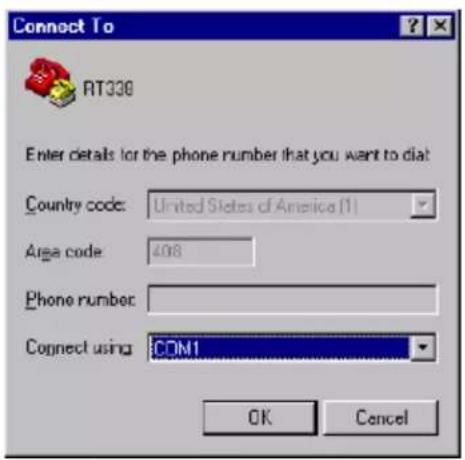
text_image
Connect To RT338 Enter details for the phone number that you want to dial Country code: United States of America (1) Area code 406 Phone number: Connect using COM1 OK CancelFigure 3-2. HyperTerminal Connect To Dialog Box
- In the Connect Using box, choose either COM1 or COM2 depending on which serial port you connected the router to.
Reference Guide for the Model RT338 ISDN Router
6. Click OK.
The COM1 or COM2 Properties dialog box opens, as shown in Figure 3-3.
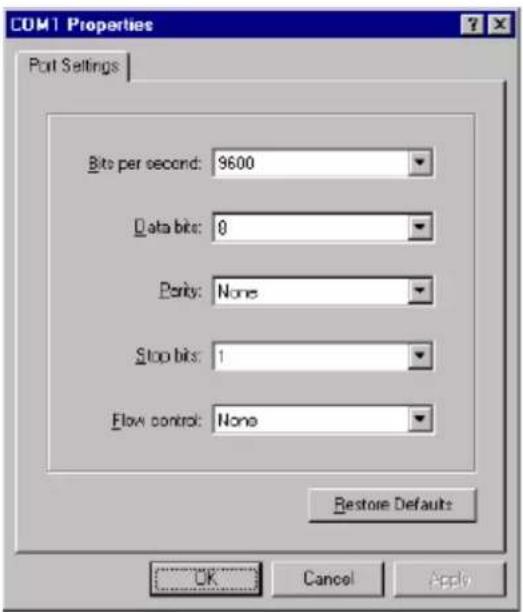
text_image
COM1 Properties Port Settings Bits per second: 9600 Data bits: 0 parity: None Stop bits: 1 Flow control: None Restore Defaults OK Cancel ApplyFigure 3-3. COM Port Properties Dialog Box
- In the COM1 or COM2 Properties dialog box, set the parameters shown in Table 3-1.
Table 3-1. Hyperterminal COM Port Properties
| Parameter Setting | |
| Bits per second: 9600 bps | |
| Data bits: 8 | |
| Parity: None | |
| Stop bits: 1 stop bit | |
| Flow control: None | |
3-10 Preparing Your Network
- Click OK.
The COM1 or COM2 Properties dialog box closes.
- Press any key.
The Hyperterminal window displays the router Password prompt as shown in Figure 3-4.

text_image
RT330 - HyperTerminal File Edit View Call Transfer Help Enter Password : Connected 0:00:07 Auto detect 9600 E-N-1 SCROLL CAPS NUM Capture Print echoFigure 3-4. Router Password Prompt in HyperTerminal Window
-
Type the Manager password for the Model RT338 router, and press
. The default password is 1234. -
The router Main Menu opens as shown in Figure 3-5.
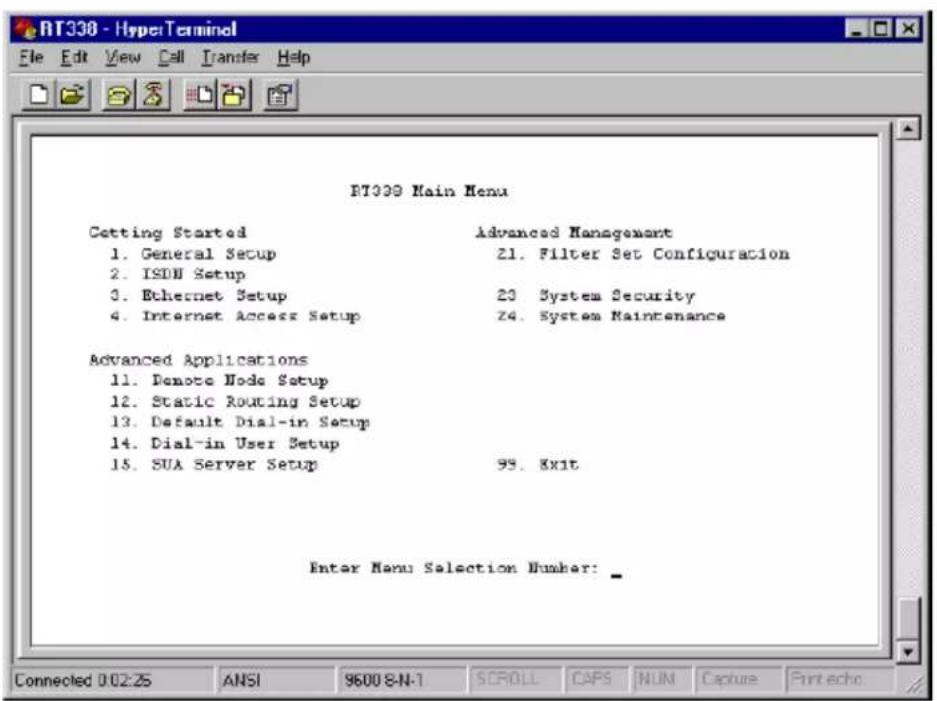
text_image
RT300 Main Menu Cetting Started 1. General Setup 2. ISDN Setup 3. Ethernet Setup 4. Internet Access Setup Advanced Management 21. Filter Set Configuration 23. System Security 24. System Maintenance Advanced Applications 11. Denote Mode Setup 12. Static Routing Setup 13. Default Dial-in Setup 14. Dial-in User Setup 15. SUA Server Setup 99. Exit Enter Menu Selection Number: _Figure 3-5. Router Main Menu in HyperTerminal Window
- Use the menus to configure the router as necessary.
- After configuring the router, from the HyperTerminal menu bar choose File > Save.
HyperTerminal saves the connection information in a session file with the name that you entered in Step 3.
Reconnecting with Microsoft Windows HyperTerminal
The next time you connect to the router using HyperTerminal, open the session file as follows:
- From the HyperTerminal menu bar, choose File > Open.
The Open dialog box opens.
3-12 Preparing Your Network
- Choose the session file for the router and click OK.
HyperTerminal establishes a serial connection with the router using connection information from the previously saved session file.
Connecting Through a Telnet Connection
You can access the built-in interface by a Telnet call from any TCP/IP workstation on the LAN or the remote network. In order to use the Telnet Protocol, you must know the current IP address of the router. If the router does not have an IP address, you must first use a serial connection or the FirstGear utility to assign an IP address. The router is shipped with a default address of 192.168.0.1.
To make a Telnet connection from the LAN, you must set up your workstation to reach the IP address of the router by doing one of the following:
- Set your workstation to an IP address on the currently programmed subnet of the router.
- Add a route to the static routing table of the workstation to indicate that the router can be reached through the local LAN port.

Note: If you change the LAN IP address of the router while connected through Telnet, you lose the Telnet session. You must then open a new Telnet connection to the new IP address and log in again.
When using Telnet, consider the following:
- Single administrator
To prevent confusion and discrepancy on the configuration, the router allows only one terminal connection at any time. The router also gives priority to the RS-232 connection over Telnet. If you have already connected to the router through Telnet, you are logged out if another user then connects through the RS-232 cable. You can use a Telnet connection only after the other administrator has disconnected.
- System timeout
When you are connected to the router through Telnet, there is a system timeout of 5 minutes (300 seconds). If you are not configuring the device and leave it inactive for this timeout period, the router automatically disconnects you.
Reference Guide for the Model RT338 ISDN Router
Chapter 4
Initial Router Configuration
This chapter contains information about configuring your Model RT338 ISDN Router with the FirstGear Router Configuration Utility, or through the built-in Manager interface.
Configuration Methods
If you are using a PC, use one of the following options to configure your router:
- FirstGear
FirstGear is an easy-to-use Windows-based utility that leads you through a Quick Setup or an Advanced menu for configuring your router.
- Manager interface
If you are using a Macintosh or UNIX-based workstation, the built-in Manager interface is the only way that you can configure your router through your computer. However, you can use a PC to configure the router and then connect the router to the Macintosh or workstation after the configuration process is complete.
The built-in Manager interface is accessible through a serial or a Telnet connection. Refer to “Connecting Through a Serial Port” on page 3-6, or “Connecting Through a Telnet Connection” on page 3-13. If you do not know the current IP address of your router, you cannot connect through a Telnet session. In this case you must use a serial connection.
Using the FirstGear Router Configuration Utility
NETGEAR has designed an easy-to-use graphic interface that makes configuring your router easier when compared with the built-in Manager interface. The FirstGear ISDN Router Configuration Utility can be used to configure a router quickly for Internet access using the interview-style Quick Configuration procedure, or it can be used to customize a router configuration using the Advanced Configuration procedure.
The FirstGear utility operates on a PC running Windows 95, Windows 98, or Windows NT. If you use Macintosh or UNIX, you can configure a router using FirstGear by connecting the router to a PC, setting the configuration, and then reconnecting the router into the original network.
This section contains instructions for the following procedures:
- Installing FirstGear
- Starting FirstGear
- Verifying or assigning an IP address for the router
- Selecting the Quick or Advanced configuration procedure
To use the Quick Configuration procedure, refer to “Configuring Internet Access with the Wizard” on page 5-1. To use the Advanced Configuration procedure or to change specific settings, refer to “Using Advanced Setup” on page 5-8.
Installing FirstGear
FirstGear is shipped on a CD-ROM. You must have Windows 95, Windows 98, or Windows NT to install and use FirstGear.
To install FirstGear on a PC:
- Insert the Resource CD into the CD-ROM drive of your PC.
- Start the Setup.exe program on the CDusing either the Start button or Windows Explorer.
- Follow the instructions provided by the Setup program.
The Setup program installs FirstGear to the directory of your choice and places a FirstGear shortcut icon on the desktop of your PC.
4-2 Initial Router Configuration
Choosing Between the Setup Wizard and Advanced Setup
After you have found and selected a router using FirstGear, choose either the Setup Wizard or the Advanced Setup option:
- Choose the Setup Wizard option to configure basic Internet access applications in which your network only dials out to an ISP. The Setup Wizard interface consists of a wizard that leads you through various menus and asks for basic information.
- Choose the Advanced Setup option to customize more advanced aspects of the configuration and to save configuration files to your PC. Using the Advanced Setup menus, you can configure your router for dialing to multiple remote locations. For more complex applications than this, NETGEAR recommends that you use the internal Manager interface.
Refer to Chapter 5, “Using FirstGear to Configure Internet Access” for instructions on configuring the router with FirstGear.
Starting FirstGear
Before starting FirstGear, verify that the router is properly connected to your Ethernet network and that the router has had power turned on for at least one minute.
To start the FirstGear Setup Wizard:
- From the Windows Taskbar, click Start and choose Programs > FirstGear for RT338 > Setup Wizard
To start FirstGear Advanced Setup:
- From the Windows Taskbar, click Start and choose Programs > FirstGear for RT338 > Advanced Setup
When you start FirstGear, it searches the attached LAN for the Model RT338 router. If FirstGear does not find a Model RT338 router, it displays an alert box.
Reference Guide for the Model RT338 ISDN Router
Reading the Current Configuration
After you have started FirstGear, the program accesses the router and reads the current configuration.
To continue:
- If the router's currently assigned password is anything other than the factory default password (1234), enter the password in the password field.
If the current password is the default password, no action is required.
- Press [Return].
FirstGear reads the configuration of the router and displays the FirstGear Main Menu.
Using the Manager Interface Configuration Method
Turning On Power to the Router
When you turn on power to the router, it performs several internal tests and initializes your ISDN line. If a serial connection with the internal Manager interface is established during the initialization, the start-up display appears, as shown in Figure 4-1.
Bootbase Version: V1.10 | 6/11/1999 13:42:08
RAM: Size = 4096 Kbytes
DRAM POST: Testing: 4096K OK
FLASH: Intel 8M

Press any key to enter debug mode within 3 seconds.
(Compressed)
Version: V2.40(N.00), start: 02029030
Length: 154098, Checksum: 4DDC
Compressed Length: B591E, Checksum: 23ED
initialize ch =0, ethernet address: 00:a0:c5:00:20:aa
(1) USA:
Resetting ISDN ......
Press ENTER to continue...
Figure 4-1. Start-up Display
4-4 Initial Router Configuration
To log in to the Manager interface:
- Press [Enter] when prompted.
A login screen opens and prompts you to enter a password.
- Enter the default password 1234 to reach the main menu of the Manager.
After you are in the Manager and if there is no activity for more than 5 minutes, the router automatically logs you out and displays a blank screen. If you see a blank screen, press [Enter] to display the password screen again.
Navigating the Manager
The Manager is the interface that you use to configure your router. Table 4-1 lists and describes the commands that let you navigate through the menus in the Manager.
Table 4-1. Manager Menu Commands
| Action Description | |
| Move forward to another menu | Enter the number of the submenu and press [Enter]. |
| Move back to a previous menu | Press [Esc]. The only exception is the Main Menu, where typing 99 is the only method to exit from the Manager. |
| Move the cursor Press [Enter]. You can also use the Up and Down keys to move to the previous and the next field, respectively. | |
| Enter information There are two types of fields for entering selected parameters. The first requires you to enter the appropriate information. The second gives you options to choose from. When choosing options, press the space bar to toggle through the available options. | |
| Required fields Some of the fields in the Manager are essential in order to configure the router. The required fields initially show a question mark (?), indicating that the information must be filled in before that menu can be saved. | |
| N/A fields Some of the fields in the Manager show N/A, meaning the option is not available. | |
| Save your configuration Press [Enter] when prompted to press ENTER to confirm or ESC to cancel. In most cases, saving the data on the screen takes you to the previous menu. | |
The Manager Main Menu is shown in Figure 4-2.
RT338 Main Menu
Getting Started
- General Setup
- ISDN Setup
- Ethernet Setup
- Internet Access Setup
Advanced Management
- Filter Set Configuration
23 System Security
24. System Maintenance
Advanced Applications
- Remote Node Setup
- Static Routing Setup
- Default Dial-in Setup
- Dial-in User Setup
-
SUA Server Setup
-
Exit
Enter Menu Selection Number:
Figure 4-2. Manager Main Menu
Manager Menu Summary
Table 4-2 describes the top-level Manager menus.
Table 4-2. Manager Menu Summary
| Number Menu Title Description | ||
| 1 General Setup Use this menu to set up general information and enable specific protocol routing or bridging. | ||
| 2 ISDN Setup Use this menu to set up ISDN configurations. | ||
| 3 Ethernet Setup Use this menu to set up Ethernet configurations. | ||
| 4 Internet Access Setup This menu provides a quick and easy way to set up an Internet connection. | ||
| 11 Remote Node Setup Use this menu to set up a remote node for a LAN-to-LAN connection including Internet connection. The router has eight remote nodes. | ||
| 12 Static Routing Setup Use this menu to set up static routes. The router supports eight static routes for each protocol. | ||
4-6 Initial Router Configuration
Table 4-2. Manager Menu Summary (continued)
| Number Menu Title Description | ||
| 13 Default | Dial-in Setup Use this menu to set up default dial-in parameters so that your router can be a dial-in server for the remote node and remote dial-in user. | |
| 14 Dial-in | User Setup Use this menu to set up remote dial-in users. The router has eight remote dial-in users. | |
| 15 SUA Server Setup This menu provides the forwarding of incoming IP traffic to specific internal LAN addresses based on port numbers when SUA (NAT) is used. | ||
| 21 Filter Set Configuration Use this menu to set up filters to be used in Menu 3 and Menu 11 to provide such features as security and call control. | ||
| 23 System | Security Use this menu to set up security-related parameters. | |
| 24 System | Maintenance Use this menu to provide system status, diagnostics, and firmware upload. | |
| 99 | Exit Use this menu to exit from the Manager. | |
General Setup Menu
The General Setup Menu contains administrative and system-related information.
To enter administrative and system-related information:
- Enter 1 from the Main Menu to display Menu 1 - General Setup, as shown in Figure 4-3.
| Menu 1 - General Setup |
| System Name= ? |
| Location= |
| Contact Person's Name= |
| Press ENTER to Confirm or ESC to Cancel: |
Figure 4-3. Menu 1 - General Setup
Initial Router Configuration 4-7
- Enter the system name in the System Name field of the menu.
Choose a descriptive name to identify the router (for example, myRT338). The name must be no more than 8 alphanumeric characters. Spaces are not allowed, but dashes (-) and underscores (_) are accepted. The name is displayed as the prompt in the Command Mode.
If you dial into an ISP or a remote site that uses CHAP authentication, you must make the system name the same as your account's login name.
- (Optional) Enter location and contact person's name.
These fields are only for your reference.
ISDN Setup Menu
Use menu 2 to configure your ISDN line. Depending on what type of telephone company switch serves your particular location, you may have one or two telephone numbers and you may also have two SPIDs (Service Profile Identifiers). Make sure that you have correct and complete telephone numbers and SPIDs. You must complete the ISDN setup before your system can make an outgoing call or answer an incoming call.
Use the commands described in Table 4-1 and Table 4-2 to display the ISDN Setup menu. Figure 4-4 shows Menu 2 - ISDN Setup.
Menu 2 - ISDN Setup
Switch Type= AT&T 5ESS NI-1
B Channel Usage= Switch/Switch
1st Phone #
SPID #
Incoming Analog Call= Phone 1
2nd Phone #
SPID #
Incoming Analog Call= Phone 2
Edit Advanced Setup= No
Press ENTER to Confirm or ESC to Cancel:
Figure 4-4. Menu 2 - ISDN Setup
4-8 Initial Router Configuration
Table 4-3 lists and describes each field in the menu and how to enter the information in each field.
Table 4-3. ISDN Setup Menu Parameters for North America
| Field Description | |
| Switch Type Verify | the switch type information with your telephone company. Select the type of switch used by your telephone company. Press the space bar to cycle through the choices, and then press [Enter]. If your line is configured for National ISDN (NI-1) Protocol, choose the NI-1 setting. Otherwise, choose Custom. |
| B Channel Usage | Switch/Switch should be selected unless one or both B channels are a leased circuit. Toggling this parameter using the Space bar cycles through all combinations of Switch, Leased, and Unused. |
| Telephone Number(s) | Enter the telephone number(s) assigned to your ISDN line by your telephone company. For most areas of North America, these phone numbers should be in a standard seven-digit local format without area code (for example, 5551212). Do not include 1+area code unless it is required for local dialing. The router accepts only digits. Do not include dashes (-) and spaces in this field. This field should be no longer than 19 digits. |
| SPID Number(s) | SPID (Service Profile Identifier) is a number used by a switch for identification purposes. Depending on your switch type, you may have zero, one, or two SPIDs assigned to your line. These numbers are provided by your telephone company. |
| Analog Call This field | field tells the router how to route an incoming analog call. Set to Phone 1 if you want to route the incoming analog call for this telephone number to the PHONE 1 port. Set to Phone 2 if you want to route the incoming analog call for this telephone number to the PHONE 2 port. Set to DOVBS if you want to receive an incoming data over voice bearer service call. |
| Edit Advanced Setup | This field selects the ISDN Advanced Setup Menu. Use the SPACE bar to toggle this field to Yes. Press [Enter] to display Menu 2.1 - ISDN Advanced Setup. For more information about this menu, see ISDN Advanced Setup Menu. |
ISDN Advanced Setup Menu
Use the ISDN Advanced Setup menu, shown in Figure 4-5, to configure advanced ISDN settings.
Menu 2.1 - ISDN Advanced Setup
ISDN Features Access Code:
Conference Call = 60
Call Transfer = 61
Call Drop = 60
Call Forwarding = 57

Phone 1 Call Waiting = Disable
Phone 2 Call Waiting = Disable
First Data Call = None

Hangup Silence Time(sec) = 5

Press ENTER to Confirm or ESC to Cancel:
Figure 4-5. Menu 2.1 - ISDN Advanced Setup
Table 4-4 lists and describes the fields of the ISDN Advanced Setup menu.
Table 4-4. ISDN Advanced Setup Menu Fields
| Field Description | |
| Conference Call | Enter the feature key codes used by your local telephone company to access each Advanced Calling Feature. Enter only the numbers. The router adds the star (*) prefix when sending the key code. The default codes follow the specification of the National ISDN (NI-1) standard and are shown in Table 10-1. If your local telephone company uses different key settings, change the values to meet your local requirements. |
| Call Transfer | |
| Call Drop | |
| Call Forwarding | |
| Phone 1 and 2 Call Waiting | Set one or both of these fields to Enable if you have subscribed to call waiting and want to use it for the specified phone line. This feature lets you place a call on hold while you answer another incoming call on the same telephone (directory) number. However, call waiting can interrupt data on the phone line if you receive an incoming call while that line is being used for data. |
| First Data Call Specifies which directory number and B Channel is used first to initiate a data call when both channels are idle.None: 1st phone number, no B channel preference. (Default).1st: first phone number, B1 channel preference2nd: second phone number, B2 channel preference | |
| Hangup Silence Time | When the other party disconnects from an analog call, the router's analog port signal changes to a busy signal. This field specifies the period of silence, in seconds, before the busy signal appears. The range is from 0 to 10 seconds, and the default is 5. Some answering machines only recognize that a calling party has hung up after a period of silence. |
Ethernet Setup
Use menu 3 to configure Ethernet LAN parameters, including interface type, filters, DHCP, and IP address information. From the Main Menu, enter 3 to display Menu 3 - Ethernet Setup. There are two submenus: Menu 3.1 - General Setup and Menu 3.2 - TCP/IP and DHCP Setup. Refer to the following sections for descriptions of these submenus. Refer to Table 4-1 on page 4-5 for information about navigating through the menus.
Figure 4-4 shows Menu 3 - Ethernet Setup.
Menu 3 - Ethernet Setup
- General Setup
- TCP/IP and DHCP Setup
Figure 4-6. Menu 3 - Ethernet Setup
General Setup Menu
Use the General Setup Menu to configure filter sets for filtering Ethernet traffic. You can use filter sets to block certain packets in order to reduce bandwidth or to enhance security. You must first create these filter sets using Menu 21; and then apply them by number in this menu. Refer to Chapter 9, “Configuring Filters,” for more information about configuring filters.
TCP/IP and DHCP Setup
You can configure the router to act as a DHCP server, letting it assign IP, DNS, and default gateway addresses to attached PCs or workstations. The assigned default gateway address is the LAN address of the router, as set in the TCP/IP section. Each pool address is tested before it is assigned to avoid duplicate addresses on the LAN.
4-12 Initial Router Configuration
You can also configure the router to act as a DHCP relay. In this case, the router obtains TCP/IP configuration information from a remote DHCP server and distributes the information to local PCs.
If you are setting up your network for the first time, read about IP addresses starting with “IP Addresses and the Internet” on page 1-7 and “IP Configuration by DHCP” on page 1-15 for an explanation of DHCP and information about how to assign IP addresses for your network.
For most applications, the default TCP/IP and DHCP settings of the router are satisfactory. These settings are:
- The router's LAN IP address is 192.168.0.1 with subnet mask 255.255.255.0.
- The router's DHCP server is enabled with 32 client addresses starting from 192.168.0.1.
- The router's LAN IP address is assigned as the default gateway.
- DNS proxy is enabled (the router's LAN IP address is assigned as DNS server).
Figure 4-4 shows Menu 3.2 - TCP/IP and DHCP Ethernet Setup.
Menu 3.2 - TCP/IP and DHCP Ethernet Setup
DHCP Setup
    DHCP= Server
    Client IP Pool Starting Address= 192.168.0.1
    Size of Client IP Pool= 32
    Primary DNS Server= 0.0.0.0
    Secondary DNS Server= 0.0.0.0
    Remote DHCP Server= N/A
TCP/IP Setup:
    IP Address= 192.168.0.1
    IP Subnet Mask= 255.255.255.0
    RIP Direction= Both
    Version= RIP-1
Press ENTER to Confirm or ESC to Cancel:
Figure 4-7. Menu 3.2 - TCP/IP and DHCP Ethernet Setup
Table 4-5 lists and describes the fields to use for setting up TCP/IP parameters. When you finish entering information in all of the fields, press [Enter] at this: prompt Press ENTER to Confirm. Your selections are saved. Press [Esc] at any time to cancel the entries you have made.
Table 4-5. Menu 3 - Ethernet Setup Menu Fields
| Field Description | |
| DHCP Setup:DHCP If set to None, the DHCP server is disabled.If set to Server, the router acts as a DHCP server.If set to Relay, the router obtains DHCP information from a Remote DHCP server and distributes that information to the local hosts. | |
| Client IP Pool Starting Address | This field is the beginning of the range of IP addresses to assign. |
| Size of Client IP Pool This field is the number of sequential addresses available for assignment to attached hosts. The maximum is 32. | |
| Primary DNS Server Enter the DNS address in this field if you want the router to assign the Primary DNS Server address to attached hosts. If this field is 0.0.0.0, the router assigns its own address as DNS Server, and performs DNS Proxy if it can obtain a DNS address from the ISP. | |
| Secondary DNS Server If you want the router to assign the Secondary DNS Server address to attached hosts, enter the address in this field. | |
| Remote DHCP Server If DHCP is set to Relay, enter the address of the Remote DHCP Server from which your router obtains DHCP information for assignment to devices on the local network. | |
| TCP/IP Setup:IP Address Enter the IP address of the LAN interface of the router in dotted-decimal notation (four decimal numbers, between 0 and 255, separated by periods, for example, 192.168.135.5). Every device on the TCP/IP network must have a unique IP address. | |
| IP Subnet Mask An IP address consists of two parts, the network ID and the host ID.The IP Subnet Mask specifies the network ID portion of the address, written in dotted-decimal notation. The router automatically calculates this mask for the class of the IP address that you assign. Unless you have a special need for subnetting, use the default subnet mask calculated by the router. All hosts on the LAN segment should use the same mask. | |
| TCP/IP Setup (continued)RIP Direction This parameter determines how the router handles RIP (Routing Information Protocol). If set to Both (default), the router broadcasts the routing table of the router on the LAN and incorporates RIP broadcasts by other routers into its routing table. If set to In Only, the router broadcasts its routing table on the LAN. If set to Out Only, the router broadcasts its routing table, but it ignores any RIP broadcast packets that it receives. If set to None, the router does not participate in any RIP exchange with other routers. Usually, you should leave this parameter at the default (Both) and let RIP propagate the routing information automatically. | |
| RIP Version This field determines how the router handles RIP (Routing Information Protocol).The following RIP options are supported by the Model RT338 router:• RIP-1—The router accepts and sends RIP-1 messages only.• RIP-2B—The router accepts RIP-1 and RIP-2 messages (both broadcast and multicast) and sends RIP-2 messages in broadcast format.• RIP-2M—The router accepts RIP-1 and RIP-2 messages (both broadcast and multicast) and sends RIP-2 messages in multicast format.For most applications, the recommended version is RIP-2B. Select RIP-1 if other connected routers or workstations have problems with RIP-2. Select RIP-2M only in a pure RIP-2 environment. | |
Reference Guide for the Model RT338 ISDN Router
Setting the Manager Password
For security, you should change the Manager password from the default value of 1234. To change the Manager password:
- Select option 23 (System Security) from the main menu.
Menu 23 - System Security opens as shown in Figure 4-8.
Menu 23 - System Security
- Change Password
- External Server
Enter Menu Selection Number:
Figure 4-8. Menu 23 - System Security
- Enter 1 to open Menu 23.1 - System Security - Change Password. Menu 23.1 - System Password opens as shown in Figure 4-9.
Menu 23 - System Password
Old Password= ? New Password= ? Retype to confirm= ?
Press ENTER to Confirm or ESC to Cancel:
Figure 4-9. Menu 23 - System Password
4-16 Initial Router Configuration
- Enter your previous system password and press [Enter].
- Enter your new system password and press [Enter].
- Enter your new system password again for confirmation and press [Enter].
You must enter this new password when you want to access the Manager through the serial port or by a Telnet connection.
If you lose or forget the Manager password, you must clear the configuration of the router as described in Chapter 12, “Troubleshooting.” Clearing the configuration causes the Manager password to revert to the default, 1234.

Config.fm Page 18 Friday, October 6, 2000 5:22 PM



Chapter 5
Using FirstGear to Configure Internet Access
This chapter provides instructions for configuring the Model RT338 ISDN Router with the FirstGear Setup Wizard and Advanced Setup options.
The interview-style Setup Wizard lets you quickly configure the router so that a workstation or small network can access an Internet service provider (ISP) using IP routing. Also, you can use the Setup Wizard to do basic setup tasks, and then modify the configuration later using the Advanced Setup option.
The Advanced Setup option lets you set specific parameters rather than use the default preconfigured settings. This procedure requires knowledge of networking in order to set the proper parameters. Refer to Chapter 1, “Introduction,” for more detailed information about router configuration.
For information about starting the FirstGear software, see “Starting FirstGear” on page 4-3.
Configuring Internet Access with the Wizard
Use the Setup Wizard to enter your ISDN configuration information and your ISP account information. The information you need for basic configuration of your ISDN router is provided by your local telephone company and your Internet service provider. If at any time you need help with the format or the meaning of the information required, click on the Help button in the window.
Using FirstGear to Configure Internet Access 5-1
Reference Guide for the Model RT338 ISDN Router
Entering the ISDN Line Information
Configure the Internet Access Wizard ISDN Line Setup screen first. Figure 5-1 shows the North American version of the ISDN Line Setup screen. The information you need to enter in this screen is provided by your telephone company.

text_image
FirstGear Internet Access Wizard ISDN Line Setup If your line is configured for National ISDN (NI-1) protocol, choose NI-1 regardless of the switch manufacture. ISDN Switch Type National ISDN-1 (NI-1) Enter the telephone numbers of your ISDN line. Do not enter 1+area code unless it is required for local calls. Channel 1 Directory Number 5551212 SPID 40855512120101 Channel 2 Directory Number 5551313 SPID 40855513130101 Perform ISDN Initialization/Loopback Test. Help < Back Next > CancelFigure 5-1. Internet Access Wizard ISDN Line Setup Window
The ISDN Line Setup screen prompts you for the following information:
• ISDN Switch Type or protocol
- Directory Number for each ISDN B channel
• Service Profile Identifier (SPID) for each ISDN B channel
5-2 Using FirstGear to Configure Internet Access
To configure the North American ISDN line information:
- Select the type of ISDN switch or protocol used by your telephone company.
If the switch is running National ISDN Protocol (NI-1), select National ISDN regardless of the switch manufacturer.
- Enter the directory numbers (DNs) assigned to your ISDN phone line.
The directory numbers are the telephone numbers assigned to your ISDN line by your telephone company. Enter the numbers in the format that you would use for local dialing. In most areas, the local dialing format is a seven-digit number (for example, 5551212). Do not include dashes (-) or spaces in this field.
If your switch type is AT&T 5ESS Custom Point-to-Point, you are assigned only one telephone number.
- Enter the Service Profile Identifier (SPID) numbers provided by your telephone company.
SPID numbers are not required for the AT&T 5ESS Custom Point-to-Point switch type.
- Click on the Next button at the bottom of the screen to send the ISDN information to the router and to launch the ISDN Initialization and Loopback Test.
If you are using the Wizard only to change your current ISP information, you may disable the ISDN Initialization and Loopback Test by unchecking the box provided. In this case, FirstGear proceeds directly to the ISP Setup screen.
Initializing ISDN and Performing the Loopback Test
If the Perform ISDN Initialization/Loopback Test box is checked, FirstGear initializes the router ISDN line and performs a loopback test when you click on Next.
During the ISDN Initialization and Loopback Test, the following events occur:
- FirstGear sends the configuration information to the router and resets the router's ISDN port.
• The D LED on the front panel lights. - FirstGear instructs the router to place a loopback call, in which B channel 1 places a call to B channel 2.
- The two B channel LEDs light together for a few seconds. If the call completes successfully, FirstGear proceeds to the ISP Information screen.
Reference Guide for the Model RT338 ISDN Router
If the ISDN Test fails:
- Check the physical connection between your router and the ISDN jack.
- Recheck your directory numbers, SPIDs, and switch type.
- Check that you entered the directory numbers in the local dialing format. Do not enter the area code unless it is required for local dialing.
If your switch is running the National ISDN (NI-1) protocol, select National ISDN rather than the switch model (Nortel, AT&T).
Setting ISP Parameters
The next configuration window in the Internet Access Wizard is the ISP Parameters window, shown in Figure 5-2. The information in this screen is provided by your Internet service provider (ISP).

text_image
FirstGear Internet Access Wizard ISP Parameters for Internet Access (Provided by your ISP) User Name jsmith Password xxxxxxxxxx Enter the telephone number(s) that your router should dial to access your ISP. Do not enter 1+area code unless it is required for the call. ISP's Primary Phone Number 5551234 Alternate Phone Number DNS Server Address (Provided by your ISP) Get automatically from ISP Use this server 0 .0 .0 .0 Please click "Connect" to connect to your ISP. Help < Back Connect CancelFigure 5-2. Internet Access Wizard ISP Parameters Window
5-4 Using FirstGear to Configure Internet Access
To configure the ISP Parameters Screen to dial your ISP:
- Enter the login name (given to you by your ISP) in the User Name field.
This field is case sensitive.
- Enter the password (given to you by your ISP) in the Password field.
Enter the password associated with the login name above. This field is case sensitive.
- Enter the primary telephone number of your ISP and an alternate number if applicable.
Enter the phone number in the correct format for dialing locally. Do not enter the area code unless it is required for local dialing.

Note: In some areas, you must dial an ISDN data call using 1+area code or you will receive a 56K connection instead of a 64K connection.
The router always calls your ISP using the primary number first. If the primary number is busy or does not answer, the router calls the alternate number if one is available.
- If you know that your ISP does not automatically transmit DNS addresses to the router during login, select "Use this server" and enter the IP address of the ISP's DNS server.
A DNS server is a host on the Internet that translates Internet names (such as www addresses) to numeric IP addresses. Typically your ISP transfers the IP addresses of one or two DNS servers to your router during login. If the ISP does not transfer an address, you must obtain it from the ISP and enter it manually here.
- Click on the Connect button at the bottom of the screen to perform the ISP Connection Test.
Performing the ISP Connection Test
During the ISP Connection Test, the following events occur:
- FirstGear sends the configuration information to the router.
• The router places a call to the ISP. - The B1 LED on the front panel lights.
- When the connection is made, the router attempts to log in.
- If the login is successful, FirstGear proceeds to the Configuration Complete screen.
If the ISP connection test fails:
- Check that you entered the phone number in the local format. Do not enter the area code unless it is required for local dialing.

Note: In some areas, you must dial an ISDN data call using 1+area code or you will receive a 56K connection instead of a 64K connection.
- Check that the ISP's phone number is for an ISDN connection, not for an analog modem.
- Check your user name and password.
Completing the Configuration
If the ISDN and ISP tests completed successfully, FirstGear displays the screen shown in Figure 5-3. Your router is configured correctly for basic Internet access.
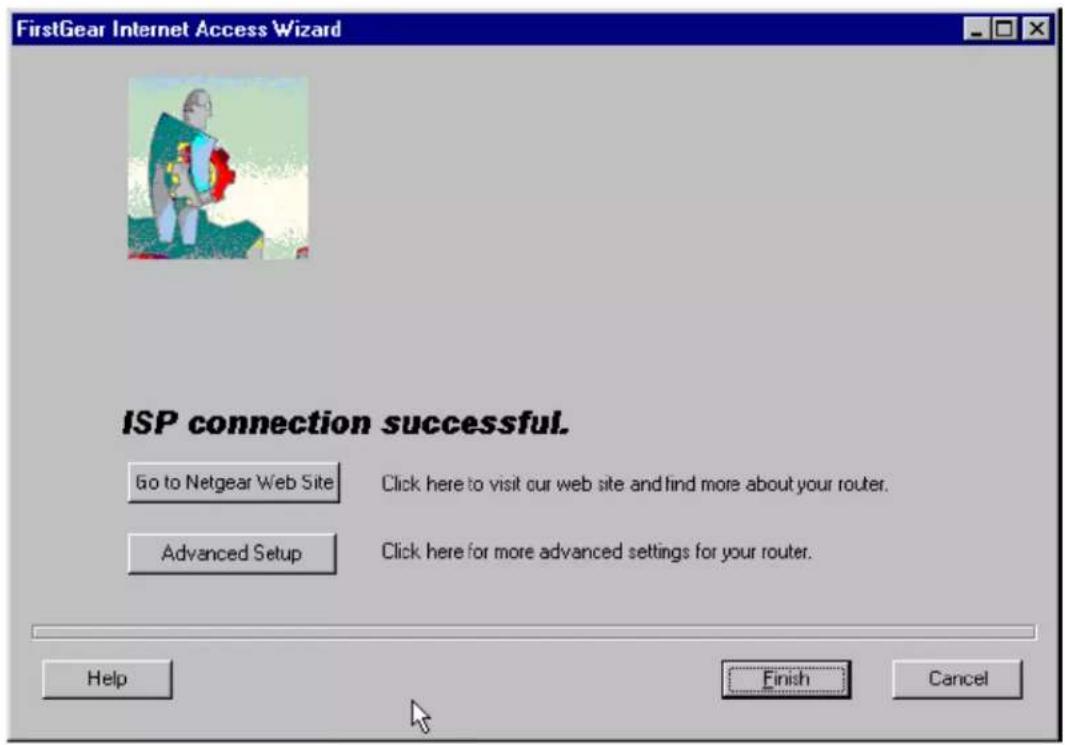
text_image
FirstGear Internet Access Wizard ISP connection successful. Go to Netgear Web Site Click here to visit our web site and find more about your router. Advanced Setup Click here for more advanced settings for your router. Help Finish CancelFigure 5-3. Internet Access Wizard ISP Test Complete Window
You can now go to the NETGEAR home page for additional information about your router, or you can select the Advanced Setup program to customize your configuration. Refer to “Using Advanced Setup,” on page 5-8 for instructions on using the Advanced Setup program.
Using FirstGear to Configure Internet Access 5-7
Reference Guide for the Model RT338 ISDN Router
Using Advanced Setup
The Advanced Setup procedure lets you download information into the router at any time. You can also use the Advanced tabs to fine-tune the router setup after you have used the Internet Access Wizard to set basic parameters.
Note: Changes made in the Advanced Setup tabs do not take effect until you download the new configuration to the router. To download the configuration, click on the Send to Router button.
Advanced Setup
To launch Advanced Setup, do one of the following:
- From the last window of the Internet Access Wizard, click on Advanced Setup
- From the Windows Taskbar, click Start and choose Programs > FirstGear for RT338 > Advanced Setup
The Advanced Router Configuration window opens, as shown in Figure 5-4.
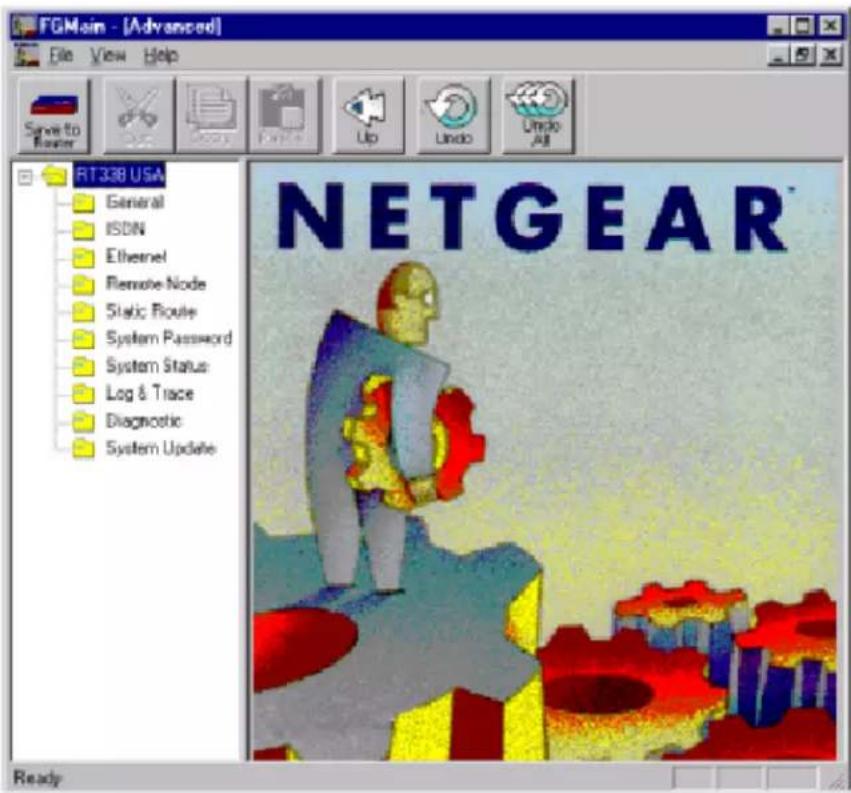
text_image
FGMain - [Advanced] File View Help Serve to Faster RT338 USA General ISDN Ethernet Remote-Node Static Route System Password System Status: Log & Trace Diagnostic System Update NETGEAR ReadyFigure 5-4. Advanced Setup Window
Using FirstGear to Configure Internet Access 5-9
The Advanced Router Configuration window contains tabs that can be selected in any order to customize the configuration of the router. The tabs and functions of the Advanced Router Configuration screen are described in Table 5-1.
Table 5-1. Advanced Router Configuration Tabs
| Field | Description |
| General Configures | the router name and contact information. |
| ISDN Contains the | ISDN line configuration information and settings for ISDN Advanced Calling Features. |
| Ethernet Configures | the TCP/IP and DHCP settings for the LAN interface. |
| Remote Node Configures | the connection to a remote LAN. |
| Static Routes Lets | you view and enter static IP routes. |
| System Password | Changes the password for the router's configuration access. |
| System Status Displays | plays line status, dynamic data related to calls, and accumulated statistics. |
| Log & Trace Displays error and progress logs and configures syslog transmissions. | |
| Diagnostic Lets you test connections, reset ISDN, and reboot the router. | |
| System Update Lets you update the router software or clear the configuration. | |
At the top of the Advanced Setup screen is a menu bar listing File, View, and Help options.
You can begin with a partial configuration from the Internet Access Wizard or a current configuration uploaded from the router. With a few exceptions, any changes made in the Advanced Setup menus are not applied until you click on the Save to Router button at the top of the window to send the configuration to the router.
Menu Bar Commands
The Advanced Setup Configuration screen for FirstGear contains a menu bar that provides the commands outlined in Table 5-2.
Table 5-2. Menu Bar Commands
| Menu Command Description | ||
| File New Connection Reads the changes made in the Advanced Setup menus. | current router configuration, discarding any | |
| Exit Exits the FirstGear Configuration Utility. | ||
| View Toolbar Displays or hides the toolbar at the top of the Advanced Setup window. | ||
| Status Bar Displays or hides the status bar at the bottom of the Advanced Setup window. | ||
| Help Help Contents Opens the online Help for the FirstGear application. | ||
| About FirstGear Displays FirstGear version and copyright information. | ||
Reference Guide for the Model RT338 ISDN Router
General Tab
Use the fields of the General tab, shown in Figure 5-5, to set parameters that identify your router. This tab is automatically displayed when you open the Advanced Setup window.

text_image
Router Name Location Contact Person's Name HelpFigure 5-5. General Tab
Table 5-3 lists the fields in this tab, describes their functions, and explains how to provide information in each field.
Table 5-3. General Tab Fields
| Field Description | |
| Router Name Choose | a descriptive name for the router for identification purposes (e.g., MyRT338).This name should be no more than eight alphanumeric characters. Spaces are not allowed, but dashes (-) and underscore marks (_ ) are accepted. |
| Location For reference only. | |
| Contact Name For reference only. | |
5-12 Using FirstGear to Configure Internet Access
ISDN Tab
Use the ISDN tab to set the directory numbers (DN) of the router and other ISDN line configuration parameters. Figure 5-6 shows the ISDN tab.
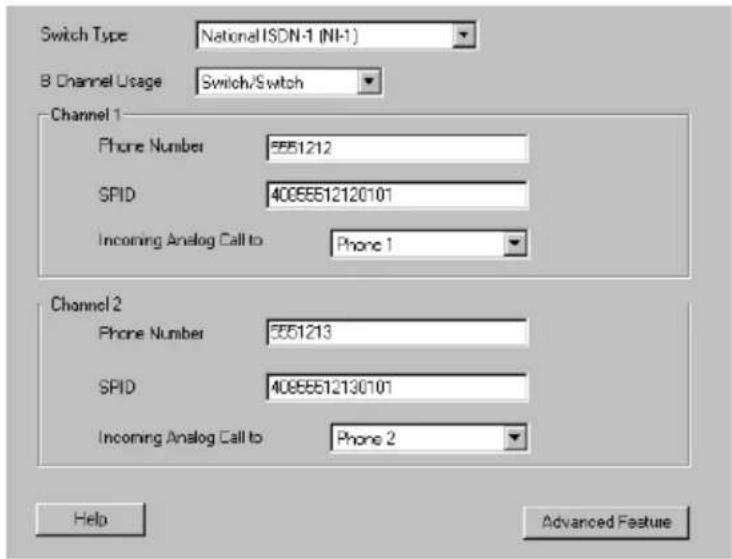
text_image
Switch Type National ISDN-1 (NI-1) B Channel Usage Switch/Switch Channel 1 Phone Number 5551212 SPID 40855512120101 Incoming Analog Call to Phone 1 Channel 2 Phone Number 5551213 SPID 40855512130101 Incoming Analog Call to Phone 2 Help Advanced FeatureFigure 5-6. ISDN Tab
Table 5-4 lists and describes the fields of the ISDN tab.
Table 5-4. ISDN Tab Fields
| Field Description | |
| Switch type Select | the type of ISDN switch or protocol used by your telephone company. If the switch is running National ISDN Protocol, select National ISDN regardless of the switch manufacturer. |
| B Channel Usage P | Press the space bar to toggle through the permutations of Switch, Leased, and Unused. Select Switch/Switch unless one or both B channels are a leased circuit. |
| Phone Number Use | the Phone Number box in both the Channel 1 and Channel 2 area to set the telephone number(s) assigned to your ISDN line by your telephone company. Some lines have only one telephone number. For North America, these phone numbers must be in a standard seven-digit local format (for example, 5551212). Enter up to 19 digits, and do not include dashes (-) or spaces in this field. |
| SPID | Use the SPID box in both the Channel 1 and Channel 2 area to set the Service Profile Identifier (SPID) numbers provided by your telephone company. Depending on your switch type, you may have zero, one, or two SPIDs assigned to your line. SPIDs are not required for the AT&T 5ESS Custom Point-to-Point Protocol. |
| Incoming Analog Call to | Use the Incoming Analog Call to box in both the Channel 1 and Channel 2 area to set how an incoming analog call to that number is handled. Choose from the following options:• Phone 1—Analog calls are directed to the Phone 1 port.• Phone 2—Analog calls are directed to the Phone 2 port.• DOVBS—Analog calls are assumed to be data calls using DOVBS. |
| Advanced Feature | Click on this button to open the ISDN Advanced Features tab described in “ISDN Advanced Features Tab” on page page 5-15. |
ISDN Advanced Features Tab
Use the ISDN Advanced Features tab (shown in Figure 5-7) to configure advanced features for the ISDN connections.
To open the ISDN Advanced Features tab:
- On the ISDN tab, click on Advanced Features.

text_image
ISDN Feature Access Code Conference Call × 61 Call Transfer × 61 Call Drop × 62 Call Forwarding × 57 Advanced Feature Call Waiting Phone 1 Hangup Silence Time (sec) 5 Phone 2 First Outgoing Data Call Channel None Help Apply CancelFigure 5-7. Advanced ISDN Features Tab
Table 5-4 lists and describes the fields of the ISDN Advanced Features tab.
Table 5-5. Advanced ISDN Features Tab
| Field Description | |
| Conference Call E | enter the feature key codes used by your local telephone company to access each Advanced Calling Feature. Enter only the numbers. The router adds the star (*) prefix when sending the key code. The default codes follow the specification of the National ISDN (NI-1) standard and are shown in Table 10-1. If your local telephone company uses different key settings, change the values to meet your local requirements. |
| Call Transfer | |
| Call Drop | |
| Call Forwarding | |
| Phone 1 and 2 Call Waiting | Select one or both of these check boxes if you have subscribed to call waiting and want to use it for the specified phone line. This feature lets you place a call on hold while you answer another incoming call on the same telephone (directory) number. However, call waiting can interrupt data on the phone line if you receive an incoming call while that line is being used for data. |
| Hangup Silence Time | When the other party disconnects from an analog call, the router's analog port signal changes to a busy signal. This field specifies the period of silence, in seconds, before the busy signal appears. The range is from 0 to 10 seconds, and the default is 5. Some answering machines only recognize that a calling party has hung up after a period of silence. |
| First Outgoing Data Call Channel | Specifies which directory number and B Channel is used first to initiate a data call when both channels are idle.None: 1st phone number, no B channel preference. (Default).1st: first phone number, B1 channel preference2nd: second phone number, B2 channel preference |
Ethernet Tab
The Ethernet tab shown in Figure 5-8 contains the configuration information for the local Ethernet port.
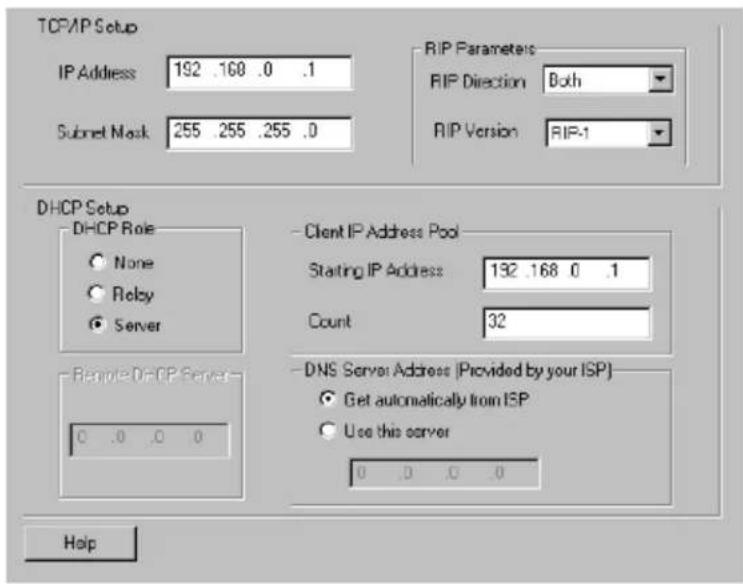
text_image
TCP/IP Setup IP Address 192 .168 .0 .1 Subnet Mask 255 .255 .255 .0 RIP Parameters RIP Direction Both RIP Version RIP-1 DHCP Setup DHCP Role None Relay Server Client IP Address Pool Starting IP Address 192 .168 0 .1 Count 32 DNS Server Address (Provided by your ISP) Get automatically from ISP Use this server 0 .0 .0 .0 HelpFigure 5-8. Ethernet Tab
Table 5-6 lists and describes the fields of the Ethernet tab.
Table 5-6. Ethernet Tab Fields
| Field Description | |
| IP Address Enter the IP | address of the LAN interface of the router in dotted-decimal notation (four decimal numbers, between 0 and 255, separated by periods, for example, 192.168.135.5). Every device on the TCP/IP network must have a unique IP address. If you are using NAT, the IP address is not the address assigned to you by your ISP. |
| Subnet Mask Enter the | subnetwork mask for the router. Unless you have a special need for subnetting, use the default subnet mask calculated by the router. All hosts on the LAN segment should use the same mask. |
Using FirstGear to Configure Internet Access 5-17
Table 5-6. Ethernet Tab Fields (continued)
| Field Description | |
| RIP Direction Use this | field to set how the router handles RIP (Routing Information Protocol):If set to Both (default), the router broadcasts its routing table on the LAN and incorporates RIP broadcasts by other routers into its routing table.If set to In Only, the router does not broadcast its routing table on the LAN.If set to Out Only, the router broadcasts its routing table but ignores any RIP broadcast packets that it receives.If set to None, the router does not participate in any RIP exchange with other routers.Usually, you should leave this parameter at its default of Both and let RIP propagate the routing information automatically. |
| RIP Version Use this box | box to determines how the router handles RIP (Routing Information Protocol). Your choices are:RIP-1—The router accepts and sends RIP-1 messages only.RIP-2B—The router accepts RIP-1 and RIP-2 messages (both broadcast and multicast) and sends RIP-2 messages in broadcast format.RIP-2M—The router accepts RIP-1 and RIP-2 messages (both broadcast and multicast) and sends RIP-2 messages in multicast format.Among other improvements, RIP-2 supports subnetting and multicasting. For most applications, NETGEAR recommends the RIP-2B version. Select RIP-1 if other connected routers or workstations have problems with RIP-2. Select RIP-2M only in a pure RIP-2 environment. |
| DHCP Role Use these | radio buttons to configure the DHCP functionality of the router.When configured as a DHCP server, the router dynamically assigns IP addresses, netmasks, and DNS server addresses to PCs on the LAN. It also assigns its own LAN IP address as the default gateway of the PC.Your choices are:None—Disables DHCP.Server—Configures the router to acts as DHCP server.Relay—Configures the router to obtain DHCP information from a Remote DHCP server and distribute that information to the local hosts. |
| Starting address | Use this field to specify the beginning address of the pool of addresses that the router assigns to attached hosts. If you are not assigned a range of addresses by an ISP or system administrator, NETGEAR recommends that you use addresses from the IETF-designated private addresses (for example, 192.168.x.x or 10.x.x.x) and select NAT for ISP or Remote Node Connections.This field is disabled unless DHCP Role is set to Server. |
| Count | Use this field to specify how many sequential addresses, beginning with the Starting Address, are available to be assigned to attached PCs. The maximum is 32.This field is disabled unless DHCP Role is set to Server. |
| Remote DHCP Server | Enter the address of the Remote DHCP Server from which your router obtains DHCP information for assignment to devices on the local network. This field is disabled unless DHCP Role is set to Relay. |
| DNS Server Address | Use these radio buttons and the text box to specify where the router gets DNS information. Your choices are:• Get Automatically from ISP—Configures the router to automatically get the IP address of the DNS server from your ISP• Use this server—Configures the router to always use the DNS server at the specified IP address. |
Remote Node Tab
Use the Remote Node tab, shown in Figure 5-10, to add or modify remote nodes.
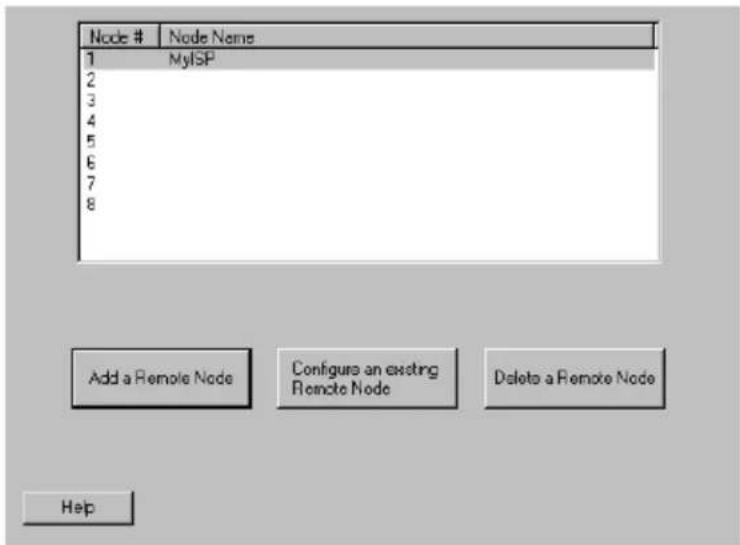
text_image
Node # Node Name 1 MyISP 2 3 4 5 6 7 8 Add a Remote Node Configure an existing Remote Node Delete a Remote Node HelpFigure 5-9. Remote Node Tab
A remote node is required for placing calls to or answering calls from a remote network. When a remote node is configured properly, traffic to the remote LAN prompts the router to make a call automatically (Dial On Demand). Similarly, calls from the remote LAN are answered automatically and security is checked.
Using FirstGear to Configure Internet Access 5-19
Reference Guide for the Model RT338 ISDN Router
To add a remote node:
- On the Remote Node tab, click Add Remote Node
To configure an existing remote node:
- On the Remote Node tab, select a a remote node from the list and click Configure an existing Remote Node
Figure 5-10 shows the Add/Modify Remote Node tab that opens when you click either Add Remote Node or Configure an existing Remote Node

text_image
Node Name MyISP Connection Type 64K Cell Direction Outgoing Only Outgoing Login Name pmith Password xxxxxxxxx Primary Phone# 5551234 Alternate Phone Number Authentication CHAP/PAP Idle Timeout (sec) Never (Nalup) Yes 300 Sec Incoming Login Name Password Calling Line ID Imit cellbox Block NetBEUI-initiated cells PPP Detail > TCP/IP Detal > Apply Cancel HelpFigure 5-10. Add/Modify Remote Node Tab
5-20 Using FirstGear to Configure Internet Access
Table 5-7 lists and describes the fields of the Add/Modify Remote Node tab.
Table 5-7. Remote Node Tab Fields
| Field Description | |
| Node Name Enter a descriptive name for the remote node (for example, MyOffice). This field supports up to eight characters. This name must be unique from any other remote node name or remote dial-in user name. This field is required. | |
| Connection Type Use this box to control the rate at which the data is transferred between your router and the remote node. There are three options for this field:64K—The router places 64 Kbps digital data calls (default).56K—The router places 56 Kbps digital data call.DOVBS—The router places 56 Kbps Data Over Speech Bearer Service (DOVBS) calls. Some phone companies in North America charge less if calls are made with the DOSBS option. | |
| Call Direction If this parameter is set to Both, the router can both place and receive calls to and from this remote node. If set to Incoming, the router does not place a call to this remote node. If set to Outgoing, the router does not accept any call from this remote node. In order to enable Callback, the Call Direction must be set to Both. | |
| Active? Select this check box to make the remote node active, or clear it to deactivate the node. When you deactivate a remote node, it has no effect on the operation of the router, even though it is still kept in the database and can be activated in the future. | |
| Outgoing: Use this parameter group to onfigure the router to call the remote node. This group is valid only if Call Direction is set to Both or Out. Login Name Enter the login name your router uses when it calls this remote node. Password Enter the password your router uses when it calls this remote node. Primary and Alternate Phone Number Enter the primary and second phone numbers. The primary and secondary phone numbers are the numbers that the router dials to connect to the remote node. The router always calls the remote node using the primary phone number first. If the primary phone number is busy or does not answer, the router calls the secondary phone number if available. Note that the secondary number is not necessarily the number your router dials to add additional bandwidth for a Multilink call. If the called router supports BACP, that router provides the dial number for a second call. In North America, enter the full number including area code. | |
| Field | Description |
| Authentication Use this field to set the authentication protocol used for outgoing calls.The router supports two authentication protocols: PAP (Password Authentication Protocol) and CHAP (Challenge Handshake Authentication Protocol).PAP sends the user's name and password in plain text. CHAP scrambles the password before it is sent over the wire. Options for this field are:CHAP/PAP—The router tries CHAP when CHAP is requested by the remote node or PAP when PAP is requested by the remote node. (Default)CHAP—Use CHAP only.PAP—Use PAP only. | |
| Incoming: This parameter | group controls access on incoming calls from this remote node.This group is used only if Call Direction is set to Incoming or Both. |
| Login Name In this field, enter the Login Name that this remote node uses when it calls your router. The Login Name in this field combined with the Login Password is used to authenticate the incoming calls from this node. | |
| Password In this field, enter the Password used when this remote node calls your router. | |
| Calling Line ID Enter the telephone number of the remote node. If you have selected the CLID Enable field in the Dial-in tab, the router checks this number against the CLID presented with the incoming call. If the incoming caller's number does not match, the router rejects the call. This field is active only if Call Direction is set to either Both or Incoming. You must request CLID from the telephone company for your ISDN line in order for this feature to work. | |
| I will callback Use this | check box to set whether the router calls back after receiving a call from this remote node. If callback is enabled, the router disconnects the initial call from this remote node and calls it back at the Outgoing Primary Dial Number (see page 5-17). Callback is only available if Call Direction is set to Both. |
| Idle Timeout Use these | radio buttons and the text box to configure how long the router maintains an idle connection. Your options are:Never—The router dials this remote node automatically upon bootup and does not drop the call. If the call is dropped by the far end, the router immediately redials.Yes—The router drops the connection after the number of seconds specified in the text box. |
| Block NetBEUI-initiated Calls | Check this box to prevent Windows NetBIOS name service traffic from causing the router to place ISDN phone calls. Specifically, it filters TCP and UDP packets to the three NetBIOS Name Service ports, ports 137 through 139. The filter is applied as a Call Filter, meaning it is be used to determine whether or not a call is placed. |
| PPP Detail Opens the PPP Detail Tab | |
| TCP/IP Detail Opens the TCP/IP Detail Tab | |
Selecting PPP Detail on the Remote Node Tab
Click on the PPP Detail button on the Remote Node tab to open the PPP Detail tab shown in Figure 5-11.

text_image
Encapsulation Standard PPP Cisco PPP Compression - Multlink Options Bandwidth On Demand Calculation Transmit or Receive Always use one channel Always use both channels (MP) Add 2nd channel when needed (BOD) Add Threshold (kbps) 43 Persistence (sec) 5 Subtract Threshold (kbps) 32 Persistence (sec) 5 Help Apply CancelFigure 5-11. PPP Detail Tab
Table 5-8 lists and describes the fields of the PPP Detail tab.
Table 5-8. PPP Detail Tab
| Field Description | |
| Encapsulation Select CCP (Compression Control Protocol) for the PPP or MP link. Two options are available in this field:Standard PPP—Standard PPP options are used (default).CISCO PPP—Cisco Systems PPP options are used. | |
| Compression Enables the negotiation of data compression with the remote node router. | |
| Bandwidth On Demand Calculation | Select the direction of the traffic you want to calculate in order to determine when to add or subtract a link. The default for this field is Transmit or Receive. |
| Always use one channel | Only one channel is used when a packet triggers a call. |
| Always use both channels (MP) | Two channels are used when a packet triggers a call. |
| Add 2nd channel when needed (BOD) | The router uses the second channel according to the Badwidth on demand calculation. |
| Add Threshold Sets the data rate threshold for adding the second channel. The router adds the second channel when the data rate exceeds this value. | |
| Add Persist Sets the number of seconds that traffic must be above the adding threshold before the router adds the second channel. The default is 5 seconds. | |
| Subtract Threshold | Sets the data rate threshold for subtracting the second channel. The router drops the second channel when the data rate falls below this value. |
| Subtract Persist Sets the number of seconds that traffic must be below the subtraction threshold before the router drops the second channel. The default is 5 seconds. | |
Selecting TCP/IP Detail on the Remote Node Tab
Click on the TCP/IP Detail button on the Remote Node tab to open the TCP/IP Detail tab shown in Figure 5-12.
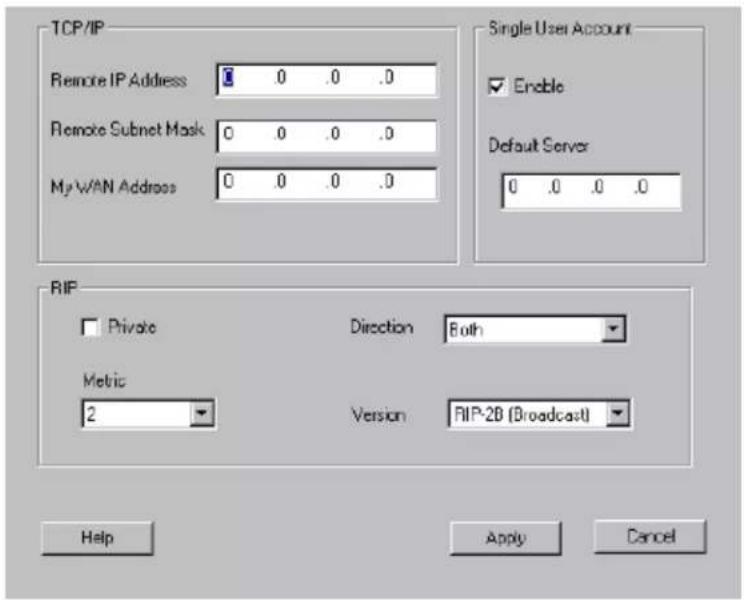
text_image
TCP/IP Remote IP Address 0.0.0.0 Remote Subnet Mask 0.0.0.0 My WAN Address 0.0.0.0 Single User Account Enable Default Server 0.0.0.0 RIF Private Direction Both Metric 2 Version RIP-2B (Broadcast) Help Apply CancelFigure 5-12. TCP/IP Detail Tab
Table 5-9 lists and describes the fields of the TCP/IP Detail tab.
Table 5-9. TCP/IP Detail Tab
| Field Description | |
| Remote IP Address This | read-only field shows the IP address you entered for this remote node in the previous menu. |
| Rem Subnet Mask This fi | field displays the standard class netmask for the network address of the remote router. If the remote network uses a netmask other than the standard class netmask, you must enter the netmask here. |
Using FirstGear to Configure Internet Access 5-25
Table 5-9. TCP/IP Detail Tab
| Field Description | |
| My WAN Addr This field should be set to 0.0.0.0 unless you are using Numbered Links or Single User Account (NAT) with a fixed address. Some network implementations require hosts on both ends of the ISDN link to have separate addresses from the LAN, and these addresses must have the same network number. If this situation, known as numbered links, applies to your network, enter the IP address in this field that is assigned to the WAN port of your router. This is the address assigned to the local router, not the remote router. | |
| Single User Account Use this check box to enable or disable NAT (IP Address Masquerading) for this node. If this box is checked and your router is using a single fixed (not dynamic) IP address, enter that address in the My Wan Address box. | |
| Private Use this check box to set whether router includes the route to this remote node in its RIP broadcasts. If checked, this route is kept private and not included in any RIP broadcast. If not checked, the route to this remote node is propagated to other hosts through RIP broadcasts. | |
| Metric Enter a number in this field that approximates the cost for this link. IP routing uses hop count as the measurement of cost, with a minimum of 1 for directly connected networks. The number need not be precise, but it must be between 1 and 16. In practice, 2 or 3 is usually a good number. | |
| Direction This parameter determines how the router handles RIP (Routing Information Protocol). If set to Both (default), the router broadcasts the routing table of the router on the LAN and incorporates RIP broadcasts by other routers into its routing table. If set to In Only, the router broadcasts its routing table on the LAN. If set to Out Only, the router broadcasts its routing table, but it ignores any RIP broadcast packets that it receives. If set to None, the router does not participate in any RIP exchange with other routers. Usually, you should leave this parameter at the default (Both) and let RIP propagate the routing information automatically. | |
| Version This field determines how the router handles RIP (Routing Information Protocol). The following RIP options are supported by the Model RT338 router:• RIP-1—The router accepts and sends RIP-1 messages only.• RIP-2B—The router accepts RIP-1 and RIP-2 messages (both broadcast and multicast), and sends RIP-2 messages in broadcast format.• RIP-2M—The router accepts RIP-1 and RIP-2 messages (both broadcast and multicast), and sends RIP-2 messages in multicast format. For most applications, the recommended version is RIP-2B. Select RIP-1 if other connected routers or workstations have problems with RIP-2. Select RIP-2M only in a pure RIP-2 environment. | |
Static Routes Tab
Use the Static Routes tab, shown in Figure 5-13, to view and edit static routes. Static routes are created automatically when you configure an ISP or remote node connection. Under normal circumstances, you do not need to configure additional static routes. For further information about routing, refer to Chapter 1, "Introduction."
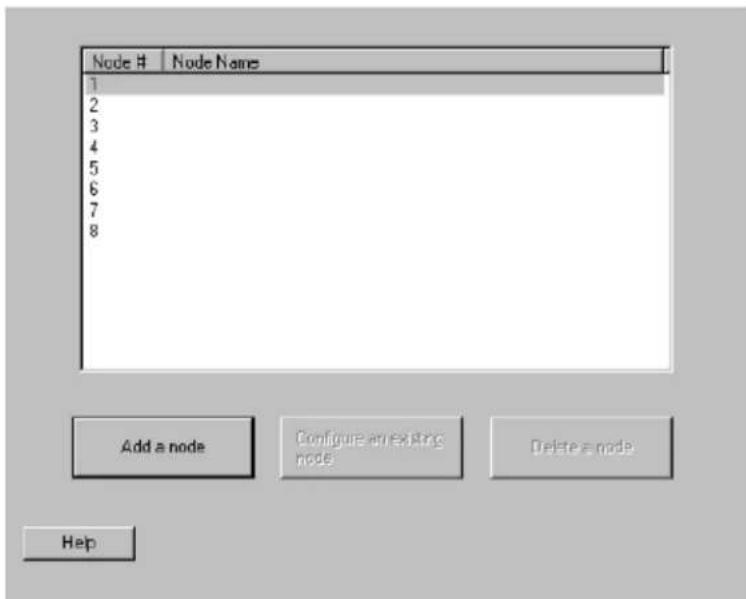
text_image
Node # Node Name 1 2 3 4 5 6 7 8 Add a node Configure an existing node Delete node HelpFigure 5-13. Static Routes Tab
Using FirstGear to Configure Internet Access 5-27
Reference Guide for the Model RT338 ISDN Router
To create or modify a static route, click on either Add a route or Configure an existing route. A tab similar to that shown in Figure 5-14 opens.
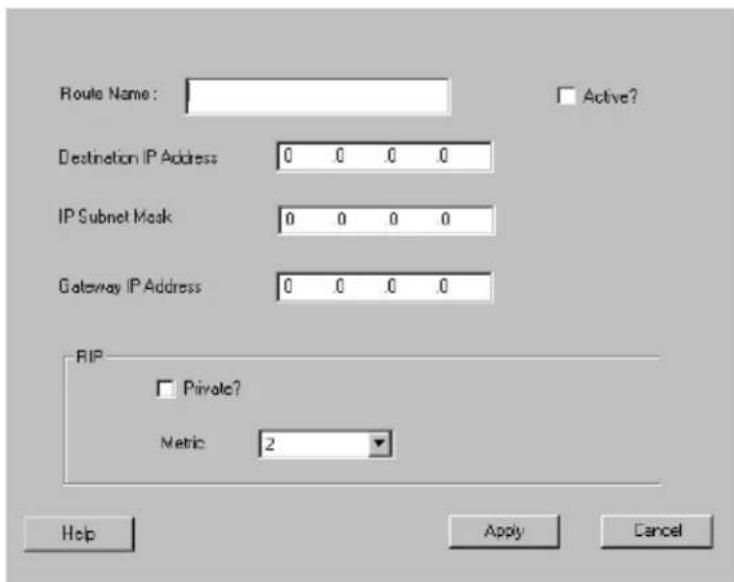
text_image
Route Name: Destination IP Address IP Subnet Mask Gateway IP Address Active? RIP Private? Metric 2 Help Apply CancelFigure 5-14. Add/Modify Static Route Tab
Table 5-10 describes the fields on the Add/Modify Static Route tab.
Table 5-10. Add/Modify Static Route Tab Fields
| Field Description | |
| Route Name Enter a descriptive name for this route for identification purposes only. | |
| Active Use this check box to activate or deactivate this static route. | |
| Destination IP Address Enter the IP network address of the final destination. Routing is always based on network number. If you need to specify a route to a single host, use a subnet mask of 255.255.255.255 in the subnet mask field to force the network number to be identical to the host ID. | |
| IP Subnet Mask Enter the subnet mask for this destination. | |
| Gateway IP Address Enter the IP address of the gateway to the destination network. The gateway is the next router that your router contacts in order to forward packets to the destination. On the LAN, the gateway must be a router on the same segment as the router. Over ISDN, the gateway must be the IP address of the router at one of the remote nodes. | |
| Private Use this field to determine whether the router includes the route to this remote node in its RIP broadcasts. If set to Yes, this route is kept private and not included in any RIP broadcast. If set to No, the route to this remote node is propagated to other hosts through RIP broadcasts. | |
| Metric Enter the cost of transmission for routing purposes. IP routing uses hop counts as the measurement of cost, with a minimum of 1 for directly connected networks. Enter a number that approximates the cost for this link. The number does not have to be precise, but it must be between 1 and 16. In practice, 2 or 3 is usually a good number. | |

Iw1Gear.fm Page 30 Friday, October 6, 2000 5:23 PM



Chapter 6
Using the Manager Interface to Configure Internet
Access
This chapter describes how to use the Manager interface to configure your Model RT338 ISDN Router for Internet access.
Information Checklist
Use Menu 4 of the Manager to configure Internet access. Before you configure the router for Internet access, make sure your ISP (Internet service provider) provides you with the following information:
- A local phone number for accessing the ISP. A secondary number may be provided for use when the primary number is busy or not in service.
- A login name
- A password
- IP address(es) unless dynamically assigned
- DNS server address(es) unless dynamically assigned
In addition, you should ask your ISP these questions:
- Is your single IP address fixed (static) or dynamically assigned?
- Is your DNS server address dynamically assigned?
- Does your ISP support the Multilink Protocol?
If you intend to connect both ISDN B channels simultaneously for a 128 kbps connection, your ISP must support the Multilink Protocol.
Using the Manager Interface to Configure Internet Access 6-1
Configuring Internet Access
Use Menu 4, Internet Access Setup, to configure the router for access to an Internet service provider (ISP). When you complete this menu, the router automatically adds a Remote Node for your ISP in Menu 11, using typical ISP configuration parameters in addition to those you have specified in Menu 4. The router also creates a default static route for the ISP. After completing Menu 4, you may go to Menu 11 and make modifications to any of the parameters. However, if you return to Menu 4, make changes, and then save them, the ISP-related entries in Menu 11 revert to typical ISP configuration parameters, possibly reversing any changes you have made to those menus.
To configure your router for Internet access:
- Enter 4 from the Main Menu to display Menu 4 - Internet Access Setup.
Menu 4 - Internet Access Setup opens as shown in Figure 6-1.
Menu 4 - Internet Access Setup
ISP's Name= MyISP
Pri Phone #= 5551212
Sec Phone #
My Login= netgear
My Password= *****
Single User Account= Yes
IP Addr= 0.0.0.0
Telco Options:
Transfer Type= 64K
Multilink= Off
Idle Timeout= 300
Press ENTER to Confirm or ESC to Cancel:
Figure 6-1. Menu 4 - Internet Access Setup
- Enter the name of your ISP in the ISP's Name field (for example, myISP).
This information is for identification purposes only.
6-2 Using the Manager Interface to Configure Internet Access
- Enter a primary phone number and a secondary phone number in the Pri(mary) Phone # and Sec(ondary) Phone # fields.
Both the primary and the secondary phone numbers refer to the number that the router dials to connect to the ISP. The router calls your ISP using the primary phone number first. If the primary phone number is busy or does not answer, the router calls the secondary phone number if available.

Note: In some areas, you must dial an ISDN data call using 1+area code or you will receive a 56K connection instead of a 64K connection. Check with your local telephone company.
- Enter your login name in the My Login Name field.
Enter the login name given to you by your ISP.
- Enter your password in the My Password field.
Enter the password associated with the login name from your ISP.
- Enter single-user account information in the Single User Account field.
If your ISP account is for a single user, set this field to Yes. This setting enables NAT. If your ISP assigns an IP address dynamically, leave IP Addr as 0.0.0.0. If your ISP assigns you a single fixed permanent (static) IP address, enter it as IP Addr.
- Enter the transfer rate in the Telco Options: Transfer Type field.
When establishing a call in North America, your router specifies a data rate and the type of call based on this field. The following three options are available for this field:
- 64K—The router places a 64 Kbps digital data call (default).
- 56K—The router places a 56 Kbps digital data call.
- DOVBS—The router places a 56 Kbps data over voice bearer service (DOVBS) call.
- Leased—The router is attached to a leased line.
If your router will be nailed up (connected online 24 hours a day) on a nonleased line, do not select Leased. Select the appropriate option in this field and set "Nailed-Up Connection=Yes" in Menu 11.1.
- Use the space bar to make a selection in the Multilink field.
This field determines under which circumstances the router places an additional call (adding a second ISDN B channel) to the ISP in order to increase the bandwidth of the connection. The following three options are available for this field:
- Off—The router places only a single channel call to the ISP.
- BOD—The router adds bandwidth on demand (BOD), placing a second call when the data rate increases beyond a specified level for a specified period. You can change these parameters using the Edit PPP submenu of Menu 11 - Remote Node Setup Menu.
-
Always—The router always calls the ISP using both channels for a 128K connection.
-
Press [Enter] at the Press ENTER to Confirm... prompt to confirm your selections.
You can also press [Esc] at any time to cancel your selections.
The Manager asks if you want to test the Internet connection. If you select Yes, the router calls the ISP to test the Internet connection. If the test fails, note the error message that you receive and take the appropriate troubleshooting steps.
Configuring for Local Servers with NAT
Although NAT causes your entire local network to appear as a single machine to the Internet, you can make local servers for different services (for example, FTP or HTTP) visible and available to the Internet. Requested services are identified by port numbers in the incoming IP packet. For example a packet that is sent to the external IP address of your router and destined for port number 80 is an HTTP (Web server) request, and port 21 is an FTP request. Examples of port numbers are shown at the bottom of Menu 15, although you are not limited to these choices. See the IETF's RFC1700, "Assigned Numbers" for port numbers for common protocols.
Use Menu 15, SUA Server Setup to configure the router to forward incoming protocols to IP addresses on your local network based on the port number. In addition to servers for specific protocols, you can also specify a default server to which all other incoming protocols are forwarded.
Menu 15 - Multiple Server Configuration is shown in Figure 6-2.
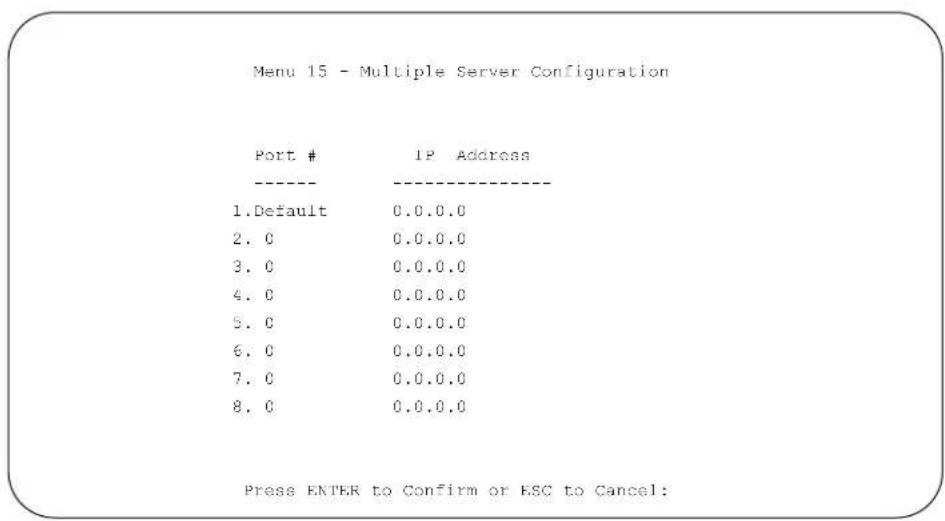
text_image
Menu 15 - Multiple Server Configuration Port # IP Address ---- ---- 1.Default 0.0.0.0 2. 0 0.0.0.0 3. 0 0.0.0.0 4. 0 0.0.0.0 5. 0 0.0.0.0 6. 0 0.0.0.0 7. 0 0.0.0.0 8. 0 0.0.0.0 Press ENTER to Confirm or ESC to Cancel:Figure 6-2. Menu 15 - Multiple Server Configuration
Local Web and FTP Server Example
If a local PC whose address is 192.168.0.3 acts as a Web and FTP server, configure Menu 15 to forward ports 80 (HTTP) and 21 (FTP) to local address 192.168.0.3 as shown in Table 6-1.
Table 6-1. Menu 15 Field Entries (Example)
| Port # IP Address | |
| Default 0.0.0.0 | |
| 80 (HTTP) 192.168.0.3 | |
| 21 (FTP) 192.168.0.3 |
Using the Manager Interface to Configure Internet Access 6-5
Reference Guide for the Model RT338 ISDN Router
In order for a remote user to access this server from the Internet, your router must be connected to the ISP (a call must be active), and the remote user must know the IP address that has been assigned by your ISP. When a call is active, the assigned IP address is shown as “Own IP Address” in the internal Manager’s Menu 24.1, “System Maintenance.” If this address is 172.16.1.23, for example, an Internet user can access your Web server by directing his browser to http://172.16.1.23. Following are some considerations for this application:
- The assigned IP address may only be valid during the current call to the ISP. If your call drops, you may be assigned a different IP address when you dial again.
- If the IP address of the local PC is assigned by DHCP, it may change when the PC is rebooted. To avoid this, change the configuration of your PCs to use fixed private addresses rather than DHCP-assigned addresses.
- Local PCs must access the local server using its local LAN address (192.168.0.3 in this example). Attempts by local PCs to access the server using the external IP address (172.16.1.23 in this example) will fail.
Local Game Host or Videoconference Example
Some online games and videoconferencing applications are incompatible with NAT. The Model RT338 router is programmed to recognize some of these applications and to work properly with them, but there are other applications that may not function well. In some cases, one local PC can run the application properly if that PC's IP address is entered as the Default in Menu 15. If one local PC acts as a game or videoconference host, enter its IP address as the Default.
Backup ISP Accounts
It may be desirable to configure more than one ISP account for backup purposes. The NAT feature can be enabled for all of these accounts, making it convenient to switch Internet service providers in the event of a failure.
Configuring for a Backup ISP
To configure a backup ISP account:
- Configure your primary ISP using Menu 4 (as described in “Configuring Internet Access” on page 6-2).
- Enter 11 from the Main Menu to open the Remote Node Setup Menu.
Menu 11 - Remote Node Setup opens as shown in Figure 6-3.
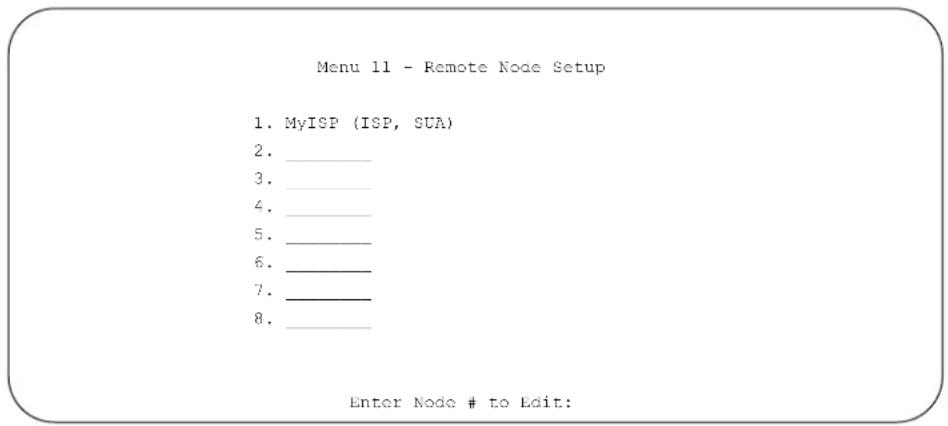
text_image
Menu 11 - Remote Node Setup 1. MyISP (ISP, SUA) 2. _ 3. _ 4. _ 5. _ 6. _ 7. _ 8. _ Enter Node # to Edit:Figure 6-3. Menu 11 - Remote Node Setup
Using the Manager Interface to Configure Internet Access 6-7
- Type an unused remote node number at the prompt, and press Enter.
Menu 11.1 - Remote Node Profile opens as shown in Figure 6-4.
Menu 11.1 - Remote Node Profile
Rem Node Name = ?
Active= Yes
Call Direction= Both
Edit PPP Options= No
Rem IP Addr= ?
Edit IP= No

Incoming:
Rem Login= ?
Rem Password= ?
Rem CLID=
Call Back= No
Outgoing:
My Login=
My Password= *****
Authen= CHAP/PAP
Pri Phone #= ?
Sec Phone #
Telco Option:
Transfer Type= 64K
Allocated Budget(min)=
Period(hr)=
Carrier Access Code=
Nailed-Up Connection= N/A
Toll Period(sec)= 0
Session Options:
Edit Filter Sets= No
Idle Timeout(sec)= 300
Figure 6-4. Menu 11.1 - Remote Node Profile
- At the Rem Node Name field, enter a name for the remote node.
The name can have up to 8 characters. - Using the arrow keys, move the cursor to the Active field.
- Press the space bar to toggle the field to No.
- Enter outgoing login name, password, and phone number(s).
- Set the Rem IP Addr to 1.1.1.1.
- Using the arrow keys, move the cursor to Edit IP.
- Press the space bar to toggle the field to Yes.
6-8 Using the Manager Interface to Configure Internet Access
- Press Enter to open Menu 11.3.
The Remote Node Network Layer Options menu opens as shown in Figure 6-5.
Menu 11.3 - Remote Node Network Layer Options
Rem IP Addr:
Rem Subnet Mask= 0.0.0.0
My WAN Addr= 0.0.0.0
Single User Account= No
Metric= 2
Private= No
RIP Direction= Both
Version= RIP-2B
Press ENTER to Confirm or ESC to Cancel:
Figure 6-5. Menu 11.3 - Remote Node Network Layer Options
- In Menu 11.3, set the subnet mask of the remote node to 0.0.0.0.
- Set RIP Direction to None.
- At the bottom of the Menu, press Enter to save Menu 11.3.
- At the bottom of Menu 11.1, press Enter to save Menu 11.1.
Switching to a Backup ISP
If you need to switch from your primary ISP to a backup ISP:
- Select Menu 11, and select your primary ISP.
- In Menu 11.1, set the Active field to No.
- At the bottom of Menu 11.1, press Enter to save the menu.
- Select Menu 11 again, and select your backup ISP.
- In Menu 11.1, set the Active field to Yes.
- At the bottom of Menu 11.1, press Enter to save the menu.
You can now access the Internet through the backup ISP Remote Node.
Using the Manager Interface to Configure Internet Access 6-9

IwIMgr.fm Page 10 Friday, October 6, 2000 5:26 PM



Chapter 7
Remote Node Configuration
This chapter describes how to configure your Model RT338 ISDN Router to access a remote node. A remote node represents both a remote gateway and the network behind it, across an ISDN connection. A remote node must be defined and configured in order for your router to place calls to a remote network or answer calls from a remote network. When a remote node is configured properly, traffic to the remote LAN triggers the router to make a call automatically (Dial On Demand). Similarly, calls from the remote LAN are answered automatically and security is checked.
An Internet service provider is the most common type of remote node. This application was described in the previous chapter. Configurations for other applications are provided in this chapter.
LAN-to-LAN Application
An example of a typical LAN-to-LAN application is to use the router to call from a branch office to the corporate headquarters, as shown in Figure 7-1.
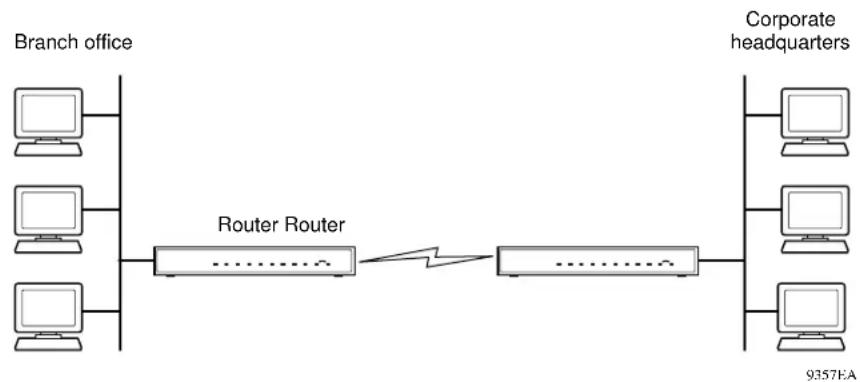
flowchart
graph LR
    A["Branch office"] --> B["Router Router"]
    C["Corporate headquarters"] --> D["9357EA"]
    B -->|Wireless Link| B
Figure 7-1. LAN-to-LAN Application
For the branch office, you must configure a remote node in order to dial out to the headquarters. Additionally, you may also need to configure static routes if some services reside beyond the immediate remote LAN.
Remote Node Setup
When you use Menu 4 (Internet Access Setup) to configure your router for Internet access, the router automatically adds a remote node for you because the ISP falls outside the normal criteria that define a remote node.

Note: If you access only one remote node (not an ISP), create that remote node using Menu 4 and then edit it with Menu 11. Creating the remote node using Menu 4 and editing it with Menu 11 makes the remote node the default route.

Note: If you are configuring the router to receive an incoming call, you must also set the default dial-in parameters in Menu 13. For more information, see Chapter 8, "Configuring Dial-In Access."
7-2 Remote Node Configuration
To create a remote node:
- Enter 11 from the Main Menu to display Menu 11 - Remote Node Setup.
- Enter a remote node number (1 to 8) to edit the remote node and to display Submenu 11.1 - Remote Node Profile.
Menu 11.1 - Remote Node Profile opens as shown in Figure 7-2.
Menu 11.1 - Remote Node Profile
Rem Node Name = ? Edit PPP Options = No
Active = Yes Rem IP Addr = ?
Call Direction = Both Edit IP = No
Incoming: Telco Option:
Rem Login = ? Transfer Type = 64K
Rem Password = ? Allocated Budget (min) =
Rem CLID = Period(hr) =
Call Back = No Carrier Access Code =
Outgoing: Nailed-Up Connection = N/A
My Login = Toll Period(sec) = 0
My Password = *****
Authen = CHAP/PAP Session Options:
Pri Phone # = ? Edit Filter Sets = No
Sec Phone # = Idle Timeout(sec) = 300
Press ENTER to Confirm or ESC to Cancel:
Figure 7-2. Menu 11.1 - Remote Node Profile
- Edit the remote node settings with the desired changes.
- At the bottom of Menu 11.1, press Enter to save Menu 11.1.
Press [Esc] at any time to cancel your selections.
Table 7-1 lists and describes the fields in the Remote Node Profile menu and explains how to enter the information in each field.
Table 7-1. Remote Node Profile Fields
| Field Description | |
| Rem Node Name This field is required. Enter a descriptive name for the remote node (for example, MyOffice). This field supports up to eight characters. This name must be unique from any other remote node name or remote dial-in user name. | |
| Active Press the space bar to toggle between Yes and No. When a remote node is deactivated, it has no effect on the operation of the router, even though it is still kept in the database and can be activated in the future. Deactivated nodes are displayed with a minus sign (-) preceding the name in Menu 11. | |
| Call Direction If this parameter is set to Both, the router can place and receive calls to and from this remote node. If set to Incoming, the router does not place a call to this remote node. If set to Outgoing, the router drops any call from this remote node. Several other fields in this menu depend on this parameter. For example, in order to enable Call Back, the Call Direction must be Both. | |
| Incoming: | |
| Rem Login Name | Enter the login name that this remote node uses when it calls into the router at the remote location. |
| Rem Password Enter | the password used when this remote node calls into the router at the remote location. |
| Rem CLID This field | is active only if Call Direction is either Both or Incoming. Otherwise, N/A appears in the field. This is the Calling Line ID (the telephone number of the calling party) of this remote node. If you enable the CLID Authen field in Menu 13 - Default Dial In, the router checks this number against the CLID in the incoming call. If they do not match and the CLID Authen is Required, the router rejects the call. |
| Call Back This field is valid only if Call Direction is Both. Otherwise, N/A appears in the field. This field determines whether or not you want the router to call back after receiving a call from this remote node. If this option is enabled, the router disconnects the initial call from this node and calls the node back at the Outgoing Primary Phone Number. | |
| Outgoing: | |
| My Login Name This is a required field if Call Direction is either Both or Out. Enter the login name your router uses when it calls this remote node. | |
| My Password This is a required field if Call Direction is either Both or Out. Enter the password your router uses when it calls this remote node. | |
| Authen This field sets the authentication protocol used for outgoing calls. Options for this field are:CHAP/PAP—Router tries CHAP when CHAP is requested by the remote node or PAP when PAP is requested by the remote node (Default).PAP—Use PAP only.CHAP—Use CHAP only. | |
| Pri(mary) Phone Number and Sec(ondary) Phone Number | Both the primary and secondary phone numbers refer to the number that the router dials to connect to the remote node. The router calls the remote node using the primary phone number first. If the primary phone number is busy or does not answer, the router calls the secondary phone number if available. In some cases the secondary number is the number your router dials to add additional bandwidth for a Multilink call. Do not enter 1+area code unless it is required for local dialing. In some areas, you must enter 1+area code with the number or the call is placed as a 56K call. |
| Edit PPP Options To edit the PPP options for this remote node, move the cursor to this field, use the space bar to select Yes, and press [Enter] to display Menu 11.2 - Remote Node PPP Options. For more information about configuring PPP options, see “Editing PPP Options” on page 7-7. | |
| Rem IP Addr This field is required on all remote nodes except the ISP node. Enter the IP address of the router at the remote site. A static route is created to the network address of that router. Note that if the remote network uses a netmask other than the standard class netmask, you must enter the netmask in the Edit IP Options submenu. | |
| Edit IP Options This field edits the parameters of the TCP/IP protocol. Select Yes and press [Enter] to display Menu 11.3 - Remote Node Network Layer Options. For more information about configuring PPP options, see “Editing IP Options” on page 7-10. | |
| Telco Options: | |
| Transfer Type When | establishing a call in North America, your router specifies a data rate and the type of call based on this field. Three options are available for this field:64K—The router places a 64 Kbps (kilobits per second) digital data call (default).56K—The router places a 56 Kbps digital data call.DOVBS—The router places a 56 Kbps data over voice bearer service (DOVBS) call. Some phone companies in North America charge less if calls are made using DOVBS. |
| Allocated Budget (min) | This field sets a budget on outgoing call time for the remote node. The default for this field is 0 for no budget control. |
| Period (hr) This field | sets the time interval to reset the above outgoing call budget control. |
| Carrier Access Code | Enter any required dialing prefix to be dialed before the Primary or Secondary phone numbers (for example, to access an outside line or to select an alternative long distance provider). |
| Nailed-Up Connection | Press the space bar to toggle between Yes and No. If the field is set to Yes, the router dials this remote node automatically upon bootup and does not drop the call. If the call is dropped by the far end, the router immediately redials. |
| Toll Period (sec) This | field determines the counter increment that the router uses to determine when the call may be dropped due to an idle condition. When this field is 0 (default) the router compares the elapsed call time with the Idle Timeout every second. If your calls are billed in larger increments than one second, enter that period here in seconds. This prevents the router from hanging up after one minute, for example, when you have already been charged for three minutes. |
| Session Options: | |
| Edit Filter Sets Select | Yes and press [Enter] to display Menu 11.5, Remote Node Filter if you have configured a filter in Menu 12 and wish to apply it as a Call Filter or Data filter for the node. For more information about configuring filter options, see “Editing Filter Sets” on page 7-12. |
| Idle Timeout (sec) This | value specifies the number of idle seconds elapsed before the remote node is automatically disconnected. Idle seconds is the period of time where no data is passed between the remote node and your router. Administrative packets such as RIP are not counted as data. The default is 300 seconds (5 minutes). The setting of Toll Period may affect the actual disconnect time. |
Editing PPP Options
To edit PPP options:
- Select Yes in the Edit PPP Options field of Submenu 11.1 - Remote Node Profile.
- Press [Enter] to display Menu 11.2 - Remote Node PPP Options.
Menu 11.2 - Remote Node PPP Options opens as shown in Figure 7-3.
Menu 11.2 - Remote Node PPP Options
Encapsulation= Standard PPP
Compression= No
BACP= Enable
Multiple Link Options:
BOD Calculation= Transmit or Receive
Base Trans Rate(Kbps)= 64
Max Trans Rate(Kbps)= 64
Target Utility(Kbps)= 32-48
Add Persist(sec)= 5
Subtract Persist(sec)= 5
Press ENTER to Confirm or ESC to Cancel;
Figure 7-3. Menu 11.2 - Remote Node PPP Options
- Edit the options described in Table 5-2.
- Press [Enter] at the Press ENTER to Confirm... prompt to confirm your selections, and return to the previous menu.
Press [Esc] at any time to cancel your selections. - Continue to the end of Menu 11.1, and press [Enter] to save the selections you made in Menu 11.2.
Table 7-2 lists and describes each field in Menu 11.2 - Remote Node PPP Options. Refer to "Bandwidth on Demand" on page 7-9 for further information about related fields in this menu.
Table 7-2. Remote Node PPP Options Fields
| Field Description | |
| Encapsulation Select CCP | (Compression Control Protocol) for the PPP or MP link. Two options are available in this field:• Standard PPP—Standard PPP options are used (default).• CISCO PPP—Cisco Systems PPP options are used. |
| Compression Allows the negotiation of data compression with the remote node router. | |
| BACP The Bandwidth Allocation Protocol (BACP) is an extension to the MultilinkProtocol that lets two routers negotiate some of the parameters and behavior of a Multilink connection. Because of incompatibilities among various implementations of BACP, the default setting is BACP off. | |
| Multiple Link Options:BOD Calculation | Select the direction of the traffic you want to calculate in order to determine when to add or subtract a link. The default for this field is Transmit or Receive. |
| Base Trans Rate (Kbps) | Select the base data transfer rate for this remote node. This parameter is in kilobits per second (Kbps). Two options are available for this field:• 64—Only one channel is used (default).• 128—Two channels are used when a packet triggers a call. |
| Max Trans Rate (Kbps) | Enter the maximum data transfer rate allowed for this remote node.This parameter is in kilobits per second. There are two options for this field:• 64—At most, one channel can be used (default).• 128—A maximum of two channels can be used. |
| Target Utility (Kbps) | Enter the two thresholds separated by a hyphen (-) for subtracting and adding the second channel. This parameter is in kilobits per second. The default is 32-48. |
| Add Persist This parameter specifies the number of seconds that traffic must be above the adding threshold before the router brings up the second channel. The default is 5 seconds. | |
| Subtract Persist This parameter specifies the number of seconds that traffic must be below the subtraction threshold before the router drops the second channel. The default is 5 seconds. | |
Bandwidth on Demand
The Bandwidth on Demand (BOD) feature lets you bundle both B channels in one logical connection. The second channel is added and subtracted dynamically according to traffic demand. The router uses the Multilink Protocol (MP) in implementing bandwidth on demand. An extension to MP, the Bandwidth Allocation Control Protocol (BACP) may optionally be used.
The configuration of bandwidth on demand focuses on the Base Transmission Rate (BTR) and the Maximum Transmission Rate (MTR). The relationship between BTR and MTR is shown in Table 7-3.
Table 7-3. Relationship Between BTR and MTR
| BTR & MTR Setting | Number of Channels Used to Initiate Call | Max Number of Channels Used | Bandwidth on Demand |
| BTR = 64, MTR = 64 1 1 Off | |||
| BTR = 64, MTR = 128 1 2 On | |||
| BTR = 128, MTR = 128 2 2 Off |
When the Bandwidth on Demand feature is enabled, a second channel is brought up if traffic on the initial channel is higher than the high Target Utility number for longer than the specified Add Persist value. Similarly, the second channel is dropped if the traffic level falls below the low Target Utility number for longer than the Subtract Persist value.
The Target Utility specifies the line utilization range at which you want the router to add or subtract bandwidth. The range is 30 to 64 Kbps. The parameters are separated by a hyphen ( - ). For example, 30-60 means the add threshold is 60 Kbps and the subtract threshold is 30 Kbps. The router performs bandwidth on demand only if it initiates the call. Addition and subtraction are based on the value set in the BOD Calculation field. If this field is set to Transmit or Receive, traffic in either direction is calculated to determine if a link should be added or dropped. Transmit uses only outgoing traffic to make this determination, and Receive uses only incoming traffic to make this determination.
Editing IP Options
To edit IP options:
- Select Yes in the Edit IP Options field of Submenu 11.1 - Remote Node Profile.
- Press [Enter] to display Menu 11.3 - Remote Node Network Layer Options.
Menu 11.3 - Remote Node Network Layer Options opens as shown in Figure 7-4.
Menu 11.3 - Remote Node Network Layer Options
Rem IP Addr:
Rem Subnet Mask= 0.0.0.0
My WAN Addr= 0.0.0.0
Single User Account= No
Metric= 2
Private= No
RIP Direction= Both
Version= RIP-2B
Press ENTER to Confirm or ESC to Cancel:
Figure 7-4. Menu 11.3 - Remote Node Network Layer Options
- Edit the options described in Table 7-4.
- Press [Enter] at the Press ENTER to Confirm... prompt to confirm your selections, and return to the previous menu.
Press [Esc] at any time to cancel your selections. - Continue to the end of Menu 11.1 and press [Enter] to save the selections you made in Menu 11.3.
Table 7-4 lists and describes the fields for Menu 11.3 - Remote Node Network Layer Options.
Table 7-4. Remote Node Network Layer Options Fields
| Field Description | |
| Rem IP Address This read-only field shows the IP address you entered for this remote node in the previous menu. | |
| Rem Subnet Mask This field displays the standard class netmask for the network address of the remote router. If the remote network uses a netmask other than the standard class netmask, you must enter the netmask here. | |
| My WAN Addr This field should be set to 0.0.0.0 unless you are using Numbered Links or Single User Account (SUA) with a fixed address. Some network implementations require hosts on both ends of the ISDN link to have separate addresses from the LAN, and these addresses must have the same network number. If this situation, known as numbered links, applies to your network, enter the IP address in this field that is assigned to the WAN port of your router. This is the address assigned to the local router, not the remote router. | |
| Single User Account If this field is set to Yes, the router performs NAT (IP Address Masquerading) to this node. If this field is set to Yes and your router is using a single fixed (not dynamic) IP address, enter that address in the previous field, My Wan Address. | |
| Metric Enter a number in this field that approximates the cost for this link. IP routing uses hop count as the measurement of cost, with a minimum of 1 for directly connected networks. The number need not be precise, but it must be between 1 and 16. In practice, 2 or 3 is usually a good number. | |
| Private This field determines if the router includes the route to this remote node in its RIP broadcasts. If set to Yes, this route is kept private and not included in any RIP broadcast. If set to No, the route to this remote node is propagated to other hosts through RIP broadcasts. | |
| RIP: RIP Direction | This parameter determines how the router handles RIP (Routing Information Protocol). If set to Both (default), the router broadcasts the routing table of the router on the LAN and incorporates RIP broadcasts by other routers into its routing table. If set to In Only, the router broadcasts its routing table on the LAN. If set to Out Only, the router broadcasts its routing table, but it ignores any RIP broadcast packets that it receives. If set to None, the router does not participate in any RIP exchange with other routers. Usually, you should leave this parameter at the default (Both) and let RIP propagate the routing information automatically, determines how the router handles RIP (Routing Information Protocol). The following RIP options are supported by the Model RT338 router:• RIP-1—The router accepts and sends RIP-1 messages only.• RIP-2B—The router accepts RIP-1 and RIP-2 messages (both broadcast and multicast), and sends RIP-2 messages in broadcast format.• RIP-2M—The router accepts RIP-1 and RIP-2 messages (both broadcast and multicast), and sends RIP-2 messages in multicast format. For most applications, the recommended version is RIP-2B. Select RIP-1 if other connected routers or workstations have problems with RIP-2. Select RIP-2M only in a pure RIP-2 environment. |
| RIP Version This field | |
Editing Filter Sets
You can apply filters to incoming or outgoing data in a Remote Node connection and also use filters to cause or prevent the placement of outgoing calls to the Remote Node. To use filters, start by defining the filters using Menu 21 - Filter Set Configuration as shown in Figure 7-5.
Menu 21 - Filter Set Configuration
| FilterSet # | Comments | FilterSet # | Comments |
| 1 | $netbeui | 7 | |
| 2 | NetBIOS LAN | 8 | |
| 3 | 9 | ||
| 4 | 10 | ||
| 5 | 11 | ||
| 6 | 12 |
Enter Filter Set Number to Configure= 0
Figure 7-5. Menu 21 - Filter Set Configuration
After defining filters in Menu 21, apply the filters to the Remote Node by entering the filter number in Menu 11.5 - Remote Node Filters. You can cascade up to four filter sets by entering the numbers of the desired filter sets, separated by commas and with no spaces between them.
Menu 11.5 - Remote Node Filters is shown in Figure 7-6.
Menu 11.5 - Remote Node Filter
Input Filter Sets:
    protocol filters=
    device filters=
Output Filter Sets:
    protocol filters=
    device filters=
Call Filter Sets:
    protocol filters=1
    device filters=
Press ENTER to Confirm or ESC to Cancel:
Figure 7-6. Menu 11.5 - Remote Node Filters
Table 7-5 describes the fields of the Remote Node Filters display.
Table 7-5. Remote Node Filters Fields
| Field Description | |
| Input, Output, and Call Filters | These categories allow the application of filters to incoming data or outgoing data, and they cause or prevent the placement of outgoing calls. |
| Protocol Filters | Enter the filter numbers of IP packet format filters defined in Menu 21. |
| Device Filters | Enter the filter numbers of generic packet format filters defined in Menu 21. |
For more information on using filters, refer to Chapter 9, “Configuring Filters.”
Setting Static Routes
On a directly connected internetwork, RIP usually handles the routing automatically, letting your router learn which networks can be accessed through each defined remote node. However, RIP cannot propagate across isolated networks, as in the case in a dialup situation when no calls are active. A static route is used to resolve this problem by providing the router with some static routing information. When you configure for Internet access or a remote node, a static route is implicitly created by the router. Under normal circumstances, the router has adequate routing information after you configure the Internet access and remote nodes, and you do not need to configure additional static routes. You must configure static routes only for unusual cases.
To view the routes in the routing table:
- In the Manager interface, open Menu 24 - System Maintenance.
Menu 24 - System Maintenance is shown in Figure 7-7.
Menu 24 - System Maintenance
1. System Status
2. System Information and Console Port Speed
3. Log and Trace
4. Diagnostic
5. Backup Configuration
6. Restore Configuration
7. Firmware Update
8. Command Interpreter Mode
9. Call Control
Enter Menu Selection Number: 8
Figure 7-7. Menu 24 - System Maintenance
- Type 8 and press [Enter] to change to the Command Interpreter Mode.
- At the command prompt, type:
ip route stat [Enter]
The command interpreter displays the static IP routing table as shown in the example in Figure 7-8.
ras> ip rout stat
Dest FF Len Interface Gateway Metric stat Timer Use
192.168.0.0 00 24 enif0 192.168.0.1 1 041b 0 0
default 00 0 wanIdle MyISP 2 002b 0 0
ras>
Figure 7-8. IP Static Routing Table Example
- After viewing the table, type "exit" to return to the menus.
To create additional static routes for IP:
- In the Manager interface, open Menu 12 - IP Static Route Setup.
Menu 12 - IP Static Route Setup is shown in Figure 7-9.
Menu 12 - IP Static Route Setup
1. ____
2. ____
3. ____
4. ____
5. ____
6. ____
7. ____
8. ____
Enter selection number:
Figure 7-9. Menu 12 - IP Static Route Setup
- Select an unused number from the menu and press [Enter].
Menu 12.1 - Edit IP Static Route opens as shown in Figure 7-10.
Menu 12.1 - Edit IP Static Route
Route #: 1
Route Name = ?
Active = No
Destination IP Address = ?
IP Subnet Mask = ?
Gateway IP Address = ?
Metric = 2
Private = No
Press ENTER to Confirm or ESC to Cancel:
Figure 7-10. Menu 12.1 - Edit IP Static Route
3. Enter settings for the static route entry.
Table 7-6 lists and describes the fields for Menu 12.1 - Edit IP Static Route.
Table 7-6. Edit IP Static Route Fields
| Field Description | |
| Route Name Enter a descriptive name for this route for identification purposes only. | |
| Active Use this field to activate or deactivate this static route. | |
| Destination IP Address Enter the IP network address of the final destination. Routing is always based on network number. If you need to specify a route to a single host, use a subnet mask of 255.255.255.255 in the subnet mask field to force the network number to be identical to the host ID. | |
| IP Subnet Mask Enter the subnet mask for this destination. | |
| Gateway IP Address Enter the IP address of the gateway to the destination network. The gateway is the next router that your router contacts in order to forward packets to the destination. On the LAN, the gateway must be a router on the same segment as the router. Over ISDN, the gateway must be the IP address of the router at one of the remote nodes. | |
| Metric Enter the cost of transmission for routing purposes. IP routing uses hop counts as the measurement of cost, with a minimum of 1 for directly connected networks. Enter a number that approximates the cost for this link. The number does not have to be precise, but it must be between 1 and 16. In practice, 2 or 3 is usually a good number. | |
| Private Use this field to determine whether the router includes the route to this remote node in its RIP broadcasts. If set to Yes, this route is kept private and not included in any RIP broadcast. If set to No, the route to this remote node is propagated to other hosts through RIP broadcasts. | |
- Press [Enter] at the Press ENTER to Confirm... prompt to save your selections, or press [Esc] at any time to cancel your selections.
As an example of when a static route is needed, consider the following case:
- Your router has two remote nodes defined. One is an ISP, and the second is for remote access to your company.
- Your company owns two ranges of IP addresses: 134.177.x.x and 141.251.x.x.
- The remote access router at your company is 134.177.3.28.
When you configured your router, two implicit static routes were created. A default route was created with your ISP as the gateway, and a second static route was created to the network at 134.177.0.0 with your company's router as the gateway. With no calls currently up, if you attempt to access a device on the 141.251.0.0 network, your router calls the ISP. The ISP forwards your request to your company, and the request will likely be denied by your company's firewall.
If a call to your company was already up, your router might have learned by RIP that 141.251.0.0 was available through the company node. Alternatively, you could define a static route, telling your router that 141.251.0.0 should be accessed through the company node.
Chapter 8
Configuring Dial-In Access
You can configure the Model RT338 ISDN Router to receive calls from remote dial-in users (for example, telecommuters) and remote nodes. There are several differences between remote dial-in users and remote nodes:
- The router can make calls to or answer calls from the remote node, but the remote dial-in user calls are incoming or callback only.
• Each remote node can have its own set of parameters such as bandwidth on demand, protocol, and security; however, all remote dial-in users share one common set, as defined in the Default Dial In Setup (Menu 13). - Typically, remote dial-in users are individual users who dial in to the router directly from their workstations; and remote nodes represent networks and are used for LAN-to-LAN connections.
This chapter discusses how to set up default dial-in parameters for both a remote node and a remote dial-in user.
Setting Up Default Dial-In Access
This section describes the default dial-in parameters. The parameters in Menu 13 affect incoming calls from all remote dial-in users and remote nodes before authentication is completed.
After authentication is completed, if it matches a remote node, the router uses parameters from that particular remote node.
To configure default dial-in settings:
- From the Manager Interface Main Menu, enter 13 to open Menu 13 - Default Dial-in Setup as shown in Figure 8-1.
Menu 13 - Default Dial-in Setup
Telco Options: IP Address Supplied By:
CLID Authen= None Dial-in User= Yes
IP Pool= No
PPP Options: IP Start Addr= N/A
Recv Authen= CHAP/PAP IP Count(1,2)= N/A
Compression= No
Mutual Authen= No Session Options:
O/G Username= Edit Filter Sets= No
O/G Password= *****
Multiple Link Options:
Max Trans Rate(Kbps)= 128
Callback Budget Management:
Allocated Budget(min)=
Period(hr)=
Press ENTER to Confirm or ESC to Cancel:
Figure 8-1. Menu 13 - Default Dial-in Setup
-
Enter settings for the default dial-in setup.
Refer to Table 8-1 for information about the fields on the Default Dial-in Setup menu. -
Press [Enter] at the ENTER to Confirm... prompt to save your selections.
You can press [Esc] at any time to cancel your selections.
Table 8-1 lists and describes the fields in the Default Dial-in Setup menu and explains how to configure the protocol-independent fields in this menu.
Table 8-1. Default Dial-in Setup Fields
| Field | Description |
| Telco Options:CLID Authen Choose the Caller ID (CLID) authentication parameter for all incoming calls. The three options for this field are:None—No CLID is required (default).Required—You must provide the CLID, or the call is disconnected.Preferred—If the CLID is available, it is used to do authentication. If the CLID is not available, the call continues. | |
| PPP Options:Recv Authen Choose the authentication protocol used for incoming calls.The four options for this field are:CHAP/PAP—The router tries CHAP first, but PAP is used if CHAP is not available (default).CHAP—Use CHAP only.PAP—Use PAP only.None—No authentication is required.Compression Choose whether or not to allow the negotiation of data compression with the equipment of the dial-in user.Mutual Authen Choose whether or not to enable mutual authentication. Some vendors (for example, Cisco Systems) implement a type of mutual authentication.That is, the node that initiates the call requests a user name and password from the far end that it is dialing to. If the remote node that is dialing in implements this type of authentication, set this field to Yes. | |
| O/G (outgoing) Username Enter the outgoing (O/G) login name to be used to respond to the authentication request of the far end. This field is enabled only if the Mutual Authen field is set to Yes. | |
| O/G (outgoing) Password Enter the outgoing (O/G) password to be used to respond to the authentication request of the far end. This field is enabled only if the Mutual Authen field is set to Yes. | |
| Multiple Link Options:Max Trans Rate Enter the maximum data transfer rate between your router and the remote dial-in user in this field. The unit is in Kbps. The two options for this field are:64—Only one B channel is used.128—One or both channels can be used (default).When the router calls back to the remote dial-in user, the maximum data transfer rate is always 64. | |
| Callback Budget Management:Allocated Budget (min) Enter period (hr) Enter the time interval to reset the above callback budget control. | a budget callback time for all the remote dial-in users. The default for this field is 0 for no budget control. |
| IP Address Supplied By:Dial-in UserIP Pool | Choose whether the router lets a remote host specify its own IP address. If this field is set to Yes, the router lets a remote host specify its own IP address. If this field is set to No, the remote host uses the IP address assigned by the router from the IP pool. The default is Yes.If you set this field to Yes, the router provides the remote host with an IP address from the pool. This field is required if Dial-In IP Address Supplied By: Dial-in User is set to No. You can configure this field even if Dial-in User is set to Yes, in which case the router accepts the IP address if the remote peer specifies one; otherwise, an IP address is assigned from the pool. The default is No. Choose from the following options to set the IP address and the IP count:IP Start Addr—This field is active only if you selected Yes in the Dial-In IP Address Supplied By: IP Pool field. The IP pool contains contiguous IP addresses, and this field specifies the first one in the pool.IP Count (1,2)—In this field, enter the number (1 or 2) of the addresses in the IP pool. For example, if the starting address is 192.168.135.5 and the count is 2, then the pool has 192.168.135.5 and 192.168.135.6. |
| Session Options:Edit Filter Sets If you have configured a filter in Menu 12 and want to apply it as an Input or Output Data Filter for Dial-in connections, select Yes and press [Enter] to display Menu 13.1 - Default Dial-in Filter. Refer to Chapter 9, “Configuring Filters,” for more information about configuring filters. | |
Setting Up Dial-In Users
You can add remote dial-in users and edit their parameters.
To add a remote dial-in user and configure the settings:
- From the Manager Interface Main Menu, open Menu 14 - Dial-In User Setup as shown in Figure 8-2.
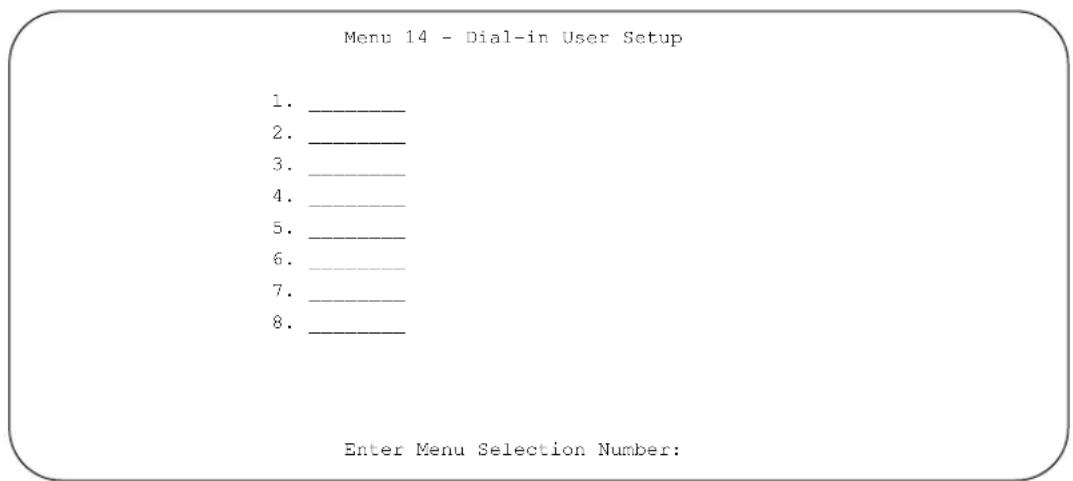
text_image
Menu 14 - Dial-in User Setup 1. ________ 2. ________ 3. ________ 4. ________ 5. ________ 6. ________ 7. ________ 8. ________ Enter Menu Selection Number:Figure 8-2. Menu 14 - Dial-in User Setup
- Type the number of one of the eight users and press [Enter].
Menu 14.1 - Edit Dial-in User opens as shown in Figure 8-3.
Menu 14.1 - Edit Dial-in User
User Name= ?
Active= Yes
Password= ?
Callback= No
Phone # Supplied by Caller= N/A
Callback Phone #= N/A
Rem CLID=
Idle Timeout= 300
Press ENTER to Confirm or ESC to Cancel:
Figure 8-3. Menu 14.1 - Edit Dial-in User
- Enter settings for the dial-in user setup.
Refer to Table 8-2 for information about the fields on the Edit Dial-in User menu.
- Press [Enter] at the Press ENTER to Confirm... prompt to save your selections.
You can press [Esc] at any time to cancel your selections.
Table 8-2 lists and describes the fields in the Edit Dial-in User menu.
Table 8-2. Edit Dial-in User Fields
| Field | Description |
| User Name Choose a descriptive word for login (For example, johndoe). This field is required and used as the login name for authentication. | |
| Active Choose whether to allow or disallow dial-in access to this user by choosingActive or Inactive. When set to Inactive, the user record is still kept in the database for later activation. | |
| Password Enter the password in this field for the remote dial-in user. | |
| Callback Set whether the router allows callbacks to the user upon dial-in.Three modes are provided:No (default)—The router does not call back to the dial-in user.Optional—The router calls back if the dial-in user requests it.Mandatory—The router always disconnects and calls back to the dial-in user.If callback is enabled, the router disconnects the initial call and dials back to the specified callback number or to a number specified by the user, depending on which option is set below. | |
| Phone # Supplied by Caller | If this field is Yes, the Remote Dial-in User must specify the callback telephone number on a call-by-call basis, which is useful when the router returns a call back to a mobile user at different numbers. The default is No (the router always calls back to a fixed callback number). If Callback is No, N/A appears in the field. |
| Callback Phone # Enter the telephone number that the router should call back.If the previous field (Phone # Supplied by Caller) is No, this field is required. Otherwise, N/A appears in the field. | |
| Rem CLID If you have enabled the CLID Authen field in Menu 13, you must specify the telephone number from which this remote dial-in user calls. The router checks this number against the CLID in the incoming call. If they do not match and the CLID Authen is Required, the router rejects the call. | |
| Idle Time-out Enter the idle time (in seconds). This timeout determines how long the dial-in user can be idle before the router disconnects the call. Idle time is defined as the period of time when there is no data traffic between the dial-in user and the router. The default is 300 seconds (5 minutes). | |
RADIUS Authentication
The Model RT338 router stores up to eight dial-in user profiles. For more than eight users, you can use an external RADIUS (Remote Authentication Dial-In User Service) server to provide authentication service for an unlimited number of users. The RADIUS protocol is a software-based security authentication protocol developed by the IETF RADIUS Working Group. The RADIUS protocol carries authentication, authorization, and configuration information between a remote access device and a shared authentication server.
RADIUS Server Configuration
To use RADIUS authentication, you must have a UNIX or Windows NT computer on your network as the RADIUS server, as well as the RADIUS software itself.
If you are using CLID authentication for the dial-in users, you must edit the dictionary file in the RADIUS configuration directory (usually /etc/raddb). Using any text editor, add the following lines to the dictionary file:
<h1 id="netgear-proprietary-attributes">Netgear proprietary attributes</h1>
ATTRIBUTE Netgear-Callback-Option 192 integer
VALUE Netgear-Callback-Option None 0
VALUE Netgear-Callback-Option Optional 1
VALUE Netgear-Callback-Option Mandatory 2
<h1 id="callback-phone-number-source">Callback phone number source</h1>
ATTRIBUTE Netgear-Callback-Phone-Source 193 integer
VALUE Netgear-Callback-Phone-Source Preconfigured 0
VALUE Netgear-Callback-Phone-Source User 1
These changes add support for CLID authentication, as described in the following section.
RADIUS Client Configuration
To configure the router's RADIUS client:
- From the Manager Interface Main Menu, open Menu 23 - System Security.
- Type 2 and press [Enter] to open Menu 23.2 - System Security - External Server as shown in Figure 8-4.
Menu 23.2 - System Security - External Server
Authentication Server:
Active= No
Type: RADIUS
Server Address= ?
Port #= 1645
Key= ?
Press ENTER to Confirm or ESC to Cancel:
Figure 8-4. Menu 23.2 - System Security - External Server
-
Determine which port is used by your server software and set the Port # field in Menu 23.2.
The RADIUS authentication port was originally 1645 but was changed to 1812 in later implementations.
You must reboot your router after changing the RADIUS port number. -
Enter settings for the other menu items as described in Table 8-3.
The fields in Menu 23.2 - System Security - External Server are listed in Table 8-3.
Table 8-3. System Security - External Server Fields
| Field | Description Default | |
| Active Enables or | disables the external security facility.If No, only the built-in dial-up user list is used.If Yes, the built-in dial-up user list is searched first, then the external authentication server. | |
| Type Determines | the type of the external authentication server.At present only RADIUS is supported. | |
| Server Address The IP address of the RADIUS server. | ||
| Port # The IP port | number used by the authentication server. The default is port 1645. | [1645] |
| Key A password used for authentication between the router and the RADIUS server. | ||
The router contacts the RADIUS server to authenticate all users not found in the internal dial-up user list in Menu 14.
The Key Field
The key, or password, must match that in the client file in the RADIUS server's /etc/raddb directory, as shown in the following example:
<h1 id="client-name-key">Client Name Key</h1>
#----
192.168.0.1 1234
Adding Users to the RADIUS Database
To add a user to the RADIUS database:
- Edit the /users file in the RADIUS servers /etc/raddb directory, and add a line similar to the following example:
jsmith Password = joe5678
Using RADIUS Authentication for CLID
To use RADIUS for CLID authentication:
- Create a user record in the /users file where the user name (the first field) is the telephone number and the password (the second field) is always “Netgear-CLID” (case sensitive). The regular user name is put in a User-Name field.
The following is an example of a CLID user record:
5551212 Password = Netgear-CLID
User-Name = jsmith
Netgear-Callback-Option = Mandatory
Netgear-Callback-Phone-Source = Preconfigured
Dialback-No = 5551212
Note that if CLID is turned off in your router, you must have a separate user record for jsmith so that the regular user name and password mechanism still works.
Chapter 9
Configuring Filters
This chapter describes how to use and configure filters for your Model RT338 ISDN Router.
The router uses filters to decide whether to allow passage of a data packet and/or to make a call over the ISDN line. Three types of filters are involved: incoming data filters, outgoing data filters, and call filters. Data filters screen the data to determine if the packet should be allowed to pass. Call filters are used to determine if a call should be placed.
Outgoing packets must pass through the data filters before they encounter call filters.
The call filters are divided into two groups: default call filters and user-defined call filters.
The Model RT338 router has default call filters that filter out administrative packets (for example, RIP packets). The router applies the default filters first and then, if applicable, applies the user-defined call filters as shown in Figure 9-1.
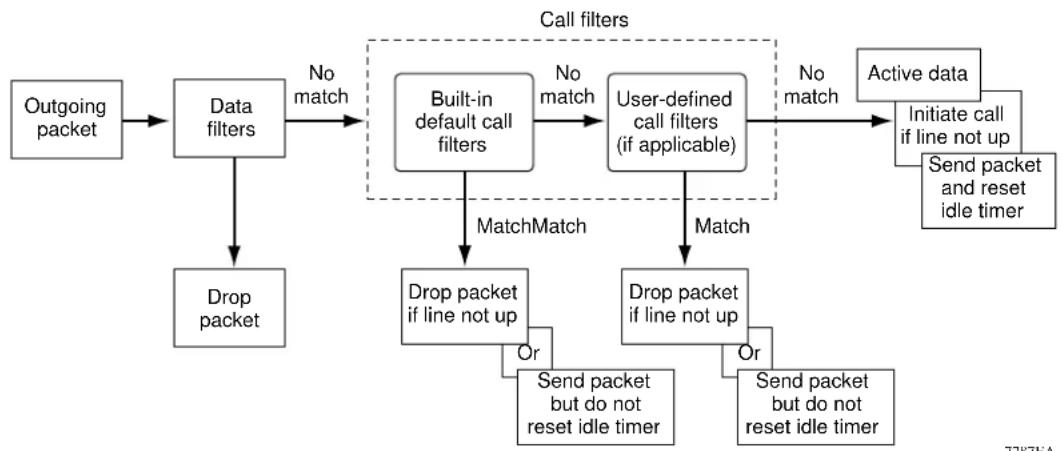
flowchart
graph TD
    A["Outgoing packet"] --> B["Data filters"]
    B -->|No match| C["Built-in default call filters"]
    C -->|No match| D["User-defined call filters (if applicable)"]
    D -->|No match| E["Active data"]
    E --> F["Initiate call if line not up"]
    F --> G["Send packet and reset idle timer"]
    B --> H["Drop packet"]
    C --> I["MatchMatch"]
    D --> J["Match"]
    I --> K["Drop packet if line not up"]
    J --> L["Drop packet if line not up"]
    K --> M["Or"]
    L --> N["Or"]
    M --> O["Send packet but do not reset idle timer"]
    N --> P["Send packet but do not reset idle timer"]
7787EA
Figure 9-1. Outgoing Packet Filtering Process
For incoming packets, the router applies data filters only. Packets are processed depending on whether or not a match is made. The router lets you customize the filter sets that you want to use. The following sections describe how to configure the filter sets for the router.
Reference Guide for the Model RT338 ISDN Router
Router Filter Structure
You can configure up to 12 filter sets, each with up to six rules. For IP packets, these rules involve comparing the protocol type of a data packet (for example, TCP, UDP), source or destination address, or port number. Also, a generic filter may be defined to merely test for a byte or pattern of bytes in a particular location in the packet. When a rule is met (or not met), a user-specified action is taken. This action may be to forward the packet, drop the packet, or go to the next rule.
When implementing these filter sets, you can link up to four of the filter sets to screen the data packet. Therefore, with each filter set having up to six rules, you can have a maximum of 24 rules active for a single filtering application.
Configuring a Filter Set
To configure a filter set:
- From the Manager Interface Main Menu, enter 21 to open Menu 21 - Filter Set Configuration as shown in Figure 9-2.
From this menu, you can choose from 12 filter sets.

text_image
Menu 21 - Filter Set Configuration Filter Set # Comments Filter Set # Comments ---- ---- ---- ---- ---- 1 $netbeui 7 ________ 2 NetBIOS LAN 8 ________ 3 ________ 9 ________ 4 ________ 10 ________ 5 ________ 11 ________ 6 ________ 12 ________ Enter Filter Set Number to Configure= 0 Edit Comments= Press ENTER to Confirm or ESC to Cancel:Figure 9-2. Menu 21 - Filter Set Configuration
9-2 Configuring Filters
- Select the filter that you want to configure or choose an unused set to create a new filter.
In order to distinguish between the 12 filter sets, each filter set should have a name or description. When you select a set for editing, you are prompted to provide descriptive text to be displayed in the comment field of Menu 21 next to the filter number.
- When you have finished filling in the Edit Comments field, press [Enter] at the Press ENTER to Confirm... prompt to confirm your selections, or press [Esc] at any time to cancel your selections.
The new information is displayed in the read-only section of Menu 21 - Filter Set Configuration.
When you press [Enter], a Filter Rules Summary menu opens as shown in Figure 9-3. The menu number reflects the number of the rule that you selected to configure.
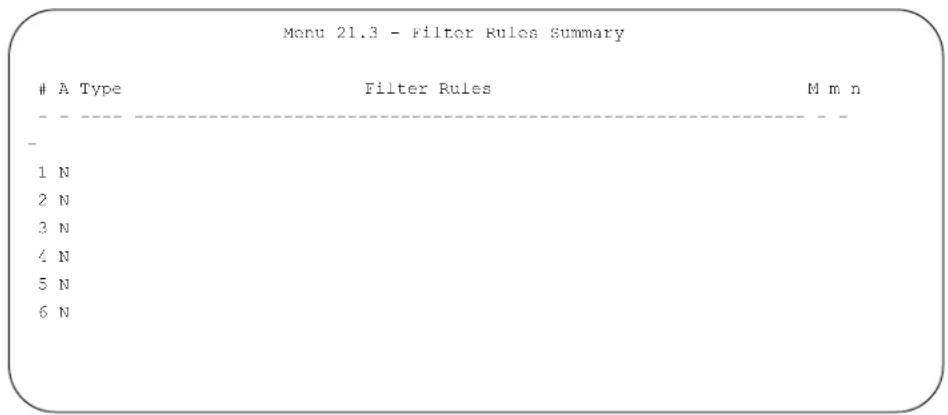
text_image
Menu 21.3 - Filter Rules SummaryA Type Filter Rules M m n
- - 1 N 2 N 3 N 4 N 5 N 6 NFigure 9-3. Menu 21.3 - Filter Rules Summary
The information in this menu is read-only; the parameters of each rule that you configured for that set are displayed. Refer to Table 9-1, Table 9-2, and Table 9-3 for abbreviations used in Menu 21.3 - Filter Rules Summary.
For more information about filter rules, see “Configuring a Filter Rule,” on page 9-5.
Table 9-1. Filter Rules Summary Abbreviations
| Abbreviation Description | |
| # Refers to the filter rule number (1–6). | |
| A Refers to Active. | Y means the filter rule is active, and N means the filter rule is inactive. |
| Type Refers to the type of filter rule and can display GEN for generic or IP for TCP/IP. | |
| Filter Rules The filter rule parameters are displayed here. | |
| M Refers to More. | Y means there are more rules to check. N means there are no rules to check. |
| m Refers to Action Matched. F means to forward the packet, D means to drop the packet, and N means to check the next rule. | |
| n Refers to Action Not Matched. F means to forward the packet, D means to drop the packet, and N means to check the next rule. | |
If the filter type is IP (TCP/IP), the abbreviations listed in Table 9-2 are used.
Table 9-2. Filter Type IP Abbreviations
| Abbreviation Description | |
| Pr Protocol | |
| SA Source Address | |
| SP Source Port number | |
| DA Destination Address | |
If the filter type is GEN (generic), the abbreviations listed in Table 9-3 are used.
Table 9-3. Filter Type GEN Abbreviations
| Abbreviation Description | |
| Off Offset | |
| Len | Length |
- To configure a specific filter rule, select the number of the filter rule (1–6) that you want to configure and press [Enter] to display Menu 21.1.1 - TCP/IP Filter Rule.
9-4 Configuring Filters
Configuring a Filter Rule
You can configure two types of filter rules. Some of the parameters differ depending on the type of rule. When you first enter the filter rule menu, Menu 21.1.1 - TCP/IP Filter Rule is displayed. If you want to configure another type of filter rule, select the appropriate type by pressing the space bar under the Filter Type field and then pressing [Enter] to display the menu for the filter rule you want to enter.
TCP/IP Filter Rule
This section provides information about how to configure a TCP/IP filter rule for your router. The fields in the menu are given in Table 9-4. When you have completed Menu 21.1.1 - TCP/IP Filter Rule, press [Enter] at the Press ENTER to Confirm...prompt to confirm your selections. You can press [Esc] at any time to cancel your selections. The data you entered on Menu 21.1.1 - TCP/IP Filter Rule is displayed on Menu 21.1 - Filter Rules Summary.
Table 9-4 lists and describes the TCP/IP Filter Rule menu fields and a description of each field.
Table 9-4. TCP/IP Filter Rule Fields
| Field Description | |
| Active Choose Yes | to make the filter rule active, or choose No to make the filter rule inactive. |
| IP Protocol Protocol | I refers to the IP-specific number of the protocol. The range for the value entered in this field should be between 0 and 255 (for example, 6 refers to the TCP protocol). |
| IP Source Route | Yes or No in this field determines whether or not to check the source route. |
| Field | Description |
| Destination:IP Addr Enter the destination IP address of the packet you want to filter. The address is usually written in dotted-decimal notation such as a.b.c.d where a, b, c, and d are numbers between 0 and 255.IP Mask Enter the IP subnet mask that is used to mask the bits of the IP address given in Destination: IP Addr. Refer to Chapter 1, “Introduction,” for more information.Port # Enter the destination port of the packets that you want to filter. The range of this field is 0 to 65535.Port # Comp Select the comparison quantifier you want to enable to compare to the value given in Destination: Port #. There are five options for this field:None (default)LessGreaterEqualNot Equal | |
| Source:IP Addr Enter the source IP address of the packet you want to filter. The IP address is usually written in dotted-decimal notation such as a.b.c.d where a, b, c, and d are numbers between 0 and 255.IP Mask Enter the IP subnet mask that is used to mask the bits of the IP Address given in Source: IP Addr. See “Netmask” on page 1-9 for information about IP subnet masks.Port # Enter the source port of the packets that you want to filter. The range of this field is 0 to 65535.Port # Comp Select the comparison quantifier you want to use to compare to the value given in Source: Port #. There are five options for this field:None (Default)LessGreaterEqualNot Equal | |
| TCP Estab Choose what type of TCP packets to filter. There are two options:Yes—Filter match only established TCP connectionsNo—Filter match both initial and established TCP connections (Default)This field is dependent upon the IP Protocol field. This field is inactive (N/A) unless the value in that field is 6 (TCP protocol). In this field, you determine | |
| More Choose whether or not you want to pass the packet through the next filter rule before an action is taken. Two options are available for this field:YesNo (default)If More is Yes, then Action Matched and Action Not Matched is N/A. | |
| Field Description | |
| Log Choose whether or not to log the results of packets attempting to pass the filter rule. These results are displayed on the System Log (see “View Error Log” on page 11-6). Seven options are available for this field: ·None—No packets are logged (default). ·Action Matched—Only packets that match the rule parameters are logged. ·Action Not Matched—Only packets that do not match the rule parameters are logged. Both—All packets are logged. ·Check Next Rule (default) ·Forward ·Drop | |
| Action Matched Action Not Matched | Choose what to do with the packet if the conditions for the filter rule are not met. There are three options for this field: ·Check Next Rule (default) ·Forward ·Drop |
Generic Filter Rule
This section provides information about configuring the protocol-independent parameters for a generic filter rule for your router. Table 9-5 lists the fields in Generic Filter Rule menu. When you complete Menu 21.1.1 - Generic Filter Rule, press [Enter] at the Press ENTER to Confirm... prompt to confirm your selections. Press [Esc] at any time to cancel your selections. The data entered is displayed on Menu 21.1 - Filter Rules Summary.
Table 9-5. Generic Filter Rule Fields
| Field Description | |
| Active In this field, | you can make the filter rule active (Yes) or inactive (No). |
| Offset Offset refers | to the value of the byte that you want to use as your starting offset. That is,in the data packet, at what point do you want to begin the comparison. The range forthis field is from 0 to 255. Default = 0. |
| Length This field refers to the length (in bytes) of the data in the packet that the router shoulduse for comparison and masking. The starting point of this data is determined by Offset.The range for this field is 0 to 8. Default = 0. | |
| Mask In this field, specify (in hexadecimal) the value that the router should logically qualifyand the data in the packet. Because length is given in bytes, enter a hexadecimalnumber that is twice the specified length for numbers in this field. For example, if lengthis 4, a valid Mask must have 8 hexadecimal numbers (1155ABF8). | |
| Value In this field, | specify (in hexadecimal) the value that the router should use to compare with the masked packet. The value should align with Offset. Because length is given in bytes, you need to enter twice the length in hexadecimal numbers for this field.For example, if length is 4, a valid Value must have 8 hexadecimal numbers (1155ABF8). If the result from the masked packet matches Value, then the packet is considered matched. |
| More In this field, you can determine whether to pass the packet through the next filter rule before an action is taken. There are two options for this field:YesNo (Default)If Yes is selected for this field, Action Matched and Action Not Matched are N/A. | |
| Log In this field, you can determine if you want to log the results of packets attempting to pass the filter rule. These results are displayed on the System Log (see “View Error Log” on page 11-6). Seven options are available for this field:None—No packets are logged (default).Action Matched—Only packets that match the rule parameters are logged.Action Not Matched—Only packets that do not match the rule parameters are logged.Both—All packets are logged.Check Next Rule (default)ForwardDrop | |
| Action Matched,Action NotMatched | If the conditions for the filter rule are not met, you can specify what to do with the packet. Three options are available for this field:Check Next Rule (default)ForwardDrop |
Applying a Filter Set
After configuring a filter set in Menu 21, you must specify where and how the filter is used. Data filters can be applied either at the LAN interface (in Menu 3.1) or at the Remote Node interface (Menu 11.5) and can be specified for incoming or outgoing packets. Call filters, which determine whether or not to place a call to forward the packet, are applied at the Remote Node interface (Menu 11.5). Up to four filter sets can be applied to the same port by entering the numbers of the desired filter sets, separated by commas, with no spaces.
In the following example, Menu 11.5 - Remote Node Filter Menu, specifies that filter sets 1, 3, and 10 are used to determine whether a packet causes a call to be placed to the Remote Node.
Call Filter Sets = 1,3,10
device filters =
9-8 Configuring Filters
Reducing Unnecessary Calls by Microsoft Windows
One example of when to apply a filter set is reducing unnecessary calls by Windows® 95 and Windows 98. When using Windows with a dial-up ISDN router, you may need to make some configuration changes to avoid having ISDN calls placed unnecessarily. Most of these unnecessary calls are caused by PCs on the LAN trying to perform local NetBIOS name resolution, either in response to a user action (browsing the Network Neighborhood or turning a PC on or off, for example) or as periodic background activity. In some cases, this NetBIOS activity can be kept local by other means, such as configuring a WINS or DNS server on the local network, using an LMHOSTS file to store addresses of local hosts, or turning off NetBIOS name resolution by DNS. A simpler method is to filter NetBIOS traffic using the filtering capabilities of your Model RT338 router.
Diagnosing the Situation
If you already know the source or types of packets that are causing the problem, you can proceed directly to the design of the filter. Otherwise, you can use a sniffer or the router's built-in tools to determine the source. A particularly useful tool is the display in Menu 24.1 of the “LAN Packet Which Triggered Last Call.” Figure 9-4 illustrates the header of the packet that caused an unwanted call to be placed.
LAN Packet Which Triggered Last Call: (Type: IP)
45 00 00 3E 9E 05 00 00 1F 11 CC 9D 8D FB 17 12 CF 45 BC B9 00 89 00 35
00 2A 63 C8 01 85 01 00 00 01 00 00 00 00 00 00 0A 53 41 4E 54 41 43 4C
Figure 9-4. LAN Packet Which Triggered Last Call
You can wait until an erroneous call is placed, then examine this packet header to determine the source and cause. The IP packet header contains information such as the next-level protocol type (for example, ICMP, TCP, UDP), source and destination addresses, and source and destination port numbers. Analyzing this data reveals the cause of the call, which provides the user with an approach to eliminating the calls. For example, the first line of the packet shows the following (hexadecimal values converted to decimal):
• 45 00 00 3E 9E 05 00 00 1F 11 CC 9D 8D FB 17 12 CF 45 BC B9 00 89 00 35
Bold characters denote protocol (17, or 11h=UDP).
• 45 00 00 3E 9E 05 00 00 1F 11 CC 9D 8D FB 17 12 CF 45 BC B9 00 89 00 35
Bold characters denote source IP (141.251.23.18=local PC).
• 45 00 00 3E 9E 05 00 00 1F 11 CC 9D 8D FB 17 12 CF 45 BC B9 00 89 00 35
Bold characters denote destination IP (207.69.188.185=DNS server).
• 45 00 00 3E 9E 05 00 00 1F 11 CC 9D 8D FB 17 12 CF 45 BC B9 00 89 00 35
Bold characters denote source port number (137 or 89h=NetBIOS name service).
• 45 00 00 3E 9E 05 00 00 1F 11 CC 9D 8D FB 17 12 CF 45 BC B9 00 89 00 35
Bold characters denote destination port number (53, or 35h=DNS).
This packet represents a NetBIOS name service request from a local PC to the DNS server of the ISP. An initial strategy for blocking this type of call would be to set up a call filter to prevent calls from being originated by UDP packets with a source port of 137 (NetBIOS name service).
Further investigation would reveal that other ports are associated with NetBIOS services, and these ports should be blocked, too.
A comprehensive list of protocol and port numbers for common IP traffic can be found in IETF RFC1700, "Assigned Numbers." Many common port numbers are also listed on any Windows PC in a file called \windows\services. In the case of filtering NetBIOS traffic, the relevant ports are:
• 137 (TCP and UDP) NetBIOS Name Service
• 138 (TCP and UDP) NetBIOS Datagram Service
• 139 (TCP and UDP) NetBIOS Session Service
Implementing the Filter
Now you can proceed to define a call filter to block the three NetBIOS service ports.
To define a call filter:
- Go to Menu 21 - Filter Set Configuration (Figure 9-5), and choose a name and filter set.

text_image
Menu 21 - Filter Set Configuration Filter Set # Comments Filter Set # Comments ---- ---- ---- ---- 1 netbios 7 2 _ 8 _ 3 _ 9 _ 4 _ 10 _ 5 _ 11 _ 6 _ 12 _ Enter filter Set Number to Configure= 1 Edit Comments= netbios Press ENTER to Confirm or ESC to Cancel;Figure 9-5. Menu 21 - Filter Set Configuration
- Next, define the filter rules.
You want your filter to ignore (drop) UDP and TCP packets originating from ports 137, 138, and 139. Because each protocol/port combination must be specified as a separate rule, there are six rules. Each filter set contains six rules, so you fill one entire set. Begin with rule 1, as illustrated in Figure 9-5.
Reference Guide for the Model RT338 ISDN Router
- Set "Active" to Yes, and specify the IP Protocol as 17, which is the UDP protocol number (in decimal) from the Assigned Numbers RFC.
- Specify Source Port #137, NetBIOS Naming Service, and set the Port # Comparison field to look for port numbers “equal” to 137.
For packets that match this comparison, you want to drop the packet, so set Action Matched to "Drop." For packets not matching, you want to continue to the next rule, so set Action Not Matched to "Check Next Rule."
Figure 9-6 shows Menu 21.1.1 - TCP/IP Filter Rule.
Menu 21.1.1 - TCP/IP Filter Rule
Filter #: 1,1
Filter Type= TCP/IP Filter Rule
Active= Yes
IP Protocol= 17 IP Source Route= No
Destination: IP Addr= 0.0.0.0
IP Mask= 0.0.0.0
Port #: 0
Port # Comp= None
Source: IP Addr= 0.0.0.0
IP Mask= 0.0.0.0
Port #: 137
Port # Comp= Equal
TCP Estab= N/A
More= No Log= None
Action Matched= Drop
Action Not Matched= Check Next Rule
Press ENTER to Confirm or ESC to Cancel:
Figure 9-6. Menu 21.1.1 - TCP/IP Filter Rule Menu
- Define the next five rules the same way—one for each combination of the three port numbers and the two protocol types.
The last rule, however, is slightly different. For Action Not Matched, select “Forward.” Any packet that has not matched any of the six rules is forwarded for routing.
When all six rules are defined, Menu 21.1 looks as it does in Figure 9-7. As a visual check, make sure that all six rules contain “Y” in the A (Active) field, “D” (Drop) in the m (matched) field, and “N” (next rule) in the n (not matched) field, except for the last rule, which should have “F” (Forward) in the n field.
Figure 9-7 shows the Filter Rules Summary menu with all six rules defined.
| Menu 21.1 - Filter Rules Summary | ||
| # A Type | Filter Rules | M m n |
| - | ||
| 1 Y IP | Pr=6, SA=0.0.0.0, SP=137, DA=0.0.0.0 | N D N |
| 2 Y IP | Pr=6, SA=0.0.0.0, SP=138, DA=0.0.0.0 | N D N |
| 3 Y IP | Pr=6, SA=0.0.0.0, SP=139, DA=0.0.0.0 | N D N |
| 4 Y IP | Pr=17, SA=0.0.0.0, SP=137, DA=0.0.0.0 | N D N |
| 5 Y IP | Pr=17, SA=0.0.0.0, SP=138, DA=0.0.0.0 | N D N |
| 6 Y IP | Pr=17, SA=0.0.0.0, SP=139, DA=0.0.0.0 | N D F |
| Enter Filter Rule Number (1-6) to Configure: | ||
Figure 9-7. Filter Rules Summary Menu
Applying the Filter
When the filter design is finished, you must tell the router where to apply the filter. Apply it as a Call Filter in the remote node that reaches your DNS server(s) (usually your ISP node). Go to Menu 11.1, Remote Node Profile, and toggle “Edit Filter Sets” to Yes by using the spacebar. This brings up Menu 11.5 - Remote Node Filter. Enter the number of the filter under “Call Filter Sets” protocol filters as shown in Figure 9-8. If you have multiple filters, you can cascade up to four by entering their numbers separated by commas.
Figure 9-8 shows the Remote Node Filter menu.
Menu 11.5 - Remote Node Filter
Input Filter Sets:
    protocol filters=
    device filters=
Output Filter Sets:
    protocol filters=
    device filters=
Call Filter Sets:
    protocol filters= 1
    device filters=
Press ENTER to Confirm or ESC to Cancel;
Figure 9-8. Menu 11.5 - Remote Node Filters Menu
Press [Enter] to save this menu. Proceed back to the bottom of Menu 11.1, Remote Node Profile, and press [Enter] to save all the changes. When you finish, restart the router.

Note: After editing and saving a submenu of Menu 11.1, you must also save Menu 11.1 or the submenu changes are discarded.
9-14 Configuring Filters
Chapter 10
Advanced Phone Features
The Model RT338 router supports a comprehensive set of advanced calling features known as Supplemental Services. These features include:
- Call Waiting
• Three Way Calling (conference) - Call Transfer
- Call Forwarding
Additional Call Offering (ACO) is required on your ISDN line in order to use the Call Waiting feature. Flexible Calling is required on your ISDN line in order to use the Three-Way-Calling or Call Transfer features. Check with your telephone company to confirm if these services are available to you. There may be additional charges for these services.
In some cases, your telephone company may only enable these features on your first directory (phone) number. In this case you may want to request that they be enabled on your second directory number as well.
Setting Up Supplemental Phone Service
Menu 2.1 controls the Supplemental Services settings. Your telephone company should provide you with certain feature keys that must be configured in this menu before you can use the Advanced Calling Features. The factory defaults in Menu 2.1 follow the specification of the National ISDN (NI-1) standard. These default key sequences are shown in Table 10-1. If your local telephone company uses different key settings, change the values in Menu 2.1 to meet your local requirements..
Table 10-1. Default Key Sequences
| Feature Key Sequence | |
| Conference *60 | |
| Transfer *61 | |
| Drop *62 | |
| Call Forwarding *57 |
Call Waiting
ISDN Call Waiting lets you place a call on hold while you answer another incoming call on the same phone (directory) number. By default, call waiting is enabled on both of the router phone ports but can be disabled on either port from Menu 2.1.
The Call Waiting feature on your ISDN line works in the same way as on a regular analog line. After hearing a call waiting indicator tone, press and immediately release the flash hook button on your telephone. Doing so places your current call on hold and lets you hear the incoming call.
To drop the current call and switch to an incoming or holding call:
• After hearing a Call Waiting indicator tone, hang up the phone and wait for the phone to ring before answering the incoming/holding call.

Note: An incoming caller receives a busy signal if:
- You have two calls (one active and one on hold or both active using Three Way Calling) on the B channel that the incoming caller is attempting to reach; Or
- You are dialing a number on the B channel that the incoming caller is attempting to reach, but you have not yet established a connection.
Three Way Calling
The Three Way Calling feature lets you add a third party to an existing call. You must subscribe to this service with your telephone company.
To add a third party to an existing call:
- Press the flash hook button and immediately release it to put the existing call on hold and receive a dial tone.
- Dial the phone number of the third party.
- When you are ready to conference the calls together, press the flash hook button and immediately release it to establish a Three Way Conference Call.

Note: If you want to cancel your attempt to establish the conference call because the third party's line is busy or does not answer, simply hang up the phone and pick it back up after it starts ringing to return to the first caller.
To drop the last call added to the three-way-call:
- Press the flash key. The last call added to the conference is dropped.
To drop yourself from the conference call:
- While the two other callers remain on the line, hang up your phone. The ISDN network does an implicit transfer to directly connect the two remaining callers.
Call Transfer
Call Transfer lets you transfer an active call to a third party. To use this service, you must subscribe to it from your telephone company.
To transfer an active call to a third party:
- When you have an active call (Caller A), press and immediately release the flash hook button on your telephone to put Caller A on hold and receive a dial tone.
- Dial Caller B's phone number.
- When you are ready to conference the two calls together, press the flash hook button and immediately release it to establish a three-way conference call.
- Hang up the phone. The ISDN network does an implicit transfer to directly connect Caller A with Caller B.
To do a blind transfer:
- When you have an active call (Caller A), press flash to immediately put the existing call on hold and receive a dial tone.
- Dial Caller B's phone number.
- Before Caller B picks up the call, you can transfer the call by pressing and immediately releasing the flash hook button. The call is automatically transferred.
Call Forwarding
The Model RT338 router supports Call Forwarding Variable and can be done passively through the Phone ports. Your telephone company provides you with the appropriate dial access codes to activate or deactivate the Call Forwarding feature. In most cases dialing *72 activates the function and dialing *73 disables it.
Chapter 11
System Maintenance
This chapter describes how to use diagnostic tools to maintain the Model RT338 ISDN Router. These diagnostic tools include displays of system status, ISDN B channel status, log and trace capabilities, and upgrades to the system software.
System Status
Use the System Maintenance Status Menu (Menu 24.1) to monitor the operation of the router. This screen displays the current status of the ISDN telephone line and the Ethernet port, and it counts the number of packets sent and received. It also displays the system software version.
To use the System Maintenance Status Menu:
- Enter 24 from the Main Menu to display the System Maintenance Menu.
- Enter 1 to open Menu 24.1 - System Maintenance - Status as shown in Figure 11-1.
Reference Guide for the Model RT338 ISDN Router
Menu 24.1 - System Maintenance - Status
| Chan | Link | Type | TxPkts | RxPkts | Errors | CLU | ALU | Up Time |
| -- | Down | 0Kbps | 0 | 0 | 0 | 0% | 0% | 0:00:00 |
| -- | Down | 0Kbps | 0 | 0 | 0 | 0% | 0% | 0:00:00 |
Chan Own IP Address Own CLID Peer IP Address Peer CLID
--
| Ethernet Status | TxPkts | RxPkts | Collision |
| Down | 0 | 0 | 0 |
Total Outcall Time: 0:00:00 CPU Load = 13.98%
LAN Packet Which Triggered Last Call:
Press Command:
COMMANDS: 1-Drop B1 2-Drop B2 3-Reset Counters 4-Drop All ESC-Exit
Figure 11-1. Menu 24.1 - System Maintenance - Status
Table 11-1 lists the commands used in Menu 24.1 - System Maintenance Status.
Table 11-1. System Maintenance Status Menu Commands
| Command Field | Name Command | |
| Enter 1 Drop B1 | Disconnects the current B1 channel call. | |
| Enter 2 Drop B2 | Disconnects the current B2 channel call. | |
| Enter 3 Reset Counters | Registers the counters. | |
| Enter 4 Drop All | Disconnects all current B channel calls. | |
| [Esc] Exits the menu. | ||
11-2 System Maintenance
Table 11-2 lists the fields for Menu 24.1 - System Maintenance Status. These fields are read-only fields.
Table 11-2. System Maintenance - Status Fields
| Field Description | |
| ISDN: Displays the statistics for B1 and B2 channels. For each channel, the screen displays:Chan Whether the statistics line refers to the B1 or B2 channel.Link The remote node the channel is currently connected to, or the status of the channel (Idle, Calling, or Answering).Type The current connecting speed (56K or 64K).TXPkts The number of packets transmitted on this channel since reset or manual clear.RXPkts The number of packets received on this channel since reset or manual clear.Errors The number of error packets on this channel since reset or manual clear.CLU The current line utilization—percentage of current bandwidth used on this channel.ALU The average line utilization —average CLU for this channel.Up Time The time that this channel has been connected to the current remote node. | |
| WAN:Chan Whether the statistics line refers to the B1 or B2 channel.Own IP Address The dynamic or static IP address which is being used by this WAN port.Own CLID The phone number of this WAN port.Peer IP Address The IP address of the remote device currently connected to this WAN port.Peer CLID The phone number of the remote device currently connected to this WAN port. | |
| Ethernet:Status TX Pkts RX Pkts Collision | This section displays the current status of the LAN connection on your router.The current speed and duplex status of the LAN port.The number of transmitted packets to the LAN.The number of received packets from the LAN.The number of collisions seen. |
| Total Outcall Time | The total outgoing call time for both B1 and B2 channels since the system has been powered on. The time is shown in B-channel hours. When both B channels are active simultaneously, the values in this field increase at twice real time. |
| CPU Load | The percentage of available CPU processing time currently being used. |
| LAN Packet Which Triggered Last Call | The first 48 octets of the LAN packet that triggered the last outgoing call. By viewing the packet information, you can determine which station has sent a packet to cause the router to make an outgoing call. |
Reference Guide for the Model RT338 ISDN Router
Figure 11-2 shows an example of a packet shown on Menu 24.1, with the source address field underlined. In this example, an ICMP Ping packet with the source IP address (hexadecimal C0 A8 00 03 or decimal 192.168.0.3) triggered the last call. You must have a TCP/IP protocol reference and the appropriate subprotocol RFCs in order to decode the packet header information.
LAN Packet Which Triggered Last call: (Type: 1P)
45 00 00 3C 02 12 00 00 38 01 36 49 C0 A8 00 03 C0 A8 01 01 08 00 62 2B
20 04 00 00 00 08 A9 D0 C0 44 87 22 00 01 02 03 04 05 06 07 08 09 0A 0B
Figure 11-2. Packet Examples
System Information
Static system information is displayed in Menu 24.2.1 - System Maintenance - Information as shown in Figure 11-3.
Menu 24.2.1 - System Maintenance - Information
Name:
Routing: IP
RAS S/W Version: V2.40(N.00)b08 | 8/11/1999
Country Code: 255

LAN
Ethernet Address: 00:a0:c5:00:20:aa
IP Address: 192.168.0.1
IP Mask: 255.255.255.0
DHCP: Server

Press ESC or RETURN to Exit:
Figure 11-3. Menu 24.2.1 - System Maintenance - Information
11-4 System Maintenance
Table 11-3 lists the fields for Menu 24.2.1 - System Maintenance - Information. These fields are read-only fields.
Table 11-3. System Maintenance - Information Fields
| Field Definition | |
| Name The system name | currently assigned to the router in Menu 1, General Setup. |
| Routing This field displays IP, which is the only protocol routed. | |
| RAS S/W Version The | version and date of the current router software. |
| Country Code A decimal | number indicating the region of operation. The country code for North America is 255. |
| LAN | For the LAN port, the screen displays: |
| Ethernet Address | The Ethernet MAC address assigned to your router. |
| IP Address | The IP address of the LAN interface of the router. |
| IP Mask | The netmask of the router's LAN IP address. |
| DHCP | The current status of the router's internal DHCP server. The choices are either None, Server, or Relay. |
Terminal Baud Rate
You can change the baud rate of the serial Manager connection using Menu 24.2.2 - System Maintenance - Change Console Port Speed as shown in Figure 11-4.
Menu 24.2.2 - System Maintenance - Change Console Port Speed
Console Port Speed: 9600
Press ENTER to Confirm or ESC to Cancel:
Figure 11-4. Menu 24.2.2 - System Maintenance - Change Console Port Speed
Reference Guide for the Model RT338 ISDN Router
The router supports 9600 (default), 19200, 38400, 57600 and 115200 bits per second (bps) for the serial connection.
To change the rate, toggle the selection using the space bar. When the desired rate is shown, press [Enter]. You have the opportunity to change the baud rate of your terminal before continuing.
Log and Trace
Log and trace tools let you view the error logs and trace records in order to troubleshoot any errors that may occur. The router can also generate system logs (syslogs) to send to other machines.
Table 11-4 lists the fields and commands for Menu 24.3 - System Maintenance - Log and Trace.
Table 11-4. System Maintenance - Log and Trace Fields
| Command Field | |
| Enter 1 View Error Log | |
| Enter 2 UNIX Syslog and Accounting | |
View Error Log
To use the View Error Log:
- Open Menu 24.3 - System Maintenance - Log and Trace.
- Select the first option on Menu 24.3.
The Error log displays. The Error Log is a 64-entry circular buffer. Use the space bar to scroll this screen if necessary.
- After each display, you are prompted with an option to clear the Error Log. Enter the appropriate choice and press [Enter].
UNIX Syslog and Accounting
You can configure the router to send UNIX system logs to another machine. Use Menu 24.3.2 - System Maintenance - UNIX Syslog and Accounting to configure UNIX Syslog and Accounting as shown in Figure 11-5.
Menu 24.3.2 - System Maintenance - UNIX Syslog and Accounting
UNIX Syslog:
Active= No
Syslog IP Address= ?
Log Facility= Local 1

Types:
CDR= No
Packet triggered= No
Filter log= No
PPP log= No
POTS log= No

Press ENTER to Confir
Figure 11-5. Menu 24.3.2 - System Maintenance - UNIX Syslog and Accounting
You must configure the parameters to activate syslog. Table 11-5 lists the fields, commands, and command descriptions for Menu 24.3.2 - System Maintenance - Syslog and Accounting.
Table 11-5. System Maintenance - Syslog and Accounting Fields
| Field Command Description | ||
| Active Press the space bar to toggle between yes and no. | The syslog option is turned on or off. | |
| Syslog IP Address Enter the address in dotted-decimal notation such as a.b.c.d where a, b, c, and d are numbers between 0 and 255. | This field is the IP address location to send your syslog. | |
| Log Facility Press the space bar to toggle between on and off. | Seven different local options can be selected. The log facility allows the message to be logged to different files in the server. Refer to your UNIX manual for more detail. | |
Reference Guide for the Model RT338 ISDN Router
You can enable the following types of syslog messages:
- Call detail record (CDR)
- Filter log
- PPP log
- Packet trigger
• Voice call (POTS) log
To configure the router for logging with the syslogd program on a local host:
- Go to Menu 24.3.2 - System Maintenance - UNIX Syslog and Accounting.
- Set Active to Yes
- In the Syslog IP Address field, enter the IP address of the syslogd host PC.
- Select a number for Log Facility.
You can choose any facility number, but the syslogd program must be set to the same number. - Select the message types to be logged, and save this menu.
To configure the syslogd program on the local host PC:
- Edit /etc/syslog.conf to add the line:
localn.* /name_of_log_file
for example:
local6.* /var/log/rt338.log
- In the syslogd startup script, add the -r option to enable logging from a remote host.
Diagnostic Menu
Use the diagnostic menu to test several functions of your router.
To open the diagnostic menu:
- From the Main Menu, enter 24 to open Menu 24 - System Maintenance.
- Enter 4 to open Menu 24.4 - System Maintenance - Diagnostic as shown in Figure 11-6.
Menu 24.4 - System Maintenance - Diagnostic
ISDN System
1. Hang Up B1 Call 21. Reboot System
2. Hang Up B2 Call 22. Command Mode
3. Reset ISDN
4. ISDN Connection Test
5. Manual Call
TCP/IP
11. Internet Setup Test
12. Ping Host
Enter Menu Selection Number:
Figure 11-6. Menu 24.4 - System Maintenance - Diagnostic
The diagnostic tools described in this section let you perform the following functions:
• Test the ISDN connection
• Test the TCP/IP configuration
- Reboot the system
- Change the interface mode to command-line mode
The diagnostic test fields from Menu 24.4 - System Maintenance - Diagnostic are listed and defined in Table 11-6.
Table 11-6. System Maintenance - Diagnostic Fields
| Field Command Description | ||
| Hang Up B1 Call [Enter | 1] Hangs up B | channel 1. It is useful only if the B1 line is currently connected to a remote node or a dial-in user. |
| Hang Up B2 Call [Enter | 2] Hangs up B | channel 2. It is useful only if the B2 line is currently connected to a remote node or a dial-in user. |
| Reset ISDN [Enter3] Re | initializes the | SDN link to the telephone company. |
| ISDN Connection Test | [Enter 4] Instr | structs the router to perform a loopback test of the ISDN line.A call is placed from one B channel to the other, and data is passed.A failure of this test indicates a problem either with the ISDN line itself or with your current ISDN configuration. If a problem occurs, an error message is displayed. |
| Manual Call [Enter 5] | Places a manual | call to a remote node and tests the connectivity to that remote node. As the call is placed, traces are displayed on the screen showing the progress of the call setup and protocol negotiation. |
| TCP/IP Internet Setup Test [Enter 11] | Causes the router to place a manual call to the ISP and log in to the account. A trace is displayed on the screen showing the progress of the call setup and protocol negotiation. | |
| Ping Host [Enter 12] Pings a host to de | determine the functionality of the TCP/IP protocol on your system. | |
| System Reboot System | [Enter 21] | Reboots the system, implementing any changes that may have been recently added to your system. |
| Command Mode | [Enter 22] | Choose this mode to enter the command mode. This mode lets you diagnose and test your router using a specified set of commands. |
Call Testing and TCP/IP Tools
Two test selections—Manual Call and Internet Setup Test—are available for testing call placement and session connection with remote hosts. Both tests cause a call to be placed to a remote node and display the progress of the connection. Manual Call (command 5) prompts you to specify the desired remote node by its profile number in Menu 11. Internet Setup Test (command 11) automatically calls the remote node that has been specified as an ISP.
Enter 11 to select the Internet Setup Test, or enter 5 to select another remote node. This test checks to see if your Internet access or remote node configuration has been done correctly. The router dials the node, performs authentication, and establishes a connection. If everything is working properly, you receive an appropriate response. If you receive an error message, note the error message and consult your network administrator.
Figure 11-7 shows an example of a trace display for a successful call when using a TCP/IP protocol connection.
Start dialing for node <1>
<h3 id="hit-any-key-to-continue">Hit any key to continue.###</h3>
$$$ DIALING dev=2 ch=0
$$$ OUTGOING-CALL phone(18005551212)
$$$ CALL CONNECT speed<64000> type<2> chan<0>
$$$ LCP opened
$$$ PAP sending user/pswd
$$$ IPCP negotiation started
$$$ CCP stopped
$$$ BACP stopped
$$$ IPCP neg' Primary DNS 172.16.215.11
$$$ IPCP neg' Secondary DNS 172.16.215.12
$$$ IPCP opened
$$$ Connect Success
Figure 11-7. Trace Display for a Successful TCP/IP Protocol Connection
Figure 11-8 shows an example of a trace display for a failed call when using a TCP/IP protocol connection. In this case, the login name or password may be incorrect, because the first sign of a problem is the LCP down message immediately following the PAP login step.
Start dialing for node <1>
<h3 id="hit-any-key-to-continue-2">Hit any key to continue.###</h3>
$$$ DIALING dev=2 ch=0
$$$ OUTGOING-CALL phone(18005551212)
$$$ CALL CONNECT speed<64000> type<2> chan<0>
$$$ LCP opened
$$$ PAF sending user/pswd
$$$ LCP closed
$$$ Recv'd TERM-ACK state 5
$$$ LCP stopped
Figure 11-8. Trace Display for a Failed TCP/IP Protocol Connection
Another useful diagnostic tool for TCP/IP testing is Ping Host, which causes a packet to be sent to a specified host requesting an echo packet.
Enter 12 to select Ping Host. This diagnostic test pings a local or remote host. You are prompted for the IP address of the host.
System Maintenance 11-11
System Tools
Enter 21 to select Reboot System. Your system is rebooted, implementing any changes that may have been recently added to your system.
Enter 22 to select Command Interpreter Mode. This option changes the Manager interface on your router from the screen-based mode to a command line mode. The command line mode lets you configure, diagnose, and test your router using a specified set of commands. For more information, refer to “Using Command Interpreter Mode,” on page 11-15.
Back Up and Restore Configuration
You can save the router configuration settings to a disk as a binary file. You can also restore the settings from the file at a later time. Saving and restoring the router configuration lets you restore the router to working order if the configuration information in the router is lost or damaged. You can also use the configuration file to configure a new router of the same type if it becomes necessary to replace the router.
NETGEAR highly recommends backing up your router configuration after the router is functioning. You can perform the backup and restore operations through a serial connection using a terminal emulation program (such as HyperTerm), or over the LAN using the Telnet protocol and a third-party TFTP program. The procedures are described in the following sections.
Backing Up and Restoring the Configuration with a Serial Connection
Your serial communications software must have the ability to transfer data using the XMODEM Protocol.
To back up the configuration with a serial connection:
-
Establish a serial connection with the router.
For more information, see “Connecting Through a Serial Port” page 3-6. -
Select Menu 24 - System Maintenance.
-
Enter 5 to select Backup Configuration.
You are prompted to receive the file using the XMODEM transfer function of your terminal emulation program.
To restore the configuration:
11-12 System Maintenance
- Establish a serial connection with the router.
For more information, see "Connecting Through a Serial Port" page 3-6.
-
Select Menu 24 - System Maintenance.
-
Enter 6 to select Restore Configuration.
You are prompted to send the file using the XMODEM transfer function of your terminal-emulation program.
The procedure for receiving or sending the configuration file varies depending on the type of terminal software used to access the router.
Backing Up and Restoring the Configuration Using TFTP
To back up or restore the configuration file over the LAN, you must have both a Telnet program and a TFTP program. Windows includes a Telnet program that can be accessed using the Start button and Run menu. TFTP client programs are available through many software retailers and shareware sites.
To back up or restore the configuration:
- Establish a Telnet connection with the router.
For more information, see “Connecting Through a Telnet Connection” on page 3-13.
-
Select Menu 24.8 - Command Interpreter.
-
Type:
sys stdio 0.
This command disables the Manager timeout so that the transfer is not interrupted.
- Use your third-party TFTP utility program to read to (back up) or write from (restore) the file named rom-0 in the router.
Reference Guide for the Model RT338 ISDN Router
Software Update
You can update the router software updates either by using the serial cable connection or by using a TFTP program.
Updating Router Software Using a Serial Connection
Your serial communications software must have the ability to transfer data using the XMODEM Protocol.

Caution: This procedure deletes the existing software before installing the new software. Do not attempt to use this menu unless you have the new software version.

Note: NETGEAR recommends that you change the Manager port baud rate to 38400 before updating the software. Doing so results in an update time of 5 to 10 minutes.
To update the software:
- Establish a serial connection with the router.
For more information, see “Connecting Through a Serial Port” on page 3-6. - Select Menu 24 - System Maintenance.
- Enter 7 to select Software Update.
A message is displayed asking if you want to continue. - Press y and wait for the Debug Mode command prompt.
- Enter the command atur and wait.
After about 30 seconds, the router displays the Starting XMODEM upload... message. - Transfer the new software file to the router using the XMODEM Protocol of your serial communications software.
- Enter the command atgo to restart the router when the router displays the OK message.
11-14 System Maintenance
Updating Router Software Using TFTP
You can update the router software over the LAN using a TFTP program.
To update the router software:
- Establish a Telnet connection with the router.
For more information, see “Connecting Through a Telnet Connection” on page 3-13.
-
Select Menu 24.8 - Command Interpreter.
-
Type:
sys stdio 0.
This command disables the Manager timeout so that the transfer is not interrupted.
- Use your third-party TFTP utility program to write the software update file to the file named ras in the router.
After the data transfer is finished, the router programs the upgraded firmware into flash memory and reboots itself.
Using Command Interpreter Mode
Use the command interpreter mode to diagnose, test, and configure your router using a script or specified set of commands.
To enter the command interpreter mode:
- Select option 8 from Menu 24 - Maintenance, to enter the command interpreter mode.
To view a list of valid commands:
- Type "help" at the command prompt.
For more detailed information, check the NETGEAR Web site at http://www.NETGEARinc.com.
Configuring Call Control
The Model RT338 router provides call control management functions for the remote node and remote dial-in user. These functions are budget management, blacklist, and call history, which are on the Call Control menu. Select option 9 from Menu 24 to display the Call Control menu.
Configuring the Blacklist
The blacklist function prevents the router from redialing an unreachable phone number (a number to which it has been unable to connect). In Menu 24.9.2, the router maintains a list of phone numbers (up to a maximum of 14) to which it does not make an outgoing call. When the router attempts to dial a phone number and fails a certain number of times (configurable in Menu 24.9.1), the phone number is put onto the blacklist. You must restore the number manually before it can be dialed again. You can remove a phone number from the list by entering its index number at the Remove Selection prompt.
Configuring Budget Management
Use the budget management functions to set a limit on ISDN utilization to prevent any accidental overuse. This function limits the total outgoing call time of the router over a period of time to each remote node and remote dial-in user (callback only). When the limit is reached, the call is dropped and further outgoing calls to that remote node or remote dial-in user (callback) fail.
If the total outgoing call time exceeds the set limit, future outgoing calls are not made and the current call is dropped. After each total period, the total budget is reset.
The default for the total budget is 0 minutes, and the total period is 0 hours. These values disable budget control. You can reset the total outgoing call time in Menu 24.9.3 - Budget Management. The total outgoing call timer can be programmed to reset itself periodically through Menus 11 and 13.
Viewing Call History
The call history function displays statistics of data calls to or from up to the first 10 phone numbers seen. The following statistics are shown in Menu 24.9.4 - Call History:
- Phone number
- Direction (incoming or outgoing)
- Data rate
- Number of calls
- Call time (maximum, minimum, and total)
This information is erased when the router is reset.
Setting Call Control Parameters
General call control parameters are configured in Menu 24.9.1 - Call Control Parameters.
The following parameters are general call control parameters:
- Dialer Timeout: Digital Call (sec)
The router gives up if it cannot set up an outgoing digital call within the timeout value. The default is 60 seconds. - Retry Counter
This parameter counts how many times a busy or no-answer phone number is tried before it is put on the blacklist. The default value of 0 disables the blacklist control. - Retry Interval (sec)
This parameter specifies the waiting period after a call fails before the call is tried again. This waiting period applies before a phone number is blacklisted.
Reference Guide for the Model RT338 ISDN Router
Configuring the Manager Password
The internal Manager interface of the Model RT338 router is protected by a Manager password. The factory default Manager password is 1234.
To change the Manager password:
- Select option 23 (System Security) from the Main Menu to display Menu 23 - System Security.
- Select option 1 (Change Password) to display the Change Password screen.
- Enter your previous Manager password and press [Enter].
- Enter your new Manager password and press [Enter].
- Enter your new Manager password again for confirmation and press [Enter].
You must enter this new password when you want to access the Manager through the serial port or by a Telnet connection.
If you lose or forget the Manager password, you must clear the configuration of the router as described in this chapter. Clearing the configuration causes the Manager password to revert to the factory default, 1234.
Chapter 12
Troubleshooting
This chapter gives information about troubleshooting your Model RT338 ISDN Router. After each problem description, instructions are provided to help you diagnose and solve the problem.
Basic Functioning
After you turn on power to the router, the following sequence of events occurs:
• The PWR LED lights.
- The TEST LED blinks at a rate of 0.5Hz for about one minute, after which it turns off.
The router performs a self-test for 30 seconds during the time the TEST LED is blinking. The self-test includes briefly lighting all the ISDN LEDs.
- If the Ethernet connection is correctly made, the LAN Link LED should be lit.
- If your router has been configured, the ISDN D LED should light within the first two minutes of operation.
If any of these conditions does not occur, refer to the appropriate following section.
PWR LED
If the PWR LED and other LEDs are off when your router is turned on:
- Make sure that the power cord is properly connected to your router and that the power supply adapter is properly connected to a functioning power outlet.
- Verify that you are using the 12 V DC power adapter supplied by NETGEAR for this product.
If the error persists, you have a hardware problem and should contact technical support.
Troubleshooting 12-1
Test LED
When the router is turned on, the Test LED blinks for about a minute at a rate of about 0.5 Hz and then turns off.
If the Test LED does not blink, or if it stops blinking and stays on, there is a fault within the router. Cycle the power and see if it recovers.
If the error persists, you might have a hardware problem and should contact technical support.
LAN Link LED
If the LAN Link LED does not light when the Ethernet connection is made, check the following:
- Make sure that the Ethernet cable connections are secure at the router and at the hub or workstation.
- Make sure that power is turned on to the connected hub or workstation.
- Be sure that you are using the correct cable:
— If you are connecting a Model RT338 router directly to a workstation or to the uplink (MDI) port of a hub, use the included red crossover cable.
— If you are connecting a Model RT338 router to a normal (MDI-X) hub port, use the included white straight-through cable.
Troubleshooting the ISDN Line
Within the first 2 minutes after power is turned on to the configured router, the ISDN D LED should light. If the D LED does not light, check the physical connection of the ISDN line, referring to the installation information in this guide.
If the physical connection is correct, the problem should be diagnosed using the internal Manager interface. Refer to instructions in this guide regarding the use of the Manager interface.
The following two sections explain how to examine the ISDN initialization results and how to perform an ISDN loopback test to verify operation with the phone company.
12-2 Troubleshooting
ISDN Initialization or Reset
During the power-on initialization, during manual ISDN reset through the diagnostic menu, or when attempting to save the parameters entered in internal Manager Menu 2, you might receive this message from the Manager interface:
Failed to initialize ISDN
If this message is displayed, check the error log in Menu 24.3.1. There is a log entry for the ISDN initialization failure in the message:
ISDN init failed. code
The code number n is 1, 2, or 3. Refer to the corresponding instructions in Table 12-1.
Table 12-1. Code Numbers for Failed ISDN Initialization
| CodeNumber Description Malfunction and Troubleshooting Instructions | ||
| 1 The ISDN | link is not up. Either the ISDN | line is not properly connected to the router or the ISDN line is not activated. Verify that the ISDN cable is connected to the router and also to the wall outlet (to the telephone company). Confirm that the ISDN line has been activated by the telephone company. |
| 2 There is an SPID error(North America only). | The SPIDs that you entered in menu 2 might not be correct.If these are correct, initialize again from menu 24.4.3. | |
| 3 There is a general failure. The provisioning information for your switch might not be correct.Contact your telephone company to verify the provisioning information for your switch and verify the SPIDs in Menu 2 (applies to North America only). | ||
ISDN Loopback Test
If the ISDN initialization has passed, the loopback test should also pass. This test may be executed from Menu 24.4, where it is shown as test 4, ISDN Connection Test. If the loopback test fails, verify the phone numbers that you entered in Menu 2. The loopback test dials the number entered in the second phone # field (except for switch types with only one phone number). Check whether you need to dial 1 or 1+area code. If you are required to dial a prefix (for example, 9) to get an outside line, you must enter the prefix with the phone number (for example, 95551212 or 914085551212). If it is an internal line, you might need to enter only the last four or five digits, depending on your internal dialing plan (for example, 51212).
Troubleshooting a TCP/IP Network Using a Ping Utility
Most TCP/IP terminal devices and routers contain a ping utility that sends an echo request packet to the designated device. The device then responds with an echo reply. Troubleshooting a TCP/IP network is made very easy by using the ping utility in the built-in Manager interface (Menu 24.4) or in your PC or workstation.
Testing the LAN Path to Your Router
To verify that the LAN path to your router is set up correctly:
- Ping the router from your computer.
- On a PC running Windows 95 (or Windows 98 or Windows NT ^® ), click the Start button and select Run.
- In the box provided, type Ping followed by the IP address of the router, as in this example:
ping 192.168.0.1 - Click OK.
You should see a message like this one:
Pinging
If the path is working, you see this message:
Reply from < IP address>: bytes=32 time=NN ms TTL=xxx
If the path is not working, you see this message:
Request timed out
If the path is not functioning correctly, you could have one of the following problems:
- Wrong physical connections
— Make sure the Local LNK/ACT LED is on. If the LNK/ACT LED is off, follow the instructions in "LAN Link LED" on page 12-2.
— Check that the corresponding Link LEDs are on for your network interface card and for the hub ports (if any) that are connected to your workstation and router. - Wrong network configuration
— Verify that the Ethernet card driver software and TCP/IP software are both installed and configured on your PC or workstation.
12-4 Troubleshooting
— Verify that the IP address for your router and your workstation are correct and that the addresses are on the same subnet.
Testing the Path from Your PC to a Remote Device
After verifying that the LAN path works correctly, test the path from your PC to a remote device:
- From the Windows run menu, type PING -n 10 followed by the IP address of a remote device such as your ISP's DNS server.
If the path is functioning correctly, the PING program displays replies as in the previous section. If you do not receive replies:
— Check that your PC has the IP address of your router listed as the default gateway. If the IP configuration of your PC is assigned by DHCP, this information is not visible in the control panel network utility. Go to the Run... window and run winipcfg. The IP address of the router should appear as the Default Gateway.
— Check to see that the network address of your PC (the portion of the IP address specified by the netmask) is different from the network address of the remote device.
— Check Menu 12 and verify that at least one static route exists.
If the path is still not functioning correctly, the router is unable to establish a connection with the remote device. Refer to the next section, “Troubleshooting a Remote Node or ISP Connection.”
Troubleshooting a Remote Node or ISP Connection
To troubleshoot a remote node or an ISP connection:
- Verify that the ISDN line is synchronized.
Check that the ISDN D LED is on, or check the ISDN status in internal Manager Menu 24.1. If the D LED or the menu indicates the ISDN status as down, then refer to “Troubleshooting the ISDN Line,” on page 12-2.
- Run the Internet Setup Test or place a manual call to the remote node.
Run the Internet Setup Test from FirstGear or from Menu 24.4.11, or place a manual call to the remote node using Menu 24.4.5. The progress of the call is displayed on the screen.
Figure 12-1 illustrates an example of a trace display for a successful call when using a TCP/IP protocol connection.
Reference Guide for the Model RT338 ISDN Router
Start dialing for node <1>
<h3 id="hit-any-key-to-continue-3">Hit any key to continue.</h3>
$$$ DIALING dev=2 ch=0
$$$ OUTGOING-CALL phone(18005551212)
$$$ CALL CONNECT speed<64000> type<2> chan<0>
$$$ LCP opened
$$$ PAP sending user/pswd
$$$ IFCP negotiation started
$$$ CCP stopped
$$$ BACP stopped
$$$ IPCP reg' Primary DNS 172.16.215.11
$$$ IPCP req' Secondary DNS 172.16.215.12
$$$ IPCP opened
$$$ Connect Success
Figure 12-1. Trace Display for a Successful TCP/IP Protocol Connection
In the example shown, the trace steps indicate the following progress:
- $$$ DIALING dev=2 ch=0
The router is dialing. The 'ch=0' indicates that B channel 1 is being used.
- \\\$ OUTGOING-CALL phone(18005551212)
The exact number being dialed is shown in parentheses.
- \\\$ CALL CONNECT speed<64000> type<2> chan<0>
The call has been answered and a data rate of 64 kbps has been established.
- LCP opened
The link control protocol (LCP) begins, and connection parameters are negotiated between your router and the ISP's router.
- () PAP sending user/pswd
The password authentication protocol (PAP) has begun, and your router is sending a login name and password.
- IPCP negotiation started
The authentication was successful, and the IP control protocol (IPCP) has begun further negotiations to establish a PPP link.
- [ ] \$ ] CCP stopped
12-6 Troubleshooting
The compression control protocol (CCP) has determined that data compression is not used. This step may not appear if the ISP does not support compression.
- BACP stopped
The bandwidth allocation control protocol (BACP) is not used. This step may not appear if the ISP does not support BACP.
- IPCP neg' Primary DNS 172.16.215.11
- () IPCP neg' Secondary DNS 172.16.215.12
The ISP has provided two DNS server addresses for your use. If this step does not appear, you must ask the ISP for a DNS address and program it manually in FirstGear's Advanced Options.
- IPCP opened
The PPP session has been established.
- \\\$ Connect Success
If the progress shown in your trace differs from this example, the difference should present some indication of where the trouble is. Check for the following conditions:
- If the call does not connect, verify the following parameters in Menu 11:
– Primary Phone #
- Secondary Phone #
- Transfer Type
If you have selected DOVBS, be sure your ISP supports it.
Check with your phone company to see if you must add 1+area code to the dialed number in order to make a 64 kbps connection.
- If you receive an “LCP closed” message immediately following the password authentication step, verify your router’s IP address in Menu 3.2 and verify the following parameters in Menu 11:
- My Login
- My Password
- Check the error log in Menu 22.3.1, which usually provides some indication of why the call was dropped. If there is nothing in the log, the call may have been dropped by the remote device. Verify that the configuration parameters between these two devices are consistent.
If you are still unable to determine the problem, refer to Appendix E, “Using the Protocol Analyzer and Trace Tools.”
Troubleshooting a Remote User Connection
To troubleshoot a remote user connection:
-
Verify that you configured the authentication parameters in Menu 13. These parameters are:
-
CLID Authen
- Recv Authen
-
Mutual Authen
-
Verify that the IP address is supplied correctly in Menu 13 if the remote dial-in user is negotiating IP.
Check that the remote dial-in user is supplying a valid IP address and that the router is assigning a valid address from the IP pool.
- Verify the user name and password for the remote dial-in user in Menu 14.
If you are still unable to determine the problem, refer to Appendix E, “Using the Protocol Analyzer and Trace Tools.”
Troubleshooting Multilink Operation
To troubleshoot Multilink operation to a remote node, first configure the remote node to always use both B channels, and then place a call from the Diagnostics menu.
- In the internal Manager interface, open Menu 11 and select the remote node.
Remember which number in Menu 11 corresponds to the remote node that you are troubleshooting. You use this number in a later step to select the node for a dial test.
- In Menu 11.1, use the arrow keys to select the Edit PPP Options field.
- Use the Space bar to toggle the field to Yes and press [Enter].
Menu 11.2 - Remote Node PPP Options opens.
- In Menu 11.2, use the arrow keys to select the Base Trans Rate field.
- Use the Space bar to toggle the field to 128 and press [Enter] to continue to the bottom of the screen.
You are returned to Menu 11.1.
- Continue to the bottom of Menu 11.1 by pressing [Enter].
12-8 Troubleshooting
You are returned to Menu 11.
- Go to Menu 24.4 - System Maintenance - Diagnostic.
- Type 5 to select Manual Call and enter the remote node number you entered in step 1.
This procedure causes the router to dial the remote node with both B channels while displaying the progress of the calls. Figure 12-2 shows the displayed progress for a successful Multilink connection.
Start dialing for node <1>
<h3 id="hit-any-key-to-continue-4">Hit any key to continue.###</h3>
$$$ DIALING dev=2 ch=0
$$$ OUTGOING-CALL phone(18005551212)
$$$ CALL CONNECT speed<64000> type<2> chan<0>
$$$ LCP opened
$$$ PAP sending user/pswd
$$$ IPCP negotiation started
$$$ CCP stopped
$$$ BACP stopped
$$$ IPCP neg' Primary DNS 172.16.215.11
$$$ IPCP neg' Secondary DNS 172.16.215.12
$$$ IPCP opened
$$$ Connect Success
$$$ DIALING dev=2 ch=1
$$$ OUTGOING-CALL phone(18005551212)
$$$ CALL CONNECT speed<64000> type<2> chan<1>
$$$ LCP opened
$$$ PAP sending user/pswd
Figure 12-2. Trace Display for a Successful Multilink Connection
Examine the trace steps beginning with the second outgoing call. Common causes of Multilink problems are:
- The remote node or ISP may not support Multilink.
Confirm that the remote node supports Multilink connections, and that the phone numbers your router is dialing reach a Multilink-enabled site.
- The second call may be dialing a different location.
In your remote node configuration, enter the same phone number as both Primary Number and Secondary Number.
- If you have enabled BACP, there may be an incompatibility with the remote router's BACP.
Implementations of BACP may vary, with Multilink failures as the result. Open Menu 11.2 - Remote Node PPP Options and turn off BACP.
Reference Guide for the Model RT338 ISDN Router
In the preceding test, the second channel is added immediately after the first channel successfully connects. If your router is configured for bandwidth on demand (in which the second channel is added only when there is heavy data traffic), you may still experience Multilink failures. The most common reason is that the two calls placed by your router may not both reach the same ISP router. If your ISP maintains more than one router at the dial-up location, it is possible that your two calls may reach two different routers at the same dial-up number. In this case, your ISP may not be able to join the two calls. The log messages may say “Unable to join bundle.”
Troubleshooting Internet Applications
Well-known incompatibilities exist between NAT and certain Internet applications such as online games and videoconferencing programs. In general, problems occur in the following cases:
- When an application embeds IP address and port number information in the data portion of the packets
- When an application uses the connectionless UDP protocol for speed although the connection-oriented TCP protocol is more appropriate
In order for these applications to function properly with NAT, the router must recognize the particular application and process it with a specific workaround. The Model RT338 router is capable of recognizing and functioning with many popular applications such as:
- NetMeeting
• CuSeeMe - Microsoft PPTP client
- Microsoft Traceroute
• RealAudio - VDOlive
- IRC
• ICQ - Quake
If you have problems with such an application that is not specifically supported by the Model RT338 router, you can often let the application run correctly on one local PC by forwarding all unmapped incoming packets to that PC. You can do this by entering that machine's IP address as the default SUA server in Menu 15.
12-10 Troubleshooting
Troubleshooting the Manager Interface
Refer to the following instructions if you cannot access the Manager interface by the serial port or by using the Telnet Protocol.
If you cannot access the Manager interface by the serial port, follow these instructions:
- Verify that the router is connected to the serial port of your terminal or computer using the included cable.
- Check the configuration parameters of your terminal or communications program.
The connection should be configured as follows:
- VT100 terminal emulation
- 9600 baud rate (unless this setting has been changed previously in the router setup)
- No parity, 8 data bits, 1 stop bit, no flow control
If you cannot access the Manager by using the Telnet Protocol, refer to “Testing the LAN Path to Your Router,” on page 12-4.
Testing the Phone Ports
To test the phone ports, lift the telephone handset when there are no calls in progress. You should hear a dial tone, and the LED for that phone port should be lit. If there is no dial tone, the line may be configured incorrectly. Check with your telephone company to make sure that your ISDN line is configured for both data and voice.
Restoring the Default Configuration and Password
The user can erase the current configuration and restore factory defaults by uploading the initialization file titled romfile0.338, which can be found in the directory in which FirstGear was installed. It is also available on the NETGEAR Web site. This procedure restores the Manager password to 1234 and sets the Manager baud rate to 9600. This recovery method is for cases when the Manager password is not known.
To upload romfile0, you must enter the BootModule debug mode with a serial connection to the Manager port:
- While monitoring the serial port, turn on the router. Wait for the following message:
Press Any key to enter Debug Mode within 3 seconds...
- Press any key and wait for the following message:
Enter Debug Mode
- (Optional) To change the baud rate of the router to 38400, type:
atba1
Afterwards, change the baud rate of your terminal to match. Changing the baud rate may be necessary if the file transfer is unreliable at 9600 baud.
- Type atur3 and wait for the following messages:
Now erase flash ROM for uploading ... Starting XMODEM upload.....
- From your terminal program, send the binary file romfile0.338 using XMODEM transfer protocol. Wait for the following message:
Programming successful....
- Restart the router.
Appendix A
Technical Specifications
This appendix provides technical specifications for the Model RT338 ISDN Router.
General Specification
Network Protocol and Standards Compatibility
| WAN | Protocols: | PPP, | Multilink | PPP, | |||
| Data | and | Routing | Protocols: | TCP/IP, | RIP-1, | RIP-2, | DHCP |
| ISDN | Standard: | National | ISDN-1 | (N | |||
| AT&T 5ESS Custom (North America) | |||||||
| Nortel DMS-100 (North America) | |||||||
| EuroISDN DSS1, CTR-3 (Europe) | |||||||
Security
PAP, CHAP, Caller ID
Data Compression
Hi/fn (Stac LZS) Compression with CCP
Reference Guide for the Model RT338 ISDN Router
| Power Adapter | |||||
| North | America: | 120 | V, | 60 | |
| United | Kingdom: | 240 | V, | 50 | |
| Europe: | 230 | V, | 50 | ||
| All regions | (output): | 12 | V | DC | |
| Physical Specifications | |||||
| Dimensions: | 253 | by | 181 | ||
| 9.95 by 7.1 by 1.4 in. | |||||
| Weight: | 1.1 | kg | |||
| 2.5 lb. | |||||
| Environmental Specifications | |||||
| Operating temperature: | 0^ to 40^ C | ||||
| Operating humidity: | 90% maximum relative humidity, noncondensing | ||||
| Electromagnetic Emissions | |||||
| Meets requirements of: | FCC Part 15 Class B | ||||
| VCCI Class 2 | |||||
| EN 55 022 (CISPR 22), Class B | |||||
| Interface Specifications | |||||
| LAN: | UTP (10BASE-T or 100BASE-TX), RJ-45 | ||||
| ISDN: | S/T interface, RJ-45 (requires external NT1) or U Interface, RJ-45 (NT1 built-in) | ||||
| Analog: | Voice/fax/modem, RJ-11, 3 REN (Ring Equivalents) | ||||
| Manager: | RS-232, DB9F | ||||
A-2 Technical Specifications
Appendix B
Configuring Windows TCP/IP
Before using FirstGear, you must first verify that a network adapter card is installed in your PC and that the TCP/IP component is installed and associated with your network adapter.
If you are using a PC with Windows 3.1, you must have a TCP/IP application package such as NetManage Chameleon. If you are using Windows 95, Windows 98, or Windows NT, TCP/IP is included in the operating system.
The instructions in this appendix provide the minimal basic setup that is most commonly used. Your network administrator might instruct you to enter either less or more information.
Configuring Windows 95 or Windows 98 for IP Networking
To configure Windows 95 or Windows 98 for IP networking:
- On the Windows taskbar, click on Start and choose Settings > Control Panel.
- Double-click on Network.
Look at the list of installed components. You must have Client for Microsoft Networks, the TCP/IP protocol, and/or your Ethernet adapter.
If you need the adapter:
a. Click on the Add button.
b. Select Adapter, and then click on Add again.
c. Select the manufacturer and model of your Ethernet adapter, and click on OK.
Reference Guide for the Model RT338 ISDN Router
If you need Client for Microsoft Networks:
a. Click on the Add button.
b. Select Client, and then click on Add again.
c. Select Microsoft.
d. Select Client for Microsoft Networks, and click on OK.
If you need TCP/IP:
a. Click on the Add button.
b. Select Protocol, and then click on Add again.
c. Select Microsoft.
d. Select TCP/IP, and click on OK.
Refer to your Windows manual for further instructions.
Configuring TCP/IP Properties by DHCP
At this point, your PC is configured to obtain its TCP/IP configuration information automatically from a DHCP server on the local network. If a DHCP server is ready, you can click on the OK button for the Network Properties window and reboot the PC when prompted.
The Model RT338 router is shipped preconfigured as a DHCP server. The router assigns the following TCP/IP configuration information before being configured:
- PC or workstation addresses—192.168.0.2 through 192.168.0.31
• Netmask—255.255.255.0 - Gateway address (the router)—192.168.0.1
For additional configuration information, such as DNS addresses, you can either add the information to the DHCP setup of the router and reboot the PCs again or enter the information manually to the PCs as described in the following section.
B-2 Configuring Windows TCP/IP
Configuring TCP/IP Properties Manually
To manually enter the TCP/IP configuration information for your PC in the Network Properties Window:
- Select TCP/IP.
- Click on Properties.
- Select the IP Address tab.
- Click on Specify an IP address.
- Enter the Host IP address and subnet mask provided by your network administrator or by your Internet service provider (ISP).

Note: Do not click on OK. Continue with the instructions.
- Select the Gateway tab.
-
Enter the Router IP address provided by your network administrator or by your ISP. Remember to use the Add button for each address.
-
Click on Add.

Note: Do not click on OK. Continue with the instructions.
- Select the DNS Configuration tab.
- Click on Enable DNS.
- Enter the host name and the domain name provided by your network administrator or by your ISP.
- Enter any DNS server addresses provided by your network administrator or by your ISP.
- Click on OK for TCP/IP properties.
- Click on OK for Network Configuration.
- Reboot the PC when prompted.
Configuring Windows TCP/IP B-3
Reference Guide for the Model RT338 ISDN Router
Verifying TCP/IP Properties
After your PC has been configured and rebooted, you can check the TCP/IP configuration using the Windows utility winipcfg.exe (for NT systems, use ipconfig.exe).
To verify TCP/IP properties:
- From the Windows taskbar Click on Start and choose Run.
- In the Open field, enter winipcfg.
- Click on OK.

Note: In addition to displaying the current TCP/IP properties, the winipcfg utility lets you release and renew DHCP-assigned information without rebooting the PC.
Appendix C
Ordering ISDN Lines
Use the information in this section to order your ISDN line. If you have already installed your ISDN line, you can check the following information to make sure that you can use all the features of your Model RT338 ISDN Router.
Ordering the Line
To order your ISDN line:
- Contact the ISDN ordering center of your local telephone company to find out what type of ISDN service is available.
- Provide your telephone company with the proper provisioning information.
Refer to the next sections to determine the provisioning information for the appropriate switch type and ISDN service. - Obtain configuration information from the telephone company.
When the telephone company installs your ISDN line, make sure you obtain the following information:
• ISDN switch type and protocol (NI-1 or custom)
• ISDN telephone number(s)
- ISDN Service Profile Identifier (SPID) number(s) (only for North America)
Table C-1 summarizes the different switch types supported by your router and the related information about the switch types (number of phone numbers and SPID numbers).
The information in this table refers to a “common” case and is recommended for such a case. However, exceptions still exist. You can locate the provisioning information for the appropriate North American switch type in the next sections.
Table C-1. Switch Types Supported
| Switch Type Region No. of P | Phone #s No. of SP | IDs | |
| AT&T 5ESS NI-1 North America | 2 2 | ||
| AT&T 5ESS Point-to-Point North America | North America | 1 0 | |
| AT&T 5ESS Multipoint North America | 2 2 | ||
| Northern Telecom NI-1 North America | 2 2 | ||
| Northern Telecom Custom North America | 2 2 | ||
| DSS1 Europe, Asia | 2 N/A |
Provisioning for Switches in North America
In most of North America, your telephone company can properly provision your ISDN line when you provide them with an ISDN ordering code (IOC) or EZ-ISDN code. ISDN Ordering Codes are a set of U.S. industry standards developed by the National ISDN Users Forum (NIUF).
Summarizing a specific set of ISDN features and services, IOCs contain all the configuration information needed to quickly and easily provision an ISDN line. IOCs are accepted by most U.S. telephone companies. The NETGEAR Model RT338 router supports the following ordering codes:
IOC-S (basic voice and data service)
IOC-U (basic voice and data plus supplemental voice services)
EZ-ISDN-1 (basic voice and data plus supplemental voice services)
Note that the IOC-S capability package does not enable any supplemental voice services such as call waiting. You must ask your ISDN service provider to enable them for you, and you must inform the service provider if you want these services enabled for one or both of your ISDN channels (directory numbers). Specifically, you need to have Additional Call Offering (ACO) enabled in order to use call waiting or incoming call bumping or call rollover.
Provisioning for AT&T 5ESS Switch
Table C-2 lists the provisioning features and settings for National ISDN-1 services when using the AT&T 5ESS switch.
Table C-2. National ISDN-1 Services with AT&T 5ESS Switch
| Provisioning Feature Setting | |
| Term Type A | |
| Circuit Switched Voice (CSV) 1 | |
| CSV Additional Call Offering (ACO) Unrestricted | |
| CSV limit 2 | |
| CSV Notification Busy (NB) limit 1 | |
| Circuit Switched Data (CSD) 1 | |
| CSD Additional Call Offering (ACO) Unrestricted | |
| CSD limit 2 | |
| CSD Notification Busy (NB) limit 1 | |
| MTERM | 2 |
Table C-3 lists the provisioning features and settings for multipoint ISDN services when using the AT&T 5ESS switch.
Table C-3. Multipoint Service with AT&T 5ESS Switch
| Provisioning Feature | Setting |
| Term Type | A |
| Call Appearances (CA) | 1 |
| CA Quantity | 1 |
| Circuit Switched Voice (CSV) | 1 |
| CSV Flexible Call Offering (FCO) | Unrestricted |
| CSV limit | 2 |
| CSV Notification Busy (NB) limit | 1 |
| Circuit Switched Data (CSD) | 1 |
| CSD Flexible Call Offering (FCO) | Unrestricted |
| CSD limit | 2 |
| CSD Notification Busy (NB) limit | 1 |
| MTERM | 2 |
Ordering ISDN Lines C-3
Table C-4 lists the provisioning features and settings for Point-to-Point ISDN services when using the AT&T 5ESS switch.
Table C-4. Point-to-Point Service with AT&T 5ESS Switch
| Provisioning Feature Setting | |
| Term Type A | |
| Call Appearances (CA) 1 | |
| CA Quantity 1 | |
| Circuit Switched Voice (CSV) 1 | |
| CSV Flexible Call Offering (FCO) Unrestricted | |
| CSV limit 2 | |
| CSV Notification Busy (NB) limit 1 | |
| Circuit Switched Data (CSD) 1 | |
| CSD Flexible Call Offering (FCO) Unrestricted | |
| CSD limit 2 | |
| CSD Notification Busy (NB) limit | 1 |
| MTERM | 2 |
Provisioning for Northern Telecom Switch
The Northern Telecom switch type supports two types of ISDN service: National ISDN-1 and custom. Table C-5 lists the provisioning features and settings for National ISDN-1 services when using the Northern Telecom switch.
Table C-5. National ISDN-1 Service with Northern Telecom Switch
| Provisioning Feature Setting | |
| Signaling Functional | |
| Protocol Version Control (PVC) 2 (National ISDN-1) | |
| TEI assignment Dynamic | |
| Maximum number of keys (maxkeys) 3 (1 to 64 OK) | |
| Release key No | |
| Ringing indicator No | |
| Electronic Key Telephone System (EKTS) Yes or No (set to opposite of ACO) | |
| Additional Call Offering (ACO) Yes or No (set to opposite of EKTS) | |
| Number of call appearances 2 | |
| Notification Busy Limit | 3 |
Table C-6 lists the provisioning features and settings for custom ISDN services when using the Northern Telecom switch.
Table C-6. Custom ISDN Service with Northern Telecom Switch
| Provisioning Feature | Setting |
| Signaling | Functional |
| Protocol Version Control (PVC) | 1 (custom) |
| TEI assignment | Dynamic |
| Maximum number of keys (maxkeys) | 3 (1 to 64 OK) |
| Release key | No |
| Ringing indicator | No |
| Electronic Key Telephone System (EKTS) | Yes or No (set to opposite of ACO) |
| Additional Call Offering (ACO) | Yes or No (set to opposite of EKTS) |
Reference Guide for the Model RT338 ISDN Router
Supplemental Voice Services
To take advantage of the special voice features on a Netgear ISDN device, you must subscribe to one or more services offered by the phone company. The following services are available for the AT&T 5ESS and Northern Telecom DMS-100 N1-1 switches and for the DMS-100 Custom switch. You should subscribe to the services that correspond to the features you want to use for each Directory Number (B channel) you want to use them on.

Note: Some phone companies may offer voice services only on the first Directory Number.
Table C-7 lists the features and services available from the phone company.
Table C-7. Available Phone Company Features
| Feature* Phone Company Service** | |
| Call Waiting Additional Call Offering (ACO) | |
| Inbound Call Bumping | |
| Conference Call Flexible Call Offering (FCO) | |
| Call Drop | |
| Call Hold/Retrieve | |
| Call Transfer | |
| Call Forwarding Call Forwarding Variable (CFV) | |
| Reminder Ring Reminder Ring | |
| Distinctive Ring Distinctive Ring | |
| Message Waiting Message Waiting |
*Refer to product information for your ISDN device to determine if it supports supplemental voice services.
**There may be an additional charge for each of these services.
Appendix D
ISDN Clearing Codes
This appendix provides information about the ISDN call clearing codes returned by the network when you use your Model RT338 ISDN Router. These codes may vary depending on your service provider.
Clearing Codes
Table D-1 lists the ISDN call clearing codes.
Table D-1. ISDN Call Clearing Codes
| Reason Description | |
| 0 Undefined | |
| 1 Unallocated (unassigned number) | |
| 2 No route specified transit network | |
| 3 No route to destination | |
| 4 Channel unacceptable | |
| 6 Channel unacceptable | |
| 7 Call awarded and being delivered in an established channel | |
| 16 Normal call clearing | |
| 17 User busy | |
| 18 No user responding | |
| 19 No answer from user (user alerted) | |
| 21 Call rejected | |
| 22 Number changed |
ISDN Clearing Codes D-1
Table D-1. ISDN Call Clearing Codes (continued)
| Reason Description | |
| 26 Nonselected | user clearing |
| 27 Destination out of order | |
| 28 Invalid number format | |
| 29 Facility rejected | |
| 30 Response to status inquiry | |
| 31 Normal, unspecified | |
| 34 No circuit/channel not available | |
| 38 Network out of order | |
| 41 Temporary failure | |
| 42 Switching equipment congestion | |
| 43 Access information discarded | |
| 47 Resources unavailable (unspecified) | |
| 50 Requested facility not subscribed to | |
| 63 Service or option not available | |
| 84 Call identity in use | |
| 88 Incompatible destination | |
| 90 Destination address incomplete | |
| 102 Recovery on timer expired | |
| 127 Internetworking unspecified | |
Appendix E
Using the Protocol Analyzer and Trace Tools
This appendix describes the steps for using the advanced internal diagnostic tools of the Model RT338 ISDN Router. These tools can be used to troubleshoot ISDN and PPP connection problems. Several basic tests can be found in the menus of the internal Manager interface, while the more advanced protocol and packet trace tools are accessible from the command line interface.
The Diagnostic Process
Many router connection problems can be diagnosed using the ISDN and Remote Node connection tests in the internal Manager interface of the Model RT338 router. These tests can be found in Menu 24.4 - System Maintenance - Diagnostic. Detailed information about using this menu can be found in Chapter 11, "System Maintenance."
To begin problem diagnosis:
- Execute test 4, the ISDN Connection test, from Menu 24.4.
This test performs a data loopback call from one B channel to the other. This call serves as a basic test of your ISDN line. If this test fails, verify the ISDN hardware connection, the status of your line, and the information entered in Menu 2, ISDN Setup.
- Try test 5, placing a Manual Call to a Remote Node.
This test displays some basic progress information that may be sufficient to determine the problem.
If these tests are not sufficient to diagnose a problem, you can run the more advanced protocol and packet trace tools. These tools consist of an embedded ISDN protocol analyzer and a PPP packet trace. The output of these trace tools can be captured to a file, which can then be faxed or sent by e-mail to NETGEAR support, your ISP, or your telephone company for analysis.
ISDN Protocol Analyzer
You can diagnose an ISDN call connection failure using the ISDN embedded protocol analyzer (EPA) of the Model RT338 router. The EPA executes from the command line interface within the internal Manager interface. To use the EPA, you must connect to the router using the serial MANAGER port. The EPA does not operate with the Telnet protocol.
To invoke the EPA:
- Access the internal Manager using a serial terminal connection.
- If you are tracing an outgoing call, go to Menu 11 (Remote Node Setup) and note which remote node number, N, corresponds to the location you are calling.
-
Invoke the Command Interpreter Mode (Menu 24.8).
-
Turn on the screen capture/log capability:
rt338> isdn fw ana on
- Trace the call.
To trace an outgoing call, force the router to dial the remote node by entering:
rt338> dev dial N
(N is the remote node number shown in Menu 11.)
To trace an incoming call, simply wait for the call.
- Wait for all progress messages, and then (if necessary) force the router to drop the ISDN connection by entering:
rt338> dev chan drop [bri0|bri1]
In this command, bri0 refers to B1 and bri1 refers to B2.
- Turn off the analyzer by entering:
rt338> isdn fw ana off
- Display the analyzer trace by entering:
rt338> isdn fw ana disp
The trace appears on the screen as in Figure E-1. Use PageUp and PageDown to inspect the entire trace.
E-2 Using the Protocol Analyzer and Trace Tools
Figure E-1 shows the ISDN Protocol Analyzer Display.
----Start Isdr Protocol Analyzer Display----
Start of buffer
00:00:11.52 4 bytes LAPD D NT C SAPI=0 TEI=97 RR P/F=1 NR=6
00:00:11.53 4 bytes LAPD D TE R SAPI=0 "KI=97 RR P/F=1 NR=7
00:00:12.62 38 bytes LAPD D TE C SAPI=0 TEI=97 INFO P=0 NR=7 NS=6
34 bytes Northern American
Orig CR-0X03 PD-Q.931 SETUP
1 00000100 INFORMATION ELEMENT : BRARER CAPABILITY
2 0000010 IE length : 2 octets
3 1---- Extension bit : not continued
-00---- Coding standard : CCITT
---01000 Info. trans. cap. : unrestricted digital information
4 1---- Extension bit : not continued
-00---- Transfer mode : circuit mode
---10000 Info. transfer rate : 64 kbit/s
1 00011000 INFORMATION ELEMENT : CHANNEL IDENTIFICATION
2 0000010 IE length : 1 octets
3 1---- Extension bit : not continued
-0---- Interface ident. : Implicitly identified
--0---- Interface type : basic interface
---0---- Space
---0--- Preferred/exclusive : preferred
----0-- D-channel indicator : not D-Channel
----11 Info. chan. sel. : any channel
1 00101100 INFORMATION ELEMENT : KEYPAD
2 00001011 IE length : 11 octets
3 ***** Keypad information : [Called Number]
1 01101100 INFORMATION ELEMENT : CALLING party NUMBER
2 00001000 IE length : 8 octets
3 1---- Extension bit : not continued
-00---- Type of number : unknown
---3000 Numbering plan : unknown
4 ***** Number : [Directory Number 1]
00:00:12.65 4 bytes LAPD D NT R SAPI=0 TEI=97 RR P/F=0 NR=7
00:00:12.75 11 bytes LAPD D NT C SAPI=0 TEI=97 INFO P=0 NR=7 NS=7
7 bytes Northern American
Dest CR-0X03 PD-Q.931 CALL PROCEEDING
1 00011000 INFORMATION ELEMENT : CHANNEL IDENTIFICATION
2 00003001 IE length : 1 octets
3 1---- Extension bit : not continued
-0---- Interface ident. : Implicitly identified
--0---- Interface type : basic interface
---0---- Space
---1--- Preferred/exclusive : exclusive
---0-- D-channel indicator : not D-Channel
----01 Info. chan. sel. : BI channel

00:00:12.77 4 bytes LAPD D TE R SAPI=0 TEI=97 RR P/F=0 NR=8
00:00:13.40 11 bytes LAPD D NT C SAPI=0 TEI=97 INFO P=0 NR=7 NS=8
7 bytes Northern American
Dest CR-0X03 PD-Q.931 ALERTing
Using the Protocol Analyzer and Trace Tools E-3
Reference Guide for the Model RT338 ISDN Router
1 00110100 INFORMATION ELEMENT : SIGNAL
2 00003001 IE length : 1 octets
3 00003001 Signal value : ring back tone on

00:00:13.42 4 bytes LAPD D TE R SAPI-0 TBI-97 RR P/F=0 NR=9
00:00:13.44 11 bytes LAPD D XT C SAPI-0 TBI-97 INFO P=0 NR=7 NS=9
7 bytes Northern American
Dest CR-0X03 PD-Q.931 CONNECT
1 00110100 INFORMATION ELEMENT : SIGNAL
2 00003001 IE length : 1 octets
3 00111111 Signal value : tones off

00:00:13.46 4 bytes LAPD D TE R SAPI-0 TBI-97 RR P/F=0 NR=10
00:00:13.47 8 bytes LAPD D TE C SAPI-0 TBI-97 INFO P=0 NR=10 NS=7
4 bytes Northern American
Orig CR-0X03 PD-Q.931 CONNECT ACKnowledge

00:00:13.49 4 bytes LAPD D XT R SAPI-0 TBI-97 RR P/F=0 NR=8
00:00:24.65 4 bytes LAPD D XT C SAPI-0 TBI-86 RR P/F=1 NR=2
00:00:24.66 4 bytes LAPD D TE R SAPI-0 TBI-86 RR P/F=1 NR=3
00:00:36.14 12 bytes LAPD D **C SAPI-0 TBI-97 INFO P=0 NR=10 NS=8
8 bytes Northern American
Orig CR-0X03 PD-Q.931 DISConnect
1 00001000 INFORMATION ELEMENT : CAUSE
2 00003010 IE length : 2 octets
3 1---- Extension bit : not continued
-00---- Coding standard : CCTTT
---C---- Spare
----3000 Location : user
4 1---- Extension bit : not continued
-0013000 Cause value : Normal call clearing

00:00:36.16 4 bytes LAPD D XT R SAPI-0 TBI-97 RR P/F=0 NR=9
00:00:36.36 8 bytes LAPD D XT C SAPI-0 TBI-97 INFO P=0 NR=9 NS=18
4 bytes Northern American
Dest CR-0X03 PD-Q.931 RELEASE

00:00:36.38 4 bytes LAPD D TE R SAPI-0 TBI-97 RR P/F=0 NR=11
00:00:36.39 8 bytes LAPD D TE C SAPI-0 TBI-97 INFO P=0 NR=11 NS=9
4 bytes Northern American
Orig CR-0X03 PD-Q.931 RELEASE COMPLETE

00:00:36.41 4 bytes LAPD D XT R SAPI-0 TBI-97 RR P/F=0 NR=10
end of buffer
Figure E-1. ISDN Protocol Analyzer Display
E-4 Using the Protocol Analyzer and Trace Tools
Packet Tracing
You can diagnose PPP connection failures using the packet trace feature of the Model RT338 router.
To invoke the packet trace:
- Access the internal Manager of the router using a serial or Telnet terminal connection.
- If you are tracing an outgoing call, go to Menu 11 (Remote Node Setup) and note which remote node number, N, corresponds to the location you are calling.
-
Invoke the Command Interpreter Mode (Menu 24.8).
-
Clear any existing trace information by entering:
rt338> sys trcl cl
- Turn on the trace log by entering:
rt338> sys trcl sw on
- Turn on the packet trace by entering:
rt338> sys trcp sw on
- Trace the call.
To trace an outgoing call, force the router to dial the remote node by entering:
rt338> dev dial N
(N is the remote node number shown in Menu 11.)
To trace an incoming call, simply wait for the call.
- Wait for all progress messages, and then (if necessary) force the router to drop the ISDN connection by entering:
rt338> dev chan drop [bri0|bri1]
In this command, bri0 refers to B1 and bri1 refers to B2.
- Turn off the trace log by entering:
rt338> sys trcl sw off
rt338> sys trcp sw off
- Wait for the desired activity, and then display the trace log by entering:
rt338> sys trcl disp
Reference Guide for the Model RT338 ISDN Router
The trace appears on the screen as in Figure E-2. Use PageUp and PageDown to inspect the entire trace.
rt328> sys trcl cl
Program Trace Switch OFF
rt328> sys trcl sw on
lt328> sys trcp sw on
rt328> isdn dial 1
Start dialing for node<1>
Dialing chan<1> phone(last 9-digit):40201
<h3 id="hit-any-key-to-continue-5">Hit any key to continue.###</h3>
Call CONNECT apesd<64000> chan<1> prot<1>
LCP up
CHAP send response
CHAP login to remote OK!
IFCP negotiation started
RACP negotiation started
HACP up
<< ---- user strikes a key to get a prompt
rt328> sys trcl disp
102    fo3792    15e PDII dialer    Dialing chan<1> phone(last 9-digit):40201
103    fo3oa4    169 PDII dialer    Call CONNECT speed<64000> chan<1> prot<1>
104    fe3ea9    C POUI ebp=4aa00,seqNum-17 PPP1-XMIT:24 len:40
0000: ff 03 c0 21 01 12 30 24 01 04 05 f4 02 06 00 00
0010: 00 03 08 c2 0d c3 06 11 04 05 f4 13 09 03 00 a0
105    fe3f30    C PNPT ebp=4aa30,seqNum-18 PPP1-RECV:24 len:42
0000: ff 03 c0 21 01 30 00 26 01 04 05 f4 02 06 00 00
0010: 00 03 03 c5 c2 23 05 08 02 11 04 05 f4 13 09 03
106    fo3f3a    C POUI ebp=4aa60,seqNum-19 PPP1-XMIT:24 len:42
0000: ff 03 c0 21 02 30 00 26 01 04 05 f4 02 06 00 00
0010: 00 03 03 c5 c2 23 05 08 02 11 04 05 f4 13 09 03
107    fe3f44    C PNET ebp=4aa90,seqNum-1a PPP1-RECV:24 len:40
0000: ff 03 c0 21 02 12 30 24 01 04 05 f4 02 06 00 00
0010: 00 03 08 c2 0d c3 06 11 04 05 f4 13 09 03 00 a0
108    fo3f44    186 PNET ppp    LCF up
109    fo3fc6    C PNET ebp=4aa60,seqNum-1b PPP1-RECV:24 len:15
0000: c2 23 01 11 00 Cd 38 00.00 48 c4 00 04 fc 6c
110    fo3fc6    19C PNET ppp    CHAP send response
111    fe3fd3    C POUI ebp=4aafC,seqNum-1c PPP1-XMIT:24 len:28
0000: c2 23 02 11 00 la 1o ce f1 4c 9f fe o1 a9 b5 b4
0010: bb b6 b5 e5 17 3e 5e 5o 32 38 36 b4
112    fo4C6U2    C PNET ebp=4ab2U,seqNum=ld PPP1-RECV:24 len:13
00C: c2 23 o3 l1 l l l l l l l l l l l l l l l l l l l l l l l l l l l l l l l l l l l l l l l l l l l l l l l l l l l l l l l l l l l l l l l l l l l l l l l l l l l l l l l l l l l l l l l l l l l l l l l l l l l l ll
113    fo4C6U2    I95 PNET ppp    CHAP login to remote OK!
114    fo4C6c    C PNET ebp=4ab6c,seqNum-1e PPP1-RECV:24 len:8
C6C: c6 c9 o1 i2 o o o o o o o o o o o o o o o o o o o o o o o o o o o o o o o o o o o o o o o o o o o o o o o o o o o o o o o o o o o o o o o o o o o o o o o o o o o o o o o o o o o o o o o o o o o o o o o o o o o o O
115    fe4C6c    C POUI ebp=4ab8c,seqNum-1f PPP1-XMIT:24 len:8
C6C: c6 c9 o2 i2 i2 i2 i2 i2 i2 i2 i2 i2 i2 i2 i2 i2 i2 i2 i2 i2 i2 i2 i2 i2 i2 i2 i2 i2 i2 i2 i2 i2 i2 i2 i2 i2 i2 i2 i2 i2 i2 i2 i2 i2 i2 i2 i2 i2 i2 i2 i2 i2 i2i
116    fe4C6a    C POUI ebp=4ab8b,seqNum=do PPP1-RKCV:24 len:8
C6C: c6 c9 o3 i2 i2 i2 i2 i2 i2 i2 i2 i2 i2 i2 i2 i2 i2 i2 i2 i2 i2 i2 i2 i2 i2 i2 i2 i2 i2 i2 i2 i2 i2 i2 i2 i2 i2i
117    fo4C6A    ZB5 PNET ppp    IFCP negotiation started
118    fe4C6e    C POUI ebp=4abe6,seqNum-2l PPP1-XMIT:24 len:18
C6C: bG bI nI dI dI dI dI dI dI dI dI dI dI dI dI dI dI dI dI dI dI dI dI dI dI dI dI dI dI dI dI dI dI dI dI dI dI dI dI dI dI dI dI dI dI dI dI dI dI dI dI dI dI
E-6 Using the Protocol Analyzer and Trace Tools
119 fe403e 2d7 PNET ppp BACP negotiation started
120 fe4049 C POU1 ebp=4cc10, seqNum=22 PPP1-XMIT:24 len:12
0000: 80 71 01 13 00 0a 31 06 00 00 00 01
121 fe4048 C PNET ebp=4cc40, seqNum=23 PPP1-RECV:24 len:12
0000: 80 2b 01 16 00 0a 31 06 00 00 00 00
122 fe4048 C POU1 ebp=4ac70, seqNum=24 PPP1-XMIT:24 len:20
0000: ff 03 c0 21 08 13 00 10 80 2b 01 16 00 0a 01 36
0010: 00 03 00 c0
123 fe4052 C PNET ebp=4ac80, seqNum=25 PPP1-RECV:24 len:12
0000: 80 71 01 17 00 0a 31 06 ff ff ff ff
124 fe4052 C POU1 ebp=4ac80, seqNum=26 PPP1-XMIT:24 len:12
0000: 80 71 02 17 00 0a 31 06 ff ff ff ff
125 fe405c C PNET ebp=4ac80, seqNum=27 PPP1-RECV:24 len:26
0000: ff 03 c0 21 08 33 30 16 80 21 c1 12 00 10 02 36
0010: 00 2d of c1 03 06 cc f7 eb b7
126 fe4066 C PNET ebp=4ac80, seqNum=28 PPP1-RECV:24 len:12
0000: 80 71 02 13 00 0a 31 06 33 33 33 33 33
127 fe4066 2d8 PNET ppp BACP up
Program Trace Switch OFF
Packet Trace Switch OFF
r.328>
Figure E-2. Trace Screen
Using the Protocol Analyzer and Trace Tools E-7
Packet Trace Display Format
Data packets are time stamped and displayed up to the first 32 bytes. PPP message packets are summarized, but their contents are not displayed. The format of the packet trace display is shown in the following packet example:
125 fe405c 0 PNET ebp=4ad00, seqNum=27 PPP1-RECV:24 len:26
Figure E-3 breaks down and defines the packet trace display for the preceding packet example.
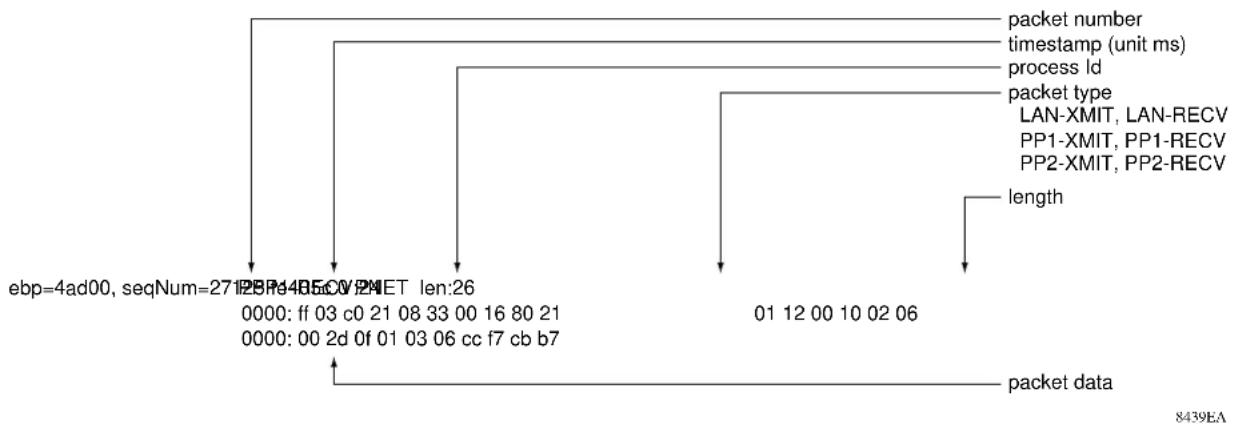
flowchart
graph TD
    A["ebp=4ad00, seqNum=27128P44B5CV2MET len:26"] --> B["0000: ff 03 c0 21 08 33 00 16 80 21"]
    A --> C["0000: 00 2d 0f 01 03 06 cc f7 cb b7"]
    D["packet number"] --> E["timestamp (unit ms)"]
    E --> F["process Id"]
    F --> G["packet type"]
    G --> H["LAN-XMIT, LAN-RECV"]
    G --> I["PP1-XMIT, PP1-RECV"]
    G --> J["PP2-XMIT, PP2-RECV"]
    K["length"] --> L["01 12 00 10 02 06"]
    M["packet data"] --> N["8439EA"]
Figure E-3. Packet Trace Display Definitions
The following is an example of the PPP message format:
113 fe4002 195 PNET ppp CHAP login to remote OK!
Figure E-4 breaks down and defines the PPP message format for the preceding packet example.
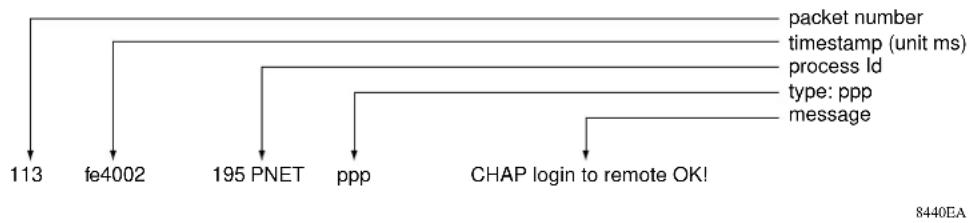
flowchart
graph TD
    A["113"] --> B["fe4002"]
    B --> C["195 PNET"]
    C --> D["ppp"]
    D --> E["CHAP login to remote OK!"]
    F["packet number"] --> G["timestamp (unit ms)"]
    G --> H["process Id"]
    H --> I["type: ppp"]
    I --> J["message"]
Figure E-4. PPP Message Definitions
E-8 Using the Protocol Analyzer and Trace Tools
Glossary
| 10BASE-T | IEEE 802.3 specification for 10 Mbps Ethernet over twisted pair wiring. |
| 100BASE-Tx | IEEE 802.3 specification for 100 Mbps Ethernet over twisted pair wiring. |
| B channel | A 64 Kbps “Bearer” channel used to carry voice or data over the ISDN network. |
| BACP | See Bandwidth Allocation Control Protocol. |
| BRI | See Basic Rate Interface. |
| Bandwidth Allocation Control Protocol | An extension to the Point-to-Point Protocol (PPP) for dynamic control of the combining of B channels. |
| Basic Rate Interface | The ISDN Basic Rate Interface, composed of two B channels and one D channel. |
| blacklist | A list of phone numbers that cannot be dialed because of problems connecting in the past. |
| CLID | See Caller Line Identification. |
| callback | A feature in which a user dials in to the router, which then disconnects and places a call to the user. |
| Caller Line Identification | Also known as Caller ID. The directory number of the caller is provided by the telephone company to the party called during call setup. |
| CHAP | See Challenge Handshake Authentication Protocol. |
| Challenge Handshake Authentication Protocol | A method of establishing security on PPP links where the peers must exchange a plain text “secret,” or password, in order to establish a link. |
| D channel | A 16 Kbps channel used for signaling between the ISDN interface and the ISDN network. This channel controls call setup and teardown. |
Reference Guide for the Model RT338 ISDN Router
| DHCP | See Dynamic Host Configuration Protocol. |
| DOSBS | Also known as DOVBS. See Data Over Voice Bearer Service. |
| DOVBS | See Data Over Voice Bearer Service. |
| Data Over Voice Bearer Service | DOVBS. The process of sending data over a call that was established as a voice call. Sending data in this method may result in a lower tariff in some parts of North America. |
| Dynamic Host Configuration Protocol | DHCP. An Ethernet protocol that provides a centralized administration point for assigning network configuration information. |
| IP | See Internet Protocol. |
| IP Address | A 4-byte number uniquely defining each host on the Internet. Ranges of addresses are assigned by Internic, an organization formed for this purpose. Usually written in dotted-decimal notation with periods separating the bytes (for example, 134.177.244.57). |
| IPX | See Internet Packet Exchange. |
| ISDN | See Integrated Services Digital Network. |
| ISP | Internet service provider. |
| Integrated Services Digital Network | ISDN. A digital telephone network for transmission of voice and data. |
| Internet Packet Exchange | Novell's internetworking protocol. |
| Internet Protocol | IP. The main internetworking protocol used in the Internet. Used in conjunction with the Transfer Control Protocol (TCP) to form TCP/IP. |
| LAN | See local area network. |
| local area network | LAN. A communications network serving users within a limited geographical area, such as one floor of a building, controlled by a network operating system and using a transport protocol. |
| MP | See Multilink Protocol. |
| MSB | See Most Significant Bit or Most Significant Byte. |
| MRU | See Maximum Receive Unit. |
| MSN | See Multiple Subscriber Numbering. |
Glossary
Reference Guide for the Model RT338 ISDN Router
| masquerading | A technique by which several hosts share a single IP address for access to the Internet. This process is an extension of Network Address Translator (NAT). See also Network Address Translator. |
| Maximum Receive Unit | MRU. The size in bytes of the largest packet that can be sent or received. |
| Most Significant Bit or Most Significant Byte | The portion of a number, address, or field that is farthest left when written as a single number in conventional hexadecimal ordinary notation. The part of the number having the most value. |
| Multilink Protocol | MP. An extension to the Point-to-Point Protocol (PPP) allowing the combination of both B channels to provide a single 128 Kbps channel. See Point-to-Point Protocol. |
| Multiple Subscriber Numbering | MSN. A service of the telephone company in which a range of numbers is assigned to one line. Each device attached to that line (for example, a phone or router) must know which number it should answer. |
| National ISDN (NI-1) | Bellcore standard for first phase of ISDN interoperability among U.S. telephone companies. |
| NAT | See Network Address Translator. |
| netmask | A number that explains which part of an IP address comprises the network address and which part is the host address on that network. It can be expressed in dotted-decimal notation or as a number appended to the IP address. For example, a 28-bit mask starting from the MSB can be shown as 255.255.255.192 or as /28 appended to the IP address. |
| Network Address Translator (or Translation) | NAT. A proposal for IP address reuse, where the local IP address is mapped to a globally unique address. See also masquerading. |
| NT1 (Network Termination 1) | Termination device that connects the user's equipment to the ISDN network. Converts the local equipment's four-wire S/T interface to the two-wire telephone company interface. The NT1 is provided by the telephone company in most of the world, but it is provided by the user in North America. Referred to in some areas as a DSU. |
| numbered links | A method of connecting two LANs by way of a WAN, where the two WAN end points have their own IP addresses. |
| PAP | See Password Authentication Protocol. |
| POTS | See Plain Old Telephone Service. |
Reference Guide for the Model RT338 ISDN Router
| PPP | See Point-to-Point Protocol. |
| PSTN | Public Switched Telephone Network. |
| Password Authentication Protocol | PAP. A method of enabling security on PPP links. When the link is established, a password is sent by the caller. See Challenge Handshake Authentication Protocol. |
| Plain Old Telephone Service | POTS. The standard analog phone system. |
| Point-to-Point Protocol | PPP. A protocol allowing a computer using TCP/IP to connect directly to the Internet. |
| RFC | Request For Comment. Refers to documents published by the Internet Engineering Task Force (IETF) proposing standard protocols and procedures for the Internet. |
| RIP | See Routing Information Protocol. |
| Routing Information Protocol | RIP. A protocol in which routers periodically exchange information with one another so that they can determine minimum distance paths between sources and destinations. |
| S/T Interface | The four-wire ISDN interface or reference point at the user or local side of the NT1. See also U interface. |
| Service Profile Identifier | SPID. A number assigned by the telephone company to an attached device, used to identify the characteristics of that device. |
| SPID | See Service Profile Identifier. |
| subnet mask | See netmask. |
| U Interface | The two-wire ISDN interface or reference point at the telephone company side of the NT1. See also S/T interface. |
| unnumbered links | See numbered links. |
| WAN | See wide area network. |
| wide area network | WAN. A long distance link used to extend or connect remotely located local area networks. |
Index
A
accounting function, 11-7
Action Matched/Not Matched field
Generic Filter Rule menu, 9-8
TCP/IP Filter Rule menu, 9-7
Active field
Add/Modify Static Route tab, 5-29
Edit Dial-in User, 8-7
Edit IP Static Route menu, 7-17
Generic Filter Rule menu, 9-7
Remote Node Profile menu, 5-21, 7-4
Syslog and Accounting menu, 11-7
TCP/IP Filter Rule menu, 9-5
Additional Call Offering (ACO), 3-1
Address Resolution Protocol, 1-14
Advanced Setup menu bar commands, 5-11
Advanced Setup window, 5-9
Analog Call field, ISDN Setup menu, 4-9
analog voice ports, 1-3
applications information, xxi
B
B Channel Usage field, ISDN Setup menu, 4-9
BACP, 7-8
Bandwidth Allocation Control Protocol, 7-9
Bandwidth on Demand, 7-9
Base Transmission Rate, 7-9
blacklist function, 11-16
budget management, 11-16
C
cables, 2-6
call bumping, 3-1
call control, 11-16
Call Direction field, Remote Node menu tab, 5-21
Call Direction field, Remote Node Profile menu, 7-4
Callback Budget Management field, Default Dial-in Setup, 8-4
Callback field, Edit Dial-in User, 8-7
callback function, 1-5
calling line identification, 1-5
CHAP authentication, 1-5, 7-5, 8-3
Cisco mutual authentication, 8-3
command interpreter mode, 11-15
command-line mode, 11-9
compression, 1-2
Compression field, PPP Detail tab, 5-24
Compression field, Remote Node PPP Options menu, 7-8
configuration
automatic by DHCP, 1-4
backup, 11-12
connecting
cables, 2-6
devices, 2-7
power, 4-4
serial port, 3-6
through Telnet session, 3-12
Index 1
conventions, xx
Country Code field, System Maintenance menu, 11-3
customer support, iii
D
data over voice bearer service call, 4-9, 6-3, 7-6
default router address, 3-12
Destination field, TCP/IP Filter Rule menu, 9-6
Destination IP Address field, Add/Modify Static Route tab, 5-29
Destination IP Address field, Edit IP Static Route menu, 7-17
DHCP, 1-4, 1-15
DHCP Setup field, Ethernet Setup menu, 4-14
Dial-in User Setup menu, 8-7
dial-in users, 8-1
Directory Number field, 5-3
DNS proxy, 1-5
domain name server, using, 1-14
DOVBS, 4-9, 6-3, 7-6, 12-7, 2
dynamic NAT.See Network Address Translation
E
Edit Dial-in User menu, 8-7
Edit IP Static Route menu, 7-17
Edit PPP Options field, Remote Node Profile menu, 7-5
Encapsulation field, PPP Detail tab, 5-24
Encapsulation field, Remote Node PPP Options menu, 7-8
EPROM, for firmware upgrade, 1-3
error log, 11-6
Ethernet cable, connecting, 2-6
Ethernet field, System Maintenance menu, 11-3
Ethernet Setup menu, 4-14
F
features, 1-1
Filter Rules Summary menu, 9-3, 9-7
filter type, Generic IP, 9-4
filtering process, example, 9-1
filters, configuring, 9-1
FirstGear
advanced setup options, 5-8
description, 1-2
for configuration, 1-6, 4-1
starting, 4-3
Wizard, 5-1
front panel, 2-3
G
Gateway IP Address field, Add/Modify Static Route tab, 5-29
Gateway IP Address field, Edit IP Static Route menu, 7-17
General Setup menu, 4-7
Generic Filter Rule menu, 9-7
H
Hang Up B1 Call field, Diagnostic menu, 11-10
Hang Up B2 Call field, Diagnostic menu, 11-10
|
Idle Time-out field, Edit Dial-in User, 8-7
IETF, xxi
Incoming Callback field, Remote Node tab, 5-22
Incoming Login Name field, Remote Node tab, 5-22
Incoming Login Password field, Remote Node tab, 5-22
initialization, 12-3
installation, 1-2
installing FirstGear, 4-2
2 Index
Internet, accessing, 6-2
IP address, 3-5
IP Address Supplied By field, Default Dial-in Setup, 8-4
IP address, static, 6-3
IP addresses
and NAT, 1-12
and the Internet, 1-7
assigning, 1-7
masquerading, 1-4
private, 1-12
IP configuration, by DHCP, 1-15
IP Protocol field, TCP/IP Filter Rule menu, 9-5
IP Routing, for Windows 95, B-1
IP Source Route field, TCP/IP Filter Rule menu, 9-5
IP Subnet Mask field, Add/Modify Static Route tab, 5-29
IP Subnet Mask field, Edit IP Static Route menu, 7-17
ISDN
cable, 2-6
clearing codes, D-1
ordering lines, C-1
support, 1-3
testing connection, 11-9
troubleshooting, 12-2
Wizard Line Setup screen, 5-2
ISDN Connection Test field, Diagnostic menu, 11-10
ISDN field, System Maintenance menu, 11-3
ISDN menu tab fields, North America, 5-14
ISDN Menus, Manager interface, 4-8
ISDN ordering code (IOC), 3-1
ISDN Setup menu, 4-8
ISP connection, troubleshooting, 12-5
L
LAN menu tab fields, 5-17
LAN Packet field, System Maintenance menu, 11-3
leased line, 6-3
LEDs
description, 2-4
troubleshooting, 12-2
Length field, Generic Filter Rule menu, 9-7
Local IP Address field, LAN menu tab, 5-17
Local Netmask field, LAN menu tab, 5-17
Local RIP Direction field, LAN menu tab, 5-18
Local RIP Version field, LAN menu tab, 5-18
log, 11-6
Log and Trace menu, 11-6
Log Facility field, Syslog and Accounting menu, 11-7
Log field
Generic Filter Rule menu, 9-8
TCP/IP Filter Rule menu, 9-7
login name field, ISP, 5-5
M
MAC address, 1-14, 11-5
Macintosh network, 4-2
Macintosh, using to configure, 1-6, 3-6, 4-1
Manager interface, 4-2
accessing through serial port, 3-6
accessing through Telnet, 3-6
menus, 4-6
troubleshooting, 12-10, 12-11
using for configuring, 1-2, 1-6, 3-6, 4-1
Manager interface commands, 4-5
Index 3
Manager interface menus
Default Dial-in Setup, 8-2
Diagnostic, 11-9
Dial-in User Setup, 8-7
Edit Dial-in User, 8-7
Edit IP Static Route, 7-17
Ethernet Setup Menu, 4-12
Filter Rules Summary, 9-3, 9-7
General Setup Menu, 4-7
Generic Filter Rule, 9-7
Internet Access Setup, 6-2
ISDN Setup, 4-8
Main, 4-6
Remote Node Network Layer Options, 7-11
Remote Node PPP Options, 7-8
Remote Node Profile, 7-3
Remote Node Setup, 7-3
System Security, 4-16
System Security - Change Password, 4-16
System Status, 11-1
TCP/IP Filter Rule, 9-5
Manager password, 11-18
Manual Call field, Diagnostic menu, 11-10
Mask field, Generic Filter Rule menu, 9-7
Max. Transmission Rate, 7-9
Metric field
Add/Modify Static Route tab, 5-29
Edit IP Static Route menu, 7-17
Remote Node Network Layer Options menu, 7-11
TCP/IP Detail tab, 5-26
MGR port, 2-6
mode, command interpreter, 11-15
More field
Generic Filter Rule menu, 9-8
TCP/IP Filter Rule menu, 9-6
Multilink field, 6-4
Multilink Protocol, 7-9
Multiple Link Options field
Default Dial-in Setup, 8-3
Remote Node PPP Options menu, 7-8
My WAN Add field, Remote Node Network Layer Options menu, 7-11
My WAN Addr field, TCP/IP Detail tab, 5-26
N
nailed-up connection, 7-6
NAT, 3-5
NAT. See Network Address Translation
netmask
description, 1-9
translation table, 1-11
Network Address Translation, 1-4
network address translation, 1-12
network checklist, 2-2
Numbered Links, 5-26, 7-11
0
Offset field, Generic Filter Rule menu, 9-7
Outgoing Authentication field, Remote Node tab, 5-21
Outgoing field, Remote Node Profile menu, 7-5
Outgoing Login Name field, Remote Node menu tab, 5-21
Outgoing Login Password field, Remote Node menu tab, 5-21
Outgoing Primary and Secondary Dial Number field, Remote Node tab, 5-21
P
package contents, 2-1
PAP authentication, 1-5, 7-5, 8-3
password
changing, 4-16, 11-18
entering at startup, 4-5
Manager, 11-18
restoring, 12-12
Password field, Edit Dial-in User, 8-7
password field, ISP, 5-5
4 Index
password, Manager, 11-18
PC, using to configure, 1-6, 3-6, 4-1
port
analog voice, 1-3
forwarding behind NAT, 1-13
locations, 2-5
MGR, 2-6
Phone, testing, 12-11
serial, connecting, 3-6
power, connecting, 4-4
PPP
options, editing, 7-7, 7-10
support, 1-4
PPP Options field, Default Dial-in Setup, 8-3
primary telephone number field, ISP, 5-5
Private field, 5-26
Add/Modify Static Route tab, 5-29
Edit IP Static Route menu, 7-17
Remote Node Network Layer Options menu, 7-11
protocols
Address Resolution, 1-14
Bandwidth Allocation Control, 7-9
DHCP, 1-4, 1-15
Internet, 1-4
Multilink, 7-9
Routing Information, 1-4, 1-7
support, 1-2
TCP/IP, 11-11, 12-6
Transmission Control, 1-4
publications, related, xxi
R
RADIUS authentication, 8-8
rear panel, 2-5
Rem CLID field, Edit Dial-in User, 8-7
Rem IP Addr field
Remote Node Network Layer Options, 5-25, 7-11
Remote Node Profile menu, 7-5
Rem Node Name field, Remote Node Profile menu, 5-21, 7-4
Rem Subnet Mask field, Remote Node Network Layer Options, 5-25, 7-11
remote dial-in users, 8-1
remote node
configuring, 7-1
setup, 7-2, 7-3
troubleshooting, 12-5
Remote Node Configuration Continued tab fields, 5-24
Remote Node menu tab fields, 5-21
Remote Node Network Layer Options menu, 7-11
Remote Node PPP Options menu, 7-8
Remote Note Set Up menu, 7-3
remote user, troubleshooting, 12-8
Reset ISDN field, Diagnostic menu, 11-10
RFC, xxi
Route Name field, Add/Modify Static Route tab, 5-29
Route Name field, Edit IP Static Route menu, 7-17
router concepts, 1-6
Router Name field, 5-12
Routing Information Protocol, 1-4, 1-7
S
security, 1-2, 1-5, 4-16
serial cable, 2-6
serial port, connecting to, 3-6
Service Profile Identifier field, 5-3
Session Options field
Default Dial-in Setup, 8-4
Remote Node Profile menu, 7-6
Single User Account field, 5-26
Single User Account field, Remote Node Network Layer Options menu, 7-11
Index 5
single user account, configuring for, 6-4
software, updating, 11-14
Source field, TCP/IP Filter Rule menu, 9-6
SPID Number(s) field, ISDN Setup menu, 4-9
Starting address field
LAN menu tab, 5-18
static route setup, 7-14
subnet addressing, 1-10
Switch Type field
ISDN menu tab, 5-14
Wizard ISDN Line Setup, 5-3
Switch Type field, ISDN Setup menu, 4-9
Syslog IP Address field, Syslog and Accounting menu, 11-7
syslogd, 11-8
System Maintenance Status menu, 11-3
System menu tab fields, 5-12
System Status Menu, 11-1
system tools, 11-12
T
TCP Estab field, TCP/IP Filter Rule menu, 9-6
TCP/IP
configuration, testing, 11-9
configuring, 3-1
network, troubleshooting, 12-4
Protocol, 11-11, 12-6
requirements, 2-2
using with LAN-to-LAN, 7-2
TCP/IP Detail tab fields, 5-25
TCP/IP Filter Rule menu, 9-5
TCP/IP Setup field, Ethernet Setup menu, 4-14
TCP/IP, configuring, B-1
Telco Options field
Default Dial-in Setup, 8-3
Remote Node Profile menu, 7-6
Telephone Number(s) field, ISDN Setup menu, 4-9
Telnet session, connecting to Manager interface, 3-12
terminal baud rate, 11-5
TFTP, 11-13, 11-15
trace display, 11-11, 12-6
trace tools, 11-6
troubleshooting, 12-1
U
UNIX network, 4-2
UNIX system, using to configure, 1-6, 3-6, 4-1
User Name field, Edit Dial-in User, 8-7
V
Value field, Generic Filter Rule menu, 9-8
W
warranty, 1-3
Windows, configuring for IP routing, B-1
World Wide Web, iii