C5800n - Printer OKI - Free user manual and instructions
Find the device manual for free C5800n OKI in PDF.


User questions about C5800n OKI
0 question about this device. Answer the ones you know or ask your own.
Ask a new question about this device
Download the instructions for your Printer in PDF format for free! Find your manual C5800n - OKI and take your electronic device back in hand. On this page are published all the documents necessary for the use of your device. C5800n by OKI.
USER MANUAL C5800n OKI
natural_image
White OKE printer with digital display and control panel (no visible text or symbols)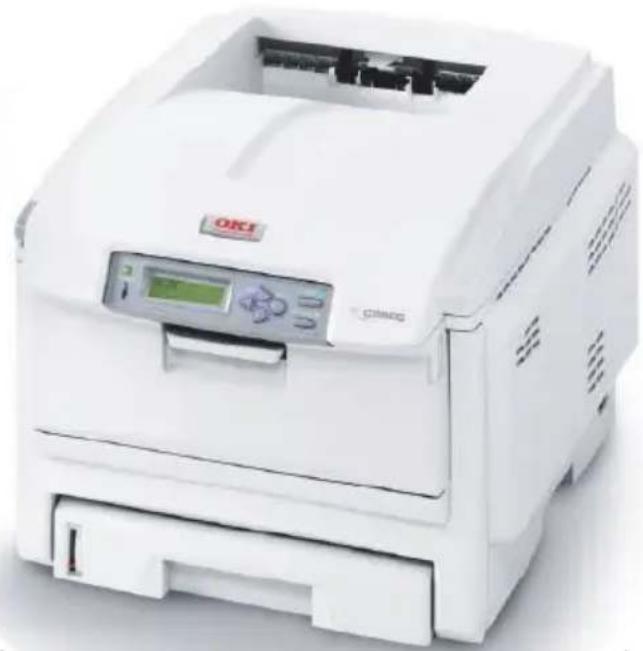
natural_image
White OKE printer with control panel and display screen (no visible text or symbols)PREFACE
Every effort has been made to ensure that the information in this document is complete, accurate, and up-to-date. The manufacturer assumes no responsibility for the results of errors beyond its control. The manufacturer also cannot guarantee that changes in software and equipment made by other manufacturers and referred to in this guide will not affect the applicability of the information in it. Mention of software products manufactured by other companies does not necessarily constitute endorsement by the manufacturer.
While all reasonable efforts have been made to make this document as accurate and helpful as possible, we make no warranty of any kind, expressed or implied, as to the accuracy or completeness of the information contained herein.
The most up-to-date drivers and manuals are available from the Oki Europe website:
http://www.okiprintingsolutions.com
Copyright © 2007. All rights reserved.
Oki and Microline are registered trademarks of Oki Electric Industry Company, Ltd.
Energy Star is a trademark of the United States Environmental Protection Agency.
Hewlett-Packard, HP, and LaserJet are registered trademarks of Hewlett-Packard Company.
Microsoft, MS-DOS and Windows are registered trademarks of Microsoft Corporation.
Apple, Macintosh, Mac and Mac OS are registered trademarks of Apple Computer.
Other product names and brand names are registered trademarks or trademarks of their proprietors.

As an Energy Star Program Participant, the manufacturer has determined that this product meets the Energy Star guidelines for energy efficiency.

This product complies with the requirements of the Council Directives 89/336/EEC (EMC), 2006/95/EC (LVD) and 1999/5/EC (R&TTE), as amended where applicable, on the approximation of the laws of the member states relating to Electromagnetic Compatibility, Low Voltage and Radio & Telecommunications Terminal Equipment.
Please note that Microsoft Windows XP was used to produce all screenshots in this manual. These screenshots may vary if you are using any other operating system, but the principle is the same.
EMERGENCY FIRST AID

Take care with toner powder:
If swallowed, induce vomiting and seek medical attention. Never attempt to induce vomiting if person is unconscious.
If inhaled, move the person to an open area for fresh air. Seek medical attention.
If it gets into the eyes, flush with large amounts of water for at least 15 minutes keeping eyelids open. Seek medical attention.
Spillages should be treated with cold water and soap to help reduce risk of staining skin or clothing.
IMPORTER TO THE EU
Oki Europe Limited (trading as OKI Printing Solutions)
Central House
Balfour Road
Hounslow
TW3 1HY
United Kingdom
For all sales, support and general enquiries contact your local distributor.
ENVIRONMENTAL INFORMATION

text_image
www.okiprintingsolutions.com OKICONTENTS
Preface 2
Emergency First Aid .... 3
Importer to the EU 3
Environmental Information 3
Contents 4
Notes, Cautions and Warnings .... 6
Introduction 7
Printer overview.... 9
Changing the display language 11
Paper recommendations.... 12
Cassette trays 13
Multi purpose tray 13
Face down stacker 14
Face up stacker 14
Duplex unit 14
Loading paper....15
Cassette trays 15
Printer settings in Windows 20
Printing preferences in Windows applications. . . . . 20
Setting from Windows control panel 24
Printer settings in Mac 28
Mac OS 9 28
Mac OS X 42
Colour printing 59
Factors that affect the appearance of prints. ..... 59
Tips for printing in colour 61
Accessing the colour matching options . . . . . . . . 62
Setting the colour matching options . . . . . . . . . 62
Using the colour swatch feature . . . . . . . . . . . . 64
Using the Colour Correct Utility 65
Menu functions 66
Print jobs menu 67
Information menu 67
Shutdown menu. 67
Print menu 68
Media menu. 70
Colour menu 73
System configuration menu 74
USB menu 75
Network menu 75
Maintenance menu 76
Usage menu 77
Replacing consumable items 78
Consumable order details 79
Toner cartridge replacement 80
Image drum replacement 85
Replacing the belt unit 89
Fuser replacement 92
Cleaning the LED head 94
Installing upgrades 95
Duplex unit 95
Memory upgrade 97
Additional paper tray 100
Adjusting Windows printer drivers .....101
Clearing paper jams 102
Specifications 111
Index 114
Oki contact details 116
NOTES, CAUTIONS AND WARNINGS
NOTE:
A note appears in this manual like this. A note provides additional information to supplement the main text which may help you to use and understand the product.
CAUTION!
A caution appears in this manual like this. A caution provides additional information which, if ignored, may result in equipment malfunction or damage.
WARNING!
A warning appears in this manual like this. A warning provides additional information which, if ignored, may result in a risk of personal injury.
INTRODUCTION
Congratulations on buying this Oki Printing Solutions colour printer. Your new printer is designed with advanced features to give you clear, vibrant colour prints and crisp black and white pages at high speed on a range of print media for the office.
Your printer includes these features:
Multi-level technology produces subtler tones and smoother gradations of colour to lend photographic quality to your documents;
Up to 20 (C5600) or 26 (C5800) pages per minute in full colour for fast printing of high impact colour presentations and other documents;
Up to 32 pages per minute in black and white for fast and efficient printing of all general purpose documents not requiring colour;
600 x 600, 1200 x 600 dpi (dots per inch) and 600 x 600 x 2 bit print resolution for high quality image production showing the finest detail;
Single Pass colour Digital LED technology for high speed processing of your printed pages;
10Base-T and 100Base-TX network connection lets you share this valuable resource among users on your office network;
Photo Enhance mode to improve printouts of photographic images;
"Ask Oki" – a user-friendly function for Windows that gives a direct link from your printer driver screen to a dedicated web site specific to the exact model you are using. This is where you'll find all the advice, assistance and support you could need to help you get the best possible results from your Oki printer;
"WebPrint Internet Explorer plugin" - another brand new function for Windows that enables you to print web pages properly;Internal hard disk drive (standard on "h" models, optional on others) for storage of overlays, macros and downloadable fonts, and automatic collation of multiple copies of multipage documents;
Template Manager 2006 utility for Windows enables the design and print of Business cards, banners, labels with ease.
Additionally, the following optional features are also available:
External Wireless Print server available - eliminating the need for network cabling;
Automatic two-sided (duplex) printing for economical use of paper and compact printing of larger documents (standard on dn models);
Additional paper tray for loading a further 530 sheets to minimise operator intervention, or different paper stocks for letterhead stationery, alternative paper sizes or other print media;
Additional memory allows printing of more complex pages. For example, high resolution banner printing;
Storage Cabinet.
PRINTER OVERVIEW
FRONT VIEW

text_image
Technical diagram of a printer with numbered parts labeled for identification-
Output stacker, face down. Standard printed copy delivery point. Holds up to 250 sheets at 80g/m^2 .
-
Operator panel. Menu driven operator controls and LCD display panel.
-
Paper tray. Standard blank paper tray. Holds up to 300 sheets of 80g/m ^2 paper.
-
Multi purpose tray (80g/m²). Used for feeding heavier paper stocks, envelopes and other special media. Also for manual feeding of single sheets when required.
-
ON/OFF switch.
- Front cover release lever.
- Multi-purpose tray release lever
- Top cover release button.
The LCD display language can be changed to show different languages. (See "Changing the display language" on page 11.)
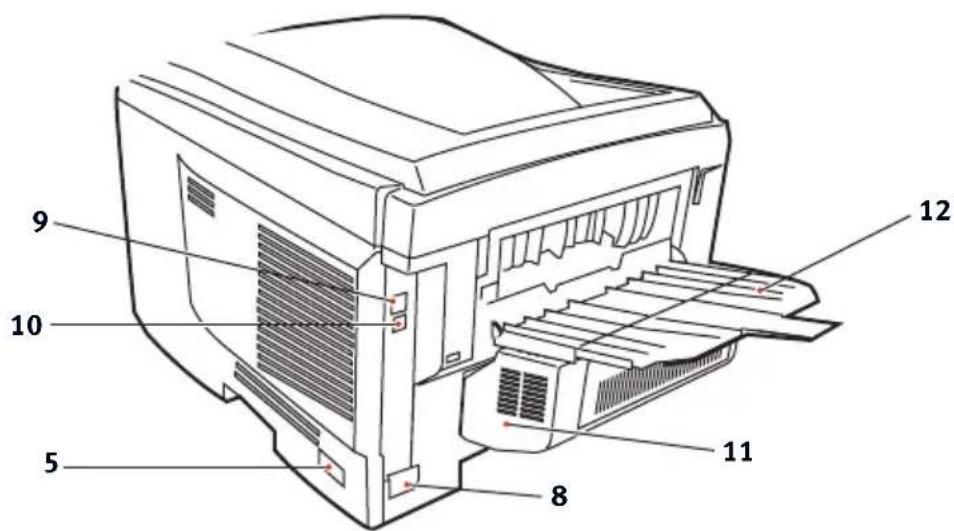
REAR VIEW
This view shows the connection panel, the rear output stacker and the location of the optional duplex (two-sided printing) unit.
text_image
Technical diagram of a printer with numbered parts labeled for identification| 5. ON/OFF switch.8. AC power socket.9. USB interface. | 10. Network interface.*11. Duplex unit (when fitted).12. Rear, face up, 100 sheet stacker. |
* The Network Interface has a protective “plug” which must be removed before connection can be made.
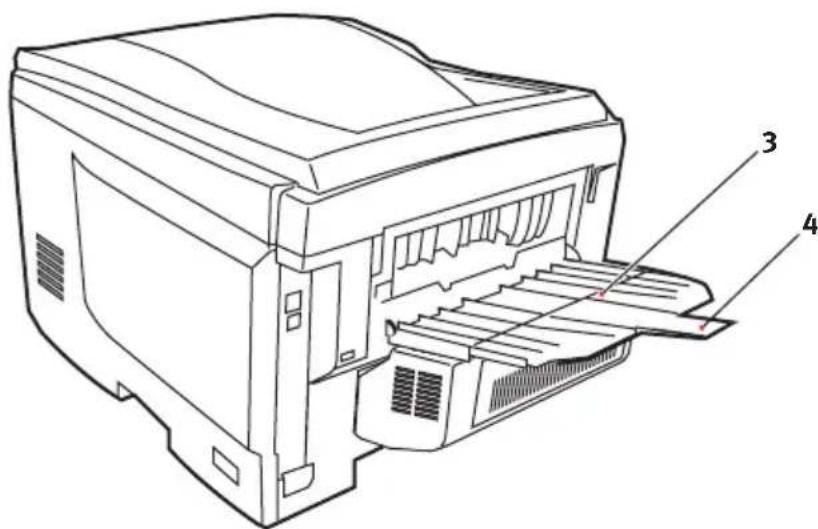
When the rear paper stacker is folded down paper exits the printer through the rear of the printer and is stacked here face up. This is mainly used for heavy print media. When used in conjunction with the multi purpose feed tray, the paper path through the printer is essentially straight. This avoids bending the paper around curves in the paper path and enables feeding of up to 203g / m^2 media.
CHANGING THE DISPLAY LANGUAGE
The default language used by your printer for display messages and for report printing is English. If required, this can be changed to:
German Danish
French Dutch
Italian Turkish
Spanish Portuguese
Swedish Polish
Russian Greek
Finnish Czech
Hungarian Norwegian
See the information enclosed with the printer on the procedure for changing the language setting.
PAPER RECOMMENDATIONS
Your printer will handle a variety of print media, including a range of paper weights and sizes, transparencies and envelopes. This section provides general advice on choice of media, and explains how to use each type.
The best performance will be obtained when using standard 75\~90g/m² paper designed for use in copiers and laser printers. Suitable types are:
- Arjo Wiggins Conqueror Colour Solutions 90g / m^2 ;
• Colour Copy by Neusiedler.
Use of heavily embossed or very rough textured paper is not recommended.
Pre-printed stationery can be used, but the ink must not offset when exposed to the high fuser temperatures used in the printing process.
Envelopes should be free from twist, curl or other deformations.
They should also be of the rectangular flap type, with glue that remains intact when subjected to hot roll pressure fusing used in this type of printer. Window envelopes are not suitable.
Transparencies should be of the type designed for use in copiers and laser printers. We strongly recommend Oki Printing Solutions transparencies (Order No. 01074101). In particular, avoid office transparencies designed for use by hand with marker pens. These will melt in the fuser and cause damage.
Labels should also be of the type recommended for use in copiers and laser printers, in which the base carrier page is entirely covered by labels. Other types of label stock may damage the printer due to the labels peeling off during the printing process. Suitable types are:
- Avery White Laser Label types 7162, 7664, 7666 (A4), or 5161 (Letter);
CASSETTE TRAYS
SIZE DIMENSIONS WEIGHT (G/M²)
| A6 (Tray 1 only) | 105 x 148mm | |
| A5 148 x 210mm | Light 64-74g/m2 | |
| B5 182 x 257mm | ||
| Executive 184.2 x 266.7mm | Medium 75-90g/m2 | |
| A4 210 x 297mm | Heavy 91-120g/m2 | |
| Letter 215.9 x 279.4mm | Ultra heavy121-176g/m2(Tray 2 only) | |
| Legal 13in. 216 x 330mm | ||
| Legal 13.5in. 216 x 343mm | ||
| Legal 14in. 216 x 356mm |
If you have identical paper stock loaded in another tray (2nd tray if you have one, or multi purpose tray) you can have the printer automatically switch to the other tray when the current tray runs out of paper. When printing from Windows applications, this function is enabled in the driver settings. (See "Printer Settings in Windows" later in this guide.) When printing from other systems, this function is enabled in the Print Menu. (See "Menu Functions" later in this guide.)
MULTI PURPOSE TRAY
The multi purpose tray can handle the same sizes as the cassette trays but in weights up to 203g/m^2 . For very heavy paper stock use the face up (rear) paper stacker. This ensures that the paper path through the printer is almost straight.
The multi purpose tray can feed paper widths as small as 100mm and lengths up to 1200mm (banner printing).
For paper lengths exceeding 356mm (Legal 14in.) use paper stock between 90g/m ^2 and 128g/m ^2 and the face up (rear) paper stacker.
Use the multi purpose tray for printing on envelopes and transparencies. Up to 50 sheets of transparencies or 10 envelopes can be loaded at one time, subject to a maximum stacking depth of 10mm.
Paper or transparencies should be loaded print side up and top edge into the printer. Do not use the duplex (two-sided printing) function.
FACE DOWN STACKER
The face down stacker on the top of the printer can hold up to 250 sheets of 80g/m^2 standard paper, and can handle paper stocks up to 176g/m^2 . Pages printed in reading order (page 1 first) will be sorted in reading order (last page on top, facing down).
FACE UP STACKER
The face up stacker at the rear of the printer should be opened and the tray extension pulled out when required for use. In this condition paper will exit via this path, regardless of driver settings.
The face up stacker can hold up to 100 sheets of 80g/m^2 standard paper, and can handle stocks up to 203g/m^2 .
Always use this stacker and the multi purpose feeder for paper stocks heavier than 176 g/m^2 .
DUPLEX UNIT
This option provides automatic two-sided printing on the same range of paper sizes as tray 2 (i.e. all cassette sizes except A6), using paper stocks from 75-105g/m ^4 .
NOTE:
The duplex unit comes as standard with dn models.
LOADING PAPER
CASSETTE TRAYS
- Remove the paper tray from the printer.
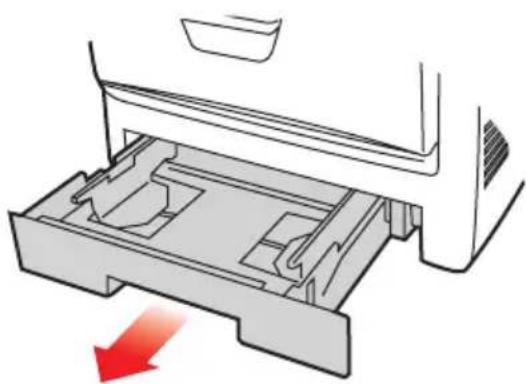
natural_image
Diagram of a kitchen appliance with a red arrow indicating a downward motion (no text or symbols present)- Fan the paper to be loaded at the edges (1) and in the middle (2) to ensure that all sheets are properly separated, then tap the edges of the stack on a flat surface to make it flush again (3).

text_image
1 2 3- Load letter headed paper face down and top edge towards the front of the printer, as shown.
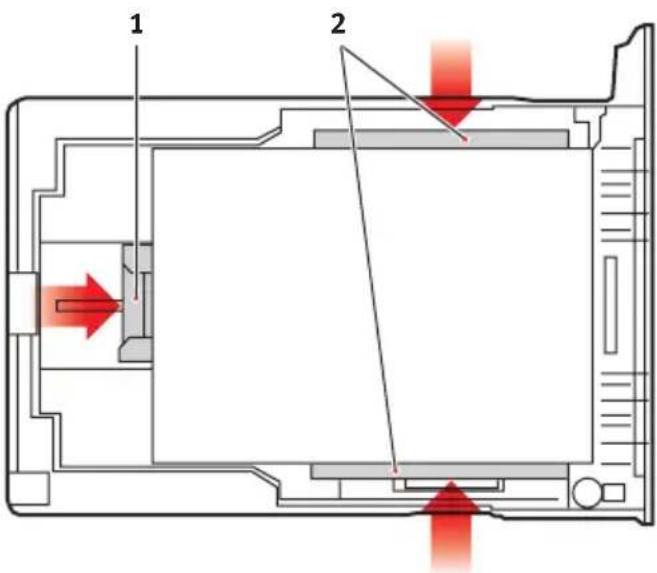
text_image
1 2- Adjust the rear stopper (1) and paper guides (2) to the size of paper being used.
To prevent paper jams:
- Do not leave space between the paper and the guides and rear stopper.
- Do not overfill the paper tray. Capacity depends on the type of paper stock.
- Do not load damaged paper.
- Do not load paper of different sizes or types at the same time.
- Do not pull the paper tray out during printing (except as described below for the 2nd tray).
-
Close the paper tray gently.
-
If you have two trays and you are printing from the 1st (upper) tray, you can pull out the 2nd (lower) tray during printing to reload it. However, if printing from the 2nd (lower) tray, do not pull out the 1st (upper) tray. This will cause a paper jam.
-
For face down printing, make sure the face up (rear) stacker (3) is closed (the paper exits from the top of the printer). Stacking capacity is approximately 250 sheets, depending on paper weight.
-
For face up printing, make sure the face up (rear) stacker (3) is open and the paper support (4) is extended. Paper is stacked in reverse order and tray capacity is approximately 100 sheets, depending on paper weight.
-
Always use the face up (rear) stacker for heavy paper (card stock etc.).
text_image
Technical line drawing of a printer with labeled parts 3 and 4, showing internal structure and page layout.CAUTION!
Do not open or close the rear paper exit while printing as it may result in a paper jam.
MULTI PURPOSE TRAY
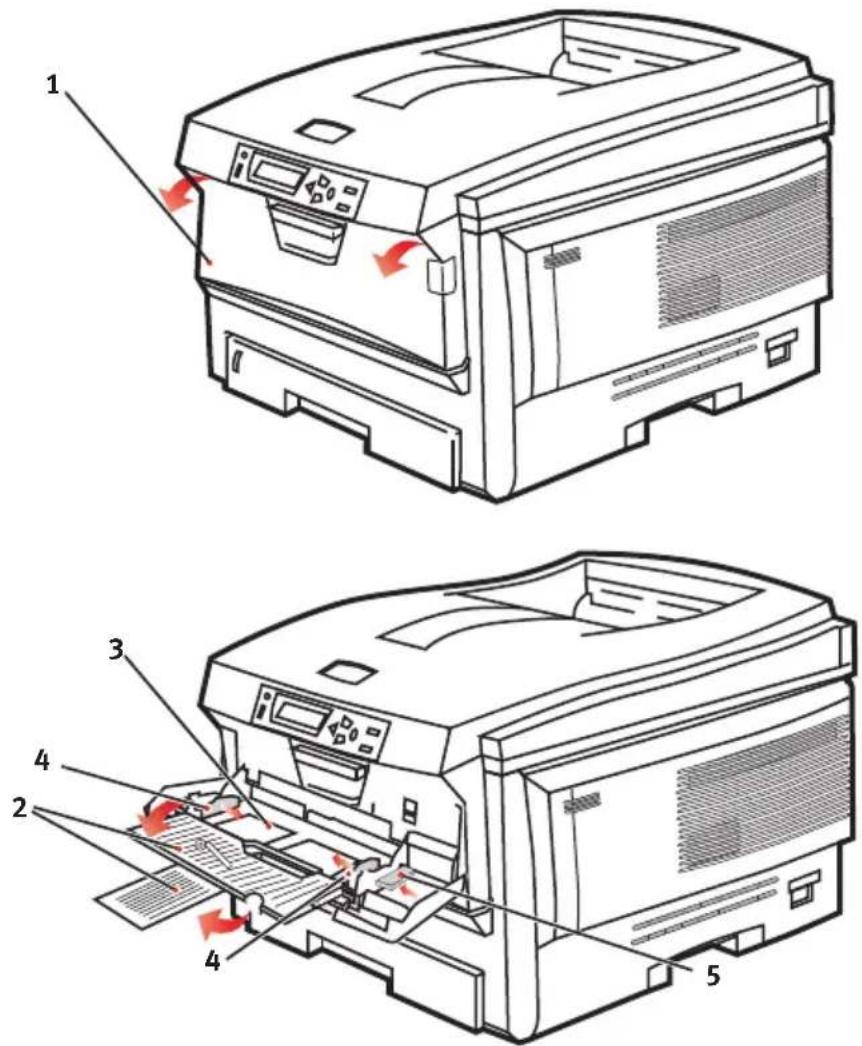
- Open the multi purpose tray (1).
- Fold out the paper supports (2).
text_image
Technical diagram of a printer with numbered parts and red arrows indicating motion or assembly, showing internal components like paper, printer, and print.- Press gently down on the paper platform (3) to ensure it is latched down.
- Load the paper and adjust the paper guides (4) to the size of paper being used.
- For single-sided printing on headed paper load the paper into the multi purpose tray with pre-printed side up and top edge into the printer.
- For two-sided (duplex) printing on headed paper load the paper with pre-printed side down and top edge away from the printer. (Optional duplex unit must be installed for this function.)
- Envelopes should be loaded face up with top edge to the left and short edge into the printer. Do not select duplex printing on envelopes.
-
Do not exceed the paper capacity of about 50 sheets or 10 envelopes. Maximum stacking depth is 10mm.
-
Press the tray latch button (5) inwards to release the paper platform, so that the paper is lifted and gripped in place.
Set the correct paper size for the multi purpose tray in the Media Menu (see "Menu Functions").
PRINTER SETTINGS IN WINDOWS
Your printer's operator panel menus provide access to many options.
The Windows printer driver also contains settings for many of these items. Where items in the printer driver are the same as those in the operator panel menus, and you print documents from Windows, the settings in the Windows printer driver will override those items in the operator panel menus.
The illustrations in this chapter show Windows XP. Other Windows versions may appear slightly different, but the principles are the same.
PRINTING PREFERENCES IN WINDOWS APPLICATIONS
When you choose to print your document from a Windows application program a print dialogue box appears. This dialogue usually specifies the name of the printer on which you will print your document. Next to the printer name is a Properties button.

text_image
Print Printer Name: Printer Name Status: Idle Type: Where: Comment: Properties Print to file Page range All Current page Selection Pages: Enter page numbers and/or page ranges separated by commas. For example, 1,3,5-12 Copies Number of copies: 1 Collage Print gwt: Document Print: All pages in range Zooms Pages per sheet: 1 page Scale to paper size: No Scaling Options... OK CloseWhen you click Properties a new window opens which contains a short list of the printer settings available in the driver, which you can choose for this document.
The settings available from within your application are only those which you may want to change for specific applications or documents. Settings you change here will usually only last for as long as the particular application program is running.
SETUP TAB
When you click the Properties button from your application's Print dialogue, the driver window opens to allow you to specify your printing preferences for the current document.
- Paper size should be the same as the page size of your document (unless you wish to scale the printout to fit another size), and should also be the same as the size of paper you will feed into t

text_image
Properties Setup Job Options Colour AskOk Mode Size: 64.210 x 297 mm Source: Auto Weight: Printer Setting Paper Feed Options... Finishing Mode Standard Options... 2/Select Printing (Duplex) (None) Driver Settings Unfolded Save... Delete A4 210 x 297 mm OKI PENKING SOLUTIONS About... Default OK Cancel Help-
You can choose the source of the paper to feed, which may be Tray 1 (the standard paper tray), Tray 2 (if you have the optional 2nd paper tray installed) or the multi purpose feeder. You can also click on the appropriate part of the screen graphic to select your preferred tray.
-
The setting for paper weight should match the type of paper on which you intend to print.
-
A variety of document finishing options can be selected, such as normal one page per sheet, or N-up (where N can be any number up to 16) for printing scaled down pages at more than one page per sheet. Booklet printing prints two pages per sheet on each side of the paper so that when folded they make up a booklet. Booklet printing requires the duplex unit to be installed in your printer.
Poster printing will print large pages as tiles spread over multiple sheets.
-
For two-sided printing, you can choose to flip the page by the long edge or the short edge. Of course, this requires that a duplex unit be installed in your printer.
-
If you have changed some printing preferences before and saved them as a set, you can recall them to avoid having to set them individually each time you need them.
-
A single on-screen button restores the default settings.
JOB OPTIONS TAB

text_image
OKI C5000 Printing Preferences Setup Job Options Cake AskOk Print Quality High Quality Fine / Default(600x1200) Normal (600x600) Inner save Photo Enhance Skip blank pages OK Cancel Apply Help Job Settings Dipers: 1 (1.999) Colinate Operation Portrait 180° Landscape 180° Scale (%): 100 (25-400%) Digable Advanced... Waterworks... Default 3 4 5 6 7- The output resolution of the printed page can be set as follows.
- The High Quality setting prints at 600 x 600dpi x 2 bit. This option requires the most printer memory and takes the longest to print.
- The Fine/Detail setting prints at 1200 x 600dpi and is adequate for all but the most discerning applications.
- The Normal setting prints at 600 x 600dpi and is suitable for mostdraft documents, where print quality is less critical.
-
You can print watermark text behind the main page image. This is useful for marking documents as draft, confidential, etc.
-
You can select up to 999 copies to print consecutively, although you will need to top up the paper tray during such a long print run.
-
Page orientation can be set to either portrait (tall) or landscape (wide).
-
You printed pages can be scaled to fit larger or smaller stationery.
-
Clicking the Advanced button gives you access to further settings. For example, you can elect to have black areas printed using 100 % K toner (a more matte appearance).
-
A single on-screen button restores the default settings.
-
The quality of photographic images can be improved.
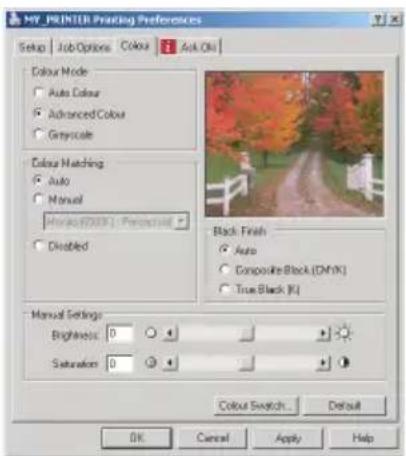
COLOUR TAB
text_image
Properties Setup Job Options Color Color Mode Auto Color Advanced Color Grayscale Color Setting Auto Natural Hueled/Black/Red/Black Unadjusted Black Finish Auto Gloss Mate Manual Adjustment Lightness: 0 Saturation: 0 Color Switch Default OK Cancel Help-
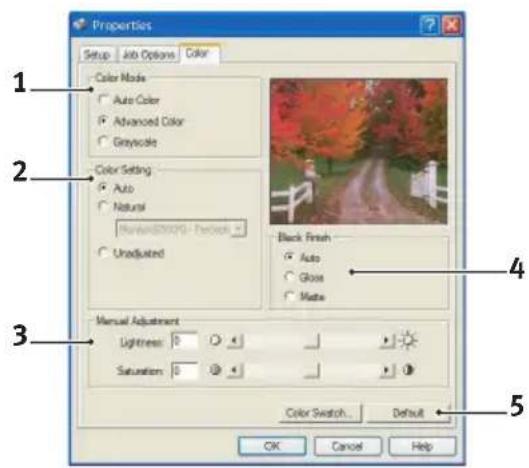
Control over the colour output of your printer may be performed automatically, or for advanced control, by manual adjustment. The automatic setting will be appropriate in most cases. The other options in this window only become visible when you select a choice other than Auto. For greyscale printing, the printer runs at 24ppm and all pages are printed in black and white.
-
You can choose from a range of colour matching options, depending on the image source for your document. For example, a photograph taken on a digital camera might require different colour matching to a business graphic created in a spreadsheet application. Again, for most general purpose use, automatic is the best choice.
-
Printed output may be made lighter or darker, or the colours made more saturated and vibrant as required.
-
Black areas may be printed using 100% cyan, magenta and yellow (composite black), giving a more glossy appearance, or using only black toner (true black), giving a more matte appearance. Choosing the automatic setting allows the driver to make the most appropriate choice depending on image content.
-
A single on-screen button restores the default settings.
SETTING FROM WINDOWS CONTROL PANEL
When you open the driver properties window directly from Windows, rather than from within an application program, a somewhat more extensive range of settings is provided. Changes made here will generally affect all documents you print from Windows applications, and will be remembered from one Windows session to the next.
GENERAL TAB

text_image
Properties General Sharing Pots Advanced Calcium Management Device Option Printer Name Location: Comment: Model: Printer Name Features Color: Yes Paper available Double-sided Yes Staple: No Speed: 20 ppm Maximum resolution: 1200 dpi Printing Preferences... Print Text Page OK Cancel Apply Help-
This area lists some of the main features of your printer, including optional items, such as duplex (two-sided) printing.
-
This button opens the same windows as described earlier for items which can be set from within application programs. Changes you make here, however, will become the new default settings for all Windows applications.
-
This button prints a test page to ensure that your printer is working.
ADVANCED TAB
text_image
Properties General Sharing Parts Advanced Color Management Device Option Always available Available Iron Prisky 1 Driver: Plante Name New Driver... Spool print documents so program finishes printing faster Start printing after last page is posted Start printing immediately Print directly to this printer Hold mismatched documents Print posted documents first Keep printed documents Enable advanced printing features Packing Defaults... Print Processor... Separator Page... OK Cancel Apply Help 12-
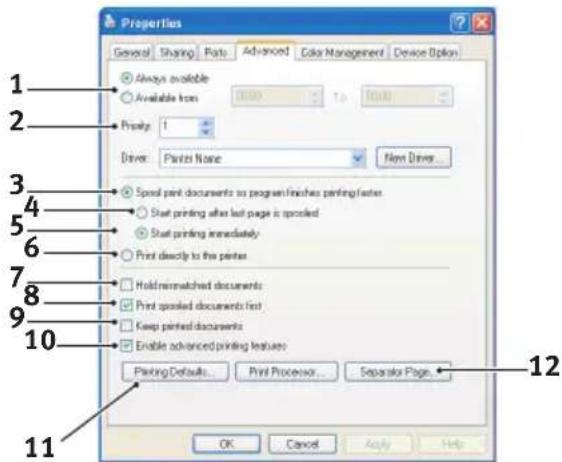
You can specify which times of day your printer will be available.
-
Indicates current priority, from 1 (lowest) to 99 (highest). Highest priority documents will print first.
-
Specifies that documents should be spooled (stored in a special print file) before being printed. The document is then printed in the background, allowing your application program to become available more quickly.
-
This specifies that printing should not start until the last page has been spooled. If your application program needs a lot of time for further computation in the middle of printing, causing the print job to pause for more than a short period, the printer could prematurely assume that the document has finished. Selecting this option would prevent that situation, but printing will be completed a little later, as the start is delayed.
-
This is the opposite choice to the one above. Printing starts as soon as possible after the document begins spooling.
-
This specifies that the document should not be spooled, but printed directly. Your application will not normally be ready for further use until the print job is complete. This requires less disk space on your computer, since there is no spool file.
-
Directs the spooler to check the document setup and match it to the printer setup before sending the document to print. If a mismatch is detected, the document is held in the print queue and does not print until the printer setup is changed and the document restarted from the print queue. Mismatched documents in the queue will not prevent correctly matched documents from printing.
-
Specifies that the spooler should favour documents which have completed spooling when deciding which document to print next, even if completed documents are lower priority than documents which are still spooling. If no documents have completed spooling, the spooler will favour larger spooling documents over shorter ones. Use this option if you want to maximise printer efficiency. When this option is disabled the spooler chooses documents based only on their priority settings.
-
Specifies that the spooler should not delete documents after they are completed. This allows documents to be re submitted to the printer from the spooler instead of printing again from the application program. If you use this option frequently it will require large amounts of disk space on your computer.
-
Specifies whether advanced features, such as booklet printing, page order and pages per sheet, are available, depending on your printer. For normal printing keep this option enabled. If compatibility problems occur you can disable the feature. However, these advanced options may then not be available, even though the hardware might support them.
-
This button provides access to the same setup windows as when printing from applications. Changes made via the Windows Control Panel become the Windows default settings.
DEVICE OPTIONS TAB

text_image
Properties General Sharing Ports Advanced Color Management Device Option Available Options: Available Tray 1 ✓ Duplex Option Unit About... OK Cancel Apply HelpIn this window you can select which optional upgrades are installed on your printer. This is covered in more detail in the section in this guide about installing upgrades.
PRINTER SETTINGS IN MAC
MAC OS 9
CHOOSING PRINTING OPTIONS
Use the print dialog to choose your printer and select options for how you want your document to print.
- Open the document you want to print.
-
If you wish to change the paper size or page orientation, choose File > Page Setup. The Page Setup options are described commencing page 29.
-
Choose File > Print.
-
Select your printer from the Printer pop-up menu.
-
If you wish to change any printer driver settings, select the necessary options in the print dialog. You can select more options from the Copies & Pages menu. The printer driver options are described commencing page 29.
-
Click Print.
CHANGING THE DEFAULT PRINT SETTINGS
If you print a document and change the printer driver settings, these changes are only remembered for that particular document. To change the printer driver settings for all future print jobs:
- Select Apple menu > Chooser.
- Select your printer driver in the left-hand panel of the Chooser window.
-
Select your printer model in the right-hand panel of Chooser.
-
Click Preferences.
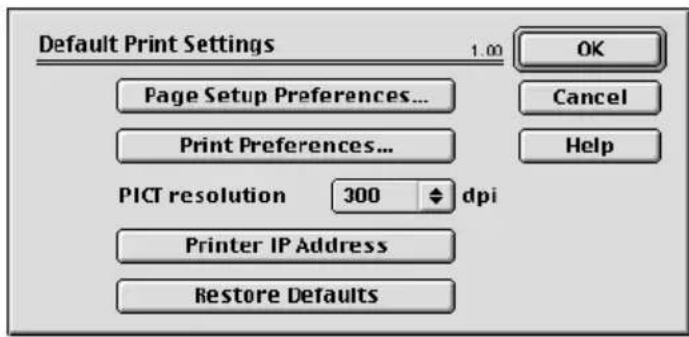
text_image
Default Print Settings 1.00 OK Page Setup Preferences... Print Preferences... PICT resolution 300 dpi Printer IP Address Restore Defaults- Change Page Setup Preferences or Print Preferences as required.
These new settings will be saved as the printer driver defaults.
PAGE SETUP OPTIONS - GENERAL

text_image
Page Setup General 1.00 Paper: A4 Orientation: Rotate Reduce or Enlarge : 100 % Help Cancel OKPaper
Choose the paper size that matches your document and the paper loaded in the printer. The paper margin is 1/6 inch (4.2 mm) at all edges.
Orientation
Selects either portrait (tall) or landscape (wide).
If using landscape, you can flip the orientation 180 degrees.
Reduce or Enlarge
Documents can be scaled up or down to fit on different paper sizes.
PAGE SETUP OPTIONS - LAYOUT
text_image
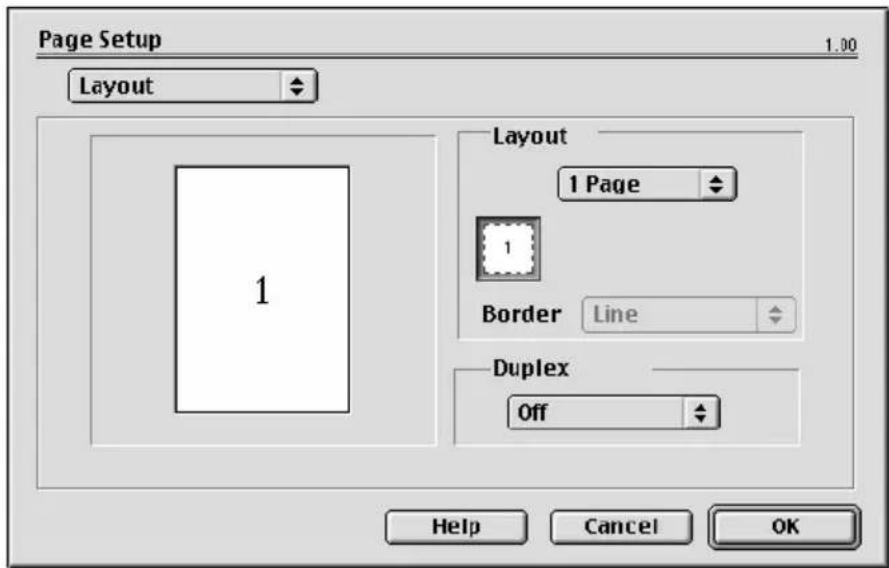
Page Setup 1.00 Layout Layout 1 Page 1 Border Line Duplex Off Help Cancel OKMultiple pages can be shrunk and printed on a single sheet of paper. For example, choosing 4-up will tile four of your document's pages across a single sheet of paper.
You can control the order in which the documents are tiled and also choose to surround each document page with a border.
Duplex
If you have an optional duplex unit fitted to your printer, you can print on both sides of the paper.
Long-Edge Binding prints pages that read like a normal book. Short-edge Binding prints pages that read like a notepad.
PAGE SETUP OPTIONS - CUSTOM PAPER SIZE
text_image
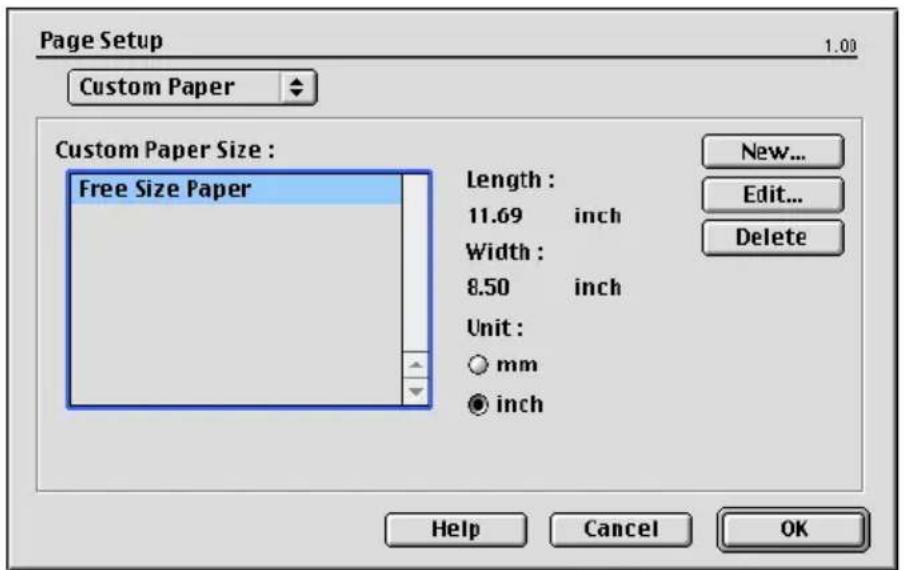
Page Setup 1.00 Custom Paper Custom Paper Size : Free Size Paper Length : 11.69 inch Width : 8.50 inch Unit : ○ mm ● inch New... Edit... Delete Help Cancel OKYou can create and edit custom paper sizes. These appear in the paper size menu and can be selected just like any other paper size.
PRINT OPTIONS - GENERAL

text_image
Print Printer 1.00 General Copies: 1 Collate Pages: All From to Paper source: AUTO Quality: Normal (600x600) Photo Enhance Toner saving Help Cancel Preview PrintCopies
Enter the number of copies to print.
If Collate is selected, all the pages of the document print before the next copy prints.
Pages
Choose whether to print all the pages of your document or just a section of it.
Paper Source
Selects the paper tray to use for your print job.
Quality
Selects the print resolution.
The High Quality (Multilevel) setting produces the best graphic images but it can take longer to print.
Photo Enhance
Use Photo Enhance to significantly improve quality when printing images. The printer driver analyses any photographic images and processes them to improve the overall appearance. This setting cannot be used together with the "High Quality (Multilevel)" print quality setting.
Toner Saving
Toner saving uses less toner when printing your document. This is best suited to draft text documents as it lightens the print significantly.
PRINT OPTIONS - PRINT CONTROL
text_image
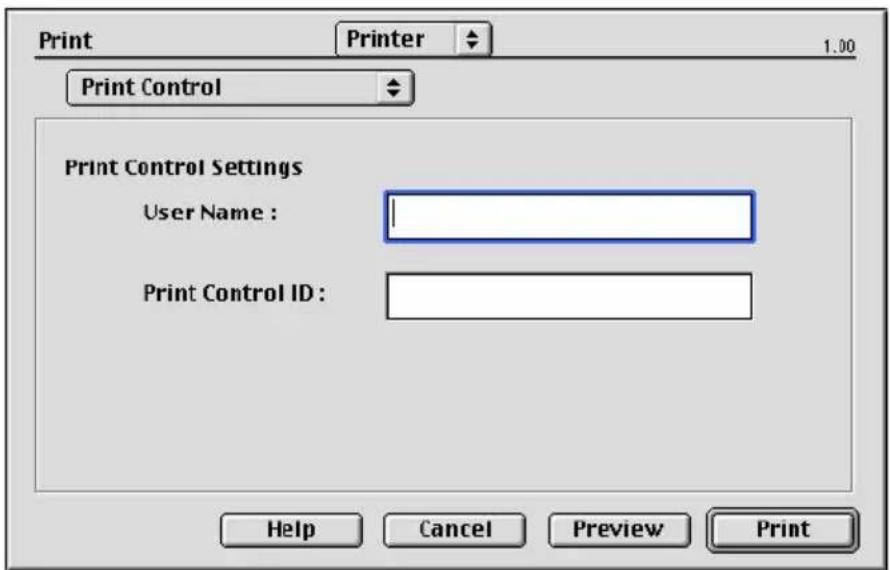
Print Printer 1.00 Print Control Print Control Settings User Name : Print Control ID : Help Cancel Preview PrintIf you are using the Windows Print Control Server software to manage printers, enter your assigned user name and ID. This information is sent along with your print job and is recorded by the printer.
PRINT OPTIONS - COLOUR

text_image
Print Printer 1.00 Color Color Mode: Auto Color Advanced Color Grayscale Color Matching: Auto Manual Monitor(6500K)/Perceptual Disabled Black Finish: Composite (CMYK) True Black (K) Brightness: Saturation: Help Cancel Preview PrintColor Mode
Auto Color - The driver selects the most appropriate color settings.
Advanced Color - Select this to manually adjust settings color and black settings.
Grayscale - Converts all colors to grays.
Color Matching
Monitor (6500K) Perceptual
Optimised for printing photos. Colors are printed with emphasis on saturation.
Monitor (6500K) Vivid
Optimised for printing photos, but with even more saturated colors.
Monitor (9300K)
Optimised for printing graphics from applications such as Microsoft Office. Colors are printed with emphasis on Lightness.
Digital Camera
Results will vary depending on the subject and conditions the image was taken.
sRGB
The printer reproduces the sRGB color space. This might be useful if color matching from an sRGB input device such as a scanner or digital camera.
Black Finish
Controls the way black is printed in color documents.
Composite Black (CMYK): Uses all 4 toner colors to represent black. Recommended for color photos.
True Black (K): Uses 100% black toner to represent black. Recommended for text and business graphics.
Brightness / Saturation
Increase Brightness for a lighter print. Modify saturation to change the strength (or purity) of color.
If the printed colors are too strong, reduce saturation and increase brightness. As a general rule, the saturation should be stepped down an equal amount to the increased brightness. For example, if you reduce saturation by 10, increase brightness by 10 to compensate.
PRINT OPTIONS - LAYOUT

text_image
Page Setup 1.00 Layout Layout 1 Page 1 Border Line Duplex Off Help Cancel OKMultiple pages can be shrunk and printed on a single sheet of paper. For example, choosing 4-up will tile four of your document's pages across a single sheet of paper.
You can control the order in which the documents are tiled and also choose to surround each document page with a border.
Duplex
If you have an optional duplex unit fitted to your printer, you can print on both sides of the paper.
Long-Edge Binding prints pages that read like a normal book. Short-edge Binding prints pages that read like a notepad.
PRINT OPTIONS - OPTIONS
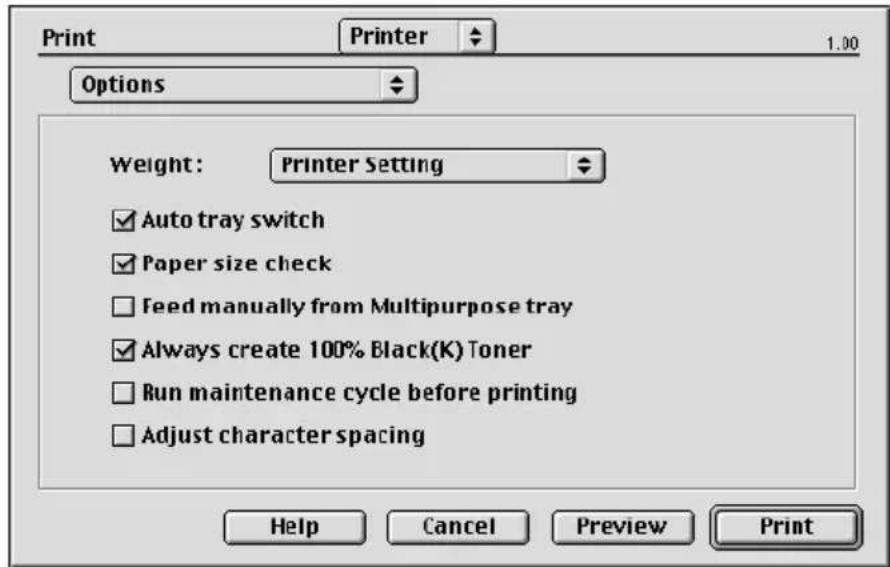
text_image
Print Printer 1.00 Options Weight: Printer Setting ✓ Auto tray switch ✓ Paper size check □ Feed manually from Multipurpose tray ✓ Always create 100% Black(K) Toner □ Run maintenance cycle before printing □ Adjust character spacing Help Cancel Preview PrintMedia Weight
Select the thickness/type of paper in the printer.
It's important to set this correctly as it affects the temperature at which the toner is fused to the paper. For example, if you're printing on regular paper, don't select Labels or Transparency - this may cause toner smearing and paper jams.
Auto Tray Switch
If the printer runs out of paper in the current tray, Auto Tray Switch automatically changes to a tray that has the same paper type and continues printing.
Paper Size Check
Select Paper Size check if you want the printer to warn you when the document paper size is different from the paper in the printer.
A warning message is displayed and printing continues when you load the correct paper and press ONLINE.
When this option is switched off, the printer uses the paper loaded in the selected tray regardless of the document size.
Feed Manually from Multipurpose Tray
Select this if you want the printer to wait until you press the ONLINE button when feeding from the Multipurpose Tray.
This can be useful if printing on envelopes.
Always Create 100% Black (K) Toner
Select this if you want the printer to always use only black (K) toner when printing pure black (RGB = 0,0,0).
This is effective even when Composite Black (CMYK) is selected in the color options.
Run Maintenance Cycle Before Printing
Depending on printing habits and usage patterns, running the maintenance cycle before printing may ensure the best possible print quality.
This feature uses the printer's image drums and transfer belt; the life of these printer parts may be shortened if the maintenance cycle is run frequently.
Adjust Character Spacing
Select this if you are having problems with the spacing between characters when printing text. For example, spacing is too wide or characters appear printed over the top of each other.
This feature can slow down printing, so only use it if you are having problems.
PRINT OPTIONS - SELECT PANEL LANGUAGE

text_image
Print Printer 1.00 Select Panel Language Language Version : 8.2 Change printer LCD display language: Language : English Download Help Cancel Preview PrintThe default language for the printer LCD display is English.
This feature allows you to change the LCD display to another language.
NOTE:
You will need to switch your printer off and back on again after changing the LCD display language.
PRINT OPTIONS - WATERMARK
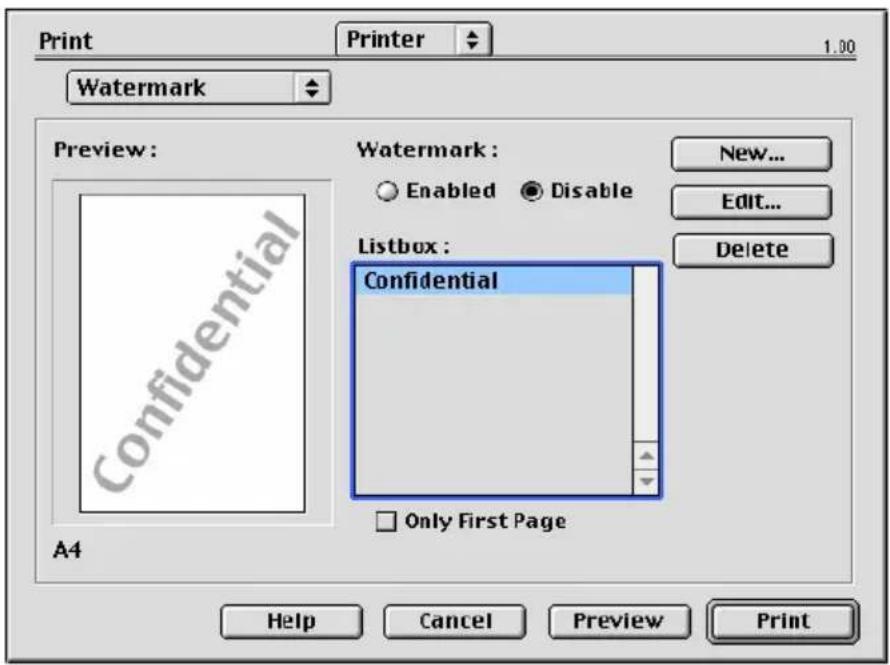
text_image
Print Printer 1.00 Watermark Preview: Watermark: Enabled Disable New... Edit... Delete Listbox : Confidential Only First Page A4 Help Cancel Preview PrintA watermark is typically faint text that is superimposed on a printed document. This can be used to indicate that the document is "Draft" or perhaps "Confidential".
You can create watermarks in the printer driver. Select a font and modify the watermark size, position, color, brightness and angle.
PRINT OPTIONS - INFORMATION
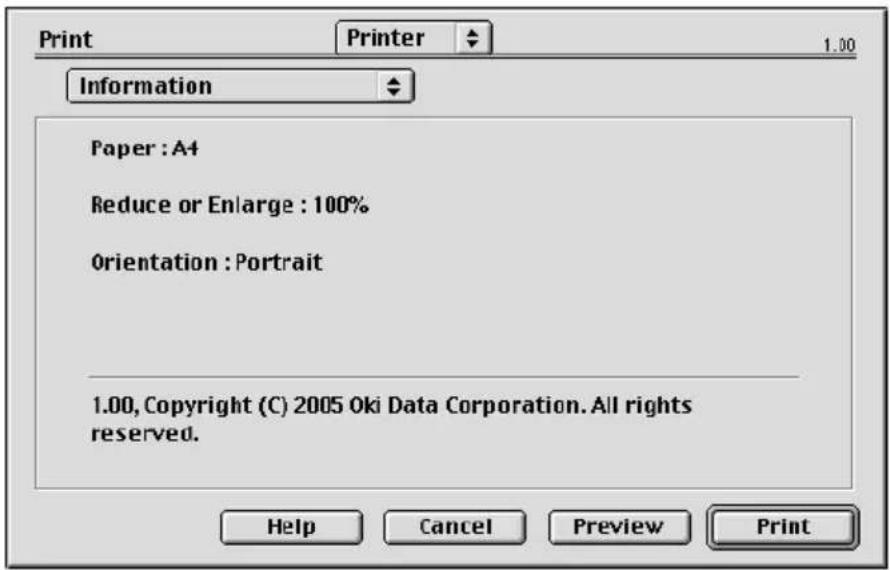
text_image
Print Printer 1.00 Information Paper : A4 Reduce or Enlarge : 100% Orientation : Portrait 1.00, Copyright (C) 2005 Oki Data Corporation. All rights reserved. Help Cancel Preview PrintDisplays a summary of the current printer settings. The driver version is also displayed - this may be useful if you want to check the Oki website for a newer printer driver.
MAC OS X
The information in this section is based on Mac OS X Tiger (10.4). Other versions such as Panther (10.3) and Jaguar(10.2) versions may appear slightly different, but the principles are the same.
SETTING PRINTING OPTIONS
You can choose your printer and select options for how you want your documents to print from the Print dialog box.
To set your printer options:
- Open the document you want to print.
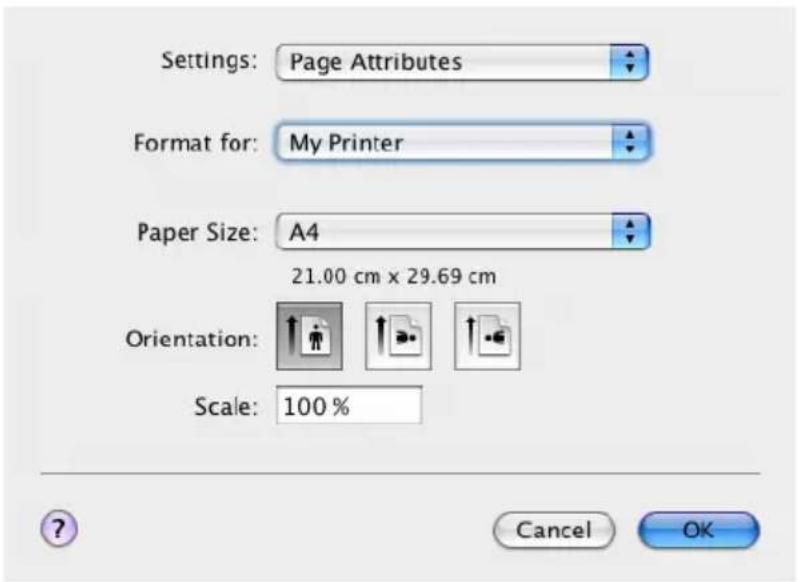
- To change the paper size or page orientation, select File > Page Setup. For a description of each option, see "Page setup options" on page 45.
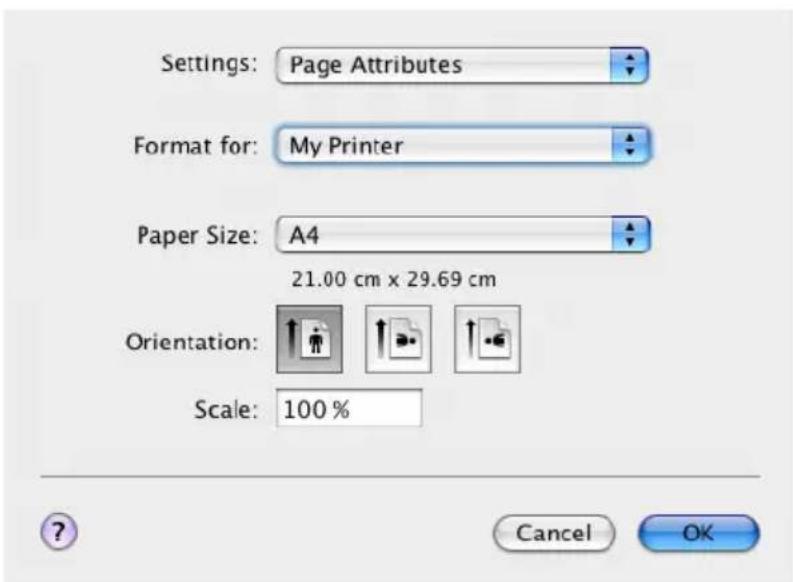
text_image
Settings: Page Attributes Format for: My Printer Paper Size: A4 21.00 cm x 29.69 cm Orientation: Scale: 100 % Cancel OK- Close the Page Setup dialog box.
- Select File > Print.
- Select your printer from the Printer drop-down menu.
- To change any printer driver settings, select the required options from the "Settings" drop-down menu. You can
select more options from the Copies & Pages menu. For a description of these options, see "Print options" on page 46.

text_image
Printer: My Printer Presets: Standard Copies & Pages Copies: 1 Collated Pages: All From: 1 to: 1 ? PDF Preview Cancel Print- Click the Print button.
SETTING PRINTING OPTIONS - SAVING DRIVER SETTINGS
You can save a set of printer driver options to use for future documents.
- Open the document you want to print.
- To change the paper size or page orientation, select File > Page Setup.
text_image
Settings: Page Attributes Format for: My Printer Paper Size: A4 21.00 cm x 29.69 cm Orientation: Scale: 100 % Cancel OK- Select Save As Default from the Settings drop-down menu.
- To save the current printer driver settings as a preset, select Save As from the Preset menu.
- Enter a name for your preset and click OK.
CHANGING THE DEFAULT PRINTER AND PAPER SIZE
The following steps describe how to change your default printer and the paper size options.
- Select Apple menu > System Preferences.
- Click the Print & Fax icon.
- Select your printer in the "Selected Printer in Print Dialog" drop-down menu.
- Select your required paper size in the "Default Size in Page Setup" drop-down menu.
PAGE SETUP OPTIONS
This section provides a description of the page setup options available to you.
Page setup options

text_image
Settings: Page Attributes Format for: My Printer Paper Size: A4 21.00 cm x 29.69 cm Orientation: Scale: 100 % Cancel OKPage Attributes
You can select "Save As Default" to use the current Page Setup settings as a standard for all documents.
Format for
Allows you to select your printer model before changing options such as Paper size and Orientation.
Paper Size
Select a paper size to match your document and the paper loaded in the printer. The paper margin is 4.2mm at all edges. To specify your own paper sizes, select "Manage Custom Sizes..."
Scale
You can scale documents up or down to fit onto different paper sizes. To fit your document on a specific paper size, select Options in the Paper Handling drop-down menu in the Print Options dialog box (see "Print options" on page 46).
Orientation
You can select a portrait or landscape option. When using landscape, you can rotate the document 180 degrees.
PRINT OPTIONS
Copies & pages

text_image
Printer: My Printer Presets: Standard Copies & Pages Copies: 1 Collated Pages: All From: 1 to: 1 ? PDF Preview Cancel PrintCopies
This option allows you to enter the number of copies to print. If you select Collate, all pages of the document will print before the next copy prints.
Pages
You can select whether to print all pages of a document or just a section of it.
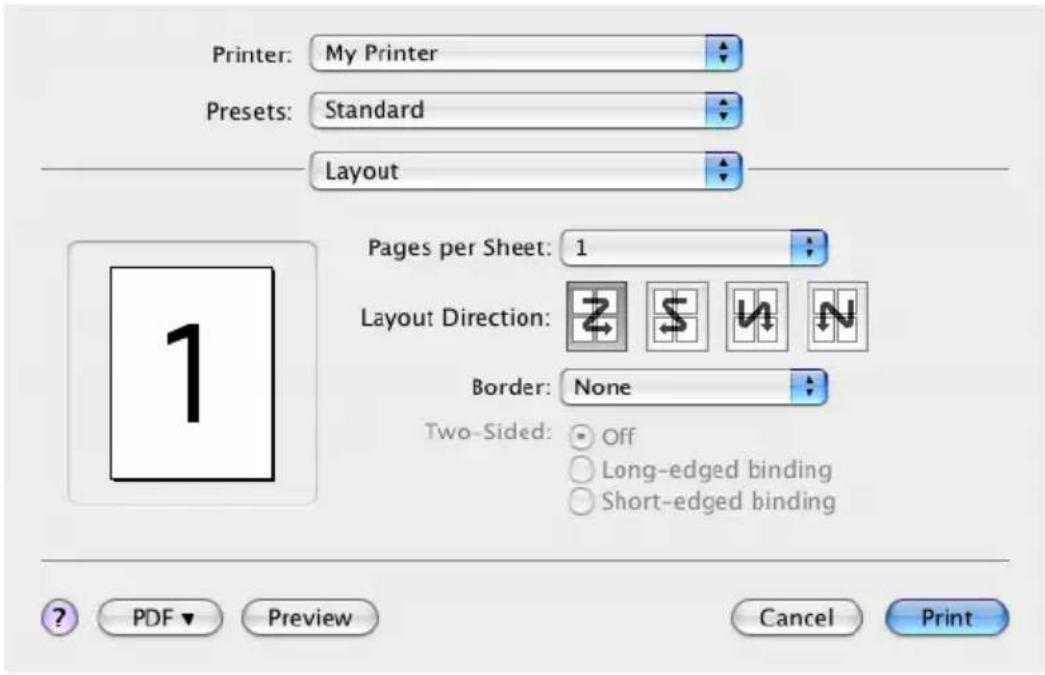
Layout
text_image
Printer: My Printer Presets: Standard Layout Pages per Sheet: 1 Layout Direction: Border: None Two-Sided: Off Long-edged binding Short-edged binding ? PDF ▼ Preview Cancel PrintPages per sheet
You can shrink multiple pages and print them on a single sheet of paper. For example, choosing 4-up will tile four of your document's pages across a single sheet of paper.
You can control the order in which the documents are tiled and also choose to surround each document page with a border.
Two-sided
You cannot use the two sided printing options in this panel. Use the options in the Duplex panel instead.
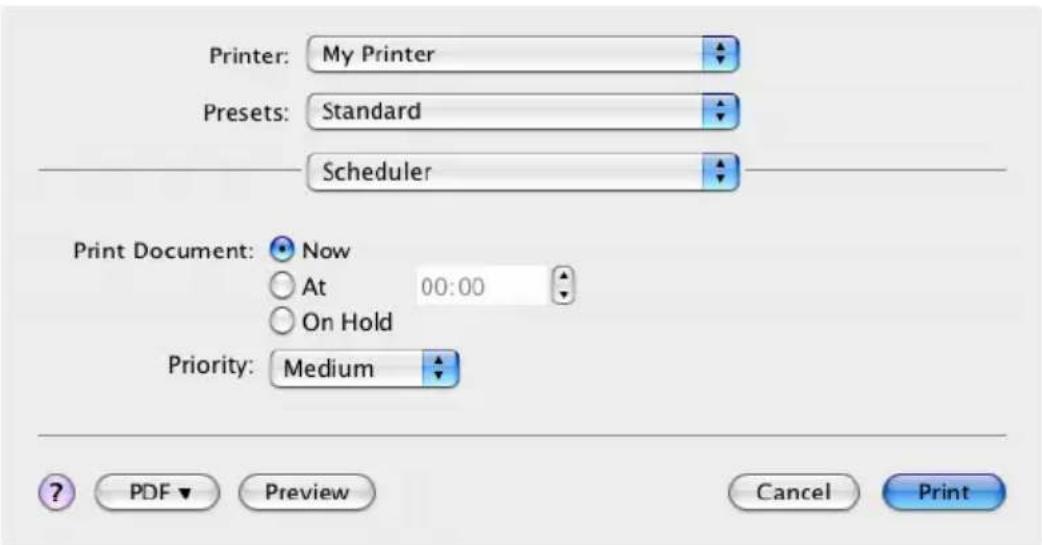
Scheduler
text_image
Printer: My Printer Presets: Standard Scheduler Print Document: Now At 00:00 On Hold Priority: Medium PDF Preview Cancel PrintThis option lets you choose whether to print your document immediately, or defer printing until later. You can also assign a priority to a print job.
These features are useful if you are printing large documents that take a long time to print.
Paper handling

text_image
Printer: My Printer Presets: Standard Paper Handling Page Order: Automatic Normal Reverse Print: All Pages Odd numbered pages Even numbered pages Destination Paper Size: Use documents paper size: A4 Scale to fit paper size: A4 ✓ Scale down only PDF Preview CancelPage order
You can choose to print your document in the normal page order (1,2,3..) or reverse order (..3,2,1).
This option allows you to choose whether to print only odd or even numbered pages. This is useful if you are using manual duplex for which you first print all odd pages, re-insert the paper in the printer and then print all even pages.
Destination paper size
Scale documents to fit on the size of paper in your printer. For example, you can take a document formatted for A3 and print it on A4 paper using an A4 printer.
ColorSync

text_image
Printer: My Printer Presets: Standard ColorSync Color Conversion: Standard Quartz Filter: None PDF Preview Cancel PrintColor conversion
For Color Conversion, Standard is the only option available for your printer model.
Quartz Filter
Choose a Quartz filter if you wish to apply a special effect to your print job, such as Sepia or Blue Tone. This is only available on Mac OS X 10.3 (Panther) or later versions.
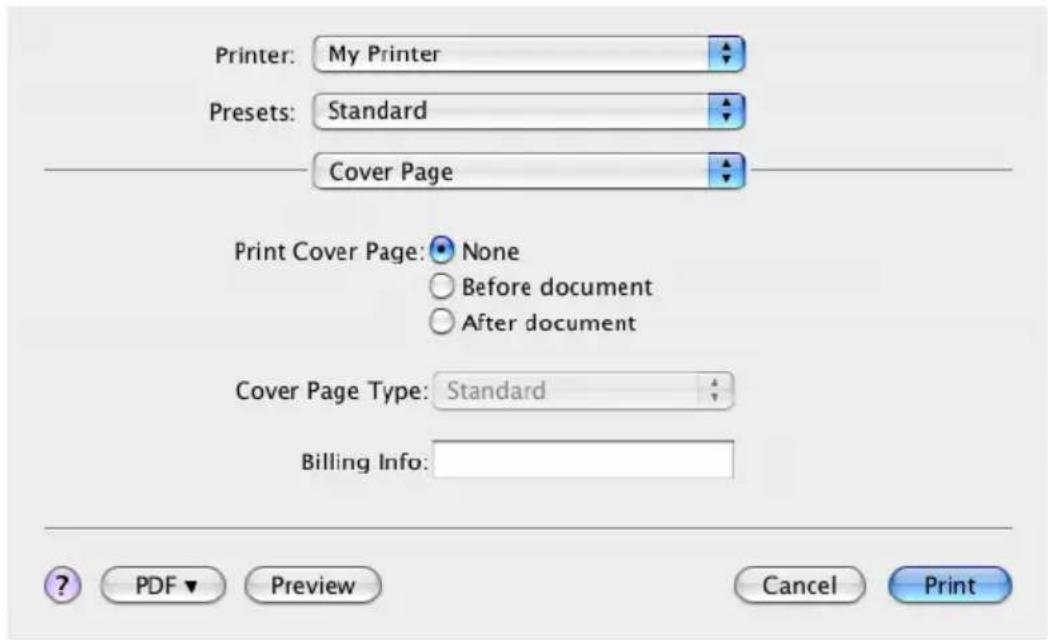
Cover page
text_image
Printer: My Printer Presets: Standard Cover Page Print Cover Page: None Before document After document Cover Page Type: Standard Billing Info: PDF Preview Cancel PrintChoosing a cover page may help you to identify your printed document in a large pile of paper. This is useful in a busy office with many people sharing the printer.
Duplex
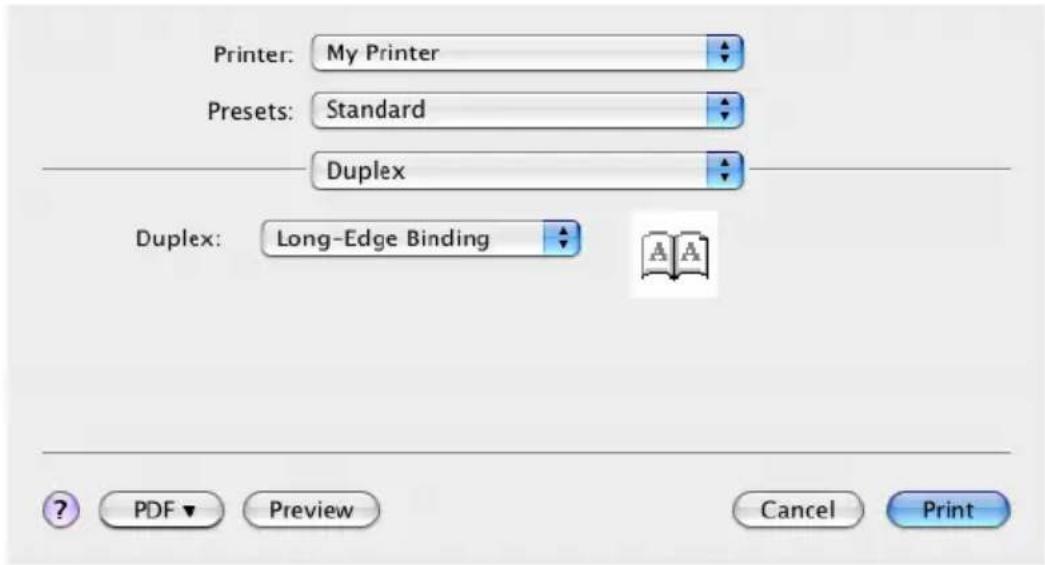
text_image
Printer: My Printer Presets: Standard Duplex Duplex: Long-Edge Binding PDF Preview Cancel PrintIf you have an optional duplex unit fitted to your printer, you can print on both sides of the paper.
Long-Edge Binding prints pages that read like a normal book. Short-edge Binding prints pages that read like a notepad.
Paper source

text_image
Printer: My Printer Presets: Standard Paper Source Auto Multipurpose Tray Tray 1 Tray 2 ? PDF Preview Cancel PrintThis option allows you to select the paper tray to use for your print job.
Print quality
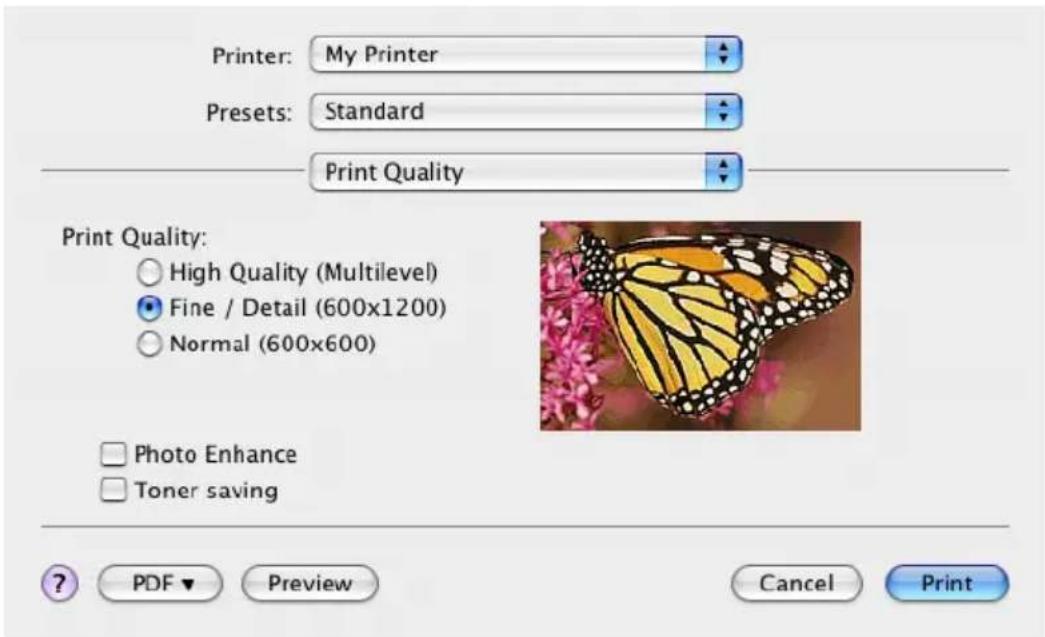
text_image
Printer: My Printer Presets: Standard Print Quality Print Quality: ○ High Quality (Multilevel) ● Fine / Detail (600x1200) ○ Normal (600x600) □ Photo Enhance □ Toner saving ? PDF ▼ Preview Cancel PrintPrint quality
Use this option to selects the print resolution. The High Quality (Multilevel) setting produces the best graphic images, but these images can take longer to print.
Photo Enhance
Use Photo Enhance to significantly improve quality when printing images. The printer driver analyses any photographic images and processes them to improve the overall appearance. This setting cannot be used together with the "High Quality (Multilevel)" print quality setting.
Toner Saving
Toner saving uses less toner when printing your document. This is best suited to draft text documents as it lightens the print significantly.
Colour

text_image
Printer: My Printer Presets: Standard Color Mode: Auto Color Advanced Color Grayscale Color Matching: Auto Manual Monitor(6500K)/Perceptual Disabled Black Finish: Composite Black (CMYK) True Black (K)Colour mode
| COLOUR MODE DESCRIPTION | |
| Advanced Colour The driver selects the most appropriate color settings. | |
| Manual Allows you to manually adjust colour and black and white settings or select. | |
| Grayscale Convert all colors to shades of grey. |
Color matching
| COLOUR DESCRIPTION | |
| Monitor (6500K) Perceptual Optimised for printing photos. Colors are printed with emphasis on saturation. | |
| Monitor (6500K) Vivid Optimised for printing photos, but with even more saturated colors. | |
| Monitor (9300K) Optimised for printing graphics from applications such as Microsoft Office. Colors are printed with emphasis on Lightness. | |
| Digital Camera Results will vary depending on the subject and conditions the image was taken. | |
| sRGB The printer reproduces the sRGB color space. This might be useful if color matching from an sRGB input device such as a scanner or digital camera. | |
Black Finish
Use this option to control the way black is printed in colour documents. Select Composite Black (CMYK) to uses all 4 toner colours to represent black. This option is recommended for color photos. Select True Black (K) to uses 100% black toner to represent black. This option is recommended for text and business graphics.
Brightness / Saturation
This option allows you to increase brightness for a lighter print. Modify saturation to change the strength (or purity) of a colour.
If the printed colours are too strong, reduce saturation and increase brightness. As a general rule, reduce saturation by the same amount as you increase brightness. For example, if you reduce saturation by 10, increase brightness by 10 to compensate.
PRINTER SETUP OPTIONS
Printer options

text_image
Printer: My Printer Presets: Standard Printer Options Media Weight: Printer Setting ✓ Auto tray switch ✓ Paper size check □ Feed manually from Multipurpose tray ✓ Always create 100% Black(K) Toner □ Run maintenance cycle before printing ? PDF ▼ Preview Cancel PrintMedia weight
Select the thickness or type of paper in the printer. It is important to set this correctly as it affects the temperature at which the toner is fused to the paper. For example, if you are printing on normal A4 paper, do not select Labels or Transparency as this may cause toner smearing and paper jams.
Auto tray switch
If the printer runs out of paper in the current tray, Auto Tray Switch automatically changes to a tray that has the same type of paper and continues printing.
Paper size check
Select Paper Size check if you want the printer to warn you when the document paper size is different from the paper in the printer.
A warning message is displayed and printing continues when you load the correct paper in the paper tray and press ONLINE. When this option is deselected, the printer uses the paper loaded in the selected tray regardless of the document size.
Feed manually from Multipurpose Tray
Select this option if you want the printer to wait until you press the ONLINE button when feeding from the Multipurpose Tray. This can be useful if printing on envelopes.
Always create 100% black (K) toner
Select this option if you want the printer to always use only black (K) toner when printing pure black (RGB = 0,0,0). This is effective even when Composite Black (CMYK) is selected in the colour options.
Run maintenance cycle before printing
Depending on printing habits and usage patterns, running the maintenance cycle before printing may ensure the best possible print quality. This feature uses the printer's image drums and transfer belt. The life of these printer consumables may be shortened if the printer runs a maintenance cycle frequently.
Print control
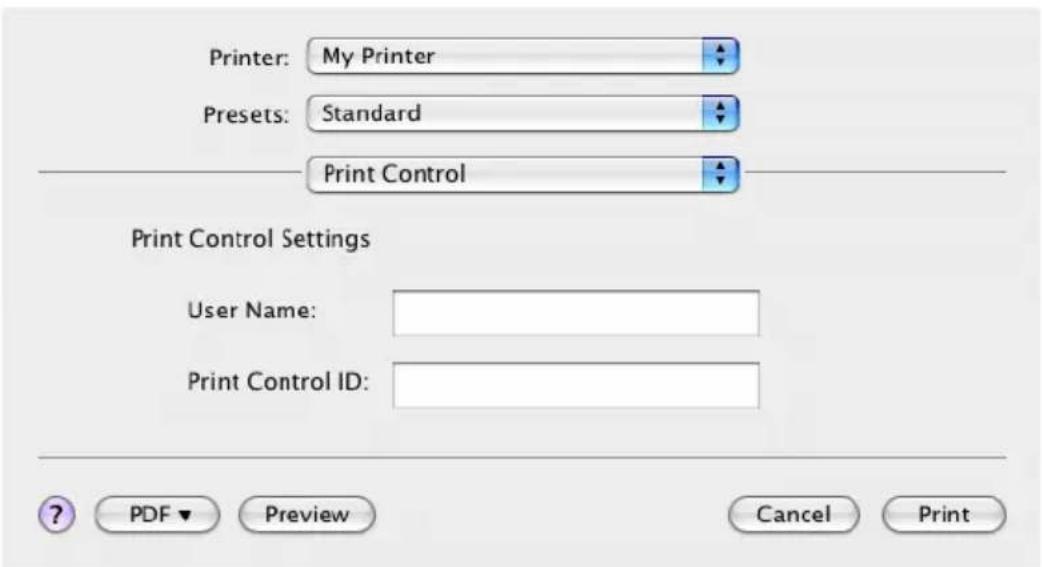
text_image
Printer: My Printer Presets: Standard Print Control Print Control Settings User Name: Print Control ID:If you are using the Windows Print Control Server software to manage printers, enter your assigned user name and ID. This information is sent to the printer with your print job and is recorded by the printer.
Summary
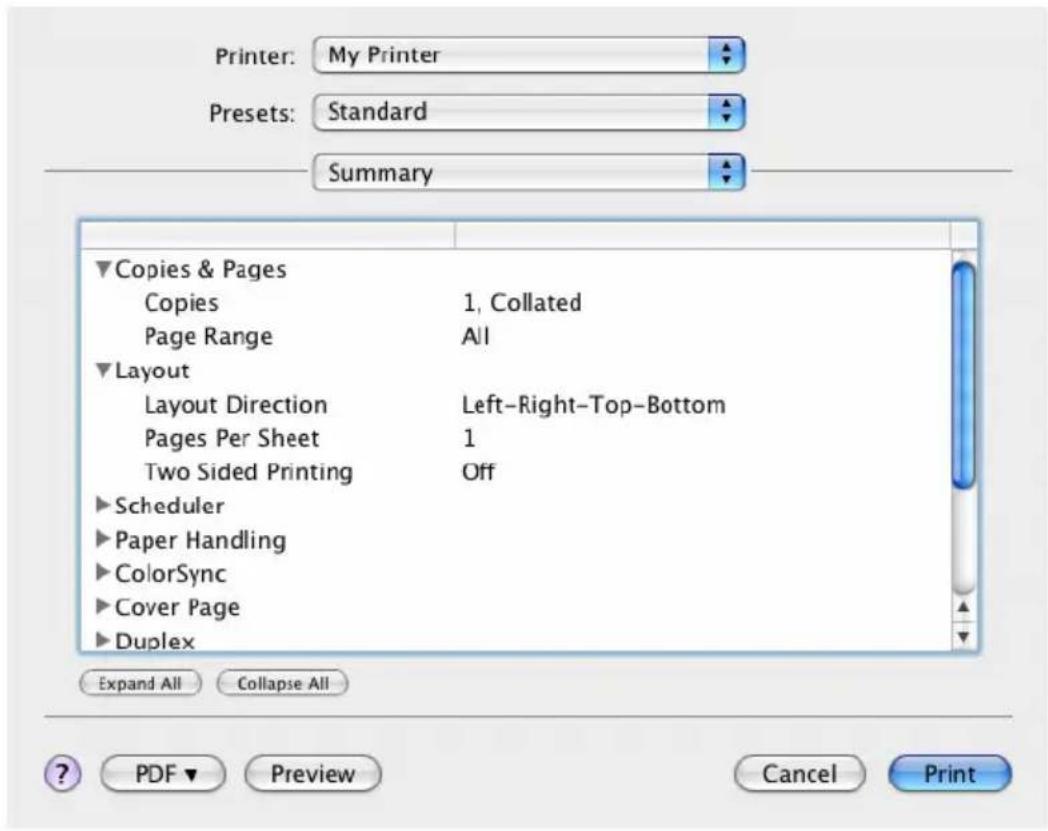
text_image
Printer: My Printer Presets: Standard Summary Copies & Pages Copies 1, Collated Page Range All Layout Layout Direction Left-Right-Top-Bottom Pages Per Sheet 1 Two Sided Printing Off Scheduler Paper Handling ColorSync Cover Page Duplex Expand All Collapse All ? PDF Preview Cancel PrintThis option displays a summary of all selected print options for the current job.
COLOUR PRINTING
The printer drivers supplied with your printer provide several controls for changing the colour output. For general use the automatic settings will suffice, providing reasonable default settings that will produce good results for most documents.
Many applications have their own colour settings, and these may override the settings in the printer driver. Please refer to the documentation for your software application for details on how that particular program's colour management functions.
FACTORS THAT AFFECT THE APPEARANCE OF PRINTS
If you wish to manually adjust the colour settings in your printer driver, please be aware that colour reproduction is a complex topic, and there are many factors to take into consideration. Some of the most important factors are listed below.
Differences between the range of colours a monitor or printer can reproduce
Neither a printer nor a monitor is capable of reproducing the full range of colours visible to the human eye. Each device is restricted to a certain range of colours. In addition to this, a printer cannot reproduce all of the colours displayed on a monitor, and vice versa.
Both devices use very different technologies to represent colour. A monitor uses Red, Green and Blue (RGB) phosphors (or LCDs), a printer uses Cyan, Magenta, Yellow and Black (CMYK) toner or ink.
A monitor can display very vivid colours such as intense reds and blues and these cannot be easily produced on any printer using toner or ink. Similarly, there are certain colours, (some yellows for example), that can be printed, but cannot be displayed accurately on a monitor. This disparity between monitors and printers is often the main reason that printed colours do not match the colours displayed on screen.
Viewing conditions
A print can look very different under different lighting conditions. For example, the colours in a print may look different when viewed standing next to a sunlit window, compared to how they look under standard office fluorescent lighting.
Printer driver colour settings
The driver settings for manual colour can change the appearance of a print. There are several options available to help match the printed colours with those displayed on screen.
Monitor settings
The brightness and contrast controls on your monitor can change how your document looks on-screen. Additionally, your monitor's colour temperature influences how "warm" or "cool" the colours look.
There are several settings found on a typical monitor:
5000k Warmest; yellowish lighting, typically used in graphic art environments.
6500k Cooler; approximates daylight conditions.
9300k Cool; the default setting for many monitors and television sets.
(k = degrees Kelvin, a measurement of temperature.)
How your software application displays colour
Some graphics applications such as Corel Draw or Adobe Photoshop may display colour differently from "Office" applications such as Microsoft Word. Please see your application's on-line help or user manual for more information.
Paper type
The type of paper used can also significantly affect the printed colour. For example, a printout on recycled paper can look duller than one on specially formulated glossy paper.
TIPS FOR PRINTING IN COLOUR
The following guidelines may help you to achieve good colour output from your printer.
PRINTING PHOTOGRAPHIC IMAGES
Use the Monitor (6500k) Perceptual setting.
If the colours look too dull, try the Monitor (6500k) Vivid or Digital Camera settings.
PRINTING FROM OFFICE APPLICATIONS
Use the Monitor (9300k) setting. This may help if you are having problems with specific colours from applications such as Microsoft Excel or Microsoft PowerPoint.
PRINTING SPECIFIC COLOURS (E.G. A COMPANY LOGO)
There are 2 utilities on your printer driver CD-ROM that can help match specific colours:
Colour Correct Utility
Colour Swatch Utility
ADJUSTING THE BRIGHTNESS OR INTENSITY OF A PRINT
If the print is too light/dark, you can use the Brightness control to adjust it.
If the colours are too intense/not intense enough, use the Saturation control.
ACCESSING THE COLOUR MATCHING OPTIONS
The colour matching options in the printer driver can be used to help match your printed colours to the ones displayed on your monitor or from some other source, such as a digital camera.
To open colour matching options from the Windows Control Panel:
- Open the Printers window (called "Printers and Faxes" in Windows XP).
- Right-click the printer name and choose Properties.
- Click the Printing Preferences button (1).

text_image
Properties General Sharing Parts Advanced Color Management Device Options Printer Name Location: Comment: Model Printer Name Features Color: Yes Paper available Double-sided No Staple: No Speed: 15 ppm Maximum resolution: Unknown 1 Printing Preferences... Print Text Page OK Cancel ApplyTo open colour matching options from within a Windows application:
- Choose File—Print... from the application's menu bar.
- Click the Properties button next to the printer name.
SETTING THE COLOUR MATCHING OPTIONS
- On the Colour tab select Advanced Colour for colour matching.
text_image
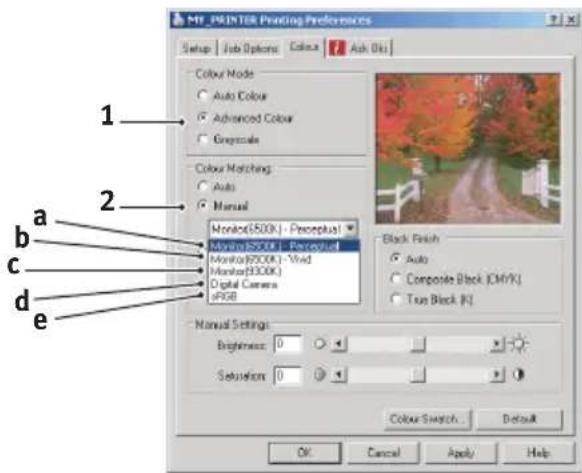
MY_PRINTER Printing Preferences Setup Job Options Colors Ask On Colour Mode Auto Colour Advanced Colour Grey-scale Colour Matching Auto Manual Manual (RGB) - Personalized Disabled Black Finish Auto Composite Block (DYNK) True Black (K) Manual Settings Brightness: 0 Saturation: 0 Colour Switch Default OK Cancel Apply Help- Choose the Natural colour setting and select from the following options:
text_image
MTF_PAINTER Printing Preferences Setup Job Options Colour Ask On Colour Mode Auto Colour Advanced Colour Greenscale Colour Matching Auto Manual Monocr(500K) - Perceptual Monocr(500K) - Perceptual Monocr(500K) - Vivid Monocr(500K) Digital Camera JFGB Black Finish Auto Corporate Block (CMYK) True Block (R) Manual Settings Brightness: 0 Saturation: 0 Colour Switch... OK Cancel Apply Help(a) Monitor (6500k) Perceptual Optimised for printing photographs. Colours are printed with emphasis on saturation.
(b) Monitor (6500k) Vivid Optimised for printing photographs, but with even more saturated colours than the Monitor (6500k) Perceptual setting.
(c) Monitor (9300k) Optimised for printing graphics from applications such as Microsoft Office. Colours are printed with emphasis on Lightness.
(d) Digital Camera Optimised for printing photographs taken with a digital camera.
Your results will vary depending on the subject and the conditions under which the photograph was taken.
(e) sRGB The printer will try to reproduce the sRGB colour space. This may be useful if colour matching from an sRGB input device such as a scanner or digital camera.
USING THE COLOUR SWATCH FEATURE
To use the Colour Swatch feature, you must install the Colour Swatch Utility. This is supplied on the CD-ROM that was supplied with your printer.
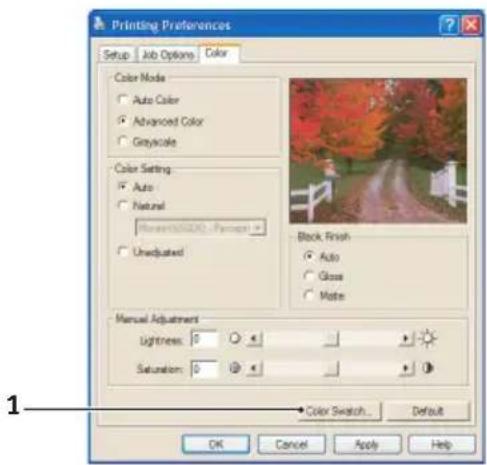
The Colour Swatch function prints charts which contain a range of sample colours. Note that this is not the full range of colours that the printer can produce. Listed on each sample colour are the corresponding RGB (Red, Green, Blue) values. This can be used to pick specific colours in applications that allow you to choose your own RGB values. Simply click the Colour Swatch button (1) and choose from the options available.
text_image
Printing Preferences Setup Job Options Color Color Mode Auto Color Advanced Color Grayscale Color Setting Auto Natural Normal/Continuous Document Unadjusted Black Finish Auto Gloss Mate Manual Adjustment Lightness: 0 Saturation: 0 Color Switch... Default OK Cancel Apply HelpAn example of using the colour swatch function:
You wish to print a logo in a particular shade of red. The steps you would follow are:
- Print a colour swatch, then select the shade of red that best suits your needs.
- Take a note of the RGB value for the particular shade that you liked.
- Using your program's colour picker, enter these same RGB values, and change the logo to that colour.
The RGB colour displayed on your monitor may not necessarily match what was printed on the colour swatch. If this is the case, it is probably due to the difference between how your monitor and printer reproduce colour. Here, it is unimportant since your primary objective is to print the required colour.
USING THE COLOUR CORRECT UTILITY
The Oki Colour Correct Utility is provided on your printer driver CD-ROM. You must install it separately since it is not installed along with the printer driver.
The Colour Correct utility has the following features:
Microsoft Office palette colours can be individually adjusted. This is useful if you want to change how a specific colour is printed.
Colours can be adjusted by changing Hue, Saturation and Gamma. This is useful if you wish to change the overall colour output.
Once these colour adjustments have been made, the new settings can be selected from the printer driver Colour tab.
To select adjustments made with the Colour Correct Utility:
- From your application program, click File and point to Print.
- Click Properties. This displays the printer driver options.
- Click the Colour tab.
- Click Advanced Colour.
- Click User Defined.
Select the colour adjustment you made with the Colour Correct Utility.
MENU FUNCTIONS
This sections lists the menus accessed via the controls on the printer's operator panel and displayed in the LCD window.
It should be noted that many of these settings can be, and often are, overridden by settings in the Windows printer drivers.
However, several of the driver settings can be left at "Printer Setting", which will then default to the settings entered in these printer menus.
Where applicable, factory default settings are shown in bold type in the following tables.
In the normal operating condition, known as "standby," the printer's LCD window will show "ONLINE." In this condition, to enter the menu system, press the +/- keys on the operator panel to move up and down through the list of menus until the menu you wish to view is displayed. Then proceed as follows:
- Press ENTER to enter the menu.
- Use the +/- keys to move up and down through the items in the menu. When the item you want to change is displayed, press ENTER to edit that item. An asterisk (*) appears next to the setting currently in effect.
- Use the +/- keys to move up and down through the available settings for this item, and press ENTER when the setting you want is displayed. An asterisk (*) will appear next to the setting, indicating that this setting is now in effect.
- Press BACK to move back to the list of menu items.
- Do one of the following:
- Press BACK again to move up to the list of menus; or...
- Press ON LINE to exit from the menu system and return to standby.
PRINT JOBS MENU
This menu only appears when the hard disk drive is installed. It is used for printing of documents stored on the internal hard disk. These will be stored using either the secure printing feature or the proof and print feature. Please refer to these features elsewhere in this manual for instructions on how to use.
You will be prompted for your password or personal identification number (PIN). The +/- keys are used to enter each digit and the ENTER key to advance from one digit to the next.
INFORMATION MENU
This menu provides a quick method of listing various items stored within the printer.
ITEM ACTION EXPLANATION
PRINT MENU EXECUTE Prints complete menu listing with current MAP settings shown.
NETWORK EXECUTE Prints Network configuration information.
DEMO1 EXECUTE Prints demonstration page containing graphics and text in colour and monochrome.
SHUTDOWN MENU
This menu only appears if the hard disk drive is installed. This item should always be selected before switching the printer off, to ensure that no hard disk data is lost.
ITEM SETTINGS EXPLANATION
SHUTDOWN EXECUTE Performs controlled shutdown of the printer, START ensuring that all files on the internal hard disk are closed before power is turned off. Only power the printer off when the display indicates that shutdown is complete.
PRINT MENU
This menu provides adjustment of various print job related functions.
| ITEM SETTINGS EXPLANATION | ||
| COPIES 1-999 Enter the number of copies of a document to be printed from 1 to 999. | ||
| DUPLEX | ON/OFF | Turns the duplex (2-sided) printing function on or off if this feature is installed. |
| PAPER FEED TRAY1 | Selects the default tray for paper feed, Tray 1 (upper), Tray 2 (lower, if installed) or MP Tray (multi purpose tray). | |
| AUTO TRAY SWITCH | ON OFF | If two trays contain identical paper, the printer can switch to an alternative source when the current tray runs out in the middle of a print job. |
| TRAY SEQUENCE | DOWN UP PAPER FEED TRAY | Determines tray sequence order when automatically switching. |
| MP TRAY USAGE | DO NOT USE WHEN MISMATCH | If a document to be printed demands a paper size not installed in the selected tray, the printer can automatically feed from the multi purpose tray instead. If this function is not enabled, the printer will stop and request the correct size of paper to be loaded. |
| MEDIA CHECK ENABLE DISABLE | Determines whether the printer check the size of paper loaded matches that required for the document sent to print. | |
ITEM SETTINGS EXPLANATION
| MONO-PRINT SPEED | AUTO SPEED | If the first page of a print job is black and white, the printer runs at 32ppm (pages per minute). When a colour page is detected the printer slows down to 20ppm (C5600) or 26ppm (C5800) for the rest of that job. |
| NORMAL SPEED | This setting operates in the same way as AUTO SPEED, except that the printer runs at 32ppm until a colour page is detected. To achieve this speed the printer requires an additional 10 - 20 seconds to warm up and 30 -60 seconds to cool down when switching to 20ppm (C5600) or 26ppm (C5800) for colour pages. This setting is therefore most appropriate when the majority of print jobs are entirely black and white. | |
| COLOR SPEED | The printer runs at 20 ppm (C5600), 26ppm (C5800)for all print jobs. This setting is most appropriate when the majority of print jobs are in colour. |
MEDIA MENU
This menu provides adjustment to suit a wide range of print media.
| ITEM SETTINGS EXPLANATION | ||
| TRAY1PAPERSIZE | A4 / A5 / A6 / B5LEGAL14LEGAL13.5LEGAL13LETTEREXECUTIVECUSTOM | Selects the size of paper loaded in Tray 1 (upper tray if both trays installed). For CUSTOM setting see X-DIMENSION and Y-DIMENSION later in this table. |
| TRAY1MEDIATYPE | PLAINLETTERHEADBONDRECYCLEDROUGHGLOSSY | Selects the type of media loaded in this tray. This will help the printer to adjust its internal operating parameters, such as engine speed and fusing temperature, to better accommodate the media to be fed. For example, letterhead may benefit from a slightly lower fusing temperature to ensure that its ink does not offset. |
| TRAY1MEDIAWEIGHT | LIGHT(64~74g/m2)MEDIUM(75~90g/m2)HEAVY(91~105g/m2) | Adjusts the printer for the weight of paper stock loaded in thus tray. |
| TRAY2PAPERSIZE | A4 / A5 / B5 / LEGAL14LEGAL13.5LEGAL13LETTEREXECUTIVECUSTOM | Selects the size of paper loaded in Tray 2 (lower) if installed. For CUSTOM setting see X-DIMENSION and Y-DIMENSION later in this table. |
| TRAY2MEDIATYPE | PLAINLETTERHEADBONDRECYCLEDROUGH | Selects the type of media loaded in this tray (if installed). |
| TRAY2 | LIGHT (64-74g/m2) | Adjusts the printer for the weight of paper stock loaded in this tray (if installed). |
| MEDIAWEIGHT | ||
| MEDIUM (75-90g/m2) | ||
| HEAVY (91-176g/m2) | ||
| MPT PAPERSIZE | LETTER | Selects the size of paper to be fed from the multi purpose tray. For CUSTOM setting see X-DIMENSION and Y-DIMENSION later in this table. |
| EXECUTIVE | ||
| LEGAL14 | ||
| LEGAL13.5 | ||
| LEGAL13 | ||
| A4 / A5 / A6 / B5 | ||
| CUSTOM | ||
| COM-9 | ||
| ENVELOPE | ||
| COM-10 | ||
| ENVELOPE | ||
| MONARCH ENV | ||
| DL ENVELOPE | ||
| C5 ENVELOPE | ||
| MPT MEDIATYPE | PLAIN | Selects the type of media to be fed from the multi purpose tray so that the printer can adjust its internal parameters to better accommodate the selected type of media. |
| LETTERHEAD | ||
| TRANSPARENCY | ||
| LABELS | ||
| BOND | ||
| RECYCLED | ||
| CARD STOCK | ||
| ROUGH | ||
| GLOSSY | ||
| MPT | MEDIUM (75-90g/m2) | Selects the media weight to be fed from the multi purpose tray. |
| MEDIAWEIGHT | ||
| HEAVY (91-120g/m2) | ||
| ULTRA HEAVY (121-203g/m2) | ||
| UNIT OF MEASURE | MILLIMETRE | Selects the unit of measure for the next two items. |
| INCH | ||
| X-DIMENSION 100-210-216 | Selects the width of paper defined by the “CUSTOM” settings referred to in the foregoing PAPER SIZE settings. | |
| MILLIMETRE | ||
ITEM SETTINGS EXPLANATION
| Y-DIMENSION 148-297-1200 MILLIMETRE | Selects the length of paper defined by the "Custom" settings referred to in the foregoing PAPER SIZE settings. Note that media of up to 1200mm in length can be fed from the multi purpose tray for banner printing. |
COLOUR MENU
The printer automatically adjusts colour balance and density at appropriate intervals, optimising the printed output for bright white paper viewed in natural daylight conditions. The items on this menu provide a means of changing the default settings for special or particularly difficult print jobs. Settings revert to their default values when the next print job is complete.
| ITEM SETTINGS EXPLANATION | ||
| DENSITYCONTROL | AUTOMANUAL | If set to AUTO, image density will be automatically adjusted at power on, when a new image drum or toner cartridge is installed, and at intervals of 100, 300 and 500 drum counts. If a 500 drum count interval occurs during a print job it will occur at the end of that job, and will take up to 55 seconds. If set to manual, this adjustment will only be performed when initiated by the next menu item. |
| ADJUSTDENSITY | EXECUTE Selecting this will permit adjustment of the colour density. | |
| AJSTREGISTRATION | EXECUTE Performs automatic colour registration adjustment. Normally this is done on power on and when the top cover is opened and then closed. This process accurately aligns the cyan, magenta and yellow images to the black image. | |
| C REG FINEAJST | -3~0~+3 | |
| M REG FINEAJST | -3~0~+3 | Performs fine adjustment of image timing in relation to the black image component. |
| Y REG FINEAJST | -3~0~+3 | |
This menu adjusts general printer settings to suit the way you prefer to work.
| ITEMS SETTINGS EXPLANATION | ||
| POW SAVE TIME 5 | Adjusts the idling time before the printer automatically switches into power saving mode. In this mode power consumption is reduced to a low level required to just keep the printer operating and ready to receive data. When a job is sent the printer will require a warm-up time of up to 1 minute before printing can begin. | |
| CLRABLE | ON | When ON, non-critical warnings, such as requests for a different paper size, can be cleared by pressing the ON LINE button. When set to JOB, they are cleared when the print job resumes. |
| WARNING | JOB | |
| MANUAL | OFF | Specifies how many seconds the printer will wait for paper to be fed before cancelling the job. |
| TIMEOUT | 30 | |
| 60 | ||
| WAIT TIMEOUT | 5~40~300 | Specifies how many seconds the printer will wait when received data pauses before forcing a page eject. In PostScript Emulation mode the job will be cancelled if timeout occurs. |
| LOW TONER CONTINUE STOP | Specifies whether the printer should continue printing even after a low toner condition is detected. | |
| JAM RECOVERY ON OFF | Specifies whether the printer should perform jam recovery after a paper jam has occurred. If ON, the printer will attempt to print again any pages lost due to a paper jam once the jam has been cleared. | |
| ERROR REPORT ON OFF | If ON, the printer will print error details when a PostScript Emulation error occurs. | |
USB MENU
This menu controls the operation of the printer's USB data interface.
ITEM SETTINGS EXPLANATION
| SOFT RESET ENABLE / DISABLE | Enables or disables the SOFT RESET command. |
| SERIAL NUMBER ENABLE / DISABLE | |
| SPEED 12 / 480 Mps Selects the interface speed | |
NETWORK MENU
This menu controls the operation of the printer's 10Base-T/100Base-TX network interface.
ITEM SETTINGS EXPLANATION
| TCP/IP ENABLE / DISABLE | Enables or disables this network protocol. | |
| NETBEUI ENABLE / DISABLE | Enables or disables this network protocol. | |
| IP ADDRESS SET | AUTO / MANUAL | Specifies whether IP address allocation is automatic (DHCP) or manually assigned. |
| IP ADDRESS xxx.xxx.xxx.xxx Current assigned IP address. To change, press ENTER and use +/- keys to increment 1st octet, then press ENTER again to move on to next octet. When 4th octet has been set, press ENTER again to register new address. | ||
| SUBNET MASK xxx.xxx.xxx.xxx Current assigned subnet mask. To change, proceed as above. | ||
| GATEWAY ADDRESS | xxx.xxx.xxx.xxx | Current assigned gateway address. To change, proceed as above. |
| FACTORY DEFAULTS | EXECUTE | Reloads the settings present when the unit was setup by the manufacturer. |
| WEB ENABLE / DISABLE | Enables or disables Web config. facility. | |
| TELNET | ENABLE / DISABLE | Enables or disables Telnet config. facility. |
ITEM SETTINGS EXPLANATION
| FTP ENABLE / | DEFAULT | Enables or disables communication via FTP. |
| SNMP ENABLE / | DISABLE | Enables or disables SNMP protocol. |
| NETWORK SCALE | NORMAL / SMALL | Selects network size. |
| HUB LINK SETTING | AUTO NEGOTIATE 100BASE-TX FULL 100BASE-TX HALF 10BASE-T FULL 10BASE-T HALF | Sets full or half duplex for communication via a network hub. |
MAINTENANCE MENU
This menu provides access to various printer maintenance functions.
ITEM SETTINGS EXPLANATION
| MENU RESET EXECUTE Resets menus to default settings. | |
| SAVE MENU EXECUTE Saves current menu settings as default values. At confirmation prompt, press ENTER to confirm save, or CANCEL to cancel. | |
| POWER SAVE ENABLE / DISABLE | Enables or disables automatic power save mode. Delay before entering this mode is set in the system configuration menu. |
| PAPER BLACK SETTING | -2~0~+2 Used for small adjustment when you experience faded print or light specks / streaking in monochrome printing on white paper. Select a higher value to reduce fading, or a lower value to reduce specks or streaking in high density print areas. |
| PAPER COLOR SETTING | -2~0~+2 As above, but for colour printing. |
| TRANSPR BLACK SETTING | -2~0~+2 As above but for mono printing on transparencies. |
| TRANSPR COLOR SETTING | -2~0~+2 As above but for colour printing on transparencies. |
USAGE MENU
This menu is for information only, and provides an indication of total usage of the printer and the expected life left in its consumable items. This is particularly useful if you do not have a full set of replacement consumables to hand and you need to know how soon you will need them.
| ITEM EXPLANATION | |
| TRAYn PAGE COUNT The total number of pages fed from tray n. | |
| MPT PAGE COUNT The total number of pages fed from the multi purpose tray. | |
| COLOR PAGE COUNT The total number of pages printed in colour. | |
| MONO PAGE COUNT The total number of pages printed in monochrome. | |
| K DRUM LIFE REMAINING | |
| C DRUM LIFE REMAINING | Percentage of life remaining in these consumable items. |
| M DRUM LIFE REMAINING | |
| Y DRUM LIFE REMAINING | |
| BELT LIFE REMAINING | Percentage of belt life remaining. |
| FUSER LIFE REMAINING | Percentage of fuser life remaining. |
| K TONER | |
| C TONER | Cartridge size and current toner level. |
| M TONER | |
| Y TONER | |
REPLACING CONSUMABLE ITEMS
This section explains how to replace consumable items when due. As a guide, the life expectancy of these items is:
> Toner:
Starter Cartridge:
The printer is shipped with sufficient Cyan, Magenta, Yellow & Black toner for 2,250 A4 pages in the print cartridges, of which 750 A4 pages are used to charge the image drum (1,500 A4 pages remaining at 5% coverage).
Replacement Cartridge:
A4 PAGE COVERAGE 2.5% 5.0% 10% (OF THIS COLOUR)
| Black C5600 12,000 6,000 3,000 |
| C5800 12,000 6,000 3,000 |
| Cyan C5600 4,000 2,000 1,000 |
| C5800 10,000 5,000 2,500 |
| Magenta C5600 4,000 2,000 1,000 |
| C5800 10,000 5,000 2,500 |
| Yellow C5600 4,000 2,000 1,000 |
| C5800 10,000 5,000 2,500 |
Image drum: Approximately 20,000 pages (calculated on typical office usage where 20% of printing is 1 page only, 30% is 3 page documents and 50% is print runs of 15 pages or more).
Transfer belt: Approximately 60,000 A4 pages.
Fuser: Approximately 60,000 A4 pages.
CONSUMABLE ORDER DETAILS
| ITEM LIFE ORDER | NO. | |
| Toner, C5800, black 6,000 A4 @ 5%* | 43324424 | |
| Toner, C5800, cyan 5,000 A4 @ 5%* | 43324423 | |
| Toner, C5800, magenta 5,000 A4 @ | 5%* 43324422 | |
| Toner, C5800, yellow 5,000 A4 @ 5%* | 43324421 | |
| Toner, C5600, black 6,000 A4@ 5%* | 43324408 | |
| Toner, C5600, cyan 2,000 A4@ 5%* | 43381907 | |
| Toner, C5600, magenta 2,000 A4@ 5%* | 43381906 | |
| Toner, C5600, yellow 2,000 A4@ 5%* | 43381905 | |
| Image drum, C5800, black 20,000 A4 | pages* 43381724 | |
| Image drum, C5800, cyan 20,000 A4 | pages* 43381723 | |
| Image drum, C5800, magenta 20,000 A4 | pages* 43381722 | |
| Image drum, C5800,yellow 20,000 A4 | pages* 43381721 | |
| Image drum, C5600, black 20,000 A4 | pages* 43381708 | |
| Image drum, C5600, cyan 20,000 A4 | pages* 43381707 | |
| Image drum, C5600, magenta 20,000 A4 | pages* 43381706 | |
| Image drum, C5600, yellow | 20,000 A4 pages* | 43381705 |
| Fuser | 60,000 A4 pages* 43381703 | 363203 |
| Transport belt | 60,000 A4 @ 3/job | 43363402 |
* Average life: 20% pages at continuous print, 50% pages at 3 pages per job and 30% pages at 1 page per job.
Only use genuine Oki Original consumables to ensure the best quality and performance from your hardware. Non Oki Original products may adversely affect your printer's performance and invalidate your warranty.
TONER CARTRIDGE REPLACEMENT
CAUTION!
To avoid toner wastage and possible toner sensor errors, do not change the toner cartridge(s) until "TONER EMPTY" is displayed.
The toner used in this printer is a very fine dry powder. It is contained in four cartridges: one each for cyan, magenta, yellow and black.
Have a sheet of paper handy so that you have somewhere to place the used cartridge while you install the new one.
Dispose of the old cartridge responsibly, inside the pack that the new one came in. Follow any regulations, recommendations, etc., which may be in force concerning waste recycling.
If you do spill any toner powder, lightly brush it off. If this is not enough, use a cool, damp cloth to remove any residue.
Do not use hot water, and never use solvents of any kind. They will make stains permanent.
WARNING!
If you inhale any toner or get it in your eyes, drink a little water or bathe your eyes liberally in cold water. Seek medical attention immediately.
Switch off the printer and allow the fuser to cool for about 10 minutes before opening the cover.
- Press the cover release and open the printer's top cover fully.
WARNING!
If the printer has been powered on, the fuser may be hot. This area is clearly labelled. Do not touch.
- Note the positions of the four cartridges.
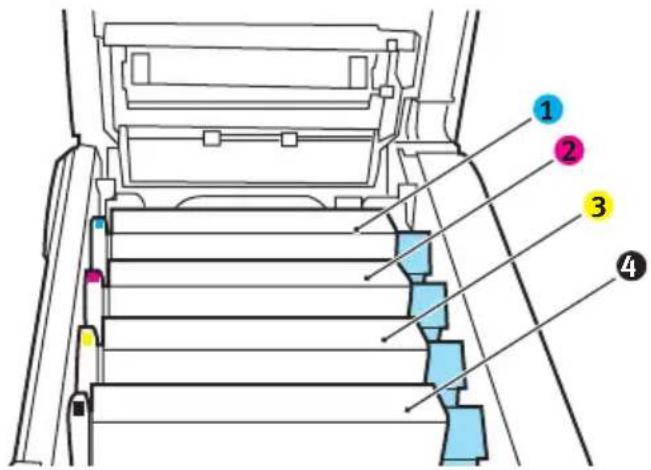
text_image
Technical diagram of a vehicle rearview system with numbered components labeled 1 to 4| 1. Cyan cartridge 2. Magenta cartridge |
| 3. Yellow cartridge 4. Black cartridge |
(a) Pull the coloured toner release lever (1) on the cartridge to be replaced fully towards the front of the printer.
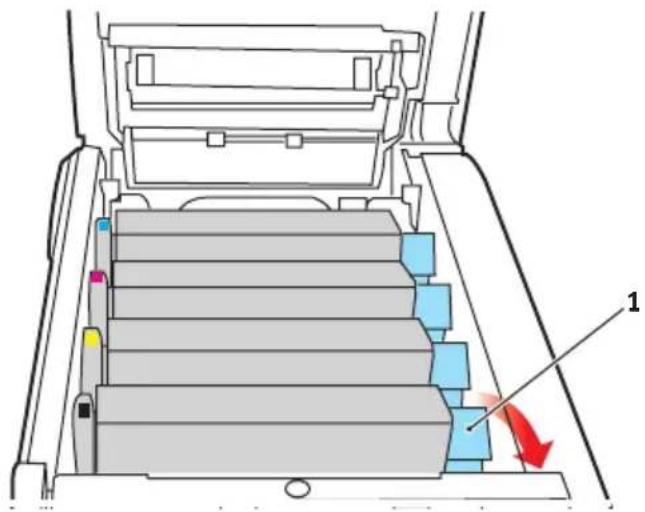
natural_image
Diagram of a printer drawer with numbered components and a red arrow indicating a directional flow (no text or symbols present)- Lift the right-hand end of the cartridge and then draw the cartridge to the right to release the left-hand end as shown, and withdraw the toner cartridge out of the printer.
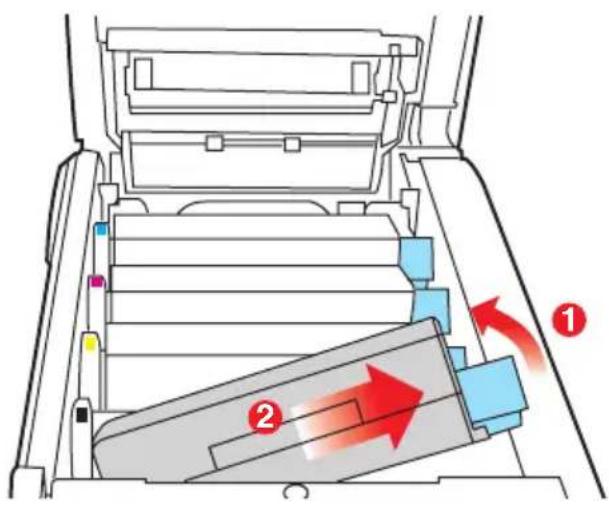
text_image
Diagram of a printer drawer with labeled parts and directional arrows indicating flow or movement- Put the cartridge down gently onto a piece of paper to prevent toner from marking your furniture.
- Remove the new cartridge from its box but leave its wrapping material in place for the moment.
- Gently shake the new cartridge from end to end several times to loosen and distribute the toner evenly inside the cartridge.

natural_image
Illustration of a hand pressing down on a cylindrical device with red directional arrows indicating compression or movement (no text or symbols)- Remove the wrapping material and peel off the adhesive tape from the underside of the cartridge.

natural_image
Illustration of a hand holding a cylindrical device with a red arrow indicating rotation or change (no text or symbols)-
Holding the cartridge by its top centre with the coloured lever to the right, lower it into the printer over the image drum unit from which the old cartridge was removed.
-
Insert the left end of the cartridge into the top of the image drum unit first, pushing it against the spring on the drum unit, then lower the right end of the cartridge down onto the image drum unit.
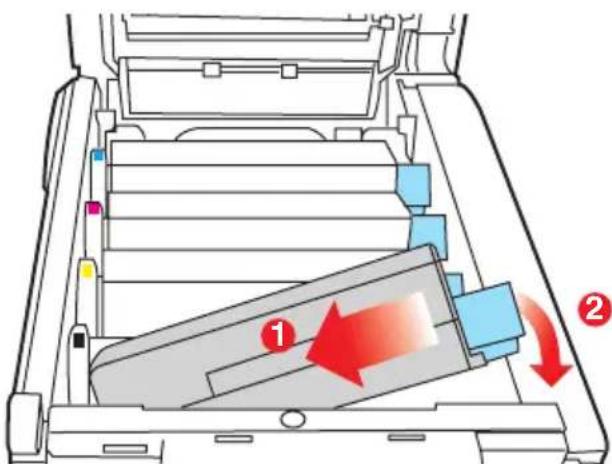
text_image
Diagram of a printer drawer with labeled parts and directional arrows indicating process flow- Pressing gently down on the cartridge to ensure that it is firmly seated, push the coloured lever (1) towards the
rear of the printer. This will lock the cartridge into place and release toner into the image drum unit.
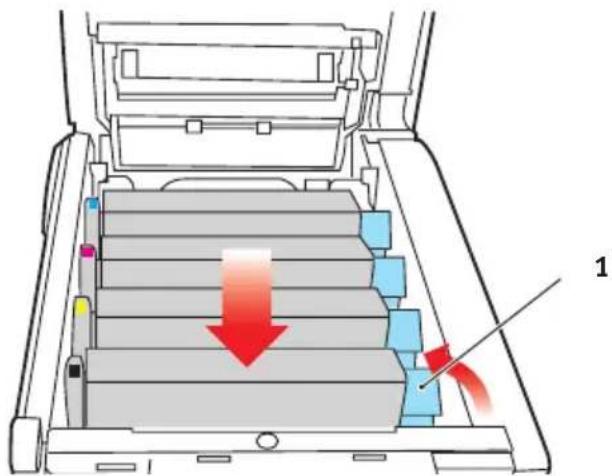
text_image
Diagram of a printer drawer with labeled component '1' and red directional arrow indicating flow or movement- Finally, close the top cover and press down firmly at both sides so that the cover latches closed.
IMAGE DRUM REPLACEMENT
Switch off the printer and allow the fuser to cool for about 10 minutes before opening the cover.
CAUTION!

Static sensitive devices, handle with care.
The printer contains four image drums: cyan, magenta, yellow and black.
- Press the cover release and open the printer's top cover fully.
WARNING!
If the printer has been powered on, the fuser will be hot. This area is clearly labelled. Do not touch.
- Note the positions of the four cartridges.

text_image
Technical diagram of a vehicle interior with numbered components labeled 1 to 4| 1. Cyan cartridge 2. Magenta cartridge |
| 3. Yellow cartridge 4. Black cartridge |
- Holding it by its top centre, lift the image drum, complete with its toner cartridge, up and out of the printer.
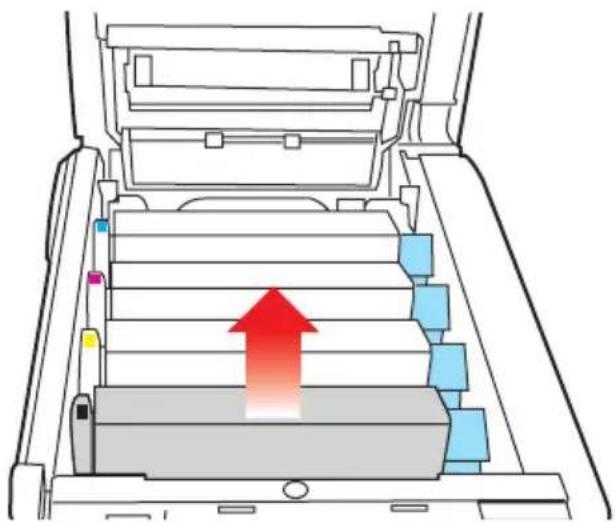
natural_image
Diagram of a printer drawer with color-coded sections and a red upward arrow indicating motion (no text or symbols)- Put the cartridge down gently onto a piece of paper to prevent toner from marking your furniture and to avoid damaging the green drum surface.
CAUTION!
The green image drum surface at the base of the cartridge is very delicate and light sensitive. Do not touch it and do not expose it to normal room light for more than 5 minutes. If the drum unit needs to be out of the printer for longer than this, please wrap the cartridge inside a black plastic bag to keep it away from light. Never expose the drum to direct sunlight or very bright room lighting.
- With the coloured toner release lever (1) to the right, pull the lever towards you. This will release the bond between the toner cartridge and the image drum cartridge.
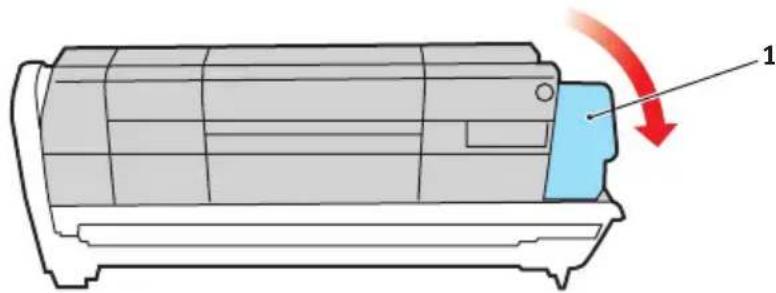
text_image
Diagram of a cylindrical device with a blue component and red arrow indicating rotation or movement, labeled with number 1.- Lift the right-hand end of the cartridge and then draw the cartridge to the right to release the left-hand end as shown, and withdraw the toner cartridge out of the image drum cartridge. Place the cartridge on a piece of paper to avoid marking your furniture.
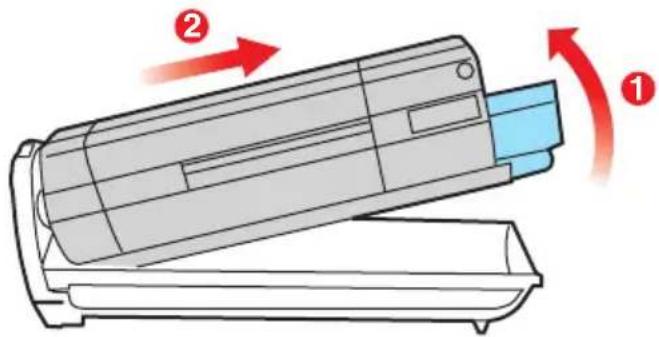
text_image
Diagram of a device with labeled parts and directional arrows indicating motion or movement, marked with numbers 1 and 2.-
Take the new image drum cartridge out of its packaging and place it on the piece of paper where the old cartridge was placed. Keep it the same way round as the old unit. Pack the old cartridge inside the packaging material for disposal.
-
Place the toner cartridge onto the new image drum cartridge as shown. Push the left end in first, and then lower the right end in. (It is not necessary to fit a new toner cartridge at this time unless the remaining toner level is very low.)
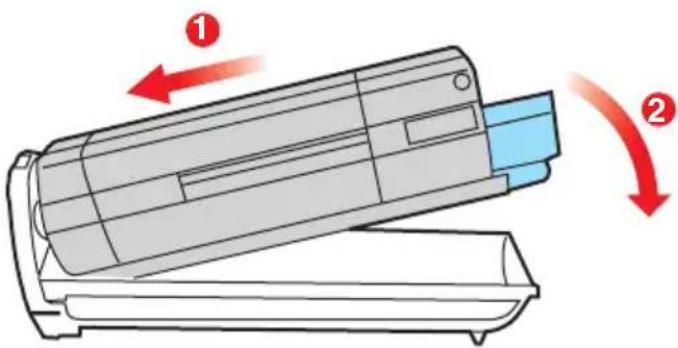
text_image
Diagram showing a device being inserted into a tray, with labeled arrows indicating direction of movement.- Push the coloured release lever (1) away from you to lock the toner cartridge onto the new image drum unit and release toner into it.
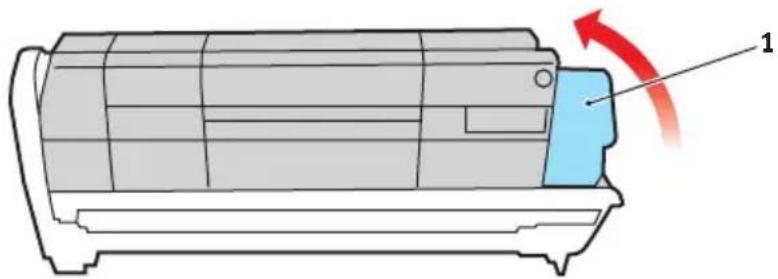
natural_image
Diagram of a cylindrical device with internal components and a blue component, showing a red curved arrow indicating rotation (no text or symbols present)- Holding the complete assembly by its top centre, lower it into place in the printer, locating the pegs at each end into their slots in the sides of the printer cavity.

natural_image
Diagram of a printer drawer with color-coded sections and a red downward arrow indicating compression or disassembly (no text or symbols present)- Finally, close the top cover and press down firmly at both sides so that the cover latches closed.
NOTE:
If you need to return or transport your printer for any reason, please make sure you remove the image drum unit beforehand and place in the bag provided. This is to avoid toner spillage.
REPLACING THE BELT UNIT
The belt unit is located under the four image drums. This unit requires replacement approximately every 60,000 pages.
Switch off the printer and allow the fuser to cool for about 10 minutes before opening the cover.
- Press the cover release and open the printer's top cover fully.
WARNING!
If the printer has been powered on, the fuser will be hot. This area is clearly labelled. Do not touch.
- Note the positions of the four cartridges. It is essential that they go back in the same order

text_image
Technical diagram of a vehicle rearview system with numbered components labeled 1 to 4| 1. Cyan cartridge 2. Magenta cartridge |
| 3. Yellow cartridge 4. Black cartridge |
- Lift each of the image drum units out of the printer and place them in a safe place away from direct sources of heat and light.
CAUTION!
The green image drum surface at the base of each cartridge is very delicate and light sensitive. Do not touch it and do not expose it to normal room light for more than 5 minutes. If the drum unit needs to be out of the printer for longer than this, please wrap the cartridge inside a black plastic bag to keep it away from light. Never expose the drum to direct sunlight or very bright room lighting.
- Locate the two fasteners (5) at each side of the belt and the lifting bar (6) at the front end.
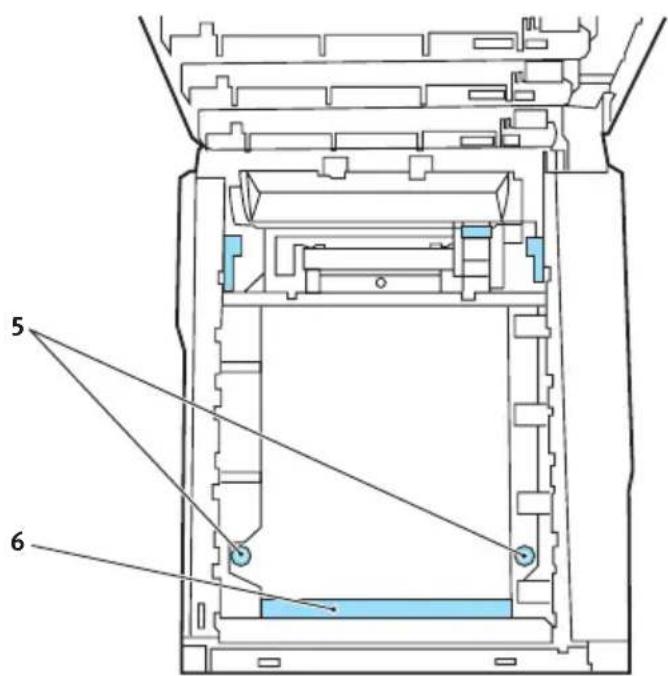
text_image
5 6-
Turn the two fasteners 90° to the left. This will release the belt from the printer chassis.
-
Pull the lifting bar (6) upwards so that belt tilts up towards the front, and withdraw the belt unit from the printer.
-
Lower the new belt unit into place, with the lifting bar at the front and the drive gear towards the rear of the printer. Locate the drive gear into the gear inside the printer by the rear left corner of the unit, and lower the belt unit flat inside the printer.
-
Turn the two fasteners (5) 90° to the right until they lock. This will secure the belt unit in place.
-
Replace the four image drums, complete with their toner cartridges, into the printer in the same sequence as they came out: cyan (nearest the rear), magenta, yellow and black (nearest the front).
-
Finally, close the top cover and press down firmly at both sides so that the cover latches closed.
FUSER REPLACEMENT
The fuser is located inside the printer just behind the four image drum units.
WARNING!
If the printer has recently been powered on, some fuser components will be very hot. Handle the fuser with extreme care, holding it only by its handle, which will only be mildly warm to the touch. A warning label clearly indicates the area. If in doubt, switch the printer off and wait at least 10 minutes for the fuser to cool before opening the printer cover.
Switch off the printer and allow the fuser to cool for about 10 minutes before opening the cover.
- Press the cover release and open the printer's top cover fully.
- Identify the fuser handle (1) on the top of the fuser unit.
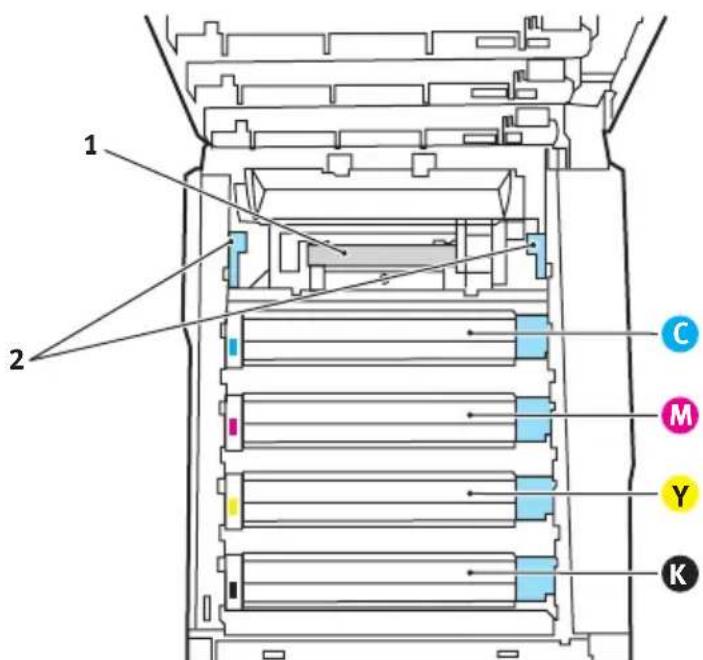
text_image
1 2 C M Y K- Pull the two fuser retaining levers (2) towards the front of the printer so that they are fully upright.
-
Holding the fuser by its handle (1), lift the fuser straight up and out of the printer. If the fuser is still warm, place it on a flat surface which will not be damaged by heat.
-
Remove the new fuser from its packaging and remove the transit material.
-
Holding the new fuser by its handle, make sure that it is the correct way round. The retaining levers (2) should be fully upright, and the two locating lugs (3) should be towards you.

text_image
2 3 2-
Lower the fuser into the printer, locating the two lugs (3) into their slots in the metal partition which separates the fuser area from the image drums.
-
Push the two retaining levers (2) towards the rear of the printer to lock the fuser in place.

text_image
2 C M Y KFinally, close the top cover and press down firmly at both sides so that the cover latches closed.
CLEANING THE LED HEAD
Clean the LED head when printing does not come out clearly, has white lines or when text is blurred.
- Switch off the printer and open the top cover.
- Gently wipe the LED head surface with LED lens cleaner or soft tissue.

natural_image
Illustration of a hand using a tool to adjust or install a multi-tiered storage unit (no text or symbols visible)CAUTION!
Do not use methyl alcohol or other solvents on the LED head as damage to the lens surface will occur.
- Close the top cover.
INSTALLING UPGRADES
This section explains how to install optional equipment into your printer. This includes:
duplex (two-sided printing) unit;
additional RAM memory;
additional paper tray
cabinet
DUPLEX UNIT
The duplex unit adds the function of two-sided printing, using less paper and making large documents easier to handle. It also enables booklet printing, which uses even less paper and makes large documents even easier to handle.
The duplex unit slides straight into the rear of the printer and requires no tools to install.
- Unpack the new unit and remove any transit material from it.
- Switch the printer off. It is not necessary to disconnect the AC power cable.
- Ensure that the unit is the right way up, as shown, and push it into the slot behind the rear panel. The panel will swing inwards as you push the unit into it. Push the unit all the way in until it stops and latches home.

natural_image
Diagram of a printer with a red arrow indicating compression or heat release (no text or symbols present)-
Switch the printer on and wait for it to warm up (about 1 minute).
-
Print a menu map as follows:
(a) Press the + button to access the Information Menu.
(b) Press ENTER once for the menu map.
(c) Press ENTER again to print the menu map.
(d) When the menu map is printed, press ON LINE to exit the menu system.
- Examine the first page of the menu map.
Near the top of the page, between the two horizontal lines, you will see the current printer configuration. This list should indicate that the duplex unit is now installed.
All that remains is to adjust the Windows printer driver to make full use of the new features.
MEMORY UPGRADE
The basic printer model comes equipped with 64MB of main memory. This can be upgraded with an additional memory board of 64MB or 256MB, giving a maximum total memory capacity of 320MB.
Installation takes a few minutes, and requires a medium size cross-head (philips type) screwdriver.
- Switch the printer off and disconnect the AC power cable.
- Press the cover release and open the printer's top cover fully.
WARNING!
If the printer has been powered on recently, the fuser will be hot. This area is clearly labelled. Do not touch.
- Lift the front cover latch and pull open the front cover.

natural_image
Line drawing of a printer with red arrows indicating ports or features (no text or symbols present)- Remove the screw (1) securing the right-hand side cover.

natural_image
Technical diagram of a mechanical device showing internal components and airflow direction (no text or symbols)-
Lift the edge of the side cover slightly at the two points shown, and pull the cover away from the printer at the top. Lift the cover slightly to detach it from the printer. Place it safely to one side.
-
Carefully remove the new memory board from its wrapping. Try to handle the board only by its short edges, avoiding contact with any metal parts as far as possible. In particular, avoid touching the edge connector.
-
Notice that the memory board has a small cutout in the edge connector, which is closer to one end than the other.
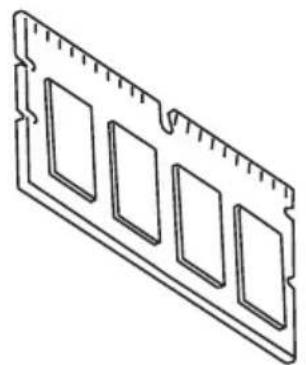
natural_image
Isometric line drawing of a RAM module with four slots and a central slot (no text or symbols)- Identify the RAM expansion slot (1) in the printer.
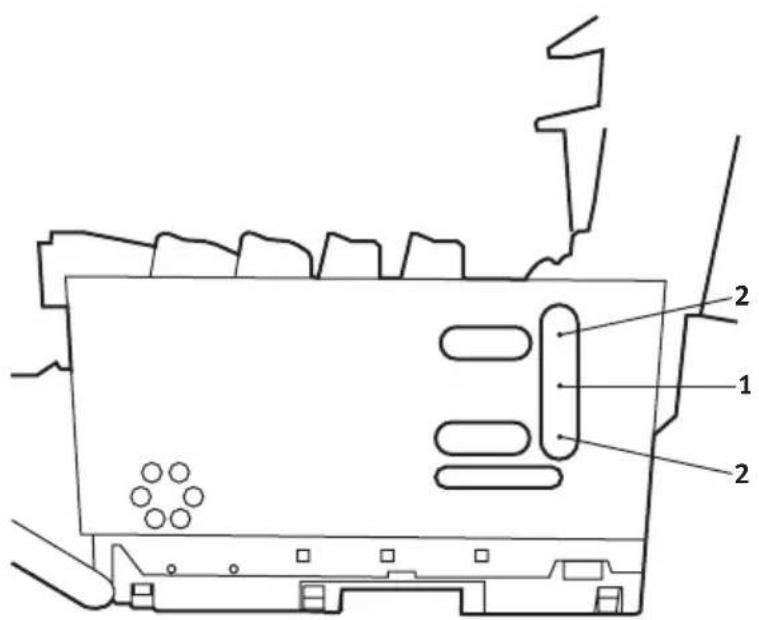
text_image
Technical diagram of a device with labeled components, showing internal structure and parts numbered 1 and 2.- If the RAM expansion slot already contains a memory upgrade board, that board will have to be removed before you can install the new one. To remove it, proceed as follows, otherwise skip to step 10.
(a) Identify the locking clips (2) at each end of the RAM expansion slot (1).
(b) Push the clips outward and back into the printer. The board will pop out slightly.
(c) Grip the board firmly by its short edges and pull it out of the slot.
(d) Place the removed memory board in the antistatic bag which originally contained the new memory board.
-
Hold the new memory board by its short edges, so that the edge connector faces in towards the RAM expansion slot, and the small cutout is closer to the rear of the printer.
-
Gently push the board into the RAM expansion slot until it latches in and will not go any further.
-
Locate the three retaining clips at the bottom of the side cover into their rectangular holes near the bottom of the printer.
-
Close the top of the side cover up to the printer and refit the securing screw removed in step 4.
-
Close the front cover and close the top cover, pressing down firmly at each side to latch it closed.
-
Reconnect the AC power cable and switch the printer on.
-
When the printer is ready, print a menu map as follows:
(a) Press the + button to access the Information Menu.
(b) Press ENTER once for the menu map.
(c) Press ENTER again to print the menu map.
(d) When the menu map is printed, press ON LINE to exit the menu system.
- Examine the first page of the menu map.
Near the top of the page, between the two horizontal lines, you will see the current printer configuration. This list contains the figure for total memory size.
This should indicate the total memory now installed.
ADDITIONAL PAPER TRAY
-
Switch the printer off and disconnect the AC power cable.
-
Place additional paper tray on desired location.
-
Observing safety rules for lifting and, using locating guides, place printer on top of the additional paper tray.

natural_image
Technical line drawing of a device chassis showing internal components and mounting points (no text or symbols)- Re-connect the AC power cable and switch the printer ON.
ADJUSTING WINDOWS PRINTER DRIVERS
Once your new upgrade has been installed, you may need to update the Windows printer driver so that the additional features are available to your Windows applications.
Remember that if your printer is shared between users on different computers, the driver must be adjusted on each user's machine.
The illustrations shown here are for Windows XP. Other Windows versions may appear slightly different, but the principles are the same.
If you have installed a memory upgrade it is not necessary to change the printer driver, and you can ignore this section.
If you have installed a duplex unit or hard disk, proceed as follows:
-
Open the Printers window (called "Printers and Faxes" in Windows XP) via the Start Menu or from the Windows Control Panel.
-
Right-click the printer icon for this printer, and choose Properties from the pop-up menu.
-
On the Device Options tab, check the box for the upgrade you have just installed.
-
Click OK to close the properties window, and then close the Printers window.

text_image
Properties General Sharing Ports Advanced Color Management Device Option Available Options: Available Tray □ Duplex Option Unit □ Pinks HardDisk About... OK Cancel ApplyCLEARING PAPER JAMS
Provided that you follow the recommendations in this guide on the use of print media, and you keep the media in good condition prior to use, your printer should give years of reliable service. However, paper jams occasionally do occur, and this section explains how to clear them quickly and simply.
Jams can occur due to paper misfeeding from a paper tray or at any point on the paper path through the printer. When a jam occurs, the printer immediately stops, and the Alert LED on the Status Panel (together with the Status Monitor) informs you of the event. If printing multiple pages (or copies), do not assume that, having cleared an obvious sheet, others will not also be stopped somewhere along the path. These must also be removed in order to clear the jam fully and restore normal operation.
MAJOR PRINTER COMPONENTS AND PAPER PATH
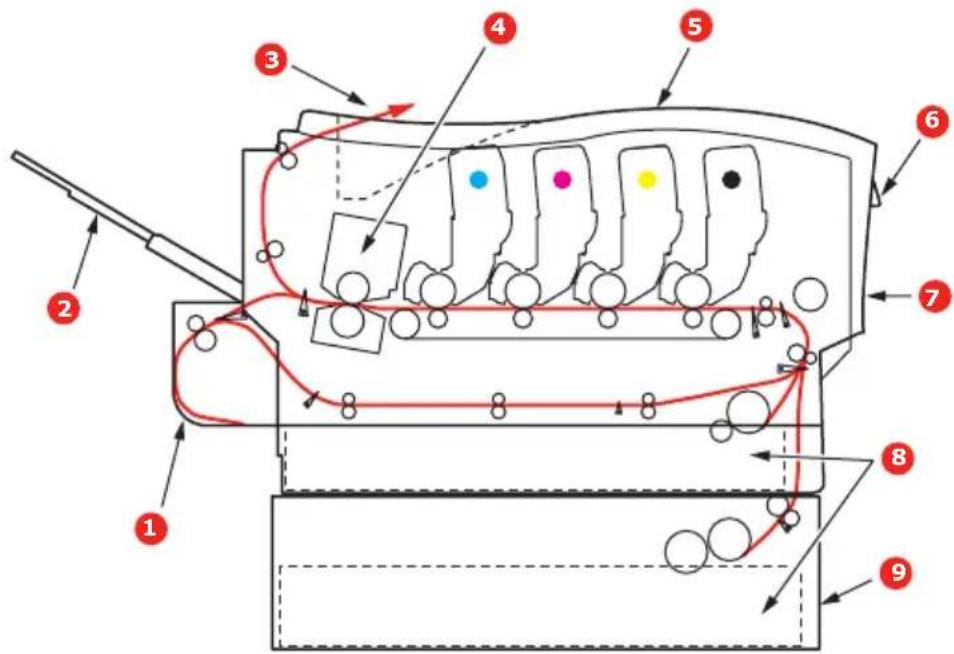
text_image
Technical diagram of a mechanical device with numbered components and colored indicators, likely illustrating assembly or inspection.- Duplex unit (if fitted). 6. Operator panel.
- Face-up stacker. 7. Front cover.
- Paper exit. 8. Paper tray.
- Fuser unit 9. Additional paper tray (if
- Top cover. fitted)
PAPER SENSOR ERROR CODES
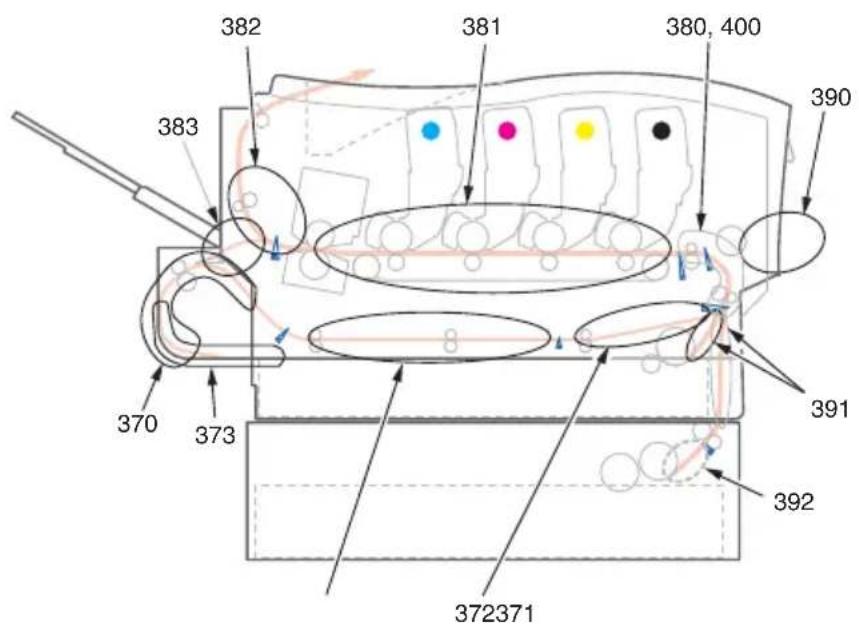
text_image
382 381 380, 400 390 383 370 373 391 392 372371CODE # LOCATION CODE # LOCATION
| 370 | Duplex unit * 382 Paper exit | |
| 371 | Duplex unit * 383 | Duplex unit * |
| 372 | Duplex unit * 390 MP Tray | |
| 373 | Duplex unit * 391 Paper Tray | |
| 380 | Paper feed 392 | 2^nd Paper tray * |
| 381 | Paper path 400 Paper size |
* (if fitted).
- If a sheet is well advanced out of the top of the printer, simply grip it and pull gently to draw it fully out. If it does not remove easily, do not use excessive force. It can be removed from the rear later.
- Press the cover release and open the printer's top cover fully.
WARNING!
If the printer has been powered on, the fuser will be hot. This area is clearly labelled. Do not touch.
- Note the positions of the four cartridges.

text_image
Technical diagram of a vehicle interior with numbered components and colored markers indicating parts.| 1. Cyan cartridge 2. Magenta cartridge |
| 3. Yellow cartridge 4. Black cartridge |
It will be necessary to remove the four image drums to gain access to the paper path.
- Holding it by its top centre, lift the cyan image drum, complete with its toner cartridge, up and out of the printer.
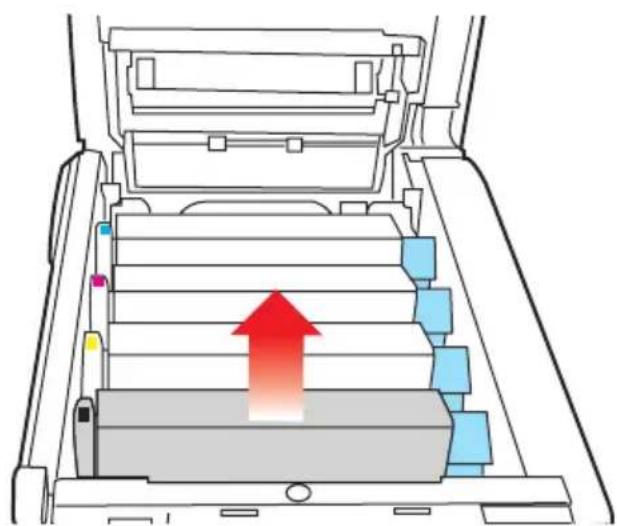
natural_image
Diagram of a printer drawer with a red upward arrow indicating motion or flow (no text or symbols present)- Put the cartridge down gently onto a piece of paper to prevent toner from marking your furniture and to avoid damaging the green drum surface.
CAUTION!
The green image drum surface at the base of the cartridge is very delicate and light sensitive. Do not touch it and do not expose it to normal room light for more than 5 minutes.
- Repeat this removal procedure for each of the remaining image drum units.
- Look into the printer to check whether any sheets of paper are visible on any part of the belt unit.
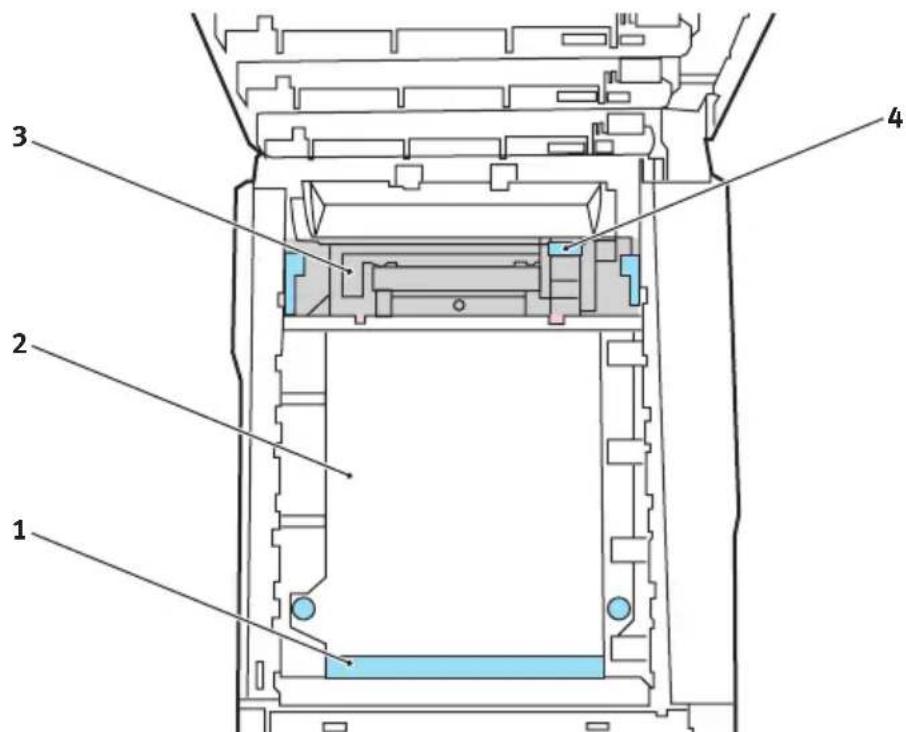
text_image
Technical diagram of a device interior with numbered components labeled 1 to 4- To remove a sheet with its leading edge at the front of the belt (1), carefully lift the sheet from the belt and pull it forwards into the internal drum cavity and withdraw the sheet.
CAUTION!
Do not use any sharp or abrasive objects to separate sheets from the belt. This may damage the belt surface.
- To remove a sheet from the central area of the belt (2), carefully separate the sheet from the belt surface and withdraw the sheet.
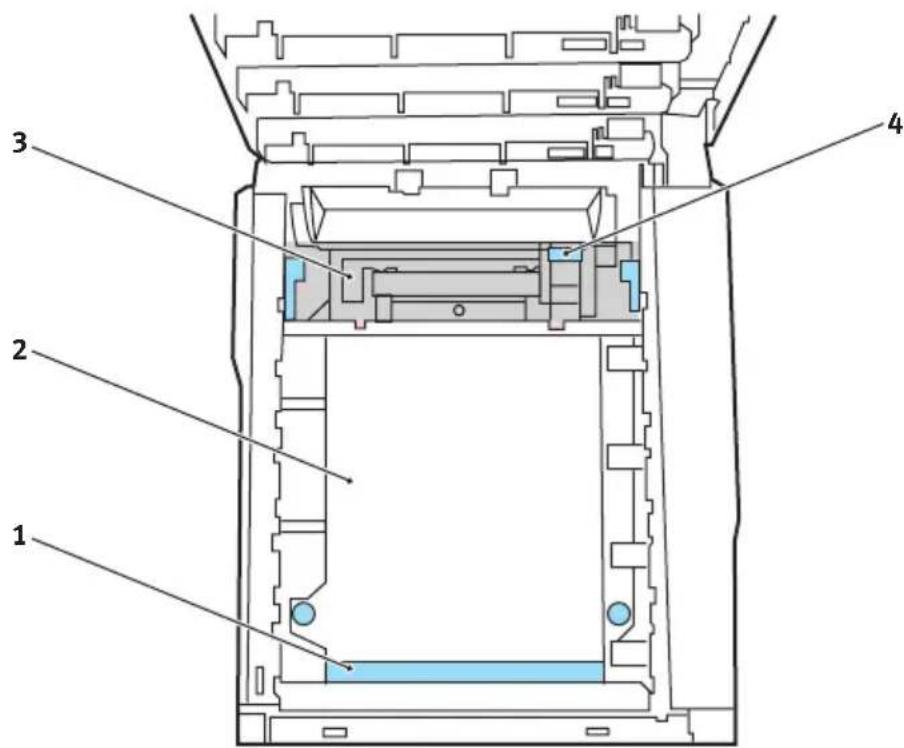
text_image
Technical diagram of a device interior with numbered components labeled 1, 2, 3, and 4- To remove a sheet just entering the fuser (3), separate the trailing edge of the sheet from the belt, push the fuser pressure release lever (4) towards the front and down to release the fuser's grip on the sheet, and withdraw the sheet through the drum cavity area. Then allow the pressure release lever to rise again.
NOTE:
If the sheet is well advanced into the fuser (only a short length is still visible), do not attempt to pull it back. Follow the next step to remove it from the rear of the printer.
- Starting with the cyan image drum unit nearest the fuser, replace the four image drums into the drum cavity, making sure to locate them in the correct order.

text_image
Technical diagram of a mechanical assembly with numbered components labeled 1 to 4| 1. Cyan cartridge 2. Magenta cartridge |
| 3. Yellow cartridge 4. Black cartridge |
- Holding the complete assembly by its top centre, lower it into place in the printer, locating the pegs at each end into their slots in the sides of the printer cavity.
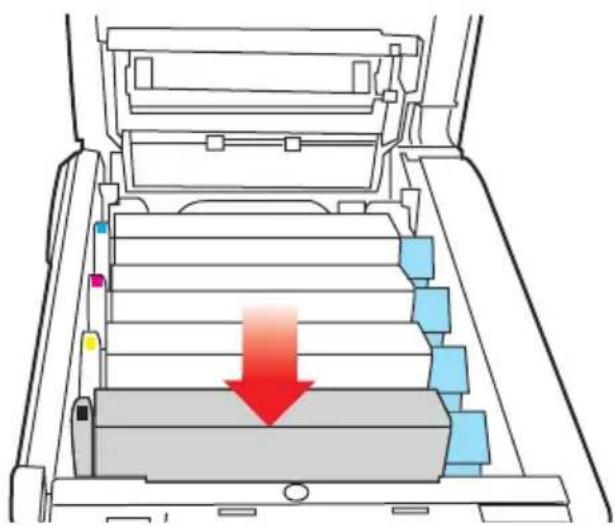
natural_image
Diagram of a printer drawer with color-coded sections and a red downward arrow indicating compression or disassembly (no text or symbols present)-
Lower the top cover but do not press down to latch it closed yet. This will protect the drums from excessive exposure to room lighting while you check the remaining areas for jammed sheets.
-
Open the rear exit tray (5) and check for a sheet of paper in the rear path area (6).
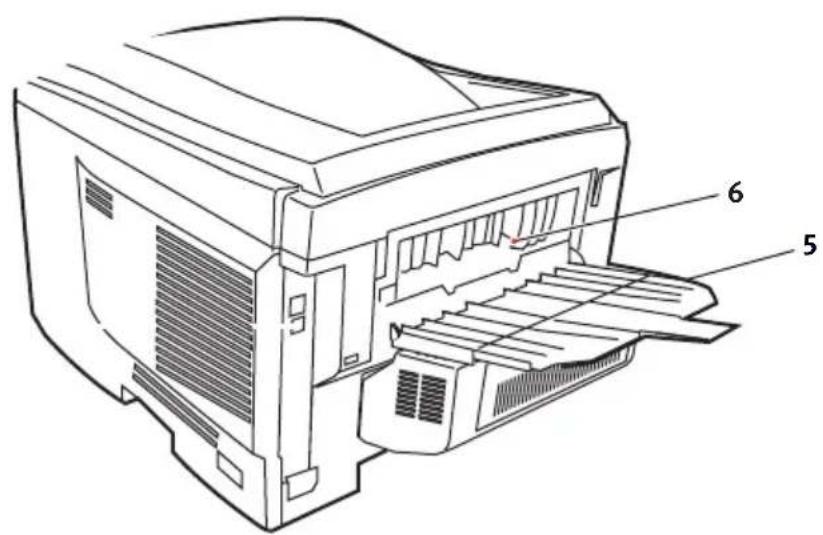
text_image
Technical diagram of a printer with labeled parts 5 and 6, showing internal structure and paper feed path.- Pull out any sheets found in this area.
- If the sheet is low down in this area and difficult to remove, it is probably still gripped by the fuser. In this case raise the top cover, reach around and press down on the fuser pressure release lever (4).
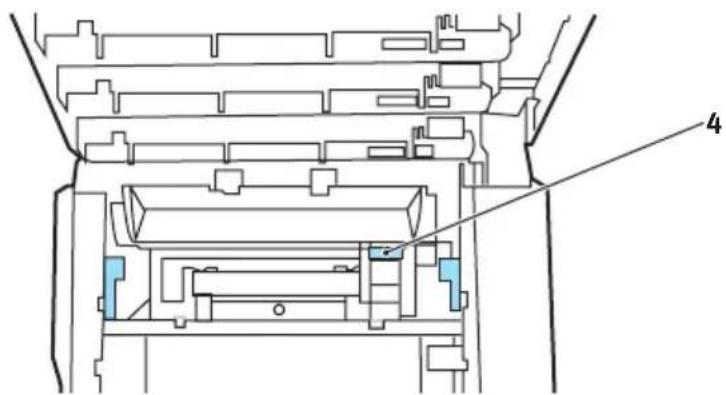
text_image
Technical diagram of a mechanical assembly with numbered component labeled '4'-
If you are not using the rear exit tray, close it once paper has been removed from this area.
-
Lift the front cover release and pull open the front cover.

natural_image
Line drawing of a printer with red arrows indicating motion or movement, no text or symbols present- Check inside the cover for sheets in this area and remove any that you find, then close the cover.
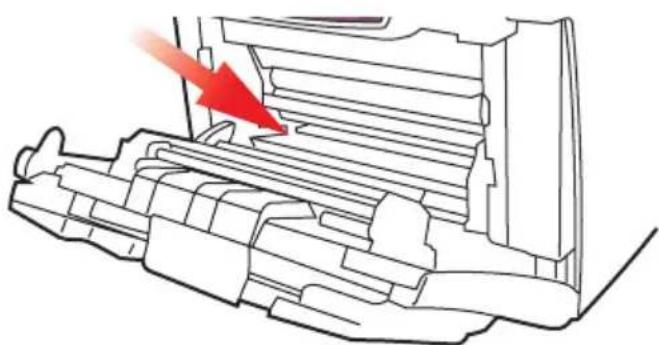
natural_image
Technical line drawing of a mechanical component with a red arrow indicating a specific feature (no text or symbols present)- Pull out the paper tray and ensure that all paper is stacked properly, is undamaged, and that the paper guides are properly positioned against the edges of the paper stack. When satisfied, replace the tray.

natural_image
Technical line drawing of a printer drawer with blue plastic components (no text or symbols)- Finally, close the top cover and press down firmly at both sides so that the cover latches closed.
When the jam has been cleared, if Jam Recovery is set to ON in the System Configuration Menu, the printer will attempt to reprint any pages lost due to paper jams.
SPECIFICATIONS
ITEM SPECIFICATION
| Dimensions 435 x 563 x 339mm (W x D x H) without Duplex unit | |
| Weight 26Kg approx. (without Duplex unit) | |
| Print method LED exposed light source electronic photographic memory | |
| Print speeds C5600: 20 pages per minute colour / 32 pages per minute monochrome | |
| C5800: 26 pages per minute colour / 32 pages per minute monochrome | |
| Resolution 600 x 600, 600 x 1200dpi or 600 x 600dpi x 2bit | |
| Auto Features Auto registration | |
| Auto density adjustment | |
| Auto consumable counter reset | |
| Memory 64MB standard, upgradable to 128MB or 320MB | |
| Operating platform | Windows |
| 98/Me/2000/XP/XP Pro x64 bit Edition*/NT4.0 / Server 2003/Server 2003 x64 bit Edition*, * x86-64 processors only. Itanium is not supported. | |
| Mac | |
| OS 9.0 (or higher), OS X (10.2 or higher), Classic | |
| Paper capacity at 80g/m2 | 300 sheets in main tray |
| 530 sheets in optional 2nd tray | |
| 100 sheets in multi purpose tray (or 50 transparencies or 10 envelopes) | |
| Paper weight 64 ~ 120g/m2 in main tray | |
| 64 ~ 176g/m2 in 2nd tray | |
| 64 ~ 203g/m2 in multi purpose tray | |
| Paper output 250 sheets in face down (top) stacker @ 80g/m2 | |
| 100 sheets in face up (rear) stacker @ 80g/m2 | |
| Paper feed1 | Paper tray, manual feed, optional additional paper tray(s) |
| Media size - any tray | A4, A5, A6 (tray 1 only), B5, Legal 13/13.5/14 inch, letter, Executive. |
| Media size - MP tray | A4, A5, A6, B5, Legal 13/13.5/14 inch, letter, executive, custom (up to 1200mm length), com-9 envelope, com-10 envelope, monarch envelope, DL envelope, C5 envelope |
ITEM SPECIFICATION
| Media weight | Standard - 64 to 120g/m^2 , multi purpose tray - 64 to 200g/m^2 duplex unit - 64 - 120g/m^2 |
| Media type Plain, Letterhead, Transparency, Bond, Recycled, card stock, Rough, Labels and Glossy | |
| Paper capacity (depending on paper weight) | Paper tray: 300 sheets approx.Manual feed: 100 sheets approx.Optional additional paper tray: 530 |
| Exit capacity (depending on paper weight) | Face up: 100 sheets approx.Face down: 500 sheets approx. |
| Print accuracy Start: ±2 mmPaper skew: ±1 mm/100 mmImage expansion/compression: ±1 mm/100 mm | |
| Interfaces | |
| Universal Serial Bus (USB) | USB specification Version 2.0Connection: USB type BCable: USB specification version2.0 (shielded)Transmission mode: Full speed (480Mbps + 0.25% maximum) |
| Network | 10 Base T, 100 Base TX |
| Printer life 420,000 pages or 5 years | |
| Duty cycle 50,000 pages per month max., 4,000 pages per month average | |
| Toner life Black:C5600/C5800 - 6,000 pages at 5% coverageCMY:C5600 - 2,000 pages at 5% coverage C5800 - 5,000 pages at 5% coverage | |
| Image drum life | 20,000 pages (25000 at continuous print, 18,000 at 3 pages per job and 9,000 pages at 1 page per job) |
| Belt life 60,000 A4 pages at 3 pages per job | |
| Fuser life 60,000 A4 pages | |
| Power supply 220 to 240VAC @ 50/60 Hz ± 2% | |
| Power consumption | Operating: 1200 max.; 490 W av. (25°C)Stand-by: 100 max.; 150 W av. (25°C)Power saving: 45 W max. (20ppm colour)Power saving: 70 W max. (26ppm colour) |
ITEM SPECIFICATION
| Operating environment | Operating 10 to 32 °C/20 to 80% RH (optimum 25 °C wet, 2 °C dry)Off: 0 to 43 °C/10 to 90% RH (optimum 26.8 °C wet, 2 °C dry) |
| Print environment | 30 to 73% RH @ 10 °C; 30 to 54% RH @ 32 °C10 to 32 °C @ 30% RH; 10 to 27 °C @ 80% RHColour 17 to 27 °C @ 50 to 0% RH |
- Exit method is limited by paper size, media weight and paper feed.
Specifications subject to change without notice. All trademarks acknowledged.
INDEX
A
Advanced features enabling or disabling......26
B
Belt how to replace ....89 life expectancy ....78 life remaining ....77
Black printing glossy or matte......23
Booklet printing PCL emulation....21
C
Cleaning the LED head .....94
Colour adjusting ....73
Colour matching choosing image source....63 general advice....59 general settings ....23 how to access....62 printing colour swatch....64
D
Duplex how to install....95 paper size and weight limits ..14 selecting in Windows....21
E
Envelopes loading ....19
F
Fuser how to replace....92 life expectancy....78 life remaining....77
I
Image drum how to replace....85 life expectancy....78
Image drums current usage state....77
L
Labels recommended types ....12
M
Mac OS 9 ......28
Changing the default print settings....28
Choosing Printing Options.....28
Page Setup Options - Custom Paper Size ....31
Page Setup Options - Layout .30
Print Options - Colour ......34
Print Options - General ......31
Print Options - Information....41
Print Options - Layout......36
Print Options - Options ......37
Print Options - Print Control...33
Print Options - Select Panel Language 39
Print Options - Watermark.....40
Mac OS X....42
Changing the default printer and paper size ....44
Print options......46
Printer setup options......56
Setting Printing Options ..42, 43
Major printer components and paper path....102
Menus
Colour menu 73
factory default settings ......66
FX emulation 75
how to use ......66
Information menu ......67
Maintenance menu 76
Media menu 70
menu map......67
Network menu....75
Print jobs menu......67
Print menu 68
resetting....76
saving current settings .....76
System configuration menu ...74
Usage menu ......77
USB menu 75
Multi purpose tray
how to use ......18
paper metrics ......13
N
Network addresses
setting 75
Network protocols
enabling or disabling......75
P
Page orientation
setting in Windows......22
Paper
jam clearing....102
jam codes....103
loading cassette trays ......15
loading letterhead ......16
Paper jam codes ......103
recommended types ......12
size setting in Windows......21
supported sheet sizes ......13
tray selection in Windows .....21
weight selection in Windows ..21
weights and sizes....70
Poster printing
Power saving
delay time 74
enabling or disabling......76
PPR emulation
Print order
face down stacker......17
face up stacker......17
Print quality
adjusting 76
Print settings
how to save....21
Printer default settings
Windows defaults......24
Printer overview
Priority
print queue priority......25
R
Resolution
setting in Windows......22
S
Spooling
Windows settings ......25
Switching off cc
T
Toner
current usage state......77
how to replace 80
life expectancy 78
Transparencies
recommended types ......12
U
Upgrades
memory....97
W
Watermark
printing in Windows ......22
OKI CONTACT DETAILS
Oki Systems (UK) Limited
550 Dundee Road
Slough Trading Estate
Slough, SL1 4LE
Tel:44 (0) 1753 819819
Fax:44 (0) 1753 819899
http://www.oki.co.uk
Oki Systems Ireland Limited
The Square Industrial Complex
Tallaght, Dublin 24, Ireland
Tel:+353 1 4049590
Fax:+353 1 4049591
http://www.oki.ie
OKI Systems (Ireland) Ltd.
40 Sydenham Park
Belfast, BT4 1PW
Tel:+44 44 (0)28 90 20 1110
http://www.oki.ie
Technical Support for all of Ireland:
Tel: +353 1 4049570
Fax: +353 1 4049555
E-mail: tech.support@oki.ie
Oki Data Corporation
4-11-22 Shibaura, Minato-ku,
Tokyo 108-8551, Japan
Tel: (81) 3 5445 6158
Fax: (81) 3 5445 6189
http://www.okidata.co.jp
Oki Data (Singapore) Pte. Ltd.
78 Shenton Way, #09-01,
Singapore 079120
Tel: (65) 221 3722
Fax: (65)421 1688
http://www.okidata.com.sg
Oki Systems (Thailand) Ltd.
956 Udomvidhya Building 6th
Floor, Rama IV Rd., Bangkok
10500, Thailand
Tel: (662) 636 2535
Fax: (662) 636 2536
http://www.okisysthai.com
Oki Hong Kong Limited
Suite 1909, Tower3,
China Hong Kong City,
33 Canton Rd., Tsimshatsui,
Kowloon, Hong Kong
Tel: (852) 2736 0130
Fax: (852) 2376 3725
The IPL Group
63-85 Victoria Street
Beaconsfield NSW 2015,
Australia
Tel: (61) 2 9690 8200
Fax: (61) 2 9690 8300
http://www.oki.com.au
Comworth Systems Ltd.
10 Constellation Drive
Mairangi Bay, Auckland,
New Zealand
Tel: (64) 9 477 0500
Fax: (64) 9 477 0549
http://www.comworth.co.nz
OKI Europe Limited
Central House
Balfour Road, Hounslow
TW3 1HY, United Kingdom
Tel: +44 (0) 20 8219 2190
Fax: +44 (0) 20 8219 2199
WWW.OKIPRINTINGSOLUTIONS.COM