Rocpro T32 - NAS Rocstor - Free user manual and instructions
Find the device manual for free Rocpro T32 Rocstor in PDF.


User questions about Rocpro T32 Rocstor
0 question about this device. Answer the ones you know or ask your own.
Ask a new question about this device
Download the instructions for your NAS in PDF format for free! Find your manual Rocpro T32 - Rocstor and take your electronic device back in hand. On this page are published all the documents necessary for the use of your device. Rocpro T32 by Rocstor.
USER MANUAL Rocpro T32 Rocstor
natural_image
Exterior view of a black rectangular electronic device with two ports and a 'Rebase' logo on top (no other text or symbols visible)Quick Installation Guide
Introduction
Thank you for purchasing ROCSTOR products. Before using your Rocpro T32, please read this manual thoroughly. At time of publish, all information contained in this user manual has been verified. Any revision updates or important technical information may be found on www.rocstor.com. Products specifications are subject to change without notice. If you have any questions regarding Rocpro T32, or you would like to know the latest product information, user manual update, or firmware update, please contact Rocstor or visit www.rocstor.com for further information.
Copyright © Rocstor. All rights reserved.
Table of Contents
- Package Contents and Product Views
- Operating Information
- Hardware Requirements and Precautions
- Hardware Installation
- How to Switch the RAID Mode
- The Indication of HDD Status
- Connect with other devices
- Common Technical Questions
- Limited warranty disclosure
1. Package Contents & Product Views

natural_image
Exterior view of a gray server or storage unit with two ports (no visible text or symbols)Rocpro U32

Quick Installation Guide
Thunderbolt Power cord

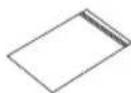
Screws and Keys
"Supplied with Enclosure Only"

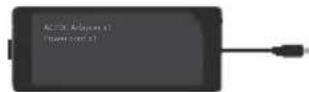
AC/DC Adapter
- Please check the product and accessories for any defect or missing parts. If you have any questions, please contact your product supplier.
- Please visit the official website (www.rocstor.com) to download drivers and other related resources.
Key access opening
Hard drive status indicator

natural_image
Exterior view of a black rectangular electronic device with two vertical panels and mounting holes (no text or symbols visible)Removable drive tray
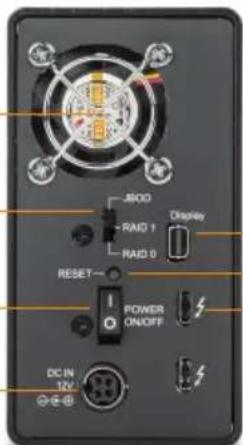
Cooling Fan
Port RAID Dip-switch
Power switch
Power Socket
text_image
500 RD1 RD0 Display RESET POWER ON/OFF DC IN 12VMini Display port
Reset Button
Thunderbolt™port
Storage Mode Definitions
Safe mode (RAID 1): Mirrored storage capacity allowing data protection.
Speed mode (RAID 0): Striped into a single large volume allowing higher speed transfers but without data protection.
2. Operating Information
Operating Temperature : 32 \~ 104 F - (0 \~ 40 c)
Storage Temperature: -20\~47 F - (-4 \~ 116 c)
Line Voltage : 100 \~ 240V AC
3. Hardware Requirements and Precautions
- Both hard drives must be installed into the system for the device to work properly.
- For the best performance of the system, it's strongly recommended that you install hard drives of the same model and if need be, replace faulty hard drives also with the same model. If the same model of HDD is unobtainable, please replace with a model that is at least 20GB larger in capacity.
- All data on replacement hard drive will be erased once inserted into the system.
- The actual usable storage capacity may differ from the stated capacity once the drives in the system have been formatted.
- Always safely dismount the volume from the Operating System before removing Rocpro T32. from host computer.
- Do not remove the hard drive(s) while the system is powered on or switch the position of the drives. Always remember to power off the unit prior to removing the hard drives (unless hot-swapping for the purpose of a rebuild in a RAID 1 configuration).
- In RAID 1 mode, only 1 hard disk failure is permitted. Please seek help from data recovery services should there be further data-loss due to failures in a RAID 0 mode.
- It is highly recommended for users to back up important data. Rocstor will not be responsible for any lost of data caused during the use of the unit or the recovery of the data lost.
- Rocpro T32 requires a 12V/5V AC/DC Adapter. Please do not use other non-certified Power Adapter using a third party power adapter may damage your storage unit causing data loss.
- WARNING: Before you delete or switch your original RAID setting, please always backup yourdata before changing your RAID settings. Your original data will be lost after you change your RAID settings.
4. Hardware Installation
Please follow the instructions below to complete the hardware installation:
If you have purchased The Rocpro T32 with HDD/SSD storage capacity, please skip to Step 5.
Step 1:
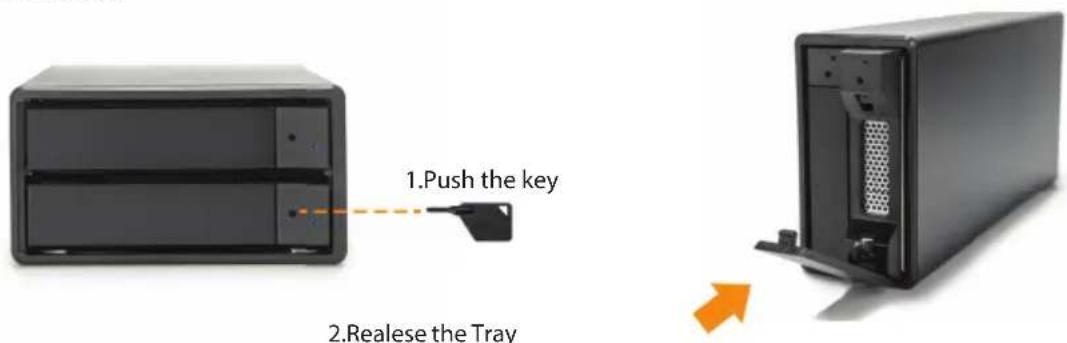
Use the provided key in the Accessories Kit and inserted it into the Key Access Opening to eject the Removable Drive Tray Latch and extract the Removable Drive Tray.
Step 2:
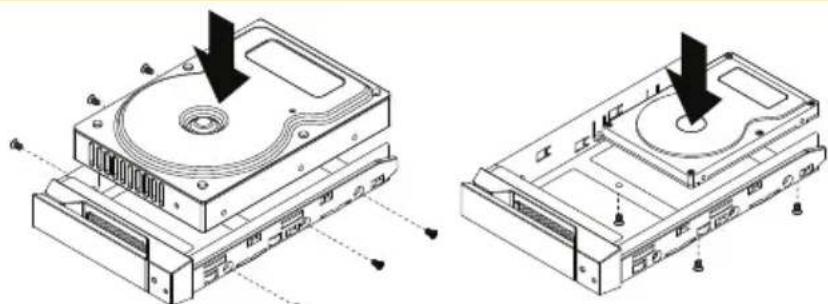
Mount your hard drives onto the removable drive tray and secure it with the screws included in the accessory kit to avoid any damage to the hard drive due to accidental movements.
Step 3:
After installing two HDDs into Trays, please insert them into T32 enclosure, and then latch the handle.
text_image
1.Push the key 2.Realese the Tray3.Take Out The Tray.
natural_image
Technical line drawing of an open hard disk drive showing internal components and mounting holes (no text or labels)Step 4:
Please switch RAID Dip-switch to JBOD mode at back-plate.
2.5" or 3.5"HDD Screws
Step 5:
Connect the Thunderbolt™ Cable, and then connect AC/DC Adapter to the product and turn on power.
Step 6:
a. After turning on power, the HDD/SSD Indicator will be changed with the following sequence, Red > Off > Blue, and then, Rocpro T32 is ready for use.
b. In case if the HDD/SSD Indicator shows Red > Off > Blue Flashing, please use a pin to press the RESET Button for 3 seconds, and wait until the HDD/SSD Indicator is changed to Blue from Blue Flashing, your Rocpro T32 is ready for use.
Step:7
While your Rocpro T32 is ready for use, please follow the instruction of "F". The Standard Procedure to Switch RAID Setting" in Chapter 5 and set the RAID to your desired mode. You could then start using your Rocpro T32 now.
5. How to Switch the RAID Mode
A. Please clear the RAID setting and format your two used HDDs before start using your new Rocpro T32.
B. Please BACKUP all of your data into a safe storage space before you set RAID mode on your Rocpro T32 unit.
C. JBOD (Factory defaults): Two independent storage volumes with no data protection feature.
D. RAID-1: One independent data storage with data protection feature. Other features:
- RAID 1 data protection feature is to duplicate all your personal data into the second HDD, and Rocpro T32 could still work in case if one of the HDDs becomes defective. NOTE: There will not be any HDD/SDD redundancy or data protection if any of the two HDD/SSD drives Fail.
- If you use two different HDD/SSD capacity drives, Rocpro T32 will only use the maximum memory capacity up to the smaller drive.
** For example: if your two HDD/SSD installed are with 1TB & 2TB capacity each, Rpcpro T32 maximum capacity will be up to 1TB.
E. RAID-0: One big independent storage with accelerated data transfer rate but with no dataprotection or redundancy feature.
F. The Standard Procedure to Switch RAID Setting:
Step-1: Please first connect Rocpro T32 to your Mac or PC.
Step-2: Please set RAID Dip Switch to the position you choose.
Step-3: Please use the Key to press the hidden RESET key at the back-plate, hold and wait for the end of Blue-Purple LED blinking till a stable Blue light.
Step-4: Please turn off your Rocpro T32, and turn it on again. You now have reset Rocpro T32 with a new RAID mode successfully.
WARNING: Before you delete or switch your original RAID setting, please always backup your data before changing your RAID settings. Your original data will be lost after you change the RAID settings.
6. The Indication of HDD Status
| Status | LED Light Status |
| No HDD | Red light always on |
| HDD failed | Red light always on |
| HDD idle | Blue light always on |
| Data acsses | Blue light flashing |
| Rebuilding, Source HDD | Breathing blue light |
| Rebuilding, Target HDD | Breathing purple light |
7. Connect with other devices
-
Thunderbolt™ Port: Thunderbolt™ 3 ports can be connected to Thunderbolt™ 3, USB3.1 and Display Port device. It is downward compatible and will support USB3.0 / USB2.0. This product can connect with different USB devices by USB Type C to Type A/B cable. It supports Thunderbolt™ port power delivery (PD) function, which can provide 15W (5V / 3A) power output to support 5V / 3A. Hence the port can recharge your notebook computer. There is no additional power supply need.
-
Mini Display port: connection port will provide additional screen/display output.
Two System Connections:
A. Rocpro T32: Connect Thunderbolt™ A port to Host (PC/Workstation/Server), Thunderbolt™ B port to other the other Device (USB or TB), and mDP (Mini Display) port to monitor.

flowchart
graph TD
    A["Computer monitor"] --> B["Laptop"]
    A --> C["Device with cable"]
    B --> D["Central device with ports and cable"]
    C --> D
    D --> E["Server"]
8. Common Technical Questions
-
Rocpro T32 will always stay SLEEP Mode if (a) it doesn't connect it to Mac/PC host Computer, and(b) your Computer is Powered-Off.
-
Rocpro T32 will also stay on SLEEP Mode if your host Computer initiates SLEEP or IDLE Mode.
-
In case you use two none original old HDDs which already have other RAID setting, wewould strongly suggest you to first reset them with JBOD mode on your Rocpro T32 beforesetting them with any other the RAID mode.
-
If the computer is unable to detect the system, please install the drivers from official website (www.rocstor.com)
-
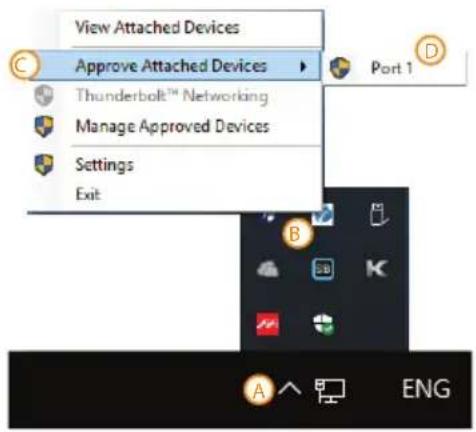
If the Rocpro T32 is installed on the Windows OS but can not be connected, refer to the following steps:
A. Update your Thunderbolt Firmware or Drivers in your setting
B. Open the Windows Taskbar.
C. right-click the Thunderbolt™ icon.
D. Select "Approve Attached Devices".
E. Select the port to which the device is connected.
F. Wait for the dialog box "Approve Thunderbolt™ Devices" to appear.
G. Select "Always Connect"
H. Press "OK".
text_image
View Attached Devices Approve Attached Devices Thunderbolt™ Networking Manage Approved Devices Settings Exit Port 1 B A ENG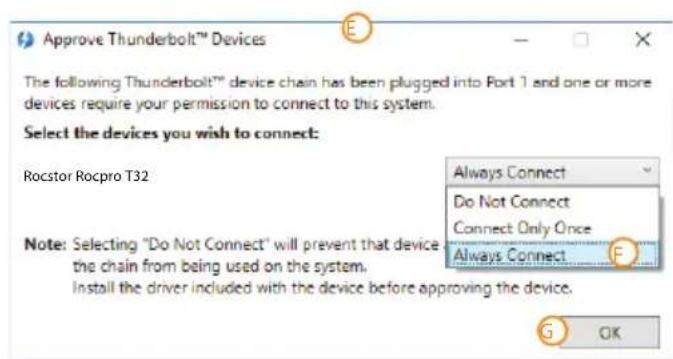
text_image
Approve Thunderbolt™ Devices The following Thunderbolt™ device chain has been plugged into Part 1 and one or more devices require your permission to connect to this system. Select the devices you wish to connect: Rocstor Rocpro T32 Note: Selecting "Do Not Connect" will prevent that device the chain from being used on the system. Install the driver included with the device before approving the device. Always Connect Do Not Connect Connect Only Once Always Connect G OK- Consistently make multiple backup copies of your data for your protection. Hard disk drives are subject to failure at any time.
- Rocstor shall not be held liable for loss of data or the restoration or recovery of data on the device. Please see complete limited Warranty Information in the User's Manual or on the Rocstor website (www.rocstor.com) for further details.
Actual accessible hard drive capacity will indicate up to 10% lower than stated under different Operating Systems and formatting. Therefore, a 500GB capacity drive may show up as a 450GB drive (approximately.)
The Limited warranty period for Rocpro T32 hard drives is three years for parts and labor.
LIMITED WARRANTY
This Limited Warranty is provided by Rocstorage, Inc. (hereinafter: Rocstor) for all lines of products.
General Terms
EXCEPT AS EXPRESSLY SET FORTH IN THIS LIMITED WARRANTY, ROCSTOR MAKES NO OTHER WARRANTIES OR CONDITIONS, EXPRESS OR IMPLIED, INCLUDING ANY IMPLIED WARRANTIES OF MERCHANTABILITY AND FITNESS FOR A PARCTICULAR PURPOSE. ROCSTOR EXPRESSLY DISCLAIMS ALL WARRANTIES AND CONDITIONS NOT STATED IN THIS LIMITED WARRANTY. ANY IMPLIED WARRANTIES THAT MAY BE IMPOSED BY LAW ARE LIMITED IN DURATION TO THE LIMITED WARRANTY PERIOD. SOME STATES OR COUNTRIES DO NOT ALLOW A LIMITATION ON HOW LONG AN IMPLIED WARRANTY LASTS OR THE EXCLUSION OR LIMITATION OF INCIDENTAL OR CONSEQUENTIAL DAMAGES FOR CONSUMER PRODUCTS. IN SUCH STATES OR COUNTRIES, SOME EXCLUSIONS OR LIMITATIONS OF THIS LIMITED WARRANTY MAY NOT APPLY TO YOU.
This Limited Warranty applies to the Rocstor branded hardware products sold by or leased from Rocstorage, Inc., its worldwide subsidiaries, affiliates, authorized resellers, or country distributors (collectively referred to in this Limited Warranty as "Rocstor") with this Limited Warranty. This Limited Warranty is applicable in all countries and may be enforced in any country where Rocstor or its authorized service providers offer warranty service subject to the terms and conditions set forth in this Limited Warranty. However, warranty service availability and response times may vary from country to country and may also be subject to registration requirements in the country of purchase.
Rocstor warrants that the Rocstor hardware product and all the internal components of the product that you have purchased or leased from Rocstor are free from defects in materials or workmanship under normal use during the Limited Warranty Period. The Limited Warranty Period starts on the date of purchase or lease from Rocstor. Your dated sales or delivery receipt, showing the date of purchase or lease of the product, is your proof of the purchase or lease date. You may be required to provide proof of purchase or lease as a condition of receiving warranty service. You are entitled to warranty service according to the terms and conditions of this document if a repair to your Rocstor branded hardware is required within the Limited Warranty Period. This Limited Warranty extends only to the original purchaser or lessee of this Rocstor branded product and is not transferable to anyone who obtains ownership of the Rocstor branded product from the original purchaser or lessee.
Rocstor products are manufactured using new materials or new and used materials equivalent to new in performance and reliability. Spare parts may be new or equivalent to new. Spare parts are warranted to be free from defects in material or workmanship for thirty (30) days or for the remainder of the Limited Warranty Period of the Rocstor hardware product in which they are installed, whichever is longer.
Rocstor's Obligation under the Limited Warranty
During the Limited Warranty Period, Rocstor will repair or replace the defective component parts or the hardware product. All component parts or hardware products removed under this Limited Warranty become the property of Rocstor. The replacement part or product takes on either the Limited Warranty status of the removed part or product or the thirty (30) day limited warranty of the spare part. In the unlikely event that your Rocstor product has a recurring failure, Rocstor, at its discretion, may elect to provide you with a replacement unit of Rocstor's choosing that is at least equivalent to your Rocstor branded product in hardware performance. Rocstor reserves the right to elect, at its sole discretion, to give you a refund of your purchase price or lease payments (less interest) instead of a replacement. This is your exclusive remedy for defective products.
The original Limited Warranty is not extended when the product, or a part of the product, is repaired or replaced during the Limited Warranty period. Rocstor shall not be responsible or liable for backing up any data that is on a drive being returned for service
YOU SHOULD MAKE PERIODIC BACKUP COPIES OF THE DATA STORED ON YOUR HARD DRIVE OR OTHER STORAGE DEVICES AS A PRECAUTION AGAINST POSSIBLE FAILURES, ALTERATION, OR LOSS OF THE DATA. BEFORE RETURNING ANY UNIT FOR SERVICE, BE SURE TO BACK UP DATA AND REMOVE ANY CONFIDENTIAL, PROPRIETARY, OR PERSONAL INFORMATION. ROCSTOR IS NOT RESPONSIBLE FOR DAMAGE TO OR LOSS OF ANY PROGRAMS, DATA, OR REMOVABLE STORAGE MEDIA. ROCSTOR IS NOT RESPONSIBLE FOR THE RESTORATION OR REINSTALLATION OF ANY PROGRAMS OR DATA OTHER THAN SOFTWARE INSTALLED BY ROCSTOR WHEN THE PRODUCT WAS MANUFACTURED.
Rocstor does not warrant that the operation of this product will be uninterrupted or error-free. Rocstor is not responsible for damage that occurs as a result of your failure to follow the instructions that came with the Rocstor branded product.
This Limited Warranty does not apply to expendable parts. This Limited Warranty does not extend to any product from which the serial number has been removed or that has been damaged or rendered defective (a) as a result of accident, misuse, abuse, or other external causes; (b) by operation outside the usage parameters stated in the user documentation that shipped with the product and/or posted on the Rocstor website; (c) by the use of parts not manufactured or sold by Rocstor; (d) as a result of normal wear; or (e) by modification or service by anyone other than (i) Rocstor, (ii) a Rocstor authorized service provider, or (iii) your own installation of end-user replaceable Rocstor or Rocstor approved parts if available for your product in the servicing country.
These terms and conditions constitute the complete and exclusive limited warranty agreement between Rocstor and you regarding the Rocstor branded product you have purchased or leased. These terms and conditions supersede any prior agreements or representations including representations made in Rocstor sales literature or advice given to you by Rocstor or an agent or employee of Rocstor-that may have been made in connection with your purchase or lease of the Rocstor branded product. No change to the conditions of this Limited Warranty is valid unless it is made in writing and signed by an authorized representative of Rocstor.
Buyer's Obligation under the Warranty
The person requesting coverage under this warranty shall prove that he or she is the original purchaser and declares that the product has not been sold, leased, bartered or otherwise changed possession. The purchaser shall frequently backup the Rocpro hard drive and backup the data immediately prior to returning the drive for warranty service.
The buyer must notify Rocstor and show proof of notification, through any reasonable means of communication. See full street address email address and toll free phone numbers below or updated contact information are available on Rocstor.com website. The notification shall identify any defect, malfunction, or nonconformity promptly upon discovery. Rocstor will acknowledge receipt of the communication and issue a Return Merchandise Authorization (RMA) code. The buyer is obligated to securely and safely package(s) the product, preferably in the original packing materials, WITH THE RMA number, and deliver it together with a copy of the original purchase receipt and a description of the problem to the Rocstor home office. Buyer is responsible for the product until it is received by Rocstor. It is recommended that the product be insured during transportation by the sender. You must prepay any shipping charges, taxes, or duties associated with transportation of the product. In addition, you are responsible for insuring any product shipped or returned for service. You assume risk of loss during shipping.
Limitation of Damages (Liability)
IF YOUR ROCSTOR BRANDED HARDWARE PRODUCT FAILS TO WORK AS WARRANTED ABOVE, THE ORIGINAL PURCHASER'S SOLE AND EXCLUSIVE REMEDY SHALL BE REPAIR OR REPLACEMENT. ROCSTOR'S MAXIMUM LIABILITY UNDER THIS LIMITED WARRANTY IS EXPRESSLY LIMITED TO THE LESSER OF THE PRICE YOU HAVE PAID FOR THE PRODUCT OR THE COST OF REPAIR OR REPLACEMENT OF ANY ROCSTOR HARDWARE COMPONENTS THAT MALFUNCTION IN CONDITIONS OF NORMAL USE. ROCSTOR IS NOT LIABLE FOR ANY DAMAGE TO ANY OTHER PRODUCT CONNECTED TO A ROCSTOR PRODUCT.
Limitation on Consequential Damages
ROCSTOR IS NOT LIABLE FOR ANY DAMAGES CAUSED BY THE PRODUCT OR THE FAILURE OF THE PRODUCT TO PERFORM, INCLUDING ANY LOST PROFITS OR SAVINGS OR SPECIAL, INCIDENTAL OR CONSEQUENTIAL DAMAGES. ROCSTOR IS NOT LIABLE FOR ANY CLAIM MADE BY A THIRD PARTY OR MADE BY YOU FOR A THIRD PARTY. THIS LIMITATION OF LIABILITY ALSO APPLIES WHETHER DAMAGES ARE SOUGHT OR A CLAIM IS MADE UNDER THIS LIMITED WARRANTY OR AS A TORT CLAIM (INCLUDING NEGLIGENCE AND STRICT PRODUCT LIABILITY), A CONTRACT CLAIM OR ANY OTHER CLAIM. THIS LIMITATION OF LIABILITY CANNOT BE WAIVED OR AMENDED BY ANY PERSON. THIS LIMITATION OF LIABILITY WILL BE EFFECTIVE EVEN IF YOU HAVE ADVISED ROCSTOR OR AN AUTHORIZED REPRESENTATIVE OF ROCSTOR OF THE POSSIBILITY OF ANY SUCH DAMAGES.
THIS LIMITED WARRANTY GIVES YOU SPECIFIC LEGAL RIGHTS. YOU MAY ALSO HAVE OTHER RIGHTS THAT MAY VARY FROM STATE TO STATE OR FROM COUNTRY TO COUNTRY. YOU ARE ADVISED TO CONSULT APPLICABLE STATE OR COUNTRY LAWS FOR A FULL DETERMINATION OF YOUR RIGHTS.
Disclaimer
We accept no liability for any loss of data, damages and the inability of Rocstor products to work with any third party equipment. Nor can Rocstor accept any liability or responsibility for software or third party hardware products.
Limited Warranty Period
The limited warranty period for the Rocpro T32 is three (3) Year Parts and Labor. This Limited Warranty extends only to the original purchaser or lessee of this Rocstor branded product and is not transferable to anyone who obtains ownership of the Rocstor branded product from the original purchaser or lessee
Types of Limited Warranty Service
Your Rocstor Limited Warranty consists of repair or replacement of defective parts, including hard drives identified by Rocstor Support Organization as "pre-failure".
Carry-in Limited Warranty Service Available Monday - Friday
Under the terms of carry-in service, you may be required to deliver your Rocstor product to the Rocstor Service Center or an authorized service location for warranty repair. You must prepay any shipping charges, taxes or duties associated with transportation of the product. In addition, you are responsible for insuring any product shipped or returned for service. You assume risk of loss during shipping.
YOU SHOULD MAKE PERIODIC BACKUP COPIES OF THE DATA STORED ON YOUR HARD DRIVE OR OTHER STORAGE DEVICES AS A PRECAUTION AGAINST POSSIBLE FAILURES, ALTERATION OR LOSS OF THE DATA. BEFORE RETURNING ANY UNIT FOR SERVICE, BE SURE TO BACK UP DATA AND REMOVE ANY CONFIDENTIAL, PROPRIETARY OR PERSONAL INFORMATION. ROCSTORAGE IS NOT RESPONSIBLE FOR DAMAGE TO OR LOSS OF ANY PROGRAMS, DATA OR REMOVABLE STORAGE MEDIA. ROCSTORAGE IS NOT RESPONSIBLE FOR THE RESTORATION OR REINSTALLATION OF ANY PROGRAMS OR DATA OTHER THAN SOFTWARE INSTALLED BY ROCSTORAGE WHEN THE PRODUCT WAS MANUFACTURED.
Rocstorage shall not be responsible or liable for backing up any data that is on a drive being returned for service. Expect that all data on the drive will be destroyed and not retrievable when returned for warranty service.
Rocstor Replaceable Parts Program
Where available, the Rocstor Replaceable Parts program ships approved replacement parts directly to you to fulfill your warranty. This will save considerable repair time. After you call the Rocstor Technical Support Center at 888.877.8777 a replaceable part can be sent directly to you. Once the part arrives, call the Rocstor Technical Support Center. A technician will assist you over the phone to ensure that the installation is quick and easy.
Service Upgrades
Rocstor offers extra coverage for your product. For information on service upgrades, visit www.rocstor.com. Service upgrades purchased in one country are not transferable to another country.
Capacity Disclaimer
Actual accessible hard drive capacity will indicate up to 10% lower than stated under different Operating Systems and formatting.
The storage volume is measured in total bytes before formatting. References to round numbers of gigabytes or terabytes are an approximation only. For example, a disk drive labeled as having 500GB (Gigabytes) has space for approximately 500,000,000 bytes before formatting. After formatting, the drive capacity is reduced by about 5% to 10% depending on the operating system and formatting used or "1GB = 1,000,000,000 bytes.
Options and Software
The Limited Warranty terms and conditions for Rocstor options are as indicated in the Limited Warranty applicable to Rocstor options. ROCSTOR DOES NOT WARRANTY SOFTWARE PRODUCTS, INCLUDING ANY SOFTWARE PRODUCTS OR THE OPERATING SYSTEM PREINSTALLED BY ROCSTOR. Rocstor's only obligations with respect to software distributed by Rocstor under the Rocstor brand name are set forth in the applicable end-user license or program license agreement. Non-Rocstor hardware and software products are provided "AS IS" and without any Warranty. However, non-Rocstor manufacturers, suppliers or publishers may provide their own warranties directly to you.
The data stored in Rocstor and Rocsecure storage product lines are not guaranteed by Rocstor (or the hard disk manufacturer.) We are not responsible for any loss of data. Always back up data regularly
TECHNICAL SUPPORT
Software Technical Support
Software technical support is defined as assistance with questions and issues about the software that was either preinstalled by Rocstor on the Rocstor branded product or that was included with the Rocstor branded product at the time of your purchase or lease of the product. Technical support for software is available for the first ninety (90) days from date of product purchase or lease. Your dated sales or delivery receipt, showing the date of purchase or lease of the product, is your proof of the purchase or lease date. You may be required to provide proof of purchase or lease as a condition of receiving software technical support. After the first ninety (90) days, technical support for software that was either preinstalled by Rocstor on the Rocstor branded product or included with the Rocstor branded product at the time of your purchase or lease of the product is available for a fee.
WARNING: The individual user should take care to determine prior to use whether this device is suitable, adequate or safe for the use intended. Since individual applications are subject to great variation, the manufacturer "Rocstor" makes no representation or warranty as to the suitability or fitness of these devices for any specific application.
Technical Support
The Rocpro series are backed by free telephone technical support for two (2) years from the date of purchase. Please register your product with Rocstor. To register, fill in the Limited Warranty Registration form in the Support tab at www.rocstor.com.
Free telephone technical support is available weekdays from 9 AM until 6 PM Pacific Standard Time. Customers in the United States and Canada can call toll-free: (888) 877-8777; all others must call (818) 449-2000.
When calling for support, please have the product's serial number (printed on the label on the bottom of the drive) and system hardware information available.
TRADEMARKS ACKNOWLEDGEMENTS
© 2018, Rocstorage, Inc; acknowledges the following trademarks for company names or products mentioned within the Rocstor site, portal pages and Articles/text/manuals: Rocstor, Rocsecure and Rocpower are registered trademarks of Rocstorage, Inc. Rocpro, Rocport, Rocbit, Rocsafe ... are the trademarks of Rocstorage, Inc. "store your future", "secure your future" and "power your future" are the slogan marks of Rocstorage, Inc. Apple, the Apple logo, Mac, Power Macintosh, FireWire, and Mac Pro, Leopard ... are trademarks of Apple Computer, Inc. in the United States and other countries. Microsoft, MS-DOS, Windows CE, Windows NT, Windows 98, Soft Windows, Vista ... are registered trademarks of Microsoft Corporation in the United States and other countries.
Intel, Itanium, Pentium, Celeron, and Xeon MMX ... are registered U.S. trademarks of Intel; Thunderbolt and the Thunderbolt logo are trademarks of Intel Corporation in the United States and other countries. HyperDuo is the Register Trademark of Marvell Technology Group LTD. This product is (may also be) integrated with SATA hard drives from the following manufactures: Seagate, Samsung, Western Digital, Hitachi, Toshiba, Fujitsu ... All other names are trademarks of their respective companies.
Rocstor wishes to acknowledge the use of tables, charts, graphs and texts from the Wikipedia website. © 2000 - 2019
CONTACT INFORMATION
Corporate Headquarters
12979 Arroyo Ave
San Fernando, CA 91340
Office: +1 (818) 727-7000
Email: info@Rocstor.com
Technical Support / RMA
Hours: 9:00 am - 5:00 pm PST
Mon - Fri (excluding holidays)
Tell: +1 (818) 727-7000 (Domestic and Internationals)
Email: support@Rocstor.com
Sales Info
Hours: 8:00 am - 5:00 pm PST
Mon - Fri (excluding holidays)
Tell: +1 (818) 727-7000 (Domestic and Internationals)
Email: support@Rocstor.com
Corporate, Government and Academic Customers
Our Corporate Sales Team's goal is to help our U.S.A. and Canadian customers find a storage solution that best serves their needs. We will help you determine your best purchasing options. For more information please contact the appropriate department below or call us at +1 (818) 727-7000.
General sales information: sales@Rocstor.com
Corporate sales information: corporate_sales@Rocstor.com
Educational sales information: academic_sales@Rocstor.com
Federal, State & Local government sales information: government_sales@Rocstor.com
Resellers/Business Development/OEM Partners
All Channel National and International Resellers, VARs, Consultants ...
contact Rocstor Channel Sales: call: +1 (818) 727-7000
Email: reseller_info@Rocstor.com
COPYRIGHTS
© 2019 Rocstorage, Inc. This Manual is protected by United States copyright law and may not be reproduced, distributed, transmitted, displayed, published or broadcast without the prior written permission of Rocstorage, Inc. You may not alter or remove any trademark, copyright or other notice from copies of this Manual.

Assembled and integrated in U.S.A. using domestic and / or foreign components.