LB575C - Suivi LG - Free user manual and instructions
Find the device manual for free LB575C LG in PDF.


User questions about LB575C LG
0 question about this device. Answer the ones you know or ask your own.
Ask a new question about this device
Download the instructions for your Suivi in PDF format for free! Find your manual LB575C - LG and take your electronic device back in hand. On this page are published all the documents necessary for the use of your device. LB575C by LG.
USER MANUAL LB575C LG
Copyright © LG Electronics Inc., 2000
All Rights Reserved
This document is protected by copyright with all rights reserved. No part of the document may be reproduced or transmitted by any means or in any form, without prior consent in writing from LG Electronics Inc.
Trademark Acknowledgments
LG is a trademark of LG Electronics Inc. IBM is a registered trademark and VGA is a trademark of International Business Machines Corporation.
Table of Contents
| Introduction | Introduction | A1 | ENGLISH |
| Important Precautions | A2 | ||
| Installation | Connecting the Monitor | A4 | |
| Operation | Location and Function of Controls | A6 | |
| Control Panel Function | A7 | ||
| On Screen Display (OSD) Control Adjustment | A8 | ||
| On Screen Display(OSD) Selection and Adjustment | A9 | ||
| Technical Information | Energy Saving Design | A11 | |
| Low Radiation Compliance (MPRII), Self Diagnostics Messages and DDC (Display Data Channel) | A12 | ||
| Video Memory Modes | A13 | ||
| Troubleshooting | A14 | ||
| Service | A15 | ||
| Specifications | A16 | ||
| Appendix | Communications Regulation Information | See back of manual | |
| Environmental Labelling of Personal Computers | See back of manual | ||
Features
Monitor Registration
The model and serial numbers are found on the rear of this unit. These numbers are unique to this unit and not available to others. You should record requested information here and retain this guide as a permanent record of your purchase. Staple your receipt here.
| Date of Purchase | : |
| Dealer Purchased From | : |
| Dealer Address | : |
| Dealer Phone No. | : |
| Model No. | : |
| Serial No. | : |
Introduction
The FLATRON LCD 575LE/LS Flat Panel Monitor has an active matrix TFT (Thin-Film Transistor) LCD (Liquid Crystal Display). This monitor is designed for use in small working areas or for those who need more working space on the desk.
■ The FLATRON LCD 575LE/LS is a 15.1-inch (15.1 inches viewable) intelligent microprocessor based monitor.
- Digitally controlled auto-scanning is done with the micro-processor for horizontal scan frequencies between 31 and 69kHz, and vertical scan frequencies between 56 - 85Hz. The microprocessor-based intelligence allows the monitor to operate in each frequency mode with the precision of a fixed frequency monitor.
- We accomplished to adapt the advanced design and technology to the monitor. Soft touch buttons on the front panel are simple and allow you to conveniently adjust a variety of image controls. The absolute flat screen and screen surface treatment eliminate distracting glares.
- It supports resolutions up to 1024x768, and has a wide viewing angle of ±60 degrees horizontal and ±45 degrees vertical.
- The monitor is shipped with 16 factory pre-programmed video modes that are permanently resident. In addition, there are 10 user-storable modes, for a total of 26 memory modes.
- For greater user health and safety, this monitor complies with the stringent Swedish TCO'99 requirements for low radiation emissions.
- For low cost of monitor operation, this monitor is certified as meeting the EPA Energy Star requirements, and utilizes the VESA Display Power Management Signalling (DPMS) protocol for power saving during non-use periods.
Important Precautions
This unit has been engineered and manufactured to assure your personal safety, but improper use can result in potential electrical shock or fire hazard. In order not to defeat the safeguards incorporated in this monitor, observe the following basic rules for its installation, use, and servicing. Also follow all warnings and instructions marked directly on your monitor.
On Safety
Use only the power cord supplied with the unit. In case you use another power cord, make sure that it is certified by the applicable national standards if not being provided by the supplier. If the power cable is faulty in any way, please contact the manufacturer or the nearest authorized repair service provider for a replacement.
Operate the monitor only from a power source indicated in the specifications of this manual or listed on the monitor. If you are not sure what type of power supply you have in your home, consult with your dealer.
Overloaded AC outlets and extension cords are dangerous. So are frayed power cords and broken plugs. They may result in a shock or fire hazard. Call your service technician for replacement.
Do not Open the Monitor.
■ There are no user serviceable components inside.
■ There are Dangerous High Voltages inside, even when the power is OFF.
■ Contact your dealer if the monitor is not operating properly.
To Avoid Personal Injury :
■ Do not place the monitor on a sloping shelf unless properly secured.
■ Use only a stand recommended by the manufacturer.
- Do not try to roll a stand with small casters across thresholds or deep pile carpets.
To Prevent Fire or Hazards:
- Always turn the monitor OFF if you leave the room for more than a short period of time. Never leave the monitor ON when leaving the house.
- Keep children from dropping or pushing objects into the monitor's cabinet openings. Some internal parts carry hazardous voltages.
■ Do not add accessories that have not been designed for this monitor.
■ During a lightning storm or when the monitor is to be left unattended for an extended period of time, unplug it from the wall outlet.
Introduction
On Installation
On Cleaning
On Repacking
Important Precautions
- Do not bring magnetic devices such as magnets or motors near the picture tube.
Do not allow anything to rest upon or roll over the power cord, and do not place the monitor where the power cord is subject to damage.
Do not use this monitor near water such as near a bathtub, washbowl, kitchen sink, laundry tub, in a wet basement, or near a swimming pool.
Monitors are provided with ventilation openings in the cabinet to allow the release of heat generated during operation. If these openings are blocked, built-up heat can cause failures which may result in a fire hazard.
Therefore, NEVER:
■ Block the bottom ventilation slots by placing the monitor on a bed, sofa, rug, etc.
- Place the monitor in a built-in enclosure unless proper ventilation is provided.
■ Cover the openings with cloth or other material.
- Place the monitor near or over a radiator or heat source.
Do not rub or strike the Active Matrix LCD with anything hard as this may scratch, mar, or damage the Active Matrix LCD permanently.
Do not press the LCD screen with your finger for a long time as this may incur some afterimages.
Some dot defects may appear on the screen, like Red, Green or Blue spots on the screen. However, this will have no impact or effect on the monitor performance.
If possible, use the VESA 1024x768 @60Hz video mode to obtain the best image quality for your LCD monitor. If used under any modes except the VESA 1024x768 @60Hz video mode, some scaled or processed images may appear on the screen. However, this is the characteristics of the LCD panel which has a fixed resolution of 1024x768 at 60Hz
- Unplug the monitor before cleaning the face of the LCD screen.
- Dust the monitor by wiping the screen and the cabinet with a soft, clean cloth. If the screen requires additional cleaning, use a clean, damp cloth.
- Do not use liquid cleaners or aerosol cleaners.
- Do not throw away the carton and packing materials. They make an ideal container in which to transport the unit. When shipping the unit to another location, repack it in its original material.
Connection to any IBM VGA PC compatible system
Connecting the Monitor
To set up the monitor, ensure that the power is turned off to the monitor, computer system, and other attached devices, then follow these steps:
- Place the monitor in a convenient, well-ventilated location near your computer.
- Power off both the monitor and Computer.
- Slightly press and pull the latch on Stand cover.
- Connect the end of monitor signal cable to the connector at the rear panel of your monitor through the slot and cable holder on Stand(see Figure1). Connect the other end to the 15-pin connector on the rear panel of the computer and tighten the screws. Be sure the signal cable aligns with the 15-pin connector.
- Connect the plug from the AC adapter into the base of the monitor. Connect one end of the AC power cord to the AC adapter and the other end to a properly grounded AC outlet that is easily accessible and close to the monitor.
- After connecting cables, put stand cover correctly into the holes unders stand. If securely connected, you can hear click sound from the latch.
- Power ON the PC, then the monitor.
- If you see the NO SIGNAL message, check the signal cable and connectors.
- After using the system, power OFF the monitor, then the PC.
Note : If you see the "OUT OF RANGE" message, check to make sure your system is set to one of the factory preset modes (see page A13), or is set to a resolution and refresh rate within the specification limits of this monitor.
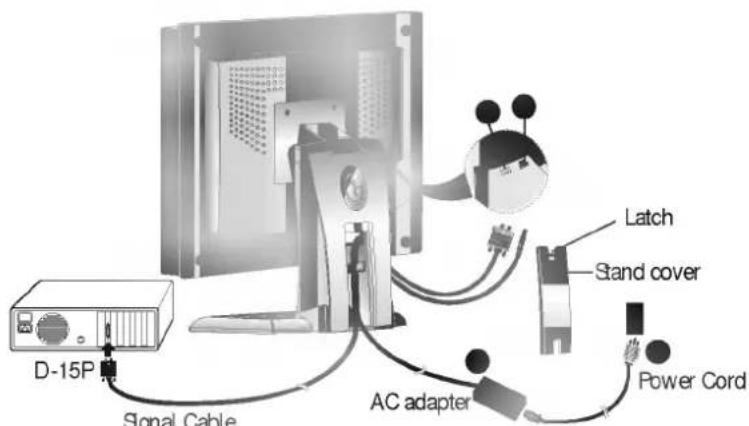
text_image
D-15P Signal Cable AC adapter Latch Stand cover Power CordFigure 1.
Connecting to an Apple Macintosh PC
Connecting the Monitor
Figure shows the connection to an Apple Macintosh, using a separately purchased adapter. For more information on adapter requirements, contact your authorized dealer, reseller, or service provider.
- Place the monitor in a convenient, well-ventilated location near your computer.
- Power off both the monitor and Computer.
- Slightly press and pull the latch on Stand cover.
- Connect the end of monitor signal cable to the connector● at the rear panel of your monitor through the slot and cable holder on Stand(see Figure2). Connect the other end of the monitor signal cable to the rear panel of Macintosh computer through a Macintosh adapter and then tighten screws.
- Connect the plug from the AC adapter into the base of the monitor. Connect one end of the AC power cord to the AC adapter and the other end to a properly grounded AC outlet that is easily accessible and close to the monitor.
- After connecting cables, put stand cover correctly into the holes unders stand. If securely connected, you can hear click sound from the latch.
- Power ON the PC, then the monitor.
- If you see the NO SIGNAL message, check the signal cable and connectors.
- After using the system, power OFF the monitor, then the PC.
Note : If you see the "OUT OF RANGE" message, check to make sure your system is set to one of the factory preset modes (see page A13), or is set to a resolution and refresh rate within the specification limits of this monitor.

text_image
Adapter 15P D-15P Signal Cable AC adapter Latch Stand cover Power CordFigure 2.
Location and Function of Controls
Front View
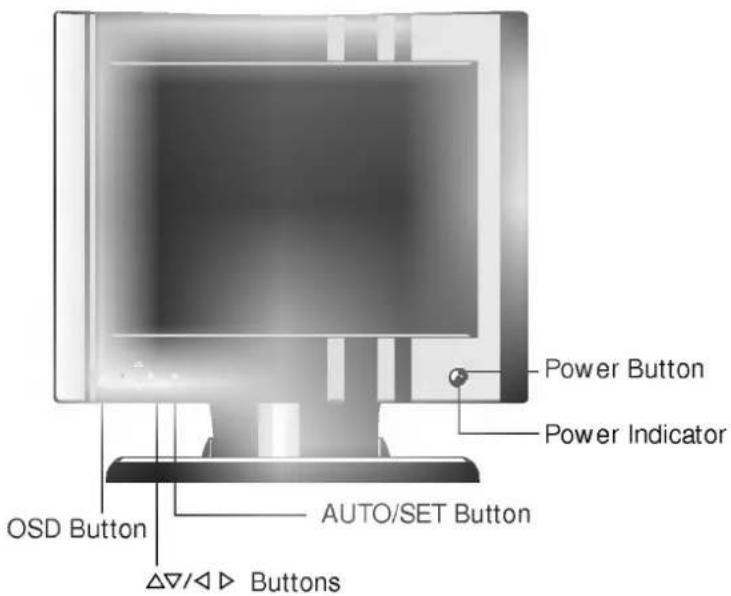
text_image
Power Button Power Indicator OSD Button AUTO/SET Button Δ∇/◄► ButtonsRear View
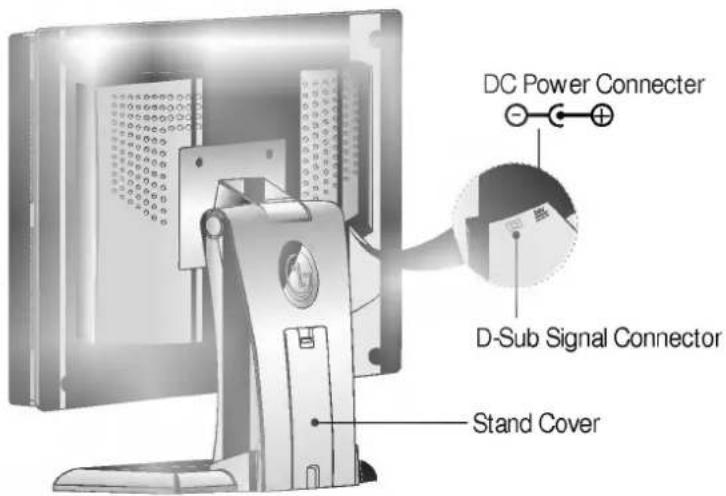
text_image
DC Power Connector D-Sub Signal Connector Stand CoverFront Panel Controls
* AUTO Function
When you press AUTO/SET button before using OSD menu, the screen disappears momentarily. Then, it is adjusted automatically to optimized configuration.

If screen configuration needs to be adjusted, you can use H/V Position, Clock, Phase function from OSD menu for better screen quality (see A8 to A10).
Control Panel Function
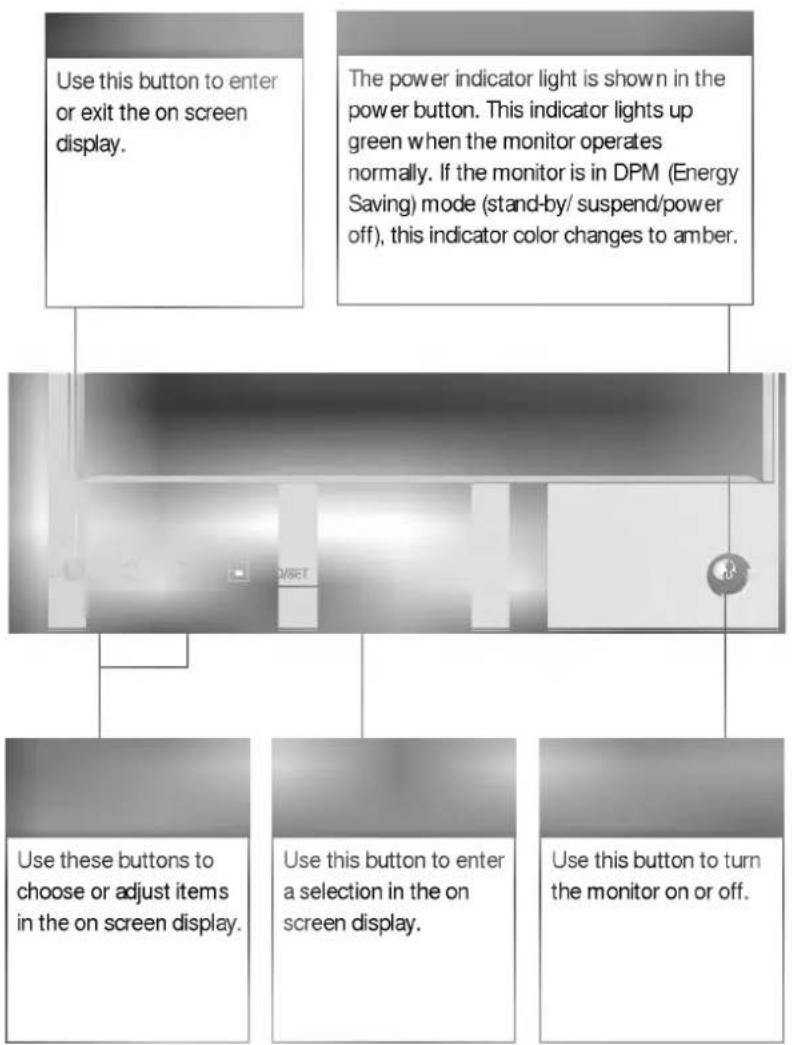
flowchart
graph TD
    A["Use this button to enter or exit the on screen display."] --> B["The power indicator light is shown in the power button. This indicator lights up green when the monitor operates normally. If the monitor is in DPM (Energy Saving) mode (stand-by/ suspend/power off), this indicator color changes to amber."]
    C["Use these buttons to choose or adjust items in the on screen display."] --> B
    D["Use this button to enter a selection in the on screen display."] --> B
    E["Use this button to turn the monitor on or off."] --> B
On Screen Display (OSD) Control Adjustment
Making adjustments to the image size, position and operating parameters of the monitor are quick and easy with the On Screen Display Control system. A quick example is given below to familiarize you with the use of the controls. Following section is an outline of the available adjustments and selections you can make using the OSD.
NOTE
- Allow the monitor to stabilize for at least 30 minutes before making image adjustment.
To make adjustments in the On Screen Display, follow these steps:

flowchart
graph TD
    A["OSD"] --> B["Δ"]
    B --> C["→ AUTO/SET"]
    D["OSD"] <--_E["■ AUTO/SET"]
    E --> F["←"]
    F --> G["Δ"]
    G --> H["→"]
| Used to adjust the brightness of the screen. | |
| Contrast | |
| Adjust the display to the contrast desired. |
1 Press the OSD Button, then the main menu of the OSD appears.
2 To access a control, use the △ or ▽ Buttons. When the icon you want becomes highlighted, press the AUTO/SET Button.
3 Use the / Buttons to adjust the item to the desired level.
4 Accept the changes by pressing the AUTO/SET Button.
5 Exit the OSD by Pressing the OSD Button.

flowchart
graph TD
    A["OSD"] --> B["Δ"]
    B --> C["→ AUTO/SET"]
    D["OSD"] <--_E["□ AUTO/SET"]
    E --> F["←"]
    F --> G["→"]
On Screen Display(OSD) Selection and Adjustment
You were introduced to the procedure of selection and adjusting an item using the OSD system.
Listed below are the icons, icon names, and icon descriptions of the items that are shown on the Menu.
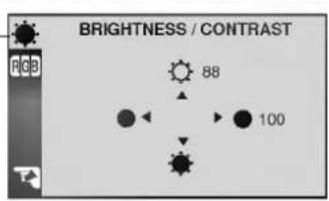
text_image
BRIGHTNESS / CONTRAST RGB 88 100

Brightness
Used to adjust the brightness of the screen.


Contrast
Adjust the display to the contrast desired.

text_image
COLOR PRESET 9300K 6500K RED ...... GREEN ...... BLUE ......PRESET
To appear the displays color temperature.
• 9300K: Slightly bluish white.
• 6500K: Slightly reddish white.
RED
To set your own color levels.
GREEN
To set your own color levels.
BLUE
To set your own color levels.

text_image
POSITION RGB 61 39

Vertical Position
To move image up and down.


Horizontal Position
To move picture image left and right.

flowchart
graph TD
    A["OSD"] --> B["Δ"]
    B --> C["→ AUTO/SET"]
    D["OSD"] <--_E["Auto/SET"]
    E --> F["←"]
    F --> G["Δ"]
    G --> H["→"]
On Screen Display(OSD) Selection and Adjustment
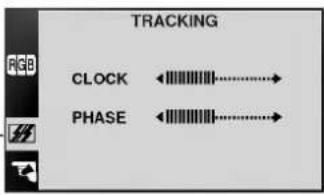
text_image
TRACKING CLOCK PHASECLOCK To minimize any vertical bars or stripes visible on the screen background. The horizontal screen size will also change.
PHASE To adjust the focus of the display. This item allows you to remove any horizontal noise and clear or sharpen the image of characters.
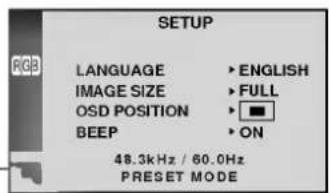
text_image
SETUP LANGUAGE ▶ ENGLISH IMAGE SIZE ▶ FULL OSD POSITION ▶ ■ BEEP ▶ ON 48.3kHz / 60.0Hz Preset MODELANGUAGE To choose the language in which the control names are displayed.
IMAGE SIZE This function displays the image in its original size or enlarged size so as to fit in the full screen of the LCD panel.
OSD POSITION To adjust position of the OSD window on the screen.
BEEP To select beep ON or OFF.
Energy Saving Design
This monitor complies with the EPA's Energy Star program, which is a program designed to have manufacturers of computer equipment build circuitry into their products to reduce power consumption during time of non-use.
This monitor also goes into its energy saving mode if you exceed the monitor's operating limits, such as the maximum resolution of 1024 x 768 or the frequency refresh rates of 31-69kHz horizontal or 56-85Hz vertical. When this monitor is used with a Green or EPA Energy Star PC, or a PC with a screen blanking software following the VESA Display Power Management Signalling (DPMS) protocol, this monitor can conserve significant energy by reducing power consumption during periods of non-use. When the PC goes into the energy saving mode, the monitor will go into a suspended operation state, indicated by the Power LED light changing from a green color to an amber color. After an extended period in the suspended mode, the monitor will then enter a semi-OFF mode to conserve more energy. In the semi-OFF mode or DPMS OFF mode as we call it in our specifications, the Power LED will still show an amber color. When you awaken your PC by hitting a key or moving the mouse, the monitor will also awaken to its normal operating mode, indicated by the green Power LED light. By following these conventions, the power consumption can be reduced to the following levels:
Power Consumption
| Mode | Hori. Sync | Verti. Sync | Video | Power Consumption | LED Color | |
| Normal(Max.) | On | On | Normal | ≤ | 36W | Green |
| Stand-by | Off | On | Off | ≤ | 3W | Amber |
| Suspend | On | Off | Off | ≤ | 3W | Amber |
| Power Off | Off | Off | Off | ≤ | 3W | Amber |
Low Radiation Compliance (MPR II)
Self Diagnostics Messages
DDC (Display Data Channel)
Low Radiation Compliance (MPRII), Self Diagnostics Messages and DDC (Display Data Channel)
This monitor meets one of the strictest guidelines available today for low radiation emissions, offering the user extra shielding and an antistatic screen coating. These guidelines, set forth by a government agency in Sweden, limit the amount of emission allowed in the Extremely Low Frequency (ELF) and Very Low Frequency (VLF) electromagnetic range.
Special Self Diagnostics messages will appear on the screen when identifying the following monitor conditions:
■ NO SIGNAL

This OSD may pop up when it is ON but no signal is detected. In this case the message NO SIGNAL will be highlighted, alerting you to check the signal cable connections.
■ OUT OF RANGE
This OSD may appear to inform you that the signal being sent to the monitor is not within its frequency range. In this case, you would need to check the resolution and refresh rate you have your video card set to, and adjust to be within the range of the monitor.
DDC is a communication channel over which the monitor automatically informs the host system (PC) about its capabilities. This monitor has two DDC function; DDC1 and DDC2B. DDC1 and DDC2B carry out unidirectional communication between the PC and the monitor. Under these situations, the PC sends display data to the monitor but not commands to control the monitor settings.
NOTE
■ PC must support DDC functions to do this.
- If your monitor is displaying a mono chrome image or the wrong resolution, select the DDC OFF function.
Display Modes (Resolution)
User Modes
Video Memory Modes
The monitor has 26 memory locations for display modes, 16 of which are factory preset to popular video modes.
| Display Modes(Resolution) | Horizontal Freq. (kHz) | Vertical Freq. (Hz) | ||
| 1 | VGA | 640 x 350 | 31.47 | 70 |
| 2 | VGA | 720 x 400 | 31.47 | 70 |
| 3 | VGA | 640 x 480 | 31.47 | 60 |
| 4 | MAC | 640 x 480 | 35.00 | 67 |
| 5 | VESA | 640 x 480 | 37.50 | 75 |
| 6 | VESA | 640 x 480 | 43.27 | 85 |
| 7 | VESA | 800 x 600 | 35.16 | 56 |
| 8 | VESA | 800 x 600 | 37.88 | 60 |
| 9 | MAC | 800 x 600 | 48.08 | 72 |
| 10 | VESA | 800 x 600 | 46.88 | 75 |
| 11 | VESA | 800 x 600 | 53.67 | 85 |
| 12 | MAC | 832 x 624 | 49.73 | 75 |
| 13 | VESA | 1024 x 768 | 48.36 | 60 |
| 14 | VESA | 1024 x 768 | 56.48 | 70 |
| 15 | VESA | 1024 x 768 | 60.02 | 75 |
| 16 | VESA | 1024 x 768 | 68.67 | 85 |
Note: This LCD monitor has been pre-adjusted to the video mode of VESA 1024x768 @60Hz.
- Modes 17-26 are empty and can accept new video data. If the monitor detects a new video mode that has not been present before or is not one of the preset modes, it stores the new mode automatically in one of the empty modes starting with mode 17.
If you use up the 10 blank modes and still have more new video modes, the monitor replaces the information in the user modes starting with mode 17.
Troubleshooting
Check the following before calling for service.
Display Position is incorrect.
■ Push the AUTO/SET Button.
■ If the results are unsatisfactory, adjust the image position using the H position and V position icon in the on screen display.
On the screen background, vertical bars or stripes are visible.
■ Push the AUTO/SET Button.
■ If the results are unsatisfactory, decrease the vertical bars or stripes using the CLOCK icon in the on screen display.
Any horizontal noise appearing in any image or characters are not clearly portrayed.
■ Push the AUTO/SET Button.
■ If the results are unsatisfactory, decrease the horizontal bars using the PHASE icon in the on screen display.
NO SIGNAL message.
■ The signal cable is not connected, or is loose. Check and secure the connection.
OUT OF RANGE message appears.
Picture is blank.
■ The frequency of the signal from the video card is outside the operating range of the monitor.
* Horizontal Frequency: 31kHz-69kHz
* Vertical Frequency: 56Hz-85Hz
Use the graphics board's utility software to change the frequency setting (Refer to the manual for graphics board).
You can change the setup to the supported resolution using the Safe Mode (Press the F8 key during booting the system).
The power LED is illuminated amber.
■ The monitor is in its display power management mode.
■ There is no active signal coming from the PC.
■ The signal cable is not fastened securely.
■ Check the computer power and graphics adapter configuration.
The monitor doesn't enter the power saving off mode (Amber).
■ Computer video signal is not VESA DPMS standard. Either the PC or the video controller card is not using the VESA DPMS power management function.
NOTE
■ If the power indicator(LED) light is blinking amber, may result in abnormal condition of the monitor.
■ Then press a power ON/OFF button on the front panel control and call your service technician for more information.

Service
Unplug the monitor from the wall outlet and refer servicing to qualified service personnel when :
■ The power cord or plug is damaged or frayed.
■ Liquid has been spilled into the monitor.
■ The monitor has been exposed to rain or water.
- The monitor does not operate normally following the operating instructions. Adjust only those controls that are covered in the operating instructions. An improper adjustment of other controls may result in damage and often requires extensive work by a qualified technician to restore the monitor to normal operation.
■ The monitor has been dropped or the cabinet has been damaged.
■ The monitor exhibits a distinct change in performance.
- Snapping or popping from the monitor is continuous or frequent while the monitor is operating. It is normal for some monitors to make occasional sounds when being turned on or off, or when changing video modes.
Do not attempt to service the monitor yourself, as opening or removing covers may expose you to dangerous voltage or other hazards. Refer all servicing to qualified service personnel.
Sync Signal Types
Specifications
1
Separate Sync.
H. Sync.
V. Sync.
(N.C: No Connection)
Signal Connector Pin Assignment
15pin VGA Connector
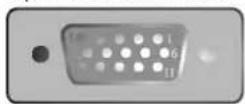
1
Red
2
Green
3
Blue
4
Ground
5
Self-Test
6
Red Ground
7
Green Ground
8
Blue Ground
9
N.C.
10
Ground
11
Ground
12
SDA
13
H. Sync.
14
V. Sync.
15
SCL
AC Adapter
AC 100-240V, 50-60Hz, 81-101VA, 1.2A - 0.6A
DC24V=1.5A

Use only the AC adapter supplied with the monitor.
Specifications
| Display | Type | 15.1inch (38.35cm) Flat Panel Active matrix-TFT LCD |
| Anti-Glare coating | ||
| Viewable Size | 15.1inch (38.35cm) | |
| Pixel pitch | 0.3 x 0.3mm | |
| True color | 16.7 million color (Applies to 575LE only)262,144 color (Applies to 575LS only) | |
| Sync Input | Horizontal Freq. | 31kHz - 69kHz (Automatic) |
| Vertical Freq. | 56Hz - 85Hz (Automatic) | |
| Input form | Separate, TTL, Positive/Negative | |
| Signal input | 15 pin D-Sub connector | |
| Video Input | Display Area | 307 x 230mm / 12.1 x 9.1inch |
| Input Form | Separate, RGB Analog, 0.714Vp-p/75ohm, Positive | |
| Resolution (max.) | VESA 1024 x 768 @85Hz | |
| Dimensions | Width | 39.4cm / 15.5inches |
| Height | 37.87cm / 14.91inches | |
| Depth | 16.18cm / 6.37inches | |
| Power Input | DC 24V 1.2A | |
| Weight | Net | 4.8kg / 10.58lbs |
| Tilt Range | Down | 5° |
| Up | 30° | |
| Environment Conditions | Operating condition | |
| Temperature | 10°C to 35°C | |
| Humidity | 10% to 80% non-condensing | |
| Storage condition | ||
| Temperature | -20°C to 60°C | |
| Humidity | 5% to 95% non-condensing | |
NOTE
■ Information in this document is subject to change without notice and does not represent a commitment on the part of LG Electronics Inc.
FCC Compliance Statement
Communications Regulation Information
This equipment has been tested and found to comply within the limits of a Class B digital device pursuant to Part 15 of the FCC Rules. These limits are designed to provide reasonable protection against harmful interference in a residential installation.
This equipment generates, uses, and can radiate radio frequency energy and if not installed and used in accordance with the instructions, may cause harmful interference to radio communications. However, there is no guarantee that interference will not occur in a particular installation.
If this equipment does cause harmful interference to radio or television reception (which can be determined by turning the equipment on and off), the user is encouraged to try to correct the interference by using one or more of the following measures:
■ Reorient or relocate the receiving antenna.
■ Increase the separation between the equipment and the receiver.
- Connect the equipment into an outlet on a circuit different from that to which the receiver is connected.
- Consult the dealer or an experienced radio/TV technician for help.
Canadian DOC Notice
Caution: Changes or modifications not expressly approved by the party responsible for compliance could void the user's (or your) authority to operate the equipment. Only peripherals (digital input/output devices, terminals, printers, etc.) certified to comply with the Class B limits may be attached to this monitor. Operation with non-certified peripherals is likely to result in interference to radio and TV reception.
Only shielded signal cables may be used with this System.
This Class B digital apparatus meets all requirements of the Canadian Interference-Causing Equipment Regulations.
CE Conformity Notice
CE
Products with the "CE" Marking comply with the EMC
Directive(89/336/EEC) and LOW VOLTAGE Directive (73/23/EEC) issued by the Commission of the European Community.
Compliance with these directives implies conformity to the following European Norms :
• EN 55022 ; Radio Frequency Interference
• EN 50082-1:1992 ; Electromagnetic Immunity
• EN 60555-2 ; Power Line Harmonics
• EN 60555-3 ; Voltage Fluctuations
• EN 60950 ; Product Safety
Congratulations!
Why do we have environmentally labelled computers?
Environmental Labelling of Personal Computers

You have just purchased a TCO'99 approved and labelled product! Your choice has provided you with a product developed for professional use. Your purchase has also contributed to reducing the burden on the environment and also to the further development of environmentally adapted electronics products.
This product meets the requirements for the TCO'99 scheme which provides for an international environmental and quality labelling of personal computers. The labelling scheme was developed as a joint effort by the TCO (The Swedish Confederation of Professional Employees), Svenska Naturskyddsforeningen (The Swedish Society for Nature Conservation), Statens Energimyndighet (The Swedish National Energy Administration) and SEMKO AB.
The requirements cover a wide range of issues: environment, ergonomics, usability, reduction of electric and magnetic fields, energy consumption and electrical safety.
In many countries, environmental labelling has become an established method for encouraging the adaptation of goods and services to the environment. The main problem, as far as computers and other electronics equipment are concerned, is that environmentally harmful substances are used both in the products and during their manufacture. Since it is not so far possible to satisfactorily recycle the majority of electronics equipment, most of these potentially damaging substances sooner or later enter nature.
There are also other characteristics of a computer, such as energy consumption levels, that are important from the viewpoints of both the work (internal) and natural (external) environments. Since all methods of electricity generation have a negative effect on the environment (e.g. acidic and climate-influencing emissions, radioactive waste), it is vital to save energy. Electronics equipment in offices is often left running continuously and thereby consumes a lot of energy.
What does labelling involve?
Environmental Labelling of Personal Computers
The environmental demands impose restrictions on the presence and use of heavy metals, brominated and chlorinated flame retardants, CFCs (freons) and chlorinated solvents, among other things. The product must be prepared for recycling and the manufacturer is obliged to have an environmental policy which must be adhered to in each country where the company implements its operational policy.
The energy requirements include a demand that the computer and/or display, after a certain period of inactivity, shall reduce its power consumption to a lower level in one or more stages. The length of time to reactivate the computer shall be reasonable for the user.
Labelled products must meet strict environmental demands, for example, in respect of the reduction of electric and magnetic fields, physical and visual ergonomics and good usability.
Below you will find a brief summary of the environmental requirements met by this product. The complete environmental criteria document may be ordered from:
TCO Development
SE-114 94 Stockholm, Sweden
Fax: +46 8 782 92 07
Email (Internet): development@tco.se
Current information regarding TCO'99 approved and labelled products may also be obtained via the Internet, using the address: http://www.tco-info.com/
Environmental requirements
Flame retardants
Flame retardants are present in printed circuit boards, cables, wires, casings and housings. Their purpose is to prevent, or at least to delay the spread of fire. Up to 30% of the plastic in a computer casing can consist of flame retardant substances. Most flame retardants contain bromine or chloride, and those flame retardants are chemically related to another group of environmental toxins, PCBs. Both the flame retardants containing bromine or chloride and the PCBs are suspected of giving rise to severe health effects, including reproductive damage in fish-eating birds and mammals, due to the bio-accumulative* processes. Flame retardants have been found in human blood and researchers fear that disturbances in foetus development may occur.
Environmental Labelling of Personal Computers
The relevant TCO'99 demand requires that plastic components weighing more than 25 grams must not contain flame retardants with organically bound bromine or chlorine. Flame retardants are allowed in the printed circuit boards since no substitutes are available.
Cadmium\*\*
Cadmium is present in rechargeable batteries and in the colour-generating layers of certain computer displays. Cadmium damages the nervous system and is toxic in high doses. The relevant TCO'99 requirement states that batteries, the colour-generating layers of display screens and the electrical or electronics components must not contain any cadmium.
Mercury\*\*
Mercury is sometimes found in batteries, relays and switches. It damages the nervous system and is toxic in high doses. The relevant TCO'99 requirement states that batteries may not contain any mercury. It also demands that mercury is not present in any of the electrical or electronics components associated with the labelled unit. There is however one exception. Mercury is, for the time being, permitted in the back light system of flat panel monitors as there today is no commercially available alternative. TCO aims on removing this exception when a mercury free alternative is available.
CFCs (freons)
The relevant TCO'99 requirement states that neither CFCs nor HCFCs may be used during the manufacture and assembly of the product. CFCs (freons) are sometimes used for washing printed circuit boards. CFCs break down ozone and thereby damage the ozone layer in the stratosphere, causing increased reception on earth of ultraviolet light with e.g. increased risks of skin cancer (malignant melanoma) as a consequence.
Lead\*\*
Lead can be found in picture tubes, display screens, solders and capacitors. Lead damages the nervous system and in higher doses, causes lead poisoning. The relevant TCO'99 requirement permits the inclusion of lead since no replacement has yet been developed.