
VXi Reveal Pro Office - Audio Equipment JABRA - Free user manual and instructions
Find the device manual for free VXi Reveal Pro Office JABRA in PDF.


| Product Type | Wireless Office Headset System |
| Brand | Jabra |
| Model | VXi Reveal Pro Office |
| Microphone | Advanced noise-canceling with extendable boom |
| Audio Technology | HD Voice (wideband) and A2DP for Bluetooth streaming |
| Connectivity | Bluetooth with multipoint (2 devices simultaneously) and NFC |
| Talk Time | Up to 7 hours |
| Standby Time | Up to 150 hours |
| Charging Time | Less than 90 minutes |
| Power Supply | Input: 100-240V AC; Output via mini-USB (5V) |
| Compatibility | Desk phones (headset or handset port) and Bluetooth cell phones |
| Wearing Styles | Ear hook, headband, neckband (with included accessories) |
| Included Accessories | Headset, base unit, power supply, desk phone cable, headband, neckband, collar, ear hooks (multiple sizes), ear buds (multiple sizes), quick-start guide, warranty card |
| Optional Accessories | VEHS (Electronic Hook Switch), L50 Lifter, replacement wearing styles kit |
| Safety Features | Hearing damage warning; do not immerse in water; use only included power cords; keep away from children |
| Maintenance | Clean with dry cloth; avoid moisture and extreme temperatures |
| Additional Functions | Parrott Button (mute or customizable), energy-saving charging mode, LED indicators |
| Manufacturer | VXi Corporation (a GN company), Dover, NH, USA |
| Regulatory Compliance | FCC, CE (typical) |
| Warranty | Standard manufacturer warranty (check included documentation) |
Frequently Asked Questions - VXi Reveal Pro Office JABRA
User questions about VXi Reveal Pro Office JABRA
0 question about this device. Answer the ones you know or ask your own.
Ask a new question about this device
Download the instructions for your Audio Equipment in PDF format for free! Find your manual VXi Reveal Pro Office - JABRA and take your electronic device back in hand. On this page are published all the documents necessary for the use of your device. VXi Reveal Pro Office by JABRA.
USER MANUAL VXi Reveal Pro Office JABRA
VXi Reveal Pro™ Office User Guide
TABLE OF CONTENTS
Welcome 3
- Headset Features
- Base Features
Safety Information 4
What's in the Box....4
Base Overview....5
Headset Overview 6
Optional Accessories 6
How to Wear 7
- Changing Wearing Styles
- Headset Positioning
• Using the Headset in High-Noise Situations
Connect to Your Desk Phone 9
- Connect Power
- Charge Headset
-
Connect and Configure Desk Phone
-
Desk Phone
- Desk Phone with EHS
– Desk Phone with L50 Lifter
- Position Base
Pairing the Headset 12
- To the Base
-
To a Cell Phone
-
NFC Pairing
- Manual Pairing
Making Calls with a Desk Phone 14
- Place a Call
- Answer a Call
- End a Call
- Mute a Call
- Reject a Call (Desk Phone)
• Answer a Second Incoming Call
- On Your Desk Phone
- From a Paired Cell Phone
Making Calls with a Cell Phone 15
- Place a Call
- Answer a Call
- End a Call
- Mute a Call
- Reject a Call
• Answer a Second Incoming Call
Parrott Button™ 16
Energy-Saving Charging Mode....16
Functions and Indicators Tables....17
- Base
-
Headset
-
Standby Mode Functions
- In-Call Functions
- Notifications
WELCOME
Congratulations on purchasing your new VXi office wireless product. This guide contains instructions for setting up and using your VXi Reveal Pro Office Wireless Headset System.
Reveal Pro Office Headset Features
- Advanced noise-canceling microphone
- Extendable boom for optimal mic placement
• HD Voice (wideband audio) for easy-to-hear, easy-to-understand calls
• A2DP support for streaming audio from Bluetooth devices - Multipoint pairing for use with two devices at the same time
• NFC for easy, instant mobile device pairing - 7+ hours of talk time/150 hours' standby time per charge
Reveal Pro Office Base Features
- Headset Docking/Charging Cradle
- Connects to Desk Phone
SAFETY INFORMATION
IMPORTANT SAFETY NOTE: Prolonged exposure to high volume levels can damage your hearing. To avoid injury, set the volume to the lowest comfortable level. If you experience ringing in your ears, or voices sound muffled, stop using the headset. Avoid turning up the volume to block noisy surroundings. It's possible for your ears to adapt to volume that is too high, and this could result in permanent hearing damage without any noticeable discomfort.
- Check with local and state laws regarding cell phone/headset usage while operating a motor vehicle.
- Do not immerse any part of this product in water.
- Plastic bags and small parts may cause choking if ingested. Keep them away from small children and pets.
- Use only the power cords included with this product.
- Avoid temperatures exceeding 140irc F (will cause equipment failure).
WHAT'S IN THE BOX?
Reveal Pro Office Package Contents
- BlueParrott ® Reveal Pro Headset
- Reveal Pro Office Base Unit
- Power Supply
- Desk Phone Connection Cable
- Headband
- Neckband*
- Wearing Styles Collar*
- Ear Hooks (multiple sizes)
- Ear Buds (multiple sizes)
- Quick-Start Guide*
- Warranty and Compliance Insert*
*Not pictured.

Images are not shown to scale.
BASE OVERVIEW
Front
A. Headset Docking/Charging Cradle
B. PC Button/LED (function not applicable for Reveal Pro Office version)
C. Multi-Function (MFB)/Pairing Button/MFB LED
D. Phone Button/LED

Back
A. EHS Interface Port
B. Telephone Interface Port
C. Micro-USB Port (for firmware updates)
D. Mini-USB Power Supply Port

Base
A. Compatibility Switch
B. Microphone (Tx) Gain Adjustment Switch

K-Lock Side
A. Kensington Security Slot

HEADSET OVERVIEW
A. Volume Up/Mute
B. Volume Down
C. Parrott Button™
D. Extendable Microphone Boom
E. On/Off Switch
F. Indicator Lights
G. Multifunction Button (MFB)
H. NFC Zone (pictured below)


OPTIONAL ACCESSORIES
VEHS Electronic Hook Switch (EHS) – Electronically takes your desk phone off hook. Enables remote call answer/end with your headset. See www.vxicorp.com/VEHS for VEHS variants and supported phones.
L50 Lifter – Automatically depresses/releases the handset hook switch of your desk phone. Enables remote call answer/end with your headset.
Replacement Wearing Styles Kit – Replacement parts to refresh your headset. Kit includes headband, neckband, ear hooks, and ear buds.
HOW TO WEAR
Changing Wearing Styles
The Reveal Pro Office headset is supplied with a choice of wearing styles:
Ear Hook and Ear Buds
The headset is provided with the medium-loop ear bud already attached. The loop on the ear bud should tuck into the back curve of your ear. If it feels too loose or tight, try a different size.
Rotate the ear bud on the headset to position it. If desired, clip on one of the optional ear hooks. Ear hooks are configured for either left- or right-ear wearing.
Headband or Behind-the-Neck
Remove the ear bud from the headset. Attach to the headband as shown. Add foam or rubber ear cushion. (The behind-the-neck style uses the same method.)

natural_image
Two-step illustration showing hands holding a tool, with one hand moving and the other adjusting the tool (no text or symbols present)

natural_image
Line drawing of a pair of headphones with earbuds and connector clips, showing mechanical assembly (no text or symbols)HOW TO WEAR (continued)
Headset Positioning
To get the best noise-canceling performance, angle the microphone boom towards the corner of your mouth. Positioning is important. Small adjustments in microphone placement can improve performance.

natural_image
Line drawing of a human face with an earpiece inserted, showing airflow direction (no text or symbols)Using the Headset in High-Noise Situations
The microphone boom is extendable for greater levels of noise cancellation in noisy environments. Simply slide the boom in or out as needed.
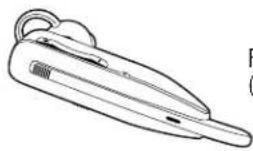
For Normal Use (Low-Noise Environment)

CONNECT TO YOUR DESK PHONE
Connect Power
Plug the mini-USB jack of the power supply into the mini-USB port on the back of the base unit. Plug the other end into a working power outlet. The round Multi-Function Button (MFB) will show three quick flashes.
Charge Headset
Place the headset in the charging cradle. The charging LED on the headset will be red when charging and change to blue when the headset is fully charged. Note that if the headset and base are paired together, the headset LED and base MFB LED will show a slow blue blink. A full charge takes less than 90 minutes.

natural_image
Technical line drawings of a spray lamp and its base mount (no text or symbols)CONNECT TO YOUR DESK PHONE (continued)
Connect and Configure Desk Phone
There are three options to set up the Reveal Pro Office with your desk phone.
Select the best option for your situation:
- Desk Phone (standard)
- Desk Phone with EHS (sold separately)
- Desk Phone with L50 Lifter (sold separately)
Desk Phone (standard)
Connect the desk phone connection cable to the back of the base and the other end to the headset port of the phone. If you do not have a headset port, you will need to use the handset port.
Check Configuration and Make a Test Call:
- Set your desk phone volume to mid-range.
- Check that the compatibility switch on the underside of the base is correct for your phone. Most phone makes use setting A, but many Cisco phones will use setting B, and many Avaya phones setting C.

natural_image
Line drawing of a telephone handset and a conical device connected by a cable (no text or symbols)-
Open the headset line on your desk phone, or remove the handset from the cradle if you are connected to the handset port.
-
While wearing the headset, press the Multi-Function Button on the headset.
-
If you do not hear a dial tone (or tones) when pressing dial pad buttons, try the other base compatibility switch settings until you do.
-
Dial a test call from the desk phone.
-
You can fine-tune the volume using the headset volume buttons.
- If additional microphone gain (speaking volume) is needed, you can adjust this on the underside of the base. Position 8 gives you maximum gain. Position 1 delivers minimum gain.
CONNECT TO YOUR DESK PHONE (continued)
Desk Phone with EHS (sold separately)
- Connect and configure as described above.
- Snap the EHS to the base unit.
- Connect the EHS cable to the EHS port on the base station. Refer to the EHS setup instructions for further installation details.
Desk Phone with L50 Lifter (sold separately)
- Connect the desk phone connection cable to the handset port of the phone.
- Check Configuration and Make a Test Call (see above).
- Attach the L50 Lifter to your phone. Refer to the L50 user's guide for lifter setup and adjustment details.
Position Base
To reduce the possibility of noise and interference problems, position the base at least 6 inches away from your desk phone and at least 12 inches away from your computer.
PAIRING THE HEADSET
To the Base
The headset and base that were packaged together are pre-paired at point of manufacture. However, if you wish to use a new headset, or need to re-pair your headset back to the base, the following applies:
Hot Desking
- Turn on the headset.
- Place the headset in the docking cradle and press the MFB on the base unit.
- Wait for pairing to complete. The headset LED will change to a steady blue flash when connected, and the base unit MFB will change to a steady blue flash.
Note: Base unit will automatically re-attempt pairing if the first attempt fails. Leave the headset in the cradle until pairing is successful.
Classic Pairing
- Place the base unit into pairing mode. Press and hold the round Multi-Function Button on the base unit until it flashes red and blue.
- Power on your headset. Then, press and hold the MFB until you hear "Discovering" and the headset LED is flashing red and blue to show it is in pairing mode.
- Wait for pairing to complete. The headset LED will change to a steady blue flash when connected, and the base MFB will change to a steady blue flash.
Note: When the headset is away from the base for an extended period (e.g. overnight), return the headset to the cradle and follow the Hot Desking instructions above.
PAIRING THE HEADSET (continued)
To a Cell Phone
NFC Pairing
- Confirm that your cell phone is NFC-capable.
- Make sure that NFC is enabled on your cell phone.
- Turn the headset on.
- Place the NFC zone of your cell phone against the NFC zone of the headset and hold together while your cell phone registers the headset.

- Follow the prompts on your cell phone until it confirms pairing is successful.
Note: NFC and One-Touch Pairing are dependent on your cell phone. The size and sensitivity of your phone's NFC zone and how to connect the headset may vary between devices.
Manual Pairing
-
Place the headset into pairing mode:
-
Power on the headset and make sure it does not connect to another device.
- Press and hold the MFB for 5 seconds, until the light is flashing red and blue. You will hear the voice prompt “Discovering.”
-
The headset will be visible for pairing to devices for 120 seconds.
-
Place your cell phone in Bluetooth Search/Scan Mode per the manufacturer's instructions.
-
Select "VXi Reveal Pro Office" to pair. (Passcode is "0000" if needed.)
-
When connected, the headset will give you the voice prompt, "Your headset is connected."
MAKING CALLS WITH A DESK PHONE
Place a Call
- While wearing the headset, either press the headset MFB or base station Phone Button.
- Open an active line on your desk phone. If you are using an EHS or the L50 Lifter, this step will be automatic.
• Dial the number on your desk phone. - To end the call, press either the headset MFB or base station Phone Button, and if needed, hang up on your desk phone (automatic with EHS or L50).
Answer a Call
- Put the headset on and press either the headset MFB or base station Phone Button.
- Answer the call with your desk phone controls (automatic with EHS or L50).
End a Call
- To end a call, press either the headset MFB or base station Phone Button. If needed, hang up on your desk phone (automatic with EHS or L50).
Mute a Call
- During a call, you can mute the headset by pressing the Parrott Button, or by pressing and holding the Volume Up button for 1-2 seconds.
- While muted, you will hear a single tone in the earpiece and a reminder tone every 10 seconds.
- To unmute, press the Parrott Button again, or press and hold the Volume Up button for 1-2 seconds.
Reject a Call
- To reject an incoming call, use the Call Reject function on your desk phone (if supported).
- If you are using an EHS or L50 lifter, you can reject a call by pressing the MFB.
Answer a Second Incoming Call
On Your Desk Phone
- Your desk phone may have call-management features that are better suited for specific second call management needs.
- If you are using an EHS or L50 (and if your desk phone supports it), answer a second call by pressing the MFB on the headset once to end the first call and again to answer the second call.
From a Paired Cell Phone
- Press the MFB once to end the first call, and then press the MFB again to answer the call on the cell phone.
Note: Unless you have an EHS or the L50 Lifter attached, you will need to end the call on the desk phone using the desk phone's call-management features.
MAKING CALLS WITH A CELL PHONE
Place a Call
- Dial the desired number on your phone. You will hear the call in the headset.
- To end the call, press the MFB once. The call will end and the headset will enter standby mode.
Answer a Call
- When you receive a call, you will hear ring tones in the headset. Press the MFB once to answer the call.
- To end the call, press the MFB once. The call will end and the headset will enter standby mode.
End a Call
- To end a call, press the MFB once. The call will end and the headset will enter standby mode.
Mute a Call
- While on a call, you can mute the headset by pressing the Parrott Button, or by pressing and holding the Volume Up button for 1-2 seconds.
- While muted, you will hear a single tone in the earpiece and a reminder tone every 10 seconds.
- To unmute, press the Parrott Button again, or press and hold the Volume Up button for 1-2 seconds.
Reject a Call
- To reject an incoming cell phone call when not on another call, press and hold the MFB for 1-2 seconds.
Answer a Second Incoming Call
- If you are on an active call and a second call comes in, you will hear a low tone notification in the headset. If supported by your phone, you have the following option: - To accept the incoming call and end the active call, press the MFB once to end, and then once again to answer.
Note: Your cell phone may also have second-call-management features.
PARROTT BUTTON™
As provided from the factory, the headset's Parrott Button offers an easy way to mute the headset. However, for cell phone use, you can also configure the button for other functions, such as a speed dial button for a dedicated phone number, or to launch a particular application on your phone.
To change the Parrott Button function, download the BlueParrott app for your cell phone (Android or iOS) or VXi Updater for your PC.
Go to www.vxicorp.com/parrott for updates and more information.
ENERGY-SAVING CHARGING MODE
When this mode is activated, all functions in the base will be disabled, except for headset battery charging.
To activate the energy-saving charging mode:
- Press and hold all three buttons on the top of the base for 5-6 seconds. When you release them, the base LEDs will go out and the energy-saving charging mode will be active. The headset will still be charging, but you will not be able to use the Reveal Pro Office base unit to route calls until the energy-saving charging mode is disabled.
To deactivate the energy-saving charging mode, either:
- Press and hold all three buttons on the top of the base for 5-6 seconds. When you release them, the base LEDs will be lit and the energy-saving charging mode will be disabled. You will now be able to use the Reveal Pro Office for calls.
Or:
- Unplug the Reveal Pro Office base unit from the power supply, and then plug it back in. This will reset the base unit and deactivate the energy-saving charging mode.
FUNCTIONS & INDICATORS TABLES
Base
| Function Button/Duration of Press Base LED Indicator | ||
| Power On NONE MFB LED - 3 quick blue | flashes | |
| Enable Classic Pairing Mode Base MFB | (6-7 seconds) | MFB LED - alternating blue/red flashes |
| Enable Hot Desk Pairing Mode* Base MFB (quick press) | MFB LED - alternating blue/red flashes | |
| Incoming Call NONE Phone LED - fast green flash | ||
| Answer Call Phone (Quick Press) | or Headset MFB | MFB LED - slow blue flash |
| Active Call NONE Phone LED - solid green | ||
| Cancel/End Call Phone (Quick Press) | or Headset MFB | MFB LED - fast red flash |
| Headset Connected to Base NONE MFB LED - solid blue | ||
| Headset Disconnected from Base NONE MFB LED - solid red | ||
| Headset Out of Range NONE MFB LED - solid red | ||
| Activate Energy-Saving Charging Mode | All Three Buttons(5-6 seconds) | NONE |
| Deactivate Energy-Saving Charging Mode | All Three Buttons(5-6 seconds) | MFB LED - solid blue |
*Headset must be in the docking cradle.
FUNCTIONS & INDICATORS TABLES (continued)
Headset Standby Mode Functions
| Function Button/Duration of Press | LED Indicator Audio | Indicator Voice Indicator | ||
| Power On Slide switch | toward boom | 3 fast blue flashes NONE | “Power on” | |
| Power Off Slide switch | toward tail | 4 fast red flashes NONE | “Power off” | |
| Enable Pairing Mode MFB (5-6 seconds) Alternating red and blue flash | NONE “Discovering” | |||
| Volume Up Volume Up (quick press) | NONE 1 short tone NONE | |||
| Volume Down | Volume Down (quick press) | NONE 1 short tone NONE | ||
| Phone Voice Control (Start/End) | MFB (quick press) | NONE | 1 tone | NONE |
| Last Number Redial | Volume Down (1-2 seconds) | NONE | 1 short tone NONE | |
| Disable LEDs | Volume Up/Volume Down (quick press) | NONE 1 short tone NONE | ||
| Enable LEDs | Volume Up/Volume Down (quick press) | LEDs active | 1 short tone NONE | |
| Reset Paired Devices | Volume Up/Volume Down (5-6 seconds) | 2 fast red flashes 2 low tones | NONE | |
| Establish Service Level Connection | MFB (quick press) | Fast blue flash | 1 long tone | “Your headset is connected” |
FUNCTIONS & INDICATORS TABLES (continued)
Headset In-Call Functions
| Function Button/Duration of Press | LED Indicator Audio Indicator Voice Indicator | ||
| Volume Up Volume Up(quick press) | NONE 1 short tone NONE | ||
| Volume Down VolumeDown(quick press) | NONE 1 short tone NONE | ||
| Mute (On/Off) ParrottButton(quick press) | NONE 1 tone NONE | ||
| Mute (On/Off) VolumeUp(1-2 seconds) | NONE 1 tone NONE | ||
| Mute Reminder NONENONE 1 tone (every 10 | seconds) | NONE | |
| Answer a Call MFB (quick press) Blue light flasheslightly slower | 2 rising tones | NONE | |
| End a CallMFB (quick press) | Blue light flasheslightly faster | 2 falling tones | NONE |
| Reject a Call – CellPhone Only*MFB(1-2 seconds) | NONE | 2 falling tones | NONE |
* Sends call to voicemail (if available)
FUNCTIONS & INDICATORS TABLES (continued)
Headset Notifications
| Notification Button/Duration of Press | LED Indicator Audio | Indicator Voice Indicator | ||
| Mute Reminder NONE | NONE 1 tone (every 10 | seconds) | NONE | |
| Headset Connects to Device | NONE Blue light, fast flash | NONE “Yourheadset | is connected” | |
| Disconnect from Device | NONE Red light, slow flash | NONE “ Your headset is | disconnected” | |
| Out of Range (Link Loss) | NONE Red light, slow flash | 2 short tones NONE | ||
| Low Battery NONE Red light, 2 fast | flashes | NONE “ Battery low ” every 60 seconds | ||
| Connect A2DP NONE Blue MFB | (quick, double-flash) | NONE “Yourheadset | is connected” | |

The Sound Choice™
VXi Corporation | 271 Locust Street | Dover, NH 03820 USA
Toll-Free (USA): 800-742-8588 | Phone: +1 603-742-2888
vxicorp.com
© 2016 VXi Corporation. All rights reserved.
APN 203834A
- VXi Reveal Pro™ Office User Guide
- TABLE OF CONTENTS
- Welcome 3
- Safety Information 4
- What's in the Box....4
- Base Overview....5
- Headset Overview 6
- Optional Accessories 6
- How to Wear 7
- Connect to Your Desk Phone 9
- Pairing the Headset 12
- Making Calls with a Desk Phone 14
- Making Calls with a Cell Phone 15
- Parrott Button™ 16
- Energy-Saving Charging Mode....16
- Functions and Indicators Tables....17
- WELCOME
- Reveal Pro Office Headset Features
- Reveal Pro Office Base Features
- SAFETY INFORMATION
- WHAT'S IN THE BOX?
- Reveal Pro Office Package Contents
- BASE OVERVIEW
- Front
- Back
- Base
- K-Lock Side
- HEADSET OVERVIEW
- OPTIONAL ACCESSORIES
- HOW TO WEAR
- Changing Wearing Styles
- Ear Hook and Ear Buds
- Headband or Behind-the-Neck
- HOW TO WEAR (continued)
- Headset Positioning
- Using the Headset in High-Noise Situations
- CONNECT TO YOUR DESK PHONE
- Connect Power
- Charge Headset
- CONNECT TO YOUR DESK PHONE (continued)
- Connect and Configure Desk Phone
- Desk Phone (standard)
- Desk Phone with EHS (sold separately)
- Desk Phone with L50 Lifter (sold separately)
- Position Base
- PAIRING THE HEADSET
- To the Base
- Hot Desking
- Classic Pairing
- PAIRING THE HEADSET (continued)
- To a Cell Phone
- NFC Pairing
- Manual Pairing
- MAKING CALLS WITH A DESK PHONE
- Place a Call
- Answer a Call
- End a Call
- Mute a Call
- Reject a Call
- Answer a Second Incoming Call
- On Your Desk Phone
- From a Paired Cell Phone
- MAKING CALLS WITH A CELL PHONE
- PARROTT BUTTON™
- ENERGY-SAVING CHARGING MODE
- To activate the energy-saving charging mode:
- To deactivate the energy-saving charging mode, either:
- FUNCTIONS & INDICATORS TABLES
- FUNCTIONS & INDICATORS TABLES (continued)
Brand : JABRA
Model : VXi Reveal Pro Office
Category : Audio Equipment