Dominion PX3-5969U - Inverter Raritan - Free user manual and instructions
Find the device manual for free Dominion PX3-5969U Raritan in PDF.


User questions about Dominion PX3-5969U Raritan
0 question about this device. Answer the ones you know or ask your own.
Ask a new question about this device
Download the instructions for your Inverter in PDF format for free! Find your manual Dominion PX3-5969U - Raritan and take your electronic device back in hand. On this page are published all the documents necessary for the use of your device. Dominion PX3-5969U by Raritan.
USER MANUAL Dominion PX3-5969U Raritan
PX3-3000/4000/5000 Series
User Guide
Xerus™ Firmware v3.4.0
Copyright © 2018 Raritan, Inc.
PX3-1C-v3.4.0-E
January 2018
255-80-0035-00
Safety Guidelines
WARNING! Read and understand all sections in this guide before installing or operating this product.
WARNING! Connect this product to an AC power source whose voltage is within the range specified on the product's nameplate. Operating this product outside the nameplate voltage range may result in electric shock, fire, personal injury and death.
WARNING! Connect this product to an AC power source that is current limited by a suitably rated fuse or circuit breaker in accordance with national and local electrical codes. Operating this product without proper current limiting may result in electric shock, fire, personal injury and death.
WARNING! Connect this product to a protective earth ground. Never use a "ground lift adaptor" between the product's plug and the wall receptacle. Failure to connect to a protective earth ground may result in electric shock, fire, personal injury and death.
WARNING! This product contains no user serviceable parts. Do not open, alter or disassemble this product. All servicing must be performed by qualified personnel. Disconnect power before servicing this product. Failure to comply with this warning may result in electric shock, personal injury and death.
WARNING! Use this product in a dry location. Failure to use this product in a dry location may result in electric shock, personal injury and death.
WARNING! Do not rely on this product's receptacle lamps, receptacle relay switches or any other receptacle power on/off indicator to determine whether power is being supplied to a receptacle. Unplug a device connected to this product before performing repair, maintenance or service on the device. Failure to unplug a device before servicing it may result in electric shock, fire, personal injury and death.
WARNING! Only use this product to power information technology equipment that has a UL/IEC 60950-1 or equivalent rating. Attempting to power non-rated devices may result in electric shock, fire, personal injury and death.
WARNING! Do not use a Raritan product containing outlet relays to power large inductive loads such as motors or compressors. Attempting to power a large inductive load may result in damage to the relay.
WARNING! Do not use this product to power critical patient care equipment, fire or smoke alarm systems. Use of this product to power such equipment may result in personal injury and death.
WARNING! If this product is a model that requires assembly of its line cord or plug, all such assembly must be performed by a licensed electrician and the line cord or plugs used must be suitably rated based on the product's nameplate ratings and national and local electrical codes. Assembly by unlicensed electricians or failure to use suitably rated line cords or plugs may result in electric shock, fire, personal injury or death.
WARNING! This product contains a chemical known to the State of California to cause cancer, birth defects, or other reproductive harm.
Safety Instructions
- Installation of this product should only be performed by a person who has knowledge and experience with electric power.
- Make sure the line cord is disconnected from power before physically mounting or moving the location of this product.
- This product is designed to be used within an electronic equipment rack. The metal case of this product is electrically bonded to the line cord ground wire. A threaded grounding point on the case may be used as an additional means of protectively grounding this product and the rack.
- Examine the branch circuit receptacle that will supply electric power to this product. Make sure the receptacle's power lines, neutral and protective earth ground pins are wired correctly and are the correct voltage and phase. Make sure the branch circuit receptacle is protected by a suitably rated fuse or circuit breaker.
- If the product is a model that contains receptacles that can be switched on/off, electric power may still be present at a receptacle even when it is switched off.
Tip 1: The outlet (socket) shall be installed near the equipment and shall be easily accessible.
Tip 2: For detailed information on any Raritan PDU's overcurrent protectors' design, refer to that model's product specification on Raritan website's PDU Product Selector page https://www.raritan.com/product-selector.
This document contains proprietary information that is protected by copyright. All rights reserved. No part of this document may be photocopied, reproduced, or translated into another language without express prior written consent of Raritan, Inc.
© Copyright 2018 Raritan, Inc. All third-party software and hardware mentioned in this document are registered trademarks or trademarks of and are the property of their respective holders.
FreeType Project Copyright Notice
Portions of this software are copyright © 2015 The FreeType Project (www.freetype.org). All rights reserved.
FCC Information
This equipment has been tested and found to comply with the limits for a Class A digital device, pursuant to Part 15 of the FCC Rules. These limits are designed to provide reasonable protection against harmful interference in a commercial installation. This equipment generates, uses, and can radiate radio frequency energy and if not installed and used in accordance with the instructions, may cause harmful interference to radio communications. Operation of this equipment in a residential environment may cause harmful interference.
VCCI Information (Japan)
Raritan is not responsible for damage to this product resulting from accident, disaster, misuse, abuse, non-Raritan modification of the product, or other events outside of Raritan's reasonable control or not arising under normal operating conditions.
If a power cable is included with this product, it must be used exclusively for this product.

text_image
CE cUL us 1F61 LISTED I.T.E.Warning
This is a class A product. In a domestic environment this product may cause radio interference in which case the user may be required to take adequate measures.
CAUTION:


To reduce the risk of shock — Use indoors only in a dry location. No user serviceable parts inside. Refer servicing to qualified personnel. For use with IT equipment only. Disconnect power before servicing.

SecureLock™
Contents
Safety Guidelines ii
Safety Instructions iii
Applicable Models xix
What's New in the PX3 User Guide xxi
Chapter 1 Introduction 1
Product Models....1
Package Contents....1
Zero U Products 2
1U Products....2
2U Products.... 2
APIPA and Link-Local Addressing 3
Before You Begin 4
Unpacking the Product and Components....4
Preparing the Installation Site....4
Checking the Branch Circuit Rating 4
Filling Out the Equipment Setup Worksheet 5
Chapter 2 Rackmount, Inlet and Outlet Connections 6
Circuit Breaker Orientation Limitation 6
Rack-Mounting the PDU....6
Rackmount Safety Guidelines....6
Mounting Zero U Models Using L-Brackets 7
Mounting Zero U Models Using Button Mount 9
Mounting Zero U Models Using Claw-Foot Brackets.... 10
Mounting Zero U Models Using Two Rear Buttons 12
Mounting 1U or 2U Models 13
Connecting a Locking Line Cord 15
Disconnecting a Locking Line Cord....16
Installing Cable Retention Clips on the Inlet (Optional) 17
Installing Cable Retention Clips on Outlets (Optional) 18
Locking Outlets and Cords....19
SecureLock™ Outlets and Cords 20
Button-Type Locking Outlets 21
Chapter 3 Initial Installation and Configuration 22
Connecting the PDU to a Power Source 22
Connecting the PX3 to Your Network....23
USB Wireless LAN Adapters....24
Supported Wireless LAN Configuration 25
Dual Ethernet Connection (for iX7™ Only) 26
Configuring the PX3....27
Connecting a Mobile Device to PX3 28
Connecting the PX3 to a Computer.... 32
Bulk Configuration Methods 35
Cascading Multiple PX3 Devices for Sharing Ethernet Connectivity 35
Cascading PX3 via USB 38
Extended Cascading with PX3-iX7 Models 41
Unsupported Cascading Connections for Port Forwarding 45
Power-Sharing Restrictions and Connection (for iX7™ Only) 47
Making a Power-Sharing Connection....48
Power-Sharing Configurations and Restrictions 49
Supported Sensor Configurations for Power Sharing.... 50
Chapter 4 Connecting External Equipment (Optional) 52
Connecting Environmental Sensor Packages....52
Identifying the Sensor Port 53
DPX Sensor Packages....53
DPX2 Sensor Packages....58
DPX3 Sensor Packages....60
DX or DX2 Sensor Packages 62
Using an Optional DPX3-ENVHUB4 Sensor Hub 65
Mixing Diverse Sensor Types....67
Connecting Asset Management Strips....71
Combining Regular Asset Strips 71
Introduction to Asset Tags....73
Connecting Regular Asset Strips to PX3 73
Connecting Blade Extension Strips 75
Connecting Composite Asset Strips (AMS-Mx-Z)....78
Contents
Connecting a Logitech Webcam 81
Connecting a GSM Modem 81
Connecting an Analog Modem 82
Connecting an External Beeper 83
Connecting a Schroff LHX/SHX Heat Exchanger 83
Chapter 5 Introduction to PDU Components 84
Panel Components 84
Inlet 85
Outlets 86
Connection Ports....87
Dot-Matrix LCD Display 91
Reset Button 122
Circuit Breakers 123
Resetting the Button-Type Circuit Breaker.... 123
Resetting the Handle-Type Circuit Breaker 124
Fuse 125
Fuse Replacement on Zero U Models 125
Fuse Replacement on 1U Models....126
Beeper 128
Replaceable Controller 129
Chapter 6 Using the Web Interface 131
Supported Web Browsers 131
Login, Logout and Password Change.... 132
Login 132
Changing Your Password....134
Remembering User Names and Passwords 135
Logout 135
Web Interface Overview....136
Menu 139
Quick Access to a Specific Page 142
Sorting a List....142
Dashboard 144
Dashboard - Inlet I1 146
Dashboard - OCP 148
Dashboard - Alerted Sensors 150
Dashboard - Inlet History 152
Dashboard - Alarms.... 155
PDU 157
Internal Beeper State 161
PX3 Latching Relay Behavior....162
Options for Outlet State on Startup 162
Initialization Delay Use Cases....163
Contents
Inrush Current and Inrush Guard Delay.... 163
Z Coordinate Format.... 164
How the Automatic Management Function Works.... 164
Time Units 165
Setting Thresholds for Total Active Energy or Power 165
+12V Power Supply Sensor (for iX7™ Only) 167
Inlet 168
Configuring a Multi-Inlet Model.... 171
Outlets 173
Available Data of the Outlets Overview Page 176
Bulk Configuration for Outlet Thresholds 177
Setting Outlet Power-On Sequence and Delay 179
Setting Non-Critical Outlets 180
Load Shedding Mode....181
Individual Outlet Pages 183
OCPs 191
Individual OCP Pages 193
Possible OCP-Tripped Root Cause 198
Peripherals 200
Yellow- or Red-Highlighted Sensors 206
Managed vs Unmanaged Sensors/Actuators 207
Sensor/Actuator States 208
Finding the Sensor's Serial Number 210
Identifying the Sensor Position and Channel 211
Managing One Sensor or Actuator 212
Individual Sensor/Actuator Pages 214
Sensor/Actuator Location Example.... 219
Feature Port 219
Asset Strip 221
External Beeper 230
Schroff LHX/SHX 231
Power CIM 236
User Management 237
Creating Users 238
Editing or Deleting Users.... 242
Creating Roles 244
Editing or Deleting Roles 245
Setting Your Preferred Measurement Units 247
Setting Default Measurement Units 248
Device Settings 249
Configuring Network Settings 251
Configuring Network Services.... 274
Configuring Security Settings 283
Setting the Date and Time 308
Event Rules and Actions 312
Setting Data Logging.... 368
Contents
Configuring Data Push Settings 369
Monitoring Server Accessibility 371
Front Panel Settings 375
Configuring the Serial Port 376
Lua Scripts 378
Miscellaneous 384
Maintenance 386
Device Information....388
Viewing Connected Users 393
Viewing or Clearing the Local Event Log....395
Updating the PX3 Firmware.... 396
Viewing Firmware Update History 400
Bulk Configuration 401
Backup and Restore of Device Settings....408
Network Diagnostics....409
Downloading Diagnostic Information 410
Rebooting the PX3 Device 411
Resetting All Settings to Factory Defaults 411
Retrieving Software Packages Information....412
Webcam Management 413
Configuring Webcams and Viewing Live Images.... 415
Sending Links to Snapshots or Videos 418
Viewing and Managing Locally-Saved Snapshots 420
Changing Storage Settings 423
SmartLock and Card Reader 427
SmartLock 428
Card Readers 432
Chapter 7 Using SNMP 434
Enabling and Configuring SNMP 434
SNMPv2c Notifications....435
SNMPv3 Notifications 436
Downloading SNMP MIB 439
SNMP Gets and Sets 440
The PX3 MIB 440
Retrieving Energy Usage 443
A Note about Enabling Thresholds 443
Chapter 8 Using the Command Line Interface 444
About the Interface 444
Logging in to CLI 445
With HyperTerminal....445
With SSH or Telnet 446
With an Analog Modem....447
Contents
Different CLI Modes and Prompts 447
Closing a Local Connection 448
The ? Command for Showing Available Commands 448
Querying Available Parameters for a Command 449
Showing Information 450
Network Configuration....450
PDU Configuration 455
Outlet Information 455
Inlet Information 456
Overcurrent Protector Information 457
Date and Time Settings 458
Default Measurement Units 458
Environmental Sensor Information 459
Environmental Sensor Package Information 460
Actuator Information....461
Outlet Sensor Threshold Information 462
Outlet Pole Sensor Threshold Information 463
Inlet Sensor Threshold Information 464
Inlet Pole Sensor Threshold Information 465
Overcurrent Protector Sensor Threshold Information 466
Environmental Sensor Threshold Information 468
Environmental Sensor Default Thresholds 469
Security Settings 470
Authentication Settings.... 471
Existing User Profiles 472
Existing Roles 473
Load Shedding Settings 473
Serial Port Settings 474
EnergyWise Settings 474
Asset Strip Settings 474
Rack Unit Settings of an Asset Strip 475
Blade Extension Strip Settings 476
Event Log....477
Wireless LAN Diagnostic Log 478
Server Reachability Information....478
Command History 480
Reliability Data 480
Reliability Error Log 480
Examples....480
Clearing Information 482
Clearing Event Log 483
Clearing WLAN Log 483
Configuring the PX3 Device and Network 483
Entering Configuration Mode 484
Quitting Configuration Mode 484
PDU Configuration Commands.... 485
Contents
Network Configuration Commands....493
Time Configuration Commands.... 522
Checking the Accessibility of NTP Servers 527
Security Configuration Commands.... 527
Outlet Configuration Commands 548
Inlet Configuration Commands.... 550
Overcurrent Protector Configuration Commands.... 552
User Configuration Commands 552
Role Configuration Commands.... 566
Authentication Commands 571
Environmental Sensor Configuration Commands 583
Configuring Environmental Sensors' Default Thresholds 588
Sensor Threshold Configuration Commands.... 590
Actuator Configuration Commands....601
Server Reachability Configuration Commands 602
EnergyWise Configuration Commands....606
Asset Management Commands....608
Serial Port Configuration Commands 615
Multi-Command Syntax 617
Load Shedding Configuration Commands 618
Enabling or Disabling Load Shedding....619
Power Control Operations....620
Turning On the Outlet(s) 620
Turning Off the Outlet(s) 621
Power Cycling the Outlet(s) 622
Canceling the Power-On Process.... 623
Example - Power Cycling Specific Outlets 623
Actuator Control Operations 623
Switching On an Actuator....624
Switching Off an Actuator 624
Example - Turning On a Specific Actuator 625
Unblocking a User 625
Resetting the PX3 625
Restarting the PDU 626
Resetting Active Energy Readings....626
Resetting to Factory Defaults 627
Network Troubleshooting....627
Entering Diagnostic Mode....627
Quitting Diagnostic Mode 628
Diagnostic Commands....628
Contents
Retrieving Previous Commands....630
Automatically Completing a Command 630
Logging out of CLI....631
Chapter 9 Using SCP Commands 632
Firmware Update via SCP 632
Bulk Configuration via SCP 633
Backup and Restore via SCP 634
Downloading Diagnostic Data via SCP 635
Chapter 10 In-Line Monitors 638
Overview....638
Safety Instructions....638
Flexible Cord Installation Instructions 639
Flexible Cord Selection 640
Plug Selection 640
Receptacle Selection 640
Derating a Raritan Product....641
Wiring of 3-Phase In-Line Monitors 642
In-Line Monitor Unused Channels 642
Step by Step Flexible Cord Installation 642
In-Line Monitor's Web Interface 648
Dashboard Page 649
Inlets/Outlets Page 654
Appendix A Specifications 656
Maximum Ambient Operating Temperature....656
Serial RS-232 "DB9" Port Pinouts 656
Serial RS-232 "RJ-45" Port Pinouts (for iX7™ Only) 657
Sensor RJ-45 Port Pinouts....657
Feature RJ-45 Port Pinouts 658
Expansion RJ-45 Port Pinouts (for iX7™ Only) 658
Appendix B Equipment Setup Worksheet 660
Appendix C Configuration or Firmware Upgrade with a USB Drive 664
Device Configuration/Upgrade Procedure 664
System and USB Requirements 665
Configuration Files 666
fwupdate.cfg 667
config.txt 671
devices.csv 673
Creating Configuration Files via Mass Deployment Utility 674
Data Encryption in 'config.txt' 675
Contents
Firmware Upgrade via USB 676
Appendix D Bulk Configuration or Firmware Upgrade via DHCP/TFTP 678
Bulk Configuration/Upgrade Procedure 678
TFTP Requirements....679
DHCP IPv4 Configuration in Windows 680
DHCP IPv6 Configuration in Windows 690
DHCP IPv4 Configuration in Linux....697
DHCP IPv6 Configuration in Linux....699
Appendix E Resetting to Factory Defaults 701
Using the Reset Button 701
Using the CLI Command 702
Appendix F PX3 Models with Residual Current Monitoring 704
RCM Current Sensor 704
RCM State Sensor....705
Compliance with IEC 62020....706
RCM Self-Test....707
Web Interface Operations for RCM 708
Checking RCM State and Current 708
Setting RCM Current Thresholds 710
Scheduling RCM Self-Test 710
Disabling or Enabling Front Panel RCM Self-Test.... 711
Front Panel Operations for RCM 711
LCD Message for RCM Critical State....711
Checking RCM States and Current 712
Running RCM Self-Test 713
RCM SNMP Operations 715
RCM Trap....715
RCM Residual Current and State Objects 715
Setting RCM Thresholds 715
Running RCM Self-Test 715
CLI Operations for RCM....716
Showing Residual Current Monitor Information 716
Setting RCM Current Thresholds 716
Setting Front Panel RCM Self-Test 718
Running RCM Self-Test 718
Degaussing RCM Type B Sensors....718
Appendix G Old PX3 Character LCD Display
719
Overview of the LCD Display 720
Control Buttons 721
Operating the LCD Display 721
Outlet Information....721
Inlet Information 723
Overcurrent Protector Information 724
IPv4 Address 726
MAC Address....727
Outlet Switching....728
Environmental Sensor Information 730
Asset Strip Information....732
USB-Cascaded Device's Position 734
RCM Information....736
Appendix H LDAP Configuration Illustration 739
Step A. Determine User Accounts and Roles 739
Step B. Configure User Groups on the AD Server 740
Step C. Configure LDAP Authentication on the PX3 Device.... 741
Step D. Configure Roles on the PX3 Device 742
Appendix I Updating the LDAP Schema 745
Returning User Group Information 745
From LDAP/LDAPS 745
From Microsoft Active Directory....745
Setting the Registry to Permit Write Operations to the Schema.... 746
Creating a New Attribute....746
Adding Attributes to the Class 747
Updating the Schema Cache 749
Editing rciusergroup Attributes for User Members 749
Appendix J RADIUS Configuration Illustration
752
Standard Attributes 752
NPS Standard Attribute Illustration 752
FreeRADIUS Standard Attribute Illustration....770
Vendor-Specific Attributes 771
NPS VSA Illustration 771
FreeRADIUS VSA Illustration 783
AD-Related Configuration 784
Appendix K Additional PX3 Information 788
RJ45-to-DB9 Cable Requirements for Modem Connections (for iX7™ Only) 788
Reserving IP Addresses in DHCP Servers 789
Reserving IP in Windows....790
Reserving IP in Linux 791
Sensor Threshold Settings....793
Thresholds and Sensor States....793
"To Assert" and Assertion Timeout 796
"To De-assert" and Deassertion Hysteresis 798
Default Voltage and Current Thresholds 801
Altitude Correction Factors 803
Unbalanced Current Calculation....804
Data for BTU Calculation....805
Ways to Probe Existing User Profiles 806
Raritan Training Website 806
Role of a DNS Server 806
Cascading Troubleshooting....807
Possible Root Causes 807
Slave Device Events in the Log 809
The Ping Tool....810
Installing the USB-to-Serial Driver (Optional) 811
Initial Network Configuration via CLI 812
Device-Specific Settings....817
TLS Certificate Chain....817
What is a Certificate Chain 818
Illustration - GMAIL SMTP Certificate Chain.... 821
Browsing through the Online Help....824
Appendix L Integration 826
Dominion KX II / III Configuration....826
Configuring Rack PDU Targets 827
Turning Outlets On/Off and Cycling Power 830
Dominion KSX II, SX or SX II Configuration 831
Dominion KSX II....831
Dominion SX and SX II 833
Power IQ Configuration 836
dcTrack 837
dcTrack Overview 838
Asset Management Strips and dcTrack 839
Contents
Index 841
Applicable Models
This User Guide is applicable to all the following PDU Generations.
• PX3 PDU Generation (3000/4000/5000 series)
- PX3 with iX7™ PDU Generation (3000/4000/5000 series)
Any PX Generations can be associated with existing metering families called "Series", from 1000 series to 5000 series.
For example, PX2-4000, PX3-4000 series and PX3-iX7-4000 series are all inlet metered and outlet metered PDUs, but have different controller generations.
Note: For information on other PX2, PX3 or PX3-iX7 models, see their respective Online Help or User Guide on the Raritan website's Support page (http://www.raritan.com/support/).
PX models comparison in brief:
| Features | Inlet power measurement | Outlet power measurement | Outlet switching | Load shedding |
| 1000 Series |  | |||
| 2000 Series |  |  |  | |
| 3000 Series (Inline meters) |  | |||
| 4000 Series |  |  | ||
| 5000 Series |  |  |  |  |
Note: PDUs with similar model names but of different product models may vary in their designs. For example, PX2-5660V and PX3-5660V do NOT share the same outlet sequence and technical designs. For details on a model's technical design, refer to their product specifications on Raritan website's PDU Product Selector page https://www.raritan.com/product-selector.
▶ Comparison between PX2, PX3 and PX3-iX7:
| Product models PX2 Series | PX3 Series | PX3 with iX7TMController | ||
| Front panel display | LED display | Dot-matrix LCDdisplay | Dot-matrix LCDdisplay | |
| Outlet latching relays |  | * | * | |
| Number of LAN ports | 1 | 2 | 2 | |
| Replaceable controller |  | ** |  | |
| Number of USB-A ports | 1 | 2 | 2 | |
| Maximum USB rate | 12 Mbps | 12 Mbps | 480 | Mbps |
| RS-232 port(CONSOLE/MODEM) | Male DB9Connector | Male DB9Connector | RJ-45 Connector | |
| Expansion ports |  *** *** | |||
| SENSOR port type | R J - 1 2 | R J - 4 5 | R J - 4 5 | |
* Only PX3 models with outlet switching have outlet latching relays.
** Only PX3 "Zero U" (both PX3 and PX3-iX7) have the replaceable controller.
*** The Expansion port is used for power sharing of controllers.
What's New in the PX3 User Guide
The following sections have changed or information has been added to the PX3 User Guide based on enhancements and changes to the equipment and/or user documentation.
Applicable Models (on page xix)
Configuring the PX3(on page 27)
Connecting a Mobile Device to PX3(on page 28)
Saving User Credentials for PDView's Automatic Login (on page 31)
Connecting the PX3 to a Computer (on page 32)
Cascading PX3 via USB (on page 38)
Identifying the Sensor Port (on page 53)
DX or DX2 Sensor Packages (on page 62)
Connecting Composite Asset Strips (AMS-Mx-Z) (on page 78)
Daisy-Chain Limitations of Composite Asset Strips (on page 80)
Automatic and Manual Modes (on page 92)
PDU (on page 98)
Supported Web Browsers (on page 131)
Login (on page 132)
Web Interface Overview(on page 136)
Menu (on page 139)
Sorting a List (on page 142)
Dashboard (on page 144)
Dashboard - Inlet I1 (on page 146)
Dashboard - OCP(on page 148)
Dashboard - Inlet History (on page 152)
Dashboard - Alarms (on page 155)
PDU (on page 157)
Z Coordinate Format (on page 164)
Configuring a Multi-Inlet Model (on page 171)
Load Shedding Mode (on page 181)
Individual OCP Pages(on page 193)
Possible OCP-Tripped Root Cause (on page 198)
Peripherals (on page 200)
Individual Sensor/Actuator Pages (on page 214)
Asset Strip (on page 221)
Schroff LHX/SHX(on page 231)
User Management (on page 237)
Creating Users (on page 238)
Creating Roles (on page 244)
Setting Your Preferred Measurement Units (on page 247)
Device Settings (on page 249)
Configuring Network Services (on page 274)
Configuring Security Settings (on page 283)
Creating IP Access Control Rules (on page 284)
Creating Role Access Control Rules (on page 287)
Creating a CSR(on page 291)
Adding Radius Servers (on page 301)
Calendar(on page 310)
Built-in Rules and Rule Configuration (on page 313)
Default Log Messages (on page 319)
Available Actions (on page 332)
Placeholders for Custom Messages (on page 357)
Writing or Loading a Lua Script (on page 378)
Manually Starting or Stopping a Script (on page 380)
Modifying or Deleting a Script (on page 383)
Viewing Connected Users (on page 393)
Viewing or Clearing the Local Event Log (on page 395)
Upgrade Sequence in an Existing Cascading Chain (on page 398)
Bulk Configuration (on page 401)
Bulk Configuration Restrictions (on page 402)
Customizing Bulk Configuration Profiles (on page 404)
Performing Bulk Configuration (on page 405)
Modifying or Removing Bulk Profiles (on page 407)
Backup and Restore of Device Settings (on page 408)
Webcam Management (on page 413)
Configuring Webcams and Viewing Live Images (on page 415)
Sending Links to Snapshots or Videos (on page 418)
How Long a Link Remains Accessible (on page 420)
Viewing and Managing Locally-Saved Snapshots (on page 420)
Changing Storage Settings (on page 423)
Identifying Snapshots Folders on Remote Servers(on page 425)
SmartLock and Card Reader (on page 427)
SmartLock(on page 428)
Card Readers (on page 432)
The ? Command for Showing Available Commands (on page 448)
Querying Available Parameters for a Command (on page 449)
IP Configuration (on page 451)
IPv4-Only or IPv6-Only Configuration (on page 452)
Network Interface Settings (on page 453)
Overcurrent Protector Information (on page 457)
Security Settings (on page 470)
Authentication Settings (on page 471)
Specifying the Device Altitude (on page 491)
Setting the Maximum Number of Active Powered Dry Contact
Actuators(on page 492)
Setting the IPv4 Configuration Mode (on page 494)
Setting the IPv4 Preferred Host Name (on page 495)
Setting the IPv4 Address (on page 496)
Setting the IPv6 Configuration Mode (on page 498)
Setting the IPv6 Preferred Host Name (on page 499)
Setting the IPv6 Address (on page 500)
Configuring DNS Parameters (on page 503)
Enabling or Disabling the LAN Interface (on page 504)
Changing the LAN Duplex Mode (on page 506)
Setting NTP Parameters (on page 524)
Role Configuration Commands (on page 566)
All Privileges (on page 566)
Authentication Commands (on page 571)
Determining the Authentication Method (on page 571)
LDAP Settings (on page 572)
Adding an LDAP Server (on page 573)
Optional Parameters (on page 574)
Illustrations of Adding LDAP Servers (on page 576)
Copying an Existing Server's Settings (on page 577)
Modifying an Existing LDAP Server (on page 577)
Removing an Existing LDAP Server (on page 580)
Radius Settings (on page 580)
Adding a Radius Server (on page 580)
Modifying an Existing Radius Server (on page 581)
Removing an Existing Radius Server (on page 583)
Downloading Diagnostic Data via SCP(on page 635)
Dashboard Page (on page 649)
Inlets/Outlets Page (on page 654)
fwupdate.cfg (on page 667)
config.txt (on page 671)
RCM Current Sensor (on page 704)
RCM State Sensor (on page 705)
Compliance with IEC 62020 (on page 706)
Web Interface Operations for RCM (on page 708)
Checking RCM State and Current (on page 708)
RCM Critical State Alarm (on page 709)
Reserving IP Addresses in DHCP Servers (on page 789)
Reserving IP in Windows (on page 790)
Reserving IP in Linux (on page 791)
Default Voltage and Current Thresholds (on page 801)
Possible Root Causes (on page 807)
The Ping Tool (on page 810)
Device-Specific Settings (on page 817)
TLS Certificate Chain (on page 817)
What is a Certificate Chain (on page 818)
Illustration - GMAIL SMTP Certificate Chain (on page 821)
Please see the Release Notes for a more detailed explanation of the changes applied to this version of PX3.
Chapter 1 Introduction
In this User Guide, PX3 refers to both PX3 and "PX3 with iX7" controller" unless otherwise specified. PX3 with iX7" controller is called PX3-iX7 or iX7" in the User Guide.
Raritan PX3 is an intelligent power distribution unit (PDU) that allows you to reboot remote servers and other network devices and/or to monitor power in the data center.
The intended use of the Raritan PX3 is distribution of power to information technology equipment such as computers and communication equipment where such equipment is typically mounted in an equipment rack located in an information technology equipment room.
Raritan offers different types of PX3 units -- some are outlet-switching capable, and some are not. With the outlet-switching function, you can recover systems remotely in the event of system failure and/or system lockup, eliminate the need to perform manual intervention or dispatch field personnel, reduce downtime and mean time to repair, and increase productivity.
In This Chapter
Product Models ....1
Package Contents....1
APIPA and Link-Local Addressing....3
Before You Begin....4
Product Models
The PX3 comes in several models that are built to stock and can be obtained almost immediately. Raritan also offers custom models that are built to order and can only be obtained on request.
Download the PX3 Data Sheet from Raritan's website, visit the Product Selector page (http://www.findmypdu.com/) on Raritan's website, or contact your local reseller for a list of available models.
Package Contents
The following sub-topics describe the equipment and other material included in the product package.
Zero U Products
- The PX3 device
- Screws, brackets and/or buttons for Zero U
- Cable retention clips for the inlet (for some models only)
- Cable retention clips for outlets (for some models only)
- An "optional" null-modem cable with DB9 connectors on both ends (Raritan number: 254-01-0006-00) -- for PX3 models
For PX3-iX7, use a third party RJ45-to-DB9 adapter/cable instead of the null-modem cable. See RJ45-to-DB9 Cable Requirements for Computer Connections (for iX7* Only) (on page 34).
1U Products
- The PX3 device
• 1U bracket pack and screws - Cable retention clips for the inlet (for some models only)
- An "optional" null-modem cable with DB9 connectors on both ends (Raritan number: 254-01-0006-00) -- for PX3 models
For PX3-iX7, use a third party RJ45-to-DB9 adapter/cable instead of the null-modem cable. See RJ45-to-DB9 Cable Requirements for Computer Connections (for iX7 ^® Only)(on page 34).
2U Products
- The PX3 device
• 2U bracket pack and screws - Cable retention clips for the inlet (for some models only)
- An "optional" null-modem cable with DB9 connectors on both ends (Raritan number: 254-01-0006-00) -- for PX3
For PX3-iX7, use a third party RJ45-to-DB9 adapter/cable instead of the null-modem cable. See RJ45-to-DB9 Cable Requirements for Computer Connections (for iX7 ^™ Only)(on page 34).
APIPA and Link-Local Addressing
The PX3 supports Automatic Private Internet Protocol Addressing (APIPA).
With APIPA, your PX3 automatically configures a link-local IP address and a link-local host name when it cannot obtain a valid IP address from any DHCP server in the TCP/IP network.
Only IT devices connected to the same subnet can access the PX3 using the link-local address/host name. Those in a different subnet cannot access it.
Exception: PX3 in the Port Forwarding mode does not support APIPA. See Setting the Cascading Mode (on page 265).
Once the PX3 can get a DHCP-assigned IP address, it stops using APIPA and the link-local address is replaced by the DHCP-assigned address.
▶ Scenarios where APIPA applies:
- DHCP is enabled on the PX3, but no IP address is assigned to the PX3.
This may be caused by the absence or malfunction of DHCP servers in the network.
Note: Configuration by connecting the PX3 to a computer using a network cable is an application of this scenario. See Connecting the PX3 to a Computer (on page 32).
- The PX3 previously obtained an IP address from the DHCP server, but the lease of this IP address has expired, and the lease cannot be renewed, or no new IP address is available.
Link-local addressing:
- IPv4 address:
Factory default is to enable IPv4 only. The link-local IPv4 address is 169.254.x.x/16, which ranges between 169.254.1.0 and 169.254.254.255.
- IPv6 address:
A link-local IPv6 address is available only after IPv6 is enabled on the PX3. See Configuring Network Settings (on page 251).
- Host name - pdu.local:
You can type https://pdu.local to access the PX3 instead of typing the link-local IP address.
For retrieval of the link-local address, see Device Info(on page 116).
Before You Begin
Before beginning the installation, perform the following activities:
- Unpack the product and components
• Prepare the installation site - Check the branch circuit rating
- Fill out the equipment setup worksheet
Unpacking the Product and Components
- Remove the PX3 device and other equipment from the box in which they were shipped. See Package Contents(on page 1) for a complete list of the contents of the box.
- Compare the serial number of the equipment with the number on the packing slip located on the outside of the box and make sure they match.
- Inspect the equipment carefully. If any of the equipment is damaged or missing, contact Raritan's Technical Support Department for assistance.
- Verify that all circuit breakers on the PX3 device are set to ON. If not, turn them ON.
Or make sure that all fuses are inserted and seated properly. If there are any fuse covers, ensure that they are closed.
Note: Not all PX3 devices have overcurrent protectors.
Preparing the Installation Site
- Make sure the installation area is clean and free of extreme temperatures and humidity.
Note: If necessary, contact Raritan Technical Support for the maximum operating temperature for your model. See Maximum Ambient Operating Temperature (on page 656).
-
Allow sufficient space around the PX3 device for cabling and outlet connections.
-
Review Safety Instructions (on page iii) listed in this User Guide.
Checking the Branch Circuit Rating
The rating of the branch circuit supplying power to the PDU shall be in accordance with national and local electrical codes.
Filling Out the Equipment Setup Worksheet
An Equipment Setup Worksheet is provided in this User Guide. See Equipment Setup Worksheet (on page 660). Use this worksheet to record the model, serial number, and use of each IT device connected to the PDU.
As you add and remove devices, keep the worksheet up-to-date.
Chapter 2 Rackmount, Inlet and Outlet Connections
In This Chapter
Circuit Breaker Orientation Limitation....6
Rack-Mounting the PDU....6
Connecting a Locking Line Cord 15
Installing Cable Retention Clips on the Inlet (Optional) 17
Installing Cable Retention Clips on Outlets (Optional) 18
Locking Outlets and Cords....19
Circuit Breaker Orientation Limitation
Usually a PDU can be mounted in any orientation. However, when mounting a PDU with circuit breakers, you must obey these rules:
- Circuit breakers CANNOT face down. For example, do not horizontally mount a Zero U PDU with circuit breakers on the ceiling.
- If a rack is subject to shock in environments such as boats or airplanes, the PDU CANNOT be mounted upside down. If installed upside down, shock stress reduces the trip point by 10%.
Note: If normally the line cord is down, upside down means the line cord is up.
Rack-Mounting the PDU
This chapter describes how to rack mount a PX3 device. Only the most common rackmount method is displayed. Follow the procedure suitable for your model.
Rackmount Safety Guidelines
In Raritan products which require rack mounting, follow these precautions:
- Operation temperature in a closed rack environment may be greater than room temperature. Do not exceed the rated maximum ambient temperature of the Power Distribution Units. See Specifications (on page 656) in the User Guide.
■ Ensure sufficient airflow through the rack environment. - Mount equipment in the rack carefully to avoid uneven mechanical loading.
■ Connect equipment to the supply circuit carefully to avoid overloading circuits.
■ Ground all equipment properly, especially supply connections, to the branch circuit.
Mounting Zero U Models Using L-Brackets
If your PDU has circuit breakers implemented, read Circuit Breaker Orientation Limitation (on page 6) before mounting it.

natural_image
Pure vertical line diagram with no text, numbers, or symbols
natural_image
Technical line drawing of a vertical rectangular structure with mounting holes and internal components (no text or symbols)To mount Zero U models using L-brackets:
-
Align the baseplates on the rear of the PX3 device.
-
Secure the baseplates in place. Use the included L-shaped hex key to loosen the hex socket screws until the baseplate is "slightly" fastened.

-
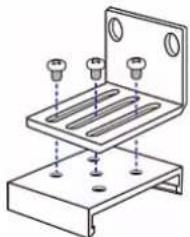
Align the L-brackets with the baseplates so that the five screw-holes on the baseplates line up through the L-bracket's slots. The rackmount side of brackets should face either the left or right side of the PX3 device.
-
Fasten the brackets in place with at least three screws (one through each slot). Use additional screws as desired.
natural_image
Technical line drawing of a mechanical assembly with three mounting holes and a base plate (no text or symbols)- Using rack screws, fasten the PX3 device to the rack through the L-brackets.
Mounting Zero U Models Using Button Mount
If your PDU has circuit breakers implemented, read Circuit Breaker Orientation Limitation (on page 6) before mounting it.
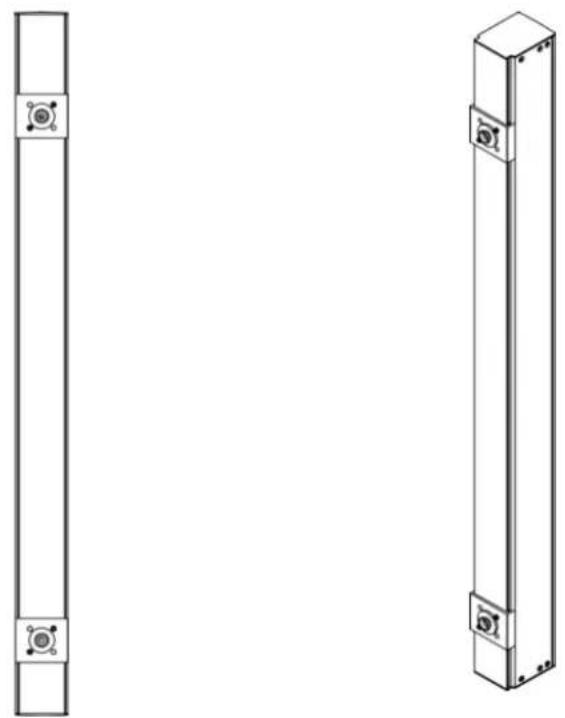
To mount Zero-U models using button mount:
-
Align the baseplates on the rear of the PX3 device. Leave at least 24 inches between the baseplates for stability.
-
Make the baseplates grasp the device lightly. Use the included L-shaped hex key to loosen the hex socket screws until the baseplate is "slightly" fastened.
-
Screw each mounting button in the center of each baseplate. The recommended torque for the button is 1.96 N·m (20 kgf·cm).

-
Align the large mounting buttons with the mounting holes in the cabinet, fixing one in place and adjusting the other.
-
Loosen the hex socket screws until the mounting buttons are secured in their position.
- Ensure that both buttons can engage their mounting holes simultaneously.
- Press the PX3 device forward, pushing the mounting buttons through the mounting holes, then letting the device drop about 5/8". This secures the PX3 device in place and completes the installation.
Mounting Zero U Models Using Claw-Foot Brackets
If your PDU has circuit breakers implemented, read Circuit Breaker Orientation Limitation (on page 6) before mounting it.

natural_image
Pure electrical circuit lines without any symbols
natural_image
Technical line drawing of a vertical metal frame with mounting flanges (no text or symbols)To mount Zero U models using claw-foot brackets:
- Align the baseplates on the rear of the PX3 device.
-
Secure the baseplates in place. Use the included L-shaped hex key to loosen the hex socket screws until the baseplate is "slightly" fastened.
-
Align the claw-foot brackets with the baseplates so that the five screw-holes on the baseplates line up through the bracket's slots. The rackmount side of brackets should face either the left or right side of the PX3 device.
-
Fasten the brackets in place with at least three screws (one through each slot). Use additional screws as desired.

natural_image
Technical line drawing of a mechanical assembly with multiple bolt holes and a base plate (no text or symbols)- Using rack screws, fasten the PX3 device to the rack through the claw-foot brackets.
Mounting Zero U Models Using Two Rear Buttons
The following describes how to mount a PDU using two buttons only. If your PDU has circuit breakers implemented, read Circuit Breaker Orientation Limitation (on page 6) before mounting it.

natural_image
Pure vertical line drawing of a rectangular object with mounting holes and a small top cap (no text or symbols)To mount Zero U models using two buttons:
- Turn to the rear of the PDU.
- Locate two screw holes on the rear panel: one near the bottom and the other near the top (the side of cable gland).
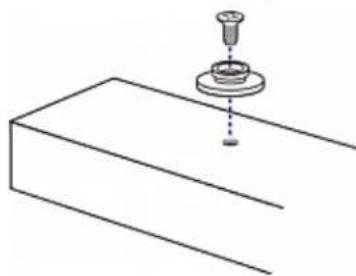
- Screw a button in the screw hole near the bottom. The recommended torque for the button is 1.96 N·m (20 kgf·cm).
natural_image
Simple line drawing of a mechanical component with a base and top assembly (no text or symbols)- Screw a button in the screw hole near the top. The recommended torque for the button is 1.96 N·m (20 kgf·cm).
- Ensure that the two buttons can engage their mounting holes in the rack or cabinet simultaneously.
- Press the PX3 device forward, pushing the mounting buttons through the mounting holes, then letting the device drop slightly. This secures the PX3 device in place and completes the installation.
Mounting 1U or 2U Models
Using the appropriate brackets and tools, fasten the 1U or 2U device to the rack or cabinet.
To mount the PX3 device:
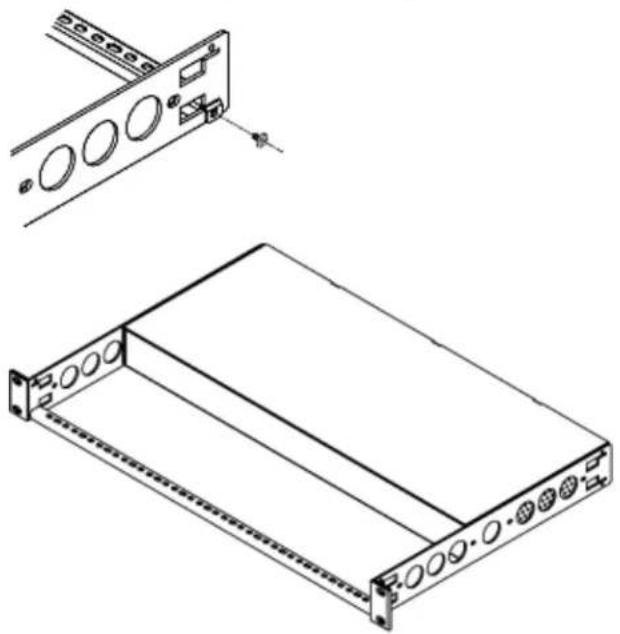
- Attach a rackmount bracket to both sides of the PX3 with the provided screws.

natural_image
Technical line drawing of a computer rack with mounting holes and ventilation slots (no text or symbols)- Insert the cable-support bar into rackmount brackets.

text_image
Diagram showing a device transitioning from a rectangular panel to a multi-panel display, with an arrow indicating the process.- Secure with the provided end cap screws.
natural_image
Technical line drawing of a server rack with mounting holes and a separate view showing internal components (no text or symbols)- Fasten the rackmount brackets' ears to the rack using your own fasteners.
Connecting a Locking Line Cord
The PX3 is shipped with either of the following locking line cords.
- A line cord with locking clips: A locking inlet on the PDU is required for this cord.
- A line cord with slide release buttons: This line cord automatically locks after being connected to the inlet. A locking inlet is not required for this cord.
A locking inlet and/or locking line cord ensure that the line cord is securely fastened to the inlet.
▶ To connect a cord with locking clips:
Make sure the line cord's locking clips fit into the locking holes at two sides of the inlet when plugging the cord's connector into the PDU's locking inlet.

text_image
Diagram showing two connected electrical connectors with labeled parts, including a connector labeled ① and a secondary connector labeled ②.Number Item
1 Locking holes on the inlet
2 Locking clips of the line cord
To connect a cord with slide release buttons:
Simply plug the cord's connector into the PDU's inlet.

natural_image
Diagram of a connector assembly showing a cable connector inserted into a housing, with a red arrow pointing to the connector (no text or symbols present)| Number | Item | ||
| 1 | Slide | release | butt |
For information on removing the locking line cord, see Disconnecting a Locking Line Cord (on page 16).
Disconnecting a Locking Line Cord
The ways to disconnect a locking line cord vary according to the cord type.
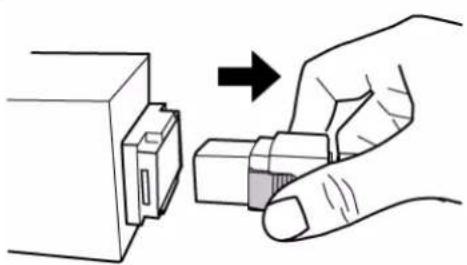
To disconnect a line cord with locking clips:
Press both locking clips of the line cord while unplugging the cord.
Tip: You can slightly move the line cord's plug horizontally while pulling it out to facilitate the disconnection process.
natural_image
Illustration of a hand inserting a USB into a device component (no text or symbols)To disconnect a line cord with slide release buttons:
Push both slide release buttons toward the cord while unplugging this cord.

natural_image
Diagram of a connector with a red button and arrow indicating connection (no text or symbols)Installing Cable Retention Clips on the Inlet (Optional)
If your PX3 device is designed to use a cable retention clip, install the clip before connecting a power cord. A cable retention clip prevents the connected power cord from coming loose or falling off.
The use of cable retention clips is highly recommended for regions with high seismic activities, and environments where shocks and vibrations are expected.

To install and use a cable retention clip on the inlet:
- Locate two tiny holes adjacent to the inlet.
- Install the cable retention clip by inserting two ends of the clip into the tiny holes.
Zero U models 1U/2U models

natural_image
Two technical diagrams showing a device with a handle and internal components, connected by blue arrows indicating direction (no text or symbols present)- Connect the power cord to the inlet, and press the clip toward the power cord until it holds the cord firmly.
Zero U models 1U/2U models

natural_image
Two technical illustrations of a plug socket installation, one showing internal wiring and the other showing internal cable (no text or symbols present)Installing Cable Retention Clips on Outlets (Optional)
If your PX3 device is designed to use a cable retention clip, install the clip before connecting a power cord. A cable retention clip prevents the connected power cord from coming loose or falling off.
The use of cable retention clips is highly recommended for regions with high seismic activities, and environments where shocks and vibrations are expected.
These optional clips come in various sizes to accommodate diverse power cords used on IT equipment, which are connected to C13 or C19 outlets. You can request a cable retention kit containing different sizes of clips from you reseller. Make sure you use a clip that fits the power cord snugly to facilitate the installation or removal operation (for servicing).

Note: Some NEMA sockets on PSE-certified PDUs for Japan have integral locking capability and do not need cable retention clips. See Locking Outlets and Cords (on page 19).
To install and use a cable retention clip on the outlet:
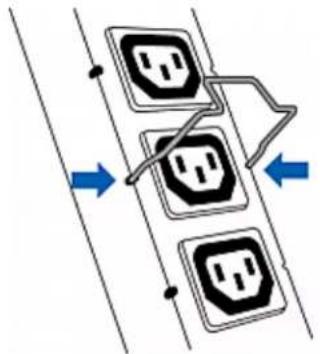
-
Locate two tiny holes at two sides of an outlet.
-
Install the cable retention clip by inserting two ends of the clip into the tiny holes.
flowchart
graph TD
    A["Top Left"] --> B["Top Right"]
    C["Top Left"] --> D["Top Right"]
    E["Bottom Left"] --> F["Bottom Right"]
    G["Bottom Right"] --> H["Bottom Left"]
    style A fill:#f9f,stroke:#333
    style C fill:#f9f,stroke:#333
    style E fill:#f9f,stroke:#333
    style G fill:#f9f,stroke:#333
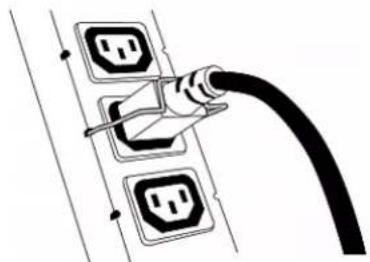
- Plug the power cord into the outlet, and press the clip toward the power cord until it holds the cord firmly. The clip's central part holding the plug should face downwards toward the ground, like an inverted "U". This allows gravity to keep the clip in place.
natural_image
Diagram of a hand connecting two electrical outlets to a cable (no text or symbols present)- Repeat the same steps to install clips and power cords on the other outlets.
Locking Outlets and Cords
In addition to the cable retention clips, Raritan also provides other approaches to secure the connection of the power cords from your IT equipment to the Raritan PDUs, including:
- SecureLock ^TM outlets and cords
- Button-type locking outlets
Note that NOT all Raritan PDUs are implemented with any of the above locking outlets.
SecureLock™ Outlets and Cords
SecureLock ^™ is an innovative mechanism designed by Raritan, which securely holds C14 or C20 plugs that are plugged into Raritan PDUs in place. This method requires the following two components:
- Raritan PDU with SecureLock™ outlets, which have a latch slot inside either side of the outlet.
- SecureLock ™ cords, which is a power cord with a locking latch on each side of its plug. The following diagram illustrates such a plug.

text_image
A AItem Description
A Latches on the SecureLock
^th cord's plug
Only specific PDUs are implemented with the SecureLock ^™ mechanism. If your PDU does not have this design, do NOT use the SecureLock ^™ cords with it.
Tip: The SecureLock ^™ outlets can accept regular power cords for power distribution but the SecureLock ^™ mechanism does not take effect.
To lock a power cord using the SecureLock™ mechanism:
-
Verify that the SecureLock ^™ cord you purchased meets your needs.
-
The cords' female socket matches the power socket type (C14 or C20) on your IT equipment.
-
The cord's male plug matches the outlet type (C13 or C19) on your PDU.
-
Connect the SecureLock™ cord between the IT equipment and your PDU.
-
Plug the female socket end of the cord into the power socket of the desired IT equipment.
- Plug the male plug end of the cord into the appropriate SecureLock™ outlet on the PDU. Push the plug toward the outlet until you hear the click, which indicates the plug's latches are snapped into the latch slots of the outlet.
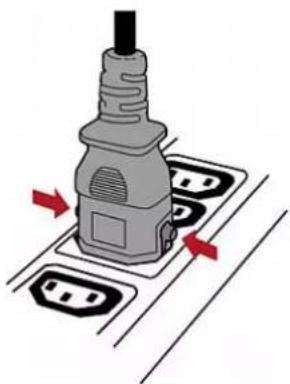
To remove a SecureLock ^TM power cord from the PDU:
- Press and hold down the two latches on the cord's plug as illustrated in the diagram below.
natural_image
Illustration of a plug inserted into a socket with red arrows indicating direction (no text or symbols)- Unplug the cord now.
Button-Type Locking Outlets
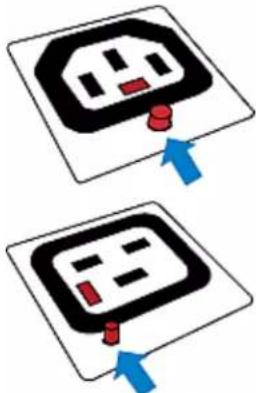
A button-type locking outlet has a button on it. Such outlets do not require any special power cords to achieve the locking purpose. All you need to do is simply plug a regular power cord into the locking outlet and the outlet automatically locks the cord.
To remove a power cord from the locking outlet:
- Press and hold down the tiny button on the outlet. Depending on the outlet type, the button location differs.
text_image
Diagram showing two electrical socket installation steps with blue arrows indicating direction of movement or change.- Unplug the power cord now.
Chapter 3 Initial Installation and Configuration
This chapter explains how to install a PX3 device and configure it for network connectivity.
In This Chapter
Connecting the PDU to a Power Source 22
Connecting the PX3 to Your Network....23
Configuring the PX3....27
Bulk Configuration Methods 35
Cascading Multiple PX3 Devices for Sharing Ethernet Connectivity......35
Power-Sharing Restrictions and Connection (for iX7™ Only) ....47
Connecting the PDU to a Power Source
- Verify that all circuit breakers on the PX3 device are set to ON. If not, turn them ON.
Or make sure that all fuses are inserted and seated properly. If there are any fuse covers, ensure that they are closed.
Note: Not all PX3 devices have overcurrent protectors.
- Connect each PX3 to an appropriately rated branch circuit. See the label or nameplate affixed to your PX3 for appropriate input ratings or range of ratings.
Note: When a PX3 device powers up, it proceeds with the power-on self test and software loading for a few moments. At this time, the outlet LEDs cycle through different colors. Note that outlet LEDs are only available on some PDU models.
- When the software has completed loading, the outlet LEDs show a steady color and the front panel display illuminates.
Connecting the PX3 to Your Network
To remotely administer the PX3, you must connect the PX3 to your local area network (LAN). PX3 can be connected to a wired or wireless network.
Note: If your PX3 will work as a master device in the bridging mode, you must make a wired connection. See Cascading PX3 via USB (on page 38).
The Ethernet port of PX3 must be enabled for the described connection to work properly. Per default, the Ethernet port is enabled. See Wired Network Settings (on page 252).
To make a wired connection:
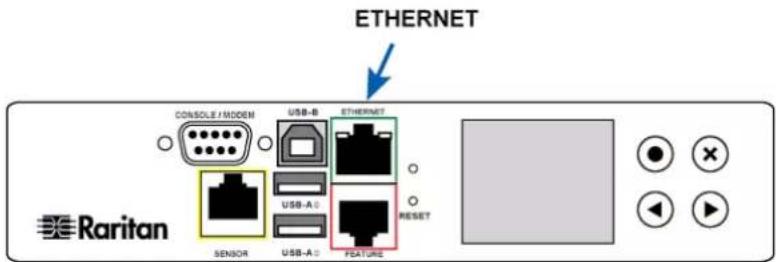
- Connect a standard network patch cable to the ETHERNET port on the PX3.
- Connect the other end of the cable to your LAN.
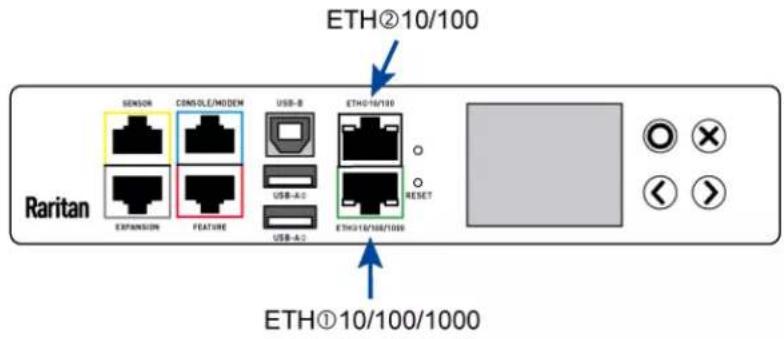
You can connect either Ethernet port of an iX7" device to the LAN, but the "green" port labeled "ETH①10/100/1000" is highly recommended because it supports 1000 Mbps. You can also connect both Ethernet ports to the LAN. See Dual Ethernet Connection (for iX7" Only) (on page 26).
Below illustrates the ETHERNET ports on Zero U models. Note that the port locations on your models may differ.
- PX3 models:
text_image
ETHERNET CONSOLE / MODEM USB-B ETHERNET USB-A RESET SENSOR USB-A FEATURE Raritan- PX3-iX7 models:
text_image
ETH②10/100 Raritan SENSOR CONSOLE/MODEN USB-B ETH①10/100 EXPANSION FEATURE USB-A-2 USB-A-2 ETH①10/100/1000 RESET ETH①10/100/1000Warning: Accidentally plugging an RS-232 RJ-45 connector into the ETHERNET port can cause permanent damages to the Ethernet hardware.
To make a wireless connection:
Do one of the following:
- Plug a supported USB wireless LAN adapter into the USB-A port on your PX3.
- Connect a USB hub to the USB-A port on the PX3. Then plug the supported USB wireless LAN adapter into the appropriate USB port on the hub.
See USB Wireless LAN Adapters (on page 24) for a list of supported wireless LAN adapters.
USB Wireless LAN Adapters
The PX3 supports the following USB Wi-Fi LAN adapters.
| Wi-Fi LAN adapters Supported 802.11 protocols | |
| SparkLAN WUBR-508N A/B/G/N | |
| Proxim Orinoco 8494 A/B/G | |
| Zyxel NWD271N B/G | |
| Edimax EW-7722UnD A/B/G/N | |
| TP-Link TL-WDN3200 v1 A/B/G/N | |
| Raritan USB WIFI A/B/G/N | |
Note: To use the Edimax EW-7722UnD or Raritan USB WIFI wireless LAN adapter to connect to an 802.11n wireless network, the handshake timeout setting must be changed to 500 or greater, or the wireless connection will fail.
Supported Wireless LAN Configuration
If wireless networking is preferred, ensure that the wireless LAN configuration of your PX3 matches the access point. The following is the wireless LAN configuration that the PX3 supports.
■ Network type: 802.11 A/B/G/N
■ Protocol: WPA2 (RSN)
■ Key management: WPA-PSK, or WPA-EAP with PEAP and MSCHAPv2 authentication
■ Encryption: CCMP (AES)
Important: Supported 802.11 network protocols vary according to the wireless LAN adapter being used with the PX3. See USB Wireless LAN Adapters (on page 24).
Dual Ethernet Connection (for iX7™ Only)
An iX7 ^™ device has two Ethernet (LAN) ports:
- ETH ①10/100/1000 (marked in green) supports up to 1000 Mbps. This is "ETH1".
- ETH ②10/100 (marked in white) supports up to 100 Mbps. This is "ETH2".
For more information on the two ports, see Connection Port Functions (on page 88).
You can connect both ports to different subnets (networks) and therefore obtain two IP addresses for wired networking. It is strongly recommended that you DO NOT connect both ports to the same subnet to avoid potential issues. Contact your IT department if you are not sure whether the two Ethernet ports are connecting to the same or different subnets.
Exception: A USB-cascading chain must connect to "only one" network. Do NOT connect both Ethernet ports of an iX7 ^® master or slave device to the LAN. See Cascading Multiple PX3 Devices for Sharing Ethernet Connectivity (on page 35).
▶ Check list when connecting both ports to the networks:
- Both Ethernet interfaces are connecting to different subnets.
- Both Ethernet interfaces have been enabled. By default both are enabled. See Device Info (on page 116) and Ethernet Interface Settings (on page 254).
- Both Ethernet interfaces are configured with proper IPv4 and/or IPv6 settings. See Wired Network Settings (on page 252).
- It is NOT required that the two Ethernet interfaces share similar network settings. For example, you can enable IPv4 settings in one interface but enable IPv6 settings in the other, or apply static IP to one but DHCP IP to the other.
- The cascading mode is disabled. By default it is disabled. See Setting the Cascading Mode (on page 265).
Configuring the PX3
You can initially configure the PX3 via one of the following:
• A TCP/IP network that supports DHCP
- A mobile device with PDView installed
- A computer physically connected to the PX3
Configuration via a DHCP-enabled network:
- Connect the PX3 to a DHCP IPv4 network. See Connecting the PX3 to Your Network (on page 23).
- Retrieve the DHCP-assigned IPv4 address. Use the front panel LCD display to retrieve it. See Device Info (on page 116).
- Launch a web browser to configure the PX3. See Login (on page 132).
Configuration via a connected mobile device:
- Download the PDView app to your mobile device. See Connecting a Mobile Device to PX3(on page 28).
- Connect the mobile device to PX3 via USB.
- Launch PDView to configure the PX3.
Configuration via a connected computer:
- Connect the PX3 to a computer. See Connecting the PX3 to a Computer(on page 32).
- Use the connected computer to configure the PX3 via the command line or web interface.
- Command line interface: See Initial Network Configuration via CLI (on page 812).
- Web interface: Launch the web browser on the computer, and type the link-local IP address or pdu.local to access the PX3. See Login (on page 132).
For link-local IP address retrieval, see Device Info (on page 116).
Tip: To configure a number of PX3 devices quickly, see Bulk Configuration Methods (on page 35).
Connecting a Mobile Device to PX3
Raritan's PDView is a free app that turns your iOS or Android mobile device into a local display for the PX3.
PDView is especially helpful when your PX3 is not connected to the network but you need to check the PX3 status, retrieve its information, or change its settings.
▶ Requirements for using PDView:
• The PX3 is running firmware version 3.0.0 or later.
- If using an Android device, it must support USB "On-The-Go" (OTG).
- An appropriate USB cable is required. For information, refer to Step 2 below.
Step 1: Download and install PDView
- Visit either Apple App or Google Play Store.
- https://itunes.apple.com/app/raritan-pdview/id780382738

- https://play.google.com/store/apps/details?id=com.raritan.android.pdview

- Install PDView.
▶ Step 2: Connect the mobile device to PX3
-
Get an appropriate USB cable for your mobile device.
-
iOS: Use the regular USB cable shipped with your iOS mobile device.
■ Android: Use an USB OTG adapter cable. -
Connect the mobile device to the appropriate USB port on the PX3.
- iOS: USB-A port.
■ Android: USB-B port

flowchart
graph TD
    A["Smartphone"] --> B["USB-A"]
    B --> C["Device Controller"]
    D["Android"] --> E["USB-B"]
    E --> C
Step 3: Launch PDView to access the PX3
- Launch the PDView app from your mobile device. Below illustrate iPad's PDView screens.
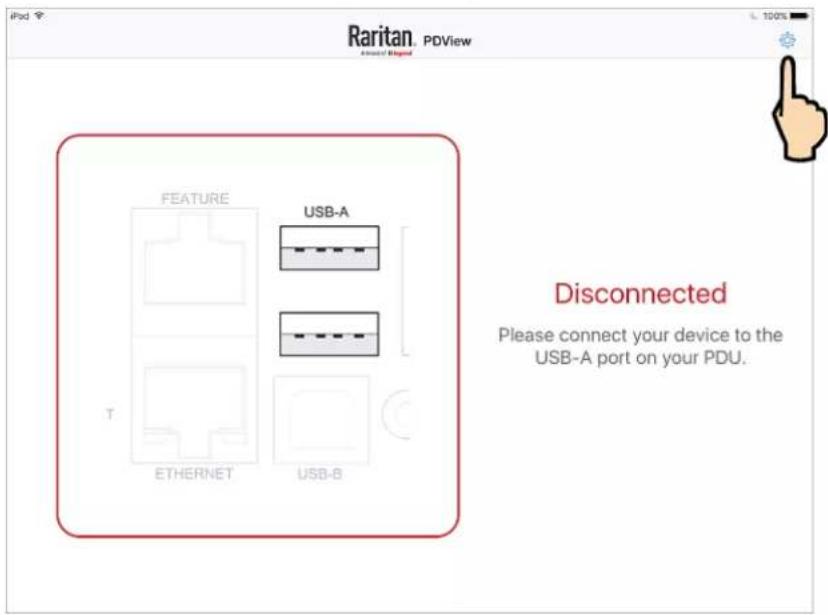
a. The "Disconnected" message displays first when PDView has not detected the PX3 yet.
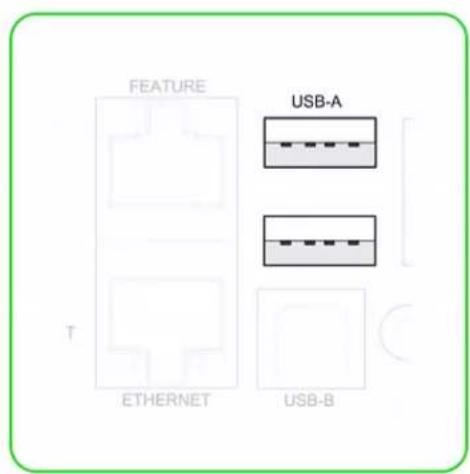
A diagram in PDView indicates the appropriate USB port your mobile device should connect according to your mobile operating system.

text_image
FEATURE USB-A T ETHERNET USB-BDisconnected
Please connect your device to the USB-A port on your PDU.
Note: PDView also shows the 'Disconnected' status during the firmware upgrade. If so, wait until the firmware upgrade finishes.
b. The PDView shows the "Connected" message when it detects the connected PX3.
text_image
FEATURE USB-A T ETHERNET USB-BConnected
Authenticating...
- If the factory-default user credentials "admin/raritan" remain unchanged, PDView automatically logs in to the PX3 web interface. If they have been changed, the login screen displays instead and you must enter appropriate user credentials for login.
- The web interface opens. Now you can view or modify the data of PX3.
- The web interface prompts you to change the password if this is the first time you log in.
Tip: You can store the updated "admin" or other user credentials in PDView so that automatic login always functions properly upon detection of the PX3 device. See Saving User Credentials for PDView's Automatic Login (on page 31).
Saving User Credentials for PDView's Automatic Login
When PDView detects the PX3, it automatically tries to log in with the factory-default user credentials -- admin (user name) and raritan (password).
If the factory-default user credentials have been modified, the automatic login fails and PDView will show the login screen for you to manually enter user credentials.
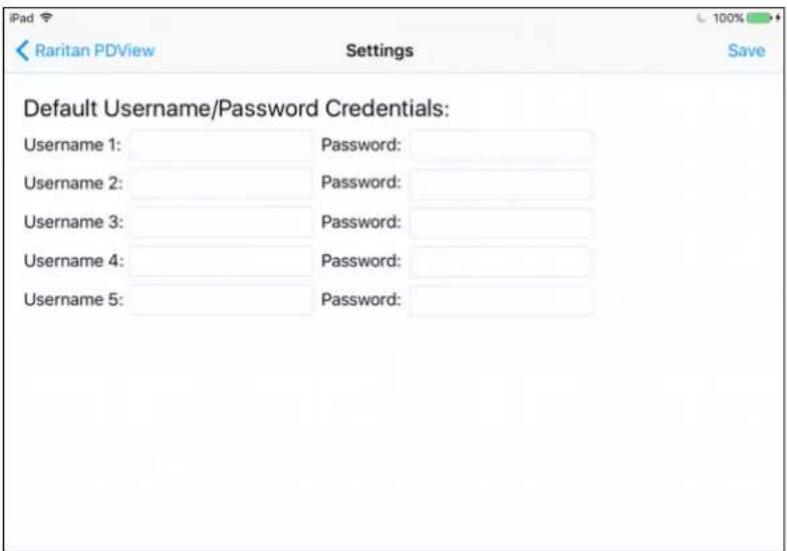
To make automatic login work again, you can save the modified admin credentials or any custom user credentials in PDView. A maximum of 5 user credentials can be saved, and PDView will try the saved credentials one by one until the login succeeds.
The following procedure illustrates iPad only, but the procedure applies to any iOS or Android mobile devices.
To save user credentials in PDView:
- Make sure your mobile device is NOT connected to the PX3 so that PDView does NOT perform the automatic login feature after it is launched.
- Launch PDView on your mobile device.
- Tap the top-right icon

text_image
Raritan PDView Feature USB-A T ETHERNET USB-B Disconnected Please connect your device to the USB-A port on your PDU.- The user credentials setup page opens.
text_image
Raritan PDView Settings Default Username/Password Credentials: Username 1: Password: Username 2: Password: Username 3: Password: Username 4: Password: Username 5: Password:- Type the desired user credentials, and tap Save.
Connecting the PX3 to a Computer
The PX3 can be connected to a computer for configuration via one of the following ports.
- ETHERNET port
- USB-B port
- RS-232 serial port (model dependent -- RJ-45 or male DB9 connector)
Note that the port locations on your models may differ.
- PX3 models:

text_image
RS-232 (DB9) USB-B ETHERNET CONSOLE / MODEM USB-B ETHERNET Raritan SENSOR USB-A FEATURE RESET- PX3-iX7 models:
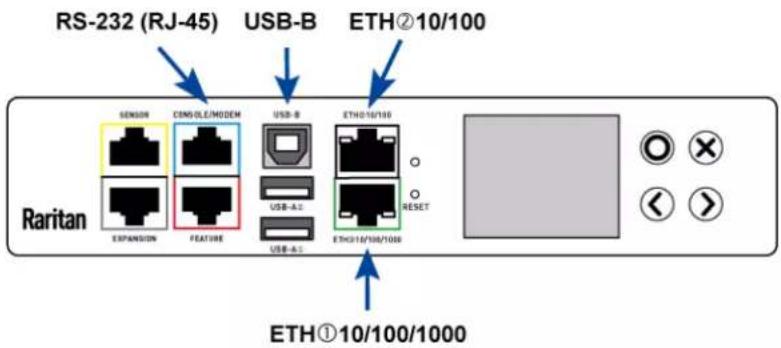
text_image
RS-232 (RJ-45) USB-B ETH②10/100 Raritan SENSOR CONOLE/MODEM USB-B ETH010/100 EXPANSION FEATURE USB-A1 USB-A1 ETH010/100/1000 RESET ETH①10/100/1000To use the command line interface (CLI) for configuration, establish an RS-232 or USB connection.
To use a web browser for configuration, make a network connection to the computer. The PX3 is automatically configured with the following link-local addressing in any network without DHCP available:
- https://169.254.x.x (where x is a number)
- https://pdu.local
See APIPA and Link-Local Addressing (on page 3).
Establish one of the following connections to a computer. The Ethernet port of PX3 must be enabled for the described connection to work properly. Per default, the Ethernet port is enabled.
▶ Direct network connection:
- Connect one end of a standard network patch cable to the ETHERNET port of the PX3.
- For iX7 ^™ with dual Ethernet ports, either Ethernet port is fine.
- Connect the other end to a computer's Ethernet port.
- On the connected computer, launch a web browser to access the PX3, using either link-local addressing: pdu.localor 169.254.x.x. See Login (on page 132).
USB connection:
- A USB-to-serial driver is required in Windows®. Install this driver before connecting the USB cable. See Installing the USB-to-Serial Driver (Optional)(on page 811).
- Connect a USB cable between the PX3 device's USB-B port and a computer's USB-A port.
- Perform Initial Network Configuration via CLI (on page 812).
Note: Not all serial-to-USB converters work properly with the PX3 so Raritan does not introduce the use of such converters.
Serial connection for "DB9" RS-232 connector on PX3:
- Connect one end of the null-modem DB9 cable to the male "DB9" RS-232 port labeled CONSOLE / MODEM on the PX3.
- Connect the other end to your computer's RS-232 port (COM).
- Perform Initial Network Configuration via CLI(on page 812).
Serial connection for "RJ-45" RS-232 connector on iX7™ devices:
- The iX7 ^™ device's serial connection procedure is the same as above except that a third party RJ-45 to "DB9 female" adapter/cable is required, such as the blue Cisco adapter cable. This is because the CONSOLE / MODEM port on the iX7 ^™ device is a female RJ-45 connector.
See RJ45-to-DB9 Cable Requirements for Computer Connections (for iX7* Only) (on page 34). - Perform Initial Network Configuration via CLI(on page 812).
RJ45-to-DB9 Cable Requirements for Computer Connections (for iX7™ Only)
An RJ45-to-DB9 adapter/cable is required for connecting the iX7 ^™ device to a computer, if the use of a USB cable is not intended.
A third party RJ45-to-DB9 adapter/cable needs to meet the following requirements.
- RJ-45 to "DB9 female"
• RX/TX and according control pins are CROSSED
The widespread blue Cisco RJ-45 to DB9 adapter cable is highly recommended, which has the following pin assignments:
| DB9 pin signal | DB9 pin No. | RJ-45 pin No. | RJ-45 pin signal |
| CTS | 8 | 1 | |
| DSR | 6 | 2 | |
| RxD | 2 | 3 | |
| GND | 5 | 4 | GND |
| GND | 5 | 5 | GND |
| TxD | 3 | 6 | RxD |
| DTR | 4 | 7 | DSR |
| RTS | 7 | 8 | |
| DCD 1 (Not connected) | N/A | ||
| RI 9 (Not connected) | |||
Note: The blue Cisco RJ-45 to DB9 adapter cable CANNOT be used for connecting a modem. See RJ45-to-DB9 Cable Requirements for Modem Connections (for iX7™ Only) (on page 788).
Bulk Configuration Methods
If you have to set up multiple PX3 devices, you can use one of the following configuration methods to save your time.
▶ Use a bulk configuration file:
- Requirement: All PX3 devices to configure are of the same model and firmware.
- Procedure: First finish configuring one PX3. Then save the bulk configuration file from it and copy this file to all of the other PX3 devices.
See Bulk Configuration (on page 401).
▶ Use a TFTP server:
- Requirement: DHCP is enabled in your network and a TFTP server is available.
- Procedure: Prepare special configuration files, which must include fwupdate.cfg, and copy them to the root directory of the TFTP server. Re-boot all PX3 after connecting them to the network.
See Bulk Configuration or Firmware Upgrade via DHCP/TFTP (on page 678).
▶ Use a USB flash drive:
- Requirement: A FAT32- or supperfloppy-formatted USB flash drive containing special configuration files is required.
- Procedure: Plug this USB drive into the PX3. When a happy smiley is shown on the front panel display, press and hold one of the control buttons on the front panel until the display turns blank.
See Configuration or Firmware Upgrade with a USB Drive (on page 664).
Cascading Multiple PX3 Devices for Sharing Ethernet Connectivity
Important: To upgrade an existing USB-cascading chain from any
pre-3.3.10 firmware version to version 3.3.10 or later, follow the Upgrade Sequence in an Existing Cascading Chain (on page 398).
You can have multiple PX3 devices share one Ethernet connection by cascading them via one of the interfaces below:
- USB interface -- for cascading multiple PX3 or multiple iX7™ PDUs
- Ethernet interface -- for cascading multiple iX7™ PDUs
The first one in the cascading chain is the master device and all the other are slave devices. Only the master device is physically connected to the LAN -- wired or wireless.
Each device in the chain is accessible over the network, with the Bridging or Port-Forwarding cascading mode activated on the master device. See Setting the Cascading Mode (on page 265).
- Bridging: Each device in the cascading chain is accessed with a different IP address.
- Port Forwarding: Each device in the cascading chain is accessed with the same IP address(es) but with a different port number assigned.
▶ Basic cascading restrictions:
- All devices in the chain must run "compatible" firmware versions.
■ Firmware version 3.3.10 or later is NOT compatible with pre-3.3.10 firmware versions in terms of the cascading feature so all devices in the cascading chain must run version 3.3.10 or later.
- In the Bridging mode, the master device can have "only one" connection to the network. If the master device is an iX7 ^tw device with two Ethernet ports, DO NOT connect both ports to the network(s) unless your network has the R/STP protocol enabled.
Note: The Port Forwarding mode does NOT have this restriction. In this mode, you can enable one wired and one wireless network connections for non-iX7 products, or enable two wired and one wireless network connections for iX7" products.
- Do NOT connect slave devices to the LAN via a standard network patch cable or a USB wireless LAN adapter.
- The cascading mode of all devices in the chain must be the same.
- (WIFI only) You must use Raritan's USB WIFI wireless LAN adapter instead of other WIFI adapters for wireless network connection.
Troubleshooting:
When a networking issue occurs, check the cascading connection and/or software settings of all devices in the chain. See Cascading Troubleshooting (on page 807).
▶ Online Cascading Guide:
For detailed information on the cascading configuration and restrictions, see the Cascading Guide, which is available from Raritan website's Support page (http://www.raritan.com/support/).
Cascading PX3 via USB
You must set the cascading mode before establishing the chain. See Setting the Cascading Mode (on page 265).
Any certified USB 2.0 cable up to 5 meters (16 feet) long can be used. Both cascading modes support a maximum of 16 devices in a chain.
The following diagram illustrates PX3 PDUs cascaded via USB.
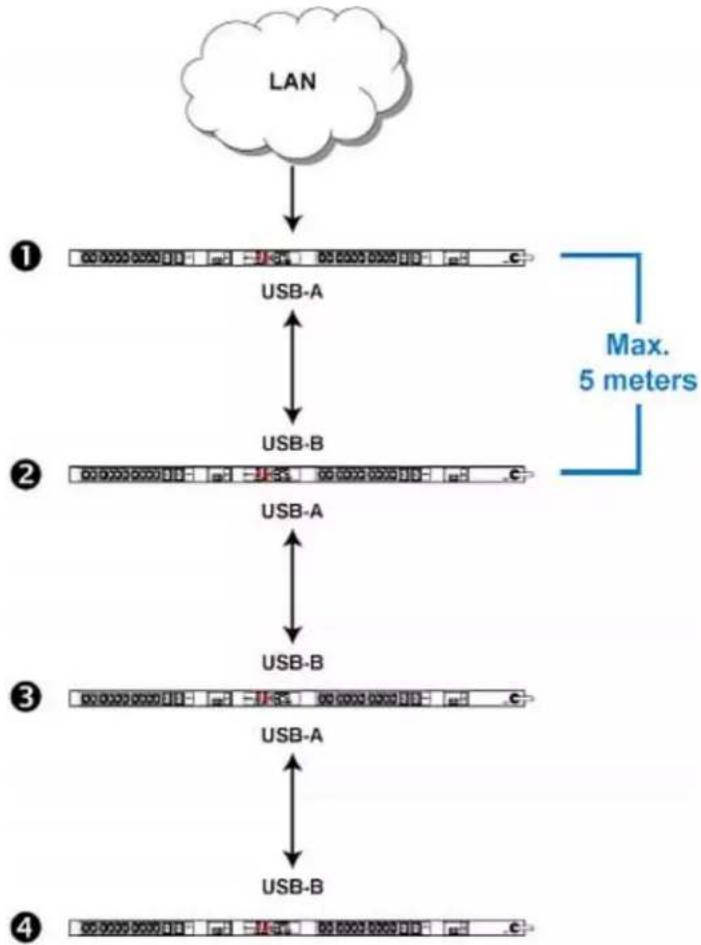
flowchart
graph TD
    A["LAN"] --> B["1"]
    B --> C["USB-A"]
    C --> D["2"]
    D --> E["USB-B"]
    E --> F["3"]
    F --> G["USB-A"]
    G --> H["4"]
    H --> I["USB-B"]
    style A fill:#f9f,stroke:#333
    style B fill:#ccf,stroke:#333
    style C fill:#cfc,stroke:#333
    style D fill:#fcc,stroke:#333
    style E fill:#cff,stroke:#333
    style F fill:#ffc,stroke:#333
    style G fill:#cfc,stroke:#333
    style H fill:#fcc,stroke:#333
    note right of B Max. 5 meters
Number Device role
| 1 | Master device |
| 2 | Slave 1 |
| 3 | Slave 2 |
Number Device role

Slave 3
To cascade PX3 devices via USB:
- Make sure all Raritan devices are running firmware version 3.3.10 or later.
- Choose the appropriate one as the master device.
- When the Port Forwarding mode over "wireless LAN" is intended, the master device must be a Raritan product with two USB-A ports, such as PX3, EMX2-888, PX3TS or BCM2.
-
Log in to all devices one by one and select the same cascading mode.
-
Bridging mode:
Set the cascading mode of all devices to Bridging.
■ Port Forwarding mode:
Set the cascading mode of all devices to Port Forwarding. Make sure the cascading role and downstream interface are also set correctly.
See Setting the Cascading Mode (on page 265).
-
Connect the master device to the LAN, using a method below.
-
Bridging mode:
Use a standard network patch cable (CAT5e or higher).
■ Port Forwarding mode:
Use a standard network patch cable and/or a Raritan USB WIFI wireless LAN adapter. For information on the Raritan USB WIFI adapter, see USB Wireless LAN Adapters (on page 24).
-
Connect the USB-A port of the master device to the USB-B port of an additional PX3 via a USB cable. This additional device is Slave 1.
-
Connect Slave 1's USB-A port to the USB-B port of an additional PX3 via another USB cable. The second additional device is Slave 2.
-
Repeat the same step to connect more slave devices. You can cascade up to 15 slave devices.
-
(Optional) Configure or change the network settings of the master and/or slave devices as needed. See Configuring Network Settings (on page 251).
- Bridging mode: Each cascaded device has its own network settings.
For example, you can have some devices use DHCP-assigned IP addresses and the others use static IP addresses.
- Port Forwarding mode: Only the master device's network settings should be configured.
A tip for USB cascading:
The "USB-cascading" chain can be a combination of diverse Raritan products that support the USB-cascading feature, including PX2, PX3, PX3-iX7, transfer switch, BCM and EMX.
Extended Cascading with PX3-iX7 Models
Only PX3-iX7 supports cascading via either Ethernet or USB ports because they have two Ethernet ports and two USB-A ports.
You can use either Ethernet port on the iX7 ^™ device for cascading.
You must set the cascading mode before establishing the chain. See Setting the Cascading Mode (on page 265).
Both cascading modes support a maximum of 16 devices in a chain.
When establishing a Port-Forwarding chain, make sure you follow the guidelines described in the section titled Unsupported Cascading Connections for Port Forwarding (on page 45).
You can mix Ethernet and USB cascading in an iX7 ^™ chain if preferred. The following diagram illustrates such a chain.
The distance between two Ethernet-cascaded devices can be up to 100 meters, while the distance between two USB-cascaded devices supports up to 5 meters only.
Chapter 3: Initial Installation and Configuration
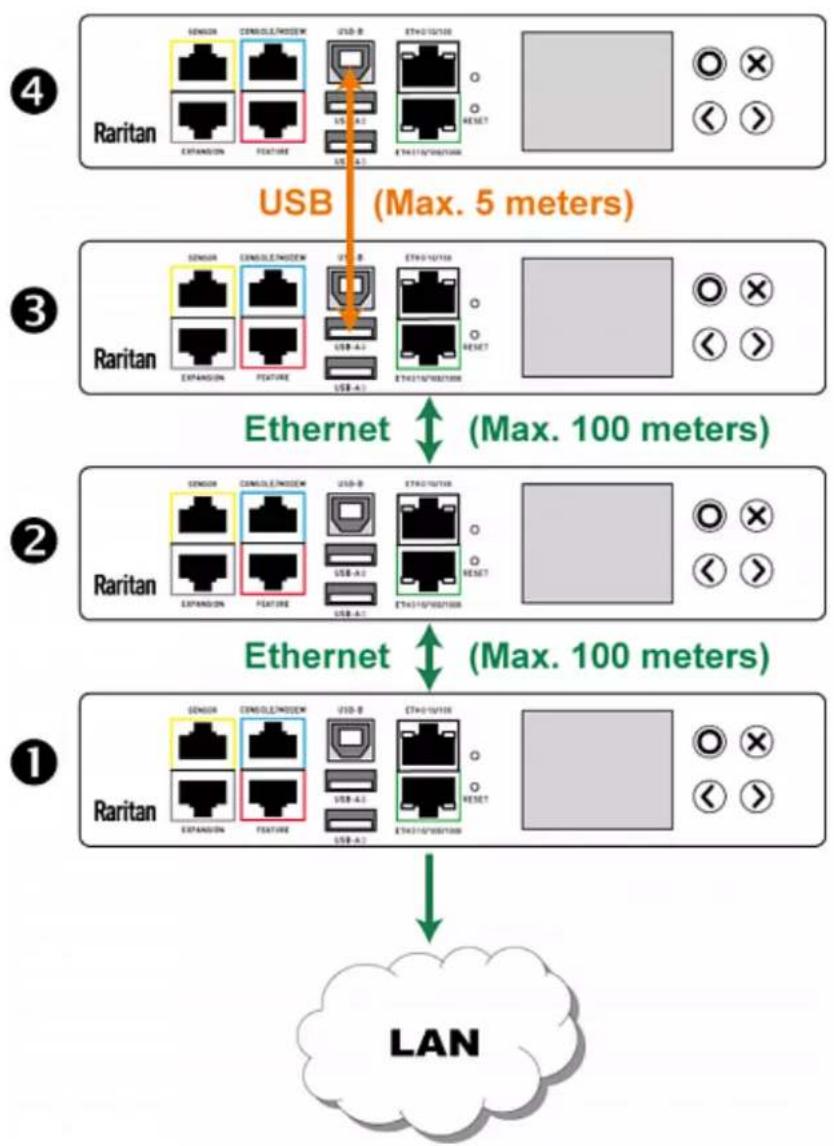
flowchart
graph TD
    A["1 Raritan"] --> B["2 Ethernet"]
    B --> C["3 Raritan"]
    A --> D["4 Raritan"]

    subgraph Component 1
        E["LAN"]
        F["Sensor Expansion"]
        G["Sensor Feature"]
        H["Device A1"]
        I["Device B"]
        J["Device C"]
        K["Device D"]
        L["Device E"]
        M["Device F"]
        N["Device G"]
        O["Device H"]
        P["Device I"]
        Q["Device J"]
        R["Device K"]
        S["Device L"]
    end

    subgraph Component 2
        T["Sensor Expansion"]
        U["Sensor Feature"]
        V["Device A1"]
        W["Device B"]
        X["Device C"]
        Y["Device D"]
        Z["Device E"]
        AA["Device F"]
        AB["Device G"]
        AC["Device H"]
        AD["Device I"]
        AE["Device J"]
        AF["Device K"]
        AG["Device L"]
    end

    subgraph Component 3
        AH["Sensor Expansion"]
        AI["Sensor Feature"]
        AJ["Device A1"]
        AK["Device B"]
        AL["Device C"]
        AM["Device D"]
        AN["Device E"]
        AO["Device F"]
        AP["Device G"]
        AQ["Device H"]
    end

    subgraph Component 4
        AR["Sensor Expansion"]
        AS["Sensor Feature"]
        AT["Device A1"]
        AU["Device B"]
        AV["Device C"]
        AW["Device D"]
        AX["Device E"]
        AY["Device F"]
        AZ["Device G"]
    end

    A -->|USB (Max. 5 meters)| C
    B -->|Ethernet (Max. 100 meters)| C
    D -->|LAN| E
    F -->|LAN| E
    G -->|LAN| E
    H -->|LAN| E
    I -->|LAN| E
    J -->|LAN| E
    K -->|LAN| E
    L -->|LAN| E
    M -->|LAN| E
    N -->|LAN| E
    O -->|LAN| E
    P -->|LAN| E
    Q -->|LAN| E
    R -->|LAN| E
    S -->|LAN| E
    T -->|LAN| E
    U -->|LAN| E
    V -->|LAN| E
    W -->|LAN| E
    X -->|LAN| E
    Y -->|LAN| E
    Z -->|LAN| E
    AA -->|LAN| E
    AB -->|LAN| E
    AC -->|LAN| E
    AD -->|LAN| E
| Number Device role | |
| 1 | Master device |
| 2 | Slave 1 |
| 3 | Slave 2 |
| 4 | Slave 3 |
For instructions on USB cascading, see Cascading PX3 via USB(on page 38).
Suggestions for extended cascading:
- Ethernet cascading is recommended because of the longer distance, lower latency and more reliable connection it supports.
- The 'green' ETH1 port (ETH ①10/100/1000) of the master device is recommended for network connection because it supports up to 1000 Mbps.
To cascade iX7 ^™ PDUs via Ethernet ports:
- Make sure all Raritan devices are running firmware version 3.3.10 or later.
- Choose one iX7 ^TM PDU as the master device.
- Log in to all devices one by one and select the same cascading mode.
- Bridging mode:
Set the cascading mode of all devices to Bridging.
■ Port Forwarding mode:
Set the cascading mode of all devices to Port Forwarding. Make sure the cascading role and downstream interface are also set correctly.
See Setting the Cascading Mode (on page 265).
- Connect the master device to the LAN, using a method below.
- Bridging mode:
Use a standard network patch cable (CAT5e or higher).
■ Port Forwarding mode:
Use a standard network patch cable and/or a Raritan USB WIFI wireless LAN adapter. For information on the Raritan USB WIFI adapter, see USB Wireless LAN Adapters (on page 24).
- Connect the available Ethernet port of the master device to either Ethernet port of another iX7 ^™ via a standard network patch cable. This additional iX7 ^™ device is Slave 1.
- Connect Slave 1's available Ethernet port to either Ethernet port of another iX7 ^™ via a standard network patch cable. The second additional device is Slave 2.
- Repeat the same step to connect more iX7 ^™ devices. You can cascade up to 15 slave devices.
- (Optional) Configure or change the network settings of the master and/or slave devices as needed. See Configuring Network Settings (on page 251).
- Bridging mode: Each cascaded device has its own network settings.
For example, you can have some devices use DHCP-assigned IP addresses and the others use static IP addresses.
- Port Forwarding mode: Only the master device's network settings should be configured.
▶ Enable R/STP if a cascade loop is preferred:
- You can "loop" a cascading chain to create network communication redundancy (Bridging mode only), but only when your network supports R/STP protocol.
Make sure that your network has R/STP enabled if using a cascade loop (Bridging mode) or else network loops may occur.
Unsupported Cascading Connections for Port Forwarding
The following guidelines must be obeyed for establishing a cascading chain in the Port Forwarding mode.
- Each cascaded device, except for the master device, must have only one upstream device.
- Each cascaded device, except for the last slave device, must have only one downstream device.
- Use only one cable to cascade two devices. That is, NO simultaneous connection of USB and Ethernet cables between two cascaded devices.
The following diagrams illustrate cascading connections that are NOT supported.
Note: These diagrams are based on Raritan's PX3-iX7 Zero U PDUs, but the same guidelines apply to other Raritan iX7 ^™ products.
▶ UNSUPPORTED connections:
• One cascaded device has two upstream devices via Ethernet cables.

flowchart
graph TD
    A["Raritan"] -->|Ethernet| B["Raritan"]
    A -->|Ethernet| C["Raritan"]
    B --> D["LAN"]
    C --> E["LAN"]
    style A fill:#f9f,stroke:#333
    style B fill:#ccf,stroke:#333
    style C fill:#cfc,stroke:#333
- One cascaded device has two upstream devices via Ethernet and USB cables.
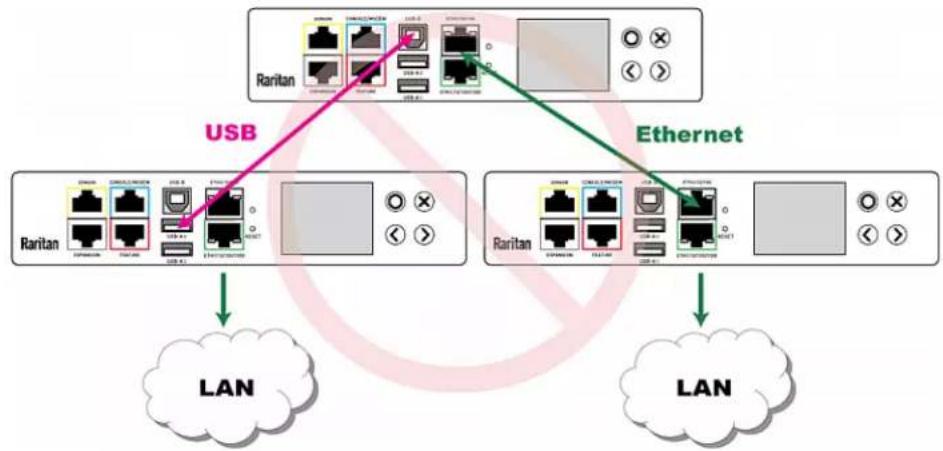
flowchart
graph TD
    A["Raritan"] -->|USB| B["LAN"]
    C["Ethernet"] -->|USB| D["LAN"]
    B --> E["Cloud icon"]
    D --> F["Cloud icon"]
• One cascaded device has two downstream devices.
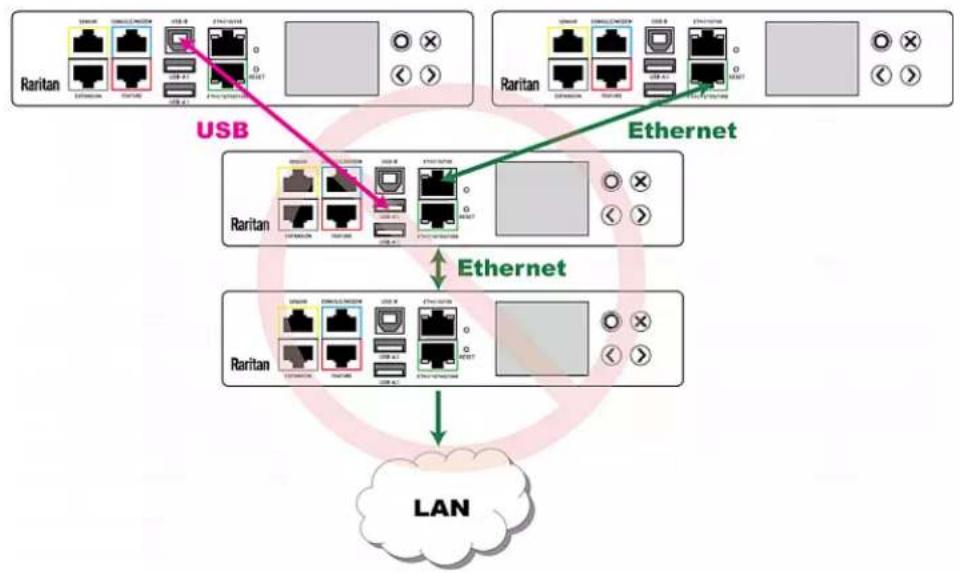
flowchart
graph TD
    A["Raritan"] -->|USB| B["USB"]
    C["Raritan"] -->|Ethernet| D["Ethernet"]
    E["Raritan"] -->|Ethernet| F["LAN"]
    G["Raritan"] -->|Ethernet| F
    H["Raritan"] -->|Ethernet| F
    I["Raritan"] -->|Ethernet| F
    J["Raritan"] -->|Ethernet| F
    K["Raritan"] -->|Ethernet| F
    L["Raritan"] -->|Ethernet| F
    M["Raritan"] -->|Ethernet| F
    N["Raritan"] -->|Ethernet| F
    O["Raritan"] -->|Ethernet| F
    P["Raritan"] -->|Ethernet| F
    Q["Raritan"] -->|Ethernet| F
    R["Raritan"] -->|Ethernet| F
    S["Raritan"] -->|Ethernet| F
    T["Raritan"] -->|Ethernet| F
    U["Raritan"] -->|Ethernet| F
    V["Raritan"] -->|Ethernet| F
    W["Raritan"] -->|Ethernet| F
    X["Raritan"] -->|Ethernet| F
    Y["Raritan"] -->|Ethernet| F
    Z["Raritan"] -->|Ethernet| F
    AA["Raritan"] -->|Ethernet| F
    AB["Raritan"] -->|Ethernet| F
    AC["Raritan"] -->|Ethernet| F
    AD["Raritan"] -->|Ethernet| F
    AE["Raritan"] -->|Ethernet| F
    AF["Raritan"] -->|Ethernet| F
    AG["Raritan"] -->|Ethernet| F
    AH["Raritan"] -->|Ethernet| F
    AI["Raritan"] -->|Ethernet| F
    AJ["Raritan"] -->|Ethernet| F
    AK["Raritan"] -->|Ethernet| F
    AL["Raritan"] -->|Ethernet| F
    AM["Raritan"] -->|Ethernet| F
    AN["Raritan"] -->|Ethernet| F
    AO["Raritan"] -->|Ethernet| F
    AP["Raritan"] -->|Ethernet| F
    AQ["Raritan"] -->|Ethernet| F
    AR["Raritan"] -->|Ethernet| F
    AS["Raritan"] -->|Ethernet| F
    AT["Raritan"] -->|Ethernet| F
    AU["Raritan"] -->|Ethernet| F
    AV["Raritan"] -->|Ethernet| F
    AW["Raritan"] -->|Ethernet| F
    AX["Raritan"] -->|Ethernet| F
    AY["Raritan"] --> AZ["USB"]
    CZ["Raritan"] --> BA["USB"]
    AD["Router"] --> AZ["USB"]
- One device is connected to another device via two cascading cables - USB and Ethernet cables.
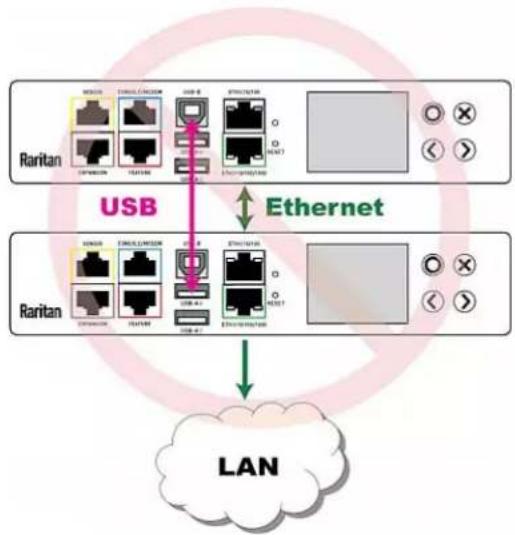
flowchart
graph TD
    A["Raritan"] -->|USB| B["LAN"]
    B --> C["Ethernet"]
    C --> D["Port 1"]
    C --> E["Port 2"]
    C --> F["Port 3"]
    C --> G["Port 4"]
    style A fill:#f9f,stroke:#333
    style B fill:#ccf,stroke:#333
    style C fill:#cfc,stroke:#333
    style D fill:#fcc,stroke:#333
    style E fill:#cff,stroke:#333
    style F fill:#ffc,stroke:#333
    style G fill:#cfc,stroke:#333
Power-Sharing Restrictions and Connection (for iX7™ Only)
Two iX7 ^™ devices can share power supply to their controllers via EXPANSION ports, so that when either iX7 ^™ controller fails to receive DC 12V power from its inlet(s), it continues to receive backup power from another iX7 ^™ device which functions properly and therefore remains to be accessible to users.
For documentation purpose, the term "power-sharing mode" is used to describe the status when the 12V power supply from the inlet to an iX7™ controller fails, causing that controller to receive power from another iX7™ device.
Before making a power-sharing connection, first read Power-Sharing Configurations and Restrictions (on page 49), and remove unsupported equipment from BOTH iX7* PDUs.
After a PDU enters the power-sharing mode, some of its data/operations remain to be available while other data/operations are no longer available.
▶ Unavailable data or operations on the PDU that enters the power-sharing mode:
• All outlets lose power, and enter the "disabled" state.
- No outlet switching can be performed if the iX7 ^™ is an outlet-switching capable PDU.
- All internal sensors become "unavailable", including sensors of inlets, outlets, and OCPs.
Exception: Only active energy data remains available. - Communications with relay/meter boards are lost. Therefore, firmware upgrade may fail due to this reason.
Available data or operations on the PDU that enters the power-sharing mode:
- Change software settings, such as customizing names, modifying network settings, configuring thresholds, and so on.
Note: Outlet switching is not available because all outlets lose power.
- Monitor the status of connected Raritan environmental sensor packages, or configure/control their settings.
- Operate the front panel display.
Events that occur when entering the power-sharing mode:
- The 12V power supply sensor enters the fault state. See +12V Power Supply Sensor (for iX7 ^™ Only)(on page 167).
Tip: You can set an event rule for sending a notification when this sensor enters the fault state. See Event Rules and Actions (on page 312).
- The above event is logged in the internal event log. See Default Log Messages (on page 319).
To find whether an iX7 ^™ has entered the power-sharing mode:
- Check the state of its +12V power supply sensor.
Tip: For SNMP, the sensor type for this +12V power supply is i1smpsStatus (46).
Making a Power-Sharing Connection
Make sure BOTH iX7™ devices comply with the configuration limitations when establishing a power-sharing connection. See Power-Sharing Configurations and Restrictions (on page 49).
The supported maximum power-sharing distance is 2 meters.
Make a power-sharing connection:
- Get a standard network patch cable (Cat5e/6), which can be up to 2 meters long.
- Do NOT use a crossover cable.
- Connect one end to an iX7 ^™ device's EXPANSION port, and the other end to another one's EXPANSION port.
- Note that the EXPANSION port location on your iX7 ^™ may differ from the following images.
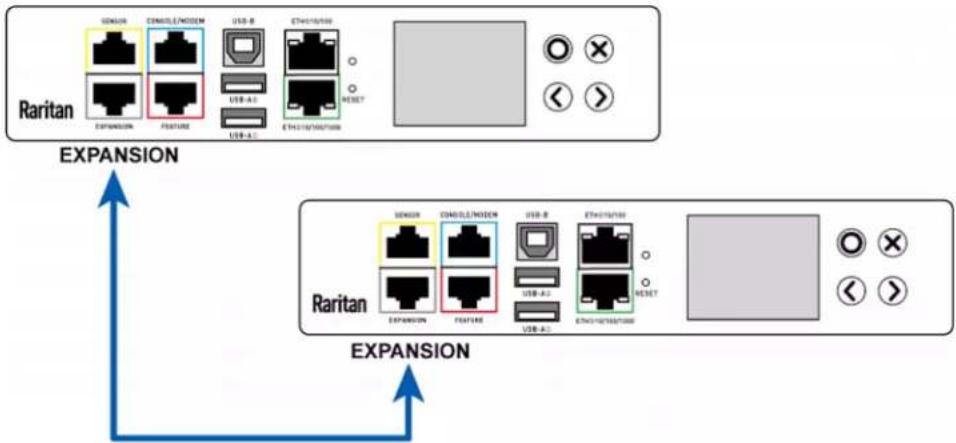
flowchart
graph TD
    A["Raritan"] --> B["Switch"]
    A --> C["Connectors/Network"]
    A --> D["USB-B"]
    A --> E["ETH010/100"]
    A --> F["USB-A1"]
    A --> G["USB-A2"]
    A --> H["NET"]
    H --> I["Control Panel"]
    J["Raritan"] --> K["Switch"]
    J --> L["Connectors/Network"]
    J --> M["USB-B"]
    J --> N["ETH010/100"]
    J --> O["USB-A1"]
    J --> P["USB-A2"]
    J --> Q["NET"]
    Q --> R["Control Panel"]
    S["EXPANSION"] --> T["Expansion"]
    U["EXPANSION"] --> V["Expansion"]
Max. 2 meters
Power-Sharing Configurations and Restrictions
When either iX7 ^™ PDU enters the power-sharing mode, BOTH PDUs involved in the power-sharing connection support "less" external equipment than usual. It is strongly recommended to remove specific equipment from both iX7 ^™ PDUs when making a power-sharing connection.
Configuration limitations on "both" PDUs:
- No USB wireless LAN adapter is connected. That is, you have to connect both PDUs to a "wired" network if LAN access is wanted.
- No asset management strips are connected.
- The maximum number of DX environmental packages or door handles that can be connected decreases. For details, see Supported Sensor Configurations for Power Sharing (on page 50).
- When either PDU enters the power-sharing mode, you must NOT physically remove or add environmental sensor packages to BOTH PDUs.
Supported Sensor Configurations for Power Sharing
All information and restrictions described in this section apply to BOTH PDUs involved in the power-sharing configuration, unless otherwise specified.
There are no limitations for connecting Raritan's DPX or DPX2 environmental sensor packages to an iX7™ PDU in the power-sharing mode. See DPX Sensor Packages (on page 53) or DPX2 Sensor Packages (on page 58).
The maximum number of supported DPX3 environmental sensor packages remains unchanged -- that is, 12 DPX3 packages. See DPX3 Sensor Packages(on page 60).
The maximum number of supported DX environmental sensor packages also remains unchanged as long as the DPX3-ENVHUB4 sensor hub is not used -- that is, 12 DX sensor packages. See DX or DX2 Sensor Packages (on page 62).
However, there are DX restrictions when DPX3-ENVHUB4 is used, and there are also door handles-related restrictions.
DX sensor restrictions when connected via DPX3-ENVHUB4:
- A maximum of one DPX3-ENVHUB4 and a maximum of 10 DX sensor packages are supported.
Restrictions of connecting door handles via DX-PD2C5: - A maximum of 4 handles connected to a maximum of two DX-PD2C5 packages are supported.
- All of the 4 handles must be controlled by the same PDU to ensure that only one handle is in the unlocked state at a time. That is, the door handles are connected to only one PDU in the power-sharing connection, NOT both.
- When more than one DX-PD2C5 are required, they must be cascaded via standard network patch cables, instead of using a sensor hub.
▶ Other sensor restrictions when door handles are present:
Make sure the connection of door handles complies with the above restrictions.
The following restrictions do NOT apply to the other PDU that does not have the door handles connected.
- When there are 4 or 3 handles connected to the PDU (via a maximum of two DX-PD2C5 packages), "only one" additional DPX/DPX2/DPX3 environmental sensor package can be connected to that PDU. Raritan's sensor hubs must NOT be used.
- When there are 2 handles connected to the PDU (via only one DX-PD2C5), up to 10 sensor packages of DPX/DPX2/DPX3 or up to 2 additional DX sensor packages can be additionally connected. Raritan's sensor hubs must NOT be used.
- When there is only 1 handle connected, up to 12 sensor packages of DPX/DPX2/DPX3 or up to 3 DX sensor packages can be additionally connected. Raritan's sensor hubs must NOT be used.
▶ NO physical changes made to the number of connected sensor packages:
- When either PDU enters the power-sharing mode, you must NOT physically remove or add environmental sensor packages to BOTH PDUs.
Warning: The in-rush current of a newly added sensor package may cause both PDUs to reboot.
For information on Raritan's sensor packages or hubs, see Connecting Environmental Sensor Packages (on page 52).
Chapter 4 Connecting External Equipment (Optional)
More features are available if you connect Raritan's or third-party external equipment to your PX3.
In This Chapter
Connecting Environmental Sensor Packages ....52
Connecting Asset Management Strips....71
Connecting a Logitech Webcam....81
Connecting a GSM Modem 81
Connecting an Analog Modem 82
Connecting an External Beeper 83
Connecting a Schroff LHX/SHX Heat Exchanger 83
Connecting Environmental Sensor Packages
The PX3 supports all types of Raritan environmental sensor packages, including DPX, DPX2, DPX3 and DX sensor packages. For detailed information on each sensor package, refer to the Environmental Sensors and Actuators Guide (or Online Help) on Raritan website's Support page (http://www.raritan.com/support/).
An environmental sensor package may comprise sensors only or a combination of sensors and actuators.
The PX3 can manage a maximum of 32 sensors and/or actuators. The supported maximum cabling distance is 98 feet (30 m), except for DPX sensor packages.
For information on connecting different types of sensor packages, see:
• DPX Sensor Packages (on page 53)
• DPX2 Sensor Packages (on page 58)
• DPX3 Sensor Packages (on page 60)
• DX or DX2 Sensor Packages (on page 62)
Identifying the Sensor Port
Warning: If you purchase Raritan's environmental sensor packages, make sure you connect them to the correct port on the PX3, or damages may be caused to the PX3 and/or connected sensor packages.
How to identify the SENSOR port:
• The correct port is labeled SENSOR.
• The SENSOR port is marked with YELLOW color, as shown below.
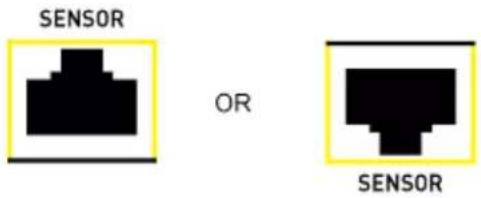
text_image
SENSOR OR SENSORDPX Sensor Packages
Most DPX sensor packages come with a factory-installed sensor cable, whose sensor connector is RJ-12.
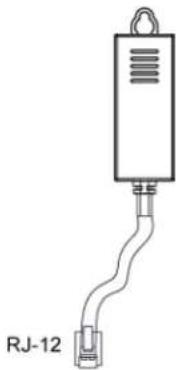
natural_image
Simple line drawing of a device with a connector and label RJ-12 (no text or symbols on the diagram itself)For the cabling length restrictions, see Supported Maximum DPX Sensor Distances (on page 57).
Warning: For proper operation, wait for 15-30 seconds between each connection operation or each disconnection operation of environmental sensor packages.
To directly connect a DPX with a factory-installed sensor cable:
An RJ-12 to RJ-45 adapter is required to connect a DPX sensor package to the PX3.
a. Connect the adapter's RJ-12 connector to the DPX sensor cable.
b. Connect the adapter's RJ-45 connector to the RJ-45 SENSOR port of the PX3.
▶ To directly connect a differential air pressure sensor:
- Connect a Raritan-provided phone cable to the IN port of a differential air pressure sensor.
- Get an RJ-12 to RJ-45 adapter. Connect the adapter's RJ-12 connector to the other end of the phone cable.
- Connect this adapter's RJ-45 connector to the RJ-45 SENSOR port on the PX3.
- If intended, connect one DPX sensor package to the OUT port of the differential air pressure sensor. It can be any DPX sensor package, such as a DPX-T3H1.

text_image
① ② OUT IN ③ ④| 1 | The PX3 device |
| 2 | Raritan differential air pressure sensors |
| 3 | One DPX sensor package (optional) |
| 4 | RJ-12 to RJ-45 adapter |
Using an Optional DPX-ENVHUB4 Sensor Hub
Optionally, you can connect a Raritan DPX-ENVHUB4 sensor hub to the PX3. This allows you to connect up to four DPX sensor packages to the PX3 via the hub.
This sensor hub supports DPX sensor packages only. Do NOT connect DPX2, DPX3 or DX sensor packages to it.
DPX-ENVHUB4 sensor hubs CANNOT be cascaded. You can connect only one hub to each SENSOR port on the PX3.
Tip: The Raritan sensor hub that supports ALL types of Raritan environmental sensor packages is DPX3-ENVHUB4. See Using an Optional DPX3-ENVHUB4 Sensor Hub (on page 65).
To connect DPX sensor packages via the DPX-ENVHUB4 hub:
- Connect the DPX-ENVHUB4 sensor hub to the PX3.
a. Plug one end of the Raritan-provided phone cable (4-wire, 6-pin, RJ-12) into the IN port (Port 1) of the hub.
b. Get an RJ-12 to RJ-45 adapter. Connect this adapter's RJ-12 connector to the other end of the phone cable.
c. Connect this adapter's RJ-45 connector to the PDU's RJ-45 SENSOR port.
- Connect DPX sensor packages to any of the four OUT ports on the hub.
This diagram illustrates a configuration with a sensor hub connected.

text_image
Diagram showing a linear connector with labeled components and wiring connections, including a 4-pin device and five connected cables.| 1 | The PX3 device |
| 2 | RJ-12 to RJ-45 adapter |
| 3 | Raritan-provided phone cable |
| 4 | DPX-ENVHUB4 sensor hub |
| 5 | DPX sensor packages |
Using an Optional DPX-ENVHUB2 cable
A Raritan DPX-ENVHUB2 cable doubles the number of connected environmental sensors per SENSOR port.
This cable supports DPX sensor packages only. Do NOT connect DPX2, DPX3 or DX sensor packages to it.
To connect DPX sensor packages via the DPX-ENVHUB2 cable:
- Use an RJ-12 to RJ-45 adapter to connect the DPX-ENVHUB2 cable to the PX3.
a. Connect the adapter's RJ-12 connector to the cable.
b. Connect the adapter's RJ-45 connector to the RJ-45 SENSOR port on the PX3. - The cable has two RJ-12 sensor ports. Connect DPX sensor packages to the cable's sensor ports.
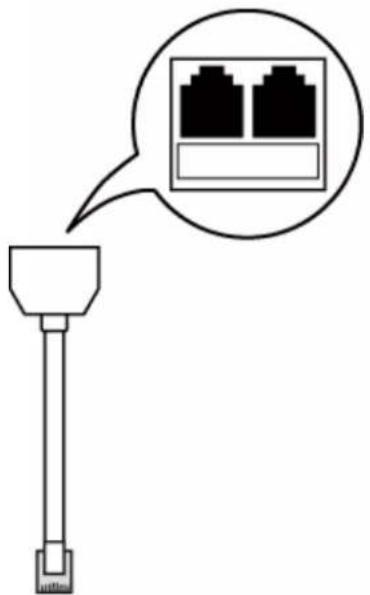
natural_image
Diagram of a USB port with two Ethernet ports shown as icons (no text or labels)- Repeat the above steps if there are additional SENSOR ports on your PX3.
Supported Maximum DPX Sensor Distances
When connecting the following DPX sensor packages to the PX3, you must follow two restrictions.
- DPX-CC2-TR
- DPX-T1
- DPX-T3H1
- DPX-AF1
- DPX-T1DP1
▶ Sensor connection restrictions:
- Connect a DPX sensor package to the PX3 using the sensor cable pre-installed (or provided) by Raritan. You MUST NOT extend or modify the sensor cable's length by using any tool other than the Raritan's sensor hubs.
- If using a DPX-ENVHUB4 sensor hub, the cabling distance between the PX3 and the sensor hub is up to 33' (10 m).
▶ Maximum distance illustration:
The following illustrates the maximum distance when connecting DPX sensor packages with a maximum 16' (5 m) sensor cable to a PX3 via a sensor hub.
• The sum of a DPX-T3H1 sensor cable's length is 16' (5 m).
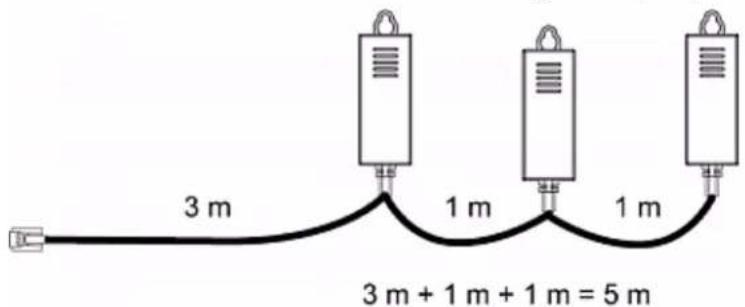
text_image
3 m 1 m 1 m 3 m + 1 m + 1 m = 5 m- The total cabling length between the PX3 and one DPX-T3H1 is 49' (15 m) as illustrated below. Note that the length 16' (5 m) is the length of each DPX-T3H1 sensor cable, which is defined in the above diagram.
PX3
→ 33' (10 m) cable
→ 1 sensor hub
→ 16' (5 m) cable
→ Up to 4 DPX-T3H1 sensor packages
DPX2 Sensor Packages
A DPX2 sensor cable is shipped with a DPX2 sensor package. This cable is made up of one RJ-12 connector and one to three head connectors. You have to connect DPX2 sensor packages to the sensor cable.
For more information on DPX2 sensor packages, access the Environmental Sensors and Actuators Guide (or Online Help) on Raritan website's Support page (http://www.raritan.com/support/).

text_image
① ② RJ-12| Item | |
| 1 | DPX2 sensor package |
| 2 | DPX2 sensor cable with one RJ-12 connector and three head connectors |
The following procedure illustrates a DPX2 sensor cable with three head connectors. Your sensor cable may have fewer head connectors.
Warning: If there are free head connectors between a DPX2 sensor cable's RJ-12 connector and the final attached DPX2 sensor package, the sensor packages following the free head connector(s) on the same cable do NOT work properly. Therefore, always occupy all head connectors prior to the final sensor package with a DPX2 sensor package.
To connect DPX2 sensor packages to the PX3:
- Connect a DPX2 sensor package to the first head connector of the DPX2 sensor cable.

natural_image
Diagram of a USB cable with connector, showing a connector being inserted into a cable (no text or symbols present)- Connect remaining DPX2 sensor packages to the second and then the third head connector.
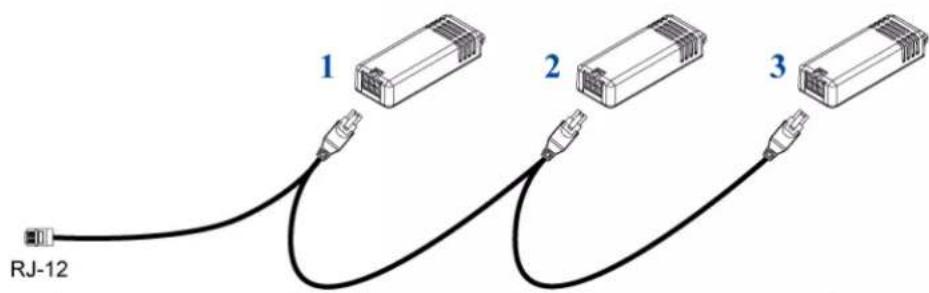
text_image
RJ-12 1 2 3Tip: If the number of sensors you are connecting is less than the number of head connectors on your sensor cable, connect them to the first one or first two head connectors to ensure that there are NO free head connectors prior to the final DPX2 sensor package attached.
- Use an RJ-12 to RJ-45 adapter to connect the DPX2 sensor package(s) to the PX3.
a. Connect the adapter's RJ-12 connector to the DPX2 sensor cable.
b. Connect the adapter's RJ-45 connector to the RJ-45 SENSOR port of the PX3.
OR you can directly connect the DPX2 sensor package to a DX sensor chain without using any RJ-12 to RJ-45 adapter. See Connecting a DPX2 Sensor Package to DX(on page 64).
DPX3 Sensor Packages
A DPX3 sensor package features the following:
- Its connection interface is RJ-45.
- You can cascade a maximum of 12 DPX3 sensor packages.

text_image
RJ-45 ① ② ①Numbers Components
1
RJ-45 ports, each of which is located on either end of a DPX3 sensor package.
2
LED for indicating the sensor status.
To connect DPX3 sensor packages to the PX3:
- Connect a standard network patch cable (CAT5e or higher) to either RJ-45 port on the DPX3 sensor package.
- If you want to cascade DPX3 sensor packages, get an additional standard network patch cable (CAT5e or higher) and then:
a. Plug one end of the cable into the remaining RJ-45 port on the prior DPX3.
b. Plug the other end into either RJ-45 port on an additional DPX3.
Repeat the same steps to cascade more DPX3 sensor packages.
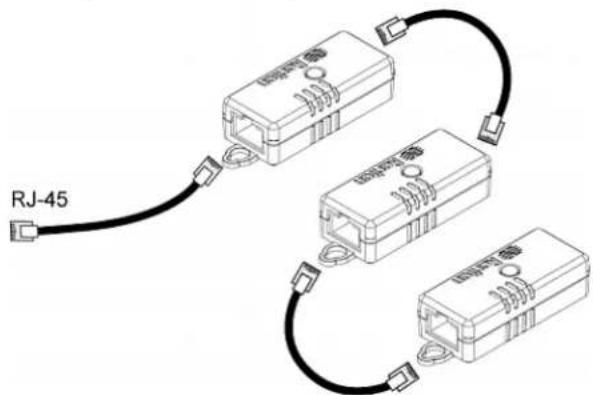
text_image
RJ-45- Connect the first DPX3 sensor package to the PX3 by plugging its cable's connector into the RJ-45 SENSOR port of the PX3.
Connecting a DPX2 Sensor Package to DPX3
You can connect only one DPX2 sensor package to the "end" of a DPX3 sensor chain. It is strongly recommended to use an RJ-12 to RJ-45 adapter for connecting the DPX2 to the final DPX3 in the chain.
The maximum number of DPX3 sensor packages in the chain must be less than 12 when a DPX2 sensor package is involved.
When connecting a DPX2 sensor package containing three DPX2 sensors:
A maximum of nine DPX3 sensor packages can be cascaded because 12-3=9.

text_image
DPX3 9 DPX2When connecting a DPX2 sensor package containing two DPX2 sensors:
A maximum of ten DPX3 sensor packages can be cascaded because 12-2=10.
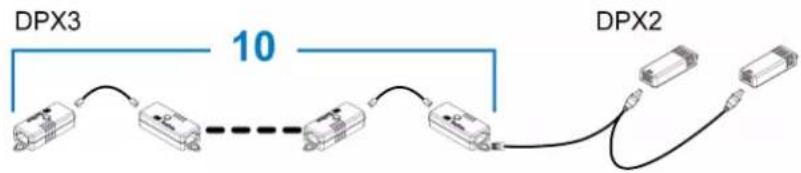
text_image
DPX3 10 DPX2When connecting a DPX2 sensor package containing one DPX2 sensor:
A maximum of eleven DPX3 sensor packages can be cascaded because 12-1=11.
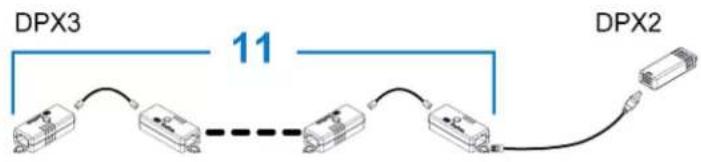
flowchart
graph LR
    A["DPX2"] --> B["DPX3"]
    B --> C["11x network"]
    C --> D["DPX2"]
    style A fill:#f9f,stroke:#333
    style B fill:#ccf,stroke:#333
    style C fill:#cfc,stroke:#333
    style D fill:#fcc,stroke:#333
DX or DX2 Sensor Packages
DX2 sensor packages, which WILL be released one by one in 2018, are functionally similar to DX or DPX3 sensor packages. Description in this section applies to all DX and DX2 sensor packages unless otherwise specified.
Most DX sensor packages contain terminals for connecting detectors or actuators. For information on connecting actuators or detectors to DX terminals, refer to the Environmental Sensors and Actuators Guide (or Online Help) on Raritan website's Support page (http://www.raritan.com/support/).
You can cascade up to 12 DX sensor packages.
When cascading DX, remember that the PX3 only supports a maximum of 32 sensors and/or actuators.
If there are more than 32 sensors and/or actuators connected, every sensor and/or actuator after the 32nd one is NOT managed by the PX3.
For example, if you cascade 12 DX packages, and each package contains 3 functions (a function is a sensor or actuator), the PX3 does NOT manage the last 4 functions because the total 36 (12*3=36) exceeds 32 by 4.
Tip: To manage the last 4 functions, you can release 4 "managed" sensors or actuators, and then manually bring the last 4 functions into management. See Peripherals (on page 200).

text_image
RJ-45 ① ② ③Numbers Components
1
RJ-45 ports, each of which is located on either end of a DX sensor package.
2
RJ-12 port, which is reserved for future use and now blocked.
3
Removable rackmount brackets.
Note: A DX2 sensor does not have the RJ-12 port and looks slightly different from the above image. For details, refer to the Environmental Sensors and Actuators Guide (or Online Help).
Connect DX sensor packages to the PX3:
- Connect a standard network patch cable (CAT5e or higher) to either RJ-45 port on a DX sensor package.
- If you want to cascade DX packages, get an additional standard network patch cable (CAT5e or higher) and then:
a. Plug one end of the cable into the remaining RJ-45 port on the prior DX package.
b. Plug the other end into either RJ-45 port on an additional DX package.
Repeat the same steps to cascade more DX packages.
Exception: You CANNOT cascade DX-PD2C5 sensor packages. A PX3 device supports only one DX-PD2C5.

natural_image
Diagram of four connected electrical connectors with cable links (no text or symbols)RJ-45
- Connect the first DX sensor package to the PX3 by plugging its cable's connector into the RJ-45 SENSOR port of the PX3.
- If needed, connect a DPX2 sensor package to the end of the DX chain. See Connecting a DPX2 Sensor Package to DX (on page 64).
Warning: The PX3 does NOT support simultaneous connection of both DX-PD2C5 and asset management strip(s) so do NOT connect both of them at the same time.
Connecting a DPX2 Sensor Package to DX
You can connect only one DPX2 sensor package to the "end" of a DX sensor chain. It is strongly recommended to use an RJ-12 to RJ-45 adapter for connecting the DPX2 to the final DX in the chain.
The maximum number of DX sensor packages in the chain must be less than 12 when a DPX2 sensor package is involved.
When connecting a DPX2 sensor package containing three DPX2 sensors:
A maximum of nine DX sensor packages can be cascaded because 12-3=9.

flowchart
graph LR
    DX["DX"] --> 9["9 Ethernet Cable"]
    9 --> DPX2["DPX2"]
    DPX2 --> 10["10 Ethernet Cable"]
    10 --> 11["11 Ethernet Cable"]
    11 --> DPX2
    style DX fill:#f9f,stroke:#333
    style DPX2 fill:#bbf,stroke:#333
When connecting a DPX2 sensor package containing two DPX2 sensors:
A maximum of ten DX sensor packages can be cascaded because 12-2=10.

text_image
DX 10 DPX2When connecting a DPX2 sensor package containing one DPX2 sensor:
A maximum of eleven DX sensor packages can be cascaded because 12-1=11.

flowchart
graph LR
    DX["DX"] --> A["Router"]
    A --> B["Router"]
    B --> C["Router"]
    C --> D["Router"]
    D --> DPX2["DPX2"]
    style DX fill:#f9f,stroke:#333
    style DPX2 fill:#ccf,stroke:#333
Using an Optional DPX3-ENVHUB4 Sensor Hub
A Raritan DPX3-ENVHUB4 sensor hub is physically and functionally similar to the DPX-ENVHUB4 sensor hub, which increases the number of sensor ports for the PX3, except for the following differences:
- All ports on the DPX3-ENVHUB4 sensor hub are RJ-45 instead of RJ-12 as the DPX-ENVHUB4 sensor hub.
- The DPX3-ENVHUB4 sensor hub supports all Raritan environmental sensor packages, including DPX, DPX2, DPX3 and DX sensor packages.
To connect diverse types of sensor packages to this sensor hub, you must follow the combinations shown in the section titled Mixing Diverse Sensor Types (on page 67).
To connect DPX3 sensor packages via the DPX3-ENVHUB4 hub:
- Connect the DPX3-ENVHUB4 sensor hub to the PX3 using a standard network patch cable (CAT5e or higher).
a. Plug one end of the cable into the IN port (Port 1) of the hub.
b. Plug the other end of the cable into the RJ-45 SENSOR port of the PX3.
- Connect the Raritan sensor packages to any of the four OUT ports on the hub.
- An RJ-12 to RJ-45 adapter is required for connecting a DPX or DPX2 sensor package to the hub.
This diagram illustrates a configuration with a sensor hub connected.

text_image
Diagram showing cable connection with four labeled components: cable bar, connector, and inverter unit.| 1 | The PX3 |
| 2 | A standard network cable |
| 3 | DPX3-ENVHUB4 sensor hub |
| 4 | Any Raritan sensor packages |
Mixing Diverse Sensor Types
You can mix DPX, DPX2, DPX3 and DX sensor packages on one PX3 according to the following sensor combinations. In some scenarios, the DPX3-ENVHUB4 sensor hub is required.
The PX3 does NOT support any other sensor-mixing combinations than those described in this section.
When mixing different sensor types, remember that the PX3 supports a maximum of 32 sensors/actuators.
1 DX + 1 DPX:
- It is strongly recommended to use an RJ-12 to RJ-45 adapter to connect the DPX sensor package to the DX sensor package.
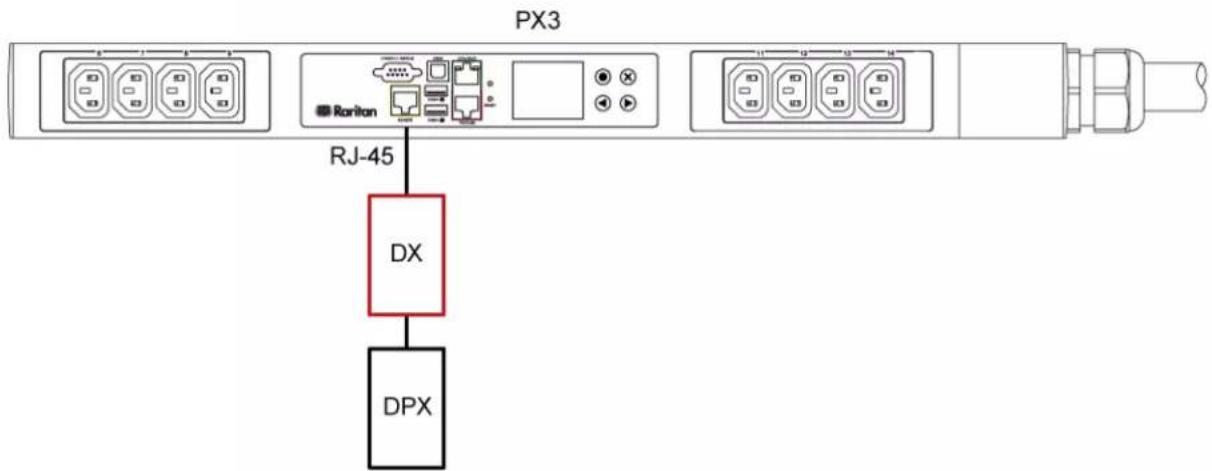
flowchart
graph TD
    A["Port 1"] --> B["RJ-45"]
    C["Port 2"] --> D["Port 1"]
    E["Port 3"] --> F["Port 2"]
    G["Port 4"] --> H["Port 3"]
    I["Port 5"] --> J["Port 4"]
    K["Port 6"] --> L["Port 5"]
    M["Port 7"] --> N["Port 6"]
    O["Port 8"] --> P["Port 7"]
    Q["Port 9"] --> R["Port 8"]
    S["Port 10"] --> T["Port 9"]
    U["Port 11"] --> V["Port 10"]
    W["Port 12"] --> X["Port 11"]
    Y["Port 13"] --> Z["Port 12"]
    AA["Port 14"] --> AB["Port 13"]
    AC["Port 15"] --> AD["Port 14"]
    AE["Port 16"] --> AF["Port 15"]
    AG["Port 17"] --> AH["Port 16"]
    AI["Port 18"] --> AJ["Port 17"]
    AK["Port 19"] --> AL["Port 18"]
    AM["Port 20"] --> AN["Port 19"]
Diverse combinations via the DPX3-ENVHUB4 sensor hub:
- You must use the DPX3-ENVHUB4 sensor hub instead of the old DPX-ENVHUB4 sensor hub. Each port on the hub supports any of the following:
■ A DX sensor package
■ A chain of DX sensor packages
■ A DPX3 sensor package
■ A chain of DPX3 sensor packages
■ A DPX2 sensor package
- A DPX sensor package
- An RJ-12 to RJ-45 adapter is recommended to connect a DPX or DPX2 sensor package to DPX3-ENVHUB4.
- In the following diagrams, the sensor package in "green" can be replaced by a DPX2 sensor package. The sensor package in "blue" can be one DPX2, DPX3 or DX sensor package.
This section only illustrations the following three combinations, but actually there are tens of different combinations by using the DPX3-ENVHUB4 sensor hub.

flowchart
graph TD
    A["Port PX3"] --> B["RJ-45"]
    B --> C["IN"]
    C --> D["DPX3-ENVHUB4"]
    D --> E["DX"]
    D --> F["DPX3"]
    D --> G["DX / DPX2 / DPX3"]
    D --> H["DPX"]
    D --> I["DPX3"]
    J["Port RX45"] --> K["IN"]
    K --> L["DX"]
    K --> M["DPX3"]
    N["Port RX45"] --> O["IN"]
    O --> P["DX"]
    N --> Q["DPX3"]
    R["Port RX45"] --> S["IN"]
    S --> T["DX"]
    R --> U["DPX3"]
    V["Port RX45"] --> W["IN"]
    W --> X["DX"]
Chapter 4: Connecting External Equipment (Optional)
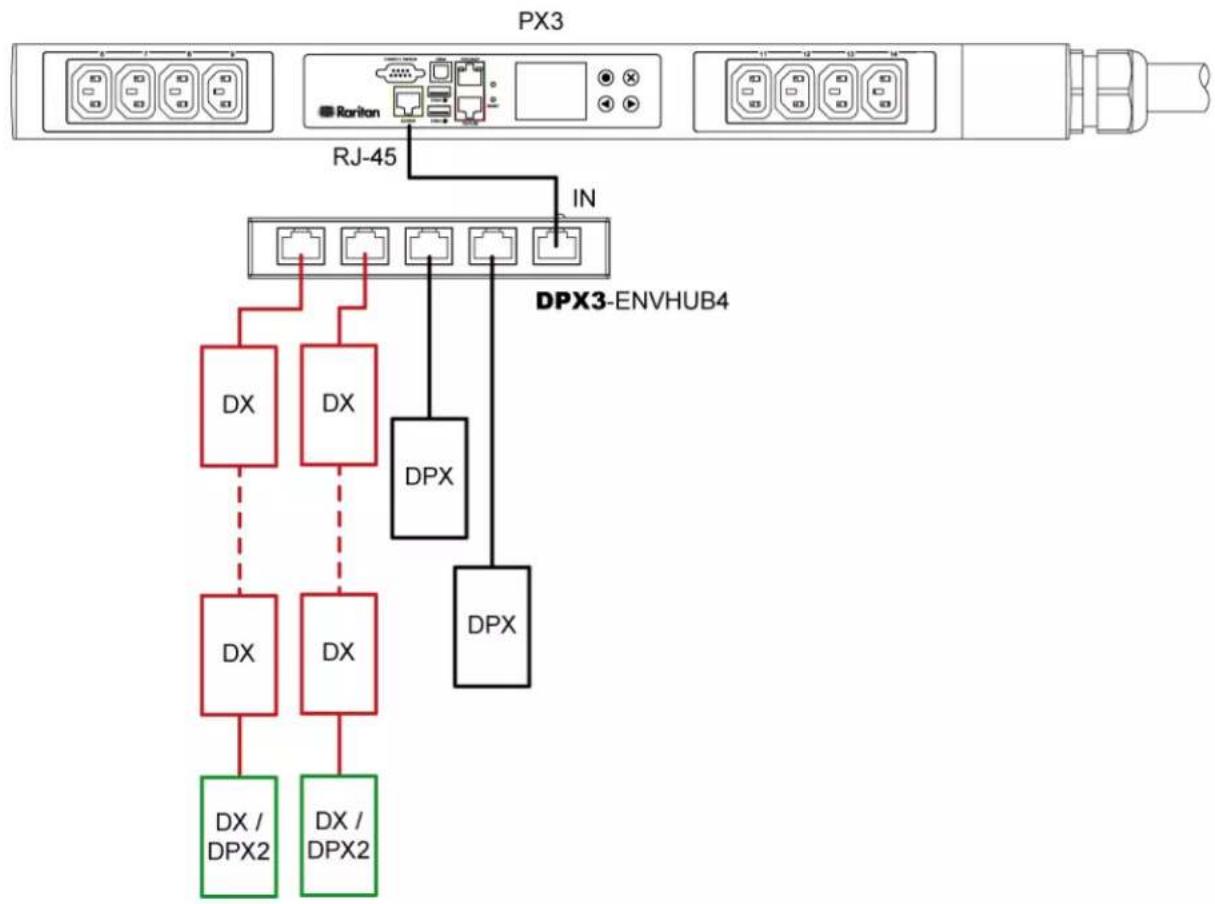
flowchart
graph TD
    A["Port 1"] --> B["RJ-45"]
    C["Port 2"] --> B
    D["Port 3"] --> E["IN"]
    F["Port 4"] --> G["DPX3-ENVHUB4"]
    H["Port 5"] --> I["DPX"]
    J["Port 6"] --> K["DPX"]
    L["Port 7"] --> M["DPX"]
    N["Port 8"] --> O["DPX"]
    P["Port 9"] --> Q["DPX"]
    R["Port 10"] --> S["DPX"]
    T["Port 11"] --> U["DPX"]
    V["Port 12"] --> W["DPX"]
    X["Port 13"] --> Y["DPX"]
    Z["Port 14"] --> AA["DPX"]
    AB["Port 15"] --> AC["DPX"]
    AD["Port 16"] --> AE["DPX"]
    AF["Port 17"] --> AG["DPX"]
    AH["Port 18"] --> AI["DPX"]
    AJ["Port 19"] --> AK["DPX"]
    AL["Port 20"] --> AM["DPX"]
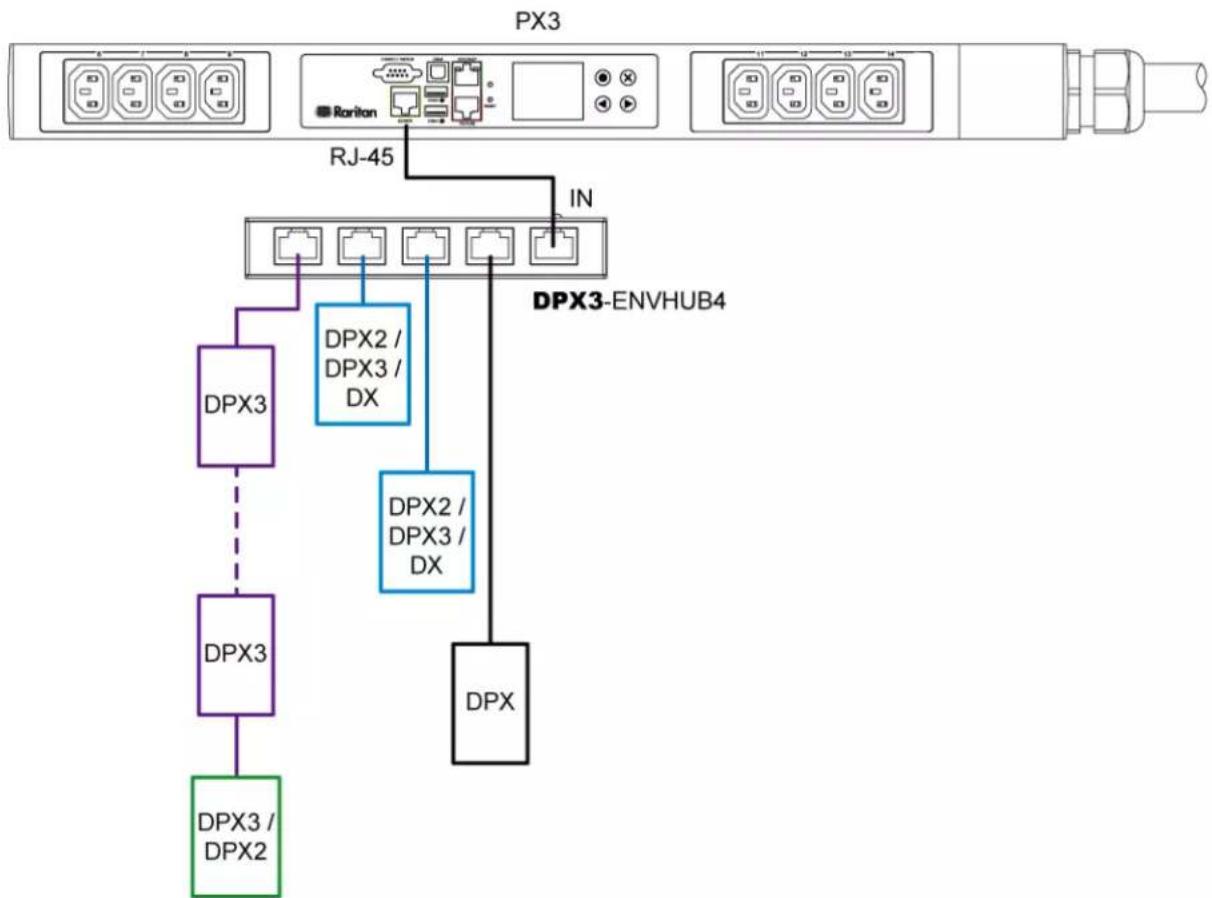
flowchart
graph TD
    A["Port 1"] --> B["Port 2"]
    C["Port 3"] --> D["Port 4"]
    E["Port 5"] --> F["Port 6"]
    G["Port 7"] --> H["Port 8"]
    I["Port 9"] --> J["Port 10"]
    K["Port 11"] --> L["Port 12"]
    M["Port 13"] --> N["Port 14"]
    O["Port 15"] --> P["Port 16"]
    Q["RJ-45"] --> R["IN"]
    S["DPX3"] --> T["DPX2 / DPX3 / DX"]
    U["DPX3"] --> V["DPX2 / DPX3 / DX"]
    W["DPX"] --> X["DPX3 / DPX2"]
Mix DPX3 and DX in a sensor chain:
Any DX sensor package in a chain can be replaced by a DPX3 sensor package, or vice versa. The total number of sensor packages in this chain cannot exceed 12.
For example, the following diagram shows a sensor chain comprising both DX and DPX3 sensor packages.

flowchart
graph LR
    A["DPX3"] --> B["DX"]
    B --> C["DX"]
    C --> D["DX"]
    D --> E["DPX3"]
    E --> F["DPX3"]
    F --> G["DX"]
    G --> H["DPX3"]
    H --> I["DPX3"]
    I --> J["DX"]
    J --> K["DX"]
    K --> L["DPX3"]
You can add a DPX2 sensor package to the end of such a sensor-mixing chain if intended. See Connecting a DPX2 Sensor Package to DPX3(on page 61) or Connecting a DPX2 Sensor Package to DX(on page 64).
Connecting Asset Management Strips
You can remotely track the locations of up to 64 IT devices in the rack by connecting asset management strips (asset strips) to the PX3 after IT devices are tagged electronically.
To use the asset management feature, you need the following items:
- Raritan asset strips: An asset strip transmits the asset management tag's ID and positioning information to the PX3.
- Raritan asset tags: An asset management tag (asset tag) is adhered to an IT device. The asset tag uses an electronic ID to identify and locate the IT device.
Warning: The PX3 does NOT support simultaneous connection of both DX-PD2C5 and asset management strip(s) so do NOT connect both of them at the same time.
Combining Regular Asset Strips
Each tag port on the regular asset strips corresponds to a rack unit and can be used to locate IT devices in a specific rack (or cabinet).
For each rack, you can attach asset strips up to 64U long, consisting of one MASTER and multiple SLAVE asset strips.
The difference between the master and slave asset strips is that the master asset strip has an RJ-45 connector while the slave does not.
The following diagram illustrates some asset strips. Note that Raritan provides more types of asset strips than the diagram.

natural_image
Three technical line drawings of vertical metal beams with mounting holes, labeled 1, 2, and 3 (no text or symbols on the beams themselves)| 1 | 8U MASTER asset strip with 8 tag ports |
| 2 | 8U SLAVE asset strip with 8 tag ports |
| 3 | 5U "ending" SLAVE asset strip with 5 tag ports |
Note: Unlike general slave asset strips, which have one DIN connector respectively on either end, the ending slave asset strip has one DIN connector on only one end. An ending asset strip is installed at the end of the asset strip assembly.
To assemble asset strips:
-
Connect a MASTER asset strip to an 8U SLAVE asset strip.
-
Plug the white male DIN connector of the slave strip into the white female DIN connector of the master strip.
■ Make sure that the U-shaped sheet metal adjacent to the male DIN connector is inserted into the rear slot of the master strip. Screw up the U-shaped sheet metal to reinforce the connection.

text_image
Diagram showing a mechanical assembly process with labeled components and directional arrow indicating transformation or alignment.- Connect another 8U slave strip to the one being attached to the master strip in the same manner as Step 1.
- Repeat the above step to connect more slave strip. The length of the asset strip assembly can be up to 64U.
- The final slave strip can be 8U or 5U, depending on the actual height of your rack.
■ Connect the "ending" asset strip as the final one in the assembly.
- Vertically attach the asset strip assembly to the rack, next to the IT equipment, making each tag port horizontally align with a rack unit.
- The asset strips are automatically attracted to the rack because of magnetic stripes on the back.
Note: The asset strip is implemented with a tilt sensor so it can be mounted upside down.
Introduction to Asset Tags
You need both asset strips and asset tags for tracking IT devices.
Asset tags provide an ID number for each IT device. The asset tags are adhered to an IT device at one end and plugged in to an asset strip at the other.
The asset strip is connected to the PX3, and the asset tag transmits the ID and positioning information to the asset strip.
The following diagram illustrates an asset tag. Note that there are two types of asset tags: non-programmable and programmable tags. The only difference is that programmable asset tags allow you to customize each tag's ID or barcode number while non-programmable ones have factory default ID or barcode numbers, which you cannot change.
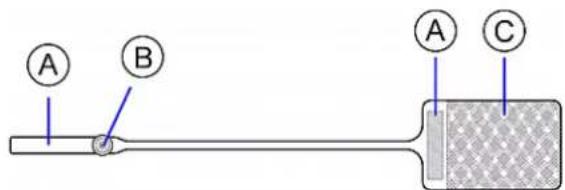
text_image
A B A C| A | Barcode (ID number), which is available on either end of the "non-programmable" asset tag |
| B | Tag connector |
| C | Adhesive area with the tape |
Note: The barcode of each "non-programmable" asset tag is unique and is displayed in the PX3 device's web interface for identification.
Connecting Regular Asset Strips to PX3
The cabling distance between an asset strip assembly and the PX3 can be up to 10 meters.
To connect regular asset strips to the PX3 device:
- Affix the adhesive end of an asset tag to each IT device through the tag's tape.
-
Plug the connector of each asset tag into the corresponding tag port on the asset strip.
-
Connect the asset strip assembly to the PX3 device, using a network patch cable (CAT5e or higher).
■ Connect one end of the cable to the RJ-45 connector on the MASTER asset strip.
- Connect the other end of the cable to the FEATURE port on the PX3 device.
The PX3 device supplies power to the connected asset strip assembly. All LEDs on the asset strip assembly may cycle through different colors during the power-on process if the asset strip's firmware is being upgraded by the PX3. After the power-on or firmware upgrade process completes, the LEDs show solid colors. Note that the LED color of the tag ports with asset tags connected will be different from the LED color of the tag ports without asset tags connected.
(D)

text_image
(A) (B) ① ② ③ (C)| (A) MASTER asset strip | |
| (B) | Asset tags |
| (C) | IT devices |
| (D) | PX3 |
Connecting Blade Extension Strips
For blade servers, which are contained in a single chassis, you can use a blade extension strip to track individual blade servers.
Raritan's blade extension strip functions similar to a Raritan asset strip but requires a tag connector cable for connecting it to a tag port on the regular or composite asset strip. A blade extension strip contains 4 to 16 tag ports.
The following diagrams illustrate a tag connector cable and a blade extension strip with 16 tag ports.
Tag connector cable
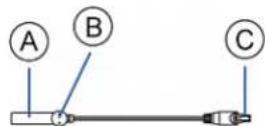
| A | Barcode (ID number) for the tag connector cable |
| B | Tag connector |
| C | Cable connector for connecting the blade extension strip |
Note: A tag connector cable has a unique barcode, which is displayed in the PX3 device's web interface for identifying each blade extension strip where it is connected.
Blade extension strip with 16 tag ports
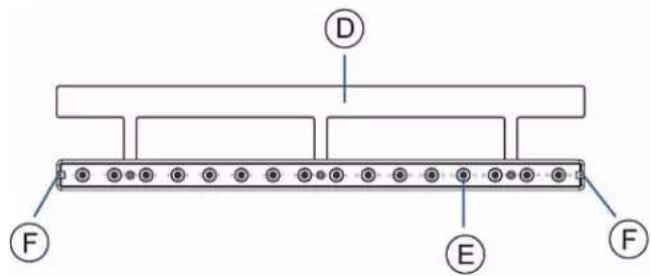
text_image
D F E F| D | Mylar section with the adhesive tape |
| E | Tag ports |
| F | Cable socket(s) for connecting the tag connector cable |
Note: Each tag port on the blade extension strip is labeled a number, which is displayed as the slot number in the PX3 device's web interface.
To install a blade extension strip:
- Connect the tag connector cable to the blade extension strip.
- Plug the cable's connector into the socket at either end of the blade extension strip.

natural_image
Pure diagram of a connector with a red arrow indicating direction, no text or symbols present- Move the blade extension strip toward the bottom of the blade chassis until its mylar section is fully under the chassis, and verify that the blade extension strip does not fall off easily. If necessary, you may use the adhesive tape in the back of the mylar section to help fix the strip in place.

text_image
Diagram illustrating a mechanical assembly process with labeled components and directional arrow- Connect one end of an asset tag to a blade server and the other end to the blade extension strip.
a. Affix the adhesive part of the asset tag to one side of a blade server through the tag's tape.
b. Plug the tag connector of the asset tag into a tag port on the blade extension strip.
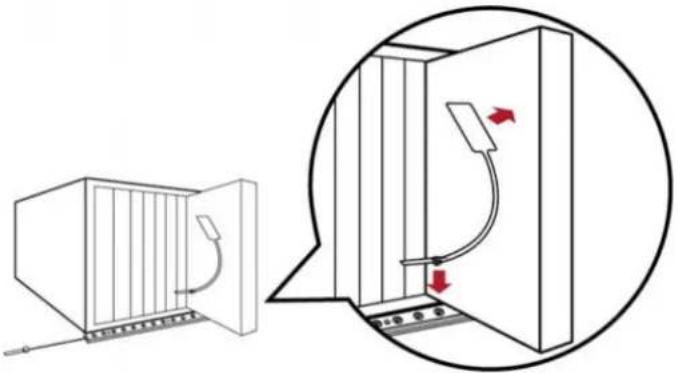
natural_image
Diagram showing a door opening and a close-up of a refrigerator interior with arrows indicating movement (no text or symbols)- Repeat the above step until all blade servers in the chassis are connected to the blade extension strip via asset tags.
- Plug the tag connector of the blade extension strip into the closest tag port of the regular or composite asset strip on the rack.

natural_image
Diagram of a mechanical device with curved blades and a vertical scale, showing no text or symbols.- Repeat the above steps to connect additional blade extension strips. Up to 128 asset tags on blade extension strips are supported per FEATURE port.
Note: If you need to temporarily disconnect the blade extension strip from the asset strip, wait at least 1 second before re-connecting it back, or the PX3 device may not detect it.
Connecting Composite Asset Strips (AMS-Mx-Z)
A composite asset strip is named AMS-Mx-Z, where x is a number, such as AMS-M2-Z or AMS-M3-Z. It is a type of asset strip that functions the same as regular MASTER asset strips except for the following differences:
- It has two RJ-45 connectors.
- Multiple composite asset strips can be daisy chained.
• It contains less tag ports than regular asset strips.
For example, AMS-M2-Z contains two tag ports, and AMS-M3-Z contains three tag ports only.
The composite asset strip is especially useful for tracking large devices such as SAN boxes in the cabinet.
The following diagram illustrates AMS-M3-Z.
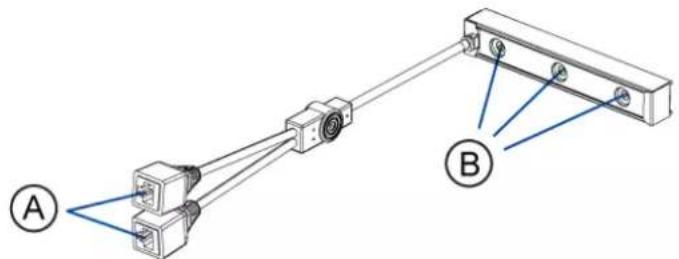
text_image
Diagram showing two connected electrical connectors labeled A and B, with connection points indicated by blue lines.| A | Two RJ-45 connectors |
| B | Tag ports |
Important: DO NOT hot swap or hot plug any AMS-Mx-Z in a composite asset strip chain after connecting the chain to the PX3 device. Doing so may cause the device's FEATURE port to malfunction.
To connect composite asset strips to the PX3 device:
If there are only 2 or 3 IT devices to track, you can connect only one AMS-M2-Z or AMS-M3-Z to the PX3 device. In this case, go to step 2. If there are more than 2 or 3 IT devices, you need to daisy chain multiple composite asset strips and start from step 1.
- (Optional) Daisy chain multiple composite asset strips.
a. Get a standard network patch cable that is within 2 meters.
b. Connect one end of the network cable to the RJ-45 connector labeled "Output" on the first composite asset strip.
c. Connect the other end of the cable to the RJ-45 connector labeled "Input" on the secondary composite asset strip.
d. Repeat the same steps to connect more composite asset strips. See Daisy-Chain Limitations of Composite Asset Strips (on page 80) for the maximum number of composite asset strips supported per chain.
Note: Different types of composite asset strips can be mixed in a chain as of release 3.3.0.
- Connect the composite asset strip(s) to the PX3 device via a standard network patch cable (CAT5e or higher).
a. Connect one end of the cable to the RJ-45 port labeled "Input" on the composite asset strip.
- For a composite asset strip chain, connect the cable to the "Input" port of the first asset strip.
b. Connect the other end of the cable to the FEATURE port on the PX3 device.
- Affix an asset tag to the IT device. Then connect this asset tag to the composite asset strip by plugging the tag connector into the tag port on the composite asset strip. For details, see Connecting Regular Asset Strips to PX3(on page 73).
- (Optional) For a chain, it is highly recommended using the cable ties to help hold the weight of all connecting cables.

natural_image
Diagram of three connected mechanical components with blue cables, no text or symbols present- Repeat Step 3 to connect IT devices to the other composite asset strips in the chain.
Daisy-Chain Limitations of Composite Asset Strips
There are some limitations when daisy chaining composite asset strips "AMS-Mx-Z," where x is a number.
- The maximum cable length between composite asset strips is 2 meters, but the total cable length cannot exceed 10 meters.
- The maximum number of composite asset strips that can be daisy chained depends on the Raritan product you purchased.
- It is NOT supported to hot swap or hot plug any AMS-Mx-Z in a composite asset strip chain that has been connected to Raritan's PDU (or PMC). Therefore, first disconnect the chain from the device when you need to swap or add any AMS-Mx-Z to the chain.
Raritan devices Maximum strips per chain
| EMX2-111,PX2 PDUs,BCM1 (NOT BCM2 series) | Up to 4 composite asset strips are supported. |
| EMX2-888,PX3 PDUs,PX3TS transfer switchesPMC (BCM2 series) | Up to 6 composite asset strips are supported. |
Note for PX3-iX7 only: In case you hot swap or hot plug any AMS-Mx-Z in a chain, causing the FEATURE port of the PX3-iX7 to malfunction, you can power cycle or reset the PX3 to restore the FEATURE port.
Connecting a Logitech Webcam
Connect webcams to PX3 in order to view videos or snapshots of the webcam's surrounding area.
The following USB Video Class (UVC) compliant webcam is supported:
- Logitech ^ Webcam ^ Pro 9000, Model 960-000048
Other UVC-compliant webcams may also work. However, Raritan has neither tested them nor claimed that they will work properly.
Tip: You can easily find a list of UVC-compliant webcams on the Internet.
The PX3 supports up to two webcams. After connecting a webcam, you can retrieve visual information from anywhere through the PX3 web interface. If your webcam supports audio, audio is available with videos.
For more information on the Logitech webcam, see the user documentation accompanying it.
To connect a webcam:
- Connect the webcam to the USB-A port on the PX3 device. The PX3 automatically detects the webcam.
- Position the webcam properly.
Important: If a USB hub is used to connect the webcam, make sure it is a "powered" hub.
Snapshots or videos captured by the webcam are immediately displayed in the PX3 web interface after the connection is complete. See Configuring Webcams and Viewing Live Images (on page 415).
Connecting a GSM Modem
The following Cinterion ^® GSM modems can be connected to the PX3 in order to send SMS messages containing event information.
- MC52iT
- MC55iT
• EHS6
See Available Actions (on page 332) for more information on SMS messages.
Note: PX3 cannot receive SMS messages.
To connect the GSM modem:
- Connect the GSM modem to the serial port labeled CONSOLE / MODEM on the PX3.
- For iX7 ^™ , a third party RJ-45 to "DB9 male" adapter/cable is required for this connection. See RJ45-to-DB9 Cable Requirements for Modem Connections (for iX7 ^™ Only)(on page 788).
- C onfigure the GSM modem as needed. See the supporting GSM modem help for information on configuring the GSM modem.
- Configure the GSM modem settings in the PX3 to specify the modem's SIM PIN number and the recipient phone number. See Configuring the Serial Port (on page 376).
Connecting an Analog Modem
The PX3 supports remote dial-in communications to access the CLI through an analog modem. This dial-in feature provides an additional alternative to access the PX3 when the LAN access is not available. To dial in to the PX3, the remote computer must have a modem connected and dial the correct phone number.
Below are the analog modems that the PX3 supports for sure:
• NETCOMM IG6000 Industrial Grade SmartModem
• US Robotics 56K modem
The PX3 may also support other analog modems which Raritan did not test.
Note that the PX3 does NOT support dial-out or dial-back operations via the modem.
To connect an analog modem:
- Plug a telephone cord into the phone jack of the supported modem.
- Plug the modem's RS-232 cable into the serial port labeled CONSOLE / MODEM on the PX3.
- For iX7 ^™ , a third party RJ-45 to "DB9 male" adapter/cable is required for this connection. See RJ45-to-DB9 Cable Requirements for Modem Connections (for iX7 ^™ Only)(on page 788).
You need to enable the modem dial-in support to take advantage of this feature, see Configuring the Serial Port (on page 376).
Connecting an External Beeper
The PX3 supports the use of an external beeper for audio alarms.
External beepers that are supported include but may not be limited to the following:
• Mallory Sonalert MODEL SNP2R
After having an external beeper connected, you can create event rules for the PX3 to switch on or off the external beeper when specific events occur. See Event Rules and Actions (on page 312).
To connect an external beeper:
- Connect a standard network patch cable to the FEATURE port of the PX3.
- Plug the other end of the cable into the external beeper's RJ-45 socket.
The beeper can be located at a distance up to 330 feet (100 m) away from the PX3.
Connecting a Schroff LHX/SHX Heat Exchanger
To remotely monitor and administer the Schroff® LHX-20, LHX-40 and SHX-30 heat exchangers through the PX3 device, you must establish a connection between the heat exchanger and the PX3 device.
For more information on the LHX/SHX heat exchanger, see the user documentation accompanying that product.
To establish a connection between the PDU and LHX/SHX heat exchanger, an RJ-45 to RS-232 adapter cable provided by Schroff is required.
To connect an LHX or SHX heat exchanger:
-
Plug the RS-232 DB9 end of the adapter cable into the RS-232 port on the Schroff LHX/SHX heat exchanger.
-
Plug the RJ-45 end of the cable into the port labeled FEATURE on your PX3 device.
To enable the support of the LHX/SHX heat exchanger, see Miscellaneous (on page 384).
Chapter 5 Introduction to PDU Components
This chapter explains how to use the PX3 device, including:
- Introduction to the LEDs and ports on the PDU
• Operation of the front panel display - The overcurrent protector's behavior
• The internal beeper's behavior - The reset button
In This Chapter
Panel Components 84
Circuit Breakers 123
Fuse....125
Beeper....128
Replaceable Controller....129
Panel Components
The PX3 comes in Zero U, 1U, and 2U sizes. All types of models come with the following components on the outer panels.
- Inlet
- Outlets
- Connection ports
- Dot-matrix LCD display
- Reset button
Connection ports, LCD display and reset button are located on a replaceable controller of the PX3 model. See Replaceable Controller (on page 129).
Inlet
Most of PX3 PDUs are shipped with a locking line cord, which is ready to be plugged into the PDU's inlet and an appropriate receptacle for electricity reception. Such devices cannot be rewired by the user.
A locking line cord helps secure the cord connection. For details, see Connecting a Locking Line Cord (on page 15).
Connect each PX3 to an appropriately rated branch circuit. See the label or nameplate affixed to your PX3 for appropriate input ratings or range of ratings.
There is no power switch on the PX3 device. To power cycle the PDU, unplug it from the branch circuit, wait 10 seconds and then plug it back in.
Besides, a PX3 "Zero U" model supports a relocatable inlet. See Zero U Models' Relocatable Inlet (on page 85).
Zero U Models' Relocatable Inlet
You can easily change the inlet's location from the side to the top or from the top to the side on a Zero U model.
To change a PX3 inlet's position:
- Power OFF the PDU.
- Remove the screws at two sides of the inlet to uninstall the inlet module.
- Re-install the inlet module in a manner that the inlet is located at the desired position.
Inlet on the side Inlet on the top
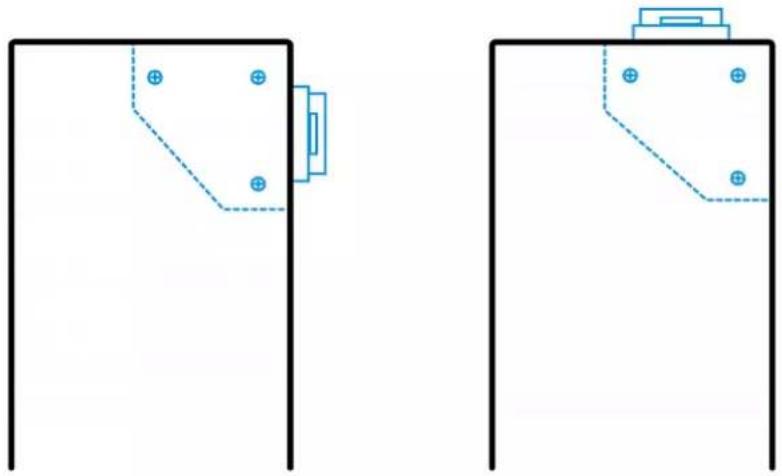
natural_image
Pure technical diagram showing two identical mechanical or structural components with dashed lines and circular holes, no text or symbols present.Outlets
The total number of outlets varies from model to model.
PX3-3000 Series
These models are NOT outlet-switching capable so all outlets are always in the ON state.
Outlet LEDs are not available.
PX3-4000 Series
These models are NOT outlet-switching capable so all outlets are always in the ON state.
A small LED adjacent to each outlet indicates the outlet state. Outlet LEDs always light red, indicating that the outlet power is ON.
PX3-5000 Series
These models are outlet-switching capable. A small LED adjacent to each outlet indicates the outlet or PDU state. The PDU is shipped from the factory with all outlets turned ON.
The table below explains how to interpret different outlet LED states.
| LED state Outlet status What it means | ||
| Not lit Powered OFF | The outlet is not connected to power, or the control | |
Chapter 5: Introduction to PDU Components
| LED state Outlet status What it means | ||
| circuitry's power supply is broken. | ||
| Red ON and LIVE LIVE power. The outlet is on and power is available. | ||
| Red flashing ON and LIVE | The current flowing through the outlet is greater than the upper warning (non-critical) threshold. | |
| Green | OFF and LIVE | The outlet is turned off and power is available when the outlet is turned on. |
| Green flashing OFF and NOT LIVE | The outlet is turned off and power is not available because the circuit breaker has tripped. | |
| Red and Green flashing alternatively | ON and NOT LIVE | The outlet is turned on but power is not available because a circuit breaker has tripped. |
| Cycling through Red, Green and Yellow | n/a | The PX3 device has just been plugged in and its management software is loading. LED color cycling does not interrupt power to outlets. It is an indication of firmware loading. |
Note: When a PX3 device powers up, it proceeds with the power-on self test and software loading for a few moments. At this time, the outlet LEDs cycle through different colors. When the software has completed loading, the outlet LEDs show a steady color and the front panel display illuminates.
Connection Ports
Depending on the model you purchased, the total number of ports available varies.
Zero U Connection Ports
The total number of connection ports depends on the model you purchased. Note that port locations on your models may be different from these images.
7 ports on PX3 models:
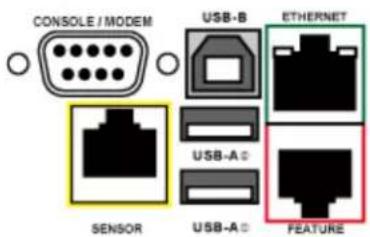
text_image
CONSOLE / MODEM USB-B ETHERNET USB-A USB-A SENSOR USB-A FEATURE■ CONSOLE/MODEM port x 1 (DB9)
■ Sensor port x 1 (yellow)
- USB-A port x 2
USB-B port x 1
■ Feature port x 1 (red)
- Ethernet port x 1 (green)
9 ports on PX3-iX7 models:

text_image
SENSOR CONSOLE/MODEM EXPANSION FEATURE USB-B ETH@10/100 USB-A@ USB-A@ ETH@10/100/1000■ CONSOLE/MODEM port x 1 (RJ-45)
■ Sensor port x 1 (yellow)
USB-A port x 2
USB-B port x 1
■ Feature port x 1 (red)
- Ethernet port x 2 (green and white)
Note: ETH0/100/1000 (marked in green) supports up to 1000 Mbps. This is "ETH1". ETH0/100 (marked in white) supports up to 100 Mbps. This is "ETH2".
■ Expansion port x 1 (gray)
1U and 2U Port Locations
The difference between Zero U, 1U and 2U models is that Zero U models have all the connection ports located on the front panel while most of the 1U and 2U models have the ports located respectively on the front and back panels.
Connection Port Functions
The table below explains the function of each port.
PX3 models:
| Port Used for... | |
| USB-B | Cascading the PX3 devices for sharing a network connection. See Cascading PX3 via USB (on page 38).Establishing a USB connection between a computer and the PX3 for using the command line interface or performing the disaster recovery. For disaster recovery instructions, contact Raritan Technical Support. |
| USB-A | This is a "host" port, which is powered, per USB 2.0 specifications.Connecting a USB device, such as a Logitech® webcam or wireless LAN adapter.Cascading the PX3 devices for sharing a network connection. |
| FEATURE Connection to one of the following devices:A Raritan access product, such as Dominion KX III KVM switch, with the use of a power CIM.A Schroff® LHX-20, SHX-30 or LHX-40 device, using an RJ-45 to RS-232 cable provided by Schroff.An external beeper with the RJ-45 socket.A Raritan asset management strip, which allows you to track the locations of IT devices on the rack.See Connecting External Equipment (Optional) (on page 52).Warning: This is not an RS-232 port so do NOT plug in an RS-232 device, or damages can be caused to the device. | |
| CONSOLE/MODEM(DB9) | Establishing a serial connection between the PX3 and a computer or modem.This is a standard DTE RS-232 port. You can use a null-modem cable with two DB9 connectors on both ends to connect the PX3 to the computer. |
| SENSOR(RJ-45) | Connection to one of the following devices:Raritan's environmental sensor package(s).Raritan's sensor hub, which expands the number of a sensor port to four ports. |
| ETHERNET Connecting the PX3 to your company's network via a standard network patch cable (Cat5e/6). This connection is necessary to administer or access the PX3 remotely.There are two small LEDs adjacent to the port:Green indicates a physical link and activity.Yellow indicates communications at 10/100 BaseT speeds. | |
PX3-iX7 models:
| Port Used for | |
| USB-A,USB-B,FEATURE,SENSOR | Same functions as above. |
| CONSOLE/MODEM(RJ-45) | Same function as the one on PX3 models. See above.Note that the CONSOLE/MODEM port on the iX7TM PDU is an RJ-45 connector instead of a DB9 connector. Therefore, use a third-party RJ-45 to DB9 adapter/cable to connect iX7TM to the computer. See RJ45-to-DB9 Cable Requirements for Computer Connections (for iX7TM Only) (on page 34). |
| ETH10/100/1000,ETH210/100 | iX7TM has two Ethernet ports.▪ ETH 110/100/1000 (marked in green) supports up to 1000 Mbps. This is "ETH1".▪ ETH 210/100 (marked in white) supports up to 100 Mbps. This is "ETH2".You can use either Ethernet port for network connection or cascading.See Extended Cascading with PX3-iX7 Models (on page 41). |
| Note: The yellow LED of the ETH210/100 port has NO function so it will not be lit regardless of the communication status. | |
| EXPANSION Connecting to the EXPANSION port of another iX7TM so that the power supply to either iX7TM controller will continue whenever power failure occurs on the inlet of one iX7TM PDU. See Power-Sharing Restrictions and Connection (for iX7TM Only) (on page 47). | |
Dot-Matrix LCD Display
The following diagram shows the dot-matrix LCD display panel on different Zero U models.
PX3 models:



PX3-iX7 models:



You can use the LCD display to view the PX3 information and even switch an outlet. It consists of:
- A dot-matrix LCD display
- Four control buttons
Note 1: All dot-matrix LCD display diagrams illustrated in the User Guide are for Zero U models. Your dot-matrix LCD may look slightly different if it is a 1U/2U model.
Zero U models automatically adjust the orientation of the content shown on the dot-matrix LCD display after detecting the direction in which the PDU is installed. 1U and 2U models do NOT adjust the content's orientation.
Note 2: For information on the character LCD display of the PX3 'phase I' model, see Old PX3 Character LCD Display (on page 719).
Automatic and Manual Modes
After powering on or resetting the PX3, the front panel LCD display first shows the dots, then Raritan logo and finally enters the automatic mode.
In all of the LCD operation topics:
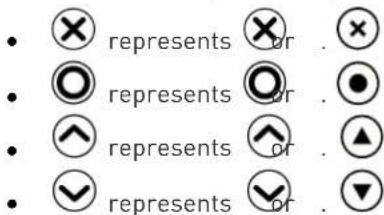
text_image
• × represents × or . × • ○ represents ○ or . ● • ▲ represents ▲ or . ▲ • √ represents √ or . ▼▶ Automatic mode without alerts available:
In this mode, the LCD display cycles through the inlet information as long as there are no alerts.
If overcurrent protectors are available on your PX3, the display cycles between both the inlet and overcurrent protector information.
Note: You can make a PX3 with overcurrent protectors show the inlet information only in the automatic mode. See Front Panel Settings (on page 375).
▶ Manual mode:
To view more information or control outlets if your PX3 is outlet-switching capable, enter the manual mode.
Press Ⓞ or ✗ to enter the manual mode, where the Main Menu is first displayed. See Main Menu (on page 95).
To return to the automatic mode, press ✗ once or multiple times.
When an alert exists:
- In the automatic mode, when an alert occurs, the LCD display stops cycling through the inlet information, and warns you by showing the alerts notice in a yellow or red background. See Alerts Notice in a Yellow or Red Screen (on page 121).
To enter the manual mode, press ✗.
- In the manual mode, both the top and bottom bars will turn yellow or red to indicate the presence of any alert. See Operating the Dot-Matrix LCD Display (on page 94).
Control Buttons
Use the control buttons to navigate to the menu in the manual mode.
| PX3 button PX3-iX7 button Function | ||
 |  | Up |
 |  | Down |
 |  | OK |
 |  | Back-- OR --Switch between automatic and manual modes |
Operating the Dot-Matrix LCD Display
Enter manual mode when you want to operate the dot-matrix LCD display. You can use the dot-matrix LCD display to:
- Show information of the PX3 device, built-in components, or connected peripheral devices
• Control outlets if your model supports outlet-switching
• Control actuators if any
Color changes of the display's top and bottom bars:
- In the manual mode, both the top and bottom bars will turn yellow or red to indicate the presence of any alert. For color definitions, see Yellow- or Red-Highlighted Sensors (on page 206).
Screen with yellow bars Screen with red bars
All alerts enter the warning level only.
Partial or all alerts enter the critical level.

text_image
Main Menu Alerts PDU Inlet I1 Residual Current OCPs Outlets Peripherals Assets Device Info
text_image
Main Menu Alerts PDU Inlet I1 Residual Current OCPs Outlets Peripherals Assets Device Info X Auto 9:57 PM Select ○- Both bars turn black when there are NO alerts.
Screen with black bars
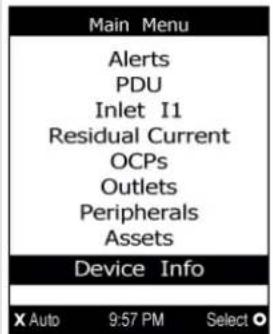
text_image
Main Menu Alerts PDU Inlet I1 Residual Current OCPs Outlets Peripherals Assets Device Info X Auto 9:57 PM Select ○Main Menu
The Main Menu contains 7 to 9 menu commands, depending on the model.
Control buttons that can be used and the system time are shown at the bottom of the LCD display.

text_image
Main Menu Alerts PDU Inlet I1 Residual Current OCPs Outlets Peripherals Assets Device Info X Auto 9:57 PM Select ○If any alerts exist, the top and bottom bars on the LCD display change the color from black to yellow or red. See Operating the Dot-Matrix LCD Display(on page 94).
| Menu command Function | |
| Alerts | Indicates all alerted sensors, if any. See Alerts (on page 97). |
| PDU | Shows the internal beeper's state, and, if it is on, the reason for turning on.If your PX3 has multiple inlets, this menu item also shows the total active power and total active energy.See PDU (on page 98). |
| Inlet I1 | Shows the inlet I1's information. See Inlet (on page 101). |
| Residual Current | Available only on PX3 models supporting residual current monitoring.See Front Panel Operations for RCM (on page 711). |
| OCPs | Shows a list of overcurrent protector information. See OCPs (on page 102).Only PX3 models with overcurrent protectors have this menu item. |
| Outlets | Shows each outlet's information.If your PX3 supports outlet-switching, you can turn on, off or power cycle an outlet.See Outlets (on page 103). |
| Peripherals | Shows the information of connected Raritan environmental sensors or actuators, such as the temperature sensor.You can turn on or off a connected actuator with this command.See Peripherals (on page 109). |
| Assets | Shows the asset management information if Raritan asset management equipment is connected to your PX3. See Assets (on page 112). |
| Device Info | Shows the PX3 device's information, such as IP and MAC address. See Device Info (on page 116). |
Note: To return to the automatic mode, press Manual Modes (on page 92).

Automatic and
Alerts
The "Alerts" menu command shows a list of the following alerted sensors, including both internal and external sensors.
- Any numeric sensor that enters the warning or critical range if the thresholds have been enabled
• State sensors that enter the alarmed state - Any tripped circuit breakers or blown fuses
Tip: The same information is available in the web interface's Dashboard. See Dashboard - Alerted Sensors (on page 150).
If there are no alerted sensors, the LCD display shows the message "No Alerts."
▶ To view alerted sensors:
1. Press

or 📋 to select "Alerts" in the Main Menu, and press

- Alerted sensors, if any, are highlighted in either red or yellow. For color definitions, see Yellow- or Red-Highlighted Sensors (on page 206).
- The top and bottom bars on the LCD display may be yellow or red, depending on the type(s) of available alerts. See Operating the Dot-Matrix LCD Display (on page 94).
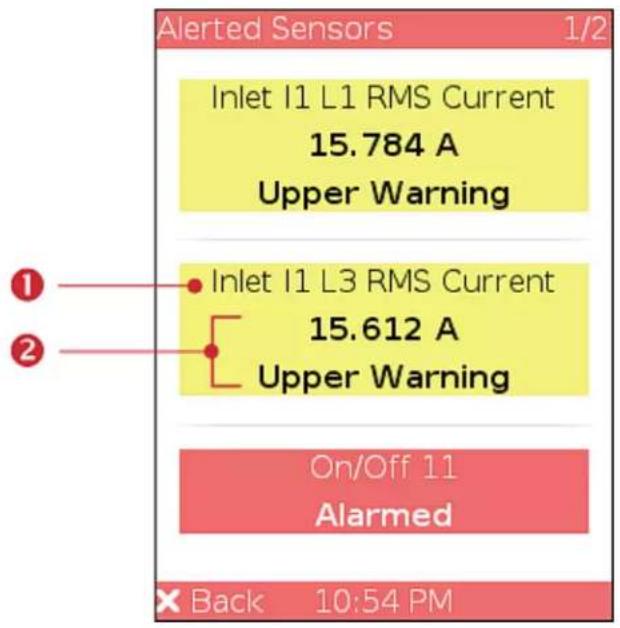
text_image
Alerted Sensors 1/2 Inlet I1 L1 RMS Current 15.784 A Upper Warning ① Inlet I1 L3 RMS Current 15.612 A Upper Warning On/Off 11 Alarmed Back 10:54 PM| Number | Description |
| 1 | Sensor names. |
| 2 | Sensor readings and/or states.A numeric sensor shows both the reading and state. A state sensor or actuator shows the state only.Available states are listed below. For further information, see Sensor/Actuator States (on page 208).AlarmedLower Critical = below lower criticalLower Warning = below lower warningUpper Warning = above upper warningUpper Critical = above upper criticalOpen (for overcurrent protectors) |
- Press ⬇ or ⬇ to view additional pages. When there are multiple pages, page numbers appear in the top-right corner of the display.
PDU
Depending on the model you purchased, the "PDU" menu command may show one or all of the following data.
- Internal beeper states -- On or Off
- Total active power of the PX3 -- available on multi-inlet models and in-line monitors only
- Total active energy of the PX3 -- available on multi-inlet models and in-line monitors only
- Energy pulse output settings -- available on PX3-4000 and PX3-5000 series only
• 12V power supply status -- available on iX7™ models only
Tip: The internal beeper state information is also available in the PX3 web interface. See PDU (on page 157).
To view or configure PDU information:
- Press


select "PDU" in the Main Menu, and press

- The internal beeper state is shown: Active or Off.
In the Active state, the reason of turning on the beeper is indicated, and the top/bottom bars turn red.
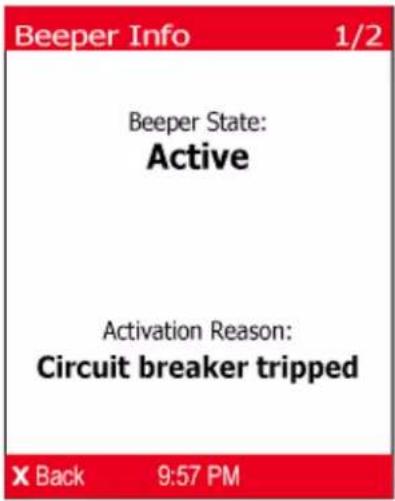
text_image
Beeper Info 1/2 Beeper State: Active Activation Reason: Circuit breaker tripped X Back 9:57 PM- If your PX3 is a PX3-4000 or PX3-5000 model, it supports the active energy pulse output. Press √ to enter the Energy Pulse page. By default the energy pulsing is turned off. DO NOT enable this feature unless you have to use it.
Note: This feature, once enabled, blink all outlet LEDs proportional to the energy consumption. It can be used as a simple interface in certification labs where they use an optical sensor to count the number of pulses and compare it to the energy reading of a reference meter.

text_image
Energy Pulse 2/2 LED Energy Metering Pulse Disabled X Back 9:57 PMa. To change the energy pulse settings, press

b. Press ⬇ or ⬇ to select an option.
c. Press Ⓞ to confirm the selection, or ✗ to cancel.
Note: All outlet LEDs on the PX3 turn OFF after enabling the energy pulsing. You still can turn on or off outlets during the pulsing period though outlet LEDs do not change their status.
- If your PX3 is an iX7 ^™ device, press to show the status of the 12V power supply to the controller. For details on this sensor, see +12V Power Supply Sensor (for iX7 ^™ Only) (on page 167).
text_image
PDU Sensors 2/2 Power Supply Status: OK X Back 9:57 PM- If your PX3 has more than one inlet, press ⬇ to show the information of total active power (W) and total active energy (Wh).

text_image
PDU Sensors 2/2 Active Power: 1,613 w Active Energy: 378,562 Wh X Back 9:57 PM- To return to the Main Menu, press ✗.
Inlet
An inlet's information is separated into two pages. Page numbers are indicated in the top-right corner of the LCD display.
To show the inlet information:
- Press ⬇ or ⬇ to select "Inlet 11" in the Main Menu, and press

- The first page shows the inlet's active power (W), apparent power (VA), power factor (PF), and active energy (Wh).

text_image
Inlet I1 1/2 Active Power: 4,898 w Apparent Power: 4,998 VA Power Factor: 0.98 Active Energy: 0 Wh X Back 9:57 PM- To go to other page(s), press

- For a single-phase model, the second page shows the inlet's voltage (V), frequency (Hz) and current (A).
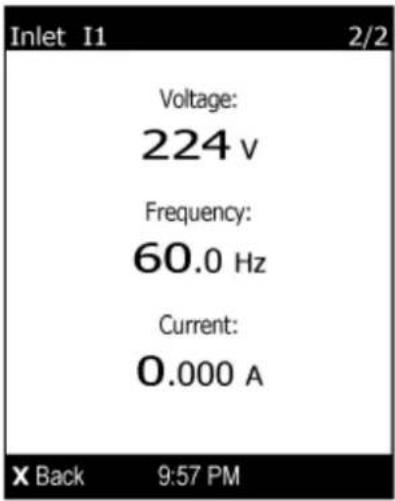
text_image
Inlet I1 2/2 Voltage: 224 v Frequency: 60.0 Hz Current: 0.000 A X Back 9:57 PM- For a three-phase model, the next several pages respectively show unbalanced current's percentage, line frequency, the current and voltage values of each line.
- To return to the Main Menu, press ✗.
OCPs
If your model has more overcurrent protectors (OCPs) than the LCD display can show at a time, a page number appears in the top-right corner of the display. Otherwise, no page numbers are available.
To show the overcurrent protector information:
- Press


select "OCPs" in the Main Menu, and press

- The LCD display shows a list of overcurrent protectors similar to the following diagram.

text_image
OCPs Circuit Breaker C1 L1-N, 20A 0.000 A Circuit Breaker C2 L1-N, 20A 0.000 A X Back 9:57 PM| Number | Description |
| 1 | Overcurrent protector names.Associated lines and rated current are displayed below each overcurrent protector's name. |
| 2 | Current reading of the corresponding overcurrent protector. |
- If the desired overcurrent protector is not visible, press ⬇ or ⬇ to scroll up or down.
Note: If any circuit breaker trips, the list of overcurrent protectors looks slightly different from the above diagram. The tripped one will show "open" instead of a current reading.
Outlets
With the front panel display, you can do the following for outlets:
• Show each outlet's information.
- Turn on, off or power cycle an individual outlet if your PX3 is outlet-switching capable. To do this, you must first enable the front panel outlet control function. See Miscellaneous (on page 384).
Showing an Outlet's Information
Multiple outlet information can be displayed on the LCD display.
Control buttons that can be used and the system time are shown at the bottom of the LCD display.
To show an outlet's information:
- Press
or 📋 to select "Outlets" in the Main Menu, and press


- The LCD display shows a list of outlets with their receptacle types, current values (A), and power states which are indicated by the colors of circles.
The currently-selected outlet number and total of outlets are indicated in the top-right corner of the display.
- A red circle indicates that this outlet is powered on.
- A green circle indicates that this outlet is powered off. If so, the word "Off" replaces the current value.
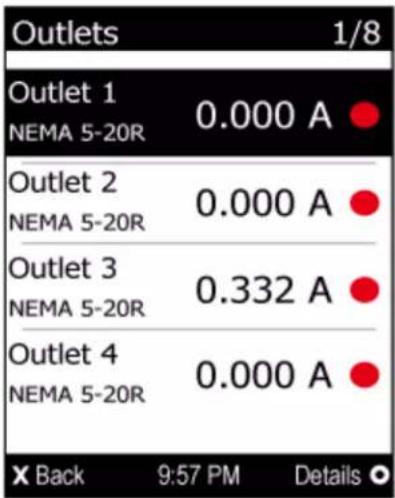
other
| Outlet | Current (A) | |---|---| | Outlet 1 NEMA 5-20R | 0.000 A | | Outlet 2 NEMA 5-20R | 0.000 A | | Outlet 3 NEMA 5-20R | 0.332 A | | Outlet 4 NEMA 5-20R | 0.000 A | X Back 9:57 PM Details ◦- Press ⬇ or ⬇ to select an outlet, and press
- If the desired outlet is not visible, press 🙏 or 🕒 to scroll up or down.

- The LCD display shows the selected outlet's power state, active power (W), apparent power (VA), power factor (PF) and active energy (Wh).
Note: In the following diagrams, N represents the selected outlet's number.

text_image
Outlet N 1/2 Status: On Active Power: 102 W Apparent Power: 104 VA Power Factor: 0.98 Active Energy: 4,500 Wh X Back 9:57 PM Switch ○- To go to the next page which shows the outlet's voltage (V), frequency (Hz) and current (A), press ⬇ or ⭕
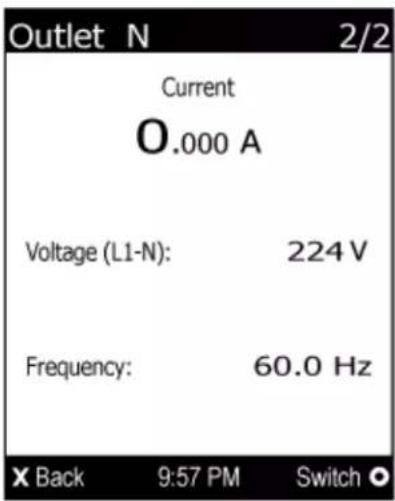
text_image
Outlet N 2/2 Current O.000 A Voltage (L1-N): 224 V Frequency: 60.0 Hz X Back 9:57 PM Switch ○- To return to the Main Menu, press Menu is shown.
several times until the Main
Power Control
This section applies to outlet-switching capable models only.
The front panel outlet control must be enabled for performing this power control function. The default is to disable this function. See Miscellaneous (on page 384).
Available options for power control vary, based on the power state of the selected outlet.
- For an outlet which has been turned on, the 'Switch On' option is unavailable.
- For an outlet which has been turned off, the 'Switch Off' option is unavailable.
Control buttons that can be used and the system time are shown at the bottom of the LCD display.
To power on, off or cycle an outlet using the LCD display:
- Press ☑ or ☑ to select "Outlets" in the Main Menu, and press

- The LCD display shows a list of outlets with their receptacle types, current values (A), and power states which are indicated by the colors of circles.
The currently-selected outlet number and total of outlets are indicated in the top-right corner of the display.
- A red circle indicates that this outlet is powered on.
- A green circle indicates that this outlet is powered off. If so, the word "Off" replaces the current value.
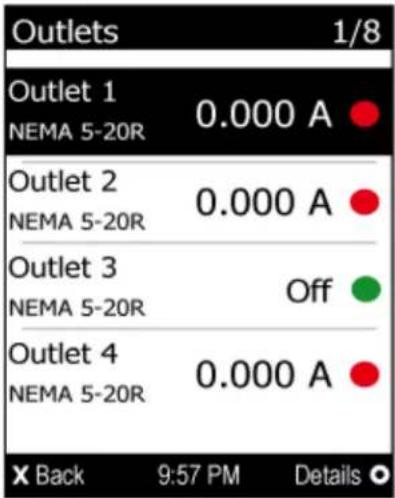
text_image
Outlets 1/8 Outlet 1 NEMA 5-20R 0.000 A Outlet 2 NEMA 5-20R 0.000 A Outlet 3 NEMA 5-20R Off Outlet 4 NEMA 5-20R 0.000 A X Back 9:57 PM Details- Press ⬇ or ⬇ to select an outlet, and press Ⓞ.
If the desired outlet is not visible, press ⬇ or ⬇ to scroll up or down.
- The LCD display shows the selected outlet's information. For details, see Showing an Outlet's Information (on page 104).
Note: In the following diagrams, N represents the selected outlet's number.
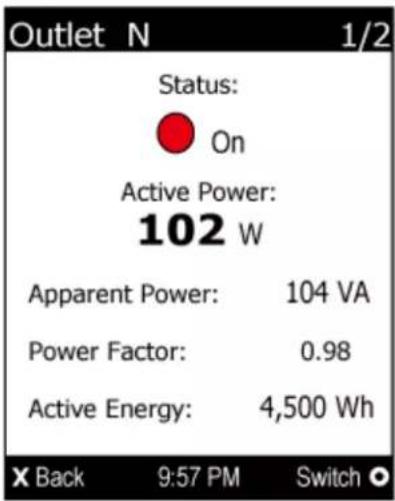
text_image
Outlet N 1/2 Status: On Active Power: 102 W Apparent Power: 104 VA Power Factor: 0.98 Active Energy: 4,500 Wh X Back 9:57 PM Switch ○- Press Ⓞ to go to the power control page. A submenu similar to the following diagram appears.
Note: The submenu is not available when the front panel outlet control is disabled. If so, a message "Front-panel outlet control is disabled" is displayed.
- When the selected outlet has been turned off, 'Switch On' replaces the option of 'Switch Off'.
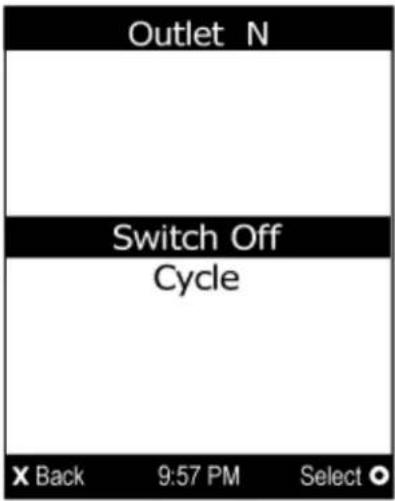
text_image
Outlet N Switch Off Cycle X Back 9:57 PM Select ●6. Press

or

to select the desired option, and press

- Switch Off: Turn off the outlet.
■ Switch On: Turn on the outlet. -
Cycle: Power cycle the outlet. The outlet is turned off and then on.
-
A confirmation message appears. Press or No, and then press Ⓞ.

or

select Yes
■ Yes: Confirm the operation.
■ No: Abort the operation.
-
Verify that the selected outlet is switched on or off, depending on the option you selected in the above step.
-
Check the outlet state shown on the LCD display. See step 4.
-
Check the outlet LED. A green LED indicates that the outlet is turned off, and a red LED indicates that the outlet is turned on.
-
To return to the Main Menu, press Menu is shown.

several times until the Main
Peripherals
If there are no Raritan environmental sensor packages connected to your PX3, the LCD display shows the message "No managed devices" for the "Peripherals" menu command.
If you have enabled the front panel actuator control function, you can switch on or off a connected actuator using the LCD display. See Miscellaneous (on page 384).
To show environmental sensor or actuator information:
-
Press ⬇ or ⬇ to select "Peripherals" in the Main Menu, and press ⭕.
-
The display shows a list of environmental sensors/actuators.
-
If the desired sensor or actuator is not visible, press ⬇ or ⬇ to scroll up or down.
- When the list exceeds one page, the currently-selected sensor/actuator's ID number and total of managed sensors/actuators are indicated in the top-right corner of the display.
If any sensor enters the warning, critical, or alarmed state, like 'Tamper Detector 1' shown below, it is highlighted in yellow or red. For color definitions, see Yellow- or Red-Highlighted Sensors (on page 206).
The top and bottom bars also turn yellow or red. See Operating the Dot-Matrix LCD Display (on page 94).
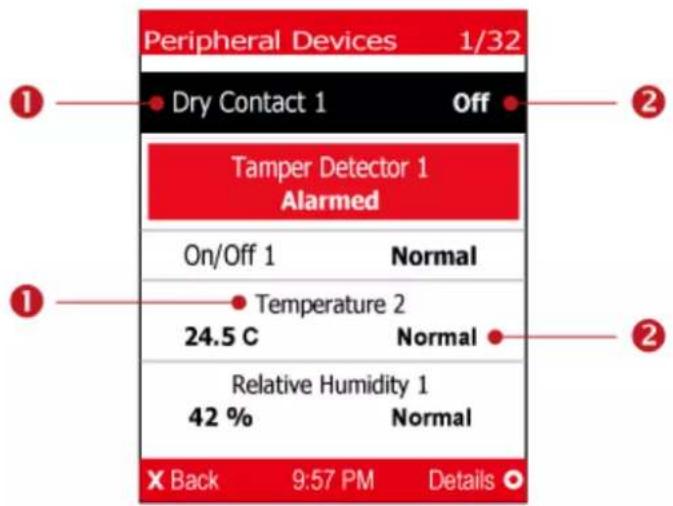
text_image
Peripheral Devices 1/32 Dry Contact 1 Off Tamper Detector 1 Alarmed On/Off 1 Normal Temperature 2 24.5 C Normal Relative Humidity 1 42 % Normal X Back 9:57 PM Details| Number | Description |
| 1 | Sensor or actuator names. |
| 2 | Sensor or actuator states as listed below. For further information, see Sensor/Actuator States (on page 208).n/a = unavailableNormalAlarmedLower Critical = below lower criticalLower Warning = below lower warningUpper Warning = above upper warningUpper Critical = above upper criticalOnOffA numeric sensor shows both the reading and state. A state sensor or actuator shows the state only. |
- To view an environmental sensor or actuator's detailed information,
press ⬇ or ⬇ to select that sensor or actuator, and press Ⓞ. A screen similar to the following is shown.
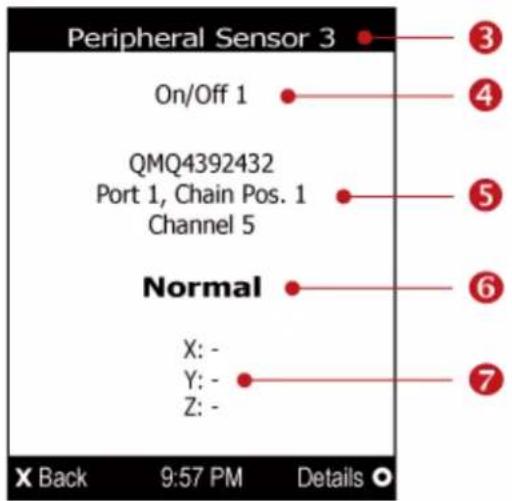
text_image
Peripheral Sensor 3 On/Off 1 QMQ4392432 Port 1, Chain Pos. 1 Channel 5 Normal X: - Y: - Z: - X Back 9:57 PM Details| Number | Description |
| 3 | The ID number assigned to this sensor or actuator.A sensor shows "Peripheral Sensor x" (x is the ID number)An actuator shows "Peripheral Actuator x" |
| 4 | Sensor or actuator name. |
| 5 | The following information is listed.▪ Serial number▪ Chain position, which involves the following information:Port:is the number of the sensor port where this sensor or actuator is connected. This number is always 1 for PX3.Chain Pos.:is the sensor or actuator's position in a sensor daisy chain.Note: Only DX, DPX2 and DPX3 sensor packages provide the chain position information.▪ If this sensor or actuator is on a sensor package with multiple channels, such as DX-D2C6, its channel number is indicated as "Channel x", where x is a number. |
| 6 | Depending on the sensor type, any of the following information is displayed:▪ State of a state sensor: Normal or Alarmed.▪ State of an actuator: On or Off.▪ Reading of a numeric sensor. |
| 7 | X, Y, and Z coordinates which you specify for this sensor or actuator. See Individual Sensor/Actuator Pages (on page 214). |
To switch on or off an actuator:
- Follow the above steps 1 to 3 to select an actuator.
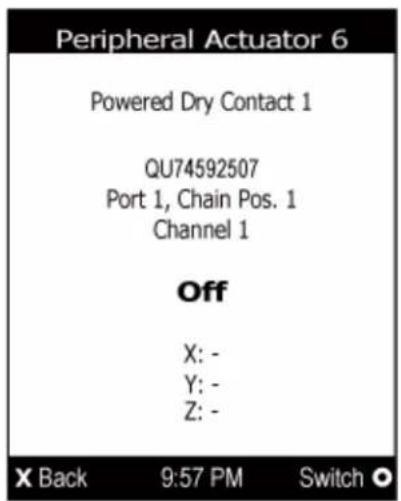
text_image
Peripheral Actuator 6 Powered Dry Contact 1 QU74592507 Port 1, Chain Pos. 1 Channel 1 Off X: - Y: - Z: -- Press Ⓞ to turn on or off the actuator. A confirmation message similar to the following is shown.
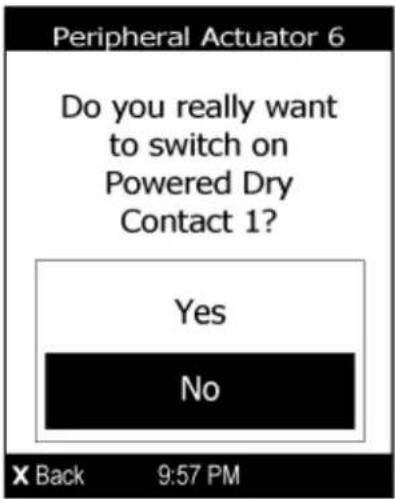
text_image
Peripheral Actuator 6 Do you really want to switch on Powered Dry Contact 1? Yes No X Back 9:57 PM- Press ⬇ or ⬇ to select Yes or No, and then press Ⓞ.
- Verify that the actuator status shown on the LCD display has been changed.
Assets
If there are no Raritan asset management strips connected, the LCD display shows the message "No asset strips connected" for the "Assets" menu command.
After connecting asset strips, only the information of the rack units where asset tags have been detected is shown on the LCD display.
To show asset strip information:
- Press ↗ or ↙ to select "Assets" in the Main Menu, and press 🔒.
- The display shows the available asset strip, and indicates how many rack units and tags are detected on this strip.
- The number of tags includes both the tags attached to the asset strip and those attached to the blade extension strip, if any.
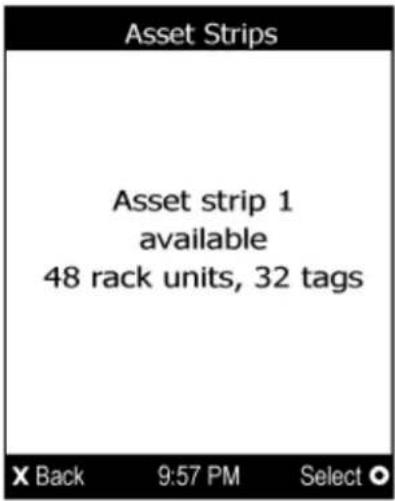
text_image
Asset Strips Asset strip 1 available 48 rack units, 32 tags X Back 9:57 PM Select ○- Press ☐ to show this asset strip's details, including:
■ State - strip status.
- Main Tags - number of the tags attached to the asset strip. In the following diagram, this number is 30.
- Blade Tags - number of the tags attached to the blade extension strip(s), if any.
In the following diagram, this number is 2.
Note: The 'Blade Tags' information appears only when there are tags detected on the connected blade extension strip.
■ Type - the asset strip type.
■ Numbering - the numbering mode. See Asset Strip (on page 221).
- Offset - the starting number of the rack unit numbering.
■ Orientation - the strip's orientation.
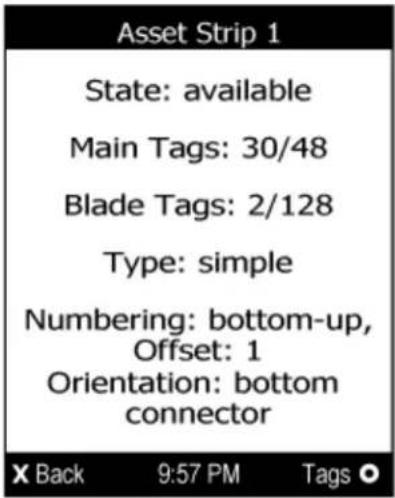
text_image
Asset Strip 1 State: available Main Tags: 30/48 Blade Tags: 2/128 Type: simple Numbering: bottom-up, Offset: 1 Orientation: bottom connector X Back 9:57 PM Tags ○-
Press 📄 again to show a list of available tags and their information.
-
When the list exceeds one page, the currently-selected main tag and total of available main tags are indicated in the top-right corner of the display.
- If the desired tag is not visible, press 📄 or ⬇ to scroll up or down.
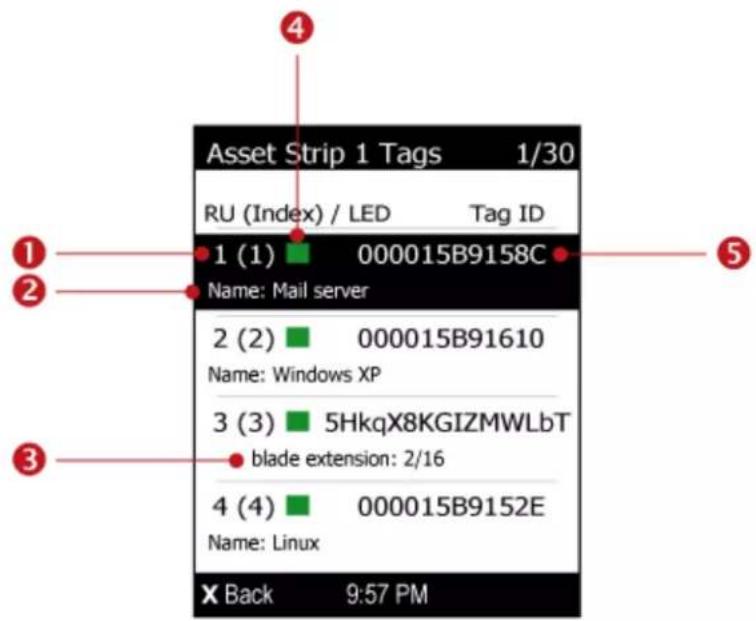
text_image
Asset Strip 1 Tags 1/30 RU (Index) / LED Tag ID 1 (1) 000015B9158C Name: Mail server 2 (2) 000015B91610 Name: Windows XP 3 (3) 5HkqX8KGIZMWLbT blade extension: 2/16 4 (4) 000015B9152E Name: Linux X Back 9:57 PM| Number | Description |
| 1 | Two numbers are displayed for each tag.▪ Rack unit number: The number assigned to this tag based on the selected numbering mode. SeeAsset Strip(on page 221).▪ The index number in parentheses: The physical port number printed on the asset strip. |
| 2 | The asset tag's name if you have specified. This field does not show up when no name is available. |
| 3 | If the connected tag is the blade extension strip, it shows 'blade extension' and indicates how many tags and slots are available on this extension strip. |
| 4 | A color box, which represents the current LED color of the tag port where this asset tag is connected. The default is green.▪ You can customize the color. SeeAsset Strip(on page 221). |
| 5 | The connected asset tag's ID number (barcode). |
- If any blade extension strip is connected to this asset strip, select it and Press ☐ to view a list of available tags and asset IDs on this extension strip.
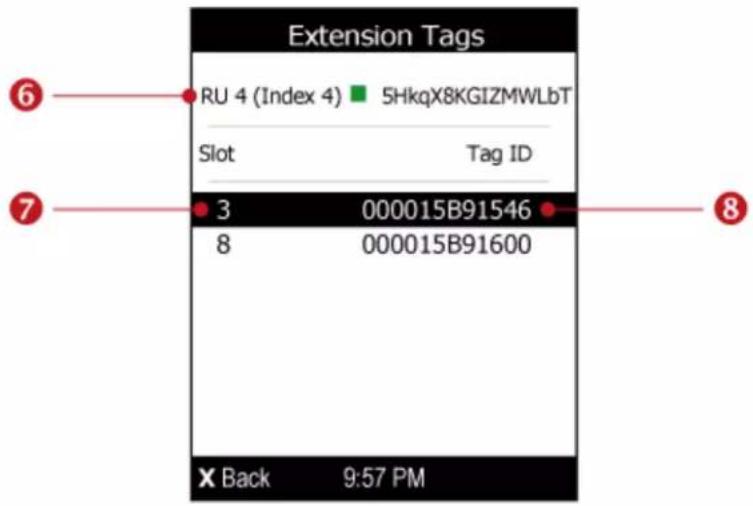
text_image
Extension Tags RU 4 (Index 4) 5HkqX8KGIZMWLbT Slot Tag ID 3 000015B91546 8 000015B91600 X Back 9:57 PM| Number | Description |
| 6 | The information of the selected blade extension strip, including: · Rack unit number · Index number in parentheses · Current LED color of the tag port where it is connected · Extension strip's ID number (barcode) |
| 7 | The slot number of each asset tag |
| 8 | The connected asset tag's ID number (barcode). |
Device Info
The display shows the device's information, network and IPv4/IPv6 settings through various pages. Page numbers are indicated in the top-right corner of the LCD display.
▶ To show the device information:
-
Press ⬆ or ⬇ to select "Device Info" in the Main Menu, and press ⭕.
-
Device information similar to the following diagram displays.
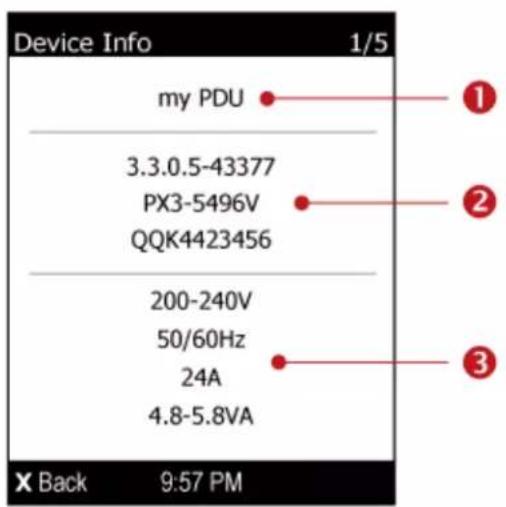
text_image
Device Info 1/5 my PDU 3.3.0.5-43377 PX3-5496V QQK4423456 200-240V 50/60Hz 24A 4.8-5.8VA X Back 9:57 PM| Number | Description |
| 1 | Device name. |
| 2 | Firmware version, model name and serial number. |
Chapter 5: Introduction to PDU Components
| Number | Description |
| 3 | Device ratings, including rated voltage, frequency, current and power. |

- Press ☑ to show the Network Common page.

other
| Category | Value | | :--- | :--- | | DNS Servers | 192.168.80.80 | | Default Gateways | 192.168.84.255 | X Back 9:57 PM 4 5| Number | Description |
| 4 | DNS servers. |
| 5 | Default gateways. |

- Press ⬇ to show the Network Cascading page.
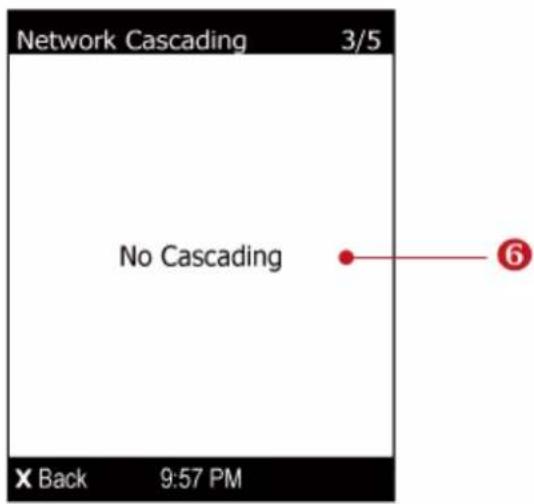
text_image
Network Cascading 3/5 No Cascading X Back 9:57 PM
text_image
Network Cascading 3/5 Network Bridge Enabled IPv4 DHCP 192.168.84.53/24 IPv6 IPv6 Disabled X Back 9:57 PM
text_image
Network Cascading 3/5 Port Forwarding Master Slave Connected: yes X Back 9:57 PMNumber Description
6
Cascading status, which can be one of the following:
- No Cascading: This device's cascading mode is set to None. See Setting the Cascading Mode (on page 265).
- Network Bridge Enabled: This device's cascading mode is set to Bridging. Its IP address is also displayed on this page.
- Port Forwarding Master: This device's cascading mode is set to Port Forwarding, and it is a master device.
- Slave Connected: Indicates whether the presence of a slave device is detected - yes or no.
- Port Forwarding Slave: This device's cascading mode is set to Port Forwarding, and it is a slave device.
- Slave Connected: Indicates whether the presence of a slave device is detected - yes or no.
- Cascade Position: Indicates the position of a slave device in the Port Forwarding mode. 1 represents Slave 1, 2 represents Slave 2, and so on.
-
A port forwarding slave device will also display the master device's IP address on this page.
-
Press √ to show the ETHERNET page.
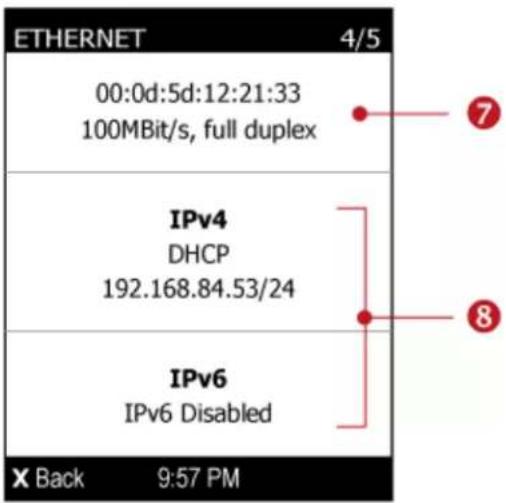
text_image
ETHERNET 00:0d:5d:12:21:33 100MBit/s, full duplex IPv4 DHCP 192.168.84.53/24 IPv6 IPv6 Disabled X Back 9:57 PM- For PX3-iX7, there are two Ethernet pages -- ETH1 and ETH2.
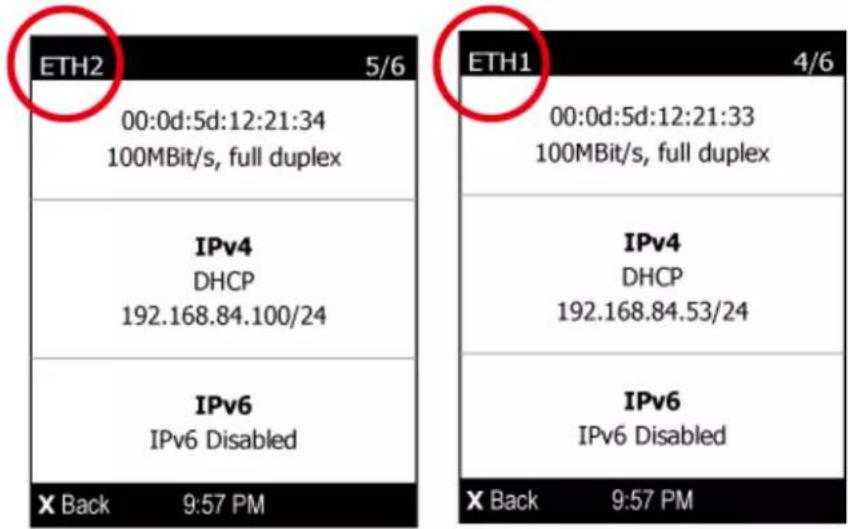
text_image
ETH2 5/6 00:0d:5d:12:21:34 100MBit/s, full duplex IPv4 DHCP 192.168.84.100/24 IPv6 IPv6 Disabled X Back 9:57 PM ETH1 4/6 00:0d:5d:12:21:33 100MBit/s, full duplex IPv4 DHCP 192.168.84.53/24 IPv6 IPv6 Disabled X Back 9:57 PM| Number | Description |
| 7 | Ethernet interface information, including:MAC address.Speed.Full or half duplex. |
| 8 | IPv4/IPv6 network information, including:Network configuration: DHCP (or Automatic), or Static. Static represents Static IP.IP address.Prefix length, such as "/24".Note: If you disable any Ethernet interface, a message 'Interface Disabled' is shown. See Ethernet Interface Settings (on page 254). |
If you do not enable IPv4/IPv6 settings, an 'IPv4 (or IPv6) Disabled' message is displayed.
- Press ⬇ to show the WIRELESS page.

text_image
WIRELESS 5/5 No Adapter Detected Interface Disabled X Back 9:57 PM| Number | Description |
| 9 | Wireless network information, if enabled, such as SSID. |
- To return to the Main Menu, press ✗.
Alerts Notice in a Yellow or Red Screen
In the automatic mode, if an alert occurs, the LCD display automatically shows a yellow or red screen which indicates the total number of alerted sensors and information of the latest transitions.
- When all alerted sensors enter the warning levels, the screen's background turns yellow.
- When at least one of the alerted sensors enters the critical level, the screen's background turns red.
For color definitions, see Yellow- or Red-Highlighted Sensors (on page 206).
The following illustrates the alerts notice in red.
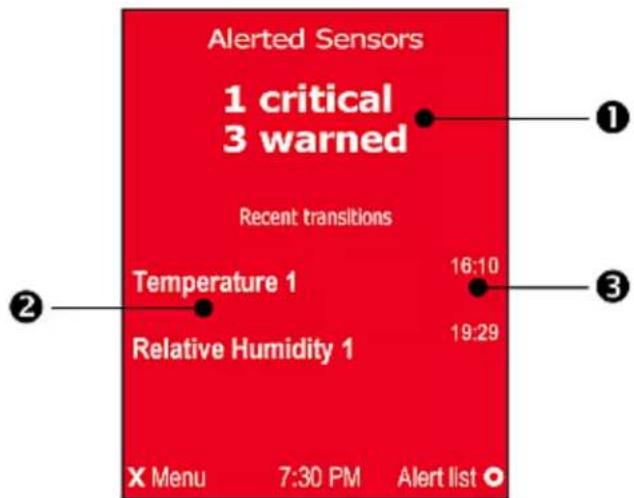
text_image
Alerted Sensors 1 critical 3 warned Recent transitions Temperature 1 Relative Humidity 1 X Menu 7:30 PM Alert list 16:10 19:29| Number | Description |
| 1 | The total of alerted sensors in critical and warning levels. |
| 2 | A list of final alerted sensors that changed their readings or states. |
| 3 | The final time that each alerted sensor changed its readings or states. |
Next steps:
• To view details of all alerted sensors, press
information exceeds one page, press between pages.
the detailed
• To return to the Alerts Notice screen, press


Showing the Firmware Upgrade Progress
When upgrading the PX3, the firmware upgrade progress will be displayed as a percentage on the LCD display, similar to the following diagram.

text_image
Firmware Update Firmware update in progress Updating main controller Please do not power off the device while the update is in progress! 38% X Back 9:57 PMIn the end, a message appears, indicating whether the firmware upgrade succeeds or fails.
Reset Button
The reset button is located inside the small hole near the display panel on the PDU.
The PX3 device can be reset to its factory default values using this button when a serial connection is available. See Resetting to Factory Defaults (on page 701, on page 627).
Without the serial connection, pressing this reset button restarts the PX3 device's software without any loss of power to outlets.
The following images illustrate the locations of the reset button on Zero U models. Port locations may differ on your models.
PX3 models:

text_image
CONSOLE / MODEM USB-B ETHERNET USB-A RESET SENSOR USB-A FEATURE RaritanPX3-iX7 models:
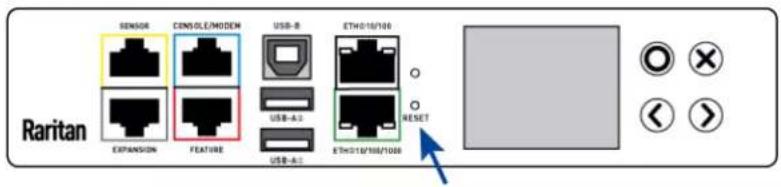
text_image
SENSOR CONSOLE/MODEN USB-B ETH010/100 EXPANSION FEATURE USB-A3 USB-A2 ETH010/100/1000 RESET RaritanCircuit Breakers
PX3 models rated over 20A (North American) or 16A (international) contain overcurrent protectors for outlets, which are usually branch circuit breakers. These circuit breakers automatically trip (disconnect power) when the current flowing through the circuit breaker exceeds its rating.
If a circuit breaker switches off power, the LCD display shows open. To find which circuit breaker is open (trips), select Alerts or OCPs in the Main Menu. See Operating the Dot-Matrix LCD Display(on page 94).
When a circuit breaker trips, power flow ceases to all outlets connected to it. You must manually reset the circuit breaker so that affected outlets can resume normal operation.
Depending on the model you purchased, the circuit breaker may use a button- or handle-reset mechanism.
Resetting the Button-Type Circuit Breaker
Your button-type circuit breakers may look slightly different from the images shown in this section, but the reset procedure remains the same.
To reset the button-type breakers:
- Locate the breaker whose ON button is up, indicating that the breaker has tripped.

text_image
ON -20 O OFF-
Examine your PX3 and the connected equipment to remove or resolve the cause that results in the overload or short circuit. This step is required, or you cannot proceed with the next step.
-
Press the ON button until it is completely down.

text_image
ON - 20 OFFResetting the Handle-Type Circuit Breaker
Your handle-type circuit breakers may look slightly different from the images shown in this section, but the reset procedure remains the same.
To reset the handle-type breakers:
- Lift the hinged cover over the breaker.
- Check if the colorful rectangle or triangle below the operating handle is GREEN, indicating that the breaker has tripped.
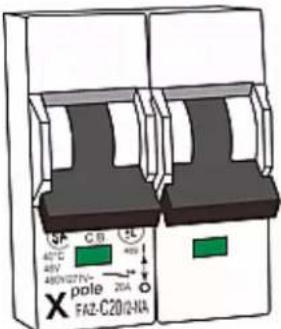
text_image
42°C 48V 480N/27'N- pole FAZ-C20/2-NA CB 400 20A- Examine your PX3 and the connected equipment to remove or resolve the cause that results in the overload or short circuit. This step is required, or you cannot proceed with the next step.
- Pull up the operating handle until the colorful rectangle or triangle turns RED.
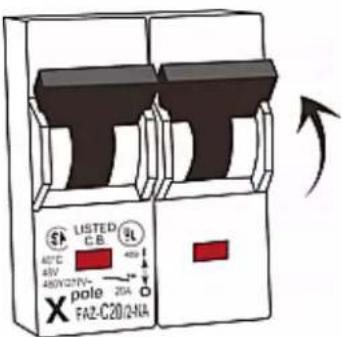
text_image
LISTED C.B. 40°C 45V/221V- pole 20A FAZ-C20/2N/AFuse
Some PX3 devices may be implemented with fuses instead of circuit breakers. A fuse blows to protect associated outlets if it detects the overload.
If your PDU uses fuses, you must replace it with a new one when it blows or malfunctions. The rating and type of the new fuse must be the same as the original one.

Use of inappropriately rated fuse results in damage to the PDU and connected equipment, electric shock, fire, personal injury or death.
Depending on the design of your PDU, the fuse replacement methods differ.
Fuse Replacement on Zero U Models
This section only applies to a Zero U PDU with "replaceable" fuses.
To replace a fuse on Zero U models:
- Lift the hinged cover over the fuse.

natural_image
Close-up of a black electronic device with a red arrow indicating motion or change (no visible text or symbols)- Verify the new fuse's rating against the rating specified in the fuse holder's cover.
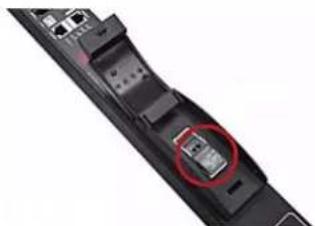
natural_image
Close-up of a black electronic device with a red circular annotation highlighting a component (no visible text or symbols)- Push the cover of the fuse holder to expose the fuse.
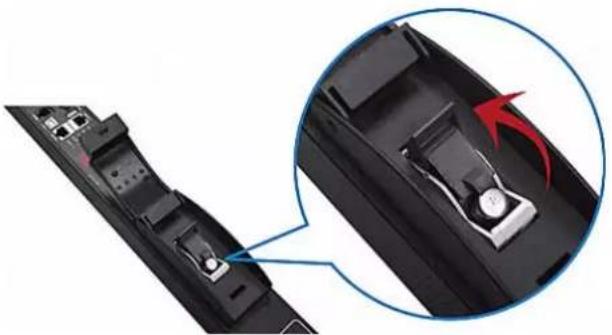
natural_image
Close-up of a black electronic device showing internal components and a magnified view of the main body with a red arrow indicating rotation (no text or symbols visible)- Take the fuse out of the holder.
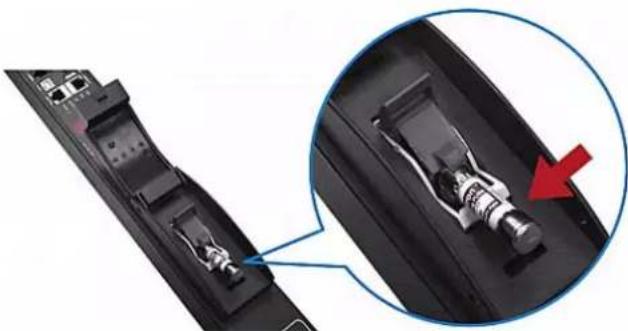
natural_image
Close-up of a black electronic device with a close-up inset showing internal components (no text or symbols visible)- Insert a new fuse into the holder. There is no orientation limit for fuse insertion.
- Close the fuse holder and the hinged cover in a reverse order.
Fuse Replacement on 1U Models
On the 1U model, a fuse is installed in a fuse knob, which fits into the PDU's fuse carrier.
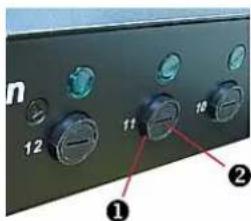
text_image
n 12 11 10 ① ②Number Description
1
Fuse carrier
2
Fuse knob where a fuse is installed
To replace a fuse on 1U PDUs:
-
Disconnect the PDU's power cord from the power source.
-
Remove the desired fuse from the PDU's fuse carrier using a flat screwdriver.
a. Rotate the fuse knob counterclockwise until its slot is inclined to 45 degrees.
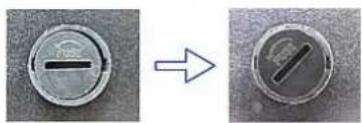
natural_image
Two circular metallic components with internal markings, one showing a left-side slot and the other a right-side slot (no text or symbols)b. Take this knob out of the fuse carrier.
- Remove the original fuse from this knob, and insert either end of a new one into the knob. Make sure the new fuse's rating is the same as the original one.

natural_image
Three mechanical components (cylindrical and cylindrical) with a downward arrow indicating a process or transformation, no visible text or symbols.| Number | Description |
| 1 | Fuse knob |
| 2 | Fuse |
- Install this knob along with the new fuse into the fuse carrier using a flat screwdriver.
a. Have this knob's slot inclined 45 degrees when inserting the knob into the fuse carrier.

natural_image
Close-up of a black electronic device with labeled buttons (8, 7) and a metallic tool tip, no readable text or symbols present.b. Gently push this knob into the fuse carrier and then rotate it clockwise until its slot is horizontal.
- Verify whether this knob's head is aligned with the fuse carrier. If its head is higher or lower than the fuse carrier, re-install it.

text_image
Diagram showing three labeled buttons (①, ②, ③) with X and O symbols indicating positions or states.Number Description

INAPPROPRIATE installations

Appropriate installation
- Connect the PDU's power cord to the power source and verify that the corresponding fuse LED is lit, indicating that the fuse works properly.
Beeper
The PX3 includes an internal beeper to issue an audible alarm for an overcurrent protector which is open.
- The beeper sounds an alarm within 3 seconds of a circuit breaker trip.
- The beeper stops as soon as all circuit breakers have been reset. You can also set the internal beeper to sound for specific events. See Event Rules and Actions (on page 312).
Tip: To remotely check this beeper's state via the web interface, see PDU (on page 157).
Replaceable Controller
A PX3 Zero U model provides flexibility for replacement of its controller.
The controller, which contains the dot-matrix LCD display and connection ports, is usually located in the middle of the PDU.
If the controller is broken, you can simply send the controller back to Raritan for repair, or purchase a new controller from Raritan.
1U / 2U PDUs and all of PX3-3000 series do NOT support this feature.
▶ To request a new controller:
Contact tech@raritan.com to request a new PX3 controller.
Include these details with your request:
• The serial number of the PDU
• The serial number of the controller board
• The full model number of the PDU
• The firmware version that the PDU is running (if known).
To replace a controller:
- PDU is NOT required to be powered off.
- Loosen the screws at two sides of the PX3 controller, and lift it up.
Note: Loosen the screws instead of removing them.

natural_image
Technical line drawing of a mechanical assembly with no visible text or symbols- Disconnect the PDU's controller cable from the controller.

natural_image
Technical line drawing showing a mechanical assembly with a component and a schematic view of a structural component (no text or symbols present)- Get a new PX3 controller and install it back into the PDU in the reverse order.
Chapter 6 Using the Web Interface
This chapter explains how to use the web interface to administer a PX3.
In This Chapter
Supported Web Browsers 131
Login, Logout and Password Change 132
Web Interface Overview....136
Dashboard 144
PDU 157
Inlet....168
Outlets 173
OCPs 191
Peripherals....200
Feature Port 219
User Management....237
Device Settings....249
Maintenance 386
Webcam Management....413
SmartLock and Card Reader 427
Supported Web Browsers
- Internet Explorer ^® 11
- Microsoft Edge
- Firefox ^® 52 and later
- Safari ^ (Mac)
- Google ^ Chrome ^ 52 and later
- Android 4.2 and later
- iOS 7.0 and later
Note: Depending on the browser you use, spin controls similar to
may or may not appear in the numeric input fields. Clicking these adjusts numeric values by 1.

Login, Logout and Password Change
The first time you log in to the PX3, use the factory default "admin" user credentials. For details, see the Quick Setup Guide accompanying the product.
After login, you can create user accounts for other users. See Creating Users (on page 238).
Login
You must enable JavaScript in the web browser for proper operation.
▶ To log in to the web interface:
- Open a browser and type the IP address of the PX3.
If the link-local addressing has been enabled, you can type pdu.local instead of an IP address. See APIPA and Link-Local Addressing (on page 3).

text_image
New Tab 192.168.84.92 SearchTip: You can also enter the desired page's URL so that you can immediately go to that page after login. See Quick Access to a Specific Page (on page 142).
- If any security alert message appears, accept it.
- The login screen displays. Type your user name and password. User credentials are case sensitive.

text_image
Raritan® A brand of □ legrand admin Login- (Optional) If a security agreement is displayed, accept it. Otherwise, you cannot log in.
- To select the agreement checkbox using the keyboard, first press Tab to go to the checkbox and then Enter.
Note: To configure the security agreement, see Enabling the Restricted Service Agreement (on page 306).
- Click Login or press Enter. The PX3 web interface opens. The PX3 web interface similar to the following image opens.
Depending on your hardware configuration, your web interface shown onscreen may look slightly different from the image below.
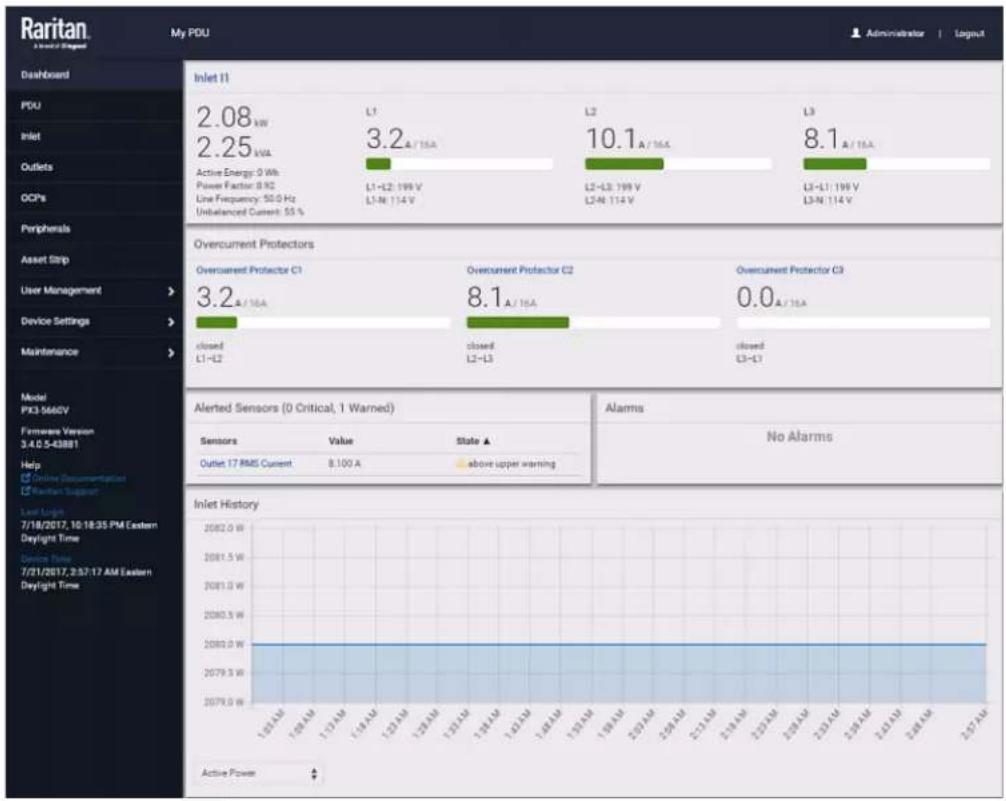
bar
| Metric | Value | State ▲ | | :--- | :--- | :--- | | Outlet 17 RMS Current | 8.100 A | above upper warning | | Active Power (W) | 1.65 A/B | No Alarms | | Inlet History (2082.0 W) | 2082.0 W | No Alarms | | 2081.5 W | 2081.5 W | No Alarms | | 2081.0 W | 2081.0 W | No Alarms | | 2080.5 W | 2080.5 W | No Alarms | | 2080.0 W | 2080.0 W | No Alarms | | 2079.5 W | 2079.5 W | No Alarms | | 2079.0 W | 2079.0 W | No Alarms | | Overcurrent Protector C1 (3.2 A/16A) | 3.2 A/16A | Yes | | Overcurrent Protector C2 (8.1 A/16A) | 8.1 A/16A | Yes | | Overcurrent Protector C3 (0.0 A/16A) | 0.0 A/16A | Yes | | Inlet I1 (Active Energy: 0 Wh, Power Factor: 0 Hz, Line Frequency: 50.0 Hz, Unbalanced Current: 55 %) | 2.08 kW, 2.25 V/A, L1-L2: 199 V, L1-N: 114 V, L2-L3: 199 V, L2-N: 114 V, L3-L1: 199 V, L3-N: 114 V | Yes | | Inlet I2 (Overcurrent Protector C1) | 3.2 A/16A | Yes | | Inlet I3 (Overcurrent Protector C2) | 8.1 A/16A | Yes | | Inlet I4 (Overcurrent Protector C3) | 0.0 A/16A | Yes | | Inlet I5 (Overcurrent Protector C4) | closed, L1-L2 | Yes | | Inlet I6 (Overcurrent Protector C5) | closed, L2-L3 | Yes | | Inlet I7 (Overcurrent Protector C6) | closed, L3-L4 | Yes | | Inlet I8 (Overcurrent Protector C7) | closed, L4-L5 | Yes | | Inlet I9 (Overcurrent Protector C8) | closed, L5-L6 | Yes | | Inlet I10 (Overcurrent Protector C9) | closed, L6-L7 | Yes | | Inlet I11 (Overcurrent Protector C10) | closed, L7-L8 | Yes | | Inlet I12 (Overcurrent Protector C11) | closed, L8-L9 | Yes | | Inlet I13 (Overcurrent Protector C12) | closed, L9-L10 | Yes | | Inlet I14 (Overcurrent Protector C13) | closed, L10-L11 | Yes | | Inlet I15 (Overcurrent Protector C14) | closed, L11-L12 | Yes | | Inlet I16 (Overcurrent Protector C15) | closed, L12-L13 | Yes | | Inlet I17 (Overcurrent Protector C16) | closed, L13-L14 | Yes | | Inlet I18 (Overcurrent Protector C17) | closed, L14-L15 | Yes | | Inlet I19 (Overcurrent Protector C18) | closed, L15-L16 | Yes | | Inlet I20 (Overcurrent Protector C19) | closed, L16-L17 | Yes | | Inlet I21 (Overcurrent Protector C20) | closed, L17-L18 | Yes | | Inlet I22 (Overcurrent Protector C21) | closed, L18-L19 | Yes | | Inlet I23 (Overcurrent Protector C22) | closed, L19-L20 | Yes | | Inlet I24 (Overcurrent Protector C23) | closed, L20-L21 | Yes | | Inlet I25 (Overcurrent Protector C24) | closed, L21-L22 | Yes | | Inlet I26 (Overcurrent Protector C25) | closed, L22-L23 | Yes | | Inlet I27 (Overcurrent Protector C26) | closed, L23-L24 | Yes | | Inlet I28 (Overcurrent Protector C27) | closed, L24-L25 | Yes | | Inlet I29 (Overcurrent Protector C28) | closed, L25-L26 | Yes | | Inlet I30 (Overcurrent Protector C29) | closed, L26-L27 | Yes | | Inlet I31 (Overcurrent Protector C30) | closed, L27-L28 | Yes | | Inlet I32 (Overcurrent Protector C31) | closed, L28-L29 | Yes | | Inlet I33 (Overcurrent Protector C32) | closed, L29-L30 | Yes | | Inlet I34 (Overcurrent Protector C33) | closed, L30-L31 | Yes | | Inlet I35 (Overcurrent Protector C34) | closed, L31-L32 | Yes | | Inlet I36 (Overcurrent Protector C35) | closed, L32-L33 | Yes | | Inlet I37 (Overcurrent Protector C36) | closed, L33-L34 | Yes | | Inlet I38 (Overcurrent Protector C37) | closed, L34-L35 | Yes | | Inlet I39 (Overcurrent Protector C38) | closed, L35-L36 | Yes | | Inlet I40 (Overcurrent Protector C39) | closed, L36-L37 | Yes | | Inlet I41 (Overcurrent Protector C40) | closed, L37-L38 | Yes | | Inlet I42 (Overcurrent Protector C41) | closed, L38-L39 | Yes | | Inlet I43 (Overcurrent Protector C42) | closed, L39-L40 | Yes | | Inlet I44 (Overcurrent Protector C43) | closed, L40-L41 | Yes | | Inlet I45 (Overcurrent Protector C44) | closed, L41-L42 | Yes | | Inlet I46 (Overcurrent Protector C45) | closed, L42-L43 | Yes | | Inlet I47 (Overcurrent Protector C46) | closed, L43-L44 | Yes | | Inlet I48 (Overcurrent Protector C47) | closed, L44-L45 | Yes | | Inlet I49 (Overcurrent Protector C48) | closed, L45-L46 | Yes | | Inlet I50 (Overcurrent Protector C49) | closed, L46-L47 | Yes | | Inlet I51 (Overcurrent Protector C50) | closed, L47-L48 | Yes | | Inlet I52 (Overcurrent Protector C51) | closed, L48-L49 | Yes | | Inlet I53 (Overcurrent Protector C52) | closed, L49-L50 | Yes | | Inlet I54 (Overcurrent Protector C53) | closed, L50-L51 | Yes | | Inlet I55 (Overcurrent Protector C54) | closed, L51-L52 | Yes | | Inlet I56 (Overcurrent Protector C55) | closed, L52-L53 | Yes | | Inlet I57 (Overcurrent Protector C56) | closed, L53-L54 | Yes | | Inlet I58 (Overcurrent Protector C57) | closed, L54-L55 | Yes | | Inlet I59 (Overcurrent Protector C58) | closed, L55-L56 | Yes | | Inlet I60 (Overcurrent Protector C59) | closed, L56-L57 | Yes | | Inlet I61 (Overcurrent Protector C60) | closed, L57-L58 | Yes | | Inlet I62 (Overcurrent Protector C61) | closed, L58-L59 | Yes | | Inlet I63 (Overcurrent Protector C62) | closed, L59-L60 | Yes | | Inlet I64 (Overcurrent Protector C63) | closed, L60-L61 | Yes | | Inlet I65 (Overcurrent Protector C64) | closed, L61-L62 | Yes | | Inlet I66 (Overcurrent Protector C65) | closed, L62-L63 | Yes | | Inlet I67 (Overcurrent Protector C66) | closed, L63-L64 | Yes | | Inlet I68 (Overcurrent Protector C67) | closed, L64-L65 | Yes | | Inlet I69 (Overcurrent Protector C68) | closed, L65-L66 | Yes | | Inlet I70 (Overcurrent Protector C70) - Open warning: Active Power ▼ Inlet HPI: 7/0/AM Inlet PDU: 7/0/AM Inlet Outlets: 0 Hz Line Frequency: 50.0 Hz Unbalanced Current: 55 % Inlet Overcurrent Protectors: Closed Outlier Strip: User Management User Management > User Management > Device Settings > Maintenance > Model PXI-56&V Firmware Version 3.4.0.5-43881 Help Online Documentation / Radian Support Last Log: 7/18/2017; 10/18:35 PM Eastern Daylight Time Decision Time: 7/21/2017; 2:37:17 AM Eastern Daylight Time Alerted Sensors: 0 Critical; 1 Warned) Alarms No Alarms Active Power ▼Note: The address to access a slave device in the Port Forwarding mode via non-standard ports is a combination of a protocol (http:// or https://), an IP address and a port number. SeePort Forwarding Examples (on page 270).
Changing Your Password
You must have the Change Own Password permission to change your own password. See Creating Roles (on page 244).
You must have Administrator Privileges to change other users' passwords. See Editing or Deleting Users (on page 242).
▶ Password change request on first login:
On first login, if you have both the Change Local User Management and Change Security Settings permissions, you can choose to either change your password or ignore it.
• Not Now ignores the request for this time only.
- Do not ask again ignores the request permanently. If you select this checkbox, then click Not Now.
- Or enter the new password and click Ok.

text_image
Password change recommended for User 'admin' Password required Confirm required password Do not ask again. Not Now OkUsers without permissions listed must change password.
Note: This password change request also appears if the 'force password change' is enabled in the user account setting. See Creating Users (on page 238).
To change your password via the Change Password command:
- Choose User Management > Change Password.
- First type the current password, and then the new password twice. Passwords are case sensitive.
- A password comprises 4 to 64 characters.
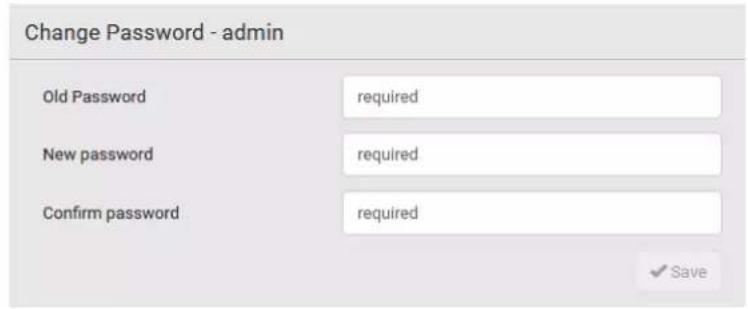
text_image
Change Password - admin Old Password required New password required Confirm password required ✓ SaveRemembering User Names and Passwords
The PX3 supports the password manager of common web browsers, including:
• Microsoft Internet Explorer
- Mozilla Firefox ^®
- Google Chrome ^®
You can save the login name and password when these browsers ask whether to remember them.
For information on how to activate a web browser's password manager, see the user documentation accompanying your browser.
The PX3 does NOT support other browser password managers.
Logout
After finishing your tasks, you should log out to prevent others from accessing the PX3 web interface.
To log out without closing the web browser:
- Click "Logout" on the top-right corner.
-- OR -- - Close the PX3 tab while there are other tabs available in the browser.
To log out by closing the web browser:
- Click ✗ on the top-right corner of the window. -- OR --
- Choose File > Close, or File > Exit.
Web Interface Overview
The web interface consists of four areas as shown below.
▶ Operation:
- Click any menu or submenu item in the area of
- That item's data/setup page is then opened in the area of
- Now you can view or configure settings on the opened page.


- To return to the main menu and the Dashboard page, click

on the top-left corner.
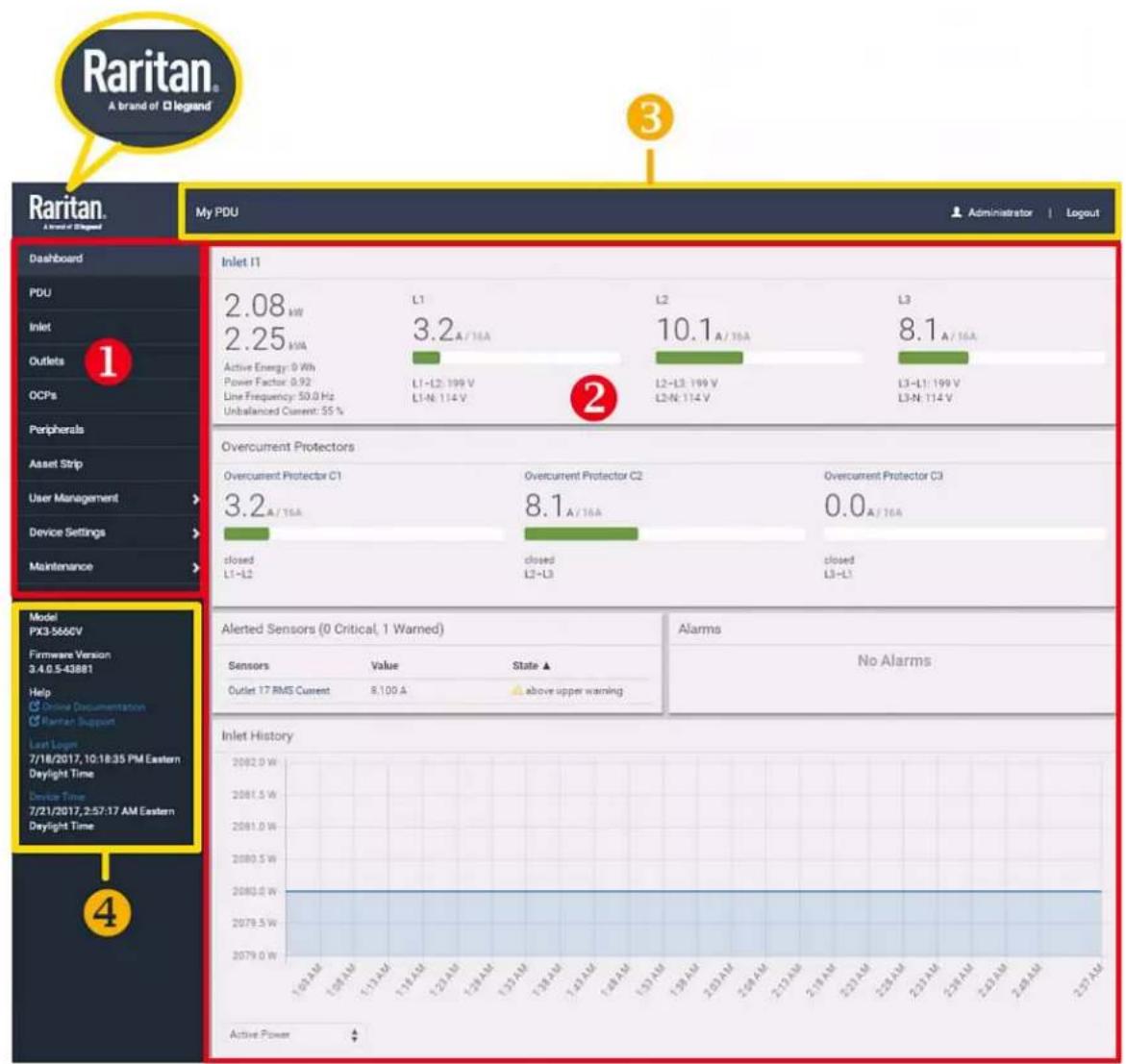
bar
| Metric | Value | State ▲ | | :--- | :--- | :--- | | Outlet 17 RMS Current | 8,100 A | above upper warning | | Overcurrent Protector C1 | 3.2 A / 16A | 8.1 A / 16A | | Overcurrent Protector C2 | 0.0 A / 16A | 8.1 A / 16A | | Inlet I1 | 2.08 kW | L1 | | Inlet I1 | 2.25 kVA | L1 | | Inlet I1 | L1 | L2 | | Inlet I1 | L2 | L3 | | Inlet I1 | L3 | L3 | | Active Energy: 0 Wh Power Factor: 0.92 Line Frequency: 50.0 Hz Unbalanced Current: 55% | L1-L2: 199 V L1-N: 114 V | L2-L3: 199 V L2-N: 114 V | L3-L1: 199 V L3-N: 114 V | | Model PX3-566CV Firmware Version 3:4.0.5-43881 Help Online Documentation Rainan Support Last Logm 7/18/2017, 10:18:35 PM Eastern Daylight Time Device Time 7/21/2017, 2:57:17 AM Eastern Daylight Time Active Power Inlet History 2082.0 W 2081.5 W 2081.0 W 2080.5 W 2080.0 W 2079.5 W 2079.0 W Active Power| Number Web interface element | |
| 1 | Menu (on page 139) |
| 2 | Data/setup page of the selected menu item. |
| 3 | ■ Left side:- PX3 device name. |
| Note: To customize the device name, see PDU (on page 157). | |
| Right side:- Your login name, which you can click to view your user account settings.- Logout button. | |
| 4 | From top to bottom --Your PX3 model.Current firmware version.Online Documentation: link to the PX3 online help.- See Browsing through the Online Help(on page 824).Raritan Support: link to the Raritan Technical Support webpage.Date and time of your user account's last login.- Click Last Login to view your login history.PX3 system time, which is converted to the time zone of your computer or mobile device.- Click Device Time to open the Date/Time setup page. |
Menu
Depending on your model and hardware configuration, your PX3 may show all or some menu items shown below.
| Dashboard |
| PDU |
| Inlet |
| Outlets |
| OCPs |
| Peripherals |
| Feature Port |
| User Management |
| Device Settings |
| Maintenance |
| Menu Information shown | |
| Dashboard Summary of the PX3 status, including a list of alerted sensors and alarms, if any.See Dashboard (on page 144). | |
| PDU Device data and settings, such as the device name and MAC address.See PDU (on page 157). | |
| Inlet Inlet status and settings, such as inlet thresholds.See Inlet (on page 168). | |
| Outlets Outlet status, settings and outlet control if your model is outlet-switching capable.See Outlets (on page 173). | |
| OCPs | The OCPs menu item appears only when there are overcurrent protectors implemented on your model. |
| OCP status and settings, such as OCP thresholds.See OCPs (on page 191). | |
| Peripherals | Status and settings of Raritan environmental sensor packages, if connected.See Peripherals (on page 200). |
| Feature Port | Status and settings of the device connected to the Feature port(s), which can be one of the following. |
| The name‘Feature Port(s)’will be replaced with one of the device names listed to the right | Asset StripExternal BeeperLHX 20SHX 30LHX 40Power CIMSee Feature Port (on page 219). |
| Webcams | The ‘Webcams’ menu item appears only when there is any webcam(s) connected to the PX3, or when there are snapshots saved onto the PX3 already. |
| Webcam live snapshots/video and webcam settings.See Webcam Management (on page 413). | |
| SmartLock-- and/or --Card Readers | Either or both menu items appear only when you connect the equipment included in a Raritan’s SmartLock kit to PX3. For details, refer to the user documentation accompanying the SmartLock kit or download it from Raritan’s Support page (http://www.raritan.com/support/). |
| SmartLock: Configures and controls the door handles connected to PX3 via DX2-DH2C2. Note that this page is not available if connecting the door handles to other Raritan sensors than DX2-DH2C2.Card Readers: Lists the card readers connected to PX3 directly or indirectly.See SmartLock and Card Reader (on page 427). | |
| User Management | Data and settings of user accounts and groups, such as password change.See User Management (on page 237). |
| Device Settings Device-related settings, including network, security, system time, event rules and more.SeeDevice Settings(on page 249). | |
| Maintenance Device information and maintenance commands, such as firmware upgrade, device backup and reset.SeeMaintenance(on page 386). | |
If a menu item contains the submenu, the submenu is shown after clicking that item.
To return to the previous menu list, do any below:
- Click the topmost link with the symbol <. For example, click

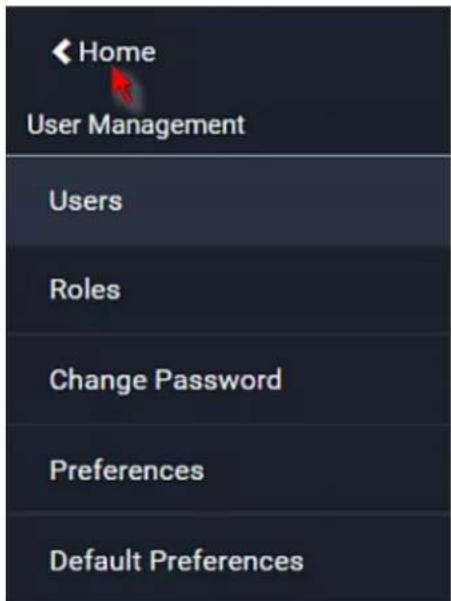
text_image
Home User Management Users Roles Change Password Preferences Default Preferences- Click menu. on the top-left corner to return to the main
Quick Access to a Specific Page
If you often visit a specific page in the PX3 web interface, you can note down its URL or bookmark it with your web browser. Next time, you can simply enter its URL in the address bar of the browser prior to login. After login, the PX3 immediately shows the desired page rather than the Dashboard page.
Besides, you can also send the URL to other users so that they immediately see that page after login, using their own user credentials.
URL examples:
In the following examples, it is assumed that the PX3 device's IP address is 192.168.84.118.
| Page URL | |
| Peripherals | https://192.168.84.118/#/peripherals |
| Event Log https://192.168.84.118/#/maintenance/eventLog/0 | |
Sorting a List
If any list displays an arrow (▲ or ▼) in one of its column headers, you are allowed to resort the list by clicking any column header. The list will be resorted in the ascending or descending order based on the selected column.
▶ Illustration -- Event Log:
- By default, the Event Log is sorted in the descending order based on the ID column. Therefore, the arrow ▼ is displayed adjacent to the ID header.
- To have it resorted in the ascending order based on the same column, click the ID header.
| ID▼ | Timestamp | Event Class |
| 665 | 7/24/2017, 3:14:43 AM Eastern Daylight Time | User Activity |
| 664 | 7/24/2017, 2:42:35 AM Eastern Daylight Time | Sensor |
| 663 | 7/24/2017, 2:42:35 AM Eastern Daylight Time | Sensor |
| 662 | 7/24/2017, 2:42:35 AM Eastern Daylight Time | Sensor |
- The arrow turns to ▲, indicating the list is sorted in the "ascending" order.
ID ▲
- To resort the list based on a different column, click a different column header. In this example, the 'Event Class' column is clicked.
ID ▲
Timestamp
Event Class
Event

- The arrow ▲ now appears adjacent to the selected column 'Event Class,' indicating the list is sorted in the ascending order based on that column.
ID
Timestamp
Event Class
Event
Dashboard
The Dashboard page contains four to five sections, depending on your model.
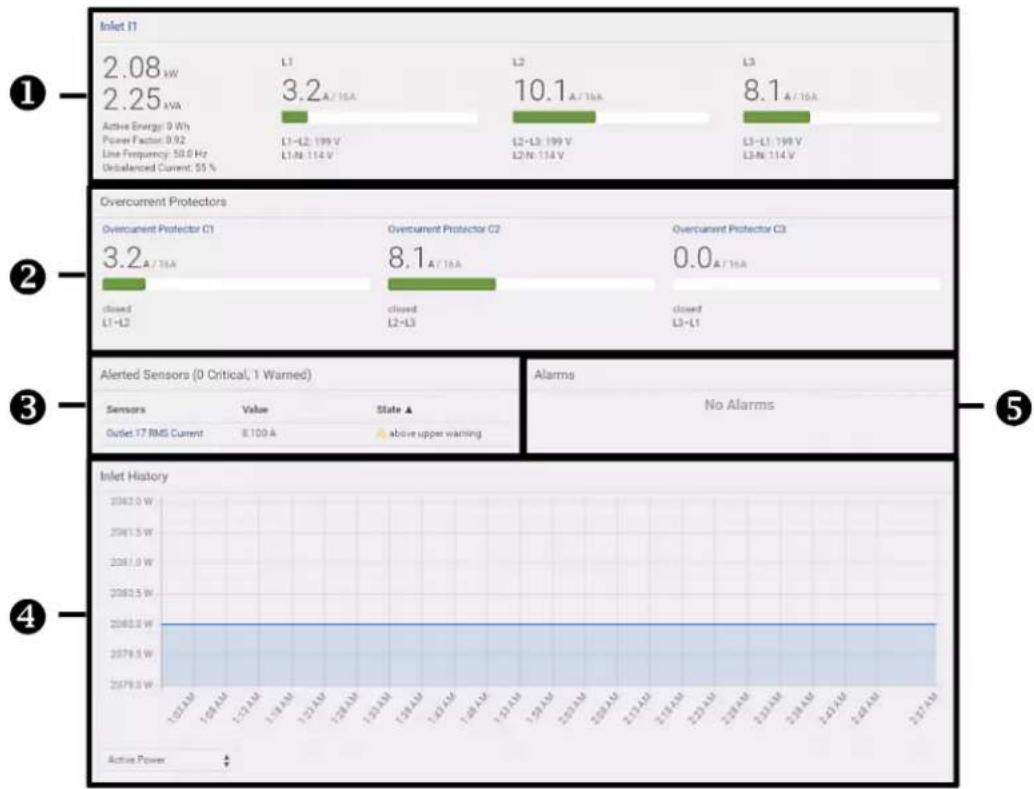
bar
| Category | Value (A/16A) | |---|---| | Inlet I1 | 2.08 kW | | Active Energy: 0 Wh | 2.25 kVA | | Power Factor: 0.92 | L1-L2: 199 V | | Line Frequency: 50.0 Hz | L1-N: 114 V | | Unbalanced Current: 55 % | | | Overcurrent Protectors | 3.2 A / 16A | | Overcurrent Protector C1 | closed L1-L2 | | Overcurrent Protector C2 | closed L2-L3 | | Overcurrent Protector C3 | closed L3-L1 | | Alerted Sensors (0 Critical, 1 Warned) | | | Sensors | Value | | Outlet 17 RMS Current | 8.100 A | | State A above upper warning | | Alarms | No Alarms | | Inlet History | 2082.0 W | | Active Power | - || Number Section Information shown | ||
| 1 | Inlet I1 | Overview of inlet power dataA current bar per phase, which changes colors to indicate the RMS current state- green: normalyellow: warningred: criticalSee Dashboard - Inlet I1(on page 146). |
| 2 | Overcurrent Protectors | This section is available only when your PX3 contains overcurrent protectors (OCPs).Overview of each OCP's statusA current bar per OCP, which changes colors to indicate the RMS current state- green: normalyellow: warningred: criticalSee Dashboard - OCP(on page 148). |
| 3 | Alerted Sensors | When no sensors enter the alarmed state, this section shows the message "No Alerted Sensors."When any sensor enters the alarmed state, this section lists all of them.See Dashboard - Alerted Sensors(on page 150). |
| 4 | Inlet History | The chart of the inlet's active power history is displayed by default. You can make it show a different data type.See Dashboard - Inlet History(on page 152). |
| 5 | Alarms | This section can show data only after you have set event rules requiring users to take the acknowledgment action.When there are no unacknowledged events, this section shows the message "No Alarms."When there are unacknowledged events, this section lists all of them.See Dashboard - Alarms(on page 155). |
Dashboard - Inlet I1
The number of phases shown in the Inlet section varies, depending on the model.
▶ Link to the Inlet page:
To view more information or configure the inlet(s), click this section's title 'Inlet 11' to go to the Inlet page. See Inlet (on page 168).
Inlet I1
Inlet 11
4.44 kW
5.13 KVA
Active Energy: 0 Wh
Power Factor: 0.86
Line Frequency: 50.0 Hz
Unbalanced Current: 25%
L1
7.5A/16A
L1-L2:398V
L1-N: 229 V
L2
7.0A/16A
-
L2-L3:399 V
L2-N: 230 V
L3
4.9A/16A
-
L3-L1:398V
L3-N: 230 V
▶ Left side - generic inlet power data:
4.44 kW
5.13 kVA
Active Energy: 0 Wh
Power Factor: 0.86
Line Frequency: 50.0 Hz
Unbalanced Current: 25%
The left side lists all or some of the following data. Available data is model dependent.
• Active power (kW or W)
- Apparent power (kVA or VA)
• Active energy (kWh or Wh)
- Power factor
• Line frequency (Hz) - model dependent
- Unbalanced current (%) - model dependent
Right side - inlet's current and voltage:
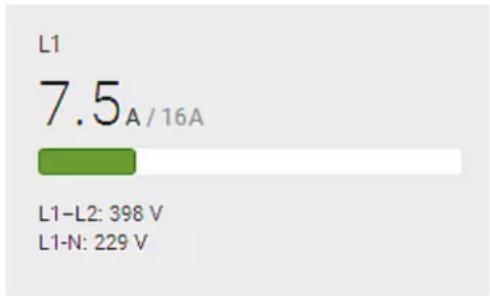
bar
| Category | Value | |---|---| | L1 | 7.5 A / 16A | | L1-L2 | 398 V | | L1-N | 229 V |The right side shows the current and voltage data per phase. For a single-phase device, it shows only one line, but for a three-phase device, it shows three lines (L1, L2 and L3).
Inlet data from top to bottom includes:
• RMS current (A) and rated current
- The smaller, gray text adjacent to RMS current is the rated current.
• A bar showing the RMS current level
- RMS voltage (V)
The RMS current bars automatically change colors to indicate the current status if the thresholds have been enabled. To configure thresholds, see Inlet(on page 168).
Status Bar colors
| normal |  |
| above upper warning |  |
| above upper critical |  |
Note: The "below lower warning" and "below lower critical" states also show yellow and red colors respectively. However, it is not meaningful to enable the two thresholds for current levels.
Dashboard - OCP
Availability and total number of OCPs depend on the models.
▶ Each OCP's link:
To view more information or configure individual OCPs, click the desired OCP's index number, which is C1, C2 and the like, to go to its setup page.

bar
| Category | Value | |---|---| | Overcurrent Protector C1 | 4.0A / 16A | | Closed L1 | | | Overcurrent Protector C2 | 3.3A / 16A | | Closed L2 | | | Overcurrent Protector C3 | 2.9A / 16A | | Closed L3 | |▶ Each OCP's power data:
OCP data from top to bottom includes:
• RMS current (A), and rated current
- Smaller gray text adjacent to RMS current is each OCP's rated current, such as "16A" shown in the above diagram.
• A bar showing OCP current levels
- OCP status -- open or closed
- Associated line pair
The RMS current bars automatically change colors to indicate the current status if OCP thresholds have been enabled. To configure thresholds, see OCPs (on page 191).
Status Bar colors
normal

above upper warning

above upper critical

Note: The "below lower warning" and "below lower critical" states also show yellow and red colors respectively. However, it is not meaningful to enable the two thresholds for current levels.
Dashboard - Alerted Sensors
When any internal sensors or environmental sensor packages connected to the PX3 enter an abnormal state, the Alerted Sensors section in the Dashboard show them for alerting users. This section also lists tripped circuit breakers or blown fuses, if available.
To view detailed information or configure each alerted sensor, you can click each sensor's name to go to individual sensor pages. See Individual Sensor/Actuator Pages (on page 214).
If wanted, you can resort the list by clicking the desired column header. See Sorting a List (on page 142).

text_image
Alerted Sensors (1 Critical, 1 Warned) Sensors Value State ▲ Temperature 3 20.7 °C ▲ above upper critical Temperature 1 19.8 °C ▲ above upper warningSummary in the section title:
Information in parentheses adjacent to the title is the total number of alerted sensors.
For example:
• 1 Critical: 1 sensor enters the critical or alarmed state.
- Numeric sensors enter the critical state.
- State sensors enter the alarmed state.
• 1 Warned: 1 'numeric' sensor enters the warning state.
List of alerted sensors:
Two icons are used to indicate various sensor states.
| Icons Sensor states | |
| For numeric sensors:▪ above upper warning▪ below lower warning | |
| For numeric sensors:▪ above upper critical▪ below lower critical | |
| For state sensors:▪ alarmed state | |
For details, see Sensor/Actuator States (on page 208).
Dashboard - Inlet History
The power chart for the inlet helps you observe whether there were abnormal events within the past tens of minutes. The default is to show the inlet's active power data.
You can have it show the chart of other inlet power data. Simply select a
different data type by clicking the selector below the diagram. Available data types include:
- RMS current
- RMS voltage
• Active power - Apparent power
Inlet History
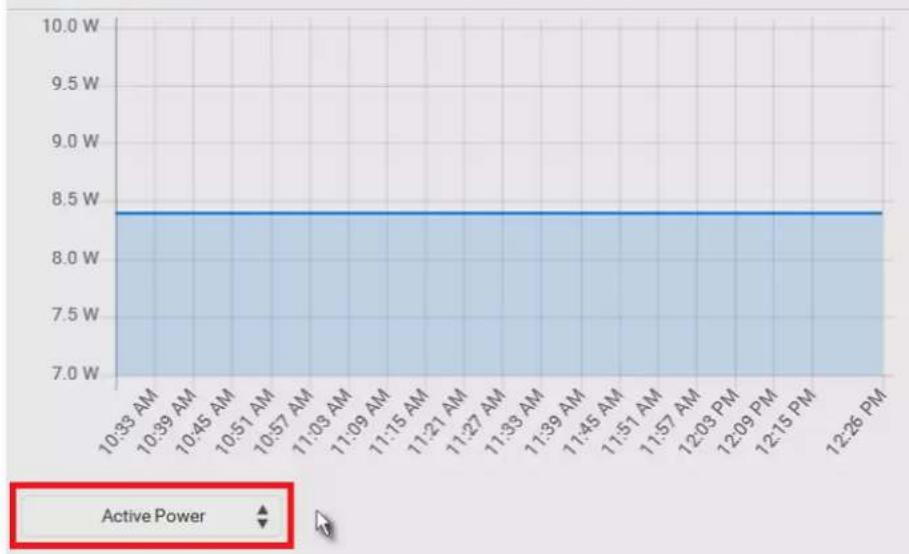
line
| Time | Active Power | | ---------- | ------------ | | 10:33 AM | 8.4 | | 10:39 AM | 8.4 | | 10:45 AM | 8.4 | | 10:51 AM | 8.4 | | 10:57 AM | 8.4 | | 11:03 AM | 8.4 | | 11:09 AM | 8.4 | | 11:15 AM | 8.4 | | 11:21 AM | 8.4 | | 11:27 AM | 8.4 | | 11:33 AM | 8.4 | | 11:39 AM | 8.4 | | 11:45 AM | 8.4 | | 11:51 AM | 8.4 | | 11:57 AM | 8.4 | | 12:03 PM | 8.4 | | 12:09 PM | 8.4 | | 12:15 PM | 8.4 | | 12:26 PM | 8.4 |- To retrieve the exact data at a particular time, hover your mouse over the data line in the chart. Both the time and data are displayed as illustrated below.
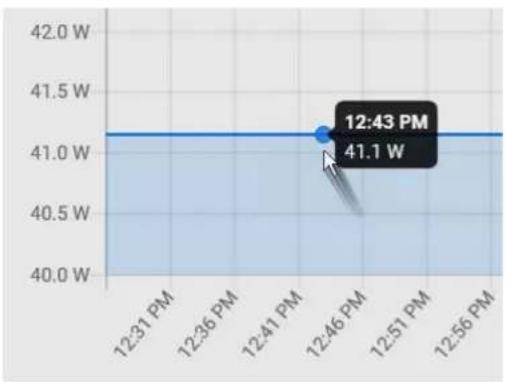
line
| Time | Power | | -------- | ----- | | 12:43 PM | 41.1 W |Inlet selection on multi-inlet models:
If your PDU is a multi-inlet model, you can have one or multiple inlets show their power charts by selecting the checkbox(es) of the desired inlet(s).

line
| Time | Active Power | | -------- | ------------ | | 1:55 PM | 1200.0 W | | 2:00 PM | 1200.0 W | | 2:05 PM | 1200.0 W | | 2:10 PM | 1200.0 W | | 2:15 PM | 1200.0 W | | 2:20 PM | 1200.0 W | | 2:25 PM | 1200.0 W | | 2:30 PM | 1200.0 W | | 2:35 PM | 1200.0 W | | 2:40 PM | 1200.0 W | | 2:45 PM | 1200.0 W | | 2:50 PM | 1200.0 W | | 2:55 PM | 1200.0 W | | 3:00 PM | 1200.0 W | | 3:05 PM | 1200.0 W | | 3:10 PM | 1200.0 W | | 3:15 PM | 1200.0 W | | 3:20 PM | 1200.0 W | | 3:25 PM | 1200.0 W | | 3:30 PM | 1200.0 W | | 3:35 PM | 1200.0 W | | 3:40 PM | 1200.0 W | | 3:49 PM | 1200.0 W |- When multiple inlets are displayed in the chart, their colors differ. You can identify each inlet's data according to the colors of the selected inlet checkboxes.

Inlet A

Inlet B
- When both inlets are shown in the chart, simply hover your mouse over either inlet's data line. Both inlets' values display simultaneously, marked with corresponding colors.

line
| Time | Power (W) | | -------- | --------- | | 2:14 PM | 200.0 | | 2:19 PM | 500.0 | | 2:24 PM | 500.0 | | 2:29 PM | 600.0 | | 2:34 PM | 700.0 | | 2:39 PM | 800.0 | | 2:44 PM | 800.0 | | 2:49 PM | 800.0 | | 2:54 PM | 800.0 | | 2:59 PM | 800.0 | | 3:04 PM | 800.0 |Dashboard - Alarms
If configuring any event rules which require users to take the acknowledgment action, the Alarms section will list any event which no one acknowledges yet since event occurrence.
Note: For information on event rules, see Event Rules and Actions (on page 312).
Only users with the 'Acknowledge Alarms' permission can manually acknowledge an alarm.
▶ To acknowledge an alarm:
- Click Acknowledge, and that alarm then disappears from the Alarms section.
Alarms
Name: System Tamper Alarm
Reason: Peripheral device 'Tamper Detector 1' in slot 11 is alarmed.
First Appearance: 7/4/2017, 7:55:44 AM Eastern Daylight Time
Last Appearance: 7/4/2017, 7:58:20 AM Eastern Daylight Time
Count: 3
More Alerts: 1 more reasons

This table explains each column of the alarms list.
Field Description
Name The customized name of the Alarm action.
Reason The first event that triggers the alert.
First Appearance The date and time when the event indicated in the Reason column occurred for the first time.
Last Appearance The date and time when the event indicated in the Reason column occurred for the last time.
Count The number of times the event indicated in the Reason column has occurred.
Field Description
More Alerts
This field appears only when there are more than one type of events triggering this alert.
If there are other types of events (that is, other reasons) triggering the same alert, the total number of additional reasons is displayed. You can click it to view a list of all events triggering this alert.
Tip: The date and time shown on the PX3 web interface are automatically converted to your computer's time zone. To avoid any time confusion, you can apply the same time zone settings as those of PX3 to your computer.
PDU
The PX3 device's generic information and PDU-level global settings are available on the PDU page.
To open the PDU page, click 'PDU' in the Menu (on page 139).
▶ Device information shown:
- Firmware version
- Serial number
- MAC address
- Rating
• Internal beeper state (on page 161) - Status of +12V power supply sensor (for iX7" Only) (on page 167)
▶ To configure global settings:
- Click Edit Settings.
| Settings | |
| Name | My PX |
| Relay behavior on power loss | Non-latching |
| Outlet state on device startup | last known |
| Outlet initialization delay on device startup | 3 s |
| Power off period during power cycle | 10 s |
| Inrush Guard Delay | 200 ms |
| Peripheral Device Z Coordinate Format | Rack-Units |
| Peripheral Device Auto Management | enabled |
| Altitude | 0 m |
| Active Powered Dry Contact Limit | 1 |
| Reset All Active Energy Counters | Reset Active Energy |
-
Now you can configure the fields.
-
Click ▲ to select an option.
- Select or deselect the checkbox.
■ Adjust the numeric values.
- For time-related fields, if you do not prefer the option selection using 🧑, you can type a value manually which must include a time unit, such as '50 s'. See Time Units (on page 165).
In the following table, those fields marked with * are available on an outlet-switching capable model only.
| Field Function Note | ||
| Name Customizes the device name. | ||
| *Relay behavior on power loss | Selects an operating mode to determine the latching relay behavior when PDU power is lost.Options: Non-latching and LatchingNon-latching has all relays open at the power loss while latching may have the relays closed. | See PX3 Latching Relay Behavior (on page 162). |
| *Outlet state on device startup | Determines the initial power state of ALL outlets after the PX3 device powers up.Options: on, off, and last known See Options for Outlet State on Startup (on page 162). | After removing power from the PDU, you must wait for a minimum of 10 seconds before powering it up again. Otherwise, the default outlet state settings may not work properly.You can override the global outlet state setting on a per-outlet basis so specific outlets behave differently on startup. See Individual Outlet Pages (on page 183). |
| *Outlet initialization delay on device startup | Determines how long the PX3 device waits before providing power to all outlets during power cycling or after recovering from a temporary power loss.Range: 1 second to 1 hour | See Initialization Delay Use Cases (on page 163). |
| *Power off period during power cycle | Determines the power-off period after the outlet is switched OFF during a power cycle.Range: 1 second to 1 hour | Power cycling the outlet(s) turns the outlet(s) off and then back on.You can override this global power cycle setting on a per-outlet basis so specific outlets' power-off period is different. See Individual Outlet Pages (on page 183). |
| *Inrush Guard Delay | Prevents a circuit breaker trip due to inrush current when many devices connected to the PDU are turned on.▪ Range: 100 milliseconds to 10 seconds | See Inrush Current and Inrush Guard Delay (on page 163). |
| Peripheral Device Z Coordinate Format | Determines how to describe the vertical locations (Z coordinates) of Raritan environmental sensor packages.▪ Options: Rack-Units and Free-FormSee Z Coordinate Format (on page 164). | To specify the location of any sensor/actuators in the data center, see Individual Sensor/Actuator Pages (on page 214). |
| Peripheral Device Auto Management | Enables or disables the automatic management feature for Raritan environmental sensor packages.▪ The default is to enable it. | See How the Automatic Management Function Works (on page 164). |
| Altitude Specifies the PX3 device's altitude above sea level when a Raritan's DPX differential air pressure sensor is attached.▪ Range: -425 to 3000 meters (-1394 to 9842 feet)▪ Note that it can be a negative value down to -425 meters (-1394 feet) because some locations are below the sea level. | ▪ The device's altitude is associated with the altitude correction factor. See Altitude Correction Factors (on page 803).▪ The e default altitude measurement unit is meter. See Setting Default Measurement Units (on page 248).▪ You can have the measurement unit vary between meter and foot according to user credentials. See Setting Your Preferred Measurement Units (on page 247). | |
| Active Powered Dry Contact Limit | Determines the maximum number of "active" powered dry contact actuators that is permitted.▪ Range: 0 to 24 | ▪ An "active" actuator is the one that is turned ON.▪ This setting only applies to "powered dry contact" (PD) actuators rather than normal "dry contact" actuators.▪ To turn on/off the connected actuators, see Peripherals (on page 200). |
- Click Save.
▶ To reset ALL active energy counters:
An active energy reading is a value of total accumulated energy, which is never reset, even if the power fails or the PX3 is rebooted. However, you can manually reset this reading to restart the energy accumulation process.
Only users with the "Admin" role assigned can reset active energy readings.
Reset Active Energy
1. Click
- Click Reset on the confirmation message.
■ All active energy readings on this PX3 are reset to zero.
Tip: You can choose to reset the active energy reading of an individual inlet or outlet. See Inlet (on page 168) or Individual Outlet Pages (on page 183).
To view total active energy and power on multi-inlet models:
If your PX3 is a multi-inlet model or an in-line monitor, a "Power" section for showing the data of total active energy and total active power is available on the PDU page.
For a regular PX3 model with multiple inlets:
• Total active energy = sum of all inlets' active energy values
• Total active power = sum of all inlets' active power values
For an in-line monitor with multiple inlets/outlets:
• Total active energy = sum of all outlets' active energy values
• Total active power = sum of all outlets' active power values
| Sensor | Value | State |
| Active Power | 16 W | normal |
| Active Energy | 100243 Wh | normal |
Figure 1: i
To configure the thresholds of total active energy and power:
For a multi-inlet model or an in-line monitor, a "Thresholds" section is also available on the PDU page. See Setting Thresholds for Total Active Energy or Power (on page 165).
Thresholds


Internal Beeper State
The PDU page indicates the internal beeper state.
Internal Beeper
State
Off
Available beeper states:
States Description
Off The beeper is turned off.
The beeper is turned on. Active
"Activation Reason" is displayed, indicating why the beeper sounds an alarm.
For example, if the beeper is turned on because of a specific event rule "XXX," the activation reason looks like:
Event Action triggered by rule: XXX
Scenarios when the beeper sounds an alarm:
- Any overcurrent protector on the PX3, including fuses and circuit breakers, has tripped or blown. See Beeper (on page 128).
- You have set an event rule that turns on the internal beeper when a specific event occurs, and that event occurs now. See Event Rules and Actions (on page 312).
- On the PX3 supporting residual current monitoring (RCM), the beeper also sounds when there is an RCM alarm. See PX3 Models with Residual Current Monitoring (on page 704).
Tip: To check the internal beeper state via CLI, see PDU Configuration (on page 455).
PX3 Latching Relay Behavior
PX3 incorporates latching relays in models with outlet switching. Unlike non-latching relays, latching relays do NOT require power to keep their contacts closed.
PX3 outlet switching can be configured to operate as a true latching relay or to simulate a non-latching relay. The operating mode determines the latching relay behavior when PDU power is lost. Regardless of which mode is selected, power is not required to keep relay contacts closed.
Non-Latching Mode:
- Relay always opens when power is lost. This insures all relays are open when power is applied to the PDU.
- Always select this mode if the combined in-rush current of the devices connected to the PDU trip circuit breakers when power is applied to the PDU.
- This is the factory default operating mode.
Latching Mode:
- Relay does not open when power is lost.
-
This is the preferred operating mode ONLY if you are sure in-rush current does not trip circuit breakers when power is applied to the PDU.
• Power to the outlet is not disrupted if a PDU internal failure occurs.
• In Latching mode, the following features are disabled. -
PDU-level outlet state on startup: See PDU(on page 157).
- Outlet-level outlet state on startup: See Individual Outlet Pages (on page 183).
- PD U-level outlet initialization delay on startup: See PDU (on page 157).
Options for Outlet State on Startup
The following are available options for initial power states of outlets after powering up the PX3 device.
| Option Function | |
| on Turns on the outlet(s). | |
| off Turns off the outlet(s). | |
| last known Restores the outlet(s) to the previous power state(s) before the PX3 was powered off. |
If you are configuring an individual outlet on Individual Outlet Pages (on page 183), there is one more outlet state option.
| Additional option | Function |
| PDU defined (xxx) | Follows the global outlet state setting, which is set on PDU (on page 157).The value xxx in parentheses is the currently-selected global option - on, off, or last known. |
Initialization Delay Use Cases
Apply the initialization delay in either of the following scenarios.
- When power may not initially be stable after being restored
- When UPS batteries may be charging
Tip: When there are a large number of outlets, set the value to a smaller number to avoid a long wait before all outlets are available.
Inrush Current and Inrush Guard Delay
Inrush current:
When electrical devices are turned on, they can initially draw a very large current known as inrush current. Inrush current typically lasts for 20-40 milliseconds.
Inrush guard delay:
The inrush guard delay feature helps prevent a circuit breaker trip due to the combined inrush current of many devices turned on at the same time.
For example, if the inrush guard delay is set to 100 milliseconds and two or more outlets are turned on at the same time, the PDU will sequentially turn the outlets on with a 100 millisecond delay occurring between each one.
Z Coordinate Format
Z coordinates refer to vertical locations of environmental sensors and actuators. You can use either the number of rack units or a descriptive text to describe Z coordinates.
For a Z coordinate example, see Sensor/Actuator Location Example (on page 219).
To configure Z coordinates:
- Determine the Z coordinate format on PDU (on page 157). Available Z coordinate formats include:
| Format Description | |
| Rack Units The height of the Z coordinate is measured in standard rack units.When this is selected, you can type a numeric value in the rack unit to describe the Z coordinate of any environmental sensors or actuators. | |
| Free-Form Any alphanumeric string can be used for specifying the Z coordinate. The value comprises 0 to 24 characters. |
- Configure Z coordinates on the Individual Sensor/Actuator Pages (on page 214).
How the Automatic Management Function Works
This setting is configured on PDU (on page 157).
▶ After enabling the automatic management function:
When the total number of managed sensors and actuators has not reached the upper limit yet, the PX3 automatically brings newly-connected environmental sensors and actuators under management after detecting them.
A PX3 can manage up to 32 sensors/actuators.
▶ After disabling the automatic management function:
The PX3 no longer automatically manages any newly-added environmental sensors and actuators, and therefore neither ID numbers are assigned nor sensor readings or states are available for newly-added ones.
You must manually manage new sensors/actuators. See Peripherals (on page 200).
Time Units
If you choose to type a new value in the time-related fields, such as the Inrush Guard Delay field, you must add a time unit after the numeric value. For example, you can type '15 s' for 15 seconds.
Note that different fields have different range of valid values.
Time units:
| Unit Time | |
| ms | millisecond(s) |
| s | second(s) |
| min | minute(s) |
| h | hour(s) |
| d | day(s) |
Setting Thresholds for Total Active Energy or Power
This section applies only to multi-inlet models, including in-line monitors.
Thresholds for total active energy and total active power are disabled by default. You can enable and set them so that you are alerted when the total active energy or total active power hits a certain level.
For a regular PX3 model with multiple inlets:
• Total active energy = sum of all inlets' active energy values
• Total active power = sum of all inlets' active power values
For an in-line monitor with multiple inlets/outlets:
• Total active energy = sum of all outlets' active energy values
• Total active power = sum of all outlets' active power values
To configure thresholds for total active energy and/or power:
- Click PDU.
- On the PDU page, you can also view the total active power and total active energy. See PDU (on page 157).
- Click the Thresholds title bar at the bottom of the page to display thresholds.
Thresholds


- Click the desired sensor (required), and then click Edit Thresholds.
| Thresholds | ||||
| Edit Thresholds | ||||
| Sensor ▲ | Lower Critical | Lower Warning | Upper Warning | Upper Critical |
| Active Energy | - | - | - | - |
| Active Power | - | - | - | - |
- Make changes as needed.
■ To enable any threshold, select the corresponding checkbox.
■ Type a new value in the accompanying text box.

text_image
Lower Critical 0 W Lower Warning 0 W Upper Warning 0 W Upper Critical 0 W Deassertion Hysteresis 0 W Assertion Timeout 0 SamplesFor concepts of thresholds, deassertion hysteresis and assertion timeout, see Sensor Threshold Settings (on page 793).
- Click Save.
+12V Power Supply Sensor (for iX7™ Only)
An iX7™ PDU's controller receives DC 12V power from its inlet. A sensor monitors the power supply status and indicates it on the PDU page.
| Sensors | ||
| Sensor | Value | State |
| +12V Supply 1 Status | OK | |
| State Description | |
| OK | TheTM controller iX7 receiving power from its inlet. |
| fault | TheTM controlleriX7 cannot receive power from its inlet because of a power failure on the inlet or a broken 12V power supply. Instead it receives power from another iX7" PDU. SeePower-Sharing Restrictions and Connection (for iX7" Only) (on page 47).After entering the fault state, this sensor is listed in the Alerted Sensors section of the Dashboard. SeeDashboard(on page 144). |
| unavailable The communication with the 12V power supply sensor is lost. | |
▶ Alternatives for checking the 12V power supply status:
- Dot-matrix LCD panel. See PDU(on page 98).
- CLI command: show pdu details. See Using the Command Line Interface (on page 444).
Inlet
You can view all inlet information, configure inlet-related settings, or reset the inlet active energy on the Inlet page. To open this page, click 'Inlet' in the Menu (on page 139).
Inlet thresholds, when enabled, help you identify whether the inlet enters the warning or critical level. In addition, you can have the PX3 automatically generate alert notifications for any warning or critical status. See Event Rules and Actions (on page 312).
Note: If your PX3 is a multi-inlet model, see Configuring a Multi-Inlet Model (on page 171).
▶ Generic inlet information shown:
- Inlet power overview, which is the same as Dashboard - Inlet 11 (on page 146).
- A list of inlet sensors with more details. Number of available inlet sensors depends on the model.
■ Sensors show both readings and states.
- Sensors in warning or critical states are highlighted in yellow or red.
See Yellow- or Red-Highlighted Sensors (on page 206).
- Inlet's power chart, which is the same as Dashboard - Inlet History (on page 152)
To customize the inlet's name:
- Click Edit Settings.

text_image
Settings Edit Settings Label 11 Name Reset Active Energy Reset Energy- Type a name for the inlet.
- For example, you can name it to identify the power source.
- Click Save.
- The inlet's custom name is displayed on the Inlet or Dashboard page, followed by its label in parentheses.
To reset the inlet's active energy counter:
Only users with the "Admin" role assigned can reset active energy readings.
The energy reset feature per inlet is especially useful when your PX3 has more than one inlet.
Reset Energy
-
Click
-
Click Reset on the confirmation message.
This inlet's active energy reading is then reset to zero.
Tip: To reset ALL active energy counters on the PX3, see PDU (on page 157).
To configure inlet thresholds:
Per default, there are pre-defined RMS voltage and current threshold values in related fields. See Default Voltage and Current Thresholds (on page 801). You can modify them to meet your needs.
- Click the Thresholds title bar at the bottom of the page to display inlet thresholds.
Thresholds


- Click the desired sensor (required), and then click Edit Thresholds.
| Thresholds | ||||
| Edit Thresholds | ||||
| Sensor ▲ | Lower Critical | Lower Warning | Upper Warning | Upper Critical |
| Active Energy | — | — | — | — |
| Active Power | — | — | — | — |
| Apparent Power | — | — | — | — |
| Line Frequency | 57 Hz | 59 Hz | 61 Hz | 63 Hz |
| Power Factor | — | — | — | — |
| RMS Current | — | — | 5 A | 10 A |
| RMS Voltage | 160 V | 180 V | 240 V | 250 V |
- Make changes as needed.
■ To enable any threshold, select the corresponding checkbox.
■ Type a new value in the accompanying text box.
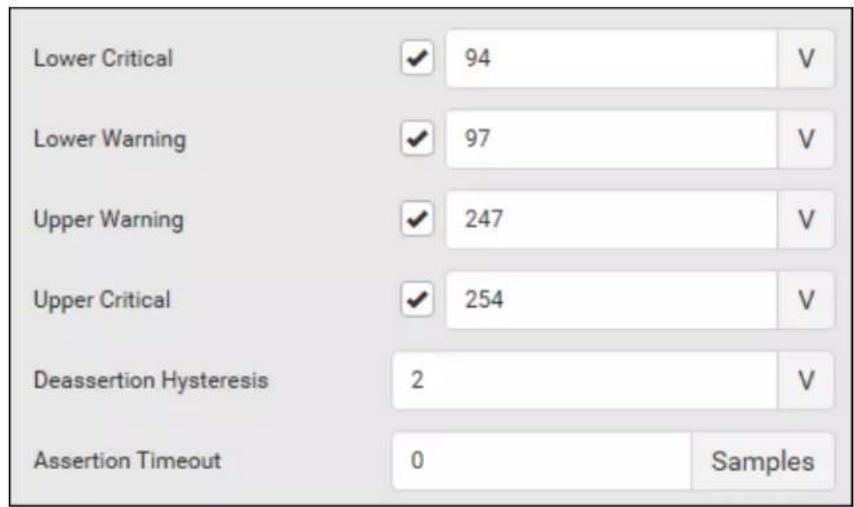
text_image
Lower Critical 94 V Lower Warning 97 V Upper Warning 247 V Upper Critical 254 V Deassertion Hysteresis 2 V Assertion Timeout 0 SamplesFor concepts of thresholds, deassertion hysteresis and assertion timeout, see Sensor Threshold Settings (on page 793).
- Click Save.
▶ To configure residual current thresholds:
If your model supports residual current monitoring, a section titled "Residual Current Monitor" is displayed on the Inlet page. See Web Interface Operations for RCM (on page 708).
Configuring a Multi-Inlet Model
If the PX3 has more than one inlet, the Inlets page lists all inlets.
▶ To view or configure each inlet:
- Click 'Show Details' of the desired inlet.
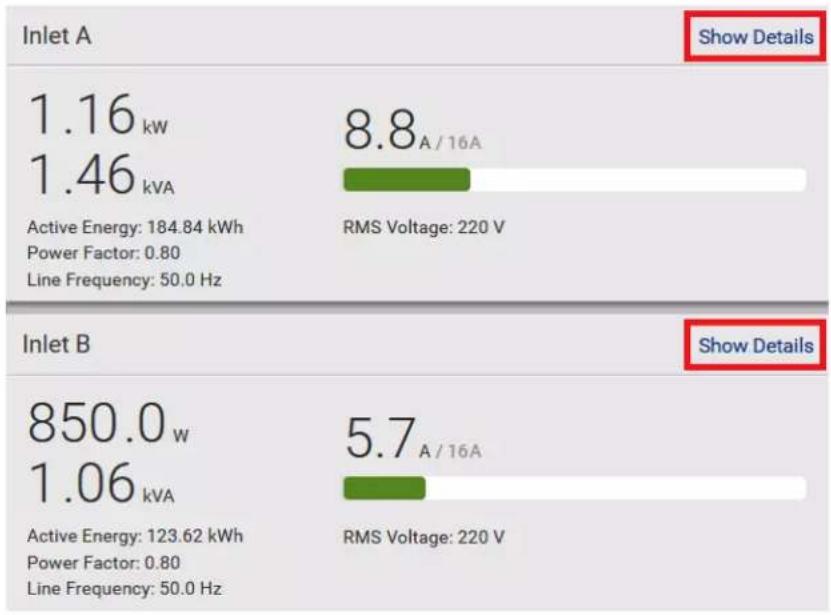
bar
| Inlet | Rating | Value | | :--- | :--- | :--- | | Inlet A | Show Details | 1.16 kW | | Inlet A | Show Details | 1.46 kVA | | Inlet B | Show Details | 850.0 w | | Inlet B | Show Details | 1.06 kVA | | Inlet B | Show Details | 5.7 A / 16A | | Inlet B | Show Details | RMS Voltage: 220 V | Active Energy: 184.84 kWh Power Factor: 0.80 Line Frequency: 50.0 Hz | Active Energy: 123.62 kWh Power Factor: 0.80 Line Frequency: 50.0 Hz | RMS Voltage: 220 V |- Now you can configure the selected inlet, such as enabling thresholds or resetting its energy. See Inlet (on page 168).
- To disable the inlet, see the following instructions.
▶ To disable one or multiple inlets:
- On the individual inlet's data page, click Edit Settings.
text_image
Settings Edit Settings Label A Name Status Enabled Reset Active Energy Reset Energy-
Select the "Disable this inlet" checkbox.
-
Click Save.
- The inlet status now shows "Disabled."

text_image
Settings Edit Settings Label A Name Status Disabled Reset Active Energy Reset Energy- To disable additional inlets, repeat the above steps.
- If disabling an inlet will result in all inlets being disabled, a confirmation dialog appears, indicating that all inlets will be disabled. Then click Yes to confirm this operation or No to abort it.
After disabling any inlet, the following information or features associated with the disabled one are no longer available:
- Sensor readings, states, warnings, alarms or event notifications associated with the disabled inlet.
- Sensor readings, states, warnings, alarms or event notifications for all outlets and overcurrent protectors associated with the disabled inlet.
- The outlet-switching capability, if available, for all outlets associated with the disabled inlet.
Exception: All active energy sensors continue to accumulate data regardless of whether any inlet has been disabled.
Warning: A disabled inlet, if remaining connected to a power source, continues to receive power from the connected power source and supplies power to the associated outlets and overcurrent protectors.
Outlets
The Outlets page shows a list of all outlets and the overview of outlet status and readings. To open this page, click 'Outlets' in the Menu (on page 139).
On this page, you can:
• View all outlets' status.
If any outlet sensor enters the alarmed state, it is highlighted in yellow or red. See Yellow- or Red-Highlighted Sensors (on page 206).
- Perfor rm actions on all or multiple outlets simultaneously by using the setup/power-control icons on the top-right corner.
Note that only outlet-switching capable models show the power-control buttons, and you must have the Switch Outlet permission for performing outlet-switching operations.
| Outlets | |||||
| #▲ | Name | Status | RMS Current | Active Power | Power Factor |
| 1 | Outlet 1 | on | 0.211 A | 41 W | 0.98 |
| 2 | Outlet 2 | on | 0.793 A | 155 W | 0.98 |
| 3 | Outlet 3 | on | 0.274 A | 53 W | 0.98 |
| 4 | Outlet 4 | on | 0.236 A | 46 W | 0.98 |
| 5 | Outlet 5 | on | 0.673 A | 131 W | 0.98 |
| 6 | Outlet 6 | on | 0.782 A | 153 W | 0.98 |
| 7 | Outlet 7 | on | 0.547 A | 107 W | 0.98 |
| 8 | Outlet 8 | on | 0.305 A | 59 W | 0.98 |
- Go to an individual outlet's data/setup page by clicking an outlet's name. See Individual Outlet Pages [on page 183].
Outlets
| # ▲ | Name |
| 1 | Outlet 1 |
| 2 | Outlet 2 |
| 3 | Outlet 3 |
| 4 | Outlet 4 |
If wanted, you can resort the list by clicking the desired column header. See Sorting a List (on page 142).
To show or hide specific columns on the outlets overview page:
- Click ☐ to show a list of outlet data types.
- Select those you want to show, and deselect those you want to hide. See Available Data of the Outlets Overview Page (on page 176).
To configure global outlet settings or perform the load-shedding command:
- Click : to show a list of commands.
- Select the desired command. Note that only outlet-switching capable models show the commands marked with * in the table.
| Command Refer to | |
| Threshold Bulk Setup | Bulk Configuration for Outlet Thresholds (on page 177) |
| *Sequence Setup | Setting Outlet Power-On Sequence and Delay (on page 179) |
| *Load Shedding Setup | Setting Non-Critical Outlets (on page 180) |
| *Activate Load Shedding -- OR-- *Deactivate Load Shedding | Load Shedding Mode (on page 181) |
To power control or reset the active energy readings of multiple outlets:
You can switch any outlet regardless of its current power state. That is, you can turn on any outlet that is already turned on, or turn off any outlet that is already turned off.
1. Click ☑ to make checkboxes appear in front of outlets.
Tip: To perform the desired action on only one outlet, you can simply click that outlet without making the checkboxes appear.
2. Select multiple outlets.
- To select ALL outlets, select the topmost checkbox in the header row.
text_image
▲
Name 1 Outlet 1 2 Outlet 2 3 Outlet 3- Click or select the desired button or command.
| Button/command Action | |
 | Power ON. |
 | Power OFF. |
 | Power cycle.▪ Power cycling the outlet(s) turns the outlet(s) off and then back on. |
 | Resets active energy readings of selected outlets.▪ Only users with the "Admin" role assigned can reset active energy readings. |
Confirm the operation when prompted.
Tip: To reset ALL active energy counters on the PX3, see PDU (on page 157). You can also power control an outlet or reset its active energy from Individual Outlet Pages (on page 183).
- When performing any outlet-switching operation, a 'Sequence running' message similar to the following displays before the outlet-switching process finishes.
- It indicates how many selected outlets are NOT switched on/off or cycled yet.
- If needed, click operation. ✗ Cancel to stop the outlet-switching
text_image
Sequence running, 8 remaining × Cancel▲ Name
✓ 1 Outlet 1 ✓ 2 Outlet 2 ✓ 3 Outlet 3Available Data of the Outlets Overview Page
All or some of the following outlet data is displayed on the outlets overview page based on your model and selection. To show or hide
specific data, click 📄. See Outlets (on page 173).
- Outlet status, which is marked with either icon below. This information is available on outlet-switching capable models only.
| Icon Outlet status | |
| Outlet turned on | |
| Outlet turned off | |
- RMS current (A)
• Active power (W) - Power factor
- Non-critical setting for indicating whether the outlet is a non-critical outlet. This information is available on outlet-switching capable models only.
| Non-critical setting Description | |
| true The outlet is a non-critical outlet, which will be turned OFF in the load shedding mode. See Load Shedding Mode (on page 181). | |
| false The outlet is a critical outlet, which will remain unchanged in the load shedding mode. |
Note: To set critical and non-critical outlets, go to Outlets (on page 173).
Bulk Configuration for Outlet Thresholds
Outlet thresholds, if enabled, help you identify whether any outlet enters the warning or critical level. See Yellow- or Red-Highlighted Sensors (on page 206). In addition, you can have the PX3 automatically generate alert notifications for any warning or critical status. See Event Rules and Actions (on page 312).
Thresholds of multiple or all outlets can be configured simultaneously on the Outlets page.
Per default, there are pre-defined RMS voltage and current threshold values in related fields. See Default Voltage and Current Thresholds (on page 801).
To configure thresholds-related settings for multiple outlets:
- On the Outlets page, click : > Threshold Bulk Setup.
- In the "Show Outlet Sensors of Type" field, select a sensor type.
- Select one or multiple outlets.
- To select ALL outlets, select the topmost checkbox in the header row.

text_image
▲
Name 1 Outlet 1 2 Outlet 2 3 Outlet 3- Click Edit Thresholds.
-
Make changes as needed.
-
To enable any threshold, select the corresponding checkbox.
- Type a new value in the accompanying text box.
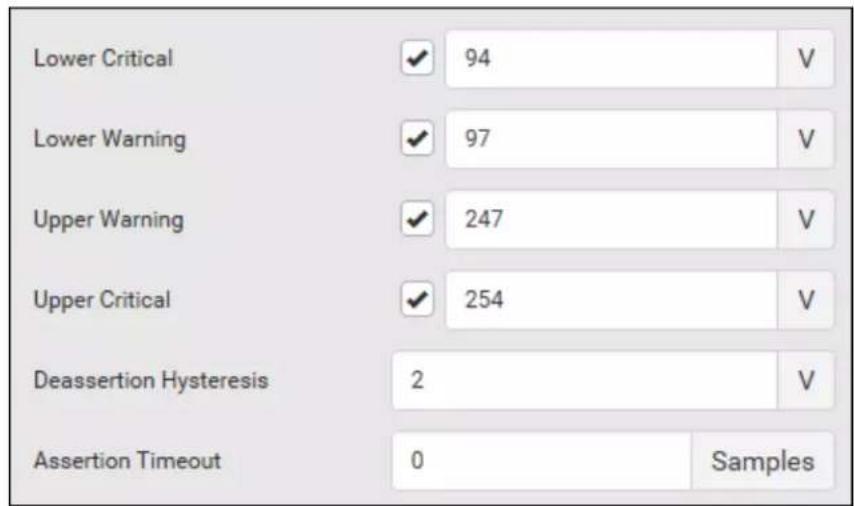
text_image
Lower Critical 94 V Lower Warning 97 V Upper Warning 247 V Upper Critical 254 V Deassertion Hysteresis 2 V Assertion Timeout 0 SamplesFor concepts of thresholds, deassertion hysteresis and assertion timeout, see Sensor Threshold Settings (on page 793).
- Click Save.
Setting Outlet Power-On Sequence and Delay
By default, outlets are sequentially powered on in the ascending order from outlet 1 to the final when turning ON or power cycling all outlets on the PX3 device. You can change the order in which the outlets power ON. This is useful when there is a specific order in which some IT equipment should be powered up first.
In addition, you can make a delay occur between two outlets that are turned on consecutively. For example, if the power-on sequence is Outlet 1 through Outlet 8, and you want the PX3 to wait for 5 seconds after turning on Outlet 3 before turning on Outlet 4, assign a delay of 5 seconds to Outlet 3.
To set the outlet power-on sequence:
- On the Outlets page, click > Sequence Setup.
- Select one or multiple outlets by clicking them one by one in the 'Outlet' column.
- Click the arrow buttons to change the outlet positions.
| Button Function | |
| Top | |
| Up | |
| Down | |
| Bottom | |
| Restores to the default sequence | |
| Button Function | |
| Top | |
| Up | |
| Down | |
| Bottom | |
| Restores to the default sequence | |
Next time when power cycling the PX3, it will turn on all outlets based on the new outlet order.
The new order also applies when performing the power-on or power-cycling operation on partial outlets.
To set a power-on delay for any outlet:
- On the same outlets list, click the 'Delay' column of the outlet that requires a wait after it is turned on.
- Type a new value in seconds.
- Click Save.
The PX3 will insert a power-on delay between the configured outlet and the one following it during the power-on process.
Setting Non-Critical Outlets
Outlets that are turned off when load shedding is activated are called non-critical outlets. Outlets that are not affected by load shedding are called critical outlets. See Load Shedding Mode (on page 181).
Per default, all outlets are configured as critical.
▶ To determine critical and non-critical outlets:
- On the Outlets page, click > Load Shedding Setup.
- To set non-critical outlets, select the checkboxes of those you want.
- To select ALL outlets, select the topmost checkbox in the header row.
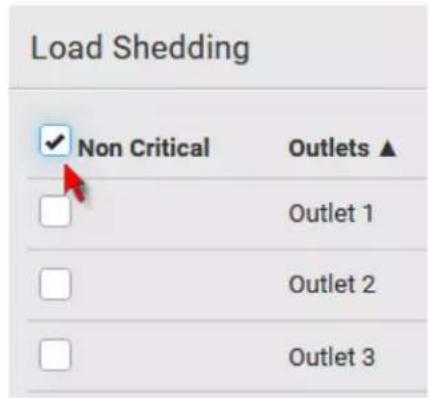
text_image
Load Shedding ✓ Non Critical Outlets ▲ Outlet 1 Outlet 2 Outlet 3- To turn non-critical outlets into critical ones, deselect their checkboxes.
- To deselect ALL outlets, deselect the topmost checkbox in the header row.
- Click Save.
Tip: You can also set up non-critical outlet setting by configuring outlets one by one. See Individual Outlet Pages (on page 183).
Load Shedding Mode
When a UPS supplying power to the PX3 switches into battery backup operation, it may be desirable to switch off non-critical outlets to conserve UPS battery life. This feature is known as load shedding.
Outlets that are turned off when load shedding is activated are called non-critical outlets. Outlets that are not affected by load shedding are called critical outlets. By default, all outlets are critical. To set non-critical ones, see Setting Non-Critical Outlets (on page 180).
When load shedding is activated, the PX3 turns off all non-critical outlets. When load shedding is deactivated, the PX3 turns back on all non-critical outlets that were ON before entering the load shedding mode.
Activation of load shedding can be accomplished using the web interface, SNMP or CLI, or triggered by the contact closure sensors.
Note: It is highly suggested to check non-critical outlets prior to manually entering the load shedding mode. The non-critical information can be retrieved from the Outlets page. See Outlets (on page 173) or Available Data of the Outlets Overview Page (on page 176).
You must have the following two permissions to perform the load shedding commands.
- 'Change Pdu, Inlet, Outlet & Overcurrent Protector Configuration'
- 'Switch Outlet' permission for all non-critical outlets
To enter the load shedding mode:
- On the Outlets page, click
Activate Load Shedding.
Note: In case the PX3 prevents you from performing this command, check your permissions, especially if you have the Switch Outlet permission for ALL non-critical outlets.
- Click Activate on the confirmation message.
In the load shedding mode:
■ The lock icon

appears for all non-critical outlets on the you CANNOT turn on any of them.
- The message "Load Shedding Active" appears next to the 'Outlets' title.
| #▲ | Name | Status | RMSCurrent | ActivePower | PowerFactor | NonCritical |
| 1 | Outlet 1 |  | 0.0 A | 0 W | 1.00 | true |
| 2 | Outlet 2 | 0.0 A | 0 W | 1.00 | true | |
| 3 | Outlet 3 | 0.0 A | 0 W | 1.00 | true | |
| 4 | Outlet 4 | on | 0.0 A | 0 W | 1.00 | false |
| 5 | Outlet 5 | on | 0.0 A | 0 W | 1.00 | false |
Tip: To make the Non Critical column appear on the Outlets page. See Outlets (on page 173) or Available Data of the Outlets Overview Page (on page 176).
To exit from the load shedding mode:
- On the Outlets page, click > Deactivate Load Shedding.
- Click Deactivate on the confirmation message.
Now you can turn on/off any outlets.
Tip -- automatic load shedding via contact closure sensors:
If you have connected a contact closure sensor to PX3, you can set up an event rule so that the status change of this sensor automatically activates or deactivates the load shedding mode. For an example, see Sample Environmental-Sensor-Level Event Rule (on page 365).
Individual Outlet Pages
An outlet's data/setup page is opened after clicking the outlet's name on the Outlets overview page. See Outlets (on page 173).

text_image
Outlets▲ Name
1 Outlet 1 2 Outlet 2 3 Outlet 3 4 Outlet 4The individual outlet's page shows this outlet's detailed information. See Detailed Information on Outlet Pages (on page 189).
In addition, you can perform the following operations on this outlet page. Note that only outlet-switching capable models show the power-control buttons, and you must have the Switch Outlet permission for performing outlet-switching operations.
To power control this outlet:
- Click one of the power-control buttons.

text_image
Outlet 1 On Off Cycle Details Label 1 Outlet Status on Receptacle Type IEC 60320 C19 Lines L1-NEUTRAL Inlet Inlet l1 Overcurrent Protector Overcurrent Protector C1| Button/command Action | |
 | Power ON. |
 | Power OFF. |
 | Power cycle.▪ Power cycling the outlet(s) turns the outlet(s) off and then back on. |
2. Confirm it on the confirmation message.
Tip: To switch an outlet using the front panel display, see Power Control (on page 106).
To configure this outlet:
- Click Edit Settings.
| Settings | |
| Name | Edit Settings |
| State on device startup | PDU defined (last known) |
| Power off period during power cycle | PDU defined (10 seconds) |
| Non-critical | False |
| Reset Active Energy | Reset Energy |
- Configure available fields. Note that the fields marked with * are only available on outlet-switching capable models.
| Field Descriptions | |
| Name Type an outlet name up to 64 characters long. | |
| *State on device startup | Click this field to select this outlet's initial power state after the PX3 powers up.Options: on, off, last known and PDU defined.See Options for Outlet State on Startup(on page 162).Note that any option other than "PDU defined" will override the global outlet state setting on this particular outlet. |
| *Power off period during power cycle | Select an option to determine how long this outlet is turned off before turing back on.▪ Options: PDU defined or customized time.See Power-Off Period Options for Individual Outlets (on page 190).▪ Note that any time setting other than "PDU defined" will override the global power-off period setting on this particular outlet. |
| *Non-critical Select | this checkbox only when you want this outlet to turn off in the load shedding mode. See Load Shedding Mode (on page 181). |
- Click Save.
- The outlet's custom name, if available, is displayed in the outlets list, following by its label in parentheses.
To reset this outlet's active energy reading:
Only users with the "Admin" role assigned can reset active energy readings.
Reset Energy
- Click
- Click Reset on the confirmation message.
Tip: To reset ALL active energy counters on the PX3, see PDU (on page 157).
To view this outlet's power chart:
By default this outlet's active power data within the past tens of minutes is shown in the power chart.
You can click the selector below the chart to show a different data type for this outlet, including:
- RMS current
- RMS voltage
• Active power - Apparent power

line
| Time | Power | | ---------- | ----- | | 3:55 PM | 41.0 W | | 4:00 PM | 41.0 W | | 4:05 PM | 41.0 W | | 4:10 PM | 41.0 W | | 4:15 PM | 41.0 W | | 4:20 PM | 41.0 W | | 4:25 PM | 41.0 W | | 4:30 PM | 41.0 W | | 4:35 PM | 41.0 W | | 4:40 PM | 41.0 W | | 4:45 PM | 41.0 W | | 4:50 PM | 41.0 W | | 4:55 PM | 41.0 W | | 5:00 PM | 41.0 W | | 5:05 PM | 41.0 W | | 5:10 PM | 41.0 W | | 5:15 PM | 41.0 W | | 5:20 PM | 41.0 W | | 5:25 PM | 41.0 W | | 5:30 PM | 41.0 W | | 5:35 PM | 41.0 W | | 5:40 PM | 41.0 W | | 5:49 PM | 41.0 W |- To retrieve the exact data at a particular time, hover your mouse over the data line in the chart. Both the time and data are displayed as illustrated below.

line
| Time | Power | | -------- | ----- | | 12:43 PM | 41.1 W |To configure this outlet's threshold settings:
Per default, there are pre-defined RMS voltage and current threshold values in related fields. See Default Voltage and Current Thresholds (on page 801). You can modify the defaults as needed.
Note: The threshold values set for an individual outlet will override the bulk threshold values, if any, stored on that particular outlet. SeeBulk Configuration for Outlet Thresholds (on page 177).
- If the outlet's threshold data is invisible, click the Thresholds title bar to display it.
Thresholds


- Click the desired sensor (required), and then click Edit Thresholds.
| Thresholds | ||||
| Edit Thresholds | ||||
| Sensor ▲ | Lower Critical | Lower Warning | Upper Warning | Upper Critical |
| Active Energy | -- | -- | -- | -- |
| Active Power | -- | -- | -- | -- |
| Apparent Power | -- | -- | -- | -- |
| Line Frequency | -- | -- | -- | -- |
| Power Factor | -- | -- | -- | -- |
| RMS Current | -- | -- | 10.4 A | 12.8 A |
| RMS Voltage | -- | -- | -- | -- |
3. Make changes as needed.
- To enable any threshold, select the corresponding checkbox.
■ Type a new value in the accompanying text box.
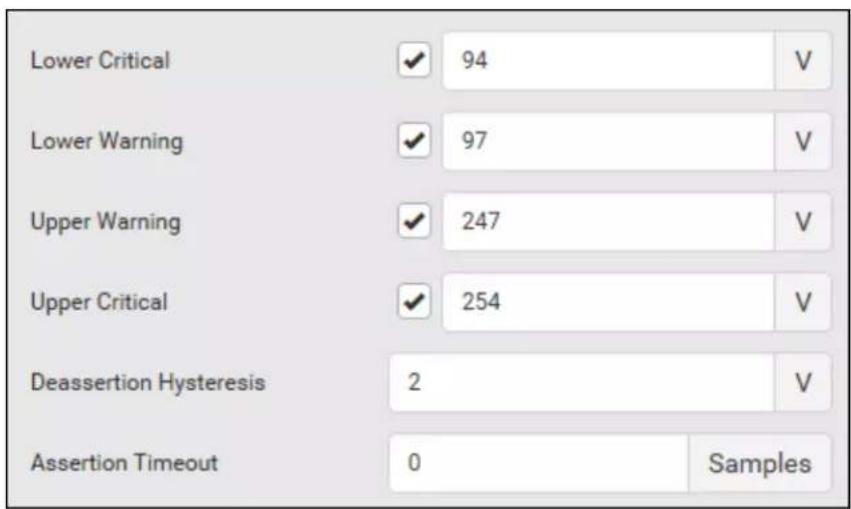
text_image
Lower Critical 94 V Lower Warning 97 V Upper Warning 247 V Upper Critical 254 V Deassertion Hysteresis 2 V Assertion Timeout 0 SamplesFor concepts of thresholds, deassertion hysteresis and assertion timeout, see Sensor Threshold Settings (on page 793).
- Click Save.
▶ Other operations:
- You can go to another outlet's data/setup page by clicking the outlet selector ▲ on the top-left corner.
- You can go to the associated Inlet's or overcurrent protector's data pages by clicking the Inlet or Overcurrent Protector links in the Details section.

Outlet 1

Off

Details
Label
1
Outlet Status

Receptacle Type
IEC 60320 C19
Lines
L1-NEUTRAL
Inlet
Overcurrent Protector
Inlet 11
Overcurrent Protector C1

Detailed Information on Outlet Pages
Each outlet's data page has the Details section for showing general outlet information and Sensors section for showing the outlet sensor status.
Details section:
| Field Description | |
| Label The physical outlet number | |
| Outlet Status | This information is only available on outlet-switching capable models. |
| On or Off | |
| Receptacle Type This outlet's receptacle type | |
| Lines Lines associated with this outlet | |
| Inlet | This information is useful when there are multiple inlets on your PDU. |
| Inlet associated with this outlet | |
| Overcurrent Protector | This information is available only when your PX3 has overcurrent protectors. |
| Overcurrent protector associated with this outlet | |
▶ Sensors section:
- RMS current (A)
- RMS voltage (V)
• Active power (W)
• Active energy (Wh) - Apparent power (VA)
- Power factor
• Line frequency (Hz) -- model dependent
If any outlet sensor enters the alarmed state, it is highlighted in yellow or red. See Yellow- or Red-Highlighted Sensors (on page 206).
Power-Off Period Options for Individual Outlets
There are two options for setting the power-off period during the power cycle on each individual outlet's page. See Individual Outlet Pages (on page 183).
| Option Function | |
| PDU defined (xxx) | Follows the global power-off period setting, which is set on PDU (on page 157). The value xxx in parentheses is the current global value. |
| Customized time | If selecting this option, do either of the following:Clickto select an existing time option.Type a new value with an appropriate time unit added. See Time Units (on page 165). |
OCPs
The OCPs page is available only when your PX3 has overcurrent protectors, such as circuit breakers.
The OCPs page lists all overcurrent protectors as well as their status. If any OCP trips or its current level enters the alarmed state, it is highlighted in red or yellow. See Yellow- or Red-Highlighted Sensors (on page 206).
To open the OCPs page, click 'OCPs' in the Menu (on page 139).
You can go to each OCP's data/setup page by clicking its name on this page.

bar
| Overcurrent Protector | Status | Current Drawn | Protected Outlets | Lines | |---|---|---|---|---| | 1 | Overcurrent Protector C1 | closed 4.390 A | 1-10 | L1-L2 | | 2 | Overcurrent Protector C2 | closed 5.619 A | 11-20 | L2-L3 | | 3 | Overcurrent Protector C3 | closed 5.396 A | 21-30 | L3-L1 |If wanted, you can resort the list by clicking the desired column header. See Sorting a List (on page 142).
▶ Overcurrent protector overview:
- OCP status - open (tripped) or closed
- Current drawn and current bar
The RMS current bars change colors to indicate the status if the OCP thresholds have been configured and enabled.
| Status Bar colors | |
| normal |  |
| above upper warning |  |
| above upper critical |  |
Note: The "below lower warning" and "below lower critical" states also show yellow and red colors respectively. However, it is not meaningful to enable the two thresholds for current levels.
- Protected outlets, which are indicated with outlet numbers
- Associated lines
To configure current thresholds for multiple overcurrent protectors:
OCP thresholds, when enabled, help you identify the OCP whose RMS current enters the warning or critical level with the yellow or red color. In addition, you can have the PX3 automatically generate alert notifications for any warning or critical status. See Event Rules and Actions (on page 312).
Note: By default, upper thresholds of an OCP's RMS current have been configured. See Default Voltage and Current Thresholds (on page 801). You can modify them as needed.
- Click : > Threshold Bulk Setup.
- Select one or multiple OCPs.
- To select all OCPs, simply click the topmost checkbox in the header row.

text_image
OCP ▲ Overcurrent Protector C1 Overcurrent Protector C2- Click Edit Thresholds.
- Make changes as needed.
- To enable any threshold, select the corresponding checkbox.
■ Type a new value in the accompanying text box.

text_image
Lower Critical 0 A Lower Warning 0 A Upper Warning 10.4 A Upper Critical 12.8 A Deassertion Hysteresis 1 A Assertion Timeout 0 SamplesFor concepts of thresholds, deassertion hysteresis and assertion timeout, see Sensor Threshold Settings (on page 793).
- Click Save.
Individual OCP Pages
An OCP's data/setup page is opened after clicking any OCP's name on the OCPs or Dashboard page. See OCPs (on page 191) or Dashboard (on page 144).
▶ General OCP information:
| Field Description | |
| Label This OCP's physical number. | |
| Status open or closed. | When an OCP trips (open), if your PX3 is an outlet-metered model that supports "outlet peak current" sensors, a message will show up, indicating which outlet is likely to trigger the OCP-tripped event. For details, seePossibleOCP-Tripped Root Cause(on page 198). |
| Type This OCP's type. | |
| Rating This OCP's rated current. | |
| Lines Lines associated with this OCP. | |
| Protected Outlets Outlets associated with this OCP. | |
| Inlet Inlet associated with this OCP. | |
| RMS current This OCP's current state and readings, including current drawn and current remaining. | |
To customize this OCP's name:
-
Click Edit Settings.
-
Type a name.
-
Click Save.
To view this OCP's RMS current chart:
This OCP's data chart is shown in the Overcurrent Protector History section.

line
| Time | Value | | ---------- | ----- | | 3:33 PM | 4.39 | | 3:38 PM | 4.39 | | 3:43 PM | 4.39 | | 3:48 PM | 4.39 | | 3:53 PM | 4.39 | | 3:58 PM | 4.39 | | 4:03 PM | 4.39 | | 4:08 PM | 4.39 | | 4:13 PM | 4.39 | | 4:18 PM | 4.39 | | 4:23 PM | 4.39 | | 4:28 PM | 4.39 | | 4:33 PM | 4.39 | | 4:38 PM | 4.39 | | 4:43 PM | 4.39 | | 4:48 PM | 4.39 | | 4:53 PM | 4.39 | | 4:58 PM | 4.39 | | 5:03 PM | 4.39 | | 5:08 PM | 4.39 | | 5:13 PM | 4.39 | | 5:18 PM | 4.39 | | 5:27 PM | 4.39 |- To retrieve the exact data at a particular time, hover your mouse over the data line in the chart. Both the time and data are displayed as illustrated below.

line
| Time | Value | | -------- | ------ | | 12:41 PM | 4.39 A |To configure this OCP's threshold settings:
By default, upper thresholds of an OCP's RMS current have been configured. See Default Voltage and Current Thresholds(on page 801). You can modify them as needed.
Note: The threshold values set for an individual OCP will override the bulk threshold values stored on that particular OCP. To configure thresholds for multiple OCPs at a time, see OCPs (on page 191).
- Click the Thresholds title bar at the bottom of the page to display the threshold data.
Thresholds


- Click the RMS current sensor (required), and then click Edit Thresholds.
| Thresholds | ||||
| Edit Thresholds | ||||
| Sensor ▲ | Lower Critical | Lower Warning | Upper Warning | Upper Critical |
| RMS Current | — | — | 10.4 A | 12.8 A |
- Make changes as needed.
■ To enable any threshold, select the corresponding checkbox.
■ Type a new value in the accompanying text box.
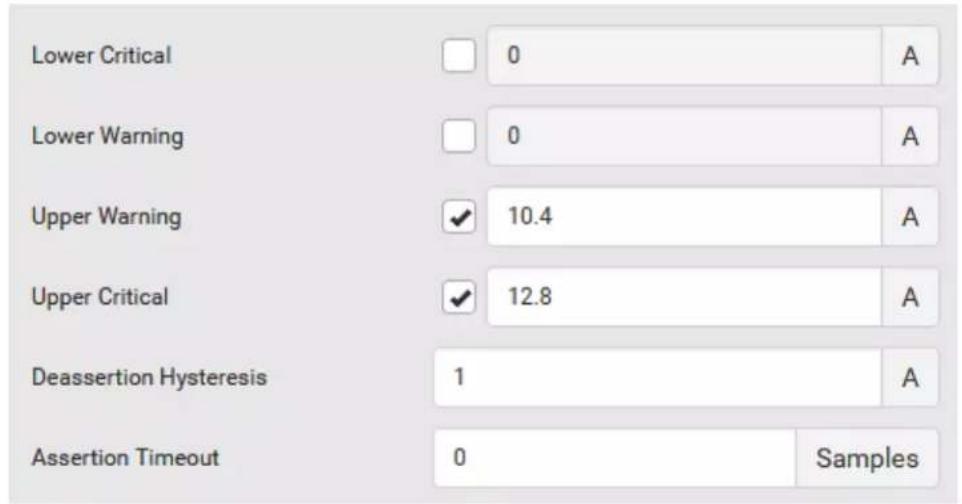
text_image
Lower Critical 0 A Lower Warning 0 A Upper Warning 10.4 A Upper Critical 12.8 A Deassertion Hysteresis 1 A Assertion Timeout 0 SamplesFor concepts of thresholds, deassertion hysteresis and assertion timeout, see Sensor Threshold Settings (on page 793).
- Click Save.
▶ Other operations:
• You can go to another OCP's data/setup page by clicking the OCP
selector on the top-left corner.
- You can go to the associated Inlet's data page by clicking the Inlet link in the Details section.

Overcurrent Protector C1
| Details | |
| Label | C1 |
| Status | closed |
| Type | 1-Pole Circuit Breaker |
| Rating | 16 A |
| Lines | L1 |
| Protected Outlets | 1-4 |
| Inlet | Inlet I1 |
Possible OCP-Tripped Root Cause
This feature applies to PX3-5000 and PX3-4000 models only.
As of release 3.4.0, outlet-metered models that support "outlet peak current" sensors can detect which outlet is LIKELY to cause the associated OCP to trip, and indicate it on several user interfaces, including the web interface, front panel display, and command line interface (CLI).
Note that those models without "outlet peak current" sensors do not support this feature.
▶ Web interface:
- On the page of a tripped OCP, the Status field indicates the outlet number that may cause the OCP-tripped event.
Overcurrent Protector C1
Details
Label
C1
Status

△ open
Likely caused by Outlet 8
Type
2-Pole Circuit Breaker
Rating
20 A
Lines
L1-L2
Protected Outlets
1-12
Inlet
Inlet 11
Front panel display:
Only a dot-matrix LCD display can show this message, but a character LCD display cannot.
The 'Likely trip cause' message will be displayed for an "open" OCP, indicating which outlet may cause the OCP-tripped event. See OCPs (on page 102).

text_image
OCPs Circuit Breaker C1 L1-L2, 20A Open Likely trip cause: Outlet 8 Circuit Breaker C2 L1-L2, 20A 0.000 ACLI:
- Perform the show ocp command in the CLI. If any OCP has tripped, then the outlet that may cause this event is shown in parentheses in the State field of the tripped OCP. See Overcurrent Protector Information (on page 457).
Peripherals
If there are Raritan environmental sensor packages connected to the PX3, they are listed on the Peripherals page. See Connecting Environmental Sensor Packages (on page 52).
An environmental sensor package comprises one or some of the following sensors/actuators:
- Numeric sensors: Detectors that show both readings and states, such as temperature sensors.
- State sensors: Detectors that show states only, such as contact closure sensors.
- Actuators: An actuator controls a system or mechanism so it shows states only.
The PX3 communicates with managed sensors/actuators only and retrieves their data. It does not communicate with unmanaged ones. See Managed vs Unmanaged Sensors/Actuators (on page 207).
When the number of "managed" sensors/actuators has not reached the maximum, the PX3 automatically brings newly-detected sensors/actuators under management by default.
One PX3 can manage a maximum of 32 sensors/actuators.
Note: To disable the automatic management function, go to PDU (on page 157). You need to manually manage a sensor/actuator only when it is not under management.
When any sensor/actuator is no longer needed, you can unmanage/release it.
Open the Peripherals page by clicking Peripherals in the Menu(on page 139). Then you can:
- Perfor rm actions on multiple sensors/actuators by using the control/action icons on the top-right corner.
| Peripheral Devices | |||||||
| #▲ | Name | Reading | State | Type | Serial Number | Position | Actuator |
| 1 | Temperature 1 | 24.0 °C | normal | Temperature | QMTemu0005 | Port 1, Chain Position 5 | |
| 2 | Temperature 2 | 24.0 °C | normal | Temperature | QMSemu0004 | Port 1, Chain Position 4 | |
| 3 | Relative Humidity 1 | 42 % | normal | Humidity | QMSemu0004 | Port 1, Chain Position 4 | |
| 4 | On/Off 1 | normal | Contact Closure | QU7emu0003 | Port 1, Chain Position 3, Channel 1 | ||
| 5 | On/Off 2 | normal | Contact Closure | QU7emu0003 | Port 1, Chain Position 3, Channel 2 | ||
- Go to an individual sensor's or actuator's data/setup page by clicking its name.
Peripheral Devices
| # ▲ | Name |
| 1 | Temperature 1 |
| 2 | Temperature 2 |
| 3 | Relative Humidity 1 |
| 4 | On/Off 1 |
If wanted, you can resort the list by clicking the desired column header. See Sorting a List (on page 142).
▶ Sensor/actuator overview on this page:
If any sensor enters the alarmed state, it is highlighted in yellow or red. See Yellow- or Red-Highlighted Sensors (on page 206). An actuator is never highlighted.
| Column Description | |
| Name By default the PX3 assigns a name comprising the following two elements to a newly-managed sensor/actuator.Sensor/actuator type, such as "Temperature" or "Dry Contact."Sequential number of the same sensor/actuator type, like 1, 2, 3 and so on.You can customize the name. See Individual Sensor/Actuator Pages (on page 214). | |
| Reading Only managed 'numeric' sensors show this data, such as temperature and humidity sensors. | |
| State The data is available for all sensors and actuators.See Sensor/Actuator States (on page 208). | |
| Type Sensor or actuator type. | |
| Serial Number | This is the serial number printed on the sensor package's label. It helps to identify your Raritan sensors/actuators. SeeFinding the Sensor's Serial Number(on page 210). |
| Position The data indicates where this sensor or actuator is located in the sensor chain.SeeIdentifying the Sensor Position and Channel (on page 211). | |
| Actuator Indicates whether this sensor package is an actuator or not. If yes, the symbol √ is shown. | |
To release or manage sensors/actuators:
When the total of managed sensors/actuators reaches the maximum (32), you cannot manage additional ones. The only way to manage any sensor/actuator is to release or replace any managed ones. To replace a managed sensor/actuator, see Managing One Sensor or Actuator (on page 212). To release any one, follow this procedure.
- Click ☑ to make checkboxes appear in front of sensors/actuators.
Tip: To perform the desired action on only one sensor/actuator, simply click that sensor/actuator without making the checkboxes appear.
-
Select multiple sensors/actuators.
-
To release sensors/actuators, you must only select "managed" ones. See Sensor/Actuator States (on page 208).
- To manage sensors/actuators, you must only select "unmanaged" ones.
- To select ALL sensors/actuators, select the topmost checkbox in the header row.
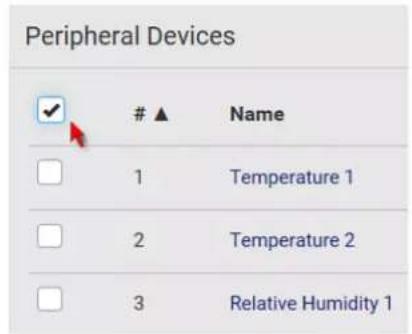
text_image
Peripheral Devices ✓ # ▲ Name 1 Temperature 1 2 Temperature 2 3 Relative Humidity 1Figure 2: Select all checkboxes
- To release selected ones, click > Release.
To manage them, click : > Manage.
- The management action triggers a "Manage peripheral device" dialog. Simply click Manage if you are managing multiple sensors/actuators.
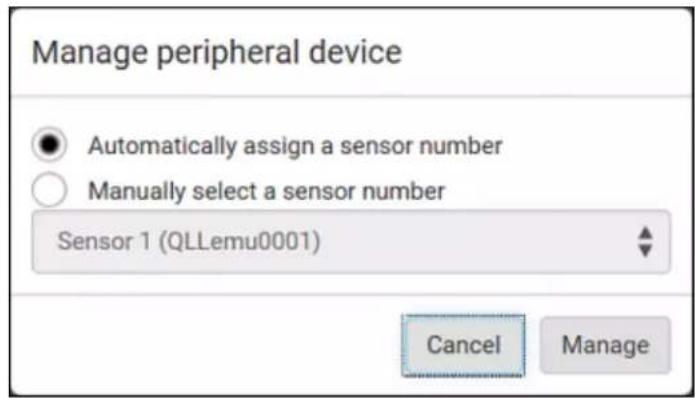
text_image
Manage peripheral device Automatically assign a sensor number Manually select a sensor number Sensor 1 (QLLemu0001) Cancel Manage- If you are managing only one sensor/actuator, you can choose to assign an ID number by selecting "Manually select a sensor number." See Managing One Sensor or Actuator (on page 212).
- Now released sensors/actuators become "unmanaged."
Managed ones show one of the managed states.
To configure default threshold settings:
Note that any changes made to default threshold settings not only re-determine the initial threshold values applying to newly-added sensors but also the threshold values of the already-managed sensors where default thresholds are being used. See Individual Sensor/Actuator Pages (on page 214).
- Click : > Default Threshold Setup.
- Click the desired sensor type (required), and then click Edit Thresholds.
| Peripherals Default Thresholds | ||||
| Edit Thresholds | ||||
| Sensor Type | Lower Critical | Lower Warning | Upper Warning | Upper Critical |
| Absolute Humidity | 2 g/m3 | 4 g/m3 | 20 g/m3 | 22 g/m3 |
| Air Flow | 0.4 m/s | 0.8 m/s | 2.6 m/s | 3.2 m/s |
| Air Pressure | --- | --- | 80 Pa | 100 Pa |
| Relative Humidity | 10 % | 15 % | 85 % | 90 % |
| Temperature | 10 °C | 15 °C | 30 °C | 35 °C |
| Vibration | --- | --- | 0.05 g | 0.1 g |
- Make changes as needed.
■ To enable any threshold, select the corresponding checkbox.
■ Type a new value in the accompanying text box.
| Lower Critical | ✓ 10 | °C |
| Lower Warning | ✓ 15 | °C |
| Upper Warning | ✓ 30 | °C |
| Upper Critical | ✓ 35 | °C |
| Deassertion Hysteresis | 1 | °C |
| Assertion Timeout | 0 | Samples |
For concepts of thresholds, deassertion hysteresis and assertion timeout, see Sensor Threshold Settings (on page 793).
- Click Save.
Tip: To customize the threshold settings on a per-sensor basis, go to Individual Sensor/Actuator Pages (on page 214).
To turn on or off any actuator(s):
- Select one or multiple actuators which are in the same status-on or off.
- To select multiple actuators, click ✅ to make checkboxes appear and then select desired actuators.
- Click the desired button.
Note: If you try to turn on more than one "powered dry contact" actuators, by default only one "powered dry contact" actuator can be turned on at the same time. You can change this limitation by changing the active powered dry contact setting. See PDU (on page 157).
- Confirm the operation when prompted.
Tip: If intending to control the actuator via the front panel, see Front Panel Settings (on page 375).
Yellow- or Red-Highlighted Sensors
The PX3 highlights those sensors that enter the abnormal state with a yellow or red color. Note that numeric sensors can change colors only after you have enabled their thresholds.
Tip: When an actuator is turned ON, it is also highlighted in red for drawing attention.
For concepts of thresholds, deassertion hysteresis and assertion timeout, see Sensor Threshold Settings (on page 793).
| # ▲ | Name | Reading | State | Type | Serial Number | Position | Actuator |
| 1 | Temperature 1 | 25.0 °C | above upper critical | Temperature | AEH2A51454 | Port 1 | |
| 2 | Absolute Humidity 1 | 10.8 g/m3 | normal | Absolute Humidity | AEI1750551 | Port 4 | |
| 3 | Absolute Humidity 2 | 11.0 g/m3 | above upper warning | Absolute Humidity | AEI2850240 | Port 4 | |
| 4 | Temperature 2 | 25.8 °C | above upper critical | Temperature | AEI2A50775 | Port 1 | |
| 5 | Relative Humidity 1 | 44 % | normal | Humidity | AEI2A50775 | Port 1 |
In the following table, "R" represents any numeric sensor's reading. The symbol <= means "smaller than" or "equal to."
| Sensor status | Color States shown in the interface | Description | |
| Unknown | unavailable | Sensor state or readings cannot be detected. | |
| unmanaged Sensors are not being managed. See Managed vs Unmanaged Sensors/Actuators (on page 207). | |||
| Normal | normal | Numeric or state sensors are within the normal range.-- OR --No thresholds have been enabled for numeric sensors. | |
| Warning | above upper warning | Upper Warning threshold < "R" <= Upper Critical threshold | |
| below lower warning | Lower Critical threshold <= "R" < Lower Warning threshold | ||
| above upper critical | Upper Critical threshold < "R" Critical | ||
| below lower critical | "R" < Lower Critical threshold | ||
| Alarmed |  | alarmed State sensors enter the abnormal state. | |
| OCP alarm |  | Open | Circuit breaker trips.-- OR --Fuse blown. |
If you have connected a Schroff® LHX/SHX heat exchanger, when any sensor implemented on that device fails, it is also highlighted in red.
Managed vs Unmanaged Sensors/Actuators
To manually manage or unmanage/release a sensor or actuator, see Peripherals (on page 200).
▶ Managed sensors/actuators:
- The PX3 communicates with managed sensors/actuators and retrieves their data.
- Managed sensors/actuators are always listed on the Peripheral Devices page no matter they are physically connected or not.
• They have an ID number as illustrated below.
| Peripheral Devices | |
| # ▲ | Name |
| 1 | On/Off 1 |
| 2 | On/Off 2 |
| 3 | Temperature 1 |
| 4 | Absolute Humidity 1 |
| 5 | Relative Humidity 1 |
- They show one of the managed states. See Sensor/Actuator States (on page 208).
- For managed 'numeric' sensors, their readings are retrieved and displayed. If any numeric sensor is disconnected or its reading cannot be retrieved, it shows "unavailable" for its reading.
▶ Unmanaged sensors/actuators:
- The PX3 neither communicates with unmanaged sensors/actuators nor retrieves their data.
- Unmanaged sensors/actuators are listed only when they are physically connected to the PX3. They disappear when they are no longer connected.
• They do not have an ID number.
• They show the "unmanaged" state.
Sensor/Actuator States
An environmental sensor or actuator shows its real-time state after being managed.
Available sensor states depend on the sensor type -- numeric or state sensors. For example, a contact closure sensor is a state sensor so it switches between three states only -- unavailable, alarmed and normal.
Sensors will be highlighted in yellow or red when they enter abnormal states. See Yellow- or Red-Highlighted Sensors (on page 206).
An actuator's state is marked in red when it is turned on.
▶ Managed sensor states:
In the following table, "R" represents any numeric sensor's reading. The symbol <= means "smaller than" or "equal to."
| State Description | |
| normal | ▪ For numeric sensors, it means the readings are within the normal range.▪ For state sensors, it means they enter the normal state. |
| below lower critical "R" | < Lower Critical threshold |
| below lower warning Lower Critical threshold <= "R" < Lower Warning threshold | |
| above upper warning Upper Warning threshold < "R" <= Upper Critical threshold | |
| above upper critical Upper Critical threshold < "R" | |
| alarmed The state sensor enters the abnormal state. | |
| unavailable | The communication with the managed sensor is lost.-- OR --DPX2, DPX3 or DX sensor packages are upgrading their sensor firmware. |
Note that for a contact closure sensor, the normal state depends on the normal setting you have configured. Refer to the Environmental Sensors and Actuators Guide (or Online Help) for detailed information, which is available on Raritan's Support page (http://www.raritan.com/support/).
▶ Managed actuator states:
| State Description | |
| on The actuator is turned on. | |
| off The actuator is turned off. | |
| unavailable | The communication with the managed actuator is lost.-- OR --DX sensor packages are upgrading their sensor firmware. |
▶ Unmanaged sensor/actuator states:
| State Description | |
| unmanaged Sensors or actuators are physically connected to the PX3 but not managed yet. | |
Note: Unmanaged sensors or actuators will disappear from the web interface after they are no longer physically connected to the PX3. To manage a sensor/actuator, go to Peripherals (on page 200).
Finding the Sensor's Serial Number
A DPX environmental sensor package includes a serial number tag on the sensor cable.

text_image
SN1: AHI8100078 SN2: AHI8100079 RoHS CE SN: AHI8100100 RoHS CEA DPX2, DPX3 or DX sensor package has a serial number tag attached to its rear side.
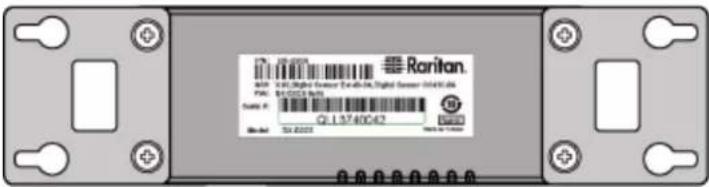
text_image
RoRitan W: 14.3256 Digital Server De-40-04, Digital Server 10491.04 P#: 80-0023.54 Model: Q1.13740042 Date: Dec 2023The serial number for each sensor or actuator appears listed in the web interface after each sensor or actuator is detected by the PX3. Match the serial number from the tag to those listed in the sensor table.
| Peripheral Devices | |||||||
| #▲ | Name | Reading | State | Type | Serial Number | Position | Actuator |
| 1 | On/Off 1 | normal | Contact Closure | QLLemu0001 | Port 1, Chain Position 1, Channel 1 | ||
| 2 | On/Off 2 | normal | Contact Closure | QLLemu0001 | Port 1, Chain Position 1, Channel 3 | ||
| 3 | Temperature 1 | 24.0 °C | normal | Temperature | QMTemu0005 | Port 1, Chain Position 5 | |
| 4 | Absolute Humidity 1 | 9.2 g/m3 | normal | Absolute Humidity | QMSemu0004 | Port 1, Chain Position 4 | |
| 5 | Relative Humidity 1 | 42 % | normal | Humidity | QMSemu0004 | Port 1, Chain Position 4 | |
Identifying the Sensor Position and Channel
Raritan has developed four types of environmental sensor packages - DPX, DPX2, DPX3 and DX series. Only DPX2, DPX3 and DX sensor packages can be daisy chained.
The PX3 can indicate where each sensor or actuator is connected on the Peripheral Devices page.
| Peripheral Devices | ||||||
| #▲ | Name | Reading | State | Type | Serial Number | Position Actuator |
| 1 | On/Off 1 | normal | Contact Closure | QLLemu0001 | Port 1, Chain Position 1, Channel 1 | |
| 2 | On/Off 2 | normal | Contact Closure | QLLemu0001 | Port 1, Chain Position 1, Channel 3 | |
| 3 | Temperature 1 | 24.0 °C | normal | Temperature | QMTemu0005 | Port 1, Chain Position 5 |
| 4 | Absolute Humidity 1 | 9.2 g/m2 | normal | Absolute Humidity | QMSemu0004 | Port 1, Chain Position 4 |
| 5 | Relative Humidity 1 | 42% | normal | Humidity | QMSemu0004 | Port 1, Chain Position 4 |
- DPX series only shows the sensor port number only.
For example, Port 1.
- DPX2, DPX3 and DX series show both the sensor port number and its position in a sensor chain.
For example, Port 1, Chain Position 2.
- If a Raritan DPX3-ENVHUB4 sensor hub is involved, the hub port information is also indicated for DPX2, DPX3 and DX series, but NOT indicated for DPX series.
For example, Hub Port 3.
- If a sensor/actuator contains channels, such as a contact closure or dry contact sensor, the channel information is included in the position information.
For example, Channel 1.
▶ Sensor/actuator position examples:
| Example Physical position | |
| Port 1 | Connected to the sensor port #1. |
| Port 1, Channel 2 | • Connected to the sensor port #1.• The sensor/actuator is the 2nd channel of the sensor package. |
| Port 1, Chain Position 4 | • Connected to the sensor port #1.• The sensor/actuator is located in the 4th sensor package of the sensor chain. |
| Port 1, Chain Position 3, Channel 2 | • Connected to the sensor port #1.• The sensor/actuator is located in the 3rd sensor package of the sensor chain.• It is the 2nd channel of the sensor package. |
| Port 1, Chain Position 1, Hub Port 2, Chain Position 3 | • Connected to the sensor port #1.• Connected to the 2nd port of the DPX3-ENVHUB4 sensor hub, which shows the following two pieces of information:• The hub's position in the sensor chain -- "Chain Position 1"• The hub port where this particular sensor package is connected -- "Hub Port 2"• The sensor/actuator is located in the 3rd sensor package of the sensor chain connected to the hub's port 2. |
Managing One Sensor or Actuator
If you are managing only one sensor or actuator, you can assign the desired ID number to it. Note that you cannot assign ID numbers when you are managing multiple sensors/actuators at a time.
Tip: When the total of managed sensors/actuators reaches the maximum (32), you cannot manage additional ones. The only way to manage any sensor/actuator is to release or replace any managed ones. To replace a managed one, assign an ID number to it by following this procedure. To release any one, see Peripherals (on page 200).
To manage only one sensor/actuator:
-
From the list of "unmanaged" sensors/actuators, click the one you want to manage.
-
The "Manage peripheral device" dialog appears.

text_image
Manage peripheral device Automatically assign a sensor number Manually select a sensor number Sensor 1 (QLLemu0001) Cancel Manage- To let the PX3 randomly assign an ID number to it, select "Automatically assign a sensor number." This method does not release any managed sensor or actuator.
- To assign the desired ID number to it, select "Manually select a sensor number." Then click ▼ to select an ID number. This method may release a managed sensor/actuator if the number you selected has been assigned to a specific sensor/actuator.
Tip: The information in parentheses following each ID number indicates whether the number has been assigned to a sensor or actuator. If it has been assigned to a sensor or actuator, it shows its serial number. Otherwise, it shows the word "unused."
- Click Manage.
▶ Special note for a Raritan humidity sensor:
A Raritan humidity sensor is able to provide two measurements - relative and absolute humidity values.
■ A relative humidity value is measured in percentage (%).
- An absolute humidity value is measured in grams per cubic meter (g/m ^3 ).
However, only relative humidity sensors are "automatically" managed if the automatic management function is enabled. You must "manually" manage absolute humidity sensors as needed.
Note that relative and absolute values of the same humidity sensor do NOT share the same ID number though they share the same serial number and position.
| Peripheral Devices | ||||||
| #▲ | Name | Reading | State | Type | Serial Number | Position |
| 1 | On/Off 1 | normal | Contact Closure | QLLemu0001 | Port 1, Chain Position 1, Channel 1 | |
| 2 | On/Off 2 | normal | Contact Closure | QLLemu0001 | Port 1, Chain Position 1, Channel 3 | |
 | Relative Humidity 1 | 42% | normal | Humidity |  | |
| Absolute Humidity 1 | 9.2 g/m3 | normal | Absolute Humidity | |||
| 5 | Temperature 1 | 24.0 °C | normal | Temperature | QMSemu0004 | Port 1, Chain Position 4 |
Individual Sensor/Actuator Pages
A sensor's or actuator's data/setup page is opened after clicking any sensor or actuator name on the Peripheral Devices page. See Peripherals (on page 200).
Note that only a numeric sensor has threshold settings, while a state sensor or actuator has no thresholds.
Threshold settings, if enabled, help you identify whether any numeric sensor enters the warning or critical level. See Yellow- or
Red-Highlighted Sensors (on page 206). In addition, you can have the PX3 automatically generate alert notifications for any warning or critical status. See Event Rules and Actions (on page 312).
To configure a numeric sensor's threshold settings:
- Click Edit Thresholds.
| Sensor | |
| Reading | 23.3 °C |
| State | normal |
| Last Time Changed | 7/26/2017, 10:13:00 AM Eastern Daylight Time |
Tip: The date and time shown on the PX3 web interface are automatically converted to your computer's time zone. To avoid any time confusion, you can apply the same time zone settings as those of PX3 to your computer.
- Select or deselect Use Default Thresholds according to your needs.

text_image
Sensor Edit Thresholds Use Default Thresholds ✓ Lower Critical ✓ 10 °C Lower Warning ✓ 15 °C Upper Warning ✓ 57 °C Upper Critical ✓ 68 °C Deassertion Hysteresis 1 °C Assertion Timeout 0 Samples Cancel ✓ Save- To have this sensor follow the default threshold settings configured for its own sensor type, select the Use Default Thresholds checkbox.
The default threshold settings are configured on the page of Peripherals (on page 200).
- To customize the threshold settings for this particular sensor, deselect the Use Default Thresholds checkbox, and then modify the threshold fields below it.
Note: For concepts of thresholds, deassertion hysteresis and assertion timeout, see Sensor Threshold Settings (on page 793).
- Click Save.
To set up a sensor's or actuator's physical location and additional settings:
- Click Edit Settings.
| Settings | |
| Name | Temperature 1 |
| Description | |
| Location (X) | |
| Location (Y) | |
| Location (Z: Rack Units) | |
- Make changes to available fields, and then click Save.
| Fields Description | |
| Binary Sensor Subtype | This field is available for a contact closure sensor only. |
| Determine the sensor type of your contact closure detector.▪ Contact Closure detects the door lock or door open/closed status.▪ Smoke Detection detects the appearance of smoke.▪ Water Detection detects the appearance of water on the floor.▪ Vibration detects the vibration of the floor. | |
| Name A name for the sensor or actuator. | |
| Description Any descriptive text you want. | |
| Location (X, Y and Z) | Describe the sensor's or actuator's location in the data center by typing alphanumeric values for the X, Y and Z coordinates. SeeSensor/Actuator Location Example(on page 219).If the term "Rack Units" appears in parentheses in the Z location, you must type an integer number. Note that the Z coordinate's format is determined on the page ofPDU(on page 157). |
| Alarmed to Normal Delay | This field is available for the DX-PIR presence detector only. |
| It determines the wait time before the PX3 announces that the presence detector is back to normal after it actually returns to normal.Adjust the value in seconds. | |
To view a numeric sensor's chart
This sensor's data within the past tens of minutes is shown in the chart. Note that only a numeric sensor has this diagram. State sensors and actuators do not have such data.

line
| Time | Temperature (°C) | | ---------- | ---------------- | | 4:15 PM | 23.3 | | 4:20 PM | 23.9 | | 4:25 PM | 23.85 | | 4:30 PM | 23.95 | | 4:35 PM | 23.9 | | 4:40 PM | 24.05 | | 4:45 PM | 24.0 | | 4:50 PM | 24.05 | | 4:55 PM | 24.1 | | 5:00 PM | 24.2 | | 5:05 PM | 24.15 | | 5:10 PM | 24.05 | | 5:15 PM | 24.05 | | 5:20 PM | 24.0 | | 5:25 PM | 23.95 | | 5:30 PM | 24.0 | | 5:35 PM | 24.2 | | 5:40 PM | 24.3 |- To retrieve the exact data at a particular time, hover your mouse over the data line in the chart. Both the time and data are displayed as illustrated below.

line
| Time | Temperature (°C) | | -------- | ---------------- | | 6:01 PM | 25.4 |▶ To turn on or off an actuator:
- Click the desired control button.
| Dry Contact 1 | |
| Details | |
| Peripheral Device ID | 7 |
| Position | Port 1, Chain Position 1 |
| Serial Number | QLLemu0001 |
| Type | Contact Closure (On/Off) |

Turn ON.

: Turn OFF.
- Confirm the operation on the confirmation message. An actuator's state is marked in red when it is turned on.
Note: If you try to turn on more than one "powered dry contact" actuators, by default only one "powered dry contact" actuator can be turned on at the same time. You can change this limitation by changing the active powered dry contact setting. See PDU (on page 157).
▶ Other operations:
You can go to another sensor's or actuator's data/setup page by clicking the selector ▲ on the top-left corner.

| Details | |
| Peripheral Device ID | 1 |
| Position | Port 1 |
| Serial Number | AEH2A51454 |
| Type | Temperature |
Sensor/Actuator Location Example
Use the X, Y and Z coordinates to describe each sensor's or actuator's physical location in the data center. See Individual Sensor/Actuator Pages (on page 214).
The X, Y and Z values act as additional attributes and are not tied to any specific measurement scheme. Therefore, you can use non-measurement values.
Example:
X = Brown Cabinet Row
Y = Third Rack
Z = Top of Cabinet
Values of the X, Y and Z coordinates:
- X and Y: They can be any alphanumeric values comprising 0 to 24 characters.
- Z: When the Z coordinate format is set to Rack Units, it can be any number ranging from 0 to 60. When its format is set to Free-Form, it can be any alphanumeric value comprising 0 to 24 characters. See PDU (on page 157).
Feature Port
The FEATURE port supports connection to the following devices.
| Device Description | |
| Asset Strip Raritan asset strips | |
| ExternalBeeper | An external beeper with the RJ-45 socket. |
| LHX 20 Schroff | ^ LHX-20 heat exchanger. |
| SHX 30 Schroff | ^ SHX-30 heat exchanger. |
| LHX 40 Schroff | ^ LHX-40 heat exchanger. |
| Power CIM This type represents one of the following Raritan products:Raritan power CIM, D2CIM-PWR. This CIM is used to connect the PX3 to the Raritan digital KVM switch -- Dominion KX II / III.Dominion KSX IIDominion SX or SX II | |
When the PX3 detects the connection of any listed device, it replaces
'Feature Port' in the menu with that device's name and shows that device's data/settings instead. See Asset Strip (on page 221), External Beeper (on page 230), Schroff LHX/SHX (on page 231) and Power CIM (on page 236).
When no devices are detected, the PX3 displays the name 'Feature Port' and the Feature Port page shows the message "No device is currently connected."
Open the Feature Port page by clicking it in the Menu(on page 139).
From this page, you can enable or disable this port's detection capability, or force it to show a specific device's data/settings even though no device is detected.
Note: You must enable the LHX/SHX support for the PX3 to detect the presence of a supported Schroff® LHX/SHX heat exchanger. See Miscellaneous (on page 384).
▶ To configure the feature port:
- Click ☐ on the top-right corner. The Feature Port Setup dialog appears.

text_image
Feature Port Setup Port: 1 Device Type: Asset Strip Detection Mode: Auto Cancel Save- Click the Detection Mode field, and select one mode.
| Mode Description | |
| Auto Enable the port to automatically detect the device connection. | |
| Disabled | Disable the port's detection capability. |
| Mode Description | |
| Asset Strip, Raritan asset strips, LHX 20, SHX 30, LHX 40, Power CIM | Force the PX3 to show the selected device's data/setup page regardless of the physical connection status. |
Note: 'LHX 20', 'SHX 30', and 'LHX 40' are not available when the support of LHX/SHX heat exchangers is disabled. See Miscellaneous (on page 384).
Asset Strip
After connecting and detecting Raritan asset management strips (asset strips), the PX3 shows 'Asset Strip' in place of 'Feature Port' in the menu.
Note: For connection instructions, see Connecting Asset Management Strips (on page 71).
To open the Asset Strip page, click it in the Menu (on page 139). On this page, you can configure the rack units of asset strips and asset tags. A rack unit refers to a tag port on the asset strips. The "Change Asset Strip Configuration" permission is required.
For the functionality of this icon : on the top-right corner, see Feature Port [on page 219].
To configure asset strip and rack unit settings:
- Click Edit Settings.
| Settings | |
| Name | |
| Number of Rack Units | 48 |
| Numbering Mode | Bottom-Up |
| Numbering Offset | 1 |
| Orientation | Bottom Connector |
- Make changes to the settings by directly typing a new value, or clicking that field to select a different option.
| Field Description | |
| Name Name for this asset strip assembly. | |
| Number of Rack Units | Total of available tag ports on this asset strip assembly, ranging between 8 and 64.For the current generation of asset strips, which show the suffix "G3" on its hardware label, the PX3 automatically detects the number of its tag ports (rack units), and you cannot change this value.For old "non-G3" asset strips, there is no automatic detection for them so you must manually adjust this value. |
| Numbering Mode | The rack unit numbering method in a rack/cabinet.Top-Down: The numbering starts from the highest rack unit of a rack/cabinet.Bottom-Up: The numbering starts from the lowest rack unit of a rack/cabinet. |
| Numbering Offset | The start number in the rack unit numbering. For example, if this value is set to 3, then the first number is 3, the second number is 4, and so on. |
| Orientation The asset strip's orientation by indicating the location of its RJ-45 connector.Top Connector: The RJ-45 connector is located on the top.Bottom Connector: The RJ-45 connector is located on the bottom. Asset strips can detect their strip orientation and show it in this field.You need to adjust this value only when your asset strips are the oldest ones without tilt sensors implemented. | |
| Color with connected tag | Click this field to determine the LED color denoting the presence of an asset tag.Default is green. |
| Color without connected tag | Click this field to determine the LED color denoting the absence of an asset tag.Default is red. |
For color settings, there are two ways to set the color.
- Click a color in the color palette.
- Type the hexadecimal RGB value of the color, such as #00FF00.
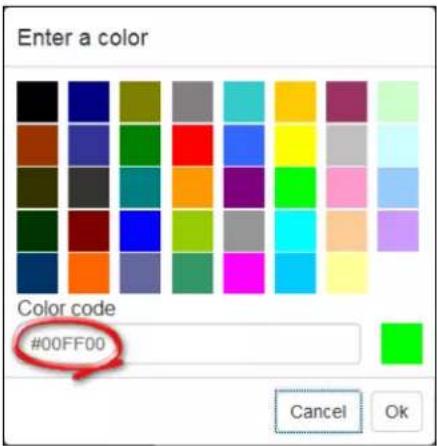
text_image
Enter a color Color code #00FF00 Cancel Ok- Click Ok. The rack unit numbering and LED color settings are immediately updated on the Rack Units list illustrated below.
- The 'Index' number is the physical tag port number printed on the asset strip, which is not configurable. However, its order will change to reflect the latest rack unit numbering.
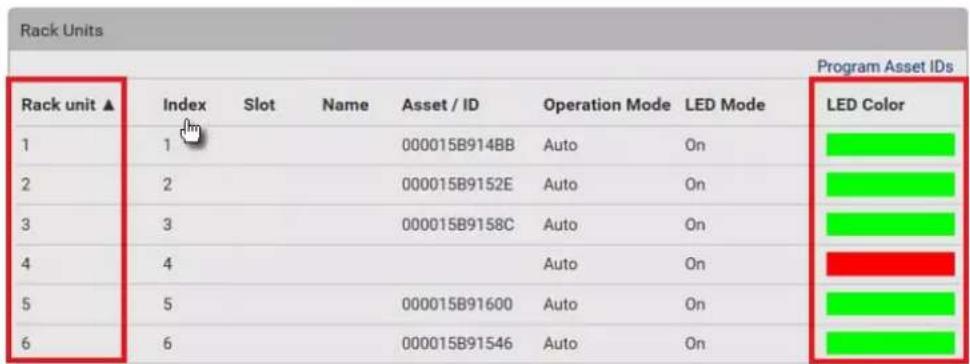
text_image
Rack Units Program Asset IDs Rack unit ▲ Index Slot Name Asset / ID Operation Mode LED Mode LED Color 1 1 2 2 3 3 4 4 5 5 6 6 000015B914BB Auto On 000015B9152E Auto On 000015B9158C Auto On Auto On 000015B91600 Auto On 000015B91546 Auto On- A blade extension strip and a programmable tag are marked with the word 'programmable' in the Asset/ID column. You can customize their Asset IDs. For instructions, refer to this section's last procedure below.
- If wanted, you can resort the list by clicking the desired column header. See Sorting a List (on page 142).
To customize a single rack unit's settings:
You can make a specific rack unit's LED behave differently from the others on the asset strip, including the LED light and color.
- Click the desired rack unit on the Rack Units list. The setup dialog for the selected one appears.
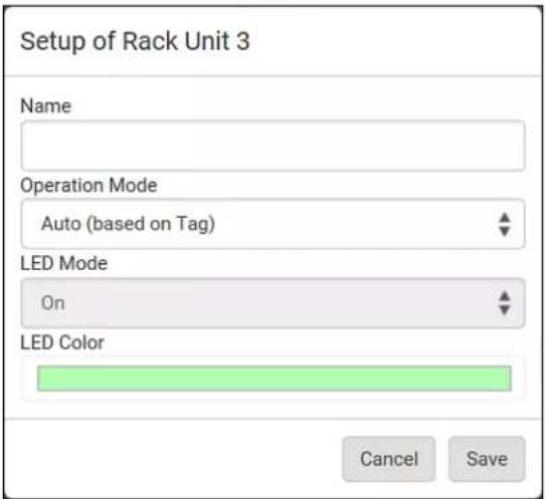
text_image
Setup of Rack Unit 3 Name Operation Mode Auto (based on Tag) LED Mode On LED Color Cancel Save- Make changes to the information by typing a new value or clicking that field to select a different option.
| Field Description | |
| Name Name for this rack unit. For example, you can name it based on the associated IT device. | |
| Operation Mode Determine whether this rack unit's LED behavior automatically changes according to the presence and absence of the asset tag. Auto: The LED behavior varies, based on the asset tag's presence. Manual Override: This option differentiates this rack unit's LED behavior. | |
| LED Mode | This field is configurable only after the Operation Mode is set to Manual Override. |
| Determine how the LED light behaves for this particular rack unit.▪ On: The LED stays lit.▪ Off: The LED stays off.▪ Slow blinking: The LED blinks slowly.▪ Fast blinking: The LED blinks quickly. | |
| LED Color | This field is configurable only after the Operation Mode is set to Manual Override. |
| Determine what LED color is shown for this rack unit if the LED is lit. | |
▶ To expand a blade extension strip:
A blade extension strip, like an asset strip, has multiple tag ports. An extension strip is marked with a grayer color on the Asset Strip page, and its tag ports list is collapsed by default.
Note: If you need to temporarily disconnect the blade extension strip from the asset strip, wait at least 1 second before re-connecting it back, or the PX3 device may not detect it.
- Locate the rack unit (tag port) where the blade extension strip is connected. Click its slot number, whose format is similar to

where N is the total number of its tag ports.
| Rack Units | |||||||
| Program Asset IDs | |||||||
| Rack unit ▲ | Index | Slot | Name | Asset / ID | Operation Mode | LED Mode | LED Color |
| 1 | 1 | 000015B914BB | Auto | On | |||
| 2 | 2 | 1-16▲ | 0000ABC12345(programmable) | Auto | On | ||
| 3 | 3 | 000015B9152E | Auto | On | |||
| 4 | 4 | Auto | On | ||||
- All tag ports of the blade extension strip are listed below it. Their port numbers are displayed in the Slot column.
| Rack unit ▲ | Index | Slot | Name | Asset / ID | Operation Mode | LED Mode | Program Asset IDs LED Color |
| 1 | 1 | 000015B914BB | Auto | On | |||
| 2 | 2 | 1-16✓ | 0000ABC12345 (programmable) | Auto | On | ||
| Extension | 1 | 000015B9160A | |||||
| Extension | 2 | 000015B91610 | |||||
| Extension | 3 | 000015B91622 | |||||
| Extension | 4 | 000015B9158C | |||||
| Extension | 5 | 000015B91600 | |||||
| Extension | 6 | 000015B91546 | |||||
| Extension | 7 | ||||||
| Extension | 8 | ||||||
| Extension | 9 | ||||||
| Extension | 10 | ||||||
| Extension | 11 | ||||||
| Extension | 12 | ||||||
| Extension | 13 | ||||||
| Extension | 14 | ||||||
| Extension | 15 | ||||||
| Extension | 16 | ||||||
| 3 | 3 | 000015B9152E | Auto | On |
- To hide the blade extension slots list, click
1-N
To customize asset IDs on programmable asset tags:
You can customize asset IDs only when the asset tags are "programmable" ones. Non-programmable tags do not support this feature. In addition, you can also customize the ID of a blade extension strip.
If a barcode reader is intended, connect it to the computer you use to access the PX3.
1. Click Program Asset IDs.
| Rack units | Program Asset IDs | ||||||
| Rack unit ▲ | Index | Slot | Name | Asset / ID | Operation Mode | LED Mode | LED Color |
| 1 | 16 | Auto | On | ||||
| 2 | 15 | Auto | On | ||||
| 3 | 14 | Auto | On | ||||
| 4 | 13 | Auto | On | ||||
| 5 | 12 | Auto | On | ||||
| 6 | 11 | Auto | On | ||||
| 7 | 10 | (programmable) | Auto | On | |||
| 8 | 9 | (programmable) | Auto | On | |||
| 9 | 8 | (programmable) | Auto | On | |||
| 10 | 7 | 00001492BD47 | Auto | On | |||
| 11 | 6 | 00001492CB50 | Auto | On | |||
2. In the Asset/ID column, enter the customized asset IDs by typing values or scanning the barcode.
- When using a barcode reader, first click the desired rack unit, and then scan the asset tag. Repeat this step for all desired rack units.
- An asset ID contains up to 12 characters that comprise only numbers and/or UPPER CASE alphabets. Lower case alphabets are NOT accepted.
| Rack Units | ||||
| Rack units ▲ | Index | Slot | Name | Rack UnitsAsset / ID |
| 1 | 16 | Tag ID | ||
| 2 | 15 | Tag ID | ||
| 3 | 14 | Tag ID | ||
| 4 | 13 | Tag ID | ||
| 5 | 12 | Tag ID | ||
| 6 | 11 | Tag ID | ||
| 7 | 10 | WINDOWS | ||
| 8 | 9 | LINUX | ||
| 9 | 8 | ROUTER| × | ||
| 10 | 7 | 00001492BD47 | ||
- Verify the correctness of customized asset IDs and modify as needed.
- Click Apply at the bottom of the page to save changes.
- Or click Cancel to abort changes.
Tip: Another way to abort changes is to click Rack Units. Refer to the diagram below.
| Rack Units | ||||
| Rack Units | ||||
| Rack unit ▲ | Index | Slot | Name | Asset / ID |
| 1 | 16 | Tag ID | ||
| 2 | 15 | Tag ID | ||
Asset Strip Automatic Firmware Upgrade
After connecting the asset strip to the PX3, it automatically checks its own firmware version against the version of the asset strip firmware stored in the PX3 firmware. If two versions are different, the asset strip automatically starts downloading the new firmware from the PX3 to upgrade its own firmware.
During the firmware upgrade, the following events take place:
- The asset strip is completely lit up, with the blinking LEDs cycling through diverse colors.
• A firmware upgrade process is indicated in the PX3 web interface.
• An SNMP trap is sent to indicate the firmware upgrade event.
External Beeper
After connecting and detecting a supported external beeper, the PX3 shows 'External Beeper' in place of 'Feature Port' in the menu.
Note: For connection instructions, see Connecting an External Beeper (on page 83).
To open the External Beeper page, click it in the Menu (on page 139). This page shows an external beeper's status, including:
- Its device type
- Its connection status
- The beeper's state - off or active
- Number of the FEATURE port where this external beeper is connected
For the functionality of this icon Port (on page 219).
on the top-right corner, see Feature
Schroff LHX/SHX
You must enable the LHX/SHX support for the PX3 to detect the presence of a supported Schroff® LHX/SHX heat exchanger. See Miscellaneous (on page 384).
After enabling the LHX/SHX support and connecting a supported Schroff® LHX/SHX heat exchanger to the PX3, the PX3 shows the connected device type in place of 'Feature Port' in the menu -- LHX 20, LHX 40 or SHX 30.
Note: For connection instructions, see Connecting a Schroff LHX/SHX Heat Exchanger (on page 83).
To open the LHX/SHX page, click 'LHX 20', 'LHX 40' or 'SHX 30' in the Menu (on page 139). Then you can monitor and administer the connected LHX/SHX device with the following.
- Name the heat exchanger
• Monitor LHX/SHX built-in sensors and device states - Configure the air outlet temperature setpoint
- Configure the default fan speed
- Configure the air temperature/fan speed thresholds (for alert generation)
- Request maximum cooling using the fan speed and opening the cold water valve
- Acknowledge alerts or errors remotely, such as failed LHX/SHX sensors or emergency cooling activation
• Accumulative operating hours - Indicate the number of power supplies present and whether a condenser pump is present
Available information/operation is model dependent. For example, only LHX devices can show sensor alerts. See your LHX/SHX user documentation for details.
Important: The LHX/SHX settings are stored on the port where the LHX/SHX device is connected, and are lost if that device is re-connected to a different PX3 port.
For the functionality of this icon on the top-right corner, see Port(on page 219).
To view the LHX/SHX device state:
The Operation State field indicates whether the device is operating fine, and the Switch State field indicates its power status.
If the device does not operate properly, such as some sensor failure, it shows "critical" and the symbol 🔒.
| Operational State | critical |
| Switch State | On |
To turn on or off the LHX/SHX device:
- Click the desired power-control button on the top-right corner.
| LHX 40 (1) | |
| Information | |
| Model | LHX 40 |
| Firmware Version | 0x3d |
| Operational State | critical |
| Switch State | On |


Power OFF.
- Confirm the operation on the confirmation message.
To configure LHX/SHX settings:
- Click Edit Settings.
| Settings | |
| Name | |
| Setpoint Air Outlet | 20 °C |
| Default Fan Speed | 80 % |
- Configure the settings as needed.
■ Provide a customized name.
- Specify the desired air outlet setpoint temperature.
■ Specify the default fan speed.
- Click Save.
To view all sensor data and configure thresholds:
-
Locate the Sensors section, which lists all air outlet/inlet temperatures and fan speeds, and indicates the door closed/open status of the LHX/SHX device.
-
To set the thresholds for any temperature or fan speed sensor implemented on the LHX/SHX device: a. Click the desired sensor.
b. Click Edit Thresholds.
| Sensors | ||
| Edit Thresholds | ||
| Name | Reading | Status |
| Temperature Air Outlet (F1) | 19.9 °C | normal |
| Temperature Air Outlet (F2) | 19.9 °C | normal |
| Temperature Air Inlet (F3) | 25.9 °C | normal |
| Temperature Air Inlet (F4) | 25.9 °C | normal |
| Temperature Water Inlet (F6) | 26.6 °C | normal |
| Fan Speed (M1) | 2844 rpm | normal |
| Fan Speed (M2) | 3035 rpm | normal |
| Fan Speed (M3) | 2837 rpm | normal |
| Fan Speed (M4) | 3008 rpm | normal |
| Fan Speed (M5) | 2682 rpm | normal |
| Fan Speed (M6) | 2855 rpm | normal |
| Fan Speed (M7) | 2907 rpm | normal |
| Door Contact | 0 | closed |
c. Enable and set the desired thresholds and deassertion hysteresis.
Note that assertion timeout is NOT available on LHX/SHX.
d. Click Save.
- After thresholds are enabled, sensors may be highlighted in yellow or red if they enter the warning or critical range. See Yellow- or Red-Highlighted Sensors (on page 206).
Tip: You can also create event rules to notify you of the warning or critical levels. See Event Rules and Actions (on page 312).
▶ To view sensor alerts and LHX event log:
Remote alert acknowledgment is supported by the LHX-20 and LHX-40. The SHX-30 does not support this feature.
-
Locate the Alert States section.
-
If any LHX sensors fail, they are indicated. Click Acknowledge to acknowledge the sensor failure.
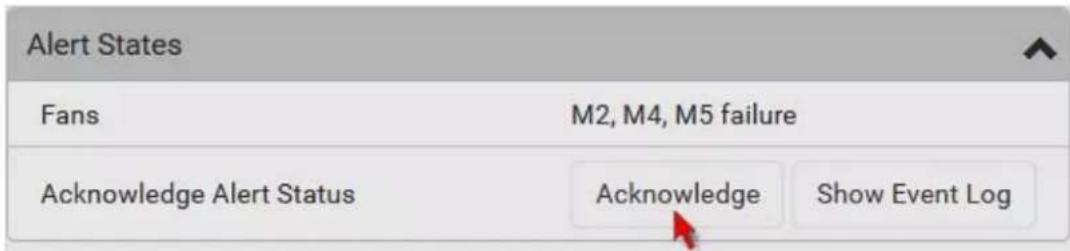
text_image
Alert States Fans M2, M4, M5 failure Acknowledge Alert Status Acknowledge Show Event Log- To view the history of LHX events, click Show Event Log to go to the Event Log page.
▶ Operation time statistics:
This section indicates the accumulative operation hours of the LHX/SHX device and its fans since the device is connected to the PX3 and turned on.
Available time units in the statistics --
• h: hour(s)
• d: day(s)
| Statistics | |
| Operating Hours (Varistar LHX) | 7 h |
| Operating Hours (Fan 1) | 6 h |
| Operating Hours (Fan 2) | 6 h |
| Operating Hours (Fan 3) | 6 h |
| Operating Hours (Fan 4) | 3 h |
| Operating Hours (Fan 5) | 3 h |
| Operating Hours (Fan 6) | 0 h |
| Operating Hours (Fan 7) | 0 h |
Request maximum cooling:
Only SHX 30 supports this feature. See SHX Request Maximum Cooling (on page 236).
SHX Request Maximum Cooling
The PX3 allows you to remotely activate the Schroff SHX 30's maximum cooling feature. Both LHX 20 and LHX 40 do not support remote activation of maximum cooling.
The Request Maximum Cooling feature is available only after the PX3 detects SHX 30. For additional information on the SHX 30 maximum cooling feature, see the SHX 30 documentation.
▶ To perform maximum cooling:
- Go to the SHX page, and click Request Maximum Cooling.
Then the SHX 30 enters into emergency cooling mode and runs at its maximum cooling level of 100% in order to cool the device.
When maximum cooling is requested for an SHX 30, the message "Maximum cooling requested" is displayed.
▶ To stop maximum cooling:
- Click Cancel Maximum Cooling.
Power CIM
After connecting and detecting a Raritan power CIM, the PX3 shows 'Power CIM' in place of 'Feature Port' in the menu. See Dominion KX II / III Configuration (on page 826) or Dominion KSX II, SX or SX II Configuration (on page 831).
Open the Power CIM page by clicking it in the Menu (on page 139). This page shows the CIM's status, including:
• Number of the FEATURE port where this CIM is connected
- Its device type
- Its connection status
For the functionality of this icon Port (on page 219).
on the top-right corner, see Feature
User Management
User Management menu deals with user accounts, permissions, and preferred measurement units on a per-user basis.
The PX3 is shipped with one built-in administrator account: admin, which is ideal for initial login and system administration. You cannot delete 'admin' or change its permissions, but you can and should change its password.
A "role" determines the tasks/actions a user is permitted to perform on the PX3 so you must assign one or multiple roles to each user.
Click 'User Management' in the Menu (on page 139), and the following submenu displays.
| User Management |
| Users |
| Roles |
| Change Password |
| User Preferences |
| Default Preferences |
| Submenu command Refer to... | |
| Users | Creating Users(on page 238) |
| Roles | Creating Roles(on page 244) |
| Change Password | Changing Your Password(on page 134) |
| User Preferences | Setting Your Preferred Measurement Units(on page 247) |
| Default Preferences | Setting Default Measurement Units(on page 248) |
Creating Users
All users must have a user account, containing the login name and password. Multiple users can log in simultaneously using the same login name.
To add users, choose User Management > Users >

text_image
Users Enabled ▲ User name Full Name Roles ✓ admin Administrator AdminNote that you must enter information in the fields showing the message 'required.'
required
▶ User information:
| Field/setting Description | |
| User Name The name the user enters to log in to the PX3.▪ 4 to 32 characters▪ Case sensitive▪ Spaces are NOT permitted. | |
| Full Name The user's first and last names. | |
| Password,Confirm Password | ▪ 4 to 64 characters▪ Case sensitive▪ Spaces are permitted. |
| Telephone Number The user's telephone number | |
| eMail Address The user's email address▪ Up to 64 characters▪ Case sensitive | |
| Enable When selected, the user can log in to the PX3. | |
Field/setting Description
| Force password change on next login | When selected, a password change request automatically appears when next time the user logs in.For details, seeChanging Your Password(on page 134). |
SSH:
You need to enter the SSH public key only if the public key authentication for SSH is enabled. See Changing SSH Settings(on page 280).
- Open the SSH public key with a text editor.
- Copy and paste all content in the text editor into the SSH Public Key field.
SNMPv3:
The SNMPv3 access permission is disabled by default.
| Field/setting Description | |
| Enable SNMPv3 | Select this checkbox when intending to permit the SNMPv3 access by this user. |
| Note: The SNMPv3 protocol must be enabled for SNMPv3 access. See Configuring SNMP Settings (on page 276). | |
| Security Level Click | the field to select a preferred security level from the list:None: No authentication and no privacy. This is the default.Authentication: Authentication and no privacy.Authentication & Privacy: Authentication and privacy. |
- Authentication Password: This section is configurable only when 'Authentication' or 'Authentication & Privacy' is selected.
Field/setting Description
| Same as User Password | Select this checkbox if the authentication password is identical to the user's password. To specify a different authentication password, disable the checkbox. |
Field/setting Description
| Password, Confirm Password | Type the authentication password if the 'Same as User Password' checkbox is deselected. The password must consist of 8 to 32 ASCII printable characters. |
- Privacy Password: This section is configurable only when 'Authentication & Privacy' is selected.
Field/setting Description
| Same as Authentication Password | Select this checkbox if the privacy password is identical to the authentication password.To specify a different privacy password, disable the checkbox. |
| Password, Confirm Password | Type the privacy password if the 'Same as Authentication Password' checkbox is deselected.The password must consist of 8 to 32 ASCII printable characters. |
- Protocol: This section is configurable only when 'Authentication' or 'Authentication & Privacy' is selected.
Field/setting Description
| Authentication Click this field to select the desired authentication protocol. Two protocols are available:MD5SHA-1 (default) |
| Privacy Click this field to select the desired privacy protocol. Two protocols are available:DES (default)AES-128 |
Preferences:
This section determines the measurement units displayed in the web interface and command line interface for this user.
Field Description
| Temperature Unit | Preferred units for temperatures -- °C (Celsius) or °F (Fahrenheit). |
Field Description
Length Unit Preferred units for length or height -- Meter or Feet.
Pressure Unit Preferred units for pressure -- Pascal or Psi.
■ Pascal = one newton per square meter
■ Psi = pounds per square inch
Note: Users can change the measurement units at any time by setting their own preferences. See Setting Your Preferred Measurement Units (on page 247).
Roles:
Select one or multiple roles to determine the user's permissions.
To select all roles, select the top-most checkbox in the header row. However, a user cannot have more than 32 roles.
If the built-in roles do not satisfy your needs, add new roles by clicking
+ New Role
This newly-created role will be then automatically
assigned to the user account currently being created. See Creating Roles (on page 244).
Built-in role Description
Admin Provide full permissions.
Operator Provide frequently-used permissions, including:
- Acknowledge Alarms
- Change Own Password
- Change Pdu, Inlet, Outlet & Overcurrent Protector Configuration
- Switch Outlet (if your PX3 is outlet-switching capable)
• View Event Settings
• View Local Event Log
Note: With multiple roles selected, a user has the union of all roles' permissions.
Editing or Deleting Users
To edit or delete users, choose User Management > Users to open the Users page, which lists all users.
| Users | |||
| Enabled | User name ▲ | Full Name | Roles |
| ✓ | admin | Administrator | Admin |
| × | John | Operator | |
| ✓ | Mary | Operator | |
| ✓ | Teresa | Admin | |
In the Enabled column:
• √: The user is enabled.
• ✗: The user is disabled.
If wanted, you can resort the list by clicking the desired column header. See Sorting a List (on page 142).
To edit or delete a user account:
- On the Users page, click the desired user. The Edit User page for that user opens.
- Make changes as needed.
■ For information on each field, see Creating Users (on page 238).
- To change the password, type a new password in the Password and Confirm Password fields. If the password field is left blank, the password remains unchanged.
- To delete this user, click 🔒, and confirm the operation.
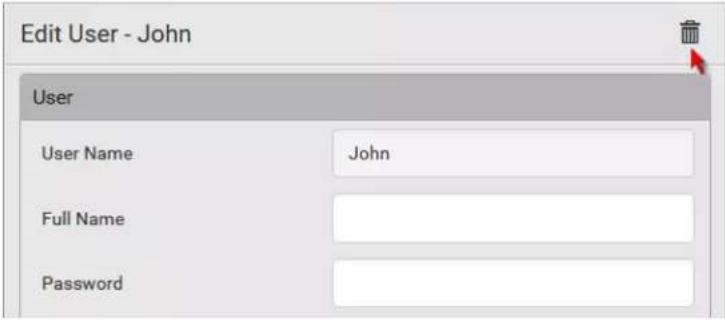
text_image
Edit User - John User User Name John Full Name Password- Click Save.
To delete multiple user accounts:
- On the Users page, click user names.
to make checkboxes appear in front of user, you can simply click that user without appear. Refer to the above procedure.
Tip: To delete only one user, you can simply click that user without making the checkboxes appear. Refer to the above procedure.
- Select one or multiple users.
- To select all roles, except for the admin user, select the top-most checkbox in the header row.
- Click
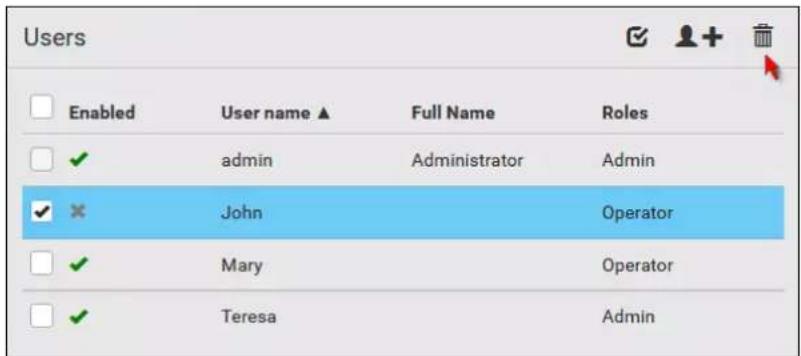
text_image
Users Enabled User name ▲ Full Name Roles ✓ admin Administrator Admin ✓ ✗ John Operator ✓ Mary Operator ✓ Teresa Admin- Click Delete on the confirmation message.
Creating Roles
A role is a combination of permissions. Each user must have at least one role.
The PX3 provides two built-in roles. See Creating Users (on page 238).
| Built-in role Description | |
| Admin Provide full permissions. | |
| Operator Provide frequently-used permissions, including: | |
| Acknowledge AlarmsChange Own PasswordChange Pdu, Inlet, Outlet & Overcurrent Protector ConfigurationSwitch Outlet (if your PX3 is outlet-switching capable)View Event SettingsView Local Event Log | |
If the two do not satisfy your needs, add new roles.
To create a role:
- Choose User Management > Roles >

| Roles | |
| Role Name ▲ | Description |
| Admin | System defined administrator role including all privileges. |
| Operator | Predefined operator role. |
- Assign a role name.
■ 1 to 32 characters long
- Case sensitive
■ Spaces are permitted as of release 3.3.0
-
Type a description for the role in the Description field.
-
Select the desired privilege(s).
■ The 'Administrator Privileges' includes all privileges.
The 'Unrestricted View Privileges' includes all 'View' privileges.
- If any privilege requires the argument setting, the symbol as well as the text 'Add XXX' display on that privilege's row, where XXX is the privilege's name. To select such a privilege:
a. Click on that privilege's row to display a list of available arguments for this privilege.
b. Select the desired arguments.
- To select all arguments, simply select that privilege's checkbox.
For example, on an outlet-switching capable model, you can specify the outlets that users can switch on/off as shown below. To select all outlets, select the 'Switch Outlet' checkbox instead.

text_image
Switch Outlet 1-2,5 ✓ Outlet 1 ✓ Outlet 2 ✓ Outlet 3 ✓ Outlet 4 ✓ Outlet 5 ✓ Outlet 6- Click Save.
Now you can assign the role to any user. See Creating Users (on page 238) or Editing or Deleting Users (on page 242).
Editing or Deleting Roles
Choose User Management > Roles to open the Roles page, which lists all roles.
If wanted, you can resort the list by clicking the desired column header. See Sorting a List (on page 142).
| Roles | |
| Role Name ▲ | Description |
| Admin | System defined administrator role including all privileges. |
| Manager | Able to change all settings except for security settings |
| Operator | Predefined operator role. |
The Admin role is not user-configurable so the lock icon displays, indicating that you are not allowed to configure it.
To edit a role:
- On the Roles page, click the desired role. The Edit Role page opens.
- Make changes as needed.
■ The role name cannot be changed.
- To delete this role, click 🔒, and confirm the operation.
Edit Role - Manager
Settings
Role Name
Manager
Description
Able to change all settings except for security settings
- Click Save.
▶ To delete any roles:
- On the Roles page, click roles.
to make checkboxes appear in front of
Tip: To delete only one role, you can simply click that role without making the checkboxes appear. Refer to the above procedure.
- Select one or multiple roles.
- To select all roles, except for the Admin role, select the top-most checkbox in the header row.
- Click 📁 on the top-right corner.
- Click Delete on the confirmation message.
Setting Your Preferred Measurement Units
You can change the measurement units shown in the PX3 user interface according to your own preferences regardless of the permissions you have.
Tip: Preferences can also be changed by administrators for specific users on the Edit User page. See Editing or Deleting Users (on page 242).
Measurement unit changes only apply to the web interface and command line interface.
Setting your own preferences does not change the default measurement units. See Setting Default Measurement Units (on page 248).
To select the measurement units you prefer:
- Choose User Management > User Preferences.
- Make changes as needed.
| Field Description | |
| Temperature Unit | Preferred units for temperatures -- °C (Celsius) or °F (Fahrenheit). |
| Length Unit Preferred | units for length or height -- Meter or Feet. |
| Pressure Unit Preferred | units for pressure -- Pascal or Psi.Pascal = one newton per square meterPsi = pounds per square inch |
- Click Save.
Setting Default Measurement Units
Default measurement units are applied to all PX3 user interfaces across all users, including users accessing the PX3 via external authentication servers. For a list of affected user interfaces, see User Interfaces Showing Default Units (on page 248). The front panel display also shows the default measurement units.
Note: The preferred measurement units set by any individual user or by the administrator on a per-user basis will override the default units in the web interface and command line interface. See Setting Your Preferred Measurement Units (on page 247) or Creating Users (on page 238).
To set up default user preferences:
- Click User Management > Default Preferences.
- Make changes as needed.
| Field Description | |
| Temperature Unit | Preferred units for temperatures -- °C (Celsius) or °F (Fahrenheit). |
| Length Unit Preferred units for length or height -- Meter or Feet. | |
| Pressure Unit Preferred units for pressure -- Pascal or Psi.▪ Pascal = one newton per square meter▪ Psi = pounds per square inch | |
3. Click Save.
User Interfaces Showing Default Units
Default measurement units will apply to the following user interfaces or information:
- Web interface for "newly-created" local users when they have not configured their own preferred measurement units. See Creating Users (on page 238).
- Web interface for users who are authenticated via LDAP/Radius servers.
- The sensor report sent because of the "Send Sensor Report" action. See Send Sensor Report (on page 341).
- Front panel LCD display.
Device Settings
Click 'Device Settings' in the Menu(on page 139), and the following submenu displays.

text_image
Device Settings Network Network Services > Security > Date/Time Event Rules Data Logging Data Push Server Reachability Front Panel Serial Port Lua Scripts Miscellaneous| Menu command Submenu command Refer to... | ||
| Network | Configuring Network Settings (on page 251) | |
| HTTP | Changing HTTP(S) Settings (on page 275) Network Services | |
| SNMP | Configuring SNMP Settings (on page 276) | |
Menu command Submenu command Refer to...
| SMTP Server | Configuring SMTP Settings (on page 278) | |
| SSH | Changing SSH Settings (on page 280) | |
| Telnet | Changing Telnet Settings (on page 281) | |
| Modbus | Changing Modbus Settings (on page 281) | |
| Server Advertising | Enabling Service Advertising (on page 282) | |
| Security | IP Access Control | Creating IP Access Control Rules (on page 284) |
| Role Access Control | Creating Role Access Control Rules (on page 287) | |
| SSL Certificate | Setting Up an SSL/TLS Certificate (on page 290) | |
| Authentication | Setting Up External Authentication (on page 295) | |
| Login Settings | Configuring Login Settings (on page 304) | |
| Password Policy | Configuring Password Policy (on page 305) | |
| Service Agreement | Enabling the Restricted Service Agreement (on page 306) | |
| Date/Time | Setting the Date and Time (on page 308) | |
| Event Rules | Event Rules and Actions (on page 312) | |
| Data Logging | Setting Data Logging (on page 368) | |
| Data Push | Configuring Data Push Settings (on page 369) | |
| Server Reachability | Monitoring Server Accessibility (on page 371) | |
| Front Panel* | Front Panel Settings (on page 375) | |
| Serial Port | Configuring the Serial Port (on page 376) | |
| Lua Scripts | Lua Scripts (on page 378) | |
| Miscellaneous | Miscellaneous (on page 384) |
* The availability of "Front Panel" is model dependent.
Configuring Network Settings
Configure wired, wireless, and Internet protocol-related settings on the Network page after connecting the PX3 to your network (on page 23).
You can enable both the wired and wireless networking on the PX3 so that it has multiple IP addresses -- wired and wireless IP. For example, you can obtain one IPv4 and/or IPv6 address by enabling one Ethernet interface, and obtain one more IPv4 and/or IPv6 address by enabling/configuring the wireless interface. This also applies when the PX3 enters the port forwarding mode so that the PX3 has more than one IPv4 or IPv6 address in the port forwarding mode.
However, the PX3 in the BRIDGING mode obtains "only one" IP address for wired networking. Wireless networking is NOT supported in this mode.
Important: In the bridging mode, only the IP parameters of the BRIDGE interface function. The IP parameters of the ETHERNET (or ETH1/ETH2) and WIRELESS interfaces do NOT function.
To set up the network settings:
-
Choose Device Settings > Network.
-
To use DHCP-assigned DNS servers and gateway instead of static ones, go to step 3. To manually specify DNS servers and default gateway, configure the Common Network Settings section. See Common Network Settings (on page 253).
■ Static routes and cascading mode are in this section. You need to configure them only when there are such local requirements. See Setting the Cascading Mode (on page 265) and Static Route Examples (on page 260).
- To configure IPv4/IPv6 settings for a wired network, click the ETHERNET (or ETH1/ETH2) or BRIDGE section. See Wired Network Settings (on page 252).
- If the device's cascading mode is set to 'Bridging', the BRIDGE section appears. Then you must click the BRIDGE section for IPv4/IPv6 settings.
- To configure IPv4/IPv6 settings for a wireless network, click the WIRELESS section. See Wireless Network Settings (on page 255).
- You must connect a USB wireless LAN adapter to the PX3 for wireless networking.
Note: If the device's cascading mode is set to 'Bridging' or its role is set to 'Slave' in the port forwarding mode, the wireless settings will be disabled.
- To configure the ETHERNET (or ETH1/ETH2) interface settings, see Ethernet Interface Settings (on page 254).
- Click Save.
▶ After enabling either or both Internet protocols:
After enabling IPv4 and/or IPv6, all but not limited to the following protocols will be compliant with the selected Internet protocol(s):
- LDAP
• NTP - SMTP
- SSH
- Telnet
- FTP
• SNMP - SysLog
- SSL/TLS
Note: The PX3 supports TLS1.0, 1.1 and 1.2.
Wired Network Settings
On the Network page, click the ETHERNET (or ETH1/ETH2) section to configure IPv4/IPv6 settings.
If the device's cascading mode is set to 'Bridging', the BRIDGE section appears. Then you must click the BRIDGE section for IPv4/IPv6 settings. See Setting the Cascading Mode (on page 265).
▶ Enable Interface:
Make sure the Ethernet interface is enabled, or all networking through this interface fails. This setting is available in the ETHERNET (or ETH1/ETH2) section, but not available in the BRIDGE section.
Enable Interface

IPv4 settings:
Field/setting Description
Enable IPv4 Enable or disable the IPv4 protocol.
IP Auto Configuration
Select the method to configure IPv4 settings. ■ DHCP: Auto-configure IPv4 settings via DHCP servers.
Field/setting Description
■ Static: Manually configure the IPv4 settings.
- DHCP settings: Optionally specify the preferred hostname, which must meet the following requirements:
■ Consists of alphanumeric characters and/or hyphens - Cannot begin or end with a hyphen
- Cannot contain more than 63 characters
- Cannot contain punctuation marks, spaces, and other symbols
- Static settings: Assign a static IPv4 address, which follows this syntax "IP address/prefix length".
Example: 192.168.84.99/24
IPv6 settings:
Field/setting Description
Enable IPv6 Enable or disable the IPv6 protocol.
IP Auto
Configuration
Select the method to configure IPv6 settings.
■ Automatic: Auto-configure IPv6 settings via DHCPv6.
■ Static: Manually configure the IPv6 settings.
- Automatic settings: Optionally specify the preferred hostname, which must meet the above requirements.
- Static settings: Assign a static IPv6 address, which follows this syntax "IP address/prefix length".
Example: fd07:2fa:6cff:1111::0/128
Common Network Settings
Common Network Settings are OPTIONAL, not required. Therefore, leave them unchanged if there are no specific local networking requirements.
Field Description
Cascading Mode Leave it to the default "None" unless you are establishing a cascading chain.
For more information, refer to:
■ Cascading Multiple PX3 Devices for Sharing Ethernet Connectivity(on page 35)
■ Setting the Cascading Mode (on page 265)
| Field Description | |
| DNS Resolver Reference | Determine which IP address is used when the DNS resolver returns both IPv4 and IPv6 addresses.▪ IPv4 Address: Use the IPv4 addresses.▪ IPv6 Address: Use the IPv6 addresses. |
| DNS Suffixes [optional] | Specify a DNS suffix name if needed. |
| First/Second/Third DNS Server | Manually specify static DNS server(s).▪ If any static DNS server is specified in these fields, it will override the DHCP-assigned DNS server.▪ If DHCP (or Automatic) is selected for IPv4/IPv6 settings, and there are NO static DNS servers specified, the PX3 will use DHCP-assigned DNS servers. |
| IPv4/IPv6 Routes You need to configure these settings only when your local network contains two subnets, and you want PX3 to communicate with the other subnet. If so, make sure IP forwarding has been enabled in your network, and then you can click 'Add Route' to add static routes.See Static Route Examples (on page 260). | |
Ethernet Interface Settings
By default the Ethernet interface on PX3 or ETH1/ETH2 interface on PX3-iX7 is enabled.
▶ Enable Interface:
Make sure the Ethernet interface is enabled, or all networking through this interface fails. This setting is available in the ETHERNET (or ETH1/ETH2) section, but not available in the BRIDGE section.
Enable Interface

▶ Other Ethernet settings:
| Field Description | |
| Speed Select a LAN speed. | • Auto: System determines the optimum LAN speed through auto-negotiation.• 10 MBit/s: Speed is always 10 Mbps.• 100 MBit/s: Speed is always 100 Mbps.• 1 GBit/s: Speed is always 1 Gbps (1000 Mbps). Available only on PX3-iX7 or specific PX3 models with the suffix "-G1". |
| Duplex Select a duplex mode. | • Auto: The PX3 selects the optimum transmission mode through auto-negotiation.• Full: Data is transmitted in both directions simultaneously.• Half: Data is transmitted in one direction (to or from the PX3 device) at a time. |
| Current State | Show the LAN's current status, including the current speed and duplex mode. |
Note: Auto-negotiation is disabled after setting both the speed and duplex settings of the PX3 to NON-Auto values, which may result in a duplex mismatch.
Wireless Network Settings
If the device's cascading mode is set to 'Bridging' or its role is set to 'Slave' in the port forwarding mode, the wireless settings will be disabled. See Setting the Cascading Mode (on page 265).
By default the wireless interface is disabled. You should enable it if wireless networking is wanted.
On the Network page, click the WIRELESS section to configure wireless and IPv4/IPv6 settings.
▶ Interface Settings:
Field/setting Description
Enable Interface Enable or disable the wireless interface. When disabled, the wireless networking fails.
| Field/setting Description | |
| Hardware State Check this field to ensure that the PX3 device has detected a wireless USB LAN adapter. If not, verify whether the USB LAN adapter is firmly connected or whether it is supported. | |
| SSID | Type the name of the wireless access point (AP) |
| Force AP BSSID If the BSSID is available, select this checkbox | |
| BSSID Type the MAC address of an access point | |
| Enable High Throughput (802.11n) | Enable or disable 802.11n protocol. |
| Authentication | Select an authentication method.No Authentication: No authentication data is required.PSK: A Pre-Shared Key is required.EAP - PEAP: Use Protected Extensible Authentication Protocol. Only MSCHAPv2 is supported. Enter required authentication data in the fields that appear. |
| Pre-Shared Key | This field appears only when PSK is selected. |
| Type the PSK string | |
| Identity | This field appears only when 'EAP - PEAP' is selected. |
| Type your user name. | |
| Password | This field appears only when 'EAP - PEAP' is selected. |
| Type your password. | |
| CA Certificate | This field appears only when 'EAP - PEAP' is selected. |
| A third-party CA certificate may or may not be needed. If needed, follow the steps below. | |
• Available settings for the CA Certificate:
If the required certificate file is a chain of certificates, and you are not sure about the requirements of a certificate chain, see TLS Certificate Chain (on page 817).
| Field/setting Description | |
| Enable verification of TLS certificate chain | Select this checkbox for the PX3 to verify the validity of the TLS certificate that will be installed.▪ For example, the PX3 will check the certificate's validity period against the system time. |
| Browse... | Click this button to import a certificate file. Then you can:▪ Click Show to view the certificate's content.▪ Click Remove to delete the installed certificate if it is inappropriate. |
| Allow expired and not yet valid certificates | ▪ Select this checkbox to make the authentication succeed regardless of the certificate's validity period.▪ After deselecting this checkbox, the authentication fails whenever any certificate in the selected certificate chain is outdated or not valid yet. |
| Allow wireless connection if system clock is incorrect | When this checkbox is deselected, and if the system time is incorrect, the installed TLS certificate is considered not valid yet and will cause the wireless network connection to fail.When this checkbox is selected, it will make the wireless network connection successful when the PX3 system time is earlier than the firmware build before synchronizing with any NTP server.▪ The incorrect system time issue may occur when the PX3 has once been powered off for a long time. |
IPv4 settings:
Field/setting Description
Enable IPv4 Enable or disable the IPv4 protocol.
IP Auto Select the method to configure IPv4 settings.
Field/setting Description
Configuration ■
DHCP: Auto-configure IPv4 settings via DHCP servers.
■ Static: Manually configure the IPv4 settings.
- DHCP settings: Optionally specify the preferred hostname, which must meet the following requirements:
■ Consists of alphanumeric characters and/or hyphens
- Cannot begin or end with a hyphen
- Cannot contain more than 63 characters
- Cannot contain punctuation marks, spaces, and other symbols
- Static settings: Assign a static IPv4 address, which follows this syntax "IP address/prefix length".
Example: 192.168.84.99/24
IPv6 settings:
Field/setting Description
Enable IPv6 Enable or disable the IPv6 protocol.
IP Auto
Configuration
Select the method to configure IPv6 settings.
■ Automatic: Auto-configure IPv6 settings via DHCPv6.
■ Static: Manually configure the IPv6 settings.
- Automatic settings: Optionally specify the preferred hostname, which must meet the above requirements.
- Static settings: Assign a static IPv6 address, which follows this syntax "IP address/prefix length".
Example: fd07:2fa:6cff:1111::0/128
▶ (Optional) To view the wireless LAN diagnostic log:
- Click Show WLAN Diagnostic Log. See Wireless LAN Diagnostic Log (on page 259).

text_image
WIRELESS Show WLAN Diagnostic Log Enable Interface Hardware State not detected Wireless SettingsWireless LAN Diagnostic Log
The PX3 provides a diagnostic log for inspecting connection errors that occurred over the wireless network interface. The information is useful for technical support.
Note that the WLAN Diagnostic Log shows data only after the Network Interface is set to Wireless.
Each entry in the log consists of:
- ID number
- Date and time
- Description
To view the log:
- Choose Device Settings > Network > WIRELESS > Show WLAN Diagnostic Log. See Configuring Network Settings(on page 251).
- To go to other pages of the log, click the pagination bar at the bottom of the page.
- When there are more than 5 pages and the page numbers listed
does not show the desired one, click ... to have the bar show the next or previous five page numbers, if available.
| First | Previous | 1 | 2 | 3 | 4 | 5 | ... | Next | Last |

Refresh
- To refresh the diagnostic, click Refresh on the top-right corner.
- If wanted, you can resort the list by clicking the desired column header. See Sorting a List (on page 142).
▶ To clear the diagnostic log:
- On the top-right corner of the log, click

Clear Log
- Click Clear Log on the confirmation message.
Static Route Examples
This section describes two static route examples: IPv4 and IPv6. Both examples assume that two network interface controllers (NIC) have been installed in one network server, leading to two available subnets, and IP forwarding has been enabled. All of the NICs and PX3 devices in the examples use static IP addresses.
Most of local multiple networks are not directly reachable and require the use of a gateway. Therefore, we will select Gateway in the following examples. If your local multiple networks are directly reachable, you should select Interface rather than Gateway.
Note: If Interface is selected, you should select an interface name instead of entering an IP address. See Interface Names (on page 263).
IPv4 example:
- Your PX3: 192.168.100.64
- Two NICs: 192.168.200.75 and 192.168.100.88
- Two networks: 192.168.200.0 and 192.168.100.0
- Prefix length: 24

flowchart
graph TD
    A["NIC - 1\n192.168.200.75"] --> C["192.168.200.0"]
    B["NIC - 2\n192.168.100.88"] --> D["192.168.100.0"]
    E["Raritan\n192.168.100.64"] --> F["192.168.200.X"]
In this example, NIC-2 (192.168.100.88) is the next hop router for your PX3 to communicate with any device in the other subnet 192.168.200.0.
In the IPv4 "Static Routes" section, you should enter the data as shown below. Note that the address in the first field must be of the Classless Inter-Domain Routing (CIDR) notation.

text_image
1 192.168.200.0/24 Gateway 192.168.100.88 ↑ ↓ ↺Tip: If you have configured multiple static routes, you can click on any

text_image
route and then make changes, use ↑ or ↓ to re-sort the priority, or click to delete it.IPv6 example:
- Your PX3: fd07:2fa:6cff:2405::30
- Two NICs: fd07:2fa:6cff:1111::50 and fd07:2fa:6cff:2405::80
- Two networks: fd07:2fa:6cff:1111::0 and fd07:2fa:6cff:2405::0
- Prefix length: 64

flowchart
graph TD
    A["NIC - 1\nfd07:2fa:6cff:1111::50"] --> B["fd07:2fa:6cff:1111::0"]
    C["NIC - 2\nfd07:2fa:6cff:2405::80"] --> D["fd07:2fa:6cff:2405::0"]
    E["Raritan\nfd07:2fa:6cff:2405::30"] --> D
    B --> F["fd07:2fa:6cff:1111::X"]
    D --> G["fd07:2fa:6cff:1111::X"]
Chapter 6: Using the Web Interface
In this example, NIC-2 (fd07:2fa:6cff:2405::80) is the next hop router for your PX3 to communicate with any device in the other subnet fd07:2fa:6cff:1111::0.
In the IPv6 "Static Routes" section, you should enter the data as shown below. Note that the address in the first field must be of the Classless Inter-Domain Routing (CIDR) notation.

text_image
fd07:2fa:6cff:2405::0/64 Gateway fd07:2fa:6cff:2405::80 × ↑ ↓ ↕Tip: If you have configured multiple static routes, you can click on any
text_image
route and then make changes, use ↑ or ↓ to re-sort the priority, or click to delete it.Interface Names
When your local multiple networks are "directly reachable", you should select Interface for static routes. Then choose the interface where another network is connected.

text_image
192.168.200.0/24 Interface BRIDGE ETHERNET WIRELESS▶ Interface list for PX3:
| Interface name Description | |
| BRIDGE | When another wired network is connected to the Ethernet port of your PX3, and your PX3 has been set to the bridging mode, select this interface name instead of the Ethernet interface. |
| ETHERNET | When another wired network is connected to the Ethernet port of your PX3, and the bridging mode is NOT enabled, select this interface name. |
| WIRELESS | When another wireless network is connected to your PX3, select this interface name. |
▶ Interface list for PX3-iX7:
| Interface name Description | |
| BRIDGE | When another wired network is connected to the Ethernet port of your PX3, and your PX3 has been set to the bridging mode, select this interface name instead of the Ethernet interface. |
| ETH1 | When another wired network is connected to the ETH1 port of your PX3, select this interface name. |
| ETH2 | When another wired network is connected to the ETH2 port of your PX3, select this interface name. |
| WIRELESS | When another wireless network is connected to your PX3, select this interface name. |
Setting the Cascading Mode
A maximum of 16 PX3 devices can be cascaded to share one Ethernet connection. See Cascading Multiple PX3 Devices for Sharing Ethernet Connectivity (on page 35).
The cascading mode configured on the master device determines the Ethernet sharing method, which is either network bridging or port forwarding. See Overview of the Cascading Modes (on page 267).
The cascading mode of all devices in the chain must be the same.
Only a user with the Change Network Settings permission can configure the cascading mode.
Note: PX3 in the Port Forwarding mode does not support APIPA. See APIPA and Link-Local Addressing (on page 3).
To configure the cascading mode:
-
Connect the Raritan device to the LAN and find its IP address, or connect it to a computer.
-
For computer connection instructions, see Connecting the PX3 to a Computer (on page 32).
■ To find the IP address, see Device Info (on page 116). -
Log in to its web interface. See Login (on page 132).
-
Choose Device Settings > Network.
- Select the preferred mode in the Cascading Mode field.
| Mode Description | |
| None | No cascading mode is enabled. This is the default. |
| Bridging | Each device in the cascading chain is accessed with a different IP address. |
| Port Forwarding | Each device in the cascading chain is accessed with the same IP address(es) but with a different port number assigned.For details on port numbers, see Port Number Syntax (on page 268). |
Tip: If selecting Port Forwarding, the Device Information page will show a list of port numbers for all cascaded devices. Simply choose Maintenance > Device Information > Port Forwarding.
- For the Port Forwarding mode, one to two more fields have to be configured.
Note that if either setting below is incorrectly configured, a networking issue occurs.
| Field Description | |
| Role(available on all cascaded devices) | Master or Slave.This is to determine which device is the master and which ones are slave devices. |
| Downstream interface(available on the maser device only) | USB or ETHERNET (or ETH1/ETH2).This is to determine which port on the master device is connected to Slave 1.Always select USB for PX3, but you can select either USB or Ethernet (Eth1/Eth2) for iX7 models.If Ethernet (Eth1/Eth2) is selected as the downstream interface, make sure the selected Ethernet interface is enabled. |
- (Optional) Configure the network settings by clicking the BRIDGE, ETHERNET (or ETH1/ETH2), or WIRELESS section on the same page.
In the Bridging mode, each cascaded device can have different network settings. You may need to configure each device's network settings in the BRIDGE section.
- In the Port Forwarding mode, all cascaded devices share the master device's network settings. You only need to configure the master device's network settings in the ETHERNET (or ETH1/ETH2) and/or WIRELESS section.
See Wired Network Settings (on page 252) or Wireless Network Settings (on page 255)
Tip: You can enable/configure multiple network interfaces in the Port Forwarding mode so that the cascading chain has multiple IP addresses.
- Click Save.
For information on accessing each cascaded device in the Port Forwarding mode, see Port Forwarding Examples (on page 270).
▶ Enable R/STP if a cascade loop is preferred:
- You can "loop" a cascading chain to create network communication redundancy (Bridging mode only), but only when your network supports R/STP protocol.
Make sure that your network has R/STP enabled if using a cascade
loop (Bridging mode) or else network loops may occur.
▶ Online cascading information:
For detailed information on the cascading configuration and restrictions, see the Cascading Guide, which is available from Raritan website's Support page (http://www.raritan.com/support/).
Overview of the Cascading Modes
You must apply a cascading mode to the cascading chain. See Setting the Cascading Mode (on page 265).
There are two cascading modes: Bridging and Port Forwarding.
In the following illustration, it is assumed that users enable the DHCP networking for the cascading chain comprising four devices. In the diagrams, "M" is the master device and "S" is a slave device.
▶ Illustration:
- "Bridging" mode:

flowchart
graph TD
    A["DHCP"] --> B["LAN"]
    B --> C["M"]
    C --> D["S"]
    D --> E["S"]
    E --> F["S"]
    style A fill:#f9f,stroke:#333
    style B fill:#ccf,stroke:#333
    style C fill:#cff,stroke:#333
    style D fill:#ffc,stroke:#333
    style E fill:#cfc,stroke:#333
    style F fill:#fcc,stroke:#333
In this mode, the DHCP server communicates with every cascaded device respectively and assigns four different IP addresses. Each device has its own IP address.
The way to remotely access each cascaded device is completely the same as accessing a standalone device in the network.
- "Port Forwarding" mode:

flowchart
graph LR
    A["DHCP"] -->|100.1.1.7| B["M"]
    B --> C["S"]
    C --> D["S"]
    D --> E["S"]
    style A fill:#f9f,stroke:#333
    style B fill:#ccf,stroke:#333
    style C fill:#cfc,stroke:#333
    style D fill:#fcc,stroke:#333
    style E fill:#cff,stroke:#333
In this mode, the DHCP server communicates with the master device alone and assigns one IP address to the master device. All slave devices share the same IP address as the master device.
You must specify a 5XXXX port number (where X is a number) when remotely accessing any slave device with the shared IP address. See Port Number Syntax (on page 268).
▶ Comparison between cascading modes:
- The Bridging mode supports the wired network only, while the Port Forwarding mode supports both wired and wireless networks.
- Both cascading modes support a maximum of 16 devices in a chain.
- Both cascading modes support both DHCP and static IP addressing.
- In the Bridging mode, each cascaded device has a unique IP address. In the Port Forwarding mode, all cascaded devices share the same IP address(es) as the master device.
- In the Bridging mode, each cascaded device has only one IP address. In the Port Forwarding mode, each cascaded device can have multiple IP addresses as long as the master device has multiple network interfaces enabled/configured properly.
For example:
- If the master device is a non-iX7 product, you can enable the ETHERNET and WIRELESS interfaces so that the Port-Forwarding chain has one wired IP address and one wireless IP address.
- If the master device is an iX7 ^™ product, you can enable ETH1, ETH2 and WIRELESS interfaces so that the Port-Forwarding chain has two wired IP addresses and one wireless IP address.
Port Number Syntax
In the Port Forwarding mode, all devices in the cascading chain share the same IP address(es). To access any cascaded device, you must assign an appropriate port number to it.
- Master device: The port number is either 5NNXX or the standard TCP/UDP port.
- Slave device: The port number is 5NNXX.
5NNXX port number syntax:
- NN is a two-digit number representing the network protocol as shown below:
| Protocols NN | |
| HTTPS | 00 |
| HTTP | 01 |
| SSH | 02 |
| TELNET | 03 |
| SNMP | 05 |
| MODBUS | 06 |
- XX is a two-digit number representing the device position as shown below.
| Position XX Position XX | |||
| Master device | 00 | Slave 8 | 08 |
| Slave 1 | 01 | Slave 9 | 09 |
| Slave 2 | 02 | Slave 10 | 10 |
| Slave 3 | 03 | Slave 11 | 11 |
| Slave 4 | 04 | Slave 12 | 12 |
| Slave 5 | 05 | Slave 13 | 13 |
| Slave 6 | 06 | Slave 14 | 14 |
| Slave 7 | 07 | Slave 15 | 15 |
For example, to access the Slave 4 device via Modbus/TCP, the port number is 50604. See Port Forwarding Examples (on page 270) for further illustrations.
Tip: The full list of each cascaded device's port numbers can be retrieved from the web interface. Choose Maintenance > Device Information > Port Forwarding.
▶ Standard TCP/UDP ports:
The master device can be also accessed through standard TCP/UDP ports as listed in the following table.
| Protocols Port Numbers | |
| HTTPS | 443 |
| HTTP | 80 |
| SSH | 22 |
| TELNET | 23 |
| SNMP | 161 |
| MODBUS | 502 |
In the Port Forwarding mode, the PX3 does NOT allow you to modify the standard TCP/UDP port configuration, including HTTP, HTTPS, SSH, Telnet and Modbus/TCP.
Port Forwarding Examples
To access a cascaded device in the Port Forwarding mode, assign a port number to the IP address.
- Master device: Assign proper 5NNXX port numbers or standard TCP/UDP ports. See Port Number Syntax (on page 268) for details.
- Slave device: Assign proper 5NNXX port numbers.
Assumption: The Port Forwarding mode is applied to a cascading chain comprising three Raritan devices. The IP address is 192.168.84.77.
Master device:
Position code for the master device is '00' so each port number is 5NN00 as listed below.
| Protocols Port numbers | |
| HTTPS | 50000 |
| HTTP | 50100 |
| SSH | 50200 |
| TELNET | 50300 |
| SNMP | 50500 |
| MODBUS | 50600 |
Examples using "5NN00" ports:
- To access the master device via HTTPS, the IP address is: https://192.168.84.77:50000/
- To access the master device via HTTP, the IP address is: http://192.168.84.77:50100/
- To access the master device via SSH, the command is: ssh -p 50200 192.168.84.77
Examples using standard TCP/UDP ports:
- To access the master device via HTTPS, the IP address is: https://192.168.84.77:443/
- To access the master device via HTTP, the IP address is: http://192.168.84.77:80/
- To access the master device via SSH, the command is: ssh -p 22 192.168.84.77
▶ Slave 1 device:
Position code for Slave 1 is '01' so each port number is 5NN01 as shown below.
| Protocols Port numbers | |
| HTTPS | 50001 |
| HTTP | 50101 |
| SSH | 50201 |
| TELNET | 50301 |
| SNMP | 50501 |
| MODBUS | 50601 |
Examples:
- To access Slave 1 via HTTPS, the IP address is: https://192.168.84.77:50001/
- To access Slave 1 via HTTP, the IP address is: http://192.168.84.77:50101/
- To access Slave 1 via SSH, the command is: ssh -p 50201 192.168.84.77
▶ Slave 2 device:
Position code for Slave 2 is '02' so each port number is 5NN02 as shown below.
| Protocols Port numbers | |
| HTTPS | 50002 |
| HTTP | 50102 |
| SSH | 50202 |
| TELNET | 50302 |
| SNMP | 50502 |
| MODBUS | 50602 |
Examples:
- To access Slave 2 via HTTPS, the IP address is: https://192.168.84.77:50002/
- To access Slave 2 via HTTP, the IP address is: http://192.168.84.77:50102/
- To access Slave 2 via SSH, the command is: ssh -p 50202 192.168.84.77
Adding, Removing or Swapping Cascaded Devices
Change a device's cascading mode first before adding that device to a cascading chain, or before disconnecting that device from the chain.
If you only want to change the cascading mode of an existing chain, or swap the master and slave device, always start from the slave device.
Note: If the following procedures are not followed, a networking issue occurs. When a networking issue occurs, check the cascading connection and/or software settings of all devices in the chain. See Cascading Troubleshooting (on page 807).
To add a device to an existing chain:
- Connect the Raritan device to the LAN and find its IP address, or connect it to a computer.
- Log in to this device and set its cascading mode to be the same as the existing chain's cascading mode. See Setting the Cascading Mode [on page 265].
- Connect it to the chain, using either a USB or Ethernet cable.
▶ To remove a device from the chain:
- Log in to the desired cascaded device, and change its cascading mode to None.
Exception: If you are going to connect the removed device to another cascading chain, set its cascading mode to be the same as the mode of another chain.
- Now disconnect it from the cascading chain.
To swap the master and slave device:
- In the Bridging mode, you can swap the master and slave devices by simply disconnecting ALL cascading cables from them, and then reconnecting cascading cables. No changes to software settings are required.
• In the Port Forwarding mode, you must follow the procedure below:
a. Access the slave device that will replace the master device, and set its role to 'Master', and correctly set the downstream interface.
b. Access the master device, set its role to 'Slave'.
c. Swap the master and slave device now. You must disconnect ALL cascading cables connected to the two devices first before swapping them and reconnecting cascading cables.
To change the cascading mode applied to a chain:
- Access the last slave device, and change its cascading mode.
- If the new cascading mode is 'Port Forwarding', you must also set its role to 'Slave'.
- Access the second to last, third to last and so on until the first slave device to change their cascading modes one by one.
- Access the master device, and change its cascading mode.
- If the new cascading mode is 'Port Forwarding', you must also set its role to 'Master', and correctly select the downstream interface.
The following diagram indicates the correct sequence. 'N' is the final one.
■ M = Master device
■ S = Slave device
N ←…… 4 ← 3 ← 2 ← 1
M S S S S
Configuring Network Services
The PX3 supports the following network communication services.

text_image
Network Services HTTP SNMP SMTP Server SSH Telnet Modbus Service AdvertisingHTTPS and HTTP enable the access to the web interface. Telnet and SSH enable the access to the command line interface. See Using the Command Line Interface (on page 444).
By default, SSH is enabled, Telnet is disabled, and all TCP ports for supported services are set to standard ports. You can change default settings if necessary.
Note: Telnet access is disabled by default because it communicates openly and is thus insecure.
| Submenu command Refer to | |
| HTTP | Changing HTTP(S) Settings (on page 275) |
| SNMP | Configuring SNMP Settings (on page 276) |
| SMTP Server | Configuring SMTP Settings (on page 278) |
| SSH | Changing SSH Settings (on page 280) |
| Telnet | Changing Telnet Settings (on page 281) |
| Modbus | Changing Modbus Settings (on page 281) |
Submenu command Refer to
Service Advertising Enabling Service Advertising (on page 282)
Important: Raritan uses TLS instead of SSL 3.0 due to published security vulnerabilities in SSL 3.0. Make sure your network infrastructure, such as LDAP and mail services, uses TLS rather than SSL 3.0.
Changing HTTP(S) Settings
HTTPS uses Transport Layer Security (TLS) technology to encrypt all traffic to and from the PX3 so it is a more secure protocol than HTTP. The PX3 supports TLS 1.0, 1.1 and 1.2.
By default, any access to the PX3 via HTTP is automatically redirected to HTTPS. You can disable this redirection if needed.
To change HTTP or HTTPS port settings:
- Choose Device Settings > Network Services > HTTP.
- Enable either or both protocols by selecting the corresponding 'Enable' checkbox.
- To use a different port for HTTP or HTTPS, type a new port number.
Warning: Different network services cannot share the same TCP port.
- To redirect the HTTP access to the PX3 to HTTPS, select the "Redirect HTTP connections to HTTPS."
- The redirection checkbox is configurable only when both HTTP and HTTPS have been enabled.
▶ Special note for AES ciphers:
The PX3 device's SSL/TLS-based protocols, including HTTPS, support AES 128- and 256-bit ciphers. The exact cipher to use is negotiated between the PX3 and the client (such as a web browser), which is impacted by the cipher priority of the PX3 and the client's cipher availability/settings.
Tip: If intending to force the PX3 to use a specific AES cipher, refer to your client's user documentation for information on configuring AES settings. For example, you can enable a cipher and disable the other in the Firefox via the "about:config" command.
Configuring SNMP Settings
You can enable or disable SNMP communication between an SNMP manager and the PX3 device. Enabling SNMP communication allows the manager to retrieve and even control the power status of each outlet.
Besides, you may need to configure the SNMP destination(s) if the built-in "System SNMP Notification Rule" is enabled and the SNMP destination has not been set yet. See Event Rules and Actions (on page 312).
To configure SNMP communication:
- Choose Device Settings > Network Services > SNMP.
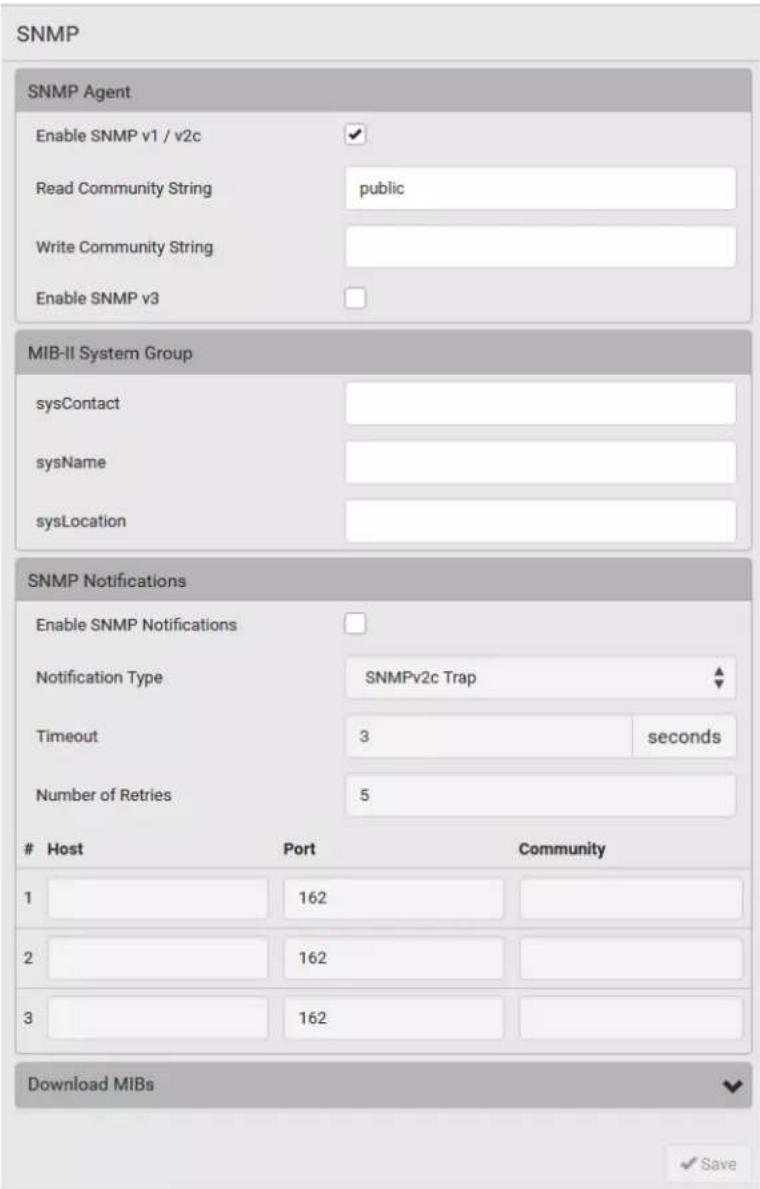
text_image
SNMP SNMP Agent Enable SNMP v1 / v2c Read Community String public Write Community String Enable SNMP v3 MIB-II System Group sysContact sysName sysLocation SNMP Notifications Enable SNMP Notifications Notification Type SNMPv2c Trap Timeout 3 seconds Number of Retries 5Host Port Community
1 162 2 162 3 162 Download MIBs ✓ Save-
Enable or disable "SNMP v1 / v2c" and/or "SNMP v3" by clicking the corresponding checkbox.
-
The SNMP v1/v2c read-only access is enabled by default. The default Read Community String is 'public.'
-
To enable read-write access, type the Write Community String. Usually the string is 'private.'
-
Enter the MIB-II system group information, if applicable.
- sysContact - the contact person in charge of the system
- sysName - the name assigned to the system
-
sysLocation - the location of the system
-
To configure SNMP notifications:
a. Select the Enable SNMP Notifications checkbox.
b. Select a notification type -- SNMPv2c Trap, SNMPv2c Inform, SNMPv3 Trap, and SNMPv3 Inform.
c. Specify the SNMP notification destinations and enter necessary information. For details, refer to:
■ SNMPv2c Notifications (on page 435)
■ SNMPv3 Notifications (on page 436)
Note: Any changes made to the 'SNMP Notifications' section on the SNMP page will update the settings of the System SNMP Notification Action, and vice versa. See Available Actions (on page 332). To add more than three SNMP destinations, you can create new SNMP notification actions. See Send an SNMP Notification (on page 345).
- You must download the SNMP MIB for your PX3 to use with your SNMP manager.
a. Click the Download MIBs title bar to show the download links.
Download MIBs

b. Click the PDU2-MIB download link. See Downloading SNMP MIB(on page 439).
- Click Save.
Configuring SMTP Settings
The PX3 can be configured to send alerts or event messages to a specific administrator by email. See Event Rules and Actions(on page 312).
To send emails, you have to configure the SMTP settings and enter an IP address for your SMTP server and a sender's email address.
If any email messages fail to be sent successfully, the failure event and reason are available in the event log. See Viewing or Clearing the Local Event Log (on page 395).
To set SMTP server settings:
-
Choose Device Settings > Network Services > SMTP Server.
-
Enter the information needed.
| Field Description | |
| Server Name Type the name or IP address of the mail server. | |
| Port Type the port number. | Default is 25 |
| Sender Email Address | Type an email address for the sender. |
| Number of Sending Retries | Type the number of email retries. Default is 2 retries |
| Time Between Sending Retries | Type the interval between email retries in minutes. Default is 2 minutes. |
| Server Requires Authentication | Select this checkbox if your SMTP server requires password authentication. |
| User Name, Password | Type a user name and password for authentication after selecting the above checkbox. The length of user name and password ranges between 4 and 64. Case sensitive. Spaces are not allowed for the user name, but allowed for the password. |
| Enable SMTP over TLS (StartTLS) | If your SMTP server supports the Transport Layer Security (TLS), select this checkbox. |
- Settings for the CA Certificate:
If the required certificate file is a chain of certificates, and you are not sure about the requirements of a certificate chain, see TLS Certificate Chain (on page 817).
| Field/setting Description | |
| Browse... | Click this button to import a certificate file. Then you can:Click Show to view the certificate's content.Click Remove to delete the installed certificate if it is inappropriate. |
Field/setting Description
Allow expired and not yet valid certificates
- Select this checkbox to make the authentication succeed regardless of the certificate's validity period.
-
After deselecting this checkbox, the authentication fails whenever any certificate in the selected certificate chain is outdated or not valid yet.
-
Now that you have set the SMTP settings, you can test it to ensure it works properly.
a. Type the recipient's email address in the Recipient Email Addresses field. Use a comma to separate multiple email addresses.
b. Click Send Test Email.
c. Check if the recipient(s) receives the email successfully.
- Click Save.
▶ Special note for AES ciphers:
The PX3 device's SSL/TLS-based protocols, including SMTP over StartTLS, support AES 128- and 256-bit ciphers. The exact cipher to use is negotiated between the PX3 and the client (such as a web browser), which is impacted by the cipher priority of the PX3 and the client's cipher availability/settings.
Tip: If intending to force the PX3 to use a specific AES cipher, refer to your client's user documentation for information on configuring AES settings.
Changing SSH Settings
You can enable or disable the SSH access to the command line interface, change the TCP port, or set a password or public key for login over the SSH connection.
To change SSH settings:
- Choose Device Settings > Network Services > SSH.
- To enable or disable the SSH access, select or deselect the checkbox.
- To use a different port, type a port number.
-
Select one of the authentication methods.
-
Password authentication only: Enables the password-based login only.
■ Public key authentication only: Enables the public key-based login only. - Password and public key authentication: Enables both the password- and public key-based login. This is the default.
5. Click Save.
If the public key authentication is selected, you must enter a valid SSH public key for each user profile to log in over the SSH connection. See Creating Users (on page 238).
Changing Telnet Settings
You can enable or disable the Telnet access to the command line interface, or change the TCP port.
To change Telnet settings:
- Choose Device Settings > Network Services > Telnet.
- To enable the Telnet access, select the checkbox.
- To use a different port, type a new port number.
- Click Save.
Changing Modbus Settings
You can enable or disable the Modbus/TCP access to the PX3, set it to the read-only mode, or change the TCP port.
To change the Modbus/TCP settings:
- Choose Device Settings > Network Services > Modbus.
- To enable the Modbus/TCP access, select the "Modbus/TCP Access" checkbox.
- To use a different port, type a new port number.
- To enable the Modbus read-only mode, select the checkbox of the "Read-only mode" field. To enable the read-write mode, deselect it.
Enabling Service Advertising
The PX3 advertises all enabled services that are reachable using the IP network. This feature uses DNS-SD (Domain Name System-Service Discovery) and MDNS (Multicast DNS). The advertised services are discovered by clients that have implemented DNS-SD and MDNS.
The advertised services include the following:
- HTTP
- HTTPS
- Telnet
- SSH
- Modbus
- json-rpc
• SNMP
By default, this feature is enabled.
Enabling this feature also enables Link-Local Multicast Name Resolution (LLMNR) and/or MDNS, which are required for resolving APIPA host names. See APIPA and Link-Local Addressing (on page 3).
The service advertisement feature supports both IPv4 and IPv6 protocols.
If you have set a preferred host name for IPv4 and/or IPv6, that host name can be used as the zero configuration .local host name, that is,
Note: For information on configuring IPv4 and/or IPv6 network settings, see Wired Network Settings (on page 252).
To enable or disable service advertising:
- Choose Device Settings > Network Services > Service Advertising.
- To enable the service advertising, select either or both checkboxes.
- To advertise via MDNS, select the Multicast DNS checkbox.
-
To advertise via LLMNR, select the Link-Local Multicast Name Resolution checkbox.
-
Click Save.
Configuring Security Settings
The PX3 provides tools to control access. You can enable the internal firewall, create firewall rules, and set login limitations. In addition, you can create and install the certificate or set up external authentication servers for access control. This product supports SHA-2 TLS certificates.
Tip: To force all HTTP accesses to the PX3 to be redirected to HTTPS, see Changing HTTP(S) Settings (on page 275).
| Security |
| IP Access Control |
| Role Based Access Control |
| SSL Certificate |
| Authentication |
| Login Settings |
| Password Policy |
| Service Agreement |
| Submenu command Refer to | |
| IP Access Control | Creating IP Access Control Rules (on page 284) |
| Role Access Control | Creating Role Access Control Rules (on page 287) |
| SSL Certificate | Setting Up an SSL/TLS Certificate (on page 290) |
| Authentication | Setting Up External Authentication (on page 295) |
| Login Settings | Configuring Login Settings (on page 304) |
| Password Policy | Configuring Password Policy (on page 305) |
| Service Agreement | Enabling the Restricted Service Agreement (on page 306) |
Creating IP Access Control Rules
IP access control rules (firewall rules) determine whether to accept or discard traffic to/from the PX3, based on the IP address of the host sending or receiving the traffic. When creating rules, keep these principles in mind:
• Rule order is important.
When traffic reaches or is sent from the PX3 device, the rules are executed in numerical order. Only the first rule that matches the IP address determines whether the traffic is accepted or discarded. Any subsequent rules matching the IP address are ignored.
- Prefix length is required.
When typing the IP address, you must specify it in the CIDR notation. That is, BOTH the address and the prefix length are included. For example, to specify a single address with the 24-bit prefix length, use this format:
$$ x. x. x. x / 2 4 $$
$$ / 2 4 = \text { the prefix length. } $$
Note: Valid IPv4 addresses range from 0.0.0.0 through
255.255.255.255.
To configure IPv4 access control rules:
- Choose Device Settings > Security > IP Access Control.
- Select the Enable IPv4 Access Control checkbox to enable IPv4 access control rules.
-
Determine the IPv4 default policy.
-
Accept: Accepts traffic from all IPv4 addresses.
- Drop: Discards traffic from all IPv4 addresses, without sending any failure notification to the source host.
-
Reject: Discards traffic from all IPv4 addresses, and an ICMP message is sent to the source host for failure notification.
-
Go to the Inbound Rules section or the Outbound Rules section according to your needs.
-
Inbound rules control the data sent to the PX3.
-
Outbound rules control the data sent from the PX3.
-
Create rules. Refer to the tables below for different operations.
ADD a rule to the end of the list
- Click Append.
- Type an IP address and subnet mask in the IP/Mask field.
■ Select an option in the Policy field. - Accept: Accepts traffic from/to the specified IP address(es).
- Drop: Discards traffic from/to the specified IP address(es), without sending any failure notification to the source or destination host.
- Reject: Discards traffic from/to the specified IP address(es), and an ICMP message is sent to the source or destination host for failure notification.
INSERT a rule between two rules
- Select the rule above which you want to insert a new rule. For example, to insert a rule between rules #3 and #4, select #4.
- Click Insert Above.
- Type an IP address and subnet mask in the IP/Mask field.
- Select Accept, Drop or Reject in the Policy field. Refer to the above table for details.
The system automatically numbers the rule.
- When finished, the rules are listed.

text_image
■ You can select any existing rule and then click ↑ or ↓ to change its priority.
text_image
Enable IPv4 Access Control Inbound Rules Default Policy Accept # IP/Mask Policy 1 192.168.8.8/32 Drop 2 192.168.255.33/24 Accept 3 192.210.15.30/32 Reject Append Insert Above Outbound Rules Default Policy Accept # IP/Mask Policy 1 192.23.89.100/24 Drop Append Insert Above ✓ Save-
Click Save. The rules are applied.
To configure IPv6 access control rules: -
On the same page, select the Enable IPv6 Access Control checkbox to enable IPv6 access control rules.
- Follow the same procedure as the above IPv4 rule setup to create IPv6 rules.
- Make sure you click the Save button in the IPv6 section, or the changes made to IPv6 rules are not saved.
Editing or Deleting IP Access Control Rules
When an existing IP access control rule requires updates of IP address range and/or policy, modify them accordingly. Or you can delete any unnecessary rules.
▶ To modify or delete a rule:
- Choose Device Settings > Security > IP Access Control.
- Go to the IPv4 or IPv6 section.
-
Select the desired rule in the list.
-
Ensure the IPv4 or IPv6 checkbox has been selected, or you cannot edit or delete any rule.
- Perform the desired action.
■ Make changes to the selected rule, and then click Save. For information on each field, see Creating IP Access Control Rules (on page 284).
- Click

to remove it.
■ To resort its order, click

or

-
Click Save.
-
IPv4 rules: Make sure you click the Save button in the IPv4 section, or the changes made to IPv4 rules are not saved.
- IPv6 rules: Make sure you click the Save button in the IPv6 section, or the changes made to IPv6 rules are not saved.
Creating Role Access Control Rules
Role-based access control rules are similar to IP access control rules, except that they are applied to members of a specific role. This enables you to grant system permissions to a specific role, based on their IP addresses.
Same as IP access control rules, the order of role-based access control rules is important, since the rules are executed in numerical order.
To create IPv4 role-based access control rules:
- Choose Device Settings > Security > Role Access Control.
- Select the "Enable Role Based Access Control for IPv4" checkbox to enable IPv4 access control rules.
- Determine the IPv4 default policy.
- Accept: Accepts traffic when no matching rules are present.
- Deny: Rejects any user's login attempt when no matching rules are present.
- Create rules. Refer to the tables below for different operations.
ADD a rule to the end of the list
- Click Append.
- Type a starting IP address in the Start IP field.
■ Type an ending IP address in the End IP field. -
Select a role in the Role field. This rule applies to members of this role only.
■ Select an option in the Policy field. -
Accept: Accepts traffic from the specified IP address range when the user is a member of the specified role.
- Deny: Rejects the login attempt of a user from the specified IP address range when that user is a member of the specified role.
INSERT a rule between two rules
- Select the rule above which you want to insert a new rule. For example, to insert a rule between rules #3 and #4, select #4.
- Click Insert Above.
- Type a starting IP address in the Start IP field.
■ Type an ending IP address in the End IP field. - Select a role in the Role field. This rule applies to members of this role only.
- Select Accept or Deny in the Policy field. Refer to the above table for details.
The system automatically numbers the rule.
- When finished, the rules are listed on this page.

text_image
■ You can select any existing rule and then click ↑ or ↓ to change its priority.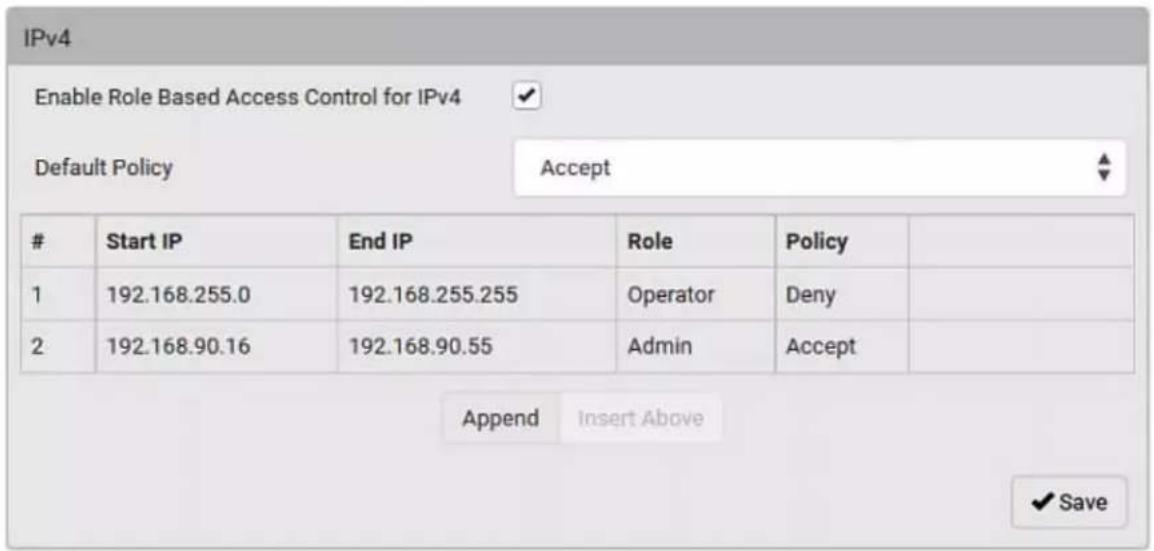
text_image
IPv4 Enable Role Based Access Control for IPv4 Default Policy Accept # Start IP End IP Role Policy 1 192.168.255.0 192.168.255.255 Operator Deny 2 192.168.90.16 192.168.90.55 Admin Accept Append Insert Above ✓ Save- Click Save. The rules are applied.
To configure IPv6 access control rules:
- On the same page, select the "Enable Role Based Access Control for IPv6" checkbox to enable IPv6 access control rules.
- Follow the same procedure as the above IPv4 rule setup to create IPv6 rules.
- Make sure you click the Save button in the IPv6 section, or the changes made to IPv6 rules are not saved.
Editing or Deleting Role Access Control Rules
You can modify existing rules to update their roles/IP addresses, or or delete them when they are no longer needed.
To modify a role-based access control rule:
- Choose Device Settings > Security > Role Access Control.
- Go to the IPv4 or IPv6 section.
- Select the desired rule in the list.
- Ensure the IPv4 or IPv6 checkbox has been selected, or you cannot select any rule.
- Perform the desired action.
■ Make changes to the selected rule, and then click Save. For information on each field, see Creating Role Access Control Rules (on page 287).
text_image
- Click to remove it. - To resort its order, click ↑ or ↓.-
Click Save.
-
IPv4 rules: Make sure you click the Save button in the IPv4 section, or the changes made to IPv4 rules are not saved.
- IPv6 rules: Make sure you click the Save button in the IPv6 section, or the changes made to IPv6 rules are not saved.
Setting Up an SSL/TLS Certificate
Important: Raritan uses TLS instead of SSL 3.0 due to published security vulnerabilities in SSL 3.0. Make sure your network infrastructure, such as LDAP and mail services, uses TLS rather than SSL 3.0.
Having an X.509 digital certificate ensures that both parties in an SSL/TLS connection are who they say they are.
As of release 3.4.0, you can create or apply for a multi-domain certificate with subject alternative names.
To obtain a CA-signed certificate:
- Create a Certificate Signing Request (CSR) on the PX3. See Creating a CSR (on page 291).
- Submit it to a certificate authority (CA). After the CA processes the information in the CSR, it provides you with a certificate.
- Import the CA-signed certificate onto the PX3. See Installing a CA-Signed Certificate (on page 292).
Note: If you are using a certificate that is part of a chain of certificates, each part of the chain is signed during the validation process.
▶ A CSR is not required in either scenario below:
- Make the PX3 create a self-signed certificate. See Creating a Self-Signed Certificate (on page 293).
- Appropriate, valid certificate and key files are already available, and you just need to import them. See Installing or Downloading Existing Certificate and Key (on page 294).
Creating a CSR
Follow this procedure to create the CSR for your PX3 device.
Note that you must enter information in the fields showing the message 'required.'
required
To create a CSR:
- Choose Device Settings > Security > SSL Certificate.
- Provide the information requested.
■ Subject:
| Field Description | |
| Country The country | where your company is located. Use the standard ISO country code. For a list of ISO codes, visit theISO website(http://www.iso.org/iso/country_codes/iso_3166_code_lists.htm). |
| State or Province The full name of the state or province where your company is located. | |
| Locality The city where your company is located. | |
| Organization The registered name of your company. | |
| Organizational Unit The name of your department. | |
| Common Name The fully qualified domain name (FQDN) of your PX3 device. | |
| Email Address An email address where you or another administrative user can be reached. | |
Warning: If you generate a CSR without values entered in the required fields, you cannot obtain third-party certificates.
■ Subject Alternative Names:
If you want a certificate to secure multiple hosts across different domains or subdomains, you can add additional DNS host names or IP addresses of the wanted hosts to this CSR so that a single certificate will be valid for all of them.
Click Add Name when there are more than one additional hosts to add.
■ Examples of subject alternative names: support.raritan.com, help.raritan.com, help.raritan.net, and 192.168.77.50.
■ Key Creation Parameters:
| Field Do this | |
| Key Length Select an | available key length (bits). A larger key length enhances the security, but slows down the PX3 device's response.▪ Only 2048 is available now. |
| Self Sign | For requesting a certificate signed by the CA, ensure this checkbox is NOT selected. |
| Challenge, Confirm Challenge | Type a password. The password is used to protect the certificate or CSR. This information is optional.The value should be 4 to 64 characters long. Case sensitive. |
- Click Create New SSL Key to create both the CSR and private key. This may take several minutes to complete.
-
Click Download Certificate Signing Request to download the CSR to your computer.
a. You are prompted to open or save the file. Click Save to save it onto your computer.
b. Submit it to a CA to obtain the digital certificate.
c. If the CSR contains incorrect data, click Delete Certificate Signing Request to remove it, and then repeat the above steps to re-create it. -
To store the newly-created private key on your computer, click Download Key in the New SSL Certificate section.
Note: The Download Key button in the Active SSL Certificate section is for downloading the private key of the currently-installed certificate rather than the newly-created one.
- You are prompted to open or save the file. Click Save to save it onto your computer.
- After getting the CA-signed certificate, install it. See Installing a CA-Signed Certificate (on page 292).
Installing a CA-Signed Certificate
To get a certificate from a certificate authority (CA), first create a CSR and send it to the CA. See Creating a CSR (on page 291).
After receiving the CA-signed certificate, install it onto the PX3.
To install the CA-signed certificate:
- Choose Device Settings > Security > SSL Certificate.
Browse
- Click to navigate to the CA-signed certificate file.
- Click Upload to install it.
- To verify whether the certificate has been installed successfully, check the data shown in the Active SSL Certificate section.
Creating a Self-Signed Certificate
When appropriate certificate and key files for the PX3 device are unavailable, the alternative, other than submitting a CSR to the CA, is to generate a self-signed certificate.
Note that you must enter information in the fields showing the message 'required.'
required
To create and install a self-signed certificate:
- Choose Device Settings > Security > SSL Certificate.
- Enter information.
| Field Description | ||
| Country The country | where your company is located. Use the standard ISO country code. For a list of ISO codes, visit theISO website(http://www.iso.org/iso/country_codes/iso_3166_code_lists.htm). | |
| State or Province The | full name of the state or province where your company is located. | |
| Locality The city where your company is located. | ||
| Organization The registered name of your company. | ||
| Organizational Unit The name of your department. | ||
| Common Name The fully qualified domain name (FQDN) of your PX3 device. | ||
| Email Address An email address where you or another administrative user can be reached. | ||
| Key Length Select an | available key length (bits). A larger key length enhances the security, but slows down the PX3 device's response.▪ Only 2048 is available now. | |
| Self Sign | Ensure this checkbox is selected, which indicates that you are creating a self-signed certificate. | |
| Validity in days This field appears after the Self Sign checkbox is selected.Type the number of days for which the self-signed certificate will be valid. | ||
| A password is not required for a self-signed certificate so the Challenge and Confirm Challenge fields disappear.3. Click Create New SSL Key to create both the self-signed certificate and private key. This may take several minutes to complete.4. Once complete, do the following:a. Double check the data shown in the New SSL Certificate section.b. If correct, click "Install Key and Certificate" to install the self-signed certificate and private key. | ||
| Tip: To verify whether the certificate has been installed successfully, check the data shown in the Active SSL Certificate section. | ||
| If incorrect, click "Delete Key and Certificate" to remove the self-signed certificate and private key, and then repeat the above steps to re-create them. | ||
| 5. (Optional) To download the self-signed certificate and/or private key, click Download Certificate or Download Key in the New SSL Certificate section.▪ You are prompted to open or save the file. Click Save to save it onto your computer. | ||
| Note: The Download Key button in the Active SSL Certificate section is for downloading the private key of the currently-installed certificate rather than the newly-created one. | ||
| Installing or Downloading Existing Certificate and KeyYou can download the already-installed certificate and private key from any PX3 for backup or file transfer. For example, you can install the files onto a replacement PX3 device, add the certificate to your browser and so on.If valid certificate and private key files are already available, you can install them on the PX3 without going through the process of creating a CSR or a self-signed certificate. | ||
| Note: If you are using a certificate that is part of a chain of certificates, each part of the chain is signed during the validation process. | ||
To download active key and certificate files from the PX3:
-
Choose Device Settings > Security > SSL Certificate.
-
In the Active SSL Certificate section, click Download Key and Download Certificate respectively.
Note: The Download Key button in the New SSL Certificate section, if present, is for downloading the newly-created private key rather than the one of the currently-installed certificate.
- You are prompted to open or save the file. Click Save to save it onto your computer.
To install available key and certificate files onto the PX3:
- Choose Device Settings > Security > SSL Certificate.
- Select the "Upload Key and Certificate" checkbox at the bottom of the page.
- The Key File and Certificate File fields appear. Click to select the key and/or certificate file.
- Click Upload. The selected files are installed.
- To verify whether the certificate has been installed successfully, check the data shown in the Active SSL Certificate section.
Setting Up External Authentication
Important: Raritan uses TLS instead of SSL 3.0 due to published security vulnerabilities in SSL 3.0. Make sure your network infrastructure, such as LDAP and mail services, uses TLS rather than SSL 3.0.
For security purposes, users attempting to log in to the PX3 must be authenticated. The PX3 supports the following authentication mechanisms:
- Local user database on the PX3
• Lightweight Directory Access Protocol (LDAP) - Remote Access Dial-In User Service (Radius) protocol
By default, the PX3 is configured for local authentication. If you stay with this method, you only need to create user accounts. See Creating Users (on page 238).
If you prefer external authentication, you must provide the PX3 with information about the external Authentication and Authorization (AA) server.
If both local and external authentication is needed, create user accounts on the PX3 in addition to providing the external AA server data.
When configured for external authentication, all PX3 users must have an account on the external AA server. Local-authentication-only users will have no access to the PX3 except for the admin, who always can access the PX3.
If the external authentication fails, an "Authentication failed" message is displayed. Details regarding the authentication failure are available in the event log. See Viewing or Clearing the Local Event Log (on page 395).
Note that only users who have both the "Change Authentication Settings" and "Change Security Settings" permissions can configure or modify the authentication settings.
To enable external authentication:
- Collect external AA server information. See Gathering LDAP/Radius Information (on page 297).
- Enter required data for external AA server(s) on the PX3. See Adding LDAP/LDAPS Servers (on page 298) or Adding Radius Servers (on page 301).
- For illustrations, see LDAP Configuration Illustration (on page 739) or Radius Configuration Illustration (on page 752).
- If both the external and local authentication is needed, or you have to return to the local authentication only, see Managing External Authentication Settings (on page 303).
▶ Special note about the AES cipher:
The PX3 device's SSL/TLS-based protocols, including LDAPS, support AES 128- and 256-bit ciphers. The exact cipher to use is negotiated between the PX3 and the client (such as a web browser), which is impacted by the cipher priority of the PX3 and the client's cipher availability/settings.
Tip: If intending to force the PX3 to use a specific AES cipher, refer to your client's user documentation for information on configuring AES settings.
Gathering LDAP/Radius Information
It requires knowledge of your AA server settings to configure the PX3 for external authentication. If you are not familiar with these settings, consult your AA server administrator for help.
Information needed for LDAP authentication:
- The IP address or hostname of the LDAP server
• Whether the Secure LDAP protocol (LDAP over TLS) is being used - If Secure LDAP is in use, consult your LDAP administrator for the CA certificate file.
- The network port used by the LDAP server
- The type of the LDAP server, usually one of the following options:
OpenLDAP - If using an OpenLDAP server, consult the LDAP administrator for the Bind Distinguished Name (DN) and password.
■ Microsoft Active Directory® (AD)
- If using a Microsoft Active Directory server, consult your AD administrator for the name of the Active Directory Domain.
- Bind Distinguished Name (DN) and password (if anonymous bind is NOT used)
• The Base DN of the server (used for searching for users)
• The login name attribute (or AuthorizationString) - The user entry object class
- The user search subfilter (or BaseSearch)
Information needed for Radius authentication:
- The IP address or host name of the Radius server
- Authentication protocol used by the Radius server
- Shared secret for a secure communication
- UDP authentication port and accounting port used by the Radius server
Adding LDAP/LDAPS Servers
To use LDAP authentication, enable it and enter the information you have gathered.
Note that you must enter information in the fields showing the message 'required.'
required
To add LDAP/LDAPS servers:
- Choose Device Settings > Security > Authentication.
- Click New in the LDAP Servers section.
- Enter information.
| Field/setting Description | |
| IP Address / Hostname | The IP address or hostname of your LDAP/LDAPS server.▪ Without the encryption enabled, you can type either the domain name or IP address in this field, but you must type the fully qualified domain name if the encryption is enabled. |
| Copy settings from existing LDAP server | This checkbox appears only when there are existing AA server settings on the PX3. To duplicate any existing AA server's settings, refer to the duplicating procedure below. |
| Type of LDAP Server | Choose one of the following options:OpenLDAPMicrosoft Active Directory. Active Directory is an implementation of LDAP/LDAPS directory services by Microsoft for use in Windows environments. |
| Security | Determine whether you would like to use Transport Layer Security (TLS) encryption, which allows the PX3 to communicate securely with the LDAPS server.Three options are available:StartTLSTLSNone |
| Port(None/StartTLS) | The default Port is 389. Either use the standard LDAP TCP port or specify another port. |
| Port (TLS) | Configurable only when "TLS" is selected in the Security field.The default is 636. Either use the default port or specify another one. |
| Enable verification of LDAP Server Certificate | Select this checkbox if it is required to validate the LDAP server's certificate by the PX3 prior to the connection.If the certificate validation fails, the connection is refused. |
| CA Certificate | Consult your AA server administrator to get the CA certificate file for the LDAPS server.ClickBrowse...to select and install the certificate file.Click Show to view the installed certificate's content.Click Remove to delete the installed certificate if it is inappropriate.Note: If the required certificate file is a chain of certificates, and you are not sure about the requirements of a certificate chain, see TLS Certificate Chain (on page 817). |
| Allow expired and not yet valid certificates | Select this checkbox to make the authentication succeed regardless of the certificate's validity period.After deselecting this checkbox, the authentication fails whenever any certificate in the selected certificate chain is outdated or not valid yet. |
| Anonymous Bind Use | this checkbox to enable or disable anonymous bind.To use anonymous bind, select this checkbox.When a Bind DN and password are required to bind to the external LDAP/LDAPS server, deselect this checkbox. |
| Bind DN | Required after deselecting the Anonymous Bind checkbox.Distinguished Name (DN) of the user who is permitted to search the LDAP directory in the defined search base. |
| Bind Password, Confirm Bind Password | Required after deselecting the Anonymous Bind checkbox.Enter the Bind password. |
| Base DN for Search | Distinguished Name (DN) of the search base, which is the starting point of the LDAP search.Example: ou=dev, dc=example, dc=com |
| Login Name Attribute | The attribute of the LDAP user class which denotes the login name.Usually it is the uid. |
| User Entry Object Class | The object class for user entries.Usually it is inetOrgPerson. |
| User Search Subfilter | Search criteria for finding LDAP user objects within the directory tree. |
| Active Directory Domain | The name of the Active Directory Domain.Example: testradius.com |
-
To verify if the authentication configuration is set correctly, click Test Connection to check whether the PX3 can connect to the new server successfully.
Tip: You can also test the connection on the Authentication page after finishing adding servers. See Managing External Authentication Settings (on page 303). -
Click Add Server. The new LDAP server is listed on the Authentication page.
- To add more servers, repeat the same steps.
- In the Authentication Type field, select LDAP. Otherwise, the LDAP authentication does not work.
- Click Save. The LDAP authentication is now in place.
To duplicate LDAP/LDAPS server settings:
If you have added any LDAP/LDAPS server to the PX3, and the server you will add shares identical settings with an existing one, the most convenient way is to duplicate that LDAP/LDAPS server's data and then revise the IP address/host name.
- Repeat Steps 1 to 2 in the above procedure.
- Select the "Copy settings from existing LDAP server" checkbox.
- Click the "Select LDAP Server" field to select the LDAP/LDAPS server whose settings you want to copy.
- Modify the IP Address/Hostname field.
- Click Add Server.
Note: If the PX3 clock and the LDAP server clock are out of sync, the installed TLS certificates, if any, may be considered expired. To ensure proper synchronization, administrators should configure the PX3 and the LDAP server to use the same NTP server(s).
Adding Radius Servers
To use Radius authentication, enable it and enter the information you have gathered.
Note that you must enter information in the fields showing the message 'required.'
required
▶ To add Radius servers:
- Choose Device Settings > Security > Authentication.
- Click New in the Radius section.
- Enter information.
| Field/setting Description | |
| IP Address / Hostname | The IP address or hostname of your Radius server. |
| Type of RADIUS Authentication | Select an authentication protocol.PAP (Password Authentication Protocol)CHAP (Challenge Handshake Authentication Protocol)MS-CHAPv2 (Microsoft Challenge Handshake Authentication Protocol)CHAP is generally considered more secure because the user name and password are encrypted, while in PAP they are transmitted in the clear.MS-CHAPv2 provides stronger security than the above two. Selecting this option will support both MS-CHAPv1 and MS-CHAPv2. |
| Authentication Port, Accounting Port | The default are standard ports -- 1812 and 1813.To use non-standard ports, type a new port number. |
| Timeout This sets the | maximum amount of time to establish contact with the Radius server before timing out.Type the timeout period in seconds. |
| Retries Type the number of retries. | |
| Shared Secret, Confirm Shared Secret | The shared secret is necessary to protect communication with the Radius server. |
- To verify if the authentication configuration is set correctly, click Test Connection to check whether the PX3 can connect to the new server successfully.
Tip: You can also test the connection on the Authentication page after finishing adding servers. See Managing External Authentication Settings (on page 303).
- Click Add Server. The new Radius server is listed on the Authentication page.
- To add more servers, repeat the same steps.
- In the Authentication Type field, select Radius. Otherwise, the Radius authentication does not work.
- Click Save. Radius authentication is now in place.
Managing External Authentication Settings
Choose Device Settings > Security > Authentication to open the Authentication page, where you can:
- Enable both the external and local authentication
- Edit or delete a server
- Resort the access order of servers
- Test the connection to a server
- Disable external authentication without removing servers
To test, edit or delete a server, or resort the server list:
- Select a server in the list.
| Access Order | IP Address / Hostname | Security | Port | LDAP Server Type |
| 1 | 192.168.91.100 | None | 389 | OpenLDAP |
| 2 | 192.168.1.33 | StartTLS | 389 | OpenLDAP |
| 3 | 192.168.8.95 | None | 389 | Microsoft Active Directory |
-
Perform the desired action.
-
Click Edit to edit its settings, and click Modify Server to save changes. For information on each field, see Adding LDAP/LDAPS Servers (on page 298) or Adding Radius Servers (on page 301).
- C lick Delete to delete the server, and then confirm the operation.
- Click Test Connection to test the connection to the selected server. User credentials may be required.
- Click ▲ or ▼ to change the server order, which determines the access priority, and click Save Order to save the new sequence.
Note: Whenever the PX3 is successfully connected to one external authentication server, it STOPS trying to access the remaining servers in the authentication list regardless of the user authentication result.
To enable both the external and local authentication:
-
In the Authentication Type field, select the external authentication you want -- LDAP or Radius.
-
Select the following checkbox. Then the PX3 always tries external authentication first. Whenever the external authentication fails, the PX3 switches to local authentication.

Use Local Authentication if Remote Authentication is not available
- Click Save.
To disable external authentication:
- In the Authentication Type, select Local.
- Click Save.
Configuring Login Settings
Choose Device Settings > Security > Login Settings to open the Login Settings page, where you can:
- Configure the user blocking feature.
Note: The user blocking function applies only to local authentication instead of external authentication through AA servers.
- Determine the timeout period for any inactive user.
- Prevent simultaneous logins using the same login name.
▶ To configure user blocking:
- To enable the user blocking feature, select the "Block user on login failure" checkbox.
-
In the "Maximum number of failed logins" field, type a number. This is the maximum number of login failure the user is permitted before the user is blocked from accessing the PX3.
-
In the "Block timeout" field, type a value or click ▲ to select a time option. This setting determines how long the user is blocked.
- If you type a value, the value must be followed by a time unit, such as '4 min.' See Time Units (on page 165).
- Click Save.
Tip: If any user blocking event occurs, you can unblock that user manually by using the "unblock" CLI command over a local connection. See Unblocking a User (on page 625).
To set limitations for login timeout and use of identical login names:
-
In the "Idle timeout period" field, type a value or click ▲ to select a time option. This setting determines how long users are permitted to stay idle before being forced to log out.
-
If you type a value, the value must be followed by a time unit, such as '4 min.' See Time Units (on page 165).
-
Keep the idle timeout to 20 minutes or less if possible. This reduces the number of idle sessions connected, and the number of simultaneous commands sent to the PX3.
-
Select the "Prevent concurrent login with same username" checkbox if intending to prevent multiple persons from using the same login name simultaneously.
-
Click Save.
Configuring Password Policy
Choose Device Settings > Security > Password Policy to open the Password Policy page, where you can:
- Force users to use strong passwords.
- Force users to change passwords at a regular interval -- that is, password aging.
Use of strong passwords makes it more difficult for intruders to crack user passwords and access the PX3 device.
▶ To configure password aging:
- Select the 'Enabled' checkbox of Password Aging.
- In the Password Aging Interval field, type a value or click ▼ to select a time option. This setting determines how often users are requested to change their passwords.
-
If you type a value, the value must be followed by a time unit, such as '10 d.' See Time Units (on page 165).
-
Click Save.
To force users to create strong passwords:
- Select the 'Enabled' checkbox of Strong Passwords to activate the strong password feature. The following are the default settings:
Minimum length = 8 characters
Maximum length = 32 characters
At least one lowercase character = Required
At least one uppercase character = Required
At least one numeric character = Required
At least one special character = Required
Number of forbidden previous passwords = 5
Note: The maximum password length accepted by the PX3 is 64 characters.
- Make changes to the default settings as needed.
- Click Save.
Enabling the Restricted Service Agreement
The restricted service agreement feature, if enabled, forces users to read a security agreement when they log in to the PX3.
Users must accept the agreement, or they cannot log in.
An event notifying you if a user has accepted or declined the agreement can be generated. See Default Log Messages (on page 319)
▶ To enable the service agreement:
- Click Device Settings > Security > Service Agreement.
- Select the Enforce Restricted Service Agreement checkbox.
- Edit or paste the content as needed.
-
A maximum of 10,000 characters can be entered.
-
Click Save.
- Login manner after enabling the service agreement:
After the Restricted Service Agreement feature is enabled, the agreement's content is displayed on the login screen.

text_image
Raritan® A brand of legrand Unauthorized access prohibited; all access and activities not explicitly authorized by management are unauthorized. All activities are monitored and logged. There is no privacy on this system. Unauthorized access and activities or any criminal activity will be reported to appropriate authorities. I understand and accept the Restricted Service Agreement User Name Password LoginDo either of the following, or the login fails:
- In the web interface, select the checkbox labeled "I understand and accept the Restricted Service Agreement."
Tip: To select the agreement checkbox using the keyboard, first press Tab to go to the checkbox and then Enter.
- In the CLI, type y when the confirmation message "I understand and accept the Restricted Service Agreement" is displayed.
Setting the Date and Time
Set the internal clock on the PX3 device manually, or link to a Network Time Protocol (NTP) server.
Note: If you are using Sunbird's Power IQ to manage the PX3, you must configure Power IQ and the PX3 to have the same date/time or NTP settings.
To set the date and time:
- Choose Device Settings > Date/Time.
- Click the Time Zone field to select your time zone from the list.
- If the daylight saving time applies to your time zone, verify the Automatic Daylight Saving Time Adjustment checkbox is selected.
- If the daylight saving time rules are not available for the selected time zone, the checkbox is not configurable.
- Select the method for setting the date and time.
Customize the date and time
■ Select User Specified Time.
- Type values in the Date field using the yyyy-mm-dd format, or click a date. For details, see Calendar (on page 310).
- Type values in the Time field using the hh:mm:ss format, or click to adjust values.
- The time is measured in 12-hour format so you must correctly specify AM or PM by clicking the AM or PM button.
to adjust
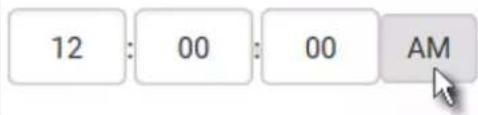
text_image
12 : 00 : 00 AM
Use the NTP server
-
Select "Synchronize with NTP Server."
■ There are two ways to assign the NTP servers: -
To use the DHCP-assigned NTP servers, DO NOT enter any NTP servers for the First and Second NTP Server.
DHCP-assigned NTP servers are available only when either IPv4 or IPv6 DHCP is enabled. - To use the manually-specified NTP servers, specify the primary NTP server in the First Time Server field. A secondary NTP server is optional.
Click Check NTP Servers to verify the validity and accessibility of the manually-specified NTP servers.
5. Click Save.
The PX3 follows the NTP server sanity check per the IETF RFC. If your PX3 has problems synchronizing with a Windows NTP server, see Windows NTP Server Synchronization Solution (on page 311).
Calendar
The calendar icon in the Date field is a convenient tool to select a custom date. Click it and a calendar similar to the following appears.
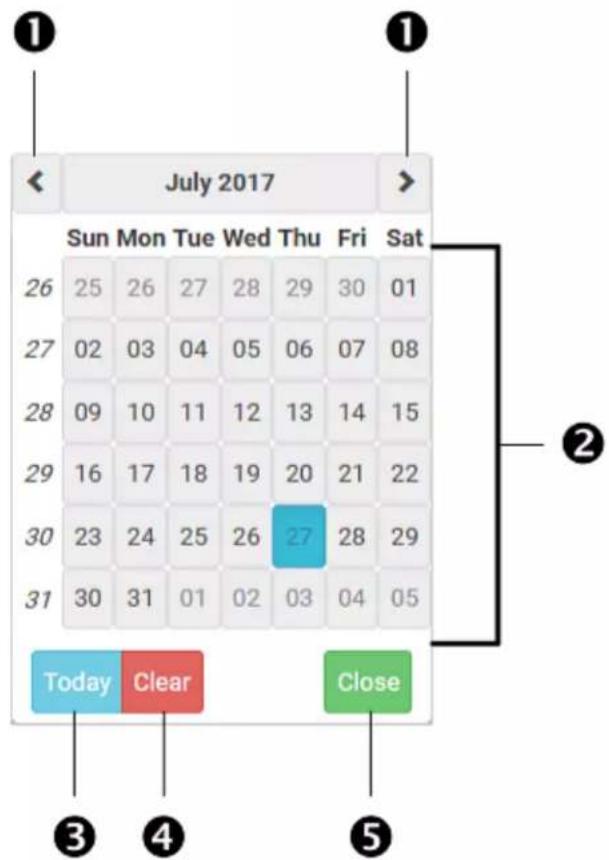
text_image
July 2017 Sun Mon Tue Wed Thu Fri Sat 26 25 26 27 28 29 30 01 27 02 03 04 05 06 07 08 28 09 10 11 12 13 14 15 29 16 17 18 19 20 21 22 30 23 24 25 26 27 28 29 31 30 31 01 02 03 04 05 Today Clear Close ③ ④ ⑤| Number | Item Description | |
| 1 arrows | Switch between months. | |
| 2 | dates(01-31) | All dates of the selected month. To select a date, simply click it. |
| 3 Today | Select today's date. | |
| 4 Clear | Clear the entry, if any, in the Date field. | |
| 5 Close | Close the calendar. |
Windows NTP Server Synchronization Solution
The NTP client on the PX3 follows the NTP RFC so the PX3 rejects any NTP servers whose root dispersion is more than one second. An NTP server with a dispersion of more than one second is considered an inaccurate NTP server by the PX3.
Note: For information on NTP RFC, visit http://tools.ietf.org/html/rfc4330 - http://tools.ietf.org/html/rfc4330 to refer to section 5.
Windows NTP servers may have a root dispersion of more than one second, and therefore cannot synchronize with the PX3. When the NTP synchronization issue occurs, change the dispersion settings to resolve it.
To change the Windows NTP's root dispersion settings:
-
Access the registry settings associated with the root dispersion on the Windows NTP server. HKEY_LOCAL_MACHINE|SYSTEM|CurrentControlSet|Services|W32Time|Config
-
AnnounceFlags must be set to 0x05 or 0x06.
-
0x05 = 0x01 (Always time server) and 0x04 (Always reliable time server)
- 0x06 = 0x02 (Automatic time server) and 0x04 (Always reliable time server)
Note: Do NOT use 0x08 (Automatic reliable time server) because its dispersion starts at a high value and then gradually decreases to one second or lower.
- LocalClockDispersion must be set to 0.
Event Rules and Actions
A benefit of the product's intelligence is its ability to notify you of or react to a change in conditions. This event notification or reaction is an "event rule."
An event rule consists of two parts:
- Event: This is the situation where the PX3 or a device connected to it meets a certain condition. For example, the inlet's voltage reaches the warning level.
- Action: This is the response to the event. For example, the PX3 notifies the system administrator of the event via email.
If you want the PX3 to perform one action at a regular interval instead of waiting until an event occurs, you can schedule that action. For example, you can make the PX3 email the temperature report every hour.
Note that you need the Administrator Privileges to configure event rules.
▶ To create an event rule:
- Choose Device Settings > Event Rules.
- If the needed action is not available yet, create it by clicking
+ New Action.
a. Assign a name to this action.
b. Select the desired action and configure it as needed.
c. Click Create.
For details, see Available Actions (on page 332).
- Click + New Rule to create a new rule.
a. Assign a name to this rule.
b. Make sure the Enabled checkbox is selected, or the new event rule does not work.
c. In the Event field, select the event to which you want the PX3 to react.
d. In the Available Actions field, select the desired action(s) to respond to the selected event.
e. Click Create.
For details, see Built-in Rules and Rule Configuration (on page 313).
▶ To create a scheduled action:
- If the needed action is not available yet, create it by clicking
+ New Action. See above.
Note: When creating scheduled actions, available actions are less than usual because it is meaningless to schedule certain actions like "Alarm," "Log event message," "Send email," "Syslog message" and the like.
- Click + New Scheduled Action to schedule the desired action.
a. Assign a name to this scheduled action.
b. Make sure the Enabled checkbox is selected, or the PX3 does not perform this scheduled action.
c. Set the interval time, which ranges from every minute to yearly.
d. In the Available Actions field, select the desired action(s).
e. Click Create.
For details, see Scheduling an Action (on page 351).
Built-in Rules and Rule Configuration
The PX3 is shipped with four built-in event rules, which cannot be deleted. If the built-in event rules do not satisfy your needs, create new rules.
Built-in rules:
• System Event Log Rule:
This causes ANY event occurred to the PX3 to be recorded in the internal log. It is enabled by default.
Note: For the default log messages generated for each event, see Default Log Messages (on page 319).
• System SNMP Notification Rule:
This causes SNMP traps or informs to be sent to specified IP addresses or hosts when ANY event occurs to the PX3. It is disabled by default.
• System Tamper Detection Alarmed:
This causes the PX3 to send alarm notifications if a DX tamper sensor has been connected and the PX3 detects that the tamper sensor enters the alarmed state. It is enabled by default.
• System Tamper Detection Unavailable:
This causes the PX3 to send alarm notifications if a DX tamper sensor was once connected or remains connected but then the PX3 does not detect the presence of the tamper sensor. It is enabled by default.
Event rule configuration illustration:
- Choose Device Settings > Event Rules >

New Rule.
-
Click the Event field to select an event type.
-
means all events shown on the list. means all numeric sensors of the PX3, including internal and environmental sensors. is especially useful if you want to receive the notifications when any numeric sensor's readings pass through a specific threshold.

text_image
Event- In this example, the Peripheral Device Slot is selected, which is related to the environmental sensor packages. Then a sensor ID field for this event type appears. Click this additional field to specify which sensor should be the subject of this event.
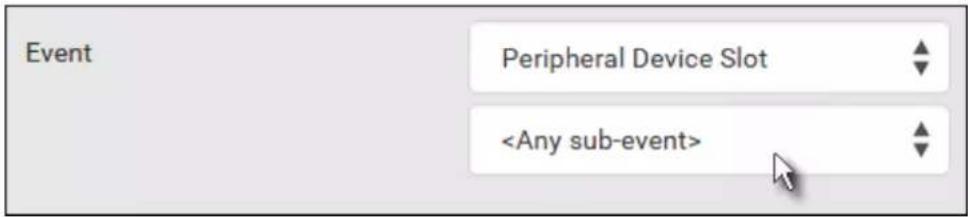
text_image
Event Peripheral Device Slot- In this example, sensor ID 3 (Slot 3) is selected, which is a temperature sensor. Then a new field for this sensor appears. Click this field to specify the type of event(s) you want.
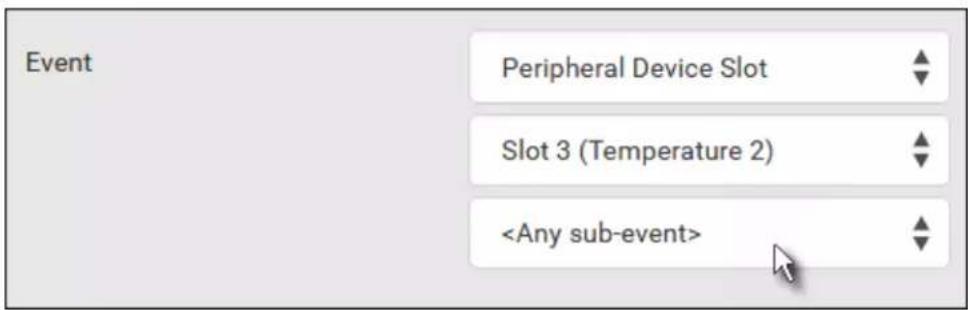
text_image
Event Peripheral Device Slot Slot 3 (Temperature 2)- In this example, Numeric Sensor is selected because we want to select numeric-sensor-related event(s). Then a field for numeric-sensor-related events appears. Click this field to select one of the numeric-sensor-related events from the list.
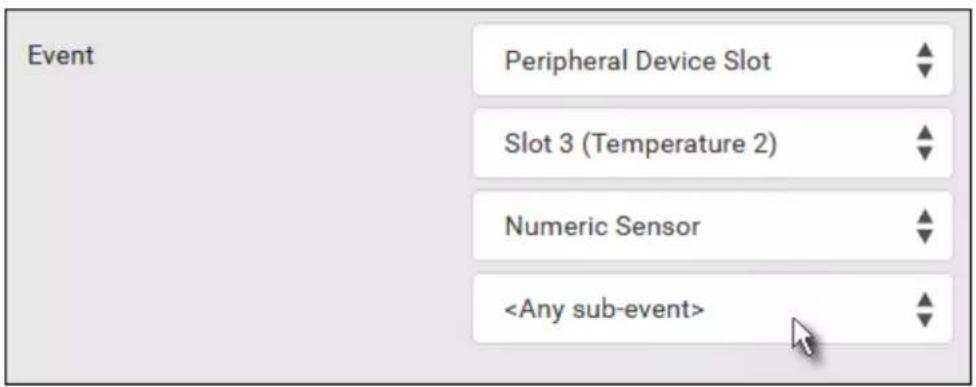
text_image
Event Peripheral Device Slot Slot 3 (Temperature 2) Numeric Sensor- In this example, 'Above upper critical threshold' is selected because we want the PX3 to react only when the selected temperature sensor's reading enters the upper critical range. A "Trigger condition" field appears, requiring you to define the "exact" condition related to the "upper critical" event.
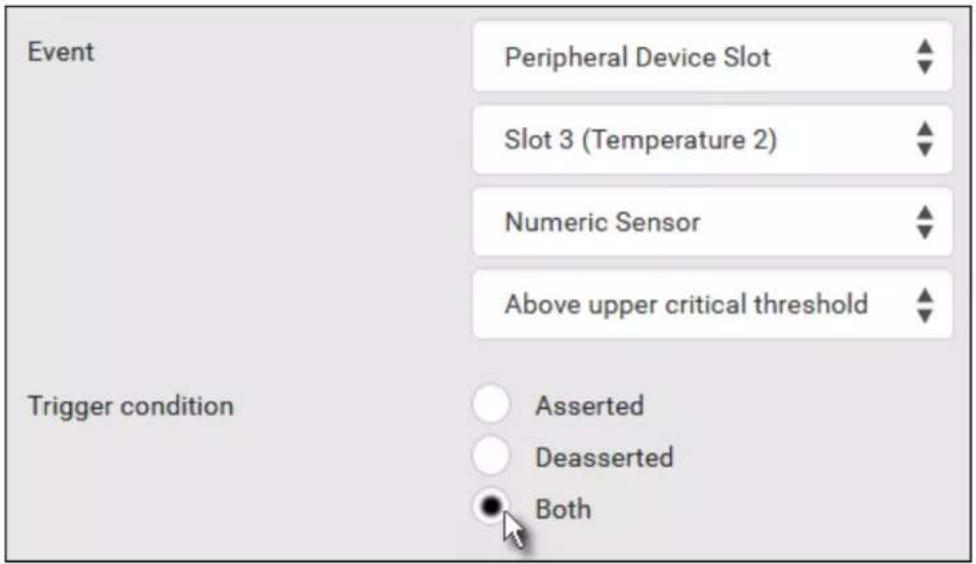
text_image
Event Peripheral Device Slot Slot 3 (Temperature 2) Numeric Sensor Above upper critical threshold Trigger condition Asserted Deasserted Both- Select the desired radio button to finish the event configuration. Refer to the following table for different types of radio buttons.
- If needed, you may refer to event rule examples in the section titled Sample Event Rules (on page 361).
- To select any action(s), select them one by one from the Available Actions list.
- To select all available actions, click Select All.
- To remove any action(s) from the Selected Actions field, click that action's ✗.
- To remove all actions, click Deselect All.
Radio buttons for different events:
According to the event you select, the "Trigger condition" field containing three radio buttons may or may not appear.
| Event types Radio buttons | |
| Numeric sensor threshold-crossing events, or the occurrence of the selected event -- true or false | Available radio buttons include "Asserted," "Deasserted" and "Both."Asserted: The PX3 takes the action only when the selected event occurs. That is, the status of the event transits from FALSE to TRUE.Deasserted: The PX3 takes the action only when the selected event disappears or stops. That is, the status of the selected event transits from TRUE to FALSE.Both: The PX3 takes the action both when the event occurs (asserts) and when the event stops/disappears (deasserts). |
| State sensor state change | Available radio buttons include "Alarmed/Open/On," "No longer alarmed/Closed/Off" and "Both."Alarmed/Open/On: The PX3 takes the action only when the chosen sensor enters the alarmed, open or on state.No longer alarmed/Closed/Off: The PX3 takes the action only when the chosen sensor returns to the normal, closed, or off state.Both: The PX3 takes the action whenever the chosen sensor switches its state. |
| Sensor availability Available radio buttons include "Unavailable," "Available" and "Both." ·Unavailable: The PX3 takes the action only when the chosen sensor is NOT detected and becomes unavailable. ·Available: The PX3 takes the action only when the chosen sensor is detected and becomes available. ·Both: The PX3 takes the action both when the chosen sensor becomes unavailable or available. | |
| Network interface link state | ·Link state is up: The PX3 takes the action only when the network link state changes from down to up. ·Link state is down: The PX3 takes the action only when the network link state changes from up to down. ·Both: The PX3 takes the action whenever the network link state changes. |
| Function enabled or disabled | ·Enabled: The PX3 takes the action only when the chosen function is enabled. ·Disabled: The PX3 takes the action only when the chosen function is disabled. ·Both: The PX3 takes the action when the chosen function is either enabled or disabled. |
| Restricted service agreement | ·Accepted: The PX3 takes the action only when the specified user accepts the restricted service agreement. ·Declined: The PX3 takes the action only when the specified user rejects the restricted service agreement. ·Both: The PX3 takes the action both when the specified user accepts or rejects the restricted service agreement. |
| Server monitoring event | Monitoring started: The PX3 takes the action only when the monitoring of any specified server starts.Monitoring stopped: The PX3 takes the action only when the monitoring of any specified server stops.Both: The PX3 takes the action when the monitoring of any specified server starts or stops. |
| Server reachability | Unreachable: The PX3 takes the action only when any specified server becomes inaccessible.Reachable: The PX3 takes the action only when any specified server becomes accessible.Both: The PX3 takes the action when any specified server becomes either inaccessible or accessible. |
| Device connection or disconnection, such as a USB-cascaded slave device | Connected: The PX3 takes the action only when the selected device is physically connected to it.Disconnected: The PX3 takes the action only when the selected device is physically disconnected from it.Both: The PX3 takes the action both when the selected device is physically connected to it and when it is disconnected. |
| +12V Supply 1 Status | Available radio buttons include "Fault," "Ok" and "Both."Fault: The PX3 takes the action only when the selected 12V power supply to the controller enters the fault state.Ok: The PX3 takes the action only when when the selected 12V power supply to the controller enters the OK state.Both: The PX3 takes the action whenever the selected 12 power supply's status changes. |
Default Log Messages
These default log messages are recorded internally and emailed to specified recipients when PX3 events occur (are TRUE) or, in some cases, stop or become unavailable (are FALSE). See Send Email (on page 339) to configure email messages.
| Event/context Default message when the event = TRUE | Default message when the event = FALSE | |
| Asset Management > State State of asset strip [AMSNUMBER] ('[AMSNAME]') changed to '[AMSSTATE]'. | ||
| Asset Management > Rack Unit > * > Tag Connected | Asset tag with ID '[AMSTAGID]' connected at rack unit [AMSRACKUNITPOSITION], slot [AMSBLADESLOTPOSITION] of asset strip [AMSNUMBER] ('[AMSNAME]'). | Asset tag with ID '[AMSTAGID]' disconnected at rack unit [AMSRACKUNITPOSITION], slot [AMSBLADESLOTPOSITION] of asset strip [AMSNUMBER] ('[AMSNAME]'). |
| Asset Management > Rack Unit > * > Blade Extension Connected | Blade extension with ID '[AMSTAGID]' connected at rack unit [AMSRACKUNITPOSITION] of asset strip [AMSNUMBER] ('[AMSNAME]'). | Blade extension with ID '[AMSTAGID]' disconnected at rack unit [AMSRACKUNITPOSITION] of asset strip [AMSNUMBER] ('[AMSNAME]'). |
| Asset Management > Firmware Update | Firmware update for asset strip [AMSNUMBER] ('[AMSNAME]'): status changed to '[AMSSTATE]'. | |
| Asset Management > Device Config Changed | Config parameter '[CONFIGPARAM]' of asset strip [AMSNUMBER] ('[AMSNAME]') changed to '[CONFIGVALUE]' by user '[USERNAME]'. | |
| Asset Management > Rack Unit Config Changed | Config of rack unit [AMSRACKUNITPOSITION] of asset strip [AMSNUMBER] ('[AMSNAME]') changed by user '[USERNAME]' to: Name '[AMSRACKUNITNAME]', LED Operation Mode '[AMSLEDOPMODE]', LED Color '[AMSLEDCOLOR]', LED Mode '[AMSLEDMODE] | |
| Asset Management > Blade Extension Overflow | Blade extension overflow occurred on strip [AMSNUMBER] ('[AMSNAME]'). | Blade extension overflow cleared for strip [AMSNUMBER] ('[AMSNAME]'). |
Chapter 6: Using the Web Interface
| Event/context Default message when the event = TRUE | Default message when the event = FALSE | |
| Asset Management > Composite Asset Strip Composition Changed | Composition changed on composite asset strip [AMSNUMBER] ('[AMSNAME]'). | |
| Card Reader Management > Card inserted | Card Reader with id '[CARDREADERID]' connected. | |
| Card Reader Management > Card Reader attached | Card Reader with id '[CARDREADERID]' disconnected. | |
| Card Reader Management > Card Reader detached | Card of type '[SMARTCARDTYPE]' with ID '[SMARTCARDID]' inserted. | |
| Card Reader Management > Card removed | Card of type '[SMARTCARDTYPE]' with ID '[SMARTCARDID]' removed. | |
| Device > System started System | started. | |
| Device > System reset System reset performed by user '[USERNAME]' from host '[USERIP']. | ||
| Device > Firmware validation failed | Firmware validation failed by user '[USERNAME]' from host '[USERIP']. | |
| Device > Firmware update started | Firmware upgrade started from version '[OLDVERSION]' to version '[VERSION]' by user '[USERNAME]' from host '[USERIP']. | |
| Device > Firmware update completed | Firmware upgraded successfully from version '[OLDVERSION]' to version '[VERSION]' by user '[USERNAME]' from host '[USERIP']. | |
| Device > Firmware update failed | Firmware upgrade failed from version '[OLDVERSION]' to version '[VERSION]' by user '[USERNAME]' from host '[USERIP']. | |
| Device > Device identification changed | Config parameter '[CONFIGPARAM]' changed to '[CONFIGVALUE]' by user '[USERNAME]' from host '[USERIP']. | |
| Device > Device settings saved | Device settings saved by user '[USERNAME]' from host '[USERIP']. | |
| Device > Device settings restored | Device settings restored from host '[USERIP]', | |
| Device > Data push failed Data push to URL [DATAPUSH_URL] failed. [ERRORDESC]. | ||
| Device > Event log cleared Event log cleared by user '[USERNAME]' from host '[USERIP]'. | ||
| Device > Bulk configuration saved | Bulk configuration saved by user '[USERNAME]' from host '[USERIP]'. | |
| Device > Bulk configuration copied | Bulk configuration copied by user '[USERNAME]' from host '[USERIP]'. | |
| Device > Network interface link state is up | The [IFNAME] network interface link is now up. | The [IFNAME] network interface link is now down. |
| Device > Peripheral Device Firmware Update | Firmware update for peripheral device [EXTSENSORSERIAL] from [OLDVERSION] to [VERSION] [SENSORSTATENAME]. | |
| Device > Sending SMTP message failed | Sending SMTP message to '[SMTPRECIPIENTS]' using server '[SMTPSERVER]' failed. [ERRORDESC]. | |
| Device > Sending SNMP inform failed or no response | Sending SNMP inform to manager [SNMPMANAGER]:[SNMPMANAGERPORT] failed or no response. [ERRORDESC]. | |
| Device > Sending Syslog message failed | Sending Syslog message to server [SYSLOGSERVER]:[SYSLOGPORT] [[SYSLOGTRANSPORTPROTO]] failed. [ERRORDESC]. | |
| Device > Sending SMS message failed | Sending SMS message to '[PHONENUMBER]' failed. | |
| Device > An LDAP error occurred | An LDAP error occurred: [ERRORDESC]. | |
| Device > A Radius error occurred | A Radius error occurred: [ERRORDESC]. | |
| Device > Unknown peripheral device attached | An unknown peripheral device with rom code '[ROMCODE]' was attached at position '[PERIPHDEVPOSITION]'. | |
| Device > Slave connected Slave connected. | Slave | disconnected. |
| Device > WLAN authentication over TLS with incorrect system clock | Established connection to wireless network '[SSID]' via Access Point with BSSID '[BSSID]' using '[AUTHPROTO]' authentication with incorrect system clock. | |
| Device > Features > Schroff LHX / SHX Support | Schroff LHX / SHX support enabled. Schroff LHX / SHX support disabled. | |
| Energywise > Enabled User '[USERNAME]' from host '[USERIP]' enabled EnergyWise. | User '[USERNAME]' from host '[USERIP]' disabled EnergyWise. | |
| Peripheral Device Slot > * > Numeric Sensor > Unavailable | Peripheral device '[EXTSENSORNAME]' in slot '[EXTSENSORSLOT]' unavailable. | Peripheral device '[EXTSENSORNAME]' in slot '[EXTSENSORSLOT]' available. |
| Peripheral Device Slot > * > Numeric Sensor > Above upper critical threshold | Peripheral device '[EXTSENSORNAME]' in slot [EXTSENSORSLOT] asserted 'above upper critical' at [SENSORREADING] [SENSORREADINGUNIT]. | Peripheral device '[EXTSENSORNAME]' in slot [EXTSENSORSLOT] deasserted 'above upper critical' at [SENSORREADING] [SENSORREADINGUNIT]. |
| Peripheral Device Slot > * > Numeric Sensor > Above upper warning threshold | Peripheral device '[EXTSENSORNAME]' in slot [EXTSENSORSLOT] asserted 'above upper warning' at [SENSORREADING] [SENSORREADINGUNIT]. | Peripheral device '[EXTSENSORNAME]' in slot [EXTSENSORSLOT] deasserted 'above upper warning' at [SENSORREADING] [SENSORREADINGUNIT]. |
| Peripheral Device Slot > * > Numeric Sensor > Below lower warning threshold | Peripheral device '[EXTSENSORNAME]' in slot [EXTSENSORSLOT] asserted 'below lower warning' at [SENSORREADING] [SENSORREADINGUNIT]. | Peripheral device '[EXTSENSORNAME]' in slot [EXTSENSORSLOT] deasserted 'below lower warning' at [SENSORREADING] [SENSORREADINGUNIT]. |
| Peripheral Device Slot > * > Numeric Sensor > Below lower critical threshold | Peripheral device '[EXTSENSORNAME]' in slot [EXTSENSORSLOT] asserted 'below lower critical' at [SENSORREADING] [SENSORREADINGUNIT]. | Peripheral device '[EXTSENSORNAME]' in slot [EXTSENSORSLOT] deasserted 'below lower critical' at [SENSORREADING] [SENSORREADINGUNIT]. |
| Peripheral Device Slot > * > State Sensor/Actuator > Unavailable | Peripheral device '[EXTSENSORNAME]' in slot'[EXTSENSORSLOT]' unavailable. | Peripheral device'[EXTSENSORNAME]' in slot'[EXTSENSORSLOT]' available. |
| Peripheral Device Slot > * > State Sensor/Actuator > Alarmed/Open/On | Peripheral device'[EXTSENSORNAME]' in slot[EXTSENSORSLOT] is[SENSORSTATENAME]. | Peripheral device'[EXTSENSORNAME]' in slot[EXTSENSORSLOT] is[SENSORSTATENAME]. |
| Inlet > * > Enabled Inlet '[INLET]' has been enabled by user '[USERNAME]' from host'[USERIP']. | Inlet '[INLET]' has been disabled by user '[USERNAME]' from host'[USERIP']. | |
| Inlet > * > Sensor > * > Unavailable | Sensor '[INLETSENSOR]' on inlet'[INLET]' unavailable. | Sensor '[INLETSENSOR]' on inlet'[INLET]' available. |
| Inlet > * > Sensor > * > Above upper critical threshold | Sensor '[INLETSENSOR]' on inlet'[INLET]' asserted 'above upper critical' at [SENSORREADING][SENSORREADINGUNIT]. | Sensor '[INLETSENSOR]' on inlet'[INLET]' deasserted 'above upper critical' at [SENSORREADING][SENSORREADINGUNIT]. |
| Inlet > * > Sensor > * > Above upper warning threshold | Sensor '[INLETSENSOR]' on inlet'[INLET]' asserted 'above upper warning' at [SENSORREADING][SENSORREADINGUNIT]. | Sensor '[INLETSENSOR]' on inlet'[INLET]' deasserted 'above upper warning' at [SENSORREADING][SENSORREADINGUNIT]. |
| Inlet > * > Sensor > * > Below lower warning threshold | Sensor '[INLETSENSOR]' on inlet'[INLET]' asserted 'below lower warning' at [SENSORREADING][SENSORREADINGUNIT]. | Sensor '[INLETSENSOR]' on inlet'[INLET]' deasserted 'below lower warning' at [SENSORREADING][SENSORREADINGUNIT]. |
| Inlet > * > Sensor > * > Below lower critical threshold | Sensor '[INLETSENSOR]' on inlet'[INLET]' asserted 'below lower critical' at [SENSORREADING][SENSORREADINGUNIT]. | Sensor '[INLETSENSOR]' on inlet'[INLET]' deasserted 'below lower critical' at [SENSORREADING][SENSORREADINGUNIT]. |
| Inlet > * > Sensor > * > Reset Sensor '[INLETSENSOR]' on inlet'[INLET]' has been reset by user'[USERNAME]' from host '[USERIP']. | ||
| Inlet > * > Sensor > * > Normal Sensor '[INLETSENSOR]' on inlet'[INLET]' entered normal state. | Sensor '[INLETSENSOR]' on inlet'[INLET]' exited normal state. | |
| Inlet > * > Sensor > * > Failed Sensor '[INLETSENSOR]' on inlet'[INLET]' entered failed state. | Sensor '[INLETSENSOR]' on inlet'[INLET]' entered normal state. | |
| Inlet > * > Sensor > * > OK Sensor '[INLETSENSOR]' on inlet'[INLET]' entered OK state. | Sensor '[INLETSENSOR]' on inlet'[INLET]' exited OK state. | |
| Inlet > * > Sensor > * > Warning | Sensor '[INLETSENSOR]' on inlet '[INLET]' entered warning state. | Sensor '[INLETSENSOR]' on inlet '[INLET]' exited warning state. |
| Inlet > * > Sensor > * > Critical | Sensor '[INLETSENSOR]' on inlet '[INLET]' entered critical state. | Sensor '[INLETSENSOR]' on inlet '[INLET]' exited critical state. |
| Inlet > * > Sensor > * > Self-Test | Sensor '[INLETSENSOR]' on inlet '[INLET]' started self test. | Sensor '[INLETSENSOR]' on inlet '[INLET]' finished self test. |
| Inlet > Pole > * > Sensor > Unavailable | Sensor '[PDUPOLESENSOR]' on pole '[INLETPOLE]' of inlet '[INLET]' unavailable. | Sensor '[PDUPOLESENSOR]' on pole '[INLETPOLE]' of inlet '[INLET]' available. |
| Inlet > Pole > * > Sensor > Above upper critical threshold | Sensor '[PDUPOLESENSOR]' on pole '[INLETPOLE]' of inlet '[INLET]' asserted 'above upper critical' at [SENSORREADING] [SENSORREADINGUNIT]. | Sensor '[PDUPOLESENSOR]' on pole '[INLETPOLE]' of inlet '[INLET]' deasserted 'above upper critical' at [SENSORREADING] [SENSORREADINGUNIT]. |
| Inlet > Pole > * > Sensor > Above upper warning threshold | Sensor '[PDUPOLESENSOR]' on pole '[INLETPOLE]' of inlet '[INLET]' asserted 'above upper warning' at [SENSORREADING] [SENSORREADINGUNIT]. | Sensor '[PDUPOLESENSOR]' on pole '[INLETPOLE]' of inlet '[INLET]' deasserted 'above upper warning' at [SENSORREADING] [SENSORREADINGUNIT]. |
| Inlet > Pole > * > Sensor > Below lower warning threshold | Sensor '[PDUPOLESENSOR]' on pole '[INLETPOLE]' of inlet '[INLET]' asserted 'below lower warning' at [SENSORREADING] [SENSORREADINGUNIT]. | Sensor '[PDUPOLESENSOR]' on pole '[INLETPOLE]' of inlet '[INLET]' deasserted 'below lower warning' at [SENSORREADING] [SENSORREADINGUNIT]. |
| Inlet > Pole > * > Sensor > Below lower critical threshold | Sensor '[PDUPOLESENSOR]' on pole '[INLETPOLE]' of inlet '[INLET]' asserted 'below lower critical' at [SENSORREADING] [SENSORREADINGUNIT]. | Sensor '[PDUPOLESENSOR]' on pole '[INLETPOLE]' of inlet '[INLET]' deasserted 'below lower critical' at [SENSORREADING] [SENSORREADINGUNIT]. |
| Inlet > Pole > * > Sensor > Normal | Sensor '[PDUPOLESENSOR]' on pole '[INLETPOLE]' of inlet '[INLET]' entered normal state. | Sensor '[PDUPOLESENSOR]' on pole '[INLETPOLE]' of inlet '[INLET]' exited normal state. |
| Inlet > Pole > * > Sensor > Failed | Sensor '[PDUPOLESENSOR]' on pole '[INLETPOLE]' of inlet '[INLET]' entered failed state. | Sensor '[PDUPOLESENSOR]' on pole '[INLETPOLE]' of inlet '[INLET]' exited failed state. |
| Inlet > Pole > * > Sensor > Warning | Sensor '[PDUPOLESENSOR]' on pole '[INLETPOLE]' of inlet '[INLET]' entered warning state. | Sensor '[PDUPOLESENSOR]' on pole '[INLETPOLE]' of inlet '[INLET]' exited warning state. |
| Inlet > Pole > * > Sensor > Critical | Sensor '[PDUPOLESENSOR]' on pole '[INLETPOLE]' of inlet '[INLET]' entered critical state. | Sensor '[PDUPOLESENSOR]' on pole '[INLETPOLE]' of inlet '[INLET]' exited critical state. |
| Inlet > Pole > * > Sensor > Self-Test | Sensor '[PDUPOLESENSOR]' on pole '[INLETPOLE]' of inlet '[INLET]' started self test. | Sensor '[PDUPOLESENSOR]' on pole '[INLETPOLE]' of inlet '[INLET]' finished self test. |
| Modem > Dial-in link established | An incoming call from caller '[CALLERID]' was received. | The incoming call from caller '[CALLERID]' was disconnected: [CALLENDREASON]. |
| Modem > Modem attached A [MODEMTYPE] modem was attached. | ||
| Modem > Modem detached A [MODEMTYPE] modem was removed. | ||
| Outlet > * > Power control > Powered on | Outlet '[OUTLET]' has been powered on by user '[USERNAME]' from host '[USERIP]'. | |
| Outlet > * > Power control > Powered off | Outlet '[OUTLET]' has been powered off by user '[USERNAME]' from host '[USERIP]'. | |
| Outlet > * > Power control > Power cycled | Outlet '[OUTLET]' power cycle initiated by user '[USERNAME]' from host '[USERIP]'. | |
| Outlet > * > Sensor > * > Unavailable | Sensor '[OUTLETSENSOR]' on outlet '[OUTLET]' unavailable. | Sensor '[OUTLETSENSOR]' on outlet '[OUTLET]' available. |
| Outlet > * > Sensor > * > Above upper critical threshold | Sensor '[OUTLETSENSOR]' on outlet '[OUTLET]' asserted 'above upper critical' at [SENSORREADING] [SENSORREADINGUNIT]. | Sensor '[OUTLETSENSOR]' on outlet '[OUTLET]' deasserted 'above upper critical' at [SENSORREADING] [SENSORREADINGUNIT]. |
| Outlet > * > Sensor > * > Above upper warning threshold | Sensor '[OUTLETSENSOR]' on outlet '[OUTLET]' asserted 'above upper warning' at [SENSORREADING] | Sensor '[OUTLETSENSOR]' on outlet '[OUTLET]' deasserted 'above upper warning' at [SENSORREADING] |
| Event/context Default message when the event = TRUE | Default message when the event = FALSE |
| [SENSORREADINGUNIT]. [SENSORREADINGUNIT]. | |
| Outlet > * > Sensor > * > Below lower warning threshold | Sensor '[OUTLETSENSOR]' on outlet '[OUTLET]' asserted 'below lower warning' at [SENSORREADING] [SENSORREADINGUNIT]. |
| Outlet > * > Sensor > * > Below lower critical threshold | Sensor '[OUTLETSENSOR]' on outlet '[OUTLET]' asserted 'below lower critical' at [SENSORREADING] [SENSORREADINGUNIT]. |
| Outlet > * > Sensor > Active Energy > Reset | Sensor '[OUTLETSENSOR]' on outlet '[OUTLET]' has been reset by user '[USERNAME]' from host '[USERIP]'. |
| Outlet > * > Sensor > Outlet State > On/Off | Outlet '[OUTLET]' state changed to on. Outlet '[OUTLET]' state changed to off. |
| Outlet > * > Pole > * > Sensor > Unavailable | Sensor '[POLESENSOR]' on pole '[OUTLETPOLE]' of outlet '[OUTLET]' unavailable. |
| Outlet > * > Pole > * > Sensor > Above upper critical threshold | Sensor '[PDUPOLESENSOR]' on pole '[OUTLETPOLE]' of outlet '[OUTLET]' asserted 'above upper critical' at [SENSORREADING] [SENSORREADINGUNIT]. |
| Outlet > * > Pole > * > Sensor > Above upper warning threshold | Sensor '[PDUPOLESENSOR]' on pole '[OUTLETPOLE]' of outlet '[OUTLET]' asserted 'above upper warning' at [SENSORREADING] [SENSORREADINGUNIT]. |
| Outlet > * > Pole > * > Sensor > Below lower warning threshold | Sensor '[PDUPOLESENSOR]' on pole '[OUTLETPOLE]' of outlet '[OUTLET]' asserted 'below lower warning' at [SENSORREADING] [SENSORREADINGUNIT]. |
| Outlet > * > Pole > * > Sensor > Below lower critical threshold | Sensor '[PDUPOLESENSOR]' on pole '[OUTLETPOLE]' of outlet '[OUTLET]' asserted 'below lower critical' at [SENSORREADING] |
| Event/context Default message when the event = TRUE | Default message when the event = FALSE | |
| [SENSORREADING] [SENSORREADINGUNIT]. | critical' at [SENSORREADING] [SENSORREADINGUNIT]. | |
| Overcurrent Protector > * > Sensor > * > Unavailable | Sensor '[OCPSENSOR]' on overcurrent protector '[OCP]' unavailable. | Sensor '[OCPSENSOR]' on overcurrent protector '[OCP]' available. |
| Overcurrent Protector > * > Sensor > * > Above upper critical threshold | Sensor '[OCPSENSOR]' on overcurrent protector '[OCP]' asserted 'above upper critical' at [SENSORREADING] [SENSORREADINGUNIT]. | Sensor '[OCPSENSOR]' on overcurrent protector '[OCP]' deasserted 'above upper critical' at [SENSORREADING] [SENSORREADINGUNIT]. |
| Overcurrent Protector > * > Sensor > * > Above upper warning threshold | Sensor '[OCPSENSOR]' on overcurrent protector '[OCP]' asserted 'above upper warning' at [SENSORREADING] [SENSORREADINGUNIT]. | Sensor '[OCPSENSOR]' on overcurrent protector '[OCP]' deasserted 'above upper warning' at [SENSORREADING] [SENSORREADINGUNIT]. |
| Overcurrent Protector > * > Sensor > * > Below lower warning threshold | Sensor '[OCPSENSOR]' on overcurrent protector '[OCP]' asserted 'below lower warning' at [SENSORREADING] [SENSORREADINGUNIT]. | Sensor '[OCPSENSOR]' on overcurrent protector '[OCP]' deasserted 'below lower warning' at [SENSORREADING] [SENSORREADINGUNIT]. |
| Overcurrent Protector > * > Sensor > * > Below lower critical threshold | Sensor '[OCPSENSOR]' on overcurrent protector '[OCP]' asserted 'below lower critical' at [SENSORREADING] [SENSORREADINGUNIT]. | Sensor '[OCPSENSOR]' on overcurrent protector '[OCP]' deasserted 'below lower critical' at [SENSORREADING] [SENSORREADINGUNIT]. |
| Overcurrent Protector > * > Sensor > Trip > Open/Close | Sensor '[OCPSENSOR]' on overcurrent protector '[OCP]' is open. | Sensor '[OCPSENSOR]' on overcurrent protector '[OCP]' is closed. |
| PDU > Controller > * > Communication failed | Communication with controller '[CONTROLLER]' (board ID [BOARDID]) failed. | Communication with controller '[CONTROLLER]' (board ID [BOARDID]) restored. |
| PDU > Controller > * > Firmware update | Controller '[CONTROLLER]' with board ID [BOARDID] has started firmware update | Controller '[CONTROLLER]' with board ID [BOARDID] has completed firmware update |
| PDU > Controller > * > Incompatible | Controller '[CONTROLLER]' with board ID [BOARDID] is incompatible. | Controller '[CONTROLLER]' with board ID [BOARDID] is no longer incompatible. |
| PDU > Controller > * > OK Controller '[CONTROLLER]' with board ID [BOARDID] is OK. | Controller '[CONTROLLER]' with board ID [BOARDID] is no longer OK. | |
| PDU > Load Shedding > Started PX placed in Load Shedding Mode by user '[USERNAME]' from host '[USERIP]'. | PX removed from Load Shedding Mode by user '[USERNAME]' from host '[USERIP]'. | |
| PDU > Sensor > +12V Supply 1 Status > fault | Global sensor '[PDUSENSOR]' entered fault state. | PDU > Sensor > +12V Supply 1 Status > fault |
| PDU > Sensor > +12V Supply 1 Status > Unavailable | Global sensor 'powerSupplyStatus 1' unavailable. | Global sensor 'powerSupplyStatus 1' available. |
| Server Monitoring > * > Error Error monitoring server '[MONITOREDHOST]': [ERRORDESC] | ||
| Server Monitoring > * > Monitored | Server '[MONITOREDHOST]' is now being monitored. | Server '[MONITOREDHOST]' is no longer being monitored. |
| Server Monitoring > * > Unreachable | Server '[MONITOREDHOST]' is unreachable. | Server '[MONITOREDHOST]' is reachable. |
| Server Monitoring > * > Unrecoverable | Connection to server '[MONITOREDHOST]' could not be restored. | |
| User Activity > * > User logon state | User '[USERNAME]' from host '[USERIP]' logged in. | User '[USERNAME]' from host '[USERIP]' logged out. |
| User Activity > * > Authentication failure | Authentication failed for user '[USERNAME]' from host '[USERIP]'. | |
| User Activity > * > User accepted the Restricted Service Agreement | User '[USERNAME]' from host '[USERIP]" accepted the Restricted Service Agreement. | User '[USERNAME]' from host '[USERIP]" declined the Restricted Service Agreement. |
| User Activity > * > User blocked | User '[USERNAME]' from host '[USERIP]' was blocked. | |
| User Activity > * > Session timeout | Session of user '[USERNAME]' from host '[USERIP]' timed out. | |
| User Administration > User added | User '[UMTARGETUSER]' added by user '[USERNAME]' from host '[USERIP]'. | |
| User Administration > User modified | User '[UMTARGETUSER]' modified by user '[USERNAME]' from host | |
| Event/context Default message when the event = TRUE | Default message when the event = FALSE |
| '[USERIP]'. | |
| User Administration > User deleted | User '[UMTARGETUSER]' deleted by user '[USERNAME]' from host '[USERIP]'. |
| User Administration > Password changed | Password of user '[UMTARGETUSER]' changed by user '[USERNAME]' from host '[USERIP]'. |
| User Administration > Password settings changed | Password settings changed by user '[USERNAME]' from host '[USERIP]'. |
| User Administration > Role added | Role '[UMTARGETROLE]' added by user '[USERNAME]' from host '[USERIP]'. |
| User Administration > Role modified | Role '[UMTARGETROLE]' modified by user '[USERNAME]' from host '[USERIP]'. |
| User Administration > Role deleted | Role '[UMTARGETROLE]' deleted by user '[USERNAME]' from host '[USERIP]'. |
| Webcam Management > Webcam attached | Webcam '[WEBCAMNAME]'('[WEBCAMUVID]) added to port '[WEBCAMUSBPORT]'. |
| Webcam Management > Webcam detached | Webcam '[WEBCAMNAME]'('[WEBCAMUVID]) removed from port '[WEBCAMUSBPORT]'. |
| Webcam Management > Webcam settings changed | Webcam '[WEBCAMNAME]' settings changed by user '[USERNAME]'. |
| LHX/SHX > Connected LHX has been connected to [PORTTYPE] port [PORTID]. | LHX has been disconnected from [PORTTYPE] port [PORTID]. |
| LHX/SHX > Operational State LHX connected to [PORTTYPE] port [PORTID] has been switched on. | LHX connected to [PORTTYPE] port [PORTID] has been switched off. |
| LHX/SHX > Sensor > Unavailable | Sensor '[LHXSENSORID]' on LHX at [PORTTYPE] port '[PORTID]' unavailable. |
| Event/context Default message when the event = TRUE | Default message when the event = FALSE | |
| LHX/SHX > Sensor > Above upper critical threshold | Sensor '[LHXSENSORID]' on LHX at [PORTTYPE] port '[PORTID]' asserted 'above upper critical' at [SENSORREADING][SENSORREADINGUNIT]. | Sensor '[LHXSENSORID]' on LHX at [PORTTYPE] port '[PORTID]' deasserted 'above upper critical' at [SENSORREADING][SENSORREADINGUNIT]. |
| LHX/SHX > Sensor > Above upper warning threshold | Sensor '[LHXSENSORID]' on LHX at [PORTTYPE] port '[PORTID]' asserted 'above upper warning' at [SENSORREADING][SENSORREADINGUNIT]. | Sensor '[LHXSENSORID]' on LHX at [PORTTYPE] port '[PORTID]' deasserted 'above upper warning' at [SENSORREADING][SENSORREADINGUNIT]. |
| LHX/SHX > Sensor > Below lower warning threshold | Sensor '[LHXSENSORID]' on LHX at [PORTTYPE] port '[PORTID]' asserted 'below lower warning' at [SENSORREADING][SENSORREADINGUNIT]. | Sensor '[LHXSENSORID]' on LHX at [PORTTYPE] port '[PORTID]' deasserted 'below lower warning' at [SENSORREADING][SENSORREADINGUNIT]. |
| LHX/SHX > Sensor > Below lower critical threshold | Sensor '[LHXSENSORID]' on LHX at [PORTTYPE] port '[PORTID]' asserted 'below lower critical' at [SENSORREADING][SENSORREADINGUNIT]. | Sensor '[LHXSENSORID]' on LHX at [PORTTYPE] port '[PORTID]' deasserted 'below lower critical' at [SENSORREADING][SENSORREADINGUNIT]. |
| LHX/SHX > Base Electronics Failure | The base electronics on LHX at [PORTTYPE] port '[PORTID]' failed. | The base electronics on LHX at [PORTTYPE] port '[PORTID]' is back to normal. |
| LHX/SHX > Condenser Pump Failure | The condenser pump on LHX at [PORTTYPE] port '[PORTID]' failed. | The condenser pump on LHX at [PORTTYPE] port '[PORTID]' is back to normal. |
| LHX/SHX > Emergency Cooling | Emergency cooling on LHX at [PORTTYPE] port '[PORTID]' was activated. | Emergency cooling on LHX at [PORTTYPE] port '[PORTID]' was deactivated. |
| LHX/SHX > Maximum cooling request | Maximum cooling was requested for LHX at [PORTTYPE] port '[PORTID]'. | Maximum cooling is not any more requested for LHX at [PORTTYPE] port '[PORTID]'. |
| LHX/SHX > Parameter Data Loss | Data loss in parameter memory was detected on LHX at [PORTTYPE] port '[PORTID]'. | |
| LHX/SHX > ST-Bus Communication Error | An ST-Bus communication error was detected on LHX at [PORTTYPE] port '[PORTID]', | |
| LHX/SHX > Collective fault A collective fault occurred on LHX at [PORTTYPE] port '[PORTID]', | ||
| LHX/SHX > Door Contact The door of LHX at [PORTTYPE] port '[PORTID]' was opened. | The door of LHX at [PORTTYPE] port '[PORTID]' was closed. | |
| LHX/SHX > Sensor Failure A sensor failure (broken or short circuit) occurred on LHX at [PORTTYPE] port '[PORTID]' at sensor '[LHXSENSORID]', | ||
| LHX/SHX > Fan Failure A fan motor failure occurred on LHX at [PORTTYPE] port '[PORTID]' at fan '[LHXFANID]', | ||
| LHX/SHX > Power Supply Failure | A power supply failure occurred on LHX at [PORTTYPE] port '[PORTID]' at power supply '[LHXPOWERSUPPLYID']. | |
| LHX/SHX > Threshold Air Inlet The air inlet temperature threshold on LHX at [PORTTYPE] port '[PORTID]' was crossed. | The air inlet temperature on LHX at [PORTTYPE] port '[PORTID]' is within thresholds. | |
| LHX/SHX > Threshold Air Outlet The air outlet temperature threshold on LHX at [PORTTYPE] port '[PORTID]' was crossed. | The air outlet temperature on LHX at [PORTTYPE] port '[PORTID]' is within thresholds. | |
| LHX/SHX > Threshold Water Inlet | The water inlet temperature threshold on LHX at [PORTTYPE] port '[PORTID]' was crossed. | The water inlet temperature on LHX at [PORTTYPE] port '[PORTID]' is within thresholds. |
| LHX/SHX > Threshold Water Outlet | The water outlet temperature threshold on LHX at [PORTTYPE] port '[PORTID]' was crossed. | The water outlet temperature on LHX at [PORTTYPE] port '[PORTID]' is within thresholds. |
| LHX/SHX > Voltage Low The supply voltage on LHX at [PORTTYPE] port '[PORTID]' is low. | The supply voltage on LHX at [PORTTYPE] port '[PORTID]' is back to normal. | |
| LHX/SHX > Threshold Humidity The humidity threshold on LHX at [PORTTYPE] port '[PORTID]' was crossed. | The humidity on LHX at [PORTTYPE] port '[PORTID]' is within thresholds. | |
| LHX/SHX > External Water Cooling Failure | An external water cooling failure occurred on LHX at [PORTTYPE] port '[PORTID]', | |
| LHX/SHX > Water Leak Water leakage was detected on LHX at [PORTTYPE] port '[PORTID]', | ||
The asterisk symbol (*) represents anything you select for the 'trigger' events.
Available Actions
The PX3 comes with three built-in actions, which cannot be deleted. You can create additional actions for responding to different events.
Built-in actions:
• System Event Log Action:
This action records the selected event in the internal log when the event occurs.
• System SNMP Notification Action:
This action sends SNMP notifications to one or multiple IP addresses after the selected event occurs.
Note: No IP addresses are specified for this notification action by default so you must enter IP addresses before applying this action to any event rule. See Editing or Deleting a Rule/Action (on page 361). Any changes made to the 'SNMP Notifications' section on the SNMP page will update the settings of the System SNMP Notification Action, and vice versa. See Configuring SNMP Settings (on page 276).
• System Tamper Alarm:
This action causes the PX3 to show the alarm for the DX tamper sensor, if any, on the Dashboard page until a person acknowledges it. By default, this action has been assigned to the built-in tamper detection event rules. For information on acknowledging an alarm, see Dashboard - Alarms (on page 155).
Actions you can create:
- Choose Device Settings > Event Rules >

New Action.
- Click the Action field to select an action type from the list.
Action
-- Select an Action Type --


- Below is the list of available actions.
Note: The "Change load shedding state" and "Switch outlets" options are only available for outlet-switching capable models.
| Action Function | |
| Alarm Requires the user to acknowledge the alert after it is generated. If needed, you can have the alert notifications regularly generated until a person takes the acknowledgment action.See Alarm (on page 335). | |
| Change load shedding state | Enters or quits the load shedding mode. See Change Load Shedding State (on page 336). |
| Execute an action group | Creates a group of actions comprising existing actions. See Action Group (on page 336). |
| External beeper Enables or disables the connected external beeper, or causes it to enter an alarm cycle.See External Beeper (on page 337). | |
| Internal beeper Turns on or off the internal beeper. See Internal Beeper (on page 337). | |
| Log event message Records the selected events in the internal log.See Log an Event Message (on page 337). | |
| Push out sensor readings | Sends internal sensor log, environmental sensor log or asset management strip data to a remote server using HTTP POST requests. See Push Out Sensor Readings (on page 338). |
| Record snapshots to webcam storage | Makes a connected webcam start or stop taking snapshots. See Record Snapshots to Webcam Storage (on page 338). |
| Request LHX/SHX maximum cooling | Applies the maximum cooling to the LHX/SHX device. See Request LHX/SHX Maximum Cooling (on page 339).This option is available only when the Schroff LHX/SHX support has been enabled. |
| Send email Emails a textual message. See Send Email (on page 339). | |
| Send sensor report Reports the readings or status of the selected sensors, including internal or external sensors. See Send Sensor Report (on page 341). | |
| Send SMS message Sends a message to a mobile phone. See Send SMS Message (on page 343). | |
| Send snapshots via email | Emails the snapshots captured by a connected Logitech® webcam (if available). See Send Snapshots via Email (on page 344). |
| Send SNMP notification | Sends SNMP traps or informs to one or multiple SNMP destinations. See Send an SNMP Notification (on page 345). |
| Start/stop Lua script If you are a developer who can create a Lua script, you can upload it to the PX3, and have the PX3 automatically perform or stop the script in response to an event. See Start or Stop a Lua Script (on page 347). | |
| Switch LHX/SHX Switches on or off the LHX/SHX device. See Switch LHX/SHX (on page 348).This option is available only when the Schroff LHX/SHX support has been enabled. | |
| Switch outlets Switches on, off or cycles the power to the specified outlet(s). See Switch Outlets (on page 348). | |
| Switch peripheral actuator | Switches on or off the mechanism or system connected to the specified actuator. See Switch Peripheral Actuator (on page 349). |
| Syslog message Makes the PX3 automatically forward event messages to the specified syslog server. See Syslog Message (on page 349). | |
- Enter the information as needed and click Create.
- Then you can assign the newly-created action to an event rule or schedule it. See Event Rules and Actions (on page 312).
Alarm
The Alarm is an action that requires users to acknowledge an alert. This helps ensure that the user is aware of the alert.
If the Alarm action has been included in a specific event rule and no one acknowledges that alert after it occurs, the PX3 resends or regenerates an alert notification regularly until the alert is acknowledged or the maximum number of alert notifications is sent.
For information on acknowledging an alert, see Dashboard(on page 144).
Operation:
- Choose Device Settings > Event Rules >
+ New Action.
-
Select Alarm from the Action list.
-
In the Alarm Notifications list box, specify one or multiple ways to issue the alert notifications. Available methods vary, depending on how many notification-based actions have been created.
Notification-based action types include:
■ External beeper
- Syslog message
- Send email
- Send SMS message
- Internal beeper
If no appropriate actions are available, create them first.
a. To select any methods, select them one by one in the Available field.
To add all available methods, simply click Select All.
b. To delete any methods, click a method's field.

in the Selected
To remove all methods, simply click Deselect All.
-
To enable the notification-resending feature, select the "Enable Re-scheduling of Alarm Notifications" checkbox.
-
In the "Re-scheduling Period" field, specify the time interval (in minutes) at which the alert notification is resent or regenerated regularly.
-
In the "Re-scheduling Limit" field, specify the maximum number of times the alert notification is resent. Values range from 1 to infinite.
-
(Optional) You can instruct the PX3 to send the acknowledgment notification after the alarm is acknowledged in the Acknowledgment Notifications field. Available methods are identical to those for generating alarm notifications.
a. In the Available field, select desired methods one by one, or click Select All. See step 3 for details.
b. In the Selected field, click any method's ✗ to remove unnecessary ones, or click Deselect All.
Action Group
You can create an action group that performs up to 32 actions. After creating such an action group, you can easily assign this set of actions to any event rule rather than selecting all needed actions one by one per rule.
If the needed action is not available yet, create it first. See Available Actions (on page 332).
Operation:
- Choose Device Settings > Event Rules >
+ New Action
-
Select "Execute an action group" from the Action list.
-
To select any action(s), select them one by one from the Available Actions list.
- To select all available actions, click Select All.
- To remove any action(s) from the Selected Actions field, click that action's ✗.
- To remove all actions, click Deselect All.
Change Load Shedding State
The "Change load shedding state" action is available only when your PX3 is able to control outlet power. Use this action to activate or deactivate the load shedding mode for responding to a specific event. For additional information, see Load Shedding Mode (on page 181).
Operation:
- Choose Device Settings > Event Rules >
+ New Action.
-
Select "Change load shedding state" from the Action list.
-
In the Operation field, select either one below:
-
Start Load Shedding: Enters the load shedding mode when the specified event occurs.
- Stop Load Shedding: Quits the load shedding mode when the specified event occurs.
External Beeper
If an external beeper is connected to the PX3, the PX3 can change the beeper's behavior or status to respond to a certain event.
To control the connected external beeper:
- Choose Device Settings > Event Rules >
+ New Action
-
Select "External beeper" from the Action list.
-
In the Beeper Port field, select the port where the external beeper is connected. This port is the FEATURE port.
-
In the Beeper Action field, select an action for the external beeper to carry out.
-
Alarm: Causes the external beeper to sound an alarm cycle every 20 seconds - stays on for 0.7 seconds and then off for 19.3 seconds.
- On: Turns on the external beeper so that it buzzes continuously.
- Off: Turns off the external beeper so that it stops buzzing.
Warning: If you create an event rule for the external beeper but disconnect it when an event causes it to beep, the beeper no longer beeps after it is re-connected even though the event triggering the beeping action remains asserted.
Internal Beeper
You can have the built-in beeper of the PX3 turned on or off when a certain event occurs.
▶ Operation:
- Choose Device Settings > Event Rules >
+ New Action
-
Select "Internal beeper" from the Action list.
-
Select an option from the Operation field.
■ Turn Beeper On: Turns on the internal beeper to make it buzz.
■ Turn Beeper Off: Turns off the internal beeper to make it stop buzzing.
Log an Event Message
The option "Log event message" records the selected events in the internal log.
The default log message generated for each type of event is available in the section titled Default Log Messages (on page 319).
Push Out Sensor Readings
You can configure the PX3 to push sensor log to a remote server after a certain event occurs, including logs of internal sensors, environmental sensors and actuators.
If you have connected Raritan's asset strips to the PX3, you can also configure the PX3 to push the data to a server.
Before creating this action, make sure that you have properly defined the destination servers and the data to be sent on the Data Push page. See Configuring Data Push Settings (on page 369).
Tip: To send the data at a regular interval, schedule this action. See Scheduling an Action (on page 351). Note that the "Asset management log" is generated only when there are changes made to any asset strips or asset tags, such as connection or disconnection events.
Operation:
- Choose Device Settings > Event Rules >
+ New Action.
-
Select "Push out sensor readings" from the Action list.
-
Select a server or host which receives the asset strip data or sensor log in the Destination field.
- If the desired destination is not available yet, go to the Data Push page to specify it.
Record Snapshots to Webcam Storage
This option allows you to define an action that starts or stops a specific webcam from taking snapshots.
Per default the snapshots are stored on the PX3. See Viewing and Managing Locally-Saved Snapshots (on page 420).
It is recommended to specify a remote server to store as many snapshots as possible. See Changing Storage Settings(on page 423).
Operation:
- Choose Device Settings > Event Rules >
+ New Action
-
Select "Record snapshots to webcam storage" from the Action list.
-
Select a webcam in the Webcam field.
-
Select the action to perform - "Start recording" or "Stop recording." If "Start recording" is selected, adjust the values of the following:
■ Number of Snapshots - the number of snapshots to be taken when the event occurs.
The maximum amount of snapshots that can be stored on the PX3 is 10. If you set it for a number greater than 10 and the storage location is on the PX3, after the 10th snapshot is taken and stored, the oldest snapshots are overwritten. Storing snapshots on a remote server does not have such a limitation.
- Time Before First Snapshot - the amount of time in seconds between when the event is triggered and the webcam begins taking snapshots.
■ Time Between Snapshots - the amount of time in seconds between when each snapshot is taken.
Request LHX/SHX Maximum Cooling
If Schroff LHX/SHX Support is enabled, the LHX/SHX-related actions will be available. See Miscellaneous (on page 384).
The "Request LHX/SHX Maximum Cooling" action applies the maximum cooling to the SHX-30 device only. The LHX-20 and LHX-40 devices do not support this feature.
In the maximum cooling mode, an SHX-30 device runs at 100% fan speed and the cold water valve is open 100%.
Operation:
- Choose Device Settings > Event Rules >
- Select "Request LHX/SHX Maximum Cooling" from the Action list.
- In the Available LHX/SHX field, select the desired SHX-30 device one by one, or click Select All.
- To remove any SHX-30 device from the Selected LHX/SHX field, click that device's ✗ or click Deselect All.
+ New Action.
Send Email
You can configure emails to be sent when an event occurs and can customize the message.
Messages consist of a combination of free text and PX3 placeholders. The placeholders represent information which is pulled from the PX3 and inserted into the message.
For example:
[USERNAME] logged into the device on [TIMESTAMP]
translates to
Mary logged into the device on 2012-January-30 21:00
For a list and definition of available variables, see Placeholders for Custom Messages (on page 357).
▶ Operation:
- Choose Device Settings > Event Rules >
+ New Action.
-
Select "Send email" from the Action list.
-
In the "Recipient Email Addresses" field, specify the email address(es) of the recipient(s). Use a comma to separate multiple email addresses.
-
To use the SMTP server specified on the SMTP Server page, select the "Use default settings" radio button.
To use a different SMTP server, select the "Use custom settings" radio button. The fields for customized SMTP settings appear. For information on each field, see Configuring SMTP Settings (on page 278).
Default messages are sent based on the event. For a list of default log messages and events that trigger them, see Default Log Messages (on page 319).
- If needed, select the Use Custom Log Message checkbox, and then create a custom message up to 1024 characters in the provided field.
- When clicking anywhere inside the text box, the Event Context Information displays, showing a list of placeholders and their definitions. Just scroll down to select the desired placeholder. For details, see Placeholders for Custom Messages (on page 357).

text_image
Use Custom Log Message Event Context Information In your custom message, you may use placeholders for certain event contexts. For example, a message displaying the username and host the user connected from might read like: User [USERNAME] from [USERIP] caused an event. search Placeholder ▲ Description [ACTIVEINLET] The label of the newly activated inlet [AMSBLADESLOTPOSITION] The (horizontal) slot position inside a blade extension [AMSLEDCOLOR] The RGB LED color [AMSLEDMODE] The LED indication mode 1024 characters remaining.- To start a new line in the text box, press Enter.
Note: In case you need to type any square brackets "[" and "]" in the custom message for non-placeholder words, always add a backslash in front of the square bracket. That is, ( [or] . Otherwise, the message sent will not display the square brackets.
Send Sensor Report
You may set the PX3 so that it automatically reports the latest readings or states of one or multiple sensors by sending a message or email or simply recording the report in a log. These sensors can be either internal or environmental sensors as listed below.
- Inlet sensors, including RMS current, RMS voltage, active power, apparent power, power factor and active energy.
- Outlet sensors, including RMS current, RMS voltage, active power, apparent power, power factor, active energy and outlet state (for outlet-switching capable PDUs only).
- Overcurrent protector sensors, including RMS current and tripping state.
- Peripheral device sensors, which can be any Raritan environmental sensor packages connected to the PX3, such as temperature or humidity sensors.
An example of this action is available in the section titled Send Sensor Report Example (on page 353).
Operation:
+ New Action.
- Choose Device Settings > Event Rules >
- Select "Send sensor report" from the Action list.
- In the Destination Actions section, select the method(s) to report sensor readings or states. The number of available methods varies, depending on how many messaging actions have been created.
The messaging action types include:
- Log event message
- Syslog message
- Send email
- Send SMS message
a. If no messaging actions are available, create them now. See Available Actions (on page 332).
b. To select any methods, select them one by one in the Available field.
To add all available methods, simply click Select All.
c. To delete any methods, click a method's ✗ in the Selected field.
To remove all methods, simply click Deselect All.
- In the Available Sensors field, select the desired target's sensor.
a. Click the first ▲ to select a target component from the list.

text_image
Peripheral Devices Temperature 1b. Click the second to select the specific sensor for the target from the list.

text_image
Peripheral Devices Temperature 1c. Click to add the selected sensor to the Report Sensors list box.
For example, to monitor the current reading of the Inlet 1, select Inlet 1 from the left field, and then select RMS Current from the right field.
- To report additional sensors simultaneously, repeat the above step to add more sensors.
■ To remove any sensor from the Report Sensors list box, select it
and click 📄. To make multiple selections, press Ctrl+click or Shift+click to highlight multiple ones.
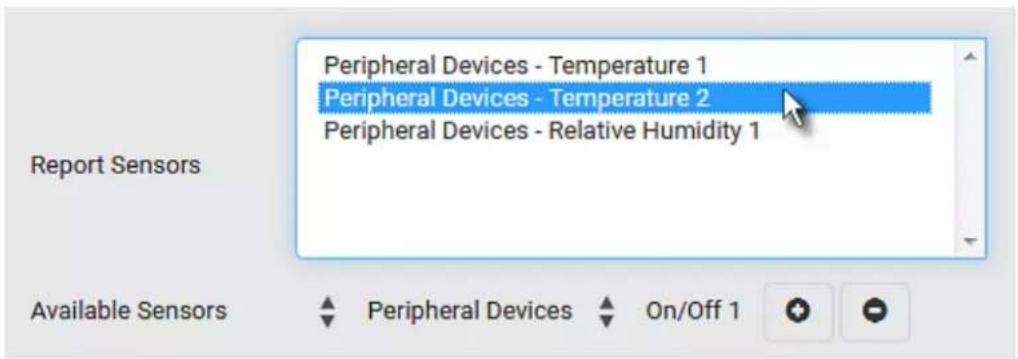
text_image
Peripheral Devices - Temperature 1 Peripheral Devices - Temperature 2 Peripheral Devices - Relative Humidity 1 Report Sensors Available Sensors Peripheral Devices On/Off 1- To immediately send out the sensor report, click Send Report Now.
Tip: When intending to send a sensor report using custom messages, use the placeholder [SENSORREPORT] to report sensor readings. See Placeholders for Custom Messages (on page 357).
Send SMS Message
You can configure SMS messages to be sent when an event occurs and can customize the message.
Only the 7-bit ASCII charset is supported for SMS messages. Messages consist of a combination of free text and PX3 placeholders. The placeholders represent information which is pulled from the PX3 and inserted into the message.
A supported modem, such as the Cinterion® GSM MC52i modem, must be plugged into the PX3 in order to send SMS messages. See Connecting a GSM Modem (on page 81).
Note: The PX3 cannot receive SMS messages.
For example:
[USERNAME] logged into the device on [TIMESTAMP]
translates to
Mary logged into the device on 2012-January-30 21:00
For a list and definition of available variables, see Placeholders for Custom Messages (on page 357).
Operation:
- Choose Device Settings > Event Rules >
- Select "Send SMS message" from the Action list.
- In the Recipient Phone Number field, specify the phone number of the recipient.
- Select the Use Custom Log Message checkbox, and then create a custom message in the provided text box.
+ New Action.
- When clicking anywhere inside the text box, the Event Context Information displays, showing a list of placeholders and their definitions. Just scroll down to select the desired placeholder. For details, see Placeholders for Custom Messages (on page 357).

text_image
Use Custom Log Message Event Context Information In your custom message, you may use placeholders for certain event contexts. For example, a message displaying the username and host the user connected from might read like: User [USERNAME] from [USERIP] caused an event. search Placeholder ▲ Description [ACTIVEINLET] The label of the newly activated inlet [AMSBLADESLOTPOSITION] The (horizontal) slot position inside a blade extension [AMSLEDCOLOR] The RGB LED color [AMSLEDMODE] The LED indication mode 1024 characters remaining.- To start a new line in the text box, press Enter.
Note: In case you need to type any square brackets "[" and "]" in the custom message for non-placeholder words, always add a backslash in front of the square bracket. That is, or . Otherwise, the message sent will not display the square brackets.
Send Snapshots via Email
This option notifies one or multiple persons for the selected events by emailing snapshots or videos captured by a connected Logitech® webcam.
▶ Operation:
- Choose Device Settings > Event Rules >
- Select "Send snapshots via email" from the Action list.
- In the "Recipient Email Addresses" field, specify the email address(es) of the recipient(s). Use a comma to separate multiple email addresses.
- To use the SMTP server specified on the SMTP Server page, select the "Use default settings" radio button.

To use a different SMTP server, select the "Use custom settings" radio button. The fields for customized SMTP settings appear. For information on each field, see Configuring SMTP Settings (on page 278).
- Select the webcam that is capturing the images you want sent in the email.
- Adjust the values of the following:
■ Number of Snapshots - the number of snapshots to be taken when the event occurs. For example, you can specify 10 images be taken once the event triggers the action.
- Snapshots per Mail - the number of snapshots to be sent at one time in the email.
- Time Before First Snapshot - the amount of time in seconds between when the event is triggered and the webcam begins taking snapshots.
■ Time Between Snapshots - the amount of time in seconds between when each snapshot is taken.
Send an SNMP Notification
This option sends an SNMP notification to one or multiple SNMP destinations.
Operation:
+ New Action.
- Choose Device Settings > Event Rules >
- Select "Send SNMP notification" from the Action list.
- Select the type of SNMP notification. See either procedure below according to your selection.
To send SNMP v2c notifications:
- In the Notification Type field, select SNMPv2c Trap or SNMPv2c Inform.
- For SNMP INFORM communications, leave the resend settings at their default or do the following:
a. In the Timeout field, specify the interval of time, in seconds, after which a new inform communication is resent if the first is not received. For example, resend a new inform communication once every 3 seconds.
b. In the Number of Retries field, specify the number of times you want to resend the inform communication if it fails. For example, inform communications are resent up to 5 times when the initial communication fails.
- In the Host fields, enter the IP address of the device(s) you want to access. This is the address to which notifications are sent by the SNMP system agent.
- In the Port fields, enter the port number used to access the device(s).
- In the Community fields, enter the SNMP community string to access the device(s). The community is the group representing the PX3 and all SNMP management stations.
Tip: An SNMP v2c notification action permits only a maximum of three SNMP destinations. To assign more than three SNMP destinations to a specific rule, first create several SNMP v2c notification actions, each of which contains completely different SNMP destinations, and then add all of these SNMP v2c notification actions to the same rule.
To send SNMP v3 notifications:
- In the Notification Type field, select SNMPv3 Trap or SNMPv3 Inform.
- For SNMP TRAPs, the engine ID is prepopulated.
- For SNMP INFORM communications, leave the resend settings at their default or do the following:
a. In the Timeout field, specify the interval of time, in seconds, after which a new inform communication is resent if the first is not received. For example, resend a new inform communication once every 3 seconds.
b. In the Number of Retries field, specify the number of times you want to resend the inform communication if it fails. For example, inform communications are resent up to 5 times when the initial communication fails.
- For both SNMP TRAPS and INFORMS, enter the following as needed and then click OK to apply the settings:
a. Host name
b. Port number
c. User ID for accessing the host -- make sure the User ID has the SNMPv3 permission.
d. Select the host security level
| Security level Description | |
| "noAuthNoPriv" Select this if no authorization or privacy protocols are needed. | |
| "authNoPriv" Select this if authorization is required but no privacy protocols are required.Select the authentication protocol - MD5 or SHAEnter the authentication passphrase and then confirm the authentication passphrase | |
| "authPriv" Select this if authentication and privacy protocols are required.Select the authentication protocol - MD5 or SHAEnter the authentication passphrase and confirm the authentication passphraseSelect the Privacy Protocol - DES or AESEnter the privacy passphrase and then confirm the privacy passphrase |
Start or Stop a Lua Script
If you have created or loaded a Lua script file into the PX3, you can have that script automatically run or stop in response to a specific event.
For instructions on creating or loading a Lua script into this product, see Lua Scripts (on page 378).
To automatically start or stop a Lua script:
- Choose Device Settings > Event Rules >
+ New Action.
-
Select "Start/stop Lua script" from the Action list.
-
In the Operation field, select Start Script or Stop Script.
-
In the Script field, select the script that you want it to be started or stopped when an event occurs.
- No script is available if you have not created or loaded it into the PX3.
- To apply different arguments than the default, do the following. Note that the newly-added arguments will override this script's default arguments.
a. Click
+ Add argument
b. Type the key and value.
c. Repeat the same steps to enter more arguments as needed.
- To remove any existing argument, click it.

adjacent to
Switch LHX/SHX
If Schroff LHX/SHX Support is enabled, the LHX/SHX-related actions will be available. See Miscellaneous (on page 384).
Use this action to switch the LHX/SHX on or off when, for example, temperature thresholds are reached.
▶ Operation:
- Choose Device Settings > Event Rules >
+ New Action
-
Select "Switch LHX/SHX" from the Action list.
-
In the Operation field, select Turn LHX/SHX On or Turn LHX/SHX Off.
-
In the Available LHX/SHX field, select the LHX/SHX device to be turned on or off. To select all available LHX/SHX devices, click Select All.
To remove any LHX/SHX device from the Selected LHX/SHX field, click that device's ✗. To remove all devices, click Deselect All.
Switch Outlets
The "Switch outlets" action is available only when your PX3 is outlet-switching capable. This action turns on, off or power cycles a specific outlet.
▶ Operation:
- Choose Device Settings > Event Rules >
+ New Action
-
Select "Switch outlets" from the Action list.
-
In the Operation field, select an operation for the selected outlet(s).
-
Turn Outlet On: Turns on the selected outlet(s).
- Turn Outlet Off: Turns off the selected outlet(s).
-
Cycle Outlet: Cycles power to the selected outlet(s).
-
To specify the outlet(s) where this action will be applied, select them one by one from the Available Outlets list.
- To add all outlets, click Select All.
- To remove any outlets from the Selected Outlets field, click that outlet's ✗.
- To remove all outlets, click Deselect All.
- If "Turn Outlet On" or "Cycle Outlet" is selected in step 3, you can choose to select the "Use sequence order and delays" checkbox so that all selected outlets will follow the power-on sequence defined on the page of Outlets (on page 173).
Switch Peripheral Actuator
If you have any actuator connected to the PX3, you can set up the PX3 so it automatically turns on or off the system controlled by the actuator when a specific event occurs.
Note: For information on connecting actuators, see DX or DX2 Sensor Packages (on page 62).
Operation:
- Choose Device Settings > Event Rules >
+ New Action
- Select "Switch peripheral actuator" from the Action list.
-
In the Operation field, select an operation for the selected actuator(s).
-
Turn On: Turns on the selected actuator(s).
■ Turn Off: Turns off the selected actuator(s). -
To select the actuator(s) where this action will be applied, select them one by one from the Available Actuators list.
- To add all actuators, click Select All.
- To remove any selected actuator from the Selected Actuators field, click that actuator's ✗.
- To remove all actuators, click Deselect All.
Syslog Message
Use this action to automatically forward event messages to the specified syslog server. Determine the syslog transmission mechanism you prefer when setting it up - UDP, TCP or TLS over TCP.
The PX3 may or may not detect the syslog message transmission failure. If yes, it will log this syslog failure as well as the failure reason in the event log. See Viewing or Clearing the Local Event Log (on page 395).
Operation:
- Choose Device Settings > Event Rules >
- New Action
- Select "Syslog message" from the Action list.
-
In the Syslog Server field, specify the IP address to which the syslog is forwarded.
-
In the Transport Protocol field, select one of the syslog protocols: TCP, UDP or TCP+TLS. The default is UDP.
| Transport protocols | Next steps |
| UDP | In the UDP Port field, type an appropriate port number. Default is 514.Select the "Legacy BSD Syslog Protocol" checkbox if applicable. |
| TCP NO TLS certificate is required. Type an appropriate port number in the TCP Port field. | |
| TCP+TLS | A TLS certificate is required. Do the following:a. Type an appropriate port number in the "TCP Port" field. Default is 6514.b. In the CA Certificate field, clickBrowse...to select a TLS certificate. After importing the certificate, you may:Click Show to view its contents.Click Remove to delete it if it is inappropriate.c. Determine whether to select the "Allow expired and not yet valid certificates" checkbox.To always send the event message to the specified syslog server as long as a TLS certificate is available, select this checkbox.To prevent the event message from being sent to the specified syslog server when any TLS certificate in the selected certificate chain is outdated or not valid yet, deselect this checkbox. |
Note: If the required certificate file is a chain of certificates, and you are not sure about the requirements of a certificate chain, see TLS Certificate Chain (on page 817).
Scheduling an Action
An action can be regularly performed at a preset time interval instead of being triggered by a specific event. For example, you can make the PX3 report the reading or state of a specific sensor regularly by scheduling the "Send Sensor Report" action.
When scheduling an action, make sure you have a minimum of 1-minute buffer between this action's creation and first execution time. Otherwise, the scheduled action will NOT be performed at the specified time when the buffer time is too short. For example, if you want an action to be performed at 11:00 am, you should finish scheduling it at 10:59 am or earlier.
If the needed action is not available yet, create it first. See Available Actions (on page 332).
Operation:
- Choose Device Settings > Event Rules >
+ New Scheduled Action
- To select any action(s), select them one by one from the Available Actions list.
- To select all available actions, click Select All.
- To remove any action(s) from the Selected Actions field, click that action's ✗.
- To remove all actions, click Deselect All.
- Select the desired frequency in the Execution Time field, and then specify the time interval or a specific date and time in the field(s) that appear.
| Execution time | Frequency settings |
| Minutes | Click the Frequency field to select an option.The frequency ranges from every minute, every 5 minutes, every 10 minutes and so on until every 30 minutes. |
| Hourly | Type a value in the Minute field, which is set to either of the following:▪ The Minute field is set to 0 (zero). Then the action is performed at 1:00 am, 2:00 am, 3:00 am and so on.▪ The Minute field is set to a non-zero value. For example, if it is set to 30, then the action is performed at 1:30 am, 2:30 am, 3:30 am and so on. |
| Daily | Type values or click ▲.▼The time is measured in 12-hour format so you must correctly specify AM or PM by clicking the AM/PM button. For example, if you specify 01:30PM, the action is performed at 13:30 pm every day. For example, if you specify 01:30PM, the action is performed at 13:30 pm every day. |
| Weekly | Both the day and time must be specified for the weekly option.▪ Days range from Sunday to Saturday.▪ The time is measured in 12-hour format so you must correctly specify AM or PM by clicking the AM/PM button. |
| Monthly | Both the date and time must be specified for the monthly option.▪ The dates range from 1 to 31.▪ The time is measured in 12-hour format so you must correctly specify AM or PM by clicking the AM/PM button.Note that NOT every month has the date 31, and February in particular does not have the date 30 and probably even 29. Check the calendar when selecting 29, 30 or 31. |
| Yearly | This option requires three settings:Month - January through December.Day of month - 1 to 31.Time - the value is measured in 12-hour format so you must correctly specify AM or PM by clicking the AM/PM button. |
An example of the scheduled action is available in the section titled Send Sensor Report Example (on page 353).
Send Sensor Report Example
To create a scheduled action for emailing a temperature sensor report hourly, it requires:
• A 'Send email' action
• A 'Send sensor report' action
- A timer - that is, the scheduled action
Steps:
- Click + New Action to create a 'Send email' action that sends an email to the desired recipient(s). For details, see Send Email (on page 339).
- In this example, this action is named Email a Sensor Report.
If intended, you can customize the email messages in this action.

text_image
New Action Action Name Email a Sensor Report Action Send email Recipient Email Addresses IT-manager@raritan.com SMTP Server Use default settings Server Name: not configured Sender Email Address: not configured Settings can be changed in SMTP Server settings. Use custom settings Use Custom Log Message ✓ Custom Log Message The following is the report of sensor #[EXTSENSOR] - [EXTSENSORNAME]. [SENSORREPORT] 939 characters remaining. Cancel ✓ Create- Click + New Action to create a 'Send sensor report' action that includes the 'Email a Sensor Report' action as its destination action. For details, see Send Sensor Report(on page 341).
- In this example, this action is named Send Temperature Sensor Readings.
- You can specify more than one temperature sensor as needed in this action.

text_image
New Action Action Name Send Temperature Sensor Readings Action Send sensor report Selected Email a Sensor Report ✗ Destination Actions Available -- Select Available -- Select All Deselect All Report Sensors Peripheral Devices - Temperature 1 Peripheral Devices - Temperature 2 Available Sensors Peripheral Devices Relative Humidity 1 Send Report Now Note: Reported sensor units can be changed in the Default Preferences. Cancel ✓ Create- Click + New Scheduled Action to create a timer for performing the 'Send Temperature Sensor Readings' action hourly. For details, see Scheduling an Action (on page 351).
- In this example, the timer is named Hourly Temperature Sensor Reports.
■ To perform the specified action at 12:30 pm, 01:30 pm, 02:30 pm, and so on, select Hourly, and set the Minute to 30.

text_image
New Scheduled Action Timer Name Hourly Temperature Sensor Reports Enabled ✓ Execution Time Hourly Minute 30 Selected Actions Send Temperature Sensor Readings ✗ Available Actions -- Select Available Actions -- Select All Deselect All Cancel ✓ CreateThen the PX3 will send out an email containing the specified temperature sensor readings hourly every day.
Whenever you want the PX3 to stop sending the temperature report, simply deselect the Enabled checkbox in the timer.
Placeholders for Custom Messages
Actions of "Send email" and "Send SMS message" allow you to customize event messages. See Send Email (on page 339) or Send SMS Message (on page 343).
When clicking anywhere inside the text box, the Event Context Information displays, showing a list of placeholders and their definitions. Simply drag the scroll bar and then click the desired placeholder to insert it into the custom message. Or you can type a keyword in the "search" box to quickly find the desired placeholder.

text_image
Use Custom Log Message Event Context Information In your custom message, you may use placeholders for certain event contexts. For example, a message displaying the username and host the user connected from might read like: User [USERNAME] from [USERIP] caused an event. search Placeholder ▲ Description [ACTIVEINLET] The label of the newly activated inlet [AMSBLADESLOTPOSITION] The (horizontal) slot position inside a blade extension [AMSLEDCOLOR] The RGB LED color [AMSLEDMODE] The LED indirication mode 1024 characters remaining.If wanted, you can resort the list by clicking the desired column header. See Sorting a List (on page 142).
To make the Event Context Information disappear, click anywhere inside the browser's window.
The following are placeholders that can be used in custom messages.
| Placeholder Definition | |
| [ACTIVEINLET] The label of the newly activated inlet | |
| [AMSBLADESLOTPOSITION] The (horizontal) slot position, an action applies to | |
| [AMSLEDCOLOR] The RGB LED color | |
| [AMSLEDMODE] The LED indication mode | |
| [AMSLEDOPMODE] The LED operating mode | |
| [AMSNAME] The name of an asset strip | |
| Placeholder Definition | ||
| [AMSNUMBER] | The numeric ID of an asset strip | |
| [AMSRACKUNITPOSITION] The (vertical) rack unit position, an action applies to | ||
| [AMSSTATE] The human readable state of an asset strip | ||
| [AMSTAGID] The asset tag ID | ||
| [CARDREADERID] The id of a card reader | ||
| [CIRCUITCTRATING] The circuit CT rating | ||
| [CIRCUITCURRENTRATING] | The circuit current rating | |
| [CIRCUITNAME] | The circuit name | |
| [CIRCUITPOLE] The circuit power line identifier | ||
| [CIRCUITSENSOR] The circuit sensor name | ||
| [CIRCUIT] | The circuit | |
| [CONFIGPARAM] | The name of | |
| [CONFIGVALUE] The new value of a parameter | ||
| [DATETIME] The human readable timestamp of the event occurrence | ||
| [DEVICEIP] | The IP address of the device, the event occurred on | |
| [DEVICENAME] | The name of the device, the event occurred on | |
| [DEVICESERIAL] | The unit serial number of the device the event occurred on | |
| [ERRORDESC] | The error message | |
| [EVENTRULENAME] | The name of the matching event rule | |
| [EXTSENSORNAME] | The name of a peripheral device | |
| [EXTSENSORSLOT] | The ID of a peripheral device slot | |
| [EXTSENSOR] | The peripheral device identifier | |
| [IFNAME] | The human readable name of a network interface | |
| [INLETPOLE] | The inlet power line identifier | |
| [INLETSENSOR] The inlet sensor name | ||
| [INLET] | The power inlet label | |
| Placeholder Definition | |
| [ISASSERTED] | Boolean flag whether an event condition became true (1) or false (0) |
| [LDAPERRORDESC] An LDAP error occurred | |
| [LHXFANID] The ID of a fan connected to an LHX/SHX | |
| [LHXPOWERSUPPLYID] The ID of an LHX/SHX power supply | |
| [LHXSENSORID] The ID of an LHX/SHX sensor probe | |
| [LOGMESSAGE] | The original log message |
| [MONITOREDHOST] The name or IP address of a monitored host | |
| [OCPSENSOR] The overcurrent protector sensor name | |
| [OCP] The overcurrent protector label | |
| [OLDVERSION] The firmware version the device is being upgraded from | |
| [OUTLETNAME] The outlet name | |
| Note: If any outlet does not have a name, neither an outlet name nor an outlet number will be shown in the custom message for it. Therefore, it is recommended to check the availability of all outlet names if intending to use this placeholder. | |
| [OUTLETPOLE] The outlet power line identifier | |
| [OUTLETSENSOR] The outlet sensor name | |
| [OUTLET] | The outlet label |
| [PDUPOLESENSOR] | The sensor name for a certain power line |
| [PDUSENSOR] | The PDU sensor name |
| [PERIPHDEVPOSITION] | The position of an attached peripheral device |
| [PHONENUMBER] | The phone number an SMS was sent to |
| [PORTID] | The label of the external port, the event triggering device is connected to |
| [PORTTYPE] | The type of the external port (for example, 'feature' or 'auxiliary'), the event triggering device is connected to |
| [POWERMETERPOLE] | The PMC power meter line identifier |
| [POERMETERSENSOR] | The PMC power meter sensor name |
| [POWERMETER] The PMC power meter ID | |
| [RADIUSERRORDESC] A Radius error occurred | |
| [ROMCODE] The rom code of an attached peripheral device | |
| [SENSORREADINGUNIT] The unit of a sensor reading | |
| [SENSORREADING] The value of a sensor reading | |
| [SENSORREPORT] The formatted sensor report contents | |
| [SENSORSTATENAME] | The human readable state of a sensor |
| [SENSORTHRESHOLDNAME] | The name of the threshold being crossed |
| [SENSORTHRESHOLDVALUE] The value of the threshold being crossed | |
| [SMARTCARDID] | The id of a smart card |
| [SMARTCARDTYPE] The type of a smart card | |
| [SMTPPRECIPIENTS] The list of recipients, an SMTP message was sent to | |
| [SMTPSERVER] The name or IP address of an SMTP server | |
| [SYSCONTACT] SysContact as configured for SNMP | |
| [SYSLOCATION] | SysLocation as configured for SNMP |
| [SYSNAME] | SysName as configured for SNMP |
| [TIMEREVENTID] | The id of a timer event |
| [TIMESTAMP] | The timestamp of the event occurrence |
| [TRANSFERSWITCHREASON] | The transfer reason |
| [TRANSFERSWITCHSENSOR] | The transfer switch sensor name |
| [TRANSFERSWITCH] | The transfer switch label |
| [UMTARGETROLE] The name of a user management role, an action was applied on | |
| [UMTARGETUSER] | The user, an action was triggered for |
| [USERIP] | The IP address, a user connected from |
| [USERNAME] | The user who triggered an action |
| [VERSION] | The firmware version the device is upgrading to |
Note: In case you need to type any square brackets "[" and "]" in the custom message for non-placeholder words, always add a backslash in front of the square bracket. That is,|[or|]. Otherwise, the message sent will not display the square brackets.
Editing or Deleting a Rule/Action
You can change the settings of an event rule, action or scheduled action, or delete them.
Exception: Some settings of the built-in event rules or actions are not user-configurable. Besides, you cannot delete built-in rules and actions. See Built-in Rules and Rule Configuration (on page 313) or Available Actions (on page 332).
To edit or delete an event rule, action or scheduled action:
- Choose Device Settings > Event Rules.
- Click the desired one in the list of rules, actions or scheduled actions. Its setup page opens.
-
Perform the desired action.
-
To modify settings, make necessary changes and then click Save.
- To delete it, click Delete on the top-right corner. Then click Delete on the confirmation message.
Sample Event Rules
Sample PDU-Level Event Rule
In this example, we want the PX3 to record the firmware upgrade failure in the internal log when it happens.
The event rule involves:
• Event: Device > Firmware update failed
• Action: System Event Log Action
To create this PDU-level event rule:
- For an event at the PDU level, select "Device" in the Event field.
-
Select "Firmware update failed" so that the PX3 responds to the event related to firmware upgrade failure.
-
To make the PX3 record the firmware update failure event in the internal log, select "System Event Log Action" in the Available Actions field.
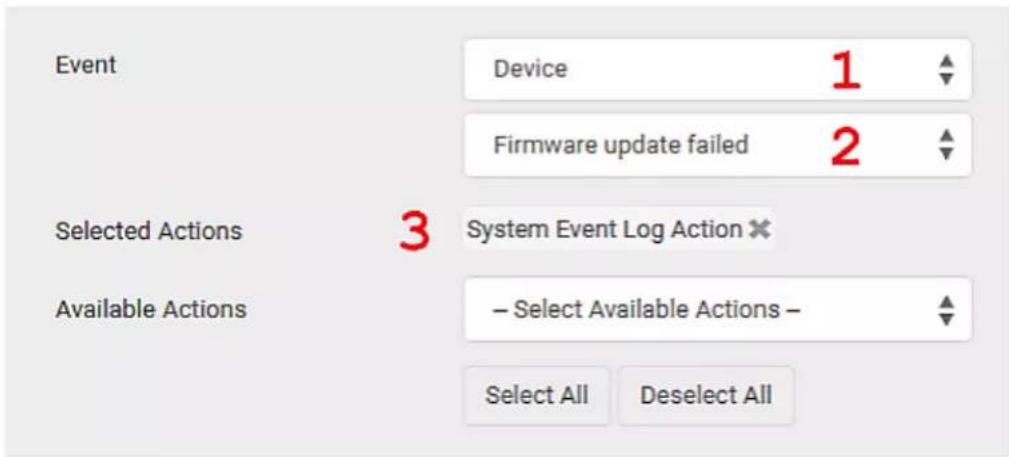
text_image
Event Device 1 Firmware update failed 2 Selected Actions 3 System Event Log Action ✗ Available Actions - Select Available Actions - Select All Deselect AllSample Outlet-Level Event Rule
In this example, we want the PX3 to send SNMP notifications to the SNMP manager for any sensor change event of outlet 3.
The event rule involves:
• Event: Outlet > Outlet 3 > Sensor > Any sub-event
• Action: System SNMP Notification Action
To create this outlet-level event rule:
- For an event at the outlet level, select "Outlet" in the Event field.
- Select "Outlet 3" because that is the desired outlet.
- Select "Sensor" to refer to sensor-related events.
- Select "Any sub-event" to include all events related to all sensors of this outlet and all thresholds, such as current, voltage, upper critical threshold, upper warning threshold, lower critical threshold, lower warning threshold, and so on.
- To make the PX3 send SNMP notifications, select "System SNMP Notification Action" in the Available Actions field.
Note: The SNMP notifications may be SNMP v2c or SNMP v3 traps/informs, depending on the settings for the System SNMP Notification Action. See Enabling and Configuring SNMP (on page 434).

text_image
Event Outlet 1 Outlet 3 2 Sensor 3Then the SNMP notifications are sent when:
- Any numeric sensor's reading enters the warning or critical range.
- Any sensor reading or state returns to normal.
■ Any sensor becomes unavailable.
■ The active energy sensor is reset.
■ Any state sensor changes its state.
For example, when the outlet 3's voltage exceeds the upper warning threshold, the SNMP notifications are sent, and when the voltage drops below the upper warning threshold, the SNMP notifications are sent again.
Sample Inlet-Level Event Rule
In this example, we want the PX3 to send SNMP notifications to the SNMP manager for any sensor change event of the Inlet I1.
The event rule involves:
• Event: Inlet > Sensor > Any sub-event
• Action: System SNMP Notification Action
To create the above event rule:
- For an event at the inlet level, select "Inlet" in the Event field.
-
Select "Sensor" to refer to sensor-related events.
-
Select "Any sub-event" to include all events related to all sensors of this inlet and all thresholds, such as current, voltage, upper critical threshold, upper warning threshold, lower critical threshold, lower warning threshold, and so on.
- To make the PX3 send SNMP notifications, select "System SNMP Notification Action" in the Available Actions box.
Note: The SNMP notifications may be SNMP v2c or SNMP v3 traps/informs, depending on the settings for the System SNMP Notification Action. See Enabling and Configuring SNMP (on page 434).

text_image
Event Inlet 1 Sensor 2Then the SNMP notifications are sent when:
- Any numeric sensor's reading enters the warning or critical range.
- Any sensor reading or state returns to normal.
■ Any sensor becomes unavailable.
■ The active energy sensor is reset.
For example, when the Inlet I1's voltage exceeds the upper warning threshold, the SNMP notifications are sent, and when the voltage drops below the upper warning threshold, the SNMP notifications are sent again.
Sample Environmental-Sensor-Level Event Rule
This section applies to outlet-switching capable models only.
In this example, we want PX3 to activate the load shedding function when a contact closure sensor enters the alarmed state. This event rule requires creating a new action before creating the rule.
▶ Step 1: create a new action for activating the load shedding
- Choose Device Settings > Event Rules >
- In this illustration, assign the name "Activate Load Shedding" to the new action.
- In the Action field, select "Change load shedding state."
- In the Operation field, select Start Load Shedding.
+ New Action
New Action
Action Name
Activate Load Shedding
2
Action
Change load shedding state
3
Operation
Start Load Shedding
4
5. Click Create to finish the creation.
After the new action is created, follow the procedure below to create an event rule that triggers the load shedding mode when the contact closure sensor enters the alarmed state. This event rule involves the following:
- Event: Peripheral Device Slot > Slot 1 > State Sensor/Actuator > Alarmed/Open/On
- Trigger condition: Alarmed
• Action: Activate Load Shedding
▶ Step 2: create the contact closure-triggered load shedding event rule
-
Click + New Rule on the Event Rules page.
-
In this illustration, assign the name "Contact Closure Triggered Load Shedding" to the new rule.
- In the Event field, select "Peripheral Device Slot" to indicate we are specifying an event related to the environmental sensor package.
- Select the ID number of the desired contact closure sensor. In this illustration, the ID number of the desired contact closure sensor is 1, so select Slot 1.
Note: ID numbers of all sensors/actuators are available on the Peripherals page. See Peripherals (on page 200).
- Select "State Sensor/Actuator" because the contact closure sensor is a state sensor.
- Select "Alarmed" since we want the PX3 to respond when the selected contact closure sensor changes its state related to the "alarmed" state.
- In the "Trigger condition" field, select the Alarmed/Open/On radio button so that the action is taken only when the contact closure sensor enters the alarmed state.
- Select "Activate Load Shedding" from the Available Actions list.

text_image
Event Peripheral Device Slot 3 Slot 4 (On/Off 1) 4 State Sensor / Actuator 5 Alarmed / Open / On 6 Trigger condition 7 Alarmed / Open / On No longer alarmed / Closed / Off Both Selected Actions 8 Activate Load Shedding × Available Actions - Select Available Actions - Select All Deselect AllA Note about Infinite Loop
You should avoid building an infinite loop when creating event rules.
The infinite loop refers to a condition where the PX3 keeps busy because the action or one of the actions taken for a certain event triggers an identical or similar event which will result in an action triggering one more event.
Example 1
This example illustrates an event rule which continuously causes the PX3 to send out email messages.
Event selected Action included
Device > Sending SMTP message failed Send email
Example 2
This example illustrates an event rule which continuously causes the PX3 to send out SMTP messages when one of the selected events listed on the Device menu occurs. Note that
Event selected Action included
Device > Any sub-event Send email
Example 3
This example illustrates a situation where two event rules combined regarding the outlet state changes causes the PX3 to continuously power cycle outlets 1 and 2 in turn.
| Event selected Action included | |
| Outlet > Outlet 1 > Sensor > OutletState > On/Off > Both (trigger condition) | Cycle Outlet 2(Switch outlets --> Cycle Outlet --> Outlet 2) |
| Outlet > Outlet 2 > Sensor > OutletState > On/Off > Both (trigger condition) | Cycle Outlet 1(Switch outlets --> Cycle Outlet --> Outlet 1) |
A Note about Untriggered Rules
In some cases, a measurement exceeds a threshold causing the PX3 to generate an alert. The measurement then returns to a value within the threshold, but the PX3 does not generate an alert message for the Deassertion event. Such scenarios can occur due to the hysteresis tracking the PX3 uses. See "To De-assert" and Deassertion Hysteresis (on page 798).
Setting Data Logging
The PX3 can store 120 measurements for each sensor in a memory buffer. This memory buffer is known as the data log. Sensor readings in the data log can be retrieved using SNMP.
You can configure how often measurements are written into the data log using the Measurements Per Log Entry field. Since the PX3 internal sensors are measured every second, specifying a value of 60, for example, would cause measurements to be written to the data log once every minute. Since there are 120 measurements of storage per sensor, specifying a value of 60 means the log can store the last two hours of measurements before the oldest one in the log gets overwritten.
Whenever measurements are written to the log, three values for each sensor are written: the average, minimum and maximum values. For example, if measurements are written every minute, the average of all measurements that occurred during the preceding 60 seconds along with the minimum and maximum measurement values are written to the log.
Note: The PX3 device's SNMP agent must be enabled for this feature to work. See Enabling and Configuring SNMP (on page 434). In addition, using an NTP time server ensures accurately time-stamped measurements.
By default, data logging is enabled. You must have the "Administrator Privileges" or "Change Pdu, Inlet, Outlet & Overcurrent Protector Configuration" permissions to change the setting.
To configure the data logging feature:
- Choose Device Settings > Data Logging.
- To enable the data logging feature, select the "Enable" checkbox in the General Settings section.
- Type a number in the Measurements Per Log Entry field. Valid range is from 1 to 600. The default is 60.
-
Verify that all sensor logging is enabled. If not, click Enable All at the bottom of the page to have all sensors selected.
-
You can also click the topmost checkbox labeled "Logging Enabled" in the header row of each section to select all sensors of the same type.
If any section's number of sensors exceeds 35, the remaining sensors are listed on next page(s). If so, a pagination bar similar to the following diagram displays in this section, which you can click any button to switch between pages.
| First | Previous | 1 | 2 | 3 | 4 | 5 | ... | Next | Last |
- Click Save. This button is located at the bottom of the page.
Important: Although it is possible to selectively enable/disable logging for individual sensors on the PX3, it is NOT recommended to do so.
Configuring Data Push Settings
You can push the sensor or asset strip data to a remote server for data synchronization. The data will be sent in JSON format using HTTP POST requests. You need to set up the destination and authentication for data push on the PX3.
For instructions on connecting asset strips, see Connecting Asset Management Strips (on page 71).
After configuring the destination and authentication settings, do either or both of the following:
- To perform the data push after the occurrence of a certain event, create the data push action and assign it to an event rule.
- To push the data at a regular interval, schedule the data push action. See Event Rules and Actions (on page 312).
To configure data push settings:
- Choose Device Settings > Data Push.
-
To specify a destination, click + New Destination.
-
Do the following to set up the URL field.
a. Click ▲ to select http or https.
b. Type the URL or host name in the accompanying text box.
- If selecting https, a CA certificate is required for making the
connection. Click
Browse
to install it. Then you can:
- Click Show to view the certificate's content.
- Click Remove to delete the installed certificate if it is inappropriate.
Note: If the required certificate file is a chain of certificates, and you are not sure about the requirements of a certificate chain, see TLS Certificate Chain (on page 817).
-
If the destination server requires authentication, select the Use Authentication checkbox, and enter the following data.
-
User name
-
Password
-
In the Entry Type field, determine the data that will be transmitted.
-
Asset management tag list: Transmit the information of the specified asset strip(s), including the general status of the specified strip(s) and a list of asset tags. The asset tags list also includes the tags on blade extension strips, if any.
- Asset management log: Transmit the log of all asset strips, which is generated when there are changes made to asset tags and asset strips, including asset tag connection or disconnection events.
-
Sensor log: Transmit the record of all logged sensors, including their sensor readings and/or status. Logged sensors refer to all internal and/or environmental sensors/actuators that you have selected on the Data Logging page. See Setting Data Logging (on page 368).
-
If "As set management tag list" is selected in the above step, specify the asset strip(s) whose information to send. For PX3 with only one FEATURE port, only one asset strip is available.
-
To specify the asset strip(s), select them one by one from the Available AMS Ports list. Or click Select All to add all.
-
To remove the asset strip(s), click that asset strip's ✗ in the Selected AMS Ports field. Or click Deselect All to remove all.
-
Click Create.
-
Repeat the same steps for additional destinations.
To modify or delete data push settings:
- On the Data Push page, click the one you want in the list.
- Perform either action below.
■ To modify settings, make necessary changes and then click Save.
- To delete it, click Delete, and then confirm it on the confirmation message.
Monitoring Server Accessibility
You can monitor whether specific IT devices are alive by having the PX3 device continuously ping them. An IT device's successful response to the ping commands indicates that the IT device is still alive and can be remotely accessed.
This function is especially useful when you are not located in an area with Internet connectivity.
PX3 can monitor the accessibility of any IT device, such as database servers, remote authentication servers, power distribution units (PDUs), and so on. It supports monitoring a maximum of 8 devices.
The default ping settings may not be suitable for monitoring devices that require high connection reliability so it is strongly recommended that you should adjust the ping settings for optimal results.
Tip: To make the PX3 automatically log, send notifications or perform other actions for any server monitoring events, you can create event rules. See Event Rules and Actions (on page 312). An example is available in Example: Ping Monitoring and SNMP Notifications (on page 373).
To add IT equipment for ping monitoring:
- Choose Device Settings > Server Reachability.
- Click + Monitor New Server.
- By default, the "Enable ping monitoring for this server" checkbox is selected. If not, select it to enable this feature.
- Configure the following.
| Field Description | |
| IP address/hostname | IP address or host name of the IT equipment which you want to monitor. |
| Number of successful pings to enable feature | The number of successful pings required to declare that the monitored equipment is "Reachable." Valid range is 0 to 200. |
| Wait time after successful ping | The wait time before sending the next ping if the previous ping was successfully responded. Valid range is 5 to 600 (seconds). |
| Wait time after unsuccessful ping | The wait time before sending the next ping if the previous ping was not responded. Valid range is 3 to 600 (seconds). |
| Number of consecutive unsuccessful pings for failure | The number of consecutive pings without any response before the monitored equipment is declared "Unreachable." Valid range is 1 to 100. |
| Wait time before resuming pinging after failure | The wait time before the PX3 resumes pinging after the monitored equipment is declared "Unreachable." Valid range is 1 to 1200 (seconds). |
| Number of consecutive failures before disabling feature (0 = unlimited) | The number of times the monitored equipment is declared "Unreachable" consecutively before the PX3 disables the ping monitoring feature for it and shows "Waiting for reliable connection." Valid range is 0 to 100. |
- Click Create.
- To add more IT devices, repeat the same steps.
In the beginning, the status of the added IT equipment shows "Waiting for reliable connection," which means the requested number of consecutive successful or unsuccessful pings has not reached before the PX3 can declare that the monitored device is reachable or unreachable.
To check the server monitoring states and results:
- After adding IT equipment for monitoring, all IT devices are listed on the Server Reachability page.
- The column labeled "Ping Enabled" indicates whether the monitoring for the corresponding IT device is activated or not.
- The column labeled "Status" indicates the accessibility of each monitored equipment.
| Status Description | |
| Reachable The monitored equipment is accessible. | |
| Unreachable The monitored equipment is inaccessible. | |
| Waiting for reliable connection | The connection between the PX3 device and the monitored equipment is not reliably established yet. |
Editing or Deleting Ping Monitoring Settings
You can edit the ping monitoring settings of any IT device or simply delete it if no longer needed.
To modify or delete any monitored IT device:
- Choose Device Settings > Server Reachability.
- Click the desired one in the list.
- Perform the desired action.
- To modify settings, make necessary changes and then click Save. For information on each field, see Monitoring Server Accessibility(on page 371).
- To delete it, click 📄 on the top-right corner.
Example: Ping Monitoring and SNMP Notifications
In this illustration, it is assumed that a significant PDU (IP address: 192.168.84.95) shall be monitored by your PX3 to make sure that PDU is properly operating all the time, and the PX3 must send out SNMP notifications (trap or inform) if that PDU is declared unreachable due to power or network failure. The prerequisite for this example is that the power sources are different between your PX3 and the monitored PDU.
This requires the following two steps.
Step 1: Set up the ping monitoring for the target PDU
- Choose Device Settings > Server Reachability.
- Click + Monitor New Server.
- Ensure the "Enable ping monitoring for this server" checkbox is selected.
- Enter the data shown below.
- Enter the server's data.
Field Data entered
IP address/hostname 192.168.84.95
- To make the PX3 declare the accessibility of the monitored PDU every 15 seconds (3 pings * 5 seconds) when that PDU is accessible, enter the following data.
Field Data entered
Number of successful pings to enable feature 3
Field Data entered
Wait time after successful ping 5
- To make the PX3 declare the inaccessibility of the monitored PDU when that PDU becomes inaccessible for around 12 seconds (4 seconds * 3 pings), enter the following data.
Field Data entered
Wait time after unsuccessful ping 4
Number of consecutive unsuccessful pings for 3 failure
- To make the PX3 stop pinging the target PDU for 60 seconds (1 minute) after the PDU inaccessibility is declared. After 60 seconds, the PX3 will re-ping the target PDU, enter the following data.
Field Data entered
Wait time before resuming pinging after failure 60
- The "Number of consecutive failures before disabling feature (0 = unlimited)" can be set to any value you want.
- Click Create.
Step 2: Create an event rule to send SNMP notifications for the target PDU
- Choose Device Settings > Event Rules.
- Click + New Rule.
- Select the Enabled checkbox to enable this new rule.
- Configure the following.
Field/setting Data specified
| Rule name Send SNMP notifications for PDU(192.168.84.95) inaccessibility |
| Event Choose Server Monitoring > 192.168.84.95> Unreachable |
| Trigger condition Select the Unreachable radio button |
This will make the PX3 react only when the target PDU becomes inaccessible.
5. Select the System SNMP Notification Action.
Note: If you have not configured the System SNMP Notification Action to specify the SNMP destination(s), see Editing or Deleting a Rule/Action (on page 361).
Front Panel Settings
You can set up the default mode of the front panel display, and front panel functions for outlet switching, actuator control, or RCM self-test.
Note that available front panel settings are model dependent.
- Outlet switching -- available on outlet-switching capable models only.
- Actuator control -- available on all models.
- Default front panel mode setup -- available on all models, except for the PX3-3000 series, which does NOT provide inlet sensor information.
- RCM self-test -- available on those models which support residual current monitoring. See PX3 Models with Residual Current Monitoring (on page 704).
To configure the front panel settings:
- Choose Device Settings > Front Panel.
- Configure the following:
- To configure the default view of the LCD display, select one mode below.
Note: The default view is shown in the automatic mode. See Automatic and Manual Modes (on page 92).
| Mode Data entered | |
| Automatic mode The LCD display cycles through both the inlet and overcurrent protector information. This is the default. Overcurrent protector information is available only when you PX3 has overcurrent protectors. | |
| Inlet overview The LCD display cycles through the inlet information only. | |
- To enable the front panel outlet-switching function, select the "Outlet switching" checkbox.
- To enable the front panel actuator-control function, select the "Peripheral actuator control" checkbox.
-
By default the front panel RCM self-test function, if available, is enabled. See Disabling or Enabling Front Panel RCM Self-Test (on page 711).
-
Now you can turn on or off outlets/actuators by operating the front panel. See Power Control (on page 106) and Peripherals (on page 109).
Configuring the Serial Port
You can change the bit rate of the serial port labeled CONSOLE / MODEM on the PX3. The default bit rate for both console and modem operation is 115200 bps.
The PX3 supports using the following devices via the serial interface:
• A computer or Raritan KVM product for console management.
• An analog modem for remote dial-in and access to the CLI.
• A GSM modem for sending out SMS messages to a cellular phone.
Bit-rate adjustment may be necessary. Change the bit rate before connecting the supported device to the PX3 through the serial port, or there are communication problems.
Note: The serial port bit-rate change is required when the PX3 works in conjunction with Raritan's Dominion LX KVM switch. Dominion LX only supports 19200 bps for communications over the serial interface.
You can set diverse bit-rate settings for console and modem operations. Usually the PX3 can detect the device type, and automatically apply the preset bit rate.
The PX3 will indicate the detected device in the Port State section of the Serial Port page. For example, if an analog modem is detected, the Port State section looks similar to the following.
To configure serial port or modem settings, choose Device Settings > Serial Port.
To change the serial port's baud rate settings:
- Click the "Connected device" field to make the serial port enter an appropriate state.
| Options Description | |
| Automatic detection The | PX3 automatically detects the type of the device connected to the serial port.Select this option unless your PX3 cannot correctly detect the device type. |
| Force console The PX3 attempts to recognize that the connected device is set for the console mode. | |
| Force analog modem The | PX3 attempts to recognize that the connected device is an analog modem. |
| Force GSM modem The | PX3 attempts to recognize that the connected device is a GSM modem. |
- Click the Console Baud Rate field to select the baud rate intended for console management.
Note: For a serial RS-232 or USB connection between a computer and the PX3, leave it at the default (115200 bps).
- Click the Modem Baud Rate field to select the baud rate for the modem connected to the PX3.
The following modem settings/fields appear in the web interface after the PX3 detects the connection of an analog or GSM modem.
▶ To configure the analog modem:
- Select the "Answer incoming calls" checkbox to enable the remote access via a modem. Otherwise, deselect it.
- Type a value in the "Number of rings before answering" field to determine the number of rings the PX3 must wait before answering the call.
▶ To configure the GSM modem:
- Enter the SIM PIN code.
- Select the "Use custom SMS center number" checkbox if a custom SMS center will be used.
-
Enter the SMS center number in the "SMS center" field.
-
If needed, click Advanced Information to view detailed information about the modem, SIM and mobile network.
-
To test whether the PX3 can successfully send out SMS messages with the modem settings:
a. Enter the number of the recipient's phone in the Recipient Phone field.
b. Click Send SMS Test to send a test SMS message.
Lua Scripts
If you can write or obtain any Lua scripts, you can create or load them into the PX3 to control its behaviors.
Raritan also provides some Lua scripts examples, which you can load as needed.
Note: Not all Raritan Lua script examples can apply to your PX3 model. You should read each example's introduction before applying them.
You must have the Administrator Privileges to manage Lua scripts.
Writing or Loading a Lua Script
You can enter or load up to 4 scripts to the PX3.
Tip: If you can no longer enter or load a new script after reaching the upper limit, you can either delete any existing script or simply modify/replace an existing script's codes. See Modifying or Deleting a Script (on page 383).
To write or load a Lua script:
- Choose Device Settings > Lua Scripts >
+ Create New Script
- Type a name for this script. Its length ranges between 1 to 63 characters.
The name must contain the following characters only.
■ Alphanumeric characters
- Underscore (_)
- Minus (-)
Note: Spaces are NOT permitted.
- Determine whether and when to automatically execute the loaded script.
| Checkbox Behavior when selected | |
| Start automatically at system boot | Whenever the PX3 reboots, the script is automatically executed. |
| Restart after termination | The script is automatically executed each time after 10 seconds since the script execution finishes. |
- (Optional) Determine the arguments that will be executed by default.
a. Click

Add argument
b. Type the key and value.
c. Repeat the same steps to enter more arguments as needed.
- To remove any existing argument, click it.

adjacent to
Note: Default arguments are overridden by the new arguments specified with the "Start with Arguments" command or with any Lua-script-related event rule. See Manually Starting or Stopping a Script (on page 380) or Start or Stop a Lua Script (on page 347).
- In the Source Code section, do one of the following. It is recommended to leave the Enable Syntax Highlighting checkbox selected unless you do not need different text colors to identify diverse code syntaxes.
- To write a Lua script, type the codes in the Source Code section.

text_image
Source Code Load Local File Load Example Enable Syntax Highlighting -- Type your codes here.- To load an existing Lua script file, click Load Local File.
■ To use one of Raritan's Lua script examples, click Load Example.
Warning: The newly-loaded script will overwrite all existing codes in the Source Code section. Therefore, do not load a new script if the current script meets your needs.
- If you chose to load a script or Raritan's example in the previous step, its codes are then displayed in the Source Code section. Double check the codes. If needed, modify the codes to meet your needs.
- Click Create.
Next steps:
• To execute the newly-added script immediately, click ▶ Start, or
click : > Start with Arguments. See Manually Starting or Stopping a Script (on page 380).
- To add more scripts, first return to the scripts list by clicking "Lua Scripts" on the top (see below) or in the Menu (on page 139), and then repeat the above steps.

text_image
Lua Scripts | Script Status: xxxManually Starting or Stopping a Script
You can manually start or stop an existing Lua script at any time.
When starting a script, you can choose to start it either with its default arguments or with new arguments.
Tip: To have the PX3 automatically start or stop a script in response to an event, create an event rule. See Event Rules and Actions (on page 312) and Start or Stop a Lua Script (on page 347).
To manually start a script:
- Choose Device Settings > Lua Scripts. The Lua scripts list displays.
| Lua Scripts | + Create New Script | ||
| Name | State | Autostart | Restart |
| script-1 | Terminated | yes | no |
| script-2 | New | no | yes |
| script-3 | Running | no | no |
-
Click the desired script whose state is either 'Terminated' or 'New.' For details, see Checking Lua Scripts States[on page 382].
-
To start with default arguments, click
▶ Start.
To start with new arguments, click > Start with Arguments. Newly-assigned arguments will override default ones.
- If you chose "Start with Arguments" in the above step, enter the key and value in the Start Lua Script dialog.
Click
+ Add argument
if needing additional arguments.
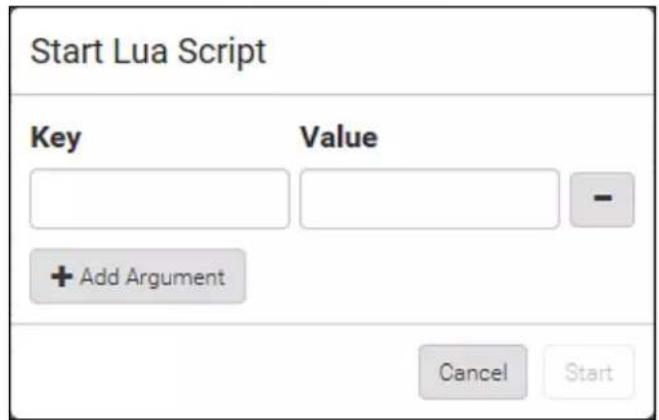
text_image
Start Lua Script Key Value + Add Argument Cancel Start- Click Start.
- The script output will be shown in the Script Output section.
- If needed, click

Clear
to delete the existing output data.

text_image
Script Output PDU Manufacturer: Raritan PDU Model: PX3-5024CV-F5M5 PDU metadata: macAddress: 00:0d:5d:64:21:33 fwRevision: 3.4.0.5-43927 nameplate: --> table: 0x113ca90 rating: --> table: 0x113fd18 voltage: 100-240V power: 1.6-3.8kVA current: 16A▶ To manually stop a script:
- Choose Device Settings > Lua Scripts.
-
Click the desired script whose state is either 'Running' or 'Restarting.' For details, see Checking Lua Scripts States(on page 382).
-
Click ■ Stop on the top-right corner.
-
Click Stop on the confirmation message.
To return to the scripts list:
- Click "Lua Scripts" on the top of the page.

text_image
◀ Lua Scripts | Script Status: xxx- Or click "Lua Scripts" in the Menu (on page 139).
Checking Lua Scripts States
Choose Device Settings > Lua Scripts to show the scripts list, which indicates the current state and settings of each script.
| Lua Scripts | + Create New Script | ||
| Name | State | Autostart | Restart |
| script-1 | Terminated | yes | no |
| script-2 | New | no | yes |
| script-3 | Running | no | no |
State:
Four script states are available.
| State Description | |
| New | The script is never executed since the device boot. |
| Running | The script is currently being executed. |
| Terminated | The script was once executed, but stops now. |
| Restarting | The script will be executed. Only the scripts with the "Restart" column set to "yes" will show this state. |
Autostart:
This column indicates whether the checkbox labeled "Start automatically at system boot" is enabled. See Writing or Loading a Lua Script (on page 378).
▶ Restart:
This column indicates whether the checkbox labeled "Restart after termination" is enabled. See Writing or Loading a Lua Script (on page 378).
Modifying or Deleting a Script
You can edit an existing script's codes or even replace it with a new script. Or you can simply remove a unnecessary script from the PX3.
▶ To modify or replace a script:
- Choose Device Settings > Lua Scripts.
-
Click the desired one in the scripts list.
-
Click : > Edit Script.
-
Make changes to the information shown, except for the script's name, which cannot be revised.
- To replace the current script, click Load Local File or Load Example to select a new script.
To delete a script:
- Choose Device Settings > Lua Scripts.
- Click the desired one in the scripts list.
- Click > Delete.
- Click Delete on the confirmation message.
To return to the scripts list:
- Click "Lua Scripts" on the top of the page.

text_image
Lua Scripts | Script Status: xxx- Or click "Lua Scripts" in the Menu (on page 139).
Miscellaneous
By default, the Schroff LHX/SHX heat exchanger support and Cisco EnergyWise feature implemented on the PX3 are disabled.
Support needs to be enabled for the LHX/SHX information to appear in the PX3 web interface. Besides, Schroff LHX/SHX support must be enabled in order for the LHX-MIB to be accessible through SNMP.
If a Cisco® EnergyWise energy management architecture is implemented in your place, you can enable the Cisco EnergyWise endpoint implemented on the PX3 so that this PX3 becomes part of the Cisco EnergyWise domain.
To enable either feature, choose Device Settings > Miscellaneous.
To enable the support for Schroff LHX/SHX:
- Select the Schroff LHX/SHX Support checkbox.
- Click Save in the Features section.
- Click Apply on the confirmation message.
- The PX3 reboots.
To set the Cisco EnergyWise configuration:
- Select the Enable EnergyWise checkbox.
- Configure the following:
| Field Description | |
| Domain name Type the | name of a Cisco EnergyWise domain where the PX3 belongsUp to 127 printable ASCII characters are permitted.Spaces and asterisks are NOT acceptable. |
| Domain password Type | the authentication password (secret) for entering the Cisco EnergyWise domainUp to 127 printable ASCII characters are permitted.Spaces and asterisks are NOT acceptable. |
| Port Type a User Datagram Protocol (UDP) port number for communications in the Cisco EnergyWise domain.Range from 1 to 65535.Default is 43440. | |
| Polling interval Type a | polling interval to determine how often the PX3 is queried in the Cisco EnergyWise domain.▪ Range from 30 to 600 ms.▪ Default is 180 ms. |
3. Click Save in the EnergyWise section.
For PX3-3000, PX3-4000, and PX3-5000 series, the parent/child relationship is formed after the Cisco EnergyWise feature is enabled.
- The PDU becomes a parent domain member.
- All outlets become children of the PDU.
Maintenance
Click 'Maintenance' in the Menu (on page 139), and the following submenu displays.
| Maintenance |
| Device Information |
| Connected Users |
| Event Log |
| Update Firmware |
| Firmware History |
| Bulk Configuration |
| Backup / Restore |
| Network Diagnostics |
| Download Diagnostic |
| Unit Reset |
| About iPDU |
Submenu command Refer to...
| Device Information | Device Information (on page 388) |
| Connected Users | Viewing Connected Users (on page 393) |
| Event Log | Viewing or Clearing the Local Event Log (on page 395) |
| Update Firmware | Updating the PX3 Firmware (on page 396) |
| Firmware History | Viewing Firmware Update History (on page 400) |
| Submenu command Refer to... | |
| Bulk Configuration | Bulk Configuration (on page 401) |
| Backup/Restore | Backup and Restore of Device Settings (on page 408) |
| Network Diagnostic | Network Diagnostics (on page 409) |
| Download Diagnostic | Downloading Diagnostic Information (on page 410) |
| Unit Reset | Rebooting the PX3 Device (on page 411)Resetting All Settings to Factory Defaults (on page 411) |
| About iPDU | Retrieving Software Packages Information (on page 412) |
Device Information
Using the web interface, you can retrieve hardware and software information of components or peripheral devices connected to your PX3.
Tip: If the information shown on this page does not match the latest status, press F5 to reload it.
▶ To display device information:
- Choose Maintenance > Device Information.

text_image
Device Information Information Product Name PX3-5024CV-F5M5 Serial Number 13P1231231 Rating 100-240V, 16A, 1.6-3.8kVA, 50/60Hz Device MAC Address 00:0d:5d:64:21:33 Firmware Version 3.4.0.5-43927 Board ID 1371234567 Board Revision 0x10 PDU2-MIB download ASSETMANAGEMENT-MIB download LHX-MIB download Network Port Forwarding Outlets Overcurrent Protectors Controllers Peripheral Devices Asset Management- Click the desired section's title bar to show that section's information. For example, click the Network section.

text_image
NetworkThe number of available sections is model dependent.
| Section title Information shown | |
| Information General device information, such as model name, serial number, firmware version, hardware revision, MIB download link(s) and so on. Note that the download link of LHX-MIB is available only after enabling the Schroff LHX/SHX support. See Miscellaneous (on page 384). | |
| Network The network information, such as the current networking mode, IPv4 and/or IPv6 addresses and so on. This tab also indicates whether the PX3 is part of a cascading configuration. See Identifying Cascaded Devices (on page 390). | |
| Port Forwarding If the port forwarding mode is activated, this section will show a list of port numbers for all cascaded devices. | |
| Outlets Each outlet's receptacle type, operating voltage and rated current. | |
| Overcurrent Protectors Each overcurrent protector's type, rated current and the outlets that it protects. | |
| Controllers Each inlet or outlet controller's serial number, board ID, firmware version and hardware version. | |
| Inlets Each inlet's plug type, rated voltage and current. | |
| Peripheral Devices Serial numbers, model names, position and firmware-related information of connected environmental sensor packages. | |
| Asset Management Each asset strip's ID, boot version, application version and protocol version. |
Identifying Cascaded Devices
For information on how to cascade PX3 devices, see Cascading Multiple PX3 Devices for Sharing Ethernet Connectivity (on page 35).
This section explains how to identify a cascaded device on the Device Information page.
Note: For detailed information on the cascading configuration and restrictions, see the Cascading Guide, which is available from Raritan website's Support page (http://www.raritan.com/support/).
To identify the USB-cascading status:
- Choose Maintenance > Device Information.
- Click the Network title bar.
Network


- If the information shown on this page does not match the latest status, press F5 to reload it.
▶ Cascading information in the Bridging mode:
- The Common section contains two read-only fields for indicating the cascading status. Note that the cascading position is NOT available in the Bridging mode.
| Fields Description | |
| Port Forwarding | Indicates the Port Forwarding is disabled. See Setting the Cascading Mode (on page 265). |
| BRIDGE section | Indicates the device is in the Bridging mode and its IP address. |
| Network | |
| Common | |
| DNS Servers | 192.168.80.249, 192.168.80.19 |
| DNS Suffixes | rgp.raritan.com. |
| DNS Resolver Preference | IPv6 Address |
| IPv4 Routes | 192.168.84.0/24 dev BRIDGEdefault via 192.168.84.254 (BRIDGE) |
| IPv6 Routes | none |
| Port Forwarding | disabled |
| BRIDGE | |
| IPv4 Address | 192.168.84.110/24 |
▶ Cascading information in the Port Forwarding mode:
- The Common section contains three read-only fields for indicating the cascading status.
| Fields Description | |
| Port Forwarding | Indicates the Port Forwarding is enabled. See Setting the Cascading Mode (on page 265). |
| Cascade Position | Indicates the position of the PX3 in the cascading chain.▪ 0 (zero) represents the master device.▪ A non-zero number represents a slave device. 1 is Slave 1, 2 is Slave 2, 3 is Slave 3 and so on. |
| Cascaded Device Connected | Indicates whether a slave device is detected on the USB-A or Ethernet port.▪ yes: Connection to a slave device is detected.▪ no: NO connection to a slave device is detected. |
- A master device shows O(zero) in the Cascade Position field and yes in the Cascaded Device Connected field.
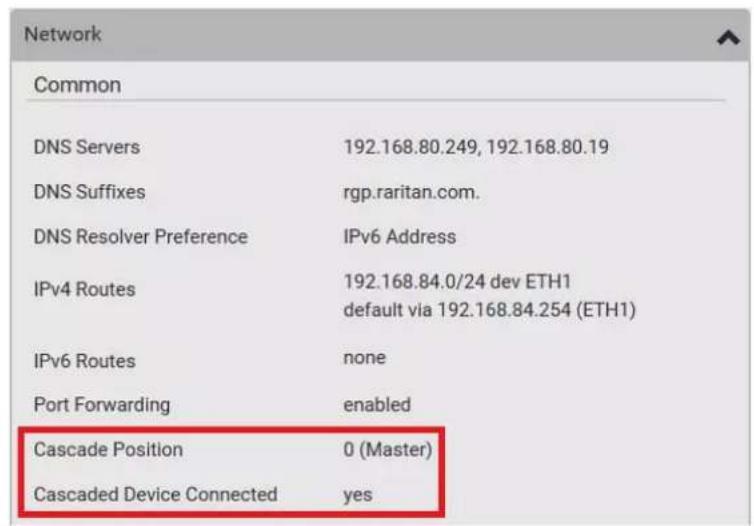
text_image
Network Common DNS Servers 192.168.80.249, 192.168.80.19 DNS Suffixes rgp.raritan.com. DNS Resolver Preference IPv6 Address IPv4 Routes 192.168.84.0/24 dev ETH1 default via 192.168.84.254 (ETH1) IPv6 Routes none Port Forwarding enabled Cascade Position 0 (Master) Cascaded Device Connected yes- A slave device in the middle position shows a non-zero number which indicates its exact position in the Cascade Position field and yes in the Cascaded Device Connected field.
The following diagram shows 1, indicating it is the first slave - Slave 1.
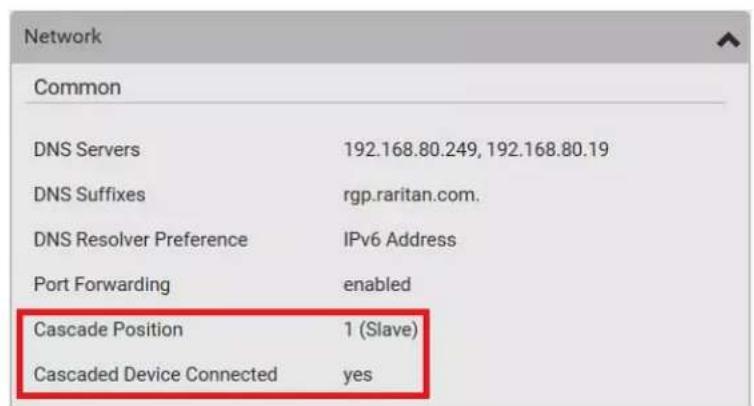
text_image
Network Common DNS Servers 192.168.80.249, 192.168.80.19 DNS Suffixes rgp.raritan.com. DNS Resolver Preference IPv6 Address Port Forwarding enabled Cascade Position 1 (Slave) Cascaded Device Connected yes- The final slave device shows a non-zero number which indicates its position in the Cascade Position field and no in the Cascaded Device Connected field.
The following diagram shows 2, indicating it is the second slave - Slave 2. The Cascaded Device Connected field shows no, indicating that it is the final one in the chain.
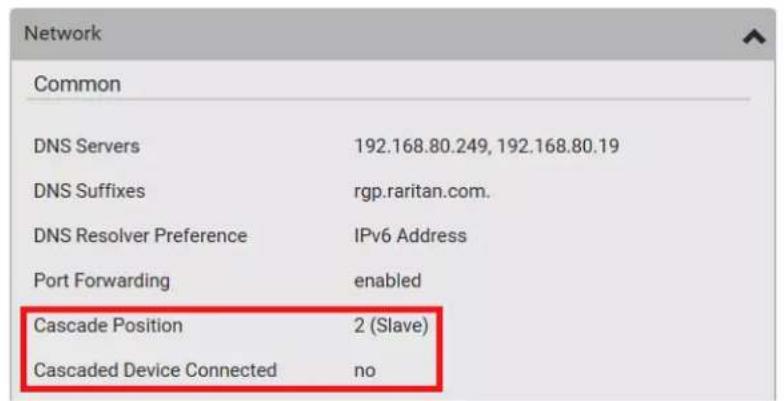
text_image
Network Common DNS Servers 192.168.80.249, 192.168.80.19 DNS Suffixes rgp.raritan.com. DNS Resolver Preference IPv6 Address Port Forwarding enabled Cascade Position 2 (Slave) Cascaded Device Connected no- For a list of port numbers required for accessing each cascaded device in the Port Forwarding mode, click the Port Forwarding title bar on the same page.

text_image
Port ForwardingViewing Connected Users
You can check which users have logged in to the PX3 device and their status. If you have administrator privileges, you can terminate any user's connection to the PX3.
▶ To view and manage connected users:
- Choose Maintenance > Connected Users. A list of logged-in users displays.
| Connected Users | ||||
| User name ▲ | IP Adress | Client Type | Idle Time | |
| admin | 192.168.84.18 | Web GUI | 0 min | Disconnect |
| Mary | 192.168.78.77 | Web GUI | 0 min | Disconnect |
If wanted, you can resort the list by clicking the desired column header. See Sorting a List (on page 142).
| Column Description | |
| User name The login name of each connected user. | |
| IP Address The IP address of each user's host.For the login via a local connection (serial RS-232 or USB),is displayed instead of an IP address. | |
| Client Type The interface through which the user is being connected to the PX3.▪ Web GUI: Refers to the web interface.▪ CLI: Refers to the command line interface (CLI).The information in parentheses following "CLI" indicates how this user is connected to the CLI.- Serial: The local connection, such as the serial RS-232 or USB connection.- SSH: The SSH connection.- Telnet: The Telnet connection.▪ Webcam Live Preview: Refers to the live webcam image sessions. See below. | |
| Idle Time The length of time for which a user remains idle. |
Disconnect
- To disconnect any user, click the corresponding
a. Click Disconnect on the confirmation message.
b. The disconnected user is forced to log out.
If there are live webcam sessions:
All Live Preview window sessions sharing the same URL, including one Primary Standalone Live Preview window and multiple Secondary Standalone Live Preview windows, are identified as one single "
| User name ▲ | IP Adress | Client Type | Idle Time | |
| 192.168.84.14 | Webcam Live Preview | 0 min | Disconnect |
The IP address refers to the IP address of the host where the Primary Standalone Live Preview window exists, NOT the IP address of the other two associated sessions.
For more webcam information, see Webcam Management (on page 413).
Viewing or Clearing the Local Event Log
By default, the PX3 captures certain system events and saves them in a local (internal) event log.
You can view over 2000 historical events that occurred on the PX3 in the local event log. When the log size exceeds 256KB, each new entry overwrites the oldest one.
▶ To display the local log:
- Choose Maintenance > Event Log.
Each event entry consists of:
■ ID number of the event
■ Date and time of the event
Tip: The date and time shown on the PX3 web interface are automatically converted to your computer's time zone. To avoid any time confusion, you can apply the same time zone settings as those of PX3 to your computer.
■ Event type
■ A description of the event
- To view a specific type of events only, select the desired event type in the Filter Event Class field.
Filter Event Class:
Any


- The event log is refreshed in real time whenever new events occur. To avoid any interruption during data browsing, you can suspend the real-time update by clicking || Pause.
■ To restore real-time update, click

Resume
Those
events that have not been listed yet due to suspension will be displayed in the log now.
- To go to other pages of the log, click the pagination bar at the bottom of the page.
- When there are more than 5 pages and the page numbers listed
does not show the desired one, click ... to have the bar show the next or previous five page numbers, if available.
| First | Previous | 1 | 2 | 3 | 4 | 5 | ... | Next | Last |
- If wanted, you can resort the list by clicking the desired column header. See Sorting a List (on page 142).
To clear the local log:
- Click Clear Log on the top-right corner.
- Click Clear Log on the confirmation message.
Updating the PX3 Firmware
Firmware files are available on Raritan website's Support page (http://www.raritan.com/support/).
When performing the firmware upgrade, the PX3 keeps each outlet's power status unchanged so no server operation is interrupted. During and after the firmware upgrade, outlets that have been powered on prior to the firmware upgrade remain powered ON and outlets that have been powered off remain powered OFF.
You must be the administrator or a user with the Firmware Update permission to update the PX3 firmware.
Before starting the upgrade, read the release notes downloaded from the Raritan website's Support page (http://www.raritan.com/support/). If you have any questions or concerns about the upgrade, contact Raritan Technical Support BEFORE upgrading.
On a multi-inlet PDU (any model with X2 or X3 suffixes), all inlets must be connected to power for the PDU to successfully upgrade its firmware.
Note that firmware upgrade via iOS mobile devices, such as iPad, requires the use of iCloud Drive or a file manager app.
Warning: Do NOT perform the firmware upgrade over a wireless network connection.
Important: If you are upgrading an existing cascading chain from a "pre-3.3.10" firmware version, you must follow the Upgrade Guidelines for Existing Cascading Chains (on page 397).
▶ To update the firmware:
- Choose Maintenance > Update Firmware.
Browse
to select an appropriate firmware file.
2. Click to select an appropriate firmware file.
3. Click Upload. A progress bar appears to indicate the upload process.
4. Once complete, information of both installed and uploaded firmware versions as well as compatibility and signature-checking results are displayed.
- If anything is incorrect, click Discard Upload.
- To proceed with the update, click Update Firmware.
Warning: Do NOT power off the PX3 during the update.
-
During the firmware update:
-
A progress bar appears on the web interface, indicating the update status.
- The front panel display shows the firmware upgrade message. See Showing the Firmware Upgrade Progress (on page 122).
- The outlet LEDs flash if the relay boards are being updated. If the firmware update does not include the update of the relay board firmware, outlet LEDs do NOT flash.
- No users can successfully log in to the PX3.
-
Other users' operation, if any, is forced to suspend.
-
When the update is complete, the PX3 resets, and the Login page re-appears.
- Other logged-in users are logged out when the firmware update is complete.
Important: If you are using the PX3 with an SNMP manager, download its MIB again after the firmware update to ensure your SNMP manager has the correct MIB for the latest release you are using. See Using SNMP (on page 434).
Alternatives:
To use a different method to update the firmware, refer to:
• Firmware Update via SCP(on page 632)
- Bulk Configuration or Firmware Upgrade via DHCP/TFTP (on page 678)
• Firmware Upgrade via USB (on page 676)
Upgrade Guidelines for Existing Cascading Chains
You must obey the following guidelines when upgrading a chain. Otherwise, a networking issue occurs.
- Firmware version 3.3.10 or later is NOT compatible with pre-3.3.10 firmware versions in terms of the cascading feature so all devices in the cascading chain must run version 3.3.10 or later.
Alternative: You can also choose to have the USB-cascading chain run any pre-3.3.10 firmware. The disadvantage is that you will not benefit from the latest software enhancements and features.
- To upgrade an existing USB-cascading chain from a firmware version older than 3.3.10, you must start from the last slave device and so on until the master device. See Upgrade Sequence in an Existing Cascading Chain (on page 398).
Upgrade Sequence in an Existing Cascading Chain
Depending on the firmware version(s) of your cascading chain, there may or may not be limitations for the firmware upgrade sequence in the chain.
▶ Upgrade from "pre-3.3.10" to 3.3.10 or post-3.3.10:
You must follow the firmware upgrade sequence below to upgrade a cascading chain from a firmware version older than 3.3.10 to version 3.3.10 or later. If you do not follow this upgrade sequence, you will not be able to access some cascaded devices over the Internet.
- The upgrade must start from the last slave device (S), then the second to last, the third to last, and so on until the master device (M).
Red numbers below represent the appropriate upgrade sequence. 'N' is the final one to upgrade.

flowchart
graph LR
    M --> S
    S --> S
    S --> S
    S --> S
    N <--> 4
    4 <--> 3
    3 <--> 2
    2 <--> 1
- You must upgrade ALL devices in the chain to 3.3.10 or later. If you upgrade only some devices in the chain, networking issues occur on some cascaded devices.
▶ Upgrade from 3.3.10 or post-3.3.10 to post-3.3.10:
There is no upgrade sequence limitation.
Firmware version 3.3.10 is compatible with later firmware versions so you can upgrade all devices of the chain in a random order.
Important: Raritan does not guarantee that no upgrade sequence limitation will be required for all future firmware versions. It is highly suggested to check the latest revision of the Cascading Guide or your product's User Guide/Online Help before performing the firmware upgrade. The other alternative is to always stick to the same sequence as the above diagram.
Downgrade from 3.3.10 to pre-3.3.10:
There is no downgrade sequence limitation.
Firmware versions earlier than 3.3.10 are compatible with each other so you can downgrade or upgrade all devices of the chain in a random order when.
Note: Firmware downgrade in a cascading chain is NOT recommended. Consult Raritan Technical Support first if downgrade is needed. It is suggested to always stick to the same sequence as the above diagram.
A Note about Firmware Upgrade Time
The PDU firmware upgrade time varies from unit to unit, depending on various external and internal factors.
External factors include, but are not limited to: network throughput, firmware file size, and speed at which the firmware is retrieved from the storage location. Internal factors include: the necessity of upgrading the firmware on the microcontroller and the number of microcontrollers that require upgrade (which depends on the number of outlets). The microcontroller is upgraded only when required. Therefore, the length of firmware upgrade time ranges from approximately 3 minutes (without any microcontroller updated) to almost 7 minutes (with all microcontrollers for 48 outlets updated). Take the above factors into account when estimating the PDU's firmware upgrade time.
The time indicated in this note is for PX3 web-interface-based upgrades. Upgrades through other management systems, such as Sunbird's Power IQ, may take additional time beyond the control of the PDU itself. This note does not address the upgrades using other management systems.
Full Disaster Recovery
If the firmware upgrade fails, causing the PX3 device to stop working, you can recover it by using a special utility rather than returning the device to Raritan.
Contact Raritan Technical Support for the recovery utility, which works in Windows XP/Vista/7/10 and Linux. In addition, an appropriate PX3 firmware file is required in the recovery procedure.
Note: All PX3 PDUs, except for iX7™ PDUs, can be recovered via either a USB or serial RS-232 connection. For iX7™, disaster recovery can be performed via the USB connection only.
Viewing Firmware Update History
The firmware upgrade history is permanently stored on the PX3. It remains available even though you perform a device reboot or any firmware update.
To view the firmware update history:
- Choose Maintenance > Firmware History. Each firmware update event consists of:
■ Update date and time
■ Previous firmware version
■ Update firmware version
- Update result
- If wanted, you can resort the list by clicking the desired column header. See Sorting a List (on page 142).
Bulk Configuration
The Bulk Configuration feature lets you save generic settings of a configured PX3 device to your computer. You can use this configuration file to copy common settings to other PX3 devices of the same model and firmware version. See Bulk Configuration Restrictions (on page 402).
A source device is the PX3 device where the configuration file is downloaded/saved. A target device is the PX3 device that loads the configuration file.
By default the configuration file downloaded from the source device contains settings based on the built-in bulk profile. The built-in bulk profile defines that all settings should be saved except for device-specific settings.
As of release 3.4.0, you can decide which settings are downloaded and which are not by creating your own bulk configuration profile.
Note that "device-specific" settings, such as the device's IP address or environmental sensor settings, will never be included into any profile so they will never be downloaded from any source device. See Device-Specific Settings (on page 817).
When the date and time settings are included in the bulk configuration file, exercise caution when distributing that file to target devices located in a different time zone than the source device.
Tip: To back up or restore "all" settings, including device-specific ones, use the Backup/Restore feature instead. See Backup and Restore of Device Settings (on page 408).
▶ Main bulk configuration procedure:
-
If you prefer customizing the bulk configuration file, create your own bulk configuration profile(s) first. See Customizing Bulk Configuration Profiles (on page 404).
-
Perform the bulk configuration operation, which includes the following steps. For details, see Performing Bulk Configuration (on page 405).
a. Make sure the desired bulk configuration profile has been selected on the source device.
b. Save a bulk configuration file from the source device.
c. Perform bulk configuration on one or multiple target devices.
Note: On startup, the PX3 performs all of its functions, including event rules and logs, based on the new configuration you have copied instead of the previous configuration prior to the device reset. For example, the "Bulk configuration copied" event is logged only when the new configuration file contains the "Bulk configuration copied" event rule.
The last configuration-copying record:
If you once copied any bulk configuration or device backup file to the PX3, the last record similar to the following is displayed at the bottom of both the Bulk Configuration and Backup/Restore pages.
Last Restore: 10/18/2017, 8:33:38 PM GMT+0800, Status: OK
Tip: The date and time shown on the PX3 web interface are automatically converted to your computer's time zone. To avoid any time confusion, you can apply the same time zone settings as those of PX3 to your computer.
Alternatives:
To use a different method to perform bulk configuration, refer to:
• Bulk Configuration via SCP(on page 633)
- Bulk Configuration or Firmware Upgrade via DHCP/TFTP (on page 678)
- Configuration or Firmware Upgrade with a USB Drive (on page 664)
Bulk Configuration Restrictions
Before performing bulk configuration, make sure your source and target devices are compatible devices for sharing general settings.
Restrictions for bulk configuration:
- The target device must be running the same firmware version as the source device.
- The target device must be of the same model type as the source device.
- Bulk configuration is permitted if the differences between the target and source devices are only "mechanical" designs which are indicated in the model name's suffix.
For example, you can perform bulk configuration between PX2-4724-E2N1K2 and PX2-4724-E2N1K9 since the only difference between the two models is their chassis colors represented by K2 (blue) and K9 (gray).
Mechanical designs ignored by bulk configuration:
When the source and target devices share the same technical specifications but are only different with any "mechanical designs" which are indicated in the table below, the bulk configuration remains feasible.
These mechanical designs are represented by suffixes added to the model name of a PX3 device. In the table, x represents a number. For example, Ax can be A1, A2, A3, and so on.
| Suffix Mechanical design Example | ||
| Ax The line cord's length in meters | A20 = 3.3 meters | |
| Bx The line cord's color B501 = bright red | orange | |
| Cx Cord types or options C4 = power cord | with the standard gauge | |
| Dx Plug types or options D1 = IP67 | watertight plug | |
| Ex Outlet types or options E2 = | Locking C13 or Locking C19 | |
| Gx Controller options G0 = no | controller | |
| Kx Chassis colors K6 = yellow | ||
| Lx The line cord's length in centimeters | ||
| Nx | Chassis dimensions or other mechanical changes | |
| Ox | OCP brand options | |
| Px Special requests for device painting or printing | ||
| Qx Special requests for physical placement arrangements | ||
| Ux Different power plug brands | ||
Customizing Bulk Configuration Profiles
A bulk profile defines which settings are downloaded/saved from the source device and which are not. The default is to apply the built-in bulk profile, which downloads all settings from the source device except for device-specific data.
If the built-in profile does not meet your needs, you can create your own profile(s), and then apply the wanted profile before downloading/saving any settings from the source device.
To create new bulk profile(s):
- Log in to the source PX3 device, whose settings you want to download.
-
Choose Maintenance > Bulk Configuration.
-
Click in the Bulk Profiles section.
-
In the Profile Name and Description fields, enter information for identifying the new profile.
- To make this new profile the default one for future bulk configuration operations, select the "Select as default profile" checkbox.
■ After setting any profile as the default, the original default profile will no longer functions as the default one.
- Now decide which settings are wanted and which are not.
a. Click ▼ of the setting which you want to configure.
b. When the pop-up menu appears, select one of the options.
Note that the two options "Inherited" and "Built In" are mutually exclusive.
Option Description
| Excluded The setting will not be downloaded. |
| Included The setting will be downloaded. |
| Inherited The setting will follow its parent setting (that is, the upper-level setting). |
- If you select "Excluded" for its upper-level setting, this setting will be also excluded.
- If you select "Included" for its upper-level setting, this setting will be also included.
The option inherited from its parent setting will be enclosed in parentheses.
Option Description
Built In The setting will follow the same setting in Raritan's built-in profile.
- If "Excluded" is selected in the built-in profile, this setting will be also excluded.
- If "Included" is selected in the built-in profile, this setting will be also included.
The option inherited from the built-in profile will be enclosed in parentheses.
Note: The option "Built In" is available in those settings whose corresponding settings in the built in profile have been set to a non-inherited option -- Excluded or Included.
- Click Save.
- Repeat the same steps if you want to create more bulk profiles.
Performing Bulk Configuration
On the source device, make sure the wanted profile has been selected as the default one. If not, start from step 1 below. If yes, go to step 2 directly.
Bulk Profiles



1
Built in

2
custom-1
No network settings copied
3
custom-2
No user settings copied
▶ Step 1: Select the desired bulk configuration profile (optional)
- Log in to the source PX3, whose settings you want to copy.
- Choose Maintenance > Bulk Configuration.
- Click on the row of the wanted profile to open the Edit Bulk Profile page.
- Select the "Select as default profile" checkbox.
- Click Save.
Step 2: Save a bulk configuration file
You must have the Administrator Privileges or "Unrestricted View Privileges" to download the configuration.
- Log in to the source PX3 if you have not yet.
- Choose Maintenance > Bulk Configuration.
- Check the Bulk Format field. If the chosen value does not match your need, change it.
| Option Description | |
| Encrypted | Partial content is base64 encoded.Its content is encrypted using the AES-128 encryption algorithm.The file is saved to the TXT format |
| Cleartext | Content is displayed in clear text.The file is saved to the TXT format. |
- Click Download Bulk Configuration.
- When prompted to open or save the configuration file, click Save.
Step 3: Perform bulk configuration
You must have the Administrator Privileges to upload the configuration.
- Log in to the target PX3, which is of the same model and runs the same firmware.
- Choose Maintenance > Bulk Configuration.
Browse.
- Click to select the configuration file.
- Click 'Upload & Restore Bulk Configuration' to copy it.
- A message appears, prompting you to confirm the operation and enter the admin password. Enter the admin password, and click Restore.
- Wait until the PX3 device resets and the login page re-appears.
Alternatives:
To use a different method to perform bulk configuration, refer to:
• Bulk Configuration via SCP(on page 633)
- Bulk Configuration or Firmware Upgrade via DHCP/TFTP (on page 678)
- Configuration or Firmware Upgrade with a USB Drive (on page 664)
Modifying or Removing Bulk Profiles
You can modify or remove any bulk profile except for the built-in one.
Choose Maintenance > Bulk Configuration. A list of profiles displays and then do one of the following.
To modify an existing profile:
- Click on the row of the wanted profile in the list.
- Change the settings you want.
- Click Save.
▶ To remove a single profile:
- Click on the row of the wanted profile.
- Click 📄 on the top-right corner.
- Click Delete on the confirmation message.
To remove one or multiple profiles:
- Click ☑ to make checkboxes appear in front of profiles.
- Select one or multiple profiles.
- To select ALL profiles, select the topmost checkbox in the header row.
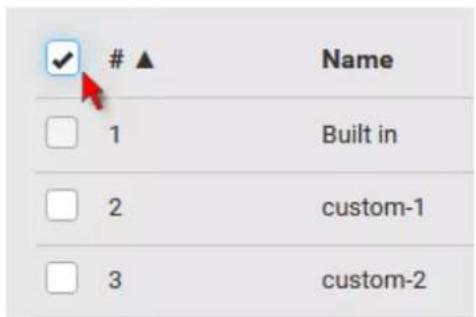
text_image
▲
Name Built in 1 custom-1 2 custom-2 3- Click

on the top-right corner.
- Click Delete on the confirmation message.
Backup and Restore of Device Settings
Unlike the bulk configuration file, the backup file contains ALL device settings, including device-specific data like device names and all network settings. To back up or restore a PX3 device's settings, you should perform the Backup/Restore feature.
All PX3 information is captured in the plain-TEXT-formatted backup file except for the device logs and TLS certificate.
Note: To perform bulk configuration among multiple PX3 devices, use the Bulk Configuration feature instead. See Bulk Configuration (on page 401).
To download a backup PX3 file:
You must have the Administrator Privileges or "Unrestricted View Privileges" to download a backup file.
- Choose Maintenance > Backup/Restore.
- Check the Backup Format field. If the chosen value does not match your need, change it.
| Option Description | |
| Encrypted | Partial content is base64 encoded.Its content is encrypted using the AES-128 encryption algorithm.The file is saved to the TXT format |
| Cleartext | Content is displayed in clear text.The file is saved to the TXT format. |
- Click Download Device Settings. Save the file onto your computer.
To restore the PX3 using a backup file:
You must have the Administrator Privileges to restore the device settings.
- Choose Maintenance > Backup/Restore.
Browse
to select the backup file.
-
Click
-
Click 'Upload & Restore Device Settings' to upload the file.
- A message appears, prompting you to confirm the operation and enter the admin password.
- Enter the admin password, then click Restore.
- Wait until the PX3 device resets and the Login page re-appears, indicating that the restore is complete.
Note: On startup, the PX3 performs all of its functions, including event rules and logs, based on the new configuration you have copied instead of the previous configuration prior to the device reset. For example, the "Bulk configuration copied" event is logged only when the new configuration file contains the "Bulk configuration copied" event rule.
The last configuration-copying record:
If you once copied any bulk configuration or device backup file to the PX3, the last record similar to the following is displayed at the bottom of both the Bulk Configuration and Backup/Restore pages.
Last Restore: 10/18/2017, 8:33:38 PM GMT+0800, Status: OK
Alternative:
To use a different method to perform backup/restore, refer to:
• Backup and Restore via SCP(on page 634)
Network Diagnostics
The PX3 provides the following tools in the web interface for diagnosing potential networking issues.
- Ping: The tool is useful for checking whether a host is accessible through the network or Internet.
- Trace Route: The tool lets you find out the route over the network between two hosts or systems.
- List TCP Connections: You can use this function to display a list of TCP connections.
Tip: These network diagnostic tools are also available through CLI. See Network Troubleshooting (on page 627).
Choose Maintenance > Network Diagnostics, and then perform any function below.
Ping:
- Type values in the following fields.
Field Description
Network Host The name or IP address of the host that you want to check.
| Field Description | |
| Number of Requests | A number up to 20.This determines how many packets are sent for pinging the host. |
- Click Run Ping to ping the host. The Ping results are then displayed.
Trace Route:
- Type values in the following fields.
| Field/setting Description | |
| Host Name The IP address or name of the host whose route you want to check. | |
| Timeout(s) A timeout value in seconds to end the trace route operation. | |
| Use ICMP Packets To use the Internet Control Message Protocol (ICMP) packets to perform the trace route command, select this checkbox. |
- Click Run. The Trace Route results are then displayed.
List TCP Connections:
- Click the List TCP Connections title bar to show the list.
Downloading Diagnostic Information
Important: This function is for use by Raritan Field Engineers or when you are directed by Raritan Technical Support.
You can download the diagnostic file from the PX3 to a client machine. The file is compressed into a .tgz file and should be sent to Raritan Technical Support for interpretation.
This feature is accessible only by users with Administrative Privileges or Unrestricted View Privileges.
▶ To retrieve a diagnostic file:
- Choose Maintenance > Download Diagnostic >
Download Diagnostic
- The system prompts you to save or open the file. Click Save.
- E-mail this file as instructed by Raritan Technical Support.
Rebooting the PX3 Device
You can remotely reboot the PX3 device via the web interface.
Resetting the PX3 does not interrupt the operation of connected servers because there is no loss of power to outlets. During and after the reboot, outlets that have been powered on prior to the reboot remain powered on, and outlets that have been powered off remain powered off.
Warning: Rebooting the PX3 deletes all webcam snapshots that are saved on the PX3 locally. If needed, download important snapshots before rebooting the device. See Viewing and Managing Locally-Saved Snapshots (on page 420).
To reboot the device:
- Choose Maintenance > Unit Reset >
Reboot Unit
Reboot Unit
Do you really want to reboot the device?
Cancel
Reboot
- Click Reboot to restart the PX3.
- A message appears, with a countdown timer showing the remaining time of the operation. It takes about one minute to complete.
- When the restart is complete, the login page opens.
Note: If you are not redirected to the login page after the restart is complete, click the text "this link" in the countdown message.
Resetting All Settings to Factory Defaults
You must have the Administrator Privileges to reset all settings of the PX3 to factory defaults.
Important: Exercise caution before resetting the PX3 to its factory defaults. This erases existing information and customized settings, such as user profiles, threshold values, and so on. Only active energy data and firmware upgrade history are retained.
▶ To reset the device to factory defaults:
- Choose Maintenance > Unit Reset >
Reset to Factory Defaults
Factory Reset
Do you really want to reset the device to factory defaults? Saying yes will clear all settings, including the network setup.
Cancel
Factory Reset
- Click Factory Reset to reset the PX3 to factory defaults.
- A message appears, with a countdown timer showing the remaining time of the operation. It takes about two minutes to complete.
- When the reset is complete, the login page opens.
Note: If you are not redirected to the login page after the reset is complete, click the text "this link" in the countdown message.
Alternative:
There are two more methods to reset the device to factory defaults.
- Use the "mechanical" reset button
• Perform the CLI command
For details, see Resetting to Factory Defaults (on page 701, on page 627).
Retrieving Software Packages Information
You can check the current firmware version and the information of all open source packages embedded in the PX3 device through the web interface.
To retrieve the embedded software packages information:
-
Choose Maintenance > About iPDU. A list of open source packages is displayed.
-
You can click any link to access related information or download any software package.
Webcam Management
The 'Webcams' menu item appears only when there is any webcam(s) connected to the PX3, or when there are snapshots saved onto the PX3 already. See Connecting a Logitech Webcam (on page 81).

text_image
Dashboard Webcams User Management > Device Settings > Maintenance >With a Logitech® webcam connected to the PX3, you can visually monitor the environment around the PX3 via snapshots or videos captured by the webcam.
▶ Permissions required:
| To do... Permission(s) required | |
| View snapshots and videos | Either permission below: · Change Webcam Configuration · View Webcam Snapshots and Configuration |
| Configure webcam settings | Change Webcam Configuration |
▶ Additional webcam-related actions you can take:
| Action Refer to | |
| Manually store snapshots taken from the webcam onto the PX3 or a remote server | Configuring Webcams and Viewing Live Images (on page 415)Changing Storage Settings (on page 423) |
| Send a snapshot or video session's link to other people via email or instant message | Sending Links to Snapshots or Videos (on page 418) |
| Create event rules to trigger emails containing snapshots from a webcam | Available Actions (on page 332) |
For more information on your Logitech webcam, see the user documentation accompanying it.
Configuring Webcams and Viewing Live Images
To configure a webcam or view live snapshot/video sessions, choose Webcams in the Menu (on page 139). Then click the desired webcam to open that webcam's page.
Note that default webcam names are determined by the detection order. The one that is detected first is named Webcam, and the other that is detected later is named Webcam 2.
| Webcams | |||
| Name ▲ | Location | Resolution | Mode |
| Webcam | 352x288 | Snapshot | |
The Webcam page consists of three sections -- Live Preview, Image Controls and Settings.
Live Preview:
- By default the Live Preview section is opened, displaying the live snapshot/video session captured by the webcam.
- The default is to show live snapshots. Interval time and capture date/time of the image are displayed on the top of the image.
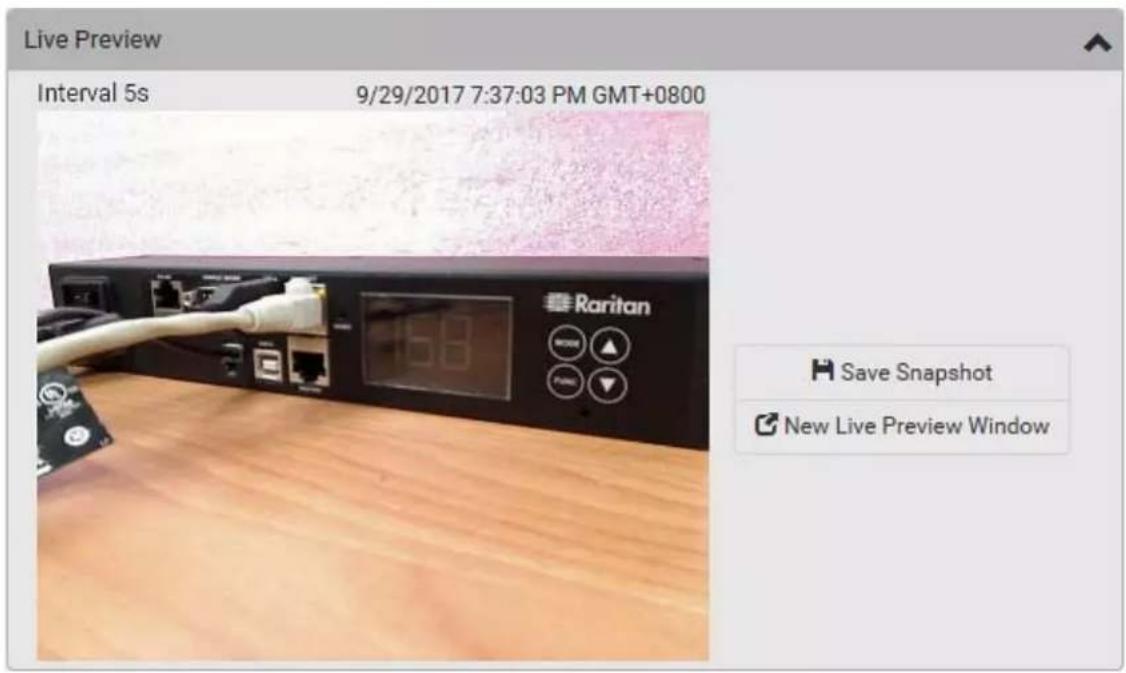
text_image
Live Preview Interval 5s 9/29/2017 7:37:03 PM GMT+0800 Raritan Save Snapshot New Live Preview WindowTip: The date and time shown on the PX3 web interface are automatically converted to your computer's time zone. To avoid any time confusion, you can apply the same time zone settings as those of PX3 to your computer.
- To save the current image onto PX3 or a remote server, click
Save Snapshot
- The default storage location for snapshots is the PX3 device. To save them onto a remote server, see Changing Storage Settings (on page 423).
-
To download an image onto your computer, move your mouse to that image, right click on it, and choose Save Image As.
-
To have the same live session displayed in a separate window, click
New Live Preview Window
- A separate window appears, which is called the Primary Standalone Live Preview window in this User Guide.
- You can send out this window's URL to share the live image with others. See Sending Links to Snapshots or Videos (on page 418).
Note: Make sure your browser does not block the pop-up window, or the separate window does not show up.
- To switch between snapshot and video modes, see the Settings section below.
- In the video mode, the number of frames to take per second (fps) and the video capture date/time are displayed on the top of the image.
▶ Image Controls:
- Click the Image Controls title bar to expand it.
Image Controls


-
Adjust the brightness, contrast, saturation and gain by modifying their values or adjusting the corresponding slide bar.
-
To customize the gain value, you must deselect the Auto Gain checkbox first.
- To restore all settings to this webcam's factory defaults, click
Set to Webcam Defaults
Settings:
-
By default the Settings section is open. If not, click the Settings title bar.
-
Click Edit Settings.
-
Enter a name for the webcam. Up to 64 ASCII printable characters are supported.
-
If configured to store snapshots on a remote server, the webcam's name determines the name of the folder where snapshots are stored. See Changing Storage Settings(on page 423) and Identifying Snapshots Folders on Remote Servers(on page 425).
-
It is suggested to customize a webcam's name prior to saving snapshots on the remote server. In case you change the webcam's name after saving any snapshots, PX3 will create a new folder with the new webcam name while keeping the old folder with the old name.
-
Type the location information in each location field as needed. Up to 63 ASCII printable characters are supported.
- Note that the location data you enter is not available in those snapshots stored on remote servers.
Tip: If the webcam's location is important, you can customize the webcam's name based on its location when configuring PX3 to save snapshots onto a remote server.
- Select a resolution for the webcam.
- If you connect two webcams to one USB-A port using a powered USB hub, set the resolution to 352x288 or lower for optimal performance.
- Select the webcam mode.
| Mode Description | |
| Video | The webcam enters the video mode.▪ Set the 'Framerate' (frames per second) as needed. |
| Snapshot | The webcam shows static images captured by the webcam at a regular interval.▪ To determine the interval, set the 'Time Between Snapshots' (seconds) as needed. |
- Click Save. The changes made to the settings are applied to the live session in the above Live Preview section immediately.
▶ To return to the Webcam Management page:
- Click Webcam Management on the top of the page.

text_image
◀ Webcam Management | Webcam- Or click Webcams again in the Menu (on page 139).
Sending Links to Snapshots or Videos
When opening a Primary Standalone Live Preview window, a unique URL is generated for this window session. You can email or instant message this URL to as many people as possible as long as your system resources permit. Recipients can then click on the provided link and view live snapshots or videos simultaneously in the Secondary Standalone Live Preview window(s).
Tip: All Live Preview window sessions sharing the same URL, including one Primary Standalone Live Preview window and multiple Secondary Standalone Live Preview windows, are identified as one single "
Best practice:
- The sender opens the Primary Standalone Live Preview window, and sends the link to one or multiple recipients.
- The sender must wait until at least one recipient opens the Secondary Standalone Live Preview window.
- The recipient(s) should inform the sender that the link has been opened.
- Now the sender can close the Primary Standalone Live Preview window.
- For additional information, see How Long a Link Remains Accessible (on page 420).
To send a snapshot or video link via email or instant message:
- Choose Webcams in the Menu (on page 139).
- Click the desired webcam to open the Webcam page.
- Note that default webcam names are determined by the detection order. The one that is detected first is named Webcam, and the other that is detected later is named Webcam 2.
| Webcams | |||
| Name ▲ | Location | Resolution | Mode |
| Webcam | 352x288 | Snapshot | |

New Live Preview Window
-
Click in the Live Preview section. The live snapshot or video in a standalone window opens. See Configuring Webcams and Viewing Live Images (on page 415).
-
Copy the URL from that live preview window.
a. Select the URL shown on the top of the image.

text_image
Webcam Live Preview - Webcam - Mo... https://192.168.84.20/webcam/livepreview/liveprev Interval 3s 6 26 17 10 28 AMb. Right click to copy the URL, or press CTRL+C.
-
Send the URL link through an email or instant message application to one or multiple persons.
-
Leave the live preview window open until the recipient(s) opens the snapshot or video via the link.
How Long a Link Remains Accessible
For documentation purposes, the one who opens and sends the URL of the Primary Standalone Live Preview window is called User A and the two recipients of the same URL link are called User B and C.
User C is able to access the snapshot or video image via the link when the URL link remains valid, which can be one of these scenarios:
- The Primary Standalone Live Preview window remains open on User A's computer. If so, even though User A logs out of the PX3 or the login session times out, the link remains accessible.
- User B's Secondary Standalone Live Preview window remains open. If so, even though User A already closes the Primary Standalone Live Preview window, the link remains accessible.
- Neither User A's Primary Standalone Live Preview window nor User B's Secondary Standalone Live Preview window remains open, but it has not exceeded two minutes yet after the final live preview window session was closed.
Note: The link is no longer valid after two minutes since the final live preview window is closed.
Viewing and Managing Locally-Saved Snapshots
Note: This section describes the operation for snapshots saved onto the PX3 device only. To access snapshots saved onto remote servers, you must use appropriate third-party applications, such as an FTP client, to access them.
When saving a snapshot, it is stored locally on the PX3 by default. For snapshot-saving operations, see Configuring Webcams and Viewing Live Images (on page 415).
Up to 10 snapshots can be stored onto the PX3. The oldest snapshot is automatically overridden by the newest one when the total of snapshots exceeds 10, if no snapshots are deleted manually.
When there are more than one webcam connected, the oldest snapshot of the webcam "with the most snapshots" is overridden.
Tip: To save more than 10 snapshots, you must change the storage location from local PX3 to an FTP or Common Internet File System (CIFS)/Samba server. See Changing Storage Settings (on page 423).
Snapshots are saved as JPG files, and named based on the sequential numbers, such as 1.jpg, 2.jpg, 3.jpg and the like.
Warning: Rebooting the PX3 deletes all webcam snapshots that are
saved on the PX3 locally. If needed, download important snapshots before rebooting the device.
▶ To view saved snapshots:
- Choose Webcams > opens.
Browse Snapshots
The Snapshots page
- Click the snapshot you want to view from the list.
◀ Webcam Management | Snapshots
| Snapshot | Size | Time▼ | Webcam |
| 4.jpg | 3.9 kiB | 9/29/2017, 7:44:04 PM GMT+0800 | Webcam |
| 3.jpg | 8.0 kiB | 9/29/2017, 7:43:03 PM GMT+0800 | Webcam |
| 2.jpg | 8.0 kiB | 9/29/2017, 7:38:12 PM GMT+0800 | Webcam |
| 1.jpg | 8.2 kiB | 9/29/2017, 7:34:42 PM GMT+0800 | Webcam |
Tip: The date and time shown on the PX3 web interface are automatically converted to your computer's time zone. To avoid any time confusion, you can apply the same time zone settings as those of PX3 to your computer.
-
The selected snapshot as well as its information, such as captured time and resolution, is displayed on the same page.
-
If the latest saved snapshot is not listed yet, click

To manually delete any snapshots:
-
Click ☑ to make checkboxes appear.
-
Select the checkboxes of the images you want to remove.
- To select all images, select the top-most checkbox in the header row.

text_image
Snapshot 4.jpg 3.jpg 2.jpg 1.jpg- On the top of the list, click

- Click Delete on the confirmation message.
To download any image onto the computer:
- To download an image onto your computer, move your mouse to that image, right click on it, and choose Save Image As.
Changing Storage Settings
Important: As of release 3.4.0, the PX3 web interface only lists the snapshots stored locally on the PX3 device, but no longer lists those saved on the remote servers. You must launch appropriate third-party applications, such as an FTP client, to access and manage the snapshots stored on remote servers.
The default is to store snapshots onto the PX3 device, which has a limitation of 10 snapshots. Note that any operation involving device reboot will remove the snapshots saved on the PX3, such as firmware upgrade.
If you have either or both needs below, you must save snapshots onto a remote server, such as FTP or CIFS/Samba, instead of the PX3 device.
- The total number of saved snapshots will exceed 10.
- The saved snapshots must be stored permanently, or at least should not be removed by a device reboot.
To configure the storage settings:
- Choose Webcams > Edit Settings.
| Snapshot Storage | ||
| Edit Settings | ||
| Storage Type | Local | |
| Browse Snapshots | ||
- Click the Storage Type field to select the desired storage location and configure as needed.
Note: When entering user credentials for remote servers, make sure the user credentials you enter have the write permission, or NO snapshots can be successfully saved onto remote servers.
| Storage location | Description |
| Local | 'Local' means the PX3. This is the default.It can store a maximum of 10 snapshots only.The web interface can list and display all snapshots stored on the PX3. See Viewing and Managing Locally-Saved Snapshots (on page 420).Al I snapshots are CLEARED when the PX3 is rebooted. |
| CIFS/Samba | Snapshots are saved onto a Common Internet File System/Samba.The total number of saved snapshots depends on the server's capacity.All saved snapshots remain available after rebooting the PX3.Configure the following fields:*Server- the desired CIFS/Samba server*Share/Folder- this is the share drive/folder*Username- for server access*Password- for server access |
| FTP | Snapshots are saved onto a FTP server.The total number of saved snapshots depends on the server's capacity.All saved snapshots remain available after rebooting the PX3.Configure the following fields:*Server URL- the FTP server's path*Username- for server access*Password- for server access |
To find where the snapshots are saved on CIFS/Samba or FTP, see Identifying Snapshots Folders on Remote Servers (on page 425).
3. Click Save.
Warning: Before disconnecting or powering off any remote server where the webcam snapshots are being stored, you must first change the storage settings, or the connectivity issue of the remote server may degrade the performance of the PX3 web interface. If this issue occurs, first restore the connectivity of the remote server and then change the storage settings of the webcam snapshots.
Identifying Snapshots Folders on Remote Servers
If saving snapshots onto a remote server, you can access those snapshots via an appropriate third-party application, such as an FTP client.
All snapshots are saved as JPEG and named according to the date and time when saving the snapshots. Note that the date and time of the filename are based on the time zone of the PX3 device rather than that of the computer or mobile device you are operating.
Tip: To check the time zone of your PX3 device, choose Device Settings > Date/Time. See Setting the Date and Time (on page 308).
The structure of a snapshots folder looks similar to the diagram below.

flowchart
graph TD
    A["user"] --> B["PH83650005"]
    A --> C["PH85350018"]
    B --> D["? Webcam"]
    C --> E["? Webcam 2"]
    D --> F["①"]
    E --> G["②"]
    E --> H["③"]
    E --> I["④"]
| Number | Folder name description |
| 1 | User-defined parent directory, whose name depends your server settings, such as your FTP configuration. |
| 2 | Serial number of your PX3 device where the webcam is connected. For example, PH85350018.To find your PX3 serial number, seeDevice Information(on page 388). |
| 3 | The name of the webcam that PX3 detects first.This is the folder where the snapshots captured by the first webcam are stored.The first webcam's default name is "Webcam".You can customize the webcam's name, which will change the snapshots folder's name.SeeConfiguring Webcams and Viewing Live Images(on page 415).If the webcam's location is important, you can customize the webcam's name based on its location when configuring PX3 to save snapshots onto a remote server. |
Number Folder name description

The name of the webcam that PX3 detects later, if an additional webcam is connected.
This is the folder where the snapshots captured by the second webcam are stored.
- The second webcam's default name is "Webcam 2".
- Changing this webcam's name also changes the second snapshots folder's name.
- If the webcam's location is important, you can customize the webcam's name based on its location when configuring PX3 to save snapshots onto a remote server.
Note: It is suggested to customize a webcam's name prior to saving snapshots on the remote server. In case you change the webcam's name after saving any snapshots, PX3 will create a new folder with the new webcam name while keeping the old folder with the old name.
SmartLock and Card Reader
Raritan's SmartLock kits provide several cabinet access control solutions.
Note: For information and installation of the SmartLock kits, refer to the user documentation accompanying the SmartLock kit or download it from Raritan's Support page (http://www.raritan.com/support/).
If you have purchased a SmartLock kit with the door handle controller "DX2-DH2C2", both menu items "SmartLock" and "Card Readers" will appear in the menu after connecting DX2-DH2C2 and the door handles included in the kit.
Note: For information on DX2-DH2C2, you can refer to either the user documentation accompanying the SmartLock kit or 'Environmental Sensors and Actuators Guide' (or Online Help) on Raritan website's Support page (http://www.raritan.com/support/).
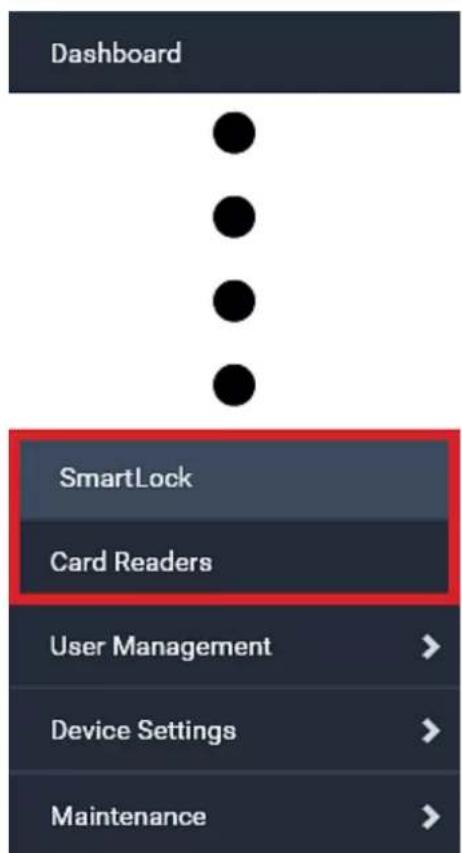
text_image
Dashboard SmartLock Card Readers User Management > Device Settings > Maintenance >Note that "SmartLock" appears only when your door handles are connected via DX2-DH2C2 to PX3, but "Card Readers" appears as long as the PX3 detects any card reader -- directly connected to PX3, or indirectly connected via DX2-DH2C2.
SmartLock:
- This page shows the information of all door handle controllers, DX2-DH2C2, connected to PX3.
- The page also shows the status of the door handle-integrated card readers connected to DX2-DH2C2.
Note: Data of "external" USB card readers is NOT shown on the SmartLock page. It is shown on the Card Readers page instead.
- You can control the door handles from this page. See SmartLock (on page 428).
Card Readers:
- This page shows the information of all card readers connected to PX3, including:
- Door handle-integrated card readers connected to DX2-DH2C2.
■ External USB card readers connected directly to PX3.
• See Card Readers (on page 432).
SmartLock
To open the SmartLock page, choose SmartLock in the Menu (on page 139).
The page lists all DX2-DH2C2 connected to PX3, including their serial numbers and positions in a sensor chain.
SmartLock Adapters
| # | Model | Position ▲ | Serial Number |
| 2 | DX2-DH2C2 | Port 1, Chain Position 1 | 1GE6C00001 |
| 1 | DX2-DH2C2 | Port 1, Chain Position 2 | 1GE7100002 |
You can click the desired DX2-DH2C2 to open its details page, and then do the following.
• View the status of the cabinet door and card reader.
Note: Data of "external" USB card readers is NOT shown on the SmartLock page. It is shown on the Card Readers page instead.
- Configure the door handles connected to DX2-DH2C2. You must set this because PX3 cannot detect the types of connected door handles.
• Control the door handles connected to DX2-DH2C2.
To view the status of the door and card reader:
There are two door handle sections per DX2-DH2C2 because a DX2-DH2C2 has two door handle ports and two pairs of contact closure sensor terminals. Before you configure the connected door handle, all states in the Door State section are "unavailable" by default, and a lock icon is displayed on each section's top-right corner.
Tip: All sensors of the connected door handles are also listed on the page of Peripherals (on page 200).
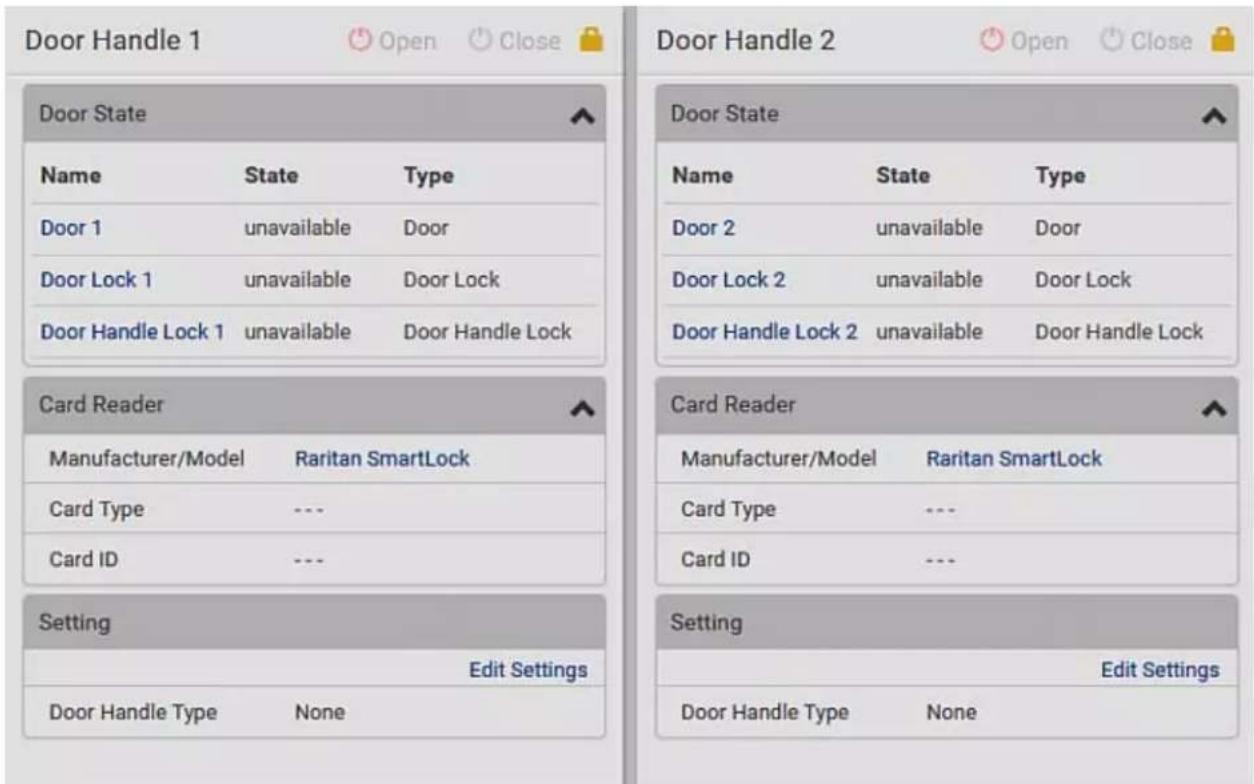
text_image
Door Handle 1 Door State Name State Type Door 1 unavailable Door Door Lock 1 unavailable Door Lock Door Handle Lock 1 unavailable Door Handle Lock Card Reader Manufacturer/Model Raritan SmartLock Card Type --- Card ID --- Setting Edit Settings Door Handle Type None Door Handle 2 Open Close Door Handle 2 Open Close Door State Name State Type Door 2 unavailable Door Door Lock 2 unavailable Door Lock Door Handle Lock 2 unavailable Door Handle Lock Card Reader Manufacturer/Model Raritan SmartLock Card Type --- Card ID --- Setting Edit Settings Door Handle Type None| Section Description | |
| Door State | Shows all sensor states detected by DX2-DH2C2, including:Door: States of contact closure sensors connected to DX2-DH2C2. Contact closure sensors detect whether the door is physically opened or closed.Door Lock: States of door locks integrated with the door handles.Door Handle Lock: States of the door handle locks. Door locks and door handle locks are interrelated so their states are changed one after another. The door handle lock is opened first and then the door lock.Exception: If you manually open the door lock with the key shipped with your door handle, the Door Lock state will enter the open state while the Door Handle Lock state remains closed. |
| Card Reader | Shows the data of the smart card scanned by the internal card reader integrated in each door handle connected to DX2-DH2C2.Note: It is not necessary to use the internal card reader unless you are using a third-party application, such as Power IQ, for access control. Refer to the user documentation of your third-party application for more information. |
Note that the same Card Reader information is also available on the page of Card Readers (on page 432).
▶ To configure the door handles:
- Click Edit Settings in the Setting section.
- In the Door Handle Type field, select the door handle type you are using.
- The default is None.
- If no door handle is being connected to the door-handle port in question on the DX2-DH2C2, select or leave this field to "None."

text_image
Setting Edit Settings Door Handle Type None EMKA Agent-E EMKA-1150 None SouthCo H3-EM- Click Save.
To control the door handles:
- Make sure you have configured the door handle type properly in the above procedure.
- Go to the proper door handle section, and click Open or Close to open or close the door handle lock.
Door Handle 1
Open
Close
- Confirm your action on the confirmation message.
- Wait until the door handle is opened physically.
Tip: You can click Close to re-close the door handle lock when you change your mind before the door handle is physically opened, when the door handle lock is mistakenly opened, or when someone opens it without pulling it out.
Card Readers
To open the Card Readers page, choose Card Readers in the Menu(on page 139).
Card Readers
| # ▲ | Manufacturer/Model | Serial Number | Channel | Card Type | Card ID |
| 1 | Raritan SmartLock | 1GE44332211 | 1 | --- | --- |
| 2 | Raritan SmartLock | 1GE44332211 | 2 | --- | --- |
| 3 | Raritan SmartLock | 1GEDDCCBBAA | 1 | --- | --- |
| 4 | Raritan SmartLock | 1GEDDCCBBAA | 2 | --- | --- |
This page lists all card readers connected to PX3, indirectly or directly.
When a user scans his/her smart card with the card reader, PX3 will retrieve the card's type and ID and show them in the corresponding Card Type and Card ID column. If no data is shown in the two columns, it means the scanned card may not be supported by the card reader.
Tip: You can use a third-party application, such as Power IQ, to retrieve the card's data from PX3 to perform security features like cabinet access control. Refer to that application's user documentation for more information.
The listed card readers can be one or both of the following types.
▶ Door handle-integrated card readers:
- This type of card reader is integrated in the door handle, which is either one below:
-
Emka Agent E
■ SouthCo H3-EM (H3-EM-67-100 or H3-EM-66-100) -
It is indirectly connected to PX3 via DX2-DH2C2.
- The Channel column indicates which port (channel) on DX2-DH2C2 it is connected to.
- Note that the serial number displayed for this card reader is the serial number of DX2-DH2C2.
Each DX2-PD2C2 can show two card readers because they have two ports for connecting two door handles with internal card readers.
External USB card readers:
- This is an external USB card reader.
- It is directly connected to PX3 via USB.
- The Channel column does not show any data.
Chapter 7 Using SNMP
This SNMP section helps you set up the PX3 for use with an SNMP manager. The PX3 can be configured to send traps or informs to an SNMP manager, as well as receive GET and SET commands in order to retrieve status and configure some basic settings.
In This Chapter
Enabling and Configuring SNMP....434
Downloading SNMP MIB 439
SNMP Gets and Sets....440
Enabling and Configuring SNMP
To communicate with an SNMP manager, you must enable SNMP protocols on the PX3. By default the "read-only" mode of SNMP v1/v2c is enabled.
The SNMP v3 protocol allows for encrypted communication. To take advantage of this, you must configure the users with the SNMP v3 access permission and set Authentication Pass Phrase and Privacy Pass Phrase, which act as shared secrets between SNMP and the PX3.
Important: You must download the SNMP MIB for your PX3 to use with your SNMP manager. See Downloading SNMP MIB (on page 439).
To enable SNMP v1/v2c and/or v3 protocols:
-
Choose Device Settings > Network Services > SNMP.
-
In the SNMP Agent section, enable SNMP v1/v2c or SNMP v3, and configure related fields, such as the community strings.
- If SNMP v3 is enabled, you must determine which users shall have the SNMP v3 access permission. See below.
For details, see Configuring SNMP Settings (on page 276).
To configure users for SNMP v3 access:
-
Choose User Management > Users.
-
Create or modify users to enable their SNMP v3 access permission.
- If authentication and privacy is enabled, configure the SNMP password(s) in the user settings.
For details, see Creating Users (on page 238).
▶ To enable SNMP notifications:
- Choose Device Settings > Network Services > SNMP.
- In the SNMP Notifications section, enable the SNMP notification feature, and configure related fields. For details, refer to:
■ SNMPv2c Notifications (on page 435)
■ SNMPv3 Notifications (on page 436)
Note: Any changes made to the 'SNMP Notifications' section on the SNMP page will update the settings of the System SNMP Notification Action, and vice versa. See Available Actions (on page 332).
SNMPv2c Notifications
- Choose Device Settings > Network Services > SNMP.
- In the SNMP Agent, make sure the Enable SNMP v1/v2c checkbox is selected.
- In the SNMP Notifications section, make sure the Enable SNMP Notifications checkbox is selected.
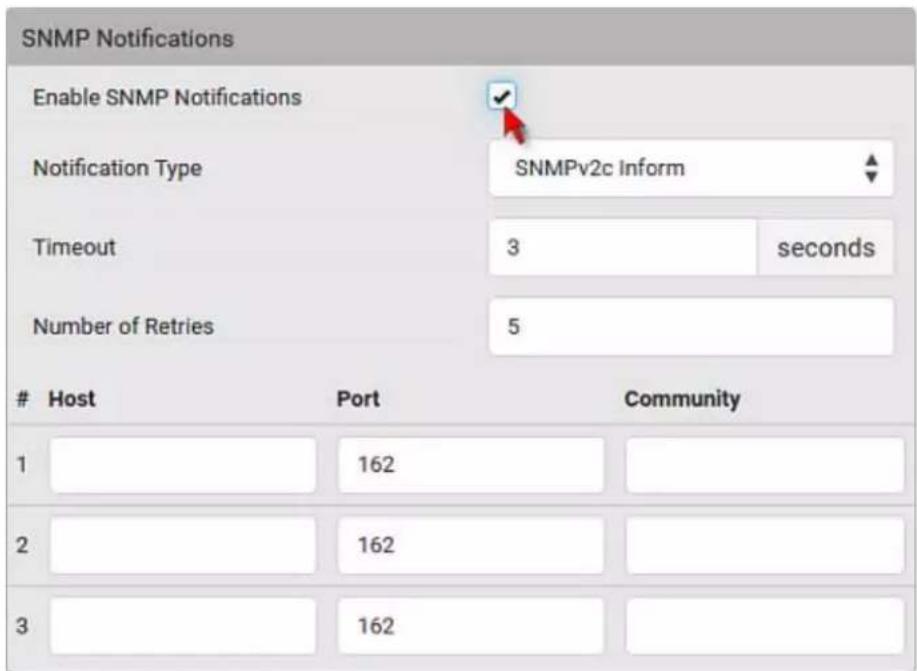
text_image
SNMP Notifications Enable SNMP Notifications Notification Type SNMPv2c Inform Timeout 3 seconds Number of Retries 5Host Port Community
- Select SNMPv2c Trap or SNMPv2c Inform as the notification type.
- Type values in the following fields.
| Field Description | |
| Timeout The interval of time, in seconds, after which a new inform communication is resent if the first is not received.▪ For example, resend a new inform communication once every 3 seconds. | |
| Number of Retries The number of times you want to resend the inform communication if it fails.▪ For example, inform communications are resent up to 5 times when the initial communication fails. | |
| Host The IP address of the device(s) you want to access.This is the address to which notifications are sent by the SNMP agent.You can specify up to 3 SNMP destinations. | |
| Port The port number used to access the device(s). | |
| Community The SNMP community string to access the device(s). The community is the group representing the PX3 and all SNMP management stations. | |
- Click Save.
SNMPv3 Notifications
- Choose Device Settings > Network Services > SNMP.
-
In the SNMP Agent, make sure the Enable SNMP v1/v2c checkbox is selected.
-
In the SNMP Notifications section, make sure the Enable SNMP Notifications checkbox is selected.
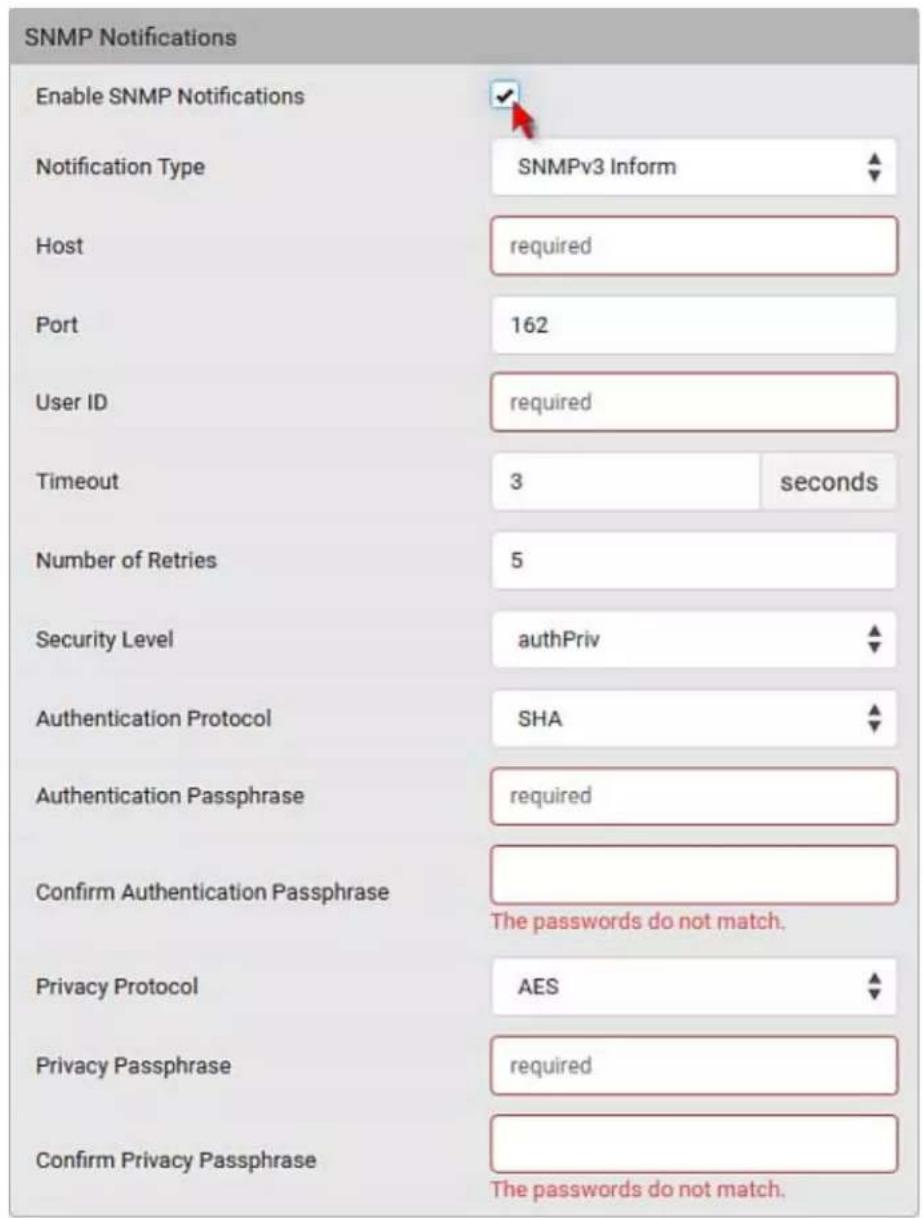
text_image
SNMP Notifications Enable SNMP Notifications Notification Type SNMPv3 Inform Host required Port 162 User ID required Timeout 3 seconds Number of Retries 5 Security Level authPriv Authentication Protocol SHA Authentication Passphrase required Confirm Authentication Passphrase The passwords do not match. Privacy Protocol AES Privacy Passphrase required Confirm Privacy Passphrase The passwords do not match.- Select SNMPv3 Trap or SNMPv3 Inform as the notification type.
- For SNMP TRAPs, the engine ID is prepopulated.
- Type values in the following fields.
| Field Description | |
| Host The IP address | of the device(s) you want to access.This is the address to which notifications are sent by the SNMP agent. |
| Port The port number | used to access the device(s). |
| User ID User name | for accessing the device.Make sure the user has the SNMP v3 access permission. |
| Timeout The interval | of time, in seconds, after which a new inform communication is resent if the first is not received.For example, resend a new inform communication once every 3 seconds. |
| Number of Retries | Specify the number of times you want to resend the inform communication if it fails.For example, inform communications are resent up to 5 times when the initial communication fails. |
| Security Level Three types are available.noAuthNoPriv - neither authentication nor privacy protocols are needed.AuthNoPriv - only authentication is required.authPriv - both authentication and privacy protocols are required. | |
| Authentication Protocol, Authentication Passphrase, Confirm Authentication Passphrase | The three fields are available when the security level is set to AuthNoPriv or authPriv.Select the authentication protocol - MD5 or SHAEnter the authentication passphrase |
| Privacy Protocol, Privacy Passphrase, Confirm Privacy Passphrase | The three fields are available when the security level is set to authPriv.Select the Privacy Protocol - DES or AESEnter the privacy passphrase and then confirm the privacy passphrase |
- Click Save.
Downloading SNMP MIB
You must download an appropriate SNMP MIB file for successful SNMP communications. Always use the latest SNMP MIB downloaded from the current firmware of your PX3.
You can download the MIBs from two different pages of the web interface.
▶ MIB download via the SNMP page:
- Choose Device Settings > Network Services > SNMP.
- Click the Download MIBs title bar.
Download MIBs


-
Select the desired MIB file to download.
-
PDU2-MIB: The SNMP MIB file for PX3 power management.
- ASSETMANAGEMENT-MIB: The SNMP MIB file for asset management.
-
LHX-MIB: The SNMP MIB file for managing the LHX/SHX heat exchanger(s).
-
Click Save to save the file onto your computer.
MIB download via the Device Information page:
- Choose Maintenance > Device Information.
- In the Information section, click the desired download link:
■ PDU2-MIB
■ ASSETMANAGEMENT-MIB
LHX MIB
- Click Save to save the file onto your computer.
Note: LHX-MIB is available only after the LHX/SHX support has been enabled. See Miscellaneous (on page 384).
SNMP Gets and Sets
In addition to sending notifications, the PX3 is able to receive SNMP get and set requests from third-party SNMP managers.
- Get requests are used to retrieve information about the PX3, such as the system location, and the current on a specific outlet.
- Set requests are used to configure a subset of the information, such as the SNMP system name.
Note: The SNMP system name is the PX3 device name. When you change the SNMP system name, the device name shown in the web interface is also changed.
The PX3 does NOT support configuring IPv6-related parameters using the SNMP set requests.
Valid objects for these requests are limited to those found in the SNMP MIB-II System Group and the custom PX3 MIB.
The PX3 MIB
The SNMP MIB file is required for using your PX3 device with an SNMP manager. An SNMP MIB file describes the SNMP functions.
Layout
Opening the MIB reveals the custom objects that describe the PX3 system at the unit level as well as at the individual-outlet level.
As standard, these objects are first presented at the beginning of the file, listed under their parent group. The objects then appear again individually, defined and described in detail.
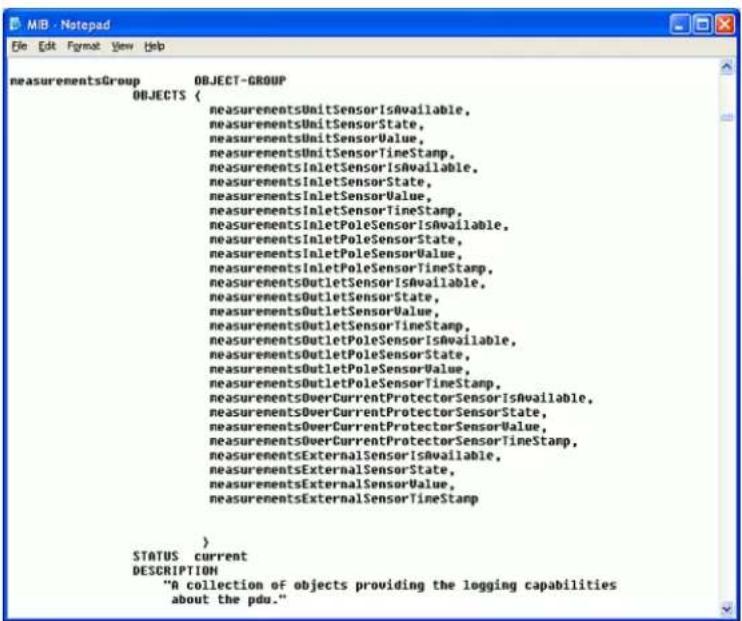
text_image
measurementsGroup OBJECT-GROUP OBJECTS { measurementsUnitSensorIsAvailable, measurementsUnitSensorState, measurementsUnitSensorValue, measurementsUnitSensorTimeStamp, measurementsInletSensorIsAvailable, measurementsInletSensorState, measurementsInletSensorValue, measurementsInletSensorTimeStamp, measurementsInletPoleSensorIsAvailable, measurementsInletPoleSensorState, measurementsInletPoleSensorValue, measurementsInletPoleSensorTimeStamp, measurementsOutletSensorIsAvailable, measurementsOutletSensorState, measurementsOutletSensorValue, measurementsOutletSensorTimeStamp, measurementsOutletPoleSensorIsAvailable, measurementsOutletPoleSensorState, measurementsOutletPoleSensorValue, measurementsOutletPoleSensorTimeStamp, measurementsOverCurrentProtectorSensorIsAvailable, measurementsOverCurrentProtectorSensorState, measurementsOverCurrentProtectorSensorValue, measurementsOverCurrentProtectorSensorTimeStamp, measurementsExternalSensorIsAvailable, measurementsExternalSensorState, measurementsExternalSensorValue, measurementsExternalSensorTimeStamp } STATUS current DESCRIPTION "A collection of objects providing the logging capabilities about the pdu."For example, the measurementsGroup group contains objects for sensor readings of PX3 as a whole. One object listed under this group, measurementsUnitSensorValue, is described later in the MIB as "The sensor value". pduRatedCurrent, part of the configGroup group, describes the PDU current rating.
SNMP Sets and Thresholds
Some objects can be configured from the SNMP manager using SNMP set commands. Objects that can be configured have a MAX-ACCESS level of "read-write" in the MIB.
These objects include threshold objects, which causes the PX3 to generate a warning and send an SNMP notification when certain parameters are exceeded. See Sensor Threshold Settings (on page 793) for a description of how thresholds work.
Note: When configuring the thresholds via SNMP set commands, ensure the value of upper critical threshold is higher than that of upper warning threshold.
Configuring NTP Server Settings
Using SNMP, you can change the following NTP server-related settings in the unitConfigurationTable:
- Enable or disable synchronization of the device's date and time with NTP servers (synchronizeWithNTPServer)
- Enable or disable the use of DHCP-assigned NTP servers if synchronization with NTP servers is enabled (useDHCPProvidedNTPServer)
- Manually assign the primary NTP server if the use of DHCP-assigned NTP servers is disabled (primaryNTPServerAddressType and primaryNTPServerAddress)
- Manually assign the secondary NTP server (optional) (secondaryNTPServerAddressType and secondaryNTPServerAddress)
Tip: To specify the time zone, use the CLI or web interface instead. For the CLI, see Setting the Time Zone (on page 525). For the web interface, see Setting the Date and Time (on page 308).
When using the SNMP SET command to specify or change NTP servers, it is required that both the NTP server's address type and address be set in the command line simultaneously.
For example, the SNMP command to change the primary NTP server's address from IPv4 (192.168.84.84) to host name looks similar to the following:
snmpset -v2c -c private 192.168.84.84 firstNTPServerAddressType = dns firstNTPServerAddress = "angu.pep.com"
Retrieving Energy Usage
You can discover how much energy an IT device consumes by retrieving the Active Energy for the outlet this IT device is plugged into. The Active Energy values are included in the outletSensorMeasurementsTable, along with other outlet sensor readings.
A Note about Enabling Thresholds
When enabling previously-disabled thresholds via SNMP, make sure you set a correct value for all thresholds that are supposed to be enabled prior to actually enabling them. Otherwise, you may get an error message.
Chapter 8 Using the Command Line Interface
This section explains how to use the command line interface (CLI) to administer a PX3 device.
CLI commands are case sensitive.
In This Chapter
About the Interface....444
Logging in to CLI....445
The ? Command for Showing Available Commands.... 448
Querying Available Parameters for a Command.... 449
Showing Information 450
Clearing Information....482
Configuring the PX3 Device and Network....483
Load Shedding Configuration Commands 618
Power Control Operations....620
Actuator Control Operations....623
Unblocking a User 625
Resetting the PX3 625
Network Troubleshooting 627
Retrieving Previous Commands....630
Automatically Completing a Command 630
Logging out of CLI 631
About the Interface
The PX3 provides a command line interface that enables data center administrators to perform some basic management tasks.
Using this interface, you can do the following:
- Reset the PX3 device
- Display the PX3 and network information, such as the device name, firmware version, IP address, and so on
- Configure the PX3 and network settings
- Troubleshoot network problems
You can access the interface over a local connection using a terminal emulation program such as HyperTerminal, or via a Telnet or SSH client such as PuTTY.
Note: Telnet access is disabled by default because it communicates openly and is thus insecure. To enable Telnet, see Changing Telnet Settings (on page 281).
Logging in to CLI
Logging in via HyperTerminal over a local connection is a little different than logging in using SSH or Telnet.
If a security login agreement has been enabled, you must accept the agreement in order to complete the login. Users are authenticated first and the security banner is checked afterwards.
With HyperTerminal
You can use any terminal emulation programs for local access to the command line interface.
This section illustrates HyperTerminal, which is part of Windows operating systems prior to Windows Vista.
To log in using HyperTerminal:
- Connect your computer to the PX3 via a local (USB or RS-232) connection.
- Launch HyperTerminal on your computer and open a console window. When the window first opens, it is blank.
Make sure the COM port settings use this configuration:
- Bits per second = 115200 (115.2Kbps)
■ Data bits = 8 - Stop bits = 1
■ Parity = None
■ Flow control = None
Tip: For a USB connection, you can determine the COM port by choosing Control Panel > System > Hardware > Device Manager, and locating the "Dominion PX2 Serial Console" under the Ports group.
- In the communications program, press Enter to send a carriage return to the PX3. The Username prompt appears.
Username: _
- Type a name and press Enter. The name is case sensitive. Then you are prompted to enter a password.
Username: admin
Password: _
- Type a password and press Enter. The password is case sensitive.
After properly entering the password, the # or > system prompt appears. See Different CLI Modes and Prompts(on page 447) in the User Guide for more information.
Tip: The "Last Login" information, including the date and time, is also displayed if the same user account was used to log in to this product's web interface or CLI.
- You are now logged in to the command line interface and can begin administering the PX3.
With SSH or Telnet
You can remotely log in to the command line interface (CLI) using an SSH or Telnet client, such as PuTTY.
Note: PuTTY is a free program you can download from the Internet. See PuTTY's documentation for details on configuration.
To log in using SSH or Telnet:
- Ensure SSH or Telnet has been enabled. See Configuring Network Services (on page 274) in the User Guide.
- Launch an SSH or Telnet client and open a console window. A login prompt appears.
login as:
- Type a name and press Enter. The name is case sensitive.
Note: If using the SSH client, the name must NOT exceed 25 characters. Otherwise, the login fails.
Then you are prompted to enter a password.
login as: admin admin@192.168.84.88's password:
- Type a password and press Enter. The password is case sensitive.
- After properly entering the password, the # or > system prompt appears. See Different CLI Modes and Prompts(on page 447) in the User Guide for more information.
Tip: The "Last Login" information, including the date and time, is also displayed if the same user account was used to log in to this product's web interface or CLI.
- You are now logged in to the command line interface and can begin administering the PX3.
With an Analog Modem
The PX3 supports remote access to the CLI via a connected analog modem. This feature is especially useful when the LAN access is not available.
To connect to the PX3 via the modem:
- Make sure the PX3 has an analog modem connected. See Connecting an Analog Modem (on page 82).
- Make sure the computer you are using has an appropriate modem connected.
- Launch a terminal emulation program, and configure its baud rate settings according to the baud rate set for the analog modem connected to the PX3. See Configuring the Serial Port (on page 376).
- Type the following AT command to make a connection with the PX3.
ATD
- The CLI login prompt appears after the connection is established successfully. Then type the user name and password to log in to the CLI.
▶ To disconnect from the PX3:
- Return to the modem's command mode using the escape code +++.
- After the OK prompt appears, type the following AT command to disconnect from the PX3.
ATH
Different CLI Modes and Prompts
Depending on the login name you use and the mode you enter, the system prompt in the CLI varies.
- User Mode: When you log in as a normal user, who may not have full permissions to configure the PX3 device, the > prompt appears.
- Administrator Mode: When you log in as an administrator, who has full permissions to configure the PX3 device, the # prompt appears.
- Configuration Mode: You can enter the configuration mode from the administrator or user mode. In this mode, the prompt changes to config:# or config:> and you can change PX3 device and network configurations. See Entering Configuration Mode (on page 484).
- Diagnostic Mode: You can enter the diagnostic mode from the administrator or user mode. In this mode, the prompt changes to diag:# or diag:> and you can perform the network troubleshooting commands, such as the ping command. See Entering Diagnostic Mode (on page 627).
Closing a Local Connection
Close the window or terminal emulation program when you finish accessing a PX3 device over the local connection.
When accessing or upgrading multiple PX3 devices, do not transfer the local connection cable from one device to another without closing the local connection window first.
The ? Command for Showing Available Commands
When you are not familiar with CLI commands, you can press the ? key at anytime for one of the following purposes.
• Show a list of main CLI commands available in the current mode.
- Show a list of available commands or parameters for the command you type. See Querying Available Parameters for a Command (on page 449).
In the administrator mode:
# ?
In the configuration mode:
config:# ?
In the diagnostic mode:
diag:# ?
Press Enter after pressing the ? command, and a list of main commands for the current mode is displayed.
Tip: To automatically complete a command after typing part of the full command, see Automatically Completing a Command (on page 630). To re-execute one of the previous commands, see Retrieving Previous Commands (on page 630).
Querying Available Parameters for a Command
f you are not sure what commands or parameters are available for a particular type of CLI command or its syntax, you can have the CLI show them by adding a space and the help command (?) or list command (ls) to the end of that command. A list of available parameters and their descriptions will be displayed.
The following shows a few query examples.
To query available parameters for the "show" command:
# show ?
To query available parameters for the "show user" command:
# show user ?
▶ To query available role configuration parameters:
config:#role?
To query available parameters for the "role create" command:
config:# role create ?
Tip: To automatically complete a command after typing part of the full command, see Automatically Completing a Command (on page 630). To re-execute one of the previous commands, see Retrieving Previous Commands (on page 630).
Showing Information
You can use the show commands to view current settings or the status of the PX3 device or part of it, such as the IP address, networking mode, firmware version, states or readings of internal or external sensors, user profiles, and so on.
Some "show" commands have two formats: one with the parameter "details" and the other without. The difference is that the command without the parameter "details" displays a shortened version of information while the other displays in-depth information.
After typing a "show" command, press Enter to execute it.
Note: Depending on your login name, the # prompt may be replaced by the > prompt. See Different CLI Modes and Prompts (on page 447).
Network Configuration
This command shows all network configuration and all network interfaces' information, such as the IP address, MAC address, the Ethernet interface's duplex mode, and the wireless interface's status/settings.
# show network
IP Configuration
This command shows the IP settings shared by all network interfaces, such as DNS and routes. Information shown will include both IPv4 and IPv6 configuration.
Tip: To show IPv4-only and IPv6-only configuration data, see IPv4-Only or IPv6-Only Configuration (on page 452).
# show network ip common
To show the IP settings of a specific network interface, use the following command.
# show network ip interface
Variables:
-
Note: In the bridging mode, only the IP parameters of the BRIDGE interface function. The IP parameters of the ETHERNET (or ETH1/ETH2) and WIRELESS interfaces do NOT function.
| Interface Description | |
| ethernet (PX3) | Show the IP-related configuration of the ETHERNET interface. |
| eth1 (PX3-iX7) | Show the IP-related configuration of the ETH1 interface. |
| eth2 (PX3-iX7) | Show the IP-related configuration of the ETH2 interface. |
| wireless Show the IP-related configuration of the WIRELESS interface. | |
| bridge Show the IP-related configuration of the BRIDGE interface. | |
| all Show the IP-related configuration of all interfaces. | |
IPv4-Only or IPv6-Only Configuration
To show IPv4-only or IPv6-only configuration, use any of the following commands.
Tip: To show both IPv4 and IPv6 configuration data, seeIP Configuration (on page 451).
To show IPv4 settings shared by all network interfaces, such as DNS and routes:
# show network ipv4 common
To show IPv6 settings shared by all network interfaces, such as DNS and routes:
# show network ipv6 common
To show the IPv4 configuration of a specific network interface:
# show network ipv4 interface
To show the IPv6 configuration of a specific network interface:
# show network ipv6 interface
Variables:
-
Note: In the bridging mode, only the IP parameters of the BRIDGE interface function. The IP parameters of the ETHERNET (or ETH1/ETH2) and WIRELESS interfaces do NOT function.
| Interface Description | |
| ethernet (PX3) | Show the IPv4 or IPv6 configuration of the ETHERNET interface. |
| eth1(PX3-iX7) | Show the IPv4 or IPv6 configuration of the ETH1 interface. |
| eth2(PX3-iX7) | Show the IPv4 or IPv6 configuration of the ETH2 interface. |
| wireless Show the | IPv4 or IPv6 configuration of the WIRELESS interface. |
| bridge Show the | IPv4 or IPv6 configuration of the BRIDGE interface. |
| all Show the IPv4 or IPv6 configuration of all interfaces. | |
Network Interface Settings
This command shows the specified network interface's information which is NOT related to IP configuration. For example, the Ethernet port's LAN interface speed and duplex mode, or the wireless interface's SSID parameter and authentication protocol.
# show network interface
Variables:
-
Note: In the bridging mode, only the IP parameters of the BRIDGE interface function. The IP parameters of the ETHERNET (or ETH1/ETH2) and WIRELESS interfaces do NOT function.
| Interface Description | |
| ethernet (PX3) | Show the ETHERNET interface's non-IP settings. |
| eth1(PX3-iX7) | Show the ETH1 interface's non-IP settings. |
| eth2(PX3-iX7) | Show the ETH2 interface's non-IP settings. |
| wireless Show the WIRELESS interface's non-IP settings. | |
| bridge Show the BRIDGE interface's non-IP settings. | |
| all Show the non-IP settings of all interfaces. | |
| Tip: You can also type the command without adding this option "all" to get the same data. That is, show network interface. | |
Network Service Settings
This command shows the network service settings only, including the Telnet setting, TCP ports for HTTP, HTTPS, SSH and Modbus/TCP services, and SNMP settings.
# show network services
Variables:
-
| Option Description | |
| all Displays the settings of all network services,including HTTP, HTTPS, Telnet, SSH and SNMP. | |
| http Only displays the TCP port for the HTTP service. | |
| https Only displays the TCP port for the HTTPS service. | |
| telnet Only displays the settings of the Telnet service. | |
| ssh Only displays the settings of the SSH service. | |
| snmp Only displays the SNMP settings. | |
| modbus Only displays the settings of the Modbus/TCP service. | |
| zeroconfig Only displays the settings of the zero configuration advertising. |
PDU Configuration
This command shows the PDU configuration, such as the device name, firmware version and model type.
# show pdu
To show detailed information, add the parameter "details" to the end of the command.
# show pdu details
Outlet Information
This command syntax shows the outlet information.
# show outlets
To show detailed information, add the parameter "details" to the end of the command.
# show outlets
Variables:
-
| Option Description | |
| all Displays the information for all outlets. | |
| A specific outlet number | Displays the information for the specified outlet only. |
Displayed information:
- Without the parameter "details," only the outlet name and state are displayed.
- With the parameter "details," more outlet information is displayed in addition to the state, such as rated current, voltage, active power, active energy, and outlet settings.
Inlet Information
This command syntax shows the inlet information.
<h1 id="show-inlets-n">show inlets <n></h1>
To show detailed information, add the parameter "details" to the end of the command.
<h1 id="show-inlets-n-details">show inlets <n> details</h1>
Variables:
-
| Option Description | |
| all Displays the information for all inlets. | |
| A specific inlet number | Displays the information for the specified inlet only.An inlet number needs to be specified only when there are more than 1 inlet on your PDU. |
Displayed information:
- Without the parameter "details," only the inlet's name and RMS current are displayed.
- With the parameter "details," more inlet information is displayed in addition to the inlet name and RMS current, such as the inlet's RMS voltage, active power and active energy.
Overcurrent Protector Information
This command is only available for models with overcurrent protectors for protecting outlets.
This command syntax shows the overcurrent protector information, such as a circuit breaker or a fuse.
<h1 id="show-ocp-n">show ocp <n></h1>
To show detailed information, add the parameter "details" to the end of the command.
<h1 id="show-ocp-n-details">show ocp <n> details</h1>
Variables:
-
| Option Description | |
| all Displays the information for all overcurrent protectors. | |
| A specific overcurrent protector number | Displays the information for the specified overcurrent protector only. |
Displayed information:
- Without the parameter "details," only the overcurrent protector status and name are displayed.
- With the parameter "details," more overcurrent protector information is displayed in addition to status, such as the rating and RMS current value.
- For Raritan's outlet-metered models that support "outlet peak current" sensors, information indicating which outlet MAY cause the OCP-tripped event is available with this command. See Possible OCP-Tripped Root Cause (on page 198).
Date and Time Settings
This command shows the current date and time settings on the PX3 device.
<h1 id="show-time">show time</h1>
To show detailed information, add the parameter "details" to the end of the command.
<h1 id="show-time-details">show time details</h1>
Default Measurement Units
This command shows the default measurement units applied to the PX3 web and CLI interfaces across all users, especially those users authenticated through remote authentication servers.
<h1 id="show-user-defaultpreferences">show user defaultPreferences</h1>
Note: If a user has set his/her own preferred measurement units or the administrator has changed any user's preferred units, the web and CLI interfaces show the preferred measurement units for that user instead of the default ones after that user logs in to the PX3. See Existing User Profiles (on page 472) for the preferred measurement units for a specific user.
Environmental Sensor Information
This command syntax shows the environmental sensor's information.
<h1 id="show-externalsensors-n">show externalsensors <n></h1>
To show detailed information, add the parameter "details" to the end of the command.
<h1 id="show-externalsensors-n-details">show externalsensors <n> details</h1>
<h1 id="show-externalsensors-2-details">show externalsensors 2 details</h1>
External sensor 2 ('Temperature 2')
Sensor type: Temperature
Reading: 24.0 deg C (normal)
Serial number: QMSemu0004
Description: Not configured
Location: X Not configured
Y Not configured
Z Not configured
Position: Port 1, Chain Position 4
Using default thresholds: yes
Variables:
-
| Option Description | |
| all Displays the information of all environmental sensors. | |
| A specific environmental sensor number* | Displays the information for the specified environmental sensor only. |
* The environmental sensor number is the ID number assigned to the sensor, which can be found on the Peripherals page of the PX3 web interface.
Displayed information:
- Without the parameter "details," only the sensor ID, sensor type and reading are displayed.
Note: A state sensor displays the sensor state instead of the reading.
- With the parameter "details," more information is displayed in addition to the ID number and sensor reading, such as the serial number, sensor position, and X, Y, and Z coordinates.
Note: DPX sensor packages do not provide chain position information.
Environmental Sensor Package Information
Different from the "show externalsensors" commands, which show the reading, status and configuration of an individual environmental sensor, the following command shows the information of all connected environmental sensor packages, each of which may contain more than one sensor or actuator.
# show peripheralDevicePackages
Information similar to the following is displayed. An environmental sensor package is a peripheral device package.
Peripheral Device Package 1 Serial Number: AEI7A00022 Package Type: DPX-T1H1 Position: Port 1 Package State: operational Firmware Version: Not available
Peripheral Device Package 2 Serial Number: AEI7A00021 Package Type: DPX-T3H1 Position: Port 1 Package State: operational Firmware Version: Not available
Actuator Information
This command syntax shows an actuator's information.
<h1 id="show-actuators-n">show actuators <n></h1>
To show detailed information, add the parameter "details" to the end of the command.
<h1 id="show-actuators-n-details">show actuators <n> details</h1>
Variables:
-
| Option Description | |
| all Displays the information for all actuators. | |
| Tip: You can also type the command without adding this option “all” to get the same data. | |
| A specific actuator number* | Displays the information for the specified actuator only. |
* The actuator number is the ID number assigned to the actuator. The ID number can be found using the PX3 web interface or CLI. It is an integer starting at 1.
Displayed information:
- Without the parameter "details," only the actuator ID, type and state are displayed.
- With the parameter "details," more information is displayed in addition to the ID number and actuator state, such as the serial number and X, Y, and Z coordinates.
Outlet Sensor Threshold Information
This command syntax shows the specified outlet sensor's threshold-related information.
<h1 id="show-sensor-outlet-n-sensor-type">show sensor outlet <n> <sensor type></h1>
To show detailed information, add the parameter "details" to the end of the command.
<h1 id="show-sensor-outlet-n-sensor-type-details">show sensor outlet <n> <sensor type> details</h1>
Variables:
is the number of the outlet whose sensors you want to query. is one of the following sensor types:
| Sensor type Description | ||
| current | Current | sensor |
| voltage | Voltage | sensor |
| activePower | Active | power sensor |
| apparentPower Apparent power sensor | ||
| powerFactor | Power factor | sensor |
| activeEnergy Active energy sensor | ||
| lineFrequency | Line frequency sensor | |
Displayed information:
- Without the parameter "details," only the sensor reading, state, threshold, deassertion hysteresis and assertion timeout settings of the specified outlet sensor are displayed.
- With the parameter "details," more sensor information is displayed, including resolution and range.
- If the requested sensor type is not supported, the "Sensor is not available" message is displayed.
Outlet Pole Sensor Threshold Information
This command is available for an in-line monitor only, including PX2-3000 and PX3-3000 series.
This command syntax shows the specified outlet pole sensor's threshold-related information.
# show sensor outletpole To show detailed information, add the parameter "details" to the end of the command. # show sensor outletpole is the label of the outlet pole whose sensors you want to query. - This command is NOT available for an in-line monitor (PX-3000 series). This command syntax shows the specified inlet sensor's threshold-related information. # show sensor inlet To show detailed information, add the parameter "details" to the end of the command. # show sensor inlet Sensor type Description This command is only available for a three-phase PDU except for an in-line monitor (PX-3000 series). This command syntax shows the specified inlet pole sensor's threshold-related information. # show sensor inletpole To show detailed information, add the parameter "details" to the end of the command. # show sensor inletpole is the label of the inlet pole whose sensors you want to query. - This command is only available for models with overcurrent protectors for protecting outlets. This command syntax shows the specified overcurrent protector sensor's threshold-related information. # show sensor ocp To show detailed information, add the parameter "details" to the end of the command. # show sensor ocp Sensor type Description This command syntax shows the specified environmental sensor's threshold-related information. To show detailed information, add the parameter "details" to the end of the command. External sensor 3 (Temperature): Reading: 31.8 deg C State: normal Active Thresholds: Sensor specific thresholds Default Thresholds for Temperature sensors: Lower critical threshold: 10.0 deg C Lower warning threshold: 15.0 deg C Upper warning threshold: 30.0 deg C Upper critical threshold: 35.0 deg C Deassertion hysteresis: 1.0 deg C Assertion timeout: 0 samples Sensor Specific Thresholds: Lower critical threshold: 8.0 deg C Lower warning threshold: 13.0 deg C Upper warning threshold: 28.0 deg C Upper critical threshold: 33.0 deg C Deassertion hysteresis: 1.0 deg C Assertion timeout: 0 samples - Note: For a state sensor, the threshold-related and accuracy-related data is NOT available. This command syntax shows a certain sensor type's default thresholds, which are the initial thresholds applying to the specified type of sensor. # show defaultThresholds To show detailed information, add the parameter "details" to the end of the command. # show defaultThresholds - Displayed information: This command shows the security settings of the PX3. # show security To show detailed information, add the parameter "details" to the end of the command. # show security details This command displays the authentication settings of the PX3, including both LDAP and Radius settings. # show authentication To show the configuration of a specific LDAP server, assign the desired LDAP server with its sequential number in the command. To get detailed information, add "details" to the end of the command. To show the configuration of a specific Radius server, assign the desired Radius server with its sequential number in the command. To get detailed information, add "details" to the end of the command. - - With the parameter "details" added, detailed information of the specified server is displayed, such as an LDAP server's bind DN and the login name attribute, or a Radius server's timeout and retries values. This command shows the data of one or all existing user profiles. To show detailed information, add the parameter "details" to the end of the command. - This command shows the data of one or all existing roles. # show roles - - Role settings are displayed, including the role description and privileges. This section applies to outlet-switching capable models only. This command shows the load shedding settings. # show loadshedding - The load shedding state is displayed along with non-critical outlets. Note: The load shedding mode is associated with critical and non-critical outlets. To specify critical and non-critical outlets through CLI, see Specifying Non-Critical Outlets (on page 489). This command shows the baud rate setting of the serial port labeled CONSOLE / MODEM on the PX3 device. # show serial This command shows the PX3 device's current configuration for Cisco® EnergyWise. # show energywise This command shows the asset strip settings, such as the total number of rack units (tag ports), asset strip state, numbering mode, orientation, available tags and LED color settings. # show assetStrip - A rack unit refers to a tag port on the asset strips. This command shows the settings of a specific rack unit or all rack units on an asset strip, such as a rack unit's LED color and LED mode. # show rackUnit This command shows the information of a blade extension strip, including the total number of tag ports, and if available, the ID (barcode) number of any connected tag. # show bladeSlot Option Description The command used to show the event log begins with show eventlog. You can add either the limit or class parameters or both to show specific events. Show the last 30 entries: # show eventlog Show a specific number of last entries in the event log: # show eventlog limit ▶ Show a specific type of events only: # show eventlog class Show a specific number of last entries associated with a specific type of events only: # show eventlog limit - - This command shows the diagnostic log for the wireless LAN connection. # show wlanlog This command shows all server reachability information with a list of monitored servers and status. # show serverReachability To show the server reachability information for a certain IT device only, use the following command. To show detailed information, add the parameter "details" to the end of the command. - You can find each IT device's sequence number using the CLI command of show serverReachability as illustrated below. # IP address Enabled Status 1 192.168.84.126 Yes Waiting for reliable connection
2 www.raritan.com Yes Waiting for reliable connection This command shows the command history for current connection session. # show history Displayed information: - A list of commands that were previously entered in the current session is displayed. This command shows the reliability data. # show reliability data This command shows the reliability error log. # show reliability errorlog Variables: - This section provides examples of the show command. The diagram shows the output of the show security command. # show security IPv4 access control: Disabled IPv6 access control: Disabled Role based access control for IPv4: Disabled Role based access control for IPv6: Disabled Password aging: Disabled Prevent concurrent user login: No Strong passwords: Disabled Enforce HTTPS for web access: Yes Restricted Service Agreement: disabled More information is displayed when typing the show security details command. # show security details IPv4 access control: Disabled IPv6 access control: Disabled Role based access control for IPv4: Disabled Role based access control for IPv6: Disabled Password aging: Disabled Prevent concurrent user login: No Maximum number of failed logins: 3 User block time: 10 minutes User idle timeout: 1440 minutes Strong passwords: Disabled Enforce HTTPS for web access: Yes Restricted Service Agreement: disabled Restricted Service Agreement Banner Content: Unauthorized access prohibited; all access and activities not explicitly authorized by management are unauthorized. All activities are monitored and logged. The re is no privacy on this system. Unauthorized access and activities or any criminal activity will be reported to appropriate authorities. Example 3 - Basic PDU Information The diagram shows the output of the show pdu command. # show pdu PDU 'my PX' Model: PX3-XXXX Firmware Version: 2.X.0.5-40956 Example 4 - In-Depth PDU Information More information is displayed when typing the show pdu details command. Displayed information varies depending on the model you purchased. # show pdu details PDU 'my PX' Model: PX3-XXXX Firmware Version: 2.X.0.5-40956 Serial Number: QGZ3792136 Board Revision: 0x01 Voltage rating: 200-240V Current rating: 16A Frequency rating: 50/60Hz Power rating: 3.2-3.8kVA Sensor data retrieval: Enabled Measurements per log entry: 60 External sensor Z coordinate format: Rack units Device altitude: 0 m You can use the clear commands to remove unnecessary data from the PX3. After typing a "clear" command, press Enter to execute it. Note: Depending on your login name, the # prompt may be replaced by the > prompt. See Different CLI Modes and Prompts (on page 447). This command removes all data from the event log. If you entered the command without "/y," a message appears, prompting you to confirm the operation. Type y to clear the event log or n to abort the operation. If you type y, a message "Event log was cleared successfully" is displayed after all data in the event log is deleted. This command removes all data from the diagnostic log for the wireless LAN (WLAN) connection. If you entered the command without "/y," a message appears, prompting you to confirm the operation. Type y to clear the WLAN log or n to abort the operation. If you type y, a message "WLAN log was cleared successfully" is displayed to indicate all data in the WLAN log has been deleted. To configure the PX3 device or network settings through the CLI, it is highly recommended to log in as the administrator so that you have full permissions. To configure any settings, enter the configuration mode. Configuration commands are case sensitive so ensure you capitalize them correctly. Configuration commands function in configuration mode only. Note: If you enter configuration mode from user mode, you may have limited permissions to make configuration changes. See Different CLI Modes and Prompts (on page 447). Type config and press Enter. The config:# prompt appears, indicating that you have entered configuration mode. Important: To apply new configuration settings, you must issue the "apply" command before closing the terminal emulation program. Closing the program does not save any configuration changes. See Quitting Configuration Mode (on page 484). Both of "apply" and "cancel" commands let you quit the configuration mode. The difference is that "apply" saves all changes you made in the configuration mode while "cancel" aborts all changes. config:# apply -- OR -- config:# cancel The # or > prompt appears after pressing Enter, indicating that you have entered the administrator or user mode. See Different CLI Modes and Prompts (on page 447). A PDU configuration command begins with pdu. You can use the PDU configuration commands to change the settings that apply to the whole PX3 device. This command changes the PX3 device's name. config:# pdu name " - This section applies to outlet-switching capable models only. This command syntax determines the relay behavior of all outlets on a PX3 model. config:# pdu relayBehaviorOnPowerLoss - Note: For more information on the outlet relay behavior, see PX3 Latching Relay Behavior (on page 162). This section applies to outlet-switching capable models only. This command sets the outlet power-on sequence when the PDU powers up. config:# pdu outletSequence - Note: Power-on sequencing is disabled in the latching mode. SeePX3 Latching Relay Behavior (on page 162). This section applies to outlet-switching capable models only. This command sets the delays (in seconds) for outlets when turning on all outlets in sequence. config:# pdu outletSequenceDelay Separate outlet numbers and their delay settings with a colon. Outlets followed by delays are separated with a semicolon. Note: Power-on sequencing is disabled in the latching mode. SeePX3 Latching Relay Behavior (on page 162). This section applies to outlet-switching capable models only. This command determines the initial power condition of all outlets after powering up the PDU. config:# pdu outletStateOnDeviceStartup - Note: This feature does NOT take effect and cannot be configured on a PX3 device after the outlet relay is set to the "Latching" mode. See PX3 Latching Relay Behavior (on page 162). This section applies to outlet-switching capable models only. This command sets the power-off period of the power cycling operation for all outlets. config:# pdu cyclingPowerOffPeriod - This section applies to outlet-switching capable models only. This command sets the inrush guard delay. config:# pdu inrushGuardDelay - This section applies to outlet-switching capable models only. This command determines the outlet initialization delay timing on device startup. See PDU (on page 157) for information on outlet initialization delay. config:# pdu outletInitializationDelayOnDeviceStartup - Note: This feature does NOT take effect and cannot be configured on a PX3 device after the outlet relay is set to the "Latching" mode. See PX3 Latching Relay Behavior (on page 162). This section applies to outlet-switching capable models only. This command determines critical and non-critical outlets. It is associated with the load shedding mode. See Load Shedding Mode (on page 181). config:# pdu nonCriticalOutlets Separate outlet numbers and their settings with a colon. Separate each "false" and "true" setting with a semicolon. This command enables or disables the data logging feature. config:# pdu dataRetrieval - For more information, see Setting Data Logging(on page 368). This command defines the number of measurements accumulated per log entry. config:# pdu measurementsPerLogEntry - For more information, see Setting Data Logging(on page 368). This command specifies your PX3 device's altitude above sea level (in meters). You must specify the PX3 device's altitude above sea level if a Raritan's DPX differential air pressure sensor is attached. This is because the device's altitude is associated with the altitude correction factor. See Altitude Correction Factors (on page 803). config:#pdu deviceAltitude This command enables or disables the use of rack units for specifying the height (Z coordinate) of environmental sensors. config:# pdu externalSensorsZCoordinateFormat - Note: After determining the format for the Z coordinate, you can set a value for it. See Setting the Z Coordinate (on page 585). This command enables or disables the Peripheral Device Auto Management feature. config:# pdu peripheralDeviceAutoManagement - For more information, see How the Automatic Management Function Works (on page 164). This command determines the upper limit of "active" powered dry contact actuators on one PX3 device. config:# pdu activePoweredDryContactLimit - Note: An "active" actuator is the one that is turned ON. This section illustrates several PDU configuration examples. The following command assigns the name "my px12" to the PDU. config:# pdu name "my px12" The following command causes a 10-outlet PDU to first power on the 8th to 6th outlets and then the rest of outlets in the ascending order after the PDU powers up. config:#pdu outletSequence 8-6,1-5,9,10 The following command determines that the outlet 1's delay is 2.5 seconds, outlet 2's delay is 3 seconds, and the delay for outlets 3 through 5 is 10 seconds. config:# pdu outletSequenceDelay 1:2.5;2:3;3-5:10 The following command sets outlets 1, 2, 3, 7, and 9 to be critical outlets, and 4, 5, 6, 8, 10, 11 and 12 to be non-critical outlets on a 12-outlet PX3. config:# pdu nonCriticalOutlets 1-3,7,9:false;4-6,8,10-12:true A network configuration command begins with network. A number of network settings can be changed through the CLI, such as the IP address, transmission speed, duplex mode, and so on. An IPv4 configuration command begins with network ipv4. This command determines the IP configuration mode. config:# network ipv4 interface - Note: In the bridging mode, only the IP parameters of the BRIDGE interface function. The IP parameters of the ETHERNET (or ETH1/ETH2) and WIRELESS interfaces do NOT function. - mode is set to After selecting DHCP as the IPv4 configuration mode, you can specify the preferred host name, which is optional. The following is the command: config:# network ipv4 interface - Note: In the bridging mode, only the IP parameters of the BRIDGE interface function. The IP parameters of the ETHERNET (or ETH1/ETH2) and WIRELESS interfaces do NOT function. - After selecting the static IP configuration mode, you can use this command to assign a permanent IP address to the PX3 device. config:# network ipv4 interface - Note: In the bridging mode, only the IP parameters of the BRIDGE interface function. The IP parameters of the ETHERNET (or ETH1/ETH2) and WIRELESS interfaces do NOT function. - After selecting the static IP configuration mode, you can use this command to specify the gateway. config:# network ipv4 gateway - If the IPv4 network mode is set to static IP and your local network contains two subnets, you can configure static routes to enable or disable communications between the PX3 and devices in the other subnet. These commands are prefixed with network ipv4 staticRoutes. Depending on whether the other network is directly reachable or not, there are two methods for adding a static route. For further information, see Static Route Examples (on page 260). ▶ Method 1: add a static route when the other network is NOT directly reachable: config:# network ipv4 staticRoutes add Method 2: add a static route when the other network is directly reachable: config:# network ipv4 staticRoutes add ▶ Delete an existing static route: config:# network ipv4 staticRoutes delete Modify an existing static route: config:# network ipv4 staticRoutes modify config:# network ipv4 staticRoutes modify An IPv6 configuration command begins with network ipv6. This command determines the IP configuration mode. config:# network ipv6 interface - Note: In the bridging mode, only the IP parameters of the BRIDGE interface function. The IP parameters of the ETHERNET (or ETH1/ETH2) and WIRELESS interfaces do NOT function. Interface Description - mode is set to After selecting DHCP as the IPv6 configuration mode, you can specify the preferred host name, which is optional. The following is the command: config:# network ipv6 interface - Note: In the bridging mode, only the IP parameters of the BRIDGE interface function. The IP parameters of the ETHERNET (or ETH1/ETH2) and WIRELESS interfaces do NOT function. - - Cannot contain punctuation marks, spaces, and other symbols After selecting the static IP configuration mode, you can use this command to assign a permanent IP address to the PX3 device. config:# network ipv6 interface - Note: In the bridging mode, only the IP parameters of the BRIDGE interface function. The IP parameters of the ETHERNET (or ETH1/ETH2) and WIRELESS interfaces do NOT function. - After selecting the static IP configuration mode, you can use this command to specify the gateway. config:# network ipv6 gateway - If the IPv6 network mode is set to static IP and your local network contains two subnets, you can configure static routes to enable or disable communications between the PX3 and devices in the other subnet. These commands are prefixed with network ipv6 staticRoutes. Depending on whether the other network is directly reachable or not, there are two methods for adding a static route. For further information, see Static Route Examples (on page 260). Method 1: add a static route when the other network is NOT directly reachable: Method 2: add a static route when the other network is directly reachable: Chapter 8: Using the Command Line Interface config:# network ipv6 staticRoutes add ▶ Delete an existing static route: config:# network ipv6 staticRoutes delete ▶ Modify an existing static route: config:# network ipv6 staticRoutes modify config:# network ipv6 staticRoutes modify - - - - - Use the following commands to configure static DNS-related settings. ▶ Specify the primary DNS server: config:# network dns searchSuffixes ▶ Determine which IP address is used when the DNS server returns both IPv4 and IPv6 addresses: config:# network dns resolverPreference - Option Description preferV4 Use the IPv4 addresses returned by the DNS server. preferV6 Use the IPv6 addresses returned by the DNS server. A LAN interface configuration command begins with network ethernet. This command enables or disables the LAN interface. config:# network ethernet - - This command determines the LAN interface speed. config:# network ethernet - - This command determines the LAN interface duplex mode. config:# network ethernet - - You must configure wireless parameters, including Service Set Identifier (SSID), authentication method, Pre-Shared Key (PSK), and Basic Service Set Identifier (BSSID) after the wireless networking mode is enabled. A wireless configuration command begins with network wireless. Note: If current networking mode is not wireless, the SSID, PSK and BSSID values are not applied until the networking mode is changed to "wireless." In addition, a message appears, indicating that the active network interface is not wireless. This command specifies the SSID string. config:# network wireless SSID - This command sets the wireless authentication method to either PSK or Extensible Authentication Protocol (EAP). config:# network wireless authMethod - If the Pre-Shared Key (PSK) authentication method is selected, you must assign a PSK passphrase by using this command. config:#network wireless PSK - When the wireless authentication method is set to EAP, you must configure EAP authentication parameters, including outer authentication, inner authentication, EAP identity, password, and CA certificate. ▶ Determine the outer authentication protocol: After performing the above command, the PX3 prompts you to enter the password. Then type the password and press Enter. ▶ Provide a CA TLS certificate: After performing the above command, the system prompts you to enter the CA certificate's contents. For details, see EAP CA Certificate Example (on page 511). ▶ Enable or disable verification of the TLS certificate chain: ▶ Allow expired and not yet valid TLS certificates: Allow wireless network connection with incorrect system time: config:# network wireless allowConnectionWithIncorrectClock Option Description - - This section provides a CA certificate example only. Your CA certificate contents should be different from the contents displayed in this example. --- BEGIN CERTIFICATE ---
MIICjTCCAfigAwIBAgIEMaYgRzALBgkqhkiG9w0BAQQwRTELMAkGA1UEBhMCVVMxNjA0BgNVBAoTLU5hdGlvbmFsIEFlcm9uYXV0aWNzIGFuZCBTcGFjZSBBZG1pbmlzdHJhdGlvbjAmFxE5NjA1MjgxMzQ5MDUrMDgwMBcROTgwNTI4MTM0OTA1KzA4MDAwZzELMAkGA1UEBhMCVVMxNjA0BgNVBAoTLU5hdGlvbmFsIEFlcm9uYXV0aWNzIGFuZCBTcGFjZSBBZG1pbmlzdHJhdGlvbjEgMAkGA1UEBRMCMTYwEwYDVQQDEwxTdGV2ZSBTY2hvY2gwWDALBgkqhkiG9w0BAQEDSQAwRgJBALrAwyYdgxmzNP/ts0Uyf6BpmiJYktU/w4NG67ULaN4B5CnEz7k57s9o3YY3LecETgQ5iQHmkwlYDTL2fTgVfw0CAQOjgaswgagwZAYDVR0ZAQH/BFowWDBWMFQxCzAJBgNVBAYTAIVTMTYWNAYDVQQKEy1OYXRpb25hbCBBZXJvbmF1dGljcyBhbmQgU3BhY2UgQWRtaW5pc3RyYXRpb24xDTALBgNVBAMTBENSTDEwFwYDVR0BAQH/BA0wC4AJODMyOTcwODEwMBgGA1UdAgQRMA8ECTgzMjk3MDgyM4ACBSAwDQYDVR0KBAYwBAMCBkAwCwYJKoZIhvcNAQEEA4GBAH2y1VCEw/A4zaXzSYZJTTUi3uawbbFiS2yxHvgf28+8Js0OHXk1H1w2d6qOHH21X82tZXd/0JtG0g1T9usFFBDvYK8O0ebgz/P5ELJnBL2+atObEuJy1ZZ0pBDWINR3WkDNLCGiTkCKp0F5EWIrVDwh54NNevkCQRZita+z4IBO
--- END CERTIFICATE --- MIICjTCCAfigAwIBAgIEMaYgRzALBgkqhkiG9w0BAQQwRTELMAkGA1UEBhMCVVMxNjA0BgNVBAoTLU5hdGlvbmFsIEFlcm9uYXV0aW NzIGFuZCBTcGFjZSBBZG1pbmlzdHJhdGlvbjAmFxE5NjA1MjgxM zQ5MDUrMDgwMBcROTgwNTI4MTM0OTA1KzA4MDAwZzELMAkGA1UE BhMCVVMxNjA0BgNVBAoTLU5hdGlvbmFsIEFlcm9uYXV0aWNzIGF uZCBTcGFjZSBBZG1pbmlzdHJhdGlvbjEgMAkGA1UEBRMCMTYwEw YDVQQDEwxTdGV2ZSBTY2hvY2gwWDALBgkqhkiG9w0BAQEDSQAwR gJBALrAwyYdgxmzNP/tsOUyf6BpmiJYktU/w4NG67ULaN4B5CnE z7k57s9o3YY3LecETgQ5iQHmkwlYDTL2fTgVfw0CAQOjgaswgag wZAYDVR0ZAQH/BFowWDBWMFQxCzAJBgNVBAYTAlVTMTYWNAYDVQ QKEy1OYXRpb25hbCBBZXJvbmF1dGljcyBhbmQgU3BhY2UgQWRta W5pc3RyYXRpb24xDTALBgNVBAMTBENSTDEwFwYDVR0BAQH/BA0w C4AJODMyOTcwODEwMBgGA1UdAgQRMA8ECTgzMjk3MDgyM4ACBSA wDQYDVR0KBAYwBAMCBkAwCwYJKoZIhvcNAQEEA4GBAH2y1VCEw/ A4zaXzSYZJTTUi3uawbbFiS2yxHvgf28+8Js0OHXk1H1w2d6qOH H21X82tZXd/0JtG0g1T9usFFBDvYK8O0ebgz/P5ELJnBL2+atOb EuJy1ZZ0pBDWINR3WkDNLCGiTkCKp0F5EWIrVDwh54NNevkCQRZ ita+z4IBO config:# This command specifies the BSSID. config:# network wireless BSSID - This command determines the cascading mode. config:#network - Important: When enabling either cascading mode, you must make sure the other cascading mode is disabled, or the preferred cascading mode may not be enabled successfully. - On ALL cascaded devices, you must configure the 'role' setting one by one. config:# network portForwarding role On the master device, you must configure the 'downstream interface' setting. config:# network portForwarding
masterDownstreamInterface - - A network service command begins with network services. The commands used to configure the HTTP port settings begin with network services http. config:# network services http port config:# network services http enabled Option Description The commands used to configure the HTTPS port settings begin with network services https. config:# network services https port config:# network services https enabled You can enable or disable the Telnet service, or change its TCP port using the CLI commands. A Telnet command begins with network services telnet This command enables or disables the Telnet service. config:# network services telnet enabled - Option Description true The Telnet service is enabled. false The Telnet service is disabled. This command changes the Telnet port. config:# network services telnet port - You can enable or disable the SSH service, or change its TCP port using the CLI commands. An SSH command begins with network services ssh. This command enables or disables the SSH service. config:# network services ssh enabled - This command changes the SSH port. config:# network services ssh port - This command syntax determines the SSH authentication method. config:# network services ssh authentication - If the public key authentication is selected, you must enter a valid SSH public key for each user profile to log in over the SSH connection. See Specifying the SSH Public Key(on page 561). You can enable or disable the SNMP v1/v2c or v3 agent, configure the read and write community strings, or set the MIB-II parameters, such as sysContact, using the CLI commands. An SNMP command begins with network services snmp. This command enables or disables the SNMP v1/v2c protocol. config:# network services snmp v1/v2c - This command enables or disables the SNMP v3 protocol. config:# network services snmp v3 - This command sets the SNMP read-only community string. config:# network services snmp readCommunity This command sets the SNMP read/write community string. config:# network services snmp writeCommunity This command sets the SNMP MIB-II sysContact value. config:# network services snmp sysContact - This command sets the SNMP MIB-II sysName value. config:# network services snmp sysName - This command sets the SNMP MIB-II sysLocation value. config:# network services snmp sysLocation You can enable or disable the Modbus agent, configure its read-only capability, or change its TCP port. A Modbus command begins with network services modbus. This command enables or disables the Modbus protocol. config:# network services modbus enabled - This command enables or disables the read-only mode for the Modbus agent. config:# network services modbus readonly - This command changes the Modbus port. config:# network services modbus port - This command enables or disables the zero configuration protocol, which enables advertising or auto discovery of network services. See Enabling Service Advertising (on page 282) for details. config:# network services zeroconfig enabled - This section illustrates several network configuration examples. The following command enables the wired networking mode. config:#network mode wired The following command determines that both IPv4 and IPv6 protocols are enabled. config:#network ip proto both The following command sets the wireless authentication method to PSK. config:# network wireless authMethod PSK The following command enables the Static IP configuration mode. config:# network ipv4 ipConfigurationMode static A time configuration command begins with time. This command determines the method to configure the system date and time. config:# time method - A time configuration command for NTP-related parameters begins with time ntp. ▶ Specify the primary time server: ▶ Specify the secondary time server: config:# time ntp secondServer ▶ To delete the primary time server: config:#time ntp firstServer "" To delete the secondary time server: config:# time ntp secondServer "" Mode Description If intending to manually configure the date and time, use the following CLI commands to specify them. Note: You shall set the time configuration method to "manual" prior to customizing the date and time. See Determining the Time Setup Method (on page 523). config:# time set date config:# time set time Variables: The CLI has a list of time zones to configure the date and time for the PX3. config:#time zone After a list of time zones is displayed, type the index number of the time zone or press Enter to cancel. config:# time zone This command determines whether the daylight savings time is applied to the time settings. config:# time autoDST - This section illustrates several time configuration examples. The following command sets the date and time settings by using the NTP servers. config:# time method ntp The following command sets the primary time server to 192.168.80.66. config:# time ntp firstServer 192.168.80.66 This command verifies the accessibility of NTP servers specified manually on your PX3 and then shows the result. For instructions on specifying NTP servers via CLI, see Setting NTP Parameters (on page 524). To perform this command successfully, you must: This command is available either in the administrator/user mode or in the configuration mode. See Different CLI Modes and Prompts (on page 447). In the administrator/user mode: # check ntp In the configuration mode: config# check ntp A security configuration command begins with security. You can manage firewall control features through the CLI. The firewall control lets you set up rules that permit or disallow access to the PX3 device from a specific or a range of IP addresses. There are different commands for modifying firewall control parameters. Chapter 8: Using the Command Line Interface Variables: - Option Description true Enables the IP access control feature. false Disables the IP access control feature. - Tip: You can combine both commands to modify all firewall control parameters at a time. See Multi-Command Syntax (on page 617). You can add, delete or modify firewall rules using the CLI commands. Depending on where you want to add a new firewall rule in the list, the command for adding a rule varies. - IPv4 commands Add a new rule to the bottom of the IPv4 rules list: config:# security ipAccessControl ipv4 rule add Add a new IPv4 rule by inserting it above or below a specific rule: config:# security ipAccessControl ipv4 rule add -- OR -- Chapter 8: Using the Command Line Interface Add a new IPv6 rule by inserting it above or below a specific rule: - - - Depending on what to modify in an existing rule, the command varies. - IPv4 commands Modify an IPv4 rule's IP address and/or subnet mask: config:# security ipAccessControl ipv4 rule modify Modify an IPv4 rule's policy: config:# security ipAccessControl ipv4 rule modify Modify all contents of an existing IPv4 rule: config:# security ipAccessControl ipv4 rule modify - IPv6 commands Modify an IPv6 rule's IP address and/or prefix length: config:# security ipAccessControl ipv6 rule modify Modify an IPv6 rule's policy: config:# security ipAccessControl ipv6 rule modify config:# security ipAccessContr ol ipv6 rule modify - - - - The following commands remove a specific IPv4 or IPv6 rule from the list. Chapter 8: Using the Command Line Interface config:# security ipAccessControl ipv4 rule delete config:# security ipAccessControl ipv6 rule delete - - The CLI command used to set the Restricted Service Agreement feature begins with security restrictedServiceAgreement, This command activates or deactivates the Restricted Service Agreement. config:# security restrictedServiceAgreement enabled - After the Restricted Service Agreement feature is enabled, the agreement's content is displayed on the login screen. Do either of the following, or the login fails: - In the web interface, select the checkbox labeled "I understand and accept the Restricted Service Agreement." Tip: To select the agreement checkbox using the keyboard, first press Tab to go to the checkbox and then Enter. - In the CLI, type y when the confirmation message "I understand and accept the Restricted Service Agreement" is displayed. This command allows you to create or modify contents of the Restricted Service Agreement. config:# security restrictedServiceAgreement bannerContent After performing the above command, do the following: a. Press Enter. If the content is successfully entered, the CLI displays this message "Successfully entered Restricted Service Agreement" followed by the total number of entered characters in parentheses. Note: The new content of Restricted Service Agreement is saved only after typing the apply command. See Quitting Configuration Mode (on page 484). The following example illustrates how to specify the content of the Restricted Service Agreement. --END-- The login limitation feature controls login-related limitations, such as password aging, simultaneous logins using the same user name, and the idle time permitted before forcing a user to log out. A login limitation command begins with security loginLimits. You can combine multiple commands to modify various login limitation parameters at a time. See Multi-Command Syntax (on page 617). This command enables or disables the single login feature, which controls whether multiple logins using the same login name simultaneously is permitted. config:# security loginLimits singleLogin - This command enables or disables the password aging feature, which controls whether the password should be changed at a regular interval: config:# security loginLimits passwordAging - This command determines how often the password should be changed. config:# security loginLimits passwordAgingInterval - This command determines how long a user can remain idle before that user is forced to log out of the PX3 web interface or CLI. config:# security loginLimits idleTimeout - There are different commands for changing different user blocking parameters. These commands begin with security userBlocking. You can combine multiple commands to modify the user blocking parameters at a time. See Multi-Command Syntax (on page 617). ▶ Determine the maximum number of failed logins before blocking a user: config:# security userBlocking maximumNumberOfFailedLogins ▶ Determine how long a user is blocked: config:# security userBlocking blockTime - - The strong password commands determine whether a strong password is required for login, and what a strong password should contain at least. A strong password command begins with security strongPasswords. You can combine multiple strong password commands to modify different parameters at a time. See Multi-Command Syntax(on page 617). This command enables or disables the strong password feature. config:# security strongPasswords enabled - This command determines the minimum length of the password. config:# security strongPasswords minimumLength - This command determines the maximum length of the password. config:# security strongPasswords maximumLength - This command determines whether a strong password includes at least a lowercase character. config:# security strongPasswords enforceAtLeastOneLowerCaseCharacter - enable At least one lowercase character is required. disable No lowercase character is required. This command determines whether a strong password includes at least a uppercase character. config:# security strongPasswords enforceAtLeastOneUpperCaseCharacter - enable At least one uppercase character is required. disable No uppercase character is required. This command determines whether a strong password includes at least a numeric character. config:# security strongPasswords enforceAtLeastOneNumericCharacter - enable At least one numeric character is required. disable No numeric character is required. This command determines whether a strong password includes at least a special character. config:# security strongPasswords enforceAtLeastOneSpecialCharacter - enable At least one special character is required. disable No special character is required. This command determines the number of previous passwords that CANNOT be repeated when changing the password. config:# security strongPasswords passwordHistoryDepth - In addition to firewall access control based on IP addresses, you can configure other access control rules that are based on both IP addresses and users' roles. - An IPv4 role-based access control command begins with security roleBasedAccessControl ipv4. - An IPv6 role-based access control command begins with security holeBasedAccessControl ipv6. There are different commands for modifying role-based access control parameters. config:# security roleBasedAccessControl ipv4 enabled ▶ Determine the IPv4 role-based access control policy: config:# security roleBasedAccessControl ipv4 defaultPolicy config:# security roleBasedAccessControl ipv6 enabled ▶ Determine the IPv6 role-based access control policy: config:# security roleBasedAccessControl ipv6 defaultPolicy - - Tip: You can combine both commands to modify all role-based access control parameters at a time. See Multi-Command Syntax (on page 617). You can add, delete or modify role-based access control rules. Depending on where you want to add a new rule in the list, the command syntax for adding a rule varies. - IPv4 commands ▶ Add a new rule to the bottom of the IPv4 rules list: config:# security roleBasedAccessControl ipv4 rule add Add a new IPv4 rule by inserting it above or below a specific rule: config:# security roleBasedAccessControl ipv4 rule add - IPv6 commands ▶ Add a new rule to the bottom of the IPv6 rules list: config:# security roleBasedAccessControl ipv6 rule add Add a new IPv6 rule by inserting it above or below a specific rule: config:# security roleBasedAccessControl ipv6 rule add Policy Description - Option Description - Depending on what to modify in an existing rule, the command syntax varies. - IPv4 commands Modify a rule's IPv4 address range: Chapter 8: Using the Command Line Interface config:# security roleBasedAccessControl ipv4 rule modify Modify an IPv4 rule's role: config:# security roleBasedAccessControl ipv4 rule modify Modify an IPv4 rule's policy: config:# security roleBasedAccessControl ipv4 rule modify Modify all contents of an existing IPv4 rule: config:# security roleBasedAccessControl ipv4 rule modify - IPv6 commands Modify a rule's IPv6 address range: config:# security roleBasedAccessControl ipv6 rule modify Modify an IPv6 rule's role: config:# security roleBasedAccessControl ipv6 rule modify Modify an IPv6 rule's policy: config:# security roleBasedAccessControl ipv6 rule modify Modify all contents of an existing IPv6 rule: config:# security roleBasedAccessControl ipv6 rule modify These commands remove a specific rule from the list. config:# security roleBasedAccessControl ipv4 rule delete config:# security roleBasedAccessControl ipv6 rule delete - This section applies to outlet-switching capable models only. The following CLI commands control whether you can turn on or off an outlet by operating the front panel display. ▶ To enable the front panel outlet control feature: config:# security frontPanelPermissions add switchOutlet ▶ To disable the front panel outlet control feature: config:# security frontPanelPermissions remove switchOutlet The following CLI commands control whether you can turn on or off a connected actuator by operating the front panel LCD display. To enable the front panel actuator control feature: config:# security frontPanelPermissions add switchActuator To disable the front panel actuator control feature: config:# security frontPanelPermissions remove switchActuator Tip: If your PDU supports multiple front panel permissions, you can combine them into one command by adding a semicolon (;) between different permissions. For example, the following CLI command enables both front panel actuator control and outlet switching functions simultaneously.
security frontPanelPermissions add
switchActuator;switchOutlet This section illustrates several security configuration examples. The following command sets up two parameters of the IPv4 access control feature. config:# security ipAccessControl ipv4 enabled true defaultPolicyIn accept defaultPolicyOut accept The following command adds a new IPv4 access control rule and specifies its location in the list. config:# security ipAccessControl ipv4 rule add 192.168.84.123/24 accept insertAbove 5 The following command sets up two user blocking parameters. config:# security userBlocking maximumNumberOfFailedLogins 5 blockTime 30 The following command creates a newIPv4 role-based access control rule and specifies its location in the list. config:# security roleBasedAccessControl ipv4 rule add 192.168.78.50 192.168.90.100 admin deny insertAbove 3 An outlet configuration command begins with outlet. Such a command allows you to configure an individual outlet. This command names an outlet. config:# outlet This section applies to outlet-switching capable models only. This command determines the initial power condition of an outlet after the PX3 powers up. config:# outlet Note: Setting the outlet's default state to an option other than pduDefined overrides the PDU-defined default state on that outlet. See Setting the PDU-Defined Default Outlet State (on page 487). This section applies to outlet-switching capable models only. This command determines the power-off period of the power cycling operation for a specific outlet. config:# outlet Note: This setting overrides the PDU-defined cycling power-off period on a particular outlet. See Setting the PDU-Defined Cycling Power-Off Period (on page 488). The following command assigns the name "Win XP" to outlet 8. config:# outlet 8 name "Win XP" An inlet configuration command begins with inlet. You can configure an inlet by using the inlet configuration command. This command syntax names an inlet. config:# inlet Enabling or disabling an inlet takes effect on a multi-inlet PDU only. This command enables or disables an inlet. config:# inlet Note: If performing this command causes all inlets to be disabled, a warning message appears, prompting you to confirm. When this occurs, press y to confirm or n to cancel the operation. The following command assigns the name "AC source" to the inlet 1. If your PX3 device contains multiple inlets, this command names the 1st inlet. config:# inlet 1 name "AC source" An overcurrent protector configuration command begins with ocp. The command configures an individual circuit breaker or fuse which protects outlets. This command names a circuit breaker or a fuse which protects outlets on your PX3. config:# ocp The command assigns the name "Email servers CB" to the overcurrent protector labeled 2. config:# ocp 2 name "Email servers CB" Most user configuration commands begin with user except for the password change command. This command creates a new user profile. config:# user create After performing the user creation command, the PX3 prompts you to assign a password to the newly-created user. Then: - A user profile contains various parameters that you can modify. Tip: You can combine all commands to modify the parameters of a specific user profile at a time. See Multi-Command Syntax (on page 617). This command allows you to change an existing user's password if you have the Administrator Privileges. config:#user modify After performing the above command, PX3 prompts you to enter a new password. Then: - The following procedure illustrates how to change the password of the user "May." Type the following command to change the password for the user profile "May."
config:# user modify May password Type a new password when prompted, and press Enter. Type the same new password and press Enter. If the password change is completed successfully, the config:#prompt appears. You can change a user's personal data, including the user's full name, telephone number, and email address. Various commands can be combined to modify the parameters of a specific user profile at a time. See Multi-Command Syntax (on page 617). This command enables or disables a user profile. A user can log in to the PX3 device only after that user's user profile is enabled. config:#user modify This command determines whether the password change is forced when a user logs in to the specified user profile next time. config:# user modify There are different commands to modify the SNMPv3 parameters of a specific user profile. You can combine all of the following commands to modify the SNMPv3 parameters at a time. See Multi-Command Syntax (on page 617). Enable or disable the SNMP v3 access to PX3 for the specified user: config:# user modify ▶ Determine the security level: config:# user modify ▶ Determine whether the authentication passphrase is identical to the password: config:# user modify config:# user modify config:# user modify config:# user modify config:# user modify config:# user modify This command changes the role(s) of a specific user. config:#user modify You can change the measurement units displayed for temperatures, length, and pressure for a specific user profile. Different measurement unit commands can be combined so that you can set all measurement units at a time. To combine all commands, see Multi-Command Syntax (on page 617). Note: The measurement unit change only applies to the web interface and command line interface. Tip: To set the default measurement units applied to the PX3 user interfaces for all users via CLI, see Setting Default Measurement Units (on page 563). config:# user modify config:# user modify config:# user modify If the SSH key-based authentication is enabled, specify the SSH public key for each user profile using the following procedure. config:#user modify a. Open your SSH public key with a text editor. d. Press Enter. The following procedure illustrates how to change the SSH public key for the user "assistant." Deleting a User Profile This command deletes an existing user profile. config:#user delete Every user can change their own password via this command if they have the Change Own Password privilege. Note that this command does not begin with user. config:# password After performing this command, the PX3 prompts you to enter both current and new passwords respectively. Important: After the password is changed successfully, the new password is effective immediately no matter you type the command "apply" or not to save the changes. This procedure changes your own password: config:# password Current password: Enter new password: Re-type new password: Default measurement units, including temperature, length, and pressure units, apply to the PX3 user interfaces across all users except for those whose preferred measurement units are set differently by themselves or the administrator. Diverse measurement unit commands can be combined so that you can set all default measurement units at a time. To combine all commands, see Multi-Command Syntax (on page 617). Note: The measurement unit change only applies to the web interface and command line interface. Tip: To change the preferred measurement units displayed in the PX3 user interfaces for a specific user via CLI, see Changing Measurement Units (on page 560). ▶ Set the default temperature unit: config:# user defaultpreferences preferredTemperatureUnit Variables: - ▶ Set the default length unit: config:# user defaultpreferences preferredLengthUnit - config:# user defaultpreferences preferredPressureUnit - This section illustrates several user configuration examples. The following command creates a new user profile and sets two parameters for the new user. config:#user create May enable admin The following command assigns two roles to the user "May." config:#user modify May roles admin, tester - The user May has the union of all privileges of "admin" and "tester." The following command sets all default measurement units at a time. config:# user defaultpreferences preferredTemperatureUnit F preferredLengthUnit feet preferredPressureUnit psi A role configuration command begins with role. This command creates a new role, with a list of semicolon-separated privileges assigned to the role. If a specific privilege contains any arguments, that privilege should be followed by a colon and the argument(s). This table lists all privileges. Note that available privileges vary according to the model you purchased. For example, a PDU without the outlet switching function does not have the privilege "switchOutlet." * The "switchActuator" privilege requires an argument that is separated with a colon. The argument could be: Note: The ID number of each actuator is shown in the PX3 web interface. It is an integer between 1 and 32. ** The "switchOutlet" privilege requires an argument that is separated with a colon. The argument could be: You can modify diverse parameters of an existing role, including its privileges. If a specific privilege contains any arguments, add a colon and the argument(s) after that privilege. If a specific privilege contains any arguments, add a colon and the argument(s) after that privilege. Note: When removing privileges from a role, make sure the specified privileges and arguments (if any) exactly match those assigned to the role. Otherwise, the command fails to remove specified privileges that are not available. This command deletes an existing role. config:# role delete The following command creates a new role and assigns privileges to the role. config:# role create tester firmwareUpdate;viewEventSetup An authentication configuration command begins with authentication. You can choose to set the authentication type only, or both set the authentication type and determine whether to switch to local authentication in case the remote authentication is not available. ▶ Determine the authentication type only: config:# authentication type ▶ Determine the authentication type and enable/disable the option of switching to local authentication: config:# authentication type Note: You cannot enable or disable the option of switching to local authentication without determining the authentication type in the CLI. Therefore, always type "authentication type - - All LDAP-related commands begin with authentication ldap. If you enable LDAP authentication, you must add at least one LDAP server. Later you can modify or delete any existing LDAP server as needed. Adding an LDAP server requires the entry of quite a lot of parameters, such as the server's IP address, TCP port number, Base DN and so on. You can repeat the following CLI command to add more than one LDAP server. Tip: If any LDAP server's settings are identical to an existing LDAP server's, you can add it by just copying the existing one, instead of using the following command. See Copying an Existing Server's Settings (on page 577). config:# authentication ldap add Note: "Optional Parameters" refer to one or multiple parameters listed in the section Optional Parameters (on page 574). They are required only when your server settings need to specify these parameters. For example, if setting the When the above command is successfully performed, a list of all LDAP servers, including the newly-added one, will be displayed, which is similar to the following diagram. Tip: To verify all settings of a newly-added server, see Authentication Settings (on page 471). - - You can add one or multiple "optional parameters", such as specifying the Bind DN or certificate upload, to an LDAP-server-adding command as illustrated below. If adding multiple optional parameters, you must add them to the END of the command and separate them with a space. Example 1 -- Specify an Active Directory Domain's name: config:# authentication ldap add ■ Example 2 -- Set up the bind DN: "Optional Parameters" table: - This section shows several LDAP command examples. Those words highlighted in bold are required for their respective examples. config:# authentication ldap add op-ldap.raritan.com 389 openldap none anonymousBind dc=raritan,dc=com uid inetOrgPerson config:# authentication ldap add ac-ldap.raritan.com 389 activeDirectory none anonymousBind dc=raritan,dc=com sAMAccountName user adDomain raritan.com a. Enter the CLI command with the following two TLS-related options set and/or added: config:# authentication ldap add ldap.raritan.com 389 openldap startTls ...
inetOrgPerson verifyServerCertificate true b. The system now prompts you to enter the certificate's content. Note: The certificate's content is located between the line containing "BEGIN CERTIFICATE" and the line containing "END CERTIFICATE". a. Enter the CLI command with the "bindDN" parameter and its data added. config:# authentication ldap add op-ldap.raritan.com 389 openldap none authenticatedBind cn=Manager,dc=raritan,dc=com uid inetOrgPerson bindDN user@raritan.com b. The system prompts you to specify the bind DN password. If the server that you will add completely shares the same settings with any server that has been configured, use the following command. Add an LDAP server by copying an existing server's settings: config:# authentication ldap addClone You can modify one or multiple parameters of an existing LDAP server, such as its IP address, TCP port number, Base DN and so on. Besides, you can also change the priority or sequence of existing LDAP servers in the server list. A command to modify an existing LDAP server's settings looks like the following: config:# authentication ldap modify A list of "parameters": Note: For details of the above variables' values, see Adding an LDAP Server (on page 573). - Change the IP address of the 1st LDAP server config:# authentication ldap modify 1 host 192.168.3.3 - Change both the IP address and TCP port of the 1st LDAP server config:# authentication ldap modify 1 host 192.168.3.3 port 633 - Change the IP address, TCP port and the type of the L1st DAP server config:# authentication ldap modify 1 host 192.168.3.3 port 633 serverType activeDirectory This command removes an existing LDAP server from the server list. config:# authentication ldap delete - All Radius-related commands begin with authentication radius. If you enable Radius authentication, you must add at least one Radius server. Later you can modify or delete any existing Radius server as needed. You can repeat the following commands to add Radius servers one by one. config:# authentication radius add config:# authentication radius add 192.168.7.99 chap 1812 1813 10 3 You can modify one or multiple parameters of an existing Radius server, or change the priority or sequence of existing servers in the server list. config:# authentication radius modify config:# authentication radius modify config:# authentication radius modify config:# authentication radius modify config:# authentication radius modify Chapter 8: Using the Command Line Interface config:# authentication radius modify ▶ Change the shared secret: config:# authentication radius modify Change the priority of the specified server: config:# authentication radius modify Tip: You can add more than one parameters to the command. For example, "authentication radius modify After executing the above Radius command, the system automatically prompts you to enter the shared secret. Type the secret and press Enter. Re-type the same secret and press Enter. config:# authentication radius add 192.168.7.99 chap 1812 1813 10 3 This command removes an existing Radius server from the server list. config:# authentication radius delete - An environmental sensor configuration command begins with externalsensor. You can configure the name and location parameters of an individual environmental sensor. Note: To configure an actuator, see Actuator Configuration Commands (on page 601). This command names an environmental sensor. config:# externalsensor Note: To name an actuator, see Actuator Configuration Commands (on page 601). Raritan's contact closure sensor (DPX-CC2-TR) supports the connection of diverse third-party or Raritan's detectors/switches. You must specify the type of connected detector/switch for proper operation. Use this command when you need to specify the sensor type. config:# externalsensor s for detection of This command specifies the X coordinate of an environmental sensor. config:# externalsensor This command specifies the Y coordinate of an environmental sensor. config:# externalsensor This command specifies the Z coordinate of an environmental sensor. config:# externalsensor Note: To specify the Z coordinate using the rack units, seeSetting the Z Coordinate Format for Environmental Sensors (on page 491). This command provides a description for a specific environmental sensor. config:# externalsensor This command determines whether default thresholds, including the deassertion hysteresis and assertion timeout, are applied to a specific environmental sensor. config:# externalsensor This command determines the value of the Alarmed to Normal Delay setting for a DX-PIR presence detector. config:# externalsensor This section illustrates several environmental sensor configuration examples. The following command assigns the name "Cabinet humidity" to the environmental sensor with the ID number 4. config:#externalsensor4name"Cabinethumidity" The following command sets the environmental sensor #1 to use the default thresholds, including the deassertion hysteresis and assertion timeout, as its threshold settings. config:#externalsensor1useDefaultThresholdstrue You can set the default values of upper and lower thresholds, deassertion hysteresis and assertion timeout on a sensor type basis, including temperature, humidity, air pressure and air flow sensors. The default thresholds automatically apply to all environmental sensors that are newly detected or added. A default threshold configuration command begins with defaultThresholds. You can configure various default threshold settings for the same sensor type at a time by combining multiple commands. See Multi-Command Syntax (on page 617). ▶ Set the Default Upper Critical Threshold for a specific sensor type: config:# defaultThresholds ▶ Set the Default Upper Warning Threshold for a specific sensor type: config:# defaultThresholds ▶ Set the Default Lower Critical Threshold for a specific sensor type: config:# defaultThresholds ▶ Set the Default Lower Warning Threshold for a specific sensor type: config:# defaultThresholds ▶ Set the Default Deassertion Hysteresis for a specific sensor type: config:# defaultThresholds ▶ Set the Default Assertion Timeout for a specific sensor type: config:# defaultThresholds - - It is assumed that your preferred measurement unit for temperature is set to degrees Celsius. Then the following command sets the default Upper Warning threshold to 20^ C and Upper Critical threshold to 24^ C for all temperature sensors. config:# defaultThresholds temperature upperWarning 20
upperCritical 24 A sensor configuration command begins with sensor. You can use the commands to configure the threshold, hysteresis and assertion timeout values for any sensor associated with the following items: It is permitted to assign a new value to the threshold at any time regardless of whether the threshold has been enabled. A sensor configuration command for outlets begins with sensor outlet. You can configure various outlet sensor threshold settings at a time by combining multiple commands. See Multi-Command Syntax (on page 617). Set the Upper Critical threshold for an outlet sensor: config:# sensor outlet Set the Upper Warning threshold for an outlet sensor: config:# sensor outlet ▶ Set the Lower Critical threshold for an outlet sensor: Chapter 8: Using the Command Line Interface config:# sensor outlet ▶ Set the Lower Warning threshold for an outlet sensor: config:# sensor outlet ▶ Set the deassertion hysteresis for an outlet sensor: config:# sensor outlet Set the assertion timeout for an outlet sensor: config:# sensor outlet Note: If the requested sensor type is not supported, the "Sensor is not available" message is displayed. - Option Description A sensor configuration command for inlets begins with sensor inlet. You can configure various inlet sensor threshold settings at a time by combining multiple commands. See Multi-Command Syntax (on page 617). Set the Upper Critical threshold for an inlet sensor: config:# sensor inlet ▶ Set the Upper Warning threshold for an inlet sensor: config:# sensor inlet Set the Lower Critical threshold for an inlet sensor: config:# sensor inlet Set the Lower Warning threshold for an inlet sensor: config:# sensor inlet Set the deassertion hysteresis for an inlet sensor: config:# sensor inlet Set the assertion timeout for an inlet sensor: config:# sensor inlet Note: If the requested sensor type is not supported, the "Sensor is not available" message is displayed. - A sensor configuration command for inlet poles begins with sensor inletpole. This type of command is available on a three-phase PDU only. You can configure various inlet pole sensor threshold settings at a time by combining multiple commands. See Multi-Command Syntax(on page 617). Set the Upper Critical Threshold for an Inlet Pole: config:# sensor inletpole Set the Upper Warning Threshold for an Inlet Pole: config:# sensor inletpole Set the Lower Critical Threshold for an Inlet Pole: config:# sensor inletpole Set the Lower Warning Threshold for an Inlet Pole: config:# sensor inletpole Set the Inlet Pole's Deassertion Hysteresis: config:# sensor inletpole ▶ Set the Inlet Pole's Assertion Timeout: config:# sensor inletpole is the label of the inlet pole that you want to configure. - Note: If the requested sensor type is not supported, the "Sensor is not available" message is displayed. - A sensor configuration command for overcurrent protectors begins with sensor ocp. You can configure various overcurrent protector threshold settings at a time by combining multiple commands. See Multi-Command Syntax (on page 617). Set the Upper Critical threshold for an overcurrent protector: config:# sensor ocp Set the Upper Warning threshold for an overcurrent protector: config:# sensor ocp Set the Lower Critical threshold for an overcurrent protector: config:# sensor ocp Set the Lower Warning threshold for an overcurrent protector: config:# sensor ocp Set the deassertion hysteresis for an overcurrent protector: config:# sensor ocp Set the assertion timeout for an overcurrent protector: config:# sensor ocp Sensor type Description Note: If the requested sensor type is not supported, the "Sensor is not available" message is displayed. A sensor threshold configuration command for environmental sensors begins with sensor externalsensor. You can configure various environmental sensor threshold settings at a time by combining multiple commands. See Multi-Command Syntax (on page 617). Set the Upper Critical threshold for an environmental sensor: Chapter 8: Using the Command Line Interface config:# sensor externalsensor Set the Upper Warning threshold for an environmental sensor: config:# sensor externalsensor Set the Lower Critical threshold for an environmental sensor: config:# sensor externalsensor Set the Lower Warning threshold for an environmental sensor: config:# sensor externalsensor Set the deassertion hysteresis for an environmental sensor: config:# sensor externalsensor Set the assertion timeout for an environmental sensor: config:# sensor externalsensor - - Note: If the specified sensor type does not match the type of the specified environmental sensor, this error message appears: "Specified sensor type 'XXX' does not match the sensor's type ( - This section illustrates several environmental sensor threshold configuration examples. The following command sets the Upper Critical threshold of the environmental "temperature" sensor with the ID number 2 to 40 degrees Celsius. It also enables the upper critical threshold if this threshold has not been enabled yet. config:# sensor externalsensor 2 temperature upperCritical 40 The following command sets both the Upper Warning and Lower Warning thresholds for the inlet 1 RMS current. config:# sensor inlet 1 current upperWarning 20 lowerWarning 12 The following command sets both the Upper Critical and Upper Warning thresholds for the 2nd overcurrent protector. config:# sensor ocp 2 current upperWarning enable upperCritical 16 An actuator configuration command begins with actuator. You can configure the name and location parameters of an individual actuator. You can configure various parameters for one actuator at a time. See Multi-Command Syntax (on page 617). Change the name: Set the X coordinate: Set the Y coordinate: Set the Z coordinate: Modify the actuator's description: Type Description Note: To specify the Z coordinate using the rack units, see Setting the Z Coordinate Format for Environmental Sensors (on page 491). - The following command assigns the name "Door lock" to the actuator whose ID number is 9. config:# actuator 9 name "Door lock" You can use the CLI to add or delete an IT device, such as a server, from the server reachability list, or modify the settings for a monitored IT device. A server reachability configuration command begins with serverReachability. This command adds a new IT device to the server reachability list. config:# serverReachability add This command removes a monitored IT device from the server reachability list. config:# serverReachability delete - You can find each IT device's sequence number using the CLI command of show serverReachability as illustrated below. # IP address Enabled Status 192.168.84.126 www.raritan.com Yes Yes Waiting for reliable connection Waiting for reliable connection The command to modify a monitored IT device's settings begins with serverReachability modify. You can modify various settings for a monitored device at a time. See Multi-Command Syntax (on page 617). Modify a device's IP address or host name: Chapter 8: Using the Command Line Interface config:# serverReachability modify Option Description The following command modifies several ping monitoring settings for the second server in the server reachability list. config:# serverReachability modify 2 numberOfSuccessfulPingsToEnable 10
numberOfUnsuccessfulPingsForFailure 8
waitTimeAfterSuccessfulPing 30 An EnergyWise configuration command begins with energywise. This command syntax determines whether the Cisco® EnergyWise endpoint implemented on the PX3 device is enabled. config:# energywise enabled - This command syntax specifies to which Cisco® EnergyWise domain the PX3 device belongs. config:# energywise domain - This command syntax specifies the password (secret) to enter the Cisco® EnergyWise domain. config:# energywise secret - This command syntax specifies the UDP port for communications in the Cisco® EnergyWise domain. config:# energywise port - This command syntax determines the polling interval at which the Cisco® EnergyWise domain queries the PX3 device. config:# energywise polling - The following command sets up two Cisco® EnergyWise-related features. config:# energywise enabled true port 10288 • The EnergyWise feature implemented on the PX3 is enabled. You can use the CLI commands to change the settings of the connected asset strip (if any) or the settings of LEDs on the asset strip. An asset strip management configuration command begins with assetStrip. This command syntax names or changes the name of an asset strip connected to the PX3 device. config:# assetStrip This command syntax specifies the total number of rack units on an asset strip connected to the PX3 device. config:# assetStrip Note: A rack unit refers to a tag port on the asset strips. This command syntax specifies the numbering mode of rack units on the asset strips connected to the PX3 device. The numbering mode changes the rack unit numbers. config:# assetStrip This command syntax specifies the starting number of rack units on the asset strips connected to the PX3 device. config:# assetStrip This command syntax specifies the orientation of the asset strips connected to the PX3 device. Usually you do not need to perform this command unless your asset strips do NOT come with the tilt sensor, causing the PX3 unable to detect the asset strips' orientation. config:# assetStrip This command syntax sets the LED color for all rack units on the asset strip #1 to indicate the presence of a connected asset tag. config:# assetStrip - This command syntax sets the LED color for all rack units on the connected asset strip(s) to indicate the absence of a connected asset tag. config:# assetStrip - A rack unit refers to a tag port on the asset strips. A rack unit configuration command begins with rackUnit. This command syntax assigns or changes the name of the specified rack unit on the specified asset strip. config:# rackUnit This command syntax determines whether a specific rack unit on the specified asset strip follows the global LED color settings. config:# rackUnit Mode Description Mode Description This command syntax sets the LED color for a specific rack unit on the specified asset strip. You need to set a rack unit's LED color only when the LED operation mode of this rack unit has been set to "manual." config:# rackUnit Note: A rack unit's LED color setting overrides the global LED color setting on it. See Setting LED Colors for Connected Tags (on page 611) and Setting LED Colors for Disconnected Tags (on page 611). This command syntax sets the LED mode for a specific rack unit on the specified asset strip. You need to set a rack unit's LED mode only when the LED operation mode of this rack unit has been set to "manual." config:# rackUnit This section illustrates several asset management examples. This command syntax sets the LED color for all rack units on the asset sensor #1 to BLACK (that is, 000000) to indicate the absence of a connected asset tag. config:# assetStrip 1 LEDColorForDisconnectedTags #000000 Note: Black color causes the LEDs to stay off. The following command assigns the name "Linux server" to the rack unit whose index number is 25 on the asset sensor#1. config:# rackUnit 1 25 name "Linux server" A serial port configuration command begins with serial. The following commands set the baud rate (bps) of the serial port labeled CONSOLE / MODEM on the PX3 device. Change the baud rate before connecting it to the desired device, such as a computer, a Raritan's P2CIM-SER, or a modem, through the serial port, or there are communications errors. If you change the baud rate dynamically after the connection has been made, you must reset the PX3 or power cycle the connected device for proper communications. config:# serial consoleBaudRate Note: The serial port bit-rate change is required when the PX3 works in conjunction with Raritan's Dominion LX KVM switch. Dominion LX only supports 19200 bps for communications over the serial interface. config:# serial modemBaudRate - This command forces the serial port on the PX3 to enter a specific device detection mode. config:# serial deviceDetectionType - The following command sets the CONSOLE baud rate of the PX3 device's serial port to 9600 bps. config:# serial consoleBaudRate 9600 To shorten the configuration time, you can combine various configuration commands in one command to perform all of them at a time. All combined commands must belong to the same configuration type, such as commands prefixed with network, user modify, sensor externalsensor and so on. A multi-command syntax looks like this: The following multi-command syntax configures IPv4 address, subnet mask and gateway for the network connectivity simultaneously. config:# network ipv4 ipAddress 192.168.84.225 subnetMask 255.255.255.0 gateway 192.168.84.0 • The IP address is set to 192.168.84.225. The following multi-command syntax simultaneously configures Upper Critical and Upper Warning thresholds for the RMS current of the 2nd overcurrent protector. config:# sensor ocp 2 current upperCritical disable upperWarning 15 This multi-command syntax configures both SSID and PSK parameters simultaneously for the wireless feature. config:# network wireless SSID myssid PSK encryp_key The following multi-command syntax configures Upper Critical, Upper Warning and Lower Warning thresholds for the outlet 5 RMS current simultaneously. config:# sensor outlet 5 current upperCritical disable upperWarning enable lowerWarning 1.0 • The Upper Critical threshold of outlet 5 RMS current is disabled. This section applies to outlet-switching capable models only. A load shedding configuration command begins with loadshedding. Unlike other CLI configuration commands, the load shedding configuration command is performed in the administrator mode rather than the configuration mode. See Different CLI Modes and Prompts (on page 447). This section applies to outlet-switching capable models only. This command determines whether to enter or exit from the load shedding mode. After performing the above command, PX3 prompts you to confirm the operation. Press y to confirm or n to abort the operation. To skip the confirmation step, you can add the "/y" parameter to the end of the command so that the operation is executed immediately. - The following command has the PX3 enter the load shedding mode. config:# loadshedding start This section applies to outlet-switching capable models only. Outlets on the PX3 device can be turned on or off or power cycled through the CLI. Besides, you can cancel the power-on process while the PX3 is powering on ALL outlets. You must perform this operation in the administrator mode. See Different CLI Modes and Prompts (on page 447). This section applies to outlet-switching capable models only. This command turns on one or multiple outlets. # power outlets To quicken the operation, you can add the parameter "/y" to the end of the command, which confirms the operation. # power outlets - If you entered the command without "/y", a message appears, prompting you to confirm the operation. Then: ■ Type y to confirm the operation, OR This section applies to outlet-switching capable models only. This command turns off one or multiple outlets. # power outlets To quicken the operation, you can add the parameter "/y" to the end of the command, which confirms the operation. # power outlets - If you entered the command without "/y", a message appears, prompting you to confirm the operation. Then: ■ Type y to confirm the operation, OR This section applies to outlet-switching capable models only. This command power cycles one or multiple outlets. # power outlets To quicken the operation, you can add the parameter "/y" to the end of the command, which confirms the operation. # power outlets - If you entered the command without "/y", a message appears, prompting you to confirm the operation. Then: ■ Type y to confirm the operation, OR This section applies to outlet-switching capable models only. After issuing the command to power on ALL outlets, you can use the following command to stop the power-on process. # power cancelSequence To quicken the operation, you can add the parameter "/y" to the end of the command, which confirms the operation. # power cancelSequence /y The following command power cycles these outlets: 2, 6, 7, 8, 10, 13, 14, 15 and 16. # power outlets 2,6-8,10,13-16 cycle An actuator, which is connected to a dry contact signal channel of a DX sensor, can control a mechanism or system. You can switch on or off that mechanism or system through the actuator control command in the CLI. Perform these commands in the administrator or user mode. See Different CLI Modes and Prompts (on page 447). This command syntax turns on one actuator. To quicken the operation, you can add the parameter "/y" to the end of the command, which confirms the operation. - The ID number is available in the PX3 web interface or using the show command in the CLI. It is an integer between 1 and 32. If you entered the command without "/y", a message appears, prompting you to confirm the operation. Then: ■ Type y to confirm the operation, OR This command syntax turns off one actuator. To quicken the operation, you can add the parameter "/y" to the end of the command, which confirms the operation. - The ID number is available in the PX3 web interface or using the show command in the CLI. It is an integer between 1 and 32. If you entered the command without "/y", a message appears, prompting you to confirm the operation. Then: ■ Type y to confirm the operation, OR The following command turns on the actuator whose ID number is 8. # control actuator 8 on If any user is blocked from accessing the PX3, you can unblock them at the local console. You can reset the PX3 device to factory defaults or simply restart it using the CLI commands. This command restarts the PX3 device. It is not a factory default reset. Note: If you are performing this command over a USB connection, re-connect the USB cable after the reset is completed, or the CLI communications are lost. You can reset either one active energy sensor or all active energy sensors at a time to restart the energy accumulation process. Only users with the "Admin" role assigned can reset active energy readings. # reset activeEnergy outlet If you entered the command without "/y", a message appears prompting you to confirm the operation. Type y to confirm the reset or n to abort it. The following commands restore all settings of the PX3 device to factory defaults. To reset PX3 settings after login, use either command: ▶ To reset PX3 settings before login: Username: factorydefaults See Using the CLI Command(on page 702) for details. The PX3 provides 4 diagnostic commands for troubleshooting network problems: nslookup, netstat, ping, and traceroute. The diagnostic commands function as corresponding Linux commands and can get corresponding Linux outputs. Diagnostic commands function in the diagnostic mode only. ▶ To enter the diagnostic mode: Enter either of the following modes: Administrator mode: The # prompt is displayed. User mode: The > prompt is displayed. Type diag and press Enter. The diag# or diag> prompt appears, indicating that you have entered the diagnostic mode. Now you can type any diagnostic commands for troubleshooting. To quit the diagnostic mode, use this command: diag> exit The # or > prompt appears after pressing Enter, indicating that you have entered the administrator or user mode. See Different CLI Modes and Prompts (on page 447). The diagnostic command syntax varies from command to command. This command syntax queries Internet domain name server (DNS) information of a network host. diag> nslookup - This command syntax displays network connections and/or status of ports. diag> netstat - This ping command sends the ICMP ECHO_REQUEST message to a network host for checking its network connectivity. If the output shows the host is responding properly, the network connectivity is good. If not, either the host is shut down or it is not being properly connected to the network. diag> ping - - You can include any or all of additional options listed below in the ping command. The command looks like the following when it includes all options: diag> ping This command syntax traces the network route between your PX3 device and a network host. diag> traceroute - The following command checks the network connectivity of the host 192.168.84.222 by sending the ICMP ECHO_REQUEST message to the host for 5 times. diag> ping 192.168.84.222 count 5 If you would like to retrieve any command that was previously typed in the same connection session, press the Up arrow (↑) on the keyboard several times until the desired command is displayed. A CLI command always consists of several words. You can easily enter a command by typing first word(s) or letter(s) and then pressing Tab or Ctrl+i instead of typing the whole command word by word. • Example 1 (only one possible command): a. Type the first word and the first letter of the second word of the "reset factorydefaults" command -- that is, reset f. • Example 2 (only one possible command): a. Type the first word and initial letters of the second word of the "security enforceHttpsForWebAccess" command -- that is, security enf. • Example 3 (more than one possible commands): a. Type only the first two words of the "network ipv4 gateway xxx.xxx.xxx.xxx" command -- that is, network ipv4. After completing your tasks using the CLI, always log out of the CLI to prevent others from accessing the CLI. You can perform a Secure Copy (SCP) command to update the PX3 firmware, do bulk configuration, or back up and restore the configuration. Firmware Update via SCP 632 Bulk Configuration via SCP 633 Backup and Restore via SCP 634 Downloading Diagnostic Data via SCP 635 Same as any PX3 firmware update, all user management operations are suspended and all login attempts fail during the SCP firmware update. For details, see Updating the PX3 Firmware (on page 396). Warning: Do NOT perform the firmware upgrade over a wireless network connection. scp When the system prompts you to enter the password for the specified user profile, type it and press Enter. Starting firmware update. The connection will be closed now. PSCP in Windows works in a similar way to the SCP. Like performing bulk configuration via the web interface, there are two steps with the bulk configuration using the SCP commands: a. Save a configuration from a source PX3. For detailed information on the bulk configuration requirements, see Bulk Configuration (on page 401). Type the user password when prompted. Type the user password when prompted. The system copies the configuration included in the file "bulk_config.txt" to another PX3, and displays the following message. Starting restore operation. The connection will be closed now. SCP examples: Windows PSCP commands: PSCP in Windows works in a similar way to the SCP. To back up ALL settings of a PX3, including device-specific settings, you should perform the backup operation instead of the bulk configuration. You can restore all settings to previous ones after a backup file is available. To back up the settings via SCP: Type the user password when prompted. The system saves the settings from the PX3 to a file named "backup_settings.txt." To restore the settings via SCP: Type the user password when prompted. SCP examples: - Backup operation:
scp admin@192.168.87.50:/backup_settings.txt - Restoration operation:
scp backup_settings.txt
admin@192.168.87.50:/settings_restore Windows PSCP commands: PSCP in Windows works in a similar way to the SCP. You can download the diagnostic data via SCP. ▶ To download the diagnostic data via SCP: scp scp -P scp scp -P Type the password when the system prompts you to type it. The system downloads the diagnostic data from the PX3 onto your computer. If you do NOT specify a new filename in the command, such as Scenario 1 or 2, the downloaded file's default name is "diag-data.zip." scp admin@192.168.87.50:/diag-data.zip . PSCP in Windows works in a similar way to the SCP. - pscp -P The model name of a PX3 in-line monitor follows this format: PX-3nnn, where n is a number, such as PX-3411. Unlike most of PX3 devices, each inlet of an in-line monitor is connected to an outlet only, so an inlet's rating/power data is the same as an outlet's rating/power data. Overview 638 Safety Instructions 638 Flexible Cord Installation Instructions 639 In-Line Monitor's Web Interface 648 An in-line monitor is implemented with the same number of inlets and outlets. • Inlets are located at the side labeled Line. An inlet is connected to a power source for receiving electricity, such as electric distribution panels or branch circuit receptacles. An outlet is connected to a device that draws power, such as a cooling or IT device. This product is designed to be used within an electronic equipment rack. The metal case of this product is electrically bonded to the line cord ground wire. A threaded grounding point on the case may be used as an additional means of protectively grounding this product and the rack. Examine the branch circuit receptacle that will supply electric power to this product. Make sure the receptacle's power lines, neutral and protective earth ground pins are wired correctly and are the correct voltage and phase. Make sure the branch circuit receptacle is protected by a suitably rated fuse or circuit breaker. The following instructions are for Raritan products manufactured to accept user-installed flexible cords. These products are visually identified by the cable gland used to hold the flexible cord. Important: Complete and the most updated instructions on installing a flexible cord on Raritan PDUs are included in the Raritan PX Power Cord Installation Guide, which is available on the Raritan website's Support page (http://www.raritan.com/support/). If a plug is to be attached to the flexible cord, the plug's rated ampacity is chosen as follows: For Raritan in-line monitors, any receptacle fitted to the outlet flexible cord must have identical ratings as the plug attached to the inlet flexible cord. Lower rated plugs, receptacles and flexible cords may be connected to a Raritan product. This results in a derated (reduced) ampacity rating for the product. In the United States, as specified in UL 60950-1, the derated ampacity is 80% of the plug's rated ampacity. For example, a 30A plug would result in a derated ampacity of 24A. - In other geographic locations, subject to local regulatory agency approval, the derated ampacity is the plug's rated ampacity. For example, using a 16A plug would result in a derated ampacity of 16A. 3-phase in-line monitors contain 4-pole wiring terminal blocks (L1, L2, L3, N) to monitor 5-wire (4P+PE) 3-phase wye connections. Delta wired 4-wire (3P+PE) 3-phase connections are also permitted (no wire connected to the terminal block neutral "N"). No additional hardware or firmware configuration is required to specify whether the connection is 5-wire wye or 4-wire delta. It is not necessary to wire up all channels of multi-channel in-line monitors. The inlet and outlet openings of unused channels must be completely closed off. "Goof plugs" for this purpose may be a good choice if they are available in your country or region. The following items are required to complete the installation: One-channel in-line monitor Zero U PDU Make sure to locate the ground wire mounting stud(s). There is a separate ground wire mounting stud for each terminal block. Each flexible cord MUST have its green (or green/yellow) ground wire bonded to a ground wire mounting stud. For in-line monitors, make sure to identify the inlet terminal blocks (rear of monitor) and outlet terminal blocks (front of monitor). Each inlet terminal block has a corresponding outlet terminal block. 1 Inlets (labeled LINE) ② Outlets (labeled LOAD) Strip off the outer jacket of the flexible cord and remove any jute, paper or other fillers. Use the following to help determine how much jacket to remove: In the finished assembly, the outer jacket should protrude inside the Raritan product. In the finished assembly, if the flexible cord slips in the cable gland placing a strain on the cord's wires, the ground wire must be the last wire to take the strain. Crimp an insulated ring terminal onto each wire. A non-insulated ring terminal may be used for the ground wire. Inspect each crimp to insure it is secure and verify no exposed wire protrudes from the rear of an insulated ring terminal. Temporarily hand tighten the gland nut and verify the cord cannot be twisted or pushed or pulled in the gland. Do not proceed if hand tightening results in a loose cord. In some models, especially in-line monitors, the flexible cord's diameter may be too small for the cable gland. A sealing ring for smaller diameter line cords may have been included with the Raritan product, or can be requested from Raritan, to reduce the inside diameter of the cable gland. a. Place the lock washer on the stud. Nut size Torque setting (N·m) Tolerance d. Check the ground wire connection. It should be secure and not move or rotate. Make sure each ring terminal is firmly fastened and cannot be twisted by hand. Use the following guidelines to help terminal block wiring. - In single-phase Raritan products with world-wide ratings, the terminals are labeled L1 and L2. L1 is the phase wire. L2 is either the neutral (120/230V installations) or another phase wire (208V installations). In all 3-phase products, L1 is phase A, L2 is phase B, L3 is phase C and N is neutral. - If your PDU is inlet metered, such as PDU models PX2-1nnn and PX2-2nnn (where n is a number), you must pass each line cord wire through the correct CT in the correct direction. Each CT is labeled and contains a direction arrow. Push the ring terminal end of the line cord through the CT in the direction indicated by the arrow. For example, push the L1 line cord wire through the CT labeled L1 and then connect it to the L1 terminal block. - For Raritan in-line monitors, where there is a one to one correspondence between plug and receptacle, maintain the same wire colors for inlet and outlet flexible cords. Note: The cable gland size is marked on the cable gland body. After tightening, examine the flexible cord and cable gland for the following: ■ Make sure you can see a few remaining threads between the cable gland body and cable gland nut. The gland nut must not bottom out on the gland body. - Assemble the plug following the manufacturer's instructions. ■ Permanently attach and strain relief the flexible cord to a junction box following applicable electrical codes. An in-line monitor's web interface is similar to a regular PX3 model's web interface. See Using the Web Interface (on page 131) for login instructions and additional information. An in-line monitor's Dashboard page looks slightly different from a regular PX3 device's Dashboard page. Note: Depending on your model, elements shown on your page may appear slightly different from this image. Chapter 10: In-Line Monitors Locate the desired outlet section. Click its title, such as Inlet/Outlet 1, Inlet/Outlet 2, and the like. The selected outlet's page opens. - When multiple outlets are displayed in the chart, their data lines' colors differ. You can identify their lines according to the colors of the selected outlet checkboxes as illustrated below. ■ Available data types include RMS current, RMS voltage, active power and apparent power. - To retrieve the exact data at a particular time, hover your mouse over the data line in the chart. Both the time and data are displayed as illustrated below. Chapter 10: In-Line Monitors - When the data of multiple outlets is shown in the chart, simply hover your mouse over any outlet's data line. Values of all outlets display simultaneously, marked with corresponding colors. On the Inlets/Outlets page, you can: • View each outlet's power data (which is also each inlet's power data) Outlet thresholds, when enabled, help you identify whether the outlet enters the warning or critical level. In addition, you can have the PX3 automatically generate alert notifications for any warning or critical status. See Event Rules and Actions (on page 312). Number of available outlet sensors are model dependent. On this page, you can: ■ View details, such as its receptacle type For detailed instructions, see Individual Outlet Pages (on page 183). Maximum Ambient Operating Temperature....656 Serial RS-232 "DB9" Port Pinouts 656 Serial RS-232 "RJ-45" Port Pinouts (for iX7™ Only)....657 Sensor RJ-45 Port Pinouts....657 Feature RJ-45 Port Pinouts 658 Expansion RJ-45 Port Pinouts (for iX7™ Only) 658 The maximum ambient operating temperature (TMA) for PX3 varies from 50 to 60 degrees Celsius, depending on the model and certification standard (CE or UL). If necessary, contact Raritan Technical Support for this information for your model. Serial RS-232 "RJ-45" Port Pinouts (for iX7™ Only) Sensor RJ-45 Port Pinouts Note: A maximum of 500mA power is permitted for both pin 1 and pin 2 altogether. Feature RJ-45 Port Pinouts Expansion RJ-45 Port Pinouts (for iX7™ Only) RJ-45 Pin/signal definition PX3 Series Model PX3 Series Serial Number Appendix B: Equipment Setup Worksheet Appendix B: Equipment Setup Worksheet Appendix B: Equipment Setup Worksheet Types of adapters Types of cables Name of software program You can accomplish part or all of the following tasks simultaneously by plugging a USB flash drive which contains one or several special configuration files into the PX3. Tip: You can also accomplish the same tasks via the TFTP server in a DHCP network. See Bulk Configuration or Firmware Upgrade via DHCP/TFTP (on page 678). Device Configuration/Upgrade Procedure....664 System and USB Requirements....665 Configuration Files 666 Firmware Upgrade via USB....676 You can use one USB drive to configure or upgrade multiple PX3 devices one by one as long it contains valid configuration files. To use a USB drive to configure the PX3 or upgrade firmware: - For firmware upgrade, an appropriate firmware binary file is also required. Plug the USB drive into the USB-A port of the PX3. The initial message shown on the front panel display depends on the first task performed by the PX3. - If no firmware upgrade task will be performed, a happy smiley is displayed after around 30 seconds. The happy smiley looks like one of the following, depending on your Raritan product. ■ If the USB drive contains the firmware upgrade data, the PX3: Tip: You can remove the USB drive and plug it into another PX3 for performing the same task(s) once the happy smiley or the firmware upgrade message displays. If nothing is shown on the display and no task is performed after plugging the USB drive, check the log file in the USB drive. You must satisfy ALL of the following requirements prior to using a USB flash drive to perform device configuration and/or firmware upgrade. PX3 system requirements: • There is at least one USB-A port available on your Raritan device. Note that the PX3 interpreted the USB drive's contents using the firmware which was running when plugging the USB drive, not the new firmware after firmware upgrade. USB drive requirements: There are three types of configuration files. Raritan provides a Mass Deployment Utility, which helps you to quickly generate all configuration files for your PX3. See Creating Configuration Files via Mass Deployment Utility (on page 674). The configuration file, fwupdate.cfg, is an ASCII text file containing key-value pairs, one per line. Each value in the file must be separated by an equal sign (=), without any surrounding spaces. Keys are not case sensitive. This section only explains common options in the file. Note: To make sure all of the following options work fine, you must update your PX3 to the latest firmware version. - If the specified firmware file is the same as the current firmware version of your PX3, no firmware upgrade is performed. - Specify the name of the configuration file containing device settings. - The suggested filename is config.txt. See config.txt(on page 671). - Specify the name of the configuration file listing all PX3 devices to configure and their device-specific settings. - This file is required if any macros are used in the device configuration file "config.txt." - The suggested filename is devices.csv. See devices.csv(on page 673). - Specify a match condition for identifying a line or a PX3 device in the device configuration file "devices.csv." The option's value comprises one word and one number as explained below: For example, mac:7 instructs the PX3 to search for the MAC address in the 7th column of the "devices.csv" file. - Filename prior to version 3.0.0: diag_ - Filename as of version 3.0.0: diag_ - The PX3 beeps after it finishes writing the diagnostic data to the USB drive. - Specify the name of the bulk configuration file used to configure or restore the PX3. Note: See Bulk Configuration (on page 401) for instructions on generating a bulk configuration file. - Specify the name of the full configuration backup file used to restore the PX3. Note: See Backup and Restore of Device Settings (on page 408) for instructions on generating the full configuration backup file. • This feature works on outlet-switching capable models only. If all outlets will share the same "on" or "off" setting, replace the outlet numbers with the word "all". - Examples: - Turn on outlets 1 to 3, and 10, and turn off outlets 4 to 9.
switch_outlets=1,2,3:on;4-9:off;10:on - Turn on all outlets.
switch_outlets=all:on tls_cert_file tls_key_file execute_lua_script - Specify a Lua script file. For example: execute_lua_script=my_script.lua - Script output will be recorded to a log file -- To perform device configuration using a USB drive, you must: The file, config.txt, is a text file containing a number of configuration keys and values to configure or update. This section only introduces the device configuration file in brief, and does not document all configuration keys, which vary according to the firmware version and your PX3 model. You can use Raritan's Mass Deployment Utility to create this file by yourself, or contact Raritan to get a device configuration file specific to your PX3 model and firmware version. Tip: As of release 3.2.20, you can choose to encrypt important data in the "config.txt" file so that people cannot easily recognize it, such as the SNMP write community string. See Data Encryption in 'config.txt' (on page 675). Note: Each value in the file must be separated by an equal sign (=), without any surrounding spaces. - As of release 3.1.0, multi-line values are supported by using the Here Document Syntax with a user-chosen delimiter. The following illustration declares a value in two lines. You can replace the delimiter EOF with other delimiter strings. Note: The line break before the closing EOF is not part of the value. If a line break is required in the value, insert an additional empty line before the closing EOF. There are 3 special configuration keys that are prefixed with magic:. - A special key that sets a user account's password without knowing the firmware's internal encryption/hashing algorithms is implemented as of release 2.2.13. Example:
magic:users[1].cleartext_password=joshua - Two special keys that set the SNMPv3 passphrases without knowing the firmware's internal encryption/hashing algorithms are implemented as of release 2.4.0. Examples:
magic:users[1].snmp_v3.auth_phrase=swordfish
magic:users[1].snmp_v3.priv_phrase=opensesame Make sure the device list configuration file "devices.csv" is available in the PDU2. See devices.csv{on page 673} In the "config.txt" file, refer each device-specific configuration key to a specific column in the "devices.csv" file. The syntax is: \${column}, where "column" is a column number. Examples:
net.interfaces[eth0].ipv4.static.addr_cidr.addr=\${4}
pdu.name=\${16} Note: For firmware version 3.3.0 or older, the syntax for static ip address is different from version 3.3.10 or later. It should be: network.interfaces[eth0].ipaddr=\${column}. As of release 3.1.0, you can rename the admin user by adding the following configuration key: users[0].name=new admin name Example: users[0].name=May If there are device-specific settings to configure, you must create a device list configuration file - devices.csv, to store unique data of each PX3. This file must be: Every PX3 identifies its entry in the "devicelist.csv" file by comparing its serial number or MAC address to one of the columns in the file. ▶ Determine the column to identify PX3 devices: Syntax: - Prior to release 3.1.0, only single-line values containing NO commas are supported. A comma is considered a field delimiter. For example:
Value-1, Value-2, Value-3 - As of release 3.1.0, values containing commas, line breaks or double quotes are all supported. The commas and line breaks to be included in the values must be enclosed in double quotes. Every double quote to be included in the value must be escaped with another double quote. For example:
Value-1, "Value-2, with, three, commas", Value-3 Value-1, "Value-2," "with" "three" "double-quotes", Value-3 Value-1, "Value-2 with a line break", Value-3 The Mass Deployment Utility is an Excel file that lets you fill in basic information required for the three configuration files, such as the admin account and password. After entering required information, you can generate all configuration files with only one click, including fwupdate.cfg, config.txt and devices.csv. Download the Mass Deployment Utility from the Raritan website. The utility is named mass_deployment-xxx(where xxx is the firmware version number). It is available on the PX3 section of the Support page (http://www.raritan.com/support/). Launch Excel to open this utility. Note: Other office suites, such as OpenOffice and LibreOffice, are not supported. Enter information in the 2nd and 3rd worksheets. The 2nd worksheet contains information required for fwupdate.cfg and config.txt. Return to the 2nd worksheet to execute the export macro. a. In the Target Directory field, specify the folder where to generate the configuration files. For example, you can specify the root directory of a connected USB drive. Encryption for any settings in the file "config.txt" is supported as of release 3.2.20. When intending to prevent people from identifying the values of any settings, you can encrypt them. Encrypted data still can be properly interpreted and performed by any PX3 running firmware version 3.2.20 or later. If an appropriate "config.txt" is not created yet, see Creating Configuration Files via Mass Deployment Utility (on page 674). Launch a terminal to log in to the CLI of any PX3 running version 3.2.20 or later. See Logging in to CLI (on page 445). Type the encryption command and the value of the setting you want to encrypt. - The value cannot contain any double quotes (") or backslashes (-). - If the value contains spaces, it must be enclosed in double quotes. Press Enter. The CLI generates and displays the encrypted form of the typed value. Go to the "config.txt" file and replace the chosen value with the encrypted one by typing or copying the encrypted value from the CLI. Add the text "encrypted:" to the beginning of the encrypted setting. Repeat steps 3 to 6 for additional settings you intend to encrypt. Save the changes made to the "config.txt" file. Now you can use this file to configure any PX3 running version 3.2.20 or later. See Configuration or Firmware Upgrade with a USB Drive (on page 664). In this example, we will encrypt the word "private", which is the value of the SNMP write community in the "config.txt" file. a. Replace the word "private" with the encrypted value that CLI shows. b. Add "encrypted:" to the beginning of that setting. Firmware files are available on Raritan website's Support page (http://www.raritan.com/support/). Note that if the firmware file used for firmware upgrade is the same as the firmware version running on the PX3, no firmware upgrade will be performed unless you have set the force_update option to true in the "fwupdate.cfg" file. See fwupdate.cfg (on page 667). Plug the USB drive into the USB-A port on the PX3. The PX3 performs the firmware upgrade. ■ The front panel display shows the firmware upgrade progress. Tip: You can remove the USB drive and plug it into another PX3 for firmware upgrade when the firmware upgrade message displays. It may take one to five minutes to complete the firmware upgrade, depending on your product. When the firmware upgrade finishes, the front panel display indicates the firmware upgrade result. ■ Happy smiley: Successful. Depending on your product, the happy smiley looks like one of the following. - Sad smiley: Failed. Check the log file in the USB drive or contact Raritan Technical Support to look into the failure cause.
The sad smiley looks like one of the following. If a TFTP server is available, you can use it and appropriate configuration files to perform any or all of the following tasks for a large number of PX3 devices in the same network. This feature is drastically useful if you have hundreds or even thousands of PX3 devices to configure or upgrade. Warning: The feature of bulk configuration or firmware upgrade via DHCP/TFTP only works on standalone PX3 devices directly connected to the network. This feature does NOT work for slave devices in the USB-cascading configuration. Tip: For the other alternative, see Configuration or Firmware Upgrade with a USB Drive (on page 664). Bulk Configuration/Upgrade Procedure 678 TFTP Requirements 679 DHCP IPv4 Configuration in Windows....680 DHCP IPv6 Configuration in Windows....690 DHCP IPv4 Configuration in Linux 697 DHCP IPv6 Configuration in Linux 699 The DHCP/TFTP feature is supported as of release 3.1.0 so make sure that all PX3 devices which you want to configure or upgrade are running firmware version 3.1.0 or later. ■ fwupdate.cfg (always required) Note: Supported syntax of "fwupdate.cfg" and "config.txt" may vary based on different firmware versions. If you have existing configuration files, it is suggested to double check with Raritan Technical Support for the correctness of these files prior to using this feature. Click one or more of the following links for detailed DHCP configuration instructions, based on your system and the IP address type. ■ DHCP IPv4 Configuration in Windows (on page 680) DHCP will execute the "fwupdate.cfg" commands once for IPv4 and once for IPv6 respectively if both IPv4 and IPv6 settings are configured properly in DHCP. To perform bulk configuration or firmware upgrade successfully, your TFTP server must meet the following requirements: • The server is able to work with both IPv4 and IPv6. In Linux, remove any IPv4 or IPv6 flags from /etc/xinetd.d/tftp. Note: DHCP will execute the "fwupdate.cfg" commands once for IPv4 and once for IPv6 respectively if both IPv4 and IPv6 settings are configured properly in DHCP. - All required configuration files are available in the TFTP root directory. See Bulk Configuration/Upgrade Procedure[on page 678]. If you are going to upload any PX3 diagnostic file or create a log file in the TFTP server, the first of the following requirements is also required. For those PX3 devices using IPv4 addresses, follow this procedure to configure your DHCP server. The following illustration is based on Microsoft® Windows Server 2012 system. a. Right-click the IPv4 node in DHCP to select Define Vendor Classes. c. Specify a unique name for this vendor class and type the binary codes of "Raritan PDU 1.0" in the New Class dialog. The vendor class is named "Raritan PDU" in this illustration. a. Right-click the IPv4 node in DHCP to select Set Predefined Options. b. Select DHCP Standard Options in the "Option class" field, and Vendor Class Identifier in the "Option name" field. Leave the String field blank. a. Select Raritan PDU in the "Option class" field. b. Click Add to add the first option. Type "pdu-tftp-server" in the Name field, select IP Address as the data type, and type 1 in the Code field. c. Click Add to add the second option. Type "pdu-update-control-file" in the Name field, select String as the data type, and type 2 in the Code field. d. Click Add to add the third one. Type "pdu-update-magic" in the Name field, select String as the data type, and type 3 in the Code field. a. Right-click the Policies node under IPv4 to select New Policy. The policy is named "PDU" in this illustration. c. Click Add to add a new condition. d. Select the vendor class "Raritan PDU" in the Value field, click Add and then Ok. e. Click Next. f. Select DHCP Standard Options in the "Vendor class" field, select "060 Vendor Class Identifier" from the Available Options list, and type "Raritan PDU 1.0" in the "String value" field. If the conditions specified in the policy match a client request, the settings will be applied. Vendor class: DHCP Standard Options Data entry String value: Raritan PDU 1.0 g. Select the "Raritan PDU" in the "Vendor class" field, select "001 pdu-tftp-server" from the Available Options list, and type your TFTP server's IPv4 address in the "IP address" field. If the conditions specified in the policy match a client request, the settings will be applied. Vendor class: Raritan PDU Available Options Description 001 pdu-tftp-server Data entry IP address: 192.168.85.93 < Back Next > Cancel h. Select "002 pdu-update-control-file" from the Available Options list, and type the filename "fwupdate.cfg" in the "String value" field. i. Select "003 pdu-update-magic" from the Available Options list, and type any string in the "String value" field. This third option/code is the magic cookie to prevent the fwupdate.cfg commands from being executed repeatedly. It does NOT matter whether the IPv4 magic cookie is identical to or different from the IPv6 magic cookie. The magic cookie is a string comprising numerical and/or alphabetical digits in any format. In the following illustration diagram, it is a combination of a date and a serial number. Important: The magic cookie is transmitted to and stored in PX3 at the time of executing the "fwupdate.cfg" commands. The DHCP/TFTP operation is triggered only when there is a mismatch between the magic cookie in DHCP and the one stored in PX3. Therefore, you must modify the magic cookie's value in DHCP when intending to execute the "fwupdate.cfg" commands next time. If the conditions specified in the policy match a client request, the settings will be applied. Vendor class: Rantan PDU Available Options Description 001 pdu-tftp-server - Data entry String value: 20150427-0001 For those PX3 devices using IPv6 addresses, follow this procedure to configure your DHCP server. The following illustration is based on Microsoft® Windows Server 2012 system. a. Right-click the IPv6 node in DHCP to select Define Vendor Classes. c. Specify a unique name for the vendor class, type "13742" in the "Vendor ID (IANA)" field, and type the binary codes of "Raritan PDU 1.0" in the New Class dialog. The vendor class is named "Raritan PDU 1.0" in this illustration. a. Right-click the IPv6 node in DHCP to select Set Predefined Options. b. Select Raritan PDU 1.0 in the "Option class" field. c. Click Add to add the first option. Type "pdu-tftp-server" in the Name field, select IP Address as the data type, and type 1 in the Code field. d. Click Add to add the second option. Type "pdu-update-control-file" in the Name field, select String as the data type, and type 2 in the Code field. e. Click Add to add the third one. Type "pdu-update-magic" in the Name field, select String as the data type, and type 3 in the Code field. a. Right-click the Server Options node under IPv6 to select Configure Options. c. Select "Raritan PDU 1.0" in the "Vendor class" field, select "00001 pdu-tftp-server" from the Available Options list, and type your TFTP server's IPv6 address in the "IPv6 address" field. d. Select "00002 pdu-update-control-file" from the Available Options list, and type the filename "fwupdate.cfg" in the "String value" field. e. Select "00003 pdu-update-magic" from the Available Options list, and type any string in the "String value" field. This third option/code is the magic cookie to prevent the fwupdate.cfg commands from being executed repeatedly. It does NOT matter whether the IPv6 magic cookie is identical to or different from the IPv4 magic cookie. The magic cookie is a string comprising numerical and/or alphabetical digits in any format. In the following illustration diagram, it is a combination of a date and a serial number. Important: The magic cookie is transmitted to and stored in PX3 at the time of executing the "fwupdate.cfg" commands. The DHCP/TFTP operation is triggered only when there is a mismatch between the magic cookie in DHCP and the one stored in PX3. Therefore, you must modify the magic cookie's value in DHCP when intending to execute the "fwupdate.cfg" commands next time. Modify the "dhcpd.conf" file for IPv4 settings when your DHCP server is running Linux. Locate and open the "dhcpd.conf" file of the DHCP server. The PX3 will provide the following value of the vendor-class-identifier option (option 60). ■ vendor-class-identifier = "Raritan PDU 1.0" Configure the same option in DHCP accordingly. The PX3 accepts the configuration or firmware upgrade only when this value in DHCP matches. "vendor-encapsulated-options" (option 43). code 1 (pdu-tftp-server) = the TFTP server's IPv4 address ■ code 3 (pdu-update-magic) = any string This third option/code is the magic cookie to prevent the fwupdate.cfg commands from being executed repeatedly. It does NOT matter whether the IPv4 magic cookie is identical to or different from the IPv6 magic cookie. The magic cookie is a string comprising numerical and/or alphabetical digits in any format. In the following illustration diagram, it is a combination of a date and a serial number. Important: The magic cookie is transmitted to and stored in PX3 at the time of executing the "fwupdate.cfg" commands. The DHCP/TFTP operation is triggered only when there is a mismatch between the magic cookie in DHCP and the one stored in PX3. Therefore, you must modify the magic cookie's value in DHCP when intending to execute the "fwupdate.cfg" commands next time. IPv4 illustration example in dhcpd.conf: Modify the "dhcpd6.conf" file for IPv6 settings when your DHCP server is running Linux. ■ 13742 (Raritan's IANA number) code 1 (pdu-tftp-server) = the TFTP server's IPv6 address ■ code 3 (pdu-update-magic) = any string This third option/code is the magic cookie to prevent the fwupdate.cfg commands from being executed repeatedly. It does NOT matter whether the IPv6 magic cookie is identical to or different from the IPv4 magic cookie. The magic cookie is a string comprising numerical and/or alphabetical digits in any format. In the following illustration diagram, it is a combination of a date and a serial number. Important: The magic cookie is transmitted to and stored in PX3 at the time of executing the "fwupdate.cfg" commands. The DHCP/TFTP operation is triggered only when there is a mismatch between the magic cookie in DHCP and the one stored in PX3. Therefore, you must modify the magic cookie's value in DHCP when intending to execute the "fwupdate.cfg" commands next time. IPv6 illustration example in dhcpd6.conf: You can use either the reset button or the command line interface (CLI) to reset the PX3. Important: Exercise caution before resetting the PX3 to its factory defaults. This erases existing information and customized settings, such as user profiles, threshold values, and so on. Only active energy data and firmware upgrade history are retained. Another method to reset it to factory defaults is to use the web interface. See Resetting All Settings to Factory Defaults (on page 411). Using the Reset Button 701 Using the CLI Command 702 An RS-232 serial connection to a computer is required for using the reset button. - PX3 models: - PX3-iX7 models: Note: HyperTerminal is available on Windows operating systems prior to Windows Vista. For Windows Vista or later versions, you may use PuTTY, which is a free program you can download from the Internet. See PuTTY's documentation for details on configuration. The Command Line Interface (CLI) provides a reset command for restoring the PX3 to factory defaults. For information on CLI, see Using the Command Line Interface (on page 444). To reset to factory defaults after logging in to the CLI: If you entered the command without "/y" in Step 4, a message appears prompting you to confirm the operation. Type y to confirm the reset. Wait until the Username prompt appears, indicating the reset is complete. The PX3 provides an easier way to reset the product to factory defaults in the CLI prior to login. Username: factorydefaults PX3 models with residual current monitoring (RCM) detect and report residual current - abnormal flow of current into the protective earth conductor. Residual current is a safety issue since electrocution is possible if the rack or any device within it is touched. Warning: PX3 RCM cannot disconnect power to stop residual current flow. Devices like RCD and GFI disconnect power when residual current is detected, but the PX3 with RCM are NOT RCD or GFI protected devices. RCM Current Sensor 704 RCM State Sensor 705 Compliance with IEC 62020....706 RCM Self-Test 707 Web Interface Operations for RCM 708 Front Panel Operations for RCM....711 RCM SNMP Operations 715 CLI Operations for RCM 716 The RCM current sensor detects current imbalance which indicates current is flowing to ground. The sensor cannot determine the exact location. It just reports the sum of all residual current in the PDU and devices plugged into it. Most equipment leaks a small amount of current and the UL/IEC 60950-1 standard for IT equipment permits up to 3mA. The RCM reports the sum so if twenty plugged-in devices - each leaking 1mA, the RCM sensor reports 20mA. Raritan offers two types of RCM sensors. • Type A: Detects AC leakage. Models ending in -M5. Important: When your PX3 enters the power-sharing mode, the RCM sensor enters the 'unavailable' state and will not work before the power-sharing mode ends. For information on power sharing, see Power-Sharing Restrictions and Connection (for iX7* Only) (on page 47). The RCM state sensor reports events based on residual current thresholds or RCM self-test failure. Note: The factory default is to disable the Warning state. To define and enable this state, see Setting RCM Current Thresholds (on page 710). Important: When your PX3 enters the power-sharing mode, the RCM sensor enters the 'unavailable' state and will not work before the power-sharing mode ends. For information on power sharing, see Power-Sharing Restrictions and Connection (for iX7 ^TM Only) (on page 47). IEC 62020 is an international standard for Residual Current Monitors. All PX3 with RCM are IEC 62020 compliant. IEC 62020 uses the term rated residual operating current (IΔn) to specify residual current, equal to or above which causes an alarm. IEC 62020 recommends preferred values 6mA, 10mA, 30mA, 100mA, 300mA and 500mA. In the PX3 with RCM, IΔn is specified using the Critical Rated Residual Operating Current threshold. Note: The PX3 triggers events when residual current values are above (but not equal to) thresholds. For example, you would set the critical threshold to 29mA to specify the IEC 62020 IΔn of 30mA. IEC 62020 uses the term residual non-operating current (IΔno) to specify residual current, below which does not cause an alarm. IEC 62020 specifies IΔno be no higher than 0.5 IΔn. In PX3 with RCM, IΔno is set using the RCM Deassertion Hysteresis and this value must be no higher than 0.5 the RCM critical threshold. PX3 with RCM allows you to establish an optional WARNING state, which is not part of the IEC 62020 specification. PX3 RCM remains IEC 62020 compliant when the RCM deassertion hysteresis is configured properly. PX3 with RCM have a built-in self-test feature that performs these functions: Note: If self-test fails, the FAILURE state persists until another self-test runs and passes. The RCM is a PX3 inlet sensor. To view, configure or run self-test, click Inlet in the Menu (on page 139). A section titled 'Residual Current Monitor' is available on the Inlet page, showing both the present RCM state and residual current. Important: When your PX3 enters the power-sharing mode, the RCM sensor enters the 'unavailable' state and will not work before the power-sharing mode ends. For information on power sharing, see Power-Sharing Restrictions and Connection (for iX7* Only) (on page 47). - RCM State: There are five states - normal, warning, critical, self-test active and failure. For more information, see RCM State Sensor (on page 705). ■ Residual Operating Current: The magnitude of residual current detected. Note: To determine the RCM's normal, warning and critical levels, configure the RCM current thresholds. SeeSetting RCM Current Thresholds (on page 710). When a PX3 device's RCM enters the Critical state, the PX3 beeps and this alarm is displayed in the Alerted Sensors section of the Dashboard page. Note that the RCM sensor does not work in the power-sharing mode. Alerted Sensors (2 Critical, 0 Warned) Tip: RCM critical state is also indicated on the Inlet page or the Internal Beeper section of the PDU page. See Checking RCM State and Current (on page 708) or Internal Beeper State (on page 161). The RCM current thresholds define the critical, warning and normal range of residual current. a. Enable or disable the RCM critical threshold. Residual current greater than this value triggers Critical RCM state. You can have the PX3 run RCM self-test automatically at a regular time interval or on a specific date and time. See Scheduling an Action (on page 351) for the procedure and select "Start residual current monitor self test" to create the scheduled RCM self-test action. You can enable or disable the function of performing the RCM self-test by operating the front panel buttons. By default, this function is enabled. Do either below: To disable this function, deselect the "Perform RCM self-test" checkbox. To enable this function, select the "Perform RCM self-test" checkbox. Click Save. The front panel LCD display shows an alarm message when the RCM enters the critical state. Besides, you can operate the LCD display to check the RCM status. This section introduces the RCM information shown on the dot-matrix LCD display. Note: For RCM information shown on the character LCD display of an old PX3 model, see RCM Information (on page 736). In the RCM critical state, the PDU beeps and the LCD display indicates the RCM critical state. The RCM alarm information continues to display as long as RCM is in a critical state. The top and bottom bars on the display turn red at the same time. ■ RCM State: Critical. ■ Residual Current: Residual current value in Amps. If your PX3 has more than one inlet, only the inlet which has the RCM alarm enters the critical state. You can retrieve RCM information from the LCD display. ■ RCM state: Normal or Warning. ■ RCM reading: Residual current value in Amps. If your PX3 has more than one inlet, a list of inlets is displayed, along with each inlet's RCM state and reading. You can perform the RCM self-test by operating the front panel buttons. To disable or enable this front panel function, see Disabling or Enabling Front Panel RCM Self-Test(on page 711). By default, this function is enabled. ■ If your PDU has multiple inlets, press select the desired inlet and press ■ To execute the RCM self-test, press - To cancel the RCM self-test, do either of the following: Appendix F: PX3 Models with Residual Current Monitoring Press ⬙/○ or ✕/✕ to return to the RCM information page. Do one of the following: ■ To return to the Main Menu, press - To perform RCM self-test for additional inlets, press ▲/∧ or ▼/∨ to select a different inlet and repeat the same steps. Make sure you have the correct version of SNMP MIB. The PX3 supports the RCM feature as of firmware version 2.5.20. See Downloading SNMP MIB(on page 439) for details. An InletSensorStateChange trap is sent when the RCM state sensor changes. InletSensorStateChange is the generic trap sent for all inlet sensors. The specific trap for RCM has the object typeOfSensor set to 27. Included with the trap are measurementsInletSensorValue (the residual current value) and measurementsInletSensorState (the RCM state that caused the trap). The inletSensorMeasurementsTable contains entries for RCM residual current and states. Use index sensorType = 26 to retrieve the row for residual current. Column measurementsInletSensorValue contains the residual current. Use index sensorType = 27 to retrieve the row for RCM state. Column measurementsInletSensorState contains the RCM state enumeration value. The inletSensorConfigurationTable contains a row for configuring RCM thresholds. Use index sensorType = 26 to reference the row. Columns inletSensorUpperWarningThreshold, inletSensorUpperCriticalThreshold and inletSensorHysteresis set values for RCM warning, critical and deassertion hysteresis respectively. Note: The PX3 triggers events when residual current values are above (but not equal to) thresholds. For example, you would set the critical threshold to 29mA to specify the IEC 62020 IΔn of 30mA. See Compliance with IEC 62020 (on page 706). To initiate RCM self-test using SNMP, set column rcmState to value 29 in table rcmSelfTestTable. For information on entering and using the CLI, see Using the Command Line Interface (on page 444). This command syntax shows the residual current monitoring (RCM) information, which is only available on the models with RCM. The information displayed include the RCM current, state and thresholds. # show residualCurrentMonitor - Warning Rated Residual Operating Current is the upper warning threshold of the PX3 RCM sensor, and Critical Rated Residual Operating Current is the upper critical threshold of the RCM sensor. These thresholds are set in the configuration mode. See Entering Configuration Mode (on page 484). Note: A residual current sensor's LOWER warning and LOWER critical thresholds do NOT affect the operations of the RCM state sensor so you can ignore them. To configure the RCM's Critical level: Appendix F: PX3 Models with Residual Current Monitoring config:# residualCurrentMonitor Note: The PX3 triggers events when residual current values are above (but not equal to) thresholds. For example, you would set the critical threshold to 29mA to specify the IEC 62020 IΔn of 30mA. See Compliance with IEC 62020 (on page 706). To configure the RCM's Warning level: config:# residualCurrentMonitor To configure the RCM's deassertion hysteresis: config:# residualCurrentMonitor - You can enable or disable the front panel RCM self-test function via CLI in addition to the web interface. To enable the front panel RCM self-test: To disable the front panel RCM self-test: You can perform RCM self-test for a specific inlet via CLI. After the self-test finishes, the test result is shown: pass or fail. To perform RCM self-test: # rcm selfTest inlet Variables: - Only the models with RCM 'Type B' sensors support degaussing the RCM sensors. Those with RCM Type A sensors do NOT support this feature. You can degauss the RCM sensor after a current surge, such as a short circuit. ▶ To degauss RCM Type B sensors: # rcm degauss The following diagram shows the front panel on an "old" Zero U PX3 model, which is the first generation of PX3 models. The LCD display on the panel can show the reading or status of different components on the PX3, or its MAC address and IP address. It consists of: • A character LCD display Overview of the LCD Display 720 Control Buttons 721 Operating the LCD Display....721 Different types of information are shown in different sections of the LCD display. The diagram indicates the sections. Note: During the firmware upgrade, some PX3 models may show b_x in the section 1 to indicate the relay or meter board numbered x is being updated. There are four control buttons. Up and Down buttons for selecting a specific target, which can be an inlet, outlet, overcurrent protector, environmental sensor or a device setting Inlet mode See Overview of the LCD Display(on page 720) for details. - FUNC (Function) button for switching between different data of the selected target, such as the current, voltage or power readings of a particular outlet After powering on or resetting this product, the LCD display panel shows the current reading of OUTLET 1 by default before you select a different target. The Outlet mode is displayed as "OUTLET" on the LCD display. By default the PX3 displays the current reading of OUTLET 1. Below illustrates the outlet information shown on the LCD display. If the word "ALARM" appears below the reading, it means the currently displayed reading already reaches or crosses the upper or lower thresholds. ■ W is displayed for the power reading. W means Watt. a. Switch to the current reading of L1. - Unbalanced load - % is displayed for the unbalanced current value. ■ Active power - W is displayed for the power reading. W means Watt. The Inlet mode is displayed as "INLET" on the LCD display. Below illustrates the inlet information shown on the LCD display. Press the MODE button until the term "INLET" is displayed. On a multi-inlet model, press the Up or Down button until the desired inlet's number is displayed at the top. ■ A is displayed for the current reading. A means Amp. If the word "ALARM" appears below the reading, it means the currently displayed reading already reaches or crosses the upper or lower thresholds. - Unbalanced load - % is displayed for the unbalanced current value. ■ Active power - W is displayed for the power reading. W means Watt. The Overcurrent Protector mode is displayed as either "CB" or "FUSE" on the LCD display, which varies according to the type of overcurrent protector implemented on your PX3. CB refers to the circuit breaker and FUSE refers to the fuse. Below illustrates an overcurrent protector's information. The IP address is available in the Device mode, which is indicated by the alphabet 'd' shown at the top of the LCD display. Note that this type of LCD display only shows the IPv4 address (if available). Below illustrates the IP address information. If you connect your PX3 to the wireless network, a Wi-Fi icon is displayed at the bottom-right corner. For example, 192.168.84.4 cycles in this sequence: 192 --> 168 --> 84 --> 4 This product's MAC address is retrievable by operating the LCD display. Below illustrates the MAC address information. Press the FUNC button until the MAC address is displayed. The character "M" appears in the left side of the LCD display. The MAC address is displayed as "M:XX", where XX are two digits of the MAC address. The LCD will cycle through the MAC address from the first two digits to the final two. For example, if the MAC address is 00:0d:5d:03:5E:1A, the LCD display shows the following information one after another: M 00 --> M:0d --> M:5d --> M:03 --> M:5E --> M:1A Note that 'M' is NOT followed by the colon symbol when showing the first two digits of the MAC address. This section applies to outlet-switching capable models only. You can turn on or off any outlet using the LCD display in the outlet switching mode. To do this, you must first enable the front panel outlet control function. See Miscellaneous (on page 384). - When outlet 1 has been powered on, the word 'on' is displayed as shown below. - When outlet 1 has been powered off, the word "oFF" is displayed instead. Press the Up or Down button to select the desired outlet. The selected outlet's number is displayed at the top of the LCD display. Press the FUNC button to perform the outlet switching operation. The LCD display cycles between two messages as shown in the two diagrams below. In the following diagrams, X represents the selected outlet's number. To cancel the outlet switching operation, press the FUNC button again. To turn off the outlet, press the Down button. The "oF?" confirmation message displays. Note: If you press a different button in this step, for example, pressed the Down button in step 4 but the Up button in step 5, the outlet switching operation is not confirmed and the LCD display will return to the messages in step 3. ■ on: The outlet has been turned on. The environmental sensor mode is displayed as "SENSOR" on the LCD display. Basic information about a specific environmental sensor is available, including the sensor's reading or state, X, Y, Z coordinates and its serial number. Below illustrates the environmental sensor information. Press the MODE button until this product enters the Sensor mode, as indicated by "SENSOR" at the top of the LCD display. Press the Up or Down button until the desired environmental sensor's ID number is displayed. For example, "SENSOR 1" refers to the sensor #1 listed on the PX3 web interface. The LCD display shows the reading or state of the selected sensor in the middle of the LCD display. - When showing a numeric sensor's reading, the appropriate measurement unit is displayed to the right of the reading. ■ Available states for a state sensor: ■ Available states for a dry contact signal actuator (DX sensor series): Note: Numeric sensors show both numeric readings and sensor states to indicate environmental or internal conditions while state sensors show sensor states only to indicate state changes. Press the FUNC button to show the sensor's port position. There are two types of information. P:n (where n is the SENSOR port's number): This information indicates the SENSOR port number. Note that if the DPX3-ENVHUB4 sensor hub is used to connect the DPX2, DPX3 or DX sensors, the chain position information (C:x) is displayed twice - the first one indicates the sensor hub's chain position, which is always C:1, and the second one indicates the sensor's chain position. Press the FUNC button to display the X, Y and Z coordinates of the sensor respectively. X coordinate is shown as "x:NN," where NN are the first two numeric digits entered for the X coordinate in the web interface. If one or both of the first two digits for a specific coordinate are alphabetical characters, these alphabetical characters are replaced with dashes [-]. For example, if the serial number is AE17A00022, the LCD display shows the following information one after another: $$
s: A E \dashrightarrow s: 1 7 \dashrightarrow s: A 0 \dashrightarrow s: 0 0 \dashrightarrow s: 2 2
$$ Note: Some alphabets cannot be properly displayed due to the LCD display restriction. For example, Q looks like 9, Z looks like 2, and M looks like ≡. Check the sensor's label or the web interface when you have doubts. If there is any asset strip connected to the PX3, you can enter the Asset Strip mode to show the asset tag state of each rack unit on the asset strip. A rack unit refers to a tag port on the asset strips. When there are no asset strips connected, this mode is not available. Below illustrates the asset strip information. Note: Press and hold the Up or Down button for at least two (2) seconds to quickly move through several items at once. Note: As of release 3.3.10, the following cascading information is no longer available in the Bridging mode, but remains available in the Port Forwarding mode. A cascaded device's position is available by operating the LCD display. Below illustrates a slave device's position. If your "old" PX3 model supports residual current monitoring (RCM), this information is available in the front panel LCD display. For more information on RCM, see PX3 Models with Residual Current Monitoring (on page 704). The front panel LCD display shows an alarm message when the RCM enters the critical state. Besides, you can operate the LCD display to check the RCM status. Note: For the RCM information shown on the dot-matrix LCD display, see Front Panel Operations for RCM (on page 711). In the RCM critical state, the PDU beeps and the LCD display indicates the RCM critical state. The RCM alarm information continues to display as long as RCM is in a critical state. The following RCM alarm messages are displayed one by one in the critical state. rCA --> rCA --> Residual current value (mA) The diagram below illustrates the RCM alarm on the LCD display. - Single-phase PDU: Press the Up or Down button until the word "LEAK" displays. ■ 3-phase PDU: Press the Up button until the word "LEAK" displays. Below illustrates the residual current information shown on the LCD display. Section Example information ■ PAS: Self-test passed. Below illustrates the RCM self-test mode. Section Example information Note: To disable or enable this front panel function, see Disabling or Enabling Front Panel RCM Self-Test (on page 711). By default, this function is enabled. This section provides an LDAP example for illustrating the configuration procedure using Microsoft Active Directory® (AD). To configure LDAP authentication, four main steps are required: a. Determine user accounts and roles (groups) intended for the PX3 Important: Raritan disables SSL 3.0 and uses TLS for releases 3.0.4, 3.0.20 and later releases due to published security vulnerabilities in SSL 3.0. Make sure your network infrastructure, such as LDAP and mail services, uses TLS rather than SSL 3.0. Step A. Determine User Accounts and Roles 739 Determine the user accounts and roles (groups) that are authenticated for accessing the PX3. In this example, we will create two user roles with different permissions. Each role (group) will consist of two user accounts available on the AD server. You must create the groups (roles) for the PX3 on the AD server, and then make appropriate users members of these groups. In this illustration, we assume: Note: See the documentation or online help accompanying Microsoft AD for detailed instructions. You must enable and set up LDAP authentication properly on the PX3 device to use external authentication. In the illustration, we assume: Note: If the PX3 clock and the LDAP server clock are out of sync, the installed TLS certificates, if any, may be considered expired. To ensure proper synchronization, administrators should configure the PX3 and the LDAP server to use the same NTP server(s). A role on the PX3 device determines the system and outlet permissions. You must create the roles whose names are identical to the user groups created for the PX3 on the AD server or authorization will fail. Therefore, we will create the roles named PX_User and PX_Admin on the PDU. In this illustration, we assume: To create the PX_User role with appropriate permissions assigned: to add a new role. a. Type PX_User in the Role Name field. d. Click Save. a. Type PX_Admin in the Role Name field. d. Click Save. Returning User Group Information....745 Setting the Registry to Permit Write Operations to the Schema ...... 746 Creating a New Attribute....746 Adding Attributes to the Class 747 Updating the Schema Cache 749 Editing rciusergroup Attributes for User Members 749 Use the information in this section to return User Group information (and assist with authorization) once authentication is successful. When an LDAP/LDAPS authentication is successful, the PX3 determines the permissions for a given user based on the permissions of the user's role. Your remote LDAP server can provide these user role names by returning an attribute named as follows: rciusergroup attribute type: string This may require a schema extension on your LDAP/LDAPS server. Consult your authentication server administrator to enable this attribute. In addition, for Microsoft® Active Directory®, the standard LDAP memberOf is used. Note: This should be attempted only by an experienced Active Directory® administrator. Returning user role information from Microsoft's ^® Active Directory for Windows 2000 ^® operating system server requires updating the LDAP/LDAPS schema. See your Microsoft documentation for details. Install the schema plug-in for Active Directory. See Microsoft Active Directory documentation for instructions. Run Active Directory Console and select Active Directory Schema. To allow a domain controller to write to the schema, you must set a registry entry that permits schema updates. Select the "Schema can be modified on this Domain Controller" checkbox. Optional Click OK. Click the + symbol before Active Directory ^® Schema in the left pane of the window. Right-click Attributes in the left pane. Click New and then choose Attribute. When the warning message appears, click Continue and the Create New Attribute dialog appears. ▶ To add attributes to the class: Click Classes in the left pane of the window. Scroll to the user class in the right pane and right-click it. Click Add. Choose rciusergroup from the Select Schema Object list. Click OK in the Select Schema Object dialog. Click OK in the User Properties dialog. To update the schema cache: Right-click Active Directory ^ Schema in the left pane of the window and select Reload the Schema. Minimize the Active Directory Schema MMC (Microsoft ® Management Console) console. To run the Active Directory® script on a Windows 2003® server, use the script provided by Microsoft® (available on the Windows 2003 server installation CD). These scripts are loaded onto your system with a Microsoft® Windows 2003 installation. ADSI (Active Directory Service Interface) acts as a low-level editor for Active Directory, allowing you to perform common administrative tasks such as adding, deleting, and moving objects with a directory service. To edit the individual user attributes within the group rciusergroup: From the installation CD, choose Support > Tools. Double-click SUPTOOLS.MSI to install the support tools. Go to the directory where the support tools were installed. Run adsedit.msc. The ADSI Edit window opens. This section provides illustrations for configuring RADIUS authentication. One illustration is based on the Microsoft® Network Policy Server (NPS), and the other is based on a FreeRADIUS server. The following steps are required for any RADIUS authentication: Configure PX3 user credentials and roles on your RADIUS server. To configure using standard attributes, see Standard Attributes (on page 752). Note that we assume that the NPS is running on a Windows 2008 system in the NPS illustrations. Standard Attributes....752 Vendor-Specific Attributes....771 AD-Related Configuration....784 The RADIUS standard attribute "Filter-ID" is used to convey the group membership, that is, roles. Raritan:G{role-name} For configuration on NPS, see NPS Standard Attribute Illustration (on page 752). For configuration on FreeRADIUS, see FreeRADIUS Standard Attribute Illustration (on page 770). To configure Windows 2008 NPS with the standard attribute, you must: a. Add your PX3 to NPS. See Step A: Add Your PX3 as a RADIUS Client (on page 753). b. On the NPS, configure Connection Request Policies and the standard attribute. See Step B: Configure Connection Policies and Standard Attributes (on page 757). Some configuration associated with Microsoft Active Directory (AD) is also required for RADIUS authentication. See AD-Related Configuration (on page 784). The RADIUS implementation on a PX3 follows the standard RADIUS Internet Engineering Task Force (IETF) specification so you must select "RADIUS Standard" as its vendor name when configuring the NPS server. • IP address of your PX3 = 192.168.56.29 Verify the authentication and accounting port numbers shown in the properties dialog are the same as those specified on your PX3. In this example, they are 1812 and 1813. Then close this dialog. a. Verify the "Enable this RADIUS client" checkbox is selected. f. Type the shared secret in the "Shared secret" and "Confirm shared secret" fields. The shared secret must be the same as the one specified on your PX3. You need to configure the following for connection request policies: • IP address or host name of the PX3 • IP address of your PX3 = 192.168.56.29 - You can leave the "Type of network access server" field to the default -- Unspecified. You can specify a name for your connection request policy and I applied. RaritanDominionPolicy| Network connection method Select the type of network access server that sends the connection request to NPS, type or Vendor specific. - Type of network access server: Unspecified C Vendor specific: Note: Connection Request Forwarding options must match your environment. ■ Override network policy authentication settings Note: If your PX3 uses PAP, then select "PAP." Configure one or more authentication methods required authentication, you must configure an EAP type. If you'd Protected EAP. √ Override network policy authentication settings These authentication settings are used rather than the constraints and authe connections with NAP, you must configure PEAP authentication here. EAP types are negotiated between NPS and the client in the order in which Add... Edit... Remove ☐ Microsoft Encrypted Authentication version 2 (MS-CHAP-v2) User can change password after it has expired ☐ Microsoft Encrypted Authentication (MS-CHAP) User can change password after it has expired ☑ Encrypted authentication (CHAP) Unencrypted authentication (PAP, SPAP) ☐ Allow clients to connect without negotiating an authentication method. Admin inside the curved brackets {} is the existing role on the PX3. It is recommended to use the Admin role to test this configuration. The role name is case sensitive. With standard attributes, NO dictionary files are required. You simply add all user data, including user names, passwords, and roles, in the following FreeRADIUS path. /etc/raddb/users Presumptions in the illustration: To create a user profile for "steve" in FreeRADIUS: You must specify the following properties when using a RADIUS vendor-specific attribute (VSA). • Vendor code = 13742 The syntax of the vendor-specific attribute for specifying one or multiple roles is: Raritan:G{role-name1 role-name2 role-name3} For configuration on NPS, see NPS VSA Illustration (on page 771). For configuration on FreeRADIUS, see FreeRADIUS VSA Illustration (on page 783). To configure Windows 2008 NPS with the vendor-specific attribute, you must: a. Add your PX3 to NPS. See Step A: Add Your PX3 as a RADIUS Client (on page 753). Some configuration associated with Microsoft Active Directory (AD) is also required for RADIUS authentication. See AD-Related Configuration (on page 784). The RADIUS implementation on a PX3 follows the standard RADIUS Internet Engineering Task Force (IETF) specification so you must select "RADIUS Standard" as its vendor name when configuring the NPS server. • IP address of your PX3 = 192.168.56.29 Verify the authentication and accounting port numbers shown in the properties dialog are the same as those specified on your PX3. In this example, they are 1812 and 1813. Then close this dialog. a. Verify the "Enable this RADIUS client" checkbox is selected. f. Type the shared secret in the "Shared secret" and "Confirm shared secret" fields. The shared secret must be the same as the one specified on your PX3. You need to configure the following for connection request policies: • IP address or host name of the PX3 • IP address of your PX3 = 192.168.56.29 - You can leave the "Type of network access server" field to the default -- Unspecified. Note: Connection Request Forwarding options must match your environment. When the system prompts you to select the authentication method, select the following two options: Override network policy authentication settings Note: If your PX3 uses PAP, then select "PAP." Configure one or more authentication methods required authentication, you must configure an EAP type. If you'd Protected EAP. √ Override network policy authentication settings These authentication settings are used rather than the constraints and authe connections with NAP, you must configure PEAP authentication here. EAP types are negotiated between NPS and the client in the order in which Add... Edit... Remove ☐ Microsoft Encrypted Authentication version 2 (MS-CHAP-v2) User can change password after it has expired ☐ Microsoft Encrypted Authentication (MS-CHAP) User can change password after it has expired ☑ Encrypted authentication (CHAP) Unencrypted authentication (PAP, SPAP) ☐ Allow clients to connect without negotiating an authentication method. a. Type 26 in the "Vendor-assigned attribute number" field. Note that multiple roles are separated with a space. A vendor-specific dictionary file is required for the vendor-specific-attribute configuration on FreeRADIUS. Therefore, there are two major configuration steps. a. Use a dictionary to define the Raritan vendor-specific attribute Presumptions in the illustration: • Raritan attribute = Raritan-User-Roles Step A -- define the vendor-specific attribute in FreeRADIUS: When RADIUS authentication is intended, make sure you also configure the following settings related to Microsoft Active Directory (AD): The NPS server is registered in AD only when NPS is configured for the FIRST time and user accounts are created in AD. If CHAP authentication is used, you must enable the following feature for user accounts created in AD: Important: Reset the user password if the password is set before you enable the "Store password using reversible encryption" feature. Open the NPS console. Right-click NPS (Local) and select "Register server in Active Directory." To grant PX3 users remote access permission: Open Active Directory Users and Computers. Open the properties dialog of the user whom you want to grant the access permission. To enable reversible encryption for CHAP authentication: Open the properties dialog of the user that you want to configure. Click the Account tab and select the "Store password using reversible encryption" checkbox. RJ45-to-DB9 Cable Requirements for Modem Connections (for iX7™ Only) 788 Reserving IP Addresses in DHCP Servers.... 789 Sensor Threshold Settings....793 Default Voltage and Current Thresholds....801 Altitude Correction Factors....803 Unbalanced Current Calculation 804 Data for BTU Calculation....805 Ways to Probe Existing User Profiles 806 Raritan Training Website....806 Role of a DNS Server....806 Cascading Troubleshooting....807 Installing the USB-to-Serial Driver (Optional)....811 Initial Network Configuration via CLI....812 Device-Specific Settings....817 TLS Certificate Chain....817 Browsing through the Online Help 824 An RJ45-to-DB9 adapter/cable is required for connecting a modem to an iX7™ PDU. A third party RJ45-to-DB9 adapter/cable needs to meet the following requirements. Note: The RJ45-to-DB9 adapter/cable used for connecting modems CANNOT be used to connect the iX7 ^™ to a computer. See RJ45-to-DB9 Cable Requirements for Computer Connections (for iX7 ^™ Only) (on page 34). The PX3 uses its serial number as the client identifier in the DHCP request. Therefore, to successfully reserve an IP address for the PX3 in a DHCP server, use the PX3 device's serial number as the unique ID instead of the MAC address. Since all network interfaces of the PX3 can be simultaneously enabled and configured with diverse static IP addresses, the client identifier of each network interface is different. The main difference is the absence/presence of a suffix, which is the interface name added to the end of the serial number. The table below lists the client identifiers of all network interfaces. You can reserve the IP addresses of more than one interfaces in the DHCP server if preferred. Note that you must choose/configure the bridge interface if your PX3 is set to the bridging mode. Important: In the bridging mode, only the IP parameters of the BRIDGE interface function. The IP parameters of the ETHERNET (or ETH1/ETH2) and WIRELESS interfaces do NOT function. To reserve the IP address of any network interface in the Windows DHCP server, you must convert that interface's client identifier into hexadecimal ASCII codes. For each interface's client identifier, see Reserving IP Addresses in DHCP Servers (on page 789). In the following illustration, it is assumed that the PX3 serial number is PEG1A00003. Interface Client identifier conversion For example, to reserve the IP address of the ETHERNET or ETH1 interface, enter the following data in the dialog. Field Data entered There are two methods to reserve the IP address of any network interface in the standard Linux DHCP server (ISC DHCP server): For each interface's client identifier, see Reserving IP Addresses in DHCP Servers (on page 789). In the following illustrations, it is assumed that the PX3 serial number is PEG1A00003, and the IP address you want to reserve is 192.168.20.1. For example, the converted client identifier of the ETHERNET or ETH1 interface looks like the following: 00:50:45:47:31:41:30:30:30:30:33 ▶ Illustration without ASCII code conversion: A prefix "\000" must be added to the beginning of the client identifier. For example, the client identifier of the ETHERNET or ETH1 interface looks like the following: Now enter the original client identifier with the following syntax. The client identifier is enclosed in quotation marks. This section explains the thresholds settings for a numeric sensor. A numeric sensor has four thresholds: Lower Critical, Lower Warning, Upper Warning and Upper Critical. The threshold settings determine how many sensor states are available for a certain sensor and the range of each sensor state. The diagram below shows how each threshold relates to each state. Available sensor states: The more thresholds are enabled for a sensor, the more sensor states are available for it. The "normal" state is always available regardless of whether any threshold is enabled. States of "above upper warning" and "below lower warning" are warning states to call for your attention. States of "above upper critical" and "below lower critical" are critical states that require you to immediately handle. The value of each enabled threshold determines the reading range of each available sensor state. For details, see Yellow- or Red-Highlighted Sensors (on page 206). If multiple sensor states are available for a specific sensor, the PX3 asserts a state for it whenever a bad state change occurs. To assert a state is to announce a new, "worse" state. Below are bad state changes that cause the PX3 to assert. In the threshold settings, the Assertion Timeout field postpones or even cancels the "assertion" action. It determines how long a sensor must remain in the "worse" new state before the PX3 triggers the "assertion" action. If that sensor changes its state again within the specified wait time, the PX3 does NOT assert the worse state. To disable the assertion timeout, set it to 0 (zero). Note: For most sensors, the measurement unit in the "Assertion Timeout" field is sample. Sensors are measured every second, so the timing of a sample is equal to a second. BCM2 is an exception to this, with a sample of 3 seconds. If you have created an event rule that instructs the PX3 to send notifications for assertion events, setting the "Assertion Timeout" is helpful for eliminating a number of notifications that you may receive in case the sensor's readings fluctuate around a certain threshold. When a temperature sensor's reading exceeds 25 degrees Celsius, moving from the "normal" range to the "above upper warning" range, the PX3 does NOT immediately announce this warning state. Instead it waits for 5 seconds, and then does either of the following: After the PX3 asserts a worse state for a sensor, it may de-assert that state later on if the readings improve. To de-assert a state is to announce the end of the previously-asserted worse state. Below are good state changes that cause the PX3 to de-assert the previous state. Deassertion Hysteresis: Appendix K: Additional PX3 Information In the threshold settings, the Deassertion Hysteresis field determines a new level to trigger the "deassertion" action. This function is similar to a thermostat, which instructs the air conditioner to turn on the cooling system when the temperature exceeds a pre-determined level. "Deassertion Hysteresis" instructs the PX3 to de-assert the worse state for a sensor only when that sensor's reading reaches the pre-determined "deassertion" level. For upper thresholds, this "deassertion" level is a decrease against each threshold. For lower thresholds, this level is an increase to each threshold. The absolute value of the decrease/increase is exactly the hysteresis value. For example, if Deassertion Hysteresis = 2, then the deassertion level of each threshold is either "+2" or "-2" as illustrated below. To use each threshold as the "deassertion" level instead of determining a new level, set the Deassertion Hysteresis to 0 (zero). If you have created an event rule that instructs the PX3 to send notifications for deassertion events, setting the "Deassertion Hysteresis" is helpful for eliminating a number of notifications that you may receive in case a sensor's readings fluctuate around a certain threshold. Deassertion Hysteresis Example for Temperature Sensors Assumption: When the PX3 detects that a temperature sensor's reading drops below 20 degrees Celsius, moving from the "above upper warning" range to the "normal" range, either of the following may occur: The following are factory-default voltage and current thresholds applied to a Raritan power product. There are no default values set for lower current thresholds because lower thresholds are not useful. Availability of diverse thresholds depends on the capability of the model you purchased. ▶ Single-phase inlets or outlets: - RMS current: • Line-Line RMS voltage: - Line RMS current: - Unbalanced current: - OCP RMS current: ▶ Residual current: If a Raritan differential air pressure sensor is attached to your device, the altitude you enter for the device can serve as an altitude correction factor. That is, the reading of the differential air pressure sensor will be multiplied by the correction factor to get a correct reading. This table shows the relationship between different altitudes and correction factors. Unbalanced current information is available on 3-phase models only. This section explains how the PX3 calculates the unbalanced current percentage. Determine the maximum absolute value among three lines' current unbalance values.
Maximum (|L1 current unbalance|, |L2 current unbalance|, |L3 current unbalance|) Convert the maximum value to a percentage.
Unbalanced load percent = 100 * maximum current unbalance • Each line's current: • Average current: (5.5+5.2+4.0)/3=4.9 amps The heat generated by the PX3 device differs according to the model you purchased. To calculate the heat (BTU/hr), use the following power data according to your model type in the BTU calculation formula. This section indicates available ways to query existing user accounts on the PX3. Raritan offers free training materials for various Raritan products on the Raritan training website http://www.raritantraining.com. The Raritan products introduced on this website include intelligent PDU, KVM, EMX, BCM, and CommandCenter Secure Gateway (CC-SG). To get access to these training materials or courses, you need to apply for a username and password through the Raritan training website. After you are verified, you can access the Raritan training website anytime. As Internet communications are carried out on the basis of IP addresses, appropriate DNS server settings are required for mapping domain names (host names) to corresponding IP addresses, or the PX3 may fail to connect to the given host. Therefore, DNS server settings are important for external authentication. With appropriate DNS settings, the PX3 can resolve the external authentication server's name to an IP address for establishing a connection. If the SSL/TLS encryption is enabled, the DNS server settings become critical since only fully qualified domain name can be used for specifying the LDAP server. For information on external authentication, see Setting Up External Authentication (on page 295). Any accessibility problem occurred on one of the devices in the cascading chain may result in failure to access all downstream slave devices that are connected to it. The following lists the network accessibility issues and possible root causes. You can always troubleshoot the software settings by connecting the PX3 to a computer if network access to that PX3 fails. See Connecting the PX3 to a Computer(on page 32). Symptom Probable cause Tip: To determine which PX3 may be the failure point of network, you may ping each PX3 in the cascading chain, or check the slave-related events in the event log of each PX3. SeeThe Ping Tool (on page 810) and Slave Device Events in the Log (on page 809). For an iX7 ^™ cascading chain, also check the following: The log messages for connection/disconnection of a cascaded device are different for USB-cascading and Ethernet-cascading chains. Messages for the Ethernet-cascading chain: Whenever the connection or disconnection of a master/slave device is detected, both PX3 devices connected via that network cable record this event in their internal logs. There are two slave-related events: In the Bridging mode, events regarding connection/disconnection of a downstream slave device via USB is NOT logged. However, in the Port Forwarding mode, whenever the connection or disconnection of a downstream slave device via USB is detected, the PX3 at the USB-A end of the USB cable logs it in the internal log. Note that the PX3 at the USB-B end of the cable does NOT log these events. There are two slave-related events in the Port Forwarding mode: The PX3 provides a ping tool in the web interface and CLI so you can ping any host or PX3 in your data center. To log in to the web interface, see Login (on page 132). The Ping tool is useful for checking whether a host is accessible through the network or Internet. - Choose Maintenance > Network Diagnostics You can access the CLI interface by connecting a computer to the PX3 or using SSH/Telnet. See With SSH or Telnet (on page 446). You must perform the ping command in the diagnostic mode. See Entering Diagnostic Mode (on page 627). Then perform the ping command. See Testing the Network Connectivity (on page 629). The PX3 can emulate a USB-to-serial converter over a USB connection. A USB-to-serial driver named "Dominion PX2 Serial Console" is required for Microsoft® Windows® operating systems. Download the Windows driver for USB serial console from the Raritan website's Support page (http://www.raritan.com/support). The downloaded driver's name is dominion-serial-setup- There are two ways to install this driver: automatic and manual installation. Automatic driver installation is highly recommended. Note: If any Windows security warning appears, accept it to continue the installation. - If this dialog does not appear, choose Control Panel > System > Hardware > Device Manager, right-click the Dominion PX2 Serial Console, and choose Update Driver. Note: If any Windows security warning appears, accept it to continue the installation. Note: If the PX3 enters the disaster recovery mode when the USB serial driver is not installed yet, it may be shown as a 'GPS camera' in the Device Manager on the computer connected to it. No additional drivers are required, but you must provide the name of the tty device, which can be found in the output of the "dmesg" after connecting the PX3 to the computer. Usually the tty device is "/dev/ttyACM#" or "/dev/ttyUSB#," where # is an integer number. For example, if you are using the kermit terminal program, and the tty device is "/dev/ttyACM0," perform the following commands: set line /dev/ttyACM0 Connect After the PX3 is connected to your network, you must provide it with an IP address and some additional networking information. This section describes the initial network configuration via a serial RS-232 or USB connection. To configure the network settings using the web interface, see Configuring Network Settings (on page 251). Select the appropriate COM port, and set the following port settings: Bits per second = 115200 (115.2Kbps) Tip: For a USB connection, you can determine the COM port by choosing Control Panel > System > Hardware > Device Manager, and locating the "Dominion PX2 Serial Console" under the Ports group. a. Username: admin b. Password: raritan (or a new password if you have changed it). ■ To change it, follow onscreen instructions to type your new password. The # prompt appears. Type config and press Enter. The For PX2 and PX3, replace the variable - General IP settings: • Static IP configuration: Commands for wireless networking: The content to be copied from the CA certificate does NOT include the first line containing "BEGIN CERTIFICATE" and the final line containing "END CERTIFICATE." If a certificate is installed, configure the following: Commands for wireless IP settings are identical to those for wired networking. Just replace the variable After exiting the above configuration mode and the # prompt re-appears, type this command to verify all network settings. show network The IP address configured may take seconds to take effect. A bulk configuration file will NOT contain any device-specific information like the following list. For further information, simply open the built-in bulk profile for a detailed list of 'excluded' settings. A TLS server sends out a certificate to any client attempting to connect to it. The receiver determines whether a TLS server can be trusted by verifying that server's certificate, using the certificate (chain) stored on the receiver. Therefore, to successfully connect to a TLS server, you must upload a valid certificate or (partial) certificate chain to the receiver. The uploaded certificate (chain) must contain all missing certificates "related to" that TLS server's certificate in some way. Otherwise, the connection made to that TLS server will fail. If you are familiar with a certificate chain, you can ignore this topic and refer to Illustration - GMAIL SMTP Certificate Chain (on page 821). A certificate or a chain of certificates is used for trusting a TLS server that you want to connect. The receiver, such as PX3, can trust a TLS server only after an appropriate certificate (chain) which is "related to" that TLS server's certificate is uploaded to the receiver. To explain how a TLS server's certificate is "related to" the certificate (chain) that is uploaded to the receiver, we assume that there are three "related" certificates. The above three certificates form a certificate path, which is called the "certificate chain". Each certificate in the chain is the issuer certificate of the certificate that follows it. That is, A is the issuer certificate of B, and B is the issuer certificate of C. Note: In fact many certificate chains may comprise only the root certificate and a TLS server's certificate and do not have any intermediate certificate(s) like 'Certificate B' involved. Or some chains may contain more than one intermediate certificates. Because the TLS server provides only 'Certificate C', you need to upload a file containing the missing certificates of the chain (that is, 'Certificate A' and 'Certificate B') to the receiver. In reality some servers may provide a partial (or even a full) certificate chain instead of a single server certificate. If your server provides a partial certificate chain containing 'Certificate B' and 'Certificate C', then you only need to upload 'Certificate A" to the receiver. If the server has a full certificate chain containing Certificates 'A', 'B', and 'C', then you also need to upload the root certificate 'A". Warning: The certificate (chain) uploaded to the receiver must always contain the ROOT certificate even though the TLS server provides the root certificate. When uploading a (partial) chain onto the PX3, it means you trust each certificate in the chain to certify the authenticity of certificates a server sends to PX3. Therefore, at least the root certificate must be authentic, issued by a CA you trust, and downloaded from that CA over a secure channel. Never implicitly trust a root certificate that is sent by the server which you want to connect to. It could have been created by an attacker. If either certificate 'A' or 'B' is missing in the certificate file uploaded to the receiver, the connection to the wanted TLS server will fail. For PX3, if any required certificate is missing, a certificate error message similar to the following is shown on the PX3 web interface. It is NOT recommended to upload the server certificate to the receiver except when it is a self-signed certificate. Using self-signed server certificates is also not recommended and may not even work in all cases. The order of a certificate chain's content in the certificate file uploaded to the receiver must look like the following. If you will apply your company's SMTP service to PX3, ignore this GMAIL illustration topic. Simply contact your IT department to retrieve the appropriate certificate (chain) file and upload it to the PX3. This section illustrates the upload of a TLS "root" certificate for using the "gmail.com" SMTP service. Unlike normal TLS websites, where you can easily find its server certificate by using a Web browser, the method to find an SMTP server's certificate is more difficult, which requires appropriate tools and sufficient technical knowledge. For example, you may have to use the openssl command as illustrated below to retrieve the certificate of the GMAIL SMTP server. - In the following example command, we assume the server "smtp.gmail.com" provides the SMTP service. You can change the server name, port number, command or even the tool as needed. Alternative: To view the certificate chain instead of all certificates, you can remove the "-showcerts" option from the above command. - Each line beginning with the letter "i" indicates an issuer. They are: ■ Google Internet Authority G2 ■ GeoTrust Global CA ■ Equifax Secure Certificate Authority - Each certificate's content is located between the line of "BEGIN CERTIFICATE" and the line of "END CERTIFICATE". - The topmost certificate is the server certificate. The section titled "Server certificate" indicates that the issuer (CA) Google Internet Authority G2 issues the server certificate. As the server has the server certificate and two intermediate certificates, we conclude that this server sends a partial certificate chain to the receiver. Check whether the issuer "Equifax Secure Certificate Authority" is the root CA. - If yes, you only need to upload the root certificate self-signed by Equifax Secure Certificate Authority to PX3. If not, you need to find all missing issuer certificates, including the root certificate, and upload them to PX3. Step 2 -- Find and download the content of missing issuer certificate(s): View the name of the issuer (CA) at the bottom. In this example, this issuer is 'Equifax Secure Certificate Authority'. Use the issuer's name 'Equifax Secure Certificate Authority' to search for its certificate on the Internet, and then download or copy the content from an authentic source, which is usually its official website. Important: To prevent the downloaded certificate from being modified or manipulated, you must secure the download with TLS via a trusted certificate. Step 3 -- Upload the missing certificate(s) to PX3: - Content copying must include the lines of "BEGIN CERTIFICATE" and "END CERTIFICATE". Note: If your SMTP server requires the upload of a certificate file comprising multiple certificates, make sure the order of these certificates is correct in the file. See What is a Certificate Chain (on page 818). If your SMTP server provides a full certificate chain, you should be suspicious whether any attacker fakes the certificate chain and doubt whether the root certificate on that server is authentic. It is STRONGLY recommended to download the root certificate from an authentic source, which is usually the root CA's website, rather than from the server you want to connect. The PX3 Online Help is accessible over the Internet. To use online help, Active Content must be enabled in your browser. Consult your browser help for information on enabling the feature. To select a different topic, do any of the following: To view the next topic, click the Next icon ⏻ in the toolbar. To view the first topic, click the Home icon To expand or collapse a topic that contains sub-topics, do the following: - To expand any topic, click the white arrow prior to the topic, or double-click that topic. The arrow turns into a black, gradient arrow , and sub-topics appear below the topic. - To collapse any expanded topic, click the black, gradient arrow prior to the topic, or double-click the expanded topic. The arrow then turns into a white arrow , and all sub-topics below that topic disappear. - If necessary, select the "Match partial words" checkbox to include information matching part of the words entered in the Search text box. The search results are displayed in the left pane. To have the left pane show the list of topics, click the Contents tab at the bottom. To show the Index page, click the Index tab. To email any URL link to the currently selected topic to any person, click the "Email this page" icon in the toolbar. To email your comments or suggestions regarding the online help to Raritan, click the "Send feedback" icon 🔒. To print the currently selected topic, click the "Print this page" icon The PX3 device can work with certain Raritan products to provide diverse power solutions. Dominion KX II / III Configuration....826 Dominion KSX II, SX or SX II Configuration.... 831 Power IQ Configuration 836 dcTrack 837 Raritan PX2, PX3 or PX3TS series can be connected to the Raritan's Dominion KX II or KX III device (a digital KVM switch) to provide one more alternative of power management. Note that this integration requires the following firmware versions: • Dominion KX II -- 2.4 or later Dominion KX II or KX III integration requires D2CIM-PWR and straight CAT5 cable. For more information on KX II / III, refer to: Note: For documentation conveniences, both Dominion KX II and KX III products are referred to as "KX III" in the following sections. KX III allows you to connect rack PDUs (power strips) to KX III ports. KX III rack PDU configuration is done from the KX III Port Configuration page. Note: Raritan recommends no more than eight (8) rack PDUs (power strips) be connected to a KX III at once since performance may be affected. Raritan PX series rack PDUs (power strips) are connected to the Dominion device using the D2CIM-PWR CIM. ■ PX1 series: RJ-45 "SERIAL" port Note: PX rack PDUs (power strips) can be named in the PX as well as in the KX III. Once a Raritan remote rack PDU is connected to the KX III, it will appear on the Port Configuration page. Click on the power port name on that page to access it. The Type and the Name fields are prepopulated. Note: The (CIM) Type cannot be changed. The following information is displayed for each outlet on the rack PDU: [Outlet] Number, Name, and Port Association. Use this page to name the rack PDU and its outlets. Names can be up to 32 alphanumeric characters and can include special characters. Note: When a rack PDU is associated with a target server (port), the outlet name is replaced by the target server name, even if you assigned another name to the outlet. Note: CommandCenter Secure Gateway does not recognize rack PDU names containing spaces. Home > Device Settings > Port Configuration > Port Type: PowerStrip Name: PowerStrip-PCR8 OK Cancel The Port page opens when you click on a port on the Port Configuration page. If an outlet is connected to the same server that the port is connected to, a power association can be made with the target device. A server can have up to four power plugs and you can associate a different rack PDU (power strip) with each. From this page, you can define those associations so that you can power on, power off, and power cycle the server from the Port Access page. To use this feature, you will need: Make a Power Association To make power associations (associate rack PDU outlets to KVM target servers): Note: When a rack PDU is associated to a target server (port), the outlet name is replaced by the target server name (even if you assigned another name to the outlet). To turn an outlet on: Raritan PX3 support the integration with Raritan's serial access products - Dominion KSX II, Dominion SX and Dominion SX II. Cables used for connecting the PX3 to different Dominion access products are different. • KSX II - a standard network patch cable (CAT5 or higher) Note: To only access the CLI of the PX3 via SX/SX II, treat the PX3 as a serial device by connecting SX/SX II to the PDU's serial port instead of the FEATURE port. For more information on these Dominion serial access product, refer to: After connecting a Dominion KSX II to the Raritan PDU, you can monitor the PDU and even control its outlets if the PDU is an outlet-switching capable model. Important: When using CC-SG, the power ports should be inactive before attaching rack PDUs that were swapped between the power ports. If this is not done, there is a possibility that the number of power outlets will not be correctly detected, especially after swapping 8 and 20 outlet rack PDU models. The KSX II operation to turn on/off or power cycle a PX is the same as the KX III operation. See Turning Outlets On/Off and Cycling Power(on page 830). By connecting to a Dominion SX or SX II device, you can associate one or more outlets on a PX3 device to specific SX or SX II ports. The way to use Dominion SX II to configure and control a Raritan PDU is similar to using Dominion KX III, but the connection method is different from KX III. Note: If using a CSCSPCS-1 cable for the connection, it must be "Rev.0C". If using a CSCSPCS-10 cable, it must be "Rev.0D". Note that the appliances used in the diagram may not match your specific models. However, the connections and ports used are the same across models. Appendix L: Integration Configuring a PX3 on Dominion SX The system shall reflect successful operations shortly. Sunbird's Power IQ is a software application that collects and manages the data from different PDUs installed in your server room or data center. With this software, you can: - Switch on/off outlets on outlet-switching capable PDUs For more information on Power IQ, refer to the Power IQ online help on the Sunbird website: http://support.sunbirddcim.com. Sunbird's dcTrack® is a product that allows you to manage the data center. The PX3 is categorized as a power item in dcTrack. dcTrack offers an import wizard for conveniently adding the PX3 as well as other IT equipment to dcTrack for management. You can use dcTrack to: • Record and manage the data center infrastructure and assets For more information on dcTrack, refer to the online help accessible from the dcTrack application, or user documentation available on the Sunbird's website: http://support.sunbirddcim.com. dcTrack ^® is a powerful and intelligent data center management and automation application. It has been designed by data center and IT professionals to provide broad and deep visibility into the data center. It empowers data center managers to plan for growth and change by optimizing their current operations, assets, and infrastructure. With dcTrack, you can view everything in the data center from servers, blades, virtual servers and applications to data networks, IP addressing space and cabling. dcTrack also allows you to track real-time power consumption and manage raised floor space and rack elevations. Use dcTrack to build your floor map data center map directly in the application, or import an existing floor map into the dcTrack. Further, dcTrack allows you to import AutoCAD ^® 2012 (and earlier) objects to build a data center map. If you currently maintain data center information in spreadsheet format, that data can be imported into dcTrack using the Import wizard. Isolate potential problems with end-to-end power and data circuits by visually tracing them. This allows you to identify all intermediate circuit points and locate problems. By using dcTrack's workflow and change management feature, data center managers are better able to enforce best practices across the enterprise and meet ITIL framework guidelines. You can also opt to skip the Change Control workflow process and work in Request Bypass so requests are processed immediately. dcTrack ^® can be used as a standalone product or integrated with Power IQ ^® for power and environmental monitoring. If any asset strips are connected to the PX3, the PX3 can transmit their information to Sunbird's dcTrack. All you have to do is to add the PX3 to dcTrack, and also add each IT item where an asset tag is attached to dcTrack. If SNMP is enabled, event information can be transmitted to dcTrack. Specifically, Sunbird's Power IQ detects when an asset tag is connected or disconnected from an asset strip. Power IQ then generates a connection or disconnection event. When dcTrack polls Power IQ, the connection/disconnection events are pulled into dcTrack, and displayed in the dcTrack Web Client. You do not need to manually enter the asset tag IDs for IT items that already exist in dcTrack as long as these items are in the Installed status. Simply, plug the item's asset tag into an asset strip that is connected to the PX3 that exists in dcTrack. dcTrack automatically assigns the asset tag ID to the existing IT item. Note: If needed, the asset tag number can be overwritten. For more information on dcTrack as well as how asset strips work with dcTrack, contact Sunbird Professional Services and Support from the http://support.sunbirddcim.com. + +12V Power Supply Sensor (for iX7™ Only) • 48, 100, 157, 167 1 1U and 2U Port Locations • 89
1U Products • 2 2 2U Products • 2 A A Note about Enabling Thresholds • 443 A Note about Firmware Upgrade Time • 399 A Note about Infinite Loop • 367 A Note about Untriggered Rules • 368 About the Interface • 444 Action Group • 333, 336 Actuator Configuration Commands • 583, 601 Actuator Control Operations • 623 Actuator Information • 461 Adding a Firewall Rule • 529 Adding a Monitored Device • 602 Adding a Radius Server • xxiv, 580 Adding a Role-Based Access Control Rule • 542 Adding an LDAP Server • xxiii, 573, 579 Adding Attributes to the Class • 747 Adding LDAP/LDAPS Servers • 296, 298, 303 Adding Radius Servers • xxii, 296, 301, 303, 752 Adding, Removing or Swapping Cascaded Devices • 272 Additional PX3 Information • 788 AD-Related Configuration • 753, 771, 784 Alarm • 333, 335 Alerts • 96, 97 Alerts Notice in a Yellow or Red Screen • 92, 121 All Privileges • xxiii, 560, 566, 570 Altitude Correction Factors • 159, 491, 803 APIPA and Link-Local Addressing • 3, 33, 132, 265, 282 Applicable Models • xix, xxi Assertion Timeout Example for Temperature Sensors • 797 Asset Management Commands • 608 Asset Management Strips and dcTrack • 839 Asset Strip • xxi, 113, 115, 220, 221 Asset Strip Automatic Firmware Upgrade • 229 Asset Strip Information • 732 Asset Strip Management • 608 Asset Strip Settings • 474 Assets • 96, 112 Associating Outlets with Target Devices • 830 Authentication Commands • xxiii, 571 Authentication Settings • xxiii, 471, 573, 577 Automatic and Manual Modes • xxi, 92, 96, 375 Automatically Completing a Command • 449, 450, 630 Available Actions • xxii, 81, 278, 312, 332, 336, 341, 351, 361, 414, 435 Available Data of the Outlets Overview Page • 174, 176, 181, 182 B Backup and Restore of Device Settings • xxii, 387, 401, 408, 669 Backup and Restore via SCP • 409, 634 Beeper • 128, 161 Before You Begin • 4 Blade Extension Strip Settings • 476 Browsing through the Online Help • 138, 824 Built-in Rules and Rule Configuration • xxii, 312, 313, 361 Bulk Configuration • xxii, 35, 387, 401, 408, 633, 669 Bulk Configuration for Outlet Thresholds • 174, 177, 187 Bulk Configuration Methods • 27, 35 Bulk Configuration or Firmware Upgrade via DHCP/TFTP • 35, 397, 402, 407, 664, 678 Bulk Configuration Restrictions • xxii, 401, 402 Bulk Configuration via SCP • 402, 407, 633 Bulk Configuration/Upgrade Procedure • 678, 680 Button-Type Locking Outlets • 21 Calendar • xxii, 308, 310 Canceling the Power-On Process • 623 Card Readers • xxiii, 428, 430, 432 Cascading Multiple PX3 Devices for Sharing Ethernet Connectivity • 26, 35, 253, 265, 390 Cascading PX3 via USB • xxi, 23, 38, 43, 89, 90 Cascading Troubleshooting • 37, 272, 807 Change Load Shedding State • 333, 336 Changing a User's Password • 554 Changing an Outlet's Default State • 549 Changing HTTP(S) Settings • 249, 274, 275, 283 Changing Measurement Units • 560, 563 Changing Modbus Settings • 250, 274, 281 Changing SSH Settings • 239, 250, 274, 280 Changing Storage Settings • xxii, 338, 414, 416, 417, 420, 423 Changing Telnet Settings • 250, 274, 281, 444 Changing the Inlet Name • 551 Changing the LAN Duplex Mode • xxiii, 506 Changing the LAN Interface Speed • 505 Changing the Modbus Configuration • 520 Changing the Modbus Port • 521 Changing the Outlet Name • 548 Changing the Overcurrent Protector Name • 552 Changing the PDU Name • 485 Changing the Role(s) • 560 Changing the Sensor Description • 586 Changing the Sensor Name • 583 Changing the SSH Configuration • 517 Changing the SSH Port • 517 Changing the Telnet Configuration • 516 Changing the Telnet Port • 517 Changing the UDP Port • 607 Changing Your Own Password • 562 Changing Your Password • 134, 237, 239 Checking Lua Scripts States • 380, 381, 382 Checking Power Strip Status • 836 Checking RCM State and Current • xxiv, 708, 709 Checking RCM States and Current • 712 Checking the Accessibility of NTP Servers • 527 Checking the Branch Circuit Rating • 4 Circuit Breaker Orientation Limitation • 6, 7, 9, 10, 12 Circuit Breakers • 123 Clearing Event Log • 483 Clearing Information • 482 Clearing WLAN Log • 483 CLI Operations for RCM • 716 Closing a Local Connection • 448 Combining Regular Asset Strips • 71 Command History • 480 Commands for Environmental Sensors • 597 Commands for Inlet Pole Sensors • 594 Commands for Inlet Sensors • 592 Commands for Outlet Sensors • 590 Commands for Overcurrent Protector Sensors
• 596 Common Network Settings • 251, 253 Compliance with IEC 62020 • xxiv, 706, 715, 717 config.txt • xxiv, 666, 668, 671 Configuration Files • 664, 666, 678 Configuration or Firmware Upgrade with a USB Drive • 35, 402, 407, 664, 675, 678 Configuring a Multi-Inlet Model • xxi, 168, 171 Configuring a PX3 on Dominion SX • 834 Configuring Data Push Settings • 250, 338, 369 Configuring DNS Parameters • xxiii, 503 Configuring Environmental Sensors' Default Thresholds • 588 Configuring IPv4 Parameters • 493 Configuring IPv6 Parameters • 498 Configuring Login Settings • 250, 283, 304 Configuring Network Services • xxii, 274, 446 Configuring Network Settings • 3, 39, 43, 249, 251, 259, 812 Configuring NTP Server Settings • 442 Configuring Password Policy • 250, 283, 305 Configuring Rack PDU Targets • 827 Configuring Security Settings • xxii, 283 Configuring SMTP Settings • 250, 274, 278, 340, 345 Configuring SNMP Settings • 239, 249, 274, 276, 332, 434 Configuring the Cascading Mode • 513 Configuring the PX3 • xxi, 27 Configuring the PX3 Device and Network • 483 Configuring the Serial Port • 82, 250, 376, 447 Configuring Webcams and Viewing Live Images • xxii, 81, 414, 415, 419, 420, 425 Connecting a DPX2 Sensor Package to DPX3 • 61, 70 Connecting a DPX2 Sensor Package to DX • 60, 63, 64, 70 Connecting a GSM Modem • 81, 343 Connecting a Locking Line Cord • 15, 85 Connecting a Logitech Webcam • 81, 413 Connecting a Mobile Device to PX3 • xxi, 27, 28 Connecting a PX PDU • 827 Connecting a Rack PDU • 832 Connecting a Schroff LHX/SHX Heat Exchanger • 83, 231 Connecting an Analog Modem • 82, 447 Connecting an External Beeper • 83, 230 Connecting Asset Management Strips • 71, 221, 369, 839 Connecting Blade Extension Strips • 75 Connecting Composite Asset Strips (AMS-Mx-Z) • xxi, 78 Connecting Environmental Sensor Packages • 51, 52, 200 Connecting External Equipment (Optional) • 52, 89 Connecting Regular Asset Strips to PX3 • 73, 79 Connecting the PDU to a Power Source • 22 Connecting the PX3 to a Computer • xxi, 3, 27, 32, 265, 701, 702, 807 Connecting the PX3 to Your Network • 23, 27, 251 Connection Port Functions • 26, 89 Connection Ports • 87 Control Buttons • 93, 721 Copying an Existing Server's Settings • xxiii, 573, 577 Creating a CSR • xxii, 290, 291, 292 Creating a New Attribute • 746 Creating a Role • 566 Creating a Self-Signed Certificate • 290, 293 Creating a User Profile • 553 Creating Configuration Files via Mass Deployment Utility • 666, 674, 675 Creating IP Access Control Rules • xxii, 250, 283, 284, 287 Creating Role Access Control Rules • xxii, 250, 283, 287, 290 Creating Roles • xxii, 134, 237, 241, 244, 752 Creating Users • xxii, 132, 134, 237, 238, 242, 244, 245, 247, 248, 281, 296, 434 Customizing Bulk Configuration Profiles • xxii, 401, 404 Customizing the Date and Time • 525 Daisy-Chain Limitations of Composite Asset Strips • xxi, 79, 80 Dashboard • xxi, 139, 144, 167, 193, 335 Dashboard - Alarms • xxi, 145, 155, 332, 650 Dashboard - Alerted Sensors • 97, 145, 150, 650 Dashboard - Inlet History • xxi, 145, 152, 168 Dashboard - Inlet l1 • xxi, 145, 146, 168, 650 Dashboard - OCP • xxi, 145, 148 Dashboard Page • xxiv, 649 Data Encryption in 'config.txt' • 671, 675 Data for BTU Calculation • 805 Date and Time Settings • 458 dcTrack • 837 dcTrack Overview • 838 Deassertion Hysteresis Example for Temperature Sensors • 800 Default Log Messages • xxii, 48, 306, 313, 319, 337, 340 Default Measurement Units • 458 Default Voltage and Current Thresholds • xxiv, 169, 177, 187, 192, 195, 801 Degaussing RCM Type B Sensors • 718 Deleting a Firewall Rule • 532 Deleting a Monitored Device • 603 Deleting a Role • 571 Deleting a Role-Based Access Control Rule • 545 Deleting a User Profile • 562 Derating a Raritan Product • 641 Detailed Information on Outlet Pages • 183, 189 Determining the Authentication Method • xxiii, 571 Determining the SSH Authentication Method • 518 Determining the Time Setup Method • 523, 525 Device Configuration/Upgrade Procedure • 664 Device Info • 3, 26, 27, 96, 116, 265 Device Information • 386, 388, 425 Device Settings • xxii, 141, 249 devices.csv • 666, 668, 672, 673 Device-Specific Settings • xxiv, 401, 817 DHCP IPv4 Configuration in Linux • 679, 697 DHCP IPv4 Configuration in Windows • 679, 680 DHCP IPv6 Configuration in Linux • 679, 699 DHCP IPv6 Configuration in Windows • 679, 690 Diagnostic Commands • 628 Different CLI Modes and Prompts • 446, 448, 450, 482, 484, 527, 618, 620, 623, 628 Disabling or Enabling Front Panel RCM
Self-Test • 376, 711, 713, 738 Disconnecting a Locking Line Cord • 16 Dominion KSX II • 831 Dominion KSX II, SX or SX II Configuration • 236, 831 Dominion KX II / III Configuration • 236, 826 Dominion SX • 834 Dominion SX and SX II • 833 Dominion SX II • 833 Dot-Matrix LCD Display • 91 Downloading Diagnostic Data via SCP • xxiv, 635 Downloading Diagnostic Information • 387, 410 Downloading SNMP MIB • 278, 434, 439, 715 DPX Sensor Packages • 50, 52, 53 DPX2 Sensor Packages • 50, 52, 58 DPX3 Sensor Packages • 50, 52, 60 Dual Ethernet Connection (for iX7™ Only) • 23, 26 DX or DX2 Sensor Packages • xxi, 50, 52, 62, 349 EAP CA Certificate Example • 509, 511 Editing or Deleting a Rule/Action • 332, 361, 375 Editing or Deleting IP Access Control Rules • 287 Editing or Deleting Ping Monitoring Settings • 373 Editing or Deleting Role Access Control Rules
• 289 Editing or Deleting Roles • 245 Editing or Deleting Users • 134, 242, 245, 246 Editing rciusergroup Attributes for User Members • 749 Enabling and Configuring SNMP • 363, 364, 368, 434 Enabling or Disabling a User Profile • 556 Enabling or Disabling an Inlet (for Multi-Inlet PDUs) • 551 Enabling or Disabling Data Logging • 490 Enabling or Disabling EnergyWise • 606 Enabling or Disabling Front Panel Actuator Control • 546 Enabling or Disabling Front Panel Outlet Switching • 546 Enabling or Disabling Load Shedding • 619 Enabling or Disabling Modbus • 520 Enabling or Disabling Peripheral Device Auto Management • 492 Enabling or Disabling Service Advertising • 521 Enabling or Disabling SNMP v1/v2c • 518 Enabling or Disabling SNMP v3 • 519 Enabling or Disabling SSH • 517 Enabling or Disabling Strong Passwords • 538 Enabling or Disabling Telnet • 516 Enabling or Disabling the LAN Interface • xxiii, 504 Enabling or Disabling the Read-Only Mode • 521 Enabling or Disabling the Restricted Service Agreement • 533 Enabling Service Advertising • 250, 275, 282, 521 Enabling the Restricted Service Agreement • 133, 250, 283, 306 EnergyWise Configuration Commands • 606 EnergyWise Settings • 474 Entering Configuration Mode • 448, 484, 511, 554, 562, 716 Entering Diagnostic Mode • 448, 627, 810 Environmental Sensor Configuration Commands • 583 Environmental Sensor Default Thresholds • 469 Environmental Sensor Information • 459, 730 Environmental Sensor Package Information • 460 Environmental Sensor Threshold Information
• 468 Equipment Setup Worksheet • 5,660 Ethernet Interface Settings • 26, 120, 252, 254 Event Log • 477 Event Rules and Actions • 48, 83, 128, 155, 161, 168, 177, 192, 214, 234, 250, 276, 278, 312, 334, 369, 371, 380, 654 Example • 525, 535, 554, 562, 616, 619 Ping Monitoring and SNMP Notifications • 371, 373 Example - Actuator Naming • 602 Example - Creating a Role • 571 Example - Default Upper Thresholds for Temperature • 590 Example - Inlet Naming • 552 Example - OCP Naming • 552 Example - Outlet Naming • 550 Example - Ping Command • 630 Example - Power Cycling Specific Outlets • 623 Example - Server Settings Changed • 605 Example - Setting Up EnergyWise • 608 Example - Turning On a Specific Actuator • 625 Example 1 • 367 Example 1 - Asset Strip LED Colors for Disconnected Tags • 614 Example 1 - Basic Security Information • 481 Example 1 - Combination of IP, Subnet Mask and Gateway Parameters • 617 Example 1 - Creating a User Profile • 565 Example 1 - Environmental Sensor Naming • 587 Example 1 - IPv4 Firewall Control
Configuration • 547 Example 1 - Networking Mode • 522 Example 1 - PDU Naming • 492 Example 1 - Time Setup Method • 526 Example 1 - Upper Critical Threshold for a Temperature Sensor • 599 Example 2 • 367 Example 2 - Adding an IPv4 Firewall Rule • 547 Example 2 - Combination of Upper Critical and Upper Warning Settings • 617 Example 2 - Enabling Both IP Protocols • 522 Example 2 - In-Depth Security Information • 481 Example 2 - Modifying a User's Roles • 565 Example 2 - Outlet Sequence • 493 Example 2 - Primary NTP Server • 526 Example 2 - Rack Unit Naming • 615 Example 2 - Sensor Threshold Selection • 587 Example 2 - Warning Thresholds for Inlet Sensors • 599 Example 3 • 367 Example 3 - Basic PDU Information • 482 Example 3 - Combination of SSID and PSK Parameters • 618 Example 3 - Default Measurement Units • 565 Example 3 - Outlet Sequence Delay • 493 Example 3 - Upper Thresholds for Overcurrent Protector Sensors • 600 Example 3 - User Blocking • 547 Example 3 - Wireless Authentication Method • 522 Example 4 - Adding an IPv4 Role-based Access Control Rule • 548 Example 4 - Combination of Upper Critical, Upper Warning and Lower Warning Settings • 618 Example 4 - In-Depth PDU Information • 482 Example 4 - Non-Critical Outlets • 493 Example 4 - Static IPv4 Configuration • 522 Examples • 480, 492, 522, 526, 546, 564, 587, 599, 614 Existing Roles • 473 Existing User Profiles • 458, 472 Expansion RJ-45 Port Pinouts (for iX7™ Only)
• 658 Extended Cascading with PX3-iX7 Models • 41, 90 External Beeper • 220, 230, 333, 337 Feature Port • 140, 219, 221, 230, 232, 236 Feature RJ-45 Port Pinouts • 658 Filling Out the Equipment Setup Worksheet • 5 Finding the Sensor's Serial Number • 202, 210 Firewall Control • 527 Firmware Update via SCP • 397, 632 Firmware Upgrade via USB • 397, 665, 676 Flexible Cord Installation Instructions • 639 Flexible Cord Selection • 640 Forcing a Password Change • 556 Forcing the Device Detection Mode • 616 FreeRADIUS Standard Attribute Illustration • 752, 770 FreeRADIUS VSA Illustration • 771, 783 From LDAP/LDAPS • 745 From Microsoft Active Directory • 745 Front Panel Operations for RCM • 96, 711, 736 Front Panel Settings • 92, 205, 250, 375 Full Disaster Recovery • 399 Fuse • 125 Fuse Replacement on 1U Models • 126 Fuse Replacement on Zero U Models • 125 fwupdate.cfg • xxiv, 665, 666, 667, 671, 673, 676 Gathering LDAP/Radius Information • 296, 297 How Long a Link Remains Accessible • xxii, 418, 420 How the Automatic Management Function Works • 159, 164, 492 Identifying Cascaded Devices • 389, 390 Identifying Snapshots Folders on Remote Servers • xxiii, 417, 424, 425 Identifying the Sensor Port • xxi, 53 Identifying the Sensor Position and Channel • 202, 211 Idle Timeout • 537 Illustration - GMAIL SMTP Certificate Chain • xxiv, 817, 818, 821 Illustrations of Adding LDAP Servers • xxiii, 575, 576 Individual OCP Pages • xxi, 193 Individual Outlet Pages • 158, 160, 162, 163, 174, 176, 180, 183, 190, 655 Individual Sensor/Actuator Pages • xxi, 111, 150, 159, 164, 201, 204, 205, 214, 219 Initial Installation and Configuration • 22 Initial Network Configuration via CLI • 27, 33, 34, 701, 702, 812 Initialization Delay Use Cases • 158, 163 Inlet • 85, 96, 101, 139, 146, 148, 160, 168, 171 Inlet Configuration Commands • 550 Inlet Information • 456, 723 Inlet Pole Sensor Threshold Information • 465 Inlet Sensor Threshold Information • 464 Inlets/Outlets Page • xxiv, 654 In-Line Monitor Unused Channels • 642 In-Line Monitors • 638 In-Line Monitor's Web Interface • 648 Inrush Current and Inrush Guard Delay • 159, 163 Installing a CA-Signed Certificate • 290, 292 Installing Cable Retention Clips on Outlets (Optional) • 18 Installing Cable Retention Clips on the Inlet (Optional) • 17 Installing or Downloading Existing Certificate and Key • 290, 294 Installing the USB-to-Serial Driver (Optional) • 33,811 Integration • 826 Interface Names • 260, 263 Internal Beeper • 333, 337 Internal Beeper State • 157, 161, 709 Introduction • 1 Introduction to Asset Tags • 73 Introduction to PDU Components • 84 IP Configuration • xxiii, 451, 452 IPv4 Address • 726 IPv4-Only or IPv6-Only Configuration • xxiii, 451, 452 Layout • 441 LCD Message for RCM Critical State • 711 LDAP Configuration Illustration • 296, 739 LDAP Settings • xxiii, 572 Load Shedding Configuration Commands • 618 Load Shedding Mode • xxi, 174, 177, 180, 181, 185, 336, 489 Load Shedding Settings • 473 Locking Outlets and Cords • 18, 19 Log an Event Message • 333, 337 Logging in to CLI • 445, 675, 702 Logging out of CLI • 631 Login • xxi, 27, 33, 132, 265, 810 Login Limitation • 536 Login, Logout and Password Change • 132 Logout • 135 Lowercase Character Requirement • 539 Lua Scripts • 250, 347, 378 MAC Address • 727 Main Menu • 92, 95, 712, 713 Maintenance • 141,386 Make a Power Association • 830 Making a Power-Sharing Connection • 48 Managed vs Unmanaged Sensors/Actuators • 200, 206, 207 Managing External Authentication Settings • 296, 300, 302, 303 Managing Firewall Rules • 529 Managing One Sensor or Actuator • 202, 203, 212 Managing Role-Based Access Control Rules • 542 Manually Starting or Stopping a Script • xxii, 379, 380 Maximum Ambient Operating Temperature • 4,656 Maximum Password History • 540 Maximum Password Length • 538 Menu • xxi, 137, 139, 157, 168, 173, 191, 200, 220, 221, 230, 231, 236, 237, 249, 380, 382, 383, 386, 415, 418, 428, 432, 708 Minimum Password Length • 538 Miscellaneous • 83, 103, 106, 109, 220, 221, 231, 250, 339, 348, 384, 389, 439, 728 Mixing Diverse Sensor Types • 65, 67 Modifying a Firewall Rule • 531 Modifying a Monitored Device's Settings • 603 Modifying a Role • 569 Modifying a Role-Based Access Control Rule • 543 Modifying a User Profile • 553 Modifying a User's Personal Data • 555 Modifying an Existing LDAP Server • xxiii, 577 Modifying an Existing Radius Server • xxiv, 581 Modifying Firewall Control Parameters • 527 Modifying or Deleting a Script • xxii, 378, 383 Modifying or Removing Bulk Profiles • xxii, 407 Modifying Role-Based Access Control Parameters • 541 Modifying SNMPv3 Settings • 557 Monitoring Server Accessibility • 250, 371, 373 Mounting 1U or 2U Models • 13 Mounting Zero U Models Using Button Mount
• 9 Mounting Zero U Models Using Claw-Foot Brackets • 10 Mounting Zero U Models Using L-Brackets • 7 Mounting Zero U Models Using Two Rear Buttons • 12 Multi-Command Syntax • 529, 536, 537, 538, 542, 553, 555, 557, 560, 563, 588, 590, 592, 594, 596, 597, 601, 603, 617 Naming a Rack Unit • 612 Naming an Asset Strip • 608 Naming the Rack PDU (Port Page for Power Strips) • 828 Network Configuration • 450 Network Configuration Commands • 493 Network Diagnostics • 387, 409 Network Interface Settings • xxiii, 453 Network Service Settings • 454 Network Troubleshooting • 409, 627 NPS Standard Attribute Illustration • 752 NPS VSA Illustration • 771 Numeric Character Requirement • 539 OCPs • 96, 102, 140, 149, 191, 193, 195, 199 Old PX3 Character LCD Display • 91, 719 Operating the Dot-Matrix LCD Display • 92, 94, 95, 97, 109, 123 Operating the LCD Display • 721 Optional Parameters • xxiii, 573, 574 Options for Outlet State on Startup • 158, 162, 184 Outlet Configuration Commands • 548 Outlet Information • 455, 721 Outlet Pole Sensor Threshold Information • 463 Outlet Sensor Threshold Information • 462 Outlet Switching • 728 Outlets • 86, 96, 103, 139, 173, 176, 177, 181, 182, 183, 349 Overcurrent Protector Configuration Commands • 552 Overcurrent Protector Information • xxiii, 199, 457, 724 Overcurrent Protector Sensor Threshold Information • 466 Overview • 638 Overview of the Cascading Modes • 265, 267 Overview of the LCD Display • 720, 721 Package Contents • 1, 4 Panel Components • 84 Password Aging • 536 Password Aging Interval • 537 PDU • xxi, 96, 98, 128, 137, 139, 157, 162, 163, 164, 165, 167, 169, 176, 186, 190, 200, 205, 216, 218, 219, 489 PDU Configuration • 161, 455 PDU Configuration Commands • 485 Performing Bulk Configuration • xxii, 401, 405 Peripherals • xxi, 62, 96, 109, 140, 159, 164, 200, 207, 209, 212, 214, 215, 366, 376, 429 Placeholders for Custom Messages • xxii, 340, 343, 344, 357 Plug Selection • 640 Port Forwarding Examples • 133, 266, 269, 270 Port Number Syntax • 265, 268, 270, 808 Possible OCP-Tripped Root Cause • xxi, 193, 198, 457 Possible Root Causes • xxiv, 807 Power CIM • 220, 236 Power Control • 106, 184, 376, 833, 835 Power Control Operations • 620 Power Cycling the Outlet(s) • 622 Power IQ Configuration • 836 Power-Off Period Options for Individual Outlets • 185, 190 Power-Sharing Configurations and Restrictions • 47, 48, 49 Power-Sharing Restrictions and Connection (for iX7™ Only) • 47, 91, 167, 705, 708 Preparing the Installation Site • 4 Product Models • 1 Push Out Sensor Readings • 333, 338 PX3 Latching Relay Behavior • 158, 162, 485, 486, 487, 488, 489 PX3 Models with Residual Current Monitoring
• 161, 375, 704, 736 PX3-3000 Series • 86 PX3-4000 Series • 86 PX3-5000 Series • 86 Querying Available Parameters for a Command • xxiii, 448, 449 Querying DNS Servers • 628 Quick Access to a Specific Page • 132, 142 Quitting Configuration Mode • 484, 535 Quitting Diagnostic Mode • 628 Rack Unit Configuration • 611 Rack Unit Settings of an Asset Strip • 475 Rackmount Safety Guidelines • 6 Rackmount, Inlet and Outlet Connections • 6 Rack-Mounting the PDU • 6 RADIUS Configuration Illustration • 296, 752 Radius Settings • xxiv, 580 Raritan Training Website • 806 RCM Critical State Alarm • xxiv, 709 RCM Current Sensor • xxiv, 704 RCM Information • 711, 736 RCM Residual Current and State Objects • 715 RCM Self-Test • 707 RCM SNMP Operations • 715 RCM State Sensor • xxiv, 705, 709 RCM Trap • 715 Rebooting the PX3 Device • 387, 411 Receptacle Selection • 640 Record Snapshots to Webcam Storage • 333, 338 Reliability Data • 480 Reliability Error Log • 480 Remembering User Names and Passwords • 135 Removing an Existing LDAP Server • xxiv, 580 Removing an Existing Radius Server • xxiv, 583 Replaceable Controller • 84, 129 Request LHX/SHX Maximum Cooling • 333, 339 Reserving IP Addresses in DHCP Servers • xxiv, 789, 790, 791 Reserving IP in Linux • xxiv, 791 Reserving IP in Windows • xxiv, 790 Reset Button • 122 Resetting Active Energy Readings • 626 Resetting All Settings to Factory Defaults • 387, 411, 701 Resetting the Button-Type Circuit Breaker • 123 Resetting the Handle-Type Circuit Breaker • 124 Resetting the PX3 • 625 Resetting to Factory Defaults • 122, 412, 627, 701 Restarting the PDU • 626 Restricted Service Agreement • 533 Retrieving Energy Usage • 443 Retrieving Previous Commands • 449, 450, 630 Retrieving Software Packages Information • 387, 412 Returning User Group Information • 745 RJ45-to-DB9 Cable Requirements for Computer Connections (for iX7™ Only) • 2, 34, 90, 789 RJ45-to-DB9 Cable Requirements for Modem Connections (for iX7™ Only) • 35, 82, 788 Role Configuration Commands • xxiii, 566 Role of a DNS Server • 741, 806 Role-Based Access Control • 540 Running RCM Self-Test • 712, 713, 715, 718 Safety Guidelines • ii Safety Instructions • iii, 4, 638 Sample Environmental-Sensor-Level Event Rule • 182, 365 Sample Event Rules • 315, 361 Sample Inlet-Level Event Rule • 363 Sample Outlet-Level Event Rule • 362 Sample PDU-Level Event Rule • 361 Saving User Credentials for PDView's Automatic Login • xxi, 30, 31 Scheduling an Action • 313, 338, 351, 355, 710 Scheduling RCM Self-Test • 710 Schroff LHX/SHX • xxii, 220, 231 SecureLock™ Outlets and Cords • 20 Security Configuration Commands • 527 Security Settings • xxiii, 470 Send an SNMP Notification • 278, 334, 345 Send Email • 319, 334, 339, 353, 357 Send Sensor Report • 248, 334, 341, 354 Send Sensor Report Example • 341, 353 Send SMS Message • 334, 343, 357 Send Snapshots via Email • 334, 344 Sending Links to Snapshots or Videos • xxii, 414, 416, 418 Sensor RJ-45 Port Pinouts • 657 Sensor Threshold Configuration Commands • 590 Sensor Threshold Settings • 166, 170, 178, 188, 193, 196, 205, 206, 215, 442, 793 Sensor/Actuator Location Example • 164, 216, 219 Sensor/Actuator States • 98, 110, 151, 201, 202, 208 Serial Port Configuration Commands • 615 Serial Port Settings • 474 Serial RS-232 • 656, 657 Server Reachability Configuration Commands
• 602 Server Reachability Information • 478 Server Reachability Information for a Specific Server • 479 Setting an LED Color for a Rack Unit • 613 Setting an LED Mode for a Rack Unit • 613, 614 Setting an Outlet's Cycling Power-Off Period • 550 Setting Data Logging • 250, 368, 370, 490 Setting Data Logging Measurements Per Entry
• 490 Setting Default Measurement Units • 159, 237, 246, 247, 560, 563 Setting EAP Parameters • 509 Setting Front Panel RCM Self-Test • 718 Setting IPv4 Static Routes • 497 Setting IPv6 Static Routes • 501 Setting LAN Interface Parameters • 504 Setting LED Colors for Connected Tags • 611, 612, 613 Setting LED Colors for Disconnected Tags • 611, 612, 613 Setting Network Service Parameters • 514 Setting Non-Critical Outlets • 174, 180, 181 Setting NTP Parameters • xxiii, 524, 527 Setting Outlet Power-On Sequence and Delay
• 174, 179 Setting RCM Current Thresholds • 705, 709, 710, 716 Setting RCM Thresholds • 715 Setting the Alarmed to Normal Delay for DX-PIR • 587 Setting the Authentication Method • 507 Setting the Automatic Daylight Savings Time • 526 Setting the Baud Rates • 615 Setting the BSSID • 512 Setting the Cascading Mode • 3, 26, 36, 38, 39, 41, 43, 118, 251, 252, 253, 255, 265, 267, 272, 390, 391 Setting the Date and Time • 250, 308, 425, 442 Setting the HTTP Port • 515 Setting the HTTPS Port • 516 Setting the Inrush Guard Delay Time • 488 Setting the IPv4 Address • xxiii, 496 Setting the IPv4 Configuration Mode • xxiii, 494 Setting the IPv4 Gateway • 496 Setting the IPv4 Preferred Host Name • xxiii, 495 Setting the IPv6 Address • xxiii, 500 Setting the IPv6 Configuration Mode • xxiii, 498 Setting the IPv6 Gateway • 501 Setting the IPv6 Preferred Host Name • xxiii, 499 Setting the LED Operation Mode • 612 Setting the Maximum Number of Active Powered Dry Contact Actuators • xxiii, 492 Setting the Outlet Initialization Delay • 489 Setting the Outlet Power-On Sequence • 486 Setting the Outlet Power-On Sequence Delay • 486 Setting the Outlet Relay Behavior • 485 Setting the PDU-Defined Cycling Power-Off Period • 488, 550 Setting the PDU-Defined Default Outlet State • 487, 549 Setting the Polling Interval • 607 Setting the PSK • 508 Setting the Registry to Permit Write Operations to the Schema • 746 Setting the SNMP Configuration • 518 Setting the SNMP Read Community • 519 Setting the SNMP Write Community • 519 Setting the SSID • 507 Setting the sysContact Value • 519 Setting the sysLocation Value • 520 Setting the sysName Value • 520 Setting the Time Zone • 442, 525 Setting the X Coordinate • 584 Setting the Y Coordinate • 585 Setting the Z Coordinate • 491, 585 Setting the Z Coordinate Format for Environmental Sensors • 491, 585, 602 Setting Thresholds for Total Active Energy or Power • 161, 165 Setting Up an SSL/TLS Certificate • 250, 283, 290 Setting Up External Authentication • 250, 283, 295, 806 Setting Wireless Parameters • 507 Setting Your Preferred Measurement Units • xxii, 159, 237, 241, 246, 247 Showing an Outlet's Information • 104, 107 Showing Information • 450 Showing Network Connections • 628 Showing Residual Current Monitor Information • 716 Showing the Firmware Upgrade Progress • 122,397 SHX Request Maximum Cooling • 235, 236 Single Login Limitation • 536 Slave Device Events in the Log • 809 SmartLock • xxiii, 428 SmartLock and Card Reader • xxiii, 140, 427 SNMP Gets and Sets • 440 SNMP Sets and Thresholds • 442 SNMPv2c Notifications • 278, 435 SNMPv3 Notifications • 278, 435, 436 Sorting a List • xxi, 142, 150, 174, 191, 201, 223, 242, 245, 259, 357, 393, 396, 400 Special Character Requirement • 540 Specifications • 6, 656 Specifying Non-Critical Outlets • 473, 489 Specifying the Agreement Contents • 535 Specifying the Asset Strip Orientation • 610 Specifying the CC Sensor Type • 584 Specifying the Device Altitude • xxiii, 491 Specifying the EnergyWise Domain • 606 Specifying the EnergyWise Secret • 607 Specifying the Number of Rack Units • 609 Specifying the Rack Unit Numbering Mode • 609 Specifying the Rack Unit Numbering Offset • 610 Specifying the SSH Public Key • 518, 561 Standard Attributes • 752 Start or Stop a Lua Script • 334, 347, 379, 380 Static Route Examples • 251, 254, 260, 497, 501 Step A Add Your PX3 as a RADIUS Client • 752, 753, 771, 772 Step A. Determine User Accounts and Roles • 739 Step B Configure Connection Policies and Standard Attributes • 753, 757 Configure Connection Policies and Vendor-Specific Attributes • 771, 776 Step B. Configure User Groups on the AD Server • 740 Step by Step Flexible Cord Installation • 642 Step C. Configure LDAP Authentication on the PX3 Device • 741 Step D. Configure Roles on the PX3 Device • 742 Strong Passwords • 538 Supported Maximum DPX Sensor Distances • 54, 57 Supported Sensor Configurations for Power Sharing • 49, 50 Supported Web Browsers • xxi, 131 Supported Wireless LAN Configuration • 25, 807 Switch LHX/SHX • 334, 348 Switch Outlets • 334, 348 Switch Peripheral Actuator • 334, 349 Switching Off an Actuator • 624 Switching On an Actuator • 624 Syslog Message • 334, 349 System and USB Requirements • 664, 665 Testing the Network Connectivity • 629, 810 TFTP Requirements • 679 The ? Command for Showing Available Commands • xxiii, 448 The Ping Tool • xxiv, 809, 810 The PX3 MIB • 440 Thresholds and Sensor States • 793 Time Configuration Commands • 522 Time Units • 158, 165, 190, 304, 305 TLS Certificate Chain • xxiv, 257, 279, 299, 350, 370, 817 Tracing the Route • 630 Turning Off the Outlet(s) • 621 Turning On the Outlet(s) • 620 Turning Outlets On/Off and Cycling Power • 830, 833 Unbalanced Current Calculation • 804 Unblocking a User • 305, 625 Unpacking the Product and Components • 4 Unsupported Cascading Connections for Port Forwarding • 41, 45, 809 Updating the LDAP Schema • 745 Updating the PX3 Firmware • 386, 396, 632 Updating the Schema Cache • 749 Upgrade Guidelines for Existing Cascading Chains • 396, 397 Upgrade Sequence in an Existing Cascading Chain • xxii, 36, 398 Uppercase Character Requirement • 539 USB Wireless LAN Adapters • 24, 25, 39, 43, 807 USB-Cascaded Device's Position • 734 User Blocking • 537 User Configuration Commands • 552 User Interfaces Showing Default Units • 247, 248 User Management • xxii, 140, 237 Using an Optional DPX3-ENVHUB4 Sensor Hub • 55, 65 Using an Optional DPX-ENVHUB2 cable • 56 Using an Optional DPX-ENVHUB4 Sensor Hub
• 55 Using Default Thresholds • 586 Using SCP Commands • 632 Using SNMP • 397, 434 Using the CLI Command • 627, 702 Using the Command Line Interface • 167, 274, 444, 702, 716 Using the Reset Button • 701 Using the Web Interface • 131, 648 Vendor-Specific Attributes • 752, 771 Viewing and Managing Locally-Saved Snapshots • xxii, 338, 411, 420, 424 Viewing Connected Users • xxii, 386, 393, 418 Viewing Firmware Update History • 386, 400 Viewing or Clearing the Local Event Log • xxii, 278, 296, 349, 386, 395 Ways to Probe Existing User Profiles • 806 Web Interface Operations for RCM • xxiv, 170, 708, 709 Web Interface Overview • xxi, 136, 824 Webcam Management • xxii, 140, 394, 413 What is a Certificate Chain • xxiv, 817, 818, 824 What's New in the PX3 User Guide • xxi Windows NTP Server Synchronization Solution
• 309, 311 Wired Network Settings • 23, 26, 251, 252, 266, 282, 741 Wireless LAN Diagnostic Log • 258, 259, 478 Wireless Network Settings • 251, 255, 266 Wiring of 3-Phase In-Line Monitors • 640, 642 With an Analog Modem • 447 With HyperTerminal • 445, 625 With SSH or Telnet • 446, 810 Writing or Loading a Lua Script • xxii, 378, 382 Yellow- or Red-Highlighted Sensors • 94, 97, 109, 121, 168, 173, 177, 190, 191, 201, 206, 208, 214, 234, 795 Z Coordinate Format • xxi, 159, 164 Zero U Connection Ports • 88 Zero U Models' Relocatable Inlet • 85 Zero U Products • 2Variables:
Pole Label Current sensor Voltage sensor 1 L1 L1 L1 - L2 2 L2 L2 L2 - L3 3 L3 L3 L3 - L1 Sensor type Description current Current sensor voltage Voltage sensor activePower Active power sensor apparentPower Apparent power sensor powerFactor Power factor sensor activeEnergy Active energy sensor Displayed information:
Inlet Sensor Threshold Information
Variables:
current Current sensor voltage Voltage sensor activePower Active power sensor apparentPower Apparent power sensor powerFactor Power factor sensor activeEnergy Active energy sensor unbalancedCurrent Unbalanced load sensor lineFrequency Line frequency sensor Displayed information:
Inlet Pole Sensor Threshold Information
Variables:
Pole Label Current sensor Voltage sensor 1 L1 L1 L1 - L2 2 L2 L2 L2 - L3 3 L3 L3 L3 - L1 Sensor type Description current Current sensor voltage Voltage sensor activePower Active power sensor apparentPower Apparent power sensor powerFactor Power factor sensor activeEnergy Active energy sensor Displayed information:
Overcurrent Protector Sensor Threshold Information
Variables:
current Current sensor Displayed information:
Environmental Sensor Threshold Information
<h1 id="show-sensor-externalsensor-n">show sensor externalsensor <n></h1>
<h1 id="show-sensor-externalsensor-n-details">show sensor externalsensor <n> details</h1>
Variables:
Displayed information:
Environmental Sensor Default Thresholds
Variables:
Sensor types Description absoluteHumidity Absolute humidity sensors relativeHumidity Relative humidity sensors temperature Temperature sensors airPressure Air pressure sensors airFlow Air flow sensors vibration Vibration sensors all All of the above numeric sensors Tip: You can also type the command without adding this option “all” to get the same data.
Security Settings
Displayed information:
Authentication Settings
▶ General authentication settings:
One LDAP server's settings:
<h1 id="show-authentication-ldapserver-server_num">show authentication ldapServer <server_num></h1>
-- OR --
<h1 id="show-authentication-ldapserver-server_num-details">show authentication ldapServer <server_num> details</h1>
One Radius server's settings:
<h1 id="show-authentication-radiusserver-server_num">show authentication radiusServer <server_num></h1>
-- OR--
<h1 id="show-authentication-radiusserver-server_num-details">show authentication radiusServer <server_num> details</h1>
Variables:
Displayed information:
Existing User Profiles
<h1 id="show-user-user_name">show user <user_name></h1>
<h1 id="show-user-user_name-details">show user <user_name> details</h1>
Variables:
Option Description all This option shows all existing user profiles. a specific user's name This option shows the profile of the specified user only. Displayed information:
Existing Roles
Variables:
Option Description all This option shows all existing roles. a specific role's name This option shows the data of the specified role only. Displayed information:
Load Shedding Settings
Displayed information:
Serial Port Settings
EnergyWise Settings
Asset Strip Settings
Variables:
Option Description all Displays all as asset strip information. Tip: You can also type the command without adding this option "all" to get the same data. A specific asset strip number Displays the settings of the asset strip connected to the specified FEATURE port number.For the PX3 device with only one FEATURE port, the valid number is always 1. Rack Unit Settings of an Asset Strip
Variables:
Option Description all Displays the settings of all rack units on the specified asset strip. A specific number Displays the settings of the specified rack unit on the specified asset strip.Use the index number to specify the rack unit. The index number is available on the asset strip or the Asset Strip page of the web interface. Blade Extension Strip Settings
Variables:
all Displays the information of all tag ports on the specified blade extension strip connected to a particular rack unit. A specific number Displays the information of the specified tag port on the blade extension strip connected to a particular rack unit.The number of each tag port on the blade extension strip is available on the Asset Strip page. Event Log
Variables:
Option Description all Displays all entries in the event log. An integer number Displays the specified number of last entries in the event log. The number ranges between 1 to 10,000. Event type Description all All events. device Device-related events, such as system starting or firmware upgrade event. userAdministration User management events, such as a new user profile or a new role. userActivity User activities, such as login or logout. pdu Displays PDU-related events, such as entry or exit of the load shedding mode. sensor Internal or external sensor events, such as state changes of any sensors. serverMonitor Server-monitoring records, such as a server being declared reachable or unreachable. assetManagement Raritan asset management events, such as asset tag connections or disconnections. lhx Schroff® LHX/SHX heat exchanger events. modem Modem-related events. timerEvent Scheduled action events. webcam Events for webcam management, if available. cardReader Events for card reader management, if available. energywise Cisco EnergyWise-related events, such as enabling the support of the EnergyWise function. Wireless LAN Diagnostic Log
Server Reachability Information
Server Reachability Information for a Specific Server
<h1 id="show-serverreachability-server-n">show serverReachability server <n></h1>
<h1 id="show-serverreachability-server-n-details">show serverReachability server <n> details</h1>
Variables:
Displayed information:
Command History
Reliability Data
Reliability Error Log
Option Description 0 Displays all entries in the reliability error log. A specific integer number Displays the specified number of last entries in the reliability error log. Examples
Example 1 - Basic Security Information
Example 2 - In-Depth Security Information
Clearing Information
Clearing Event Log
<h1 id="clear-eventlog">clear eventlog</h1>
-- OR --
<h1 id="clear-eventlogy">clear eventlog/y</h1>
Clearing WLAN Log
<h1 id="clear-wlanlog">clear wlanlog</h1>
-- OR --
<h1 id="clear-wlanlog-y">clear wlanlog /y</h1>
Configuring the PX3 Device and Network
Entering Configuration Mode
▶ To enter configuration mode:
config:# \_
Quitting Configuration Mode
To quit the configuration mode, use either command:
PDU Configuration Commands
Changing the PDU Name
Variables:
Setting the Outlet Relay Behavior
Variables:
Setting the Outlet Power-On Sequence
Variables:
Option Description default All outlets are switched ON in the ASCENDING order (from outlet 1 to the final outlet) when the PX3 device powers up. A comma-separated list of outlet numbers All outlets are switched ON in the order you specify using the comma-separated list.The list must include all outlets on the PDU. Setting the Outlet Power-On Sequence Delay
Variables:
Setting the PDU-Defined Default Outlet State
Variables:
Option Description off Switches OFF all outlets when the PX3 device powers up. on Switches ON all outlets when the PX3 device powers up. lastKnownState Restores all outlets to the previous status before powering down the PX3 device when the PDU powers up again. Setting the PDU-Defined Cycling Power-Off Period
Variables:
Setting the Inrush Guard Delay Time
Variables:
Setting the Outlet Initialization Delay
Variables:
Specifying Non-Critical Outlets
Variables:
Use a dash for a range of consecutive outlets. For example, 3-8 represents outlets 3 to 8.
Use a dash for a range of consecutive outlets. For example, 3-8 represents outlets 3 to 8.Enabling or Disabling Data Logging
Variables:
Option Description enable Enables the data logging feature. disable Disables the data logging feature. Setting Data Logging Measurements Per Entry
Variables:
Specifying the Device Altitude
Variables:
Setting the Z Coordinate Format for Environmental Sensors
Variables:
Option Description rackUnits The height of the Z coordinate is measured in standard rack units.When this is selected, you can type a numeric value in the rack unit to describe the Z coordinate of any environmental sensors or actuators. freeForm Any alphanumeric string can be used for specifying the Z coordinate. Enabling or Disabling Peripheral Device Auto Management
Variables:
Option Description enable Enables the automatic management feature for environmental sensor packages. disable Disables the automatic manage environmental sensor packages. Setting the Maximum Number of Active Powered Dry Contact Actuators
Variables:
Examples
Example 1 - PDU Naming
Example 2 - Outlet Sequence
Example 3 - Outlet Sequence Delay
Example 4 - Non-Critical Outlets
Network Configuration Commands
Configuring IPv4 Parameters
Setting the IPv4 Configuration Mode
Variables:
Interface Description ethernet (PX3) Determine the IPv4 configuration mode of the ETHERNET interface (that is, wired networking). eth1 (PX3-iX7) Determine the IPv4 configuration mode of the ETH1 interface (wired networking). eth2 (PX3-iX7) Determine the IPv4 configuration mode of the ETH2 interface (wired networking). wireless Determine the IPv4 configuration mode of the WIRELESS interface (that is, wireless networking). bridge Determine the IPv4 configuration mode of the BRIDGE interface (that is, bridging mode). Mode Description dhcp The IPv4 configuration mode is set to DHCP. static The IPv4 configuration address. Setting the IPv4 Preferred Host Name
Variables:
Interface Description ethernet (PX3) Determine the IPv4 preferred host name of the ETHERNET interface (that is, wired networking). eth1 (PX3-iX7) Determine the IPv4 preferred host name of the ETH1 interface (that is, wired networking). eth2 (PX3-iX7) Determine the IPv4 preferred host name of the ETH2 interface (that is, wired networking). wireless Determine the IPv4 preferred host name of the WIRELESS interface (that is, wireless networking). bridge Determine the IPv4 preferred host name of the BRIDGE interface (that is, bridging mode).
Setting the IPv4 Address
Variables:
Interface Description ethernet (PX3) Determine the IPv4 address of the ETHERNET interface (that is, wired networking). eth1(PX3-iX7) Determine the IPv4 address of the ETH1 interface (that is, wired networking). eth2(PX3-iX7) Determine the IPv4 address of the ETH2 interface (that is, wired networking). wireless Determine the IPv4 address of the WIRELESS interface (that is, wireless networking). bridge Determine the IPv4 address of the BRIDGE interface (that is, the bridging mode). Setting the IPv4 Gateway
Variables:
Setting IPv4 Static Routes
Variables:
Configuring IPv6 Parameters
Setting the IPv6 Configuration Mode
Variables:
ethernet (PX3) Determine the IPv6 configuration mode of the ETHERNET interface (that is, wired networking). eth1(PX3-iX7) Determine the IPv6 configuration mode of the ETH1 interface (wired networking). Interface Description eth2(PX3-iX7) Determine the IPv6 configuration mode of the ETH2 interface (wired networking). wireless Determine the IPv6 configuration mode of the WIRELESS interface (that is, wireless networking). bridge Determine the IPv6 configuration mode of the BRIDGE interface (that is, bridging mode). Mode Description automatic The IPv6 configuration mode is set to automatic. static The IPv6 configuration address. Setting the IPv6 Preferred Host Name
Variables:
Interface Description ethernet (PX3) Determine the IPv6 preferred host name of the ETHERNET interface (that is, wired networking). eth1(PX3-iX7) Determine the IPv6 preferred host name of the ETH1 interface (wired networking). eth2(PX3-iX7) Determine the IPv6 preferred host name of the ETH2 interface (wired networking). wireless Determine the IPv6 preferred host name of the WIRELESS interface (that is, wireless networking). bridge Determine the IPv6 preferred host name of the BRIDGE interface (that is, bridging mode).
Setting the IPv6 Address
Variables:
Interface Description ethernet (PX3) Determine the IPv6 address of the ETHERNET interface (that is, wired networking). eth1(PX3-iX7) Determine the IPv6 address of the ETH1 interface (wired networking). eth2(PX3-iX7) Determine the IPv6 address of the ETH2 interface (wired networking). wireless Determine the IPv6 address of the WIRELESS interface (that is, wireless networking). bridge Determine the IPv6 address of the BRIDGE interface (that is, the bridging mode). Setting the IPv6 Gateway
Variables:
Setting IPv6 Static Routes
config:# network ipv6 staticRoutes add Variables:
Configuring DNS Parameters
config:# network dns firstServer
▶ Specify the secondary DNS server:
config:# network dns secondServer
▶ Specify the third DNS server:
config:# network dns thirdServer
▶ Specify one or multiple optional DNS search suffixes:
config:# network dns searchSuffixes
-- OR --Variables:
Option Description
Setting LAN Interface Parameters
Enabling or Disabling the LAN Interface
Variables:
Option Description ethernet (PX3) ETHERNET port of the PX3 model. eth1(PX3-iX7) ETH1 port of the iX7 ^TM model. eth2(PX3-iX7) ETH2 port of the iX7 ^TM model. Option Description true The specified network interface is enabled. false The specified network interface is disabled. Changing the LAN Interface Speed
Variables:
Option Description ethernet (PX3) ETHERNET port of the PX3 model. eth1(PX3-iX7) ETH1 port of the iX7 ^TM model. eth2(PX3-iX7) ETH2 port of the iX7 ^TM model. Option Description auto System determines the optimum LAN speed through auto-negotiation. 10Mbps The LAN speed is always 10 Mbps. 100Mbps The LAN speed is always 100 Mbps. 1000Mbps This option is only available on PX3-iX7 models or specific PX3 models with the suffix "-G1". The LAN speed is always 1000 Mbps. Changing the LAN Duplex Mode
Variables:
Option Description ethernet (PX3) ETHERNET port of the PX3 model. eth1(PX3-iX7) ETH1 port of the iX7TM model. eth2(PX3-iX7) ETH2 port of the iX7TM model. Option Description auto The PX3 selects the optimum transmission mode through auto-negotiation. half Half duplex:Data is transmitted in one direction (to or from the PX3 device) at a time. full Full duplex:Data is transmitted in both directions simultaneously. Setting Wireless Parameters
Setting the SSID
Variables:
Setting the Authentication Method
Variables:
Method Description PSK The wireless authentication method is set to PSK. EAP The wireless authentication method is set to EAP. Setting the PSK
Variables:
Setting EAP Parameters
▶ Determine the inner authentication protocol:
▶ Set the EAP identity:
▶ Set the EAP password:config:# network wireless eapOuterAuthentication <outer_auth>
config:# network wireless eapInnerAuthentication <inner_auth>
config:# network wireless eapIdentity <identity>
config:# network wireless eapPassword
config:# network wireless eapCACertificate
config:# network wireless enableCertVerification <option1>
config:# network wireless allowOffTimeRangeCerts <option2>
Variables:
true Enables the verification of the TLS certificate chain. false Disables the verification of the TLS certificate chain. Option Description true Always make the wireless network connection successful even though the TLS certificate chain contains any certificate which is outdated or not valid yet. false The wireless network connection is NOT successfully established when the TLS certificate chain contains any certificate which is outdated or not valid yet. Option Description true Make the wireless network connection successful when the PX3 system time is earlier than the firmware build before synchronizing with the NTP server, causing the TLS certificate to become invalid. Option Description
false The wireless network connection is NOT successfully established when the PX3 finds that the TLS certificate is not valid due to incorrect system time. EAP CA Certificate Example
▶ To provide a CA certificate:
Setting the BSSID
Variables:
Configuring the Cascading Mode
Variables:
Mode Description bridge The Bridging mode, where each cascaded device is assigned a unique IP address. portForwarding The Port Forwarding mode, where every cascaded device in the chain shares the same IP address, with diverse port numbers assigned. Option Description true The selected cascading mode is enabled. false The selected cascading mode is disabled. If Port Forwarding mode is enabled, you must configure two more settings to finish the configuration:
Variables:
Role Description master The device is a master device. slave The device is a slave device. Option Description Ethernet (or ETH1/ETH2) Ethernet (or ETH1/ETH2) port is the port where the 1st slave device is connected. Usb USB port is the port where the 1st slave device is connected. Setting Network Service Parameters
Setting the HTTP Port
Change the HTTP port:
▶ Enable or disable the HTTP port:
Variables:
true The HTTP port is enabled. false The HTTP port is disabled Setting the HTTPS Port
Change the HTTPS port:
▶ Enable or disable the HTTPS access:
Variables:
Option Description true Forces any access to the PX3 via HTTP to be redirected to HTTPS. false No HTTP access is redirected to HTTPS. Changing the Telnet Configuration
Enabling or Disabling Telnet
Variables:
Option Description
Changing the Telnet Port
Variables:
Changing the SSH Configuration
Enabling or Disabling SSH
Variables:
Option Description true The SSH service is enabled. false The SSH service is disabled. Changing the SSH Port
Variables:
Determining the SSH Authentication Method
Variables:
Option Description passwordOnly Enables the password-based login only. publicKeyOnly Enables the public key-based login only. passwordOrPublicKey Enables both the password- and public key-based login. This is the default. Setting the SNMP Configuration
Enabling or Disabling SNMP v1/v2c
Variables:
Option Description enable The SNMP v1/v2c protocol is enabled. disable The SNMP v1/v2c protocol is disabled. Enabling or Disabling SNMP v3
Variables:
Option Description enable The SNMP v3 protocol is enabled. disable The SNMP v3 protocol is disabled. Setting the SNMP Read Community
Variables:
Setting the SNMP Write Community
Variables:
Setting the sysContact Value
Variables:
Setting the sysName Value
Variables:
Setting the sysLocation Value
Variables:
Changing the Modbus Configuration
Enabling or Disabling Modbus
Variables:
Option Description true The Modbus agent is enabled. false The Modbus agent is disabled. Enabling or Disabling the Read-Only Mode
Variables:
Option Description true The read-only mode is enabled. false The read-only mode is disabled. Changing the Modbus Port
Variables:
Enabling or Disabling Service Advertising
Variables:
Option Description true The zero configuration protocol is enabled. false The zero configuration protocol is disabled. Examples
Example 1 - Networking Mode
Example 2 - Enabling Both IP Protocols
Example 3 - Wireless Authentication Method
Example 4 - Static IPv4 Configuration
Time Configuration Commands
Determining the Time Setup Method
Variables:
Mode Description manual The date and time settings are customized. ntp The date and time settings synchronize with a specified NTP server. Setting NTP Parameters
config:# time ntp firstServer Variables:
true Customized NTP server settings override the DHCP-specified NTP servers. false Customized NTP server settings do NOT override the DHCP-specified NTP servers. Customizing the Date and Time
▶ Assign the date:
▶ Assign the time:
Variable Description Type the date in the format of yyyy-mm-dd. For example, type 2015-11-30 for November 30, 2015. Type the time in the format of hh:mm:ss in the 24-hour format. For example, type 13:50:20 for 1:50:20 pm. Setting the Time Zone
Example
To set the time zone:
Setting the Automatic Daylight Savings Time
Variables:
Mode Description enable Daylight savings time is enabled. disable Daylight savings time is disabled. Examples
Example 1 - Time Setup Method
Example 2 - Primary NTP Server
Checking the Accessibility of NTP Servers
Security Configuration Commands
Firewall Control
Modifying Firewall Control Parameters
▶ Enable or disable the IPv4 firewall control feature:config:# security ipAccessControl ipv4 enabled <option>
▶ Determine the default IPv4 firewall control policy for inbound traffic:
config:# security ipAccessControl ipv4 defaultPolicyIn <policy>
▶ Determine the default IPv4 firewall control policy for outbound traffic:
config:# security ipAccessControl ipv4 defaultPolicyOut <policy>
▶ IPv6 commands
▶ Enable or disable the IPv6 firewall control feature:
config:# security ipAccessControl ipv6 enabled <option>
▶ Determine the default IPv6 firewall control policy for inbound traffic:
config:# security ipAccessControl ipv6 defaultPolicyIn <policy>
▶ Determine the default IPv6 firewall control policy for outbound traffic:
config:# security ipAccessControl ipv6 defaultPolicyOut <policy>
Option Description accept Accepts traffic from all IP addresses. drop Discards traffic from all IP addresses, without sending any failure notification to the source host. reject Discards traffic from all IP addresses, and an ICMP message is sent to the source host for failure notification. Managing Firewall Rules
security
securityAdding a Firewall Rule
config:# security ipAccessControl ipv4 rule add <direction> <insert> <rule_number> <ip_mask> <policy>
▶ Add a new rule to the bottom of the IPv6 rules list:config:# security ipAccessControl ipv6 rule add <direction> <ip_mask> <policy>
config:# security ipAccessCon trol ipv6 rule add <direction> <ip_mask> <policy> <insert <rule_number>
-- OR --
config:# security ipAccessControl ipv6 rule add <direction> <insert> <rule_number> <ip_mask> <policy>
Variables:
Direction Description in Inbound traffic. out Outbound traffic.
Policy Description accept Accepts traffic from/to the specified IP address(es). drop Discards traffic from/to the specified IP address(es), without sending any failure notification to the source or destination host. reject Discards traffic from/to the specified IP address(es), and an ICMP message is sent to the source or destination host for failure notification. Option Description insertAbove Inserts the new rule above the specified rule number. Then: new rule's number = the specified rule number insertBelow Inserts the new rule below the specified rule number. Then: new rule's number = the specified rule number + 1 Modifying a Firewall Rule
Modify all contents of an IPv6 existing rule:
Variables:
Direction Description in Inbound traffic. out Outbound traffic. Option Description accept Accepts traffic from/to the specified IP address(es). drop Discards traffic from/to the specified IP address(es), without sending any failure notification to the source or destination host. reject Discards traffic from/to the specified IP address(es), and an ICMP message is sent to the source or destination host for failure notification. Deleting a Firewall Rule
IPv4 commands
IPv6 commands
Variables:
Direction Description in Inbound traffic. out Outbound traffic. Restricted Service Agreement
Enabling or Disabling the Restricted Service Agreement
Variables:
Option Description true Enables the Restricted Service Agreement feature. false Disables the Restricted Service Agreement feature. 
text_image
Raritan®
A brand of □ legrand
Unauthorized access prohibited; all access and activities not explicitly authorized by management are unauthorized. All activities are monitored and logged. There is no privacy on this system. Unauthorized access and activities or any criminal activity will be reported to appropriate authorities.
I understand and accept the Restricted Service Agreement
User Name
Password
Login
Specifying the Agreement Contents
b. Type --END-- to indicate the end of the content.
c. Press Enter again.Example
Login Limitation
Single Login Limitation
Variables:
Option Description enable Enables the single login feature. disable Disables the single login feature Password Aging
Variables:
Option Description enable Enables the password aging feature. disable Disables the password aging feature. Password Aging Interval
Variables:
Idle Timeout
Variables:
User Blocking
Variables:
Strong Passwords
Enabling or Disabling Strong Passwords
Variables:
Option Description true Enables the strong password feature. false Disables the strong password feature. Minimum Password Length
Variables:
Maximum Password Length
Variables:
Lowercase Character Requirement
Variables:
Option Description
Uppercase Character Requirement
Variables:
Option Description
Numeric Character Requirement
Variables:
Option Description
Option Description
Special Character Requirement
Variables:
Option Description
Maximum Password History
Variables:
Role-Based Access Control
Modifying Role-Based Access Control Parameters
Enable or disable the IPv4 role-based access control feature:
Enable or disable the IPv6 role-based access control feature:Variables:
Option Description true Enables the role-based access control feature. false Disables the role-based access control feature. Policy Description allow Accepts traffic from all IP addresses regardless of the user's role. deny Drops traffic from all IP addresses regardless of the user's role. Managing Role-Based Access Control Rules
Adding a Role-Based Access Control Rule
Variables:
allow Accepts traffic from the specified IP address range when the user is a member of the specified role deny Drops traffic from the specified IP address range when the user is a member of the specified role insertAbove Inserts the new rule above the specified rule number. Then: new rule's number = the specified rule number insertBelow Inserts the new rule below the specified rule number. Then: new rule's number = the specified rule number + 1 Modifying a Role-Based Access Control Rule
Variables:
Policy Description allow Accepts traffic from the specified IP addressrange when the user is a member of the specified role deny Drops traffic from the specified IP address rangewhen the user is a member of the specified role Deleting a Role-Based Access Control Rule
IPv4 commands
IPv6 commands
Variables:
Enabling or Disabling Front Panel Outlet Switching
Enabling or Disabling Front Panel Actuator Control
Examples
Example 1 - IPv4 Firewall Control Configuration
Results:
Example 2 - Adding an IPv4 Firewall Rule
Results:
Example 3 - User Blocking
Results:
Example 4 - Adding an IPv4 Role-based Access Control Rule
Results:
Outlet Configuration Commands
Changing the Outlet Name
Variables:
Changing an Outlet's Default State
Variables:
Option Description off Turn off the outlet. on Turn on the outlet. lastKnownState Restore the outlet to the state prior to last PDU power down. pduDefined PDU-defined setting. Setting an Outlet's Cycling Power-Off Period
Variables:
Example - Outlet Naming
Inlet Configuration Commands
Changing the Inlet Name
Variables:
Enabling or Disabling an Inlet (for Multi-Inlet PDUs)
Variables:
Option Description true The specified inlet is enabled. false The specified inlet is disabled. Example - Inlet Naming
Overcurrent Protector Configuration Commands
Changing the Overcurrent Protector Name
Variables:
Example - OCP Naming
User Configuration Commands
Creating a User Profile
Variables:
Option Description enable Enables the newly-created user profile. disable Disables the newly-created user Modifying a User Profile
Changing a User's Password
Variables:
Example
Modifying a User's Personal Data
Change a user's full name:
config:# user modify <name> hullName "<full_name>"
Change a user's telephone number:
config:# user modify <name> telephoneNumber "<phone_number>"
Change a user's email address:
config:# user modify <name> eMailAddress <email_address>
Variables:
Enabling or Disabling a User Profile
Variables:
Option Description true Enables the specified user profile. false Disables the specified user profile. Forcing a Password Change
Variables:
Option Description true A password change is forced on the user's next login. false No password change is forced on the user's next login. Modifying SNMPv3 Settings
Variables:
Option Description enable Enables the SNMP v3 access permission for the specified user. disable Disables the SNMP v3 access permission for the specified user. Variables:
Option Description noAuthNoPriv No authentication and no privacy. authNoPriv Authentication and no privacy. authPriv Authentication and privacy. Variables:
Option Description true Authentication passphrase is identical to the password. false Authentication passphrase is different from the password. ▶ Determine the authentication passphrase:
Variables:
▶ Determine whether the privacy passphrase is identical to the authentication passphrase:
Variables:
Option Description true Privacy passphrase is identical to the authentication passphrase. false Privacy passphrase is different from the authentication passphrase. ▶ Determine the privacy passphrase:
Variables:
▶ Determine the authentication protocol:
Variables:
Option Description MD5 MD5 authentication protocol is applied. SHA-1 SHA-1 authentication protocol is applied. ▶ Determine the privacy protocol:
Variables:
Option Description DES DES privacy protocol is ap AES-128 AES-128 privacy protocol is applied. Changing the Role(s)
Variables:
Changing Measurement Units
▶ Set the preferred temperature unit:
Variables:
Option Description C This option displays the temperature in Celsius. F This option displays the temperature in Fahrenheit. ▶ Set the preferred length unit:
Variables:
Option Description meter This option displays the length or height in meters. feet This option displays the length or height in feet. ▶ Set the preferred pressure unit:
Variables:
Option Description pascal This option displays the pressure value in Pascals (Pa). psi This option displays the pressure value in psi. Specifying the SSH Public Key
To specify or change the SSH public key for a specific user:
b. Copy all contents in the text editor.
c. Paste the contents into the terminal.To remove an existing SSH public key:
Example
Changing Your Own Password
Example
Setting Default Measurement Units
Option Description C This option displays the temperature in Celsius. F This option displays the temperature in Fahrenheit. Variables:
Option Description meter This option displays the length or height in meters. feet This option displays the length or height in feet. ▶ Set the default pressure unit:
Variables:
Option Description pascal This option displays the pressure value in Pascals (Pa). psi This option displays the pressure value in psi. Examples
Example 1 - Creating a User Profile
Results:
Example 2 - Modifying a User's Roles
Results:
Example 3 - Default Measurement Units
Results:
Role Configuration Commands
Creating a Role
config:# role create <name> <privilege1>; <privilege2>; <privilege3>...
config:# role create <name> <privilege1>:<argument1>,<argument2>...;
    <privilege2>:<argument1>,<argument2>...;
    <privilege3>:<argument1>,<argument2>...;
    ...
Variables:
All Privileges
Privilege Description acknowledgeAlarms Acknowledge Alarms adminPrivilege Administrator Privileges changeAssetStripConfiguration Change Asset StripConfiguration changeAuthSettings Change Authentication Settings changeDataTimeSettings Change Date/Time Settings changeExternalSensorsConfiguration Change Peripheral Device Configuration changeLhxConfiguration Change LHX/SHX Configuration changeModemConfiguration Change Modem Configuration changeNetworkSettings Change Network Settings changePassword Change 0w changePduConfiguration Change Pdu, Inlet, Outlet & Overcurrent Protector Configuration changeSecuritySettings Change Security Settings changeSnmpSettings Change SNMP Settings changeUserSettings Change Local User Management changeWebcamSettings Change Webcam Configuration clearLog Clear Local Event Log firmwareUpdate Firmware Update performReset Reset (Warm Start) switchActuator* Switch Actuator switchOutlet** Switch Outlet viewEventSetup View Event Settings viewEverything Unrestricted View Privileges viewLog View Local Event Log viewSecuritySettings View Security Settings viewSnmpSettings View SNMP Settings viewUserSettings View Local User Management viewWebcamSettings View Webcam Snapshots and Configuration
- All actuators, that is,
switchActuator:all
- An actuator's ID number. For example:
switchActuator:1
switchActuator:2
switchActuator:3
- A list of comma-separated ID numbers of different actuators. For example:
switchActuator:1,3,6
- All outlets, that is,
switchOutlet:all
- An outlet number. For example:
switchOutlet:1
switchOutlet:2
switchOutlet:3
- A list of comma-separated outlets. For example: switchOutlet:1,3,5,7,8,9Modifying a Role
Modify a role's description:
config:# role modify <name> description "<description>"
Variables:
▶ Add more privileges to a specific role:
config:# role modify <name> addPrivileges
    <privilege1>; <privilege2>; <privilege3>...
config:# role modify <name> addPrivileges
    <privilege1>:<argument1>,<argument2>...;
    <privilege2>:<argument1>,<argument2>...;
    <privilege3>:<argument1>,<argument2>...;
    ...
Variables:
Remove specific privileges from a role:
config:# role modify <name> removePrivileges
    <privilege1>; <privilege2>; <privilege3>...
config:# role modify <name> removePrivileges
    <privilege1>:<argument1>,<argument2>...;
    <privilege2>:<argument1>,<argument2>...;
    <privilege3>:<argument1>,<argument2>...;
    ...
Variables:
Deleting a Role
Example - Creating a Role
Results:
Authentication Commands
Determining the Authentication Method
Variables:
Option Description local Enable Local authentication only. ldap Enable LDAP authentication. radius Enable Radius authentication. Option Description true Remote authentication is the first priority. The device will switch to local authentication when the remote authentication is not available. false Always stick to remote authentication regardless of the availability of remote authentication. LDAP Settings
Adding an LDAP Server
▶ Add a new LDAP server:
# IP address Server type 1 192.1.1.1 OpenLDAP 2 192.2.2.2 OpenLDAP Variables:
Type Description openldap OpenLDAP server activeDirectory Microsoft Active Directory Type Description none No security startTls StartTLS tls TLS Type Description anonymousBind Enable the anonymous Bind. Bind DN and password are NOT required. authenticatedBind Enable the Bind with authentication. Bind DN and password are required.
Optional Parameters
config:# authentication ldap add <host> <port> <ldap_type> <security> <bind_type> <base_DN> <login_name_att> <user_entry_class> bindDN <bind_DN>
Parameters To configure userSearchSubfilter User search subfilter bindDN bind DNThe system will prompt you to enter and re-confirm the bind password after adding this parameter to the command.For details, see Illustrations of Adding LDAP Servers (on page 576). adDomain Active Directory Domain name verifyServerCertificate Certificate verification settingAfter setting to true, the system will prompt you to upload a certificate. For details, see Illustrations of Adding LDAP Servers (on page 576). allowExpiredCertificate Whether to accept expired or not valid yet certificate Variables:
Option Description true Enable the verification of the LDAP server certificate. false Disable the verification of the LDAP server certificate. Option Description true Certificates that are either expired or not valid yet are all accepted. false Only valid certificates are accepted. Illustrations of Adding LDAP Servers
An OpenLDAP server:
A Microsoft Active Directory server:
An LDAP server with a TLS certificate uploaded:
c. Type or copy the certificate's content in the CLI and press Enter.An LDAP server with the bind DN and bind password configured:
c. Type the password and press Enter.
d. Re-type the same password.Copying an Existing Server's Settings
Variables:
Modifying an Existing LDAP Server
Command syntax:
Variables:
Parameters Description host Change the IP address or host name.▪is the new IP address or host name. port Change the TCP port number.▪is the new TCP port number. serverType Change the server type.▪is the new type of the LDAP server.▪values include: openldap and activeDirectory. securityType Change the security type.▪is the new security type.▪values include: none, startTls, and ssl bindType Change the bind type.▪is the new bind type.▪values include: anonymousBind and authenticatedBind. searchBaseDN Change the base DN for search.▪is the new base DN for search. loginNameAttribute Change the login name attribute.▪is the new login name attribute. userEntryObjectClass Change the user entry object class.▪is the new user entry class. userSearchSubfilter Change the user search subfilter.▪is the new user search subfilter. adDomain Change the Active Directory Domain name.▪is the new domain name of the Active Directory. verifyServerCertificate Enable or disable the certificate verification.▪enables or disables the certificate verification feature.▪Available values include: true, false certificate Re-upload a different certificate.a. First add the "certificate" parameter to the command, and press Enter.b. The system prompts you for the input of the certificate.c. Type or copy the content of the certificate in the CLI and press Enter. allowExpiredCertificate Determine whether to accept a certificate which is expired or not valid yet.determines whether to accept an expired or not valid yet certificatevalues include: true, and false bindDN Change the bind DN.is the new bind DN. bindPassword Change the bind DN password.a. First add the "bindPassword" parameter to the command, and press Enter.b. The system prompts you for the input of the password.c. Type the password and press Enter. sortPosition Change the priority of the server (that is, resorting).is the new sequential number of the server in the LDAP server list. Examples:
Removing an Existing LDAP Server
Variables:
Radius Settings
Adding a Radius Server
Command syntax:
Variables:
Type Description chap CHAP pap PAP msChapV2 MSCHAP v2
▶ To enter the shared secret:
Example:
Modifying an Existing Radius Server
Change the IP address or host name:
Change the Radius authentication type:
▶ Change the authentication port:
▶ Change the accounting port:
▶ Change the timeout value:
▶ Change the number of retries:
Variables:
▶ To enter the shared secret:
Example:
Removing an Existing Radius Server
Variables:
Environmental Sensor Configuration Commands
Changing the Sensor Name
Variables:
Specifying the CC Sensor Type
Variables:
Type Description contact The connected detector/switch is for detection of door lock or door closed/open status. smokeDetection The connected detector/switch is for detection of the smoke presence. waterDetection The connected detector/switch is for detection of the water presence. vibration The connected detector/switch is the vibration. Setting the X Coordinate
Variables:
Setting the Y Coordinate
Variables:
Setting the Z Coordinate
Variables:
Type Description Free formis a string comprising up to 24 ASCII printable characters, and it must be enclosed in quotes. Rack unitsis an integer number in rack units. Changing the Sensor Description
Variables:
Using Default Thresholds
Variables:
Option Description true Default thresholds are selected as the threshold option for the specified sensor. false Sensor-specific thresholds are selected as the threshold option for the specified sensor. Setting the Alarmed to Normal Delay for DX-PIR
Variables:
Examples
Example 1 - Environmental Sensor Naming
Example 2 - Sensor Threshold Selection
Configuring Environmental Sensors' Default Thresholds
Variables:
Sensor types Description absoluteHumidity Absolute humidity sensors relativeHumidity Relative humidity sensors temperature Temperature sensors airPressure Air pressure sensors airFlow Air flow sensors vibration Vibration sensors Sensor types Measurement units absoluteHumidity g/m^3 (that is, g/m ^3 ) relativeHumidity % temperature Degrees Celsius ( ^ ) or Fahrenheit ( ^ depending on your measurement unit settings. airPressure Pascal (Pa) or psi, depending on your measurement unit settings. airFlow m/s vibration g
Example - Default Upper Thresholds for Temperature
Sensor Threshold Configuration Commands
Inlets
■ Inlet poles (for three-phase PDUs only)
■ Overcurrent protectors
■ Environmental sensorsCommands for Outlet Sensors
Variables:
Sensor type Description current Current sensor voltage Voltage sensor activePower Active power sensor apparentPower Apparent power sensor powerFactor Power factor sensor activeEnergy Active energy sensor lineFrequency Line frequency sensor Option Description enable Enables the specified threshold for a specific outlet sensor. disable Disables the specified threshold for a spe outlet sensor. A numeric value Sets a value for the specified threshold of a specific outlet sensor and enables this threshold at the same time.
Commands for Inlet Sensors
Variables:
Sensor type Description current Current sensor peakCurrent Peak current sensor voltage Voltage sensor activePower Active power sensor apparentPower Apparent power sensor powerFactor Power factor sensor activeEnergy Active energy sensor unbalancedCurrent Unbalanced load sensor lineFrequency Line frequency sensor residualCurrent Residual current sensor phaseAngle Inlet phase angle sensor Option Description enable Enables the specified threshold for a specific inlet sensor. disable Disables the specified threshold for a spec inlet sensor. A numeric value Sets a value for the specified threshold of a specific inlet sensor and enables this threshold at the same time.
Commands for Inlet Pole Sensors
Variables:
Pole Label Current sensor Voltage sensor 1 L1 L1 L1 - L2 2 L2 L2 L2 - L3 3 L3 L3 L3 - L1 Sensor type Description current Current sensor voltage Voltage sensor activePower Active power sensor apparentPower Apparent power sensor powerFactor Power factor sensor activeEnergy Active energy sensor unbalancedCurrent Unbalanced load sensor Option Description enable Enables the specified threshold for the specified inlet pole sensor. disable Disables the specified threshold for the specified inlet pole sensor. A numeric value Sets a value for the specified threshold of the specified inlet pole sensor and enables this threshold at the same time.
Commands for Overcurrent Protector Sensors
Variables:
current Current sensor
Option Description enable Enables the specified threshold for the overcurrent protector sensor. disable Disables the specified threshold for the overcurrent protector sensor. A numeric value Sets a value for the specified threshold of the overcurrent protector sensor and enables this threshold at the same time.
Commands for Environmental Sensors
Variables:
Option Description enable Enables the specified threshold for a specific environmental sensor. disable Disables the specified threshold environmental sensor. A numeric value Sets a value for the specified threshold of a specific environmental sensor and enables this threshold at the same time.
Examples
Example 1 - Upper Critical Threshold for a Temperature Sensor
Example 2 - Warning Thresholds for Inlet Sensors
Results:
Example 3 - Upper Thresholds for Overcurrent Protector Sensors
Results:
Actuator Configuration Commands
config:# actuator <n> name "<name>"
config:# actuator <n> xlabel "<coordinate>"
config:# actuator <n> ylabel "<coordinate>"
config:# actuator <n> zlabel "<z_label>"
config:# actuator <n> description "<description>"
Variables:
Free formis a string comprising up to 24 ASCII printable characters, and it must be enclosed in quotes. Rack unitsis an integer number in rack units. Example - Actuator Naming
Server Reachability Configuration Commands
Adding a Monitored Device
Variables:
Option Description true Enables the ping monitoring feature for the newly added device. false Disables the ping monitoring feature for the newly added device.
Deleting a Monitored Device
Variables:

Modifying a Monitored Device's Settings
config:# serverReachability modify <n> ipAddress <IP_host>

▶ Enable or disable the ping monitoring feature for the device:
config:# serverReachability modify <n> pingMonitoringEnabled <option>

▶ Modify the number of successful pings for declaring "Reachable":
config:# serverReachability modify <n> numberOfSuccessfulPingsToEnable <succ_number>

▶ Modify the number of unsuccessful pings for declaring "Unreachable":
config:# serverReachability modify <n> numberOfUnsuccessfulPingsForFailure <fail_number>

▶ Modify the wait time after a successful ping:
config:# serverReachability modify <n> waitTimeAfterSuccessfulPing <succ_wait>

▶ Modify the wait time after a unsuccessful ping:
config:# serverReachability modify <n> waitTimeAfterUnsuccessfulPing <fail_wait>

▶ Modify the wait time before resuming pinging after declaring "Unreachable":
config:# serverReachability modify <n> waitTimeBeforeResumingPinging <resume>

▶ Modify the number of consecutive "Unreachable" declarations before disabling the ping monitoring feature:
Variables:
true Enables the ping monitoring feature for the monitored device. false Disables the ping monitoring feature for the monitored device.
Example - Server Settings Changed
EnergyWise Configuration Commands
Enabling or Disabling EnergyWise
Variables:
Option Description true The Cisco EnergyWise feature is enabled. false The Cisco EnergyWise feature is disabled. Specifying the EnergyWise Domain
Variables:
Specifying the EnergyWise Secret
Variables:
Changing the UDP Port
Variables:
Setting the Polling Interval
Variables:
Example - Setting Up EnergyWise
Results:
• The UDP port is set to 10288.Asset Management Commands
Asset Strip Management
Naming an Asset Strip
Variables:
Specifying the Number of Rack Units
Variables:
Specifying the Rack Unit Numbering Mode
Variables:
Mode Description topDown The rack units are numbered in the ascending order from the highest to the lowest rack unit. bottomUp The rack units are numbered in the descending order from the highest to the lowest rack unit. Specifying the Rack Unit Numbering Offset
Variables:
Specifying the Asset Strip Orientation
Variables:
Orientation Description topConnector This option indicates that the asset sensor is mounted with the RJ-45 connector located on the top. bottomConnector This option indicates that the asset sensor is mounted with the RJ-45 connector located at the bottom. Setting LED Colors for Connected Tags
Variables:
Setting LED Colors for Disconnected Tags
Variables:
Rack Unit Configuration
Naming a Rack Unit
Variables:
Setting the LED Operation Mode
Variables:
automatic This option makes the LED of the specified rack unit follow the global LED color settings. See Setting LED Colors for Connected Tags (on page 611) and Setting LED Colors for Disconnected Tags (on page 611).This is the default. manual This option enables selection of a different LED color and LED mode for the specified rack unit.When this option is selected, seeSetting an LED Color for a Rack Unit(on page 613) andSetting an LED Mode for a Rack Unit(on page 614) to set different LED settings. Setting an LED Color for a Rack Unit
Variables:
Setting an LED Mode for a Rack Unit
Variables:
Mode Description on This mode has the LED stay lit permanently. off This mode has the LED stay off permanently. blinkSlow This mode has the LED blink slowly. blinkFast This mode has the LED blink quickly. Examples
Example 1 - Asset Strip LED Colors for Disconnected Tags
Example 2 - Rack Unit Naming
Serial Port Configuration Commands
Setting the Baud Rates
▶ Determine the CONSOLE baud rate:
▶ Determine the MODEM baud rate:
Variables:
Forcing the Device Detection Mode
Variables:
Option Description automatic The PX3 automatically detects the type of the device connected to the serial port.Select this option unless your PX3 cannot correctly detect the device type. forceConsole The PX3 attempts to recognize that the connected device is set for the console mode. forceAnalogModem The PX3 attempts to recognize that the connected device is an analog modem. forceGsmModem The PX3 attempts to recognize that the connected device is a GSM modem. Example
Multi-Command Syntax
Example 1 - Combination of IP, Subnet Mask and Gateway Parameters
Results:
- The subnet mask is set to 255.255.255.0.
• The gateway is set to 192.168.84.0.Example 2 - Combination of Upper Critical and Upper Warning Settings
Results:
Example 3 - Combination of SSID and PSK Parameters
Results:
Example 4 - Combination of Upper Critical, Upper Warning and Lower Warning Settings
Results:
• The Upper Warning threshold of outlet 5 RMS current is enabled.
- The Lower Warning threshold of outlet 5 RMS current is set to 1.0A and enabled at the same time.Load Shedding Configuration Commands
Enabling or Disabling Load Shedding
<h1 id="loadshedding-option">loadshedding <option></h1>
<h1 id="loadshedding-option-y">loadshedding <option> /y</h1>
Variables:
Option Description start Enter the load shedding mode. stop Quit the load shedding mode. Example
Power Control Operations
Turning On the Outlet(s)
Variables:
Option Description all Switches ON all outlets. A specific outlet number Switches ON the specified outlet. A comma-separated list of outlets Switches ON multiple, inconsecutive or consecutive outlets.For example, to specify 7 outlets -- 2, 4, 9, 11, 12, 13 and 15, type outlets 2, 4, 9, 11-13, 15. A range of outlets with an en dash in between Switches ON multiple, consecutive outlets.For example, to specify 6 consecutive outlets -- 3, 4, 5, 6, 7, 8, type outlets 3-8.
■ Type n to abort the operationTurning Off the Outlet(s)
Variables:
Option Description all Switches OFF all outlets. A specific outlet number Switches OFF the specified outlet. A comma-separated list of outlets Switches OFF multiple, inconsecutive or consecutive outlets.For example, to specify 7 outlets -- 2, 4, 9, 11, 12, 13 and 15, type outlets 2, 4, 9, 11-13, 15. A range of outlets with an en dash in between Switches OFF multiple, consecutive outlets.For example, to specify 6 consecutive outlets -- 3, 4, 5, 6, 7, 8, type outlets 3-8.
■ Type n to abort the operationPower Cycling the Outlet(s)
Variables:
Option Description all Power cycles all outlets. A specific outlet number Power cycles the specified outlet. A comma-separated list of outlets Power cycles multiple, inconsecutive or consecutive outlets.For example, to specify 7 outlets -- 2, 4, 9, 11, 12, 13 and 15, type outlets 2, 4, 9, 11-13, 15. A range of outlets with an en dash in between Power cycles multiple, consecutive outlets.For example, to specify 6 consecutive outlets -- 3, 4, 5, 6, 7, 8, type outlets 3-8.
■ Type n to abort the operationCanceling the Power-On Process
Example - Power Cycling Specific Outlets
Actuator Control Operations
Switching On an Actuator
<h1 id="control-actuator-n-on">control actuator <n> on</h1>
<h1 id="control-actuator-n-on-y">control actuator <n> on /y</h1>
Variables:
■ Type n to abort the operationSwitching Off an Actuator
<h1 id="control-actuator-n-off">control actuator <n> off</h1>
<h1 id="control-actuator-n-off-y">control actuator <n> off /y</h1>
Variables:
■ Type n to abort the operationExample - Turning On a Specific Actuator
Unblocking a User
To unblock a user:
Username: unblock
Username to unblock:
Resetting the PX3
Restarting the PDU
To restart the PX3 device:
<h1 id="reset-unit">reset unit</h1>
-- OR --
<h1 id="reset-unit-y">reset unit /y</h1>
Resetting Active Energy Readings
To reset all active energy readings of the PX3:
<h1 id="reset-activeenergy-pdu">reset activeEnergy pdu</h1>
-- OR --
<h1 id="reset-activeenergy-pdu-y">reset activeEnergy pdu /y</h1>
To reset one inlet's active energy readings:
<h1 id="reset-activeenergy-inlet-n">reset activeEnergy inlet <n></h1>
-- OR --
<h1 id="reset-activeenergy-inlet-n-y">reset activeEnergy inlet <n> /y</h1>
To reset one outlet's active energy readings:
-- OR --
<h1 id="reset-activeenergy-outlet-outlet_n-y">reset activeEnergy outlet <outlet_n> /y</h1>
Variables:
Resetting to Factory Defaults
<h1 id="reset-factorydefaults">reset factorydefaults</h1>
-- OR --
<h1 id="reset-factorydefaults-y">reset factorydefaults /y</h1>
Network Troubleshooting
Entering Diagnostic Mode
Quitting Diagnostic Mode
Diagnostic Commands
Querying DNS Servers
Variables:
Showing Network Connections
Variables:
Option Description ports Shows TCP/UDP ports. connections Shows network connections. Testing the Network Connectivity
Variables:
Options:
Options Description countDetermines the number of messages to be sent.is an integer number between 1 and 100. Determines the number of messages to be sent.is an integer number between 1 and 100. sizeDetermines the packet size.is an integer number in bytes between 1 and 65468. Determines the packet size.is an integer number in bytes between 1 and 65468. timeoutDetermines the waiting period before timeout.is an integer number in seconds ranging from 1 to 600. Determines the waiting period before timeout.is an integer number in seconds ranging from 1 to 600. Tracing the Route
Variables:
Example - Ping Command
Retrieving Previous Commands
Automatically Completing a Command
To have a command completed automatically:
Examples:
b. Then press Tab or Ctrl+i to complete the second word.
b. Then press Tab or Ctrl+i to complete the second word.
b. Then press Tab or Ctrl+i one or two times, a list of possible commands displays as shown below.
gateway interface staticRoutes
c. Type the full command "network ipv4 gateway xxx.xxx.xxx.xxx", according to the onscreen command list.Logging out of CLI
To log out of the CLI:
Chapter 9 Using SCP Commands
In This Chapter
Firmware Update via SCP
▶ To update the firmware via SCP:
SCP example:
scp pdu-px2-030000-41270.bin admin@192.168.87.50:/fwupdate
Windows PSCP command:
- pscp <firmware file> <user name>@<device ip>:/fwupdate
Bulk Configuration via SCP
b. Copy the configuration file to one or multiple destination PX3.To save the configuration via SCP:
scp <user name>@<device ip>:/bulk_config.txt
▶ To copy the configuration via SCP:
scp bulk_config.txt <user name>@<device ip>:/bulk_restore
Backup and Restore via SCP
scp backup_settings.txt <user name>@<device ip>:/settings_restore
Downloading Diagnostic Data via SCP
Scenario 1: Use the default SCP port and default filename
Scenario 2: Specify a different SCP port but use the default filename
Scenario 3: Specify a new filename but use the default SCP port
■ Renaming the diagnostic file is wanted.Scenario 4: Specify a different SCP port and a new filename
■ Renaming the diagnostic file is wanted.
SCP example:
Windows PSCP command:
Chapter 10 In-Line Monitors
In This Chapter
Overview
- Outlets are located at the side labeled Load.Safety Instructions
Flexible Cord Installation Instructions
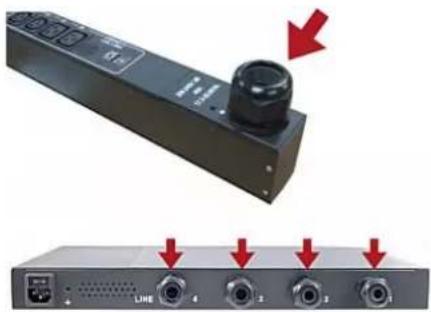
natural_image
Close-up of a black remote control device with a knob and red directional arrows indicating ports, next to a network switch labeled LINE (no text or symbols on device body)
Flexible Cord Selection
Plug Selection
Receptacle Selection
Derating a Raritan Product
Derating guidelines:
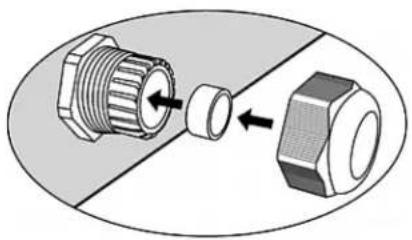
natural_image
Diagram showing two mechanical components: a threaded bolt and a hexagonal nut, with arrows indicating assembly direction (no text or symbols)
Wiring of 3-Phase In-Line Monitors
In-Line Monitor Unused Channels
Step by Step Flexible Cord Installation
▶ To install a flexible cord:
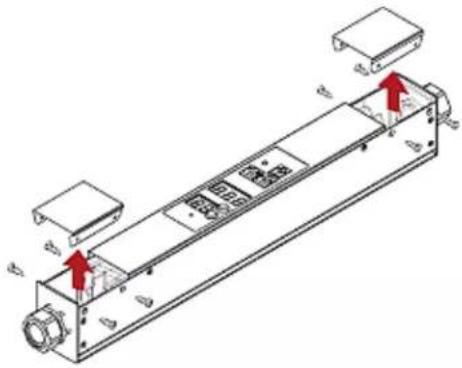
natural_image
Technical line drawing of a mechanical assembly with no visible text or symbols
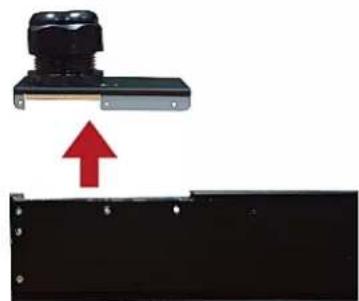
natural_image
Mechanical component with a black housing and red upward arrow indicating motion (no text or symbols)
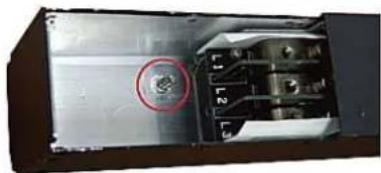
natural_image
Interior view of a mechanical or electronic device with a red circular marker highlighting a component (no visible text or symbols)

natural_image
Isometric diagram of an electronic device with labeled components (no text or symbols present)
Number Description
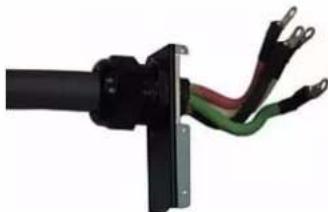
natural_image
Close-up of a black electrical cable with exposed wires and metal contacts (no text or symbols visible)

natural_image
Diagram showing two mechanical components: a threaded connector and a hexagonal nut, with arrows indicating direction of movement (no text or symbols present)
b. Place the ground wire ring terminal on the stud.
c. Place the nut on the stud and tighten with a torque wrench. The appropriate torque settings vary according to the nut size.M3 0.49 10% M4 1.27 8% M5 1.96 5% M6 2.94 3.5% M8 4.9 2% 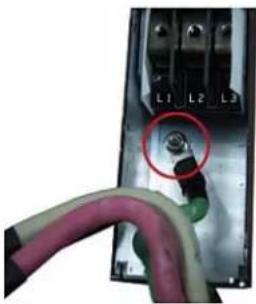
text_image
L1 L2 L3
Screw size Torque setting (N·m) Tolerance M3 0.49 10% M4 1.27 8% M5 1.96 5% M6 2.94 3.5% M8 4.9 2% 
text_image
CH4
L1 L2
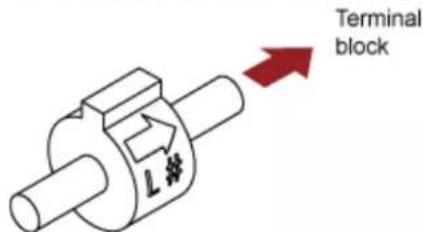
text_image
Terminal block
Cable gland size Torque setting (N·m) M12x1.5 0.7 to 0.9 M16x1.5 2.0 to 3.0 M20x1.5 2.7 to 4.0 M25x1.5 5.0 to 7.5 M32x1.5 7.5 to 10.0 M40x1.5 7.5 to 10.0 M50x1.5 7.5 to 10.0 M63x1.5 7.5 to 10.0
■ Make sure the flexible cord does not move in the cable gland when it is twisted, pushed or pulled.
In-Line Monitor's Web Interface
Dashboard Page
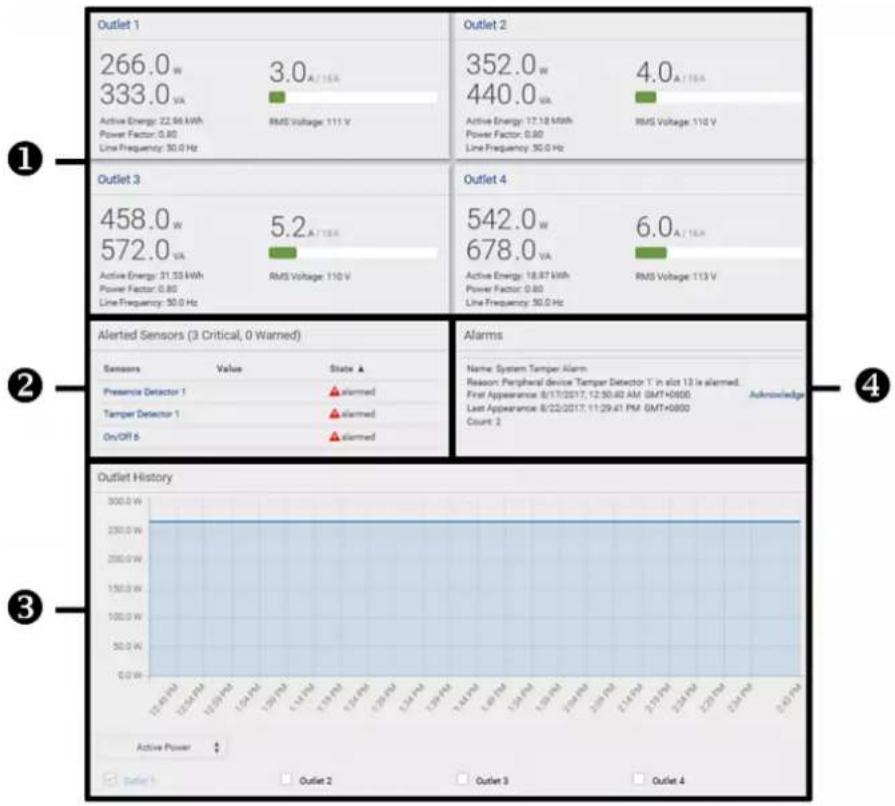
bar
| Outlet | Value | State ▲ |
|---|---|---|
| Preservice Detector 1 | Alarmed | Alarmed |
| Tempor Detector 1 | Alarmed | Alarmed |
| On/Off 5 | Alarmed | Alarmed |
| Outlet History | Active Power (W) | Outlet 1 (kW) | Outlet 2 (kW) | Outlet 3 (kW) | Outlet 4 (kW) |
| :--- | :--- | :--- | :--- | :--- | :--- |
| 10.0-15.0 | 0.0 | 266.0 w / 333.0 VA, Active Energy: 22.96 kWh, Power Factor: 0.80, Line Frequency: 50.0 Hz | 3.0 A / 15.0 V RMS Voltage: 111 V | 440.0 w / 15.0 VA, Active Energy: 17.18 MWh, Power Factor: 0.80, Line Frequency: 50.0 Hz | 4.0 A / 15.0 VA, RMS Voltage: 112 V |
| 15.0-20.0 | 0.0 | 458.0 w / 572.0 VA, Active Energy: 31.53 kWh, Power Factor: 0.80, Line Frequency: 50.0 Hz | 5.2 A / 15.0 V RMS Voltage: 110 V | 678.0 w / 15.0 VA, Active Energy: 18.87 kWh, Power Factor: 0.80, Line Frequency: 50.0 Hz | 6.0 A / 15.0 VA, RMS Voltage: 113 V |
| Alerted Sensors (3 Critical, 0 Warned) | Alarms | Status ▲ |
|---|---|---|
| Sensors | Value | State ▲ |
| Presence Detector 1 | Alarmed | Alarmed |
| Tempor Detector 1 | Alarmed | Alarmed |
| On/Off 5 | Alarmed | Alarmed |
| Outlet History | Active Power (W) | Outlet 1 (kW) | Outlet 2 (kW) | Outlet 3 (kW) | Outlet 4 (kW) |
|---|---|---|---|---|---|
| 10.0-15.0 | 230.0 W | - | - | - | - |
| 15.0-20.0 | 230.0 W | - | - | - | - |
| 20.0-25.0 | 230.0 W | - | - | - | - |
| 25.0-30.0 | 230.0 W | - | - | - | - |
| On/Off 5 | 230.0 W | - | - | - | - |
| Outlier 1: - | - | - | - | - | - |
| Outlier 2: - | - | - | - | - | - |
| Outlier 3: - | - | - | - | - | - |
| Outlier 4: - | - | - | - | - | - |
The chart displays the 'Active Power' values for each outlet in a single box of the data table, with the 'Line Frequency' value also labeled on the left side of the chart.
Number Section Content 1 Outlet(s) Overview of each outlet's power data -- in the above diagram, there are 4 outlets.A current bar per outlet, which changes colors to indicate the RMS current state -- normal (green), warning (yellow) or critical (red).This is similar to Dashboard - Inlet 11(on page 146). 2 Alerted Sensors When no sensors enter the alarmed state, this section shows the message "No Alerted Sensors."When any sensor enters the alarmed state, this section lists all of them.See Dashboard - Alerted Sensors(on page 150). 3 Outlet History The historical chart of the first outlet's active power is displayed by default.You can make the diagram show another outlet's or multiple outlets' active power history or select a different data type. See instructions below. 4 Alarms This section can show data only after you have set event rules requiring users to take the acknowledgment action.When there are no unacknowledged events, this section shows the message "No Alarms."When there are unacknowledged events, this section lists all of them.See Dashboard - Alarms(on page 155). To go to each outlet's setup page:

bar
| Category | Value |
|---|---|
| Inlet/Outlet 1 | 266.0 w |
| Inlet/Outlet 1 | 333.0 VA |
| Active Energy: | 22.96 kWh |
| Power Factor: | 0.80 |
| Line Frequency: | 50.0 Hz |
| RMS Voltage: | 111 V |
| Current (A) / 16A | 3.0 A / 16A |
▶ To view the inlet power chart:
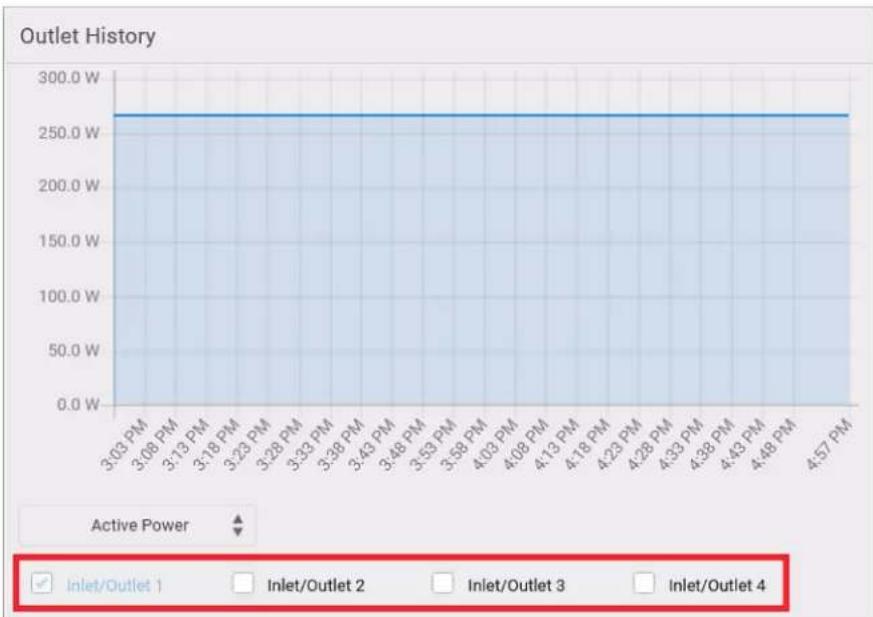
line
| Time | Active Power |
| ---------- | ------------ |
| 3:03 PM | 265.0 W |
| 3:08 PM | 265.0 W |
| 3:13 PM | 265.0 W |
| 3:18 PM | 265.0 W |
| 3:23 PM | 265.0 W |
| 3:28 PM | 265.0 W |
| 3:33 PM | 265.0 W |
| 3:39 PM | 265.0 W |
| 3:43 PM | 265.0 W |
| 3:48 PM | 265.0 W |
| 3:53 PM | 265.0 W |
| 3:58 PM | 265.0 W |
| 4:03 PM | 265.0 W |
| 4:08 PM | 265.0 W |
| 4:13 PM | 265.0 W |
| 4:18 PM | 265.0 W |
| 4:23 PM | 265.0 W |
| 4:28 PM | 265.0 W |
| 4:33 PM | 265.0 W |
| 4:38 PM | 265.0 W |
| 4:43 PM | 265.0 W |
| 4:48 PM | 265.0 W |
| 4:57 PM | 265.0 W |

text_image
Inlet/Outlet 1
Inlet/Outlet 2
Inlet/Outlet 3
Inlet/Outlet 4
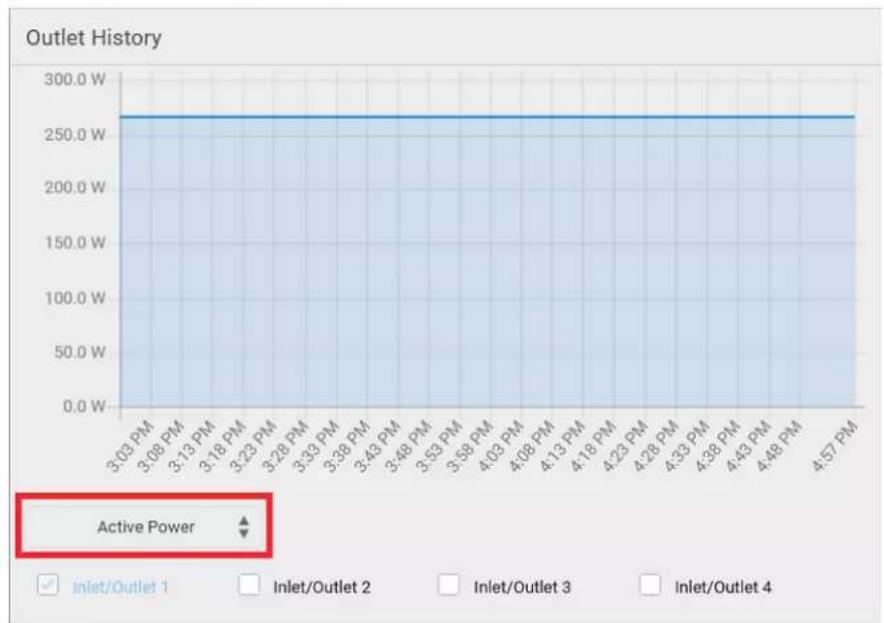
line
| Time | Active Power |
| ---------- | ------------ |
| 3:03 PM | 260.0 W |
| 3:08 PM | 260.0 W |
| 3:13 PM | 260.0 W |
| 3:18 PM | 260.0 W |
| 3:23 PM | 260.0 W |
| 3:28 PM | 260.0 W |
| 3:33 PM | 260.0 W |
| 3:38 PM | 260.0 W |
| 3:43 PM | 260.0 W |
| 3:48 PM | 260.0 W |
| 3:53 PM | 260.0 W |
| 3:58 PM | 260.0 W |
| 4:03 PM | 260.0 W |
| 4:08 PM | 260.0 W |
| 4:13 PM | 260.0 W |
| 4:18 PM | 260.0 W |
| 4:23 PM | 260.0 W |
| 4:28 PM | 260.0 W |
| 4:33 PM | 260.0 W |
| 4:38 PM | 260.0 W |
| 4:43 PM | 260.0 W |
| 4:48 PM | 260.0 W |
| 4:57 PM | 260.0 W |
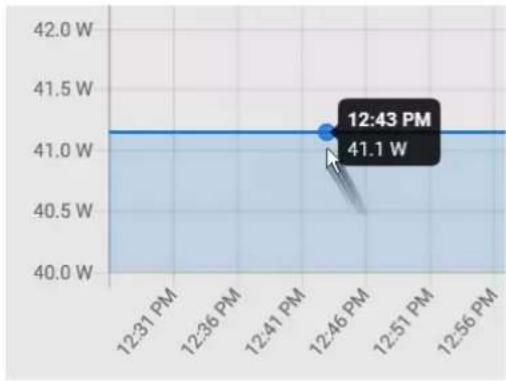
line
| Time | Power |
| -------- | ----- |
| 12:43 PM | 41.1 W |
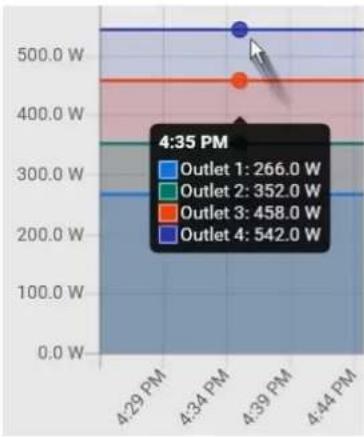
line
| Time | Power (W) |
| -------- | --------- |
| 4:35 PM | 542.0 |
| 4:34 PM | 458.0 |
| 4:39 PM | 352.0 |
| 4:44 PM | 266.0 |
Inlets/Outlets Page
- Configure each inlet/outlet as needed, such as customizing outlet names, setting thresholds or resetting energy.Operation:

text_image
Dashboard
PDU
Inlets / Outlets
Peripherals
Feature Port
User Management
Device Settings
Maintenance

other
| Outlet | Item | Value (w) | Power Factor | RMS Voltage |
| :--- | :--- | :--- | :--- | :--- |
| Inlet/Outlet 1 | Show Details | 266.0 | 333.0 | 3.0A / 16A |
| Inlet/Outlet 1 | Show Details | Active Energy: 22.96 kWh; Power Factor: 0.80; Line Frequency: 50.0 Hz | RMS Voltage: 111 V | |
| Inlet/Outlet 2 | Show Details | 352.0 | 440.0 | 4.0A / 16A |
| Inlet/Outlet 2 | Show Details | Active Energy: 17.18 MWh; Power Factor: 0.80; Line Frequency: 50.0 Hz | RMS Voltage: 110 V | |
| Inlet/Outlet 3 | Show Details | 458.0 | 572.0 | 5.2A / 16A |
| Inlet/Outlet 3 | Show Details | Active Energy: 31.53 kWh; Power Factor: 0.80; Line Frequency: 50.0 Hz | RMS Voltage: 110 V | |
| Inlet/Outlet 4 | Show Details | 542.0 | 678.0 | 6.0A / 16A |
| Inlet/Outlet 4 | Show Details | Active Energy: 18.97 kWh; Power Factor: 0.80; Line Frequency: 50.0 Hz | RMS Voltage: 113 V | |
■ View all of its sensors data
- Reset its active energy
■ View its power chart
■ Configure its power thresholdsAppendix A Specifications
In This Chapter
Maximum Ambient Operating Temperature
Specification Measure Max Ambient Temperature 50 to 60 degrees Celsius Serial RS-232 "DB9" Port Pinouts
RS-232 Pin/signal definition Pin No. Signal Direction Description 1 DCD Input Data 2 RxD Input Receive data (data in) 3 TxD Output Transmit data 4 DTR Output Data terminal ready 5 GND — Signal ground 6 DSR Input Data set ready 7 RTS Output Request to send 8 CTS Input Clear to send 9 RI Input Ring indicator RJ-45 Pin/signal definition Pin No. Signal Direction Description 1 RTS Output Request to send 2 DTR Output Data terminal ready 3 TxD Output Transmit data 4 GND — Signal ground 5 DCD Input Data 6 RxD Input Receive data (data in) 7 DSR Input Data set ready 8 CTS Input Clear to send RJ-45 Pin/signal definition Pin No. Signal Direction Description 1 +12V — Power (fuse protected) 2 +12V — Power (fuse protected) 3 GND — Signal Ground 4 RS485_DP bi-directional Data Positive of the RS-485 bus 5 RS485_DN bi-directional Data Negative of the RS-485 bus 6 GND — Signal Ground 7 1-wire — Used for Feature Port 8 GND — Signal Ground RJ-45 Pin/signal definition Pin No. Signal Direction Description 1 DTR Output Reserved Ground 2 GND — Signal 3 +5V — Power for CIM (200mA, fuse protected)Warning: Pin 3 is only intended for use with Raritan devices. 4 TxD Output Transmit Data (Data out) 5 RxD Input Receive Data (Data in) 6 +12V — Warning: Pin 6 is only intended for use with Raritan devices. Do NOT connect. 7 GND — Signal Ground 8 DCD Input Reserved RJ-45 Pin/signal definition Pin No. Signal Direction Description 1 +12V — Power (fuse protected) 2 +12V — Power (fuse protected) 3 GND — Signal Ground 4 RS485_DP bi-directional Data Positive of the RS-485 bus 5 RS485_DN bi-directional Data Negative of the RS-485 bus 6 GND — Signal Ground 7 NC — No Connection 8 GND — Signal Ground Appendix B Equipment Setup Worksheet
OUTLET 1 OUTLET 2 OUTLET 3 MODEL MODEL MODEL SERIAL NUMBER SERIAL NUMBER SERIAL NUMBER USE USE USE OUTLET 4 OUTLET 5 OUTLET 6 MODEL MODEL MODEL SERIAL NUMBER SERIAL NUMBER SERIAL NUMBER USE USE USE OUTLET 7 OUTLET 8 OUTLET 9 MODEL MODEL MODEL SERIAL NUMBER SERIAL NUMBER SERIAL NUMBER USE USE USE OUTLET 10 OUTLET 11 OUTLET 12 MODEL MODEL MODEL SERIAL NUMBER SERIAL NUMBER SERIAL NUMBER USE USE USE OUTLET 13 OUTLET 14 OUTLET 15 MODEL MODEL MODEL SERIAL NUMBER SERIAL NUMBER SERIAL NUMBER USE USE USE OUTLET 16 OUTLET 17 OUTLET 18 MODEL MODEL MODEL SERIAL NUMBER SERIAL NUMBER SERIAL NUMBER USE USE USE OUTLET 19 OUTLET 20 OUTLET 21 MODEL MODEL MODEL SERIAL NUMBER SERIAL NUMBER SERIAL NUMBER USE USE USE OUTLET 22 OUTLET 23 OUTLET 24 MODEL MODEL MODEL SERIAL NUMBER SERIAL NUMBER SERIAL NUMBER USE USE USE Appendix C Configuration or Firmware Upgrade with a USB Drive
In This Chapter
Device Configuration/Upgrade Procedure



a. First performs the firmware upgrade, showing the upgrade message on the front panel display.
b. Then shows the happy smiley when the firmware upgrade completes successfully. See Firmware Upgrade via USB(on page 676).
System and USB Requirements
- Your PX3 must be version 2.2.13 or later.
Configuration Files
This file MUST be always present for performing configuration or firmware upgrade tasks. See fwupdate.cfg (on page 667).
This file is used for configuring device settings. See config.txt (on page 671).
This file is required only when there are device-specific settings to configure for multiple PX3 devices. See devices.csv(on page 673).fwupdate.cfg
Illustration:
user=admin
password=raritan
logfile=log.txt
config=config.txt
device_list=devices.csv
user
password
logfile
firmware
config
device\_list
match
collect\_diag
factory\_reset
bulk\_config\_restore
full\_config\_restore
switch\_outlets
- Switch on or off specific outlets.
- The option's value comprises outlet numbers and the setting "on" or "off" as explained below:
- Each "on" or "off" setting consists of three parts: outlet numbers, a colon, and the word "on" or "off".
■ Each "on" or "off" setting is separated with a semicolon.
config.txt
▶ Regular configuration key syntax:
key=valuekey<<EOF
value line 1
value line 2
EOF
▶ Special configuration keys:
To configure device-specific settings:
To rename the admin user:
devices.csv
Creating Configuration Files via Mass Deployment Utility
To use the Mass Deployment Utility:
■ The 3rd worksheet contains device-specific information for devices.csv.
b. Click Export Lists to generate configuration files.
text_image
Target Directory:
C:\temp
Browse...
Export Lists
Data Encryption in 'config.txt'
Data encryption procedure:
<h1 id="config-encrypt-value">config encrypt <value></h1>
-- OR --
<h1 id="config-encrypt-value-with-spaces">config encrypt "<value with spaces>"</h1>
Illustration:
snmp.write_community=private

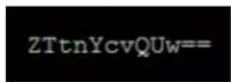
snmp.write_community=ZTtnYcvQUw==
encrypted: snmp.write_community=ZTtnYcvQUw==
Firmware Upgrade via USB
To use a USB drive to upgrade the PX3:





Appendix D Bulk Configuration or Firmware Upgrade via DHCP/TFTP
In This Chapter
Bulk Configuration/Upgrade Procedure
Steps of using DHCP/TFTP for bulk configuration/upgrade:
■ devices.csv
- DHCP IPv6 Configuration in Windows (on page 690)
■ DHCP IPv4 Configuration in Linux (on page 697)
- DHCP IPv6 Configuration in Linux (on page 699)
TFTP Requirements
DHCP IPv4 Configuration in Windows
▶ Required Windows IPv4 settings in DHCP:
b. Click Add to add a new vendor class.
text_image
DHCP Vendor Classes
Available classes:
Name Description
Microsoft Windows 20... Microsoft vendor-specific option...
Microsoft Windows 98 ... Microsoft vendor-specific option...
Microsoft Options Microsoft vendor-specific option...
Add...
Edit...
Remove
Close

text_image
New Class
Display name:
Raritan PDU
Description:
Raritan PDU
ID: Binary: ASCII:
0000 52 61 72 69 74 61 6E 20 Raritan
0008 50 44 55 20 31 2E 30 PDU 1.0
OK Cancel

text_image
Predefined Options and Values
Option class: DHCP Standard Options
Option name: 060 Vendor Class Identifier
046 WINS/NBT Node Type
047 NetBIOS Scope ID
048 X Window System Font
049 X Window System Display
Description: 060 Vendor Class Identifier
064 NIS÷ Domain Name
065 NIS÷ Servers
Value
String:
OK Cancel
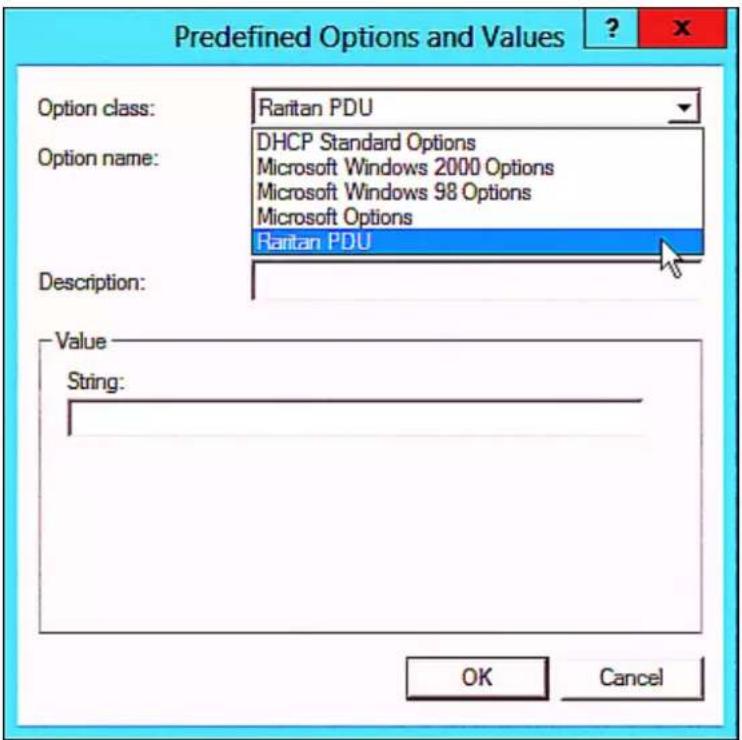
text_image
Predefined Options and Values
Option class: Rantan PDU
Option name: DHCP Standard Options
Microsoft Windows 2000 Options
Microsoft Windows 98 Options
Microsoft Options
Rantan PDU
Description:
Value
String:
OK Cancel
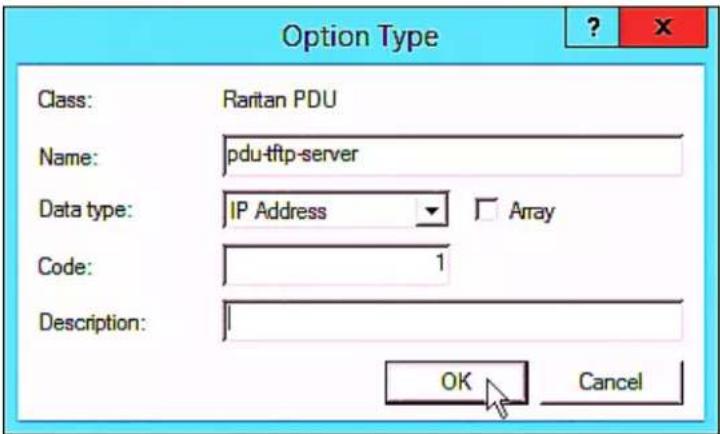
text_image
Option Type
Class: Raritan PDU
Name: pdu-tftp-server
Data type: IP Address □ Array
Code: 1
Description:
OK Cancel

text_image
Option Type
Class: Raritan PDU
Name: pdu-update-control-file
Data type: String Array
Code: 2
Description:
OK Cancel
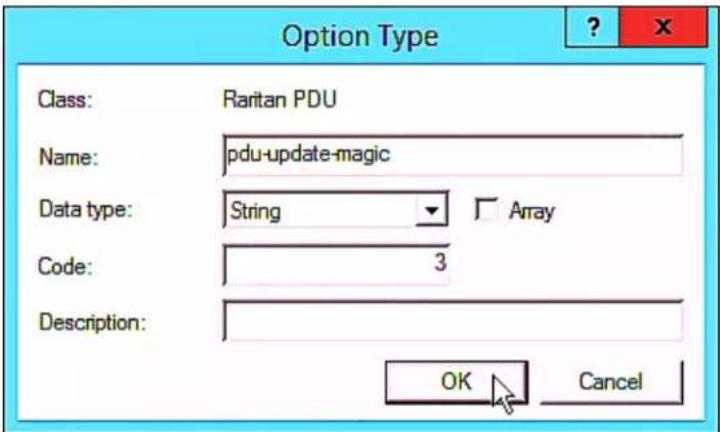
text_image
Option Type
Class: Raritan PDU
Name: pdu-update-magic
Data type: String Array
Code: 3
Description:
OK Cancel
b. Specify a policy name, and click Next.
text_image
DHCP Policy Configuration Wizard
Policy based IP Address and Option Assignment
This feature allows you to distribute configurable settings (IP address, DHCP options) to clients based on certain conditions (e.g. vendor class, user class, MAC address, etc.).
This wizard will guide you setting up a new policy. Provide a name (e.g. VoIP Phone Configuration Policy) and description (e.g. NTP Server option for VoIP Phones) for your policy.
Policy Name: PDU
Description:
< Back Next > Cancel

text_image
Add/Edit Condition
Specify a condition for the policy being configured. Select a criteria, operator
and values for the condition.
Criteria: Vendor Class
Operator: Equals
Value(s)
Value: Raritan PDU Add
Prefix wildcard(*)
Append wildcard(*)
Raritan PDU Remove
Ok Cancel
DHCP Policy Configuration Wizard
Configure settings for the policy


Available Options Description ☐ 049 X Window System Display Array of X Windows Display M ☑ 060 Vendor Class Identifier ☐ 064 NIS÷ Domain Name The name of the client's NIS÷ < III > 
DHCP Policy Configuration Wizard
Configure settings for the policy


□ 002 pdu-update-control-file
□ 003 pdu-update-magic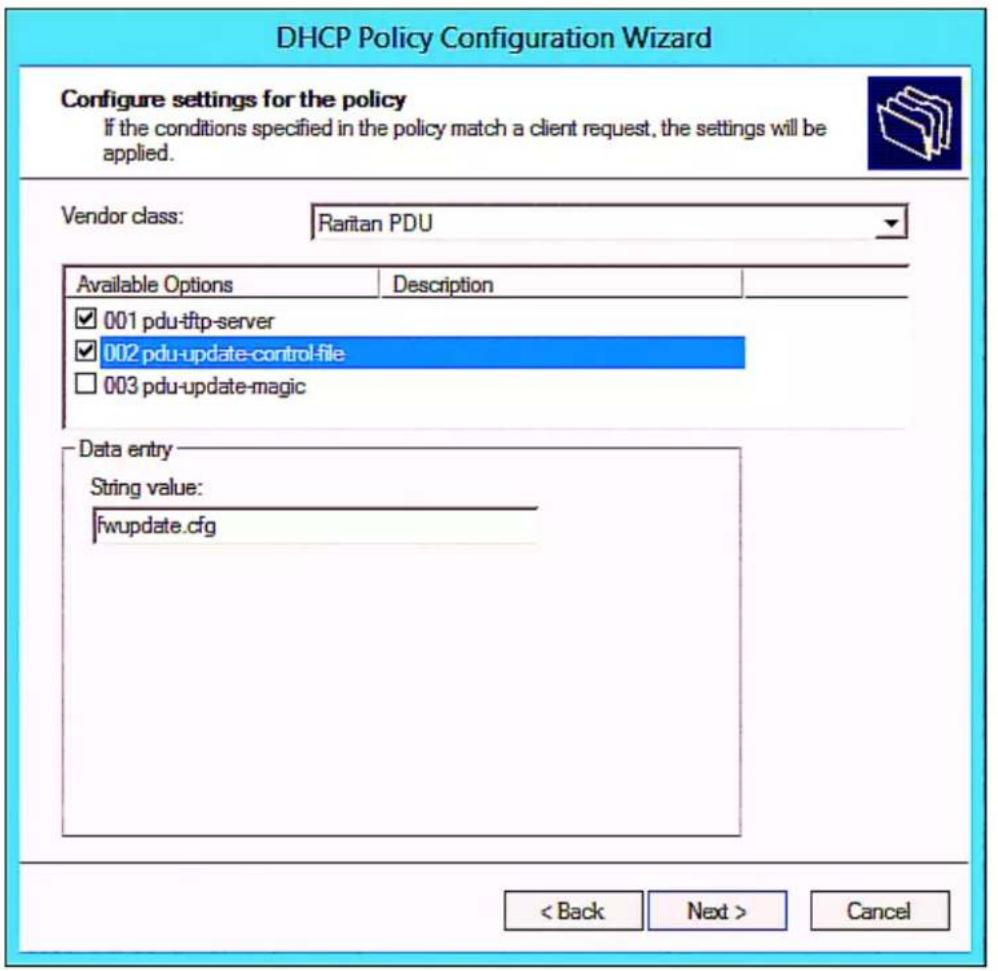
text_image
DHCP Policy Configuration Wizard
Configure settings for the policy
If the conditions specified in the policy match a client request, the settings will be applied.
Vendor class: Raritan PDU
Available Options Description
✓ 001 pdu-tftp-server
✓ 002 pdu-update-control-file
□ 003 pdu-update-magic
Data entry
String value:
fwupdate.cfg
< Back Next > Cancel
DHCP Policy Configuration Wizard
Configure settings for the policy


002 pdu-update-control-file
003 pdu-update-magicDHCP IPv6 Configuration in Windows
▶ Required Windows IPv6 settings in DHCP:
b. Click Add to add a new vendor class.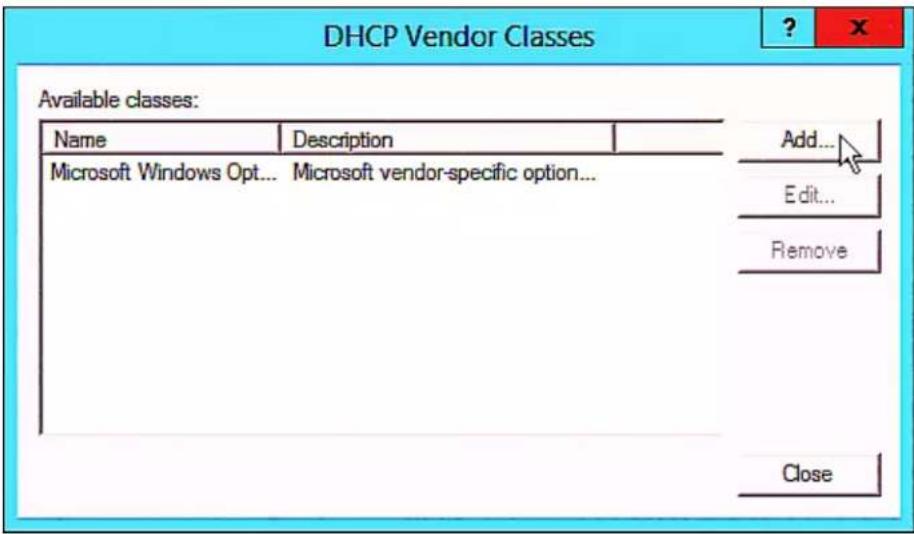
text_image
DHCP Vendor Classes
Available classes:
Name Description
Microsoft Windows Opt... Microsoft vendor-specific option...
Add...
Edit...
Remove
Close
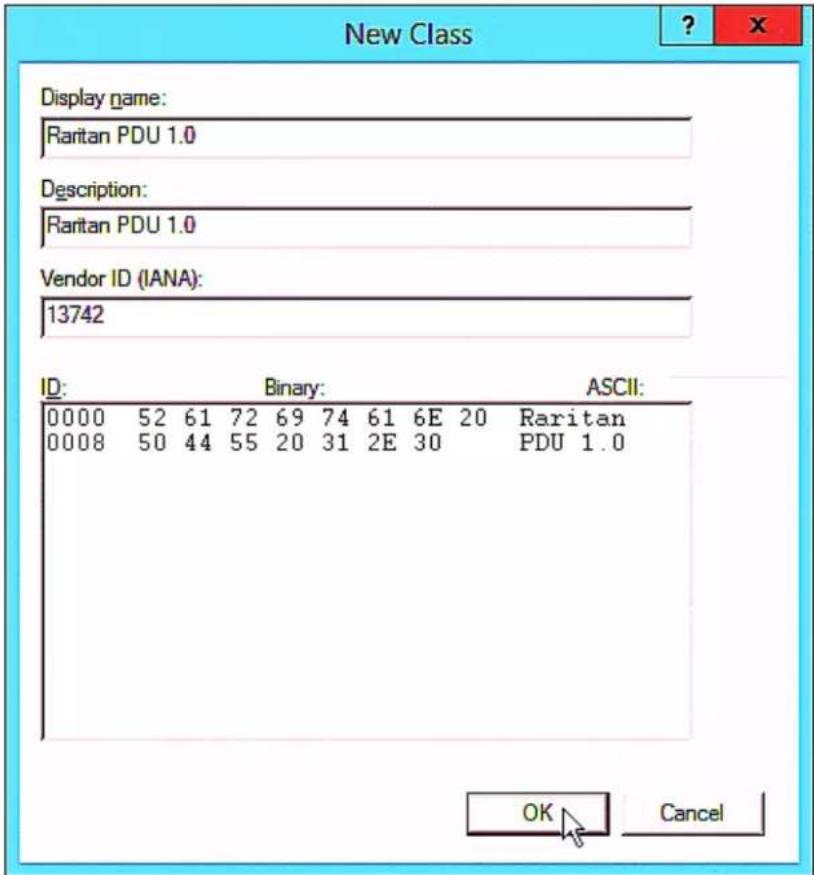
text_image
New Class
Display name:
Raritan PDU 1.0
Description:
Raritan PDU 1.0
Vendor ID (IANA):
13742
ID: Binary: ASCII:
0000 52 61 72 69 74 61 6E 20 Raritan
0008 50 44 55 20 31 2E 30 PDU 1.0
OK Cancel
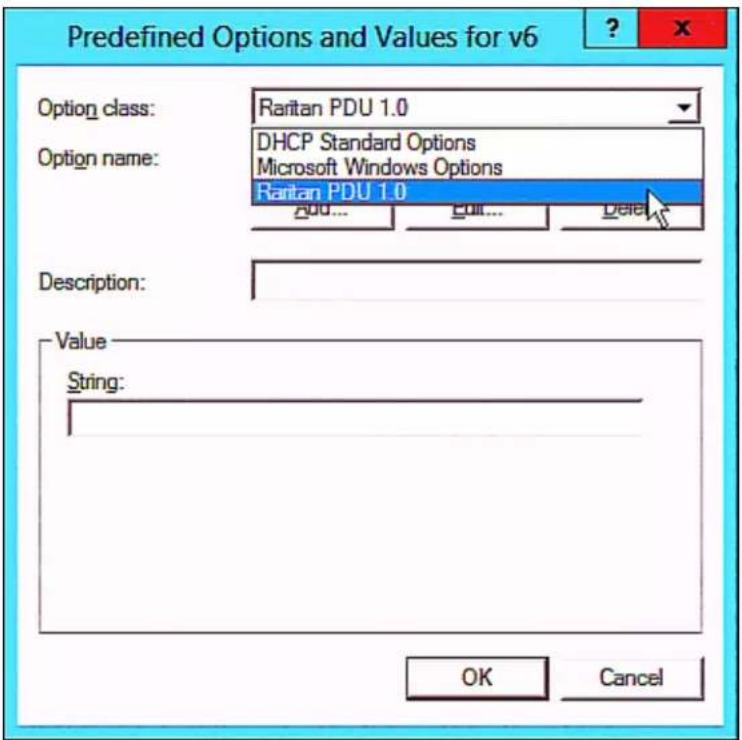
text_image
Predefined Options and Values for v6
Option class: Raritan PDU 1.0
Option name: DHCP Standard Options
Microsoft Windows Options
Raritan PDU 1.0
Add...
Edit...
Delete
Description:
Value
String:
OK Cancel
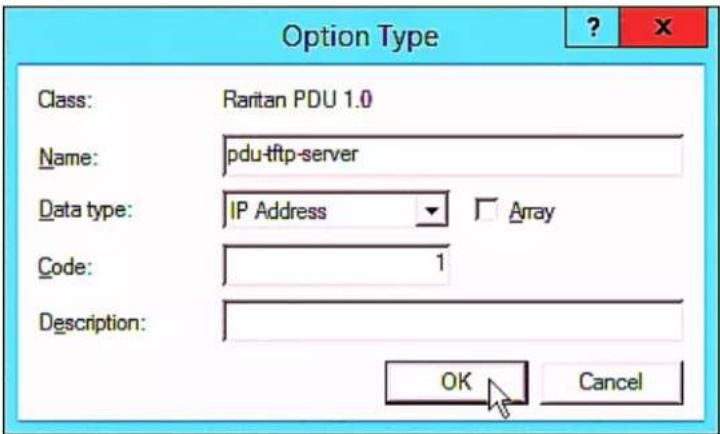
text_image
Option Type
Class: Raritan PDU 1.0
Name: pdu-tftp-server
Data type: IP Address □ Array
Code: 1
Description:
OK Cancel
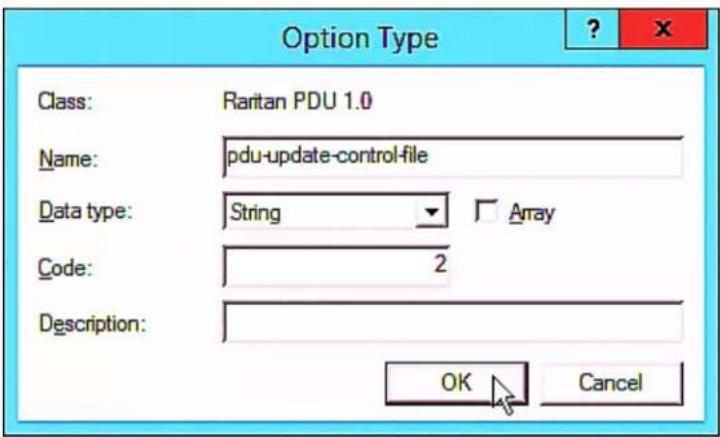
text_image
Option Type
Class: Raritan PDU 1.0
Name: pdu-update-control-file
Data type: String Array
Code: 2
Description:
OK Cancel
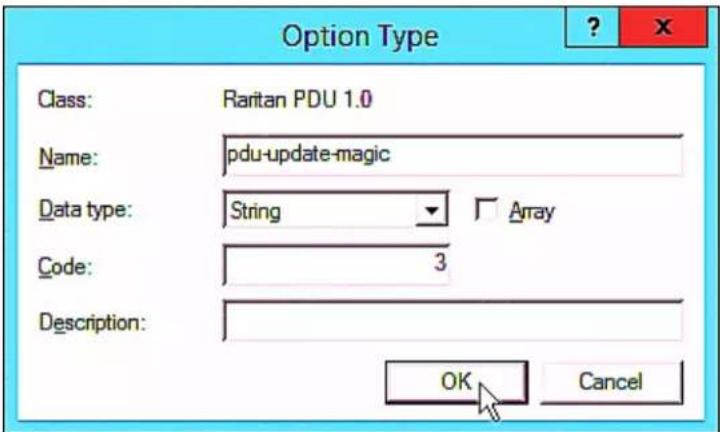
text_image
Option Type
Class: Raritan PDU 1.0
Name: pdu-update-magic
Data type: String Array
Code: 3
Description:
OK Cancel
b. Click the Advanced tab.
text_image
Server Options
General Advanced
Vendor class: Raritan PDU 1.0
User class: Default User Class
Available Options Description
✓ 00001 pdu-tftp-server
☐ 00002 pdu-update-control-file
☐ 00002.pdu-update-magio
< III >
Data entry
IPv6 address:
fd07:2fa:6cff:1010::200
OK Cancel Apply
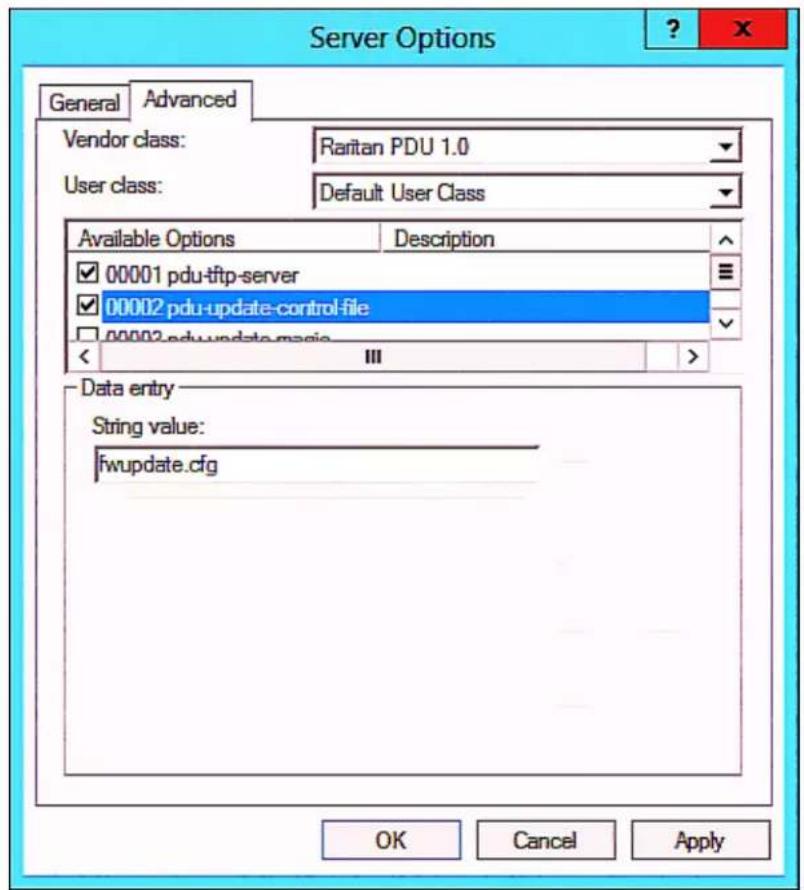
text_image
Server Options
General Advanced
Vendor class: Raritan PDU 1.0
User class: Default User Class
Available Options Description
✓ 00001 pdu-tftp-server
✓ 00002 pdu-update-control-file
✓ 00002.pdu-update-magia
< III >
Data entry
String value:
fwupdate.cfg
OK Cancel Apply

text_image
Server Options
General Advanced
Vendor class: Raritan PDU 1.0
User class: Default User Class
Available Options Description
✓ 00002 pdu-update-control-file
✓ 00003 pdu-update-magic
Data entry
String value:
20150427-6001
OK Cancel Apply
DHCP IPv4 Configuration in Linux
▶ Required Linux IPv4 settings in DHCP:
3. Set the following three sub-options in the
- code 2 (pdu-update-control-file) = the name of the control file "fwupdate.cfg"[...]
set vendor-string = option vendor-class-identifier;
option space RARITAN code width 1 length width 1 hash size 3;
option RARITAN.pdu-tftp-server code 1 = ip-address;
option RARITAN.pdu-update-control-file code 2 = text;
option RARITAN.pdu-update-magic code 3 = text;
class "raritan" {
match if option vendor-class-identifier = "Raritan PDU 1.0";
vendor-option-space RARITAN;
option RARITAN.pdu-tftp-server 192.168.1.7;
option RARITAN.pdu-update-control-file "fwupdate.cfg";
option RARITAN.pdu-update-magic "20150123-0001";
option vendor-class-identifier "Raritan PDU 1.0";
}
[...]
DHCP IPv6 Configuration in Linux
▶ Required Linux IPv6 settings in DHCP:
- Raritan PDU 1.0
■ 15 (the length of the above string "Raritan PDU 1.0")
- code 2 (pdu-update-control-file) = the name of the control file "fwupdate.cfg"[...]
option space RARITAN code width 2 length width 2 hash size 3;
option RARITAN.pdu-tftp-server code 1 = ip6-address;
option RARITAN.pdu-update-control-file code 2 = text;
option RARITAN.pdu-update-magic code 3 = text;
option vsio.RARITAN code 13742 = encapsulate RARITAN;
[...]
subnet6 xxxx {
[...]
option RARITAN.pdu-tftp-server 1::2;
option RARITAN.pdu-update-control-file "fwupdate.cfg";
option RARITAN.pdu-update-magic "20150123-0001";
[...]
}
Appendix E Resetting to Factory Defaults
Alternative:
In This Chapter
Using the Reset Button
To reset to factory defaults using the reset button:
These diagrams illustrate the reset button on Zero U models. Port locations may differ on your models.
text_image
CONSOLE / MODEM
USB-B
ETHERNET
USB-A
RESET
SENSOR
USB-A
FEATURE
Raritan
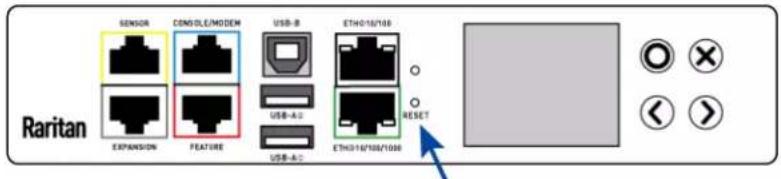
text_image
Raritan
SENSOR
CONSOLE/MODEM
USB-B
ETH016/108
EXPANSION
FEATURE
USB-A-3
USB-A-2
ETH016/108/1000
RESET
Using the CLI Command
<h1 id="reset-factorydefaults-2">reset factorydefaults</h1>
-- OR --
<h1 id="reset-factorydefaultsy">reset factorydefaults/y</h1>
To reset to factory defaults without logging in to the CLI:
Appendix F PX3 Models with Residual Current Monitoring
In This Chapter
RCM Current Sensor
- Type B: Detects AC and DC leakage. Models ending in -M11 or -M18.RCM State Sensor
RCM state Description Normal Residual current is within normal range. Warning Residual current is above warning level. Critical Residual current is above critical level. In addition to an event, the CRITICAL state causes the PX3 front panel to display a special error message. Self-test active RCM diagnostics are running. Failure RCM current sensor has malfunctioned. Contact Raritan Technical Support. Compliance with IEC 62020
IEC 62020 specification PX3 with RCM characteristics Method of operation Dependent on line voltage. RCM only functions if line voltage is present. Type of installation PX3 with flexible line cords and plugs are for mobile installation and corded connection. Current paths 1-phase PX3 are two current paths RCM.3-phase 3W+PE are three current paths RCM.3-phase 4W+PE are four current paths RCM. Ability to adjust residual operating current Adjustable.· Type A: 6mA-500mA.· Type B: 30mA-300mA. Adjustable time delay Non-adjustable time delay. Protection against external influence Enclosed-type RCM. Method of mounting Panel board type RCM. Method of connection Not associated with mechanical mounting. Connection of load conductors Monitored line is directly connected. Fault indicating means Visual, with other output signals. Ability to directly discriminate Directionally non-discriminating. Rated residual operating current 0.5A (highest value). Residual currents with direct current components Model dependent.Models ending in -M5 are Type A, and -M11 or -M18 are Type B. RCM Self-Test
Web Interface Operations for RCM

text_image
Dashboard
PDU
Inlet
Outlets
OCPs
Peripherals
Feature Port
User Management >
Device Settings >
Maintenance >
Checking RCM State and Current
To check RCM state and current on the Inlet page:
RCM Critical State Alarm

bar
| Sensors | Value | State ▲ |
| :--- | :--- | :--- |
| Inlet I1 Residual Operating Current | 0.091 A | ▲ above upper critical |
| Inlet I1 RCM Status | | ▲ critical |
① |
② |
Number Description 1 The magnitude of residual current reported by the RCM current sensor. 2 Critical state reported by the RCM state sensor. Setting RCM Current Thresholds
To configure the RCM current thresholds and run self-test:
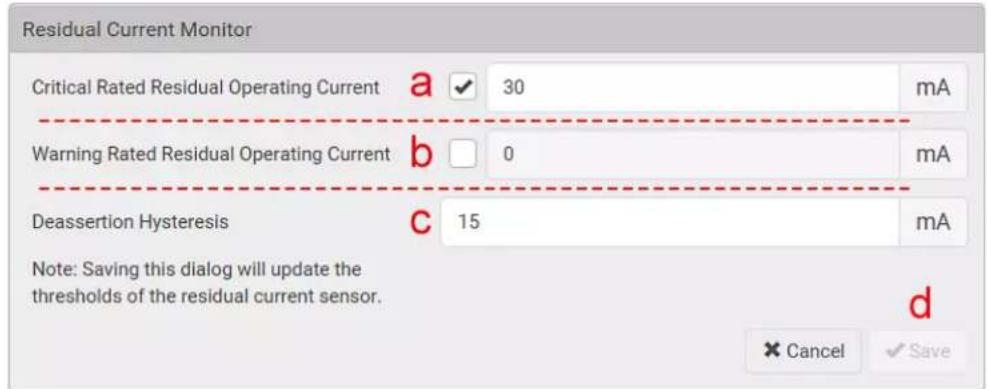
text_image
Residual Current Monitor
Critical Rated Residual Operating Current a 30 mA
Warning Rated Residual Operating Current b 0 mA
Deassertion Hysteresis c 15 mA
Note: Saving this dialog will update the
thresholds of the residual current sensor.
× Cancel ✓ Save
d
b. Enable or disable the RCM warning threshold. Residual current greater than this value triggers Warning RCM state.
c. Determine the residual current decrease to end Warning or Critical RCM state.
d. Click Save.
Scheduling RCM Self-Test
Disabling or Enabling Front Panel RCM Self-Test
To disable or enable the front panel RCM self-test:
Front Panel Operations for RCM
LCD Message for RCM Critical State
▶ RCM alarm information in the critical state:
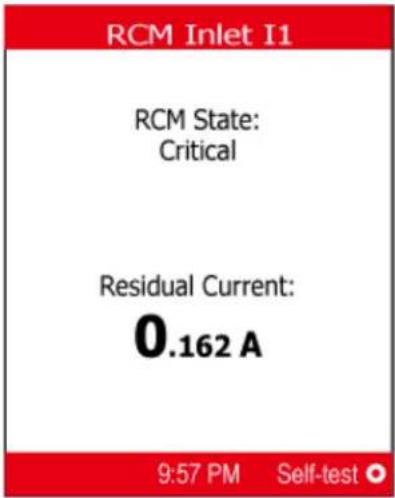
text_image
RCM Inlet I1
RCM State:
Critical
Residual Current:
0.162 A
9:57 PM Self-test
Checking RCM States and Current
To check RCM information:
/ to access the
Main Menu (on page 95).
or ▼/√
to select "Residual Current", and press



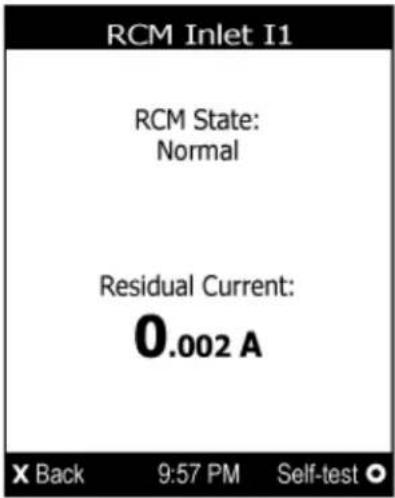
text_image
RCM Inlet I1
RCM State:
Normal
Residual Current:
0.002 A
X Back 9:57 PM Self-test ○
Running RCM Self-Test
To run RCM self-test:




text_image
- Press /× ×
- Press ▲/ or / to select No and then press
●/○
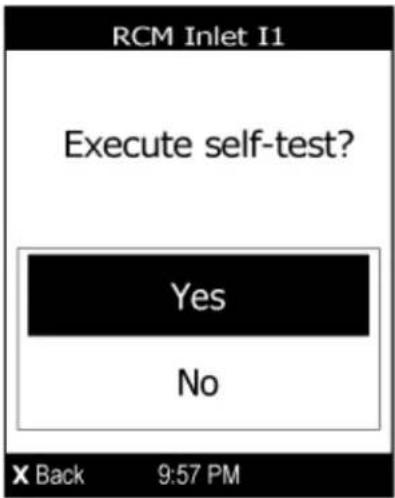
text_image
RCM Inlet I1
Execute self-test?
Yes
No
X Back 9:57 PM
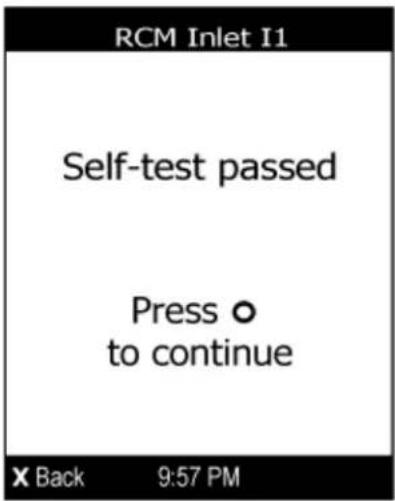
text_image
RCM Inlet I1
Self-test passed
Press o
to continue
X Back 9:57 PM

RCM SNMP Operations
RCM Trap
RCM Residual Current and State Objects
Setting RCM Thresholds
Running RCM Self-Test
CLI Operations for RCM
Showing Residual Current Monitor Information
Variables:
Option Description all Displays the RCM information of all inlets. Tip: You can also type the command without adding this option “all” to get the same data. A specific inlet number Displays the RCM information of the specified inlet only.An inlet number needs to be specified only when there are more than 1 inlet on your PDU. Setting RCM Current Thresholds
Variables:
Option Description enable Enables the specified RCM current threshold for the specified inlet. disable Disables the specified RCM current threshold for the specified inlet. A numeric value Sets a value for the specified RCM current threshold of the specified inlet and enables this threshold simultaneously. Note that this value is measured in A, not mA. Therefore, to set the value to 6mA, type 0.006. Setting Front Panel RCM Self-Test
security frontPanelPermissions add rcmSelfTest
security frontPanelPermissions remove rcmSelfTest
Running RCM Self-Test
Degaussing RCM Type B Sensors
Appendix G Old PX3 Character LCD Display
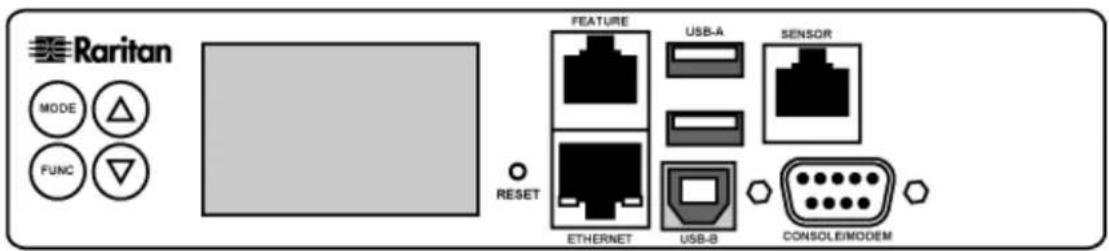
text_image
Raritan
MODE
FUNC
RESET
FEATURE
USB-A
SENSOR
ETHERNET
USB-B
CONSOLE/MODEM
- Control buttons

natural_image
Blank gray rectangle with black border (no text or symbols)
In This Chapter
Overview of the LCD Display

text_image
Diagram of a rectangular box with five numbered points and dashed internal lines, likely illustrating a geometric or spatial relationship.
Section Information shown 1 The selected mode and target, such as INLET 1, OUTLET 1, SENSOR 1, SENSOR 2, and so on. 2 The following information is displayed:Readings, data or state of the selected target.During the firmware upgrade, "FUP" is displayed. 3 Two types of information may be displayed:The "ALARM" status of the selected target.The selected inlet line number if your PX3 is a 3-phase model. 4 The measurement unit of the displayed data, such as % or °C. 5 This section indicates:The Asset Strip mode if an asset strip has been connected to the PX3.The device's USB-cascading state - MASTERor SLAVE. If it is a standalone device, neither MASTER nor SLAVE is displayed. Control Buttons
• MODE button for switching between various modes, including:Operating the LCD Display
Outlet Information
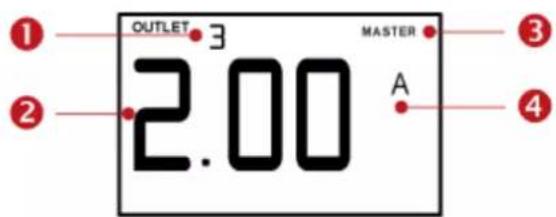
text_image
1 OUTLET 3 MASTER
2 2.00 A
2 3
4
Section Example information 1 The selected target is OUTLET 3. 2 This outlet's current reading is 2 amps. 3 The word "MASTER" indicates the PX3 is the master device in a cascading chain.For a slave device, it shows "SLAVE" instead. Note: As of release 3.3.10, the "MASTER/SLAVE" information is no longer available in the Bridging mode, but remains available in the Port Forwarding mode. 4 The measurement unit is A (Amp), indicating that the reading is the RMS current. To display a single-phase outlet's information:
■ A is displayed for the current reading. A means Amp.
■ W is displayed for the power reading. W means Watt.To display a 3-phase outlet's information
A is displayed for the current reading. A means Amp.
b. Press the Down button until '%' or 'W' is displayed to the right of the display. Make sure NONE of the lines (L1, L2, L3, L1-L2, L2-L3 or L3-L1) is displayed at the bottom of the display.Inlet Information
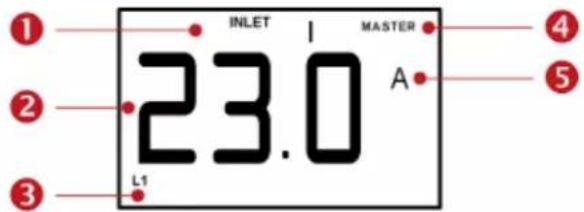
text_image
INLET
23.0
MASTER
A
L1
①
②
③
④
⑤
Section Example information 1 The selected target is INLET 1. 2 This inlet's L1 current reading is 23 amps. 3 The selected inlet line is L1. 4 The word "MASTER" indicates the PX3 is the master device in a cascading chain.For a slave device, it shows "SLAVE" instead. Note: As of release 3.3.10, the "MASTER/SLAVE" information is no longer available in the Bridging mode, but remains available in the Port Forwarding mode. 5 The measurement unit is A (ampere). To display an inlet's information:
- V is displayed for the voltage reading. V means Volt.
■ W is displayed for the power reading. W means Watt.To display the unbalanced load and active power of a 3-phase inlet:
Overcurrent Protector Information
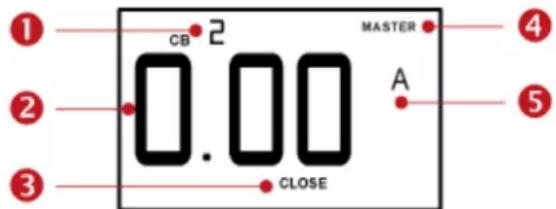
text_image
1
2
3
CB 2
0.00
CLOSE
MASTER
A
4
5
Section Example information 1 The selected target is the second circuit breaker (CB 2). 2 This circuit breaker's current reading is 0 amps. 3 The word "CLOSE" indicates that the state of the selected circuit breaker is closed. 4 The word "MASTER" indicates the PX3 is the master device in a cascading chain.For a slave device, it shows "SLAVE" instead. Note: As of release 3.3.10, the "MASTER/SLAVE" information is no longer available in the Bridging mode, but remains available in the Port Forwarding mode. 5 The measurement unit is A (Amp), indicating that the reading is the current. To display the overcurrent protector information:
IPv4 Address

text_image
1
2
3
d
14
MASTER
4
Section Example information 1 "d" means the LCD display has entered the Device mode. 2 The LCD display is showing 192, which is one of the four IP address octets. It will cycle through four octets. 3 'i4" indicates that the IP address shown on the LCD display is an IPv4 address. 4 The word "MASTER" indicates the PX3 is the master device in a cascading chain.For a slave device, it shows "SLAVE" instead.Note: As of release 3.3.10, the "MASTER/SLAVE" information is no longer available in the Bridging mode, but remains available in the Port Forwarding mode. 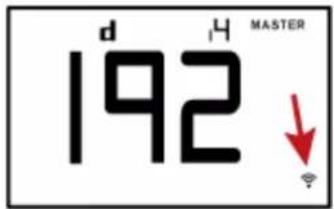
text_image
d 4 MASTER
192 ↓
To retrieve the "IPv4" address on PX3:
MAC Address

text_image
1
d
MASTER
M.03
2
3
4
Section Example information 1 "d" means the LCD display has entered the Device mode. 2 "M" indicates that the displayed information is the MAC address. 3 The word "MASTER" indicates the PX3 is the master device in a cascading chain.For a slave device, it shows "SLAVE" instead. Note: As of release 3.3.10, the "MASTER/SLAVE" information is no longer available in the Bridging mode, but remains available in the Port Forwarding mode. 4 The LCD display is showing "03," which is part of the MAC address. ▶ To display the MAC address:
Outlet Switching
▶ To turn on or off an outlet:
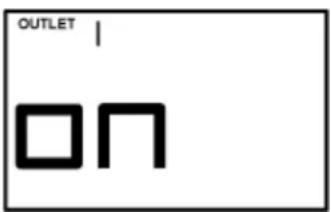
text_image
OUTLET |
ON
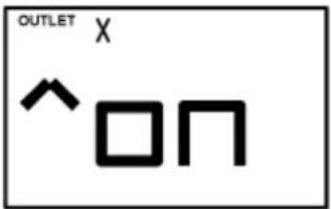
text_image
OUTLET X
^ ON

text_image
OUTLET X
✓ oF

text_image
OUTLET X
onP

text_image
OUTLET X
OFP
- oFF: The outlet has been turned off.
Environmental Sensor Information

text_image
1
2
SENSOR 9 MASTER
22.0 °C
3
4
Number Example information 1 The selected target is the environmental sensor whose ID number is 9 (SENSOR 9). 2 The selected environmental sensor's reading is 22 °C. 3 The word "MASTER" indicates the PX3 is the master device in a cascading chain.For a slave device, it shows "SLAVE" instead. Note: As of release 3.3.10, the "MASTER/SLAVE" information is no longer available in the Bridging mode, but remains available in the Port Forwarding mode. 4 The measurement unit is °C (degrees in Celsius). To display the environmental sensor information:
Measurement units Sensor types % A relative humidity sensor °C A temperature sensor m/s An air flow sensor Pa An air pressure sensor NO measurement units For an "absolute" humidity sensor, the measurement unit is g/m^3 , which cannot be displayed on the LCD. States Description nor Normal state. ALA Alarmed state.▪ This state is accompanied with the word "ALARM" below it. States Description On The actuator is turned on. Off The actuator is turned off.
Asset Strip Information

text_image
1
2
3
30
MASTER
ASSET
4
5
Section Example information 1 "1" refers to the asset strip connected to the first FEATURE port. 2 This symbol ◇ indicates that you can switch between diverse rack units now by pressing the Up or Down button. 3 "30" indicates that the selected target is the 30th rack unit. 4 The word "MASTER" indicates the PX3 is the master device in a cascading chain.For a slave device, it shows "SLAVE" instead. Note: As of release 3.3.10, the "MASTER/SLAVE" information is no longer available in the Bridging mode, but remains available in the Port Forwarding mode. 5 "ASSET" means that the LCD display enters the Asset Strip mode. To display the asset management information:
USB-Cascaded Device's Position

text_image
①
②
d
CA
SLAVE
③
④
Section Example information 1 "d" means the LCD display has entered the Device mode. 2 "CA" indicates that the cascading information is being displayed. 3 "SLAVE" indicates that this PX3 is a slave device. Note: For a master device, it shows the word "MASTER" instead. 4 The number 1 means the device position is Slave 1. To retrieve the device's cascading position information:
Number Device position Number Device position 0 Master device 8 Slave 8 1 Slave 1 9 Slave 9 2 Slave 2 10 Slave 10 3 Slave 3 11 Slave 11 4 Slave 4 12 Slave 12 5 Slave 5 13 Slave 13 6 Slave 6 14 Slave 14 7 Slave 7 15 Slave 15 RCM Information
▶ RCM alarm information in the critical state:

text_image
rCA
INLET
LEAK
ALARM
▶ To display the RCM current:

text_image
INLET
LEAK
A
m
1
2
3
4
5
1 The inlet containing RCM sensor is INLET 1. 2 This residual current is 0 mA. 3 ALARM always displays for residual current sensor. 4 LEAK always displays for residual current sensor. 5 Measurement units are mA. To run RCM self-test:
■ FAL: Self-test failed (the PX3 also beeps).
text_image
INLET
SLF
LEAK
ALARM
1 The inlet containing RCM sensor is INLET 1. Section Example information 2 The LCD alternates between "SLF" and "tSt" to indicate that this is self-test mode. 3 ALARM always displays for residual current sensor. 4 LEAK always displays for residual current sensor. Appendix H LDAP Configuration Illustration
b. Create user groups for the PX3 on the AD server
c. Configure LDAP authentication on the PX3 device
d. Configure roles on the PX3 deviceIn This Chapter
Step B. Configure User Groups on the AD Server 740
Step C. Configure LDAP Authentication on the PX3 Device 741
Step D. Configure Roles on the PX3 Device 742Step A. Determine User Accounts and Roles
User roles User accounts (members) usera PX_User pxuser2 userb PX_Admin pxuser Group permissions:
Step B. Configure User Groups on the AD Server
▶ To configure user groups on the AD server:

text_image
PX_Admin Properties
General Members Member Of Managed By
Members:
Name Active Directory Folder
pxuser techadssl.com/Users
userb techadssl.com/ServicesApps/raritan
PX_User Properties
General Members Member Of Managed By
Members:
Name Active Directory Folder
pxuser2 techadssl.com/Users
usera techadssl.com/ServicesApps/raritan
Step C. Configure LDAP Authentication on the PX3 Device
To configure LDAP authentication:
Field/setting Do this... IP Address / Hostname Type the domain name techadssl.com or IP address 192.168.56.3.▪ Without the encryption enabled, you can type either the domain name or IP address in this field, but you must type the fully qualified domain name if the encryption is enabled. Copy settings from existing LDAP server Leave the checkbox deselected unless the new LDAP server's settings are similar to any existing LDAP settings. Type of LDAP Server Select "Microsoft Active Directory." Security Select "None" since the TLS encryption is not applied in this example. Port (None/StartTLS) Ensure the field is set to 389. Port (TLS), CA Certificate Skip the two fields since the TLS encryption is not enabled. Anonymous Bind Select this checkbox because anonymous bind is used. Bind DN, Bind Password, Confirm Bind Password Skip the three fields because of anonymous bind. Base DN for Search Type dc=techadssl, dc=com as the starting point where your search begins on the AD server. Login Name Attribute Ensure the field is set to sAMAccountName because the LDAP server is Microsoft Active Directory. User Entry Object Class Ensure the field is set to user because the LDAP server is Microsoft Active Directory. User Search Subfilter The field is optional. The subfilter information is also useful for filtering out additional objects in a large directory structure. In this example, we leave it blank. Active Directory Domain Type techadssl.com.
Step D. Configure Roles on the PX3 Device
2. Click

b. Type a description for the PX_User role in the Description field. In this example, we type "View PX settings" to describe the role.
c. In the Privileges list, select Unrestricted View Privileges, which includes all View permissions. The Unrestricted View Privileges permission lets users view all settings without the capability to configure or change them.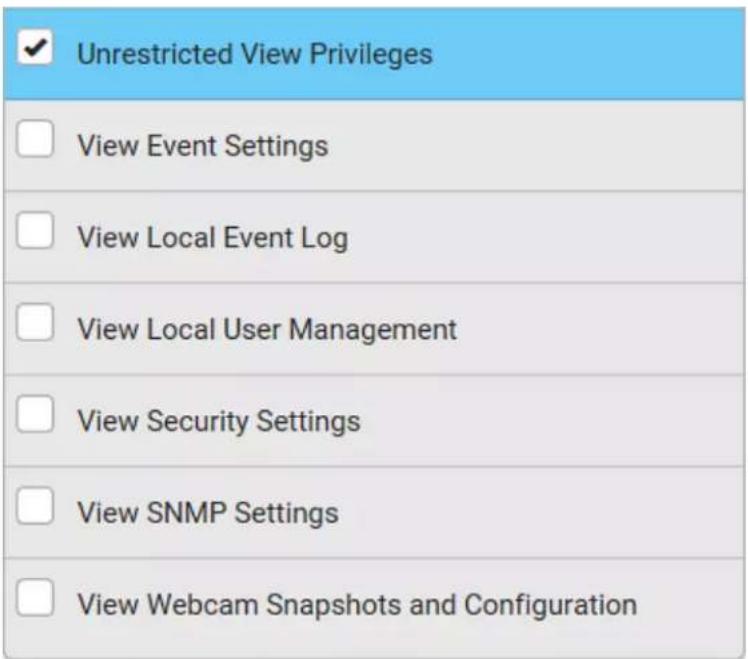
text_image
Unrestricted View Privileges
View Event Settings
View Local Event Log
View Local User Management
View Security Settings
View SNMP Settings
View Webcam Snapshots and Configuration
3. The PX_User role is created.Role Name ▲ Description Admin System defined administrator role including all privileges. Operator Predefined operator role. PX_User View PX settings
To create the PX\_Admin role with full permissions assigned:
1. Click to add another role.
b. Type a description for the PX_Admin role in the Description field. In this example, we type "Includes all PX privileges" to describe the role.
c. In the Privileges list, select Administrator Privileges. The Administrator Privileges allows users to configure or change all PX3 settings.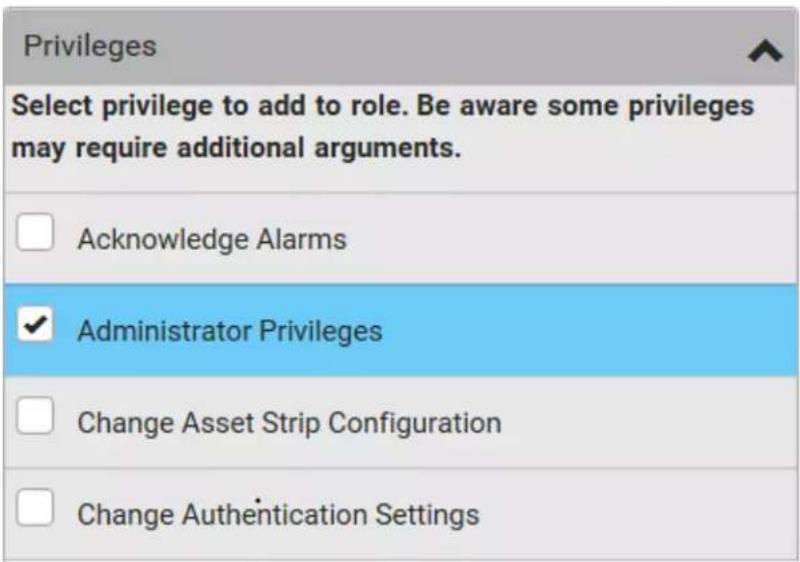
text_image
Privileges
Select privilege to add to role. Be aware some privileges
may require additional arguments.
Acknowledge Alarms
Administrator Privileges
Change Asset Strip Configuration
Change Authentication Settings
Role Name ▲ Description Admin System defined administrator role including all privileges. Operator Predefined operator role. PX_Admin Includes all PX privileges PX_User View PX settings Appendix I Updating the LDAP Schema
In This Chapter
Returning User Group Information
From LDAP/LDAPS
From Microsoft Active Directory
Setting the Registry to Permit Write Operations to the Schema
To permit write operations to the schema:
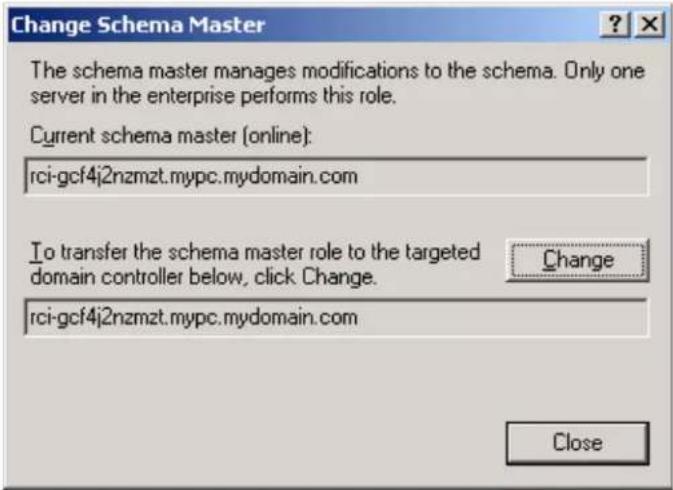
text_image
Change Schema Master
The schema master manages modifications to the schema. Only one server in the enterprise performs this role.
Current schema master (online):
rci-gcf4j2nzmzt.mypc.mydomain.com
To transfer the schema master role to the targeted domain controller below, click Change.
rci-gcf4j2nzmzt.mypc.mydomain.com
Change
Close
Creating a New Attribute
To create new attributes for the rciusergroup class:
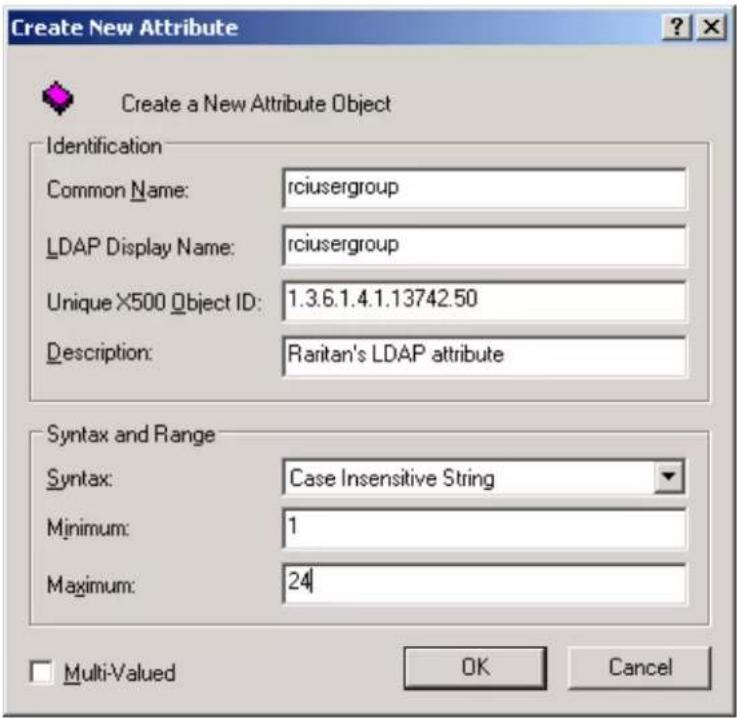
text_image
Create New Attribute
Create a New Attribute Object
Identification
Common Name: rciusergroup
LDAP Display Name: rciusergroup
Unique X500 Object ID: 1.3.6.1.4.1.13742.50
Description: Raritan's LDAP attribute
Syntax and Range
Syntax: Case Insensitive String
Minimum: 1
Maximum: 24
Multi-Valued OK Cancel
Adding Attributes to the Class
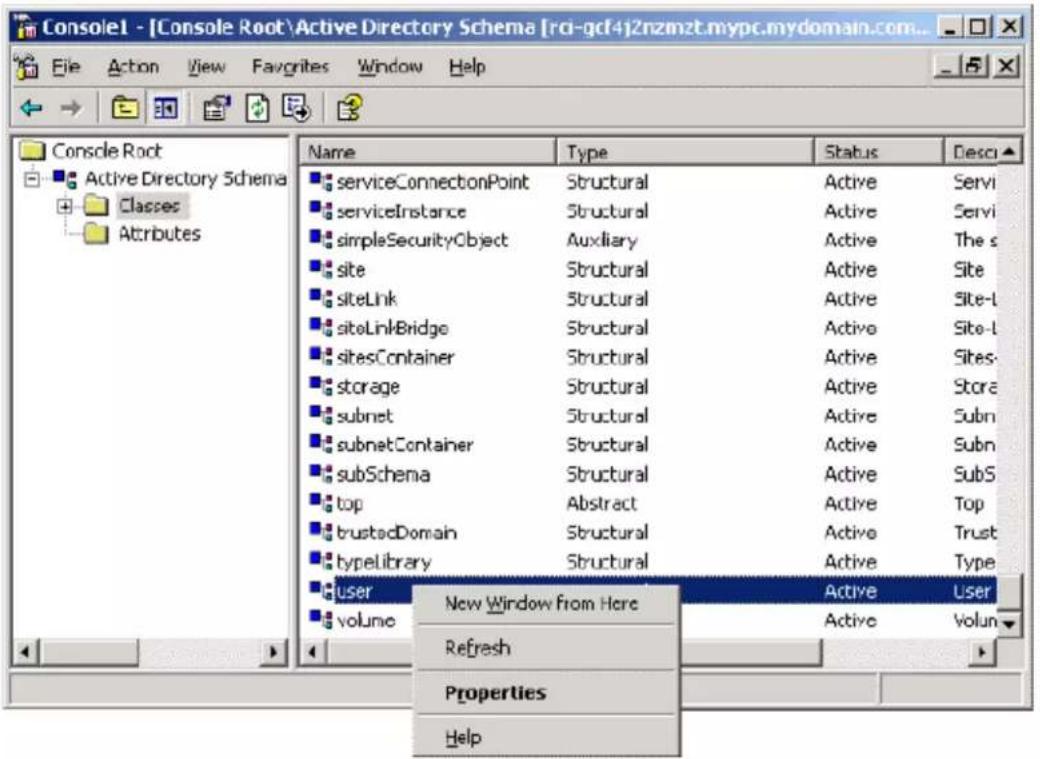
text_image
Console1 - [Console Root\Active Directory Schema [rci-gcf4j2nzmzt.mypc.mydomain.com...
File Action View Favorites Window Help
Console Root
Active Directory Schema
Classes
Attributes
Name Type Status Desci
serviceConnectionPoint Structural Active Servi
serviceInstance Structural Active Servi
simpleSecurityObject Auxiliary Active The s
site SStructural Active Site
siteLink Structural Active Site-L
siteLinkBridge SStructural Active Site-L
sitesContainer SStructural Active Sites-
storage SStructural Active Store
subnet SStructural Active Subn
subnetContainer SStructural Active Subn
subSchema SStructural Active SubS
top Abstract Active Top
trustedDomain SStructural Active Trust
typelibrary SStructural Active Type
User New Window from Here Active User
volume Refresh Volun
Properties
Help

text_image
Select Schema Object
Select a schema object:
productCode
profilePath
proxiedObjectName
proxyAddresses
proxyGenerationEnabled
proxyLifetime
publicKeyPolicy
purportedSearch
pwdHistoryLength
pwdLastSet
pwdProperties
qualityOfService
queryFilter
queryPoint
queryPolicyBL
queryPolicyObject
tangleLower
tangleUpper
rtusergroup
rtusergroup1
rDNAAttID
Updating the Schema Cache
Editing rciusergroup Attributes for User Members

text_image
ADST Edit
File Action View Window Help
Domain [rd-gd4]2nmat.mypc.m
Configuration [rc-gd4]2nmat.m
Scheme [rc-gd4]2nmat.mypc.m
Name Class Distinguished Name
Domain [rd-gd4]2nmat.mypc... domainDNS
Configuration [rc-gd4]2nmat... configuration
Scheme [rc-gd4]2nmat.myp... dMD

text_image
ADST Edit
File Action View Window Help
ADST Edit
Domain [rd-gd4]zncmt.mypc.my
DC=mypc,DC=mydomain,DC
CN=Bulbin
CN=Computers
CN=Domain Controllers
CN=ForeignSecurityPrinc1
CN=LostAndFound
CN=NTDS Quotes
CN=Program Data
CN=System
CN=Users
Configuration [rc-gd4]zncmt.me
Scheme [rd-gd4]zncmt.mypc.my
Name Class Distinguished Name
CN=Administrator User CN=Administrator,ON=Users,DC=mypc,DC=mydomain,DC
CN=Cert Publishers/group CN=Cert Publishers,ON=Users,DC=mypc,DC=mydomain
CN=DrsAdmins/group CN=DrsAdmins,ON=Users,DC=mypc,DC=mydomain,DC
CN=DrsUpdateProxy/group CN=DrsUpdateProxy,ON=Users,DC=mypc,DC=mydomain
CN=Domain Admins/group CN=Domain Admins,ON=Users,DC=mypc,DC=mydomain
CN=Domain Computers/group CN=Domain Computers,ON=Users,DC=mypc,DC=mydomain
CN=Domain Controllers/group CN=Domain Controllers,ON=Users,DC=mypc,DC=mydomain
CN=Domain Guests/group CN=Domain Guests,ON=Users,DC=mypc,DC=mydomain
CN=Domain Users/group CN=Domain Users,ON=Users,DC=mypc,DC=mydomain,I
CN=Enterprise Admins/group CN=Enterprise Admins,ON=Users,DC=mypc,DC=mydomain
CN=Group Policy Creator Own...group CN=Group Policy Creator Owners,CN=Users,DC=mypc,I
CN=Guest(userServicesGroup/group CN=Guest,CN=Users,DC=mypc,DC=mydomain,DC=com
CN=kbsgt(userServicesGroup/CN=kbsgt,ON=kbsgt,ON=kbsgt)group CN=kbsgt,CN=kbsgt,cN=kbsgt,cN=kbsgt,cN=kbsgt,cN=kbsgt,cN=kbsgt,cN=kbsgt,cN=kbsgt,cN=kbsgt,cN=kbsgt,cN=kbsgt,cN=kbsgt,cN=kbsgt,cN=kbsgt,cN=kbsgt,cN=kbsgt,cN=kbsgt,cN=kbsgt,cN=kbsgt,cN=kbsgt,cN=kbsgt,dn
CN=RAS and IAS Servers/group CN=RAS and IAS Servers,CN=Users,DC=mypc,DC=mypc
CN=Schema Admins/group CN=Schema Admins,CN=Users,DC=mypc,DC=mydomain
CN=SUPPORT_3889H5a0用户 CN=SUPPORT_3889H5a0,CN=Users,DC=mypc,DC=mypc,
CN=TelnerClients用户 CN=TelnerClients,CN=Users,DC=mypc,DC=mydomain,C
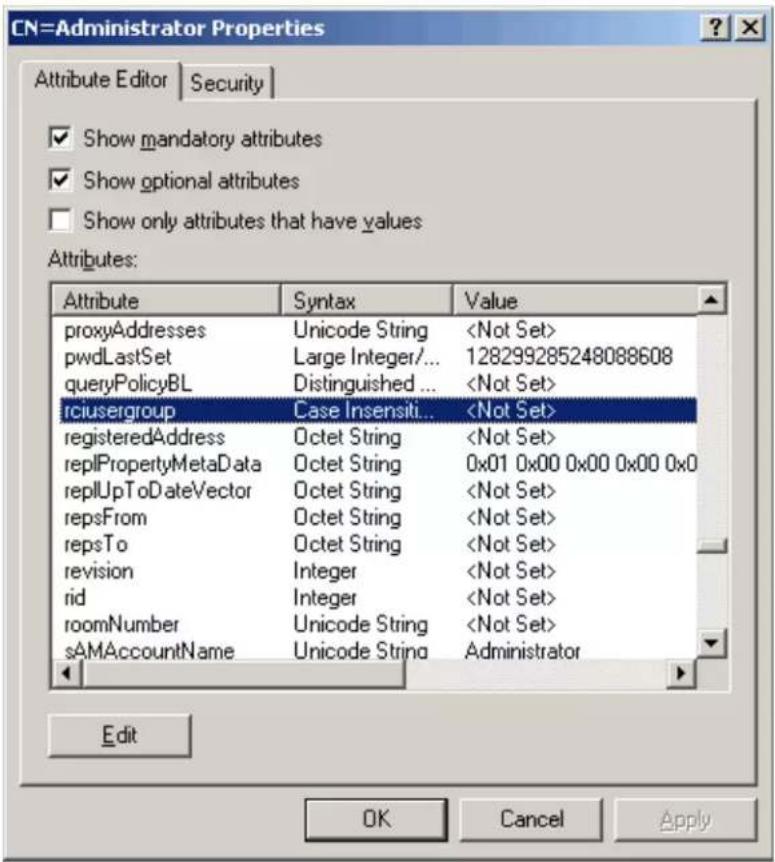
text_image
CN=Administrator Properties
Attribute Editor | Security |
✓ Show mandatory attributes
✓ Show optional attributes
☐ Show only attributes that have values
Attributes:
Attribute Syntax Value
proxyAddresses Unicode String

text_image
String Attribute Editor
Attribute: rciusergroup
Value:
Admin
Clear OK Cancel
Appendix J RADIUS Configuration Illustration
In This Chapter
Standard Attributes
NPS Standard Attribute Illustration
Step A: Add Your PX3 as a RADIUS Client
Presumptions in the illustration:
• RADIUS authentication port specified for PX3: 1812
• RADIUS accounting port specified for PX3: 1813To add your PX3 to the RADIUS NPS:
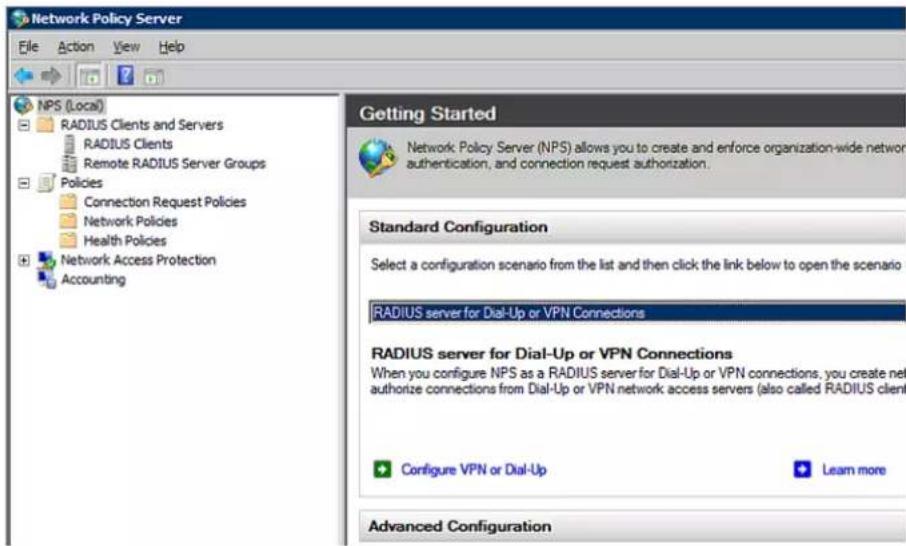
text_image
Network Policy Server
File Action View Help
NPS (Local)
RADIUS Clients and Servers
RADIUS Clients
Remote RADIUS Server Groups
Policies
Connection Request Policies
Network Policies
Health Policies
Network Access Protection
Accounting
Getting Started
Network Policy Server (NPS) allows you to create and enforce organization-wide network authentication, and connection request authorization.
Standard Configuration
Select a configuration scenario from the list and then click the link below to open the scenario
RADIUS server for Dial-Up or VPN Connections
RADIUS server for Dial-Up or VPN Connections
When you configure NPS as a RADIUS server for Dial-Up or VPN connections, you create net authorize connections from Dial-Up or VPN network access servers (also called RADIUS client
Configure VPN or Dial-Up Learn more
Advanced Configuration

text_image
Network Policy Server
File Action View Help
Import Configuration
Export Configuration
Start NPS Service
Stop NPS Service
Register server in Active Directory
Properties
View
Help

text_image
Network Policy Server (Local) Properties
General Ports
Enter the RADIUS authentication and accounting port numbers.
Authentication: 1812,1645
Authentication default ports 1812,1645
Accounting: 1813,1646
Accounting default ports 1813,1646

text_image
Network Policy Server
File Action View Help
NPS (Local)
RADIUS Clients and Servers
RADIUS Client
Remote R
Policies
Network Acce
Accounting
New RADIUS Client
Export List
View
Refresh
Help
b. Type a name for identifying your PX3 in the "Friendly name" field.
c. Type 192.168.56.29 in the "Address (IP or DNS)" field.
d. Select RADIUS Standard in the "Vendor name" field.
e. Select the Manual radio button.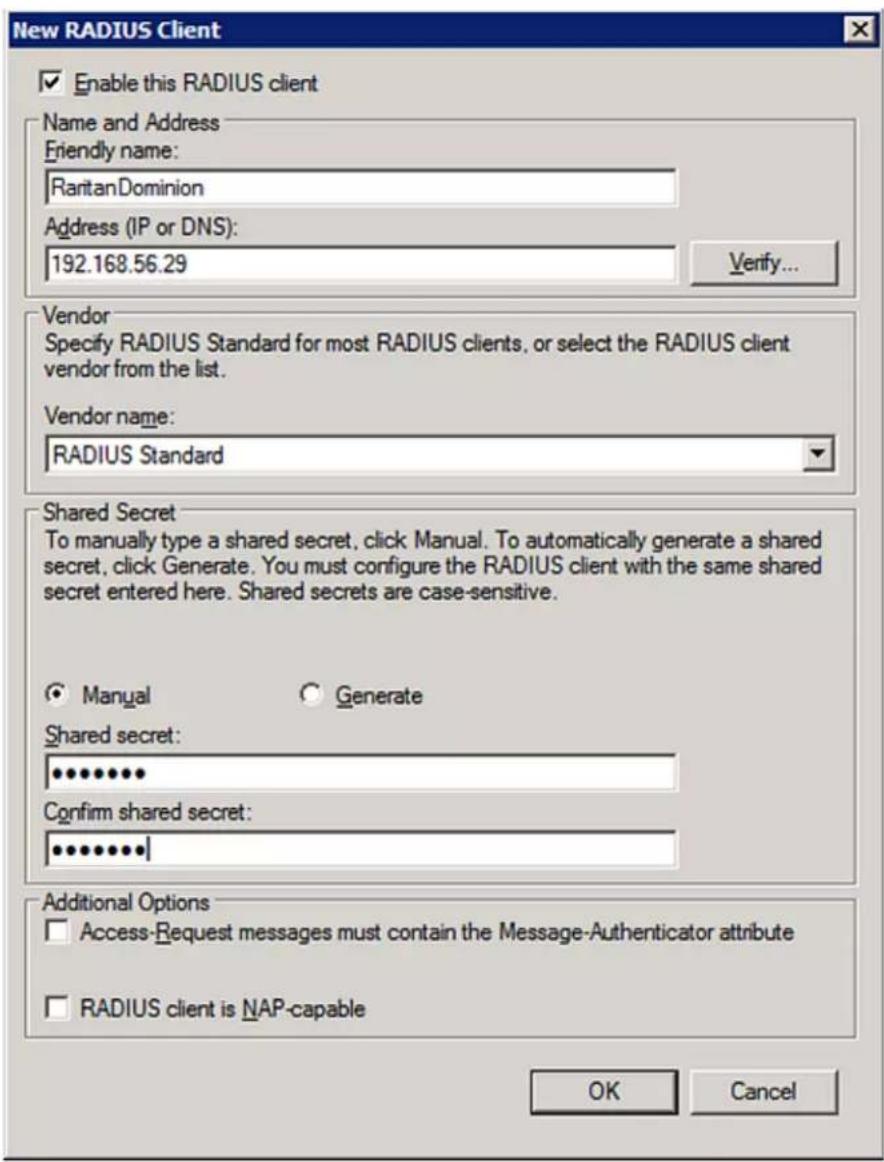
text_image
New RADIUS Client
Enable this RADIUS client
Name and Address
Friendly name:
RantanDominion
Address (IP or DNS):
192.168.56.29
Verify...
Vendor
Specify RADIUS Standard for most RADIUS clients, or select the RADIUS client
vendor from the list.
Vendor name:
RADIUS Standard
Shared Secret
To manually type a shared secret, click Manual. To automatically generate a shared
secret, click Generate. You must configure the RADIUS client with the same shared
secret entered here. Shared secrets are case-sensitive.
Manual
Generate
Shared secret:
************
Confirm shared secret:
************
Additional Options
Access-Request messages must contain the Message-Authenticator attribute
RADIUS client is NAP-capable
OK Cancel
Step B: Configure Connection Policies and Standard Attributes
- Connection request forwarding method
- Authentication method(s)
• Standard RADIUS attributesPresumptions in the illustration:
- LocalNPS server is used
• RADIUS protocol selected on your PX3 = CHAP
• Existing role of your PX3 = Admin▶ Illustration:
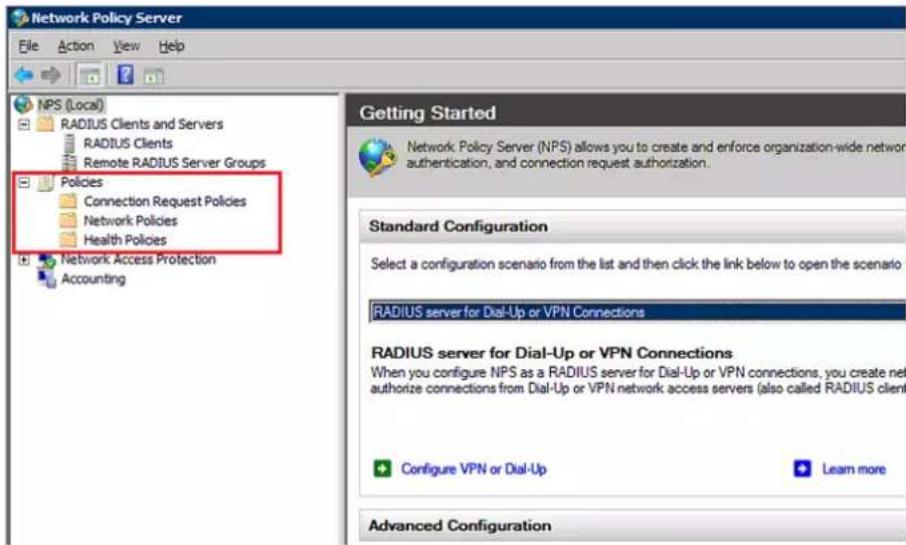
text_image
Network Policy Server
File Action View Help
NPS (Local)
RADIUS Clients and Servers
RADIUS Clients
Remote RADIUS Server Groups
Policies
Connection Request Policies
Network Policies
Health Policies
Network Access Protection
Accounting
Getting Started
Network Policy Server (NPS) allows you to create and enforce organization-wide network authentication, and connection request authorization.
Standard Configuration
Select a configuration scenario from the list and then click the link below to open the scenario
RADIUS server for Dial-Up or VPN Connections
RADIUS server for Dial-Up or VPN Connections
When you configure NPS as a RADIUS server for Dial-Up or VPN connections, you create net authorize connections from Dial-Up or VPN network access servers (also called RADIUS client
Configure VPN or Dial-Up Learn more
Advanced Configuration

text_image
Network Policy Server
File Action View Help
NPS (Local)
RADIUS Clients and Servers
RADIUS Clients
Remote RADIUS Server Groups
Policies
Connection Request Policies
Network Policies
Health Policies
Network Access Protection
Accounting
New
Export List
View
Refresh
Help
New Connection Request Policy

Specify Connection Request Policy Nam
Policy name:

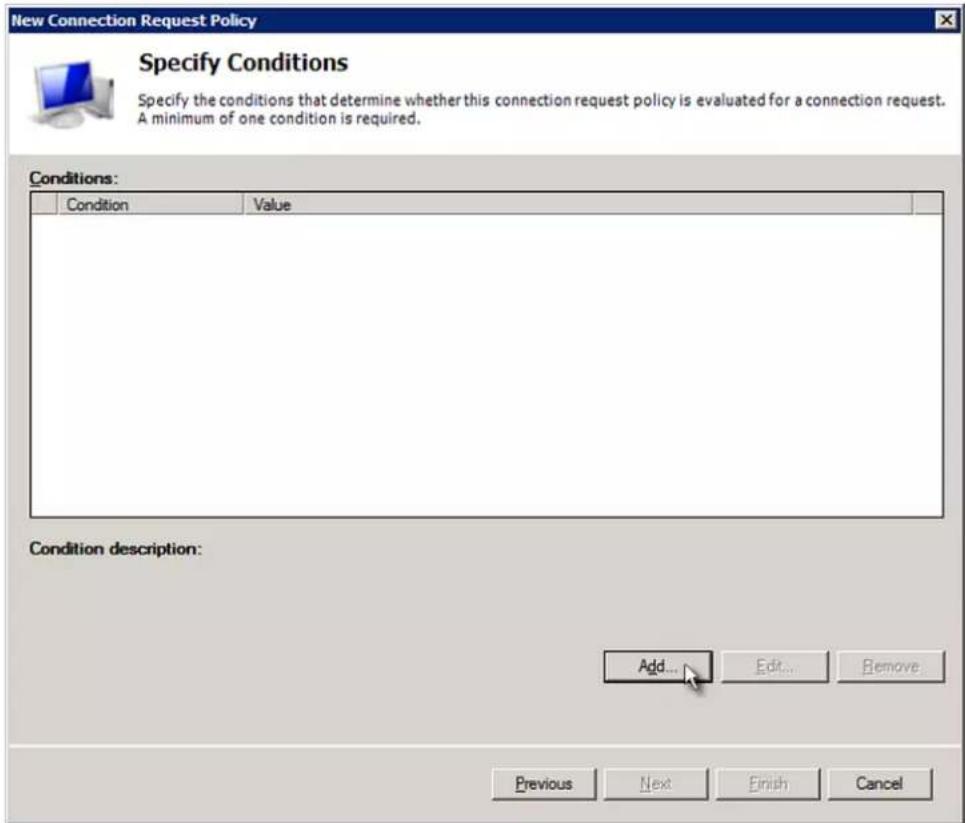
text_image
New Connection Request Policy
Specify Conditions
Specify the conditions that determine whether this connection request policy is evaluated for a connection request.
A minimum of one condition is required.
Conditions:
Condition Value
Condition description:
Add... Edit... Remove
Previous Next Finish Cancel
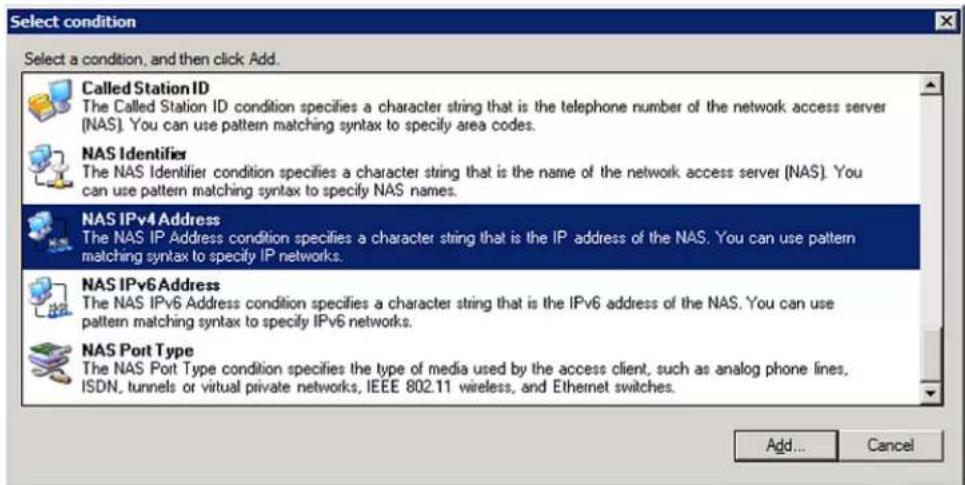
text_image
Select condition
Select a condition, and then click Add.
Called Station ID
The Called Station ID condition specifies a character string that is the telephone number of the network access server (NAS). You can use pattern matching syntax to specify area codes.
NAS Identifier
The NAS Identifier condition specifies a character string that is the name of the network access server (NAS). You can use pattern matching syntax to specify NAS names.
NAS IPv4 Address
The NAS IP Address condition specifies a character string that is the IP address of the NAS. You can use pattern matching syntax to specify IP networks.
NAS IPv6 Address
The NAS IPv6 Address condition specifies a character string that is the IPv6 address of the NAS. You can use pattern matching syntax to specify IPv6 networks.
NAS Port Type
The NAS Port Type condition specifies the type of media used by the access client, such as analog phone lines, ISDN, tunnels or virtual private networks, IEEE 802.11 wireless, and Ethernet switches.
Add...
Cancel
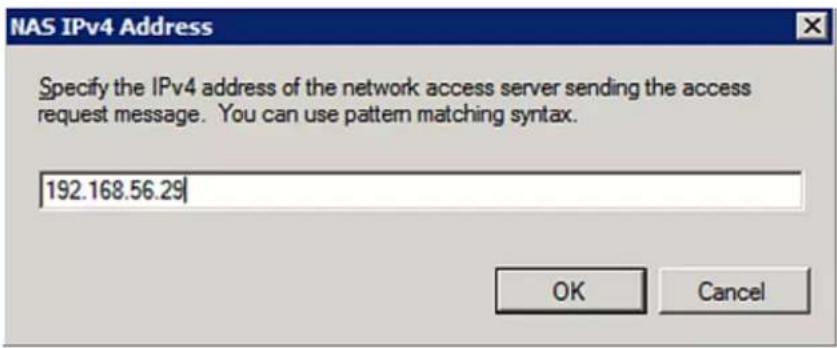
text_image
NAS IPv4 Address
Specify the IPv4 address of the network access server sending the access
request message. You can use pattern matching syntax.
192.168.56.29
OK Cancel
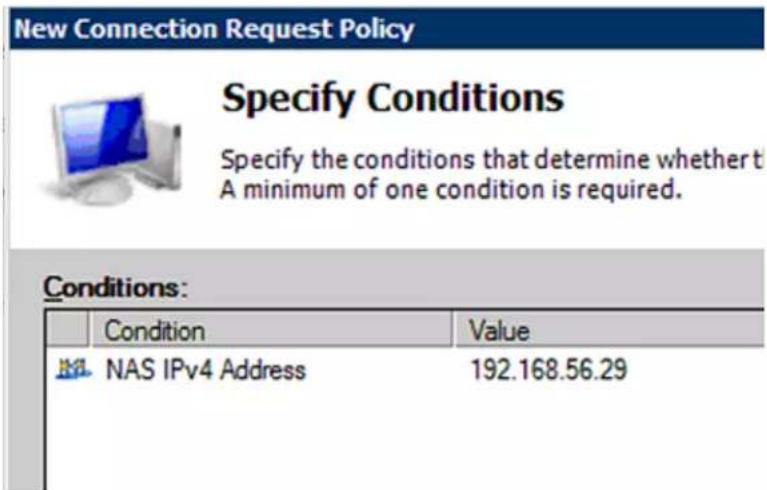
text_image
New Connection Request Policy
Specify Conditions
Specify the conditions that determine whether t
A minimum of one condition is required.
Conditions:
Condition Value
NAS IPv4 Address 192.168.56.29
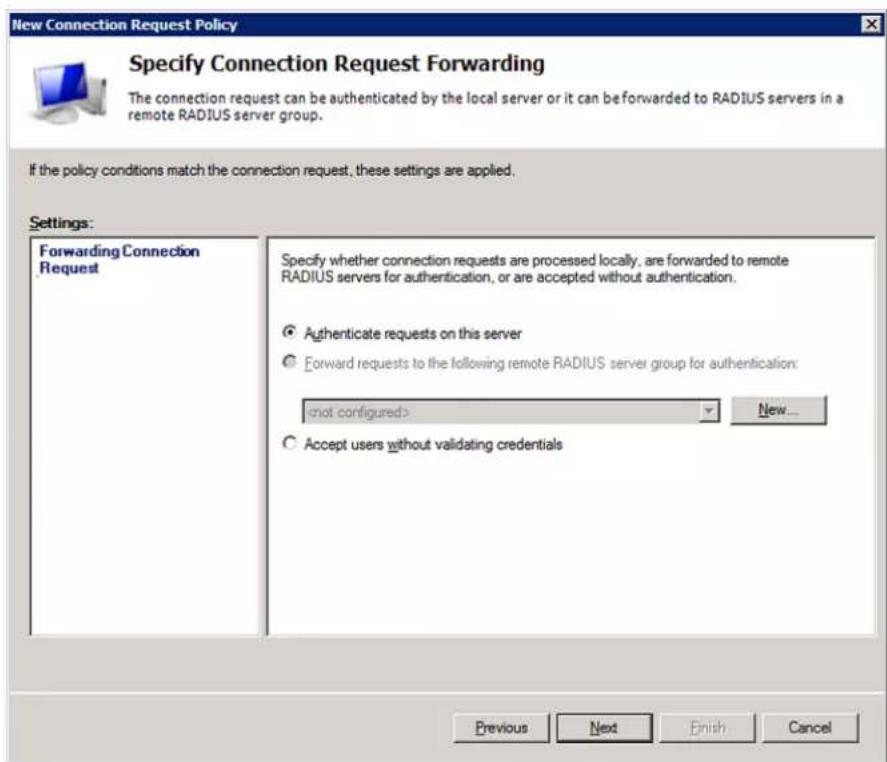
text_image
New Connection Request Policy
Specify Connection Request Forwarding
The connection request can be authenticated by the local server or it can be forwarded to RADIUS servers in a remote RADIUS server group.
If the policy conditions match the connection request, these settings are applied.
Settings:
Forwarding Connection Request
Specify whether connection requests are processed locally, are forwarded to remote RADIUS servers for authentication, or are accepted without authentication.
● Authenticate requests on this server
○ Forward requests to the following remote RADIUS server group for authentication:
(not configured) New...
○ Accept users without validating credentials
Previous Next Finish Cancel
- CHAP -- the PX3 uses "CHAP" in this exampleNew Connection Request Policy

Specify Authentication Methods
EAP Types:
Less secure authentication methods:

text_image
New Connection Request Policy
Configure Settings
NPS applies settings to the connection request if all of the connection request policy conditions for the policy are matched.
Configure the settings for this network policy.
If conditions match the connection request and the policy grants access, settings are applied.
Settings:
Specify a Realm Name
Attribute
RADIUS Attributes
Standard
Vendor Specific
To send additional attributes to RADIUS clients, select a RADIUS standard attribute, and then click Edit. If you do not configure an attribute, it is not sent to RADIUS clients. See your RADIUS client documentation for required attributes.
Attributes:
Name Value
Add... Edit Remove
Previous Next Finish Cancel

text_image
Add Standard RADIUS Attribute
To add an attribute to the settings, select the attribute, and then click Add.
To add a custom or predefined Vendor Specific attribute, close this dialog and select Vendor Specific, and then click Add.
Access type:
All
Attributes:
Name
Acct-Interim-Interval
Callback-Id
Callback-Number
Class
Filter-Id
Framed-AppleTalk-Link
Framed-SingleTalk-Networks
Description:
Specifies the name of filter list for the user requesting authentication.
Add... Close

text_image
Attribute Information
Attribute name:
Filter-Id
Attribute number:
11
Attribute format:
Octet String
Attribute values:
Vendor Value
Add...
Edit...
Remove
Move Up
Move Down
OK Cancel
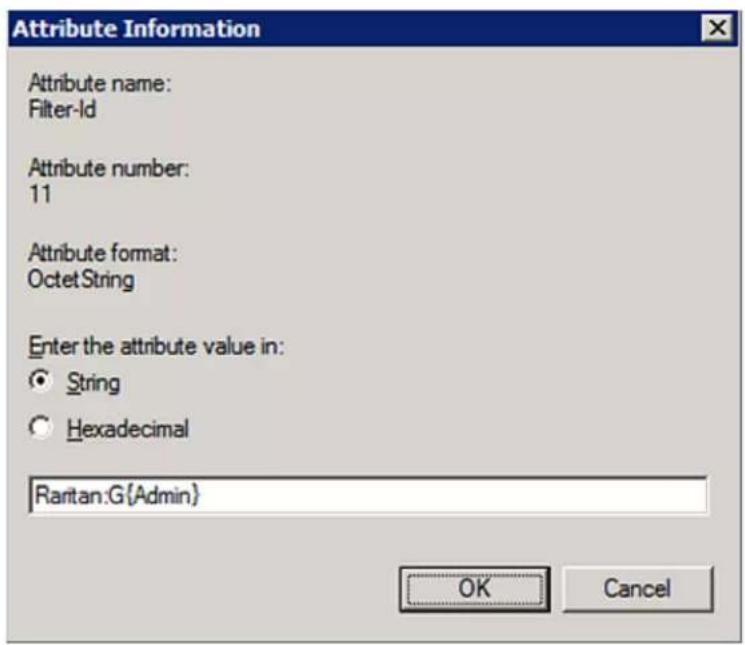
text_image
Attribute Information
Attribute name:
Filter-Id
Attribute number:
11
Attribute format:
Octet String
Enter the attribute value in:
● String
○ Hexadecimal
Rantan:G{Admin}
OK Cancel

text_image
Attribute Information
Attribute name:
Filter-Id
Attribute number:
11
Attribute format:
Octet String
Attribute values:
Vendor Value
RADIUS Standard Raritan:G{Admin}
Add...
Edit...
Remove
Move Up
Move Down
OK Cancel
15. Click Next to continue.

text_image
New Connection Request Policy
Configure Settings
NPS applies settings to the connection request if all of the connect
matched.
Configure the settings for this network policy.
If conditions match the connection request and the policy grants access, settings are a
Settings:
Specify a Realm Name
Attribute
RADIUS Attributes
Standard
Vendor Specific
To send additional attributes to RADIUS clien
then click Edit. If you do not configure an attr
your RADIUS client documentation for require
Attributes:
Name Value
Filter-Id Raritan:G{Admin}
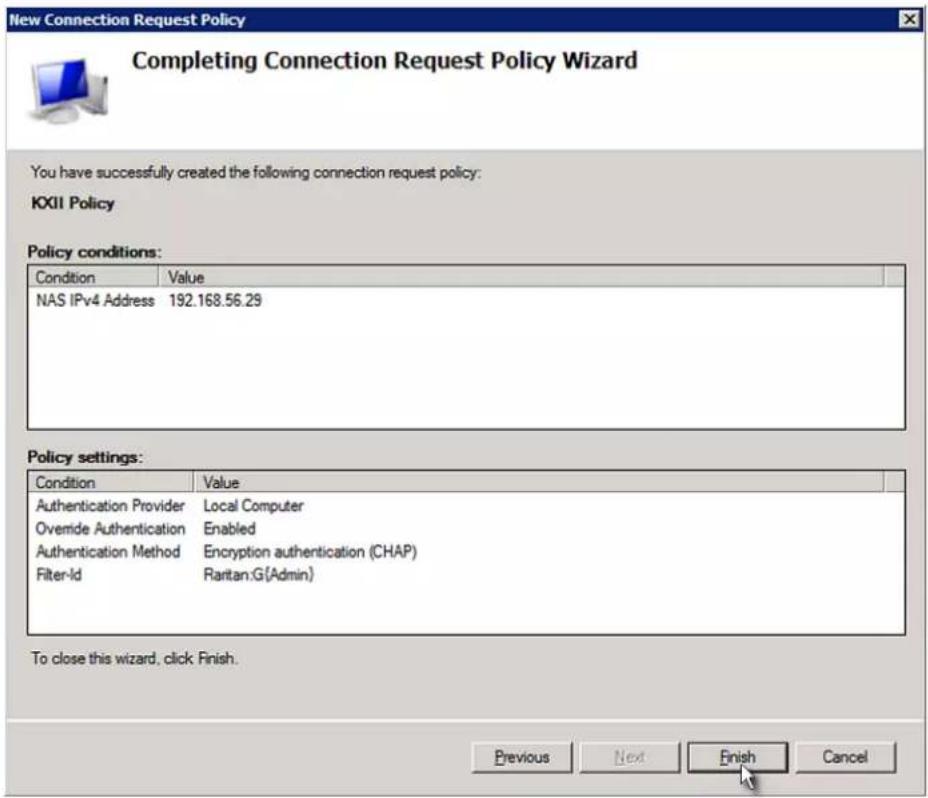
text_image
New Connection Request Policy
Completing Connection Request Policy Wizard
You have successfully created the following connection request policy:
KXII Policy
Policy conditions:
Condition Value
NAS IPv4 Address 192.168.56.29
Policy settings:
Condition Value
Authentication Provider Local Computer
Overnide Authentication Enabled
Authentication Method Encryption authentication (CHAP)
Filter-Id Rartan:G(Admin)
To close this wizard, click Finish.
Previous Next Finish Cancel
FreeRADIUS Standard Attribute Illustration
• Steve's password = test123
• Steve's roles = Admin and SystemTester
steve Cleartext-Password := "test123"
Filter-ID = "Raritan:G{Admin}",
Filter-ID = "Raritan:G{SystemTester}"
Vendor-Specific Attributes
• Vendor-assigned attribute number = 26
• Attribute format = StringNPS VSA Illustration
b. On the NPS, configure connection request policies and the vendor-specific attribute. See Step B: Configure Connection Policies and Vendor-Specific Attributes (on page 776).Step A: Add Your PX3 as a RADIUS Client
Presumptions in the illustration:
• RADIUS authentication port specified for PX3: 1812
• RADIUS accounting port specified for PX3: 1813To add your PX3 to the RADIUS NPS:

text_image
Network Policy Server
File Action View Help
NPS (Local)
RADIUS Clients and Servers
RADIUS Clients
Remote RADIUS Server Groups
Policies
Connection Request Policies
Network Policies
Health Policies
Network Access Protection
Accounting
Getting Started
Network Policy Server (NPS) allows you to create and enforce organization-wide network authentication, and connection request authorization.
Standard Configuration
Select a configuration scenario from the list and then click the link below to open the scenario
RADIUS server for Dial-Up or VPN Connections
RADIUS server for Dial-Up or VPN Connections
When you configure NPS as a RADIUS server for Dial-Up or VPN connections, you create net authorize connections from Dial-Up or VPN network access servers (also called RADIUS client
Configure VPN or Dial-Up Learn more
Advanced Configuration
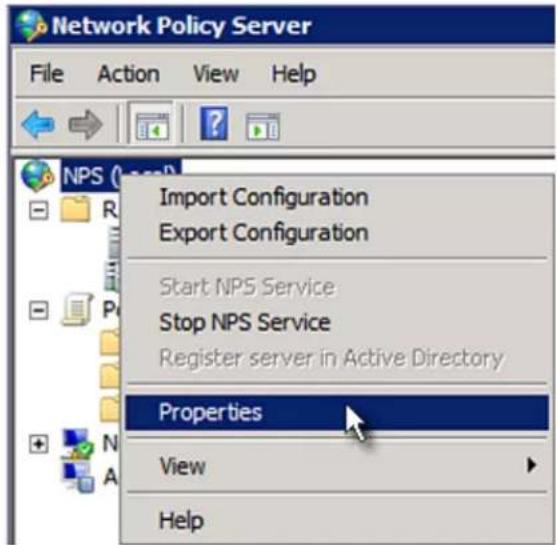
text_image
Network Policy Server
File Action View Help
Import Configuration
Export Configuration
Start NPS Service
Stop NPS Service
Register server in Active Directory
Properties
View
Help
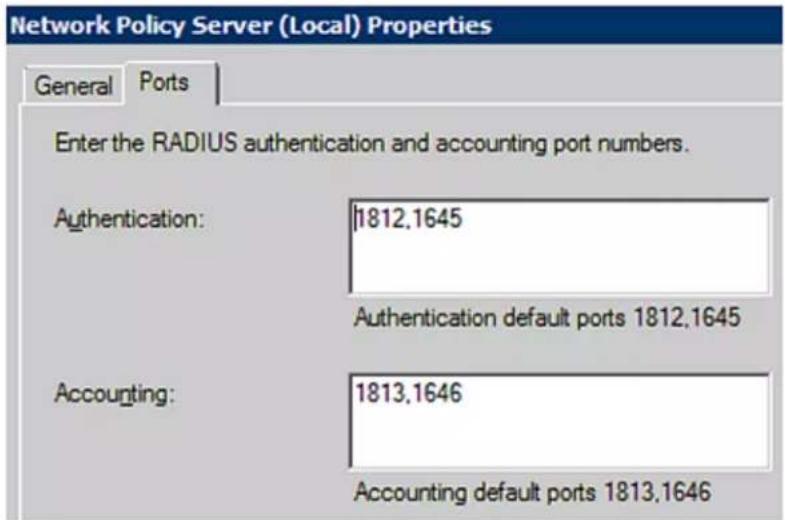
text_image
Network Policy Server (Local) Properties
General Ports
Enter the RADIUS authentication and accounting port numbers.
Authentication: 1812,1645
Authentication default ports 1812,1645
Accounting: 1813,1646
Accounting default ports 1813,1646
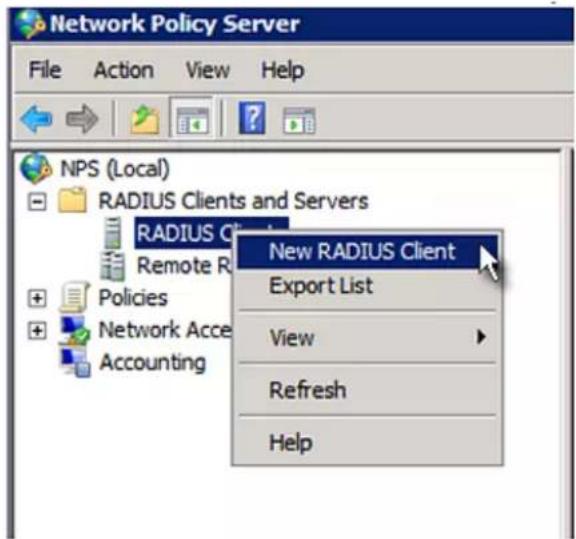
text_image
Network Policy Server
File Action View Help
NPS (Local)
RADIUS Clients and Servers
RADIUS Client
Remote R
Policies
Network Acc
Accounting
New RADIUS Client
Export List
View
Refresh
Help
b. Type a name for identifying your PX3 in the "Friendly name" field.
c. Type 192.168.56.29 in the "Address (IP or DNS)" field.
d. Select RADIUS Standard in the "Vendor name" field.
e. Select the Manual radio button.
text_image
New RADIUS Client
Enable this RADIUS client
Name and Address
Friendly name:
RantanDominion
Address (IP or DNS):
192.168.56.29
Verify...
Vendor
Specify RADIUS Standard for most RADIUS clients, or select the RADIUS client
vendor from the list.
Vendor name:
RADIUS Standard
Shared Secret
To manually type a shared secret, click Manual. To automatically generate a shared
secret, click Generate. You must configure the RADIUS client with the same shared
secret entered here. Shared secrets are case-sensitive.
Manual
Generate
Shared secret:
************
Confirm shared secret:
************
Additional Options
Access-Request messages must contain the Message-Authenticator attribute
RADIUS client is NAP-capable
OK Cancel
Step B: Configure Connection Policies and Vendor-Specific Attributes
- Connection request forwarding method
- Authentication method(s)
• Standard RADIUS attributesPresumptions in the illustration:
- LocalNPS server is used
• RADIUS protocol selected on your PX3 = CHAP
- Existing roles of your PX3 = Admin, User and SystemTester▶ Illustration:

text_image
Network Policy Server
File Action View Help
NPS (Local)
RADIUS Clients and Servers
RADIUS Clients
Remote RADIUS Server Groups
Policies
Connection Request Policies
Network Policies
Health Policies
Network Access Protection
Accounting
Getting Started
Network Policy Server (NPS) allows you to create and enforce organization-wide network authentication, and connection request authorization.
Standard Configuration
Select a configuration scenario from the list and then click the link below to open the scenario
RADIUS server for Dial-Up or VPN Connections
RADIUS server for Dial-Up or VPN Connections
When you configure NPS as a RADIUS server for Dial-Up or VPN connections, you create net authorize connections from Dial-Up or VPN network access servers (also called RADIUS client
Configure VPN or Dial-Up Learn more
Advanced Configuration

text_image
Network Policy Server
File Action View Help
NPS (Local)
RADIUS Clients and Servers
RADIUS Clients
Remote RADIUS Server Groups
Policies
Connection Request Policies
Network Policies
Health Policies
Network Access Protection
Accounting
New
Export List
View
Refresh
Help

text_image
New Connection Request Policy
Specify Connection Request Policy Nam
You can specify a name for your connection request policy and 1 applied.
Policy name:
RaritanDominionPolicy
Network connection method
Select the type of network access server that sends the connection request to NPS.
type or Vendor specific.
Type of network access server:
Unspecified
Vendor specific:
10
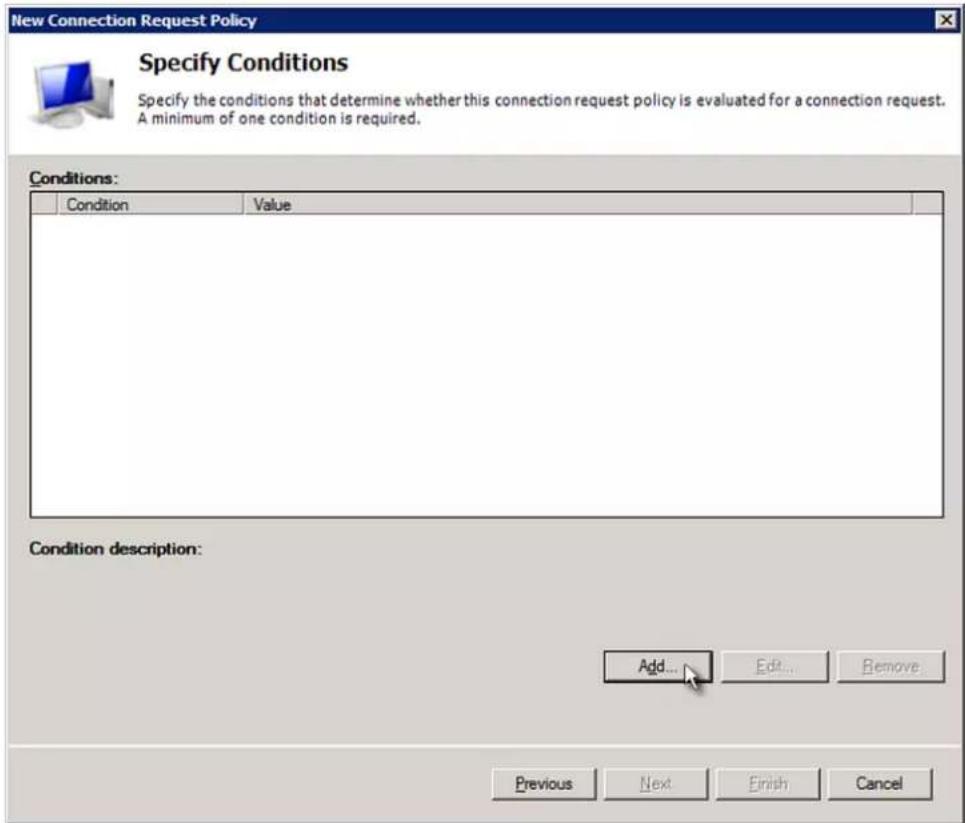
text_image
New Connection Request Policy
Specify Conditions
Specify the conditions that determine whether this connection request policy is evaluated for a connection request.
A minimum of one condition is required.
Conditions:
Condition Value
Condition description:
Add... Edit... Remove
Previous Next Finish Cancel
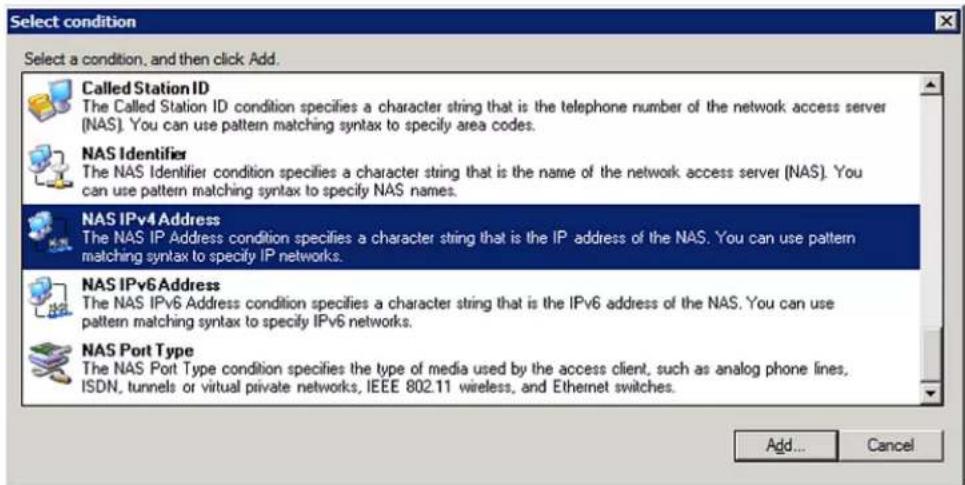
text_image
Select condition
Select a condition, and then click Add.
Called Station ID
The Called Station ID condition specifies a character string that is the telephone number of the network access server (NAS). You can use pattern matching syntax to specify area codes.
NAS Identifier
The NAS Identifier condition specifies a character string that is the name of the network access server (NAS). You can use pattern matching syntax to specify NAS names.
NAS IPv4 Address
The NAS IP Address condition specifies a character string that is the IP address of the NAS. You can use pattern matching syntax to specify IP networks.
NAS IPv6 Address
The NAS IPv6 Address condition specifies a character string that is the IPv6 address of the NAS. You can use pattern matching syntax to specify IPv6 networks.
NAS Port Type
The NAS Port Type condition specifies the type of media used by the access client, such as analog phone lines, ISDN, tunnels or virtual private networks, IEEE 802.11 wireless, and Ethernet switches.
Add...
Cancel

text_image
NAS IPv4 Address
Specify the IPv4 address of the network access server sending the access request message. You can use pattern matching syntax.
192.168.56.29
OK Cancel

text_image
New Connection Request Policy
Specify Conditions
Specify the conditions that determine whether t
A minimum of one condition is required.
Conditions:
Condition Value
NAS IPv4 Address 192.168.56.29
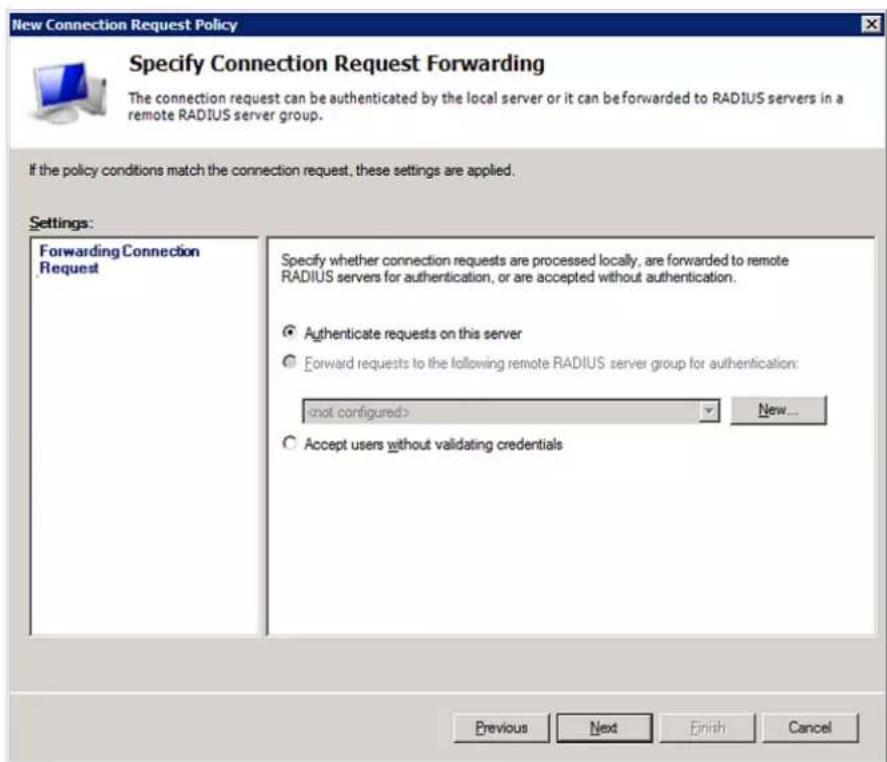
text_image
New Connection Request Policy
Specify Connection Request Forwarding
The connection request can be authenticated by the local server or it can be forwarded to RADIUS servers in a remote RADIUS server group.
If the policy conditions match the connection request, these settings are applied.
Settings:
Forwarding Connection Request
Specify whether connection requests are processed locally, are forwarded to remote RADIUS servers for authentication, or are accepted without authentication.
● Authenticate requests on this server
○ Forward requests to the following remote RADIUS server group for authentication:
(not configured) New...
○ Accept users without validating credentials
Previous Next Finish Cancel
New Connection Request Policy

Specify Authentication Methods
EAP Types:
Less secure authentication methods:
b. Select String in the "Attribute format" field.
c. Type Raritan:G{Admin User SystemTester} in the "Attribute value" field. In this example, three roles 'Admin,' 'User' and 'SystemTester' are specified inside the curved brackets {}.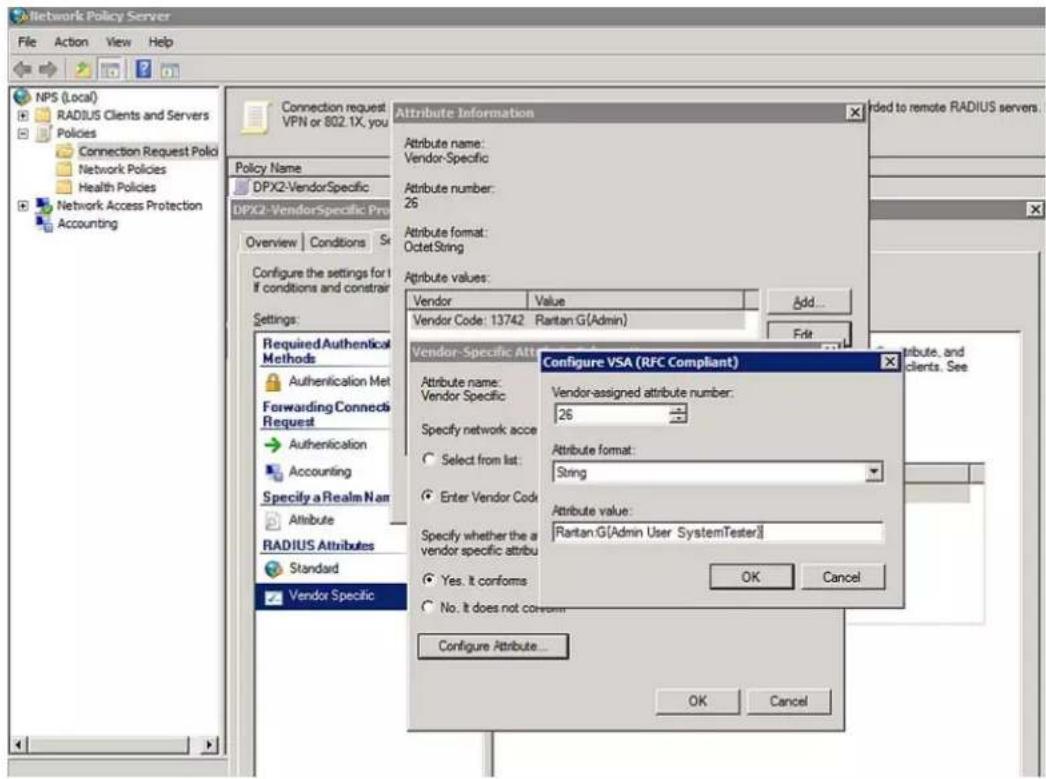
text_image
Network Policy Server
File Action View Help
NPS (Local)
RADIUS Clients and Servers
Policies
Connection Request Policy
Network Policies
Health Policies
Network Access Protection
Accounting
Connection request
VPN or 802.1X, you
Policy Name
DPX2-VendorSpecific
DPX2-VendorSpecific Pro
Overview Conditions Se
Configure the settings for I
If conditions and constrain
Settings:
Required Authenical
Methods
Authentication Met
Forwarding Connecti
Request
Authentication
Accounting
Specify a Realm Nam
Attribute
RADIUS Attributes
Standard
Vendor Specific
Attribute Information
Attribute name:
Vendor-Specific
Attribute number:
26
Attribute format:
OctetString
Attribute values:
Vendor Value Add...
Vendor Code: 13742 Rantan G(Admin) Edit
Vendor-Specific Atte
Configure VSA (RFC Compliant)
Attribute name:
Vendor Specific Vendor-assigned attribute number:
26
Specify network acc#
Select from list: String
Enter Vendor Code
Attribute value:
Rantan G[Admin User SystemTester]
Specify whether the a
vendor specific attribu
Yes. It conforms
No. it does not concomm
OK Cancel
Configure Attribute...
OK Cancel
Added to remote RADIUS servers.
Contribute, and
clients. See
FreeRADIUS VSA Illustration
b. Add all user data, including user names, passwords, and roles
- User name = steve
• Steve's password = test123
• Steve's roles = Admin, User and SystemTester
VENDOR Raritan 13742
BEGIN-VENDOR Raritan
ATTRIBUTE Raritan-User-Roles 26 string
END-VENDOR Raritan
Step B -- create a user profile for "steve" in FreeRADIUS:
steve Cleartext-Password := "test123"
Raritan-PDU-User-Roles = "Raritan:G{Admin User SystemTester}"
AD-Related Configuration
- Store password using reversible encryptionTo register NPS:

text_image
Network Policy Server
File Action View Help
NPS (Local)
Import Configuration
Export Configuration
Start NPS Service
Stop NPS Service
Register server in Active Directory
Properties
View
Help

text_image
Network Policy Server
To enable NPS to authenticate users in the Active Directory, the computers running NPS must be authorized to read users' dial-in properties from the domain.
Do you wish to authorize this computer to read users' dial-in properties from the dc08.com domain?
OK Cancel
text_image
Network Policy Server
This computer is now authorized to read users' dial-in properties from domain dc08.com.
To authorize this computer to read users' dial-in properties from other domains, you must register this computer to be a member of the RAS/NPS Servers Group in that domain.
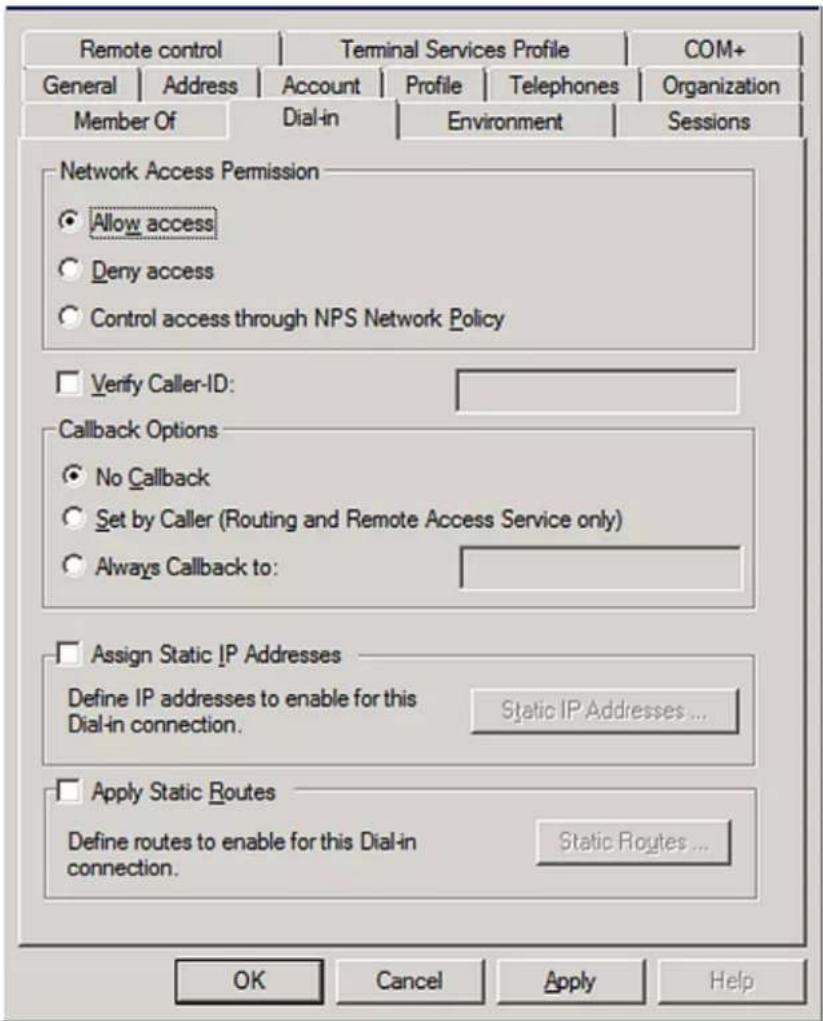
text_image
Remote control
Terminal Services Profile
COM+
General | Address | Account | Profile | Telephones | Organization
Member Of | Dial-in | Environment | Sessions
Network Access Permission
Allow access
Deny access
Control access through NPS Network Policy
Verify Caller-ID:
Callback Options
No Callback
Set by Caller (Routing and Remote Access Service only)
Always Callback to:
Assign Static IP Addresses
Define IP addresses to enable for this
Dial-in connection.
Static IP Addresses ...
Apply Static Routes
Define routes to enable for this Dial-in
connection.
Static Routes ...
OK Cancel Apply Help
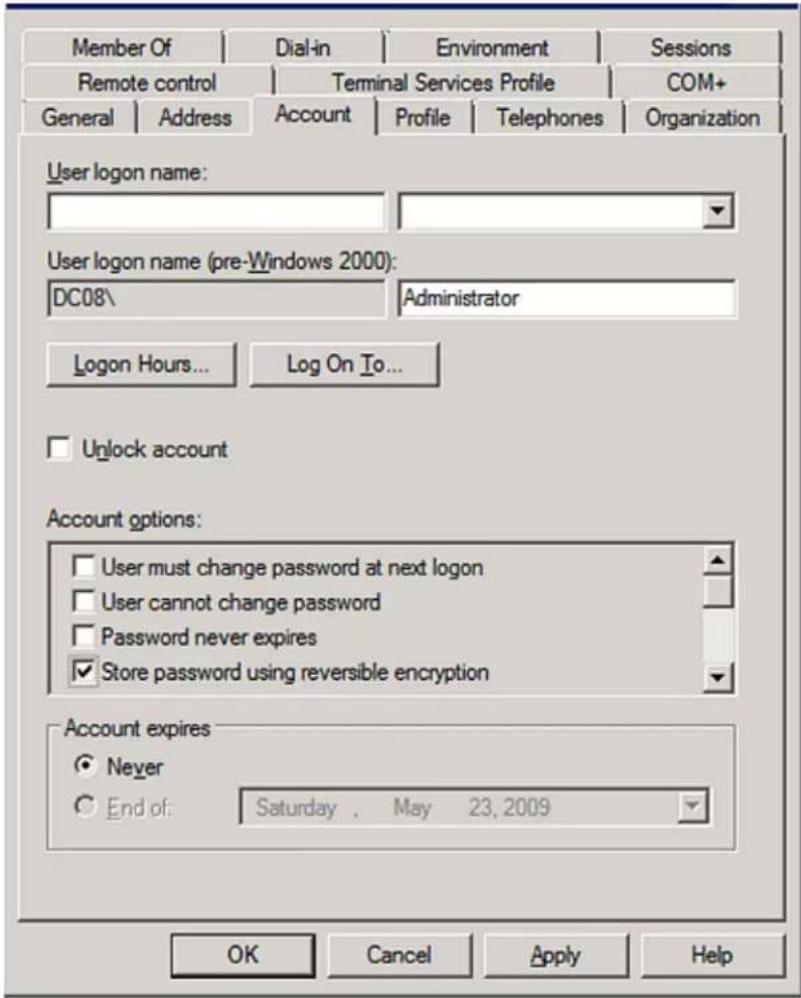
text_image
Member Of
Dial-in
Environment
Sessions
Remote control
Terminal Services Profile
COM+
General | Address | Account | Profile | Telephones | Organization
User logon name:
User logon name (pre-Windows 2000):
DC08\
Administrator
Logon Hours...
Log On To...
Unlock account
Account options:
User must change password at next logon
User cannot change password
Password never expires
Store password using reversible encryption
Account expires
Never
End of: Saturday . May 23, 2009
OK Cancel Apply Help
Appendix K Additional PX3 Information
In This Chapter
RJ45-to-DB9 Cable Requirements for Modem Connections (for iX7™ Only)
Pin signal DB9 pin No. RJ-45 pin No. DCD 1 5 RxD 2 6 TxD 3 3 DTR 4 2 GND 5 4 DSR 6 7 RTS 7 1 CTS 8 8 RIR 9 N/A Reserving IP Addresses in DHCP Servers
Interface Client identifier ETHERNET (PX3) serial number ETH1(PX3-iX7) serial number ETH2(PX3-iX7) serial number plus the uppercase suffix "-ETH2" WIRELESS serial number plus the uppercase suffix "-WIRELESS" BRIDGE serial number Reserving IP in Windows
Windows IP address reservation illustration:
ETHERNET (PX3) PEG1A00003 = 50 45 47 31 41 30 30 30 30 33 ETH1(PX3-iX7) PEG1A00003 = 50 45 47 31 41 30 30 30 30 33 ETH2(PX3-iX7) PEG1A00003-ETH2 = 50 45 47 31 41 30 30 30 30 33 2D45 54 48 32The suffix comprising the dash symbol and theword "ETH2" is also converted. WIRELESS PEG1A00003-WIRELESS = 50 45 47 31 41 30 30 30 3033 2D 57 49 52 45 4C 45 53 53The suffix comprising the dash symbol and theword "WIRELESS" is also converted. BRIDGE PEG1A00003 = 50 45 47 31 41 30 30 30 30 33
IP address The IP address you want to reserve. MAC address The following ASCII codes. 50 45 47 31 41 30 30 30 30 33 Other fields Configure as needed. 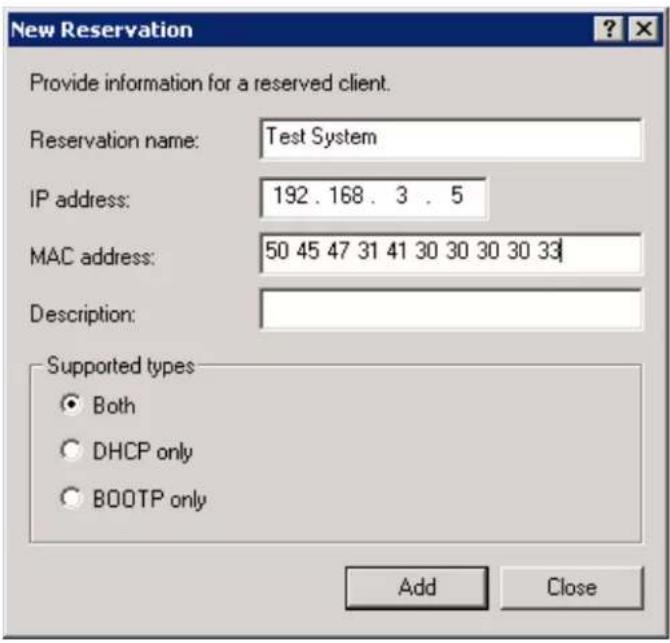
text_image
New Reservation
Provide information for a reserved client.
Reservation name: Test System
IP address: 192.168.3.5
MAC address: 50 45 47 31 41 30 30 30 30 33
Description:
Supported types
Both
DHCP only
BOOTP only
Add Close
Reserving IP in Linux
▶ Illustration with ASCII code conversion:
Interface Client identifier conversion ETHERNET (PX3) PEG1A00003 = 50 45 47 31 41 30 30 30 30 33 ETH1(PX3-iX7) PEG1A00003 = 50 45 47 31 41 30 30 30 30 33 ETH2(PX3-iX7) PEG1A00003-ETH2 = 50 45 47 31 41 30 30 30 30 33 2D45 54 48 32▪ The suffix comprising the dash symbol and theword "ETH2" is also converted. WIRELESS PEG1A00003-WIRELESS = 50 45 47 31 41 30 30 30 3033 2D 57 49 52 45 4C 45 53 53▪ The suffix comprising the dash symbol and theword "WIRELESS" is also converted. BRIDGE PEG1A00003 = 50 45 47 31 41 30 30 30 30 33
host mypx {
option dhcp-client-identifier = 00:50:45:47:31:41:30:30:30:33;
fixed-address 192.168.20.1;
}
\000PEG1A00003host mypx {
option dhcp-client-identifier = "\000PEG1A00003";
fixed-address 192.168.20.1;
}
Sensor Threshold Settings
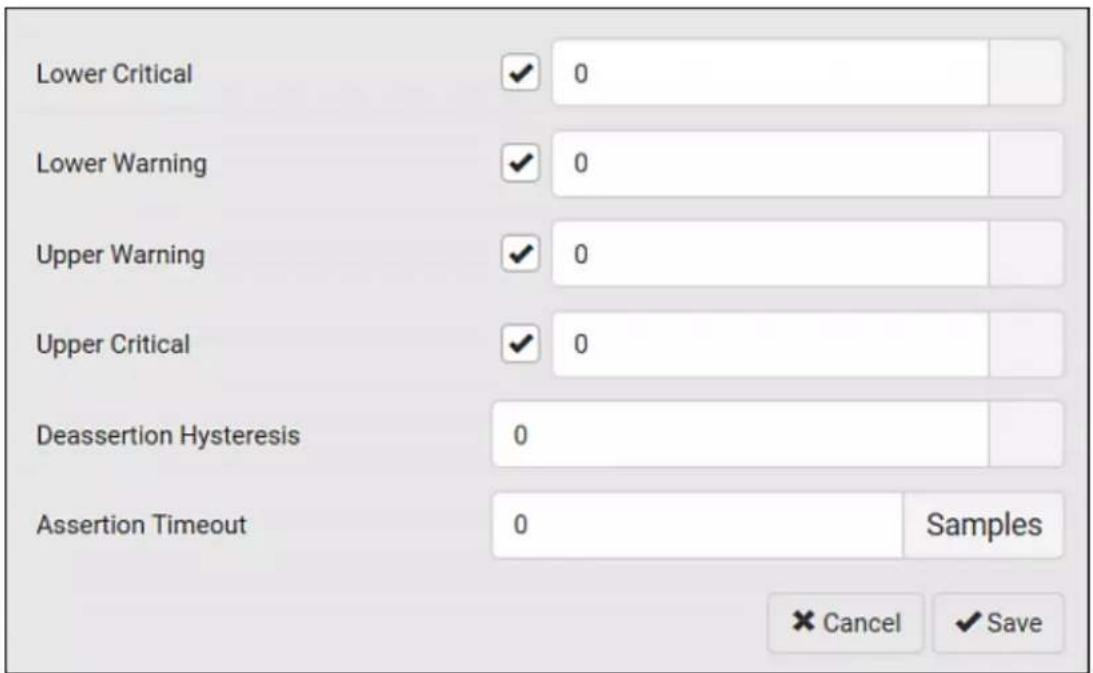
text_image
Lower Critical
✓ 0
Lower Warning
✓ 0
Upper Warning
✓ 0
Upper Critical
✓ 0
Deassertion Hysteresis
0
Assertion Timeout
0 Samples
Cancel ✓ Save
Thresholds and Sensor States
above upper critical Upper Critical above upper warning Upper Warning normal Lower Warning below lower warning Lower Critical below lower critical For example:
Range of each available sensor state:
"To Assert" and Assertion Timeout
To assert a state:
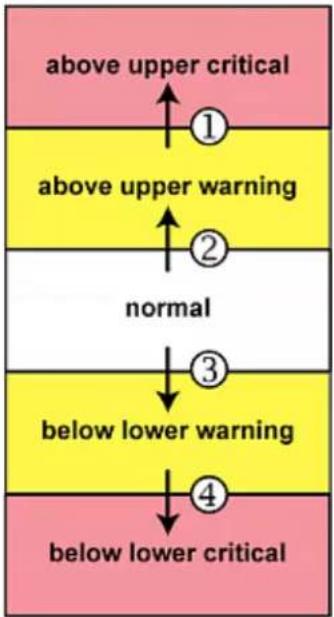
flowchart
graph TD
    A["above upper critical"] --> B["above upper warning"]
    B --> C["normal"]
    C --> D["below lower warning"]
    D --> E["below lower critical"]
▶ Assertion Timeout:

text_image
Lower Critical ✓ 0
Lower Warning ✓ 0
Upper Warning ✓ 0
Upper Critical ✓ 0
Deassertion Hysteresis 0
Assertion Timeout 0 Samples
Cancel ✓ Save
How "Assertion Timeout" is helpful:
Assertion Timeout Example for Temperature Sensors
Assumption:
Upper Warning threshold is enabled.
Upper Warning = 25 (degrees Celsius)
Assertion Timeout = 5 samples (that is, 5 seconds)
"To De-assert" and Deassertion Hysteresis
To de-assert a state:
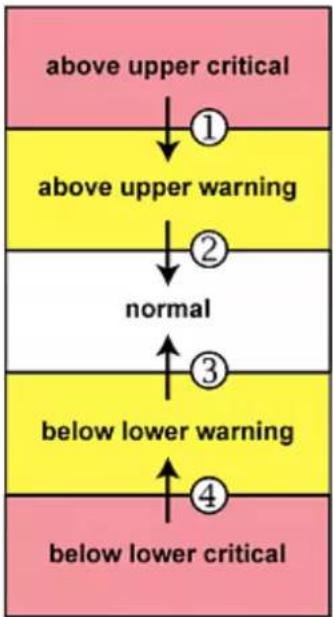
flowchart
graph TD
    A["above upper critical"] --> B["1"]
    B --> C["above upper warning"]
    C --> D["2"]
    D --> E["normal"]
    E --> F["3"]
    F --> G["below lower warning"]
    G --> H["4"]
    H --> I["below lower critical"]
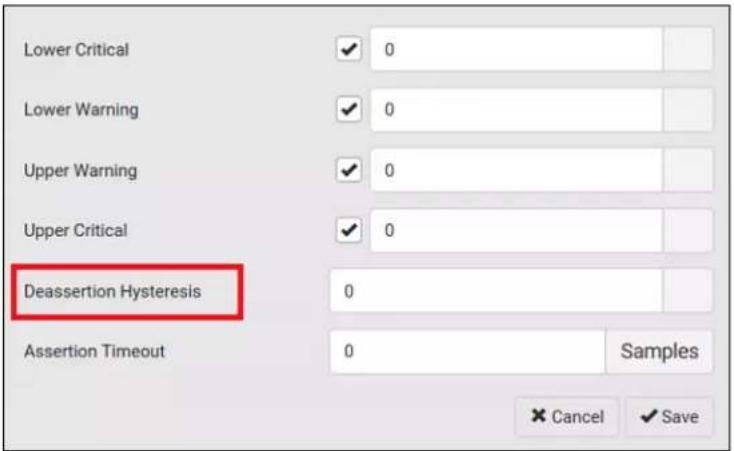
text_image
Lower Critical ✓ 0
Lower Warning ✓ 0
Upper Warning ✓ 0
Upper Critical ✓ 0
Deassertion Hysteresis 0
Assertion Timeout 0 Samples
Cancel ✓ Save
Threshold value Deassertion value Upper Critical = 33 Deassertion level = 31 • 33 - 2 = 31 Upper Warning = 25 Deassertion level = 23 • 25 - 2 = 23 Lower Critical = 10 Deassertion level = 12 • 10 + 2 = 12 Lower Warning = 18 Deassertion level = 20 • 18 + 2 = 20 How "Deassertion Hysteresis" is helpful:
Upper Warning threshold is enabled.
Upper Warning = 20 (degrees Celsius)
Deassertion Hysteresis = 3 (degrees Celsius)
"Deassertion" level = 20-3 = 17 (degrees Celsius)
Default Voltage and Current Thresholds
- RMS voltage:Threshold Default value Lower critical -6% of minimum rating Lower warning -3% of minimum rating Upper warning +3% of maximum rating Upper critical +6% of maximum rating Hysteresis 2V Threshold Default value Upper warning 65% of rating Upper critical 80% of rating Hysteresis 1A Multi-phase inlets or outlets:
Threshold Default value Lower critical -6% of minimum rating Lower warning -3% of minimum rating Upper warning +3% of maximum rating Upper critical +6% of maximum rating Hysteresis 2V Threshold Default value Upper warning 65% of rating Upper critical 80% of rating Hysteresis 1A Threshold Default value Upper critical 10% -- disabled by default Upper warning 5% -- disabled by default Hysteresis 2% Overcurrent protectors which aims to protect the PDU's outlets:
Threshold Default value Upper critical 80% of OCP rating Upper warning 65% of OCP rating Hysteresis 1A Threshold Default value Upper critical 30mA Hysteresis 15mA Altitude Correction Factors
Altitude (meters) Altitude (feet) Correction factor 0 0 0.95 250 820 0.98 425 1394 1.00 500 1640 1.01 740 2428 1.04 1500 4921 1.15 2250 7382 1.26 3000 9842 1.38 Unbalanced Current Calculation
Calculation:
Average current = (L1+L2+L3) / 3
L1 current unbalance = (L1 - average current) / average current
L2 current unbalance = (L2 - average current) / average current
L3 current unbalance = (L3 - average current) / average current
Example:
L1 = 5.5 amps
L2 = 5.2 amps
L3 = 4.0 amps
• L1 current unbalance: (5.5 - 4.9) / 4.9 = 0.1224
• L2 current unbalance: (5.2 - 4.9) / 4.9 = 0.0612
• L3 current unbalance: (4.0 - 4.9) / 4.9 = -0.1837
• Maximum current unbalance:
Maximum (|0.1224|, |0.0612|, |-0.1837|) = 0.1837
- Current unbalance converted to a percentage: 100 * (0.1837) = 18%Data for BTU Calculation
Model name Maximum power (Watt) PX2-1000 5 PX3-1000 PX2-2000 20 PX3-2000 PX2-3000 24 PX3-3000 PX2-4000 24 PX3-4000 PX2-5000 24 PX3-5000 Ways to Probe Existing User Profiles
Raritan Training Website
Role of a DNS Server
Cascading Troubleshooting
Possible Root Causes
Symptom Probable cause Failure to access the master device ·Anything below is lost on the master device:·Network connection·Power supply·Anything below is disabled on the master device:·The Ethernet or wireless interface·IPv4 or IPv6 settings·In the Port Forwarding mode, related settings are incorrectly configured on the master device.·The master device's role is incorrectly set to 'Slave'.·The interface where the network is connected is incorrectly set as the downstream interface.·For the wireless networking, one of the following issues occurs:·The USB wireless LAN adapter attached to the master device is not the Raritan USB WIFI LAN adapter. SeeUSB Wireless LAN Adapters(on page 24).·The e wireless LAN configuration is not supported. SeeSupported Wireless LAN Configuration(on page 25).·The installed CA certificate chain contains any certificate that has expired or is not valid yet. Failure to access a slave device One of the following issues occurs on the master device:Network connection is lost.The Ethernet or wireless interface is disabled.One of the following issues occurs on the slave device in question or any upstream device (if available):Connection of the cascading cable is loose or lost.No power supply.The cascading mode is set incorrectly.For example, the master device is set to Bridging, but the slave device in question or any upstream device is set to Port Forwarding.In the Bridging mode, IPv4 (or IPv6) settings are disabled on the slave device in question.In the Port Forwarding mode, one of the following issues occurs:The master device's role is incorrectly set to 'Slave'.The master device's downstream interface is incorrectly set. For example, you use a USB cable to connect the 1st slave device, but select the Ethernet port as the downstream interface.The role of the slave device in question or any upstream device is set to 'Master' instead of 'Slave'.The port number you added to the IP address is incorrect. SeePort Number Syntax(on page 268).IPv4 (or IPv6) settings are disabled on the master device.The slave device in question or any upstream device runs a "pre-3.3.10" firmware version while the rest of the chain runs firmware version 3.3.10 or later.
Slave Device Events in the Log
Event Description The ETH1/2 network interface link is now up. This log entry is generated when an iX7TM detects the connection of the upstream or downstream cascaded device on one of its Ethernet ports. The ETH1/2 network interface link is now down. This log entry is generated when an iX7TM detects the disconnection of the upstream or downstream cascaded device on one of its Ethernet ports. Messages for the USB-cascading chain:
Event Description Slave connected This log entry is generated when a PX3 detects the presence of a slave device on its USB-A port. Slave disconnected This log entry is generated when it detects the disconnection of a slave device from its USB-A port. The Ping Tool
▶ Ping via the Web Interface:
▶ Ping via the CLI:
Installing the USB-to-Serial Driver (Optional)
▶ Automatic driver installation in Windows ®:
▶ Manual driver installation in Windows ®:
In Linux:
Initial Network Configuration via CLI
To configure the PX3 device:
■ Parity = None
■ Flow control = None
■ To ignore it, simply press Enter.
Commands for wired networking:
To set or enable Use this command IPv4 or IPv6 protocol networkinterfaceenabled=true, or false IPv4 configuration method network ipv4 interfaceconfigMethod= dhcp (default) or static IPv6 configuration method network ipv6 interfaceconfigMethod= automatic (default) or static Preferred host name (optional) networkinterfacepreferredHostName= preferred host name IP address returned by the DNS server network dns resolverPreference= preferV4 or preferV6 To set Use this command Static IPv4 or IPv6 address networkinterfaceaddress= static IP address, with a syntax similar to the example below.▪ Example: 192.168.7.9/24 Static IPv4 or IPv6 gateway networkgateway= gateway's IP address IPv4 or IPv6 primary DNS server network dns firstServer= DNS server's IP address IPv4 or IPv6 secondary DNS server network dns secondServer= DNS server's IP address IPv4 or IPv6 third DNS server network dns thirdServer= DNS server's IP address
• General wireless settings:To set or enable Use this command Wireless interface network wireless enabled =true, or false SSID network wireless SSID = SSID string BSSID network wireless BSSID = AP MAC address or none 802.11n protocol network wireless enableHT =true, or false Authentication method network wireless authMethod = psk or eap PSK network wireless PSK = PSK string EAP outer authentication network wirelesseapOuterAuthentication = PEAP EAP inner authentication network wirelesseapInnerAuthentication = MSCHAPv2 EAP identity network wireless eapIdentity = your user name for EAP authentication EAP password network wireless eapPasswordWhen prompted to enter the password for EAP authentication, type the password. EAP CA certificate network wirelesseapCACertificateWhen prompted to enter the CA certificate, open the certificate with a text editor, copy and paste the content into the communications program. Whether to Use this command Verify the certificate network wireless enableCertVerification =value or false Accept an expired or not valid certificate network wireless allowOffTimeRangeCerts =value or false Make the connection successful by ignoring the "incorrect" system time network wireless allowConnectionWithIncorrectClock =value or false • Wireless IPv4 / IPv6 settings:
To set or enable Use this command IPv4 configuration method network ipv4 interface WIRELES configMethod = dhcp (default) or static IPv6 configuration method network ipv6 interface WIRELES configMethod = automatic (default) or static ▶ To verify network settings:
Device-Specific Settings
• SNMP system name, contact and location
• Part of network settings (IP address, gateway, netmask and so on)
• Server monitoring entries TLS Certificate Chain
What is a Certificate Chain
How a certificate chain is generated:
'Certificate C' is issued by the certificate authority (CA) entity called 'Issuer B'.
• Certificate B. The certificate issued to 'Issuer B'.
'Certificate B' is issued by a CA entity called 'Issuer A', and it is an intermediate certificate. 
flowchart
graph LR
    A["ROOT"] --> B["B"]
    B --> C["SERVER"]
▶ Certificate (chain) that you must upload to the receiver, such as PX3:
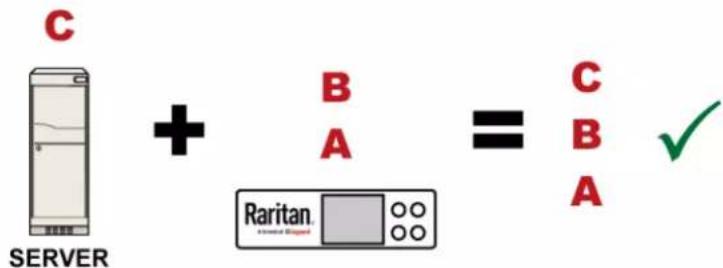
text_image
C
SERVER + B = C
A B A
Raritan
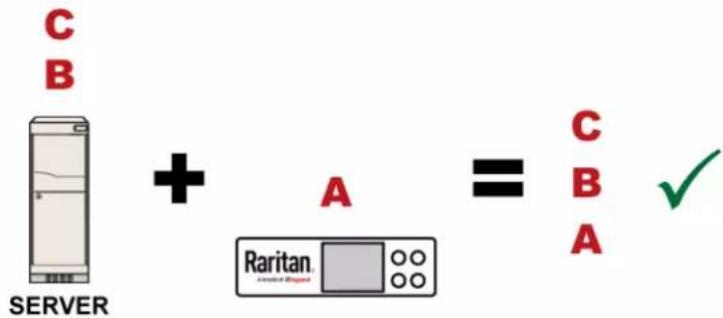
text_image
C
B
SERVER + A = C
A B
√
Raritan.

text_image
C
+ A = C ?
A
SERVER
Raritan.
Asterisk England
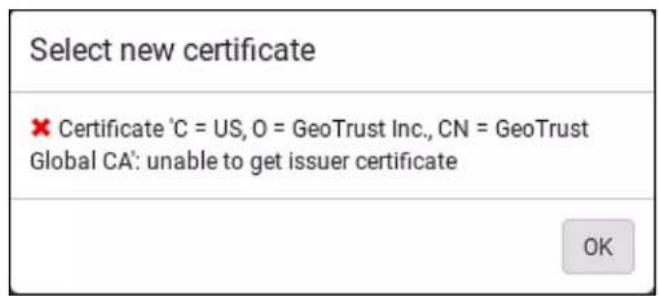
text_image
Select new certificate
× Certificate 'C = US, O = GeoTrust Inc., CN = GeoTrust
Global CA': unable to get issuer certificate
OK
Order of the chain in the certificate file:

text_image
B
A
• The bottom is always the root certificate "A". Illustration - GMAIL SMTP Certificate Chain
Step 1 -- Find the certificate(s) the SMTP server has:
openssl s_client -showcerts -connect smtp.gmail.com:465
.
.
.
Certificate chain
0 s:/C=US/ST=California/L=Mountain View/O=Google Inc/CN=smtp.gmail.com
i:/C=US/O=Google Inc/CN=Google Internet Authority G2
----BEGIN CERTIFICATE----
MIIEdjCCA16gAwIBAgIIbzO9vIL2OXcwDQYJKoZIhvcNAQELBQAwSTELMAkGA1UE
.
.
YHKKJH96sSNC+6dLpOOoRritL5z+jn2WFLcQkL2mRoWQi6pYTzPyXB4D
----END CERTIFICATE----
1 s:/C=US/O=Google Inc/CN=Google Internet Authority G2
i:/C=US/O=GeoTrust Inc./CN=GeoTrust Global CA
----BEGIN CERTIFICATE----
MIIEKDCCAxCgAwIBAgIQAQAhJYiw+lmnd+8Fe2Yn3zANBgkqhkiG9w0BAQsFADBC
.
.
MqO5tzHpCvX2HzLc
----END CERTIFICATE----
2 s:/C=US/O=GeoTrust Inc./CN=GeoTrust Global CA
i:/C=US/O=Equifax/OU=Equifax Secure Certificate Authority
----BEGIN CERTIFICATE----
MIIDfTCCAuagAwIBAgIDErvmMA0GCSqGSIb3DQEBBQUAME4xCzAJBgNVBAYTAlVT
.
.
b8ravHNjkOR/ez4iyz0H7V84dJzjA1BOoa+Y7mHyhD8S
----END CERTIFICATE----
Server certificate
subject=/C=US/ST=California/L=Mountain View/O=Google
Inc/CN=smtp.gmail.com
issuer=/C=US/O=Google Inc/CN=Google Internet Authority G2
.
.
.
IMPORTANT NOTE:
Browsing through the Online Help
To use the PX3 online help:
Appendix L Integration
In This Chapter
Dominion KX II / III Configuration
• Dominion KX III -- ALL versions
• PX2 series -- 2.2 or later
• PX3 series -- 2.5.10 or later
• PX3TS series -- 2.6.1 or later
Configuring Rack PDU Targets
Connecting a PX PDU
To connect the rack PDU:
- PX2, PX3 or PX3TS series: RJ-45 "FEATURE" port

text_image
A
1
B
2
C
Diagram key 
PX rack PDU 
D2CIM-PWR 
KX III 
D2CIM-PWR to rack PDU connection 
D2CIM-PWR to KX III target device port via Cat5 cable Naming the Rack PDU (Port Page for Power Strips)
To name the rack PDU and outlets:
3. Click OK.
Port 17
Outlets
Humber Name Port Association 1 Dominion-Port1(1) Dominion- Port7 2 Outlet 2 3 Outlet 3 4 Outlet 4 5 Outlet 5 6 Outlet 6 7 Outlet 7 8 Outlet 8 Associating Outlets with Target Devices
• Power CIMs (D2CIM-PWR)
Turning Outlets On/Off and Cycling Power
▶ To turn an outlet off:
▶ To cycle the power of an outlet:
Dominion KSX II, SX or SX II Configuration
- SX - a CSCSPCS cable
• SX II - a CSCSPCS cable
Dominion KSX II
Connecting a Rack PDU
To connect the Raritan PX to the KSX II:
■ PX1 series: RJ-45 "SERIAL" port 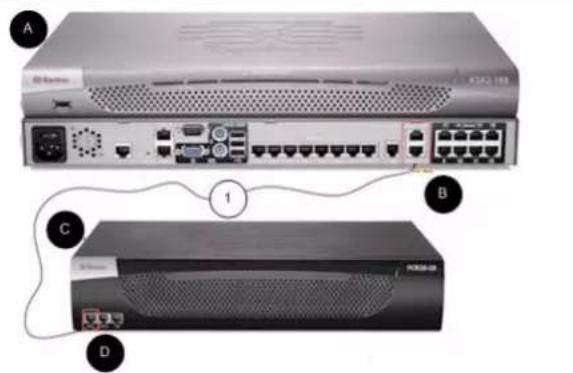
text_image
A
ESOS
1
B
C
D
Diagram key A KSX II D PX SERIAL or FEATURE port B KSX II Power Ctrl. 1 Port or Power Ctrl. 2 Port 1 Cat5 cable C PX Power Control
Dominion SX and SX II
Dominion SX II
To connect the SX II to the Feature port on the PX:

text_image
A
S-Rotor
B
1200 000 120
1200 000 120
1200 000 120
1200 000 120
1200 000 120
1200 000 120
1200 000 120
1200 000 120
1200 001 120
1200 001 120
1200 001 120
1200 001 120
1200 001 120
1200 001 120
1200 001 120
1200 001 120
1201 034 134
1201 034 134
1201 034 134
1201 034 134
1201 034 134
1201 034 134
1201 034 134
1201 034 134
1201 035 135
1201 035 135
1201 035 135
1201 035 135
1201 035 135
1201 035 135
1201 035 135
1201 036 136
1201 036 136
1201 036 136
1201 036 136
1201 036 136
1201 036 136
1201 037 137
1201 037 137
1201 037 137
1201 037 137
1201 037 137
1201 038 138
1201 038 138
1201 038 138
1201 038 138
1201 039 139
1201 039 139
1201 040 140
1201 040 140
1201 040 140
1201 041 141
1201 041 141
1201 042 142
1201 042 142
1201 043 143
1201 043 143
1201 044 144
1201 044 144
1201 045 145
1201 046 146
1201 047 147
1201 048 148
1201 049 149
1201 050 150
B
A PX appliance B SX II Dominion SX
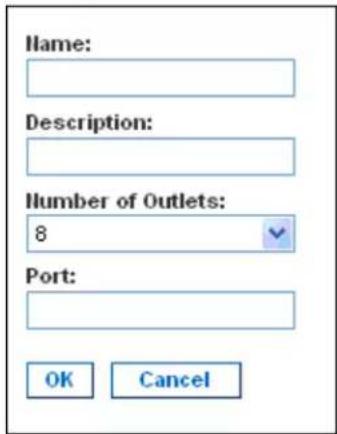
text_image
Name:
Description:
Number of Outlets:
8
Port:
OK Cancel
Power Control
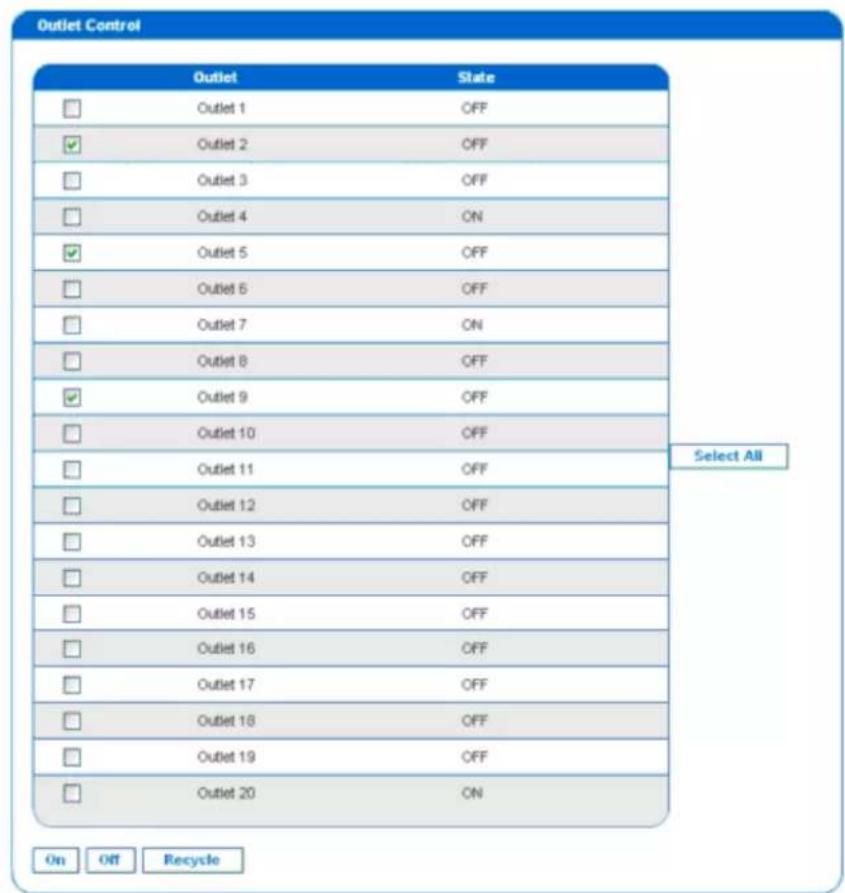
text_image
Outlet Control
Outlet State
□ Outlet 1 OFF
✓ Outlet 2 OFF
□ Outlet 3 OFF
□ Outlet 4 ON
✓ Outlet 5 OFF
□ Outlet 6 OFF
□ Outlet 7 ON
□ Outlet 8 OFF
✓ Outlet 9 OFF
□ Outlet 10 OFF
□ Outlet 11 OFF
□ Outlet 12 OFF
□ Outlet 13 OFF
□ Outlet 14 OFF
□ Outlet 15 OFF
□ Outlet 16 OFF
□ Outlet 17 OFF
□ Outlet 18 OFF
□ Outlet 19 OFF
□ Outlet 20 ON
On Off Recycle
Select All
Outlet 19: The power operation has been sent.
Checking Power Strip Status
DPX Status:

text_image
Power strip:
Outlet Breaker Status: 1
True RMS Current: 0.0
Maxium Detected Current: 0.4
True RMS Voltage : 113.0
Internal Temperature : 45.0
Average Power : 0
Apparent Power : 0
Outlets: 20
1. Outlet 1 : Off
2. Outlet 2 : Off
3. Outlet 3 : Off
4. Outlet 4 : On
5. Outlet 5 : Off
6. Outlet 6 : Off
7. Outlet 7 : On
8. Outlet 8 : Off
9. Outlet 9 : Off
10. Outlet 10 : Off
11. Outlet 11 : Off
12. Outlet 12 : Off
13. Outlet 13 : Off
14. Outlet 14 : Off
15. Outlet 15 : Off
16. Outlet 16 : Off
Power IQ Configuration
• Name outlets on different PDUsdcTrack
• Monitor the electrical consumption of the data center
- Track environmental factors in the data center, such as temperature and humidity
- Optimize the data center growthdcTrack Overview
Asset Management Strips and dcTrack
Note: For instructions on connecting asset strips, see Connecting Asset Management Strips (on page 71).
To poll and display asset management events in dcTrack
Index
Index
C
Index
D
Index
E
Index
Index
F
G
H
|
Index
L
M
N
Index
0
P
Q
R
S
Index
Index
T
Index
U
V
W
Y
Z