ProSafe FS726Tv2 - Network switch NETGEAR - Free user manual and instructions
Find the device manual for free ProSafe FS726Tv2 NETGEAR in PDF.


User questions about ProSafe FS726Tv2 NETGEAR
0 question about this device. Answer the ones you know or ask your own.
Ask a new question about this device
Download the instructions for your Network switch in PDF format for free! Find your manual ProSafe FS726Tv2 - NETGEAR and take your electronic device back in hand. On this page are published all the documents necessary for the use of your device. ProSafe FS726Tv2 by NETGEAR.
USER MANUAL ProSafe FS726Tv2 NETGEAR
ProSAFE FS526Tv2, FS726Tv2, and FS728TLP Smart Switches
Web Management User Guide
September 2013
202-11273-01
350 East Plumeria Drive
San Jose, CA 95134
USA

natural_image
Abstract geometric shape composed of colored triangles (no text or symbols)Support
Thank you for selecting NETGEAR products.
After installing your device, locate the serial number on the label of your product and use it to register your product at https://my.netgear.com. You must register your product before you can use NETGEAR telephone support. NETGEAR recommends registering your product through the NETGEAR website. For product updates and web support, visit http://support.netgear.com.
Phone (US & Canada only): 1-888-NETGEAR.
Phone (Other Countries): Check the list of phone numbers at http://support.netgear.com/general/contact/default.aspx.
Trademarks
NETGEAR, the NETGEAR logo, and Connect with Innovation are trademarks and/or registered trademarks of NETGEAR, Inc. and/or its subsidiaries in the United States and/or other countries. Information is subject to change without notice. NETGEAR, Inc. All rights reserved.
Revision History
Publication Part Number Publish Date Comments
202-11273-01 September 2013 First publication
Contents
Chapter 1 Introduction
Smart Switch Hardware Installation....10
Switch Management Methods ...... 10
Web Management Interface 11
Access the Web Management Interface .... 11
Change the Language (Model FS726Tv2 Only) 13
Allowed Characters for User-Defined Fields 13
Use the Device View Screen as an Alternate Way to
Configure the Smart Switch....13
Interface Naming Conventions 19
Ports on Model FS728TLP 19
Ports on Model FS726Tv2....19
Ports on Model FS526Tv2....20
Access Online Help from the Web Management Interface ..... 20
Access NETGEAR Support 21
Access the User Guide Online....21
Organization of the Web Management Interface. 22
Chapter 2 Connect the Smart Switch to Your Network
Connect the Smart Switch to the Network. 29
Use Automatic Switch Discovery for a Network with a DHCP Server .. 29
Use Automatic Switch Discovery for a Network without a
DHCP Server....32
Configure the Network Settings from a Local Computer ..... 34
Register the Smart Switch with NETGEAR 38
Chapter 3 Configure Basic System Settings
Configure System Information. 41
Configure the IP Settings and Management VLAN for
the Network Interface 42
Change the IP Settings 42
Change the Management VLAN 45
Configure the Time Settings and SNTP Servers. 45
Configure the Time Settings Manually....46
Manage SNTP Servers 47
Configure the Time Settings Through SNTP 49
Chapter 4 Manage Access to the Switch
Manage the Password for the Smart Switch .....53
Change the Password .53
Reset the Password .....54
Configure Secure Access to the Smart Switch....54
Configure the Global Settings for HTTP Sessions .....54
Manage the Access Profile and Access Rules....55
Chapter 5 Configure Ports
Configure the Options for the Physical Ports and LAGs .....61
Enable Flow Control....64
Configure the Auto-VoIP Mode 65
Chapter 6 Configure Power over Ethernet (Model FS728TLP Only)
View the Global PoE Information and Enable PoE SNMP Traps.....68
View the Global PoE Power Information . . . . . . . . . . . . . . . . . . . . . . . . . . . . . . . . . . . . . . . . . . . . . . . . . . . . . . . . . . . . 68
Enable PoE SNMP Traps....69
Configure Dual Detection of Powered Devices 69
Manage the Timer Schedules 70
Create a Timer Schedule .....70
Configure a Timer Schedule....71
Enable Timer Schedules 74
Remove a Timer Schedule....75
Configure the PoE Ports....75
Chapter 7 Configure VLANs and a Voice VLAN
Configure VLANs....80
Manage Custom VLANs....80
Manage VLAN Memberships ....82
Configure Port VLAN IDs for Ports and LAGs .....85
Configure a Voice VLAN 87
Configure Global Voice VLAN Properties. . . . . . . . . . . . . . . . . . . . . . . . . . . . . . . . . . . . . . . . . . . . . . . . . . . . . . . . . . . . . . . 87
Configure the Voice VLAN Port Setting .....88
Manage the Voice VLAN OUIs. .90
Chapter 8 Configure LAGs and LAG Membership
Link Aggregation Group Concepts 93
Configure a LAG. 93
Manage LAG Memberships . . . . . . . . . . . . . . . . . . . . . . . . . . . . . . . . . . . . . . . . . . . . . . . . . . . . . . . . . . 95
Manage Members of a LAG .95
View Members of a LAG. 96
Configure the LACP Global Priority 97
Configure the LACP Port Priority .97
Chapter 9 Manage the Unicast Forwarding Database
Forwarding Database Concepts....100
View, Search, and Clear the MAC Address Table .....100
View and Search the MAC Address Table 100
Remove Dynamically Learned MAC Addresses....101
Configure Dynamic Address Aging....102
Manage Static MAC Addresses....102
Add a Static MAC Address .....103
Change a Static MAC Address....103
Remove a Static MAC Address 104
Chapter 10 Configure Multicast
Multicast Concepts ....106
Enable the Auto-Video Option ....106
Configure IGMP Snooping .....107
Configure the Global IGMP Snooping Options....107
Configure IGMP for Individual Ports and LAGs .....108
View, Search, and Clear the IGMP Snooping Table.....111
View and Search the Multicast Forwarding Database Table .....112
View the Multicast Forwarding Database Statistics .....114
Configure IGMP Snooping for VLANs .....115
Manage Multicast Groups and Group Memberships .....118
Manage Multicast Groups....118
Manage Multicast Group Memberships ....119
Configure the IGMP Snooping Querier....121
Configure the Global IGMP Snooping Querier Options .....121
Manage IGMP Snooping Querier VLANs .....122
View the IGMP Snooping Querier VLAN Status.....124
Chapter 11 Configure Spanning Tree Protocol
Spanning Tree Protocol Concepts ....127
Configure the Global STP Options and View the STP Status .....127
Configure the CST 129
Configure CST on Ports and LAGs .....130
View the CST Port and LAG Status .....133
View the RSTP Port and LAG Status ....135
View the STP Statistics ....136
Chapter 12 Configure Class of Service
Quality of Service Concepts 139
Class of Service Concepts 139
Configure the Global and Interface Trust Modes .....139
Configure the CoS Trust Mode Globally.....140
Configure the CoS Trust Mode for an Individual Port or LAG.....141
Configure CoS on Ports and LAGs....142
Configure CoS Queues and Queue Options for Physical
Ports and LAGs 143
Configure 802.1p to Queue Mapping .....146
Configure DSCP to Queue Mapping .....147
Chapter 13 Manage RADIUS and Port Authentication and Traffic Control
Configure RADIUS Authentication .....150
Configure the Global RADIUS Options....150
Manage the RADIUS Servers....151
Manage the RADIUS Accounting Server ....154
Configure Port Authentication 157
Globally Enable Authentication for Port and Guest VLAN Access . . . .158
Configure Authentication for Individual Ports .....158
Start the Initialization Sequence or Reauthentication
Sequence for Ports....163
View the Port Summary 164
Configure Traffic Control 166
Configure Storm Control....166
Configure Port Security 169
Configure Protected Ports 175
Chapter 14 Manage Access Control Lists
Access Control List Concepts 178
Use the ACL Wizard to Configure ACLs .....178
View the ACL Wizard Screen and View the Options .....178
Use the ACL Wizard to Create an ACL Based on MAC Addresses. . .180
Use the ACL Wizard to Create an ACL Based on a Source
IP Address 184
Use the ACL Wizard to Create an ACL Based on a
Destination IP Address....188
Use the ACL Wizard to Create an ACL Based on TCP or UDP Ports .192
Manually Configure and Assign MAC ACLs. 197
Manage MAC ACL Names 197
Manage MAC ACL Rules....199
Configure MAC ACL Bindings for Ports and LAGs. 203
View the MAC ACL Binding Table .....206
Manually Configure and Assign IP ACLs .....207
Manage IP ACL Identifiers .....208
Manage Basic IP ACL Rules 209
Manage Extended IP ACL Rules 212
Configure IP ACL Bindings for Ports and LAGs .....216
View the IP ACL Binding Table .....219
Chapter 15 Configure System Management
Optio
Configure Denial of Service 222
Globally Enable Denial of Service .....223
Manually Configure Denial of Service. 223
Configure the Green Ethernet Features .....225
Configure Link Layer Discovery Protocol .....226
Configure the Global LLDP and LLDP-MED Properties .....227
Configure LLDP for Ports .....228
Configure LLDP-MED for Individual Ports . . . . . . . . . . . . . . . . . . . . . . . . . . . . . . . . . . . . . . . . . . . . . . . . . . . . . . . 230
View the LLDP-MED Network Policy TLV for an Individual Port .....232
View the LLDP Local Device and Local Port Information .....233
View the LLDP Neighbors Information .....237
Chapter 16 Monitor the Switch and Traffic
View Statistics 243
View and Clear the Switch Statistics .....243
View and Clear Statistics for Ports and LAGs .....245
View and Clear Detailed Statistics for an Individual Port or LAG . . . . 248
View and Clear EAP Statistics for Ports .....254
View the Results of a Cable Test .....257
Configure and View the System Logs .....258
Message Format Concepts....259
Configure, View, and Clear the Memory Log .....260
Configure, View, and Clear the Flash Log .....261
Configure Syslog Servers and Enable the Server Log . . . . . . . . . . . . . . . . . . . . 263
View and Clear the SNMP Trap Log. 265
Manage Port Mirroring . . . . . . . . . . . . . . . . . . . . . . . . . . . . . . . . . . . . . . . . . . . . . . . . . . . . . . . . . . . . 267
Chapter 17 Switch Management Tools
Download and Upgrade the Firmware ....271
Use HTTP to Download Firmware .....271
Use TFTP to Download Firmware .....272
Upgrade the Firmware .273
Manage Two Firmware Images .275
Make an Image Active .276
Permanently Remove an Image .278
View the Dual Image Status .....278
Save the Firmware, Running Configuration File, and Logs .....279
Save the Firmware or Running Configuration File over HTTP .....280
Save the Firmware, Running Configuration File, or Logs over TFTP. .280
Download the Running Configuration File .....282
Download the Running Configuration File over HTTP .....282
Download the Running Configuration File over TFTP .....283
Reboot the Smart Switch ..... 284
Return the Smart Switch to Factory Default Settings .....285
Chapter 18 Configure SNMP
SNMP Concepts....288
Configure the SNMPv1 and SNMPv2 Options....288
Manage the SNMP Communities .....288
Manage the SNMP Trap Receivers .....290
Configure the SNMP Trap Flags .....292
Configure SNMP3 User Authentication and Encryption.....293
Appendix A Smart Control Center Utilities
Install the Smart Control Center and Discover the Smart Switch.....296
Overview of the Network Utilities 296
Configure the IP Address Settings of the Smart Switch .....297
Change the Password for Accessing the Smart Switch .....298
Save and Restore the Configuration File . . . . . . . . . . . . . . . . . . . . . . . . . . . . . . . . . . . . . . . . . . . . . . . . . . . . . . . 299
Upgrade the Firmware 303
View and Manage Tasks 305
Appendix B Configuration Examples
Virtual Local Area Networks. 308
VLAN Advantages 308
VLAN Sample Configuration....309
Access Control Lists....310
Traffic Filtering Concepts .310
MAC ACL Sample Configuration .....311
Standard IP ACL Sample Configuration....313
802.1X Authentication 314
Port Access Entity Roles 315
802.1X Sample Configuration....315
Appendix C Factory Default Software Settings
Default Login Settings 319
IPv4, DHCP, VLAN, and Clock Settings.....319
Port Characteristics 319
PoE Settings (Model FS728TLP Only)....321
Quality of Service and Traffic Control Settings....321
Security Settings 322
Multicast and Forwarding Database Settings. 323
Management Settings 324
Image, File, and Logging Settings .....325
Appendix D Notification of Compliance
Index
This user guide describes how to configure and operate the NETGEAR® ProSAFE® FS526Tv2, FS726Tv2, and FS728TLP Smart Switches, going forward in this user guide collectively referred to as the smart switch. The user guide describes the software configuration procedures and options.
This chapter provides an introduction to the smart switch and explains how to log in to the smart switch. The chapter has the following sections:
• Smart Switch Hardware Installation
- Switch Management Methods
• W eb Management Interface
• Interface Naming Conventions
- Access Online Help from the Web Management Interface
- Organization of the Web Management Interface
Note: For more information about the topics covered in this user guide, visit the support website at support.netgear.com.
Note: Firmware updates with new features and bug fixes are made available from time to time on downloadcenter.netgear.com. Some products can regularly check the site and download new firmware, or you can check for and download new firmware manually. If the features or behavior of your product does not match what is described in this guide, you might need to update your firmware.
Note: For information about software issues and workarounds, see the release notes for the ProSAFE FS526Tv2, FS726Tv2, and FS728TLP Smart Switches.
Smart Switch Hardware Installation
For information about installing the smart switch, see the following guides, which you can download from downloadcenter.netgear.com:
- Installation Guide for the ProSAFE FS526Tv2 Smart Switch and ProSAFE FS728TLP Smart Switch with PoE
• Installation Guide for the ProSAFE FS726Tv2 Smart Switch
• ProSAFE 26-Port Fast Ethernet Smart Switch FS526Tv2 Hardware Installation Guide
• ProSAFE 24-Port 10/100 Smart Switch with 2 Gigabit Ports FS726Tv2 Hardware Installation Guide
• ProSAFE Fast Ethernet PoE Smart Switch FS728TLP Hardware Installation Guide
Switch Management Methods
The smart switch contains an embedded web server and management software for managing and monitoring switch functions. Without the management software, the smart switch functions as a simple switch. You can use the management software to configure more advanced features that can improve switch efficiency and overall network performance.
You can use one of the following management functions to configure and monitor the smart switch. The method that you use to manage and monitor the smart switch depends on your network size and requirements, and on your preference:
- Web management interface. The web management interface lets you monitor, configure, and control the smart switch remotely using a web browser. You can monitor the performance of the smart switch, optimize its configuration for your network, and configure all smart switch features. For more information, see Web Management Interface on page 11.
- Simple Network Management Protocol (SNMP). The smart switch can function as a Simple Network Management Protocol (SNMP) agent to provide reporting and allow for remote management. SNMP is enabled by default on the smart switch. For information about how to configure SNMP on the smart switch, see Chapter 18, Configure SNMP.
- Smart Control Center (SCC) utility. NETGEAR provides the Smart Control Center (SCC) utility with the smart switch. This application runs under Windows 8, Window 7, Windows Vista, and Windows XP to provide a front end that discovers the switches on your network segment (Layer 2 broadcast domain). The SCC utility provides only limited configuration of the smart switch. For full management and configuration of the smart switch, use the web management interface or SNMP.
When you start your smart switch for the first time, use the Smart Control Center to discover the smart switch and view network information that was automatically assigned to the smart switch by a DHCP server. If no DHCP server is present on the network, use the Smart Control Center to discover the smart switch and assign static network information. For information about how to use the Smart Control Center to discover the smart switch, see Connect the Smart Switch to the Network on page 29
In addition to discovering the smart switch and other NETGEAR switches, the Smart Control Center provides several utilities for NETGEAR switches, such as password management, firmware upgrade, and configuration file backup. For more information about these utilities, see Appendix A, Smart Control Center Utilities.
Web Management Interface
For you to access the web management interface of the smart switch over a web browser, the browser needs to meet the following software requirements:
• HTML version 4.0 or later
- HTTP version 1.1 or later
- Java Runtime Environment 7 or later
To access the web management interface, use one of the following methods:
- From the Smart Control Center, select the smart switch, and click Web Browser Access.
For more information, see Use Automatic Switch Discovery for a Network with a DHCP Server on page 29 or Use Automatic Switch Discovery for a Network without a DHCP Server on page 32.
- Open a web browser and enter the IP address of the smart switch in the address field. For more information, see the next section, Access the Web Management Interface.
Access the Web Management Interface
For you to be able to access the web management interface, you need to be able to ping the IP address of the smart switch from your computer. If you use the Smart Control Center to set up the IP address and subnet mask, either with or without a DHCP server, use that IP address in the address field of your web browser. If you did not change the IP address of the smart switch from the default IP address, enter 192.168.0.239 into the address field.
To log on to the web management interface:
-
Open a web browser.
-
In the browser address field, type the IP address of the smart switch.
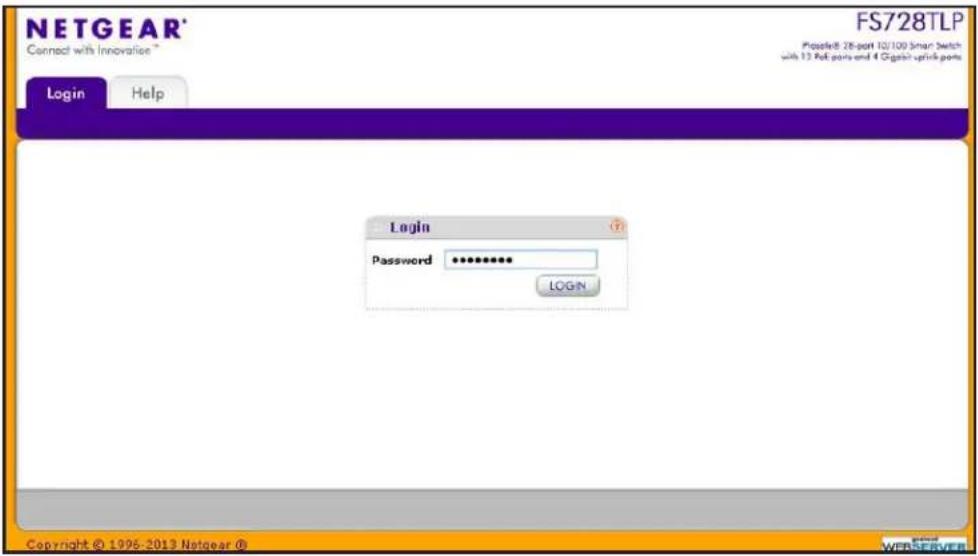
- Type the password in the Password field.
The default password is password. Passwords are case-sensitive.
- Click the Login button.
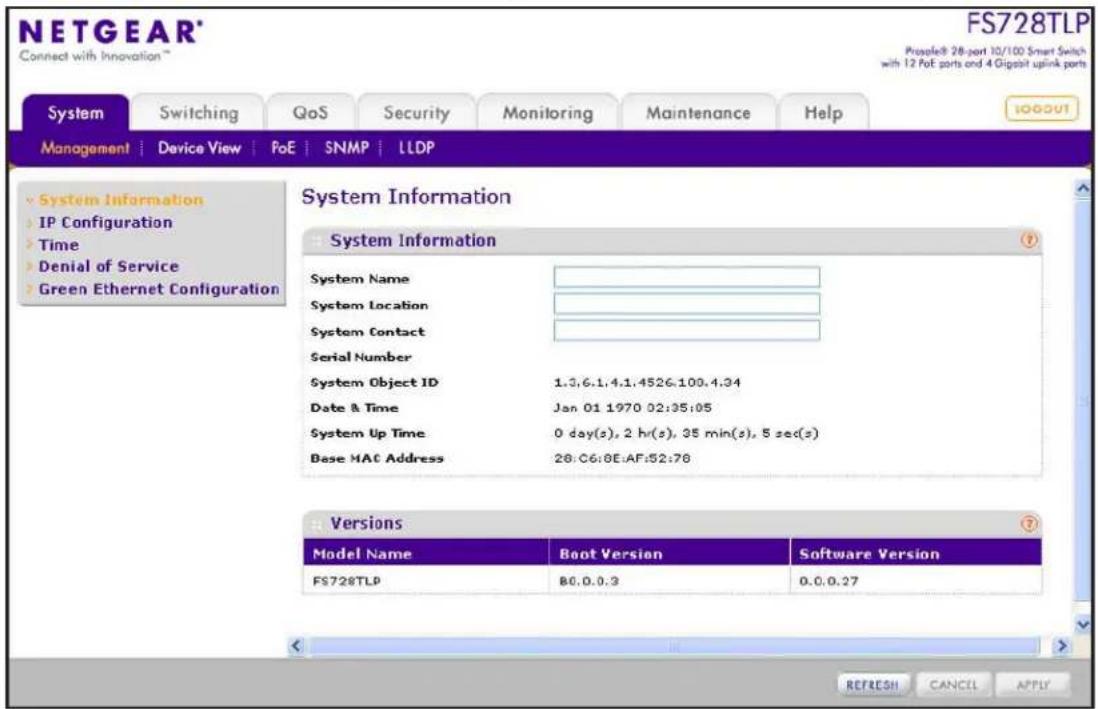
After the system authenticates you, the System Information screen displays.
Change the Language (Model FS726Tv2 Only)
The web management interface of model FS726Tv2 provides a Language menu that lets you select the Chinese or English language. The Language menu is located to the left of the Logout button and is accessible from any screen.
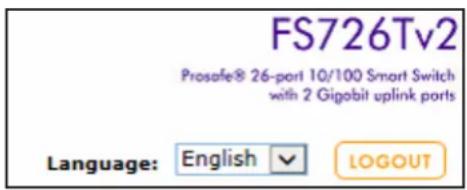
Figure 1. Detail of the Language menu of model FS726Tv2
To change the language:
From the Language menu, select one of the following languages:
- Chinese.
- English.
The web management interface restarts with the selected language.
Allowed Characters for User-Defined Fields
On screens in the web management interface, user-defined fields can contain 1 to 159 characters, unless otherwise noted on a screen. You can use any character, except for the following, unless specifically noted onscreen:
$$ \left. \backslash < / > ^ {*} \right|? $$
Use the Device View Screen as an Alternate Way to Configure the Smart Switch
The Device View is a Java applet that displays the ports on the smart switch. This graphic representation provides an alternate way to navigate to configuration and monitoring screens. The graphic representation also provides information about ports and the configuration and status of the smart switch and its features.
Depending on the status of the port, the ports shows a green or red circle:
- A green circle indicates that the port is connected to a device.
- A red circle indicates that the port is disabled.
Depending on the status of the port, the LED of the port lights green or yellow or is off:
- A green LED for a Gigabit Ethernet port indicates that the port is enabled and operating at a transfer rate of 1000 Mbps.
-
A yellow LED for a Gigabit Ethernet port indicates that the port is enabled and operating at a transfer rate of either 100 Mbps or 10 Mbps.
-
A green LED for a Fast Ethernet port indicates that the port is enabled and operating at a transfer rate of 100 Mbps.
- A yellow LED for a Fast Ethernet port indicates that the port is enabled and operating at a transfer rate of 10 Mbps.
- An LED that is of f indicates that the port is not connected to a device.
Use Device View to View or Configure Ports
To access the Device View screen and view the status of a port or configure a port:
- Select System > Device View.
The Device View screen displays. The information that is displayed depends on the switch model.
- On the graphic representation of the smart switch, click a port.
The port menu displays.
- Select an item from the port menu, or navigate to a submenu to select an item.
The corresponding screen displays.
Use Device View to View or Configure the Smart Switch
To access the Device View screen and view the status of the smart switch or configure the smart switch:
- Select System > Device View.
The Device View screen displays. The information that is displayed depends on the switch model.
- On the graphic representation of the smart switch, click any area outside a port.
The system menu displays.
- Navigate to a submenu to select an item.
The corresponding screen displays.
The following sections describe the Device View screens for model FS728TLP, model FS726Tv2, and model FS526Tv2.
Device View Screen for Model FS728TLP
Model FS728TLP provides twenty-four 10/100BASE-T Fast Ethernet ports, four 10/100/1000BASE-T Gigabit Ethernet ports, two of which (27T and 28T) function as combo ports, and two small form-factor pluggable (SFP) GBIC slots, both of which (27F and 28F) function as combo ports. Power over Ethernet (PoE) is supported on ports 1 through 12.

Figure 2. Model FS728TLP device view without menus
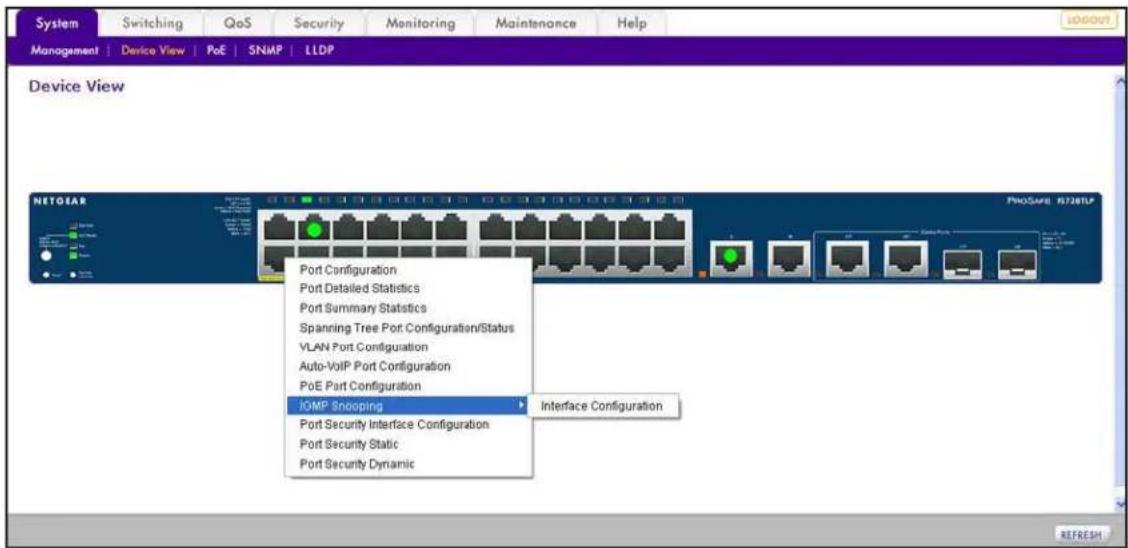
Figure 3. Model FS728TLP device view with port menus
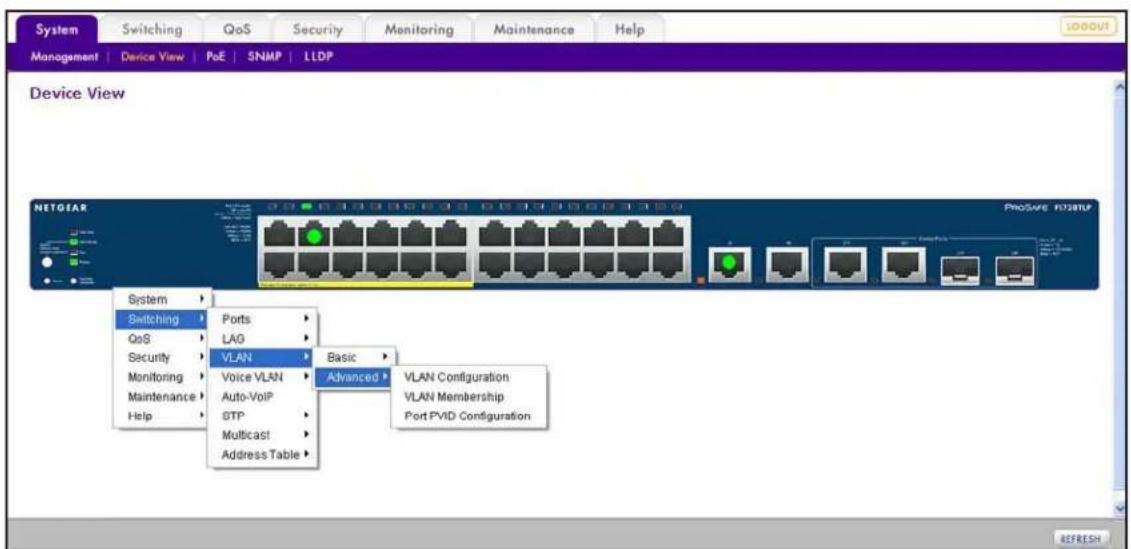
Figure 4. Model FS728TLP device view with an example of system menus
Device View Screen for Model FS726Tv2
Model FS726Tv2 provides twenty-four 10/100BASE-T Fast Ethernet ports, two 10/100/1000BASE-T Gigabit Ethernet ports, one of which (26T) functions as a combo port, and one small form-factor pluggable (SFP) GBIC slot (26F) that functions as a combo port.

Figure 5. Model FS726Tv2 device view without menus
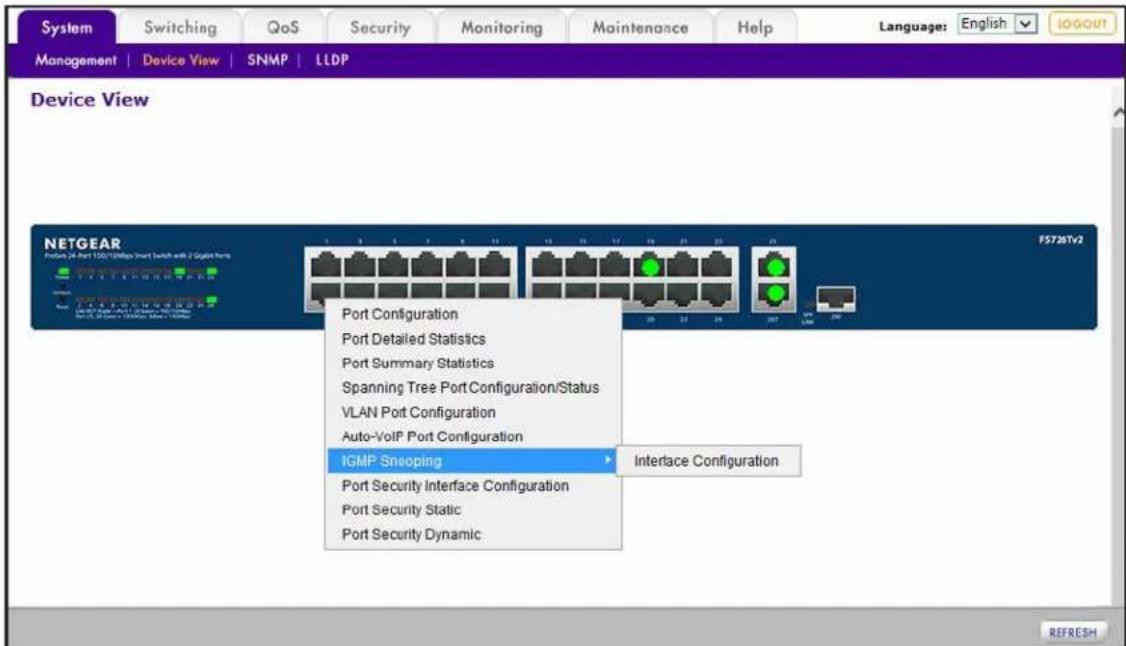
Figure 6. Model FS726Tv2 device view with port menus
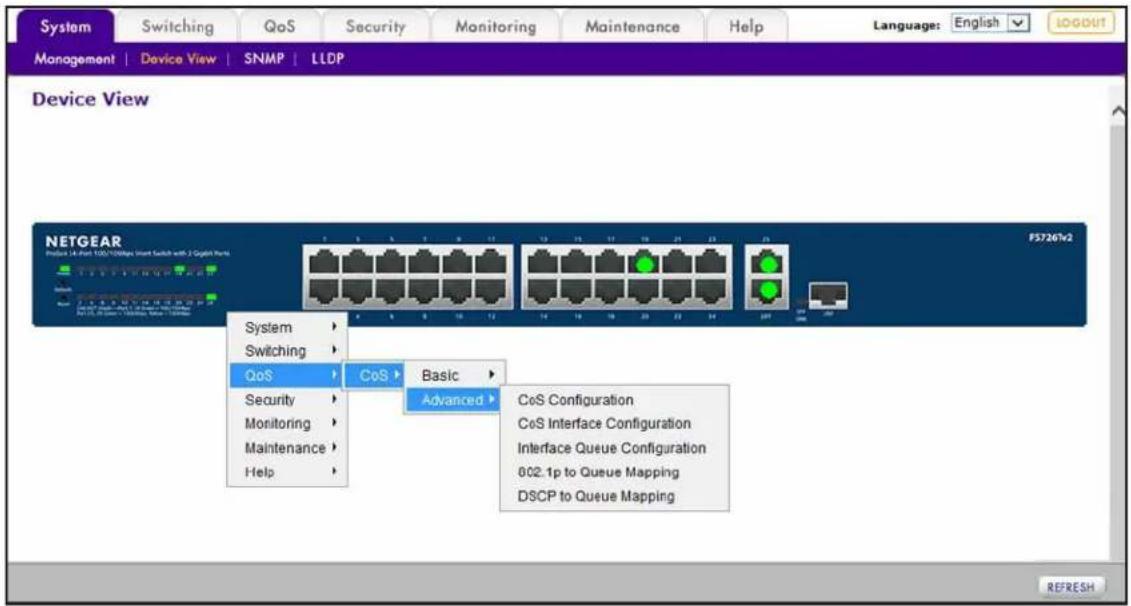
Figure 7. Model FS726Tv2 device view with an example of system menus
Device View Screen for Model FS526Tv2
Model FS526Tv2 provides twenty-four 10/100BASE-T Fast Ethernet ports and two 10/100/1000BASE-T Gigabit Ethernet ports.

Figure 8. Model FS526Tv2 device view without menus
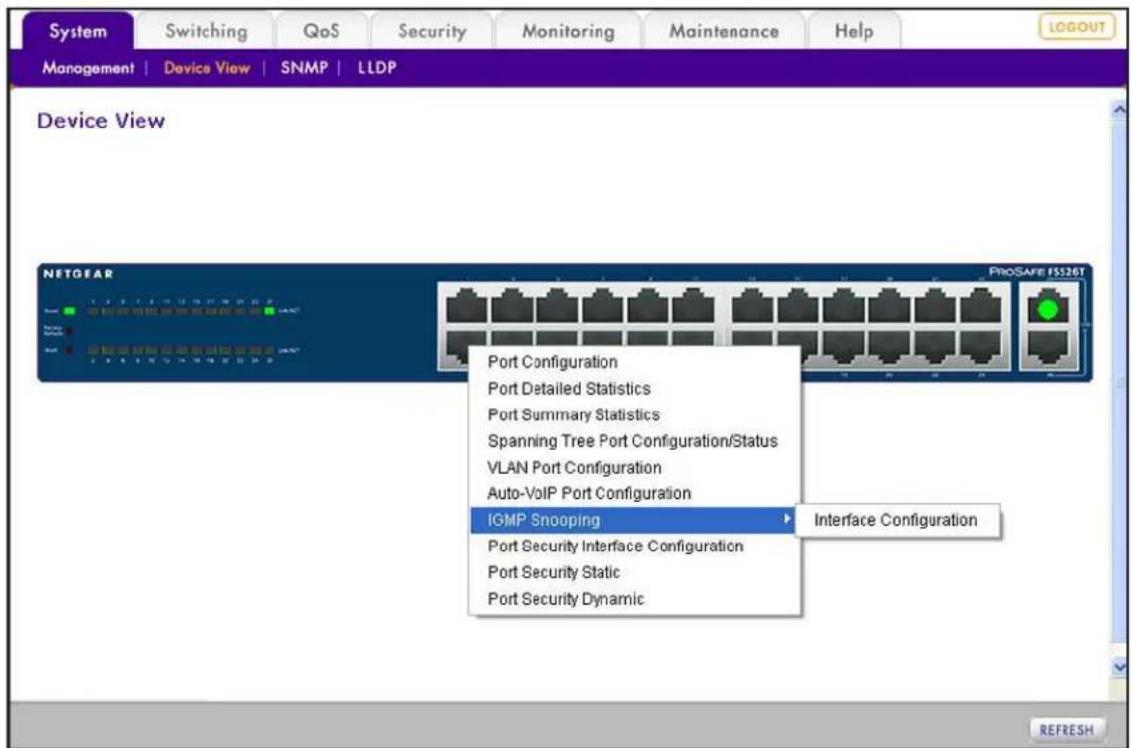
Figure 9. Model FS526Tv2 device view with port menus
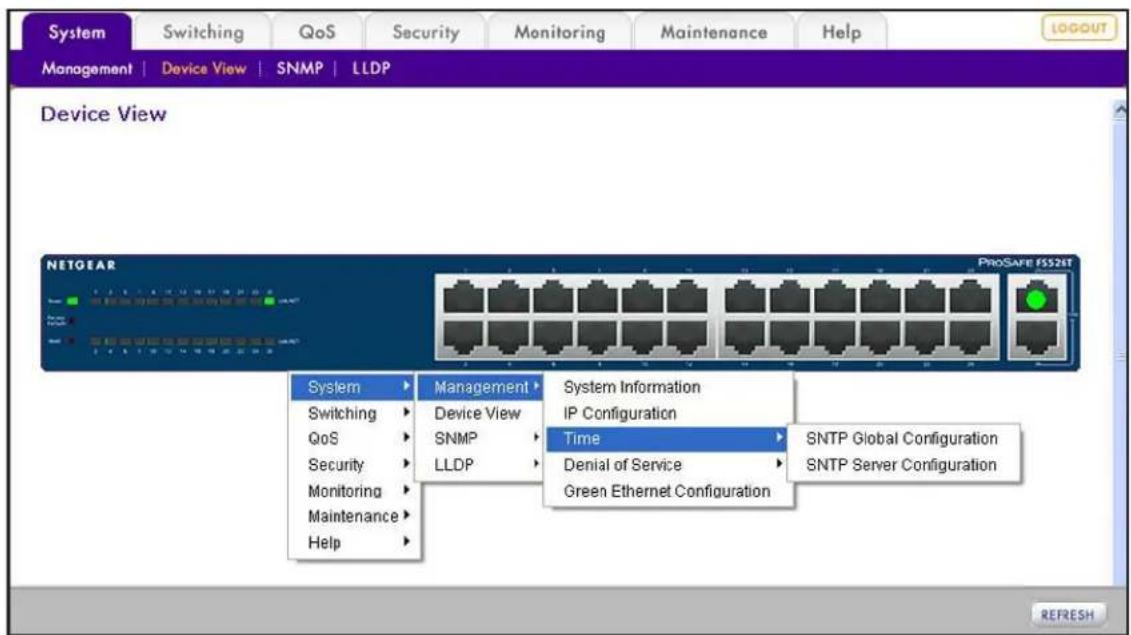
Figure 10. Model FS526Tv2 device view with an example of system menus
Interface Naming Conventions
The smart switch supports physical and logical interfaces. In this guide, we refer to the hardware ports as physical interfaces and to the link aggregation groups (LAGs) as logical interfaces.
Ports are identified by their type and the port number. The number of the port is identified on the front panel. You can configure the logical interfaces through the web management interface.
Ports on Model FS728TLP
Model FS728TLP has the following ports:
- Physical ports 1–24 are Fast Ethernet ports (with ports 1–12 capable of providing PoE).
• Physical ports 25 and 26 are Gigabit Ethernet ports. - Physical ports 27T and 28T are Gigabit Ethernet combo ports (in combination with slots 27F and 28F).
- Physical slots 27F and 28F are small form-factor pluggable (SFP) GBIC slots, which function as combo ports (in combination with ports 27T and 28T).
The following table describes the naming convention for all interfaces available on model FS728TLP.
Table 1. Port naming conventions for model FS728TLP
| Port Description Name | ||
| Physical The physical ports are numbered sequentially starting from e1. e1 through e24, | andg25 through g28 | |
| Link Aggregation Group (LAG) | LAG interfaces are logical interfaces that are used only for bridging functions. | l1 through l8 |
| CPU Management Interface | The internal switch interface responsible for the smart switch base MAC address. This interface is not configurable and is always listed in the MAC Address Table. | c1 |
Ports on Model FS726Tv2
Model FS726Tv2 has the following ports:
- Physical ports 1–24 are Fast Ethernet ports.
• Physical port 25 is a Gigabit Ethernet port. - Physical port 26T is a Gigabit Ethernet combo port (in combination with slots 26F).
- Physical slot 26F is a small form-factor pluggable (SFP) GBIC slot that functions as a combo port (in combination with ports 26T).
The following table describes the naming convention for all interfaces available on model FS726Tv2.
Table 2. Port naming conventions for model FS526Tv2
| Port Description Name | ||
| Physical The physical ports are numbered sequentially starting from e1. e1 through e24, | andg25 and g26 | |
| Link Aggregation Group (LAG) | LAG interfaces are logical interfaces that are used only for bridging functions. | I1 through I8 |
| CPU Management Interface The internal switch interface responsible for the smart switch base MAC address. This interface is not configurable and is always listed in the MAC Address Table. | c1 | |
Ports on Model FS526Tv2
Model FS526Tv2 has the following ports:
- Physical ports 1–24 are Fast Ethernet ports.
• Physical ports 25 and 26 are Gigabit Ethernet ports.
The following table describes the naming convention for all interfaces available on model FS526Tv2.
Table 3. Port naming conventions for model FS526Tv2
| Port Description Name | ||
| Physical The physical ports are numbered sequentially starting from e1. e1 through e24, | andg25 and g26 | |
| Link Aggregation Group (LAG) | LAG interfaces are logical interfaces that are used only for bridging functions. | I1 through I8 |
| CPU Management Interface | The internal switch interface responsible for the smart switch base MAC address. This interface is not configurable and is always listed in the MAC Address Table. | c1 |
Access Online Help from the Web Management Interface
The Help main navigation tab of the web management interface provides access to the menus that are described in the following sections:
- Access NETGEAR Support
- Access the User Guide Online
Access NETGEAR Support
If the smart switch is connected to the Internet, the Support screen provides access to the NETGEAR support website at support.netgear.com.
To access the NETGEAR support website from the web management interface:
1. Select Help > Support.
The Support screen displays.
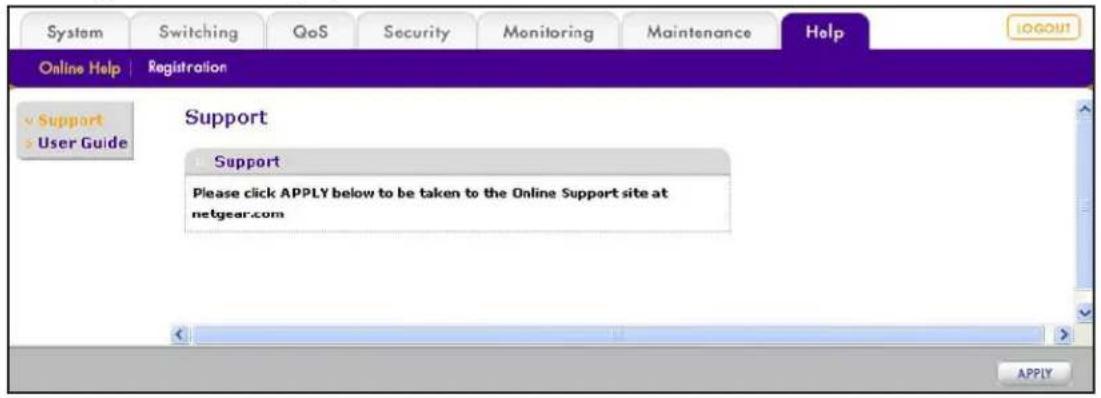
2. Click the Apply button.
The NETGEAR support website for the smart switch opens.
Access the User Guide Online
The ProSAFE FS526Tv2, FS726Tv2, and FS728TLP Web Management User Guide (the user guide that you are now reading) is also available online at the NETGEAR download center at downloadcenter.netgear.com. The smart switch needs to be connected to the Internet.
To access the user guide online from the web management interface:
1. Select Help >> Online Help > User Guide.
The User Guide screen displays.
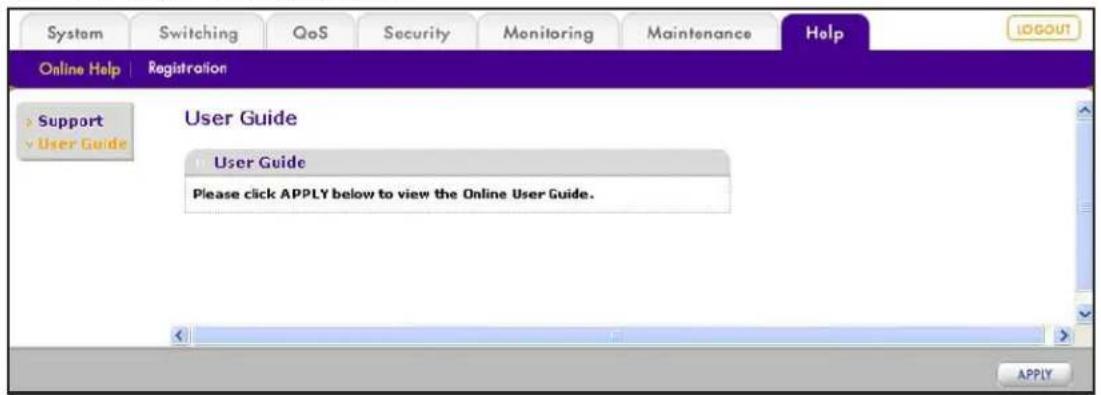
- Click the Apply button.
The NETGEAR download center opens.
-
Enter the model number (FS728TLP, FS726Tv2, or FS526Tv2).
-
Locate the ProSAFE FS526Tv2, FS726Tv2, and FS728TLP Web Management User Guide on the product support web page.
Organization of the Web Management Interface
The following table displays the organization (that is, the tree structure) of the web management interface.
Table 4. Web management interface organization
| 1st level 2nd level | 3rd level 4th level | ||
| Main navigation tabs | Configuration menus | Links to screens or submenus | Links to screens |
| System Management System Information | |||
| IP Configuration | |||
| Time SNTP Global Configuration | |||
| SNTP Server Configuration | |||
| Denial of Service Auto-DoS Configuration | |||
| DoS Configuration | |||
| Green Ethernet Configuration | |||
| Device View | |||
| PoENote: Model FS728TLP only. | Basic PoE Configuration | ||
| Advanced | |||
| SNMP | SNMP V1/V2 | ||
| SNMP V3 | |||
| System (continued) | LLDP Basic | LLDP Configuration | |
| Advanced | LLDP Configuration | ||
| LLDP Port Settings | |||
| LLDP-MED Network Policy | |||
| LLDP-MED Port Settings | |||
| Local Information | |||
| Neighbors Information | |||
| Switching Ports Port Configuration | |||
| Flow Control | |||
| LAG Basic LAG Configuration | |||
| LAG Membership | |||
| Advanced LAG Configuration | |||
| LAG Membership | |||
| LACP Configuration | |||
| LACP Port Configuration | |||
| VLAN Basic | |||
| Advanced | |||
| VLAN Configuration | |||
| VLAN Membership | |||
| Port PVID Configuration | |||
| Voice VLAN Basic | |||
| Properties | |||
| Properties | |||
| Port Setting | |||
| OUI | |||
| Auto-VoIP | |||
| 1st level 2nd level 3rd level 4th level | |||
| Main navigation tabs | Configuration menus | Links to screens or submenus | Links to screens |
| Switching (continued) | STP Basic | STP Configuration | |
| Advanced | STP Configuration | ||
| CST Configuration | |||
| CST Port Configuration | |||
| CST Port Status | |||
| RSTP | |||
| STP Statistics | |||
| Multicast Auto-Video | |||
| IGMP Snooping IGMP Snooping | Configuration | ||
| IGMP Snooping Interface Configuration | |||
| IGMP Snooping Table | |||
| MFDB Table | |||
| MFDB Statistics | |||
| IGMP Snooping VLAN Configuration | |||
| Multicast Group Configuration | |||
| Multicast Group Membership | |||
| IGMP Snooping Querier Querier | Configuration | ||
| Querier VLAN Configuration | |||
| Querier VLAN Status | |||
| Address Table Basic | Address Table | ||
| Advanced Dynamic Addresses | |||
| Address Table | |||
| Static MAC Address | |||
| 1st level 2nd level | 3rd level | 4th level | |
| Main navigation tabs | Configuration menus | Links to screens or submenus | Links to screens |
| QoS CoS Basic CoS | Configuration | ||
| Advanced CoS Configuration | |||
| CoS Interface Configuration | |||
| Interface Queue Configuration | |||
| 802.1p to Queue Mapping | |||
| DSCP to Queue Mapping | |||
| Security Management Security | User Configuration Change Password | ||
| RADIUS Global Configuration | |||
| Server Configuration | |||
| Accounting Server Configuration | |||
| Access HTTP HTTP | Configuration | ||
| Access Control Access Profile | |||
| Port Authentication B | Basic 802.1X Configuration | ||
| Advanced 802.1X Configuration | |||
| Traffic Control Storm | Control | ||
| Port Security Port Security Configuration | |||
| Security MAC Address | |||
| Protected Ports | |||
| 1st level 2nd level 3rd level 4th level | |||
| Main navigation tabs | Configuration menus | Links to screens or submenus | Links to screens |
| Security (continued) | ACL ACL Wizard | ||
| Basic MAC ACL | |||
| MAC Rules | |||
| MAC Binding Configuration | |||
| Binding Table | |||
| Advanced IP ACL | |||
| IP Rules | |||
| IP Extended Rules | |||
| IP Binding Configuration | |||
| Binding Table | |||
| Monitoring Ports Switch Statistics | |||
| Port Statistics | |||
| Port Detailed Statistics | |||
| EAP Statistics | |||
| Cable Test | |||
| Logs Memory Log | |||
| FLASH Log | |||
| Server Log | |||
| Trap Log | |||
| Event Logs | |||
| Port Mirroring Port Mirroring | |||
| 1st level 2nd level | 3rd level 4th level | ||
| Main navigation tabs | Configuration menus | Links to screens or submenus | Links to screens |
| Maintenance Reset Device Reboot | |||
| Factory Default | |||
| Upload TFTP File Upload | |||
| HTTP File Upload | |||
| Download TFTP File Download | |||
| HTTP File Download | |||
| File Management Dual Image Dual Image Configuration | |||
| Help Online Help | Support | ||
| User Guide | |||
| Registration Registration | |||
Connect the Smart Switch to Your Network
2
This chapter describes how to connect the smart switch to your network. The chapter has the following sections:
- Connect the Smart Switch to the Network
- Register the Smart Switch with NETGEAR
Connect the Smart Switch to the Network
To enable remote management of the smart switch through the web management interface or SNMP, you need to connect the smart switch to the network and configure it with network information (an IP address, subnet mask, and default gateway). The smart switch has a default IP address of 192.168.0.239 and a default subnet mask of 255.255.255.0.
To change the default network information on the smart switch, use one of the following three methods:
- Dynamic assignment through DHCP. DHCP is enabled by default on the smart switch. If you connect the smart switch to a network with a DHCP server, the smart switch obtains its network information automatically. Use the Smart Control Center to discover the automatically assigned network information.
For more information, see Use Automatic Switch Discovery for a Network with a DHCP Server on page 29. For more information about the Smart Control Center, see Appendix A, Smart Control Center Utilities.
- Static assignment through the Smart Control Center. If you connect the smart switch to a network that does not have a DHCP server, use the Smart Control Center to assign a static IP address, subnet mask, and default gateway.
For more information, see Use Automatic Switch Discovery for a Network without a DHCP Server on page 32. For more information about the Smart Control Center, see Appendix A, Smart Control Center Utilities.
- Static assignment by connecting from local computer. If you do not want to use the Smart Control Center to assign a static address, you can connect to the smart switch from a computer (administrative system) in the 192.168.0.0/24 network and change the settings by using the web management interface on the smart switch.
For information about how to set the IP address on the computer so it is in the same subnet as the default IP address of the smart switch, see Configure the Network Settings from a Local Computer on page 34.
Use Automatic Switch Discovery for a Network with a DHCP Server
This section describes how to set up your smart switch in a network that has a DHCP server. The DHCP client on the smart switch is enabled by default. When you connect the smart switch to your network, the DHCP server automatically assigns an IP address to the smart switch. Use the Smart Control Center to discover the IP address that is automatically assigned to the smart switch.
To install the smart switch in a network with a DHCP server and access the smart switch over the web management interface:
- Install the Smart Control Center on your computer in your network.
The Smart Control Center application is on the resource CD that came in the product package.
- Connect the smart switch to the network, which includes a DHCP server.
For more information, see the installation guide and hardware installation guide for the smart switch.
-
Turn on the power to the smart switch by connecting its power cord.
-
Turn off the firewall on the computer temporarily.
The firewall might prevent the Smart Control Center from discovering the smart switch.
- Start the Smart Control Center.
The Network screen displays and the Smart Control Center discovers your smart switch.
- If the discovery function of the Smart Control Center does not operate automatically when you start the Smart Control Center, click the Discover button.
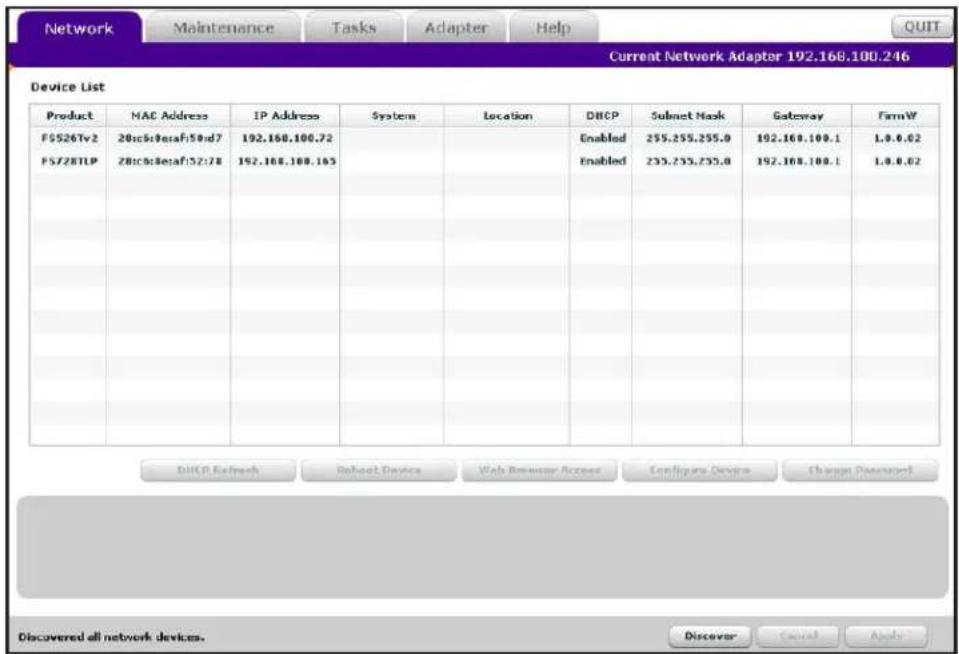
- Make a note of the IP address that the DHCP server assigned to the smart switch.
To access the smart switch directly from a web browser without using the Smart Control Center, you need the IP address.
- Select your smart switch by clicking the table row that displays the smart switch.
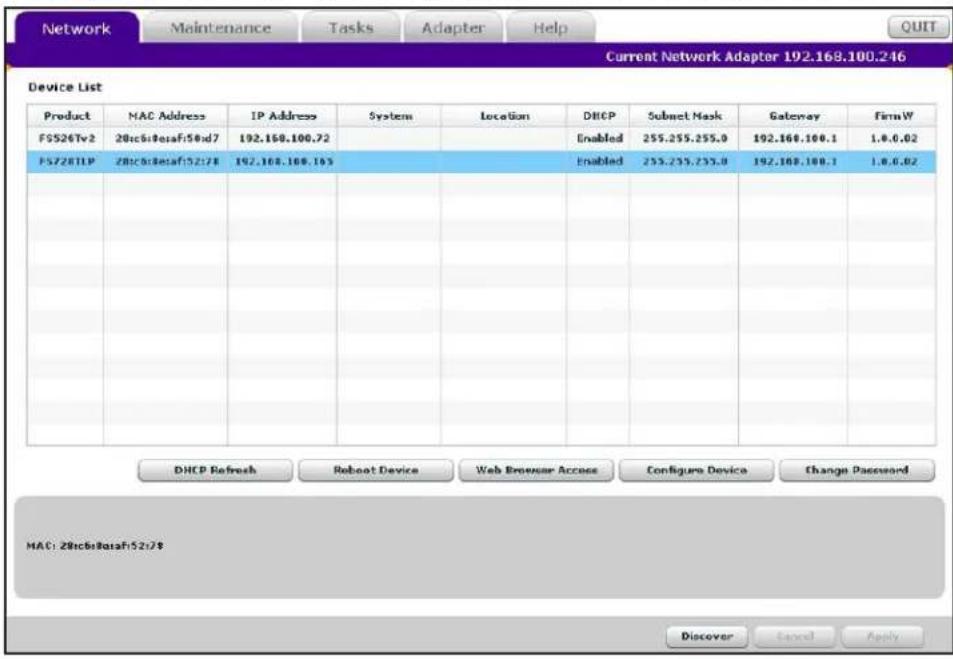
- Click the Web Browser Access button.
The Smart Control Center displays the login screen of the smart switch.
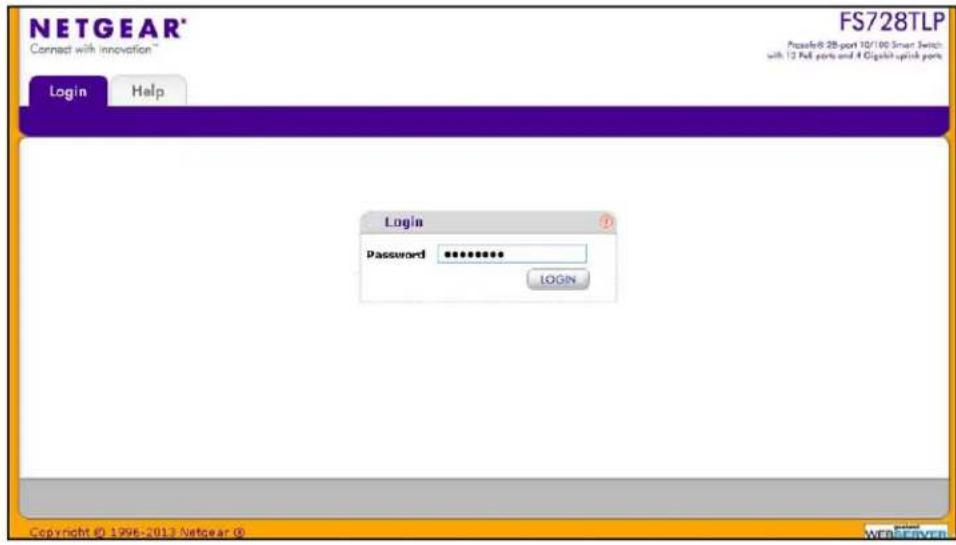
- Type the password in the Password field.
The default password is password. Passwords are case-sensitive.
- Click the Login button.
After the system authenticates you, the System Information screen displays. You can now configure the smart switch over the web management interface.
Use Automatic Switch Discovery for a Network without a DHCP Server
This section describes how to use the Smart Control Center to set up your smart switch in a network without a DHCP server. If your network has no DHCP service, you need to assign a static IP address to your smart switch. If you choose, you can assign it a static IP address, even if your network has DHCP service.
To install the smart switch in a network without a DHCP server and access the smart switch over the web management interface:
- Install the Smart Control Center on your computer in your network.
The Smart Control Center application is on the resource CD that came in the product package.
- Connect the smart switch to the network, which does not include a DHCP server.
For more information, see the installation guide and hardware installation guide for the smart switch.
-
Turn on the power to the smart switch by connecting its power cord.
-
Turn off the firewall on the computer temporarily.
The firewall might prevent the Smart Control Center from discovering the smart switch.
- Start the Smart Control Center.
The Network screen displays and the Smart Control Center discovers your smart switch.
- If the discovery function of the Smart Control Center does not operate automatically when you start the Smart Control Center, click the Discover button.
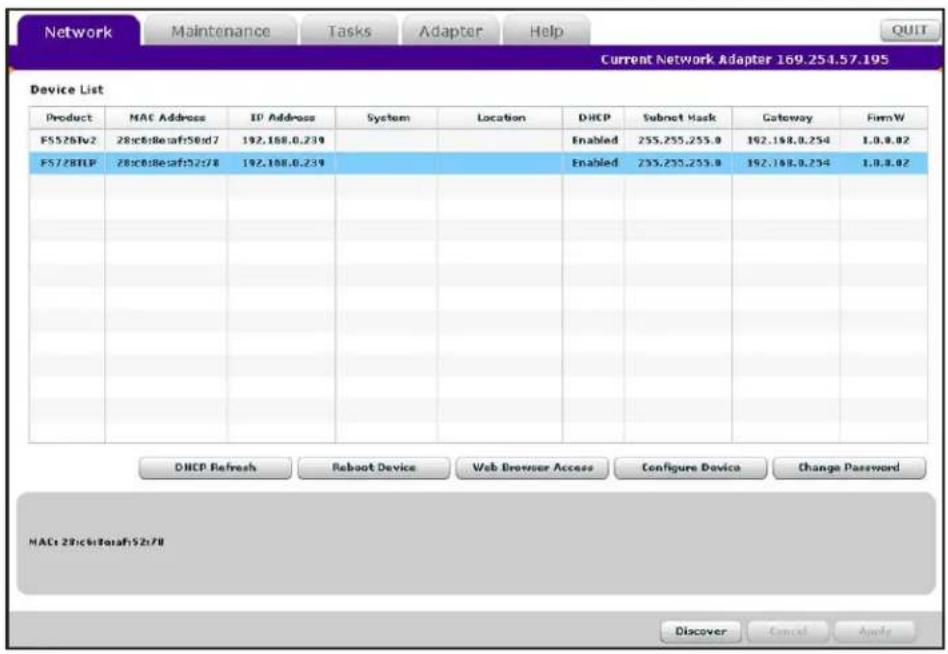
- Select your smart switch by clicking the table row that displays the smart switch.
- Click the Configure Device button.
The screen expands to display additional fields at the bottom of the screen.
- Under DHCP, select the Disabled radio button.
The DHCP client becomes disabled on the smart switch. The IP address fields become available on the screen.
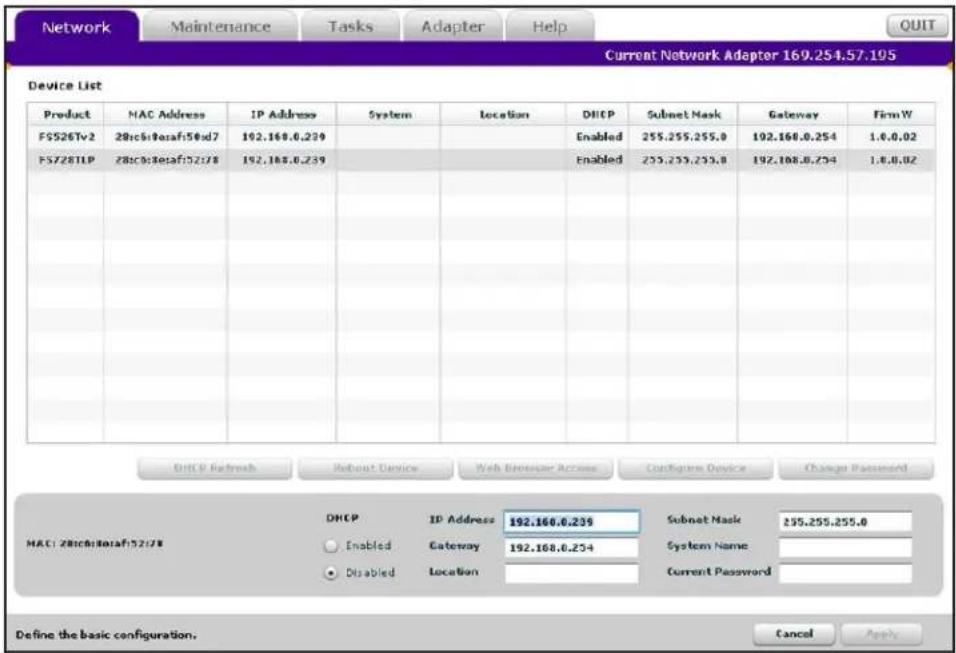
- In the fields at the bottom of the screen, type the switch IP address, gateway IP address, and subnet mask for the smart switch, and, optionally, the location and system name.
Make sure that the computer on which the Smart Control Center is installed and the smart switch are in the same subnet.
- Make a note of the new network settings.
- In the Current Password field, type your password.
The Apply button becomes available.
Note: You need to enter the password every time that you use the Smart Control Center to update the switch setting. The default password is password.
- Click the Apply button.
The new network settings are applied to the smart switch.
- Click the Discover button again.
Note: You might have to turn off the firewall on the computer temporarily to enable the Smart Control Center to discover the smart switch.
The Smart Control Center rediscovers the smart switch with the new network settings.
-
Select your smart switch by clicking the table row that displays the smart switch.
-
Click the Web Browser Access button.
The Smart Control Center displays the login screen of the smart switch.
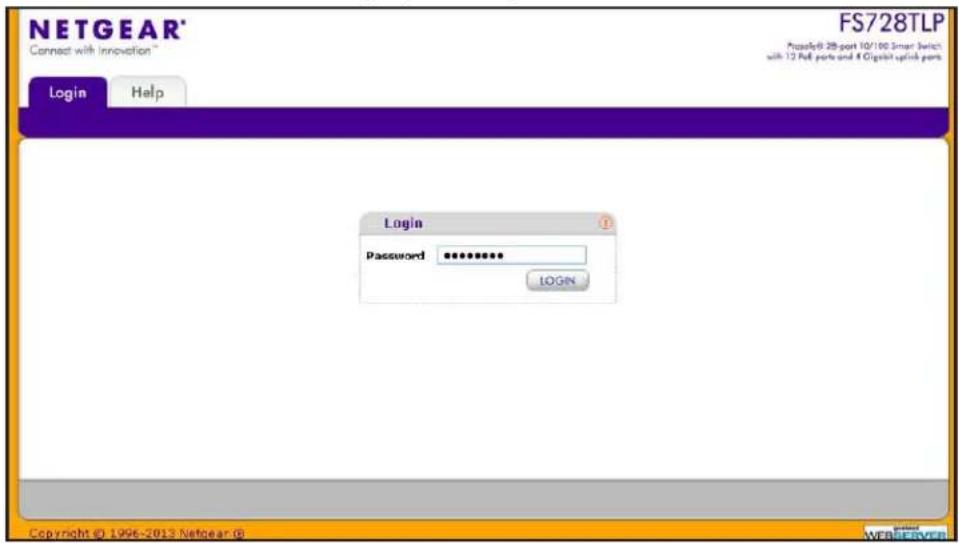
- Type the password in the Password field.
The default password is password. Passwords are case-sensitive.
- Click the Login button.
After the system authenticates you, the System Information screen displays. You can now configure the smart switch over the web management interface.
Configure the Network Settings from a Local Computer
If you prefer not to use the Smart Control Center to configure the network information on the smart switch, you can connect directly to the smart switch from a computer. The IP address of the computer must be in the same subnet as the default IP address of the smart switch. You might need to change the IP address of the computer to be on the same subnet as the default IP address of the smart switch (192.168.0.239).
To change the network settings on a computer that is running a Microsoft Windows operating system:
-
Write down the current network address settings of your computer before you change them
-
On your computer, open the Internet Protocol (TCP/IP) properties screen.
You need Windows administrator privileges to change the TCP/IP properties.
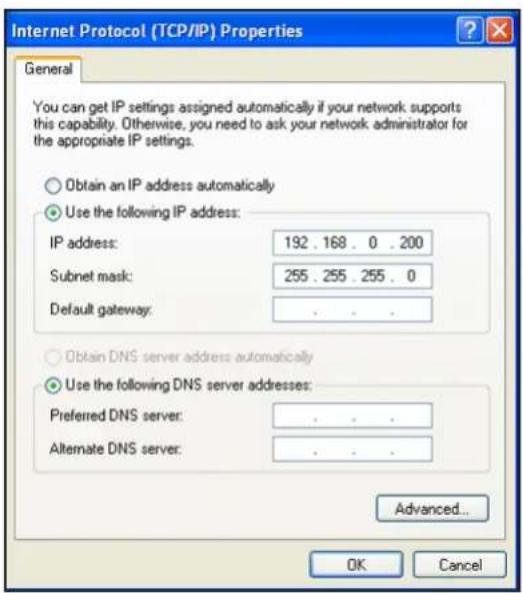
- Set the IP address of the computer to an address in the 192.168.0.0 network, such as 192.168.0.200.
The IP address of the computer must be different from the IP address of the smart switch but within the same subnet.

WARNING:
When you change the IP address of your computer, the computer loses the connection to the network.
- Click the OK button.
The computer is now set up to connect to the smart switch.
To use your computer to configure a static IP address on the smart switch:
- Use an Ethernet cable to connect the Ethernet port of the computer directly to any port on the smart switch.
- Open a web browser .
- In the browser address field, type 192.168.0.239.
192.168.0.239 is the default IP address of the smart switch.
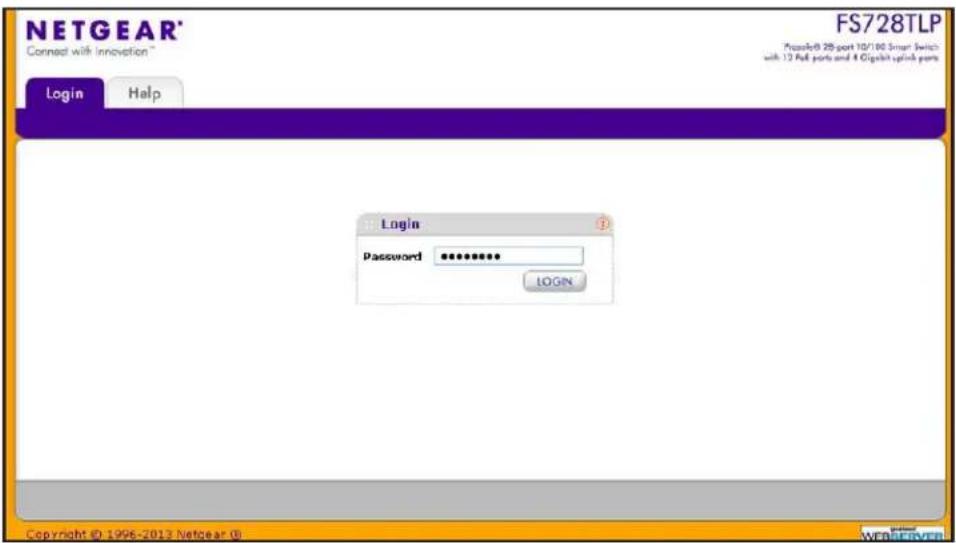
- Type the password in the Password field.
The default password is password. Passwords are case-sensitive.
- Click the Login button.
After the system authenticates you, the System Information screen displays.
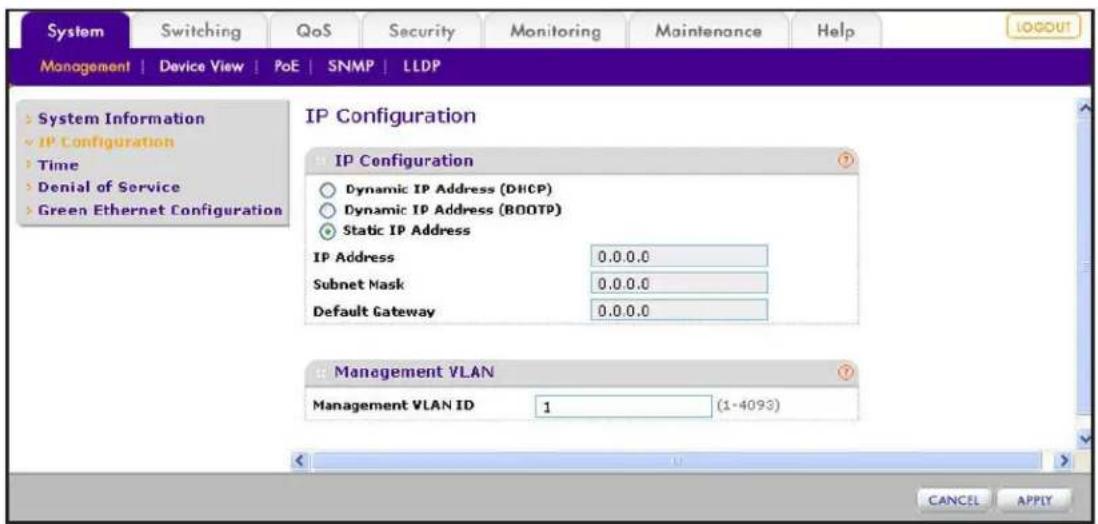
- Select System > Management > IP Configuration.
The IP configuration screen displays.
- Select the Static IP Address radio button.
The IP configuration is reset. Even though it seems that the fields under the Static IP Address radio button are masked out, you can enter information in the fields.
-
In the fields under the Static IP Address radio button, type the static IP address, subnet mask, and default gateway that you want to assign to the smart switch.
-
Click the Apply button.
The settings are saved. Connectivity to the smart switch through the existing web management session is lost.
- (Optional) Change the network settings on your computer (if the computer is running a Microsoft Windows operating system):
a. Write down the current network address settings of your computer before you change them.
b. On your computer, open the Internet Protocol (TCP/IP) properties screen.
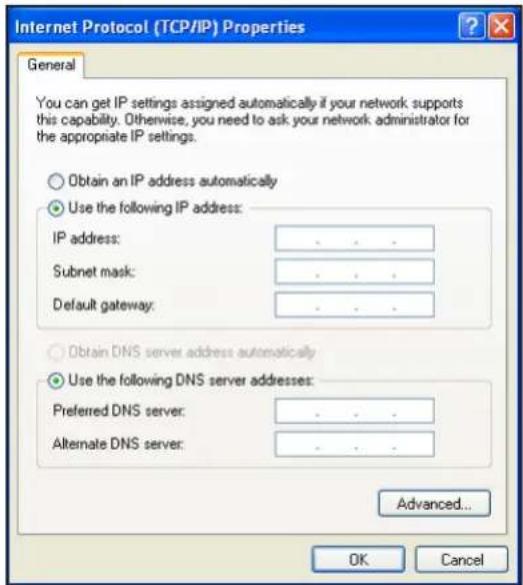
You need Windows administrator privileges to change the TCP/IP properties.
c. Set the IP address of the computer to an address in the same network as the static IP address of the smart switch.
The IP address of the computer must be different from the IP address of the smart switch but within the same subnet.
d. Click the OK button.
- Reconnect your computer to the web management interface of the smart switch:
a. Open a web browser .
b. In the browser address field, type the new IP address of the smart switch.
c. T ype the password in the Password field.
The default password is password. Passwords are case-sensitive.
d. Click the Login button.
After the system authenticates you, the System Information screen displays.
Register the Smart Switch with NETGEAR
To qualify for product updates and product warranty, NETGEAR encourages you to register your product. The first time that you connect to the smart switch while it is connected to the Internet, you can register your product. At any time, you can register your product from the web management interface, or you can visit the NETGEAR website for registration at https://my.netgear.com/registration/login.aspx.
To register the smart switch with NETGEAR:
1. Select Help > Register.
The Registration screen displays.
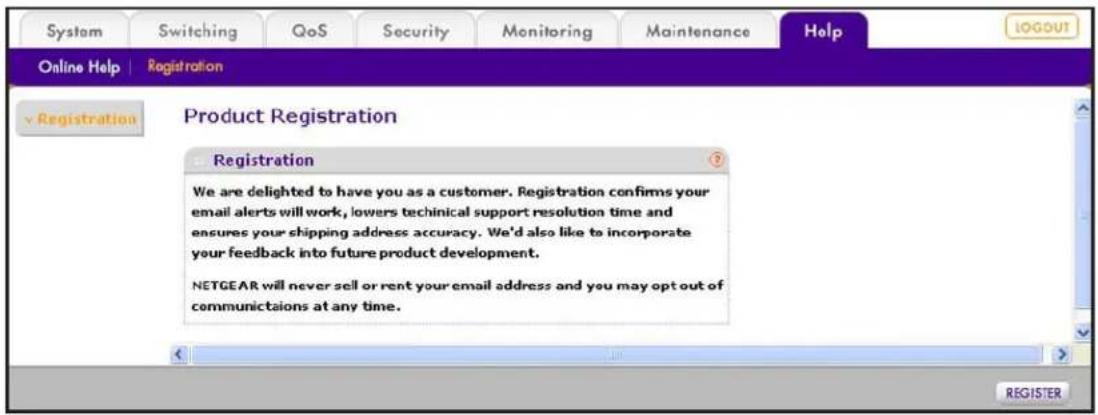
2. Click the Register button.
A new screen displays in your browser:
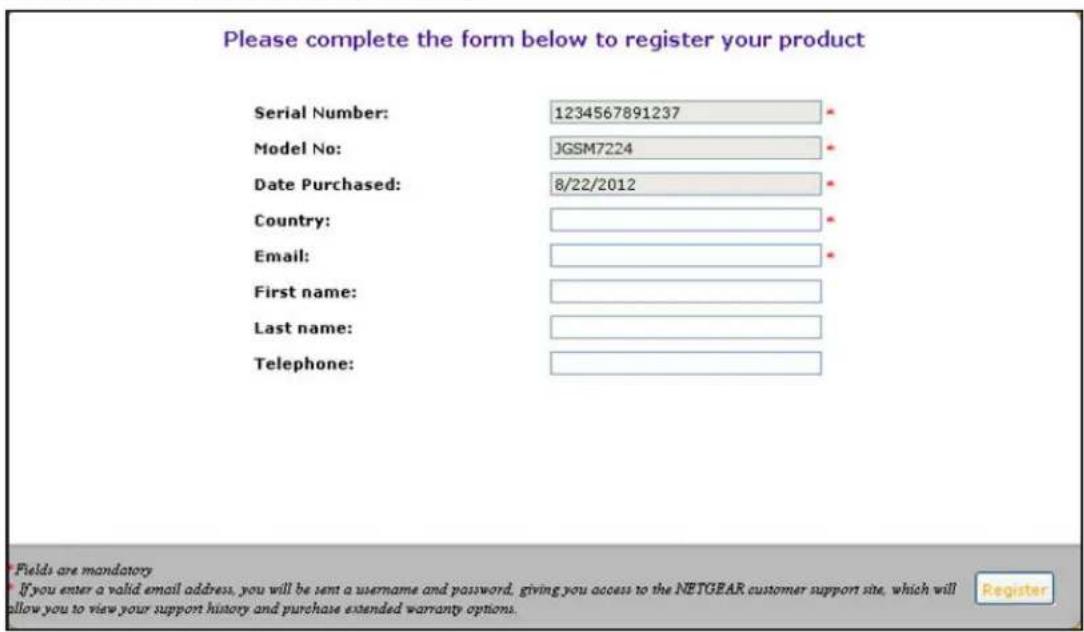
- Enter the information in the blank fields.
The serial number, model number, and date of purchase are entered automatically.
- Click the Register button.
The registration web page displays.
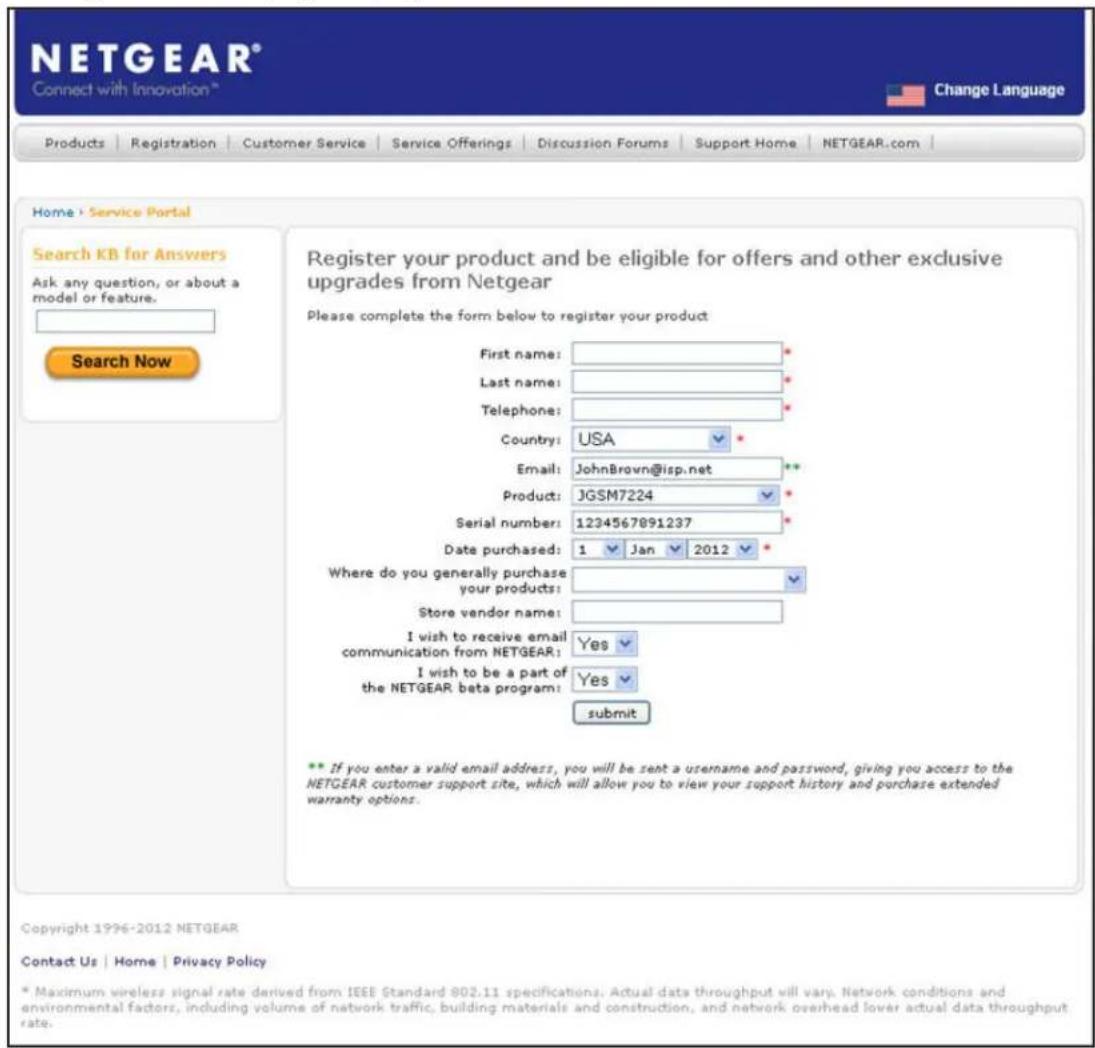
- Complete the registration form.
- Click the submit button.
The smart switch registers with NETGEAR.
Configure Basic System Settings
3
This chapter describes how to configure the basic settings of the smart switch so it can function in your network. The chapter includes the following sections:
- Configure System Information
- Configure the IP Settings and Management VLAN for the Network Interface
- Configure the Time Settings and SNTP Servers
Note: For information about how to connect the smart switch to your network, see Chapter 2, Connect the Smart Switch to Your Network.
Configure System Information
After you log in to the smart switch, the System Information screen displays. Use this screen to configure and view general information for the smart switch.
To view and configure general information for the smart switch:
1. Select System > Management > System Information.
The System Information screen displays.
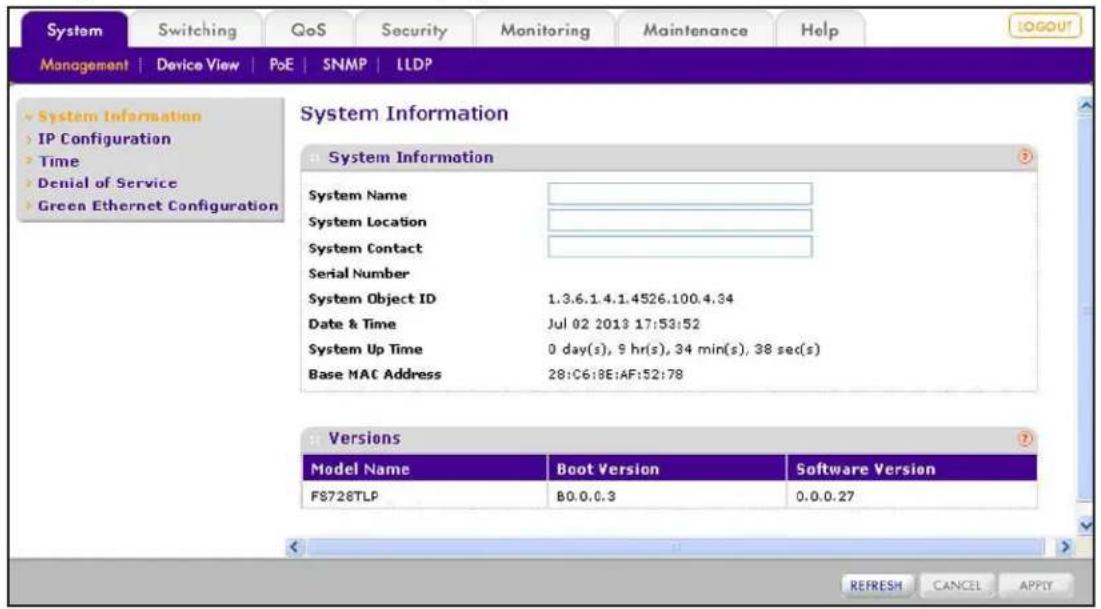
- (Optional) Specify the system fields as described in the following table.
| Setting Description | |
| System Name The name that you want to use to identify the smart switch. You can use up to 31 alphanumeric characters. The factory default is blank. | |
| System Location The name for the location of the smart switch. You can use up to 31 alphanumeric characters. The factory default is blank. | |
| System Contact The name for the contact person for the smart switch. You can use up to 31 alphanumeric characters. The factory default is blank. | |
3. Click the Apply button.
The settings are saved.
The following table describes the nonconfigurable status information that the System Information screen displays.
Table 5. Nonconfigurable fields on the System Information screen
| Field Description | |
| System Information | |
| Serial Number The serial number | of the smart switch. |
| System Object ID The MIB object | identifier for the smart switch. |
| Date & Time The current date and time. | |
| System Up Time The number of days, hours, minutes, and seconds since the last system restart. | |
| Base MAC Address The Media A | access Control address (MAC) address, which is the universally assigned network address of the smart switch. |
| Versions | |
| Model Name The model name of the smart switch. | |
| Boot Version The boot code version of the smart switch. | |
| Software Version The software version of the smart switch. | |
Configure the IP Settings and Management VLAN for the Network Interface
For information about how to connect the smart switch to your network, see Chapter 2, Connect the Smart Switch to Your Network. This section describes how to change the IP configuration and how to change the management VLAN.
Change the IP Settings
Changing the configuration of the network interface of the smart switch does not affect the configuration of the front panel ports through which traffic is switched or routed.
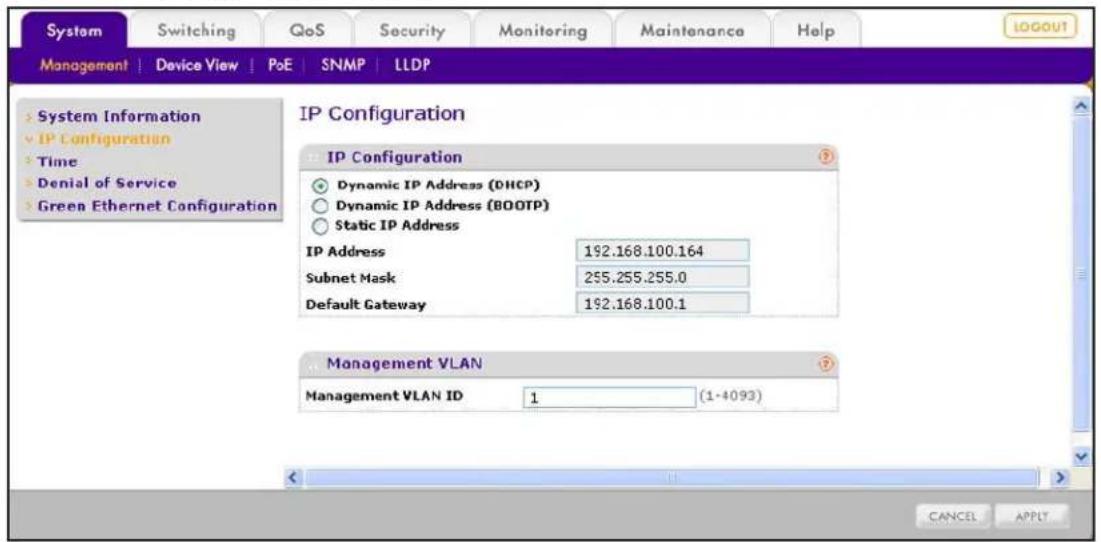
To change the IP configuration of the network interface:
- Select System > Management > IP Configuration .
The IP configuration screen displays.
-
Select the radio button that corresponds to the IP configuration that you want to use for the management interface of the smart switch:
-
Dynamic IP Address (DHCP). Specifies that the smart switch obtains its IP address through a DHCP server on your network.
- Dynamic IP Address (BOOTP). Specifies that the smart switch obtains its IP address through a BootP server on your network.
- Static IP Address . Specifies that the IP address, subnet mask, and default gateway are manually configured.
a. For a static IP configuration, enter the information in the fields below the radio button as described in the following table.
| Setting Description | |
| IP Address The IP | address of the network interface. The factory default value is 192.168.0.239. |
| Subnet Mask The IP | IP subnet mask for the network interface. The factory default value is 255.255.255.0. |
| Default Gateway The | the default gateway for the network interface. The factory default value is 192.168.0.254. |
b. Write down the new static IP settings.
You need these settings to log back in to the web management interface.
- Click the Apply button.
The settings are saved. Connectivity to the smart switch through the existing web management session is lost.
If you configured a dynamic IP address through DHCP or BOOTP, use the Smart Control Center to discover the IP address of the smart switch. For more information, see Use Automatic Switch Discovery for a Network with a DHCP Server on page 29.
If you assigned a static IP address, continue with the following steps.
- (Optional) Change the network settings on your computer (if the computer is running a Microsoft Windows operating system):
a. Write down the current network address settings of your computer before you change them.
b. On your computer, open the Internet Protocol (TCP/IP) properties screen.
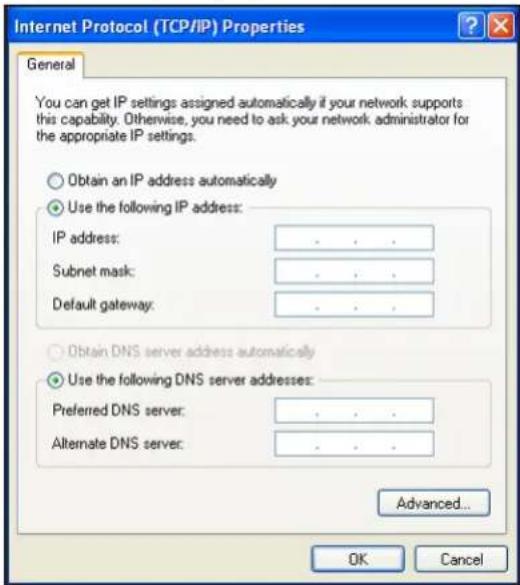
You need Windows administrator privileges to change the TCP/IP properties.
c. Set the IP address of the administrative system to an address in the same network as the static IP address of the smart switch.
The IP address of the computer must be different from the IP address of the smart switch but within the same subnet.
d. Click the OK button.
- Reconnect your computer to the web management interface of the smart switch:
a. Open a web browser .
b. In the browser address field, type the new IP address of the smart switch.
c. T ype the password in the Password field.
The default password is password. Passwords are case-sensitive.
d. Click the Login button.
After the system authenticates you, the System Information screen displays.
Change the Management VLAN
Use the management VLAN to establish an IP connection to the smart switch from a computer that is connected to a port in the same VLAN. If not specified, the active management VLAN ID is 1 (the default VLAN ID), which allows an IP connection to be established through any port. Only one management VLAN can be active at a time.
If you configure the management VLAN to be different from 1, you can make an IP connection only through a port that is part of the management VLAN. The port VLAN ID (PVID) of the port in the management VLAN needs to be the same as the ID of the management VLAN. For information about creating VLANs and configuring the PVID for a port, see Configure VLANs on page 80
To change the management VLAN:
- Select System > Management > IP Configuration.
The IP Configuration screen displays.
- Specify the VLAN ID for the management VLAN.
The VLAN ID needs to be in the range from 1 to 4093. Make sure that the VLAN that you configure as the management VLAN exists, and make sure that the PVID of at least one port that is member of the VLAN has the same ID as the management VLAN.
- Click the Apply button.
The settings are saved. Connectivity to the smart switch through the existing management VLAN is lost.
- Reconnect your computer to a port in the new management VLAN.
Configure the Time Settings and SNTP Servers
The smart switch supports the Simple Network Time Protocol (SNTP). You can also set the system time manually.
SNTP assures accurate network device clock time synchronization up to the millisecond. A network SNTP server performs time synchronization. The smart switch operates only as an SNTP client and cannot provide time services to other systems.
Strata provide time sources and define the accuracy of the reference clock. The higher the stratum (where o [zero] is the highest), the more accurate the clock. The smart switch receives time from stratum 0 or stratum 1 since it is itself a stratum 2 device.
The following is an example of stratums:
- Stratum 0. The time source is a real-time clock such as a GPS time system.
- Stratum 1. The time source is a server that is directly linked to a stratum 0 time source. Stratum 1 time servers provide primary network time standards.
- Stratum 2. The time source is distanced from the stratum 1 server over a network path. For example, a stratum 2 server receives the time over a network link, through NTP, from a stratum 1 server.
The smart switch evaluates information that it receives from SNTP servers based on stratum type and time level:
• T1. Time at which the SNTP client (that is, the smart switch) sent the original request
• T2. Time at which the SNTP server received the original request
• T3. T ime at which the SNTP server sent a reply
• T4. Time at which the SNTP client (that is, the smart switch) received the reply of the SNTP server
After you have specified one or more SNTP servers, the smart switch polls the servers for time synchronization information and uses time levels T1 through T4 to determine the server time.
Configure the Time Settings Manually
Use the Time Configuration screen to adjust date and time settings manually.
To configure the time manually:
- Select System > Management > T ime > SNTP Global Configuration.
The Time Configuration screen displays.
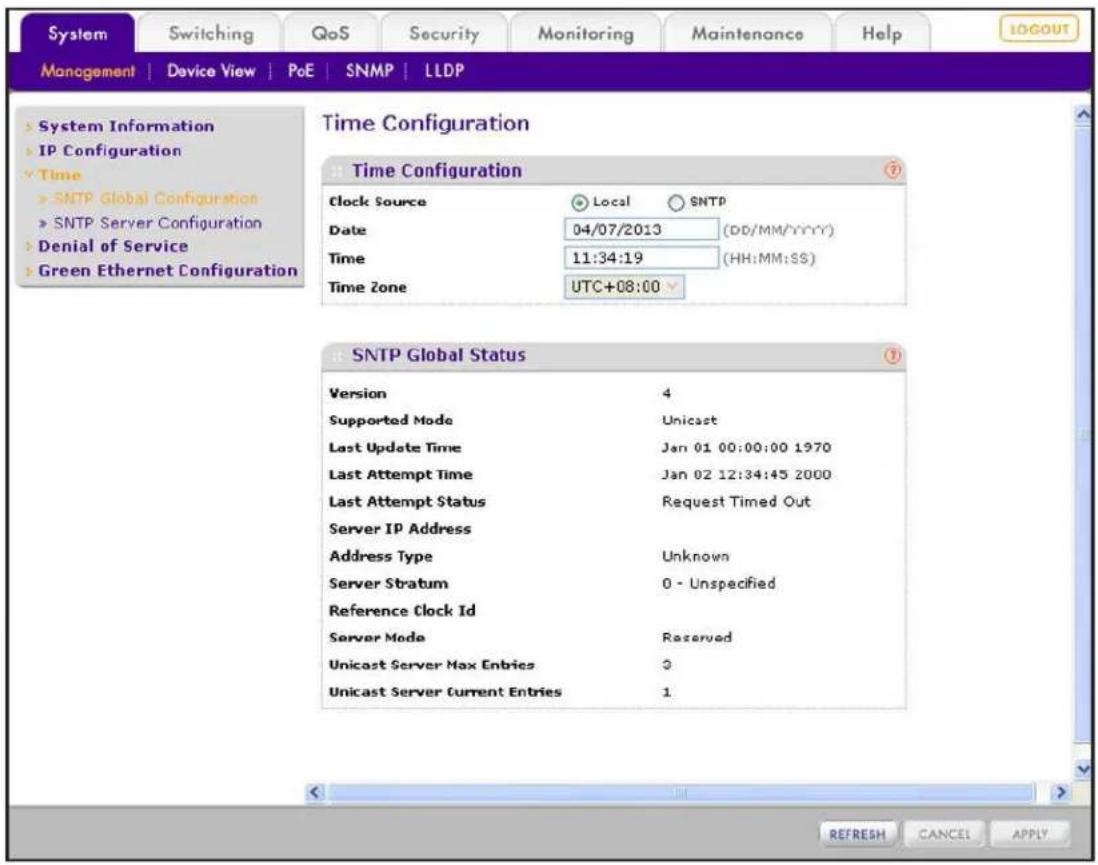
- Next to Clock Source, select the Local radio button.
The Time Zone menu is masked out.
- In the Date field, enter the date in the DD/MM/YYYY format.
- In the Time field, enter the time in HH:MM:SS format.
- Click the Apply button.
The settings are saved. The CPU clock cycle on the smart switch maintains the time.
Manage SNTP Servers
Use the SNTP Server Configuration screen to add, view, change, and remove SNTP servers.
Add an SNTP Server
To add an SNTP server:
- Select System > Management > T ime > SNTP Server Configuration.
The SNTP Server Configuration screen displays. (The following figure shows an example.)
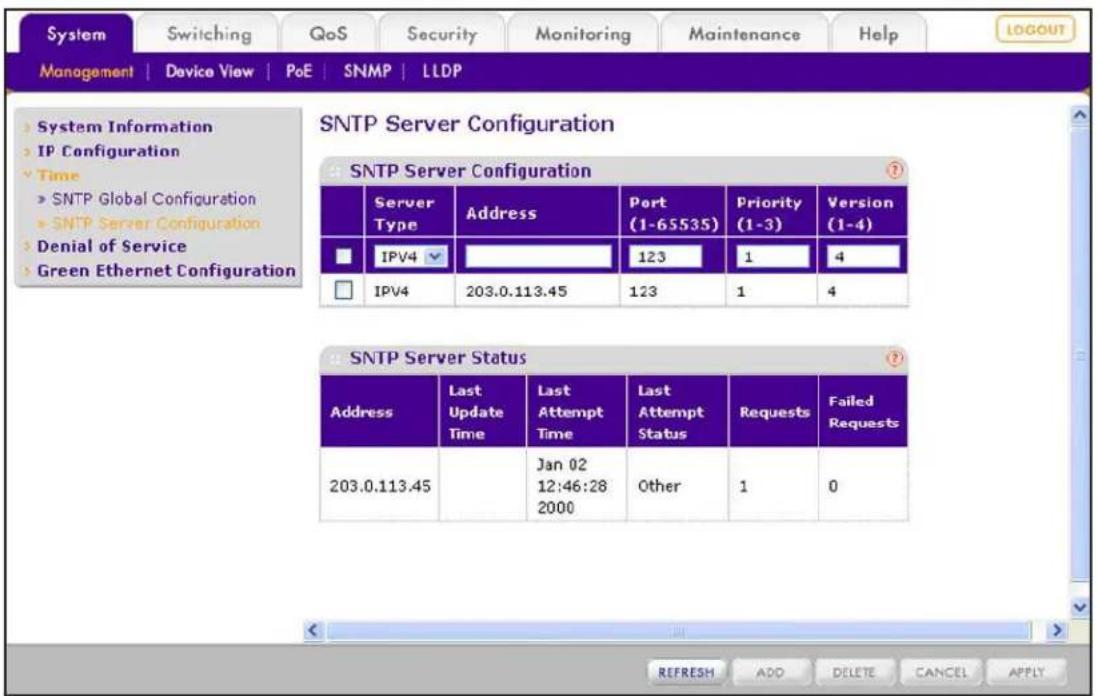
- In the heading fields of the SNTP Server Configuration table, configure the settings as described in the following table.
| Setting Description | |
| Server Type The only option is IPv4, which specifies an IPv4 SNTP server. | |
| Address The IP address of the SNTP server. You cannot use a host name. | |
| Port (1–65535) The port number on the SNTP server to which SNTP requests are sent. The valid range is 1–65535. The default port number is 123. | |
| Priority (1–3) The priority of the SNTP server, which can be 1, 2, or 3. The priority determines the sequence of servers to which SNTP requests are sent, with 1 being the default and the highest priority. A server with a higher number has a lower priority. | |
| Version (1–4) Enter the Network Time Protocol (NTP) version number. The range is 1–4. The default value is 4, which specifies NTPv4. | |
3. Click the Add button.
The SNTP server is added to the SNTP Server Configuration table and the SNTP Server Status table.
- Repeat Step 2 and Step 3 to add additional SNTP servers.
You can configure up to three SNTP servers.
The SNTP Server Status table displays status information about the SNTP servers that you have added. The following table describes the fields of the SNTP Global Status table.
| Field Description | |
| Address The IP address for the SNTP server. | |
| Last Update Time The local date and Coordinated Universal Time (UTC) that were supplied by the SNTP server to update the system clock of the smart switch. | |
| Last Attempt Time | The local date and Coordinated Universal Time (UTC) when the smart switch last queried the SNTP server. |
| Last Attempt Status | The status of the last SNTP request to the SNTP server:Other: No packet was received from the SNTP server.Success. The SNTP operation was successful and the clock was updated on the smart switch.Request Timed Out. A directed SNTP request timed out without a response from the SNTP server.Bad Date Encoded. The time provided by the SNTP server is not valid.Version Not Supported. The SNTP version supported by the server is not compatible with the version configured on the smart switch.Server Unsynchronized. The SNTP server is not synchronized with its peers. (This status is indicated in the leap indicator field in a message received from the SNTP server.)Server Kiss Of Death. The SNTP server indicated that no further queries are to be sent. (This status is indicated by a stratum field equal to 0 in a message received from the SNTP server.) |
| Requests The number of | SNTP requests that were sent to the SNTP server since the smart switch started. |
| Failed Requests | The number of failed SNTP requests that were sent to the SNTP server since the smart switch started. |
- (Optional) Click the Refresh button.
The screen refreshes to display the most current data.
Change an SNTP Server
To change the settings for an SNTP server:
- Select System > Management > Time > SNTP Server Configuration.
The SNTP Server Configuration screen displays.
-
In the SNTP Server Configuration table, select the check box next to the SNTP server for which you want to change the settings.
-
Change the settings.
You cannot change the server type or IP address.
- Click the Apply button.
The settings are saved.
Remove an SNTP Server
To remove an SNTP server:
- Select System > Management > Time > SNTP Server Configuration.
The SNTP Server Configuration screen displays.
-
In the SNTP Server Configuration table, select the check box next to the SNTP server that you want to remove.
-
Click the Delete button.
The SNTP server is removed from the SNTP Server Configuration table and the SNTP Server Status table.
Configure the Time Settings Through SNTP
Use the Time Configuration screen to enable SNTP and view the global SNTP status. Before you can enable SNTP, you first need to configure an SNTP server (see Manage SNTP Servers on page 47).
To configure the time through an SNTP server:
- Select System > Management > Time > SNTP Global Configuration.
The Time Configuration screen displays.
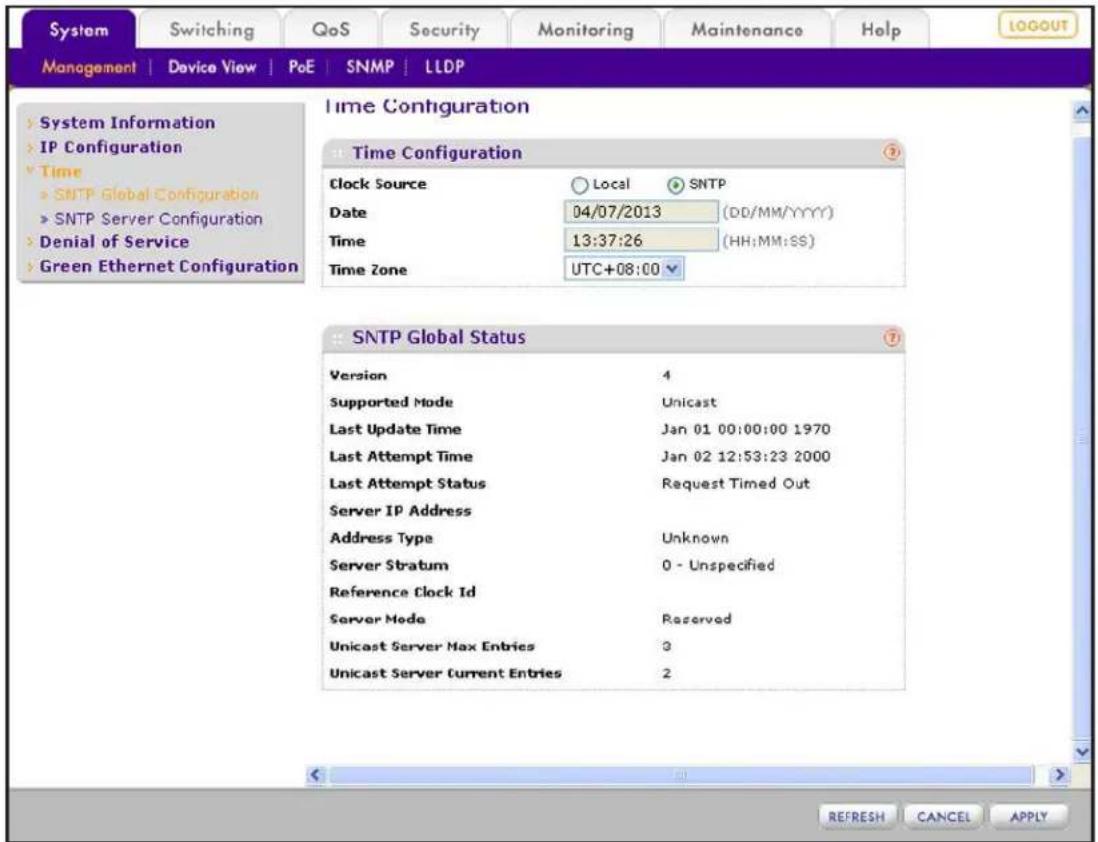
- Next to Clock Source, select the SNTP radio button.
The Date and Time fields are masked out.
-
From the Time Zone menu, select the Coordinated Universal Time (UTC) time zone in which the smart switch is located.
-
Click the Apply button.
The settings are saved.
The SNTP Global Status table displays information about the SNTP client on the smart switch. The following table describes the SNTP Global Status fields.
| Field Description | |
| Version The SNTP version that the SNTP client of the smart switch supports. | |
| Supported Mode The SNTP mode that the SNTP client of the smart switch supports. The mode is always Unicast. | |
| Last Update Time The local date and Coordinated Universal Time (UTC) that were supplied by the SNTP server to update the system clock of the smart switch. | |
| Last Attempt Time The local date and Coordinated Universal Time (UTC) when the smart switch last queried the SNTP server. | |
| Last Attempt Status The status of the last SNTP request to the SNTP server:Other: No packet was received from the SNTP server .Success . The SNTP operation was successful and the clock was updated on the smart switch.Request Timed Out. A directed SNTP request timed out without a response from the SNTP server.Bad Date Encoded. The time provided by the SNTP server is not valid.Version Not Supported. The SNTP version supported by the server is not compatible with the version configured on the smart switch.Server Unsynchronized . The SNTP server is not synchronized with its peers. (This status is indicated in the leap indicator field in a message received from the SNTP server.)Server Kiss Of Death. The SNTP server indicated that no further queries are to be sent. (This status is indicated by a stratum field equal to 0 in a message received from the SNTP server.) | |
| Server IP Address The IP address of the SNTP server for the last received valid packet. If no message has been received from any SNTP server, the field is empty. | |
| Address Type The address type of the SNTP server address for the last received valid packet. | |
| Server Stratum The stratum of the SNTP server for the last received valid packet. | |
| Reference Clock Id The reference clock identifier of the SNTP server for the last received valid packet. | |
| Server Mode The mode of the SNTP server for the last received valid packet. | |
| Unicast Server Max Entries The maximum number of unicast SNTP server entries that you can configure on the smart switch. | |
| Unicast Server Current Entries The number of current valid unicast SNTP server entries that you configured on the smart switch. | |
5. (Optional) Click the Refresh button.
The screen refreshes to display the most current data.
Manage Access to the Switch
4
This chapter describes how to configure secure access to the smart switch. The chapter includes the following sections:
- Manage the Password for the Smart Switch
- Configure Secure Access to the Smart Switch
Manage the Password for the Smart Switch
NETGEAR recommends that you change the default password to a secure password. The default password is password. A secure password contains no dictionary words from any language and contains uppercase and lowercase letters, numbers, and symbols.
If you lost your password and cannot access the web management interface, your only option is to press the Factory Defaults button on the front panel of the smart switch to clear the configuration and return the smart switch to the factory settings. Pressing the button for at least two seconds causes the smart switch to reboot with factory settings. All custom settings are removed, including the password, VLAN settings, and port configurations. The password is reset to password, which is the factory default value.
Change the Password
To change the login password for the web management interface:
- Select Security > Management Security > User Configuration > Change Password. The Change Password screen displays.
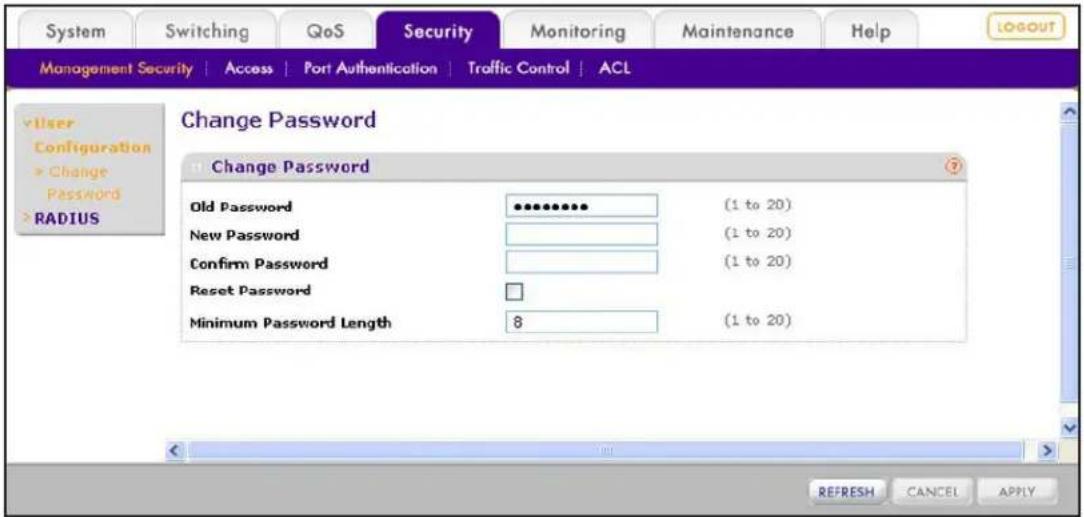
- Configure the settings as described in the following table.
| Setting Description | ||
| Old Password The current password. | The password that you enter is displayed in asterisks (*). | |
| New Password The new password, which must be between 1 and 20 alphanumeric characters in length and is case-sensitive. The setting of the Minimum Password Length field determines the minimum required length of the password. | ||
| Confirm Password | ||
| Minimum Password Length | The minimum required length of the password. The length can be between 1 and 20 characters. The default minimum length is eight characters. | |
- Click the Apply button.
The settings are saved. The next time that you log in to the web management interface, you need to use the new password.
Reset the Password
To reset the login password for the web management interface to the default value:
- Select Security > Management Security > User Configuration > Change Password.
The Change Password screen displays.
-
Select the Reset Password check box.
-
Click the Apply button.
The settings are saved. The password is reset to password, which is the factory default value.
Configure Secure Access to the Smart Switch
You can configure global settings for HTTP sessions to the web management interface. You can also configure an access control profile and add access rules to permit or deny selected IP addresses access to the smart switch over HTTP or SNMP.
Configure the Global Settings for HTTP Sessions
Global settings for HTTP sessions to the web management interface include time-out settings and the maximum number of simultaneous sessions.
To configure the global settings for HTTP sessions:
- Select Security > Access > HTTP.
The HTTP Configuration screen displays.
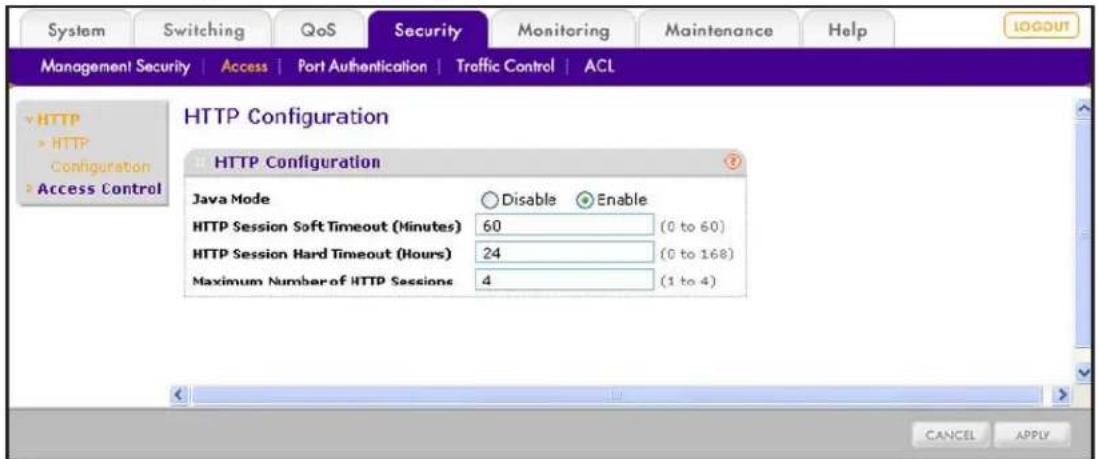
- Configure the settings as described in the following table.
| Setting Description | |
| Java Mode The Java applet displays a picture of the smart switch on the device view screen (seeUse the Device View Screen as an Alternate Way to Configure the Smart Switchon page 13), allowing you to click the image of the smart switch to select screens instead of using the navigation tabs and configuration menus.By default, the Enable radio button is selected for Java Mode. To disable the Java applet, select theDisableradio button. | |
| HTTP Session Soft Timeout (Minutes) | The number of minutes that an HTTP session can be idle before a time-out occurs and you are automatically logged out from the web management interface.Enter a value in the range from 0 to 60 minutes. A value of 0 corresponds to an infinite time-out period, that is, you are not logged out when the HTTP session is idle. The default value is 5 minutes. |
| HTTP Session Hard Timeout (Hours) | The number of hours after which an HTTP session is terminated and you are automatically logged out from the web management interface, irrespective of the activity level of the session.Enter a value in the range from 0 to 168 hours. A value of 0 corresponds to an infinite time-out period, that is, you are never logged out. The default value is 24 hours. |
| Maximum Number of HTTP Sessions | The maximum number of simultaneous HTTP sessions that are allowed.Enter a value in the range of from 1 to 4. The default value is 4, which allows the maximum of four sessions. |
- Click the Apply button.
The settings are saved.
Manage the Access Profile and Access Rules
You can configure settings that control access to the web management interface and the SNMP interface. By default, you can access the web management interface and SNMP from any IP address. However, you can restrict access to specific IP addresses, or deny access from specific IP addresses, and you can specify the protocol (HTTP or SNMP) that is allowed.
Configuring an access profile includes three basic steps:
- On the Access Profile Configuration screen, create an access profile and keep it deactivated, which is the default setting.
-
On the Access Rule Configuration screen, add one or more access rules to the profile.
-
Return to the Access Profile Configuration screen to activate the profile.
The next section describes the detailed steps.
Configure an Access Profile and Access Rules
To configure an access profile and access rules:
- Select Security > Access > Access Control > Access Profile Configuration.
The Access Profile Configuration screen displays.
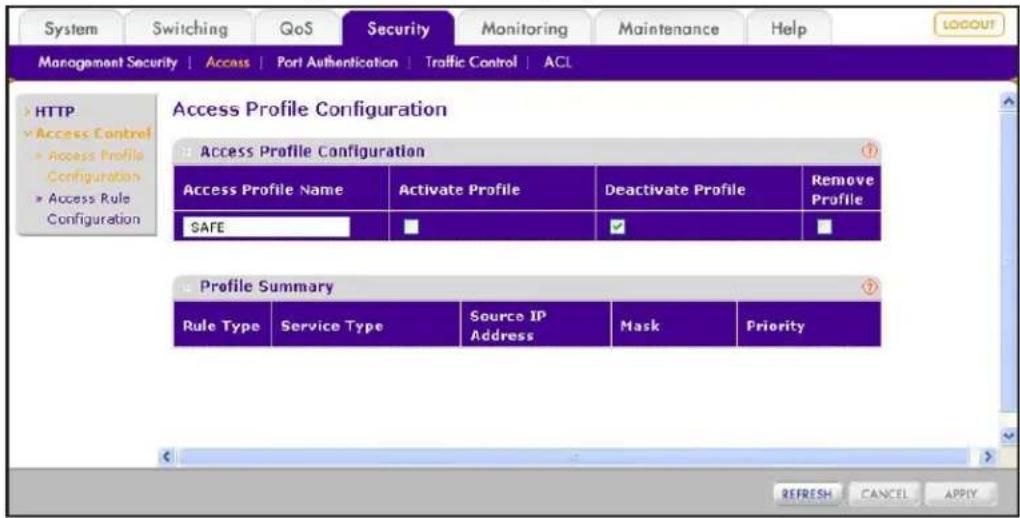
- In the Access Profile Name field, enter a name for the access profile.
The maximum length is 15 characters.
The Deactivate Profile check box is selected. Leave it selected.
- Click the Apply button.
The settings are saved.
- Select Security > Access > Access Control > Access Rule Configuration.
The Access Rule Configuration screen displays. The following figure contains examples.
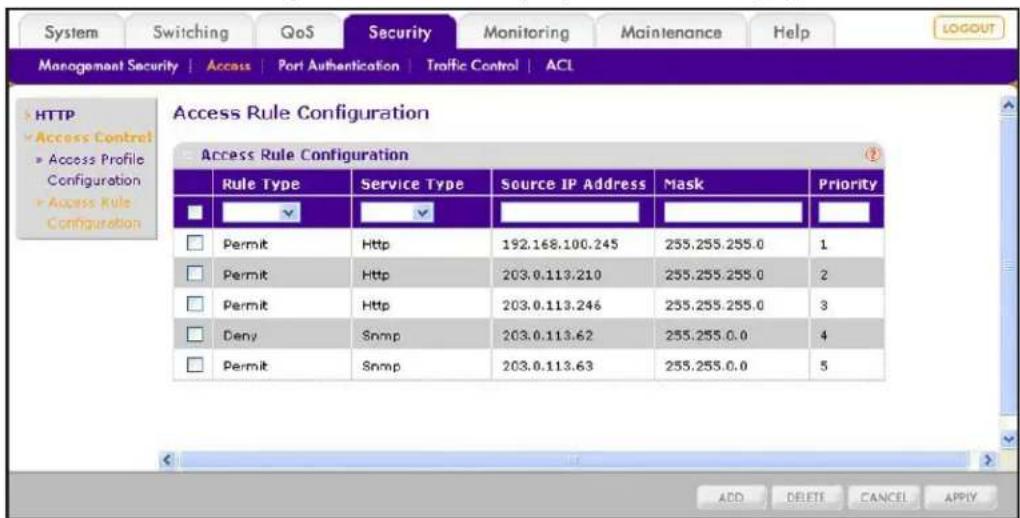
- In the heading fields of the Access Rule Configuration table, configure the settings as described in the following table.
| Setting Description | |
| Rule Type From the menu, select whether the rule permits or denies access to the web management interface:Permit. Allows access to the web management interface for traffic that meets the criteria that you configure for the rule. Any traffic that does not meet the rules is denied access.Deny. Prohibits access to the web management interface for traf fic that meets the criteria that you configure for the rule. Any traffic that does not meet the rules is allowed access. Unlike MAC ACLs and IP ACLs, the rule list does not include an implicit deny all rule at the end. | |
| Service Type | From the menu, select the type of service (protocol) that is allowed or prohibited from accessing the web management interface:Snmp. The rule applies to the SNMP interface only.Http. The rule applies to the web management interface only. |
| Source IP Address The IP address of the client from which the management traffic originates. | |
| Mask The subnet mask of the client from which the management traffic originates. The subnet mask is a standard subnet mask, and not an inverse (wildcard) mask such as the one you can use with IP ACLs. | |
| Priority The priority of the rule. Enter a value in the range from 1 to 20.The rules are validated against the incoming management request in the ascending order of their priorities. If a rule matches, action is performed and subsequent rules with a lower priority (that is, with a higher number) are ignored. For example, if a source IP address of 10.10.10.10 is configured with priority 1 to permit access, and source IP address 10.10.10.10 is configured with priority 2 to deny access, access is permitted and the second rule is ignored. | |
- Click the Add button.
The settings are saved and the rule is added to the Access Rule Configuration table.
- Repeat Step 5 and Step 6 to add any other rules.

WARNING:
If you do not add your own IP address to the list of permitted IP addresses, you are locked out of the web management interface when you activate the access profile.
- Select Security > Access > Access Control > Access Profile Configuration.
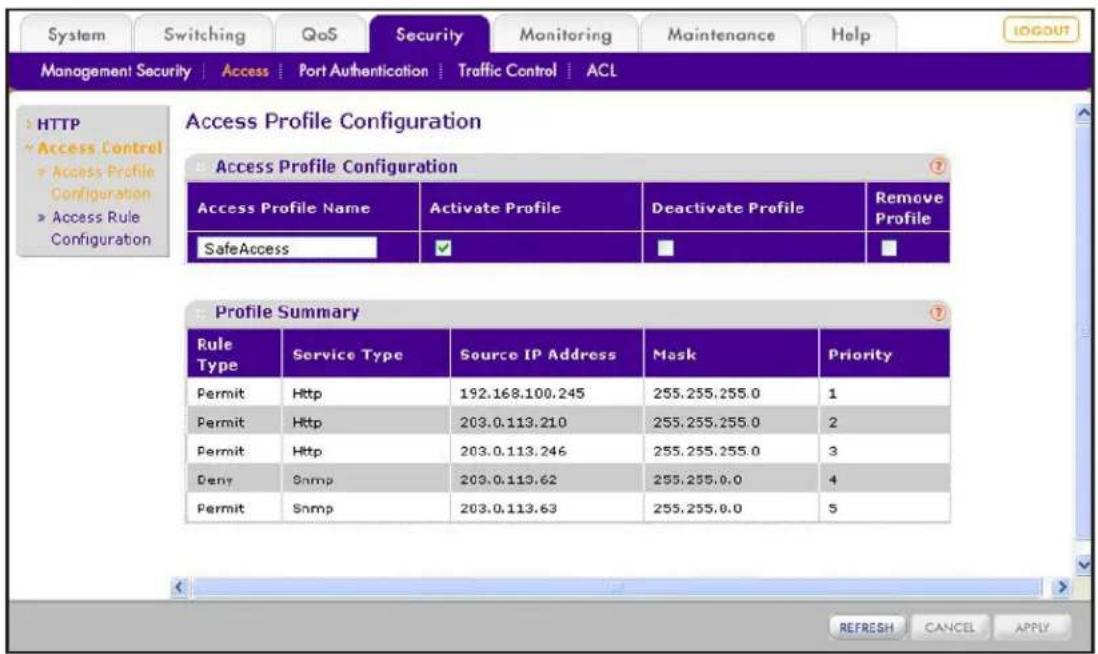
The Access Profile Configuration screen displays and shows the configured rules in the Profile Summary table.
-
Select the Activate Profile check box.
-
Click the Apply button.
The settings are saved and the profile with its rules becomes active.
The fields of the Profile Summary table are described in the following table.
| Field Description | |
| Rule Type The action the rule dictates, which is either Permit or Deny. | |
| Service Type The type of service (protocol) that allows or prohibits access to the smart switch: · Http. The rule applies to the web management interface only. · Snmp. The rule applies to the SNMP interface only. | |
| Source IP Address The IP address of the client from which the management traffic originates. | |
| Mask The subnet mask of the client from which the management traffic originates. | |
| Priority The priority of the rule. | The rules are validated against the incoming management request in the ascending order of their priorities. If a rule matches, action is performed and subsequent rules with a lower priority (that is, with a higher number) are ignored. |
- (Optional) Click the Refresh button.
The screen refreshes to display the most current data.
Change an Access Rule
To change an access rule:
- Select Security > Access > Access Control > Access Rule Configuration. The Access Rule Configuration screen displays.
- Select the check box to the left of the rule that you want to change.
- Change the settings. You cannot change the priority.
- Click the Apply button. The settings are saved.
Remove an Access Rule
To remove an access rule:
- Select Security > Access > Access Control > Access Rule Configuration. The Access Rule Configuration screen displays.
- Select the check box to the left of the rule that you want to remove.
- Click the Delete button.
The rule is removed from the Access Rule Configuration table and also from the Profile Summary table on the Access Profile Configuration screen.
Remove the Access Profile
To remove the access profile and all its associated access rules:
- Select Security > Access > Access Control > Access Profile Configuration. The Access Profile Configuration screen displays.
- Select the Remove Profile check box.
- Click the Apply button.
The access profile name is removed, all rules are removed from the Profile Summary table, and all rules are removed from the Access Rule Configuration table on the Access Rule Configuration screen.
This chapter describes how to view and configure the options for the physical ports and LAGs, how to configure flow control, and how to configure the Auto VoIP modes. The chapter includes the following sections:
- Configure the Options for the Physical Ports and LAGs
- Enable Flow Control
- Configure the Auto-VoIP Mode
Configure the Options for the Physical Ports and LAGs
The options that you can configure on the Port Configuration screen for each physical port and link aggregation group (LAG) include the description, administrative mode, port speed, auto power down mode, link trap, and maximum frame size. Other options on the Port Configuration screen are nonconfigurable and are shown for information only.
To configure the options and view the characteristics of the physical ports, LAGs, or both:
- Select Switching > Ports > Port Configuration.
The Port Configuration screen displays. Because this a wide screen, it is displayed in two figures. The first figure shows the left side of the screen. The second figure shows the right side of the screen. Not all ports are shown in the following figures.
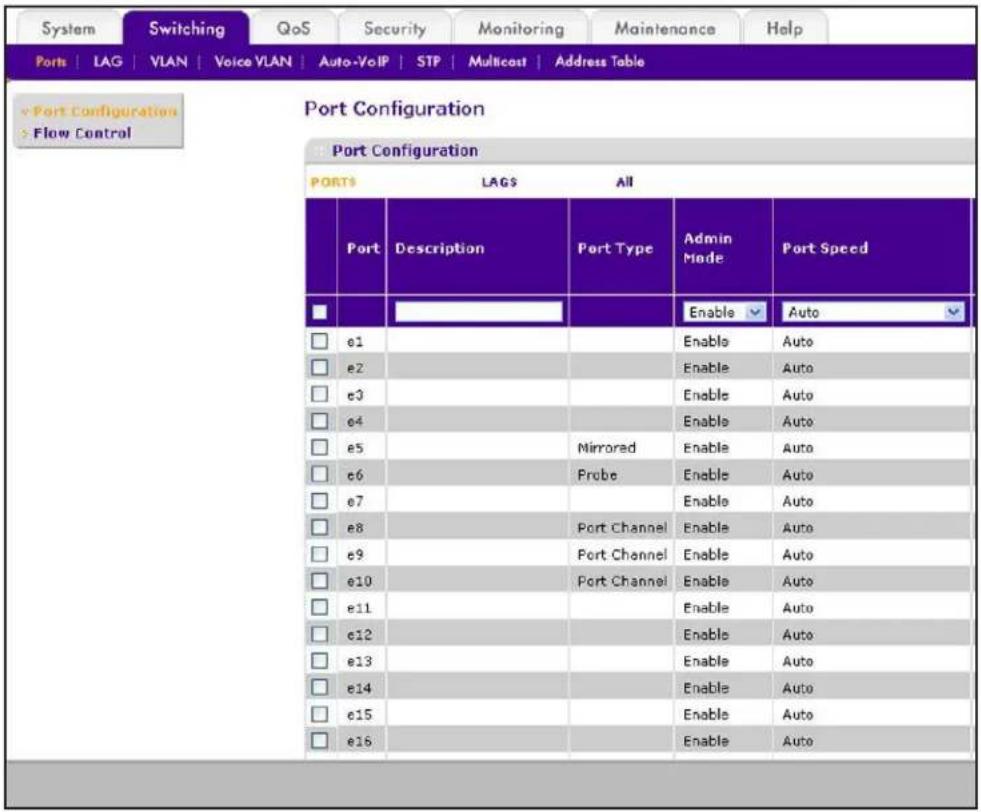
| GO TO INTERFACE | |||||||
| Auto Power Down Mode | Physical Status | Link Status | Link Trap | Maximum Frame Size (1518 To 9216) (Must be even) | MAC Address | PortList Bit Offset | ifindex |
| Enable | Enable | ||||||
| Disable | Link Down | Enable | 1510 | 28:C6:0E:AF:52:79 | 1 | 1 | |
| Disable | Link Down | Enable | 1518 | 28:C6:8E:AF:52:7A | 2 | 2 | |
| Disable | 100 Mbps Full Duplex | Link Up | Enable | 1518 | 28:C6:8E:AF:52:7B | 3 | 3 |
| Disable | Link Down | Enable | 1510 | 20:C6:0E:AF:52:7C | 4 | 4 | |
| Disable | Link Down | Enable | 1518 | 28:C6:8E:AF:52:7D | 5 | 5 | |
| Disable | Link Down | Enable | 1518 | 28:C6:8E:AF:52:7E | 6 | 6 | |
| Disable | Link Down | Enable | 1518 | 28:C6:8E:AF:52:7F | 7 | 7 | |
| Disable | Link Down | Enable | 1510 | 28:C6:0E:AF:52:00 | 8 | 8 | |
| Disable | Link Down | Enable | 1518 | 28:C6:8E:AF:52:81 | 9 | 9 | |
| Disable | Link Down | Enable | 1518 | 28:C6:8E:AF:52:82 | 10 | 10 | |
| Disable | Link Down | Enable | 1518 | 28:C6:0E:AF:52:03 | 11 | 11 | |
| Disable | Link Down | Enable | 1518 | 28:C6:8E:AF:52:04 | 12 | 12 | |
| Disable | Link Down | Enable | 1518 | 28:C6:8E:AF:52:05 | 13 | 13 | |
| Disable | Link Down | Enable | 1518 | 28:C6:0E:AF:52:06 | 14 | 14 | |
| Disable | Link Down | Enable | 1518 | 28:C6:0E:AF:52:07 | 15 | 15 | |
| Disable | Link Down | Enable | 1518 | 28:C6:0E:AF:52:08 | 16 | 16 | |
-
Select whether to configure physical ports, link aggregation groups (LAGs), or both by clicking one of the following links above the table heading:
-
PORTS. Only physical ports display . This is the default setting.
• LAGS . Only LAGs display.
• All. Both physical ports and LAGs display. -
Select whether to configure a single port, a group of ports, or all ports (for the sake of simplicity in this procedure, LAGs are also considered ports):
- T o configure a single port, select the check box next to the port that you want to configure.
The information for the selected port displays in the menu in the table heading.
- To configure a group of ports, select the check boxes for the individual ports that you want to configure.
-
To configure all ports, select the check box at the left in the table heading.
-
Configure the settings as described in the following table:
| Setting Description | |
| Port This is a nonconfigurable field that shows the port number or LAG number. | |
| Description The description for the port. The string can be up to 64 characters in length. | |
| Port Type | This is a nonconfigurable field that shows the type of the port. By default, the field is blank, indicating that the port is a regular port. If the port is not a regular port, one of the following types can be displayed: Mirrored. The port is the source port in a port mirroring configuration. For more information, see Manage Port Mirroring on page 267. Probe. The port is the destination port in a port mirroring configuration. For more information, see Manage Port Mirroring on page 267. Port Channel. The port is a member of a LAG. For more information, see Configure a LAG on page 93 and Manage LAG Memberships on page 95. |
| Admin Mode Specify | the administrative state of the port: Enable. The port is switched on and can process traffic. This is the default setting. Disable. The port is switched off and cannot process traffic. |
| Port Speed Specify w | whether autonegotiation or a specific port speed and duplex mode are used for the port: Auto. The autonegotiation process sets the duplex mode and speed. The maximum capability of the port (full duplex and, depending on the port, 100 Mbps or 1000 Mbps) is advertised. This is the default setting. 10 Mbps Half Duplex. The port functions at 10 Mbps in half duplex mode. 10 Mbps Full Duplex. The port functions at 10 Mbps in full duplex mode. 100 Mbps Half Duplex . The port functions at 100 Mbps in half duplex mode. 100 Mbps Full Duplex. The port functions at 100 Mbps in full duplex mode. |
| Auto Power Down Mode | Specify whether auto power-down mode is enabled: Enable. If a port is down or has no link partner , the port enters standby mode automatically and checks the status of the link at regular intervals. The smart switch reduces its power consumption and does not perform autonegotiation while the link is down. Disable. If a port is down or has no link partner, the smart switch does not reduce its power consumption. This is the default setting. Note: Enable auto power-down mode on the Green Ethernet Configuration screen (see Configure the Green Ethernet Features on page 225) before you configure it for individual ports. |
| Physical Status | This is a nonconfigurable field that shows the actual port speed and duplex mode. |
| Link Status | This is a nonconfigurable field that shows the connection status of the port: Link Up. The port is connected to another device. Link Down . The port is not connected to another device. |
| Link Trap | Specify whether the smart switch sends a trap when the port link status changes: Enable. The smart switch sends a trap when the link status changes. This is the default setting. Disable. The smart switch does not send a trap when the link status changes. |
| Maximum Frame Size (1518 To 9216) (Must be even) | The maximum Ethernet frame size (which includes the Ethernet header, payload, and CRC) or jumbo size that the port can support. Enter a value in the range of 1518 to 9216 bytes. The default size is 1518 bytes. |
| MAC Address This is | a nonconfigurable field that shows the MAC address of the port. |
| PortList Bit Offset | This is a nonconfigurable field that shows the bit offset value that corresponds to the port when SNMP uses the MIB object type PortList. |
| ifindex | This is a nonconfigurable field that shows the interface index (ifIndex) value that is associated with the port. |
5. Click the Apply button.
The settings are saved.
Enable Flow Control
802.3X flow control is a method to control congestion. When 802.3X flow control is enabled and congestion occurs, the congested port sends a pause frame to the other end of the link to pause the transmission of packets. When congestion is relieved, the port that was congested sends another pause frame to restore the transmission of packets.
When congestion occurs, traffic might be dropped for small bursts of time, which can lead to loss of high-priority traffic, network control traffic, or both. When flow control is enabled, switches that function at lower speeds can communicate with switches that function at higher speeds by requesting that the latter refrain from sending packets. When such a situation occurs, transmissions are temporarily halted to prevent buffer overflows.
To enable global flow control:
1. Select Switching > Ports > Flow Control.
The Flow Control screen displays.
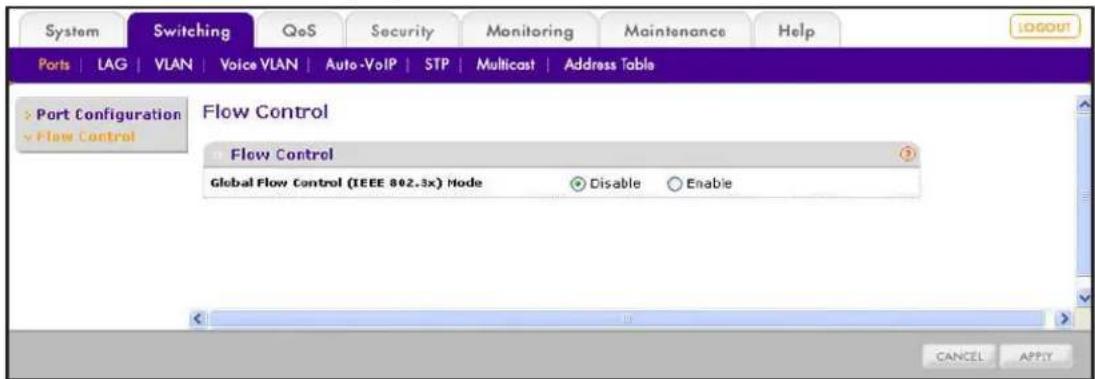
2. Next to Global Flow Control (IEEE 802.3x) Mode, select the Enable radio button.
By default, the Disable radio button is selected, and global flow control is disabled.
3. Click the Apply button.
The settings are saved.
Configure the Auto-VoIP Mode
When you enable Auto-VoIP for a port, the port gives voice traffic automatic priority over data traffic. Auto-VoIP checks for packets carrying the following VoIP protocols:
- Session Initiation Protocol (SIP)
• H.323
• Signalling Connection Control Part (SCCP)
VoIP frames that arrive on ports that have Auto-VoIP enabled are marked with CoS traffic class 7.
To enable Auto-VoIP on one or more ports:
1. Select Switching > Auto-VolP.
The Auto-VoIP screen displays. The following figure does not show all ports.
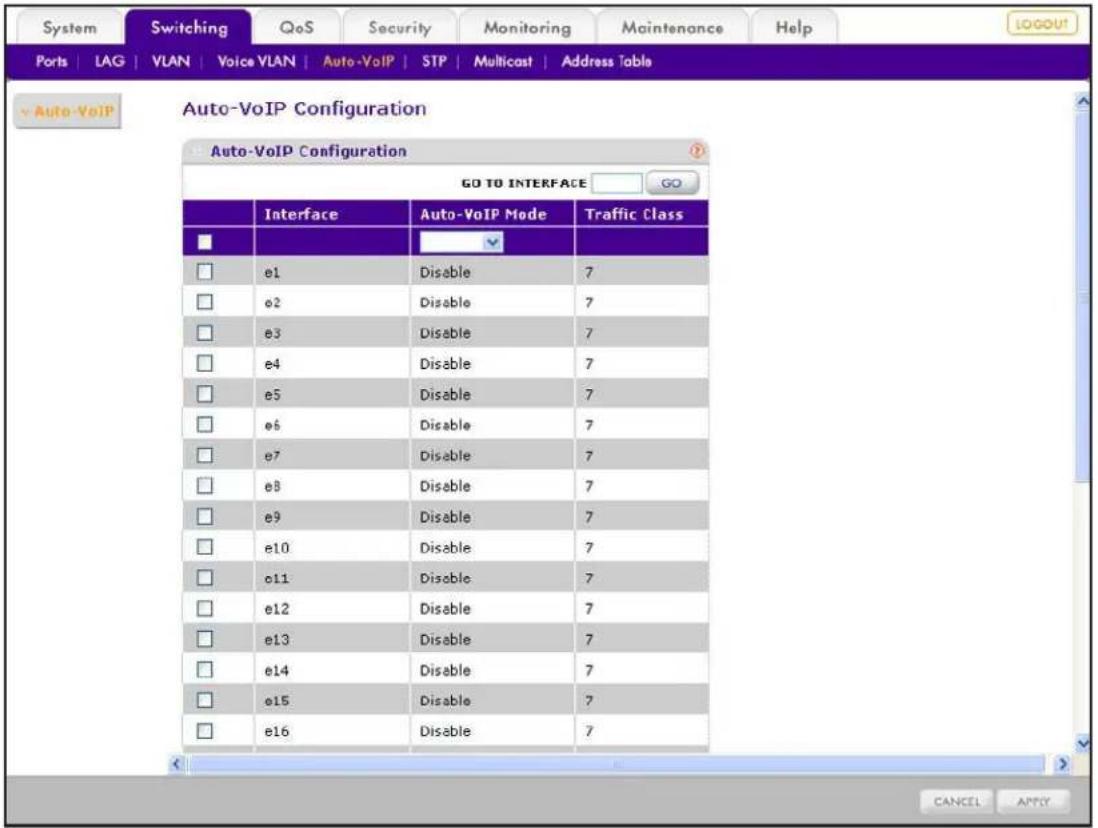
- Select whether to configure a single port, a group of ports, or all ports (for the sake of simplicity in this procedure, LAGs are also considered ports):
- T o configure a single port, select the check box next to the port that you want to configure.
The information for the selected port displays in the menu in the table heading.
- To configure a group of ports, select the check boxes for the individual ports that you want to configure.
-
To configure all ports, select the check box at the left in the table heading.
-
From the Auto-V oIP Mode menu in the table heading, select Enable.
-
Click the Apply button.
The settings are saved.
Configure Power over Ethernet (Model FS728TLP Only)
6
This chapter describes how to configure Power over Ethernet (PoE) on model FS728TLP. (Models FS726Tv2 and FS526Tv2 do not support PoE.) The chapter includes the following sections:
• View the Global PoE Information and Enable PoE SNMP Traps
- Configure Dual Detection of Powered Devices
- Manage the Timer Schedules
- Configure the PoE Ports
View the Global PoE Information and Enable PoE SNMP Traps
Ports 1 through 12 can provide PoE power. The PoE Configuration screen lets you view global PoE power information and enable PoE SNMP traps.
View the Global PoE Power Information
To view the global PoE power information:
1. Select System > PoE > Basic > PoE Configuration.
The PoE Configuration screen displays.
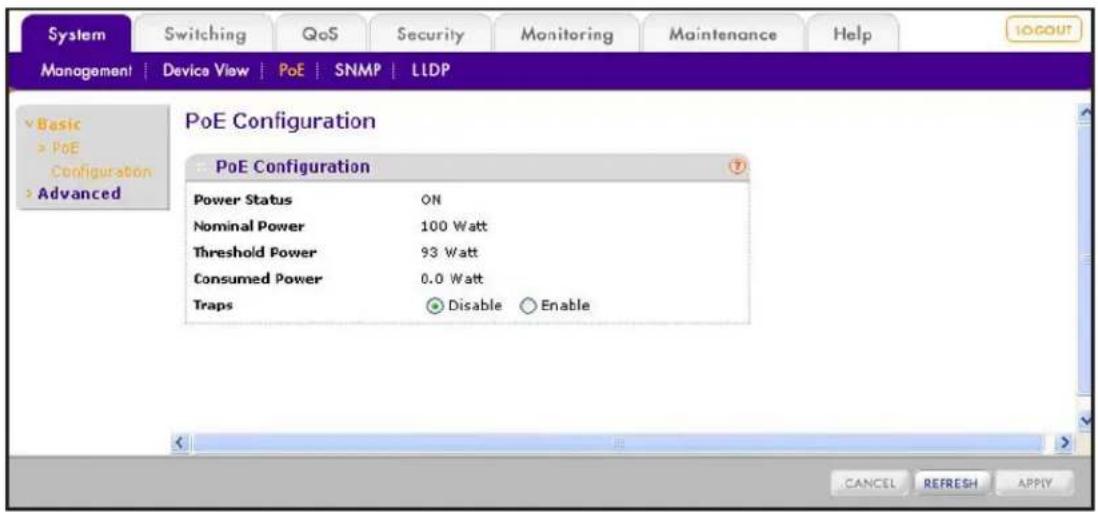
The following table describes the nonconfigurable fields of the PoE Configuration screen.
| Field Description | |
| Power Status The power status | (ON or OFF). Under normal circumstances, the field displays ON. Only when a problem occurs with the PoE component of the smart switch does the field display OFF. |
| Nominal Power The maximum | amount of power in watts that the smart switch can deliver to all PoE ports. |
| Threshold Power The threshold | power in watts. The value is fixed at 93W .As long as the consumed power is less than the threshold power, that is, the consumed power is between the nominal power and the threshold power, the smart switch can still provide power to another PoE port. If the consumed power falls below the threshold power, the smart switch cannot provide power to another PoE port. |
| Consumed Power The total amount of power in watts that is being delivered to all PoE ports. | |
- (Optional) Click the Refresh button.
The screen refreshes to display the most current data.
Enable PoE SNMP Traps
To enable PoE SNMP traps globally:
- Select System > PoE > Basic > PoE Configuration.
The PoE Configuration screen displays.
- Next to Traps, select the Enable radio button.
By default, the Disable radio button is selected, and PoE traps are disabled.
- Click the Apply button.
The settings are saved.
Configure Dual Detection of Powered Devices
Dual detection of powered devices (PDs) can prevent misidentification of PDs but might increase the detection time.
To enable global dual power detection for PoE ports:
- Select System > PoE > Advanced > PoE Configuration.
The advanced PoE Configuration screen displays.
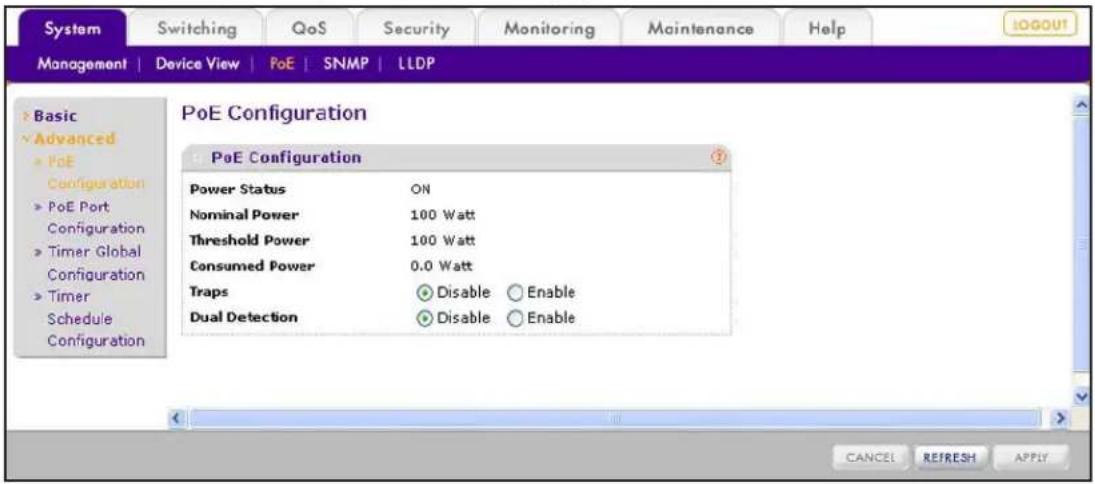
The only difference between this screen and the basic PoE Configuration screen (see View the Global PoE Information and Enable PoE SNMP Traps on page 68) is the option to configure dual detection.
- Next to Dual Detection, select the Enable radio button.
By default, the Disable radio button is selected, and dual detection is disabled.
- Click the Apply button.
The settings are saved.
Manage the Timer Schedules
You can configure one or more timer schedules that specify when a PoE port supplies power. After you have configured and enabled the schedule, you need to attach it to one or more PoE ports, which you do on the PoE Port Configuration screen (see Configure the PoE Ports on page 75). You can create up to 25 timer schedules, all of which can be active simultaneously for different PoE ports. For PoE timer schedules to function, you must also configure an SNTP server and enable SNTP.
Configuring and enabling a timer schedule involves six basic steps:
- Configure an SNTP server (see Manage SNTP Servers on page 47).
- Enable SNTP (see Configure the T ime Settings Through SNTP on page 49).
- On the Timer Global Configuration screen, create a timer schedule (see Create a Timer Schedule on page 70). Keep the timer schedule globally disabled, which is the default setting.
- On the Timer Schedule Configuration screen, configure the schedule (see Configure a Timer Schedule on page 71).
- Return to the Timer Global Configuration screen to enable timer schedules globally (see Enable Timer Schedules on page 74).
- On the PoE Port Configuration screen, attach the schedule to one or more PoE ports (see Configure the PoE Ports on page 75).
Create a Timer Schedule
To create a timer schedule:
- Select System > PoE > Advanced > Timer Global Configuration.
The Timer Global Configuration screen displays.
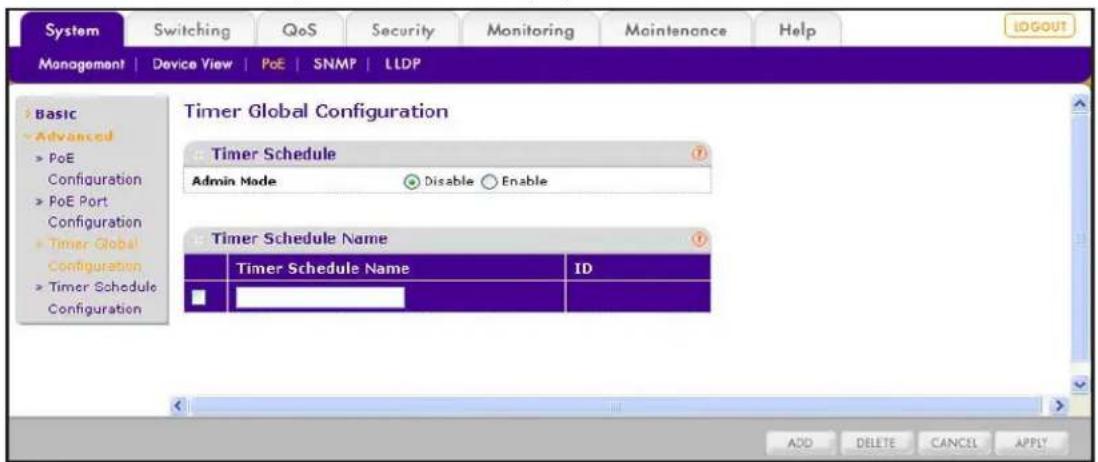
- In the Timer Schedule Name field, enter a name for the timer schedule.
- Click the Add button.
The schedule is added to the Timer Schedule Name table, and an ID is added. The ID numbers are added in chronological order, starting with 1.
Configure a Timer Schedule
To configure a timer schedule:
- Select System > PoE > Advanced > Timer Schedule Configuration.
The Timer Schedule Configuration screen displays.
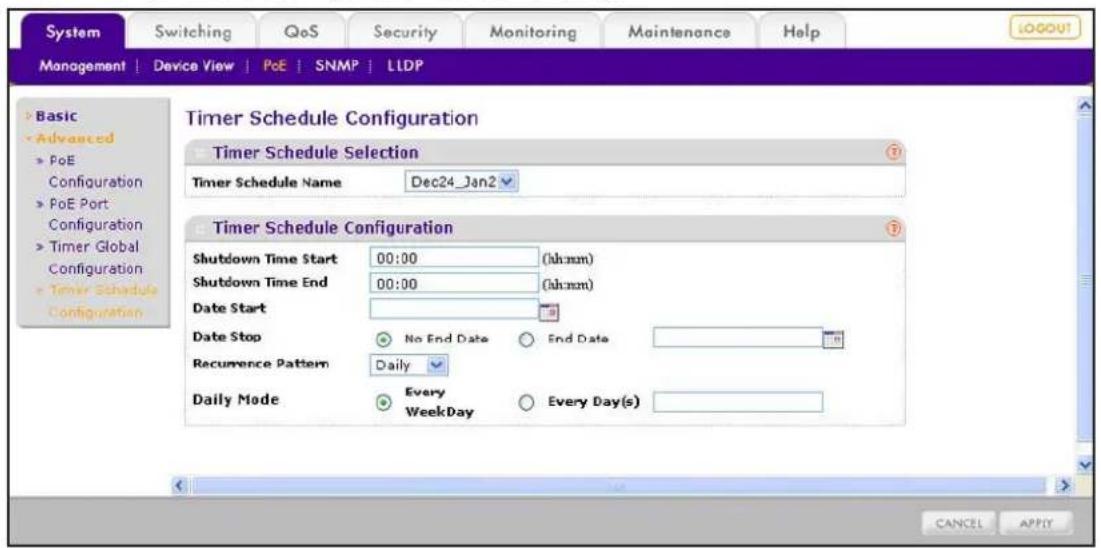
- From the Timer Schedule Name menu, select the timer schedule that you want to configure.
- Configure the settings as described in the following table.
| Setting Description | |
| Shutdown Time Start | Specify the time of day in the HH:MM 24-hour format when the schedule must start. This field is required. If you do not specify a start time, the schedule cannot operate. |
| Shutdown Time End | Specify the time of day in the HH:MM 24-hour format when the schedule must stop. |
| Date Start Specify the | date when the schedule must start. (You can use the calendar tool.) If you do not specify a date, the schedule starts to operate on the day that you enable the schedule. |
| Date Stop Specify wh | ether the schedule must stop on a specific date by selecting one of the following radio buttons:No End Date. The schedule does not stop on a specific date.End Date. The schedule stops on the date that you specify in the field next to the radio button. (You can use the calendar tool.) |
| Setting Description | ||||
| Recurrence Pattern From the Recurrence Pattern menu, select the recurrence pattern of the schedule and configure the corresponding settings:Daily. This is the default setting.Weekly.Monthly.Y early.Note:If recurrence is not required (that is, the schedule must operate once only), set the date in the Date Stop field to the same date as the date in the Date Start field. | ||||
| If recurrence is not required (that is, the schedule must operate once only), set the date in the Date Stop field to the same date as the date in the Date Start field. | ||||
| When the schedule must occur every week or in specific weeks by entering a number in the Every Week(s) field and specify the days of the week on which the schedule must operate by selecting one or more check boxes next to Weekday:Every Week(s). Enter 0 to operate the schedule every week on the days that you select from the Weekday check boxes. (After you enter 0 and click Apply, the screen does not display 0.) Enter any other number to specify the number of consecutive weeks that the schedule must operate on the days that you select from the Weekday check boxes. If you enter a number other than 0, once the schedule has operated, it does not restart.Enter 1 to operate the schedule for only one week on the days that you select from the Weekday check boxes, enter 2 to operate the schedule for only two consecutive weeks on the days that you select from the Weekday check boxes, enter 3 to operate the schedule for only three consecutive weeks on the days that you select from the Weekday check boxes, and so on.W eekday. Select the check boxes for the days of the week on which the schedule must operate.For example, to operate the schedule on August 1, 2013 and August 8, 2013, enter 1-Aug-2013 (a Thursday) in the Date Start field, enter 2 in the Every Week(s) field, and select the Thu check box next to Weekday. | ||||
| Recurrence Pattern (continued) | Monthly Specify the day of the month on which the schedule must operate and specify whether the monthly schedule must operate every month or in specific months.Select the upperDayradio button to specify a fixed day in a month that the schedule must operate and, in the upper Every Month(s) field, specify the number of months that the schedule must operate. Or select the lowerDayradio button, use the menus to specify the relative day of a month that the schedule must operate, and, in the lower Every Month(s) field, specify the number of months that the schedule must operate.• Upper Day radio button and field and upper Every Month(s) field.- Upper Day field. Enter a number from 1 to 31 so specify the day of the month on which the monthly schedule must operate.- Upper Every Month(s) field. Enter0to operate the schedule every month. (After you enter 0 and click Apply, the screen does not display 0.) Enter any other number to specify the number of consecutive months that the schedule must operate on the day that you enter in the upper Day field. If you enter a number other than 0, once the schedule has operated, it does not restart.Enter 1 to operate the schedule for only one month on the day that you enter in the upper Day field, enter 2 to operate the schedule for only two consecutive months on the day that you enter in the upper Day field, enter 3 to operate the schedule for only three consecutive months on the day that you enter in the upper Day field, and so on.• Lower Day radio button and menus and lower Every Month(s) field.- Lower Day menus. From the left and right menus, select the relative day of the month on which the monthly schedule must operate.- Lower Every Month(s) field. Enter0to operate the schedule every month. (After you enter 0 and click Apply, the screen does not display 0.) Enter any other number to specify the number of consecutive months that the schedule must operate on the day that you select from the lower Day menus. If you enter a number other than 0, once the schedule has operated, it does not restart.Enter 1 to operate the schedule for only one month on the day that you select from the lower Day menus, enter 2 to operate the schedule for only two consecutive months on the day that you select from the lower Day menus, enter 3 to operate the schedule for only three consecutive months on the day that you select from the lower Day menus, and so on. | |||
| Recurrence Pattern (continued) | Yearly Specify on which day of a specific month the schedule must operate on a yearly basis.Select the upper Day radio button to specify a fixed day in a month that the schedule must operate and, from the upper Month menu, select the month in which the schedule must operate. Or select the lower Day radio button, use the menus to specify a relative day in a month that the schedule must operate, and, from the lower Month menu, select the month in which the schedule must operate.• Upper Day radio button and field and upper Month menu.- Upper Day field. Enter a number from 1 to 31 so specify the day of the month on which the yearly schedule must operate.- Upper Month menu. From the upper Month menu, select the month in which the yearly schedule must operate.• Lower Day radio button and menus and lower Month menu.- Lower Day menus. From the left and right menus, select the relative day of the month on which the yearly schedule must operate.- Lower Month menu. From the lower Month menu, select the month in which the yearly schedule must operate. | |||
4. Click the Apply button.
The settings are saved.
Enable Timer Schedules
To enable timer schedules globally:
1. Select System > PoE > Advanced > Timer Global Configuration.
The Timer Global Configuration screen displays.
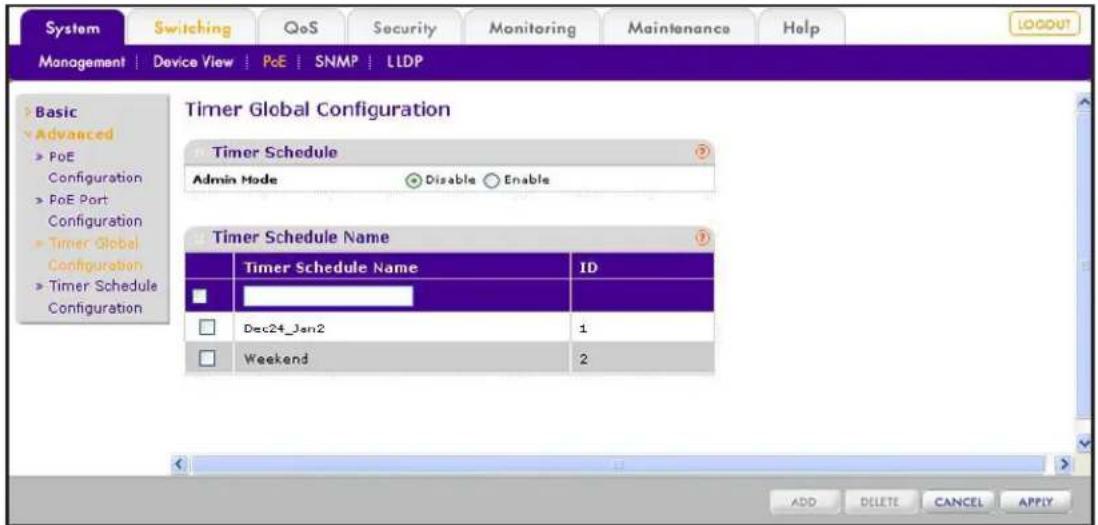
2. Next to Admin Mode, select the Enable radio button.
- Click the Apply button.
All timer schedules that you have configured are now enabled. You now can attach a timer schedule to one or more ports. For more information, see Configure the PoE Ports on page 75.
Remove a Timer Schedule
To remove a timer schedule:
- Select System > PoE > Advanced > Timer Global Configuration.
The Timer Global Configuration screen displays.
- In the Timer Schedule Name table, select the check box to the left of the schedule that you want to remove.
- Click the Delete button.
The schedule is removed from the Timer Schedule Name table.
Note: You can delete a schedule even when it is attached to one or more PoE ports.
Configure the PoE Ports
The options that you can configure on the PoE Port Configuration screen for each physical PoE port (ports e1 through e12) include the administrative mode, port priority level, PD detection mode, timer schedule, power limit type, and power limit wattage. Other options on the PoE Port Configuration screen are nonconfigurable and are shown for information only.
To configure the options and view the characteristics of the physical PoE ports:
- Select System > PoE > Advanced > PoE Port Configuration.
The PoE Port Configuration screen displays.
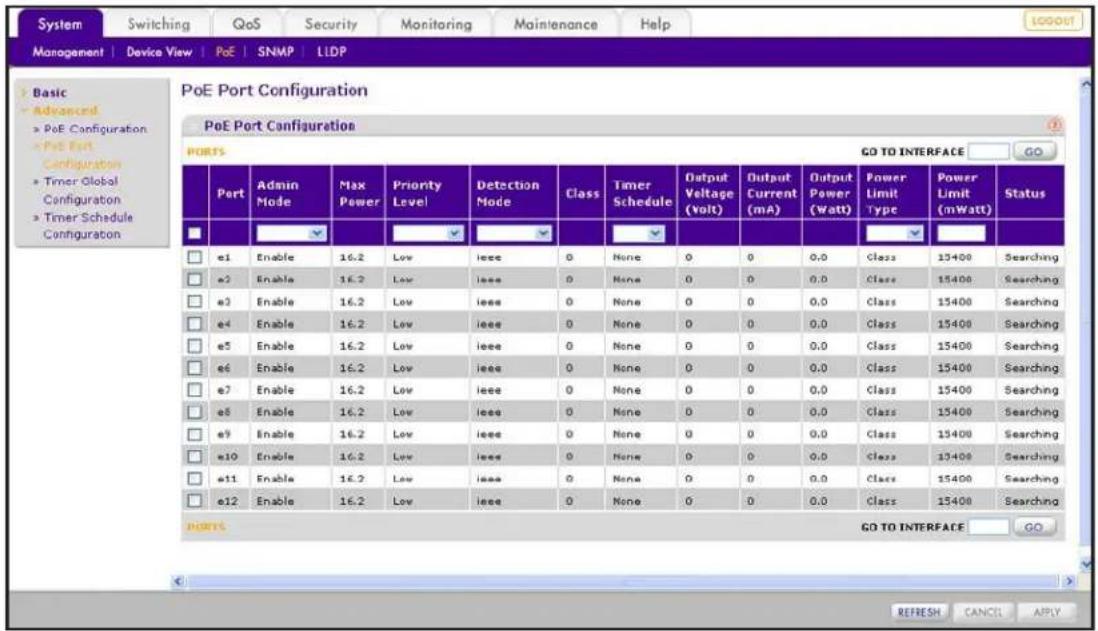
- Select whether to configure a single port, a group of ports, or all ports:
- To configure a single port, select the check box next to the port that you want to configure.
The information for the selected port displays in the menu in the table heading.
- To configure a group of ports, select the check boxes for the individual ports that you want to configure.
-
To configure all ports, select the check box at the left in the table heading.
-
Configure the settings as described in the following table:
| Setting Description | |
| Port This is a nonconfigurable field that shows the PoE port number (e1 through e12). | |
| Admin Mode Specify the administrative state of the port:Enable. The port is switched on and can provide PoE to a powered device (PD). This is the default setting.Disable . The port is switched off and cannot provide PoE to a PD. | |
| Max Power This is a nonconfigurable field that shows the maximum power in watts that the port is capable of providing. The value is fixed at 16.2W. | |
| Priority Level | If the requested power exceeds the threshold power and the smart switch is unable to supply power to all connected devices, the priority level lets you specify which ports can still deliver power. If ports have the same priority level, a port with a lower port number receives priority over a port with a higher port number. For example, if e4 and e7 have the same priority level, e4 receives priority over e7.From the Priority Level menu, select the level:High.The port has high PoE priority.Medium.The port has medium PoE priority.Low.The port has low PoE priority. This is the default setting. |
| Detection Mode The method that the port uses to detect a PD:Auto.The port performs four-point resistive detection (802.3af 4point) of a PD followed by legacy detection.Pre-ieee.The port performs legacy detection of a PD.ieee.The port performs four-point resistive detection (802.3af 4point) of a PD.This is the default mode. | |
| Class This is a nonconfigurable field that shows the class of the PD that is attached to the port. The class defines the range of power a PD is drawing from the smart switch. The following classes can be displayed:0.0–16.2W. This is the default setting.1.0–4.2W2.0–7.4W3.0–16.2W | |
| Timer Schedule From the Timer Schedule menu, select the schedule that determines when the port starts and stops supplying power. For more information about timer schedules, see Manage the Timer Schedules on page 70. | |
| Output Voltage (Volt) This is a nonconfigurable field that shows the voltage that the port supplies to the PD. | |
| Output Current (mA) This is a nonconfigurable field that shows the current in milliampere (mA) that the port supplies to the PD. | |
| Output Power (Watt) This is a nonconfigurable field that shows the output in watts that the port supplies to the PD. | |
| Power Limit Type From the Power Limit Type menu, select the method by which the power is limited:Class.The limit of the power that the port supplies to the PD is based on the detected class. The power limit that is configured in the Power Limit field is ignored. This is the default setting.User.The limit of the power that the port supplies to the PD is based on the value that is configured in the Power Limit menu. | |
| Power Limit (mWatt) If the selection from the Power Limit Type is User, the power limit specifies the maximum power in milliwatts that the port can supply to the PD. You can enter a value from 3000 to 16200 milliwatts. | |
| Status This is a nonconfigurable field that shows the PoE status of the port:Disabled. The port does not supply power to the PD.DeliveringPower. The port supplies power to the PD.Fault . A problem has occurred with the port.Test. The port is in test mode.OtherFault . The port does not supply power to the PD because of an error.Searching. The port is not in one of the previously described states.Requesting Power. The port is attached to a valid PD but does not supply power because of a power management condition such as the threshold power being exceeded. | |
- Click the Apply button.
The settings are saved.
- (Optional) Click the Refresh button.
The screen refreshes to display the most current data.
Configure VLANs and a Voice VLAN
7
This chapter describes how to configure regular VLANs and a voice VLAN. The chapter includes the following sections:
- Configure VLANs
- Configure a Voice VLAN
Configure VLANs
Adding virtual LAN (VLAN) support to a Layer 2 switch provides some of the benefits of both bridging and routing. Like a bridge, a VLAN switch forwards traffic based on the Layer 2 header, which is fast. Like a router, it partitions the network into logical segments, which provides better administration, security, and management of multicast traffic.
By default, all ports on the switch are in the same broadcast domain. VLANs electronically separate ports on the same switch into separate broadcast domains so that broadcast packets are not sent to all the ports on a single switch. When you use a VLAN, you can group users by logical function instead of physical location.
Each VLAN in a network has an associated VLAN ID, which appears in the IEEE 802.1Q tag in the Layer 2 header of packets transmitted on a VLAN. An end station might omit the tag, or the VLAN portion of the tag, in which case the first switch port to receive the packet can either reject it or insert a tag using its default VLAN ID. A port can handle traffic for multiple VLANs, but it can support only one default VLAN ID.
Note: For more information about VLANs, including configuration examples, see Virtual Local Area Networks on page 308.
Manage Custom VLANs
The smart switch supports up to 128 VLANs. VLAN 1 is the preconfigured default VLAN, and all port are untagged members by default. VLAN 2 (VoiceVLAN) and VLAN 3 (Auto-Video) are also preconfigured VLANs, but no ports are part of these VLANs by default. You cannot delete VLAN 1, VLAN 2, or VLAN 3.
Note: By default, all ports are untagged members of VLAN 1, the default VLAN. However, ports that you make members of link aggregation groups (that is, physical interfaces that function as trunk members) lose their membership of the default VLAN. For more information about link aggregation groups, see Chapter 8, Configure LAGs and LAG Membership.
Add a Custom VLAN
To add a custom VLAN:
- Select Switching > VLAN > Basic > VLAN Configuration.
The VLAN Configuration screen displays.
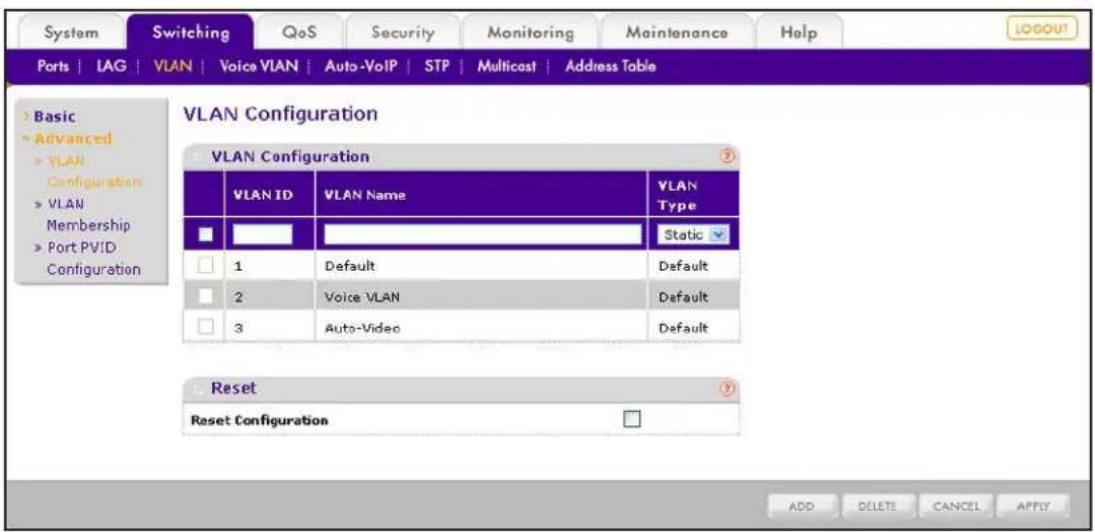
- Configure the settings as described in the following table:
| Setting Description | |
| VLAN ID The VLAN identifier for the custom VLAN. You can enter data in this field only when you are creating a VLAN. The range of the custom VLAN IDs is from 4 to 4093. (IDs 1, 2, and 3 are reserved for the default VLANs.) | |
| VLAN Name The name for the custom VLAN. The length can be up to 32 alphanumeric characters, including blanks. The names for the default VLANs are fixed at Default, Voice VLAN, and Auto-Video. | |
| VLAN Type The type for a custom VLAN is always Static. The type for the default VLANs is fixed at Default. | |
- Click the Add button.
The custom VLAN is added to the VLAN Configuration table. You can now add member ports, LAGs, or both to the VLAN.
Change the Name of Custom VLAN
To change the name for a custom VLAN:
- Select Switching > VLAN > Basic > VLAN Configuration.
The VLAN Configuration screen displays.
- Select the check box next to the VLAN for which you want to change the name.
You cannot change the name for a default VLAN.
-
Change the name.
-
Click the Apply button.
The settings are saved.
Remove a Custom VLAN
To remove a custom VLAN:
- Select Switching > VLAN > Basic > VLAN Configuration.
The VLAN Configuration screen displays.
- Select the check box next to the VLAN that you want to remove.
You cannot remove a default VLAN.
- Click the Delete button.
The VLAN is removed.
Reset the VLAN Settings
To reset all default VLANs to their factory default settings and remove all custom VLANS:
- Select Switching > VLAN > Basic > VLAN Configuration.
The VLAN Configuration screen displays.
- In the Reset section of the screen, select the Reset Configuration check box.
A pop-up confirmation screen displays.
-
Confirm your selection by clicking OK.
-
Click the Apply button.
The settings are saved. All default VLANs are reset to their factory default settings and all custom VLANs are removed.
Manage VLAN Memberships
The VLAN Membership screen lets you add member ports, member LAGs, or both to a default VLAN or custom VLAN.
A port or LAG can be a tagged (T) or untagged (U) VLAN member:
- Tagged. Frames transmitted from the port or LAG are tagged with the port VLAN ID.
- Untagged . Frames transmitted from the port or LAG are untagged. Each port or LAG can be an untagged member of any VLAN. That is, a port or LAG can be an untagged member of multiple VLANs. By default, all ports and LAGs are untagged members of VLAN 1.
As an example, in the following figure, ports 6, 7, 8, and 16 are tagged members of VLAN 4 and LAG 2 is an untagged member of VLAN 4.
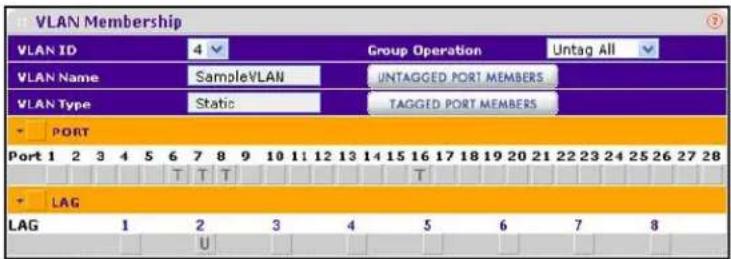
Figure 11. Example of VLAN members
Manage Members of a VLAN
To manage members of a VLAN:
1. Select Switching > VLAN > Advanced > VLAN Membership.
The VLAN Membership Configuration screen displays.
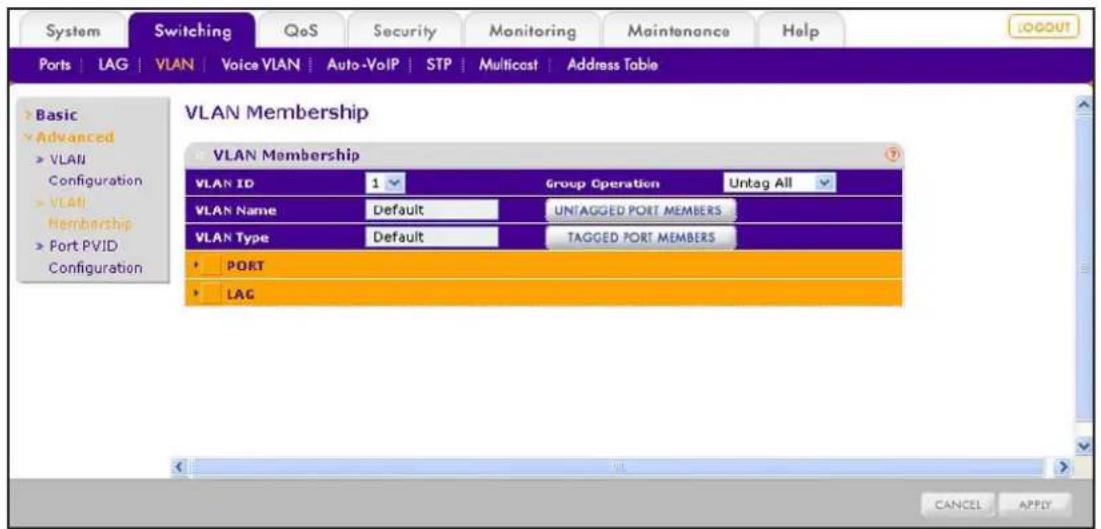
- From the VLAN ID menu, select the VLAN to which you want to add ports, LAGs, or both. The VLAN Name field automatically displays the name of the VLAN. The VLAN Type field automatically displays the type of VLAN (Default for VLAN 1, 2, and 3, or Static for any other VLAN).
- Click one or both of the orange bars below the VLAN Type field:
• PORT. Displays the physical ports.
- LAG . Displays the link aggregation groups 1 through 8. (For more information, see Chapter 8, Configure LAGs and LAG Membership).
Except for VLAN 1, by default, each square that is shown under a port or LAG is blank, indicating that no port or LAG is a member of the VLAN.
- Depending on the members that you want to add, use one of the following methods to add one or more ports, LAGs, or both to a VLAN:
- Add individual ports or LAGs to a VLAN using the orange bar. Below the corresponding orange bar, select one or more ports or LAGs that you want to add to the VLAN by clicking the square below each port or LAG.
(Clicking a second time removes the port or LAG from the VLAN.)
- Add and configure all ports or LAGs using the orange bar. In the corresponding orange bar, click the square next to the PORT or LAG link:
- Click once to add all ports or LAGs as tagged members to the VLAN.
- Click twice to add all ports or LAGs as untagged members to the VLAN.
(Clicking a third time removes all ports or LAGs from the VLAN.)
- Add and configure all ports and LAGs using the Operation Group menu. From the Group Operation menu, make one of the following selections:
- Untag All. Adds all ports and LAGs as untagged members to the VLAN.
- Tag All. Adds all ports and LAGs as tagged members to the VLAN.
-
Remove All. Removes all ports and LAGs from the VLAN.
-
Click the Apply button.
The settings are saved.
View the Members of a VLAN
To view the tagged and untagged members of a VLAN:
- Select Switching > VLAN > Advanced > VLAN Membership.
The VLAN Membership Configuration screen displays.
- From the VLAN ID menu, select the VLAN for which you want to view the members.
- Click the UNT AGGED PORT MEMBERS button.
The Port Members pop-up screen displays, showing the untagged ports and LAGs that are members of the VLAN.
- Click the TAGGED PORT MEMBERS button.
The Port Members pop-up screen displays, showing the tagged ports and LAGs that are members of the VLAN.
Configure Port VLAN IDs for Ports and LAGs
The Port PVID Configuration screen lets you assign a port VLAN ID (PVID) to a port, LAG, or both.
There are certain requirements for a PVID:
- A PVID must be assigned to all ports and LAGs. By default, all ports and LAGs are assigned to PVID 1 because they are assigned to default VLAN 1. If you do not specify another PVID, the default VLAN PVID is used for untagged or priority-tagged frames.
- If you want to change the default PVID of a port or LAG to a custom PVID, first create a VLAN that includes the port or LAG as its member (see Manage Custom VLANs on page 80 and Manage VLAN Memberships on page 82).
To assign a custom PVID to an interface:
1. Select Switching > VLAN > Advanced > Port PVID Configuration.
The Port PVID Configuration screen displays. The following figure does not show all ports.
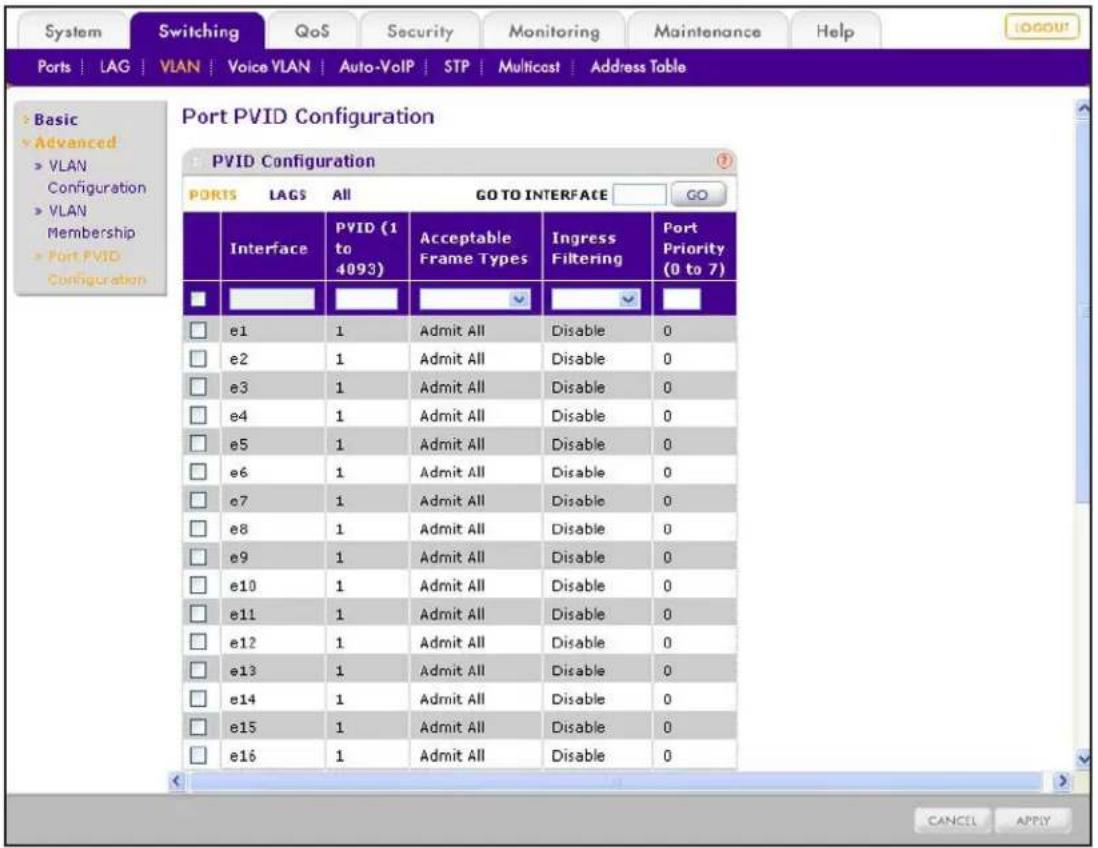
-
Select whether to configure physical ports, LAGs, or both by clicking one of the following links above the table heading:
-
PORTS. Only physical ports display . This is the default setting.
-
LAGS . Only LAGs display.
• All. Both physical ports and LAGs display. -
Select whether to configure a single port, a group of ports, or all ports (for the sake of simplicity in this procedure, LAGs are also considered ports):
- T o configure a single port, select the check box next to the port that you want to configure.
The information for the selected port displays in the menu in the table heading.
- To configure a group of ports, select the check boxes for the individual ports that you want to configure.
-
To configure all ports, select the check box at the left in the table heading.
-
Configure the settings as described in the following table.
| Setting Description | |
| Interface This is a nonconfigurable field that shows the port number or LAG number. | |
| PVID (1 to 4093) The VLAN ID that is assigned to untagged or priority-tagged frames that are received on the port or LAG. The default setting is 1, the default VLAN. | |
| Acceptable Frame Types Specify the types of frames that the port or LAG is allowed to receive:Admit All. The port or LAG can receive tagged, untagged, and priority-tagged frames. Untagged or priority-tagged frames are assigned the PVD for this port or LAG. VLAN-tagged frames are forwarded.VLAN Only. The port can receive and forward VLAN-tagged frames but drops untagged frames or priority-tagged frames. | |
| Ingress Filtering Specify whether ingress filtering is applied:.Enabled. Ingress filtering is enabled for the port or LAG. An incoming frame is dropped if the port or LAG is not a member of the VLAN with which the frame is associated. In a tagged frame, the VLAN ID in the tag identifies the VLAN. In an untagged frame, the VLAN is the PVID for the port.Disabled. Ingress filtering is disabled for the interface. All frames are forwarded. This is the default setting. | |
| Port Priority (0 to 7) Enter the default Class of Service (CoS) priority that is assigned to incoming untagged packets. Enter a number from 0 to 7, with 7 as the highest priority. The default setting is 0. | |
- Click the Apply button.
The settings are saved.
Configure a Voice VLAN
VLAN 2 is the preconfigured voice VLAN without any preconfigured members. To help ensure that the sound quality of an IP phone is safeguarded from deteriorating if the data traffic on the port is high, configure the voice VLAN settings for ports that carry traffic from IP phones.
Configure Global Voice VLAN Properties
The global voice VLAN properties include the voice VLAN ID (by default, VLAN 2), Class of Service (CoS) on the VLAN, reassignment of the CoS tag value, and voice VLAN aging time. By default, the voice VLAN is enabled. However, if the smart switch does not process voice traffic, you can globally disable the voice VLAN.
To configure the global voice VLAN properties:
1. Select Switching > Voice VLAN > Basic > Properties.
The Properties screen displays.
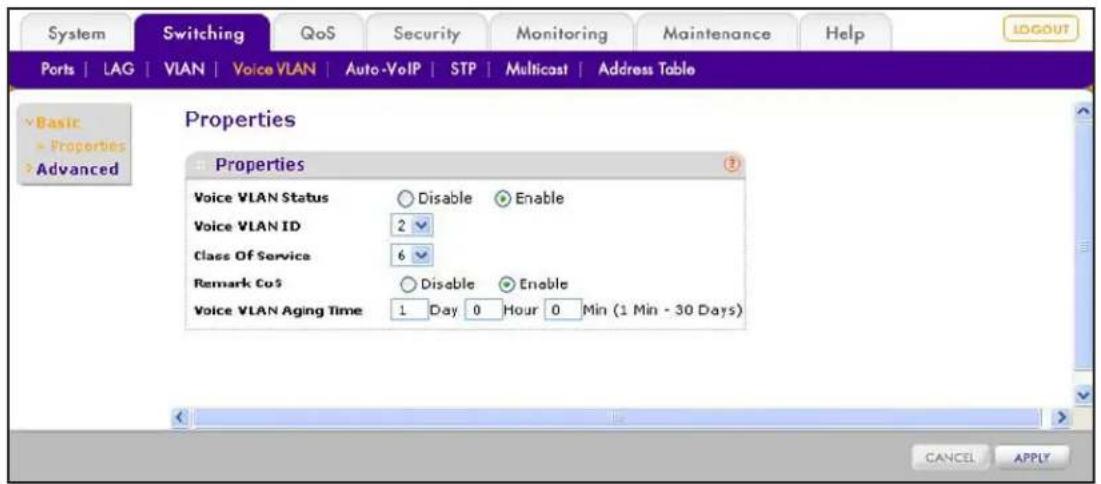
- Configure the settings as described in the following table.
| Setting Description | |
| Voice VLAN ID Select a VL | LAN ID from the Voice VLAN ID menu. The VLAN IDs that are shown in the menu list are the ones that are defined on the VLAN Configuration screen (see Configure VLANs on page 80). You cannot select 1 as the voice VLAN ID. |
| Class of Service From the | Class of Service menu, select the Class of Service (CoS) for packets that arrive over the voice VLAN. You can select from 0 through 7, with 7 as the highest priority. The default setting for the voice VLAN is 6. |
| Remark CoS Specify whether the smart switch reassigns the CoS tag value to packets that arrive over the voice VLAN by selection one of the following radio buttons:Disable. The smart switch does not reassign the CoS tag value to packets that arrive over the voice VLAN.Enable . The smart switch reassigns the CoS tag value to packets that arrive over the voice VLAN. This is the default setting. | |
| Voice VLAN Aging Time In | the Day, Hour, and Min fields, specify the time when the MAC address that matches the IP phone’s Organizationally Unique Identifier (OUI) ages out. The default setting is one day. When the MAC address ages out, it is removed from the voice VLAN.Note:The value in the Voice VLAN Aging Time fields ensures that ports that are automatically added to the voice VLAN are not bound to the VLAN indefinitely. |
- Click the Apply button.
The settings are saved.
To disable the voice VLAN globally:
- Select Switching > Voice VLAN > Basic > Properties.
The Properties screen displays.
-
Select the Disable radio button.
-
Click the Apply button.
The settings are saved.
Configure the Voice VLAN Port Setting
The Voice VLAN Port Setting screen lets you enable the voice VLAN for individual ports.
Note: You cannot enable the voice VLAN for a port that is member of a LAG.
To enable the voice VLAN for one or more ports:
- Select Switching > Voice VLAN > Advanced > Port Setting.
The Port Setting screen displays. The following figure does not show all ports.
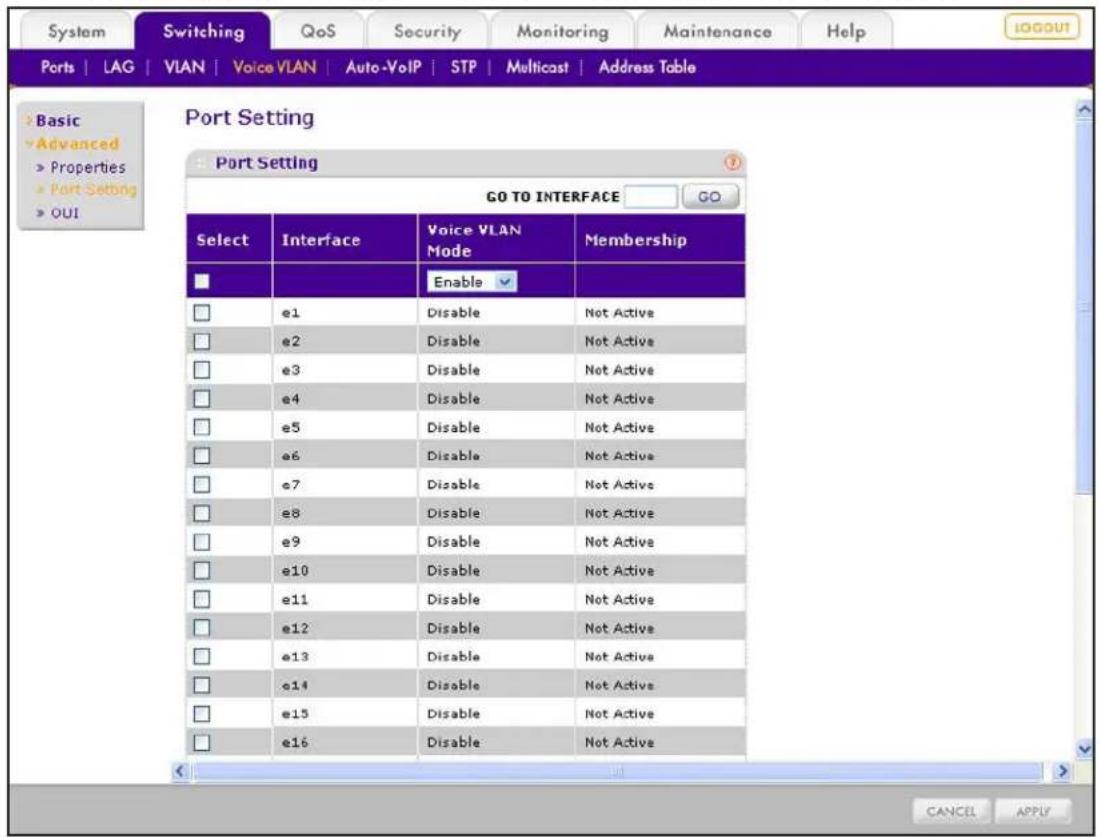
- Select whether to configure a single port, a group of ports, or all ports (for the sake of simplicity in this procedure, LAGs are also considered ports):
- T o configure a single port, select the check box next to the port that you want to configure.
The information for the selected port displays in the menu in the table heading.
- To configure a group of ports, select the check boxes for the individual ports that you want to configure.
-
To configure all ports, select the check box at the left in the table heading.
-
From the Voice VLAN Mode menu, select Enable .
By default, the voice VLAN mode is disabled for all ports.
- Click the Apply button.
The settings are saved. The Membership field displays Active for the ports for which you have enabled the voice VLAN mode. For all other ports, the Membership field displays Not Active.
Manage the Voice VLAN OUIs
The Organizational Unique Identifier (OUI) identifies the IP phone manufacturer. The switch comes preconfigured with the following OUIs:
• 00:01:E3: SIEMENS
• 00:03:6B: CISCO1
• 00:12:43: CISCO2
- 00:0F:E2: H3C
• 00:60:B9: NITSUKO
• 00:D0:1E: PINTEL
• 00:E0:75: VERILINK
• 00:E0:BB:3COM
• 00:04:0D: AVAYA 1
• 00:1B:4F: AVAYA2
You can add new OUIs and descriptions to identify the IP phones on the network or change an OUI.
Add an OUI
To add an OUI:
- Select Switching > Voice VLAN > Advanced > OUI.
The OUI screen displays.
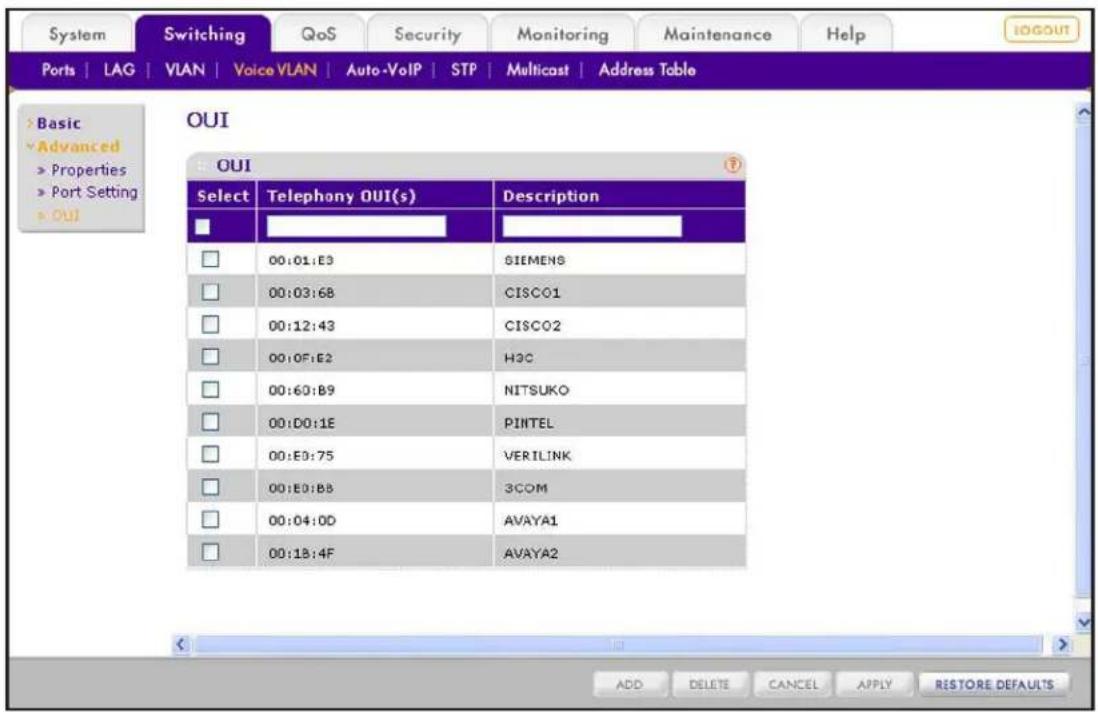
- In the Telephone OUI(s) field, type the VoIP OUI prefix.
The OUI prefix must be in the format AA:BB:CC.
-
In the Description field, type a description for the prefix.
-
Click the Add button.
The OUI is added to the OUI table.
Change an OUI
To change an OUI:
- Select Switching > Voice VLAN > Advanced > OUI.
The OUI screen displays.
-
Select the check box to the left of the OUI that you want to change.
-
Change the OUI.
You can change both the VoIP OUI prefix and the description.
- Click the Apply button.
The modification is displayed in the OUI table.
Remove an OUI
To remove an OUI:
- Select Switching > Voice VLAN > Advanced > OUI.
The OUI screen displays.
-
Select the check box to the left of the OUI that you want to remove.
-
Click the Delete button.
The OUI is removed from the OUI table.
Restore the Default OUI Settings
To restore the default OUI settings:
- Select Switching > Voice VLAN > Advanced > OUI.
The OUI screen displays.
- Click the Restore Defaults button.
All OUIs are restored to their default settings and custom OUIs are removed from the OUI table.
Configure LAGs and LAG Membership
8
This chapter describes how to configure link aggregation groups (LAGs). The chapter includes the following sections:
- Link Aggregation Group Concepts
- Configure a LAG
- Manage LAG Memberships
- Configure the LACP Global Priority
- Configure the LACP Port Priority
Link Aggregation Group Concepts
Link aggregation groups (LAGs), which are also referred to as channels or port channels, let you combine multiple full-duplex Ethernet links into a single logical link. Network devices treat the aggregation as if it were a single link, which increases fault tolerance and provides load sharing.
The smart switch supports eight LAGs (LAG1 through LAG8), none of which have any ports assigned to them. All LAGs are members of VLAN1, the default VLAN. You can also assign LAGs as members of other VLANs.
You can configure a LAG as static or dynamic, but not both:
- Static. A static LAG does not require a partner system to aggregate its member ports. After you have added a port as a member of a static LAG, the port does not transmit or accept LACP data units (LACPDUs).
- Dynamic. Link Aggregation Control Protocol (LACP) can automatically configure a link between the smart switch and a partner device by using LACPDUs.
Configure a LAG
The LAG Configuration screen lets you combine one or more full-duplex Ethernet links to form a link aggregation group, which is also known as a port channel. The switch treats the LAG as if it were a single link.
To configure one or more LAGs:
- Select Switching > LAG > Basic > LAG Configuration.
The LAG Configuration screen displays.
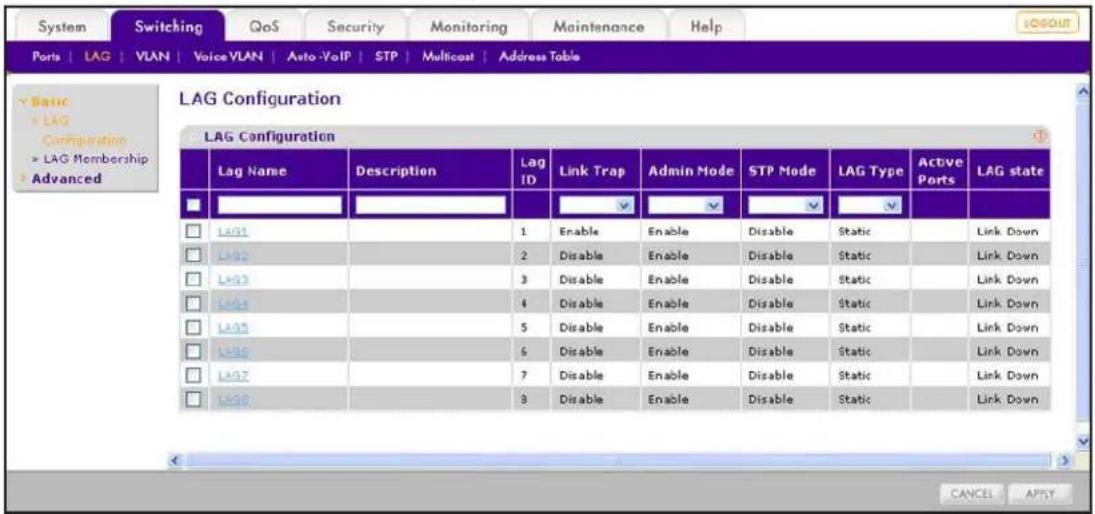
- Select whether to configure a single LAG, a group of LAGs, or all LAGs:
- To configure a single LAG, select the check box next to the LAG that you want to configure.
The information for the selected LAG displays in the menu in the table heading.
- To configure a group of LAGs, select the check boxes for the individual LAGs that you want to configure.
-
To configure all LAGs, select the check box at the left in the table heading.
-
Configure the settings as described in the following table.
| Setting Description | |
| Lag Name Keep the default name (LAG1 through LAG8) or enter a custom name for the LAG. You can enter any string of up to 15 alphanumeric characters. | |
| Description The optional description for the LAG. The length of the description can be up to 64 characters. | |
| Lag ID This is a nonconfigurable field that displays the LAG identifier (1 through 8). | |
| Link Trap Specify whether the smart switch sends an SNMP trap when the link status of the LAG changes:Disable. The smart switch does not send a trap when the link status changes. This is the default setting.Enable . The smart switch sends a trap when the link status changes. | |
| Admin Mode Specify the administrative state of the LAG:Enable . The LAG is enabled and can connect to another device. This is the default setting.Disable. The LAG is disabled and cannot connect to another device. LACP data units (LACPDUs) are dropped. However, ports that are members of the LAG are not released and remain members of the LAG. | |
| STP Mode Specify the Spanning Tree Protocol (STP) administrative mode that is associated with the LAG:Disable. STP is disabled for the LAG. This is the default setting.Enable . STP is enabled for the LAG.Note: You can also change the STP mode for a LAG by making a selection from the STP Status menu on the CST Port Configuration screen (see Configure CST on Ports and LAGs on page 130). | |
| LAG Type | Specify the type of the LAG:Static. The LAG is static and does not require a partner system to aggregate its member ports. After you have added a port as a member of a static LAG, the port does not transmit or accept LACP data units (LACPDUs). Static is the default setting.LACP. Link Aggregation Control Protocol (LACP) can automatically configure a link between the smart switch and a partner device by using LACPDUs. |
| Active Ports | This is a nonconfigurable field that displays which of the ports that you configured as members of the LAG are active ports. |
| LAG State This is a nonconfigurable field that displays the state of the port channel:• Link Up. The LAG is connected to another device.• Link Down. The LAG is not connected to another device. | |
4. Click the Apply button.
The settings are saved.
Note: Click a LAG in the Lag Name column (for example, click LAG2) to display the LAG Membership screen, which is described in the following section.
Manage LAG Memberships
The LAG Membership screen lets you add member ports to a LAG. In order to function, a LAG requires full-duplex ports. By default, no port is a member of any LAG.
As an example, in the following figure, interfaces 18 through 21 are members of LAG 2.
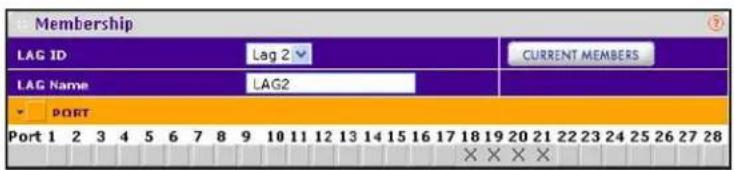
Figure 12. Example of LAG members
Manage Members of a LAG
To manage members of a LAG:
- Select Switching > LAG > Basic > LAG Membership.
The LAG Membership screen displays.
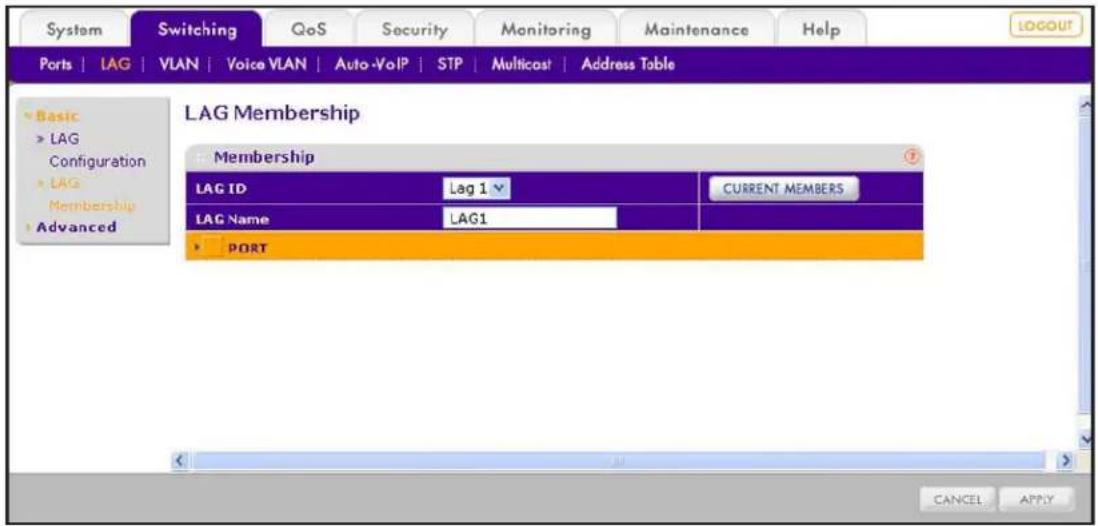
- From the LAG ID menu, select the LAG to which you want to add ports.
The LAG Name field automatically displays the name of the LAG.
- Depending on the members that you want to add, use one of the following methods to add ports to the LAG:
- Add individual ports to a LAG using the orange bar. Below the orange bar, select the ports that you want to add to the LAG by clicking the square below each port.
(Clicking a second time removes the port from the LAG.)
- Add all ports or LAGs using the orange bar. In the orange bar, click the square next to the PORT link.
(Clicking a second time removes all ports from the LAG.)
- Click the Apply button.
The settings are saved.
View Members of a LAG
To view the members of a LAG:
- Select Switching > LAG > Basic > LAG Membership.
The LAG Membership screen displays.
-
From the LAG ID menu, select the LAG for which you want to view the members.
-
Click the CURRENT MEMBERS button.
The Current Members pop-up screen displays the ports that are members of the LAG.
Configure the LACP Global Priority
The LACP global priority (or LACP system priority) determines the aggregation priority relative to the devices at the other ends of the links on which dynamic link aggregation is enabled. A higher value means a lower priority. You can configure the LACP global priority for the smart switch by specifying a priority from 0 to 65535. The default value is 32768.
To configure the global LACP priority:
- Select Switching > LAG > Advanced > LACP Configuration.
The LACP Configuration screen displays.
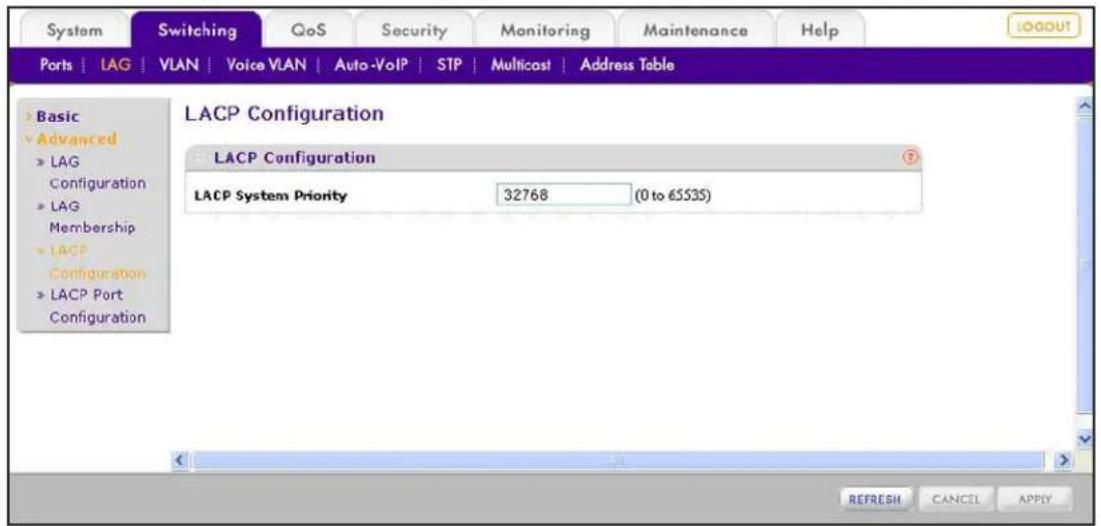
- In the LACP System Priority field, type a value from 0 to 65535.
The default value is 32768.
- Click the Apply button.
The settings are saved.
Configure the LACP Port Priority
The LACP port priority determines the aggregation priority relative to the ports in a dynamic LAG. A higher value means a lower priority. The ports with the highest priority (that is, lowest value) are the first ones that the LAG uses. You can configure the LACP port priority for each port by specifying a priority from 0 to 255. The default value is 128.
The port time-out value specifies how long it takes before a port returns to standby status if it does not receive any LACP data units (LACPDUs). The smart switch supports a long value and a short value.
To configure the global LACP priority:
1. Select Switching > LAG > Advanced > LACP Port Configuration.
The LACP Port Configuration screen displays.
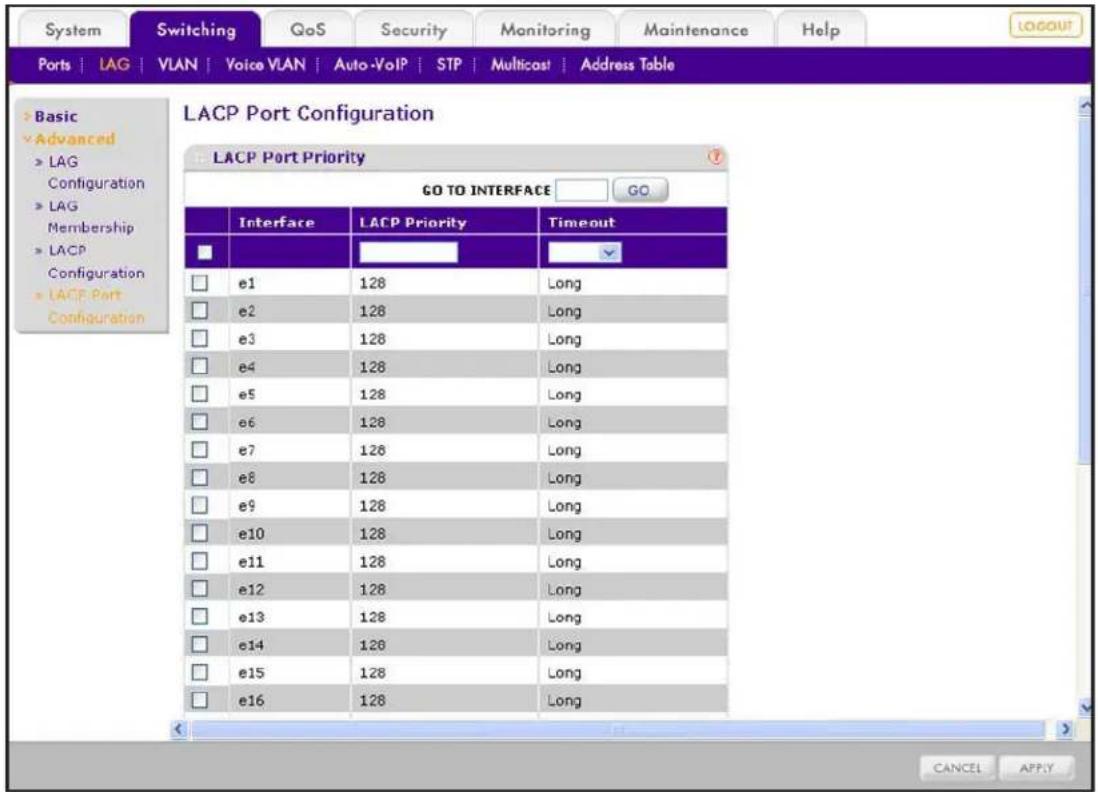
- Select whether to configure a single port, a group of ports, or all ports:
- To configure a single port, select the check box next to the port that you want to configure.
The information for the selected port displays in the menu in the table heading.
- To configure a group of ports, select the check boxes for the individual ports that you want to configure.
-
To configure all ports, select the check box at the left in the table heading.
-
In the LACP Priority field, type a value from 0 to 255.
The default value is 128.
-
From the Timeout menu, select the port time-out value:
-
Long . The port has a long time-out value. This is the default setting.
-
Short. The port has a short time-out value.
-
Click the Apply button.
The settings are saved.
Manage the Unicast Forwarding Database

This chapter describes how to manage the unicast forwarding database. The chapter includes the following sections:
• Forwarding Database Concepts
• View, Search, and Clear the MAC Address Table
- Configure Dynamic Address Aging
- Manage Static MAC Addresses
Forwarding Database Concepts
When the smart switch receives a packet from a MAC address, it adds the MAC address to the forwarding database, which is also referred to as the MAC Address Table. The smart switch uses the information in the forwarding database to determine how to propagate incoming traffic. The forwarding database contains only unicast addresses. Multicast addresses are stored in the multicast forwarding database (see View and Search the Multicast Forwarding Database Table on page 112).
The forwarding database is dynamically built, but you can add static MAC addresses manually.
View, Search, and Clear the MAC Address Table
Use the search function to display information about the dynamically learned and manually added MAC addresses in the forwarding database.
View and Search the MAC Address Table
To view the forwarding database and search for an entry in the forwarding database:
- Select Switching > Address Table > Basic > Address Table.
The Address Table screen displays.
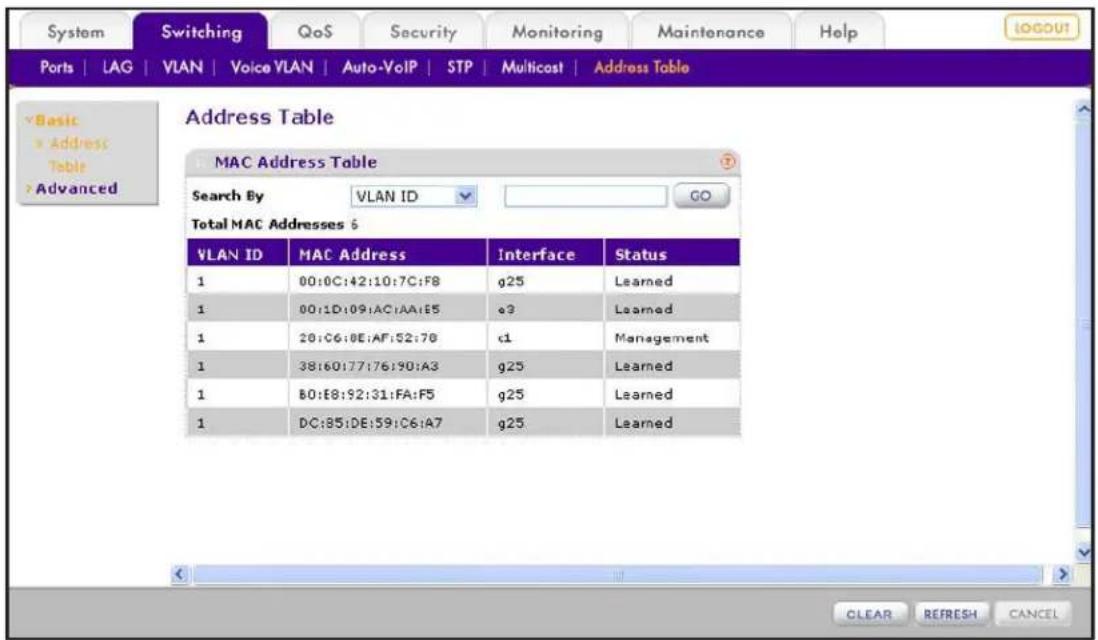
The Total MAC Addresses field displays the total number of entries in the forwarding database.
- From the Search By menu, select how to search the forwarding database and what to enter in the field to the right of the menu:
• VLAN ID. Select VLAN ID and enter the VLAN ID.
- MAC Address. Select MAC Address and enter a 6-byte hexadecimal MAC address in 2-digit groups separated by colons (an exact match is required).
• Interface. Select Interface and enter the interface ID.
- Click the GO button.
If one or more matches are found, they are displayed in the MAC Address Table.
The following table describes the information that is displayed for each entry in the MAC Address Table.
| Field Description | |
| VLAN ID The VLAN ID that is associated with the MAC address. | |
| MAC Address The unicast MAC address. | |
| Interface The port on which the MAC address was learned. That is, this field displays the port through which the MAC address can be reached. | |
| Status The status of this entry:Learned. The entry was learned through detection of the source MAC addresses of the incoming traffic. The entry is still in use.Management. The system MAC address, which is identified by interface c1.Static. The static MAC address that you entered manually (see Manage Static MAC Addresses on page 102). | |
- (Optional) Click the Refresh button.
The screen refreshes to display the most current data.
Remove Dynamically Learned MAC Addresses
To remove all dynamically learned entries from the forwarding database:
- Select Switching > Address Table > Basic > Address Table.
The Address Table screen displays.
- Click the Clear button.
The dynamically learned MAC addresses are removed but the MAC addresses that you entered manually (see Manage Static MAC Addresses on page 102) are not removed.
Configure Dynamic Address Aging
The forwarding database contains static entries, which are never aged out, and dynamically learned entries, which age out if they are not updated within a given time and are removed from the forwarding database. You can configure how long a learned MAC address entry remains in the forwarding database.
To configure dynamic address aging:
- Select Switching > Address Table > Advanced > Dynamic Addresses.
The Dynamic Address screen displays.
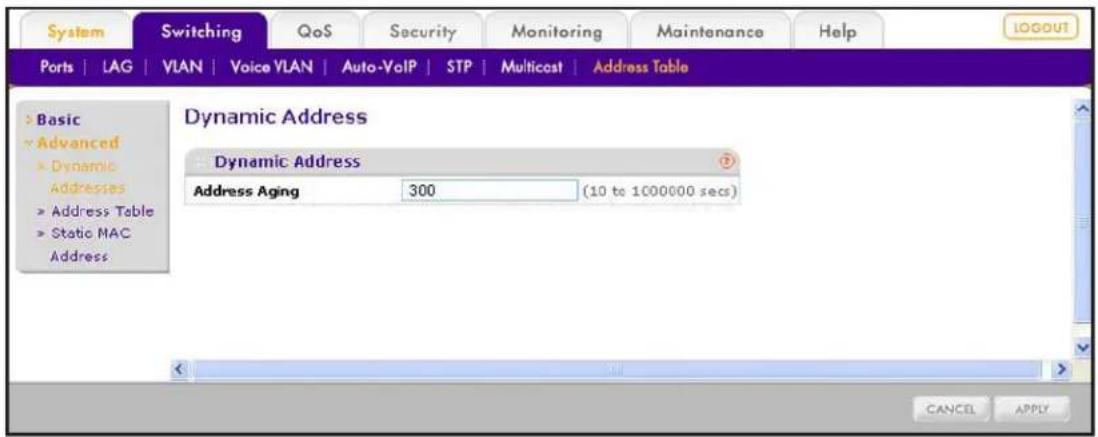
- In the Address Aging field, type the number of seconds the forwarding database waits before removing a dynamically learned entry that has not been updated.
You can type any number of seconds between 10 and 1000000. The factory default is 300.
- Click the Apply button.
The settings are saved.
Manage Static MAC Addresses
Use the Static MAC Address screen to manually add, change, and remove static MAC addresses from a port. The static MAC addresses that you add are added to the forwarding database that you can view on the Address Table screen (see View, Search, and Clear the MAC Address Table on page 100).
Add a Static MAC Address
To add a static MAC address:
1. Select Switching > Address Table > Advanced > Static MAC Address.
The Static MAC Address screen displays. The following figure contains examples.
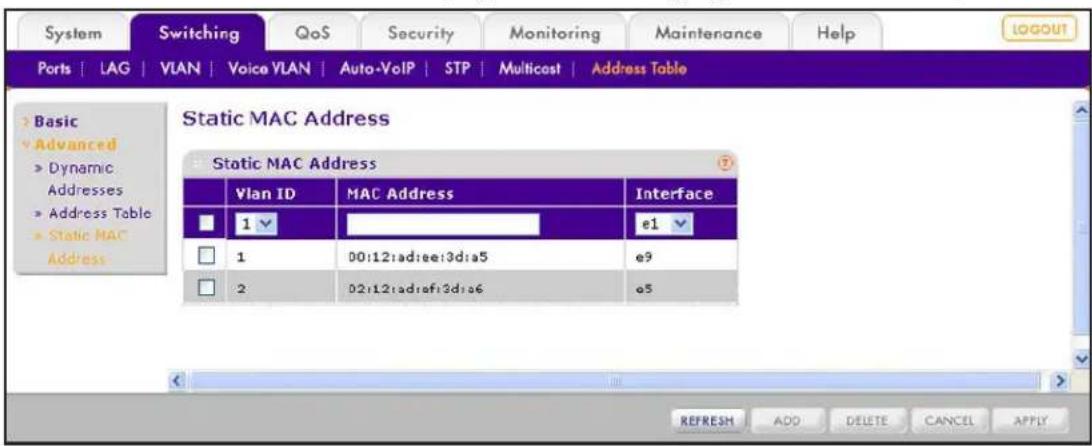
- Configure the settings as described in the following table.
| Setting Description | |
| VLAN ID From the menu, select the VLAN ID with which the MAC address is associated. | |
| MAC Address Enter a 6-byte hexadecimal MAC address in 2-digit groups separated by colons. | |
| Interface From the menu, select the port with which the MAC address is associated. | |
- Click the Add button.
The settings are saved and the MAC address is added to both the Static MAC Address table and the forwarding database.
- (Optional) Click the Refresh button.
The screen refreshes to display the most current data.
Change a Static MAC Address
To change a static MAC address in the Static MAC Address table:
- Select Switching > Address Table > Advanced > Static MAC Address.
The Static MAC Address screen displays.
-
Select the check box to the left of the MAC address that you want to change.
-
Change the VLAN ID, MAC address, or interface, or a combination of these.
-
Click the Apply button.
The modification is displayed in the Static MAC Address table.
Remove a Static MAC Address
To remove a static MAC address from the Static MAC Address table:
- Select Switching > Address Table > Advanced > Static MAC Address. The Static MAC Address screen displays.
- Select the check box to the left of the MAC address that you want to remove.
- Click the Delete button. The MAC address is removed from the Static MAC Address table.
This chapter describes how to configure the multicast features, including IGMP snooping, multicast groups, and IGMP snooping querying. The chapter includes the following sections:
- Multicast Concepts
- Enable the Auto-Video Option
- Configure IGMP Snooping
- Manage Multicast Groups and Group Memberships
- Configure the IGMP Snooping Querier
Multicast Concepts
Multicast IP traffic is traffic that is destined to a host group. Host groups are identified by class D IP addresses, which range from 224.0.0.0 to 239.255.255.255.
Internet Group Management Protocol (IGMP) snooping enables the smart switch to forward multicast traffic intelligently only to ports that request the multicast traffic. In this way, network performance is not degraded.
An Ethernet network is normally separated into different segments to prevent too many devices from sharing media. Bridges and switches connect these segments. When a packet with a broadcast or multicast destination address comes in, the smart switch forwards a copy into each of the network segments in accordance with the IEEE MAC Bridge standard. Eventually, the packet is made accessible to all nodes that are connected to the network.
This approach works well for broadcast packets that are intended for all connected nodes. However, for multicast packets, this approach can cause inefficient use of network bandwidth, particularly when the packet is intended for only a few nodes. Packets would be flooded into network segments where no node has any interest in receiving the packet. While nodes rarely incur any processing overhead to filter packets that are addressed to unrequested group addresses, the nodes are unable to transmit new packets onto the shared media for the period that the multicast packet is being flooded. Even more bandwidth inefficiency occurs when the LAN segment is not shared, for example with full-duplex links.
Enabling switches to snoop IGMP packets solves the bandwidth inefficiency. The smart switch uses the information in the IGMP packets as they are being forwarded throughout the network to determine which segments should receive packets directed to the group address.
Enable the Auto-Video Option
If the smart switch supports devices or applications that process multicast traffic, such as video surveillance cameras, the Auto-Video option simplifies the IGMP snooping configuration. When you enable the Auto-Video option, IGMP snooping and the IGMP snooping querier operate in the Auto-Video VLAN (VLAN 3).
To enable the Auto-Video option:
1. Select Switching > Multicast > Auto-Video.
The Auto-Video Configuration screen displays.
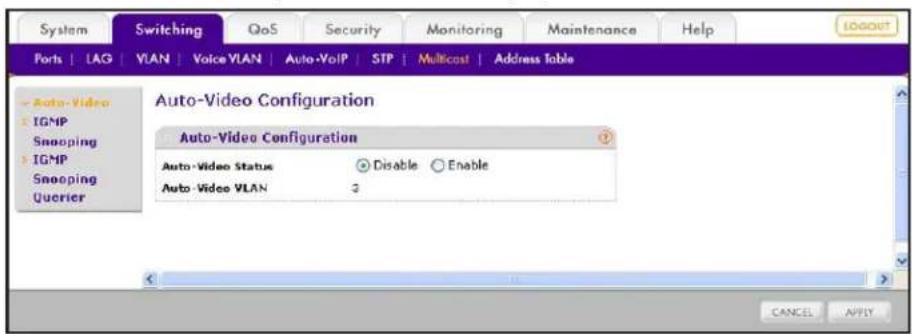
- Select the Enable radio button.
- Click the Apply button.
The settings are saved. The Auto-Video VLAN field displays 3 for VLAN 3.
Configure IGMP Snooping
IGMP snooping lets the smart switch automatically build a forwarding database for multicast traffic. You can configure the global IGMP snooping options, IGMP snooping for individual ports and LAGs, and IGMP snooping for VLANs.
Configure the Global IGMP Snooping Options
The global IGMP snooping options include enabling IGMP snooping, enabling validation of IGMP IP headers, and enabling blockage of unknown multicast addresses.
To configure the global IGMP snooping options and view the IGMP statistics and IGMP VLANs:
- Select Switching > Multicast > IGMP Snooping > IGMP Snooping Configuration.
The IGMP Snooping Configuration screen displays.
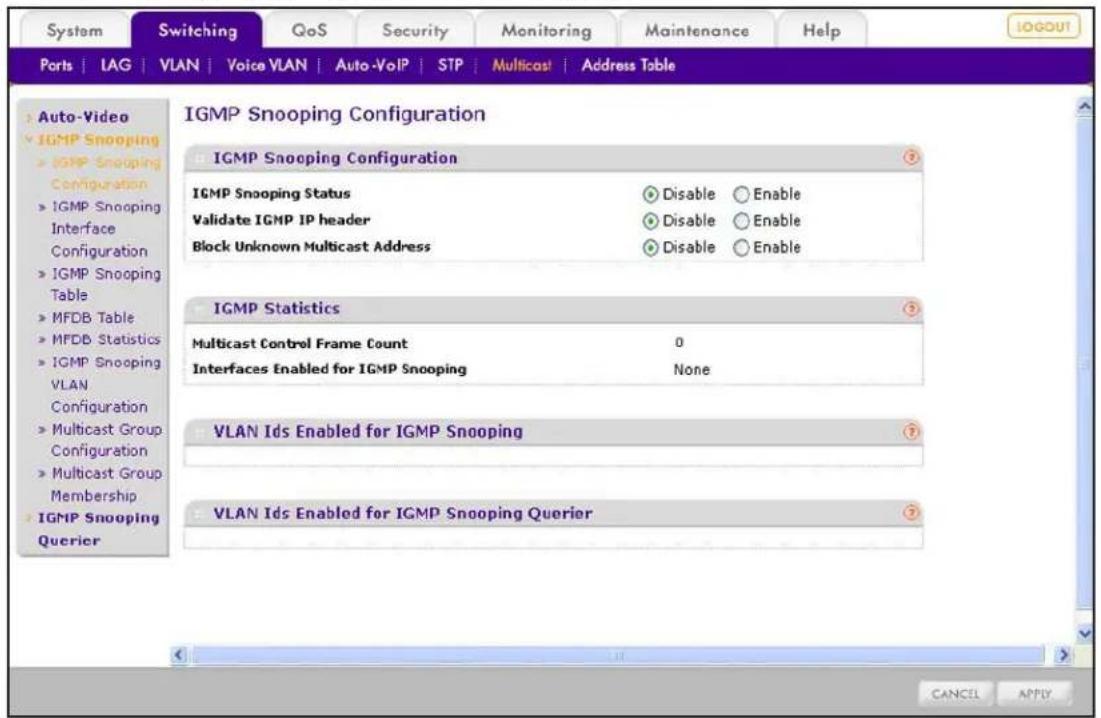
- Configure the settings as described in the following table.
| Setting Description | |
| IGMP Snooping Status Specify the IGMP snooping status:Enable. The smart switch snoops all IGMP packets that it receives to determine which segments should receive packets directed to the group address.Disable. The smart switch does not snoop IGMP packets. This is the default setting. | |
| Validate IGMP IP header Specify whether the IGMP IP header is validated:Enable. The smart switch checks the IP header of all IGMP messages for the Router Alert option, ToS, and TTL. If any of the options are not present or set incorrectly, the packet is dropped.Disable. The smart switch does not check the IGMP IP header for the Router Alert option, ToS, and TTL. | |
| Block Unknown Multicast Address | Specify whether unknown multicast addresses are blocked:Enable. The smart switch drops packets with an unknown multicast MAC address in the destination field.Disable. The smart switch processes packets with an unknown multicast MAC address in the destination field. |
- Click the Apply button.
The settings are saved.
The following table describes the global IGMP snooping status and statistics fields that are shown on the screen.
| Field Description | |
| Multicast Control Frame Count | The number of multicast control frames that the smart switch processed. |
| Interfaces Enabled for IGMP Snooping | The ports that are enabled for IGMP snooping. For information about how to enable ports for IGMP snooping, see Configure IGMP for Individual Ports and LAGs on page 108. |
| VLAN Ids Enabled for IGMP Snooping | The VLANs that are enabled for IGMP snooping. For information about how to enable VLANs for IGMP snooping, see Configure IGMP Snooping for VLANs on page 115. |
| VLAN Ids Enabled for IGMP Snooping Querier | The VLANs that are enabled for the IGMP snooping querier. For information about how to enable VLANs for the IGMP snooping querier, see Manage IGMP Snooping Querier VLANs on page 122. |
Configure IGMP for Individual Ports and LAGs
Use the IGMP Snooping Interface Configuration screen to configure IGMP snooping options for specific ports. When you limit multicast traffic to specific ports on the smart switch, the traffic is prevented from flooding network areas where it is not needed.
To configure the IGMP snooping settings for one or more ports and LAGs:
- Select Switching > Multicast > IGMP Snooping > IGMP Snooping Interface Configuration.
The IGMP Snooping Interface Configuration screen displays.

-
Select whether to configure physical ports, link aggregation groups (LAGs), or both by clicking one of the following links above the table heading:
-
PORTS. Only physical ports display . This is the default setting.
• LAGS . Only LAGs display.
• All. Both physical ports and LAGs display. -
Select whether to configure a single port, a group of ports, or all ports (for the sake of simplicity in this procedure, LAGs are also considered ports):
- T o configure a single port, select the check box next to the port that you want to configure.
The information for the selected port displays in the menu in the table heading.
- To configure a group of ports, select the check boxes for the individual ports that you want to configure.
-
To configure all ports, select the check box at the left in the table heading.
-
Configure the settings as described in the following table:
| Setting Description | |
| Interface This is a nonconfigurable field that shows the port number or LAG number. | |
| Admin Mode Specify the IGMP | snooping status for the port or LAG:Disable. IGMP snooping is disabled for the port or LAG. This is the default setting. You can still configure the port or LAG for snooping, but the settings do not take effect after you have applied them.Enable. IGMP snooping is enabled for the port or LAG. |
| Host Timeout The period that the smart switch waits before it removes the port from a multicast group. After a port has joined a multicast group, the host time-out period determines how long the smart switch waits for an IGMP message from the multicast group before it removes the port from the multicast group. Enter a value between 2 and 3600 seconds. The default setting is 260 seconds.Note:The host time-out period must be longer than the maximum response time. | |
| Max Response Time The max | mum response time for the IGMP query for the port or LAG. That is, the maximum period that the smart switch waits for a response from a host if the smart switch is the querier for the port or LAG. Enter a period in seconds in the range from 1 to 25. The default is 10 seconds.Note:The maximum response time must be shorter than the host time-out period. |
| MRouter Timeout The period that the smart switch waits for a query on the port or LAG before removing the port or LAG from the list of interfaces that have multicast routers attached. Enter a value between 0 and 3600 seconds. The default is 0, which specifies an infinite time-out, that is, there is no expiration. | |
| Fast Leave Admin Mode Specify whether the IGMP snooping fast leave mode is enabled for the port or LAG:Enable . Fast leave mode is enabled for the port or LAG. Upon receiving an IGMP leave message for a multicast group, the smart switch immediately removes the Layer 2 LAN interface entry from its forwarding database without first sending a MAC-based general query to the port or LAG.Disable. Fast leave mode is disabled for the port or LAG. This is the default setting.Note:Fast leave mode is supported only with IGMP version 2 hosts.Note:Enable fast leave mode only for a port or LAG to which a single host is connected. If more than one host is connected to the port or LAG, other hosts might be dropped inadvertently even though they are still interested in receiving multicast traffic that is directed to the group. | |
- Click the Apply button.
The settings are saved.
View, Search, and Clear the IGMP Snooping Table
The IGMP Snooping Table displays only the entries from the multicast forwarding database (MFDB) that were created for IGMP snooping. For information about how to display all entries of the MFDB, see View and Search the Multicast Forwarding Database Table on page 112. You can search the IGMP Snooping Table by MAC address.
View and Search the IGMP Snooping Table
To view the IGMP Snooping Table and search for an entry in the IGMP Snooping Table:
1. Switching > Multicast > IGMP Snooping > IGMP Snooping Table.
The IGMP Snooping Table screen displays.
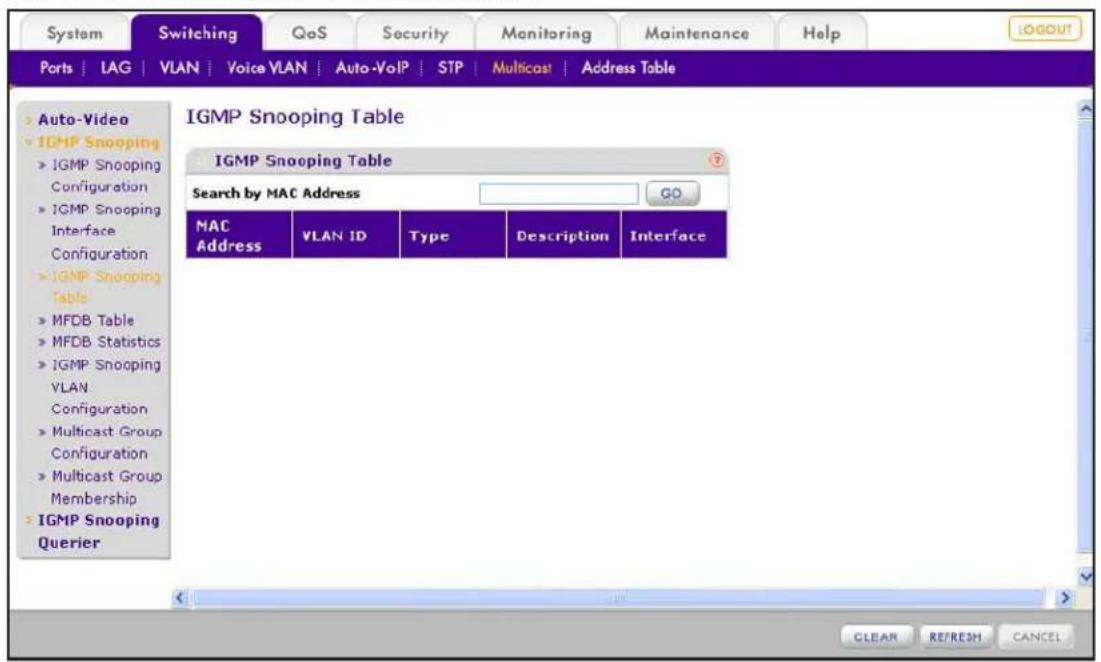
-
In the Search by MAC Address field, enter a 6-byte hexadecimal MAC address in 2-digit groups separated by colons (an exact match is required).
-
Click the GO button.
If one or more matches are found, they are displayed in the IGMP Snooping Table.
The following table describes the information that is displayed for each entry in the IGMP Snooping Table.
| Field Description | |
| MAC Address The multicast MAC address that was added for IGMP snooping. | |
| VLAN ID The VLAN ID that is associated with the MAC address. | |
| Type The type of the entry. For most addresses, the Type field displays Dynamic, indicating that the MAC address was learned through detection and is still in use. | |
| Description The text description for the entry: ·Management Configured. A static multicast MAC address entry. ·Network Assisted. A dynamic multicast MAC address entry. | |
| Interface | The ports that are designated for forwarding (Fwd) and filtering (Flt) for the associated MAC address. |
4. (Optional) Click the Refresh button.
The screen refreshes to display the most current data.
Remove All Entries from the IGMP Snooping Table
To remove all entries from the IGMP Snooping Table:
- Switching > Multicast > IGMP Snooping > IGMP Snooping Table.
The IGMP Snooping Table screen displays.
- Click the Clear button.
All entries are removed from the IGMP Snooping Table.
View and Search the Multicast Forwarding Database Table
The smart switch uses the multicast forwarding database (MFDB) to determine how incoming packets with a multicast MAC address need to be forwarded to their destination.
When a packet enters the switch, the destination MAC address is combined with the VLAN ID, and the smart switch searches the MFDB:
- If the smart switch finds a match, the packet is forwarded only to the ports or LAGs that are members of the multicast group.
- If the smart switch does not find a match, either it floods the packet to all ports in the VLAN, or it discards the packet, depending on the configuration.
The MFDB contains all active multicast MAC addresses with their associated VLANs, ports, and forwarding ports. You can search the MFDB by MAC address.
To view the MFDB Table and search for an entry in the MFDB Table:
- Switching > Multicast > IGMP Snooping > MFDB Table.
The MFDB Table screen displays. The following figure contains some examples.
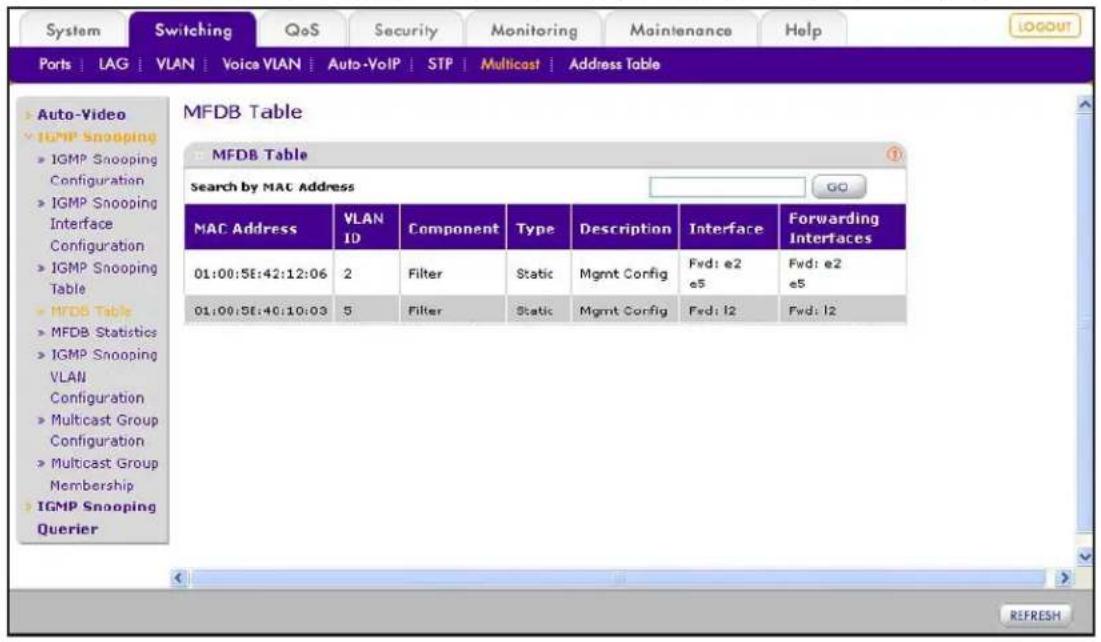
-
In the Search by MAC Address field, enter a 6-byte hexadecimal MAC address in 2-digit groups separated by colons (an exact match is required).
-
Click the GO button.
If one or more matches are found, they are displayed in the MFDB Table.
The following table describes the information that is displayed for each entry in the MFDB Table.
| Field Description | |
| MAC Address The multicast MAC address that was added for IGMP snooping. | |
| VLAN ID The VLAN ID that is associated with the MAC address. | |
| Component The component that is responsible for this entry in the multicast forwarding database:IGMP. The entry was added through IGMP snooping.Filter. The entry was added through static filtering. | |
| Type The type of the entry:Static. You added the static multicast MAC address manually. For more information, see Manage Multicast Groups on page 118.Dynamic . The MAC address was learned through detection. The entry is still in use. | |
| Description The text description for the entry:Management Configured . A static multicast MAC address entry.Network Assisted. A dynamic multicast MAC address entry. | |
| Interface The ports that | are designated for forwarding (Fwd) and filtering (Flt) for the associated MAC address. |
| Forwarding Interfaces | The ports that are designated for forwarding only. The filtering ports are not displayed. |
- (Optional) Click the Refresh button.
The screen refreshes to display the most current data.
View the Multicast Forwarding Database Statistics
You can view statistical information about the MFDB.
To display MFDB statistics:
- Select Switching > Multicast > IGMP Snooping > MFDB Statistics.
The MFDB Statistics screen displays.
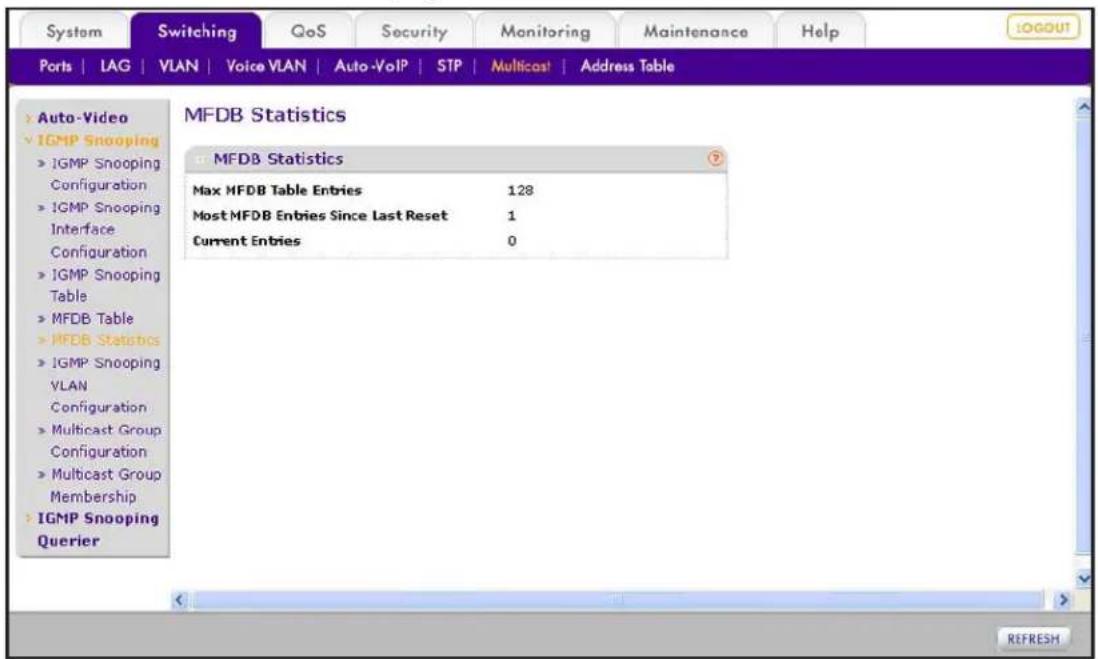
The following table describes the MFDB statistics.
| Field Description | |
| Max MFDB Table Entries | The maximum number of entries that the MFDB can hold. |
| Most MFDB Entries Since Last Reset | The largest number of entries that have been present in the MFDB since the smart switch was started. This number is also referred to as the MFDB high-water mark. |
| Current Entries The current number of entries in the MFDB. | |
2. (Optional) Click the Refresh button.
The screen refreshes to display the most current data.
Configure IGMP Snooping for VLANs
Use the IGMP Snooping VLAN Configuration screen to configure IGMP snooping options for specific VLANs. When you limit multicast traffic to specific VLANs (and, therefore, specific ports and LAGs) on the smart switch, the traffic is prevented from flooding network areas where it is not needed. You can also configure the IGMP snooping query mode for a VLAN.
Add an IGMP Snooping VLAN Configuration
To add an IGMP snooping VLAN configuration:
1. Select Switching > Multicast > IGMP Snooping > IGMP Snooping VLAN Configuration.
The IGMP Snooping VLAN Configuration screen displays. The following figure shows an example.
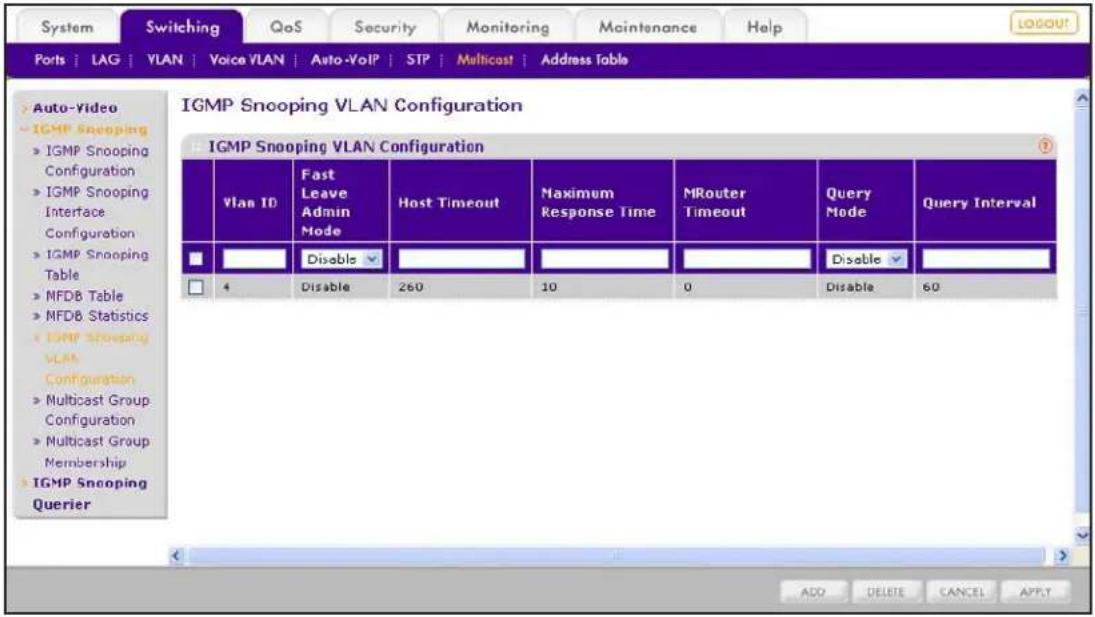
- Configure the settings as described in the following table:
| Setting Description | |
| VLAN ID The VLAN ID. Enter a default VLAN ID or a custom VLAN ID that you created on the VLAN Configuration screen (see Manage Custom VLANs on page 80). | |
| Fast Leave Admin Mode Specify whether the IGMP snooping fast leave mode is enabled for the VLAN:Enable. Fast leave mode is enabled for the VLAN. Upon receiving an IGMP leave message for a multicast group, the smart switch immediately removes the Layer 2 LAN interface entry from its forwarding database without first sending a MAC-based general query to the VLAN.Disable. Fast leave mode is disabled for the VLAN. This is the default setting.Nest leave mode is supported only with IGMPv2 hosts.Note: Enable fast leave mode only for a VLAN in which a single host is connected to a port or LAG. If more than one host is connected to the ports and LAGs in the VLAN, other hosts might be dropped inadvertently even though they are still interested in receiving multicast traffic that is directed to the group. | |
| Host Timeout The period that the smart switch waits before it removes the port from a multicast group. After a port has joined a multicast group, the host time-out period determines how long the smart switch waits for an IGMP message from the multicast group before it removes the port from the multicast group. Enter a value between 2 and 3600 seconds. The default setting is 260 seconds.Note: The host time-out period must be longer than the maximum response time. | |
| Maximum Response Time The maximum response time for the IGMP query for the VLAN. That is, the maximum period that the smart switch waits for a response from a host if the smart switch is the querier for the VLAN. Enter a period in seconds in the range from 1 to 25. The default is 10 seconds.Note: The maximum response time must be shorter than the host time-out period. | |
| MRouter Timeout The period that the smart switch waits for a query on the VLAN before removing the VLAN from the list of interfaces that have multicast routers attached. Enter a value between 0 and 3600 seconds. The default is 0 seconds, which specifies an infinite time-out, that is, there is no expiration. | |
| Query Mode Specify the IGMP | snooping querier status for the VLAN:Disable. The VLAN is not an IGMP snooping querier . This is the default setting. You can still configure the VLAN as an IGMP snooping querier, but the settings do not take effect after you have applied them.Enable. The VLAN is an IGMP snooping querier but becomes operational only if you enable the (global) querier administrative mode (see Configure the Global IGMP Snooping Querier Options on page 121). |
| Query Interval | The IGMP query interval for the VLAN in the range from 1 to 1800 seconds. The default is 60 seconds. |
3. Click the Apply button.
The settings are saved. The new VLAN configuration is added to the IGMP Snooping VLAN Configuration table.
Change an IGMP Snooping VLAN Configuration
To change an IGMP snooping VLAN configuration:
- Select Switching > Multicast > IGMP Snooping > IGMP Snooping VLAN Configuration.
The IGMP Snooping VLAN Configuration screen displays.
- Select the check box to the left of the VLAN configuration that you want to change.
- Change the settings.
- Click the Apply button.
The modification is displayed in the IGMP Snooping VLAN Configuration table.
Remove an IGMP Snooping VLAN Configuration
To remove an IGMP snooping VLAN configuration:
- Select Switching > Multicast > IGMP Snooping > IGMP Snooping VLAN Configuration.
The IGMP Snooping VLAN Configuration screen displays.
- Select the check box to the left of the VLAN configuration that you want to remove.
- Click the Delete button.
The VLAN configuration is removed from the IGMP Snooping VLAN Configuration table.
Manage Multicast Groups and Group Memberships
A multicast group is defined by its multicast MAC address. You create a multicast group by associating a multicast MAC address with a VLAN, which is added as a static member of the multicast group, and by including ports, LAGs, or both as static members of the multicast group.
Manage Multicast Groups
You can add up to eight multicast groups to the Multicast Group Configuration table.
Add a Multicast Group
To add a multicast group:
- Select Switching > Multicast > IGMP Snooping > Multicast Group Configuration.
The Multicast Group Configuration screen displays. The following figure contains some examples.
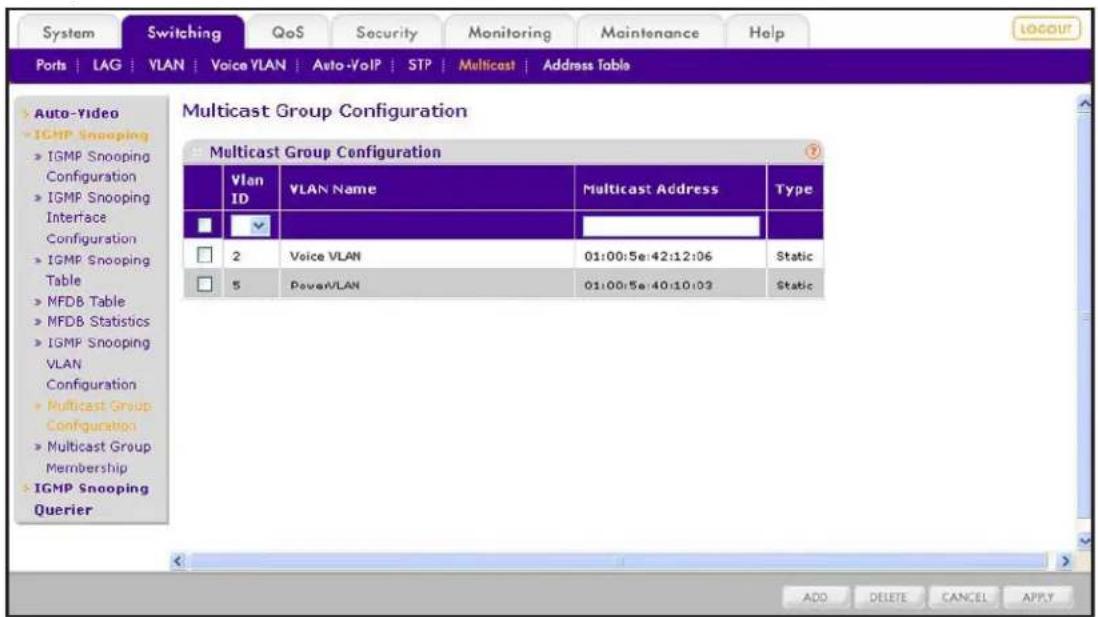
- From the VLAN ID menu, select a default VLAN or custom VLAN ID that you created on the VLAN Configuration screen (see Manage Custom VLANs on page 80).
- In the Multicast Address field, type a multicast MAC address.
A multicast MAC address starts with 01:00:5E, as in 01:00:5E:AA:BB:CC.
- Click the Add button.
The settings are saved, and the multicast group is added to the Multicast Group Configuration table.
Change a Multicast Group
To change a multicast group:
- Select Switching > Multicast > IGMP Snooping > Multicast Group Configuration.
The Multicast Group Configuration screen displays. - Select the check box to the left of the multicast group that you want to change.
Change the VLAN ID, MAC address, or both. - Click the Apply button.
The modification is displayed in the Multicast Group Configuration table.
Remove a Multicast Group
To change a multicast group:
- Select Switching > Multicast > IGMP Snooping > Multicast Group Configuration.
The Multicast Group Configuration screen displays. - Select the check box to the left of the multicast group that you want to remove.
- Click the Delete button.
The multicast group is removed from the Multicast Group Configuration table.
Manage Multicast Group Memberships
Even though a port or LAG can be a member of a VLAN, the port or LAG is not automatically added when that VLAN is associated with a multicast address to form a multicast group. By default, no ports or LAGs are members of a multicast group. After you have created a multicast group, you need to add ports, LAGs, or both as static members of the multicast group.
To add ports and LAGs as members of a multicast group:
- Select Switching > Multicast > IGMP Snooping > Multicast Group Membership.
The Multicast Group Membership screen displays. The following figure shows an example.
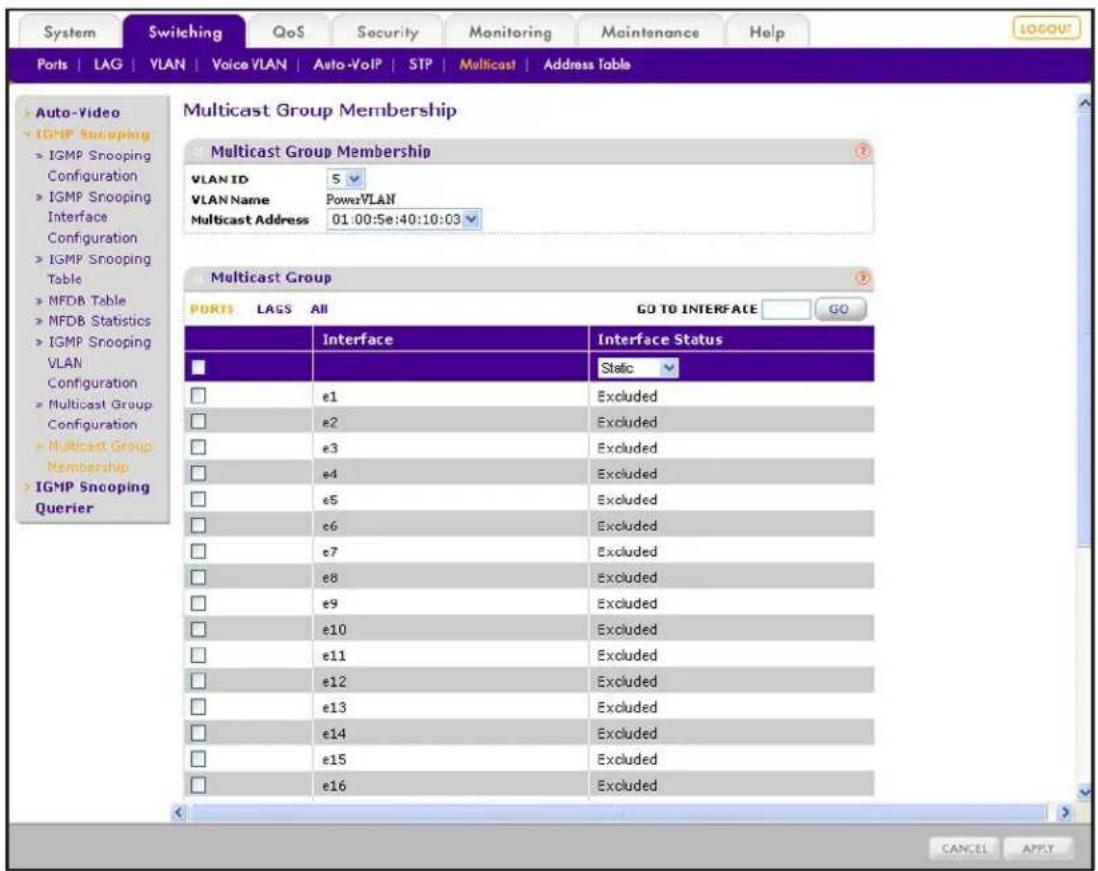
- In the Multicast Group Membership section of the screen, configure the settings as described in the following table.
| Setting Description | |
| VLAN ID From the VLAN ID | menu, specify the multicast group to which you want to add members by selecting the VLAN ID. |
| VLAN Name This is nonconfigurable field that shows the VLAN name. | |
| Multicast Address This is nonconfigurable field that shows the multicast MAC address that you configured when you added the multicast group (see Add a Multicast Group on page 118). | |
-
In the Multicast Group section of the screen, select whether to configure physical ports, link aggregation groups (LAGs), or both by clicking one of the following links above the table heading:
-
PORTS. Only physical ports display . This is the default setting.
• LAGS . Only LAGs display.
• All. Both physical ports and LAGs display. -
In the Multicast Group section of the screen, select whether to configure a single port, a group of ports, or all ports (for the sake of simplicity in this procedure, LAGs are also considered ports):
- T o configure a single port, select the check box next to the port that you want to configure.
The information for the selected port displays in the menu in the table heading.
- To configure a group of ports, select the check boxes for the individual ports that you want to configure.
-
To configure all ports, select the check box at the left in the table heading.
-
In the Multicast Group section of the screen, from the Interface Status menu, select Static.
By default, the selection is Excluded, and the port or LAG is not a member of the multicast group.
- Click the Apply button.
The settings are saved.
Configure the IGMP Snooping Querier
IGMP snooping requires that one central switch or router in the network periodically queries all end devices in the network to announce their multicast memberships. This central device is the IGMP querier. The IGMP query responses, known as IGMP reports, keep the switch or router updated with the current multicast group membership on a port-by-port basis. If the switch or router does not receive updated membership information in a timely fashion, it stops forwarding multicast traffic to the port where the end device is located.
Configure the Global IGMP Snooping Querier Options
The global IGMP snooping querier options include enabling the IGMP snooping querier, configuring the querier IP address, configuring the IGMP version (IGMPv1 or IGMPv2), and configuring the query interval and query expiration time.
To configure the global IGMP snooping querier options:
- Select Switching > Multicast > IGMP Snooping Querier > Querier Configuration.
The Querier Configuration screen displays.
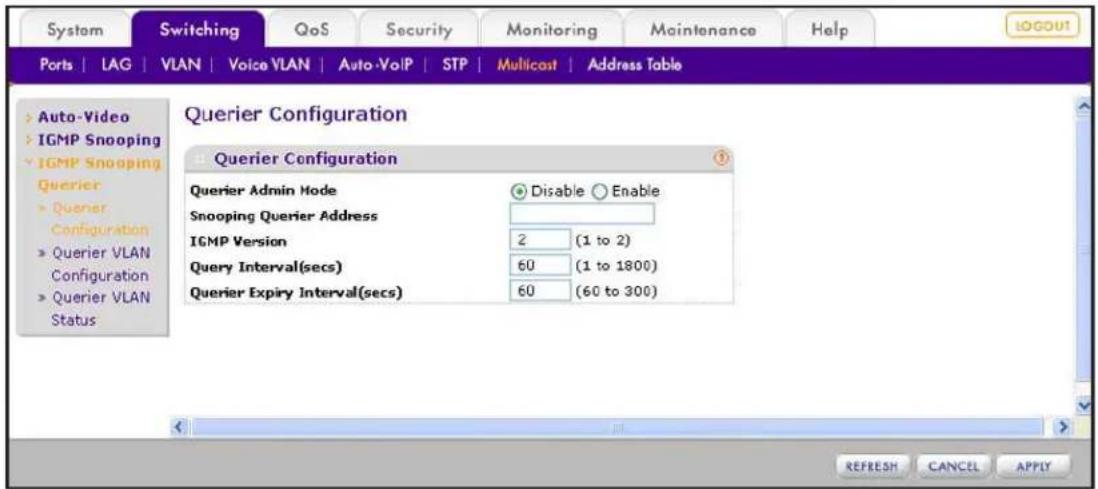
- Configure the settings as described in the following table.
| Setting Description | |
| Querier Admin Mode Specify the IGMP snooping querier status:Disable. The smart switch does not function as an IGMP snooping querier in the network. This is the default setting.Enable . The smart switch functions as an IGMP snooping querier in the network. | |
| Snooping Querier Address | The IP address that is the global source address in periodic IGMP queries. This smart switch uses this IP address if you do not configure an IP address in the Snooping Querier VLAN Address field on the Querier VLAN Configuration screen (see Manage IGMP Snooping Querier VLANs on page 122) for a VLAN on which queries are sent. |
| IGMP Version The IGMP version. You can enter one of two options:1. The smart switch uses IGMPv1 for its queries.2. The smart switch uses IGMPv2 for its queries. This is the default setting. | |
| Query Interval The period in seconds between queries. Enter a value in the range of 1 to 1800 seconds. The default value is 60 seconds. | |
| Querier Expiry Interval | The period in seconds after which the last querier information is removed. Enter a value in the range of 60 to 300 seconds. The default value is 60 seconds. |
- Click the Apply button.
The settings are saved.
Manage IGMP Snooping Querier VLANs
You can configure the smart switch to perform IGMP snooping queries on one or more VLANs.
Add a VLAN for IGMP Snooping Queries
To add a VLAN on which the smart switch can perform IGMP snooping queries:
1. Select Switching > Multicast > IGMP Snooping Querier > Querier VLAN Configuration.
The Querier VLAN Configuration screen displays.
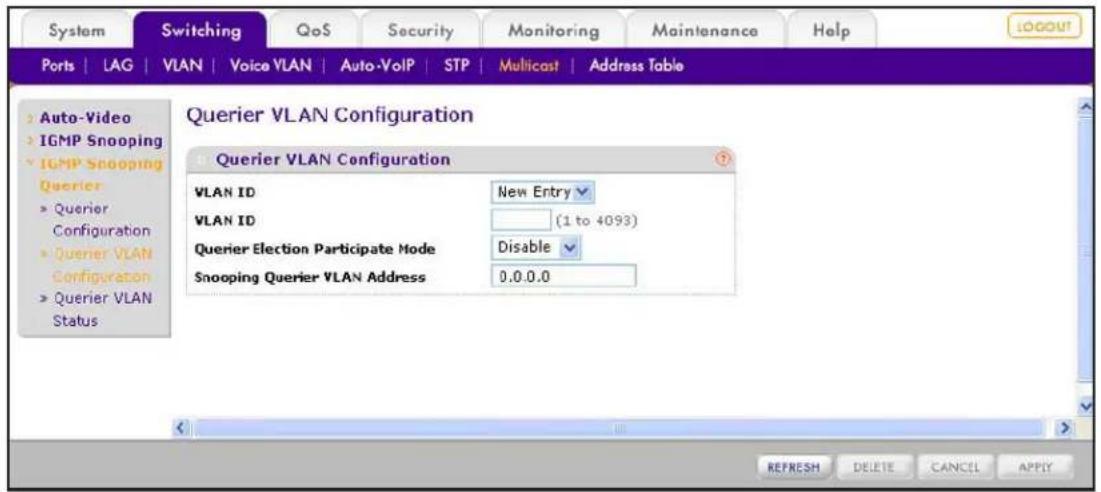
- Configure the settings as described in the following table.
| Setting Description | |
| VLAN ID | From the VLAN ID menu, selectNew Entry, and type the VLAN ID in the field below the menu. You can enter only a default VLAN ID or a custom VLAN ID that you created on the VLAN Configuration screen (seeManage Custom VLANs on page 80). |
| Querier Election Participate Mode | From the menu, select the querier election participation mode for the VLAN by selecting one of the following options:Disabled.If the IGMP snooping querier detects another querier of the same IGMP version in the VLAN, the snooping querier moves to the Non-Querier state. This is the default setting.Enabled.The IGMP snooping querier participates in querier election, in which the numerically lowest IP address operates as the querier in that VLAN. Queriers with numerically higher IP addresses move to the Non-Querier state. |
| Snooping Querier VLAN Address | The IP address that is the source address in periodic IGMP queries on the VLAN.If you do not specify an IP address, the smart switch uses the global IP address that you configure in the Snooping Querier Address field on the Querier Configuration screen (seeConfigure the Global IGMP Snooping Querier Options on page 121). |
- Click the Apply button.
The settings are saved.
Change the VLAN Settings for IGMP Snooping Queries
To change the settings for a VLAN on which the smart switch can perform IGMP snooping queries:
- Select Switching > Multicast > IGMP Snooping Querier > Querier VLAN Configuration.
The Querier VLAN Configuration screen displays. - From the VLAN ID menu, select the VLAN ID for which you want to change the settings.
- Change the settings.
You can change the querier election participation mode and IP address. - Click the Apply button.
The settings are saved.
Remove a VLAN for IGMP Snooping Queries
To remove a VLAN on which the smart switch can perform IGMP snooping queries:
- Select Switching > Multicast > IGMP Snooping Querier > Querier VLAN Configuration.
The Querier VLAN Configuration screen displays. - From the VLAN ID menu, select the VLAN ID that you want to remove.
- Click the Delete button.
The VLAN is removed.
View the IGMP Snooping Querier VLAN Status
You can view the IGMP operational state and other information for IGMP snooping queriers that operate on VLANs in the network.
To display the IGMP operational state and other information for IGMP snooping queriers:
- Select Switching > Multicast > IGMP Snooping Querier > Querier VLAN Status.
The Querier VLAN Status screen displays. The following figure contains examples.
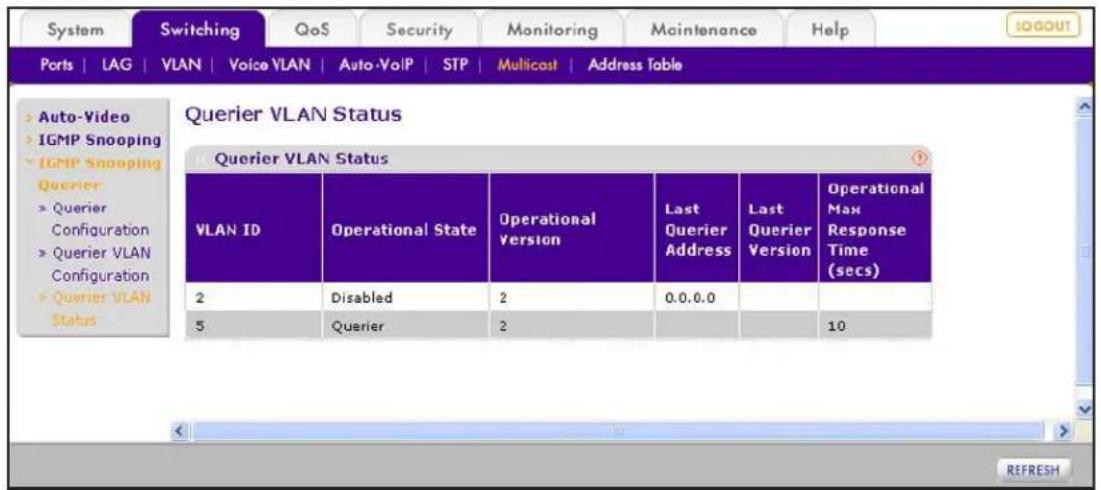
The following table describes the fields of the Querier VLAN Status screen.
| Field Description | |
| VLAN ID The VLAN ID | on which the IGMP snooping querier is administratively enabled and for which a VLAN exists in the VLAN database. |
| Operational State Spec | fies the operational state of the IGMP snooping querier on the VLAN:• Querier. The querier is the active IGMP snooping querier in the VLAN. The smart switch sends periodic queries. If the smart switch detects a better querier (that is, with a numerically lower IP address) on the VLAN, it moves to the Non-Querier state.• Non-Querier. The querier functions in the Non-Querier state on the VLAN. When the querier expiry interval timer expires, the querier moves to the Querier state.• Disabled. The querier is configured but disabled on the VLAN. The querier moves to the Disabled state in any of the following conditions:- IGMP snooping is not operational on the VLAN.- The querier IP address is not configured.- The network management address is not configured. |
| Operational Version The | IGMP protocol version of the querier. |
| Last Querier Address The | IP address of the last querier that snooped on the VLAN. |
| Last Querier Version The | IGMP protocol version of the last querier that snooped on the VLAN. The last querier version can differ from the operational version because the smart switch supports IGMPv2, IGMPv2, and IGMPv3 concurrently. |
| Operational Max Response Time | The period in which a snooping query needs to be responded to. This is the value that you configure in the Maximum Response Time field on the IGMP Snooping VLAN Configuration screen (see Configure IGMP Snooping for VLANs on page 115). |
- (Optional) Click the Refresh button.
The screen refreshes to display the most current data.
Configure Spanning Tree Protocol
11
This chapter describes how to configure the Spanning Tree Protocol (STP) features, including Rapid STP (RSTP) and Common Spanning Tree (CST). The chapter includes the following sections:
- Spanning Tree Protocol Concepts
- Configure the CST
- Configure CST on Ports and LAGs
• View the CST Port and LAG Status
• View the RSTP Port and LAG Status
• View the STP Statistics
- Configure the Global STP Options and View the STP Status
Spanning Tree Protocol Concepts
The Spanning Tree Protocol (STP) provides a tree topology for a bridged LAN. STP also provides one path between end stations on a network, eliminating loops. The smart switch supports Classic Spanning Tree (STP, 802.1d) and Rapid STP (RSTP, 802.1w).
RSTP supports full-duplex connectivity. While STP can take 30 to 50 seconds to respond to a topology change, RSTP typically responds to changes within a few seconds. RSTP can revert to 802.1d to interoperate with legacy bridges on a per-port basis. In that situation, the benefits of RSTP are lost.
Configure the Global STP Options and View the STP Status
The global STP options include enabling STP, selecting STP or RSTP as the mode, and enabling bridge protocol data unit (BPDU) flooding either for all ports and LAGs or for a specific port or LAG.
To configure the global STP options and view the STP statistics:
- Select Switching > STP > Basic > STP Configuration.
The STP Configuration screen displays.
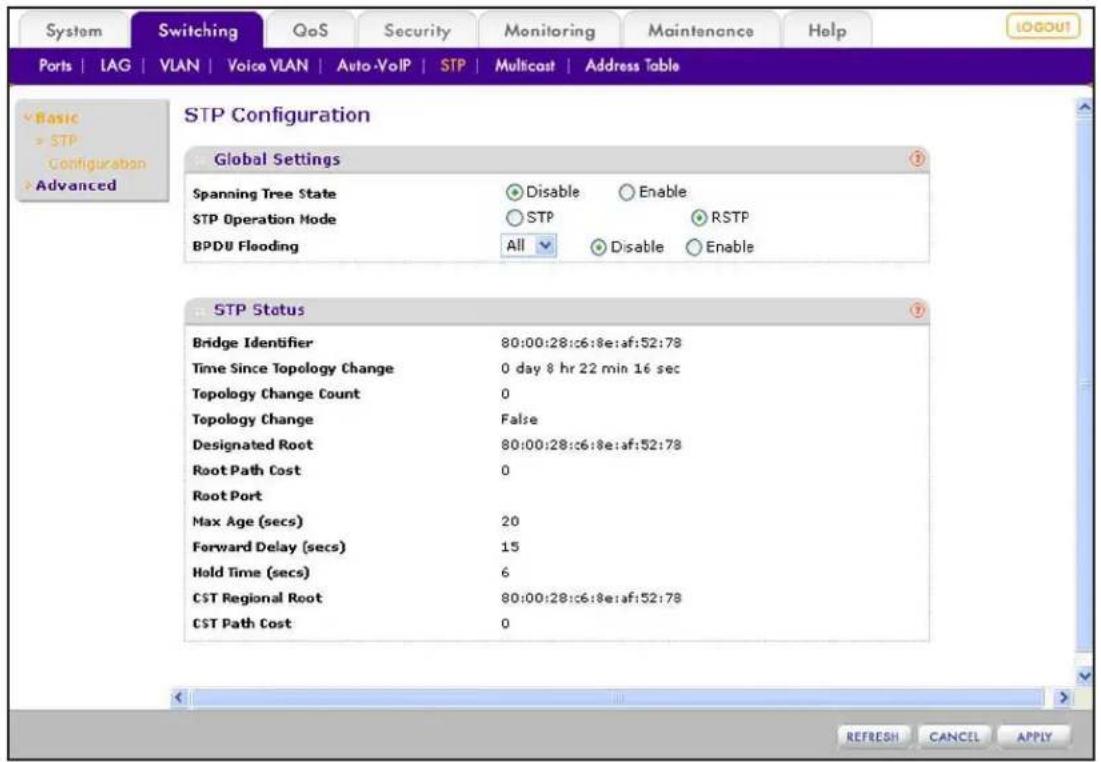
- In the Global Settings section of the screen, configure the settings as described in the following table.
| Setting Description | |
| Spanning Tree State | Specify the status of STP on the smart switch by selecting one of the following radio buttons:Disable. STP is disabled. You can still configure STP, but the settings do not take effect after you have applied them. This is the default setting.Enable. STP is enabled. You can configure STP, and the settings take effect after you have applied them. |
| STP Operation Mode Specify the STP version by selecting one of the following radio buttons:STP. Classic Spanning Tree Protocol (STP).RSTP. Rapid Spanning Tree Protocol (RSTP). This is the default setting. | |
| BPDU Flooding If you enable BPDU flooding and if STP is disabled, BPDU packets that arrive at a port or LAG are flooded to all other ports and LAGs. Specify the BPDU flooding status by selecting one of the following radio buttons:Disable. If STP is disabled on the port or LAG, spanning tree BPDUs are not forwarded. This is the default setting.Enable. If STP is disabled on the port or LAG, spanning tree BPDUs are forwarded. From the menu, select a single port or LAG on which the BPDUs arrive, or leave the default selection at All, in which case BPDUs that arrive on any port or LAG are forwarded to all other ports and LAGs. | |
- Click the Apply button.
The settings are saved.
The following table describes the STP status fields that are shown on the screen.
| Field Description | |
| Bridge Identifier The STP bridge | identifier for the Common Spanning Tree (CST) on the smart switch. The identifier consists of the bridge priority and the base (fixed) MAC address of the smart switch.You configure the bridge priority on the CST Configuration screen (see Configure the CST on page 129. |
| Time Since Topology Change | The time that has passed since the last change of the CST topology occurred. The time is displayed in the day-hour-minute-second format. |
| Topology Change Count The number of times that the CST topology has changed. | |
| Topology Change | The value of the topology change setting for the smart switch. This value indicates if a topology change is in progress on any port or LAG that is assigned to the CST:•T rue.A topology change is in progress.•False.No topology change is in progress. |
| Designated Root | The STP bridge identifier of the root bridge. The identifier consists of the bridge priority and the base MAC address of the root bridge. |
| Root Path Cost | The path cost to the designated root for the CST. |
| Root Port The port or LAG that | provides access to the designated root for the CST. |
| Max Age (secs) The timer that | controls the maximum time that passes before an STP bridge port saves its configuration BPDU. |
| Forward Delay (secs) The value | that is derived from the bridge forward delay parameter of the STP root port. |
| Hold Time (secs) The minimum | period between the transmission of configuration BPDUs. |
| CST Regional Root The priority | and base MAC address of the CST regional root. |
| CST Path Cost | The path cost to the CST tree regional root. |
4. (Optional) Click the Refresh button.
The screen refreshes to display the most current data.
Configure the CST
The CST Configuration screen lets you configure the global bridge settings for the Common Spanning Tree (CST) on the smart switch.
To configure the global CST bridge settings:
1. Select Switching > STP > Advanced > CST Configuration.
The CST Configuration screen displays.
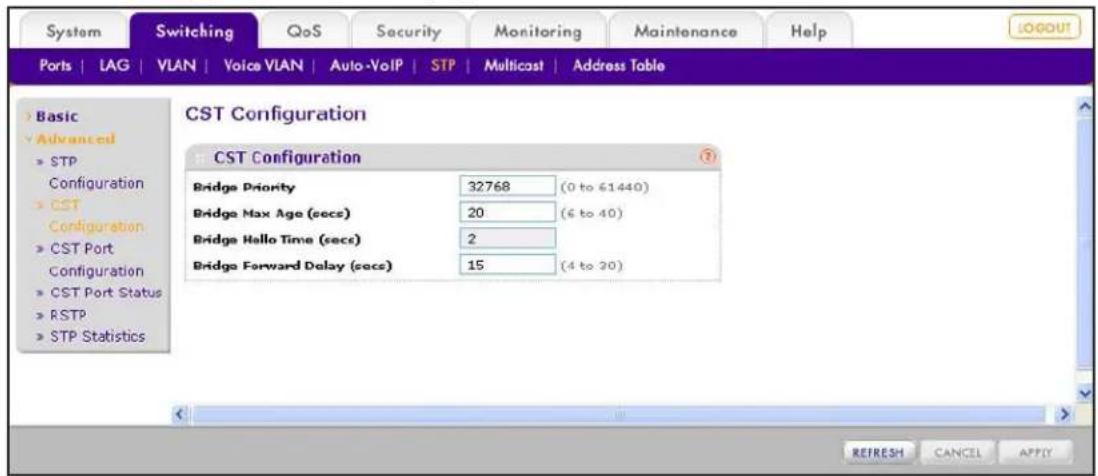
- Configure the settings as described in the following table.
| Setting Description | |
| Bridge Priority The bridge | priority value for the CST. Enter a number that is a multiple of 4096 and that is in the range from 0 to 61440. The default priority is 32768.When switches or bridges are running STP, each is assigned a priority. After the devices exchange BPDUs, the device with the lowest priority value becomes the root bridge.Note:If you specify a priority that is not a multiple of 4096, the priority is automatically adjusted to the next lowest priority that is a multiple of 4096. For example, if you configure the priority to any value between 0 and 4095, the smart switch sets it to 0. |
| Bridge Max Age (secs) The | maximum age time for the CST in seconds. This is the period that an STP bridge or switch waits before implementing a topological change. Enter a number in the range from 6 to 40 seconds, considering that the period needs to be less than or equal to (2 * Bridge Forward Delay) – 1 and greater than or equal to 2 * (Bridge Hello Time +1). The default period is 20 seconds. |
| Bridge Hello Time (secs) | This is a nonconfigurable field that shows the hello time on the smart switch for the CST. This time is the period in seconds that a root bridge waits between configuration messages. The value is fixed at 2 seconds. |
| Bridge Forward Delay (secs) | The forward delay time for the smart switch, which is the period in seconds that a bridge remains in a listening and learning state before forwarding packets.Enter a number in the range from 4 to 30 seconds, considering that the period needs to be greater or equal to (Bridge Max Age / 2) + 1. The default period is 15 seconds. |
- Click the Apply button.
The settings are saved.
Configure CST on Ports and LAGs
The CST Port Configuration screen lets you configure the settings for the Common Spanning Tree (CST) for individual ports and LAGs.
To configure the CST settings for one or more ports and LAGs:
- Select Switching > STP > Advanced > CST Port Configuration.
The CST Port Configuration screen displays. The following figure does not show all ports.
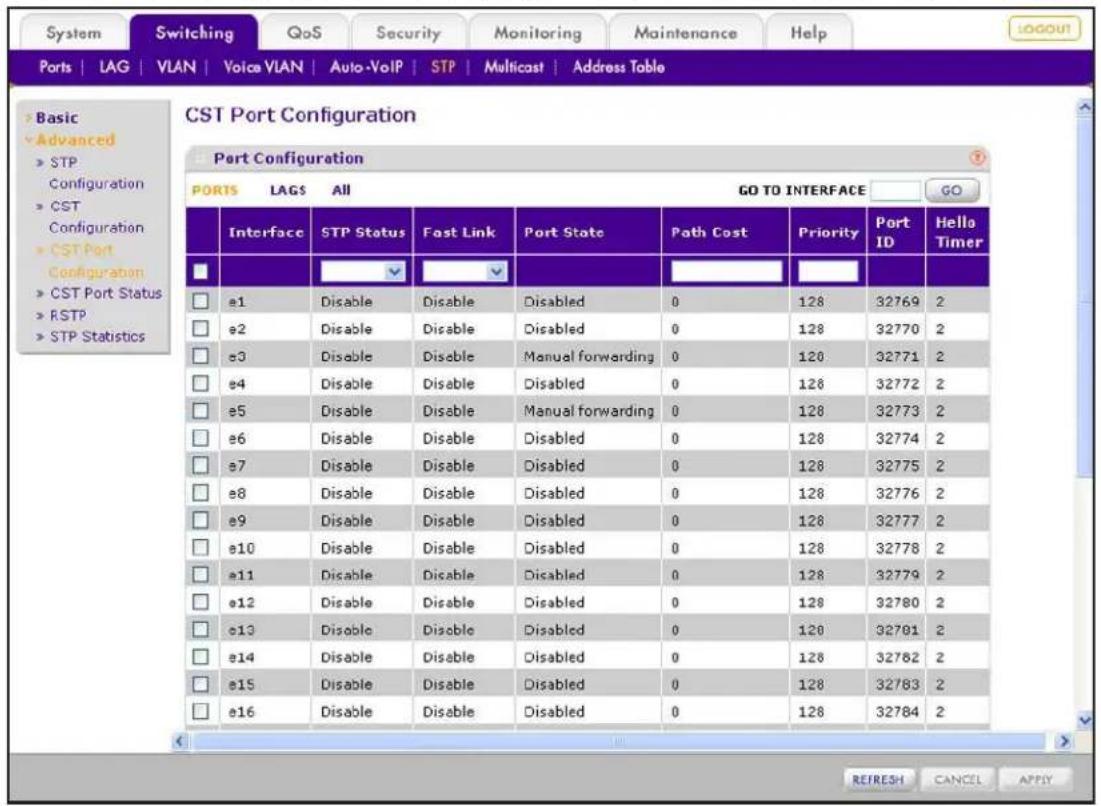
-
Select whether to configure physical ports, link aggregation groups (LAGs), or both by clicking one of the following links above the table heading:
-
PORTS. Only physical ports display . This is the default setting.
• LAGS . Only LAGs display.
• All. Both physical ports and LAGs display. -
Select whether to configure a single port, a group of ports, or all ports (for the sake of simplicity in this procedure, LAGs are also considered ports):
- T o configure a single port, select the check box next to the port that you want to configure.
The information for the selected port displays in the menu in the table heading.
- To configure a group of ports, select the check boxes for the individual ports that you want to configure.
-
To configure all ports, select the check box at the left in the table heading.
-
Configure the settings as described in the following table.
| Setting Description | |
| Interface This is a nonconfigurable field that shows the port number or LAG number. | |
| STP Status Specify the STP status for the port or LAG:Enable. STP is enabled for the port or LAG.Disable. STP is disabled for the port or LAG. This is the default setting. | |
| Fast Link Specify whether the port or LAG functions as an edge port in the CST:Enable . The port or LAG is an edge port.Disable. The port or LAG is not an edge port. This is the default setting.Note: You can refer to an edge port as a fast link. | |
| Port State This is a nonconfigurable field that shows the forwarding state for the port or LAG:Discarding . The port or LAG is in the discarding state; it cannot forward traffic and cannot learn new MAC addresses.Learning. The port or LAG is in the learning state; it cannot forward traffic, but it can learn new MAC addresses.Forwarding. The port or LAG is in the forwarding state; it can forward traffic and learn new MAC addresses.Manual forwarding . The port or LAG is in the forwarding state but STP is disabled or the port is a trunk member (that is, the port is a member of a LAG).Disabled. The port or LAG is disabled. | |
| Path Cost The path cost for the port or LAG in the CST. Enter a value in the range of 0 to 200000000. By default, the path cost has a value of 0, which allows the path cost to be updated with an external path cost from received STP packets. | |
| Priority The priority for the port or LAG in the CST . Enter a value in the range of 0 to 240 that is a multiple of 16. The default value is 128.Note: If you specify a value that is not a multiple of 16, the priority is automatically adjusted to the next lowest priority that is a multiple of 16. For example, if you set a value between 0 and 15, the priority is adjusted to 0. If you specify a number between 16 and 31, the priority is adjusted to 16. | |
| Port ID This is a nonconfigurable field that shows the port ID for the port or LAG within the CST. The port ID is made up from the port priority (32768) and the interface number of the port, that is, the interface number of the port is added to 32768. The interface numbers of the LAGs (I1 through I8) are for this purpose 30 through 36. | |
| Hello Timer This is a nonconfigurable field that shows the hello time for the port or LAG in the CST. This time is the period in seconds that the port or LAG waits between configuration messages. The value is fixed at 2 seconds. | |
- Click the Apply button.
The settings are saved.
- (Optional) Click the Refresh button.
The screen refreshes to display the most current data.
View the CST Port and LAG Status
You can view the status of the Common Spanning Tree (CST) for individual ports and LAGs.
To display the status of the CST for individual ports and LAG:
1. Select Switching > STP > Advanced > CST Port Status.
The CST Port Status screen displays. The following figure does not show all ports.
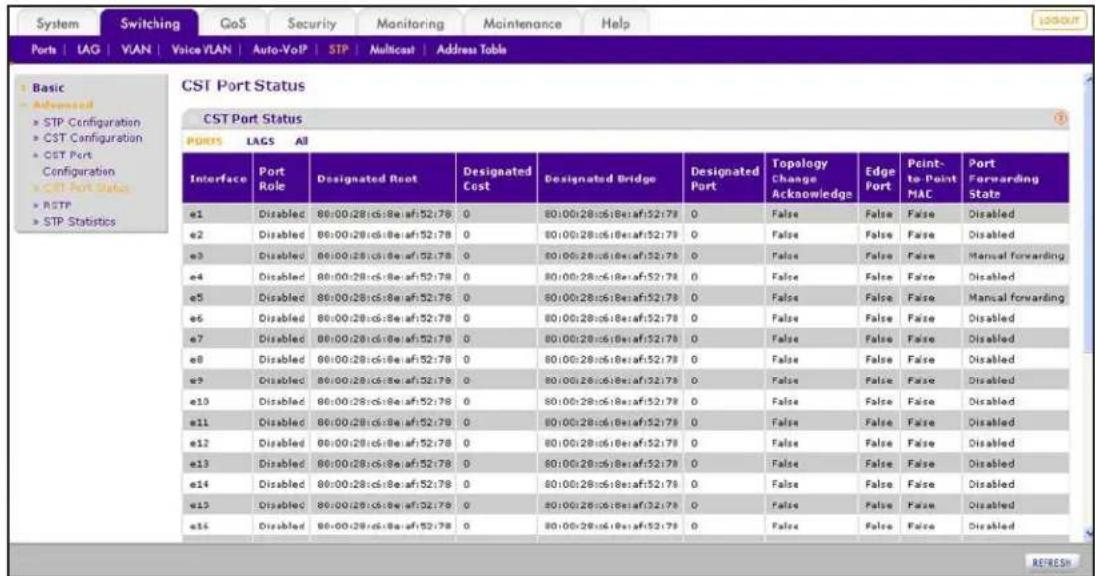
2. Select whether to display physical ports, link aggregation groups (LAGs), or both by clicking one of the following links above the table heading:
- PORTS. Only physical ports display . This is the default setting.
• LAGS . Only LAGs display.
• All. Both physical ports and LAGs display.
The following table describes the fields of the CST Port Status screen.
| Field Description | |
| Interface This is a nonconfigurable field that shows the port number or LAG number. | |
| Port Role The role of the port or LAG in the CST:Root port.The port offers the path with the lowest cost to the root bridge.Designated port.The port forwards frames to LAN segments.Alternate port.The port offers an alternate path in the direction of the root bridge.Backup port.The port functions as a backup port for the designated port.Disabled port.The port is not an STP port. | |
| Designated Root | The identifier of the root bridge of the CST. The identifier consists of the bridge priority and the base MAC address of the STP bridge. |
| Designated Cost The path cost that the port or LAG advertises to the LAN.Note:If STP detects loops, ports or LAGs with a lower cost are less likely to be blocked. | |
| Designated Bridge The identifier of the bridge with the designated port. The identifier consists of the bridge priority and the base MAC address of the STP bridge. | |
| Designated Port The port identifier on the designated bridge that offers the lowest cost to the LAN. The identifier consists of the port priority and the interface number. | |
| Topology Change Acknowledge | Indicates whether the next BPDU that is transmitted for the port or LAG has the topology change acknowledgement flag set:•T rue. The topology change acknowledgement flag is set.•False . The topology change acknowledgement flag is not set. |
| Edge Port Indicates whether the port or LAG functions as an edge port in the CST :Enable. The port or LAG is an edge port.Disable . The port or LAG is not an edge port. | |
| Point-to-point MAC The type of connection:•T rue. The connection is a point-to-point connection.•False . The connection is a shared LAN connection. | |
| Port Forwarding State The forwarding state for the port or LAG:•Discarding . The port or LAG is in the discarding state; it cannot forward traffic and cannot learn new MAC addresses.Learning. The port or LAG is in the learning state; it cannot forward traffic, but it can learn new MAC addresses.Forwarding. The port or LAG is in the forwarding state; it can forward traffic and learn new MAC addresses.Manual forwarding. The port or LAG is in the forwarding state but STP is disabled or the port is a trunk member (that is, the port is a member of a LAG).Disabled. The port or LAG is disabled. | |
3. (Optional) Click the Refresh button.
The screen refreshes to display the most current data.
View the RSTP Port and LAG Status
You can view the status of the Rapid Spanning Tree Protocol (RSTP) for individual ports and LAGs.
To display the RSTP status for or individual ports and LAGs:
1. Select Switching > STP > Advanced > RSTP.
The Rapid STP screen displays. The following figure does not show all ports.
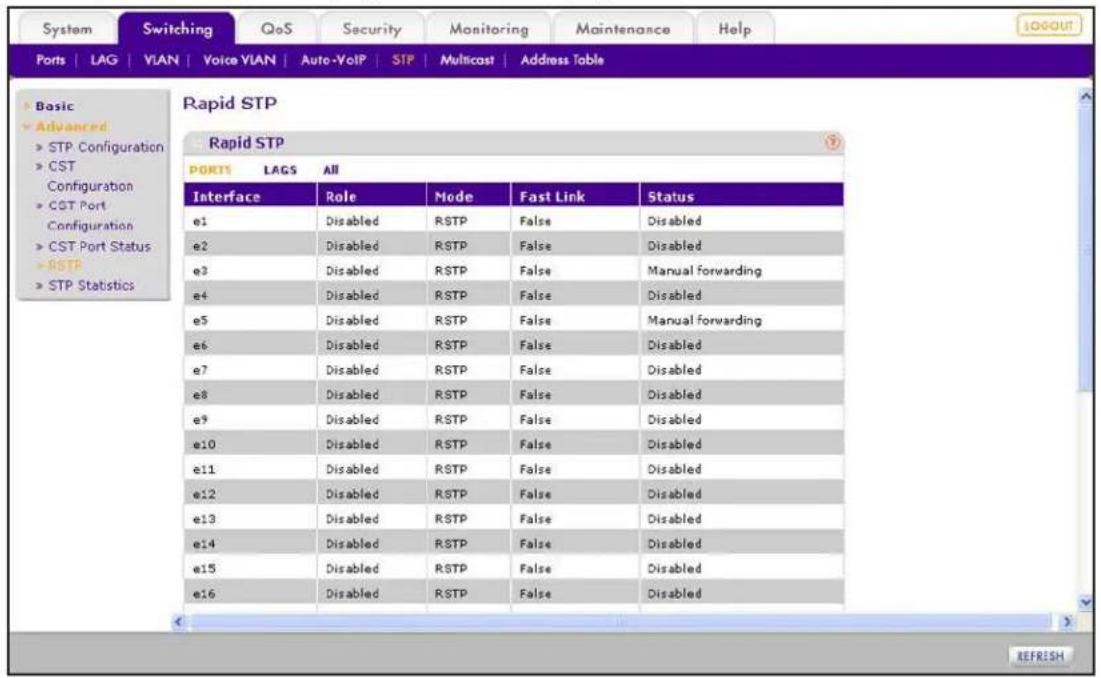
-
Select whether to display physical ports, link aggregation groups (LAGs), or both by clicking one of the following links above the table heading:
-
PORTS. Only physical ports display . This is the default setting.
- LAGS . Only LAGs display.
• All. Both physical ports and LAGs display.
The following table describes the fields of the Rapid STP screen.
| Field Description | |
| Interface The port number or LAG number. | |
| Role The role of the port or | LAG in the RSTP:Root port. The port offers the path with the lowest cost to the root bridge.Designated port. The port forwards frames to LAN segments.Alternate port. The port offers an alternate path in the direction of the root bridge.Backup port. The port functions as a backup port for the designated port levelable. Disabled port. The port is not an STP port. |
| Mode The spanning tree operation mode for the port or LAG:STP. The operation mode is STP.RSTP. The operation mode is RSTP. | |
| Fast Link Indicates whether the port or LAG functions as an edge port in the RSTP:T rue. The port or LAG is an edge port.False. The port or LAG is not an edge port.Note: You can refer to an edge port as a fast link. | |
| Status The forwarding state for the port or LAG:Discarding. The port or LAG is in the discarding state; it cannot forward traffic and cannot learn new MAC addresses.Learning. The port or LAG is in the learning state; it cannot forward traffic, but it can learn new MAC addresses.Forwarding. The port or LAG is in the forwarding state; it can forward traffic and learn new MAC addresses.Manual forwarding. The port or LAG is in the forwarding state but STP is disabled or the port is a trunk member (that is, the port is a member of a LAG).Disabled. The port or LAG is disabled. | |
3. (Optional) Click the Refresh button.
The screen refreshes to display the most current data.
View the STP Statistics
You can view the number and type of bridge protocol data units (BPDUs) that were transmitted and received on individual ports and LAGs.
To display the BPDUs for individual ports and LAGs:
- Select Switching > STP > Advanced > STP Statistics.
The STP Statistics screen displays. The following figure does not show all ports.
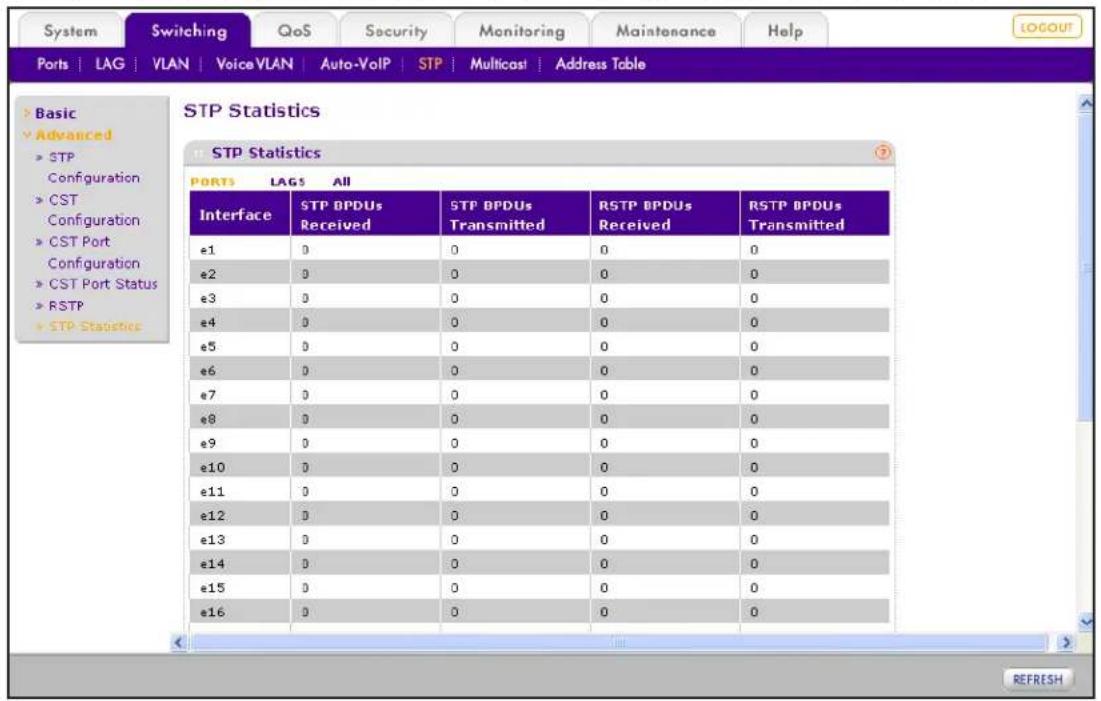
-
Select whether to display physical ports, link aggregation groups (LAGs), or both by clicking one of the following links above the table heading:
-
PORTS. Only physical ports display. This is the default setting.
• LAGS . Only LAGs display.
• All. Both physical ports and LAGs display.
The following table describes the fields of the STP Statistics screen.
| Field Description | |
| Interface This is a nonconfigurable field that shows the port number or LAG number. | |
| STP BPDUs Received The number of STP BPDUs that were received on the port or LAG. | |
| STP BPDUs Transmitted The number of STP BPDUs that were transmitted from the port or LAG. | |
| RSTP BPDUs Received The number of RSTP BPDUs that were received on the port or LAG. | |
| RSTP BPDUs Transmitted The number of RSTP BPDUs that were transmitted from the port or LAG. | |
- (Optional) Click the Refresh button.
The screen refreshes to display the most current data.
Configure Class of Service
12
This chapter describes how to configure the Class of Service (CoS) features. The chapter includes the following sections:
• Quality of Service Concepts
• Class of Service Concepts
- Configure the Global and Interface Trust Modes
- Configure CoS on Ports and LAGs
- Configure CoS Queues and Queue Options for Physical Ports and LAGs
- Configure 802.1p to Queue Mapping
- Configure DSCP to Queue Mapping
Quality of Service Concepts
A physical port on a switch consists of one or more queues for transmitting packets on the attached network. For each port, multiple queues can give preference to certain packets over others based on user-defined criteria. When a packet is queued for transmission on a port, the rate at which the packet is serviced depends on how the queue is configured and on the traffic load that is present in the other queues of the port. If a delay is necessary, packets are held in the queue until the scheduler authorizes the queue for transmission. As queues become full, there is no space to hold the packets for transmission, and the smart switch drops the packets.
Quality of Service (QoS) provides consistent, predictable data delivery by distinguishing between packets that have strict timing requirements from those that are more tolerant of delay. Packets with strict timing requirements are given special treatment in a QoS-capable network. With this in mind, you need to be sure that all elements of the network are QoS capable. The presence of at least one node that is not QoS capable creates a deficiency in the network path, and the performance of the entire packet flow is compromised.
Class of Service Concepts
Class of Service (CoS) queueing lets you directly configure certain aspects of switch queueing. The priority of a frame or packet that arrives at a port can steer the traffic to the appropriate outbound CoS queue through a mapping table. You can configure CoS queue characteristics that affect queue mapping, such as minimum guaranteed bandwidth, at the queue level.
Each port and LAG supports eight queues (0 through 7). The priority goes from low (0) to high (7). For example, traffic with a priority of 0 is for most data traffic and is sent using "best effort." Traffic with a higher priority, such as 6, might be time-sensitive traffic, such as voice or video. Before traffic in a lower queue is sent, it waits for traffic in higher queues to be sent. By default, Ethernet frames have a priority of 0.
Configure the Global and Interface Trust Modes
You can configure the trust mode globally for all ports and LAGs on the smart switch or for each port and LAG individually. When you configure the trust mode, you can select CoS to use the 802.1p field in an Ethernet frame header of an incoming packet, to use the Differentiated Services Code Point (DSCP) field in an IP packet header of an incoming packet, or to consider the incoming packet to be untrusted:
- 802.1p. 802.1p marking (also referred to as dot1p marking) lets you map each traffic class (with priority values 0 through 7) to one queue (0 through 7). You can map different traffic classes to the same queue. Based on the 802.1p field in the Ethernet frame header, the frame is placed in the queue to which you mapped the traffic class.
- DSCP. DSCP packet matching lets you map each DSCP value (0 to 63) to one queue (0 through 7). You can map different DSCP values to the same queue. Based on the DSCP
value in a packet's IP header, the packet is placed in the queue to which you mapped the DSCP value.
- Untrusted. The priority designation of an incoming packet is considered untrusted and the smart switch uses the port default priority value instead. All packets that arrive at the ingress queue of an untrusted port are directed to a specific CoS queue on the appropriate egress port or ports, in accordance with the configured default priority of the ingress port.
This process is also used for cases in which a trusted port mapping cannot be honored, such as when a non-IP packet arrives at a port that is configured to trust the IP DSCP value.
Configure the CoS Trust Mode Globally
To configure the CoS trust mode globally for all ports and LAGs on the smart switch:
1. Select QoS > Basic > CoS Configuration .
The CoS Configuration screen displays.
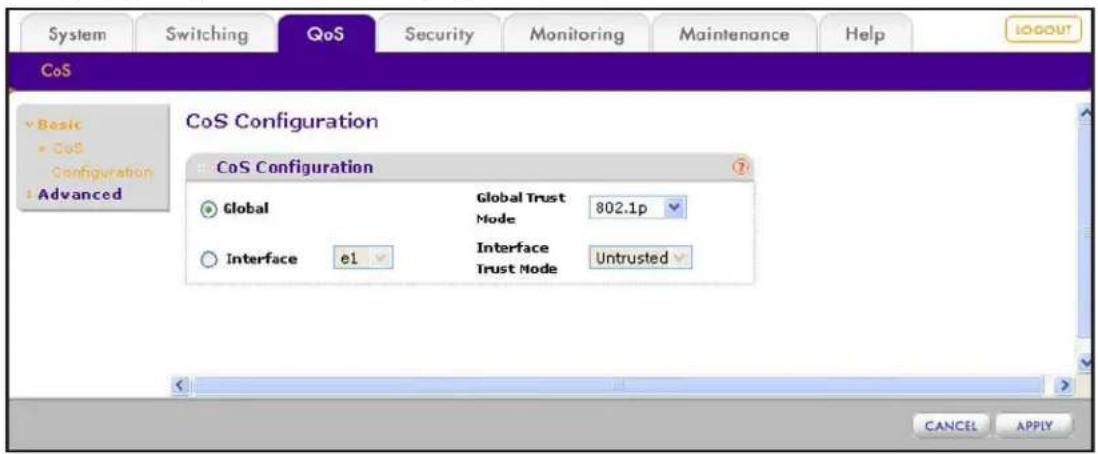
By default, the Global radio button is selected, enabling you to configure the global trust mode that applies to all ports and LAGs on the smart switch.
-
From the Global Trust Mode menu, select the global trust mode:
-
Untrusted. The priority designation of an incoming packet is considered untrusted and the smart switch uses the port default priority values instead. You can configure the port default priority values on the Port PVID Configuration screen (see Configure Port VLAN IDs for Ports and LAGs on page 85).
- 802.1p. The trust mode for all ports and LAGs is 802.1p. Y ou can configure the priority-to-queue mapping on the 802.1p to Queue Mapping screen (see Configure 802.1p to Queue Mapping on page 146).
- DSCP. The trust mode for all ports and LAGs is DSCP. You can configure the DSCP-to-queue mapping on the DSCP to Queue Mapping screen (see Configure DSCP to Queue Mapping on page 147).
3. Click the Apply button.
The settings are saved. The CoS Interface Configuration screen displays the configured trust mode for all ports and LAGs (see Configure CoS on Ports and LAGs on page 142).
Configure the CoS Trust Mode for an Individual Port or LAG
To configure the CoS trust mode for an individual port or LAG:
1. Select QoS > Basic > CoS Configuration .
The CoS Configuration screen displays.
2. Select the Interface radio button.
The screen adjusts.
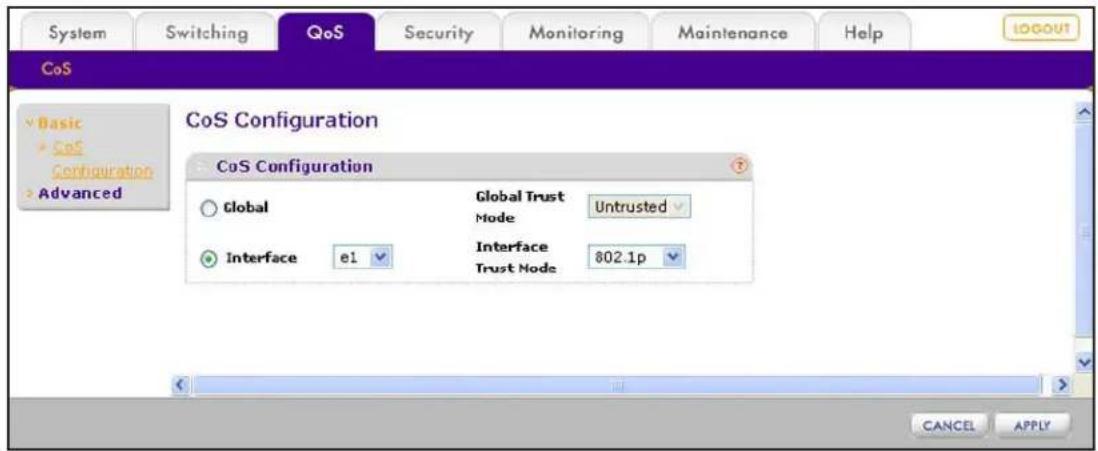
- From the Interface menu, select the port or LAG for which you want to configure the trust mode.
- From the Interface Trust Mode menu, select the trust mode for the port or LAG:
- Untrusted. The priority designation of an incoming packet is considered untrusted and the port or LAG uses its default priority values instead. You can configure the port default priority values on the Port PVID Configuration screen (see Configure Port VLAN IDs for Ports and LAGs on page 85).
- 802.1p. The trust mode for all ports and LAGs is 802.1p. Y ou can configure the priority-to-queue mapping on the 802.1p to Queue Mapping screen (see Configure 802.1p to Queue Mapping on page 146).
- DSCP. The trust mode for all ports and LAGs is DSCP. You can configure the DSCP-to-queue mapping on the DSCP to Queue Mapping screen (see Configure DSCP to Queue Mapping on page 147).
5. Click the Apply button.
The settings are saved. The per-interface setting overrides the global setting. The CoS Interface Configuration screen displays trust mode for the configured port or LAG (see Configure CoS on Ports and LAGs on page 142).
Configure CoS on Ports and LAGs
You can configure the trust mode for individual interfaces and LAGs on the CoS Configuration screen, but you can also do this on the CoS Interface Configuration screen, which gives you more configuration flexibility and lets you also configure the interface shaping rate.
The shaping rate is typically used to shape the outbound transmission rate in increments of 64 kbps. This shaping rate is controlled independently of any per-queue maximum bandwidth configuration and is effectively a second-level shaping mechanism. By default, the shaping rate is 0, which disables traffic shaping.
The expected shaping at the egress interface is calculated in the following manner:
frameSize * shaping * 64/(64+20)
frameSize is the configured frame size and shaping is the configured traffic shaping rate.
For example, when a frame size of 64 bytes and a shaping rate of 64 kbps are configured, expected shaping is approximately 3121 kbps.
To configure the trust mode and shaping rate for one or more ports and LAGs:
1. Select the QoS > Advanced > CoS Interface Configuration.
The CoS Interface Configuration screen displays. The following figure does not show all ports.
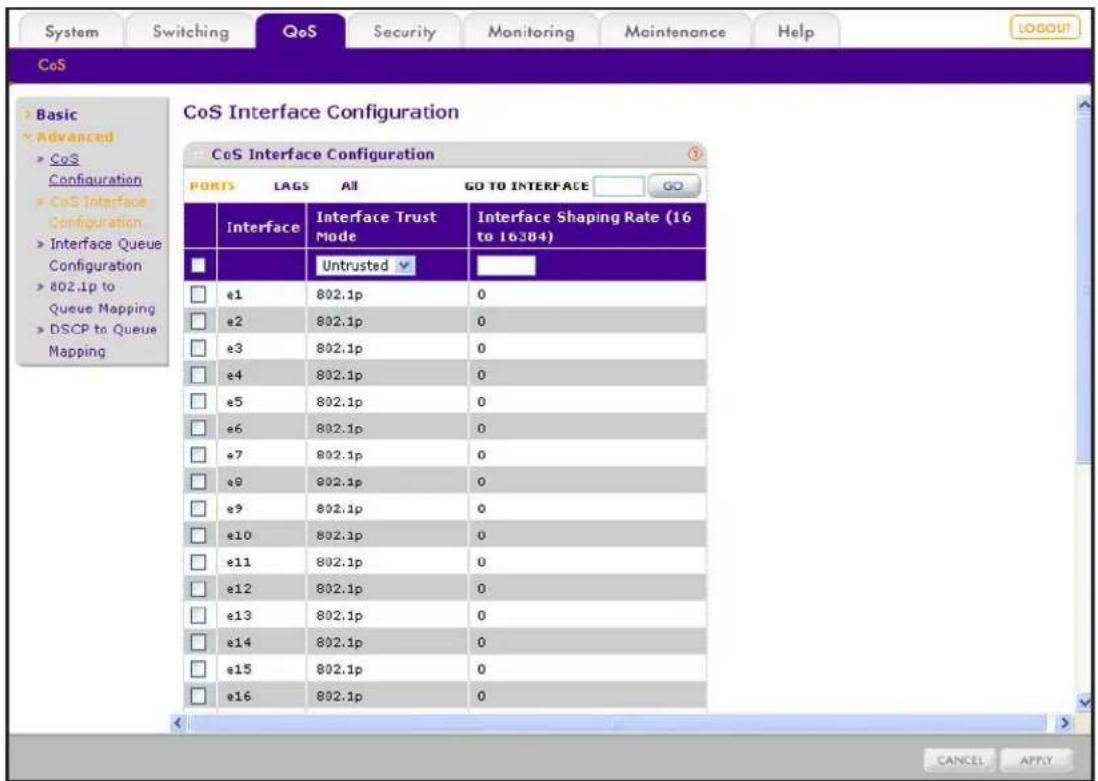
-
Select whether to configure physical ports, link aggregation groups (LAGs), or both by clicking one of the following links above the table heading:
-
PORTS. Only physical ports display . This is the default setting.
-
LAGS. Only LAGs display.
• All. Both physical ports and LAGs display. -
Select whether to configure a single port, a group of ports, or all ports (for the sake of simplicity in this procedure, LAGs are also considered ports):
- T o configure a single port, select the check box next to the port that you want to configure.
The information for the selected port displays in the menu in the table heading.
- To configure a group of ports, select the check boxes for the individual ports that you want to configure.
- To configure all ports, select the check box at the left in the table heading.
-
From the Interface T rust Mode menu, select the trust mode:
-
Untrusted. The priority designation of an incoming packet is considered untrusted and the smart switch uses the port default priority values instead. You can configure the port default priority values on the Interface Queue Configuration screen (see Configure CoS Queues and Queue Options for Physical Ports and LAGs on page 143).
- 802.1p. The trust mode for all ports and LAGs is 802.1p. You can configure the priority-to-queue mapping on the 802.1p to Queue Mapping screen (see Configure 802.1p to Queue Mapping on page 146).
-
DSCP. The trust mode for all ports and LAGs is DSCP. You can configure the DSCP-to-queue mapping on the DSCP to Queue Mapping screen (see Configure DSCP to Queue Mapping on page 147).
-
In the Interface Shaping Rate field, specify the maximum allowed bandwidth.
Enter a value in the range from 16 to 16384. The default value is 0.
- Click the Apply button.
The settings are saved. The per-interface setting overrides the global setting.
Configure CoS Queues and Queue Options for Physical Ports and LAGs
You can associate each port and LAG with one of the eight egress queues (from 0 through 7). In addition, for each port and LAG, you configure the bandwidth that the egress queue uses and the scheduling of packet transmission. The queue management type is fixed at the taildrop type: If the port or LAG is oversubscribed, packets that arrive at the port or LAG are dropped.
The smart switch supports two types of packet transmission schedulers:
- Strict. Strict priority queueing (SPQ) services traffic with the highest priority on a queue first.
-
Weighted. Weighted round robin (WRR) associates a weight to each queue. This is the default selection. By default, the following weights are assigned to the queues, and you cannot change these weights:
-
Queue 7 has weight 8 (which makes it the queue with the highest priority).
- Queue 6 has weight 7.
- Queue 5 has weight 6.
- Queue 4 has weight 5.
- Queue 3 has weight 4.
- Queue 2 has weight 3.
- Queue 1 has weight 2.
- Queue 0 has weight 1 (which makes it the queue with the lowest priority).
To configure the CoS queue bandwidth and scheduler per queue for one or more ports and LAGs:
1. Select QoS > Advanced > Interface Queue Configuration.
The Interface Queue Configuration screen displays. The following figure does not show all ports.
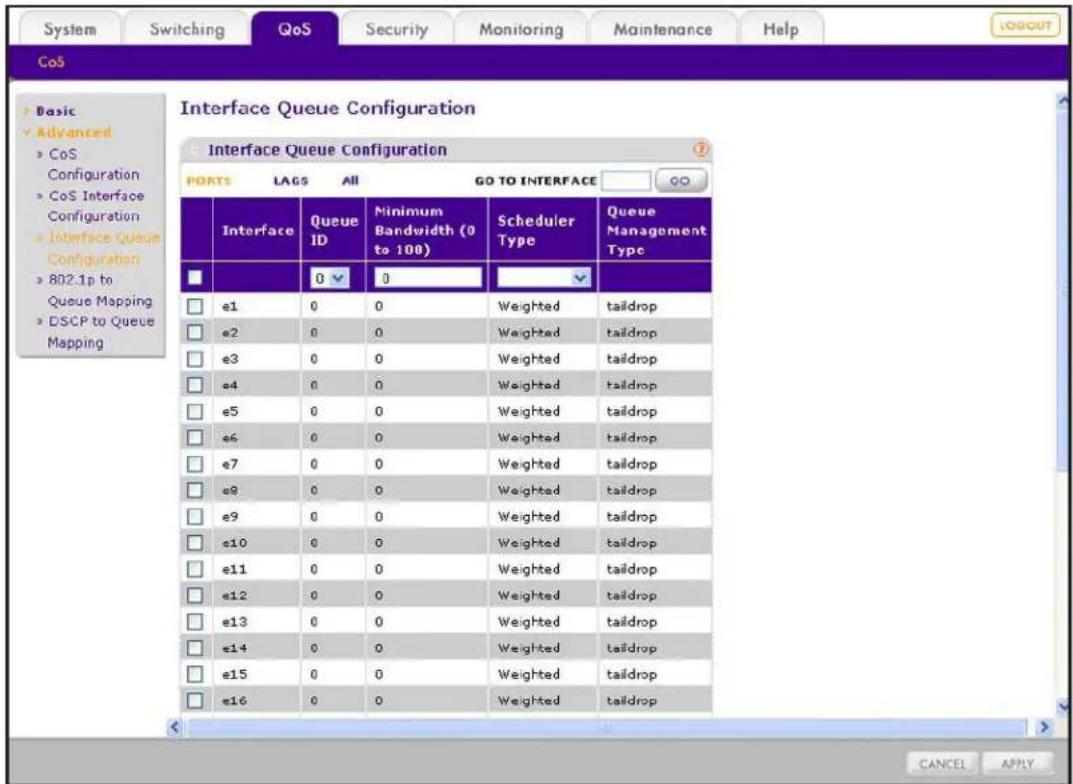
-
Select whether to configure physical ports, link aggregation groups (LAGs), or both by clicking one of the following links above the table heading:
-
PORTS. Only physical ports display . This is the default setting.
-
LAGS . Only LAGs display.
• All. Both physical ports and LAGs display. -
From the Queue ID menu, select the queue (0 through 7) for which you want to configure the bandwidth and scheduler type.
The screen adjusts, and the queue selection is displayed for all ports and LAGs.
- Select whether to configure the bandwidth and type of scheduler for the selected queue for a single port, a group of ports, or all ports (for the sake of simplicity in this procedure, LAGs are also considered ports):
- T o configure the settings for the selected queue for a single port, select the check box next to the port that you want to configure.
The information for the selected port displays in the menu in the table heading.
- To configure the settings for the selected queue for a group of ports, select the check boxes for the individual ports that you want to configure.
- To configure the settings for the selected queue for all ports, select the check box at the left in the table heading.
- Configure the settings as described in the following table.
| Setting Description | |
| Minimum Bandwidth (0 to 100) | The minimum guaranteed bandwidth that is allotted to the selected queue. Enter a value from 0 to 100. The sum of the individual minimum bandwidth values for all queues for a single port or LAG cannot exceed the maximum (100). The default value is 0, which means that there is no guaranteed minimum bandwidth.Note:If you set the value of the minimum bandwidth higher than its corresponding maximum bandwidth (see the interface shaping rate inConfigure CoS on Ports and LAGs on page 142), the maximum bandwidth (that is, interface shaping rate) is automatically increased to the same value as the minimum bandwidth. |
| Scheduler Type From the menu, select one of the following types of scheduling for the selected queue.Strict. Strict priority queueing (SPQ) services traf fic with the highest priority on a queue first.W eighted. Weighted Round Robin (WRR) associates a weight to each queue. This is the default selection. | |
| Queue Management Type | This is nonconfigurable field that always displays TailDrop. If the port or LAG is oversubscribed, packets that arrive at the interface are dropped. |
- Click the Apply button.
The settings are saved.
- Repeat Step 3 through Step 6 for other queues.
You can repeat these steps for all eight queues, from queue 0 through queue 7. However, keep in mind that the sum of the individual minimum bandwidth values for all queues for a single port or LAG cannot exceed the maximum value of 100.
Configure 802.1p to Queue Mapping
For each of the eight 802.1p priorities, you can configure the queue to which you want to map the priority. The selected queue (0 through 7) becomes the traffic class for a port or LAG. The priority of the queue goes from low (0) to high (7).
By default, the 802.1p priorities are mapped to the following queues:
- Priority 0 to queue 2
- Priority 1 to queue 0
- Priority 2 to queue 1
- Priority 3 to queue 3
- Priority 4 to queue 4
- Priority 5 to queue 5
- Priority 6 to queue 6
- Priority 7 to queue 7
To map 802.1p priorities to queues:
- Select QoS > Advanced > 802.1p to Queue Mapping.
The 802.1p to Queue Mapping screen displays.
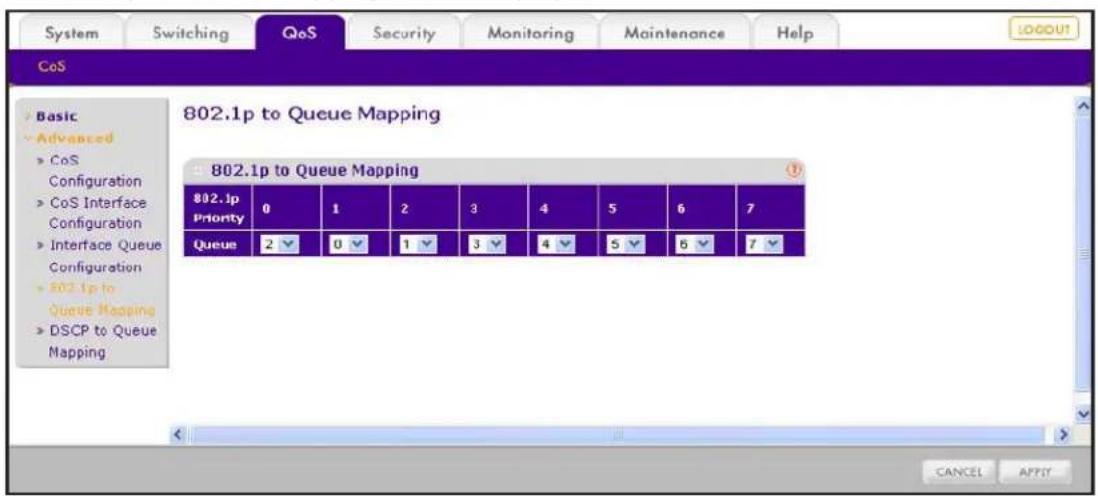
- From each of the eight 802.1p Priority menus (one for each priority), select the queue (0 through 7) to which you want to map the 802.1 priority.
- Click the Apply button.
The settings are saved.
Configure DSCP to Queue Mapping
For each DSCP value, you can configure the queue to which you want to map the DSCP value. The selected queue (0 through 7) becomes the traffic class for a port or LAG. The priority of the queue goes from low (0) to high (7).
By default, the DSCP values are mapped to the following queues:
• Class Selector (CS) PHB values:
- CS 0 to queue 2
- CS 1 to queue 0
- CS 2 to queue 1
- CS 3 to queue 3
- CS 4 to queue 4
- CS 5 to queue 5
- CS 6 to queue 6
- CS 7 to queue 7
• Assured Forwarding (AF) PHB values:
- AF1 1 through AF13 to queue 0
- AF21 through AF23 to queue 1
- AF31 through AF33 to queue 3
- AF41 through AF43 to queue 4
- Expedited Forwarding (EF) PHB value:
- EF to queue 5
- Other DSCP values (Local/Experimental Use):
- 1 through 7 to queue 2
- 9, 1 1, 13, and 15 to queue 0
- 17, 19, 21, and 23 to queue 1
- 25, 27, 29, and 31 to queue 3
- 33, 35, 37, and 39 to queue 4
- 41 through 45 and 47 to queue 5
- 49 through 55 to queue 6
- 57 through 63 to queue 7
The following are some guidelines for the per-hop behavior (PHB) groups:
- Class Selector (CS) PHB . This group consists of CS0 through CS7 and is based on the IP precedence in the Type of Service (ToS) byte of the IP header to provide backward compatibility with IP precedence.
• Assured Forwarding (AF) PHB. This group defines four main levels to sort and manipulate some flows within the network to guarantee delivery as long as congestion
does not occur. The four main levels are AF11 through AF13, AF21 through AF23, AF31 through AF33, and AF1 through AF43.
- Expedited Forwarding (EF) PHB. This group is used to prioritize traffic for real-time applications. When the network cannot handle all traffic, some applications need bandwidth guarantees, which this group defines.
To map DSCP values to queues:
1. Select QoS > Advanced > DSCP Queue Mapping.
The DSCP to Queue Mapping screen displays.
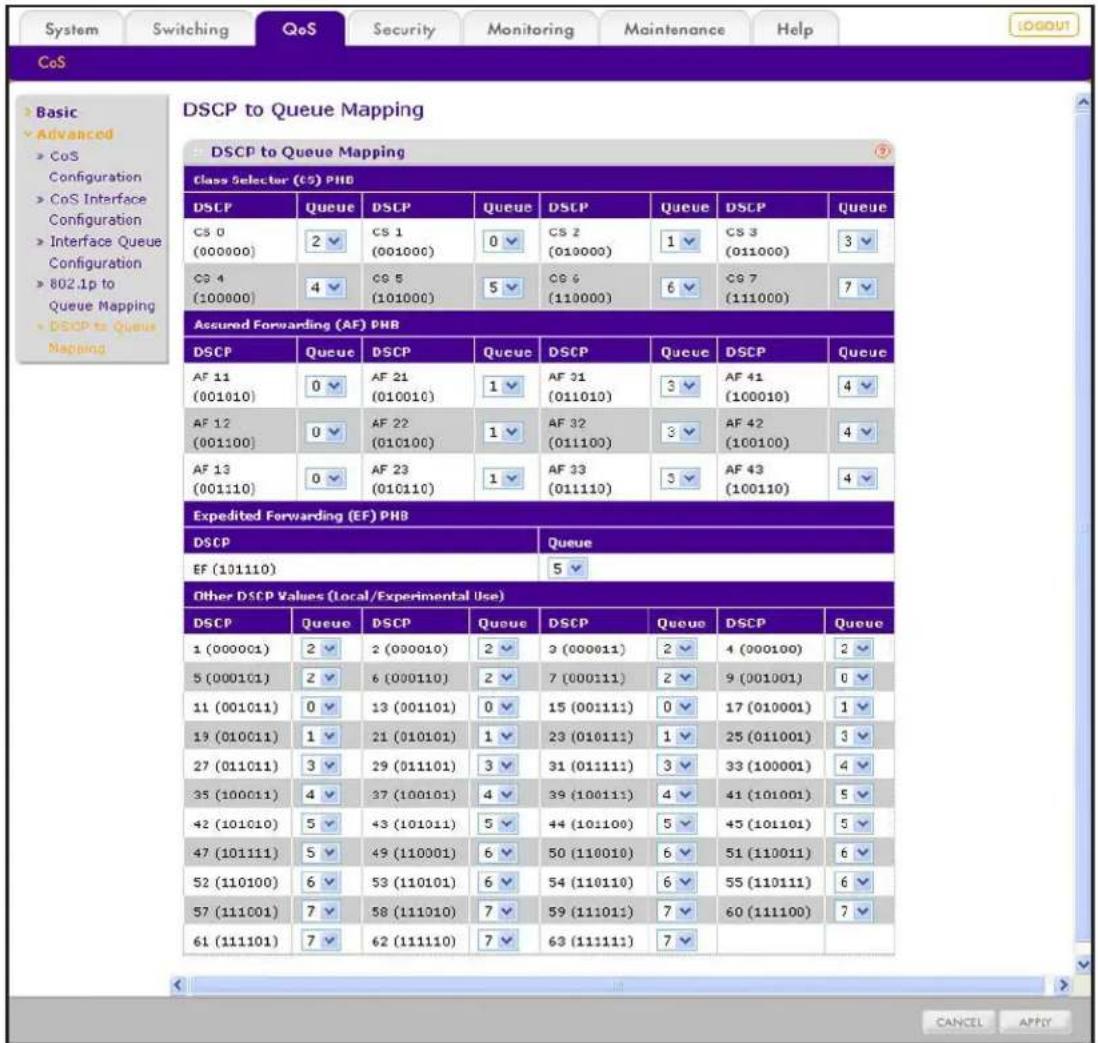
- For one or more DSCP values, select the queue (0 through 7) to which you want to map the DSCP value.
- Click the Apply button.
The settings are saved.
Manage RADIUS and Port Authentication and Traffic Control
13
This chapter describes how to configure the RADIUS servers that you can use for port security, how to configure port authentication, and how to configure the traffic control features, which include storm control, port security, and protected ports. The chapter includes the following sections:
- Configure RADIUS Authentication
- Configure Port Authentication
- Configure Traffic Control
Configure RADIUS Authentication
RADIUS servers provide additional security for networks. A RADIUS server maintains a user database, which contains per-user authentication information. The smart switch passes information to the configured RADIUS server, which can authenticate a user name and password before authorizing use of the network.
On the smart switch, RADIUS servers provide a centralized authentication method for port authentication (see Configure Port Authentication on page 157).
Configure the Global RADIUS Options
Before you specify the maximum number of retransmission requests to a RADIUS server and the time-out duration for each request, which apply to all configured RADIUS servers, take the following information into consideration.
If you configure multiple RADIUS servers, the smart switch does not contact a second RADIUS server until the maximum number of retransmit requests has been sent to the first RADIUS server and the time-out duration for the last retransmit request has been exceeded. The total response time for an individual RADIUS server is its response time multiplied by the number of retransmit requests. The total response time for all RADIUS servers is the sum of the total response time for each individual RADIUS server. If a user login attempt generates a RADIUS request, all user interfaces are blocked until the RADIUS server returns a response.
To configure the global RADIUS options:
- Select Security > Management Security > RADIUS > Global Configuration.
The Global Configuration screen displays.
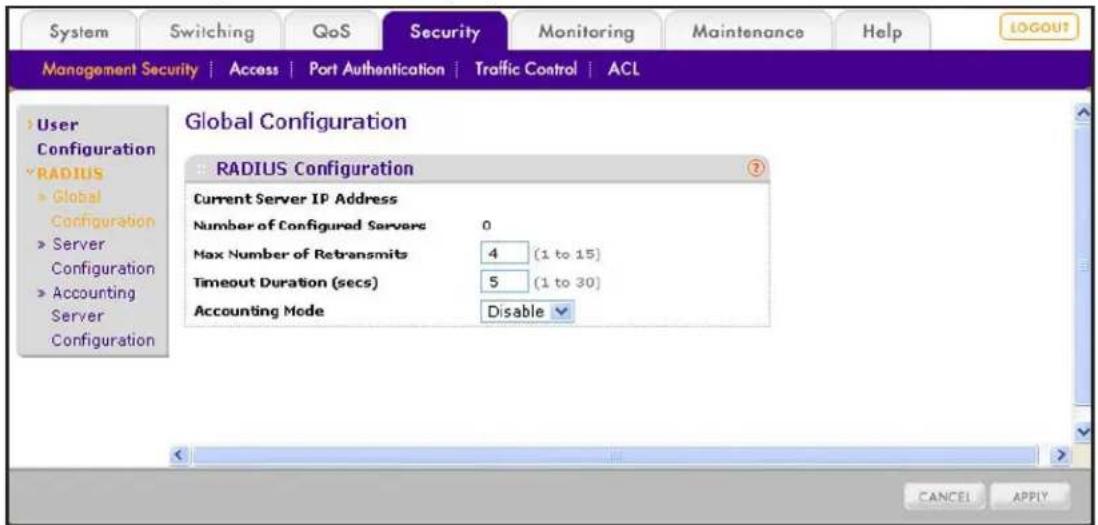
- Configure the settings as described in the following table.
| Setting Description | |
| Current Server IP Address This is a nonconfigurable field that displays the primary RADIUS server, or, if no RADIUS server is configured as the primary server, the most recently added RADIUS server. The field is blank if you did not yet configure any RADIUS servers. | |
| Number of Configured Servers | This is a nonconfigurable field that displays the total number of configured RADIUS servers. The smart switch supports up to three configured RADIUS servers. |
| Max Number of Retransmits The | maximum number of times a request packet is retransmitted to the RADIUS server. You can specify a number from 1 to 15. The default value is 4, which allows for four retransmissions. |
| Timeout Duration (secs) | The time-out period, in seconds, for a RADIUS request or retransmission request. You can specify a number from 1 to 30. The default value is 5 seconds. |
| Accounting Mode From the menu, select whether RADIUS accounting is enabled:Disable. RADIUS accounting is disabled. This is the default setting.Enable. RADIUS accounting is enabled. You need to configure an accounting server (see Manage the RADIUS Accounting Server on page 154). | |
- Click the Apply button.
The settings are saved.
Manage the RADIUS Servers
Use the Server Configuration screen to add, view, change, and remove RADIUS servers. You can add up to three RADIUS servers, of which only one can be the active (primary) RADIUS server.
Add a RADIUS Server and View the Statistics
To add a RADIUS server and view the statistics:
- Select Security > Management Security > RADIUS > Server Configuration.
The Server Configuration screen displays. The following figure shows an example.
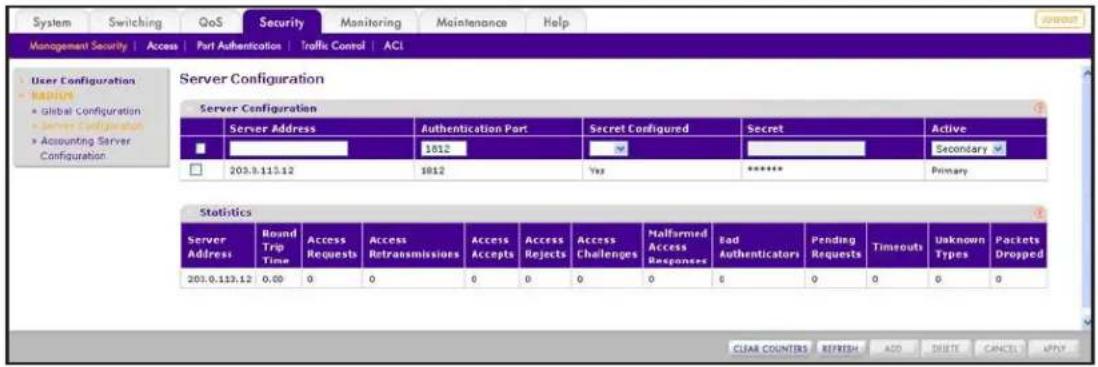
- In the heading fields of the Server Configuration table, configure the settings as described in the following table.
| Setting Description | |
| Server Address The IP address of the RADIUS server. | |
| Authentication Port The UDP port number that the server uses. The valid range is from 0 to 65535. The default port number is 1812. | |
| Secret Configured From the Secret Configured menu, specify whether the RADIUS server requires a secret: ·Ye s. The RADIUS server requires a secret. Add a secret in the Secret field. ·No . The RADIUS server does not require a secret. The Secret field is masked out. | |
| Secret The shared secret text string that is used to authenticate and encrypt all RADIUS communications between the smart switch and the RADIUS server. This secret needs to match the secret on the RADIUS server. You can enter a secret only if you have selected Yes from the Secret Configured menu. | |
| Active From the Active menu, specify whether the server is a primary or secondary server: ·Primary. The RADIUS server takes precedence over other RADIUS servers. ·Secondary. The RADIUS server functions as a backup RADIUS server. | |
- Click the Add button.
The RADIUS server is added to the Server Configuration table and the Statistics table.
- Repeat Step 2 and Step 3 to add additional RADIUS servers.
You can configure up to three RADIUS servers.
- Click the Refresh button.
The screen refreshes to display the most current data.
The following table describes the fields of the Statistics table.
| Field Description | |
| Server Address The IP address of the RADIUS server. | |
| Round Trip Time The time interval, in hundredths of a second, between the most recent Access-Request message from the smart switch and the matched Access-Reply/Access-Challenge message from the RADIUS server. | |
| Access Requests The number of Access-Request messages sent to the RADIUS server . This number does not include retransmissions. | |
| Access Retransmissions The number of Access-Request messages that were retransmitted to the RADIUS server. | |
| Access Accepts The number of Access-Accept messages, including both valid and invalid messages, that were received from the RADIUS server. | |
| Access Rejects The number of Access-Reject messages, including both valid and invalid messages, that were received from the RADIUS server. | |
| Access Challenges The number of Access-Challenge messages, including both valid and invalid messages, that were received from the RADIUS server. | |
| Malformed Access Responses | The number of malformed Access-Response messages that were received from the RADIUS server. Malformed messages include packets with an invalid length. Bad authenticators, signature attributes, and messages of unknown types are not included in the Malformed Access Responses field. |
| Bad Authenticators The number of Access-Response messages that contain invalid authenticators or signature attributes that were received from the RADIUS server. | |
| Pending Requests The number of Access-Request messages that are destined for the RADIUS server and that have not yet timed out or received a response. | |
| Timeouts The number of Access-Request messages that were sent to the RADIUS server and that timed out. | |
| Unknown Types The number of RADIUS messages of an unknown type that were received from the RADIUS server on the authentication port of the smart switch. | |
| Packets Dropped The number of RADIUS packets that were received from the RADIUS server on the authentication port of the smart switch and that were dropped. | |
Clear the Counters on the Server Configuration Screen
To clear the counters on the Server Configuration screen:
- Select Security > Management Security > RADIUS > Server Configuration.
The Server Configuration screen displays.
- Click the Clear Counters button.
All fields in the Statistics table are reset to 0 (zero).
Change the Settings for a RADIUS Server
To change the settings for a RADIUS server:
- Select Security > Management Security > RADIUS > Server Configuration.
The Server Configuration screen displays. - In the Server Configuration table, select the check box next to the RADIUS server for which you want to change the settings.
- Change the settings.
- Click the Apply button.
The settings are saved.
Remove a RADIUS Server
To remove a RADIUS server:
- Select Security > Management Security > RADIUS > Server Configuration.
The Server Configuration screen displays.
- In the Server Configuration table, select the check box next to the RADIUS server that you want to remove.
- Click the Delete button.
The RADIUS server is removed from the Server Configuration table.
Manage the RADIUS Accounting Server
Use the Accounting Server Configuration screen to configure, view, and remove a RADIUS accounting server. The smart switch can support a single accounting server.
Configure the RADIUS Accounting Server and View the Statistics
To configure a RADIUS accounting server and view the statistics:
- Select Security > Management Security > RADIUS > Accounting Server Configuration.
The Accounting Server Configuration screen displays.
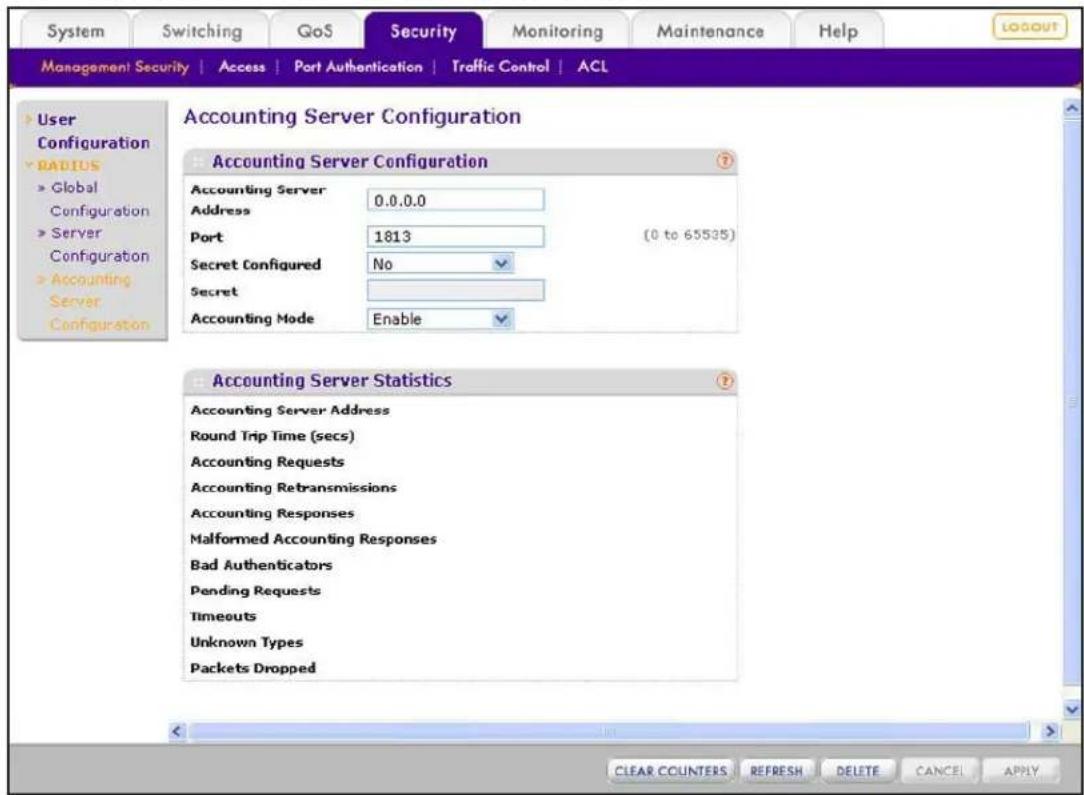
- Configure the settings as described in the following table.
| Setting Description | |
| Accounting Server Address The | IP address of the RADIUS accounting server. |
| Port The UDP port number that | the server uses. The valid range is from 0 to 65535. The default port number is 1813. |
| Secret Configured From the Sec | ret Configured menu, specify whether the RADIUS server requires a secret:Ye s. The RADIUS server requires a secret. Add a secret in the Secret field.No . The RADIUS server does not require a secret. The Secret field is masked out. |
| Secret The shared secret text string | that is used to authenticate and encrypt all RADIUS communications between the smart switch and the RADIUS server. This secret needs to match the secret on the RADIUS server. You can enter a secret only if you have selected Yes from the Secret Configured menu. |
| Accounting Mode From the menu, select whether RADIUS accounting is enabled:Disable. RADIUS accounting is disabled. This is the default setting. You can still configure the RADIUS server, but it is disabled.Enable. RADIUS accounting is enabled. | |
3. Click the Apply button.
The settings are saved.
4. Click the Refresh button.
The screen refreshes to display the most current data.
The following table describes the fields of the Accounting Server Statistics section.
| Field Description | |
| Accounting Server Address The IP address of the RADIUS accounting server. | |
| Round Trip Time (secs) The time interval, in hundredths of a second, between the most recent Accounting-Request message from the smart switch and the matched Accounting-Response message from the RADIUS accounting server. | |
| Accounting Requests The number of Accounting-Request messages sent to the RADIUS accounting server. This number does not include retransmissions. | |
| Accounting Retransmissions The number of Accounting-Request messages that were retransmitted to the RADIUS accounting server. | |
| Accounting Responses The number of Accounting-Response messages that were received from the RADIUS accounting server. | |
| Malformed Accounting Responses | The number of malformed Accounting-Response messages that were received from the RADIUS accounting server. Malformed messages include packets with an invalid length. Bad authenticators and messages of unknown types are not included in the Malformed Accounting Responses field. |
| Bad Authenticators The number of Accounting-Response messages that contain invalid authenticators that were received from the RADIUS accounting server. | |
| Pending Requests The number of Accounting-Request packets that are destined for the RADIUS accounting server that have not yet timed out or received a response. | |
| Timeouts The number of Accounting-Request messages that were sent to the RADIUS accounting server and that timed out. | |
| Unknown Types The number of RADIUS messages of an unknown type that were received from the RADIUS accounting server on the authentication port of the smart switch. | |
| Packets Dropped The number of RADIUS packets that were received from the RADIUS accounting server on the authentication port of the smart switch and that were dropped. | |
Clear the Counters on the Accounting Server Configuration Screen
To clear the counters on the Accounting Server Configuration screen:
- Select Security > Management Security > RADIUS > Accounting Server Configuration.
The Accounting Server Configuration screen displays.
- Click the Clear Counters button.
All fields in the Accounting Server Statistics section are reset.
Remove the RADIUS Accounting Server
To remove the RADIUS accounting server:
- Select Security > Management Security > RADIUS > Accounting Server Configuration.
The Accounting Server Configuration screen displays.
- Click the Delete button.
All fields in the Accounting Server Configuration section are reset and all fields in the Accounting Server Statistics section are reset.
Configure Port Authentication
In port-based authentication mode, when 802.1X is enabled globally and on a port, successful authentication of any one supplicant attached to the port results in all users being able to use the port without restrictions. At any time, only one supplicant is allowed to attempt authentication on a port that functions in this mode. Ports that function in this mode are under bidirectional control. This is the default authentication mode.
An 802.1X network has three components:
- Authenticator. Specifies the port that is authenticated before a user is permitted system access over the port.
- Supplicant. Specifies the user who is connected to the authenticated port and who requests access to the system services.
- Authentication Server. Specifies the external server, for example, a RADIUS server, that performs the authentication on behalf of the authenticator, and indicates whether the user is authorized to access system services. For information about configuring RADIUS servers, see Configure RADIUS Authentication on page 150.
Note: For more information about port authentication, including a configuration example, see 802.1X Authentication on page 314.
Globally Enable Authentication for Port and Guest VLAN Access
You can globally enable port authentication and guest VLAN access.
If you leave port authentication disabled, which is the default setting, the smart switch does not check for 802.1X authentication before allowing traffic on any ports, even if the ports are configured to allow only authenticated users.
If port authentication and guest VLAN access are enabled and no 802.1X supplicant is authenticated on a port, the port still provides limited network access, as specified by a guest VLAN that is configured on the authentication server.
If port authentication is enabled but guest VLAN access is disabled, a guest VLAN cannot be used for unauthorized ports. That is, if no 802.1X supplicant is authenticated on a port, a guest VLAN does not provide access.
To enable port authentication and guest VLAN access:
- Select Security > Port Authentication > Basic > 802.1X Configuration.
The 802.1X Configuration screen displays.
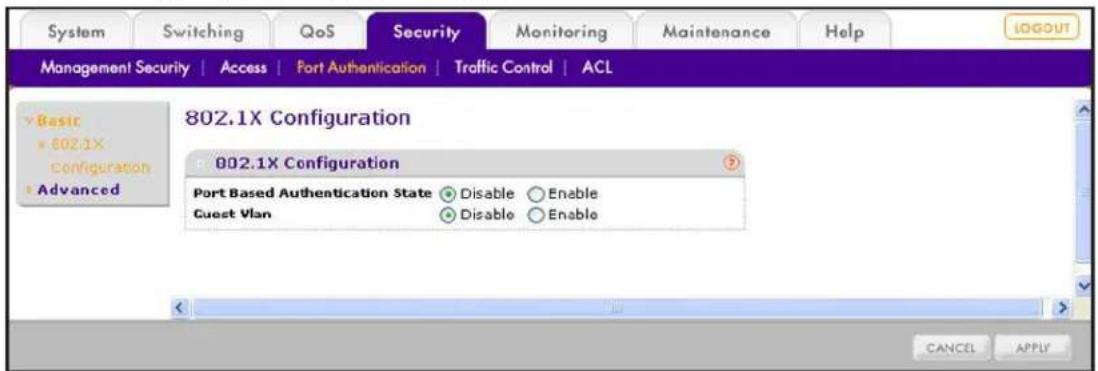
- Next to Port Based Authentication State, select the Enable radio button.
- Next to Guest VLAN, select the Enable radio button.
- Click the Apply button.
The settings are saved.
Configure Authentication for Individual Ports
You can enable and configure port access control settings for individual ports. These settings take effect when port authentication is globally enabled.
To configure the port authentication settings for one or more ports:
- Select Security > Port Authentication > Advanced > Port Authentication.
The Port Authentication screen displays. Because this a wide screen, it is displayed in two figures. The first figure shows the left side of the screen. The second figure shows the right side of the screen. Not all ports are shown in the following figures.
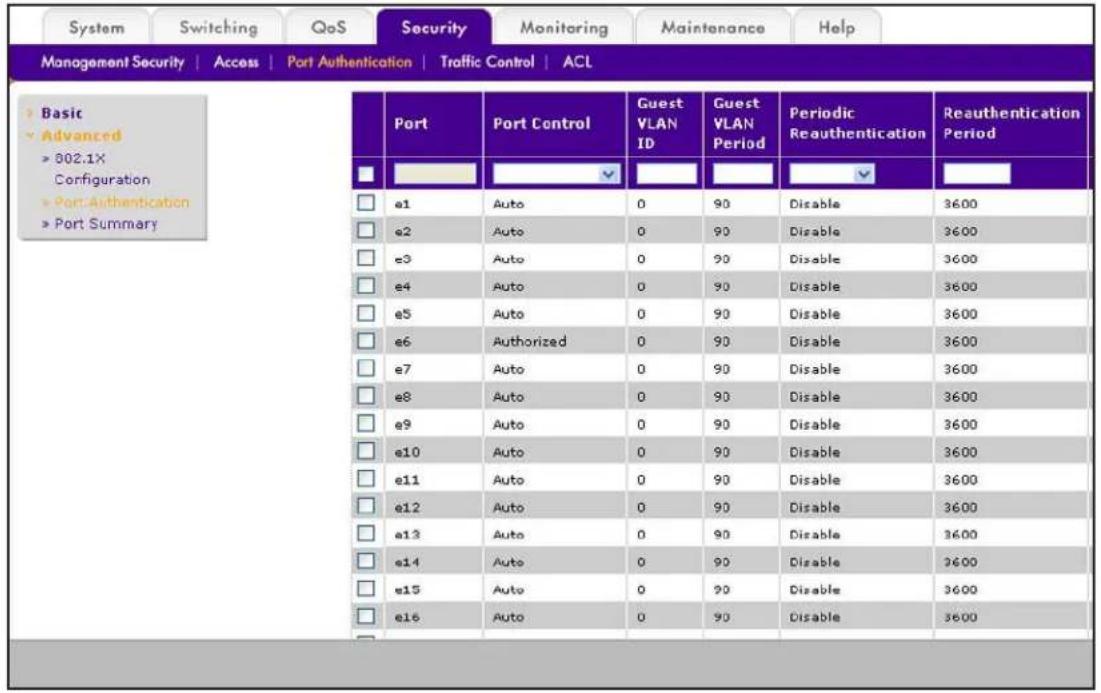
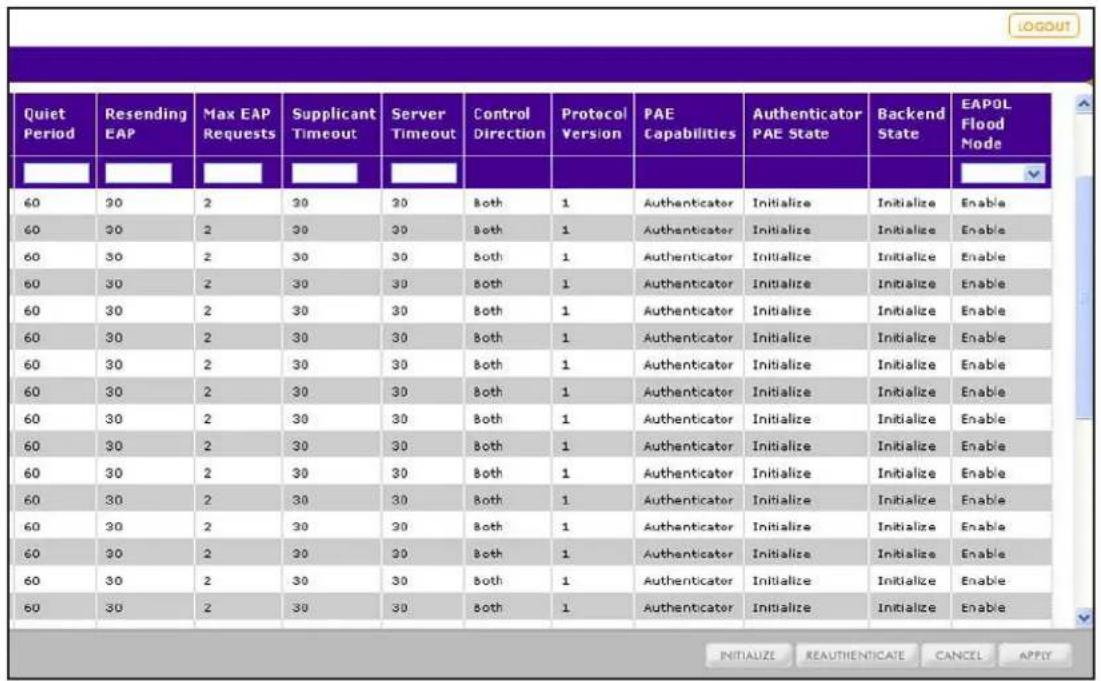
- Select whether to configure a single port, a group of ports, or all ports:
- To configure a single port, select the check box next to the port that you want to configure.
The information for the selected port displays in the menu in the table heading.
- To configure a group of ports, select the check boxes for the individual ports that you want to configure.
-
To configure all ports, select the check box at the left in the table heading.
-
Configure the settings as described in the following table:
| Setting Description | |
| Port Control The control | mode for port authorization. The control mode is active only if the link status of the port is up.Make a selection from the menu:·Auto. After any supplicant completes authentication successfully on the port, others can access the network service through the same port without authentication. This is the default setting.·Unauthorized. Places the port in the unauthorized state. The smart switch cannot provide authentication services to a client through the port.·Authorized . Places the port in the authorized state. The port sends and receives normal traffic without client port-based authentication. |
| Guest VLAN ID The guest | st VLAN ID on the port.Enter a VLAN ID in the range from 1 to 4093. The default VLAN ID is 0, which removes the guest VLAN from the port. |
| Guest VLAN Period The | guest VLAN period on the port. When the authenticator sends an EAPoL EAP request/identify frame for a VLAN to a supplicant, the guest VLAN period starts. When the guest VLAN period expires and the authenticator has not yet received a response from the supplicant, the supplicant cannot be authenticated and is assigned to the guest VLAN.Enter a period in the range from 1 to 300 seconds. The default period is 90 seconds. |
| Periodic Reauthentication | Specify whether the supplicant is periodically reauthenticated for the port:·Enable. The supplicant is reauthenticated according to the value in the Reauthentication Period field.·Disable . The supplicant is not reauthenticated. This is the default setting. |
| Reauthentication Period | The reauthentication period for the port. The reauthentication period determines when the supplicant is reauthenticated when period reauthentication is enabled. Enter a period in the range from 1 to 65535 seconds. The default period is 3600 seconds. |
| Quiet Period The period | that the port remains in the quiet state after an unsuccessful authentication exchange, that is, the period in which the port rejects a supplicant after an unsuccessful authentication exchange.Enter a period in the range from 0 to 65535 seconds. The default period is 60 seconds. If you enter 0 seconds, a supplicant cannot be authenticated and, therefore, cannot connect to the port. |
| Resending EAP The transmit period for the port. If the authenticator sends an EAPoL EAP request/identify frame to a supplicant, the transmit period starts. When the transmit period expires and the authenticator has not yet received a response from the supplicant, the frame is resent.Enter a period in the range from 1 to 65535 seconds. The default period is 30 seconds. | |
| Maximum EAP Requests | The maximum number of requests for the port. After the maximum number of requests has been reached, the port no longer sends EAP request frames to the supplicant.Enter a number in the range from 1 to 10. The default number of requests is 2. |
| Supplicant Timeout | The period after which an EAP request times out and is resent to the supplicant.Enter a period in the range from 1 to 65535 seconds. The default period is 30 seconds.Note:If the supplicant period times out, the port is still not authorized. However, if the guest VLAN period times out, the port is authorized on the guest VLAN, which provides restricted access only. |
| Server Timeout | The period after which an authentication server request times out and is resent to the server.Enter a period in the range from 1 to 65535 seconds. The default period is 30 seconds. |
| Control Direction | This is a nonconfigurable field that shows the control direction for the port, which is fixed at Both. The control direction dictates the degree to which protocol exchanges occur between the supplicant and authenticator. The unauthorized controlled port exerts control over communication in both directions (disabling both incoming and outgoing frames). |
| Protocol Version This is a nonconfigurable field that shows the protocol version that is associated with the port. The version is fixed at 1, which corresponds to the first version of the 802.1X specification. | |
| PAE Capabilities This is a nonconfigurable field that shows the port access entity (PAE):Authenticator.The port functions as authenticator.Supplicant.The port functions as supplicant. | |
| Authenticator PAE State | This is a nonconfigurable field that shows the state of the authenticator port access entity (PAE):Initialize. If the following circumstances occur, the port can enter the Initialize state from any other state:- The port is being initialized.- The Port Control field is set to Auto but the port is not in Auto mode.- The MAC address of the port is invalid.Disconnected. If the smart switch receives an explicit logof f request from the supplicant, the port can enter the Disconnected state from the Connecting, Authenticated, or Aborting state. If the number of permissible reauthentication attempts is exceeded, the port can also enter the Disconnected state from the Connecting state.Connecting. The port is operable and the P AE attempts to establish communication with a supplicant.Authenticating. The supplicant is being authenticated.Authenticated. The authenticator authenticated the supplicant successfully and the Port Status field (seeView the Port Summaryon page 164) displays Authorized.Aborting. The authentication procedure is being aborted prematurely because the smart switch received a reauthentication request, an EAPoL-Start frame, or an EAPoL-Logoff frame, or the authorization timed out.Held. The smart switch discarded all EAPoL packets for the port to prevent an attack.ForceAuthorized. The smart switch sent an EAP Success packet to the supplicant, and the Port Status field (seeView the Port Summaryon page 164) displays Authorized.ForceUnauthorized. The smart switch sent an EAP Failure packet to the supplicant, and the Port Status field (seeView the Port Summaryon page 164) displays Unauthorized. |
| Backend State | This is a nonconfigurable field that shows the state of the back-end authentication for the port:Request. The smart switch received an EAP Request packet from the authentication server and relayed the packet as an EAPoL-encapsulated frame to the supplicant.Response . The smart switch received an EAPoL-encapsulated EAP Response packet (either a Response/Identity or a Response packet) from the supplicant and relayed the EAP packet to the authentication server.Success. The authentication session completed successfully.Fail. The authentication session failed.Timeout. The authentication session timed out. If the port is in the Unauthorized state, the smart switch sends an EAP Failure message to the supplicant.Initialize. The port is being initialized.Idle. The smart switch waits for a new authentication session. |
| EAPOL Flood Mode Specify whether EAPoL packet flood mode is enabled for the port:Enable.EAPoL packet flood mode is enabled. This is the default setting.Enabling this mode does not provide any protection from an EAPoL packet flood denial of service (DoS) attack. If the smart switch is used as a hub, NETGEAR recommends that you enable EAPoL packet flood mode.Disable.EAPoL packet flood mode is disabled. | |
4. Click the Apply button.
The settings are saved.
Start the Initialization Sequence or Reauthentication Sequence for Ports
You can start an initialization sequence or reauthentication sequence for a port only if the selection from the Port Control menu on the Port Authentication screen is Auto.
Initialize One or More Ports
To initialize one or more ports:
- Select Security > Port Authentication > Advanced > Port Authentication.
The Port Authentication screen displays.
- Select whether to initialize a single port, a group of ports, or all ports:
- To initialize a single port, select the check box next to the port that you want to configure.
The information for the selected port displays in the menu in the table heading.
- To initialize a group of ports, select the check boxes for the individual ports that you want to configure.
• To initialize all ports, select the check box at the left in the table heading.
3. Click the Initialize button.
The devices that are connected to the ports are reauthenticated.
Reauthenticate One or More Ports
To reauthenticate one or more ports:
- Select Security > Port Authentication > Advanced > Port Authentication.
The Port Authentication screen displays.
-
Select whether to reauthenticate a single port, a group of ports, or all ports:
-
To reauthenticate a single port, select the check box next to the port that you want to configure.
The information for the selected port displays in the menu in the table heading. -
To reauthenticate a group of ports, select the check boxes for the individual ports that you want to configure.
• To reauthenticate all ports, select the check box at the left in the table heading. -
Click the Reauthenticate button.
All users that are attached to the port or ports are reauthenticated.
View the Port Summary
You can view the control mode, operating control mode, reauthentication mode, and port status for individual ports:
- Control mode. The port's operating mode that you selected from the Port Control menu on the Port Authentication screen (see Configure Authentication for Individual Ports on page 158). The default setting is Auto.
- Operating mode. The port's actual operating mode, which can differ from the control mode.
- Port status. The authorized or unauthorized status for the port. The port status depends on the control mode:
- If the Control Mode field is forceauthorized, the Port Status field is Authorized.
- If the Control Mode field is force unauthorized, the Port Status field is Unauthorized.
- If the Control Mode field is Auto, the Port Status field is either Authorized or Unauthorized, depending on the results of the authentication process.
To view the modes and status of individual ports:
- Select Security > Port Authentication > Advanced > Port Summary.
The Port Summary screen displays. The following figure does not show all ports.
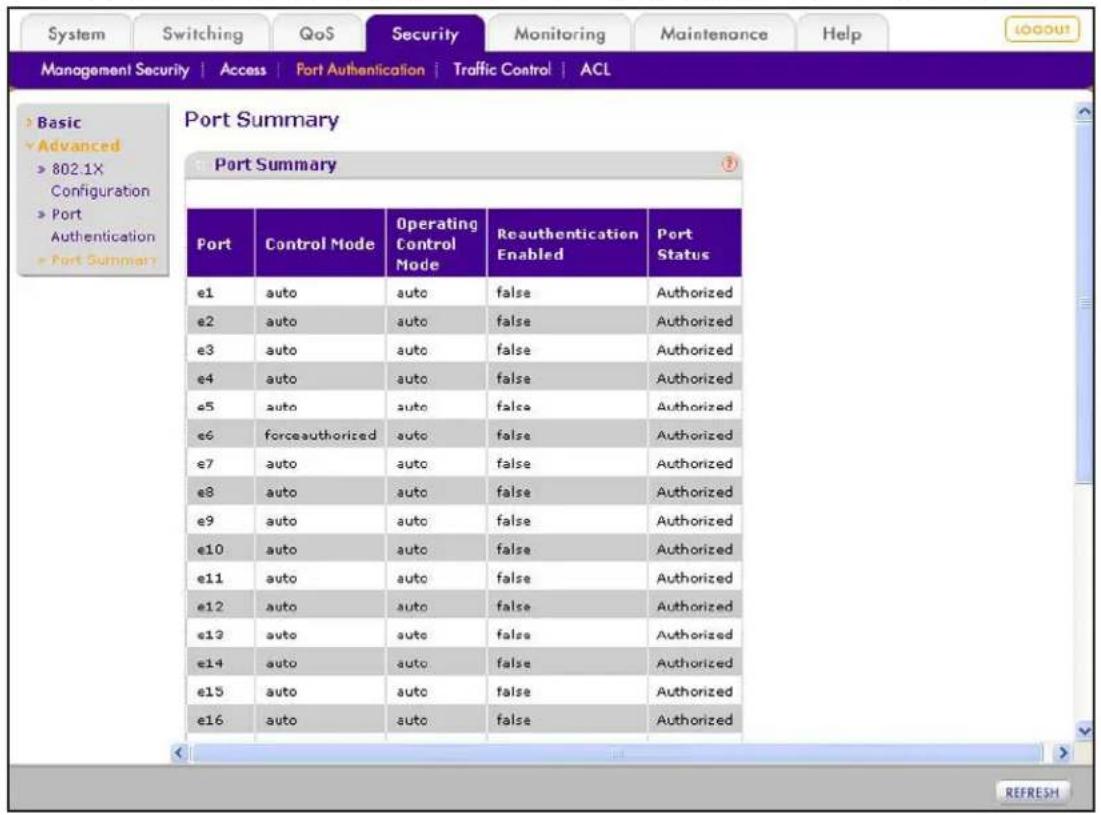
The following table describes the fields on the Port Summary screen.
| Field Description | |
| Interface This is a nonconfigurable field that shows the port number. | |
| Control Mode The control mode | or port authorization state that you selected from the Port Control menu on the Port Authentication screen (see Configure Authentication for Individual Ports on page 158):Auto. The port automatically detects the control mode through authentication exchanges between the supplicant, authenticator, and authentication server.ForceAuthorized. The port functions in the authorized state. The port sends and receives normal traffic without client port-based authentication.ForceUnauthorized. The port functions in the unauthorized state. The smart switch cannot provide authentication services to a client through the port. |
| Operating Control Mode The actual control mode or actual port authorization state in which the port operates, which can differ from the configured control mode:Auto. The port automatically detects the control mode through authentication exchanges between the supplicant, authenticator, and authentication server.ForceAuthorized. The port functions in the authorized state. The port sends and receives normal traffic without client port-based authentication.ForceUnauthorized. The port functions in the unauthorized state. The smart switch cannot provide authentication services to a client through the port. | |
| Reauthentication Enabled Indicates whether reauthentication is enabled on the port:true. Reauthentication is enabled.false. Reauthentication is disabled. | |
| Port Status The authorization status of the port, which depends on the configured control mode:Authorized. The port functions in the authorized state. The port sends and receives normal traffic without client port-based authentication.Unauthorized. The port functions in the unauthorized state. The smart switch cannot provide authentication services to a client through the port. | |
2. (Optional) Click the Refresh button.
The screen refreshes to display the most current data.
Configure Traffic Control
As part of traffic control, you can configure various network security measures:
- Storm control. Protect the network by specifying which packet type is allowed on a port and at what rate the packets can be transmitted from the port. For more information, see Configure Storm Control on page 166.
- Port security. Protect the network by locking a port or LAG and specifying that the port can forward only packets from particular source MAC addresses. For more information, see Configure Port Security on page 169.
- Protected ports. Protect the network by configuring a port as protected, preventing the port from forwarding traffic to other protected ports on the smart switch. For more information, see Configure Protected Ports on page 175.
Configure Storm Control
A single port that transmits an excessive number of broadcast messages simultaneously across the network causes a condition that is referred to as a broadcast storm. Forwarded message responses can overload network resources, cause the network to time out, or do both.
The smart switch can measure the packet rate of incoming broadcast, multicast, and unknown unicast packets on a per-port basis and discard packets when the rate exceeds the defined value. You can enable storm control globally or on a per-port basis by defining the packet type and the rate at which the packets are transmitted. You can enable storm control for more than one type of packet. By default, storm control is disabled for any packet type.
Configure Storm Control Globally
To configure storm control globally:
1. Select Security > Traffic Control > Storm Control.
The Storm Control screen displays. The following figure does not show all ports.
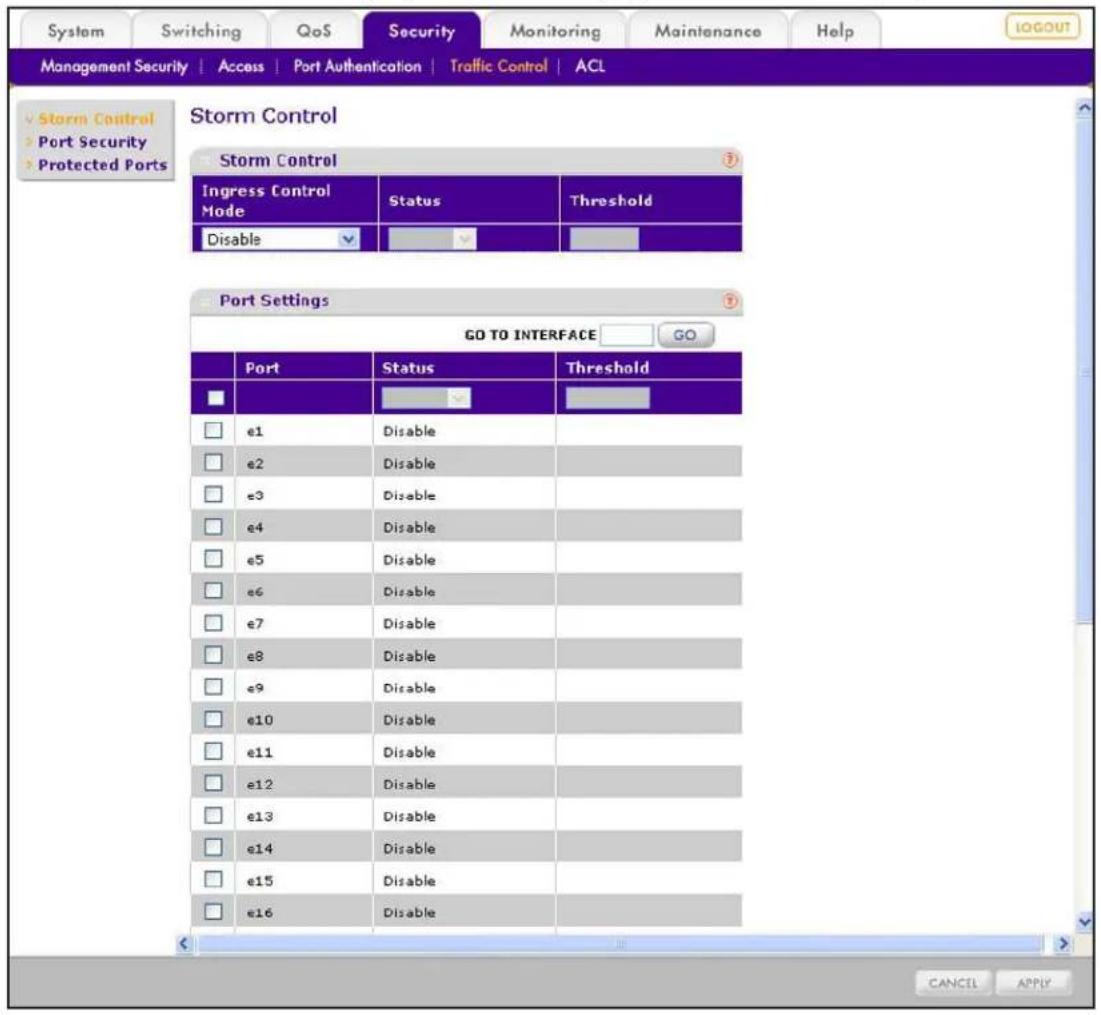
- In the Storm Control section of the screen, configure the global settings as described in the following table.
| Setting Description | |
| Ingress Control Mode From the menu, select the type of packets for which you want to configure storm control:Disable. Storm control is disabled.Unknown Unicast. The storm control configuration is for incoming unknown unicast packets, that is, packets for which the smart switch cannot determine the destination address.Multicast. The storm control configuration is for incoming multicast packets.Broadcast. The storm control configuration is for incoming broadcast packets. | |
| Status From the menu, select whether storm control is enabled for the packet type that you select from the Ingress Control Mode menu:Disable. Storm control for the selected packet type is disabled on all ports. This is the default setting.Enable. Storm control for the selected packet type is enabled on all ports. If the traffic for the selected packet traffic exceeds the configured threshold on any port, the smart switch discards the traffic. | |
| Threshold The maximum rate at which incoming packets of the type that you select from the Ingress Control Mode menu are forwarded. Enter a value in the range from 1 to 100 percent. The default is value is 5 (that is, 5 percent). | |
- Click the Apply button.
The settings are saved.
- To enable storm control for another packet type, repeat Step 2 and Step 3.
If you have enabled storm control globally for a particular packet type, you can make exceptions by disabling storm control for individual ports. For more information, see the next procedure.
Configure Storm Control for Individual Ports
To configure storm control for one or more ports:
- Select Security > Traffic Control > Storm Control.
The Storm Control screen displays.
-
From the Ingress Control Mode menu in the Storm Control section of the screen, select the type of packets for which you want to configure storm control on one or more ports:
-
Unknown Unicast . The storm control configuration is for incoming unknown unicast packets, that is, packets for which the smart switch cannot determine the destination address.
- Multicast. The storm control configuration is for incoming multicast packets.
-
Broadcast. The storm control configuration is for incoming broadcast packets.
-
In the Port Settings section of the screen, select whether to configure a single port, a group of ports, or all ports:
- T o configure a single port, select the check box next to the port that you want to configure.
The information for the selected port displays in the menu in the table heading.
- To configure a group of ports, select the check boxes for the individual ports that you want to configure.
-
To configure all ports, select the check box at the left in the table heading.
-
From the Status menu in the Port Settings section of the screen, select whether to enable or disable storm control for the selected port or ports:
- Disable . Storm control for the selected packet type is disabled on the selected port or ports.
This setting applies only when storm control is globally enabled for all ports.
- Enable. Storm control for the selected packet type is enabled on the selected port or ports. If the traffic for the selected packet traffic exceeds the configured threshold on the selected port or ports, the smart switch discards the traffic.
This setting applies only when storm control is globally disabled for all ports.
- Only if you select Enable from the Status menu, in the Threshold field in the Port Settings section of the screen, specify the maximum rate at which incoming packets of the type that you select from the Ingress Control Mode menu are forwarded. Enter a value in the range from 1 to 100 percent.
The default is value is 5 (that is, 5 percent).
- Click the Apply button.
The settings are saved.
- To configure storm control for another packet type on one or more ports, repeat Step 2 through Step 6.
Configure Port Security
When you configure port security, you actually lock one or more ports or LAGs so that they can forward only packets from particular source MAC addresses. The smart switch discards all other packets.
You can enable port security globally and configure the port security settings for individual ports and LAGs. When you disable port security globally, the port security settings for individual ports and LAGs are retained but ignored.
Enable Port Security Globally
To enable port security globally:
- Select Security > Traffic Control > Port Security > Port Security Configuration.
The Port Security Configuration screen displays.
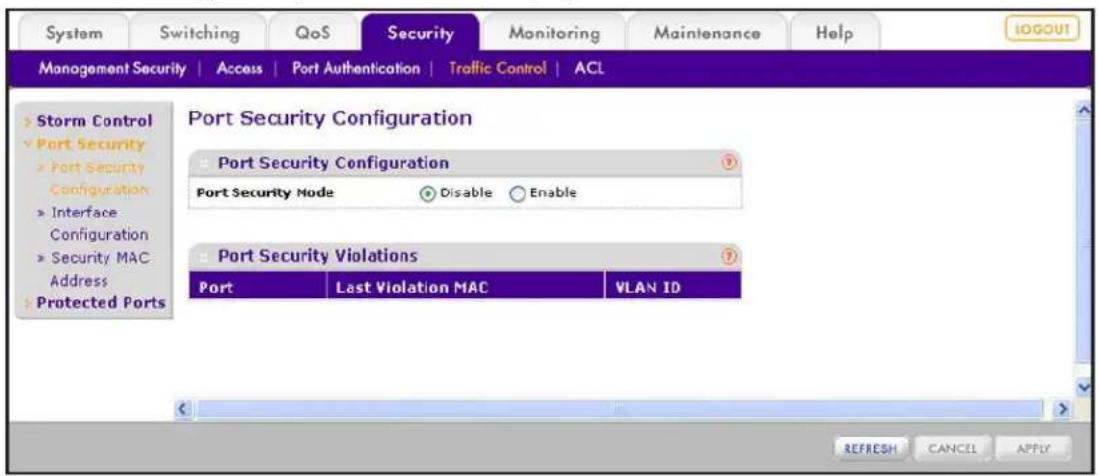
- Next to Port Security Mode, select the Enable button.
By default, port security is disabled.
- Click the Apply button.
The settings are saved.
Note: For information about port security violations, see View Security Violations on page 174.
Configure Port Security for Ports and LAGs
On a port or LAG that is configured for port security (that is, the port or LAG is locked), the MAC addresses that are allowed can be both dynamic and static MAC addresses:
- Dynamic locking. This method implements a first-arrival mechanism for port security. You specify how many addresses the locked port can learn. If the limit has not been reached, the port learns a packet with an unknown source MAC address and forwards it normally. When the limit is reached, the port can no longer learn MAC addresses and discards any packets with source MAC addresses that it has not already learned. You can effectively disable dynamic locking by setting the number of allowable dynamic entries to zero.
- Static locking. This method lets you convert dynamically learned MAC addresses to static MAC addresses that are allowed on a locked port. The behavior of packets is the same as for dynamic locking: The port forwards only packets with an allowed source MAC address.
To configure port security for one or more ports or LAGs:
1. Select Security > Traffic Control > Port Security > Interface Configuration.
The Interface Configuration screen displays. The following figure does not show all ports.
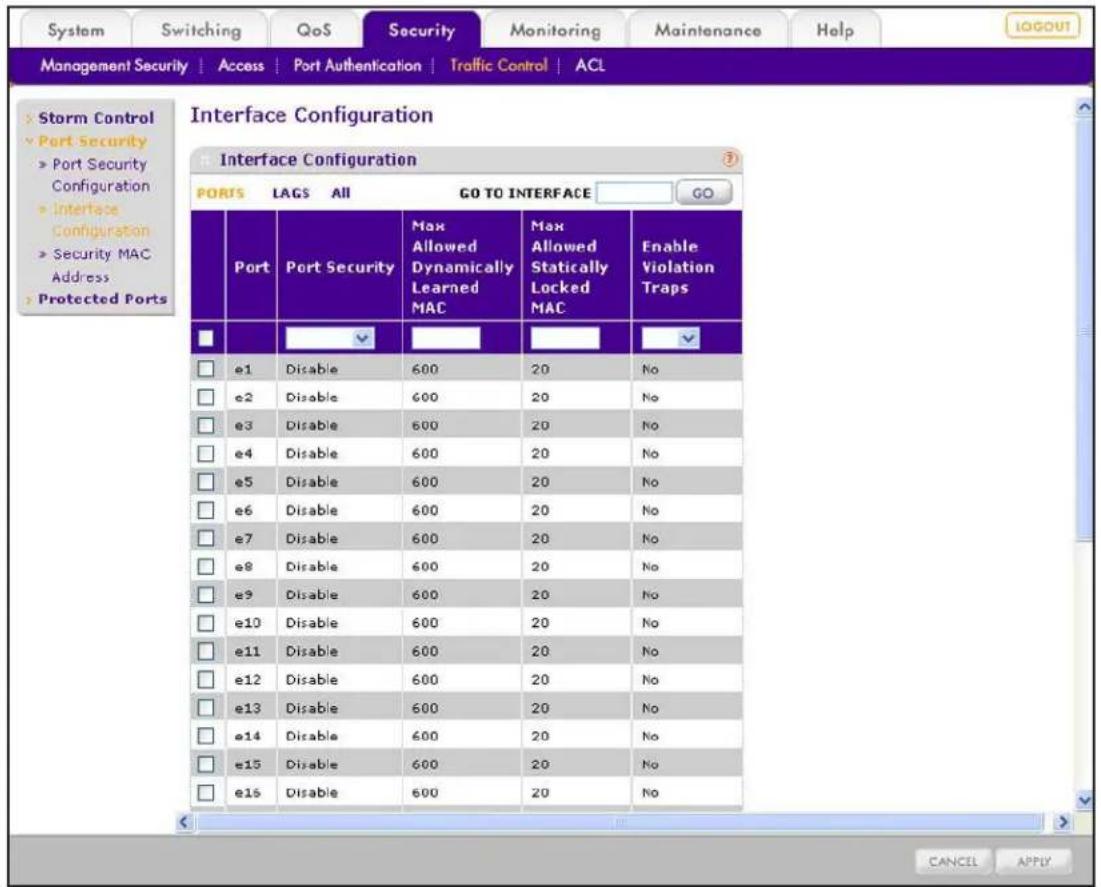
-
Select whether to configure physical ports, LAGs, or both by clicking one of the following links above the table heading:
-
PORTS. Only physical ports display . This is the default setting.
• LAGS . Only LAGs display.
• All. Both physical ports and LAGs display. -
Select whether to configure a single port, a group of ports, or all ports (for the sake of simplicity in this procedure, LAGs are also considered ports):
- T o configure a single port, select the check box next to the port that you want to configure.
The information for the selected port displays in the menu in the table heading.
- To configure a group of ports, select the check boxes for the individual ports that you want to configure.
-
To configure all ports, select the check box at the left in the table heading.
-
Configure the settings as described in the following table.
| Setting Description | |
| Port Security From the menu, select whether port security is enabled for the port or LAG:Disable. Port security is disabled. This is the default setting.Enable. Port security is enabled. | |
| Max Allowed Dynamically Learned MAC | The maximum number of dynamically learned MAC addresses that are allowed on the port.Enter a number in the range from 0 to 600. The default setting is 600. If you enter 0, the port cannot learn any dynamic MAC addresses. |
| Max Allowed Statically Locked MAC | The maximum number of dynamically learned MAC addresses that can be converted to static MAC addresses on the port or LAG.Enter a number in the range from 0 to 20. The default setting is 20. If you enter 0, the port cannot accept any static MAC addresses.Note: For information about enabling the conversion from dynamically learned MAC addresses to static MAC addresses, seeEnable Conversion of Dynamic to Static MAC Addresses on page 173. |
| Enable Violation Traps When a port or LAG receives a packet with a MAC address that is not allowed, the smart switch can generate an SNMP trap.From the menu, select whether violations generate SNMP traps:Ye s. The smart switch generates an SNMP trap.No. The smart switch does not generate an SNMP trap. This is the default setting. | |
- Click the Apply button.
The settings are saved.
Enable Conversion of Dynamic to Static MAC Addresses
To enable the conversion of dynamically learned MAC addresses to static MAC addresses for an individual port:
- Select Security > Traffic Control > Port Security > Security MAC Address.
The Security MAC Address screen displays.
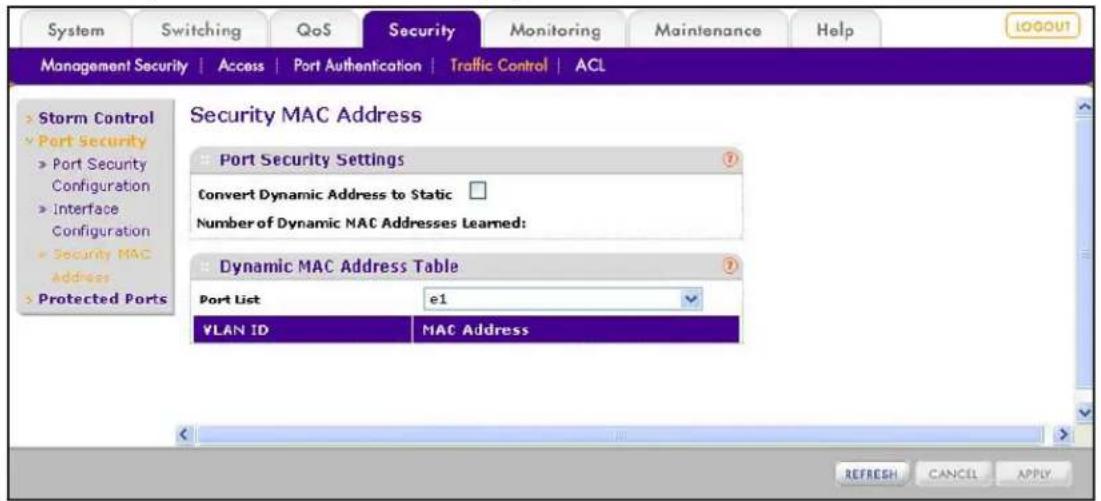
- From the Port List menu, select a port or LAG.
- Select the Convert Dynamic Address to Static check box.
- Click the Apply button.
The settings are saved. For traffic that is entering the selected port, the smart switch converts dynamic MAC addresses to static MAC addresses in a numerically ascending order until the value that you configured in the Max Allowed Statically Locked MAC field on the Interface Configuration screen is reached (see Configure Port Security for Ports and LAGs on page 170).
Note: For information about how to view the Dynamic MAC Address Table, see View the Dynamic MAC Address Table for Port Security on page 175.
View Security Violations
To view security violations:
1. Select Security > Traffic Control > Port Security > Port Security Configuration.
The Port Security Configuration screen displays.
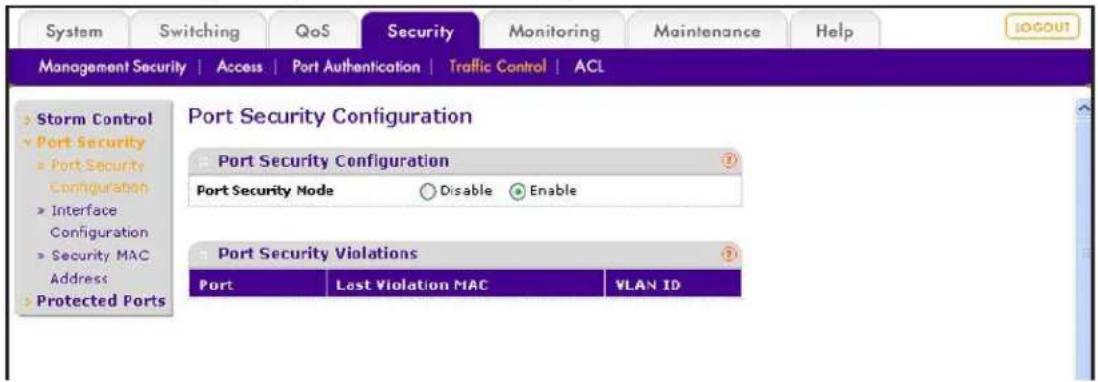
The Port Security Violations table shows information about violations that occurred on ports and LAGs that are enabled for port security. The following table describes the fields in the Port Security Violations table.
| Fields Description | |
| Port The port or LAG in | which a violation occurred. |
| Last Violation MAC | The source MAC address of the packet that was discarded at the locked port or LAG. |
| VLAN ID The VLAN ID | that corresponds to the MAC address of the packet that was discarded at the locked port or LAG. |
2. (Optional) Click the Refresh button.
The screen refreshes to display the most current data.
View the Dynamic MAC Address Table for Port Security
To view the Dynamic MAC Address Table for port security:
1. Select Security > Traffic Control > Port Security > Security MAC Address.
The Security MAC Address screen displays. The following figure shows an example.
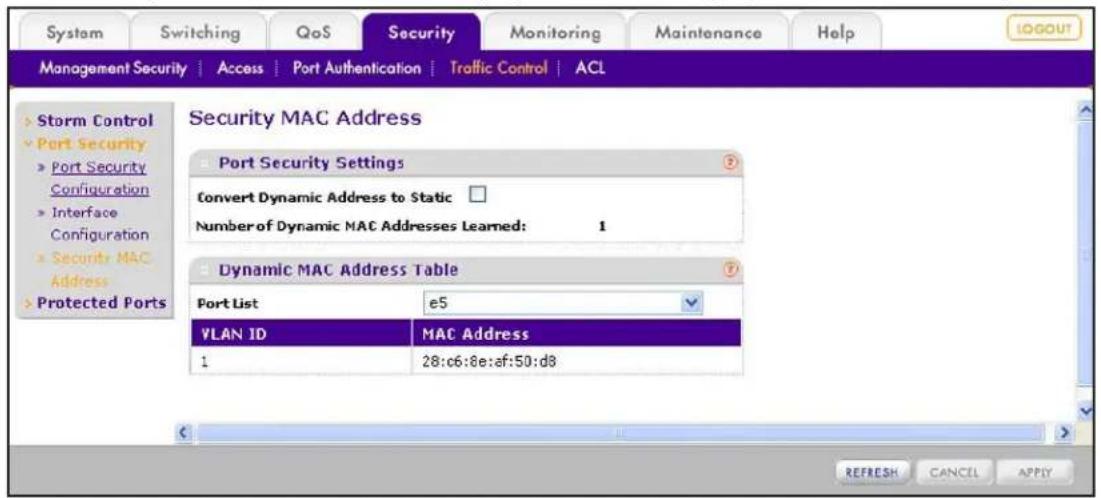
- From Port List menu Dynamic MAC Address Table section of the screen, select the port or LAG for which you want to see the dynamically learned MAC addresses.
The Number of Dynamic MAC Addresses Learned field displays the total number of dynamic MAC Addresses that were learned on the port or LAG.
The Dynamic MAC Address Table shows the MAC addresses that were learned on the selected port or LAG and the VLAN IDs that are associated with the MAC addresses.
- (Optional) Click the Refresh button.
The screen refreshes to display the most current data.
Configure Protected Ports
If you configure a port as protected, the port does not forward traffic to any other protected port on the smart switch, but can forward traffic to unprotected ports on the smart switch.
As an example, in the following figure, ports 16 through 19 are protected ports and all other ports are unprotected.

Figure 13. Example of protected ports
To configure protected ports:
1. Select Security > Traffic Control > Protected Ports.
The Protected Ports screen displays.
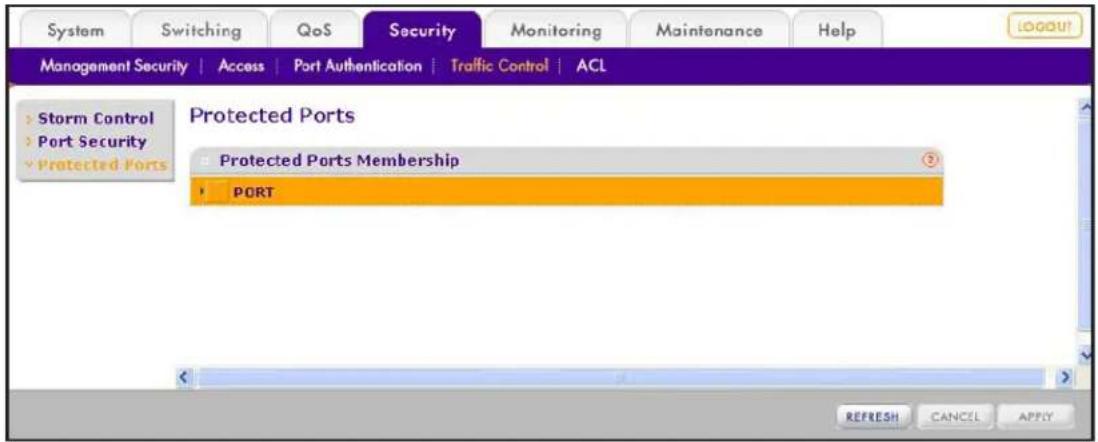
- Depending on the ports that you want to convert to protected ports, use one of the following methods to add one or more ports:
- Convert individual ports to protected ports using the orange bar. Below the orange bar, select one or more ports by clicking the square below each port.
(Clicking a second time clears the port as a protected port.)
- Convert ports to protected ports using the orange bar. In the orange bar, click the square next to the PORT link and clear one or more individual ports by clicking the square below each port because you do not want to convert all ports to protected ports.
(Clicking a second time clears all port as a protected ports.)

WARNING:
Do not convert all ports to protected ports. If you do, the smart switch stops processing all traffic and you are locked out from the web management interface.
- Click the Apply button.
The settings are saved.
Manage Access Control Lists
14
This chapter describes how to configure access control lists (ACLs), including MAC ACLs and IP ACLs, to enhance security of the network. The chapter includes the following sections:
- Access Control List Concepts
- Use the ACL Wizard to Configure ACLs
- Manually Configure and Assign MAC ACLs
- Manually Configure and Assign IP ACLs
Access Control List Concepts
Access control lists (ACLs) ensure that only authorized users have access to specific resources while blocking any unwarranted attempts to reach network resources. ACLs are used to provide security for the network, to provide traffic flow control, to restrict contents of routing updates, and to determine which types of traffic are forwarded or blocked.
The smart switch supports ACLs based on the MAC addresses of the source and destination devices (MAC ACLs), ACLs based on the IPv4 addresses of the source and destination devices (basic IP ACLs), and ACLs that are based on the TCP or UDP source and destination ports (extended IP ACLs).
ACLs are composed of access control entries (ACE), or rules, that consist of the filters that determine traffic classifications.
These are the basic steps to configure an ACL:
- Create a name or identifier for an ACL.
- Create rules and assign them to the ACL.
- Assign the ACL to an interface.
Note: For more information about ACLs, including configuration examples, see Access Control Lists on page 310.
Use the ACL Wizard to Configure ACLs
The ACL Wizard lets you configure ACL permissions for devices based on the source and destination MAC addresses, source and destination IP addresses, and TCP or UDP source and destination port IDs.
If you click the Permit or Deny link next to an ACL Wizard option, a new screen displays. Many of the fields and menus on the screen are preconfigured, based on your selection. You need to specify fields and make selections from menus for settings that are specific to your network and configuration.
View the ACL Wizard Screen and View the Options
This section provides general information about the ACL Wizard screen and the options that it provides. For detailed procedures, see the following sections:
• Use the ACL Wizard to Create an ACL Based on MAC Addresses on page 180
• Use the ACL Wizard to Create an ACL Based on a Source IP Address on page 184
• Use the ACL Wizard to Create an ACL Based on a Destination IP Address on page 188
• Use the ACL Wizard to Create an ACL Based on TCP or UDP Ports on page 192
To display the ACL Wizard screen and view the options:
Select Security > ACL > ACL Wizard.
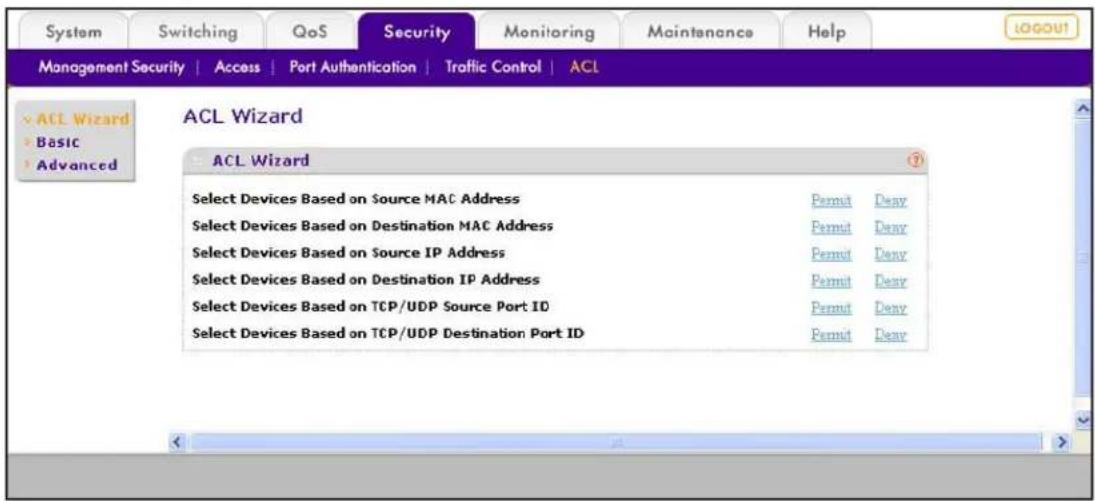
The following table describes the options that are available and the fields and menus that you need to specify for each wizard selection.
| Wizard Selection Link Screen | In That | Displays Fields and Menus That You Need to Specify | |
| Select Devices Based on Source MAC Address | Permit | Source MAC Address Rule Name, Assign Queue | ACL Name, Assign Queue, Redirect Interface, VLAN, Source MAC, and Source MAC Mask |
| Deny ACL Name, | Redirect Interface,CPU Notification Mode, VLAN, Source MAC,and Source MAC Mask | ||
| Select Devices Based on Destination MAC Address | Permit | Destination MAC Address Rules | ACL Name, Assign Queue, Redirect Interface,VLAN, Destination MAC, and Destination MACMask |
| Deny ACL Name, | Assign Queue, Redirect Interface,CPU Notification Mode, VLAN, DestinationMAC, and Destination MAC Mask | ||
| Select Devices Based on Source IP Address | Permit | Source IP Address Rules | ACL ID, Source IP Address, and Source IPMask |
| Deny ACL ID, CPU Notification M | Mode, Source IPAddress, and Source IP Mask | ||
| Select Devices Based on Destination IP Address | Permit | Destination IP Address Rules | ACL ID, Destination IP Address, andDestination IP Mask |
| Deny ACL ID, CPU Notification M | Mode, Destination IPAddress, and Destination IP Mask | ||
| Wizard Selection Link Screen | That | Displays Fields and Menus That You Need to Specify | |
| Select Devices Based on TCP/UDP Source Port ID | Permit | TCP/UDP Source Port ID Rule | ACL ID, Protocol Type, Src L4 Port, and Service Type |
| Deny ACL ID, CPU Notification M | Mode, Protocol Type, Src L4 Port, and Service Type | ||
| Select Devices Based on TCP/UDP Destination Port ID | Permit | TCP/UDP Destination Port ID Rule | ACL ID, Protocol Type, Dst L4 Port, and Service Type |
| Deny | ACL ID, CPU Notification Mode, Protocol Type, Dst L4 Port, and Service Type | ||
Use the ACL Wizard to Create an ACL Based on MAC Addresses
Before you can use the ACL Wizard to create an ACL that is based on a source or destination MAC address, first create a MAC ACL name.
To create a MAC ACL name and use the ACL Wizard to configure a rule that is based on the source or destination MAC address:
- Select Security > ACL > Basic > MAC ACL Configuration.
The MAC ACL screen displays. The following figure shows an entry in the table as an example.
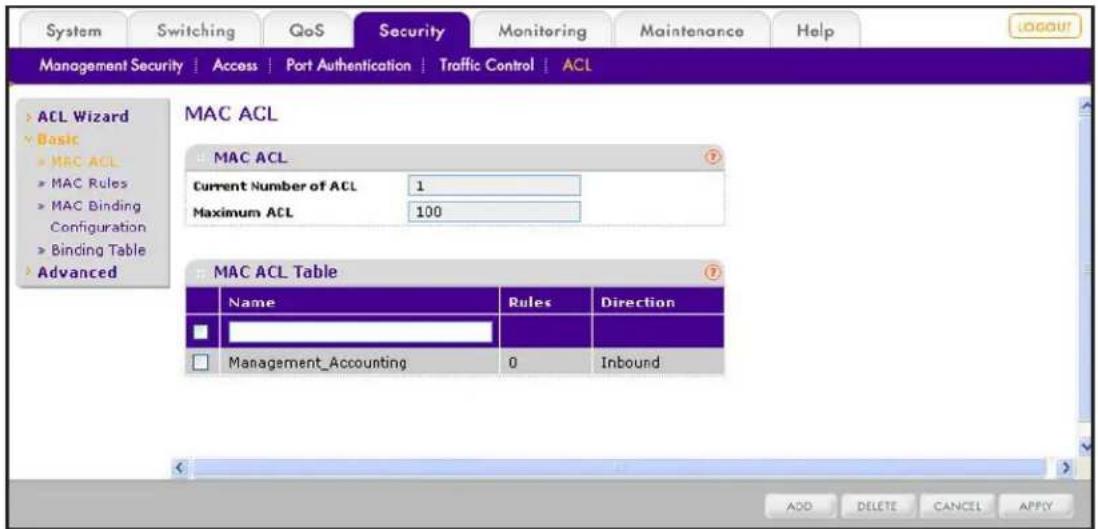
-
In the Name field in the heading of the MAC ACL Table, specify a name for the ACL. The name can include alphabetic, numeric, hyphen, underscore, or space characters, and needs to start with an alphabetic character.
-
Click the Add button. The ACL is added to the MAC ACL table. No rules are attached yet to the ACL.
-
Select Security > ACL > ACL Wizard.
The ACL Wizard screen displays.
- Select whether to create a rule that is based on a source MAC address or destination MAC address:
- Source MAC address. Next to Select Devices Based on Source MAC Address, select one of the following active links:
- Permit. Creates a rule that permits a source MAC address.
- Deny. Creates a rule that prohibits a source MAC address.
The Source MAC Address Rules screen displays.
- Destination MAC address. Next to Select Devices Based on Destination MAC
Address, select one of the following active links:
- Permit. Creates a rule that permits a destination MAC address.
- Deny. Creates a rule that prohibits a destination MAC address.
The Destination MAC Address Rules screen displays.
The following figure shows the Source MAC Address Rules screen with the Deny action selected. If you select the Permit action, the fields are the same, except that the CPU Notification Mode menu is masked out.
The Destination MAC Address Rules screen is identical to the Source MAC Address Rules screen, with the only exception that it shows Destination MAC and Destination MAC Mask fields instead of Source MAC and Source MAC Mask fields.
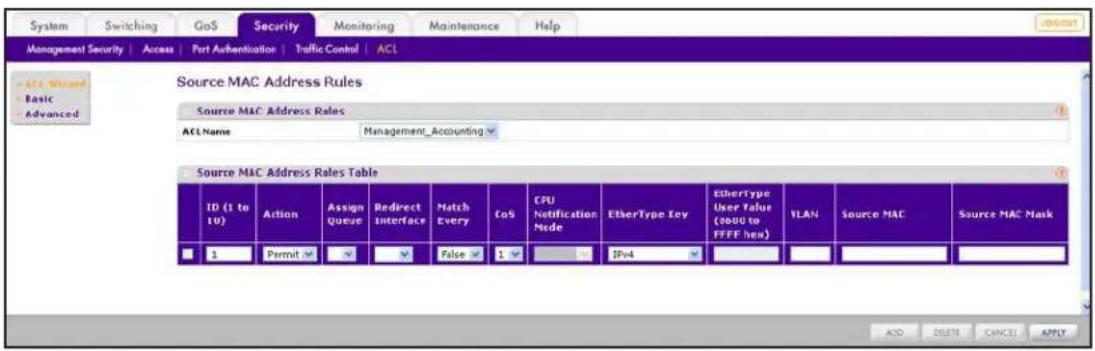
- From the ACL Name menu, select the ACL name that you have defined on the MAC ACL screen and for which you want to add a rule.
The rule that you are creating applies to the selected MAC ACL only.
- Configure the settings as described in the following table:
| Settings Description | |
| ID (1 to 10) The ACL Wizard preconfigures the ID.The ID is a number from 1 to 10. You can create up to 10 rules for a single MAC ACL. | |
| Action The link that you select on the ACL Wizard screen determines how the ACL Wizard preconfigures the action:Permit. Packets that meet the ACL criteria are forwarded.Deny. Packets that meet the ACL criteria are dropped. | |
| Assign Queue (Optional) Specify the egress queue that is used to handle all packets that match the ACL rule.From the menu, select the queue ID (0, 1, 2, 3, 4, 5, 6, or 7). This setting can override the existing queue ID for a packet. | |
| Redirect Interface (Optional) Specify the egress port on which the matching traf fic stream is forced, bypassing any forwarding action that the smart switch normally takes.From the menu, select a port. | |
| Match Every The ACL Wizard preconfigured the selection as False. Not all packets need to match the rule. Other rules are also considered. | |
| CoS (Optional) Specify the 802.1p CoS marking that needs to match the CoS marking in a packet.From the menu, select the priority value (0, 1, 2, 3, 4, 5, 6, or 7). | |
| CPU Notification ModeNote: This menu applies only to model 728TLP. | This menu is available only if you selected a Deny link on the ACL Wizard screen and is masked out if you selected a Permit link.Specify whether PoE power is turned off to a port if the ACL rejects the traffic from the port:Enable. PoE power to the port is turned of f. To reestablish PoE power to the port, turn on the PoE power manually (see Configure the PoE Ports on page 75).Disable. PoE power to the port is not turned of f. |
| EtherType Key | (Optional) Select the EtherType that needs to be compared against the information in a packet. From the menu, select the EtherType:Appletalk, ARP, IBM SNA, IPv4, IPv6, IPX, MPLS multicast, MPLS unicast, NetBIOS, Novell, PPPoE, Reverse ARP, User Value.If you select User Value, enter the value in the EtherType User Value field. |
| EtherType User Value (0600 to FFFF hex) | If you select User Value from the EtherType Key menu, enter the value, which is a hexadecimal number in the range from 0x0600 to 0xFFFF. |
| VLAN | (Optional) Specify the VLAN ID that needs to be compared against the information in a packet.Enter a number in the range from 0 through 4095. You cannot enter a VLAN range.Note: Most VLAN configurations on the smart switch are in the range from 1 to 4093. However, an ACL can detect a VLAN in the range from 0 to 4095. |
| Source MAC or Destination MAC | Depending on the type of link that you selected on the ACL Wizard screen, specify the MAC address of either the source device or destination device that needs to be compared against the MAC address in a packet.Enter a MAC address in the xx:xx:xx:xx:xx:xx format. |
| Source MAC Mask or Destination MAC Mask | Depending on the type of link that you selected on the ACL Wizard screen, specify the MAC mask that is associated with the source or destination MAC address.The MAC mask specifies which bits in the MAC address need to be compared against the information in a packet.Note: Use Fs and zeros in the MAC mask. An F means that the bit is not checked, and a zero in a bit position means that the data needs to be equal to the value given for that bit. For example, if the MAC address is aa:bb:cc:dd:ee:ff, and the MAC mask is ff:ff:00:00:00:00, all MAC addresses with xx:xx:cc:dd:ee:ff (in which x is any hexadecimal number) result in a match. |
8. Click the Add button.
The rule is added to the Source MAC Address Rules Table or Destination MAC Address Table.
9. Click the Apply button.
The settings are saved, and the MAC Binding Configuration screen displays.
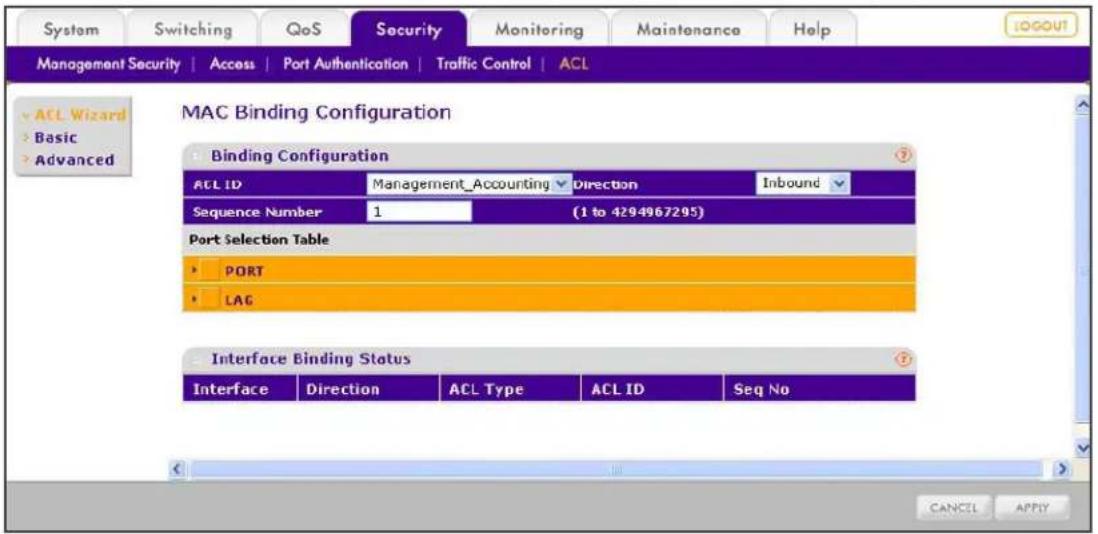
- From the ACL ID menu, select the MAC ACL to which you want to bind ports, LAGs, or both.
Note: The Direction menu is fixed at Inbound. Only incoming packets can be filtered.
- (Optional) In the Sequence Number field, enter a number in the range from 1 to 4,294,967,295.
The sequence number specifies the order of the ACL relative to existing ACLs that are bound to the same interface or interfaces. A lower number specifies a higher precedence order. If a sequence number is already in use for the port or ports, the ACL replaces the existing ACL that uses the same sequence number. If you do not enter a number, the smart switch assigns a default sequence number automatically.
- In the Port Selection Table section, click one or both of the orange bars:
• PORT. Displays the physical ports.
- LAG. Displays the link aggregation groups 1 through 8. (For more information, see Chapter 8, Configure LAGs and LAG Membership.)
- To bind one or more ports or LAGs to the ACL, use one of the following methods:
- Bind individual ports or LAGs to the MAC ACL:
a. Click the PORT or LAG orange bar.
b. Below each selected orange bar, select one or more ports or LAGs by clicking the square below each port or LAG.
(Clicking a second time removes the ports or LAGs from the binding.)
- Bind all ports or LAGs to the MAC ACL. In the orange bar, click the square next to PORT or LAG. All ports or LAGs are bound to the MAC ACL.
(Clicking a second time removes all ports or LAGs from the binding.)
- Click the Apply button.
The settings are saved, and the ACL information is added to both the Interface Binding Status table and the MAC Binding Table on the MAC Binding Table screen (see View the MAC ACL Binding Table on page 206).
For information about how to change the rule or remove the rule, see the procedures at the end of Manage MAC ACL Rules on page 199.
Use the ACL Wizard to Create an ACL Based on a Source IP Address
Before you can use the ACL Wizard to create an ACL that is based on a source address, first create an IP ACL ID.
To create an IP ACL ID and use the ACL Wizard to configure a rule that is based on the source IP address:
- Select Security > ACL > Advanced > IP ACL.
The IP ACL screen displays. The following figure shows an entry in the table as an example.
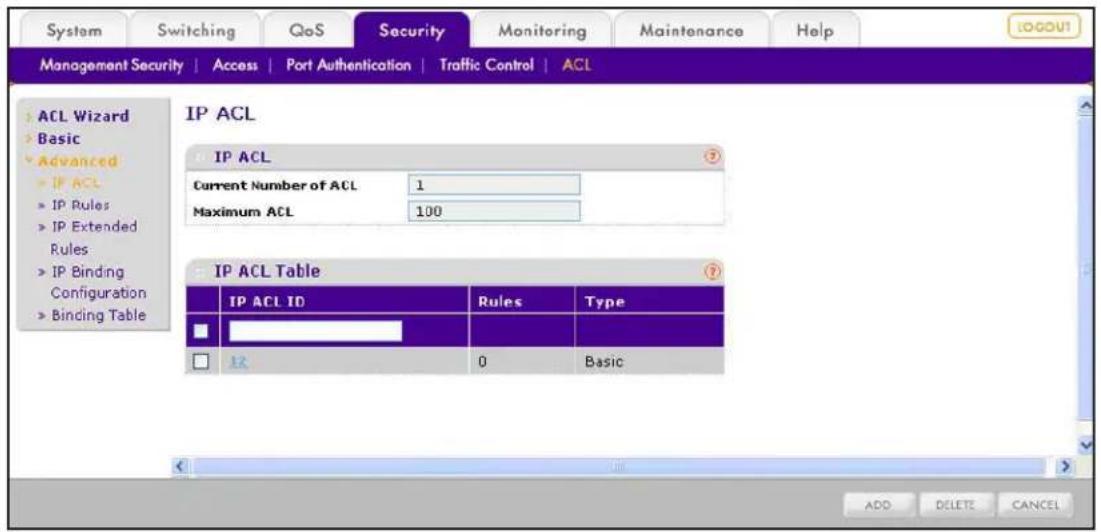
- In the IP ACL ID field in the heading of the IP ACL Table, specify an ID.
Type an ID in the range from 1 to 99. An ID in this range creates a basic IP ACL. For more information about basic IP ACLs, see Manage IP ACL Identifiers on page 208.
- Click the Add button.
The ACL is added to the IP ACL table. No rules are attached yet to the ACL.
- Select Security > ACL > ACL W izard.
The ACL Wizard screen displays.
-
Next to Select Devices Based on Source IP Address, select one of the following active links:
-
Permit. Creates a rule that permits a source IP address.
- Deny. Creates a rule that prohibits a source IP address.
The Source IP Address Rules screen displays.
The following figure shows the Source IP Address Rules screen with the Permit action selected. If you select the Deny action, the fields are the same, except that the CPU Notification Mode menu is available.
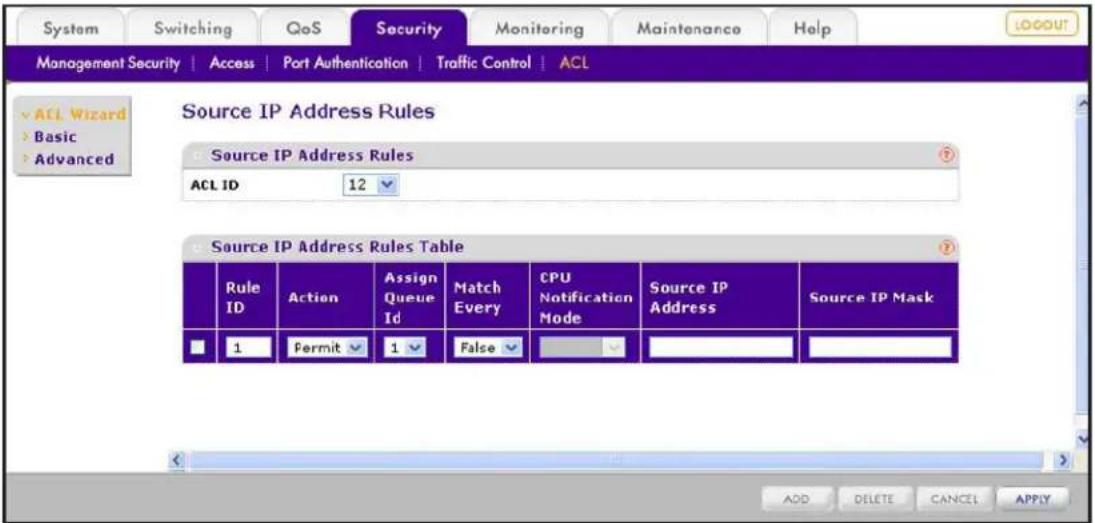
- From the ACL ID menu, select the ACL ID that you have defined on the IP ACL screen and for which you want to add a rule.
The rule that you are creating applies to the selected IP ACL only.
- Configure the settings as described in the following table:
| Settings Description | |
| Rule ID The ACL Wizard preconfigures the ID.The ID is a number from 1 to 10. You can create up to 10 rules for a single MAC ACL. | |
| Action The link that you select on the ACL Wizard screen determines how the ACL Wizard preconfigures the action:Permit. Packets that meet the ACL criteria are forwarded.Deny. Packets that meet the ACL criteria are dropped. | |
| Assign Queue ID (Optional) Specify the egress queue that is used to handle all packets that match the ACL rule.From the menu, select the queue ID (0, 1, 2, 3, 4, 5, 6, or 7). This setting can override the existing queue ID for a packet. | |
| Match Every The ACL Wizard preconfigured the selection as False. Not all packets need to match the rule. Other rules are also considered. | |
| CPU Notification ModeNotes: menu applies only to model 728TLP. | This menu is available only if you selected a Deny link on the ACL Wizard screen and is masked out if you selected a Permit link.Specify whether PoE power is turned off to a port if the ACL rejects the traffic from the port:Enable. PoE power to the port is turned of f. To reestablish PoE power to the port, turn on the PoE power manually (see Configure the PoE Ports on page 75).Disable. PoE power to the port is not turned of f. |
| Source IP Address Specify | the IP address of the source or destination device that needs to be compared against the source address information in a packet.Enter an IP address in the dotted-decimal notation. |
| Source IP Mask Specify the | IP subnet mask that is associated with the source IP address. The IP subnet mask specifies which bits in the source IP address need to be compared against the source address information in a packet.Note:A subnet mask of 255.255.255.255 indicates that none of the bits are important. A subnet mask of 0.0.0.0 indicates that all of the bits are important. For example, if you apply source IP mask 0.0.0.255 to IP address 192.168.0.10, the ACL applies to IP addresses 192.168.0.0 through 192.168.0.255. |
8. Click the Add button.
The rule is added to the Source IP Address Rules Table.
9. Click the Apply button.
The settings are saved, and the IP Binding Configuration screen displays.
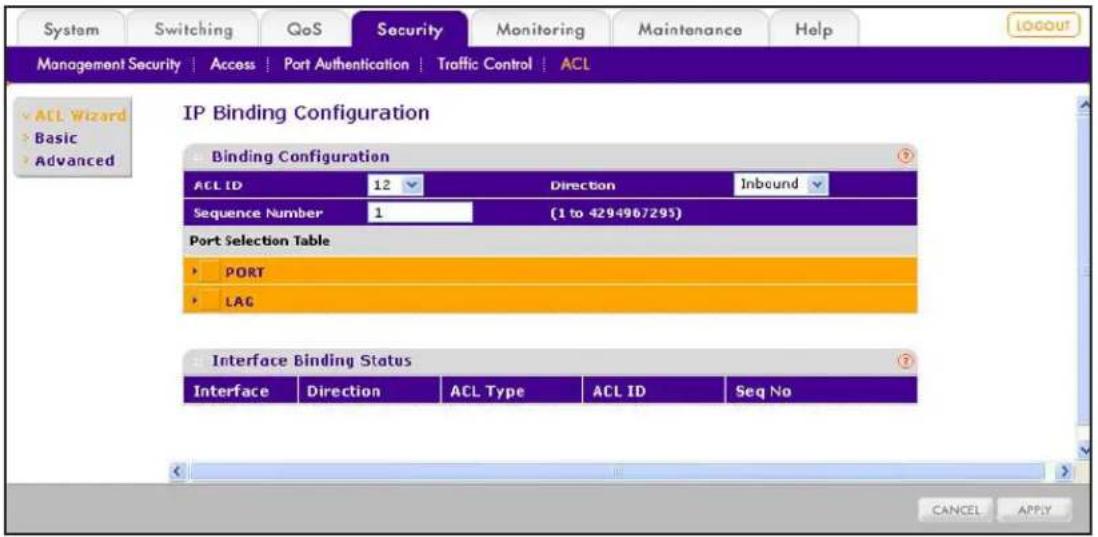
- From the ACL ID menu, select the IP ACL to which you want to bind ports, LAGs, or both.
Note: The Direction menu is fixed at Inbound. Only incoming packets can be filtered.
- (Optional) In the Sequence Number field, enter a number in the range from 1 to 4,294,967,295.
The sequence number specifies the order of the ACL relative to existing ACLs that are bound to the same interface or interfaces. A lower number specifies a higher precedence
order. If a sequence number is already in use for the port or ports, the ACL replaces the existing ACL that uses the same sequence number. If you do not enter a number, the smart switch assigns a default sequence number automatically.
- In the Port Selection Table section, click one or both of the orange bars:
- PORT. Displays the physical ports.
- LAG. Displays the link aggregation groups 1 through 8. (For more information, see Chapter 8, Configure LAGs and LAG Membership.)
- To bind one or more ports or LAGs to the ACL, use one of the following methods:
- Bind individual ports or LAGs to the IP ACL:
a. Click the PORT or LAG orange bar.
b. Below each selected orange bar, select one or more ports or LAGs by clicking the square below each port or LAG.
(Clicking a second time removes the ports or LAGs from the binding.)
- Bind all ports or LAGs to the IP ACL. In the orange bar, click the square next to PORT or LAG. All ports or LAGs are bound to the MAC ACL.
(Clicking a second time removes all ports or LAGs from the binding.)
- Click the Apply button.
The settings are saved, and the ACL information is added to both the Interface Binding Status table and the IP Binding Table on the IP Binding Table screen (see View the IP ACL Binding Table on page 219).
For information about how to change the rule or remove the rule, see the procedures at the end of Manage Basic IP ACL Rules on page 209.
Use the ACL Wizard to Create an ACL Based on a Destination IP Address
Before you can use the ACL Wizard to create an ACL that is based on a destination IP address, first create an IP ACL ID.
To create an IP ACL ID and use the ACL Wizard to configure a rule that is based on the source or destination IP address:
- Select Security > ACL > Advanced > IP ACL.
The IP ACL screen displays. The following figure shows an entry in the table as an example.
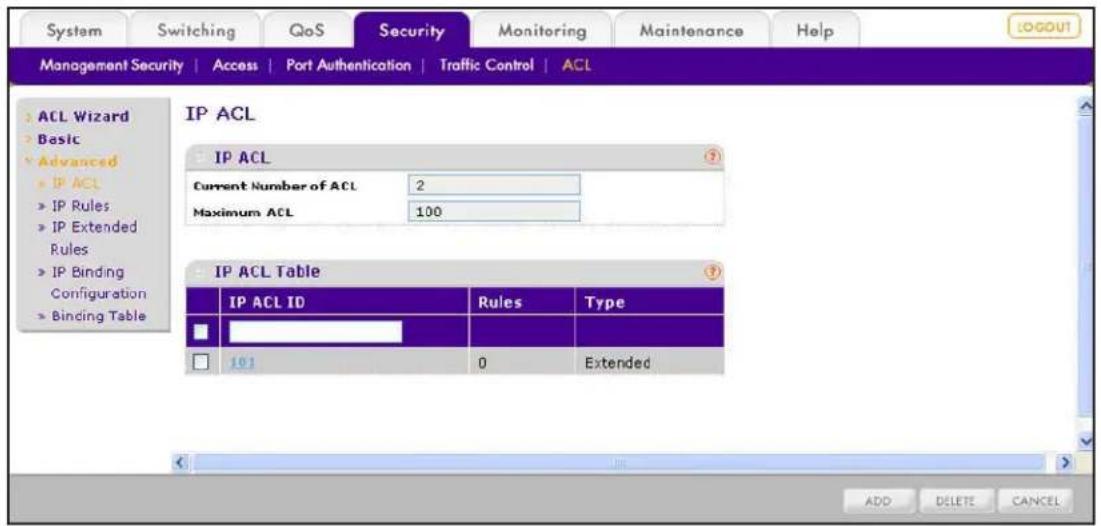
- In the IP ACL ID field in the heading of the IP ACL Table, specify an ID.
Type an ID in the range from 100 to 199. An ID in this range creates an extended IP ACL. You cannot use a basic IP ACL, that is, an IPACL with an ID in the range from 1 to 99. For more information about extended IP ACLs, see Manage IP ACL Identifiers on page 208.
- Click the Add button.
The ACL is added to the IP ACL table. No rules are attached yet to the ACL.
- Select Security > ACL > ACL W izard.
The ACL Wizard screen displays.
-
Next to Select Devices Based on Destination IP Address, select one of the following active links:
-
Permit. Creates a rule that permits a destination IP address.
- Deny. Creates a rule that prohibits a destination IP address.
The Destination IP Address Rules screen displays.
The following figure shows the Destination IP Address Rules screen with the Deny action selected. If you select the Permit action, the fields are the same, except that the CPU Notification Mode menu is masked out.
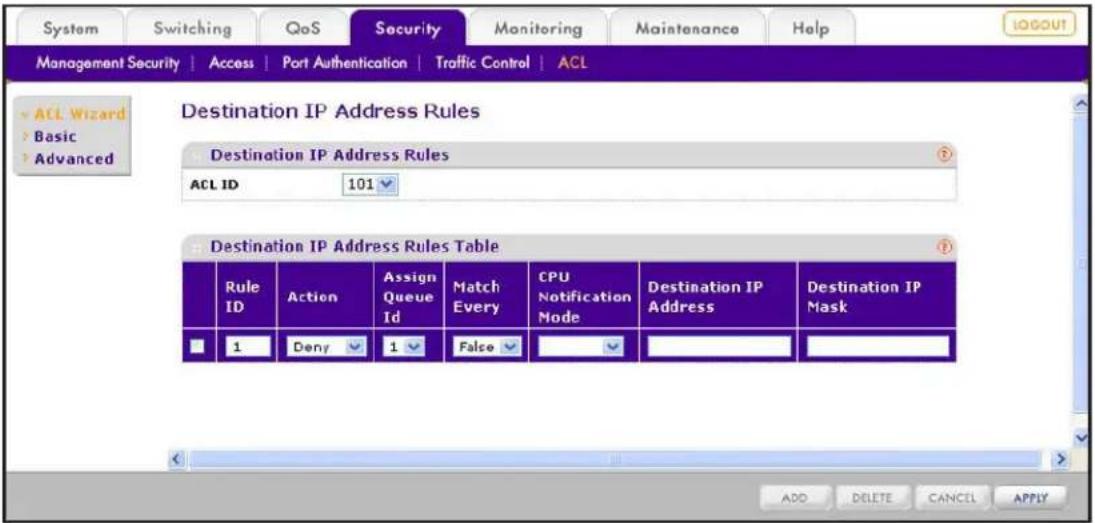
- From the ACL ID menu, select the ACL ID that you have defined on the IP ACL screen and for which you want to add a rule.
The rule that you are creating applies to the selected IP ACL only.
- Configure the settings as described in the following table:
| Settings Description | |
| Rule ID The ACL Wizard preconfigures the ID.The ID is a number from 1 to 10. You can create up to 10 rules for a single MAC ACL. | |
| Action The link that you select on the ACL Wizard screen determines how the ACL Wizard preconfigures the action:Permit. Packets that meet the ACL criteria are forwarded.Deny. Packets that meet the ACL criteria are dropped. | |
| Assign Queue ID (Optional) Specify the egress queue that is used to handle all packets that match the ACL rule.From the menu, select the queue ID (0, 1, 2, 3, 4, 5, 6, or 7). This setting can override the existing queue ID for a packet. | |
| Match Every The ACL Wizard preconfigured the selection as False. Not all packets need to match the rule. Other rules are also considered. | |
| CPU Notification ModeNotesmenu applies only to model 728TLP. | This menu is available only if you selected a Deny link on the ACL Wizard screen and is masked out if you selected a Permit link.Specify whether PoE power is turned off to a port if the ACL rejects the traffic from the port:Enable. PoE power to the port is turned of f. To reestablish PoE power to the port, turn on the PoE power manually (see Configure the PoE Ports on page 75).Disable. PoE power to the port is not turned of f. |
| Destination IP Address Specify the IP address of the destination device that needs to be compared against the destination address information in a packet.Enter an IP address in the dotted-decimal notation. | |
| Destination IP Mask Specify the IP subnet mask that is associated with the destination IP address.The IP subnet mask specifies which bits in the destination IP address need to be compared against the destination address information in a packet.Note:A subnet mask of 255.255.255.255 indicates that none of the bits are important. A subnet mask of 0.0.0.0 indicates that all of the bits are important.For example, if you apply destination IP mask 0.0.0.255 to IP address 192.168.0.10, the ACL applies to IP addresses 192.168.0.0 through 192.168.0.255. | |
8. Click the Add button.
The rule is added to the Destination IP Address Rules Table.
9. Click the Apply button.
The settings are saved, and the IP Binding Configuration screen displays.
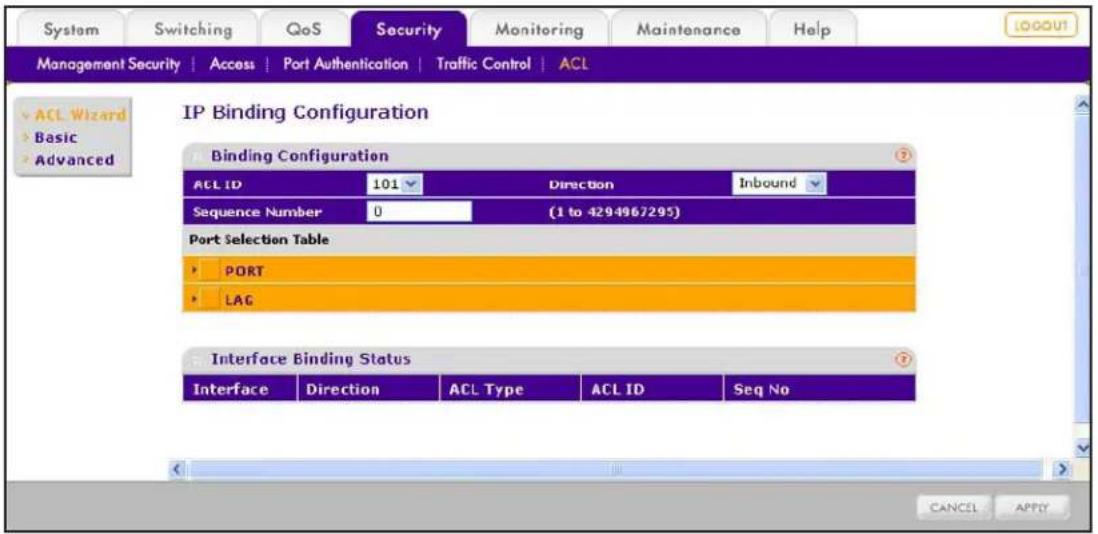
- From the ACL ID menu, select the IP ACL to which you want to bind ports, LAGs, or both.
Note: The Direction menu is fixed at Inbound. Only incoming packets can be filtered.
- (Optional) In the Sequence Number field, enter a number in the range from 1 to 4,294,967,295.
The sequence number specifies the order of the ACL relative to existing ACLs that are bound to the same interface or interfaces. A lower number specifies a higher precedence
order. If a sequence number is already in use for the port or ports, the ACL replaces the existing ACL that uses the same sequence number. If you do not enter a number, the smart switch assigns a default sequence number automatically.
- In the Port Selection Table section, click one or both of the orange bars:
- PORT. Displays the physical ports.
- LAG. Displays the link aggregation groups 1 through 8. (For more information, see Chapter 8, Configure LAGs and LAG Membership.)
- To bind one or more ports or LAGs to the ACL, use one of the following methods:
- Bind individual ports or LAGs to the IP ACL:
a. Click the PORT or LAG orange bar.
b. Below each selected orange bar, select one or more ports or LAGs by clicking the square below each port or LAG.
(Clicking a second time removes the ports or LAGs from the binding.)
- Bind all ports or LAGs to the IP ACL. In the orange bar, click the square next to PORT or LAG. All ports or LAGs are bound to the MAC ACL.
(Clicking a second time removes all ports or LAGs from the binding.)
- Click the Apply button.
The settings are saved, and the ACL information is added to both the Interface Binding Status table and the IP Binding Table on the IP Binding Table screen (see View the IP ACL Binding Table on page 219).
For information about how to change the rule or remove the rule, see the procedures at the end of Manage Extended IP ACL Rules on page 212.
Use the ACL Wizard to Create an ACL Based on TCP or UDP Ports
Before you can use the ACL Wizard to create an ACL that is based on a source or destination port, first create an IP ACL ID.
To create an IP ACL ID and use the ACL Wizard to configure a rule that is based on the source or destination port:
- Select Security > ACL > Advanced > IP ACL.
The IP ACL screen displays. The following figure shows an entry in the table as an example.
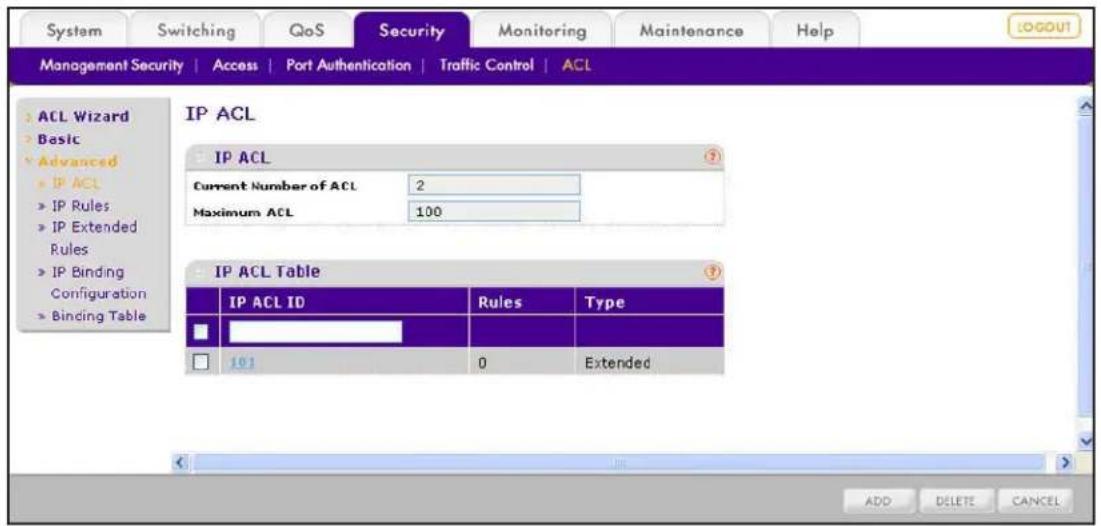
- In the IP ACL ID field in the heading of the IP ACL Table, specify an ID.
Type an ID in the range from 100 to 199. An ID in this range creates an extended IP ACL. For more information about extended IP ACLs, see Manage IP ACL Identifiers on page 208.
- Click the Add button.
The ACL is added to the IP ACL Table. No rules are attached yet to the ACL.
- Select Security > ACL > ACL Wizard.
The ACL Wizard screen displays.
- Select whether to create a rule that is based on a source port or destination port:
- Source port. Next to Select Devices Based on TCP/UDP Source Port ID, select one of the following active links:
- Permit. Creates a rule that permits a source port.
- Deny. Creates a rule that prohibits a source port.
The TCP/UDP Source Port ID Rule screen displays.
- Destination port. Next to Select Devices Based on TCP/UDP Destination Port ID, select one of the following active links:
- Permit. Creates a rule that permits a destination port.
- Deny. Creates a rule that prohibits a destination port.
The TCP/UDP Destination Port ID Rule screen displays.
The following figure shows the TCP/UDP Source Port ID Rule screen with the Deny action selected. If you select the Permit action, the fields are the same, except that the CPU Notification Mode menu is masked out.
The TCP/UDP Destination Port ID Rule screen is identical to the TCP/UDP Source Port ID Rule screen, with the only exception that it shows Dst L4 Port field instead of Src L4 Port field.
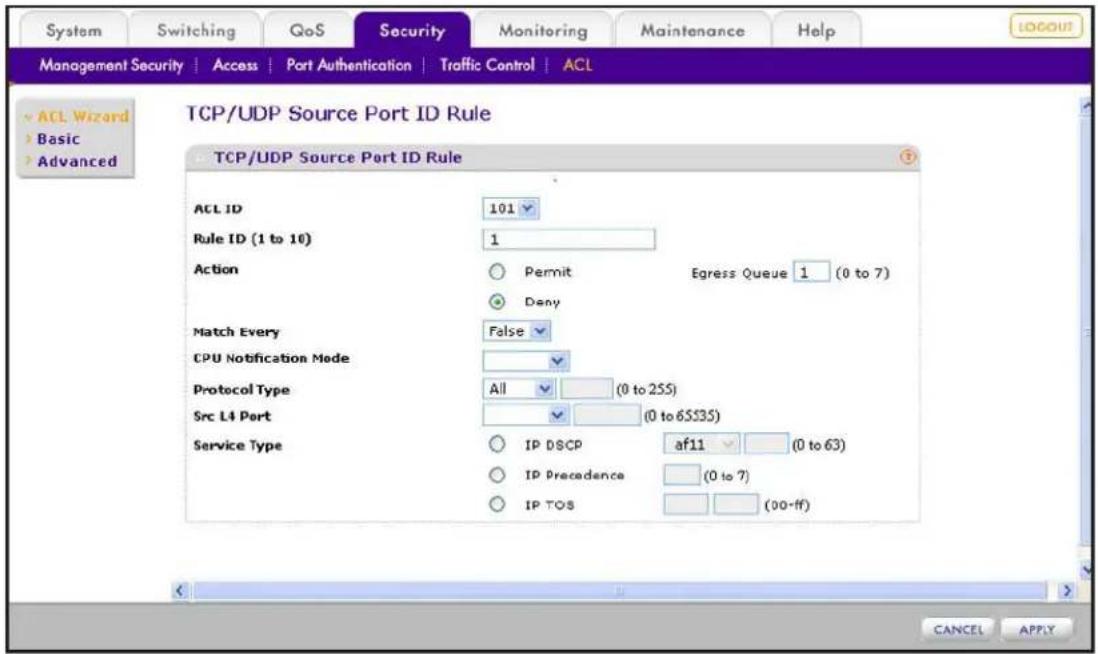
- From the ACL ID menu, select the ACL ID that you have defined on the IP ACL screen and for which you want to add a rule.
The rule that you are creating applies to the selected IP ACL only.
| Settings Description | |
| Rule ID (1 to 10) The ACL | Wizard preconfigures the ID.The ID is a number from 1 to 10. You can create up to 10 rules for a single MAC ACL. |
| Action The link that you select on the ACL Wizard screen determines how the ACL Wizard preconfigures the action:Permit. Packets that meet the ACL criteria are forwarded.Deny. Packets that meet the ACL criteria are dropped. | |
| Egress Queue (Optional) Specify the egress queue that is used to handle all packets that match the ACL rule.From the menu, select the queue ID (0, 1, 2, 3, 4, 5, 6, or 7). This setting can override the existing queue ID for a packet. | |
| Match Every The ACL Wizard preconfigured the selection as False. Not all packets need to match the rule. Other rules are also considered. | |
| CPU Notification ModeNote: This menu applies only to model 728TLP. | This menu is available only if you selected a Deny link on the ACL Wizard screen and is masked out if you selected a Permit link.Specify whether PoE power is turned off to a port if the ACL rejects the traffic from the port:Enable. PoE power to the port is turned of f. To reestablish PoE power to the port, turn on the PoE power manually (see Configure the PoE Ports on page 75).Disable. PoE power to the port is not turned of f. |
| Protocol Type (Optional) S | specify the protocol that needs to be compared against the information in a packet:All, ICMP, IGMP, IP, TCP, UDP, or Other.If you select Other, enter a protocol number in the range from 0 to 255 in the field next to the menu. |
| Src L4 PortorDst L4 Port | Specify the TCP or UDP source or destination port that needs to be compared against the information in a packet:Other, domain, echo, ftp, ftpdata, http, smtp, snmp, telnet, tftp, or www.Each of these selections is translated into the associated port number, which is used as both the start port and end port of the port range.If you select Other, enter a port number in the range from 0 to 65535 in the field next to the menu. |
| Service Type (Optional) S | specify the service type match conditions for the extended IP ACL rule. The possible values are IP DSCP, IP precedence, and IP ToS, which are alternative ways of specifying a match criterion for the same service type field in the IP header. Each service type uses a different user notation.Select one of the following radio buttons, and specify the value that is associated with the service type:IP DSCP. Specifies the IP Dif fServ Code Point (DSCP) field, which is defined as the high-order 6 bits of the service type octet in the IP header. Select an IP DSCP value from the menu. To specify a numeric value in the field next to the menu, selectotherfrom the menu, and enter an integer in the range from 0 to 63 in the field.IP Precedence. Specifies the IP precedence field, which is defined as the high-order 3 bits of the service type octet in the IP header. In the field next to the radio button, enter an integer in the range from 0 to 7.IP T OS. Specifies the Type of Service (ToS) bits, which is defined as all 8 bits of the service type octet in the IP header.In the first field next to the radio button, enter the 2-digit hexadecimal ToS bits number in the range from 00 to FF. In the second and rightmost field, enter the 2-digit hexadecimal ToS mask number, also in the range from 00 to FF.The ToS mask number specifies the bit positions that are used for comparison against the IP ToS field in a packet. For example, to check for an IP ToS value that has both bit 7 (the most significant bit) and bit 5 set and that has bit 1 clear, enter 0xA0 as the ToS bits number, and enter 0xFF as the ToS mask number. |
- Click the Apply button.
The settings are saved, and the IP Binding Configuration screen displays.
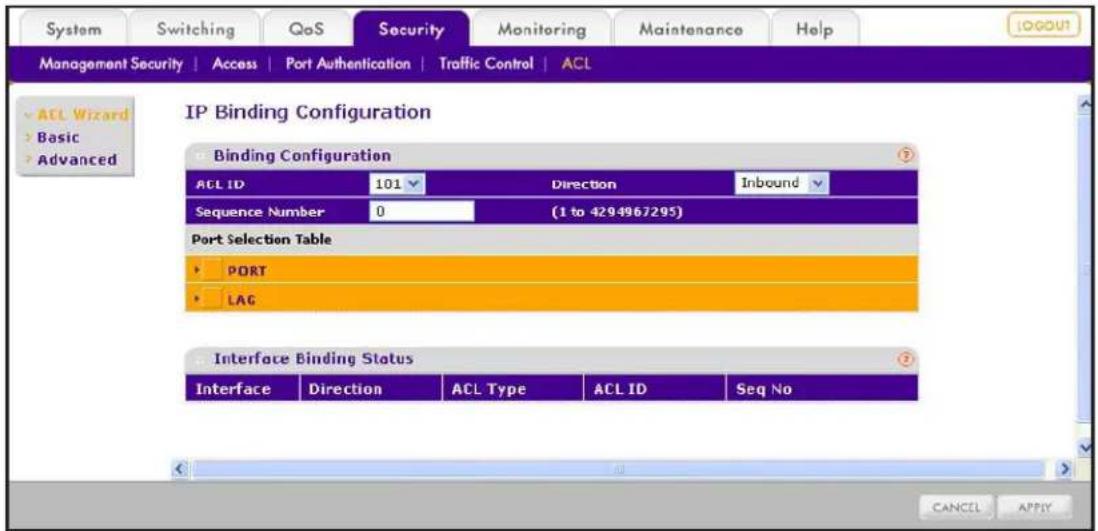
- From the ACL ID menu, select the IP ACL to which you want to bind ports, LAGs, or both.
Note: The Direction menu is fixed at Inbound. Only incoming packets can be filtered.
- (Optional) In the Sequence Number field, enter a number in the range from 1 to 4,294,967,295.
The sequence number specifies the order of the ACL relative to existing ACLs that are bound to the same interface or interfaces. A lower number specifies a higher precedence order. If a sequence number is already in use for the port or ports, the ACL replaces the existing ACL that uses the same sequence number. If you do not enter a number, the smart switch assigns a default sequence number automatically.
- In the Port Selection Table section, click one or both of the orange bars:
• PORT. Displays the physical ports.
- LAG . Displays the link aggregation groups 1 through 8. (For more information, see Chapter 8, Configure LAGs and LAG Membership.)
- To bind one or more ports or LAGs to the ACL, use one of the following methods:
- Bind individual ports or LAGs to the IP ACL:
a. Click the PORT or LAG orange bar.
b. Below each selected orange bar, select one or more ports or LAGs by clicking the square below each port or LAG.
(Clicking a second time removes the ports or LAGs from the binding.)
- Bind all ports or LAGs to the IP ACL. In the orange bar, click the square next to PORT or LAG. All ports or LAGs are bound to the MAC ACL.
(Clicking a second time removes all ports or LAGs from the binding.)
- Click the Apply button.
The settings are saved, and the ACL information is added to both the Interface Binding Status table and the IP Binding Table on the IP Binding Table screen (see View the IP ACL Binding Table on page 219).
For information about how to change the rule or remove the rule, see the procedures at the end of Manage Extended IP ACL Rules on page 212.
Manually Configure and Assign MAC ACLs
A MAC ACL consists of a set of rules that are matched sequentially against a packet. With a MAC ACL, you specify the MAC address of the source device, destination device, or both. When a packet meets the match criteria of a rule, the specified rule action (permit or deny) is applied, and any additional rules are not checked for a match for that packet.
These are the basic steps to configure a MAC ACL:
- Create a MAC-based ACL name (see Manage MAC ACL Names on page 197).
- Create a rule and assign it to the ACL (see Manage MAC ACL Rules on page 199).
- Assign the ACL to an interface (see Configure MAC ACL Bindings for Ports and LAGs on page 203).
You can view the MAC ACL configuration on the MAC Binding Table (see View the MAC ACL Binding Table on page 206).
Manage MAC ACL Names
You need to create a MAC ACL name before you can add any rules to the MAC ACL and assign the MAC ACL to a port or LAG.
Create a MAC ACL Name and View MAC ACL Information
To create a MAC ACL name and view MAC ACL information:
- Select Security > ACL > Basic > MAC ACL Configuration.
The MAC ACL screen displays. The following figure shows an entry in the table as an example.
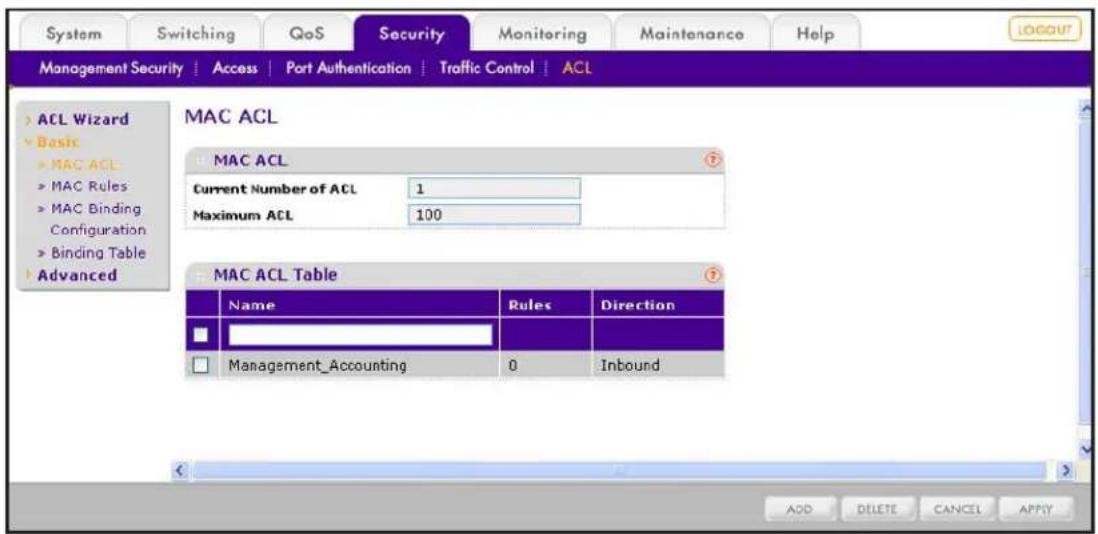
-
In the Name field in the heading of the MAC ACL Table, specify a name for the ACL. The name can include alphabetic, numeric, hyphen, underscore, or space characters, and needs to start with an alphabetic character.
-
Click the Add button.
The ACL is added to the MAC ACL Table. No rules are attached yet to the ACL.
The following table shows the nonconfigurable fields in the MAC ACL section of the screen and the information that is included in the MAC ACL Table for each MAC ACL.
| Field Description | |
| MAC ACL | |
| Current Number of ACL(s) | The total number of configured ACLs, which is the sum of the configured MAC ACLs and the configured IP ACLs. |
| Maximum ACL(s) The | maximum number of MAC and IP ACLs that you can configure (100). |
| MAC ACL Table | |
| Name The name of the ACL. | |
| Rules The number of rules that are configured on the MAC Rules screen for the MAC ACL. | |
| Direction The direction of packet traffic that the MAC ACL affects. This is a fixed entry that always shows Inbound; only inbound traffic is subject to the MAC ACL. | |
Change the Name of a MAC ACL
To change the name of a MAC ACL:
- Select Security > ACL > Basic > MAC ACL Configuration.
The MAC ACL screen displays.
- Select the check box to the left of the MAC ACL for which you want to change the name.
- In the Name field in the heading of the MAC ACL Table, change the name for the ACL.
The name can include alphabetic, numeric, hyphen, underscore, or space characters, and needs to start with an alphabetic character.
- Click the Apply button.
The settings are saved and the new name is displayed in the MAC ACL Table.
Remove a MAC ACL
To remove a MAC ACL:
- Select Security > ACL > Basic > MAC ACL Configuration.
The MAC ACL screen displays.
- Select the check box to the left of the MAC ACL that you want to remove.
- Click the Delete button.
The MAC ACL is removed from the MAC ACL Table.
Manage MAC ACL Rules
MAC rules specify whether incoming traffic matching the criteria is forwarded normally or discarded.
IMPORTANT:
The last rule of the MAC ACL table is a default deny all traffic rule to ensure that a packet is dropped if an ACL is applied to the packet and none of the explicit rules match. (MAC ACL rules have a lower priority than IP ACL rules.)
Create a Rule for a MAC ACL
To create a rule for a MAC ACL:
- Select Security > ACL > Basic > MAC Rules .
The MAC Rules screen displays. Because this a wide screen, it is shown in the following two figures, which show entries in the table as an example:
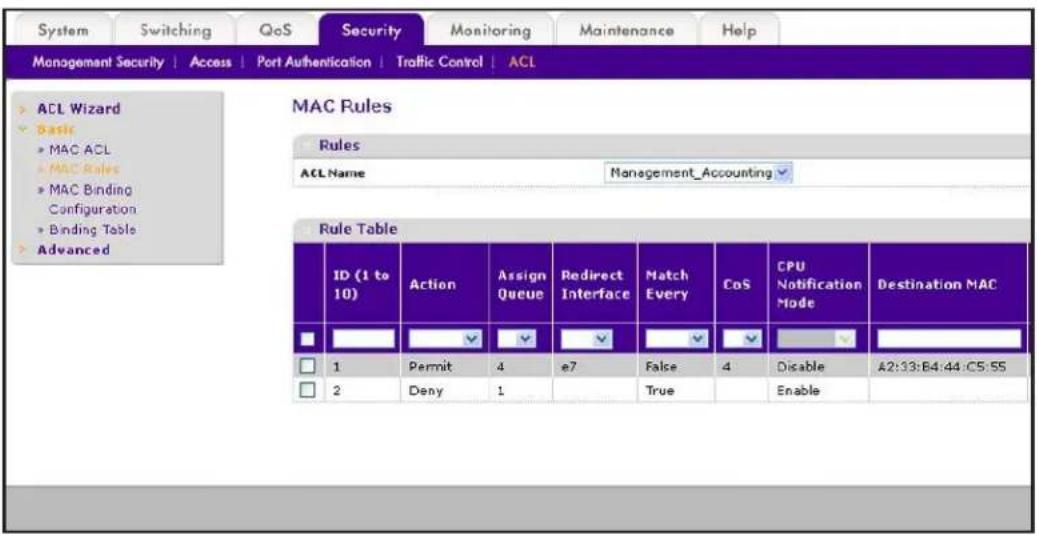
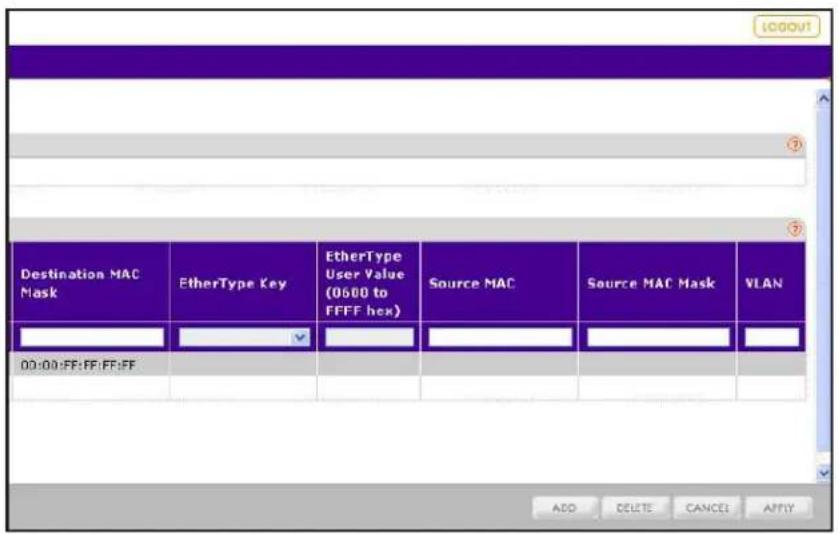
-
From the ACL Name menu, select the ACL name that you have defined on the MAC ACL screen (see Manage MAC ACL Names on page 197) and for which you want to add a rule. The rule that you are creating applies to the selected MAC ACL only.
-
Configure the settings as described in the following table:
| Settings Description | ||
| ID (1 to 10) Specify an ID for the rule.Enter a number from 1 to 10. You can create up to 10 rules for a single MAC ACL. | ||
| Action Specify the action for the rule:Permit. Packets that meet the ACL criteria are forwarded.Deny. Packets that meet the ACL criteria are dropped. | ||
| Assign Queue Specify the egress queue that is used to handle all packets that match the ACL rule.From the menu, select the queue ID (0, 1, 2, 3, 4, 5, 6, or 7). This setting can override the existing queue ID for a packet. | ||
| Redirect Interface Specify the egress port on which the matching traf fic stream is forced, bypassing any forwarding action that the smart switch normally takes.From the menu, select a port. | This menu is available only if the selection from the Match Every menu is False. | |
| Match Every Specify whether all packets need to match the rule:T rue. All packets must match the rule. Other rules are not considered, and the fields and menus to the right of the Match Every menu are masked out, except for the CPU Notification Mode menu.False. Not all packets need to match the rule. Other rules are also considered. | ||
| CoS Specify the 802.1p CoS marking that needs to match the CoS marking in a packet.From the menu, select the priority value (0, 1, 2, 3, 4, 5, 6, or 7). | This menu is available only if the selection from the Match Every menu is False. | |
| CPU Notification ModeNote: This menu applies only to model 728TLP. | Specify whether PoE power is turned off to a port if the ACL rejects the traffic from the port:Enable. PoE power to the port is turned of f. To reestablish PoE power to the port, turn on the PoE power manually (see Configure the PoE Ports on page 75).Disable. PoE power to the port is not turned of f. | This menu is available only if the selection from the Action menu is Deny. |
| Destination MAC | Specify the MAC address of the destination device that needs to be compared against the destination MAC address in a packet.Enter a MAC address in the xx:xx:xx:xx:xx:xx format. | This field is available only if the selection from the Match Every menu is False. |
| Destination MAC Mask $ | specify the MAC mask that is associated with the destination MAC address. The MAC mask specifies which bits in the destination MAC address need to be compared against the information in a packet.Note: Use Fs and zeros in the MAC mask. An F means that the bit is not checked, and a zero in a bit position means that the data needs to be equal to the value given for that bit. For example, if the MAC address is aa:bb:cc:dd:ee:ff, and the MAC mask is ff:ff:00:00:00:00, all MAC addresses with xx:xx:cc:dd:ee:ff (in which x is any hexadecimal number) result in a match. | These fields and menus are available only if the selection from the Match Every menu is False. |
| EtherType Key From the | menu, select the EtherType that needs to be compared against the information in a packet:Appletalk, ARP, IBM SNA, IPv4, IPv6, IPX, MPLS multicast, MPLS unicast, NetBIOS, Novell, PPPoE, Reverse ARP, User Value.If you select User Value, enter the value in the EtherType User Value field. | |
| EtherType User Value (0600 to FFFF hex) | If you select User Value from the EtherType Key menu, enter the value, which is a hexadecimal number in the range from 0x0600 to 0xFFFF. | |
| Source MAC Specify the | MAC address of the source device that needs to be compared against the source MAC address in a packet.Enter a MAC address in the xx:xx:xx:xx:xx:xx format. | |
| Source MAC Mask Specify the MAC mask that is associated with the source MAC address. The MAC mask specifies which bits in the source MAC address need to be compared against the information in a packet.Note: Use Fs and zeros in the MAC mask. An F means that the bit is not checked, and a zero in a bit position means that the data needs to be equal to the value given for that bit. For example, if the MAC address is aa:bb:cc:dd:ee:ff, and the MAC mask is ff:ff:00:00:00:00, all MAC accesses with xx:xx:cc:dd:ee:ff (in which x is any hexadecimal number) result in a match. | ||
| VLAN Specify the VLAN | ID that needs to be compared against the information in a packet.Enter a number in the range from 0 through 4095. You cannot enter a VLAN range.Note: Most VLAN configurations on the smart switch are in the range from 1 to 4093. However, an ACL can detect a VLAN in the range from 0 to 4095. | |
4. Click the Add button.
The settings are saved, and the MAC rule is added to the Rule Table.
Change a Rule for a MAC ACL
To change a rule for a MAC ACL:
- Select Security > ACL > Basic > MAC Rules.
The MAC Rules screen displays.
- From the ACL Name menu, select the ACL name for which you want to change a rule.
- Select the check box to the left of the rule for which you want to change the settings.
- Change the settings.
- Click the Apply button.
The settings are saved, and the modified rule is displayed in the Rule Table.
Remove a Rule from a MAC ACL
To remove a rule from a MAC ACL:
- Select Security > ACL > Basic > MAC Rules.
The MAC Rules screen displays.
- From the ACL Name menu, select the ACL name for which you want to remove a rule.
- Select the check box to the left of the rule that you want to remove.
- Click the Delete button.
The rule is removed from the Rule Table.
Configure MAC ACL Bindings for Ports and LAGs
When you bind a MAC ACL to a port or LAG, all rules that you have defined for the MAC ACL are applied to the port or LAG.
As an example, in the following figure, the Management_Accounting MAC ACL and its associated rules are bound to ports 6 and 7 and LAG 6.
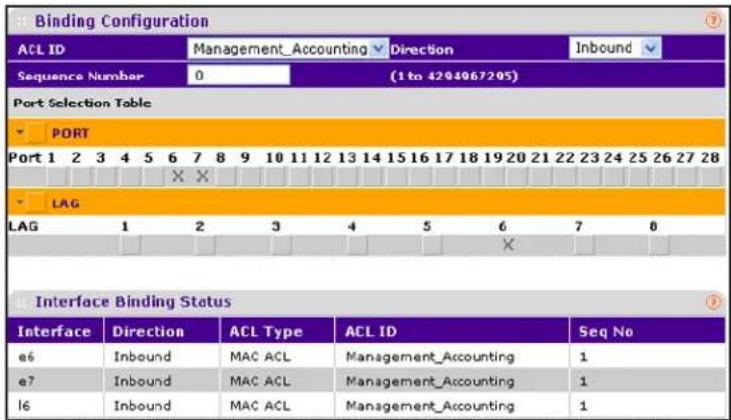
Figure 14. Example of a MAC ACL that is bound to ports and a LAG
Bind a MAC ACL to One or More Ports or LAGs
To bind a MAC ACL to one or more ports or LAGs:
1. Select Security > ACL > Basic > MAC Binding Configuration.
The MAC Binding Configuration screen displays.
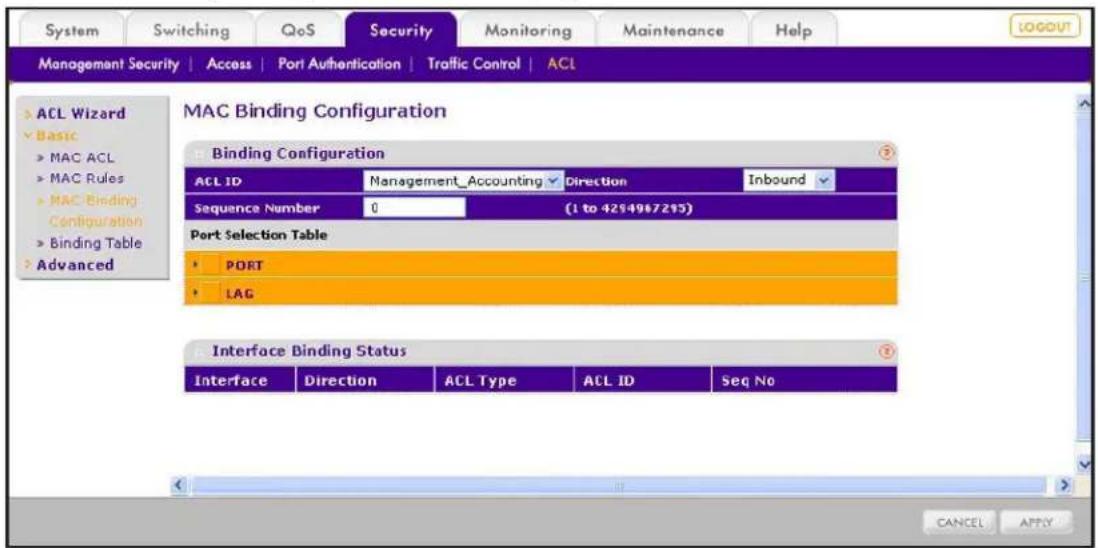
- From the ACL ID menu, select the MAC ACL to which you want to bind ports, LAGs, or both.
Note: The Direction menu is fixed at Inbound. Only incoming packets can be filtered.
- (Optional) In the Sequence Number field, enter a number in the range from 1 to 4,294,967,295.
The sequence number specifies the order of the ACL relative to existing ACLs that are bound to the same interface or interfaces. A lower number specifies a higher precedence order. If a sequence number is already in use for the port or ports, the ACL replaces the existing ACL that uses the same sequence number. If you do not enter a number, the smart switch assigns a default sequence number automatically.
- In the Port Selection Table section, click one or both of the orange bars:
• PORT. Displays the physical ports.
- LAG . Displays the link aggregation groups 1 through 8. (For more information, see Chapter 8, Configure LAGs and LAG Membership.)
- To bind one or more ports or LAGs to the ACL, use one of the following methods:
- Bind individual ports or LAGs to the MAC ACL:
a. Click the PORT or LAG orange bar.
b. Below each selected orange bar, select one or more ports or LAGs by clicking the square below each port or LAG.
(Clicking a second time removes the ports or LAGs from the binding.)
- Bind all ports or LAGs to the MAC ACL. In the orange bar, click the square next to PORT or LAG. All ports or LAGs are bound to the MAC ACL.
(Clicking a second time removes all ports or LAGs from the binding.)
- Click the Apply button.
The settings are saved, and the ACL information is added to both the Interface Binding Status table and the MAC Binding Table on the MAC Binding Table screen.
The fields of the Interface Binding Status table on the MAC Binding Configuration screen are the same as the fields of the MAC Binding Table on the MAC Binding Table screen. For information about these fields, see View the MAC ACL Binding Table on page 206.
Change the Ports or LAGs That Are Bound to a MAC ACL
To change the ports or LAGs that are bound to a MAC ACL:
- Select Security > ACL > Basic > MAC Binding Configuration.
The MAC Binding Configuration screen displays.
-
From the ACL ID menu, select the MAC ACL for which you want to change the ports or LAGs.
-
Change the ports and LAGs.
-
Click the Apply button.
The settings are saved, and the ACL information is modified on both the Interface Binding Status table and the MAC Binding Table on the MAC Binding Table screen (see View the MAC ACL Binding Table on page 206).
Remove the Binding of Ports or LAGs from a MAC ACL
To remove the binding of ports or LAGs from a MAC ACL:
- Select Security > ACL > Basic > Binding Table.
The MAC Binding Table screen displays. (The following figure shows three entries in the table as an example.)
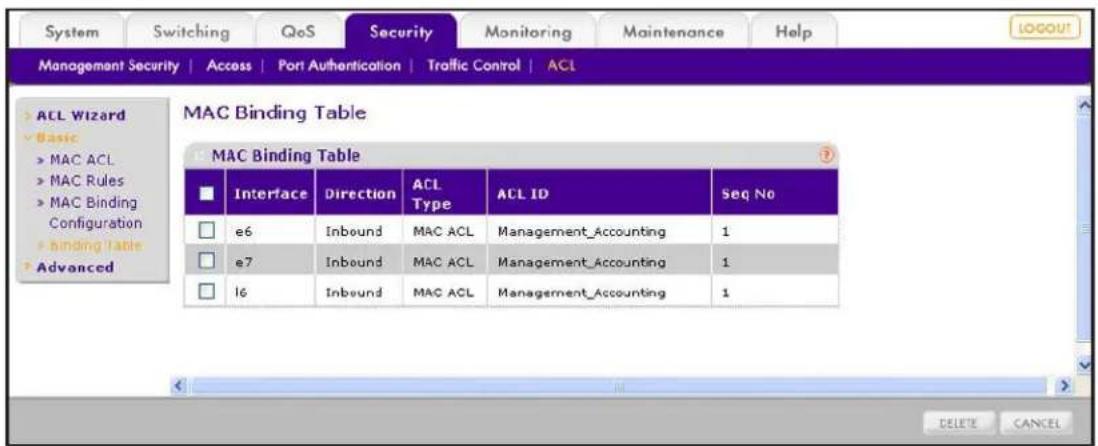
- Select the check box next to the MAC ACL binding that you want to remove.
- Click the Delete button.
The MAC binding is removed from both the MAC Binding Table and the Interface Binding Status table on the MAC Binding Configuration screen.
View the MAC ACL Binding Table
You can view all MAC ACL bindings on the MAC Binding Table screen.
To view the MAC ACL bindings:
Select Security > ACL > Basic > Binding Table.
The MAC Binding Table screen displays. The following figure shows three entries in the table as an example.
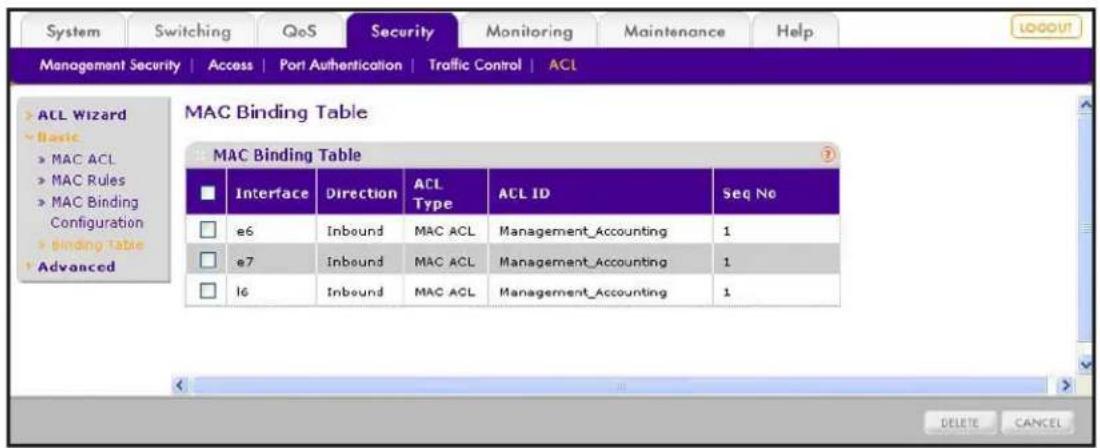
The following table describes the fields of the MAC Binding Table:
| Field Description | |
| Interface The port or LAG to which the MAC ACL is bound. | |
| Direction | The packet filtering direction for the MAC ACL. The only valid direction is Inbound, which means that the MAC ACL rule is applied to traffic entering the port or LAG. |
| ACL Type | The type of ACL to which the port or LAG is bound. This is a fixed field that always shows MAC ACL. |
| ACL ID The name of the ACL to which the port or LAG is bound. | |
| Seq No | The sequence number that specifies the order of the ACL relative to other ACLs to which the port or LAG is bound. |
Manually Configure and Assign IP ACLs
Similar to a MAC ACL, an IP ACL consists of a set of rules that are matched sequentially against a packet. With an IP ACL, you specify the IP address of the source device, destination device, or both. When a packet meets the match criteria of a rule, the specified rule action (permit or deny) is applied, and any additional rules are not checked for a match for that packet.
For example, you could define an IP ACL rule that specifies that interface number 20 can receive TCP packets only. If a UDP packet is received on interface number 20, the packet is dropped.
You can specify two types of IP ACLs:
- Basic IP ACL. Specify an ID in the range of 1 through 99 and configure the rules on the IP ACL Rules screen. A basic IP ACL lets you permit or deny traffic from a source IP address.
- Extended IP ACL. Specify an ID in the range of 100 through 199 and configure the rules on the Extended IP ACL Rules screen. An extended IP ACL lets you permit or deny specific types of Layer 3 or Layer 4 traffic from a source IP address to a destination IP address. This type of ACL provides more granularity and filtering capabilities than the basic IP ACL.
These are the basic steps to configure an IP ACL:
- Create an IP-based ACL ID (see Manage IP ACL Identifiers on page 208).
- Create a rule and assign it to the ACL (see Manage Basic IP ACL Rules on page 209 or Manage Extended IP ACL Rules on page 212).
- Assign the ACL to an interface (see Configure IP ACL Bindings for Ports and LAGs on page 216).
You can view the IP ACL configuration on the IP Binding Table (see View the IP ACL Binding Table on page 219).
Manage IP ACL Identifiers
You need to create an IP ACL ID before you can add any rules to the IP ACL and assign the IP ACL to a port or LAG.
Create a Basic or Extended IP ACL ID and View IP ACL Information
To create a basic or extended IP ACL ID and view IP ACL information:
1. Select Security > ACL > Advanced > IP ACL.
The IP ACL screen displays. The following figure shows two entries in the table as an example.
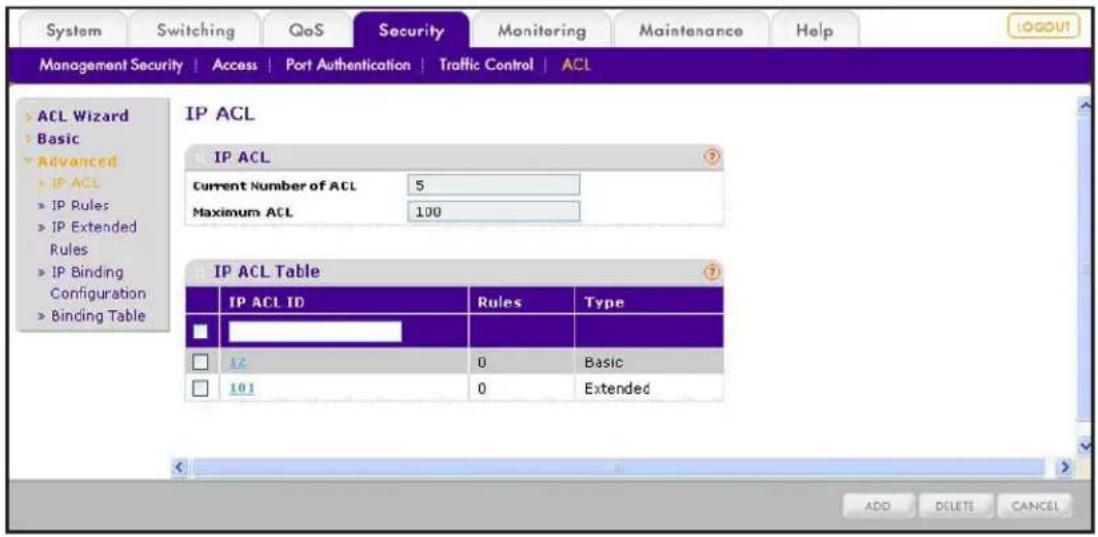
2. In the IP ACL ID field in the heading of the IP ACL Table, specify an ID.
The ID is an integer in the following range:
• 1–99. Creates a basic IP ACL, which lets you permit or deny traffic from a source IP address.
- 100–199. Creates an extended IP ACL, which lets you permit or deny specific types of Layer 3 or Layer 4 traffic from a source IP address to a destination IP address.
3. Click the Add button.
The ACL is added to the IP ACL table. No rules are attached yet to the ACL.
The following table shows the nonconfigurable fields in the IP ACL section of the screen and the information that is included in the IP ACL Table for each IP ACL.
| Field Description | |
| IP ACL | |
| Current Number of ACL(s) | The total number of configured ACLs, which is the sum of the configured MAC ACLs and the configured IP ACLs. |
| Maximum ACL(s) The | maximum number of MAC and IP ACLs that you can configure (100). |
| IPC ACL Table | |
| IP ACL ID The ID of the | e ACL, which is an active link to the IP Rules screen for basic IP ACLs (with IDs 1 through 99) or to the Extended Rules screen for extended IP ACLS (with IDs 100 through 199). |
| Rules The number of | rules that are configured on the IP Rules screen for basic IP ACLs or on the Extended Rules screen for extended IP ACLs. |
| Type The type of IP | ACL, which can be Basic or Extended. |
Note: Once you have created an IP ACL, you cannot change its ID.
Remove an IP ACL
To remove an IP ACL:
- Select Security > ACL > Advanced > IP ACL.
The IP ACL screen displays.
- Select the check box to the left of the IP ACL that you want to remove.
- Click the Delete button.
The IP ACL is removed from the IP ACL Table.
Manage Basic IP ACL Rules
You assign basic IP ACL rules to ACL IDs from 1 through 99. These rules specify whether incoming traffic that matches a source IP address is forwarded normally or discarded.
IMPORTANT:
The last rule of the IP ACL table is a default deny all IP traffic rule to ensure that a packet is dropped if an ACL is applied to the packet and none of the explicit rules match. (IP ACL rules have a higher priority than MAC ACL rules.)
Create a Rule for a Basic IP ACL
To create a rule for a basic IP ACL:
1. Select Security > ACL > Advanced > IP Rules.
The IP Rules screen displays. The following figure shows two entries in the table as an example.
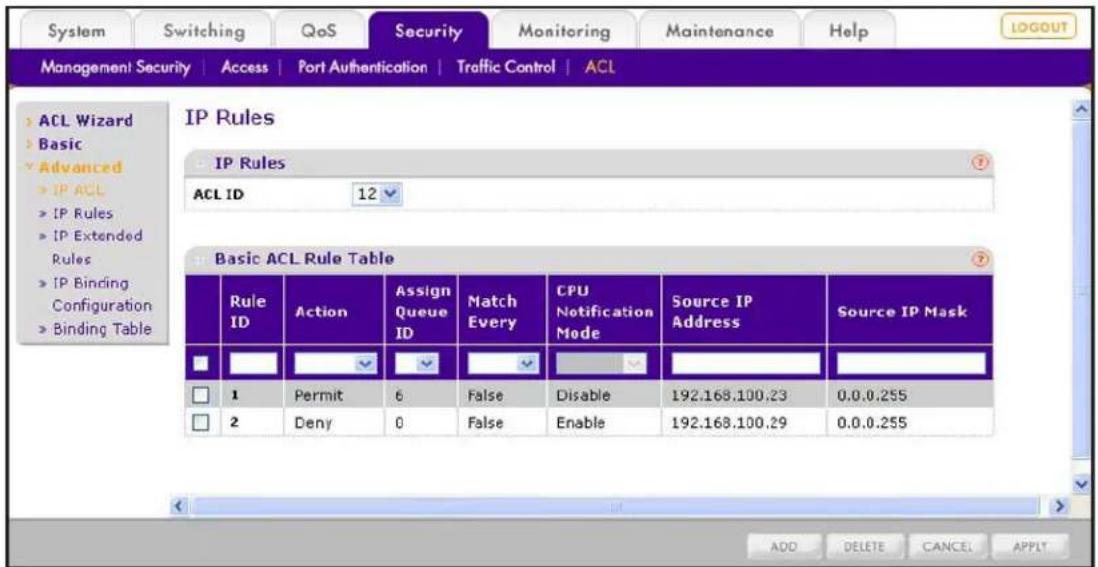
- From the ACL ID menu, select the ACL ID that you have defined on the IP ACL screen (see Manage IP ACL Identifiers on page 208) and for which you want to add a rule.
The rule that you are creating applies to the selected basic IP ACL only.
- Configure the settings as described in the following table:
| Settings Description | ||
| Rule ID The ID for the rule. | Enter a number from 1 to 10. You can create up to 10 rules for a single basic IP ACL ID. | |
| Action Specify the action for the rule by selecting one of the following radio buttons:Permit. Packets that meet the ACL criteria are forwarded.Deny. Packets that meet the ACL criteria are dropped. | ||
| Assign Queue ID Specify the egress queue that is used to handle all packets that match the ACL rule.From the menu, select the queue ID (0, 1, 2, 3, 4, 5, 6, or 7). This setting can override the existing queue ID for a packet. | ||
| Match Every Specify whether all packets need to match the rule:True. All packets must match the rule. Other rules are not considered, and the fields and menus to the right of the Match Every menu are disabled, except for the CPU Notification Mode menu.False. Not all packets need to match the rule. Other rules are also considered. | ||
| CPU Notification ModeNote: This menu applies only to model 728TLP. | Specify whether PoE power is turned off to a port if the ACL rejects the traffic from the port:Enable . PoE power to the port is turned off. To reestablish PoE power to the port, turn on the PoE power manually (see Configure the PoE Ports on page 75).Disable. PoE power to the port is not turned of f. | This menu is available only if the selection from the Action menu is Deny. |
| Source IP Address Specify the IP address of the source device that needs to be compared against the address information in a packet. Enter an IP address in the dotted-decimal notation. | These fields are available only if the selection from the Match Every menu is False. | |
| Source IP Mask Specify the source IP subnet mask that is associated with the source IP address. The IP subnet mask specifies which bits in the source IP address need to be compared against the address information in a packet. This field is required when you configure a source IP address.Note: A subnet mask of 255.255.255.255 indicates that none of the bits are important. A subnet mask of 0.0.0.0 indicates that all of the bits are important. For example, if you apply source IP mask 0.0.0.255 to IP address 192.168.0.10, the ACL applies to IP addresses 192.168.0.0 through 192.168.0.255. | ||
- Click the Add button.
The settings are saved, and the IP rule is added to the Basic ACL Rule Table.
Change a Rule for a Basic IP ACL
To change a rule for a basic IP ACL:
- Select Security > ACL > Advanced > IP Rules.
The IP Rules screen displays.
- From the ACL ID menu, select the ACL ID for which you want to change a rule.
- Select the check box to the left of the rule for which you want to change the settings.
- Change the settings.
- Click the Apply button.
The settings are saved, and the modified rule is displayed in the Basic ACL Rule Table.
Remove a Rule from a Basic IP ACL
To remove a rule from an IP ACL:
- Select Security > ACL > Advanced > IP Rules.
The IP Rules screen displays.
-
From the ACL ID menu, select the ACL ID for which you want to remove a rule.
-
Select the check box to the left of the rule that you want to remove.
-
Click the Delete button.
The rule is removed from the Basic ACL Rule Table.
Manage Extended IP ACL Rules
You assign extended IP ACL rules to ACL IDs from 100 through 199. These rules specify whether incoming traffic that matches the extended criteria is forwarded normally or discarded. Extended criteria can include the type of protocol, source and destination IP addresses, source and destination ports, and QoS service types.
IMPORTANT:
The last rule of the IP ACL table is a default deny all IP traffic rule to ensure that a packet is dropped if an ACL is applied to the packet and none of the explicit rules match. (IP ACL rules have a higher priority than MAC ACL rules.)
Create a Rule for an Extended IP ACL
To create a rule for an extended IP ACL:
- Select Security > ACL > Advanced > IP Extended Rules.
The IP Extended Rules screen displays. The following figure shows two entries in the table as an example.
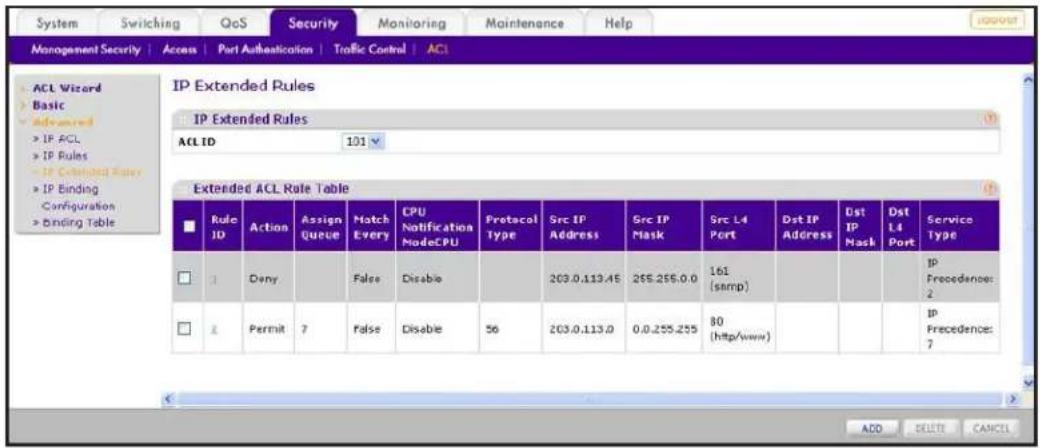
- From the ACL ID menu, select the ACL ID that you have defined on the IP ACL screen (see Manage IP ACL Identifiers on page 208) and for which you want to add a rule.
The rule that you are creating applies to the selected extended IP ACL only.
- Click the Add button.
The Extended ACL Rule Configuration screen displays.

- Configure the settings as described in the following table.
The ACL ID field, Rule ID field, Action radio buttons, Egress Queue field, and Match Every menu apply to all rules. All other fields, menus, and radio buttons are available only if the selection from the Match Every menu is False. (If the selection is True, they are masked out). Configure only the settings that apply to your network and configuration.
| Settings Description | |
| ACL ID This is nonconfigurable field that shows the ID of the extended IP ACL. | |
| Rule ID (1 to 10) Enter an | ID for the rule. Enter a number from 1 to 10. You can create up to 10 rules for a single IP ACL ID. |
| Action Specify the action for the rule. Select one of the following radio buttons:Permit. Packets that meet the ACL criteria are forwarded.Deny. Packets that meet the ACL criteria are dropped. | |
| Settings Description | ||
| Egress Queue Specify the | egress queue that is used to handle all packets that match the ACL rule.From the menu, select the queue ID (0, 1, 2, 3, 4, 5, 6, or 7). This setting can override the existing queue ID for a packet. | |
| Match Every Specify whether all packets need to match the rule:•T rue. All packets need to match the rule. Other rules are not considered, and the fields and buttons below the Match Every field are masked out.•False. Not all packets need to match the rule. Other rules are also considered. | ||
| CPU Notification ModeNote:This menu applies only to model 728TLP. | Specify whether PoE power is turned off to a port if the ACL rejects the traffic from the port:•Enable . PoE power to the port is turned off. To reestablish PoE power to the port, turn on the PoE power manually (seeConfigure the PoE Portson page 75).•Disable. PoE power to the port is not turned of f. | This menu is available only if the selection from the Action menu is Deny. |
| The following fields, menus, and radio buttons are available only if the selection from the Match Every menu is False. (If the selection is True, they are masked out).Configure only the settings that apply to your network and configuration. | ||
| Protocol Type Specify the | protocol that needs to be compared against the information in a packet:Other, ICMP, IGMP, IP, TCP, or UDP.If you select Other, enter a protocol number in the range from 0 to 255 in the field next to the menu. | |
| Src IP Address Specify the | IP address of the source device that needs to be compared against the address information in a packet.Enter an IP address in the dotted-decimal notation. | |
| Src IP Mask Specify the source IP mask that is associated with the source IP address. The IP mask specifies which bits in the source IP address need to be compared against the address information in a packet. This field is required when you configure a source IP address.No subnet mask of 255.255.255.255 indicates that none of the bits are important. A subnet mask of 0.0.0.0 indicates that all of the bits are important. For example, if you apply source IP mask 0.0.0.255 to IP address 192.168.0.10, the ACL applies to IP addresses 192.168.0.0 through 192.168.0.255. | ||
| Src L4 Port Specify the TCP | or UDP source port that needs to be compared against the information in a packet:Other, domain, echo, ftp, ftpdata, http, smtp, snmp, telnet, tftp, or www.Each of these selections is translated into the associated port number, which is used as both the start port and end port of the port range.If you select Other, enter a port number in the range from 0 to 65535 in the field next to the menu. | |
| Dst IP Address Specify the | IP address of the destination device that needs to be compared against the address information in a packet.Enter an IP address in the dotted-decimal notation. | |
| Dst IP Mask Specify the dest | destination IP mask that is associated with the destination IP address. The IP mask specifies which bits in the destination IP address need to be compared against the address information in a packet. This field is required when you configure a destination IP address.Note:A subnet mask of 255.255.255.255 indicates that none of the bits are important. A subnet mask of 0.0.0.0 indicates that all of the bits are important. For example, if you apply destination IP mask 0.0.0.255 to IP address 192.168.0.10, the ACL applies to IP addresses 192.168.0.0 through 192.168.0.255. | |
| Dst L4 Port Specify the TCP | or UDP destination port that needs to be compared against the information in a packet:Other, domain, echo, ftp, ftpdata, http, smtp, snmp, telnet, tftp, or www.Each of these selections is translated into the associated port number, which is used as both the start port and end port of the port range.If you select Other, enter a port number in the range from 0 to 65535 in the field next to the menu. | |
| Service Type Specify the | service type match conditions for the extended IP ACL rule. The possible values are IP DSCP, IP precedence, and IP ToS, which are alternative ways of specifying a match criterion for the same service type field in the IP header. Each service type uses a different user notation.Select one of the following radio buttons, and specify the value that is associated with the service type:IP DSCP. Specifies the IP Dif fServ Code Point (DSCP) field, which is defined as the high-order 6 bits of the service type octet in the IP header. Select an IP DSCP value from the menu. To specify a numeric value in the field next to the menu, selectotherfrom the menu, and enter an integer in the range from 0 to 63 in the field.IP Precedence. Specifies the IP precedence field, which is defined as the high-order 6 bits of the service type octet in the IP header. In the field next to the radio button, enter an integer in the range from 0 to 7.IP T OS. Specifies the Type of Service (ToS) bits, which is defined as all 8 bits of the service type octet in the IP headerIn the first field next to the radio button, enter the 2-digit hexadecimal ToS bits number in the range from 00 to FF. In the second and rightmost field, enter the 2-digit hexadecimal ToS mask number, also in the range from 00 to FF.The ToS mask number specifies the bit positions that are used for comparison against the IP ToS field in a packet. For example, to check for an IP ToS value that has both bit 7 (the most significant bit) and bit 5 set and that has bit 1 clear, enter 0xA0 as the ToS bits number, and enter 0xFF as the ToS mask number. | |
5. Click the Apply button.
The settings are saved, and the IP rule is added to the Extended ACL Rule Table on the IP Extended Rules screen.
Change a Rule for an Extended IP ACL
To change a rule for an extended IP ACL:
- Select Security > ACL > Advanced > IP Extended Rules.
The IP Extended Rules screen displays.
- From the ACL ID menu, select the ACL ID for which you want to change a rule.
- In the Rule ID column, click the active ID link of the rule for which you want to change the settings.
The Extended ACL Rule Configuration screen displays, showing the existing settings for the rule.
- Change the settings.
- Click the Apply button.
The settings are saved, and the modified rule is displayed in the Extended ACL Rule Table on the IP Extended Rules screen.
Remove a Rule from an Extended IP ACL
To remove a rule from an IP ACL:
- Select Security > ACL > Advanced > IP Extended Rules.
The IP Extended Rules screen displays.
- From the ACL ID menu, select the ACL ID for which you want to remove a rule.
- Select the check box to the left of the rule that you want to remove.
- Click the Delete button.
The rule is removed from the Extended ACL Rule Table on the IP Extended Rules screen.
Configure IP ACL Bindings for Ports and LAGs
When you bind an IP ACL to a port or LAG, all rules that you have defined for the basic or extended IP are applied to the port or LAG.
As an example, in the following figure, the extended IP ACL with ID 101 and its associated rules are bound to ports 20 through 23, LAG 6, and LAG 7.
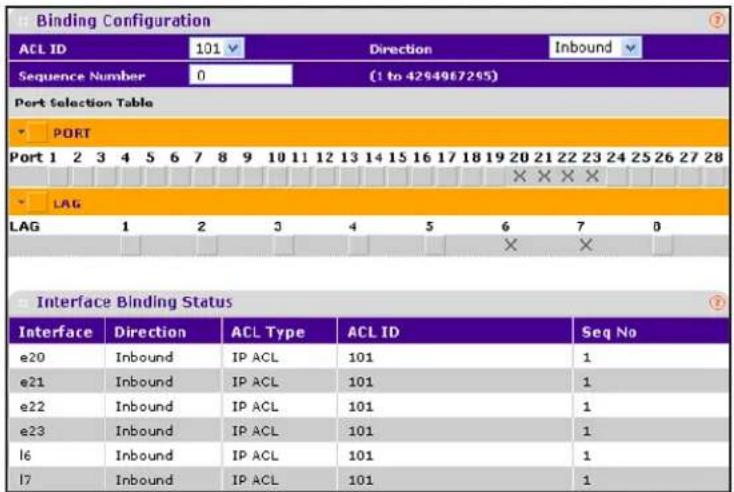
Figure 15. Example of an IP ACL that is bound to ports and a LAG
Bind a MAC ACL to One or More Ports or LAGs
To bind a MAC ACL to one or more ports or LAGs:
1. Select Security > ACL > Advanced > IP Binding Configuration.
The IP Binding Configuration screen displays.
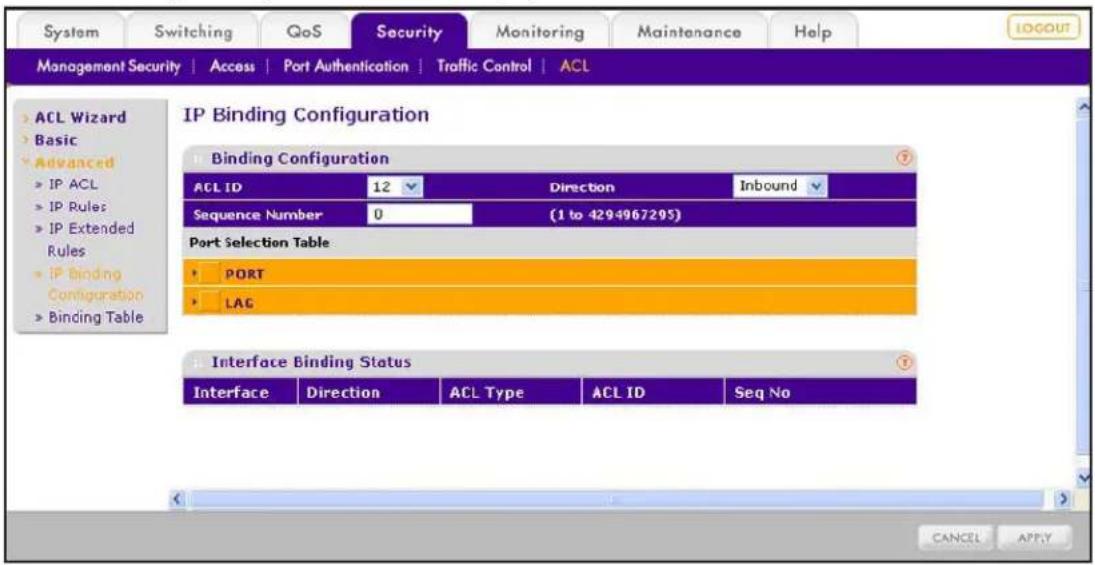
2. From the ACL ID menu, select the IP ACL to which you want to bind ports, LAGs, or both.
Note: The Direction menu is fixed at Inbound. Only incoming packets can be filtered.
- (Optional) In the Sequence Number field, enter a number in the range from 1 to 4,294,967,295.
The sequence number specifies the order of the ACL relative to existing ACLs that are bound to the same interface or interfaces. A lower number specifies a higher precedence order. If a sequence number is already in use for the port or ports, the ACL replaces the existing ACL that uses the same sequence number. If you do not enter a number, the smart switch assigns a default sequence number automatically.
- In the Port Selection Table section, click one or both of the orange bars:
• PORT. Displays the physical ports.
- LAG. Displays the link aggregation groups 1 through 8. (For more information, see Chapter 8, Configure LAGs and LAG Membership.)
- To bind one or more ports or LAGs to the ACL, use one of the following methods:
- Bind individual ports or LAGs to the IP ACL:
a. Click the PORT or LAG orange bar.
b. Below each selected orange bar, select one or more ports or LAGs by clicking the square below each port or LAG.
(Clicking a second time removes the ports or LAGs from the binding.)
- Bind all ports or LAGs to the IP ACL. In the orange bar, click the square next to PORT or LAG. All ports or LAGs are bound to the MAC ACL.
(Clicking a second time removes all ports or LAGs from the binding.)
- Click the Apply button.
The settings are saved, and the ACL information is added to both the Interface Binding Status table and the IP Binding Table on the IP Binding Table screen.
The fields of the Interface Binding Status table on the IP Binding Configuration screen are the same as the fields of the IP Binding Table on the IP Binding Table screen. For information about these fields, see View the IP ACL Binding Table on page 219.
Change the Ports or LAGs That Are Bound to an IP ACL
To change the ports or LAGs that are bound to an IP ACL:
- Select Security > ACL > Advanced > IP Binding Configuration.
The IP Binding Configuration screen displays.
-
From the ACL ID menu, select the IP ACL for which you want to change the ports or LAGs.
-
Change the ports and LAGs.
-
Click the Apply button.
The settings are saved, and the ACL information is modified on both the Interface Binding Status table and the IP Binding Table on the IP Binding Table screen (see View the MAC ACL Binding Table on page 206).
Remove the Binding of Ports or LAGs from an IP ACL
To remove the binding of ports or LAGs from an IP ACL:
1. Select Security > ACL > Advanced > Binding Table.
The IP Binding Table screen displays. The following figure shows six entries in the table as an example.
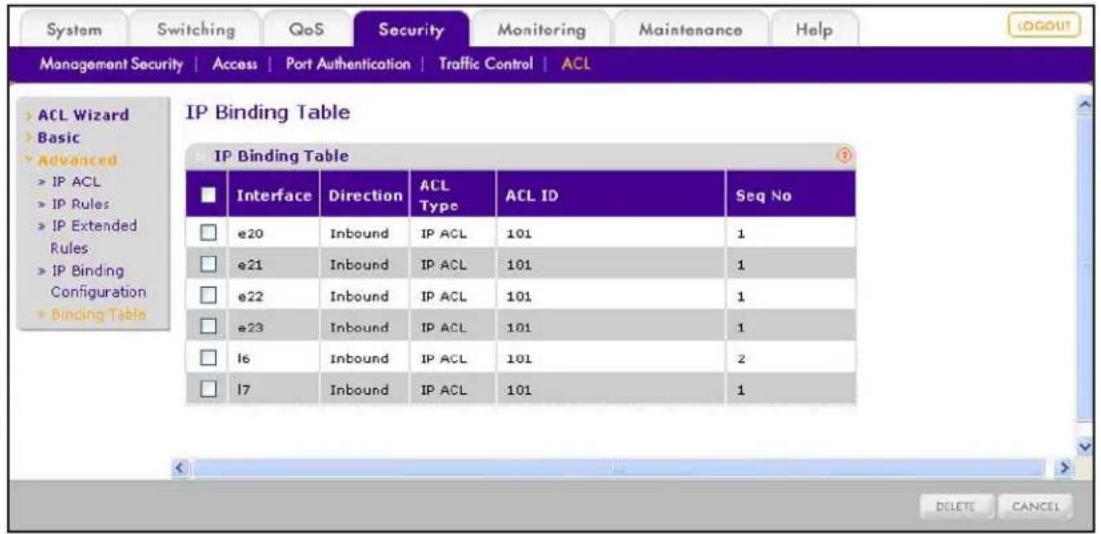
- Select the check box next to the IP ACL binding that you want to remove.
- Click the Delete button.
The IP binding is removed from both the IP Binding Table and the Interface Binding Status table on the IP Binding Configuration screen.
View the IP ACL Binding Table
You can view all IP ACL bindings on the IP Binding Table screen.
To view the IP ACL bindings:
Select Security > ACL > Advanced > Binding Table.
The IP Binding Table screen displays. The following figure shows six entries in the table as an example.
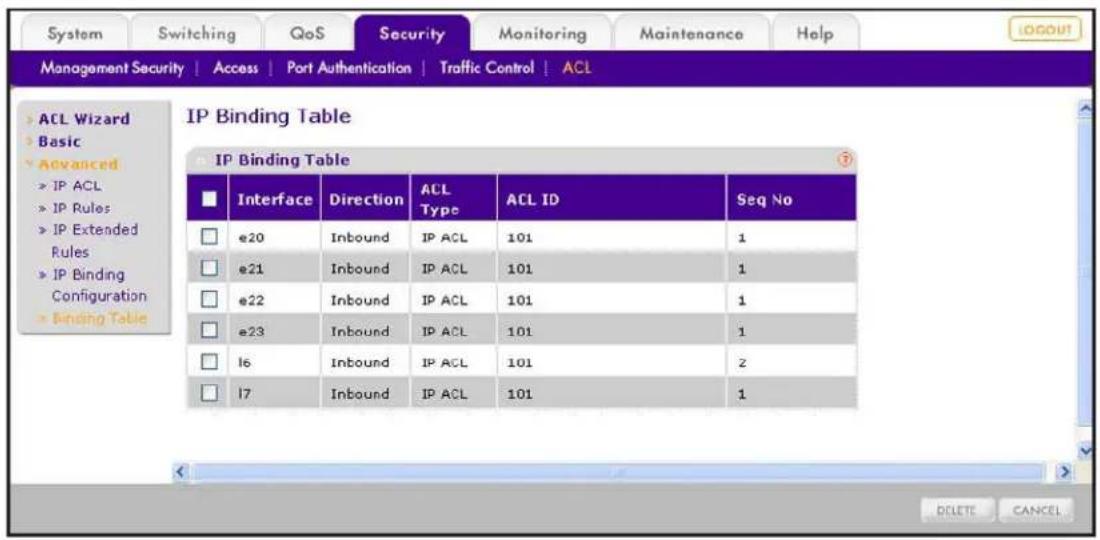
The following table describes the fields of the IP Binding Table:
| Field Description | |
| Interface The port or LAG to which the IP ACL is bound. | |
| Direction | The packet filtering direction for the IP ACL. The only valid direction is Inbound, which means the IP ACL rule is applied to traffic entering the port or LAG. |
| ACL Type | The type of ACL to which the port or LAG is bound. This is a fixed field that always shows IP ACL. |
| ACL ID The ID | of the ACL to which the port or LAG is bound. |
| Seq No | The sequence number that specifies the order of the ACL relative to other ACLs to which the port or LAG is bound. |
Configure System Management Options
15
This chapter describes how to configure Denial of Service (DoS) features, Green Ethernet power-saving features, and Link Layer Discovery Protocol (LLDP). The chapter includes the following sections:
- Configure Denial of Service
- Configure the Green Ethernet Features
- Configure Link Layer Discovery Protocol
Configure Denial of Service
The smart switch supports the following Denial of Service (DoS) features to classify and block specific types of DoS attacks. All of these DoS features are disabled by default.
- SIP=DIP. Enables the smart switch to drop packets that have a source IP address (SIP) equal to the destination IP address (DIP).
- First fragment. Enables the smart switch to drop packets that have a first TCP fragment with a TCP header that is smaller than the configured minimum TCP header size. You can configure the minimum TCP header size on the Denial of Service Configuration screen. The default size is 20 bytes.
- TCP fragment. Enables the smart switch to drop packets that have TCP fragments with an IP fragment offset that is equal to one. You can configure the minimum TCP header size on the Denial of Service Configuration screen. The default size is 20 bytes.
- TCP flag. Enables the smart switch to drop the following packets:
- Packets that have the TCP flag SYN set and a TCP source port number that is lower than 1024.
- Packets that have the TCP control flags set to zero and a TCP sequence number that is zero.
- Packets that have the TCP flags FIN, URG, and PSH set and a TCP sequence number that is zero.
- Packets that have both the TCP flags SYN and FIN set.
- L4 port . Enables the smart switch to drop packets that have a TCP source port that is equal to the TCP destination port and packets that have a UDP source port that is equal to the UDP destination port.
- ICMP. Enables the smart switch to drop ICMP echo request packets that are carried in an unfragmented IPv4 or IPv6 datagram if the total length in the IP header indicates a value that is greater than the sum of the configured maximum ICMP packet size and the IP header length. You can configure the maximum ICMP packet size on the Denial of Service Configuration screen. The default size is 512 bytes.
If the smart switch detects a DoS attack, the following occurs:
- The smart switch logs a warning message (see Configure, View, and Clear the Memory Log on page 260).
- If you enabled the syslog server (see Configure Syslog Servers and Enable the Server Log on page 263), the smart switch sends a message to the syslog server.
- The smart switch shuts down the port on which the DoS attack occurred. You need to manually reenable the port (see Configure the Options for the Physical Ports and LAGs on page 61).
Globally Enable Denial of Service
You can globally enable all DoS features that the smart switch supports, except for the L4 port DoS feature, which you need to enable manually (see Manually Configure Denial of Service on page 223).
To enable the DoS features globally:
- Select System > Management > Denial of Service > Auto-DoS Configuration.
The Auto-DoS Configuration screen displays.
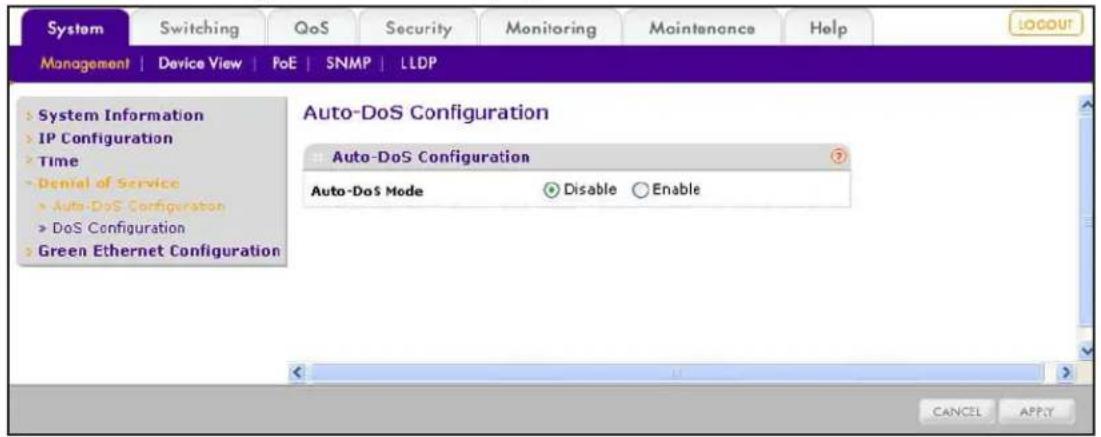
- Select the Enable radio button.
By default, all DoS features are disabled.
- Click the Apply button.
The settings are saved.
Manually Configure Denial of Service
Instead of enabling the DoS features globally, you can enable all or selected DoS features manually. The L4 port DoS feature is not enabled when you enable the DoS features globally. You need to enable L4 port DoS feature manually.
To enable DoS features manually:
- Select System > Management > Denial of Service > DoS Configuration.
The Denial of Service Configuration screen displays.
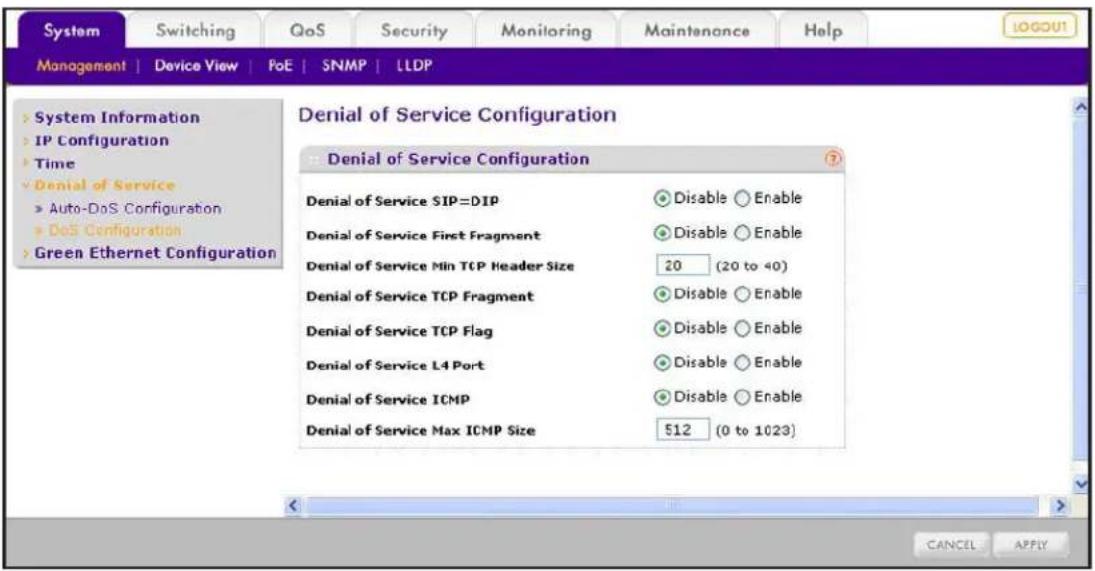
- Configure the settings as described in the following table.
| Setting Description | |
| Denial of Service SIP=DIP Select one of the following radio buttons:Disable. The feature is disabled. This is the default setting.Enable. Packets that have a source IP (SIP) address equal to the destination IP (DIP) address are dropped. | |
| Denial of Service First Fragment | Select one of the following radio buttons:Disable. The feature is disabled. This is the default setting.Enable. Packets that have a first TCP fragment with a TCP header that is smaller than the configured minimum TCP header size are dropped.Note:The Denial of Service First Fragment feature and the Denial of Service TCP Fragment feature both use the value that is specified in the Denial of Service Min TCP Header Size field. |
| Denial of Service Min TCP Header Size | Specify the minimum TCP header size. Enter a value in the range from 0 to 40 bytes. The default setting is 20 bytes. |
| Denial of Service TCP Fragment | Select one of the following radio buttons:Disable. The feature is disabled. This is the default setting.Enable. Packets that have a TCP fragment with an IP fragment offset that is equal to 1 are dropped.Note:Denial of Service TCP Fragment feature and the Denial of Service First Fragment feature both use the value that is specified in the Denial of Service Min TCP Header Size field. |
| Denial of Service TCP Flag | Select one of the following radio buttons:Disable. The feature is disabled. This is the default setting.Enable. All of the following packets are dropped:- Packets that have the TCP flag SYN set and a TCP source port number that is lower than 1024.- Packets that have the TCP control flags set to zero and a TCP sequence number that is zero.- Packets that have the TCP flags FIN, URG, and PSH set and a TCP sequence number that is zero.- Packets that have both the TCP flags SYN and FIN set. |
| Denial of Service L4 Port Select one of the following radio buttons:Disable. The feature is disabled. This is the default setting.Enable. Packets that have a TCP source port that is equal to the TCP destination port are dropped, and packets that have a UDP source port that is equal to the UDP destination port are dropped. | |
| Denial of Service ICMP Select one of the following radio buttons:Disable. The feature is disabled. This is the default setting.Enable. ICMP echo request packets that are carried in an unfragmented IPv4 or IPv6 datagram are dropped if the total length in the IP header indicates a value that is greater than the sum of the configured maximum ICMP packet size and the IP header length. | |
| Denial of Service Max ICMP Size | Specify the maximum ICMP packet size. Enter a value in the range from 0 to 1023 bytes. The default setting is 512 bytes. |
3. Click the Apply button.
The settings are saved.
Configure the Green Ethernet Features
Green Ethernet features allow for power consumption savings. Both the Auto Power Down mode feature and the EEE Mode feature are disabled by default.
To configure the Green Ethernet features:
- Select System > Management > Green Ethernet Configuration.
The Green Ethernet Configuration screen displays.
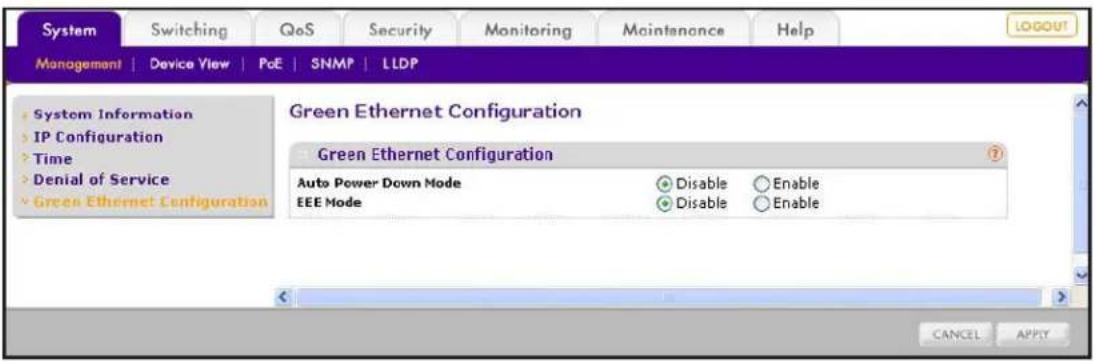
-
Specify the settings for the Auto Power Down Mode feature by selecting one of the following radio buttons:
-
Disable. If a port is down or has no link partner, the smart switch does not reduce its power consumption. This is the default setting.
-
Enable . If a port is down or has no link partner, the port enters standby mode automatically and checks the status of the link at regular intervals. The smart switch reduces its power consumption and does not perform autonegotiation while the link is down.
-
Specify the settings for the Energy-Efficient Ethernet (EEE) power saving mode (also referred to as short cable mode) by selecting one of the following radio buttons:
-
Disable. If a port does not have any frames to process, the port does not enter sleep mode, and the smart switch does not reduce its power consumption. This is the default setting.
-
Enable. If a port does not have any frames to process, the port enters sleep mode, and the smart switch reduces its power consumption.
-
Click the Apply button.
The settings are saved.
Configure Link Layer Discovery Protocol
IEEE 802.1AB defines the Link Layer Discovery Protocol (LLDP) standard, which allows stations on a LAN to advertise capabilities and physical descriptions. A network manager can view this information to identify the system topology and detect incorrect configurations on the LAN.
LLDP is a one-way protocol without request and response sequences. One station transmits the information and another station receives and processes the information. You can enable or disable transmit and receive functions separately for each port. By default, both transmit and receive functions are disabled on all ports.
LLDP-Media Endpoint Discovery (LLDP-MED) is an enhancement to LLDP with the following features:
- Autodiscovery of LAN policies (such as VLAN, Layer 2 priority, and DiffServ settings) and capability to enable plug and play networking.
• Device location discovery for the creation of location databases. - Extended and automated power management of Power over Ethernet (PoE) endpoints.
- Inventory management, which lets network administrators track network devices and determine their characteristics such as manufacturer, software and hardware versions, and serial and asset numbers.
Configure the Global LLDP and LLDP-MED Properties
Before you configure the LLDP and LLDP-MED settings for individual ports, configure the global LLDP and LLDP-MED properties that apply to all ports of the smart switch.
To configure the global LLDP and LLDP-MED properties:
1. Click System > LLDP > Basic > LLDP Configuration.
The LLDP Configuration screen displays.
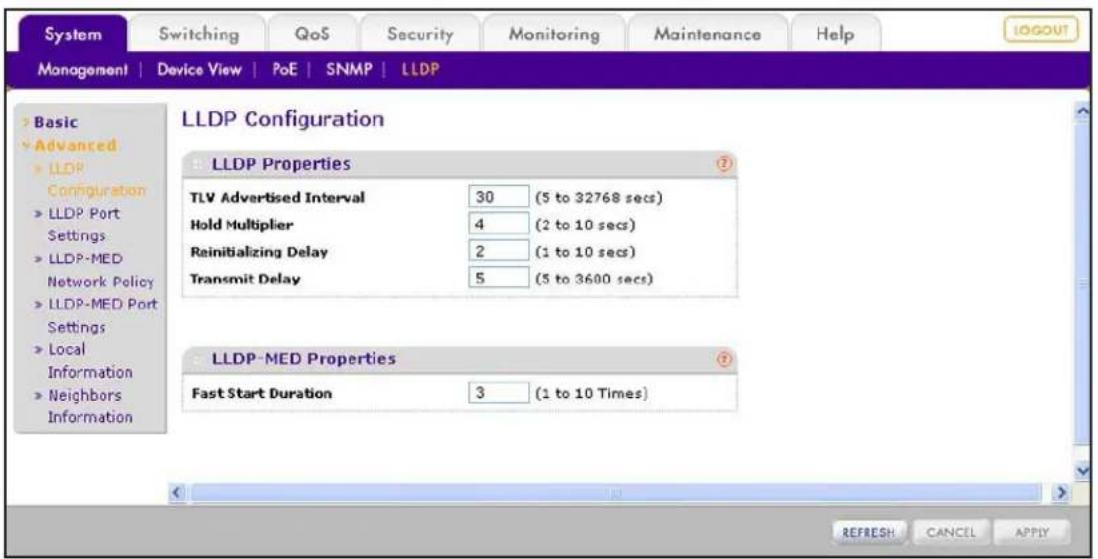
- Configure the settings as described in the following table.
| Setting Description | |
| LLDP Properties | |
| TLV Advertised Interval | The interval at which LLDP frames are transmitted. The default setting is 30 seconds.Enter a number in the range from 5 to 32768 seconds. |
| Hold Multiplier The hold time multiplier in seconds. The hold time multiplier multiplies the transmit interval to define the Time to Live (TTL) period. The default setting is 4 seconds.Enter a number in the range from 2 to 10 seconds. | |
| Reinitialization Delay | The delay in seconds before reinitialization. The default setting is 2 seconds. A longer time prevents frequent reinitializations.Enter a number in the range from 1 to 10 seconds. |
| Transmit Delay The minimum transmit delay in seconds between successive LLDP frame transmissions. The default setting is 5 seconds.Enter a number in the range from 5 to 3600 seconds. | |
| LLDP-MED Properties | |
| Fast Start Duration The number of LLDP protocol data units (PDUs) that are transmitted if the LLDP-MED Fast Start mechanism is initialized, which occurs when a new endpoint device links with the LLDP-MED network connectivity device. The default setting is 3.Enter a number in the range from 1 to 10. | |
- Click the Apply button.
The settings are saved.
- (Optional) Click the Refresh button.
The screen refreshes to display the most current data.
Configure LLDP for Ports
By default, LLDP is enabled on all ports, allowing them to transmit and receive LLDP packets. You can change the advertisement mode or disable LLDP entirely, and configure whether the port advertises its management IP address, topology change notifications, and type-length values (TLVs).
To configure LLDP settings for individual ports:
- Select System > LLDP > Advanced > LLDP Port Settings.
The LLDP Port Settings screen displays. The following figure does not show all ports.
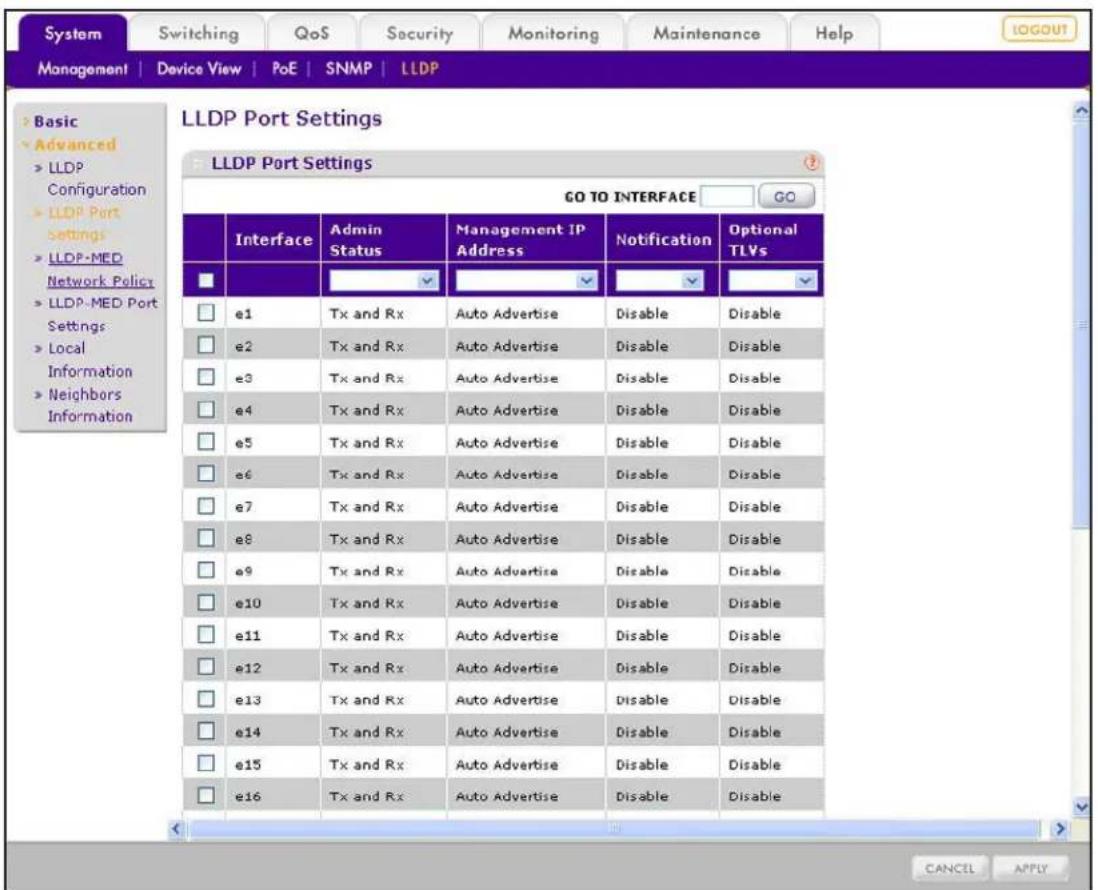
- Select whether to configure a single port, a group of ports, or all ports:
- To configure a single port, select the check box next to the port that you want to configure.
The information for the selected port displays in the menu in the table heading.
- To configure a group of ports, select the check boxes for the individual ports that you want to configure.
-
To configure all ports, select the check box at the left in the table heading.
-
Configure the settings as explained in the following table:
| Setting Description | |
| Interface This is a nonconfigurable field that shows the port number. | |
| Admin Status From the menu, | select the status and direction of the port:• TX Only. The port processes outgoing LLDP traffic only.• RX Only. The port processes incoming LLDP traffic only .• TX and RX. The port processes both incoming and outgoing LLDP traffic. This is the default setting.• Disabled. The port does not process any LLDP traffic. |
| Management IP Address From | the menu, select whether the port advertises its management IP address:• Auto Advertise. The port advertises its IP address as the management IP address. This is the default setting.• Stop Advertise. The port does not advertise its IP address as the management IP address. |
| Notification From the menu, select whether the port sends notifications if a topology change occurs:• Enable . The port sends topology change notifications and interacts with an LLDP trap manager to notify subscribers of remote data change statistics.• Disable. The port does not send topology change notifications. This is the default status. | |
| Optional TLVs From the menu, select whether the port sends transmission of optional type-length value (TLV) information in its LLDP PDUs:• Enable . The port sends TLV information.• Disable. The port does not send TLV information. This is the default status.Note: The LLDP TLV information includes the system name, system description, and system capabilities (see Configure System Information on page 41), and the port description (see Configure the Options for the Physical Ports and LAGs on page 61). | |
4. Click the Apply button.
The settings are saved.
Configure LLDP-MED for Individual Ports
The LLDP-MED Port Settings screen lets you enable the LLDP-MED mode on a port and configure its properties.
To configure LLDP-MED settings for one or more ports:
- Select System > LLDP > Advanced > LLDP-MED Port Settings.
The LLDP-MED Port Settings screen displays.
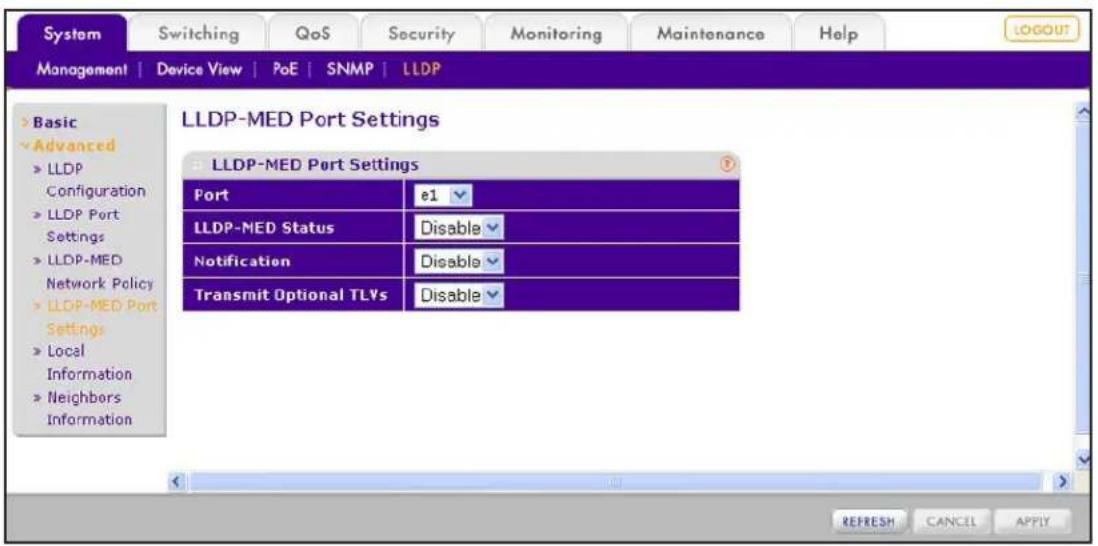
- From the Port menu, select the port for which you want to configure the settings. The screen adjusts.
- Configure the settings as explained in the following table:
| Setting Description | |
| LLDP-MED Status From the menu, select whether LLDP-MED is enabled for the port:Enable. LLDP-MED is enabled for the port.Disable. LLDP-MED is disabled for the port. This is the default setting. | |
| Notification From the menu, select whether the port sends notifications if a topology change occurs:Enable. The port sends topology change notifications and interacts with an LLDP-MED trap manager to notify subscribers of remote data change statistics.Disable. The port does not send topology change notifications. This is the default status. | |
| Transmit Optional TLVs From the menu, select whether the port sends transmission of optional type-length value (TLV) information in its LLDP-MED PDUs:Enable. The port sends TLV information.Disable. The port does not send TL V information. This is the default status.Note: An LLDP-MED TLV includes the following information: MED capabilities, network policy, location identification, extended power via MDI-PSE, extended power via MDI-PD, and inventory. | |
- Click the Apply button.
The settings are saved.
- (Optional) Repeat Step 2 through Step 4 for any other ports for which you want to configure the LLDP-MED settings.
View the LLDP-MED Network Policy TLV for an Individual Port
The LLDP-MED Network Policy screen lets you view if the LLPD-MED network policy TLV is present in the LLDP-MED frames for an individual port. If it is present, the network policy information is displayed.
To view the network policy for a port:
- Select System > LLDP > Advanced > LLDP-MED Network Policy.
The LLDP-MED Network Policy screen displays.
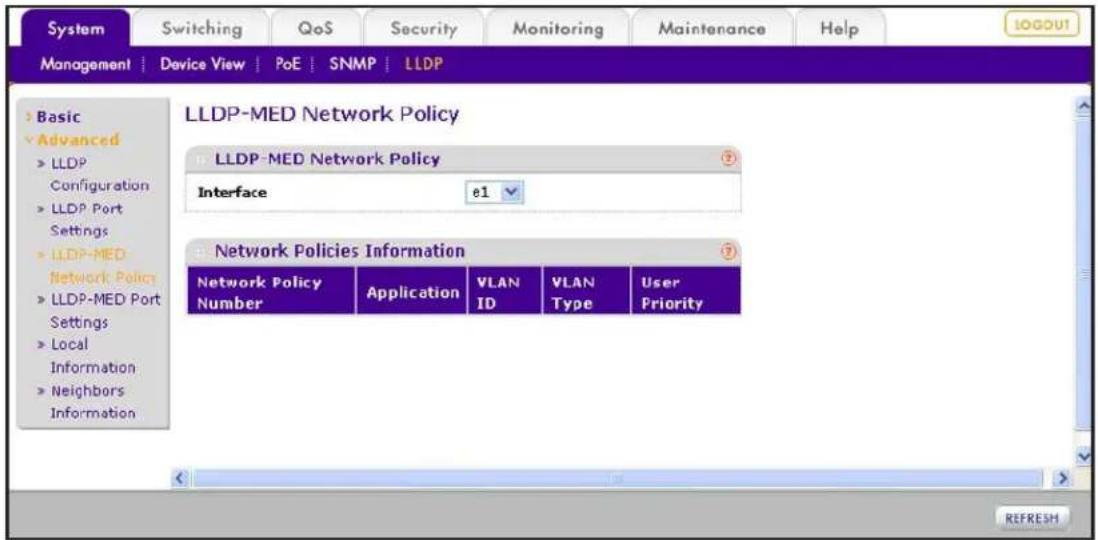
- From the Interface menu, select the port for which you want to view the information. The following table describes the LLDP-MED network policy information fields. Information is displayed only if the LLPD-MED network policy TLV is present in the LLDP-MED frames for an individual port.
| Field Description | |
| Network Policy Number The policy number. | |
| Application By default, the smart switch supports voice only. However, the smart switch can learn and support other types of media if it receives LLDP-MED frames to carry other types of media. Therefore, the application type can be one of the following:unknown.voice or voicesignaling.guestvoice.guestvoicesignalling.softphonevoice.videoconferencing.streamingvideo.vidoesignalling.Each application type has a VLAN ID, priority, DSCP, tagged bit status, and unknown bit status. | |
| VLAN ID The VLAN ID that is associated with the policy. | |
| VLAN Type Specifies whether the VLAN that is associated with the policy is tagged or untagged. | |
| User Priority The priority that is associated with the policy. | |
3. (Optional) Click the Refresh button.
The screen refreshes to display the most current data.
View the LLDP Local Device and Local Port Information
You can view the information that the smart switch advertises through LLDP and that each port advertises through LLDP.
View General LLDP Local Device and Local Port Information
To view general LLDP information:
- Select System > LLDP > Advanced > Local Information.
The Local Information screen displays.
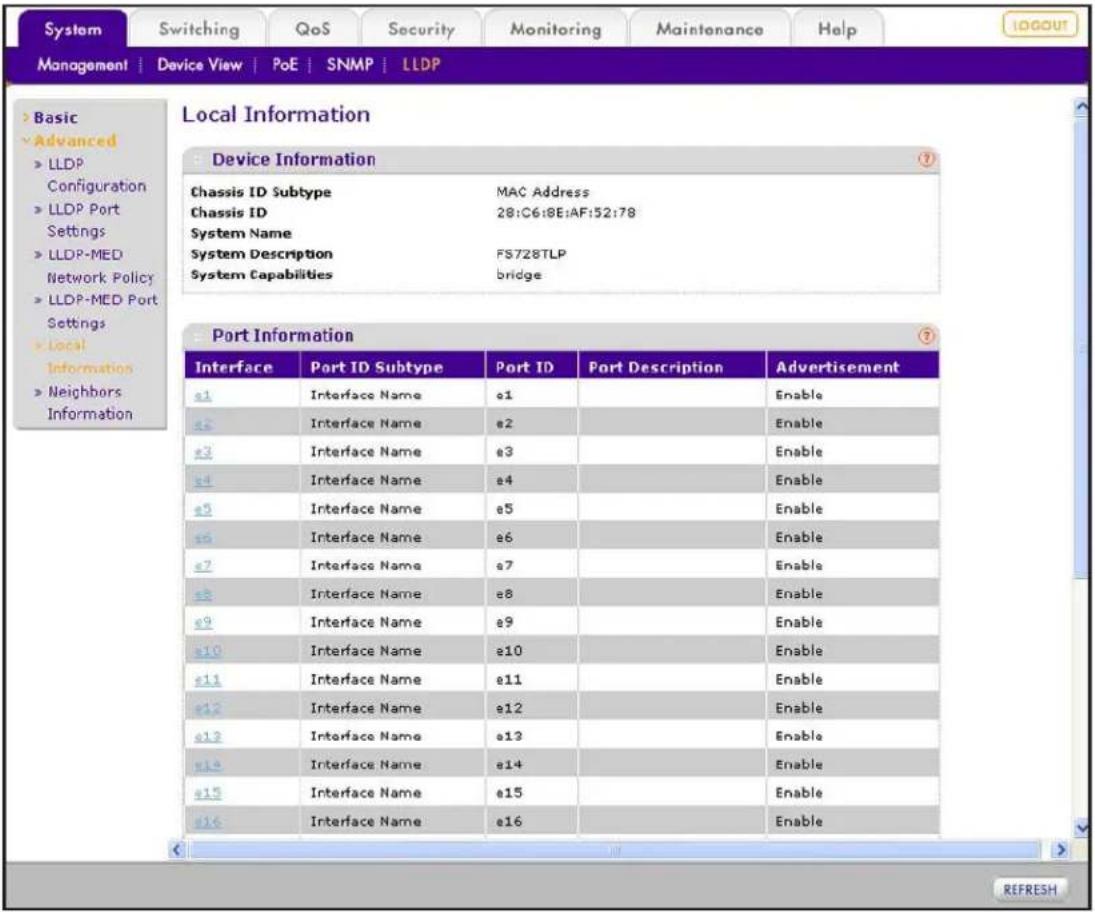
The following table describes the fields in the Device Information section for the smart switch and in the Port Information section for all individual ports.
| Field Description | |
| Device Information | |
| Chassis ID Subtype The source of the chassis identifier for the smart switch. | |
| Chassis ID The chassis is component that is associated with the smart switch. | |
| System Name The system name of the smart switch (see Configure System Information on page 41). | |
| System Description The description of the smart switch, that is, the model number of the smart switch. | |
| System Capabilities The system capabilities of the smart switch that are supported and enabled. | |
| Port Information | |
| Interface An active link to the Port Information pop-up screen that provides more details for the port. | |
| Port ID Subtype The source of the identifier that is displayed in the Port ID field. | |
| Port ID The identifier of the port. | |
| Port Description | The description of the port (see Configure the Options for the Physical Ports and LAGs on page 61). |
| Advertisement The advertisement status of the port, which corresponds to the selection of the Admin State menu on the LLDP Port Settings screen (see Configure LLDP for Ports on page 228). If the selection from the Admin State menu is TX Only, RX Only, or TX and RX, the field shows Enable. If the selection from the Admin State menu is Disable, the field shows Disable. | |
- (Optional) Click the Refresh button.
The screen refreshes to display the most current data.
View Detailed LLDP Information About a Port
To view detailed LLDP information about a port:
- Select System > LLDP > Advanced > Local Information.
The Local Information screen displays.
- In the Interface column of the Port Information table, click the active link for the port for which you want to view detailed LLDP information.
The Port Information pop-up screen displays for the selected port.
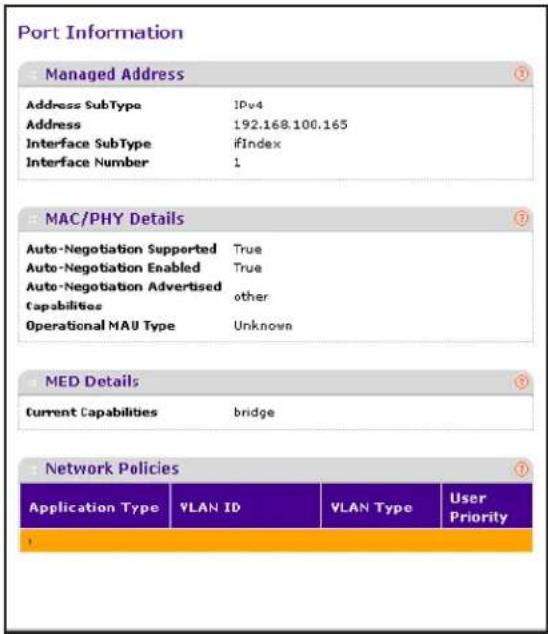
The following table describes the fields of the Port Information pop-up screen.
| Field Description | |
| Managed Address | |
| Address SubType The type of address that the smart switch management interface uses, for example, IPv4. | |
| Address The IP address of the smart switch. | |
| Interface SubType The port subtype. | |
| Interface Number The number that identifies the port. | |
| MAC/PHY Details | |
| Auto-Negotiation Supported Specifies whether the port supports port-speed autonegotiation:•T rue. The port supports port-speed autonegotiation.•False . The port does not support port-speed autonegotiation. | |
| Auto-Negotiation Enabled The port-speed autonegotiation support status:•T rue. Port-speed autonegotiation is enabled.•False . Port-speed autonegotiation is disabled. | |
| Auto-Negotiation Advertised Capabilities | The port-speed autonegotiation capabilities, for example, 10BASE-T half duplex mode, 10BASE-T full duplex mode, 100BASE-TX half duplex mode, or 100BASE-TX full duplex mode. |
| Operational MAU Type The Medium Attachment Unit (MAU) type. The MAU performs physical layer functions, including digital data conversion from the Ethernet interface collision detection and bit injection into the network. | |
| MED Details | |
| Current Capabilities The TLVs that the port advertises. | |
| Network Policies | |
| Application By default, the smart switch supports voice only. However, the smart switch can learn and support other types of media if it receives LLDP-MED frames to carry other types of media. Therefore, the application type on the port can be one of the following:unknownvoice or voicesignaling.guestvoice.guestvoicesignalling.softphonevoice.videoconferencing.streamingvideo.vidoesignalling.Each application type has a VLAN ID, priority, DSCP, tagged bit status, and unknown bit status. | |
| VLAN ID The VLAN ID that is associated with the policy. | |
| VLAN Type Specifies whether | the VLAN that is associated with the policy is tagged or untagged. |
| User Priority The priority that | is associated with the policy. |
View the LLDP Neighbors Information
You can view the LLDP information that ports have received from other LLDP-enabled systems on the network.
View General LLDP Neighbors Information
To view general LLDP neighbors information:
1. Select System > LLDP > Advanced > Neighbors Information.
The Neighbors Information screen displays.
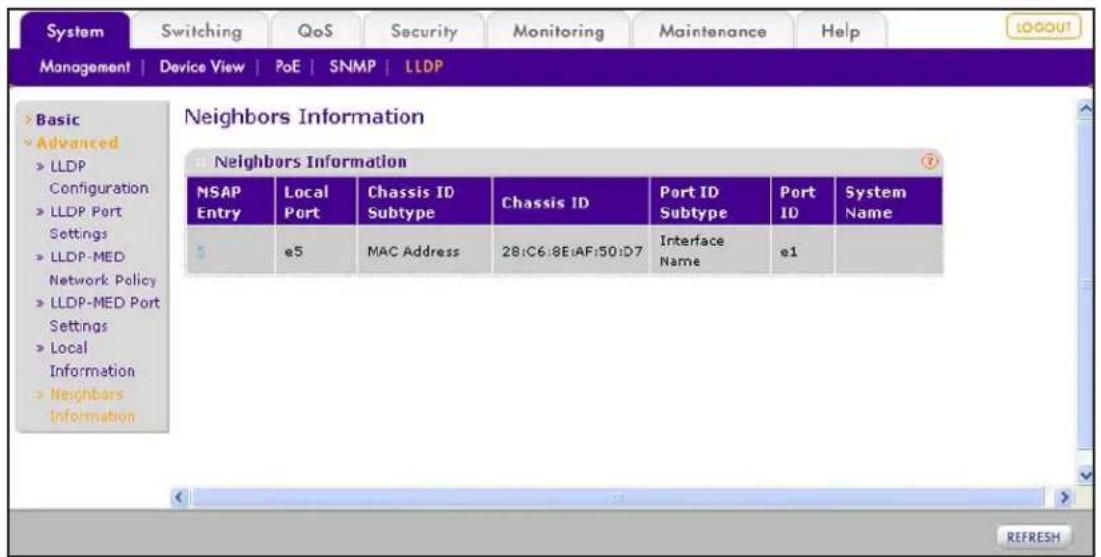
The following table describes the fields of the Neighbors Information table.
| Field Description | |
| MSAP Entry The Media Service | Access Point (MSAP) entry number for the remote system. This entry generally has the same number as the local port to which the remote system is attached and provides an active link to the Neighbors Information pop-up screen, which provides more details for the neighbor. |
| Local Port The port on the smart switch that received LLDP information from a remote system. | |
| Chassis ID Subtype The source of the chassis identifier for the remote system. | |
| Chassis ID The chassis component that is associated with the remote system. | |
| Port ID Subtype | The source of the port identifier on the remote system that is displayed in the Port ID field. |
| Port ID The identifier of the port on the remote system. | |
| System Name | The system name that is associated with the remote system. If the field is blank, the name might not be configured on the remote system. |
- (Optional) Click the Refresh button.
The screen refreshes to display the most current data.
View Detailed LLDP Information About a Remote System
To view detailed LLDP information about a remote system:
- Select System > LLDP > Advanced > Neighbors Information.
The Neighbors Information screen displays.
- In the MSAP Entry column, click the active link for the remote system for which you want to view detailed LLDP information.
The Neighbors Information pop-up screen displays for the selected remote system. Because this is a tall screen, it is shown in two figures. The left figure shows the top of the screen. The right figure shows the bottom of the screen.

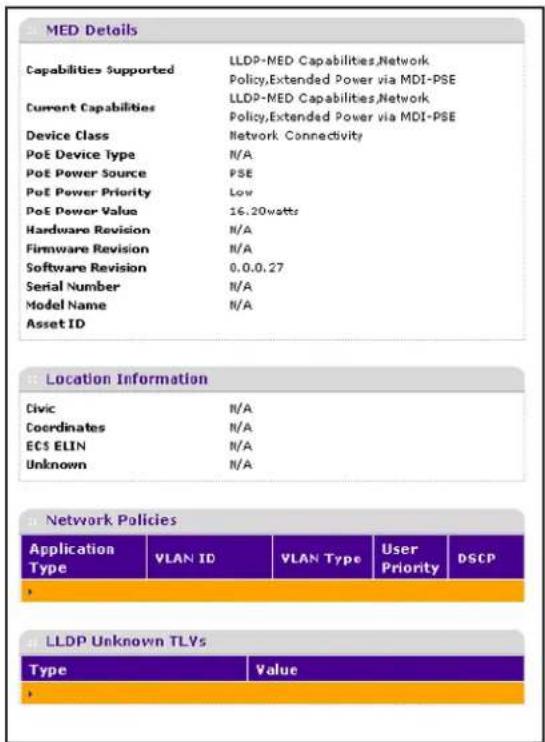
The following table describes the fields of the Neighbors Information pop-up screen.
| Field Description | |
| Port Details | |
| Local Port The port on the smart switch that received LLDP information from the remote system. | |
| MSAP Entry The Media Service Access Point (MSAP) entry number for the remote system. This entry generally has the same number as the local port to which the remote system is attached. | |
| Basic Details | |
| Chassis ID Subtype The source of the chassis identifier for the remote system. | |
| Chassis ID The chassis component that is associated with the remote system. | |
| Port ID Subtype | The source of the port identifier on the remote system that is displayed in the Port ID field. |
| Port ID The identifier of the port on the remote system. | |
| Port Description The user-defined description of the port on the remote system. | |
| System Name The user-defined system name of the remote system. | |
| System Description | The description of the remote system, that is, the model number of the remote system. |
| System Capabilities | The system capabilities of the remote system that are supported and enabled. |
| Managed Addresses | |
| Address SubType Specifies the type of the management address. | |
| Address Specifies the advertised management address of the remote system. | |
| Interface SubType Specifies the port subtype. | |
| Interface Number | Identifies the port on the remote system that sent the information. |
| MAC/PHY Details | |
| Auto-Negotiation Supported | Specifies whether the remote port supports port-speed autonegotiation:True. The port supports port-speed autonegotiation.False. The port does not support port-speed autonegotiation. |
| Auto-Negotiation Enabled | The port speed autonegotiation support status of the remote port:True. Port-speed autonegotiation is enabled.False. Port-speed autonegotiation is disabled. |
| Auto-Negotiation Advertised Capabilities | The port-speed autonegotiation capabilities of the remote port, for example, 10BASE-T half duplex mode, 10BASE-T full duplex mode, 100BASE-TX half duplex mode, or 100BASE-TX full duplex mode. |
| Field | Description |
| Operational MAU Type The M | Medium Attachment Unit (MAU) type of the remote port. The MAU performs physical layer functions, including digital data conversion from the Ethernet interface collision detection and bit injection into the network. |
| MED Details | |
| Note: Some details refer to remote systems and other details refer to remote ports. | |
| Capabilities Supported The | MED capabilities that are supported on the remote port. |
| Current Capabilities The TLVs that the remote port advertises. | |
| Device Class Displays the LLDP-MED endpoint device class for the remote port:Endpoint Class 1. Indicates a generic endpoint class, of fering basic LLDP services.Endpoint Class 2. Indicates a media endpoint class, offering media streaming capabilities as well as all Class 1 features.Endpoint Class 3. Indicates a communications device class, of fering all Class 1 and Class 2 features plus location, 911, Layer 2 switch support, and device information management capabilities. | |
| PoE Device Type The type of | PoE device that the remote port advertises. If the remote port does not support PoE, the field shows N/A. |
| PoE Power Source The type of | power source that the remote port advertises. |
| PoE Power Priority The PoE | power priority that the remote port advertises. |
| PoE Power Value The PoE value in watts that the remote port advertises. | |
| Hardware Revision The hardware version that the remote system advertises. | |
| Firmware Revision The firmware version that the remote system advertises. | |
| Software Revision The software version that the remote system advertises. | |
| Serial Number | The serial number that the remote system advertises. |
| Model Name | The model name that the remote system advertises. |
| Asset ID | The asset ID that the remote system advertises. |
| Location Information | |
| Civic | The physical location such as the street address that the remote system advertises in the location TLV, for example, 123 45th St. E. The field value length range is from 6 to 160 characters. |
| Coordinates | The location map coordinates that the remote system advertises in the location TLV, including latitude, longitude, and altitude. |
| ECS ELIN | The Emergency Call Service (ECS) Emergency Location Identification Number (ELIN) that the remote system advertises in the location TLV. The field range is from 10 to 25 characters. |
| Unknown | Unknown location information for the remote system. |
| Field Description | |
| Network Policies | |
| Application The types of media that the remote system advertises, which can be one of the following:unknown.voice or voicesignaling.guestvoice.guestvoicesignalling.softphonevoice.videoconferencing.streamingvideo.vidoesignalling.Each application type has a VLAN ID, priority, DSCP, tagged bit status, and unknown bit status. | |
| VLAN ID The VLAN ID that is associated with the policy that the remote system advertises. | |
| VLAN Type Specifies whether the VLAN that is associated with the policy that the remote system advertises is tagged or untagged. | |
| User Priority The priority that is associated with the policy that the remote system advertises. | |
| DSCP The DSCP that is associated with a particular policy type that the remote system advertises. | |
| LLDP Unknown TLVs | |
| Type The unknown TLV type field. | |
| Value | The unknown TLV value field. |
Monitor the Switch and Traffic
16
This chapter describes how to monitor information about the smart switch and its ports and how to configure how the smart switch monitors events. The chapter includes the following sections:
• View Statistics
• View the Results of a Cable Test
- Configure and View the System Logs
- Manage Port Mirroring
View Statistics
The web management interface provides screens to view the switch statistics, general port statistics, detailed port statistics, and Extensible Authentication Protocol (EAP) packet statistics.
View and Clear the Switch Statistics
The Switch Statistics screen lets you view detailed statistical information about the traffic that the smart switch processes.
View the Switch Statistics
To view the statistics for the smart switch:
1. Select Monitoring > Ports > Switch Statistics.
The Switch Statistics screen displays.
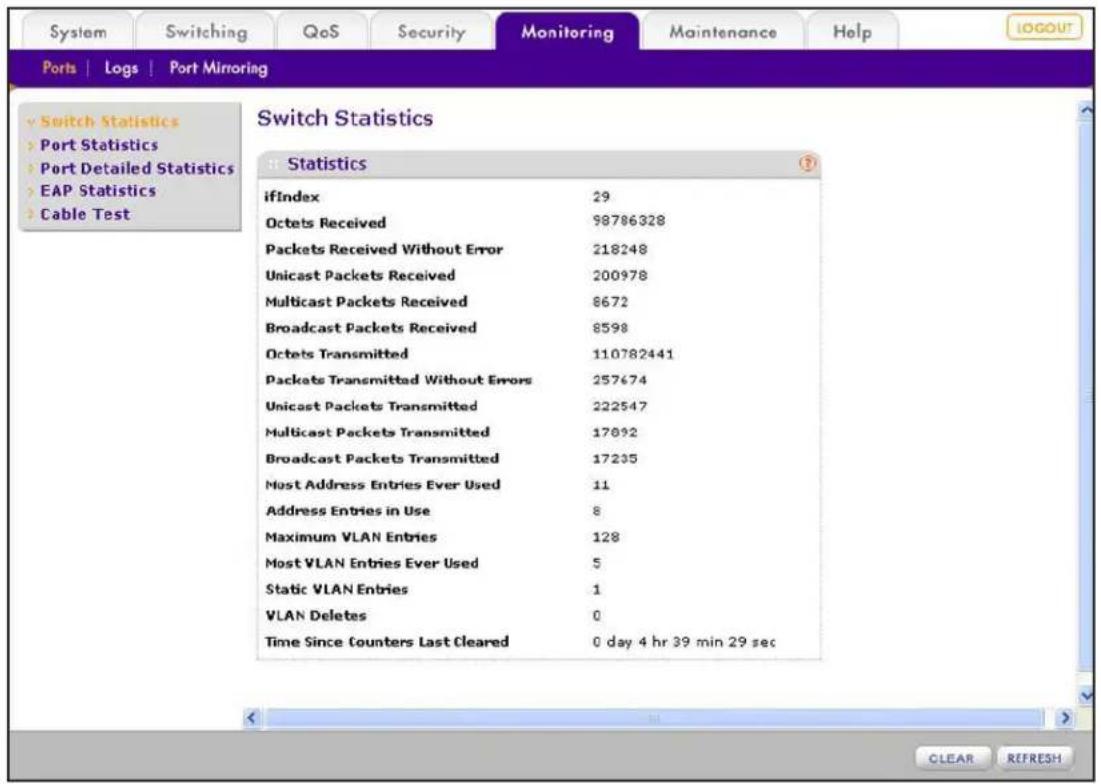
The following table describes fields on the screen.
| Field Description | |
| ifIndex The object that indicates the ifIndex of the interface table entry that is associated with the smart switch. | |
| Octets Received The total number of data octets that were received. This number excludes framing bits but includes FCS octets. | |
| Packets Received Without Errors | The total number of packets (including broadcast packets and multicast packets) that were received. |
| Unicast Packets Received The total number of subnetwork unicast packets that were received and delivered to a higher-layer protocol. | |
| Multicast Packets Received The total number of packets that were received and directed to a multicast address. This number does not include packets directed to the broadcast address. | |
| Broadcast Packets Received The total number of packets that were received and directed to the broadcast address. This number does not include multicast packets. | |
| Octets Transmitted The total number of octets that were transmitted, including framing characters. | |
| Packets Transmitted Without Errors | The total number of packets that were transmitted without errors. |
| Unicast Packets Transmitted The total number of packets that higher-level protocols requested to be transmitted to a subnetwork unicast address. | |
| Multicast Packets Transmitted | The total number of packets that higher-level protocols requested to be transmitted to a multicast address. |
| Broadcast Packets Transmitted | The total number of packets that higher-level protocols requested to be transmitted to the broadcast address. |
| Transmit Packets Discarded | The number of outbound packets that were discarded even though no errors were detected. A possible reason for discarding a packet could be to free up buffer space. |
| Most Address Entries Ever Used | The highest number of entries in the forwarding database that the smart switch learned since the most recent reboot. |
| Address Entries in Use The number of learned and static entries in the forwarding database. | |
| Maximum VLAN Entries The maximum number of virtual LANs (VLANs) allowed on the smart switch. | |
| Most VLAN Entries Ever Used | The largest number of VLANs that have been active on the smart switch since the most recent reboot. |
| Static VLAN Entries The number of presently active VLAN entries on the smart switch that have been created statically. | |
| VLAN Deletes The number of VLANs on the smart switch that have been created and then deleted since the most recent reboot. | |
| Time Since Counters Last Cleared | The time, in days, hours, minutes, and seconds that elapsed since the statistics for the smart switch were cleared. |
2. (Optional) Click the Refresh button.
The screen refreshes to display the most current data.
Clear the Switch Statistics Counters
If you clear the statistics counters on the Switch Statistics screen, the screen might still show packets because some packets are received and sent while the screen is being refreshed. You cannot clear the following fields:
- ifIndex
- Most Address Entries Ever Used
- Address Entries in Use
• Maximum VLAN Entries - Most VLAN Entries Ever Used
- Static VLAN Entries
To clear the statistics counters on the Switch Statistics screen:
- Select Monitoring > Ports > Switch Statistics.
The Switch Statistics screen displays.
- Click the Clear button.
Many fields on the screen are reset to 0 (zero).
View and Clear Statistics for Ports and LAGs
The Port Statistics screen lets you view the summary of traffic statistics for the ports and LAGs.
View the Statistics for Ports and LAGs
To view the summary of traffic statistics for the ports and LAGs:
- Select Monitoring > Ports > Port Statistics.
The Port Statistics screen displays. The following figure does not show all ports.
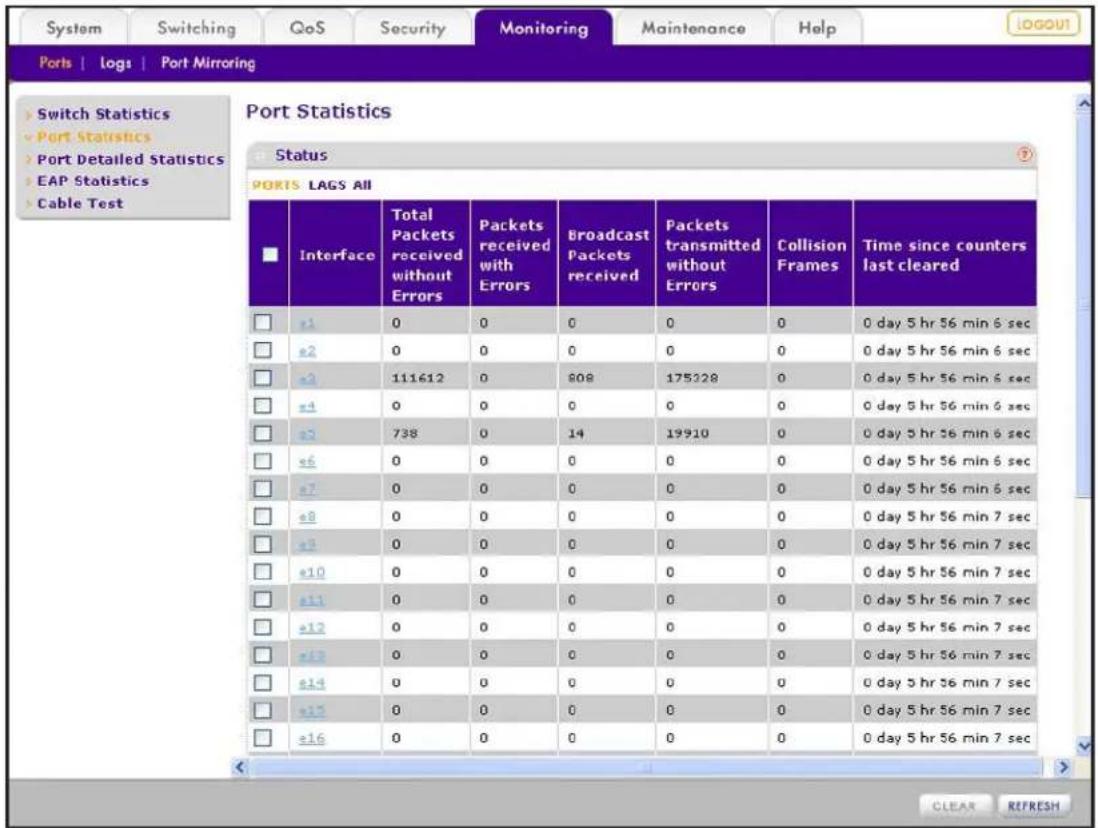
-
Select whether to display physical ports, link aggregation groups (LAGs), or both by clicking one of the following links above the table heading:
-
PORTS. Only physical ports display . This is the default setting.
• LAGS . Only LAGs display.
• All. Both physical ports and LAGs display.
The following table describes the fields on the screen.
| Field Description | |
| Interface The port number and | an active link to the Port Detailed Statistics screen,which provides more details for the port (seeView and Clear Detailed Statistics for an Individual Port or LAGon page 248). |
| Total Packets received without Errors | The total number of packets that the port received and that contained no errors. |
| Packets received with Errors T | The total number of packets that the port received and that contained errors, preventing the packets from being delivered to a higher-layer protocol. |
| Broadcast Packets received | The total number of packets that the port received, that contained no errors, and that were delivered to the broadcast address. This number does not include multicast packets. |
| Packets transmitted without Errors | The number of packets that the port transmitted and that contained no errors. |
| Collision Frames The best estimate of the total number of collisions on this Ethernet segment. | |
| Time since counters last cleared | The elapsed time, in days, hours, minutes, and seconds since the statistics for the port were last cleared. |
- (Optional) Click the Refresh button.
The screen refreshes to display the most current data.
Clear Counters for a Specific Port or LAG
To clear the counters for a specific port or LAG on the Port Statistics screen:
- Select Monitoring > Ports > Port Statistics.
The Port Statistics screen displays.
-
Select whether to display physical ports, link aggregation groups (LAGs), or both by clicking one of the following links above the table heading:
-
PORTS. Only physical ports display. This is the default setting.
• LAGS. Only LAGs display.
• All. Both physical ports and LAGs display. -
Select the check box to the left of the port or LAG for which you want to clear the counters.
-
Click the Clear button.
The counters for the port or LAG are reset.
Clear Counters for All Ports, LAGs, or Both
To clear all counters for all ports, all LAGs, or both on the Port Statistics screen:
- Select Monitoring > Ports > Port Statistics.
The Port Statistics screen displays.
-
Select whether to display physical ports, link aggregation groups (LAGs), or both by clicking one of the following links above the table heading:
-
PORTS. Only physical ports display. This is the default setting.
-
LAGS. Only LAGs display.
• All. Both physical ports and LAGs display. -
Select the check box at the left in the table heading.
-
Click the Clear button.
The counters for all ports are reset.
View and Clear Detailed Statistics for an Individual Port or LAG
The Port Detailed Statistics screen lets you view detailed information and statistics for an individual port or LAG.
View Detailed Information and Statistics for an Individual Port or LAG
To view detailed information and statistics for an individual port or LAG:
- Select Monitoring > Ports > Port Detailed Statistics.
The Port Detailed Statistics screen displays. Because this is a tall screen, it is shown in two figures.
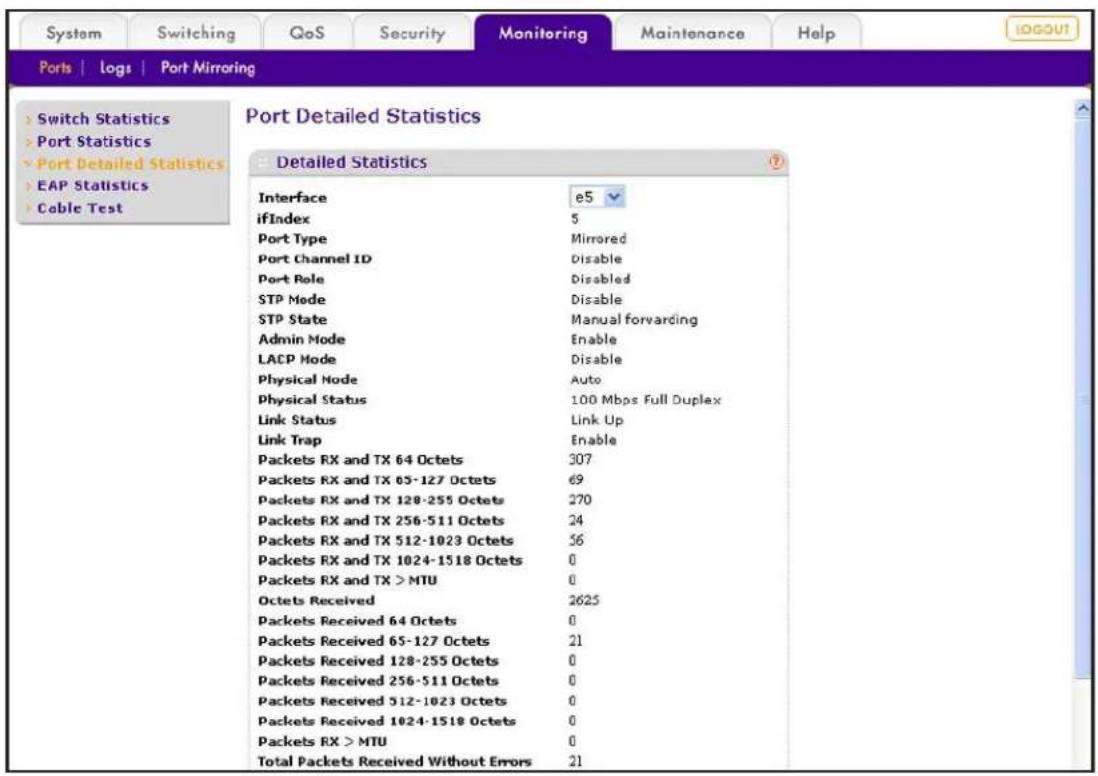
| Unicast Packets Received | 0 |
| Multicast Packets Received | 21 |
| Broadcast Packets Received | 0 |
| Total Packets Received with MAC Errors | 0 |
| Jabbers Received | 0 |
| Fragments Received | 0 |
| Undersize Received | 0 |
| Rx FCS Errors | 0 |
| 802.3x Pause Frames Received | 0 |
| Total Packets Transmitted (Octets) | 121663 |
| Packets Transmitted 64 Octets | 307 |
| Packets Transmitted 65-127 Octets | 48 |
| Packets Transmitted 128-255 Octets | 270 |
| Packets Transmitted 256-511 Octets | 24 |
| Packets Transmitted 512-1023 Octets | 56 |
| Packets Transmitted 1024-1518 Octets | 0 |
| Packets Transmitted > MTU | 0 |
| Maximum Frame Size | 1518 |
| Total Packets Transmitted Successfully | 705 |
| Unicast Packets Transmitted | 0 |
| Multicast Packets Transmitted | 372 |
| Broadcast Packets Transmitted | 333 |
| Total Transmit Errors | 0 |
| Total Transmit Packets Discarded | 0 |
| Single Collision Frames | 0 |
| Multiple Collision Frames | 0 |
| Excessive Collision Frames | 0 |
| STP BPDUs Received | 0 |
| STP BPDUs Transmitted | 0 |
| RSTP BPDUs Received | 0 |
| RSTP BPDUs Transmitted | 0 |
| 802.3x Pause Frames Transmitted | 0 |
| EAPOL Frames Received | 0 |
| EAPOL Frames Transmitted | 0 |
| Time Since Counters Last Cleared | 0 day 0 hr 10 min 30 sec |
- From the Interface menu, select the port or LAG for which you want to display detailed information and statistics.
The following table describes the fields on the screen.
| Field Description | |
| ifIndex The ifIndex of the interface table entry that is associated with the port or LAG. | |
| Port Type The function that the port has: Mirrored. The port is configured as a monitoring port and is the source port in a port mirroring session. For information about port monitoring and probe ports, see Manage Port Mirroring on page 267.Probe. The port is configured as a monitoring port and is the destination port in a port mirroring session. For information about port monitoring and probe ports, see Manage Port Mirroring on page 267.Port Channel. The port is configured as a member of a LAG. For more information, see Manage LAG Memberships on page 95.Nede most ports, this field is blank. | |
| Port Channel ID If the port is | a member of a LAG, the LAG ID is displayed. If the port is not a member of a LAG, Disable is displayed. |
| Port Role Each MST bridge port that is enabled is assigned a port role for each spanning tree. The port role can be one of the following: Root Port, Designated Port, Alternate Port, Backup Port, Master Port, or Disabled. | |
| STP Mode The Spanning Tree Protocol (STP) administrative mode for the port or LAG:Enable. STP is enabled for the port or LAG.Disable. STP is disabled for the port or LAG. | |
| STP State The current spanning tree state of the port or LAG. This state controls what action a port or LAG takes when it receives a frame. If the smart switch detects a malfunctioning port or LAG, it places that port in the Broken state. The STP state for a port or LAG can be one of the following:Disabled.Blocking.Listening.Learning.Forwarding.Broken. | |
| Admin Mode The administrative state for the port or LAG:Enable. The port or LAG is switched on and can process traffic. This is the default setting.Disable. The port or LAG is switched off and cannot process traffic. | |
| LACP Mode The Link Aggregation Control Protocol (LACP) administrative state:Enable. LACP is enabled, and the port can be a member of a LAG.Disable. LACP is disabled, and the port cannot be a member of a LAG. | |
| Physical Mode The port speed and duplex mode. In autonegotiation mode, the duplex mode and speed are configured through the autonegotiation process. | |
| Physical Status The port speed and duplex mode status.Note:The Physical Status field displays the actual mode, which might differ from the mode that you configured, which displays in the Physical Mode field. | |
| Link Status The connection status of the port or LAG:Link Up. The port or LAG is connected to another device.Link Down. The port or LAG is not connected to another device. | |
| Link Trap Indicates whether the smart switch sends a trap when the port link status changes:Enable. The smart switch sends a trap when the link status changes.Disable. The smart switch does not send a trap when the link status changes. | |
| Packets RX and TX 64 Octets | The total number of packets (including bad packets) that the port or LAG received or transmitted and that were 64 octets in length (excluding framing bits but including FCS octets). |
| Packets RX and TX 65-127 Octets | The total number of packets (including bad packets) that the port or LAG received or transmitted and that were between 65 and 127 octets in length inclusive (excluding framing bits but including FCS octets). |
| Packets RX and TX 128-255 Octets | The total number of packets (including bad packets) that the port or LAG received or transmitted and that were between 128 and 255 octets in length inclusive (excluding framing bits but including FCS octets). |
| Packets RX and TX 256-511 Octets | The total number of packets (including bad packets) that the port or LAG received or transmitted and that were between 256 and 511 octets in length inclusive (excluding framing bits but including FCS octets). |
| Packets RX and TX 512-1023 Octets | The total number of packets (including bad packets) that the port or LAG received or transmitted and that were between 512 and 1023 octets in length inclusive (excluding framing bits but including FCS octets). |
| Packets RX and TX 1024-1518 Octets | The total number of packets (including bad packets) that the port or LAG received or transmitted and that were between 1024 and 1518 octets in length inclusive (excluding framing bits but including FCS octets). |
| Packets RX and TX > MTU | The total number of packets (including bad packets) that the port or LAG received or transmitted and that were in excess of the length of the maximum frame size (excluding framing bits but including FCS octets). |
| Octets Received The total number of octets of data (including those in bad packets) that the port of LAG received (excluding framing bits but including FCS octets). This number provides a reasonable estimate of the Ethernet ingress utilization. | |
| Packets Received 64 Octets | The total number of packets (including bad packets) that the port or LAG received and that were 64 octets in length (excluding framing bits but including FCS octets). |
| Packets Received 65-127 Octets | The total number of packets (including bad packets) that the port or LAG received and that were between 65 and 127 octets in length inclusive (excluding framing bits but including FCS octets). |
| Packets Received 128-255 Octets | The total number of packets (including bad packets) that the port or LAG received and that were between 128 and 255 octets in length inclusive (excluding framing bits but including FCS octets). |
| Packets Received 256-511 Octets | The total number of packets (including bad packets) that the port or LAG received and that were between 256 and 511 octets in length inclusive (excluding framing bits but including FCS octets). |
| Packets Received 512-1023 Octets | The total number of packets (including bad packets) that the port or LAG received and that were between 512 and 1023 octets in length inclusive (excluding framing bits but including FCS octets). |
| Packets Received 1024-1518 Octets | The total number of packets (including bad packets) that the port or LAG received and that were between 1024 and 1518 octets in length inclusive (excluding framing bits but including FCS octets). |
| Packets RX > MTU The total number of packets that the port or LAG received and that were in excess of the maximum frame size (excluding framing bits, but including FCS octets) and were otherwise well formed. | |
| Total Packets Received Without Errors | The total number of packets that the port or LAG received and that were received without errors. |
| Unicast Packets Received | The number of subnetwork unicast packets that the port delivered to a higher-layer protocol. |
| Multicast Packets Received | The total number of good packets that the port or LAG received and that were directed to a multicast address. This number does not include packets directed to the broadcast address. |
| Broadcast Packets Received | The total number of good packets that the port or LAG received and that were directed to the broadcast address. This number does not include multicast packets. |
| Total Packets Received with MAC Errors | The total number of inbound packets that the port or LAG received and that contained errors, preventing the packets from being delivered to a higher-layer protocol. |
| Jabbers Received The total | number of packets that the port or LAG received and that were longer than 1518 octets (excluding framing bits, but including FCS octets) and that had either a bad Frame Check Sequence (FCS) with an integral number of octets (FCS error) or a bad FCS with a nonintegral number of octets (alignment error).Note:This definition of a jabber is different from the definition in IEEE 802.3, section 8.2.1.5 (10BASE5) and section 10.3.1.4 (10BASE2). These documents define a jabber as the condition in which any packet exceeds 20 ms. The allowed range to detect a jabber is between 20 ms and 150 ms. |
| Fragments Received The total | number of packets that the port or LAG received and that were less than 64 octets in length with ERROR CRC (excluding framing bits but including FCS octets). |
| Undersize Received The total | number of packets that the port or LAG received and that were less than 64 octets in length with GOOD CRC (excluding framing bits but including FCS octets). |
| Rx FCS Errors The total num | ber of packets that the port or LAG received and that had a length (excluding framing bits, but including FCS octets) of between 64 and 1518 octets, inclusive, but had a bad Frame Check Sequence (FCS) with an integral number of octets. |
| 802.3x Pause Frames Received | The total number of MAC control frames that the port or LAG received and that had an opcode indicating a pause operation.Nthis counter does not increment when the interface functions in half-duplex mode. |
| Total Packets Transmitted (Octets) | The total number of octets of data (including those in bad packets) that the port or LAG transmitted (excluding framing bits but including FCS octets). This number provides a reasonable estimate of the Ethernet egress utilization. |
| Packets Transmitted 64 Octets | The total number of packets (including bad packets) that the port or LAG transmitted and that were 64 octets in length (excluding framing bits but including FCS octets). |
| Packets Transmitted 65-127 Octets | The total number of packets (including bad packets) that the port or LAG transmitted and that were between 65 and 127 octets in length inclusive (excluding framing bits but including FCS octets). |
| Packets Transmitted 128-255 Octets | The total number of packets (including bad packets) that the port or LAG transmitted and that were between 128 and 255 octets in length inclusive (excluding framing bits but including FCS octets). |
| Packets Transmitted 256-511 Octets | The total number of packets (including bad packets) that the port or LAG transmitted and that were between 256 and 511 octets in length inclusive (excluding framing bits but including FCS octets). |
| Packets Transmitted 512-1023 Octets | The total number of packets (including bad packets) that the port or LAG transmitted and that were between 512 and 1023 octets in length inclusive (excluding framing bits but including FCS octets). |
| Packets Transmitted 1024-1518 Octets | The total number of packets (including bad packets) that the port or LAG transmitted and that were between 1024 and 1518 octets in length inclusive (excluding framing bits but including FCS octets). |
| Packets Transmitted MTU | The total number of packets (including bad packets) that the port or LAG transmitted and that were in excess of the maximum frame size (excluding framing bits, but including FCS octets) and were otherwise well formed. |
| Maximum Frame Size The m | maximum Ethernet frame size that the port or LAG supports or has configured, including the Ethernet header, CRC, and payload (1518 to 9216). (The default maximum Ethernet frame size is 1518.) |
| Total Packets Transmitted Successfully | The total number of frames that the port or LAG transmitted successfully. |
| Unicast Packets Transmitted | The total number of packets that higher-level protocols requested to be transmitted on the port or LAG to a subnetwork unicast address, including packets that were discarded or not sent. |
| Multicast Packets Transmitted | The total number of packets that higher-level protocols requested to be transmitted on the port or LAG to a multicast address, including packets that were discarded or not sent. |
| Broadcast Packets Transmitted | The total number of packets that higher-level protocols requested to be transmitted on the port or LAG to the broadcast address, including packets that were discarded or not sent. |
| Total Transmit Errors | The sum of the total number of single, multiple, and excessive collisions on the port or LAG. |
| Total Transmit Packets Discarded | The sum of the total number of single collision frames discarded, multiple collision frames discarded, and excessive frames discarded on the port or LAG. |
| Single Collision Frames The | total number of successfully transmitted frames on the port or LAG for which transmission is inhibited by exactly one collision. |
| Multiple Collision Frames The | total number of successfully transmitted frames on the port or LAG for which transmission is inhibited by more than one collision. |
| Excessive Collision Frames | The total number of frames for which transmission on the port or LAG fails because of excessive collisions. |
| STP BPDUs Received | The number of STP BPDUs that the port or LAG received. |
| STP BPDUs Transmitted The number of STP BPDUs that the port or LAG transmitted. | |
| RSTP BPDUs Received The number of RSTP BPDUs that the port or LAG received. | |
| RSTP BPDUs Transmitted The number of RSTP BPDUs that the port or LAG transmitted. | |
| 802.3x Pause Frames Transmitted | The number of MAC control frames that the port or LAG transmitted with an opcode indicating a pause operation.Nthis counter does not increment when the port or LAG functions in half-duplex mode. |
| EAPOL Frames Received The number of valid EAPoL frames of any type that the port or LAG received. | |
| EAPOL Frames Transmitted | The number of EAPoL frames of any type that the port or LAG transmitted. |
| Time Since Counters Last Cleared | The time, in days, hours, minutes, and seconds that elapsed since the statistics for the port or LAG were cleared. |
3. (Optional) Click the Refresh button.
The screen refreshes to display the most current data.
Clear the Counter for the Statistics on the Port Detailed Statistics Screen
To clear the statistics counters on the Port Detailed Statistics screen:
- Select Monitoring > Ports > Port Detailed Statistics.
The Port Detailed Statistics screen displays.
- Click the Clear button.
Most fields on the screen are reset to 0 (zero).
View and Clear EAP Statistics for Ports
The EAP Statistics screen lets you view information about incoming Extensible Authentication Protocol (EAP) and EAP over LAN (EAPoL) frames on the ports. These types of frames are generated when port authentication is enabled.
View EAP and EAPoL Packet Information and Statistics for Ports
To view EAP and EAPoL packet information and statistics for ports:
- Select Monitoring > Ports > EAP Statistics.
The EAP Statistics screen displays. Because this is a wide screen, it is shown in two figures. The following figures do not show all ports.

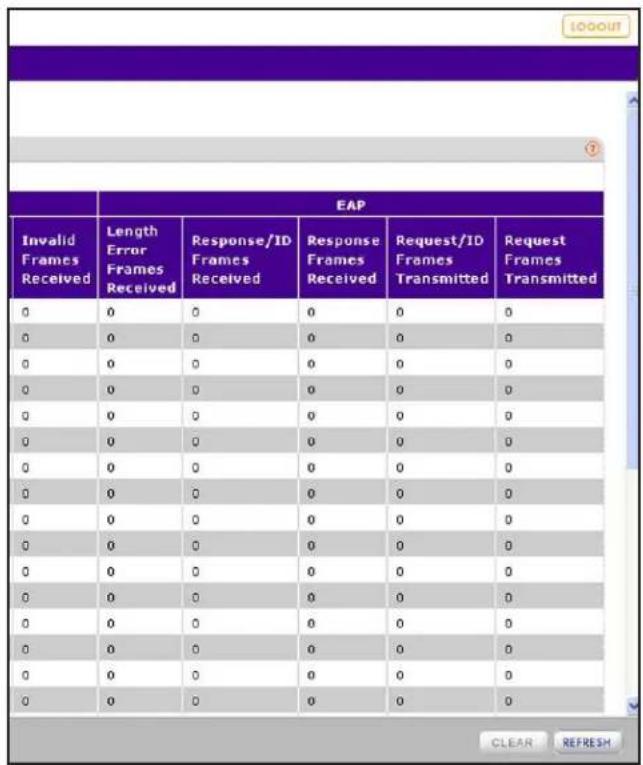
The following table describes the EAPoL and EAP fields.
| Field Description | |
| Port The port number for the port | that functions as an authenticator. |
| EAPOL | |
| Frames Received The number of | valid EAPoL frames that the port received. |
| Frames Transmitted The number | of EAPoL frames that the port transmitted. |
| Start Frames Received The number | ber of EAPoL start frames that the port received. |
| Logoff Frames Received The number | ber of EAPoL logoff frames that the port received. |
| Last Frame Version The protocol | version number that is associated with the EAPoL frame that the port received most recently. |
| Last Frame Source The source MAC address that is associated with the EAPoL frame that the port received most recently. | |
| Invalid Frames Received The number of unrecognized EAPoL frames that the port received. | |
| EAP | |
| Length Error Frames Received The number of EAP frames that the port received and that had an invalid packet body length. | |
| Response/ID Frames Received The number of EAP respond ID frames that the port received. | |
| Response Frames Received The number of valid EAP response frames (other than response/ID frames) that the port received. | |
| Request/ID Frames Transmitted | The number of EAP request/identity frames that the port transmitted. |
| Request Frames Transmitted The number of EAP request frames (other than request/identity frames) that the port transmitted. | |
- (Optional) Click the Refresh button.
The screen refreshes to display the most current data.
Clear Counters for a Specific Port
To clear the counters for a specific port or LAG on the EAP Statistics screen:
- Select Monitoring > Ports > EAP Statistics.
The EAP Statistics screen displays.
-
Select the check box to the left of the port for which you want to clear the counters.
-
Click the Clear button.
The counters for the port are reset.
Clear Counters for All Ports
To clear all counters for all ports, all LAGs, or both on the EAP Statistics screen:
- Select Monitoring > Ports > EAP Statistics.
The EAP Statistics screen displays.
-
Select the check box at the left in the table heading.
-
Click the Clear button.
The counters for all ports are reset.
View the Results of a Cable Test
The Cable Test screen lets you view information about the cables that are connected to the ports.
To view information about the cables that are connected to the ports:
- Select Monitoring > Ports > Cable Test.
The Cable Test screen displays. The following figure does not show all ports.
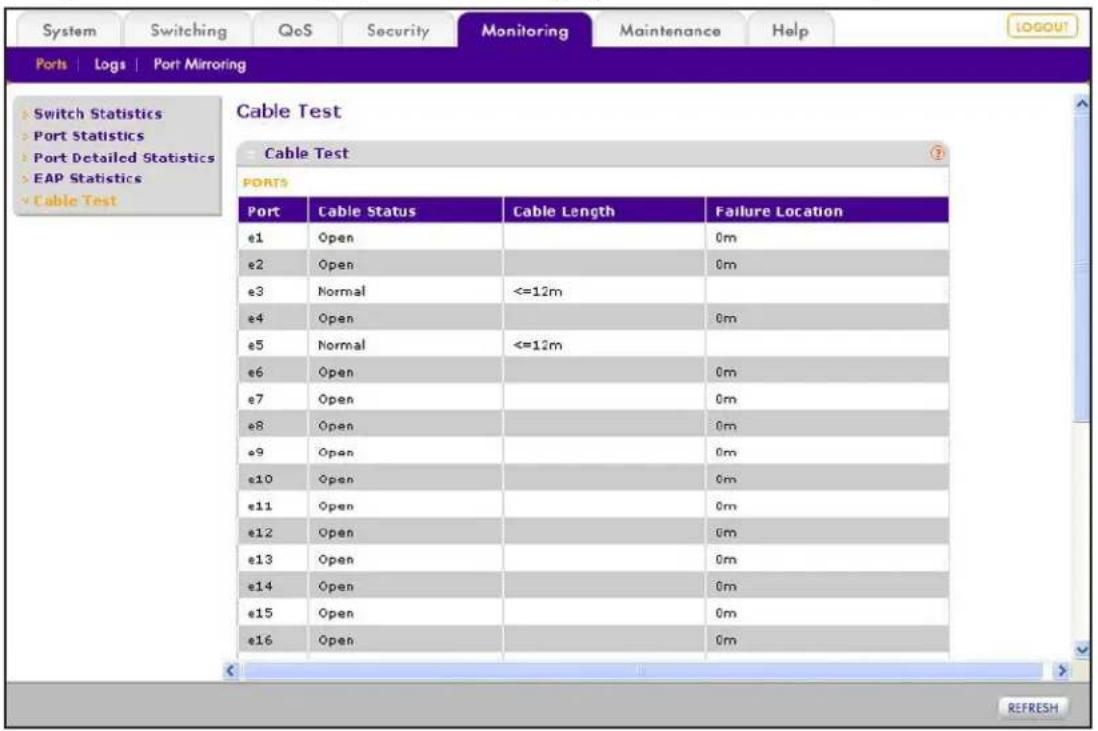
The following table describes the cable information displayed on the screen.
| Field Description | |
| Port The port number of the port to which the cable is connected. | |
| Cable Status The cable status. | Normal. The cable is functioning correctly.Open. The cable is disconnected or a connector is faulty.Short. An electrical short has occurred in the cable.Cable Test Failed . The smart switch cannot determine the cable status. The cable might be functioning fine.Admin Disable. The port is administratively disabled. The smart switch does not perform cable diagnostics for a disabled port. |
| Cable Length The estimated length of the cable in meters. The length is displayed as a range between the shortest estimated length and the longest estimated length. If the smart switch could not determine the cable length, the field displays Unknown. The Cable Length field displays information only if the cable status is Normal. | |
| Failure Location The estimated distance in meters from the end of the cable to the failure location. The Failure Location field displays information only if the cable status is Open or Short or a failure has occurred. | |
2. (Optional) Click the Refresh button.
The screen refreshes to display the most current data.
Configure and View the System Logs
The smart switch generates messages in response to events such as faults, errors, and configuration changes. These system log messages are stored locally in the memory log and, as an option, in the flash log. The smart switch can also forward these messages to one or more syslog servers for monitoring purposes or long-term archival storage. For messages that are stored in the flash log or forwarded to a syslog server, you can filter the messages based on severity. The trap log displays all messages that an SNMP management station can receive.
To retain the messages after the smart switch has restarted, you have the following options:
- Store the messages in flash memory (see Configure, View, and Clear the Flash Log on page 261).
- Send the messages to a syslog server (see Configure Syslog Servers and Enable the Server Log on page 263).
- Save the messages to a local file (see Save the Firmware, Running Configuration File, and Logs on page 279).
Message Format Concepts
The format of the messages is the same for the memory log, flash log, and server log for a syslog server.
The following example shows the standard format for a log message:
<14> Mar 24 05:34:05 10.131.12.183-1 UNKN[2176789276]: main_login.c(179)
3855 % HTTP Session 19 initiated for user admin connected from 10.27.64.122
The following information is included in this example:
- The number that is contained in the angle brackets represents the message priority, which is derived from the following values:
Priority = (facility value × 8) + severity level.
The facility value is usually 1, which means it is a user-level message. Therefore, to determine the severity level of the message, subtract 8 from the number in the angle brackets. The example log message has a severity level of 6 (informational).
The following table describes the severity levels.
Table 6. Severity levels in log messages
| Severity Level | Severity Level Number | Description |
| Emergency 0 | The highest warning level. If the device is down or not functioning properly, an emergency log is saved to the device. | |
| Alert 1 The second-highest warning level. An alert log is saved if a serious device malfunction occurs, for example, an important switch function goes down.Action must be taken immediately. | ||
| Critical 2 The third-highest warning level. A critical log is saved if a critical device malfunction occurs, for example, two ports are not functioning, while the rest of the ports remain functional. | ||
| Error 3 A device error has occurred, for example, if a port is of fline. | ||
| Warning 4 The lowest level of a device warning. | ||
| Notice 5 Normal but significant conditions. Provides the network administrators with device information. | ||
| Info 6 Provides device information. | ||
| Debug 7 Provides detailed information about the log.Note: This level of logging generates a large number of messages. |
- The message was generated on March 24 at 5:34:05 a.m. by the switch with an IP address of 10.131.12.183.
-
The component that generated the message is unknown, but it came from line 179 of the main_login.c file.
-
The message is the 3,855 ^th message logged since the switch was started.
- The message indicates that the administrator logged on to the HTTP management interface from a host with an IP address of 10.27.64.122.
Configure, View, and Clear the Memory Log
By default, all log messages are stored in the memory of the smart switch and are lost when you shut down or restart the smart switch. For the memory log, you cannot select the severity level for messages that are stored. That is, messages with all severity levels are stored in the memory log.
Configure the Memory Log Settings and View the Memory Log
To configure what happens when the memory log is full and view the log messages:
1. Select Monitoring > Logs > Memory Log.
The Memory Log screen displays.
![System Switching QoS Security Monitoring Maintenance Help Ports | Logs | Port Mirroring Memory Log FLASH Log Server Log Trap Log Memory Log Configuration Admin Status Disable Enable Behavior Stop on Full Memory Log Total number of Messages 13 Description <30> Jan 01 00:00:10 192.168.0.239-1 ConsoleT [75]: contask.c(235) 1 %% Switch starts <102> Jan 01 00:00:12 192.168.0.239-1 CFA [75]: ifmutils.c(1217) 2 %% Link Up: e5 <102> Jan 01 00:00:12 192.168.0.239-1 CFA [75]: ifmutils.c(1217) 3 %% Link Up: e3 <102> Jan 01 00:00:13 192.168.0.239-1 CFA [75]: ifmutils.c(1217) 4 %% Link Up: g25 <30> Jan 01 00:03:20 192.168.100.165-1 HST [75]: weblogin.c(159) 5 %% HTTP Session 1 Login success from 192.168.100.246 CLEAR REFRESH CANCEL APPLY](/content/2026/06/1206145/images/db6d5c9f55b1064af0674ea7b558585693304613cb5563ee947bb68cfeec5297.jpg)
The Memory Log table displays all log messages. The 64 most recent log messages are displayed on the screen. Your selection from the Behavior menu determines what happens when there are more than 64 messages.
The Total Number of Messages field displays the number of log messages that the smart switch has logged in memory.
-
From the Behavior menu, specify what happens when the log is full (that is, there are more than 64 messages):
-
W rap. The oldest log messages are deleted as the smart switch logs new messages.
-
Stop on Full. The smart switch stops logging new messages and preserves all existing log messages. This is the default setting.
-
Click the Apply button.
The settings are saved.
- (Optional) Click the Refresh button.
The screen refreshes to display the most current data.
Clear the Memory Log
To clear the memory log:
- Select Monitoring > Logs > Memory Log.
The Memory Log screen displays. - Click the Clear button.
All messages are removed.
Disable the Memory Log
To disable the memory log:
-
Select Monitoring > Logs > Memory Log.
The Memory Log screen displays. -
In the Memory Log Configuration section of the screen, select the Disable radio button.
-
Click the Apply button.
The settings are saved, and the smart switch stops logging messages to the memory log.
Configure, View, and Clear the Flash Log
The flash log is stored in persistent storage, which means that the log messages are retained after the smart switch restarts. You can select the severity level for messages that are stored in the flash log. The selected severity level applies also to the server log (see Configure Syslog Servers and Enable the Server Log). By default, the flash log is disabled.
Enable and Configure the Flash Log
To enable and configure the flash log and view the flash log messages:
- Select Monitoring > Logs > FLASH Log.
The FLASH Log screen displays.
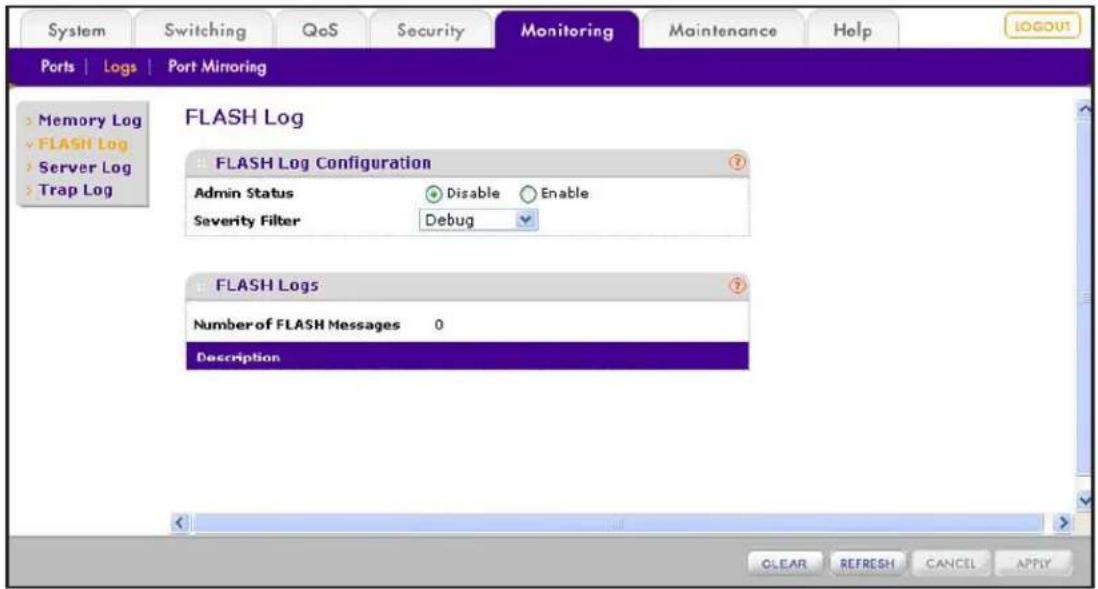
- Next to the Admin Status menu, select the Enable radio button.
By default, the Disable radio button is selected, and the flash log is disabled.
- From the Severity Filter menu, select the severity level of the log messages to store: Emergency, Alert, Critical, Error, Warning, Notice, Info, or Debug.
Note: The Debug level of logging generates a large number of messages.
For more information about severity levels, see Table 6, Severity levels in log messages on page 259.
The log records messages that are equal to or higher than a configured severity threshold. For example, if you select Error, the logged messages include Error, Critical, Alert, and Emergency. The default severity level is Alert.
- Click the Apply button.
The settings are saved.
-
Wait a couple of minutes for the smart switch to start generating log messages in the flash memory.
-
Click the Refresh button.
The screen refreshes and starts to display the log messages.
The FLASH Logs table displays all log messages.
The Total Number of FLASH Messages field displays the number of log messages that the smart switch has logged in flash memory.
Clear the Flash Log
To clear the flash log:
- Select Monitoring > Logs > FLASH Log.
The FLASH Log screen displays.
- Click the Clear button.
All messages are removed.
Configure Syslog Servers and Enable the Server Log
If you configure a syslog server and enable the server log, the smart switch forwards log messages to one or more syslog servers or other type of syslog host. By default, the server log is disabled.
Add a Syslog Server
To add a syslog server:
- Select Monitoring > Logs > Server Log.
The Server Log screen displays. The following figure shows an example.
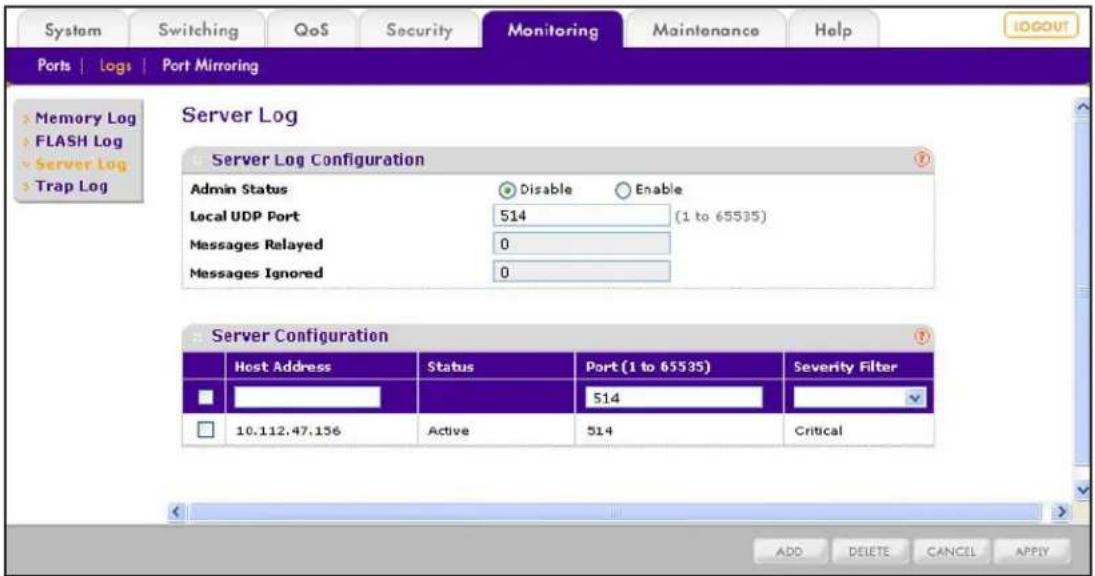
- Configure a syslog server as described in the following table.
| Setting Description | |
| Host Address The IP address of the host that functions as a syslog server. | |
| Status This is a nonconfigurable field that shows Active as the status of the syslog server after you have added the syslog server to the Server Configuration table. | |
| Port (1 to 65535) | The port on the host to which syslog messages are sent. Enter a port number in the range from 1 to 65535. The default port number is 514. |
| Severity Filter Select | the severity level of the log messages to send to the syslog server:Emergency, Alert, Critical, Error, Warning, Notice, Info, or Debug.For more information about severity levels, seeTable 6, Severity levels in log messageson page 259.The log records messages that are equal to or higher than a configured severity threshold. For example, if you select Error, the logged messages include Error,Critical, Alert, and Emergency. |
3. Click the Add button.
The syslog server is added to the Server Configuration table.
You can add up to ten syslog servers to the Server Configuration table.
Enable the Server Log
To enable the server log:
- Select Monitoring > Logs > Server Log.
The Server Log screen displays.
- Next to the Admin Status menu, select the Enable radio button.
By default, the Disable radio button is selected, and the server log is disabled.
- In the Local UDP Port field, specify the port on the smart switch from which syslog messages are sent.
By default, the port number is 514.
- Click the Apply button.
The settings are saved.
The Server Log Configuration section of the screen also displays the following nonconfigurable fields:
- Messages Relayed. The number of messages that the smart switch forwarded to syslog servers. Messages that were forwarded to multiple syslog servers are counted once for each server. For example, one message to four different servers is counted as four messages.
- Messages Ignored. The number of messages that were ignored and not forwarded to syslog servers.
Change a Syslog Server
To change the settings for a syslog server:
- Select Monitoring > Logs > Server Log.
The Server Log screen displays.
-
In the Server Configuration table, select the check box next to the syslog server for which you want to change the settings.
-
Change the settings.
You cannot change the IP address of the syslog server.
- Click the Apply button.
The settings are saved.
Remove a Syslog Server
To remove a syslog server:
- Select Monitoring > Logs > Server Log.
The Server Log screen displays.
-
In the Server Configuration table, select the check box next to the syslog server that you want to remove.
-
Click the Delete button.
The syslog server is removed from the Server Configuration table.
View and Clear the SNMP Trap Log
The Trap Log screen lets you view the SNMP traps that are generated on the smart switch. If you have configured the SNMP options (see Chapter 18, Configure SNMP), the smart switch sends traps to an SNMP management station and to SNMP communities, users, or both.
View the SNMP Trap Log
To view the SNMP trap logs:
- Select Monitoring > Logs > Trap Log.
The Trap Log screen displays.
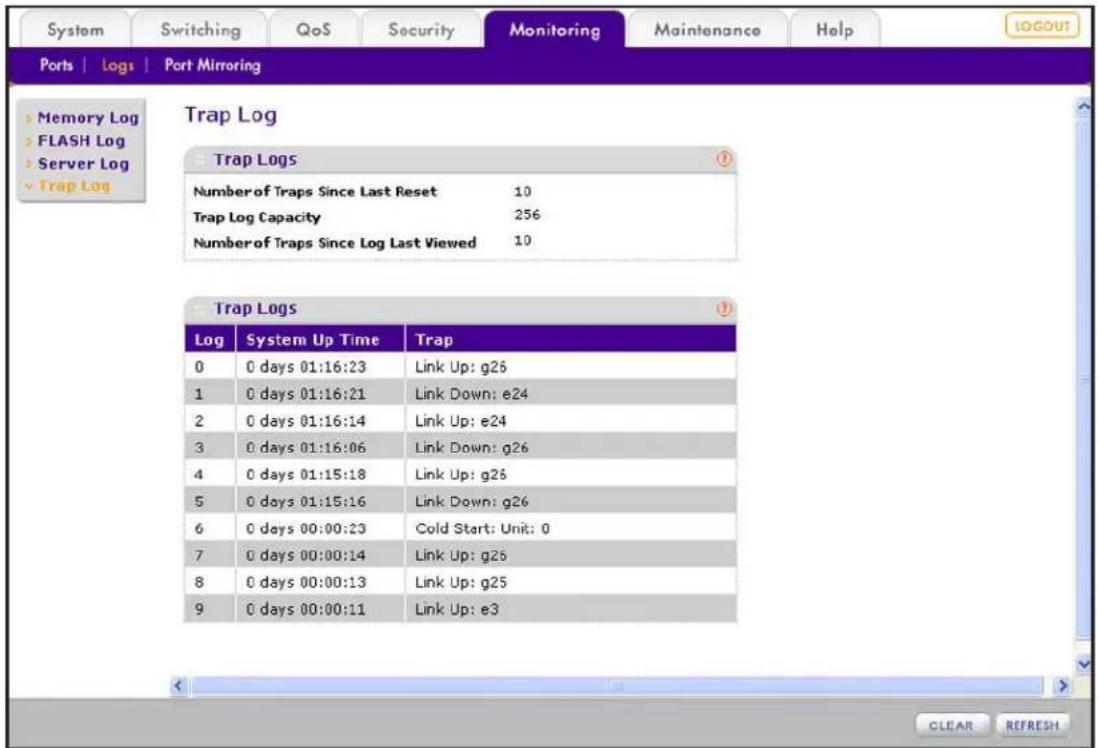
The following table describes the fields on the screen and the fields of the Trap Logs table.
| Field Description | |
| Number of Traps Since Last Reset | The number of traps that occurred since the smart switch rebooted. |
| Trap Log Capacity | The maximum number of traps that can be stored in the log. If the number of traps exceeds the capacity, new entries overwrite the oldest entries. |
| Number of Traps Since Log Last Viewed | The number of traps that have occurred since the traps were last displayed. Displaying the traps by any method, such as a terminal interface display, web display, or uploading a file from the smart switch, causes the counter to be reset to 0 (zero). |
| Log The sequence number of the trap. | |
| System Up Time The time at which this trap occurred, expressed in days, hours, minutes, and seconds since the smart switch rebooted. | |
| Trap The information that identifies the trap. | |
- (Optional) Click the Refresh button.
The screen refreshes to display the most current data.
Clear the SNMP Trap Log
To clear the SNMP trap log:
- Select Monitoring > Logs > Trap Log.
The Trap Log screen displays. - Click the Clear button.
All trap messages are removed.
Manage Port Mirroring
Port mirroring lets you select network traffic for analysis by a network analyzer. You can configure multiple interfaces as source ports, but you can configure only one interface as the destination or monitor port. Traffic that is mirrored on the monitor port can then be analyzed. You can configure which traffic is mirrored on a source interface: Incoming packets, outgoing packets, or both can be copied to the monitor port.
A packet that is copied to the monitor port has the same format as the original packet. If the mirror is copying a packet, the copied packet is VLAN tagged or VLAN untagged as it is received or transmitted on the source port.
Configure Port Mirroring
To configure port mirroring:
- Select Monitoring > Port Mirroring.
The Port Mirroring screen displays. The following figure shows one port mirroring configuration as an example.
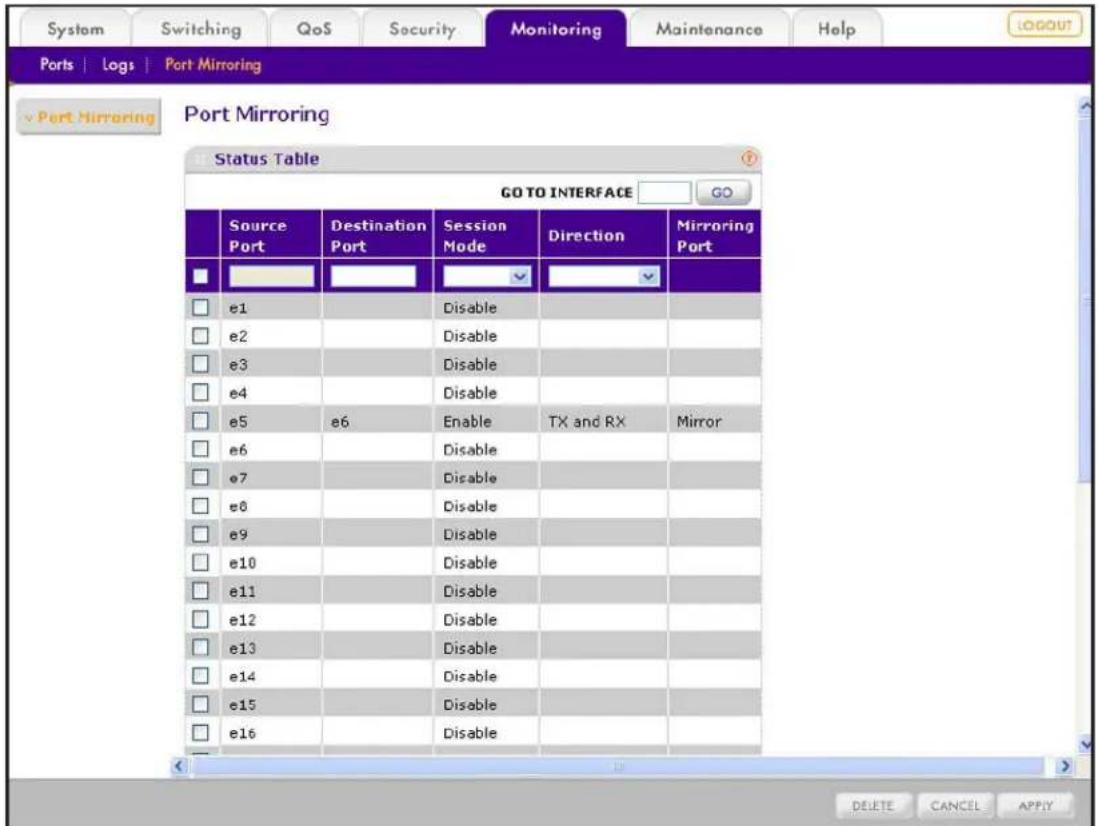
- Select whether to configure a single port, a group of ports, or all ports:
- To configure a single port, select the check box next to the port that you want to configure.
The information for the selected port displays in the menu in the table heading.
- To configure a group of ports, select the check boxes for the individual ports that you want to configure.
-
To configure all ports, select the check box at the left in the table heading.
-
Configure the settings as explained in the following table:
| Setting Description | |
| Source Port The port that functions as the source port for port mirroring. | |
| Destination Port The port that functions as the destination port or monitor interface.Enter a port number in the standard port format such as e6, e7, or g25. Only one port can function as the monitor interface. This port is used as the monitor interface for all ports for which you configure port mirroring.Note: If you configure one monitor interface for one source port and then another monitor interface for another source port, the last configured monitor interface is used for all ports for which you have configured port mirroring. | |
| Session Mode From the menu, select whether port mirroring is enabled:Enable. Port mirroring is enabled.Disable. Port mirroring is disabled. This is the default setting. If you configured port mirroring for a port and then select Disable, the mirroring information is retained. | |
| Direction From the menu, select the direction in which port mirroring occurs:Tx and Rx. Both outgoing and incoming traf fic are mirrored.Tx Only. Only outgoing traffic is mirrored.Rx Only. Only incoming traffic is mirrored. | |
| Mirroring Port | This is a nonconfigurable field that shows Mirror when port mirroring is configured for the source port. |
- Click the Apply button.
The settings are saved.
Remove a Port Mirroring Configuration
To remove a port mirroring configuration from a port:
- Monitoring > Port Mirroring.
The Port Mirroring screen displays.
-
In the Status T able table, select the check box next to the port mirroring configuration that you want to remove.
-
Click the Delete button.
The port mirroring configuration is removed from the Status Table table.
This chapter describes how to maintain and manage the smart switch. The chapter includes the following sections:
- Download and Upgrade the Firmware
- Manage Two Firmware Images
- Save the Firmware, Running Configuration File, and Logs
- Download the Running Configuration File
- Reboot the Smart Switch
- Return the Smart Switch to Factory Default Settings
Download and Upgrade the Firmware
To check if new firmware is available, go to downloadcenter.netgear.com, and enter your product name or model number. You can download the firmware to a computer or server on your network.
You have two options to download firmware to the smart switch:
- Download the firmware file over HTTP from a computer that is connected to the smart switch.
- Download the firmware file over TFTP from a server on a local or remote network.
After you have downloaded the firmware file to the smart switch, the firmware upgrade procedure depends on whether you use a single image or two images.
Use HTTP to Download Firmware
Download the firmware file over HTTP from a computer that is connected to the smart switch.
To download firmware to the smart switch by using HTTP:
- Select Maintenance > Download > HTTP File Download.
The HTTP File Download screen displays.
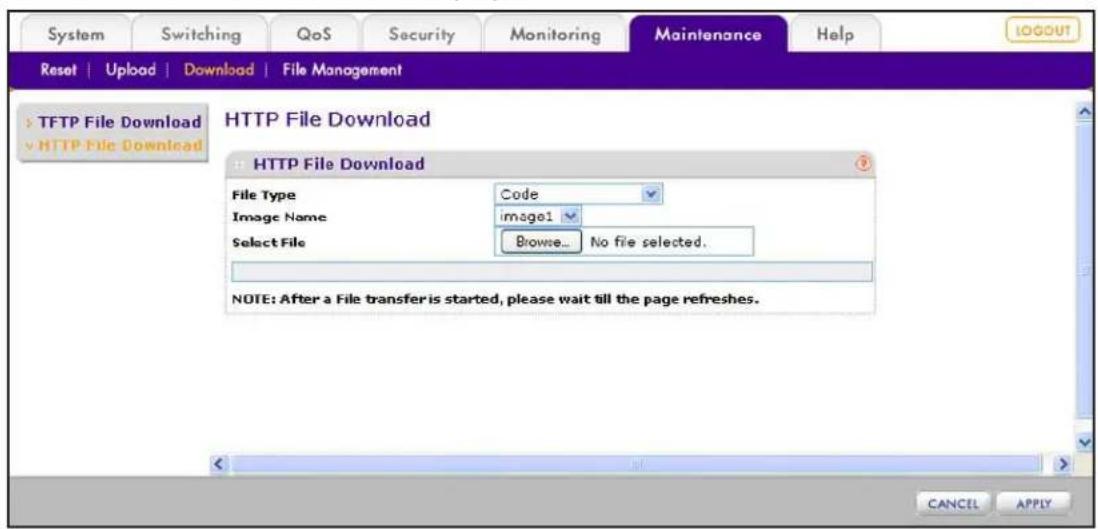
- From the File Type menu, select Code .
- From the Image Name menu, select the image to which you want to download the new firmware file: Image 1 or Image 2.
The new firmware file overwrites any old firmware file that is stored in the selected image location.
-
Click the Browse button.
-
To navigate to the firmware file on your computer and select the file, follow the instructions of your web browser.
The selected file is displayed to the right of the Browse button.
- Click the Apply button.
The file downloads to the smart switch. After the file has successfully downloaded to the smart switch, the following message displays: File transfer operation completed successfully.
You are now ready to upgrade the firmware on the smart switch. For more information, see Upgrade the Firmware on page 273.
Use TFTP to Download Firmware
Download the firmware file over TFTP from a server on a local or remote network.
Before you download a file to the smart switch, the following conditions must be true:
- The file on the TFTP server is in the appropriate directory.
• The file is in the correct format.
• The smart switch has a path to the TFTP server.
To download firmware to the smart switch by using TFTP:
- Select Maintenance > Download > TFTP File Download.
The TFTP File Download screen displays.
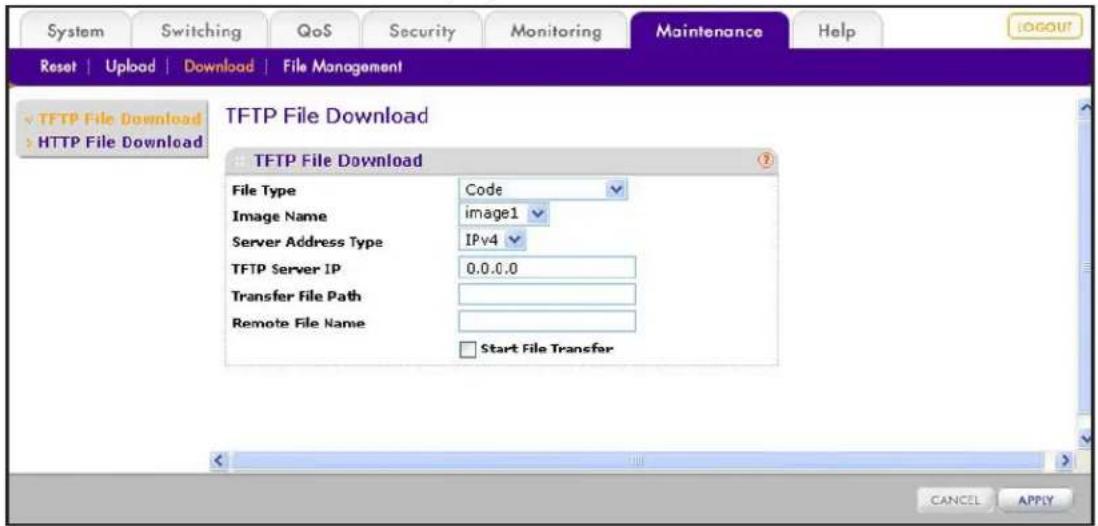
- Configure the settings as described in the following table.
| Settings Description | |
| File Type From the File Type menu, select Code. | |
| Image Name From the Image Name menu, select the image to which you want to download the new firmware file: Image 1 or Image 2.The new firmware file overwrites any old firmware file that is stored in the selected image location. | |
| Server Address Type | The selection of the Server Address Type menu is fixed at IPv4. the TFTP server must be a server with an IPv4 address. |
| TFTP Server IP The IP address of the TFTP server. | |
| Transfer File Path The path on the TFTP server where the file is located. You can enter up to 32 characters. Include the backslash at the end of the path. Do not enter a path name with a space. Leave this field blank to save the file to the root TFTP directory. | |
| Remote File Name The name of the file that you want to download from the TFTP server. You can enter up to 32 characters. Do not enter a file name with a space. | |
- Select the Start File Transfer check box.
- Confirm your selection.
- Click the Apply button.
The file downloads to the smart switch. After the file has successfully downloaded to the smart switch, the following message displays: File transfer operation completed successfully.
You are now ready to upgrade the firmware on the smart switch. For more information, see Upgrade the Firmware on page 273.
Upgrade the Firmware
After you have downloaded the firmware to the smart switch over HTTP or TFTP, you need to select the active image (Image 1 or Image 2), and reboot the smart switch.
In some cases, such as a major firmware upgrade, you might need to erase the configuration and manually reconfigure the smart switch after the firmware upgrade. However, this situation is unusual. NETGEAR recommends that you read the firmware release notes before you upgrade the firmware.
To upgrade the firmware:
- Select Maintenance > File Management > Dual Image > Dual Image Configuration.
The Dual Image Configuration screen displays.
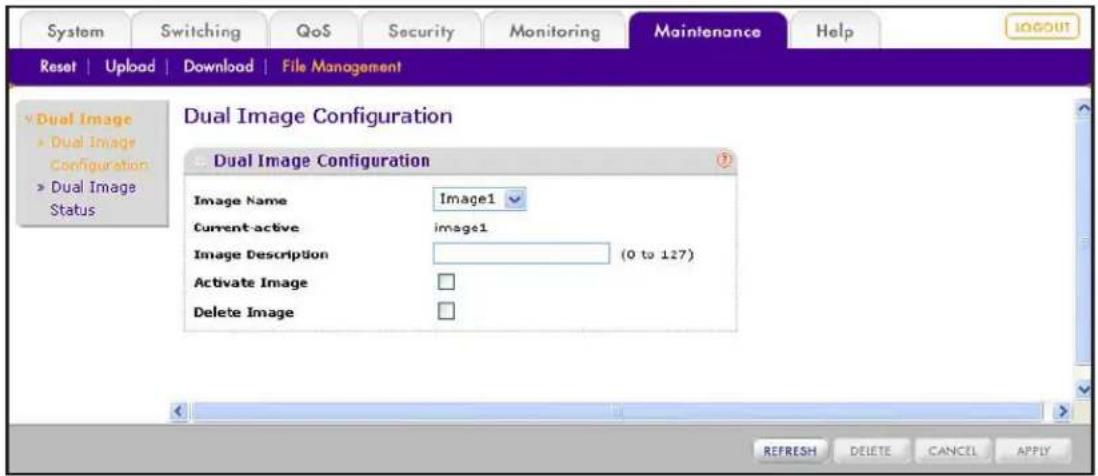
- From the Image Name menu, select the image that you want to load onto the smart switch.
If you downloaded the new firmware to Image 1, select Image1 from the menu. If you downloaded the new firmware to Image 2, select Image2 from the menu.
The screen refreshes.
- (Optional) In the Image Description field, type a descriptive name.
The description can be up to 127 characters in length.
-
Select the Activate Image check box.
-
Click the Apply button.
The settings are saved.
- Select Maintenance > Reset > Device Reboot.
The Device Reboot screen displays.
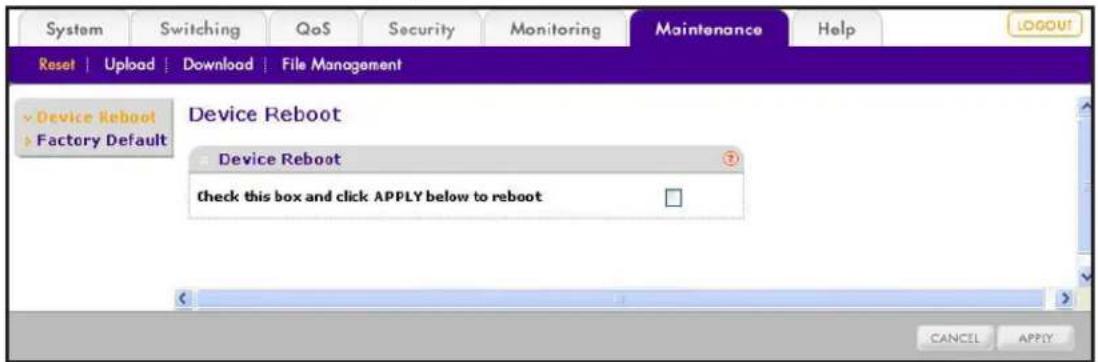
-
Select the Check this box and click APPLY below to reboot check box.
-
Click the Apply button.
The smart switch reboots. The screen displays the following message: System reboot ... Please wait 2 minutes. After two minutes, the Login screen displays.

WARNING:
During a firmware upgrade, do not try to go online, turn off the smart switch, shut down the computer, or do anything else to the smart switch until the smart switch finishes rebooting and the Login screen displays!
- Type the password in the Password field.
The default password is password. Passwords are case-sensitive.
- Click the Login button.
After the system authenticates you, the System Information screen displays.
In the Versions section of the screen, verify the firmware version.
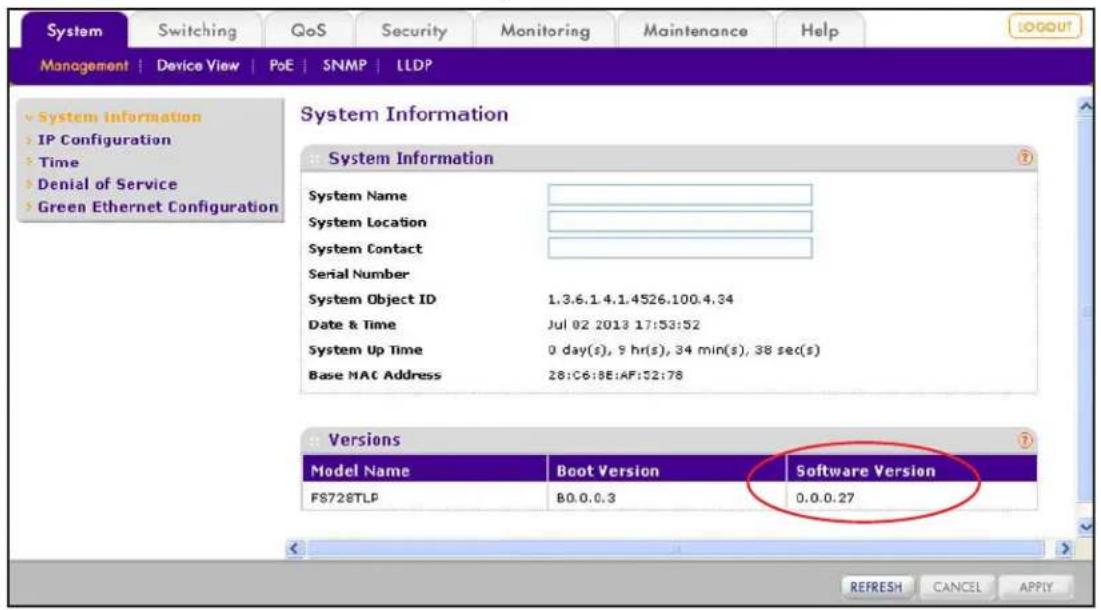
Note: After you have upgraded the firmware, if the browser does not display the latest features of the web management interface, clear the browser's cache, and refresh the screen.
Manage Two Firmware Images
The smart switch can maintain two versions of the firmware in permanent storage. One image is the active image, and the second image is an older image or a backup image. When the smart switch starts, the active image is loaded. As a safety feature in the unlikely event that the active image is corrupt, the smart switch automatically starts from the nonactive image.
Make an Image Active
If you have loaded two images on the smart switch, you can switch between images, for example to upgrade or downgrade the firmware.
To make an image active:
- Select Maintenance > File Management > Dual Image > Dual Image Configuration. The Dual Image Configuration screen displays.
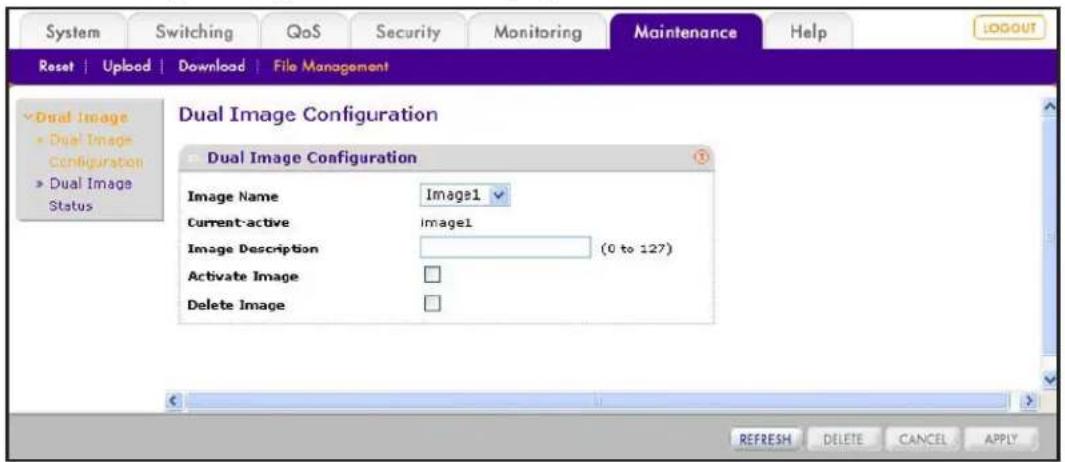
- From the Image Name menu, select the image that you want to make the active image: Image1 or Image2.
The screen refreshes.
- (Optional) In the Image Description field, type a descriptive name.
The description can be up to 127 characters in length.
-
Select the Activate Image check box.
-
Click the Apply button.
The settings are saved.
- Select Maintenance > Reset > Device Reboot.
The Device Reboot screen displays.
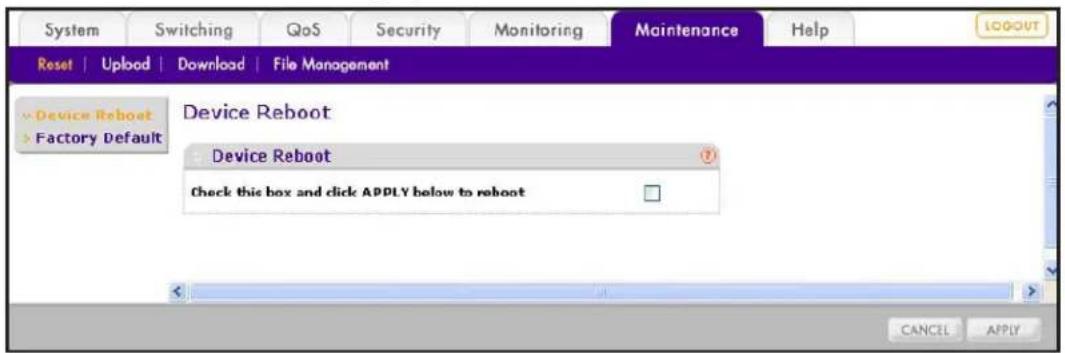
- Select the Check this box and click APPLY below to reboot check box.
- Click the Apply button.
The reboots. The screen displays the following message: System reboot ... Please wait 2 minutes. After two minutes, the Login screen displays.

WARNING:
During a firmware change, do not try to go online, turn off the smart switch, shut down the computer, or do anything else to the smart switch until the smart switch finishes rebooting and the Login screen displays!
- Type the password in the Password field.
The default password is password. Passwords are case-sensitive.
- Click the Login button.
After the system authenticates you, the System Information screen displays.
In the Versions section of the screen, verify the firmware version.
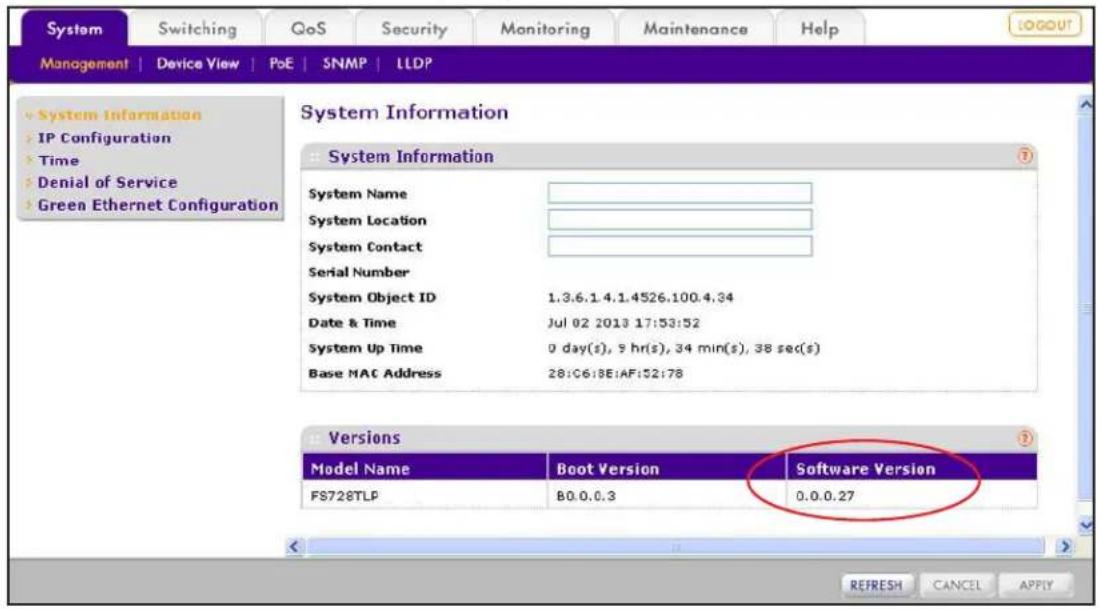
Note: After you have upgraded the firmware, if the browser does not display the latest features of the web management interface, clear the browser's cache, and refresh the screen.
Permanently Remove an Image
If an image is no longer needed, you can delete it. However, an image is automatically deleted if you download another image and overwrite the image location.
- Select Maintenance > File Management > Dual Image > Dual Image Configuration.
The Dual Image Configuration screen displays. - From the Image Name menu, select the image that you want to delete: Image1 or Image2.
The screen refreshes. - Select the Delete Image check box.
- Click the Delete button.
The image is removed. This process takes about 30 seconds.
View the Dual Image Status
The Dual Image Status screen lets you view information about the firmware images.
To view information about the firmware images:
- Select Maintenance > File Management > Dual Image > Dual Image Status.
The Dual Image Status screen displays. The following figure shows examples in the Image 1 Description and Image 2 Description fields.
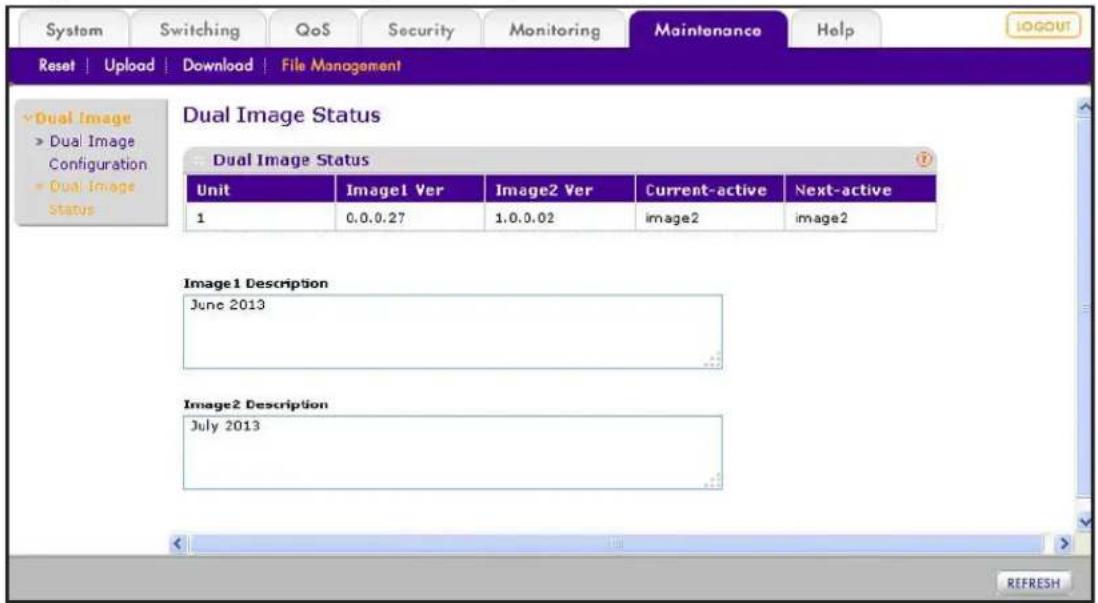
The following table describes the information on the screen.
| Field Description | |
| Unit The unit ID of the switch is always 1. | |
| Image1 Ver The version of the image1 firmware file. | |
| Image2 Ver The version of the image 2 firmware file. | |
| Current-active The image that is the active firmware image. | |
| Next-active The image that the smart switch loads when it reboots. | |
| Image1 Description The description that is associated with the image1 firmware file. | |
| Image2 Description The description that is associated with the image2 firmware file. | |
2. (Optional) Click the Refresh button.
The screen refreshes to display the most current data.
Save the Firmware, Running Configuration File, and Logs
You can save or back up the following types of files from the smart switch:
• The firmware file (in the web management interface referred to as Code).
- The running configuration (in the web management interface referred to as Text Configuration).
The running configuration file (or startup configuration file) is a text file that you can save and edit offline. A common usage of text-based configuration is to upload a working configuration from a device, edit the configuration offline to adjust it for another similar device (for example, change the device name, serial number, IP address), and download the configuration to that device.
- Logs, including the following logs:
- Memory log (on the TFTP File Upload screen, referred to as Buffered Log)
- Flash log (on the TFTP File Upload screen, referred to as Error Log)
- Trap log.
To save the logs, you need to use a TFTP server. You cannot save the logs to a local computer by using HTTP.
Save the Firmware or Running Configuration File over HTTP
Save the firmware file or running configuration file over HTTP to a computer that is connected to the smart switch.
To save the firmware file or running configuration file by using HTTP:
1. Select Maintenance > Upload > HTTP File Upload.
The HTTP File Upload screen displays.
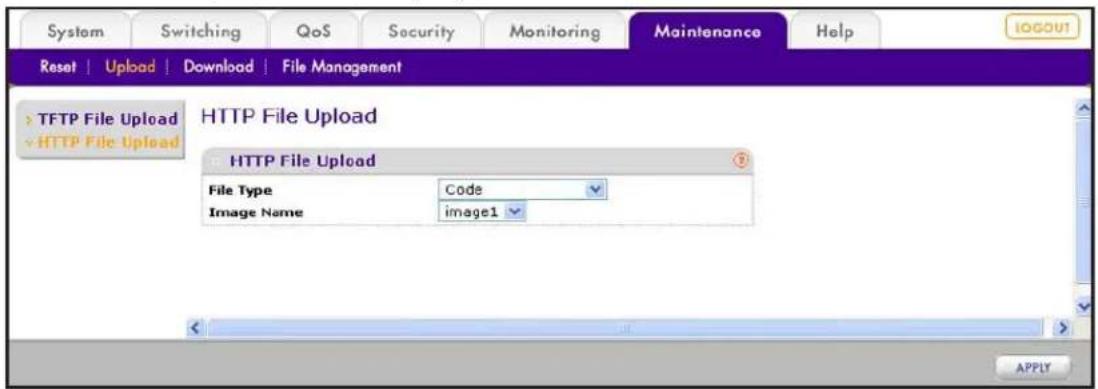
- From the File Type menu, select which type of file you want to save:
• Code. A firmware file.
Continue with the next step.
- Text Configuration. The text-based running configuration file.
The screen adjusts. Continue with Step 4.
- If you selected Code from the File Type menu, from the Image Name menu, select the image that you want to save: Image1 or Image 2.
- Click the Apply button.
- To navigate to a location on your computer and save the file, follow the instructions of your web browser.
Save the Firmware, Running Configuration File, or Logs over TFTP
Save the firmware file, running configuration file, or logs over TFTP to a server on a local or remote network.
To save the firmware file, running configuration file, or logs by using TFTP:
- Select Maintenance > Upload > TFTP File Upload.
The TFTP File Upload screen displays.
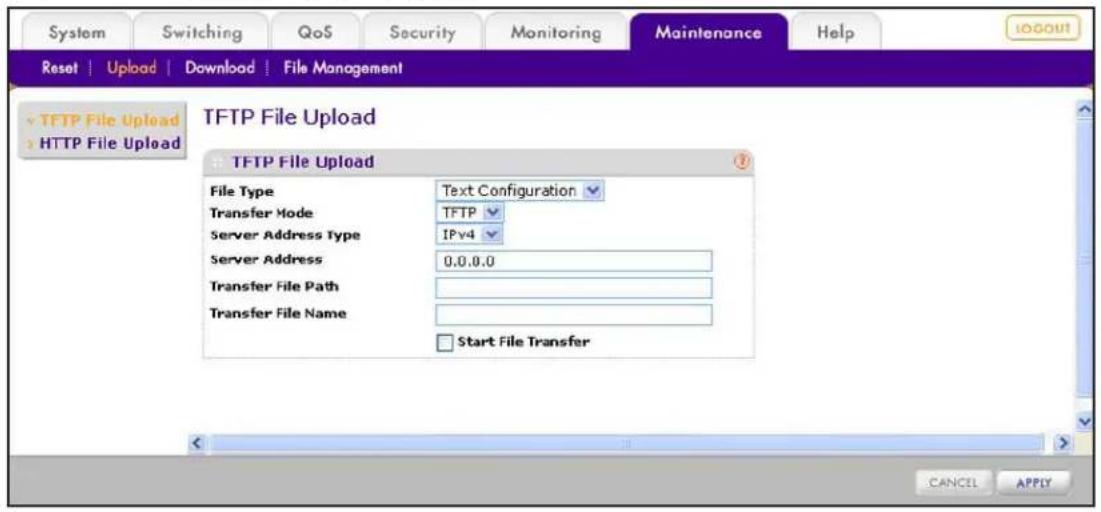
- Configure the settings as described in the following table.
| Settings Description | |
| File Type From the File | Type menu, select the type of file that you want to save:Code. A firmware file.Text Configuration . The text-based running configuration file.Error Log. The flash log.Buffered Log . The memory log.Trap Log . The SNMP trap log.Note:When you select Text Configuration, Error Log, Error Log, or Trap Log, the screen adjust to hide the Image Name menu. |
| Image Name This field | displays only if you select Code form the File Type menu.From the Image Name menu, select the image that you want to save:Image 1orImage 2. |
| Server Transfer Mode | The selection of the Server Transfer Mode menu is fixed at TFTP. |
| Server Address Type | The selection of the Server Address Type menu is fixed at IPv4. The TFTP server must be a server with an IPv4 address. |
| TFTP Server IP The IP | address of the TFTP server. |
| Transfer File Path The | path on the TFTP server where you want to save the file. You can enter up to 32 characters. Include the backslash at the end of the path. Do not enter a path name with a space. Leave this field blank to save the file to the root TFTP directory. |
| Remote File Name The | name of the file that you want to save to the TFTP server. You can enter up to 32 characters. Do not enter a file name with a space. For a firmware file (that is, a file of the Code type), use a .rom file extension. |
- Select the Start File Transfer check box.
4. Click the Apply button.
The file transfers to the TFTP server.
Download the Running Configuration File
The running configuration file (or startup configuration file) is a text file that you can save and edit offline. A common usage of text-based configuration is to upload a working configuration from a device, edit the configuration offline to adjust it for another similar device (for example, change the device name, serial number, IP address), and download the configuration to that device.
If you download a running configuration file that was created with an older firmware version than the firmware version that is running on the smart switch, the download fails. Similarly, if you download a running configuration file that was created with a newer firmware version than the firmware version that is running on the smart switch, the download fails. Download only a running configuration file that was saved from the same firmware version that is running on the smart switch.
Download the Running Configuration File over HTTP
Download the running configuration file over HTTP from a computer that is connected to the smart switch.
To download the running configuration file to the smart switch by using HTTP:
1. Select Maintenance > Download > HTTP File Download.
The HTTP File Download screen displays.
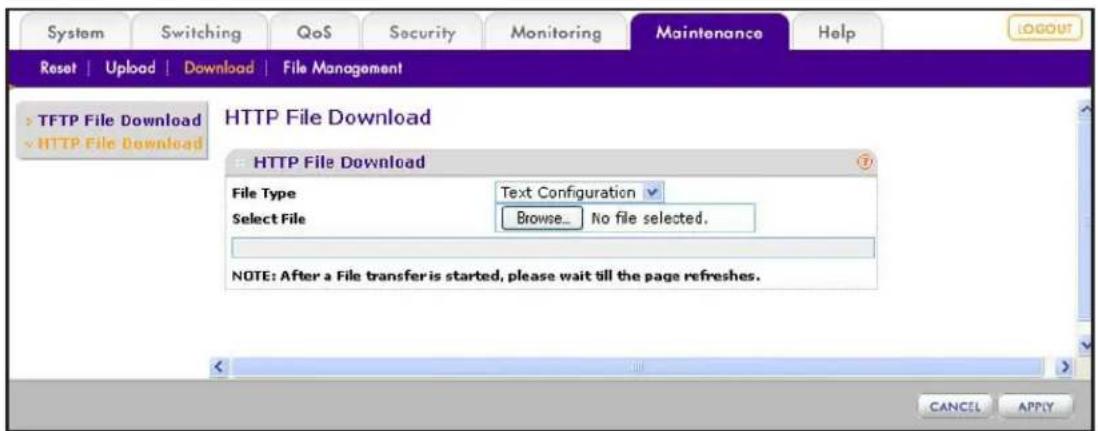
- From the File Type menu, select Text Configuration.
- Click the Browse button.
- To navigate to the firmware file on your computer and select the file, follow the instructions of your web browser.
The selected file is displayed to the right of the Browse button.
5. Click the Apply button.
The file downloads to the smart switch. After the file has successfully downloaded to the smart switch, the following message displays: File transfer operation completed successfully.
Download the Running Configuration File over TFTP
Download the running configuration file over TFTP from a server on a local or remote network.
Before you download a file to the smart switch, the following conditions must be true:
• The file on the TFTP server is in the appropriate directory.
• The file is in the correct format.
• The smart switch has a path to the TFTP server.
To download the running configuration file to the smart switch by using TFTP:
1. Select Maintenance > Download > TFTP File Download.
The TFTP File Download screen displays.
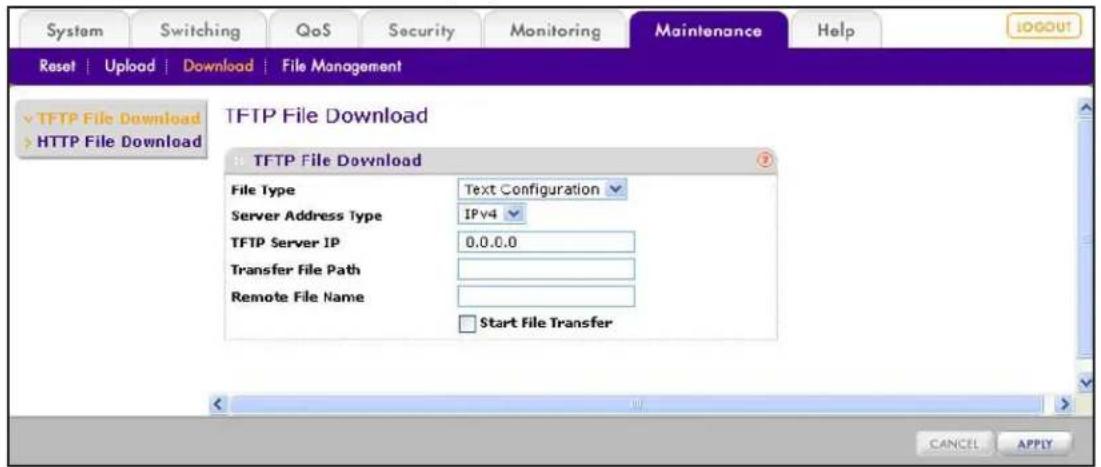
- Configure the settings as described in the following table.
| Settings Description | |
| File Type | From the File Type menu, select Text Configuration. |
| Server Address Type | The selection of the Server Address Type menu is fixed at IPv4. The TFTP server must be a server with an IPv4 address. |
| TFTP Server IP The IP | address of the TFTP server. |
| Transfer File Path The | path on the TFTP server where the file is located. You can enter up to 32 characters. Include the backslash at the end of the path. Do not enter a path name with a space. Leave this field blank to save the file to the root TFTP directory. |
| Remote File Name | The name of the file that you want to download from the TFTP server. You can enter up to 32 characters. Do not enter a file name with a space. |
- Select the Start File Transfer check box.
- Confirm your selection.
- Click the Apply button.
The file downloads to the smart switch. After the file has successfully downloaded to the smart switch, the following message displays: File transfer operation completed successfully.
Reboot the Smart Switch
After you have downloaded firmware and selected an image to become active, use this procedure to reboot the smart switch. This procedure does not reset the smart switch to factory default settings.
To reboot the smart switch:
- Select Maintenance > Reset > Device Reboot.
The Device Reboot screen displays.
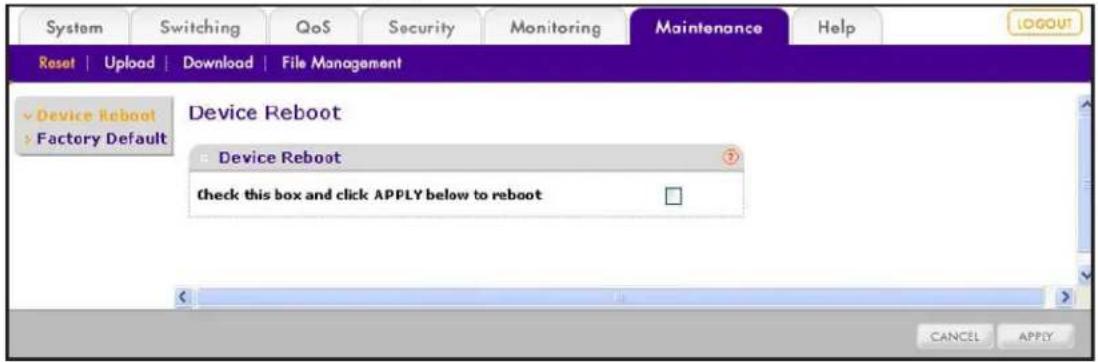
- Select the Check this box and click APPLY below to reboot check box.
- Click the Apply button.
The reboots. The screen displays the following message: System reboot ... Please wait 2 minutes. After two minutes, the Login screen displays.

WARNING:
During a system reboot, do not try to go online, turn off the smart switch, shut down the computer, or do anything else to the smart switch until the smart switch finishes rebooting and the Login screen displays!
Return the Smart Switch to Factory Default Settings
Reset the smart switch to factory default settings if the smart switch has become unresponsive or if you want to start a clean configuration. The firmware is not reset to the firmware that was loaded at the factory. After you have reset the smart switch to factory default settings, the firmware that was the active firmware before the reset remains the active firmware after the reset.
If you have lost the password that provides access to the web management interface, you cannot use this procedure but need to use the Factory Default button on the front panel of the switch. For more information, see the hardware installation guide for your model.
If you reset the switch to the default configuration, the IP address is reset to 192.168.0.239, and the DHCP client is enabled. If you lose network connectivity after you reset the switch to the factory defaults, see Connect the Smart Switch to the Network on page 29.
To reset the smart switch to factory default settings:
1. Select Maintenance > Reset > Factory Default .
The Factory Default screen displays.
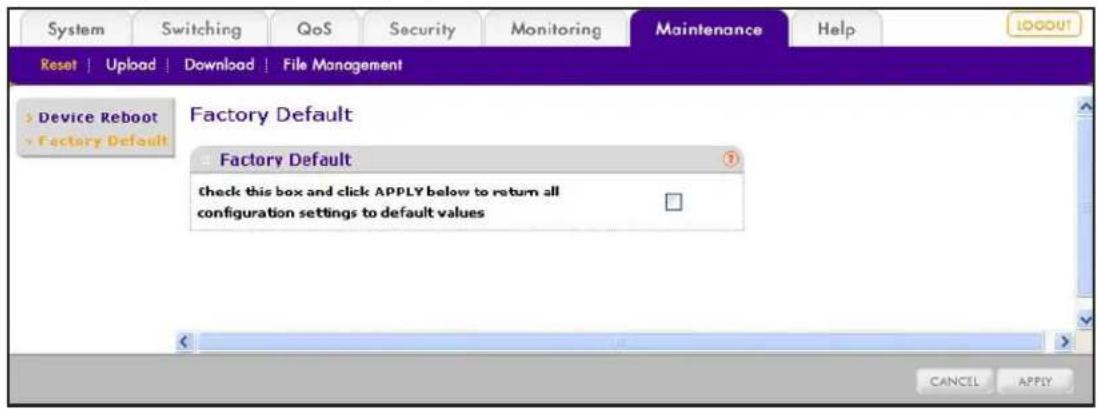
-
Select the check box.
-
Click the Apply button.
The smart switch reboots and resets to factory default settings. The screen displays the following message: System reboot ... Please wait 2 minutes. After two minutes, the Login screen displays.

WARNING:
During a system reboot, do not try to go online, turn off the smart switch, shut down the computer, or do anything else to the smart switch until the smart switch finishes rebooting and the Login screen displays!
This chapter describes how to configure the SNMP options. The chapter includes the following sections:
- SNMP Concepts
- Configure the SNMPv1 and SNMPv2 Options
- Configure SNMP3 User Authentication and Encryption
SNMP Concepts
The smart switch can function as a Simple Network Management Protocol (SNMP) agent to provide reporting and allow for remote management. SNMP is enabled by default on the smart switch.
The smart switch supports SNMP version 1 (SNMPv1), SNMP version 2 (SNMPv2), and SNMP version 3 (SNMPv3), as well as both standard public MIBs for standard functionality and private MIBs that provide additional functionality.
The System Information screen (see Configure System Information on page 41) shows the system object ID (for example, 1.3.6.1.4.1.4526.100.4.34) that allows an SNMP manager to identify the smart switch.
The smart switch supports the configuration of SNMPv1/v2 groups and an SNMPv3 user who can manage traps that the SNMP agent generates. With SNMPv1/v2, you can enable or disable authentication traps, link up and link down traps, and Spanning Tree Protocol (STP) traps.
The smart switch supports a single SNMPv3 user with the default name admin who can perform read/write operations. By default, SNMPv3 is enabled on the smart switch, and the smart switch verifies the user name of an SNMPv3 user who attempts to connect to the smart switch. However, for added security, NETGEAR recommends that you configure SNMPv3 authentication and encryption.
Configure the SNMPv1 and SNMPv2 Options
For SNMPv1 and SNMPv2, you can configure SNMP community information, traps, and trap flags.
Manage the SNMP Communities
The members of the SNMP communities that you define have access to the smart switch using SNMPv1 and SNMPv2. Only the members with read/write access can change the configuration of the smart switch through SNMP.
The following default communities are preconfigured and enabled for SNMPv1 and SNMPv2:
- public. By default, accessible by all IP addresses with a read-only permission.
- private. By default, accessible by all IP addresses with a read/write permission.
You can add a total of five communities for SNMPv1 and SNMPv2.
Add an SNMP Community
To add an SNMP community:
- Select System > SNMP > SNMP V1/V2 > Community Configuration.
The Community Configuration screen displays. The following figure shows the two default communities.
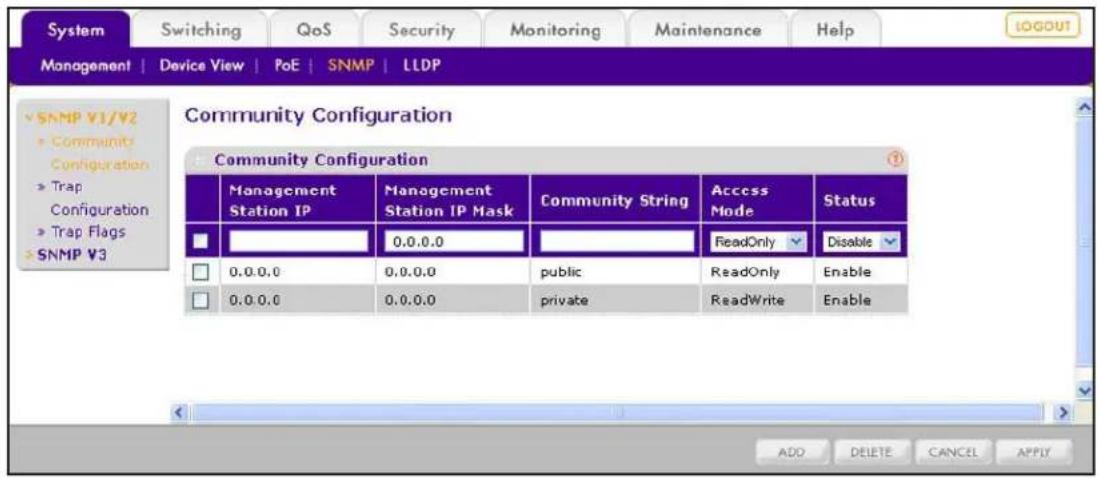
- Configure the settings as explained in the following table.
| Settings Description | ||
| Management Station IP | The IP address of the SNMP management station. If you enter 0.0.0.0, a station from any IP address can access the smart switch. | Together, the management station IP address and management station IP mask denote a range of IP addresses from which SNMP clients can access the community on the smart switch. |
| Management Station IP Mask | The client IP mask. The default mask is 0.0.0.0, which allows access from all addresses that are associated with a single client IP address. For example, if the client IP address is 192.168.1.0 and the client IP mask is 255.255.255.0, any client with an address in the range of 192.168.1.0 through 192.168.1.255 (inclusive) is allowed access. To allow access from only a single client, use the client's IP address and a client IP mask of 255.255.255.255. | |
| Community String The community string, which is a case-sensitive string of up to 16 characters. This string functions as a password. | ||
| Access Mode From the menu, select the access mode:•ReadOnly. The station can only read information.•ReadWrite. The station can both read information and apply configuration changes. | ||
| Status From the menu, select the administrative status of the community configuration:•Enable. The community configuration is enabled and the management station can access the smart switch.•Disable. The community configuration is disabled and the management station cannot access the smart switch. | ||
- Click the Add button.
The SNMP community is added to the Community Configuration table.
Change an SNMP Community
To change the settings for an SNMP community:
- Select System > SNMP > SNMP V1/V2 > Community Configuration.
The Community Configuration screen displays. - In the Community Configuration table, select the check box to the left of the community for which you want to change the settings.
- Change the settings.
- Click the Apply button.
The modified settings are displayed in the Community Configuration table.
Remove an SNMP Community
To remove an SNMP community:
- Select System > SNMP > SNMP V1/V2 > Community Configuration.
The Community Configuration screen displays. - In the Community Configuration table, select the check box to the left of the community that you want to remove.
- Click the Delete button.
The community is removed from the Community Configuration table.
Manage the SNMP Trap Receivers
A trap receiver can receive SNMPv1 or SNMPv2 trap messages from an SNMP agent such as the smart switch. The trap receiver monitors the smart switch for particular events or conditions, and generates trap messages based on these events or conditions. You can add up to six trap receivers.
Add a Trap Receiver
To add an SNMP trap receiver:
- Select System > SNMP > SNMP V1/V2 > Trap Configuration.
The Trap Configuration screen displays.
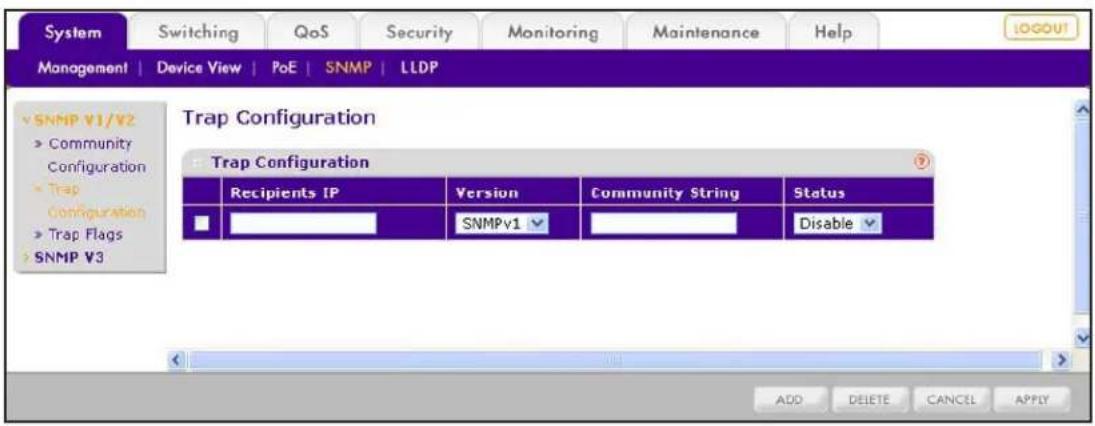
- Configure the settings as explained in the following table.
| Settings Description | |
| Recipients IP The IP | address of the trap receiver. |
| Version From the menu, select the SNMP version that is used for the trap receiver:SNMP V1.The smart switch uses SNMPv1 to send traps to the trap receiver.SNMP V2.The smart switch uses SNMPv2 to send traps to the trap receiver. | |
| Community String The community string, which is a case-sensitive string of up to 16 characters.This string functions as a password. | |
| Status From the menu, select the administrative status of the trap receiver:Enable.The trap receiver is enabled and can receive traps from the smart switch.Disable.The trap receiver is disabled and cannot receive traps from the smart switch. | |
- Click the Add button.
The trap receiver is added to the Trap Configuration table.
Change an SNMP Trap Receiver
To change the settings for an SNMP trap receiver:
- Select System > SNMP > SNMP V1/V2 > Trap Configuration.
The Trap Configuration screen displays.
-
In the Trap Configuration table, select the check box to the left of the trap receiver for which you want to change the settings.
-
Change the settings.
-
Click the Apply button.
The modified settings are displayed in the Trap Configuration table.
Remove an SNMP Trap Receiver
To remove an SNMP trap receiver:
- Select System > SNMP > SNMP V1/V2 > Trap Configuration.
The Trap Configuration screen displays.
-
In the Trap Configuration table, select the check box to the left of the trap receiver that you want to remove.
-
Click the Delete button.
The trap receiver is removed from the Trap Configuration table.
Configure the SNMP Trap Flags
If you configure one or more trap communities, you also need to specify which SNMP traps the smart switch can generate and send. When the smart switch detects a condition that is identified by an active trap, it sends a trap to the trap communities.
You can configure some traps on the Trap Flags screen and other traps on screens that let you configure the features that the traps are associated with. The smart switch supports the following traps:
- Cold start trap
- Link up/down trap
- Authentication failure trap
- Bridge new root trap
• Bridge topology change trap - RMON alarm trap
- PoE port on/of f trap
- PoE power usage on/off trap
• LLDP remote tables change trap
• LLDP-MED topology change trap - Learn limit violation trap
To configure the trap flags:
- Select System > SNMP > SNMP V1/V2 > Trap Flags.
The Trap Flags screen displays.
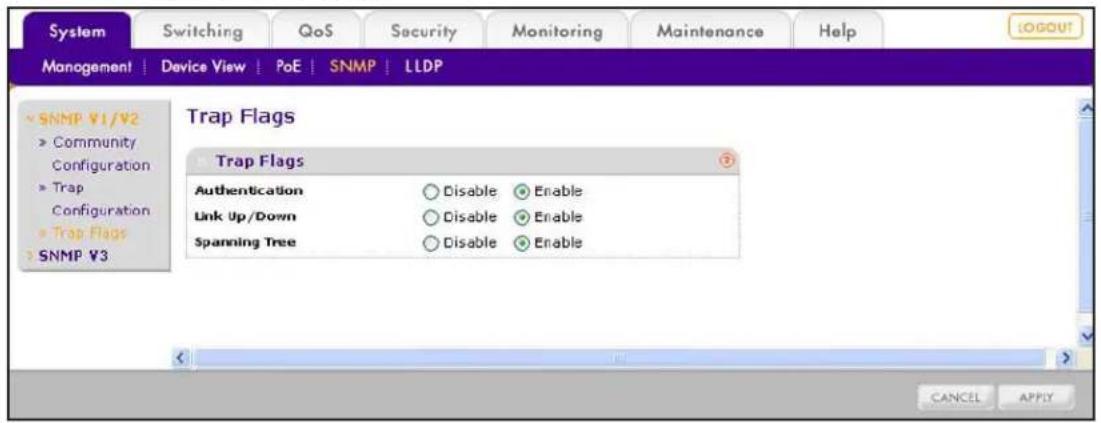
- Configure the settings as explained in the following table.
| Settings Description | |
| Authentication S | Specify whether authentication traps are enabled by selecting one of the following radio buttons:Enable. The smart switch can send authentication failure trap messages. This is the default setting.Disable. The smart switch cannot send authentication failure trap messages. |
| Link Up/Down S | Specify whether link status traps are enabled. Select one of the following radio buttons:Enable. The smart switch can send link status trap messages when a link comes up or goes down. This is the default setting.Disable. The smart switch cannot send link status trap messages. |
| Spanning Tree | Specify whether spanning tree traps are enabled. Select one of the following radio buttons:Enable. The smart switch can send spanning tree trap messages.Disable. The smart switch cannot send spanning tree trap messages. This is the default setting. |
- Click the Apply button.
The settings are saved.
Configure SNMP3 User Authentication and Encryption
The smart switch has one default user for SNMPv3. This user has user name admin and read/write permission.
By default, SNMPv3 is enabled on the smart switch, and the smart switch verifies the user name of an SNMPv3 user who attempts to connect to the smart switch. However, for added security, NETGEAR recommends that you configure SNMPv3 authentication and encryption.
The password for SNMPv3 authentication is the same password that you use to access the web management interface. For more information, see Manage the Password for the Smart Switch on page 53.
The password for SNMPv3 encryption is the encryption key that you can configure on the User Configuration screen.
To configure authentication and encryption settings for the SNMPv3 admin profile:
- Select System > SNMP > SNMPv3 > User Configuration.
The User Configuration screen displays.
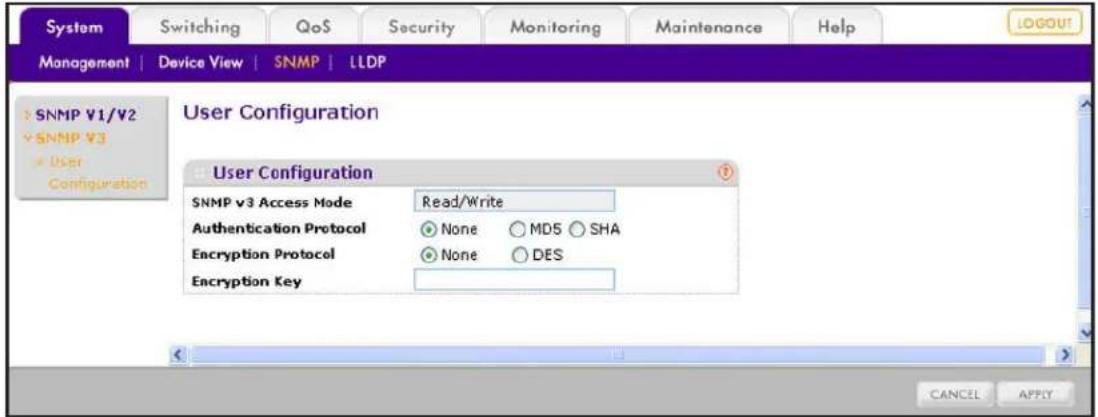
- Configure the settings as described in the following table.
| Settings Description | |
| SNMP v3 Access Mode | This is a nonconfigurable field that is fixed at Read/Write. The smart switch does not provide read-only access to SNMPv3 users. |
| Authentication Protocol | Specify the authentication protocol, if any, for the user:None. The SNMPv3 user is allowed access without authentication. The smart switch verifies only the SNMPv3 user name (by default, admin).MD5. The SNMPv3 user is authenticated by Hash-based Message Authentication Code (HMAC) with MD5.SHA. The SNMPv3 user is authenticated by HMAC with SHA-1.Note:The password for the SNMPv3 user is the same password that is required to access the web management interface of the smart switch. For more information, see Manage the Password for the Smart Switch on page 53. |
| Encryption Protocol If the | authentication protocol is MD5 or SHA, you can specify whether to use encryption for the SNMPv3 user:None. The SNMPv3 user is allowed access without encryption.DES. The SNMPv3 user communication is encrypted by Data Encryption Standard (DES). You need to enter a password in the Encryption Key field. |
| Encryption Key If the privacy protocol is DES, specify the encryption password for the user as a case-sensitive string from 8 to 64 characters in length. | |
- Click the Apply button.
The settings are saved.
In addition to device discovery and network address assignment, the Smart Control Center includes several maintenance features. This appendix describes the Smart Control Center utilities that are described in the following sections:
• Install the Smart Control Center and Discover the Smart Switch
• Overview of the Network Utilities
- Save and Restore the Configuration File
- Upgrade the Firmware
• View and Manage Tasks
Note: For more information about the Smart Control Center, see the Smart Control Center User Guide, which you can download from http://docs.netgear.com/scc/enu/202-10685-01/index.htm.
Install the Smart Control Center and Discover the Smart Switch
For more information about the device discovery and network address assignment utilities of the Smart Control Center, see Connect the Smart Switch to the Network on page 29.
The Smart Control Center application is on the resource CD that came in the product package.
- Install the Smart Control Center on your computer in your network.
- Connect the smart switch to the network.
For more information, see the installation guide and hardware installation guide for the smart switch.
- T urn on the power to the smart switch by connecting its power cord.
- Turn off the firewall on the computer temporarily.
The firewall might prevent the Smart Control Center from discovering the smart switch.
- Start the Smart Control Center.
The Network screen displays and the Smart Control Center discovers your smart switch.
Overview of the Network Utilities
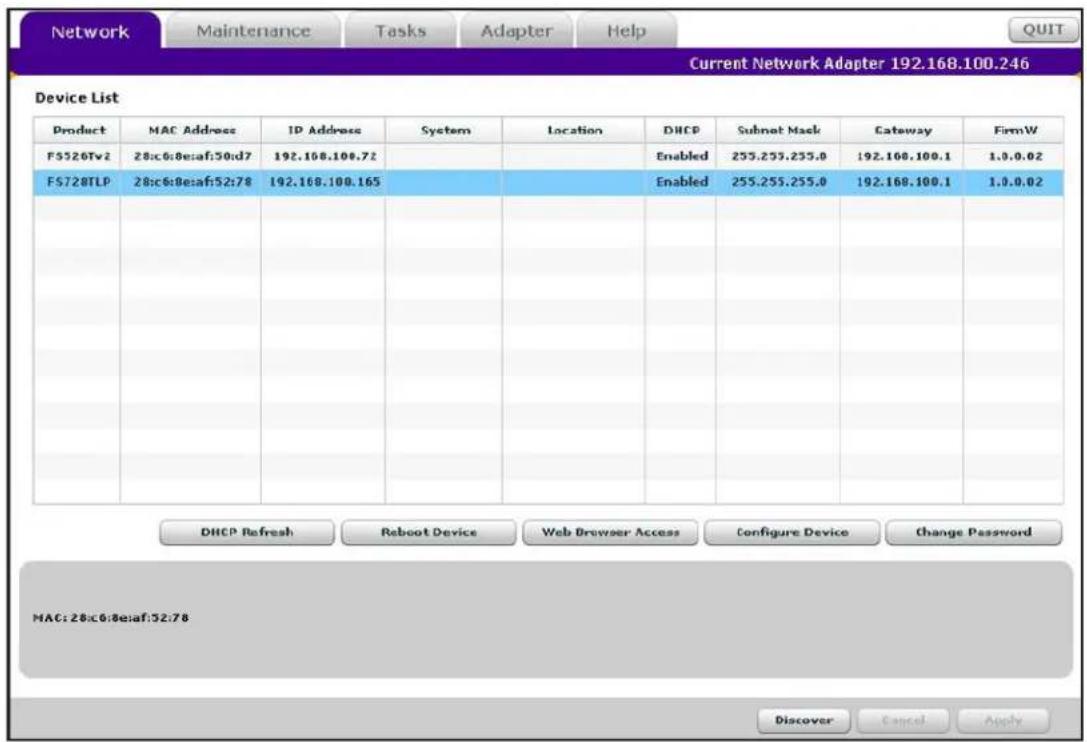
Figure 16. Network screen of the Smart Control Center
On the Network screen, after you have selected the smart switch by clicking the table row that displays the smart switch, you can perform the following network-related functions:
- DHCP Refresh. If the smart switch receives its IP address information from a DHCP server, click the DHCP Refresh button to force the smart switch to release the current bindings and request new address information from the DHCP server.
- Reboot Device. Click the Reboot Device button to reboot the smart switch.
- Web Browser Access. Click the Web Browser Access button to launch a web browser and connect to the web management interface for the smart switch.
- Configure Device. Click the Configure Device button to change network information for the smart switch, including the IP address, DHCP client mode, system name, and location. For more information, see the following section, Configure the IP Address Settings of the Smart Switch.
- Change Password. Click the Change Password button to set a new password for the smart switch. For more information, see Change the Password for Accessing the Smart Switch on page 298.
Configure the IP Address Settings of the Smart Switch
To change the IP address information for the smart switch:
- On the computer on which the Smart Control Center is installed, turn off the firewall temporarily.
The firewall might prevent the Smart Control Center from discovering the smart switch. - Start the Smart Control Center.
The Network screen displays and the Smart Control Center discovers your smart switch. - If the discovery function of the Smart Control Center does not operate automatically when you start the Smart Control Center, click the Discover button.
- Select the smart switch b y clicking the table row that displays the smart switch.
- Click the Configure Device button.
The screen expands to display additional fields at the bottom of the screen. - Under DHCP, select the Disabled radio button.
The DHCP client becomes disabled on the smart switch. The IP address fields become available on the screen.
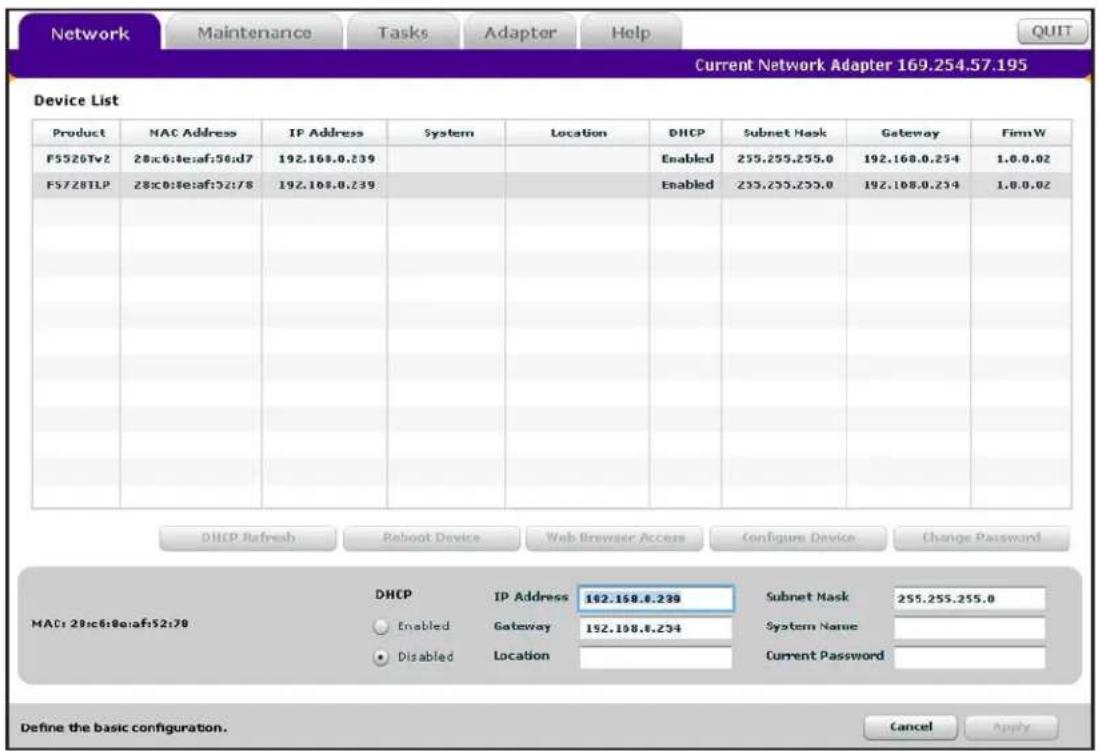
- In the fields at the bottom of the screen, type the switch IP address, gateway IP address, and subnet mask for the smart switch, and, optionally, the location and system name.
- In the Current Password field, type your password.
The Apply button becomes available.
Note: You need to enter the password every time that you use the Smart Control Center to update the switch setting. The default password is password.
- Click the Apply button.
The new network settings are applied to the smart switch.
Change the Password for Accessing the Smart Switch
To change the password of the smart switch:
- On the computer on which the Smart Control Center is installed, turn off the firewall temporarily.
The firewall might prevent the Smart Control Center from discovering the smart switch. - Start the Smart Control Center.
The Network screen displays and the Smart Control Center discovers your smart switch.
-
If the discovery function of the Smart Control Center does not operate automatically when you start the Smart Control Center, click the Discover button.
-
Select the smart switch by clicking the table row that displays the smart switch.
-
Click the Change Password button.
The screen expands to display the password fields at the bottom of the screen.
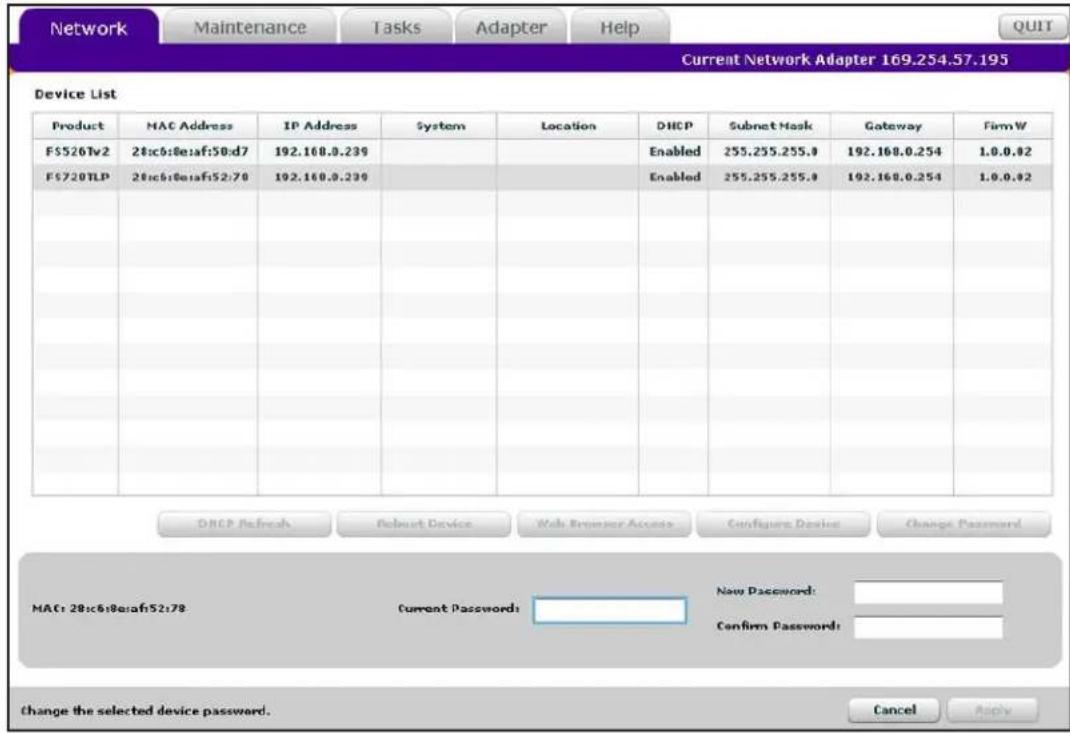
- In the Current Password field, type the existing password of the smart switch.
The default password for the smart switch is password.
- In the New Password and Confirm Password fields, type the new password.
The password can contain up to 20 ASCII characters.
- Click the Apply button.
The new settings are applied to the smart switch.
Save and Restore the Configuration File
When you change the configuration of the smart switch, the configuration information is stored in a file on the smart switch. You can back up the configuration by uploading the configuration file from the smart switch to a computer. You can download a saved configuration file from the computer to the smart switch. The configuration file that you download to the smart switch overwrites the running configuration file on the smart switch.
Saving the configuration is useful before you make configuration changes. If you do not like the changes, you can download the saved configuration to restore the smart switch and undo the changes.
Note: You can also save or download the configuration using the web management interface. For more information, see Save the Firmware, Running Configuration File, and Logs on page 279 and Download the Running Configuration File on page 282.
Save the Configuration
To save a copy of the configuration of the smart switch to a computer:
-
On the computer on which the Smart Control Center is installed, turn off the firewall temporarily.
The firewall might prevent the Smart Control Center from discovering the smart switch. -
Start the Smart Control Center.
The Network screen displays and the Smart Control Center discovers your smart switch.
-
If the discovery function of the Smart Control Center does not operate automatically when you start the Smart Control Center, click the Discover button.
-
Select Maintenance > Configuration.
The Device Maintenance screen displays.
- Select your smart switch by clicking the table row that displays the smart switch.
You can select several or all devices.
- Click the Upload Configuration button.
The Browse for folder pop-up screen displays.
- Follow the instructions of your web browser to navigate to the location where you want to save the file.
The selected path and file display at the bottom of the screen.
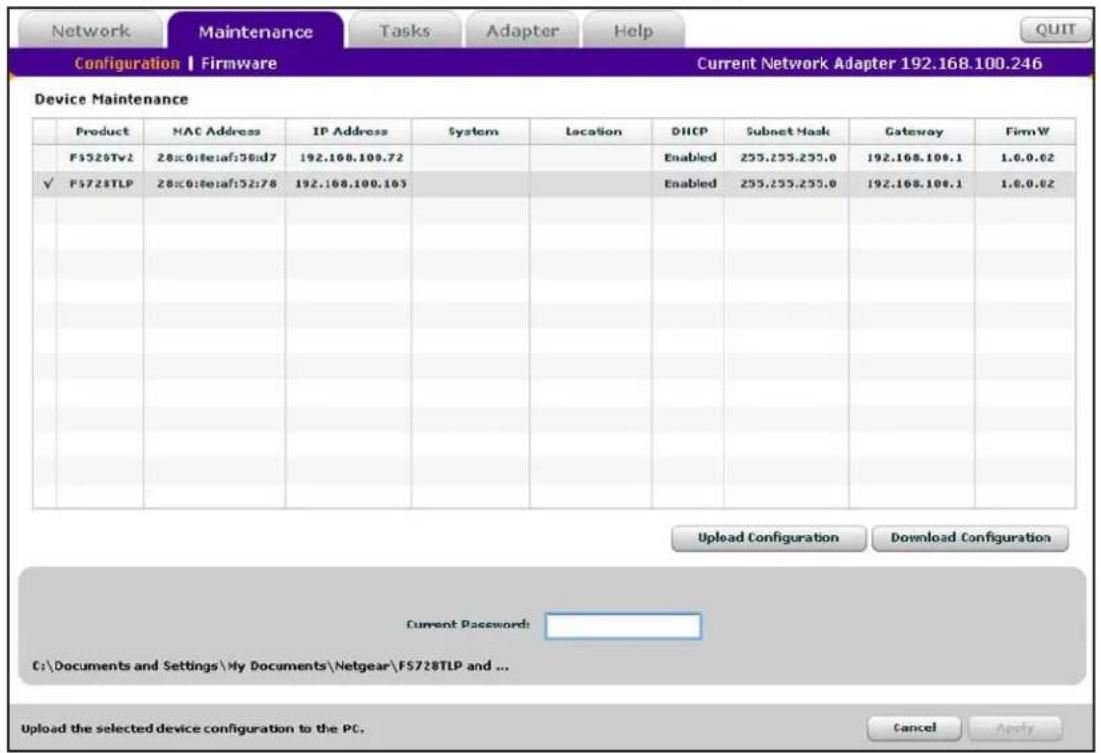
- In the Current Password field, type the password for the smart switch.
The default password for the smart switch is password.
- Click the Apply button.
The file is uploaded to the computer as a *.cfg file. You can open it and view the contents with a text editor.
Restore the Configuration
To restore the configuration to a previously saved version:
- On the computer on which the Smart Control Center is installed, turn off the firewall temporarily.
The firewall might prevent the Smart Control Center from discovering the smart switch.
- Start the Smart Control Center.
The Network screen displays and the Smart Control Center discovers your smart switch.
-
If the discovery function of the Smart Control Center does not operate automatically when you start the Smart Control Center, click the Discover button.
-
Select Maintenance > Configuration.
The Device Maintenance screen displays.
- Select your smart switch by clicking the table row that displays the smart switch.
You can select several or all devices.
-
Click the Download Configuration button.
-
Follow the instructions of your web browser to navigate to the location where the file is located and select the file.
The selected path and file display at the bottom of the screen.
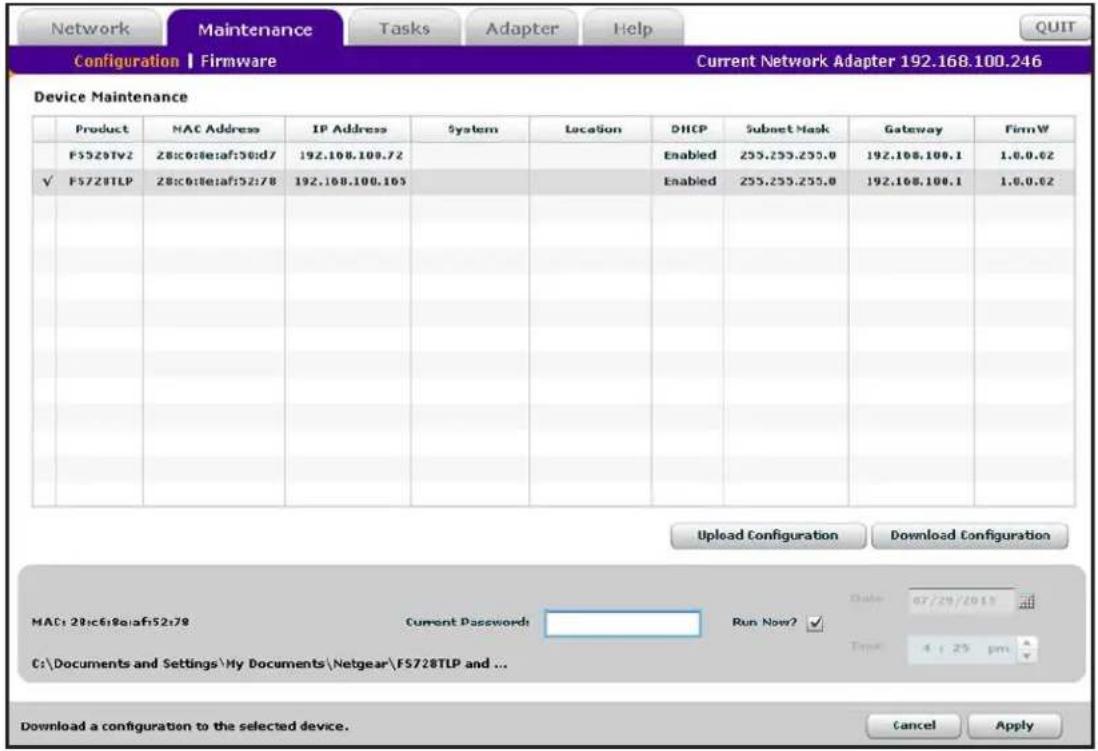
- (Optional) Schedule a date and time to download the configuration file:
a. Clear the Run Now? check box.
The Date and Time fields become available.
b. From the Date calendar, select a date to complete the download.
c. From the Time menu, select a time to complete the download.
- In the Current Password field, type the existing password of the smart switch.
The default password for the smart switch is password.
- Click the Apply button.
The file is downloaded to the smart switch or scheduled to be downloaded.
Note: To view status information about a scheduled configuration download, select Tasks.
Upgrade the Firmware
You can upgrade the firmware of the smart switch to take advantage of improvements and additional features as they become available.
To check if new firmware is available, visit downloadcenter.netgear.com, and enter your product name or model number. You can download the firmware to a computer or server on your network. The Smart Control Center uses the TFTP protocol to transfer firmware from your computer to the smart switch.
Note: You can also upgrade the firmware using the web management interface and select the image location. For more information, see Download and Upgrade the Firmware on page 271.
To upgrade the firmware of the smart switch:
- On the computer on which the Smart Control Center is installed, turn off the firewall temporarily.
The firewall might prevent the Smart Control Center from discovering the smart switch. - Start the Smart Control Center.
The Network screen displays and the Smart Control Center discovers your smart switch. - If the discovery function of the Smart Control Center does not operate automatically when you start the Smart Control Center, click the Discover button.
- Select Maintenance > Configuration.
The Device Maintenance screen displays. - Select the smart switch by clicking the table row that displays the smart switch.
You can select several or all devices. - Click the Download Firmware button.
- Follow the instructions of your web browser to navigate to the location where the file is located and select the file.
The selected path and file display at the bottom of the screen.
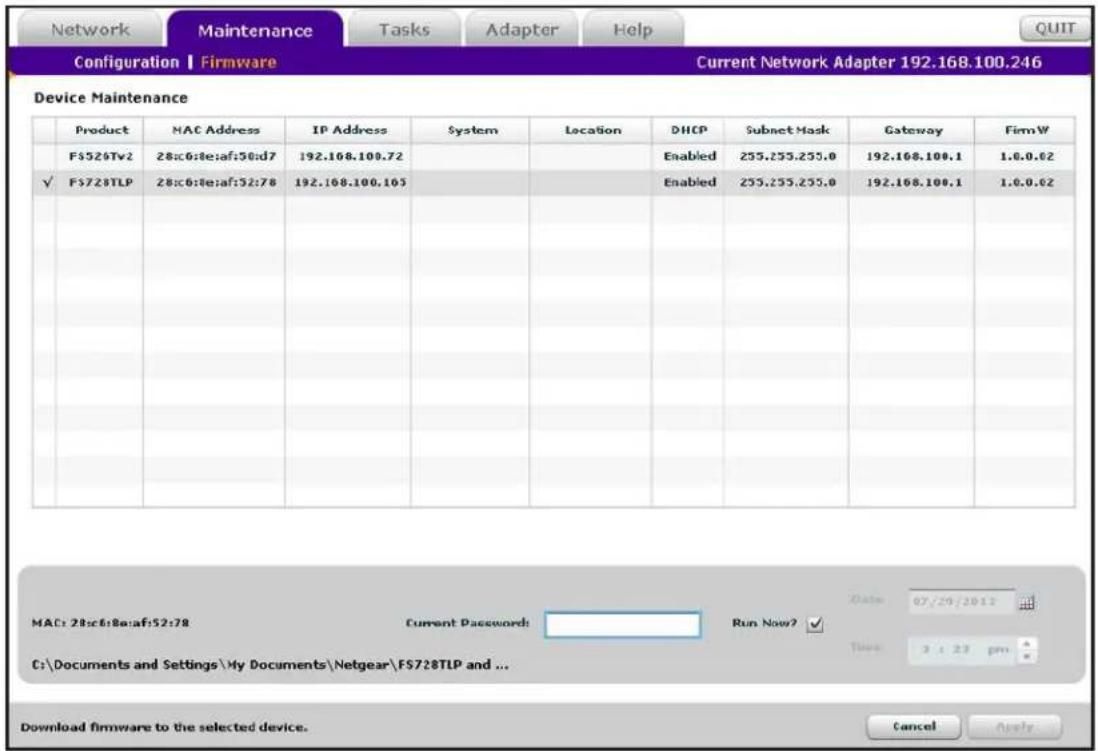
- To schedule a date and time to download the configuration file:
a. Clear the Run Now? check box.
The Date and Time fields become available.
b. From the Date calendar, select a date to complete the download.
c. From the Time menu, select a time to complete the download.
- In the Current Password field, type the existing password of the smart switch.
The default password for the smart switch is password.

WARNING:
During a firmware upgrade, do not try to go online, turn off the smart switch, shut down the computer, or do anything else to the smart switch until the smart switch finishes rebooting!
- Click the Apply button.
The firmware is downloaded to the smart switch or scheduled to be downloaded. If the firmware is downloaded to the smart switch, the smart switch reboots.
Note: To view status information about a scheduled firmware download, select Tasks.
View and Manage Tasks
The Tasks screen lets you manage and view information about configured tasks, including configuration downloads and firmware upgrades that have already occurred, are in progress, or are scheduled for a later time. You can also delete or reschedule selected tasks.
To view and manage tasks:
-
On the computer on which the Smart Control Center is installed, turn off the firewall temporarily.
The firewall might prevent the Smart Control Center from discovering the smart switch. -
Start the Smart Control Center.
The Network screen displays and the Smart Control Center discovers your smart switch.
-
If the discovery function of the Smart Control Center does not operate automatically when you start the Smart Control Center, click the Discover button.
-
Select Tasks.
The Tasks screen displays.
- To narrow down the displayed tasks by selecting a period:
a. Click the Select Range button.
The From and To calendars and menus become available.
b. From the upper calendars, select a range of dates.
c. From the lower menu, select the start time and end time.
Only tasks that fall within the selected range display.
- Select a task by clicking the table row that displays the task.
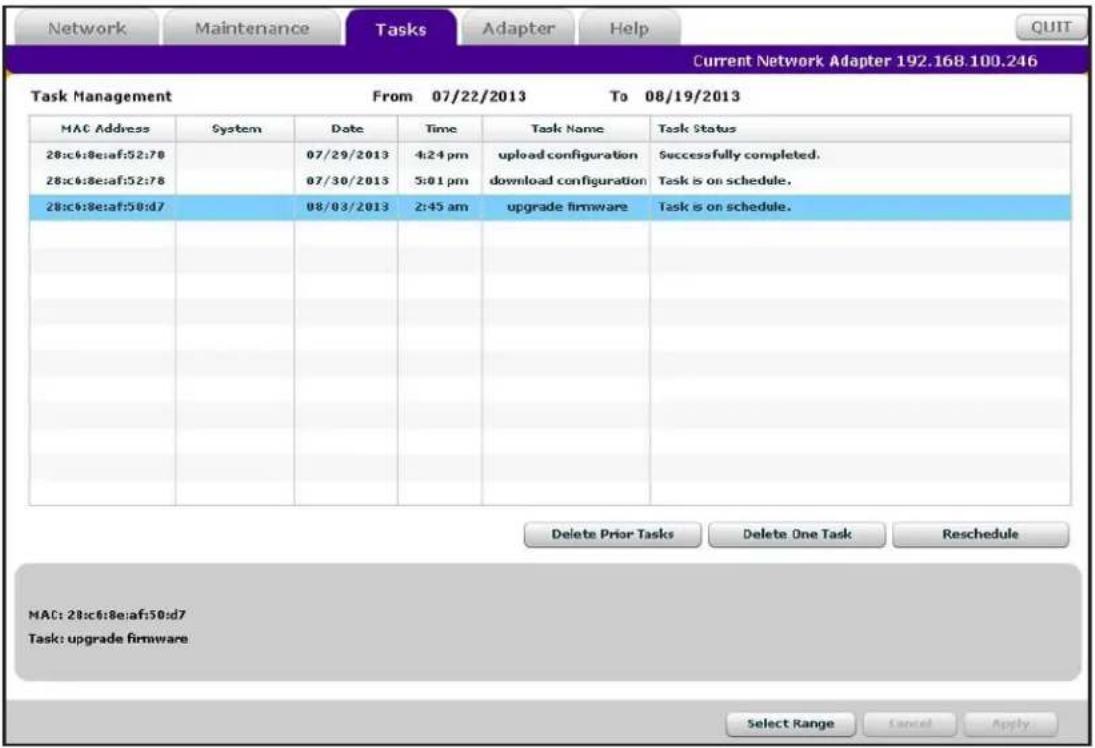
-
Click one of the following buttons:
-
Delete Prior Tasks. Removes all completed and scheduled tasks that are displayed in the table before the selected task.
- Delete One Task. Removes the selected task from the table.
- Reschedule . Lets you change the date and time for a scheduled task:
a. From the Date calendar, select a new date for the task.
b. From the Time menu, select a new time for the task.
c. Click the Apply button.
The new schedule is saved.
Configuration Examples
B
This appendix provides configuration examples for the following features:
• Virtual Local Area Networks
- Access Control Lists
• 802.1X Authentication
Virtual Local Area Networks
A local area network (LAN) can generally be defined as a broadcast domain. Hubs, bridges, or switches in the same physical segment or segments connect all endnode devices. End nodes can communicate with each other without the need for a router. Routers connect LANs together, routing the traffic to the appropriate port.
A virtual LAN (VLAN) is a local area network with a definition that maps workstations on some basis other than geographic location (for example, by department, type of user, or primary application). To enable traffic to flow between VLANs, traffic needs to go through a router, just as if the VLANs were on two separate LANs.
A VLAN is a group of computers, servers, and other network resources that behave as if they were connected to a single network segment—even though they might not be. For example, all marketing personnel might be spread throughout a building. Yet if they are all assigned to a single VLAN, they can share resources and bandwidth as if they were connected to the same segment. The resources of other departments can be invisible to the marketing VLAN members, accessible to all, or accessible only to specified individuals, depending on how the IT manager has set up the VLANs.
VLAN Advantages
VLANs have a number of advantages:
- It is easy to segment the network. Users who communicate most frequently with each other can be grouped into common VLANs, regardless of physical location. Each group's traffic is contained largely within the VLAN, reducing extraneous traffic and improving the efficiency of the whole network.
- They are easy to manage. The addition of nodes, as well as moves and other changes, can be dealt with quickly and conveniently from a management interface rather than from the wiring closet.
- They provide increased performance. VLANs free up bandwidth by limiting node-to-node and broadcast traffic throughout the network.
- They ensure enhanced network security. VLANs create virtual boundaries that can be crossed only through a router. So standard, router-based security measures can be used to restrict access to each VLAN.
Packets that enter the smart switch are treated in the following way:
- When an untagged packet enters a port, it is automatically tagged with the port's default VLAN ID tag number. Each port has a default VLAN ID setting that is user-configurable (the default setting is 1). You can change the default VLAN ID setting for each port on the Port PVID Configuration screen (select Switching > VLAN > Advanced > Port PVID Configuration; see also Configure Port VLAN IDs for Ports and LAGs on page 85).
-
When a tagged packet enters a port, the default VLAN ID setting does not affect the tag for that packet. The packet proceeds to the VLAN that is specified by its VLAN ID tag number.
-
If the port through which the packet enters is not a member of the VLAN that is specified by the packet's VLAN ID tag and has ingress-filtering enabled, the packet is dropped.
- If the port through which the packet enters is a member of the VLAN that is specified by the packet's VLAN ID tag and has ingress-filtering enabled, the packet can be sent to other ports with the same VLAN ID.
- Packets leaving the smart switch are either tagged or untagged, depending on the setting for that port's VLAN membership properties. A U for a port means that packets leaving the smart switch from that port are untagged. Inversely, a T for a port means that packets leaving the smart switch from that port are tagged with the VLAN ID that is associated with the port.
VLAN Sample Configuration
This example demonstrates several VLAN scenarios and describes how the smart switch handles tagged and untagged traffic.
To create two new VLANs, change the port membership for default VLAN 1, and assign port members to the two new VLANs:
- Select Switching > VLAN > Basic > VLAN Configuration.
The Basic VLAN Configuration screen displays.
- Create the following VLANs:
• A VLAN with VLAN ID 10
• A VLAN with VLAN ID 20
For more information about creating VLANs, see Manage Custom VLANs on page 80.
- S elect Switching > VLAN > Advanced > VLAN Membership.
The VLAN Membership screen displays.
-
Specify the VLAN membership as follows:
-
For the default VLAN with VLAN ID 1, specify the following members: port 7 untagged (U) and port 8 (U).
- For the VLAN with VLAN ID 10, specify the following members: port 1 (U), port 2 (U), and port 3 tagged (T).
- For the VLAN with VLAN ID 20, specify the following members: port 4 (U), port 5 (T), and port 6 (U).
For more information about adding members to a VLAN, see Manage VLAN Memberships on page 82.
- Select Switching > VLAN > Advanced > Port PVID Configuration.
The Port PVID Configuration screen displays.
-
Specify the PVIDs for ports e1 and e 4:
-
Port e1. PVID 10.
- Port e4. PVID 20.
Packets that enter these ports are tagged with the port VLAN ID.
For more information about configuring PVIDs, see Configure Port VLAN IDs for Ports and LAGs on page 85.
With the VLAN configuration that you have created, the following situations produce results as described:
- If an untagged packet enters port 1, the switch tags it with VLAN ID 10. The packet has access to port 2 and port 3. The outgoing packet is stripped of its tag to leave port 2 as an untagged packet. For port 3, the outgoing packet leaves as a tagged packet with VLAN ID 10.
- If a tagged packet with VLAN ID 10 enters port 3, the packet has access to port 1 and port 2. If the packet leaves port 1 or port 2, it is stripped of its tag to leave the switch as an untagged packet.
- If an untagged packet enters port 4, the switch tags it with VLAN ID 20. The packet has access to port 5 and port 6. The outgoing packet is stripped of its tag to become an untagged packet as it leaves port 6. For port 5, the outgoing packet leaves as a tagged packet with VLAN ID 20.
Access Control Lists
Access control lists (ACLs) ensure that only authorized users have access to specific resources while blocking any unwarranted attempts to reach network resources.
ACLs are used to provide traffic flow control, restrict contents of routing updates, determine which types of traffic are forwarded or blocked, and provide security for the network. ACLs are normally used in firewall routers that are positioned between the internal network and an external network, such as the Internet. ACLs can also be used on a router or switch positioned between two parts of the network to control the traffic entering or leaving a specific part of the internal network. The additional packet processing that ACLs require does not affect the performance of the smart switch. (ACL processing occurs at wire speed.)
ACLs are a sequential collection of permit and deny conditions. This collection of conditions, known as the filtering criteria, is applied to each packet that the router or switch processes. The forwarding or dropping of a packet is based on whether the packet matches the specified criteria.
Traffic Filtering Concepts
Traffic filtering requires the following two basic steps:
- Creating an ACL definition.
The access list definition includes rules that specify whether traffic matching the criteria is forwarded normally or discarded. Additionally, you can assign traffic that matches the criteria to a particular queue or redirect the traffic to a particular port. The configuration includes a default deny all IP traffic rule that is the last rule of the IP ACL table and a
default deny all traffic rule that is the last rule of the MAC ACL table. (MAC ACL rules have a lower priority than IP ACL rules.)
- Applying the ACL to an interface in the inbound direction.
The smart switch allows ACLs to be bound to physical ports and LAGs. The smart switch supports MAC ACLs and IP ACLs. An example of each is provided in the following sections.
MAC ACL Sample Configuration
The following example shows how to create a MAC-based ACL that permits Ethernet traffic from the sales department on specified ports and denies all other traffic on those interfaces.
To create such a MAC-based ACL:
- Select Security > ACL > Basic > MAC ACL.
The MAC ACL screen displays.
- Create an ACL with the name Sales_ACL for the sales department of your network.
By default, this ACL is bound on the inbound direction, which means the smart switch examines traffic as it enters the port.
For more information about creating named MAC ACLs, see Manage MAC ACL Names on page 197.
- Select Security > ACL > Basic > MAC Rules.
The MAC Rules screen displays.
- Create a rule for the Sales_ACL with the following settings:
| Field or Menu Configuration Setting | |
| ID | 1 |
| Action Permit | |
| Assign Queue 0 | |
| Redirect Interface Do not select | |
| Match Every False | |
| CoS 0 | |
| Destination MAC 01:02:1A | :BC:DE:EF |
| Destination MAC Mask 00 | 00:00:00:FF:FF |
| EtherType Key. Do not enter | |
| EtherType User Value | Do not enter |
| Source MAC | 02:02:1A:BC:DE:EF |
| Source MAC Mask 00:00:00:00:FF:FF | |
| VLAN ID | 2 |
For more information about creating MAC ACL rules, see Manage MAC ACL Rules on page 199.
5. Select Security > ACL > Basic > MAC Binding Configuration.
The MAC Binding Configuration screen displays.
6. Assign the Sales\_ACL to ports 6, 7, and 8.
7. To specify the order of this ACL relative to other ACLs if any are already assigned to these ports, assign a sequence number.
The Interface Binding Status table displays the port and MAC ACL binding information.
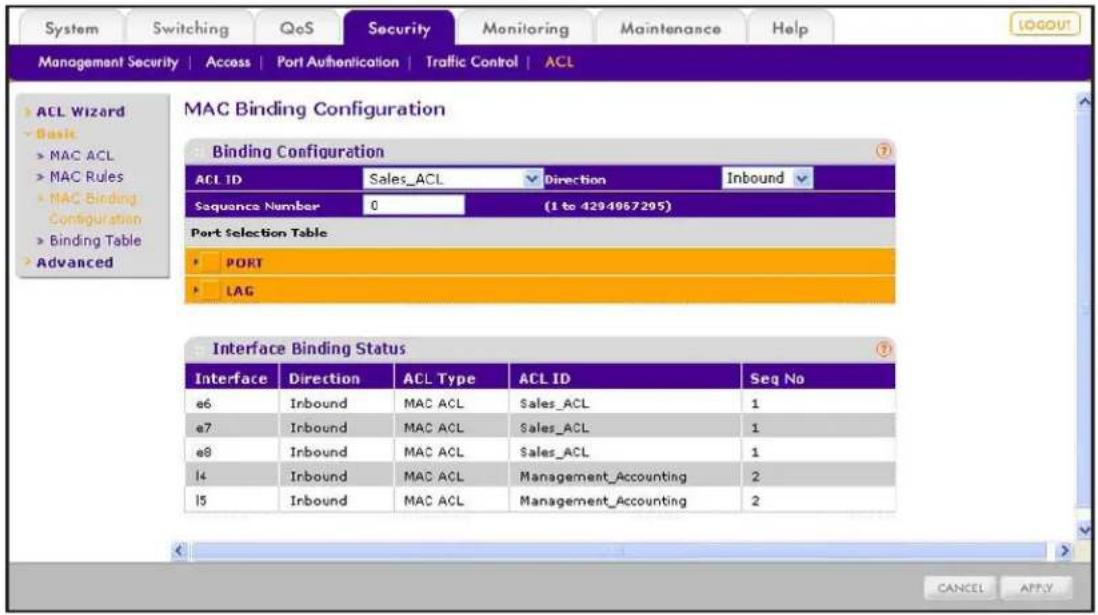
For more information about configuring MAC ACL bindings, see Configure MAC ACL Bindings for Ports and LAGs on page 203.
The ACL named Sales_ACL functions in the following way:
The Sales_ACL determines which Ethernet frames contain the destination and source MAC addresses and MAC masks that are defined in the rule, which frames are tagged with VLAN ID 2, and which frames have a CoS value of 0 (the default value for Ethernet frames).
Frames that match these criteria are permitted on ports 6, 7, and 8, and are assigned to the egress queue 0, which is the default queue. All other traffic is denied on these ports because the configuration includes a default deny all traffic rule that is the last rule of the MAC ACL table.
To allow additional traffic to enter these ports, you need to add a permit rule with the desired match criteria, and bind the new rule to interfaces 6, 7, and 8.
Standard IP ACL Sample Configuration
The following example shows how to create an IP-based ACL that prevents any IP traffic from the finance department from being allowed on the ports that are associated with other departments. Traffic from the finance department is identified by each packet's network IP address.
To create such an IP-based ACL:
- Select Security > ACL > Advanced > IP ACL.
The IP ACL screen displays.
- Create an IP ACL with an ID of 1.
For more information about creating IP ACLs, see Manage IP ACL Identifiers on page 208.
- Select Security > ACL > Advanced > IP Rules.
The IP Rules screen displays.
- Create a rule for IP ACL 1 with the following settings:
| Field or Menu Configuration Setting | |
| ID | 1 |
| Action Deny | |
| Match Every False | |
| Assign Queue Do not select | |
| Mirror Interface Do not select | |
| Redirect Interface Do not select | |
| Source IP Address 192.168.187.0 | |
| Source IP Mask 0.0.0.255 | |
For more information about creating IP ACL rules, see Manage Basic IP ACL Rules on page 209.
- Create a second rule for IP ACL 1 with the following settings:
| Field or Menu Configuration Setting | |
| ID | 2 |
| Action Permit | |
| Match Every True | |
- Select Security > ACL > Advanced > IP Binding Configuration.
The IP Binding Configuration screen displays.
- Assign IP ACL ID 1 to interfaces 2, 3, and 4, and assign a sequence number of 1.
By default, this IP ACL is bound on the inbound direction, so it examines traffic as it enters the smart switch.
For more information about configuring IP ACL bindings, see Configure IP ACL Bindings for Ports and LAGs on page 216.
The IP ACL with ID 1 functions in the following way:
The IP ACL matches all packets with the source IP address and subnet mask of the finance department's network and denies these packets on ports 2, 3, and 4. The second rule permits all nonfinance traffic on the ports. The second rule is required because the configuration includes a default deny all IP traffic rule as the lowest-priority rule of the IP ACL table.
802.1X Authentication
LANs are often deployed in environments that permit unauthorized devices to be physically attached to the LAN infrastructure, or permit unauthorized users to attempt to access the LAN through equipment already attached. In such environments, it can be desirable to restrict access to the services offered by the LAN to those users and devices that are permitted to use those services.
Port-based network access control uses the physical characteristics of LAN infrastructures to allow for authentication and authorization of devices that are attached to a LAN port. In this context, a port is a single point of attachment to the LAN, such as ports of MAC bridges and associations between stations or access points in wireless LANs.
The IEEE 802.1X standard describes an architectural framework within which authentication and consequent actions occur. It also establishes the requirements for a protocol between the authenticator (the system that passes an authentication request to the authentication server) and the supplicant (the system that requests authentication), and between the authenticator and the authentication server.
The smart switch supports a guest VLAN, which allows unauthenticated users to have limited access to the network resources.
Note: You can use QoS features to provide rate limiting on the guest VLAN to limit the network resources on the guest VLAN.
Another 802.1X feature is the ability to configure a port for Extensible Authentication Protocol over LAN (EAPoL) packet forwarding. You can disable or enable the forwarding of EAPoL when 802.1X is disabled on the smart switch.
The ports of an 802.1X authenticator smart switch can offer services to other systems that can be reached over the LAN. Port-based network access control allows you to control the ports of the smart switch to ensure that only systems that are authorized to access its services can do so.
Access control enforces authentication of supplicants that are attached to an authenticator's controlled port. The result of the authentication process determines whether the supplicant is authorized to access services on that controlled port.
Port Access Entity Roles
A port access entity (PAE) can adopt one of two distinct roles within an access control interaction:
- Authenticator. A port that enforces authentication before allowing access to services available through that port.
• Supplicant. A port that attempts to access services offered by the authenticator.
In addition, a third role exists:
- Authentication server. A server that authenticates the supplicant on behalf of the authenticator.
All three roles are required for an authentication exchange to be completed.
The smart switch supports the authenticator role only, in which the PAE is responsible for communicating with the supplicant. The authenticator PAE also submits the information that it receives from the supplicant to the authentication server. Depending on the outcome of the RADIUS-based authentication process, the authenticator PAE sets the state of the port to authorized or unauthorized.
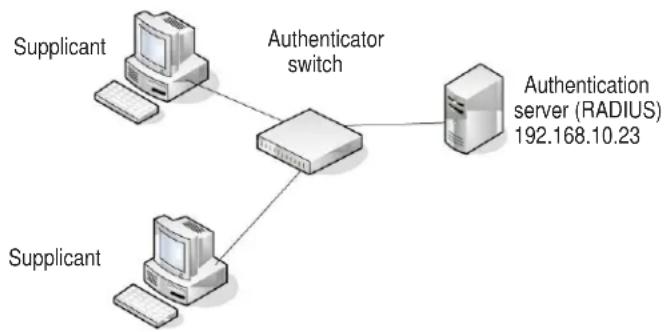
flowchart
graph TD
    A["Supplicant"] --> B["Authenticator switch"]
    C["Supplicant"] --> B
    B --> D["Authentication server (RADIUS) 192.168.10.23"]
Figure 17. Supplicants, authenticator, and authentication server
802.1X Sample Configuration
This example shows how to configure the smart switch so that 802.1X-based authentication is required on ports e1 through e8 in a corporate conference room. These ports are available to visitors and must be authenticated before access to the network is granted. An external
RADIUS server handles the authentication. If the visitor is successfully authenticated, traffic is automatically assigned to the guest VLAN. In this example, a VLAN has been configured with a VLAN ID of 150 and VLAN name of Guest.
To configure port authentication on ports e1 through e8 and assign traffic to guest VLAN 150:
-
Select Security > Port Authentication > Advanced > Port Authentication.
The Port Authentication screen displays. -
Configure the following settings:
a. Select ports e1 through e8.
b. From the Port Control menu, select Auto.
The selection from the Port Control menu for all other ports on which authentication is not needed must be Authorized. If the selection is Authorized, the ports are placed unconditionally in a force-authorized state and do not require authentication. If the selection is Auto, the authenticator PAE sets the controlled port mode.
c. In the Guest VLAN ID field for ports e1 through e8, enter 150.
Ports e1 through e8 are assigned to the guest VLAN.
d. For all other port authentication settings, use the default values.
For more information about configuring port authentication, see Configure Authentication for Individual Ports on page 158.
-
(Optional) Select Security > Traffic Control > Port Security > Interface Configuration. The Interface Configuration screen displays.
-
(Optional) Configure additional settings to control access to the network through the ports. For more information about configuring port security for ports and LAGs, see Configure Port Security for Ports and LAGs on page 170.
-
Select Security > Port Authentication > Basic > 802.1x Basic Settings.
The 802.1x Basic Settings screen displays.
- Configure the global port security settings:
- For Port Based Authentication State, select the Enable radio button.
- For Guest Vlan, select the Enable radio button.
For more information about the global port security settings, see Enable Port Security Globally on page 170.
- Select Security > Management Security > RADIUS > Server Configuration.
The RADIUS Server Configuration screen displays.
- Configure a RADIUS server with the following settings:
| Field or Menu Configuration Setting | |
| Server Address 192.168.10.23 | |
| Authentication Port 1812 | |
| Secret Configured Yes | |
| Shared Secret secret123 | |
| Active Primary | |
For more information about RADIUS servers, see Configure RADIUS Authentication on page 150.
In this sample configuration, you have configured and enabled 802.1X-based port security on the smart switch. The hosts that are connected on ports e1 through e8 are prompted for 802.1X-based authentication. The smart switch passes the authentication information to the configured RADIUS server.
Factory Default Software Settings
C
This appendix describes the factory default software settings. The appendix includes the following sections:
- Default Login Settings
- IPv4, DHCP, VLAN, and Clock Settings
- Port Characteristics
- PoE Settings (Model FS728TLP Only)
• Quality of Service and Traffic Control Settings - Security Settings
- Multicast and Forwarding Database Settings
• Management Settings
• Image, File, and Logging Settings
Note: For information about resetting the smart switch to factory default settings using the web management interface, see Return the Smart Switch to Factory Default Settings on page 285. You can also press the Factory Defaults button on the front panel of the smart switch for at least two seconds.
Note: The following tables include only settings that are configurable on the smart switch. With a few exceptions, configuration settings that are fixed on the smart switch are not included.
Default Login Settings
Table 7. Default login and access settings
| Feature Default Setting | |
| Default IP address 192.168.0.239 | |
| Default subnet mask 255.255.0.0 | |
| User name There is no user name | |
| Login password password | |
| HTTP session soft time-out | 5 minutes |
| HTTP session hard time-out | 24 hours |
IPv4, DHCP, VLAN, and Clock Settings
Table 8. IPv4, DHCP, VLAN, and clock settings
| Feature Default Setting | |
| IP address 192.168.0.239 | |
| Subnet mask 255.255.0.0 | |
| Default gateway 192.168.0.254 | |
| DHCP client Enabled | |
| Management VLAN ID 1 | |
| Clock source Local |
Port Characteristics
Table 9. Port characteristics
| Feature Sets Supported | Default Setting | |
| Auto power down mode (green feature) | Global settings | Disabled |
| Energy-Efficient Ethernet (EEE) mode (green feature) | Global settings | Disabled |
| Administrative port state | All ports | Enabled |
| Auto negotiation, speed, and duplex mode | All ports Auto negotiation | |
| Auto MDI/MDIX | All ports | Enabled (not configurable) |
| Feature | Sets Supported | Default Setting |
| 802.3x flow control/back pressure 1 | for the entire smart switch Disabled | |
| Port link traps All ports Enabled | ||
| Frame size (MTU size) All ports 15 | 8 | |
| Auto power down mode (per port) All ports Disabled | ||
| Port mirroring 1 for the entire smart switch Disabled | ||
| LAGs (port trunking) 8 Preconfigured, no member ports | ||
| LAG administrative state All LAGs Enabled | ||
| LAG link traps All LAGs Disabled | ||
| LAG STP mode All LAGs Disabled | ||
| LAG type All LAGs Static | ||
| LACP priority All ports 128 | ||
| LACP time-out All ports Long | ||
| Default VLANs VLAN 1 = Default | VLAN 2 = VoiceVLANVLAN 3 = AutoVideo | All ports are untagged members of VLAN 1.No ports are members of VLAN 2 and VLAN 3. |
| Auto-VoIP | All ports Disabled | |
| Static 802.1Q VLAN tagging | 128 | VID = 1, with the following number of member ports:Model FS728TLP. 28 portsModel FS726Tv2. 26 portsModel FS526Tv2. 26 ports |
| 802.1D STP | All ports Disabled | |
| 802.1w RSTP | All ports Disabled | |
| STP operation mode | Global settings | RSTP (if enabled) |
| STP BPDU flooding | Global settings | Enabled |
| CST bridge priority | Global settings | 32768 |
| CST bridge maximum age | Global settings | 20 seconds |
| CST bridge forward delay | Global settings | 15 seconds |
| CST fast link | All ports Disabled | |
| CST path cost | All ports 0 | |
| CST priority | All ports 128 |
PoE Settings (Model FS728TLP Only)
Table 10. PoE settings
| Feature Sets Supported Default Setting | ||
| Administrative PoE state Ports 1 through 12 Enabled | ||
| Priority level Ports 1 through 12 Low | ||
| Detection mode Ports 1 through 12 IEEE | ||
| Timer schedule Ports 1 through 12 None | ||
| Power limit type Ports 1 through 12 Class | ||
| Power limit Ports 1 through 12 15400 | ||
| PoE traps Global settings, ports 1 through 12 Disabled | ||
| PoE dual detection Global settings, ports 1 through 12 Disabled |
Quality of Service and Traffic Control Settings
Table 11. Quality of Service and traffic control settings
| Feature Sets Supported Default Setting | ||
| Global CoS | Global settings | 802.1p marking enabled |
| Interface CoS | Global settings | Disabled |
| Number of queues and 802.1p priority-to-queue mapping | 8 | Priority 0 to queue 2Priority 1 to queue 0Priority 2 to queue 1Priority 3 to queue 3Priority 4 to queue 4Priority 5 to queue 5Priority 6 to queue 6Priority 7 to queue 7 |
| Interface trust mode | All ports | Untrusted |
| Interface shaping rate | All ports | None (0) |
| Minimum bandwidth | All ports | None (0) |
| Scheduler type | All ports | Weighted |
| Storm control | All ports | Disabled |
Security Settings
Table 12. Security settings
| Feature Sets Supported Default Setting | ||
| Auto denial of service (DoS) mode N/A Disabled | ||
| RADIUS authentication servers 3 No | one configured. Only one server can be active. | |
| RADIUS maximum number of retransmissions | N/A 4 | |
| RADIUS time-out duration N/A 4 seconds | ||
| RADIUS accounting mode N/A Disabled | ||
| RADIUS accounting servers 1 None configured. | ||
| 802.1X port authentication Global settings Disabled | ||
| 802.1X guest VLAN authentication | Global settings Disabled | |
| 802.1X port control All ports Auto | ||
| 802.1X guest VLAN ID All ports | None (0) | |
| 802.1X guest VLAN period | All ports | 90 seconds |
| 802.1X periodic reauthentication | All ports | Disabled |
| 802.1X reauthentication period | All ports | 3600 seconds |
| 802.1X quiet period | All ports | 60 seconds |
| 802.1X resending EAP requests | All ports | 30 seconds |
| 802.1X maximum EAP requests | All ports | 2 |
| 802.1X supplicant time-out | All ports | 30 seconds |
| 802.1X server time-out | All ports | 30 seconds |
| 802.1X EAPoL flood mode | All ports | Enabled |
| Port security | All ports | Disabled |
| Port security, maximum number of dynamically learned MAC addresses | All ports | 600 |
| Port security, maximum number of statically locked MAC addresses | All ports | 20 |
| Port security, violation traps | All ports | Disabled |
| Port protection | All ports | None |
| Feature Sets Supported Default Setting | ||
| MAC ACLs | Maximum 100 ACLs for MAC ACLs and IP ACLs combined | All MAC addresses are allowed. |
| IP ACLs | All IP addresses are allowed. | |
Multicast and Forwarding Database Settings
Table 13. Multicast and forwarding database settings
| Feature Sets Supported Default Setting | ||
| MAC address table 8k MAC addresses | s Enabled | |
| MAC address learning Supports static and dynamic MAC entries | Dynamic learning is enabled by default. | |
| Dynamic address aging N/A 300 seconds | ||
| IGMP snooping Global settings Disabled | ||
| Validation of IGMP IP headers Global settings Disabled | ||
| Blocking of unknown multicast addresses | Global settings Disabled | |
| IGMP snooping (per port) All ports | Disabled | |
| IGMP host time-out All ports 260 seconds | ||
| IGMP maximum response time All ports 10 seconds | ||
| IGMP multicast router time-out | All ports None (0) | |
| IGMP fast leave administrative mode | All ports Disabled | |
| IGMP snooping VLANs | 128 None configured | |
| Static multicast groups | 8 | None configured |
| Multicast group membership | All ports None | |
| IGMP snooping querier administrative mode | N/A Disabled | |
| IGMP snooping querier IGMP version | N/A IGMPv2 | |
| IGMP snooping querier query interval | N/A 60 seconds | |
| IGMP snooping querier expiration interval | N/A 60 seconds | |
| IGMP querier election VLAN participation mode | N/A Disabled |
Management Settings
Table 14. Management settings
| Feature Sets Supported Default Setting | ||
| Maximum number of simultaneous HTTP management sessions | N/A 4 | |
| Management security 1 profile with | 20 rules for HTTP or SNMP access to allow or deny access to an IP address or subnet | No profile name and no rules defined. All IP addresses allowed. |
| SNMPv1 and SNMPv2 5 communities | Enabled default communities: | · public, read-only· private, read/write |
| Trap configurations 6 None configured | ||
| Trap flag for authentication N/A Enabled | ||
| Trap flag for link up/down N/A Enabled | ||
| Trap flag for spanning tree N/A Enabled | ||
| SNMP v3 1 user | admin, read/write, enabled | |
| LLDP TLV advertised interval | Global settings | 30 seconds |
| LLDP hold multiplier | Global settings | 4 seconds |
| LLDP reinitializing delay | Global settings | 2 seconds |
| LLDP transmit delay | Global settings | 5 seconds |
| LLDP administrative status | All ports | Enabled for egress (Tx) and ingress (Rx) traffic. |
| LLDP management IP address | All ports Auto advertisement | |
| LLDP notification | All ports | Disabled |
| LLDP optional TLVs | All ports | Disabled |
| LLDP-MED fast start duration | Global settings | 3 times |
| LLDP-MED | All ports | Disabled |
Image, File, and Logging Settings
Table 15. Image, file, and logging settings
| Feature Sets Supported Default Setting | ||
| Dual image support 2 Enabled. Firmware images are | uploadable and downloadable. | |
| Running configuration (text configuration) | 1 N/A. Running configuration is | uploadable and downloadable. |
| Memory log (buffered log) 1 Enabled. Log is downloadable. | ||
| Flash log (error log) 1 Disabled. Log is downloadable. | ||
| Trap log 1 Enabled. Log is downloadable. | ||
| Syslog servers 10 None configured | ||
Notification of Compliance
NETGEAR wired products
D
Regulatory Compliance Information
This section includes user requirements for operating this product in accordance with National laws for usage of radio spectrum and operation of radio devices. Failure of the end-user to comply with the applicable requirements may result in unlawful operation and adverse action against the end-user by the applicable National regulatory authority.
This product's firmware limits operation to only the channels allowed in a particular Region or Country. Therefore, all options described in this user's guide may not be available in your version of the product.
Europe – EU Declaration of Conformity
Products bearing the marking comply with the following EU directives:
• EMC Directive 2004/108/EC
• Low Voltage Directive 2006/95/EC
If this product has telecommunications functionality, it also complies with the requirements of the following EU Directive:
• R&TTE Directive 1999/5/EC
Compliance with these directives implies conformity to harmonized European standards that are noted in the EU Declaration of Conformity.
Intended for indoor use only in all EU member states, EFTA states, and Switzerland
FCC Requirements for Operation in the United States
FCC Information to User
This product does not contain any user serviceable components and is to be used with approved antennas only. Any product changes or modifications will invalidate all applicable regulatory certifications and approvals
This device complies with Part 15 of the FCC Rules. Operation is subject to the following two conditions: (1) This device may not cause harmful interference, and (2) this device must accept any interference received, including interference that may cause undesired operation.
FCC Guidelines for Human Exposure
This equipment complies with FCC radiation exposure limits set forth for an uncontrolled environment. This equipment should be installed and operated with minimum distance of 20 cm between the radiator and your body.
This transmitter must not be co-located or operating in conjunction with any other antenna or transmitter.
FCC Declaration Of Conformity
We, NETGEAR, Inc., 350 East Plumeria Drive, San Jose, CA 95134, declare under our sole responsibility that the ProSAFE FS526Tv2, FS726Tv2, and FS728TLP Smart Switches complies with Part 15 of FCC Rules.
Operation is subject to the following two conditions:
• This device may not cause harmful interference, and
- This device must accept any interference received, including interference that may cause undesired operation.
FCC Radio Frequency Interference Warnings & Instructions
This equipment has been tested and found to comply with the limits for a Class B digital device, pursuant to Part 15 of the FCC Rules. These limits are designed to provide reasonable protection against harmful interference in a residential installation. This equipment uses and can radiate radio frequency energy and, if not installed and used in accordance with the instructions, may cause harmful interference to radio communications. However, there is no guarantee that interference will not occur in a particular installation.
If this equipment does cause harmful interference to radio or television reception, which can be determined by turning the equipment off and on, the user is encouraged to try to correct the interference by one or more of the following methods:
- Reorient or relocate the receiving antenna.
- Increase the separation between the equipment and the receiver.
- Connect the equipment into an electrical outlet on a circuit different from that which the radio receiver is connected.
- Consult the dealer or an experienced radio/TV technician for help.
Modifications made to the product, unless expressly approved by NETGEAR, Inc., could void the user's right to operate the equipment.
Index
Numerics
802.1AB, LLDP 226
802.1p, CoS marking 139–143
802.1w, RSTP 127
802.1X, authentication 158
802.3X, flow control 64
A
access control entries (ACE) 178
access control lists (ACLs)
managing 177
sample configuration 310
access messages
accounting RADIUS server 156
authentication RADIUS server 153
access profiles 55
accounting RADIUS server 154
ACE (access control entries) 178
ACL wizard 178
ACLs (access control lists)
managing 177
sample configuration 310
address aging, dynamic MAC addresses 102
address table, managing 99
aggregation priority, LACP 97
aging time
CST 130
voice VLAN 88
algorithm, queue scheduling 145
alternate port
CST 133
RSTP 136
assured forwarding, DSCP 147
authentication
logging in to smart switch 31
ports 157
RADIUS servers, configuring 150
SNMPv3 user 294
authentication traps, SNMP 293
authenticators, port authentication 157
authorized ports, port authentication 166
auto power-down mode 63, 226
autonegotiation, interfaces 63
auto-video option, IGMP snooping 106
auto-video VLAN 80, 106
Auto-VoIP, configuring 65
B
backing up files 279
backup port
CST 133
RSTP 136
bandwidth allocation, CoS 145
basic IP ACLs
configuring 209
defined 207
binding tables
IP ACLs 219
MAC ACLs 206
bit offset, ports 64
blocking unknown multicast addresses 108
boot version, smart switch 42
bootp, configuring 43
BPDUs (bridge protocol data units) 127
bridge identifier, CST 128
bridge priority, CST 130
bridge protocol data units (BPDUs) 127
bridge, designated for CST 134
broadcast, controlling ingress packets 168
buffered log, backing up 279
C
cable test 257
channels
adding IP ACL members 216
adding MAC ACL members 203
adding multicast group members 119
adding VLAN members 82
assigning PVID 85
configuring CoS 142
configuring CST 130
configuring IGMP 108
configuring options 61
configuring port security 170
configuring queues 143
creating and configuring 92
characters allowed in web management interface 13
Class of Service (CoS)
configuring 138
MAC ACLs 201
VLANs 86
voice VLAN 87
class selector (CS), DSCP 147
class, PoE 77
clock source 47
Common Spanning Tree (CST), configuring 126
compliance statements 326
congestion 64
connecting smart switch 29
consumed power, PoE 68
contact person, smart switch 41
control direction, port authentication 161
control frames, multicast 108
control mode and direction, port authentication 160
Coordinated Universal Time (UTC) 48
CoS (Class of Service)
configuring 138
MAC ACLs 201
VLANs 86
voice VLAN 87
CST (Common Spanning Tree), configuring 126
D
Data Encryption Standard (DES), SNMPv3 294
date and time, configuring 45
defaults, factory settings, list of 319–325
denial of service (DoS) attacks
configuring protection from 222
EAPoL packet flooding 163
deny all IP traffic rule, IP ACLs 209
deny all traffic rule, MAC ACLs 199
DES (Data Encryption Standard), SNMPv3 294
designated port
CST 133
RSTP 136
destination port, extended IP ACLs 215
detection mode, PoE 77
device classes, LLDP-MED 240
device information, LLDP 234
device view (web management interface) 13
DHCP (Dynamic Host Configuration Protocol)
configuring client 42–43
discovering smart switch 29
refreshing bindings 297
Differentiated Services Code Point (DSCP)
CoS settings 139–143
expedited forwarding 148
extended IP ACLs 215
direction, port mirroring 269
discovering smart switch 29, 32
DoS (denial of service) attacks
configuring protection from 222
EAPoL packet flooding 163
downloading firmware
using Smart Control Center 303
using web management interface 271–273
dropped frames 86
dropped packets
accounting RADIUS packets 156
authentication RADIUS packet 153
basic IP ACLs 210
CoS taildrops 145
extended IP ACLs 213
MAC ACLs 201
DSCP (Differentiated Services Code Point)
CoS settings 139–143
extended IP ACLs 215
dual detection, PoE 69
duplex mode 63
Dynamic Host Configuration Protocol (DHCP)
configuring client 42–43
discovering smart switch 29
refreshing bindings 297
dynamic LAGs 93
dynamic locking, port security 170
dynamic MAC addresses 102, 113, 172
E
EAP (Extensible Authentication Protocol) and EAPoL
(EAP over LAN) statistics 254
EAPoL packet flooding, port authentication 163
ECS (Emergency Call Service) ELIN (Emergency
Location Identification Number) 240
edge port
CST 132, 134
RSTP 136
EEE mode (power saving mode) 226
egress queues
basic IP ACLs 210
CoS 139–146
extended IP ACLs 214
MAC ACLs 201
election participation, IGMP snooping querier 123
Emergency Call Service (ECS) Emergency Location
Identification Number (ELIN) 240
encryption, SNMPv3 user traffic 294
error log, backing up 279
EtherType, MAC ACLs 202
expedited forwarding, DSCP 148
extended IP ACLs
configuring manually 212
defined 207
F
factory default settings
defaults 319–325
returning to 285
fast leave mode, IGMP snooping
ports and LAGs 110
VLANs 116
fast start mechanism, LLDP-MED 228
file management 275
filtering VLANs 86
firmware version 42
firmware, downloading and upgrading
using Smart Control Center 303
using web management interface 271–275
firmware, managing 275
flash log
backing up 279
viewing 261
flooding
BPDUs 128
EAPoL packets 163
force-authorized and force-unauthorized modes 160
force-authorized and force-unauthorized ports 165
forward delay time, CST 129–130
forwarding database, managing 99
forwarding state
CST ports 134
RSTP ports 136
four-point resistive detection, PoE 77
frames
acceptable types for VLANs 86
control, multicast 108
dropped 86
EAP and EAPoL statistics 256
size and shaping, CoS 142
sizes 64
statistics 247–254
tagged and untagged 82
G
gateway, default 43
global priority, LACP97
guest VLAN, enabling 158–160
guest voice and signaling, LLDP-MED 233, 236, 241
GUI 11
GUI tree 22
H
H.323 65
hard time-out, HTTP sessions 55
hello time, CST 130–132
help online 21
HMAC-MD5 and HMAC-SHA, SNMPv3 294
hold time, CST 129
holdtime multiplier, LLDP 228
host groups, multicast 106, 118
host time-out, IGMP snooping
ports and LAGs 110
VLANs 116
HTTP sessions, global settings 54
|
IEEE 802.1Q 80
ifIndex, interfaces 64
IGMP (Internet Group Management Protocol) 106
IGMP snooping, configuring
port and LAGs 108
VLANs 115
IGMP snooping querier, configuring 121
image version 42
image, downloading and upgrading
using Smart Control Center 303
using web management interface 271–275
images, managing 275
ingress filtering, VLANs 86
ingress packet control 168
initializing ports 163
installation references 10
installing, Smart Control Center 296
interface shaping rate, CoS 145
interfaces
adding IP ACL members 216
adding LAG members 95
adding MAC ACL members 203
adding multicast group members 119
adding VLAN members 82
assigning PVID 85
autonegotiation 63
configuring authentication 158
configuring Auto-VolP 65
configuring CoS 142
configuring CST 130
configuring IGMP 108
configuring LACP priority 97
configuring LLDP 228
configuring mirroring 267
configuring options 61
configuring PoE 75
configuring port security 170
configuring protection 175
configuring PVID priority settings 86
configuring queues 143
configuring storm control 168
configuring voice VLAN settings 88
naming conventions 19
Internet Group Management Protocol (IGMP) 106
IP ACLs, configuring
manually 207
using wizard 184–192
IP addresses
accounting RADIUS server 155
advertising management address, LLDP 230
authentication RADIUS server 152
default, smart switch 319
IGMP snooping querier 122
management clients 57
network interface 43
SNTP server 48
source and destination, extended IP ACLs 214–215
source, basic IP ACLs 211
static, configuring on smart switch 43
syslog server 263
TFTP server 273, 281, 283
trap receivers, SNMP 291
IP phones, voice VLANs 87
IP precedence
DSCP to queue mapping, CoS 147
extended IP ACLs 215
J
Java mode 55
jumbo size frames 64
L
LACP (Link Aggregation Control Protocol) 93, 97
LAG link status traps 94
LAGs (link aggregation groups)
adding IP ACL members 216
adding MAC ACL members 203
adding multicast group members 119
adding VLAN members 82
assigning PVID 85
configuring CoS 142
configuring CST 130
configuring IGMP 108
configuring options 61
configuring port security 170
configuring queues 143
creating and configuring 92
languages, web management interface 13
learned MAC addresses 101, 172
levels of severity, logging 259
levels, time 46
Link Aggregation Control Protocol (LACP) 93, 97
link aggregation groups (LAGs)
adding IP ACL members 216
adding MAC ACL members 203
adding multicast group members 119
adding VLAN members 82
assigning PVID 85
configuring CoS 142
configuring CST 130
configuring IGMP 108
configuring options 61
configuring port security 170
configuring queues 143
creating and configuring 92
link status traps, SNMP 293
link status, interfaces 63
LLDP (Link Layer Discovery Protocol), configuring 226
LLDP Media Endpoint Discovery (LLDP-MED),
configuring 230
local device and port information, LLDP 233
location, smart switch 41
logical interfaces 19
logs
backing up 279
viewing 258
M
MAC ACLs, configuring
manually 197
using wizard 180
MAC address table, managing 99
MAC addresses
CST regional root 129
dynamic 102, 113, 172
learned 101, 172
managing 99
multicast destination 112
ports 64
smart switch 42
source and destination, MAC ACLs 201–202
static 102, 113
violations 174
management MAC address 101
management methods 10
marking, CoS 139–143
MAU (Medium Attachment Unit) 236, 240
maximum power, PoE 76
Media Service Access Point (MSAP) 237, 239
Medium Attachment Unit (MAU) 236, 240
memberships
IP ACLs 216
LAGs 95
MAC ACLs 203
multicast groups 119
VLANs 82
memory log
backing up 279
viewing 260
MFDB (multicast forwarding database) 111
MIBs, SNMP 288
minimum bandwidth, CoS 145
mirrored port 63
model name, smart switch 42
monitor port, mirroring 268
MSAP (Media Service Access Point) 237, 239
multicast
configuring 105
controlling ingress packets 168
host groups 106, 118
multicast forwarding database (MFDB) 111
N
name, smart switch 41
naming interfaces 19
neighbors, LLDP 237
network analyzer 267
network discovery, smart switch 29, 32
network interface, IP address 43
Network Time Protocol (NTP) 48
nominal power, PoE 68
NTP (Network Time Protocol) 48
0
object ID, smart switch 42
octets, statistics 244–253
online help 21
organization of web management interface 22
OUI (Organizational Unique Identifier), voice VLANs 90
output voltage, current, and wattage, PoE 77
oversubscription, CoS 145
P
packet matching, DSCP 139
packets, dropped
accounting RADIUS packets 156
authentication RADIUS packet 153
basic IP ACLs 210
CoS taildrops 145
extended IP ACLs 213
MAC ACLs 201
packets, statistics 244–253
PAE (port access entity), port authentication 161
password
changing through Smart Control Center 298
changing through web management interface 53
default 319
path cost, CST 132, 134
payload size 64
PD (powered device) class, PoE 77
PDUs (protocol data units) 228
per-hop behavior (PHB) 147
periodic reauthentication, port authentication 160
PHB (per-hop behavior) 147
physical interfaces 19
PoE (Power over Ethernet)
configuring 67
turning off, basic IP ACLs 211
turning off, extended IP ACLs 214
turning off, MAC ACLs 201
port access entity (PAE), port authentication 161
port ACLs, configuring
manually 212
using wizard 192
port authentication
configuring 157
sample configuration 314
port channels
adding IP ACL members 216
adding MAC ACL members 203
adding multicast group members 119
adding VLAN members 82
assigning PVID 85
configuring CoS 142
configuring CST 130
configuring IGMP 108
configuring options 61
configuring port security 170
configuring queues 143
creating and configuring 92
port information, LLDP 234
port link status traps 63
port mirroring, configuring 267
port priority
CST 132
LACP 97
port roles
CST 133
RSTP 136
port security, configuring 169
port state, CST 132
port statistics 248
port VLAN IDs (PVIDs) 85
ports
adding IP ACL members 216
adding LAG members 95
adding MAC ACL members 203
adding multicast group members 119
adding VLAN members 82
assigning PVID 85
authentication 158
autonegotiation 63
configuring Auto-VoIP 65
configuring CoS 142
configuring CST 130
configuring IGMP 108
configuring LACP priority 97
configuring LLDP 228
configuring mirroring 267
configuring options 61
configuring PoE 75
configuring port security 170
configuring protection 175
configuring PVID priority settings 86
configuring queues 143
configuring storm control 168
configuring voice VLAN settings 88
naming conventions 19
ports (UDP and TCP), extended IP ACLs 214–215
power consumption saving 63, 226
power limit, PoE 77
Power over Ethernet (PoE)
configuring 67
turning off, basic IP ACLs 211
turning off, extended IP ACLs 214
turning off, MAC ACLs 201
power saving mode (EEE mode) 226
power status, PoE 68
power-down mode 63, 226
powered device (PD) class, PoE 77
priority level, PoE 77
priority, CST bridge 130
priority-to-queue default mapping 146
private community, SNMP 288
probe port 63
profiles, access 55
protected ports, configuring 175
protocol data units (PDUs) 228
protocol type, extended IP ACLs 214
public community, SNMP 288
PVIDs (port VLAN IDs) 85
Q
QoS (Quality of Service), configuring 139
querier, IGMP snooping 121
query interval, IGMP snooping 117, 122
queues, egress
basic IP ACLs 210
CoS 139–146
extended IP ACLs 214
MAC ACLs 201
quiet period, port authentication 160
R
RADIUS servers, configuring 150
Rapid STP (RSTP), configuring 126
rate limiting, CoS 145
read-only and read/write, SNMP 289
reauthenticating ports 163
reauthentication period, port authentication 160
rebooting
using Smart Control Center 297
using web management interface 284
redirect interface, MAC ACLs 201
regional root, CST 129
registering with NETGEAR 38
reinitialization delay, LLDP 228
remark CoS, voice VLAN 88
resetting password 54
resetting to factory defaults 285
response time, IGMP snooping
ports and LAGs 110
VLANs 116
retransmissions, RADIUS servers 151
root bridge, STP 128, 134
root port
CST 129, 133
RSTP 136
roundtrip time
accounting RADIUS server 156
authentication RADIUS server 153
router time-out, IGMP snooping
ports and LAGs 110
VLANs 116
RSTP (Rapid STP), configuring 126
rules
accessing smart switch 55
basic IP ACLs 209
deny all IP traffic, IP ACLs 209
deny all traffic, MAC ACLs 199
extended IP ACLs 212
MAC ACLs 199
running configuration file
backing up and downloading, using Smart Control Center 299
backing up, using web management interface 279
downloading, using web management interface 282
S
saving power 63, 226
SCCP (Signalling Connection Control Part) 65
scheduling algorithm, CoS 145
secrets
accounting RADIUS server 155
authentication RADIUS server 152
serial number 42
server time-out period, port authentication 161
server type, SNTP 48
servers
RADIUS accounting 154
RADIUS authorization 151
syslog 263
TFTP 272, 280
service types, extended IP ACLs 215
Session Initiation Protocol (SIP) 65
sessions, HTTP global settings 54
severity levels, logging 259
severity, log message 262
SHA, SNMPv3 294
shaping rate, CoS 142, 145
Signalling Connection Control Part (SCCP) 65
Simple Network Time Protocol (SNTP) servers 45–51
SIP (Session Initiation Protocol) 65
Smart Control Center utility 10, 295
SNMP object ID, smart switch 42
SNMP traps
configuring 293
LAG link status 94
list of 292
log, backing up 279
log, viewing 265
MAC address violations 172
PoE 69
port link status 63
SNMPv1, SNMPv2, and SNMPv3, configuring 287
SNTP (Simple Network Time Protocol) servers 45–51
soft phone voice, LLDP-MED 233, 236, 241
soft time-out, HTTP sessions 55
software version 42
software, downloading and upgrading
using Smart Control Center 303
using web management interface 271–275
software, managing 275
source port
extended IP ACLs 214
port mirroring 268
source, clock 47
Spanning Tree Protocol (STP)
configuring 126
LAGs 94
traps, SNMP 293
speed, ports 63
startup configuration file
backing up and downloading, using Smart Control Center 299
backing up, using web management interface 279
downloading, using web management interface 282
static IP address, configuring on smart switch 43
static LAGs 93
static locking, port security 170
static MAC addresses 102, 113
statistics, viewing
multicast forwarding database (MFDB) 115
STP 136
switch, port, and EAP 243–256
status, viewing
authenticator PAE 162
backend authentication 162
cables 258
dual images 278
entries, MAC address table 101
LLDP devices and ports 233
neighbors, LLDP 237
network policy TLVs, LLDP-MED 232
PoE ports 78
port authentication 164
RSTP ports 136
storm control 168
STP ports 132
storm control, configuring 166
STP (Spanning Tree Protocol)
configuring 126
LAGs 94
traps, SNMP 293
stratums 45
streaming video, LLDP-MED 233, 236, 241
strict priority, CoS 144–145
subnet mask, network interface 43
supplicant time-out period, port authentication 161
supplicants, port authentication 157
support website, accessing 21
syslog servers, configuring 263
system information 41
system logs
backing up 279
viewing 258
system MAC address 101
system priority, LACP 97
T
tagged frames, VLANs 82
taildrops, CoS 145
TCP source and destination ports, extended IP ACLs 214–215
technical support 2
testing cables 257
TFTP servers 272, 280
threshold power, PoE 68
threshold, storm control 168
time settings, configuring 45
time-out periods
CST 130
HTTP sessions 55
port authentication 160
RADIUS servers 151
voice VLAN 88
timer schedules, PoE 70–75, 77
TLVs (type-length values) 230–231
ToS (Type of Service)
DSCP to queue mapping, CoS 147
extended IP ACLs 215
trademarks 2
traffic classes 146–147
traffic control, configuring 166
traffic rate limiting, CoS 145
transmit delay, LLDP 228
transmit interval, LLDP frames 228
transmit period, port authentication 161
trap log
backing up 279
viewing 265
trap receivers, SNMP 290
traps, SNMP
configuring 293
LAG link status 94
list of 292
log, backing up 279
log, viewing 265
MAC address violations 172
PoE 69
port link status 63
tree structure web management interface 22
Type of Service (ToS)
DSCP to queue mapping, CoS 147
extended IP ACLs 215
type-length values (TLVs) 230–231
U
UDP source and destination ports, extended IP ACLs 214–215
unknown unicast, controlling ingress packets 168
untagged frames, VLANs 82
untrusted traffic, CoS 140–143
upgrading firmware
using Smart Control Center 303
using web management interface 273–275
UTC (Coordinated Universal Time) 48
utilities, Smart Control Center 295
V
validation, IGMP snooping 108
video conferencing and signaling, LLDP-MED 233, 236, 241
video VLAN 80, 106
video-audio option, IGMP snooping 106
violations, MAC addresses 174
VLANs
configuring 79
guest, enabling 158–160
IGMP snooping 115
IGMP snooping querier 122
MAC ACLs 202
management 45
sample configuration 308
statistics 244
voice signaling, LLDP-MED 233, 236, 241
voice VLAN, configuring 87
W
web management interface 11
weighted round robin (WRR), CoS 144–145
wizard, ACLs 178