
500786 - Camera MuxLab - Free user manual and instructions
Find the device manual for free 500786 MuxLab in PDF.


| Product Type | PTZ Camera |
| Model | 500786 |
| Brand | MuxLab |
| Video Resolution | 1080p (1920x1080) |
| Frame Rate | 60 fps |
| Pan/Tilt/Zoom | Yes, PTZ with preset positions |
| Audio Input | Line IN for wireless mic receiver |
| Connectivity | Ethernet (RJ-45) for network streaming |
| Power Supply | Power over Ethernet (PoE) or external adapter (est.) |
| Compatibility | MuxStream App (Windows, iOS, Android); works with YouTube, Facebook, Wowza, OBS, Wirecast |
| Streaming Protocols | RTMP, RTSP |
| Video Encoding | H.264 (implied) |
| Bandwidth Requirement | Low bandwidth for streaming |
| Dimensions | Not specified in manual; typical PTZ camera size ~200x200x150 mm |
| Weight | Not specified in manual; approx. 1-2 kg |
| Mounting | Desktop or tripod mount (assumed) |
| Operating Temperature | Not specified; typical 0-40°C |
Frequently Asked Questions - 500786 MuxLab
User questions about 500786 MuxLab
0 question about this device. Answer the ones you know or ask your own.
Ask a new question about this device
Download the instructions for your Camera in PDF format for free! Find your manual 500786 - MuxLab and take your electronic device back in hand. On this page are published all the documents necessary for the use of your device. 500786 by MuxLab.
USER MANUAL 500786 MuxLab
1 Product Overview ....3
2 Installation....4
3 Using the MuxStream App 6
3.1 Configuring the App....6
3.1.1 Creating an account....6
3.1.2 Auto discover and configure your kit. 6
3.2 Control interface ....8
3.2.1 Broadcast tab....8
3.2.2 Settings tab....10
3.2.3 Create Stream tab....10
3.2.4 Start Streaming tab....15
2.2.5 Control interface for iOS and Android. 16
4 Troubleshooting....18
1 Product Overview
The MuxLab “MuxStream Live Streaming Solution” (model 100521) includes the main components needed to broadcast live content to mass recipients spread out across the globe. The solution allows live presentations to effectively be streamed over the Internet at 1080p/60, and can work with industry standard broadcast streaming services such as YouTube, Facebook, Wowza, to name a few, and also works with popular Audio/Video content production software tools such as OBS, Wirecast, and others.
The kit comes complete with a MuxStream Camera 1080p@60, a wireless Lav Mic system, and an intuitive control application (MuxStream App)
The MuxLab MuxStream Control App is free to download from the MuxLab website (for Windows PC), and from the iOS and Android App Stores (for tablet and smartphone). The Control App manages the system setup, configures the system to stream to various broadcast services such as YouTube, Facebook and Wowza, manages camera settings including pan/tilt/zoom (PTZ). The MuxStream Camera supports up to 1080p video @ 60Hz and supports low bandwidth for streaming AV content over the Internet.
2 Installation
- Please validate that you received all contents listed below.
Please validate that you received all contents listed below:

(1) Camera
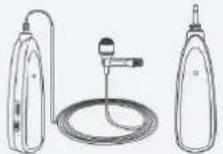
(1) Wireless Mic Kit
- Download the MuxStream App.
Download the MuxStream Desktop App to manage the above devices at: www.muxlab.com/muxstream or at the Apple App Store for iOS and Google Play Store for Android, available for Tablet and Smartphones.

natural_image
Illustration of a laptop with a Windows logo on the screen (no text or symbols)
natural_image
Hand holding a smartphone displaying Apple, Android, and iOS logos (no text or symbols on the device screen)- Make sure you have an internet connection.
Internet access required to stream to these services and more.


WiFi is required if the MuxStream App is run from a wireless device.
- Connect the Mic Wireless Receiver to the Camera.

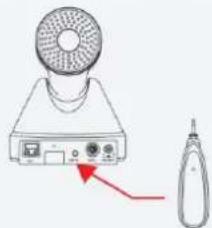
Connect the Mic Wireless Receiver to the Camera (Line IN port).
Make sure the Mic and its Receiver are charged.
natural_image
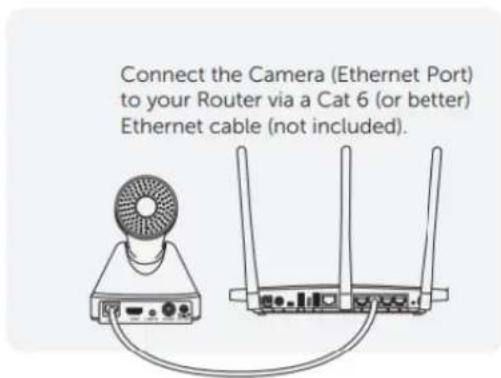
Diagram of a handheld electronic device with a fan and ports, showing no text or symbols- Connect the Camera to your Router.
- Power On all devices.

- Open the MuxStream App.
3 Using the MuxStream App
3.1 Configuring the App
3.1.1 Creating an account
If this is the first time you are running the MuxStream App, a new user must be created, see figure below.
To create a new user, following these steps:
- Enter your email address.
- Enter your password.
- Confirm your password.
- Press the "Next" button.

3.1.2 Auto discover and configure your kit.
After creating an account, the application will search for and discover the devices on the network (PTZ Camera and Streamer/Transmitter) and will configure them automatically.
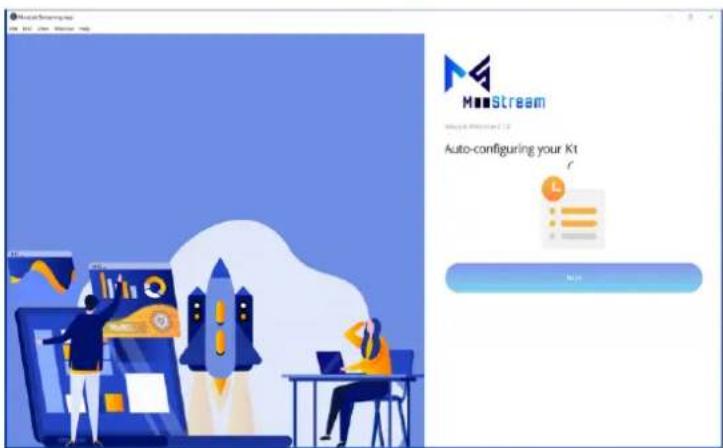
Once the application has configured the devices, click the "Next" button to begin (See figure below).

To start using the application, the user must enter their email address and password and then press the "Sign in" button.

After pressing the "Sign in" button, the system control interface will start automatically.
3.2 Control interface
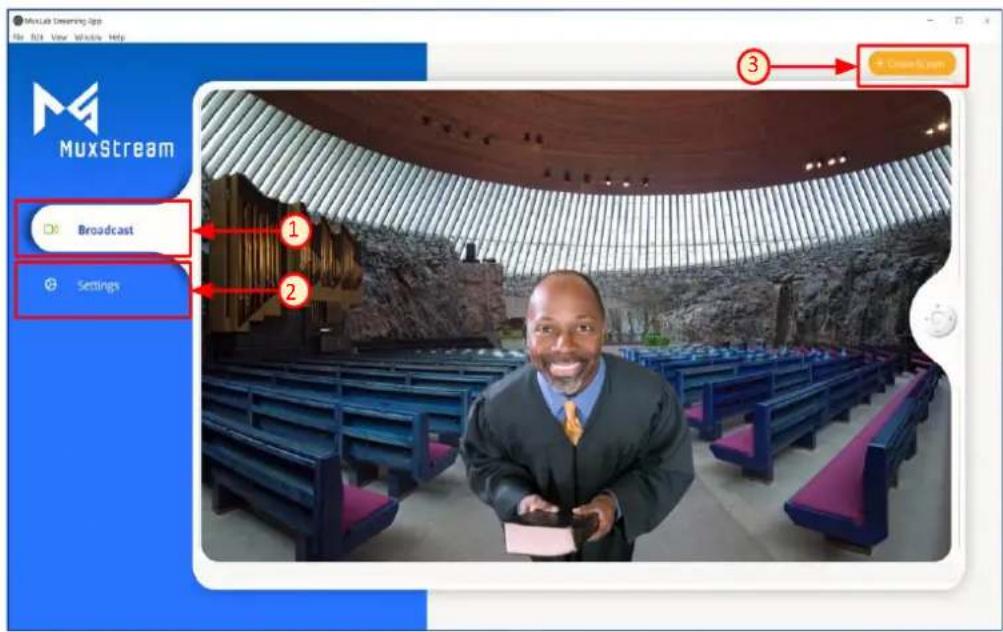
Once logged in, the User can see three main tabs: Broadcast, Create Stream and Settings.
3.2.1 Broadcast tab
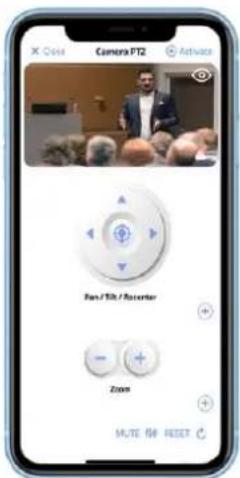
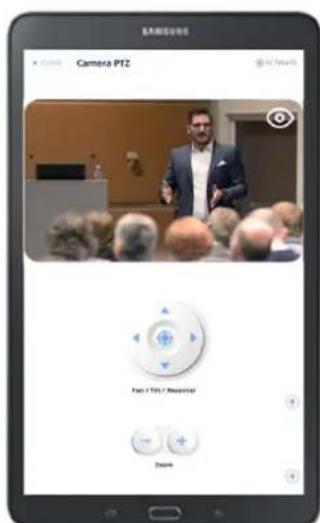
When the "Broadcast" tab is selected, the application displays the camera preview in the center of the window and allows you to control the different PTZ options for the camera, focus, and pre-sets by selecting the icon on the right-side of the window.

Pressing or hovering the cursor over the control icon will bring up a pop-up Window with different control options (Pan, Tilt, Recenter, Zoom, Focus, Preset, etc.) that can be adjusted using the mouse or keyboard.
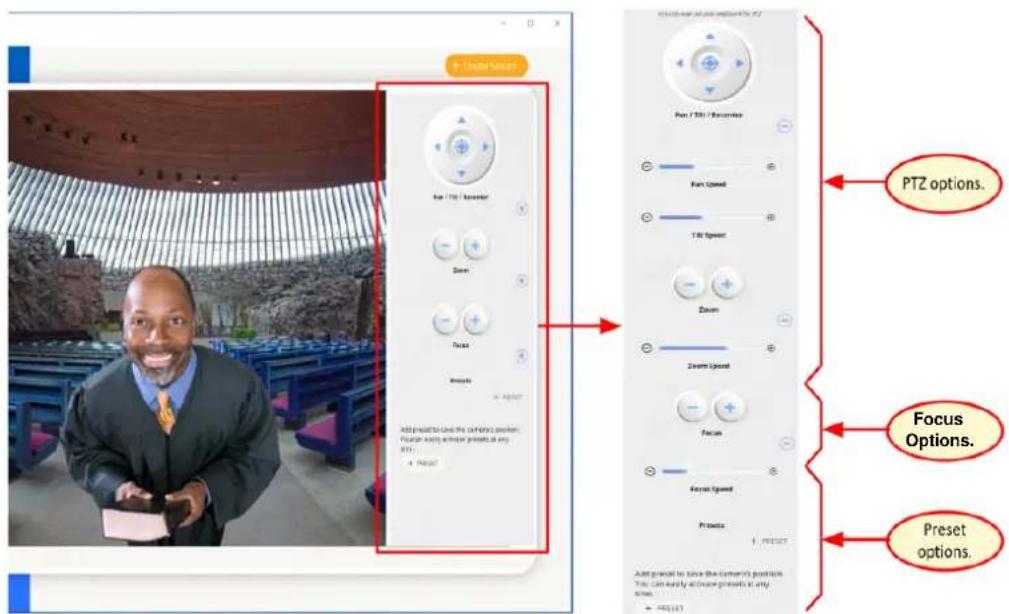
Multiple Presets may be created, each recording the current pan/tilt/zoom settings at the time they are saved. Saved Presets may be recalled by simply pressing on a given Preset button. To create a Preset, press on "+ PRESET" and a new pop-up window will appear to allow the user to enter the necessary data. The current pan/tilt/zoom settings may be saved.
To create a new Preset, follow these steps:
- Input the new "Preset" name. Any name may be given.
- Press the "SAVE" button to confirm.
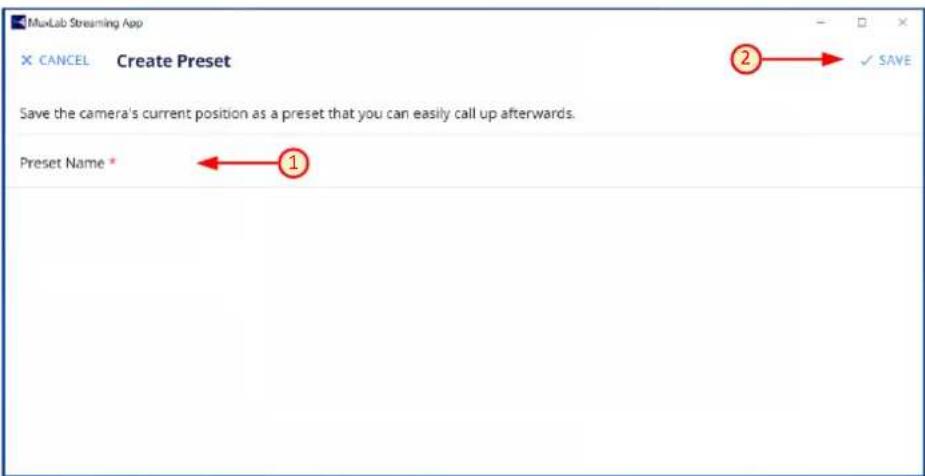
Saved Presets will show up as Preset buttons with their assigned name. To activate a Preset, simply press on its button.
3.2.2 Settings tab
In the "Settings" tab, the application shows two options: App Version and AutoDiscover.

- App Version: The user can see the current MuxStream App version.
- Auto-Discover: By pressing the "AUTO-DISCOVER" button the App will automatically re-detect the Streamer/Transmitter and Camera that are connected in the network. If there is more than one Streamer/Transmitter or more than one Camera connected, the user will be requested to select the units to be used from a list provided.
3.2.3 Create Stream tab
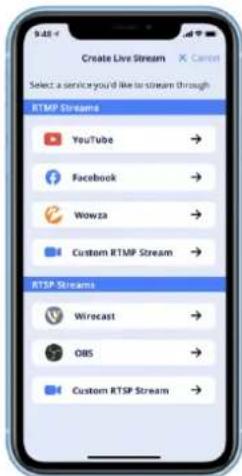
To create a new stream, the user must press the "Create Stream" button. Once selected, a new pop-up window will appear in which we can see two main options: RTMP Streams and RTSP Streams.
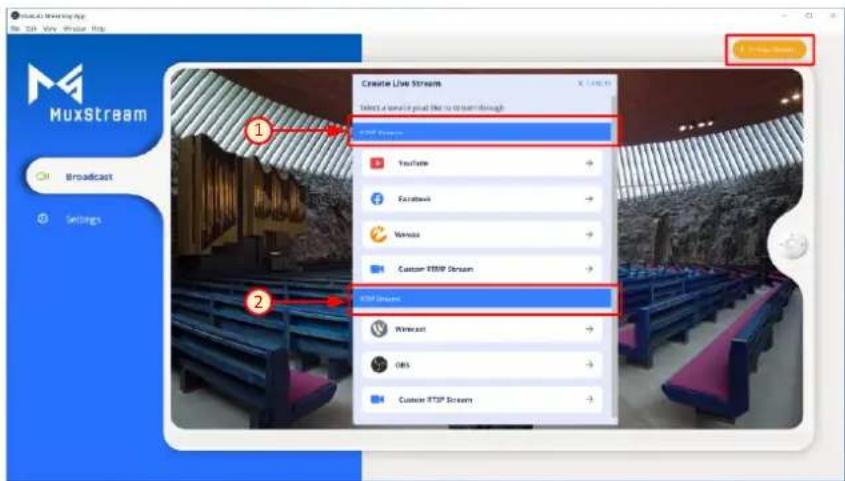
- Creating an RTMP Stream; To do this, select the service from the list provided. If the service is not listed, select the "Custom RTMP Streaming" button.
To create a new RTMP Stream, following these steps:
a. Input a user defined new Stream name.
b. Input the Stream URL (from your streaming provider).
c. Input the Stream Key (from your streaming provider).
d. Press the "SAVE" button to confirm.
Note: For each RTMP Streaming service that is listed, the App displays a guide on how to find the "Stream URL" and the "Stream Key".
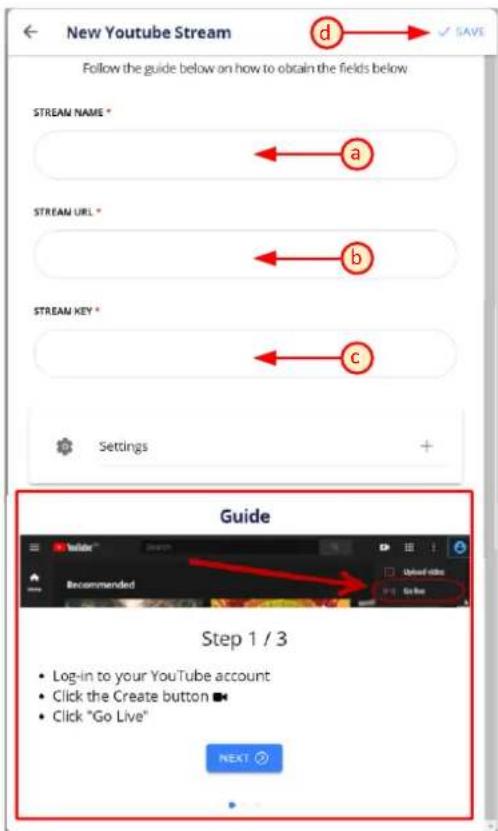
In the "Settings" section the user can modify different parameters such as: Resolution, Bitrate, FPS, GOP and Encoding method.
It should be noted that the App for each service shown in the list will give default values for these parameters, these defaults are recommended values for the Streaming service selected, but the user can change them at any time according to their needs.

When the creation of an RTMP Stream is complete, a pop-up window will appear to confirm whether you want to start streaming now or later.
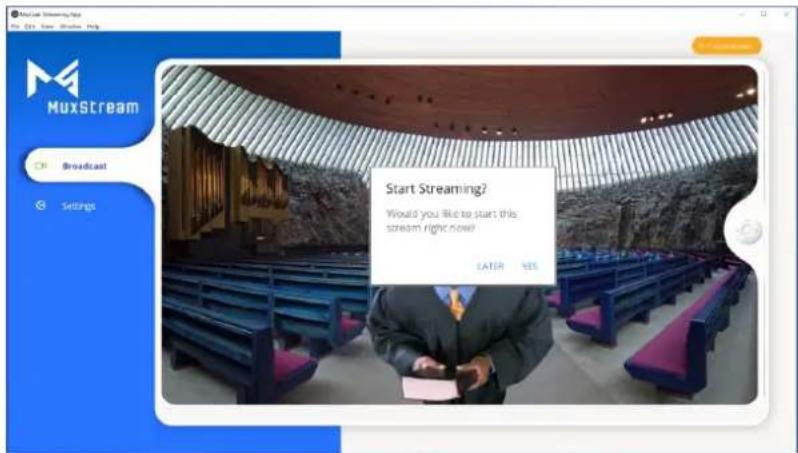
Once the creation of at least one RTMP Stream is complete, a "Start Stream" tab will appear.
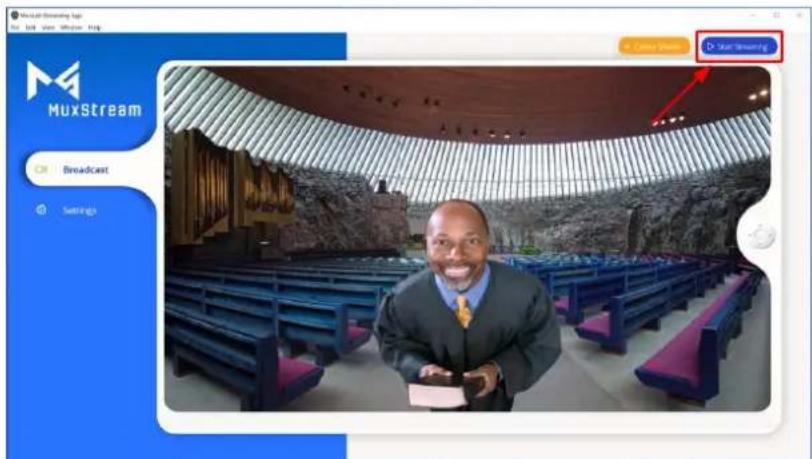
- Creating an RTSP Stream; To do this, select the service from the list provided. If the service is not listed, select the "Custom RTSP Streaming" button.
To create a new RTSP Stream, following these steps:
a. Input a user defined new Stream name.
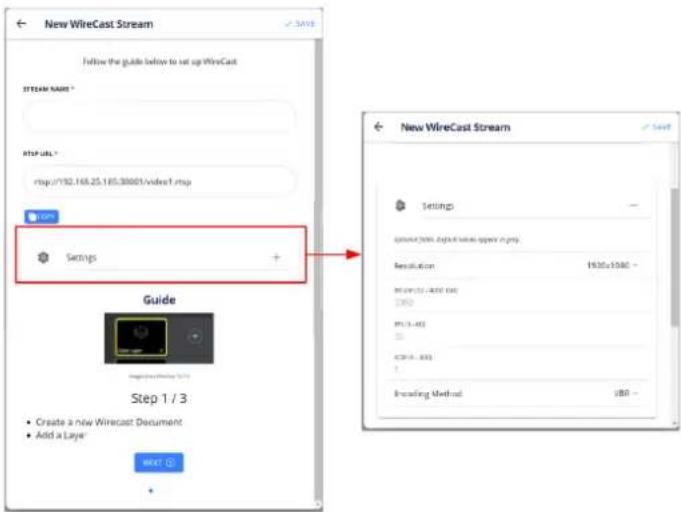
b. Copy the RTSP URL. This URL should be pasted into the appropriate box on your RTSP streaming service.
c. Press the "SAVE" button to confirm.
Note: For each RTSP Streaming service that is listed, the App displays a guide on how to enter the "RTSP URL"

In the "Settings" section the user can modify different parameters such as: Resolution, Bitrate, FPS, GOP and Encoding method.
It should be noted that the App for each service shown in the list will give default values for these parameters, these defaults are recommended values for the Streaming service selected, but the user can change them at any time according to their needs.
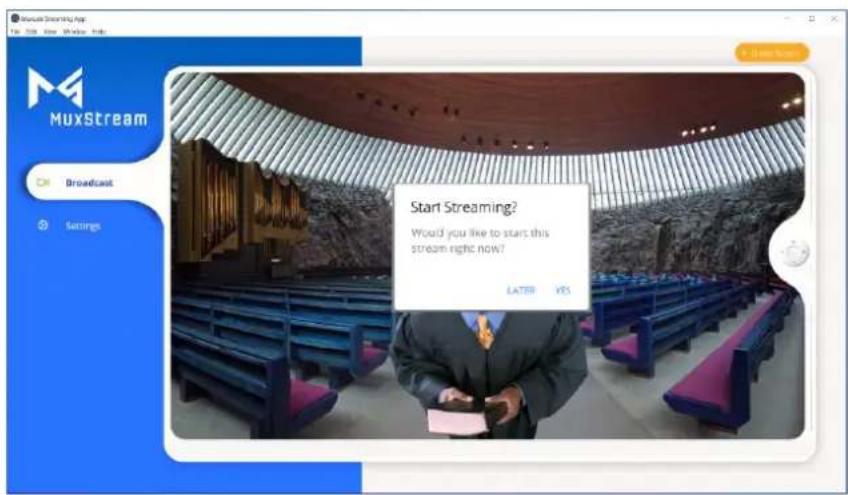
When the creation of an RTSP Stream is complete, a pop-up window will appear to confirm whether you want to start streaming now or later.
Once the creation of at least one RTSP Stream is complete, a "Start Stream" tab will appear.
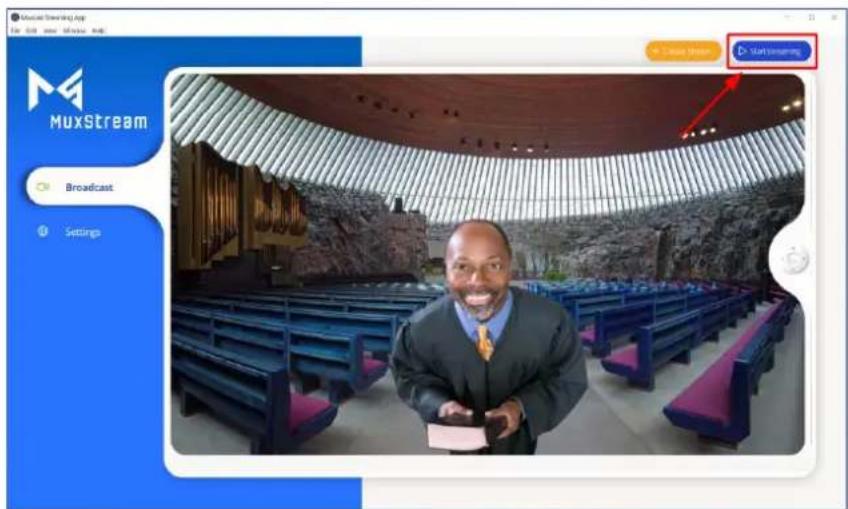
3.2.4 Start Streaming tab
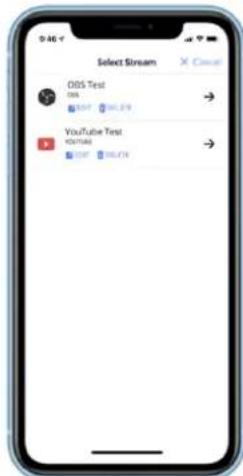
By clicking on the 'Start Streaming' button, the application shows the list of streams created and allows the user to edit, delete or start a transmission. To start streaming, simply click on the arrow to the right of the Stream Name.
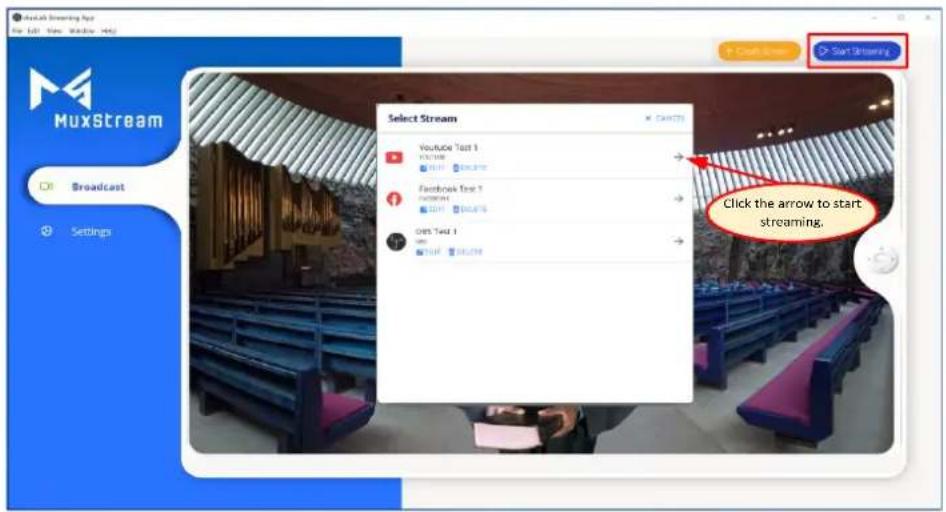
After clicking the arrow, a popup window reminds you to check if the broadcast service is transmitting. Click the "GOT IT" button if the transmission works fine.

To end a transmission just click on the "Stop Streaming" button in this App and in your broadcasting service.
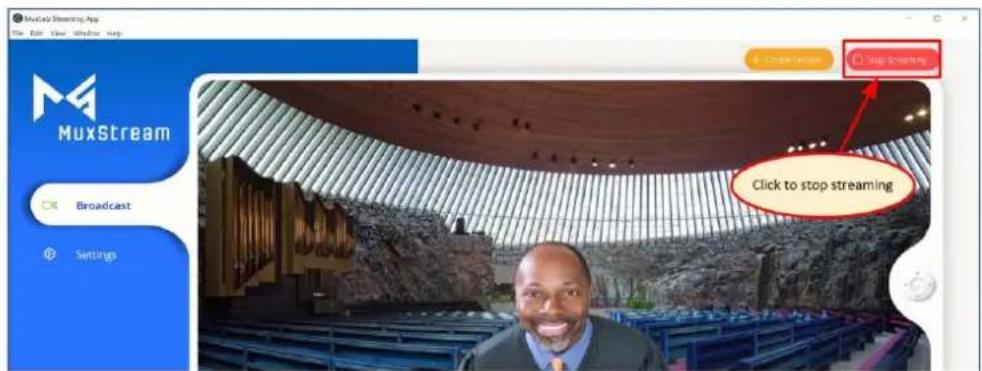
2.2.5 Control interface for iOS and Android.
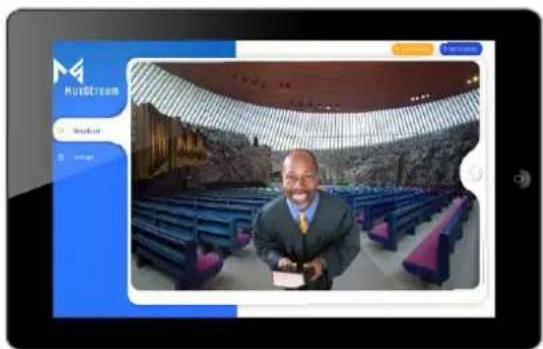
For iOS and Android devices, for both tablets and smartphones, the MuxStream application will present the same options found in the Windows version for PC, changing only the arrangement of the tabs. See section 3.2 for a description of each option.
Below are screenshots of iOS and Android devices for reference only.
iOS iPad
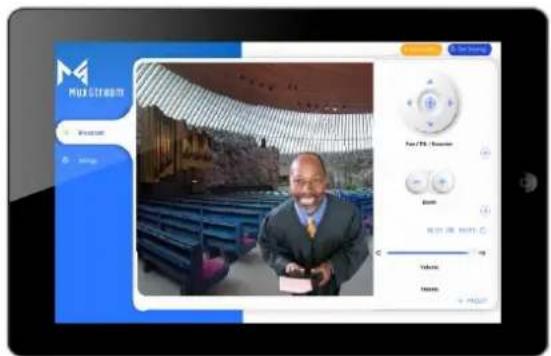

iOS iPhone
Android Tablet

4 Troubleshooting
The following table describes some of the symptoms and possible solutions regarding the MuxStream App.
| symptom | Probable cause | Possible solution |
| No Camera found | The Camera is not connected to the network.The Camera is not turned on.The Camera is connected to a different Subnet | Check that the network cable is properly connected to the Camera.Verify that the Camera is turned on.Make sure you are in the same subnet as your Camera and make sure DHCP mode is active. |
| Not able to Stream | There is no internet connection.The Streaming URL is not correct.The Streaming key is not correct.No Audio being sent. | Verify that you have a good quality Internet connection.Verify that you pasted the correct Streaming URL.Verify that you pasted the correct Streaming key.Some streaming services like YouTube and others require both audio and video signals to be present. Make sure the wireless mic is connected, charged and working correctly. |
MuxLab
PRODIGITAL™
MuxLab Inc.
2321 Rue Cohen
Montreal, Quebec
Canada H4R 2N7
Tel.: +1 (514) 905-0588 Fax: +1 (514) 905-0589
Toll Free (North America): 877 689-5228
URL: www.muxlab.com
E-mail: info@muxlab.com
Brand : MuxLab
Model : 500786
Category : Camera