RoadMate 3050T - Gps MAGELLAN - Free user manual and instructions
Find the device manual for free RoadMate 3050T MAGELLAN in PDF.


User questions about RoadMate 3050T MAGELLAN
0 question about this device. Answer the ones you know or ask your own.
Ask a new question about this device
Download the instructions for your Gps in PDF format for free! Find your manual RoadMate 3050T - MAGELLAN and take your electronic device back in hand. On this page are published all the documents necessary for the use of your device. RoadMate 3050T by MAGELLAN.
USER MANUAL RoadMate 3050T MAGELLAN
Instructions for Operating the Magellan RoadMate 3000T
IMPORTANT SAFETY WARNINGS
The Magellan RoadMate 3000T is a vehicle-navigation aid designed to assist you in arriving to your selected destinations. When using the Magellan RoadMate 3000T, these safety rules must be followed to prevent accidents that can result in injury or death to yourself or others:
- California law prohibits mounting any item to your windshield. Please check with your state or local law enforcement for applicable regulations regarding windshield mounting. Go to www.magellanGPS.com for alternate mounting solutions.
- When driving, the need to view the display is minimal. Voice prompts will guide you to your destination. The driver should enter data or program the Magellan RoadMate 3000T only when the vehicle is stopped. Only a vehicle passenger should enter data or program the Magellan RoadMate 3000T while the vehicle is moving.
- It is your responsibility to comply with all traffic laws.
- Every attempt is made to ensure that the database is accurate. However, roadways, points of interest (POIs), and business and service locations may change over time. The database does not include, analyze, process, consider, or reflect any of the following: legal restrictions (such as vehicular type, weight, height, width, load and speed restrictions); road slope or grade; bridge height, width, weight, or other limits; population density; neighborhood quality or safety; availability or proximity of law enforcement, emergency rescue, medical, or other assistance; construction work zones or hazards; road or lane closures; road, traffic, or traffic facilities' safety or condition; weather conditions; pavement characteristics or conditions; special events; traffic congestion. It is your responsibility to disregard any unsafe, hazardous, or illegal route suggestions.
- Keep the Magellan RoadMate 3000T safe from extreme temperature conditions. For example, do not leave it exposed to direct sunlight for an extended period of time.
- Take care when mounting the Magellan RoadMate 3000T in your vehicle, whether using the windshield mount or other mount or accessories, that it does not obstruct the driver's view of the road, interfere with the operation of the vehicle's safety devices such as air bags, or present a hazard to occupants of the vehicle should the Magellan RoadMate 3000T be dislodged while driving. You assume the risks associated with damage to your vehicle or vehicle occupants as the result of your choices in mounting the Magellan RoadMate 3000T.
- Laws in some states prohibit wearing stereo headphones while operating a motor vehicle. Please contact your state's Department of Motor Vehicles for information.
- The battery in the Magellan RoadMate 3000T is rechargeable and should not be removed. In the event it should need to be replaced, please contact Magellan Technical Support.
- Extreme temperatures may cause the Magellan RoadMate 3000T to stop working. Do not leave it exposed to extreme heat or cold for long periods of time.
About Charging the Magellan RoadMate 3000T
- Use only the AC adapter (Phihong: PSC11R-050) approved for your Magellan RoadMate 3000T. Use of another type of AC adapter will result in malfunction and/or danger.
- Use only the car charger approved for / supplied with your Magellan RoadMate 3000T. Use of another type of car charger will result in malfunction and/or danger.
- The Magellan RoadMate 3000T is intended to be supplied with a LISTED Power Unit marked with "LPS", "Limited Power Source" and output rated +5 V dc / 2.0 A".
- Use the USB cable approved for / supplied with your Magellan RoadMate 3000T.
- Use the battery provided with your Magellan RoadMate 3000T or its identical replacement approved for the Magellan RoadMate 3000T
- For safety reasons, the battery in your Magellan RoadMate 3000T will stop charging when the ambient temperature is less than 32^ F ( 0^ C) or more than 113^ F ( 45^ C)
IMPORTANT SAFETY WARNINGS
About the AC Adapter
- Do not use the adapter in a high moisture environment. Never touch the adapter when your hands or feet are wet.
- Allow adequate ventilation around the adapter when using it to operate the device or charging the battery. Do not cover the AC adapter with paper or other objects that will reduce cooling. Do not use the AC adapter while it is inside a carrying case.
- Connect the adapter to a proper power source. The voltage and grounding requirements are found on the product case and/or packaging.
- Do not use the adapter if the cord becomes damaged.
- Do not attempt to service the Magellan RoadMate 3000T. There are no serviceable parts inside. Replace the Magellan RoadMate 3000T if it is damaged or exposed to excess moisture.
About the Battery
- Do not attempt to replace the battery. Please contact Magellan Technical Support for issues related to the battery.
- Use the charger approved for your Magellan RoadMate 3000T.
IMPORTANT INSTRUCTIONS FOR SERVICE PERSONNEL ONLY:
- Caution: Risk of explosion if battery is replaced by an incorrect type. Dispose of used batteries according to the instruccions.
- Replace only with the same or equivalent type recommended by Magellan.
- The battery must be recycled or disposed of properly.
- Use the battery only in the specified equipment.
INSTRUCTION TO THE USER:
This equipment has been tested and found to comply with the limits for a class B digital device, pursuant to part 15 of the FCC Rules. These limits are designed to provide reasonable protection against harmful interference in a residential installation. This equipment generates, uses and can radiate radio frequency energy and if not installed and used in accordance with the instructions, may cause harmful interference to radio communications. However, there is no guarantee that interference will not occur in a particular installation. If this equipment does cause harmful interference to radio or television reception, which can be determined by turning the equipment off and on, the user is encouraged to try to correct the interference by one or more of the following measures:
- Reorient or relocate the receiving antenna.
- Increase the separation between the equipment and receiver.
- Connect the equipment into an outlet on a circuit different from that to which the receiver is connected.
- Consult the dealer or an experienced radio/TV technician for help.
IMPORTANT SAFETY WARNINGS
In order to maintain compliance with FCC regulations, shielded cables must be used with this equipment. Operation with non-approved equipment or unshielded cables is likely to result in interference to radio and TV reception. The user is cautioned that changes and modifications made to the equipment without the approval of manufacturer could void the user's authority to operate this equipment.
Trade Name Model Number

Tested To Comply With FCC Standards
FOR HOME OR OFFICE USE
This Class B digital apparatus meets all requirements of the Canadian Interference-Causing Equipment Regulations.
© 2006 Thales Navigation, Inc. All rights reserved. The Magellan Logo, Magellan, Magellan RoadMate 3000T, Turn it on and go, TrueView, QuickSpell, SmartDetour, and SmartVolume are trademarks of Thales. No part of this user manual may be reproduced or transmitted in any form or by any means, electronic or mechanical, including photocopying and recording, for any purpose other than the purchaser's personal use, without the prior written permission of Thales.
631312-01 A
TABLE OF CONTENTS
Magellan® RoadMate™ 1
Instructions for Operating the
Magellan RoadMate 3000T 1
About Charging the Magellan RoadMate 3000T ....1
IMPORTANT SAFETY WARNINGS ....1
About the AC Adapter 2
About the Battery 2
Important instructions for service personnel only: 2
INSTRUCTION TO THE USER: 2
TABLE OF CONTENTS ...... i
Chapter 1: Contact Information ....1
Technical Support 1
Warranty Service 1
Customer Service 1
Registration 1
Chapter 2: GPS Information ...... 2
About Satellite Navigation 2
How Satellite Navigation Works 2
Line of Sight 2
A Word on the Safe Usage of GPS Maps 3
From Source to Destination.... 3
Placement of Your GPS Receiver for Optimal Satellite Reception 3
Signal Acquisition Time 3
GPS Maps and Your Safety 4
Chapter 3: Magellan RoadMate 3000T 5
Front View 5
Rear View 6
Top View 6
Bottom View 7
Right Side View 7
Left Side View 8
Car Holder 8
Using Removable Memory Cards 9
To Insert the Storage Card: 9
To Remove the Storage card: 9
Chapter 4: Vehicle Installation ....10
Installing the Windshield Mount 10
Chapter 5: Navigation Basic Operation 12
Turning the Magellan RoadMate 3000T On Out of the Box 12
Power Off versus "Sleep" Mode 12
Power Management 12
Resetting the Magellan RoadMate 3000T 12
Adjusting the Volume 12
Repeating the Last Command 12
Making Selections 13
Inputting Text Characters 13
Additional Characters ("More" Button) 13
Numerical Characters ("123" Button) 14
What Is QuickSpell? 14
Help with Address Entry 15
Chapter 6: Traveling ...... 16
Guidance Information Screens 16
Map Screen 17
TABLE OF CONTENTS
Changing from 2D to 3D Map View ....17
Changing the Map Zoom Levels 18
Maneuver List Screen 18
TrueView Screen 19
Choosing the Route Method 20
Changing the Route Method 20
Cancelling a Planned Route 20
Detouring from the Planned Route 21
Excluding a Maneuver in the Planned Route 21
Displaying Information About Your Present Location 22
Saving Your Current Location to Your Address Book 22
Finding POIs Along Your Route 22
Finding a Detour Along Your Route 23
Chapter 7: Selecting Destinations ......25
Destination Screen 25
Country Selection (Globe Button) 25
Entering and Routing to Your Home Address 25
Selecting a Destination Using Select Address 26
Search By City 27
Search by Zip Code 27
Search By State 28
Previous City 29
Selecting a Destination Using the Address Book 30
Previous Destinations 30
Saving a Previous Destination to the Address Book 31
Deleting A Previous Destination 32
Favorites 32
Editing a Favorite 33
Deleting A Favorite 33
List Addresses 34
Editing an Address 34
Deleting an Address 35
Create New Entry 35
Search by City 35
Search by Zip Code 36
Search by State 37
Previous City 38
Trip Planner 39
New 39
Optimizing a Trip 41
Guide Me 42
Edit 42
Delete and Rename 43
Selecting a Point of Interest as a Destination 45
Spell Name 46
Nearest 46
List By City 46
Select Category 47
Select Category....47
Nearest 48
List by City 48
Spell Name 48
Cuisine Type 49
Custom POIs 49
Selecting an Intersection as a Destination 51
TABLE OF CONTENTS
Search by City 51
Search by Zip Code 52
Search by State....52
Previous City 53
Chapter 8: Navigation Options ....55
Configuration 55
POI Selection 55
Custom POIs 55
Map Options 60
TrueView Options 60
Select Map Color 60
Route Preferences....61
Detour Options 62
Menu Colors 63
Tone Options 63
GPS Options 63
GPS Status 63
Set GPS Position 64
Simulator Mode....64
Automatic Volume....65
Backup and Restore....65
Backup 65
Restore 65
Map Information 66
Trip Computer 66
Current Trip 66
Stopping or Starting the Trip Computer 67
Saving the Current Trip Report 67
Resetting the Trip Computer 68
Viewing a Saved Trip Report 68
Deleting a Trip Report 68
Chapter 9: System Settings ....70
Brightness 70
Power Management 70
Password 70
Set Password 70
Change Password 71
Delete Password 71
Language 71
Chapter 10: System Status ....72
Product Information 72
User Storage 72
Diagnostics 72
Audio Test 72
Touchscreen Test 72
Keypad Test 72
Video Test 72
Contact Us 73
Chapter 11: Magellan RoadMate Tools Installation ....74
Installing the Software 74
Chapter 12: Magellan RoadMate Music Manager ....75
Chapter 13: Music Player 76
Single Song Play 76
Multiple Song Play 76
TABLE OF CONTENTS
Play....77
Create 77
Modify 77
Delete 77
Rename 78
Play Mode 78
List Songs 78
Equalizer 79
Help 79
Chapter 14: Magellan RoadMate Photo Manager 80
Chapter 15: Photo Viewer 81
View Single Photo 81
Previous Image (left arrow) 81
Zoom 81
Slideshow 82
Pan 82
Rotate Image 82
Next Image (right arrow) 82
ESC 82
Manage Photos 82
List View 82
Thumbnail 82
Rename 82
Properties 83
Tools 83
Preferences 83
Delete Files 83
About 83
Chapter 16: Magellan RoadMate POI Manager 84
Latitude 84
Longitude 84
Altitude 85
Opening a POI File 85
Creating a New POI File 86
Adding Individual POI's 86
Importing a Data File 88
Appendix 89
POI Categories 89
Specifications 91
PC Requirements 91
GPS Status Screen 92
GPS STATUS Screen Structure-first page 92
Bad fix code 92
GPS STATUS Screen Structure - second page 93
Typical GPS STATUS Screen Display 94
Frequently Asked Questions 95
Chapter 1: Contact Information
If you need support for your Magellan RoadMate 3000T and you wish to contact Thales, please use the following information to direct your questions/comments to the proper person.
1.1 Technical Support
If you need technical assistance or “how-to” help, or if you have a technical question about the functionality of your Magellan product, please contact us on the Internet at www.magellangps.com or reach us by fax or by phone.
Our Technical Support phone representatives are available Monday through Friday, 6:00 a.m. to 5:00 p.m. PST/PDT. After hours, you may leave a detailed voice mail message that will be returned within the next business day.
Telephone: (866) 868-2259 or (909) 394-5000 (outside the United States)
You may also reach Technical Support by Fax: (909) 494-7777 [Attn: Tech. Support]; or E-Mail: magellansupport@thalesnavigation.com
1.2 Warranty Service
To obtain warranty service on your Magellan RoadMate 3000T, you must contact us for a return authorization (RA) before you ship the product. Packages arriving at our dock without an RA will be refused.
To obtain an RA, simply contact our Technical Support group at: Telephone:(866) 868-2259 or (909) 394-5000 (outside the United States); Fax: (909) 394-7050 [Attn: Tech. Support]; or E-Mail: magellansupport@thalesnavigation.com
1.3 Customer Service
If you need to order accessories or obtain unlock codes, you can call our Customer Service Department Monday through Friday, 6:00 a.m. to 5:00 p.m. PST/PDT, or visit our Web site atwww.magellangps.com.
Telephone: (866) 339-0488 or (909) 394-5000 (outside the United States); Fax: (909) 394-7078.
1.4 Registration
Please make sure to register your Magellan RoadMate 3000T at www.magellangps.com. By registering, you will be informed of the latest product updates.
Chapter 2: GPS Information
2.1 About Satellite Navigation
Global satellite navigation is an exciting technology, providing enhanced productivity and accuracy in a vast number of industries. It adds a new level of enjoyment and safety to a wide range of navigation, sports, and recreational activities.
A Global Navigation Satellite System (GNSS) is a network of satellites that transmit high-frequency radio signals containing time and distance data that can be picked up by a receiver, allowing users to pinpoint their precise locations anywhere around the globe.
There are two Global Navigation Satellite Systems in operation: the U.S. Global Positioning System (GPS) and the Russian GLObal NAvigation Satellite System (GLONASS). These systems are constantly being upgraded to meet higher standards of reliability. A third GNSS named GALILEO, after the Italian astronomer of the early 1600s, is being developed in Europe specifically to provide a higher standard of integrity and reliability, required to ensure the safety of lives during transport by air, land and sea, without the use of additional augmentation systems.
While the GPS and GLONASS satellite networks are being developed to achieve maximum performance, Satellite-Based Augmentation Systems (SBAS) have been established to provide improved accuracy. SBAS provides differential signal corrections for GPS and GLONASS transmissions with the use of ground stations and geostationary satellites in specific regions. This is GNSS-1, the first phase in establishing the required integrity for high-precision satellite navigation.
GNSS-2 requires the launching of new satellites into orbit and a complete upgrade of the existing satellite systems. This second phase is already well underway. GALILEO, scheduled to begin service in 2008, is being developed to meet the standards of GNSS-2 for rapid and reliable, certified precision positioning.
2.2 How Satellite Navigation Works
Global navigation satellites continuously transmit time and distance information as they orbit Earth in a precise formation. Navigation satellite receivers use this information to calculate an exact location through triangulation. Every point on Earth is identified by two sets of numbers called coordinates. These coordinates represent the exact point where a horizontal line, known as latitude, crosses a vertical line, known as longitude. The receiver locks on to at least three satellites and uses the information received to determine the coordinates of the receiving device.
By comparing the time the signals were transmitted from the satellites and the time they were recorded, the receiver calculates how far away each satellite is. The distance of the receiver from three or more satellites reveals its position on the surface of the planet. With these distance measurements, the receiver might also calculate speed, bearing, trip time, distance to destination, altitude, and more.
The satellite-navigation device may display its position as longitude/latitude, Universal Transverse Mercator (UTM), Military Grid (MG), or simply as a point on an electronic map. Many Thales Navigation receivers provide comprehensive mapping data, making satellite navigation an easy tool to enhance your recreational and industrial activities.
2.2.1 Line of Sight
Satellite-navigation receivers operate by line of sight with global-positioning satellites. This means that at least three satellites must be in “view” of a receiver in order to calculate longitude and latitude. A fourth satellite must also be within line of sight to calculate altitude. On average, eight satellites are continuously within line of sight of every position on Earth; the more satellites in view, the more accurate the positioning.
Though the radio signals of navigation satellites will pass through clouds, glass, plastic, and other lightweight materials, satellite-navigation receivers will not work underground or in other enclosed spaces.
Chapter 2: GPS Information
2.3 A Word on the Safe Usage of GPS Maps
Just like paper maps, maps on GPS devices vary greatly in terms of information included and visual presentation. Whether topographical maps, roadmaps or marine charts, each map and the data it presents is designed for a specific purpose. For example, marine charts will often present only a minimal representation of roadways and are not a substitute for street maps. Topographic maps usually provide minimal detail about bodies of water and do not contain marine navigational markers.
Maps also vary widely in scale: the smaller the scale, the more detailed the map. Therefore, when using GPS maps (just as with paper maps) it is important to consider what type of map you are using in your explorations and to use common sense.
2.3.1 From Source to Destination
Thales Navigation, maker of Magellan GPS products, is not a cartography company. We do not create the maps that are used on our GPS devices. We seek to acquire map data from the best public and private sources available at the time of publication. Thales Navigation licenses* topographical maps, roadmaps, marine charts and points of interest (POI) data from commercial and governmental cartographic sources that provide raw map data. Thales Navigation processes and compresses the raw data into a format that makes it presentable and manageable to work on our GPS devices. And to ensure that our map data is as robust as possible, data from multiple sources are often combined to provide a better user experience for our customers. This processing does not alter the landforms, coordinates or other spatial data that comes in the raw data. The accuracy of the maps is fundamentally dependent on the source data used to create them. Map data changes frequently due to both natural and man-made causes. As a result, governmental and commercial cartography companies must continuously review, correct, and improve upon their map data. We release new versions of our maps on a regular basis to reflect these changes.
After processing the data, we test the compatibility of the map with our GPS devices to ensure that the products we release work properly on our GPS devices. We also beta-test our products to get customer feedback prior to release.
2.4 Placement of Your GPS Receiver for Optimal Satellite Reception
Firstly, before considering signal reception, it is important to understand that your GPS receiver is a sensitive piece of equipment. You should never place it in an area of your vehicle where it may be struck by other items, or where vibration may cause it to strike other items or parts of the vehicle. The windshield mount included in the box allows you to place the receiver in such a way that the antenna can receive the satellite signal through the windshield without being obstructed by other parts of the vehicle. However, tinted windows or other reflective coatings may interfere with reception. In this case, it may be required to attach an external antenna (optional). An external antenna provides faster satellite fix times and greater signal strength. Because it is mounted outside of the vehicle, it is not affected by reflective coatings on windows and has an unobstructed line of sight to the satellites. Other mounting solutions are available but may require an external antenna.
External conditions also affect GPS signal reception. Although weather conditions do not affect the signal, tall buildings and trees, driving through canyons, wooded areas, or tunnels, and sitting in a garage or covered parking area will affect the GPS signal. The GPS receiver constantly monitors and updated the GPS signal status and will reacquire the signal once it is clear of any obstructions.
2.5 Signal Acquisition Time
The first time you use your Magellan RoadMate 3000T, or if you travel over 500 miles with it off, there may be a delay in receiving the initial satellite fix; depending on your position and the position of the satellites, this could take 15 minutes or more. Normal usage will receive the satellite fix much faster, but still may take several minutes. It is important to have your antenna rotated upward and an unobstructed view of the sky to receive the best possible satellite signal.
Chapter 2: GPS Information
2.6 GPS Maps and Your Safety
Remember, your GPS device is an aid to navigation. It must be used with common sense, and it is important that users interpret GPS map data with a critical eye. Landscapes and roads change or may be impassable, trees and tall buildings can obscure GPS signals, and your GPS device may not always reflect the complete picture. When using GPS, you must combine the information provided by your GPS map with your relevant local knowledge, road signage, buoys, depth soundings and changing local conditions to generate a complete understanding of your situation.
It is your responsibility to ensure compliance to all traffic laws, including pedestrian observance of crosswalks, and to use good judgment while operating the Magellan GPS receiver. Safety must be your primary concern. The Magellan GPS receiver must not be used while engaged in any activity requiring the user's full attention to the environment. For instance, the Magellan RoadMate 3000T GPS receiver should be operated only by vehicle passengers or by the driver when the vehicle has come to a complete stop. The driver must not attempt to view the display while driving. Disregard any unsafe, hazardous or illegal route suggestions.
Magellan maps do not include, analyze, process, consider or reflect any of the following: legal restrictions (such as weight, height, width, load and speed restrictions); road slope or grade; bridge height, width, weight or other limits; population density; neighborhood quality or safety; availability or proximity of law enforcement, emergency rescue, medical or other assistance; construction work zones or hazards; road, sidewalk, or waterway closures or conditions; weather conditions; pavement characteristics or conditions; special events; traffic congestion; time of day.
*Thales Navigation licenses map data from governmental sources such as, but not limited to, U.S. Geological Survey (USGS), the National Oceanic and Atmospheric Administration (NOAA-NOS) and the Canadian Hydrographic Service (CHS). Thales Navigation also licenses map data from commercial cartography companies such as Navigation Technologies, Navionics, DMTI and C-Map.
Chapter 3: Magellan RoadMate 3000T
3.1 Front View
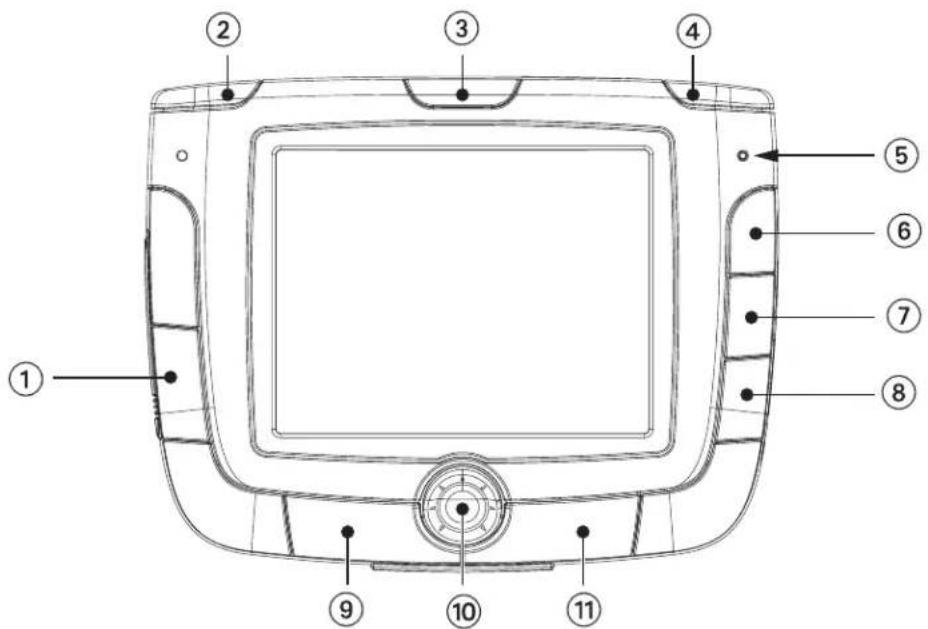
text_image
Technical diagram of a device rear panel with numbered labels pointing to key components.| 1 Mute Speaker Press to disable sound from the speaker and the headphone jack. | |
| 2 Zoom Out Button | While viewing the map, press to zoom the map display out. The Zoom Out Button can also be used with long lists to scroll one page at a time. |
| 3 Power/Sleep Button | Press and hold to turn the power on or off.Turning on: Hold for 2-3 seconds if in sleep mode. Hold for 10 seconds if first time use or not in sleep mode.Turning off: Hold for 2-3 seconds to put unit into sleep mode; 10 seconds to turn unit off completely. |
| 4 Zoom In Button | While viewing the map, press to zoom in to the center of the display. The Zoom In Button can also be used with long lists to scroll one page at a time. |
| 5 Charging Indicator | LED indicates the battery charging status of the Magellan RoadMate 3000T. Orange - Charging; Green - Fully charged. |
| 6 Locate Button | Press to display current location details and save it to your address book. |
| 7 Destination Menu/View | While not navigating, switches between the map display and the Destination Menu. While navigating, switches between the map display, the maneuver list and the TrueView screen. |
| 8 Main Menu Press to go to the Application Selection Menu. | |
| 9 Enter Press to confirm an entry. | |
| 10 Navigation Key | Use to scroll through lists one item at a time, menus, or to pan the Map screen. |
| 11 Escape Press to cancel an entry or goes back to the previous screen.. | |
Chapter 3: Magellan RoadMate 3000T
3.2 Rear View
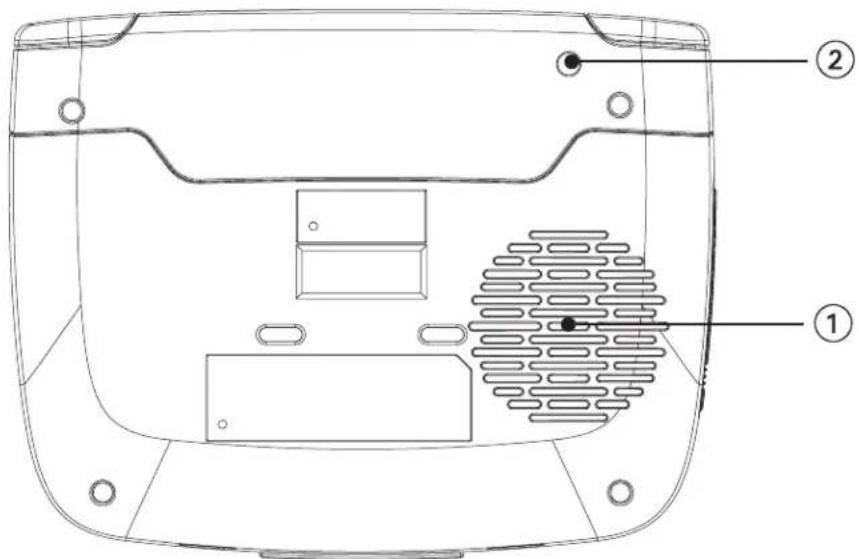
text_image
Technical diagram of a device rear panel with labeled components and internal structure| 1 Speaker Used for audible maneuvering instructions and music playback. |
| 2 External Antenna Connector Provides access by an optional external antenna. |
3.3 Top View
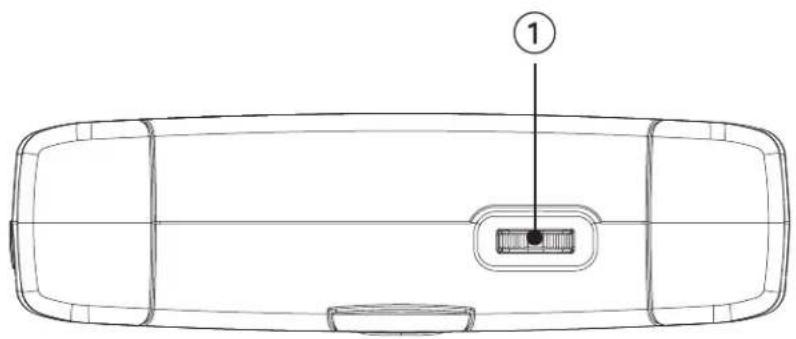
natural_image
Top-down line drawing of a car front view with a labeled component (no text or symbols beyond the number 1)| 1 Volume Adjustment | Increases (slide right) or decreases (slide left) the volume level. Press to repeat the last voice prompt. |
Chapter 3: Magellan RoadMate 3000T
3.4 Bottom View

natural_image
Technical line drawing of a device casing with labeled component (1), no text or symbols present1 16-pin Connection For future expansion.
3.5 Right Side View
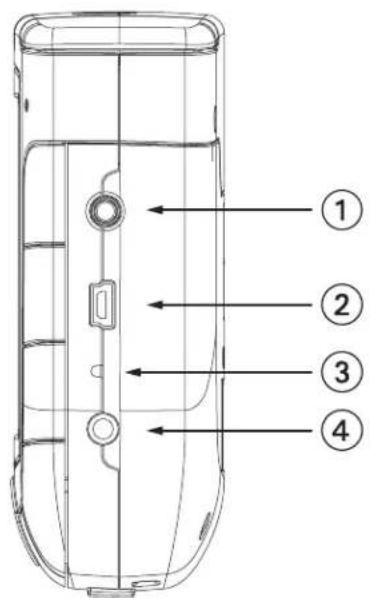
text_image
Technical diagram of a cylindrical device with numbered parts labeled 1 to 4| 1 Stereo Headphone Connection Used | to connect stereo headphones. |
| 2 USB Connection | Plug the Magellan RoadMate 3000T into your PC to upload music, photos, and custom POI's. |
| 3 Reset Button | In the event the Magellan RoadMate 3000T should fail to respond, press the reset button to reboot. |
| 4 Power Connection | Insert the vehicle power adapter or optional AC adapter to charge the battery. |
Chapter 3: Magellan RoadMate 3000T
3.6 Left Side View
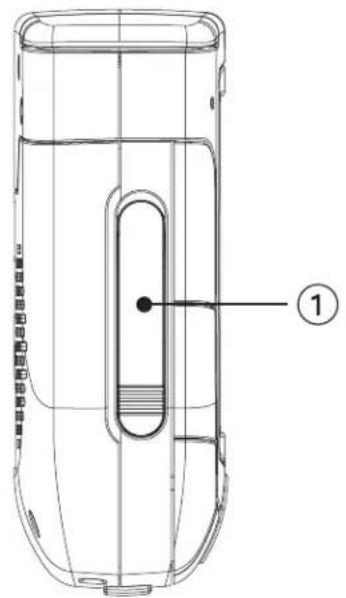
text_image
Technical diagram of a cylindrical device with labeled parts and numbered annotation| 1 | Memory Card slot | To listen to music or view files stored on a SD/MMC Card. |
3.7 Car Holder
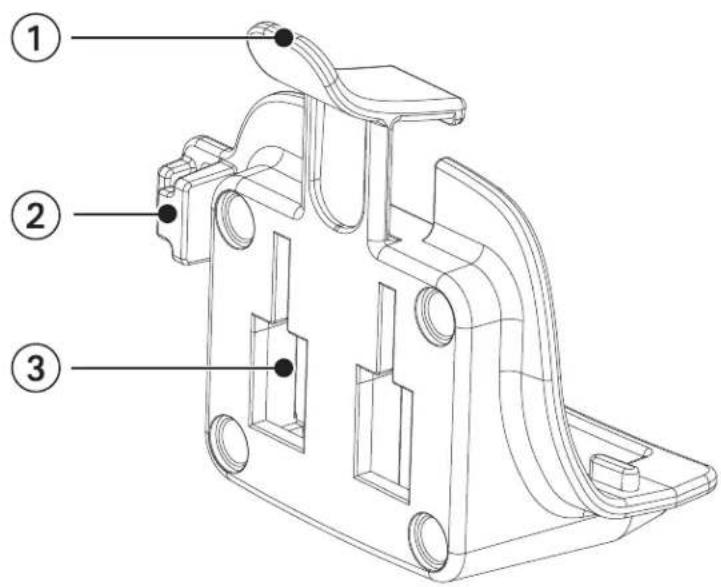
text_image
Technical diagram of a mechanical component with numbered parts labeled 1, 2, and 3.| 1 Car holder Release Press to release | Magellan RoadMate 3000T from car holder. |
| 2 Wire Catcher Used to secure the power cable. | |
| 3 Windshield Mount connection Insert | the notches of the windshield mount here. |
Chapter 3: Magellan RoadMate 3000T
3.8 Using Removable Memory Cards
The Magellan RoadMate 3000T is equipped with a memory card slot on the left side (see "Left Side View" on page 8) that accepts Secure Digital (SD) cards and Multimedia Cards (MMC). These cards are used to backup navigation data or to store music and photos. The memory card slot on your Magellan RoadMate 3000T employs what is called a "push-push" method of locking and releasing. In other words, when you insert the card you must push it to lock it in, and to release it you must push it also. Storage cards come in a variety of sizes and manufacturers.
3.8.1 To Insert the Storage Card:
Peel back the rubber gasket to expose the memory card slot. Do not completely remove the rubber gasket.
The memory card can only be inserted in one direction. Do not force the card into the slot.
Insert the memory card into the slot with the metal contacts going in first and the beveled edge down and the label facing front.
Push the memory card until you hear a click.
Close the rubber gasket.

natural_image
Line drawing of a device casing with internal components and a blue arrow indicating direction (no text or symbols)3.8.2 To Remove the Storage card:
Peel back the rubber gasket to expose the memory card slot. Do not completely remove the rubber gasket.
Push the memory card until you hear a click. Do not attempt to pull the card out of the slot
Remove the memory card from the slot.
Close the rubber gasket.
Chapter 4: Vehicle Installation
Take care when mounting the Magellan RoadMate 3000T in your vehicle, whether using the windshield mount or other mount, that it does not obstruct the driver's view of the road. Make sure that the placement of the Magellan RoadMate 3000T and cable does not interfere with the operation of vehicle safety devices, such as air bags. You assume the risks associated with damage to your vehicle or vehicle's occupants as a result of how you choose to mount the Magellan RoadMate 3000T.
4.1 Installing the Windshield Mount
Attach the car holder to the back of the Magellan RoadMate 3000T. Insert the bottom of the Magellan RoadMate 3000T first then snap the car holder clip at the top into place.
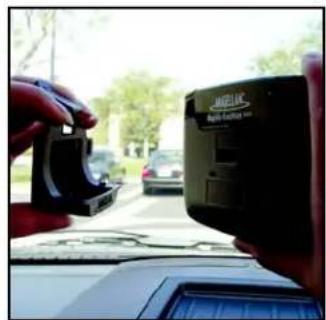
text_image
Street photo showing a hand holding a payment terminal with visible 'MAGLIC' branding and car backgroundSlide the windshield mount onto the back of the car holder.
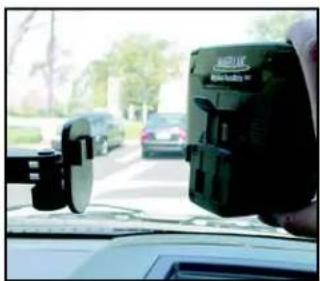
natural_image
Interior view of a car showing a driver's seatbelt device and dashboard, with cars on a road and trees in the background (no visible text or symbols)Press the windshield mount to the glass and slide the locking lever toward the glass.

natural_image
Close-up of hands adjusting a camera lens on a car intake manifold, with vehicles and trees in the background (no visible text or symbols)Plug the power cable into the Magellan RoadMate 3000T as shown. This step is optional but ensures the battery remains charged.

natural_image
Close-up of a hand adjusting a camera lens on a car intake tray, with vehicles and road in background (no visible text or symbols)Chapter 4: Vehicle Installation
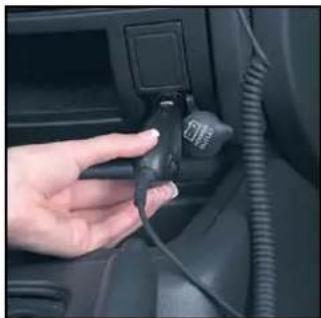
Plug the power adapter into your vehicles cigarette lighter or 12 volt receptacle.
natural_image
Close-up of a hand inserting a plug into a car's seat panel (no visible text or symbols)Installation is complete, and you are ready to turn the Magellan RoadMate 3000T on and go.
Chapter 5: Navigation Basic Operation
5.1 Turning the Magellan RoadMate 3000T On Out of the Box
Press the power button for approximately ten seconds (see "Front View" on page 5). If power is connected properly or if the battery is charged sufficiently, the Magellan screen will appear followed by the Warning screen. To comply with the warnings, press OK. Next, the Quick Tips screen will appear. It is recommended to view the Quick Tips to better familiarize yourself with the functionality of the Magellan RoadMate 3000T. Otherwise, select ESC to skip viewing the Quick Tips at this time. By default, the navigation application will launch and the Destination screen will appear.
5.1.1 Power Off versus "Sleep" Mode

text_image
Destination USA & Canada Select Address Address Book Dining, ATM, Gas... IntersectionThe Magellan RoadMate 3000T can be put into “sleep” mode. This mode is a limited power mode that saves battery power. When “waking up” from sleep mode, the time to acquire a satellite fix is significantly shorter than when the Magellan RoadMate 3000T is powered up after being completely turned off.
To enable sleep mode, press and hold the Power button for 2-3 seconds. The display will shut off and the power indicator light will be on dimly.
To power off completely, press and hold the Power button for 10 seconds. The Magellan RoadMate will be fully shut off.
To power up the Magellan RoadMate 3000T from sleep mode, press and hold the power button for 2-3 seconds. The Warning screen will appear. Select OK and you will be taken to the last screen you were viewing.
5.1.2 Power Management
The Magellan RoadMate 3000T can be configured to automatically go into “sleep” mode after 20 minutes of no keys or touchscreen being pressed. Press the MENU key on the Magellan RoadMate 3000T then, select System Settings and select Power Management. Select the Auto Power Off time and then, select OK. For more information on Power Management, see “Power Management” on page 70.
5.2 Resetting the Magellan RoadMate 3000T
In the event the Magellan RoadMate 3000T should stop responding, press RESET button. If a route was active at the time the Magellan RoadMate 3000T was reset, powering the Magellan RoadMate 3000T back on will prompt you to resume, or cancel the active route.
5.3 Adjusting the Volume
The VOLUME CONTROL lever is located at the top of the Magellan RoadMate 3000T (see "Top View" on page 6). Use the lever to set the volume of the speaker to a desired level. The volume level indicator will appear on screen.
5.4 Repeating the Last Command
While routing to a destination, if you missed the last verbal command, you can repeat it by pressing the VOLUME CONTROL lever down.
Chapter 5: Navigation Basic Operation
5.5 Making Selections
The Magellan RoadMate 3000T comes equipped with a touch screen. To make a menu selection, or enter characters, simply touch the screen in the location of the item you wish to select.
You can also use the NAVIGATION key (see "Front View" on page 5) to scroll around the screen and highlight the item to select. When the desired item is highlighted, press the ENTER key (see "Front View" on page 5) to select the item.
5.6 Inputting Text Characters
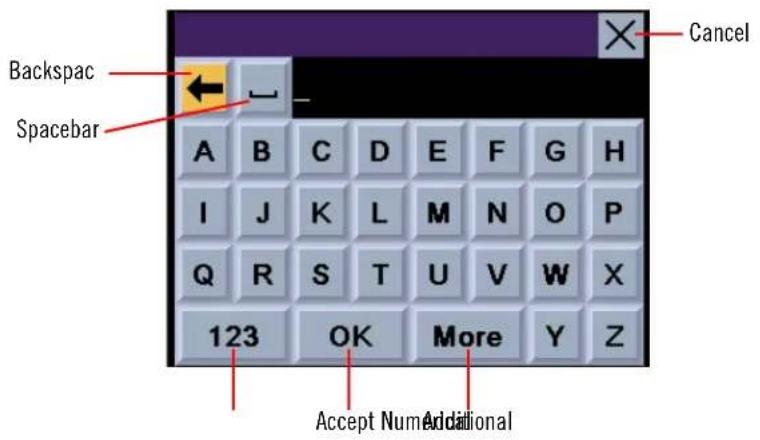
Whenever you need to input names, street addresses, etc., the Magellan RoadMate 3000T will display a keyboard. Touch the letter you want and, if you make a mistake, use the Backspace key to go back one character at a time. The Spacebar is used to insert spaces between characters or words.
text_image
Backspac Spacebar A B C D E F G H I J K L M N O P Q R S T U V W X 123 OK More Y Z Accept Num Additional Cancel5.7 Additional Characters ("More" Button)
When you are entering characters, you may need to add punctuation or other special characters. When available, pressing the More button brings up a keypad with the characters shown here.

text_image
& - . * / @ : $ ! " # % ( ) * + < > = ? , _ \ * 123 OK More [ ]Chapter 5: Navigation Basic Operation
5.8 Numerical Characters ("123" Button)
When available, pressing the 123 button brings up a keypad with the numeric characters shown here.

text_image
1 2 3 4 5 6 7 8 9 ABC OK 05.9 What Is QuickSpell?
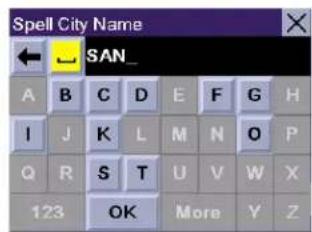
The Magellan RoadMate 3000T uses QuickSpell technology to provide you with the fastest method possible to enter characters. QuickSpell eliminates the possibility of a misspelled word or looking for a city or street that is not in the loaded database. As you begin entering characters, the QuickSpell feature of the Magellan RoadMate 3000T dims out those characters which that are not available, thereby speeding up the process of entering data.
Example:
Suppose that you need to input the name of a city--in this case, San Francisco.
Select "S".

text_image
Spell City Name A B C D E F G H I J K L M N O P Q R S T U V W X 123 OK More Y ZSelect "A".

text_image
Spell City Name ← S_ A B C D E F G H I J K L M N O P Q R S T U V W X 123 OK More Y ZSelect "N".

text_image
Spell City Name ← → SA_ A B C D E F G H I J K L M N O P Q R S T U V W X 123 OK More Y ZChapter 5: Navigation Basic Operation
Select the spacebar.
text_image
Spell City Name ← SAN_ A B C D E F G H I J K L M N O P Q R S T U V W X 123 OK More Y ZWhen enough characters have been entered, the Magellan RoadMate 3000T will automatically display the list of cities; or, if you feel that enough characters have been entered, select OK.

text_image
Spell City Name ← ... SAN F_ A B C D E F G H I J K L M N O P Q R S T U V W X 123 OK More Y ZUse the Navigation key to scroll the list up or down and select "San Francisco, CA" from the list.
The list of items found in the database is limited to 100 items. When over 100 items have been found, "Matches: > 100" will be displayed shown in the bottom right corner of the display; you may need to press the CANCEL key (see "Front View" on page 5) and enter additional characters.

text_image
Select City Name San Felipe, TX Austin San Fernando, CA Los Angeles San Francisco, CA San Francisco South San Francisco, CA San Mateo Within City Matches: 45.10 Help with Address Entry
When entering street names, please follow these simple guidelines to help you find your selection:
- Do not enter prefixes such as "N" or "North".
- Do not enter the street type such as "Ave." or "Avenue" except in some cases where the street type is included before the street name (e.g. "Via Calle", "Avenue 378", or "Rue Andre").
- When entering a numbered street (e.g. "4th Street"), use the numeric keypad to enter "4" and go back to the alpha keypad to enter "th".
- For streets with multiple words such as "Overland Heights", you must enter the first word. Entering the word "Heights" will not return the desired street.
Chapter 6: Traveling
6.1 Guidance Information Screens
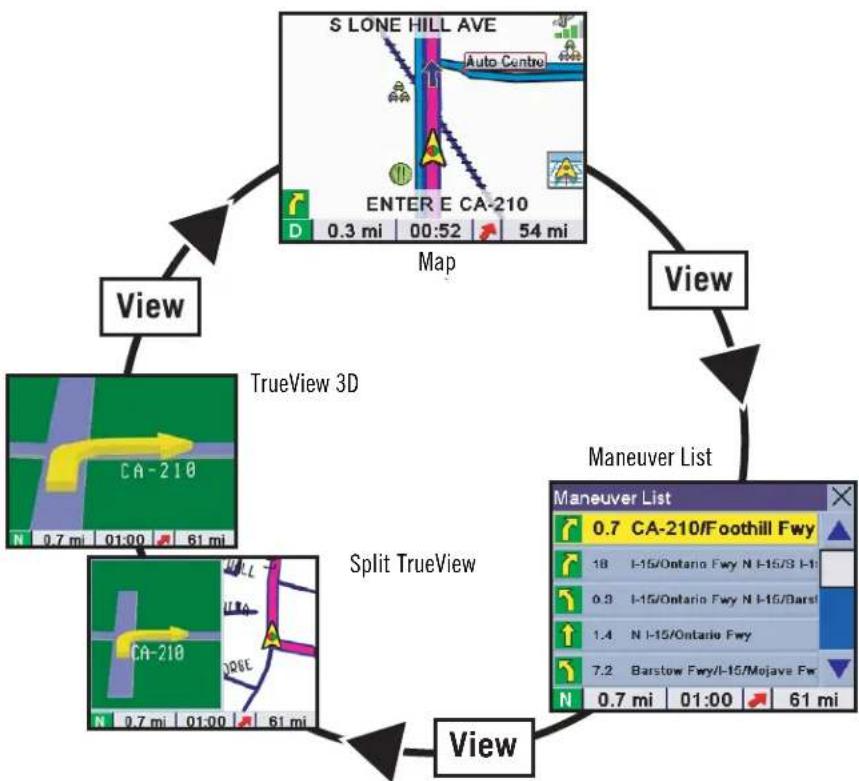
The Magellan RoadMate 3000T has three screens you can use to assist you in traveling to your destination: the Map screen, the Maneuver List screen, and the TrueView/Split TrueView screen.
Map: When a new destination is selected and calculated, the Map screen is displayed. This screen displays a map of your surrounding area along with the planned route (if calculated) and information about the route. This screen can be accessed when no route has been calculated by selecting Map or by pressing the VIEW key (see “Front View” on page 5.) while at the Destination screen.
Maneuver List: This screen is available only when a route has been calculated. This screen displays a list of maneuvers to follow in order to arrive at the destination. It can also be used exclude a maneuver and then recalculate the route. To access the Maneuver List screen, press the VIEW key (see "Front View" on page 5.) while viewing the Map screen.
TrueView: This screen is available only when a route has been calculated. This screen displays the next maneuver as a 3D graphic. It will help you to know which lane to be in and provides you with an easy-to-follow picture of the next maneuver. To access the TrueView screen, press the VIEW key (see “Front View” on page 5.) while viewing the Maneuver List. You can also show the TrueView in split mode (see “TrueView Options” on page 60). This view shows the TrueView screen on the left side and the Map on the right side.
flowchart
graph TD
    A["S LONE HILL AVE"] -->|Map 0.3 mi 00:52 54 mi| B["View"]
    B --> C["View"]
    C --> D["View"]
    D --> E["Maneuver List"]
    E --> F["Split TrueView"]
    F --> G["View"]
    G --> H["View"]
    H --> I["TrueView 3D"]
    I --> J["View"]
    J --> K["View"]
Chapter 6: Traveling
6.2 Map Screen
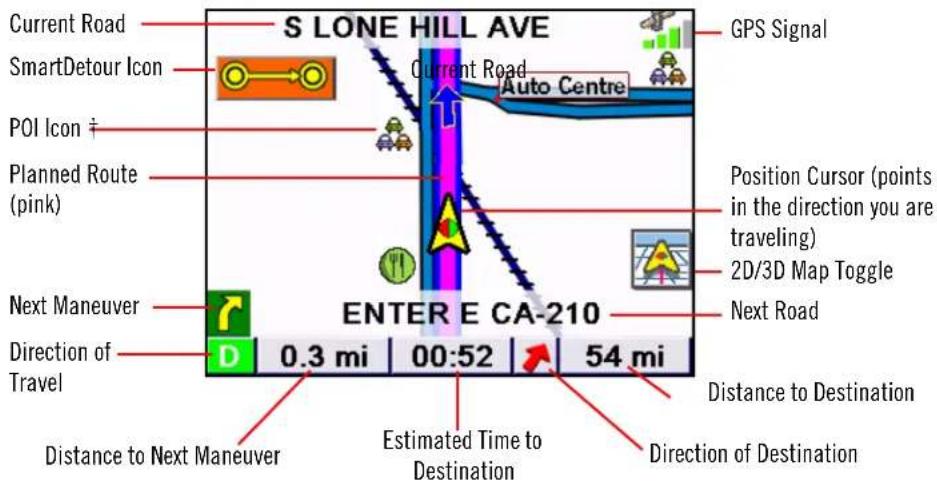
The Map screen is the most commonly used screen in the Magellan RoadMate 3000T and provides you with detailed information about where you are and where you are going.
text_image
S LONE HILL AVE GPS Signal Current Road SmartDetour Icon Current Road Auto Centre POI Icon ‡ Planned Route (pink) Position Cursor (points in the direction you are traveling) 2D/3D Map Toggle Next Maneuver ENTER E CA-210 Next Road Direction of Travel 0.3 mi 00:52 54 mi Distance to Destination Distance to Next Maneuver Estimated Time to Destination Direction of Destination† By touching the POI icon on the screen, you can get information and route to it.
As you travel, the Map screen constantly updates your location and provides you with not only a map but a visual indication of where you are on the map.
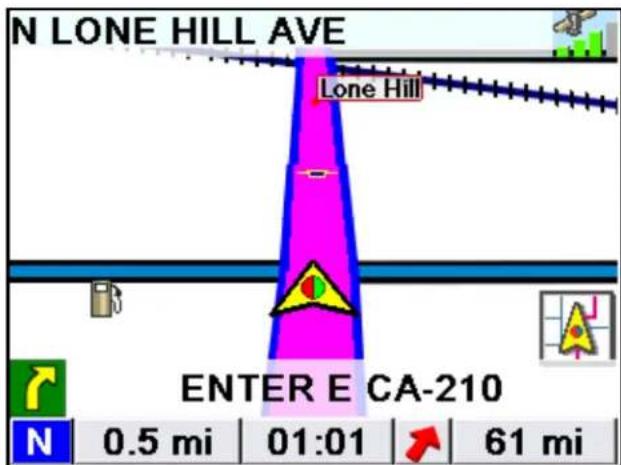
6.3 Changing from 2D to 3D Map View
The Map screen can be changed between 2D (view overhead of the position cursor, and 3D (view overhead and slightly behind). The 3D view offers a more realistic view showing a perspective of the roads ahead. While in 3D Map mode, you can still touch icons on the screen to route to them while driving, and you can zoom in and out. You cannot however, scroll the map, and the map orientation is set at Heading Up. When in Split TrueView, the map portion of the screen will be in 2D mode.
text_image
N LONE HILL AVE Lone Hill ENTER E CA-210 N 0.5 mi 01:01 61 miChapter 6: Traveling
6.4 Changing the Map Zoom Levels
While viewing the Map screen, you can zoom in (enlarge the map) by pressing the + (plus) key or zoom out (shrink the map) by pressing the - (minus) key (see "Front View" on page 5.).
Note: The Zoom In and Zoom Out keys can also be used the scroll through long lists. While viewing a list, press the Zoom Out key to scroll the list down one page at a time and press the Zoom In key to scroll the list up one page at a time.
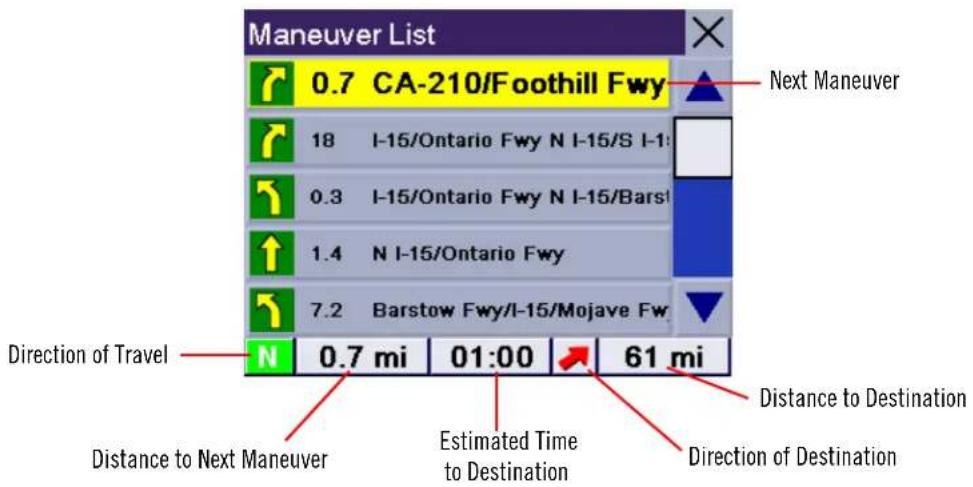
6.5 Maneuver List Screen
The Maneuver List screen can be viewed only after a route has been calculated. From the Map screen, press the VIEW key to bring up a list of all of the maneuvers along the route. When you are done viewing the Maneuver List screen, press the VIEW key twice to return to the Map screen, or wait a few moments and it will return automatically.
text_image
Maneuver List 0.7 CA-210/Foothill Fwy 18 I-15/Ontario Fwy N I-15/S I-1 0.3 I-15/Ontario Fwy N I-15/Barst 1.4 N I-15/Ontario Fwy 7.2 Barstow Fwy/I-15/Mojave Fw N 0.7 mi 01:00 61 mi Direction of Travel Distance to Next Maneuver Estimated Time to Destination Direction of Destination Next ManeuverChapter 6: Traveling
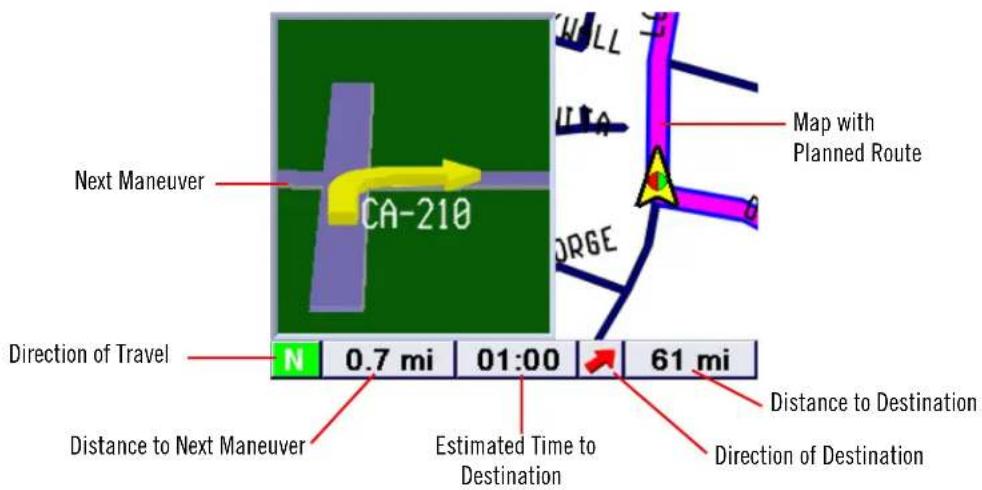
6.6 TrueView Screen
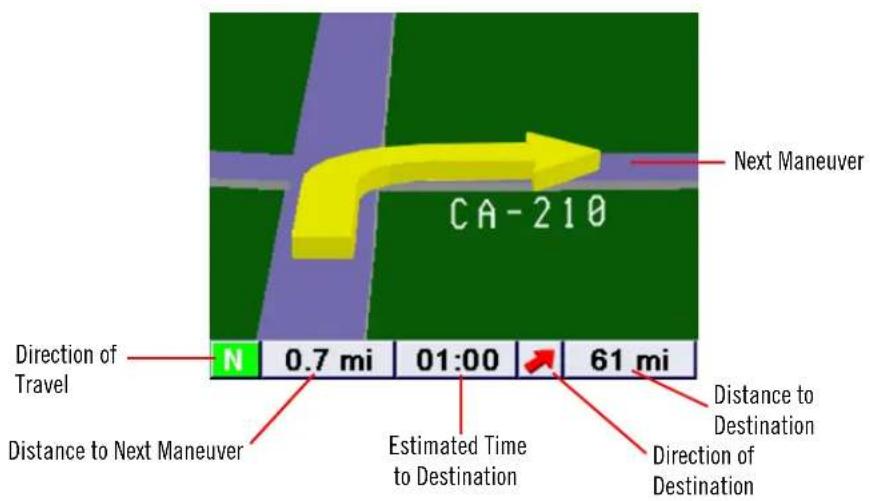
The Magellan RoadMate 3000T uses TrueView technology to display a three-dimensional picture of the next maneuver. The TrueView screen can be viewed only after a route has been calculated. From the Map screen, press the VIEW key twice to view the TrueView screen.
text_image
CA-210 Next Maneuver Direction of Travel N 0.7 mi 01:00 61 mi Distance to Next Maneuver Estimated Time to Destination Direction of Destination Distance to DestinationIn split mode, the left half of the screen shows TrueView, while the right half of the screen shows the Map.
text_image
Next Maneuver CA-210 Direction of Travel N 0.7 mi 01:00 61 mi Distance to Next Maneuver Estimated Time to Destination Map with Planned Route Direction of DestinationChapter 6: Traveling
6.7 Choosing the Route Method
Every route is calculated based on the Route Method criteria selected. Every time a new destination is selected, the Magellan RoadMate 3000T prompts you for the method that will be used to calculate the route.
Shortest Time: This selection calculates a route that should take the least amount of time using speed limits and other information in the database. Other factors, such as traffic conditions, cannot be used in the calculation of shortest time.
Shortest Distance: This option calculates the route using the most direct route to the destination. This route may not be the fastest due to lower speed limits, left turns or other factors.

text_image
Route Method Shortest Time Shortest Distance Least Use of Freeways Most Use of Freeways Avoid Toll RoadsLeast Use of Freeways: This selection calculates the route avoiding freeways whenever possible.
Most Use of Freeways: This selection calculates the route using freeways as much as possible. This option will use toll roads unless specified. See “Route Preferences” on page 61.
View Destination on Map: Before you select your Route Method, you can see where you are going.
Avoid Toll Roads: Check this option to calculate your route without using toll roads.
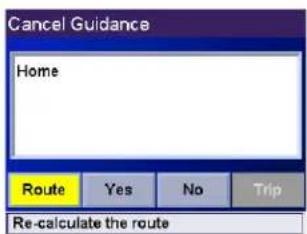
6.8 Changing the Route Method
While routing and viewing the Map screen, the Maneuver List screen, or the TrueView screen, press the ESCAPE key.
Select Route, then select the new route method.
The route will be re-calculated using the new Route Method chosen and the Map screen will be displayed. Press the VIEW key to see the Maneuver List with the new route.
text_image
Cancel Guidance Home Route Yes No Trip Re-calculate the route6.9 Cancelling a Planned Route
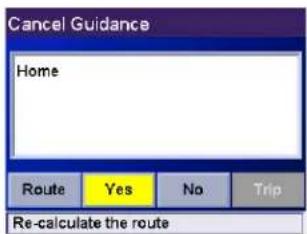
While viewing the Map screen, the Maneuver List screen, or the TrueView screen, press the ESCAPE key.
Select Yes to cancel the route and display the Destination screen.
text_image
Cancel Guidance Home Route Yes No Trip Re-calculate the routeChapter 6: Traveling
6.10 Detouring from the Planned Route
If you exit the planned route, the Magellan RoadMate 3000T will get you back on course in one of three ways.
-
If, while driving, you detour from the planned route, the Magellan RoadMate 3000T will automatically recalculate the route based on your new vehicle position.
-
If you exit the planned route before its completion and turn off your vehicle, the Magellan RoadMate 3000T will switch to battery power, unless your cigarette lighter maintains constant power. In either situation, the Magellan RoadMate 3000T will automatically suspend power when enabled through customization. While in "sleep" mode, navigation functions will be suspended and guidance will resume when the Magellan RoadMate 3000T wakes up.
-
If while routing, the Magellan RoadMate 3000T fails to respond, reset the Magellan RoadMate 3000T as described on page 12. The Resume Guidance screen will appear.
Select Resume to continue the route to the selected destination.
Select Cancel to clear the route and display the Destination screen.
6.11 Excluding a Maneuver in the Planned Route
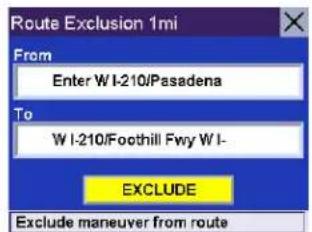
While traveling or setting up your destination you may find it necessary to exclude one of the maneuvers in the Maneuver List. This could be due to an accident or street maintenance you want to avoid. The Magellan RoadMate 3000T provides you with tools to select a specific maneuver, exclude it from the planned route and reroute the trip.
Press the VIEW key to get to the Maneuver List. Select the maneuver you wish to exclude.

text_image
Maneuver List 0.7 Foothill Fwy/I-210 W I-210/P 18 W I-210/Foothill Fwy 18 W I-210/Foothill Fwy I-210/S 6.1 Golden State Fwy/I-5 N I-5/G 0.6 Golden State Fwy/I-5 Autos N 0.8 mi 05:36 396 miThe details for the maneuver are displayed. Select Exclude.
text_image
Route Exclusion 1mi From Enter W I-210/Pasadena To W I-210/Foothill Fwy W I- EXCLUDE Exclude maneuver from routeThe trip will be recalculated, excluding the selected maneuver. This calculation is done using the same Route Method that was chosen originally. After the route is recalculated, the Map screen is displayed.

text_image
Maneuver List 0.3 Auto Centre Dr 0.2 CA-67/Orange Fwy S CA-67 3.3 E CA-67/Orange Fwy S CA-6 0.2 I-10/San Bernardino Fwy E I- 0.3 I-10/San Bernardino Fwy W I N 0.3 mi ---:--- 405 miChapter 6: Traveling
6.12 Displaying Information About Your Present Location
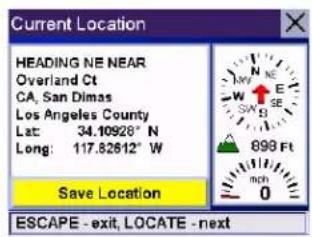
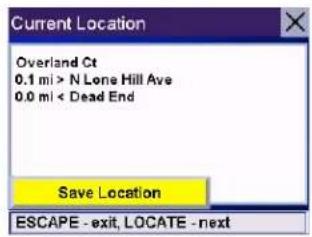
Anytime that you want to view information about your present location you can press the LOCATE key.
The first screen displays your heading and the street you are on, the state and city you are currently traveling in, the latitude and longitude of your present location, a compass, and your speed.
text_image
Current Location HEADING NE NEAR Overland Ct CA, San Dimas Los Angeles County Lat: 34.10928° N Long: 117.82612° W Save Location ESCAPE - exit, LOCATE - nextThe next screen displays the street you are currently traveling on, the distance to and the next street on the map, and the distance from and the last street you passed.
text_image
Current Location Overland Ct 0.1 mi > N Lone Hill Ave 0.0 mi < Dead End Save Location ESCAPE - exit, LOCATE - next6.13 Saving Your Current Location to Your Address Book
While you are in the Locate screen, you can save your current location to your Address Book.
Select the Save Location button.
The information about your location is displayed. Select Edit Name and/or Edit Information and use the keypad to assign a name to the location and other information about it. If the point you are saving is off-road, the nearest road information will be used.
When you have finished, select Save. The location is saved to your Address Book and you are returned to the Locate screen.

text_image
Edit Address Book THALES SD2 939 Overland Ct San Dimas CA Edit Information Save Favorites6.14 Finding POIs Along Your Route
While driving along a route, if you need to find a gas station, ATM, or other POI, the Magellan RoadMate 3000T can find the nearest POI and route to it. Then, when you have completed the side route, resume guidance to your original destination.
While driving along a route, press the ENTER key.
Chapter 6: Traveling
Select Dining, ATM, Gas....

text_image
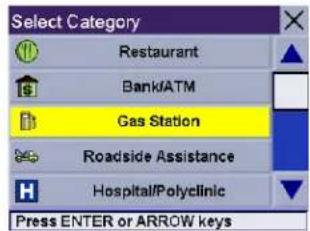
Select action Dining. ATM, Gas... Detour Edit Trip Press ENTER or ARROW keysSelect the desired POI category.
text_image
Select Category Restaurant Bank/ATM Gas Station Roadside Assistance Hospital/Polyclinic Press ENTER or ARROW keysA list of the nearest POI's is displayed. Use the Navigation key to scroll the list up or down (if necessary) and select the desired POI.

text_image
Gas Station 0.3 mi Gas Station 845 W Arrow Hwy San Dimas, CA 909 - 599 - 4860 Mobil Arco GAS STATION Matches: 33The Magellan RoadMate 3000T will calculate a new route to the selected POI from your current position. When you have arrived at the new destination, you will be prompted to resume guidance to your original destination. Select Resume. The Magellan RoadMate 3000T will calculate the route to your original destination using the Route Method previously selected.

text_image
Resume Guidance? Home Adelanto, CA Resume Cancel6.15 Finding a Detour Along Your Route
While driving along a route, if you encounter traffic, road construction, or other situation you might need to navigate around, the Magellan RoadMate 3000T can calculate an alternate route to your destination.
While driving along a route, press the ENTER key.
Select Detour.

text_image
Select action Dining, ATM, Gas... Detour Edit Trip Press ENTER or ARROW keysChapter 6: Traveling
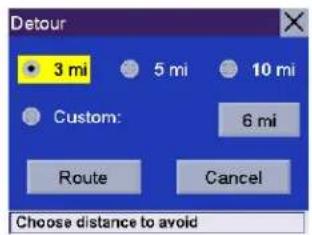
Select the distance of the detour. Select 3 miles, 5 miles, or 10 miles.
Or, you can enter a custom distance. Select Custom and select the custom distance.
Enter the number of miles for your detour and then select OK.
Select Route. The Magellan RoadMate 3000T will recalculate the alternate route to your destination.
You can also choose to have the Magellan RoadMate 3000T detour you around traffic automatically by enabling smart detour. See "Detour Options" on page 62.
text_image
Detour 3 mi 5 mi 10 mi Custom: 6 mi Route Cancel Choose distance to avoid
text_image
Detour 3 mi 5 mi 10 mi Custom: 6 mi Route Cancel Press ENTER or ARROW keys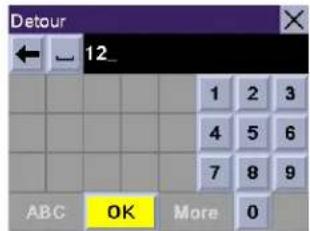
text_image
Detour ← 12_ 1 2 3 4 5 6 7 8 9 ABC OK More 0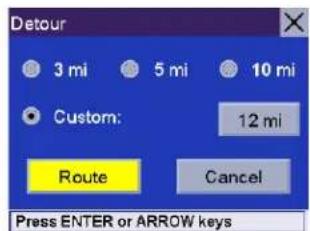
text_image
Detour 3 mi 5 mi 10 mi Custom: 12 mi Route Cancel Press ENTER or ARROW keysChapter 7: Selecting Destinations
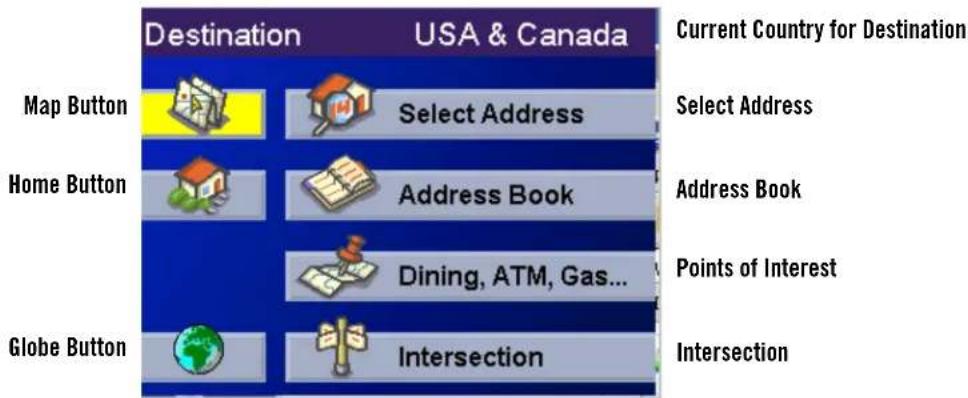
7.1 Destination Screen
text_image
Destination USA & Canada Current Country for Destination Map Button Select Address Select Address Home Button Address Book Address Book Dining, ATM, Gas... Points of Interest Globe Button Intersection Intersection7.2 Country Selection (Globe Button)
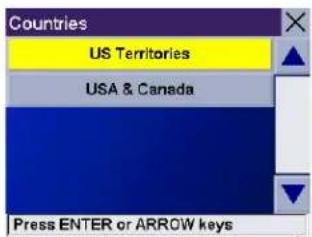
Country selection is used to help speed up searching by narrowing down the database. Before entering a destination, make sure you select the country where your destination is located. To select the country, select the Globe button then, select the country you wish to search. The current destination country is displayed at the top of the Destination screen.
text_image
Countries US Territories USA & Canada Press ENTER or ARROW keys7.3 Entering and Routing to Your Home Address
The Magellan RoadMate 3000T enables you to enter an address to assign to your Home button. The Home button allows you one touch access to the address you route to most often. Select the Home button.
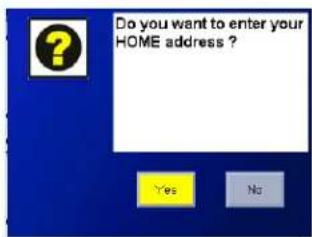
If this is the first time using this button, you will be prompted to enter an address. Select Yes.
Select either Search by City, Search by Zip Code, or Search by State. For this example select Search by City.
text_image
Do you want to enter your HOME address ? Yes NoEnter the first few characters of the city name (see "Inputting Text Characters" on page 13). Select OK. Use the Navigation key to scroll the list up or down (if necessary) and select the desired city.
Enter the street name (see "Help with Address Entry" on page 15).
Enter the address. The acceptable range of street numbers is displayed at the top of the screen. Enter the street number and select Done.
At this point you can choose to edit the information or, if you are finished, select Save.
Chapter 7: Selecting Destinations
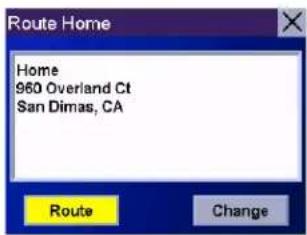
Now, when you press the Home button, you will be prompted to either route to or change the Home address.
text_image
Route Home Home 960 Overland Ct San Dimas, CA Route Change7.4 Selecting a Destination Using Select Address

flowchart
graph TD
    A["Destination USA & Canada"] --> B["Select Address"]
    B --> C["Address Book"]
    B --> D["Dining, ATM, Gas..."]
    B --> E["Intersection"]
    C --> F["Select Address"]
    F --> G["Search by City"]
    G --> H["Search by ZipCode"]
    H --> I["Search by State"]
    I --> J["Previous City"]
    F --> K["Select Address"]
    K --> L["Search by City"]
    L --> M["Search by ZipCode"]
    M --> N["Search by State"]
    N --> O["Previous City"]
    K --> P["Select Address"]
    P --> Q["Search by City"]
    Q --> R["Search by ZipCode"]
    R --> S["Search by State"]
    S --> T["Previous City"]
    P --> U["Previous City"]
A destination can be created by entering the street address that you want to go to. This address is not automatically added your Address Book but is saved to your Previous Destinations list if you have routed to it. You have four options: Search By City, Search by Zip Code, Search By State, or Previous City. Use Search By City when you know the city that the address can be found in. Use Search by Zip Code if you aren't sure of how to spell the city, but know the zip code. Use Search By State when you don't know, or are unsure of the city name. You will be given a listing of all of the cities for the state you select that have the street name you are looking for. Use Previous City to speed up your search by not having to re-enter a city you have used before. Additionally, The Previous Cities list places your current city at the top of the list.
Chapter 7: Selecting Destinations
7.4.1 Search By City
From the Destination screen, select Select Address and then, select Search By City.
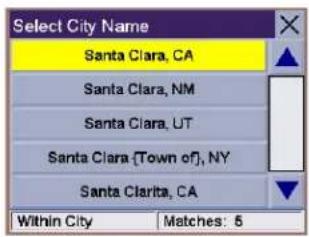
Enter the first few characters of the city name (see "Inputting Text Characters" on page 13). Select OK.
Use the Navigation key to scroll the list up or down (if necessary) and select the desired city.
Enter the street name (see "Help with Address Entry" on page 15). Select OK.
Use the Navigation key to scroll the list up or down (if necessary) and select the desired street.
Enter the street address. The acceptable range of numbers is displayed at the top of the screen. Select Done.
Select the desired Route Method.
The Magellan RoadMate 3000T will calculate the route. When the calculations are complete, the Map screen will be displayed.
text_image
Select City Name Santa Clara, CA Santa Clara, NM Santa Clara, UT Santa Clara (Town of), NY Santa Clarita, CA Within City Matches: 5
text_image
Select Street Name El Camino Real E El Camino Real El Capitan Ave El Sobrante St Matches: 4
text_image
Range 400 - 4399 471 El Camino Real Santa Clara CA N S E W Done7.4.2 Search by Zip Code
From the Destination screen, select Select Address then, select Search by Zip Code.
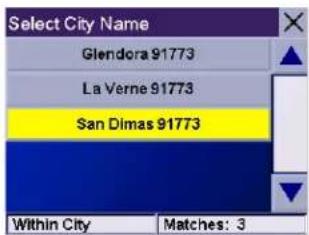
Enter the zip code select OK, then select the city.
Enter the street name ( see "Help with Address Entry" on page 15). Select OK.
Use the Navigation key to scroll the list up or down (if necessary) and select the desired street.
text_image
Select City Name Glendora 91773 La Verne 91773 San Dimas 91773 Within City Matches: 3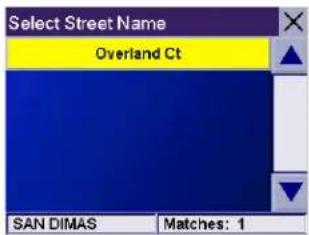
text_image
Select Street Name Overland Ct SAN DIMAS Matches: 1Chapter 7: Selecting Destinations
Enter the street address. The acceptable range of numbers is displayed at the top of the screen. Select Done.
Select the desired Route Method.
The Magellan RoadMate 3000T will calculate the route. When the calculations are complete, the Map screen will be displayed.

text_image
Range 400 - 4399 471 El Camino Real Santa Clara CA N S E W Done7.4.3 Search By State
From the Destination screen, select Select Address then, select Search By State.
Enter the first few characters for the state and select OK.
Select the state.
Enter the street name (see "Help with Address Entry" on page 15). Select OK.
Use the Navigation key to scroll the list up or down (if necessary) and select the desired street.

text_image
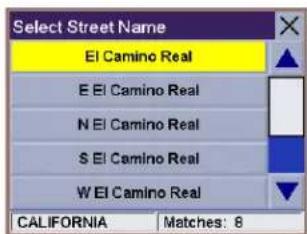
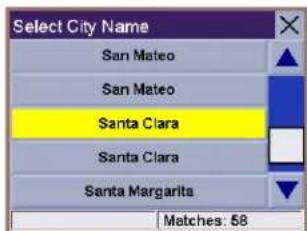
Select State/Province California Colorado Connecticut Within State Matches: 3Select the desired city from the list. Only those cities that contain the street name and are within the state selected are displayed.
text_image
Select Street Name El Camino Real E El Camino Real N El Camino Real S El Camino Real W El Camino Real CALIFORNIA Matches: 8Enter the street address. The acceptable range of numbers is displayed at the top of the screen. Select Done.
Select the desired Route Method.
The Magellan RoadMate 3000T will calculate the route. When the calculations are complete, the Map screen will be displayed.
text_image
Select City Name San Mateo San Mateo Santa Clara Santa Clara Santa Margarita Matches: 58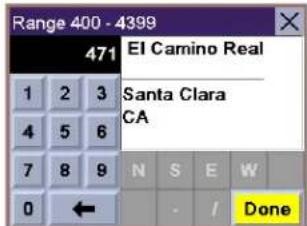
text_image
Range 400 - 4399 471 El Camino Real 1 2 3 4 5 6 7 8 9 0 ← N S E W Santa Clara CA DoneChapter 7: Selecting Destinations
7.4.4 Previous City
From the Destination screen, select Select Address then, select Previous City.
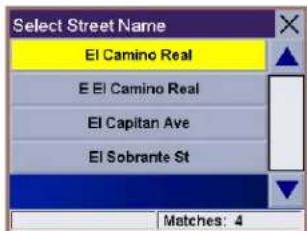
Select the city from the list.

text_image
Select City Name San Dimas, CA Santa Clara, CA Fontana, CA Adelanto, CA Los Angeles, CA Within City Matches: 5Enter the street name (see "Help with Address Entry" on page 15). Select OK.
Use the Navigation key to scroll the list up or down (if necessary) and select the desired street.
text_image
Select Street Name El Camino Real E El Camino Real El Capitan Ave El Sobrante St Matches: 4Enter the street address. The acceptable range of numbers is displayed at the top of the screen. Select Done.
Select the desired Route Method.
The Magellan RoadMate 3000T will calculate the route. When the calculations are complete, the Map screen will be displayed.

text_image
Range 400 - 4399 471 El Camino Real Santa Clara CA N S E W DoneChapter 7: Selecting Destinations
7.5 Selecting a Destination Using the Address Book

flowchart
graph TD
    A["Destination USA & Canada"] --> B["Address Book"]
    B --> C["Previous Destinations – page 30"]
    B --> D["Address Book – Favorites – page 32"]
    B --> E["Address Book – List Addresses – page 34"]
    B --> F["Address Book – Create New Entry – page 35"]
    B --> G["Trip Planner – page 39"]
    G --> H["Select Address"]
    G --> I["Address Book"]
    I --> J["Dining, ATM, Gas..."]
    I --> K["Intersection"]
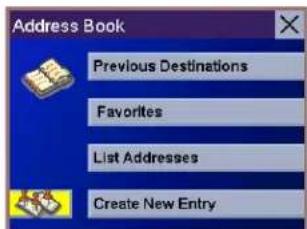
The Address Book can store up to 200 addresses. When you select Address Book you are given five options: Previous Destinations lets you select from a list of the last 50 destinations you routed to; List Addresses displays a list of all of the addresses you have stored in your Address Book; Favorites gives you a shortened list of entries from your Address Book marked as Favorites; Create New Entry lets you add a new address to your Address Book; and Trip Planner (indicated by the Trip button) lets you create a multi-destination trip from entries.
7.5.1 Previous Destinations
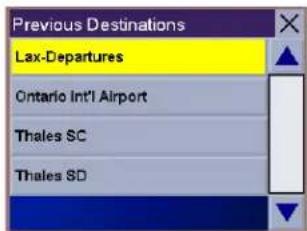
From the Destination screen, select Address Book then, select Previous Destinations.
Use the Navigation key to scroll the list up or down (if necessary) and select the desired previous destination.
text_image
Previous Destinations Lax-Departures Ontario Int'l Airport Thales SC Thales SDChapter 7: Selecting Destinations
Select Route.
Select the desired Route Method.
The Magellan RoadMate 3000T will calculate the route. When the calculations are complete, the Map screen will be displayed.
7.5.1.1 Saving a Previous Destination to the Address Book
From the Destination screen, select Address Book, then select Previous Destinations.
Use the Navigation key to scroll the list up or down (if necessary) and select the desired previous destination.
Select Edit.
The top line (Name) and the bottom line (Information) can be edited. The address cannot be changed. Select the line you want to modify. Use the keypad to enter the desired text and select OK.
When you have finished making changes, select Save, then press ESCAPE.

text_image
Previous Destinations Lax-Departures 100 World Way Los Angeles, CA 310 - 646 - 5252 Route Edit Delete
text_image
Previous Destinations Lax-Departures Ontario Int'l Airport Thales SC Thales SD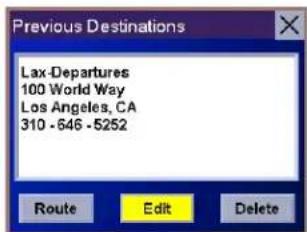
text_image
Previous Destinations Lax-Departures 100 World Way Los Angeles, CA 310 - 646 - 5252 Route Edit Delete
text_image
Edit Address Book Lax-Departures 100 World Way Los Angeles CA 310 - 646 - 5252 Save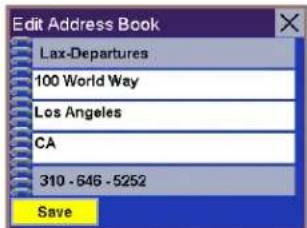
text_image
Edit Address Book Lax-Departures 100 World Way Los Angeles CA 310 - 646 - 5252 SaveChapter 7: Selecting Destinations
7.5.1.2 Deleting A Previous Destination
From the Destination screen, select Address Book then, select Previous Destinations.
Use the Navigation key to scroll the list up or down (if necessary) and select the desired previous destination.

text_image
Previous Destinations Lax-Departures Ontario Int'l Airport Thales SC Thales SDSelect Delete.
A dialog box will appear to confirm your selection. Select Yes.
The Previous Destination is deleted from the list.

text_image
Previous Destinations Lax-Departures 100 World Way Los Angeles, CA 310 - 646 - 5252 Route Edit Delete7.5.2 Favorites
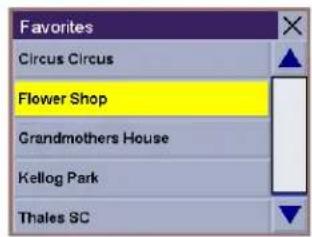
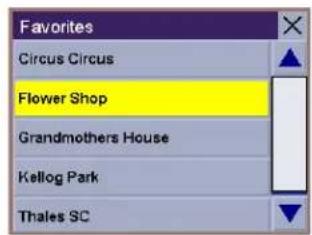
You can add address book entries to your Favorites list by selecting the Favorites box at the bottom of the Edit Address Book screen. Only address book entries can be saved as Favorites, Previous Destinations must be saved to the Address Book first, and can then be designated as a favorite. The Favorites list is a shorter list of those address book entries that you travel to often.
From the Destination screen, select Address Book, then select Favorites.
Use the Navigation key to scroll the list up or down (if necessary) and select the destination from the list of addresses.
text_image
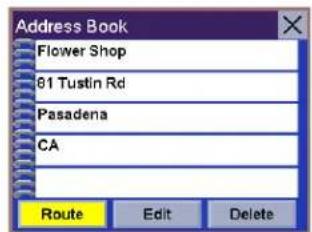
Favorites Circus Circus Flower Shop Grandmothers House Kellog Park Thales SCSelect Route.
Select the desired Route Method.
The Magellan RoadMate 3000T will calculate the route. When the calculations are complete, the Map screen will be displayed.
text_image
Address Book Flower Shop 81 Tustin Rd Pasadena CA Route Edit DeleteChapter 7: Selecting Destinations
7.5.2.1 Editing a Favorite
From the Destination screen, select Address Book then, select Favorites.
Use the Navigation key to scroll the list up or down (if necessary) and select the desired favorite.
Select Edit.
The top line (Name) and the bottom line (Information) can be edited. The address cannot be changed. Select the line you want to modify. Use the keypad to enter the desired text and select OK.
When you have finished making changes, select Save and then, press ESCAPE.

text_image
Favorites Circus Circus Flower Shop Grandmothers House Kellog Park Thales SC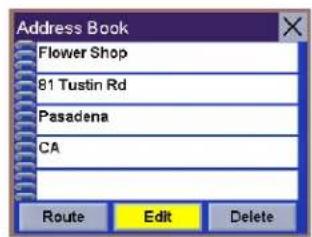
text_image
Address Book Flower Shop 81 Tustin Rd Pasadena CA Route Edit Delete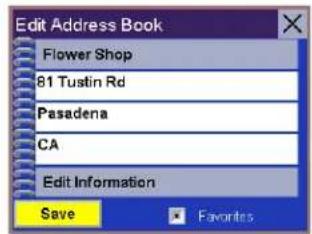
text_image
Edit Address Book Flower Shop 81 Tustin Rd Pasadena CA Edit Information Save Favorites7.5.2.2 Deleting A Favorite
From the Destination screen, select Address Book then, select Favorites.
Use the Navigation key to scroll the list up or down (if necessary) and select the desired favorite.
text_image
Favorites Circus Circus Flower Shop Grandmothers House Kellog Park Thales SC
text_image
Address Book Flower Shop 61 Tustin Rd Pasadena CA Route Edit DeleteSelect Delete.
A dialog box will appear to confirm your selection. Select Yes.
The entry is deleted from the list.
Chapter 7: Selecting Destinations
7.5.3 List Addresses
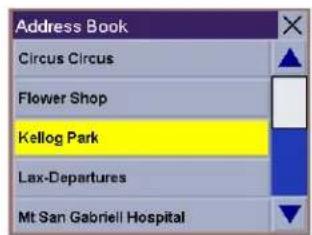
List Addresses shows all entries stored in your address book. It does not include previous destinations but does include those entries designated as Favorites.
From the Destination screen, select Address Book then, select List Addresses.
Use the Navigation key to scroll the list up or down (if necessary) and select the destination from the list of addresses.
Select Route.
Select the desired Route Method.
The Magellan RoadMate 3000T will calculate the route. When the calculations are complete, the Map screen will be displayed.
text_image
Address Book Circus Circus Flower Shop Kellog Park Lax-Departures Mt San Gabriel Hospital
text_image
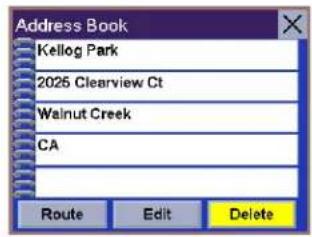
Address Book Kellog Park 2025 Clearview Ct Walnut Creek CA Route Edit Delete7.5.3.1 Editing an Address
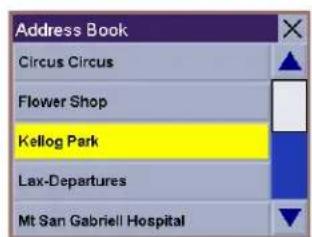
From the Destination screen, select Address Book then, select List Addresses.
Use the Navigation key to scroll the list up or down (if necessary) and select the desired address.
Select Edit.
The top line (Name) and the bottom line (Information) can be edited. The address cannot be changed. Select the line you want to modify. Use the keypad to enter the desired text and select OK. You can also designate the address as a favorite by checking the box at the bottom of the screen.
When you have finished making changes, select Save and then, press ESCAPE.
text_image
Address Book Circus Circus Flower Shop Kellog Park Lax-Departures Mt San Gabriel Hospital
text_image
Address Book Kellog Park 2025 Clearview Ct Walnut Creek CA Route Edit DeleteChapter 7: Selecting Destinations
7.5.3.2 Deleting an Address
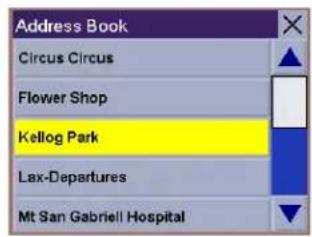
From the Destination screen, select Address Book then, select List Addresses.
Use the Navigation key to scroll the list up or down (if necessary) and select the desired address.
text_image
Address Book Circus Circus Flower Shop Kellog Park Lax-Departures Mt San Gabriel HospitalSelect Delete.
A dialog box will appear to confirm your selection. Select Yes.
The address is deleted from the list and you are returned to the Address Book screen.
text_image
Address Book Kellog Park 2025 Clearview Ct Walnut Creek CA Route Edit Delete7.5.4 Create New Entry
Use Create New Entry to add entries to your address book. These entries can then be designated as Favorites to include in the Favorites list.
7.5.4.1 Search by City
From the Destination screen, select Address Book then, select Create New Entry.
Select Search by City.

text_image
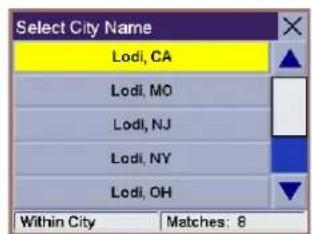
Select Address Search by City Search by ZipCode Search by State Previous CityEnter the first few characters of the city name (see "Inputting Text Characters" on page 13). Select OK.
Use the Navigation key to scroll the list up or down (if necessary) and select the desired city.
text_image
Select City Name Lodi, CA Lodi, MO Lodi, NJ Lodi, NY Lodi, OH Within City Matches: 8Chapter 7: Selecting Destinations
Enter the street name (see "Help with Address Entry" on page 15). Select OK.
Use the Navigation key to scroll the list up or down (if necessary) and select the desired street.
Enter the street address. The acceptable range of numbers is displayed at the top of the screen. Select Done.
The top line (Name) and the bottom line (Information) can be edited. The address cannot be changed. Select the line you want to modify. Use the keypad to enter the desired text and select OK. You can also designate the address as a favorite by checking the box at the bottom of the screen.
When you have finished making changes, select Save and then, press ESCAPE.

text_image
Select Street Name Forrest Ave Fox Rd Foxborough Way Matches: 3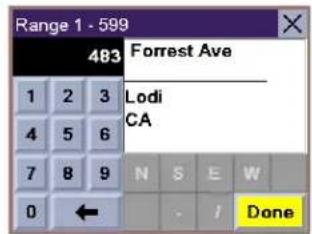
text_image
Range 1 - 599 483 Forrest Ave Lodi CA N S E W Done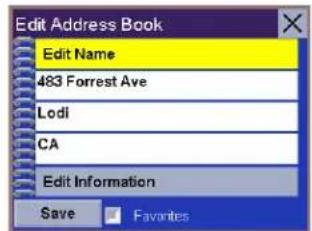
text_image
Edit Address Book Edit Name 483 Forrest Ave Lodi CA Edit Information Save Favorites7.5.4.2 Search by Zip Code
From the Destination screen, select Address Book then, select Create New Entry.
Select Search by Zip Code.
Enter the zip code and select OK, then select the city.

text_image
Select Address Search by City Search by ZipCode Search by State Previous City
text_image
Select City Name Glendora 91773 La Verne 91773 San Dimas 91773 Within City Matches: 3Chapter 7: Selecting Destinations
Enter the street name (see "Help with Address Entry" on page 15). Select OK.
Use the Navigation key to scroll the list up or down (if necessary) and select the desired street.
Enter the street address. The acceptable range of numbers is displayed at the top of the screen. Select Done.
The top line (Name) and the bottom line (Information) can be edited. The address cannot be changed. Select the line you want to modify. Use the keypad to enter the desired text and select OK. You can also designate the address as a favorite by checking the box at the bottom of the screen.
When you have finished making changes, select Save and then, press ESCAPE.
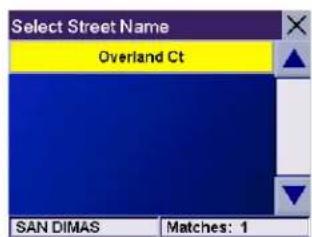
text_image
Select Street Name Overland Ct SAN DIMAS Matches: 1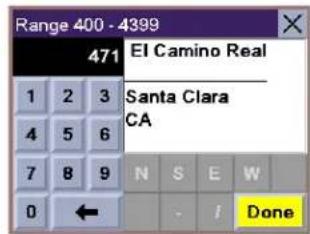
text_image
Range 400 - 4399 471 El Camino Real 1 2 3 4 5 6 7 8 9 0 ← N S E W Santa Clara CA Done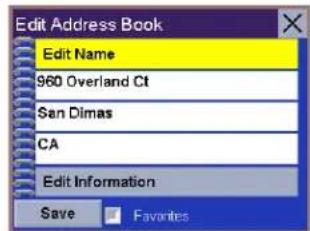
text_image
Edit Address Book Edit Name 960 Overland Ct San Dimas CA Edit Information Save Favorites7.5.4.3 Search by State
From the Destination screen, select Address Book then, select Create New Entry.
Select Search by State.
Use the keypad to enter the first few characters for the state and select OK.
Select the state.
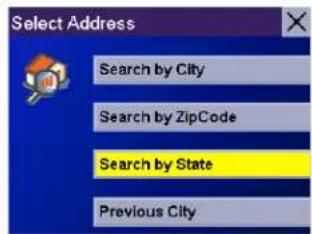
text_image
Select Address Search by City Search by ZipCode Search by State Previous City
text_image
Select State/Province California Within State Matches: 1Chapter 7: Selecting Destinations
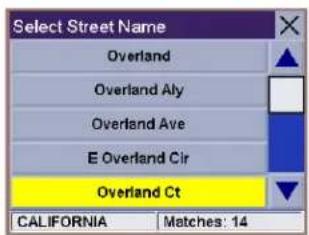
Enter the street name (see "Help with Address Entry" on page 15). Select OK.
Use the Navigation key to scroll the list up or down (if necessary) and select the desired street.
Use the Navigation key to scroll the list up or down and select the desired city. (These are all of the cities in your loaded database that have the street name you selected.)
Enter the street address. The acceptable range of numbers is displayed at the top of the screen. Select Done.
The top line (Name) and the bottom line (Information) can be edited. The address cannot be changed. Select the line you want to modify. Use the keypad to enter the desired text and select OK. You can also designate the address as a favorite by checking the box at the bottom of the screen.
When you have finished making changes, select Save and then, press ESCAPE.
text_image
Select Street Name Overland Overland Aly Overland Ave E Overland Cir Overland Ct CALIFORNIA Matches: 14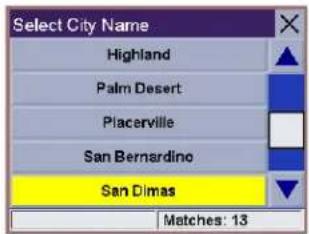
text_image
Select City Name Highland Palm Desert Piacerville San Bernardino San Dimas Matches: 13
text_image
Range 900 - 1099 960 Overland Ct 1 2 3 San Dimas 4 5 6 CA 7 8 9 N S E W 0 ← - / Done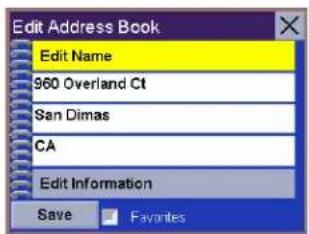
text_image
Edit Address Book Edit Name 960 Overland Ct San Dimas CA Edit Information Save Favorites7.5.4.4 Previous City
From the Destination screen, select Address Book, then select Create New Entry.
Select Previous City.

text_image
Select Address Search by City Search by ZipCode Search by State Previous CityChapter 7: Selecting Destinations
Use the Navigation key to scroll the list up or down (if necessary) and select the desired city.

text_image
Select City Name San Dimas, CA Los Angeles, CA Ontario, CA Santa Clara, CA Fontana, CA Within City Matches: 6Enter the street name (see "Help with Address Entry" on page 15). Select OK.

text_image
Select Street Name El Molino Ct El Molino PI El Molino St Matches: 3Use the Navigation key to scroll the list up or down (if necessary) and select the desired street.
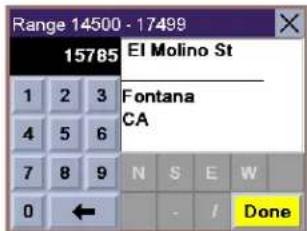
Enter the street address. The acceptable range of numbers is displayed at the top of the screen. Select Done.
text_image
Range 14500 - 17499 15785 El Molino St 1 2 3 Fontana 4 5 6 CA 7 8 9 N S E W 0 ← - / DoneThe top line (Name) and the bottom line (Information) can be edited. The address cannot be changed. Select the line you want to modify. Use the keypad to enter the desired text and select OK. You can also designate the address as a favorite by checking the box at the bottom of the screen.

text_image
Edit Address Book Edit Name 15785 El Molino St Fontana CA Edit Information Save FavoritesWhen you have finished making changes, select Save and then, press ESCAPE.
7.5.5 Trip Planner
Using the Trip Planner, you can enter multiple destinations for your “trip” and route to each one of them in order. Additionally, using the Trip Planner you can optimize your trip and route to arrive at your destinations in the most efficient manner.
7.5.5.1 New
From the Destination screen, select Address Book, then select Trip (Trip button).
text_image
Address Book Previous Destinations Favorites List Addresses Create New EntryChapter 7: Selecting Destinations
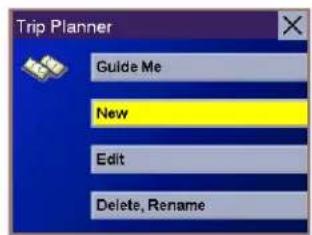
Select New.
Use the keypad to enter a name for the new trip and select OK.
From the pop-up menu, select Add.
From the Select Trip Planner Address screen, select the method for adding a destination to your trip: Map (Map button) will add a destination by selecting a point on the map; Select Address will add a destination by creating a new address; Address Book will add a destination from a previous destination, Address Book, or favorites; Dining, ATM, Gas... will add a destination from the POI database; and Intersection will add a destination of two intersecting streets.
Continue adding destinations. When you are finished, select Save.
text_image
Trip Planner Guide Me New Edit Delete, Rename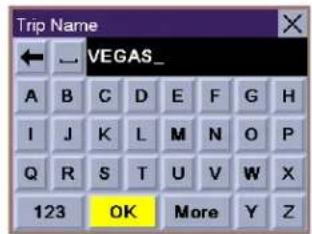
text_image
Trip Name VEGAS_ A B C D E F G H I J K L M N O P Q R S T U V W X 123 OK More Y Z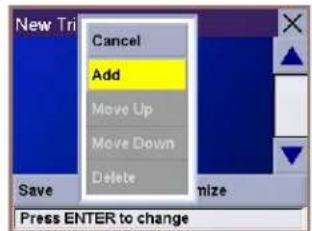
text_image
New Tri Cancel Add Move Up Move Down Delete Save mize Press ENTER to change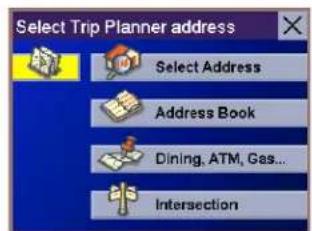
text_image
Select Trip Planner address Select Address Address Book Dining, ATM, Gas... Intersection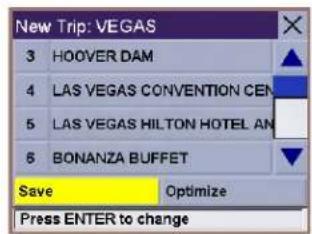
text_image
New Trip: VEGAS 3 HOOVER DAM 4 LAS VEGAS CONVENTION CENTER 5 LAS VEGAS HILTON HOTEL AND 6 BONANZA BUFFET Save Optimize Press ENTER to changeChapter 7: Selecting Destinations
7.5.5.2 Optimizing a Trip
With Route Optimization, you can sort the destinations in your trip from closest to farthest.
From the Trip Planner screen, select Edit.
Select the trip to optimize.
Select Optimize.
The destinations are sorted from closest to farthest from you current location.
Select Save.

text_image
Trip Planner Guide Me New Edit Delete, Rename
text_image
Edit Trip NOR CAL VEGAS Select Trip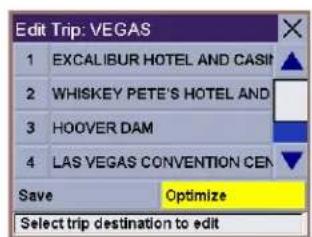
text_image
Edit Trip: VEGAS 1 EXCALIBUR HOTEL AND CASIT ▲ 2 WHISKEY PETE'S HOTEL AND 3 HOOVER DAM 4 LAS VEGAS CONVENTION CEN ▼ Save Optimize Select trip destination to edit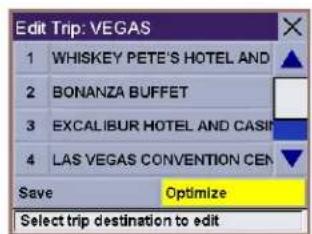
text_image
Edit Trip: VEGAS 1 WHISKEY PETE'S HOTEL AND 2 BONANZA BUFFET 3 EXCALIBUR HOTEL AND CASIF 4 LAS VEGAS CONVENTION CEN Save Optimize Select trip destination to edit
text_image
Edit Trip: VEGAS 1 WHISKEY PETE'S HOTEL AND 2 BONANZA BUFFET 3 EXCALIBUR HOTEL AND CASIF 4 LAS VEGAS CONVENTION CEN Save Optimize Select trip destination to editChapter 7: Selecting Destinations
7.5.5.3 Guide Me
From the Destination screen, select Address Book. then select the Trip (Trip button).
Select GuideMe.
Select the Trip.
Select the first destination in the list you wish to route to.
Note: Selecting the second destination in the list will exclude the first destination, selecting the third destination in the list will exclude the first and second destinations, and so on.
Select the desired Route Method.
The Magellan RoadMate 3000T will calculate the route. When the calculations are complete, the Map screen will be displayed.
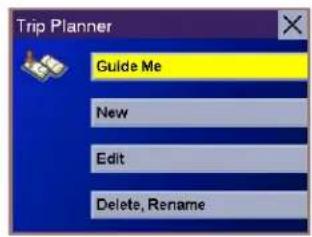
text_image
Trip Planner Guide Me New Edit Delete, Rename
text_image
Guide Me NOR CAL VEGAS Select Trip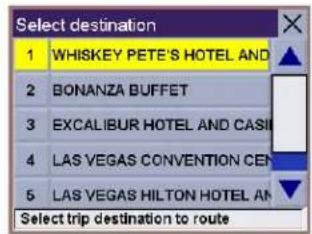
text_image
Select destination 1 WHISKEY PETE'S HOTEL AND 2 BONANZA BUFFET 3 EXCALIBUR HOTEL AND CASI 4 LAS VEGAS CONVENTION CEN 5 LAS VEGAS HILTON HOTEL AN Select trip destination to route7.5.5.4 Edit
Destinations within a trip can be moved up or down, deleted, or added to.
From the Trip Planner screen, select Edit.
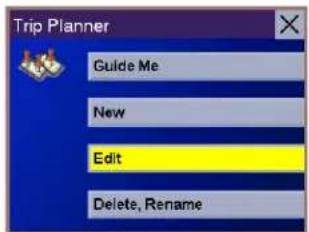
text_image
Trip Planner Guide Me New Edit Delete, RenameChapter 7: Selecting Destinations
Select the trip to edit.
Select the destination you wish to delete, and select Delete from the pop-up menu.
Select the destination you wish to change, and select Move Up from the pop-up menu.
When you have finished, select Save and you are returned to the Trip Planner screen.
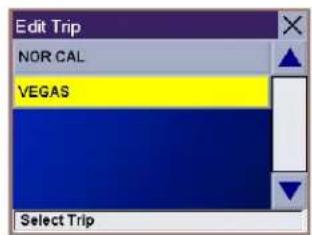
text_image
Edit Trip NOR CAL VEGAS Select Trip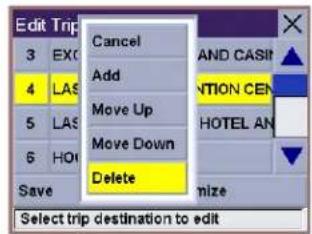
text_image
Edit Trip 3 EXC 4 LAS 5 LAS 6 HOG Save Cancel Add Move Up Move Down Delete AND CASIT VNTION CEN HOTEL AN mize Select trip destination to edit
text_image
Edit Trip 1 WH 2 BOL 3 EXO 4 LAS Save Cancel Add Move Up Move Down Delete Select trip destination to edit HOTEL AND AND CASIN HOTEL AN mize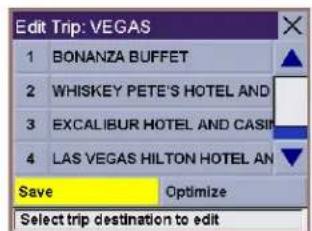
text_image
Edit Trip: VEGAS 1 BONANZA BUFFET 2 WHISKEY PETE'S HOTEL AND 3 EXCALIBUR HOTEL AND CASIL 4 LAS VEGAS HILTON HOTEL AN Save Optimize Select trip destination to edit7.5.5.5 Delete and Rename
From the Trip Planner screen, select Delete, Rename.
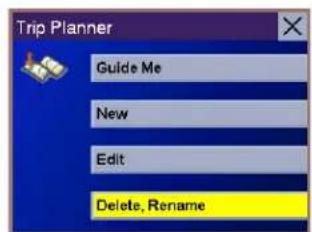
text_image
Trip Planner Guide Me New Edit Delete, RenameChapter 7: Selecting Destinations
Select Delete.
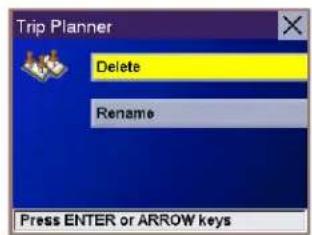
text_image
Trip Planner Delete Rename Press ENTER or ARROW keysSelect the trip you wish to delete.

text_image
Delete Trip NOR CAL VEGAS Select TripA dialog box will appear to confirm your selection. Select Yes.

text_image
Are you shure you want to delete this trip? Yes NoThe trip has been deleted.
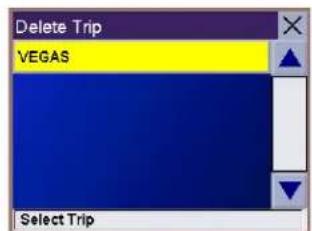
text_image
Delete Trip VEGAS Select TripSelect Rename.
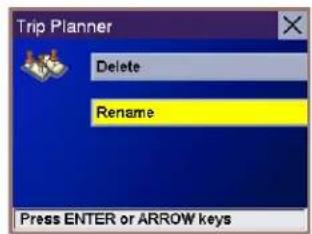
text_image
Trip Planner Delete Rename Press ENTER or ARROW keysSelect the trip to be renamed.
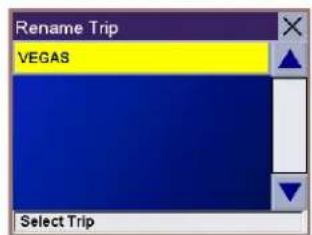
text_image
Rename Trip VEGAS Select TripChapter 7: Selecting Destinations
Use the backspace key to delete the old name; then, enter the new name for the trip. When you have finished, select OK.
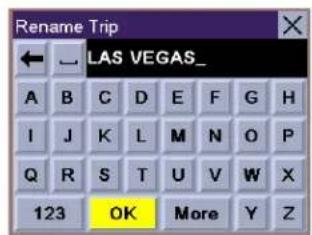
text_image
Rename Trip LAS VEGAS_ A B C D E F G H I J K L M N O P Q R S T U V W X 123 OK More Y ZThe trip has been renamed.

text_image
Rename Trip LAS VEGAS Select Trip7.6 Selecting a Point of Interest as a Destination
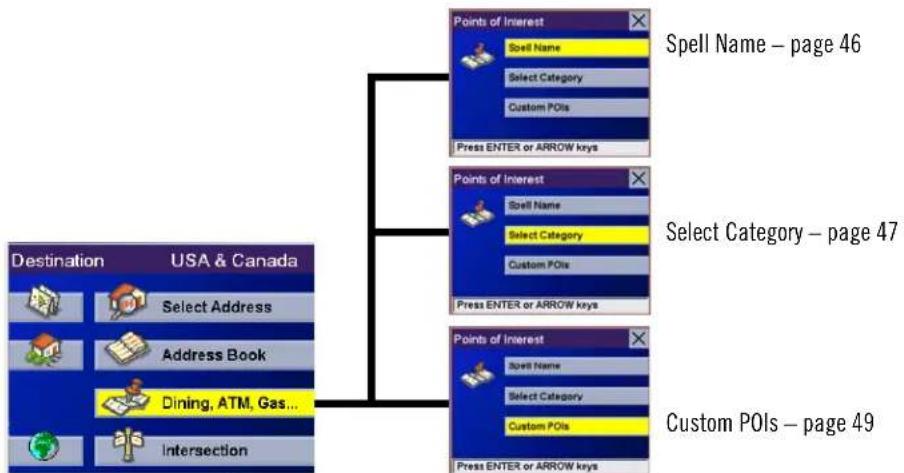
flowchart
graph TD
    A["Destination USA & Canada"] --> B["Select Address"]
    A --> C["Address Book"]
    A --> D["Dining, ATM, Gas..."]
    A --> E["Intersection"]
    B --> F["Points of Interest"]
    C --> G["Points of Interest"]
    D --> H["Points of Interest"]
    F --> I["Spell Name"]
    F --> J["Select Category"]
    F --> K["Custom POIs"]
    G --> L["Spell Name"]
    G --> M["Select Category"]
    G --> N["Custom POIs"]
    H --> O["Spell Name"]
    H --> P["Select Category"]
    H --> Q["Custom POIs"]
    I --> R["Press ENTER or ARROW keys"]
    J --> S["Press ENTER or ARROW keys"]
    K --> T["Press ENTER or ARROW keys"]
    L --> U["Press ENTER or ARROW keys"]
    M --> V["Press ENTER or ARROW keys"]
    N --> W["Press ENTER or ARROW keys"]
    O --> X["Press ENTER or ARROW keys"]
    P --> Y["Press ENTER or ARROW keys"]
    Q --> Z["Press ENTER or ARROW keys"]
    R --> AA["Spell Name – page 46"]
    S --> AB["Select Category – page 47"]
    T --> AC["Custom POIs – page 49"]
Dining, ATM, Gas...
Points of Interest (or POIs) are commercial or recreational locations, landmarks, or services that are preloaded into the Magellan RoadMate 3000T database. There are over six million POI's in the database, which range from restaurants, parks, gas stations, and banks, to schools and police stations, and more. The purpose of the POI database (accessed through the Dining, ATM, Gas... menu option) is to provide you with a list of popular destinations without having to enter the address manually in order to route to them.
Chapter 7: Selecting Destinations
7.6.1 Spell Name
If you know the name of the POI you are looking for, find it using the Spell Name feature.
From the Destination screen, select Dining, ATM, Gas..., then select Spell Name.
Enter the name of the POI.
7.6.1.1 Nearest
Selecting Nearest will list the POIs matching the name you entered from closest to farthest from your current position. Select Nearest.
Use the Navigation key to scroll the list up or down (if necessary) and select the desired POI.
Select the desired Route Method.
The Magellan RoadMate 3000T will calculate the route. When the calculations are complete, the Map screen will be displayed.
7.6.1.2 List By City
Selecting List by City will list the POIs matching the name you entered within a selected city sorted by distance from the city center. Select List by City.
Enter the city name (see "Help with Address Entry" on page 15). Select OK.
Use the Navigation key to scroll the list up or down (if necessary) and select the desired city.
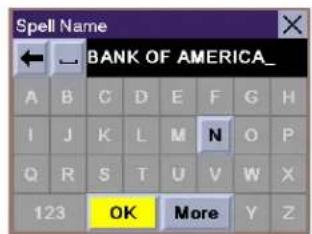
text_image
Spell Name BANK OF AMERICA_ A B C D E F G H I J K L M N O P Q R S T U V W X 123 OK More Y Z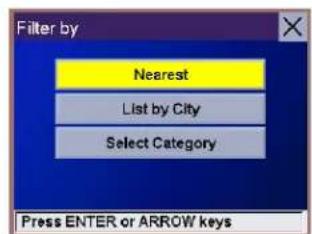
text_image
Filter by Nearest List by City Select Category Press ENTER or ARROW keys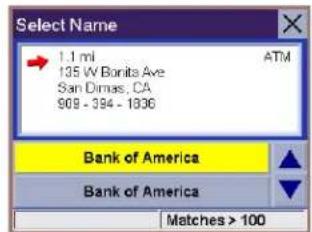
text_image
Select Name 1.1 mi ATM 135 W Borita Ave San Dimas, CA 968-384-1836 Bank of America Bank of America Matches > 100
text_image
Filter by Nearest List by City Select Category Press ENTER or ARROW keys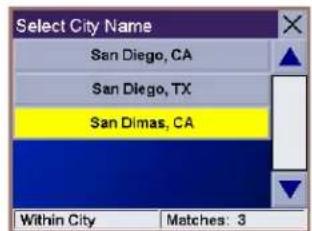
text_image
Select City Name San Diego, CA San Diego, TX San Dimas, CA Within City Matches: 3Chapter 7: Selecting Destinations
Use the Navigation key to scroll the list up or down (if necessary) and select the desired POI.
Select the desired Route Method.
The Magellan RoadMate 3000T will calculate the route. When the calculations are complete, the Map screen will be displayed.
7.6.1.3 Select Category
Selecting Select Category enables you to narrow the list of POIs by selecting the category of the name you spelled. Select Select Category.
Use the Navigation key to scroll the list up or down and select the desired POI category.
Use the Navigation key to scroll the list up or down (if necessary) and select the desired POI.
Select the desired Route Method.
The Magellan RoadMate 3000T will calculate the route. When the calculations are complete, the Map screen will be displayed.
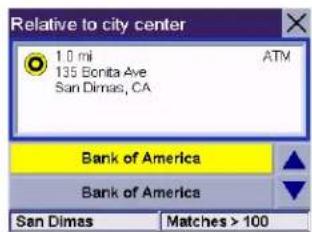
text_image
Relative to city center 1.0 mi ATM 135 Bonita Ave San Dimas, CA Bank of America Bank of America San Dimas Matches > 100
text_image
Filter by Nearest List by City Select Category Press ENTER or ARROW keys
text_image
Select Category Restaurant Bank/ATM Gas Station Roadside Assistance Hospital/Polyclinic Press ENTER or ARROW keys
text_image
Select Name 1.1 mi ATM 135 W Bonita Ave San Dimas, CA 808 - 384 - 1836 Bank of America Bank of America Matches > 1007.6.2 Select Category
If you do not know the name of the POI you are looking for, but know the category (restaurant, bank, gas station, etc.), you can find it using Select Category
From the Destination screen, select Dining, ATM, Gas..., then select Select Category.
Select the POI category.

text_image
Select Category Vehicle Services Airport Camping & RV Car Rental Casino Press ENTER or ARROW keysChapter 7: Selecting Destinations
7.6.2.1 Nearest
Selecting Nearest will list the POIs in the category selected from closest to farthest from your current position. Select Nearest.
A list of all the POI's in the selected category nearest to your current position is displayed. Select the POI from the list.
Select the desired Route Method.
The Magellan RoadMate 3000T will calculate the route. When the calculations are complete, the Map screen will be displayed.
7.6.2.2 List by City
Selecting List by City will list the POIs in the category selected within a specified city. Select List by City.
Enter the name of the city you wish to search from. When you are finished, select OK.
Use the Navigation key to scroll the list up or down (if necessary) and select the desired city.
Use the Navigation key to scroll the list up or down (if necessary) and select the desired POI.
Select the desired Route Method.
The Magellan RoadMate 3000T will calculate the route. When the calculations are complete, the Map screen will be displayed.
7.6.2.3 Spell Name
Selecting Spell Name will list the POIs in the category selected, matching the name you entered. Select Spell Name.
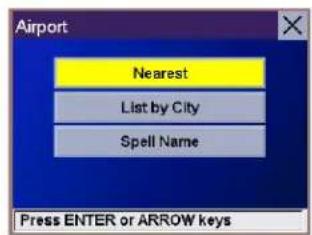
text_image
Airport Nearest List by City Spell Name Press ENTER or ARROW keys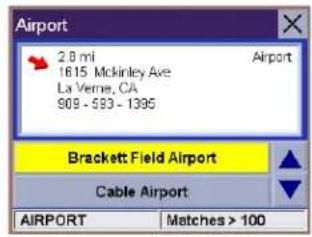
text_image
Airport 2.8 mi Airport 1615 McKinley Ave La Verne, CA 909 - 593 - 1395 Brackett Field Airport Cable Airport AIRPORT Matches > 100
text_image
Airport Nearest List by City Spell Name Press ENTER or ARROW keys
text_image
Select City Name Ontario, CA Ontario, NY Ontario, OH Ontario, OR Ontario, WI Within City Matches: 6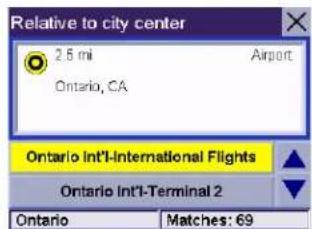
text_image
Relative to city center 2.5 mi Airport Ontario, CA Ontario Int'l-International Flights Ontario Int'l-Terminal 2 Ontario Matches: 69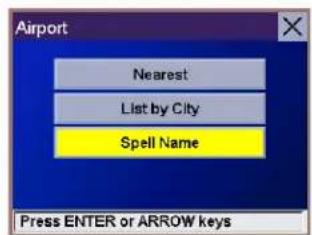
text_image
Airport Nearest List by City Spell Name Press ENTER or ARROW keysChapter 7: Selecting Destinations
Enter the name of the POI. When you are finished, select OK.
Select Nearest to list the POIs matching the characters entered that are nearest to your current position.
Select List by City to list the POIs matching the characters entered that are nearest to a particular city. Enter the name of the city. When you are finished, select OK. Select the city from the list.
Use the Navigation key to scroll the list up or down (if necessary) and select the desired POI.
Select the desired Route Method.
The Magellan RoadMate 3000T will calculate the route. When the calculations are complete, the Map screen will be displayed.
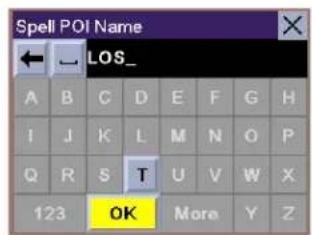
text_image
Spell POI Name LOS_ A B C D E F G H I J K L M N O P Q R S T U V W X 123 OK More Y Z
text_image
Airport 34 mi Airport 1 World Way Los Angeles, CA 310 - 648 - 5252 Los Angeles Int'l Airport Los Angeles Int'l-Departures AIRPORT Matches: 57.6.2.4 Cuisine Type
When selecting restaurants, you are presented with an additional method for finding POIs. Select Cuisine Type. Use the Navigation key to select the type of restaurant you prefer.
Use the Navigation key to scroll the list up or down (if necessary) and select the desired POI.
Select the desired Route Method.
The Magellan RoadMate 3000T will calculate the route. When the calculations are complete, the Map screen will be displayed.
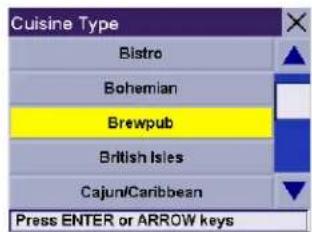
text_image
Cuisine Type Bistro Bohemian Brewpub British Isles Cajun/Caribbean Press ENTER or ARROW keys
text_image
Restaurant 4.2 mi 2017 W Eastland Center Dr West Coxsackie, NY 828 - 858 - 0054 Brevipulo BJ's Restaurant&Brewery RESTAURANT Matches: 17.6.3 Custom POIs
Please refer to page 84 for information on creating and loading Custom POIs.
From the Destination screen, select Dining, ATM, Gas..., then select Custom POIs.
Chapter 7: Selecting Destinations
Select the category.
If the POI list has more than 15 returns, you can further narrow the search by selecting either Nearest or Spell Name. Select the desired POI from the list.
Select Route to go to the selected Address, or select Cancel to return to the Select Custom POI menu.
Select the desired Route Method.
The Magellan RoadMate 3000T will calculate the route. When the calculations are complete, the Map screen will be displayed.
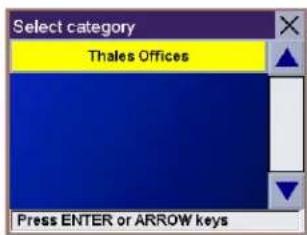
text_image
Select category Thales Offices Press ENTER or ARROW keys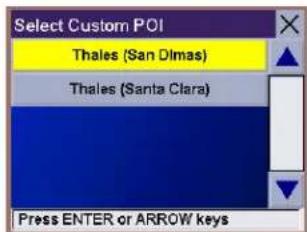
text_image
Select Custom POI Thales (San Dimas) Thales (Santa Clara) Press ENTER or ARROW keys
text_image
Route To This Address Thales (San Dimas) Thales Offices Route CancelChapter 7: Selecting Destinations
7.7 Selecting an Intersection as a Destination
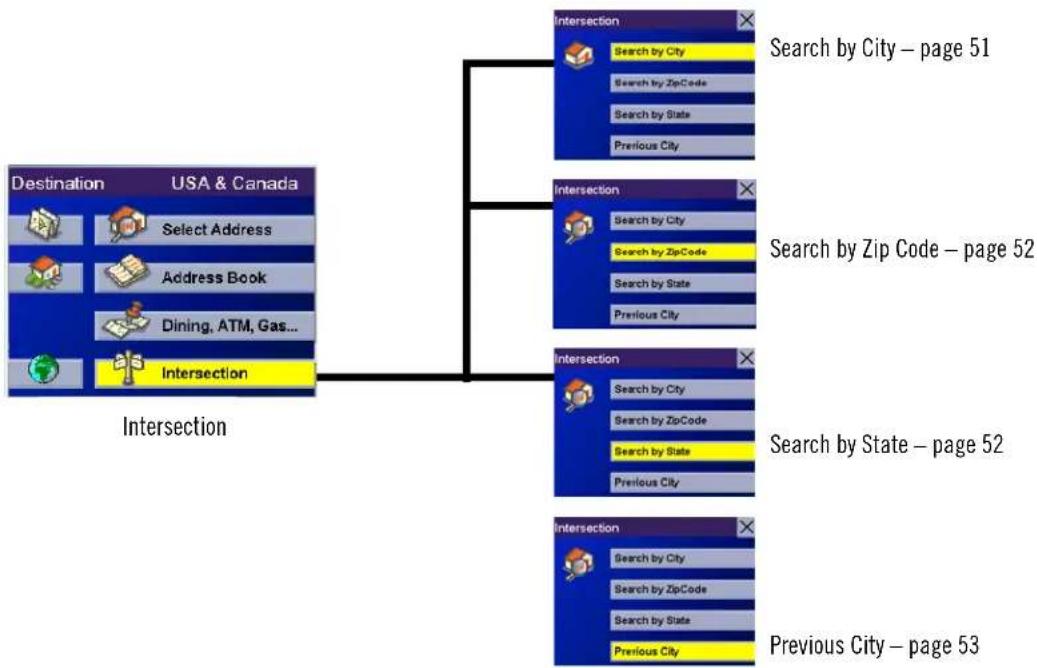
flowchart
graph TD
    A["Destination USA & Canada"] --> B{Intersection}
    B --> C1["Search by City"]
    B --> C2["Search by ZipCode"]
    B --> C3["Search by State"]
    B --> C4["Previous City"]
    B --> D1["Search by City – page 51"]
    B --> D2["Search by Zip Code – page 52"]
    B --> D3["Search by State – page 52"]
    B --> D4["Previous City"]
    B --> E1["Search by City"]
    B --> E2["Search by ZipCode"]
    B --> E3["Search by State"]
    B --> E4["Previous City"]
    B --> F1["Previous City – page 53"]
An intersection of two streets can be used as a destination. The search for the intersection can be done whether or not you know the city. If you know the city, you can start there; if you are unsure of the city, you can start with the state.
7.7.1 Search by City
From the Destination screen, select Intersection then, select Search by City.
Enter the first few characters of the city name (see "Inputting Text Characters" on page 13). Select OK.
Use the Navigation key to scroll the list up or down (if necessary) and select the desired city.
Enter the first street name (see "Help with Address Entry" on page 15). Select OK.
Use the Navigation key to scroll the list up or down and select the first street from the list.
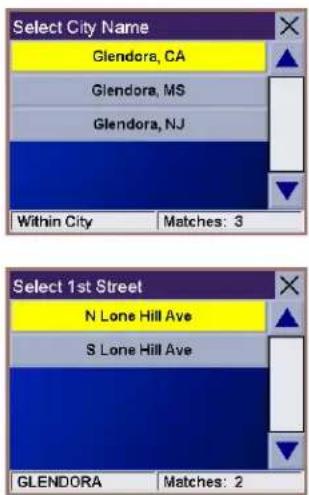
text_image
Select City Name Glendors, CA Glendors, MS Glendors, NJ Within City Matches: 3 Select 1st Street N Lone Hill Ave S Lone Hill Ave GLENDORA Matches: 2Chapter 7: Selecting Destinations
Enter the second street name and select OK.
Use the Navigation key to scroll the list up or down (if necessary) and select the second street from the list.
Select the desired Route Method.
The Magellan RoadMate 3000T will calculate the route. When the calculations are complete, the Map screen will be displayed.

text_image
Select 2nd Street 1.8 mi N Lone Hill Ave / E Foothill Blvd Glendora, CA E Foothill Blvd Matches: 17.7.2 Search by Zip Code
From the Destination screen, select Intersection then, select Search by Zip Code.
Enter the zip code and select OK, then select the city.
Enter the first street name (see "Help with Address Entry" on page 15). Select OK.
Use the Navigation key to scroll the list up or down and select the first street from the list.
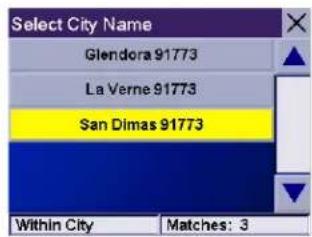
text_image
Select City Name Glendora 91773 La Verne 91773 San Dimas 91773 Within City Matches: 3Enter the second street and select OK.
Use the Navigation key to scroll the list up or down (if necessary) and select the second street from the list.

text_image
Select 1st Street N Lone Hill Ave S Lone Hill Ave GLENDORA Matches: 2Select the desired Route Method.
The Magellan RoadMate 3000T will calculate the route. When the calculations are complete, the Map screen will be displayed.
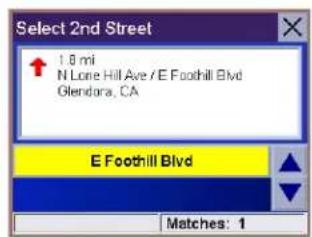
text_image
Select 2nd Street 1.8 mi N Lone Hill Ave / E Foothill Blvd Glendale, CA E Foothill Blvd Matches: 17.7.3 Search by State
From the Destination screen, select Intersection then, select Search by State.
Chapter 7: Selecting Destinations
Enter the first few characters for the state and select OK.
Use the Navigation key to scroll the list up or down (if necessary) and select the state from the list.
Enter the first street name (see "Help with Address Entry" on page 15). Select OK.
Use the Navigation key to scroll the list up or down (if necessary) and select the first street from the list.
Enter the second street and select OK.
Use the Navigation key to scroll the list up or down (if necessary) and select the second street from the list.
Select the desired Route Method.
The Magellan RoadMate 3000T will calculate the route. When the calculations are complete, the Map screen will be displayed.
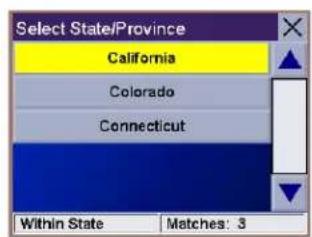
text_image
Select State/Province California Colorado Connecticut Within State Matches: 3
text_image
Select 1st Street Upland Upland Ave W Upland Ave Upland Cir Upland Ct CALIFORNIA Matches: 19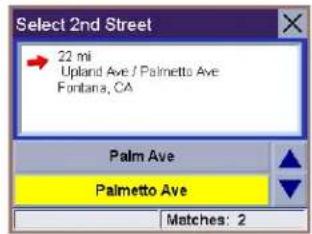
text_image
Select 2nd Street 22 mi Upland Ave / Palmetto Ave Fontana, CA Palm Ave Palmetto Ave Matches: 27.7.4 Previous City
From the Destination screen, select Intersection then, select Previous City.
Use the Navigation key to scroll the list up or down (if necessary) and select the desired city.
Enter the first street name (see "Help with Address Entry" on page 15). Select OK.
Use the Navigation key to scroll the list up or down (if necessary) and select the first street from the list.

text_image
Select City Name Los Angeles, CA Ontario, CA Santa Clara, CA Fontana, CA Adelanto, CA Within City Matches: 6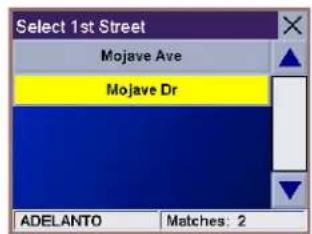
text_image
Select 1st Street Mojave Ave Mojave Dr ADELANTO Matches: 2Chapter 7: Selecting Destinations
Enter the second street and select OK.
Use the Navigation key to scroll the list up or down (if necessary) and select the second street from the list.
Select the desired Route Method.
The Magellan RoadMate 3000T will calculate the route. When the calculations are complete, the Map screen will be displayed.

text_image
Select 2nd Street 37 mi Mojave Dr / Jonathon St Adelanto, CA Jonathon St Matches: 1Chapter 8: Navigation Options
Navigation Options are only available when you are in Navigation Mode. When going to the Main Menu from the Music Player or from the Photo Viewer, this option will be grayed out.
To access these features, press the MENU key on the Magellan RoadMate 3000T and select Navigation Options.
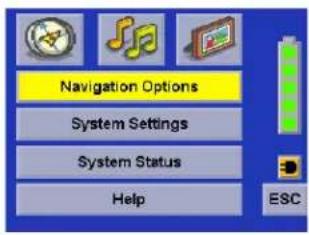
text_image
Navigation Options System Settings System Status Help ESC8.1 Configuration
Configuration enables you to customize the advanced navigation features of the Magellan RoadMate 3000T.
Select Configuration.

text_image
Nav Options Configuration Trip Computer Press ENTER or ARROW keys8.1.1 POI Selection
From the POI Selection menu, you can choose which icons to display on the Map screen. We recommend being selective about which icons you choose to display in order to prevent your map screen from being cluttered. For a list of POI Categories, see "POI Categories" on page 89.
Select POI Selection.
Select Mark All to display all POI icons on the Map screen.
Select Clear All if you wish not to have any POI icons displayed on the Map screen.
You can also select individual icons to display or hide on the Map screen. When you have finished, select Save to save your selection and return to the Configuration menu.
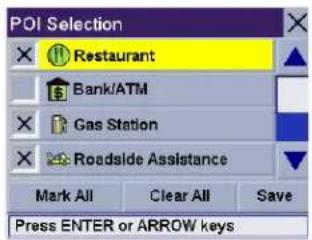
text_image
POI Selection Restaurant Bank/ATM Gas Station Roadside Assistance Mark All Clear All Save Press ENTER or ARROW keys8.1.2 Custom POIs
The Custom POI menu enables you to select POIs previously loaded into your Magellan RoadMate 3000T using the Magellan RoadMate POI Manager software (see page 84). The following instructions are assuming that you have loaded one or more custom POIs into your Magellan RoadMate 3000T.
Select Custom POIs.
Chapter 8: Navigation Options
Select Select a POI File.
Use the Navigation key to scroll the list up or down (if necessary) and select a POI file. With the file selected, you are returned to the Custom POIs menu.
Select Display Categories.
The categories you created are displayed in the same way as the built-in POIs.
Select Mark All to display all POI icons on the Map screen. Select Clear All if you wish not to have any POI icons displayed on the Map screen. You can also select individual icons to display or hide on the Map screen.
When you have finished, select Save to return to the Configuration menu
You can also be alerted when you approach a custom POI. The Set Alarm function works for Custom POIs only and only if the POI has been selected to show on the Map screen. Select Set Alarms.
Again, you can select all, none, or individual POIs to have an alert set. Select Mark All to set an alert for all custom POI icons on the Map screen. Select Clear All if you wish not to have any alerts set for custom POI icons displayed on the Map screen. You can also select individual categories to have an alert set.
When you have finished, select Save to return to the Custom POIs menu.
With the POI alerts set, you can now choose at what point you will be alerted. Select Alert Parameters.
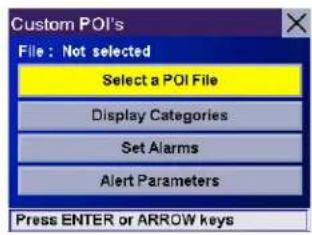
text_image
Custom POI's File : Not selected Select a POI File Display Categories Set Alarms Alert Parameters Press ENTER or ARROW keys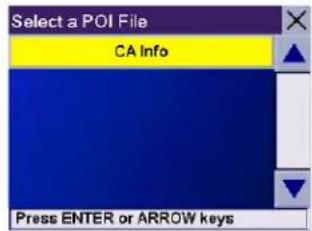
text_image
Select a POI File CA Info Press ENTER or ARROW keys
text_image
Custom POI's File : CAinfo Select a POI File Display Categories Set Alarms Alert Parameters Press ENTER or ARROW keys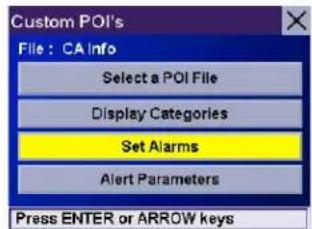
text_image
Custom POI's File : CA Info Select a POI File Display Categories Set Alarms Alert Parameters Press ENTER or ARROW keys
text_image
Set Alarms Bank SF Bowling SF Bus Station SF Gas Station SF Mark All Clear All Save Press ENTER or ARROW keys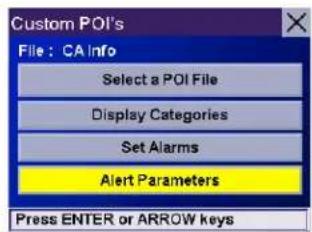
text_image
Custom POI's File : CA info Select a POI File Display Categories Set Alarms Alert Parameters Press ENTER or ARROW keysChapter 8: Navigation Options
Select the POI category to customize.
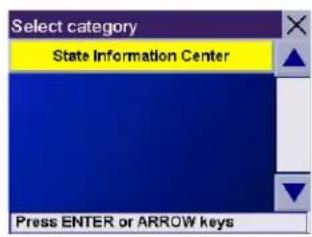
text_image
Select category State Information Center Press ENTER or ARROW keysThe Detection Angle is set to alert you when you are within so many degrees of the POI.

text_image
90°Select Detection Angle.

text_image
State Information Center - Setting Detection angle 90° (deg) First warning at : 3280 Ft Last warning at : 984 Ft Save Press ENTER or ARROW keysUse the numeric keypad to enter the number of degrees in which to set the alert. When you have finished, select OK.

text_image
Detection angle ← 120_ 1 2 3 4 5 6 7 8 9 ABC OK More 0Chapter 8: Navigation Options
The First Warning is set to alert you when you are within a certain number of feet from the POI.
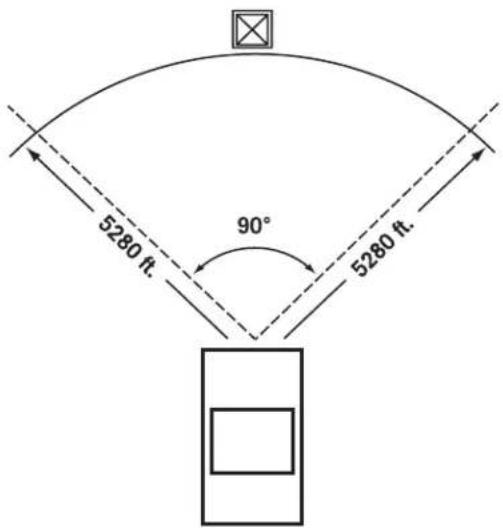
text_image
5280 ft. 90° 5280 ft.Select First Warning.

text_image
State Information Center - Setting Detection angle 120° (deg) First warning at : 3280 Ft Last warning at : 984 Ft Save Press ENTER or ARROW keysUse the numeric keypad to enter the number of feet in which to alert you. When you have finished, select OK.

text_image
First warning at : 5280_ 1 2 3 4 5 6 7 8 9 ABC OK More 0Chapter 8: Navigation Options
The Last Warning is set as a final alert when you are within a certain number of feet from the POI.
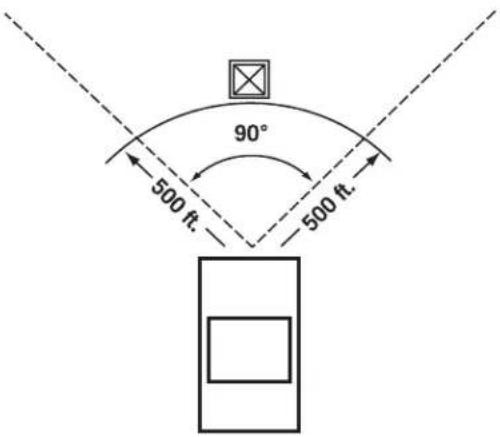
text_image
90° 500 ft. 500 ft.Select Last Warning.
Use the numeric keypad to enter the number of feet in which to alert you. When you have finished, select OK.
When you have set the parameters as you like, select Save.
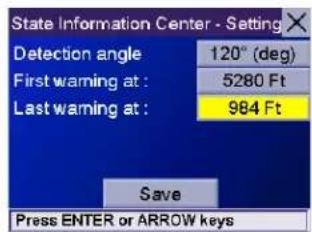
text_image
State Information Center - Setting Detection angle 120° (deg) First warning at : 5280 Ft Last warning at : 984 Ft Save Press ENTER or ARROW keys
text_image
Last warning at : 500_ 1 2 3 4 5 6 7 8 9 ABC OK More 0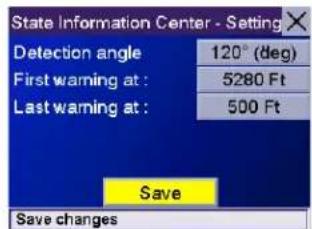
text_image
State Information Center - Setting Detection angle 120° (deg) First warning at : 5280 Ft Last warning at : 500 Ft Save Save changesChapter 8: Navigation Options
8.1.3 Map Options
Map Options enable you to determine the behavior of the Map while you are driving.
Select Map Options.
With Scrolling enabled, the vehicle position icon will always remain in the same position with the map scrolling, or moving as while the vehicle is in motion. With Scrolling disabled, the vehicle position icon will move forward slightly; then, the map will scroll down. Having Scrolling disabled allows for a faster display.
Heading Up sets the map display so that the direction of travel is always at the top of the screen. North Up sets the map display so that North is always at the top of the screen. North Up is only available in 2D Map mode.

text_image
Map Options Scrolling Heading Up North Up Miles Kilometers Save Set Scrolling MapSelect Miles or Kilometers as the unit of measure for distance.
When you have finished, select Save.
8.1.4 TrueView Options
TrueView options enable you to control how and when the TrueView screen is displayed. Select TrueView Options.
Select Split TrueView to enable the TrueView/Map Screen mode. See "TrueView Screen" on page 19.
Select Disable TrueView if you do not want the TrueView screen to appear during routing.
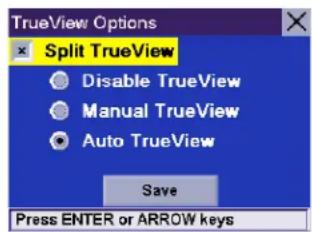
text_image
TrueView Options Split TrueView Disable TrueView Manual TrueView Auto TrueView Save Press ENTER or ARROW keysSelect Manual TrueView to show the TrueView screen only by pressing the View key.
Select Auto TrueView to have the TrueView screen appear automatically when the next maneuver is approaching.
When you have finished, select Save.
8.1.5 Select Map Color
Select Select Map Color.
With Automatic Night Mode enabled, the Magellan RoadMate 3000T will switch between a Day screen and a Night screen based on sunrise and sunset times for your current location.
Select Day Screen to choose a color scheme for the map while you are driving during the day.
Select Night Screen to select a color scheme for driving at night.
When you have finished, select Save.
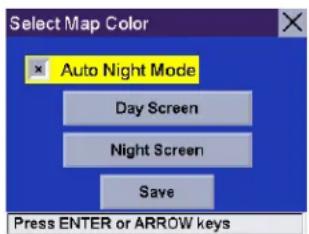
text_image
Select Map Color Auto Night Mode Day Screen Night Screen Save Press ENTER or ARROW keysChapter 8: Navigation Options
Select from nine available color schemes:
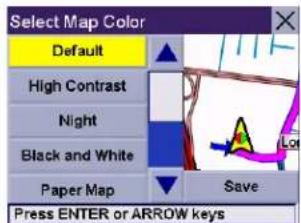
text_image
Select Map Color Default High Contrast Night Black and White Paper Map Save Press ENTER or ARROW keys
text_image
Select Map Color Default High Contrast Night Black and White Paper Map Save Press ENTER or ARROW keys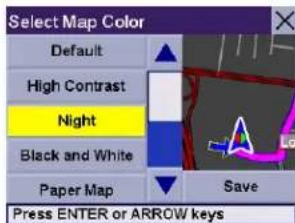
text_image
Select Map Color Default High Contrast Night Black and White Paper Map Save Press ENTER or ARROW keys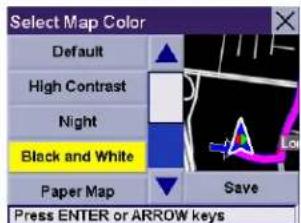
text_image
Select Map Color Default High Contrast Night Black and White Paper Map Save Press ENTER or ARROW keys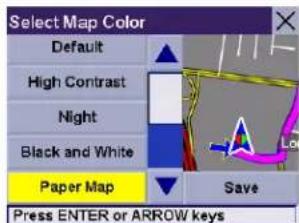
text_image
Select Map Color Default High Contrast Night Black and White Paper Map Save Press ENTER or ARROW keys
text_image
Select Map Color High Contrast Night Black and White Paper Map Wild Save Press ENTER or ARROW keys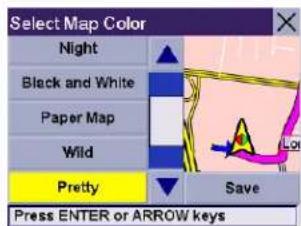
text_image
Select Map Color Night Black and White Paper Map Wild Pretty Save Press ENTER or ARROW keys
text_image
Select Map Color Black and White Paper Map Wild Pretty Cool Blue Save Press ENTER or ARROW keys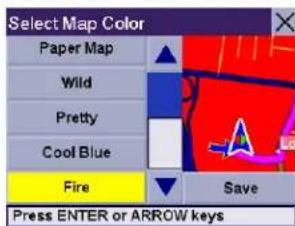
text_image
Select Map Color Paper Map Wild Pretty Cool Blue Fire Save Press ENTER or ARROW keysWhen you have finished, select Save and you will be returned to the Select Map Color menu.
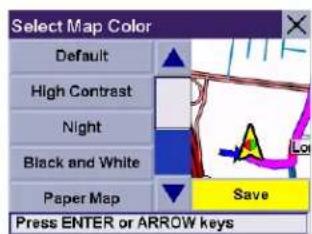
text_image
Select Map Color Default High Contrast Night Black and White Paper Map Save Press ENTER or ARROW keys8.1.6 Route Preferences
Route Preferences enable you to set parameters for the Magellan RoadMate 3000T to follow when calculating a route. Select Route Preferences.
Automatic Re-Route will cause the Magellan RoadMate 3000T to try up to three times to automatically re-route to the destination when it has detected that the vehicle has deterred from the calculated route.
When you have finished, select Save.
Chapter 8: Navigation Options
8.1.7 Detour Options
The Magellan RoadMate 3000T comes equipped with SmartDetour. If you are driving on the freeway with SmartDetour enabled and your speed drops below 15 MPH, you may press the detour icon on the Map screen in order for the Magellan RoadMate 3000T to calculate an alternate route around traffic.
Select Detour Options.
Select the distance of the detour. You can select from a preset distance of three miles, five miles, or 10 miles.
You can also select a custom distance. Select Custom, and then select the button to the right to enter a custom distance.
Enter the number of miles and select OK.
Next, select the amount of time the Magellan RoadMate 3000T will wait before alerting you. Select the Time button.
Enter the number of minutes and select OK.
Enable Automatic Detour is selected by default as shown by the checkbox mark. To disable automatic detour, deselect Enable Automatic Detour..
When you have finished, select Save.
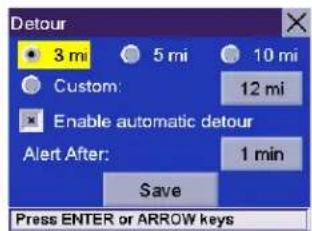
text_image
Detour 3 mi 5 mi 10 mi Custom: 12 mi Enable automatic detour Alert After: 1 min Save Press ENTER or ARROW keys
text_image
Detour 3 mi 5 mi 10 mi Custom: 12 mi Enable automatic detour Alert After: 1 min Save Press ENTER or ARROW keys
text_image
Detour 3 mi 5 mi 10 mi Custom: 25 mi Enable automatic detour Alert After: 1 min Save Press ENTER or ARROW keys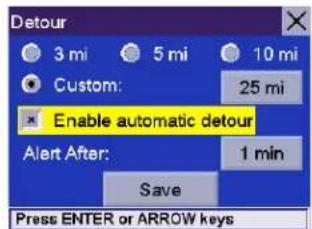
text_image
Detour 3 mi 5 mi 10 mi Custom: 25 mi Enable automatic detour Alert After: 1 min Save Press ENTER or ARROW keys
text_image
Detour 3 mi 5 mi 10 mi Custom: 25 mi Enable automatic detour Alert After: 15 min Save Save changesChapter 8: Navigation Options
When you encounter traffic, and the set time has elapsed, the Detour icon will flash on the Map screen. Touch the icon on the screen to have the Magellan RoadMate 3000T calculate the detour. You can choose to ignore the Detour alert; and after one minute it will stop flashing until the set time has elapsed again when it will alert you once more.
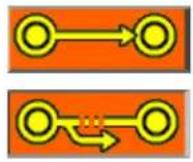
8.1.8 Menu Colors
You can change the color of the menu screens by selecting one of four color schemes.
Select Menu Colors.
Select the desired color scheme.
When you have finished, select Save.
8.1.9 Tone Options
As you approach a maneuver, an audible alert sounds to let you know to make the maneuver.
Select Tone Options.
Select either Bell, Chime, or Beep.
When you have finished, select Save.
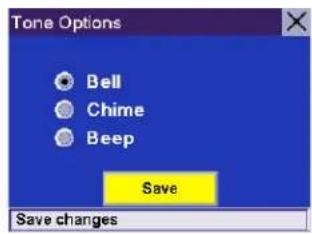
text_image
Tone Options Bell Chime Beep Save Save changes8.1.10 GPS Options
GPS Options provide you with information on the satellite signal as well as the ability to speed up signal acquisition time.
8.1.10.1 GPS Status
The GPS Status screen is available by pressing the GPS Signal icon on the Map screen (see "Map Screen" on page 17) as well as through the GPS Options menu. GPS Status monitors the satellite signal. For more information on the GPS Status screens refer to "GPS Status Screen" on page 92.
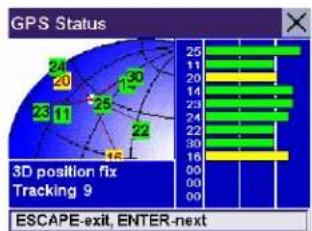
bar
GPS Status | Position | Value | |---|---| | 1 | 24 | | 2 | 20 | | 3 | 13 | | 4 | 25 | | 5 | 22 | | 6 | 16 | | 7 | 25 | | 8 | 24 | | 9 | 20 | | 10 | 14 | | 11 | 23 | | 12 | 24 | | 13 | 25 | | 14 | 25 | | 15 | 25 | | 16 | 25 | | 17 | 25 | | 18 | 25 | | 19 | 25 | | 20 | 25 | | 21 | 25 | | 22 | 25 | | 23 | 25 | | 24 | 25 | | 25 | 25 | | ESCAPE EXIT, ENTER-nextChapter 8: Navigation Options
8.1.10.2 Set GPS Position
Set GPS Position enables you to manually set the location of the Current Position icon. If you have travelled a long distance with the Magellan RoadMate 3000T off, it may take some time for the Magellan RoadMate 3000T to reacquire a satellite signal. By manually setting the position of the Magellan RoadMate 3000T, you are telling the Magellan RoadMate 3000T where you are and will speed up the satellite signal acquisition. Make sure you first select the country you are in by pressing the Globe button on the Destination screen (see "Country Selection (Globe Button)" on page 25). Select Set GPS Position.
Enter the first few characters of the city name (see "Inputting Text Characters" on page 13). Select OK. Use the Navigation key to scroll the list up or down (if necessary) and select the desired city.
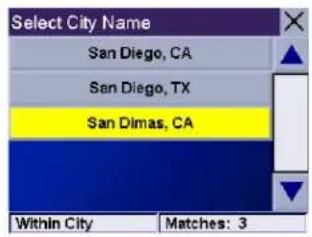
text_image
Select City Name San Diego, CA San Diego, TX San Dimas, CA Within City Matches: 3Enter the street name (see "Help with Address Entry" on page 15). Select OK. Use the Navigation key to scroll the list up or down (if necessary) and select the desired street.
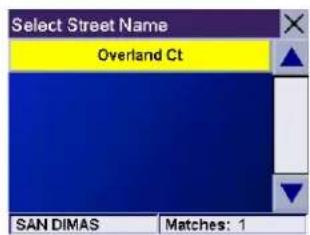
text_image
Select Street Name Overland Ct SAN DIMAS Matches: 1Enter the street address. The acceptable range of numbers is displayed at the top of the screen. If you do not know the exact address, just select Done and the Magellan RoadMate 3000T will use the lowest number in the range. Select Done to continue. You will be returned to the Configuration menu.
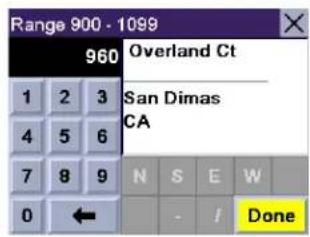
text_image
Range 900 - 1099 960 Overland Ct 1 2 3 San Dimas 4 5 6 CA 7 8 9 N S E W 0 ← - / DoneGo to the Map screen. Your current position is now set to the address you entered.
8.1.11 Simulator Mode
In Simulator Mode, you can demonstrate the capabilities of the Magellan RoadMate 3000T without actually driving. In order for the simulation to work, you must set a route first. Select Simulator Mode.
Select Simulate to begin the simulation.
Set the speed variance of the simulation: x1 will "drive" at normal speed using known speed limits; x1.5 will "drive" at one and a half times normal speed; x2 will "drive" at two times normal speed.
Return to the Map screen to view the simulation.

text_image
Simulator Mode Restart <1mi Simulate 1mi>> State Speed factor 1X 1.5X 2X Status Route active Simulation stopped... Location 0.0mi Out of 10.7miTo disable Simulator Mode, select Stop, or when the power is turned off the Simulator will stop.
Chapter 8: Navigation Options
8.1.12 Automatic Volume
The Magellan RoadMate 3000T can be set to automatically increase the volume when the vehicle exceeds 45 MPH in order to compensate for road noise.
Select Automatic Volume.
Select the number increment by which to increase the volume.
Select Enable.
When you have finished, select Save.
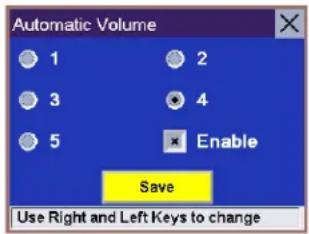
text_image
Automatic Volume 1 2 3 4 5 Enable Save Use Right and Left Keys to change8.1.13 Backup and Restore
The Magellan RoadMate 3000T has the capability to back up your information (Address Book, Previous Destinations, etc.) to an optional memory card.
8.1.13.1 Backup
Select Backup and Restore then, select Backup.
If you do not have a card inserted, you will be prompted to insert a card. Make sure the card is unlocked to allow data to be copied to it. Insert a card and reselect Backup.
A dialog box will appear asking you to confirm your selection. Select Yes.
The files are copied to the memory card.
8.1.13.2 Restore
To restore the files to the hard disk, select Backup and Restore then, select Restore.
If you do not have a card inserted, you will be prompted to insert a card. Insert a card and reselect Restore.
A dialog box will appear asking you to confirm your selection. Select Yes.
The files are copied to the hard disk.
Chapter 8: Navigation Options
8.1.14 Map Information
Product Information displays information about the map and database installed in your Magellan RoadMate 3000T. This information aids our Technical Support Representative in finding a solution to whatever problem you may have.

text_image
Map Information S/W version: 0.01 Map Compiler Version: 1.8.5.23 Map Library Version: 1.8.5.20 Map GDF Version: Q305 Map Index Version: 0.0.0.34 Press ESCAPE to exit8.2 Trip Computer
The Trip Computer is a valuable tool for recording the mileage and time spent driving while on business or vacation. The information for the trip can be saved and viewed at any time, providing you easy access to information on your current trip, as well as previous trips.
To access these features, press the MENU key on the Magellan RoadMate 3000T and select Navigation Options.
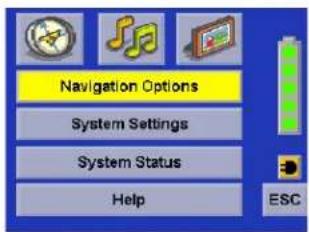
text_image
Navigation Options System Settings System Status Help ESCSelect Trip Computer.
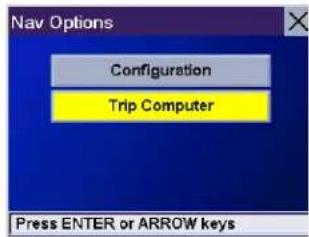
text_image
Nav Options Configuration Trip Computer Press ENTER or ARROW keys8.2.1 Current Trip
When you begin a new trip and you need to record the information, access the Trip Computer. There you can save the information displayed for the current trip (if needed) and reset the Trip Computer to zero in preparation for your new trip.
Select Trip Computer
Select Current from the list of saved Trip Reports.

text_image
Trip Computer Current Press ENTER or ARROW keysChapter 8: Navigation Options
The Trip Computer is always in a "Running" state. The information for the current trip is displayed.
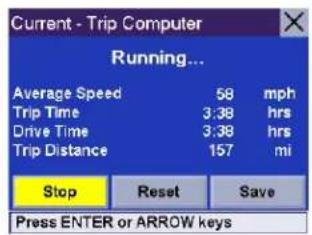
text_image
Current - Trip Computer Running... Average Speed 58 mph Trip Time 3:38 hrs Drive Time 3:38 hrs Trip Distance 157 mi Stop Reset Save Press ENTER or ARROW keys8.2.1.1 Stopping or Starting the Trip Computer
At any time the Trip Computer can be stopped and started. If the Trip Computer is currently running, select Stop. The Trip Computer will stop recording until restarted or reset.
While the Trip Computer is in a "Stopped" state, select Start to continue recording the current trip or select reset to begin a new trip.
8.2.1.2 Saving the Current Trip Report
When you have finished with your trip, you can save the information for later viewing. Select Save at any time.
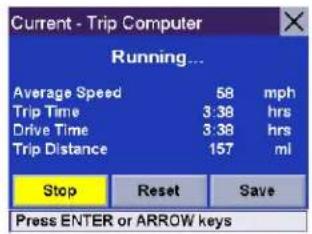
text_image
Current - Trip Computer Running... Average Speed 58 mph Trip Time 3:38 hrs Drive Time 3:38 hrs Trip Distance 157 ml Stop Reset Save Press ENTER or ARROW keys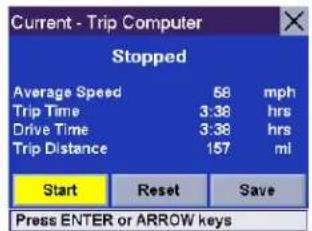
text_image
Current - Trip Computer Stopped Average Speed 58 mph Trip Time 3:36 hrs Drive Time 3:38 hrs Trip Distance 157 ml Start Reset Save Press ENTER or ARROW keys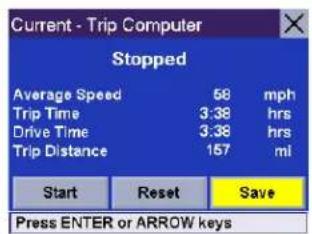
text_image
Current - Trip Computer Stopped Average Speed 58 mph Trip Time 3:38 hrs Drive Time 3:38 hrs Trip Distance 157 mi Start Reset Save Press ENTER or ARROW keysUse the keypad to enter a name for the Trip Report and select OK when you are finished.
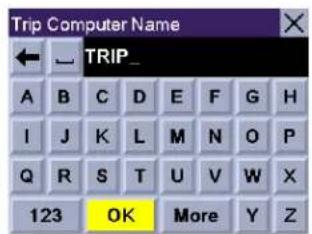
text_image
Trip Computer Name TRIP_ A B C D E F G H I J K L M N O P Q R S T U V W X 123 OK More Y ZChapter 8: Navigation Options
8.2.1.3 Resetting the Trip Computer
Before starting a new trip that you want to record, you need to reset the Trip Computer first. Select Reset and the information will be set to zero. The Trip Computer will remain in a "Running" state.
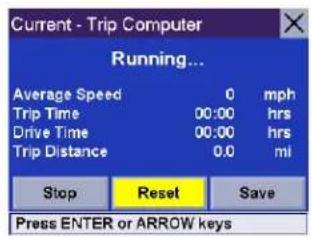
text_image
Current - Trip Computer Running... Average Speed 0 mph Trip Time 00:00 hrs Drive Time 00:00 hrs Trip Distance 0.0 ml Stop Reset Save Press ENTER or ARROW keys8.2.1.4 Viewing a Saved Trip Report
From the Trip Computer screen, select the Trip Report you wish to view.
The saved Trip Report is displayed. Press the ESCAPE key when you are finished to view the trip and return to the Trip Computer screen.

text_image
Trip Computer Current TRIP Press ENTER or ARROW keys
text_image
TRIP - Trip Computer Average Speed 58 mph Trip Time 3:38 hrs Drive Time 3:38 hrs Trip Distance 157 mi Delete Press ENTER or ARROW keys8.2.1.5 Deleting a Trip Report
Select the Trip Report to be deleted.

text_image
Trip Computer Current TRIP Press ENTER or ARROW keysSelect Delete.
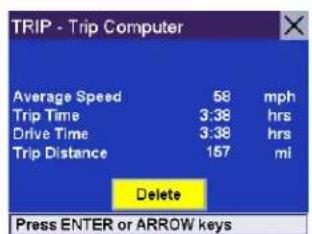
text_image
TRIP - Trip Computer Average Speed 58 mph Trip Time 3:38 hrs Drive Time 3:38 hrs Trip Distance 157 mi Delete Press ENTER or ARROW keysChapter 8: Navigation Options
The trip is deleted and you are returned to the Trip Computer screen.

text_image
Trip Computer Current Press ENTER or ARROW keysChapter 9: System Settings
The System Settings Menu contains system wide customization features which include: Brightness, Power Management, Password, and Language.
To access these features, press the MENU key on the Magellan RoadMate 3000T and select System Settings.
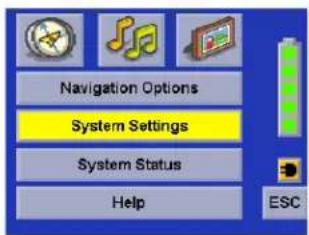
text_image
Navigation Options System Settings System Status Help ESC9.1 Brightness
To change how light the screen appears, select Brightness.
Use the right arrow to make the screen appear lighter, and use the left arrow make the screen appear darker.
With On-battery dimming enabled, the screen will decrease in brightness by 20% to save some battery power.
When you have finished, select OK to confirm or select ESC to cancel changes.
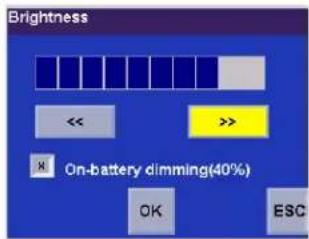
text_image
Brightness << >> On-battery dimming(40%) OK ESC9.2 Power Management
The Power Management features enable you to customize the features that will conserve battery power and display life. Select Power Management.
Select the time period to put the Magellan RoadMate 3000T in "sleep" mode.
Select to enable or disable turning the screen off when music is being played.
When you have finished, select OK to confirm or select ESC to cancel changes.
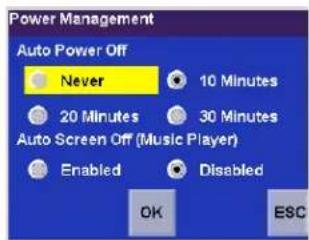
text_image
Power Management Auto Power Off Never 10 Minutes 20 Minutes 30 Minutes Auto Screen Off (Music Player) Enabled Disabled OK ESC9.3 Password
9.3.1 Set Password
You can protect the Magellan RoadMate 3000T form unwanted use by enabling a password. Select Password.
Select Set Password to enter a password. Use the keypad to enter the desired password. When you have finished, select OK.
Re-enter the password to confirm. Use the keypad to re-enter the password exactly as you entered it the first time. When you have finished, select OK.
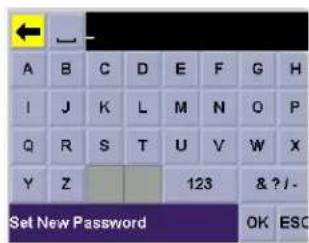
text_image
A B C D E F G H I J K L M N O P Q R S T U V W X Y Z 123 & ? / Set New Password OK ESCSelect OK to activate the password. To return to the System Settings menu without setting the password, select ESC.
Once the password is enabled, you will be required to enter it when the Magellan RoadMate 3000T is turned on or when it wakes up from "sleep" mode.
Chapter 9: System Settings
9.3.2 Change Password
Select Change Password. Use the keypad to enter the desired password. When you have finished, select OK.
Re-enter the password to confirm. Use the keypad to re-enter the password exactly as you entered it the first time. When you have finished, select OK.
Select OK to activate the password. To return to the System Settings menu without setting the password, select ESC.
Once the password is enabled, you will be required to enter it when the Magellan RoadMate 3000T is turned on or when it wakes up from “sleep” mode.
9.3.3 Delete Password
Select Delete Password and use the keyboard to enter the password.
A dialog box will appear asking you to confirm your selection. Select Yes.
9.4 Language
To change the language for the menu text and voice prompts for navigation, select Language.
Select the desired language. A dialog box will appear asking you to confirm your selection. Select Yes.
The Magellan RoadMate 3000T will restart itself with the new language enabled.

text_image
English (US) Français Deutsch Italiano Español ESCChapter 10: System Status
The System Status menu give you further options to check the performance of your Magellan RoadMate 3000T.
10.1 Product Information
Select Product Information to show the current application software versions. Also, the current hardware and firmware versions will be displayed.
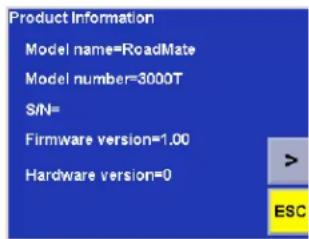
text_image
Product Information Model name=RoadMate Model number=3000T S/N= Firmware version=1.00 Hardware version=0 >10.2 User Storage
Select User Storage to display the available space of the memory card if it is installed..
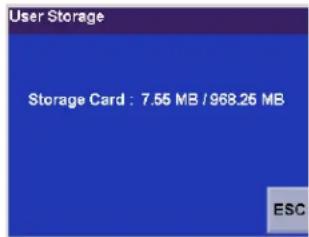
text_image
User Storage Storage Card : 7.55 MB / 968.26 MB ESC10.3 Diagnostics
Diagnostics enables you to test key performance elements of the Magellan RoadMate 3000T
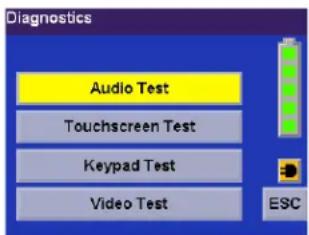
text_image
Diagnostics Audio Test Touchscreen Test Keypad Test Video Test ESC10.3.1 Audio Test
The Audio Test will check the performance of the built-in speaker.
10.3.2 Touchscreen Test
The Touchscreen test will enable you to recalibrate the touchscreen should it not be tracking properly.
10.3.3 Keypad Test
The Keypad test will determine if the buttons on the Magellan RoadMate 3000T are functioning.
10.3.4 Video Test
The Video test will test to determine if the screen is displaying colors properly.
Chapter 10: System Status
10.4 Contact Us
If you experience problems using your Magellan RoadMate 3000T, you can contact us at the numbers displayed.
text_image
Contact Us United States Tel: (866) 868 - 2269 Canada Tel: (809) 394 - 5000 Europe Tel: 00 800 MAGELLAN (00 800 62435526) Website http://www.magellangps.com ESCChapter 11: Magellan RoadMate Tools Installation
The Magellan RoadMate Tools application enables you to create custom POI's and load them onto your Magellan RoadMate 3000T. Additionally, you can load pictures and music onto an SD or MMC card (sold separately) to view or play anytime. See "Using Removable Memory Cards" on page 9.
11.1 Installing the Software
Insert the Magellan RoadMate Tools PC Application CD into your PC's CD drive.
The setup application will begin automatically. If it does not, browse your computer's CD drive and double-click on the setup.exe file.
Select a default language for the Application.
The Welcome screen will appear to begin the installation process.
Choose a destination for the application. Select Next to use the default location, or select Browse to choose a custom destination.
Next, choose a Program Folder to place the application icons.
The Magellan RoadMate Tools software will be installed. After it has finished installing, a dialog box pertaining to Microsoft Digital Signatures may appear, select OK
When it has finished, to can have the installer launch the application automatically, or deselect to exit without launching the application. Select Finish.

text_image
Select the language for this installation from choices below. English OK Cancel
text_image
Welcome to the InstallShield Wizard for Magellan RoadMate Tools The InstallShield® Wizard will install Magellan RoadMate Tools on your computer. To continue, click Next.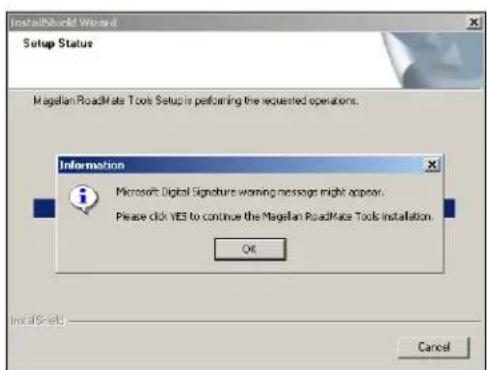
text_image
InstallShield Wizard Setup Status Magellan RoadMate Tools Setup is performing the requested operations. Information Microsoft Digital Signature warning messages right appear. Please click YES to continue the Magellan RoadMate Tools Installation. OK CancelChapter 12: Magellan RoadMate Music Manager
The Magellan RoadMate Music Manager enables you to transfer song files in MP3 or WMA format from your computer to an optional memory card (see "Using Removable Memory Cards" on page 9) installed in your Magellan RoadMate 3000T. The amount of music you can load depends on the size of the card.
Insert the memory card into the memory card slot as show on page 9. Turn on your Magellan RoadMate 3000T by pressing and holding the Power button for approximately 2-3 seconds if in sleep mode. (Ten seconds if not in sleep mode.) When the Warning screen appears, insert the small end of the USB cable into the USB port on your Magellan RoadMate 3000T and the large end into an available USB port on your computer.
Launch the Magellan RoadMate Tools application. From the Magellan RoadMate Tools screen, click on Music.
The left side of the window shows the contents of your computer and the right side of the window shows the contents of the memory card installed in your Magellan RoadMate 3000T.
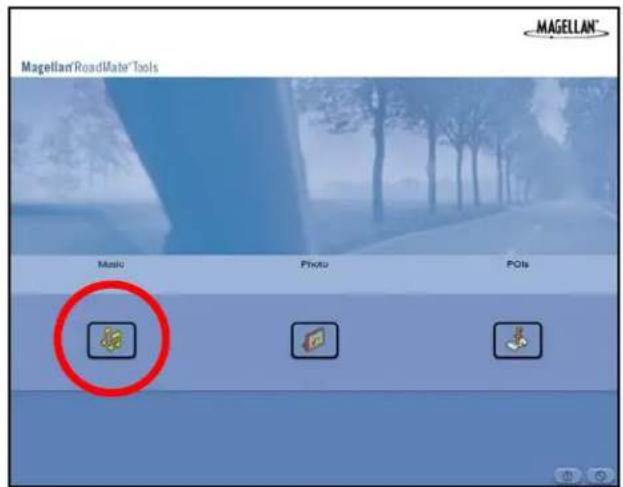
text_image
Magellan®RoadMata®Tools Music Photo POIsLocate the song files you wish to load. When you have selected a file, the Transfer arrow will turn green. Click on the Transfer arrow to copy the file(s) to the memory card.

text_image
Magellan RoadMate Music Manager My Computer My Magellan RoadMate File Edit View Help Name Type Page Reading Image Event 100.00 100.00 2013/04/15 16:00 Language Load Set 100.00 100.00 2013/04/15 16:00 Red CircleIn the same way, if you have loaded song files onto a memory card from another computer, you can copy the files from the memory card to your computer.
When you have finished copying files, remove the USB cable from the Magellan RoadMate 3000T.
Chapter 13: Music Player
The Magellan RoadMate 3000T Music Player enables you to play music files in MP3, or WMA format, stored on an optional memory card installed in your Magellan RoadMate 3000T. If you have not already done so, you must install the Magellan RoadMate Tools application (page 74) and transfer files onto the card using the Magellan RoadMate Music Manager (page 75). You can also use a memory card that has been preloaded from a card reader.
Press the MENU key on the Magellan RoadMate 3000T (see page 5) and select the Music Player.

The Music Player control pad will appear.

text_image
Play Mode Playlist Browse Music13.1 Single Song Play
Select Browse Music

Use the Navigation key or the Down arrow to select the song file you wish to play and press OK.
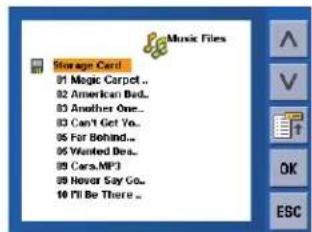
text_image
Music Files Storage Card 81 Magic Carpet.. 82 American Bed.. 83 Another One.. 84 Can't Get You.. 85 For Behind.. 86 Wanted Bea.. 87 Cars.MP3 88 Never Say Go.. 89 I'll Be There..The song will begin playing automatically.
At the top of the screen is displayed the name of the song, the artist (if available), the selected play mode, the elapsed time, and the song duration.
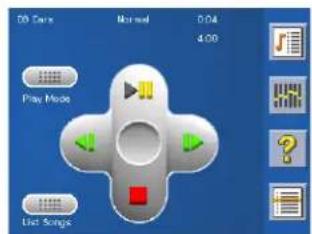
text_image
20 Cars Normal 0:04 4:00 Play Mode List SongsPress the Play/Pause button to suspend song play. To resume song play, press the Play/Pause button again.
Press the Stop button to stop song play. Once a song has been stopped, pressing the Play/Pause button will start the song from the beginning.
13.2 Multiple Song Play
Multiple song play enables you to create a “playlist”. A playlist consists of one or more songs in a group that can be played continuously.
Chapter 13: Music Player
Select Playlist

The Playlist menu will appear. To exit from the playlist menu, select ESC.
13.2.1 Play
To hear a previously created playlist, select Play.
Use the Up or Down arrow to select the desired playlist. Select OK.
The songs will begin playing automatically in order.

text_image
Play Create Modify Delete Rename ESC13.2.2 Create
To make a new playlist, select Create.
Use the backspace key (<-) to erase the default name; and the keypad to enter a new name for your playlist. When you have finished, select OK.
The next screen to appear shows the song files stored on the memory card on the left side, and the playlist on the right side.
Use the arrow buttons on the left side of the screen to highlight the Music folder and then, select List Files.
Use the arrow buttons to highlight the song files you wish to add to the playlist. Select Add to Playlist (right arrow) to add the highlighted song to the playlist.
Continue adding files to the playlist. When you have finished, select OK.
13.2.3 Modify
Modify enables you to add or remove songs from the selected playlist. Select Modify.
To remove a song from the playlist, use the arrow keys on the right side of the screen to highlight the desired song and then select Remove From Playlist (left arrow).
Use the arrow buttons on the left side of the screen to highlight the song files you wish to add to the playlist. Select Add to Playlist (right arrow) to add the highlighted song to the playlist.
Continue adding files to the playlist. When you have finished, select OK.
13.2.4 Delete
To remove a playlist, select Delete.
Select the playlist you wish to delete and select OK.
A dialog box will appear asking to confirm your selection. Select Yes to delete the playlist.
Chapter 13: Music Player
13.2.5 Rename
If you want to change the name of a playlist, select Rename.
Select the playlist you wish to rename and then, select OK.
Use the backspace key (<-) to erase the name; and the keypad to enter a new name for your playlist. When you have finished, select OK.
13.3 Play Mode
While in single song play, select Play Mode for song play options.
Repeat All - Repeats all the songs in the current playlist starting at the beginning of the order. This function works only if there are two or more songs in the playlist.
Repeat - repeats the song that is currently playing.
Preview - Plays the first five seconds of each song in the current playlist.
Normal - Plays all songs in the current playlist in order.
Random - Plays the songs in the current playlist in random order.

text_image
08 Pads Normal 0:04 4:00 Play Mode List Ongoing13.4 List Songs
Select List Songs to view the current playlist.

text_image
00 Cars Normal 0:04 4:00 Play Mode List SungeChapter 13: Music Player
13.5 Equalizer
The Equalizer provides advanced sound options so you can customize the quality of the playback. The equalizer will only be available for MP3 format sound files. Select an equalizer preset from the following preconfigured options: Default (flat), Jazz, Classical, Rock, Techno, Dance Hall, Live, Full Bass, Full Treble, and Full Bass & Treble. You are not able to however, manually set the equalizer.
Select the Equalizer

Select the equalizer preset by pressing the button at the top of the screen
When you are satisfied with your selection, select OK. To exit without setting the equalizer, select ESC.
13.6 Help
Select Help

for descriptions of the Music Player buttons.
Chapter 14: Magellan RoadMate Photo Manager
The Magellan RoadMate Photo Manager enables you to transfer image files in multiple formats from your computer to an optional memory card (see "Using Removable Memory Cards" on page 9) installed in your Magellan RoadMate 3000T. The number of images you can load depends on the size of the card. You can also use a memory card that has had images preloaded using a card reader.
Insert the memory card into the memory card slot as show on page 9. Turn on your Magellan RoadMate 3000T by pressing and holding the Power button for approximately 2-3 seconds (Ten seconds if the Magellan RoadMate 3000T is not in sleep mode.) When the Warning screen appears, insert the small end of the USB cable into the USB port on your Magellan RoadMate 3000T, and the large end into an available USB port on your computer.
Launch the Magellan RoadMate Tools application. From the Magellan RoadMate Tools screen, click on Photo.
The left side of the window shows the contents of your computer and the right side of the window shows the contents of the memory card installed in your Magellan RoadMate 3000T.
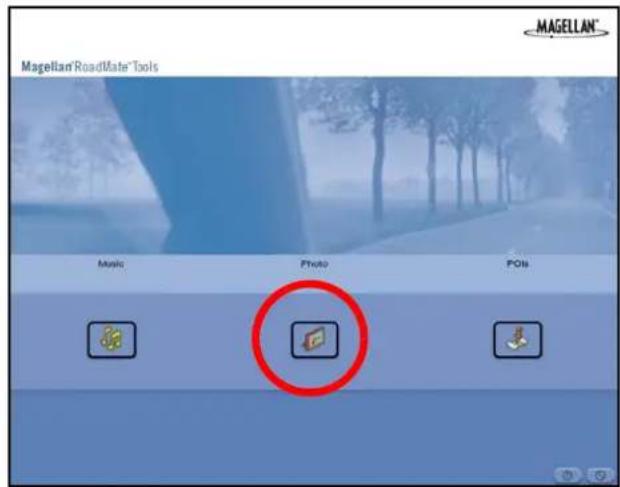
text_image
Magellan RoadMate Tools MAGELLAN® Music Photo POIsLocate the image files you wish to load. When you have selected a file, the Transfer arrow will turn green. Click on the Transfer arrow to copy the file(s) to the memory card.
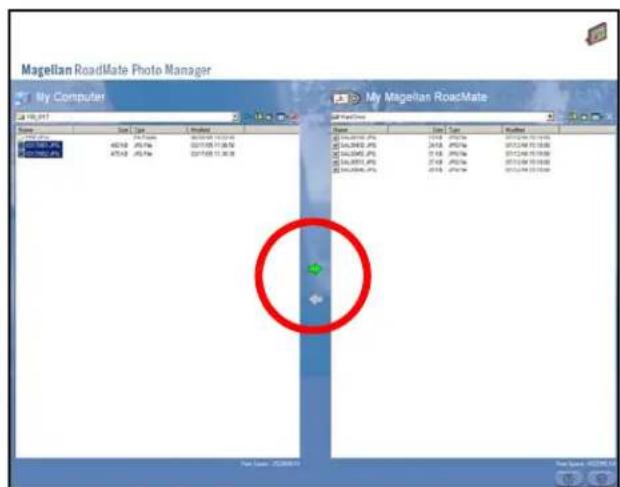
text_image
Magellan RoadMate Photo Manager My Computer 146.2017 Name Start Type Updated File Edit View Insert 146.2017 (JP) 45/1/03 - JP/1/03 2017/05/10 10:24:00 475/1/03 - JP/1/03 2017/05/10 11:30:00 My Magellan RoadMate File Edit View Insert 146.2017 (JP) 45/1/03 - JP/1/03 2017/05/10 10:24:00 475/1/03 - JP/1/03 2017/05/10 11:30:00 My Magellan RoadMate File Edit View Insert File Edit View Insert 146.2017 (JP) 45/1/03 - JP/1/03 2017/05/10 10:24:00 475/1/03 - JP/1/03 2017/05/10 11:30:00 My Magellan RoadMate File Edit View Insert 文件名: JZQ88879 File Edit View InsertIn the same way, if you have loaded image files onto a memory card from another computer, you can copy the files from the card to your computer.
When you have finished copying files, remove the USB cable from the Magellan RoadMate 3000T.
Chapter 15: Photo Viewer
The Magellan RoadMate Photo Viewer enables you to view image files in JPG and BMP format, stored on an optional memory card installed in your Magellan RoadMate 3000T. If you have not already done so, you must install the Magellan RoadMate Tools application (page 74) and transfer files onto the card using the Magellan RoadMate Photo Manager (page 75).
Press the MENU key on the Magellan RoadMate 3000T (see page 5). Select the Photo Viewer
The Photo Viewer screen will appear. The Photo viewer will show the contents of the SD or MMC card installed in your Magellan RoadMate 3000T..
text_image
Storage Card View Manage Tools15.1 View Single Photo
The next screen to appear shows the file structure of the memory card. Select List Files

Use the Navigation key or the Down arrow to highlight the photo you wish to view and
select View.
While viewing the image, double clicking on the image (that is tapping twice on the screen) will show the image in full screen. You can then cycle through the images by pressing left or right on the Navigation key.
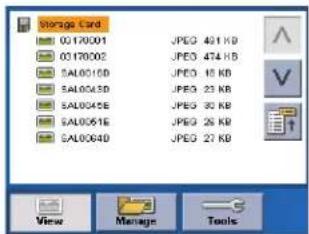
text_image
Storage Card 0170001.JPEG 491 KB 0170002.JPEG 474 KB SAL0015D.JPEG 18 KB SAL0024D.JPEG 23 KB SAL0035E.JPEG 32 KB SAL0061E.JPEG 26 KB SAL0064D.JPEG 27 KB15.1.1 Previous Image (left arrow)

Press the right arrow button to view the previous image in the folder. This button is grayed out (not functional) when viewing the first image in the folder.
15.1.2 Zoom

Press the Zoom button to reduce or enlarge the current photo. The top of the zoom menu shows the current zoom level. Select another zoom level from the list of presets. Select Best Fit to adjust the zoom to fit within the display boundaries; select Actual Size to display the image at 100%; select 25% to 150% to reduce or enlarge the image to the preset level.
Chapter 15: Photo Viewer
15.1.3 Slideshow

Press the Slideshow button to cycle through all the photos in the Pictures folder automatically.
15.1.4 Pan

If you enlarge an image beyond the screen boundaries, press the Pan button to enable image scrolling. While enabled, you can drag the image in any direction to view other areas of the image. Press the Pan button again to disable Pan mode.
15.1.5 Rotate Image

Press the Rotate Image button to rotate the image 90° counterclockwise, 90° clockwise, or 180°.
15.1.6 Next Image (right arrow)

Press the right arrow button to view the next image in the folder. This button is grayed out (not functional) when viewing the last image in the folder.
15.1.7 ESC

Press ESC to return to the folder list.
15.2 Manage Photos
15.2.1 List View
Press List view to show the files in a hierarchical list view.
15.2.2 Thumbnail
Press Thumbnail to show the files as thumbnails.
15.2.3 Rename
To change the name of the selected file or folder, press Rename.
Use the backspace key (<-) to erase the name; and the keypad to enter a new name for your file. When you have finished, select OK.

text_image
Storage Card List View Thumbnail Rename Properties View ManageChapter 15: Photo Viewer
15.2.4 Properties
To view information on the selected file or folder, press Properties. A thumbnail of the image will be displayed along with the width and height in pixels, the size, and the format (image type). When viewing the properties for folders, width, height, and format are not shown. Size shown is the combined size of all images in the selected folder.
When you are finished viewing the properties, select OK.
15.3 Tools
15.3.1 Preferences
General – The General preferences, you can set the default file view to either thumbnail or file list view.
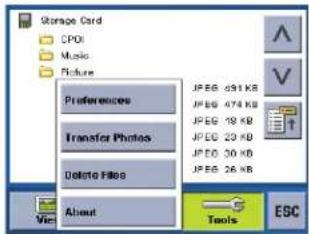
text_image
Storage Card CPDI Music Picture Preferences Transfer Photos Delete Files About JPEG 491 KB JPEG 474 KB JPEG 18 KB JPEG 23 KB JPEG 30 KB JPEG 26 KB Tools ESCSlideshow – The slideshow preferences enable you to set the view properties, the sequence of photos, the transition between photos, and the duration between photos.
Background – The background preferences enable you to set the color of the background behind the photo being viewed.
15.3.2 Delete Files
Use the arrow keys to select the file or folder you wish to delete. Press the Delete button (trash can).
A dialog box will appear asking to confirm your selection. Select Yes to delete the file.
15.3.3 About
This option will display the current version of the Photo Viewer software.
Chapter 16: Magellan RoadMate POI Manager
The Magellan RoadMate POI Manager enables you to transfer custom points of interest files from your computer to your Magellan RoadMate 3000T.
Before we add any custom POI's to the Magellan RoadMate 3000T, you should understand how the POI Manager plots POIs.
16.1 Latitude
Latitude can be expressed by dividing Earth into horizontal segments totalling 180 degrees. Starting at the Equator, or zero degrees Latitude, lines (or Parallels) are drawn in 10-degree increments 90 degrees to the north and 90 degrees to the south. If your location is below the Equator, you are at a South Latitude.

text_image
90° (North Pole) 80° 70° 60° 50° 40° 30° 20° 10° 0° North Latitude Equator South Latitude 90° (South Pole)16.2 Longitude
Conversely, longitude lines can be expressed by dividing Earth into vertical segments totalling 360 degrees. Starting at the Prime Meridian (which is The Royal Observatory in Greenwich, England), or zero degrees Longitude, lines are drawn in 10-degree increments 180 degrees to the West and 180 degrees to the East. If your location is on the western hemisphere, you are at a West Longitude.
Additionally, to narrow down your location further, each 10-degree segment is divided into 60 smaller segments called minutes and, still further, each minute is divided into 60 segments called seconds.
To express this in coordinates, the city of Los Angeles is located at 34^ (degrees) 03' (minutes) and 08 (seconds) North of the Equator, and 118^ (degrees) 14' (minutes) and 42 (seconds) West of the Prime Meridian.
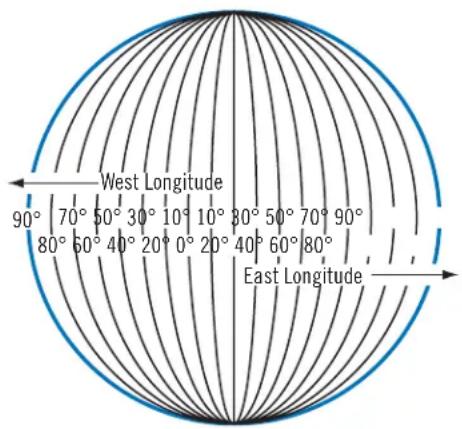
text_image
West Longitude 90° 70° 50° 30° 10° 10° 80° 50° 70° 90° 80° 60° 40° 20° 0° 20° 40° 60° 80° East LongitudeChapter 16: Magellan RoadMate POI Manager
16.3 Altitude
Each location can also have an Altitude. Altitude is expressed by how far the point is above or below the level of the ocean, or Sea Level. For example, Los Angeles, California is about 300 feet above sea level. Death Valley, California is about 270 feet below sea level.
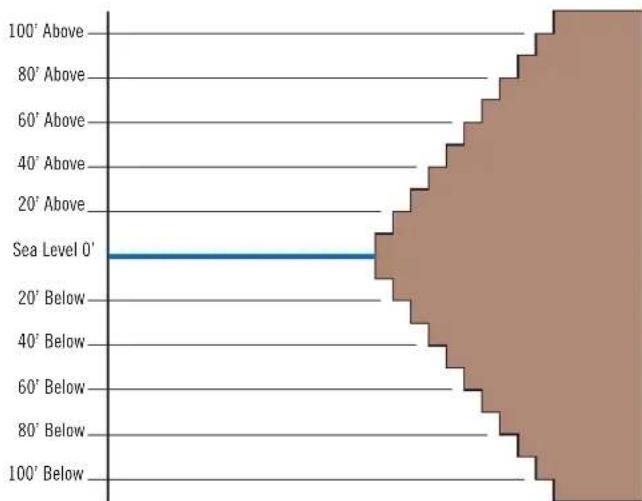
line
| Depth (°) | Value | | --------- | ----- | | 100° Above | | | 80° Above | | | 60° Above | | | 40° Above | | | 20° Above | | | Sea Level 0' | 0 | | 20° Below | | | 40° Below | | | 60° Below | | | 80° Below | | | 100° Below | |Turn on your Magellan RoadMate 3000T by pressing and holding the Power button for approximately 2-3 seconds, 10 seconds if not in sleep mode (see "Top View" on page 6). When the Warning screen appears, insert the small end of the USB cable into the USB port on your Magellan RoadMate 3000T, and the large end into an available USB port on your computer.
Launch the Magellan RoadMate Tools application. From the Magellan RoadMate Tools screen, click on POI.

text_image
Magellan RoadMate Tools MAGELLAN® Music Photo POIsThe left side of the window shows the contents of your computer and the right side of the window shows the contents of the Magellan RoadMate 3000T.
16.4 Opening a POI File
When you start the POI Manager the contents of your "My POI's" folder will be displayed. This is the default location for storing custom POI files.
Chapter 16: Magellan RoadMate POI Manager
Locate the POI files you wish to load. When you have selected a file, the Copy To Unit arrow will turn green. Click on the arrow to copy the file to your Magellan RoadMate 3000T.

text_image
Magellan RoadMate POI Manager My Computer My Magellan RoadMate Start Type Imported Start Date Start Time Start Date Start Time Start Date Start Time Start Date Start Time Start Date Start Time Start Date Start Time Start Date Start Time Start Date Start Time Start Date Start Time Start Date Start Time Start Date Start Time Start Time Start Time Start Time Start Time Start Time Start Time Start Time Start Time Start Time Start Time Start Time Start Time Start Time Start Time Start Time Start Time Start Time Start Time Start Time Start Time Start Time Start Time Start Time Start Time Start Time Start Time Start Time Start Time Start Time Start TimeWhen you have finished copying files, remove the USB cable from the Magellan RoadMate 3000T.
16.5 Creating a New POI File
There are two ways to create a POI file. You can either add POI's individually, or you can import a character delimited file containing the information need to plot the POI's. To plot a POI, each item must have a name, longitude, and latitude. Longitude and latitude must be in decimal format.
16.6 Adding Individual POI's
Click on the New POI File Button to launch the POI Editor.

text_image
World Map Name: 10000000000000000000000000000000000000000000000000000000000000000000000000000000000000000000000000000 MAGELIANClick on the Add button

Enter the Name, the Latitude, and the Longitude. The Altitude and Description fields are optional.
Chapter 16: Magellan RoadMate POI Manager
Select the Category field and select New. A dialog box will appear to create a new POI category. Enter the Name and assign an Image (icon) for the POI. The Description field is optional.
The Alert feature is an audible alarm that lets you know when you are within a certain distance from the POI. You can set an initial reminder (Distance 1), a secondary reminder (Distance 2).
text_image
5280 ft. 90° 5280 ft.Distance 1 Distance 2

text_image
90° 500 ft. 500 ft.Select your preferred unit or measure (Meters or Feet).
The Detection angle sets the range of alert in degrees from the POI.

text_image
90°Select Activate alert for this category to enable the alert settings.
When you have finished, select OK.
Chapter 16: Magellan RoadMate POI Manager
16.7 Importing a Data File
The POI Manager software supports ASCII file format (.ASC,.CSV,.TXT); GPS Exchange file format (.GPS,.XML); Magellan Waypoint file format (.WPT,.RTE); and Garmin PCX5 Waypoint file format (.WPT,.RTE).
Click on the Open button

Select the file you wish to import and click Open.
Start by choosing which line in the data file to start importing data. If your data file has a header row, this row will generate an error so you should start at line two or below.
Next, choose how the data is separated and click on Next.
You now need to define the data columns. Click on the pull down menu and assign a field name to the appropriate column. Click on Finish.
Click on The Save POI file button. Assign a name to your file and click on Save.
Close the POI File Editor. Select the POI file you just created and click on the transfer button (right arrow) to upload the file to your Magellan RoadMate 3000T.
See page 55 for information on accessing custom POIs on your Magellan RoadMate 3000T.
Appendix
POI Categories
The Magellan RoadMate 3000T POI database has 37 different categories. The icons will appear on the Map screen (if enabled):
 | Restaurant Fast food, diners, and food marts |
 | Bank/ATM Most financial services |
 | Gas Station Most fuel services |
| [YA07] | Roadside Assistance Towing companies |
 | Hospital/Polyclinic Most medical services |
 | Vehicle Services Repair shops, tire stores, and oil changes |
 | Airport International and Municipal airports |
| [S42Z] | Camping & RV Campgrounds, camping areas, and RV parks |
| [S7K3] | Car Rental Car rental companies |
 | Casino Gambling venues |
| [54HZ] | City Center The geographical center of a selected city |
 | Clothing Clothing retail stores |
 | Convention Center Major Convention Centers |
| [064X] | Education Schools, Colleges, and other learning institutions |
 | Emergency Services Police, Fire, and Emergency Rooms |
| [6876] | Entertainment Movie theaters, live performance venues |
| [2520] | Golf Course Private and public courses |
 | Grocery Store Major chains and local markets |
| [YBK2] | Hair & Beauty Salons and beauty parlors |
 | Health Care Doctors' offices and pharmacies |
| [X2HW] | Home & Garden Nurseries and do-it-yourself centers |
| [4467] | Hotel or Motel Most overnight stay locations |
 | Marina Docks and harbors |
 | Misc. Services Other services not categorized |
 | Nightlife Dance halls, pubs, nightclubs |
 | Open Parking Area Parking lots and garages |
Appendix
 | Parks County, regional, and local parks |
 | Professional Services Business office locations |
 | Public Buildings Libraries, museums, and government buildings |
 | Rest Area Rest stops along major highways |
 | Shopping Malls and other retail stores |
 | Ski Resorts Most major ski resorts |
 | Sports & Recreation Stadiums, parks, lakes |
| [37GS] | Tourist Attraction Places most visited by tourists |
 | Transportation Bus and train stations |
 | Winery Vinyards and tasting locations |
 | Worship Churches, temples, mosques |
When selecting restaurants, you can further narrow the search by cuisine type such as French, Italian, Greek, Mexican, etc.
Appendix
Specifications
DImensions: 3.8" x 4.8" x 1.4"
Display: 3.5" color touch screen display, 2.11" x 2.81" (53.64mm x 71.52mm)
Screen Resolution: 320 x 240 QVGA; 64,000 colors
Accepted Card Media: Secure Digital (SD) or Multimedia Card (MMC)
Audio: Integrated Speaker with integrated stereo headphone jack
GPS Antenna: Integrated with optional external antenna connection
Battery: 2100mA LI-ION
USB Interface: 1 . 0
Operating Temperature: 32°F to 104°F
0^ to +40^
Storage Temperature: -4°F to 158°F
-20°C to +70°C
Humidity: 50% ± 20% ambient room
PC Requirements
• IBM Compatible PC, Pentium or higher
- Microsoft ® Windows® 2000 or XP
128 MB RAM
• CD Drive for Software Installation
• DVD Drive for Map Upgrades
- USB Port
Appendix
GPS Status Screen
GPS STATUS Screen Structure-first page
It is ordered by the channel number from 1 to 12.
Where:
d1: Satellite PRN number, with "e" or "E" to the right means got ephemeris data, "v" or "V" to the right means got verified ephemeris data (double check). "E" or "V" also means got satellite time for this channel.
d2: Azimuth, in degrees
d3: Elevation angle, in degrees
d4: SNR (signal to noise ratio), it is ratio-Hz, not dB unit
c1: U – Used for position fix, U – Not used for position fix
Bad fix code
0 PVT_OK :good fix
2 ILLEGAL_ALT: illegal altitude < -10km or > 17.5km
4 POSITION_JUMP: too big position jump between two epoch (300 miles)
5 ILLEGAL_VELOCITY_OR_ALT: max velocity 951 mile
7 TOO_BIG_ACCELERATION max 15m around 1.5g
8 TOO_SMALL_ALTITUDE -10000 m
9 TOO_BIG_ALTITUDE 17,500 m
10 TOO_BIG_PDOP max PDOP 50
11 SATS_BELOW_MASK_ANGLE satellite elevation angle is below mask angle
16 ILL_DEFINED_3D_MATRIX 3X3 matrix can not be inverted in 3D fix
Appendix
17 ILL_DEFINED_2D_MATRIX 2X2 matrix can not be inverted in 2D fix
20 NO_SAT_TIME no satellite time
23 NOT_ENOUGH_SATS no enough satellite for 2D or 3D fix
24 CANNOT_SELECT_FIX_TYPE
30 VELOCITY_2D_ONLY 2 satellite fix only for velocity, no position fix
31 BAD_VELOCITY_PDOP 50 too big pdop for velocity
32 TOO_MANY_SATS_FOR_2D_VEL there are 4 or more satellites, but 2D fix provided
51 WRONG_NUMSAT number of satellite for fix > 12 or less 2
56 LOOP_3D_NOT_CONVERGING 3D initial fix is not convergent
57 MILLISECOND_ERROR millisecond jump happened
58 LOOP_2D_NOT_CONVERGING 2Dinitial fix is not convergent
59 BAD_RANGE_CHITEST; range post-fix residuals chi-test failed
60 BAD_DOPPLER_CHITEST doppler post-fix residuals chi-test failed
61 OSC_DRIFT_ERR too much clock drift 60HZ for XO, 7.5HZ for TCXO
62 BAD_DOPPLER_ERR too big Doppler errors 4m/s
63 BIG_RANGE_RESID 110m/40m depend on virtual ttagl/ DGPS factors
64 BIG_DOPPLER_RESID 0.7m/s
65 HUGE_RANGE_RESID 10km normal for postfit residuals for range
66 HUGE_DOPPLER_RESID 100m/s normal for postfit residuals for doppler
Usually, Bad code is 20 and 23. If fix is good, it would be 0.
GPS STATUS Screen Structure - second page
Heading XXX (degree) Speeding XX.X (meter per second)
Current Lat: DDD.DDDDD W/E (current latitude, degree)
Current Long: DDD.DDDDD N/S (current longitude, degree)
Current altitude XXXX (altitude in mean sea level meter) TTFF XXXs (Time-To-First-Fix in second)
Satellite (U/T) XX/XX (the number of satellite used and tracked)
PDOP XX.X (Position Dilution Of Precision)
VDOP XX.X (Vertical Dilution of Precision)
TDOP XX.X (Time Dilution of Precision)
HDOP XX.X (Horizontal Dilution of Precision)
FOMS P/V/H (Figures Of Merits for position, velocity and heading in map matching)
UTC TIME MM/DD/YY HH:MM:SS(UTC time without local zone)
Appendix
Typical GPS STATUS Screen Display
First Page
| CH PRN AZ EL | SNR U/N | ||||
| 01 27V 3 | 11 54 334 | U | |||
| 02 03E 0 | 78 29 135 | U | |||
| 03 13e 0 | 79 81 204 | U | |||
| 04 20e 1 | 75 06 90 N | ||||
| 05 31v 1 | 19 34 179 | U | |||
| 06 01V 1 | 20 53 316 | U | |||
| 07 28V 2 | 20 13 152 | U | |||
| 08 08V 2 | 82 29 182 | U | |||
| 09 | 02V | 046 | 27 | 173 | N |
| 10 84 25 | 5 12 0 N | ||||
| 11 10 32 | 5 06 47 N | ||||
| 12 72 10 | 5 13 34 N | ||||
| 13 134 2 | 55 12 50 N | ||||
| 14 122 1 | 05 13 63 N | ||||
Second Page
Heading 0 Speed 0.0 m/s
Current Lat: 34.10939 N
Current Long:117.82599 W
GPS Version:
Current altitude 255 TTFF 116s
Satellite (U/T) 11/12
PDOP 2.3
VDOP 1.7
TTFF 0.0
HDOP 1.3
FOMS P/V/H 2
UTC TIME 08/16/2004 22:56:53
Appendix
Frequently Asked Questions
Why is my street not showing up on the map?
The Magellan RoadMate 3000T uses the most current available map data. Chances are, your street is in a new housing development or the street is new. Map updates may be made available once per year.
I know there is a gas station on this street corner, why is there not icon for it on the map?
Check your POI settings and make sure you have the necessary POI checked to make it visible on the map. See “POI Selection” on page 55.
The Magellan RoadMate 3000T uses the latest POI data available. Chances are the POI you are looking for is relatively new and has not been added to the database. If this is not the case, it may have been overlooked or changed since the POI database was created. You can add custom POIs to your Magellan RoadMate 3000T to make up for those you route to often. See “Chapter 16: Magellan RoadMate POI Manager” on page 84., and “Custom POIs” on page 55.
The GPS signal is weak. What's going on?
You may be driving through an area that has tall buildings or trees, or a canyon, or a tunnel. These conditions may interfere with satellite signals. Wait a few moments and the signal should get better as more satellites are acquired. If the problem persists, there may be a problem with the antenna. Contact Technical Support.
Why is an address I know I routed to not in the Previous Destinations list?
The Previous Destinations list stores the last 50 places you routed to. When you get to number 51, the first destination on the list is removed and each successive destination is moved up.
Can I play MP3's and Route at the same time?
No
Can I import a play list from Windows Media Player?
No. The Music Player does not support playlists from other applications.
Can I use any third party SD/MMC card with the Magellan RoadMate 3000T
The Magellan RoadMate 3000T is compatible with most major brands of SD/MMC card.