QNV-7030R - Security Camera Wisenet - Free user manual and instructions
Find the device manual for free QNV-7030R Wisenet in PDF.


User questions about QNV-7030R Wisenet
0 question about this device. Answer the ones you know or ask your own.
Ask a new question about this device
Download the instructions for your Security Camera in PDF format for free! Find your manual QNV-7030R - Wisenet and take your electronic device back in hand. On this page are published all the documents necessary for the use of your device. QNV-7030R by Wisenet.
USER MANUAL QNV-7030R Wisenet
©2016 Hanwha TechwinCo., Ltd. All rights reserved.
Trademark
Each of trademarks herein is registered. The name of this product and other trademarks mentioned in this manual are the registered trademark of their respective company.
Restriction
Copyright of this document is reserved. Under no circumstances, this document shall be reproduced, distributed or changed, partially or wholly, without formal authorization.
Disclaimer
Hanwha Tochwin makes the best to verify the integrity and correctness of the contents in this document, but no formal guarantee shall be provided. Use of this document and the subsequent results shall be entirely on the user's own responsibility. Hanwha Tochwin reserves the right to change the contents of this document without prior notice.
❖ Design and specifications are subject to change without prior notice.
The initial administrator ID is "admin" and the password should be set when logging in for the first time.
Please change your password every three months to safely protect personal information and to prevent the damage of the information theft.
Please, take note that it's a user's responsibility for the security and any other problems caused by mismanaging a password.
important Safety inStructionS
- Read these instructions.
- Keep these instructions.
- Heed all warnings.
- Follow all instructions.
- Do not use this apparatus near water.
- Clean only with dry cloth.
- Do not block any ventilation openings, Install in accordance with the manufacturer's instructions.
- Do not install near any heat sources such as radiators, heat registers, stoves, or other apparatus (including amplifiers) that produce heat.
- Do not defeat the safety purpose of the polarized or grounding-type plug. A polarized plug has two blades with one wider than the other. A grounding type plug has two blades and a third grounding prong. The wide blade or the third prong are provided for your safety. If the provided plug does not fit into your outlet, consult an electrician for replacement of the obsolete outlet.
- Protect the power cord from being walked on or pinched particularly at plugs, convenience receptacles, and the point where they exit from the apparatus.
- Only use attachments/ accessories specified by the manufacturer.
- Use only with the cart, stand, tripod, bracket, or table specified by the manufacturer, or sold with the apparatus. When a cart is used, use caution when moving the cart/ apparatus combination to avoid injury from tip-over.
- Unplug this apparatus during lighting storms or when unused for long periods of time.
- Refer all servicing to qualified service personnel. Servicing is required when the apparatus has been damaged in any way, such as power-supply cord or plug is damaged, liquid has been spilled or objects have fallen into the apparatus, the apparatus has been exposed to rain or moisture, does not operate normally, or has been dropped.
- This product is intended to be supplied by a Listed Power Supply Unit marked "Class 2" or "LPS" and rated from 12 Vdc, min. current for each product.

warningG
TO REDUCE THE RISK OF FIRE OR ELECTRIC SHOCK, DO NOT EXPOSE THIS PRODUCT TO RAIN OR MOISTURE. DO NOT INSERT ANY METALLIC OBJECT THROUGH THE VENTILATION GRILLS OR OTHER OPENINGS ON THE EQUIPMENT.
Apparatus shall not be exposed to dripping or splashing and that no objects filled with liquids, such as vases, shall be placed on the apparatus.
To prevent injury, this apparatus must be securely attached to the Wall/ceiling in accordance with the installation instructions.
caution
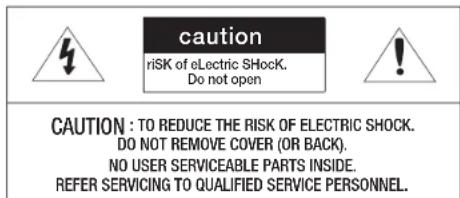
eXpLanation of GrapHicaL SymBoLS

The lightning flash with arrowhead symbol, within an equilateral triangle, is intended to alert the user to the presence of “dangerous voltage” within the product’s enclosure that may be of sufficient magnitude to constitute a risk of electric shock to persons.

The exclamation point within an equilateral triangle is intended to alert the user to the presence of important operating and maintenance (servicing) instructions in the literature accompanying the product.
overview
Class I construction
An apparatus with CLASS I construction shall be connected to a MAINS socket outlet with a protective earthing connection.
Battery
Batteries(battery pack or batteries installed) shall not be exposed to excessive heat such as sunshine, fire or the like.
Disconnection Device
Disconnect the main plug from the apparatus, if it's defected. And please call a repair man in your location.
When used outside of the U.S., it may be used HAR code with fittings of an approved agency is employed.
CAUTION
Risk of explosion if battery is replaced by an incorrect type.
Dispose of used batteries according to the instructions.
These servicing instructions are for use by qualified service personnel only.
To reduce the risk of electric shock do not perform any servicing other than that contained in the operating instructions unless you are qualified to do so.
Please use the input power with just one camera and other devices must not be connected.
The ITE is to be connected only to PoE networks without routing to the outside plant.
Please read the following recommended safety precautions carefully.
- Do not place this apparatus on an uneven surface.
- Do not install on a surface where it is exposed to direct sunlight, near heating equipment or heavy cold area.
- Do not place this apparatus near conductive material.
- Do not attempt to service this apparatus yourself.
- Do not place a glass of water on the product.
- Do not install near any magnetic sources.
- Do not block any ventilation openings.
- Do not place heavy items on the product.
- Please wear protective gloves when installing/removing the camera. The high temperature of the product surface may cause a burn.
User's Manual is a guidance book for how to use the products.
The meaning of the symbols are shown below.
- Reference: In case of providing information for helping of product's usages
- Notice: If there's any possibility to occur any damages for the goods and human caused by not following the instruction
※ Please read this manual for the safety before using of goods and keep it in the safe place.
contentS
OVERVIEW

3 Important Safety Instructions
6 Product Features
6 Recommended PC Specifications
6 Recommended Micro SD/SDHC/SDXC
Memory Card Specifications
6 NAS recommended specs
7 What's Included
8 At a Glance (QND-7010R/7020R/7030R)
10 At a Glance (QNO-7010R/7020R/7030R)
11 At a Glance (QNV-7020R/7030R)
INSTALLATION & CONNECTION

13 Installation (QND-7010R/7020R/7030R)
14 Installation (QNO-7010R/7020R/7030R)
15 Installation (QNV-7020R/7030R)
18 Inserting/Removing a Micro SD Memory Card
19 Memory Card Information (Not Included)
20 Connecting with other Device
NETWORK CONNECTION AND SETUP

23 Connecting the Camera Directly to Local Area Networking
23 Connecting the Camera Directly to a DHCP Based DSL/Cable Modem
24 Connecting the Camera Directly to a PPPoE Modem
24 Connecting the Camera to a Broadband Router with the PPPoE/Cable Modem
25 Buttons used in IP Installer
25 Static IP Setup
27 Dynamic IP Setup
27 Port Range Forward (Port Mapping) Setup
28 Connecting to the Camera from a Shared Local PC
28 Connecting to the Camera from a Remote PC via the Internet
WEB VIEWER

29 Connecting to the Camera
30 Password setting
30 Login
30 Plug-in support specifications for each browser
31 Installing WebViewer Plugin
31 Using a Plug-in Free Webviewer
31 Using the Live Screen (Plug-in Free Webviewer)
32 Using the Live Screen (Plug-in Webviewer)
34 Playing the recorded video (Plug-in Free Webviewer)
36 Playing the recorded video (Plug-in Webviewer)
SETUP SCREEN

39 Setup
39 Basic Setup
43 Audio & Video setup
48 Network Setup
51 Event Setup
53 NAS (Network Attached Storage) guide
58 System Setup
APPENDIX

60 Specification
62 Product Overview
63 Troubleshooting
64 Open Source Announcement
PRODUCT FEATURES
• Dustproof/Waterproof (IP66) (QNO-7010R/7020R/7030R, QNV-7020R/7030R)
The dustproof and waterproof design makes you feel at ease when installing the product outdoors or exposing it to rain.
- IR mode
If the IR indicator turns on, the product switches to the IR mode for preventing an object from being too bright, which helps you identify the object in near distance.
• Supports 4 megapixel resolution videos
- Multi-Streaming
This network camera can display videos in different resolutions and qualities simultaneously using different CODECs.
• Web Browser-based Monitoring
Using the Internet web browser to display the image in a local network environment.
- Alarm
When an event occurs, video is either sent to the email address registered by the user, sent to the FTP server, saved in a Micro SD card or NAS, or a signal is sent to the alert output terminal.
- Tampering Detection
Detects tempering attempts on video monitoring.
• Defocus detection function
Detects the defocus phenomenon of the camera lens.
- Motion Detection
Detects motion from the camera's video input.
• Auto Detection of Disconnected Network
Detects network disconnection before triggering an event.
• ONVIF Compliance
This product supports ONVIF Profile S&G.
For more information, refer to www.orwf.org.
Driving network video through global standardization
RECOMMENDED PC SPECIFICATIONS
• CPU : Intel(R) Core(TM) 17 3.4 GHz or higher
• Supported OS : Windows 7, 8.1, 10, Mac OS X 10.9, 10.10, 10.11
- Plug-in free web viewer
Supported web browsers : Google Chrome 47, MS Edge 20
- Plug-in Webviewer
Supported web browsers : MS Explorer 11, Mozilla Firefox 43, Apple Safari 9 ※ Mac OS X only
• VGA : PCIe 256MB GDDR3 video graphics card or higher
RECOMMENDED MICRO SD/SDHC/SDXC MEMORY CARD SPECIFICATIONS
- Recommended capacity: 4GB \~ 128GB (uhs-1 class)
- For your camera, we recommend you use a memory card from the following manufacturers: Micro SD/SDHC/SDXC Memory Card : Sandisk. Transcend
NAS RECOMMENDED SPECS
- Recommended capacity: 200GB or higher is recommended.
- Simultaneous access: One unit of NAS can accept a maximum of sixteen camera accesses.
- For this camera, you are recommended to use a NAS with the following manufacturer's specs.
Recommended products Available sizes
Nelgear NAS A maximum of 16 cameras can access simultaneously.
Synology NAS A maximum of 16 cameras can access simultaneously.

- When you use Netgear's NAS equipment, do not allocate the capacity for use.
- If you use NAS equipment for purposes other than video saving, the number of accessible cameras may be reduced.
wHat'S incLuDeD
Please check if your camera and accessories are all included in the product package. (As for each sales country, accessories are not the same.)
| Appearance | Item Name | Quantity | Description | Model Name | |
 | Camera | 1 | QND-701OR/702OR/703OR | ||
 | 1 | QND-701OR/702OR/703OR | |||
 | 1 | QNV-702OR/703OR | |||
 | Instruction book Installer S/W CD | 1 | QND-701OR/702OR/703OR, QNO-701OR/702OR/703OR, QNV-702OR/703OR | ||
 | Quick Guide (Options) | 1 | QND-701OR/702OR/703OR, QNO-701OR/702OR/703OR, QNV-702OR/703OR | ||
 | Warranty card (Options) | 1 | QND-701OR/702OR/703OR, QNO-701OR/702OR/703OR, QNV-702OR/703OR | ||
 | Template | 1 | Product installation guide | QND-701OR/702OR/703OR, QNO-701OR/702OR/703OR, QNV-702OR/703OR | |
| [STDW] | Power Terminal Stock | 1 | Plugged in the power plug | QND-701OR/702OR/703OR, QNV-702OR/703OR | |
| Appearance | Item Name | Quantity | Description | Model Name |
| Machine Screws | 2 | Used for assembling the dome case when installing the product on the pipe, wall mount, etc. or blocking a hole. | CNQ-701OR/702OR /703OR, CNV-702OR/703OR | |
| (Z425) | L Wrench | 1 | Used to control the direction of the camera / Used to remove and replace the dome cover | CNQ-701OR/702OR /703OR, CNV-702OR/703OR |
| (HAWY) | Tapping Screw | 2 | Used for installation on the wall or ceiling | CNQ-701OR/702OR /703OR, CNV-702OR/703OR |
| (68WA) | 3 | CNQ-701OR/702OR /703OR | ||
| (KCXY) | Alarm cable | 1 | Used when connecting to an alarm | CNQ-701OR/702OR /703OR |
| (SWSS) | RJ45 waterproof accessory | 1 | Used to install in humid places | CNQ-701OR/702OR /703OR |
 | Sunshield | 1 | It protects the camera from the direct sunlight. | CNQ-701OR/702OR /703OR |
| (NZZ) | Sunshield Hold | 1 | It fixes the sunshield with the camera. | CNQ-701OR/702OR /703OR |
 | Card-type moisture absorbent | 3 | Attached when installed. | CNQ-701OR/702OR /703OR |
| (BAAZ) | 1 | CNV-702OR/703OR | ||
| (0070) | Power Cable | 1 | Used to plug into the power port CNQ-702OR/703OR | |
overview
| Appearance | Item Name | Quantity | Description | Model Name |
 | Audio/alarm cable | 1 | Used to connect with the audio and alarm port | QNW-7020RV7030R |
 | Cable bush | 1 | Used to connect the LAN cable with a diameter of 07~8.5. | QNW-7020RV7030R |
 | Plastic Anchor | 2 | For fixing a screw, Inserted in a hole (reinforced anchoring force) | QNW-7020RV7030R |
| Options (not included) | ||||
 | Pole mount bracket Gy/mental pole mounting bracket | QNO-7010RV7020R /7030R | ||
AT A GLANCE (QND-7010R/7020R/7030R)
Appearance
| Item Description | |
| 1 Dome cover | Case cover used to protect the lens and the main unit. |
| 2 Camera Case | Housing part that covers the camera body. |
| 3 Microphone hole | Microphone is embedded. |
Components
| Item Description | ||
| 1 Inside cover Protective cover for the main body. | ||
| 2 Illumination Sensor Detects in coming light to control the IR LED. | ||
| 3 Lens Lens for the camera. | ||
| 4 IR LED These infrared LED's are controlled by the illumination sensor. | ||
| 5 Reset Button | The button restores all camera settings to the factory default.Press and hold for about 5 seconds to reboot the system.■ If you reset the camera, the network settings will be adjusted so that DHCP can be enabled. If there is no DHCP server in the network, you must run the IP Installer program to change the basic network settings such as IP address, Subnet mask, Gateway, etc., before you can connect to the network. | |
| 6 Alarm I/O Port | ARM-IN Used to connect the alarm input sensor or external day/night sensor. | |
| ARM-OUT Used to connect the alarm output signal. | ||
| END These are common ports to connect alarm input/output signals. | ||
| 7 Microphone hole Microphones embedded. | ||
| 8 Power Port Port for power terminal block. | ||
| 9 Micro SD Memory Card Compartment | Compartment for the Micro SD memory card. | |
| 10 Network Port Used to connect the PoE or Ethernet cable for network connection. | ||
AT A GLANCE (QNO-7010R/7020R/7030R)
Appearance
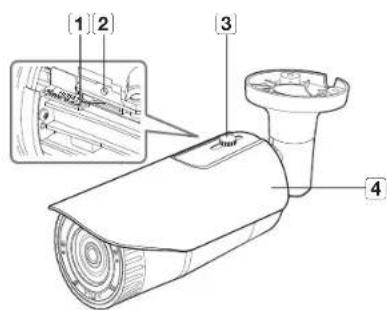
| Item Description | |
| 1 Micro SD card slot | (Internal space of the product) This is a slot in which you can insert a Micro SD card. |
| 2 Reset Button | The button restores all camera settings to the factory defaultPress and hold for about 5 seconds to reboot the system.If you reset the camera, the network settings will be adjusted so that DHCP can be enabled. If there is no DHCP server in the network, you must run the IP installer program to change the basic network settings such as IP address, Subnet mask, Gateway, etc., before you can connect to the network. |
| 3 Sunshield Hold | It fixes the sunshield with the camera. |
| 4 Sunshield | It protects the camera from the direct sunlight. |

- Wipe out a dirty surface of the lens softly with a lens tissue or cloth to which you have applied ethanol.
Components
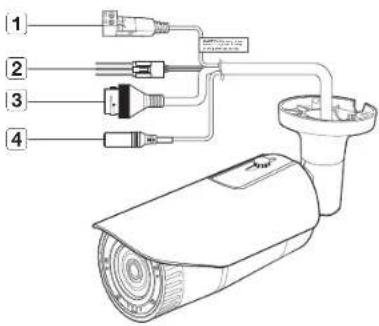
| Item Description | ||
| 1 Power Port Used to plug the power cable. | ||
| 2 Alarm I/O Port | ARM-OUT Used to connect the alarm output signal. | |
| CND These are common ports to connect alarm input/output signals. | ||
| ARM-IN Used to connect the alarm input sensor or external day/night sensor. | ||
| 3 Network Port Used to connect the PoE or Ethernet cable for network connection. | ||
| 4 Audio In Jack Used to connect to a microphone. | ||
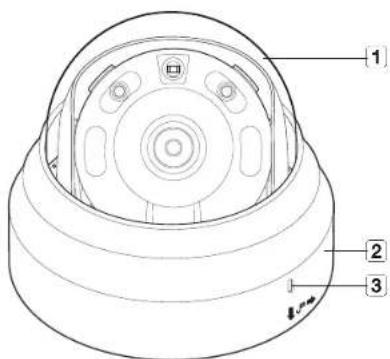
AT A GLANCE (QNV-7020R/7030R)
Appearance
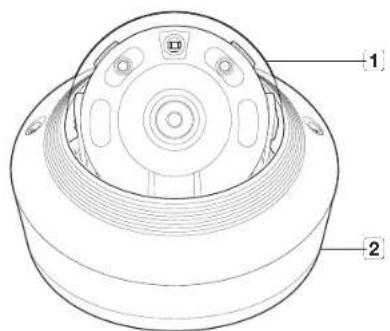
| Item Description | |
| 1 Dome cover | Case cover used to protect the lens and the main unit. |
| 2 Camera Case | Housing part that covers the camera body. |
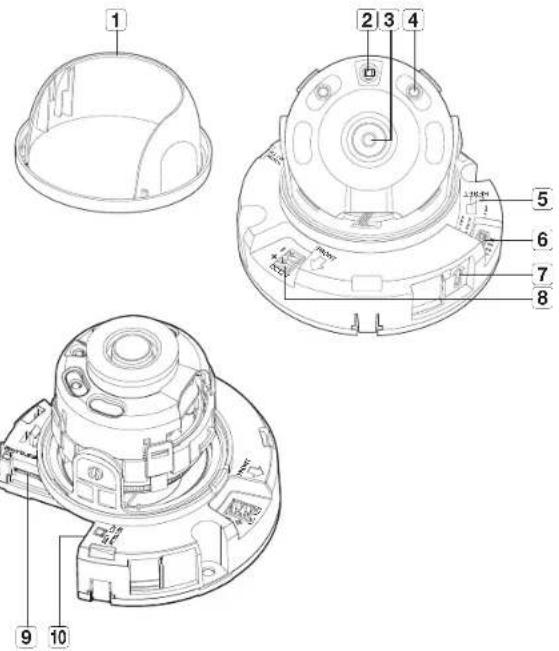
Components
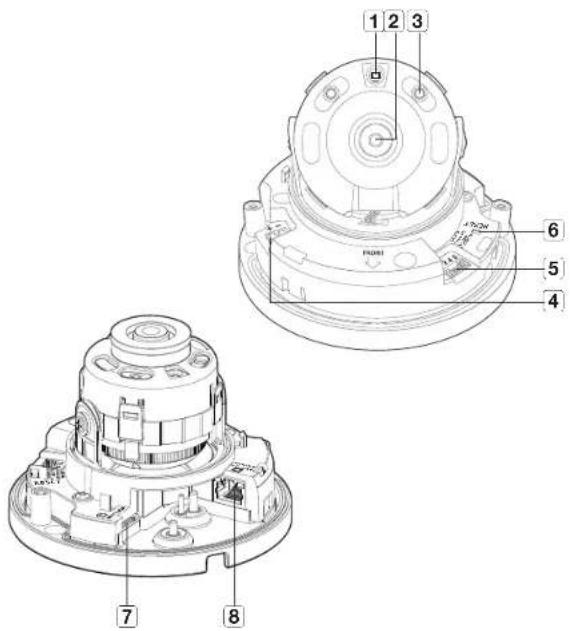
overview
| Item Description | |
| 1 Illumination Sensor Detects Incoming light to control the IR LED. | |
| 2 Lens Lens for the camera. | |
| 3 IR LED These infrared LED's are controlled by the illumination sensor. | |
| 4 Power Port Port for power terminal block. | |
| 5 Audio and alarm cable port | Terminal to which the audio and alarm cable is connected in order to connect with an external alarm device/microphone. |
| 6 Reset Button | The button restores all camera settings to the factory default. Pross and hold for about 5 seconds to reboot the system.If you reset the camera, the network settings will be adjusted so that DHCP can be enabled. If there is no DHCP server in the network, you must run the IP Installer program to change the basic network settings such as IP address, Subnot mask, Gateway, etc., before you can connect to the network. |
| 7 Micro SD Memory Card Compartment | Compartment for the Micro SD memory card. |
| 8 Network Port Used to connect the PoE or Ethernet cable for network connection. | |
INSTALLATION (QND-7010R/7020R/7030R)
Precautions before installation
Ensure you read out the following instructions before installing the camera:
- It must be installed on the area (ceiling or wall) that can withstand 5 times the weight of the camera, including the installation bracket.
- Stuck-in or peeled-off cables can cause damage to the product or a fire.
- For safety purposes, keep anyone else away from the installation site. And put aside personal belongings from the site, just in case.
Disassembling
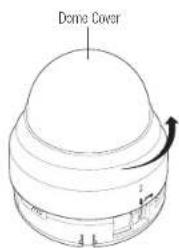
- Use one hand to hold the camera's bottom part and turn the cover counterclockwise with another hand to separate it.
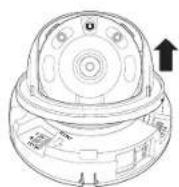
- Lift up the inner cover to separate it.
Installation
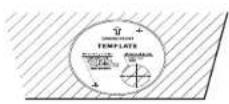
- Attach the installation template to the selected area and punch 3 holes as shown in the figure.
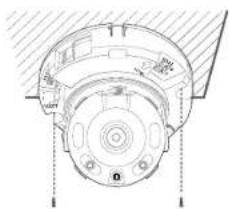
- Using 2 tapping screws provided, fix the camera at 2 holes drilled with a template.
- Set the < 🔒 mark imprinted on the camera to face the direction of camera monitoring.
- Connect the camera internal terminal with the corresponding cable.
- Adjust the lens in a desired direction by referring to the "Adjusting the monitoring direction for the camera" section. (page 17)
We recommend you not to touch the lens as the camera lens has been properly focused in the final process of manufacturing. If so, the lens may be out of focus or stained by alien substances.
- Please connect the inner cover to the main body.
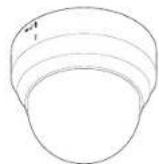
- While grabbing the bottom side of the camera with your hand, please grab and push its cover with the other hand to align the two arrow signs, as shown in the figure.
To assemble the dome cover, make the arrows match each other and press the cover firmly. If the dome cover is rotated during assembly or is assembled incorrectly, diffused reflection may occur or the lens section may rotate, which will cause the shooting range to be changed.
- Make sure that the dome cover is correctly connected to the bottom part as shown in the figure. If the snap-fill is not connected correctly, the dome cover may fall, which may cause injury.
natural_image
Technical line drawing of a mechanical component with no visible text or symbols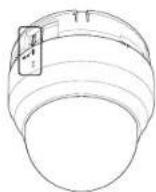
INSTALLATION (QNO-7010R/7020R/7030R)
This camera is waterproof and in compliance with the IP66 spec, but the jack connected to the external cable is not. You are recommended to install this product below the edge of eaves to prevent the cable from being externally exposed.
Precautions before installation
Ensure you read out the following instructions before installing the camera:
- It must be installed on the area (ceiling or wall) that can withstand 5 times the weight of the camera including the installation bracket.
- Stuck-in or peeled-off cables can cause damage to the product or a fire.
- For safety purposes, keep anyone else away from the installation site. And put aside personal belongings from the site, just in case.
Installation
- Attach the installation template at a desired location and make 3 holes the same size as shown in the picture below.
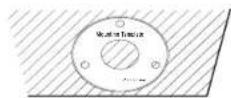
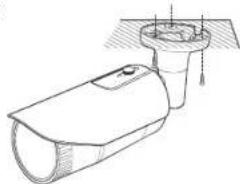
- Insert and fasten 3 tapping screws provided into 3 holes to secure the camera.
- Connect the appropriate cables with camera terminals.
natural_image
Technical line drawing of a cylindrical mechanical component with a flanged top and side ports (no text or symbols)- Adjust the camera direction using the L wrench provided.
- When you adjust the camera position using a bracket, please loosen the bracket screw, adjust the camera, and tighten it. If you attempt to adjust it forcibly while the screw is tight, it may result in a scratch or other problems.
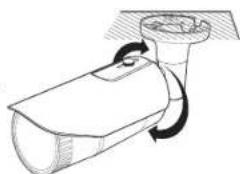
natural_image
Diagram of a mechanical device with rotating arrows indicating motion (no text or symbols)How to connect the RJ45 waterproof cable to a LAN cable
- Insert it through the arrow direction.
- Connect the LAN connector (male) to the cable.
- Connect the RJ45 modular jack (female) to the RJ45 connector (male).
Please, keep each of the parts separated. - Assemble by rotating the RJ45 modular jack (female) and the RJ45 protection cover clockwise (Follow the arrow).
- Assemble by rotating RJ45 protection cover and back cover clockwise (Follow the arrow).
When the back cover is assembled, the cable waterproof gasket is tightly attached to the cable to make it waterproof.
You must fully assemble it to rotate the back cover up to the end of the screw thread of the RJ45 connector.
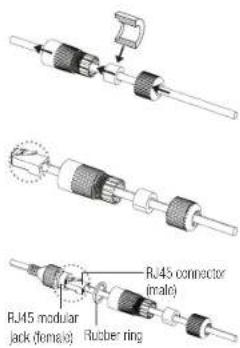
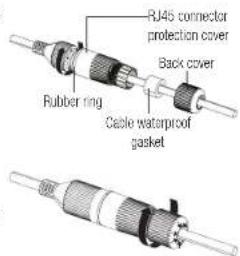
Outdoor installation
When you install it outside of the building, please waterproof it with waterproof butyl rubber tape (can be purchased in stores) so that water does not leak from the gap of the cable connected to the outside.
- Connect the power, I/O, AUDIO, and LAN cables.
- Wrap the black cable jacket (Area A) and the cable connection area with waterproof (butyl rubber) tape so that more than half of the butyl rubber tape is overlapped.
- If the cable jacket is not waterproofed properly, then it can directly cause leakage. Make sure to protect the cable with a dense layer of taping.
- Waterpictol butyl tape is made of butyl rubber that can be stretched to twice its normal length.
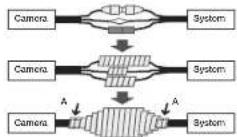
INSTALLATION (QNV-7020R/7030R)
This camera is waterproof and in compliance with the IP66 spec, but the jack connected to the external cable is not. You are recommended to install this product below the edge of eaves to prevent the cable from being externally exposed.
Precautions before installation
Ensure you read out the following instructions before installing the camera:
- It must be installed on the area (ceiling or wall) that can withstand 5 times the weight of the camera, including the installation bracket.
- Stuck-in or peeled-off cables can cause damage to the product or a fire.
- For safety purposes, keep anyone else away from the installation site. And put aside personal belongings from the site, just in case.
Disassembling
- Using the L wrench provided, turn the 2 fastening bolts on the dome cover counter clockwise to remove the cover.
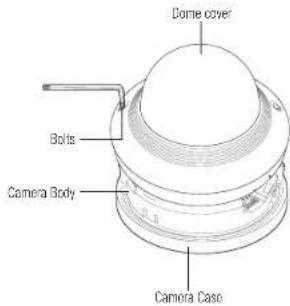
Installation
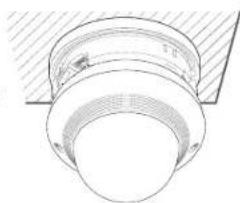
- Using the template provided as an accessory, drill the screw installation hole diameter of 6mm, minimal depth of 55mm) and firmly insert the plastic anchor provided as an accessory to the end.
- Fit the bottom hole to the anchor hole and insert and fix the taping screw (M4.5xL50).
- Connect and arrange the necessary cables lost that they should be damaged or twisted while installing the camera.
- Adjust the lens in a desired direction by referring to the "Adjusting the monitoring direction for the camera" section. (page 17)
- Close the dome cover.
- Securely fasten the fastening bolt using an L wrench to prevent water from leaking.
Connecting the LAN cable
- Remove the dome cover and the case.
- Pull out the long projected part of the rubber plug on the bottom and remove it as shown in the figure.
- Use an appropriate cable bush for the LAN cable to be connected. - Basic camera : Use the cable with a diameter of 05\~6.5. - Components provided : Use the cable with a diameter of 07\~8.5.
natural_image
Technical line drawing of a mechanical component with no visible text or symbols- Insert the LAN cable into the large hole made by removing the projected part of the rubber plug in step 2 above.
- Remove the sheath with a cable cutter, and align the cables.
- Connect the LAN cable with a LAN connector, and insert it into the LAN tool.
- Connect the finished cable to the Ethernet port.
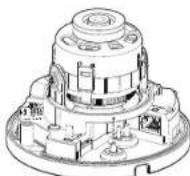
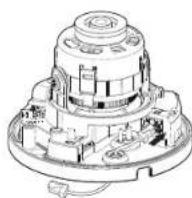
installation & connection
Connecting the audio/alarm cable and power cable
- Remove the dome cover and the case.
- Pull out the rubber plug on the bottom as shown in the figure.
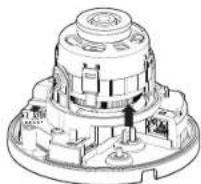
- Insert the alarm/audio cable through the hole created by removing the rubber cap in No. 2, and connect the cable to the alarm terminal.
- Align the cable so that it should not be damaged or jammed when installing the camera.
- Put the rubber cap located on the alarm/audio cable in the hole.
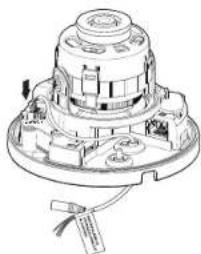
natural_image
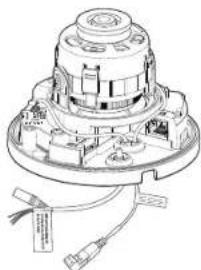
Technical line drawing of a mechanical assembly with no visible text or symbols- Insert the power cable into the small-sized hole through the long, carved groove.
- Connect the power cable to the power terminal block.
- Adjust the lens in a desired direction by referring to the "Adjusting the monitoring direction for the camera" section. (page 17)
- Attach the dome cover.
natural_image
Technical line drawing of a mechanical device with internal components and wiring (no text or symbols)Attaching to the unbundled adapter
Choose and purchase a necessary one of the following options (unbundled) that is suitable to the installation site or for your convenience.
- Remove the dome cover from the case by referring to the "Disassembling" section. (page 15)
- Use the provided machine screw to fix the camera case to the unboundled adapter.
- Connect and arrange the necessary cables lest that they should be damaged or twisted while installing the camera.
- Install the camera body in the reverse order of "Disassembling".
- Adjust the lens in a desired direction by referring to the "Adjusting the monitoring direction for the camera" section, (page 17)
- Close the dome cover.
- Securely fasten the fastening bolt using an L wrench to prevent water from leaking.
Outdoor installation
When you install it outside of the building, please waterproof it with waterproof butyl rubber tape (can be purchased in stores) so that water does not leak from the gap of the cable connected to the outside.
- Connect the power, I/O, BNC, and LAN cables.
- Wrap the black cable jacket (Area A) and the cable connection area with waterproof (butyl rubber) tape so that more than half of the butyl rubber tape is overlapped.
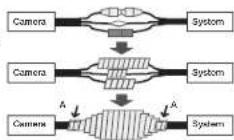

- If the cable jacket is not waterproofed properly, then it can directly cause leakage. Make sure to protect the cable with a dense layer of taping.
- Waterproof butyl tape is made of butyl nuber that can be stretched to break its normal length.
Optional Accessories for Installation
For your easier installation, you can purchase appropriate optional accessories available.
- WALL MOUNT ADAPTOR(SBP-300WM or SBP-300WM1)/HANGING MOUNT(CND-7010R/7020R/7030R : SBP-300HM8) This adaptor is used when installing the dome camera onto a wall.
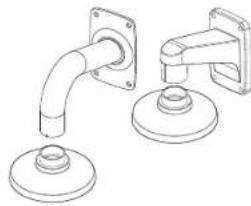
natural_image
Technical line drawing of two mechanical components with flanges and circular bases (no text or symbols)- CEILING MOUNT ADAPTOR(SBP-300CM)/HANGING MOUNT(OND-7010R/7020R/7030R : SBP-300HM8) This adaptor is used when installing the dome camera on a concrete ceiling.
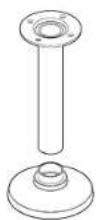
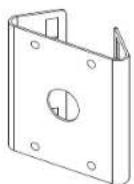
- POLE MOUNT ADAPTOR(SBP-300PM) This is an adaptor for WALL MOUNT ADAPTOR (SBP-300WM or SBP-300WM1) installation on a pole whose diameter is bigger than 50mm.
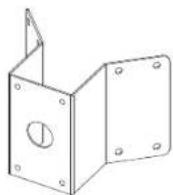
- CORNER MOUNT ADAPTOR (SBP-300KM) This is an adaptor for WALL MOUNT ADAPTOR (SBP-300WM or SBP-300WM1) installation on the corner of wall joint.
Adjusting the monitoring direction for the camera (QND-7010R/7020R/7030R, QNV-7020R/7030R)
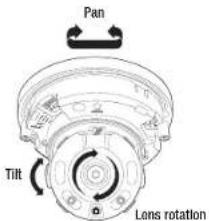
■ Adjusting the monitoring direction
You can adjust the camera direction only when the camera is fixed on the ceiling. Where, rotating the camera unit to the left or right is called Pan, adjusting the tilt is called Tilt, and turning the lens on its axis is called Rotation.
- The effective range of pan is a total of 350 degrees.
- The effective range of rotation is a total of 355 degrees.
- The effective range of tilt is a total of 67 degrees.
The image can be covered up by the camera case depending on the angle.
- Do not forcefully turn the focus/zoom lens after the dome case is disassembled. Otherwise, it may cause an incorrect focus due to a motor failure.
■ Methods of adjustment
- After installing the camera, adjust the panning angle in consideration of the monitoring direction.
- Set the horizontal angle so that the image is not reversed.
- Adjust the tilt angle so that the camera faces toward the monitoring object.
INSERTING/REMOVING A MICRO SD MEMORY CARD

- Disconnect the power cable from the camera before inserting the Micro SD memory card.
- Do not insert the Micro SD memory card while it's upside down by force.
Otherwise, it may damage the Micro SD memory card.
- When it rains or the humidity is high, insertion or ejection of a Micro SD card is not recommended.
- Disassembly of the product cover should be finished within 5 minutes, or there will be the risk of internal dew condensation.
Inserting a Micro SD Memory Card (QNO-7010R/7020R/7030R)
- Turn the front cover to the UNLOCK [→] direction.
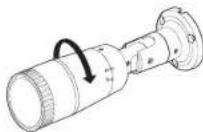
- Pull and separate the front cover.
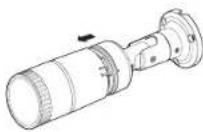
- Insert a Micro SD card in the arrow direction shown in the figure.
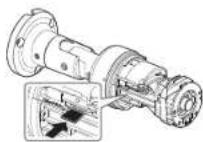
Inserting a Micro SD Memory Card (QND-7010R/7020R/7030R, QNV-7020R/7030R)
- Separate the Dome cover of the camera.
- Insert a Micro SD card in the arrow direction shown in the figure.
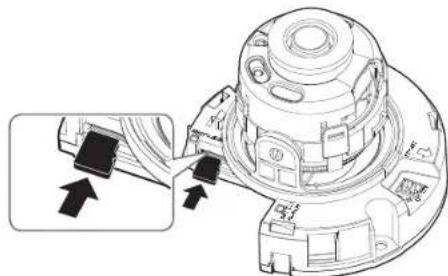
natural_image
Technical diagram of a mechanical assembly with directional arrows indicating movement or force (no text or symbols present)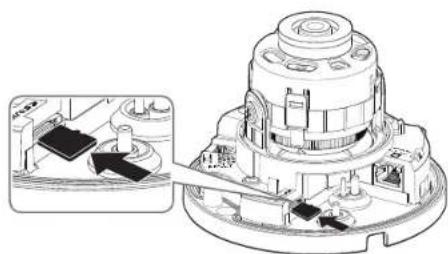
natural_image
Technical line drawing of a mechanical device with internal components and an inset view showing a close-up of a component (no text or symbols)18 installation & connection
Removing a Micro SD Memory Card
Gently press down on the exposed end of the memory card as shown in the diagram to eject the memory card from the slot.
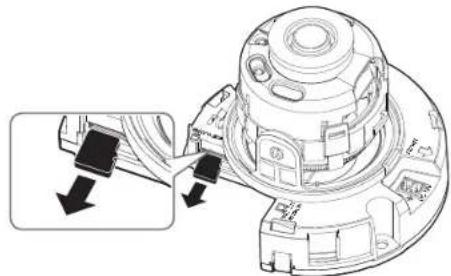
natural_image
Technical diagram of a mechanical assembly with directional arrows indicating movement or force (no text or symbols present)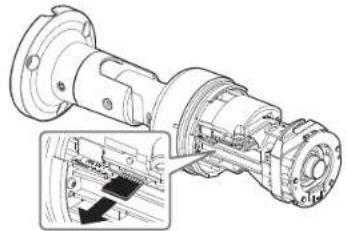
natural_image
Technical line drawing of a mechanical assembly with an inset showing internal components (no text or symbols)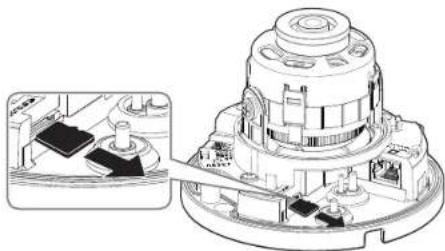
natural_image
Technical line drawing of a mechanical assembly with an inset showing a close-up of a component (no text or symbols visible)- Pressing too hard on the Micro SD memory card can cause the card to shoot out uncontrollably from the slot when released.
Before removing your Micro SD memory card, turn off the camera or go to, turn the device off, and press the (Apply (Apply)) button. (Page 52) - If you turn off the camera or remove the Micro SD memory card that contains data from the product, the data may be lost or damaged.
MEMORY CARD INFORMATION (NOT INCLUDED)
What is a memory card?
The memory card is an external data storage device that has been developed to offer an entirely new way to record and share video, audio, and text data using digital devices.
Selecting a memory card that's suitable for you
Your camera supports Micro SD/SDHC/SDXC memory cards. You may, however, experience compatibility issues depending on the model and make of the memory card. For your camera, we recommend you use a memory card from the following manufacturers: Micro SD/SDHC/SDXC Memory Card : Sandisk, Transcend
It is recommended to use a 4 to 128GB (uhs-1 class) memory card for this camera. Playback performance can be affected depending on the speed of memory card, so use the high-speed memory card.
Memory Card Components
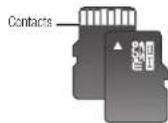
Micro SD/SDHC/SDXC
installation & connection
CONNECTING WITH OTHER DEVICE
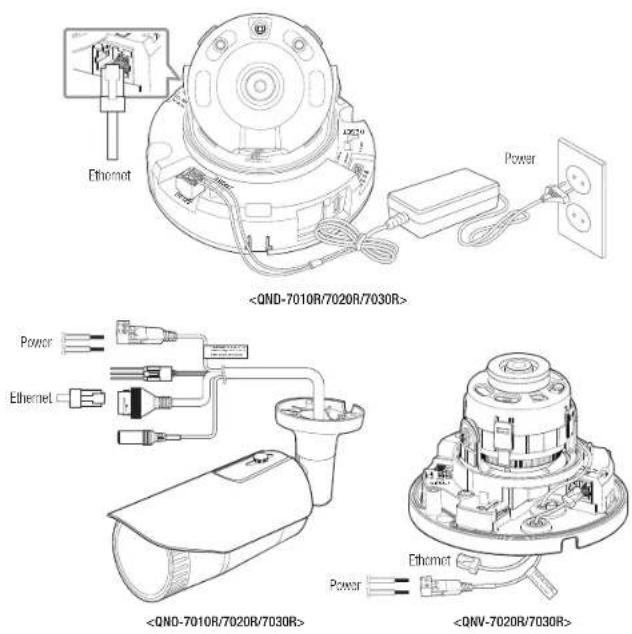
Ethernet Connection
Connect the Ethernet cable to the local network or to the Internet.
Power Supply
Use the screwdriver to connect each line (+,-) of the power cable to the corresponding power port of the camera.

If both PoE and DC 12V are applied simultaneously, the product will be supplied with power from PoE.
- You can also use a router featuring PoE to supply power to the camera.
- Use PoE that is compliant with the IEEE 802.3af protocols.
- It is advisable to use only one power source from PoE and DC 12V.
- Be careful not to reverse the polarity when you connect the power cable.
- If you want to connect an external device, you must turn off the external device before proceeding.
Power Cable Specification for Each Model
In case of DC 12V Input:
| Wire Type (AWG) #22 #20 #18 | |||
| Cable Length (Max.) 24m 38m 60m |
Network Cable Specification
| Item Contents Remark | ||
| Connector RJ45 | ||
| Ethernet 10/100BASE-T 10*100 Mbps | ||
| Cable UTP Category 5o | ||
| Max Distance | 100M | |
| PoE Support | IEEE 802.3af |
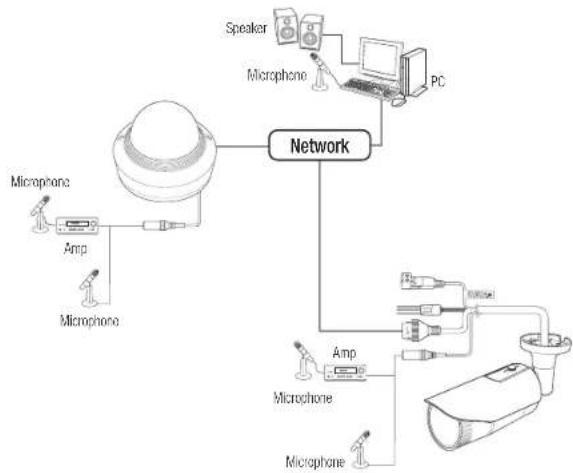
Connecting to Audio Input
flowchart
graph TD
    A["Microphone"] --> B["Amplifier"]
    B --> C["Microphone"]
    C --> D["Speaker"]
    D --> E["Microphone"]
    E --> F["PC"]
    F --> G["Network"]
    G --> H["Microphone"]
    H --> I["Amplifier"]
    I --> J["Microphone"]
    J --> K["PC"]
    K --> L["Speaker"]
    L --> M["Microphone"]
- Connect the AUDIO IN port of the camera with the microphone or LINE OUT port of the amplifier that the microphone is connected to.

- You can use the built-in microphone in the camera without connecting an external microphone. (only available in QND-7010R/7020R/7030R)
-
Check the specifications for audio input.
-
Audio Codec
- Audio In : G.711 PCM (Bit Rate: 64Kbps / Sampling Frequency: 8kHz), G.726 ADPCM (Bit Rate: 16Kbps, 24Kbps, 32Kbps, 40Kbps / Sampling Frequency: 8kHz)
• Full duplex Audio - Audio in (QND-7010R/7020R/7030R): Selectable (Built-in microphone), Supported voltage: 2.5VDC (4mA), Input impedance: 2K Ohm
- Audio in (QNO-7010R/7020R/7030R, QNV-7020R/7030R): Selectable (microphone/Line-in), Supported voltage: 2.5VDC (4mA), Input impedance: 2K Ohm
Connecting to the I/O port box
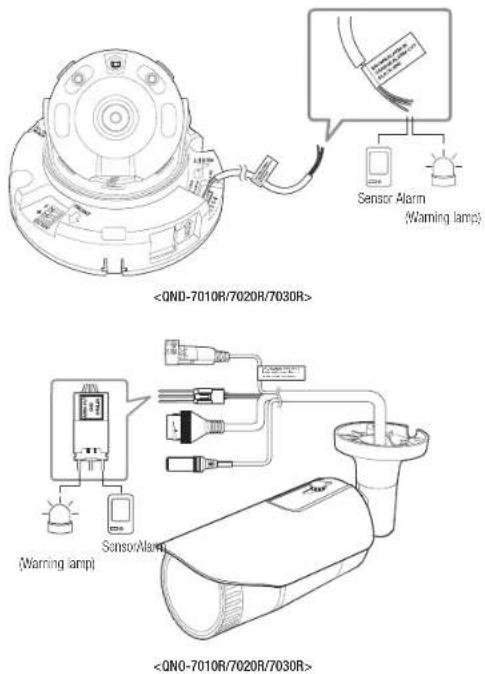
Connect the Alarm I/O cable to the corresponding port of the port box.
installation & connection
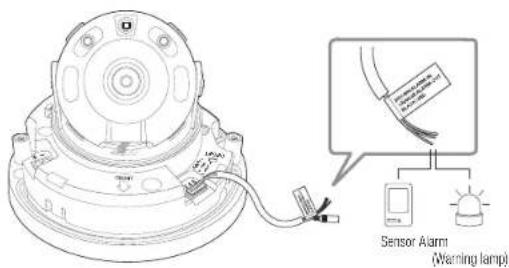
- ALARM-IN: Used to connect the alarm input sensor or external day/night sensor.
- ALARM-OUT: Used to connect the alarm output signal.
• GND : Common port for alarm in/output signal.
- if devices (e.g., flashing light and screen) that exceed the voltage and current specifications are connected by using the open collector method, it may cause malfunction.
Refer to the "Alarm Out Wiring Diagram" when connecting devices that exceed the voltage and current specifications. (page 22)
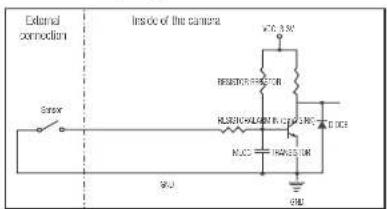
To connect the external sensor
Connect one strand of each signal line (2-strand) of the sensors to the [ALARM IN] port, and connect the other strand to the [GND] port.
Alarm In Wiring Diagram
To connect the alarm out
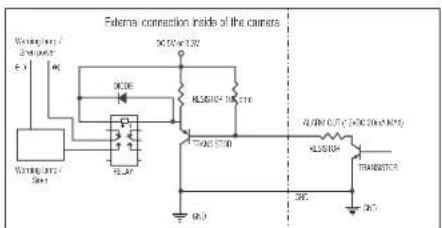
If devices (e.g., flashing light and siren) that exceed the voltage and current specifications are connected by using the open collector method, it may cause malfunction.
Refer to the alarm out connection diagram below when connecting devices that exceed the voltage and current specifications.
Alarm Out Wiring Diagram
network connection and setup
You can set up the network settings according to your network configurations.
CONNECTING THE CAMERA DIRECTLY TO LOCAL AREA NETWORKING
Connecting to the camera from a local PC in the LAN
- Launch an Internet browser on the local PC.
- Enter the IP address of the camera in the address bar of the browser.
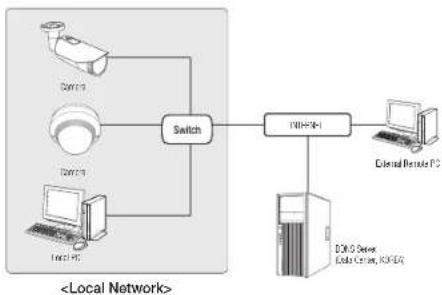
flowchart
graph TD
    A["Security Camera"] --> B["Switch"]
    C["Computer"] --> B
    D["Local PC"] --> B
    B --> E["RCP48"]
    E --> F["External Remote PC"]
    G["DOS Server\nRadio Center, RCP48"] --> F

- A remote PC in an external Internet out of the LAN network may not be able to connect to the camera installed in the intranet if the port-forwarding is not properly set or a firewall is set.
In this case, to resolve the problem, contact your network administrator.
In the IP installer, you can use the initial password, *4321* to set IP Address, Subnet Mask, Gateway, HTTP Port, VAP Port, IP type. After changing the network interface, for better security, access the web viewer and change the password.
By factory default, the IP address will be assigned from the DHCP server automatically.
If there is no DHCP server available, the IP address will be set to 192.168.1.100.
To change the IP address, use the IP Installer.
For further details on IP Installer use, refer to 'Static IP Setup'. (Page 25)
CONNECTING THE CAMERA DIRECTLY TO A DHCP BASED DSL/CABLE MODEM
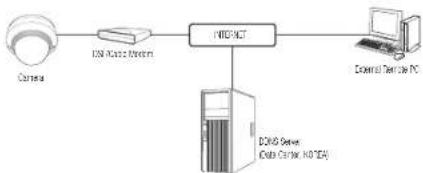
flowchart
graph LR
    A["Camera"] --> B["USB Audio Medium"]
    B --> C["Hertz"]
    C --> D["Control Panel PC"]
    C --> E["DOSG Server<br>Cable Center, Hertz"]
- Connect the user PC directly with the network camera.
- Run the IP Installer and change the IP address of the camera so that you can use the web browser on your desktop to connect to the Internet.
- Use the Internet browser to connect to the web viewer.
- Move to [Setup] page.
- Move to [Network] - [DDNS] and configure the DDNS settings,
- Move to [Basic] - [IP & Port], and set the IP type to [DHCP].
- Connect the camera, which was removed from your PC, directly to the modem.
- Restart the camera.
For configuring the DDNS settings, refer to "DDNS", (page 48)
For registering the DDMS settings, refer to "Registering with DDMS". (page 48)
■ Refer to "IP & Port" for how to setup IP (page 42)
CONNECTING THE CAMERA DIRECTLY TO A PPPoE MODEM
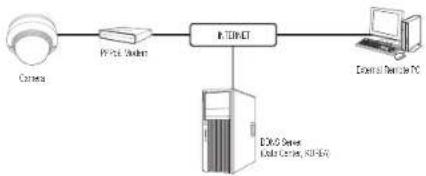
flowchart
graph LR
    A["Camera"] --> B["PPSL Video"]
    B --> C["Internet"]
    C --> D["Control Panel PC"]
    C --> E["D20G Server<br>Data Center, RGB-50"]
- Connect the user PC directly with the network camera.
- Run the IP Installer and change the IP address of the camera so that you can use the web browser on your desktop to connect to the Internet.
- Use the Internet browser to connect to the web viewer.
- Move to [Setup] page.
- Move to [Network] - [DDNS] and configure the DDNS settings.
- Move to [Basic] - [IP & Port] Setup Page, set the IP type to [PPPoE], and enter the network service's ID and password.
- Connect the camera, which was removed from your PC, directly to the modem.
- Restart the camera.
For configuring the DDNS settings, refer to "DDNS", (page 48)
- For registering the DDNS settings, refer to "Registering with DDNS", (page 48)
■ Refer to "IP & Port" for how to setup IP. (page 42)
CONNECTING THE CAMERA TO A BROADBAND ROUTER WITH THE PPPoE/CABLE MODEM
This is for a small network environment such as homes, SOHO and ordinary shops.
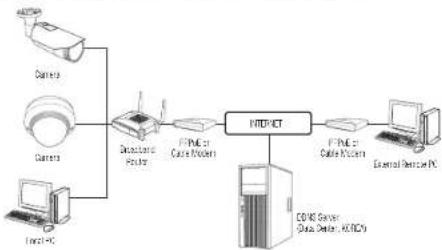
flowchart
graph LR
    A["Camera"] --> B["Router"]
    C["Camera"] --> B
    D["Inlet PC"] --> B
    B --> E["I/O/PCI"]
    E --> F["Data Transfer (I/O/PCI)"]
    F --> G["I/O/PCI"]
    G --> H["Computer"]
    F --> I["Data Transfer (I/O/PCI)"]
Configuring the network settings of the local PC connected to a Broadband Router
Configuring the network settings of the local PC connected to a Broadband Router, follow the instructions below.
- Select:
- Follow the instructions below if you select
ex1) If the address (LAN IP) of the Broadband Router is 192.168.1.1
IP address : 192.168.1.100
Subnet Mask: 255.255.255.0
Default Gateway:192.168.1.1
ex2) If the address (LAN IP) of the Broadband Router is 192.168.0.1
IP address : 192.168.0.100
Subnet Mask: 255.255.255.0
Default Gateway:192.168.0.1
ex3) If the address (LAN IP) of the Broadband Router is 192.168.xxx.1
IP address : 192.168.xxx.100
Subnet Mask: 255.255.255.0
Default Gateway: 192.168.xxx.1
For the address of the Broadband Router, refer to the product's documentation.
For more information about port forwarding of the broadband router, refer to "Port Range Forward (Port Mapping) Setup" (Page 27)
BUTTONS USED IN IP INSTALLER
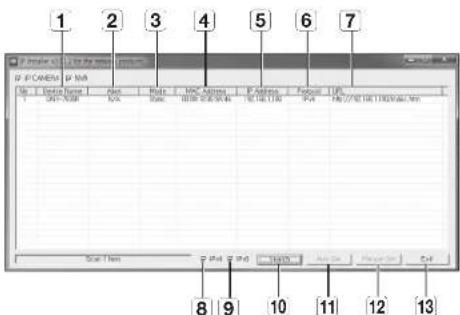
| Item Description | ||
| 1 | Device Name | Model name of the connected camera.Click the column to sort the list by model name.However, search will be stopped if clicked during the search. |
| 2 | Alias This function is not currently implemented. | |
| 3 | Mode | Displays otherorfor the current network connection status. |
| 4 | MAC(Ethernet) Address | Ethernet address for the connected camera.Click the column to sort the list by Ethernet address.However, search will be stopped if clicked during the search. |
| 5 | IP Address | IP address.Click the column to sort the list by IP address.However, search will be stopped if clicked during the search. |
| 6 | Protocol | Network setting for the camera.The factory default is "IPv4".Cameras with the IPv6 setting will be displayed "IPv6". |
| 7 | URL | DDAS URL address enabling access from the external Internet.However, this will be replaced with theof the cameras if DDAS registration has failed. |
| 8 | IPv4 Scans for cameras with the IPv4 setting | |
| Item Description | |
| 9 IPv6 | Scans for cameras with the IPv6 setting. Activated in an IPv6 compliant environment only. |
| 10 Search | Scans for cameras that are currently connected to the network. However, this button will be grayed out if neither IPv4 nor IPv6 is checked. |
| 11 Auto Set The IP Installer automatically configures the network settings. | |
| 12 Manual Set You should configure the network settings manually. | |
| 13 Exit Exits the IP Installer program. | |
For the IP installer, use only the installer version provided in the installation CD or use the latest one if available. You can download the latest version from the Hanwha Techwin web site.
STATIC IP SETUP
Manual Network Setup
Run
At the initial startup, both [Auto Set] and [Manual Set] will be grayed out.
For cameras found with the IPv6 setting, these buttons will be grayed out as the cameras do not support this function.
-
Select a camera in the search list. Check the MAC address of the camera on the camera's label. Both the [Auto Set] and [Manual Set] buttons will be activated.
-
Click [Manual Set].
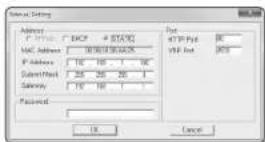
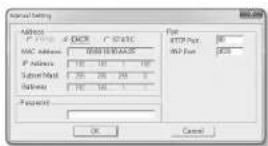
The Manual Setting dialog appears.
- In the pane, provide the necessary information. • MAC (Ethernet) Address: The MAC address imprinted on the camera label is automatically displayed and requires no user setting.
IP related parameters can be set only when DHCP is not checked.
network connection and setup
If not using a Broadband Router
For setting
-
In the
pane, provide necessary information. -
HTTP Port: Used to access the camera using the Internet browser, defaulted to 80.
• VNP Port : Used to control the video signal transfer, defaulted to 4520. -
Enter the password.
Enter the password of "admin" account, which was used to access the camera.
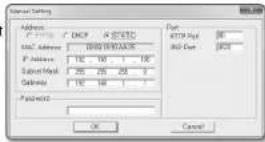
For the security purposes, you are recommended to use a combination of numbers, alphabets uppercase and lowercase and special characters for your password.
- if you want to change the password, refer to "Administrator password change" of the user setup. (page 41)
- Click [OK]
Manual network setup will be completed.
If using a Broadband Router
- IP Address : Enter an address falling in the IP range provided by the Broadband Router. ex) 192.168.1.2\~254, 192.168.0.2\~254, 192.168.XXX.2\~254
- Subnet Mask: The
- Gateway: The
- The settings may differ depending on the connected Broadband Router model. For more information, refer to the user manual of the applicable router.
- For more information about port forwarding of the broadband router, refer to "Port Range Forward (Port Mapping) Setup" (Page 27)
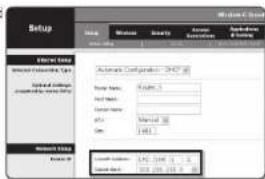
If the Broadband Router has more than one camera connected
Configure the IP related settings and the Port related settings distinctly with each other.
ex)
| Category Camera #1 Camera #2 | |||
| IP related settings | IP Address | 192.168.1.100 | 192.168.1.101 |
| Subnet Mask | 255.255.255.0 | 255.255.255.0 | |
| Gateway | 192.168.1.1 | 192.168.1.1 | |
| Port related settings | HTTP Port | 8080 | 8081 |
| VNP Port | 4520 | 4521 | |
If the
ex) http://IP address: HTTP Port http://192.168.1.100:8080
Auto Network Setup
Run
At the initial startup, both [Auto Set] and [Manual Set] will be grayed out.

- For cameras found with the IPv6 setting, these buttons will be grayed out as the cameras do not support this function.
-
Select a camera in the search list. Check the MAC address of the camera on the camera's label. Both the [Auto Set] and [Manual Set] buttons will be activated.
-
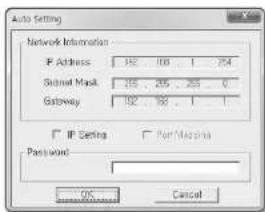
Click [Auto Set]. The Auto Setting dialog appears. The
, , and will be set automatically. -
Enter the password. Enter the password of "admin" account, which was used to access the camera.
For the security purposes, you are recommended to use a combination of numbers, alphabels uppercase and lowercase and special characters for your password.
- If you want to change the password, refer to "Administrator password change" of the user setup. (page 41)
- Click [OK]. Auto network setup will be completed.
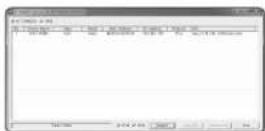
DYNAMIC IP SETUP
Dynamic IP Environment Setup
• Example of the Dynamic IP environment
- If a Broadband Router, with cameras connected, is assigned an IP address by the DHCP server
- If connecting the camera directly to modem using the DHCP protocols
- If IPs are assigned by the internal DHCP server via the LAN
Checking the Dynamic IP
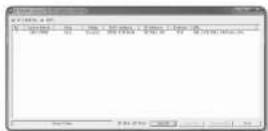
- Run the IP Installer on the user's local computer.
Cameras allocated with
address are shown in the list. - Select a camera from the search result.
- Click the [Manual Set] button and check the camera's
address. If you uncheck , you can change IP to .
PORT RANGE FORWARD (PORT MAPPING) SETUP
If you have installed a Broadband Router with a camera connected, you must set the port range forwarding on the Broadband Router so that a remote PC can access the camera in it.
Manual Port Range Forwarding
- From the Setup menu of the Broadband Router, select
- . For setting the port range forward for a third-party Broadband Router, refer to the user guide of that Broadband Router. - Select
and for each connected camera to the Broadband Router. The number of each port to be configured to the IP router should be set according to the port number designated in - - on the camera web viewer.
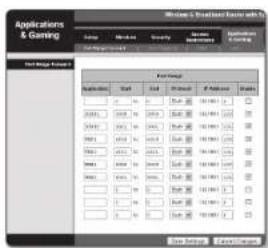
- When done, click [Save Settings].
Your settings will be saved.

- Above sample instructions are based on the CISCO's Broadband Router.
- The settings may differ depending on the connected Broadband Router model. For more information, refer to the user manual of the applicable router.
Setting up Port Range Forward for several network cameras
- You can set a rule of Port Forwarding on the Broadband Router device through its configuration web page.
• A user can change each port using the camera setting screen.
When Camera1 and Camera2 are connected to a router :
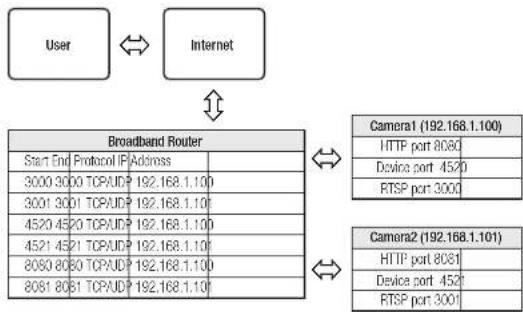
flowchart
graph TD
    A["User"] <--> B["Internet"]
    B <--> C["Broadband Router"]
    C --> D["Camera1 (192.168.1.100)"]
    C --> E["Camera2 (192.168.1.101)"]
    D --> F["HTTP port 8080"]
    D --> G["Device port 4520"]
    D --> H["RTSP port 3000"]
    E --> I["HTTP port 8081"]
    E --> J["Device port 4521"]
    E --> K["RTSP port 3001"]

- Port forwarding can be done without additional router setup if the router supports the UPnP (Universal Plug and Play) function. After connecting the network camera, set
connectinG to tHe camera from a SHARED LocaL pc
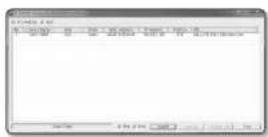
- Run the IP Installer. It will scan for connected cameras and display them as a list.
- Double-click a camera to access. The Internet browser starts and connects to the camera.

- Access to the camera can also be gained by typing the camera's IP address in the address bar of the Internet browser.
connectinG to tHe camera from a remote pc via tHe internet
Since using the IP Installer on a remote computer that is not in the Broadband Router's network cluster is not allowed, users can access cameras within a Broadband Router's network by using the camera's DDNS URL.
- Before you can access a camera in the Broadband Router network, you should have set the port range forward for the Broadband Router.
- From the remote PC, launch the internet browser and type the DDNS URL address of the camera, or the IP address of the Broadband Router in the address bar. ex) http://www.samsungipolis.com/Product ID

For registering the DDNS settings, refer to "Registering with DDNS". (page 48)
CONNECTING TO THE CAMERA
Normally, you would
-
Launch the Internet browser.
-
Type the IP address of the camera in the address bar.
ex) * IP address (IPv4) : 192.168.1.100 →
http://192.168.1.100
- the Login dialog should appear.
• IP address (IPv6) : 2001:230:abcd: ffff:0000:0000:ffff:1111
→ http://[2001:230:abcd:ffff:0000:0000:ffff:1111] - the Login
dialog should appear.
![Windows Security The name: ISO-001.1.01 at Paris Engine, is a certificate and password. [ ] Our name [ ] Password [ ] Remembering any certificate.](/content/2026/06/1204993/images/e554799fc50af48033ce7f2bbf00d6c9c1039256569cee6830946e92ebc9fc5c.jpg)
If the HTTP port is other than 80
-
Launch the Internet browser.
-
Type the IP address and HTTP port number of the camera in the address bar.
ex) IP address : 192.168.1.100:HTTP Port number(8080)
→ http://192.168.1.100:8080 - the Login dialog should appear.
Using URL
-
Launch the Internet browser.
-
Type the DDNS URL of the camera in the address bar.
ex) URL address : http://www.samsungipolis.com/Product ID
- the Login dialog should appear.

■ Network connection is disabled in the LAN only environment.
Connecting via UPnP
-
Run the client or operating system in support of the UPnP protocol.
-
Click the camera name for search.
In the Windows operating system, click the camera name searched from the network menu.
- The login window is displayed.
Connecting via Bonjour
-
Run the client or operating system in support of the Bonjour protocol.
-
Click the camera name for search.
In the Mac operating system, click the camera name searched from the Bonjour tab of Safari.
- The login window is displayed.
To check the DDNS address
If the camera is connected directly to the DHCP cable modem, DSL modem, or PPPoE modem, the IP address of your network will be changed each time you try to connect to the ISP (Internet Service Provider) server.
If this is the case, you will not be informed of the IP address changed by DDNS.
Once you register a dynamic IP-based device with the DDNS server, you can easily check the changed IP when you try to access the device.
To register your device to the
PASSWORD SETTING
When you access the product for the first time, you must register the login password.
When the "Password change" window appears, enter the new password.
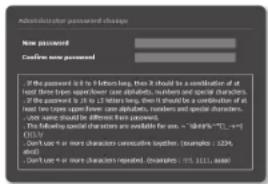

- For a new password with 8 to 9 digits, you must use at least 3 of the following: uppercase/lovercase letters, numbers and special characters. For a password with 10 to 15 digits, you must use at least 2 types of those mentioned.
-Special characters that are allowed.: \~!@4%^^0_-1=[]/.?/
- For higher security, you are not recommended to repeat the same characters or consecutive keyboard inputs for your passwords.
- If you lost your password, you can press the [RESET] button to initialize the product. So, don't lose your password by using a memo pad or memorizing it.
LOGIN
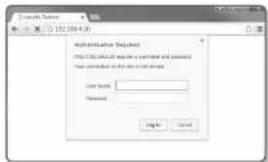
Whenever you access the camera, the login window appears. Enter the User ID and password to access the camera.
- Enter "admin" in the
Input box. The administrator ID, *admin", is fixed and can not be changed. - Enter the password in the
input field. - Click [OK].
If you have logged in successfully, you will the Live Viewer screen.


- When you access the camera web viewer, pay special attention to the security by checking whether the image data is encrypted.

- If you check the "Remember my credentials" option when your input is done, in future you will be logged in automatically without being prompted to enter the login information.
- You will experience the best video quality if the screen size is 100%. Reducing the ratio may cut the image on the borders.
PLUG-IN SUPPORT SPECIFICATIONS FOR EACH BROWSER
The existing plug-in web viewer and a new plug-in free web view is embedded together.
Therefore, it is possible to use the web viewer even in the latest browser environment that does not support plugins such as Chrome and EDGE.
According to the browser environment, the following differences may be observed.
- Chrome, EDGE browser: Although they don't support plug-ins, you can use a web viewer as a plug-in free web viewer is embedded.

- As the plug-in free webviewer has lower performance than the plug-in webviewer, it has a limit on the monitoring of high quality profiles and playback of saved videos.
To monitor high quality profiles and play saved videos, use either a plug-in webviewer or SmartViewer.
- Plug-in free profile generation conditions: A plug-in free profile is generated when the selected profile is FHD 20fps or higher (H.264)/FHD 10pts or higher (H.265) or 4M 1fps or higher (MUPEG).
- Plug-in free playback conditions: A recorded video with an HD resolution or lower
- In the following cases, the detection performance may be impaired or an malfunction may occur.
-Monotonous monitoring environment, night or low illumination environment
- Severe camera, webbling and sudden changes in illumination
- IE, Firefox, or Safari browser : You can use a web viewer even if you don't install the existing plug-in web viewer.

■ To monitor/play saved video seamlessly, you are required to install a plug-in.
- In the following cases, the detection performance may be impaired or an malfunction may occur.
-Monotonous monitoring environment, night or low illumination environment
- Severe camera webbling and sudden changes in illumination
INSTALLING WebViewer PLUGIN
To access to the plug-in webviewer and play a live video (H.264/H.265) or a recorded video, an installation message will be prompted. At this time you need to install the webviewer plug-in to use the function properly.
- When the monitoring page is accessed for the very first time, the installation page is displayed. Click [Click Here] to begin installation.
- If the plug-in installation file download status is suspended at 99% in the Internet Explorer browser, retry it after selecting "Release SmartScreen filter" in "Tool → SmartScreen filter".
- Click [Run] in the message window.
- Click [Yes] when the notice window saying that all browser windows will be closed.
Steps 4 and 5 will be skipped if no Web Viewer Plug-in is installed. - When the old version of the Web Viewer Plug-in is installed, a notice window saying the old version will be deleted is displayed. Click [Yes] when the notice window is displayed.
- Click [OK]. The old version of Web Viewer Plug-in is deleted.
- Click [Install] to begin installation of the Web Viewer Plug-in.
- Click [Finish].
Web Viewer Plug-in installation is completed.
In your internet explorer, if you need to move to the installation screen after installing the webviewer plugin, check whether webviewerActivePlugin, to control in the "Tool→Additional Function Management" menu is "Activated". If not, and if there is a persisting problem, then select "Tools→Internet Options → General" and delete all the search records.
USING A PLUG-IN FREE WEBVIEWER
If you access the camera from Google Chrome or MS Edge web browser, you can check and control the camera image in real time without installing separate plug-in(s).
- Enter your username and password to log in.
- When you are logged in, a camera live view screen appears.
USING THE LIVE SCREEN (PLUG-IN FREE WEBVIEWER)
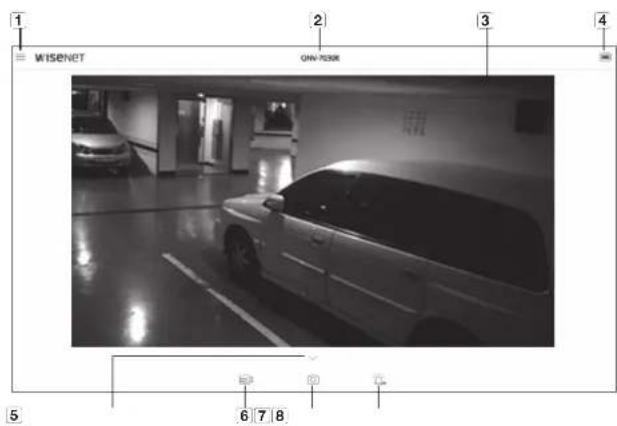
| Item Description | ||
| 1 Setup Move to the Setup screen. | ||
| 2 Camera Model Name Displays the model name of the camera accessed. | ||
| 3 Viewer Screen | Displays the Live video on the screen.■ You can use the mouse wheel to activate the digital zooming in Viewer screen. | |
| 4 Switch View Mode | Fit ( [IMAGE]) | A view mode in which the size of the camera video automatically fits to the web browser size. |
| Original Size ( [IMAGE] View mode in which the video is played in the actual resolution. | ||
| Aspect Ratio ( [IMAGE] View mode that adjusts the aspect ratio to best fit the resolution. | ||
| Full Screen | Double click on the video screen, and the current video will be played in the full screen of the monitor. | |
| 5 Playback | Move to the screen where you can search for the video recording saved in your Micro SD memory card or NAS.■ To search a recorded video, go to the play screen, place the mouse over the video and double click. | |
web viewer
| Item Description | |
| 6Profile type | You can select a profile type inunder thesetup menu.Click the icon to display the name of the current profile.Alterimages can be displayed on the screen under the following conditions if the video is played in the monitoring page:The resolution is changed due to a profile change.Incoming data is being slowed due to a network delay when the profile is changed.The web browser window size and location is changed. |
| 7Capture Saves the snapshot as an image file in the ping format. | |
| 8Alarm output Activate the Alarm Out port. |
To capture the snapshot
- Click [Capture (☐) on the scene to capture.
- When a captured video is saved, a notification message appears.
The captured image is saved in the designated folder for each browser.
To fit the full screen
- Place the mouse over the video and double click.
- This will fit the viewer to the full screen.
- To exit the full screen mode, press [Esc] on the keyboard.
USING THE LIVE SCREEN (PLUG-IN WEBVIEWER)
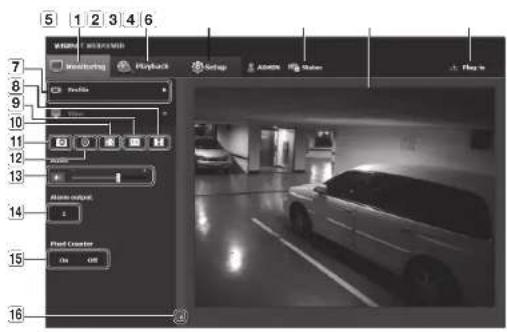
| Item Description | |
| 1 Monitoring Move to the monitoring screen. | |
| 2 Playback | Move to the screen where you can search for the video recording saved in your Micro SD memory card or NAS. |
| 3 Setup Move to the Setup screen. | |
| 4 Profile access Information You can read the profile information. | |
| 5 Viewer Screen | Displays the Live video on the screen.■ You can use the mouse wheel to activate the digital zooming in Viewer screen. |
| 6 Webviewer plug-In Installation | You can install webviewer plug-ins to play a live video or a recorded video. |
| 7 Profile type | You can select a profile type inunder thesetup menu.■ When the Web Viewer is connected, the profile information currently using is displayed.■ Afterimages can be displayed on the screen under the following conditions if the video is played in the monitoring page:-The resolution is changed due to a profile change.-Incoming data is being slowed due to a network delay when the profile is changed.-The web browser window size and location is changed. |
| 8 Screen Optimization The video size of the camera will switch to as big as the Web browser. | |
| 9 Fix the resolution | Regardless of the resolution setup configured in the camera, it sets the resolution to 640x480. Press it again to switch back to the default resolution. |
| 10 Full Screen Switch the current video to the maximum size of the monitor. | |
| 11 Capture Saves the snapshot as an image file in the jpg format. | |
| 12 Manual recording The user can save the video on the PC. | |
| 13 Adjust Audio Activates the audio and adjusts the audio volume. | |
| 14 Alarm output Activate the Alarm Out port. | |
| 15 Pixel Counter Checks the number of pixels in the selected area on the video screen. | |
| 16 Hide the context menu The left corner context menu will disappear but only the menu icon. | |
To capture the snapshot
-
Click [Capture ( ) in the scene to capture.
-
When a captured video is saved, a notification message appears.
The captured image is saved in the designated folder for each browser.
If the screen is not captured by IE browser in Windows 7 or higher, run the IE Browser with the Admin privilege.
How to record videos manually
-
Press | Manual recording ( © ) |
-
To end the recording, press [Manual recording (☐)] again.
- You can save the recorded file on the PC in an avi file format. Designate a path and save the video.
To fit the full screen
-
Click the [Full Screen ( )] button.
-
This will fit the Viewer to the full screen.
-
To exit the full screen mode, press [Esc] on the keyboard.
To Use Audio
-
Click [Audio (◀)] icon to activate audio communication.
-
Use [ ] bar to control the volume.
If there is no sound from pulling in and cut the audio jack while it is in operation, click the [Audio ( )] icon to enable it again.
To count the number of pixels
-
Click the [On (on)] icon to activate it.
-
Drag the mouse on the video to select an area.
-
The number of pixels in the selected area is displayed on the screen.
PLAYING THE RECORDED VIDEO (PLUG-IN FREE WEBVIEWER)

Before you can play the video, you must configure the record settings. For details on record settings, refer to "Storage". (page 52)
To search a date-specific recorded video, move to the play screen, place the mouse over the video and double click.
Name of event search screen and its function
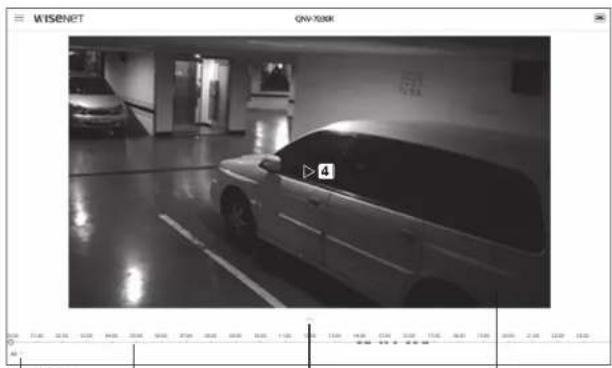
1235
| Item Description | |
| 1 Search event setting Set the event type to search within the search period. | |
| 2 Time Bar Move the time bar to play the video at a desired time. | |
| 3 Move Menu You can toggle between the Live and Play Boarded Video menu. | |
| 4 Play Plays/Pausos the video. | |
| 5 Full Screen | Double click on the video screen, and the current video will be played in the full screen of the monitor. |
To play the content after searching by event
- On the live screen, click the [Show ( )] button.
- If there is a video recorded on the date of search, the applicable video is displayed on the time bar.
- To perform event-specific search, click the [All] button at the bottom of the time bar to select an event type.
- Click the [OK] button. Event searched is displayed on the time bar.
- Click the [Play (▷)] button.
- To pause the video, click the [Pause (Ⅲ)] button.
natural_image
Black-and-white photo of a car parked in a garage with a parking lot and lane markings (no visible text or symbols)Name of time search screen and its function
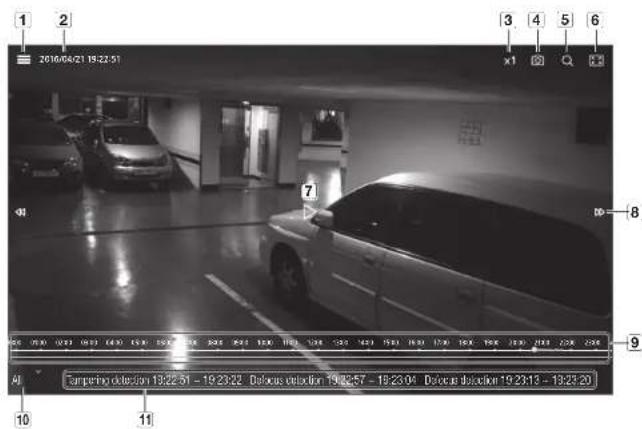
| Item Description | |
| 1 Setup Move to the Setup screen. | |
| 2 Video Information Displays the time information of the video played. | |
| 3 Play Speed | Controls the play speed. |
| 4 Capture Saves the video currently played as an image file in a .jpg format. | |
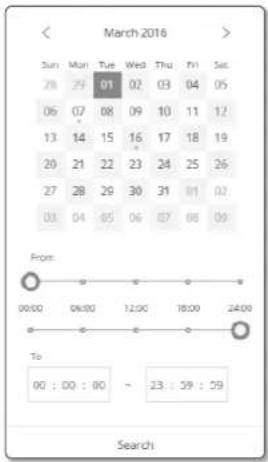
| 5 Search Date Settings | Sets a desired time and date on the calendar.■ The data on which a video is saved is circled under the date. |
| 6 Switch View Mode Switches | the size of image displayed on the screen. |
| 7 Play Plays/Pauses the video. | |
| 8 Move Playback Interval Click the ◄/→ button to move 1 frame forward/backward. | |
| 9 Time Bar | Move the [Time Bar ( [IMAGE] )] to play the video at a desired time. |
| 10 Search Event Settings Set the type of event to search in the search field. | |
| 11 Search Event Displays the type and time of an event searched. | |
To play after searching by time
- On the live screen, click the [Show ( )] button.
- Place the mouse over the video and double click. The screen changes to full screen.
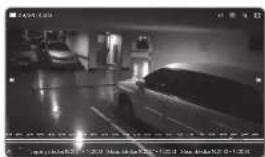
- Click the [Search (Q)] icon.
natural_image
Black-and-white photo of a car parked in a garage with two other vehicles in the background (no visible text or symbols)- On the calendar, set the search date, start time and end time. The event searched is displayed on the time bar.
- To perform an event-specific search, click the [All] button at the bottom of the time bar to select an event type.
- Click the [Play (▷)] button. The video at the selected time will be played.
- When a video is played, the recording time of the video currently being played is displayed.
- Search the video forward and backward and adjust the playback speed.
How to Move Playback Interval
Select the ◀/▶ button to move 1 frame forward/backward.
- How to Control Playback Speed
When you click the 1x, 2x, 4x, or 8x button, the playback speed increases accordingly.
When you click the -1x, -2x, -4x, or -8x button, the playback speed decreases -1x, -2x, -4x or -8x and the rewind speed increases.
- Move the position of the [Time Bar (▶)] to play the video at a desired time.
PLAYING THE RECORDED VIDEO (PLUG-IN WEBVIEWER)

Before you can play the video, you must configure the record settings. For details on record settings, refer to "Storage" (page 52);
Name of event search screen and its function
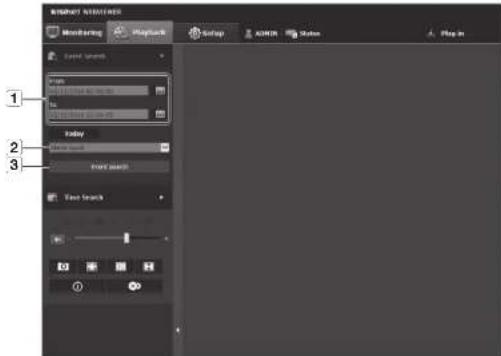
| Item Description | |
| 1 Search range setting | Set the search date and time range for data saved in your Micro SD memory card or NAS. |
| 2 Search event setting Set the event type to search within the search period. | |
| 3 Event search Run the event search. | |
To play the content after searching by event
-
Click the [Playback ( E ) button.
-
Specify the start time and end time of your search.
-
Select an event type for your search within the specified
period:
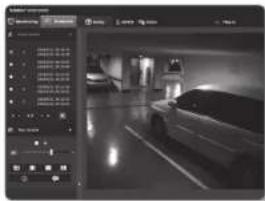
- Click the [Event search] button.
The search results will be displayed in the list.

- If more than 800 events are recorded within the search period, your search will be limited up to the date when the 800th event is recorded.
For instance, if the search period is between 10th and 15th day of the month, and more than 800 events were recorded 10th through 11th, your search will be limited up to 11th day with a total of 800 events, and events after then (from 12th) will not be found.
-
Select a data item to play in the search list.
-
Click the [Play ( ▶ )] button.
-
To stop playing the video, click [Stop (☐)].
-
To return to the search screen, click [Exit (→)].
Name of time search screen and its function
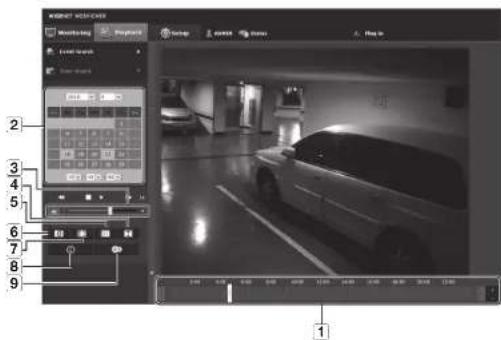
| Item Description | |
| 1 Time bar The section in the specific period is played by moving the time bar. | |
| 2 Search date setting | Set the search date using the calendar.If there is data saved in your Micro SO memory card or NAS on the day, it is marked as a box on the calendar. |
| 3 Audio | To listen to a voice signal (if present) in the recorded video, then activate the voice signal icon when you play it. |
| 4 Screen optimization The camera image is converted to fit the Web browser window. | |
| 5 Fix the resolution | Regardless of the resolution setup configured in the camera, it sets the resolution to 800x600. Press it again to switch back to the default resolution. |
| 6 Capture The current image is saved as a .jpg image file. | |
| 7 Full screen The current image is converted to cover the maximum size of the monitor | |
| 8 Video Information Time data of the replayed video is displayed on the screen. | |
| 9 Backup | Set the desired date to make a backup copy of video data saved in your Micro SO memory card or NAS.You can set up to 5 minutes for the backup of a saved video. |
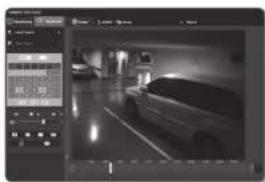
natural_image
Interior view of a car garage with a parked car on the lift (no visible text or symbols)To play after searching by time
- Click [Time Search ( )]
- Click a desired date in the calendar. The video on the specified date will be played.
- If the video playback is stooped, select a time and click [Play ( ▶)].
The video on the selected time will be played. - While the video is being played, the recording time for the current video will be shown.
-
Search for the video forward or backward, and control the play speed.
-
How to Control the Play Interval
▶: Select this button to move 1 frame forward.
◀: Select this button to move 1 second back. - To control the play speed
If selecting ▶, the button will switch to x1, x2, x4, x8, and the play speed will increase accordingly. When you select the ◀ button, the playback speed decreases -1x, -2x, -4x or -8x and the rewind speed increases. - To control the playback direction
If you see the ▶ button with the play speed displayed, the video will be played forward; Whereas, if you see the ◀ button with the play speed displayed, the video will be played backward. -
How to set the time bar
If you press the button, the details of the time bar section can be viewed.
If you press the ■ button, you can view a wider range of times and the desired time can be selected more easily. -
Move [Time bar (Ⅲ)] to a desired time point of the video before playing it.
The time containing a normal recoding file will be highlighted in blue; the time with the event recording will be highlighted in red.
To back up the searched video
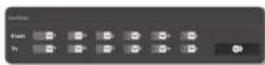
- During playback, click [ ] the scene to back up. The scheduling window for backup start and end time appears.
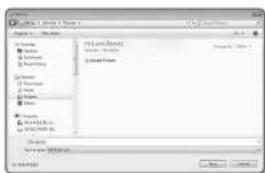
- Click [ ] button. The Save As window appears.
- Confirm the save path and click [Save] button. The screenshot will be backed up to the specified path.
web viewer
To play the backup video
The backed up images are saved in an .avi format. Gom Player, VLC Player, and Window Media Player are recommended as the media player compatible with this format.
- In case of Windows Media Player, download the latest codec from www.windows7codecs.com and install it prior to use.
To Play an AVI File
(1) Micro SD memory card
- Separate the Micro SD memory card from the camera.
Before separating the Micro SD memory card, set the
-
Insert the Micro SD memory card into the PC.
-
Play the AVI file in the "\ch00\img\YYYY_mm_DD\AVI" directory, using a media player.
A filename starts with the format "001_YYYYMMDD_HHMMSS.avi" and the file number is incremented by one. YYYYMMDD_HHMMSS indicates the start time of data saving.
- '001_YYYYMMDD_HHMMSS.smi" file is a caption file, and you can view it if it exists in the same directory as its related AVI file.
- The max recording time per AVI file is 5 minutes.
- Once corrupted, the data in the Micro SD memory card cannot be replayed in the Web Viewer's [Playback].
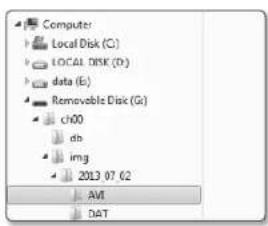
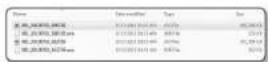
(2) NAS (Network-Attached Storage)
- In Windows browser, use
to access. ex:\192.168.20.31\defaultfolder\ch01\img\2013_07_02\AVI - Go to
→ → Enter 1. - Connected to the NAS. The directory structure is same as the directory structure for a Micro SD memory card.
A filename starts with the format "001_YYYYMMDD_HHMMSS.avi" and the file number is incremented by one. YYYYMMDD_HHMMSS indicates the start time of data saving.
- '001 YYYYMMDD HHMMSS.smi' file is a caption file, and you can view it if it exists in the same directory as its related AVI file.
- The max recording time per AVI file is 30 minutes.
■ If you change or damage the saved data on your own, it will not play back or save properly.
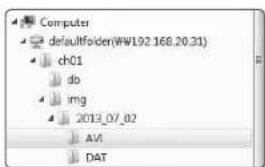
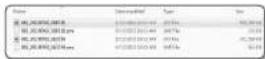
SETUP
On the network, you can set up basic information on the camera, video and audio, network events and system.
- On the live screen, click the [Menu (≡)] button.
- On the menu list, click the [Setup (◆)] tab.
- The Setup screen appears.
BASIC SETUP
Video profile
- From the Setup menu, select the <Basic(注)tab.
- Click
- Set
If you change the mode selection, a message to confirm initializing video settings is prompted. Click the [OK] button to change the video settings. The following settings in the 2MB mode and the 4MB mode are saved respectively. (Audio & Video: video settings / audio settings / camera settings, Event: tempering detection / Defocus detection (however, motion and motion time settings are not changed))
- When changing settings to an 2MB or 4MB mode, the browser window is automatically closed and the camera is rebooted. Please try accessing again later.
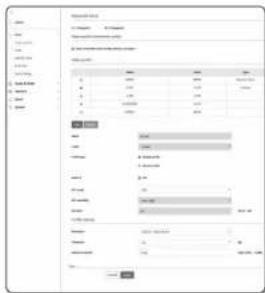
- Set the
- Keep connection when profile setting is changed: Output uses the same settings even when the settings of the active profile are changed. If not selected, changing a profile used by an existing connection resets such connection.
-
Select each profile properties. For more details, refer to "To Add/Change the Video Profile". (Page 40)
-
Click the input box of each item and enter / select a desired value.
-
The context menu may differ depending on the selected codec type.
- Default profile: If no profile is selected when using the Web Viewer, the default video profile is applied.
- E-mail/FTP profile : Video profile to be transferred to the specified email or FTP site.
- Only the MJPEG codec can be set as the E-mail/FTP profile.
-
Record profile: This is the profile that is applied to video recording.
-
Select whether or not to input audio in the video.
Select the
- According to your situation, set ATC (Auto Transmit Control) mode.
- ATC mode : it adjusts the video properties according to the variance in the network bandwidth, controlling the bit rate. Adjusting the bit rate depends on the ATC mode. - Control framerate : Reduce the frame rate if the network bandwidth drops down.
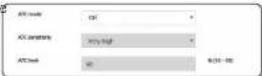
- Control compression: Control the compression rate if the network bandwidth drops down. Compression adjustment can cause deterioration of the image quality.
- Event(MD): Activated when the motion detection (MD) event is set. Frame rate is adjusted when an event occurs.
If no motion is detected in the surrounding area, the minimum amount of frames is output to save the bandwidth use.
If
| Bitrate control / ATC mode Control framerate Control compression Event(MD) | |||
| CBR Compression | Framorate | Framorate | |
- ATC sensitivity: Affect the transfer rate according to the variance in the network bandwidth. The transfer rate will be adjusted to the fastest if the bandwidth is
, and adjusted to the latest if the bandwidth is . - ATC limit: If the quality or frame rate is adjusted, the property will be changed to the applied value (%) against the previous setting value (100%).
Note that if you reduce the property value too much, you may encounter flickering on the screen. So it is advisable to adjust the value within the threshold.
It is recommended to apply ATC control only for cameras supporting ATC.
-
Set the ATC sensitivity to
in a network environment with high variance in the network bandwidth.
■ If the network connection is unstable, you may encounter flickering on the screen. -
When done, click [Apply (Apply)].
setup screen
To Add/Change the Video Profile
The profile setup can be added or modified to accommodate various profiles depending on the recording conditions.
-
In
-
Provide the name and select a codec.
- Specify the conditions under which the codec will be applied.
- Specify the details of the selected codec including resolution and frame rate. Click the
button to display detailed items.
• Resolution : Set the video size of the H.264/H.265 and MJPEG files.
- Framerate: Set the max number of video frames per sec.
The Mega PixelSensor mode setup in Camera Setup changes the maximum configurable framerate.
| Mega PixelSensor 2MW25 fps | 2MW30 fps 4MW20 fps | ||
| Framerale 1~25 fps 1~30 fps 1~20 fps | |||
• Maximum bitrate: Set the max bit rate of video when the bit rate control is set to VBR.
As the bit rate can be adjusted limitedly according to the resolution, frame rate and screen complexity, the actual bit rate can be greater than the maximum bit rate. So you must consider the use conditions when setting the value.
- Target bitrate: Set the target bit rate when the bit rate control is set to CBR.
- Bitrate control: You can select one from constant bit rate and variable bit rate for compression. Fixed bitrate means that the network transmission bitrate is fixed while varying the video quality or frame rate, variable bitrate means that a higher priority is placed on the video quality while varying the bitrate.
After setting the fixed bit rate for bit control, if you select the video quality priority mode, depending on the complexity of the screen, the actual transmitted frame rate may differ from the frame rate setup in order to guarantee the optimal video quality for the given bit rate.
- Encoding priority: You can set the priority of video transmission to frame rate or compression.
- GOV length: It specifies the distance (in terms of number of frames) between two consecutive I-Frames in a video sequence when H.264/H.265 coded was selected. (One I-Frame + 0\~Several P-Frames)
• Profile : You can select the H.264/H.265 profiling method.
- Entropy coding : Reduce the possible compression loss due to encoding.
- Dynamic GOV: When the bit rate control is VBR in H.264/H.265 codec, it makes the GOV length automatically change to the set value of the maximum dynamic GOV.
- Multicast(SVNP) : Specify the use of the SVNP protocol.
- IP address : Enter an IPv4 address with which you can connect to the IPv4 network.
- Port : Specify the video communication port.
- TTL: Set the TTL for the SVNP packet.
- Multicast(RTSP): Specify the use of the RTSP protocol.
- IP address : Enter an IPv4 address with which you can connect to the IPv4 network.
- Port : Specify the video communication port.
- TTL: You can set the TTL for the RTP packet.
If you set the Multicast address to 224.0.0.0-224.0.0.255, multicast may not work properly in all environments. In that case, we recommend you change the multicast address.
What is GOV length?
GOV(Group of Video object planes) is a set of video frames for H.264/H.265 compression, indicating a collection of frames from the initial I-Frame (key frame) to the next I-Frame. GOV consists of 2 kinds of frames: I-Frame and P-Frame.
I-Frame is the basic frame for the compression, also known as Key Frame, which contains one complete image data. P-Frame contains only the data that has changed from the preceding I-Frame. For H.264/H.265 codec, you can determine the GOV length.
If you set a recording profile with H.284/H.265 oococ, the GOV length will be framerate/2.
What is dynamic GOV?
Dynamic GOV is a function that enables the GOV to automatically change in a range from the set value of the minimum GOV length to the maximum dynamic GOV set value according to the situation of the video. In a video with almost no motion, GOV operates with the dynamic GOV settings, which makes the bit rate of the entire video reduced. The I-frame is output right after a motion is detected and GOV operates with the GOV length settings until the motion disappears.
If you use this function, the GOV of a video operates with the minimum GOV length settings.
User
- From the Setup menu, select the <Basic(注)tab.
- Click
. - Provide the necessary user information.
- Administrator password change: Change the password for the administrator.

- For the security purposes, you are recommended to use a combination of numbers, alphabets uppercase and lowercase and special characters for your password.
- It is recommended to change your password once every three months.
The password length and limits are shown as follows.
-A combination of at least three types of upper case, lower case, numeric, and special characters: 8 to 9 characters. -A combination of at least two types of upper case, lower case, numeric, and special characters: 10 to 15 characters. -Should be different from the ID.
-Cannot repeat the same letter, number of special characters more than 4 times.
-Don't use 4 or more characters consecutive together. (examples : 1234, abcc)
-Don't use 4 or more characters repeated. (examples: !!!, 1111, aaaa)
-Special characters that are allowed. : -!@#\$%^*|_-+=[]?
-After the factory setting, the admin and user passwords are initialized. You need to reset the password.
-When you access the camera web page for the first time or access it after the initialization, you will be moved to the admin password setting menu.
-In this menu, you need to login again with the new password before using the camera web page menus.
-If the existing password is not matched, when you change the admin password, you cannot change the password.
After changing your password, if there is a camera connected to a CMS or NVR client, then you need to re-register it with the newly changed password. If the camera is still connected with the same password, then the account may be locked because a client uses the previous password.
you try to login with the registered account, 5 or more consecutive password authentication has failed, and then the account may be locked for thirty seconds.
When the password is changed while multiple connections are active from a PC, the browser may malfunction. In that case, reconnect to the server.
- Guest setup: If you select
, the guest account can access the Web viewer screen but can only view the live Viewer screen. - The ID/password for the guest account is
, which cannot be changed. - Authentication setup: If you select
, you can access RTSP without logging in and view the video.
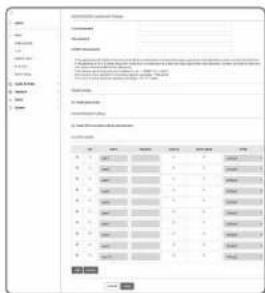
- Current users: If you select
- The manager can set up audio input and alarm output.
- Audio input/Alarm output: You can enable/disable Audio input/Alarm output in the live mode on the current user account.
- Profile: If you select
, you can only see the default profile video; if selecting , you can see the full profile videos.

■ ONVIF functions available to a registered user allowed to use ONVIF functions are limited to those of granted with permission.

When done, click [Apply { happy}].
Date & Time
- From the Setup menu, select the
- Click
. - Specify the time and date that will be applied to the camera.
- Current system time : Displays the current time settings of your system.
• Timezone : Specify the local time zone based on the GMT
- Use daylight saving time: If checked, the time will be set one hour before the local time zone for the specified time period.
This option will be displayed only in areas where DST is applied.
- System time setup: Specify the time and date that will be applied to your system.
- Manual: Sets the current time of the camera manually.
When you select the
Synchronize with NTP server : Sync with the time of the specified server address.

when done, click [Apply ( )

- If you select the
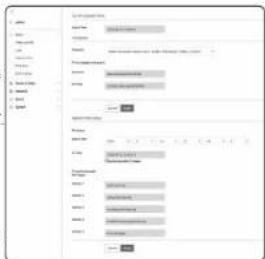
setup screen
IP & Port
- From the Setup menu, select the <Basic(注)tab.
- Click
. - Click
- Set the
.
• IP type : Select an IP connection type.
- Manual : Specify the IP address, Subnet mask, Gateway, DNS1, and DNS2.
- DHCP : Specify the DNS1 and DNS2.
- PPPoE : Specify the DNS1, DNS2, ID and Password.
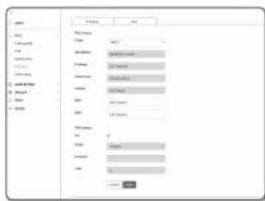
- If you set it to
, you should specify the IP, Subnet mask. Gateway, DNS 1 & 2 manually.
• MAC address : Shows the MAC address.
• IP address : Displays the current IP address.
Subnet mask : Displays thefor the set IR.
Gateway : Displays thefor the set IP.
• DNS1/DNS2 : Displays the DNS(Domain Name Service) server address.
-
Set the
. -
Set to
- Default: Use the default IPv6 address.
DHCP : Display and use the IPv6 address obtained from the DHCP server. - Manual : Enter IP address and gateway manually and use it.
The IP addressing system will be defaulted to DHCP. If no DHCP server is found, the previous settings will be restored automatically.
- Once completed with editing, click [Apply (Apply)]; to apply changes and the browser exits. After a while, connect again with the changed IP.
- Click
. - Type in each item in the Port menu as necessary.
■ Neither the port range between 0 and 1023 nor port 3702 is available.
- HTTP: HTTP port used to access the camera via the web browser.
The default is 80(TCP).
Setting the HTTP port for Safari and Google Chrome browsers to 65536 is not allowed by security policy.
- HTTPS: In this version, the security of the web communication protocol HTTP is strengthened. It can be used when you set HTTPS mode in SSL.
The initial value is set to 443(TCP).
The available setting range is 1024\~65535. (For security reasons, in your Safari or Google Chrome browser, you may not use 65535 as your HTTPS port.)
- RTSP: Used to transfer videos in the RTSP mode; the default is 554.
- Use timeout: When connecting to RTSP, this function resets the connection if there's no response for a certain time.
• Device port : Set a port used to transfer video signals with the Hanwha Techwin protocols.
If changed the HTTP port, the browser exits.
Afterwards, address should contain the newly assigned HTTP port trailing the IP.
ex) IP address: 192.168.1.100, HTTP port : Assigned 8060 → http://192.168.1.100:8060
(if HTTP port is set to 80, no need to specify the port number)
■ Using RTSP and HTTPS is recommended in order to prevent the image information from being restored.
- When done, click [Apply (Apply)].
Event setup
You can easily set the event detection items, and move to the detailed setting.
- From the Setup menu, select the
- Click
. - Activate desired items on the Event list.
- When done, click [Apply (Apply)].

- To configure detailed event settings, click a desired type. You will be redirected to the detailed settings.
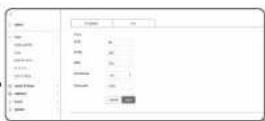
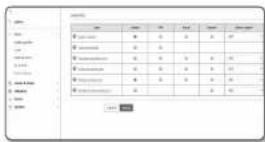
AUDIO & VIDEO SETUP
Video setup
- From the Setup menu, select the <Audio & Video (④)
tab. - Click
- Select a
- Flip mode: Turn upside down the image that is captured by the camera.
- Mirror mode: Flip horizontal the image that is captured by the camera.
- Hallway view: Rotates the video captured by the camera according to the set angle.
You can rotate the video 0, 90 or 270 degrees.
- If you change settings, the browser window will be closed and the camera restarted. Please access again later.
- Specify the privacy zone.
- When done, click [Apply (Apply)]
To set the privacy zone
You can specify a certain area of the camera video to be protected for your privacy.
- Set it to
- Click [Apply ( Apply )]
- Drag the mouse over the video to select an area.
- Enter the name and select the color, and then click [OK].
- If you want to delete a name in the list, select it and click |Delete ( [ ]).
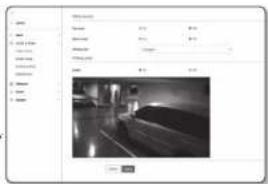
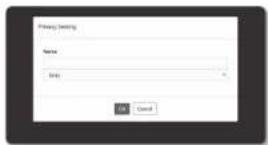
Audio setup (QND-7010R/7020R/7030R)
You can set the input value of the audio connected to the camera.
- From the Setup menu, select the
- Click
- Set the audio input value.
- Source : Sets the audio input. - Internal microphone : Built-in microphone embedded in the camera.
G.711: A audio codec standard, it uses 64 Kbps PCM (Pulse Code Modulation) encoding.
ITU standard audio codec that is adequate for digital voice transfer in PSTN network or through a PBX. G.726: ITU standard audio codec applying ADPCM (Adaptive Differential Pulse Code Modulation) for variable bit rates of 40/32/24/16 Kbps to 64 Kbps PCM encoding.
- Bitrate: Set the bit rate to differentiate compression ratio if using G.726 codec.
• Gain : Specify the audio input amplification.
- Sound quality deterioration or howling may occur if the loudness of the sound source or gain value were set excessively.
- When done, click [Apply (Apply)].
Audio setup (QNO-7010R/7020R/7030R, QNV-7020R/7030R)
You can set the input value of the audio connected to the camera.
- From the Setup menu, select the
- Click
- Set the audio input value.
• Source : Sets the audio input.
- Line : Connect the cable to the audio device.
-
External microphone: Uses an external microphone.
-
Apply power to Ext. Mic.; Select this check box when the external microphone is not powered, and the power will be supplied from the camera to the microphone. You can configure settings when selecting
.
• Codec : Specify the audio codec. -
G.711 : A audio codec standard, it uses 64 Kbps PCM (Pulse Code Modulation) encoding.
ITU standard audio codec that is adequate for digital voice transfer in PSTN network or through a PBX. -
G.726 : ITU standard audio codec applying ADPOM (Adaptive Differential Pulse Code Modulation) for variable bit rates of 40/32/24/16 Kbps to 64 Kbps PCM encoding.
-
Bitrate: Set the bit rate to differentiate compression ratio if using G.726 codec.
• Gain : Specify the audio input amplification.
■ Sound quality deterioration or howling may occur if the loudness of the sound source or gain value were set excessively.
- When done, click [Apply (Apply)].
setup screen
Camera setup
You can change the camera settings according to the environment where the camera is located.
- From the Setup menu, select the
- Click
. - Configure the settings as necessary of: Image preset, Sensor, SSDR, White balance, Back light, Exposure, Day/Night, Special, OSD, IR
- When done, click [Apply (A)]
- If a certain time (timeout: 240s) is elapsed with your not pressing the [Apply (Apply)] button after changing the settings, your changes will not be applied.
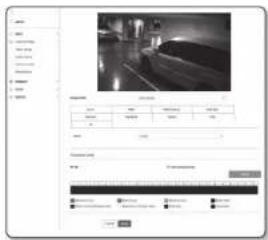
If you want to set an image preset
Users can set presets easily.
The selected image preset mode will be in operation during the configured period, but at other times the values configured in the user preset mode are reflected.
-
Select a desired mode from the image presets.
-
Definition focus: This is the factory setting for your camera. Select it for video recording, focusing on reproducibility.
- Motion focus: Record a moving object clearly. If there are many moving objects, such as on a road or in a crowded place like a museum, select this option.
- Noise level can increase in a low illumination environment, and sensitivity can go down.
- Reduced noise: Select this when you need a video with low noise in the low illumination environment.
• Bright video: This makes the dark area in a full video brighter.
■ Video contracts effects are reduced.
- Motion focus&Reduced noise: Use this when there are many moving objects, such as on a road or in a crowded place like a museum, or when you need a video with low noise in a low illumination environment.
- Motion focus & Bright video: Use it when there are many moving objects, such as on a road or in a crowded place like a museum, or when you need to make a dark area in full video brighter.
• Vivid video : Makes the entire video displayed in vivid colors.
The contrast of the video reduces and the color reproducibility becomes low.
- User preset: Select it if you want to display video with settings chosen by you.
-
When selecting a mode other than the preset mode, you can't set the shutter speed, AGC, SSDR, SSNR and color.
-
Set the camera item for each image preset mode.
-
Set the
. -
Off: Your camera will execute a specific image preset operation at all times.
-
Only scheduled time: Your camera will execute a specific image preset operation for the time period set by you on each date.
-
Click the [Setup ( small) ] button.
- Set the
and - When done, click [Apply (Apply)].
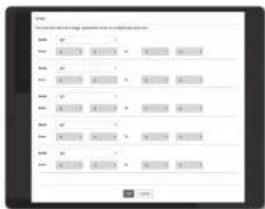
Initial setting for each image preset mode
| Image preset | Minimum shutter | Maximum shutter | AGC SSDR | SSNR COLOR | ||
| Definition focus Default (1/5) 1/12000 | Default (High) Default (12) | Default (12) | Default (50) | |||
| Motion focus 1/30 1/12000 Default (1) | High Default (12) | 4 | Default (50) | |||
| Reduced noise | 1/15 | 1/12000 | Middle | Default (12) | Default (12) | Default (50) |
| Bright video | Default (1/5) | 1/12000 | Default (High) | 18 | Default (12) | Default (50) |
| Motion focus&Reduced noise | 1/30 | 1/12000 | Middle | Default (12) | 4 | Default (50) |
| Motion focus&Bright video | 1/30 | 1/12000 | Default (High) | 18 | 4 | Default (50) |
| Vivid video | Default (1/5) | 1/12000 | Default (High) | 18 | Default (12) | 90 |
| User preset | Manual | Manual | Manual | Manual | Manual | Manual |
The preset setup functions as an aid to users to configure setup. If you don't want the preset function, deactivate it before use.
- If you change the image preset, only shutter/AGC/SSD/RSSNR/COLOR are reset to the default value for each model.
- The "Camera Setting" value does not change between presets.
To Set the Sensor
It specifies how many frames the camera CMOS sensor will capture per second.
- Select
. - Select
.

- Refer to "Video profile" for the framerate setup range of the
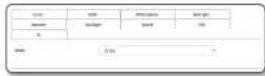
To Set SSDR (Samsung Super Dynamic Range)
In a scene where the difference between bright and dark is severe, you can increase the brightness of the dark area alone to regulate the overall brightness.
- Select
. - Set
to . - Configure the
and settings as necessary.
• Level : Adjust the level of the dynamic range.
• D-Range : Select the amplitude area of the dynamic range.
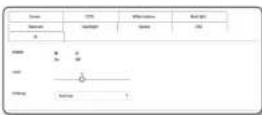
To Set White Balance
You can correct the image colors based on white under any lighting conditions.
- Select
. -
Select
-
ATW: Corrects the colors of the camera video automatically.
- Manual: You can adjust the red and blue gains of the camera video manually.
• Outdoor: Automatically corrects the video colors of the camera to be optimized to the outdoor environment. - Indoor: Automatically corrects the video colors of the camera to be optimized to the indoor environment.
- AWC: Corrects the colors of the camera video to be optimized to the current lighting condition and screen mode.
To obtain the optimal condition for the current lighting, put the focus of the camera to a white paper and press the [Set] button. If the lighting environment is changed, you should readjust the settings accordingly.
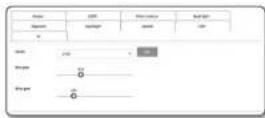

- In AWC mode, click the [Set] button if you want to keep the white balance level of the current image.

The white balancing may not work properly in the following conditions: If this is the case, switch to AWC mode.
-If the surrounding condition of the object is out of the temperature correction range exj Clear sky, sunset
-If the surrounding of the object is dark
-If the focus of the camera directly faces the fluorescent lighting or if the camera is installed in a place of variable illumination, the white balancing operation may be unstable.
To Set BLC
You can specify a desired area on the video manually and set the area to be displayed more clearly.
- Select
. - Set
to . - Set
.
You can change the level to adjust the brightness of the monitoring area. - Set the

- When setting BLC, a green box is displayed on the screen for 15 seconds.
- To prevent malfunction at the time of BLC setup, the vertical space of the BLC area should be over 40 and below 60 while the horizontal space over 30 and below 60.
To Set WDR
It displays a sharp image of the objects in a scene where both bright and dark areas exist.
- Select
- Set
to . - Specify the
.

- It is recommended to use WDR in the indoor environment.
- Nose may exist between the dark area and the bright area in the WDR mode.
- The maximum and minimum shutter values are initialized whenever you turn on or off the WDR mode.
- When using WDR, the frame rate reduces by half. Example) When using a 30fps mode and the WDR mode, a video of 15fps is output.
setup screen
To Set Exposure
You can adjust the exposure level of the camera.
- Select
-
Select each item and set it properly.
-
Brightness: Adjust the screen brightness.
• Minimum shutter : The limit of the longest exposure time. - Shutter is the mode to set up the range of the sensor exposure time which will specify the upper and lower limits for the electronic shutter movement.
- The framerate may be reduced in the dark condition if Shutter has a lower value than specified in the Sensor mode.
• Maximum shutter : The limit of the shortest exposure time.
Anti flicker: It prevents screen flickering incurring from the dissonance between the surrounding lighting and the frequency.
• SSNR: Noise of the video is removed.
• SSNR level: Adjust the noise reduction level.
• AGC : Select AGC Control mode.
Adjust the gain value of the video (that, in particular, was recorded at a low contrast scene and had a lower brightness level than normal) to control the video brightness.
| Gene | 2001 | Unknown | Not applicable |
| Sequence | log10 | Gene | Ref. |
| n |

- The image exposure can be saturated depending on the Shutter setup range.
To Set Day/Night
- Select
- Select each item and set it properly.
- Mode : Mode is used to adjust the color of Color or Black and White.
- Color : The video is always output in color.
- B/W : The video is always output in black and white.
- Auto: Normally, it is set to Color but to B&W under low luminance at night.
- If AGC of the
menu is set to , the day/night mode cannot be set to . - External : It controls the color of the video when the alarm input terminal is synchronized with an external device.
-
Schedule : Set the time during which the camera is operated in the color mode.
-
Dwell Time: It specifies the period for which the selected brightness condition must be maintained to switch the lighting mode from Day to Night or vice versa.
• Duration : It specifies the interval of lighting mode conversion. - Alarm in: The video is set to Color or B/W as the alarm sensor is open or closed.
- If the Day/Night mode is set to External Input, the alarm input function of the Event-Alarm Input page is disabled.
- Activation time(Color): It specifies the schedule for color mode operation.
- If it is set, the Color mode is maintained from 00 second of the starting time to 59 second of the ending time.

- When switching to the day/night mode, the motion detection mode does not work.
To Setup Special
- Select
. -
Select each item and set it properly.
-
Sharpness: Adjust the overall sharpness of the image. If selecting
, you can adjust the sharpness of the image. - Sharpness level: The higher the level is, the sharper and clearer the outline of the image becomes.
• Gamma : Adjust the contrast of the image.
• Color level : Adjust the strength of video color,
• LDC : Enables/Disables the image distortion correction.
• LDC Level: Adjusts the degree of distortion correction.
To Set OSD
- Select
. -
Select each item and set it properly.
-
Camera title: It specifies the name of the camera to be displayed on the screen.
Select the - Camera title X, Y: it specifies the position of the camera name on the screen.
- Date & time ; Set the time display and date formats on the screen.
- Date & Time X, Y: Specify the position of time display on the screen.
- Weekday overlay: Specify the use of date display date on the screen.
• Size : Sets the size of OSD to small/medium/large.
• Color : Sets the color of the OSD to white/red/blue/green/black/gray.
- Transparency: Sets the transparency to opaque/transparency 1/transparency 2/transparency 3.
• Overlay image : The image selected by the user can be displayed at the top left of the screen.
- Browse : Searches and selects a bitmap type file.
- Upload : Uploads a selected file.
- Remove : Deletes the selected file.
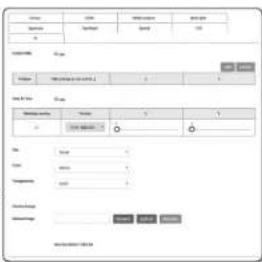

- The specifications of an applicable file include 16bit (RG8565 not supported) or 24bit bitmap file with a length of 128 pixel for the width and height and a file size of 52KB or less

- A position-adjustable item (Camera title, Date & Time) may not be displayed normally if it overlaps with another fixed OSD item:
- If you change the language, the X-Y coordinates are initialized. It is recommended to set the X-Y coordinates after setting the language.
To Set IR
- Select
- Select each item and set it properly.
- Mode: When the IR indicator turns on in B/W mode, the screen will be protected from saturation on the center area so that you can identify a short-distant object.
- Off: IR mode will be disabled.
- Auto : Adjust the IR brightness according to the brightness of the object on the center screen.
WiseStream
Function to detect the complexity of the video in an environment in which no major motion is generated and adjust the video quality to lower the output bit rate.
Returns the video quality to the original settings when a motion is generated to prevent video information loss.
- From the Setup menu, select the
-
Click
. -
Select an intensity of the Wise Stream,
-
Off : Wise Stream function will be disabled.
- Low: Reduces the image quality of the video slightly. When the bit rate is OFF, the image quality will be reduced up to 15%.
- Medium : Reduces the image quality of the video to the medium level. When the bit rate is OFF, the image quality will be reduced up to 30%.
-
High : Reduces the image quality of the video considerably. When the bit rate is OFF, the image quality will be reduced up to 50%.
-
When done, click [Apply (Apply)].

In the following cases, the WiseStream function may malfunction.
-Sudden screen switch may cause distortion of the video. It is not appropriate to use in an environment with too much movement and motion on the screen.
NETWORK SETUP
DDNS
DDNS is an abbreviation of Dynamic Domain Name Service that converts the IP address of a camera into a general Host Name so that the user can easily remember it.

- You can use the DDMS service only if the internet is connected.
- From the Setup menu, select the
tab. - Click
- Select the
connection type. - Type in the DDNS items according to the selected type.
- Samsung DDNS : Select this if you use the DDNS server provided by Hanwha Techwin.
- Product ID : Enter the product ID that is registered with the Samsung DDNS service.
- Quick connect: it sets port forwarding automatically when used with a UPnP (Universal Plug and Play) supporting router.
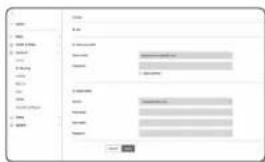

- If you want to use the DDNS service without using a hub that supports the UPnP function, click Quick connect, then go to the hub menu and activate port forwarding for your hub.
For more on how to set port forwarding for your hub, refer to "Port Range Forward (Port Mapping) Setup", (page 27)
- Public DDNS: Select one of provided public DDNS servers when you use a public DDNS server.
- Service : Select desired public DDNS service server.
- Host name : Enter the name of the host that is registered with the DDNS server.
- User name : Enter the user name for the DDNS service.
-
Password : Enter the password for the DDNS service.
-
When done, click [Apply (Apply)].

- If selected
Registering with DDNS
To register your product with the Samsung DDNS
- Visit the POLIS web site (www.samsungipolis.com) and sign in with a registered account.
- From the top menu bar, select
- .
- Click [PRODUCT REGISTRATION].
- Enter the product ID.
- You must perform the duplicate check for the ID that you entered.
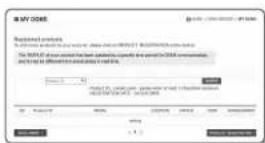
- Select a
and specify the . - Specify the product location with a description if necessary.
- Click [REGISTRATION].
The product will be added to the product list that you can check.
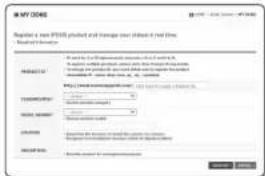
To connect to the Samsung DDNS in camera setup
- From the DDNS setup page, set
to . - Provide the
that you registered product ID with the DDNS site. - Click [Apply (ABW)]. When the connection is successfully made, you will see the message of <(Success)> on the screen.
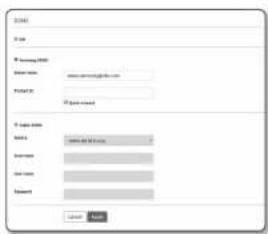
Configuring public DDNS in Camera Settings
- Open the DDNS settings page and select
for . - Enter the corresponding site's host name, user name and password.
- Click [Apply (Apply)] button. if the connection properly establishes, <(Success)> appears.
- When done, click [Apply (Apply)].
To use DDNS service properly, both DDNS setup and the router's port forwarding setup are required. For port forwarding setup, refer to "Port Range Forward (Port Mapping) Setup". (page 27)
IP filtering
You can create a list of IPs that you want to grant or deny access to them.
- From the Setup menu, select the
tab. - Click
-
Select
. -
Dery: If selecting this, access from those IPs that are added to the filtering will be restricted.
-
Allow : if selecting this, access from only those IPs that are added to the filtering will be accepted.
-
Click the [Add (ADD)] button.
The IP list will be created.
- Provide the IP that you want to grant or deny access from.
When you enter an IP address and a Prefix, the list of IP addresses available will appear in the right-side filter range column.
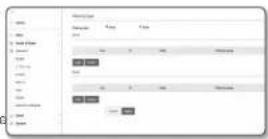
If selected
-
Select an IP to delete from the list.
Click the [Delete ( Delete )] button. -
When done, click [Apply (Apply)].
HTTPS
You can select a secure connection system or install the public certificate for this purpose.
- From the Setup menu, select the
tab. - Click
. - Select a secure connection system.
- To access the camera using HTTPS mode, you have to type the IP address for the camera in the form of "https://
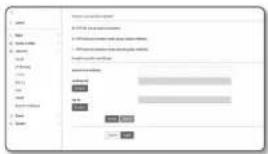
- Search for the public certificate that you want to install on the camera. To install the certificate on the camera, you need to provide a certificate name (it can be arbitrarily assigned by the user), certificate file issued from the certification authority and a key file.
-
The
item will be active only if there exists a public certificate installed. -
When done, click [Apply (Apply)].
Installing the certificate
- Enter the certificate name.
- Click the [Browse ( ) mouse ] button, select the public certificate file and key file to be installed, and then click the [Install ( ) mouse ] button.
Deleting the certificate
- Click [Delete ( ) button.
- To delete a public certificate, you should access the network video decoder in the mode of
or .
setup screen
802.1x
When connecting network, you can choose whether using 802.1x protocol, and then install the certification.
- From the Setup menu, select the
tab. - Click <802.1x>.
- Set the
- IEEE 802.1x : Specify the use of the 802.1x protocol.
• EAP type : Select EAP-TLS or LEAP.
• EAPOL version : Select version 1 or 2.
• ID : Enter the client certificate ID in EAP-TLS and the user ID In LEAP.
- Password: Enter the client private key password in EAP-TLS and the user password in LEAP. You do not have to enter the password in EAP-TLS if it uses a key file that is not
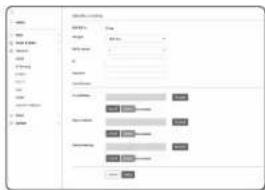
-
If the connected network device does not support the 802.1x protocol, the protocol will not operate properly even if you set it.
■ LEAP is an authentication method with poor security. Use it only in an environment where EAP-TLS is not available. -
Install/remove the certificate.
The certificate is needed only for EAP-TLS.
- CA certificates: Select a public certificate that contains the public key.
- Client certificate: Select a public certificate that contains the client certificate key.
- Client private Key: Select a public certificate that contains the client private key.
- When done, click [Apply ( Apply )].
To install/remove 802.1x related certificates
- Press the [Browse (Brown)] button for each item and select a certificate to install.
- If no certificate is installed, you will see "Not Available" appearing next to the selected item.
- Press the [Install ( install )] button to start installation with a message of "Installed" next to the item.
- Press the [Delete (Delete)] button to remove the certificate.
QoS
You can specify the priority to secure a stable transfer rate for a specific IP.
- From the Setup menu, select the
tab. - Click
- Click the [Add (ADD)] button.
The IP list will be created.
- Enter an IP address to which you will apply QoS.

The default prefix for Pv4 is 32; For DSCP, the default is set to 83
- Only the IP addresses that are set to
- Select an IP to delete from the list.
Click the [Delete ( delete )] button. - When done, click [Apply (Apply)].
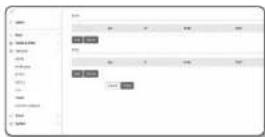
SNMP
With the SNMP protocols, the system or network admin can monitor the network devices on a remote site, and configure the environment settings.
- From the Setup menu, select the
tab. - Click
- Specify the
.
- Enable SNMP v1 : SNMP version 1 will be active.
- Enable SNMP v2c : SNMP version 2 will be active. - Read community : Provide the name of the read community where you can access to the SNMP information.
The default name is
-
Write community : Provide the name of the write
community where you can access to the SNMP information. The default name is. -
Enable SNMP v3 : SNMP version 3 will be active.
-
Password : Specify the default password for SNMP version 3.
-
The default password can be exposed to a hacking thread so it is recommended to change the password after installing the
product.
Note that the security and other related issues caused by the unchanged password shall be responsible for the user.
■ Password should be longer than B characters, no more than 16 characters.
- Enable SNMP Trap: SNMP trap is used to send important events and conditions to the Admin. - Community: Enter the trap community name to receive messages.
- IP address: Enter the IP address to which messages will be sent.
- Authentication failure: It specifies whether an event shall be generated when the community information is invalid.
- Network connection : It specifies whether an event shall be generated when the network disconnection is restored.
- When done, click [Apply (App)]
SNMP v3 is only able to be set when the secure connection mode is HTTPS. Refer to "HTTPS". (page 49)
■ If you don't use SNMP √3, there may be a security issue.
Auto IP configure
You can set the IP available for access and camera searching automatically.
-
From the Setup menu, select the
tab. -
Click
. -
Set the
.
An additional IP address may be assigned to assess the camera from the Link-Local network.
- Auto configure : It specifies Able or Disable for the Link-Local IPv4 address.
• IP address : Display the assigned IP address.
- Subnet mask: Display the subnet mask of the assigned IP.
- Set the
Cameras can be automatically searched in the client and operating system in support of the UPnP protocol.
- UPnP discovery : It specifies Able or Disable for UPnP Discovery.
- Friendly name : Display the camera name.
Friendly name is displayed in the format of WISENET-
In the Windows operating system which basically supports UPnP, the cameras connected to the network are displayed.
- Set the
.
Cameras can be automatically searched in the client and operating system in support of the Bonjour protocol.
- Friendly name: Display the camera name.
Friendly name is displayed in the format of WISENET
In the Mac operating system, which support Bonjour by default, the connected cameras are automatically displayed in the Bonjour bookmark of the Safari web browser.
If the Bonjour bookmark is not displayed, check Bookmarks Setup in the "Preference" menu.
- When done, click [Apply (Apply)].
EVENT SETUP
FTP / E-mail
You can configure the FTP/E-mail server settings so that you can transfer the images taken with camera to your PC if an event occurs.
- From the Setup menu, select the
tab. - Click
. - Select
or and enter / select a desired value.
- FTP configuration
Server address: Enter the IP address of the FTP server that you transfer the alarm or event images to.
- ID : Enter the user ID with which you will log in to the FTP server.
- Password : Enter the user account password for logging into the FTP server.
Upload directory: Specify the FTP path where you will transfer the alarm or event images.
- Port: The default port of the FTP server is 21; however, you can use a different port number according to the FTP server settings.
Passive mode : Selectif you need to connect in passive mode due to the firewall or the FTP server settings.
• E-mail configuration
- Server address : Enter the SMTP address of the email server that you transfer the alarm or event images to.
- Use authentication: Select whether to use authorization.
- Use TLS: Specify the use of TLS.
- ID : Enter the user ID for logging into the email server.
- Password : Enter the user account password for logging into the email server.
- Port: The default port of the email server is 25; however, you can use a different port number according to the email server settings.
- Recipient : Enter the address of the email recipient.
Sender : Enter the address of the email sender. If the sender address is incorrect, the email from the sender may be classified as SPAM by the email server and thus may not be sent. - Subject : Enter a subject for your email.
-
Body: Provide the text for the massage. Attach the alarm or event images to the email that you are preparing.
-
When done, click [Apply (Apply)].
setup screen
Storage
You can activate recording on your device, set the recording conditions, check the saved data capacity and format the device itself.
- From the Setup menu, select the
tab. - Click
-
Select a device to save data in.
-
If your device is properly recording data, it will display "Recording".
■ If you see an "Error" message, check the following:
-Check the storage to see if it is connected to the device.
-Check the files in the storage to see if they are damaged
-Check the storage to see if they are physically damaged.
- If the "Error" message does not disappear after following the
instructions, format the Micro SD card.
After formatting, if the error message still remains, replace the Micro SO card.
- If you remove the Micro SD card without changing a button to 'off'
position in settings or if you connect a camera to an unstable power
source. the Micro SD card may be damaged.
The number of simultaneously accessible new profiles after the recording mode is activated is 2.
To make recording on the Micro SD memory
-
Set the SD card unit to
. -
Click the [Apply (any)] button.
-
Check the memory cards
and .
You can format the Micro SD card by clicking the
■ Some frames may be skipped if the Micro SD memory card operates at the lower speed than recommended
For more details, refer to "Recommended Micro SD/SDHC/SDXC Memory Card Specifications" (Page 6)
- For a Micro SD memory card with a large capacity, the formatting will be slowed down accordingly.
- The data traffic will increase when the camera is set to higher resolution, higher bit rate, and/or higher framerate.
If there is too much data traffic, some frame may be skipped although it is stored in a full frame. -
When a frame skip occurs, images are saved at the rate of min, one image per sec.
-
Specify the storage action.
• Record profile: The name of profile to be recorded is displayed.
• Normal : Make recording at a certain frame rate.
• Event : Set the recording type for a certain event that occurs.
- Pre event duration: Specify the time point before the occurrence of the alarm; starting from the time point, the images will be transferred. You can specify up to 5 seconds before the occurrence of the alarm.
- Post event duration: Specify the time point after the occurrence of the alarm; to the specified time point, the images will be transferred. You can specify up to 120 seconds after the occurrence of the alarm.
- Record file type : It specifies the file format of the recorded images.
- STW: It is Hanwha Techwin's unique file format.
- AVI : It is the conventional avi format.
If the Record file type is changed, the existing data is formatted.
• Overwrite: If the Micro SD memory is full, this will delete old data and store new data in replacement.
- Auto delete : Data for a certain period is deleted, while other data is not deleted.
This can be set within the range of one day to 180 days.
- If the storage period is expired, data is automatically deleted and new data will be recorded. Once deleted, it cannot be recovered.
5. Set .
- Type : Camera supports VFAT and ext4 as an SD card file system, which can be configured by the user. (However, in case of ext4 file system, an additional application is required to recognize the Windows operating system)
- If the settings are changed, the existing data will be formatted.
- It may take up to 10 minutes to format an SD card in the ext4 file system.
6. Specify the
• Always : Always save recorded video in the Micro SD memory card.
- If set to Always, the activation time cannot be changed.
- Only scheduled time:Records only on the specified time of the specified day of week.
• [Clear] : Reset all settings.
- When done, click [Apply (Navy)].
If you want to record in your NAS
-
Sel the saving operation and basic recording
-
Auto deletion is supported only if your NAS meets the recommended specifications.
- Enter the information registered in your NAS.
• IP address : Unique IP address assigned to the NAS.
• ID: An ID registered in the NAS.
• Password : Password registered in the NAS.
- Default folder : Designate the NAS user folder to save data in.
-
Click the [Test] button to see if you can successfully connect to the NAS.
-
If the success message is displayed, it means that you can successfully save data in the NAS.
■ If the fail message is displayed, check the following.
-Confirm that the IP address of the NAS is valid.
-Confirm that the ID/password of the NAS is valid.
- Confirm that you can access the folder designated as the default folder using the ID of the NAS.
-Confirm that the NAS SMB/CIFS items are unchecked.
- Confirm that the NAS IP address and the camera IP address are in the same format.
exj The NAS & camera subnet mask initial value is 255.255.255.0.
If the IP address is 192.168.20.32 then the NAS IP address should be in the range of 192.168.20.1-192.168.20.255.
- Check whether you tried to access as another user without formatting the default folder saved or used.
-Confirm that you used recommended NAS equipment.
- After the settings are completed, set the NAS unit to
. - Click the [Apply (Apply)] button.
- Log in the NAS and check the
and .
You can format the default folder specified in the NAS connection setting by clicking the
- Since data may not be saved after a temporary network interruption when using NAS, it is recommended that you use SD at the same time to prevent loss of recorded images.
- The data traffic will increase when the camera is set to higher resolution, higher bit rate, and/or higher framerate.
If there is too much data traffic, some frame may be skipped although it is stored in a full frame.
- When a frame skip occurs, images are saved at the rate of min. one image per sec.
NAS (Network Attached Storage) guide
Since data may not be saved after a temporary network interruption when using NAS, it is recommended that you use SD at the same time to prevent loss of recorded images.
- If the setting allows a Micro SD memory card and the NAS to be simultaneously connected for use, the higher priority for recording goes to the NAS.
If you activate Overwrite to the NAS by setting it toand the available capacity is below 1%, it will be saved in the Micro SO card. - If you are saving data in the NAS, you might be unable to save it when you insert a Micro SD memory card used by another camera.
■ NAS recommended specs : Refer to "NAS recommended specs". (Page 6) - If you change the NAS saving while saving data in the NAS, it will not be reflected in the system immediately.
- If you remove NAS equipment on your own while saving data, or if the network is disconnected, NAS saving operation will be terminated abnormally
- NAS saving allows only one camera to a folder. Logging in with another camera is not allowed, and the images will not be saved.
The following is a description of how to save data using the NAS according to the Synology NAS method, which is one of the recommended products.
- Access the Synology NAS as an admin. In this example, the NAS IP Address is set to [192.168.20.253].
- If you access it as an admin, the following screen will be displayed. Click the [Control Panel].
- Click the
in the file sharing and privilege menu.
setup screen
- Click the [Create] button.
-
After entering the shared folder name(ID), click the [OK] button to create a shared folder. In this example, the shared folder name is [testDirectory].
-
In Windows, for NAS access, set the privilege for the shared folder as follows. Check the admin's [Read/Write].
- Click on the
in the file sharing and privilege menu. - After clicking the [Create] button, enter name(ID) and password.
In this example, name(ID) is set to [testID] and password is also set to [testID].
According to the NAS recommendations, when you use Netgear's NAS equipment, do not allocate the capacity for use. - In Windows, set the privilege for NAS access. For the shared folder created in step 4 called "testDirectory" check [Read/Write].
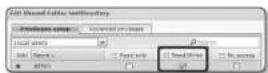
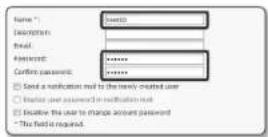
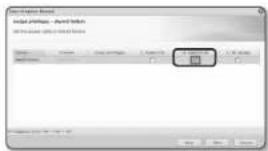
-
Basic setting in the NAS is completed. Connect your camera to the actual NAS. As shown below, enter the NAS connection setting items.
-
After entering item 10, check
. -
Click the [Apply ( Apply)] button. Finish saving by using the NAS.
Alarm output
- From the Setup menu, select the Event ( 2) tab.
- Click
-
Configure the camera alarm output settings.
-
If you change the alarm output type, the alarm out button on the monitoring page and alarm output type displayed on Event Setup page will be changed accordingly.
- Type
- Normal open : Considers "Open circuit" status of the sensor or alarm input device as normal, and triggers alarm event if becomes "Closed circuit" status. - Normal close : Considers "Closed circuit" status of the sensor or alarm input device as normal, and triggers alarm event if becomes "Open circuit" status.
• Mode: Sets the alarm output method.
- There is difference between operations when clicked alarm output button while disabled.
- Pulse: It is activated during the time period specified by the duration (switching interval) and then becomes inactive automatically.
- Active/Inactive : It maintains as activated until the user clicks the button again to make it inactive.
- Duration: Set the alarm duration that maintains activated if the mode is set to pulse, from 1 to 15 seconds.
- When done, click [Apply (Apply)].
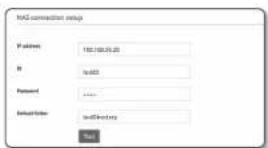
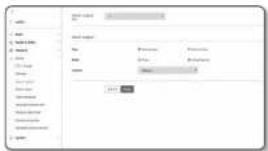
Alarm input
You can set the alarm input type, activation time, and operation mode.
- From the Setup menu, select the
tab. - Click
-
Set whether or not to
. -
Select the type.
-
Normal open: It is normally open, but if it is closed, an alarm will be triggered.
-
Normal close: It is normally closed, but if it is open, an alarm will be triggered.
-
Specify the
.
• Always: Always check if an alarm occurs. It activates in operated mode when the alarm occurs.
- If set to
Only scheduled time : Check if an alarm occurs at a specified day of the week for a specified time period. It activates in operated mode when the alarm occurs.
• [Clear Cut] : Reset all settings.
- Minute: Click an area in Activation Time and set the time by minutes.
• Hour : Drag your mouse at Activation Time and set the time by hours.
-
Specify an operation that will perform if an alarm occurs.
-
FTP : Specify the use of FTP transfer in the alarm input setup.
■ Refer to "FTP / E-mail" for more details. (page 51) - E-mail: Specify the use of email transfer in the alarm input setup.
■ Refer to "FTP / E-mail" for more details. (page 51) - Record: You can set up the alarm to record to a Micro SD card or an NAS when operating.
- Set
to in . (page 52) -
Alarm output 1: Select whether to set the alarm output if an alarm is incoming, and specify the alarm output time.
-
When done, click [Apply ( Apply )].
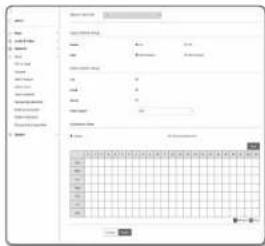
Time schedule
You can configure settings to transmit images at regular intervals at a scheduled operation time regardless of the occurrence of an event.
- From the Setup menu, select the
tab. - Click
- Set whether or not to
. - Specify the
. -
Specify the
. -
Always: Always activates in operated mode at the set interval.
- Only scheduled time: Periodically activates in operated mode at a specified time and date.
- The transfer interval setting value must be smaller than the preset activation interval to succeed in image transmission.
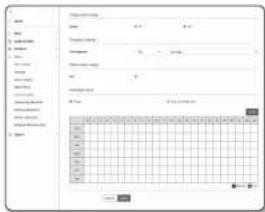

- The transfer interval setting value must be smaller than the preset activation interval to succeed in image transmission.
-
Specify the activation conditions.
-
FTP: Specify the use of the FTP transfer if an event occurs.
-
Refer to "FTP / E-mail" for more details. (page 51)
-
When done, click [Apply (Apply)].
setup screen
Tampering detection
You can set to detect tampering attempts and trigger events, such as sudden change of camera's framing direction, blocked lens and other overall change of scenes from the video.
- From the Setup menu, select the
tab. - Click
. - Set whether or not to
. - Set the tampering detection sensitivity. The higher the sensitivity, detects the minutest tampering attempts.
- Specify the activation time and activation condition.
- For more information about
- When done, click [Apply (Apply)]
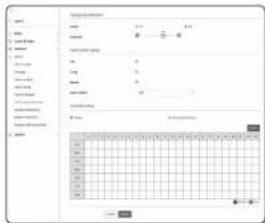
The default tampering detection function may not work properly in the following cases:
-Under circumstances of simple background or low illumination and night time may lower the detection sensitivity.
-A severe shaking of the camera or a drastic change to the illumination can be considered a tampering by mistake.
- Detection of the tampering may take some time (maximum 5 seconds) right after the tampering was made.
-Once a tampering is detected, the camera will resume a normal operating after a certain stability time (approx. 5 seconds) during which no detection will be performed.
■ If false alarms are generated frequently, decrease the sensitivity gradually to minimize false alarms.
If you choose a lower sensitivity, only a sudden tempering is detected.
- If you use a higher sensitivity, alarms may be generated even from very small changes, but false detection in response to changes in an object or brightness may occur.
Defocus detection
You can configure settings to generate an alarm signal when a defocus of the camera lens is detected.
- From the Setup menu, select the
tab. - Click
. - Set whether or not to
. - Set the sensitivity.
The higher the sensitivity value is, the finer defocus can be detected. - Specify the activation time and activation condition.
- For more information about
- When done, click [Apply (Apply)].
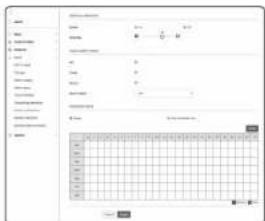
It may take a certain length of time (up to 5 seconds) to detect the defocus after a defocus situation occurs.
- In the following cases, the delocus detection performance may be impaired or a malfunction may occur.
-Monotonic monitoring environment, right or low illumination environment
Sudden changes in the illumination (e.g. indoor light shutting off)
Lens blocked by a large object that covers almost all of the screen
Changes the focus object by changing the camera position.
Motion detection
You can configure settings to generate an event signal when a motion detection event is generated.
- From the Setup menu, select the
tab. - Click
- Enable the motion detection mode.
- Set
, and . - Specify the activation time and activation condition.
- For more information about
- When done, click [Apply (Apply)].
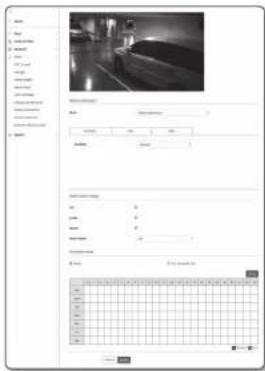
Before using, set the minimum and maximum motion sizes to suit desired motion range to be detected.
- Detected size of an object may have difference with the actual size according to its shape.
- Up to 16 objects from the top side of the screen can be displayed.
- In the following cases, motion detection performance may be impaired or a malfunction may occur.
-The object color or brightness is similar to the background.
-Small activities around the border area of the camera's field of view.
-Multiple movements continue occurring at random due to a scene change, rapid lighting changes or other reasons.
-A fixed object continues moving in the same position.
-Motions of loss position changing such as approaching to the camera or fading away from the camera.
-Moving object approaches to the camera too close
-An object hides other objects behind.
-Two or more objects overlap or one object divides in multiple portions.
-Too fast object (for a proper detection, one object should be found overlapping between contiguous frames)
-Reflection / blur / shadow due to a strong light such as direct sunlight, illumination, or headlamp.
-In severe snow, rain, wind or in dawn / dusk.
To use Motion detection
It detects a motion that meets all conditions specified by sensitivity, size and area.
- Select a motion detection mode.
- Select
tab to set the sensitivity level. You can set the sensor's sensitivity to detect a motion out of the background from the monitoring video.
In a situation that definitely distinguishes objects out of backgrounds, set this to a low sensitivity level. For opposite case that is hard to distinguish objects like low illuminated situation, set this to a high level.
- Select
tab.
You can limit the minimum/maximum size of motion to be detected.
- Minimum size (pixel): To set the minimum size of detected motions, select
and then point and drag to the desired size on the screen using the mouse. - Maximum size (pixel): To set the maximum size of detected motions, select
and then point and drag to the desired size on the screen with your mouse.
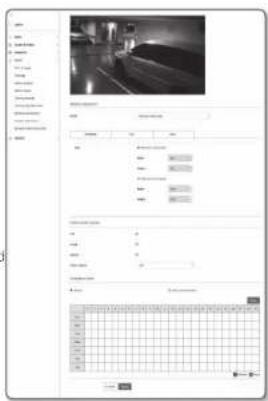
- Motors smaller than the specified minimum size or bigger than the maximum size are not detected. To avoid uninjured detections caused by great and small noises, set minimum/maximum motion sizes appropriately in accordance to your environments. Note that same motions on the same location can be differently detected in their detection size; it is recommended to consider and include the tolerable difference when setting the minimum/maximum detection size.
- Select tab
You can specify an area on the screen to include or exclude the area to/from detection.
ou can specify up to 4 areas.
- Detection area: Sets the entire screen as excluded from detection, and adds specified area as motion detection area. Select 4 vertices in the image with your mouse to specify the detection area.
-
Non detection area: Sets the entire screen as motion detection area, and excludes specified area as not to be detected. Select 4 vertices in the image with your mouse to specify the non-detection area.
-
To delete a designated area, right click the mouse on the video and click the [Delete] button displayed on the popup window.
- When done, click [Apply (apply)].
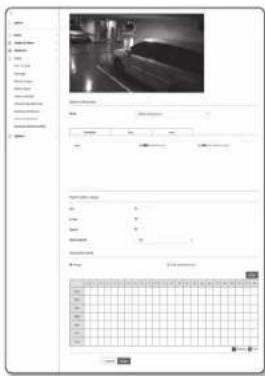
Network disconnection
When the network is physically disconnected, it is considered as an event to be saved.
- From the Setup menu, select the
tab. - Click
. - Set whether or not to
- Specify the activation time and activation condition.
- For more information about
and , refer to 'Alarm input'. (page 55) - When done, click [Apply (Apply)].
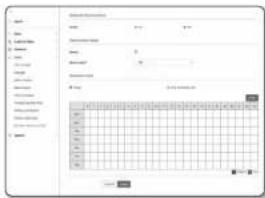
SYSTEM SETUP
Product information
- From the Setup menu, select the
tab. - Click
- Check the camera information, or provide details according to your network environment.
• Model : Model name of the product.
- Serial number : Product serial number.
• Device name : Provide a device name that will be displayed on the Live screen.
- Location: Specify the location where the camera is installed.
• Description: Provide detailed information about the camera location.
- Memo: Provide an explanation about the camera for better understanding.
• Language : Select a preferred language for the Web Viewer OSD.
The default language is set to
- When done, click [Apply (Apply)].
Upgrade / Reboot
- From the Setup menu, select the
tab. - Click
. - Select a desired item and set it appropriately.
- Upgrade: Performs upgrading the system.
- Factory default: Initializes all setting information including the camera settings to the factory reset state. (however, logs are not initialized)
- Exclude Setting: if you select the
- The IP addressing system will be defaulted to DHCP if you reset the camera. If no DHCP server is found, the previous settings will be restored automatically.
- Configuration backup & Restore: Backs up the current system settings before performing the restoration process. The system is automatically restarts after backup or restoration.
- Restart: Restarts the system.
To perform the upgrade
- Click [Browse] and specify a file to upgrade.
- Click [Upgrade].
- An "Upgrade" progress bar is prompted to show the upgrading status.
- Once completed upgrading, the browser exits and the camera restarts.
It may take a max of 10 minutes for the upgrade process. If you forcibly terminate the upgrade process, upgrade will not be completed properly.
During restarting the system, accessing with web viewer will not be made.
- You can download the latest version from the Hanwha Techwin web site.
To back up the current settings
- Click [Backup].
- A file in a *.bln* file format is saved in "Library" -> "Document" -> "Downloads".
To restore the backup settings
- To restore the backup settings, click [Restore].
- Select a desired backup file.
If you perform the backup or restoration, the web browser will be closed and the camera will reboots.
- If you try to recover the config file backed up in other model, some functions may malfunction and you need to change the setting manually.
Log
You can check the system log or event log.
- From the Setup menu, select the
tab. - Click
-
Select a log type.
-
Access Log: You can check the log information that contains the user's access and the access time.
-
System log: You can check the system logs where any system changes are recorded including the time information.
• Event log : You can check the event logs including the time information. -
From the right log list, select an item to search for.
If you selectin the top left dropdown list, all logs for the applicable log type will be displayed. - If one page can not display all the logs available, use the bottom buttons to move to the previous, next, or the last item.
- Click on the
button to save all the log data for the currently selected mode in the "time stamp value create by camera in modelname-mode-camera.txt file" in the download folder for the browser.

■ Each page displays 15 logs with the latest one displayed at the top.
- Each log contains up to 1,000 records and after 1,000 records are saved. the oldest log is deleted when a new record is generated.
You can check the profile information.
- From the Setup menu, select the
tab. -
Click
. -
The profile information screen is displayed.
- Profile access: Show the information of the newly added profile.
- Profile : Show the information of the newly added codec.
- Bitrate(kbps): Show both the actual bit rate and the set bit rate.
- Framerale(lps) : Show both the actual frame rate and the set frame rate.
- ATC(%) : Show the ATC status.
- Concurrent users count: Show the number of concurrent users who access the profile.
- Current users: Shows information on users accessing web viewer and displaying monitoring video. - Profile: Show the name of the profile accessed by the user.
- Bitrate(kbps) : Show the current bit rate.
- Network connection status: It shows whether the network is working fine.
- IP : Show the IP address of the current user.

- To check information on the profile currently used, click [Update] again to refresh it. It takes a certain time for any changes to be applied.
- You can check the profile access status by clicking the [Menu (≡)] - [Status (2)] tab.
appendix
Specification
| Items | Description | |||
| QND-7010R/7020R/7030R | QND-7010R/7020R/7030R QNV-7020R/7030R | |||
| Video | Imaging Device 1/3" 4M CMOS | |||
| Total Pixels 2720x1536 | ||||
| Effective Pixels 2688x1520 | ||||
| Scanning System Progressive | ||||
| Min. Illumination | QND-7010R/QNO-7010R: Color: 0.5 Lux, B/W: 0 LuxQND-7020R/QNO-7020R/QNV-7020R: Color: 0.4 Lux, B/W: 0 LuxQND-7030R/QNO-7030R/QNV-7030R: Color: 0.3 Lux, B/W: 0 Lux | |||
| Lens | Focal Length (Zoom Ratio) | QND-7010R/QNO-7010R: Fixed 2.8mm (F2.2)QND-7020R/QNO-7020R/QNV-7020R: Fixed 3.6mm (F2.2)QND-7030R/QNO-7030R/QNV-7030R: Fixed 6mm (F2.2) | ||
| Max. Aperture Ratio F2.2 | ||||
| Angular Field of View | QND-7010R/QNO-7010R: D:125"/H:110"/V:63"QND-7020R/QNO-7020R/QNV-7020R: D:95"/H:81"/V:45"QND-7030R/QNO-7030R/QNV-7030R: D:62"/H:53"/V:31" | |||
| Min. Object Distance | ||||
| Lens Type Fixed | ||||
| Mount Type Board type | ||||
| Pan / Tilt /Rotate | Pan Range 0° -- +350° - 0° -- +350° | |||
| Tilt Range 0° -- +67° | 0° -- +67° | |||
| Rotate Range | 0° -- -355° - 0° -- +355° | |||
| Operational | Viewable Length | 20m | QNO-7010R: 20mQNO-7020R/QNO-7020R: 25mQNO-7030R/QNO-7030R: 30m | |
| Camera Title | Off./ On (Displayed up to 20 characters per line)- W/W : English/Numeric/Special Characters- Common : Multi-line (Max 5), Color (Grey/Green/Rod/Blue/Black/White),Transparency, Auto Scale by Resolution | |||
| Day & Night True Day & Night | ||||
| Items | Description | ||
| QND-7010R/7020R/7030R QND-7010R/7020R/7030R QNV-7020R/7030R | |||
| Operational | Backlight Compensation | Off / BLC | |
| Wide Dynamic Range | 120x8 | ||
| Digital Noise Reduction | SSNR (Off / On) | ||
| Motion Detection | Off / On (Itea polygon zones) | ||
| Privacy Masking | Off / On (Itea rectangle zones) | ||
| Gain Control | Off / Low / Middle / High | ||
| White Balance | ATW / AWC / Manual / Indoor / Outdoor | ||
| LDC (Lens distortion control) | On/Off / 5 levels with Min/Max) | ||
| Electronic Shutter Speed | Minimum / Maximum / Anti flicker | ||
| Flip / Mirror | Flip / Mirror / Hallway view | ||
| Intelligent Video Analytics | Motion detection with metadata, tempering, delocus detection | ||
| Alarm I/O | Input 1ea / Output 1ea | ||
| Alarm Triggers | Motion detection, Tempening Detection, SD card error, NAS error, Alarm Input, Defocus detection | ||
| Alarm events | • File upload via FTP, E-Mail• Notification via E-Mail• Local storage(SD/SDHC/SDXC) or NAS recording at Event (Alarm Triggers)• External output | ||
| Network | Ethernet | RJ-45 (10/100BASE-T) | |
| Video Compression Format | H.265, H.264, MUPEG | ||
| Resolution | 2692x1520 / 2560x1440 / 2304x1296 / 1920x1080 / 1250x1024 / 1280x960 / 1280x720 / 1024x768 / 800x800 / 800x450 / 720x576 / 720x480 / 640x480 / 640x350 / 320x240 | ||
| Max. Framerate | H.265/H.264 - Max 20fps at 4M, Max 30fps at 2M all resolutionsMUPEG - Max 15fps @ all resolution | ||
| Smart Codec | WiseStream | ||
| Video Quality Adjustment | H.264/H.265 : Target Bitrate Level ControlMUPEG : Quality Level Control | ||
| Network | Bitrate Control Method | H.264/H.265 : CBR or VBRMJPEC : VBR | |
| Streaming Capability Multiple Streaming (Up to 3 Profiles) | |||
| Audio I/O Built-in MIC Line in | |||
| Audio Compression Format | G.711 μ-law /G.726 SelectableG.726 (ADPCM) 8KHz, G.711 8KHzG.726 - 16Kbps, 24Kcps, 32Kcps, 40Kcps | ||
| Audio Communication Uni-directional | |||
| IP IPv4, IPv6 | |||
| Protocol | TCP/IP, UDP/IP, RTP(IUDP), RTP(TCP), RTCP, RTSP, NTP, HTTP, HTTPS, SSL/TLS,DHCP, PPPoE, FTP, SMTP, ICMP, IGMP, SNMPY/A2cv3(MIB-2L), A/RP, DNS, DONS,OoS, PIM-SM, UPnP, Bonjour | ||
| Security | HTTPS(SSL) Login AuthenticationDigest Login AuthenticationIP Address FilteringUser access Log802.1x Authentication | ||
| Streaming Method Unicast / Multicast | |||
| Max. User Access 6 users at Unicast Mode | |||
| Edge Storage | Micro SD/SDHC/SDXC (up to 128GB)- motion Images recorded in the SD/SDHC/SDXC memory card can be downloaded.NAS(Network Attached Storage)Manual recording at Local PC | ||
| Application Programming Interface | ONVIF Profile S/GSUNAPI(HTTP API) | ||
| Webpage Language | English, French, German, Spanish, Italian, Chinese, Russian, Japanese, Swedish,Portuguese, Czech, Polish, Turkish, Dutch, Hungarian, Greek | ||
| Items | Description | |||
| QND-7010R/7020R/7030R QND-7010R/7020R/7030R QNV-7020R/7030R | ||||
| Network | Web Viewer | Supported OS: Windows / 8.1 / 10, MAC OS X 10.9, 10.10, 10.11Plug-in free web viewerSupported web browsers: Google Chrome 47, MS Edge 20Plug-in web viewerSupported web browsers: MS Explorer 11, Mozilla Firefox 43, Apple Safari 9※ Mac OS X only | ||
| Central Management Software | SmartViewer | |||
| Pixel Counter Support (plug in viewer only) | ||||
| Environmental | Operating Temperature / Humidity | -10°C ~ +55°C (-14°F ~+131°F) / Less than 90%RH | -30°C ~ +55°C (-22°F ~ +131°F) / Less than 90%RH* Start up should be done at above -20°C | |
| Storage Temperature / Humidity | -30°C ~ +60°C (-22°F ~ -140°F) / Less than 90% RH | |||
| Ingress Protection | IP66 | |||
| Vandal Resistance | IK08 | K10 | ||
| Electrical | Input Voltage / Current | PoEIEEE802.3af, Class3), DC 12V | ||
| Power Consumption | QND-7010R: Max.7W(PoE), Max.5.8W(DC12V)QND-7020R/7030R:Max. 6.5W(PoE), Max.5.43W(DC12V) | Max. 7W(PoE), Max.6W(DC12V) | Max. 6.8W(PoE), Max.5.7W(DC12V) | |
| Mechanical | Color / Material | Ivory / Plastic | Gray / Metal | Ivory / Metal |
| Dimension (GxH) | ∅110 x H96mm | ∅70.0 x H246mm | ∅120.3mm x H91.7mm | |
| Weight | 290g /30g | 490g | ||
proDuct overview
QnD-7010r/7020r/7030r
Unit : mm (inch)
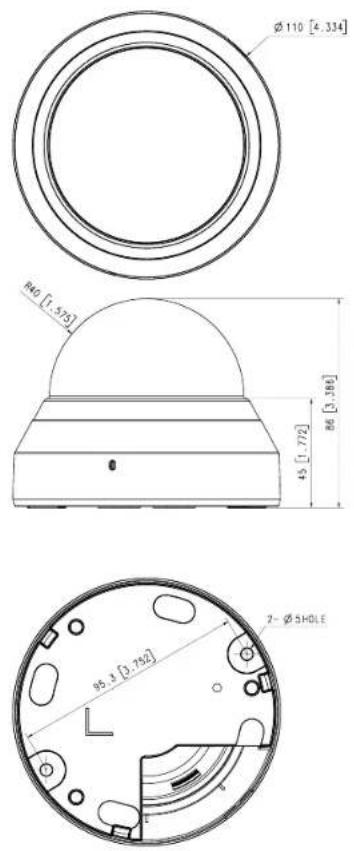
Qno-7010r/7020r/7030r
Unit : mm (inch)
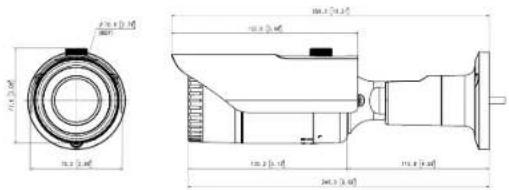
Qnv-7020r/7030r
![80 120.3 [±0.14]](/content/2026/06/1204993/images/0a65a1f199bf8396d808a7ccc29acc9fca704f190cfc783d4470f8740705a5fe.jpg)
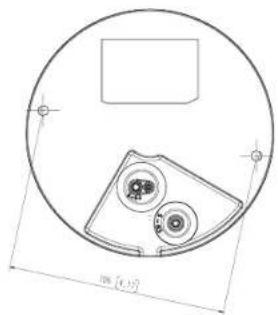
natural_image
Technical line drawing of a circular mechanical component with internal components and dimension label (no text or symbols beyond measurement)trouBLeSHootinG
| PROBLEM SOLUTION | |
| No video is displayed when accessing the plug-in free webviewer on Safari via HTTPS. | On the authentication popup window prompted when initially accessing https, click "View Authentication Certificate" and select the "Always trust when connecting to the designated webviewer IP" check box.If the webviewer continues failing to display a video after you select "Next" on the message window below, press the command key + Ω to exit the Safari browser, access again and follow the procedures stated above. |
| I can't access the camera from a web browser. | Check to make sure that the camera's Network settings are appropriate.Check to make sure that all network cables have been connected properly.If connected using DHCP, verify that the camera is able to acquire dynamic IP addresses without any problem.If the camera is connected to a Broadband Router, verify that port forwarding is properly configured. |
| Viewer got disconnected during monitoring. | Connected Viewers become disconnected upon any change to camera or network configurations.Check all network connections.If the camera is connected over an PPPoE network, it's possible for Viewer to disconnect under poor network conditions. |
| No video is displayed when I nowly access the webviewer or connect streaming to the client. | The maximum number of profiles available is 3.The connection may be lost if you use 4 or more of profiles.Example) if you access MUPEC, H264 and H265 and then access with a different profile, the connection will be lost. |
| The camera connected to the network Is not detected in the IP installer program. | Turn off the firewall settings on your PC and then search the camera again. |
| Images overlap. | Check whether two or more cameras are set to a single multicast address instead of different addresses. If a single address is used for multiple cameras, the images may overlap. |
| No Image appears. | If the transmission method is set to multicast, check whether there is a router that supports multicast in the LAN the camera is connected to. |
| PROBLEM SOLUTION | |
| File is not transferred to the email oven If a motion detection event is generated withset toin thepage. | · Verify the settings in the following sequence:A. Checksettings.B. Theshould be set toC. Check if theoption ofmenu is checked to use. |
| Cannot record into the Micro SD memory card. | · Check if the memory card is defective. |
| Micro SD memory card is inserted but the camera does not operate properly. | · Check if the memory card is inserted in the proper direction. Operation of memory card that is formatted by other devices is not guaranteed with this camera unit· Format the memory card again in→→menu. |
| Cannot record in the NAS. | · Confirm that the information registered in the NAS is correct. |
| It reports that NAS setting has failed. | · Confirm that the IP address of the NAS is valid.· Confirm that the ID/password of the NAS is valid.· Confirm that you can access the folder designated as the default folder using the ID of the NAS.· Confirm that the NAS SMB/CIPS items are unchecked.· Confirm that the NAS IP address and the camera IP address are in the same format ex! The NAS & camera subnet mask initial value is 255.255.255.0. If the IP address is 192.168.20.32 then the NAS IP address should be in the range of 192.168.20.1-192.168.20.255.· Check whether you tried to access as another user without formatting the default folder saved or used.· Confirm that you used recommended NAS equipment. |
OPEN SOURCE ANNOUNCEMENT
GPL/LGPL software license
The software included in this product contains copyrighted software that is licensed under the GPL.GPL. You may obtain the complete Corresponding Source code from us for a period of three years after our last shipment of this product by sending email to help.ccl@hanwho.com
If you want to obtain the complete Corresponding Source code in the physical medium such as CD-ROM, the cost of physically performing source distribution might be charged.
GPL SW
Component Name License URL
| Base Kernel | GPL 2.0 | |
| Busycox | GPL 2.0 | https://www.busybox.net/discernoid/snapsnolds |
| Ibrune2-4.3.0 | GPL 2.0 | |
| Iotube3-1.4.21 | GPL 2.0 | http://ftp.norrilla.org/pub/spracies |
| ethno4-4.2 | GPL 2.0 | |
| mcc-1.5.2 | GPL 2.0 | http://m.cuniracted.org/pub/mcc-1.5s |
| millidag 9.11 | GPL 2.0 | |
| rr. pppce 3.11 | GPL 2.0 | https://www.mersingspingu.in.com/pppcx/ |
| wce_supulcent-2.5 | GPL 2.0 | |
| bash-4.3.30 | GPL 3.0 | |
| zeru-ouni | GPL 2.0 |
LGPL SW
Component Name License URL
| gLibc | LCFL2.0 |
| Inclusis | 1 GHI 5.0 |
| neon 0.78.6 | 1 GHI 2.0 http://www.wccdov.org/hoen/ |
GNU GENERAL PUBLIC LICENSE
Version 2, June 1991
Copyright (C)1989, 1951 Proo Software Foundation, Inc. 51 Franklin Street/Rith Floor, Boston, MA 02 110-1301, USA Everyone's permitted to copy and distribute verbalim copies of this license document, but changing it is not allowed.
Preamble
The lessons for most software are designed to take away your freedom to share and change it. By contrast, the GNU General Public License is intended to guarantee your freedom to share end change free software--to make sure the software is free for all its users. The General Public License applies to most of the free Software Foundation's software and to any other program whose authors commit to using it. Stone other Free Software Foundation software is covered by the GNU Incor Demon's Hubie License Instruct. You can apply in your programs, too. When we expand at more software, we are rotating to freedom, not prize. Our General Public License designs to make sure that you have the freedom to distribute accessories of free software (and charge for this service if you know) or use the free software or use others to get it. If you want it, thus you can't change the Software or use resources of it in more free programs -- but that, you know you can do these things.
To protect your rights, we need to make restrictions that forbid anyone to deny you, these rights or to ask you to surrender the rights. These restrictions translate to certain responsibilities for you if you distribute copies of the software, or if you modify it.
For example, if you distribute clothes of such a program, whether gratie or for a fee, you must give the recipients all the rights that you have.
You must make sure that they, too, receive or can get the source code. And you must show them these terms so they know their rights. We protect your rights with two steps:
(1)Copyright: the software, and (2)offer you the license which gives you legal permission to copy, distribute and/or modify the software. Also, for each author's protection and ours, we want to make certain that everyone understands that there is no warranty for this free software. If the software is modified by someone else and passed on, we want its implications to know that what they have is not the original, so that any problems introduced by others will not reflect on the original authors' regulations.
Finally, any free program is threatened constantly by software patents. We wish to avoid the danger that redistributors of a free program will individually obtain patent licenses. In effect making the program proprietary. To prevent this, we have made it clear that any patent must be licensed for everyone's free use or not licenses at all. The precise terms and conditions or copying, distribution and modification below.
TERMS AND CONDITIONS FOR COPYING, DISTRIBUTION AND MODIFICATION
Version 2, June 1991 Copyright (C) 1986, 1981 Free Software Foundation, Inc. 51 Franklin S
- This License applies to any program or other work which contains a notice placed by the copyright holder saying it may be distributed under the terms of this General Public License.
The "Program", below, refers to any such program or work, and a "work based on the Program" means either the Program or any derivative work under
copyright law: that is to say. A work something the Program or a portion of it, either otherwise or with modification is also translated into another language. Hereafter translation is included without limitation in the term "modification".) Each license is addressed as "you".
Activities other than copying, distribution and modification are not covered by this License; they are outside its scope. The set of running the Program is not resinkred, and the output from the Program is covered only if its contents constitute a work based on the Program independent of having been made by running the Program? Whether that is true depends on what the Program does.
- You may copy and distribute web form copies or the Program's source code as you receive it, in any medium, provided that you consciously and
appropriately publish on each copy an appropriate copyright notice and disclaimer of warranty; keep in fact at the notices that refer to this License and to the absence of any warranty; and give any other recipients of the Program a copy of the License along with the Program.
You may charge a fee for the physical act of transferring a copy, and you may at your option offer warranty protection in exchange for a fee.
- You may modify your copy or copies of the Program or any portion of it, thus forming a work based on the Program, and copy and distribute such modifications or work under the terms of Section 1 above, provided that you are most all of these conditions:
a) You must cause the modified fits to carry prominent notices stating that you changed the fits and the date of any change
b) You must cause any work that you distribute or publish, that in whole or in part contains or is derived from the Program or any part thereof, to be licensed as a whole at no charge to all third parties under the terms of this License.
c) If the modified program normally reads commands interactively when run you must issue it, when started running for such interactive use in the most ordinary way to print or display an announcement including an appropriate copyright notice and a notice that there is no warranty (or else, saying that you provide a warranty) and that users may resellicate the program under these conditions, and selling the user how to view a copy of the license. (Exceptional if the Program itself is Interactive but does not normally print such an announcement, your work based on the Program is not required to print an announcement.)
These requirements apply to the modified work as a whole. If identifiable sections of that work are not derived from the Program, and can be reasonably considered independent and accurate works in themselves, then this License, and its terms do not apply to those sections when you distribute them as accurate works. But when you distribute the same sections as part of a whole which is a work based on the Program, the distribution of the whole must be on the terms of this License, whose permissions for other licenses extend to the entire whole, and thus to each and every part regardless or who wrote it.
Thus, it is not the intent of this section to claim rights or contest your rights to work written entirely by you; rather the intent is to exercise the right to control the distribution of derivative or collective works based on the Program. In addition, there aggregation of another work not based on the Program with the Program (for with a work based on the Program) a volume of a storage or distribution medium does not bring the other work under the scope of this license.
- You may copy and distribute the Program for a work based on it, under Section 2 in object costs or executable term under the terms of Sections 1 and 2 above provided that you also do one of the following:
a) Accompany it with the complete corresponding machine-readable source code, which must be distributed under the terms of Sections 1 and 2 above on a medium customarily used for software Interchange; or,
b) Accompany it with a written offer, said for at least three years, to give any third party, for a charge no more than your cost of physically performing source distribution, a complete machineable copy of the corresponding source code, to be distributed under the terms of Sections 1 and 2 above on a medium customally used for software interchange; or.
c) Accompany I with the Information you received as to the latter to distribute corresponding source code. (This alternative is allowed only for noncommercial data button and only if you received the program in object code or executable form with such an offer, in accord with Subsection b above.) The source code for a work means the preferred form of the work for making modifications to it. For an executable work, complete source code means all the source code for all modules it contains, plus any associated interface definition file, plus the scripts used to control completion and installation of the executable. However, as a special exception, the source code distributed cannot include anything that is normally distributed [in other source or binary form] with no major
components (complete, kernel, and so one of the operating system on which the executable runs, unless that component itself accompanies the executable. If distribution of executable or object code is made by offering access to copy from a recognized place, then offering equivalent access to copy the source code from the same place counts as distribution of the source code, even though third parties are not compelled to copy the source along with the object code.
- You may not copy, modify, sublicense, or distribute the Program except as expressly provided under the License. Any attempt otherwise to copy, modify, sublicense or distribute the Program is void, and will automatically terminate your rights under this License.
However, parties who have received copies, or rights, from you under this license will not have their lenders terminated so long as such parties remain in full compliance.
- You are not required to accept this License, since you have not signed it. However, nothing else grants you permission to modify or distribute the Program or its derivative works.
These actions are prohibited by law. If you do not accept the License, therefore, by modifying or distributing the Program (or any work based on the Program), you indicate your acceptance of this license to do so, and all its terms and conditions for copying, distilling or modifying the Program or works based on it.
-
Each time you redistribute the Program for any work based on the Programs, the recipient automatically receives a license from the original licensor to copy, distribute or modify the Program subject to those forms and conditions. You may not impose any further restrictions on the recipients' exercise of the rights granted herein. You are not responsible for enforcing compliance by third parties to this License.
-
If, as a consequence of a court judgment or allegation of patent infringement or for any other reason (not limited to patent issued), conditions are imposed on you whether by court prior, agreement or otherwise/other contractor the conditions of this License, they do not excuse you from the conditions of this License. If you cannot distribute so as to satisfy simultaneously your obligations under this License and any other pursuant obligations, then as a consequence you may not distribute the Program at all.
For example, if a patent license would not permit royalty-free red attribution of the Program by all those who receive copies directly or indirectly through you, then the only way you could satisfy both it and this License would be to refrain entirely from distribution of the Program.
It may portion of this section is held intact or unenjoyable under any particular circumstance. The balance of the section is intended to apply and the section as a whole is intended to apply in other circumstances. It is not the purpose of this section to instruct you to ignore any parents or other property, rights or claims or to collect, validity of any such claims. This section has the sole purpose of protecting the integrity of the free software distribution system, which is implemented by public license predictions. Many people have made generous contributions to the wide range of software distribution through that system in reliance on consistent application at their system: it is up to the authoritarian orders to decide it no or she is willing to distribute software through any other system and a license cannot impose that choice. This section is intended to make thoroughly clear what is believed to be a consequence of the rest of this issue.
-
If the distribution and/or use of the Program is restricted in certain countries either by patents or by copyrighted interfaces, the original copyright holder who closes the Program under this License may add an explicit geographical distribution limitation excluding those counties, so that distribution is permitted only or among counties no. thus excluded. In such cases, this License incorporates the limitation as it written in the body of this License.
-
The Free Software Foundation may submit revised and/or new versions of the General Public License from time to time. Such new versions will be similar in spirit to the present version, but may offer in detail to address new problems or concerns. Each version is given a distinguishing version number. I the Program specifies a version number of this License which applies to it and "any inter version", you have the option of following the terms and conditions other than that version or of any inter version published by the Free Software Foundation. If the Program does not specify a version number of the License, you may choose any version ever published by the Free Software Foundation.
-
If you wish to incorporate parts of the Program into other tree programs whose distribution conditions are different, write to the author to ask for permission. For software which is copyrighted by the Free Software Foundation, write to the Free Software Foundation; we sometimes make exceptions for this. Our decision will be guided by the two goals of preserving the free status of all derivatives of our free software and of promoting the sharing and reuse of software generally.
NO WARRANTY
-
BECAUSE THE PROGRAM IS LICENSED FREE OF CHARGE, THERE IS NO WARRANTY FOR THE PROGRAM, TO THE EXTENT PERMITTED BY APPLICABLE LAW. EXCEPT WHEN OTHERWISE STATED IN WRITING THE COPYRIGHT HOLDERS AND/OR OTHER PARTIES PROVIDE THE PROGRAM BASIS WITHOUT WARRANTY OF ANY KIND. EITHER EXPRESSED OR IMPLIED, INCLUDING, BUT NOT LIMITED TO, THE IMPLIED WARRANTIES OF MERCHANTABILITY AND THINKING A PARTICULAR PURPOSE. THE FIRST WISKS AS TO THE QUALITY AND PERFORMANCE OF THE PROGRAMS WITH YOU SHOULD THE PROGRAMPROME DEFECTIVE, YOU ASSUME THE COST OF ALL NECESSARY SERVIÇOS, REPAIR OR COPIECTION.
-
IN NO EVENT UNLESS REQUIRED BY APPLICABLE LAW OR AGREED TO INVITING WILL ANY COPYRIGHT HOLDER, OR ANY OTHER PARTY. WHO MAY MEATY AND/OR DISKILLIIT DAMAGE IS, INCLUDING ANY OR NAFL, SELLIN, INDIVIDUAL OR CONSUMPTIONAL DAMAGE ASHIBES OUT OF THE US-OR NATHY TO USE THE PROGRAM (NO USING BUT NOT LIMITED TO CENS OF DATA OR IS A RING PROCESSED INACCULATION) OLOSSES SUSTAINED BY YOU ON THIRD PARTIES OR A FAILURE OF THE PROGRAM TO OPENIVE WITH ANY OTHER PROGRAMS, EVEN IF SUCH HOLDER OR OTHER PARTY HAS BEEN ADVISED OF THE POSSIBILITY OF SUCH DAMAGES.
END OF ITEMS AND CONDITIONS
How to Apply These Terms to Your New Program. If you develop a new program, and you want it to use of the greatest possible use to the public, the best way to achieve this is to make it free software which everyone can distribute and change under these terms. To do so, attach the following rules to the program: it is safest to attach them to the start of each source file to most effectively convey the exclusion of warranty; and each file should have at least the "copyright" line and a pointer to where this full citation is found only in line to give the program's name and an idea of what it does.
Copyright (Gypsy name of author)
This program is free software; you can redistribute it and/or modify it under the terms of the GNU General Public License as published by the Free Software Foundation; either version 2 or the license, or at your option company later version.
This program is distributed in the hope that it will be useful, but WITHOUT ANY WARRANTY; without even the implied warranty of MERCANTABILITY OF HUNES FOR A PARTICULAR PURPOSE. See the GNU General Public License for more details.
You should have received a copy of the GNU General Public License along with this program: If not, with to the Free Software Foundation, Inc., 51 Franklin Street, Fifth Floor, Boston, MA 02-10-1301, USA.
Also add information on how to contact you by electronic and paper mail. If the program is interactive, make it output a short notice like this when it starts in an interactive mode:
Gromovision version 69. Copyright (C) year name of author Gromovision comes with ABSOLUTELY NO WARRANTY; for details type 'show w'. This is free software and you are welcome to redistribute it under certain conditions; type 'show o' for details.
The hypothetical commands 'show w' and 'show c' should show the appropriate parts of the General Public License. Of course, the commands you use may be called something other than 'show w' and 'show c'; they could even be mouse-clicks or menu items-- whatever suits your program.
You should also get your employer (if you work as a programmer) or your school, if any to sign a "copyright disclaimer" for the program if necessary. Here is a sample: after this name:
Yoyodyne, Inc. hereby disclaims all copyright interest in the program "Cronovision" (which makes passes at compliance written by James Hacker, signature of Ty Coon, 1 April 1983 Ty Coon, President of Vice The General Public License does not permit incorporating your program into proprietary programs. If your program is a submarine library, you may consider it more useful to permit linking proprietary applications with the library. If this is I who check you want to do, use the SNUI case General Public Inboard at this license.
GNU GENERAL PUBLIC LICENSE
Version 3, 29 June 2007
Copyright © 2007 Free Software Foundation, Inc. http://ef.org
Everyone is permitted to copy and distribute verbal copies of this license document, but changing it is not allowed.
Presamble
The GNU General Public License is a free, copyell license for software and other kinds of works. The licenses for most software and other practical works are designed to take away your freedom to share and change the works. By contrast, the GNU General Public License is intended to guarantee your freedom to share and change all versions of a program-- to make sure it remains free software for all its users.
We, the First Software Foundation, use the GNU General Public License for most of our software; it applies also to any other work released this way by its author.
You can apply it to your programs, too. When we speak of free software, we are referring to freedom, not price. Our General Public Licenses are designed to make sure that you have the freedom to distribute copies of free software (and charge for them if you wish), that you receive source code or can get it if you want it, that you can change the software or use prices of it in new free programs, and that you know you can do these things.
to protect your rights, we need to prevent others from denying you these rights or asking you to surrender the rights. Therefore, you have certain responsibilities if you distribute copies of the software, or if you modify it, responsibilities to respect the freedom of others. For example, if you distribute copies of such a program, whether grate or for a fee, you must cease on to the recipients the same freedom that you received. You must make sure that they, too, receive or can get the source code. And you must show them those grass so they know rank grants. Developers trust us the GNI L&HI protect your rights with two
stops (1) anchor copyright on the software, and (2) offer you this license giving you legal permission to copy, clear but not modify it. For the developers' and authors' protection, the GFL clearly explains that there is no anomaly for this free software. For both users' and authors' sales, the GFL requires that modified versions be marked as changes, so that their problems will not be attributed exclusively to authors of previous versions. Some devices are designed to deny usmen access to Intel or our modified versions of the software line de mon, although the manufacturer can do so. This is fundamentally incompatible with the aim or protecting users' motion to change the software. The systematic pattern of such abstract occurs in the area of products for individuals to cars, which is precisely where it is most unrecognizable. Therefore, we have designed this version of the GFL to prohibit the productize for those products. If such problems are substantially in other domains, we stand ready to extend this provision to those domains in future versions of the GFL, as it needed to protect the freedom of usmen.
Finally, every program is threatened constantly by software patents. States should not allow patents to coordinate development and use of software on general purpose computers, but in those that do, we wish to avoid the special anger that patents applied to a free program could make it relatively proprietary. To prevent one, the GPL assures that atens cannot be used to render the program non-free. The precise terms and conditions for copying, distribution and modification follow:
TERMS AND CONDITIONS
0. Definitions.
"This License" refers to version 5 of the GNU General Public License.
Copyright" also means copyright-like laws that apply to other kinds of works, such as semiconductor masks. "The Program" refers to any copyrightable work licenses under this license. Each licencor is addressed as "you". "Licencors" and "recipients" may be individuals or organizations.
To "modify" a work means to copy from or adapt all or part of the work in a fashion requiring copyright permission, other than the making of an exact copy. The resulting work is called a "modified version" of the earlier work on a work "based on" the earlier work.
A "covered work" means either the unmodified Program or a work based on the Program.
To "procogale" a work means to do anything with it that, without permission, would make you directly or secondally liable for infringement under applicable copyright law, except executing it on a computer or modifying a private copy.
Propagation includes copying, distribution (with or without modification), making available to the public, and in some countries other activities as well.
to "acnewy" a work means any sort of propagation that enables other parties or make or receive copies. More interaction with a user through a computer network, with no transistor of a copy is not concoming. An interactive user interface displays "Acropriate Legal Notices" to the extent that it includes a convention and prominently visible feature that it displays an appropriate copyright notice, and it tells the user that there is no warranty for the work except to the extent that warrants are provided, that contains may convey the work under this License, and how to have a copy of this License. If this Interface presents a list of user commands or options, such as a menu, a prominent Item in the list meets this option.
1. Source Code.
The "source code" for a work means the preferred form of the work for making modifications to it. "Object code" means any non-source form of a work.
A "Standards Interlaser" means an interlace that either is an official standard defined by a recognized standards body, or, in the case of interfaces specified for a particular programming language, one that is widely used among developers working in that language.
The "System Libraries" of an executable work include anything, other than the work as a whole, that (as is included in the normal form of packaging a Major Component, but which is not part of that Major Component, and (by) serves only to enable use, or the work with that Major Component, or to implement a Standard Interface for which an implementation is available to the public in source case form. A "Major Component". In this context, means a major essential component kernel, window system, and so only the specific operating system (if any on which the executable work runs, or a computer used to produce the work, or an object, code interpreter used to run it).
The "Corresponding Source" for a work in object code form means all the source code needed to generate, install, and (for an executable work) run the object code and is modify the work, including scripts to control three activities.
However, it does not include the works System Libraries, or general-purpose locks or generally available free programs which are used unmodified in performing these activities but which are not part of the work. For example, Corresponding Source includes interface definition files associated with source files for the work, and the source code for shared libraries and dynamically linked subprograms that the work is specifically designed to require, such as by intimate data communication or control flow between those subprograms and other parts of the work.
The Corresponding Source need not include anything that users can regenerate automatically from other parts of the Corresponding Source. The Corresponding Source for a work in source code form is that same work.
2. Basic Permissions.
All rights granted under this license are granted for the terms of copyright on the Program, and are otherwise provided the stated conditions are met. This license explicitly intends to your unlimited permission to run the unmodified Programs. The output from running a covered work is traversed by this license only if the output, given its content, consults a covered work. This license acknowledges your rights of an use or other equivalent, as provided by copyright law. You may make, run and co-plateate covered works that you do not convert, without conditions so long as your losses either remain in force. You may convey, covered works to owners for the sole purpose of having them make modifications except only for you, or provide you with it ifiticks for running these works, provided that you comply with the terms of this license in considering alternatives for which you do not control copyright. These thus making or running the extensive works for you, but do exclusively on your behalf, under your direction and contact, on terms that prohibit them from making any losses of your copyrighted material outside the company. You will convey any anti-wor experiences at permit solely under the sanctions started below. Substanding is not allowed; exculent 15: makes it unnecessary.
3. Protecting Users' Legal Rights From anti-Circumvention Law.
No covered work shall be deemed part of an effective technological measure under any applicable law fulfilling obligations under articles 11 of the WIPC copyright. Pretty adopted on 20 December 1966, or similar leave prohibiting or restricting circumvention of such measures.
When you convey a cover-to-work, you waive any legal power to forced circumvention of technological measures to the extent such circumvention is effected by expediting rights under this license with respect to the powered work, and you disclaim any intention to limit operation or modification of the work as a means of enforcing, against the work's users, your or third parties legal rights to forced circumvention of technological measures.
4. Conveying Verbatim Copies.
You may convey collateral copies of the Program's source code as you receive it, in any medium, provided that you conspicuously and appropriately collect on each copy an appropriate copyright notice, keep intact all notices starting that this License and any non-permissive terms add to in accord with discretion / apply to the code; keep intact all notices of the absence of any warranty and give all recipients a copy of this License along with the Program. You may charge any price or no price for each copy that you convey, and you may offer support or warranty protection for a fee.
5. Conveying Modified Source Versions.
You may convey a work based on the Program, or the modifications to produce it from the Program, in the form of source code under the terms of section 4, provided that you also meet all of these conditions:
a) The work must carry prominent notices stating that you modified i., and giving a relevant date.
(3) The work must carry prominent notices stating that it is recessed under this License and any conditions added under section 7. This requirement modifies the requirement in section 4 to "keep intact all notices".
c) You must license the entire work, as a whole, under this License to anyone who comes into permission at a copy. This License will therefore apply, along with any spotable section 7 additional terms, to the whole of the work, and all its parts, regardless of how they are packaged. The License gives no permission to license the work in any other way, but it does not invalids such permission if you have accurately received it.
c) If the work has interactive user interfaces, each must display Appropriate Legal Notices; however, if the Program must interact via interfaces that do not display Appropriate Legal Notices, your work need not, make them die to see. A completion of a covered work with other apparatus and independent works, which are not by their nature extensions of the covered works, and which are not combined with it such as to form a larger program, in or on a volume of a storage or distribution medium, is also an "aggregate" if the completion and its resulting copyright are not used to limit the access or legal rights of the complications unless beyond what the individual works permit, inclusion of a covered work in an aggregate does not cause this License or apply to the other parts of this aggregate.
6. Conveying Non-Source Forms.
You may convey a covered work in object code form under the terms of sections 4 and 5, provided that you also convey the machine-readable Corresponding Source under the terms of this License, in one of these ways:
a) Conway the object code In, or ambodied in a physical product (including a physical distribution medium), accompanied by the Corresponding Source fixed on a durable physical medium customarily used for software interchange.
(2) Convey the physical code in, or entitles in, a physical product including a physical distribution medium, accompanied by a written citer, valid for at least three years and valid for as long as you offer some parts or quotes nor support for that product model. To give anyone who possesses the object code either (1) a copy of the Corresponding Source for all the software in the product that is covered by this License, on a durable physical medium customarily used for softwares in merchandise, or a price no more than your reasonable cost or physically perkinning this conveying at source, or (2) access to copy the Corresponding Source team's network server at no charge.
c) Convey individual copies of the object code with a copy of the written offer to provide the corresponding Source. This alternative is allowed only occasionally and noncommercially, and only if you received the object code with such an offer, in accord with suction lib.
(1) Convey the object code by lettering access from a designated place (grate or for a charge), and other equivalent access to the Corresponding Source in the same way through the same place as to further change. You need not require recipients to copy the Corresponding Source along with the object code. If the place to copy the object code is a network server, the Corresponding Source may be on a different server (averaged by you or a third party) that supports equivalent copying facilities, provided you maintain clear directions react to the object code saying where to find the Corresponding Source. Recognizes of what server hosts the Corresponding Source, you remain obligated to ensure that it is available for as long as rounded to satisfy these requirements.
e) Convey the product code using peer-to-peer transmission, provided you to inform other peers where the object code and Corresponding Source of the work are acting effects to the general public at no charge under suspicion if it. A spontaneous person of the object code, whose source code is excluded from the Corresponding Source as a System library, cannot not be included in conveying the object code work. A "User Product" is either (i.e., "consumer product", which means any tangible personal property which is normally used for personal, family or household purposes, or (ii) anything designed or said in incorporation on into a dwelling. In determining whether a product is a consumer product, doubtful case shall be resolved in favor of coverage. For a particular product received by a particular use, "normally used" refers to a typical or common use of that class of product, or regardless of the status of the particular user or of the key in which the particular user actually uses, or aspects or is expected to use; the product. A product is a consumer product registered with the corresponding product. The product has substantial commercial, industrial or non consumer uses, unless such uses represent the any significant model used in the product.
"Installation Information" for a User Product means any methods, procedures, authorization keys, or other information required to install and execute modified versions of a source work in their User Product from a modified version of the Corresponding Source. The information must suffice to ensure that the continued functioning of the modified object code is in no case prevented or interfered with safety because modification has been made. If you convey an object code work under this section in, or with, on specifically or less in a User Product, and the conveying occurs as part or a transaction in which the right or depression is not possible. This is not intended to be used to perform the same action. It is also considered by the following described procedure: "If you know, you can do not have a way to do something else, you can do not have a way to do something else, you can do not have a way to do something else, you can do not have a way to do something else, you can do not have a way to do something else, you can do not have a way to do something else, you can do not have a way to do something else, you can do not have a way to do something else, you can do not have a way to do something else, you can be able to install modified object code on the User Product (for example, the work has been installed in HOVA).
The requirement to provide installation information does not include a requirement to continue to provide support service, warranty, or updates for a work that has been modified or installed by the map plant, or for the User Product in which it has been modified or installed. Access to a network may be done as the modification on its material and adversely affects the operation of the network or violates the rules and protocols for communication across the network. Corresponding Source surveys, and Installation Information provides. In accord with this section must be in a format that is publicly documented (and with an implementation available to the public in source code form), and must require no special cesareword or key for unchecking, reading or copying.
7. Additional Terms.
Additional commissions' act terms that supplement the terms of this license, by making except one from one or more of its conditions. Additional commissions that are applicable to the entire Program shall be involved as though they were included in this Licensee, or the extent that they are said under applicable law. If additional permissions apply only to case of the Programs, that plan may be used separately under these permissions, but the entire Program remains governed by a license without regard to the additional permissions. When you convey a copy of a cover with work, you may at your option remove any additional permission from that copy, or from any part of it. (Additional) permissions may be written to regulate their own removal in certain cases when you modify the work.) You may close additional permissions on material, address by you to a covered work, or which you have or can give appropriate copyright permission. Notwithstanding any other provision of this license, for matters you add to a covered work, you may if influenced by the copyright headers of that matter supplement the terms of the Licensee with terms:
a) Declining warranty or limiting liability differently from the terms of sections 15 and 16 of this License; or
b) Recquiring preservation of specific reasonable legal notices or author arithudians in that material or in the Appropriate Legal Notices displayed by works containing it; or
c) Prohibiting misrepresentation of the origin of that material, or requiring that modified versions of such material be marked in reasonable ways as different from the original version, or
d) Limiting the use for publicly purposes of names of licences or authors of the material; or
e) Desiring to prani rights under trademarks have for use of some trade names, trademarks, or service marks; or
- Requiring indemnification of encoders and authors of this material by anyone who covers the material for modified versions of it with contractual assumptions of facility to the recipient, for any liability that these contractual assumptions directly impose or those licenses and authors. All other non-permissive additional terms are condensed "further copyright" within the meaning of section 10. It is the Program as you received it or any part of it, contains a notice stating that it is governed by this license along with a term that is a further restriction, you may remove that term. If a license document contains a further restriction but permits reverancing or conveying under the Licence, you may add to a covered work material governed by the terms of not license documents, provided that the further restriction does not survive each releasing or corrising. If you add terms to a covered work in accord with the section, you must place, in the relevant source file, a statement of the additional terms that apply to those files, or a notice indicating what to be required to be issued. The provisions of non-composite, may be stated in the term of a separately written license, or related as exceptions; this above requirements also other way.
8. Termination.
You may not protagate or modify a covered work except as expressly provided under this License. Any attempt otherwise to propagate or modify it is void, and will automatically terminate your rights under this License (including any patent licenses granted under the third paragraph of section 11).
However, if you please all violation of this License, then your license from a particular copyright holder is reinstated (as previously, unless and until the copyright holder explicitly and finally terminates your licence, and it is permanently, if the copyright holder late to notify you off the violation by some reasonable means prior to 60 days after the execution. Moreover, your license from a particular copyright holder is reinstated permanently. If the copyright holder satisfies you on the violation by some reasonable means, this is the first time you have received notice of violation of the License for any work from that copyright holder, and you continue the violation order to 30 days after your request of the Motion. The motion of your rights under the section does not permit the other uses of parties who have received notice of the License. If your rights have been verified and not permanently directed, you do not qualify to receive more licenses for the same material under section 10.
9. Acceptance Not Required for Having Copies.
You are not required to accept this License in order to receive or run a copy of the Program. Andilary propagation of a covered work accounting facility as a consequence of using prior to poor transmission to receive a copy herein that does not require acceptance. However, nothing other than this License grants you permission to propagate or modify any covered work. These actions might copyright if you do not accept this License. Therefore, by modifying or propagating a covered work, you indicate your acceptance of the License to do so.
10. Automatic Licensing of Downstream Recipients.
Each time you converge to covered work, the capital automatically receives a license from the original licenses, to run, modify and prepregnng that work is put out to the Licensee. You are not responsible for enforcing compliance by third parties with the Licensee. An "entry transaction" is a transaction starting control of an organization, or substantially all assets of one, or subsidizing an organization, or morging organizations. In propreparation of a covered work results from an entry transaction, each party, to that transaction who receives a copy of the work also receives whatever licenses to the work the party's predecessor in interest had or could give under the previous paragraph, plus a right to passsession of the Corresponding Source of the work from the predecessor in interest, if the predecessor has it or can put it with reasonable efforts. You may not impose any further restrictions on the exercise of the lights granted or all times under the Licensee. For example, you may not improve a license fee, royalty, or other of sale for exercise of lights granted under this Licensee, and you may not utilize a license fee or amount to be paid for any reason for any loss or damage. If you may receive a number of citations in the lawsuit, taxing that any patient claims is forged by making, selling, offering or sale, or importing the Program or any portion at
11. Patents.
A "contributor" is a copyright holder who authorizes use under this I consent of the Program or a work with which the Program is based. The work thus listened to a called the contributor's "contributor version". A contributor's "essential patent claim" are all patent claims owned or controlled by the contributor, whether already acquired or hereafter acquired, that would be infringed by some manner, permitted by this license, of making, using, or selling its contributor version, but do not include claims that would be infringed only as a consequence of further introduction or the contributor version, for purposes or this definition, cannot include the first to grant patent and base in a manner consistent with the requirements of this License. Each contributor plants you a non-exclusive, independent, and/or equivalent patent contributions to the contributor's essential patent claim, for make, use, sell, offer for sale, import and other operation, locally and propagate the contents of its contributor version.
In the following three paragraphs: a "patient license" is an express agreement or commitment, however demonstrated, not to enforce a patient (such as an express permission to practice a patient or covenant not to see for patient infligements). To "grant," such a patient licensor is to party means to move such an agreement or commitment not to enforce a patent against the party. If you convey a covered work, knowledge arising on a patient license, and the Corresponding Source of the work is not available for anyone to copy, one of age and under the terms of this issue, through a publicly available school nurse or other easily accessible means, then you must either (1) cause the Corresponding Source to be so available, or (2) arrange it despite yourself of the benefit of the patient license for the particular author, or (3) arrange, in a manner consistent with the requirements of the Licensee, to extend the patient license to down/ress and to consider the care of the patient. The patient's rights are not applicable to any person who may have received any recipient's use of the covered work in a country would infringe one or more identifiable agents in that country; that you have reason to believe are valid if, pursuant to or in connection with a single transaction or arrangement, you company, or propriet by procuring conveyance of a covered work, and grant a
patient license to some of the parties receiving the covered work authorizing them to use,/pro--------coise or convey a specific copy of the covered work, than the patient license you grant a autonally extended to all recipients of the covered work and works based on it. A patient license is "discriministry" if it does not include within the scope of its coverage, prohibits this process at, or is conditional on the non-excess or one or more of the rights that are appropriately granted under this license. You may not convey it covered work if you own a party to an arrangement with a third party trust in the business or distributing software. Under which you make payment to the third party based on the action of your activity of conveying the work, and under which the third party grants, to any of the parties who would receive the covered work from you, a discretionary patient license
(1) In connection with copies of the covered work conveyed by you (or copies made from those copies), or
the primarily tax and in connection with specific products or correlations that contain the owned work, unless you entered into that arrangement, or that patent license was granted, prior to 25 March 2007. Nothing in the License shall be construed as excluding or limiting any implied license or other defenses to management that may otherwise be available to you under applicable patent law.
12. No Surrender of Others' Freedom.
It conditions are imposed on your website by court order, agreement or otherwise that contradicts the conditions of this license, they do not excuse you from the conditions of this License. If you cannot convey a covered work so as to satisfy simultaneously your obligations under this License and any other certain obligations, then as a consequence you may no convey it all. For example, if you agree to ensure that to Optiate you to collect a royalty for further conveying from those to whom you convey the Program, the only way you could satisfy both those terms and this License would be to obtain entirely from conveying the Program.
13. Use with the GNU Affero General Public License.
Notwithstanding any other provision of this License, you have permission to link or combine any covers work with a work license under version 8 of the GNU Affairs General Public License into a single combined work, and to convey the resulting work. The terms of this License will continue to apply to the tax, which is the covered work, but the special requirements of the GNU Affairs General Public License, section 10, concerning interaction through a rebates will apply to the combination as such.
14. Revised Versions of this License.
The Free Software foundation may publish related and/or new versions of the GNU General Public License from time to time. Such new versions will be similar in point to the present version, but may differ in detail to address new problems or concerns.
Each version is given a depicting version on number. If the Program specifies that a certain number version of the GNJ General Public License or any later versions applies to it, you have the option of following the terms and conditions either at most numbered version or of any later version published by the free-wide standard. This Program does not specify a version number of the GNJ General Public License, you may choose any version ever published by the Free Software Foundation. If the Program accepts that a proxy even double which future versions of the GNJ General Public License can be used, then provides a public statement of acceptance of a version per therently authorize you to choose that version for the Program. Later license versions may give you additional or different permissions. I however, no additional obligations are impacted on any author or copyright holder as a result of your choosing to allow a later version.
15. Disclaimer of Warranty.
THERE IS NO WARRANTY FOR THE PROGRAM, "TO THE EXTENT PERMITTED BY APPLICABLE LAW EXCEPT WHEN OTHERWISE STATED IN WRITING THE COPYRIGHT HOLDERS AND/OR OTHER PARTIES PROVIDE THE PROGRAM AS IS WITHOUT WARRANTY OF ANY KIND, EITHER EXPRESSED OR IMPLIED, INCLUDING BUT NOT LIMITED TO THE IMPLIED WARRANTIES OF MERCHANTABILITY AND FITNESS FOR A PARTICULAR PUFFOSE. THE ENTER RISK AS TO THE QUALITY AND PERFORMANCE OF THE PROGRAM IS WITH YOU SHOULD THE PROGRAM PROVE DETECTIVE. YOU ASSUME THE COSTS FOR ANY RESPONSIBILITY SHOWN, HI-PAIR OR COMMIT CHION.
16. Limitation of Liability.
IN NO - 24-101 UNI - SS & LIURED BY APPLICATE LAW OR ASPECTED IN WORKING WITH ANY COPYRIGHT ORDER, OR ANY OTHER PARTY (WHO MODES AND/OR CONVYES THE PROGRAM AS PERMITTED ABOVE BE LIABLE TO YOU FOR DAMAGES, INCLUDING ANY GENERAL, SPECIAL, INCIDENTAL OR CONSEQUENTIAL DAMAGES ARISING OUT OF THE USE OR INABILITY TO USE THE PROGRAM INCLUDING BUT NOT LIMITED TO LOSS OF DATA OR DATA BEING TENDERED INACOUIATE OR LOSSES SUSTAINED BY YOU ON THIRD PARTIES OR A FAILURE OF THE YOGRAM TO OPERATE WITH ANY OTHER PROGRAMS), EVEN IF SUCH HOLDER OR OTHER PARTY HAS BEEN ADVISED OF THE POSSIBILITY OF SUCH DAMAGES
17. Interpretation of Sections 15 and 16.
If the disclaimer of warranty and limitation of liability provided above cannot be given not legal effect according to their forms, existing courts shall apply local law that most closely approaches an absolute waiver of all civil liability in connection with the Program, unless a warranty or assumption of facility accounts a copy of the Program in return or a fee.
OpenSSL Combined License
The OpenSSL toolkit stays under a dual license, i.e. both the conditions of the OpenSSL License and the original SSLsay licenses serve to the tools. Less below for the actual license texts. Actually down licenses and USB-style Open Source licenses. In case or any license issues related to OpenSSL please contact approval comWepncncl.org.
Component Name License URL
opansal 1.0.2c OpenSB1 Comcast License http://www.opansal.org/source
Copyright (c) 1988 2011 The OpenSS Project. All rights reserved.
Red distribution and use in source and binary forms, with or without modification, are permitted provided that the following conditions are met:
-
Recistributions of source code must retain the above copyright notice, this list of conditions and the following disclaims.
-
Realizations in binary form must reproduce the above copyright notes, this list of conditions and the following declaration in the documentation and other materials provided with the distribution.
-
All advertising materials mentioning features or use of this software must display the following acknowledgment: This product includes software development by the OpenSSL Projection for use in the OpenSSL Toolkit. http://www.openes.org/
-
The names "OpenSSL Tools" and "OpenSSL Project" must not be used to endorse or promote products derived from the software without prior written permission. For written permission, please contact openlink-cure?openes.org.
-
Products derived from this software may not be called "OpenSEL" nor may "OpenSEL" appear in their names without prior written permission of the OpenSEL Project.
-
Predisziablions of any form whatever must retain the following aconvejment: "This product includes software developed by the OpenSSL Project for use in the OpenSSL Toolkit http://www.openssl.org/)
THIS SOFTWARE IS PROVIDED OUT THE ACCESS PROJECT AS BY ANY EXPRESS OR IMPLIED WARRANTY. INCLUDING, ILL NOT LIMITED TO THE IMPLED WARRANTIES OF MERCHANTABILITY AND FITNESS FOR A PARTICULAR PURPOSE ARE DISCLAIMED. INNO EVENT SHALL THE OPPOSITE PROJECT OR ITS CONTRIBUTIONS BE LIABLE FOR ANY DIRECT, INDICIPAL SPECIAL EXEMPLARY ON CONSENSUAL DAMAGE (INCLUDING, NO WITHOUT TO, PROCUREMENT OR SUBTITLE CHECK OR ANY CROSS OR USE, DATA, OR PROCES) OR BUSINESS INTERPRODUCING, CHAPYER CALIFERS AND ANY THEORY OR ABILITIES WHETHER IN CONTRACT, STRICT PRACTY OR TORT INCLUDING NO ----------DECEMBER ON OTHERWISE ARISING IN ANY WAY OUT OF THE USE OF THIS SOFTWARE, EVEN ALLOWED OF THE POSSIBILITY OF SUCH DAMAGE
Original SSLeay License
Copyright: UCI 1985-1995 Eric Young (sec@crp.soc.) can/ All rights reserved.
The package is an SSL implementation written by Eric Young (bay@copysoft.com).
The implementation was written so as to conform with Newspapers ESI.
The library is free for commercial and non-commercial use as long as the following conditions are sheared to. The following conditions apply to all code found in this distribution: be i.e., the FA2, RSA, hash, DES, etc., code, no, set the SSL code. The SSL documentation included with the distribution is covered by the same copyright forms except that no risks is. Tim Hudson (the Krypton.org).
Copyright remains Eric Young's, and as such any Copyright notices in the code are not to be removed. If this package is used in a product, Eric Young should be given distribution as the author of the course of the literary use. This can be in the form of a textual message at program startup or in documentation for line or textual provider with the package. No distribution and use in source and binary forms, with or without modification, are permitted provided that the following conditions are met
-
Redistribution of source code must retain the copyright notice, this list of conditions and the following disclaimer.
-
Per distributions in binary form must reproduce the above copyright notice, this set of conditions and the following disclaimer in the documentation and other materials provided with the distribution.
-
At advertising materials mentioning features or use of this software, must display the following acknowledgement: "This product includes cryptographic software written by Eric Young'say@cryptool.com." The word 'cryptographic' can be left out if the routes from the library being used are not cryptographic related to.
-
If you include any Windows specific code for a derivative thereof, from the apple directory application code you must include an acknowledgement. "This product includes software written by I'm Hudson (Hikorypiso.com)"
THIS SOFTWARE IS PROVIDE FROM THE YOUNG "AS IS" AND ANY EXPRESS OR IMPLIED WARRANTY, INCLUDING, WITHOUT METHOD TO THE IMPLIED WARRANTIES OF MERCHANTABILITY AND FITNESS FOR A PARTICULAR PURPOSE ARE DISCLAIMED. IN NO EVENT SHALL THE AUTHOR ON CONTRIBUTORS BE ABLE FOR ANY DIRECT, INDEPT, INCIDENTAL, SPECIAL, EXEMPLARY, OR CONSEQUENTIAL DAMAGES INCLUDING, BUT NOT LIMITED TO PROCUREMENT SUBTITLE GOODS OR SERVICES LOSS OF US\$, DATA OR PROHIBES OR BUSINESS INFORMATION HOWEVER CAUSED ON ANY THEORY OF LIABILITY, WEITHER IN CONTRACT, STRICT VALIDITY, OR ITCH INCLUDING NLISIG, INC. OF OTHER ITEMS ARISING IN ANY WAY OUT OF THE USE OF THIS SOFTWARE, EVEN FINANCED OF THE POSSIBILITY OF SUCH DAMAGE
The licence and distribution terms for any publicly available version or derivative of this code cannot be changed. In the code cannot simply be copied and put under another distribution licence [including the GNU Public Licence.]
BSD License
Some software components of this product incorporated source code covered under the HSI license as follows.
Component Name License URL
| net string 3.05 | HSD | http://www.net string.org/about/kense.html |
| port 8.36 | HSD | |
| Ibosp-1.7.4 | B50 2.0 | http://www.kemet.org/pub/Inus/ba/energy/nlux-private/casp2 |
| IgFcod-1.4.55 | B50 2.0 | http://www.opensource.org/boerestbed-kense.html |
| MiniJUP Project Client | B50 2.0 | |
| pcpd 2.4.7 | HSD 2.0 | http://eposurance.org/kensev880.3 Clause |
I gildup at a secure, test, compiant, and very large webserver that has been optimized for high-performance environments. It has a very low memory kit program compared to other webservices and taxes core of crucial. Its advanced transform and iFastOil, CBI Arm, Output Compression, IPL, Rewriting and many more, have lightped the perfect webserver-software for every server that suffers load problems. Simple Network Management Software (SNMP) is an international product for managing devices on P networks. It is used mainly in network management systems to monitor the devices attached to the network for conditions that need admin situtive activities. Net SNMP is a suite of applications used to implement SNMP v1, SNMP v4e and SNMP v3 using both IPv4 and IPv6. For more additional information, send email to Telco.cctb@sinenvia.com
Copyright © 2014, Knochka, horizontal
All rights reserved.
Redistribution and use in source and binary forms, with or without modification are permitted provided that the following conditions are met:
- Social buttons or sources made must retain the above copyright notices, this list of conditions and the following disclosure.
- Registrations in binary form must reproduce the above copyright notice, this list of conditions and the following disclosure in the documentation and/or other materials provided with the distribution.
- Neither the name of the incremental nor the names of its contributors may be used to endorse or promote products derived from this software without specific prior written permission.
THIS SOFTWARE IS PROVIDED BY THE COPYRIGHT HOLDERS AND CONTRIBUTORS "ASIS" AND ANY EXPRESS OR IMPLIED WARRANTIES, INCLUDING, BUT NOT UNTED, TO THE IMPLIED WARRANTIES OF MERCHANTABILITY AND FITNESS FOR A PARTICULAR PURPOSE ARE DISASMED. IN END OF THIS UNIT, THE COPYRIGHT OWNER OR CONTRIBUTORS ARE NOR FOR ANY DIRECT, INDIRECT, INCIDENTAL, SPECIAL, INPPARGY, OR CONSULTING NON-CLAIMS INCLUDING, BUT NOT LIMITED, PROCUREMENT OR SUBSTITUTIVE GOODS OF ASIC, LOSS OF US, DATA OF SPORTS, BUSINESS INTERTUITING HOWEVER OWNED AND ON ANY THEORY OF LIABILITY WHETHER IN CONSUMPTION, STRICT LIABILITY, OR RESPONSIBILITY OR OTHERWISE OR OTHERWISE ARISING IN ANY WAY OUT OF THE USE OF THIS SOFTWARE, EVEN IF FACOVED OF THE POSSIBILITY OF ASIC DAMAGE.
Copyright (c) 1993-2001 University College London
At rights reserved
Pedestition and use in source and binary forms, with or without modification, is omitted provided that the following conditions are met
-
Recistributions of source code must rear the above copyright notice, this list of conditions and the following disclaimer.
-
Reclassibutions in binary form must reproduce the above copyright notice, this list of conditions and the following declarant in the documentation and/or other materials provided with the distribution.
-
At advertising materials mentioning lectures or use of this software must display the following acknowledgement: This product includes software developed by the Computer Science Department at University College London.
-
Nettler's name or the University of the Department may be used to endorse or promote products derived from this software without specific prior written permission
THIS SOFTWARE IS PROVIDED BY THE AUTHORS AND CONTRIBUTORS' ASIST AND ANY EXPRESSED OR IMPLIED WARRANTIES, INCLUDING, BUT NOT LIMITED. THE IMPLE WARRANTIES OF MERCHANTABILITY AND FITNESS FOR A PARTICULAR PURPOSES DECLAMED. IN NO EVENT SHALL THE AUTHORS AND CONTRIBUTORS' SET (BAR) FOR ANY DIRECT INDIRECT, INCIDENTAL, SPECIAL, EXEMPLARY, OR CONSEQUENTIAL OTHERWISE WITHOUT THE INTERESTOR. THIS INFORMATION IS NOISE OF LIME, DATA, OR OTHERS, OR BUSINESS INFORMATION, ANY OTHERS, ANY OTHERS, ANY OTHERS, ANY OTHERS, ANY OTHERS, ANY OTHERS, ANY OTHERS, ANY OTHERS, ANY OTHERS, ANY OTHERS, ANY OTHERS, ANY OTHERS, ANY OTHERS, ANY OTHERS, ANY OTHERS, ANY OTHERS, ANY OTHERS, ANY OTHERS, ANY OTHERS, ANY OTHERS, ANY OTHERS, ANY OTHERS, ANY OTHERS, ANY OTHERS, ANY OTHERS, ANY OTHER S
All rights reserved
Red distribution and use in source and binary forms, with or without modification are permitted provided (has the following conditions are true:
-
Recistributions of source code must return the above copyright notice, this list of conditions and the following disclaimer.
-
Recistributions in binary form must reproduce the above copyright route, this list of conditions and the following disclaimer in the documentation and/or other materials provided with no attribution.
-
Neither the name of the Flags of the University of California nor the name of its contributor may be used to endorse or promote products derived from this software without specific prior written permission.
THIS IS NOT WRAPLY SHOULD BY THE COPYRIGHT CHECK OR CONTRIBUTORS "ASIS" AND ANY OPUESTS OR IMPLED WARRANTIES, INCLUDING, BUT NOT LIMITED TO, THE IMPLED WARRANTIES OF MERCHANTABILITY AND FITNESS FOR A PARTICULAR PURPOSE ARE DISCLAIMED. IN NO EVENT SHALL THE COPYRIGHT OWNER ON CONTRIBUTORS BE LIABLE FOR ANY DIRECT INDIRECT, INCIDENTAL, SPECIAL EXEMPLARY, OR CONSEQUENTIAL DAMAGES INCLUDING, BUT NOT LIMITED TO, PROCUPPMENT OF SUBSTITUTE GOODS OR SERVICES, LOSS OF USE, DATA OF THIS INFORMATION, THIS INFORMATION, THIS OR ANY HISTORY IS SUBJECT TO ANY HISTORY IS SUBJECT TO THIS INFORMATION. THIS INFORMATION IS NOT INCLUDED IN THIS INFORMATION OR ANY OTHER ASPIRING IN ANY WAY OUT OF THE USE IT'S WITHOUT NOTICE, AN INDICIPAL OR ANY OTHER INFORMATION.
Copyright (c) 2008, Creative Labs Inc.
All rights reserved.
Red distribution and use in source and binary forms, with or without modification are permitted provided that the following conditions are in:
-
Realizations of source code must retain the above copyright notice, this list of conditions and the following disclaimers:
-
Recashbutilions in binary item must reproduce the above copyright notice, this list of conditions and the following disclaimer in the documentation and/or other materials provided with the distribution
-
Neither the name of the Creative Labs nor the names of its contributors may be used to endorse or promote products derived from this software without specific prior written permission.
THIS SOFTWARE IS PROVIDED BY THE COPYRIGHT HOLDERS AND CONTRIBUTORS "ASIS" AND ANY EXPRESS OR IMPLIED WARRANTIES, INCLUDING, BUT NOT LIMITED, TO THE IMPLIED WARRANTIES OF MERCHANTABILITY AND FITNESS FOR A PARTICULAR PURPOSE ARE DISCLAIMED. IN THIS EVENT THAT THE COPYRIGHT OWNER FOR CONSUMPTION ARE NOR FOR ANY EFFECT, INDICIPAL, INDUSTRIAL, SPECIAL, ERF/MPF ANY, OR CONSEQUENTIAL DAMAGES INCLUDING, BUT NOT LIMITED, TO PROCEDURE OF SUBSTITUTE GOODS ON SERVICES, LOSS OF USE, DATA OF RESPONSIBLES, UNLESS OTHERWISE WITHOUT CRISIS AND ON ANY THEORY OF LEGACY WHETHER IN CONTRACT, STRICT LEGACY, OR OTHER THAN ANY OTHERS OR ANY OTHER ASSEMBLY ARE IN ANY WAY OUT OF THE USE OF THIS NOTICE, MAY NOT ADMOND THE POSSIBILITY OF SUCH DAMAGE.
Copyright (c) 2005 7012, Thomas H-ENAHJ
All rights reserved.
Redistribution and use in source and binary forms, with or without modification are permitted provided that the following conditions are met:
-
Reclassibutions of source code must rear the above copyright notice, this list of conditions and the following disclaimer
-
Recistributions in binary form must reproduce the above copyright notice, this list of conditions and the following declaration in the documentation and/or other materials provided with the distribution.
-
Neither the name of Thomas EE7VAND nor the names of te contributors may be used to endorse or promote products derived from the software without specific policy written permission.
THIS SOFTWARE IS PROVIDED BY THE COPYRIGHT HOLDERS AND CONTRIBUTORS "AS IS" AND ANY EXPRESS ON IMPLIED WARRANTIES INCLUDING, BUT NOT LIMITED TO THE IMPLIED WARRANTIES OF MERCHANTABILITY AND FITNESS FOR A PARTICULAR PURPOSE ARE DISCLAIMED IN NO EVENT SHALL THE COPYRIGHT OWNER OR CONTRIBUTIONS IS FILE FOR ANY OFFICIAL, INCIDENTAL, INCIDENTAL, SPECIAL, EXHMP ANY OR CONC. INTUIT, DRAWING, INCLUDING, BUT NOT LIMITED TO PROCUMBMENT OF SUBSTITUTIVE GOODS OR THIS FOCUS IS LOSS OF USE, DATA OR PROFITS; OR BUSINESS INTERRUPTIONS HOWEVER CAUSED AND ON ANY THEORY OF LIABILITY WHETHER IN CONTRACT, STRICT LIABILITY, OR
TORT (INCLUDING NEGLIGENCE OF OTHERWISE) ARISING IN ANY WAY OUT OF THE USE OF THIS SOFTWARE, EVEN IF ADVISED OF THE POSSIBILITY OF SUCH DAMAGE
Various copyright applies to this package, listed in various separate parts below. Please make sure that you read all the parts.
Parl 1: CMU/UCD copyright notice: (USD like)
Copyright 1989, 1981, 1302 by Carnegie Mellon University Derivative Work - 1995, 1998-2000
Copyright 1986, 1986-2003 The Regents of the University at California
At Rights Reserved
Permissions to use, copy, modify and distribute this software and its documentation for any purpose or without the a hereby granted, provided that the above copyright notices appear in all copies and their own that copyright notices and this permission notice appear in supporting documentation, and that the name of CMU and The Regents of the University of California not be used in advertising or publicly pertaining to distribution of the software without specific written permission.
OMI AND THE PRESENTS OF THE UNIVERSITY OF CALIFORNIA DISCLAIM ALL WARRANTIES WITH REGARD TO THIS SOFTWARE, INCLUDING ALL IMPLIED WARRANTIES OF MERCHANTABILITY AND INSENSUS. IN NO EVENT SHALL CALL OR THE RESPONSIBLE OF THE UNIVERSITY OF CALIFORNIA REFLECTED FOR ANY SPECIAL ORDER OR CONSUMPTION DAMAGES OR ANY DAMAGES WITHOUT THE SUSTING FROM THE USE OF USE DATA OF PROFITS. WHETHER IN AN ACTION OF CONTRACT, INSUSENCE OR OTHER TORTIOUS ACTION, ARISING OUT OF OR IN CONNECTION WITH THE USE OF PERFORMANCE OF THIS SOFTWARE.
Part 2: Networks Associates Technology, Inc copyright notice (BSD)
Copyright © 2001-2003, Networks Associates Technology, Inc.
All rights reserved
Receivables and use a source and binary forms, with or without modification, are permitted provided that the following conditions are met by Receivables of source code must remain the above copyright notice, this list of conditions and the following disclaimers: y Receivables in binary form must reproduce the above copyright notice, this list of conditions and the following disclaimers in the documentation and/or other materials provided within the distribution; y Neither the name of the Networks Associates Technology, Inc. nor the names of its contributors may be used to endorse or promote products derived from this software without specific print writer permission.
THIS SOFTWARE IS PROVIDED BY THE COPYRIGHT HOLDERS AND CONTRIBUTORS "AS IS" AND ANY EXPRESS OR IMPLIED WARRANTIES, INCLUDING, BUT NOT LIMITED TO, THE IMPILED WARRANTIES OF MERCHANTABILITY AND FITNESS FOR A PARTICULAR PURPOSE AND DISCLOSED. IN NO EVENT SHALL THE COPYRIGHT HOLDERS OR CONTRIBUTORS ARE LIABLE FOR ANY DIRECT, INDIRECT, INCIDENTAL, SPECIAL, EXEMPLARY, OR CONSEQUENTIAL DAMAGES INCLUDING, BUT NOT LIMITED TO, PROCUREMENT OF SUBSTITUTE OCOS ON SERVICES, LOSS OF USE, DATA OR OTHERS OR BUSINESS INTIPLICATIONS, TAXIARY CASH AND ON ANY HISTORY OR LIABILITY WHICH IN CONFAC, STRICT LIABILITY, OR ANY CHANGE OR CHANGE OR THE BASIS ARISING IN ANY WAY OUT OF THE USE OF THIS SOFT, IT NOT A BASIS FOR THE POSSIBILITY OF SUCH DAMAGE.
Part 3: Cambridge Broadband Ltd. copyright notice (BSD)
Portions of this code are copyright (c) 2007-2003, Cambridge Broadland Ltd.
All rights reserved.
Redistribution and use in source and binary forms, with or without modifications are permitted provided that the following conditions are met: yj Redistributions of source code must retain the above copyright notice, this list of conditions and the following disclaimer, yj Redistributions in binary form must reproduce the above copyright notice, this list of conditions and the following disclaimer in the documentation and/or other materials provided with the distribution, yj The name of Cambridge Broadcast Ltd. may not be used to endorse or promote products derived from this software without specific prior written permission.
THIS SOFTWARE IS PROVIDED BY THE COPYRIGHT HOLDING HAS AS AND ANY OTHERS OR IMPLICIT WARRANTY, INCLUDING, BUT NOT LIMITED TO THE IMPLIFY WARRANTIES OF MERCHANTABILITY AND FITNESS FOR A PARTICULAR PURPOSE ARE DISCLAIMED. IN NO EVENT SHALL THE COPYRIGHT HOLDER BE LIABLE FOR ANY EFFECT, INDIRECT, INCIDENTAL, SPECIAL EXEMPLARY, OR CONSEQUENTIAL DAMAGES INCLUDING, BUT NOT LIMITED TO PROCEDURE OF SUBSOUTH GOODS ON SERVICE LOSS OF USE DATA, OR PROF either OR BUSINESS IN CRISPICAL COVER CAUSED AND ON ANY THEORY OF QUALITY WHETHER IN CONTRACT STRICT LIABILITY, OR TORTING UNLESSIBILITY OR OTHERWISE AREINS IN ANY WAY OUT OF THE USE OF THIS SOFTWARE EVEN IF ADVISED OF THE POSSIBILITY OF SUCH DAMAGE
Part 4: Sun Microsystems, Inc. copyright notice
BSC
Copyright (c) 2003 San Microsystems, Inc. /150 Network
Crude, Santa Cans, California 95054, U.S.A.
All rights reserved
Use is subject to license terms below. This distribution may include materialized development by third curve. Sun, Sun Microsystems, the Sut log and Sorire are leaders or registered trademarks of Sun Microsystems, Inc. in the U.S. and other countries. Redistribution and use in source and binary forms within their localization, are planned provided that the following conditions are met by Redistribution or source code must be sent in the above copyright notices, the list of conditions and the following disclaimer. By Redistribution in this form must reproduce the above copyright notice, this list of conditions and the following disclaimer in the documentation and/or other materials provided with the distribution on: but not sure that the Sun Microsystems, Inc. nor the parents of its contributors may be used to address or promote requests derived from the software without specific or without permission.
THIS SOFTWARE IS PROVIDED BY THE COPYRIGHT HOLDERS AND CONTRIBUTORS "AS IS" AND ANY EXPRESS OR IMPLIED WARRANTIES, INCLUDING, BUT NOT LIMITED TO, THE IMPLIED WARRANTIES OF MERCHANTABILITY AND FITNESS FOR A PARTICULAR PURPOSE ARE DISCLAIMED. IN NO EVENT SHALL THE COPYRIGHT HOLDERS OR CONTRIBUTORS BE LIABLE FOR ANY DIRECT, INDIRECT, INCIDENTAL, SPECIAL, EXEMPLARY, OR CONSEQUENTIAL DAMAGES INCLUDING, BUT NOT LIMITED TO, PROCUREMENT OF SUBSTITUTE GOODS OR SERVICES, LOSS OF USE, DATA AND STATUS AS IN THIS INFORMATION, ANY OTHER ANY WARRANTY WILL BE IN CHAPAY, THIS LAW OR TOPT INCLUDING OR OTHERWISE ARISING IN ANY WAY OUT OF THE USE OR THIS SOFTWARE, EVEN IF ADVISED OF THE POSSIBILITY OF SUCH DAMAGE
Part 5: Sparta, Inc copyright notice (BSD)
Copyright lic 2003-2009, Santa, Inc.
All rights reserved
Redistribution and use in source and binary items, with or without modification are permitted provided that the following conditions are met: by Redistributions of source code must retain the above copyright notice, this list of conditions and the following disclaimer: by Redistribution in binary item must reproduce the
above copyright notice, this list of conditions and the following disclaimer in the documentation and/or other material provided with the distribution by Neither the name of Sparks, Inc nor the names of its contributors may be used to endorse or promote products derived from this software without specific prior written permission.
THIS SOFTWARE IS PROVIDED BY THE COPYRIGHT HOLDERS AND CONTRIBUTORS "ASIS" AND ANY OPPLIES OR IMPLIET WARRANTIES, INCLUDING, BUT NOT LIMITED, TO THE IMPLED WARRANTIES OF MERCHANTABILITY AND FITNESS FOR A PARTICULAR PURPOSE ARE DISCLAIMED. IN NO EVENT SHALL THE COPYRIGHT HOLDERS OF CONTRIBUTIONS BE LIABLE FOR ANY DIRECT INDIRECT, INCIDENTAL, SPECIAL, EXEMPLARY, OF CONSEQUENTIAL DAMAGES (INCLUDING, BUT NOT LIMITED, TO PRECITEM OR SUBSTITUTE SCOTIS OR SERVICES) LOSS OF USE, DATA AND ANY OTHERS WITHOUT ANY OTHERS WITHOUT ANY OTHERS WITHOUT ANY OTHERS WITHOUT ANY OTHERS WITHOUT ANY OTHERS WITHOUT ANY OTHERS WITHOUT ANY OTHERS WITHOUT ANY OTHERS WITHOUT ANY OTHERS WITHOUT ANY OTHERS WITHOUT ANY OTHERS WITHOUT ANY OTHERS WITHOUT ANY OTHERS WITHOUT ANY OTHERS WITHOUT ANY OTHERS WITHOUT ANY OTHERS WITHOUT ANY OTHERS WITHOUT ANY OTHERS WITHOUT ANY OTHERS WITHOUT ANY OTHERS WITHOUT ANY OTHERS WITHOUT ANY OTHERS WITHOUT ANY OTHERS WITHOUT ANY OTHERS WITHOUT ANY OTHERS
Part 6: Cisco/BUPTNIC copyright notice (BSD)
Copyright for 2004, Qsox, Inc and Information Networks.
Center of Beijing University of Posts and Telecommunications.
All rights reserved.
Redistribution and use in source and binary forms with or without modification are permitted provided that the following conditions are met: By redistribution of source code must return the above copyright notice, this list of conditions and the following disclaim: By redistributions in binary form must reproduce the above copyright notice, this list of conditions and the following creditors in the documentation and/or other matters provided with the distribution. By neither the name of Cease, Inc., Belling University of Post and To Communications, nor the names of their contributors may be used to endless or promote products derived from, the sources without specific prior ambient permission.
THIS SOFTWARE IS PROVIDED BY THE COPYRIGHT HOLDERS AND CONTRIBUTORS AS IS AND ANY EXPRESS ON IMplied WARRANTIES, INCLUDING, BUT NOT LIMITED TO, THE IMplied WARRANTIES OF MERCHANTABILITY AND FITNESS FOR A PARTICULAR PURPOSE ARE DISCLAIMED. IN addition, I shall take the copyright. OR IS RESPONSIBLE CONCLUSIONS IS HELD FOR ANY OFFICIAL ORDER, INCIDENTAL, SPECIAL, EXHAUSTARY, OF CONFIDENTIAL DAMAGES (INCLUDING, BUT NOT LIMITED TO, REPRODUCED IN SUBSTITUTE SCORES OR SEVERIES, LOSS OF USE, DATA AND BUSINESS INTERVENTION) HOWEVER CALISED AND ON ANY HISTORY OF LIABILITY WHETHER IN CONTRACT, STRICT LIABILITY, OR IT OR IT CONTINUED IN QUALITY OR OTHER ASIALES ARISING IN ANY WAY OUT OF THE USE OF THIS SOFTWARE, EVEN IT AGAINSL OF THE POSSIBILITY OF SUCH DAMAGE.
Part 7: Fabasoft R&D Software Software GmbH & Co KG copyright Notice (BSO)
Copyright © Fabesoft F&D Software GmbH & Co KG, 2309ose@fabesoft.com
Author: Bernhard Penz
Her distribution and use in source and binary forms, with or without modification, are permitted to produce that the following conditions are not: by Pre-distributions of source code must retain the above copyright notice, the list of conditions and the following disclaimer, by Pre-distributions in binary form must reproduce the above copyright notice, the list of conditions and the following disclaimer in the documentation and/or other materials provided with the distribution, by The name of Hashem 880 Software GmbH & Co KG or any of its subsidiaries, brand or product names may not be used to endorse or promote products acquired from this software without specific order written permission.
THIS SOFTWARE IS PROVIDED BY THE COPYRIGHT HOLDER AS'S AND ANY EXPRESS OR IMPLED WARRANTIES, INCLUDING BUT NOT LIMITED TO THE IMPLIED WARRANTIES OF MERCHANTABILITY AND FITNESS FOR A PARTICULAR PURPOSE ARE DISCLAIMED. IN NO EVENT SHALL THE COPYRIGHT HOLDER BE LIABLE FOR ANY DIRECT, INDIRECT, INCIDENTAL, SPECIAL, EXEMPLARY, OR CONSEQUENTIAL DAMAGES (INCLUDING, WITHOUT THE LIMIT OF, PROCUREMENT OF SUBTITLE OF GOODS OR SNOKS, CHECK ON USE, ADA OR PROFITS, OR BUSINESS INFORMATION) (WITH A CASH FACTS AND ON ANY OFFICE OF LIABILITY, WHICH UN CON-RAG, SPECIFIC ABILITY OR (OF) INCLUDING THIS SIGN OF OTHERWISE ARISING IN ANY WAY OUT OF THE USE OF THIS SOFTWARE, EVEN IF ADVISED OF THE POSSIBILITY OF SUCH DAMAGE.
Part 8: Apple Inc. copyright notice (BSD)
Copyright (c) 200? Apple Inc.
At this reserved.
Redistribution and use in source and binary forms, with or without modification are permitted provided that the following conditions are met:
-
Recistributions of source code must rear the above copyright notice, this list of conditions and the following disclaries.
-
Recistributions in binary form must reproduce the above copyright notice, this list of conditions and the following disclaimer in the documentation and/or other materials provided with the slate button. 3. Neither the name of Apple Inc. ("Apple") nor the name of its contributors may be used to endorse or promote products derived from the software without applicable prior written permission.
THIS SCH (WAL) IS PROMOLED BY APPLE AND ITS CONSULTORS AS IS AND ANY EXHISE OF CHILD WARRIANTS, INCLUDING, BUT NOT LIMITED TO, THE IMPIED WARRANTIES OF MERCHANTABILITY AND FITNESS FOR A PARTICULAR PURPOSE ARE DISCLAIMED. IN NO EVENT SHALL APPLE OR ITS CONTRIBUTORS BE LIABLE FOR ANY DIRECT INDIRECT, INCIDENTAL, SPECIAL, EXEMPLARY, OR CONSEQUENTIAL DAMAGES INCLUDING, BUT NOT LIMITED TO, PROCUREMENT OF SUBSTITUTE GOODS OR SERVICES, LOSS OF USE, DATA, ON SPORTS, OR BUSINESS INFORMATION HOWEVER CAUSED AND ON ANY THEORY OF LIABILITY WHETHER IN CONTRACT, STRICT LIABILITY, OR ILLIGING USING
NIGHTS NO. OR OTHER RISP, ARISING MANY WAY OUT OF THE USE OF THIS SOFTWARE, FOR IT ASSETS OF THE POSSIBILITY OF SUCH INFORMATION. Part 9: ScienceLogic, LLC copyright notice (BSD)
Copyright (c) 2008, Scientificogr. II G
At rights reserved.
Redistribution and use in source and binary forms with or without modification are permitted provided that the following conditions remain: By Redistribution of source codes must retain the above copyright notice, this list of conditions and the following disclaimer by Redistribution in binary form must reproduce the above copyright notice, this list of conditions and the following disclaimer in the documentation and other matches provided with the distribution. By neither name or condition, LLC nor the names of its contributions may be used to endorse or preserve products derived from this software without specific prior written permission.
THIS SOFTWARE IS PROVIDED BY THE COPYRIGHT HOLDERS AND CONTRIBUTORS ASSISTAN ANY EXPRESS OR IMPERITISH WARRANTIES, INCLUDING BUT NOT LIMITED TO THE IMPLIED WARRANTIES OF MERCHANTABILITY AND FITNESS FOR A PARTICULAR PURPOSE ARE DISCUED. ANY INFORMATION IN THIS EVENT SHALL THE COPYRIGHT HOLDERS OR CONTRIBUTIONS BE LIABLE FOR ANY DIRECT INFECT, INCIDENTAL, SPECIAL, EXEMPLARY, OR CONCESSIONAL DAMAGES INCLUDING, BUT NOT LIMITED TO PROCUREMENT OF SUBSTITUTE GOODS OR SLAVINGS, LOSS OF USE, DATA AND ANY OTHERS. ANY BUSINESS INSURPTION RETAINER CALIFID AND ON ANY HISTORY OF LIABILITY PARTNERS IN CONTRACT, STRICT LIBILITY OR TORT, INCLUDING NEGLIGENCE OR OTHERWISE ARISING IN ANY WAY OUT OF THE USE OF THIS SOFTWARE. EVEN IF ADVISED OF THE POSSIBILITY OF SUCH DAMAGE
The MIT License
Some software components of this product incorporate source code covered under the MT license as follows
MIT License 2.0
Acknowledges, adhermers, Juncy U, Thaml, IlexiP, Vissall: Vissall by refries OpenGI. Sampina Park: White Study xorg series, elophoe 2012.55, ReAMES D./
Copyright (c) 2011, The Daja Foundation
Copyright 2010, ALTHONS tx: http://quenvi.com/sbouli
Dual license Under the MI or GPI Version 2 encers.
- http://www.org/license
- http://dose.query.com/UPWidgel
Copyright Daniel Vollard
Copyright for Alatovic eport@altkov.com
Copyright Alesey Berlin
Copyright Gary Pennington Gary.Pennington@AUCsun.com
Copyright and W. Bond
Copyright William Black everrack@minr.com, Inc.
Copyright (c) 2007-2510 The Khronos Group Inc.
Copyright Alish Kumar Palra
Copyright (c) 2008 Free Software Foundation, Inc.
Permiss on is hereby granted, free of charge, to any person obtaining a copy of this software and associated documentation free the "Software", to deal in the Software without restriction, including without limitation the rights to use, copy, modify, merger, publish, distribution, license, and/or sell accounts of the Software, and to permit persons to whom the Software is furnished to do so, subject to the following conditions:
The above copyright notice and this permission notice shall be induced in all copies or substantial persons of the Software.
THE SOFTWARE IS PROVIDED AS IS, WITHOUT WARRANTY OF ANY KIND, EXCESS OR IMPLIED, INCLUDING BUT NOT LIMITED TO THE WARRANTIES OF PUBLIC INTACTIBILITY, UNLESS FOR A PARTICULAR PURPOSE AND NON-RINGEMENT, IN NO EVENT SHALL THE ACTIONS OF COPYRIGHT HOLD. IF BE USED FOR ANY CLAIM, DAMAGES OR OTHER THATILITY, WHICH IN AN ACTION OF CONTRACT, TORT OR OTHER RASH, ARISING FROM OUT OF ON CONNECTION WITH THE SOFTWARE OR THE USE OF OTHER DEALINGS IN THE SOFTWARE
Mozilla Public License
Since we, at Hanwha, Icohwin, used the Verika Hiclow component without modifying the source case according to the MD/T1A Public License 1.1, we are not obliged to provide the source code of the corresponding component.
- Version 1.
1. Definitions.
1.0.1. "Commercial Use" means distribution or otherwise marking the Covered Code available to a third party.
1.1. Corbinator's means each entity that creates or contributes to the creation of Modifications.
1.2. "Contributor Version" means the combination of the Original Code prior Modifications used by a Contributor, and the Modifications made by that particular Contributor.
1.3. Covered Code ^4 means the Original Code or Modifications of the combination of the Original Code and Modifications, in each case including portions more than
1.4. Electronic Distribution Mechanism* means a mechanism generally accepted in the software development community for the electronic transfer of data.
1.5. Executable means Covered Code in any form other than Source Code.
1.5. "Initial Developer" means the individual entity identified as the initial Developer in the Source Code notice required by Exhibit A.
1.7. Larger Work means a work which combines Covered Code or portions thereof with code not governed by the terms of this license.
1.8. "License" means this document
1.8.1. "I schematic" means having the right to grant, to the maximum extent possible, whether at the time of the initial grant or subsequently accrued any and all of the rights conveyed herein.
1.9. Modifications* nears any addition to or deletion from the substance or structure of either the Origin Code or any previous Modifications. When Covered Code is released as a series of this, a Modification In:
A. Any addition to order from the contents of a file containing Original Code or previous Modifications.
B. Are new file that contains any part of the Original Code or previous Modifications.
1.10. Original Code ^® means Source Class of computer software code which is described in the Source Class not as required by Exhibit A as Original Class, and which at the time of its release under this license is not already Covered Data governed by this License.
1.10.1. "Parent Claims" means any patent claim(s) now owned or hereafter acquired, including without limitation, method, process and apparatus claims, in any patent. Usensible by grantor.
1.11. Source Code* means the preferred form of the Covered Code for marking modifications to it, including all measures it contains, plus any associated interface definition for files, scripts used to control some files and installation or an Execution, or source code differential comparisons against either the Original Code or another well known, available Covered Code or the Continue's choice. The Source Code can be a compressed or archival form, provided the approximate compression or determining software is widely available for no charges.
1.12. You "or 'Your' in terms of individual or a legal entity exercising rights under, and complying with all of the terms of this License or a future version of this License issued under Section 6.1. For legal entities, 'You' includes any entity which controls is controlled by or is under common control with You. For purpose of this definition, "control" means (the owner director or director, to cause the direction or management of such entity, whether by contract or otherwise, or by ownership of more than their asset (pct) at the outstanding share or convertible ownership or such entity).
2. Source Code License.
2.1. The Initial Developer Grant. The Initial Developer hereby grants You a world visit, psychology, non-exclusive license, subject to third party international property claims:
(a) under Intellectual Property rights (either that patent or trades firm) Licenable by India Developer to use, reproduce, modify, display, custom, sublicense and distribute the Grid. Open for portions, stores with or without Modifications, and/or as part of a large Work; and
(b) under Polenis Gains ringged by the making, using or selling of Original Code, to make, have made use, practice, sell, and offer for sale, and/or otherwise disperse of the Original Code for portion thereof.
(c) the licenses granted in this Section 2. (e) and (b) are effective on the date initial Developer first distributes Original Code under the terms of this License.
(1) Notwithstanding Section 2.1 to above, no patent, license is granted; 11 for scope that you delete from the Original Code, 2 separate from the Original Code, or 3 for infringement caused by: (1) the modification of the Original Code or (ii) the combination of the Original Code with other software or devices.
2.2. Contributor Grant. Subject to third party individual property sources, each Contributor hereby grants you a world wage, royalty-free non-exclusive license.
(a) under infectious property rights (other than patent or trademark) is noticeable by Contributor, to use, reproduce, mostly display, perform, subsistence and distribute the Modifications created by such Contributor (or portions thereof either or an unmodified basis, with other Modifications, as Covered Code and/or as part of a Larger Work, and
by under Patent Claims Intingued by the moving, using, or selling of Modifications made by the Contributor other alone and/or in combination with its Contributor Version for portions of such combinations. To make use, sell, offer for sale, have made, and/or otherwise dispense of: 1) Modifications made by the Contributor (or portions thereof); and 2) the combination of Modifications made by the Contributor with its Contributor Version (or parts of such combinations).
(c) the licenses granted in Sections 2.2(a) and 7.2(b) are effective on the date Contributor first makes Commercial Use of the Covered Code.
(4) Notwithstanding Section 3.2 by above, no patient license is granted. By or any copy, that Contributor has contacted from the Contributor version 2, separately from the Contributor Version 3 for infrections caused by: I third part modifications of Contributor version or if the combination of Modifications made by that Contributor with other software (except as part of the Contributor version) or other devices; or by under Patent Claims enthrings by Covered Data in the absence of Modifications made by that Contributor.
3. Distribution Obligations.
3.1. Application of License The Identifications which You create or to which You contribute are governed by the terms or his License, including without limitation Section 2.2. The Source Code version of Covered Code may be distributed only under the terms of this License or a future version of this License released under Section 8.1, and you must include a copy of this License with every copy of the Source Code You distribute. You may not offer or impose any terms on any Source Code version that either or restricts the applicable version of the License or the recipients' rights forbearnder. However, Journey Includes an additional document offering the additional rights description in Section 8.1.
3.2. Availability of Source Code. Any Modification which you create or to whom You contribute must be made available in Source Code form under the terms of this License effer on the same media as an Executory version or via an attached Electronic Distribution Mechanism for anyone to avoid your material or Executory version, and it made existing via Electronic Distribution Mechanism, must remain available for a local book (19) months after the data if hereby transmits available, or has six months after a secondary version of that particular Modification has been made available to such documents. You are responsible for ensuring that the Source Code version remains available even if the Electronic Distribution Mechanism is maintained by a third party.
3.3. Description of Modifications. You must cause all Covered Code to which You contribute to contain a file documenting the changes You make to create that Covered Code are the date of any change. You must include a prominent statement that the Modification is derived, directly or indirectly, from Original Code provides by the Initial Developer and including the name at the Initial Developer in play the Source Code, and play in any notice in an Executive section or related documentation in which You describe the origin or ownership of the Covered Code.
3.4. Intellectual Property Matters
(3) Part Parly Claims, if Contributor has knowledge that a license under a part parly intellectual property rights is required to exercise the rights granted by such Contributor under Sections 2.1 or 2.2, Contributor must include a strict for with the Suras Code distribution that "LESA" which satisfies this claim and the party meeting the claim in sufficient detail that is recipient will know whom to contest. If Contributor obtain such knowledge after the Modification is made available as described in Section 3.2, contributor must promptly modify the LESA. In a copies Contributor makes available hereafter and shall take other steps (such as modifying appropriate mailing lists or newgrouped reasonably calculated to inform those who receive the Suras Code that new knowledge has been obtained.
(b) Contributor AFIs. If Contributor's Modifications include an application programming interface and Contributor has knowledge of patent licenses which are reasonably necessary to implement the AP. Contributor must also include this information in the Legal file.
(c) Representations.
Contributor represents that, except as disclosed pursuant to Section 1.4(a) above. Contributor believes that Contributors's Modulators are Contributors' original creations and/or Contributor has sufficient rights to grant the rights conveyed by the license.
3.3 Required Notice, You must duplicate the notice but which A in each of the source code. It is not possible to put such notice in a particular Source Code for the due to its structure, then You must include such notice in a location (such as a relevant directory) where a user would also know to lose for such a notice. If you desired one or more information you may also your name as a Contributor to the notice described in English. If you are also please be in License in any documentation for this purpose, you should not have an important responsibility to provide information about the risks of liability and/or liability obligations at time or more months of Covered Code. However, You may do so only on your behalf, and on behalf of the third scope or any Contributor, you must invest in about key ideas that any such warranty support, Indemnity or facility obligation is offered by You alone, and You merely agree to identify this Note Reader and also Commitor for any facility found by the this Developer or such Contributor as a result of water supply, support, indemnity or
3.6. Utilization of Exclusable Version, You may distribute Covered Code in Executable or only the requirements of Section 3.1. To have been met or not Covered Code, and if you include a notice stating that the Secures Code version of the Covered Code is available under the terms of this License, including a subscription of how and where You have fulfilled the obligations of Section 3.2. The notice must be inconclusively introduced in any notice if an Executable version, related documentation of collateral in which You describe recipients' rights relating to the Covered Code, You may distribute the execution version of Covered Code or membership rights under a license of Your choice, which may contain forms different main license, provided that You are in compliance with the terms of this License and that the License
for the Executable version does not attempt to limit or alter the recipient's rights in the Source Code were on from the right set forth in this License. If you distribute the Exceivable version under a different license, you must make it absolutely clear that any terms which differ from the License are offered by you, none, nor by the Initial Developer or any Contributor. You may agree to indemnify the Initial Developer and every Contributor for any liability incurred by the Initial Developer or such Contributor as a result of any such terms your offer.
3.7. Larger Works. You may create a Larger Work by combining Covered Code with other code not governed by the terms of this License and distribute the Larger Work as a single product. In such a case, You must make sure the requirements of this License are fulfilled for the Covered Code.
4. Inability to Comply Due to Statute or Regulation.
If it is impossible for You to comply with any of the terms of this License with respect to some or all of the Covered Code due to statute, optional order, or regulation then. You must be comply with the terms of this License to the maximum extent possible, and to describe the limitations and the code they affect. Such description must be included in this Legal case describes in Boston 3/4 and must be included with all distributions of the Source. Case. Except to the extent prohibited by statute or regulation, such description must be sufficiently obtained for a rectant of ordinary mail to the able to understand it.
5. Application of this License.
This License applies to code to which the Initial Developer has attached the notice in Exhibit A and to related Covered Code.
6. Versions of the License.
6.1. New Versions, Netscape Communications Corporation ("Nelscape") may publish revised and/or new versions of the License from time to time. Each version will be given a distinguishing version number.
6.2. Effect of New Versions. Once Covered Gods has been published under a particular version of the License, You may always continue to use it under the terms of that version. You may also choose to use such Covered Code under the same of any subsequent version of the License published by Netscape. No one other than Netscape has the right to occupy the terms applicable to Covered Gods created under this license.
6.3. Deventive Works: If you create or use a modified version of the License (which you may only be, in order to apply it to the words which is not already Owned Code governed by this License). You must be aware Your license so that the licenses "Model", "MOH I AH", "MOH I", "Nascaper", "MNI", "NH" or any consisting of similar prices do not appear in your license (except to note that your license drives from the License and/or otherwise made it clear). Your version of the license contains some which did from the Private Public License and Nascaper Public License. Filing in the name of the Initial Developers, Original Code or Contributor in the notice described in Exhibit A email of their respective or deemed to be modifications of the License!
7. DISCLAIMER OF WARRANTY.
CONTROL CODE IS PROVIDED UP THE LEVEL ON AN AS IS BASIS, WITHOUT WARRANTY OF ANY ONE, OTHER INFORMATION, INCLUDING WITHOUT LIMITATION, WARRANTIES THAT THE COVER CODE IS FREE OF EFFECTS, MERCHANTABILITY, FOR YOUR PARTICULAR PURPOSE OR NON-INFRINGEMENT. THE ENTIRE RICKS AS TO THE QUALITY AND PERFORMANCE OF THE COVER CODE IS WITH YOU SHOULD ANY COVER CODE PHONE ONLY. ANY NAME IS CIOUS YOU NOT THE INTL. IF BELOW OR ANY OTHER REGISTRATION ASSUM. THE COST OF ANY INCOME SHAVING, HIGH OR CORRECT, THIS DISCUA OF WARRANTY CONSTITUTE AN ESSENTIAL PART OF THE CHECK, NO USE OF ANY COVER CODE IS AUTHORIZED HEREIN OR EXCEPT UNDER THIS DISCUMBER.
8. TERMINATION.
8.1. This License and the rights granted here under will terminate automatically if you fail to comply with some reason and fail to cure such breach within 30 days of becoming aware of the breach. All jurisdictions or the Covered Code which are properly granted shall survive any termination of the License. Proceedings, which by their nature, must remain in other ways to deliver the termination of this license shall survive.
8.2. If You Initiate, figator by assigning a patent infringement claim (excluding statutory judgment actions) against the Developer or a Contributor (the Intra Developer or Contributor against whom You do such action is referred to as "Participant") judging that:
(1) Using Parleritor's Contribution Vector directly or indirectly intends any parent, then any and all rights granted by such Participant to You under Section 2.3 (also or 2.6) of this notice shall also be 60 days notice from Participant to Marate or unknown. If there is 60 days after receipt of notice, You brother, I disagree, is willing to pay Participant but ultimately agree responsible solely for You just and future use of Modifications made by such Part, equivalent, or will not know. Your disagree claim with respect to the Distribution Version Argentina such Parleritor. It is all 60 days or times, a reasonable royalty and payment arrangement are still made by agreed upon in writing by the parents or the litigation claims is not written, the rights granted by Participant to You under Section 2.1 (also or 2.2) automatically temperate at the expiration of the 60 day period specified above.
(b) any software, hardware, or device, other than such Participants's Contributor Version, directly or indirectly in range any patents, then any rights granted to You by such Participant under Sections 2.1(b) and 2.2(b) are removed effective as of the date You first made, used, sold, distributed or had since, Modifications made by that Parto point.
8.5. If you asset a patent infringement claim against Participant, alleging that such Participant's Contributor Version directly or indirectly infringes any patent where such claim is received (such as by license or settlement, prior to the inference of patent infringement litigation, then the reasonable value of the license granted by such Participant under Section 2.1 or 2.2 shall be taken into account for determining the amount or value of any payment or license.
8.4. In the event or termination under Securities 0.1 or 0.2 above, all end user license agreements (excluding distributors and resellers), which have been validly granted by You or any distribution nor under prior to termination shall survive termination.
9. LIMITATION OF LIABILITY.
UNDER CHORDSCHLAND AND UNDERHOLD EARTH OK WITH THE RIGHT (INCLUDING BENCH CONTRACT, OR CHINAIR) SHALL YOU, THE INITIAL DEVELOPER, ANY OTHER CONTRACTOR, OR ANY DISTRIBUTION OF COVERED CODE OR ANY SUPPLY IN ANY OF SUCH PARTIES BE LIABLE TO ANY PERSON FOR ANY INDIRECT SPECIAL, OCCIDENTAL OR CONSOLIDATED DAMAGES OF ANY CHARACTER INCLUDING WITHOUT LIMITATION, DAMAGES OF ANY INFORMATION. ANY OTHER CONTRACTOR, OR ANY OTHER INFORMATION, ANY OTHER INFORMATION IS NOT AVAILABLE. ANY OTHER INFORMATION IS NOT AVAILABLE. ANY OTHER INFORMATION IS NOT AVAILABLE. ANY OTHER INFORMATION IS NOT AVAILABLE. ANY OTHER INFORMATION IS NOT AVAILABLE. ANY OTHER INFORMATION IS NOT AVAILABLE. ANY OTHER INFORMATION IS NOT AVAILABLE. ANY OTHER INFORMATION IS NOT AVAILABLE. ANY OTHER INFORMATION IS NOT AVAILABLE. ANY OTHER INFORMATION IS NOT AVAILABLE. ANY OTHER INFORMATION IS NOT AVAILABLE. ANY OTHER INFORMATION IS NOT AVAILABLE. ANY OTHER INFORMATION IS NOT AVAILABLE. ANY OTHER INFORMATION IS NOT AVAILABLE. ANY OTHER INFORMATION IS NOT AVAILABLE. ANY Other INFORMATION IS NOT AVAILABLE. ANY OTHER INFORMATION IS NOT AVAILABLE. ANY OTHER INFORMATION IS NOT AVAILABLE. ANY OTHER INFORMATION IS NOT AVAILABLE. ANY OTHER INFORMATION IS NOT AVAILABLE. ANY OTHER INFORMATION IS NOT AVAILABLE. ANY OTHER INFORMATION IS NOT AVAILABLE. ANY OTHER INFORMATION IS NOT AVAILABLE. ANY OTHER INFORMATION IS NOT AVAILABLE. ANY OTHER INFORMATION IS NOT AVAILABLE. ANY OTHER INFORMATION IS NOT AVAILABLE. ANY OTHER INFORMATION IS NOT AVAILABLE. ANY OTHER INFORMATION IS NOT AVAILABLE. ANY OTHER INFORMATION IS NOT AVAILABLE. ANY OTHER INFORMATION I cannot be satisfied with any other person who is doing so that the person who is doing so does not believe it is doing so that the person who is doing so does not believe it is doing so that the person who is doing so does not believe it is doing so that the person who is doing so does not believe it is doing so that the person who is doing so does not believe it is doing so that the person who is doing so does not believe it is doing so that the person who is doing so does not believe it is doing so that the person who is doing so does not believe it is being
the Covered Code is a "commercial item" as that item is defined in 48 C.I.R. 2.101 (Oct. 1986), consisting of commercial computer software and "commercial computer software documentation," as such items are used in 48 C.I.R. 12.212 (Sept. 1985). Constellen, with 48 C.I.R. 13.212 and 49 C.I.R. 227.206-1 through 227.7202-4 June 1985, at U.S. Government End Users acquire Covered Code only those rights set forth herein.
11. MISCELLANEOUS.
This License represents the complete agreement concerning subject matter, and therefore, any provision of the License is held to be responsible for such provisions shall be reformed only by the extent necessary to make it incorporated. This License shall be governed by California laws previous to the extent applicable law, in any province otherwise, excluding its contract law provisions. With respect to disputes in which either a party is a receptor of, or an entity charged or registered to do business in the United States of America, any other relation relating to the License shall be subject to the extubation of the Federal Courts of the Northern District of California, with venue living in Santa Clara County, California, with the taxing party responsible or taxes, including without limitation, court cases and responsible obligations or tax expenses. The application of the United States Convention on Contracts for the International State of Congress is hereby excluded. Any law or regulation which
provides that the language of a context shall be construed against the drafters shall not apply to the Licence.
- RESPONSIBILITY FOR CLAIMS.
As between Initial Developer and the Contributors, each party is responsible for claims and damages arising, directly or indirectly, out of its utilization or rights under this License and You agree to work with Initial Developer and Contributors to distribute such responsibility on an equitable basis. Nothing herein is intended or shall be deemed to constitute any act as a liability.
- MULTIPLE-LICENSED CODE
Initial Developer may designate portions of the Covered Code as Multiple-Licated. Multiple-Licensed means that the Initial Developer permits you to utilize portions of the Covered Code under Your choice of the MPL or the alternative licenses, I any, specified by the Initial Developer in the he described in Exhibit A.
EXHIBIT A - Mozilla Public License.
The contents of this file are subject to the Media Public License Version 1.1 (the "License"); you may not use the De-excess in compliance with the License. You may obtain a copy of the License at http://www.mocila.org/MP/Software distribute under the License is distributed on an "AS IS" basis, WITHOUT WARRANTY OF ANY KIND, either express or implied. See the License for the specific language governing rights and limitations under the License.
The Original Code is
The Initial Developer of the Original Code is
Portione created by
are Copyright 10
Contribuoles
Alternatively, the contents of the file may be used under the terms of the ____ license (the [____] License), in which case the provisions of [____] License are applicable instead of home above. If you wish to allow use of your version of this file only under the terms of the [____] license are not to allow others to use your version of this file under the MPL. Indicate your decision by contacting the provisions above and repasses them with the notice and other provisions required by the [____] License. If you do not delete the provisions above, a recipient may use your view of this file under either the MPL or the [____] license?
[NO.1]: The text of this Exhibit A may differ slightly from the text of the notices in the Source Code file at the Original Code, we should use the text of this Exhibit A rather than the text found in the Original Code Source Code for Your Modifications
The Independent JPEG Group's JPEG Software
The software included in this product contains copyright and software that is licensed under the J-PLS license.
• J-1-15 licen##
Case project. Generating Outline OpenGI, 1 h/pog
This definition contains the sixth public release of the Independent JPLG Group's free JPLG software. You are welcome to redistribute this software and to use it for any purpose, subject to the conditions under LEGAL ISSUES, below.
Several years of this software (particularly those incorporating it into larger programs) should contact L.G. or pag.info@unet.u, not to be added to our electronic mailing list. Making list members are routed of updates and have a chance to participate in technical discussions, etc.
This software is the work of Tom Lane, Phils Gladstone, Jim Boucher, Lee Crocker, Julian Mingullon, Luis Ortiz, George Phillos, Divide Piceal, Guco Volleading, Sel' Waljors, and other members of the Independent JPEO Group.
LIG is not affiliated with the official SEC J-1G standards committee.
LEGAL ISSUES
In plain English:
-
We don't promise that this software works. But if you find any buys, please et us know!
-
You can use this software for whatever you want. You don't have to pay us.
-
You may not prepare that you wrote this software. If you use it in a program, you must acknowledge somewhere in your documentation that you've used the LOG code.
In legalese:
The authors have NO WARRANTY or reorganisation, either excess or implied, with respect to the software, in quality, accuracy, merchantability, or interest for a particular purpose. This software is priced "AS IS", and you, its user, assume the entire risk as to its quality and accuracy.
This software is copyright © 1991-1996. Thomas G. Lane. All Rights Reserved except, as specified below.
Permission is hereby granted to use, copy, modify, and distribute this software (or portions thereof) to any purpose, without law, subject to these conditions:
(1) If any part of the source code or this software is distributed, then this R-ACML file must be included, with this copyright and no-warranty notice transferred; and any additions, deletions, or changes to the original files must be clearly indicated in accompanying documentation.
(2) If only executable code is distributed, then the accompanying documentation must state that "the software is based in part on the work of" No Independent /FEO Group".
(5) Permission or use of this software is granted only if the user accepts full responsibility for any undesirable consequences; the authors accept NO. LIABILITY or damages of any kind.
These conditions apply to any software derived from or based on the UIG scale, not just to the unmedited library. If you use our work, you ought to as knowledge is
Permutation is NOT granted for the use of any UGI author's name or company name in advertising or publicly relating to this software or products derived from it. This software may be referred to only as "the independent JPEG Group's software".
We specifically permit and encourage the use of this software as the basis of commercial products, provided that all warranty or liability claims are assumed by the product vendor.
and2000 is included in this distribution by permission of L. Peter Deutean, sole proprietor of a copyright holder, Alautin Enterprises of Merko Park, CA.
analysis is NOT covered by the above copyright and conditions, but instead by the usual distribution terms of the Free Software Foundation: principally, that you must include source code for your distributors. See the file analysis for full details; However, also analyze it is not needed to part of any program generated from the UG ends, this does not limit you more than the foregoing paragraphs do.
The Jone configuration options 'configure' was produced with HMI, AutoIcon. Its copyright by the first Software I cumulation but is freely discontinue. The same risks for its supporting certificate being given, configuration, information, info, and further support protocol, information, or copyright by MUL tool are also freely distributed. It appears that the arithmetic coding option of the JPE is covered by patients based on HMI, AutoIC, and Mitsubishi. In this arithmetic coding cannot legally be used without obtaining one or more licenses. For this reason, support for arithmetic coding has been removed from the JHMI software (Ghino & Thelmo) coding provides only a marginal gain over the uncalculated Huffman mode, it is unlikely that very many important extensions will support. Using as we are aware, there are no patient restrictions on the remaining code.
the SIF clathor or normally included costs to mask and write GIF files. To avoid entanglement with the Unays 1/29 percent, GIF matching support has been removed altogether, and the SIF enter has been simplified to produce "uncompressed GIFs." This technique does not use the L2W algorithm. The resulting GIF files are longer than usual, but, are readable by all standard GIF decoders.
We are required to state that
The Graphics Interchange Format(s) is the Copyright property of Compulsory Incorporated. GHSM is a Service Mark property of Compulsory Incorporated.
T-Kernel License
- This Product uses the Source Code of T-Kernel under T-License granted by the T-Engine Forum(www.t-engine.org)
T-License [License Agreement for Source Code of T-Komol]
established by T-Engine Forum
on January 23, 2001
(1) 2013年6月1日, 2:45
Article 1. Scope of License Agreement
- This License Agreement sets forth copyright and the terms and conditions of use applicable to the source code of T-Kernel distributed by T-Engine Forum and any derivative work created therefrom.
Article 2. Definition
-
"T-Kamel" means a real-time operating system controlled and distributed by T-Engine Forum on behalf of the copyright holder thereof.
-
"Source Code" means a source program, including related comments and documentaries, for the 1-Kerns and the Robert Source Code defined in Article 2.6, which is registered with T-Engine Forum.
-
"Hardware-dependent Part" means the part of the Source Code which depends on hardware and needs to be charged when the Source Code is ported and operated on the target hardware, and is designated and acquired as such part.
-
"Compiler-dependent Part" means the part of the Source Code which depends on controller and needs to be changed when the Source Code is parked and occurred on the target hardware, and is designated and separated as such part.
-
"Heater He" means the part of the Source Code which contains definitions necessary to develop application programs.
-
"T-Engine Hardware" means the hardware which is manufactured in accordance with the T-Engine Hardware specifications of the pT-Engine Hardware specifications issued by T-Engine Forum, and registered with T-Engine Forum.
-
"Similar Hardware to T-Engine Hardware" means any hardware (including software which enables hardware) other than that defined in Article 2.6 above, on which the T-Kernel can be operated.
-
"Ported Source Code" means a source program produced from the Source Code by modifying only its Hardwiredependent Part end/or Compiler-dependent Part to enable it to be operated on the T-Engine Hardware or the Similar Hardware or T-Engine Hardware. The Ported Source Code which is registered with
The Great Earth shall be included in the Source Ocean.
-
"Modified Source Code" means a source program modified from the Source Code for the purpose of improving its performance, increasing or decreasing its function, and the like: the -Ported Source Code shall not be included in the Modified Source Code.
-
"Binary Code" means an executable code form which is created by correcting programs, which include a or part of the Source Code on the Modified Source Code.
-
"Derivative Work" means the Modified Source Code on the Binary Code.
-
"Emcédios Product" means any product which operates with executable code form of the Source Code, the Modified Source Code or the Binary Code, ordered on its hardware.
-
"End Use" means a consumer who uses the Embedded Product
-
"System Developer means any person who develops the Embedded Product by itself or has a third party develop the same, and provides, whether with or without payment, the End User with the Embedded Product."
-
"Distribution of Modification" means any person who produces the Modified Source Code and, whether with or without payment, distributes the same to any third party
-
"Patch for Modification" means a difference, program, system, or the like in order to create the Modified Source Code from the Source Code or the Binary Code thereof.
-
"Vicarious Execution of Patch Processing" means vicarious execution service to create the Modified Source Code applying the Patch for Modification to the Source Code or the Binary Code thereof.
-
"Source Code User" means a person who uses the Source Code.
-
"Distribution" means any of the following acts:
I. to transmit a work to a large number of specific persons through the Internet communication, broadcasting, and the like;
-
to transmit a work to the general public through the internet communication, broadcasting, and the like automatically in response to a request, from the public; and
-
to distribute a copy of a work in the general public or a large number of specific persons.
Article 3. Copyright
- The copyrights of the Source Code shall be owned by Ken Saikamura.
Article 4. License of Source Code
-
As provided for in this Article, T-Engine Forum shall provide, and grant a license to use, the Source Code less of charge to any person who has taken the necessary procedure for registration as prescribed by T-Engine Forum and agreed to the T-License.
-
The Source Code shall be distributed exclusively by T-Engine Forum. Any person who obtains the Source Code under Article 4.1 above shall not make any no Distribution of the Source Code.
-
In accordance with the license granted under Article 4.1 above, the Source Code User may perform the following acts:
-
to copy and/or modify the Source Code provided by T-Engine Forum hereunder for its own research, development and the like
-
To run the Source Goods provided by I Engine Forum hereunder for its own research, development and the like.
-
To run the Source Code modified in accordance with the provision of Article 4.3 (1) above for its own research, development and the life.
-
to distribute the Binary Code created from the Source Code provided by T-Engine Forum hereunder or from the Source Code modified in accordance with the provision of Article 4.3 (1) above.
-
In accordance with the license granted under Article 4.1 above, the System Developer may perform the following acts:
-
to perform any and all acts set forth in the Article 4.3 above.
-
to develop and manufacture the Embedded Product containing the Binary Code, and, whether with or without payment, provide the End User with the same and make the Binary Code available to the End User on the Embedded Product.
-
The Source Code User and the System Developer shall be obligated to give a notice that the Source Code is used, in such a way as separately specified by I Engine Forum, when they use the Source Code or the Binary Code, or make the Binary Code available for the End User on the Emorated Product.
Article 5. Distribution of Modified Source Code
-
Any of A members of T-Engine Forum may become the Distributor of Modification by cleaning the spromal of T-Engine Forum through the registration procedure as please based by the Forum presented that only the department of the A member which has taken the registration procedure may distribute the Modified Source Code in such a way as provided for in the Article as long as it hence the Anememberships.
-
The Distributor of Modification may create the Modified Source Code based on the Source Code provided by T-Engine Forum and the Patch for Modification to be applied to create such Modified Source Code from the Source Code.
-
The Distributor of Modification shall, prior to the distribution, inform T-Engine Forum of and register a name and description of the Modified Source Code in such a way as specified by T-Engine Forum.
-
The Distributor of Modification shall determine the name of the Modified Source Code subject to the rules separately established by I-Engric Forum and publish an appropriate notice as required by the rules on the Patch for Modification and the Modified Source Code.
-
The Distributor of Modification may distribute the Modified Source Code to a third party whether with or without payment, provided that the Distributor of Modification shall take the necessary measures to probit, the third party from making the re-Distribution of the Modified Source Code.
-
Developer with the Patch for Modification. Provided, however, that the Distributor of Modification shall be obligated to confirm that the System Developer is the Source Code User duly licensed under Article 4.1.
-
The Distributor of Modification may perform the Vizarious Execution of Patch Processing for the System Developer.
-
The System Developer shall not distribute the Modified Source Code in further modified form to any third party as a standard-alone software product.
-
The System Developer may under the same obligation as interested in Article 4.5, make the Embedded Product available for the End User through use of the Patch for Modification distributed by the Distributor of Modification or the Derivative Works obtained through the Vicarious Execution of Patch Processing.
Article 6. Distribution and Registration of the Ported Source Code
- The Source Code User and the System Developer may whether with or without change, distribute to any third party only the following parts of the Paved
Source Code on the T-Engine Hardware or the Similar Hardware to T-Engine Hardware:
-
The Hardware dependent Port and/or Compiler dependent Port; provided that the Source Code, Lacer and the System Developer shall Inform T Engine Forum of, and T Engine Forum may publish, a method for distributing said Parley to third parties.
-
The Header File provided that the Header File shall be distributed together with the Binary Code of the Ported Source Code.
-
Any member of T-Engine Forum now request T-Engine Forum to register and distribute, as an original source code for T-Kernel, the Pored Source Code on the T-Engine Hardware or the Similar Hardware to T-Engine Hardware.
-
Any member of T-Engine Forum who requests the distribution mentioned in the preceding paragraph shall access to the following conditions:
-
The member shall confirm that the object hardware is the T-Engine Hardware or the Similar Hardware to T-Engine Hardware.
-
The member shall provide 1 English Forum with a complete set of operational environment for the object hardware and 1 Kernel tree of charge when requesting the distribution.
-
The member shall submit test results of the Ported Source Code to T-Engine Forum when requesting the distribution.
-
In the event that I-Engine Forum accepts the request mentioned in Article 8.2. I-Engine Forum shall register and distribute the Ported Source Code as the Source Codes for Portes. Provided, however, that the Ported Source Code may be installed in the same way as the Modified Source Code until the time of registration hereunder.
-
The provision set forth in Article 3 shall apply to the Period Source Code registered in accordance with this Article.
Article 7. Use for Other Purpose
- Any use of the Source Code, the Modified Source Code or the Ported Source Code other than these stipulated in Articles 4, 5 and 6 shall be subject to the prior approval of I-Engre Forum.
Article 8. Limited Warranty
-
I-Engine Forum and the copyright holder of the Source Code warrant that the Source Code does not infringe third party's copyrights. Provided, however, that I-Engine Forum and the copyright holder of the Source Code makes no warranty as to the Hardware-dependent Part and/or Compiler-dependent Part act forth in Article 6.2 in the Ported Copyright Code by any third party.
-
Neither I Engine Forum nor the copyright holder of the Source Code warrants that the Source Code will it for any particular purpose of the Source Code User.
-
Neither T-Engine Forum nor the copyright holder of the Source Code warrants that the Source Code does not bring any third party's industrial property rights. In no event shall T-Engine Forum and the copyright holder of the Source Code be liable for any dispute which may arise between the Source Code User and a third party in connection with the third party's industrial property rights.
Article 9. Indemnity
- Nellther H-Engine Forum nor the copyright holder of the Source Code shall be liable for any damages (including, but not limited to, damages resulting from losses of profit, business interruption, losses of business information or any other preliminary damages arising out of use or impossibility or use of the Source Code, even if T-Engine Forum and the copyright holder have been informed of the possibility of such damages.
Article 10. Breach of Agreement
-
In case that T-Engine Forum considers that this License Agreement is breached or that the population of T-Kernel is obstructed, T-Engine Forum shall take measures to correct such breach or such obstruction, take measures on the ground of copyright infringement, or take any other necessary measures against the breaching person or the obstructing person, regardless of whether or not the said person is a member of T-Engine Forum.
-
In case of breach of this License Agreement by a member of I Engine Forum, I Engine Forum may take appropriate measures against the member; for example, the member is disqualified from membership, depending on what kind of breach has been committed by it.
-
Any legal dispute which may arise in relation to any breach of this License Agreement shall be subject to the exclusive jurisdiction at the Tokyo District Court.
Article 11. Governing Law and Language
-
This License Agreement shall be governed by end interpreted under the laws of Japan.
-
This License Agreement is executed in both Japanese text and English text, provided that the Japanese text shall govern the interpretation and performance of this License Agreement.
Apache License 2.0
Component Name License URL
rDNSResponder_conjour/Apache_License 2.0 http://www.apache.org/licenses/LICENSE-2.0
TERMS AND CONDITIONS FOR USE, REPRODUCTION, AND DISTRIBUTION
- Definitions. "I license" shall mean the terms and conditions for use, reproduction, and distribution as defined by Section 1 (Through 9 or this document). "Licensor" shall mean the copyright owner or entity authorized by the copyright owner that is granting the Licensee.
Legal Entity* shall mean the union of the existing entity and other entities that contract, are controlled by, or are under common control with that entity. For the purpose of this definition, "contract means is the power, effect or indirect, to cause the direction or management of such entity, whether by contract or otherwise, only ownership or any percent (85%) or more or the outstanding shares, only nonqualified ownership or such entity."
Year for "Your" shall mean an individual or legal entity exercising pennistone granted by this License. "Source form shall mean the preferred form for making modifications, including but not limited to software sources code, documentation sources, and configuration files."
On part, form shall mean any form resulting from mechanical transformation or translation of a Source form, including but not limited to completed object code, generated documentation, and as well as to other media types.
Work" shall mean the work of authorship, whether in Source or Object form, made available under the License, as indicated by a copyright notice that is counted in or attached to the work (an example is provided in the Appendix below).
Derivative Works shall mean any work, whether in Source or Close form, that is based on for derivative from the Work and for which the editorial revisions, suggestions, elaborations, or other modulators represent, as whole, an original work or authorship. For the purposes of this license, Derivative Works shall not include works that remain separate from, or mostly link for him, by being in the Interests of the Work and Derivative Works thereof.
"Contribution" shall mean any work of a membership, including the original version of the Work and any modifications or selections to their Work or Derivative Works. Interest, that is internationally guaranteed by Lionsor for inclusion in this Work by the copyright owner or by an individual and legal entity, is guaranteed to support on behalf of the copyright owner. For the purposes of this definition, "submitted" means any form of electronic, webal, or written communication sent to the Licensor or its representatives, including but not limited to communication on electronics and lists, source code social systems, and issue looking systems; are managed by, or on behalf of, the Lionsor for the purpose of discussing and improving the Work, but evolving communication that is a corporate marker or otherwise associated with the Lionsor. The Lionsor is also a private or legal Entity or behalf of whom a Conductor has been received by Lionsor and subsequently imprisoned within the Work.
-
Grant of Copyright License: Subject to the terms and conditions of this License, each Contributor hereby grants to you perpetual executives, non-exclusive charges, hereby too. Excessive copyright license to reproduce, prepare Derivative Works or public display publicly perform, public license, and disclosure the work and such Derivative Works in Source or Object Items.
-
Grant of patent license. Subject to the terms and conditions of this license, each Contributor hereby grants to You a proportional declaration, non-exclusive, no charge, repayment, irreversible public as amended in this caseofy patent license to make, have means, etc., after to sell, and Imact and otherwise transfer the Work, where such license applies only to those patent claims or licenses by each Contributor that are necessarily infringed by their Contributions' acresor by contribution of their Contribution with the Work to which each Contribution is submitted. If you believe patent litigation against any entity, including a deceased or counterstrain in a lexical, alleging that the Work or a Contribution incorporated within the Work constitutes direct or contributory parent agreement, then any person liesee generics to your under this license for that Work shall terminate as of the calls such legislation at least.
-
Collectibution. You must reproduce and distribute copies of the Work or Derivative Works thereof in any medium, with or without modifications, and in Source or Object form, provided that you meet the following conditions:
(a) You must give any other recipients of the Work or Derivative Works a copy of this License; and
(b) You must cause any modified lies, a grey prominent replies stating that You changed the lies; and
(a) You must listen, in the Source form of any Derivative Works that you distribute all copyright, patent, trademark, and distribution notices from the Source form of the Work, excluding these notices that do not persist to any part of the Derivative Works; and
(4) If the Will Works be made a "NOTICE" text file as part, this distribution over any Derivative Works has. You distribute must include a sealed copy of the attribution notices contained in within such NOTICE File, excluding those notices that do not require to apply part of the Derivative Works, in at least one of the following places within a N-TICE Text file distributed as part of the Derivative Works within the Source form or documentation, it is provided along with the Derivative Works, or, with a copy generated by the Derivative Works. Due, whenever such third party notices namely appear, the contracts of the NO-TICE are for internal and purposes only and do not modify this notice. You may act your own attribution notices within Derivative Works has you distribute, alongside or an instrument to the NOTICE text. From the Will Works, provided such electronic attribution notices cannot be considered as modifying the license.
You may add Your own copyright statement to Your modifications and may provide additional or different license terms and contracts for use reproduction, or distribution of Your modifications, or for any such Derivative Works as a whole, provided Your Use, reproduction, and distribution of the Work otherwise complies with the conditions stated in the License
-
Submission of Contributions, Unless You explicitly state otherwise, any Contribution intentionally submitted for inclusion in the Work by You to the Licensor shall be under the terms and conditions of this License, without any additional terms or conditions. Norwithstanding this above, nothing herein shall supersede or readily the terms of any separate license agreement you may have executed with Licensor regarding such Contributions.
-
Trademarks. This License does not grant permission to use the trade names, trademarks, service marks, or product names of the Licenciect, except as required for reasonable and customary use in describing this origin of the Work and reproducing the content of the NOTICE 1a.
-
Disclaimer of Warranty, Unless required by applicable law or agreed to involving. Over our provides the Work and each Contributor provides a Contributions on an "AS IS" BASE, WITHOUT WARRANTIES OF CONDITIONS OF ANY KID, either express or implied, including, without limitation, any warranties or conditions of TITLE, NON-INFRINGEMENT, MERCHANTABILITY, or FITNESS FOR A PARTICULAR PURPOSE. You are solely responsible for determining the approximate use of using or redistributing the Work and assume any risks associated with Your exercise of permissions under the License
-
I'm fatal, if it is easy, in no act and under no legal theory, whether in form (including negligence, contract or otherwise, unless required by applicable law (such as delante and grossy Nepal's act), or agreed to in writing, email. This Contribution be liable to You for damages, including any direct, indirect, special, incidental or consequential damages of any character being as a result of this License or on out of the use in reality to use the Work procuring but not limited to damages for loss or goodwill, work, campaign, computer failure or malfunction, or any and all other commercial damages or losses, even if such Contributor has been advised at the possibility of such damages.
-
Accepting Warranty or Additional Liability, While restructuring the Work or Derivative Works thereof, You may choose to offer and charge a fee for, accordance of support, warranty, indemnity, or other facility obligations and/or rights consistent with this License. However, in accepting such obligations, You may act only on Your own behalf or on Your sole responsibility, not on behalf of any other Contributor, and only if you agree to indemnity, defend, and hold each Contributor unless for any facility incurred by or claims assented against, such Contributor by reason or your accepting any such warranty or additional liability.
END OF TERMS AND CONDITIONS
APPENDIX How to apply the Apache License to your work.
To apply the Apache Universe to your work, attach the following possible direction, with the fields concluded by brackets [1] replaced with your own Identifying Information (Don't include the snippets). The last should be enclosed in the appropriate comment syntax for the file format. We also recommend that a file or class name and description of purpose be introduced on the same "printed page" as the copyright notice for easier identification within third-party archives.
Copyright (YAY) [name of copyright owner]
Licensed under the Apache License. Version 2.3 (the "License"); you may not use this file except in compliance with the License. You may obtain a copy of the License at http://www.apache.org/licenses/LICENSE-2.0
Unless required or applicable law or agreed to in writing, software distributes under the License is distributed on an "AS IS" BASIS, WITHOUT WARRANTIES OR CONDITIONS OF ANY KIND. Other exercise or implicit. See the License for the specific language governing provisions and limitations under the License.
BZip2 License
This program, "bzip2", the associated library "lobzip2", and all documentation, are copyright © 1966-2007 Julian R. Seward. All rights reserved.
Component Name License URL
http://0.6:http://www.czp.org/
Redistribution and use in source and binary forms, with or without modification, are permitted provided that the following conditions are met:
-
Explanations of source code must retain the above copyright notice, this list of conditions and the following disclaims:
-
The origin of the software must not be misrepresented, you must not claim that you wrote the original software. If you use this software in a product, an advertisement in the product, documentation would be exceeded but is not required.
-
Altered source versions must be plainly marked as such, and must not be misrepresented as being the original software.
-
The name of the author may not be used to endorse or promote products derived from this software without specific price written permission. THIS SOFTWARE IS PROVIDED BY THE AUTHOR AG IS AND ANY EXPRESS OR IMPLIED WARRANTIES, INCLUDING, BUT NOT LIMITED TO THE IMPLIED WARRANTIES OF MERCHANTABILITY AND FITNESS FOR A PARTICULAR PURPOSE ARE DECLARED IN NO EVENT SHALL THE AUTHOR IS THAT FOR ANY OTHER UNITS OF INDICIPAL SPECIAL AS ANY NAME OR OTHER CURRENT DAMKING INCLUDING, BUT NOT LIMITED TO PRODUCE YOUR COSTS FROM GOALS OR USDIES I CAN O US, DANA, OR SHORTS OR ISSUES SET IN APPLICATION ANY WORK IS AND ANY OTHER COMPRIMANCE WITHOUT ANY WEALTH OR ANY OTHER CONCLUSIONS OR OTHERWISE ARISING IN ANY WAY OUT OF THE USE OF THIS SOFTWARE, EVEN IF ADVISED OF THE POSSIBILITY OF SUCH DAMAGE.
Julien Sward [scawrd@zep.org
http://bbvp2 version 1.0.5 of 10 December 2023
University of Illinois / NCSA Open Source License
Copyright (c): 1995-2007, The Board of Trustees of the University of Illinois All Rights Reserved.
Component Name License
Icer-2.0.5 University of Illinois / NCSA Open Source
I perd performance test
Mark Gates
May Trumas
Jr Ferguson
on Dager
Feng Qir
Kevin Gibbs
John Eelabrook
National Laboratory for Applied Network Research
National Center for Supercomputing Applications
University of Illinois at Urbana-Champaign
http://www.nescnplus.com/
Permiton is hereby granted, free of charge, to any person obtaining a copy of this software (per) and associated documentation files (the "Software"), to avail. In the Software without restriction, inducing without limitation the rights to use, copy, modify, merger, public, distribute, unsecuse, and/or sell copies of the Software, and to permit persons to whom the Software is furnished to do so, subject to the following conditions:
Redistribution one of sources each must retain the above copyright notice, this list of content one and the following obligations
Redistributors in share form must reproduce the above copyright notice, this list of conditions and the following disclosure in the documentation and/or other materials provided with the distribution.
Neither the names of the University of Illinois, NOSA, nor the name of its contributors may be used to endorse or promote products derived from this Software without specific prior written permission. The SOFTWARE IS PROVIDED "AS IS", WITHOUT WARRANTY OF ANY KIND, EXPRESS OR IMPLIED, INCLUDING, WITHOUT THE WARRANTY OF MECHANIC AND PHILIPS, THIS SEE OF A PART OR A PURPOSE AND KONKINGMENT IN NCORMINANAL THE CONTRIBUTORS OF COPYRIGHT ITEMS ARE LIABLY FOR ANY CLAIM, DAMAGE OR OTHER LIABILITY, WHICH IN AN AGREATION OR CONTRACT, TORT OR OTHERWISE, ARISING FROM OUT OF OR IN CONNECTION WITH THE SOFTWARE OR THE USE OR OTHER DEALINGS IN THE SOFTWARE.
PHP 3.01 License
The PHP License, Version 2.01 Copyright (e) 1988 - 2010 The PHP Group, All rights reserved.
Component Name License URL
phc-5.2.17 PHP 8.01 Http://www.phc.net/distributions
He distribution and use in source and binary items, with or without modification is permitted provided that the following conditions are met:
-
Reattributions of source code must retain the above copyright notice, this list of conditions and the following disclaimers.
-
Recistributions in binary form must reproduce the above copyright notice, this list of conditions and the following disclaimer in the documentation and other materials provided with the place button.
-
The name "PHP" must not be used to endorse or promote products derived from this software without prior written permission. For written permission, please contact group@php.net.
-
Products derived from this software may not be called "PHP", nor may "PHP" appear in their name, without prior written permission from groupAphp.net. You may indicate that your software works in conjunction with PHP by saying "Foo for PHP" instead of calling it "PHP Foo" or "phploc".
-
The PHP Group may publish related and/or new versions of the license from time to one each version will be given a distinguishing version number. Once covered code has been published under a particular version of the license, you may always continue to use it under the terms of this version. You may also choose to use such covered code under the terms of any subsequent version of the license published by the PHP Group. No one other than the PHP Group has this right to modify the terms applied to covered code created under the license.
-
Recistributions of any form whatever must retain the following acknowledgment: "This product includes PHP software, freely available from http://www.php.net/soc/arees"
THIS SOFTWARE IS PROMOY THE PUP DEVELOPMENT TRAM AS BY AND ANY ENSERSH OR IMPL TO WARWARDS, INCLUDING, BUT NOT LIMITED TO THE IMP. OF WARWARDS IS OF MORIABILITY AND HIM IS OF A PARTICULAR PURPOSE: ARE USD AMID IN INDIVID SHALL THE PUP DEVELOPMENT TEAM OF ITS CONTRIBUTORS DE LIABLE FOR ANY DIRECT INDIRECT, INCIDENTAL, SPECIAL EXCLUSIVE OR CONSEQUENTIAL DAMAGES INCLUDING, BUT NOT LIMITED TO PROCUREMENT OF SUBSTITUTE GOODS OR SERVICES, LOSS OF USE, DATA, OR PROFITS, OR BUSINESS INTENTRUATION HOWEVER CAUSED AND ON ANY THEORY OF LIABILITY, WHETHER IN CONTRACT STRICT LIABILITY OF THIS ORDER OR OTHERS ARISING IN ANY WAY OUT OF THE USE OF THIS SOFTWARE, ANY FEATURES OF THE POSSIBILITY OF SUG DRAWING.
The software console of voluntary contributions made by many individuals on behalf of the PHP Group. The PHP Group can be contacted via Email at group@prisonet.
For more information on the FTP Group and the FTP project, please see http://www.php.net. FTP includes the zend engine, freely available a http://www.zend.com.
zlib / libpng License
This software is provided "as-is", without any express or implied warranty. In no event, will the authors be held liable for any damages arising from the use of this software.
Component Name License URL
zib-1.28 zib /lbpng http://zib.net/
Copyright (C) 1985-2010 Jean-coup Gailty and Mark Adler
Permission is granted to anyone to use this software for any purpose, including commercial applications, and to alter it and redistribute it freely subject to the following restrictions.
-
The origin of this software must not be misrepresented; you must not claim that you wrote the original software. If you use this software in a product, an acknowledgment in this product documentation would be appreciated but is not required.
-
Altered source versions must be plainly marked as such, and must not be represented as being the original software.
-
This notice may not be removed or altered from any source distribution.
Jean-louis Gally Mark Adler
joup467 p.org master@alumn.edu/comm.edu
The data format used by the zib library is described by FFCs (Request for Comments, 1957 to 1962 in the file http://www.let.org/for/re-1963.txt) to format, rds18b1.txt pollute format and rds18b2.txt gtric format).

Any changes or modifications in construction of this device which are not expressly approved by the party responsible for compliance could void the user's authority to operate the equipment.
This device complies with part 15 of the FCC Rules. Operation is subject to the following two conditions: (1) This device may not cause harmful interference, and (2) this device must accept any interference received, including interference that may cause undesired operation.
This equipment has been tested and found to comply with the limits for a Class A digital device, pursuant to part 15 of the FCC Rules. These limits are designed to provide reasonable protection against harmful interference when the equipment is operated in a commercial environment. This equipment generates, uses, and can radiate radio frequency energy and, if not installed and used in accordance with the instruction manual, may cause harmful interference to radio communications. Operation of this equipment in a residential area is likely to cause harmful interference in which case the user will be required to correct the interference at his own expense.

Hanwha Techwin cares for the environment at all product manufacturing stages, and is taking measures to provide customers with more environmentally friendly products.
The Eco mark represents Hanwha Techwin's devotion to creating environmentally friendly products, and indicates that the product satisfies the EU ReHS Directive.
Correct Disposal of This Product (Waste Electrical & Electronic Equipment)
(Applicable in the European Union and other European countries with separate collection systems)
This marking on the product, accessories or literature indicates that the product and its electronic accessories (e.g. charger, headset, USB cable) should not be disposed of with other household waste at the end of their working life. To prevent possible harm to the environment or human health from uncontrolled waste disposal, please separate these items from other types of waste and recycle them responsibly to promote the sustainable reuse of material resources.
Household users should contact either the retailer where they purchased this product, or their local government office, for details of where and how they can take these items for environmentally safe recycling.
Business users should contact their supplier and check the terms and conditions of the purchase contract. This product and its electronic accessories should not be mixed with other commercial wastes for disposal.

Correct disposal of batteries in this product
(Applicable in the European Union and other European countries with separate battery return systems.)
This marking on the battery, manual or packaging indicates that the batteries in this product should not be disposed of with other household waste at the end of their working life. Where marked, the chemical symbols Hg, Cd or Pb indicate that the battery contains mercury, cadmium or lead above the reference levels in EC Directive 2006/66. If batteries are not properly disposed of, these substances can cause harm to human health or the environment.
To protect natural resources and to promote material reuse, please separate batteries from other types of waste and recycle them through your local, free battery return system.
Head Office
86 Cheonggyecheon-ro Jung-gu Seoul 04541 Korea
Tel +82.2.729.5277, 5254 Fax +82.2.729.5489
www.hanwha-security.com
Hanwha Techwin America
100 Challenger Rd. Suite 700 Ridgefield Park, NJ 07660
Toll Free +1.877.213.1222 Direct +1.201.325.6920
Fax +1.201.373.0124
Hanwha Techwin Europe
2nd Floor, No. 5 The Heights, Brooklands, Weybridge, Surrey,
KT13 0NY, UK
Tel +44.1932.82.6700 Fax +44.1932.82.6701

Hanwha
Techwin