
PCGA-UPC1 - Computer accessory SONY - Free user manual and instructions
Find the device manual for free PCGA-UPC1 SONY in PDF.


| Product Type | Computer Accessory (likely battery pack or AC adapter) |
| Brand | Sony |
| Model | PCGA-UPC1 |
| Compatible Devices | Sony VAIO computers |
| Battery Type | Rechargeable Lithium-Ion (assumed) |
| AC Adapter Input | 100-240V AC, 50/60Hz (typical) |
| AC Adapter Output | 19.5V DC (typical for VAIO) |
| Charging Temperature Range | 10°C to 30°C (50°F to 86°F) |
| Storage Temperature Range | 5°C to 35°C (41°F to 95°F) |
| Operating Temperature Range | 5°C to 35°C (41°F to 95°F) |
| Humidity | Avoid high humidity; no specific range given |
| Cleaning Instructions | Use dry or lightly moistened soft microfiber cloth; mild detergent; disconnect power and remove battery before cleaning |
| Safety Warnings | Do not block air vents; avoid heat sources, direct sunlight, moisture, shock; use only original Sony batteries and AC adaptors |
| Battery Lifespan | Replace if runs out quickly after full charge |
| Disposal | Dispose of battery packs according to local regulations; do not incinerate |
| Warranty | Contact Sony support at 1-888-476-6972 |
Frequently Asked Questions - PCGA-UPC1 SONY
User questions about PCGA-UPC1 SONY
0 question about this device. Answer the ones you know or ask your own.
Ask a new question about this device
Download the instructions for your Computer accessory in PDF format for free! Find your manual PCGA-UPC1 - SONY and take your electronic device back in hand. On this page are published all the documents necessary for the use of your device. PCGA-UPC1 by SONY.
USER MANUAL PCGA-UPC1 SONY
Care and Handling of Your VAIO® Computer
Proper Handling
Use your computer on a clean dry, stable surface.
Use only specified peripheral equipment and interface cables or you may experience problems.
When your computer is brought directly from a cold location to a warm one, moisture may condense inside the computer. If this occurs, wait at least one hour before turning on the computer. If you experience problems:
B Unplug the computer
β Remove the battery pack
β Contact eSupport at 1-888-476-6972

IMPORTANT
Proper air circulation is important to prevent overheating. Do not block your computer's air vents, located on the bottom of your notebook computer, by placing the computer on porous surfaces. For example, materials such as rugs, blankets, couches, beds or curtains, can block the computer's air vents.

IMPORTANT
Do not place your computer directly on your lap. The temperature of the bottom of the unit rises during normal operation. The heat can cause discomfort.
Improper Handling
Do not place your computer in a location subject to:
β Heat sources, such as radiators or air ducts
β Direct sunlight
β Excessive dust
B Moisture or rain
β Mechanical vibration or shock
B Strong magnets or speakers that are not magnetically shielded
β Ambient temperature of more than 95°F (35°C) or less than 410°F (5°C)
β High humidity
Do not place electronic equipment near your computer, as the electromagnetic field of the equipment may cause the computer to malfunction.
Do not drop your computer or place any objects on top of the computer.
If you drop a solid object or spill any liquid onto your computer:
B Shut down the computer
β Unplug it
β Remove the battery pack.
β Have the computer checked by a Sony-qualified technician before operating it again

IMPORTANT
Do not use damaged or cut connection cables or cords.
Cleaning your VAIO PC
Clean the cabinet with a dry or lightly moistened soft microfiber cloth. Use only a mild detergent solution.
Disconnect the AC adapter and remove the battery pack before cleaning your computer.

IMPORTANT
Do not use any type of abrasive pad, scouring powder, or solvent such as alcohol or benzine, as these may damage the finish of your computer.
Using the Battery Pack
Use original Sony battery packs. Sony cannot guarantee product safety when third party non-original replacement battery packs are used. We recommend purchasing the battery packs directly from official Sony resellers to avoid counterfeit products.
β Do not leave battery packs in temperatures above 140°F (60°C), such as in a car parked in the sun or under direct sunlight.
B Battery life is shortened in a cold environment. This is due to decreased battery efficiency at low temperatures.
β Charge battery packs at temperatures between 50°F (10°C) to 86°F (30°C). Lower temperatures require longer charging time.
β Certain rechargeable battery packs do not meet Sony quality and safety standards. For safety reasons this computer should only be connected to genuine Sony battery packs designed for this model. If an unauthorized battery pack is installed the results could be unpredictable.
β While the battery pack is in use or being charged, heat builds up in the battery pack. This is normal and is not cause for concern.
B Keep the battery pack away from all sources of heat.
β Keep the battery pack dry.
β Do not open or try to disassemble the battery pack.
β Do not expose the battery pack to any mechanical shock, such as dropping it on a hard surface.
β If you are not using your computer for a long period of time, remove the battery pack from the computer to prevent damage to the battery pack.
β If you have not used the battery pack for a considerable amount of time, the remaining battery life may become short. However, this is normal and does not indicate a malfunction, because the battery pack will gradually discharge over time even when not in use. Connect the AC adapter to your computer and recharge the battery pack before using the computer again.
β There is no requirement to discharge the battery pack before recharging.
β If the battery pack quickly runs out of power after being fully charged, it may have reached the end of its life and should be replaced.
Using the AC adaptor
Make sure that the power cable is properly connected to the AC adapter; only use the power cable that was delivered with the VAIO PC and/or AC adaptor.
If the AC adaptor was delivered with a 3 pin power cable, use the AC adaptor with a properly grounded wall socket to avoid a small static charge building up on the notebook casing.
During operation the AC adaptor might get warm, make sure the AC adaptor is in a well ventilated area with the label facing down.

IMPORTANT
Use only Sony original AC adaptors. Sony cannot guarantee product safety when non-original AC adaptors are used. You can purchase AC Adaptors directly from official Sony resellers to avoid counterfeit products.
Handling the CD / DVD / Blu-ray Disc™ media
Do not touch the surface of the disc.
Fingerprints and dust on the surface of a disc may cause read errors. Always hold the disc by its edges and central hole, as shown below:

natural_image
Illustration of a hand pressing down on a CD or DVD disc (no text or symbols)Proper care of the disc is essential to its continuous reliability. Do not use solvents (such as benzine, thinner, alcohol, commercially available cleaners, or anti-static spray) which may cause damage to the disc.
For normal cleaning, hold the disc by its edges and use a soft cloth to wipe the surface from the center out.
If the disc is badly soiled, moisten a soft cloth with water, wring it out well, and use it to wipe the surface of the disc from the center out. Wipe off any remaining moisture with a dry soft cloth.
Never affix an adhesive label to a disc. This will affect the use of the disc and may result in an irreparable problem.
Ergonomic Considerations
Your computer is a portable device that may be used in various environments. Whenever possible, consider the following ergonomic factors for both stationary and portable environments:
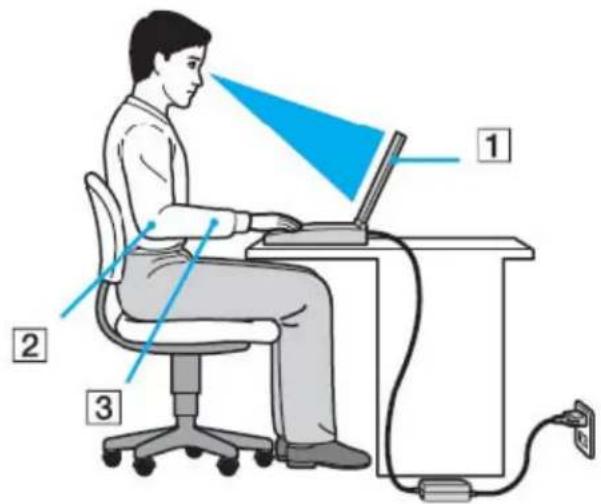
Position of your computer – Placing the computer directly in front of you:
- Keep your forearms horizontal.
- Position your wrists in a neutral, comfortable position while using the keyboard, touch pad, or external mouse.
- Let your upper arms hang naturally at your sides.
- Take frequent breaks while using your computer.
Excessive use of the computer may cause strain to your eyes, muscles, or tendons.
Furniture and posture – Sit in a chair with good back support. Adjust the level of the chair so your feet are flat on the floor. A footrest may make you more comfortable. Sit in a relaxed, upright posture and avoid slouching forward or leaning far backwards.
Viewing angle of the computer's display – Use the display's tilting feature to find the best position. You can reduce eye strain and muscle fatigue by adjusting the tilt of the display to the proper position. Adjust the brightness level of the display as well.
Lighting – Choose a location where windows and lights do not cause glare and reflection on the display. Use indirect lighting to avoid bright spots on the display. Proper lighting adds to your comfort and work efficiency.
Positioning an external display – When using an external display, set the display at a comfortable viewing distance. Make sure the display screen is at eye level or slightly lower when you are sitting in front of the monitor.
Brand : SONY
Model : PCGA-UPC1
Category : Computer accessory