WGPX-635 - Gps WHISTLER - Free user manual and instructions
Find the device manual for free WGPX-635 WHISTLER in PDF.


User questions about WGPX-635 WHISTLER
0 question about this device. Answer the ones you know or ask your own.
Ask a new question about this device
Download the instructions for your Gps in PDF format for free! Find your manual WGPX-635 - WHISTLER and take your electronic device back in hand. On this page are published all the documents necessary for the use of your device. WGPX-635 by WHISTLER.
USER MANUAL WGPX-635 WHISTLER
Technology for the Way You Live
WGPX-635
&
WGPX-650
Hardware User Manual
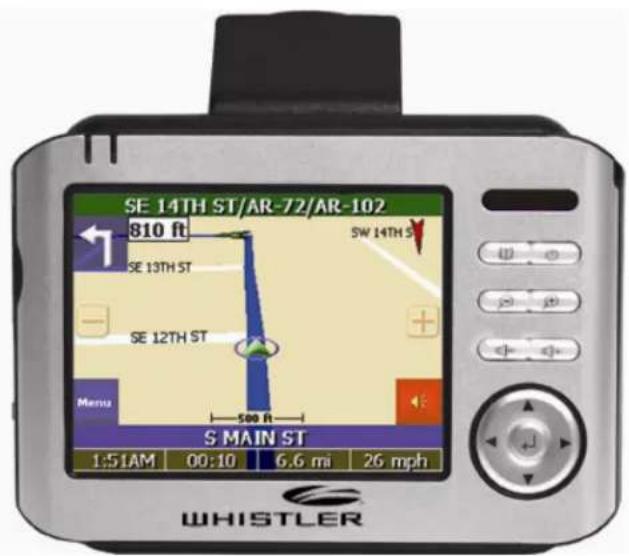
Turn-by-Turn GPS Receiver
If you have any questions concerning the operation of this Whistler product please call:
Whistler Customer Service 1-800-531-0004
Hours: Monday – Friday 8:00 am to 5:00 pm CT
or visit
www.whistlergroup.com
Please keep the receipt in a safe place. You may register your WGPX online at: www.whistlergroup.com. If the unit is returned without a dated store receipt, an out of warranty service charge applies.
Note: Your warranty period begins at the time of purchase. The warranty is validated only by a copy of the original store receipt. Now is the time to record the serial number of the unit in the space provided in the warranty section of the manual.
Dear Whistler Owner,
Thank you for purchasing the Whistler Turn-By-Turn (TBT) GPS Receiver. Please take some time to read both this hardware manual and the GPS mapping software manual in order to understand and maximize the operating features. There is no better way to experience what's near you or how to get there than by using a Whistler WGPX series GPS. Both the WGPX and wMap Mapping software were designed for ease of use to make your experience a pleasant one.
Both manuals and our Whistler Customer Service Representatives are here to assist you. For more general GPS information or frequently asked questions, please see our FAQ page at www.whistlergroup.com or call customer service 800-531-004 M-F 8AM to 5PM CST.
Before using the WGPX for the first time make sure that you read the important Safety Information in the sections that follow.
Enjoy the WGPX. Please drive safely.
Sincerely,
The Whistler Group, Inc.
Contents
Introduction 2-3
Safety Information.... 5
Software 6
FCC 7
Components....8
Features 9-11
Front View 9
Rear View 10
Left View 10
Top View 11
Bottom View 11
Right View 11
Main Power Switch 12
Battery Charging 12
Charging the Battery—In Home 12-13
Charging the Battery—In Car....13
Secure Digital (SD) Card Information 14
Inserting the SD card....14
Removing the SD card 14
Installation....15-16
Assembling the Windshield Bracket.... 15-16
Power Connection 16
Operation.... 17-29
Startup 17
Shutdown 17
Using the Function Buttons 18
Using the Stylus 19
Functions of the Stylus 19
Using the Remote Control.... 19-20
System Reset....21
Care, Maintenance and Storage....22
Troubleshooting 23
Warranty Information 24-25
Specifications 26
Accessories 27
Important Safety Information
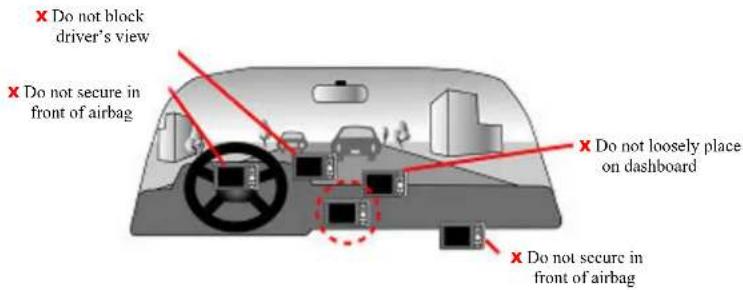
WARNING: It is the user's responsibility to use this product prudently and maintain safe-driving practices at all times. This GPS should be used only by someone able to clearly understand the instructions and able to operate the controls. For proper safety we recommend that a passenger operate the GPS unit. However, in cases where you are alone, it is recommended that you pull over to make any adjustments to the GPS unit. It is also important to make sure that the unit is secure, does not block the driver's field of vision, and will not become a hazard in case of an accident. Do not mount or place the GPS unit on an air bag equipped steering wheel or passenger area. In case of an accident this can be deadly.
The Global Positioning System (GPS) is operated by the government of the United States, which is solely responsible for its accuracy and maintenance. The system is subject to changes which could affect the accuracy and performance of all GPS equipment.
The detailed mapping software is provided by NAVTEQ and Netropa. The detailed mapping software is as accurate and detailed as possible. Whenever maps are digitized, there is still a possibility that some inaccurate or incomplete data can be found. It is because of these inaccuracies that the WGPX is a travel aid and is not intended for precise measurement in navigation or aircraft use.
Differences between manufactured and shipped versions of the software may be present; this software may be updated frequently. If the descriptions in this manual are different from your software version, please follow the software version currently on hand.
Software Use Terms
Copyright laws protect the WGPX's operating system and internal mapping software. Whistler's wMap mapping software is copyrighted by their respective owners. Please carefully review the software agreement information enclosed in the Whistler's wMap Mapping Software User's Guide.
Note: By opening the DVD package you accept the terms and conditions listed in the agreement. Once opened, the DVD package cannot be returned to the place of purchase.

This device complies with Part 15 of the FCC Rules. Operation is subject to the following two conditions:
(1) This device may not cause harmful interference, and
(2) this device must accept any interference received, including interference that may cause undesired operation.
This equipment has been tested and found to comply with the limits for a Class B digital device, pursuant to part 15 of the FCC Rules. These limits are designed to provide reasonable protection against harmful interference in a residential installation. This equipment generates, uses and can radiate radio frequency energy and, if not installed and used in accordance with the instructions, may cause harmful interference to radio communications. However, there is no guarantee that interference will not occur in a particular installation. If this equipment does cause harmful interference to radio or television reception, which can be determined by turning the equipment off and on, the user is encouraged to try to correct the interference by one or more of the following measures:
- Reorient or relocate the receiving antenna.
- Increase the separation between the equipment and receiver.
Changes and modifications not expressly approved by the Whistler Group, Inc., may void the warranty. Repairs should be made only by an authorized Whistler Repair Center.
Contents :
1
natural_image
Exterior view of a Whistler digital camera with control panel and display screen (no visible text or symbols beyond branding)23
natural_image
Pure mechanical component diagram without any text, numbers, or symbols45
natural_image
Illustration of a handheld electronic device with coiled cable and connector (no text or symbols)6
7
8 9


10

11
| 1 WGPX Unit 7 SD Memory Card | ||
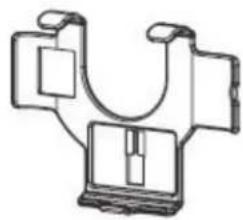
| 2 Windshield Mount 8 DVD | ||
| 3 Mounting Cradle 9 Quick Start Guide | ||
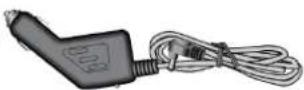
| 4 DC Power Cord 10 Stylus | ||
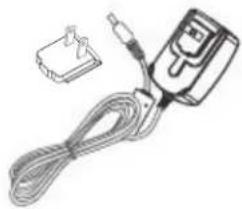
| 5 AC Power Cord (2 pcs) 11 Remote (WGPX-650 only) | ||
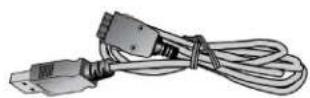
| 6 USB/Power Cable |
Note: Actual accessory appearances may differ from the drawings pictured.
WGPX Feature Highlights
- SD Card—Preloaded with detailed maps.
- Cradle - accepts the windshield bracket.
- Whistler Mapping Software on DVD includes maps of the United States and Canada.
- WGPX with color TFT LCD touch screen display.
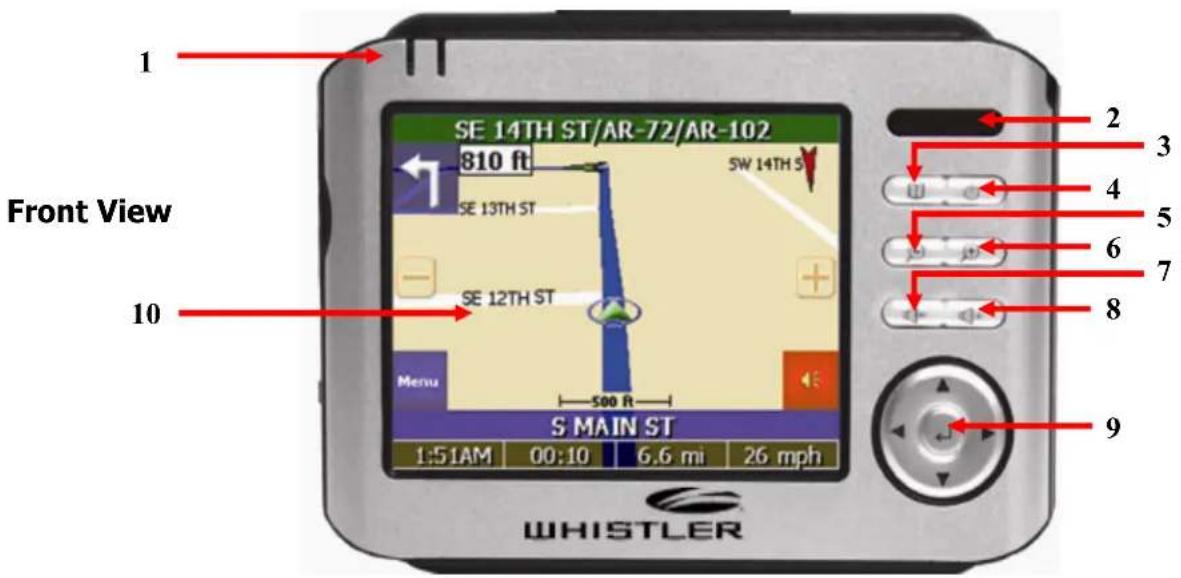
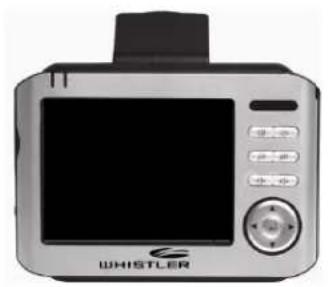
| 1 GPS and Battery Charge Indicators | Green LED indicates GPS search. Yellow LED indicates battery charging—turns Red when battery is low | |
| 2 IR Window Window for optional remote control (Remote included with model WGPX-650) | ||
| 3 Menu Button | Returns to the Menu window | |
| 4 Power Button Switches the power on/off | ||
| 5 Zoom Out Button Zooms out of the map view | ||
| 6 Zoom In Button Zooms in on the map view | ||
| 7 Volume Down Lowers the volume | ||
| 8 Volume Up Raises the volume | ||
| 9 Directional Button Press up/down/left/right keys to change page views or press the center of button to select items | ||
| 10 Touch Screen (Anti Glare) | Displays system status. Use stylus to directly input data or select items on the screen | |
Note: The unit has a protective plastic layer over the display screen. Remove this layer before use.
Rear View
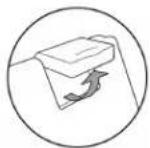
Note: Remember to flip up antenna for best performance.
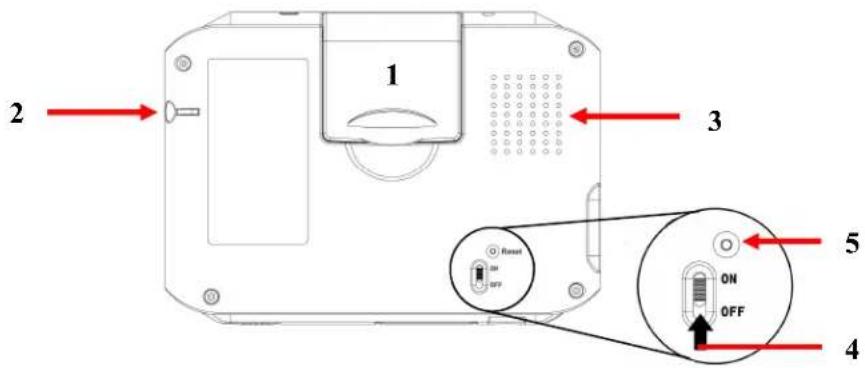
| 1 | Retractable Flip up Antenna | Receives satellite signals– flip up 90 degrees to use |
| 2 | External Antenna Connector | For connection of an external antenna - (MMCX type) |
| 3 | Speaker Audio output | |
| 4 | Main Power Switch | Disconnects power to the unit |
| 5 | Master Reset Clears | unit's memory and resets it |
Left View
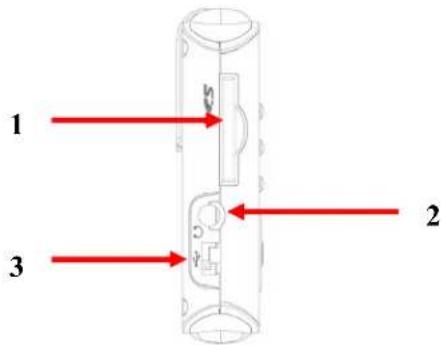
| 1 SD/MMC Card Slot | Location for the preloaded SD memory card. The maps are saved on this memory card. Do not remove this card while in use. |
| 2 Headphone Jack | Connection to external headphones. |
| 3 USB Connection Allows connection to a PC. | |
Top View
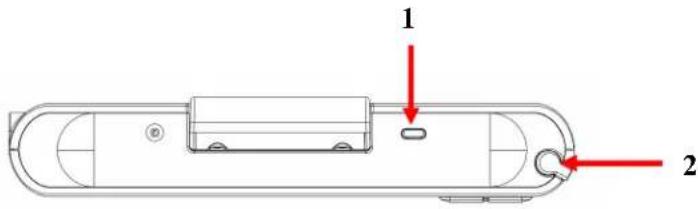
| 1 | Light Sensor Controls backlight |
| 2 | Stylus Remove to access touch screen menus |
Bottom View
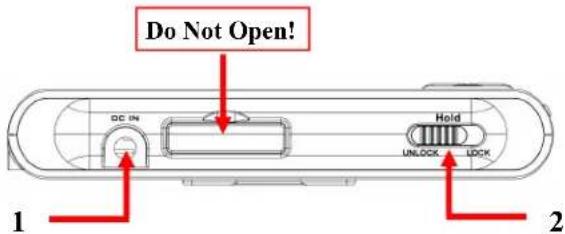
| 1 Power Connection | Allows connection to the 12 volt power cord. |
| 2 Keyboard Lock Switch | Prevents accidental button presses when switched on.Switch to “Unlock” before use! |
Right View
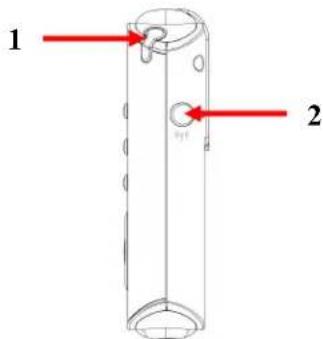
| 1 Stylus Use Stylus to | directly input data or select items on the screen. |
| 2 External Antenna Connector | For connection of an external antenna - (MMCX type). |
Using the Main Power Switch
When the GPS unit is shipped from the factory or when the unit is stored for long period of time, the main power switch should be in the “off” position.
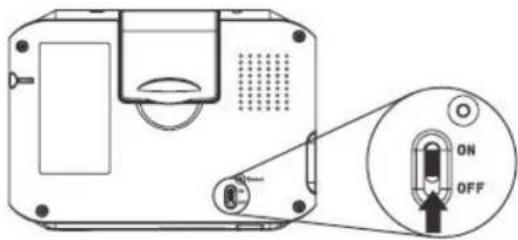
Turn the main power switch to the ON position.
Note: Make sure that the HOLD switch is in the "unlock" position before use! See page 11, bottom view, for hold switch location.
Figure 12A
When the position is changed to “on” the touch screen calibration screen is displayed. Follow the instructions on the screen until completed.
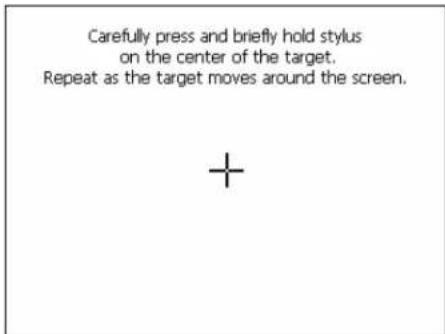
Figure 12B
When the calibration is done successfully tap the screen to complete the calibration then the unit will start to load the map program. Follow the on screen instructions and warnings to begin using the unit for travel.
Note: The calibration screen will only appear when the main power switch is changed from “off” to “on”. If the touch screen appears not to function, make sure that the HOLD button is in the “unlock” position.
Charging the Battery - In Home
Before using the GPS for the first time, we strongly suggest you fully charge the battery. Before the unit can be charged it must first be manually turned on. See Figure 12A. This switch connects the battery.
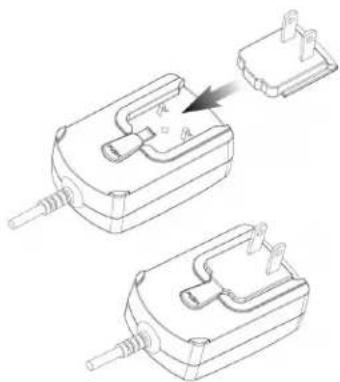
Assemble the AC adapter:
The AC adapter needs to be assembled prior to use. Follow the diagram in figure 12C to insert the plug section to the main adapter body.
natural_image
Technical line drawing of two mechanical components with no visible text or symbolsFigure 12C
Charging the Battery - In Home -Continued
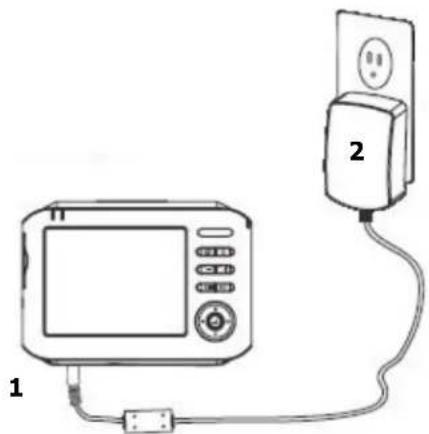
To Charge the Battery:
- Insert the small plug from the AC power cable into the power port under the GPS unit.
- Plug the AC adapter into a wall outlet.
- Press the power button to turn off the unit while it's charging.
natural_image
Simple line drawing of a device connected to a power outlet, showing a monitor and cable (no text or symbols)Figure 13A
When charging starts, the yellow charging indicator light will flash. Please wait for the charging to complete (this might take several hours). The indicator light will stop flashing when charging is complete.
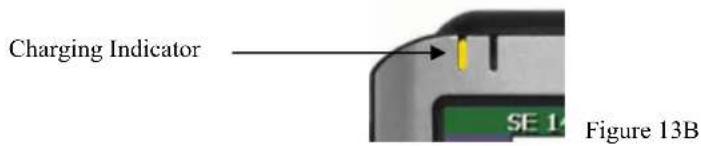
While the GPS unit is in use the charging LED will turn Red when the battery voltage is low. It is recommended to turn the unit off or plug in the DC or AC power cable to charge the battery! The unit will charge slowly while in use with external power. See page 16 for DC power connection.
This device uses a Lithium-Poly battery, please note the following:
- Please do not charge in a hot environment or expose to direct sunlight.
- Lithium-Poly batteries do not need to be discharged. Do not wait until the battery is depleted to recharge.
- When not in use for a long period, charge the battery every two weeks to prevent excessive discharge affecting battery performance or simply turn the master switch to the "OFF" position.
- The battery is not user replaceable. Do not open the unit!
Charging the Battery - In Car
Power is supplied to the internal battery when the GPS unit is connected to the vehicle's lighter socket. The charging indicator performs the same function while connected to the vehicle's power.
Secure Digital (SD) Card
Inserting the SD card:
Note: The SD card may already be inserted into the unit and the following step may not be required.
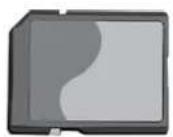
Insert the memory card as shown below: With the metal contacts of the memory card facing back, insert the card into the slot on the left side of the unit (as shown below). Gently press until it locks in place.
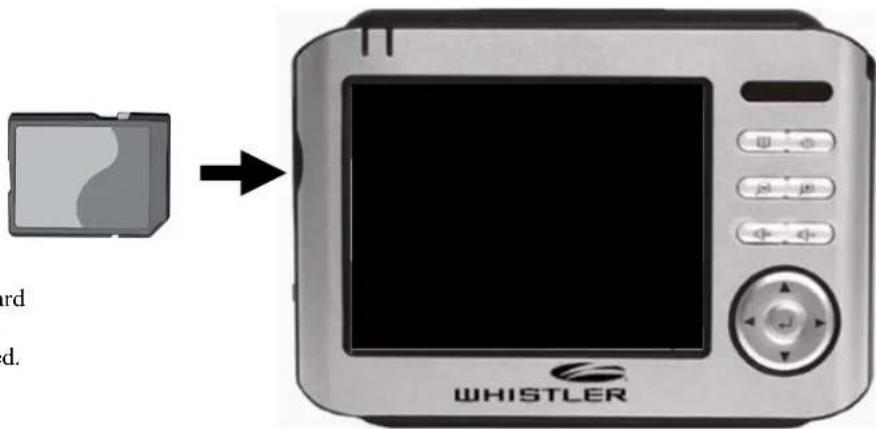
Note: Remove SD card with unit off and the power cord unplugged.
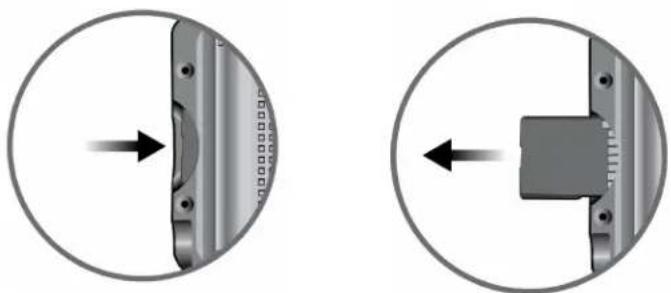
Removing the SD card:
- Gently press the top of the memory card, and the card will eject automatically.
natural_image
Two circular diagrams showing mechanical components with directional arrows, no text or symbols present.Figures shown for explanation only - not representative of the actual unit!
- Then gently pull the memory card to remove.
Note:
- The included memory card contains the digital map files that are required for the GPS navigation data. Please do not delete.
- When removing the memory card, please make sure the card is not reading data, or it will cause a system crash.
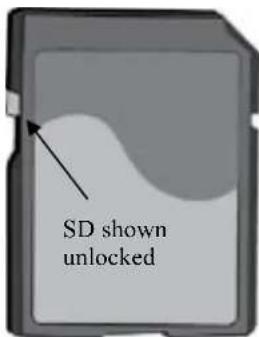
- Do not set the SD memory card as write protected (locked) or the system will not operate properly.
Standard SD/MMC type memory card.
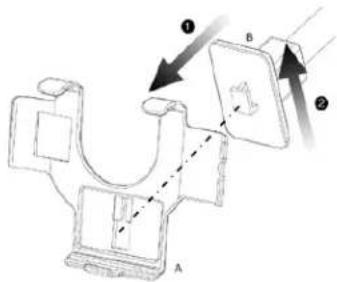
Assembling the Windshield Bracket
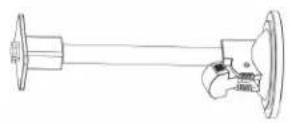
The included windshield bracket set can be securely placed on the front windshield. This device will effectively secure the GPS unit to the vehicle's windshield. Note: Not recommended for motorcycle use with supplied bracket. Follow the procedures below to secure the bracket:
- Follow the indicated directions and insert component B into slot on cradle A, slide in the direction indicated by the arrows to secure.
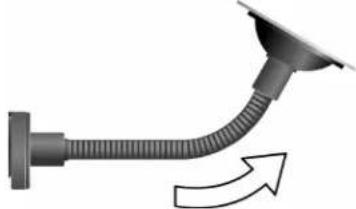
- Once the cradle is secure, bend the bracket arm as shown below. Remove the protective plastic that may be covering the suction cup. The bracket may not adhere to the windshield with this plastic on the suction cup.
natural_image
Diagram of a pipe with a curved pipe and directional arrow indicating flow or movement (no text or symbols)Windshield mount pictured may be different than what was packaged with the unit. The bracket is bendable.
- Press the locking tab toward the windshield to secure the suction cup to the windshield as shown below.
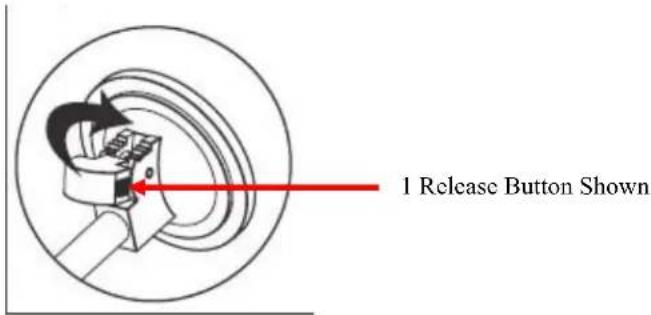
- To remove bracket from windshield, simply press in on the two release "buttons" on the locking tab and move the tab away from the suction cup.
Assembling the Windshield Bracket—Continued
- Finally, insert the GPS unit onto the cradle as shown below.
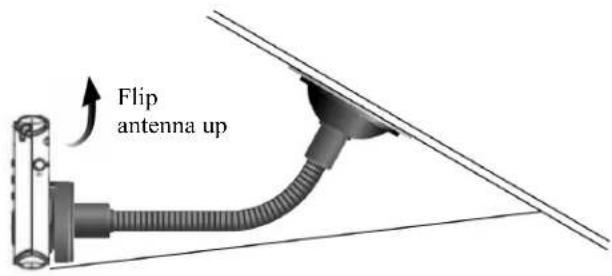
Important notes:
- When using the windshield bracket, do not install in a location that will block the view of the driver.
- Make sure to clean the windshield and suction cup to provide the best surface for adhesion.
- Remove the protective plastic that may be on the suction cup
Power Connection
While the GPS is sitting in the cradle and the included power cord is plugged into both the unit and the cigarette lighter, the battery is charging.
- Insert the small plug into the power jack on the bottom of the unit.
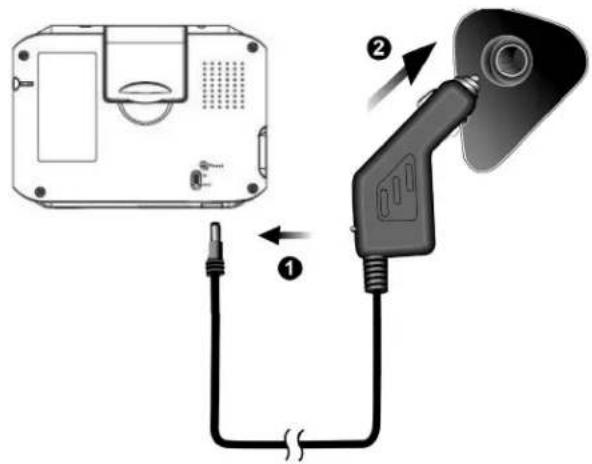
Note: Power cord may not look as pictured in manual.
- Insert the other end of the power cord into the cigarette lighter.
First Time Use
The unit has a protective plastic layer over the display screen. Remove this layer before use.
Startup
Press and hold the power button to turn on the power. A warning page is displayed followed by the map page. Note: If unit does not power on, make sure that the main power switch is in the “on” position and that the hold button is in the “unlock” position. See page 12 for information on the main power switch.
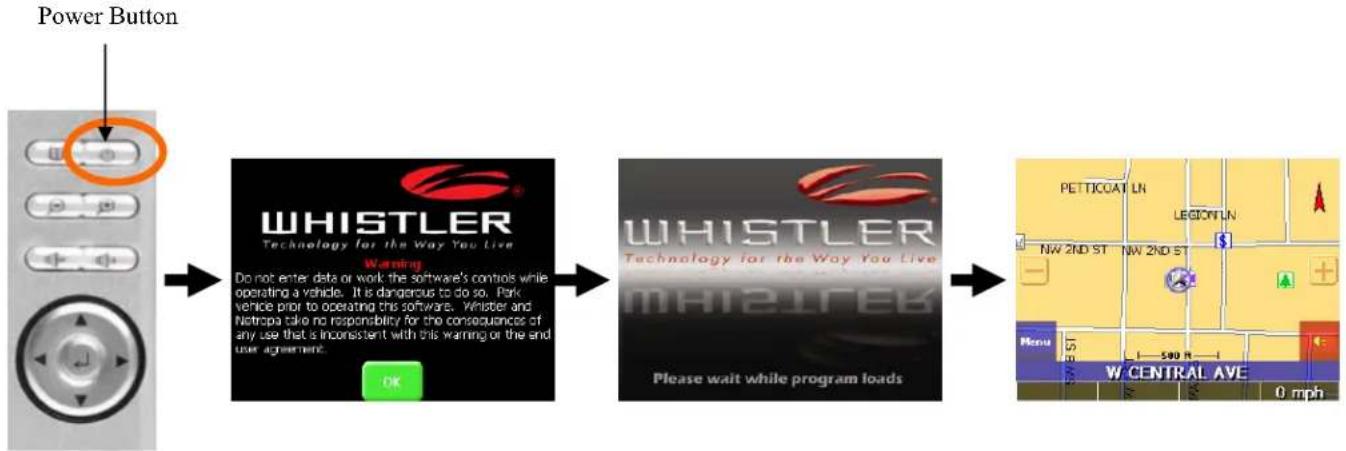
flowchart
graph LR
    A["Power Button"] --> B["WHISTLER Technology for the Way You Live"]
    B --> C["Warning: Do not enter data or work the software's controls while operating a vehicle. It is dangerous to do so. Park vehicle prior to operating this software. Whistler and Netropa take no responsibility for the consequences of any use that is inconsistent with this warning or the end user agreement. OK"]
    C --> D["WHISTLER Technology for the Way You Live"]
    D --> E["Please wait while program loads"]
    E --> F["Location Map: NW 2ND ST, W CENTRAL AVE, 0 mph"]
Shutdown
Press the power button to turn the unit off.
Using the Function Buttons
Control the main functions with the buttons on the right hand side.
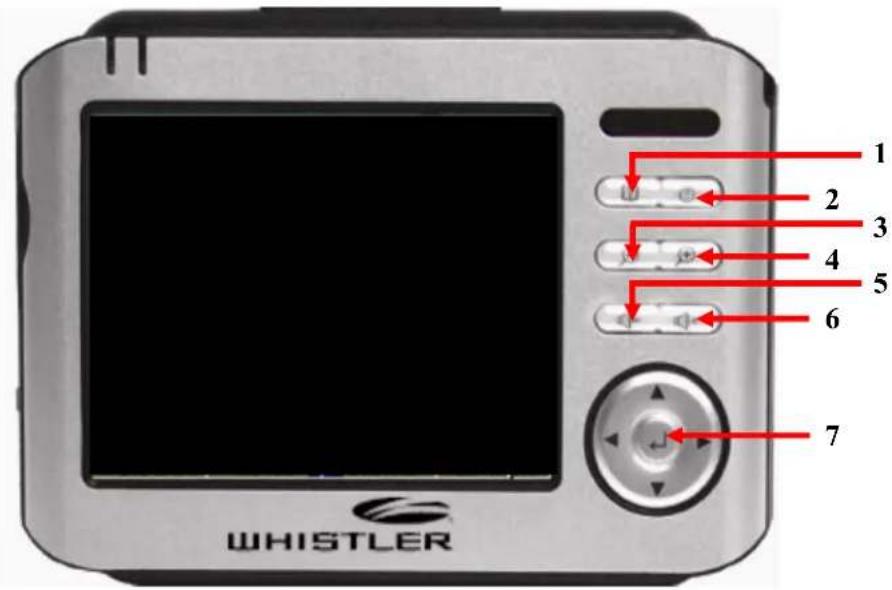
| 1 | Menu Button | Returns to the Menu window |
| 2 | Power Button Switches | the power on/off |
| 3 | Zoom Out Button Zooms | s out of the map view |
| 4 | Zoom In Button Zooms | in on the map view |
| 5 | Volume Down Lowers the volume | |
| 6 | Volume Up Raises the volume | |
| 7 | Directional Button | Press up/down/left/right keys to change page views or press the center of button to select items |
When the GPS is operating, a Green LED will flash indicating that the unit is looking for satellites.
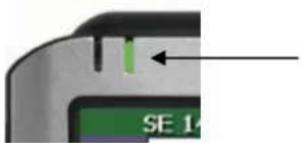
Green LED will flash when looking for satellite signals.
Using the Stylus
The stylus is an optional tool for operating this unit instead of using a finger to tap the screen. Use the stylus to select icons/items on the screen or scroll around the map. The stylus is concealed in the pen slot on the front; pull out and extend for easy usage. Return the stylus to its holder after use to prevent it from being misplaced.
Functions of the stylus:
Selection: Use the stylus point to select items and functions onscreen. On the map display, select the street or indicators on the map for details of building or road names.
Drag: Touch the stylus point on the screen and drag to scroll around the map for a specific location or landmarks.
Select and hold: Select the item/icon and hold for a second to show the floating context menu, and then select the item to be executed.
Using the Remote Control
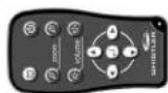
The remote packaged with the WGPX-650 transmits via Infrared (IR), the same as most TV remote controls. The remote's 11 buttons duplicate the unit's buttons. The remote can turn the unit off but not on. The transmit range is approximately 4 feet.
The remote is already programmed into the GPS so no additional programming is necessary. Note: Before use, remove the plastic battery saver card located on the bottom of the remote. Simply pull this plastic card out of the unit.
If lost or damaged, a replacement remote can be ordered from Whistler. The buttons on the remote duplicate those found on the unit. Model WGPX-635 is remote ready. See page 27 to order a remote.
The remote utilizes a common coin cell battery CR 2025 which is available at most retail outlets. This battery's life is similar to other remote controls.
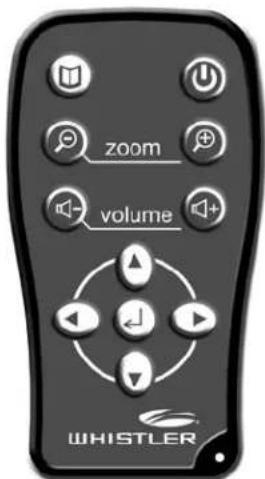
Figure 19A
Using the Remote Control - Continued
Replacing the Remote Battery
The remote control is powered by a 3 volt coin cell battery, model CR 2025.
To replace the battery, follow these steps:
- Slide the locking tab to the right.
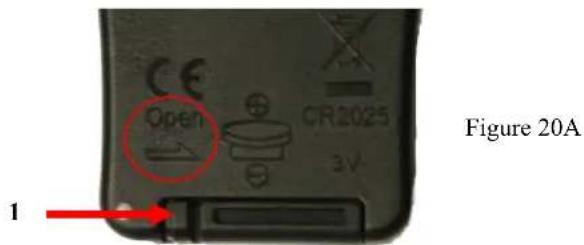
- While holding the tab to the right, carefully slide out the battery tray.
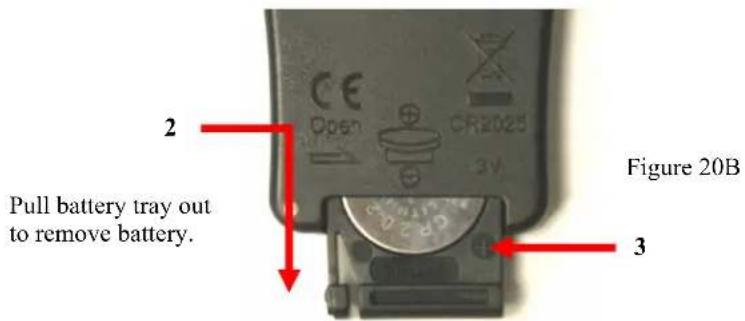
-
The battery should slide out from its holder. Make note of the correct polarity. Positive (+) side of the battery is on the same side of the battery tray that has the “+” marking.
-
Insert the new battery, being mindful of the correct polarity.
-
Slide the battery tray back into the remote.
System Reset
In only three circumstances will it be required to reboot or reset the system. Reset the unit if any of the following situations occur:
- Heavy lag experienced with screen refresh or operations, resulting in an inoperable system.
- Cannot turn off the system with power button.
- No response with any selection on the screen.
Use the tip of the stylus and insert into the reset switch on back of the unit.
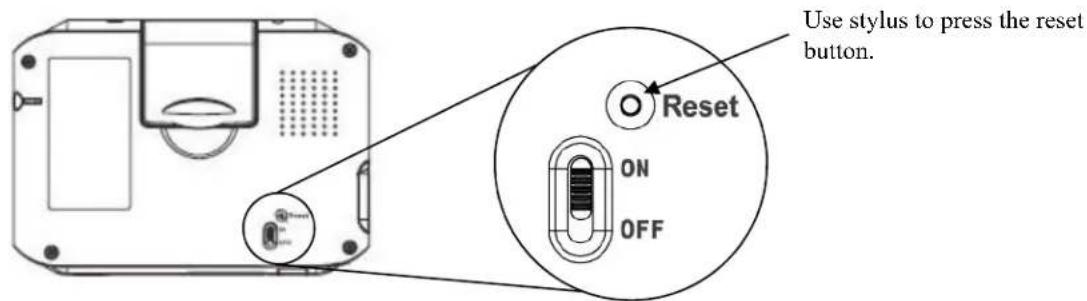
The system will immediately reset and reboot going to the touch screen calibration page. When this page is completed successfully, the GPS warning page will be displayed. Once the warning page is accepted, the unit is ready to use.
Normal Care and Maintenance
To ensure the unit's normal operation and extended life span, please note the following while using and storing:
Keep dry
This product is not waterproof. If it comes into contact with water spray or is submerged, it will seriously damage the components, resulting in irreversible damage and void the warranty.
Do not drop the unit
If violently impacted or shocked, serious damage may be caused.
Avoid sudden temperature changes
Condensation may occur when entering a warm room on a cold day. To prevent condensation from damaging the unit, please place into an airtight plastic bag before sudden temperature changes.
Keep away from strong magnetic fields
When using or storing, please keep away from strong electromagnetic/radioactive or magnetic field equipment.
Operating temperature
The unit's operating temperature is between 32^(0^) and 113^ (45^) . Please do not operate under extreme temperatures.
Avoid exposure to sunlight
Please avoid long periods of sunlight or high temperature exposure.
Using the stylus
The LCD screen is easily scratched; please use only the stylus for operation. Do not use any other sharp objects on the screen to avoid damaging the LCD screen.
Cleaning the screen
Using a soft clean cloth to wipe the screen is recommended; do not use ordinary tissue to wipe the screen.
Do not disassemble
Please do not disassemble the product, this will void the warranty and may damage the unit.
Storage
When the product is not being used for a long period, set the main power switch to the OFF position and store in a cool and dry place. For long-term storage, keeping the unit in a dry box is recommended.
Please do not keep the product in the following environments:
• Unventilated and humid locations
- In a car window that is exposed to excessive amounts of sunlight
• Where humidity is over 60%
Quick Troubleshooting
| Power Cannot startup or will power up but turn itself off. | 1. Insufficient battery charge. Please connect to the power cord and restart system. | |
| Screen No screen displayed. | After powering up, if the system does not respond, try the following:1. Connect cord, restart system.2. Reset system. | |
| Display speed is too slow. | ||
| Screen has no response. | ||
| SD card error displayed | ||
| Navigation | GPS cannot display my current location. | Make sure your current location is not obstructed by buildings or other interference.Make sure that the antenna is flipped up.Make sure you are not in Panning Mode.See Software manual for info on Panning mode. |
Takes More Than 10 Minutes To Get A Position Fix:
- If there are any obstacles nearby or overhead, move to a new location.
- Make sure that the antenna is pointing up, has a clear view of the sky and is a reasonable distance away from any metal.
- Check Satellite Status screen to see if the receiver is acquiring data.
Position On Map Is Not Exactly On The Road.
It could be caused by distance shifts to the digitized map. Possibly a weak signal or not enough satellites overhead to provide accurate position.
Windshield Bracket Does Not Stick On Window.
-
Remove protective plastic from the suction cup.
-
Clean the suction cup and area on the windshield with window cleaner and retry.
If you do not see your question listed, please visit our GPS FAQ page of our website
www.whistlergroup.com
or call
Whistler Customer Service
(800) 531-0004
Available Monday through Friday 8am to 5pm CT.
Consumer Warranty
This Whistler GPS unit is warranted to the original purchaser for a period of one year from date of original purchase against all defects in materials and workmanship. If the unit is replaced, it is still warranted ONLY from the date of original purchase, not one (1) year from the date of replacement.
This limited warranty is void if the unit is abused or modified, if the housing has been removed, or if the serial number is missing. There are no express warranties covering this product other than those set forth in this warranty. All express or implied warranties for this product are limited to one year. Whistler is not liable for damages arising from the use, misuse, or operation of this product.
NOTE: Any damage to the remote battery, battery leakage, water damage or any physical damage is not covered under the warranty. Check with the battery manufacturer about this warranty.
Service Under Warranty
During the warranty period, defective units will be repaired without charge to the purchaser when returned with a dated store receipt to the address below. Units returned without a dated store receipt will be handled as described in section “Service Out Of Warranty.” Due to the specialized equipment necessary for testing GPS units, there are no authorized service stations for Whistler products other than Whistler.
When returning a unit for service under warranty, please follow these instructions:
- Ship the unit in the original carton or in a suitable sturdy equivalent, fully insured, with return receipt requested to:
Whistler Repair Department
1201 North Dixieland Road
Rogers, AR 72756
IMPORTANT: Whistler will not assume responsibility for loss or damage incurred in shipping. Therefore, please ship your unit insured with return receipt requested. COD's will not be accepted!
- Include with your unit the following information, clearly printed:
□ Your Name
□ Street Address
(NO P.O. Boxes Please)
□ Daytime Telephone Number
☐ An e-mail Address (if applicable)
☐ A detailed description of the problem
(e.g., "Unit does not receive satellites).
☐ A copy of a dated store receipt or bill of sale
Service Under Warranty—Continued
- Be certain your unit is returned with its serial number. For reference, please write your units serial number in the following space:
S/N: ____
wMap software Release Version (Located in the About page): ____
Units without serial numbers are not covered under warranty.
IMPORTANT: To validate that the unit is within the warranty period, make sure to keep a copy of the dated store receipt. You may register the warranty online at www.whistlergroup.com. For warranty verification purposes, a copy of your dated store receipt must accompany any unit sent in for warranty work.
Service Out Of Warranty
Units will be repaired at "out of warranty" service rates when:
- The unit's original warranty has expired.
• A dated store receipt is not supplied. - The unit has been returned without its serial number.
- The unit has been abused, modified, or had its housing removed.
The minimum out of warranty service fee is \160.00 (U.S.). If you require out of warranty service, please return your unit as outlined in the section “Service Under Warranty” along with a certified check or money order for \160.00 (U.S.). Payment may also be made by MasterCard, VISA or American Express; personal checks are not accepted. In the event repairs cannot be covered by the minimum service fee, you will be contacted by a Whistler technical service specialist who will outline options available to you.
IMPORTANT: When returning your unit for service, be certain to include a daytime telephone number, and an email address (if applicable).
Specifications
| Integrated GPS Receiver 20 parallel channels | |
| Acquisition Time | ·Reacquisition: 0.1 sec.·Hot start: 2 sec.·Warm start: 35 sec.·Cold start: 45 sec. |
| Accuracy Position: 10 m. for 90% Velocity: 0.1 m/s | |
| Processor Samsung Processor at 266 MHz. | |
| Operating System Microsoft Windows CE.Net 4.2 | |
| Internal Memory 32 MB flash memory and 64MB SDRAM memory for operating system and embedded applications | |
| Weight 7.3 oz | |
| Size 4.625"x 3.25"x .75" | |
| Car Holder / Charger Input voltage: 11V. ~ 28V.Output voltage: 5.1V. ± 0.3V. | |
| Battery | Rechargeable 1350 mAh. Li-poly8 hours battery life when backlight is inactive3 hours to fully charge |
| Extension Slot SD | |
| Display Anti-glare 3.5" high-brightness & contrast ratiotransflective TFT LCD (262k colors) with 240 x 320 (QVGA) resolution | |
| LEDs Yellow/Red LED for battery charging status andGreen LED for GPS signal reception | |
| Audio Built-in 30 mm speaker and stereo earphone jack | |
| Operation Temperature 32° ~113°F (0°~45°C) | |
| Storage Temperature -4°~149°F (-20°~65°C) | |
| Special Keys and Buttons | 5-way directional pad (up, down, left, right, enter);Four quick-launch application buttons |
Accessories
These and other accessories can be ordered directly from Whistler by calling Customer Service at (800) 531-0004 or visiting our online store at www.whistlergroup.com.
WGPX Accessories
P/N Item Price
| 506509 12 Volt Power Cord 15.95 |
| 203000 Carrying Pouch 5.95 |
| 506507 AC Power Cord 12.95 |
| 506511 Windshield Bracket Kit - Includes cradle22.95 |
| 506502 USB Cable 5.95 |
| 506512 Remote Control14.95 |
| 506510 Stylus 3.95 |
| 506510-3 Stylus 3 pack 9.95 |