
MCK762BRGB.6 - Unspecified BOSS - Free user manual and instructions
Find the device manual for free MCK762BRGB.6 BOSS in PDF.


| Product Type | Car Stereo MP3/CD Receiver with Bluetooth |
| Model | MCK762BRGB.6 |
| Brand | Boss Audio Systems |
| Dimensions (WxHxD) | 178 x 50 x 165 mm (7 x 1.97 x 6.5 inches) |
| Power Supply | DC 12V |
| Current Consumption | 10A max |
| Maximum Power Output | 4 x 60W (at 14.4V) |
| FM Frequency Range | 87.5 - 107.9 MHz (US) / 87.5 - 108.0 MHz (EU) |
| AM Frequency Range | 530 - 1710 kHz (US) / 522 - 1620 kHz (EU) |
| Bluetooth | Hands-free calling and A2DP streaming |
| App Control | Boss Radio Control Stream app (Android) |
| Playback Media | CD, CD-R/RW, MP3, WMA, USB, SD card |
| Front Panel | Detachable, with USB port and AUX input |
| Audio Output | Pre-amp output 1.2V |
| Signal-to-Noise Ratio (CD) | 50 dB (1 kHz) |
| Display | LCD with selectable backlight colors |
| Radio Data System (RDS) | Yes, with AF, TA, PTY |
| Reset Button | Yes, on front panel |
| Security | Detachable faceplate for theft prevention |
| Installation | DIN size with metal mounting sleeve |
Frequently Asked Questions - MCK762BRGB.6 BOSS
User questions about MCK762BRGB.6 BOSS
0 question about this device. Answer the ones you know or ask your own.
Ask a new question about this device
Download the instructions for your Unspecified in PDF format for free! Find your manual MCK762BRGB.6 - BOSS and take your electronic device back in hand. On this page are published all the documents necessary for the use of your device. MCK762BRGB.6 by BOSS.
USER MANUAL MCK762BRGB.6 BOSS
WITH FRONT PANEL USB PORT AND AUX INPUT






BOSS®
AUDIO SYSTEMS
DESCRIPTION OF BUTTONS ON REMOTE CONTROL
![graph TD A["1"] --> B["+"] C["2"] --> D["AP"] E["3"] --> F["SCN"] G["4"] --> H["CLK"] I["5"] --> J["SRC"] K["6"] --> L["TOP/HL 1"] M["7"] --> N["5"] O["8"] --> P["*"] Q["9"] --> R["MUTE"] S["10"] --> T["T-M"] U["19"] --> V["+"] W["18"] --> X["+"] Y["17"] --> Z["SELECT UP"] AA["16"] --> AB["AF"] AC["…](/content/2026/06/1203204/images/bb731b8d0dd0ced4e5ae188ff8e52408c7d12af82bb461b81d2b2245a87a5f7a.jpg)
- POWER button
- A.P button
- SCN(SCAN) button
- CLK button
- SRC button
- BND(BAND) button
- Number(0\~9) buttons
- * button
- MUTE button
- T-M button
- TEL button
- CLEAR button
-
button
- PTY button
- TA button
- AF button
-
|/ DN and |<< /UP buttons
- SEL button
-
- and - buttons
LOCATION AND FUNCTION OF CONTROLS


- RELEASE BUTTON
2 .POWER/MUTE BUTTON - CD slot
- LCD
- EJECT button
6&7. >>| or |<< buttons
8.SEL button and VOL knob - 1/TOP/>|| button
- 2/INT button
- 3/RPT button
-
4/RDM button
-
5/ HANG UP button
- 6/ TEL button
- PTY/ SRC
- AUX INPUT Jack
- USB Port
- BAND button
19.APS button - SCAN button
- RESET button
- SD Card slot
Common Operation:
- To turn on/off the unit
Press any button except the EJECT/ RELEASE button to turn on the unit. The unit will also turn on when a disc, SD card or USB stick is inserted.
Press and hold the power button for more than 1 second to turn off the unit.
- To select playback mode
Press SRC button to select RADIO (TUNER), DISC, CARD(after inserting SD card), USB(after inserting USB stick) and AUX mode.
- To adjust the volume level
Rotate the VOL knob to adjust the volume level during playback.
- To mute or resume the sound
Press the MUTE button to eliminate or resume the sound immediately during playback.
To resume the sound immediately, user can also rotate the VOL knob.
- To select and adjust the mode of the sound and menu
A) To select and adjust the sound mode:
Press SEL button briefly and repeatedly to select the mode of CLK ,VOL(volume), BAS(bass), TRE(treble), BAL(balance) and FAD(fader) in the sequence and circulation.
In each mode, the waiting time is about 5 seconds, and when the waiting time is over, it will return to the last display mode.
After select a desired sound item, rotate VOL knob to adjust level of the selected sound item.
B) To select and adjust the menu mode:
Press SEL button and hold for about 2 seconds to turn on MENU mode, and the LCD will display INVOL, then press SEL button repeatedly to select DSP/BEEP (ALL/OFF/2ND)/TAVOL/EON (ON/OFF)/REG(ON/OFF)/AF(ON/OFF)/TA(ON/OFF)/ALARM/EQ(ON/OFF)/LOUD(ON/OFF)/LOC (ON/OFF, only for FM mode)/MONO/STEREO(only for FM mode)/BLAUTO(RED,GREEN, YELLOW,BLUE, MAGENTA, CYAN,WHITE)/AREA(EUR/USA).
After selecting a desired mode, rotate the VOL knob to select one setup item of the desired mode.
DSP: in this mode, you can set the clock time. Rotate the VOL knob clockwise/counter clockwise to adjust the hours/minutes.
BEEP ALL: the beep is generated when every key is pressed(except the power button, REL key and EJECT key).
BEEP 2ND: the beep is only generated when an allotted double key is pressed long(1second).
BEEP OFF: the beep sound is disabled.
TAVOL: This function is to set the TA volume level from 0-45. When TA function is activated, if a TA program is tuned in at the volume level set regardless of the volume of the other source at the time.
EON: In RDS mode, when EON is ON, the EON programs will scan automatically.
Select EON OFF to stop the scan.
LOUD: When the volume level is below half level, select LOUD ON mode to enhance bass sound. It is advised that LOUD ON mode not be select when the volume level is high.
LOC: LOC ON mode improves reception in some areas where the signal is too strong.
(Note:LOC function only for FM mode.)
STEREO/MONO: Select STEREO mode to improve the sound effect. Select MONO mode to decrease noise and make the sound more clear when the station signal is weak.
BL AUTO(RED, GREEN, YELLOW, BLUE, MAGENTA, CYAN, WHITE):
This Menu is for selecting the backlight color mode of your desired.
You can select the single color backlight mode or BL AUTO mode.
When selecting BL AUTO mode, the 7 backlight colors will be changing automatically in certain order
- To reset the system
Before operating the unit for the first time or after replacing the car battery or changing the connections, you must reset the unit,
Press the RESET button with a cuspidal object. This operation will erase the clock setting and some stored contents.
- To remove the front panel
Press the REL button to release the front panel from the unit chassis, then pull it up a little to remove it from the unit.
Radio Operation:
1. To select radio band
In RADIO mode, press the BAND button shortly and repeatedly to select your desired radio band in sequence and circulation as follows:
→ FM1 → FM2 → FM3 → AM1 → AM2 →
2. To select for radio station manually or automatically
Press >>| or |<< button to automatically search up or down for radio station frequency,
Press >>| or |<< button and hold for about 2 seconds to activate MANUAL searching mode.
Then press >>| or |<< button repeatedly to manually search up or down for your desired station from the current frequency.( If in MANUAL Mode and without further operation, the unit will change to AUTO mode a few seconds later.)
3. To store the current station or turn on the preset station In RADIO mode:
A) Press one of 1-6 number buttons and hold for about 1 second to store the current station in the preset memory bank of the number button for the current band.
When a RDS station is being stored, PI, PS, AF list are stored.
B) Press one of 1-6 number buttons to turn on the preset station stored in the preset memory bank of the number button for the current band.
In RDS mode, the strongest AF is turned on after AF searching.
4. To automatically store for the strongest stations and scan for each stations
A) Press APS button and hold for about 1 second, it will search from the lowest frequency and check the signal strength until 1 cycle search is finished on current band. Then the 6 strongest available stations will be preset to the corresponding preset numbers. When the Auto-storage operation is completed, it will execute the Preset Scan continuously.
B) Press the APS button to scan all preset stations in the memory of the current band and stay on each memory stations for about 5 seconds.
To stop preset scan, press this button again.
C) Press the SCAN button to scan the radio frequency. If a valid signal has detected, the current frequency will be hold and blinking for 5 seconds, then press SCAN again to stop and remain the current frequency; otherwise, the radio will go on to scan the other radio frequency 5 seconds later.
5. To tune for RDS station
Press and hold PTY button for about 1 second, the PTY group is on, then rotate the VOL knob to select one of the following mode:
<-->NEWS<-->AFFAIRS<-->INFO<-->SPORT<-->EDUCATE<-->DRAMA<-->CULTURE
<-->SCIENCE<-->VARIED<-->WEATHER<-->FINANCE<-->CHILDREN<-->SOCIAL
<-->RELIGION<-->PHONE IN<-->TRAVEL<-->LEISURE<-->DOCUMENT<-->ALARM
<-->POP M<-->ROCK M<-->EASY M<-->LIGHT M<-->CLASSICS<-->OTHER M
<-->JAZZ<-->COUNTRY<-->NATION M<-->OLDIES<-->FOLK M<-->TEST
After selecting one of the PTY programs, press >>| or |<<, it will automatically search for the station of the PTY program. If the station of the PTY program does to exist, it will display PTY NONE and then return back to the previous radio.
6. To alternate the weak signal in RDS station with a strong one
Press SEL button and hold for about 1 second to turn on MENU mode, then press SEL button repeatedly to select AF mode, rotate the VOL knob to select AF ON, then AF flash in display.
When AF switching mode is selected, the radio checks the signal strength of AF all the time. The interval of checking time of each AFs depends on the signal strength of current station, from a few minute for strong station to a few seconds for weak station. Every time that new AF is stronger than current station, it switches over to that frequency for very short time, and NEW FREQUENCY is displayed for 1-2 second. Because the mute time of AF switching or checking time is very short, it is almost inaudible in case of normal program. (When AF flashes on LCD, it will search for RDS station. If AF and TP flash on LCD, it can only search for traffic announcement station).
During FM mode, when AF is on, SEEK, (SCAN), AUTOMEMORY function can only receive and save RDS program.
7. TA [TRAFFIC ANNOUNCEMENT]
Press SEL button and hold for about 1 second to turn on MENU mode, then press SEL button repeatedly to select AF mode, rotate the VOL knob to select TA ON, then TA flash in display.
A) When TA mode is on(TA is displayed on LCD), it will begin to seek TA station and TA SEEK will be displayed on LCD for a while.
When traffic announcement is transmitted:
1) If the unit is in SD, USB or disc mode, it will switch to radio mode temporarily.
2) Temporarily switch over to an EON linked station when EON detects a traffic announcement on that other program, and TP will be displayed on LCD.
3) If volume level is below 20, volume level is raised to 20, and returns to its previous mode and volume level when the traffic announcement is over.
If volume is adjusted during traffic announcement, only the traffic announcement volume is valid.
* TA interruption function:
The current traffic announcement is cancelled by pressing this key. But the TA mode will not be off.
* When TA is on, SEEK, (SCAN), AUTO MEMORY function can be received or saved only when traffic program identification code has been received.
USB or Disc Operation:
1. To load/unload disc
Press the EJ button to load or eject a disc.
2. To load/unload SD card or USB
When playing SD or USB, insert the SD card or USB stick into SD slot or USB port. Then the playing mode will be changed into SD or USB mode and display CARD or USB on LCD(When SD card and USB stick are both inserted into their slot or port, the playing mode will be changed into the mode of the later one), and then play the first track of SD or USB. When needing pull out the SD card, firstly press MMC/SD card once, then pull it out.
3. To select next or previous track to play
Press the >>| button to play the next track.
Press the |<< button briefly to play the current track from the beginning of it if the playing time is more than 2 seconds.
Press the |<< button briefly to play the previous track if the playing time is less than 2 seconds.
4. To select next or previous 10 track to play
In SD, USB or MP3/WMA disc playback mode, press the 6 or the 5 button to move up or down 10 tracks at a time.
When the remained total track is less than 10, the both buttons are inactive.
5. To play fast forward or backward
During normal playback, press >>| or |<< button and hold to skip forward or backward.
Release to resume normal playback
- How to use the PLAY/PAUSE/TOP button
During playback, press 1/>|| button to pause SD, USB or Disc playback.
Press again to resume MMC/SD, USB or Disc playback.
Press TOP/>|| button and hold for about 1 second to play the first track.
- To scan tracks
In disc, SD, USB playback mode, press INT button to display INTRO on LCD then play the first 10 seconds part of each track of all.
- To repeat track(s)
In disc, SD or USB playback mode, press RPT button to display RPT ONE and play the current track repeatedly. Press RPT button again to cancel this function.
Press and hold the INT button to play the 10 first seconds of each track in desired folder, and D-INT indicator will be displayed on LCD.
To disable the INTRO function, press again INT button and current track will be playing normally, and INT OFF indicator disappears from LCD.
- To play tracks in random
In disc SD or USB playback mode, press RDM button to display RANDOM and play the track of all in random order, press RDM button again to cancel this function.
- To quickly select the track in MP3/WMA format to play
In SD, USB or MP3/WMA disc playback mode, press BAND button, it is activated as cyclical selecting song mode as following
-> TRACK SERIAL NUMBER SEARCH
-> FIRST CHARACTER SEARCH
-> DIRECTORY SEARCH
A) In TRACK SERIAL NUMBER SEARCH mode, the LCD will display 001--- and flash the biggest digit 0 that the SD card, USB or MP3/WMA disc contains. Rotate the VOL knob to select the number of the flashing digit from 0 \~ 9. Then press SEL button to confirm and flash next smaller digit 0. With the same means, select the number of the flashing digit. After finishing inputting the number of all flashing digit, press and hold BND button to play the track of the corresponding number.
B) In FIRST CHARACTER SEARCH mode, the LCD will display A**-- and flash the first character. Rotate the VOL knob to input character by the order of A\~Z and 0\~9. Press SEL button to confirm and flash the next character. With the same means, select the character of the flashing place. After finishing inputting all the 3 characters, press BND button and then matched files will be scrolling on the LCD by rotating the VOL knob. Finally press and hold BAND button to play the track. If there is not any file matched, NO MATCH will be displayed and then it will return to the beginning of this track search mode for inputting again.
C) In DIRECTORY SEARCH mode, the LCD will display the root folder (if there is not the root folder, it will find a root folder named ROOT). Rotate the VOL knob to select your desired folder and press and hold BAND button to play the first track in the selected folder.
- ESP and ID3 Function
In SD, USB or MP3/WMA disc mode, during playback, the information of the file name, folder name, title, artist and album will be scrolling on the LCD display. As long as the current playing MP3/WMA music contains relevant ID3 tag information in version 1.0/2.0 format, the 3 items underlined above will be scrolling on the LCD display. Otherwise, they will not.
Bluetooth Hands-free System:
1. Pairing and Connection
1) Turn on the Bluetooth mode of the mobile phone;
2) Select Finding the Bluetooth Device. After searching is finished, it will show the name of the Bluetooth Device available. Select it and switch to the interface for password, Input the password 0000 and enter it. Then it will show pair OK.
3) For some mobile phones, they can automatically connect with the BT device of the car audio system and after pairing is ok; for some mobile phones, they need to select the paired BT device and press the CONNECTION button. When connection is OK, the LCD of the car audio system will show CONNECT.
2. Use the mobile phone to do connection or disconnection
A) Use the mobile phone to do connection or disconnection
1) In the connection status, find the paired and connected Bluetooth Device, then press the disconnection button to do disconnection.
2) In the disconnection status, find the paired and disconnected Bluetooth Device, then press the connection button to do connection.
B) When turning on the power again (after Acc off), the front panel can search the phone that was paired automatically and be connection. And it will take you about 10-15 seconds.
Note:
In the connection status: Mobile phone transfers to the car audio whenever a dialing takes place; Mobile phone transfers to the car audio whenever receiving a call.
3. Dialing when in connection status
A) Dial with the mobile phone directly.
B) After inputting the phone number via mobile phone, press the TEL button to execute the dialing. Notes: The talking time will appear on LCD if dialing is successful and it is received.
4. Accept/ End Call
A) During ringing, press TEL button to accept the call
B) During talking, press HANG UP button to end the call.
5. Talking volume level setting
At talking status, use the VOL knob to adjust the sound output, but this volume level can't be reserved.
6. To transfer the audio of a file played by Mobile Phone to the Car Audio Player
If the mobile phone supports A2DP and could play audio or video files, when the Mobile Phone plays an audio (For some Mobile Phones, you must select Play by BT firstly), the playing will be transferred to the Car Audio Player.
In A2DP mode, if the Bluetooth device of the Mobile Phone support AVRCP, the functions of the >>|, |<< and PLAY/PAUSE buttons are the same as one in disc mode(no fast forward /backward functions for the >>|/|<< buttons). The other buttons available in disc mode are not available.
In A2DP mode, if the Bluetooth device of the Mobile Phone supports AVRCP, pressing the SRC button will switch between the radio, disc, USB, CARD and A2DP. After entering A2DP mode again, it will resume playback.
- In BT mode, press T-M button to select the following mode:
PRE NUM:
- Press "SELECT" button to enter the mode.
- Press the "+" or "-" button to scroll through numbers. (On the right of the LCD there is a number, 0-9) It supports up to 10.
- Select the preset then press and hold "SELECT" button until the symbol “_” displays in the left of the LCD.
- Input the number which will be stored with the remote control, then press "SELECT" button to confirm.
- If you want to dial a preset number, first select the number then Press "SELECT" button to execute the dialing.
RECEIVED:
- Select this mode and press "SELECT" button to enter the mode.
- Press the “+” or “-” button to scroll through received numbers. (On the right of the LCD, every call corresponds with a number, 0-9) It supports up to 10 calls.
DIALED:
- Press "SELECT" to enter the mode.
- Press the “+” or “-” button to scroll through dialed numbers. (On the right of the LCD, every call corresponds with a number, 0-9) It supports up to 10 calls.
(Note: This function is only for check the numbers dialed by remote control.)
MISSED:
- Press "SELECT" button to enter the mode.
- Press the “+” or “-” button to scroll through missed calls. (On the right of the LCD, every call corresponds with a number, 0-9) It supports up to 10 calls.
TALK 00:
Select to check the current volume of BT Phone, using the "+" or "-" button to adjust the volume
Bluetooth Wireless APP Control
A new and innovative method to control your MR762BRGB, is from the Boss Audio Radio Stream APP. It enables you to control your music library and all the sources right from your Android* device conveniently and safely through the free app. *Minimum Required Android OS: 2.0 To download follow these easy steps...
1.Go to the Google Play

2. Search for "Boss Audio Systems" & Install
Launching Boss Radio Control Stream
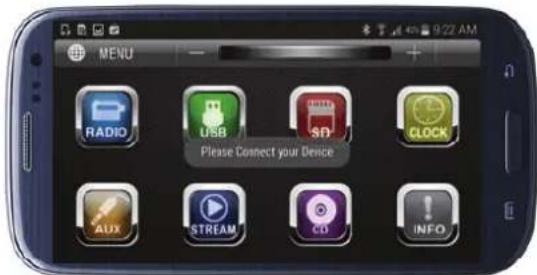
Once the APP is open "Please Connect Your Device" will appear... This message will appear every time you open the APP to connect to the MR762BRGB.
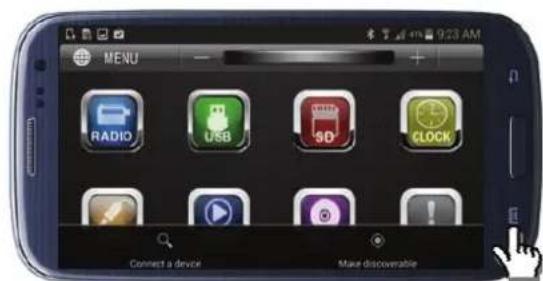
Press the "Options" button (varies on device) to find the MR762BRGB
Once found, it will populate (below)
*Please note the MR762BRGB must be powered On.

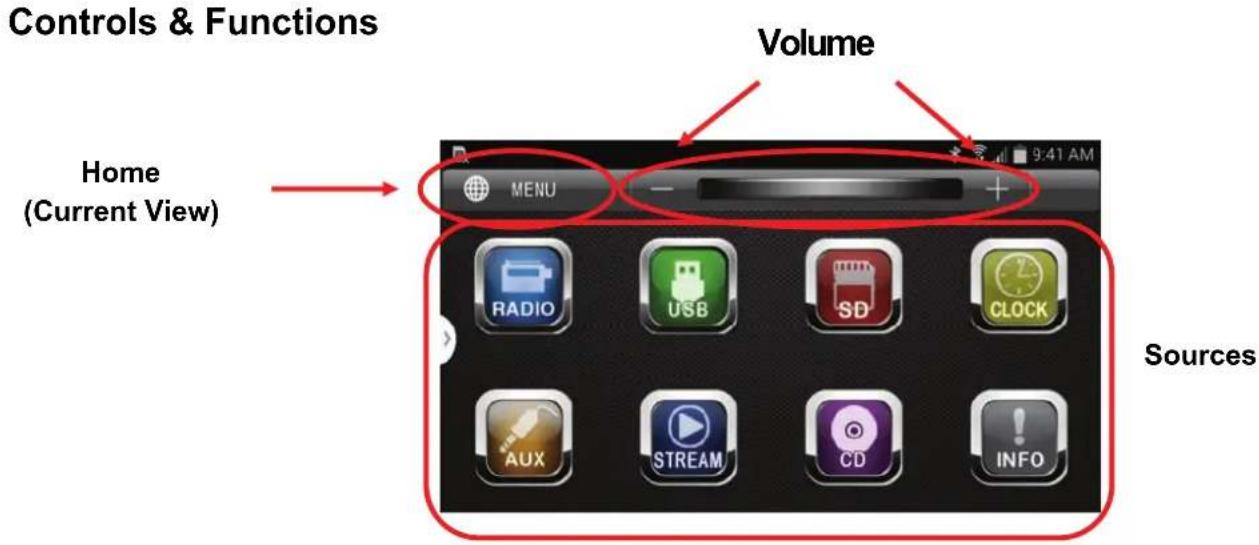
Sources
The available source icons will be highlighted.
If the source is unavailable (i.e. CD is not inserted), the icon will be appear dark
Volume
Volume control be accomplished through the "+" and "-" icons on the screen.
The red bar can also be used for volume, it can be moved with your finger left or right, to lower or raise the volume respectively.
The volume function will always be present in all menus, in the same location globally.

Radio Mode
Seek/Scan Settings
To Scan, slide your finger left (back) or right (forward) on the displayed frequency
Access Presets by pressing one of the six presets
To store presets, press and hold the frequency displayed and drag it to the desired preset location
Change Bands (FM1, FM2, FM3, AM1, AM2)
Settings- This icon will display in all sources
Return- Will take you back to previous menu.
Aux-In
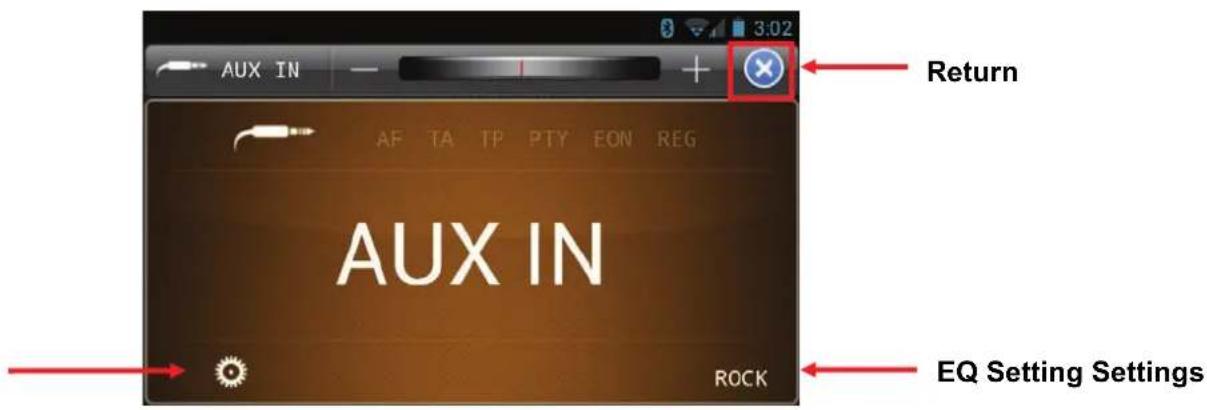
Aux-In
In Aux-In mode, you have access to Settings, and Volume adjustments.
CD/USB/SD/Stream
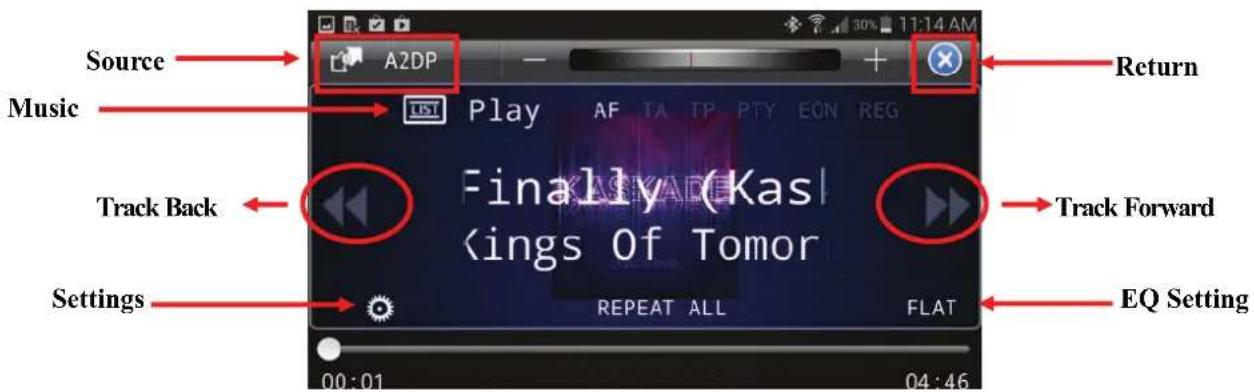
CD/ USB/ SD/ Stream Modes
Source
Track Controls
Music-Access to music library
Settings— This icon will display in all sources
Return- Will take you back to previous menu
Music Library
The List will populate to the source it is currently playing. Music can be previewed on while the source is playing from CD,USB,SD and Stream modes
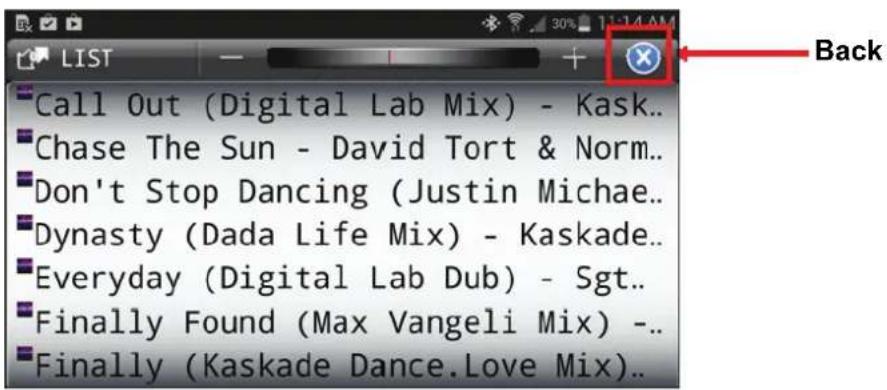
Settings

Settings
EQ- Changes Audio settings, and presets EQ curves
Play- Access different play modes, Shuffle, Repeat, etc...
RDS- Access to Radio Data System settings
Tuner- Access to Radio settings
Tuner Settings

RDS Settings
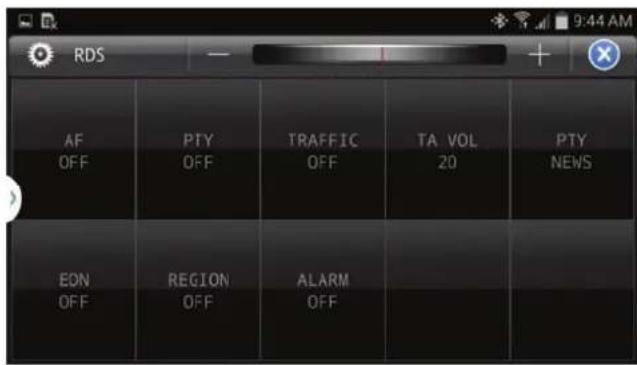
Play Settings

Clock
Date and time is displayed
Return and Volume functions are always present
APP Info

Info
Lets you view the APP Version your device currently has installed.
We constantly update and fix bugs, the APP Version is subject to change without notice.
INSTALLATION METHOD
This is an anti-theft installation method.
The main unit wears a METAL MOUNTING SLEEVE.
Please connect the wiring, eg, the Power supply, the Speakers and the Antenna according to the requirements of this Instruction Manual, then install the metal mounting sleeve into the car as per the diagram illustrated below.

NOTE
Before installing and operating the CD player, remove the metal mounting sleeve illustrated by the arrows.
Remove the two screws that protect the CD player during transportation before operating the player.
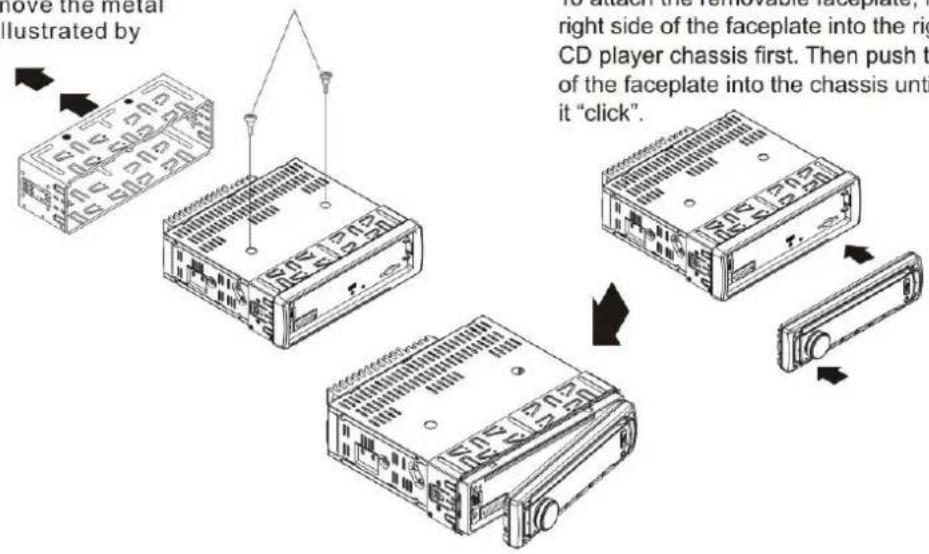
To attach the removable faceplate, insert the right side of the faceplate into the right of the CD player chassis first. Then push the left side of the faceplate into the chassis until you hear it "click".
WIRING

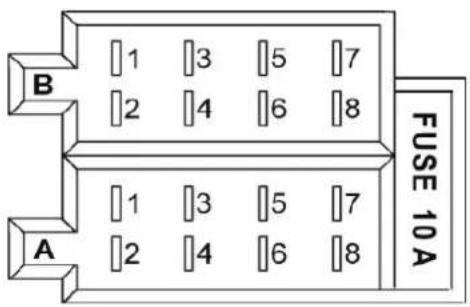
FIXED ISO SOCKET SKETCH
FIXED ISO CONNECTOR A
- CONSTANT +12V DC
- AUTO ANTENNA B+
- ACC +12V DC
- GROUND
FIXED ISO CONNECTOR B
Power supply requirement......DC 12V
Current consumption....10A MAX
Maximum power output....4X60W(Measured at 14.4V)
Number of channels....2 STEREO
Chassis dimensions....(WXHXD)178X50X165(mm)
7"X1.97"X6.5"
FM SECTION
Frequency range....87.5MHz-107.9MHz (US)
87.5MHz-108.0MHz (EU)
Usable sensitivity....3uV
I.F Frequency....10.7MHz
AM SECTION
Frequency range....530KHz - 1710KHz(US)
522KHz-1620KHz(EU)
I.F Frequency....450KHz
Usable Sensitivity....40dB
Pre-Amp Section
Output....1.2V
CD/MMC/SD or USB PLAYBACK
System....MP3 audio system
Usable disc.....CD/CD-R/CD-RW/MP3/WMA
Frequency response....20-100Hz <= 5dB
10-20KHz <= 5dB
Signal to noise ratio(CD)....50dB [1KHz]
MR762BRGB
APP CONTROL | BLUETOOTH®-ENABLED | MARINIZED MP3-COMPATIBLE CD AM/FM RECEIVER
WITH FRONT PANEL USB AND AUX INPUT
1014
BOSS®
AUDIO SYSTEMS
3451 Lunar Court • Oxnard, CA 93030
www.bossaudio.com
800.999.1236
tech support: www.bossaudio.com/support

CE
e1

- DESCRIPTION OF BUTTONS ON REMOTE CONTROL
- BUTTON
- LOCATION AND FUNCTION OF CONTROLS
- COMMON OPERATION
- RADIO OPERATION
- TO SELECT RADIO BAND
- TO SELECT FOR RADIO STATION MANUALLY OR AUTOMATICALLY
- TO STORE THE CURRENT STATION OR TURN ON THE PRESET STATION IN RADIO MODE
- TO AUTOMATICALLY STORE FOR THE STRONGEST STATIONS AND SCAN FOR EACH STATIONS
- TO TUNE FOR RDS STATION
- TO ALTERNATE THE WEAK SIGNAL IN RDS STATION WITH A STRONG ONE
- TA [TRAFFIC ANNOUNCEMENT]
- USB OR DISC OPERATION
- TO LOAD/UNLOAD DISC
- TO LOAD/UNLOAD SD CARD OR USB
- TO SELECT NEXT OR PREVIOUS TRACK TO PLAY
- TO SELECT NEXT OR PREVIOUS 10 TRACK TO PLAY
- TO PLAY FAST FORWARD OR BACKWARD
- BLUETOOTH HANDS-FREE SYSTEM
- PAIRING AND CONNECTION
- USE THE MOBILE PHONE TO DO CONNECTION OR DISCONNECTION
- DIALING WHEN IN CONNECTION STATUS
- ACCEPT/ END CALL
- TALKING VOLUME LEVEL SETTING
- TO TRANSFER THE AUDIO OF A FILE PLAYED BY MOBILE PHONE TO THE CAR AUDIO PLAYER
- PRE NUM
- RECEIVED
- DIALED
- MISSED
- TALK 00
- BLUETOOTH WIRELESS APP CONTROL
- 1.GO TO THE GOOGLE PLAY
- SEARCH FOR "BOSS AUDIO SYSTEMS" & INSTALL
- LAUNCHING BOSS RADIO CONTROL STREAM
- SOURCES
- VOLUME
- RADIO MODE
- AUX-IN
- CD/ USB/ SD/ STREAM MODES
- SETTINGS
- CLOCK
- INFO
- INSTALLATION METHOD
- NOTE
- WIRING
- FIXED ISO CONNECTOR A
- FIXED ISO CONNECTOR B
- FM SECTION
- AM SECTION
- PRE-AMP SECTION
- CD/MMC/SD OR USB PLAYBACK
- MR762BRGB
- BOSS®
Brand : BOSS
Model : MCK762BRGB.6
Category : Unspecified