
PHILIPS MAGIC 3-2 COLOR DECT - DECT Phone SAGEM - Free user manual and instructions
Find the device manual for free PHILIPS MAGIC 3-2 COLOR DECT SAGEM in PDF.


| Product Type | DECT Phone |
| Brand | SAGEM (model PHILIPS MAGIC 3-2 COLOR DECT) |
| Dimensions (handset) | Approximately 160 x 50 x 30 mm |
| Weight (handset) | Approximately 130 g (with battery) |
| Display | Backlit color display (size unspecified, probably 1.5-2 inches) |
| Power supply | Power adapter: 230 V ~ 50 Hz, output 6-9 V DC; rechargeable NiMH battery (2 x AAA or proprietary model) |
| Standby time | Up to 100 hours (estimated) |
| Talk time | Up to 10 hours (estimated) |
| Range | Up to 50 meters indoors, 300 meters outdoors (typical DECT) |
| Main features | Phonebook up to 100 names, caller ID (CLIP), handsfree speaker, call hold, call transfer, intercom (if multiple handsets), do not disturb function |
| Number of possible handsets | Up to 6 handsets (subject to change, standard model) |
| Phonebook | Up to 100 contacts (likely) |
| Call list | 20-50 entries for received, missed, and dialed calls |
| Ringtone | Polyphonic, multiple melodies and adjustable volumes |
| Energy saving function | Automatic standby mode, power reduction during communication |
| Maintenance and cleaning | Clean with a soft, slightly damp cloth; do not use abrasive products or solvents |
| Safety | Do not expose the device to water or humidity; use only the supplied charger; do not open the handset (battery accessible) |
| Spare parts and repairability | Replacement battery available; charging base; power adapter; handset cannot be repaired (sealed) |
| General information | DECT standard (GAP compatible); frequency 1880-1900 MHz; max power 250 mW; operating temperature 5°C to 45°C |
Frequently Asked Questions - PHILIPS MAGIC 3-2 COLOR DECT SAGEM
User questions about PHILIPS MAGIC 3-2 COLOR DECT SAGEM
0 question about this device. Answer the ones you know or ask your own.
Ask a new question about this device
Download the instructions for your DECT Phone in PDF format for free! Find your manual PHILIPS MAGIC 3-2 COLOR DECT - SAGEM and take your electronic device back in hand. On this page are published all the documents necessary for the use of your device. PHILIPS MAGIC 3-2 COLOR DECT by SAGEM.
USER MANUAL PHILIPS MAGIC 3-2 COLOR DECT SAGEM
Easy Install User Manual
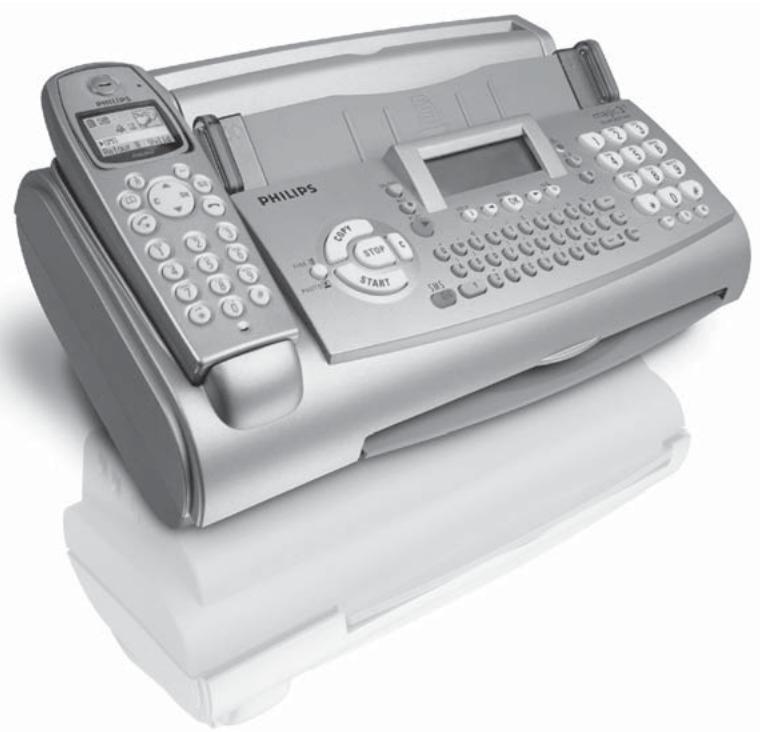
Dear Customer,
With the following installation guide, you can quickly and easily start using your fax machine; you can also find more detailed explanations and descriptions regarding your machine in the user manual. Please read this carefully, and always follow the safety instructions. After you have finished the installation press the HELP/① key for two seconds. Your machine will then guide you through the main settings as well as the adjustment to your telephone line.
Packaging
The following items are included in the packaging:
user manual and installation guide
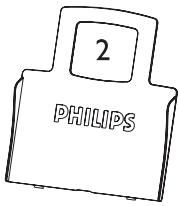
2 paper tray
3 cordless telephone
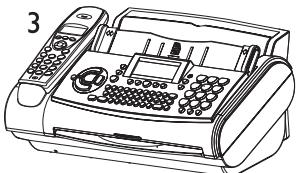
4 fax machine (with loaded ink film)
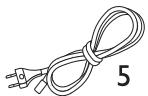
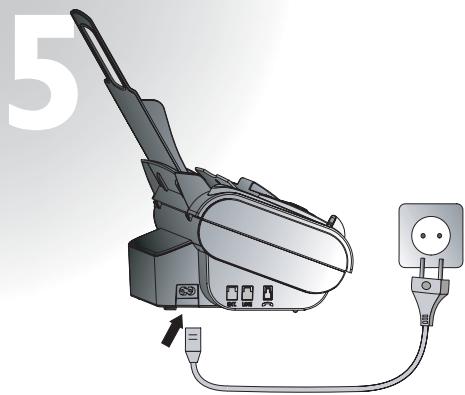
5 mains cable with plug
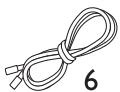
6 telephone cable with plug
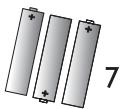
7 rechargeable batteries for the cordless telephone
4
Telephone connection
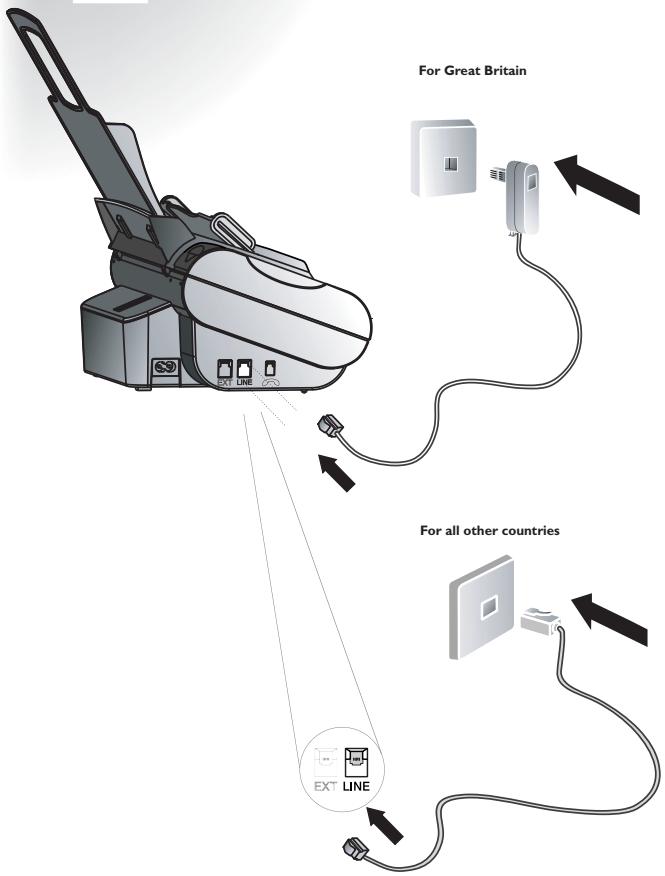
Connect the telephone cable to the fax machine by inserting it in the socket identified with LINE. Next connect the telephone plug to the line socket on the wall.
Cordless telephone
Insert the three batteries as indicated in the battery compartment. Place the cover on the battery compartment, and slide it upward until it snaps into place.
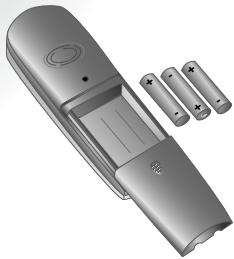
2 Place the cordless handset on the rest provided. Before first use, the batteries must be charged for at least 12 hours.
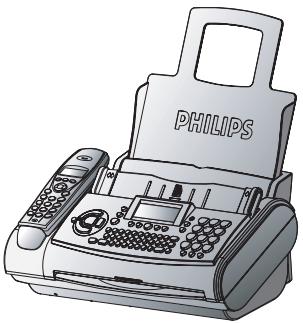
Never put the cordless telephone without batteries on the rest!
Loading paper
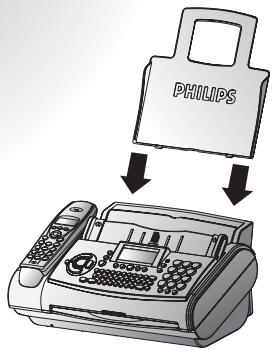
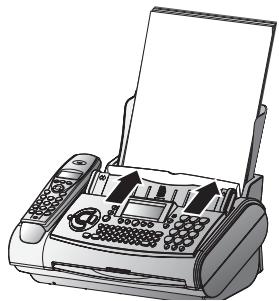
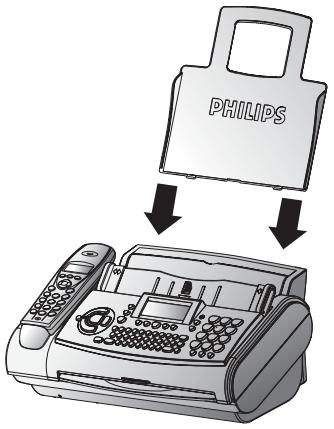
Insert the paper tray in the slots provided behind the paper feed mechanism.
2 Pull the paper feed flap fully forward until it stops. Insert several sheets of A4 paper (80g / m^2) up to the end-stop in the paper feed mechanism (max. 50 sheets).
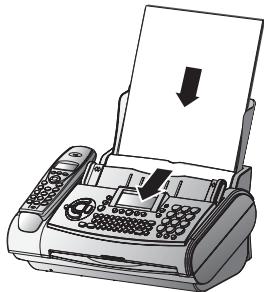
3 Close the paper feed flap.
Power supply
Starting up
To finish the installation process you have to go through some main settings (e.g. adaption of your fax to the telephone line). Using EASY INSTALL your fax machine will be configured according to your local conditions.
Press HELP/① for at least two seconds. Your fax machine will print one page. Follow the instructions on it.
2 Your fax machine will then guide you on the display through the first settings, such as your telephone number and your name.
3 After that it will prompt you to enter the current time and date. Use the dial pad to enter the correct time (e.g. ①⑨ ①⑤ for 9:15).
4 Enter the day, month and year (e.g. ①⑤ ⑩⑤ ⑩⑤ for May 15, 2005).
5 Press OK.
Ink film
Your fax machine is supplied complete with a free ink film for a few trial pages.
A new Plug'n'Print card has to be inserted with each new ink film (only the first free ink film will work without a Plug'n'Print card).
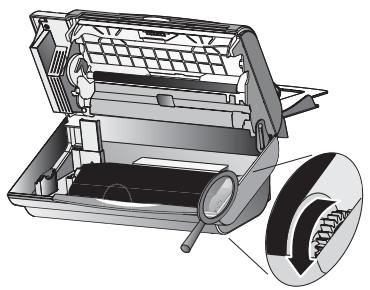
Open the fax machine by lifting the operating panel in the middle until it clicks in place.
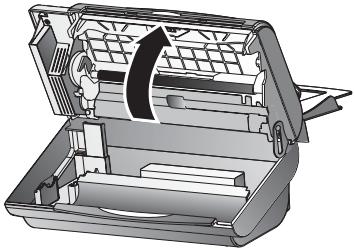
2 Lay the large roll in the grooves in the rear ink film compartment.
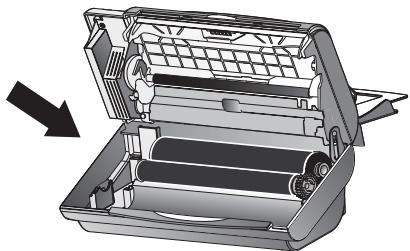
3 Now take the small roll and lay it in the front ink film compartment. Make sure that the blue toothed wheel is on the right and the pin on the left is inserted in the depressions.
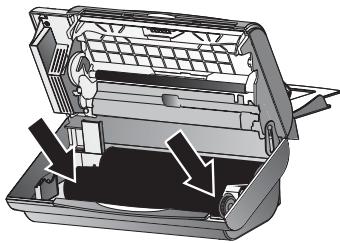
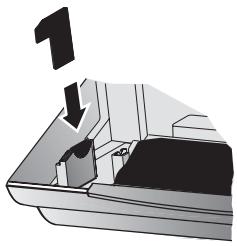
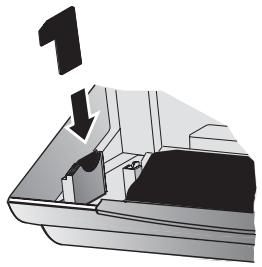
4 Break out the new Plug'n'Print card and insert it in the slot to the left of the ink film compartments.
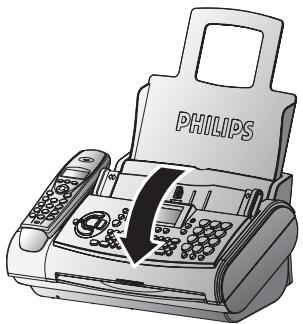
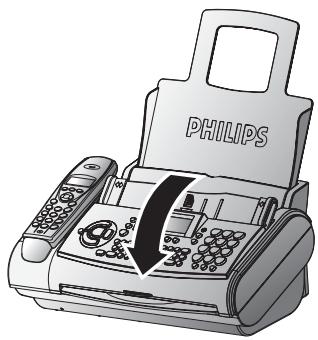
5 Close the machine by swinging the operation panel forward, until it snaps in.
Additional devices
You can connect additional devices (telephones, cordless telephones, answering device, PC modem) to your telephone line (see user manual, chapter Installation / Additional devices).
SMS
(for device with SMS functionality)
Reading SMS messages
When you receive an SMS message you will hear a beep. The message will be stored and automatically printed out.
Sending SMS messages
Press the SMS key, then / to select SEND SMS and OK.
2 The display shows TEXT. Enter your text message (maximum of 160 characters) and press OK.
3 Enter the recipient's number. Confirm with OK and press the SMS key. Your SMS message will be sent.
Answering machine
Your answering machine is factory-programmed with a recorded outgoing message. Activate or deactivate your answering machine with ON/OFF. If you have activated the answering machine, you will see the symbol on the display and a symbol in the display of the cordless telephone.
Listening to messages
If PLAY flashes, messages have been recorded for you.
2 Press PLAY to listen to the first message
After listening to your messages PLAY will stay on until all messages have been erased.
Deleting messages
Press C after having listened to all messages.
2 If you actually want to delete all messages, press C again.
Sending taxes
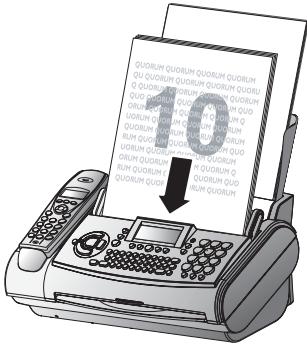
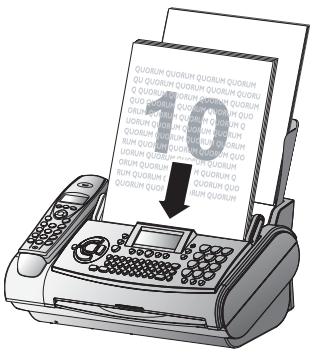
Insert your documents (max. 10 sheets) loosely with the printed side to the front into the document feed slot.

2 Dial the number you require.
3 Press START. Transmission now begins.
Copy
Insert your documents (max. 10 sheets) loosely with the printed side to the front into the document feed slot (see above).
2 Briefly press COPY. The copying process starts immediately.
Description of the machine
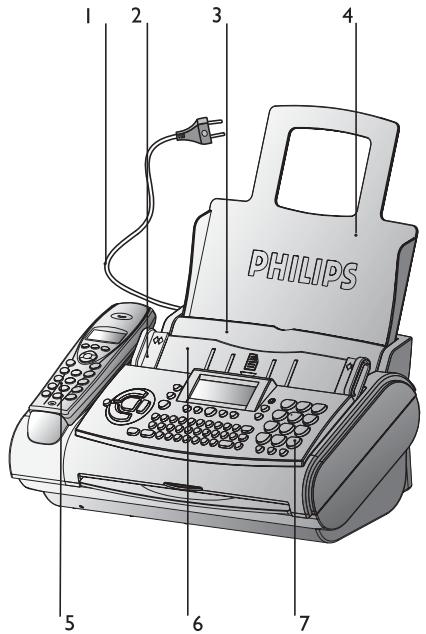
Power supply cable with power plug
2 Paper feed flap
3 Document guide
4 Paper tray
5 Cordless telephone
6 Document feeder
7 Operation panel
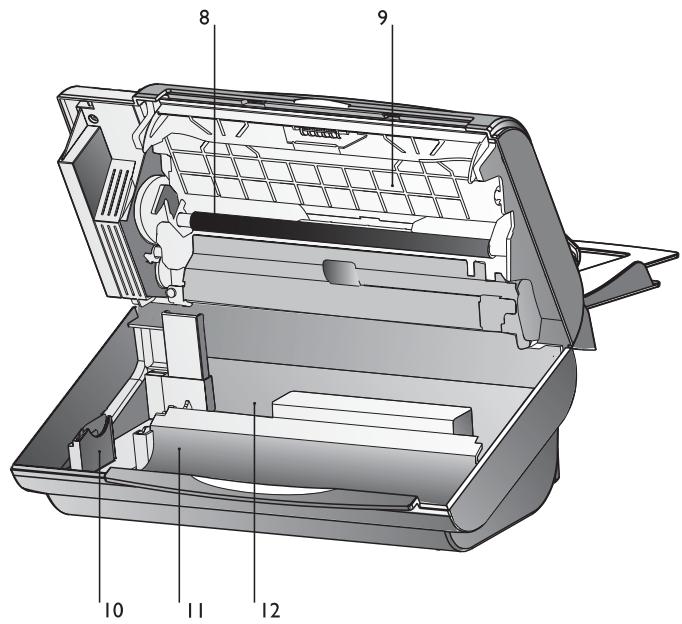
8 Printer roller
9 Scanner lid
10 Holder for Plug'n'Print card
Front ink film compartment
12 Rear ink film compartment
Display symbols *

F / indicates whether you are sending or copying with a higher picture quality or with grey tones. If neither of the two symbols is visible, the standard resolution is selected.
appears when faxes are stored in memory.
indicates ink film consumption.
appears when you receive another call whilst using the device or you receive a call in your absence (not available in all countries).
appears only if there are new SMS messages in the memory (for device with SMS functionality).
shows that the built-in answering machine is switched on.
indicates silent mode selected. Faxes as well as phone calls are received completely silent.
/ / three symbols on the display indicate the current operating mode.
Key assignment on the fax machine
ON/OFF to activate/deactivate the answering machine
REC press briefly: to record an internal memo; press and hold (two seconds): to record a new outgoing message
PLAY to play back messages. The key flashes when new messages and memos have been recorded. After playback the key stays lit until messages have been deleted
HELP/① press twice briefly: to print operating instructions for the most important functions (with references to additional help pages); press and hold (for two seconds): to start the automatic installation of your fax machine / printout of Easy Install
/ to select options / to adjust the volume / to move the cursor on the display
MENU/OK to call up functions / to confirm entries
to select different operation modes. Press briefly: choose between and c ; press and hold (two seconds): operating mode on/off
if the red lamp flashes, please read the message on the display
□A-Z press briefly: to call up a name entry; press and hold (two seconds): to store a telephone number
press twice briefly: to forward a call from the fax machine to all cordless telephones; press once briefly and digit a key: to forward a call from the fax machine to a particular cordless telephone
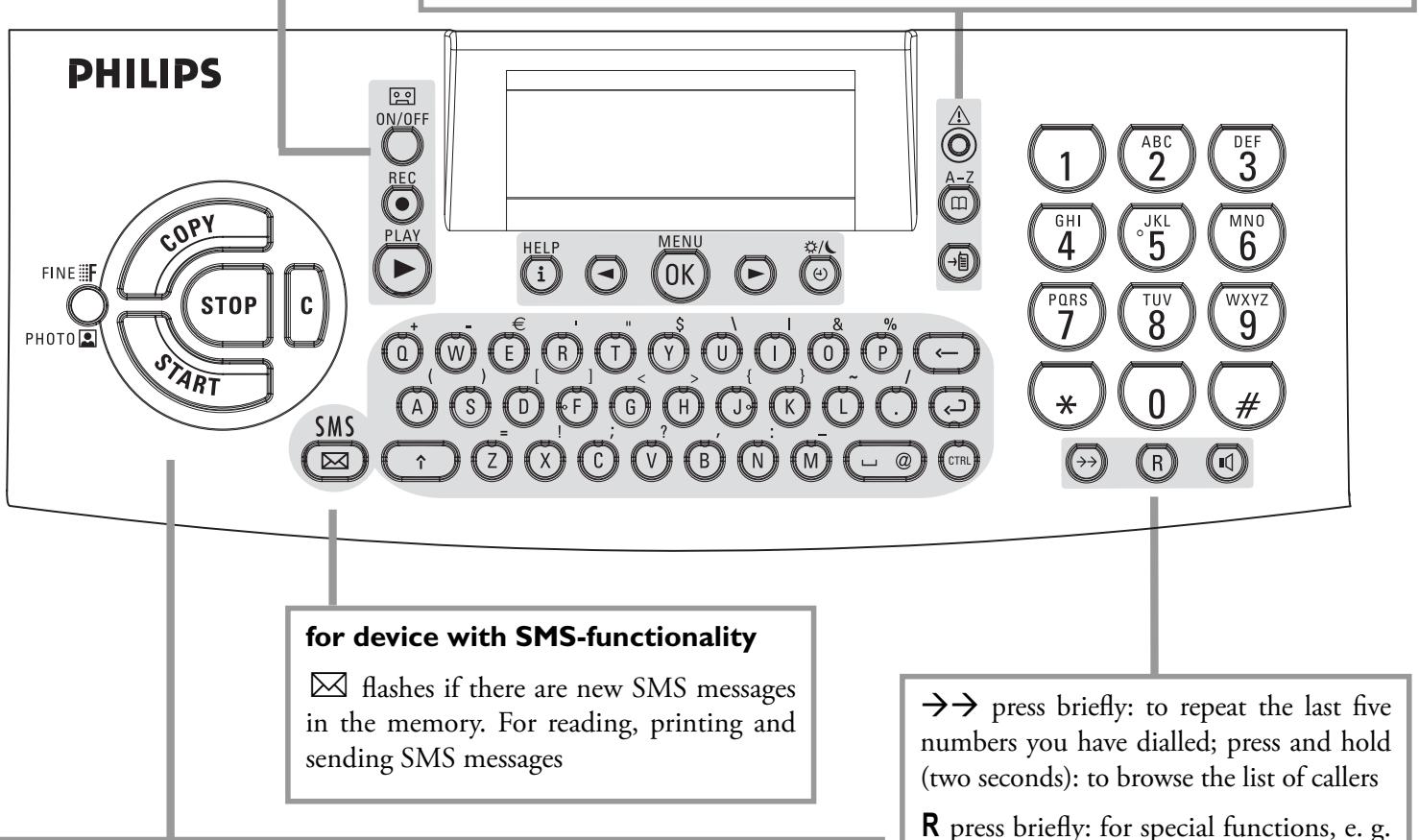
COPY press briefly: copy a document; press and hold (two seconds): multiple copies
START press briefly: to start the fax transmission; press and hold (two seconds): polling
FINE F/ PHOTO to select a higher resolution when copying or sending (for text and graphics—F, for photographs—
STOP to stop procedures / to eject documents
C delete while in edit mode / press briefly: move back one menu level; hold pressed (two seconds): leave menu
press briefly: to repeat the last five numbers you have dialled; press and hold (two seconds): to browse the list of callers
R press briefly: for special functions, e. g. for the use with a private branch exchange and for using various functions provided by your service provider (call waiting, toggling calls, etc.); press and hold (two seconds): to insert a dialling pause between two figures
for dialling without lifting the handset / for hands-free operation
Key assignment on the cordless telephone
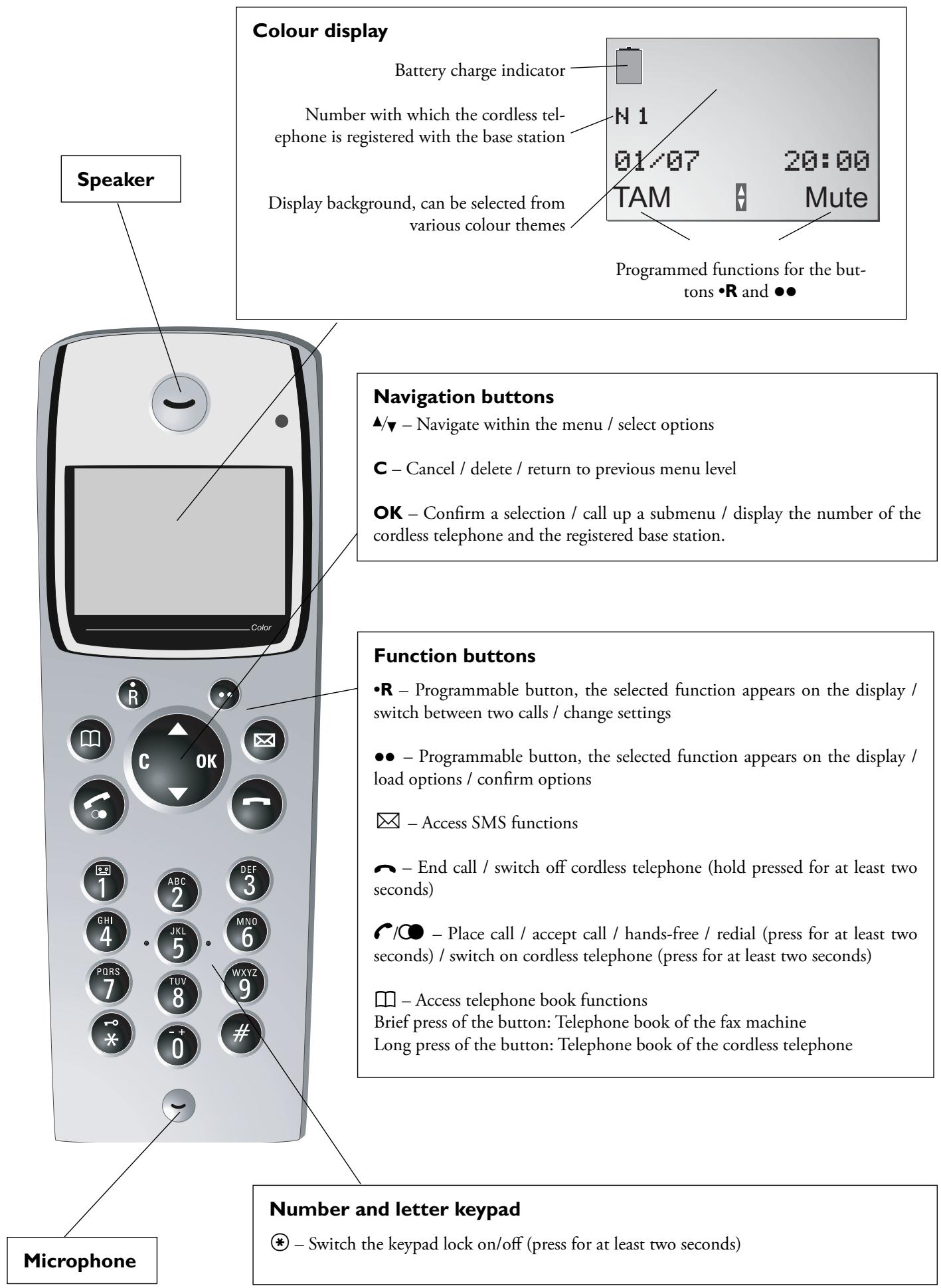
Menu functions on the cordless telephone
Your cordless telephone is equipped with the following menu functions. You can access these functions with the / buttons and confirm with OK. Use the C button to clear the input or exit the menu. If no button is pressed for some time, the cordless telephone returns to its base state.
PHONEBOOK: Management of the telephone book
SMS: Sending, reading, managing SMS messages
CALLS: Call log of the incoming calls, outgoing calls, events.
ACCESSORIES: You can use the cordless telephone as: an alarm (ALARM), timer to inform you when a specific amount of time has passed (TIMER), to remind you of birthdays (BIRTHDAY) or for monitoring a room in combination with another cordless telephone (ROOM MONITOR).
PERSONALIS.: This menu allows you to configure the cordless telephone according to your personal needs. This includes: Ring tone, background, menu colour (AMBIANCE).
SECURITY: Keypad lock, emergency call
SETTINGs: Programming of the two programmable buttons R , below the display, automatic accepting / ending of a call, individual language setting.
ADVANCED SET./SET HANDSET: Configure special settings for the cordless telephone, such as: registration with the fax machine, de-registration from the fax machine, setting the preferred fax machine (base station)
ANS.MACH: Activate/deactivate answering machine, play/delete saved messages
Contents
Packaging 2
Telephone connection 2
Cordless telephone 2
Loading paper 3
Power supply. 3
Starting up 3
Ink film. 4
Additional devices 4
SMS 区 ^ * 4
Answering machine 5
Sendingfaxes. 5
Copy 5
Description of the machine 6
Key assignment on the fax machine. 7
Key assignment on the cordless telephone 8
Safety instructions. 11
Installation 12
Connection 12
Putting the cordless telephone into operation 12
Ink film 13
Loading paper 14
Removing paper 15
Additional devices 15
Easy Install 16
ISDN connection. 17
Private branch exchange 17
Basic settings 18
Help function. 18
Time and date 18
Your number 18
Your name. 18
Correction. 19
Display language 19
Ring tone type. 19
Distinctive ringing 20
Ringer volume. 20
Fax switch 21
Timer 21
Set mode 21
Telephone 23
Making a call. 23
Redial 23
Telephone book A-Z on the fax machine 23
Group 24
Hands-free operation 25
Caller line identification 25
Easylink 25
Fax & Copy 27
Feeding documents in 27
Sendingfaxes. 27
Fax reception 27
Broadcast 28
Image quality 28
Contrast. 28
Transmission and error reports 28
Transmission speed. 29
Size compression 29
Fax journal. 29
Polled reception. 29
Send later 30
Copy 30
SMS * 31
SMS settings 31
Reading SMS messages. 31
Sending SMS messages 32
Printing SMS messages 32
Deleting SMS messages 32
Other SMS functions 33
Disable SMS reception 33
Answering machine 34
Switching on and off 34
Recording a message. 34
Anonymous outgoing message. 34
Duration of recording 34
Listening to messages 34
Play back volume 34
Deleting messages. 34
Forwarding messages 35
Recording a conversation. 35
VIP code 35
Memo 35
Remote control on the fax machine. 36
Remote control on the cordless telephone 37
Cordless telephone 38
Registering and de-registering the cordless telephone with the fax
machine 38
Placing calls. 39
Redialling. 39
Call log 39
Call functions. 39
Forwarding. 39
Second call 40
Secret mode. 40
Internal telephone calls. 40
Ring type 40
Button tones / warning tones 40
Telephone book 41
SMS^* 42
Additional functions of the cordless telephone 44
Search function 45
Switching on and off 45
Changing batteries 45
Hints and Tips 46
Delivery service 46
Paper jam 46
Document jam 46
Service code. 47
Care 47
Troubleshooting 48
Appendix 50
Functions 50
Technical data 51
Warranty. 52
Environment. 53
Index. 54
Safety instructions
Pease read all warning notices and instructions and follow them precisely.
The fax machine must stand securely on a smooth, flat, horizontal surface (no soft surface such as carpets etc.). Any fall can cause severe damage to the fax machine and/ or injury to people, especially small children.
Because the document exit is at the front of the machine, this area should be kept unobstructed.
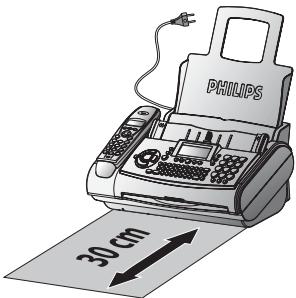
Avoid exposure to direct sunlight (the cartridge is heat-sensitive) and close proximity to heaters, radios and TV sets, air conditioning vents, dust, water and chemicals is not advised.
Make sure that air circulates freely around the fax machine. Do not operate the fax machine in closed boxes, cupboards, cabinets etc. Never cover the fax machine (tablecloths, paper, folders etc.). Do not place the fax machine on beds, tablecloths, cushions, sofas, carpets or other soft underlays due to the danger of overheating and subsequent fire.
Never connect the telephone in damp rooms unless the wall sockets are specially designed for humid conditions. Never touch the power plug, connection to the mains or telephone socket with wet hands.
Never touch uninsulated telephone or power cables with damaged insulation, unless the telephone cable is disconnected from the telephone line and/or the power cable is disconnected from the power line.
Place the fax machine on a flat surface and ensure a minimum clearance of 10cm between the fax machine and other machines and objects.
If you want to use another cordless phone, ensure that the fax machine and the base station of the other cordless phone are at least 15cm apart otherwise you may get acoustic interference in your handset.
Ensure safe cable laying (danger of stumbling, damage to the cable or the fax machine).
Disconnect the fax machine from the mains and telephone line before cleaning the surface of the machine.
Never use liquid or gaseous cleaning agents (sprays, scouring agents, polishes etc.).
Do not allow any liquid to enter the fax machine, otherwise there is a risk of electric shock or other injury to people and severe damage to the fax machine. If any liquid does enter the fax machine, immediately remove the power plug and have the fax machine professionally inspected.
If the display breaks, a mildly corrosive liquid may leak out. Avoid contact with skin and eyes.
In case of any damage caused to the housing of your fax machine in particular to power cables please remove the mains plug and call your service repair centre. The housing of your fax machine may only be opened by authorised service personnel.
Your fax machine has been tested in conformity with standards EN 60950 and IEC 60950 respectively, and may only be operated with telephone systems and power equipment which meet these standards.
Never expose your fax machine to rain or any other form of moisture, in order to prevent the risk of electric shock or fire.
In a thunderstorm, disconnect the fax machine from both the mains and the telephone line. If you are unable to disconnect the fax machine, do not use it and do not telephone due to the danger of lightning strike and/or damage to the device.
Neither telephone nor fax will operate during power failure.
Your fax machine was built for exclusive use in the country of purchase. It complies with the local network specifications.
For safety reasons, the cordless handset should never be placed on the cradles without its rechargeable batteries or battery cover.
Explanation of the safety instructions on the cordless handset:
General warning
Do not touch contacts
Further information in the operating instructions
Installation
Connection
Telephone socket
Connect the telephone cable to the fax machine by inserting it in the socket identified with LINE. Next connect the telephone plug to the line socket on the wall.
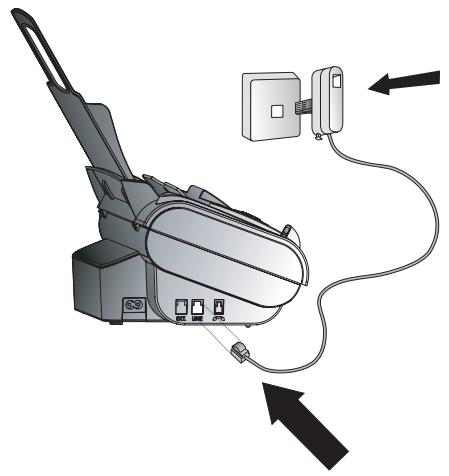
In the UK
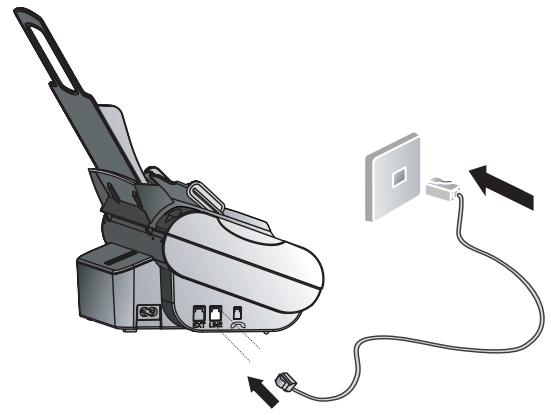
For all other countries
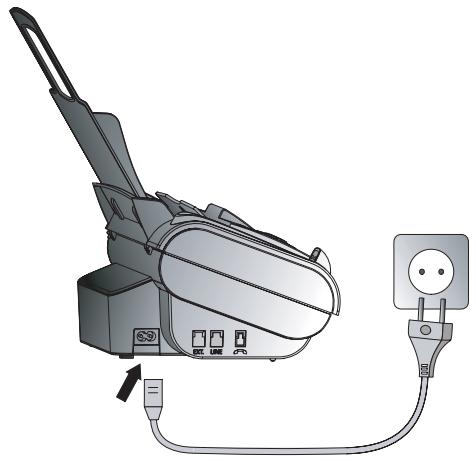
Power supply
Putting the cordless telephone into operation
Insert the three batteries as indicated in the battery compartment.
Never use typical batteries.
Never place the cordless telephone in the charging station without batteries.
The manufacturer accepts no liability in the event this instruction is not heeded.
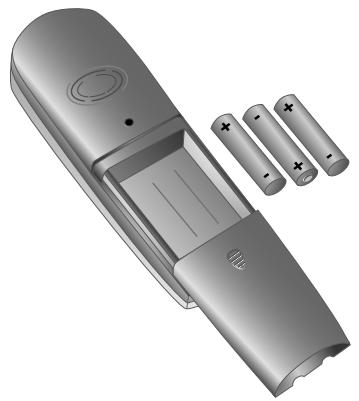
2 Place the cover on the battery compartment, and slide it upward until it snaps into place.
3 Place the cordless telephone on the cradle provided on your fax machine with the buttons facing up (see image). The charge symbol on the display of the cordless telephone indicates the charging state.
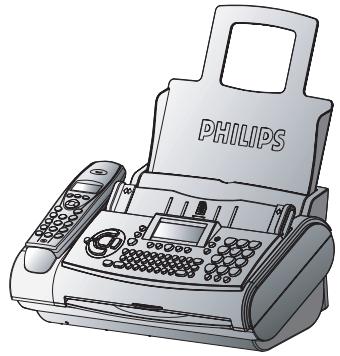
Charge the cordless telephone for at least 12 hours before its first use. The batteries will heat up slightly during the charging; this is not dangerous and does not represent a malfunction.
The cordless telephone is normally configured for your fax machine at the factory. If your cordless telephone is not registered with the multifunction machine, please perform the registration function on the cordless telephone and the fax machine (see section Cordless telephone / Registering and de-registering the cordless telephone with the fax machine).
Charge state of the batteries
The charge state of the batteries is shown on the display of the cordless telephone. If this is too low, the display lighting is switched off to save power. The volume of the hands-free function is also reduced. Place the cordless telephone in the charging station on the fax machine.
From time to time, discharge the batteries until your cordless telephone switches off. Then place the cordless telephone in the cradle provided on your fax machine with the buttons facing up (see image) and charge the batteries completely. This will help extend the service life of the batteries.
Ink film
You cannot receive or copy documents unless an ink film is loaded in the fax machine. The machine is therefore supplied complete with a free ink film for a few trial pages.
The symbols indicate how much ink film has already been used.
The consumption and print setting are stored on the supplied Plug'n'Print card. A new Plug'n'Print card therefore must be inserted with each new ink film. The settings were made at the factory for the initial free ink film. Therefore only this ink film will work without a Plug'n'Print card. If the Plug'n'Print card is missing or if it is not replaced the message CHANGE CARD appears on the display.
If the message INKFILM LOW appears on the display, there is not much ink film remaining. However, you can still print out a few more pages.
If the ink film is finished or if there is no ink film in the fax machine, the red display lamp flashes, and the following message appears: REFILL INKFILM.
Before loading a new ink film you must remove the paper from the paper feed mechanism! If necessary, also remove the cordless telephone. To insert the ink film follow the instructions on your ink film packaging!
2 Open the fax machine by lifting the operating panel in the middle until it clicks in place.
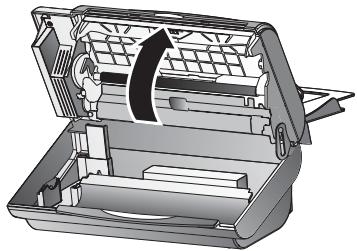
For use with PHILIPS ink films only!
Removing the ink film
- Lift the rear ink film roll holding both sides with your index fingers upwards, in order to remove it out of its seat and place it next to the front ink film roll.
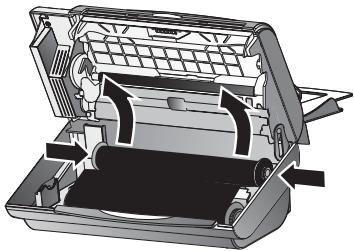
2 Remove both ink film rolls. They cannot be reused.
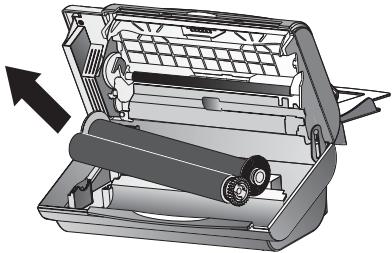
3 Remove the old Plug'n'Print card from the slot to the left of the ink film compartment (only the initial free ink film does not have a Plug'n'Print card).
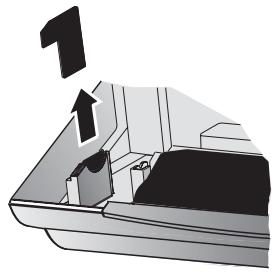
Loading the ink film
Carefully remove the rubber rings from the new ink film. Take care not to damage the ink film.
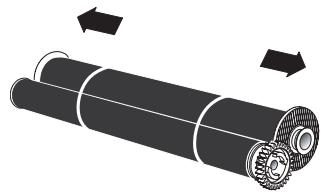
2 Lay the large roll in the grooves provided in the rear ink film compartment. The blue toothed wheel must be on the right-hand side.
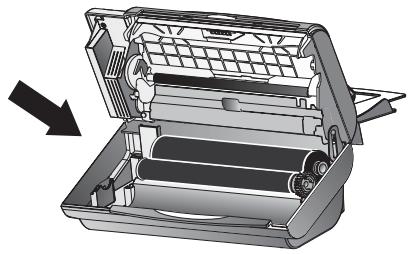
3 Now take the small roll and lay it in the front ink film compartment. Make sure that the blue toothed wheel is on the right and the pin on the left is inserted in the depressions.
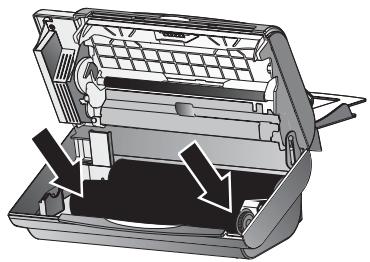
4 Turn small roll forward to tension the ink film. Make sure that the ink film is not creased.
5 Break out the new Plug'n'Print card and insert it in the slot to the left of the ink film compartments.
6 Close the machine by swinging the operation panel forward, until it snaps in.
Loading paper
Before you can copy documents, paper must be loaded in your fax machine. Please use only the following paper format: standard A4 210 × 297 mm. The fax machine works with normal paper used for writing and copying and has been optimised for smooth 80g / m^2 paper. The smoother the paper surface the better the print quality.
Insert the paper tray in the slots provided behind the paper feed mechanism.
2 To prevent several sheets being drawn into the machine at once, first fan out the paper to separate the sheets and then straighten the stack on a flat surface before inserting it into the paper feed.
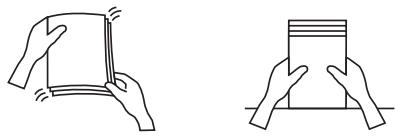
3 Pull the paper feed flap fully forward until it stops. Insert several sheets of A4 paper (80g / m^2) up to the end-stop in the paper feed mechanism (max. 50 sheets).
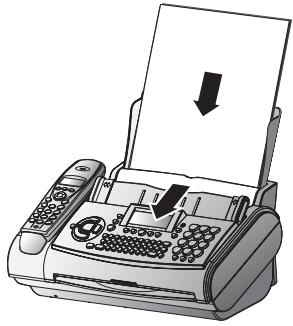
4 Close the paper feed flap.
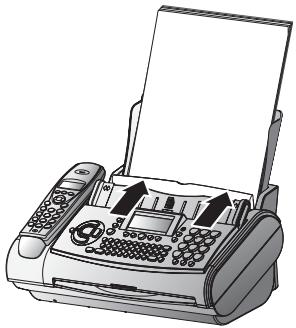
Never load paper while the fax machine is printing!
Removing paper
To remove the paper, open the paper feed flap and carefully pull out the paper. Close the flap again.
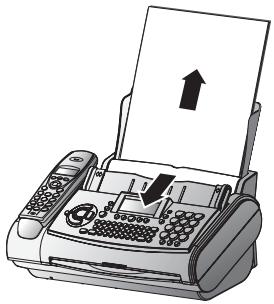
In the event of a paper jam see Hints and Tips / Paper jam.
Additional devices
You can operate other equipment on a single telephone line in addition to your fax machine, and cordless handset, such as other telephones, cordless phones, answering machines, charge counters and modems.
If you operate another SMS-compatible cordless phone on the same line there is no guarantee that a particular SMS will be received on your fax machine or on the other cordless handset. However, you can only receive SMS messages on one device at any one time. Try to disable SMS reception on the additional cordless phone. If you cannot do this, disable SMS reception on the fax machine (see SMS / Disable SMS reception).
If you intend using special auxiliary devices with your fax machine, please contact your dealer.
If you wish to receive faxes via modem, you must set your fax machine to MANUAL RECEPTION.
Same socket
In the UK
You can connect additional devices to the same telephone socket. Make sure the fax machine is the first device connected to the line.
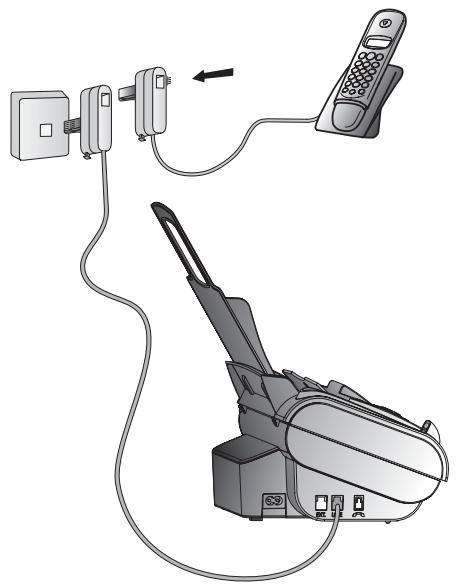
For all other countries
You can connect additional devices to the same telephone socket by using the socket labeled EXT on your machine.
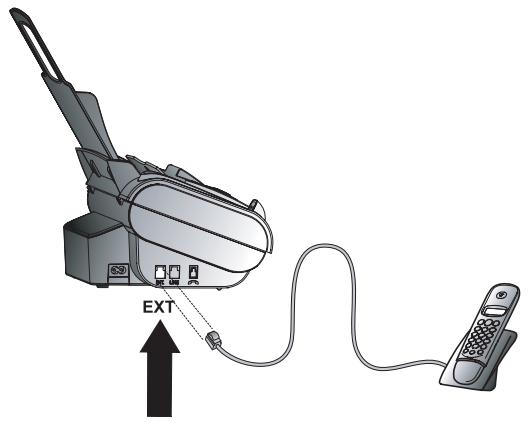
Connecting additional devices to the same socket ensures you the optimal functioning of your fax switch (e.g. call transfer). Your fax machine can control the additional devices.
Separate sockets
You can connect additional devices to separate sockets on the same line even if they are in different rooms.
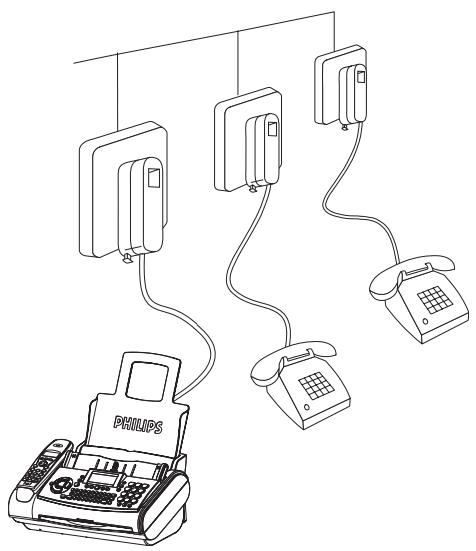
In the UK
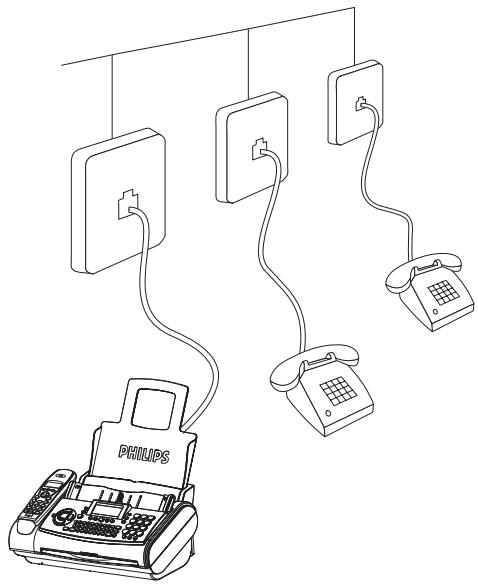
For all other countries
If you connect additional devices to separate sockets (e.g. in separate rooms) your fax switch cannot control them (which means that your machine behaves like any ordinary machine). For this reason e. g. call transfer is not possible. Therefore we recommend you to connect your additional devices to the same socket.
Easy Install
Easy Install ensures that your fax machine will set itself up perfectly according to your own personal circumstances.
Press HELP/① for at least two seconds. Your fax machine will print one page. Pull out the page firmly and follow the instructions.
2 Your fax machine will then guide you on the machines display through the first settings such as your fax number and your name.
3 Afterwards you need to enter the current time and date. Use the dial pad to enter the correct time and date. Confirm with OK.
ISDN connection
Your fax machine is not an ISDN fax (group 4), but an analogue fax machine (group 3). Therefore it cannot be used directly on an ISDN connection. You will need an (analogue) adapter or an ISDN connection for analogue devices. For further information please refer to your ISDN instructions.
If problems occur with fax reception over the ISDN line, please note that many ISDN systems must be specially configured for this (refer to the operating manual of your ISDN system).
For device with SMS function: Analog terminals must be SMS-compatible.
Private branch exchange
Private branch exchange systems are very common in large companies. ISDN connections are private branch exchanges and are used very often in private households. To get a connection from a private branch exchange to the public network you have to dial a key to obtain the outside line.
Select function 15 on your fax machine by pressing MENU and then entering the digits ①⑤ . Press OK.
2 You can switch on the PABX operation using / .
PABX:YES
PABX: NO
3 Then press OK.
4 Now enter the key that has to be pressed to obtain an outside line.
This outside line access code must be obtained from the manufacturer. This is either 0 or R (in some systems also described as FLASH) or a number key.
5 Press OK.
6 Use / to select CHECK: YES and press OK.
Your machine will then check that the outside line can be obtained. If the check is successful, the following message appears briefly: CHECK OK.
If the check is successful, the following message appears briefly: CHECK NOT OK.
You will be asked to repeat the entry. Change the outside line access code. If you have entered the correct code but the display continues to read CHECK NOT OK then delete the code by pressing C.
In case your PABX requires R to obtain an outside line but it is still not possible to get through to the line, your system may not meet the most recent regulations. Therefore some technical settings have to be changed on your fax machine. Please refer to your Fax Call Centre (you will find the telephone number on the back cover).
Basic settings
If you want to keep a note of the factory settings on your machine for later, we recommend printing out a function list before you change any of the settings: Press MENU. three times.
If you press a wrong key by mistake, press the STOP key as often as necessary to return to the original position. If you have entered a wrong digit or character, you can correct it with / and C.
If you want to delete your individual settings, you can do so in function 45 Service code (see Hints and Tips / Service code).
Help function
Press HELP/① twice. You will receive a printout explaining how to use the most important functions. It also specifies how to obtain further HELP pages concerning other features of your fax machine.
Time and date
1 Select function 12 by pressing MENU, ①② and OK on your fax machine.
2 Enter the correct time using the number keys (e.g. ①⑤ for 9:15 a.m.). Your fax machine will now ask you for the correct date (e.g. ①⑤ ①⑤ ①⑤ for May 15th, 2005).
3 Press OK.
Your number
1 Select function 13 by pressing MENU, ①③ and OK on your fax machine.
2 Enter your telephone or fax number. (e.g. # 44 or # 6151 ... use # or # to enter the “+”, that is often used in international fax numbers in front of the country code, and to enter a space. You can enter a maximum of 20 characters).
3 Press OK.
Your name
1 Select function 14 by pressing MENU, ①④ and OK on your fax machine.
2a For device with SMS functionality: Enter your name using the alphabetic keypad. To enter upper case letters, press and the desired key at the same time. The available special characters (see below) are printed above and to the right of the keypad buttons and can be entered by pressing the CTRL button simultaneously with the corresponding letter button (for example, press the CTRL button and E at the same time to enter €). Press to enter a space. If you have entered a wrong letter or number press C to delete the character. Press OK.
| Shift + A | A | Ä Ä Ä Ä |
| A | a | ä ã ã ã |
| Shift + C | C | C |
| C | c | c ø |
| Shift + D | D | Δ |
| D | d | |
| Shift + E | E | ë ë ë ë |
| E | e | ë è é Œ |
| CTRL + E | € | à |
| Shift + F | F | Φ |
| Shift + G | G | Γ |
| CTRL + G | < | ^ |
| CTRL + H | > | ^ |
| Shift + I | I | i i i i i |
| I | i | i i i i i |
| Shift + L | L | Λ £ |
| M | m | μ |
| Shift + N | N | Ñ |
| N | n | ñ |
| Shift + O | O | Ö Ω Ø ō Ó ō ŏ |
| O | o | ö ø o á o ō |
| Shift + P | P | Π Ψ |
| Shift + S | S | Σ |
| S | s | β |
| Shift + T | T | Θ |
| Shift + U | U | ü û Ŧ Š |
| U | u | ü û Ŧ Š |
| CTRL + V | ? | ì |
| Shift + X | X | Ξ |
| CTRL + X | ! | i |
| Shift + Y | Y | dehy |
| Y | y | ŷ |
| CTRL + Y | ☐ | |
| Shift + Z | Z | |
| Z | z | |
2b For device without SMS function: You can also enter letters using the number keys (a maximum of 32 characters). Press a number key as often as necessary to enter the desired letter, e. g. for C press ② three times. After pressing the cursor moves one place to the right. The following letters and special characters are available:
key character
⑩ space. -0 + ?/ : * %!() [ ] ,
① 1
② ABC 2 abc ÅÅEÇ āäç
③ DEF 3 def
GHI 4 ghi
⑤ JKL5jk1
MNO 6 mno Nö nö
PQRS7pqrs
TUV8tuvi
⑨ WXYZ9wxyz
3 Press OK.
"Your name" and "your telephone number" are transmitted at the top of each page together with the date, time and page number, if you store this data with function 13 and 14.
Correction
Pressing C briefly will return you to the previous menu level; holding C pressed (two seconds) will leave the menu.
If you have entered a wrong letter or number in function 13 or 14 you can correct the mistake during the entering as well as later. If you want to make your corrections later you have to select the functions for entering numbers or names once again. If you want to correct anything at a later stage you need to call up the function again on your fax machine to enter the number or name.
Use to select the character you want to change. Press C to delete the character. A long press on C (two seconds) will delete the whole line. Press OK.
Display language
for the fax machine
- Select function 11 by pressing MENU, ①① and OK on your fax machine.
2 Select the desired language with / .
3 Press OK.
The cordless telephone automatically takes over the setting you have configured on the fax machine.
for the cordless telephone
Upon the initial installation of the fax machine or use of function 11, the display language of the cordless telephone is taken from the fax machine. This function only allows you to change the display language of the cordless telephone.
1 On the cordless telephone, use / and OK to select SETTINGS/LANGUAGE. and confirm with OK.
2 Press R (Edit) and use / to select the desired language.
3 Confirm with OK.
If you change the language on the fax machine (function 11), the language on the cordless telephone will also be changed.
Ring tone type
for the fax machine
You can choose from ten different types of tones.
1 Select function 35 by pressing MENU, ③⑤ and OK on the fax machine.
2 Select the desired ring tone with ① to ⑨.
3 Press OK.
Distinctive ringing
1 Select function 36 by pressing MENU, ③⑥ and OK on your fax machine.
2 Use / to select the category that you would like to assign a specific ring tone.
3 You can select from the following categories
FAMILY
FRIENDS
SERVICE
WORK
4 Confirm with OK.
5 Use the number buttons from ① to ⑨ to select the desired ring type.
6 Confirm with OK.
Ringer volume
for the fax machine
You can adjust the volume of the ring tone if the fax machine is in stand-by mode or if it is just ringing. Please note that different volumes can be sett for the modus and (see chapter Fax switch).
By pressing / on your fax machine the display shows the current setting for about three seconds.
2 Change the volume by pressing / until the desired volume is achieved.
Speaker volume
for the fax machine
Press
2 Change the volume by pressing / until the desired volume is achieved.
3 Finish your entry by pressing STOP.
Fax switch
The built-in fax switch enables you to phone and fax from the same telephone connection and use additional devices. The fax switch separates fax and voice messages. For example, it can receive fax messages silently, i. e. without ringing to avoid causing a disturbance.
The operating modes and for day and night operation each allow you to decide on different modes during the day and at night, how often the machine should ring prior to receipt of faxes or before the answering machine is turned on.
You may change-over the operating mode between and of your fax machine automatically, using the timer function .
Timer④
The built-in timer d distinguishes between day and night C. With the default values the fax machine will ring during the day when it receives fax calls and telephone calls. At night (10:00 p.m. to 6:00 a.m.), faxes will be received without ringing and telephone calls will be announced with a quieter ring.
If the (i) symbol is displayed the timer is activated. To switch the timer on or off hold down the (i) button for two seconds.
You can change the times when the fax machine should switch between day and night:
1 Select function 33 by pressing MENU, ③③ and OK on your fax machine.
2 Enter the time at which you want your fax machine to switch automatically to (e.g. ①⑧ ①⑩ for 8:00 a. m.) and confirm with OK.
3 Enter the time at which you want your fax machine to switch automatically to C (e.g. ②③ ③① for 11:30 p.m.) and confirm with OK.
Set mode
| Display | Possible settings |
| TAM RINGS: | 0, 1, 2, 3, 4, 5, 6, 7, 5/2 |
| FAX RINGS: | 0, 1, 2, 3, 4, 5, MANUAL RECEPTION |
| RINGER VOL.: | LOW, MED, HIGH |
| LISTEN IN: | ON, OFF |
1 Select function 31 (day) by pressing MENU, ③① and OK on your fax machine.
2 Select number of rings with / before your answering device will be activated. TAM RINGS: 5/2
3 Confirm with OK.
4 Enter the number of rings after which the fax machine goes on-line and separates faxes from telephone calls. If the call is a fax call the fax machine switches to reception. Telephone calls will continue to ring. FAX RINGS: 5
5 Confirm with OK.
6 Using / , determine the ringer volume when receiving a call. Confirm with OK. RINGERVOL: HIGH
7 Select with / if the caller should be heard while leaving a message. LISTEN IN: ON, OFF
8 Confirm with OK.
9 To activate mode (select MENU ③② (Night) OK and repeat steps 2 to 8.
Special settings
Silent fax reception
To receive faxes without any ring signals, set the amount of ring signals in FAX RINGS to 0.
Completely silent operation 5
If, for example, you do not wish to be disturbed by calls or faxes arriving at night, you may set the number of ringing signals (TAM RINGS and FAX RINGS) to 0. Faxes are then received silently and calls are immediately answered by the answering machine, provided you have switched the answering machine on.
Manual fax reception
If you select MANUAL RECEPTION faxes will not be automatically received by your fax machine unless you activate fax reception yourself. Lift the handset and press START. This may be sensible for example, if you wish to receive your faxes by modem at your computer.
Economy operating mode
If you select option 5/2 at TAM RINGS your answering machine will answer the call after two ringing signals instead of after five, when you receive new messages. Using the remote access function (see page 31) you have the opportunity to check, whether your answering machine holds any messages without incurring telephone cost (if your answering machine turns itself on after only two ringing signals you will know, that new messages have been left). After listening to your new messages your answering machine will, at the next call, switch itself on again after five ringing signals.
Telephone
Making a call
To place a call, enter the desired telephone number with the number buttons of the cordless telephone, then press the dial button /
You can delete an incorrect digit with C.
During the call, you can increase or decrease the volume with /
You can also select an entry from the telephone book (cordless telephone: long press of button / fax machine: short press of button ) or the radial list (hold green button / pressed).
2 To accept a call, also press the dial button ±br / ±b .
3 To end the call, press
Additional functions of the cordless telephone are described in the section Cordless telephone.
You can also dial numbers on the fax machine. Once you have done this, press the / button on your cordless telephone to establish the connection.
You can make also telephone calls on the fax machine. To do this, press l
Pressing R on your fax machine gives you access to many of the new services (call waiting, toggling, etc.)
Redial
on the fax machine
With you can recall the last ten numbers dialled.
Press
2 Press / , until the desired number appears on the display. If you want to edit the number press OK and make the desired changes.
3 Press the / button on your cordless telephone to establish the connection.
With , / and C you can delete the numbers you do not need any more from the radial memory. Confirm with OK.
Call list
on the fax machine
The list shows the last 50 telephone numbers you have dialled. After 50 entries, the list is automatically printed out.
Press MENU, ④① and OK.
2 Use / to select CALL HISTORY? Y.
3 You can now select between PRINT: NOW and PRINT: EVERY 50. The list is printed.
Telephone book A-Z on the fax machine
The memory in your fax machine can store about 200 names and numbers. The precise number depends on the lengths of the entries.
Saving entries
For a machine with SMS function
Hold A-Z pressed for two seconds.
2 Enter a last name using the keypad. Then press OK.
3 Use the keypad to enter a first name and press OK.
4 For the subsequent entries, you will be asked for the numbers: HOME, WORK, CELL, FAX, EMAIL.
5 Enter the desired entry and confirm all your inputs with OK. You can also skip over entries with OK.
6 You can assign this entry to a category: DEFAULT, FAMILY, FRIENDS, SERVICE, WORK.
7 Confirm with OK.
You can now assign a specific ring type to this category:
1 Select function 36 by pressing MENU, ③⑥ and OK on your fax machine.
2 Use / to select the category that you would like to assign a specific ring tone.
3 You can select from the following categories: FAMILY, FRIENDS, SERVICE, WORKS
4 Confirm with OK.
5 Use the number buttons from ① to ⑨ to select the desired ring type.
6 Confirm with OK.
For a machine without SMS function:
Hold A-Z pressed for two seconds.
2 Enter a name using the keypad. Use to move the cursor one position to the right. Then press OK.
3 Enter the number you would like to save, then press OK.
4 You can assign this entry to a category: DEFAULT, FAMILY, FRIENDS, SERVICE, WORK.
5 Confirm with OK.
You can now assign a specific ring type to this category:
- Select function 36 by pressing MENU, ③⑥ and OK on your fax machine.
2 Use / to select the category that you would like to assign a specific ring tone.
3 You can select from the following categories: FAMILY, FRIENDS, SERVICE, WORK.
4 Confirm with OK.
5 Use the number buttons from ① to ⑨ to select the desired ring type.
6 Confirm with OK.
Using the telephone book (for a machine with SMS function)
Press the initial letter of the entry you are looking for (e.g. M). Press the following letters of the name (e.g. I, C, H and MICHAEL appears on the display).
2 Press OK.
3 Press on the cordless telephone / or, if you would like to send a fax, press START.
Using the telephone book (for a machine without SMS function)
Press A-Z. The first stored name or telephone number appears on the display. Press / until the desired number appears. If you want to edit the number, press OK and make the desired changes. Confirm with OK.
2 Press on the cordless telephone / or, if you would like to send a fax, press START.
Correcting entries
Press A-Z and select the entry you want to correct with / then press A-Z for two seconds. Select a character with / and press C to delete it. Confirm with OK.
Deleting entries
Press A-Z and select the entry you want to delete with / and press C. Choose with / whether you really want to delete the entry. Confirm with OK.
List of numbers
Choose function 44 to print a list of your stored telephone book numbers. Press MENU, ④④ and OK.
Group
You can organise several entries in your telephone book on the fax machine into groups, e. g., to send one fax to several persons.
Creating groups
1 Select Function 46 by pressing MENU, ④⑥ and OK on your fax machine.
2 Select a group from 1 to 5 using / and then press OK.
3 Use / to select ADD MEMBER? and confirm with OK.
4 All numbers saved in the telephone book of your fax machine will be displayed. Select the entry you want to save using and confirm with OK.
5 The saved entry will appear on the screen. Continue as described above until all desired numbers are saved to the group. When finished press STOP.
Searching groups
To browse all entries in a group, call up function 46 and select the desired group from 1 to 5 using / . Press OK.
2 Select VIEW MEMBERS? using and confirm with OK.
3 You can use / to look through all entries. You can exit the group by pressing STOP.
Deleting entries or entire groups
1 Call up function 46 and select the desired group from 1 to 5 using . Press OK.
2 Using / select DELETE MEMBER? and confirm with OK.
3 Using / select an entry that you want to delete and press C. Select whether or not you actually want to delete the entry or the entire group using / . Confirm with OK. To quit the function press STOP.
Hands-free operation
You can make a call without using the cordless telephone or let persons in the same room participate in the conversation. To do this, press the button on the fax machine before dialling or when a call is forwarded from your cordless telephone to the fax machine. The microphone and the loudspeaker on the fax are now activated.
Caller line identification
(not available in all countries)
Calling line identification is a service that makes it possible to identify the caller based on the telephone number shown on the display even before the connection is established. If you receive a telephone call during your absence, the symbol will appear on the display. The telephone numbers of the last ten received calls are stored.
Press on your fax machine for two seconds.
2 Using / you can now step through the entries. The new entries are marked with an * .
3 To call back the displayed number just press / on the cordless telephone.
To delete an entry press C. Choose with and confirm deletion by pressing OK.
If you set FAX RINGS with MENU ③ 1 or 3 2 to 出 , then the telephone number cannot be displayed on your external telephones.
Activate call waiting
If you would like to be informed of new calls during a telephone call (call waiting), press MENU ④ ② and OK. Use / to select ACTIV. CW? YES and confirm with OK.
Deactivate call waiting
If the call waiting function is activated and you hear disturbing sounds, you can deactivate the call waiting function: Press MENU ④ ② and OK. Use / to select ACTIV. CW? NO and confirm with OK.
Easylink
Using additional telephones
Your fax machine is equipped with a cordless telephone. You can also connect further telephones to the same telephone line (see Installation / Additional devices). However, the additional phone must be set to dual-tone multi-frequency method. If your telephone connection requires the pulse dialling method, then you would need to briefly reset your additional device to use it. For more information about this, please see the user manual for your device.
There are various codes that allow you to transfer calls or faxes between the cordless handset, fax machine and other phones. They are shown in the table below.
To change codes () and () below, call up function 34 on the fax machine.
Only use this function when absolutely necessary!
If you need to change the predefined codes, select function 34 on the fax machine by pressing MENU, ③ 4 and OK. Enter two different codes and confirm each code with OK. Each code should begin with or #
Please note that the Easylink codes must be different. Otherwise on the display appears: CODE NOT OK
| Incoming call | Cordless handset | Fax machine | Other telephone |
| You want to accept a call. | Press / both for an external call and for a call that is forwarded by your fax machine or another cordless telephone. | Press ➤. | Depending on the type of telephone. If you accept a call and hear the recorded announcement on your answering machine you can interrupt it by pressing * *. |
| You accept a call and it's an incoming fax (you hear a beep or nothing at all). | Press ➤. | Press START. | Press * ➤ and hang up. |
| You want to forward a call. | To the fax machine: Press ➤ and ➤. To an additional cordless telephones that is also registered to the fax machine: During the call, press Ⓞ, Restaurant), use ▲/▼ to select CALL TRANSFER and confirm with OK. Use ▲/▼ to select the number of the desired cordless telephone (for example ➤) and confirm with OK. You can now make an internal call. The external call is put on hold. Press the red disconnect but- ton ➤ to transfer the call. | To all cordless telephones registered to your fax machine: Press ➤ twice. To a particular cord-less telephone that is registered to your fax machine: Press ➤ and the number of the handset you want (e.g. ➤). . | Not possible! |
Fax & Copy
Write clearly and legibly. Only use pens with dark ink (black or dark-blue, not yellow, orange or light green).
The following points are the most common causes of errors when sending taxes:
Don't send ...
... wet pages or pages with corrections made with correction fluid; dirty pages or pages with a glossy or laminated surface
... pages written in faint pencil, crayon, chalk or artist's charcoal
... pages from newspapers (printer's ink)
... stapled pages or pages held together with paper-clips. Remove all staples and clips before sending
... creased or torn pages
... pages joined with sticky tape or glue, with adhesive stickers such as "post-it" notes, or pages which are too thin or too thick
Documents smaller than A5 risk getting stuck in the machine.
Feeding documents in
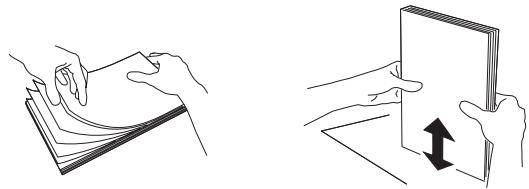
To avoid more than one page being fed at the same time, first fan out the stack and then straighten it on a smooth surface.
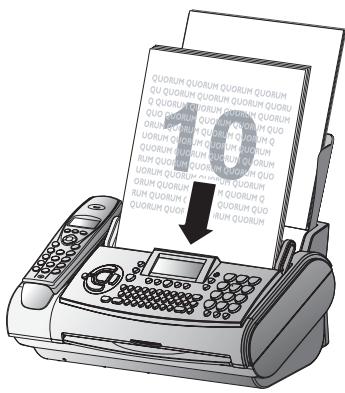
2 Insert your documents (max. 10 sheets) loosely with the printed side to the front into the document feed slot.
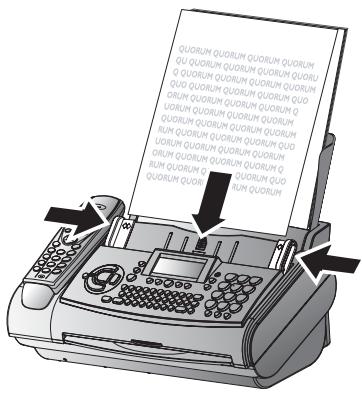
3 Move the document guide so that it rests on the document.
In the event of a document jam see Hints and Tips / Document jam.
Sending faxes
Dial the number you require on the fax machine.
2 If you want to select a higher resolution, press FINE/ PHOTO.
3 Press START.
Transmission now begins. In case the connection is not successful your fax machine will redial later.
After the transmission, a transmission report with a small copy of the first page is automatically printed out.
If you want to interrupt transmission, press STOP.
Fax reception
If you do not change the fax switch settings, faxes will be received automatically.
If you accept a call on the cordless telephone and hear that it is an incoming fax, press ⑤ and OK (see Telephone / Easylink). When you answer a call on the fax machine by pressing ① and realise that it is a fax (you hear a beep or no sound), press START to receive the fax.
On an additional phone
When you answer using an additional phone and it turns out to be a fax, you can start the fax reception by pressing ⑤ and then hang up. The fax machine will receive the fax.
Fax reception without paper
If there is no more paper in the feeder or if the ink film is empty, an incoming fax will be stored in memory (storage capacity approx. 50 pages of the Slerexe letter). If there are documents in memory the symbol will appear on the display. When paper and/or an ink film is inserted the fax machine will automatically print out all the stored documents.
When a fax message is completely printed out, it will be deleted from the memory. If the printing process was interrupted, all fax messages that have not been completely printed out will remain stored. If the memory is full, further pages can not be stored. The red indicator lamp will flash and the display will show MEMORY FULL.
Broadcast
This feature is very useful, and can be used when you want to send the same document to more than one party (Circular send).
Insert the document face to the front into the document feed slot. If you want to select a higher resolution, press FINE/PHOTO.
2 Select MENU, ②⑤. Press OK. The inserted document will be stored into the memory.
3 You now have the following options to enter numbers into the receiver list: Either enter the numbers using the number keypad or select a number/group from the telephone book by pressing A-Z and / .
4 When you have entered the desired numbers, press OK. The numbers are then entered in the receiver list. Repeat the procedure until you have entered data for max. 25 recipients.
5 To send the document press START.
The document will be sent successively to every party entered.
Broadcasting to a group
Along with function 25 (see chapter Telephone / Group) you can also use Function 46 to send faxes to a group. However, the receiver list in Function 46 can no longer be changed!
Hold the document with the print side face up and insert it into the document feeder (max. 10 pages).
2 Press MENU, ④⑥, OK on your fax machine and select the desired group from 1 to 5 using . Press OK.
3 Use / to select SEND FAX? and press START. The document will be sent to all persons in the group.
If the fax can't be sent to one of the recipients, the fax machine will continue with the list and retry sending the fax again. After the transmission, a transmission report with a small copy of the first page is automatically printed out.
Image quality
If you want to improve the image quality you can choose between the options FINE (for small print or fine drawings) and PHOTO (for photographs and pictures). Press FINE/PHOTO as often as needed until the pointer for the desired resolution lights up. After transmitting or, if there is no document in the feed slot, after 40 seconds the fax machine will automatically return to standard resolution. Document transmission takes longer in FINE mode and longer still in PHOTO mode.
Contrast
With function 47 you can adjust the contrast quality (brightness) for documents you want to copy or send as a fax message, e. g. dark photos or forms with coloured background.
Press MENU, ④⑦ and OK on your fax machine.
2 With / you can choose between three different options:
CONTRAST: LOW
CONTRAST: MEDIUM
CONTRAST: HIGH
3 Confirm your choice with OK.
Transmission and error reports
Your fax machine can print a transmission report every time you have sent a document. This contains a small copy of the first page. This way you are given confirmation that your document has been received. If an error occurs during transmission you will be informed on the error report. The printing of a transmission report can be switched on and off while the error report is always printed.
Press MENU, ②⑧ and OK on your fax machine.
2 Select with / and confirm with OK.
Transmission speed
Your fax machine automatically adjusts its transmission speed to the quality of the telephone line. Especially in case of overseas transmissions this process can take more time. If the poor line quality is already known it is useful to set the machine at a slower speed from the very beginning. This will save time and charges the automatic adjustment would require.
Press MENU, ②① and OK on your fax machine.
2 Select a lower speed with / .
3 Confirm with OK.
Size compression
To make sure that received faxes that are slightly longer than A4 size are printed on one page, these pages are slightly reduced vertically. If you do not wish to use this facility, you can switch off reduction using function 29:
Press MENU, ②⑨ and OK on your fax machine.
2 Select with / and confirm with OK.
Fax journal
The fax journal is a list of the last ten received and transmitted faxes.
Press MENU, ②⑦ and OK on your fax machine.
2 Select with / if, and when the fax journal will be printed out (immediately or after ten transmissions).
3 Confirm your choice with OK.
Polled reception
By means of this function documents which have been prepared for collection from another fax machine can be retrieved.
Quick polling
Dial the desired number with the handset replaced.
2 Press and hold START.
3 In case you want to enter a sub address or a code as well (see Polling with code) enter the telephone number first and close with R.
Attach desired sub address or code, press and hold START (e.g. ①②③④⑤ R ①⑦ R code or ①②③④⑤ RR code).
Polling with code
If your correspondent has entered a code to protect the document to be retrieved please follow this procedure:
Press MENU, ②② and OK on your fax machine.
2 Enter the code and confirm with OK.
3 Enter the telephone number and press START. In case it does not work try to poll manually: Lift the handset or press dial the required number and then press START.
Polling send
You can allow a document to be polled from your fax machine.
Insert the document in the document feed slot.
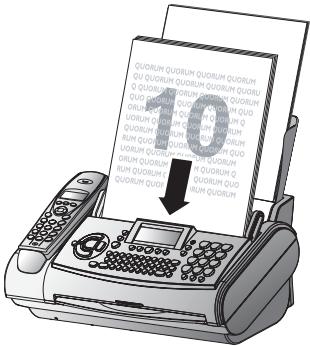
2 If you wish to protect the document from unauthorised access, enter a code with function 23.
Press MENU, ②③ and OK on your fax machine. Enter a code (maximum of 20 characters) and press OK to confirm. The document can now be polled by a person in possession of this code. You can still make telephone calls while this function is activated.
3 The operation is interrupted as soon as you remove the document.
Polling codes work in accordance with the ITU international standard. However, there are manufacturers who use other processes and whose machines are therefore not compatible.
If you want to send faxes to fax databases or if you want to poll from these, some databases have a sub-address which you can add to the telephone number. This will save you money in telephone charges. First enter the telephone number of the database and then press R. Then enter the required sub-address. If you are not sure whether your fax polling service supports sub-addresses, please contact your polling service operator.
Send later
If you wish to make use of cheaper telephone rates, or if your fax correspondent is only available at particular times, you can program automatic transmission of a fax at a later time (within 24 hours).
Press MENU, ②④ and OK on your fax machine. Enter the time when you wish the document to be sent.
2 Press OK and insert the document.
3 Dial the desired telephone number and then press START.
4 The fax machine is now ready to send the inserted document. You can still make telephone calls while this function is activated.
5 If you remove the inserted document the stand-by mode is cancelled.
Copy
You can use your fax machine to make copies of an original. Resolution is set by default. In addition, you can also select resolution (see Image quality).
1 Place your documents face to the front in the document feeder. You can load up to 10 pages at once.
2 Select the desired resolution with FINE/PHOTO.
a To make only one copy of the original, briefly press COPY. The copying process starts immediately.
b In order to make more than one copy press COPY (for at least two seconds):
The display will show the actual number of copies. If you want to change this figure, enter the desired number with the number keys (max. 15). Press COPY.
3 Choose whether to reduce or enlarge the document in size when copying.
Your machine provides the following options:
ZOOM ENLARGE: 200
ZOOM ENLARGE:150
ZOOMNORMAL:1:1
ZOOMREDUCE:75
ZOOMREDUCE:50
4 Select the desired option with / and confirm with OK.
The machine stores the first page of the document into memory and starts copying. Automatic sorting is therefore not an option!
To interrupt the copying process press STOP.
In case of a paper jam, if the ink film is empty or the memory is full, the copying process will be interrupted automatically.
In the event of a document jam see Hints and Tips / Document jam.
SMS
(for device with SMS functionality)
(not available in all countries)
You can send and receive SMS (Short Message Service) messages with your fax machine and your cordless telephone. Your fax machine is already set up to make use of SMS services—depending on the country and network.
- Before you can send and receive SMS messages the CLIP feature (Caller Line Identification Presentation) must be enabled for your telephone line.
Make sure that this feature is activated on your line. - To send an SMS the call number of an SMS provider must be entered in your fax (SMS centre).
Check the following with your service provider:
What costs are billed for sending and possibly receiving an SMS message,
- Which mobile networks can you send SMS messages to and which mobile networks can you receive SMS messages from,
- Which functions are offered by your SMS service.
SMS settings
Your fax machine is already set up to make use of SMS services. If you do have any problems, however, you should contact your telephone network provider.
You can change the predefined SMS provider and enter a second provider.
Press MENU, ⑥④ and OK on your fax machine.
2 The current provider will be displayed. Use / to select either SMS CENTER 1 or 2.
3 Confirm with OK.
4 Enter the NO. FOR TRANSM. Confirm with OK.
5 Enter the NO. FOR RECEPT. Press OK twice.
The NO. FOR TRANSM. and the NO. FOR RECEPT. are needed in order to use SMS services. In some countries these numbers may be identical.
Disable SMS printing
Press MENU, ⑥④ and then OK four times on your fax machine.
2 Use / to choose whether to have incoming messages automatically printed or not: PRINT SMS: YES, NO
3 Press OK to complete your action.
If your fax machine is connected to a PABX system you may not be able to use SMS services. Contact the operator or manufacturer of the PABX system.
Reading SMS messages
When you receive an SMS message you will hear a beep. The message will be stored and automatically printed out. You can disable automatic printout (see Disable SMS printing).
In this case, the button will flash when a new SMS message is received and the display on your fax machine will show and the number of new SMS messages:
If SMS messages are being processed on the cordless telephone and one attempts to process an SMS from the fax machine at the same time, FERNABFRAGE appears on the fax machine.
Press on the fax machine.
2 Press / to select READ SMS.
3 Press OK.
4 The number, date and time of the last message will be displayed. Unread messages are marked with an asterisk. Press / to select the SMS you want and press OK.
5 The SMS message will be displayed. Use / to move within the message. If you hold down / the cursor will move to the start or end of the SMS message.
With OK and / you can select any of a wide range of options (see Other SMS functions).
Press COPY and OK to print the message.
6 Select STOP to return to the list of received SMS messages.
You can also read SMS messages by pressing MENU, ⑥② and OK on your fax machine.
Sending SMS messages
Press on the fax machine.
2 Press / to select SEND SMS.
3 Press OK.
4 The display shows TEX: Enter your text message on the alphabetic keypad (maximum of 160 characters). If there are numbers in the message you should use the numerical keypad. You can select any of the last five SMS messages you have written and use it as a template. Press until the message you want appears.
Press the HELP/① button to check how many characters you can still enter.
5 Press COPY to print the message and OK.
6 Enter the recipient's number. Confirm with OK.
You can use the phone book A-Z or the radial function to enter the number.
7 You can enter up to five recipients. When you have entered each telephone number press OK. Finally, press × .
8 Your SMS message will be sent.
Use / to move within the message or the number. If you hold down / the cursor will move to the start or end of the message or number.
To delete the character press C. To delete all the text hold down C (two seconds).
You can also send SMS messages by pressing MENU, ⑥① and OK on your fax machine.
Printing SMS messages
Press on the fax machine..
2 Press to select PRINT SMS.
3 Press OK.
4 Use / to select which SMS messages you want to print:
PRINT:ALL
PRINT: INBOX
PRINT:NEW
5 Press OK. The messages will be printed out.
You can also print SMS messages by pressing MENU, ⑥③ and OK on your fax machine.
Deleting SMS messages
To free up the memory so it can receive new messages you should delete any messages you have already read.
Press on the fax machine.
2 Press / to select READ SMS.
3 Press OK.
4 The stored messages will be displayed. Use / to select the SMS message you want to delete.
5 Press C.
6 Use / to select one of the following:
DELETE: YES
DELETE:NO
DELETE:ALL
7 Confirm with OK.
If the SMS memory is full (maximum of 30 messages) no new messages can be received. You should delete SMS messages you have already read.
Other SMS functions
If you press OK while you are reading an SMS message you can use / to select one of the following options:
PRINT SMS print out the SMS message
BACK return to the SMS list
FORWARD SMS send the SMS message
to someone else
REPLY SMS answer the SMS message
DELETE delete the SMS message
READ NEXT display the next
SMS message
READ PREVIOUS display the
previous SMS message
2 Confirm with OK.
Disable SMS reception
If you operate another SMS-compatible cordless phone on the same line there is no guarantee that a particular SMS will be received on your fax machine or on the other cordless telephone. However, you can only receive SMS messages on one device at any one time. Try to disable SMS reception on the additional cordless phone. If you cannot do this, disable SMS reception on the fax machine.
Press MENU, ④⑤ and OK on your fax machine.
2 Enter ⑤①②⑩⑤ and press OK.
3 Use / to choose whether to enable or disable SMS reception.
SURE: YES
SURE:NO
4 Press OK to complete your action.
You can use the same procedure to enable SMS reception again.
You can still send SMS messages even if SMS reception is disabled.
Answering machine
The recording capacity is 30 minutes.
Your answering machine is furnished with an outgoing message at the factory (anonymous outgoing message). If you want to record your own outgoing message, proceed as described under "Recording a message".
In case of a long term power failure recorded messages, etc. will be deleted!
Switching on and off
Activate or deactivate your answering machine with ON/OFF. If you have switched on the answering machine you will see the symbol on the display of your fax machine.
Recording a message
Press MENU, ⑤⑥ and OK.
2 REC. OGM. appears on the display.
3 Confirm with OK and begin to speak after the confirmation tone.
4 A black bar indicates you how much memory is available for the outgoing message (max. 20 seconds).
5 Stop recording by pressing REC or STOP.
6 The new answering message is automatically replayed. By pressing / you can change the volume of the message.
7 To hear the message again, press REC for a while (two seconds) and then PLAY.
Anonymous outgoing message
You can replace your personal outgoing message with the anonymous message (recorded at the factory).
Press MENU, ⑤⑦ and OK.
2 Use / to select ANONYM. OGM? YES.
3 Confirm with OK.
The anonymous outgoing message is now activated.
Duration of recording
I Select MENU, ⑤① and OK.
2 Press / to choose between 30, 60, 120 seconds or the AUTO mode (unlimited recording time). Please note that AUTO mode is not available in all countries.
3 Confirm with OK.
Listening to messages
If the PLAY button flashes on your fax machine, this means that messages have been recorded for you. New messages are indicated on your cordless telephone by the symbol. Press PLAY to listen to the first message. The date and time the message was received and the number of the caller will be displayed.
2 The next message will be replayed if you press PLAY while listening to any message.
3 You can switch between messages by entering the number of the message you want while the messages are being played. For example, enter ① for the first message.
4 After listening to your messages PLAY will stay on until all messages have been erased.
Play back volume
Press / on the fax machine while playing back messages. The current volume setting will be displayed.
2 Press / to obtain the desired volume.
Deleting messages
Single messages
If you want to delete the message which is currently being played, press C on the fax machine.
2 You will be asked on the display if you really want to delete this message. Press C or OK.
All messages
Press C on the fax machine after having listened to all messages.
2 If you actually want to delete all messages, press C or OK. To interrupt the deleting process press STOP.
Forwarding messages
Your fax machine can automatically forward all incoming messages to another telephone number. Enter the telephone number to which you wish recorded calls to be forwarded. You can select the number of messages to be forwarded each time. Your fax machine will wait until the selected number of messages has been received and then calls the desired number automatically. A message announcing the call forwarding is transmitted when the connection is made. Then the party to which the calls are being forwarded needs to enter the access code (see function 52). If you do not enter the right code within 40 seconds or if you enter the wrong code three times, the fax machine will hang up.
In case your answering machine is deactivated turn it on with ON/OFF. The symbol l appears on the display of the fax machine.
2 Select MENU, ⑤⑤ and OK on your fax machine.
3 Choose with / FORWARD CALL: ON and confirm with OK.
4 Enter the telephone number your messages should be forwarded to and press OK.
5 Choose with / the number of messages you want to be forwarded each time.
6 To record a new forwarding message, press OK.*
7 Press REc. Wait for the confirmation tone and start speaking. An example of an announcement might be: "Hello, there are messages for Mr. Smith; please enter the access code." A black bar will indicate how much memory is available.
8 Press STOP when you have finished. The forwarding message will be played back.
9 The fax machine is now switched to stand-by mode.
* if a message has already been recorded
a Press OK.
b Select with / . If you wish to record a new forwarding message, select REC.MESSAGE: YES. If you want to use the existing message, select REC.MESSAGE: NO. Press OK to confirm.
c Follow the process described above from step 7.
Recording a conversation
You can record a telephone conversation with your fax machine.
Press REc during a telephone conversation.
2 To stop recording, press STOP.
3 The recorded conversation can be played back and deleted like any recorded message.
You can not record a telephone conversation while hands-free operation is activated.
VIP code
Ringing despite answering machine
Persons you had given this code, can make the telephone ring after the answering machine has taken the call. This is useful if both ring counts in function 31 and 32 have been set to .
To enter the code select MENU, ⑤③ and press OK on your fax machine. Enter a four-digit code. Confirm with OK.
2 This code must be different to the access code (function 52).
Memo
External memo
You can record a message which the caller can hear without being able to leave a message in return. For this the answering machine must be switched on.
1 Select MENU, ⑤④ and press OK on your fax machine. Choose the external memo mode by pressing / . Confirm with OK (if you already have recorded a memo you want to use again, just press OK once more).
2 Press REC and wait for the confirmation tone. Start to speak. Press STOP when you are finished. The message will be played back.
Internal memo
You can record a personal message with this function. Messages can be heard on the fax machine itself or by remote control from a telephone. Briefly press REC twice and wait for the confirmation tone. Record the desired message. A black bar on the display indicates the remaining recording time. To end recording press STOP. Internal memos can be played back and deleted like any other message.
Remote control on the fax machine
You can also control the answering machine functions on your fax from any telephone using tone dialling. Before you can use remote control you have to enter an access code in function 52 (this code will also be used for function 55 Forwarding).
Preparing your fax machine for remote access
I Select MENU, ⑤② and OK.
2 Enter a four digit code.
3 Press OK. The code is stored.
Remote access of the answering machine
If you want to listen to the messages recorded from another telephone, call your fax machine and wait for the answering machine to play the message.
2 Enter the four-digit code. The outgoing message will be interrupted and you will hear a confirmation tone. The new messages will be played back. If no new messages have been recorded, you will hear a second confirmation tone.
3 Then you can enter commands as usual or terminate the remote control by replacing the handset.
Overview of commands
① The message you are just listening to will be repeated.
② All messages will be played back.
③ Move to the next message.
④ Record a new outgoing message. Press ④. If you press ④ again after two confirmation tones, you will hear a long confirmation tone. Record the new outgoing message and finish with ④.
⑤ The current outgoing message will be replayed.
⑥ The current message will be deleted. If you press ⑥ after having listened to all messages, all messages will be deleted.
In both cases you will hear a confirmation tone after the first time you press the key. Press ⑥ again within five seconds to execute the deleting command.
⑦ Switch answering machine off.
⑧ The current command will be interrupted.
⑨ Switch answering machine on.
FUNCTIONS

Repeat current message

Delete message

Play
Current message:
Press 6
Press 6, deleted

Skip forward
All messages:
Press 6
Press 6 deleted

Record outgoing messages

Answering machine off
Press ⑦ , (answering machine off)

STOP

Answering machine on
Press ⑨ , (answering machine on)
Remote Access
Enter telephone number


Wait for outgoing message

Enter access code

Enter function


Remote control on the cordless telephone
You can listen to or delete messages on the fax machine using the cordless telephone.
Listening to messages
A message blinks on the display of the cordless telephone when a message is ready to be retrieved from the fax machine.
Press OK. Use / to select the message and confirm with OK. The current message is displayed along with the time of the call and is played back automatically. You can pause and continue playback with the number button ②.
Messages already heard can be listened to again either by a long press of the button ① or by using and OK in the function ANS.MACH / MESSAGES / PLAY. All new messages are played automatically. You can page through all available messages with the number buttons ① and ③ .
Deleting messages
Use and OK to select ANS.MACH / MESSAGES / DELETE OLD and confirm with OK. Messages that have already been heard are deleted.
You can also delete messages while they are playing with the number button ①.
Resetting the outgoing message to the factory default (anonymous outgoing message)
The outgoing message you have recorded can be deleted (reset to the factory message) by using and OK to select the function ANS.MACH / OUTGOING MESS. / ANONYMOUS.
Activating/deactivating the answering machine
The answering machine can be activated or deactivated on the cordless telephone by using / and OK to select the function ANS.MACH / ON/OFF.
Cordless telephone
Your fax machine has a modern cordless telephone with which you can place calls, read and send SMS messages and operate the answering machine of the fax machine. You can also use the cordless telephone as an alarm or timer.
Registering and deregistering the cordless telephone with the fax machine
Registering the cordless telephone
The cordless telephone that is supplied with your fax machine is normally set up at the factory for your fax machine and does not have to be registered. You can register up to six cordless telephones to your fax machine. For optimum performance of all the functions you should only register cordless telephones of the original type. Cordless handless of the original type can be ordered using the enclosed order form or contacting the call centre (see back of these user manual).
Please note that each additional cordless telephone must be GAP-compatible. Check with your dealer.
1 On the cordless telephone, use / and OK to select SETTINGS/ADVANCED SET./SET HAND-SET/REGISTRATION and confirm REGISTERHS? with OK.
2 On your fax machine, press MENU, ⑦① and OK.
3 Use the numerical keypad to enter a four-digit pin code, or press OK to accept the default code 0000.
The cordless telephone is automatically registered with the fax machine.
After the registration process the display shows the number under which the cordless telephone is registered on the fax machine (for example 1).
Deregistering the cordless telephone
If you would like to deregister an additional cordless telephone from your fax machine, the procedure is as follows:
- On your fax machine, press MENU, ⑦② and OK.
2 On the numeric keypad, enter the cordless telephone you want to deregister. Press OK.
Your fax machine will now release the connection to the additional cordless telephone.
Registering a cordless telephone on more than one fax machine
You can register a cordless telephone on up to four fax machines.
Register your cordless telephone automatically on the first fax machine, as described above.
2 On the second fax machine, press MENU, ⑦① and OK.
3 Use the numerical keypad to enter a four-digit pin code, or press OK to accept the default code 0000. The pin code may be identical to the pin code on the first fax machine. Confirm with OK.
4 On the cordless telephone, use / and OK to select SETTINGS/ADVANCED SET./SET HAND-SET/PERSON. REGISTR and confirm 1 BA-SIS 2 with OK. The cordless telephone is automatically registered with the fax machine.
5 Use / to select a free storage location and confirm with OK.
6 Enter the same pin code that you set on the second fax machine and confirm with OK. The cordless telephone is establishing a connection to the fax machine; this may take a few moments.
7 Use to select the number you want to use to register the cordless telephone on the second fax machine. This number appears on the display of the cordless telephone when it is set to the second fax machine. Confirm with OK.
8 Repeat steps 2 to 7 to register your cordless telephone to further fax machines (maximum of four fax machines).
Priority
With this function you can specify which fax machine should be used for telephone calls if you have registered your cordless telephone with multiple fax machines. When you select the setting AUTO, the cordless telephone automatically sets itself to the respective fax machine that is in range.
On the cordless telephone, use / and OK to select SETTINGS/ADVANCED SET./SET HAND-SET/BASE PRIORITY and confirm with OK.
2 Press R (Edit) and select the fax machine that you would like to assign priority from the list or select AUTO.
3 Confirm with OK.
Placing calls
To place a call, enter the desired telephone number with the number buttons of the cordless telephone, then press the dial button /
You can delete an incorrect digit with C.
During the call, you can increase or decrease the volume with /
You can also dial an entry from the telephone book (cordless telephone: long press of button / fax machine: short press of button ) or the radial list (hold green button / pressed).
If your cordless telephone does not function, check whether it is registered with the fax machine.
2 To accept a call, also press the dial button / .
3 To end the call, press
If you have problems dialling telephone numbers although the display of the cordless telephone shows the correct telephone number, unplug the power plug from the socket. Wait at least ten seconds, then plug the power plug back into the socket.
Redialling
On the cordless telephone, hold the button /C0 pressed until CALLS appears on the display.
2 Use / to select the desired number from the radial list of your cordless telephone.
3 To place the call, press the dial button ±br /
Call log
All outgoing and incoming calls as well as events are saved in this menu. You can also select whether a message should be displayed on the cordless telephone to announce a new message (answering machine or SMS).
INCOMING CALLS List of all calls received
OUTGOING CALLS List of all calls placed
EVENTS View a list of all events (SMS, messages on the answering machine) (VIEW). You can also activate the automatic message on the display for new events (ACTIVATE), or deactivate it (DEACTIVATE).
Call functions
During a call, you can access the following special functions with the button (Menu) and confirm them with OK:
HANDSFREE: When this function is activated, you can press the green button / to switch between the speaker and the cordless telephone. You can change the volume with / . Please note that when the battery charge is low, this function is not available.
CALL TRANSFER: For forwarding a call to another cordless telephone. This function is only available if multiple cordless telephones are registered with the fax machine and are located within range.
SECOND CALL: For accepting or placing another call.
PHONEBOOK: For accessing the telephone book (fax machine / cordless telephone)
SECRET: For temporary deactivation of the microphone (secret mode).
Forwarding
You can forward telephone calls to the fax machine or to other cordless telephones that are registered with the fax machine.
Forwarding to the fax machine
To forward an external call from a cordless telephone to the fax machine, press (串)0 and (press quickly).
Forwarding to other cordless telephones
You can foward internal and external telephone calls to another cordless telephone.
During a call, press (Menu), use / to select CALL TRANSFER and confirm with OK. Use / to select the number of the desired cordless telephone (for example ②) and confirm with OK.
2 You can now place an internal call. The external call is kept on hold.
3 Press the disconnect button to transfer the call.
To return to the call before transferring it, press (Menu), use / to select HANGING UP and confirm with OK.
Second call
During a call, you can be informed of another incoming call (depending on country and network) or place another call.
Accepting a second call
If you are informed of a waiting caller by a tone (depending on the telephone provider), you can accept this call with R and the number button 2. The active call is kept on hold in the meantime.
Placing a second call
During a call, you can place another call.
During the call, press (Menu), use / to select SECOND CALL: and confirm with OK.
2 Select an entry from the telephone book (cordless telephone: long press of button / fax machine: short press of button or enter the desired telephone number with the number buttons.
3 Confirm with the OK button. The active call is kept on hold in the meantime.
Ending the active call
To end the active call, press (Menu), use / to select HANGING UP and confirm with OK. The active call is ended and you can continue the call with the person on hold.
Secret mode
If you would like to speak with someone in the room during a call without the person on the line hearing this, you can switch the cordless telephone to secret mode.
During a call, press (Menu), use / to select SE-CRET and confirm with OK. The microphone on the cordless telephone is deactivated and the person on the line can no longer hear you. However, the speaker on the cordless telephone remains active, meaning that you can still hear the person on the line. The message SECRET MODE blinks on the display.
2 Press R (Exit) in order to continue the conversation.
Internal telephone calls
If you have registered multiple cordless telephones with your fax machine, you can place internal calls between two cordless telephones.
Press the number of the cordless telephone you would like to call (②, for example) and press the dial button / . You can end the call with the button.
With (念) and r / c , you can call all cordless telephones that are registered with your fax machine.
Ring type
You can select from various ring tones or deactivate the ring tone on the cordless telephone.
1 On the cordless telephone, use / and OK to select PERSONALIS. / RING TOHE and confirm with OK.
2 Use to select EXTERNAL CALL (ring tone for external calls) or INTERNAL CALL (ring tone for internal calls) and confirm with OK.
The SILENCE setting deactivates the ring tone for the cordless telephone.
3 Use to select the desired ring tone.
With the button (Volume) and / , you can change the ringing volume.
4 Confirm with OK.
Button tones / warning tones
You can activate or deactivate the button tones or warning tones.
1 On the cordness telephone, use / and OK to select PERSONALIS. / RING TONE and confirm with OK.
2 Use to select BEEPs and confirm with OK.
3 Use to select from the following settings:
KEYTONE: Beep upon pressing a button.
BATTERY LOW: Beep when the batteries are low.
CHARGER: Beep when the cordless telephone is placed in the cradle on the fax machine.
4 Activate or deactivate the warning tone with the button R (Edit) and confirm with OK.
Telephone book

You can save up to 40 entries in the telephone book of your cordless phone and assign these entries a category symbol. You can assign a separate ring tone to each entry, thereby creating your own ring tone groups. Caller ID (CLIP) must be activated for your telephone line in order to use this function (availability depends on country and network). You can also access the telephone book entries of your fax machine.
The name may be up to 12 characters long (incl. spaces) and the telephone numbers may be up to 24 digits long.
Saving names/numbers
Hold the telephone book button on the cordless telephone pressed until the display shows: 001 (for example) and the symbol for the telephone book appears. If entries are already saved, use to select
The telephone book of the fax machine can only be changed on the fax machine.
2 Enter the desired name with the number buttons.
The following characters are available:
①-1
② -ABCabc2
③-DE F d e f 3
(4)-G H i g h i 4
⑤-JKLjkl5
6-MNOMn06
⑦-PQRSpqrs7
8-TUVtuv8
9-WXYZwxyz9
① - Space 0 / + @ - $ & %
- Special characters (navigate with the -button)
Hold the corresponding button pressed or press it multiple times until the desired character appears on the display. The entry of upper/lower case letters or numbers depends on the last character entered.
Use C to delete the last character.
3 Confirm the input with OK.
4 Enter the desired number with the number buttons.
A dialling pause (R) can only be entered on the cordless telephone with the\ character.
5 Confirm with OK.
6 Select a category to assign to this number (HOME, WORK, MOBILE, FAX)
7 Confirm with OK. A new entry has been created.
Assigning an individual ring tone
Hold the telephone book button on the cordless telephone pressed until the display shows: 001 (for example) and the symbol for the telephone book appears.
Telephone book entries on the fax machine can only be modified on the fax machine.
2 Press (Option). Use to select RING TOH and confirm with OK.
3 Use to select the ring tone that should be played when a call is received from the corresponding number.
4 Confirm with OK.
Please note that CLIP must be activated by your network operator in order to use this function.
Searching for names/entries
Hold the telephone book button on the cordless telephone pressed until the display shows: 001 (for example) and the symbol for the telephone book appears.
To use the telephone book of the fax machine, press the telephone book button briefly. Only the telephone book symbol will appear on the display.
You can also access the telephone book via the function menu. Use / to select PHONEBOOK and confirm with OK.
If you have not saved any entries on your cordless telephone, only the option
2 Use to select the desired entry. You can also select an entry by entering the initial letter.
To further restrict the search, press (Option) in the telephone book menu. Then use / to select SEARCH: and confirm with OK. Use the number buttons to enter the first 3 letters of the desired entry.
3 Press the dial button r / c to call the number of the selected entry.
Telephone book functions
Select the desired telephone book entry with / . Press (Option). Select the desired function with / and confirm with OK.
VIEW: Display the entry
CALL: Call the number of the entry
EDIT: Change the entry (name, number, category)
SEARCH: Search for names/entries
RING TONE: Assign a special ring tone to the entry (requires CLIP)
SEND SMS: Send an SMS to the number of the entry
ADD NUMBER: Change the number of the entry
NEW ENTRY: Add a new entry
DELETE: Delete the entire entry
Correcting entries
Hold the telephone book button on the cordless telephone pressed until the display shows: 001 (for example) and the symbol for the telephone book appears. Telephone book entries on the fax machine can only be modified on the fax machine.
2 Select the desired entry.
3 Press (Option). Use / to select EDIT and confirm with OK.
4 Change the name and confirm with OK.
5 Change the telephone number and confirm with OK.
6 Change the category with / and confirm with OK.
Deleting names/entries
Hold the telephone book button on the cordless telephone pressed until the display shows: 001 (for example) and the symbol for the telephone book appears.
Telephone book entries on the fax machine can only be deleted on the fax machine.
2 Press (Option). Use / to select DELETE and confirm with OK.
3 To actually delete the entry, press (Yes). If you want to cancel the deletion, press (No).
4 Quit with the red button.
Sending an SMS from the telephone book
Load the entry to which you would like to send an SMS as described under ,Searching for names/entries'.
2 Press (Option). Use to select SEND SMS and confirm with OK.
4 A text input window appears. Please consult the following section (SMS) on how to write an SMS.
SMS

(for machine with SMS function)
You can send, receive and manage SMS (Short Message Service) messages with your cordless telephone. SMS messages can be sent to another fixed network telephone or to a mobile telephone.
In order to use the SMS function on the cordless telephone, the fax machine must be correctly configured for receiving SMS messages. Please consult the section SMS, SMS access.
If SMS messages are being processed on the fax machine and one attempts to process an SMS from the cordless telephone at the same time, an error message appears on the cordless telephone.
Writing an SMS
On the cordless telephone, press the button.
2 Use to select EDIT SMS and confirm with OK.
3 The message
| 1 | ', 1, #, ,, :, ?, _,'* |
| 2 | a, b, c, 2 |
| 3 | d, e, f, 3 |
| 4 | g, h, i, 4 |
| 5 | j, k, l, 5 |
| 6 | m, n, o, 6 |
| 7 | p, q, r, s, 7 |
| 8 | t, u, v, 8 |
| 9 | w, x, y, z, 9 |
| * | Special characters |
| 0 | space, 0, /, +, @, -, $, &, % |
Press the corresponding button repeatedly until the desired character appears.
Additional special characters can be entered with the button followed by / . If you hold the / button pressed, you will move forward line-by-line.
4 Confirm the selected character with OK.
5 After entering the text, press (Select) and use / to select from the following functions:
SEND: to send the SMS via the fax machine
STORE: to save the SMS as a draft. The message can then be sent at a later time. These SMS messages are saved in the folder DRAFT.
CANCEL: to delete the SMS message just created
CAPITAL LETTER / SMALL LETTER: to switch between the entry of upper / lower case letters
DELETE CHAR.: to delete the currently marked character
INSERT CHAR.: to insert a character at the current position.
6 Press OK.
Sending an SMS
After entering the text, press OK.
2 Use the number buttons to enter the telephone number of the recipient. You can also dial a recipient from the telephone book.
3 Confirm with OK. A message with the telephone number and the type of transmission appears on the display.
To change the selected number or the text, press · R (Edit).
4 If the information is correct, confirm with OK. A message appears to indicate the progress of the transmission.
5 To save the SMS message, press (Yes), otherwise press R(No)
Reading an SMS
Your cordless telephone has 4 folders in which incoming SMS messages are saved:
NEW: contains all unread messages
INBOX: contains all read messages that have been saved.
SENT: contains all sent messages that have been saved.
DRAFT: contains all messages saved as drafts.
On the cordless telephone, press the button.
2 Use to select READ SMS and confirm with OK.
3 Use to select the folder in which the SMS you would like to read is located and confirm with OK. A list of all messages in the selected folder appears.
The first 4 digits indicate the time and date when the SMS message arrived. The characters after this indicate the SMS sender, if this is known.
4 Use / to select the SMS you would like to read and confirm with OK.
5 You can reach the start of the SMS message with the button R . You can reach the list of all SMS messages by pressing the R button while at the start of the SMS message.
Managing read SMS messages
After reading an SMS message, you can press (Select) then use to select among the following options, followed by confirmation with OK:
REPLY to send an SMS to the sender as a reply to the received SMS.
ARCHIVE to save the SMS in the INBOX folder.
TRANSMIT to forward the SMS to other recipients. You can change the text.
DELETE to delete the SMS.
CALL to call the number of the sender.
STORE NUMBER to save the telephone number of the sender in the telephone book of the cordless telephone.
SMS MODE to display multi-line SMS messages on one or two lines with automatic or manual paging forward.
Deleting SMS messages
On the cordless telephone, press the × button.
2 Use / to select EMPTY BOX and confirm with OK.
3 Use to select the folder in which the SMS messages you would like to delete are located and confirm with OK.
4 To actually delete the entry, press (Yes). If you want to cancel the deletion, press (No).
Displaying the available SMS memory
You can save 30 different SMS messages. Once this number is reached, no new SMS messages can be saved.
On the cordless telephone, press the × button.
2 Use to select MEMORY and confirm with OK.
3 Use to select from the following options:
AVAIL. 30/30: indicates how many SMS messages can still be saved.
NEW indicates how many new SMS messages are saved.
INBOX indicates how many SMS messages have been saved (archived).
4 Quit with R (Return).
Additional functions of the cordless telephone
The cordless telephone of your fax machine has the following additional functions. These are organised in the following menus:
ACCESSORIES, PERSONALIS., SECURITY, SETTINGS.
Select the corresponding menu with / and confirm with OK. Take note of the functions of the buttons R and .
Accessories
ALARM: To use the cordless telephone as an alarm
TIMER: To be reminded of events (in a few minutes or hours)
BIRTHDAY: The cordless telephone rings on the programmed day at the programmed time.
ROOM MONITOR.: You can use an additional cordless telephone to monitor a room.
Alarm
With this function, you can have your cordless telephone ring every day at a previously programmed time.
Setting the alarm / changing the alarm time:
Press R (Edit), use / to select SET TIME and confirm with OK. Enter the time when the cordless telephone should ring. After entering the alarm time, the alarm is automatically activated.
Activating/deactivating the alarm
Press R (Edit), use / to select AKTIVATE or DEACTIVATE in order to activate or deactivate the alarm and confirm with OK. When the alarm sounds, press any button on the cordless telephone to turn it off.
Changing the alarm tone
Press · R (Edit), use / to select RING TONE and confirm with OK. Use / to select the desired alarm tone and confirm with OK.
Timer
After a specified time has passed, the cordless telephone rings for 60 seconds. You can turn off the ringing with the button R (Stop).
Birthday
At the specified day and time, the cordless telephone will ring for approx. 15 seconds, and the saved name will appear on the display. If multiple entries exist, they are displayed in a list.
Room monitoring
You can use a second cordless telephone to monitor a room. To do so, both cordless telephones must be registered with the fax machine.
1 Place a cordless telephone (receiver/handset 1) in the room to be monitored.
2 On the other cordless telephone (sender / handset 2), call up the function (ROOM MONITOR), select HANDSET 1 and confirm with OK.
3 Accept the call on the receiver/handset 1 with the green button.
4 The room monitoring is now configured.
While in monitoring mode, it is possible to use the sender (handset 2) for telephone calls. After completing the telephone call, you are automatically returned to the monitoring mode.
Personal preferences (PERSONALIS.)
This menu serves to configure the cordless telephone according to your individual needs.
RING TONE Use to select from: ring tone for: external/internal calls (EXTERNAL CALL, INTERNAL CALL), activate/deactivate button tones/warning tones (BEEPS), deactivate ring tone (SILENT MODE)
SCRN BCKGRND Use / to select from the saved background images.
AMBIANCE Use / to select from the saved colours for the menus.
Security settings (SECURITY)
KEYPAD LOCK This can also be activated or deactivated with a long press of the button.
EMERGENCY The entered telephone number is dialled immediately after pressing the dial button r / c . It does not have to be selected in the telephone book first. When the emergency call is activated, EMERGENCY appears in the display.
Do not use this setting to save any actual emergency numbers, such as the fire department, police, ambulance, etc., in order to avoid accidentally dialling an actual emergency number.
Settings
Here you can configure the following special settings.
PROGRAM KEYS Both buttons underneath the display R and can be programmed with various functions for quick access from the base mode. Press the button R (Change) to make changes.
ANSW.MACH.: Operating the answering machine of the fax machine
SILENCE (Mute): Deactivate the ring tone on the cordless telephone
ALARM: See the section Additional functions of the cordless telephone
TIMER: See the section Additional functions of the cordless telephone
KEY LOCK: Activate/deactivate the keypad lock
NUMBER: For calling a saved number
REDIaL:Redial list
AUTO HANG UP When this function is enabled, the call is automatically ended upon placing the cordless telephone in the cradle on the fax machine.
AUTO PICK UP When this function is enabled, the call is automatically accepted upon picking up the cordless telephone from the cradle on the fax machine.
LANGUAGE Upon the initial installation of the fax machine or use of function 11, the display language of the cordless telephone is taken from the fax machine. This function only changes the display language of the cordless telephone.
If you change the language on the fax machine, the language on the cordless telephone will also be changed.
Search function
This function helps you find cordless telephones you have mislaid. Press twice on the fax machine. All the cordless telephones registered on the fax machine will then ring for about one minute. To cancel the search function press the STOP button on the fax machine or the button on the cordless telephone.
Switching on and off
You can switch your cordless telephone off to save power. To switch off the cordless telephone, press the button for at least three seconds. To switch it back on, press the button for at least three seconds. When the cordless telephone is switched off, you can only accept incoming calls on the fax machine.
Changing batteries
Switch off the cordless telephone by pressing the button for at least two seconds. Open the cover of the battery compartment on the back of the cordless telephone. To do this, insert a sharp object (small screwdriver, paper clip, etc.) into the round opening above the battery compartment at a right angle. Press lightly upward; the battery compartment cover will open. Pull the cover off downward.
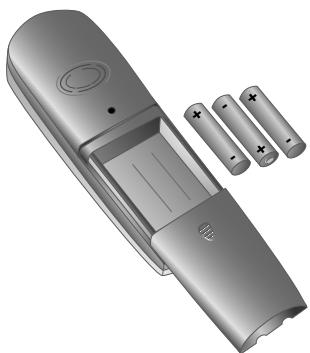
Remove the old batteries and insert the new batteries. Be sure to position the positive and negative poles correctly. Place the cover on the battery compartment, and slide it upward until it snaps into place.
Never use typical batteries.
Use only rechargeable batteries of type AAA, NiMH 1.2 Volt, 600 milliampere hours (mAh).
The manufacturer accepts no liability in the event this instruction is not heeded.
Dispose of the used batteries according to the disposal regulations of your country.
Hints and Tips
Delivery service
You can order ink films and cleaning accessories at your local dealer or directly from PHILIPS (free delivery) on Freefone 0800 358 08 07 (United Kingdom).
Paper jam
The display shows PAPER JAM.
2 Open the operation panel by lifting in the middle. When you hear a soft click, the panel is engaged.
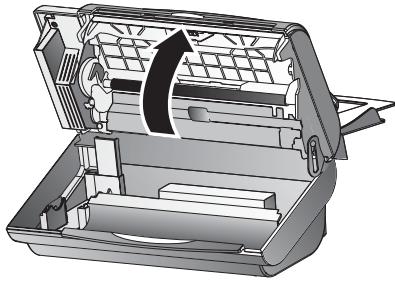
3 Carefully remove the paper.
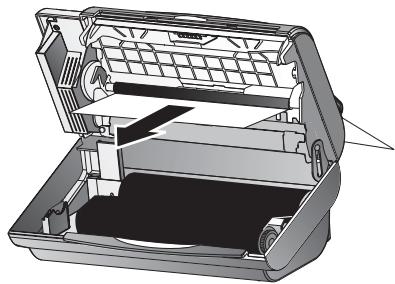
4 Turn small roll forward to tension the ink film. Make sure that the ink film is not creased.
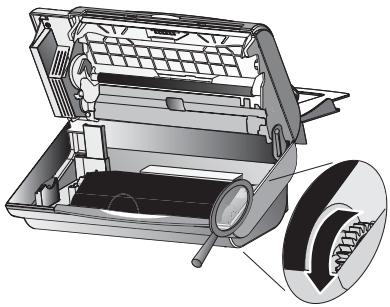
5 Close the panel so that it also clicks into place.
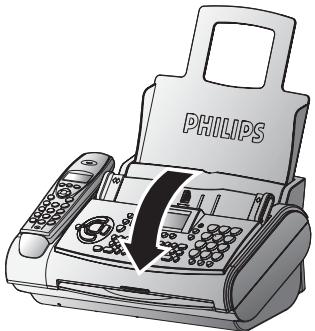
6 Insert paper (see Installation / Loading paper).
Document jam
Open the paper feed flap and carefully pull out the paper. Close the flap again.
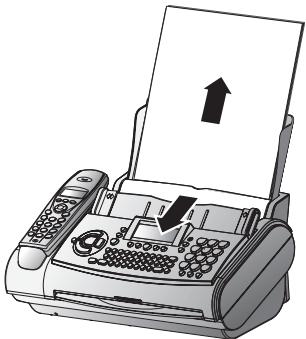
2 Open the operation panel by lifting in the middle. When you hear a soft click, the panel is engaged.
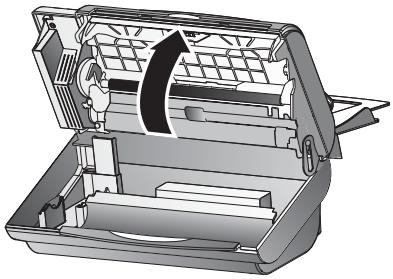
3 Open the scanner cover by pressing the two lugs in. The cover will open downwards.
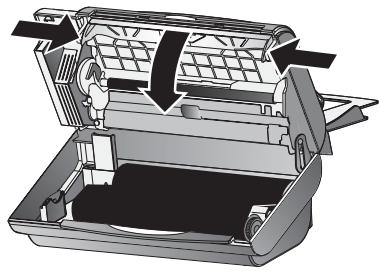
4 Carefully remove the document either from the front or the back.
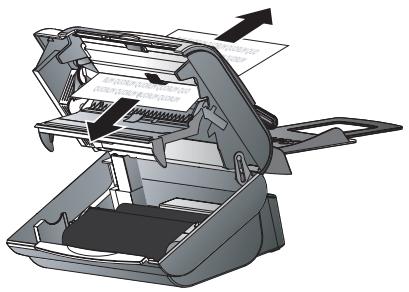
5 Close the scanner cover on the left and right, making sure it clicks into place.
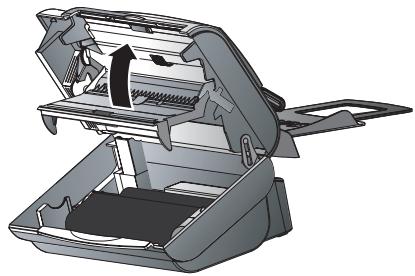
6 Close the panel so that it also clicks into place.
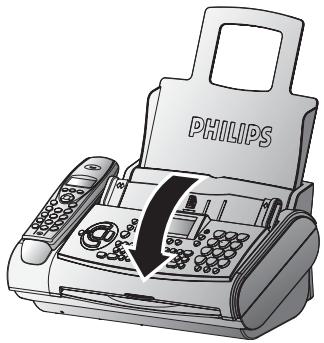
7 Insert paper (see Installation / Loading paper).
Service code
Function 45 Service code is used to delete some or all of the settings you have changed on the fax machine since it was supplied from the factory. This function enables you to partially or fully reconfigure your device. It is especially helpful if you have modified settings but find that your fax machine does not respond as expected.
Only use this function when absolutely necessary!
If you are satisfied with your changes to the factory settings you should not use this function.
After deleting some or all of your custom settings please rerun Easy Install.
The following codes are at your disposal:
Code No. 7117
This code erases all your modifications to the factory settings. The fax machine will therefore react in exactly the same way as on first installation.
Code No. 7140
This code deletes all the settings and data you have entered on your fax machine with the exception of the following:
received fax messages
- stored SMS messages
- stored telephone book numbers
- your name
- your telephone number
Example for using a service code:
1 Select function 45 by pressing MENU, ④⑤ and OK on the fax machine. Enter the service code (7117 or 7140). Press OK.
2 With / you can select whether you really want to delete your settings. Confirm with OK. Your fax machine will be reset to its original configuration.
Care
Before opening the fax machine, make sure that you are electrically discharged by e. g. touching the metal housing of a grounded appliance, a water pipe or radiator.
Use a soft, fluff-free cloth. You can also use a special cloth for cleaning fax machines (see Delivery Service). Never use liquid or gaseous cleaning agents (sprays, scouring agents, polishes etc.). Do not allow any moisture to penetrate inside the device.
Clean the scanner glass
Open the paper feed flap and carefully pull out the paper. Close the flap again.
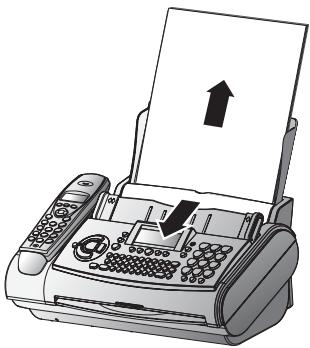
2 Open the operation panel by lifting in the middle. When you hear a soft click, the panel is engaged.
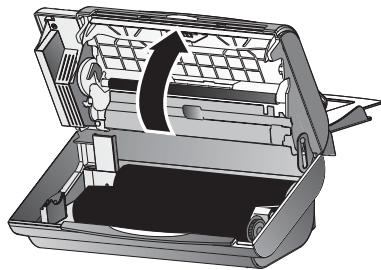
3 Open the scanner cover by pressing the two lugs in. The cover will open downwards.
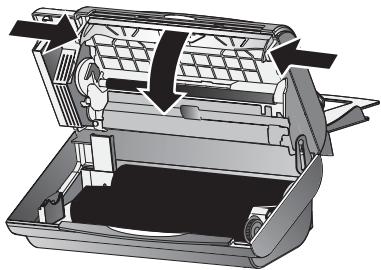
4 Use a soft cloth to gently wipe the scanner glass on the top (A) and the white strips on the bottom (B).
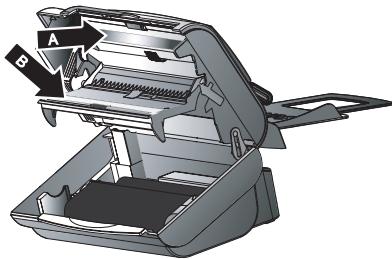
5 Close the scanner cover on the left and right, making sure it clicks into place.
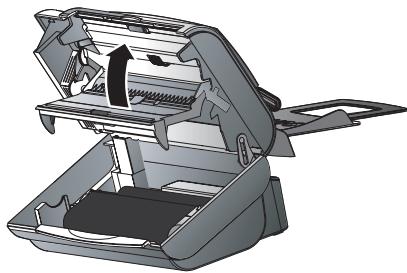
6 Close the panel so that it also clicks into place.
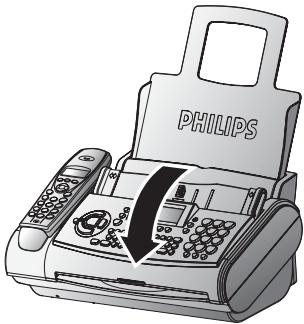
7 Insert paper (see Installation / Loading paper).
Cleaning the document feed roller
... when a black stripe appears at the top of a copy.
... when two pages are printed out when copying or sending a single page or when the recipient receives two pages.
1 Open the machine and the scanner cover by pressing the latch (A) inward. Clean the feed roller (B) and the rubber opposing element on the underside (C) with a soft, lint-free cloth moistened with cleaning alcohol (96 percent). Turn the feed roller with a slight upward pressure. You must clean the entire roller.
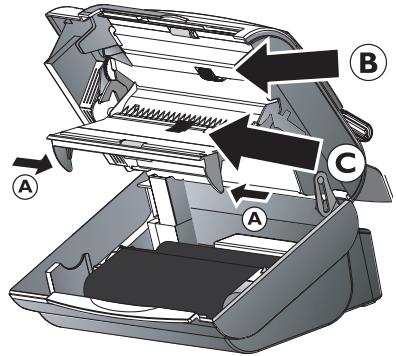
2 With a Fax-Cleaner: Place the fax cleaner page into the document feeder and wait until the page is pulled in. Press STOP. The page is ejected. Repeat this process at least once.
Troubleshooting
If you cannot fix the problem based on the instructions below, you should proceed as follows:
Disconnect the mains.
2 Wait at least ten seconds and reconnect.
3 If the fault reoccurs, please contact your customer information centre. The number is on the back of this manual.
| Problems when faxing or printing | |
| Faxes are of poor quality. | Change the resolution setting to 30 or 34. Check the document or set a higher contrast with function 47 (see chapter Fax & Copy / Contrast). Test the fax machine by making a copy. If your copy is faultless the correspondent's fax machine might be defective. Call service if necessary. |
| Your fax or your recipient's fax machine produces black lines when printing. | Clean the scanner with a cloth (see Care). Test the fax machine by making a copy. If your copy is faultless the correspondent's fax machine might be defective. Call service if necessary. |
| Copy is blank. | Load the document with the printed side up. Call service if necessary. |
| Problems with the connection | |
| Your fax machine rings once, then there is a moment of silence and another ring signal after that. | This is entirely normal. After the first ring signal the fax machine takes over the call. When the fax machine has recognised that the incoming call is a telephone correspondence, the fax machine will continue to ring. |
| NO CONNECTION or REDIAL Failed | Try later or draw your fax partner's attention to a possible installation fault. |
| NO LOOP CURRENT | Check the installation of your fax machine. |
| When you place a call on the cordless telephone you do not hear the dial tone. | Connect your telephone cable to the socket on your fax machine identified with LINE. |
| BUSY or fax transmissions are constantly interrupted. | Try to send the fax manually: Press ⑧ and dial the fax number. If the recipient is using an automatic answering device, wait until you hear a tone after the pre-recorded message. Press START. |
| You cannot receive any faxes. | Set the number of ringing signals for the answering machine or the total number of ringing signals with function 31 or 32 to lower than five. |
| On accepting a call on the cordless telephone you hear a tone or silence. | You are receiving a fax. At the fax machine: Press START. At an additional telephone: press ⑧ and ⑤. Replace the handset. |
| EXTERNAL PHONE The red lamp ① flashes. | This is not a fault. You are now using an additional telephone. |
| Problems with the cordless telephone | |
| There is no dial tone on the cordless telephone. | Place the cordless telephone on the base station (fax machine) and wait at least 12 hours until the batteries are fully recharged. |
| You cannot hear a dial tone even though the cordless telephone has been charged on the base station (fax machine) for longer than 12 hours. | Get closer to the fax machine so you are within the maximum range. Please contact your dealer for new batteries of the type AAA. |
Appendix
Functions
To print a list of functions, press MENU three times.
Setup
11 Set language. 19 (select the language of the display text)
12 Set time/date 18 (setting time and date)
13 Your telephone number 18 (enter your telephone number)
14 Your name 18 (enter your name)
15 Line type 17 (setting the private branch exchange)
Fax
21 Transmission speed/overseas function 29 (setting for half-speed transmission)
22 Polled reception. (you can call up fax messages)
23 Polling send. (your fax message can be fetched)
24 Send later 30 (faxes will be sent later)
25 Broadcast. 28 (same fax will be sent to more than one party)
27 Fax journal 29 (log of the last ten fax documents received and sent)
28 Transmission report. (automatic print out of transmission protocols)
29 Size compression. 29 (size compression of received fax messages)
Fax switch
31 Day 21 (setting the DAY operating mode 品 )1
32 Night. 21 (setting the NIGHT operating mode C
33 Timer 21 (setting the TIMER operating mode )
34 Easylink. 25 (codes for use with additional telephones)
35 Ringer types. 19 (selection between ten ringer types)
36 Distinctive ringing. 20, 23, 24 (assigning a special ring tone)
Others
41 Call list. 23 (shows the last 50 dialled numbers)
42 Call waiting 25 (activate and deactivate the function call waiting)
44 Dialling list. 24 (print out of stored names and numbers)
45 Service code 33, 47 (disable SMS reception)
46 Group. 24, 28 (saving different phone numbers as a group)
47 Set contrast. 28 (setting of contrast for copy / fax transmission)
Answering machine
51 Recording time. 34 (setting for recording duration of calls)
52 Access code. 36 (setting the code for the remote control of the answering machine and for message forwarding)
53 VIP code 35
(authorised callers can override the answering machine)
54 Memo mode....35 (message for the caller without the possibility to leave a message)
55 Forwarding.... 35 (messages forwarded to another telephone number)
56 Recording a message. 34 (Recording a personal outgoing message)
57 Anonymous message. 34 (activating the anonymous outgoing message)
SMS (with SMS functionality)
61 Send SMS. 32
(sending SMS messages)
62 View SMS 31 (reading SMS messages)
63 Print SMS. 32 (printing SMS messages)
64 SMS-settings 31
(setting the basic SMS functions)
(disable SMS printing)
Cordless telephone
71 Register 38 (registering a cordless telephone)
72 Deregister 38 (deregistering a cordless telephone)
Technical data
| Compatibility | ITU Group 3 |
| Connection type | outside line (PSTN) extension (PABX) |
| Flash times | outside line (PSTN):100 ms extension (PABX):100 ms |
| Document size | single sheet: |
| width: | 148-217 mm several sheets |
| 148-217 mm | |
| length: | single sheet: |
| 100-600 mm several sheets: | |
| 148-297 mm | |
| thickness: | single sheet: |
| 0,06-0,15 mm several sheets: | |
| 0,08-0,12 mm | |
| Printing paper: | A4 210 x 297 mm, 80 g/m2 |
| Largest scanning width | 216 ± 1 mm |
| Resolution horizontal | 8 points/mm (200 dpi) |
| Resolution vertical | standard 3.85 lines/mm |
| FINE 7.7 lines/mm | |
| PHOTO mode | 64 grey tones |
| Contrast control | automatic and manual |
| Copying | FINE/PHOTO (resolution) |
| Data compression | MH, MR |
| Modulation | V29bis, V27ter, V21, V17 |
| Transmission speeds | 9600/7200/4800/2400/14k4 bps |
| SMS storage capacity | 30 received messages |
| Noise level | on standby: < 30 dBA copying: < 53 dBA |
| Printing method | ink film printer |
| Document feed | up to 10 letters (80 g/m2) |
| Fax switch | DAY/NIGHT/TIMER |
| Dimensions | 318x202x146 mm without paper tray |
| Weight | about 2 kg |
SLEREXE-Letter
| Power consumption | stand by: about 2 W telephoning: about 4 W sending a standard letter < 20 W receiving a standard letter < 30 W |
| Power supply | 220–240 V / 50–60 Hz |
| Speech recording time | up to 30 minutes |
| Cordless telephone | max. range: 300 m max. talk time: 15 hours max. standby time: 150 hours |
| Allowed operating environment | temperature: 5–40 °C, relative humidity: 15–85 % RH not condensing |
| Recommended operating environment in use | temperature: 17–28 °C, relative humidity: 20–80 % RH, not condensing |
| Recommended operating environment in unplugged status (ready for operation with loaded ink film and paper) | temperature: 0–45 °C, relative humidity: 15–85 % RH not condensing |
| Interference suppression | emission corresponding to EN 55022/VDE 0878 Part 1 Class B |
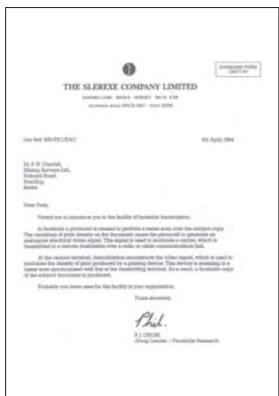
Warranty
(UK Terms and Conditions)
ATTENTION
At the beginning of April 2002, SAGEM SA bought the PHILIPS fax business unit. SAGEM SA is now the European Number 1 in fax and offers a complete range of fax terminals with Internet access and SMS function, multifunctional terminals and servers covering the needs of all its customers—from home-users to multinational organisations. In order to apply the guarantee, you should contact your dealer. Proof of purchase will be required. Should malfunctioning arise, the dealer will advise you what to do.
If you bought your equipment from SAGEM directly, the following shall apply:
A SAGEM undertakes to remedy by repair, free of charge for labour and replacement parts, any defects in the equipment during a period of twelve (12) months from the date of original delivery of the Equipment, where those defects are a result of faulty workmanship. During this twelve month guarantee period, the defective equipment will be repaired free of charge; the customer must however first contact the SAGEM After Sales Department, the phone number of which can be found on the delivery slip or in the instruction manual. Unless the customer has concluded with SAGEM a maintenance contract in respect of the equipment which specifically provides for repairs to be carried out at the customer's premises, the repairs will not be carried out on the equipment at the customer's premises. The following sentence applies to purchases of equipment for the customer's trade, business or profession. Except as otherwise expressly provided in this Document and to the extent permitted by law, SAGEM makes no representations or warranties, express or implied, statutory or otherwise, and to such extent, all terms and conditions implied by law are hereby excluded.
This guarantee does not affect the Customer's statutory rights.
B Exclusions From Guarantee
SAGEM shall have no liability under the guarantee in respect of:
-
damage, defects breakdown or malfunction due to:
-
failure to properly follow the installation process and instructions for use; or
-
an external cause to the equipment (including but not limited to, lightening, fire, shock or water damage of any nature); or
-
modifications made without the written approval of SA-GEM SA; or
-
a failure or neglect to maintain the equipment or inappropriate maintenance; or
-
unsuitable operating conditions, particularly of temperature and humidity; or
-
repair or maintenance of the equipment by persons not authorised by SAGEM; or
-
wear and tear from normal daily use of the equipment and its accessories
-
damage due to insufficient or bad packaging of equipment when returned to SAGEM
-
supply of new versions of software
-
work on any equipment or software modified or added without the prior written consent of SAGEM
-
malfunctions not resulting from the Equipment or from software installed in user workstations for the purpose of use of the equipment
-
communication problems related to an unsuitable environment, including:
-
problems related to access and/or connection to the Internet such as interruptions by access networks or malfunction of the line used by the subscriber or his correspondent
-
transmission faults (for example poor geographical coverage by radio transmitters, interference or poor line quality)
-
the local network fault (wiring, servers, workstations) or the failure of the transmission network
-
the normal servicing (as defined in the user guide supplied with the equipment) as well as malfunctioning due to servicing not being carried out, servicing costs are in any event always borne by the customer.
C In the cases set forth in B as well as after expiry of the twelve month guarantee period, the customer must ask SAGEM for an estimate, and he/she must accept the estimate and agree to pay the charges mentioned in it before returning the equipment to SAGEM. The repair and delivery costs will be invoiced to the customer.
The foregoing shall apply unless otherwise agreed in writing with the customer and only for the UK. If any provision of this guarantee shall be held to be in whole or in part invalid or illegal due to an obligatory rule applicable to consumers pursuant to their national legislation, such invalidity or illegality shall not impair or affect the remaining provisions or parts of this guarantee.
Please note that only Philips ink films should be used. Your Philips guarantee does not cover damage to your fax machine that may be caused by the use of any other ink films.
Environment
Respect of environment is a key objective of SAGEM SA. The SAGEM Group uses environmentally friendly processes to run its operations and has chosen to integrate strong environmental constraints in the full lifecycle of its products including manufacturing, product use and end of life.
PACKAGING
To facilitate packaging recycling, please conform to your local selective recycling rules.
BATTERIES
Old batteries have to be deposited in designated collection areas.
PRODUCT
The crossed out dustbin logo on your product signifies it is classified as Electrical and Electronic Equipment covered by special disposal regulations.
To enforce recycling, recovery of The Waste Electrical and Electronic Equipment (WEEE) and to protect the environment and human health, European regulations requires that you selectively collect waste equipment using one of the following options:
- Your retailer will take your equipment back if you are buying a replacement product.
- Waste equipment can also be deposited in designated collection areas.
Index
A
Activate answering machine 34
Activate call waiting 25
Additional devices 15
Anonymous outgoing message 34
Answering machine 34 deleting messages 34
duration of recording 34
economy operating mode 22
forwarding messages 35
hands-free operation 25
listening to messages 34
memo 35
play back volume 34
recording a conversation 35
recording a message 34
remote control on the cordless telephone 37
remote control on the fax machine 36
switching on and off 34
VIP code 35
answering machine (built-in)
activating and deactivat ing 37
anonymous outgoing message 37
deleting messages 37
listening to messages 37
Appendix 50
functionlist 50
technical data 51
B
Basic settings 18
correction 19
display language 19
function list 18
help function 18
ringer volume 20
ring signal type 19
speaker volume 20
time and date 18
your name 18
your number 18
batteries
inserting 2
removing 45
Broadcast 28
button functions
on the cordless telephone 8
C
Calling line identification 25
Call list 23
call waiting accepting a second call 40
placing a second call 40
Care 47
Clean the scanner glass 47
Code
polling 29
service Codes 47
to forward messages 35
VIP 35
connecting
cordless telephone 2
Connection 12
additional devices 15
ISDN 17
power supply 12
private branch exchange 17
problems with the connection 49
telephone socket 12
Contrast 28
Copy 30
key 7
cordless telephone
additional functions 44
button tones / warning tones 40
keypad lock 8
redialling 39
ring type 40
switching on and off 45
telephone book functions 41
Correct
telephone book entry on the fax machine 24
Creating groups 24
Ckey
for the fax machine 7
D
Day 21
display symbol 6
key assignment 7
Deactivate answering machine 34
Deactivate call waiting 25
Delete
answering machine messages 34
entry from a group 24
SMS messages 32
telephone book entry on
the fax machine 24
deleting
telephone book entries 42
Delivery service 46
Deregistering cordless
telephone 38
Disable
SMS printing 31
SMS reception 33
Display
language for the fax machine 19
symbols for the fax machine 6
display
language 45
display on the cordless
telephone
colour display 8
symbols 8
Distinctive ringing 20
Document
broadcast 28
copy 30
document jam 46
feeding in 27
polled reception 29
send later 30
technical data 51
Duration of recording 34
E
Easylink 25
Easy Install 16
Economy operating mode 22
External memo 35
F
Fax 27
broadcast 28
contrast 28
copy 30
fax journal 29
fax reception 27
feeding documents in 27
function list 50
image quality 28
manual fax reception 22
polled reception 29
problems when faxing 49
sendingfaxes 27
send later 30
silent fax reception 22
size compression 29
transmission and error reports 28
transmission speed 29
Fax switch 21
function list 50
set day/night mode 21
special settings 22
timer 21
Feeding documents in 27
Fine mode
copy 30
display symbol 6
image quality 28
technical data 51
Flash times 51
Forwarding messages 35
Function list 50
printout 18, 50
G
Group 24
broadcasting to a group 28
H
Hands-free 25
key 7
Help
Easy Install 16
function 18
key 7
Hints and tips 46
care 47
delivery service 46
document jam 46
paper jam 46
register and deregister
cordless handsets 47
service code 47
troubleshooting 48
1
Image quality 28
individual ring tone 41
Ink film
display symbol 6
load 14
remove 13
inserting batteries 2
Installation 12
additional devices 15
connection 12
Easy Install 16
ink film 13
ISDN connection 17
loading paper 14
packaging 12
private branch exchange 17
removing paper 15
installation 12
Internal memo 35
ISDN connection 17
J
Jam
document jam 46
paper jam 46
K
Key assignment
for the cordless hand-set 8
for the fax machine 7
L
Language 19
Listening to messages 34
List of numbers 24
Load
ink film 14
paper 14
M
Making a call 23
Manual fax reception 22
Memo 35
external memo 35
internal memo 35
Memory
deleting SMS messages 32
display symbol 6
fax reception without paper 28
Menu key 7
N
Name
correction 19
enter your name 18
Night 21
display symbol 6
key assignment 7
Number
correction 19
enter your number 18
list of numbers 24
0
OK key
for the fax machine 7
P
Packaging 12
Paper
fax reception without
paper 28
load 14
paper jam 46
remove 15
technical data 51
Photo mode
copy 30
display symbol 6
image quality 28
technical data 51
Play back volume 34
Polling
polled reception 29
quick polling 29
send 29
with code 29
Power supply 12
technical data 51
Printout
Easy Install 16
fax journal 29
function list 18
help page 18
list of numbers 24
problems 49
SMS messages 32
transmission and error
report 28
Private branch exchange 17
Problems 49
programmable button 8
Q
Quick polling 29
R
Reading SMS messages 31
Receivefaxes 27
on an extension phone 27
without paper 28
Recording
a conversation 35
a message 34
duration 34
Redial 23
key for the fax machine 7
redialling on the cordless
telephone 39
Red lamp 7
Registering and reregister
ing a cordless handset of the original type 38
Registering a cordless hand
set on more than one fax machine 38
Registering cordless handsets 47
Remote control
on the cordless handset 37
on the fax machine 36
Remove
ink film 13
paper 15
Resolution
display symbols 6
image quality 28
technical data 51
Ringer Volume
for the fax machine 20
Ring signal type
for the fax machine 19
Rkey7
s
safety instructions 12
saving
saving names\numbers
on the cordless telephone 41
Searching groups 24
Send
a fax 27
later 30
SMS messages 32
Service code 47
Set day/night mode 21
Silent
fax reception 22
operation 22
Size compression 29
SMS 31,42
deleting 32
deleting SMS messages
43
disable printing 31
disable reception 33
displaying SMS memory 43
other SMS functions 33
printing 32
reading 31
reading an SMS 43
sending 32
sending an SMS 43
settings 31
SMS management 43
writing an SMS 42
Speaker volume
for the fax machine 20
Special fax switch settings 22
Start key 7
Stop key 7
Switching answering ma
chine on and off 34
T
Technical data 51
Telephone 23
calling line identifica
tion 25
Easylink 25
group 24
hands-free operation 25
making a call 23
redial 23
telephone book on the cordless telephone 24
telephone book on the fax machine 23
Telephone book
key for the fax machine 7
on the cordless handset 24
on the fax machine 23
telephone book
searching for names\entries 41
telephone call
forwarding to other
cordless telephones 39
forwarding to the fax machine 39
Telephone socket
additional devices 15
fax machine 12
Timer 21
display symbol 6
key assignment 7
Time and date 18
Tips and hints
care 47
delivery service 46
document jam 46
paper jam 46
register and deregister
cordless handsets 47
service code 47
troubleshooting 48
Transmission
report 28
speed 29
Troubleshooting 48
U
upper case 43
V
VIP code 35
Volume
of play back messages 34
of the ring signal 20
of the speaker 20
Customer Information
As part of our continuing quest for total customer satisfaction, all of our products are made with ease-of-use and reliability in mind.
If, after consulting your user manual, you still require assistance, you should contact our Call Centre. Our personnel are highly trained specialists who can ensure that you receive the maximum benefit from your product.
United Kingdom
Phone: 0870 124 3737
Fax: 08701240202
You should only use original PHILIPS consumables—your guarantee does not cover damage to your product caused by the use of any other consumables
You can order original consumables directly on Free-fone:
United Kingdom
Phone:0800 358 0807
E-Mail: dti.faxinfoline@sagem.com
Internet: www.fax.philips.com
www.sagem.com
Enjoy using your new PHILIPS product!
SAGEM SA
Le Ponant de Paris
27, rue Leblanc
75512 PARIS CEDEX 15


The CE mark confirms that the machine corresponds to the relevant guidelines of the European Union.
DECLARATION OF CONFORMITY (DoC)
Hereby, SAGEM Communication Austria GmbH, declares that this PHILIPS PPF 591R/595R is in compliance with the essential requirements and other relevant provisions of Directive 1999/5/EC.
Should you require a copy of the original DoC, please visit our web site.

As an Energy Star Program Participant, SAGEM Communication Austria GmbH has determined that this product meets the Energy Star guidelines for
energy efficiency.
This product is intended for use on an analogue public telecommunications network (PSTN) and for use in the country specified on the type label. Use in other countries can result in faulty functioning.
For more information, please contact the technical service centre for your country. Should problems arise during use of your machine, please contact your retailer first.
This user manual was printed on recycled paper bleached without chlorine. This meets the highest standards for low environmental impact. The cardboard packaging used and the packaging inserts of paper and cardboard can be disposed of as waste paper. The plastic foil may be submitted for recycling or disposed of with waste not intended for recycling, depending on the requirements in your country.
The fax machine contains many materials that can be recycled. When you wish to dispose of the machine, please obtain information on the applicable regulations in your country for the recycling of electronic equipment.
This user manual is a document that does not represent a contract.
Errors, printing errors and changes are reserved.
Copyright © 2005 SAGEM Communication Austria GmbH
- Easy Install User Manual
- Dear Customer,
- Packaging
- Telephone connection
- Cordless telephone
- Loading paper
- Power supply
- Starting up
- Ink film
- Additional devices
- SMS
- Reading SMS messages
- Sending SMS messages
- Answering machine
- Listening to messages
- Deleting messages
- Sending taxes
- Copy
- Description of the machine
- Display symbols *
- Key assignment on the fax machine
- Key assignment on the cordless telephone
- Menu functions on the cordless telephone
- Contents
- Safety instructions
- Installation
- Connection
- Telephone socket
- Putting the cordless telephone into operation
- Charge state of the batteries
- Removing the ink film
- Loading the ink film
- Removing paper
- Same socket
- In the UK
- For all other countries
- Separate sockets
- Easy Install
- ISDN connection
- Private branch exchange
- Basic settings
- Help function
- Time and date
- Your number
- Your name
- Press OK.
- Correction
- Display language
- for the fax machine
- for the cordless telephone
- Ring tone type
- Distinctive ringing
- Ringer volume
- Speaker volume
- Fax switch
- Timer④
- Special settings
- Silent fax reception
- Completely silent operation 5
- Manual fax reception
- Economy operating mode
- Telephone
- Making a call
- Redial →tail
- on the fax machine
- Call list
- Telephone book A-Z on the fax machine
- Saving entries
- For a machine with SMS function
- For a machine without SMS function:
- Using the telephone book (for a machine with SMS function)
- Using the telephone book (for a machine without SMS function)
- Correcting entries
- Deleting entries
- List of numbers
- Group
- Creating groups
- Searching groups
- Deleting entries or entire groups
- Hands-free operation
- Caller line identification
- (not available in all countries)
- Activate call waiting
- Deactivate call waiting
- Easylink
- Using additional telephones
- Fax & Copy
- Feeding documents in
- Sending faxes
- Fax reception
- On an additional phone
- Fax reception without paper
- Broadcast
- Broadcasting to a group
- Image quality
- Contrast
- Transmission and error reports
- Transmission speed
- Size compression
- Fax journal
- Polled reception
- Quick polling
- Polling with code
- Polling send
- Send later
- (for device with SMS functionality)
- SMS settings
- Disable SMS printing
- Printing SMS messages
- Deleting SMS messages
- Other SMS functions
- Disable SMS reception
- Switching on and off
- Recording a message
- Anonymous outgoing message
- Duration of recording
- Play back volume
- Single messages
- All messages
- Forwarding messages
- * if a message has already been recorded
- Recording a conversation
- VIP code
- Ringing despite answering machine
- Memo
- External memo
- Internal memo
- Remote control on the fax machine
- Preparing your fax machine for remote access
- Remote access of the answering machine
- Overview of commands
- FUNCTIONS
- Remote Access
- Remote control on the cordless telephone
- Resetting the outgoing message to the factory default (anonymous outgoing message)
- Activating/deactivating the answering machine
- Registering and deregistering the cordless telephone with the fax machine
- Registering the cordless telephone
- Deregistering the cordless telephone
- Registering a cordless telephone on more than one fax machine
- Priority
- Placing calls
- Redialling
- Call log
- Call functions
- Forwarding
- Forwarding to the fax machine
- Forwarding to other cordless telephones
- Second call
- Accepting a second call
- Placing a second call
- Ending the active call
- Secret mode
- Internal telephone calls
- Ring type
- Button tones / warning tones
- Telephone book
- Saving names/numbers
- Assigning an individual ring tone
- Searching for names/entries
- Telephone book functions
- Deleting names/entries
- Sending an SMS from the telephone book
- (for machine with SMS function)
- Writing an SMS
- Sending an SMS
- Reading an SMS
- Managing read SMS messages
- Displaying the available SMS memory
- Additional functions of the cordless telephone
- Accessories
- Alarm
- Timer
- Birthday
- Room monitoring
- Personal preferences (PERSONALIS.)
- Security settings (SECURITY)
- Settings
- Search function
- Changing batteries
- Hints and Tips
- Delivery service
- Paper jam
- Document jam
- Service code
- Code No. 7117
- Code No. 7140
- Care
- Clean the scanner glass
- Cleaning the document feed roller
- Troubleshooting
- Appendix
- Setup
- Fax
- Others
- SMS (with SMS functionality)
- Warranty
- (UK Terms and Conditions)
- ATTENTION
- Environment
- BATTERIES
- PRODUCT
- Index
- A
- B
- C
- D
- E
- F
- G
- H
- 1
- J
- K
- L
- M
- N
- 0
- P
- Q
- R
- s
- T
- U
- V
- Customer Information
- United Kingdom
- DECLARATION OF CONFORMITY (DoC)
Brand : SAGEM
Model : PHILIPS MAGIC 3-2 COLOR DECT
Category : DECT Phone