HannsFlora - TV HANNSPREE - Free user manual and instructions
Find the device manual for free HannsFlora HANNSPREE in PDF.


| Product Type | LED TV |
| Brand | Hannspree |
| Model | HannsFlora |
| Screen Size | 43 inches (109 cm) |
| Resolution | 1920 x 1080 (Full HD) |
| Refresh Rate | 60 Hz |
| Dimensions (with stand) | 970 x 620 x 200 mm |
| Weight (with stand) | 9.8 kg |
| Power Supply | 100-240 V, 50/60 Hz |
| Power Consumption (typical) | 65 W |
| Standby Power Consumption | < 0.5 W |
| Audio Output | 2 x 10 W |
| Connectivity | HDMI x2, USB x1, VGA x1, AV In, Headphone Out |
| Main Functions | Digital TV tuner (DVB-T/C), EPG, Teletext, Sleep Timer, Parental Lock |
| Cleaning and Maintenance | Wipe with soft dry cloth; avoid liquids and abrasive cleaners |
| Safety | Built-in surge protection, child lock, ventilation slots for heat dissipation |
| Spare Parts and Repairability | Remote control, power cord, stand base available; user-serviceable parts: filters, fuses |
| General Information | Energy Class A+; includes multilingual user manual, wall mount optional |
Frequently Asked Questions - HannsFlora HANNSPREE
User questions about HannsFlora HANNSPREE
0 question about this device. Answer the ones you know or ask your own.
Ask a new question about this device
Download the instructions for your TV in PDF format for free! Find your manual HannsFlora - HANNSPREE and take your electronic device back in hand. On this page are published all the documents necessary for the use of your device. HannsFlora by HANNSPREE.
USER MANUAL HannsFlora HANNSPREE
- Regulatory Information.... 3
- Description of Warning Symbols .... 5
- Safety Notices 6
- Preface 13
- Introducing the TV 15
Features.... 15 - Checking Package Contents.... 16
- Getting Started 17
Control Panel 17
Input and Output Jacks 18
Remote Control 19
Inserting the Remote Control Battery/Batteries...... 21 - Making Connections ...... 24
Connecting to an Antenna or Cable TV 24
Connecting to AV Devices 25
Connecting to a VCR/VCD/DVD Player 25
Connecting to a Video Camera 26
Connecting External Speakers or Headphones...... 27
Connecting the Power Adapter 28 - Using the TV 29
Using the Remote Control 29
Turning the TV On and Off 29
Selecting Channels 29
Switching Source Signals 29
Adjusting the Volume 29 - Adjusting On-Screen Display (OSD) Settings 30
OSD Setting Menu 30
Brightness 31
Contrast 32
Video Setting 33
Hue 34
Saturation 35
Sharpness 36
Color Temperature 37
Table of Contents
Audio Setting 38
Treble.... 39
Bass 40
Balance 41
Mute 42
TV Setting 43
TV/CATV 44
MTS 45
Auto Program.... 46
Manual Program.... 47
Channel Add/Erase 48
Favorite Channel 49
Miscellaneous Setting 50
Language 51
Sleeper.... 52
OSD Display 53
Time Setting 54
Reset 55
Exit 55
11.Taking Care of Your TV & Remote Control.... 56
12.Troubleshooting.... 57
13.Warranty and Service 59
14.Specifications 60
15.Glossary 61
1
Regulatory Information
FCC Compliance Statement ^1
This device complies with part 15 of the FCC Rules. Operation is subject to the following two conditions: (1) This device may not cause harmful interference, and (2) this device must accept any interference received, including interference that may cause undesired operation.
Additional Information
This equipment has been tested and found to comply with the limits for a Class B digital device, pursuant to part 15 of the FCC Rules. These limits are designed to provide reasonable protection against harmful interference in a residential installation. This equipment generates, uses and can radiate radio frequency energy and, if not installed and used in accordance with the instructions, may cause harmful interference to radio communications. However, there is no guarantee that interference will not occur in a particular installation. If this equipment does cause harmful interference to radio or television reception, which can be determined by turning the equipment off and on, the user is encouraged to try to correct the interference by one or more of the following measures:
- Reorient or relocate the receiving antenna
- Increase the separation between the equipment and receiver
- Connect the equipment into an outlet on a circuit different from that to which the receiver is connected
- Consult the dealer or an experienced radio/TV technician for help
Warning: You are cautioned that changes or modifications not expressly approved by the party responsible for compliance could void your authority to operate the equipment.
DOC Compliance Notice ^1
This digital apparatus does not exceed the Class B limits for radio noise emissions from digital apparatus as set out in the Radio Interference Regulations of the Canadian Department of Communications. This device complies with Canada ICES-003 Class B.
CE Conformity Statement ^2
This device complies with the requirements set out in the Council Directive on the approximation of the Laws of the Member States relating to Electromagnetic Compatibility (89/336/EEC) and the Amendment Directive (92/31/EEC), Low-Voltage Directive (73/23/EEC) and the Amendment Directive (93/68/EEC).
- applies only to products purchased in Canada
- applies only to products purchased in the European Union
2
Description of Warning Symbols

Before You Proceed
- Read all Safety Notices in Section 2 of this manual and instructions in the User's Manual carefully before either plugging in or turning the TV on.
- Keep this User's Manual in a safe place for future reference. Keep the box and packaging in case the TV needs to be shipped in the future.
- Follow the TV and warning label instructions.
- Any uses, operations, changes, alterations or modifications of the TV that do not follow the instructions in this manual will void this TV's warranty.

natural_image
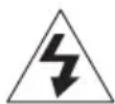
Black triangular warning symbol with white lightning bolt and downward arrow (no text)CAUTION
RISK OF ELECTRIC SHOCK DO NOT OPEN

natural_image
Black triangular warning symbol with an exclamation mark (no text or numbers)WARNING

This symbol is used to alert users to pay attention to important descriptions regarding usage, maintenance (repair), and additional important information related to this TV.
CAUTION

This symbol is used to alert users to the risk of electric shocks due to dangerous and uninsulated components.
Electric Power Notice
Electric power may cause personal injury and mechanical damage if misused. Although safety has been taken into consideration during the design and production of this TV, electric shock or fire can result if the TV is misused. To prevent potential danger, read and follow the instructions and warnings contained in this manual when setting up, operating or cleaning the TV. In addition, please read all “Safety Notices” contained in this manual carefully before using the TV.

Power Supply Safety Notes
- To avoid electric shocks, do not use an extended power cord or an outlet that does not match this TV's plug or leaves the plug exposed.
- This TV has a 3-pin grounded plug. The third pin connects to ground; do not remove it or alter it in anyway.
- If the power cord or plug is damaged or worn, unplug it immediately and contact an authorized service technician for maintenance.
- To avoid fire or electric shocks, do not overload electric power outlets.

Installation Safety Notes
Antenna
We suggest that you use an outdoor antenna to get the best signal possible unless you have cable TV or a centralized indoor antenna system. You may, however, use an antenna indoors if it is placed in a location free from interference.
Location
Avoid prolonged exposure to sunlight or other strong sources of heat. Leave sufficient distance between the TV and the wall to provide enough space for the emission of heat.

WARNING
To reduce the risk of fire or electric shock, do not expose this apparatus to rain or moisture.
Apparatus shall not be exposed to dripping or splashing and no objects filled with liquids, such as vases, shall be placed on the apparatus.

Power
To avoid danger of fires or electric shock, only use those adapters listed below, which are compatible with this TV.
• EDAC POWER ELECTRONICS CO., LTD.: EA1050E-120
• LI SHIN INTERNATIONAL ENTERPRISE CORP.: 0217B1240
IMPORTANT SAFETY INSTRUCTIONS
natural_image
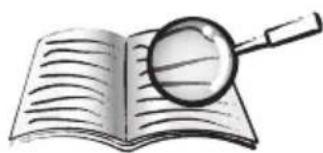
Illustration of an open book with a magnifying glass resting on it (no text or symbols visible)1 Read these instructions.
2 Keep these instructions.
3 Heed all warnings.
4 Follow all instructions.
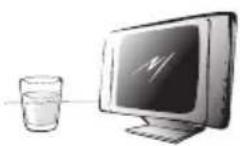
5 Do not use this apparatus near water.
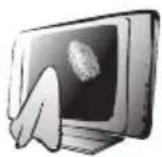
6 Clean only with dry cloth.
natural_image
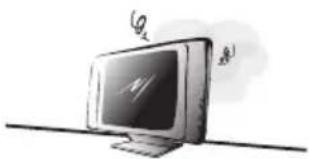
Illustration of a computer monitor with a lightning bolt symbol on top, placed on a surface (no text or labels)7 Do not block any ventilation openings. Install in accordance with manufacturer's instructions.
natural_image
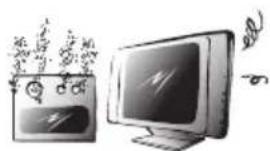
Illustration of a computer monitor with a screen showing icons, and a cartoon character emitting smoke (no text or symbols present)8 Do not install near any heat sources such as radiators, heat registers, stoves, or other apparatus (including amplifiers) that produce heat.
natural_image
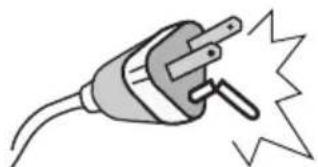
Illustration of a plug with a fuse and explosion effect (no text or symbols)9 Do not defeat the safety purpose of the polarized or grounding-type plug. A polarized plug has two blades with one wider than the other. A grounding-type plug has two blades and a third grounding prong. The wide blade or the third prong are provided for your safety. If the provided plug does not fit into your outlet, consult an electrician for replacement of the obsolete outlet.
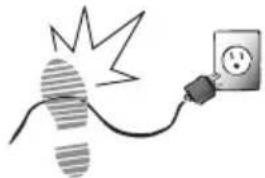 | 10 Protect the power cord from being walked on or pinched, particularly at plugs, convenience receptacles, and the point where they exit from the apparatus. |
 | 11 Only use attachments/accessories specified by the manufacturer. |
 | 12 Use only with the cart, stand, tripod, bracket, or table specified by the manufacturer, or sold with the apparatus. When a cart is used, use caution when moving the cart/apparatus combination to avoid injury from tip-over. |
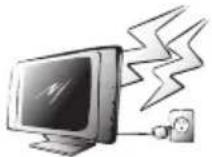 | 13 Unplug this apparatus during lightning storms or when unused for long periods of time. |
 | 14 Refer all servicing to qualified service personnel. Servicing is required when the apparatus has been damaged in any way, such as power-supply cord or plug is damaged, liquid has been spilled or objects have fallen into the apparatus, the apparatus has been exposed to rain or moisture, does not operate normally, or has been dropped. |
CAUTION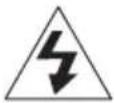 | These servicing instructions are for use by qualified service personnel only. To reduce the risk of electric shock, do not perform any servicing other than that contained in the operating instructions unless you are qualified to do so. |
CAUTION
Personal Safety
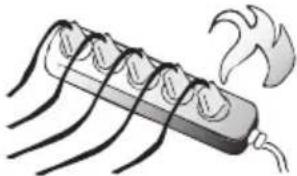 | To avoid overloading the power supply, never plug too many electrical devices into an outlet, power strip, or extension cable. |
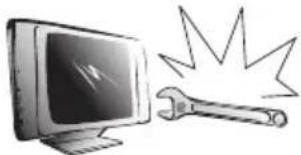 | Dangerous high-voltage electric power components are located inside the TV. To avoid electric shock, do not disassemble the TV in any way. |
 | Do not place or drop metals, small objects, or flammable materials into the vent of the TV. |
 | If the TV is dropped, falls down, or is otherwise damaged, unplug the power cord immediately and contact an authorized service technician. |
 | If any fluid is sprayed or dropped into the TV, contact an authorized service technician. |
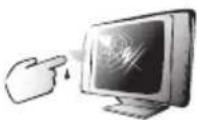 | The screen of the TV is made of glass. Avoid hitting or scraping it. If the screen is broken, do not touch the broken glass. |
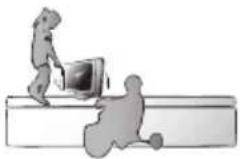 | Do not allow children to use the TV unattended. |
Installation
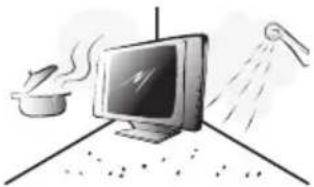 | Do not place the TV in locations where there is excessive steam or dust. |
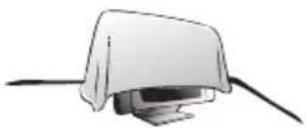 | Avoid blocking the TV's vents, do not place the TV on a bed, sofa, carpet, or in a sealed cabinet. |
 | Install the outdoor antenna (not included) away from power transmission lines to avoid possible danger. |
 | Unplug the power cord and antenna connector when there is a storm or when the TV is not in use for long periods to avoid electric shock from lightning. |
Operation
 | This TV is designed for home power sources as labeled on the casing. Avoid using any other power accessories to avoid electric shock or other damage. |
 | The plug can be inserted into an outlet in only one direction as shown to the left. Do not alter the plug. Contact an authorized service technician if you cannot plug it in correctly. |
 | If there is any problem that cannot be resolved according to the instructions given in this manual, contact an authorized service technician immediately. Do not attempt any methods not covered in this manual. |
Maintenance
 | Do not attempt to repair the TV by yourself. Contact an authorized service technician. Ask the service technician to complete a safety inspection before switching the power on after completing any maintenance. |
4
Preface
Thank you for purchasing a Hannspree Liquid Crystal Display Television (LCD TV). Your new TV will allow you to enjoy superior audio and video while enriching your lifestyle with advanced technology.
Please carefully read this manual in its entirety before setting up, using or operating your TV. To ensure the safe and correct installation and operations of the TV, it is important that the safety and operation instructions in this manual are followed.
This instruction manual is designed to assist you in setting up and using the TV. The information in this manual has been carefully checked for accuracy; however, no guarantee is given to the correctness of the contents. The information in this manual is subject to change without notice.
To the extent allowed by applicable law, Hannspree California Inc. ("Hannspree") shall not be liable for direct, indirect, special, exemplary, incidental or consequential damages arising from any defect or omission in this manual, even if advised of the possibility of such damages in advance.
Copyright
© Copyright 2004 Hannspree California Inc.
All rights reserved. This manual is protected by copyright and distributed under licenses restricting its use, copying and distribution. No part of this manual may be reproduced in any form by any means without the prior written authorization of Hannspree. The TV described in this manual may include copyrighted software of Hannspree (or other third parties). Hannspree (or other third parties) preserves the exclusive rights for copyrighted software, such as the right to distribute or reproduce the copyrighted software. Accordingly, and to the extent allowed by applicable law, any copyrighted software contained in the product described herein shall not be distributed, modified, reverse engineered, or reproduced in any manner without the prior written authorization of Hannspree (or of other third parties).
The Hannspree logos presented herein are trademarks of Hannspree. All other product names, trademarks or logos mentioned herein are used for identification purpose only, and may be the trademarks or registered trademarks of their respective owners.
The purchase of the product described herein shall not be deemed to grant, either directly or by implication, estoppel or otherwise, any license under the copyrights, patents, patent applications or trademarks of Hannspree, except for the normal, non-exclusive use that arises by operation of law in the sale of a product.
5
Introducing the TV
Thank you for purchasing this LCD TV. Your LCD TV is designed to be safe, versatile, and easy to use. The design makes it a fun addition to any room.
You can watch broadcast or cable television channels, and easily connect a VCR, VCD or DVD player to the standard RCA and S-Video input ports that are included in the 4-IN-1 A/V cable.
Convenient control buttons located on the TV and a handy remote control let you change channels, adjust the volume, and change display settings through an easy-to-use on-screen display menu system. The built-in stereo speakers provide full rich sound and a convenient audio output port lets you connect to an external audio system or headphones.
Features
- Built-in TV tuner
- 4-IN-1 A/V cable
- On-Screen Display (OSD) menu system
• Built-in stereo speakers
• Audio/Video support
6
Checking Package Contents
Make sure the following components are included in the box. Please contact Hannspree Customer Service immediately if anything is missing or damaged.
• TV
- User's manual
- Quick start guide
- Warranty and service manual
- Power cord
- Power adapter
- 4-IN-1 A/V cable
- Remote control and battery/batteries
- RCA jack x 3
• S j a c k x 1
- Stop Card
Control Panel
| Description Icon Function | ||
| Power | Power | Turns the TV on and off. |
| Power LED | Indicates power status. | |
| Source | SOURCE / TV/AV / TV | Selects the input source to be displayed(TV/CATV, AV1, or AV2). |
| Menu | MENU/M/● | Turns the On-Screen Display (OSD) menu on and off. |
| Select channel | channel up(∧ / ▲ / ▶ / +)channel down(∨ / ▼ / ◀ / -) | Changes channels. Press channel up to increase the channel number. Press channel down to decrease the channel number. In PC or AV mode, press either button to return to TV mode. |
| Adjust volume | volume up(★ / + / ▲ / ▶)volume down(★ / - / ▼ / ◀) | Press volume up to increase the audio volume. Press volume down to decrease the audio volume. |
Input and Output Jacks
| Description Connector Function | ||||
| AV1 (R-AUDIO/L-AUDIO/VIDEO) | 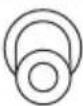 |  |  | Connects to a right audio (red) or left audio (white) cable, or video (yellow) cable. |
| AV2 | 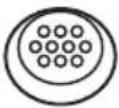 | Use the included 4-IN-1 A/V cable to connect external devices, such as a VCR, VCD, DVD player, CVBS RCA cables or a game device.Audio Input: AV connector audio (white and red) cables.Video Input: AV connector video (yellow) or S-Video cable. | ||
| ANT | 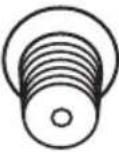 | Connects to an antenna or CATV cable television line. | ||
| DC-IN |  | Connects to the included power adapter. | ||
| Headphone line out jack |  | Connects to headphones or external speakers | ||
Remote Control
| Description Icon Function | ||
| Menu | MENU/MENU/M | Press this button to activate the OSD menu system and to adjust various settings and personal preferences. |
| Arrow | ◄/►/◄/► | Press ◀ and ► to scroll through the on-screen display menus.Favorite channels can be selected using the ◀ and ► buttons on the remote control. |
| Number | 1 2 34 5 67 8 90 | Use to select a channel directly.Press 0-9 to enter the channel number (press 1 and 0 for channel 10). |
| Recall | RECALL | Press this button to return to the last channel selected. |
| MTS | MTS | Press this button to enable the bilingual function when the program has stereo/SAP/MONO capabilities. |
Power Turns the TV power on or off.
| Adjust volume | -VOL VOL+◀VOL VOL▶▼VOL VOL▲▶VOL VOL◀ | Press volume up to increase the audio volume. Press volume down to decrease the audio volume. |
| Mute | MUTE | Press this button to eliminate sound. Press mute again or press the volume adjust buttons to restore sound. |
| Description Icon Function | ||
| Select channel | ▼CH CH▲▶CH CH▼-CH CH+ | Changes channels. Press channel up to increase the channel number. Press channel down to decrease the channel number. In PC or AV mode, press either button to return to TV mode. |
| Source | SOURCE | Press this button to cycle the video input sources. The source is displayed on the screen. |
| Reset (selected models only) | RESET | Press this button to reset the TV. |
| Display (selected models only) | DISPLAY | Press this button to show messages on the screen, such as the channel number and other. Press this button again to show the real-time clock. Press this button again to close the displayed message. |
| Caption (selected models only) | CAPTION / CAPT. | Press this button to enable the closed captions/subtitles (Only available with 15-inch TVs). This option may not be available in your local area. |
| Auto (selected models only) | AUTO | Press this button to automatically adjust the screen parameters in PC mode (only available with 15-inch TVs). |
Inserting the Remote Control Battery/Batteries
Lithium battery/batteries
1 Open the battery compartment cover at the back of the remote control (A).
2 Slide the battery/batteries, with the positive (+) side facing up, underneath the shorter set of metal contacts (B).
3 Press the battery/batteries firmly into place in the battery compartment (C)
4 Replace the battery compartment cover (D).

natural_image
Simple line drawing of a curved object with an arrow, no text or symbols present
natural_image
Diagram of a device with a circular component and an arrow pointing to it, labeled 'B' (no text or symbols on the diagram itself)
natural_image
Simple line drawing of a mechanical component with a downward arrow and circular feature (no text or symbols)
natural_image
Simple line drawing of a mechanical component with a downward arrow and circular base (no text or symbols)Note
Your remote control may have either AAA type batteries or CR2032 lithium battery/batteries.
AAA battery/batteries
1 Open the battery compartment cover at the back of the remote control (A).

natural_image
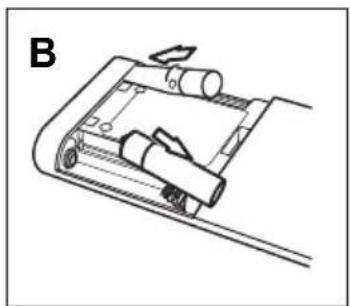
Diagram of a mechanical or architectural component with an arrow indicating upward motion (no text or symbols present)2 Insert the battery/ batteries paying attention to the polarity markings inside the battery compartment (B).
natural_image
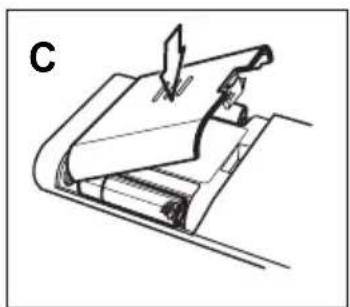
Mechanical assembly diagram showing a conveyor belt system with rollers and a handle (no text or symbols)3 Replace the battery compartment cover (C).
natural_image
Line drawing of a mechanical assembly with a tool and paper (no text or symbols)Note Your remote control may have either AAA type batteries or CR2032 lithium battery/batteries.
CAUTION
- If the remote control is not used for a long period, remove the batteries and store them separately.
- Handle damaged or leaking batteries carefully, and wash hands after such handling.
- If your remote control has two batteries, do not mix new and old batteries because the life of the new batteries will be shortened. Chemical fluids may leak from the old batteries.
- Danger of explosion if battery is incorrectly replaced. Replace only with the same or equivalent type recommended by the equipment manufacturer. Discard used batteries according to manufacturer's instructions.
- Refer to your local recycling or waste disposal rules and contact a local waste disposal vendor to dispose of used batteries.
- The remote control may have a magnet in it, so do not place magnetic sensitive items such as watches, credit cards, or flash media close to the cover.
- Do not use force when pulling the remote control cover open; you may damage the hinge.
Connecting to an Antenna or Cable TV
1 Connect one end of the VHF/UHF (Antenna) or CATV cable to ANT Jack (VHF/UHF IN Jack) on the back of the TV.
2 Connect the other end of the VHF/UHF (Antenna) or CATV cable to the antenna socket or CATV cable.

text_image
Antenna ANT ANT jack (VHF/UHF IN jack) Antenna/CATV socket Antenna/CATV coaxial cableNote If you cannot receive channels after connecting to an antenna or cable TV line, try scanning for channels. See “Auto Program” on page 46.
Connecting to AV Devices
Connect external devices such as a VCR, VCD or DVD player, or video game console to the TV using the supplied 4-IN-1 A/V cable.
Connecting to a VCR/VCD/DVD Player
The illustration presented here shows how to connect the TV to a VCR, VCD or DVD player. Actual connections may vary according to the make and model of the device. Refer to the user's manual included with the device for more detailed instructions.

flowchart
graph TD
    A["AV2"] -->|4-IN-1 A/V jack| B["4-IN-1 A/V jack"]
    B --> C["S-Video connector"]
    C --> D["AV connectors"]
    D --> E["4-IN-1 A/V cable"]
    E --> F["4-IN-1 A/V cable"]
    G["VCR"] --> H["4-IN-1 A/V jack"]
    I["DVD"] --> J["4-IN-1 A/V jack"]
    K["VCD"] --> L["4-IN-1 A/V jack"]
    M["B"] --> N["R"]
    O["R"] --> O["W"]
    P["W"] --> P["Y"]
    Q["Y"] --> R["AV connectors"]
Note
- The cables are color-coded (black, red, white, yellow). Connect each color-coded cable to the appropriate connector on your device.
- When connecting the S-Video connector and AV connector at the same time, the priority is given to the S-Video connector.
Connecting to a Video Camera
The instructions presented here are a general guide to connecting the TV to a camcorder or other type of digital camera. Actual connections may vary according to the make and model of the device. Refer to the user's manual included with the camcorder or camera for more detailed instructions.

flowchart
graph TD
    A["AV2"] -->|4-IN-1 A/V jack| B["S-Video connector"]
    B --> C["AV connectors"]
    C --> D["Camera with four cables"]
    D --> E["4-IN-1 A/V jack cable"]
    style A fill:#f9f,stroke:#333
    style B fill:#ccf,stroke:#333
    style C fill:#cfc,stroke:#333
    style D fill:#fcc,stroke:#333
    style E fill:#ffc,stroke:#333
Note
The cables are color-coded (black, red, white, yellow). Connect each color-coded cable to the appropriate connector on your device.
Connecting External Speakers or Headphones
External speakers or headphones may be used to listen to the TV rather than using the built-in speakers. Connect external speakers to the speaker line out port or headphones to the headphone port as illustrated.

text_image
Headphones Headphone / Speakers line out jack HEADPHONE/ SpeakersNotes
- External speakers or headphones are not included with the TV.
- The internal TV speakers will not output sound when headphones are plugged in.
- Use external speakers with built-in amplifiers only.
Connecting the Power Adapter
1 Connect the power cord to the power adapter as illustrated.
2 Plug the power adapter connector into the DC-IN input jack on the rear panel of the TV.
3 Insert the three-pronged plug at the other end of the power cord into a power outlet.

flowchart
graph TD
    A["DC-IN"] --> B["Power adapter"]
    B --> C["Three-pronged plug"]
    C --> D["Power outlet"]
    style A fill:#f9f,stroke:#333
    style B fill:#ccf,stroke:#333
    style C fill:#cfc,stroke:#333
    style D fill:#fcc,stroke:#333
Using the Remote Control
For best results, use the remote control within a distance of 16 feet (5 meters) from the front of the TV. Do not exceed an angle of 30 degrees when pointing at the TV.
Notes
- The operational distance may be shortened when the signal sensor is directly exposed to strong light.
- Aim the transmitter on the remote control at the signal sensor and ensure that there are no obstacles between them.
Turning the TV On and Off
1 Press power ⏻ on the remote control or control panel to turn on the TV.
2 Press power ⏻ again; the TV is in off mode.
Selecting Channels
Press channel up or channel down on the control panel to select the channel or enter the specific channel number by pressing the number buttons on the remote control.
Switching Source Signals
Press source to select the incoming source signal.
The current source setting (TV/CATV, AV1, or AV2) appears on the upper left corner of the screen.
Adjusting the Volume
Press volume up to increase the volume. Press volume down to decrease the volume. The volume level is displayed on the screen.
10 Adjusting On-Screen Display (OSD) Settings
The On-Screen Display (OSD) menu system provides a quick and simple method to adjust your TV's settings. This chapter describes how to change each of the available settings.
The OSD can be used with either the remote control or the control panel.
| Function Control Panel Icon Button | Remote Control Icon | |
| Menu Menu Menu menu/ENTER, M | ||
| Channel up | CH (▶ / ∧ + / ▲) | Right arrow > / ▶ |
| Channel down | CH (◀ / ∨ - / ▼) | Left arrow < / ◀ |
| Enter Menu Enter menu/ENTER, M | ||
Note
The following sections explain how to adjust settings in the OSD menus using the control panel.
OSD Setting Menu
Press menu to enter the OSD
Main Menu screen.
The Main Menu appears

text_image
Main Menu BrightnessBrightness 303Note
To exit the OSD menus, press channel up or channel down to select Exit ☐. Then press menu to exit the OSD menus. Also, after you finish setting OSD parameters, follow these instructions to exit the OSD menus.
Brightness

text_image
Main Menu BrightnessBrightness 3031 Press menu. The brightness slide bar is highlighted.
2 Press channel up to increase the brightness.
3 Press channel down to decrease the brightness.
4 Press menu to confirm the setting and return to the Main Menu.
Note
The new setting is confirmed automatically when the OSD times out.
Contrast
text_image
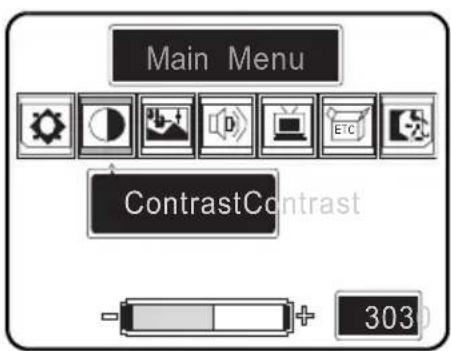
Main Menu ContrastContrast 3031 Press channel down or channel up to select Contrast.
2 Press menu. The contrast slide bar is highlighted.
3 Press channel up to increase the contrast.
4 Press channel down to decrease the contrast.
5 Press menu to confirm the setting and return to the Main Menu.
Note
The new setting is confirmed automatically when the OSD times out.
Video Setting
Press menu to enter the OSD Main Menu screen.
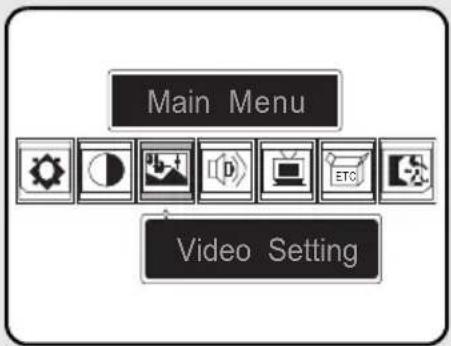
1 Press channel down or channel up to select Video Setting.
2 Press menu to enter the Video Setting menu.
text_image
Main Menu Video SettingHue

text_image
Video Setting Hue G R1 Press menu to enter the Hue submenu.
2 Press channel up to increase green and decrease red.
3 Press channel down to decrease green and increase red.
4 Press menu to confirm the setting and return to the Video Setting menu.
Note
The new setting is confirmed automatically when the OSD times out.
Saturation

text_image
Video Setting Saturation 1271271 Press channel down or channel up to select Saturation.
2 Press menu to enter the Saturation submenu.
3 Press channel up to increase the saturation.
4 Press channel down to decrease the saturation.
5 Press menu to confirm the setting and return to the Video Setting menu.
Note
The new setting is confirmed automatically when the OSD times out.
Sharpness
flowchart
graph TD
    A["Video Setting"] --> B["Sharpness"]
    B --> C["-"]
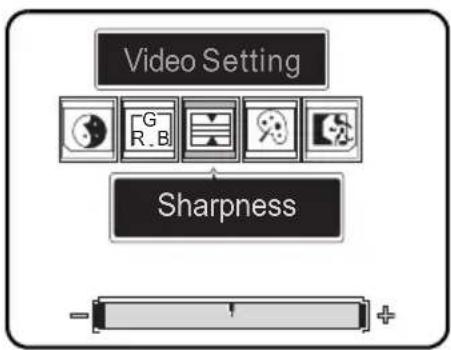
1 Press channel down or channel up to select Sharpness.
2 Press menu to enter the Sharpness submenu.
3 Press channel up to increase the sharpness.
4 Press channel down to decrease the sharpness.
5 Press menu to confirm the setting and return to the Video Setting menu.
Note
The new setting is confirmed automatically when the OSD times out.
Color Temperature

flowchart
graph TD
    A["Video Setting"] --> B["Image 1"]
    A --> C["Image 2"]
    A --> D["Image 3"]
    A --> E["Image 4"]
    A --> F["Color Temp."]
1 Press channel down or channel up to select Color Temp.
2 Press menu to enter the Color Temperature submenu. There are three default color temperatures to Choose from.
Standard Color
Press channel down or channel up to select Standard, then press menu.
Warm Color
Press channel down or channel up to select Warm, then press menu.
Cold Color
Press channel down or channel up to select Cold, then press menu.
Note
The new setting is confirmed automatically when the OSD times out.
Audio Setting
Press menu to enter the OSD Main Menu screen.
1 Press channel down or channel up to select Audio Setting.
2 Press menu to enter the Audio Setting menu.
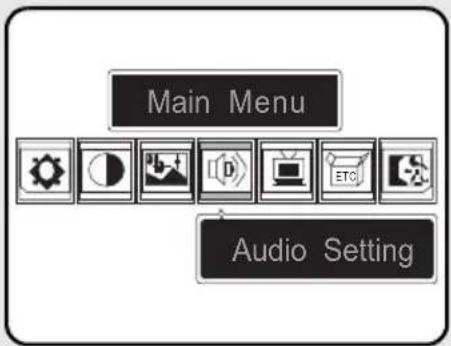
text_image
Main Menu Audio SettingTreble
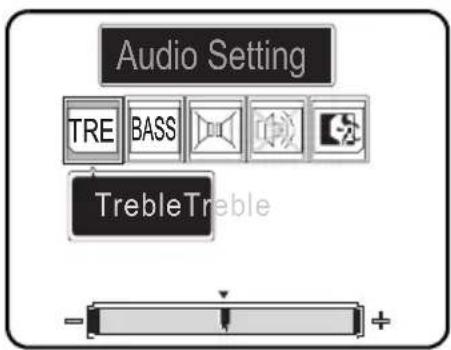
text_image
Audio Setting TRE BASS TrebleTreble1 Press menu to enter the Treble sub-menu.
2 Press channel up to increase the treble.
3 Press channel down to decrease the treble.
4 Press menu to confirm the setting and return to the Audio Setting menu.
Note
The new setting is confirmed automatically when the OSD times out.
Bass

text_image
Audio Setting TRE BASS BassBass1 Press channel down or channel up to select Bass.
2 Press menu to enter the Bass submenu.
3 Press channel up to increase the bass.
4 Press channel down to decrease the bass.
5 Press menu to confirm the setting and return to the Audio Setting menu.
Note
The new setting is confirmed automatically when the OSD times out.
Balance
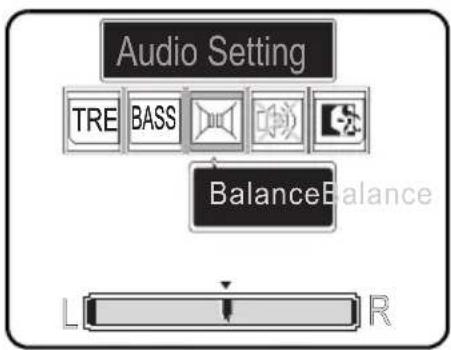
flowchart
graph TD
    A["Audio Setting"] --> B["TRE"]
    A --> C["BASS"]
    A --> D["Speaker Icon"]
    A --> E["Speaker Icon"]
    A --> F["Balance Balance"]
    F --> G["L"]
    F --> H["R"]
1 Press channel down or channel up to select Balance.
2 Press menu to enter the Balance submenu.
3 Press channel down to shift the balance to the left speaker.
4 Press channel up to shift the balance to the right speaker.
5 Press menu to confirm the setting and return to the Audio Setting menu.
Note
The new setting is confirmed automatically when the OSD times out.
Mute
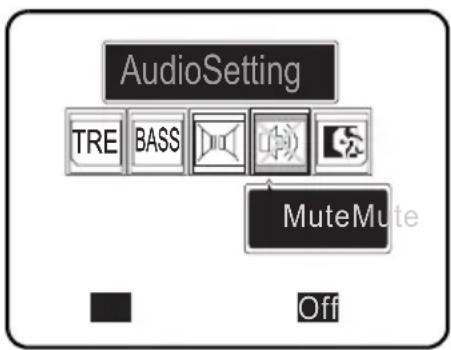
flowchart
graph TD
    A["AudioSetting"] --> B["TRE"]
    A --> C["BASS"]
    A --> D["Speaker Icon"]
    A --> E["Speaker Icon"]
    A --> F["MuteMute"]
    G["Off"] --> H["Black Square"]
1 Press channel down or channel up to select Mute.
2 Press menu to enter the Mute submenu.
3 Press channel up to turn the mute off.
4 Press channel down to turn the mute on.
5 Press menu to confirm the setting and return to the Audio Setting menu.
Note
The new setting is confirmed automatically when the OSD times out.
TV Setting
Press menu to enter the OSD Main Menu screen.
1 Press channel down or channel up to select TV Setting.
2 Press menu to enter the TV Setting menu.
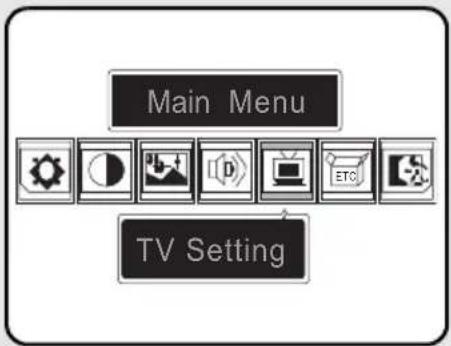
text_image
Main Menu TV SettingTV/CATV
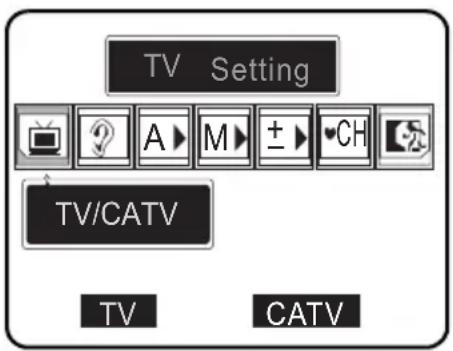
text_image
TV Setting TV/CATV TV CATV1 Press menu to enter the TV/CATV submenu.
Receiving Cable TV
Press channel up to select CATV, then press menu.
Receiving Broadcast TV
Press channel down to select TV, then press menu.
Note
The new setting is confirmed automatically when the OSD times out.
MTS
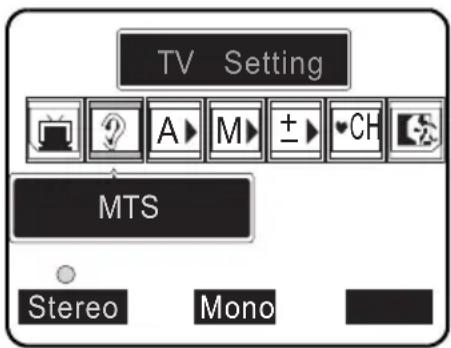
text_image
TV Setting MTS Stereo Mono1 Press channel down or channel up to select MTS.
2 Press menu to enter the MTS submenu. Select from the following options.
Stereo
Press channel down to select Stereo. A green dot appears and Stereo is highlighted in yellow. Press menu again to confirm the selection.
SAP
Press channel up to select SAP. Press menu again to confirm the selection. If a green dot does not appear, then your service provider doesn't support SAP. This option may not be available in your local area.
Mono
Press channel up to select Mono. Press menu again to confirm Mono, which outputs sound through a signal channel.
Note
The new setting is confirmed automatically when the OSD times out.
Auto Program

text_image
TV Setting Auto Program ON OFF1 Press channel down or channel up to select Auto Program.
2 Press menu to enter the Auto Program Setting submenu.
3 Press channel down or channel up to select ON or OFF and press menu.
The screen shows “Auto Program...” and the channel indicator increments from 2 to 69 (ANT connection) or from 1 to 125 (CATV cable connection).
The screen displays the first channel that is successfully found after scanning is complete.
Manual Program

text_image
TV Setting A M ± CH Manual Program DOWN DOWN UP CH. 4CH. 41 Press channel down or channel up to select "Manual Program".
2 Press menu to enter the Manual Program submenu.
3 Press channel down or channel up to find the channel you want to add. Press menu to select the channel.
4 Press menu to exit, and then access Channel Add/Erase function to add a desired channel.
Channel Add/Erase
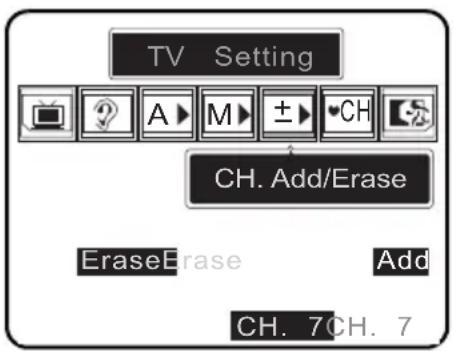
text_image
TV Setting CH. Add/Erase EraseErase Add CH. 7CH. 71 Select the channel you want to add or delete, for example, Channel 28.
2 Press channel down or channel up to select CH. Add/Erase.
3 Press menu to enter the Channel Add/Erase submenu. Select from the following options.
Add Channel
1 Press channel down or channel up to select Add.
2 Press menu to select channel.
Erase Channel
1 Press channel down or channel up to select Erase.
2 Press menu to select channel. When you return to the normal TV screen and use channel up and channel down to browse channels, an erased channel (for example, Channel 28) will be skipped automatically.
Note
You can still access the erased channel by entering the channel number using the number keys on the remote control.
Favorite Channel

text_image
TV Setting Favorites CH. Edit M1 M2 M4 10 1 10 10 Exit
text_image
TV Setting Favorites CH. Edit M1 M2 M4 18 1 10 10 Exit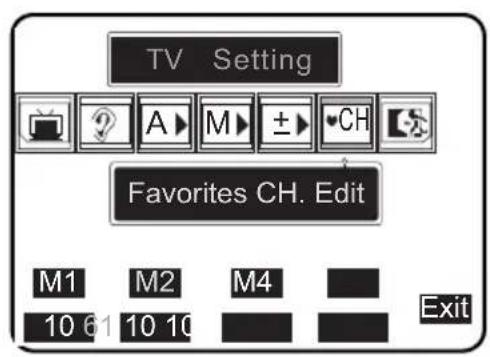
text_image
TV Setting Favorites CH. Edit M1 M2 M4 10 61 10 10 Exit1 Press channel down or channel up to select Favorites CH. Edit.
2 Press menu to enter the Favorites CH. Edit submenu.
3 The screen displays the four favorite channels: M1, M2, M3, and M4.
4 Press channel down or channel up to select the channel number you want to set for M1. Press menu to confirm the setting and move to the next favorite channel, M2.
5 Repeat step 4 for M2, M3 and M4.
Note
Favorite channels can be selected using the ◀ and ▶ buttons on the remote control.
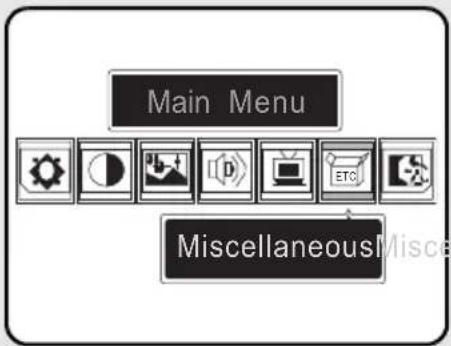
Miscellaneous Setting
Press menu to enter the OSD Main Menu screen.
1 Press channel down or channel up to select Miscellaneous Setting.
2 Press menu to enter the Miscellaneous Setting menu.
text_image
Main Menu MiscellaneousLanguage

text_image
Miscellaneous LanguageLanguage EnglishEnglish EspañolEs1 Press menu to enter the Language submenu.
2 The screen displays the available OSD languages: English and Español.
3 Press channel down or channel up to select a language. The OSD language changes as soon as you select a language.
4 Press menu to confirm your choice.
Sleeper
The sleeper turns the LCD TV off automatically after a set period of time.

text_image
Miscellaneous SleeperSleeper off 30 9060 1201 Press channel down or channel up to select Sleeper.
2 Press menu to enter the Sleeper submenu.
3 The screen displays the available sleeper setting:
- OFF
- 30 minutes
- 60 minutes
- 90 minutes
- 120 minutes
4 Press channel down or channel up to select a value.
5 Press menu to confirm your choice.
OSD Display
This setting allows you to set the amount of information that appears on the LCD screen when display is pressed. You can choose from three settings: Off, Portion, or All.

flowchart
graph TD
    A["Miscellaneous"] --> B["OSD Display"]
    B --> C["All Portion Off"]
1 Press channel down or channel up to select OSD Display.
2 Press menu to enter the OSD Display submenu.
3 The screen displays the available settings: All, Portion, or Off.
4 Press channel down or channel up to select "All", "Portion", or "Off".
5 Press menu to confirm your choice.
Time Setting
This setting allows you to set the TV clock.

1 Press menu to enter the OSD menus.
2 Press channel up or channel down to select Miscellaneous.
3 Press menu to enter the Miscellaneous menu.
4 Press channel down or channel up to select Time Setting.
5 Press menu to enter the Time Setting submenu.
6 The screen displays the current setting. The hour is highlighted in yellow.
7 Press channel down or channel up to adjust the hour setting, then press menu.
8 The minutes are highlighted in yellow. Press channel down or channel up to adjust the minute setting.
9 Press menu to confirm the new time setting.
Note
The new setting is confirmed automatically when the OSD times out.
Reset
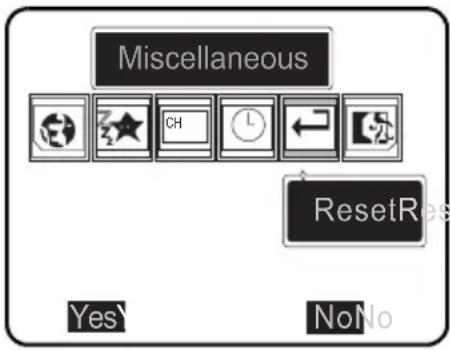
The Reset function returns all of your LCD TV's user settings to their factory defaults.
Warning:
The reset function erases all of your custom and favorite channel settings, and will reset all display settings (such as contrast, brightness, etc.) to the factory default values. The reset function cannot be reversed once it begins.
text_image
Miscellaneous ResetRes Yes NoNo1 Press channel down or channel up to select Reset.
2 Press menu to enter the Reset submenu.
3 Press channel down or channel up to select "Yes" or "No". By default, "No" is already selected (highlighted in yellow).
4 Press menu to confirm your choice.
Exit
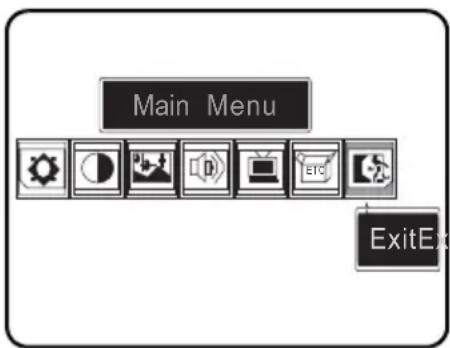
Exit turns off the OSD menus and returns you to TV mode.
text_image
Main Menu ExitEx1 Press channel down or channel up to select Exit.
2 Press menu to exit the OSD menus.
11 Taking Care of Your TV & Remote Control

Turn the power off before you begin cleaning the TV.

For best results, use a clean lens cloth to remove dust and fingerprints from the screen.

Do not wipe the shell of the TV with alcohol, methanol, gasoline or oil products to avoid damaging the finish. Wipe the shell with a dry soft cloth and use neutral cleaning fluids.
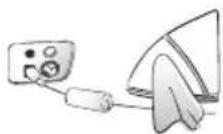
If your model has leather components, wipe the leather parts with a dry cloth and keep the area dry. Place the TV far from sources of steam to avoid making the leather wet.
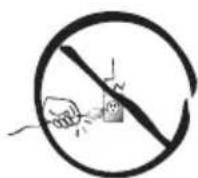
Be careful to disconnect the power plug correctly. Hold the plug. Do not attempt to disconnect the plug by pulling on the power cord.
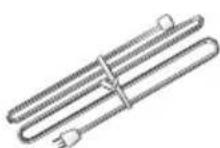
Arrange and store the power cord neatly as shown to the left to avoid knotting or bending which may cause fire due to damage or electric leakage.
Note
Protect the remote control from shock or vibration to avoid damage.
Do not place the remote control in hot or humid locations.
| Situation Solution | |
| No picture and sound. | Connect the power cord properly.Check if the power LED is on or not.Press power on the control panel or remote control.Press source to cycle through connected video sources.Press channel up or channel down to switch to other TV stations.Check the TV/CATV OSD settings. See “TV/CATV” on page 44.Make sure all cables are connected properly. |
| No picture, or poor picture, sound is OK. | Check the antenna and cable connections.Adjust the brightness in the OSD menus.See “Brightness” on page 31. |
| Picture is not in color. | Adjust the saturation in the OSD menus.See “Saturation” on page 35.Make sure all cables are connected properly. |
| Picture is OK, no sound. | Make sure the source device is functioning properly.Make sure the audio cable is connected securely.Turn the mute off.Press volume up on the control panel or remote control.Make sure the MTS option is set to Stereo, SAP, or Mono. See “MTS” on page 45. |
| One of the speakers has no sound. | Adjust the balance in the OSD menus. See “Balance” on page 41.Make sure the audio cable is connected securely. |
| Cannot receive some TV channels using cable TV. | Try the Auto Program function in the OSD “TV Setting” menu. See “Auto Program” on page 46. |
| Want to reset TV settings. | Use the Reset function in the OSD menu.See “Reset” on page 55. |
| Cannot operate menus. | ·If OSD items are colored in light blue, the system is in a state such that those settings are not available. |
| Screen image turns over. | ·Make sure the video signal cable is connected properly. |
| Snow appears on the screen. | ·Adjust the location of the antenna, placing it far from roads or sources of interference.·Check the antenna and the video signal line connections. |
| Blurred or overlapped images. | ·Readjust the sharpness setting.·Choose programs with high quality signals.·Adjust the direction of the antenna or change the video signal cable. |
| Remote control doesn’t work. | ·Make sure the battery is inserted correctly.·Replace the battery with a new one.·Make sure the TV power cord is plugged in.·Make sure the path between the remote control and the sensor is clear.·Try operating the remote control at a closer distance to the TV. Refer to “Using the Remote Control” on page 29. |
13
Warranty and Service
For complete warranty service information, please refer to the "Warranty and Service Manual" enclosed with your TV.
| 9.6 / 12.1-inch LCD TV | |
| LCD Panel Size 9.6 / 12.1-inch TFT | |
| Aspect Ratio 4:3 | |
| Display Resolution 800 (horizontal) x 600 (vertical) | |
| TV System NTSC | |
| Video System | AV1: RCA jackAV2: S-Video Input and Composite Video Input (through the 4-IN-1 A/V cable) |
| Audio System | AV1: RCA left & right jacksAV2: 10-pin mini-DIN (Audio Input with 4-IN-1 A/V cable)3.5mm ø headphone jack (Audio Output) |
| Built-in Speakers 2W + 2W / 3W + 3W | |
| Power Supply 100-240V, 50/60 Hz, 12V DC | |
| Power Consumption 40 W (Average) | |
| Optional Accessories External Speakers | |
Aspect Ratio: The ratio of width to height of a film, image or display screen.
Broadcast TV: Broadcasting video signals using high-frequency electromagnetic waves to distribute television channels to viewers (standard TV broadcast).
CATV: Community Antenna Television, the original name for cable TV. A television distribution system that uses coaxial cable instead of the traditional radio broadcasting (over-the-air) method to deliver television, FM radio, and other services to consumers.
Color Temperature: Adjusting the color temperature enables you to set the intensity of white light. Color temperature is measured in Kelvin (K). Higher color temperatures result in a blue tint. Lower temperatures result in a red tint.
Hue: Colors in a color system are measured by hue, saturation and luminance. Hue indicates the predominant color.
LCD (Liquid Crystal Display): A display technology that uses rod-shaped molecules (liquid crystals) that flow like liquid and bend light.
MTS: Multi-channel Television Sound. Enables reception of audio other than the primary (stereo) audio signal. SAP (Second Audio Program) enables reception of a separate channel that may be a different language or completely different information such as the news.
OSD (On-Screen Display): A control panel on the television screen that allows you to select viewing options.
Saturation: Chromatic purity indicating the amount of white contained in a color. Fully saturated colors are pure colors; less saturated colors appear as pastel shades.
Stereo: is the default audio signal belonging to a particular channel.
S-Video: Separate video, a video cabling standard used to transmit video by keeping brightness (Y) and color information (C) on
separate channels. Most often used with camcorders, VCRs, and quality receivers and amplifiers to provide sharper pictures.
HANNSPREE CALIFORNIA, INC.
TEL: 1-510-360-3080
Toll Free: 1-888-808-6789
FAX:1-510-360-3001
Corporate website :
http://www.hannspree.com/us
Service website :
http://usservice.hannspree.net
Service Email :
webservice_us@hannspree.com
Australia
Phone: 1-300-HANNSPREE (1-300-426677)
Corporate website :
http://www.hannspree.com/au
Service website :
http://auservice.hannspree.net
瀚斯寶麗股份有限公司
電話:886-2-87518000
傳真:886-2-87514755
Corporate website :
http://www.hannspree.com/tw
Service website :
http://twservice.hannspree.net
瀚斯宝丽科技(上海)有限公司
电话:+86.21.3912.6999
传真:+86.21.3912.6969
Corporate website :
http://www.hannspree.com/cn
Service website :
http://cnservice.hannspree.net
New Zealand
Phone: 0-800-HANNSPREE(0-800-426677)
Corporate website :
http://www.hannspree.com/nz
Service website :
http://nzservice.hannspree.net
Hannspree Hong Kong Service Center
TEL:(852) 23453822
FAX: (852) 23453790
Corporate website :
http://www.hannspree.com/hk
Service website :
http://hkservice.hannspree.net
Europe GmbH
TEL: +49 (0) 2154 953 23-0
FAX: +49 (0) 2154 953 23-123
Corporate website :
http://www.hannspree.com/eu
Service website :
http://euservice.hannspree.net
Japan
電話番号: 03.6914.5088
ファクス: 03.6914.5087
Corporate website :
http://www.hannspree.com/jp
Service website :
http://jpservice.hannspree.net