Pursuit II - Smartphone AT&T - Free user manual and instructions
Find the device manual for free Pursuit II AT&T in PDF.


User questions about Pursuit II AT&T
0 question about this device. Answer the ones you know or ask your own.
Ask a new question about this device
Download the instructions for your Smartphone in PDF format for free! Find your manual Pursuit II - AT&T and take your electronic device back in hand. On this page are published all the documents necessary for the use of your device. Pursuit II by AT&T.
USER MANUAL Pursuit II AT&T
PANTECH

Some of the contents in this manual may differ from your phone depending on the software of the phone. Actual color may vary.
Your phone is designed to make it easy for you to access a wide variety of content. For your protection, we want you to be aware that some applications that you enable may involve the location of your phone being shared. For applications available through AT&T, we offer privacy controls that let you decide how an application may use the location of your phone and other phones on your account. However, the AT&T privacy tools do not apply to applications available outside of AT&T. Please review the terms and conditions and the associated privacy policy for each location-based service to learn how location information will be used and protected. In addition, your AT&T phone may be used to access the internet and to download, and/or purchase goods, applications, and services from AT&T or elsewhere from third parties. AT&T provides tools for you to control access to the Internet and certain Internet content. These controls may not be available for certain devices which bypass AT&T controls.
Service provided by AT&T Mobility. Portions © 2011 AT&T Intellectual Property. All rights reserved. AT&T, the AT&T logo and all other AT&T marks contained herein are trademarks of AT&T Intellectual Property and/or AT&T affiliated companies. All other marks contained herein are the property of their respective owners.
Specifications
Design
Touch QWERTY Slider
Displays
• 260k colors TFT with 2.8" display
• 240*320 (QVGA) pixels in resolution
Melodies
MP3, AAC, AAC+, eAAC+ and WMA.
Camera
Integrated 2M CMOS Camera
• Resolution up to 1600 x 1200 (1,920,000 pixels)
• Mpeg4 Video recording/playing up to 15f/s(QVGA size)
• Self-timer function (Off, 3, 5 or 10 seconds)
• Picture album and video album
Dimensions & Weight
• Weight: 127g/4.48oz. (with standard battery)
• Dimensions: 101×61×15mm
3.98" × 2.40" × 0.59"
Power Management (Performance)
| Battery Type | Capacity Standby Time | Talk Time |
| Standard Lithium-Ion (Li-ion) | 1000 mAh | Up to 250 hours |
Operating Frequency
- GSM/GPRS/EDGE 850/900/1800/1900 MHz, UMTS/HSDPA 850/1900 MHz networks in North America, South America, Europe, Africa, and Asia-Pacific where these networks are supported.
• Automatic band switching.
Phone overview
Touch mode view
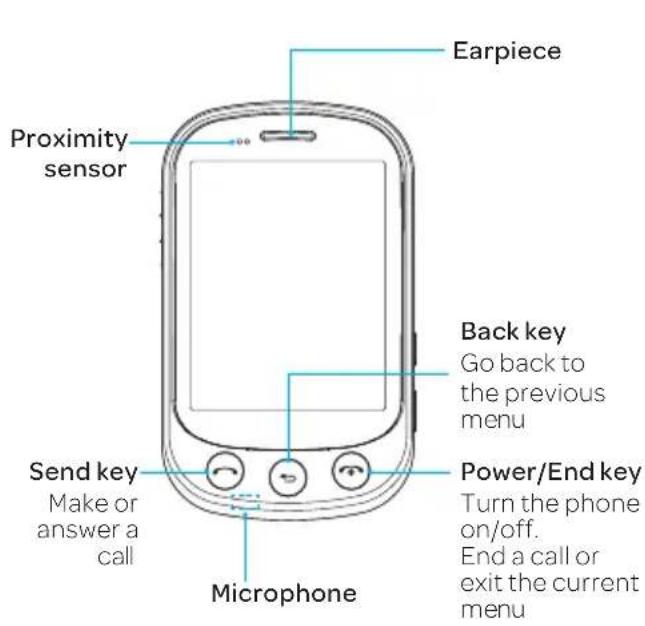
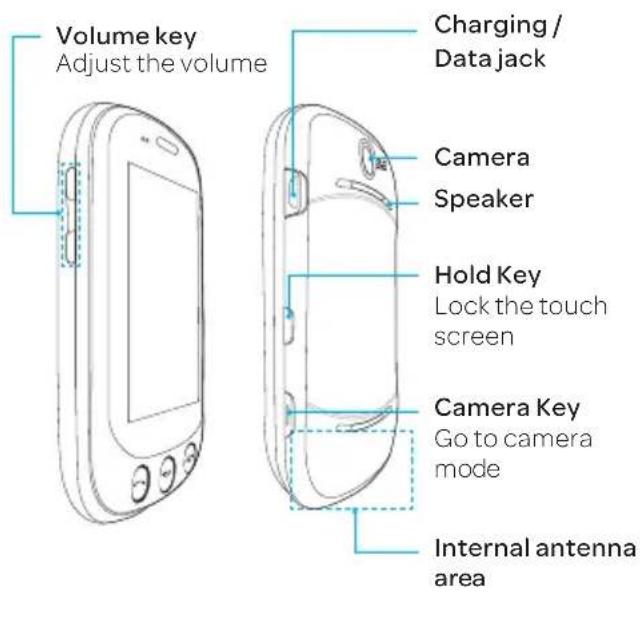
Keys Functions

Go back to the previous menu.

Access Recent Calls or dial the last number if pressed twice.

End the current call. Turn on/off the phone if pressed and held. Cancel user input and return to main screen while in Menu mode.

Lock the touch screen.

Take pictures and record movies.

Adjust the earpiece volume while making a call. Adjust ringtone volume, and control vibrate or standby mode. Mute the ringtone of an incoming call.
note: If you use metal accessories (stickers) on the phone or hold the device by the internal antenna area while exchanging data or talking on the phone, sound quality may be affected.

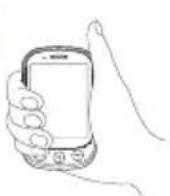

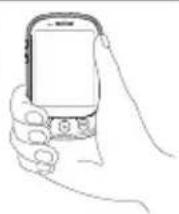
Correct Incorrect
QWERTY mode view
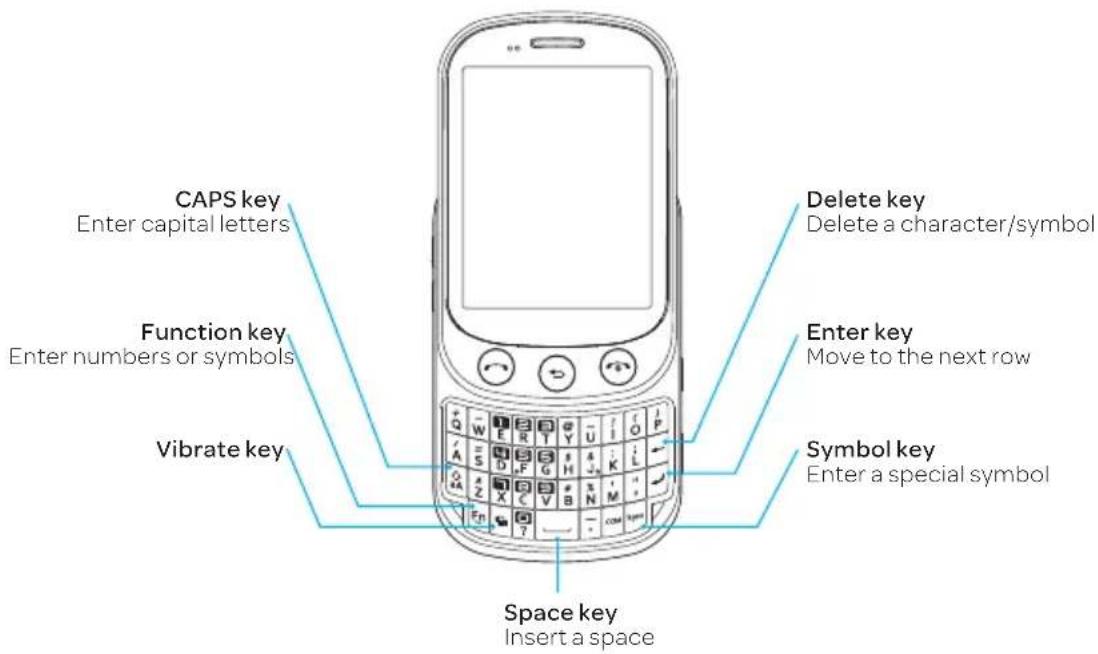
note: To use the QWERTY keypad, slide the screen up.
Your phone has a QWERTY keypad which provides a superior typing experience on a small handheld device for easy and comfortable texting. You can use all of the phone functions with the QWERTY keypad.
| KeysFunctions | |
| Press to change Abc ABC abc modes on the text editing screen (first letter caps/all caps/lowercase). | |
| To enter symbols and numbers continually, press twice 'Fn' until is displayed. | |
| Press to enter a space in text input mode. | |
| Move to the next row in text input mode. | |
| Delete a character to the left of the text cursor in the text editing screen. | |
| Press to enter a special character that is not on the keypad. | |
| Quickly connect to the voice mail server if pressed and held while in standby mode. | |
| KeysFunctions | |
| Enter numbers, letters or special characters.Go to the dial screen if pressed in standby mode. | |
| Activate or deactivate vibrate mode if pressed and held in standby mode. | |
| Enter an international dialing prefix if pressed in standby mode. | |
Menu overview

Address Book
Contacts
Groups
Favorites
My Settings
Fixed Dial Numbers
My Phone Number
Service Numbers

Messages
Create Message
Delete
Templates
Voice mail
Settings
Memory

IM My AT&T

* SIM dependent * Network dependent

App Center App Manager AT&T GPS

AT&T Navigator
AT&T FamilyMap

Web
Home
Bookmarks
Feed
Enter Address
History
Manage

YPmobile

Mobile Email

Facebook

AT&T Social Net

MySpace

Twitter

My Stuff
App manager
Game & Apps
Audio
Music
Pictures
Video
Tools
Application Data
Other Files
Memory

Tools
Recent Calls
Camera
Video Camera
Media Player
Alarm Clock
Calendar
Notepad
Sketch Pad
Voice Memo
World Time
Calculator
Tip Calculator
Converter
Stop Watch
Timer

Settings
Profiles
Display
Call
Phone
Touch
Connectivity
Security
AT&T Software Update
Reset
TTY
Phone Information

CameraPictures

Images
Sketch Pad

Video

Music Player
Now Playing
All Music
Playlists
Albums
Artists
Genres
Download Status
Settings

Bluetooth
Settings
Search
My Info
Contents
Specifications 3
Phone overview ....4
Menu overview 8
1. Getting Started
SIM card and battery ..... 18
Turning the phone
on/off 20
Screen lock/unlock ......20
Language 20
Essential display
indications 20
Screen navigation .....22
Missed events 24
Memory card 24
Updating software .....25
PC Suite 26
2. Calls and address book
Making, receiving and
ending calls 29
Options during a call .....30
Call settings 32
Checking all calls ....32
Speed dialing ....33
Using the address book ..33
Address book settings ....35
Caller identification .....35
Using your headset .....35
Service numbers and
fixed dialing 36
3. Messaging
Entering text 39
Messaging 40
Receiving messages ..... 41
Creating and sending
text messages 42
Creating multimedia
messages 42
Message templates...... 45
Message settings ...... 45
Email 46
Contents
Using instant messaging ....46
4. Multimedia
Camera....49
Picture album ....51
Video album 52
Audio album 52
Playing Music ....53
Music Player ....53
Music player settings ..... 54
Media player ....56
Other files 56
Managing memory .....57
5. Useful Features
Alarm 60
Calendar 60
Notepad and voice memo....61
World time 61
Calculator, tip calculator and converter 62
Stop watch and timer ..... 62
Sketch pad 63
6. Connectivity
Bluetooth 66
Using the Web ......67
Setting the Web's profile 69
7. Settings
Phone 72
Ring Tones 72
Display 72
Touch 73
Security Locks 73
Reset 74
TTY....74
8. Appendix
Alert message .....77
Troubleshooting checklist ....78
Safety information .....79
Safety precautions .....79
About the battery usage 81
FCC Hearing-Aid Compatibility (HAC)
Regulations for Wireless Devices 82
FCC Regulatory Compliance 84
Warranty 85

natural_image
Abstract blue background with white curved lines and a stylized AT&T logo (no text or symbols)pursuitπ
1
Getting Started
SIM card and battery
Turning the phone on/off
Screen lock/unlock
Language
Essential display indications
Screen navigation
Missed events
Memory card
Updating software
PC Suite
SIM card and battery
About your SIM card
When you subscribe to your network operator, you receive a SIM (Subscriber Identity Module) card containing your registration information, PIN code, etc. Like a credit card, it should be kept secure and handled carefully. Do not bend, scratch or expose it to moisture. Avoid static electricity.
To avoid corrupting your SIM card's memory, always turn off your phone before removing or inserting your SIM card.
About your battery
Your phone uses a Li-Ion battery. Make sure to use an authorized battery and charger only. For more details, please inquire at your nearest dealer.
note: Unlike other forms of battery technology, you can recharge a Li-Ion battery while some charge remains without reducing your phone's autonomy due to the "battery memory effect" inherent in those technologies.
Installing/removing SIM card and battery
- Remove the battery cover from the unit.
- To remove the battery cover, place your finger nail in the groove at the bottom of the unit, and then lift it up.
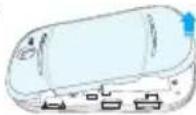
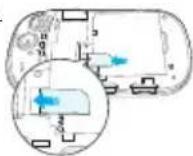
- Insert the SIM card into the slot. The gold contacts of the SIM card should face down.
- Slide the connector of the battery into the notch located at the top of the unit. Insert and press the lower side of the battery until you hear a click. Make sure you align the gold contacts on the battery end with the contacts on the phone. If the contacts on the battery are not properly aligned, the phone and the battery could be damaged.
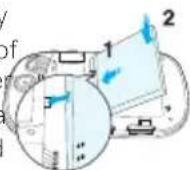
Getting started

Correct Incorrect
- To remove the battery, lift the bottom of the battery up and remove.
To remove the SIM card, slide the SIM card in the direction of the arrow as shown.
- To place the battery cover back onto the unit, slide the one end of the cover into the groove, and then push it down.
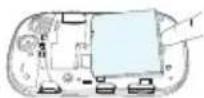
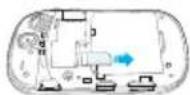
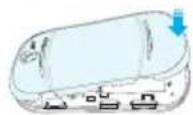

natural_image
Three-step diagram showing a vehicle interior with a blue arrow indicating rotation and a blue X mark on the side panel (no text or symbols)Correct Incorrect
Charging your battery
- Connect with the charger adapter on the top right side. Make sure you align the connector as shown in the image. If not, it will damage the charging connector on the phone and will not charge.
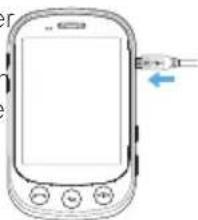
natural_image
Line drawing of a mobile phone with control buttons and a blue arrow pointing to the right side (no text or symbols)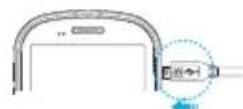
Correct
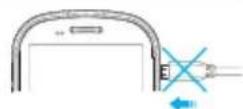
Incorrect
- Disconnect the charger from the device when charging the battery is complete.
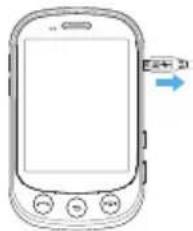
natural_image
Line drawing of a mobile phone with control buttons and a blue arrow pointing to the right side (no text or symbols on device)Turning the phone on/off
To turn on
- Press and hold
To turn off
- Press and hold
Screen lock/unlock
Locking the screen
- Press) when shield is closed.
note: The phone unlocks when the slider is opened.
Unlocking the screen
- Press any hard key to turn on the display.
- Tap and drag to right to unlock the screen.
Language
Setting the phone language
- Tap Menu > Settings > Phone > Language.
- Select Screen Text or Predictive.
- Select the language > Save.
Essential display indications
| Signal strength. The greater the number of bars, the stronger the signal. When network is in searching mode is displayed. | |
| A call is in progress. When you are in no service area is displayed. | |
| Call forwarding is active. | |
| Incoming calls set to ring only (Normal). | |
| Incoming calls set to Outdoor. | |
| Incoming calls set to Vibrate Only. | |
| Incoming calls set to Silent. | |
| Flight Mode is active. | |
| Received one or more text messages. | |
| Received one or more multimedia messages. | |
| Received one or more WAP push messages | |
| Received one or more configuration messages |
Getting started
| Received one or more voice messages. | |
| A message is being sent. | |
| A message is being received. | |
| An alarm is set. | |
| Schedule Alarm is set. | |
| Web is active, secured and downloading. | |
| Bluetooth is active. | |
| Bluetooth hands-free headset is connected. | |
| Bluetooth A2DP headset is connected. | |
| Bluetooth hands-free + A2DP headset is connected. | |
| Data transfer via Bluetooth is in progress. | |
| Headset is connected. | |
| USB is connected. | |
| TTY is active. |
| G | A GPRS signal is available. It is displayed when there is an active GPRS session |
| E | An EDGE signal is available. It is displayed when there is an active EDGE session. |
| 3G | A 3G signal is available. It is displayed when there is an active 3G session. |
| A microSD card is inserted. | |
| Battery strength.When the battery charge is low, is displayed. | |
| Available, Away, Invisible Status of AIM | |
| Online, Away, Busy, Offline Status of Windows Live | |
| Available, Busy, Invisible Status of YAHOO | |
| You have received new instant messages. | |
| Play, Pause, Stop Status of BGM Playback |
Network dependent
Screen navigation
The home screen is your starting point for using applications on your phone.
You can customize the home screen to display application icons, shortcuts, folders, and widgets according to your preference.
About your home screens
- Main Screen: The phone's main home screen.
- Contents Screen: A customizable screen for shortcuts. Max 20 icons can be added.
- Contacts Screen: A customizable screen for favorite contacts. Max 20 icons can be added.
<Contents Screen: <Main Screen: <Contacts Screen:
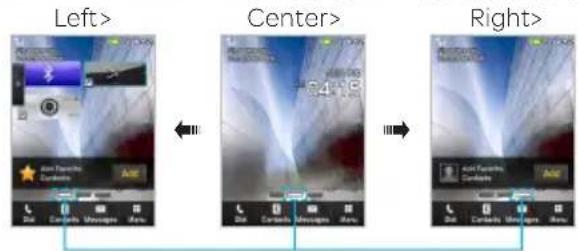
Position indicators
note: You can access the 3 different home screens by flicking in bidirectional. However, the position indicators are always displayed for the corresponding home screen (i.e. Left - Contents, Center - Main, Right - Contacts).
Adding a home screen item
The Contents and Contacts screens allow you to assign items to the screen.
- Tap Add .
- Tap a desired menu.
- Once you have added one or more items to the screen, or displayed to customize the home screen.
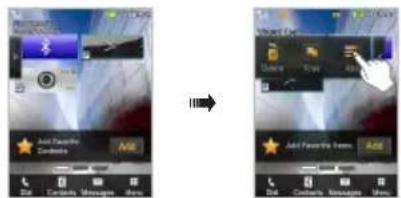
Deleting a home screen item
- Tap Delete .
- Tap ✗ in the item to delete.
note: This action is only applied to the home screen.
Getting started
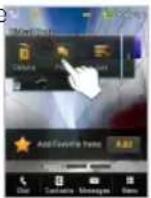
Repositioning a home screen item
Once the items are assigned to the home screen, you can reposition the items for your convenience.
- Tap Free
- Tap and hold an item until the selected item is dimmed out.
-
Drag to the desired position.
-
Position the item, and then release it.
note: If you want to reposition the items, tap ▶ Grid .
Navigating through menus
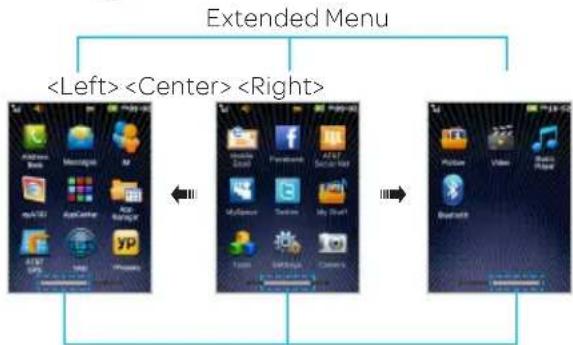
pursuitⅡ has 3 different menu screens to provide quick access to menus.
- Tap Menu
- Flick the screen from left to right or right to left to navigate.
- Tap the desired menu icons to open.
- Tap to go back to the previous menu.
- Press to exit.
flowchart
graph LR
    A["Extended Menu"] --> B["<Left> <Center> <Right>"]
    B --> C["Mobile App Icon"]
    C --> D["Mobile App Icon"]
    D --> E["Mobile App Icon"]
    E --> F["Mobile App Icon"]
    F --> G["Mobile App Icon"]
    G --> H["Mobile App Icon"]
    H --> I["Mobile App Icon"]
    I --> J["Mobile App Icon"]
    J --> K["Mobile App Icon"]
    K --> L["Mobile App Icon"]
    L --> M["Mobile App Icon"]
    M --> N["Mobile App Icon"]
    N --> O["Mobile App Icon"]
    O --> P["Mobile App Icon"]
    P --> Q["Mobile App Icon"]
    Q --> R["Mobile App Icon"]
    R --> S["Mobile App Icon"]
    S --> T["Mobile App Icon"]
    T --> U["Mobile App Icon"]
    U --> V["Mobile App Icon"]
    V --> W["Mobile App Icon"]
    W --> X["Mobile App Icon"]
    X --> Y["Mobile App Icon"]
    Y --> Z["Mobile App Icon"]
    Z --> AA["Mobile App Icon"]
    AA --> AB["Mobile App Icon"]
    AB --> AC["Mobile App Icon"]
    AC --> AD["Mobile App Icon"]
    AD --> AE["Mobile App Icon"]
    AE --> AF["Mobile App Icon"]
    AF --> AG["Mobile App Icon"]
    AG --> AH["Mobile App Icon"]
    AH --> AI["Mobile App Icon"]
    AI --> AJ["Mobile App Icon"]
    AJ --> AK["Mobile App Icon"]
    AK --> AL["Mobile App Icon"]
    AL --> AM["Mobile App Icon"]
    AM --> AN["Mobile App Icon"]
    AN --> AO["Mobile App Icon"]
    AO --> AP["Mobile App Icon"]
    AP --> AQ["Mobile App Icon"]
    AQ --> AR["Mobile App Icon"]
    AR --> AS["Mobile App Icon"]
    AS --> AT["Mobile App Icon"]
    AT --> AU["Mobile App Icon"]
    AU --> AV["Mobile App Icon"]
    AV --> AW["Mobile App Icon"]
    AW --> AX["Mobile App Icon"]
    AX --> AY["Mobile App Icon"]
Position indicators
note: The position indicators are always displayed for the corresponding menu screen.
Missed events
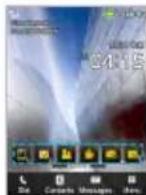
When you miss calls, messages, email, instant messages, JAVA or voice messages, icons will pop up and let you know you have missed events.
The icon will be shown at the Missed Events Area. Tap each icon to check the details. To clear missed events without checking the details, simply press
Memory card
You can use a microSD card as a memory card. It gives you more space to save pictures, videos, music and more.
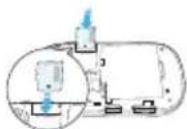
Inserting and removing a memory card
- Open the battery cover
- Insert the memory card will be displayed on the screen when a memory card is insert
- To remove the memory card, slide the memory card out in the opposite direction of the arrow.
note: Supported up to 32 GB.
Using a memory card
You can save, move and delete files while using your phone and external memory card. You can also move and copy files to computer from your phone.
Resetting a memory card
- Tap Menu >Settings>Reset.
- Enter the password > External Memory Reset.
note: The default password is '1234'.
To copy or move pictures and video files to the card
- Tap Menu 📋 > My Stuff > Audio, Pictures, Video or Other Files.
- Tap to select the folder.
- Tap Options > Copy or Move.
- Tap to select the file to move or copy > OK.
- Tap ▶ Memory card.
- Tap to select the folder.
- Tap Copy or Move Here.
note: Some files may not be moved by using this function.
- Getting started
To copy or move a file to the phone
- Tap Menu > My Stuff.
- Tap ▶ Memory Card.
- Tap to select the folder.
- Tap Options > Copy or Move.
- Tap to select the file to move or copy > OK.
- Tap to select the folder.
- Tap Copy or Move Here.
To delete a file from the card
- Select the file from the card > Delete.
note: If you select music file to delete, you must be on the file.
To move a file from the card to the computer
- Tap Menu > Settings > Connectivity.
- Tap Select USB Mode.
- Select the desired option > save.
- Connect the data cable with the phone and a computer.
- Follow the instructions on your computer screen.
note: If you select Music Player, you can add music files from Windows Media Player ^1 . When you select Ask on Connection, it will ask you to select Music Player, Mass Storage or Modem every time you connect your device with your computer.
Please check versions of OS and wmp when you connect your device with your computer. If these are different, can't run it.
Updating software
You can update your software without visiting your nearest dealer.
To update the software
- Tap Menu >Settings>AT&T Software Update.
- Tap Check for Update > Yes to check whether or not you need to update the software.
note: After downloading the software, the device will ask you whether to update the software now or later. If you choose to update the software now, it will restart the handset. If you postpone updating the software, you can select between 30 minutes, 1 hour or 4 hours in the Options. After selecting the updating time, you will be sent back to standby mode. If you go to Software Update while you are postponing, tap Continue Update.
To view the version of software
- Tap Menu >Settings>Phone Information.
- Scroll down to Software Version.
PC Suite
PC suite is a Windows-based PC program that allows you to easily manage personal data and multimedia files by connecting your Phone to a PC. The PC suite application can be downloaded at http://www.pantechusa.com/.
System requirements
- Microsoft Windows 2000 or XP family, Windows7 and Vista 32 bit
- At least 300MB of free disk space
- Interface devices such as USB or Bluetooth for the connection with the phone

natural_image
Blue background with white curved lines and a stylized AT&T logo (no text or symbols on the main graphic)
2
Calls and address book
Making, receiving and ending calls
Options during a call
Call settings
Checking all calls
Speed dialing
Using the address book
Address book settings
Caller identification
Using your headset
Service numbers and fixed dialing
Calls and address book
Making, receiving and ending calls
Making a call
- Tap
- Enter the area code and phone number.
- Press
Answering a call
- Drag the Accept bar to right or press.
Ending a call
- Press
Once the call is complete, a call summary is displayed.
Rejecting a call
- Drag the Ignore bar to left or press.
Making a call using the call list
Your phone logs up to 20 dialed, received and missed call numbers.
- Press to display the Recent Calls list.
- Tap to select All Calls, Missed Calls, Received Calls, Dialed Calls, or Call Ranking.
-
Select a number.
-
Press to dial the selected number. note: To redial the last number in the Recent Calls list, press ☐. Or Press and hold ☐ on home screen.
Making a call during a call
- Enter the phone number or look it up in Address Book.
- Press to dial the second call. The first call is automatically put on hold.
Switching between two calls
- Tap to swap calls.
Making an international call
- Tap and press and hold 0+ on the touch screen until the '+' character appears. Or press 📋 on the keyboard until the '+' character appears.
- Type the country code, area code, and phone number.
- Press
Making an emergency call
You can make emergency calls even if your phone does not have a SIM card.
- Tap Emergency Number, or tap SOS if your phone does not have a SIM card.
- Press
Replying to a missed call
- Tap to display the list of missed calls.
- Select a number to call by scrolling the screen.
- Press
Answering a second call
- Press ☑ The first call is automatically put on hold.
- Press to end the second call.
The call on hold is automatically reconnected.
note: For answering a second call, you should activate Call Waiting.
(Select Menu > Settings > Call > Call Waiting > Activate)
Setting the call forwarding option
- TapMenu > Settings > Call.
- Tap Call Forwarding.
- Select the desired option.
Setting the call waiting option
- TapMenu > Settings>Call.
- Tap Call Waiting.
- Select the desired option.
Options during a call
Microphone off and on
Switching your phone's microphone off
- Tap Mute
Switching your phone's microphone back on
- TapMute
Talking on speaker
- Tap Speaker
Putting a call on hold and returning
Putting a call on hold
- Tap Hold press .
Returning to a held call
- Tap Hold press again.
Calls and address book
Multi-party calls
You can talk with more than one person or make a conference call.
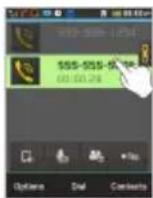
Making a multi-party call
- Call the first participant.
- Call the second participant. The first call is automatically put on hold.
- Tap the first or second participant's phone number > Join
Splitting one participant from a multi-party
- Tap Conference.
- Tap Members.
- Tap
All of the other multi-party call participants can still hear each other.
Removing one participant from a multi-party call
-
Tap Conference.
-
Tap Members.
-
Tap
The call ends with that participant, but you can continue to talk to the other participants.
Searching for a number in the address book during a call
- Tap Contacts
- Select a number by scrolling up or down.
Searching for a name in the address book
Enter the first letters of the name for Name Search. The entries are displayed starting with the first entry matching your input.
Finding a name manually in the address book
- Scroll the screen up or down.
Viewing the details of the highlighted entry in the address book
- Tap the contact to view detailed information. For details or address book see page 33
Voice recording
-
TapRecord • REC
-
Tap again to stop recording.
Call settings
Setting auto redial
-
TapMenu >Settings>Call>Auto Redial.
-
Drag the bar On or Off > Save.
Checking all calls
You can view information about all Recent Calls. For more options for all, missed, received and dialed calls, tap the called number.
You can also view the call history simply by pressing .
Viewing missed calls
- Press→Missed Calls
note: To view missed calls, tap Menu > Tools > Recent Calls > Missed Calls.
Viewing received calls
- Press→Received Calls
note: To view received calls, tap Menu > Tools > Recent Calls > Received Calls.
Viewing dialed calls
- Press ➞ Dialed Calls .
note: To view dialed calls, tap Menu > Tools > Recent Calls > Dialed Calls.
Viewing call rankings
- Press ⬇ > Call Ranking ★.
note: To view all rankings, tap Menu >Tools >Recent Calls >Call Ranking.
Deleting call logs
-
Tap Menu >Tools.
-
Tap Recent Calls > Delete Call Logs.
-
Select All Calls, Missed Calls, Received Calls or Dialed Calls > Yes.
Calls and address book
Viewing call time
- Press Call Time.
- You can view Last Call, Received Calls, Dialed Calls and Total Calls.
note: To view call time, you can also tap Menu >
Tools > Recent Calls > Call Time.
Resetting all call times
- Press Call Time.
- Tap Reset > Yes.
- Enter password > OK.
note: The default password is '1234'.
Viewing transmitted data information
- Tap Menu > Settings > Call > Packet Counter.
- Select Total, Current, or Last transmitted data.
- Tap Clear to reset the information.
note: The default password is '1234.'
Speed dialing
You can dial quickly using speed dialing. Up to 8 phone numbers can be programmed using numbers 2 to 9.
Setting speed dial
-
Tap Contacts 📄 > My Settings > Speed Dial.
-
Tap an empty entry.
- Tap the contact you wish to assign.
Changing speed dial contact
- Tap Contacts > My Settings > Speed Dial.
- Select a number > Change
- Tap the contact you wish to assign.
Removing from speed dial
- Tap Contacts > My Settings > Speed Dial.
- Select a number > Remove > Yes.
Using the address book
You can save names, phone numbers, and information to the SIM card or phone. Number of entries can vary depending on the capacity of the SIM card.
Viewing the contact list
- Tap Contacts 📞.
Searching for a contact
- Tap Contacts
- Scroll the screen up or down or touch and enter the name to find the contact.
- Tap the contact to view detailed information.
- To update information, tap Edit.
Calling from the contact list
- Tap Contacts
- Scroll the screen up or down to select a person or tap and input the first letter or two of the person's name.
- Tap
Forwarding contact details
- Tap Contacts
- Scroll the screen up or down or taq and enter the name to find the contact.
- Tap the contact > Options > Share Contact Info.
- You can send the information using via Message or via Bluetooth.
Deleting a contact
- Tap Contacts
- Scroll the screen up or down or touch and enter the name to find the contact.
- Tap the contact>Delete>Yes.
Adding a contact
- Tap Contacts > Add.
- Tap the desired fields to input information.
- Tap Save.
Making groups
- Tap Contacts □ > ▼ > Groups.
- To add new group, tap Add.
- Input the group name and tap OK.
- Select the group ringtone > Select > Save.
- To add members to group, tap Yes.
- Select the members > OK.
note: To group, you can't add the contacts of SIM.
Editing groups
- Tap Contacts >Groups.
- To edit group, tap the group > Edit > Edit Group.
- If there is no one added in the selected group, tap the group > Edit.
- To delete group, tap the group > Delete Group > Yes.
Calls and address book
Address book settings
Managing my info
- Tap Contacts > My Settings > My Contact Info.
Setting the sort order
- Tap Contacts > My Settings > Display Order.
- Select FirstName or Last Name >Save.
Viewing contact information
- Tap Contacts 📄 > My Settings > View Contacts from.
- Select Phone, SIM, or Phone and SIM > Save.
Saving contact information
- Tap Contacts 📄 > My Settings > Save Contacts to.
- Select Phone, SIM, or Always Ask > Save.
Setting up AT&T Address Book
- Tap Contacts 📄 > My Settings > AT&T Address Book.
note: Your contacts are backed up to your AT&T Address Book, and changes you make are automatically saved.
Setting SIM management
- Tap Contacts 📄 > My Settings > SIM Management.
Caller identification
Caller identification
- TapMenu >Settings>Call>Display My Number.
- Select NetworkDefault, Show or Hide > tap Save.
Using your headset
You can make or receive a call using a headset.
While using the headset, the button on the headset works as follows.
note: You must use a headset designed for this device. It is an optional accessory. Not all headsets will have a button.
While in standby mode
- Press the button on the headset to view the recent calls list and press the button again to redial the last call.
Service numbers and fixed dialing
Calling your service numbers
You can see the service number to reach the service provider.
- Tap Contacts □ > [ATT Services].
- Tap a number to access the service.
Viewing the fixed dialing list
Fixed dialing is a service that limits your access to specific numbers in the address book list recorded on the SIM. Input the PIN2 to set up or cancel this service.
- Tap Menu > Address Book > Fixed Dial Numbers.
- Select a number.
note: PIN2 must be correctly entered within 3 attempts.
If you input the incorrect code three times in a row, the PIN2 code will be blocked. If the PIN2 code is blocked, please contact your service provider. Your PIN2 code is supplied with the SIM card.

natural_image
Blue background with white curved lines and a stylized AT&T logo (no text or symbols on the main graphic)pursuitⅡ
3
Messaging
Entering text
Messaging
Receiving messages
Creating and sending text messages
Creating multimedia messages
Message templates
Message settings
Using instant messaging
Entering text
Enter text by using the virtual keypad on your touch screen and using the QWERTY keypad.
Using the virtual keypad on your touch screen
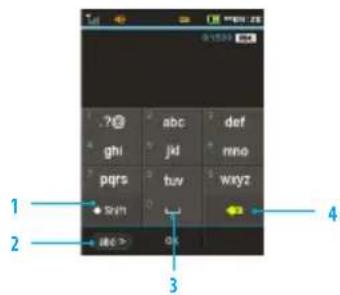
| Number Function | |
| 1 | Switch between upper and lower case. |
| 2 | Changes the text input mode. |
| 3 | Inserts a space |
| 4 | Deletes a character |
Messaging
Predictive mode
Predictive mode automatically compares your keystrokes with an internal linguistic dictionary to determine the correct word. It will display the most commonly used word first.
- Tap Messages > Tap New > Tap to enter text > Tap abc > Select Predictive to change the mode to T9 >
- Tap abc to wxyz to input text. To enter 'Hello' in the touch keypad, tap ◆ svh ghi def jkl ji mno, note: To enter numbers, tap abc to — And select the inputted numbers on the reference area.
ABC mode
Tap the key labeled with the target letter once for the first letter tap it twice for the second letter, and so on.
- Tap Messages > Tap New > Tap to enter text > Tap abc > Select ABC to change the mode to abc >
- Tap abc to wxyz to input text. To enter the letter "c", tap abc 3 times. To enter number 2, tap abc 4 times.
note: Tap Shift to input the capital letter. For example, if you want to input A, tap Shift > abc.
Number mode
You can input numbers in this mode.
- Tap Messages > Tap New > Tap to enter text > Tap abc > Select Number to change the mode to
- Tap 1 to 9 and 0 to input numbers.

Symbols mode
You can input symbols.
- Tap Messages > Tap New > Tap to enter text > Tap abc > Select Symbols to change the mode to
- Tap a symbol to input it.

Using the QWERTY keypad
Open the phone to use the QWERTY keypad. For details on QWERTY keypad see page 6
Messaging
You can send, receive and save text messages and multimedia messages.
Managing memory
Up to 300 messages can be stored in the phone memory and additional messages will be saved to the SIM card.
When the message box is full, the messages full icon appears.
All messages share memory.
| Indication | Description |
| Text message is full (SIM and Phone messages) |
Deleting a conversation
- Tap Messages > Options > Delete.
- Select conversations to delete.
- Tap Delete > Yes.
Deleting multiple messages
- Tap Messages.
- Select a conversation.
- Tap Delete.
- Select messages to delete.
- Tap Delete>Yes.
Replying to a message
- Select a message > Reply.
Messaging
Receiving messages
Viewing a new message
When you receive a new message, you can select View or Ignore.
- Tap and drag View to right to read a new message or tap and drag Ignore to left to ignore a new message.
Reading a message from a conversation
- Tap Messages.
- Select a conversation.
- Select a received message and read the message.
Saving contact information from a received message
- Select a received message.
- Tap Options > Add Contact.
- Select as New Contact or to Existing Contact.
Saving an object from a received multimedia message
- Open multimedia message.
- Tap Options > Use > Save to internal / Save to external.
It will be saved in one of the categories in the My Stuff folder.
For details or picture album, see page 5.1
Listening to voice messages
- Tap and press and hold 1 or tap Messages > Option > Voice Mail.
It will automatically call the voice mail center.
Loading a URL using Push message
- Tap Messages > Conversations > Open.
- Tap Options > Load URL.
Saving connection settings using configuration message
- Tap Messages > Conversations > Open.
- Tap Options > Install.
Creating and sending text messages
Sending a new text message
- Tap Messages > New.
- Enter the message > OK.
- Tap the recipient field to add one or more recipients and select the contact > OK.
- Tap Send.
Creating multimedia messages
You can create and send new multimedia messages. The size limit is 600KB. An error message will alert you once you exceed the capacity.
Adding a saved picture to a message
- Tap Messages > New.
- Enter a message > OK.
- Tap Insert > Insert a Picture > My Picture.
- Select Folder or Picture.
- Tap Select.
-
To preview the current page, tap+ in Slide field > Preview > Current.
-
To preview the whole message, tap+ in Slide field > Preview > Whole Message. To go back to text editor, tap Stop.
-
To edit the text message, tap the text box.
- Tap the recipient field to add one or more recipients and select the contact > OK.
- Tap Send.
Adding a new picture to a message
- Tap Messages > New.
- Enter a message > OK.
- Tap Insert > Insert a Picture > Take Picture.
- Focus on the object and tap Ⓞ.
- To preview the current page, tap+ in Slide field >Preview >Current.
- To preview the whole message, tap+ in Slide field >Preview >Whole Message. To go back to text editor page, tap Stop.
- To edit the text message, tap the text box.
- Tap the recipient field to add one or more recipients, and select the contact > OK.
- Tap Send.
For details on taking a picture see page 50
Messaging
Adding a saved video to a message
- Tap Messages > New.
- Enter a message > OK.
- Tap Insert > Insert a Video > My Video.
- Tap the desired video clip to insert and tap Select.
-
To preview the current page, tap+ in Slide field > Preview > Current.
-
To preview the whole message, tap + in Slide field > Preview > Whole Message. To go back to text editor page, tap Stop.
- To edit the text message, tap the text box.
-
Tap the recipient field to add one or more recipients and select the contact > OK.
-
Tap Send.
note: If the video clip's resolution is "320x240" or higher, the video clip cannot be added to a message.
Adding a new video to a message
- Tap Messages > New.
- Enter a message > OK.
- Tap Insert > Insert a Video > Create Video.
- Focus on the object and tape.
- To stop recording and save tap .
-
To preview the current page, tap + in Slide field > Preview > Current.
-
To preview the whole message, tap+ in Slide field >Preview>Whole Message. To go back to text editor page, tap Stop.
- Tap the recipient field to add one or more recipients and select the contact > OK.
- Tap Send.
For details on recording a video see page 50
Adding a recorded voice memo to a message
- Tap Messages > New.
- Enter a message > OK.
- Tap Insert > Insert a Audio > My Audio.
- Tap the desired audio clip to insert and tap Select.
- To preview the current page, tap+ in Slide field > Preview > Current.
- Tap Pause to stop listening.
- To preview the whole message, tap+ in Slide field >Preview>WholeMessage. To go back to text editor page, tap Stop.
- Tap the recipient field to add one or more recipients and select the contact > OK.
- Tap Send.
Adding a new voice memo to a message
- Tap Messages > New.
- Enter a message > OK.
- Tap Insert > Insert a Audio > Record Audio.
- Tap • REC to record the sound.
- To stop and save ta □ Stop
- To preview the current page, tap+ in Slide field > Preview > Current.
- Tap Pause to stop listening.
- To preview the whole message, tap + in Slide field > Preview > Whole Message. To go back to text editor page, tap Stop.
- Tap the recipient field to add one or more recipients and select the contact > OK.
10.Tap Send.
For details on recording a voice memo see page 61
Adding other files to a message
- Tap Messages >New.
- Enter a message > OK.
- Tap Insert > Insert Others > Files.
- Tap to select desired file to insert.
- To edit the text message, tap the text box.
-
To preview the current page, tap + in Slide field > Preview > Current.
-
To preview the whole message, tap+ in Slide field >Preview >Whole Message. To go back to text editor page, tap Stop.
- Tap the recipient field to add one or more recipients and select the contact > OK.
- Tap Send.
Adding Contacts to a message
- Tap Messages > New.
- Enter a message > OK.
- Tap Insert > Insert Others > Contacts.
- Tap to select desired contact to insert.
- To edit the text message, tap the text box.
- Tap Send.
Adding Templates to a message
- Tap Messages > New.
- Tap OK > Insert > Insert Others > Templates
- Tap to select desired templates to insert.
- To edit the text message, tap the text box.
- Tap the recipient field to add one or more recipients and select the contact > OK.
- Tap Send.
Messaging
Message templates
When you often use the same phrases, you can save the message under message templates.
Adding a message as a template
- TapMessages>Options>Templates.
- Tap Add new.
- Enter the frequently used message > OK > Save.
Sending a message with a template
- Tap Messages > Options > Templates.
- Select the template to send.
- To edit the text message, tap the text box.
- Tap the recipient field to add one or more recipients and select the contact > OK.
- Tap Send.
Message settings
Message center settings
- Tap Messages > Options > Settings.
- Tap Text Message.
- Enter new Center Address.
- Tap OK > Save.
E-mail gateway settings
- TapMessages>Options>Settings.
- Tap Text Message.
- Enter new Email Gateway for sending text message by email.
- Tap OK > Save.
Setting profiles for multimedia messages
- Tap Messages > Options > Settings.
- Tap Multimedia Message > MMS Profiles.
- Select a profile.
- To add a profile, tap Create > set the options > Save.
Sending settings for multimedia messages
- TapMessages>Options>Settings.
- Tap Multimedia Message > Sending Settings.
- You can set Creation Mode and Max Message Size.
- Tap Save.
Receiving settings for multimedia messages
- Tap Messages > Options > Settings.
-
Tap Multimedia Message >Receiving Settings.
-
You can set Automatic Download.
- Drag the bar to On or Off.
- Tap Save.
Receiving settings for voice messages
- Tap Messages > Options > Settings.
- Tap Voice Mail.
- Enter the number of the voice mail center >OK > Save.
note: This number may be pre-configured by the service provider upon activation.
Auto delete message settings
- Tap Messages > Options > Settings.
- Tap Auto Delete.
- Drag the bar to On or Off.
- Tap Save.
You can receive emails through your service provider.
Receiving an email
- Tap Menu > Mobile Email.
- Select an email.
- Follow the steps to set up your email account.
Using instant messaging
Use Instant Messaging (IM) to send and receive short, simple messages that are delivered immediately.
Starting an instant messaging
- Tap Menu >IM.
- Select the IM application > OK.
- Enter ID and password > Sign In.
Viewing conversation logs
You can view conversation logs in the Instant Messenger Saved History.

natural_image
Abstract blue background with white curved lines and a stylized 'at&t' logo (no text or symbols beyond the logo)pursuit II
4
Multimedia
Camera
Picture album
Video album
Audio album
Playing Music
Music Player
Music player settings
Media player
Other files
Managing memory
Multimedia
Camera
You can take pictures and record movies using the built-in camera. The photos and video clips can be saved to your phone or memory card and can be sent via multimedia messages, online locker and bluetooth.
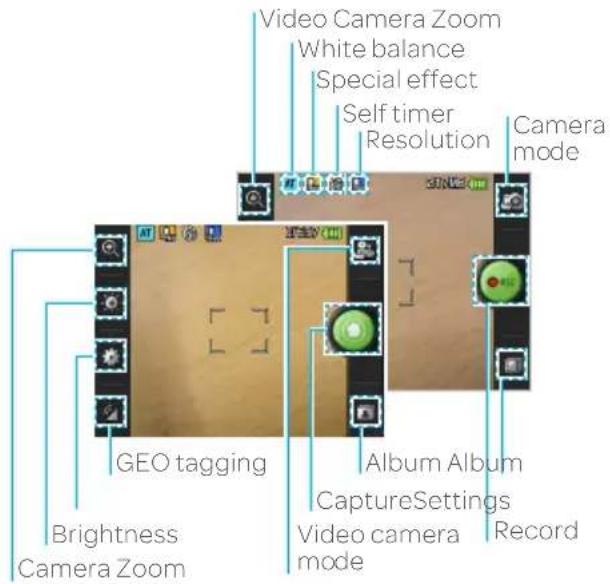
Setting camera settings
- Tap Menu > Camera or Press the camera key.
- Tap to change settings prior to taking a picture.
Camera menu options
| Icons | Name Description | |
| Zoom | 1,2,3,4,5,6,7,8 (up to 2x zoom) | |
| Brightness -3, | -2, -1, 0, +1, +2, +3 | |
| Settings | White Balance/ Effect/ Self Timer/ Resolution/ Storage/ Advanced | |
| GEO Tagging | On/Off | |
| Video Camera | Switch to video camera mode | |
| Album | View the pictures stored in the device | |
Zooming in and out
- Tap ☒ then tap ☐ or ☒. It increases or decreases the zoom ratio.
Increasing or decreasing the brightness
- Tap ☐ then tap ☐ or ☐ . It ranges from -3 to +3.
note: In camera mode, the zoom function is not available at the highest(1600x1200) resolution. GEO Tagging will work only outdoors. When GEO Tagging is activated, it will search for the GPS for 1 minute and ask whether to proceed or not.
Video camera menu options
- Press and hold the camera key, into Video Camera mode.
- Tap to change settings prior to recording video.
| Icons | Name Description | |
| Zoom 1, 2, 3, | 4,5,6,7,8 (up to zoom) | |
| Brightness | -3, -2, -1, 0, +1, +2, +3 | |
| Settings | White Balance/ Effect/ Self Timer/ Resolution/ Storage/ Advanced | |
| Camera Switch to camera mode | ||
| Album | View the videos stored in the device | |
Zooming in and out
- Tap ☒ then tap ☒ or ☒. It increases or decreases the zoom ratio.
Increasing or decreasing the brightness
- Tap ☐ then tap ☐ or ☐. It ranges from -3 to +3.
Taking a picture
- Tap Menu > Camera or Press the camera key.
- Focus on the subject and tap
note: Your photo will be saved automatically to the phone memory. Picture Files can be save up to YYMMDD_9999. No more than 9999 pictures a day may be taken from camera.
Changing to video camera mode
- Tap Menu > Camera or Press the camera key.
- Tap
- Aim at the subject and tap.
- Tap to stop recording.
note: Your video will be saved automatically to the phone memory.
Viewing a saved picture
- Tap Menu > Camera.
- Tap
- Select the picture to view.
Multimedia
Picture album
You can save photos to your phone or an external memory card and view, send or delete them from the Picture album. JPEG format is supported, and other formats are saved in the Pictures folder. note: To access the Pictures folder, tap Menu > Pictures.
Viewing the saved pictures
- TapMenu >Pictures.
- Select a picture.
Zooming the saved picture
- Tap Menu >Pictures.
- Select the picture and tap Options> Zoom or double tap the picture into zoom mode.
- Tap 📄/ 🔒 on the picture or press volume key for zoom in/out.
- Double tap the picture again, return to view mode. note: Zoom mode is activated when the resolution of the picture is larger than the resolution of device.
Setting a picture as your wallpaper
-
Tap Menu >Pictures.
-
Select the picture and tap ➤ > Set as > Wallpaper.
Setting a picture as caller identification
- TapMenu >Pictures.
- Select the picture and tap > Set as > Contact photo.
Sending pictures via multimedia message
- TapMenu >Pictures.
- Select the picture and tap >Send > via Message.
Sending pictures to Online Locker
- Tap Menu >Pictures.
- Select the picture and tap >> Send > to Online Locker.
Sending pictures via Bluetooth
- TapMenu >Pictures.
- Select the picture and tap >> >Send > via Bluetooth.
Deleting multiple pictures
- Tap Menu >Pictures.
- Tap Delete
- Tap to mark desired files or tap All to mark all files.
- Tap OK>Yes.
- To cancel deleting action, press
Viewing file information
- TapMenu >Pictures.
- Select the picture and tap ➤ > Properties.
Video album
You can view, send, save and delete videos. The supported formats are MP4, WMA, 3GP and 3G2.
Playing saved video clips
- Tap Menu > Video.
- Tap the video clip to play.
Sending a video clip via message
- TapMenu >Video.
- Tap > on the selected clip > Send > via Message.
Sending a video to Online Locker
- TapMenu >Video.
- Tap ▶ on the selected clip > Send > to Online Locker.
Sending a video via Bluetooth
- TapMenu >Video.
- Tap ▶ on the selected clip > Send > via Bluetooth.
Deleting multiple video clips
- Tap Menu >Video.
- Tap Delete.
- Tap to mark desired files or tap All to mark all files.
- Tap OK>Yes.
- To cancel deleting action, press .
Audio album
You can play, send, delete, move or copy saved sounds to external memory or to the phone. Supported formats are MP3, AAC, AAC+ and WMA.
Listening to a recorded sound
- Tap Menu > My Stuff > Audio.
- Select a folder and tap to open.
- Tap the file to play.
Moving or copying multiple sounds to external memory
- Tap Menu > My Stuff > Audio.
- Tap Options > Copy or Move.
- Select the file to copy or move > OK.
- To view external memory card memory status, tap
SD and select the Memory Card.
Multimedia
- Select the folder > Copy Here or Move Here. The selected sound will be copied or moved to the Audio folder in the external memory card.
Sending sound files via message
- Tap Menu > My Stuff > Audio.
- Select the audio file and tap >> > Send > via Message.
Sending sound files via Bluetooth
- Tap Menu > My Stuff > Audio.
- Select the audio file and tap >> > Send > via Bluetooth.
Playing Music
You can listen to music on your phone using the Music Player. The Music Player is only compatible with and can play the following audio types: MP3, AAC, AAC+ and WMA.
note: A microSD card must be inserted to transfer music to your device.
Adding music from Windows Media Player™
-
Connect the USB cable to the device and the computer.
-
Select Music Player.
- Open Sync Tap in Windows Media Player, our computer.
- Select the music from the list and drag and drop to your device.
note: Windows Media Player ^10 or 11 and Windows XP are required.
Music Player
You can play music saved to external memory or to the phone. Supported formats are MP3, AAC, AAC+ and WMA.
Listening to a music file
- Tap Menu > Music Player.
- Tap All Music, Playlists, Albums, Artists or Genres.
- Tap the file to play.
note: Music will pause when you receive an incoming call and Music will resume when the call ends.
Music player settings
Shuffling songs
- TapMenu > Music Player.
- Tap Settings > Shuffle.
- Tap Shuffle On or Shuffle Off.
- Tap Save.
Repeating songs
- TapMenu > Music Player.
- Tap Settings > Repeat.
- Tap the desired option.
- Tap Save.
Setting the equalizer
- TapMenu > Music Player.
- Tap Settings > Equalizer.
- Tap 📊/→ to select Normal, Pop, Jazz, Classic, Rock, Dance, User1, User2 or User 3.
- Tap Save.
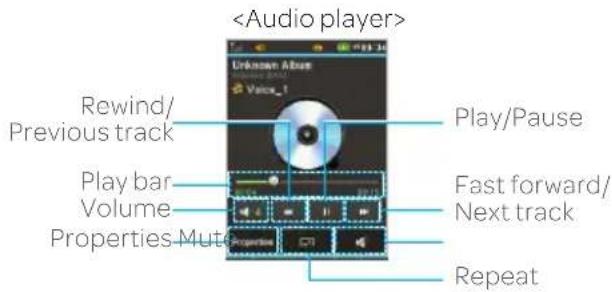
Icons for player
| Icon Description | |
| Adjust the volume | |
| Pause and play the audio file | |
| Tap and hold : Rewind, Fast Forward | |
| Tap: Previous, Next | |
| Repeat all | |
| Repeat off | |
| Repeat Single Track | |
| Shuffle On / Off | |
Creating a playlist
- TapMenu > Music Player.
- Tap Playlists > New Playlist.
- Enter playlist name > OK.
- Tap to select a category.
- Scroll and tap to select the music files and tap Done to add to playlist.
Multimedia
Adding music to a playlist
- TapMenu > Music Player.
- Tap Playlists.
- Select the playlist and tap > Add Tracks.
- Tap to select a category.
- Tap to mark desired files or tap Select All > Done.
- To remove tracks tap Remove Tracks > scroll and tap to select the files and tap Done.
note: To delete the playlist, tap Menu > Music Player
Playlists > Delete, and tap to mark desired playlists or
Select all > Delete > Yes.
Viewing file information
- TapMenu > Music Player.
- Scroll and tap to select a category.
- Scroll and tap to select the file.
- Tap Properties.
- Scroll up or down to view the properties.
Setting music as a ringtone
- Tap Menu > Music Player.
- Scroll and tap to select a category.
- Tap▶ Set as Ring Tone.
note: You cannot set a music file while it is playing. If a music file is larger than 300KB, the file will be deactivated for setting as a ring tone.
Deleting music
- Tap Menu > Music Player.
- Scroll and tap to select a category.
- Tap>Delete. Or tap Delete and tap to mark desired files or tap Select All to mark all files.
- Tap Delete > Yes.
note: If the file is in use, you cannot delete the file.
Media player
You can play video clips with the media player. note: Do not use this feature illegally. Sound and video can be protected by copyright. It is illegal to copy such sound / video tracks for the purpose of selling or distribution. Pantech does not in any way support the unauthorized use of content on your phone media player.
Playing an audio file
- Tap Menu > Tools > Media Player.
- Tap Audio.
- Tap the folder and file.
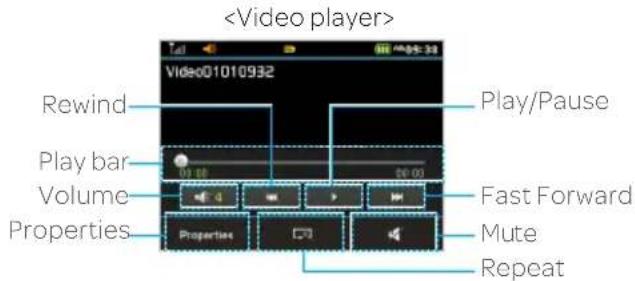
Playing a video clip
- Tap Menu >Tools >Media Player.
- Tap Video.
- Scroll and tap to select a file.
Other files
You can manage unsupported file formats that are saved on your phone. It also lists files received via Bluetooth from other devices.
Viewing the list of files
- Tap Menu > My Stuff.
- Tap Other Files.
Multimedia
Managing memory
Viewing memory status
- TapMenu > My Stuff.
- Tap Memory.
- Scroll to view the information.
- To view external memory card memory status, tap
and select the Memory Card.
Formatting memory
- TapMenu > My Stuff.
- Tap Memory > Tap □ | ▼ and select the internal memory or the Memory Card.
- Tap Format > Yes.
Applications
You can play pre-installed demo apps or download apps. It is easy to download and you can preview them beforehand.
Select the applications
- TapMenu > MyStuff > AppManager.
- Scroll and tap to play pre-installed apps.

natural_image
Abstract blue background with white curved lines and a stylized 'at&t' logo (no text or symbols beyond the logo)
5
Useful Features
Alarm
Calendar
Notepad and voice memo
World time
Calculator, tip calculator and converter
Stop watch and timer
Sketch pad
Alarm
Setting an alarm
- Tap Menu > Tools > Alarm Clock.
- Tap Create.
- Set the desired options.
- Tap Save.
note: To set the alarm to ring when the phone is turned off, activate the Power Alarm by dragging the bar to on.
Viewing saved alarms
- TapMenu >Tools>Alarm Clock.
- Scroll and tap an alarm to view the detail.
Editing existing alarms
- Tap Menu > Tools > Alarm Clock.
- Scroll and tap to select an alarm.
- Edit the alarm details.
- Tap Save.
Setting a simple alarm
- TapMenu >Tools>Alarm Clock.
- Tap Simple Alarm.
- Scroll and set the time.
- Tap Save.
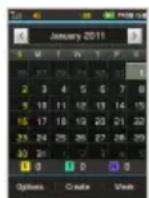
Calendar
Calendar helps you manage your schedule. You can set a reminder on any given date with this function.
Viewing the calendar
- TapMenu > Tools > Calendar. note: Monthly view is displayed by default.
Creating a new event
- TapMenu >Tools>Calendar.
- Tap to select a day > Create.
- Select Schedule, Task, or Note.
- Input the details > Save.
note: You can create events for dates from 01/01/2000 to 12/31/2070
Useful features
Notepad and voice memo
Using notepad
- TapMenu >Tools>Notepad.
- Tap Create New.
- Enter the memo > OK.
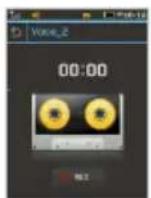
Recording a voice memo
- TapMenu >Tools>Voice Memo.
- Tap New Record.
- Tap • REC
- Tap □ Stop recording. It will automatically save in My Voice.
- Tap▶Play listen.
note: To access My Voice, tap Menu > My Stuff > Audio > My Voice.
World time
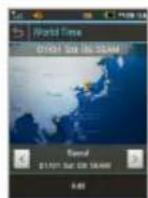
Using world time
- TapMenu > Tools> World Time.
- Select the city.
- To add a new city, tap Add New City and flick left or right to select a new city. Tap Add.
- Tap Set as Dual > select city if you want to set dual time displays in idle mode.
note: If you want to set dual time in idle mode, tapMenu
Settings > Display > HomeScreen > Clock Type > Digital Clock > Digital Clock 5.
Calculator, tip calculator and converter
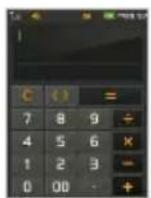
Using the calculator
- Tap Menu > Tools > Calculator.
- Tap the numbers an + / - × / + b calculate.
- Tap or press to erase one digit.
- Tap and hold to reset.
- Tap to use the decimal point.
Using the tip calculator
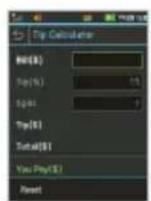
- Tap Menu > Tools > Tip Calculator.
- Tap to enter values for all variable fields (Bill(\), Tip(%), Split) and the corresponding calculation fields (Tip(\), Total(\), You Pay(\)) are updated automatically.
- Tap Reset to reset.
- Tap to use the decimal point.
Using the converter
- Tap Menu > Tools > Converter.
- Tap select the categories.
- Tap the field to enter a number and scroll left or right to select the unit. Other unit fields are updated automatically.
- Tap Reset to reset.
Stop watch and timer
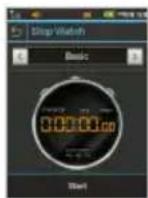
Using the stop watch
- Tap Menu > Tools > Stop Watch.
- Tap ◀ / ▶ to select Basic, Split or Lap.
- Tap Start to start.
- Tap Stop to pause.
- Tap Continue to resume.
- Tap Reset to clear.
Useful features
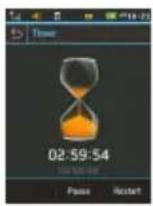
Using the timer
- TapMenu >Tools>Timer.
- Tap Set to input the time
- Scroll to set the hour, minute and second > Save.
- Tap Start to start.
- Tap Pause to stop.
- Tap Continue to resume.
- Tap Restart to restart.
Sketch pad
You can create drawings and set as wallpaper or share via multimedia message or Bluetooth.
Creating a sketch
- Tap Menu > Tools > Sketch Pad.
- Tap to select pencil thickness, color, eraser and undo.
- Select each option and ta ➤ for more space to draw.
- Draw on the sketch pad.
- Tap ◀ to save your work and tap Save.
-
Enter the name and tap OK.
-
To create a new drawing, take > Options > Create New.
Setting a background
- Tap Menu >Tools >Sketch Pad.
- Tap ◀ > Options > Background.
- Tap the desired background.
- To import an image, ta < > Options > Import Image.
note: The background image will be imported from the picture album and may be cropped when imported.
Setting a sketch as wallpaper
- Tap Menu >Tools >Sketch Pad.
- After saving a drawing, tap ▶ > Options > Set as Wallpaper > Select.
Sending a sketch
- Tap Menu >Tools >Sketch Pad.
- After saving a drawing, tap < > Options > Send.
- Tap to select via Message or via Bluetooth.

natural_image
Abstract blue background with white curved lines and a stylized 'at&t' logo (no text or symbols beyond the logo)
6
Connectivity
Bluetooth
Using the Web
Setting the Web's profile
Bluetooth
Bluetooth technology enables free wireless connections between electronic devices within a maximum range of 33 feet (10 meters). Bluetooth connections can be used to send images, texts, business cards, calendar events and notes or to connect to computers using Bluetooth technology.
Your mobile phone supports:
- Connect to PC to access Internet.
- Connect to hands-free headsets.
- Connect to electronic devices.
Icons for Bluetooth
| Bluetooth is active. | |
| Bluetooth hands-free headset is connected. | |
| Bluetooth A2DP headset is connected. | |
| Bluetooth hands-free + A2DP headset are connected. | |
| Data transfer via Bluetooth. |
note: Advance Audio Distribution Profile (A2DP) is a Bluetooth profile (mode) which is designed to transfer
a uni-directional 2-channel stereo audio stream to a headset or car audio.
Activating Bluetooth
- Tap Menu > Bluetooth > Settings.
- Drag the Activation bar to On.
- Tap Save.
Adding a device
- Tap Menu > Bluetooth > Search.
- The available devices will be displayed.
- Tap to select a device.
- Tap Pair to pair the device, or tap View Detail to view the details of the device.
- Insert password if prompted by Enter Password window, and then tap OK.
note: The other device must be in pairing mode.
Sending an object
- Select the file from Menu 📋 > My Stuff > Pictures, Video, Audio or Other Files.
- Tap Options > Send > via Bluetooth.
note: If the other Bluetooth device requests pairing, the object is sent after pairing is completed. Locked objects or ones containing original rights may not be forwarded.
Connectivity
Receiving an object
Receiving an object starts only when the receipt has been approved.
The received file will be saved in your phone's memory.
Setting visibility
- Tap Menu > Bluetooth > Settings.
- Drag the Visibility bar to On.
- Tap Save.
Setting File Transfer Location
- Tap Menu >Bluetooth>Settings.
- Tap the File Transfer Location bar.
- Select Phone Memory or External Memory.
- Tap Save.
Naming your device
- Tap Menu > Bluetooth > My Info.
- Tap Name filed to edit the name > OK.
note: The device name is what identifies your phone to the Bluetooth network.
Using the Web
Accessing the Web
- TapMenu >Web.
- Tap Home.
note: It will access your service provider's homepage.
Adding New bookmarks
- TapMenu >Web.
- Tap Bookmarks.
- Tap Add Bookmark.
- Tap the field to enter Title and URL >OK.
- Tap Save.
note: You can send bookmark information via messages or bluetooth.
Using RSS feeds
RSS (Really Simply Syndication) feeds are used to publish frequently updated contents in web such as blog entries or news headlines.
Adding feeds
- Tap Options > Feed Channels > yes on webpage.
Reading feeds
- Tap Menu > Web.
- Tap Feed.
- Select the feed to read.
Updating and Deleting feeds
- TapMenu > Web.
- Tap Feed.
- Select the feed to read.
- Tap >> Update Channel, Delete or Delete All.
Entering a web address
- TapMenu > Web.
- Tap Enter Address.
- Tap the field to enter the web address >OK.
- Tap Go.
Viewing Web history
- TapMenu >Web.
- Tap History.
Setting advanced options
- Tap Menu > Web.
- Tap Manage > Options.
- Change the Rendering Mode, Cache, Cookies, Security Warning, Javascript and Image Display.
- Tap Save.
Using memory operations
- Tap Menu > Web.
- Tap Manage > Private Data.
- To clear the cache, tap Clear Cache > Yes.
- To clear the cookies, tap Clear Cookies > Yes.
- To clear the history, tap Clear History > Yes.
Viewing certificates
- Tap Menu > Web.
- Tap Manage > Security.
- Tap Certificates.
- Scroll and tap to select the certificate you would like to view.
Viewing download status
- Tap Menu > Web.
- Tap Manage > Download Manager.
Connectivity
Setting the Web's profile
You can set your profile and view Profile Name, Home URL, Connection Type, Proxy Address and Proxy Port.
Viewing the default profile
- Tap Menu > Web.
- Tap Manage>Profiles.
- Tap»o view the details.
Adding a new profile
- Tap Menu > Web.
- Tap Manage>Profiles.
- Tap Create.
- Tap each field to enter the details > OK.
- Tap Save.
Editing your profile
- Tap Menu > Web.
- Tap Manage>Profiles.
- Scroll and tap beside the default profile.
- Tap the field to edit > OK.
- Tap Save.
Deleting a profile
- Tap Menu > Web.
- TapManage>Profiles.
- Tap Delete.
- Tap to mark profiles to delete.
- Tap All to mark all profiles.
- Tap OK > Yes.

natural_image
Abstract blue background with white curved lines and a stylized 'at&t' logo (no text or symbols beyond the logo)
7
Settings
Phone
Ring Tones
Display
Touch
Security Locks
Reset
TTY
Phone
Setting the time & date
- TapMenu > Settings > Phone.
- Tap Time & Date.
- Change Time, Time Format, Date, DateFormat or Auto Update>Save.
Ring Tones
Setting ring tones
- Tap Menu > My Stuff > Audio.
- Scroll and tap to select the folder.
- Tap of the file > Set as Ring Tone.
note: The maximum file size for a ring tone is 300KB.
Setting the sound profile
- TapMenu > Settings > Profiles.
- Select Normal, Outdoor, Vibrate only, Silent or Flight Mode.
note: Tap ➤ to change Call, Message and General. Each category has options to change. Change the options and tap Save.
Display
Customizing the home screen
Setting a wallpaper
- TapMenu > Settings > Display.
- Tap Home Screen.
- Tap Wallpaper.
- Scroll and tap to select the file >Select.
Setting the clock type
- TapMenu > Settings > Display.
- Tap Home Screen.
- Tap Clock Type. Select Digital Clock or Unique Clock.
- Select to view the clock types > Select.
Setting the Lock Screen
- TapMenu > Settings > Display.
- Tap Lock Screen.
- Select Random or My Pictures.
Setting the Menu Theme
- TapMenu >Settings >Display.
- Tap Menu Theme.
- Tap> or< to select the desired menu theme >Save.
Settings
Setting the font style
- TapMenu >Settings>Display.
- Tap Font Style.
- Scroll and tap to select the font type > Save.
Setting the brightness
- TapMenu >Settings>Display.
- Tap Backlighting.
- Select the desired option > Save.
note: Modifying brightness may affect battery life.
Touch
Setting the touch feedback
- Tap Menu > Settings > Touch.
- Tap Touch Feedback.
- Change the Touch Feedback Type and Touch Volume or Vibration Intensity >Save.
note: The Touch Volume and Vibration Intensity availability depends on the phone's settings.
Setting automatic screen lock
- TapMenu >Settings >Touch.
- Tap Auto Screen Lock.
- Drag the bar to On or Off > Save.
note: It will lock automatically after the backlight turns off.
Security Locks
Locking the phone
- Tap Menu >Settings>Security.
- Drag the Phone Lock bar to On or Off.
- Enter password.
note: The default password is '1234'. To change the password, tap Menu > Settings > Security > Change Password.
Activating the PIN lock
The Personal Identification Number is the security code that protects the phone or SIM against unauthorized use.
- Tap Menu >Settings>Security.
- Drag the PIN bar to On or Off.
- Tap Yes for enable unlock.
note: The default password is '1111.' To change the PIN code, tap Menu > Settings > Security > Change PIN.
Locking the FDN
- Tap Menu >Settings >Security.
- Drag the FDN bar to On or Off.
- Enter PIN2 code.
note: You have only 3 attempts. If you enter the wrong code 3 times, the phone will be locked. If the phone locks, please contact the Pantech Customer Service Center. For details or fixed dialing see page 36
Changing the PIN 2
- Tap Menu > Settings > Security.
- Tap Change PIN2.
- Enter the PIN2 code > OK.
- Enter the new PIN2 code > OK.
Reset
Resetting the phone
- Tap Menu > Settings > Reset.
- Enter password > OK > Master Reset.
- Tap Yes or No.
note: It will return configuration settings to default. The default password is '1234'.
Clearing the phone
- Tap Menu > Settings > Reset.
- Enter password > OK > Master Clear.
- Tap Yes or No.
note:
- It will return the settings to default and erase all personal data. The default password is '1234'.
- If you see the Low battery message, Please connect your phone to the battery charger before Resetting or Clearing the phone.
TTY
The teletypewriter (TTY) is a telecommunication device that allows people who are deaf or hard of hearing, or who have speech or language disabilities, to communicate via a telephone.
Setting teletypewriter
- Tap Menu > Settings > TTY.
- Select Disable, TTY Full, TTY Talk or TTY Hear.
- Disable: TTY mode is disabled.
- TTY Full: Users who cannot talk and hear, can send and receive a text message.
- TTY Talk: Users who can talk but cannot hear, can receive a text message and reply with voice message.
- TTY Hear: Users who can hear but cannot talk, can send a text message and receive a voice message.
note: TTY is activated when the wired headset to connected.

natural_image
Abstract blue background with white curved lines and a stylized 'at&t' logo (no text or symbols beyond the logo)pursuit II
8
Appendix
Alert message
Troubleshooting checklist
Safety information
Safety precautions
About the battery usage
FCC Hearing-Aid Compatibility (HAC) Regulations for
Wireless Devices
FCC Regulatory Compliance
Warranty
Appendix
Alert message
If you experience any problem while using your mobile phone, please refer to the following checklist. If the problem still persists, contact your dealer or nearest carrier.
When the "Insert SIM Card" message appears:
Make sure the SIM card is correctly installed. Check to see if the SIM card is working properly. If it does not work, try to clean the contact points of the card with a dry cloth. If it is out of order, take it to your service provider.
When the "Messages full" message appears:
The received or saved messages are full in your phone memory. You need to delete some messages.
When the "Phone and SIM messages are full.
Delete Messages" message appears:
The received or saved messages are full in your phone and SIM card memory. You need to delete some messages.
When the "Password" message appears in Phone locked state:
Enter the phone password. The default password is "1234". If you cannot remember the password, contact your nearest carrier.
When the "Enter PIN1" message appears:
Input PIN1. If you cannot remember it, contact your service provider.
You can still receive calls even if your mobile phone becomes locked after entering the incorrect PIN1 on three consecutive attempts.
When the "No Service" or "Network Search" message appears:
If you cannot make/receive a call when you are indoors or underground where the signal strength is poor, move toward a window or go out to an open area. If you still cannot make a connection, contact your service provider.
Troubleshooting checklist
When audio quality is poor:
End the call and try again.
When the other party cannot hear you speaking:
Your phone may be set to MUTE. Disable the MUTE function. Make sure your hand is not covering the microphone located below the ☑.
When battery lifetime is shorter than usual:
This may happen when you are in an area with low signal strength. Turn off your phone when it is not in use.
Charge the battery when battery energy is exhausted.
When your mobile phone does not turn on:
Make sure your battery is charged. Check to see if your phone works while recharging the battery.
When you are unable to send a message:
Either you are not registered to receive an SMS service, or you may be in an area where your network service provider cannot provide such a service.
When you are unable to make a call:
Your phone may be set to "fixed dial." Cancel the "fixed dial" function.
When you are unable to charge the battery:
This may be the result of one of the following cases.
- Your charger may be out of order. Contact your nearest dealer.
- You may be attempting to use the phone in an overly hot/cold temperature. Try changing the charging environment.
- Your battery may have not been connected to the charger properly. Check the connector.
When you are unable to input data into your Address Book:
Your Address Book memory may be full. Try deleting some entries from your Address Book.
When you are unable to select a certain function:
You may not have subscribed to that function, or your network service provider may be in an area where such service cannot be provided. Contact your local service provider.
Appendix

Safety information
The following list shows how to maintain your mobile phone, together with precautions to take.
- Keep your mobile phone and its accessories out of the reach of children and pets.
- Maintain your mobile phone in dry conditions and keep it within normal operating temperatures. Temperatures higher than 55°C (131°F) or lower than -20°C (-4°F) may damage your phone.
- Do not try to dry your phone in a microwave oven. If not, sparks can occur and cause an explosion or fire.
- Do not use or store your mobile phone in dusty, dirty areas.
- Do not attempt to disassemble your mobile phone.
- Do not drop or cause severe impact to your mobile phone.
- Do not use chemical products, cleaning solvents or detergents to clean your mobile phone.
- If your mobile phone does not work properly, contact your dealer immediately.
- Use only authorized batteries, battery chargers and accessories. Any malfunction or damage caused by the use of unauthorized batteries, battery chargers
and accessories will void the limited product warranty.
- Ensure that the battery and battery charger do not come in contact with conductive objects.
- For optimal phone performance, use cases and accessories that do not contain magnets in close proximity.
Safety precautions
Using a mobile phone while driving may be prohibited.
Please check local laws and regulations with regard to the prohibition of mobile phone use while driving, and comply with them.
Use of your phone while you are driving may disturb your concentration and so cause an accident. Always switch your phone off to drive safely.
You should use your phone in an emergency, either use a hands free device built into your car or pull over in a safe place first.

Switch off in restricted areas
Always switch your phone off in areas where mobile phone use is restricted.

Switch off in explosive or dangerous areas
Always switch your phone off in areas with explosive or dangerous materials (such as fuels, fuel stations or areas containing chemical goods) and obey any instructions or signals. Do not remove your mobile phone's battery in such areas.

Switch off in aircraft
Always switch your phone off or select Flight Mode (Tap the Menu > Settings > Profiles > Flight Mode) when you are in an aircraft.
The electromagnetic waves emitted by your phone may affect the electronic navigation equipment in the aircraft.

Switch off in hospitals and near medical equipment
Always switch your phone off in hospitals, and obey the regulations or rules of the hospital.
Switch your phone off when using medical equipment for private purposes, if possible. Always consult with the medical equipment's manufacturer or an expert regarding phone use near the medical equipment.

Installing a hands free device in your vehicle
Install vehicle hands free devices away from the steering wheel and airbag expansion area, otherwise injury may result.

Mobile phones and other electronic devices
Mobile phones emit electromagnetic waves that may affect nearby electronic devices. When it is switched on, do not place your phone close to delicate electronic equipment.
Appendix

About the battery usage
Your phone is powered by a Lithium Ion (Li-Ion) battery. This means that, unlike other forms of battery technology, you can recharge your battery while some charge remains without reducing your phone's autonomy due to the "battery memory effect" inherent in those technologies.
- Do not use a damaged battery or charger.
- Do not disassemble, open, crush, bend, deform, puncture or shred.
- Do not modify or remanufacture, attempt to insert foreign objects into the battery, immerse or expose to water or other liquids, expose to fire, explosion or other hazard.
- Do not put your battery into contact with conductive objects.
- Dispose of and recycle used batteries in accordance with local regulations. Do not dispose of batteries by burning; they may explode.
- Do not use an unauthorized charger.
-
Only use the battery for the device for which it is specified.
-
Only use the battery with a charging device that has been qualified with the device per this standard. Use of an unqualified battery or charger may present a risk of fire, explosion, leakage, or other hazard.
- Do not short circuit a battery or allow metallic conductive objects to contact battery terminals.
- Replace the battery only with another battery that has been qualified with the device per this standard, IEEE-Std-1725-2006.
Use of an unqualified battery may present a risk of fire, explosion, leakage or other hazard.
- Promptly dispose of used batteries in accordance with local regulations
- Battery usage by children should be supervised.
- Avoid dropping the phone or battery. If the phone or battery is dropped, especially on a hard surface, and the user suspects damage, take it to a service center for inspection.
- Use your battery for the specified purpose only.
-
The closer you are to your network's base station, the longer your phone usage time because less battery power is consumed for the connection.
-
The battery recharging time varies depending on the remaining battery capacity and the battery and charger type you use.
- Battery life inevitably shortens over time.
- Use an authorized battery and charger only.
- Since overcharging may shorten battery life, remove the phone from its charger once it is fully charged. Unplug the charger, once charging is complete. Leaving the battery in hot or cold places, especially inside a car in summer or winter, may reduce the capacity and life of the battery. Always keep the battery within normal temperatures.
- To prevent injury or burns, ensure that no metal objects come into contact with the + and - terminals of the battery.
FCC Hearing-Aid Compatibility (HAC) Regulations for Wireless Devices
On July 10, 2003, the U.S. Federal Communications Commission (FCC) Report and Order in WT Docket 01-309 modified the exception of wireless phones under the Hearing Aid Compatibility Act of 1988 (HAC Act) to require digital wireless phones be compatible with hearing-aids.
The intent of the HAC Act is to ensure reasonable access to telecommunications services for persons with hearing disabilities.
While some wireless phones are used near some hearing devices (hearing aids and cochlear implants), users may detect a buzzing, humming, or whining noise. Some hearing devices are more immune than others to this interference noise, and phones also vary in the amount of interference they generate.
The wireless telephone industry has developed a rating system for wireless phones, to assist hearing device users find phones that may be compatible with their hearing devices. Not all phones have been rated. Phones that are rated have the rating on their box or a label located on the box.
Appendix
The ratings are not guarantees. Results will vary depending on the user's hearing device and hearing loss. If your hearing device happens to be vulnerable to interference, you may not be able to use a rated phone successfully. Trying out the phone with your hearing device is the best way to evaluate it for your personal needs.
Phones rated M3/T3 or M4/T4 meet FCC requirements and are likely to generate less interference to hearing devices than phones that are not labeled. M4/T4 is the better/higher of the two ratings.
Hearing devices may also be rated. Your hearing device manufacturer or hearing health professional may help you find this rating. Higher ratings mean that the hearing device is relatively immune to interference noise. The hearing aid and wireless phone rating values are then added together. A sum of 5 is considered acceptable for normal use. A sum of 6 is considered for best use.
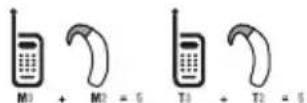
In the above example, if a hearing aid meets the M2 level rating and the wireless phone meets the M3 level rating, the sum of the two values equal M5. This is synonymous for T ratings. This should provide the hearing aid user with "normal usage" while using their hearing aid with the particular wireless phone. "Normal usage" in this context is defined as a signal quality that is acceptable for normal operation.
The M mark is intended to be synonymous with the U mark. The T mark is intended to be synonymous with the UT mark. The M and T marks are recommended by the Alliance for Telecommunications Industries Solutions (ATIS). The U and UT marks are referenced in Section 20.19 of the FCC Rule. The HAC rating and measurement procedure are described in the American National Standards Institute (ANSI) C63. standard.
To ensure that the Hearing Aid Compatibility rating for your phone is maintained, secondary transmitters such as Bluetooth and WLAN components must be disabled during a call. See page 74 for instructions to disable these components.
FCC Regulatory Compliance
FCC Regulatory Compliance
This device complies with Part 15 of the FCC Rules. Operation is subject to the following two conditions: (1) this device may not cause harmful interference, and (2) this device must accept any interference received, including interference that may cause undesired operation.
Your mobile device is a low power radio transmitter and receiver. When it is ON, it receives and also sends out radio frequency (RF) signals. In August 1996, the Federal Communications Commission (FCC) adopted RF exposure guidelines with safety levels for mobile devices. Those guidelines are consistent with safety standards previously set by both U.S. and international standards bodies: American National Standard Institute (ANSI), National Council of Radiation Protection and Measurements (NCRP), and International Commission on Non-Ionizing Radiation Protection (ICNRP). Those standards were based on comprehensive and periodic evaluations of the relevant scientific literature. The design of your phone complies with the FCC guidelines and applicable.
Statement according to FCC part 15.105
note: This equipment has been tested and found to comply with the limits for a Class B digital device, pursuant to Part 15 of the FCC Rules. These limits are designed to provide reasonable protection against harmful interference in a residential installation. This equipment generates uses and can radiate radio frequency energy and, if not installed and used in accordance with the instructions, may cause harmful interference to radio communications. However, there is no guarantee that interference will not occur in a particular installation. If this equipment does cause harmful interference to radio or television reception, which can be determined by turning the equipment off and on, the user is encouraged to try to correct the interference by one or more of the following measures:
- Reorient or relocate the receiving antenna.
- Increase the separation between the equipment and receiver.
- Connect the equipment into an outlet on a circuit different from that to which the receiver is connected.
- Consult the dealer or an experienced radio/TV technician for help.
Appendix
Statement according to FCC part 15.21
Modifications not expressly approved by this company could void the user's authority to operate the equipment.
RF exposure FCC
For body worn operation, to maintain compliance with FCC RF exposure guidelines, use only accessories that contain no metallic components and provide a separation distance of 20 mm (0.6 inches) to the body. Use of other accessories may violate FCC RF exposure guidelines and should be avoided.
This device and its antenna must not be co-located or operating in conjunction with any other antenna or transmitter.
Health and Safety Information FCC
This EUT has been shown to be capable of compliance for localized specific absorption rate (SAR) for uncontrolled environment/general population exposure limits specified in ANSI/IEEE Std. C95.1-1992 and had been tested in accordance with the measurement procedures specified in FCC/OET Bulletin 65 Supplement C (2001) and IEEE Std. 1528-2003 Ministry of Health (Canada), Safety Code 6. The standards include a substantial safety margin designed to assure the safety of all persons, regardless of age and health. The exposure standard for wireless mobile phones employs a unit of measurement known as the Specific Absorption Rate, or SAR. The SAR limit set by the FCC is 1.6W/kg*.
* In the U.S. and Canada, the SAR limit for mobile phones used by the public is 1.6 watts/kg (W/kg) averaged over one gram of tissue. The standard incorporates a substantial margin of safety to give additional protection for the public and to account for any variations in.
** This device contains 1800 MHz GSM functions that are not operational in U.S. Territories; this filing is applicable only for 850 MHz GSM and 1900 MHz PCS operations.
Warranty
Protect Your Warranty
Read your Warranty carefully, with the special consideration to paragraph seven of the Limited Warranty for your unit.
"Warranty does not apply to... or to any product or part thereof which has suffered through alteration... mishandling, misuse, neglect or accident".
Many companies are making look alike accessories and in some cases, promoting that their product is equal to or better than the Pantech product. Be careful. Some of these products may not be compatible to use with your Pantech product and may damage the unit or cause it to malfunction.
If service is required on your unit and it is determined that a non-Pantech accessory has created the problem with your unit, the Warranty will not apply. In addition, if the unit has already suffered irreversible damage by reason of a non-compatible accessory, the Warranty will be voided. To protect your Warranty, use only compatible accessories which cannot damage or interfere with the functioning of your Pantech product.
12 Month Limited Warranty
Pantech Wireless, Inc. (the Company) warrants to the original retail purchaser of this Pantech handheld portable cellular telephone, that should this product or any part thereof during normal consumer usage and conditions, be proven defective in material or workmanship that results in product failure within the first twelve (12) months period from the date of purchase, such defect(s) will be repaired or replaced (with new or rebuilt parts) at the Company's option, without charge for parts or labor directly related to the defect(s). The antenna, key pad, display, rechargeable battery and battery charger, if included, are similarly warranted for twelve (12) months from date of purchase. This Warranty extends only to consumers who purchase the product in the United States or Canada and it is not transferable or assignable.
This Warranty does not apply to:
(a) Product subjected to abnormal use or conditions, accident, mishandling, neglect, unauthorized alteration, misuse, improper installation or repair or improper storage;
(b) Product whose mechanical serial number or electronic serial number has been removed, altered or defaced.
(c) Damage from exposure to moisture, humidity, excessive temperatures or extreme environmental conditions;
(d) Damage resulting from connection to, or use of any accessory or other product not approved or authorized by the Company;
(e) Defects in appearance, cosmetic, decorative or structural items such as framing and non-operative parts;
Appendix
(f) Product damaged from external causes such as fire, flooding, dirt, sand, weather conditions, battery leakage, blown fuse, theft or improper usage of any electrical source.
The Company disclaims liability for removal or reinstallation of the product, for geographic coverage, for inadequate signal reception by the antenna or for communications range or operation of the cellular system as a whole.
To obtain repairs or replacement within the terms of this Warranty, the product should be delivered with proof of Warranty coverage (e.g. dated bill of sale), the consumer's return address, daytime phone number and/or fax number and complete description of the problem, transportation prepaid, to the Company by calling the number listed below or to the place of purchase for repair or replacement processing.
To locate Pantech Authorized Service Center, call: (800) 962-8622 or email HandsetHelp@Pantech.com.
Please have the following information available when you send the phone in for repair:
• A valid original Proof of Purchase
- Return address
• Daytime phone number or fax number
- Model #
- IMEI # (Look for the 15 digit IMEI # behind the battery of the device.)
- Complete description of the problem
• Transportation prepaid
Other Warranty Program
You may have other warranty program with your purchase, such as warranty exchange. If so, please refer to equipment package or the original point of sale.
THE EXTENT OF THE COMPANY'S LIABILITY UNDER THIS WARRANTY IS LIMITED TO THE REPAIR OR REPLACEMENT PROVIDED ABOVE AND, IN NO EVENT, SHALL THE COMPANY'S LIABILITY EXCEED THE PURCHASE PRICE PAID BY PURCHASER FOR THE PRODUCT.
ANY IMPLIED WARRANTIES, INCLUDING ANY IMPLIED WARRANTY OF MERCHANTABILITY OR FITNESS FOR A PARTICULAR PURPOSE, SHALL BE LIMITED TO THE DURATION OF THIS WRITTEN WARRANTY. ANY ACTION FOR BREACH OF ANY WARRANTY MUST BE BROUGHT WITHIN A PERIOD OF 18 MONTHS FROM DATE OF ORIGINAL PURCHASE. IN NO CASE SHALL THE COMPANY BE LIABLE FOR ANY SPECIAL
CONSEQUENTIAL OR INCIDENTAL DAMAGES FOR BREACH OF THIS OR ANY OTHER WARRANTY, EXPRESS OR IMPLIED, WHATSOEVER. THE COMPANY SHALL NOT BE LIABLE FOR THE DELAY IN RENDERING SERVICE UNDER THIS WARRANTY OR LOSS OF USE DURING THE TIME THE PRODUCT IS BEING REPAIRED OR REPLACED.
No person or representative is authorized to assume for the Company any liability other than expressed herein in connection with the sale of this product.
Some states or provinces do not allow limitations on how long an implied warranty lasts or the exclusion or limitation of incidental or consequential damage so the above limitation or exclusions may not apply to you. This Warranty gives you specific legal rights, and you may also have other rights which vary from state to state or province to province.
For technical support in the U.S. & Canada, call (800) 962-8622.
Or email: HandsetHelp@Pantech.com.
Or visit the web site: www.pantechusa.com
For all other inquiry, write to:
PANTECH WIRELESS, INC.
5607 Glenridge Dr. Suite 500 Atlanta, GA 30342