ThinkVision E2003 - Monitor LENOVO - Free user manual and instructions
Find the device manual for free ThinkVision E2003 LENOVO in PDF.


User questions about ThinkVision E2003 LENOVO
0 question about this device. Answer the ones you know or ask your own.
Ask a new question about this device
Download the instructions for your Monitor in PDF format for free! Find your manual ThinkVision E2003 - LENOVO and take your electronic device back in hand. On this page are published all the documents necessary for the use of your device. ThinkVision E2003 by LENOVO.
USER MANUAL ThinkVision E2003 LENOVO
E2003bA LCD Monitor User's Guide
text_image
lenovo ThinkVisionTABLE OF CONTENTS
ABOUT THIS GUIDE----1
NATIONAL CONVENTIONS----1
FCC NOTICE 2
PRECAUTIONS 3
SETUP THE STAND AND BASE 4
ADJUSTING VIEWING ANGLE 4
ATTACHING THE CABLES 6
WALL MOUNTING 7
EXTERNAL CONTROLS 8
OSD SETTINGS 9
IMAGE ADJUSTMENT 10
LED INDICATORS 10
PROBLEMS AND SOLUTIONS 11
SPECIFICATIONS 12
PRESET DISPLAY MODES 13
PIN ASSIGNMENTS 13
PLUG AND PLAY 14
About This Guide
This guide describes the monitor's features, setup, and operation. Information in this document is subject to change without notice.
The sections are as follows:
- Safety Instructions: lists safety information.
- Setup: describes the initial setup process.
- Using the Monitor: gives an overview of how to use the monitor.
- Technical Support : provides tips and solutions for common problems.
- Product Information: lists the technical specifications of the monitor.
National Conventions
The following subsections describe national conventions used in this document.
Notes, Cautions, and Warnings
Throughout this guide, blocks of text may be accompanied by an icon and printed in bold type or in italic type. These blocks are notes, cautions, and warnings, and they are used as follows:

NOTE: A NOTE indicates important information that helps you make better use of your computer system

CAUTION: A CAUTION indicates either potential damage to hardware or loss of data and tells you how to avoid the problem

WARNING: A WARNING indicates the potential for bodily harm and tells you how to avoid the problem
Some warnings may appear in alternate formats and may be unaccompanied by an icon. In such cases, the specific presentation of the warning is mandated by regulatory authority.
FCC Notice
FCC Class B Radio Frequency Interference Statement WARNING: (FOR FCC CERTIFIED MODELS)
NOTE: This equipment has been tested and found to comply with the limits for a Class B digital device, pursuant to Part 15 of the FCC Rules. These limits are designed to provide reasonable protection against harmful interference in a residential installation. This equipment generates, uses and can radiate radio frequency energy, and if not installed and used in accordance with the instructions, may cause harmful interference to radio communications. However, there is no guarantee that interference will not occur in a particular installation. If this equipment does cause harmful interference to radio or television reception, which can be determined by turning the equipment off and on, the user is encouraged to try to correct the interference by one or more of the following measures:
- Reorient or relocate the receiving antenna.
- Increase the separation between the equipment and receiver.
- Connect the equipment into an outlet on a circuit different from that to which the receiver is connected.
- Consult the dealer or an experienced radio/TV technician for help.
NOTICE :
- The changes or modifications not expressly approved by the party responsible for compliance could void the user's authority to operate the equipment.
- Shielded interface cables and AC power cord, if any, must be used in order to comply with the emission limits.
- The manufacturer is not responsible for any radio or TV interference caused by unauthorized modification to this equipment. It is there responsibilities of the user to correct such interference.
Precautions

WARNING: Use of controls, adjustments, or procedures other than those specified in this documentation may result in exposure to shock, electrical hazards, and/or mechanical hazards
Read and follow these precautions when connecting and using your computer monitor:
PRECAUTIONS
- Do not use the monitor near water, e.g. near a bathtub, washbowl, kitchen sink, laundry tub, swimming pool or in a wet basement.
- Do not place the monitor on an unstable cart, stand, or table. If the monitor falls, it can injure a person and cause serious damage to the appliance. Use only a cart or stand recommended by the manufacturer or sold with the monitor. If you mount the monitor on a wall or shelf, use a mounting kit approved by the manufacturer and follow the kit instructions.
- Slots and openings in the back and bottom of the cabinet are provided for ventilation. To ensure reliable operation of the monitor and to protect it from overheating, be sure these openings are not blocked or covered. Do not place the monitor on a bed, sofa, rug, or similar surface. Do not place the monitor near or over a radiator or heat register. Do not place the monitor in a bookcase or cabinet unless proper ventilation is provided.
- The monitor should be operated only from the type of power source indicated on the label. If you are not sure of the type of power supplied to your home, consult your dealer or local power company.
- The monitor is equipped with a three-pronged grounded plug, a plug with a third (grounding) pin. This plug will fit only into a grounded power outlet as a safety feature. If your outlet does not accommodate the three-wire plug, have an electrician install the correct outlet, or use an adapter to ground the appliance safely. Do not defeat the safety purpose of the grounded plug.
- Unplug the unit during a lightning storm or when it will not be used for long periods of time. This will protect the monitor from damage due to power surges.
- Do not overload power strips and extension cords. Overloading can result in fire or electric shock.
- Never push any object into the slot on the monitor cabinet. It could short circuit parts causing a fire or electric shock. Never spill liquids on the monitor.
- Do not attempt to service the monitor yourself; opening or removing covers can expose you to dangerous voltages and other hazards. Please refer all servicing to qualified service personnel.
- To ensure satisfactory operation, use the monitor only with UL listed computers which have appropriate configured receptacles marked between 100 - 240V AC, Min. 5A.
- The wall socket shall be installed near the equipment and shall be easily accessible.
- Please make sure to clean the cabinet regularly with the provided cloth, you can use soft-cleanser to clean the stain, instead of severe spray cleanser which will cauterize the monitor cabinet.
- Don't leak liquid into monitor which will result in the damage of chassis or component. Please unplug before cleaning, and do not scratch the screen with hard things.
- For displays with glossy bezels the user should consider the placement of the display as the bezel may cause disturbing reflections from surrounding light and bright surfaces.
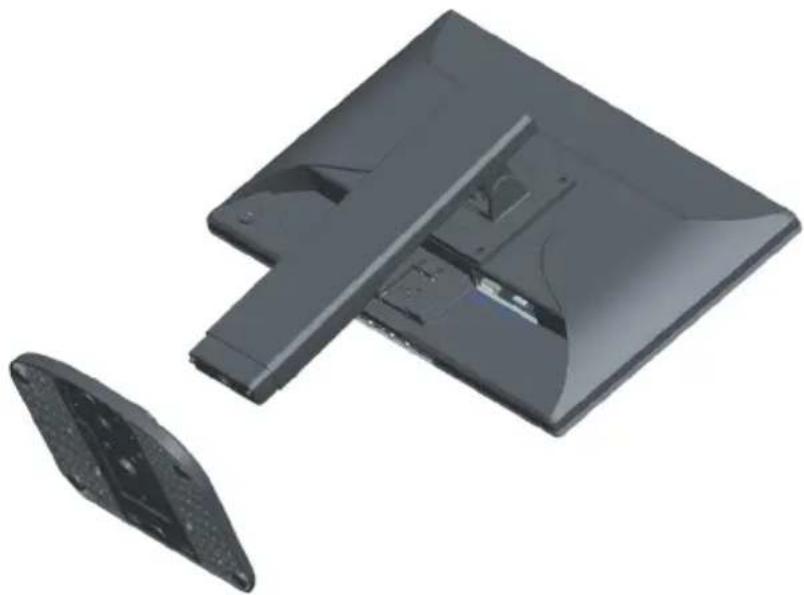
Setup the stand and base
Please setup or remove the base following below steps.
natural_image
3D model of a black plastic electronic device with two views: one showing internal structure and the other a separate component (no text or symbols visible)Adjusting Viewing Angle
- For optimal viewing it is recommended to look at the full face of the monitor, then adjust the monitor's angle to your own preference.
- Hold the stand so you do not topple the monitor when you change the monitor's angle.
- You are able to adjust the monitor's angle from -3^ -7^ to 20^ 24^ .

text_image
-3°~-7° 20°~24°
NOTE: Do not touch the LCD screen when you change the angle. It may cause damage or break the LCD screen.
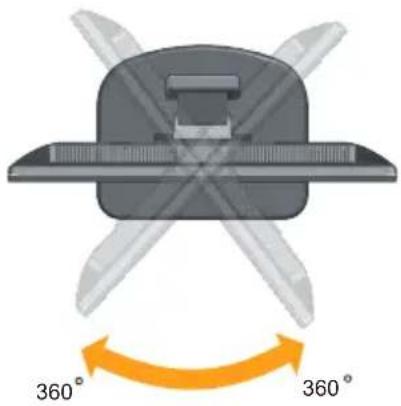
Swivel
With the built-in pedestal, you can tilt and swivel the monitor for the most comfortable viewing angle.
natural_image
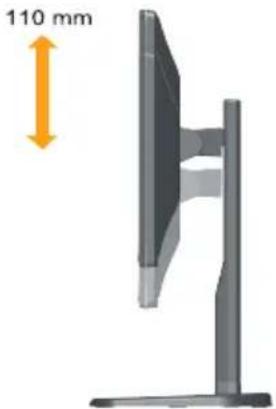
Diagram of a mechanical component with 360° rotation indicator (no text or symbols on the diagram itself)Height Adjustment
After pressing the top of the monitor, remove the fixed pin and adjust the height of the monitor.
natural_image
Side view of a computer monitor with a 110 mm height indicator (no text or symbols on the device itself)Monitor Pivot
- Adjust height to the top position before rotation the monitor.
- Rotate clockwise until the monitor stops at 90°.
- ' R□QR□UR□DWH□WKH□DQNL□FORENZLVH.

natural_image
Illustration of a computer monitor with two side panels and an 90-degree angle indicator (no text or symbols on the monitor itself)Attaching the Cables
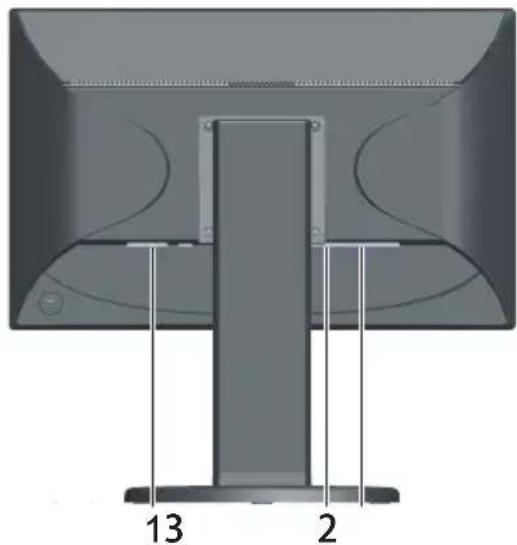
Cable Connections On Back of Monitor and Computer
natural_image
Diagram of a computer monitor with labeled parts (13 and 2), showing no readable text or symbols beyond labels-
Power Cord
-
DVI Cable
-
Analog Cable
Turn off your computer before performing the procedure below.
-
Connect the power cable to the AC port on the back of the monitor.
-
Connect one end of the 15-pin D-Sub cable to the back of the monitor and connect the other end to the computer's D-Sub port.
-
(Optional – Requires a video card with DVI port) - Connect one end of the 24-pin DVI cable to the back of the monitor and connect the other end to the computer's DVI port.
-
Turn on your monitor and computer.
If your monitor displays an image, installation is complete. If it does not display an image, see Troubleshooting.
Wall Mounting
Preparing to Install An Optional Wall Mounting Arm

flowchart
graph TD
    A["Initial Component"] --> B["Assembly Step 1"]
    B --> C["Assembly Step 2"]
    C --> D["Final Assembly"]
This monitor can be attached to a wall mounting arm you purchase separately. Disconnect power before this procedure. Follow these steps:
- Remove the base.
- Follow the manufacturer's instructions to assemble the wall mounting arm.
- Place the wall mounting arm onto the back of the monitor. Line up the holes of the arm with the holes in the back of the monitor.
- Insert the 4 screws into the holes and tighten.
- Reconnect the cables. Refer to the user's manual that came with the optional wall mounting arm for instructions on attaching it to the wall.
Noted : VESA mounting screw holes are not available for all models, please check with the dealer or the reseller nearest your house.
External Controls
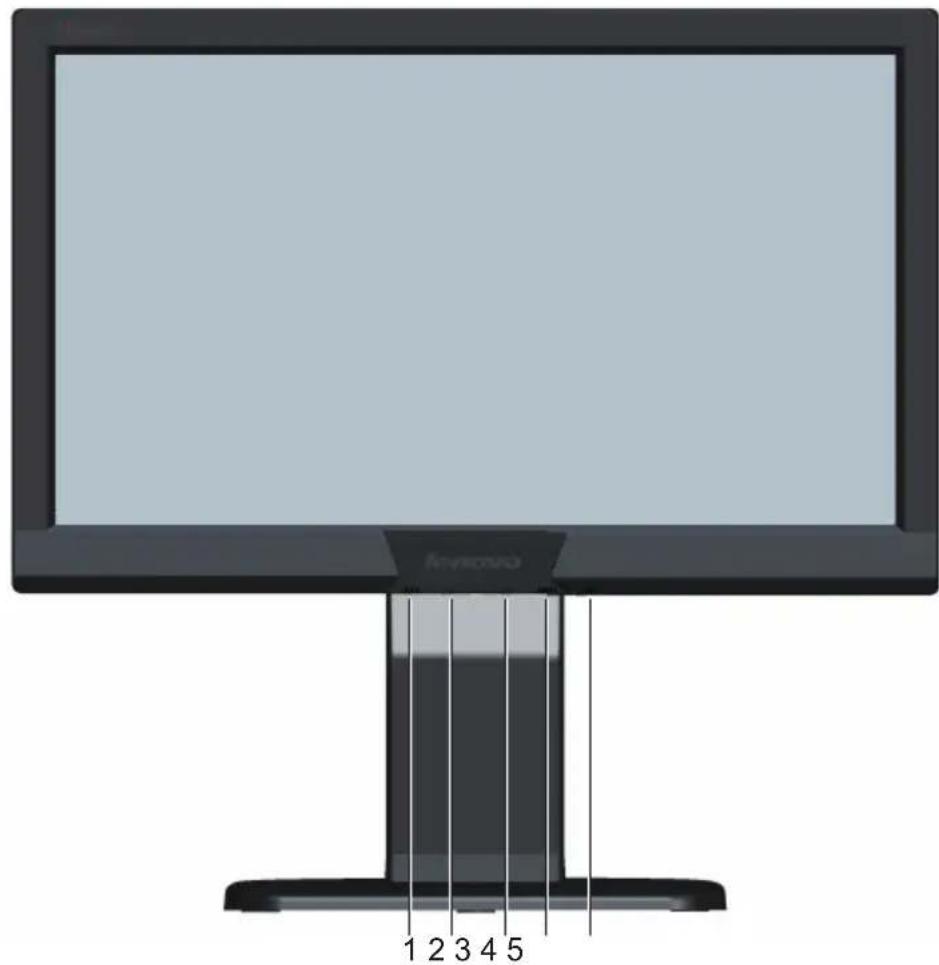
Press the power button to turn the monitor on or off. The other control knobs are located at front panel of the monitor (See Figure). By changing these settings, the picture can be adjusted to your personal preferences.
* The power cord should be connected.
* Press the power button to turn on the monitor. The power indicator will light up.
text_image
1 2 3 4 51 Auto / Exit
2 - / ECO
3 + / Image Ratio
4 Menu / Enter
5 ON/OFF
OSD Settings
- Press the MENU-button to activate the OSD window.
- Press + or - to navigate through the functions. Once the desired function is highlighted, press the MENU-button to activate it. If the function selected has a sub-menu, press + or - again to navigate through the sub-menu functions. Once the desired function is highlighted, press MENU-button to activate it.
- When the OSD is closed, press - button will be ECO Hot-Key Function, press + button will be Image Ratio Function.
- OSD Lock Function: To lock the OSD, press and hold the Menu button while the monitor is off and then press power button to turn the monitor on. To unlock the OSD, press and hold the Menu button while the monitor is off and then press power button to turn the monitor on.
- Auto configure hot key: When the OSD is closed, Source window will be pop-up when press auto button, continue to press Auto button will change to next source if available, then press Menu button will execute change input source; When the OSD is closed, press Auto button continuously about 3 second to do auto configure, or it will be Exit function.

text_image
Luminance Contrast 50 Brightness 90 Eco Mode Standard DCR Off AUTO :Exit MENU :Select:MoveImage Adjustment
 | Luminance Adjust | Range Description | |
| Contrast | 0-100 | Contrast from Digital-register | |
| Brightness | 0-100 | Backlight Adjustment | |
| Eco | Standard | Standard Mode | |
| Text Text Mode | |||
| Internet Internet Mode | |||
| Game Game Mode | |||
| Movie Movie Mode | |||
| Sports Sports Mode | |||
| DCR | On/Off Dynamic contrast ratio | ||
 | Image Setup | ||
| Clock 0-100 Adjust picture Clock to reduce Vertical-Line noise | |||
| Phase 0-100 Adjust Picture Phase to reduce Horizontal-Line noise | |||
| H.Position 0-100 Adjust the horizontal position of the picture | |||
| V.Position 0-100 Adjust the vertical position of the picture | |||
| Image Ratio | Wide/4:3 | Select Image Aspect Ratio | |
 | Color Temperature | ||
| Warm 6500K | Recall | Warm Color Temperature | |
| Normal | 7200K Recall | Normal ColorTemperature | |
| Cool | 9300K | Recall Cool Color Temperature | |
| sRGB | Recall SRGB Color Temperature | ||
| Red | 0-100 | Red Gain from Digital-register | |
| Green | 0-100 | Green Gain Digital-register | |
| Blue | 0-100 | Blue Gain from Digital-register | |
 | OSD Setup | ||
| V. Position 0-100 | Adjust the Vertical position of OSD | ||
| H. Position | 0-100 | Adjust the Horizontal position of OSD | |
| Timeout | 0-100 | Adjust the OSD Timeout | |
| Language | Select the OSD language | ||
 | Extra | ||
| Input Select | D-SUB | Select D-SUB Signal Source as Input | |
| DVI | Select DVI Signal Source as Input | ||
| DDC/CI | On/Off | Select DDC/CI on or off | |
| Reset | On/Off | Reset the menu to default | |
| Information | Show the resolution, H/V frequency of current input timing | ||
LED Indicators
| Status | LED Color |
| Full Power Mode | Blue |
| Active-off Mode | Amber |
Problems and Solutions
| Problem and Questions | Possible Solutions |
| Power LED is Not ON | Make sure the power button is ON and the Power Cord is properly connected to a grounded power outlet and to the monitor |
| No Plug & Play | In order for the Plug & Play feature of the monitor to work, you need a Plug & Play compatible computer & video card. Check with your computer manufacturer. Also check the monitor's video cable and make sure none of the pins are bentMake sure the Monitor's Drivers are installed |
| Picture is Fuzzy and has Ghosting Shadowing Problem | Adjust the Contrast and Brightness ControlsMake sure you are not using an extension cable or switch box. We recommend plugging the monitor directly to the video card output connector on the back of your computer |
| Picture Bounces, Flickers or Wave Pattern is Present in the Picture | Move electrical devices that may cause electrical interference as far away from the monitor as possibleUse the maximum refresh rate your monitor is capable of at the resolution your are using |
| Monitor is Stuck in Active Off-Mode | The computer Power Switch should be in the ON positionThe computer Video Card should be snugly seated in its slotMake sure the monitor's video cable is properly connected to the computerInspect the monitor's video cable and make sure none of the pins are bent |
| Missing one of the primary colors (RED, GREEN or BLUE) | Inspect the monitor's video cable and make sure that none of the pins are bentMake sure the monitor's video cable is properly connected to the computer |
| Screen image is not centered or sized properly | Adjust H-Position and V-Position or press hot-key (AUTO) |
| Picture has color defects (while does not look white) | Adjust RGB color or select color temperature |
| Horizontal or Vertical disturbances on the screen | Adjust CLOCK and PHASE or perform hot-key (AUTO-key) |
Specifications
| LCD Panel | Model Number | E2003bA |
| Driving system TFT Color LCD | ||
| Viewable Image Size 495mm diagonal | V | |
| Pixel Pitch 0.27mm (H) x 0.27mm (V) | ||
| Video | R, G, B Analog Interface & Digital Interface | |
| Separate Sync. H/V TTL | ||
| Display Color 16.7M Colors | ||
| Dot Clock | 165 MHz | |
| Resolution | Horizontal scan range 30 kHz - 83 kHz | |
| Horizontal scan Size (Maximum) | 432mm | |
| Vertical scan range 50 Hz - 75 Hz | ||
| Vertical scan Size (Maximum) | 239.76mm | |
| Optimal present resolution | 1600 x 900 (60 Hz) | |
| Highest preset resolution | 1600 x 900 (60 Hz) | |
| Plug & Play VESA DDC2B/CI | ||
| Input Connector D-Sub 15 pin & DVI-D | ||
| Input Video Signal | Analog: 0,7 V p-p (standard), 75 OHM, Positive & DVI-D Digital Interface (TMDS) | |
| Power Source 100 - 240 VAC, 50/60 Hz | ||
| Power Consumption | Active < 21 W | |
| Power saving < 0.5 W | ||
| Physical Characteristics | Connector Type 15-pin D-Sub & DVI-D | |
| Signal Cable Type Detachable | ||
| Dimensions & Weight: | ||
| Height (with base) | 355.2mm - 465.2mm | |
| Width | 478.2mm | |
| Depth | 212.0mm | |
| Weight (monitor only) | 4.29 kg | |
| Weight (with packaging) | 5.29 kg | |
| Environmental | Temperature: | |
| Operating | 0° to 40° | |
| Non-Operating | -20° to 60° | |
| Humidity: | ||
| Operating | 8% to 80% (non-condensing) | |
| Non-Operating | 5% to 95% (non-condensing) | |
| Altitude: | ||
| Operating | 0 ~ 8000 ft | |
| Non-Operating 0 ~ 40000 ft | ||
EPA ENERGY STAR®

ENERGY STAR® is a U.S registered mark. As an ENERGY STAR® Partner, our company has determined that this product meets the ENERGY STAR® guidelines for energy efficiency.
Preset Display Modes
| RESOLUTION | HORIZONTAL FREQUENCY (kHz) | VERTICAL FREQUENCY (Hz) |
| 640 x 480 @60Hz 31.469 | 59.94 | |
| 640 x 480 @67Hz 35 66 | 667 | |
| 640 x 480 @72Hz 37.861 | 72.809 | |
| 640 x 480 @75Hz 37.5 75 | ||
| 720 x 400 @70Hz 31.469 | 70.087 | |
| 800 x 600 @60Hz 37.879 | 60.317 | |
| 800 x 600 @72Hz 48.077 | 72.188 | |
| 800 x 600 @75Hz 46.875 | 75 | |
| 1024 x 768 @60Hz 48.363 | 60.004 | |
| 1024 x 768 @70Hz | 56.476 70.069 | |
| 1024 x 768 @75Hz | 60.023 75.029 | |
| 1440 x 900 @60Hz | 55.935 | 59.887 |
| 1440 x 900 @75Hz | 70.635 74.984 | |
| 1600 x 900 @60Hz | 60 | 60 |
Pin Assignments
D-Sub pins

text_image
1 6 11 5 10 15| Pin Number | 15-Pin Side of the Signal Cable |
| 1 Video - Red | |
| 2 Video - Green | |
| 3 Video - Blue | |
| 4 Ground | |
| 5 Detect Cable | |
| 6 GND-R | |
| 7 GND-G | |
| 8 GND-B | |
| 9 +5V | |
| 10 Ground | |
| 11 Ground | |
| 12 DDC-Serial data | |
| 13 H-sync | |
| 14 V-sync | |
| 15 DDC-Serial clock | |
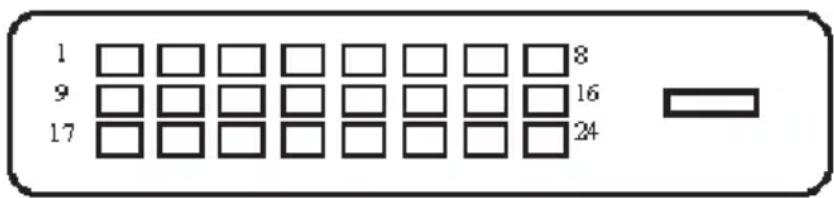
DVI-D pins
text_image
1 9 17 8 16 24| Pin No. | Signal Name | Pin No. | Signal Name | Pin No. | Signal Name | |
| 1 | TMDS | Data 2-9 | TMDS Data 1-17 | TMDS Data 0- | ||
| 2 | TMDS | Data 2+ | 10 TMDS Data 1+ | 18 | TMDS Data 0+ | |
| 3 | TMDS Data 2/4 Shield | 11 | TMDS Data 1/3 Shield | 19 | TMDS Data 0/5 Shield | |
| 4 | TMDS | Data 4-12 | TMDS Data 3-20 | TMDS Data 5- | ||
| 5 | TMDS | Data 4+ | 13 TMDS Data 3+ | 21 | TMDS Data 5+ | |
| 6 | DDC | Clock 14 +5V Power 22 | TMDS Clock Shield | |||
| 7 | DDC | Data | 15 Cable Detect | 23 | TMDS Clock + | |
| 8 | N.C. | 16 Hot Plug | Detect 24 | TMDS Clock - | ||
Plug and Play
Plug & Play DDC2B Feature
This monitor is equipped with VESA DDC2B capabilities according to the VESA DDC STANDARD. It allows the monitor to inform the host system of its identity and depending on the level of DDC used, communicate additional information about its display capabilities.
The DDC2B is a bidirectional data channel based on the I2C protocol. The host can request EDID information over the DDC2B channel.