NV5818H - Laptop ACER - Free user manual and instructions
Find the device manual for free NV5818H ACER in PDF.


User questions about NV5818H ACER
0 question about this device. Answer the ones you know or ask your own.
Ask a new question about this device
Download the instructions for your Laptop in PDF format for free! Find your manual NV5818H - ACER and take your electronic device back in hand. On this page are published all the documents necessary for the use of your device. NV5818H by ACER.
USER MANUAL NV5818H ACER
Chapter 1: Getting Help .... 1
Thank you for purchasing our notebook! 2
Using the Gateway Web site 2
Using Help and Support 2
Contacting Gateway 3
Getting help for Windows Media Center 3
Using online help 4
Chapter 2: Using Windows .... 5
Using the Windows desktop 6
Using the Start menu 7
Adding icons to the desktop 8
Identifying window items 8
Working with files and folders 9
Viewing drives 9
Creating folders 10
Copying and moving files and folders 10
Deleting files and folders 11
Searching for files 12
Using the Windows Search 12
Browsing for files and folders 13
Using Tablet PC 13
Calibrating your tablet 14
Using gestures 15
Using the digital pen 15
Using the Tablet Input Panel (TIP) 16
Working with documents 17
Creating a new document 17
Saving a document 17
Opening a document 18
Printing a document 18
Shortcuts 19
Chapter 3: Using the Internet and Faxing....21
Learning about the Internet 22
Setting up an Internet account 22
Accessing your Internet account 23
Using the World Wide Web 23
Connecting to a Web site 24
Downloading files 24
Using e-mail 25
Sending e-mail 25
Checking your e-mail 25
Using Windows Fax and Scan 26
Sending a Fax 26
Setting up your cover page template 29
Faxing a scanned document or faxing from programs ..... 31
Contents
Canceling a fax 31
Receiving and viewing a fax 31
Chapter 4: Playing and Creating Media Files....33
Playing music and movies 34
Playing audio and video files 34
Playing optical discs 35
Creating audio files and music libraries 37
Creating music files 37
Building a music library 38
Editing track information 39
Creating music CDs and video DVDs 39
Creating a music CD 39
Creating a video DVD 40
Creating and copying data discs 43
Creating a data disc 43
Using Windows Media Center 43
Starting Windows Media Center 44
Chapter 5: Networking Your Notebook....45
Introduction to Networking 46
Networking terms you should know 46
Ethernet networking 46
Wired Ethernet networking 46
Wireless Ethernet networking 49
Establishing your Ethernet network connection 51
Testing your network 54
Adding a printer to your network 54
Sharing resources 54
Using the network 56
Bluetooth networking 57
Chapter 6: Protecting Your Notebook ....59
Hardware security 60
Kensington lock slot 60
Data security 60
Startup and hard drive password 60
Windows user accounts 60
Protecting your notebook from viruses 61
How to scan for and remove Internet threats 61
Using Windows Security Center 64
Security updates 65
Windows Update 65
Traveling securely 66
Chapter 7: Customizing Windows....67
Changing screen settings 68
Changing color depth and screen resolution 68
Changing the appearance of windows and backgrounds .....69
Selecting a screen saver 70
Changing gadgets 71
Changing system sounds 73
Changing mouse, touchpad, or pointing device settings 74
Changing mouse settings 74
Changing touchpad or pointing device settings 75
Adjusting tablet, digital pen, and input panel settings ..... 76
Adding and modifying user accounts 77
Changing accessibility settings 78
Using the Ease of Access Center 78
Using voice recognition 79
Using the Windows Mobility Center 80
Setting up parental controls 82
Filtering Internet access 82
Scheduling notebook and Internet use 83
Restricting game access 83
Restricting specific programs 85
Creating activity reports 85
Chapter 8: Maintaining Your Notebook .... 87
Setting up a maintenance schedule 88
Updating Windows 88
Managing hard drive space 89
Checking hard drive space 89
Deleting unnecessary files 90
Checking the hard drive for errors 90
Defragmenting the hard drive 91
Backing up files 92
Scheduling maintenance tasks 93
Moving from your old computer 93
Transferring files and settings with Windows Easy Transfer . . . 93
Transferring files and settings manually 94
Contents
CHAPTER 1
Getting Help
• Using the Gateway Web site
• Using Help and Support
- Using online help
Thank you for purchasing our notebook!
You have made an excellent decision choosing Gateway. We are sure that you will be pleased with the outstanding quality, reliability, and performance of your new notebook. Each and every Gateway notebook uses the latest technology and passes through the most stringent quality control tests to ensure that you are provided with the best product possible. Please read this manual carefully to familiarize yourself with your notebook's software features.
Gateway stands behind our value proposition to our customers—to provide best-of-class service and support in addition to high-quality, brand-name components at affordable prices. If you ever have a problem, our knowledgeable, dedicated customer service department will provide you with fast, considerate service.
We sincerely hope that you will receive the utmost satisfaction and enjoyment from your new Gateway notebook for years to come.
Thanks again, from all of us at Gateway.
Using the Gateway Web site
Gateway's online support is available 24 hours per day, 7 days per week and provides the most current drivers, product specifications, tutorials, and personalized information about your notebook. Visit the Gateway Support Web site at www.gateway.com.
Using Help and Support
Your notebook includes Help and Support, an easily accessible collection of help information, troubleshooters, and automated support. Use Help and Support to answer questions about Windows and to help you quickly discover and use the many features of your Gateway notebook.
▶ To search for a topic:
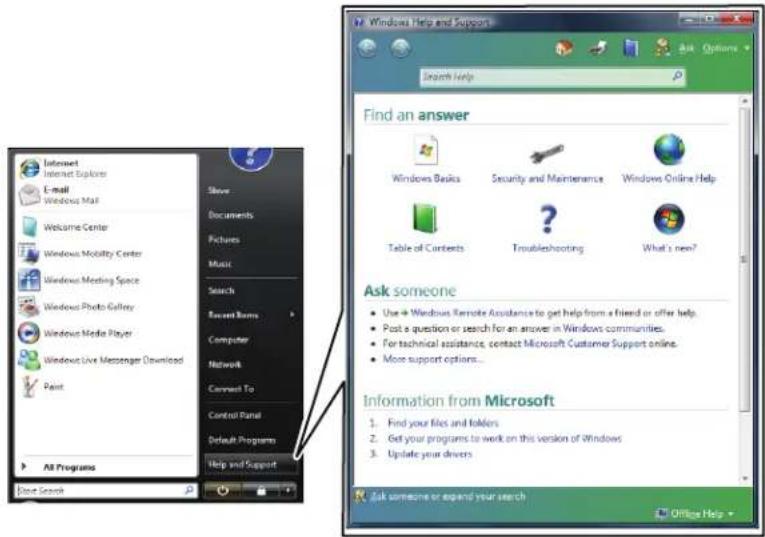
1 Click (Start), then click Help and Support. Help and Support opens.
text_image
Windows Help and Support Search Help Find an answer Windows Basics Security and Maintenance Windows Online Help Table of Contents Troubleshooting What's new? Ask someone • Use Windows Remote Assistance to get help from a friend or offer help. • Post a question or search for an answer in Windows communities. • For technical assistance, contact Microsoft Customer Support online. • More support options... Information from Microsoft 1. Find your files and folders 2. Get your programs to work on this version of Windows 3. Update your drivers Ask someone or expand your search File Search Show Documents Pictures Music Search Secret Items Computer Network Connect To Control Panel Default Programs Help and Support
Tip
You can find help information by clicking a general topic under Find an answer, selecting an option under Ask someone, or picking a category from Information from Microsoft. You can also search for a topic.
2 Type a word or phrase (keyword) in the Search Help box located at the top of any Help and Support screen, then press ENTER.
For each search, you receive a list of suggested topics. To find the answer, click the result that most closely matches your question. Additional results may be available if the first list does not address your question.

Contacting Gateway
The label on your notebook contains information that identifies your notebook model and serial number. Gateway Customer Care will need this information if you call for help.
Getting help for Windows Media Center
If your notebook has Windows Media Center, you can access help for information on how to use Windows Media Center.
▶ To access Media Center help:
1 Click (Start), then click Help and Support. Help and Support opens.
2 In the Help and Support window, type Windows Media Center in the Search Help box, then press ENTER. The Media Center Help window opens.
-OR-
If you are connected to the Internet, click Windows Online Help, then type Windows Media Center in the Search Help For box.

Using online help
If you are connected to the Internet, many programs provide information online so you can research a topic or learn how to perform a task while you are using the program. You can access most online help information by selecting a topic from a Help menu or by clicking the Help button on the menu bar and selecting Online Support from the list.
Available information depends on the particular Help site to which you are taken. Many provide FAQs (Frequently Asked Questions), a search feature, articles about their software, tutorials, and forums where problems and issues are discussed.
CHAPTER2
Using Windows
• Using the Windows desktop
• Working with files and folders
- Searching for files
- Using Tablet PC
• Working with documents
- Shortcuts
Using the Windows desktop
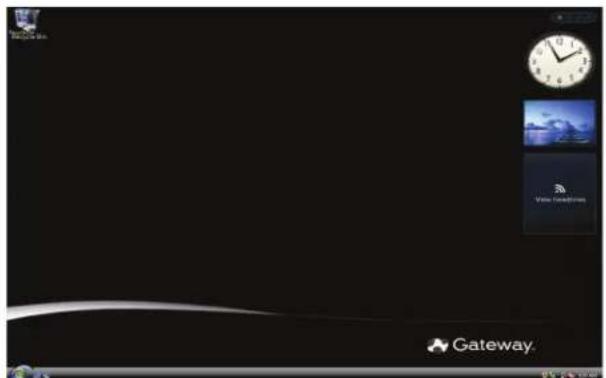
After your notebook starts, the first screen you see is the Windows desktop. The desktop is like the top of a real desk. Think of the desktop as your personalized work space where you open programs and perform other tasks.

Help
For more information about the Windows desktop, click Start, then click Help and Support. Type Windows desktop in the Search Help box, then press ENTER.
Your desktop may be different from this example, depending on how your notebook is set up.
The desktop contains the taskbar, the Start button, and the Recycle Bin icon.
text_image
GatewayDesktop elements Description

The taskbar is the bar at the bottom of the notebook display containing the Start button on the left and a clock on the right. Other buttons on the taskbar represent programs that are running.
Click a program's button on the taskbar to open the program's window.
The Start button provides access to programs, files, help for Windows and other programs, and notebook tools and utilities.
Click the Start button, then open a file or program by clicking an item on the menu that opens.

The Recycle Bin is where files, folders, and programs that you discarded are stored. You must empty the Recycle Bin to permanently delete them from your notebook. For instructions on how to use the Recycle Bin, see "Deleting files and folders" on page 11.

The Windows Security Center icon may appear on the taskbar near the clock. The icon changes appearance to notify you when the security settings on your notebook are set below the recommended value or when updates are available. Double-click this icon to open the Windows Security Center. For more information, see "Using Windows Security Center" on page 64.
Using the Start menu

Help
For more information about the Windows Start menu, click Start, then click Help and Support. Type Windows Start menu in the Search Help box, then press ENTER.
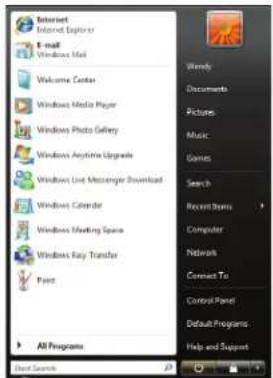
You can start programs, open files, customize your system, get help, search for files and folders, and more using the Start menu.
▶ To use the Start menu:

Shortcut
Start Á All Programs Á
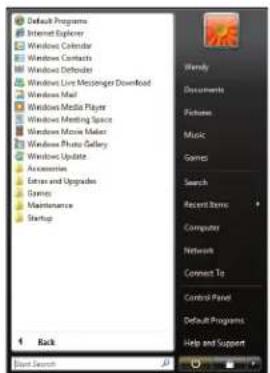
1 Click (Start) on the lower left of the Windows desktop. The Start menu opens, showing you the first level of menu items.
text_image
Internet Internet Explorer E-mail Windows Mail Welcome Center Windows Media Player Windows Photo Gallery Windows Anytime Upgrade Windows Live Messaging Download Windows Calendar Windows Meeting Space Windows Ray Transfer Paint All Programs Wendy Documents Pictures Music Games Search Recent Items Computer Network Connect To Control Panel Default Programs Help and Support2 Click All Programs to see all programs, files, and folders in the Start menu. If you click an item with a folder icon, the programs, files, and subfoldersappear.
text_image
Default Programs Internet Explorer Windows Calendar Windows Contacts Windows Defender Windows Live Messenger Download Windows Mail Windows Media Player Windows Meeting Space Windows Movie Market Windows Photo Gallery Windows Update Accessories Extras and Upgrades Games Maintenance Backup 1 Rack Back Search Wendy Documents Pictures Music Games Search Recent Items Computer Network Connect To Control Panel Default Programs Help and Support3 Click a file or program to open it.
Adding icons to the desktop

Help
For more information about the desktop icons, click Start, then click Help and Support. Type desktop icons in the Search Help box, then press ENTER.
You may want to add an icon (shortcut) to the desktop for a program that you use frequently.
▶ To add icons to the desktop:

Shortcut
Start Á All Programs Á right-click program Á Send To Á
Desktop (create shortcut)
1 Click (start), then click All Programs.
2 Right-click (press the right touchpad button) the program that you want to add to the desktop.
3 Click Send To, then click Desktop (create shortcut). A shortcut icon for that program appears on the desktop.

Identifying window items

Help
For more information about windows, click Start, then click Help and Support. Type window in the Search Help box, then press ENTER.
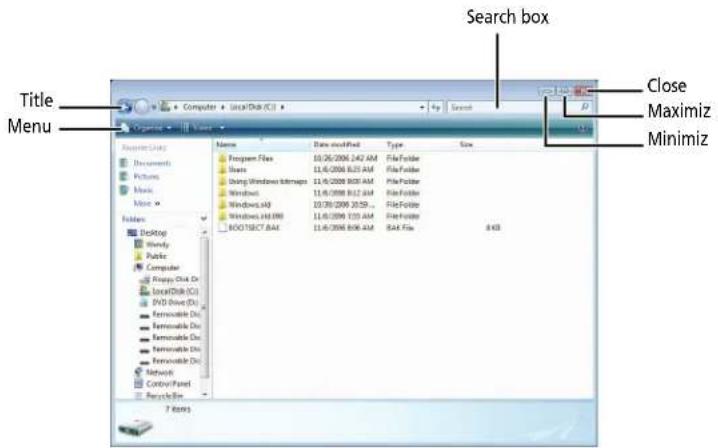
When you double-click the icon for a drive, folder, file, or program, a window opens on the desktop. This example shows the Local Disk (C:) window, which opens after you double-click the Local Disk (C:) icon in the Computer window.
text_image
Search box Close Maximiz Minimiz Title Menu Organise Search Name Date modified Type Size Program Files 10.06/2006 1:47 AM File Folder Hours 11.06/2006 8:31 AM File Folder Using Windows NTBlogs 11.06/2006 8:08 AM File Folder Windows 11.06/2006 8:12 AM File Folder Windows.mtl 10.06/2006 10:59 ... File Folder Windows 14.0999 11.06/2006 1:15 AM File Folder BOOT SELECT: MAX 11.06/2006 8:08 AM MAX File 8 KBEvery program window looks a little different because each has its own menus, icons, and controls. Most windows include these items:
Window item Description

Computer ▶ Local Disk (C:)


The title bar is the horizontal bar at the top of a window that shows the window title.

The Search box lets you search for a word or phrase in the current window.
Window item Description
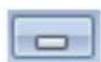
Clicking the minimize button reduces the active window to a button on the taskbar. Clicking the program button in the taskbar opens the window again.

Clicking the maximize button expands the active window to fit the entire notebook display. Clicking the maximize button again restores the window to its former size.

Clicking the close button closes the active window or program.
Clicking an item on the menu bar starts an action such as Print or Save.
Working with files and folders
You can organize your files and programs to suit your preferences much like you would store information in a file cabinet. You can store these files in folders and copy, move, and delete the information just as you would reorganize and throw away information in a file cabinet.
Viewing drives
? Help
For more information about files and folders, click Start, then click Help and Support. Type files and folders in the Search Help box, then press ENTER.
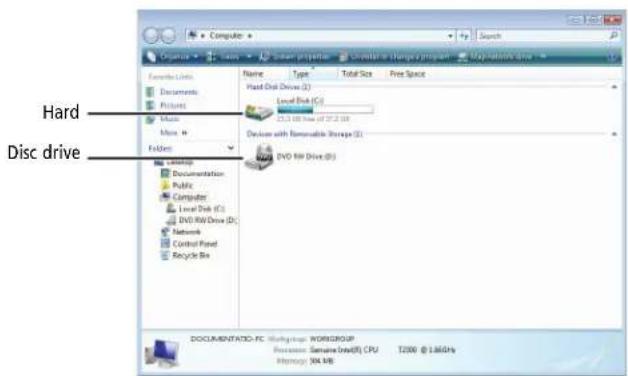
Drives are like file cabinets because they hold files and folders. A notebook may have more than one drive. Each drive has a letter, usually Local Disk (C:) for the hard drive. You may also have more drives such as a disc drive.
▶ To view the drives, folders, and files on your notebook:
1 Click (Start), then click Computer.
text_image
Hard Disc drive DOCUMENTS-FC (Worikogroup WORKGROUP) Reverses: Summary Drive(0) CPU T2000 @ 1.66GHz History: W4 KBCHAPTER 2: Using Windows
2 Double-click the drive icon.

Creating folders
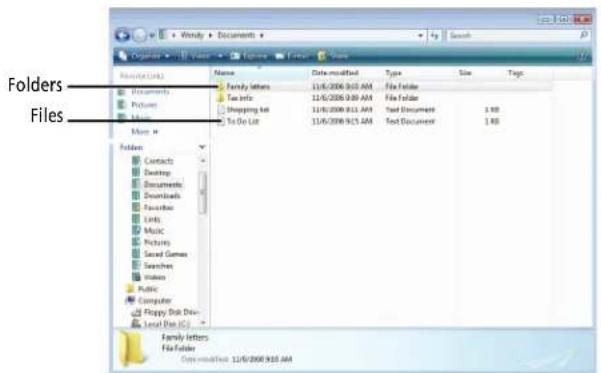
Folders are much like the folders in a file cabinet. They can contain files and other folders.
Files are much like paper documents—letters, spreadsheets, and pictures—that you keep on your notebook. In fact, all information on a notebook is stored in files.
text_image
Folders Files F folders Contracts Desktop Documents Downloads Favorites Links Music Pictures Sound Games Searches Images Public Computer Flappy Disk Dev Local Web (C:) Family letters 11/6/2008 9:10 AM File Folder Tax Info 11/6/2008 9:30 AM File Folder Shopping list 11/6/2008 9:11 AM Text Document To Do List 11/6/2008 9:15 AM Text Document 1 KB 1 KB▶ To create a folder:

Shortcut
Click File Á New Á Folder Á type name
1 Click (Start), then click Computer on the Start menu.
2 Double-click the drive where you want to put the new folder. Typically, Local Disk (C:) is your hard drive.
3 If you want to create a new folder inside an existing folder, double-click the existing folder.
4 Click Organize, then click New Folder. The new folder is created.
5 Type a name for the folder, then press E NTER. The new folder name appears by the folder icon.

For information about renaming folders, see "Shortcuts" on page 19.
Copying and moving files and folders

Important
The clipboard stores whatever you cut or copy until you cut or copy again. Then the clipboard contains the new information only. Therefore, you can paste copies of a file or folder into more than one place, but as soon as you copy or cut a different file or folder, the original file or folder is deleted from the clipboard.
The skills you need to copy and move files are called copying, cutting, and pasting. When you copy and paste a file or folder, you place a copy of the file or folder on the Windows clipboard, which temporarily stores it. Then, when you decide what folder you want the copy to go in (the destination folder), you paste it there.
When you cut and paste a file or folder, you remove the file or folder from its original location and place the file or folder on the Windows clipboard. When you decide where you want the file or folder to go, you paste it there.
▶ To copy a file or folder to another folder:
1 Locate the file or folder you want to copy. For more information, see "Viewing drives" on page 9 and "Searching for files" on page 12.
2 Right-click (press the right touchpad button) the file or folder that you want to copy. A pop-up menu opens on the desktop.
3 Click Copy on the pop-up menu.
4 Open the destination folder.
5 With the pointer inside the destination folder, right-click.
6 Click Paste. A copy of the file or folder appears in the new location.

Help
For more information about copying files and folders or moving files or folders, click Start, then click Help and Support. Type copying files and folders or moving files and folders in the Search Help box, then press ENTER.

▶ To move a file or folder to another folder:
1 Locate the file or folder you want to move. For more information, see "Viewing drives" on page 9 and "Searching for files" on page 12.
2 Right-click (press the right touchpad button) the file or folder that you want to move. A pop-up menu opens on the desktop.
3 Click Cut on the pop-up menu.
4 Open the destination folder.
5 With the pointer inside the destination folder, right-click.
6 Click Paste. The file or folder you moved appears in its new location and is removed from its old location.

Deleting files and folders
When you throw away paper files and folders, you take them from the file cabinet and put them in a trash can. Eventually the trash can is emptied.
In Windows, you throw away files and folders by first moving them to the Windows trash can, called the Recycle Bin, where they remain until you decide to empty the bin. You can recover any file in the Recycle Bin as long as the bin has not been emptied.
▶ To delete files or folders:
1 In Computer or Windows Explorer window, click the files or folders that you want to delete. For instructions on how to select multiple files and folders, see "Shortcuts" on page 19.
If you cannot find the file you want to delete, see "Searching for files" on page 12.
2 Click Organize, then click Delete. Windows moves the files and folders to the Recycle Bin.

▶ To recover files or folders from the Recycle Bin:
1 Double-click the Recycle Bin icon on your Windows desktop. The Recycle Bin window opens and lists the files and folders you have thrown away since you last emptied it.
2 Click the files or folders that you want to restore. For instructions on how to select multiple files and folders, see "Shortcuts" on page 19.
3 Click Restore. Windows returns the deleted files or folders to their original locations.

CHAPTER 2: Using Windows
▶ To empty the Recycle Bin:

Caution
Emptying the Recycle Bin permanently erases any files or folders in the bin. These files cannot be restored.
1 Double-click the Recycle Bin icon on the Windows desktop. The Recycle Bin window opens.
2 Click Empty the Recycle Bin. Windows asks you if you are sure that you want to empty the bin.
3 Click Yes. Windows permanently deletes all files in the Recycle Bin.

Help
For more information about emptying the Recycle Bin, click Start, then click Help and Support. Type emptying the Recycle Bin in the Search Help box, then press ENTER.

Searching for files
If you are looking for a particular file or folder or a set of files or folders that have characteristics in common, but you do not remember where they are stored on your hard drive, you can use the Search utility.
Files and folders found using this utility can be opened, copied, cut, renamed, or deleted directly from the list in the results window.
Using the Windows Search
▶ To find files and folders using the Search:
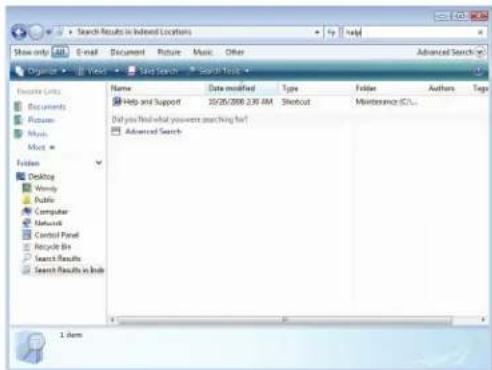
1 Click (Start), then click Search. The Search Results window opens.
2 If you want to search on your notebook by file or folder name, type in all or part of the file or folder name in the Search box in the top right of the window.
• If you type all of the name, Search will list all files and folders of that name.
- If you type part of the name, Search will list all of the file and folder names containing the letters you typed.
text_image
Search Results in Indexed Locations Show only: E-mail Document Picture Music Other Advanced Search Organize View Help Search Search Tools File Edit View Insert Search Tools Name Data modified Type Folder Authors Tags Help and Support 10/26/2008 2:30 AM Shortcut Maintenance (CCL) Did you finish what you were searching full! Advanced Search Desktop Window Paste Computer Network Control Panel Recycle Bin Search Results Search Results in Web 1 item3 Open a file, folder, or program by double-clicking the name in the list.

Help
For more information about searching for files and folders, click Start, then click Help and Support. Type searching in the Search Help box, then press ENTER.

Using advanced search options
Search can find files meeting more criteria than file name. You can narrow your search by selecting the search options that you want. You can search by the:
• Name or part of a name
- Creation date
- Modification date
- File type
- Tag
• Author
• Text contained in the file
• Time period in which it was created or modified
You can also combine search criteria to refine searches.
Files and folders found using this utility can be opened, copied, cut, renamed, or deleted directly from the list in the results window.
Browsing for files and folders
A file or folder that you need is rarely right on top of your Windows desktop. It is usually on a drive inside a folder that may be inside yet another folder, and so on. Windows drives, folders, and files are organized in the same way as a real file cabinet in that they may have many levels (usually many more levels than a file cabinet, in fact). So you usually will have to search through levels of folders to find the file or folder that you need. This is called browsing.
▶ To browse for a file:
1 Click (Start), then click Computer. The Computer window opens.
2 Double-click the drive or folder that you think contains the file or folder that you want to find.
3 Continue double-clicking folders and their subfolders until you find the file or folder you want.

Help
For more information about browsing for files and folders, click Start, then click Help and Support. Type files and folders in the Search Help box, then press ENTER.

Using Tablet PC
Your notebook may have the Tablet PC features. Some of these features include:
- Tablet PC Settings—Set the properties for the digital pen, tablet buttons, display screen, and Input Panel.
- Table PC Input Panel (TIP)—Use its writing pad or soft keyboard for entering data.
- Windows Journal—Hand-write documents which you can turn into text or image files.
- Sticky Notes—Make a quick note with your digital pen or voice, then drop it into another program.
- Inkball—Practice and master digital pen input with this game.
Calibrating your tablet
The first time you use your tablet PC, you should calibrate your digital pen for both portrait and landscape orientations. Calibration ensures the accuracy of the digital pen and adjusts the screen's performance for different users.
If the on-screen pointer does not seem to line up with the tip of the digital pen—for example, because someone else has used your tablet PC and adjusted it for their own use—recalibrate it to your tapping patterns. Recalibrate if you write with the opposite hand from the previous user—right-handed writer to left-handed writer.
▶ To calibrate your tablet:
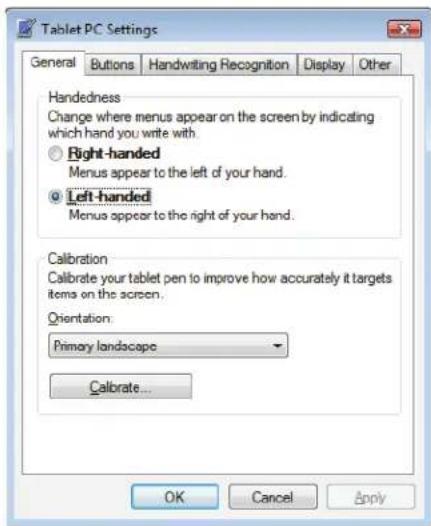
1 Click or tap (Start), All Programs, Accessories , then click or tap Windows Mobility Center. The Windows Mobility Center window opens.
2 Click or tap (Change Tablet PC settings). The Tablet PC Settings dialog box opens.
3 Click or tap the General tab.
text_image
Tablet PC Settings General Buttons Handwriting Recognition Display Other Handedness Change where menus appear on the screen by indicating which hand you write with. Right-handed Menus appear to the left of your hand. Left-handed Menus appear to the right of your hand. Calibration Calibrate your tablet pen to improve how accurately it targets items on the screen. Orientation: Primary landscape Calibrate... OK Cancel Apply4 Click or tap Calibrate, then follow the on-screen instructions.
Using gestures
A gesture is a shape you draw with your digital pen to send a command to your tablet PC Input Panel. You can also use gestures to control the insertion point in the active program. When you use these gestures, you get the same result as pressing the corresponding key on a standard keyboard.
Gesture To accomplish
| Backspace | Draw a right-to-left line. |
Space Draw a left-to-right line.
| Enter | Draw a vertical line down, then horizontally to the left |
Tab Draw a vertical line up, then horizontally to the right.
| Delete | Strike throughVertical scratch-out in the pattern of an M or WHorizontal scratch-out in the pattern of a ZCircular scratch-outAngled scratch-out |
- You will find more information about gestures and gesture symbols, as well as handwriting tips, in the TIP help. For more information, see "Using the Tablet Input Panel (TIP)" on page 16.
Using the digital pen
Digital pen button
The digital pen button serves the same function as the right button on a mouse. Press it and tap (button-tap) to open right-click menus when they are available.
Tips
- Hold the digital pen the same way you hold a writing pen, and steady your writing hand by resting it on the display surface.
- Line up the pointer with the object on the screen before you tap, in cases where the pointer and digital pen point are out of alignment. The screen reads the position of the pointer, not the tap.
- Store the digital pen in the tablet PC's pen holder. Store extra pens in a drawer to avoid prolonged pressure on the pen tip.
- The digital pen has internal electronics, so keep it dry and avoid contact with liquids.
Using the Tablet Input Panel (TIP)
Tap the Tablet PC Input Panel icon on the left side of the screen to open the Tablet Input Panel (TIP). Use the TIP to enter data by hand or soft keyboard into a word processing program or a text-entry form.

text_image
Tools Help ← Skip Del → Tab Enter Space ← → Num Sym WebAccess the TIP keyboard and writing pad by tapping or clicking the buttons near the top left of the window.
TIP tips
- Open a program for your input (for example, a word processing program or a Web form) before using the writing pad or soft keyboard.
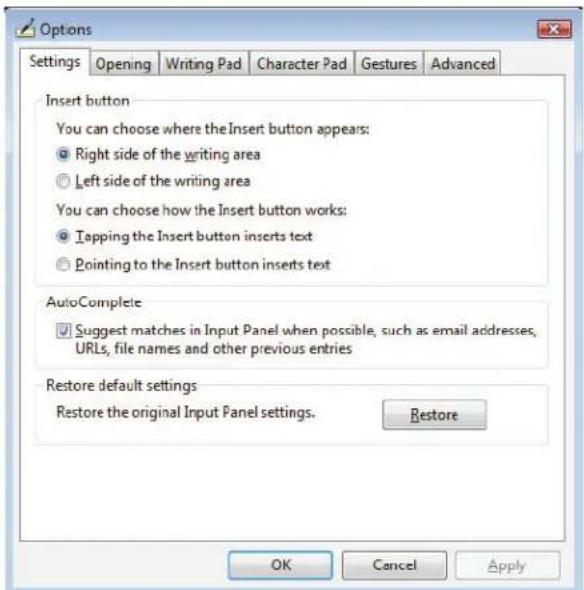
- To adjust writing pad and keyboard settings, click or tap Tools, then click or tap Options.
text_image
Options Settings Opening Writing Pad Character Pad Gestures Advanced Insert button You can choose where the Insert button appears: ● Right side of the writing area ○ Left side of the writing area You can choose how the Insert button works: ● Tapping the Insert button inserts text ○ Pointing to the Insert button inserts text AutoComplete ✓ Suggest matches in Input Panel when possible, such as email addresses, URLs, file names and other previous entries Restore default settings Restore the original Input Panel settings. Restore OK Cancel Apply- For security and accuracy when entering masked text (such as passwords), use your tablet PC Input Panel's soft keyboard instead of the writing pad.
Working with documents
Computer documents include word processing files, spreadsheet files, or other similar files. The basic methods of creating, saving, opening, and printing a document apply to most of these types of files.
The following examples show how to create, save, open, and print a document using Microsoft® WordPad. Similar procedures apply to other programs such as Corel® WordPerfect®, Microsoft Word, and Microsoft Excel.
For more information about using a program, click Help on its menu bar.
Creating a new document
▶ To create a new document:
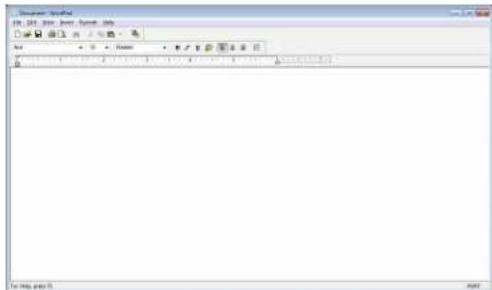
1 Click (Start), All Programs, Accessories, then click WordPad. Microsoft WordPad starts and a blank document opens.
text_image
文件(F) 选择 保存(S) 查看(V) 工具(T) 帮助(H) 新建(N) 打开(O) 取消(C) 粘贴(P) 重命名(M) 复制(E) 粘贴(P)... Ctrl+Alt+Ctrl+Alt+Ctrl+Alt+Alt+Alt+Alt+Alt+Alt+Alt+Alt+Alt+Alt+Alt+Alt+Alt+Alt+Alt+Alt+Alt+Alt+Alt+Alt+Alt+Alt+Alt+Alt+Alt+Alt+Alt+Alt+Alt+Alt+Alt+Alt+Alt+Alt+Alt+Alt+Alt+Alt+Alt+Alt+Alt+Alt+Alt+Alt+Alt+Alt+Alt+Alt+Alt+Alt+ Alt+F To Help, please it.2 Begin composing your document. Use the menus and toolbar buttons at the top of the window to format the document.

Saving a document
After you create a document, you need to save it if you want to use it later.
▶ To save a document:
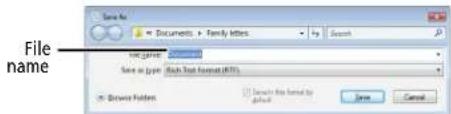
1 Click File, then click Save. The Save As dialog box opens.
text_image
File name Save As Documents Family Letters Search Save as type: Quick Text Format (RFT) Browse Folders Browse the format by gptd Save Cancel2 Click Browse Folders to open the Folders list, then click the folder where you want to save the file.
3 Type a new file name in the File name box.
4 Click Save.

Help
For more information about saving documents, click Start, then click Help and Support. Type saving in the Search Help box, then press ENTER.

Opening a document
To view, revise, or print an existing document, first you need to open it. Open the document in the program that it was created in.
▶ To open a document:
1 Start the program.
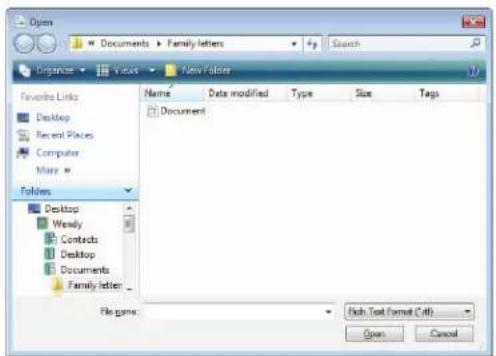
2 Click File, then click Open.
3 Click Folders to open the Folders list, then click the folder you want to open.
text_image
Open Documents > Family letters > Search Organize > Value > New Folder Favorites Links Desktop Recent Places Computer Mouse Folders Desktop Wendy Contacts Desktop Documents Family letter Name Date modified Type Size Tags Document File name: Fish Text Format (Off) Open Cancel4 Double-click the document file name. The document opens.

Help
For more information about opening documents, click Start, then click Help and Support. Type opening files in the Search Help box, then press ENTER.

Printing a document
To print a document, you must have a printer connected to your notebook or have access to a network printer. For more information about installing or using your printer, see the printer documentation.
▶ To print a document:
1 Make sure that the printer is turned on and loaded with paper.
2 Start the program and open the document.
3 Click File, then click Print. The Print dialog box opens.
4 Set the print options, then click Print. The document prints.

Help
For more information about printing documents, click Start, then click Help and Support. Type printing in the Search Help box, then press ENTER.

Shortcuts
? Help For m
For more information about Windows keyboard shortcuts, click Start, then click Help and Support. Type Windows keyboard shortcuts in the Search Help box, then press ENTER.
The following table shows a few shortcuts that you can use in Windows and almost all programs that run in Windows. For more information about shortcuts, see your Windows or program documentation.
| To... Do this... | |
| Copy a file, folder, text, or graphic | Click the item, then press CTRL + C . |
| Paste a file, folder, text, or graphic | Click inside the folder or window where you want to paste the object, then press CTRL + V . |
| Select multiple items in a list or window | Click the first item, press and hold down the CTRL key, then click each of the remaining items. |
| Select multiple adjacent items in a list or window | Click the first item in the list, press and hold down the SHIFT key, then click the last item in the list. |
| Permanently delete a file or folder | Click the file or folder, then press SHIFT + DELETE. The file or folder is permanently deleted. The file or folder is not stored in the Recycle Bin. |
| Rename a file or folder | Click the file or folder, press F2, type the new name, then press ENTER. |
| Close the active window or program | Press ALT + F 4 . |
| Switch to a different file, folder, or running program | Press ALT + T AB. |
CHAPTER 2: Using Windows
CHAPTER3
Using the Internet and
Faxing
- Learning about the Internet
- Setting up an Internet account
• Using the World Wide Web - Using e-mail
• Using Windows Fax and Scan - Sending a Fax
• Receiving and viewing a fax
Learning about the Internet
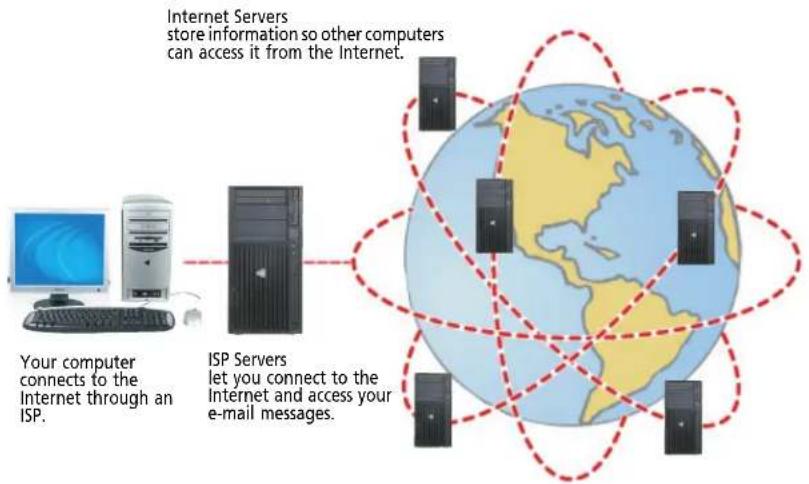
The Internet is a worldwide network of computers linked together to provide information to people everywhere. The two most popular services on the Internet are e-mail and the World Wide Web. You can access this network by connecting your notebook to a telephone, DSL (Digital Subscriber Line), or cable television line and signing up with an Internet service provider (ISP).
flowchart
graph TD
    A["Computer"] -->|Your computer connects to the Internet through an ISP.| B["ISP Servers"]
    B -->|ISP Servers let you connect to the Internet and access your e-mail messages.| C["Internet Servers store information so other computers can access it from the Internet."]
    C -.-> D["Global Earth with multiple server icons"]
    style A fill:#f9f,stroke:#333
    style B fill:#ccf,stroke:#333
    style C fill:#cfc,stroke:#333
    style D fill:#fcc,stroke:#333
If you want to access the Internet you need:
- A modem—a device that connects your notebook to other computers or servers using a telephone, DSL, or cable television line. Your notebook may have a built-in dial-up telephone modem. Cable and DSL modems connect to your notebook through an Ethernet jack and provide a faster connection speed than a standard telephone modem.
- An Internet service provider—a company that provides access to the Internet through an ISP server. When you connect to an ISP, the ISP server lets you access the Internet and your e-mail messages. Check your telephone book for a list of Internet service providers available locally.
- A Web browser—a program that displays information from the World Wide Web. Microsoft Internet Explorer was included with your notebook. For more information, see "Using the World Wide Web" on page 23.
- An e-mail program—a program that lets you create, send, and receive e-mail messages over the Internet. Microsoft Outlook or Outlook Express was included with your notebook. For more information, see "Using e-mail" on page 25.
Setting up an Internet account
Before you can view the information on the World Wide Web, you need to set up an Internet account with an Internet service provider (ISP). To set up an ISP service or to transfer an existing account to this notebook, contact the ISP directly.
Dial-up Internet connections are those using a telephone system to connect to the Internet. This may include ordinary analog telephone lines, ISDN connections, and in some cases ADSL over PPP, or other technologies. Because dial-up connections are designed to be temporary connections to the Internet, dial-up charges (with both your telephone company and Internet service provider) often increase the longer you connect to the Internet. To minimize the cost for dial-up Internet service, we suggest that you only connect to the Internet during your e-mail and Web browsing session, then disconnect when you are finished. Your Internet service provider can provide instructions on how to connect to and disconnect from the Internet.
Cable and DSL modems, a connection known as broadband, use your cable television or special telephone lines to connect to your ISP and access the Internet. In many instances, broadband is considered an always-connected service. With this type of service, your cost is the same regardless of the amount of time you use your Internet connection.
Accessing your Internet account

Help
For general information about using Internet accounts, click Start, then Help and Support. Type ISP in the Search Help box, then press ENTER.
The method you use to access your Internet account varies from ISP to ISP. Contact your ISP for the correct procedure.
Using the World Wide Web
The World Wide Web is a multimedia window to the Internet that gives you access to millions of information sources.
Information on the Web comes to you on Web pages, which are electronic documents that you view using a Web page display program called a browser. You can use any of the commercially available Web browsers, like Microsoft Internet Explorer or Netscape Navigator.
Web pages can contain text, animations, music, and other multimedia features. A group of related Web pages is called a Web site. You can access Web sites to shop, track investments, read the news, download programs, and much more.
You can explore a Web site or visit other Web sites by clicking areas on a Web page called links or hyperlinks. A link may be colored or underlined text, a picture, or an animated image. You can identify a link by moving the mouse pointer over it. If the pointer changes to a hand, the item is a link.
To learn more about using the Web browser features, click Help in the menu bar.
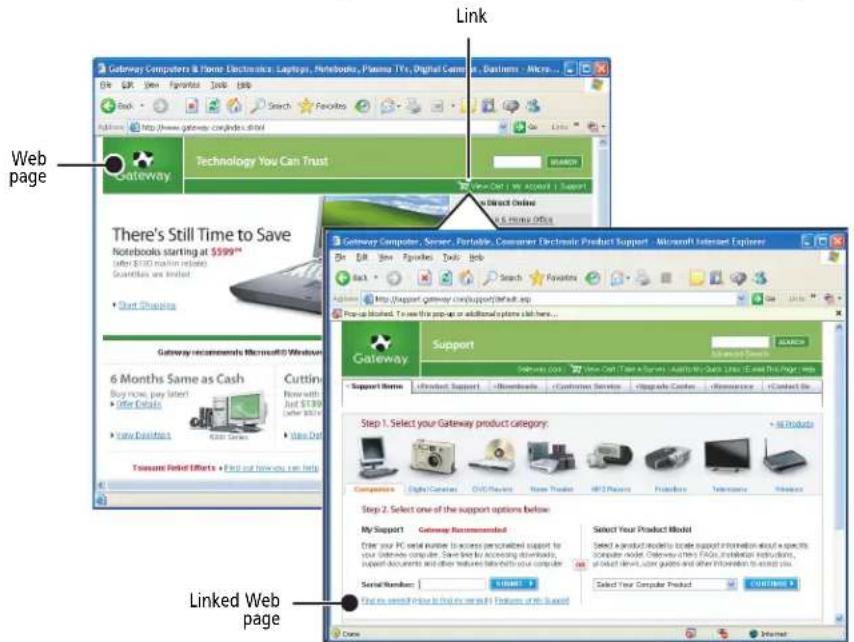
text_image
Link Gateway Computers & Portable Electronics Laptop, Notebook, Plano TV, Digital Camera Business - Microsoft http://www.gateway.com/index.html Technology You Can Trust Search Search Start Shoppers Glenway Computer, Server, Portable, Comanner Electronic Product Support - Microsoft Internet Explorer Glenway recommends Microsoft iOS Webpage 6 Months Same as Cash Cutting Buy now, pay later! Offer Details New Editions New Out Tonsame Reel Efforts Find out how you can help Support Gateway Support Glenway 2000 New Cash, New Tools, Adjusted by: Cash Links (End This Page) help Support Home Product Support Downloads Customers Services Upgrade Colors Resource Contact Be Step 1. Select your Gateway product category: + All Products Composites Digital Cameras DVD Speakers New Traders HIT Partners Products Services Products Step 2. Select one of the support options below: MySupport Gateway Recommended Enter your PC serial number to access personalized support to your Gateway computer. Save line by accessing downloads, support documents and other features before your computer. Serial Numbers: START > Select Your Product Model Select a product model to locate support information about a specific computer model. Gateway offers FADs, installation instructions, product menu, user guides and other instructions to install you. Select Your Computer Product Connect Web Page Link Web page Linked Web pageConnecting to a Web site
After you set up an account with an Internet service provider (ISP), you can access the many information sources on the World Wide Web.
▶ To connect to a Web site:
1 Connect to your Internet account.
2 Depending on the method you use to connect to your Internet account, you may need to start your Web browser. Click (Start), then click Internet. Your default Web browser opens showing an opening page or welcome screen.
3 To go to a different Web site, type the address (called a URL for "Universal Resource Locator") in the browser address bar (for example www.gateway.com), then click GO on the browser address bar.

- OR -
On the current Web page, click a link to a Web site.

Help
For more information about connecting to a Web site, click Start, then click Help and Support. Type connecting to a Web site in the Search Help box, then press ENTER.
The Web browser locates the server computer on the Internet, downloads (transfers) data to your notebook, and displays the page on the site that you requested.

Sometimes Web pages display slowly. The speed that a Web page displays on your screen depends on the complexity of the Web page and other Internet conditions. Additionally, the speed of your connection will determine how fast Web pages display.
Downloading files

Caution
To protect your notebook against viruses, make sure that you scan the files you download. For more information, see "Protecting your notebook from viruses" on page 61.
Downloading is the process of transferring files from a computer on the Internet to your notebook.
▶ To download files or programs from a Web site:
1 Connect to your Internet account.
2 In the address bar, type the address of the Web site that contains the file or program you want to download, then press ENTER.
- OR -
Click a link on a Web page to navigate to the Web site containing the file that you want to download.
3 Create or locate the folder where you want to store the file on your notebook. For more information, see "Working with files and folders" on page 9.
4 Click the link on the Web page for the file that you want to download.
5 Follow the on-screen instructions for saving the file in the folder that you want. A copy of the file is downloaded to your notebook. The time that it takes to transfer the file to your notebook depends on file size and Internet conditions.
6 Open the folder that you created.
7 Install or view the downloaded file by double-clicking it. If applicable, follow the instructions provided on the Web site to run or install the program.

Help
For more information about downloading files, click Start, then click Help and Support. Type downloading files in the Search Help box, then click ENTER.
Using e-mail
E-mail (electronic mail) lets you send messages to anyone who has an Internet connection and e-mail address. E-mail is usually a free service of your Internet account. The Internet never closes, so you can send e-mail messages at any time. Your e-mail messages arrive at most e-mail addresses in minutes.
An e-mail address consists of a user name, the @ symbol, and the Internet domain name of the Internet service provider (ISP) or company that "hosts" that user. Your e-mail address is assigned when you sign up for an account with an ISP. For example, a person with an account with Hotmail might have an e-mail address that is similar to this one:
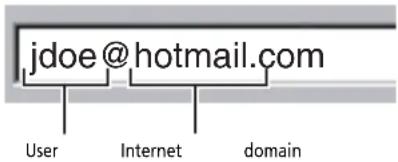
text_image
jdoe@hotmail.com User Internet domainSending e-mail
▶ To send e-mail using Windows Mail:
1 Connect to your Internet service provider. 2 Click (Start), then click E-mail. Your default e-mail program opens.
3 Click Create Mail.
4 Type the e-mail address of the recipient you want to send e-mail to in the To box. 5 Type the subject of your e-mail in the Subject box.
6 Type the e-mail message.

Tip
Most e-mail programs let you attach files, such as photographs, to your e-mail. For more information, see the help for your e-mail program.
7 When finished, click Send. Your e-mail is sent over the Internet to the e-mail address you specified.

Checking your e-mail
▶ To check your e-mail using Windows Mail:
1 Connect to your Internet service provider.
2 Click (Start), then click E-Mail. Your default e-mail program opens.
3 Click Send/Receive.
CHAPTER 3: Using the Internet and Faxing
4 Double-click the message you want to read.

Help
For general information about using e-mail, click Start, then click Help and Support. Type e-mail in the Search Help box, then press ENTER.

Tip
To protect your notebook from viruses, check any e-mail attachments using anti-virus software. For more information, see "Protecting your notebook from viruses" on page 61.
For more information about managing and organizing your e-mail messages, see the online help in your e-mail program.
Using Windows Fax and Scan
Windows Fax and Scan comes pre-installed with Windows Vista Business, Enterprise, or Ultimate Editions. Windows automatically detects an optional built-in fax modem during the setup process. You can connect your notebook to one local fax modem, although you can connect to multiple fax servers or devices on a network. If you are not sure whether your notebook has a built-in fax modem, see "Checking Out Your Notebook" in your Notebook Reference Guide.
Your fax cover page, on which you can include all required information, is set up when you prepare to send the first fax from this notebook.
You cannot send or receive a fax using a cable or DSL modem by following these instructions. Many Internet services exist that let you send or receive faxes using a broadband connection.
Your dial-up modem cable must be installed before you can send and receive faxes. You cannot use your standard telephone modem to connect to the Internet while sending and receiving faxes.
Sending a Fax
Windows Fax and Scan lets you send and receive faxes using your dial-up modem.
▶ To send a Fax:
1 Click (Start), All Programs, then click Windows Fax and Scan. Windows Fax and Scan opens.
2 If Windows Fax and Scan is in Scan view, click Fax in the lower left corner of the window.
3 If you have never sent a fax on this notebook before, click New Fax on the toolbar. The Fax Setup window opens.
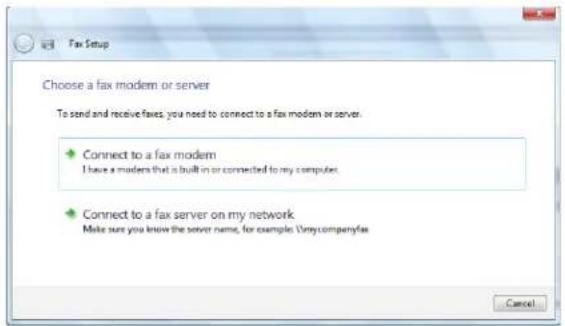
text_image
Fax Setup Choose a fax modem or server To send and receive fixes, you need to connect to a fax modem or server. Connect to a fax modem I have a modem that is built in or connected to my computer. Connect to a fax server on my network Make sure you know the server name, for example: \mycompenylea Cancel4 Click the type of connection you will be using (fax modem or fax server). The Choose a modem name screen opens.
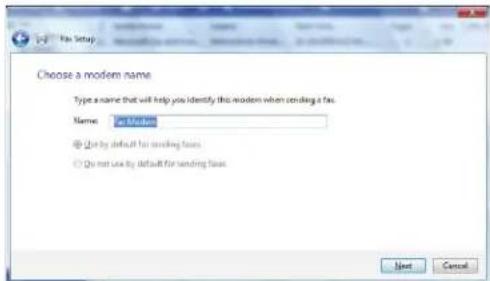
text_image
Choose a modem name Type a name that will help you identify this modem when sending a fax. Name: Pos Modem ● Do not use by default for sending issues ○ Do not use by default for sending issues Next Cancel5 Type the name of the fax modem in the dialog box, then click Next. The Choose how to receive faxes screen opens.
text_image
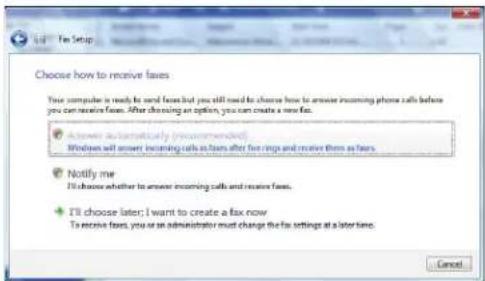
Choose how to receive issues You computer is ready to send fees but you still need to choose how to answer incoming phone calls before you can receive issues. After choosing an option, you can create a new fan. • Answer automatically (recommended) Windows will answer incoming calls as fans after fan rings and receive them as fans. • Notify me I'll choose whether to answer incoming calls and receive issues. • I'll choose later; I want to create a fax now To receive issues, you or an administrator must change the fan settings at a later time. Cancel6 Click how you want to receive faxes, then click Unblock when the Security Alert window opens. The New Fax window opens.
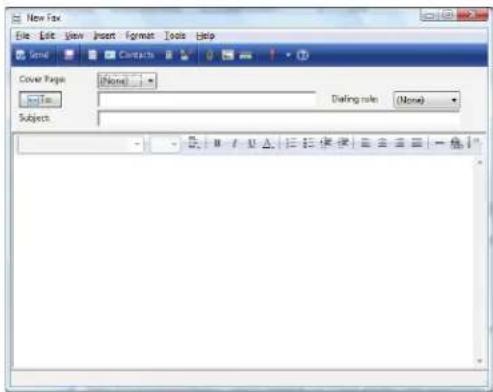
text_image
New Fax File Edit View Insert Format Tools Help Send Contacts Cover Page (None) Subject Dating rule (None) - - - - - - - - - - - - - - - - - - - - - - - - - - - - - - - - - - - - - - - - - - - - - - - - - - - - - - - - -CHAPTER 3: Using the Internet and Faxing
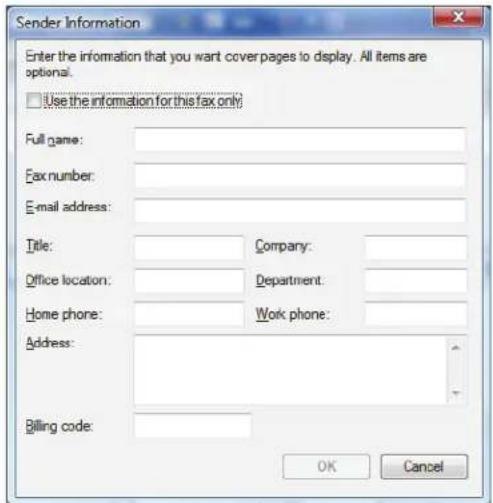
7 Create your fax, then open the Cover Page menu by clicking the arrow and selecting a cover page from the list. The Sender Information dialog box opens.
text_image
Sender Information Enter the information that you want cover pages to display. All items are optional. Use the information for this fax only? Full name: Fax number: E-mail address: Title: Company: Office location: Department: Home phone: Work phone: Address: Billing code: OK Cancel8 Type your information in the spaces provided, then click OK. The New Fax dialog box opens.
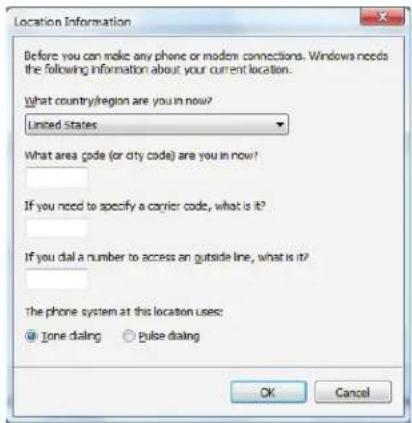
9 To enter optional dialing rule information, click Dialing Rule and select a rule from the menu. If you have not set up a dialing rule, select New Rule from the menu. The Location Information dialog box opens.
text_image
Location Information Before you can make any phone or modern connections. Windows needs the following information about your current location. What country/region are you in now? Limited States What area code (or city code) are you in now? If you need to specify a carrier code, what is it? If you dial a number to access an outside line, what is it? The phone system at this location uses: @ lone dialing ○ pulse dialing OK Cancel10 Type your location information, then click OK. The Dialing Rules dialog box opens.
text_image
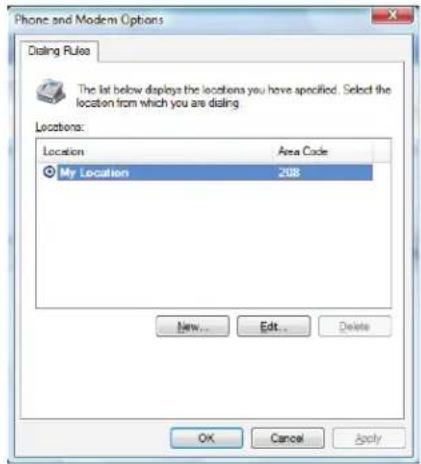
Phone and Modem Options Disting Rules The list below displays the locations you have specified. Select the location from which you are dialing. Locations: Location Area Code My Location 208 New... Edit... Delete OK Cancel Apply11 Highlight your location, then click Edit. The Edit Location dialog box opens.
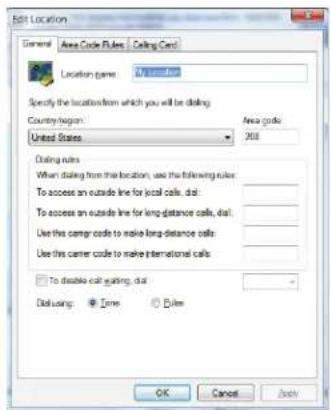
text_image
Edit Location General Area Code Rules Ceiling Card Location name: 178000000 Specify the location from which you will be calling Country/region: United States Area code 268 Listing rules When dialing from the location, use the following rules: To access an outside line for local calls, dial: To access an outside line for long-distance calls, dial: Use this carrier code to make long-distance calls: Use this carrier code to make international calls: To disable call gating, dial Dialog using: Time Window OK Cancel Back12 Complete the location information, then click OK. You are returned to the Dialing Rules dialog box.
13 Click OK. The New Fax dialog box opens.
14 Enter, scan, or attach the fax information you want to send, then click Send.
Setting up your cover page template
You can create your own cover page template that you can use in place of the cover page templates that Windows Fax and Scan provides for you. To create a cover page template, you use the Fax Cover Page Editor. On this template, you insert information fields that automatically import values you enter in both the Send Fax Wizard and the Fax Configuration Wizard when you send your fax.
▶ To set up your fax cover page template:
1 Click (start), All Programs, then click Windows Fax and Scan. Windows Fax and Scan opens.
2 If Windows Fax and Scan is in Scan view, click Fax in the lower left corner of the window.
CHAPTER 3: Using the Internet and Faxing
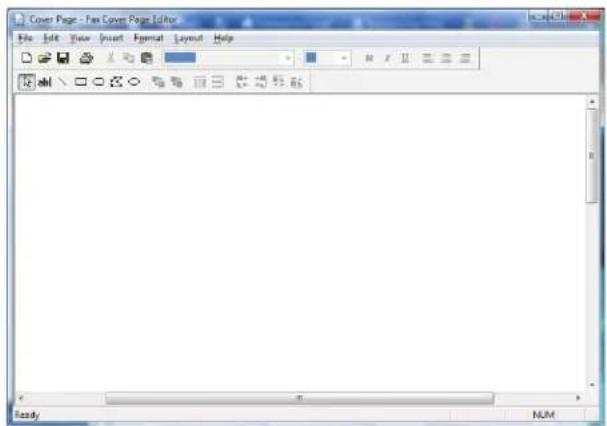
3 Click Tools, Cover Pages, then click New. The Fax Cover Page Editor opens.
text_image
Cover Page - Fax Cover Page Editor File Edit View Insert Format Layout Help Ready NUM- If you want to include fields that are imported from the Send Fax Wizard or the Fax Configuration Wizard (such as To or From), add them to the page by using the Insert menu, then move them to the appropriate place on your template. You can also use the Insert menu to include information that is automatically calculated (such as number of pages or date and time sent).
- If you want to include text that always appears on your cover page (such as a letterhead or address), draw a box using the text box tool, type your text inside of it, then move the box to the appropriate place on your template.
- If you want to include a logo that appears on your cover page, copy it to the Windows clipboard, then paste it into the Cover Page Editor and move it to the appropriate place on your template.
4 To save your cover page template, click File, then click Save. The Save As dialog box opens with your personal cover pages folder already in the Save in list.
5 Type the new cover page template name, then click Save.
■
Faxing a scanned document or faxing from programs
▶ To fax a scanned document or to fax directly from most programs:
1 Scan the document using the program for your scanner, or open your document in the program it was created in.
2 Click File, then click Print. The Print dialog box opens.
3 Click the arrow button to open the Name list, then click the Fax printer.
4 Click Print. The Send Fax Wizard opens.
5 Complete the wizard by following the instructions in "Sending a Fax" on page 26, or "Faxing a scanned document or faxing from programs" on page 31.
■
Canceling a fax
You can cancel a fax that you have set up to send at a time in the future.
▶ To cancel a fax that has not been sent:
1 Click (Start), All Programs, then click Windows Fax and Scan. Windows Fax and Scan opens.
2 If Windows Fax and Scan is in Scan view, click Fax in the lower left corner of the window.
3 Click Outbox, then right-click the fax you want to cancel.
4 Click Delete to cancel the fax.
5 Click Yes.
■
Receiving and viewing a fax
▶ To receive and view a fax:
1 Click (Start), All Programs, then click Windows Fax and Scan. Windows Fax and Scan opens.
2 If Windows Fax and Scan is in Scan view, click Fax in the lower left corner of the window.
3 To view a fax, click Inbox, then double-click the fax you want to view. The fax viewer opens, where you can view and print the fax.
■
CHAPTER 3: Using the Internet and Faxing
CHAPTER4
Playing and Creating Media Files
- Playing music and movies
- Creating audio files and music libraries
- Creating music CDs and video DVDs
- Creating and copying data discs
• Using Windows Media Center
Playing music and movies
Playing audio and video files
Windows Media Player can play several types of audio and video files, including WAV, MIDI, MP3, AU, AVI, and MPEG formats. For more information about using Windows Media Player, click Help.
▶ To play a file using Windows Media Player:

Shortcut
Start Á Computer Á find the file Á double-click the file
1 Click (Start), All Programs, then click Windows Media Player. Windows Media Player opens.
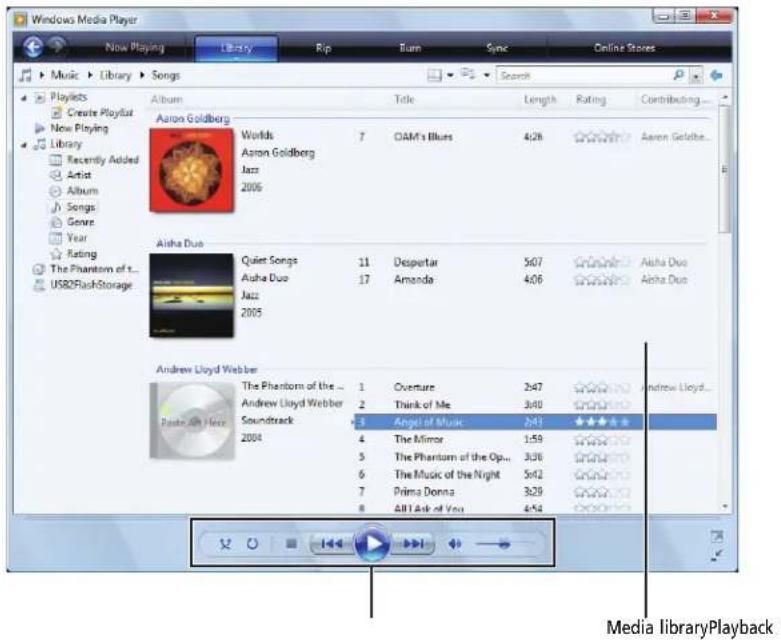
2 Click Library, then double-click the media file you want to play.
text_image
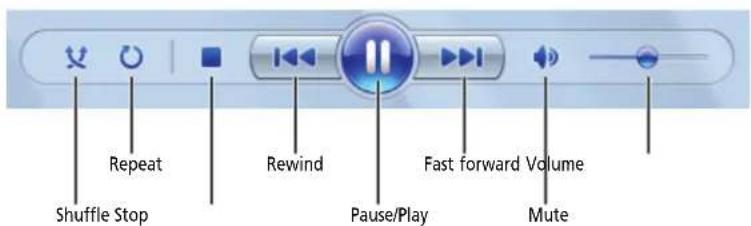
Windows Media Player Now Playing Library Rip Burn Sync Online Stores Music > Library > Songs Playlists Create Playlist New Playing Library Recently Added Artist Album Songs Genre Year Rating The Phantom of t... USB2FlashStorage Album Title Length Rating Contributing... Aaron Goldberg Worlds 7 OAM's Blues 4:28 Aaron Goldthe... Astra Goldberg Jazz 2006 Aisha Duo Quiet Songs 11 Despertar 5:07 Aisha Duo 17 Amanda 4:06 Aisha Duo Jazz 2005 Andrew Lloyd Webber The Phantom of the ... Andrew Lloyd Webber Soundtrack 3 Angel of Music 2:43 ★★★★ 2004 4 The Mirror 1:59 ★★★★ 5 The Phantom of the Op... 3:36 ★★★★ 6 The Music of the Night 5:42 ★★★★ 7 Prima Donna 3:29 ★★★★ 8 ABT Ask of Veta 4:54 ★★★★ Media libraryPlayback3 Click one of the following to control playback:
text_image
Repeat Rewind Fast forward Volume Shuffle Stop Pause/Play Mute- Shuffle randomizes the playback order of the files in the playlist.
- Repeat starts playing the list over again after it reaches the end.
- Stop stops playback and rewinds the current file to the beginning.
-
Rewind quickly rewinds the current file (when you click and hold it) or skips to the previous file in the playlist (when you click it).
-
Pause/Play alternately pauses and resumes playback.
- Fast forward quickly fast forwards the current file (when you click and hold it) or skips to the next file in the playlist (when you click it).
• Volume adjusts the volume.

Playing optical discs
Optical discs are flat discs that use a laser to read and write data. CDs, DVDs, HD-DVDs, and Blu-ray Discs are all optical discs.

Important
Some music CDs have copy protection software. You may not be able to play these CDs on your notebook.
To watch a DVD you must have a DVD-compatible drive in your notebook or connected to your notebook.

Help
For more information about playing optical discs, click Start, then click Help and Support. Type playing discs in the Search Help box, then press ENTER.
Playing an optical disc using Windows Media Player
Use Windows Media Player to listen to CDs or watch movies on DVDs, HD-DVDs, or Blu-ray Discs. For more information about using Windows Media Player, click Help.
▶ To play an optical disc:

Shortcut
Insert disc Á Windows Media Player automatically plays
1 Make sure that the speakers are turned on or headphones are plugged in and that the volume is turned up.
2 Insert an optical disc into the optical disc drive.
CHAPTER 4: Playing and Creating Media Files
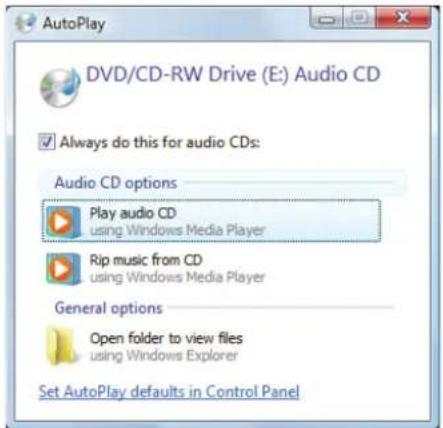
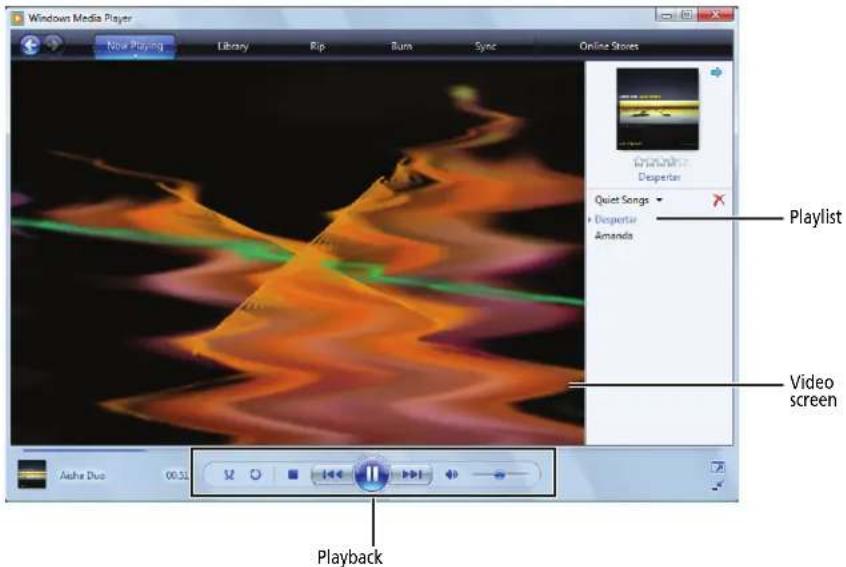
3 If a dialog box opens and asks you what you want your notebook to do with the disc, click Play. Windows Media Player opens and begins playing the disc.
text_image
AutoPlay DVD/CD-RW Drive (E): Audio CD Always do this for audio CDs: Audio CD options Play audio CD using Windows Media Player Rip music from CD using Windows Media Player General options Open folder to view files using Windows Explorer Set AutoPlay defaults in Control PanelIf Windows Media Player does not open automatically, click @Start), All Programs, then click Windows Media Player. Windows Media Player opens.
text_image
Windows Media Player Now Playing Library Rip Burn Sync Online Stoves Quiet Songs Amandis Playlist Video screen Aisha Duo 00.51 Playback4 If the disc is not already playing, click (play).
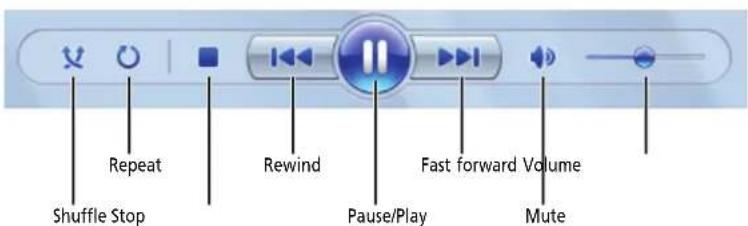
5 Click one of the following to control playback:
text_image
Repeat Rewind Fast forward Volume Shuffle Stop Pause/Play Mute- Shuffle randomizes the playback order of the files on the disc.
- Repeat starts playing the disc over again after it reaches the end.
-
Stop stops playback and rewinds the current file to the beginning.
-
Rewind quickly rewinds the current file (when you click and hold it) or skips to the previous file on the disc (when you click it).
- Pause/Play alternately pauses and resumes playback.
- Fast forward quickly fast forwards the current file (when you click and hold it) or skips to the next file on the disc (when you click it).
• Volume adjusts the volume.

Creating audio files and music libraries
Creating music files
? Help For me
For more information about making or playing an audio recording, click Start, then click Help and Support. Type recording audio or ripping in the Search Help box, then press ENTER.
You can create several types of audio files for your listening enjoyment, including WAV, MP3, and WMA files.
Recording audio files
Sound recorder is a simple Windows program that lets you record and play audio files. For information about playing audio files, see "Playing audio and video files" on page 34.
▶ To record an audio file:

Shortcut
Start Á All Programs Á Accessories Á Sound Recorder
1 Plug a microphone into the microphone jack on your notebook. For the location of the microphone jack, see your notebook's Reference Guide.
-OR-
Use the built-in microphone available on select Gateway notebooks.
2 Click (Start), All Programs, Accessories, then click Sound Recorder. The Sound Recorder opens.

text_image
Sound Recorder Start Recording 0:00:003 Click Start Recording, then speak or make other sounds into the microphone.
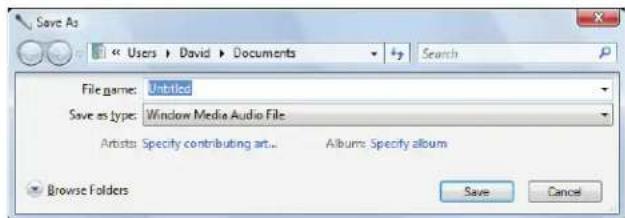
4 When you finish recording, click Stop Recording. The Save As dialog box opens.
text_image
Save As << Users > David > Documents Search File name: Untitled Save as type: Window Media Audio File Artists Specify contributing art... Albums Specify album Browse Folders Save Cancel5 Type a name for the recording, specify the file type and location where you want to save the recording, then click Save. The recording is saved.

Creating WMA and MP3 music files

Important
Some music CDs have copy protection software. You cannot copy tracks from copy-protected CDs.
Using Windows Media Player, you can copy the tracks from a music CD to your notebook's hard drive as WMA or MP3 files. WMA and MP3 are methods for digitally compressing high-fidelity music into compact files without noticeably sacrificing quality. WMA files end in the file extension WMA, and MP3 files end in the file extension MP3.
▶ To create WMA or MP3 files:
1 Click (Start), All Programs, then click Windows Media Player. Windows Media Player opens.
2 Right-click the Rip tab, click Format, then click Windows Media Audio or mp3 to select the format you want for your music files.
3 Insert a music CD into your optical disc drive.
4 Click the Rip tab. The Rip screen opens.
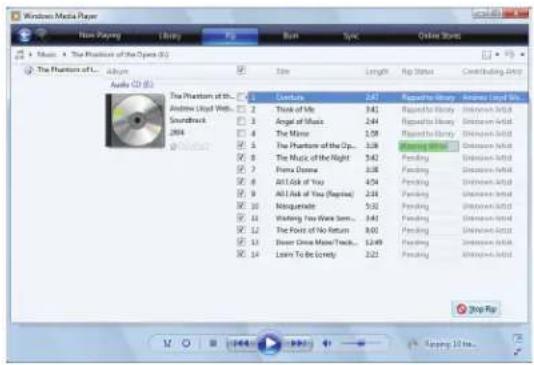
5 Click to clear the check box for any track you do not want to record, then click Start Rip. Windows Media Player records the tracks to your hard drive. A progress bar appears next to each track as it is recorded.
text_image
Windows Media Player Non-Playing Library File Burn Sync Online Store Music • The Position of the Open (Q) The Phantom of... Audio CD (Q) The Phantom of the Andrews Cloud Web Soundtrack 2014 Capture 2:47 Regulate History Animated Record Think of My 3:42 Ringsville's Library Animated Record Angel of Music 2:44 Ringsville's Library Animated Record The Mirror 1:08 Ringsville's Library Animated Record The Phantom of the Op... 3:08 Pending Animated Record The Music of the Night 3:42 Pending Animated Record Frama Drama 3:08 Pending Animated Record Artlook of You 4:04 Pending Animated Record All Ask of You (Reprise) 2:04 Pending Animated Record Notiqueline 5:02 Pending Animated Record Watching You Were Sen... 3:41 Pending Animated Record The Force of No Return 8:02 Pending Animated Record Door One Make/Track... 12:49 Pending Animated Record Learn To Be Lovely 2:22 Pending Animated Record
Tip
For more information about ripping music from CDs, click the Rip tab, then click Help with Ripping.

Building a music library
Use Windows Media Player to build a music library. You can organize your music tracks (individual MP3 or WMA audio files) by categories, find a track quickly by sorting, and add information to a music file.
You can add music tracks to your music library by:
- Creating MP3 or WMA files—When you create MP3 or WMA files from the tracks on your music CD, Windows Media Player automatically adds these files to your music library.
- Dragging and Dropping—Drag and drop files from Windows Explorer or your desktop to the music library.

Caution
During the download process, WMA and MP3 files may become apt. If you are having trouble playing a downloaded file, try downloading the file again.
- Downloading files from the Internet—When you are connected to the Internet, WMA and MP3 files that you download are automatically added to your music library.
Editing track information
After you add a WMA or MP3 file to your music library, you can edit the track's tags (informational fields).
▶ To edit track information:
1 Click (Start), All Programs, then click Windows Media Player. Windows Media Player opens.
2 Click the Library tab.
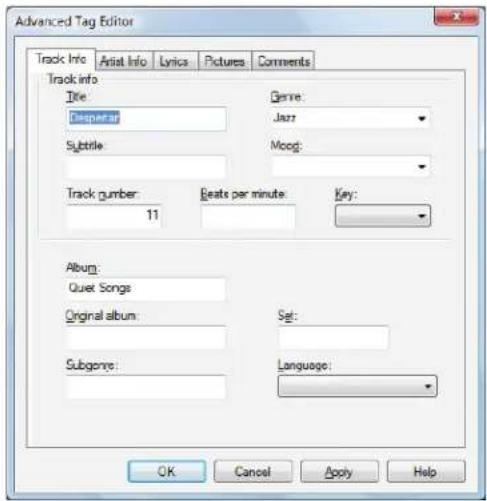
3 Right-click the track or album you want to edit, then click Advanced Tag Editor. The Advanced Tag Editor dialog box opens.
text_image
Advanced Tag Editor Track Info Artist Info Lyrics Pictures Comments Track info Title: Desperat Subtitle Genre: Jazz Moog: Track number: 11 Beats per minute: Key: Album: Quiet Songs Original album: Set: Subgenre: Language: OK Cancel Apply Help4 Enter track information such as Title, Artist, Album, and Genre, then click OK. The new track information appears in the Windows Media Player library.
Creating music CDs and video DVDs
Creating a music CD
Important
We recommend that you do not use your notebook for other tasks while creating CDs or DVDs.
If you record copyrighted material on a CD or DVD, you need permission from the copyright owner. Otherwise, you may be violating copyright law and be subject to payment of damages and other remedies. If you are uncertain about your rights, contact your legal advisor.
▶ To create a music CD using Windows Media Player:
1 Click (Start), All Programs, then click Windows Media Player. Windows Media Player opens.
2 Insert a blank, writable CD into your recordable disc drive.
Important Make sure th
Make sure that you use a writable CD for creating music CDs. automobile stereos will not play DVDs.
3 If a dialog box opens and asks you what you want your notebook to do with the disc, click x to close the box.
4 Right-click the Library tab, then click Music. The Music Library opens.
CHAPTER 4: Playing and Creating Media Files
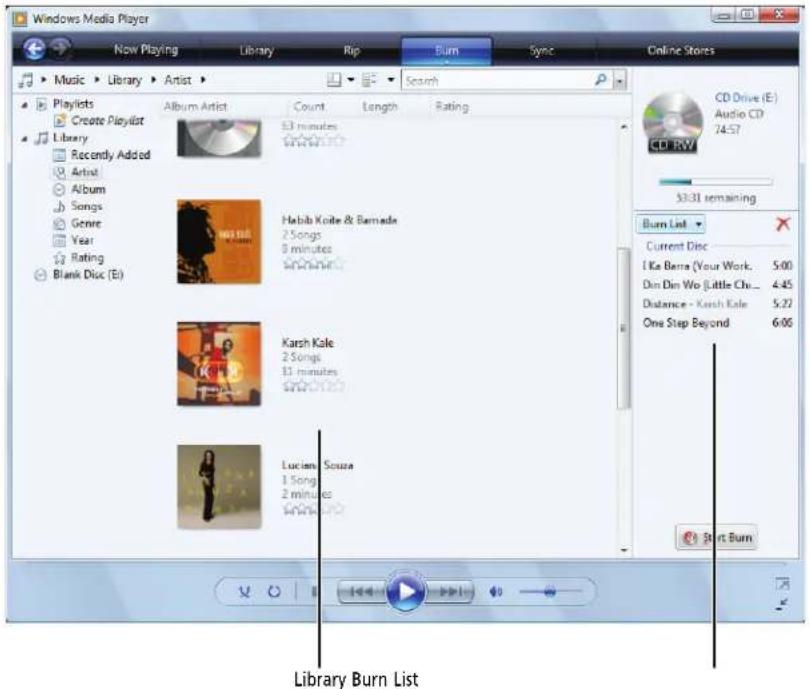
5 Click the Burn tab, then click and drag songs that you want to burn to CD from the Library to the Burn List.
text_image
Windows Media Player Now Playing Library Rip Burn Sync Online Stores Music > Library > Artist > Search Playlists Create Playlist Library Recently Added Artist Album Songs Genre Year Rating Blank Disc (E) Album Artist Count Length Rating 37 minutes Habba Koite & Bernade 2 Songs 9 minutes Kash Kale 2 Songs 11 minutes Luciano Souza 1 Song 2 minutes 50000000000000000000000000000000000000000000000000000000000000000000000000000000000000000 CD Drive (E) Audio CD 74:57 53:31 remaining Burn List Current Disc I Ke Barra (Your Work... 5:00 Dim Din Wo (Little Chi... 4:45 Distance - Karsh Kale 5:22 One Step Beyond 6:06 Start Burn Library Burn List6 Click Start Burn. The music is recorded onto the blank CD.
Creating a video DVD
If your notebook has Windows Vista Home Premium or Windows Vista Ultimate Edition, you can create video DVDs using Windows DVD Maker.

Important
We recommend that you do not use your notebook for other tasks while creating CDs or DVDs.
If you record copyrighted material on a CD or DVD, you need permission from the copyright owner. Otherwise, you may be violating copyright law and be subject to payment of damages and other remedies. If you are uncertain about your rights, contact your legal advisor.
▶ To create a video DVD using Windows DVD Maker:
1 Insert a blank, writeable DVD into your recordable optical disc drive.
2 If a dialog box opens and asks you what you want your notebook to do with the disc, click × to close the box.
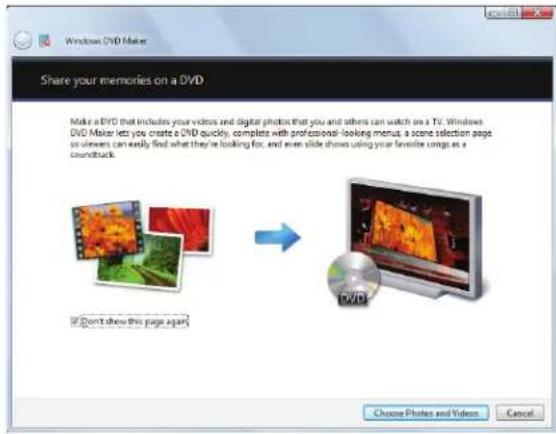
3 Click (Start), All Programs, then click Windows DVD Maker. The Windows DVD Maker introduction window opens.
text_image
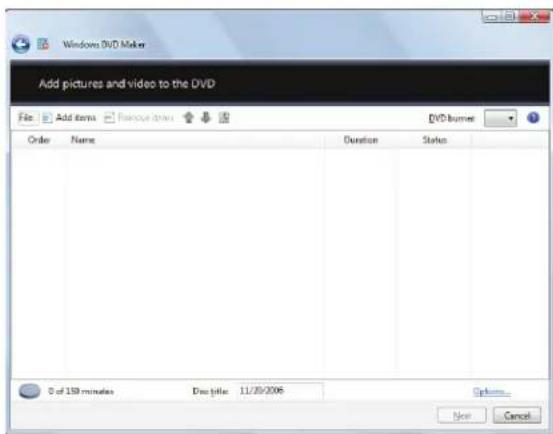
Windows DVD Maker Share your memories on a DVD Make a DVD that includes your videos and digital photos that you and others can watch on a TV. Windows DVD Maker lets you create a DVD quickly, complete with professional-looking menus, a scene selection page so viewers can easily find what they're looking for, and even slide shows using your favorite songs as a soundtrack. Don't show this page again Choose Photos and Videos Cancel4 Click Choose Photos and Videos. The main screen opens.
text_image
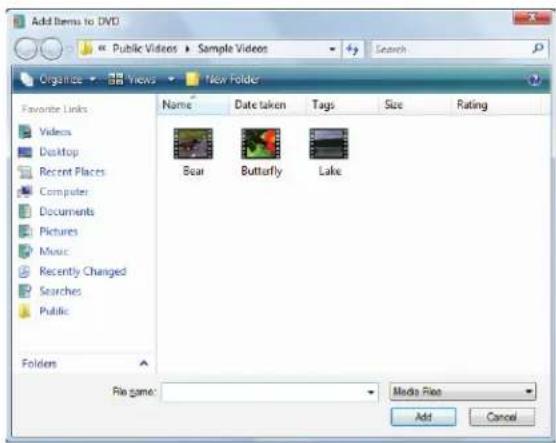
Add pictures and video to the DVD File Add items Remove items DVD burner Order Name Duration Status 0 of 150 minutes Doc title: 11/30/2006 Options... Next Cancel5 Click Add items. The Add Items to DVD dialog box opens.
text_image
Add Items to DVD Public Videos ▶ Sample Videos Search Organise ▶ Views ▶ New Folder Favorite Links Videos Desktop Recent Places Computer Documents Pictures Music Recently Changed Searches Public Folders Name Date taken Tags Size Rating Bear Butterfly Lake File name: Media File Add CancelCHAPTER 4: Playing and Creating Media Files
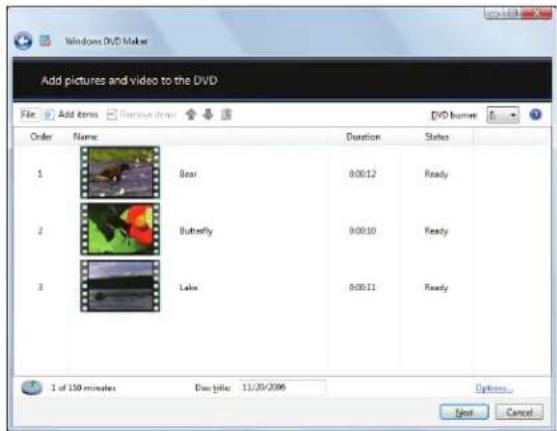
6 Find and select the videos you want to add to the video DVD, then click Add. The videos are added to the video list, and a graphic in the lower left corner of the window shows you how much disc capacity will be used.
text_image
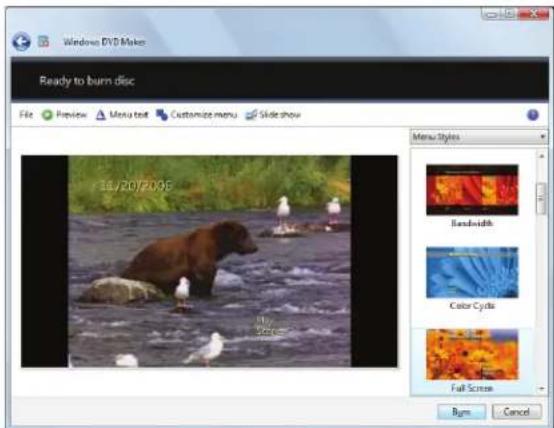
Add pictures and video to the DVD File Add items Remove items DVD burner Order Name Duration Status 1 Bear 0:00:12 Ready 2 Butterfly 0:00:10 Ready 3 Lake 0:00:11 Ready 1 of 150 minutes Box title: 11/30/2006 Options... Next Cancel7 Click Next. The Ready to burn disc dialog box opens.
text_image
Windows DVD Maker Ready to burn disc File Review Menu text Customize menu Slide show 10/20/2016 Menu Styles Bandwidth Color Cycle Full Screen Burn Cancel8 Click any of the following options to customize your video disc:
- Preview shows how your DVD's opening menu will look using the current settings.
- Menu text changes the disc title, font, and button names.
- Customize menu changes the menu fonts, background and foreground videos, audio track, and button styles.
- Slide show creates a slide show from photo files.
9 Click Burn. Your DVD is recorded.
Creating and copying data discs
You can burn two types of data discs:
- Live File System writes files immediately to the recordable disc, making it a one-step process like copying files to a flash drive. The resulting disc is compatible with Windows XP and later versions of Windows.
- Mastered copies files to a temporary folder before you tell your notebook to burn the files to the disc. Although this is a slower process than Live File System, the resulting disc is compatible with all operating systems.
The following instructions show you how to burn a disc using the Mastered format, which can be read by all computers, regardless of the operating system installed.

Help
For information about burning a disc using the Live File System format, click Start, then click Help and Support. Type live file system in the Search Help box, then press ENTER.
Creating a data disc
▶ To create a data disc:
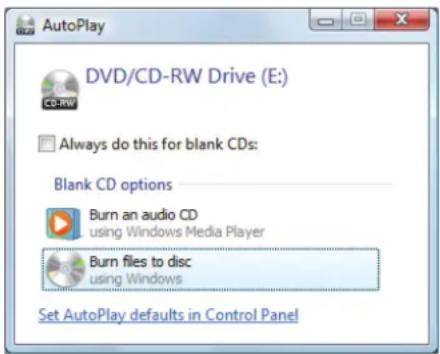
1 Insert a blank, writable optical disc into your optical disc drive. The Autoplay dialog box opens.
text_image
AutoPlay DVD/CD-RW Drive (E:) CD-RW Always do this for blank CDs: Blank CD options Burn an audio CD using Windows Media Player Burn files to disc using Windows Set AutoPlay defaults in Control Panel2 Click Burn files to disc. The Prepare this blank disc dialog box opens.
3 Type the title of the disc, then click Show formatting options.
4 Click Mastered, then click Next. An empty folder opens.
5 Open the folder that contains the files you want to burn to disc, then click and drag the files to the empty disc folder.
6 Click Burn to disc. The files are burned to the disc.

Using Windows Media Center
If your notebook has Windows Vista Home Premium or Windows Vista Ultimate Edition, you can use Windows Media Center to watch videos and movies, listen to music, and view photos. Media Center is a simplified, streamlined interface that is ideally suited for playing and managing media files.
Starting Windows Media Center
▶ To start Windows Media Center:
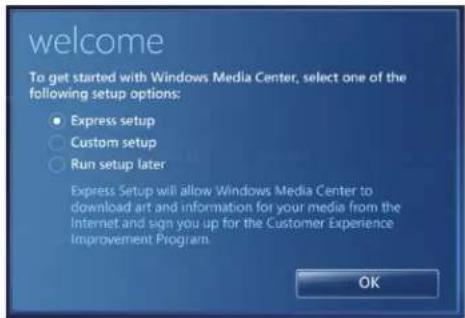
1 Click (start), All Programs, then click Windows Media Center. The first time you start Windows Media Center, the Welcome screen opens.
text_image
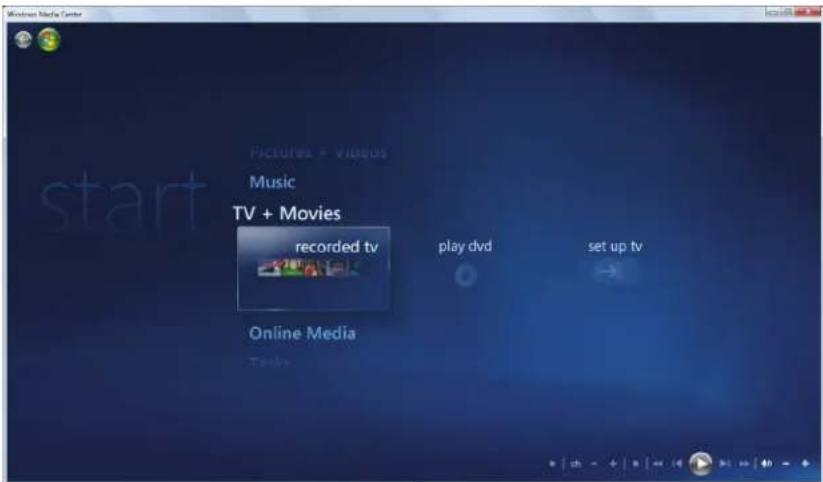
welcome To get started with Windows Media Center, select one of the following setup options: • Express setup ○ Custom setup ○ Run setup later Express Setup will allow Windows Media Center to download art and information for your media from the Internet and sign you up for the Customer Experience Improvement Program OK2 For the easiest setup, click Express setup, then click OK. The Windows Media Center's main screen opens.
text_image
Microsoft Media Center start Pictures - Videos Music TV + Movies recorded tv play dvd set up tv Online Media3 Use the arrow buttons on your keyboard to select a Media Center menu option, then press OK.
• TV + Movies lets you play TV programs you have recorded, play a DVD or Blu-ray movie, or set up your TV tuner card (if installed).
• Online Media lets you play online games.
- Tasks lets you set up your display and media types, shut down or restart your notebook, burn an optical disc (CD or DVD), and synchronize with another digital media device (such as an MP3 player).
- Pictures + Videos lets you view individual pictures, pictures in a slideshow, or select movies from your video library.
- Music lets you select songs from your music library, set up and use your FM radio tuner card (if installed), and play music playlists.
4 To exit Windows Media Center, click the × in the upper-right corner of the screen.
CHAPTER5
Networking Your Notebook
• Introduction to Networking
- Ethernet networking
- Bluetooth networking
Introduction to Networking
Networking terms you should know
DHCP—Dynamic Host Configuration Protocol (DHCP) lets a router temporarily assign an IP address to a computer on the network.
IP Address—Internet Protocol (IP) address is a number that uniquely identifies a computer on the network.
LAN—A local area network (LAN) is a computer network covering a local area, like a home or office. Wired and wireless Ethernet are common methods of creating a LAN.
PAN—A personal area network (PAN) is a computer network used for communication among computer devices (including cellular telephones, personal digital assistants, and printers) close to one person. A wireless personal area network (WPAN) is made possible with Bluetooth. The primary purpose of a WPAN is to replace USB or Firewire cables.
Subnet Mask—Subnet mask is a number that identifies what subnetwork the computer is located on. This number will be the same on all computers on a home network.
WAN—A wide area network (WAN) is a computer network that covers a broad geographical area. The largest and most well-known example of a WAN is the Internet.
Ethernet networking
Wired Ethernet networking
A wired Ethernet network consists of two or more computers connected together through an Ethernet cable. This connection type is commonly used in offices around the world and can be used to build computer networks in the home.
Ethernet, Fast Ethernet, or Gigabit Ethernet

Important
Check local code requirements before installing Ethernet cable or other wiring in your home or office. Your municipality may require you to obtain a permit and hire a licensed installer.
Ethernet is available at three different speeds. Standard Ethernet runs at 10 Mbps, Fast Ethernet runs at 100 Mbps, and Gigabit Ethernet runs at 1000 Mbps. Most home networks are built using Standard or Fast Ethernet components. Business networks are typically built using Fast or Gigabit Ethernet components.
To create a wired Ethernet network, you or your electrician must install special Ethernet cables in your home or office.
Using a router
The most common way to set up a wired Ethernet network is Dynamic Host Control Protocol (DHCP) using a router. A DHCP network configuration uses a router to automatically assign IP addresses to each computer or network device. For information on setting up a router, see the router's documentation.
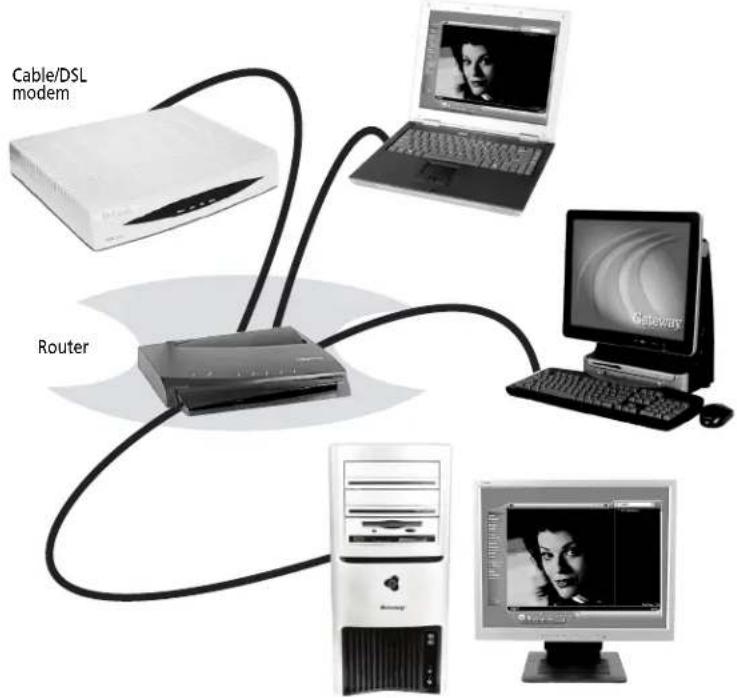
Example router-based Ethernet network
The following is an example of a wired Ethernet network. The network is made up of a router, a cable or DSL modem, your computers, and cables connecting each of these components. The router is the central control point for the network.

Tip
To add the ability to access a wireless Ethernet network to your wired Ethernet network, connect an access point to the router or use a router that has a built-in access point.
Attached to the router are all of your computers or Ethernet-ready devices. Also connected to the router is a cable or DSL modem that provides access to the Internet.
flowchart
graph TD
    A["Cable/DSL modem"] --> B["Router"]
    C["Laptop"] --> B
    D["Gateway"] --> B
    E["Desktop Computer"] --> B
    B --> F["Server"]
    style A fill:#f9f,stroke:#333
    style C fill:#ccf,stroke:#333
    style D fill:#cfc,stroke:#333
    style E fill:#fcc,stroke:#333
Equipment you need for a router-based Ethernet network

Important
For best results, all Ethernet components should be either standard Ethernet (10 Mbps), Fast Ethernet (100 Mbps or 10/100), or Gigabit Ethernet (1000 Mbps or 10/100/1000). A mixture of components rated at different speeds will result in your network running at the speed of the slowest rated component.
For a wired Ethernet network you need:
- Two or more computers with Ethernet jacks
- One router
• One broadband Internet connection (optional) - Ethernet cables connecting all of the network equipment
When buying your router, be sure the model includes everything your network needs, including:
- Internet security features, such as a firewall, to protect your network from unwanted intruders
• 4-port switch to eliminate the need for additional network hardware - DHCP server/dynamic IP address assignment to automatically configure network and IP addresses
Determining if an Ethernet card is already installed on your computer
▶ To determine if an Ethernet card is already installed on your computer:
1 Click (start), then click Control Panel. The Control Panel window opens.
2 Click System and Maintenance, then click System.
3 Click Device Manager from the task list on the left. The Device Manager window opens.
4 Click the plus (+) in front of Network adapters. The Ethernet device installed in your computer is listed. If one is not listed, you must install one.
Setting up wired Ethernet network hardware
Making sure your broadband connection works

Important
If you do not have a broadband connection already installed, make the necessary arrangements with your ISP. Be sure to find out how soon after the installation the line will be activated.
Broadband Internet settings differ from ISP to ISP. Before you begin setting up your network, you should contact your ISP for any specific instructions they have for setting up a network.
Before you change anything about your home setup, make sure that your broadband connection is working correctly. To test the connection, log onto the Internet using your current setup. If the connection is not working, contact your Internet service provider.
Installing Ethernet cards and drivers
After you have determined the type of Ethernet you are using for your network, you need to install Ethernet cards and drivers on the computers that do not have Ethernet already installed.
Use the documentation that comes with your Ethernet cards for instructions on installing the card and any required drivers.
Plug your Ethernet cable into your computer's jack and the router or the cable or DSL modem at this point, if you have not already done so.
Connecting network cables
We recommend using category 5 (Cat 5), unshielded, twisted-pair cable (approximately 1/4-inch diameter with a thin outer-jacket, containing eight color-coded wires), and equipment compatible with this type of cable. This type of cable is equipped with RJ-45 connectors (like a large telephone jack connector, but with eight pins) on each end.
Cat 5 cables are available in two different types; straight-through cables, used to connect computers to a router, and crossover cables, used to connect two computers.
To determine which type of cable you have, hold both ends of the cable with the connectors facing away from you and with the spring clip on the bottom. For straight-through cable, the wires on both connectors are attached to copper pins in the same order (same colors, left to right). For a crossover cable, the wires on each connector are attached to the copper pins in a different order (different colors, left to right).
Setting up a network using a router
If you are setting up a network for more than two computers and you will be connecting your network to a high-speed Broadband Internet connection (cable or DSL modem), we recommend the use of a router. A router lets you access the Internet connection from any network computer. The router can assign IP addresses to the computers on the network and can provide firewall protection for your network as well.
In addition to a router, you need a straight-through cable for each computer you want to connect to the network.
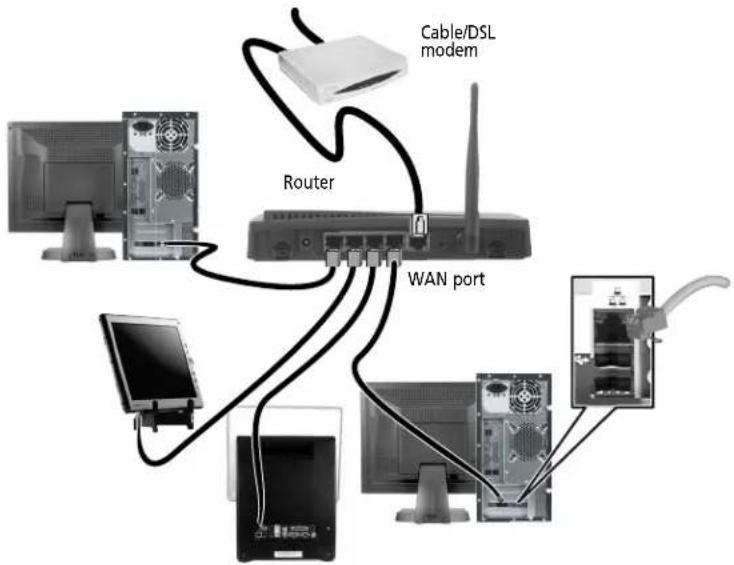
text_image
Cable/DSL modem Router WAN port▶ To set up a network using a router:
1 Plug one end of the power adapter into the AC connector on the router and the other end into a grounded, 110V electrical outlet.
2 Turn on your computers.
3 Plug one end of a straight-through network cable into any numbered port on the router (except the WAN port). The WAN port is used to connect the router to the DSL or cable modem and is identified by a label or a switch. Plug the other end of the cable into the network jack on the computer. As each computer is connected to the router, the corresponding green indicator should light on the front of the router, indicating a good connection.
4 Repeat Step 3 for each computer on the network.
5 For an Internet connection, plug a straight-through cable into the WAN port on the router and the other end into the Ethernet jack on the DSL or cable modem.

Wireless Ethernet networking
Wireless Ethernet networking is the latest advance in computer communication. With a wireless home network, you can set up your computer wherever you like.
A wireless Ethernet network uses radio waves to communicate. Typically, a wireless Ethernet network is made up of an access point, a cable or DSL modem (for Internet access), and your wireless computers.
Wireless Ethernet standards
Current wireless Ethernet standards include the following:
• 802.11a — 54Mbps
• 802.11b — 11Mbps
• 802.11g — 54Mbps
• 802.11n — 540Mbps
Speed is not the only issue if you decide to use equipment with different standards. Compatibility can also be an issue. Take the following into consideration when you purchase wireless equipment:
Access point Wireless cards supported
802.11a 802.11a only
802.11b 802.11b only
802.11g 802.11b and 802.11g
802.11n 802.11b, 802.11g, and 802.11n
Using an access point
An access point is a small electronic device that serves as the central control point for your network. You connect your modem to the access point, set up a network connection, then browse the Internet, send e-mail, share files and folders with other networked computers, and access other devices, like a printer or scanner.
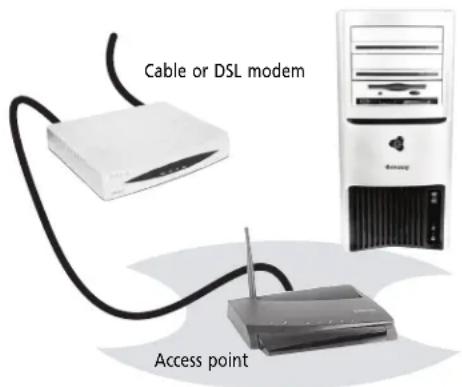
text_image
Cable or DSL modem Access pointEquipment you need for an access point-based network

Tip
When you buy your access point, make sure it has:
- IEEE 802.11n support. 802.11n is the fastest method for wireless communications. 802.11n is compatible with the older IEEE 802.11g and IEEE 802.11b formats but not with the competing IEEE 802.11a format. Make sure that you get the correct format that matches your computer.
- DHCP server/dynamic IP address assignment capability that makes it easier to set up and access your network.
- Internet security features like a firewall to keep intruders out of your network.
- Wireless security features like SecureEasySetup™ or 128-bit WEP encryption.
For a wireless Ethernet network you need:
- Your Gateway computer with a wireless Ethernet network card installed
• A broadband Internet connection (optional) - An access point
Determining if a wireless Ethernet device is already installed on your computer
▶ To determine if a wireless Ethernet card is already installed on your computer:
1 Click (Start), then click Control Panel. The Control Panel window opens.
2 Click System and Maintenance, then click System.
3 Click Device Manager from the task list on the left. The Device Manager window opens.
4 Click the plus (+) in front of Network adapters. The wireless Ethernet device installed in your computer is listed. If one is not listed, you must install one.
Setting up wireless Ethernet network hardware
Making sure your broadband connection works
Important If you do not
If you do not have a broadband connection already installed, make the necessary arrangements with your ISP. Be sure to find out how soon after the installation the line will be activated. Broadband Internet settings differ from ISP to ISP. Before you begin setting up your network, you should contact your ISP for any specific instructions they have for setting up a network.
Before you change anything about your home setup, make sure that your broadband connection is working correctly. To test the connection, log onto the Internet using your current setup. If the connection is not working, contact your Internet service provider.
Installing wireless cards and drivers
After you have determined the type of wireless equipment you are using for your network, you need to install wireless cards and drivers on the computers that do not have them already installed.
Use the documentation that comes with your wireless cards for instructions on installing the cards and any required drivers.
Setting up your access point
A wireless Ethernet network sends and receives information through radio waves. This means that another computer outside your network can intercept the radio waves and take control of your network.
If you do not set up security for your network, a hacker can gain access to your Internet connection to send spam e-mail and to your hard drive to download viruses or view your personal data, like credit card numbers, Social Security numbers, and personal online banking information.
Check your access point documentation for information about installing the access point and setting network security.
Establishing your Ethernet network connection
Naming the computers and the workgroup

Important
You must give each computer on the network a unique Computer Name he same Workgroup Name.
Make sure that you have set up your router (wired network) or access point (wireless network). If you are setting up a wired network, make sure that you have connected the network cabling.
▶ To identify this computer on the network:
1 Click (Start), then click Control Panel. The Control Panel window opens.
2 Click System and Maintenance. The System and Maintenance window opens.
3 Click System, then click Change Settings in the Computer Name, Domain and Workgroup settings area. The System Properties dialog box opens.
4 Click Change.
5 If your computer does not already have a name, type a unique computer name in the Computer name box. This name identifies the computer to other users on the network. Use a computer name of up to 15 characters with no blank spaces. Each computer name must be unique on your network. All-numeric computer names are not allowed. Names must contain some letters.
6 Type a name for your workgroup in the Workgroup box. Use a workgroup name of up to 15 characters with no blank spaces. The workgroup name must be the same for all computers in your network workgroup, and the name must be different than any computer name on your network.
7 Click OK. When you are prompted to restart your computer, click Restart Now.
Configuring the TCP/IP protocol
A networking protocol is a language computers use to talk to each other. One of several available protocols must be set up on each computer you plan to use on your network. We recommend you use the Transmission Control Protocol/Internet Protocol (TCP/IP), which is widely accepted and compatible for local area networks (LANs), as well as for Internet communications.
When networking is set up in Windows Vista™, TCP/IP is automatically installed as the default protocol.
Using a DHCP server
In order to use the TCP/IP protocol on a computer with a router or access point router, the protocol must be set to "Obtain an IP address from a DHCP server." This is typically preset when you receive your computer.
Configuring your router
After you have named your computers and set up TCP/IP on them, you can configure your router using your Web browser. For instructions, see your router's documentation.
Connecting to a wireless Ethernet network

Important
Each computer on your network needs a unique Computer Name. All the computers on your network need the same Workgroup Name. You may have already named your computer and workgroup the first time you turned on your computer.
Connecting to your network

Help
For more information about connecting to your network, click Start, then click Help and Support. Type the following keywords in the Search Help box, then press ENTER.
- Connect to an available network
- Manually add a wireless Ethernet network
- Connecting to wireless Ethernet network.
After you have named your computer and workgroup, you need to set up the network connection on your computer.
▶ To connect to your wireless Ethernet network:
1 Click (Start), then click Network. The Network window opens.
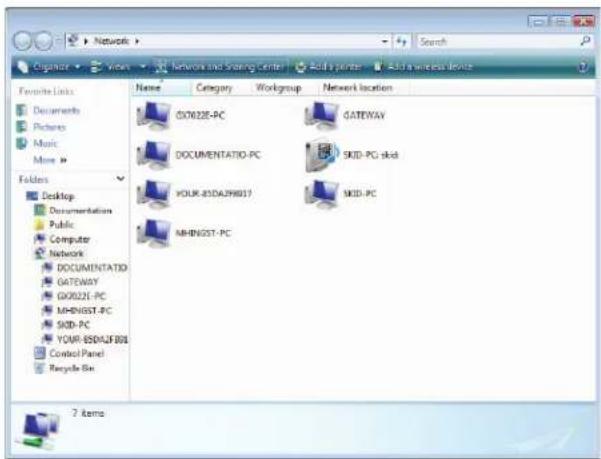
text_image
Cognace Views Network and Storage Center Add a printer Add a wireless device Favorite Links Documents Pictures Music More > Folders Desktop Documentations Public Computer Network DOCUMENTATIO GATEWAY GX022E-PC MHNSST-PC MHD-PC YOUR-8SDIAJF801 Control Panel Recycle Bin Name Category.Workgroup Network location GX022E-PC GATEWAY DOCUMENTATIO-PC MHD-PC skid YOUR-8SDIAJF801 MHD-PC MHNSST-PC 7 items2 Click Network and Sharing Center. The Network and Sharing Center window opens.
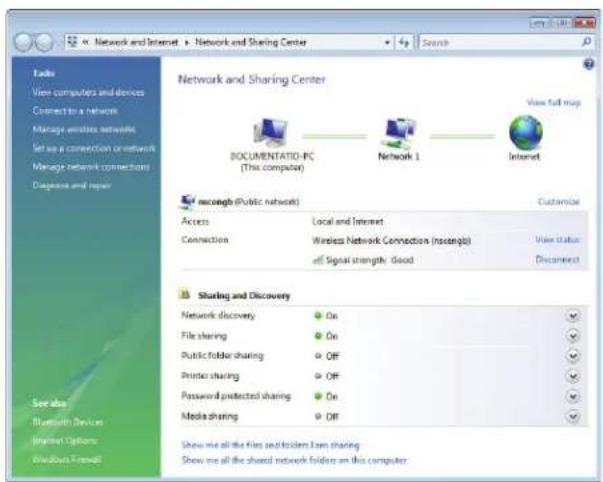
text_image
Network and Sharing Center Network and Sharing Center DOCUMENTATID-PC (This computer) Network 1 Internet ncongb (Public network) Access Local and Internet Connection Wireless Network Connection (ncongb) View status Signal strength: Good Decisense Sharing and Discovery Network discovery On File sharing On Public folder sharing Off Printed sharing Off Password protected sharing On Media sharing Off Show we all the files and folders even sharing Show we all the shared network folders on this computer3 Click Connect to a network on the left of the window. The Connect to a network dialog box opens.
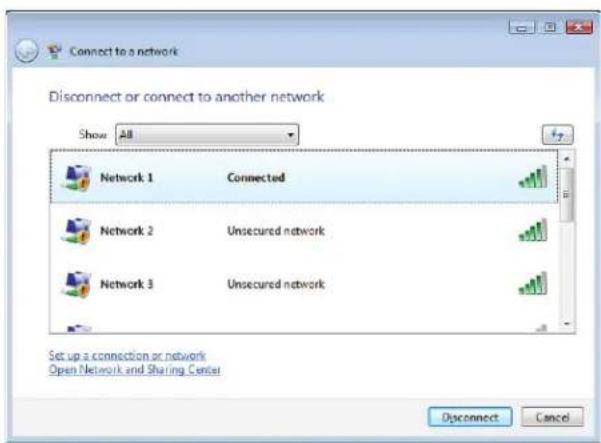
text_image
Connect to a network Disconnect or connect to another network Show All Network 1 Connected Network 2 Unsecured network Network 3 Unsecured network Set up a connection or network Open Network and Sharing Center Disconnect Cancel4 Click a network, then click Connect.
If you can see the network name, but you cannot connect to it, your network is using security. Right-click on the network, then click Properties. Modify the security settings to match the settings you set on your access point.
■
Wireless security
For information on wireless security, refer to the documentation that came with your access point.

Help
For more information about wireless network security methods, click Start, then click Help and Support. Type wireless network security methods in the Search Help box, then press ENTER.
Testing your network
Now that your home network is set up, log onto one of your computers and access a favorite Internet Web site.
If you are unable to connect to the Internet:
- Click (Start), Control Panel, Network and Internet, then click Network and Sharing Center. Select Diagnose and Repair on the left of the window. Take any actions suggested.
• If you are using a wired Ethernet network, check all physical cable connections. - Make sure that your router or access point is plugged in and compare the status lights on the front of the router or access point with the patterns described in the router or access point documentation.
- Temporarily turn off any firewall software on your desktop computer.
- Turn off all of the devices, then power them back on.
- Refer to your router's or access point's troubleshooting information.
- Contact your Internet service provider.
Adding a printer to your network
Instead of plugging a printer into each of your computers, you can add a printer to your network. To add a printer to the network, do one of the following:
- Connect your printer to a networked computer, then share the printer. For information about sharing printers, see "Sharing drives and printers" on page 54.
- Connect your printer to your router or access point if the router or access point includes a USB or parallel port. For more information, see the instructions that came with your router or access point.
- Use a printer that has built-in networking.
- Use a print server.
Sharing resources
With a network, you can share your Internet connection, drives, and printers.
Sharing drives and printers
With a network, you can share drives (for example hard drives and DVD drives) and printers among the computers connected to the network.

Important
To share a printer among the network computers, each computer must have the shared printer's drivers installed. Follow the instructions included with your printer to install the printer drivers on each computer.
After the drives and printers on each network computer are shared, you can access them as though they were attached directly to your computer. Then you can:
• View a network drive
- Open and copy files stored on other network computers
• Print documents on network printers
Sharing drives or folders
▶ To share drives or folders:
1 Click (start), then click Computer.
2 Right-click the drive or folder that you want to share, then click Share. The Properties dialog box opens.
If you share a drive, the entire contents of that drive will be available to everyone on your network. If you share a folder, only the contents of that folder will be available to everyone on the network.
3 Click the Sharing tab.
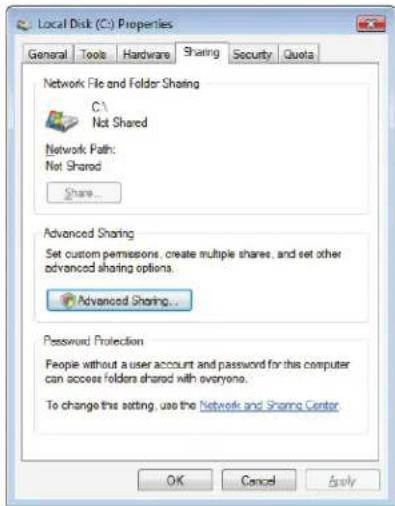
text_image
Local Disk (C:) Properties General Tools Hardware Sharing Security Quota Network File and Folder Sharing C:\ Not Shared Network Path: Not Shared Share... Advanced Sharing Set custom permissions, create multiple shares, and set other advanced sharing options. Advanced Sharing... Password Protection People without a user account and password for this computer can access folders shared with everyone. To change this setting, use the Network and Sharing Center. OK Cancel Apply4 Click Share.
-OR-
If Share is grayed out, click Advanced Sharing to set sharing for this drive or folder.
5 Click OK, then click Close.
■
Un-sharing drives and folders
▶ To un-share drives or folders:
1 Click (Start), then click Computer.
2 Right-click the drive or folder that you want to un-share, then click Share.
3 Click Advanced Sharing, then click Share this folder (or drive) to uncheck the box.
4 Click Apply, then click OK.
■
Sharing printers
▶ To share printers:
1 Click (start), then click Control Panel. The Control Panel window opens.
2 Under Hardware and Sound, click Printer The Printers window opens.
3 Right-click the name and icon of the printer you want to share, then click Sharing on the menu.
4 On the Sharing tab, click Share this printer, then click OK.

Using the network
After the drives and printers on each network computer are shared, you can:
• View shared drives and folders
• Map a network drive
- Open and copy files stored on other network computers
• Print documents on network printers
Viewing shared drives and folders

Help
For more information about workgroups, click Start, then click Help and Support. Type workgroups in the Search Help box, then press ENTER.
▶ To view shared drives and folders:
1 Click (Start), then click Network. The Network window opens.
2 If no drives or folders are displayed, click the option bar under the menu bar, then click Turn on network discover and file sharing.
3 Double-click the name of the computer containing the drive or folder you want to view. All shared drives and folders are listed.

Creating a shortcut to a network drive
After a shortcut is created on a computer for a drive or folder on another computer, the contents of the drive or folder can be accessed as if the drive were attached directly to the computer.
For example, a shortcut is created on computer 2 to the Documents folder on computer 1. To access the Documents folder on computer 1 from computer 2, double-click the shortcut icon.
▶ To map a network drive:
1 Locate the drive or folder by completing the steps in "Viewing shared drives and folders" on page 56.
2 Right-click the drive or folder, then click Create Shortcut. A shortcut is created for the drive or folder and the icon for the shortcut is placed on your desktop.
3 Click X to close the window.

Opening files across the network
▶ To open files across the network:
1 Start the program for the file you want to open.
2 Click File, then click Open.
3 Browse to the network drive that contains the file you want to open.
4 Double-click the folder containing the file, then double-click the file.
Copying files across the network
▶ To copy files across the network:
1 Click (Start), then click Computer. The Computer window opens.
2 Browse to the network drive that contains the file you want to copy.
3 Browse to the file you want to copy.
4 Right-click the file, then click Copy.
5 Right-click the folder where you want to copy the file to, then click Paste.

Printing files across the network
Important
Before you can print a file across the network, you must install the driver for the printer on the computer you are sending the file from. You can obtain the printer driver and installation instructions from the CD that shipped with your printer or from the manufacturer's Web site.
▶ To print files across the network:
1 Open the file you want to print, then click Print.
2 Click the arrow button to open the printer name list, then click the network printer.
3 Click Print.

Bluetooth networking
You can use Bluetooth to communicate with other Bluetooth-enabled devices. These devices may include printers, MP3 players, cellular telephones, and other computers. Bluetooth lets you transfer information between these devices without the use of a USB or Firewire cable. To access a Bluetooth-enabled device, you must install the device, then connect to the Bluetooth personal area network.
Important
Your notebook may have a Bluetooth radio built-in. If you are using a desktop computer or if your notebook does not have built-in Bluetooth, you can purchase a Bluetooth adapter to connect to a USB port on your computer.
▶ To install a Bluetooth enabled device:
1 Turn on your Bluetooth radio and the Bluetooth device.
2 Click (Start), Control Panel, then click Hardware and Sound.
3 Click Bluetooth Devices.
4 Click Add, then follow the on-screen instructions.

▶ To install a Bluetooth printer:
1 Turn on your Bluetooth radio and the Bluetooth printer.
2 Click (Start), Control Panel, then click Hardware and Sound.
3 Click Add a printer.
4 Click Add a network, wireless, or Bluetooth printer, click Next, then follow the on-screen instructions.

CHAPTER 5: Networking Your Notebook
▶ To connect to a Bluetooth personal area network:
1 Turn on your Bluetooth radio and the Bluetooth device.
2 Click (Smart), Control Panel, then click Network and Internet.
3 Click Network and Sharing Center.
4 Click Manage Network Connections. The Network Connections window opens.
5 Under Personal Area Network, click Bluetooth Network Connection.
6 On the toolbar, click View Bluetooth network devices. The Bluetooth Personal Area Network Devices dialog box opens.
7 Under Bluetooth devices, click that device you want to connect to, then click Connect.
■

Help
For more information about Bluetooth, click Start, then click Help and Support. Type Bluetooth in the Search Help box, then press ENTER.
CHAPTER6
Protecting Your Notebook
- Hardware security
- Data security
• Security updates - Traveling securely
Hardware security
You probably purchased your notebook so you can take it with you. Because it's light-weight and compact, it's easy to carry. But these features also make it easy for someone else to steal. You may be able to replace your notebook with a call to your insurance agent, but you cannot replace the information stored on your notebook.
Kensington lock slot
The first step in computer security is preventing your notebook from being stolen. Attach a cable lock to the Kensington lock slot on your notebook, then wrap the cable lock around a solid object like the leg of a desk or table. You can buy a cable lock at most electronics stores and many department stores.
For the location of the Kensington lock slot, see your Reference Guide.
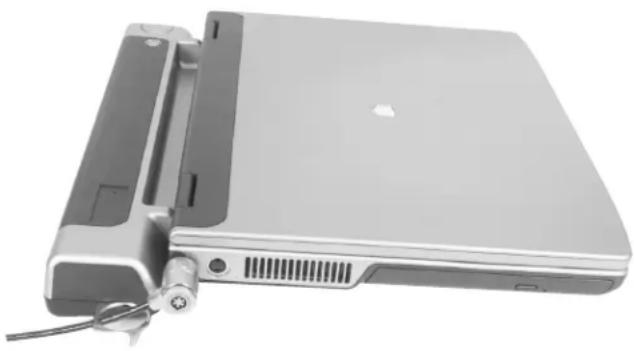
natural_image
Exterior view of a silver laptop with attached cable and ventilation slots (no visible text or symbols)Data security
The second step in computer security is keeping your data safe and secure.
Startup and hard drive password
Use a startup and hard drive password to keep other people from using your notebook. You have to enter your password when you turn on your notebook or access your files.
These passwords are set in your notebook's BIOS setup utility. Use a password that you can remember but that would be hard for someone else to guess.

Tip
For instructions on creating a startup and hard drive password, see your notebook's Reference Guide. Make sure that you use a password you can remember. The password feature is very secure, and you cannot bypass it. If you forget your password, you will have to return your notebook to Gateway so we can reset it.
Windows user accounts
Windows lets you set up a user account for each person who uses your notebook. When you set up user accounts, Windows sets up a Documents folder for each account. You can assign a password to each account so only the account owner can access files in the Documents folder.
When you set up a user account, you can also limit the programs that a user can install or run.
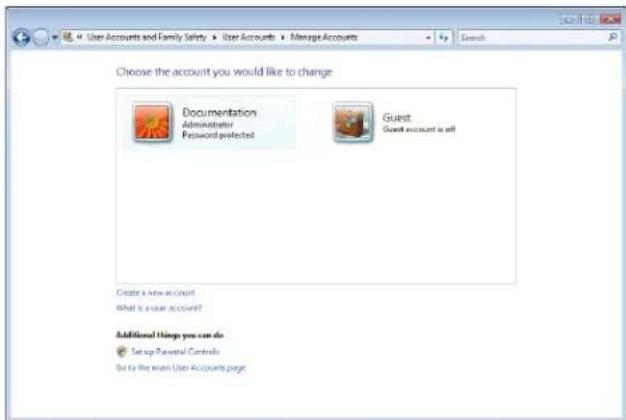
text_image
Choose the account you would like to change Documentation Administrator Password protected Guest Guest account is off Create a new account What is a user account? Additional things you can do Setup Parental Controls Go to the main User Accounts page? Help
For more information about Windows user accounts, click Start, then click Help and Support. Type user accounts in the Search Help box, then press ENTER.
Protecting your notebook from viruses
A virus is a program that attaches itself to a file on a computer, then spreads from one computer to another. Viruses can damage data or cause your computer to malfunction. Some viruses go undetected for a period of time because they are activated on a certain date.
Protect your computer from a virus by:
- Subscribing to Norton 360 for regular virus and spyware protection updates.
• Using Norton 360 to check files and programs that are attached to e-mail messages or downloaded from the Internet. - Checking all programs for viruses before installing them.
- Disabling macros on suspicious Microsoft Word and Excel files. These programs will warn you if a document that you are opening contains a macro that might have a virus.
- Making sure that the Windows Security Center is configured to provide you with the highest level of protection.
Tip
For more information about modifying security settings, see "Modifying security settings" on page 64.
? Help For me
For more information about protecting your notebook against viruses, click Start, then click Help and Support. Type viruses in the Search Help box, then press ENTER.
How to scan for and remove Internet threats
If you are using Norton 360
Norton 360 automatically scans your PC regularly to keep you protected but you can manually run a scan for viruses, spyware and other online threats:
1 Click (Start), All Programs, Norton 360, then click Norton 360. Norton 360 opens.
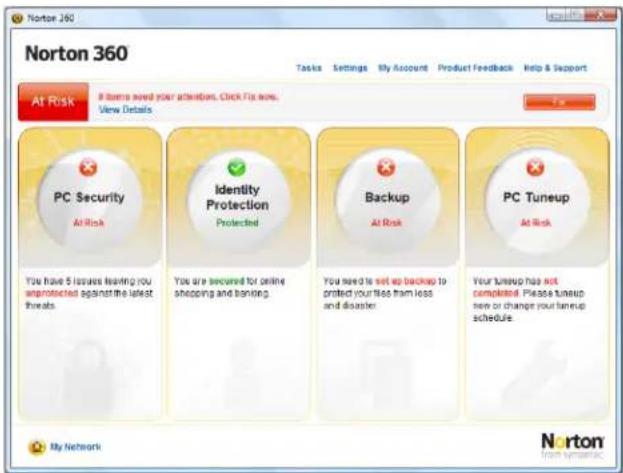
text_image
Norton 360 At Risk It needs your attention. Click Fix now. View Details PC Security At Risk You have 5 issues leaving you unprotected against the latest threats Identity Protection Protected You are secured for online shopping and banking Backup At Risk You need to set up backup to protect your fees from less and disaster PC Tuneup At Risk Your Turnup has not completed. Please Turnup here or change your turnout schedule My Network Norton from Mechanical2 Click on the left PC Security column. The PC Security window opens.
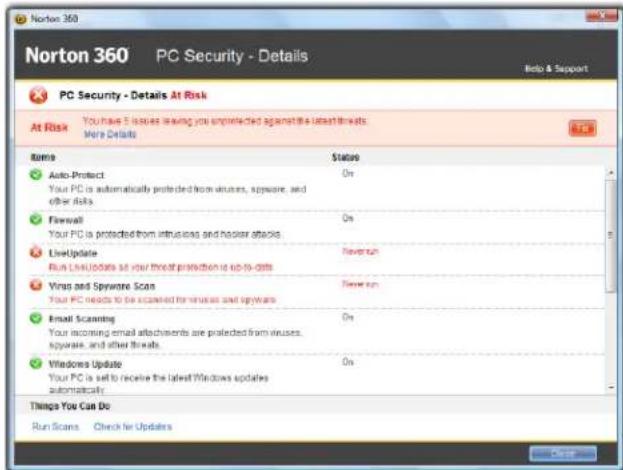
text_image
Norton 360 PC Security - Details Help & Support PC Security - Details At Risk At Risk You have 5 issues leaving you unprotected against these latest threats Help Details Items Status Auto-Protect On Your PC is automatically protected from viruses, spyware, and other risks Firewall On Your PC is protected from intrusions and hoster attacks LiveUpdate Tower run Run LiveUpdate at your threat protection is up-to-date Virus and Spyware Scan Tower run Your PC needs to be scanned for viruses and spyware Email Scanning On Your incoming email attachments are protected from viruses, spyware, and other threats. Windows Update On Your PC is set to receive the latest Windows updates automatically Things You Can Do Run Scans Check for Updates3 At the bottom of the window first click on Run Scans and then choose which scan you would like to run and click Go.
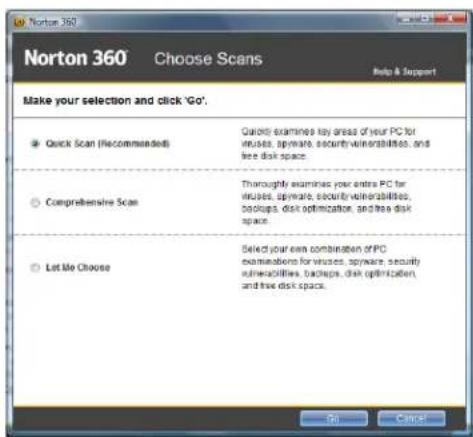
text_image
Norton 360 Choose Scans Help & Support Make your selection and click 'Go'. Quick Scan (Recommended) Quoted to examine key areas of your PC for viruses, spyware, security vulnerabilities, and free disk space. Comprehensive Scan Thoroughly examines your entire PC for viruses, spyware, security vulnerabilities, backups, disk optimization, and free disk space. Let Me Choose Select your own combination of PC examinations for viruses, spyware, security vulnerabilities, backups, disk optimization, and free disk space.Norton 360 scans your computer for viruses and spyware and removes any that it finds. When the scan is finished, a summary of fixed problems appears.

Important
Extend your Norton 360 subscription before it expires to remain protected against online threats.

If you are using Norton Internet Security
Norton Internet Security automatically scans your PC regularly to keep you protected but you can manually run a scan for viruses, spyware and other online threats:
1 Click (Start), All Programs, Norton Internet Security then click Norton Internet Security. Norton Internet Security opens.
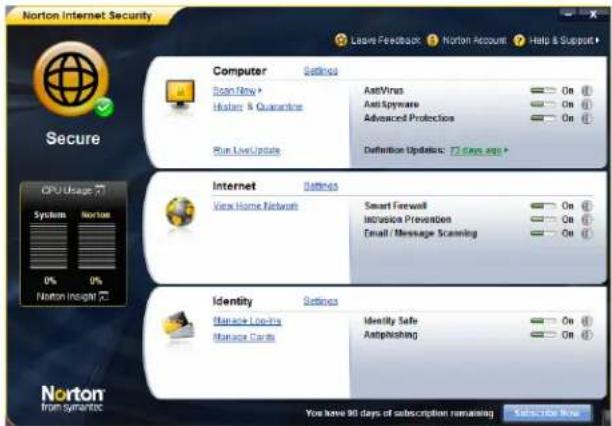
text_image
Norton Internet Security Leave Feedback Norton Account Help & Support Secure Computer Settings Scan New Hostes & Guarantee Run Live Update AstVirus On Ast Spyware On Advanced Protection On Definition Updates: 72 days ago CPU Usage System Norton 0% 0% Norton Insight Internet Settings View Home Network Smart Firewall On Inclusion Prevention On Email / Message Scanning On Identity Settings Manage Locks Manage Cards Identity Safe On Antipublishing On You have 90 days of subscription remaining Select the Web2 Click, Scan Now. A pop-up window opens. Choose which scan you would like to run.
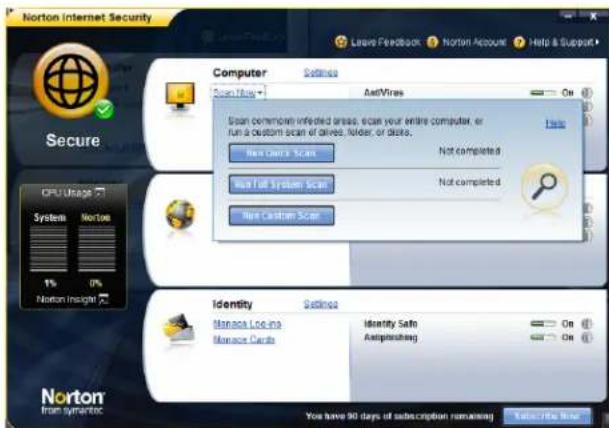
text_image
Norton Internet Security Leave Feedback Norton Account Help & Support Computer Scan/Run + Aut/Virea Scan commonets infedged areas, scan your entire computer, or run a custom scan of alive, folder, or disks. New Camera Scan Not completed New Full System Scan Not completed New Calendar Scan Identity Monaco Locing Monaco Cards Identity Safe Asplishing You have 90 days of subscription remaining Sub-16e NowNorton Internet Security scans your computer for viruses and spyware and removes any that it finds. When the scan is finished, a summary of fixed problems appears.

Important
Extend your Norton Internet Security subscription before it expires to remain protected against online threats.
Using Windows Security Center
Windows Security Center helps protect your notebook through:
- A firewall
• Automatic Windows updates
• Third party virus protection software
• Security options in Internet Explorer
Modifying security settings
▶ To modify security settings:
1 Click (Start), Control Panel, then click Security.
2 Click Security Center. The Windows Security Center dialog box opens.
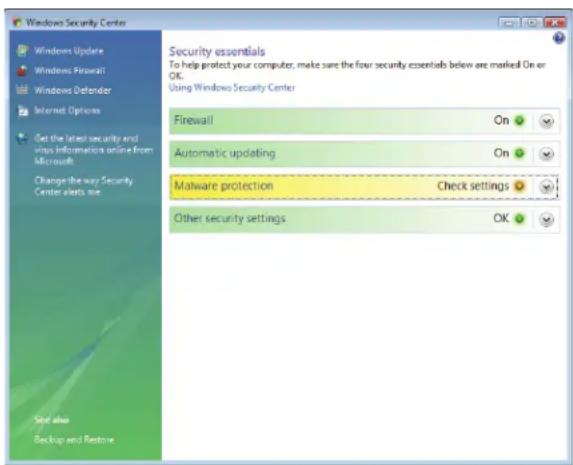
text_image
Windows Security Center Windows Update Windows Firewall Windows Defender Internet Options Get the latest security and virus information online from Microsoft Change the way Security Center alerts me Set also Backup and Restore Security essentials To help protect your computer, make sure the four security essentials below are marked On or OK. Using Windows Security Center Firewall On Automatic updating On Malware protection Check settings Other security settings OK3 Click:
- Windows Update to run Windows Update or modify the Windows Update settings.
- Windows Firewall to prevent outsiders from accessing the information on your notebook.
- Windows Defender to scan your notebook for malicious or unwanted software that may have been placed on your notebook either from an Internet web site or from other programs that you have installed.
- Internet Options to prevent certain programs from running on your notebook that might be found on Web sites.

Help
For more information about Windows Security Center, click Start, then click Help and Support. Type security center in the Search Help box, then press ENTER.

For more information about the Windows Security Center, click Get help about Security Center.
Security updates
To keep your notebook secure, you need to keep Windows and your notebook's system software up to date.
Windows Update
If a hacker finds a way to bypass the security features built into Windows, Microsoft creates a high-priority Windows update to fix the problem. You should update Windows regularly to keep your notebook secure.
▶ To update Windows:
1 Click (start), Control Panel, then click Security.
2 Click Security Center. The Windows Security Center dialog box opens.
3 Click Windows Update. Windows checks the Microsoft web site to see if any updates are available.
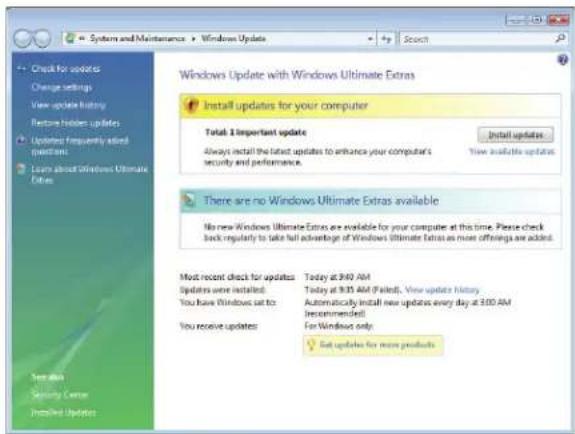
text_image
System and Maintenance Windows Update Check for updates Change settings View update history Restore hidden updates Updates frequently added questions Learn about Windows Ultimate Extras Windows Update with Windows Ultimate Extras Install updates for your computer Total 3 important update Always install the latest updates to enhance your computer's security and performance. Install updates Now available updates There are no Windows Ultimate Extras available No new Windows Ultimate Extras are available for your computer at this time. Please check back regularly to take full advantage of Windows Ultimate Extras as more offerings are added. Most recent check for updates: Today at 3:40 AM Updates were installed: Today at 3:35 AM (Failed). View update history You have Windows set to: Automatically install new updates every day at 3:00 AM (recommended) You receive updates: For Windows only Set updates for more products4 Click:
• Install Updates to download and install updates on your notebook. These updates include security updates.
• Install Extras to download additional Windows software for your notebook.

Help
For more information about Windows Update, click Start, then click Help and Support. Type Windows update in the Search box, then press ENTER.

Scheduling automatic updates
Use the Windows Security Center to schedule automatic updates. Windows can routinely check for the latest updates for your notebook and install them automatically.
▶ To schedule automatic updates:
1 Click (start), Control Panel, then click Security.
2 Click Security Center. The Windows Security Center dialog box opens.
3 Click Windows Update.
CHAPTER 6: Protecting Your Notebook
4 Click Change Settings. The Change Settings dialog box opens.
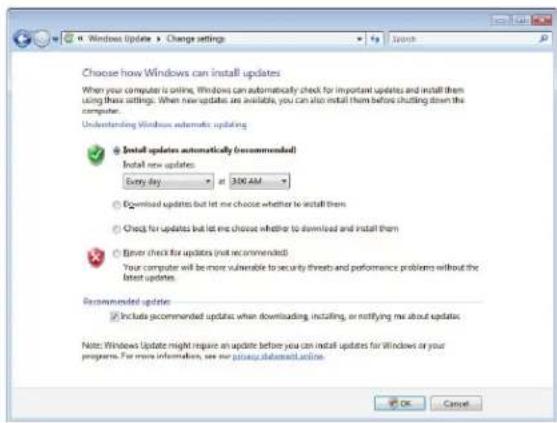
text_image
Choose how Windows can install updates When your computer is online, Windows can automatically check for important updates and install them using these settings. When new updates are available, you can also install them before shutting down the computer. Understanding Windows automatic updating Install updates automatically (recommended) Install new updates: Every day at 300 AM Download updates but let me choose whether to install them Check for updates but let me choose whether to download and install them Enter check for updates (not recommended) Your computer will be more vulnerable to security threats and performance problems without the latest updates. Recommended updates Include recommended updates when downloading, installing, or notifying me about updates. Note: Windows Update might require an update before you can install updates for Windows or your programs. For more information, see our privacy statement online. OK Cancel5 Make your changes to the schedule settings, then click OK.
Traveling securely
For information about traveling securely with your notebook, see "Traveling with Your Notebook" in your Reference Guide.
CHAPTER7
Customizing Windows
- Changing screen settings
- Changing system sounds
- Changing mouse, touchpad, or pointing device settings
- Adding and modifying user accounts
- Changing accessibility settings
- Setting up parental controls
Changing screen settings
Adjusting the color depth and screen area are two of the most basic display settings you may need to change. You can also adjust settings such as the screen background and screen saver.
Changing color depth and screen resolution
Color depth and screen resolution are two of the most basic screen settings you may need to change to suit your needs.
Color depth is the number of colors your notebook uses to display images on your screen. Most images look best displayed with the maximum number of colors available. If the color in your images seems "false" or "jumpy," especially after you have played a game or run a video-intensive program, check the color depth setting and return it to the highest color setting, if necessary.
Screen resolution is the number of pixels (individual colored dots) your notebook uses to display images on your screen. The higher the resolution, the more information and screen components (such as icons and menu bars) can be displayed on the screen.

Help
For more information about adjusting the screen, click Start, then click Help and Support. Type adjusting monitor settings in the Search Help box, then press ENTER.
▶ To change the color depth or screen resolution:
1 Click (Start), Control Panel, then under Appearance and Personalization, click Adjust Screen Resolution. The Display Settings dialog box opens.
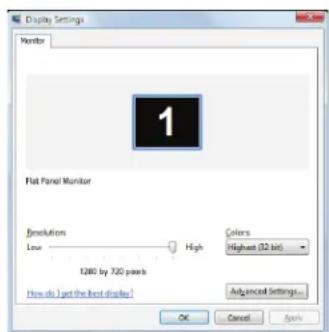
text_image
Display Settings Monitor 1 Flat Panel Monitor Resolution Low High Colors Highest (32 bit) 1280 by 720 pixels How do I get the best display? Advanced Settings... OK Cancel Apply2 To change the color depth, click the Colors list, then click the color depth you want.
- Low (8-bit) = 256 colors
• Medium (16-bit) = 65,500 colors
• Highest (32-bit) = 16,700,000 colors
3 To change the screen resolution, drag the Resolution slider to the size you prefer.
4 Click Apply. If the new settings do not look right, click No. If the new settings make the screen illegible and you cannot click No, the settings return to their previous values after several seconds.
5 Click OK, then click Yes to save your changes.
Changing the appearance of windows and backgrounds
You can change the appearance of Windows desktop items, such as the colors of windows and dialog boxes and the color and design of the desktop background.
▶ To change Window colors and effects:
1 Click (Start), Control Panel, then under Appearance and Personalization, click Customize colors. The Window Color and Appearance dialog box opens.
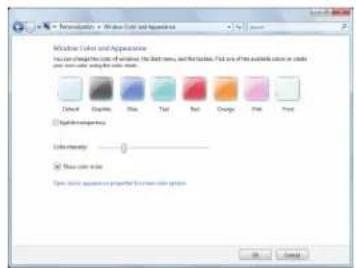
text_image
Window Color and Appearance Show colors to display the color of window, including text, tables, and patterns. Find any of the available colors or colors. Use color to view the color of window. Color: Opacity: 100% Size: 5 px Tide: 0% Red: 0% Angle: 0° Style: Normal Style name: Open color appearance is preferred for color selection.2 Click one of the color choices and adjust the Color intensity slider, then click OK. Your new color settings are applied.
3 For even more color adjustment options, such as color schemes, shading effects, and screen fonts, click Start), Control Panel, then under Appearance and Personalization, click Change the color scheme. Change the setting you want, then click OK.
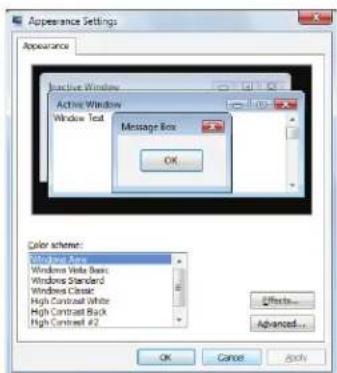
text_image
Appearance Settings Appearance Active Window Window Text Message Box OK Color scheme: Windows Box Windows Vela Bars Windows Standard Windows Classic High Contrast White High Contrast Black High Contrast #2 Effects... Advanced... OK Cancel Apply▶ To change the Windows desktop background:
1 Click (Start), Control Panel, then under Appearance and Personalization, click Change desktop background. The Choose a desktop background dialog box opens.
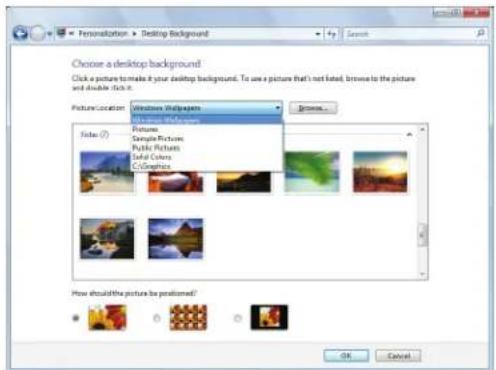
text_image
Personalization ▶ Desktop Background Choose a desktop background Click a picture to make it your desktop background. To use a picture that's not listed, browse to the picture and double click it. Picture/Location Windows Sidewalks Visual/Background Pictures Sample Pictures Public Pictures Solid Colors C:\Graphics Browse... Fisher (7) How should the picture be positioned? OK Cancel2 Click the Picture Location list, then click the location where you want to look for background images. If the location you want is not in the list, click Browse and locate the drive and folder.
3 Click the picture or color you want to use for the background, then click OK.

Selecting a screen saver

Caution
If you are using an external monitor (not a flat-panel display), an image may get burned in on your monitor screen if you leave your notebook on for long periods of time without using it. You should use a screen saver which constantly changes its image to avoid this damage. Flat panel displays cannot be damaged with image burn-in.
You can use a screen saver to keep others from viewing your screen while you are away from your notebook. Windows supplies a variety of screen savers that you can choose from, and many more are available from the Internet and as commercial products.
▶ To select a screen saver:
1 Click (Start), Control Panel, Appearance and Personalization, then click Change screen saver. The Screen Saver Settings dialog box opens.
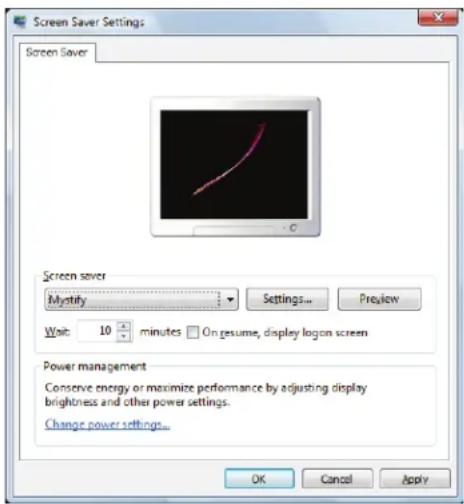
text_image
Screen Saver Settings Screen Saver Screen saver Mystify Settings... Preview Wait: 10 minutes On resume, display logon screen Power management Conserve energy or maximize performance by adjusting display brightness and other power settings. Change power settings... OK Cancel Apply2 Click the Screen saver list, then click the screen saver you want to use. An example of the screen saver plays on the preview screen.
- To change the settings for the screen saver, click Settings, change the settings, then click OK. If the Settings button is not available, you cannot customize the screen saver you selected.
- To see a full-screen preview of the screen saver, click Preview.
• To change the length of notebook inactivity time that passes before the screen saver starts, change the number of minutes in the Wait box.
3 Click OK. Your screen saver changes are applied.

Help
For more information about selecting a screen saver, click Start, then click Help and Support. Type screen savers in the Search Help box, then press ENTER.

Changing gadgets
Gadgets are constantly running mini-programs that are visible on your Windows desktop. They can be moved, removed, resized, and configured according to your preference. Although you can position them anywhere on your desktop, gadgets are usually visible on the right edge of your screen in the Sidebar.
Gadgets can include:
- Clocks and timers
• News feeds, weather forecasts, and stock tickers - Slide shows and puzzles
• Calendars and contact lists
- Sticky notes
▶ To add a gadget:
1 Click the + at the top of the Sidebar, or right-click in an empty area of the Sidebar and click Add Gadgets. The gadget selection window opens.
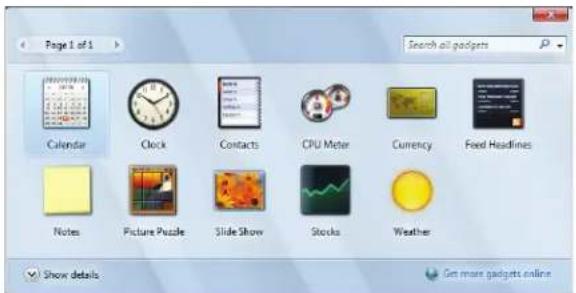
text_image
Page 1 of 1 Search all gadgets Calendar Clock Contacts CPU Meter Currency Feed Headlines Notes Picture Puzzle Slide Show Stocks Weather Show details Get more gadgets online2 Click the gadget you want, then drag it to the Sidebar.

Tip
To shop online for more gadgets, click Get more gadgets online. To delete a gadget, right-click the gadget, then click Close
Gadget.

▶ To configure a gadget:
1 In the Sidebar, right-click the gadget, then click Options. The gadget's configuration window opens.
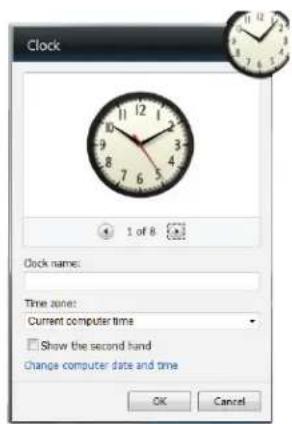
text_image
Clock 1 of 8 Clock name: Time zone: Current computer time Show the second hand Change computer date and time OK Cancel2 Make the changes you want, then click OK. Your changes are saved.
CHAPTER 7: Customizing Windows
Using a gadget's control panel
Some gadgets have built-in control panels that you can use to control their behavior.
To use a gadget's control panel:
1 In the Sidebar, hold the mouse pointer over the gadget. The gadget's built-in control panel appears on the gadget. (Slideshow gadget shown)
natural_image
Sunset over a tree with silhouetted trees and hills, displayed in a play button interface (no text or symbols on the tree itself)2 Click the control you want to operate.

Configuring the gadget Sidebar
You can change the appearance and behavior of the Sidebar.
▶ To change Sidebar properties:
1 Right-click in an empty area of the Sidebar, then click Properties. The Windows Sidebar Properties dialog box opens.
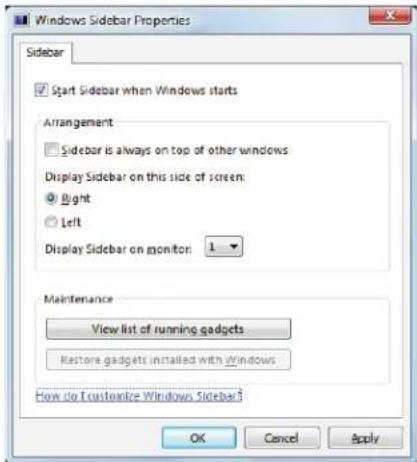
text_image
Windows Sidebar Properties Sidebar Start Sidebar when Windows starts Arrangement Sidebar is always on top of other windows Display Sidebar on this side of screen: Right Left Display Sidebar on monitor: 1 Maintenance View list of running gadgets Restore gadgets installed with Windows How do Customize Windows Sidebar? OK Cancel ApplyYou can change:
- Whether the Sidebar starts each time Windows starts
• Whether the Sidebar is always on top of other windows (always visible)
• The side of the screen the sidebar appears on
• The monitor that the sidebar appears on (if you have an external monitor)
Changing system sounds
You can change the sounds that play for system events, such as Windows startup and shut down, logging on and logging off, window maximizing and minimizing, and error messages.
▶ To change system sounds:
1 Click (Start), Control Panel, Hardware and Sound, then under Sound, click Change system sounds. The Sound dialog box opens.
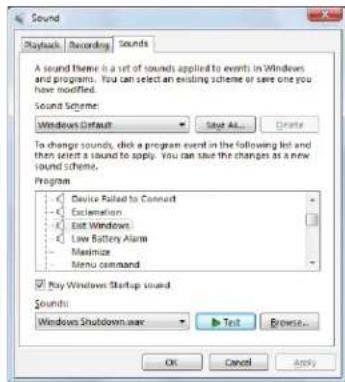
text_image
Sound Playback Recording Sounds A sound there is a set of sounds applied to events in Windows and programs. You can select an existing scheme or save one you have modified. Sound Scheme: Windows Default Save As... Crants To change sounds, click a program event in the following list and then select a sound to apply. You can save the changes as a new sound scheme. Program • Device Failed to Connect • Exclamation • Exit Windows • Low Battery Alarm • Maximize • Menu command Pay Windows Startup sound Sounds: Windows Shutdown.wav Test Browse... OK Cancel Apply2 Click the Sound Scheme list, then click the sound scheme you want.
- OR -
Click an event in the Program list, then click the Sounds list and click the sound file you want associated with the event. If you do not see the sound file in the Sounds list, click Browse and find the file in the appropriate folder.
3 To test a sound you have selected, click Test.
4 Click OK to save your changes.
Changing mouse, touchpad, or pointing device settings

For more information about mouse settings, click Start, then click Help and Support. Type mouse settings in the Search Help box, then press ENTER.
You can adjust the double-click speed, pointer speed, left-hand or right-hand configuration, and other mouse settings.
Changing mouse settings
▶ To change your mouse settings:

Shortcut
Start Á Control Panel Á Hardware and Sound Á Mouse
1 Click (start), Control Panel, then under Hardware and Sound, click Mouse. The Mouse Properties dialog box opens.
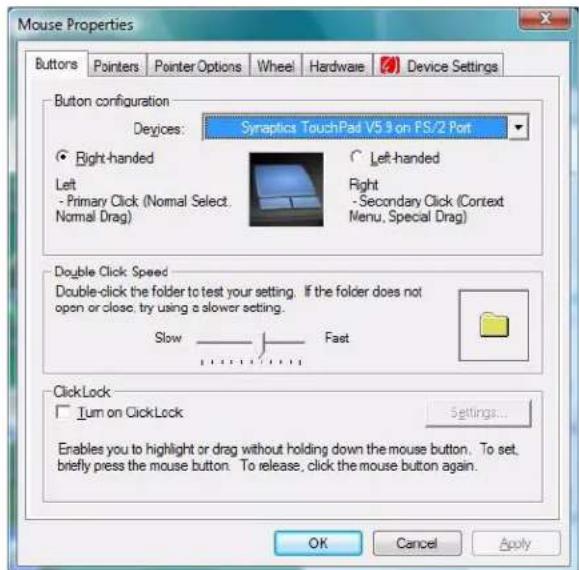
text_image
Mouse Properties Buttons Pointers Pointer Options Wheel Hardware Device Settings Button configuration Devices: Synaptics TouchPad V5.9 on FS/2 Port Right-handed Left - Primary Click (Normal Select. Normal Drag) Left-handed Right - Secondary Click (Context Menu, Special Drag) Double Click Speed Double-click the folder to test your setting. If the folder does not open or close, try using a slower setting. Slow Fast ClickLock Turn on ClickLock Settings... Enables you to highlight or drag without holding down the mouse button. To set, briefly press the mouse button. To release, click the mouse button again. OK Cancel Apply2 Change the settings you want. You can:
- Switch the left and right buttons
- Change the double-click speed
• Change the pointer appearance and speed - Change the mouse wheel actions
3 Click OK to save your changes.
Changing touchpad or pointing device settings
▶ To change your touchpad or pointing device settings:

Shortcut
Start Á Control Panel Á Hardware and Sound Á Mouse
1 Click (Start), Control Panel, then under Hardware and Sound, click Mouse. The Mouse Properties dialog box opens.
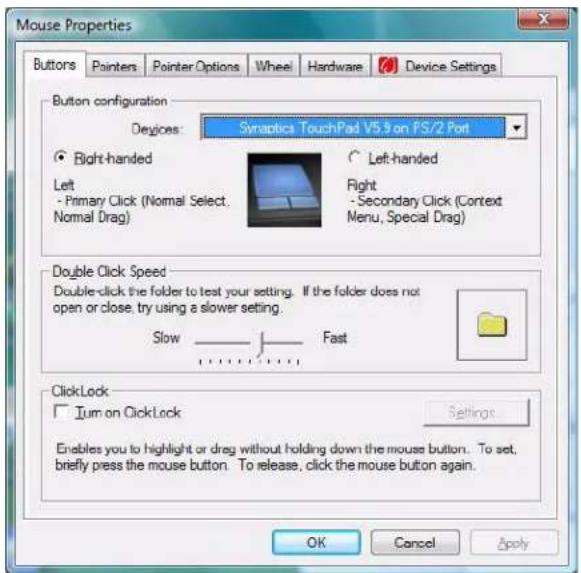
text_image
Mouse Properties Buttons Pointers Pointer Options Wheel Hardware Device Settings Button configuration Devices: Synaptics TouchPad V5.9 on PS/2 Port Right-handed Left - Primary Click (Normal Select, Normal Drag) Left-handed Fight - Secondary Click (Context Menu, Special Drag) Double Click Speed Double-click the folder to test your setting. If the folder does not open or close, try using a slower setting. Slow Fast ClickLock Turn on ClickLock Settings Enables you to highlight or drag without holding down the mouse button. To set, briefly press the mouse button. To release, click the mouse button again. OK Cancel Apply2 Click the Device Settings tab, then click the device you want to modify.
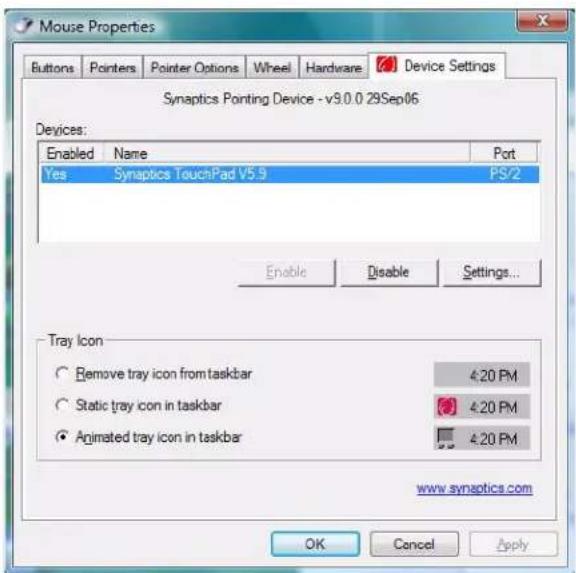
text_image
Mouse Properties Buttons Pointers Pointer Options Wheel Hardware Device Settings Synaptics Pointing Device - v9.0.0 29Sep06 Devices: Enabled Name Port Yes Synaptics TouchPad V5.9 PS/2 Enable Disable Settings... Tray Icon Remove tray icon from taskbar 4:20 PM Static tray icon in taskbar 4:20 PM Animated tray icon in taskbar 4:20 PM www.synaptics.com OK Cancel Apply3 If you want to turn the device on or off, click Enable or Disable.

Tip
You can turn the touchpad and optional pointing device on or depending on which device you prefer to use.
CHAPTER 7: Customizing Windows
4 If you want to modify the device settings, click Settings.
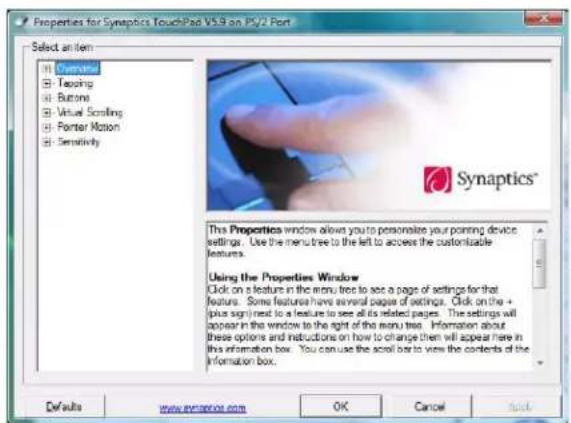
text_image
Properties for Synaptics TouchPad V5.9 on PV2 Port Select an item 1: Overview 2: Topping 3: Buttons 4: Virtual Scrolling 5: Porter Motion 6: Sensitivity The Properties window allows you to personalize your pointing device settings. Use the menu tree to the left to access the customisable features. Using the Properties Window Click on a feature in the menu tree to see a page of settings for that feature. Some features have several pages of settings. Click on the + plus sign next to a feature to see all its related pages. The settings will appear in the window to the right of the menu tree. Information about these options and instructions on how to change then will appear here in this information box. You can use the scroll bar to view the contents of the information box. Defaults www.synaptics.com OK Cancel said5 Click the + in front of a setting, then modify the setting.

Tip
You may have received your notebook with the EZ Pad touchpad set to only accept clicking by using the touchpad buttons. You can change this feature to allow tapping on the touchpad to simulate clicking the left button. To turn on tapping, click Tapping, then click Enable Tapping.
6 Click OK to save your changes.

Adjusting tablet, digital pen, and input panel settings
You can adjust digital pen, display, and button preferences. You can also adjust the writing pad and writing tools.
▶ To change tablet, digital pen, and input panel settings:
1 Click or tap (Start), All Programs, Accessories , then click or tap Windows Mobility Center. The Windows Mobility Center window opens.
2 Click or tap (Change Tablet PC settings). The Tablet PC Settings dialog box opens.
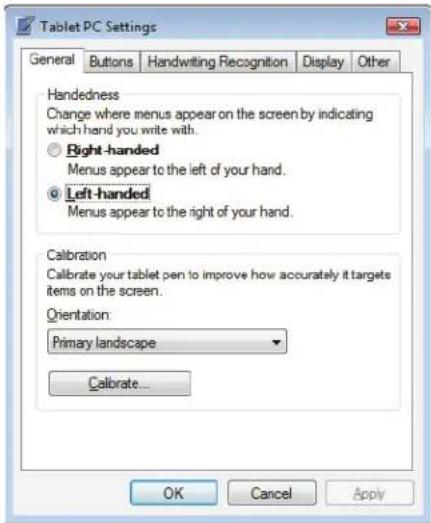
text_image
Tablet PC Settings General Buttons Handwriting Recognition Display Other Handedness Change where menus appear on the screen by indicating which hand you write with. Right-handed Menus appear to the left of your hand. Left-handed Menus appear to the right of your hand. Calibration Calibrate your tablet pen to improve how accurately it targets items on the screen. Orientation: Primary landscape Calibrate... OK Cancel Apply3 To change the tablet options, click or tap a tab, then change an option.
4 To change a digital pen option, click or tap the Other tab, then click or tap Go to Pen and Input Devices. Click or tap a tab, then change a pen option.
5 To change an input panel option, click or tap the Other tab, then click or tap Go to Input Panel Settings. Click or tap a tab, then change an input panel option.
6 Click or tap OK.

Adding and modifying user accounts
You can create and customize a user account for each person who uses your notebook. You can also change between user accounts without turning off your notebook.
User account tips
- If you want to create an account for someone, but you do not want that user to have full access to your notebook, be sure to make that account limited. Remember that limited accounts may not be able to install some older programs.
- Files created in one account are not accessible from other accounts unless the files are stored in the Shared Documents folder. The Shared Documents folder is accessible from all accounts on that notebook and from other computers on the network.
▶ To add, delete, or modify user accounts:
1 Click (Start), Control Panel, then under User Accounts and Family Safety, click Add or remove user accounts.
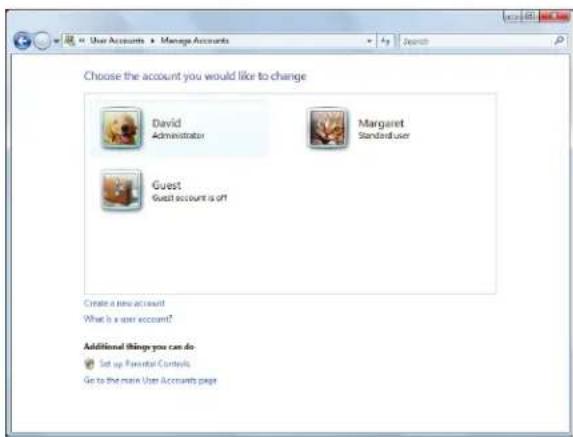
text_image
Choose the account you would like to change David Administrator Margaret StandardUser Guest Guest account is off Create a new account What is a new account? Additional things you can do Set up Functional Controls Go to the main User Accounts page- To create a new account, click Create a new account, then follow the on-screen instructions to finish the setup.
- To change an account, click the account name, then click the option you want to change.
- To delete an account, click the account name, then click Delete the account and confirm the deletion of related files. The account is deleted. (You cannot delete the administrator account.)

Help
For more information about user accounts, click Start, then click Help and Support. Type user accounts in the Search Help box, then press ENTER.
CHAPTER 7: Customizing Windows
▶ To switch between user accounts:
1 Save any open documents that are being worked on in your current account.
2 Click (Start), click the arrow next to the lock icon, then click Switch User or Log Off.
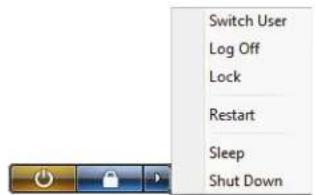
text_image
Switch User Log Off Lock Restart Sleep Shut Down- Switch User opens the account selection screen but does not log off the current user, and any programs that were running for the previous user continue to run.
- Log Off logs off the current user, then opens the account selection screen.

Caution
If you click Log Off, any programs that were running may be closed, and unsaved document changes may be lost.
3 Click the user account that you want to use.
Changing accessibility settings
Your notebook can be a powerful tool, but it may be less useful to you if items on the screen are difficult to see, or if the mouse is difficult to control. Windows has several tools that help you use it more easily.
Using the Ease of Access Center
Use the Ease of Access Center to change several system display settings.
▶ To use the Ease of Access Center:
1 Click (Start), Control Panel, Ease of Access, then click Ease of Access Center. The Ease of Access Center opens.
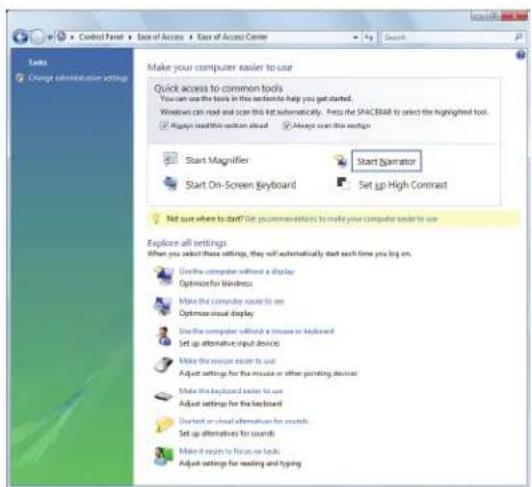
text_image
Start Magnifier Start On-Screen Keyboard Start Simulator Set up High Contrast Not sure when to start? Get recommendations to make your computer easier to use Explore all settings When you select these settings, they will automatically start each time you log on. Use the computer without a display Optimize for Blindness Make the computer easier to use Optimize visual display Use the computer without a mouse or keyboard Set up alternative input devices Make the mouse easier to use Adjust settings for the mouse or other pointing devices Make the keyboard easier to use Adjust settings for the keyboard Insert an audio alternatives for sounds Set up alternatives for sounds Make it necessary to focus on tasks Adjust settings for reading and typing2 In the Quick access to common tools section, click one of the following options to make some of the most common accessibility changes to Windows:
- Start Magnifier provides a close-up view of the area near your mouse pointer.
- Start On-Screen Keyboard displays a keyboard on the screen. You can press keys on the on-screen keyboard by clicking them with your mouse.
- Start Narrator reads on-screen text and describes graphics.
- Set up High Contrast changes the Windows color scheme to use high-contrast colors.
You can also use the Ease of Access Center to:
- Use your notebook without a mouse or keyboard
- Make your notebook display easier to see
- Make the mouse and keyboard easier to use
- Use text or visual alternatives for sounds

Using voice recognition
You can attach a microphone to your notebook (or use the built-in microphone on select Gateway notebooks) and configure Windows to create typed text from your voice.
▶ To set up voice recognition:
1 Click (Start), Control Panel, Ease of Access, then click Speech Recognition Options. The Speech Recognition Options window opens.
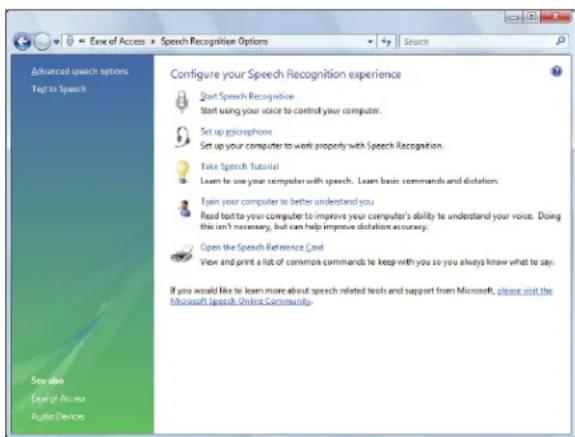
text_image
Ease of Access > Speech Recognition Options Advanced speech options Trust to Speech Configure your Speech Recognition experience Start Speech Recognise Start using your voice to control your computer. Set up microphone Set up your computer to work properly with Speech Recognition. Take Speech Tutorial Learn to use your computer with speech. Learn basic commands and dictation. Train your computer to better understand you Read text to your computer to improve your computer's ability to understand your voice. Doing this isn't necessary, but can help improve dictation accuracy. Open the Speech Reference Card View and print a list of common commands to keep with you so you always know what to say. If you would like to learn more about speech related tools and support from Microsoft, please visit the Microsoft Speech Online Community. See also Ease of Access Audio Devices2 Click one of the following settings to start setting up speech recognition:
- Start Speech Recognition turns on speech recognition. With a built-in or attached microphone, you can control your notebook using voice commands.
- Set up microphone configures your microphone to work correctly with speech recognition.
• Take Speech Tutorial helps you learn how to use speech recognition. - Train your computer to better understand you helps you create several voice samples that your notebook can use to better recognize the words you speak.
- Open the Speech Reference Card lets you view and print a list of common voice commands.
3 If you want to configure your notebook's settings for reading on-screen text, click Text to Speech on the left of the window.

Using the Windows Mobility Center
The Windows Mobility Center is the single place you need to go to adjust many of the settings on your notebook.

Important
Depending on your notebook's features, some of these controls may not available.
▶ To access the Windows Mobility Center:
- Click ® (Start), All Programs, Accessories, then click Windows Mobility Center. The Windows Mobility Center window opens.
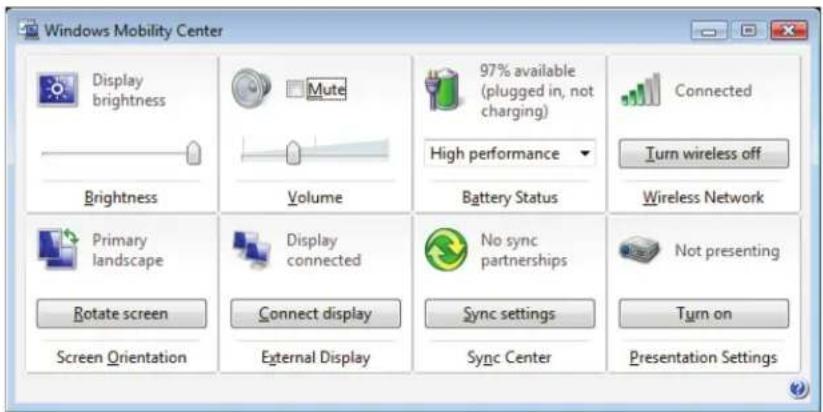
text_image
Windows Mobility Center Display brightness Mute 97% available (plugged in, not charging) High performance Connected Turn wireless off Brightness Volume Battery Status Wireless Network Primary landscape Display connected No sync partnerships Not presenting Rotate screen Connect display Sync settings Turn on Screen Orientation External Display Sync Center Presentation SettingsControl Description

Display brightness

Brightness
- Click (change display brightness settings for your power plan) to open the Change settings for the plan dialog box and modify the display and sleep settings for the current power plan. For more information about adjusting the power plan, see your notebook Reference Guide.
- Drag the brightness slider to adjust the brightness level of the LCD panel.
- Click (Change audio settings) to open the Sound dialog box and modify your speaker and microphone settings. For more information, see "Changing system sounds" on page 73.
- Click Mute to turn off the sound to your speakers.
- Drag the volume slider to adjust the sound level.

Mute
Volume

97% available (plugged in, not charging)
High performance
Battery Status
- Click (Change power settings) to open the Select a power plandialog box and select a new power plan. You can also make modifications to a power plan from this dialog box. For more information about selecting a power plan, see your notebook Reference Guide.
- Click the arrow to open the power plan list box and select a new power plan.
Control Description

Connected
Turn wireless off
Wireless Network
- Click (Change wireless network settings) to open the Connect to a network dialog box and select a wireless network to connect to or disconnect from. For more information, see "Connecting to a wireless Ethernet network" on page 52.
- Click Turn wireless on to turn the wireless radio on or click Turn wireless off to turn the wireless radio off.

Primary landscape
Rotate screen
Screen Orientation
- Click (Change Tablet PC settings) to open the Tablet PC Settingsdialog box and modify the digital pen settings buttons, handwriting recognition, and display settings. For more information, see "Adjusting tablet, digital pen, and input panel settings" on page 76.
- Click Rotate screen to rotate the tablet PC screen from landscape to portrait orientation.

Display connected
Connect display
External Display
- Click (Change display settings) to open the Display Settings dialog box and modify the screen resolution and colors for the LCD panel or a connected monitor. For more information, see "Changing screen settings" on page 68.
- Click Connect display to connect an external display to your notebook.

No sync partnerships
Sync settings
Sync Center
- Click (Change synchronization settings) to synchronize your notebook's files with their counterparts on a server or desktop computer. For more information about synchronizing your notebook, click Start, then click Help and Support. Type synchronization in the Search Help box, then press ENTER.
-
Click Sync settings to open the Sync Center to establish new sync partnerships.
-
Click (Change presentation settings) to open the Presentation Settings dialog box and select the audio and video settings for your notebook when you give presentations. For more information about giving a presentation, see your notebook Reference Guide.
- Click (Change presentation settings) to open the Presentation Settings dialog box and select the audio and video settings for your notebook when you give presentations. For more information about giving a presentation, see your notebook Reference Guide.
- Click Turn on to turn on the presentation settings. Click Turn off to return your notebook to its normal settings.

Not presenting
Turn on
Presentation Settings
Setting up parental controls
You can use parental controls to:
• Control and monitor the Internet activity of your children
• Block inappropriate games and programs
- Schedule the times your children can use your notebook
- Print activity reports that contain a detailed history of notebook use
To use parental controls most effectively, you should set up a separate user account for each of your children. For information on setting up user accounts, see "Adding and modifying user accounts" on page 77.

Important
You must be logged in to an administrator account to set up parental controls. You cannot set up parental controls for an administrator user account.
Filtering Internet access
You can specify the type of Internet content that can be accessed by a user.
▶ To set up Internet filtering:
1 Click (Start), Control Panel, then under User Accounts and Family Safety, click Set up parental controls for any user. The Parental Controls dialog box opens.
2 Click the user account to set up restrictions for. The User Controls dialog box opens.
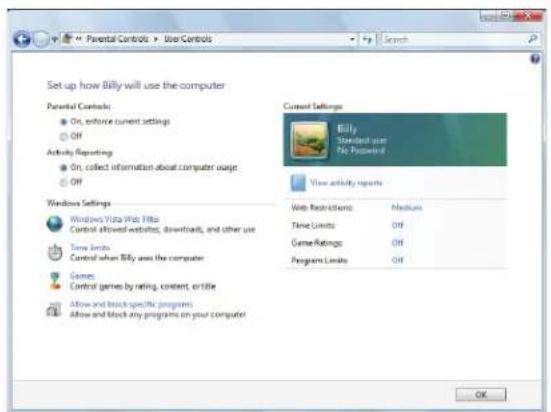
text_image
Parental Controls > User Controls Set up how Billy will use the computer Parental Controls: On, enforce current settings OFF Activity Reporting On, collect information about computer usage OFF Windows Settings Windows Vista Web Fiji Control allowed websites, downloads, and other use Time limits Control when Billy uses the computer Games Control games by rating, content, or title Allow and block specific programs Allow and block any programs on your computer Current Settings Billy Standard user No Processed View activity reports Web Restrictions Mediums Time Limits Off Game Ratings Off Program Limits Off OK3 Click On, enforce current settings, then click Windows Vista Web Filter. The Web Restrictions dialog box opens.
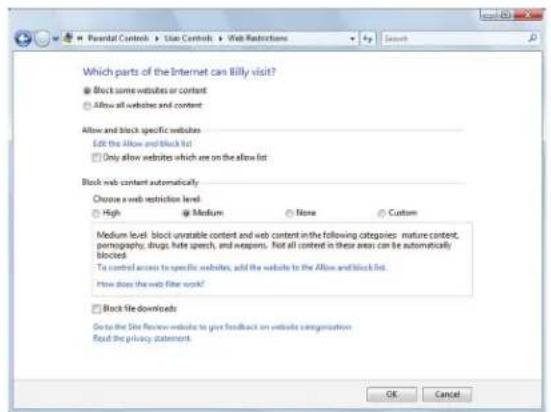
text_image
Which parts of the Internet can Billy visit? Block some websites or content Allow all websites and content Allow and block specific websites Edit the Allow and block list Only allow websites which are on the allow list Block web content automatically Choose a web restriction level High Medium None Custom Medium level: block unvrable content and web content in the following categories: mature content, portography, drugs, hate speech, and weapons. Not all content in these areas can be automatically blocked. To control access to specific websites, add the website to the Allow and block list. How does the web filter work? Block file downloads Go to the Site Review website to give feedback on website categorization Read the privacy statement. OK Cancel4 Specify the settings you want to use for this user, then click OK. The settings are saved.
■
Scheduling notebook and Internet use
▶ To schedule the times a user can access the Internet:
1 Click (Start), Control Panel, then under User Accounts and Family Safety, click Set up parental controls for any user. The Parental Controls dialog box opens.
2 Click the user account to schedule for, then click Time limits. The Time Restrictions dialog box opens.
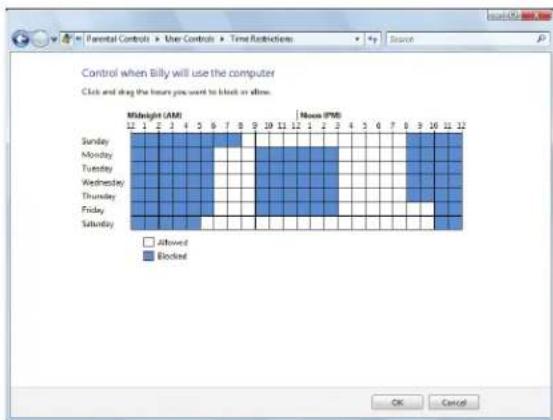
bar
Control when Billy will use the computer Click and drag the hours you want to block or allow. Midnight (AMI) 12 1 2 3 4 5 6 7 8 9 10 11 12 Monday Tuesday Wednesday Thursday Friday Saturday Nuve (PWI) 1 2 3 4 5 6 7 8 9 10 11 12 Allowed Blocked OK Cancel3 Click inside the grid to set when the user can access your notebook. Blocked hours are blue, and allowed hours are white.
■
Restricting game access
You can restrict games by game ratings, or you can specify the games which are not allowed.
▶ To restrict games by game ratings:
1 Click (Start), Control Panel, then under User Accounts and Family Safety, click Set up parental controls for any user. The Parental Controls dialog box opens.
2 Click the user account to set up restrictions for, then click Games. The Game Controls dialog box opens.
text_image
Control which types of games Billy can play Can Billy play games? Yes No Block (or allow) games by rating and content types 3d game ratings Maximum allowed rating: ADULTS ONLY, including created games Game description blocked: None Block (or allow) any game on your computer by name Block or Allow specific games Always blocked: None Always allowed: NoneCHAPTER 7: Customizing Windows
3 Click Set game ratings. The Game Restrictions dialog box opens.
text_image
Control which types of games Billy can play If a game has no rating, can Billy play it? Allow games with no rating Block games with no rating Which ratings are all for Billy to play? The Entertainment Software Rating Board defines these ratings. ESRB EARLY CHILDHOOD Titles rated SC - Early Childhood have content that may be suitable for ages 3 and older, Titles in this category contain no material that parents would find happy updates. EVERYONE Titles rated E - Everyone have content that may be suitable for persons ages 8 and older, Titles in this category may contain universal violence, some comic mischet, and/or mild language. EVERYONE 50+ Titles rated CO + - Everyone 10 and older have content that may be suitable for ages 10 and older. Titles in this category may contain more corrosion, fantasy or mild violence, mild language, and/or universal suggestive themes. TEN Titles rated T - Teen have content that may be suitable for persons ages 13 and older. Titles in this category may contain violent content, mild or strong language, and/or strong language. MATURG OK Cancel4 Click the level of games you want allowed, then click OK. The settings are saved.
▶ To restrict specific games:
1 Click (Start), Control Panel, then under User Accounts and Family Safety, click Set up parental controls for any user. The Parental Controls dialog box opens.
2 Click the user account to set up restrictions for, then click Games. The Game Controls dialog box opens.
text_image
Control which types of games Billy can play Can Billy play games? Yes No Block (or allow) games by rating and content types Set game ratings Maximum allowed rating ADULTS ONLY, including unused games Game description blocked: None Block (or allow) any games in your computer by name Block or Allow specific games: Always blocked: None Always allowed: None3 Click Block or Allow specific games. The Game Overrides dialog box opens.
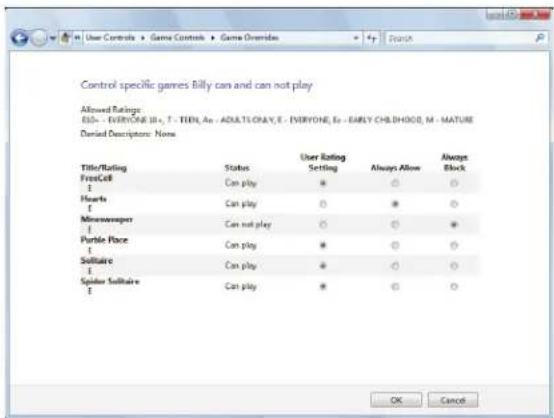
text_image
Control specific games Billy can and can not play Allowed Ratings: E50 - EVERYONE III, T - THEN, An - ADULTI ONLY, E - EVERYONE, E6 - EARLY CHILDHOOD, M - MATURE Denied Descriptors: None Title/Rating F FreeCell I Hearts F Minewwwper I Puzzle Place I Softaire I Spider Softaire F Status Can play * Can play * Can play * Can play * User Rating Setting Always Allow Always Block * * * * * * * * OK Cancel4 Click the level of access you want for each game listed, then click OK. If the game you want to restrict access to is not shown on the list, see "Restricting specific programs" on page 85.
Restricting specific programs
▶ To restrict specific programs:
1 Click (Start), Control Panel, then under User Accounts and Family Safety, click Set up parental controls for any user. The Parental Controls dialog box opens.
2 Click the user account to set up restrictions for, then click Allow and block specific programs. The Application Restrictions dialog box opens.
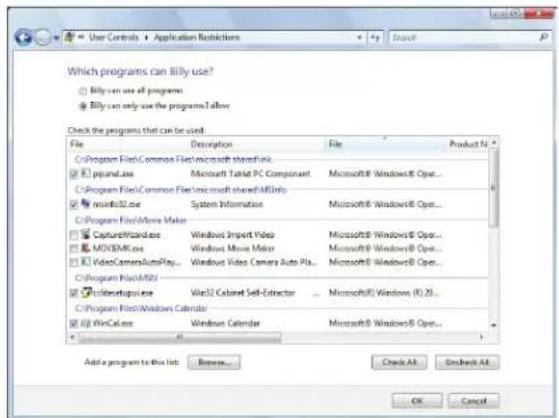
text_image
Which programs can Billy use? Billy can use all programs Billy can only use the programsAllow Check the programs that can be used. File Description File Product N C:\Program Files\Common Files\Microsoft stored\link C:\pipeline.exe Microsoft Tablet PC Component Microsoft® Windows® Oper... C:\Program Files\Common Files\Microsoft stored\MInfo Windows32.exe System Information Microsoft® Windows® Oper... C:\Program Files\Movie Maker CaptureWizard.exe Windows Import Video Microsoft® Windows® Oper... MOVIEM.exe Windows Movie Maker Microsoft® Windows® Oper... VideoCameraAutoPlay... Windows Video Camera Auto Play... Microsoft® Windows® Oper... C:\Program Files\MSI C:\Software.exe Win32 Cabinet Self-Extractor Microsoft® Windows (R) 20... C:\Program Files\Windows Calendar WinCal.exe Windows Calendar Microsoft® Windows® Oper... Add a program to this list Browse... Check All Encheck All OK Cancel3 Click [User name] can only use the programs I allow, click the checkbox for each program you want to allow access to, then click OK.

Tip
Click Check All, then click to uncheck the checkboxes of theams you want to restrict access to.

Creating activity reports
To create a report of a user's notebook and Internet use:
1 Click (Start), Control Panel, then under User Accounts and Family Safety, click Set up parental controls for any user. The Parental Controls dialog box opens.
2 Click the user account to create a report for, then click View activity reports. The activity report is displayed.
The activity report includes such information as:
• Top 10 Web sites visited
- Most recent 10 Web sites blocked
- File downloads
- Applications run
- Logon times

CHAPTER 7: Customizing Windows
CHAPTER8
Maintaining Your Notebook
- Setting up a maintenance schedule
- Updating Windows
- Managing hard drive space
• Scheduling maintenance tasks - Moving from your old computer
Setting up a maintenance schedule
Use the following table to set up a regular maintenance schedule.
| Maintenance task Weekl y | Monthly When needed |
| Check for viruses X X X | |
| Run Windows Update X X | |
| Manage hard drive space | X |
| Clean up hard drives X X | |
| Scan hard drive for errors | X X |
| Defragment hard drive X X | |
| Back up files X X X |
Updating Windows
Windows Update helps you keep your notebook up-to-date. Use Windows Update to choose updates for your notebook's operating system, software, and hardware. New content is added to the site regularly, so you can always get the most recent updates and fixes to protect your notebook and keep it running smoothly. Windows Update scans your notebook and provides you with a tailored selection of updates that apply only to the software and hardware on your notebook.
For information on running Windows Update, see "Windows Update" on page 65. Windows Update can also be controlled through the Windows Security Center. For more information, see "Protecting Your Notebook" on page 59.

Help
For more information about Windows Update, click Start, then click Help and Support. Type windows update in the Search Help box, then press ENTER.
Managing hard drive space
Windows provides several utilities you can use to check hard drive space, delete unnecessary files, defragment files, and back up files.
Checking hard drive space
▶ To check hard drive space:

Shortcut
Start Á Computer Á right-click drive Á Properties
1 Click (Start) then click Computer. The Computer window opens.
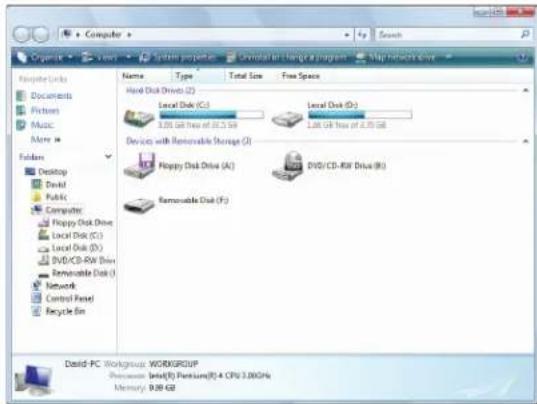
text_image
Organics Computer System projects Revise in change a program Map network drive File Links Documents Pictors Music More Folders Desktop Desktop Public Computer Floppy Disk Drive Local Disk (C:) Local Disk (D:) Local Disk (E:) Local Disk (G:) DVD/CD-RW Drive Removable Disk (I:) Network Control Panel Recycle Bin Name Type Total Size Free Space Hand Disk Drive (L) Local Disk (CD) 3.05 GB free of 22.3 GB Local Disk (D:) 1.08 GB free of 2.75 GB Devices with Removable Storage (I:) Floppy Disk Drive (A:) DVD/CD-RW Drive (B:) Removable Disk (F:) David-PC Workgroup WORKGROUP Properties: local(5) Platform(5) 4 CPU 3.00GHz Memory: 9.89 GB2 Right-click the drive that you want to check for available file space, then click Properties. Drive space information appears.
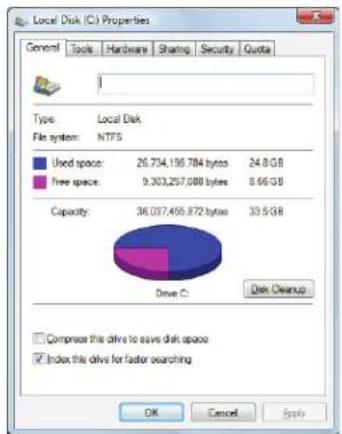
pie
| Type | Local Disk | NETFS | | --- | --- | --- | | Used space | 26.734 | 190.784 bytes | | Free space | 9.303 | 257.088 bytes | | Capacity | 36.097 | 456.872 bytes | | Drive C | 33.5 | - | Disk Cleanup Compressor this drive to save disk space Index this drive for faster searching OK Cancel ApplyDeleting unnecessary files
Delete unnecessary files, such as temporary files and files in the Recycle Bin, to free hard drive space.
▶ To delete unnecessary files:

Shortcut
Start Á Computer Á right-click drive Á Properties Á Disk Cleanup
1 Click® (Start), All Programs, Accessories, System Tools, then click Disk Cleanup. The Disk Cleanup dialog box opens.
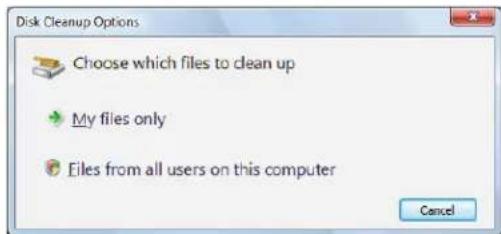
text_image
Disk Cleanup Options Choose which files to clean up My files only Files from all users on this computer Cancel2 Click one of the options:
• My files only cleans only the folders for the currently logged in user.
- Files from all users on this computer cleans all folders.
The Disk Cleanup dialog box opens.
3 Click to select the types of files you want to delete, then click OK. The types of files you indicated are deleted.

Help
For more information about keeping the hard drive free of unnecessary files, click Start, then click Help and Support. Type disk cleanup in the Search Help box, then press ENTER.

Checking the hard drive for errors
The Error-checking program examines the hard drive for physical flaws and file and folder problems. This program corrects file and folder problems and marks flawed areas on the hard drive so Windows does not use them.
If you use your notebook several hours every day, you probably want to run Error-checking once a week. If you use your notebook less frequently, once a month may be adequate. Also use Error-checking if you encounter hard drive problems.
▶ To check the hard drive for errors:
1 Click (start) then click Computer. The Computer window opens.
2 Right-click the drive that you want to check for errors, click Properties, then click the Tools tab.
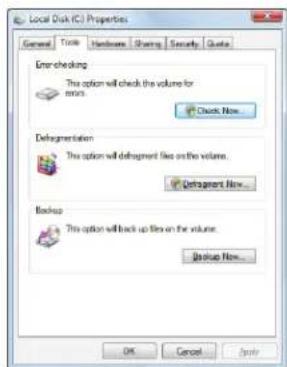
text_image
Local Disk (C:) Properties General Tools Hardware Sharing Security Guide Error-checking This option will check the volume for error. Check Now... Defragmentation This option will defragment files on the volume. Defragment Now... Backup This option will back up files on the volume. Backup Now... OK Cancel Apply3 Click Check Now, then click Start. Your drive is checked for errors. This process may take several minutes.
Important Error checkin
Error checking cannot scan a drive while the drive is being used, so if you try to check your hard drive for errors, you see a prompt asking you if you want to scan the hard drive later (the next time you restart your notebook). If you see this prompt, click Schedule disc check.
After Windows has finished checking the drive for errors, it provides a summary of the problems that it found.
4 Correct any problems that are found by following the on-screen instructions.
5 Click OK.
? Help For m
For more information about checking the hard drive for errors, click Start, then click Help and Support. Type checking for disk errors in the Search Help box, then press ENTER.

Defragmenting the hard drive
When working with files, sometimes Windows divides the file information into pieces and stores them in different places on the hard drive. This is called fragmentation, and it is normal. In order for your notebook to use a file, Windows must search for the pieces of the file and put them back together. This process slows the hard drive performance.
Disk Defragmenter organizes the data on the drive so each file is stored as one unit rather than as multiple pieces scattered across different areas of the drive. Defragmenting the information stored on the drive can improve hard drive performance.
While Disk Defragmenter is running, do not use your keyboard or mouse because using them may continuously stop and restart the defragmenting process. Also, if you are connected to a network, log off before starting Disk Defragmenter. Network communication may stop the defragmentation process and cause it to start over.

Tip
Because defragmenting a drive may take hours to complete (depending on the size of the drive being defragmented), consider starting the process when you will not need your notebook for several hours.
▶ To defragment the hard drive:
1 Disconnect your notebook from the network.
2 Click (Start), All Programs, Accessories, System Tools, then click Disk Defragmenter. The Disk Defragmenter dialog box opens.
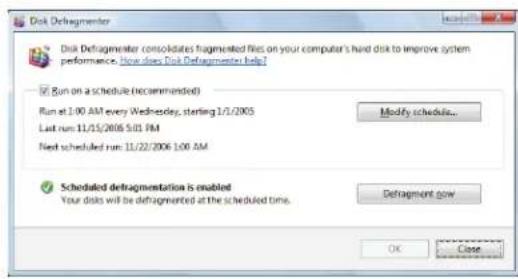
text_image
Disk Defragmenter Disk Defragmenter consolidates fragmented files on your computer's hard disk to improve system performance. Now does Disk Defragmenter help? ✓ Run on a schedule (recommended) Run at 1:00 AM every Wednesday, starting 1/1/2005 Last run 11/15/2006 5:01 PM Next scheduled run 11/22/2006 1:00 AM Modify schedule... ✓ Scheduled defragmentation is enabled Your disks will be defragmentation at the scheduled time. Defragment now OK3 Click Defragment now. This process may take hours to complete, depending on the size of the drive being defragmented.

Help
For more information about defragmenting the hard drive, click Start, then click Help and Support. Type defragmenting in the Search Help box, then press ENTER.

Backing up files
Backing up files and removing them from the hard drive frees space for new files on the hard drive. It also protects you from losing important information if the hard drive fails or you accidentally delete files.
You should back up your files regularly to a writable optical disc (if you have a recordable drive). Use a backup device, such as a recordable disc drive, to do a complete hard drive backup.
▶ To back up files:
1 Click (Start), then click Computer. The Computer window opens.
2 Right-click the drive that you want to back up, click Properties, then click the Tools tab.
text_image
Local Disk (C:) Properties General Tools Hardware Sharing Security Quotes Error-checking This option will check the volume for error. Check Now... Defragmentation This option will fragment flow on the volume. Defragment Now... Backup This option will back up file on the volume. Backup Now... OK Cancel Apply3 Click Backup Now, then click Run a file backup now.
4 Follow the on-screen instructions to select a backup storage location and the files and folders to back up.

Help
For more information about backing up files, click Start, then click Help and Support. Type backup in the Search Help box, then press ENTER.

Scheduling maintenance tasks
Task Scheduler lets you schedule maintenance tasks such as running Disk Defragmenter and checking your drives for errors.

Important
Your notebook must be on during scheduled tasks. If your notebook is scheduled tasks will not run.
▶ To start the Task Scheduler:
1 Click (Start), All Programs, Accessories, System Tools, then click Task Scheduler. The Task Scheduler dialog box opens.
text_image
Task Scheduler File Actions Save Help Task Scheduler (Local) Task Scheduler Library Task Scheduler Summary to be installed in 2016.08.04 AM Overview of Task Scheduler You can use Task Scheduler to create and manage common tasks that you compute will carry or automatically at the times you specify. Take steps, click a command in the Action menu. Tasks are allowed to be solved in the Task Task Status Status of tasks that have been done: Last 24 hours Summary: 10 total - Running 7 succeeded, Unloaded... Task Name Run Result Consolidator (last non success)... ConsultingPage (last non success)... ManualDialog (last non success)... Schedules/Draft (last non success)... Last refiled at 12/30/2008 10:20:06 AM Actions Task Scheduler (Local) Connect to Another Computer... Create Basic Tasks... Create Tasks... Import Tasks... Display All Running Tasks AT Service Account Configuration... None Refresh Help2 Click Create Basic Task for basic tasks or click Create Task for more complex tasks, then follow the on-screen instructions to finish setting up and scheduling the task.

Help
For more information about scheduling tasks, click Start, then click Help and Support. Type task scheduler in the Search Help box, then press ENTER.

Moving from your old computer
Transferring files and settings with Windows Easy Transfer
You can move your files, folders, software settings, and user account settings (such as display, Internet, and e-mail settings) from your old computer to your new one using Windows Easy Transfer, providing your old computer uses Windows XP or Windows Vista.
While using Windows Easy Transfer, you will not be able to run other tasks on the computers.

Important
If your old computer does not use Windows XP or Windows Vista, you manually move your data by using a writeable disc, flash drive, or nal hard drive.
▶ To move files and settings from your old computer:
1 If you want to transfer program settings to your new notebook, install those programs on the new notebook before running Windows Easy Transfer. Windows Easy Transfer copies only the software's settings, not the software itself, to the new notebook.
2 Click (Start), All Programs, Accessories, System Tools, then click Windows Easy Transfer. The Windows Easy Transfer dialog box opens.
3 Click Next, click Start a new transfer, then follow the on-screen instructions to complete the transfer.

Help
For more information about transferring files, click Start, then click Help and Support. Type transferring files in the Search Help box, then press ENTER.

Transferring files and settings manually
You can manually transfer your personal data files by copying them to removable media, such as a writable disc, an external hard drive, a network location, or a flash drive.
Finding your documents
Many programs save your personal data files in the Documents or My Documents folder. Look in your old computer's documents folder for personal data files.
▶ To find files in the documents folder:
1 In Windows Vista, click (Start), then click Documents. The Documents folder opens and displays many of your saved personal data files. Go to Step 4. - OR -
In Windows XP, click Start, then click My Documents. The My Documentswindow opens and displays many of your saved personal data files. Go to Step 4. - OR -
In Windows 98, Windows Me, or Windows 2000, double-click the My Computer icon on the desktop. Go to the next step.
2 Double-click the C:\ drive icon.
3 Double-click the Documents or My Documents folder. The My Documents window opens and displays many of your saved personal data files.
4 Copy your personal data files to removable media or to another computer on your network.
Finding other files
Use Windows Find or Search to locate other personal data files. For more information, see "Searching for files" on page 12.
You can often identify different data file types by looking at the file's extension (the part of the file name following the last period). For example, a document file might have a .DOC extension and a spreadsheet file might have an .XLS extension.
File type File usually ends in...
Documents .DOC, .TXT, .RTF, .HTM, .HTML, .DOT
Spreadsheets .XLS, .XLT, .TXT
Pictures .JPG, .BMP, .GIF, .PDF, .PCT, .TIF, .PNG, .EPS
Movies .MPEG, .MPG, .AVI, .GIF, .MOV
Sound and music .WAV, .CDA, .MP3, .MID, .MIDI, .WMA
▶ To find files using Find or Search:
1 In Windows Vista, click (Start), then click Search. The Search Results window opens.
- OR -
In Windows XP, click Start, then click Search. The Search Results window opens.
- OR -
In Windows 98, Windows Me, or Windows 2000, click Start, Find or Search, then click For Files or Folders. The Search Results window opens.
2 Type the filename you want to search for, then press E NTER. The search results are displayed.
3 To learn about more search options, click Help.
■
Notices
Copyright © 2008 Gateway, Inc.
All Rights Reserved
7565 Irvine Center Drive
Irvine, CA 92618 USA
All Rights Reserved
This publication is protected by copyright and all rights are reserved. No part of it may be reproduced or transmitted by any means or in any form, without prior consent in writing from Gateway.
The information in this manual has been carefully checked and is believed to be accurate. However, changes are made periodically. These changes are incorporated in newer publication editions. Gateway may improve and/or change products described in this publication at any time. Due to continuing system improvements, Gateway is not responsible for inaccurate information which may appear in this manual. For the latest product updates, consult the Gateway Web site at www.gateway.com. In no event will Gateway be liable for direct, indirect, special, exemplary, incidental, or consequential damages resulting from any defect or omission in this manual, even if advised of the possibility of such damages.
In the interest of continued product development, Gateway reserves the right to make improvements in this manual and the products it describes at any time, without notices or obligation.
Trademark Acknowledgments
Gateway and the Black-and-White Spot Design are trademarks or registered trademarks of Gateway, Inc. in the U.S. and other countries. Intel, Intel Inside logo, and Pentium are registered trademarks of Intel Corporation. Microsoft, MS, and Windows are trademarks or registered trademarks of Microsoft Corporation. All other product names mentioned herein are used for identification purposes only, and may be the trademarks or registered trademarks of their respective companies.
Macrovision statement
If your notebook has a DVD drive and an analog TV Out port, the following paragraph applies:
This product incorporates copyright protection technology that is protected by U.S. patents and other intellectual property rights. Use of this copyright protection technology must be authorized by Macrovision Corporation, and is intended for home and other limited viewing uses only unless otherwise authorized by Macrovision Corporation. Reverse engineering or disassembly is prohibited.
CHAPTER 8: Maintaining Your Notebook
Index
A
accessing shared files 56
accounts Internet 22 ISP 22 user 77
adding icons to desktop 8 user accounts 77
address e-mail 25 Web 24
AU file 34
audio playing 34
audio CD adding tracks to library 38 editing track information 39 playing 35
AVI file 34
B
backing up files 92
BigFix 66
broadband Internet connection 22, 48, 51
browser Web 22, 23
browsing for files and folders 13
C
cable modem 23, 47, 48
CD adding tracks to your library 38 creating audio 39 creating data 43 editing track information 39 playing music 35
clipboard 10
close button 9
closing program 9,19 window 9,19
color changing scheme 69
computers naming 51
configuring router 52 TCP/IP protocol 52
connecting to Internet 23 to Web site 24
copying files across network 57 files and folders 10, 19 text and graphics 19
copyright notice 95
creating desktop icons 8 desktop shortcuts 8 documents 17 folders 10 music files 38 video DVD 40 WMA files 38
customizing 67
cutting files and folders 10
D
defragmenting hard drive 91
deleting files and folders 6, 11, 19, 90
desktop adding icons 8 adding shortcuts 8 adjusting settings 68 changing color scheme 69 selecting screen saver 70 using 6 using Start menu 7
DHCP 52
digital pen button 15 gestures 15 tips 15
disconnecting from Internet 22
Disk Cleanup 90
Disk Defragmenter 91
display using screen saver 70
documentation Gateway Web site 2 help 2 Help and Support 2 online help 4
documents creating 17 opening 18 printing 18 saving 17
downloading files 24
drivers updating 2
drives backing up files 92 checking for errors 90 checking for free space 89 defragmenting 91 mapping network 56 sharing 55 un-sharing 55 viewing contents 9 viewing files and folders 9
DSL modem 23, 47, 48
DVD creating data 43 creating video 40 playing 35
Dynamic Host Configuration Protocol 52
E
editing music track information 39
e-mail address 25 checking for messages 25 sending 25 using 22, 25
Error-checking 90
Ethernet network equipment needed 47 example 47 installing cards 48, 51 installing drivers 48, 51
F
Fast Ethernet 46
faxes canceling 31 receiving and viewing 31 sending 31 sending a Fax 26 sending from program 31 sending scanned image 31 setting up cover page template 31
files backing up 92 copying 10, 19 cutting 10 deleting 6, 11, 19, 90 downloading 24 finding 12, 13 moving 10 opening 7 opening shared 56
pasting 10, 19
recovering 11
renaming 19
searching for 12, 13, 94
sharing 55
transferring 94
types 94
un-sharing 55
viewing list 9
finding
files and folders 12, 13, 94
Help and Support topics 3
folders
copying 10, 19
creating 10
cutting 10
deleting 6, 11, 19
finding 12, 13
moving 10
opening 9
pasting 10, 19
recovering 11
renaming 19
searching for 12, 13
sharing 55
un-sharing 55
viewing list 9
fragmentation 91
G
gadgets
adding 71
configuring 71
configuring Sidebar 72
control panel 72
Sidebar 71
using 71
game access
restricting 83
Gateway
Web address 2
Web site 2
Gigabit Ethernet 46
H
hard drive
backing up files 92
checking for errors 90
checking for free space 89
defragmenting 91
deleting files and folders
90
scanning for errors 90
help
Media Center 3
online 4
using 2
Help and Support 2
searching 3
starting 3
hyperlinks 23
|
Internet
account 22
connecting to 23
downloading files 24
filtering 82
requirements to access 22
using 22
Internet service provider (ISP) 22
connecting to 23
disconnecting from 22
setting up account 22
IP address
entering 52
ISP
See Internet service
provider
K
keyboard
icon 16
keyboard shortcuts 19
L
LCD panel
using screen saver 70
links 23
M
maintenance
backing up files 92
checking for drive errors 90
checking hard drive
space 89
defragmenting 91
deleting files 90
suggested schedule 88
using Scheduled Task
Wizard 93
virus protection 61
mapping network drives 56
maximize button 9
Media Center
see Windows Media
Center
Media Player 34
menu bar 9
messages
checking e-mail 25
sending e-mail 25
Microsoft
Internet Explorer 22
Outlook 22
Outlook Express 22
Windows Media Player 34
Wordpad 17
MIDI file 34
minimize button 9
modem
cable 23,47,48
dial-up 22
DSL 23, 47, 48
mouse
changing settings 74
moving
files 10
files from old computer
93, 94
folders 10
settings from old
computer 93
MP3 file
creating 38
editing track information
39
playing 34
MPEG file
playing 34
multimedia
playing audio CD 35
playing DVD 35
recording audio 37
using Windows Media
Player 34
music library
building 38
music tracks
copying 38
N
name
computer 51
workgroup 51
naming
computers 51
workgroup 51
network
testing 54
using 56
O
online help 2,4
opening
documents 18
files 7
files across network 56
folders 9
programs 7
P
parental controls 82
activity reports 85
blocking specific games 84
game ratings 83
Internet filtering 82
restricting game access 83, 84
restricting programs 85
scheduling computer use 83
scheduling Internet access 83
time limits 83
pasting
files and folders 10, 19
text and graphics 19
playing
audio CD 35
audio file 34
Media Player file 34
multimedia files 34
music CD 35
Windows Media Player file 34
printer
sharing 56
printing
documents 18
files across network 57
programs
closing 19
opening 7
restricting 85
R
recording
audio file 37
CD tracks 38
recovering files and folders 11
Recycle Bin 6
deleting files and folders 11
emptying 12
recovering files and folders 11
removing files and folders 6, 11, 12, 19, 90
renaming files and folders 19
restoring files and folders 11
router
configuring 52
S
saving
documents 17
Scheduled Tasks Wizard 93
scheduling
computer use 83
screen
adjusting settings 68
controls 68
saver 70
using screen saver 70
Search utility 12
searching
for files and folders 12, 13, 94
in Help and Support 3
security
Norton 360 61
Norton Internet Security 63
sharing
drives 55
folders 55
printer 56
shortcuts
adding to desktop 8
closing programs 19
closing windows 19
copying 19
deleting files and folders 19
keyboard 19
pasting 19
renaming files and folders 19
selecting adjacent items in list 19
selecting items in list 19
switching between files, folders, or programs 19
software
See programs
Sound Recorder
recording audio 37
Start button 6
Start menu 7
starting programs 7
subnet mask
entering 52
support
using 2
T
Tablet PC Input Panel 16
taskbar 6
TCP/IP protocol
configuring 52
telephone
canceling fax 31
installing Fax 26
receiving and viewing faxes 31
sending fax 31
sending faxes from program 31
sending scanned image fax 31
setting up fax cover page template 31
testing network 54
time limits 83
tips
digital pen 15
title bar 8
transferring
files from Internet 24
files from old computer 93, 94
settings from old computer 93
U
un-sharing
drives 55
folders 55
updating
device drivers 2
Windows 88
user accounts
adding in Windows XP 77
switching in Windows XP 77
using
Fax 26
V
video
playing 34
viewing
shared drives 56
shared folders 56
virus
protecting against 61
removing 61
W
WAV file 34
Web browser 22, 23
Web page 23
Web site 23
connecting to 24
downloading files 24
Gateway 2
window 8
close button 9
closing 9,19
maximize button 9
menu bar 9
minimize button 9
title bar 8
Windows
clipboard 10
Search utility 12
Windows Media Center 43
help 3
Windows Media Player
building music library 38
creating music files 38
creating WMA files 38
editing tack information
39
playing audio CD 35
playing audio file 34
viewing video file 34
Windows Mobility Center 80
Windows Security Center
icon 6
using 61
Windows Update 65, 88
WMA file
creating 38
editing track information
39
playing 34
Wordpad 17
workgroup
naming 51
World Wide Web (WWW) 23
downloading files 24
writing 15