
TransMemory U2K - USB Drive TOSHIBA - Free user manual and instructions
Find the device manual for free TransMemory U2K TOSHIBA in PDF.


| Product Type | USB Flash Drive |
| Brand | Toshiba |
| Model | TransMemory U2K |
| Interface | USB 2.0 |
| Storage Capacity | Available in multiple capacities (e.g., 8GB, 16GB, 32GB, 64GB) |
| Flash Memory Type | Toshiba NAND flash memory |
| Power Source | Bus-powered via USB; no AC adapter needed |
| Security Software | TransMemory Secure Software (free download) |
| Privacy Zone | Password-protected encrypted area |
| Public Zone | Unencrypted area for normal data |
| Supported Operating Systems | Windows 2000 Professional SP4, Windows XP SP2 (Home/Pro), Windows Vista (all editions) |
| Minimum CPU | Intel Pentium II 266 MHz or higher |
| Hard Disk Space Required | At least 800 KB |
| USB Port Requirement | USB Specification-compliant port |
| Password Length | Up to 16 characters (half-width alphanumeric, case-sensitive) |
| Maximum Privacy Zone Size | 90% of available user memory |
| Dimensions (Approx.) | 55 × 20 × 10 mm |
| Weight (Approx.) | 10 g |
Frequently Asked Questions - TransMemory U2K TOSHIBA
User questions about TransMemory U2K TOSHIBA
0 question about this device. Answer the ones you know or ask your own.
Ask a new question about this device
Download the instructions for your USB Drive in PDF format for free! Find your manual TransMemory U2K - TOSHIBA and take your electronic device back in hand. On this page are published all the documents necessary for the use of your device. TransMemory U2K by TOSHIBA.
USER MANUAL TransMemory U2K TOSHIBA
Chapter 1: Introduction....2
Chapter 2: Required System Configuration ....4
Chapter 3: How to Download the Security Software .... 5
- Connect the TransMemory™ USB U2K Flash Drive 5
1.1 Downloading the TransMemory™ Secure Software 5
Chapter 4: How to Use the Security Software....7
- Connect the TransMemory™ USB 2.0 Flash Drive .... 7
1.1 Setting up the security software .... 7
1.2 Formatting using the security software 11 - Changing the Security Software Password and Log In/Log Out ..... 15
2.1 Changing the password using the security software 15
2.2 Logging into the Privacy Zone using the security software. ..... 18
2.3 Logging out of the Privacy Zone using the security software ..... 20
Chapter 1: Introduction
Thank you for purchasing a TransMemory™ USB Flash U2K Drive ("TransMemory™" or "TransMemory™ Flash Drive"). The device has the following features:
- This TransMemory™ Flash Drive, featuring Toshiba's NAND flash memory, can be used as a removable disk for a personal computer.
- Toshiba TransMemory™ Secure Software is available to allow password protection of saved data.
- The TransMemory™ Flash Drive is bus-powered, eliminating the need for an AC power adapter.
Important Note: Please comply with all applicable laws regarding the treatment of copyrighted material. Any copyrighted data saved on this device must be used only in accordance with applicable copyright laws.
This document describes how to install and use the TransMemory ^TM Secure Software. Before installing or using this Software, please read this manual thoroughly to ensure correct use.
- The TransMemory ^TM Secure Software works only when connected to one personal computer.
- When formatting TransMemory ^TM Flash Drive using the Secure Software, do not subject it to shaking/impact, turn off the power to your computer, restart your computer, or put it into the Standby or Hibernate mode. If one of the above operations has been performed, please reformat the TransMemory ^TM Flash Drive using the TransMemory ^TM Secure Software.
- The TransMemory™ Flash Drive may stop functioning properly if your computer is restarted or resumed from Standby or Hibernate mode while the TransMemory™ Secure Software is enabled and the Privacy Zone is in use. If one of these operations has been performed, disconnect the TransMemory™ Flash Drive from your computer, reconnect it, and log back into the Privacy Zone.
- If you are using the Windows Vista® operating system and have enabled ReadyBoost™ to use the Public Zone, you may find at times that you are unable to log into the Privacy Zone. If this happens, disable ReadyBoost™, disconnect the TransMemory™ Flash Drive from your computer, reconnect it, and log back into the Privacy Zone.
- If you are using the Windows Vista® operating system, do not enable ReadyBoost™ to
Security Software Installation Manual
use the Privacy Zone.
- The images depicted in this manual may differ from the actual product.
- The design, specifications, product manual, and related information are subject to change without notice.
Trademarks
- Microsoft®, Windows®, Windows Vista® and ReadyBoost™ are trademarks, registered in the United States and other countries, of Microsoft Corporation of the U.S.
- Intel® and Pentium® are trademarks or registered trademarks of Intel Corporation in various nations.
- Other companies and products mentioned herein are trademarks or registered trademarks of their respective owners.
Chapter 2: Required System Configuration
The following are required to properly operate this product:
■ Required hardware
• CPU: Intel Pentium II 266MHz or higher
• Available hard disk space of at least 800 KB
- USB Specification-compliant USB port (Operation on self-built or modified personal computers cannot be guaranteed.)
■ Required operating systems
- Microsoft® Windows® 2000 Professional Service Pack 4 or greater
- Microsoft® Windows® XP Professional Service Pack 2 or greater
- Microsoft® Windows® XP Home Edition Service Pack 2 or greater
- Microsoft® Windows Vista® Ultimate
- Microsoft® Windows Vista® Enterprise
- Microsoft® Windows Vista® Business
- Microsoft® Windows Vista® Home Premium
- Microsoft® Windows Vista® Home Basic
For Microsoft® Windows® XP or Microsoft® Windows® 2000, be sure to first log in as a user belonging to the Administrator's group. If attempting to log in as a User, an error may result.
Note: The TransMemory ^™ Secure Software does not work with any operating system other than Microsoft ^® Windows ^® systems listed above.
Chapter 3: How to Download the Security Software
Please follow the instructions below to download the TransMemory ^TM Secure Software.
■ 1. Connect the TransMemory™ U2K Flash Drive
Before downloading the security software, connect the TransMemory™ Flash Drive to the computer. Close all other applications.
■ 1.1 Downloading TransMemory™ Secure Software
1) Access www.digitalmedia.toshiba.com.
2) Click on the "TransMemory™ USB U2K Secure Software and Installation Manual" link.
3) Then click on the "TransMemory™ U2K Secure Software v304" link.
4) Read and agree to the End User Software License Agreement and click the Download button.
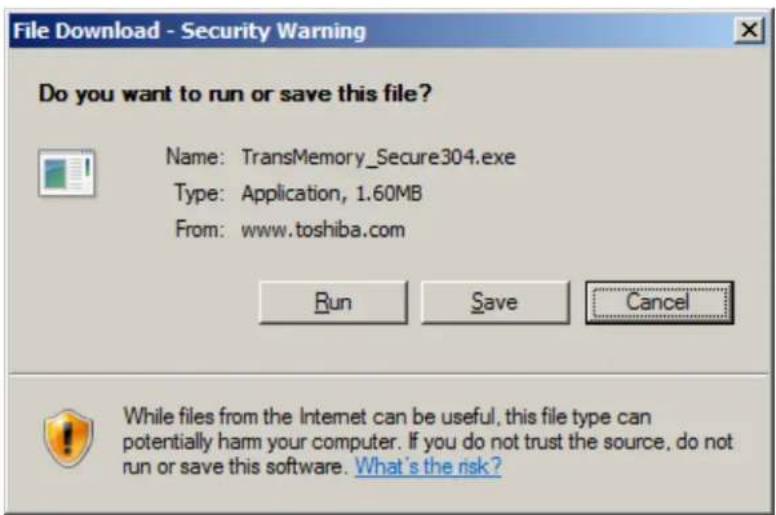
5) Click on "Save" in the dialog box, as shown below
Security Software Installation Manual
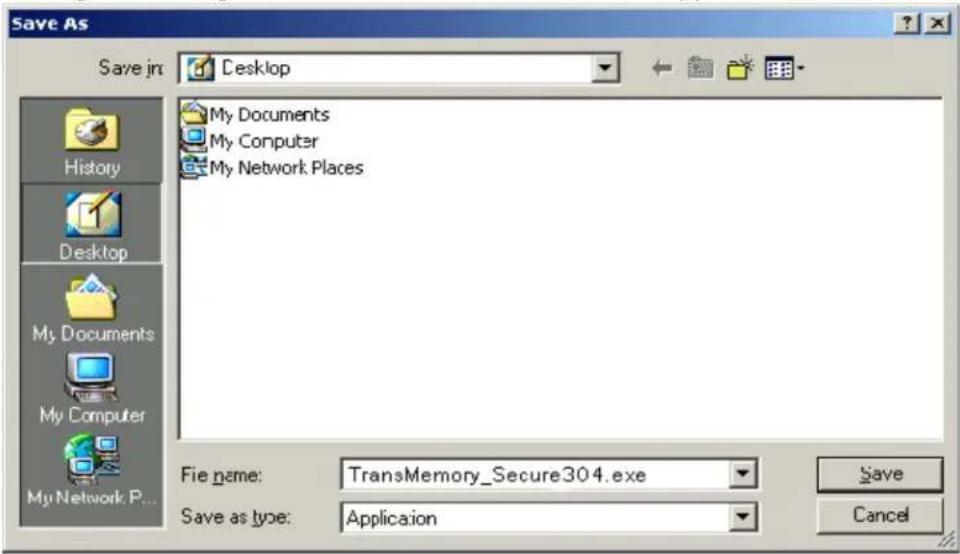
6) A dialog box asking where the software is to be saved appears. Select on "Desktop".
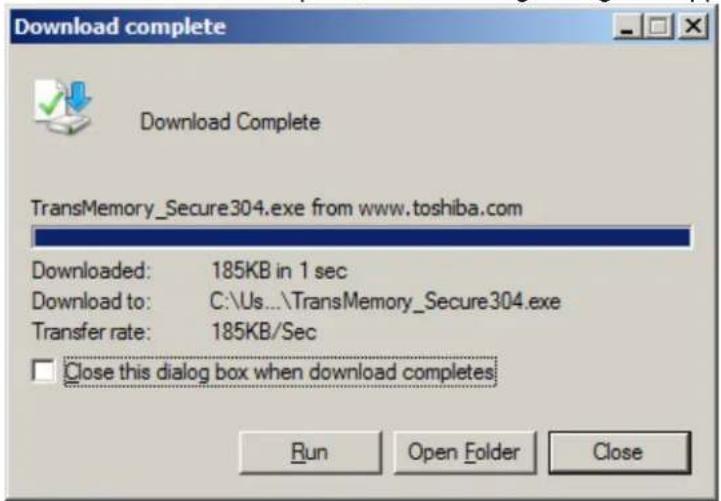
7) When the download is complete, the following dialog box appears. Click on "Close".
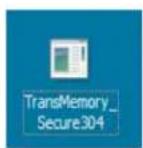
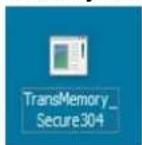
8) On the desktop, the downloaded software named "TransMemory_Secure304.exe" appears as a new executable file.
Chapter 4: How to Use the Security Software
This chapter describes how to use the TransMemory™ Secure Software. Be sure to follow the instructions for correct installation.
Important Note: Before following the instructions below, please back up any data stored in the TransMemory™ Flash Drive that you wish to save. All data may be lost when formatting TransMemory™ for the Privacy Zone. Toshiba assumes no liability for destruction or loss of data stored on TransMemory™ for any reason.
■ 1. Connect the TransMemory USB U2K Flash Drive
Please connect the TransMemory ^TM Flash Drive to your computer before executing the TransMemory ^TM Secure Software.
■ 1.1 Setting up the Security Software
1) Double click on the "TransMemory_Secure304.exe" security software icon to start up the security software.
2) When the following dialog box appears, click on "OK".
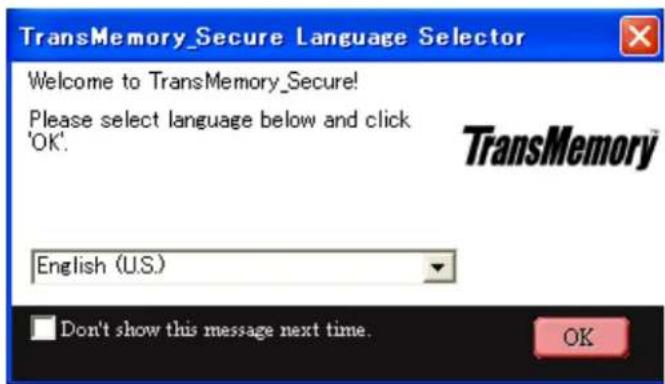
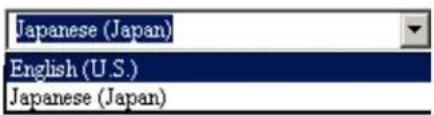
If English is not selected, click on the downward-pointing arrow and select English.
Security Software Installation Manual
3) When the following dialog box appears, confirm and click on "OK" if you have not established a Privacy Zone. The step 7) dialog box on page 11 appears when a Privacy Zone has already been established.
TransMemory\_Secure Welcome
Welcome to TransMemory_Secure. Currently you have no Privacy Zone. To create it, you will need to provide a password and to define the Privacy Zone size. Click 'OK' to continue.
TransMemory
OK Cancel
The following dialog box appears.
TransMemory\_Secure Format
TransMemory\_Secure Format
Setting TransMemory's Privacy Zone
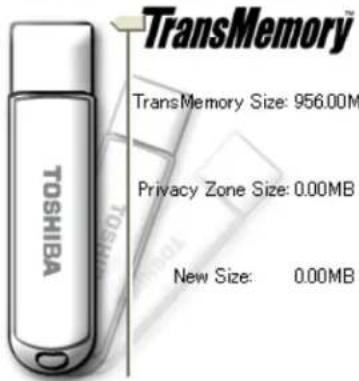
To set the size of your secured Privacy Zone, please enter a password, select the size you need using the slider on the right, and click 'OK'.
Password:
Confirm Password:
Hint:
TransMemory_Secure Version: 3.03
TOSHIBA
OK
Cancel
Security Software Installation Manual
4) Slide the partition to determine the size of the Privacy Zone. Enter the password, reenter the password in the "Confirm Password" box, enter a "Hint" to yourself, and click on "OK".
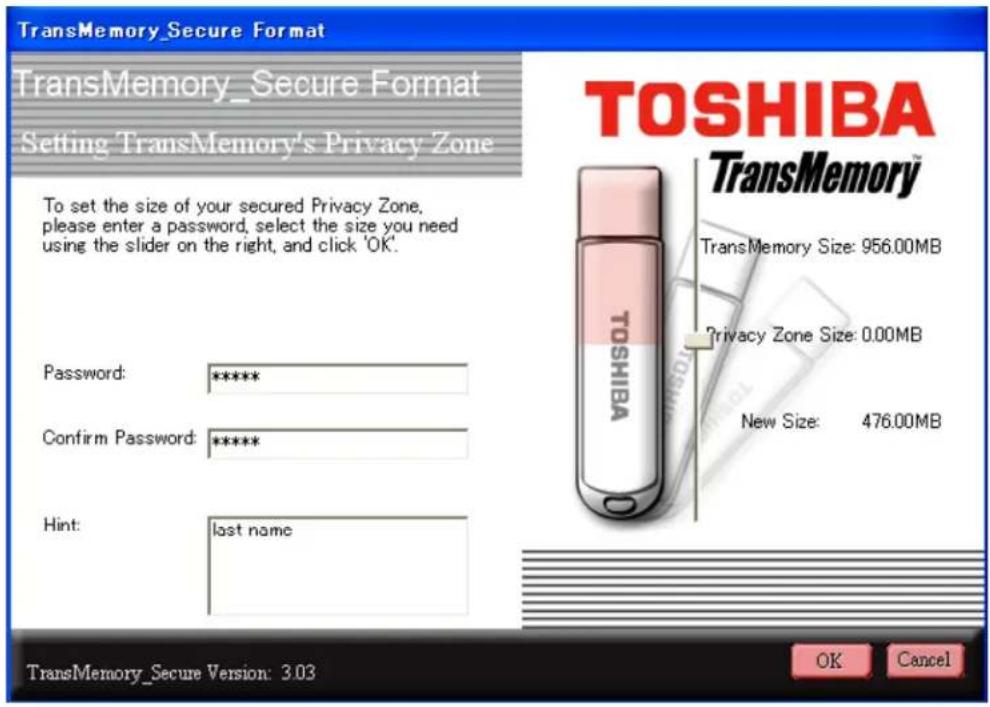
Note: You may choose a password of up to 16 characters using half-width alphanumerics (case sensitive). Please choose a password and hint that is easy for you to remember but difficult for others to guess.
Note: If you forget your password, you will not be able to access any data you have saved in the Privacy Zone. In that case, follow the instructions in Section 1.2 to reformat the TransMemory™ Flash Drive and set a new password. All data stored in both the Privacy Zone and the Public Zone may be lost when the TransMemory™ Flash Drive is reformatted. When formatting using your computer's format command, only the Public Zone will be formatted, but not the Privacy Zone.
Note: The size of the Privacy Zone is limited to a maximum of 90% of the available memory (user area). The pink area denotes the Privacy Zone.
5) When the following dialog box appears, confirm that you have backed up all data on the TransMemory™ Flash Drive that you wish to keep, and then click on "OK".
TransMemory\_Secure Format Warning

Formatting the disk will erase all data on the TransMemory. To format the disk, click 'OK'. To quit, click 'Cancel'.
TransMemory
OK Cancel
The following dialog box appears, then automatically disappears.
TransMemory\_Secure Format
Please wait while your TransMemory is being formatted and the space reclaimed!
TransMemory
6) When the following dialog box appears, confirm and click on "OK".
Format completed

Format successful.
TransMemory
OK
7) The following dialog box appears.
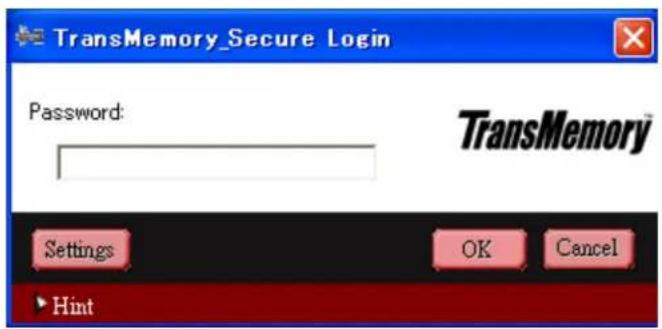
The setup is now complete.
■ 1.2 Formatting using the Security software
Important Note: Reformatting the TransMemory™ Flash Drive or deleting data may not completely remove all data and/or data may be recoverable from the TransMemory™. Before transferring or destroying the TransMemory™ Flash Drive, the use of a product with the functionality to completely remove sensitive saved data, such as software for deleting data available from third-party vendors, is recommended.
1) When the following dialog box appears, click on "Settings".
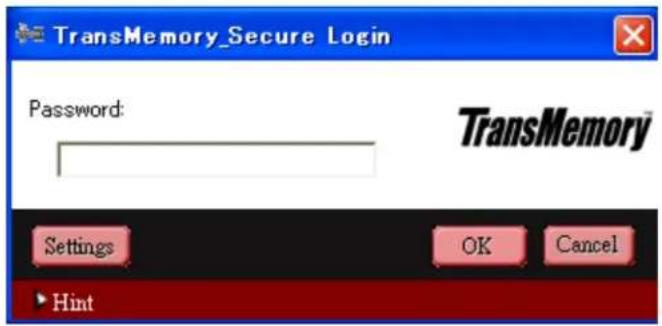
2) When the following dialog box appears, click on "Format".
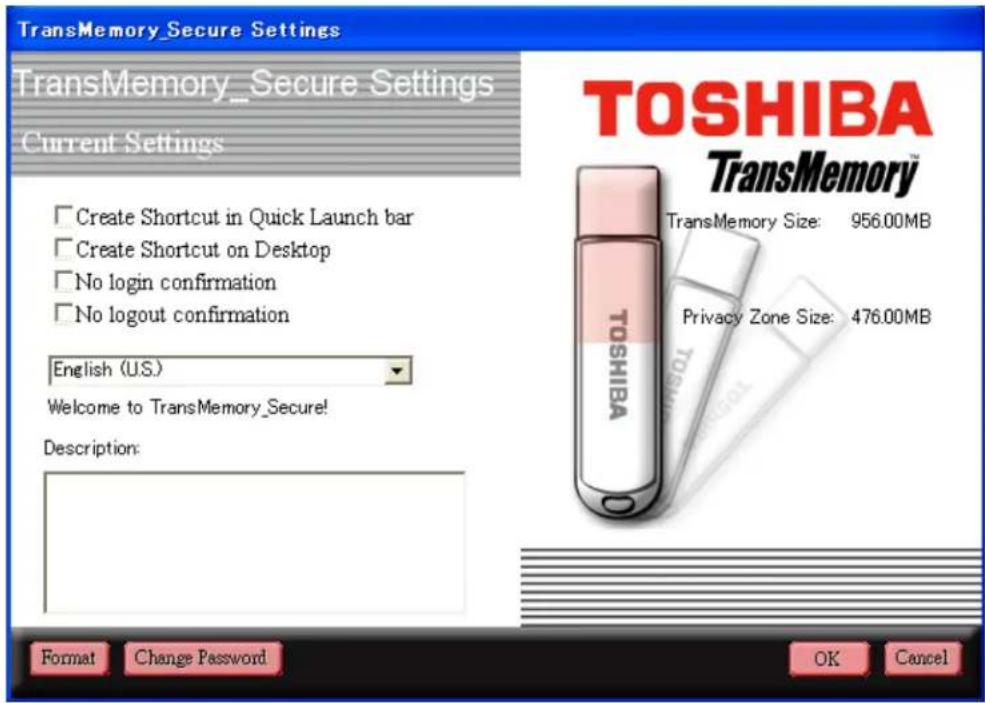
3) When the following dialog box appears, slide the partition to determine the size of the Privacy Zone. Choose a password, reenter the password in the "Confirm Password" box, enter a "Hint" to yourself, and click on "OK".

Note: You may choose a password of up to 16 characters using half-width alphanumerics (case sensitive). Please choose a password and hint that is easy for you to remember but difficult for others to guess.
Note: If you forget your password, you will not be able to access any data you have saved in the Privacy Zone. In that case, follow the instructions in Section 1.2 to reformat the TransMemory™ Flash Drive and set a new password. All data stored in both the Privacy Zone and the Public Zone may be lost when the TransMemory™ Flash Drive is reformatted. When formatting using your computer's format command, only the Public Zone will be formatted, but not the Privacy Zone.
Note: The size of the Privacy Zone is limited to a maximum of 90% of the available memory (user area). The pink area denotes the Privacy Zone
Security Software Installation Manual
4) When the following dialog box appears, confirm that you have backed up all data on the TransMemory™ you wish to keep, and click on "OK".
TransMemory\_Secure Format Warning

Formatting the disk will erase all data on the TransMemory. To format the disk, click 'OK'. To quit click 'Cancel'.
TransMemory
OK
Cancel
5) The following dialog box appears, then automatically disappears.
TransMemory\_Secure Format
Please wait while your TransMemory is being formatted and the space reclaimed!
TransMemory
6) When the following dialog box appears, confirm and click on "OK" to complete formatting.
Format completed

Format successful.
TransMemory
OK
■ 2. Changing the Security Software Password and Log In/Log Out
Be sure to connect the TransMemory™ Flash Drive to your computer before making security software password changes and before logging in and out of the Privacy Zone.
■ 2.1 Changing the password using the Security Software
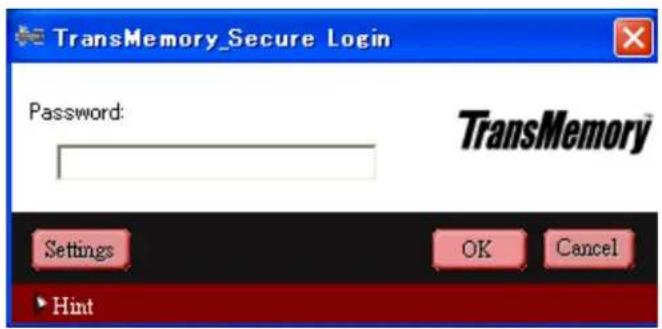
1) When the following dialog box appears, click on "Settings".
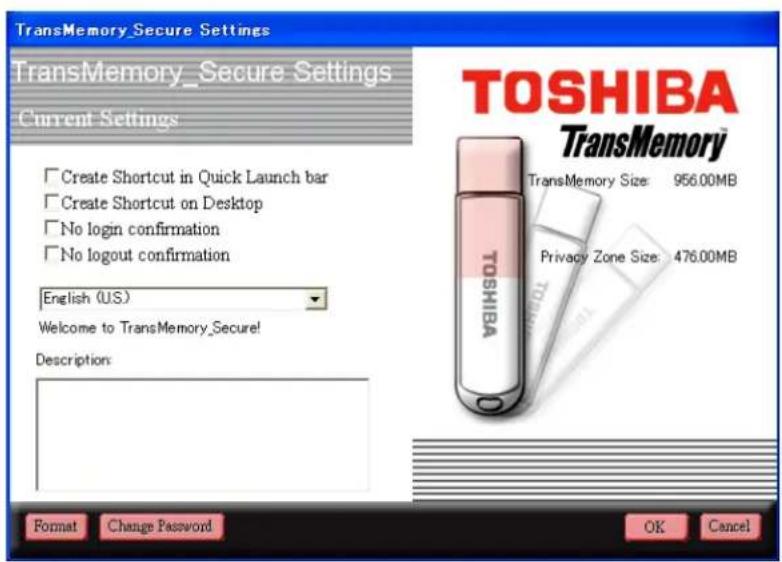
2) When the following dialog box appears, click on "Change Password".
3) When the following dialog box appears, enter the "Old Password", then the "New

Password", reenter the "Confirm New Password", then a "Hint".
4) When the "Old Password", "New Password", "Confirm New Password", and "Hint" have been entered, click on "OK".

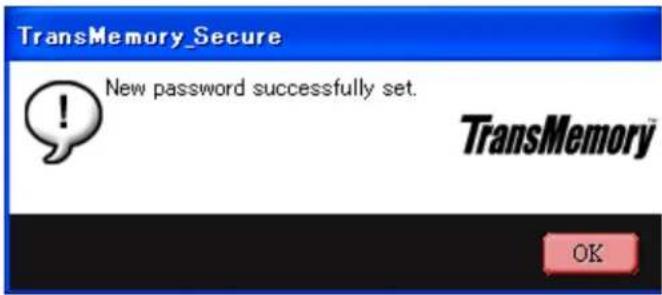
5) When the following dialog box appears, confirm and click on "OK".
■ 2.2 Logging into the Privacy Zone using the Security Software
1) When the following dialog box appears, enter the "Password".
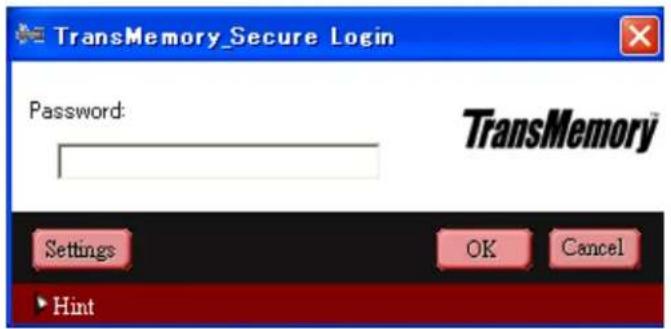
2) When the "Password" has been entered, click on "OK".

3) When the following dialog box appears, confirm and click on "OK".
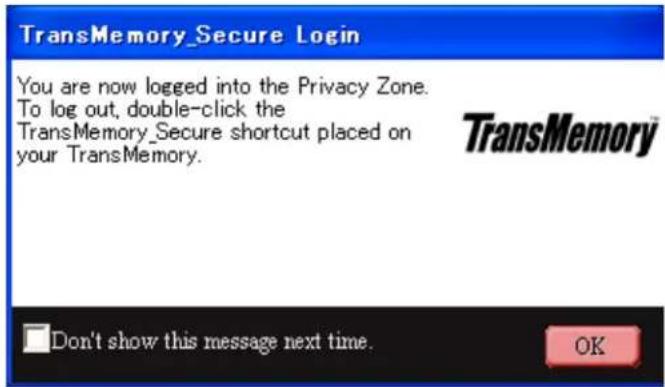
4) When the following dialog box appears, logging into the Privacy Zone is complete.
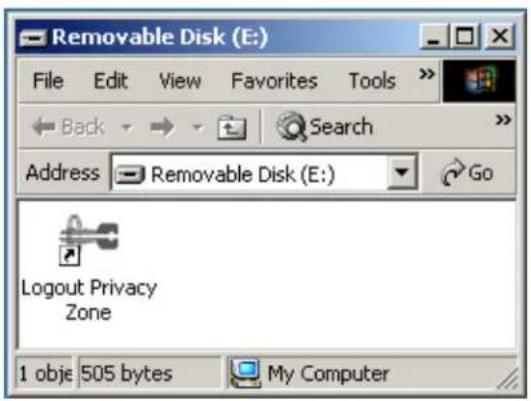
■ 2.3 Logging out of the Privacy Zone using the Security Software
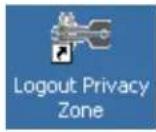
1) Double click on "Logout Privacy Zone" to log out.
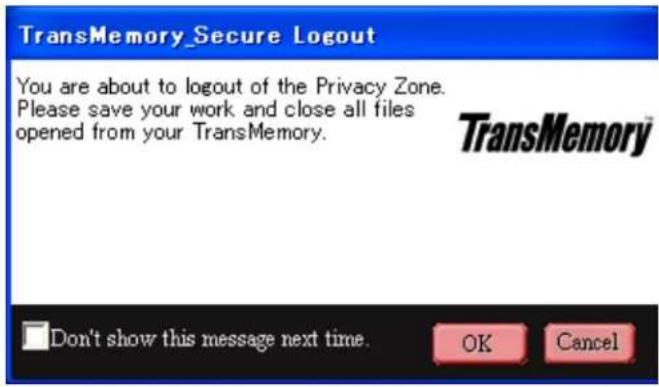
7) When the following dialog box appears, click on "OK".

- Chapter 1: Introduction
- Security Software Installation Manual
- Trademarks
- Chapter 2: Required System Configuration
- ■ Required hardware
- ■ Required operating systems
- Chapter 3: How to Download the Security Software
- ■ 1. Connect the TransMemory™ U2K Flash Drive
- ■ 1.1 Downloading TransMemory™ Secure Software
- Chapter 4: How to Use the Security Software
- ■ 1. Connect the TransMemory USB U2K Flash Drive
- ■ 1.1 Setting up the Security Software
- TransMemory\_Secure Welcome
- TransMemory\_Secure Format
- Setting TransMemory's Privacy Zone
- TOSHIBA
- TransMemory\_Secure Format Warning
- Format completed
- ■ 1.2 Formatting using the Security software
- ■ 2. Changing the Security Software Password and Log In/Log Out
- ■ 2.1 Changing the password using the Security Software
- ■ 2.2 Logging into the Privacy Zone using the Security Software
- ■ 2.3 Logging out of the Privacy Zone using the Security Software
Brand : TOSHIBA
Model : TransMemory U2K
Category : USB Drive