ThinkVision T541 - Monitor LENOVO - Free user manual and instructions
Find the device manual for free ThinkVision T541 LENOVO in PDF.


User questions about ThinkVision T541 LENOVO
0 question about this device. Answer the ones you know or ask your own.
Ask a new question about this device
Download the instructions for your Monitor in PDF format for free! Find your manual ThinkVision T541 - LENOVO and take your electronic device back in hand. On this page are published all the documents necessary for the use of your device. ThinkVision T541 by LENOVO.
USER MANUAL ThinkVision T541 LENOVO
T541 Flat Panel Monitor User Guide
First Edition (June / 2002)
Note : For important information, refer to the Monitor Safety and Warranty manual that comes with this monitor.
This publication could contain technical inaccuracies or typographical errors. Changes are made periodically to the information herein; these changes will be made in later editions. IBM may make improvements and/or changes in the product(s) and/or program(s) at any time.
It is possible that this publication may contain reference to, or information about, IBM products (machines and programs), programming, or services that are not announced in your country.
Requests for copies of this publication and for technical information about IBM products should be made to your IBM Authorized Dealer or IBM Retailer.
No part of this publication may be reproduced or distributed in any form or by any means without prior permission in writing from the International Business Machines Corporation.
© Copyright International Business Machines Corporation 2002. All rights reserved.
Note to U.S. Government Users -- Documentation related to restricted rights -- Use, duplication or disclosure is subject to restrictions set forth in GSA ADP Schedule Contract with IBM Corp.
Notices
References in this publication to IBM products, programs, or services do not imply that IBM intends to make these available in all countries in which IBM operates. Any reference to an IBM product, program or service is not intended to state or imply that only IBM's product, program, or service may be used. Any functionally equivalent product, program, or service that does not infringe any of IBM's intellectual property rights or other legally protectable rights may be used instead of the IBM product, program, or service. Evaluation and verification of operation in conjunction with other products, programs, or services, except those expressly designated by IBM, are the user's responsibility.
IBM may have patents or pending patent applications covering subject matter in this document. The furnishing of this document does not give you any license to these patents.
Trademarks
The following terms, used in this publication, are trademarks or service marks of the IBM Corporation in the United States, other countries, or both:
HelpCenter
IBM
ENERGY STAR is a U.S. Govt. registered trademark.
Microsoft, Windows, and Windows NT are trademarks of Microsoft Corporation in the United States, other countries, or both. Other company, product, and service names may be trademarks or service marks of others.
Setting up the monitor ....2
System Hardware Requirements....2
Handling Instructions ....2
Monitor Installation ....3
Connecting your Monitor....3
Switching on your Monitor....4
Monitor Driver Installation....5
Driver installation for Windows 95 or Windows 98....5
Driver installation for Windows 2000 or Windows Me....6
Driver installation for Windows XP ....7
Image Setup for Analog Input 8
Auto Setup 8
AutoSetup for Windows 3.1, Windows 95, Windows 98, Windows 2000,
Windows Me, Windows XP or Windows NT 9
Adjusting the image settings in DOS 10
Manually adjusting the image settings 11
Ergonomic Considerations....12
Workplace preparation....12
Working Practices 12
Adjusting the Monitor Position....13
Caring for your Monitor 13
Adjusting Your LCD Monitor 14
User controls....14
On-screen display (OSD) controls 15
Further Information 18
Display modes 18
Power Management....19
Troubleshooting 20
Specifications 22
Setting up the monitor
System Hardware Requirements
This monitor requires a computer with a suitable on-board sub-system or Video Adapter card that can support XGA 1024 x 768, SVGA 800 x 600, or VGA 640 x 480 at 60Hz.
Handling InstructionsHandling Instructions
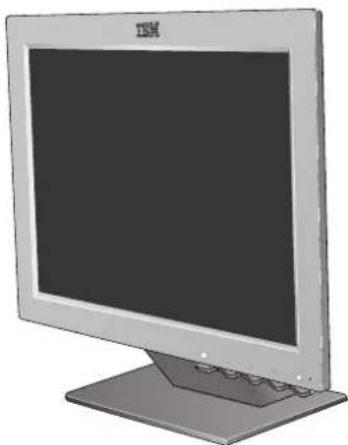
- Do not support the monitor within the screen area. The Liquid Crystal Display is glass and can be damaged by rough handling or excessive pressure.
natural_image
Illustration of a flat-screen computer monitor with a stand and keyboard (no text or symbols visible)- Before using your monitor for the first time, remove the clear protective film from the front of the screen.
Connecting your Monitor
- Turn off your computer and all attached devices. Next, unplug the power cord(s) to your computer and all attached devices.
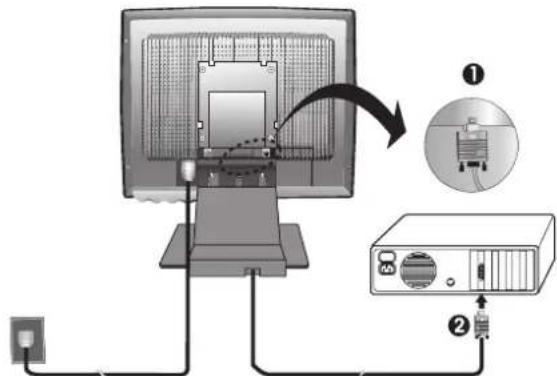
- Connect the signal cable.
The analog signal cable is already connected to your monitor. The analog connector is the blue connector.
- When connecting the analog signal cable (Figure A) Connect the free end of the attached signal cable to the 15-pin Monitor port on the computer and tighten screws. ②
text_image
Diagram showing connection between a computer monitor and a server with labeled components, including a magnified view of the device.(Figure A)
■ If connecting a DVI-D digital signal cable (Figure B)
Connect one end of the monitor signal cable to the white connector 1 on the rear panel of the monitor. Connect the other end to the white connector 2 in the rear panel of the computer and tighten the screws.

text_image
Cable not supplied (Optional)(Figure B)
- Connect the power cord to the monitor and then plug the power cord into a properly grounded outlet. Next, reconnect the power cord(s) to your computer and all attached devices.
Switching on your Monitor
-
Switch on your monitor by pushing and releasing the power switch marked [ ⏻ at the front of the bezel. [To switch off your monitor, push and release the power switch again.]
-
Switch on your computer.
-
If you are using the analog connector, run AUTO SETUP by following the instructions in the Auto Setup section on page 8.
Driver installation for Windows 95 or Windows 98
This section must be completed before continuing with the Windows95 or Windows98 Auto Setup on page 9.
i On LCD monitors, unlike CRTs, a faster refresh rate does not improve display quality. IBM recommends using either 1024 x 768 at a refresh rate of 60Hz or 640 x 480 at a refresh rate of 60Hz.
To use the Plug and Play feature in Microsoft®Windows®95 or Windows 98, files should be loaded from the IBM Monitor CD.
- Turn off the computer and all attached devices.
- Ensure that the monitor is connected correctly.
- Turn on the monitor and then the system unit. Allow the system to boot into Windows95 or Windows98.
Your computer's Plug and Play code may warn you that your system hardware has changed. This means that it has detected your new monitor for the first time. - Open the DISPLAY PROPERTIES window by clicking START, SETTINGS, CONTROL PANEL and then double - clicking on the DISPLAY icon.
- Click the SETTINGS tab.
• In case of Windows 95 :
6 - 1. Click the CHANGE DISPLAY TYPE button. 2. Click the CHANGE MONITOR TYPE button.
• In case of Windows 98 :
6 - 1. Click the ADVANCED button. 2. Click the MONITOR tab. 3. Open the UPGRADE DEVICE DRIVER WIZARD window by clicking on CHANGE button and then select the NEXT button. 4. Click the "Display a list of the known drivers for this device so that I can choose a specific driver" and then select the NEXT button.
-
Insert the Setup CD into the CD driver: and click the HAVE DISK button.
-
Click OK.
-
Ensure that the CD drive letter is selected, and then select the 'Drivers' folder.
-
Choose IBM T541 monitor and Click OK. The files will be copied from the CD to your hard disk drive.
-
Close all open windows and remove the CD.
-
Restart the system.
The system will automatically select the maximum refresh rate and corresponding Color Matching Profiles.
Driver Installation for Windows 2000 or Windows Me
This section must be completed before continuing with the Windows2000, Windows Me Auto Setup on page 9.
i On LCD monitors, unlike CRTs, a faster refresh rate does not improve display quality. IBM recommends using either 1024 x 768 at a refresh rate of 60Hz or 640 x 480 at a refresh rate of 60Hz.
To use the Plug and Play feature in Microsoft Windows 2000 or Microsoft Windows Millennium Edition(Me) files should be loaded from the IBM Monitor CD.
- Turn off the computer and all attached devices.
- Ensure that the monitor is connected correctly.
- Turn on the monitor and then the system unit. Allow the system to boot into Windows 2000 or Windows Me.
- Open the DISPLAY PROPERTIES window by clicking START, SETTINGS, CONTROL PANEL and then double-clicking the DISPLAY icon.
- Click the SETTINGS tab.
- Click the ADVANCED button.
- Click the MONITOR tab.
- Click the PROPERTIES button.
- Click the DRIVER tab.
- Open the UPGRADE DEVICE DRIVER WIZARD window by clicking on UPDATE DRIVER and then Click the NEXT button.
- Select the "Display a list of the known drivers for this device so that I can choose a specific driver" and then Click the NEXT button.
- Insert the Setup CD into the CD drive : and click the HAVE DISK button.
13.Click OK. - Ensure that the CD drive letter is selected, and then select the 'Drivers' folder.
- Choose IBM T541 monitor and Click OK. The files will be copied from the CD to your hard disk drive.
- Close all open windows and remove the CD.
- Restart the system.
The system will automatically select the maximum refresh rate and corresponding Color Matching Profiles.
Driver Installation for Windows XP
This section must be completed before continuing with the Windows XP Auto Setup on page 9.
i On LCD monitors, unlike CRTs, a faster refresh rate does not improve display quality. IBM recommends using either 1024 x 1768 at a refresh rate of 60Hz or 640 x 480 at a refresh rate of 60Hz.
To use the Plug and Play feature in Microsoft Windows XP files should be loaded from the IBM Monitor CD.
- Turn off the computer and all attached devices.
- Ensure that the monitor is connected correctly.
- Turn on the monitor and then the system unit. Allow the system to boot into Windows XP.
-
Open the DISPLAY PROPERTIES window by clicking START, SETTINGS, CONTROL PANEL and then double-clicking the DISPLAY icon.
-
Click the SETTINGS tab.
-
Click the ADVANCED button.
-
Click the MONITOR tab.
-
Click the PROPERTIES button.
-
Click the DRIVER tab.
-
Open the Hardware Update Wizard window by clicking on UPDATE DRIVER and then Click the NEXT button.
-
Select the "Install from a list or Specific location(Advanced)" and then Click the NEXT button.
-
Insert the Setup CD into the CD drive : and click the HAVE DISK button.
13.Click OK.
-
Ensure that the CD drive letter is selected, and then select the 'Drivers' folder.
-
Choose IBM T541 monitor and Click OK. The files will be copied from the CD to your hard disk drive.
-
Close all open windows and remove the CD.
-
Restart the system.
The system will automatically select the maximum refresh rate and corresponding Color Matching Profiles.
Image Setup for analog input
Auto Setup
Before carrying out this section, it is very important that the correct monitor drivers have been installed.(See pages 5 and 7)
i The Setup Utility included on the setup CD displays a test pattern of dots. It does not replace or modify the display drivers.
i The Auto Setup instructions require the monitor to be warmed up for 15 minutes. This is not required for normal operation.
i If your computer does not run with the setup CD shipped with the monitor, refer to Manual Setup on page 11.
i The AUTO SETUP process only applies to the current screen mode. When a new mode is selected, repeat this section to reset the monitor.
For digital input, image setup is not required.
When you first use your monitor, you must perform Auto Setup for analog input. If you are using digital input, continue with the instructions on page 12. This procedure sets up your monitor to process the video signals from your computer without image discoloration or smearing. After you perform Auto Setup, the settings are stored and used each time you turn on the monitor.
In order to optimize the displayed image a set-up utility is provided on the IBM Monitor CD. Operation of this utility is dependent on the operating system on your computer. You may choose to run AUTO SETUP for each operating system that you use. This means that if you sometimes use your monitor while running any version of Windows and sometimes also use it from within DOS (not a DOS window), you must run AUTO SETUP for both Windows and DOS. You may run versions of AUTO SETUP in any order.
Before you begin AUTO SETUP for your computer, make sure the computer video mode is set in the range of the supported screen resolution shown in the table on page 18.
You should perform AUTO SETUP for each screen mode you use.
AutoSetup for Windows 3.1, Windows 95, Windows 98, Windows 2000, Windows Me, Windows XP or Windows NT
i If the monitor is in standby mode (STANDBY ON), it may automatically turn off while you are waiting for it to warm up.
- Turn on the monitor first; then the computer.
If the message CHECK VIDEO CABLE is displayed, or if nothing is displayed, check:
- that the video interface cable is not connected properly.
-
the correct video adapter card is not installed.
-
Wait approximately 15 minutes, until the monitor warms up.
- Ensure that the icon bar and tool bar, if displayed are at the bottom of the screen.
- Insert the CD labelled 'IBM Monitor CD' into the CD drive.
- Check the operating system installed on your computer and follow the instructions from the table below.
i The size and diversity of the dot pattern varies with the screen resolution.
| Operating System | Step1 | Step2 Step3 | |
| Windows 3.1 | Open PROGRAM Manager | Select RUN | Type‘E:\TESTPAT’ and press ENTER |
| Windows 95 | |||
| Windows 98 | Select START | Select RUN | |
| Windows 2000 | |||
| Windows Me | |||
| Windows XP | |||
| Microsoft Windows NT®4.0 |
- When the test pattern appears, press the Image Setup direct access button ← at the bottom of the monitor to run the image setup.
i Position the mouse pointer at the bottom center of the screen. This allows AUTO SETUP to run properly
- To clear the Image Setup test pattern, press the ESC key on your keyboard.
You have completed the monitor setup for Windows. If you use other operating systems, perform the appropriate AUTO SETUP for those systems and also see Adjusting the image settings in DOS on page 10.
Adjusting the image settings in DOS
i If the monitor is in standby mode (STANDBY ON), it may automatically turn off while you are waiting for it to warm up. If this happens, switch off the monitor and switch it on again after a few seconds.
i If you are using PC-DOS/V, change to U.S. mode by typing 'CHEV US' and pressing ENTER at the command prompt. You must use when you run DOS Auto Setup.
i The size and diversity of the dot pattern varies with the screen resolution.
i If the screen flickers, repeat the setup several times until the flicker is minimised, or adjust it manually by following refer to Manual Setup on page 11.
- Turn on the monitor first; then the computer.
If the message CHECK VIDEO CABLE is displayed, or if nothing is displayed, check:
- that the video interface cable is not connected properly.
-
the correct video adapter card is not installed.
-
Wait approximately 15 minutes, until the monitor warms up.
- Insert the CD labelled 'IBM Monitor CD' into the CD drive.
- Display the command prompt screen of the DOS full-screen display.
- At the command prompt, type the CD drive letter, and press ENTER.
- Type 'TESTPATD' and press ENTER.
- Select from the screen the number for the color or text mode you want to setup.
- Select from the screen the number for the video mode you want to setup.
You may repeat this process for as many of the color and video modes as you need. - When the test pattern appears, press the Image Setup direct access button ← at the bottom of the monitor to run the image setup.
- To clear the Image Setup test pattern, press the ESC key on your keyboard.
- Type 'Exit' at the command prompt to return to Windows.
If you use other operating systems, perform the appropriate Image Setup for those systems and also see
Image Setup Windows 3.1, Windows 95, Windows 98, Windows 2000, Windows Me, Window XP or Windows NT workstation on page 9.
Manually adjusting the image settings
i If the monitor is in standby mode (STANDBY ON), it might automatically turn off while you are waiting for it to warm up.
Normally, you can complete the setup procedure using Image Setup, however, if your screen image is still distorted after you perform Image Setup or the setup CD does not run on your system, perform MANUAL SETUP.
- Have your monitor turned on for about 15 minutes, until the monitor warms up.
- Display the image you most frequently use on the screen.
- Press the OSD Enter button at the bottom of the monitor to display the initial OSD menu.
- Use an Arrow button (← or →) to select the IMAGE SET-UP icon ☑ and press the OSD Enter button to access the function.
- Using an Arrow button (←or →), select MANUAL, press and then press once to select COARSE. Left and right arrow adjustment indicators become illuminated (see page 16).
- Use the Arrow buttons to manually adjust to correct (as much as possible) for jitter or noise in the image, then press to save the changes.
- Use an Arrow button to select FINE and press the button.
- Use the Arrow buttons again to tune the image to your liking.
- When finished, press the Exit button four times to exit from the OSD.
You have completed the monitor setup.
Ergonomic Considerations
Workplace Preparation
i This section gives advice on what you should consider before you set up your monitor.
Height
Position the monitor so that the top of the screen is slightly below your eye level when you sit at your workstation.
Orientation
- Choose a position that gives the least reflection from lights and windows, usually at a right angle to any windows.
- Positon the monitor directly in front of you so that you do not have to twist your body to use it.
- Tilt the monitor to a comfortable viewing angle.
Working Practices
i This section gives advice on how you can work comfortably and reduce fatigue.
Rest
Take regular breaks. Vary your posture, stand up and stretch occasionally as prolonged use of computer workstations can be tiring.
Back
Sit back in your chair and use the backrest.
Hands
Use a light touch on the keyboard, keeping your hands and fingers relaxed. Allow a space in front of the keyboard to rest your wrists when not typing. Consider using a wristpad.
Eyesight
Working with monitors, in common with any prolonged close work, can be visually demanding. Look away from the screen periodically and have your eyesight checked regularly.
Screen settings
Set the screen brightness and contrast to a comfortable level. You may have to adjust these settings as the lighting changes during the day. Many application programs let you select color combinations which can help you to view in comfort. See the User controls section on page 14 for more information.
Adjusting the Monitor Position
i With the IBM Flat Panel Monitor, you can adjust its position in various ways for maximum comfort.
Viewing Angle
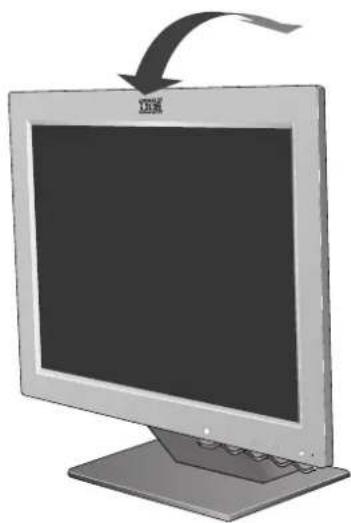
You can tilt the screen forward and backward as shown below.
natural_image
Illustration of a computer monitor with an arrow pointing to the top screen (no text or symbols on the monitor itself)(Figure A)
Caring for your Monitor
Be sure to turn off the power before you perform any maintenance on the monitor. Clean your monitor as follows:
• Gently wipe the covers and the screen with a soft cloth.
- Remove finger marks and grease with a damp cloth and mild detergent.
- Never use flammable cleaning materials to clean your IBM monitor or any other electrical apparatus.
Adjusting Your LCD Monitor
User controls

natural_image
Simple diagram of a computer monitor with a scroll and control buttons at the bottom (no text or symbols)USER CONTROL FEATURES
| Icon Monitor controls | |
| Switches the monitors on and off. | |
| Display main OSD menu and selects highlighted menu item. | |
| ← and → | Moved the cursor to highlight icons or make adjustments.Left and Right arrows pressed together bring up auto setup menu. |
| Exits from current OSD menu. | |
i The image is already optimized for many display modes, however the user controls can be used to adjust the image to your liking.
i The settings are saved after adjustment and when exiting the OSD and will be effective thereafter.
| Icon Direct Access Functions | |
| → | Bring up Brightness adjustment. |
| ← | Bring up autoimage setup. |
| ← | CONTROLS LOCK / UNLOCKThis feature allows you to secure the current control settings, while allowing the user to adjust Brightness or Contrast, so that they cannot be inadvertently changed. Push and hold the enter button[←] for 10 seconds; the message “Controls Locked” appears.You can unlock the OSD controls at any time by pushing the enter button[←] for 10 seconds; the message “Controls Unlocked” will appear. |
| → | Switch between input signals. |
On-screen display (OSD) controls
i The LCD monitor needs time to become thermally stable the first time you turn it on each day. Thus, to achieve more accurate adjustments for parameters, allow the LCD monitor to warm up (be On) for at least 15 minutes before making any screen adjustment.
The settings adjustable with the user controls are viewed through the On - Screen Display (OSD). Press the enter button [←] to display the main OSD menu.
Initial appearance of OSD
main menu;
Analog Signal input

text_image
MAIN MENU BRIGHTNESS DSUB-ANALOG INPUTDigital Signal input
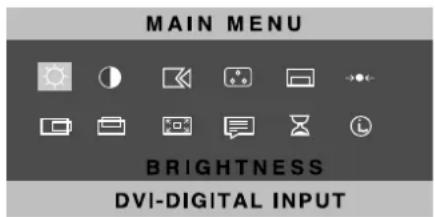
text_image
MAIN MENU BRIGHTNESS DVI-DIGITAL INPUTsub menu;

text_image
BRIGHTNESS 75OSD functions
| OSD Icon Description | sub-menu(s) | Control and Adjustments | ||
| ^[CB47] BRIGHTNESS | Adjusts brightness | 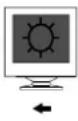 |  | |
| CONTRAST | Adjusts contrast |  |  | |
| IMAGE SET-UPOSD Icon | The IMAGE SET-UP function is used to adjust the level of noise in the video signal which causes horizontal lines or areas on the screen where the image appears to be unstable and jitters or shimmers. This can be done automatically or manually.It is not applicable to digital input.Description Sub-menu(s) | AUTO | If AUTO is selected the image will automatically adjustControls and Adjustments | |
 IMAGE SET-UP CONT IMAGE SET-UP CONT | If manual is selected, the user will go to the manual adjustment screen. | MANUAL• Fine• Coarse | To adjust the focus of the display. This item allows you to remove any horizontal noise and clear or sharpen the image of characters.Fine adjustments should be done after adjusting the Coarse . | |
 COLOR COLOR | Select the COLOR MODE you find most comfortable or fine tune the colors using the USER COLOR MODE menu, if necessary. | COLOR MODE | Preset 1(Pink White)Preset 2(Normal White)Preset 3(Blue White) | |
| USER COLOR MODE-• Red• Green• Blue | Increases or decreases rednessIncreases or decreases greennessIncreases or decreases blueness | |||
 OSD Position OSD Position | Changes the position of the OSD on the screen. | H-POSITION |  ← ← |  → → |
| V-POSITION |  ← ← |  → → | ||
| OSD Icon | Description | Sub-menu(S) | Controls and Adjustments | |
| →RESET | Reset should return all available functions (apart from language which should not change unless adjusted via the LANGUAGE menu) fo their factory presets. | · YES· NO | ||
| H-POSITION | Moves the screen left and right.· Is not available with a digital input | 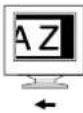 | 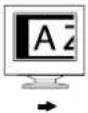 | |
| V-POSITION | Moves the screen up and down.· Is not available with a digital input |  | 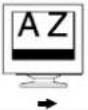 | |
| OSD SIZE | Changes the size of the OSD menu on the screen. | · SMALL· MEDIUM· BIG | ||
| Language | The language chosen affects only the language of the OSD. Select one of the five language to use for the OSD. It has no effect on any software running on the computer. | · ENGLISH· FRANCAIS· DEUTSCH· ITALIANO· ESPANOL | ||
| OSD TIME | To select OSD display duration time.(5 - 60 seconds) | |||
| Information | Display model name, serial number, year of manufacture and microcode level. Display all preset modes stored in the monitor. Display all user modes stored in the monitor. The current display mode will be shown at the base of all information screens. | · INFORMATION· PRESET MODES· USER MODES Use the ← and → buttons to move between information screens. | ||
Display modes
i If your computer has previously been used with a CRT monitor and is currently configured to a display mode outside the range that the Flat Panel monitor can display, you may need to re-attach the CRT monitor temporarily until you have reconfigured the computer, preferably to 1024 x 768 at 60Hz.
The display mode the monitor uses is controlled by the computer. Therefore, you should refer to your computer documentation for details on how to change display modes.
The image size, position and shape may change when the display mode changes. This is normal and the image can be readjusted using AUTO SETUP and the monitor controls.
Unlike CRT monitors, which require a high refresh rate to minimize flicker, TFT technology is inherently flicker-free. If possible, configure your computer for 1024 x 768 addressability at 60Hz vertical refresh rate.
For the display modes listed below, the screen image has been optimized during manufacture.
Factory Set Display Modes
| Addressability Refresh Rate | Horizontal Frequency | |
| 640 x 480 60 Hz | 31.5 kHz | |
| 640 x 480 66 Hz | 35.0 kHz | |
| 640 x 480 75 Hz | 37.5 kHz | |
| 640 x 350 70 Hz | 31.5 kHz | |
| 720 x 400 70 Hz | 31.5 kHz | |
| 800 x 600 56 Hz | 35.2 kHz | |
| 800 x 600 60 Hz | 37.9 kHz | |
| 800 x 600 72 Hz | 48.1 kHz | |
| 800 x 600 75 Hz | 46.9 kHz | |
| 832 x 624 75 Hz | 49.7 kHz | |
| 1024 x 768 † 60 Hz | 48.4 kHz | |
| 1024 x 768 70 Hz | 56.5 kHz | |
| 1024 x 768 75 Hz | 60.0 kHz | |
† Recommended
Note : VESA timings are as detailed in the VESA "Display Monitor Timing Specification". Version 1.0, Revision 0.8, Dated 09/17/98.
Power Management
To benefit from power management, the monitor must be used in conjunction with a computer that implements the Video Electronics Standards Association (VESA) Display Power Management Signaling (DPMS) Standard.
The power management feature is invoked when the computer recognizes that you have not used your mouse or keyboard for a user-definable period. There are several states as described in the table below.
As an ENERGY STAR 2000 ^® Partner, IBM has determined that this product meets the ENERGY STAR 2000 ^® guidelines for energy efficiency.
IBM recommends that you switch off your monitor at the end of each working day, or whenever you expect to leave it unused for long periods during the day.
| State | Power Indicator | Screen | Restoring Operation | Compliance |
| On | Steady green | Normal | ||
| Active off | Steady amber | Blank | Press a key or move the mouse.‡ | ENERGY STAR 2000® |
‡ There may be a slight delay before the picture reappears.
Troubleshooting
If you have a problem setting up or using your monitor, you may be able to solve it yourself. Before calling your retailer or IBM, try the suggested actions that are appropriate to your problem.
| Problem | Possible Cause | Suggested Action Reference | |
| Screen is blank and power indicator is off. | No power to monitor. | ·Ensure that the electrical outlet and the monitor are both switched on.·Check that the power cord is firmly plugged into the electrical outlet and the power supply unit.·If the power cord plug has a removable fuse, replace it.·Try another power cord.·Try another electrical outlet.·Check the power connection at the back of the panel. | Connecting your Monitor section on page 3. |
| Screen is blank and power indicator is steady green. | Brightness and Contrast may be too low. | ·Adjust brightness and contrast. | User controls section on page 14. |
| Screen is blank and power indicator is steady amber. | The monitor is in the Power Management Standby state. | ·Press any key on the keyboard or move the mouse to restore operation.·Check the Power Management software on your computer.·Press the ☐to switch between analog and digital mode. If the panel is the wrong mode for the signal being provided, the monitor appears to go into sleep mode. | Power Management section on page 19. |
i For image problems, you may want to run AUTO SETUP again before consulting to this section. In most cases, AUTO SETUP can fix the problems. See Auto Setup for the computer on page 8 for details.
| Problem | Possible Cause | Suggested Action Reference | |
| Screen is blank and power indicator is flashing green every 0.5 second | Display mode of the computer is outside the range of the monitor | • Reconfigure key on the computer to use a supported display mode. | Further Information section on page 18. |
| CHECK VIDEO CABLE message is shown and power indicator is steady amber. | The monitor is not receiving a video signal | • Check that the signal cabel is firmly connected to the computer.• Check that no pins are bent in the signal cable connector. | Connecting your monitor section on page 3. |
| Image appears to be smeared | There are noises in the video signal | • Select IMAGE SET-UP menu in the OSD. Then select MANUAL to adjust FINE / COARSE settings. | User Controls section on page 14. |
| Image appears to be discolored | The color setting may be incorrect. | • Adjust the Color settings. | User Controls section on page 14. |
| A few dots are missing, discolored, or inappropriately lighted. | The LCD contains over 2,300,000 thin-film transistors (TFTs). A small number of missing, discolored, or lighted dots may be present on the screen, which is an intrinsic characteristic of the TFT LCD technology and is not an LCD defect. | ||
This color monitor (Type-model 9512-Hxx) uses a 15-inch TFT LCD.
i Power consumption figures are for the monitor and the power supply combined.
| Dimensions | Width:Depth:Height: | 389 mm389 mm317.2 mm |
| Weight | 4.3 kg (9.48 lbs) | |
| Image | Viewable Image Size:Maximum Height:Maximum Width:Pixel Pitch: | 15-inch (381.0 mm)304.1 mm228.1 mm0.297 mm (H) x 0.297 mm (V) |
| Power Input | Supply Voltage:Rated Current: | 100 - 240 Vac 60/50 ± 3Hz1A |
| Power Consumption | Normal Operation:Active off:Off: | < 35 W< 3 W< 1 W |
| Video Input | Input Signal: | Analog-75 ohm 0.7VDigital-DVI 1.0 |
| Horiz. Addressability:Vert. Addressability:Clock Frequency: | 1024 pixels (max)768 lines (max)108 MHz (Digital)135 MHz(Analog) | |
| Sync Input | Type | Analog - Separate, Composite, SOGDigital-DVI 1.0 |
| Communications | VESA DDC: | 2B |
| Supported Display Modes | Standard modes :Horiz / Vert Freq: | IBM, VESA, MACSee Factory Set Display Modes on page 18.See Display Mode Ranges on page 23. |
| Environment | Temperature:Operating:Storage:Shipping:Humidity:Operating:Storage:Shipping: | 10 to 35°C- 20 to 60°C- 20 to 60°C10 to 80%5 to 95%5 to 95% |
Display Mode Ranges
| Addressability | Refresh Rate / Range (+/-3%) | Horizontal Frequency / Range (+/-3%) |
| 640 x 480 58.2 | ~ 61.8 Hz 30.56 ~ 31.45 | kHz |
| 640 x 480 64.0 | ~ 68.0 Hz 34.95 ~ 36.05 | kHz |
| 640 x 480 72.8 | ~ 77.3 Hz 36.38 ~ 38.63 | kHz |
| 640 x 350 67.9 | ~ 72.1 Hz 30.56 ~ 31.45 | kHz |
| 720 x 400 67.9 | ~ 72.1 Hz 30.56 ~ 31.45 | kHz |
| 800 x 600 54.3 | ~ 57.7 Hz 34.14 ~ 36.26 | kHz |
| 800 x 600 58.2 | ~ 61.8 Hz 36.76 ~ 39.04 | kHz |
| 800 x 600 69.8 | ~ 74.2 Hz 46.66 ~ 49.54 | kHz |
| 800 x 600 72.8 | ~ 77.3 Hz 45.49 ~ 48.31 | kHz |
| 832 x 624 72.8 | ~ 77.3 Hz 48.21 ~ 51.19 | kHz |
| 1024 x 768 58.2 | ~ 61.8 Hz 46.95 ~ 49.85 | kHz |
| 1024 x 768 67.9 | ~ 72.1 Hz 54.81 ~ 58.20 | kHz |
| 1024 x 768 72.8 | ~ 77.3 Hz 58.20 ~ 61.80 | kHz |