
dk3000 - Camera ROLLEI - Free user manual and instructions
Find the device manual for free dk3000 ROLLEI in PDF.


| Product Type | Digital Camera |
| Model | dk3000 |
| Brand | Rollei |
| Dimensions (W x H x D) | 116.7 x 53.8 x 29.5 mm (4.5" x 2.1" x 1.16") |
| Weight (without battery) | Approx. 172 g (6.0 oz) |
| Power Source | Rechargeable Lithium-Ion Battery 3.7V / AC Adapter 5V |
| Storage Media | Internal Memory 16 MB, SD Memory Card slot |
| Image Sensor | 1/2.7 inch CCD, 3.34 megapixels |
| Lens | F2.8 ~ 3.8, f = 5.9 ~ 11.8 mm (equivalent to 38 ~ 76 mm in 35 mm format) |
| Digital Zoom | 2X |
| Monitor | 1.5 inch LTPS TFT color LCD |
| White Balance | Auto / Preset (Daylight, Overcast, Fluorescent, Tungsten) |
| Exposure Compensation | ±2.0 EV in 0.5 EV steps, Center-weighted metering |
| Shutter Speed | 4, 2, 1 ~ 1/1000 sec |
| ISO Sensitivity | Auto, ISO 200, ISO 400 |
| Built-in Flash | Modes: Flash Off, Forced, Auto, Slow Synchro, Red-eye Reduction |
| Image Resolution (Still) | 2848 x 2136, 2048 x 1536, 1600 x 1200, 1280 x 960 |
| Motion Picture Resolution | 320 x 240 |
| File Format | JPEG (Exif2.1), TIFF, AVI |
| Operating Temperature | 0°C to 40°C (32°F to 104°F) |
| Storage Temperature | -20°C to 60°C (-4°F to 140°F) |
| Video Output | NTSC / PAL |
| Battery Charging Indicator | Red LED (charging), Green LED (complete) |
Frequently Asked Questions - dk3000 ROLLEI
User questions about dk3000 ROLLEI
0 question about this device. Answer the ones you know or ask your own.
Ask a new question about this device
Download the instructions for your Camera in PDF format for free! Find your manual dk3000 - ROLLEI and take your electronic device back in hand. On this page are published all the documents necessary for the use of your device. dk3000 by ROLLEI.
USER MANUAL dk3000 ROLLEI
User Manual - English
natural_image
Line drawing of a smartphone casing with circular lens and dome-shaped base (no text or symbols)Contents
Safety Precautions 1 . . . . . . . . . . . . . . . . . . . . . .
Specifications 2 . . . . . . . . . . . . . . . . . . . . . . . . . .
Name of Parts 4.
Before Using the Camera 8 . . . . . . . . . . . . . . . .
1.Preparation 9.
Powering the Camera 9.
Storage Media 10.
2. Recording 12....
Basic Recording 12.
Other Advanced Menu Functions 1.5.
3. Playback / Delete 16 ....
Basic Playback 16....
Various Playback Functions 18
Deleting Files 23.
4. Others 24
Changing the Camera Settings 24
Transferring your Image to the computer 27
Video Capture. 28
Warning Message 29
Safety Precautions
■ Danger

Do not attempt to disassemble, repair or alter the equipment yourself. The high-voltage circuitry in the equipment poses significant electrical hazard.

Do not attempt to disassemble, alter or directly solder the battery.

Do not put the battery in a fire, attempt to heat it, uses it in high temperature environment such as next to a fire or inside a car.

Do not put it into water or allow it to get wet.

Do not use this camera in the bathroom.

Do not use batteries that are significantly damaged or deformed.

Turn off the power immediately in the event of irregularity, such as the equipment emitting smoke or a strange smell. Remove the battery as soon as possible, being careful to avoid electric shocks or burns. If you are drawing power from a household electric outlet, be sure to unplug the power cord.

Keep the battery and SD memory card used in this camera out of the reach of children to prevent accidental ingestion.
Specification
| ■ General | |
| ● Video Signal Protocol NTSC / PAL | |
| ● Power Source Rechargeable Lithium-Ion Battery 3.7V/ AC Adapter 5V | |
| ● Dimensions (WxHxD) | 116.7 x 53.8 x 29.5 mm (4.5" x 2.1" x 11.6) |
| ● Weight Approx. 172g (6.0 oz) (without battery) | |
| ● Operating Conditions | Temperature: 0°C to 40°C (32°F to 104°F)Humidity: 85% or less |
| ● Storage Temperature | -20°C ~ 60°C (-4°F to 140°F) |
| ■ Memory Media | |
| ● Internal Memory 16 MB | |
| ● Memory Card | Secure Digital Memory Card Slot |
| ■ Camera | |
| CCD 1/2.7 inch | 3.34 mega pixels |
| Lens Zoom Lens | F2.8 ~ 3.8 |
| Focal Length | f = 5.9 ~ 11.8 mm (equivalent to 38 ~ 76 mm in 35 mm format) |
| Shooting Range | General: Approx. 14 cm (5.5") (at Wide)Approx. 40 cm (15.7") (at Tele)Macro: Approx. 7 ~ 14 cm (2.75" to 5.5") (at Wide) |
| Digital Zoom | 2X |
| Monitor | 1.5 inch LTPS TFT color LCD |
| White Balance | Auto / Preset (Daylight, Overcast, Fluorescent Light, Tungsten Light) |
| Exposure Compensation | Exposure Metering System: Center-weightedMode: Auto /Manual compensation ( ± 2.0EV in 0.5 EV steps)Metering: TTL CCD method |
| Shutter Speed | 4, 2, 1 ~ 1/ 1000 |
| ISO Sensitivity | Auto, ISO 200, ISO 400 |
| Built-in Flash | Modes: Flash Off, Forced, Auto, Slow Synchro, Red-eye Reduction |
| Image Resolution 1600 | Still Picture: 2848 x 2136 / 2048 x 1536 / x 1200/ 1280 x 960Motion Picture:320 x 240 |
| File Format JP | EG (Exif2.1), TIFF, AVI |
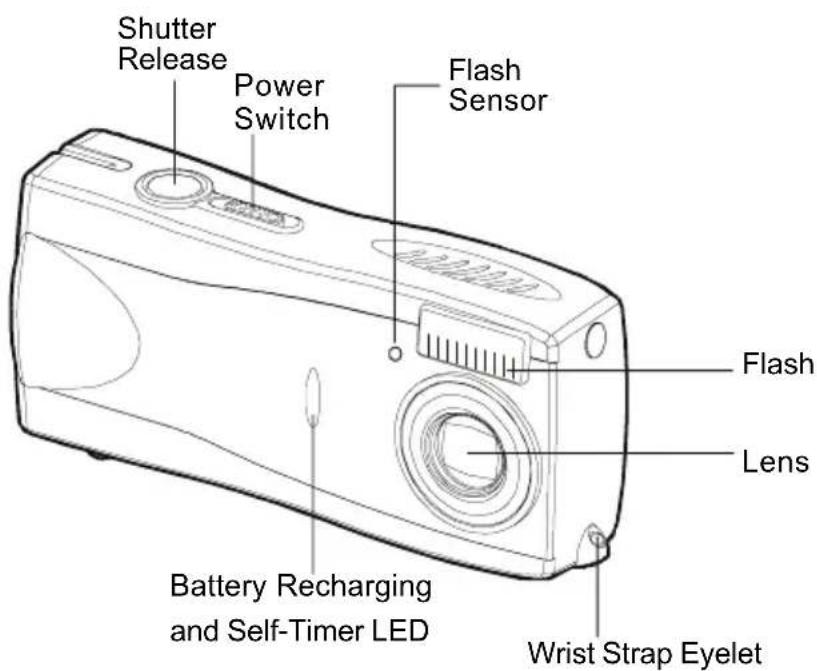
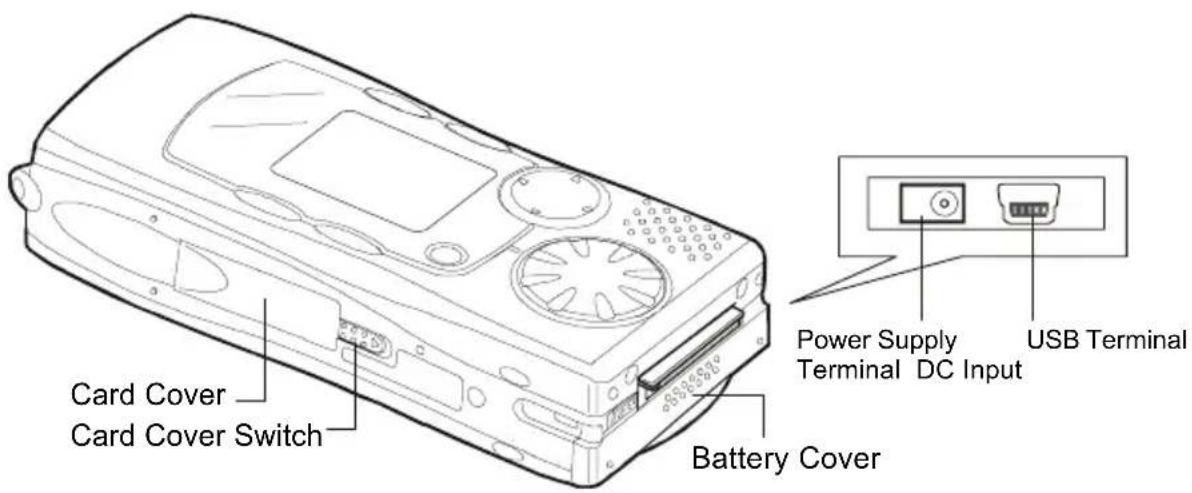
Names of Parts
■ Camera
a. Front
b. Back
■ Operating Parts
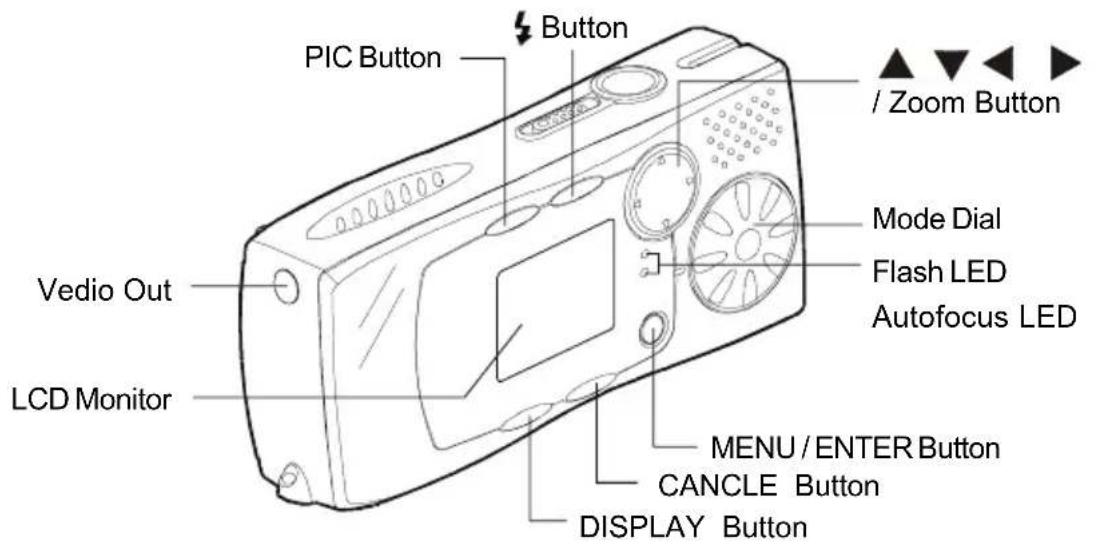
■ Main Switch
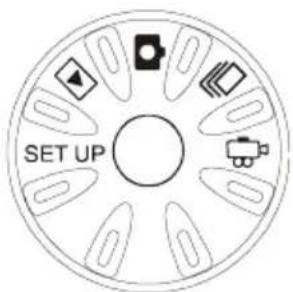
The camera offers a number of modes for recording and playback. The mode dial is used to select the desired mode.
| Mode Dial | Mode Name Description | |
| SET UP | Set up mode | This mode is used for changing and confirming the camera setting. |
 | Playback mode This mode is used for playing recording files. | |
 | Still Picture mode This mode is used for normal shooting. | |
 | Continuous Picture are recorded Shooting mode continuously while the shutter release button is pressed. | |
 | Motion Picture This mode is used for recording motion picture. | |
■ 4-way Button
For Up / Down / Left / Right and Zoom Function.
![Left [↑] Tele / Up Right [↓] Wide / Down](/content/2026/06/1201341/images/639cfc408e6d58580780d5ab6740ba609356f4da5c0fa93c53a307790fbfc542.jpg)
■ MENU / ENTER Button
Display Menu and various modes.
■ Button
| Icon | Display Mode Description | ||
 | Lit Flash | The flash Off any conditions. | will not fire under conditions. |
| No No Icon | Auto The flash display low light and back light conditions. | matically in light conditions. | |
 | Lit | Forced | The flash will fire under any conditions. |
 | Blinking | Slow The Synchro | flash can be fired to illuminate the subject while a slow shutter speed correctly exposes the background. |
PIC Button
The camera offers six image quality modes: 2848 x 2136N, 2048 x 1536NC, 2048 x 1536F, 2048 x 1536N, 1600 x 1200N, and 1280 x 960.
- The default is 2048 x 1536N.
- 2848 x 2136N used for taking pictures with higher image quality. This mode can not be played back by using Zoom Playback Function.
- NC (non-compressed) mode is for recording data without compressing it. N and F stand for Normal and Fine.
■ CANCEL Button
For Canceling.
■ DISPLAY Button
For LCD Display Function and Adjusting the Brightness of the LCD Monitor.
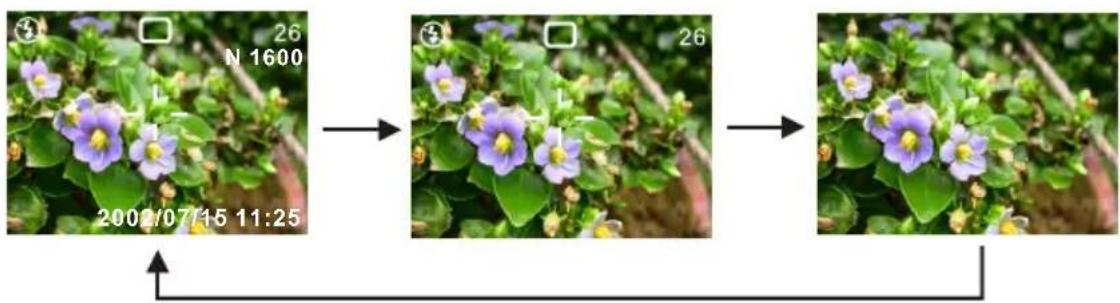
- The data display changes to show the recording mode, PIC mode, recordable picture count, etc. each time the DISPLAY button is pressed.
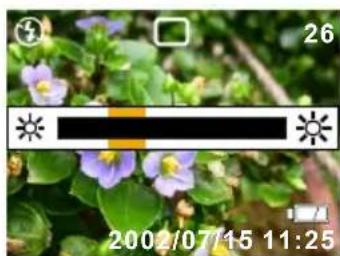
- Press this button (approx. 2 seconds) to adjust the brightness of the LCD monitor when it is hard to see, such as in strong sunlight.
natural_image
Close-up of purple flowers with green leaves, no visible text or symbolsBefore using the camera
■ Attaching the Wrist Strap
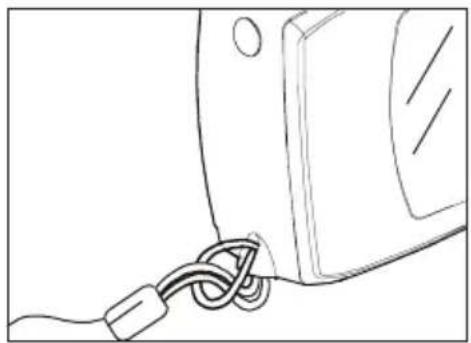
Attach the wrist strap to the camera.
• Pass the end of the strap through the wrist strap eyelet on the camera.
natural_image
Line drawing of a cable being inserted into a device (no text or symbols)■ Setting the Date and Time
- Set the mode dial to [SET UP].
- Press the ▲ or button to select [DATE SETTING] and press ▶Button.
•The time is displayed in 24 - hour clock format.
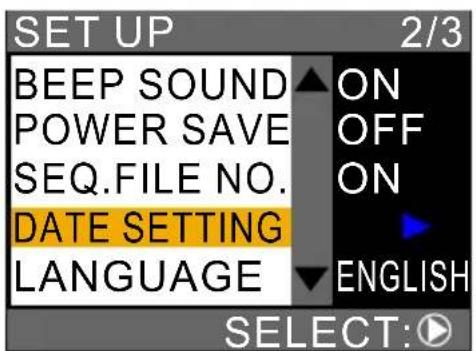
- Press ▲, ▼, ◀ and ▶ buttons to set the date and time. Press ◀ or button to highlight the item you wish to adjust, and press the ▲ or button to adjust the item.
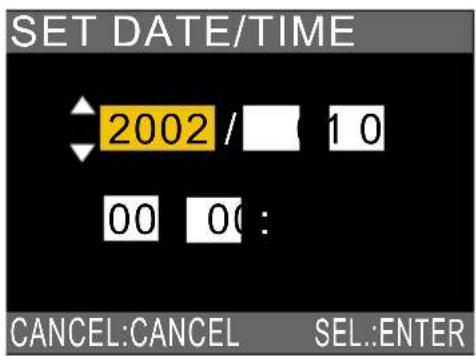
1. Preparation
■ Powering the Camera
- Loading the Battery
- Check that the camera is turned off and slide the battery cover open.
- Load the battery and close the battery cover.
- Charging the battery
- Turn off the camera power.
- Set the battery in the camera.
- Connect the AC Adapter cable to the (DC IN) jack of camera.
- Insert the power plug into a power outlet.
- The LED on the front side will lit-on in Red. When the LED turn to Green, charging is completed.
• Using the AC Adapter
- Make sure the camera power is turned off, then connect the AC Adapter cable to the camera power (DC IN) jack.
- Insert the power plug into a power outlet.
When a battery is located in the camera, power from the AC Adapter (power outlet) will take priority.
• Auto Power Off Setting
The camera will turn off automatically in Record and Play modes to conserve the battery if no operation is performed (no buttons are pressed) for the preset length of time. You can select the time until the auto power off is activated from Off, 1 min, 3 min, or 5 min, please see page 25.
Note
Auto Power Off Setting can not be worked when using the AC Adapter as power source.
■ Storage Media
This camera uses Internal Memory and Secure Digital (SD) Card as storage media to record data.
- Internal Memory
The size of the Internal Memory is 16 MB.
- Secure Digital Memory Card
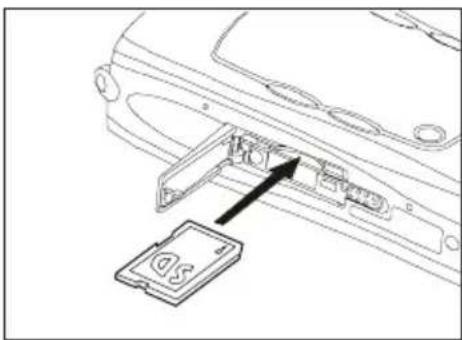
☐ Insert the SD Memory Card
- Check that the camera is turned off.
-
Slide the card cover switch in the direction shown by the arrow and open the card cover.
-
Insert the card with the label facing toward you.
natural_image
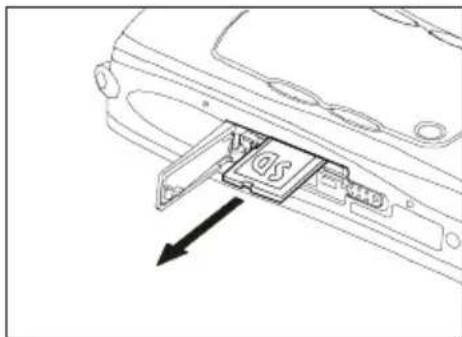
Technical line drawing of a device rear panel with an attached card labeled 'DS' (no text or symbols beyond label)- Removing the SD Memory Card
- Check that the camera is turned off
- Slide the card cover switch to open the card cover.
- Push the card and then pull it out.
natural_image
Line drawing of a device component with an arrow pointing to it, no text or symbols present- About Memory Card
You are recommended to use only SD Memory Card. If you using an MMC (Multi-Media Card), the following points shoule be noted.
- You can not record motion pictures.
- The processing speed is slow.
On account of the above limitations, we cannot guarantee operation of MMC.
- Formatting the Internal Memory and SD Memory Card
- Set the mode dial to [SET UP].
- Press the ▲ or ▼ button to select [FORMAT] and press the RIGHT button.
- Press the ▲ or ▼ button to select [ CARD ] or [ Internal ] and press the [ ENTER ] button.
- Press shutter release button.
- [FORMATTING] message will display. The screen will return to SET UP menu when the formatting is completed.
2. Recording
■ Basic Recording
- Turn on the camera.
- Slide the power switch to turn on the camera.
-
Set the mode dial to [ , or ].
-
Select the PIC (image quality) mode.
- Press the PIC button to select the image quality mode.
- In Continuous Mode, Image Enlargement Mode and Non-compressed Mode can not be chose.
- PIC button does not work to Motion Picture Mode.
- Compose the picture.
- Press [▲] button to make the subject larger and the [▲] button to make the subject smaller
- Record the image.
- Press the shutter release button halfway to lock the focus, and then press the shutter release button fully without releasing it.
- In continuous Mode, you need to keep pressing the shutter release button.
- In motion Mode, there will be messages of start : Release / stop : Release.
- Image Enlargement
Used for taking pictures with higher image quality. Pictures can be taken at a size of 2848 x 2136 pixels.
- Set the mode dial to [

-
Press the PIC button to select 2848 x 2136.
-
Compose the picture.
-
Press shutter lease button to record the image.
- Zoom Playback does not work for the Image Enlargement mode.
- Recording Capacities
| Mode / PIC Mode 16MB | 32MB 64MB | ||||
| Still N(No. of Images) | 2848 x 2136 N | 10 | 21 | 44 | |
| 2048 x 1536 | F | 10 | 21 | 44 | |
| 20 | 44 | 91 | |||
| NC | 1 | 2 | 5 | ||
| 1600 x 1200 N | 33 | 71 | 146 | ||
| 1280 x 960 N | 49 | 106 | 219 | ||
| Motion Picture (min:sec) | 1:10 | 2:49 | 5:10 | ||
- Using the Flash
-
Set the mode dial to [ ]
-
Press the button to select a flash mode.
-
You can choose from four flash mode: Flash Off, Auto, Forced Flash, and Slow Synchro.
-
Flash can not be used in Continuous Mode and Motion Mode.
-
Press the shutter release button to record the image.
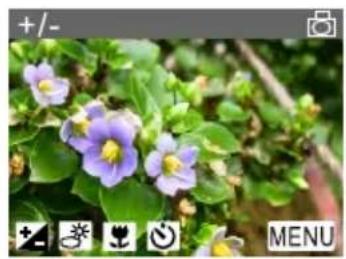
■ Menu Function
Use button to select function and press ENTER button.
natural_image
Close-up of purple flowers with yellow centers surrounded by green leaves, no visible text or symbols- Exposure Compensation : + -
The exposure can be compensated to intentionally brighten or darken the overall recorded image. The exposure compensation range is +/- 2.0EV (set in 0.5EV / step).
-
Set the mode dial to [ , or ] and press MENU button.
-
Check that +_ has been selected and press ENTER button.
- Press ▲ or ▼ button to select the compensation level and press ENTER button.
- Press shutter release button.
- White Balance

The white balance can be adjusted so that images can be recorded in natural colors no matter what light source the subject is exposed. There are 5 modes can be chose: Auto (default and no display), Daylight (
Overcast ( ), Tungsten Light ( ), and Fluorescent Light ( ).
- Set the mode dial to [ , or ] and press MENU button.
- Check that has been selected and press ENTER button.
- Press ▲ or ▼ button to select the white balance and press ENTER button.
- Press shutter release button.
- Macro Mode

- Set the mode dial to [ , or ] and press MENU button.
- Check that [ ] has been selected and press ENTER button.
- Press ▲ or ▼ button to select [ON] and press ENTER button.
- Press shutter release button.
- Self-Timer

- Set the mode dial to [ ] and press MENU button.
- Check that [💡] has been selected and press ENTER button.
- Press ▲ or ▼ button to select [ON] and press ENTER button.
- Press shutter release button.
- The Self-Timer LED will start flashing (with beep sound) and the shutter will be released with approximate delay of 10 seconds.
■ Other Advance Menu Functions
In MENU, user can set the following functions:
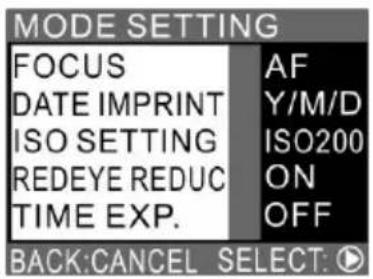
Focus: can be set in Still, Continuous, and Motion Picture Mode
Date Imprint: can be set in Still and Continuous Mode
ISO: can be set in Still and Continuous Mode
Red-eye Reduction: can be only set in Still Mode
Time Exposure: can be only set in Still Mode
- Methods to set
-
Set the mode dial to [ , or ] and press MENU button.
-
Press ▶ to select Ⓜ MENU and press ENTER button.
-
Press ▲ or ▼ button to select a function you want to set and press ▶ button.
-
Press ▲ or ▼ to change the function and press ENTER button to complete the setting.
- Press CANCEL button to exit the operation.
Important
Be sure the card door is closed when there are a message of "RECORDING", "COPYING" or file is reading in Recording, Set Up, or Playback Mode as this colud result in loss or damage of data stored on the card / Internal Memory, or malfunction of the camera.
3. Playback / Delete
■ Basic Playback
● Playing Still Picture / Continuous Files
- Set the mode dial to [

- Press ◀ or ▶ button to select the file to be played back.
Press ◀ button to display the previous file and ▶ to display next file. If keep the button pressed, the file will advance continuously.
- Playing a Motion Picture File
- Set the mode dial to [

-
Press ◀ or ▶ button to select the motion picture file.
-
Press shutter release button.
The motion picture file will be played back and the playback indicator and time elapsed will be displayed. Playback of motion picture files ends automatically.
• To pause and resume playback
To temporarily pause playback, press the shutter release button during playback, and to resume playback, press the shutter release button again.
- Slow playback
To play a file slowly, press ▶ button during playback.
Attention :
- If an unplayable is encountered, the "UNMATCHED FILE" message will be displayed.
- In some case, data recorded with the cameras of other companies cannot be played back.
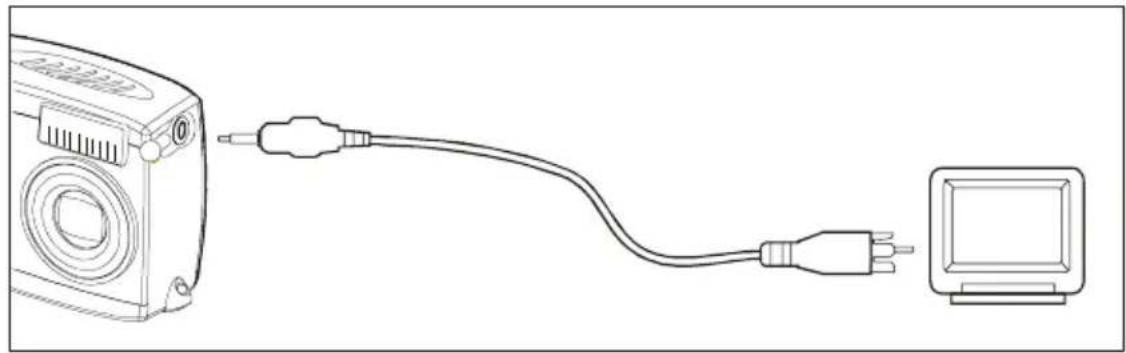
- Playing File on a TV
- Connecting
natural_image
Line drawing of a device connected to a monitor, showing cable and power plug (no text or symbols)- Make sure the camera is turned off.
- Open the Video Out Terminal cover and connect the Video Out Cable to the terminal.
- Connect the other end of the Video Out Cable to the Video-In Terminal of the TV.
- Connect the AC Adapter.
- Play back the files.
Turn the camera on and set the mode dial to Playback Mode [▶]
- Disconnecting
- Make sure the camera is turned off.
- Disconnect the cable.
■ Various Playback Functions
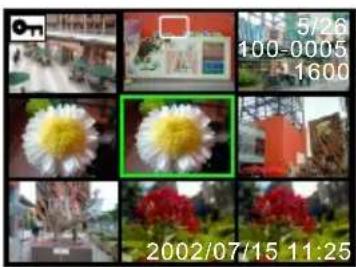
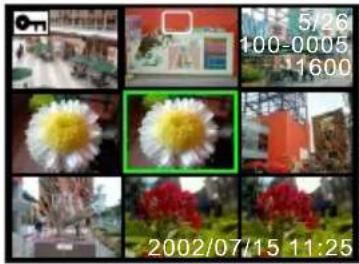
- Thumbnail Playback
This function enables user to play 9-file at once for quick searching.
-
Set the mode dial to [ ] and press the MENU button.
-
Press ▶ button to select ☐ and press ENTER button.
The screen will change to the thumbnail display.
natural_image
Grid of nine photos showing a white flower in various settings, including outdoor scenes and red flowers, with no visible text or symbols.| Indicator Status | |
| No Mark Still picture | |
| Motion Picture File | |
| ? Unplayable File | |
- Press ▲, ▼, ◀, ▶ buttons to select file. The file on which the focus is set is the selected file.
natural_image
Grid of nine photos showing different flower types and locations, including a white flower with yellow center and red flowers, with no visible text or symbols.- Press ENTER button, the screen will return to single image display.
- Zoom Playback
- Set the mode dial to [ ] and press the MENU button.
- Press ▶ button to select ⚠ and press ENTER button.
- Press of button to change the magnification.
Note
Image of 2848 x 2136 can not be played back by using Zoom Playback Function.
☐ To move the display position
Press DISPLAY button, than use ▲, ▼, ◀, ▶ button to change the position displayed. Press DISPLAY button again to return to the zoom playback screen.
- Press CANCEL button.
- The screen will return to the normal playback screen.
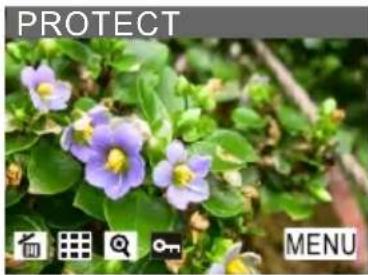
- Protecting a File
This function enables the user to protect important files.
□ Protecting / Unprotecting a Single File or All Files
-
Set the mode dial to [ ] and press the MENU button.
-
Press ◀ or ▶ button to select [ON] and press ENTER button.
-
Press ▲ to select [ALL FILES] [CANCLE FILES], [ONE FILE] and press the ENTER button.
natural_image
Close-up of purple flowers with green leaves, no visible text or symbols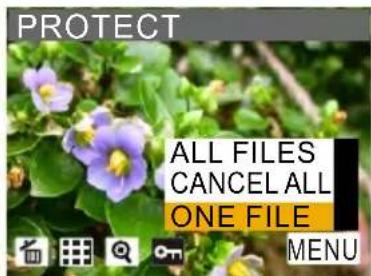
- Press ENTER button.
- Protecting a File / All Files: the setting will be enabled and the display will return to the protect screen. The symbol will be displayed to the file / files.
- Unprotecting a file / All Files: If you select [CANCLE FILES] and press the ENTER button when a file has already been protected, it will be unprotected.
- Other Advance Functions under [MENU] in Playback Mode
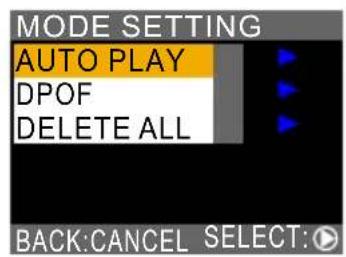
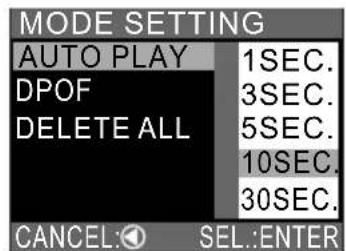
□ Auto Playback
This function allows user to select playback time (1 SEC. 3 SEC. 5 SEC. 10 SEC. or 30 SEC.) to play all files automatically.
-
Set the mode dial to [ ] and press the MENU button.
-
Press ▶ button to select an MENS ENTER button.
-
Press ▲ button to select [ AUTO PLAY ] and press ▶ button.
-
Press ▲r button to select the playback time and press ENTER button.
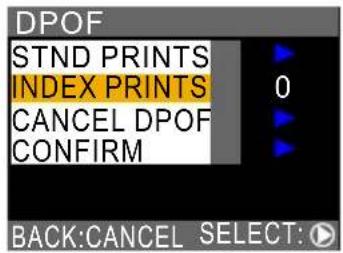
DPOF
- Set the mode dial to [▶] and press the MENU button.
- Press ▶ button to select MENU and press ENTER button.
- Press ▲ or ▼ button to select [DPOF] and press ▶ button. • DPOF menu will be displayed.
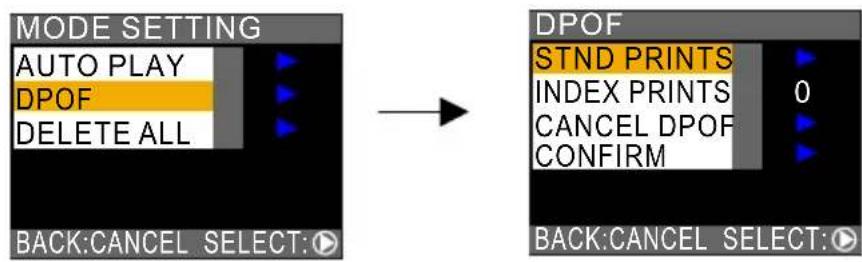
Press ▲ or to select [ STND PRINTS ], [ INDEX PRINTS ],
[ CANCEL DPOF ], [ CONFIRM ] on the DPOF menu and press ▶
button, then works on the funtion as below :
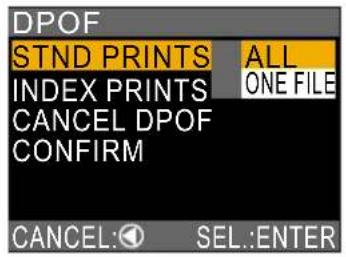
□ Specifying the Number of Prints
- Press ▲ or ▼ button to select [ALL] or [ONE FILE] and press ENTER button.
◆ Specify the number of prints.
- In case of [ALL], press ▲ or ▼ button to specify the number of prints and press ENTER button.
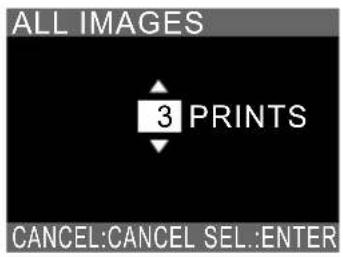
- In case of [ONE FILE], press ◀ or ▶ button to select the file you want to specify the number of prints and press ENTER button.
Then press ▲ or ▼ button to specify the number of prints and press ENTER button.
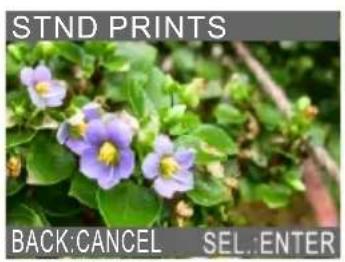

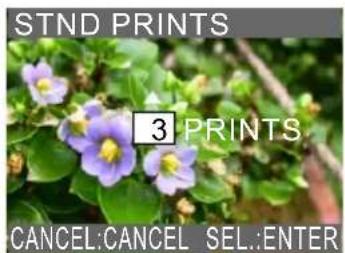
2. Press ENTER button to complete the setting
- Press CANCEL button to exit the operation.
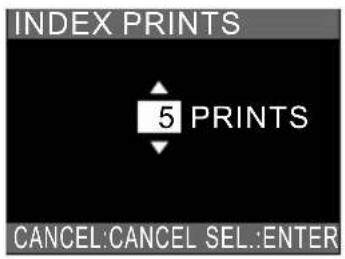
□ Specifying the Number of Index Prints
All files can be printed in reduced size.
- Press button to specify the number of Index prints and press ENTER button.
- Press ENTER button to complete the setting.
- Press CANCEL button to exit the operation.
☐ Canceling the DPOF Setting
- Select [STND] or [INDEX] and press ENTER button.
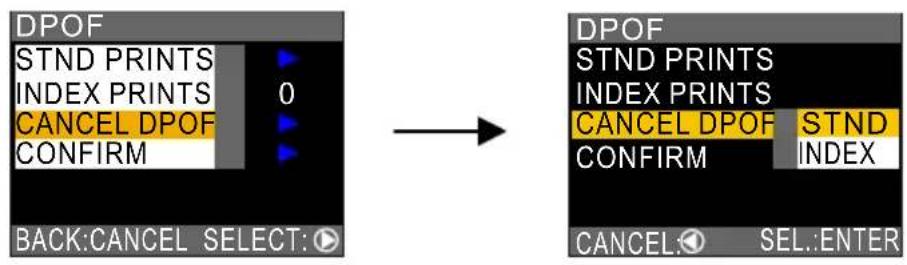
- Press ENTER button to complete the setting. Press CANCEL button to exit the operation.
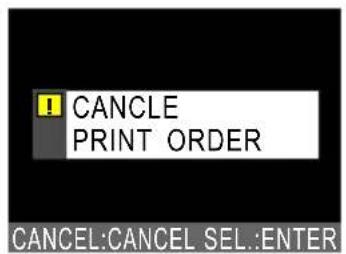
□ Confirming the DPOF Setting
- After confirm the settings, press CANCEL button.
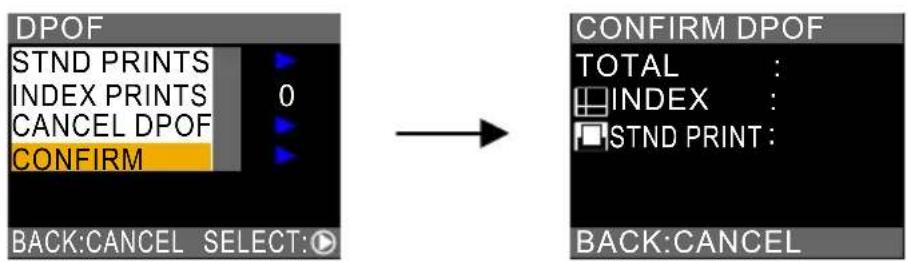
- Press CANCEL button to return to DPOF menu.

Deleting Files
This section explains how to delete recorded files.
- Deleting a Single File
- Set the mode dial to [ ]
- Press ◀ or ▶ button to select the file you want to delete and press MENU button.
- Check that [ 🔵 ] has been selected and press ENTER button. Then press Shutter Release button.
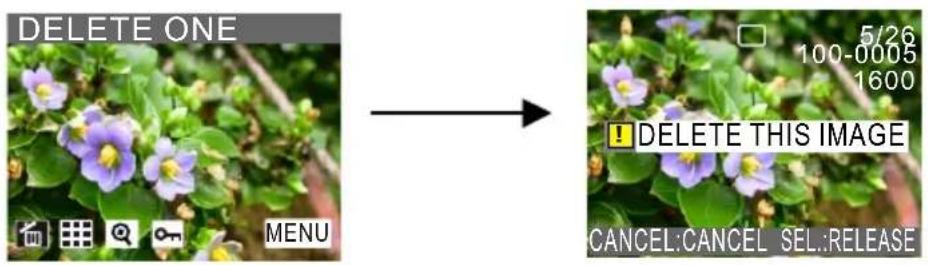
The file will be deleted and the display will return to Playback screen.
- Deleting All Files
- Set the mode dial to [ ]
- Press ▶ button to select MENU and press ENTER button.
- Press ▲ or ▼ buttons to select [ DELETE ALL ] and press button. Then press shutter release button.
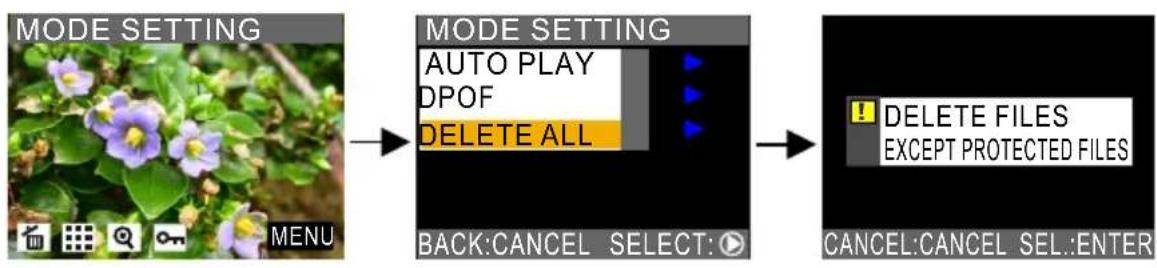
flowchart
graph LR
    A["MODE SETTING"] --> B["MODE SETTING"]
    B --> C["DELETE FILES\nEXCEPT PROTECTED FILES"]
    C --> D["CANCEL:CANCEL SEL:ENTER"]
All files will be deleted and the display will return to Playback screen.
4. Others
■ Changing the Camera Settings
This section explains how to change the camera settings:
- Turn the mode dial to [SET UP].
The set up menu displays.
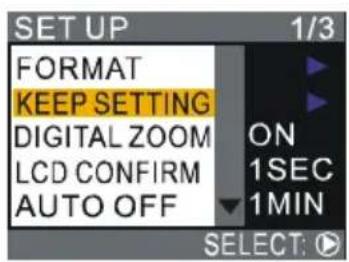
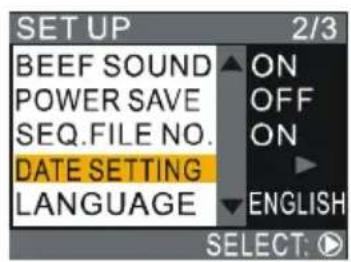
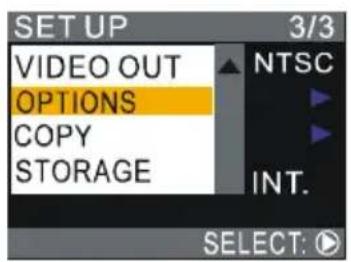
- Press ▲ or ▼ button to select a camera setting you want to change the setting.
- Press ▶ button to enter the camera setting and make decision.
- Press ENTER to complete the setting.
Press CANCEL button to exit the operation.
- FORMAT
Memory Card and Internal Memory can be formatted.
- KEEP SETTING
This keep setting mode is for saving the camera setting after the camera is turned off if you have set it to ON. The following settings can be saved:
| • Flash | |
| • Exposure Compensation • White Balance | |
| • Focus • Date Print | |
| • ISO Setting • Time Exposure | |
- DIGITAL ZOOM
Set it to ON to enable the digital zoom function.
Note
If Digital Zoom function does not be activated, the Tele and Wide button only for Optical Zoom control. After you active the Digital Zoom function, when you set to the end of Tele of the Optical Zoom, the Digital Zoom bar will appear in 2 seconds if keep pressing the Tele key.
- LCD CONFIRM (LCD Confirmation Time)
When you press shutter release button to take a still picture, the image is displayed on the LCD monitor. You can select the image confirmation time from zero (0), 1 SEC., 2 SEC., 3 SEC., or 5 SEC.
• AUTO OFF (Auto Power Off Setting)
The camera will turn off automatically in Record and Play to conserve the battery if no operation is performed (no buttons are pressed) for the preset length of time. You can select the time until the auto power off is activated from OFF, 1 MIN., 3 MIN., or 5 MIN. The default setting is 5 MIN. in Record / Playback mode.
• BEEP SOUND (Beep Sound Setting)
The camera beep to alert you when it records an image.
- POWER SAVE (Power Saving Mode)
This function enables you to reduce the power consumed by the LCD monitor and increase the life of the battery
• SEQ. FILE NO (File Numbering System)
This function enables you to set whether sequential numbers are automatically assigned to files.
Set to ON: The camera remembers the last file name assigned and even when a new memory card is inserted, numbers are assigned in sequence to subsequent files.
Set to OFF: When a new memory card is inserted, files name are assigned in sequence from 0001. When a memory card on which files have been recorded is inserted, the consecutive numbers on the card will be assigned.
- DATE SETTING
You will need to adjust the Date and Time when you first use the camera and each time you change time zones on trip. For the how to set the Date and Time, please see page 8.
- LANGUAGE (Display Language)
This function enables you to set the language to be displayed on the LCD monitor: English, German, French, Spanish, Italian, Dutch.
• VIDEO OUT (Video out Signal Method)
If you wish to play recorded files on a TV when you are abroad, change the Video-out Signal Method according to the video system (NTSC / PAL) used in the country where you are.
- OPTION (Initializing the Settings)
This function enables you to reset all the settings and return them to the status when the camera left the factory.
- COPY (Copy Files to Memory Card from Internal Memory) This functions allows you to copy files in the Internal memory to Secure Digital Memory Card.
Note
- Message of "INSUFFICIENT MEMORY" will be displayed if the
file size is bigger than the memory space of the Memory Card and no copy action will be taken.
- Please make sure there is sufficient memory in card to copy all files.
- STORAGE (Selecting a Recording Destination)
This function allows you to select whether to record shot files in Internal Memory or on the Secure Digital Memory Card.
■ Transferring your Image to the computer
- Driver Installation
If you are planning to transfer your images to your PC, make sure to complete the camera driver installation before the camera connection.
The steps are as below:
-
Insert the software CD-ROM disc into your CD-ROM drive.
-
The setup program starts. Follow the on screen instruction to complete the camera driver installation.
● Mass Storage Function
□ Downloading Images
-
Turn on the power of your PC.
-
Turn on the power of your camera.
-
Set the Storage Destination in SET UP mode
-
Set the Mode Dial to PLAY.
-
Use the USB cable to connect the camera and PC.
-
Double click " My Computer ".
-
Double click the newly created "Removable Device (G)".
- This assumes that the new device is drive G.
- Double click the "DCIM" folder.
- Image file will display, you can save or copy the file to the desired location on the PC.
- Double click the file to display the image.
Note :
- If use the Mass Storage Function, the mode dial must turn to “PLAY”.
Attention :
- If you disconnect the cable before close the Mass Storage, the Storage Destination (the hard disk) will be damaged.
Video Capture
- Driver Installation
The steps are as below:
- Insert the software CD-ROM disc into your CD-ROM drive.
- The setup program starts. Follow the on screen instruction to complete the camera driver installation.
□ Video Capture Function
- Turn on the power of your PC.
- Turn on the power of your camera.
- Set the Mode Dial to MOTION.
- Use the USB cable to connect the camera and PC.
- Double click "Presto! VideoWorks 4.5" to Run VideoWorks.
- Click "Capture Video" Button. Pop Play dialog, then click "Setting" Button, Select Video Device to "JD 3.3 x4ie Video for Windows".
- Click "PLAY" Button to start.
Note :
- If use the Video Capture Function, the mode dial must turn to "MOTION".
- The LED on front will lit-on in green when the PC and Camera is connected properly.
Attention
During Previewing and Capturing, please do not try to disconnect the USB cable as this could result in malfunction of the camera and the PC. User must turn off the Application Software first before disconnect the
- Warning Message
If the warning message is displayed on the LCD monitor, follow the procedures below.
| Message Remedy | |
| NO CARD No card has been inserted. Insert card. | |
| FORMAT CARD Card not formatted. Format card. | |
| CARD ERROR Format card again. If warning message is stilldisplayed, there is problem with card. Use another card. | |
| CARD PROTECTED Card write-protect is set on [ LOCK ]. Release lock. | |
| INSUFFICIENT Delete unwanted files or format card to ensure MEMORY sufficient memory space. | |
| CANNOT RECORD Motion picture file cannot be recorded on MOVIE this card. Use SD memory card. | |
| FILE PROTECTED File is protected. Unprotect card before deleting. | |
| UNMATCHED FILE Unpayable file selected. | |
| FILE NUMBER OVER File number limit exceeded. Format card or use another card. | |
| NO FILE There is no image file in the Memory Card and Internal Memory. | |
Important
- Do not try to open the card door during recording, playing back, or copying file.
- Do not try to turn off the power during recording, playing back, or copying file.
- Do not try to disconnect USB (TV out) Cable abnormally during recording or (playing back) files.
- User Manual - English
- Contents
- Safety Precautions 1 . . . . . . . . . . . . . . . . . . . . . .
- Specifications 2 . . . . . . . . . . . . . . . . . . . . . . . . . .
- Name of Parts 4.
- Before Using the Camera 8 . . . . . . . . . . . . . . . .
- 1.Preparation 9.
- Recording 12....
- Playback / Delete 16 ....
- Others 24
- Safety Precautions
- ■ Danger
- Specification
- Names of Parts
- ■ Camera
- ■ Operating Parts
- ■ Main Switch
- ■ 4-way Button
- ■ MENU / ENTER Button
- ■ Button
- PIC Button
- ■ CANCEL Button
- ■ DISPLAY Button
- Before using the camera
- ■ Attaching the Wrist Strap
- ■ Setting the Date and Time
- Preparation
- ■ Powering the Camera
- - Loading the Battery
- - Charging the battery
- • Using the AC Adapter
- • Auto Power Off Setting
- Note
- ■ Storage Media
- - Internal Memory
- - Secure Digital Memory Card
- ☐ Insert the SD Memory Card
- - Removing the SD Memory Card
- - About Memory Card
- - Formatting the Internal Memory and SD Memory Card
- Recording
- ■ Basic Recording
- - Image Enlargement
- - Recording Capacities
- - Using the Flash
- ■ Menu Function
- - Exposure Compensation : + -
- - White Balance
- - Macro Mode
- - Self-Timer
- ■ Other Advance Menu Functions
- - Methods to set
- Important
- Playback / Delete
- ■ Basic Playback
- ● Playing Still Picture / Continuous Files
- - Playing a Motion Picture File
- Attention :
- - Disconnecting
- ■ Various Playback Functions
- - Thumbnail Playback
- - Zoom Playback
- ☐ To move the display position
- - Protecting a File
- □ Protecting / Unprotecting a Single File or All Files
- - Other Advance Functions under [MENU] in Playback Mode
- □ Auto Playback
- DPOF
- □ Specifying the Number of Prints
- ◆ Specify the number of prints.
- Press ENTER button to complete the setting
- □ Specifying the Number of Index Prints
- ☐ Canceling the DPOF Setting
- □ Confirming the DPOF Setting
- Deleting Files
- - Deleting a Single File
- - Deleting All Files
- Others
- ■ Changing the Camera Settings
- - FORMAT
- - KEEP SETTING
- - DIGITAL ZOOM
- - LCD CONFIRM (LCD Confirmation Time)
- • AUTO OFF (Auto Power Off Setting)
- • BEEP SOUND (Beep Sound Setting)
- - POWER SAVE (Power Saving Mode)
- • SEQ. FILE NO (File Numbering System)
- - DATE SETTING
- - LANGUAGE (Display Language)
- • VIDEO OUT (Video out Signal Method)
- - OPTION (Initializing the Settings)
- - COPY (Copy Files to Memory Card from Internal Memory) This functions allows you to copy files in the Internal memory to Secure Digital Memory Card.
- ■ Transferring your Image to the computer
- - Driver Installation
- ● Mass Storage Function
- □ Downloading Images
- Note :
- Video Capture
- □ Video Capture Function
- Attention
- - Warning Message
Brand : ROLLEI
Model : dk3000
Category : Camera