
WPCB-128GW PCMCIA CARD - PCMCIA card SAGEM - Free user manual and instructions
Find the device manual for free WPCB-128GW PCMCIA CARD SAGEM in PDF.


| Product Type | PCMCIA (CardBus) Wireless Network Adapter |
| Brand | SAGEM |
| Model | WPCB-128GW |
| Wireless Standards | IEEE 802.11g, IEEE 802.11b |
| Maximum Data Rate | 54 Mbps |
| Frequency Band | 2.4 GHz |
| Interface | CardBus (PCMCIA 32-bit) |
| Supported Operating Systems | Windows 98SE, ME, 2000, XP |
| Operating Modes | Infrastructure (with access point), Ad-hoc (peer-to-peer) |
| Wireless Security | WEP 64/128-bit, WPA-PSK with TKIP |
| LED Indicators | 1 Power LED (solid green), 1 Activity LED (blinking green) |
| Power Supply | Powered by the computer's CardBus slot |
| Maintenance and Cleaning | No special maintenance required. Clean with a soft, dry cloth. |
| Security | Use WEP or WPA-PSK security protocols to protect transmitted data. |
| Package Contents | Adapter card, quick start guide, installation CD-ROM |
Frequently Asked Questions - WPCB-128GW PCMCIA CARD SAGEM
User questions about WPCB-128GW PCMCIA CARD SAGEM
0 question about this device. Answer the ones you know or ask your own.
Ask a new question about this device
Download the instructions for your PCMCIA card in PDF format for free! Find your manual WPCB-128GW PCMCIA CARD - SAGEM and take your electronic device back in hand. On this page are published all the documents necessary for the use of your device. WPCB-128GW PCMCIA CARD by SAGEM.
USER MANUAL WPCB-128GW PCMCIA CARD SAGEM
This Quick Start Guide describes how to install and operate your SAGEM Wi-Fi 11g CARDBUS ADAPTER.
Please read this manual before you install the product.
Introduction
The SAGEM Wi-Fi 11g CARDBUS ADAPTER is a wireless network adapter transmitting on rates of 1 to 54 Mbps, in the 2.4 GHz band and implementing the IEEE 802.11g and IEEE 802.11b standard.
It fully supports wireless networking under Windows 98SE/ME/2000/XP.
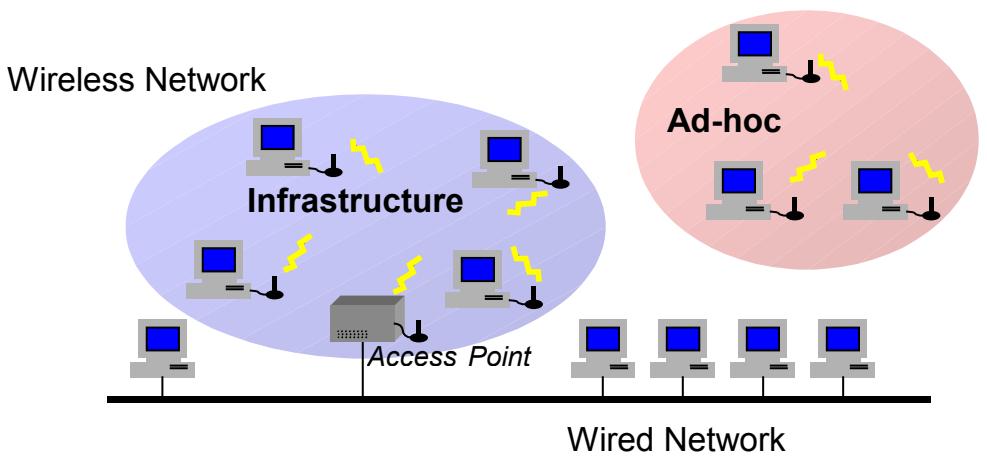
The SAGEM Wi-Fi 11g CARDBUS ADAPTER can be operated in one of the two following networking configurations :
- Infrastructure Networking
In this mode, the radio links are coordinated by an Access Point providing connection with an existing wired network and other network facilities such as Internet, email, shared devices...
- Ad-hoc Networking
Also known as peer to peer networking, this mode allows easy connection between wireless workstations, to act as servers to all others. This mode can be used to share a printer or for file transfer.
Package Content
These are the items included in the package:
One SAGEM Wi-Fi 11g CARDBUS ADAPTER
One Quick Start Guide
One installation CD-ROM
Minimum System Requirements
Personal Computer with an available CARDBUS slot.
Microsoft Windows 98 Second Edition (98SE), Windows Millennium (ME), Windows 2000 or Windows XP installed on the PC.
SAGEM Wi-Fi 11g CARDBUS ADAPTER for wireless networking
The installation of your SAGEM Wi-Fi 11g CARDBUS ADAPTER for wireless network requires three steps:
Software installation
Hardware installation
Wireless connection configuration
Installation of the software under Windows :

Warning: It is necessary to install the Wireless Networking software and drivers BEFORE plugging the CARDBUS card in the appropriate slot of your computer.
The first step of the installation is to copy all the necessary files to your hard disk. To do so, please follow the instructions below:
-
Insert the Product CD-ROM into the CD-ROM drive of your computer.
-
An Auto-run is automatically executed and the following screen comes up. If not, run the "Autorun.exe" on the CD-ROM
In the displayed list, select your adapter model as labeled on it.

Once done, the following choices are offered:
Install the Wireless Networking software and drivers
Read the present manual
To launch the installation, click "Wi-Fi adapter install"

A first screen appears. Click Next to continue the installation and follow the on-screen instructions to install the Wireless LAN Utility
Installation of the hardware under Windows :
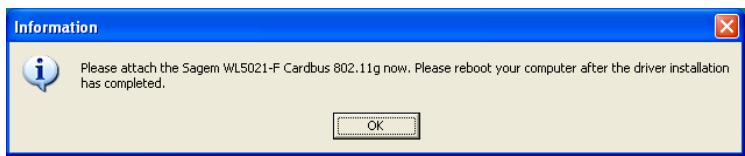
When this screen is displayed, plug your SAGEM Wi-Fi 11g CARDBUS ADAPTER into an empty CARDBUS slot, and click on « OK »
Important notice for Windows 98SE users
If the "Please insert the disk labeled "Windows 98SE/ME CD-ROM", and then click "OK" Window appears, insert your Windows CD-ROM and enter the path corresponding to the CD-ROM drive then click "OK". Click "Finish" to complete the installation, which will restart Windows.
Configuration of your to access to Internet
After the two previous steps completion, your Wireless LAN (Local Access Network) is now installed. You now have to configure your connection to be able to access via an access as seen below.
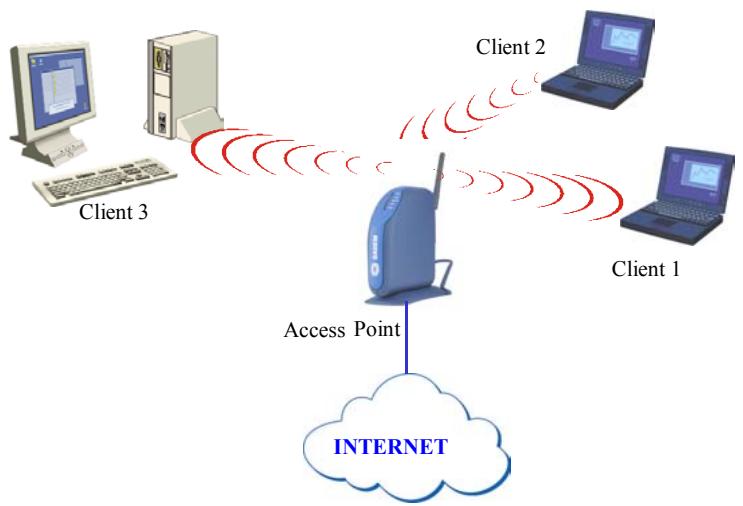
To do that, you will have to:
Launch the WLAN Utility management software
Configure your in Infrastructure Mode
Set the SSID of the wireless network on which you want to attach
Configure the encryption parameters if you want to protect your wireless network
I. Configuration to access to à Internet under Windows :
At first, you must verify that the computer, where you have installed your CARDBUS is configured in DHCP (dynamic address):
In the Network Connection tab of the Control Panel menu, click on the TCP/IP protocol of the Wireless network connection (SAGEM Wi-Fi 11g CARDBUS ADAPTER).
Select Obtain an IP address automatically in the IP Address tab.
Open the WLAN utility
To open the WLAN utility, you have two possible choices:
Select the "Sagem WL5021-F Cardbus 802.11g" from the Start Menu of Windows,
Or double-click the corresponding icon laying on the Windows desktop:
Once you have installed the Configuration Utility, an icon appears on the right of your Task Bar:
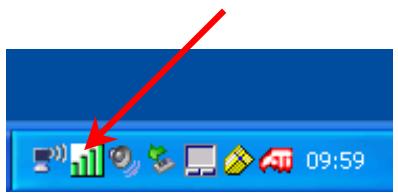
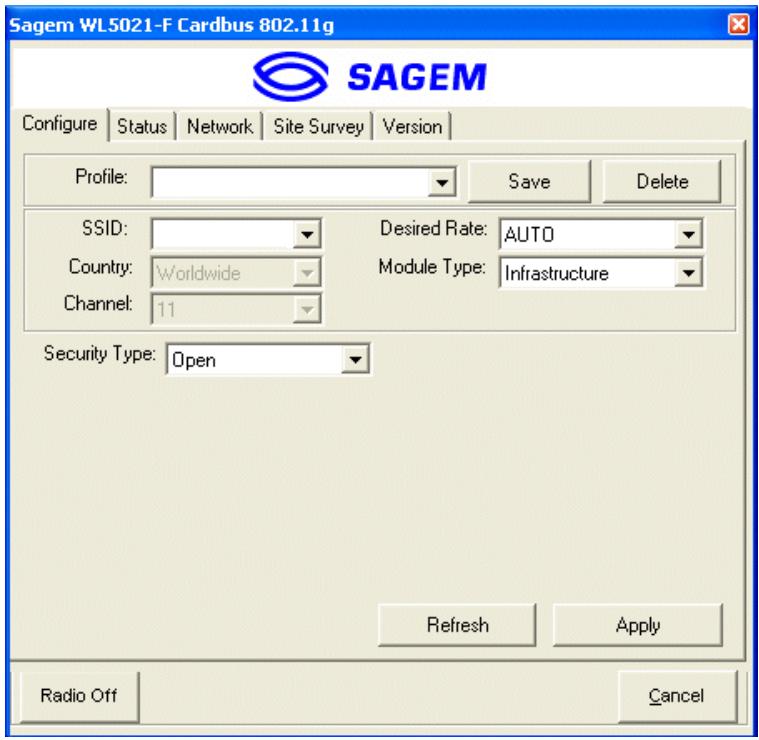
Double-click this icon and the main screen of the Utility shows up as seen opposite.
Configuration of your Wireless LAN in Infrastructure Mode
To access Internet your Wireless LAN must be set in Infrastructure Mode as seen below.
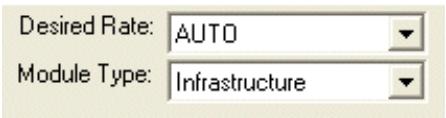
In the main screen of the Utility, click the down arrow at the right of the Network Type field and select "Infrastructure"
Selection of the SSD
The SSID is a string of characters identifying a wireless network (it is the name of this network). To belong to a same wireless network, the client stations and the access point (connected to the Internet) have to use the same SSID.
If you keep the SSID field empty or to ANY (default value), your will attach itself to the nearest access point (or to the one sending the higher radio signal).

If you know the name of the access point you want to associate with, enter this SSID in the corresponding field and then click "Apply" button to make the setting take effect.
The SSID can be set up to 32 characters. It is case sensitive (please take great attention to that).
Configuration of the Encryption parameters
To prevent unauthorized wireless station from accessing data transmitted over your network, the Wireless LAN offers secure data encryption, like "open" and "shared Key" authentication with WEP (Wired Equivalent Privacy) encryption or WPA-PSK (Wi-Fi Protected Access - Pre Shared Key) authentication with TKIP (Temporal Key Integrity Protocol) encryption. The activation or not of the security has to be set on the same way on the Access Point and on your LAN CARDBUS (client station).
Your network can only be operated in the 2 following conditions:
No security activated, neither in the Access Point, neither in the client stations
Security activated (recommended for securing your data) in the Access Point and on all client stations with the same characteristics of encryption.
1) Security disabled on Access Point.
If your Access Point works without security, your wireless LAN also has to be set without WEP or WPA. Check in the main screen of the Utility that the Security Type list is set to Disable.
2) Security enabled on Access Point.
Beware that if you enable security on your, you necessarily have to enable the type of security on the Access Point side, as well, if you want your to be able to associate with it. Go the Configure tab in the main screen of the Utility and select in the Security Type list the wanted security type.
Here we will explain how to configure open security with WEP and WPA-PSK security with TKIP.
2.1) WEP encryption :
In the screen " Configure", you will have to :
Security Type is fix to WEP 64 bits or 128 bits
select the index key
select the way to generate the encryption keys (from a passphrase or manually)
Length of the WEP keys
WEP protocol offers two levels of encryption: encryption based on 40 or 64 bits key length and more secure encryption based on 104 or 128 bits key length.
The 40 bits keys and the 64 bits keys are the same, if their effective length is 64 bits, only 40 bits are selected by the user, the others bits are automatically calculated. Speak about 40 bits keys or 64 bits keys is the same thing. It is identical for the 104 and 128 bits keys.
The principle of management is identical for both 64 bits and 128 bits.
The key length has to be set at the same value on the Access Point and on the client station (Wireless LAN in our case).
Creation of the WEP keys
It is possible to manually enter the WEP key you want to use. However, this entry being rather tedious, especially for 128 bit keys, it is possible to have them generated automatically. To do that, you will have to enter a string of characters called "Passphrase".
Create Encryption Keys by Using a "Passphrase"
1- Select first the "WEP (64 bits)" or "WEP (128 bits)" length of the key.
2- Check "PassPhrase".
3- Select index key (fixed to 1 for WEP 128 bits)
4- Enter the string in PassPhrase. The key is generated from your string.
5- Finally click the "Apply button" in the Configure tab to save the configuration.
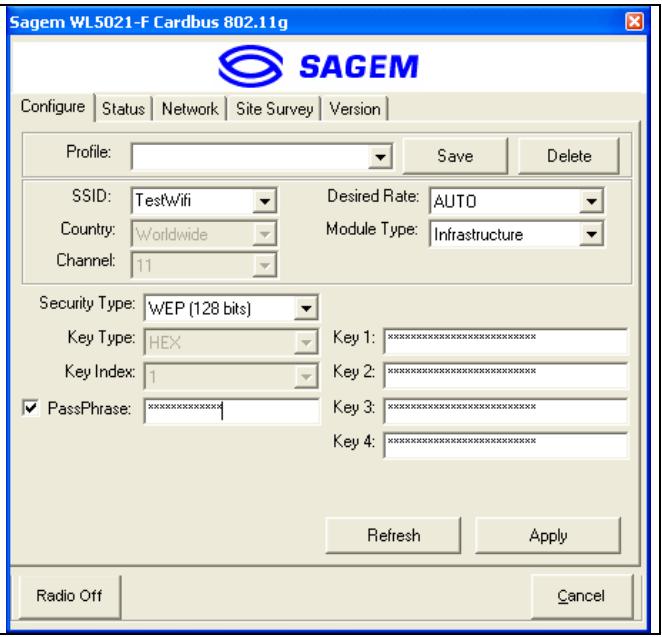
Warning: when Create Key with Passphrase is enabled, the wireless device's Key number with PassPhrase must match the Key number with PassPhrase used by the access point with which wireless devices are going to communicate.
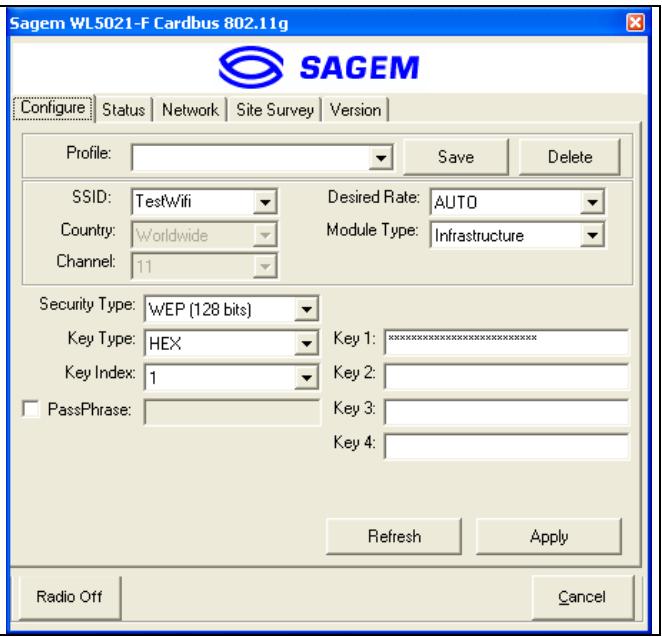
Create Encryption Keys Manually
You can also create up a encryption key.
- Select first the "WEP (64 bits)" or "WEP (128 bits)" length of the key to generate
- Select "ASCII" or "Hex" (hexadecimal) in Key Type
- Select index key
- Enter manually the key you want in the key field taking in account the remarks here after specifying the authorized characters
- Finally click the "Apply button" in the Configure tab to save the configuration and make setting take effect.
For 64bit encryption you may choose:
Alphanumeric: 5 characters (case sensitive) ranging from "a-z", "A-Z" and "0-9" (e.g. MyKey)
Hexadecimal: 10 hexadecimal digits in the range of “A-F”, “a-f” and “0-9” (e.g. 11AA22BB33)
For 128bit encryption you may choose:
Alphanumeric: 13 characters (case sensitive) ranging from “a-z”, “A-Z” and “0-9” (e.g. MyKey12345678)
Hexadecimal: 26 hexadecimal digits in the range of "A-F", "a-f" and "0-9" (e.g. 00112233445566778899AABBCC).
2.2) WPA-PSK / TKIP encryption:
1 - Select Security Type : WPA-PSK
2 - Select encryption mode : TKIP.
3 – Enter a string from 8 to 63 characters in WPA Passphrase
4 - select «Apply button» in the Configure tab to save the configuration and make setting take effect.
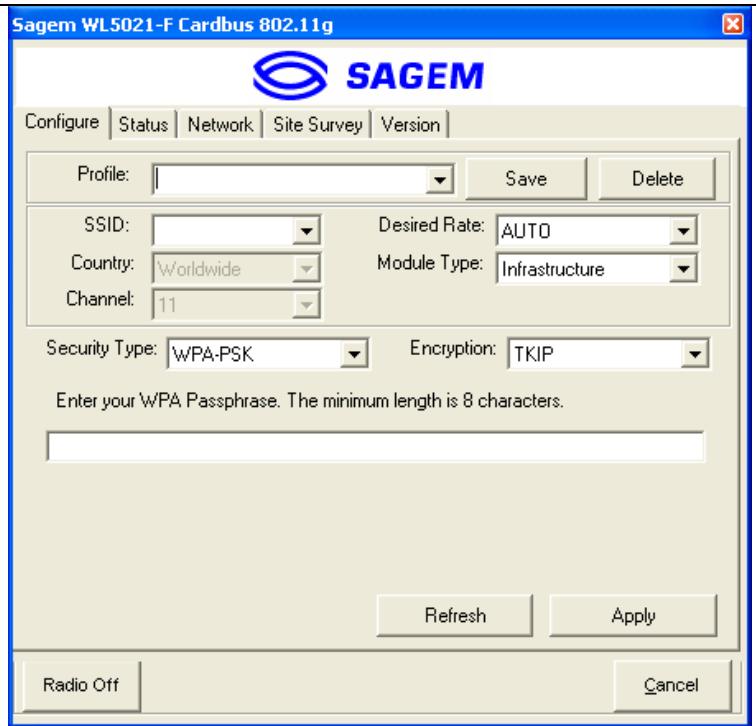
The configuration of your Wireless LAN to access to Internet under Windows is finished
Configuration of your Wireless LAN in Ad Hoc mode
Also known as a peer to peer network, this mode allows wireless to wireless connection, enabling all workstations to act as servers to all others. This mode can be used to share a printer or for file transfer.
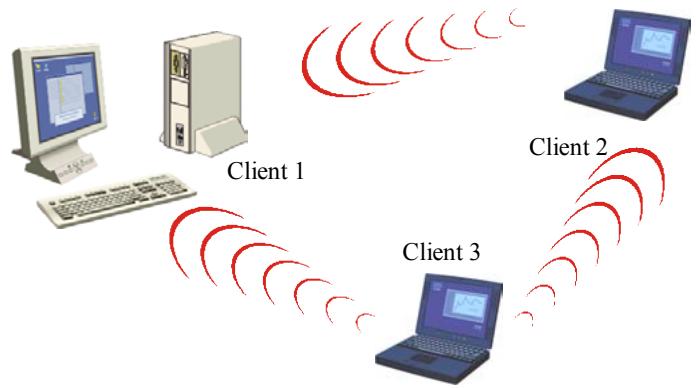
I. Configuration in Ad Hoc mode under Windows :
Configuration of Network Type
To set your Wireless LAN in the Ad Hoc mode, click the down arrow at the right of the Module Type field and select "Ad Hoc" in the main screen of the WLAN utility.
Configuration of the SSD
The SSID is a string of characters identifying your wireless network (it is the name of this network). To be part of a same network, wireless clients must have the same SSID. This SSID is the name of this network.
If you want to associate to an existing Ad Hoc network, enter the SSID of this network in the corresponding field and click the "Apply" button on the Configure tab to make the setting take effect.

If you want to create a new Wireless Ad Hoc network, enter an unused SSID (replacing ANY) to identify your own network.
Then click the "Apply" button on the Configuration tab to make the setting take effect.
Configuration of the Channel
To be part of a same network, wireless clients must use the same channel If you want to associate to an existing Ad Hoc network, select the channel of this network in the corresponding canal in the main screen of the WLAN utility. Then click the “Apply” button on the Configure tab to make the setting take effect.
If you want to create a new Wireless Ad Hoc network, select an unused channel, then click the "Apply" button on the Configure tab to make the setting take effect.
Configuration of WEP encryption
The configuration of WEP encryption in Ad Hoc mode is similar to the one in Infrastructure Mode. Please refer to the above explanations.
The configuration of your Wireless LAN in Ad-Hoc mode is finished.
About Status Information on your Wireless LAN CARDBUS
Card Led Indicators
The CARDBUS card has two LED indicators giving the following information on the link status :
One should be solid green when the card is power on and the cardbus wireless adpater driver is activated.
The other one is blinking green when the cardbus wireless adpater is transmitting data.
I. On the WLAN utility under Windows :
Icon of the WLAN utility
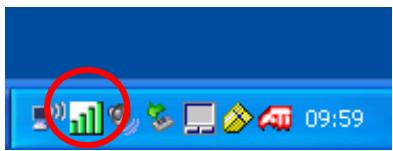
The color behind the system tray icon indicates the link status:
Green icon :
the wireless connection is strong or good.
Red icon :
the wireless connection is poor or weak.
White with a Red X :
no wireless connection.
Status field on the Status Menu of the WLAN utility
Click on Status tab to have transmission information.
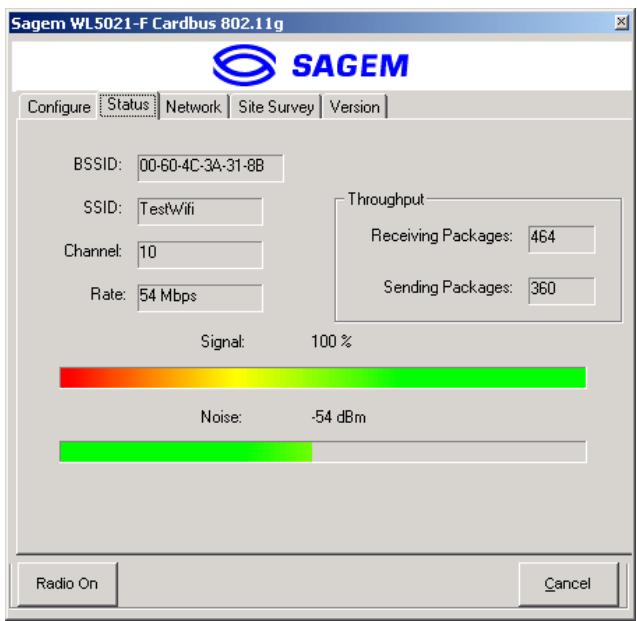
Channel:
Shows the radio channel on which the connection is made.
Rate :
Shows the highest transmit rate of the current 54 Mbps to 1 Mbps.
Throughput: Shows the short term transmit and receive throughput in packets/second, and is continuously updated.
- To remove the Wireless LAN Utility from your computer, go to the Start menu and select "Uninstall Sagem WL5021-F Cardbus 802.11g".
- Follow the instructions on the different screens to uninstall the Wireless LAN Utility, then click on Finish. You should re-boot your computer for uninstall to be effective for all OS.
Troubleshooting
If you experience any difficulty resolving the problem while installing or using the SAGEM Wi-Fi 11g CARDBUS ADAPTER, please contact the supplier for support.
| Problem | Solution |
| At SAGEM Wi-Fi 11g CARDBUS ADAPTER installation, Windows was unable to locate the driver for this device. | • Restart your PC and follow the screens showed up. |
| The Wireless LAN LED does not come on. | • Check that the Wireless LAN is correctly connected. • Plug out the Wireless LAN, then plug in it into the same CARDBUS slot on your computer. • Under Windows check the Wireless LAN driver is correctly installed. If this is not the case uninstall then reinstall the driver. |
| The Wireless LAN LED flashes and you cannot access to your Access Point or to the other client stations of your network. | • Check that the SSID and the WEP encryption keys are the same on the computers and the access point which are on the same network. • Check that the wireless network is operational. |
| After a restart of your computer, the system cannot detected the Wireless LAN plug into it. | • Plug out the Wireless LAN, then plug in it into the same CARDBUS slot on your computer. |
- Introduction
- Package Content
- Minimum System Requirements
- SAGEM Wi-Fi 11g CARDBUS ADAPTER for wireless networking
- Installation of the software under Windows :
- Installation of the hardware under Windows :
- Important notice for Windows 98SE users
- Configuration of your to access to Internet
- Configuration to access to à Internet under Windows :
- Open the WLAN utility
- Configuration of your Wireless LAN in Infrastructure Mode
- Selection of the SSD
- Configuration of the Encryption parameters
- 1) Security disabled on Access Point.
- 2) Security enabled on Access Point.
- 2.1) WEP encryption :
- Length of the WEP keys
- Creation of the WEP keys
- Create Encryption Keys by Using a "Passphrase"
- Create Encryption Keys Manually
- 2.2) WPA-PSK / TKIP encryption:
- Configuration of your Wireless LAN in Ad Hoc mode
- Configuration in Ad Hoc mode under Windows :
- Configuration of Network Type
- Configuration of the SSD
- Configuration of the Channel
- Configuration of WEP encryption
- About Status Information on your Wireless LAN CARDBUS
- Card Led Indicators
- On the WLAN utility under Windows :
- Icon of the WLAN utility
- Status field on the Status Menu of the WLAN utility
- Troubleshooting
Brand : SAGEM
Model : WPCB-128GW PCMCIA CARD
Category : PCMCIA card