CL910 - Vacuum Cleaner MOTION - Free user manual and instructions
Find the device manual for free CL910 MOTION in PDF.


User questions about CL910 MOTION
0 question about this device. Answer the ones you know or ask your own.
Ask a new question about this device
Download the instructions for your Vacuum Cleaner in PDF format for free! Find your manual CL910 - MOTION and take your electronic device back in hand. On this page are published all the documents necessary for the use of your device. CL910 by MOTION.
USER MANUAL CL910 MOTION
© 2012 Motion Computing, Inc. All rights reserved. This document contains information protected by copyright. No part of this document may be reproduced in any form without written consent from Motion.
The information in this document is provided "as is" and is subject to change without notice. Motion is not liable for errors or omissions in this document.
Motion, Motion Computing, Speak Anywhere, View Anywhere, and QuickNav are trademarks or registered trademarks of Motion Computing, Inc. in the U.S.A. and other countries.
Acrobat is a registered trademark of Adobe Systems Incorporated.
Bluetooth is a registered trademark owned by the Bluetooth SIG, Inc., U.S.A. and licensed to Motion Computing, Inc.
Intel, Intel Atom, Core, vPro, and Centrino are trademarks or registered trademarks of Intel Corporation or its subsidiaries in the United States and other countries.
Computrace is a registered trademark of Absolute Software Corp.
Knowles and IntelliSonic are trademarks or registered trademarks of Knowles Acoustics, Inc.
OmniPass is a trademark of Softex, Inc.
Realtek is a trademark of Realtek Semiconductor Corporation.
Microsoft, Windows, and Windows Journal are trademarks or registered trademarks of Microsoft Corporation in the United States and/or other countries.
Qualcomm, Gobi, and Gobi 3000 are trademarks or registered trademarks of Qualcomm Incorporated.
SigmaTel is a registered trademark and Universal Jacks is a trademark of SigmaTel Corporation.
Wi-Fi is a registered trademark of the Wi-Fi Alliance.
HDMI, the HDMI logo, and High-Definition Multimedia Interface are trademarks of HDMI Licensing LLC in the United States and other countries.
Insyde and InsydeH2O are trademarks of Insyde Software Corporation.
End users may not loan, rent, lease, lend, or otherwise transfer the CDs or DVDs provided for recovery purposes to another user, except as permitted in the End User License Agreement for such product.
Motion Computing, Inc. has made every effort to identify trademarked properties and owners on this page. All brands and product names used in this document are for identification purposes only and may be trademarks or registered trademarks of their respective companies.
The warranties for Motion products are set forth in the express limited warranty statements accompanying such products. Nothing in this document constitutes an additional warranty.
The Motion Computing products and services may be covered by one or more patent-protected inventions. Additional patents may also be pending. For more information, see
www.motioncomputing.com/info/patents.asp.
The end user may access only one operating system language version.
Mobile broadband with GPS 2
Security 2
CL-Series Motion SlateMate™ 2
Overview of the CL910....3
Top view 3
Bottom view 3
Front view 4
Back view 5
Right side view 5
Left side view 6
Pen 7
CL-Series SlateMate 7
Where to begin with your CL910....8
Step 1: Power up the tablet 8
Step 2: Connect to a wireless network....8
Step 3: Get familiar with your CL910 Tablet PC....10
Step 4: When you take a break ..... 10
Optional setup tasks....12
Create a recovery image 12
Insert the pen battery 12
Attach the pen tether 12
Connect the tablet to a docking station 13
Connect the tablet to an external monitor....13
For more information....14
Chapter 2 Using your CL910....15
Introducing the CL910 desktop and applications 15
Changing the location of the taskbar....16
Using the Motion Dashboard 16
Accessing Motion tools from the Windows® notification area 18
Using touch 19
How to use gestures with the multiple-touch display 20
Changing to one-tap open for touch 20
Configuring touch input mode....20
Using the touch tuning option....21
Adjusting touch settings....21
Adjusting pen settings....22
Adjusting tablet PC settings 23
Entering text and handwriting recognition 23
Opening and closing the input panel....24
Docking or floating the input panel 25
Entering numbers with numbers pad 25
Entering special keys with the extended keyboard....26
Using handwriting recognition 26
Using Motion QuickNav 27
Starting Motion QuickNav 27
Hiding and showing the Motion QuickNav toolbar....29
Stopping Motion QuickNav 29
Accessing Motion QuickNav help 29
Setting Motion QuickNav options 29
Using the Motion QuickNav tools 29
Using the cameras with Motion QuickNav 30
Using the web camera....31
Taking photos with Motion QuickNav 31
Editing photos 34
Switching cameras 36
Locating Motion QuickNav output 37
Setting display options 39
Adjusting the display brightness....39
Rotating the display orientation 39
Enabling or disabling automatic rotation 39
Setting up an external display 40
Connecting to an external monitor....41
Using the built-in microphones 42
Using speech recognition....43
Setting up speech recognition 43
Using dictation and voice commands....44
Using the magnetic stripe reader (optional) 44
Using the barcode scanner (optional) 45
Supported barcode types....46
Barcode scanner tips 46
Using the battery....46
Checking tablet battery power....47
Battery and power management tips....49
Changing the power plan....49
Changing how the power button functions 50
Using Windows® Action Center 50
Setting up user accounts 51
Locating your serial number 51
Backing up your system 52
Restoring your system 52
Creating a system image....52
Restoring your system image from Windows® Control Panel ....53
Restoring your system image if you can't start Windows ^ 7 ....53
Restoring your system without a system image....54
Finding other software 54
Chapter 3 Caring for your CL910....55
General care....55
Caring for the display....56
Cleaning solutions....56
Caring for the pen....56
Caring for the tablet battery ....57
Traveling with your CL910 Tablet PC 57
Chapter 4 Troubleshooting and FAQs....58
Troubleshooting 58
Power issues 58
Battery issues 59
Display issues 59
Touch or pen issues 60
Ports and connectors issues....62
Network issues....62
Audio issues....65
Motion QuickNav issues 66
System issues 66
Frequently asked questions....67
Index....70
Getting Started
The Motion Computing ^® CL910 Tablet PC is durable, lightweight, and purposefully built for mobile business. Running Microsoft ^® Windows ^® 7 and powered by the Intel ^® Atom ^™ N2600 Dual Core processor, the CL910 balances power, performance, and a battery life of up to 7 hours. Weighing 2.2 pounds, and offering added durability and productivity features, the CL910 helps users work more efficiently, providing the capabilities, applications, and connectivity mobile workers need for improved field productivity.
The CL910 Tablet PC includes these features:
- Intel ^ Atom ^TM N2600 Dual Core processor (1.6 Ghz)
- Windows® 7 Professional (32-bit)
• 2GB 1333MHz DDR3 - 64GB Solid State Drive (SSD) with 128GB option
- 10.1" touchscreen display (LED BL, 1376x768) with Corning® Gorilla® Glass
- Wi-Fi®, Bluetooth®, and optional mobile broadband with GPS (Gobi™)
- Dual input—digitizer pen and multi-touch
- Mono speaker and dual array microphones with noise cancellation
- Front-facing 1.3 MP web camera and rear-facing 3.0 MP documentation camera
- USB, SD slot, combined audio input/output jack, and Micro-HDMI ^ video port
- Dock connector
• Built-in lithium-Ion battery (up to 7 hours per battery charge) - Trusted Platform Module (TPM) for hardware-based security and optional Computrace® Complete, which allows you to identify your Tablet PC in the case of loss or theft.
Optional features
This section describes the optional features available for your CL910.
Mobile broadband with GPS
You can purchase a CL910 Tablet PC with the optional mobile broadband with GPS module. When installed, the module provides:
• Worldwide mobile broadband support
• Worldwide GPS support
Motion Connection Manager is an application that you can use to manage your mobile broadband and GPS network connections. For information on setting up mobile broadband, see Set up mobile broadband with GPS on page 9.
The GPS receiver uses satellites to determine the current location, altitude, heading, and horizontal velocity of the CL910. You can use it with your preferred mapping applications to find your current and desired locations.
Security
TPM
TPM is used by enterprise-level software applications to implement advanced security features that include user and device authentication; full disk data encryption; and restricted network access.
System administrators typically configure TPM, which entails enabling TPM in the BIOS and configuring the accompanying security software provided by the TPM manufacturer, Infineon.
Computrace® Complete
The CL910 Tablet PC can be purchased with the optional Computrace® Complete, which offers enhanced data protection, improved IT asset management, and managed computer theft recovery. With Computrace, organizations can track, manage, and secure their entire computer fleet, including remote and mobile devices, on or off the network.
CL-Series Motion SlateMate™
If you purchased the CL910 Tablet PC with the productivity module, Motion® CL-Series SlateMate, ^TM the tablet comes with an integrated Magnetic Stripe Reader (MSR) and Barcode Scanner (BCS). This allows the CL910 to become a mobile point-of-sale and data acquisition tool.
Overview of the CL910
The following illustrations show the buttons, slots, and ports on the CL910 Tablet PC.
Top view
The speaker and microphones are located on the top edge of the CL910.

CL910 top view
Speaker Listen to audio warnings, videos, music, and other multimedia applications.
Microphones Use voice commands, record audio, and dictate notes with the two liquid-resistant array microphones without the need for an external microphone. For more information, see Using speech recognition on page 43.
NOTE: In addition to the built-in speaker and microphones, you can plug external headsets into the audio in/out jack.
Bottom view
A dock connector on the bottom edge of the tablet enables you to connect to a docking station.

CL910 bottom view
Dock connector Connect the CL910 to a CL-Series docking station.
Front view
The front of CL910 consists of a capacitive touchscreen display, web camera, and battery gauge.
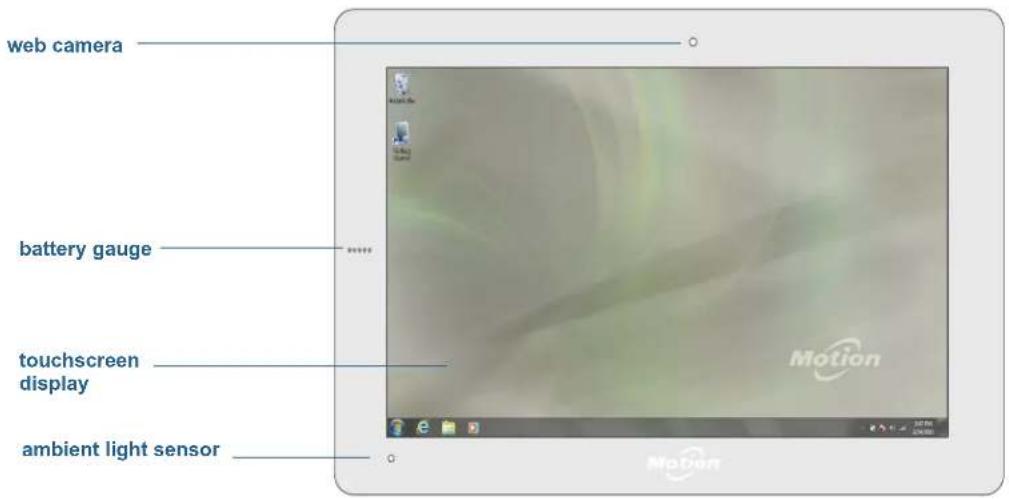
CL910 front view
| Web camera Interact with people online, stream video, or capture color images with a 1.3 MP web camera. | |
| Battery gauge Monitor battery status. When running on battery, LED lights on the front show the current level of battery charge.See Checking tablet battery power on page 47. | |
| Touchscreen display Use your finger or pen to access all the functions of the CL910 on the 10.1" display. | |
| Ambient light sensor | Measures the light in your environment and can automatically adjust the brightness of the display. |
Back view
The documentation camera is located on the back of the CL910.
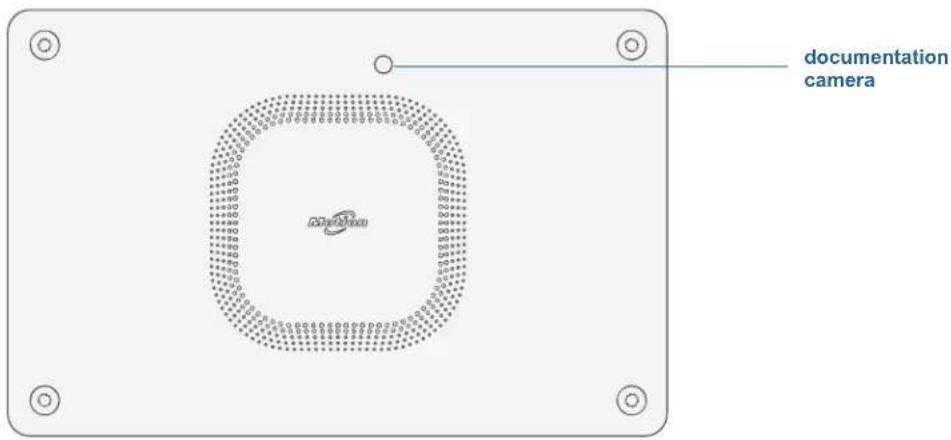
CL910 back view
| Documentation camera | Take photos or video with this 3.0 MP, auto-focus camera. It produces pictures in JPG format with a resolution of up to 2048 x 1536 pixels. |
Right side view
The pen is stored in a storage drawer on the right side of the CL910.

CL910 right view
| Pen tether attach point | Loop a pen tether through this attach point to keep your pen with the tablet. A tether is packaged with each pen. See Attach the pen tether on page 12. |
| Pen release button Press to open the pen storage drawer. | |
| Pen storage drawer Store the pen when not in use, pen tip down. | |
Left side view
Most of the CL910 connectors and slots appear on the left side of the tablet. The ports are protected by a cover that is not shown in the picture below.
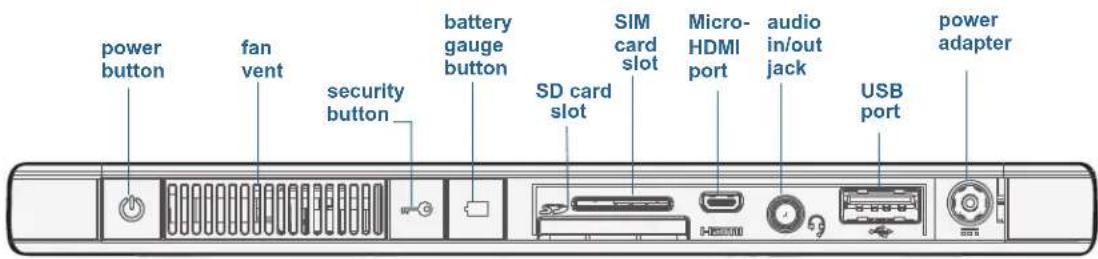
CL910 left side view
 | Power button Press to turn on and to put the CL910 Tablet PC to sleep. | |
 | Fan vent Cooling unit | |
 | Security button Press to lock and unlock the CL910. Equivalent to pressing Ctrl+Alt+Delete on a keyboard. | |
 | Battery gauge button | Check remaining battery power. Press the button to view battery gauge LED lights on the front, the number of lights indicates the current level of battery charge. See Checking tablet battery power on page 47. |
 | SD card slot Secure Digital (SD) memory card slot | |
 | SIM card slot Required for some mobile broadband networks. If required, your cellular network carrier provides the SIM card. | |
 | Micro-HDMI port Connect digital audio/video devices such as an external digital monitor. The Micro-HDMI (Type D) supports up to 1080p @ 60Hz. | |
 | ||
 | Audio in/out jack Connect headphones, speakers, or any other audio device compatible with a 3.5mm jack. | |
 | USB port Connect a USB device such as a mouse, digital camera, printer, or external storage device. | |
 | Power adapter port | Connect the power adapter. |
Pen
The CL910 supports touch with your finger as well as input with a CL-Series digitizer pen. You may find the pen handy when you want to write a quick email or take notes. The pen is particularly effective for precise data entry and navigation.
The pen is a battery-powered electronic digitizer with a pressure-sensitive tip and function button. When pressed, the function button displays a shortcut (right-click) menu. The pen comes with an AAAA battery and pen tether.
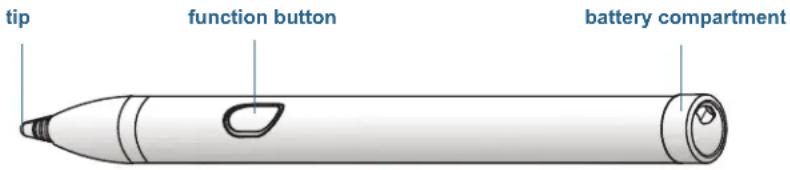
CL-Series Digitizer Pen
You can purchase additional pens from the Motion Computing Accessories page. For more information on using the pen, see Using touch on page 19.
NOTE: The CL910 pen is officially called the CL-Series Digitizer Pen on the Motion Computing website. For simplicity, this book refers to it simply as the CL910 pen or pen.
CL-Series SlateMate
The CL-Series SlateMate is a productivity module integrated with the CL910 and it contains a magnetic stripe reader (MSR) and barcode scanner (BCS)
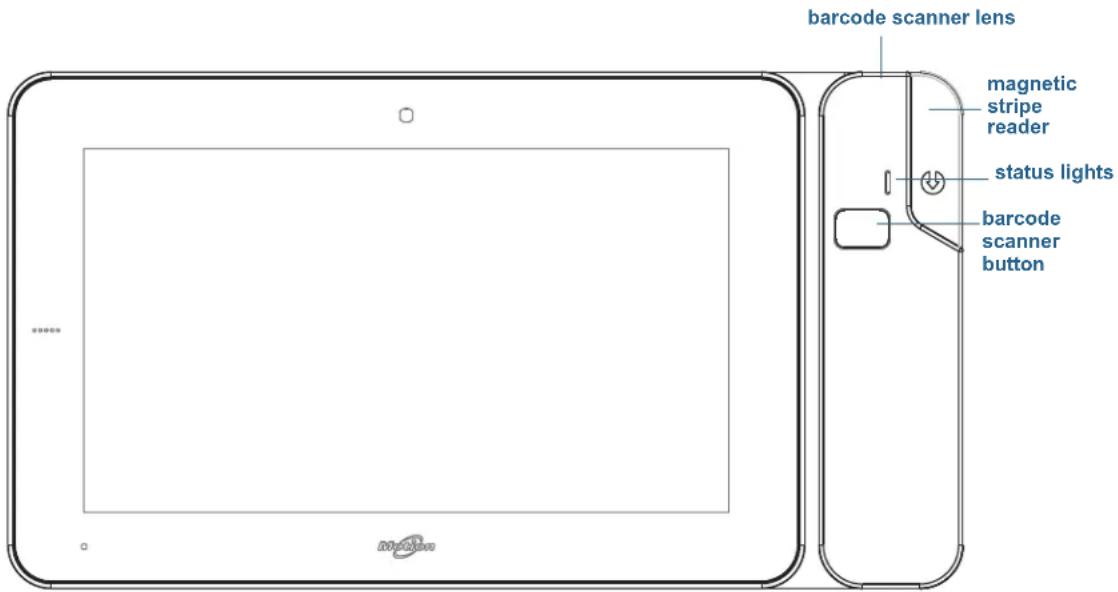
CL-Series SlateMate with Magnetic Stripe Reader and Barcode Scanner
Where to begin with your CL910
This section includes some steps you can follow to power up and get familiar with your CL910 Tablet PC.
Step 1: Power up the tablet
- Pull out the port door located at the bottom of the left side of the CL910 to expose the AC adapter port and plug in the AC adapter.

Powering up the CL910
-
Plug the power cord into an outlet.
-
The battery gauge turns amber to indicate that the battery is charging.
-
Keep the tablet on AC power until the battery is fully charged (the battery gauge turns green). You don't have to wait until the tablet is fully charged to turn it on.
-
Press and release the power button 🔒 located on the top left side of the CL910 to turn it on.
- Follow the on-screen instructions to set up your user account and activate Windows ^® 7.
Step 2: Connect to a wireless network
The CL910 comes with built-in Wi-Fi and Bluetooth. Your tablet PC may also be equipped with mobile broadband for accessing the Internet and GPS.
To set up available wireless networks:
- Enable wireless from the Motion Dashboard
- Set up Wi-Fi
- Set up mobile broadband with GPS
- Set up Bluetooth
Enable wireless from the Motion Dashboard
To set up wireless, you must first enable the wireless network adapters from the Motion Dashboard. The Dashboard is a Motion Computing application for configuring your CL910 Tablet PC.
To enable wireless adapters:
- Open the Motion Dashboard. From the Windows® taskbar, tap the Motion Dashboard
icon

-
Tap Wireless.
-
Tap the checkboxes next to all wireless networks you want to use:
- Enable Bluetooth Internal Wireless
- Enable 802.11 Internal Wireless
- Enable Mobile Broadband with GPS (If this option is not listed, your CL910 does not have mobile broadband installed.)
NOTE: To extend battery life, enable only the wireless devices that you will be using.
Set up Wi-Fi
Connect to the Internet and other computers using Wi-Fi.
To set up Wi-Fi:
-
Enable Wi-Fi from the Motion Dashboard.
-
From the Windows® notification area, tap the wireless network icon

- Tap the desired wireless network from the list of available networks.
Set up mobile broadband with GPS
If you purchased the optional mobile broadband module for your CL910, you can connect to high-speed cellular networks worldwide. With the mobile broadband module and a data plan from one of several cellular network providers, you have full Internet access.
The mobile broadband module includes a GPS receiver that provides the current location of your CL910. With the GPS receiver, you can use most GPS navigation and mapping applications. You use the Motion Connection Manager to manage your mobile broadband and GPS network connections.
To set up mobile broadband:
- Enable mobile broadband from the Motion Dashboard.
- Start the Motion Connection Manager. From the Start menu, select All Programs > Motion Computing > Motion CM.
- Tap the help icon 🔒 and select the help topic, Setting up mobile broadband.
- Follow the instructions to set up a network profile and connect to the mobile broadband network.
NOTE: Before you can connect to a mobile broadband network, you must have an active account with a cellular network provider. Some providers require a SIM card for mobile broadband access; if you are not sure whether you need one, contact your mobile broadband provider.
Set up Bluetooth
The CL910 has a built-in Bluetooth adapter that provides short-range wireless connectivity with other Bluetooth-enabled devices.
To set up Bluetooth:
-
Enable Bluetooth from the Motion Dashboard.
-
Add a Bluetooth device:
a. From the Windows® notification area, tap the Device.
b. Make sure the device is discoverable according to the Bluetooth device manufacturer's instructions. When a Bluetooth device is discoverable, it is visible to other Bluetooth devices within range.
c. Select the desired Bluetooth device from the list of available devices.
d. Follow the on-screen instructions to complete the procedure.
- Make the CL910 discoverable (visible) to other Bluetooth devices:
a. From the Windows® notification area, tap the Bluetooth icon ⚙ and select Open settings.
b. On the Options tab, select Allow Bluetooth devices to find this computer.
Step 3: Get familiar with your CL910 Tablet PC
Once you've set up your CL910, take a few minutes to get familiar with your tablet PC.
- Use Motion Computing tools to customize your tablet according to your work style. See Using the Motion Dashboard on page 16.
- Open the writing pad and provide handwriting samples to improve handwriting recognition. See Entering text and handwriting recognition on page 23.
- Take photos or use the web camera. See Using the cameras with Motion QuickNav on page 30.
- Set up speech recognition. See Using speech recognition on page 43.
Step 4: When you take a break
When you leave your tablet PC for a while, you can lock it to prevent unauthorized access by pressing the Security button and then selecting Lock this computer on the following screen. You can also put it in Sleep or Hibernate mode to save power by pressing the Power button.
Lock and unlock the tablet PC
To lock the tablet PC, either:
- Press and the security button 📄 on the left side of the tablet.
- If a keyboard is attached, enter Ctrl+Alt+Delete.
To unlock the tablet:
- Press the security button → or Ctrl+Alt+Delete again.
Sleep mode
Place your tablet in Sleep mode when you go away for a short period of time. Sleep mode conserves battery power while you are away and when you return, your desktop is the same as you left it. Sleep mode is sometimes called "standby."
To put the tablet in Sleep mode:
- Save your files.
- Press and release the power button.
Note: While in Sleep mode, the power button flashes green.
To wake up the tablet from Sleep mode:
- Press and release the power button.
The tablet quickly resumes activity and your desktop is the same as you left it.
Hibernate mode
If you intend to leave your tablet for several hours or more, you can put the tablet in Hibernate mode. Like sleep, when you return from hibernate, your desktop is the same as you left it.
It takes longer to start up from Hibernate mode than Sleep mode, but it consumes very little power, saves data to disk beforehand, and is still faster than starting your tablet after shutting it down.
To put the tablet in Hibernate mode:
• From the Start menu, tap the arrow next to Shut down and select Hibernate.
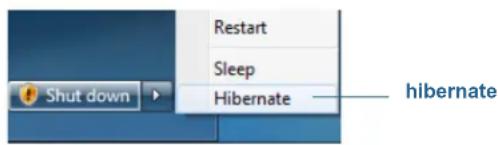
Hibernate from the Start menu
For more information on power options, see Changing how the power button functions on page 50.
Optional setup tasks
This section provides information about some other tasks you may want to perform when you're getting started with your CL910.
Create a recovery image
Once you have set up your CL910 including installing your applications, create a system image on an external USB drive. This is a safety measure in the event that your system stops working.
A system image is an exact copy of a drive and includes Windows ^® 7, your system settings, programs, and files. For more information, see Creating a system image on page 52.
Insert the pen battery
The pen is included with your CL910 and comes in a separate package along with an AAAA battery and pen tether.
To insert the pen battery:
- Unscrew the pen cap.
- With the plus side of the battery toward the pen tip, insert the battery in the cavity of the pen.

Pen and battery
- Screw the pen cap in place.
NOTE: The tablet displays a low-battery warning when the pen battery has less than 20% power remaining.
Attach the pen tether
The CL910 pen comes with a tether so that you can attach the pen to your tablet or docking station to avoid misplacing it. The tether is a string with loops at each end.
To attach the pen tether:
-
Slip one end of the tether through the hole at the end of the pen, then pull the pen through the loop until it is tight.
-
Slip the other end of the tether through the attach point on the CL910 then pull the pen through the loop until it is tight.
TIP: You may find it helpful to use a small screwdriver or something similar to assist with threading the loop through the tight space of the tether attach point.
You can purchase additional pens and tethers from Motion Computing Accessories.
Connect the tablet to a docking station
The docking station for the CL910 is a separate accessory that you can purchase from the Motion Computing Accessories page.
The docking station includes
- Three USB ports to connect a keyboard, mouse, or other USB devices
- An Ethernet port to connect to a local network
- A pen holder with a pen tether attach point
To connect the tablet to a docking station:
- Connect the AC adapter to the port on the back of the docking station.
- If desired, connect a mouse and/or keyboard to the USB ports on the back of the docking station.
- Place the CL910 on the top of the docking station and seat the bottom of the tablet onto the Docking connector.
TIP: You will know if the tablet is seated properly if the battery gauge located on the left side of the tablet lights up.
Connect the tablet to an external monitor
You can connect an external monitor to the CL910 tablet using the Micro-HDMI port (located on the left side of the tablet) with an appropriate connector, such as a DVI-HDMI adapter.
To set up an external monitor:
- Connect the monitor cable from the external monitor to the Micro-HDMI port on the CL910.
- Plug in the external monitor and turn it on.
- If necessary, install software and drivers for the monitor. See the manufacturer's documentation for more information.
After connecting the monitor, set up the external display from the Motion Dashboard as described in Setting up an external display on page 40.
For more information
This User's Guide introduces the full set of CL910 features and provides instructions for common tasks you'll perform. The other chapters in this User's Guide include the following information:
- Using your CL910—Provides instructions for basic CL910 tasks including how to customize your tablet to fit the way you work using Motion Dashboard, how to use the cameras, how to set up speech recognition, and more.
- Caring for your CL910—Provides suggestions for the care and maintenance of your Tablet PC.
- Troubleshooting and FAQs—Provides answers to common issues you may encounter as you use your CL910.
The Getting Started document located on the CL910's desktop provides a number of tips to get you started using the tablet quickly.
You will find other useful information on our website:
- Tablet PC Tips & Tricks
• Motion Computing Support
• Free online training videos - Knowledge Base
• Motion Computing Accessories - Motion Computing Store
NOTE: This guide is available in French, German, Spanish and Portuguese on our website.
Using your CL910
2
This chapter provides information about performing common tasks such as customizing touch and changing tablet settings.
Introducing the CL910 desktop and applications
When you start up the CL910 for the first time, the desktop looks like the following picture. Motion Computing applications appear in the taskbar and Windows® notification area.
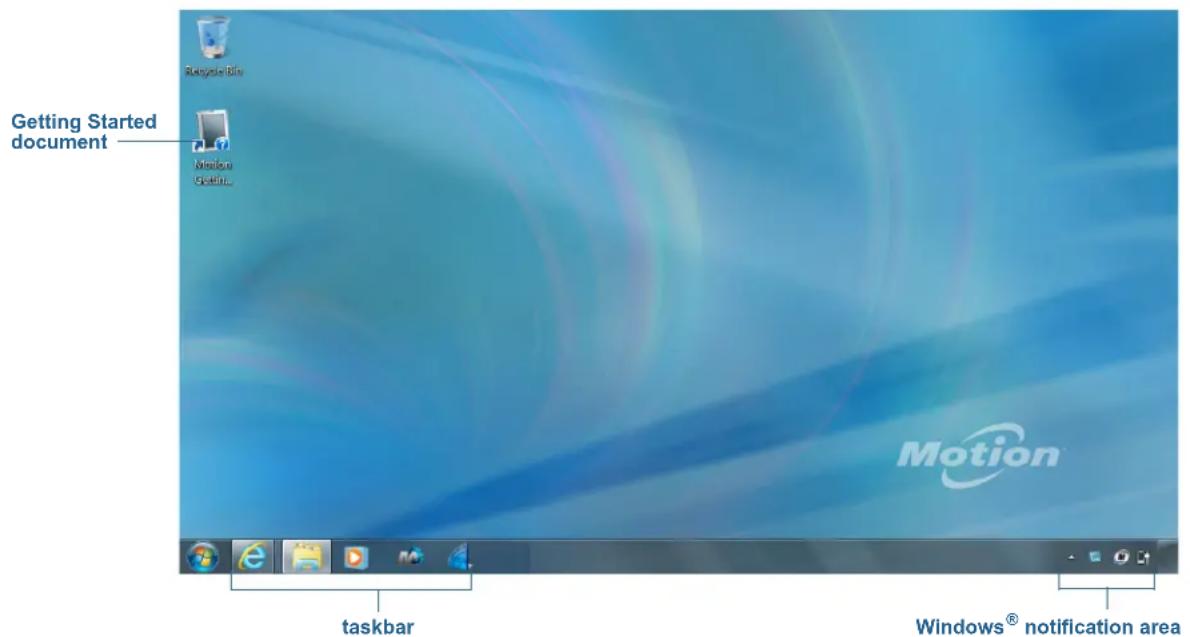
Motion Computing desktop
The Motion Computing applications are described below.

Motion Getting Started
Document that contains tips for starting out with the CL910 Tablet PC

Motion Dashboard Motion application for changing tablet settings. See Using the Motion Dashboard on page 16.

Motion QuickNav User interface designed for touch devices. You can use this to access the web and documentation cameras. See Using the cameras with Motion QuickNav on page 30.
Changing the location of the taskbar
You may find it convenient to place the Windows® taskbar on the left edge of the touchscreen display.
To place the taskbar on the left edge of the screen:
- Press and hold the Start menu icon and tap Properties.
- Tap the Taskbar tab.
- Make sure that Lock the taskbar is checked.
- Under Taskbar location on screen, select Left.
- Tap OK.
TIP: As an option, you can hide the taskbar altogether; it reappears when you tap the area. From the Taskbar tab, tap the Auto-hide the taskbar checkbox.
Using the Motion Dashboard
The Motion Dashboard provides a convenient way to change common tablet-related settings.
To open Motion Dashboard:
• From the taskbar, tap the Motion Dashboard icon

Motion Dashboard is organized into categories, which are listed on the left of the Dashboard. Tap a category to display its settings. In this illustration, Motion Dashboard is open to Display settings.
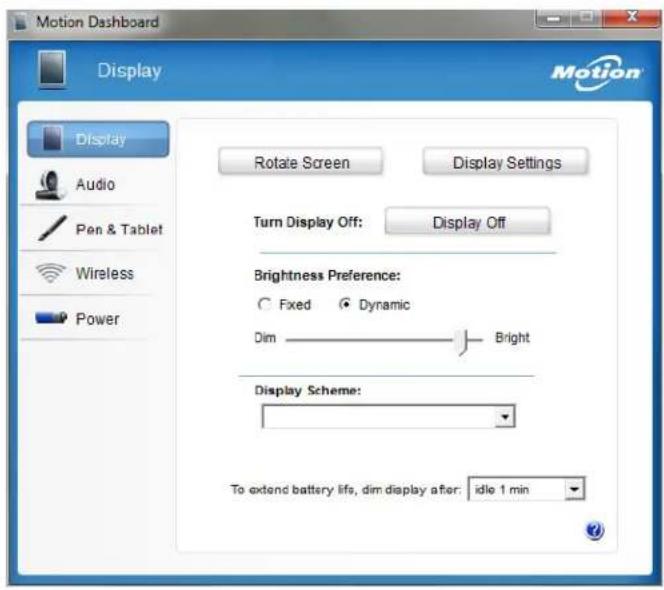
Motion Dashboard
The following table lists some of the tasks you can perform using the Motion Dashboard.
NOTE: This is a partial list of tasks that you can perform with Motion Dashboard. Some of these tasks are described in this chapter; all tasks are described in Motion Dashboard by tapping the help icon 📋
| Dashboard Category Task | |
| Display • Rotate the display orientationAdjust the brightness of the displaySet advanced graphic propertiesSet up an external displayDim the display automatically | |
| Audio • Adjust speaker and microphone volumeAdjust advanced audio settingsSuppress background noiseBalances speakers | |
| Pen & Tablet • Configure touch to use touch only, pen only, or both simultaneouslyAdjust touch to left-handed settingAdjust sensitivity to flicks and gesturesUse the pen function button for erasing digital ink instead of performing the right-click actionPersonalize your handwriting so that it can be recognized more accurately | |
| Wireless • Enable and disable Wi-Fi, Bluetooth, and mobile broadbandChoose to have wireless disabled on Startup (it is enabled by default)Adjust Wi-Fi, Bluetooth, and mobile broadband properties | |
| Power | Select a power planChange what the power button does when pressed: sleep, hibernate, or shut down |
Accessing Motion tools from the Windows® notification area
For convenience, you can access common Motion tools from the Windows® notification area.
NOTE: Initially, the Motion icons do not appear in the Windows® notification area. Tap the arrow to view more icons. Tap Customize to enable the icons to appear.
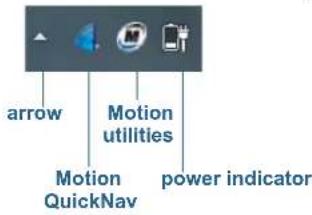
Motion icons in the Windows® notification area
Tap the Motion icon to display:
- Battery Health—Shows the current battery charge level
- Motion Dashboard—Opens the Motion Dashboard
- Options—Lists options you can set:
- Show Hard Drive Activity—When selected, the Motion icon blinks when there is hard drive activity.
- Automatic Display Rotation—When selected, the CL910 automatically changes the viewing orientation (landscape to portrait or vice versa) when the tablet is physically rotated.
Using touch
With the CL910 dual touchscreen display, you can use either your finger, a pen, or both to interact with the touchscreen display. While it's convenient to use your finger most of the time, a pen allows you more precise control, for example, when editing documents or drawing graphics.
With touchscreen displays, you use your finger or pen as you would use a mouse. For example, tapping twice is the same as double-clicking a mouse. Tapping and holding is the same as right-clicking a mouse to open shortcut (right-click) menus.
You can use touch to:
- Select menu items and open files.
- Use gestures to rotate and zoom in and out of pictures.
- Use flicks to navigate through browser windows and documents.
For information on using touch gestures and flicks, open Windows® Help and Support and search for "gestures" and "flicks."
Here are some common ways to perform tasks on a touchscreen:
- Tap—Select something.
- Press and hold—Open a menu of options. This is equivalent to right-clicking a mouse to display a shortcut (right-click) menu.
Note: Press and hold your finger until a circle appears then lift your finger to display the menu.
- Double-tap—Perform a double-click action.
- Tap and drag—Drag and drop.
- Pinch fingers together—Zoom in.
- Spread fingers apart—Zoom out.
- Flick—Scroll through a list or move quickly.
- Press and hold the pen's function button (equivalent to a right-click on a mouse)—Open a shortcut (right-click) menu.
NOTE: If the tablet does not respond when you tap with your finger, try using more of your fingertip. Unlike other types of touchscreens, the CL910 capacitive touchscreen does not respond to other input. For example, you can't tap it with another object such as a credit card or when wearing gloves.
How to use gestures with the multiple-touch display
The CL910 touchscreen display supports multi-touch that allows you to directly manipulate items on-screen, such as to navigate websites and view photos. For example, you can use your fingers to scroll through lists, zoom in and out, rotate, and so on.
Changing to one-tap open for touch
With touch, you may want to change how you select and open items. By default, Windows ^® folders are set up so that you tap once to select an item and double-tap to open it. You can change the behavior to point to select an item and open an item with one tap instead of two.
To change folder options:
-
From the Windows® Control Panel, tap Appearance and Personalization, Folder Options, then tap Specify single- or double-click to open.
-
Under Click items as follows, tap Single-click to open an item (point to select).
For more information, open Windows® Help and search for "folder options."
Configuring touch input mode
You can determine how touch input is configured by setting the input mode. You can use:
- Your finger only; no pen input is detected.
- The pen only; no finger input is detected.
- Both your finger and a pen.
- Switch between touch and pen input, in which case you double-tap to switch to touch input. This is useful to prevent the tablet from responding to unintentional touch input.
To configure touch settings:
- Open Motion Dashboard.
- Tap Pen & Tablet.
- Tap Touch Settings.
- From the Digitizer Options tab, under Input Mode, tap the desired mode.
NOTE: When you tap Pen & Tablet Touch Settings, it opens a panel titled N-trig DuoSense® Digitizer Settings. N-trig makes the CL910 digitizer pen and the digitizer software that detects your finger or pen input and converts it to digital input.
Using the touch tuning option
If you find that the touchscreen doesn't respond as you expect, or if the tablet starts to respond to unintentional touch input, you can fine-tune touch by resetting the touch system to its optimal state by selecting the touch tuning option from Pen & Tablet.
To use the touch tuning option:
- Open Motion Dashboard.
- Tap Pen & Tablet.
- Tap Touch Settings.
- From the Digitizer Options tab, under Touch Tuning tap Start and wait for the program to complete.
NOTE: Do not touch the screen during the tuning process.
Adjusting touch settings
You can adjust how your finger movements are interpreted in many ways. For example, you can:
- Adjust how quickly the tablet responds when you double-tap your finger.
- Adjust how quickly the tablet responds when you press and hold your finger.
- Show the touch pointer when interacting with items on the screen.
- Change the touch pointer location, which can be helpful if you're left-handed.
- Enable or disable multi-touch gestures and inkings.
- Change the location of menus to appear to the right of your hand, which is helpful if you're left-handed.
To change touch settings:
- Open Motion Dashboard.
- Tap Pen & Tablet.
- Tap Pen & Input Devices.
- Tap the Touch tab.
- To enable Touch, tap Use your finger as an input device.
- To enable multi-touch gestures, tap Enable multi-touch gestures and inking.
- To adjust the double-tap action, under Touch action, tap Double-tap then tap Settings. Move the slider to make your adjustments.
- To adjust the Press and hold action, under Touch action, tap Press and hold then tap Settings. Move the slider to make your adjustments.
-
To display the touch pointer on the screen, tap Show the touch pointer.
-
To change what the touch pointer looks like or where it's positioned, tap Advanced Options.
To change the location of menus for left-handed users:
- Open Motion Dashboard.
- Tap Pen & Tablet.
- Tap Tablet PC Settings.
- Tap the Other tab and tap Left-Handed.
Adjusting pen settings
If the pen doesn't respond as accurately as you would like, you can make adjustments. For example, you can:
- Use the button on the pen to perform the right-click action or act as an eraser.
- Adjust how quickly the tablet responds when you double-tap the pen.
- Adjust how quickly the tablet responds when you press and hold the pen button.
Important: The CL910 Tablet PC responds only to the CL-Series pen that comes with the tablet. Do not use traditional pens or other pointing devices with the CL910.
To change pen settings:
- Open Motion Dashboard.
- Tap Pen & Tablet.
- Tap Pen & Input Devices.
- Tap the Pen Options tab.
- To adjust the speed and spacial tolerance of the Double-tap action, under Pen action, tap Double-tap then tap Settings. Move the slider to make your adjustments.
- To adjust the speed and duration of the Press and hold action, under Pen action, tap Press and hold then tap Settings. Move the slider to make your adjustments.
- To enable the function button on the pen, tap Use the pen button as a right-click equivalent.
NOTE: Pen & Input Devices contains the Use the top of the pen to erase ink option, which does not apply to the CL-Series digitizer pen. Instead, you can set the pen's function button to act as an eraser.
To use the pen function button as an eraser:
- Tap Pen & Tablet.
- Tap Touch Settings.
- Tap the Pen tab.
- Under Pen button, tap Eraser.
Adjusting tablet PC settings
From Tablet PC Settings, you can change from right-handed to left-handed use.
To change hand orientation:
- Open Motion Dashboard.
- Tap Pen & Tablet.
- Tap Tablet PC Settings.
- Tap the Other tab and make your desired change.
The Tablet PC Settings Display tab has a Calibrate option. This does not apply to the CL910. Instead, if touch input does not behave as expected, you can tune touch as described in Using the touch tuning option on page 21.
The Configure your pen and touch displays option on the Tablet PC Settings Display tab is useful for assigning touch to the appropriate display when one or more displays are connected to the tablet. By default, Windows ^® 7 assumes that an external display is for touch input. To change this, run Setup from Tablet PC Settings to assign touch to your tablet display.
NOTE: A keyboard must be connected to the tablet to perform this procedure.
To assign touch to the desired display:
- Open Motion Dashboard.
- Tap Pen & Tablet.
- Tap Tablet PC Settings.
- Tap the Display tab.
- Tap Setup next to "Configure your pen and touch displays."
- Tap Touch Input.
- Press the Enter key until you see the instructions appear on the display that you want to use for touch input.
- Follow the on-screen instructions.
- Press Esc to end the process.
Entering text and handwriting recognition
You can enter text by either tapping characters on an on-screen keyboard or writing on a virtual writing pad. When you write on the writing pad, your handwriting converts to digital ink. "Digital inking" refers to the process of converting your handwriting to text. In the following picture of the writing pad, someone started writing Motion Computing and "Motion" has already been converted into digital ink.
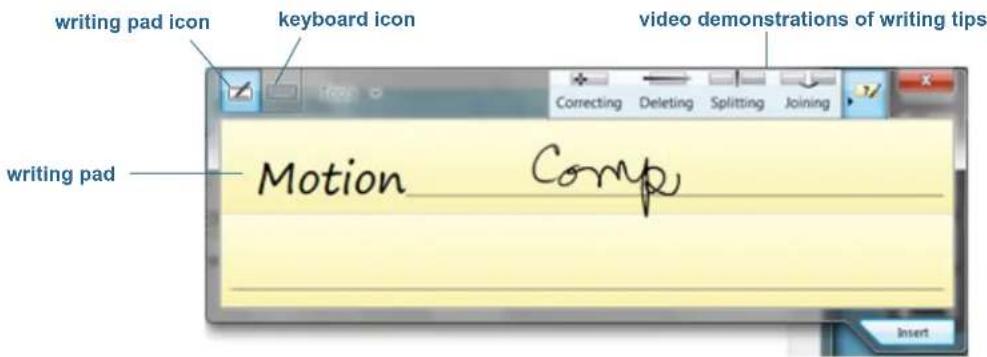
Input panel open to the writing pad
TIP: Tap the icons at the top of the input panel to view videos on making editing gestures. To hide the video tips, tap the icon on the right.
By tapping the keyboard icon at the top of the pad, the input panel opens to the on-screen keyboard.
Here's the input panel open to the on-screen keyboard. Tap the Tools menu for more input panel options and for viewing Help Topics.
![tools Show expanded keyboard Docking Help topics Options @ 2 # 3 $ 4 % 5 ^ 6 & 7 * 8 ( 9 ) 0 - - + = Bksp e r t y u i o p [ ] | Del s d f g h j k l : ; , ← Shift z x c v b n m < , > . ? / ↑ Shift Ctrl Alt Ctrl ← ↓ → Fn](/content/2026/06/1199585/images/23accdcee690e3cae7607b3b2e15ae0f9d4ce4d455e88667b86f581406541834.jpg)
Input panel open to the on-screen keyboard
TIP: Resize the keyboard panel by dragging the handle at the bottom right of the keyboard. Also, you can use the Ctrl, Alt, Fn, Del and Bksp keys as you do on a normal keyboard.
Opening and closing the input panel
The tablet PC input panel often opens automatically when you tap in a text field. You can also tap the tab located on the left side of the screen to expand the input panel.
To open the input panel, either:
- Tap at the place you want to enter text, such as in a text box. Then tap the input panel icon .
- Tap the input panel tab on the left edge of the screen .
To close the input panel
- Tap the close button ✗ at the top right. The input panel slides back to the edge of the screen.
Docking or floating the input panel
By default, the input panel is floating and you can move it anywhere on the screen by placing your finger or pen on the title bar and dragging it.
If you prefer, you can dock the input panel so that when it is open, it always appears at the same location, either at the top or bottom of the screen.
To dock or undock the input panel:
-
At the top of the input panel, tap Tools.
-
Select Docking.
-
Select either Dock at the top of the screen, Dock at the bottom of the screen, or Float.
Tip: If you're left-handed, you can move the input panel to the right edge of the screen to make it easier to use.
Entering numbers with numbers pad
If you find yourself typing a lot of numbers, use the numbers pad.
To open the numbers pad:
- Tap the Num key at the bottom of the writing pad.
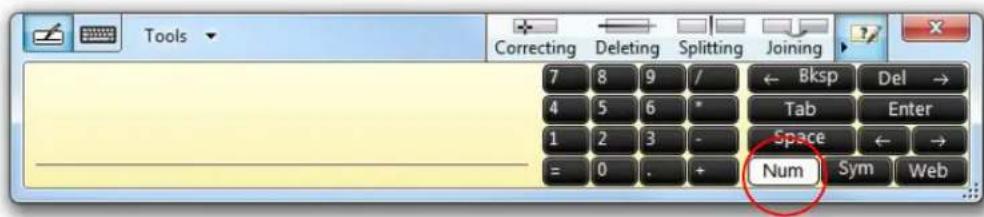
Numbers pad
Entering special keys with the extended keyboard
You can enter special keys using the on-screen expanded keyboard. Special keys include:
• Home, End, and Insert keys
- PgUp and PgDn keys
- PrtScn key
- Pause key
- ScrLck key
To open the expanded keyboard:
- Tap the Tools key at the top of the input panel and choose Show Expanded Keyboard.
![tools Special keys Esc ~ 1 2 3 4 % 5 6 7 8 9 0 - - + Bksp Home PgUp Tab q w e r t y u i o p [ ] Del End PgDn Caps a s d f g h j k l : ; ← Insert Pause Shift z x c v b n m < , > ? / Shift PrtScn ScrLk Ctrl # Alt Alt Ctrl ↓ → Fn](/content/2026/06/1199585/images/a5dd8e3fec7f9cb17545537f57bda8e217c6e0d39dbd021b0e2e374134ccfc91.jpg)
Expanded keyboard
Using handwriting recognition
Handwriting recognition is enabled by default. The more you write, the quicker your handwriting is recognized because the tablet has an automatic learning tool that collects data about the words you use and how you write them. This data is stored under your user profile.
You can use Windows® Handwriting Personalization to build your handwriting recognition profile, which will increase the tablet's ability to recognize your handwriting. You supply handwriting samples to target specific handwriting recognition errors and to teach the recognizer your handwriting style.
To use handwriting personalization:
- Tap the Windows® Start button.
- In the search box, type personalize handwriting recognition.
- in the list of results, tap Personalize handwriting recognition.
- Tap Target specific recognition errors to correct recognition errors for specific characters or words that are being identified incorrectly.
- Tap Teach the recognizer your handwriting style to train the tablet to recognize your general handwriting style.
TIP: If you inherit your CL910 from another user, you can reset automatic learning.
To reset handwriting automatic learning:
- Tap the Windows® Start button.
- In the search box, type personalize handwriting recognition.
- in the list of results, tap Personalize handwriting recognition.
-
Tap Change automatic learning settings.
-
Select Don't use automatic learning, and delete any previously collected data.
NOTE: You can find other handwriting applications at the Motion Computing Store.
Using Motion QuickNav
Motion QuickNav is a user interface application designed specifically for touch. You can use Motion QuickNav to:
- Take photos and insert them directly into your documents or email. For details on using the photo camera, see Taking photos with Motion QuickNav on page 31.
- Hold video chats with the web camera.
- Record video clips. For details, see Using the Motion QuickNav tools on page 29.
- If you have the GPS module, you can acquire GPS locations and insert them in your documents, Microsoft® Excel® spreadsheets, or tag photos (called a geotag). You can also get driving instructions and other online services such as getting local fuel prices.
- Record or play back voice notes. For details, see Using the Motion QuickNav tools on page 29.
- Read barcodes using the camera. For details, see Using the Motion QuickNav tools on page 29.
In addition, Motion QuickNav includes an on-screen keyboard and a numeric pad. You may prefer to use them rather than the tablet PC input panel (as described in Entering text and handwriting recognition on page 23.)
NOTE: To use GPS with Motion QuickNav, your CL910 must have the mobile broadband module installed and set up and GPS must be running. For more information, see Mobile broadband with GPS on page 2.
Starting Motion QuickNav
To start Motion QuickNav:
- Tap the Motion QuickNav icon from the taskbar.
The Motion QuickNav keyboard appears at the bottom of your desktop.
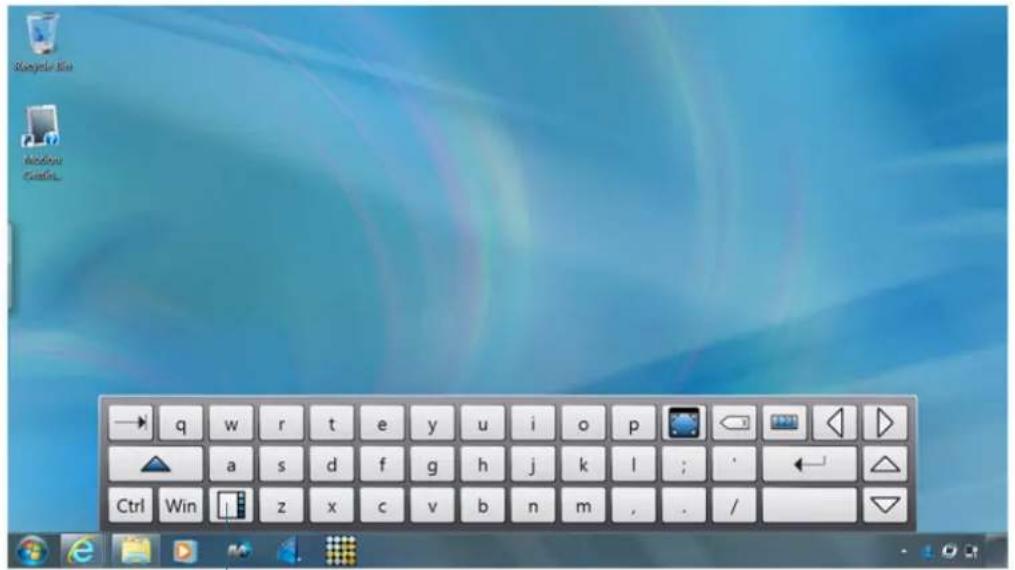
Motion QuickNav toolbar icon
Motion QuickNav keyboard
NOTE: As Motion QuickNav starts up, the screen displays "Motion QuickNav powered by Dial Keys." Dial Keys is the vendor that created Motion QuickNav for Motion Computing.
- Tap the Motion QuickNav toolbar icon located on the bottom left of the keyboard to open the Motion QuickNav toolbar.

photo camera
video camera
GPS locator
voice recorder
barcode scanner
user mode
folder mode
number pad
on-screen keyboard
Motion QuickNav toolbar
Hiding and showing the Motion QuickNav toolbar
While Motion QuickNav is running, the Motion QuickNav toolbar appears on the right side of the desktop. You can hide the toolbar from view and show it only when you want to use it.
To hide and show the Motion QuickNav toolbar:
- From the Windows® notification area, tap the Motion QuickNav icon
- To show the toolbar, tap the Motion QuickNav icon again.
Stopping Motion QuickNav
When you are finished using Motion QuickNav, stop the application from the Windows® notification area.
To stop Motion QuickNav:
- From the Windows® notification area, tap and hold the Motion QuickNav icon .
- Tap Exit.
Accessing Motion QuickNav help
For more details on using Motion QuickNav, view Motion QuickNav help.
To view Motion QuickNav help:
- From the Windows® notification area, tap and hold the Motion QuickNav icon .
- Tap Help.
Setting Motion QuickNav options
You can change some Motion QuickNav settings from the navigation area. Tap and hold the
Motion QuickNav icon to open the Options menu. For information on these options, see Motion QuickNav help.
Using the Motion QuickNav tools
This section provides a brief introduction to the tools available with Motion QuickNav. The next section describes how to use Motion QuickNav to operate the photo camera in greater detail.
To use the barcode scanner from Motion QuickNav:
-
Open the Motion QuickNav toolbar then tap the barcode icon to open the barcode scanner.
-
Tap the Options icon to set up the scanner. You can choose to:
-
Set the type of barcode the scanner recognizes. For best performance, disable the codes you do not need.
- Use the front- or rear-facing camera to scan the codes.
- Change the resolution. Use a higher the resolution to improve accuracy; use a lower resolution to improve performance.
NOTE: Motion QuickNav does not support PDF417 barcodes.
To use the Motion QuickNav voice recorder:
- Open the Motion QuickNav toolbar then tap the voice recorder icon

-
You can choose to:
-
Send a voice message by email.
- Create a voice journal and add voice messages to it.
-
Add a voice note to an active application.
-
Tap the Options icon to set up the device to use for recording or playback or to change the location of your voice journal.
Note: For another way to use speech, see Using speech recognition on page 43.
To use the Motion QuickNav video recorder:
- Open the Motion QuickNav toolbar then tap the video recorder icon

-
Tap the appropriate icons to start, pause, save, or cancel a recording.
-
Tap the Options icon to set the video quality, the device to use for recording or playback, or to change the folder where your videos are stored.
Using the cameras with Motion QuickNav
Your CL910 comes equipped with two built-in cameras:
- Front-facing web camera—a 1.3 MP camera that supports streaming video.
- Rear-facing documentation camera—a 3.0 MP JPEG format camera with a maximum resolution of 2048x1536 pixels, which supports taking photos and capturing video.
The cameras can work with any application that uses a camera, such as Skype ^™ , Windows ^® Live ^™ or Windows ^® Movie Maker.
Using the web camera
You can use the web camera with a variety of applications and some applications can make use of both cameras. For example, Skype can detect the front and rear cameras and allow you to switch between them during a video conference.
To start the web camera with Motion QuickNav:
- Open the Motion QuickNav toolbar then tap the camera icon to open the viewfinder.
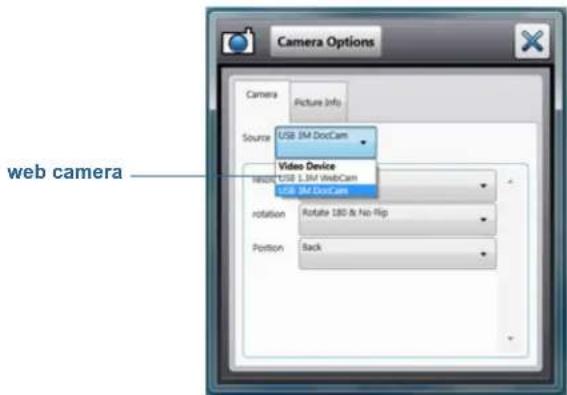
If you are not in view, you need to change Motion QuickNav to use the web camera. - To set Motion QuickNav to use the web camera, tap the Options icon at the top of the viewfinder.
- From the Camera Options menu, Camera tab, Source, select USB 1.3 web camera:
Taking photos with Motion QuickNav
The Motion QuickNav camera tool is designed to use the rear documentation camera to take photos that you can:
- Insert directly into an open application such as Microsoft® Word.
- Send through email.
- Adjust and annotate on the spot.
- Add geographical information, called a geotag (requires GPS capabilities as described in Mobile broadband with GPS on page 2).
When you select the camera tool from the Motion QuickNav toolbar, the viewfinder appears.
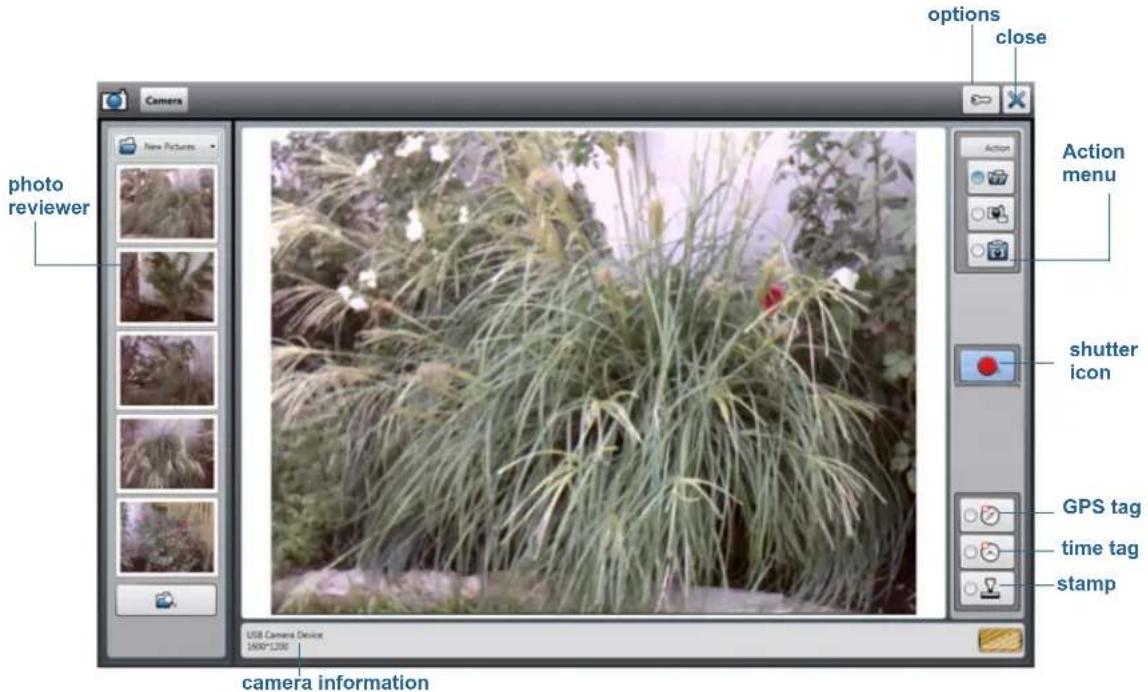
Motion QuickNav photo viewfinder
The Action menu on the top right allows you to choose how Motion QuickNav handles your photos as you take them. You can store them on disk, email them, or send them to the clipboard where they are loaded into an active program on your desktop.
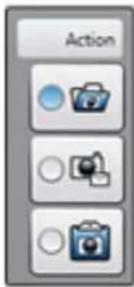
save photos to a folder
attach photos to an email message
send a photo to an application
Action menu to select photo destination
By default, Motion QuickNav saves photos to a folder.
Take photos and save in a folder
To take photos using Motion QuickNav and save them in a folder:
- Open the Motion QuickNav toolbar then tap the camera icon 📄 to open the viewfinder.
If you see yourself in the viewfinder, Motion QuickNav is set to use the web camera. Switch to the rear documentation camera as described in Switching cameras on page 36.
- Make sure the folder icon is selected under the Actions menu.
- Frame the subject of your photo in the viewfinder and tap the shutter icon to take the photo.
- As you continue to take photos, they appear in the temporary folder located on the left of the viewfinder.
- Select a photo from the left to annotate it or make any other edits. For more information, see Editing photos on page 34.
- By default, the photos are saved automatically in a folder called New Pictures under the Documents\Camera folder. To go to or change the folder location, see Locating Motion QuickNav output on page 37.
- When you're done, tap the close icon to close the viewfinder.
Take photos and attach to an email message
To email photos, you select the email icon from the Action menu and take one or more photos. When you close the viewfinder, a new email message opens with the photos attached.
To attach photos to an email message:
- Open the Motion QuickNav toolbar then tap the camera icon 📄 to open the viewfinder.
If you see yourself in the viewfinder, Motion QuickNav is set to use the web camera. Switch to the documentation camera as described in Switching cameras on page 36.
- Select the email icon from the Action menu.
- Frame the subject of your photo in the viewfinder and tap the shutter icon to take the photo.
- Continue to take photos and they will appear on the left of the viewfinder.
-
To add notes or make any other edits to a photo, tap the photo on the left. For more information, see Editing photos on page 34.
-
When you're done, tap the close icon to close the viewfinder. A new email message opens with the photos attached.
Take photos and insert in an application
You can insert a photo directly into an application by choosing the clipboard icon from the Action menu. Take a photo, close the viewfinder, then the photo appears where your cursor is located in the application.
To insert a photo into an active application:
- From the application, place the cursor where you want the photo to appear.
- Open the Motion QuickNav toolbar then tap the camera icon to open the viewfinder.
- Select the clipboard icon from the Action menu.
- Frame the subject of your photo in the viewfinder and tap the shutter icon to take the photo. The photo appears in the edit window.
- You can add notes or make any other edits to the photo from here. For more information, see Editing photos on page 34.
- Tap the close icon located at the top right of the viewfinder.
- The photo appears in your application.
Editing photos
You can open a photo in the Motion QuickNav edit window to change it. For example, you can add notes, adjust brightness, rotate, crop, or delete it. Edit tools are available from the edit toolbar located at the bottom of the edit window.
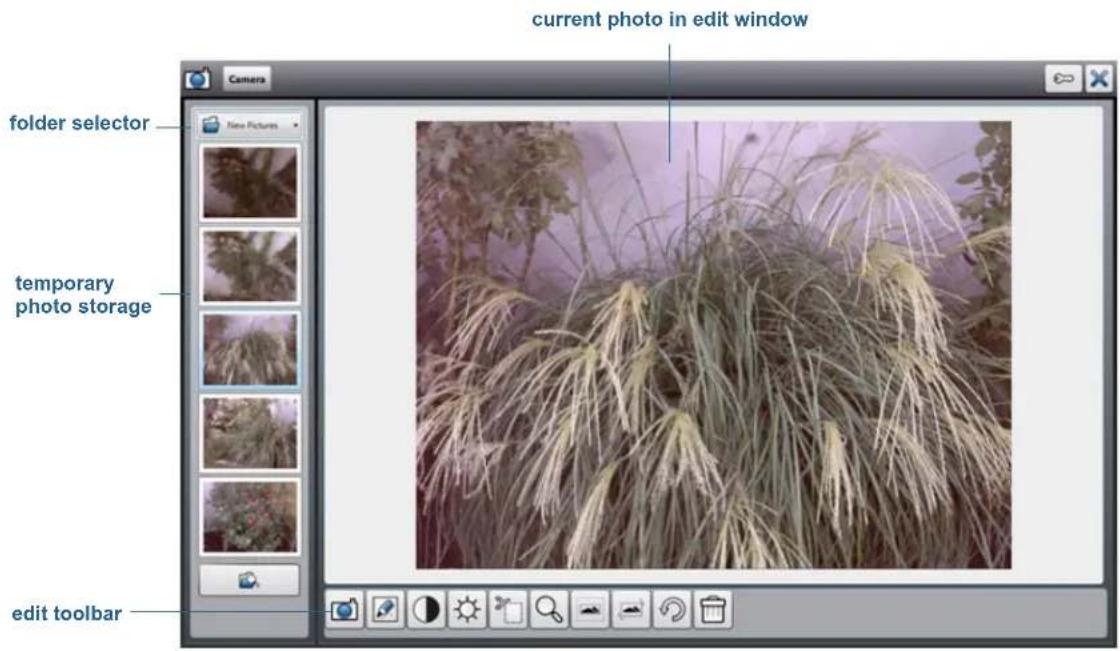
Motion QuickNav edit window
Motion QuickNav calls this "review mode" because photos are available for editing as long as you have the Motion QuickNav viewfinder open. Once you close the viewfinder, Motion QuickNav sends the photo to the chosen output: clipboard, email, or folder. If you've saved your photos in a folder, you can make further changes using the photo editing software of your choice.
To edit a photo:
- Display the photo in the edit window.
The edit window appears automatically if you are sending the photo to the clipboard.
If you are sending the photo to a folder or to email, the photos appear in a temporary folder on the left; as you continue to take photos, the folder fills up. Select a photo on the left and it appears in the edit window.
- Tap an icon from the edit toolbar at the bottom of the edit window to make changes:
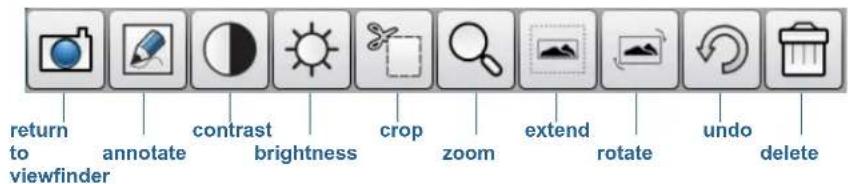
Motion QuickNav edit toolbar
- Tap the pencil icon to enter annotate mode.
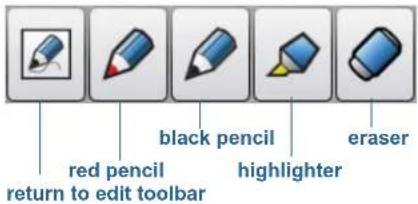
Motion QuickNav pencil toolbar
- Tap the desired pen color or highlighter. Use the eraser if necessary. Then tap the pencil icon again to return to the edit toolbar.
- Make any other adjustments by selecting the appropriate icon. For example, you can crop, zoom, rotate, or adjust brightness or contrast. You can add white space to the top, bottom, right, or left side of the photo by selecting the extend icon . Top the undo icon to remove your edits.
- When finished editing the photo, tap the camera icon to return the viewfinder. Your edits are saved automatically.
- Either select another photo to edit or return to camera mode.
Switching cameras
When using Motion QuickNav as your camera application, you switch between using the web camera and documentation camera from the Motion QuickNav Camera Options menu.
To switch between the web camera and documentation camera:
- Open the Motion QuickNav toolbar then tap the camera icon 📄 to open the viewfinder. If you are in view, the web camera is active.
-
Tap Options icon located at the top of the viewfinder.
-
From the Camera Options menu, tap Camera tab, then under Source, select the desired camera:
• USB 1.3M WebCam for the web camera
• USB 3.M DocCam for the rear documentation camera
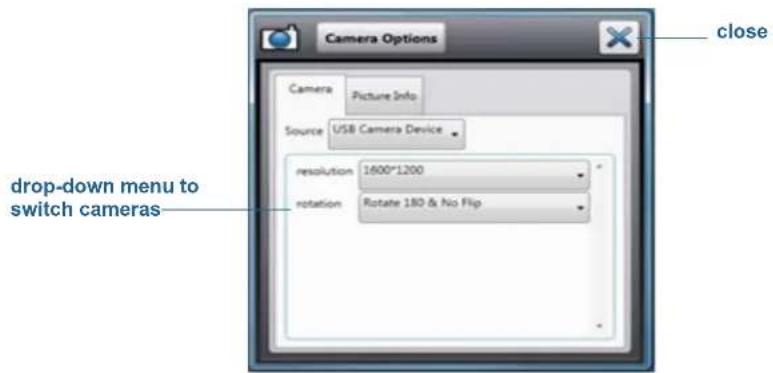
Note: You can change the photo resolution to either improve the picture quality (by choosing a higher resolution, such as 1600x1200) or to reduce the file size (by choosing a lower resolution such as 160x120). You can also rotate the camera from this menu.
- Tap the close icon to close the Options menu.
Locating Motion QuickNav output
When you take photos, videos, or sound recordings with Motion QuickNav, QuickNav places them in default folders and you can access these folders directly from the Motion QuickNav toolbar by tapping the folder icon to switch to folder mode. A folder icon appears in front of each tool indicating that QuickNav is in folder mode as shown:

photo folder
video folder
home directory
voice recordings folder
Motion QuickNav folder mode
To locate the folders where Motion QuickNav stores content:
-
Open the Motion QuickNav toolbar then tap the folder icon 📄 to switch to folder mode.
-
Tap the folder icon for the output type you want to change.
-
To leave folder mode, tap the folder icon

To change the folder where your Motion QuickNav output is stored:
- Open the Motion QuickNav toolbar, tap the icon for the QuickNav tool for the folder you want to change, and then tap the Options icon located at the top of the window.
- To change the folder where photos are stored, tap the camera icon from the QuickNav toolbar. Tap the Options icon then tap the Picture Info tab. Under Storage, browse to the folder where you want to store photos.
- To change the folder where videos are stored, from the Motion QuickNav toolbar tap the Video recorder icon 🎨 then tap the Options icon 🎟. Under Folder, browse to where you want to store voice recordings.
- To change the folder where voice recordings are stored, you can browse to the folder directly from the video recorder window. (You don't need to open the Options menu.)
- For photos and videos, tap the close icon to close the Options menu.
Setting display options
Use the procedures in this section to customize your display settings. You can adjust the brightness level, rotate the display, and change the order in which the display rotates.
Adjusting the display brightness
You can change the brightness of the display, which is useful for conserving battery power.
To adjust the display brightness:
- Open Motion Dashboard.
- Tap Display.
- Move the Brightness slider to the desired level.
TIP: For optimal battery conservation and viewability, set the brightness scale to the mid-point or slightly above.
-
Select one of the following:
-
Fixed—Sets the display brightness to a constant level. Move the slider to adjust the display to the desired brightness level. When set to Fixed, the ambient light sensor is ignored.
- Dynamic—Uses the ambient light sensor to maintain an appropriate brightness level for the current lighting condition. The Dynamic setting helps to conserve battery power.
Rotating the display orientation
You can easily change the screen orientation to fit your current task. For example, you may want to use the portrait orientation for filling out forms or reading an electronic book. At other times, you may want a landscape orientation for web browsing or sketching.
To rotate the display:
- Open Motion Dashboard.
- Tap Display.
- Tap the Rotate Screen button.
Enabling or disabling automatic rotation
You can set the display to automatically rotate when you physically rotate the tablet. By default, automatic rotation is disabled.
To enable or disable rotating the display automatically:
- From the Windows® notification area, tap the Motion icon 📂 then tap Options.
- Select or clear the Automatic Display Rotation check mark.
Setting up an external display
You can use your tablet with an external monitor or projector.
Display settings
When connecting to an external display, specify whether to:
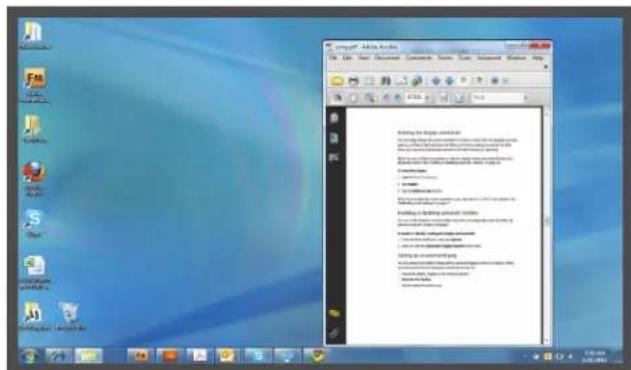
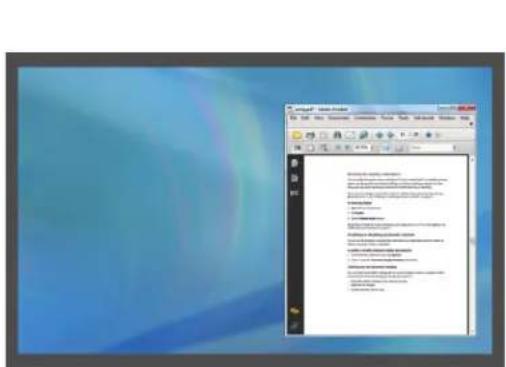
- Duplicate (mirror) the displays.
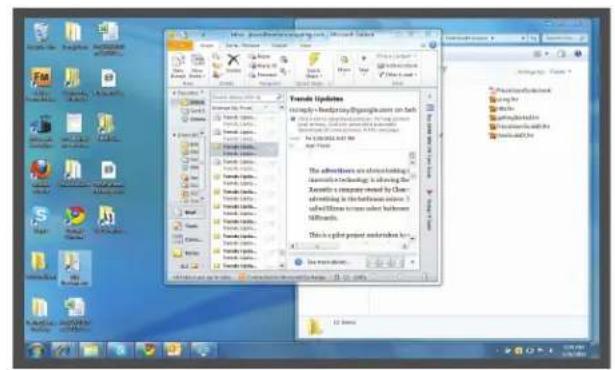
- Extend the tablet's display to span across the external monitor.
- Use the external monitor only or use the tablet only.
You can choose from one of the following display schemes:
| Mirror display Duplicates the tablet desktop on both the display and monitor. This is useful when using your tablet PC with a projector. | |
| Extended with Monitor Primary | Expands the desktop area across the tablet and external monitor, where the external monitor is the primary display. |
| Extended with Tablet Primary | Expands the desktop area across the tablet and external monitor, where the tablet is the primary display. |
Monitor Only Desktop appears only on the monitor.
Tablet Only Desktop appears only on the tablet.
tablet PC
external monitor
Mirror display scheme
tablet PC
external monitor
Extended with monitor primary display theme
Display resolution
You can change the display resolution of the external monitor or projector if you are using either extended scheme. However, when you are using the Mirror display scheme, the display resolution of the external monitor or projector is limited to the display resolution of the tablet PC.
The CL910 10.1" HD display has a resolution of 1366 X 768.
Connecting to an external monitor
To connect an external monitor to the CL910, you can use the Micro-HDMI port (located on the left side of the tablet) with an appropriate connector, such as the Micro-HDMI-to-VGA connector available from the Motion Computing Accessories page.
To set up an external monitor:
-
Connect the monitor cable from the external monitor into the Micro-HDMI port on the CL910.
-
Plug in the external monitor and turn it on.
-
If necessary, install software and drivers for the monitor. See the manufacturer's documentation for more information.
-
Open Motion Dashboard.
-
Tap Display.
-
Select a Display Scheme.
-
If your tablet PC does not respond to touch, follow the steps below to enable touch on the correct display.
Resetting touch after adding other monitors
After setting up an external monitor, touch might be disabled on your tablet because Windows ^® 7 assumes that the external display is for touch input. You can enable touch on the correct display from the Motion Dashboard by following the procedure below.
NOTE: A keyboard must be connected to the tablet to perform this procedure.
To enable touch when your tablet is connected to an external display:
- Attach a keyboard to the tablet.
- Open Motion Dashboard.
- Tap Pen & Tablet.
- Tap Tablet PC Settings.
- Select the Display tab.
- Tap Setup next to "Configure your pen and touch displays."
- Tap Touch Input.
- Press the Enter key until you see the instructions appear on the display that you want to use for touch input.
- Follow the on-screen instructions.
- Press Esc to end the process.
Resetting the display after returning the tablet to the docking station
If you set up your tablet in a docking station with the display scheme expanded across the tablet and external display and you remove the tablet temporarily from the docking station, you may need to reset the display scheme from the Dashboard when you return the tablet to the docking station.
TIP: If the display still doesn't work properly, change the Display Scheme to Tablet Only and then change it back to the desired scheme.
Using the built-in microphones
You can use the built-in array microphones to record audio, dictate notes, and use voice commands. The two microphones are used at the same time to optimize sound detection for speech recognition and voice recording.
Using speech recognition
You can use speech recognition to interact with your tablet by voice. You can dictate documents and emails or use voice commands to control programs.
- Dictation mode—With dictation mode, your tablet listens to everything you say and converts your words to text. You can use dictation mode to enter text directly into any document or text box.
- Voice command mode—With voice command mode, your tablet listens for specific words that correspond to a list of available voice commands. You can use commands to switch between programs, save documents, copy, paste, or undo.
Setting up speech recognition
Before you can use speech recognition, you must configure the microphones and train the system for the characteristics of your voice. Then, you can take the available speech tutorial to learn basic voice commands.
Set up the microphones
For best results, move to a quiet environment.
To set up the microphones:
- In the Control Panel, tap the Ease of Access category, then tap Speech Recognition.
- Tap Set up microphone.
- If you are using the tablet's microphone array, select Other.
- Follow the instructions in the setup program.
- If the microphones are set to an appropriate level, the meter will stay in the green zone while you read the sentences. If the level is too low or too high, use Motion Dashboard to adjust the level (see Using the Motion Dashboard on page 16).
Train your tablet to recognize your speech
Use this procedure to improve your tablet's ability to understand your voice.
To train your tablet to recognize your speech:
- In the Control Panel, tap the Ease of Access category, then tap Speech Recognition.
- Tap Train your tablet to better understand you.
- Follow the instructions in the setup program.
Taking the speech tutorial
You can use the speech tutorial to learn basic commands and dictation. The tutorial takes about 30 minutes to complete.
To take the speech tutorial:
-
In the Control Panel, tap the Ease of Access category, then tap Speech Recognition.
-
Tap Take Speech Tutorial.
- Follow the instructions in the tutorial program.
Using dictation and voice commands
After you have set up speech recognition, you can open it from the Control Panel.
To use Dictation and Voice Commands:
- In the Control Panel, tap the Ease of Access category.
- Under Speech Recognition, tap Start Speech Recognition.
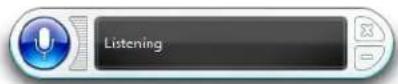
- Ensure that the Speech Recognition window is open and listening.
-
Do one of the following:
-
For voice commands, say the appropriate command. For a list of commands, search Windows® Help and Support for "speech commands."
- For dictation, open the program you want to use and start speaking.
For more information about speech recognition, search Windows® Help and Support for "speech recognition."
Using the magnetic stripe reader (optional)
If you have a CL910 with MSR and BCS, it comes with a magnetic stripe reader that you can use to read any card that has a magnetic stripe on the back, such as a credit or debit card.
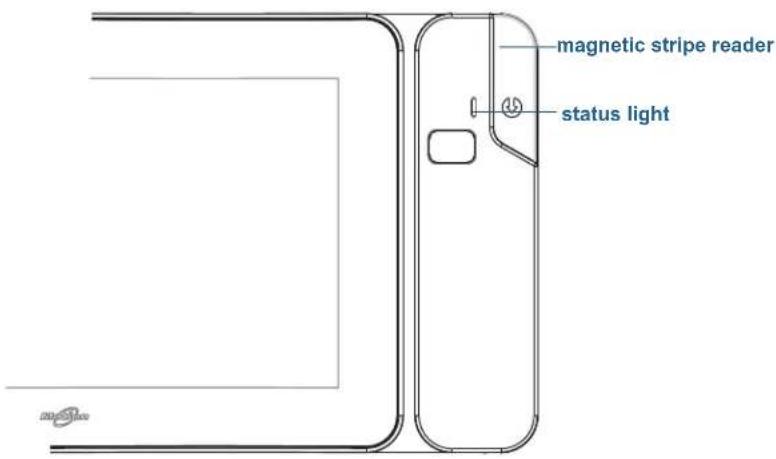
magnetic stripe reader
The magnetic stripe reader is on the right side of the CL910 SlateMate and a status light appears at the top. The status lights indicate:
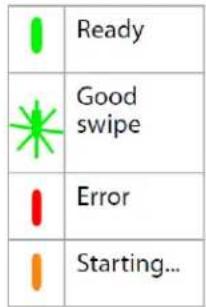
Status indicators for magnetic stripe reader
To use the magnetic stripe reader:
- Hold the CL910 steady.
- With the magnetic stripe facing downward, you can either swipe the card from top to bottom or from bottom to top. The green light flashes when the swipe is successful.
Using the barcode scanner (optional)
If you have a CL910 with MSR and BCS, it comes with a barcode scanner that you can use to scan barcodes. Many applications use barcodes for asset tracking, identification, and process controls.
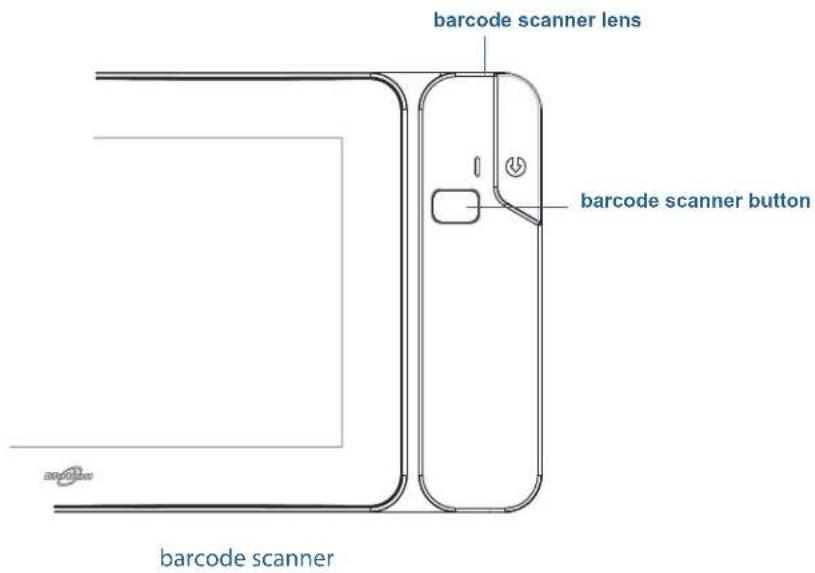
Supported barcode types
The CL910 barcode scanner supports the following barcode types by default:
• Code 39 • Interleaved 2 of 5
• Code 128/GS1-128 • Micro PDF417
• EAN/UPC-UPC-A•QRCode
• EAN/UPC-UPC-E
Other barcode types can be enabled by using the EasySet application, which is available through Motion Computing Support.
To use the barcode scanner:
- Open your barcode application and place the cursor in the appropriate field.
- Hold the tablet steady with the barcode scanner lens in front of you.
- Aim the barcode scanner lens at the barcode.
- Press and release the barcode scanner button located on the front of the barcode scanner. Ensure that the scan beam covers the entire barcode.
If the scan was successful, you'll hear a beep and the data appears in the application.
Barcode scanner tips
- You will typically get the best scans if the lens is six to seven inches from the barcode.
- If you are having trouble scanning a barcode, use two hands to steady the tablet while you scan.
Using the battery
The CL910 is equipped with a built-in lithium-ion battery that is charged automatically when the tablet is connected to an outlet. Under normal conditions, you can run the tablet on battery power for up to seven hours.
NOTE: If you ever need to replace the battery, contact your Motion Computing authorized service provider. Only authorized service providers can replace the battery.
Checking tablet battery power
You can check the remaining battery power several ways:
- When the tablet is plugged into an outlet, the battery gauge button shows whether the battery is fully charged (green) or charging (amber).
- When the CL910 is running on battery, pressing the battery gauge button on the left side displays status lights on the front of the CL910 indicating the current level of charge.
• From the Motion Dashboard - From the Windows ^ notification area
The battery gauge button is located the left side of the CL910 Tablet PC as shown:

To check the remaining battery power while running on the battery:
- Press the battery gauge button on the left side of the tablet. Battery gauge lights illuminate on the front of the tablet when the tablet is running on battery.
- Count the number of battery gauge lights. Each light represents about 20% increments of a full charge as shown:
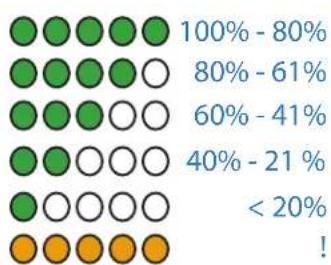
other
| Range | Value | | ----------- | ----- | | 100% - 80% | 100% | | 80% - 61% | 80% | | 60% - 41% | 60% | | 40% - 21% | 40% | | < 20% | < 20% | | ! | |Battery is fully charged.
Battery has about 80% charge remaining.
Battery has about 60% charge remaining.
Battery has about 40% charge remaining.
Battery has about 20% charge remaining.
Battery is low and requires an immediate charge.
To check the battery power while running on AC power:
-
Locate the battery gauge button on the left side of the tablet. The light illuminates when the tablet is connected to a power source.
-
Check the color of the battery gauge button for the current status :
Steady green—Battery is fully charged and the tablet is running on AC power.
Steady amber—Battery is charging.
Off—Not charging. The tablet is running on battery power.
Flashing amber (slow)—Less than 10% battery charge is remaining.
Flashing amber (fast)—There is an error. Call Motion Computing Support.
To check the remaining battery power from the Motion Dashboard:
- Open Motion Dashboard.
- Tap Power, which displays the percentage of remaining battery charge.
To check the remaining battery power from the Windows® notification area:
- Tap the power indicator, which is different depending on whether or not the tablet is plugged in.
- If the tablet is plugged in, tap the plug icon
- If the tablet is on battery power, tap the battery icon


Battery and power management tips
- To lengthen the battery's life, use AC power when you can. The battery charges automatically when the tablet runs on AC power.
- For optimal battery life, use AC power when using a USB device such as a DVD player or external hard disk drive.
- When running on battery power, place the tablet in Hibernate or Sleep mode if you are going to leave it unattended for more than a few minutes. For more information on Hibernate and Sleep mode, see Changing how the power button functions on page 50.
- Remember that the display, processor, wireless cards and accessories all draw on the battery, so adjust properties and disable unused accessories while running on battery power.
- Condition your battery once a month. To condition it, run the tablet on battery power until the battery's charge level drops below 20%.
- When running on battery power, adjust the display to a dimmer setting and enable the Dynamic Brightness Preference. Open Motion Dashboard, tap the Display tab and tap Dynamic.
- Turn off wireless devices when they are not being used. Open Motion Dashboard, tap the Wireless tab, and clear the checkbox next to the wireless device you want to disable.
Changing the power plan
By default, the CL910 uses the Motion Optimized power plan, which is designed specifically for Motion Computing tablets. It balances the need to save power while maximizing tablet performance. When the tablet senses no current activity, it goes into Power Saver mode automatically.
If necessary, you can change the Motion Optimized power plan from the Motion Dashboard.
To change the power plan:
- Open Motion Dashboard.
- Tap Power.
- Tap Power Options.
- Select a power plan from the list of available plans.
NOTE: Setting the power plan to Power Saver reduces the tablet's performance, but it will extend battery life.
Changing how the power button functions
When you press and release the power button, it can go into one of the following modes:
- Sleep—The tablet pauses all activity immediately and quickly resumes when awakened. This saves power when you are away from your tablet for a short time. However, you will lose unsaved data if there's a power failure.
- Hibernate—The tablet saves the contents of memory to the storage drive and shuts down. Pressing the power button restores the desktop exactly as you left it. Hibernate consumes less power than Sleep mode and takes less time to restart than the Shut down option.
- Shut down—Tablet shuts down. Pressing the power button reboots the tablet.
By default, the tablet goes to sleep when you press and release the power button. Do wake up your tablet, press and release the power button again. You can put the tablet in Hibernate mode or shut it down completely from the Start menu.
You can change how the power button behaves when it is pressed either to hibernate or to shut down the tablet. You can set the behavior individually—depending on whether the tablet is running on battery or plugged in.
To change what happens when the power button is pressed:
- Open Motion Dashboard.
- Tap Power.
- Under Power Switch on battery, select what you want to happen when the power switch is pressed while the tablet is running on battery.
- Under Power Switch plugged in, select what you want to happen when the power switch is pressed while the tablet is plugged into an outlet.
Using Windows® Action Center
Windows® Action Center provides a central location for you to manage the tablet's security settings and learn more about improving security. If a problem is detected (such as an out-of-date antivirus application), the Action Center sends you an alert and provides recommendations for how to remedy the situation.
To learn more, open Motion Dashboard, tap Security, then tap Windows Action Center.
Setting up user accounts
If you share the tablet with other users, you can set up a user account for each user. User accounts control which files and programs users can access and what types of changes users can make to the computer. A user account allows each person to have their own settings.
If you have an administrator account, you can add new user accounts from the Microsoft Management Console. For detailed instructions on setting up new users, open Windows® Help and search for "Create a user account."
Locating your serial number
You can locate the serial number for your CL910 in any of the following locations:
- White label inside the SD card slot of the tablet
- Windows® Start menu
- BIOS Setup Utility
To locate your serial number from the Start menu:
- From the Start menu, tap Computer, then tap and hold anywhere in the window to open the options menu. Select Properties.
- Under the System section of the page, view Model. The serial number begins with "S/N."
To access the BIOS Setup Utility:
- Restart your tablet.
- As soon as the tablet starts, and no later than when the Motion splash screen appears, tap the screen with your finger or the pen.
An alert sounds when you've accessed the BIOS Setup Utility.
TIP: If a keyboard is attached to your CL910, you can press F2 to open the Setup Utility. Then, press the arrow keys to select items and press Enter to select a submenu.
Backing up your system
To protect against loss or accidental deletion, schedule backups to occur automatically on a regular basis. Windows ^® 7 has a backup tool that you can use to set up what you want to backup and schedule backups on a regular basis.
To schedule backups:
- From the Control Panel, tap System and Security category then tap Back up your computer.
- Tap Set up backup.
Follow the on-screen instructions.
You can restore files from a backup. For more information, open Windows® Help and search for "Restore files from a backup."
Restoring your system
Windows ^® 7 has specialized tools for restoring your system in case of system failure. This section covers:
- Creating a system image to use to restore your computer if necessary
- Restoring the computer from a system image using Windows® control panel
- Restoring the tablet from BIOS if Windows® 7 cannot run
NOTE: System images are designed for restoring your entire system at once when you have a serious problem with Windows ^® 7. If you want to install particular files, folders, or other data, use Windows ^® Backup.
Creating a system image
You can use a system image to restore the contents of your tablet if it ever stops working. A system image is an exact copy of a drive and includes Windows ^® 7, your system settings, programs, and files. The system image requires an external drive, such as a USB flash drive, to store the image.
NOTE: We recommend that you create a system image as soon as you set up your tablet and then periodically thereafter.
To create a system image:
- Locate a USB flash drive or other external drive to use for storing your system image.
- From the Windows® Control Panel, tap System and Security category, then tap Back up your computer.
- From the navigation bar on the left, tap Create a system image, then follow the on-screen instructions.
For complete instructions, open Windows® Help and search for "Back up your programs, system settings, and files."
Restoring your system image from Windows® Control Panel
Use the Recovery tool from the Control Panel to restore your system if you can still access Windows ^® 7 or if you are restoring your system image onto a different computer.
To restore your system from Windows® Control Panel:
- Locate the external drive that contains your system image.
- From the Windows® Control Panel, tap System and Security category, then tap Backup your computer.
- Tap Recover your system settings or your computer, then Advanced Recovery Methods, then Use a system image...
- Follow the on-screen instructions.
For more information, open Windows ^® Help and search for “Back up your programs, system settings, and files.”
Restoring your system image if you can't start Windows® 7
If you need to restore your system and cannot access Windows ^® 7, you can access the recovery tool in the Windows ^® Advanced Boot Options screen.
NOTE: Before starting, locate the external drive that contains the system image you created previously (page 52) and ensure that a keyboard is attached to your tablet.
To restore your system image from the Windows® Advanced Boot Options screen:
- Press the tablet's power button to start the tablet.
- Press and hold the F8 key to display the Windows® Advanced Boot Options screen.
You need to press F8 as soon as the tablet starts up to access the Windows ^® Advanced Boot Options screen. If the Windows ^® logo appears, you need to try again by waiting until the Windows ^® logon prompt appears, and restarting your tablet from the Start menu. - In the Advanced Boot Options screen, select Repair your computer and press Enter.
The message "Windows is loading files..." and a progress bar will be displayed and there will be a brief waiting period while the necessary files load. - Select a keyboard layout in the System Recovery Options dialog box, then press Enter.
- Select a user name and enter the password, then press Enter.
- Attach the external drive that contains the system image.
- In the System Recovery Options dialog box, use the Tab key to navigate to System Image Recovery and then press Enter.
Follow the instructions to Re-image your computer.
Restoring your system without a system image
If you need to restore your Windows ^® 7 system and you do not have a system image, you can restore Windows ^® to its original factory image. This does not restore any of your files or any programs that you have installed.
To reinstall the original factory image:
- Ensure that a keyboard is attached to the tablet.
- Press the tablet's power button to start the tablet.
- Press and hold the F8 key to display the Windows® Advanced Boot Options screen.
You need to press F8 as soon as the tablet starts up to access the Windows® Advanced Boot Options screen. If the Windows® logo appears, you need to try again by waiting until the Windows® logon prompt appears, and restarting your tablet from the Start menu. - In the Advanced Boot Options screen, select Repair your computer and press Enter.
The message "Windows is loading files..." and a progress bar will be displayed and there will be a brief waiting period while the necessary files load. - Select a keyboard layout in the System Recovery Options dialog box, then press Enter.
- Select a user name and enter the password, then press Enter.
- In the System Recovery Options dialog box, use the Tab key to navigate to Reinstall Windows.
- Press Enter to reinstall Windows ^® .
- Check to see whether Windows ^® was able to save any data from the tablet. Look in the folder called Windows.old.
Finding other software
For information about other software for your tablet, go to Motion Computing Accessories and the Motion Computing Store. You will find links to software solutions for purchase as well as free downloads from Motion Computing and its service partners.
Caring for your CL910
3
Proper care and maintenance will keep your CL910 Tablet PC working and in good condition. For general information about care of the tablet and its components and accessories, see the Safety and Regulatory Guide included with your tablet PC.

WARNING: Follow the guidelines listed in this chapter when caring for your tablet PC and its components. Improper use may damage the tablet PC and its components and void the warranty.
General care
- Protect the tablet PC from exposure to extreme temperatures, shock, liquids, and strong magnetic fields.
- Do not place heavy objects on top of the tablet PC.
- If you are storing the tablet for a long time, unplug the power adapter and remove the battery after partially discharging it.
Caring for the display
Follow these suggestions to keep your display clean:
- Clean fingerprints and smudges from the display surface by wiping it with the display cloth provided.
- If needed, use a cleaning solution recommended by Motion Computing to clean the display. Spray the solution on a cloth then wipe the display. Never spray directly onto the display surface and never use an abrasive cleaner.
- If liquid is spilled on the display, wipe it up immediately with a soft cloth like the one provided with the tablet.
- Use only the CL910 pen or your finger to write on the display. Any other object could damage the display surface.
- Use a case when transporting the tablet PC to protect the display surface.
- Cover the display with a protective display film.
- Avoid exposing the display to direct sunlight for long periods of time.
You can purchase protective display films and CL910 cases from the Motion Computing Accessories page.
Cleaning solutions
Motion Computing maintains a list of tested cleaning solutions and chemical disinfectants on its website.

WARNING: Do not use any corrosive or abrasive cleaners to clean or disinfect the tablet.
Caring for the pen
If you use a pen with your tablet:
- Store the pen in the pen storage drawer, tip down, or in a case when not in use.
- Avoid storing the pen vertically on its tip (when not in the storage drawer). It can damage the pen-to-digitizer function.
- Keep the pen away from any liquid because the pen contains electronic components that could be damaged when wet.
- In certain environments, particles or debris can stick to the pen tip or the tablet PC display. Make sure you wipe off the pen with a soft cloth to avoid scratching the display.
- Under normal conditions, the CL-Series pen tip should not require replacement. However, extra pen tips are available if you want to replace one.
NOTE: To order CL-Series pens or new CL-Series pen tips, go to Motion Computing Accessories.
Caring for the tablet battery
To maximize the performance of the battery, condition the battery once a month. To condition it, run the tablet on battery power until the battery's charge level drops below 20%. Then use AC power until it is fully charged.
You will receive a message if the tablet detects that the battery needs conditioning. For more information about batteries, see Using the battery on page 46.
Traveling with your CL910 Tablet PC
Use the following tips when you travel with your CL910 Tablet PC:
- Put the tablet PC in a case to protect the display. Motion Computing sells a variety of cases for the CL910. You can purchase one at the Motion Computing Accessories page.
- Store the pen in the pen storage drawer located on the right side of the tablet.
- Pack the tablet PC securely in a briefcase or hand-carried luggage and keep it separate from toiletries, liquids, and food. Do not pack it in checked luggage.
- Before extended use in the field or long trips away from AC power, adjust the power properties to maximize battery conservation. See Changing the power plan on page 49.
- For international travel, use the appropriate adapters for your destination's electrical outlets. You do not need to buy a voltage converter; the Motion AC adapter will automatically adjust to different voltages.
- You may want to carry proof of ownership or a merchandise passport when traveling internationally.
- Consult your insurance and credit card companies to learn about emergency travel assistance in case your tablet PC becomes lost or disabled.
- Do not carry your tablet through a metal detector.
- Turn off the tablet PC or place it in hibernation mode for airplane takeoff and landing.
NOTE: The FAA requires that you suspend Wi-Fi, Bluetooth, and mobile broadband connections before boarding a plane. You can disable them all at once. To disable the wireless devices, open Motion Dashboard, tap the Wireless tab, and clear the checkbox next to each of the wireless devices listed.
Troubleshooting and FAQs
Motion Computing tablet PCs are thoroughly tested for performance and quality, but occasionally issues can still occur. If you don't find the information you're looking for in this section, go to Motion Computing Support.
Troubleshooting
Use the information in this section to identify and resolve common issues. If an issue has more than one potential cause, the most common cause is listed first.
Power issues
The tablet doesn't shut down
- An application might have stopped responding. Use Task Manager to manually stop the application. Press Ctrl+Alt+Delete or press the Security button and select Start Task
Manager. You can also press and hold the power button ⏻ for five seconds to force the tablet to shut down. However, this is strongly discouraged.
The tablet won't enter Hibernation mode
- Hibernation might not be enabled. Enable hibernation by adjusting the power button behavior from Motion Dashboard. See Changing how the power button functions on page 50.
The tablet doesn't return from hibernation while on battery power
- The battery might be depleted. Plug the tablet in to AC power.
The power button is blinking but nothing is happening
- The tablet is in Sleep mode. Press the power button to wake up the tablet. To power off the tablet completely, you can press and hold the power button about 5 seconds. However, this is strongly discouraged. Under normal conditions, power off the tablet from the Start menu by tapping Shut down.
The display goes black while the tablet PC is still turned on
- The tablet might have turned off the display to save power. To restore the display, touch the screen with your finger or the pen.
- The tablet might have gone into Sleep mode. Press and hold the power button ⏻ for about one second.
- The tablet might have gone into low-battery Hibernation mode. In Hibernation mode, the power status light is off. Plug the tablet in to AC power, then press and hold the power button for about one second.
Battery issues
The battery doesn't last very long (less than seven hours)
- Hot or cold conditions can adversely affect the battery charge. Use AC power if you're operating the tablet in these conditions.
- Accessory devices such as a DVD player and applications that make heavy use of the hard drive can drain the battery more quickly. Remove the accessory devices or use AC power if possible.
- Condition the battery once a month by using the tablet on battery power and allowing the battery charge to drop below 20% before connecting the battery to AC power.
- Have the battery replaced. While the built-in lithium-ion battery is designed for a long battery life, you may find the need to replace it. If so, contact your Motion Computing service provider. Only authorized service providers can replace the battery.
- For other battery optimizing tips, see Battery and power management tips on page 49.
Display issues
When I connect to an external monitor, the cursor appears on the external monitor and not on my tablet
- This is a known Windows ^ 7 issue. If you have connected multiple touch-enabled displays, Windows ^ may not assign touch to the correct display. To fix this issue, run Setup to assign touch to the appropriate display. Make sure a keyboard is attached to your tablet and then open Motion Dashboard. Tap Pen & Tablet, then tap Tablet PC Settings. Tap the Display tab, then tap Setup next to "Configure your pen and touch displays." Tap Touch Input, then press the Enter key until you see the instructions appear on the display that you want to use for touch input. Follow the on-screen instructions for setting up touch on this display.
When I disconnect an external monitor, the desktop area is larger than the tablet PC display
- The tablet may have expanded the desktop beyond the display area of the tablet PC display when it was connected to the external monitor. Use Motion Dashboard to reset the tablet PC to the display setting for stand-alone tablets. Open Motion Dashboard, tap Display. Then, from the Display Scheme drop-down list, select Tablet Only.
The display goes black while the tablet PC is still turned on
- The tablet PC might have turned off the display to save power. To restore the display, tap or touch the screen.
- The tablet might have gone into Sleep mode. Press and hold the power button ⏻ for about one second.
- The tablet might have gone into low-battery Hibernation mode. In Hibernation mode, the power status light is off. Plug the tablet in to AC power, then press and hold the power button for about one second.
The display is too dim
- The display brightness may be set too low. Use Motion Dashboard to brighten the display. Open Motion Dashboard, tap Display, then move the brightness slider to the desired level.
The display is unreadable or distorted
- The screen resolution and color quality may not be set correctly. Use Windows® Display Properties to reset the display settings. From Windows Control Panel, select Hardware and Sound category. Under Display, change the resolution until the display appears normally.
- The display driver may have been removed or become corrupted. Use Windows® Device Manager to reinstall the driver. For more information, open Windows® Help and Support and search for "update driver."
To update the display device driver
- Make sure that the tablet is connected to a network.
- In Control Panel, tap the System and Security category.
- Select System.
- Under System, select Device Manager.
- Expand Display adapters.
- Select the adapter and select Action > Update Driver Software.
- Follow the on-screen instructions.
Touch or pen issues
The tablet PC doesn't respond to the pen I'm using
- Use only the CL910 pen with the tablet. The tablet PC does not respond to other digitizer pens, even Motion Computing pens for other models.
When I add an external display, touch input doesn't appear on the desired display
- Run touch setup on the desired display. Make sure a keyboard is attached to your tablet and then open Motion Dashboard. Tap Pen & Tablet, then tap Tablet PC Settings. Tap the Display tab, then tap Setup next to "Configure your pen and touch displays." Tap Touch Input then press the Enter key until you see the instructions appear on the
display that you want to use for touch input. Follow the on-screen instructions for setting up touch on this display.
When I write, I inadvertently click the function button on the pen
- Try adjusting how you hold the pen. Avoid resting your finger on the function button. You can also disable the function button. open Motion Dashboard then tap Pen & Tablet. Tap Pen & Input Devices and tap the Pen Options tab. Clear the check mark next to the box, "Use the pen button as a right-click equivalent."
The pen function button doesn't work
- You may not be pressing the button early enough. Try pressing and holding the pen function button before you touch the pen to the display surface.
- The pen function button may be disabled. To enable it, open Motion Dashboard then tap Pen & Tablet. Tap Pen & Input Devices and tap the Pen Options tab. Tap the checkbox next to "Use the pen button as a right-click equivalent."
On-screen instructions require me to press Enter or Esc, but I don't have a keyboard
- Connect a keyboard to the tablet to continue.
The CL910 responds to my finger but not my pen
- The tablet may be configured to ignore pen input. To check, open Motion Dashboard then tap Pen & Tablet. Tap Touch Settings and tap the Digitizer Options tab. Set Input mode to the recognize both touch and pen.
The CL910 tablet is too sensitive to touch
- Consider changing a touch setting so that you have to double-tap the display to enable touch. Open Motion Dashboard then tap Pen & Tablet. Tap Touch Settings and then Auto mode.
The touch pointer jumps around the display and the display flickers
- In some cases, the tablet's touch system gets out of sync. To fix it, you can re-tune it. Open Motion Dashboard, then tap Pen & Tablet, tap Touch Settings, tap Touch Tuning, then Start. A calibration program begins. Don't touch the display during the calibration process.
Calibrate doesn't work
- The Tablet PC Settings Display tab has a Calibrate option, but it doesn't apply to the CL910. Instead, if touch input doesn't behave as expected, you can re-tune touch. Open Motion Dashboard, then tap Pen & Tablet, tap Touch Settings, tap Touch Tuning, then Start. A calibration program begins. Don't touch the display until the program has finished.
Ports and connectors issues
The tablet doesn't recognize the USB device
- Windows ^ 7 may take a short time to recognize the USB device. Wait a few moments to see if Windows ^ recognizes the device.
- The device may not be connected properly. Check the connection and ensure that it's inserted properly into the USB port.
- The correct driver might not be included with Windows® 7. Check the manufacturer's website for a current driver.
The CL910 is in its dock, but the tablet doesn't recognize any accessory devices, such as the external disk drive or monitor
- The CL910 may not be fully seated in the dock. Remove it from the dock and then replace it.
Network issues
The wireless adapter keeps connecting even when I don't want it to
- Disable the desired wireless adapter from the Motion Dashboard. Open Motion Dashboard, tap Wireless, and clear the checkbox next to the wireless adapter that you want to disable.
I can't connect to a wired Ethernet network
- To connect to an Ethernet network, your CL910 must be connected to a docking station. The Ethernet port for the CL910 is located on the dock.
- The connection may be loose. Remove the Ethernet cable and reconnect it.
- The Ethernet network may be experiencing problems. Check with someone near you to determine if he or she has network access.
- Replace the Ethernet cable.
Wi-Fi issues
I can't connect to a wireless Wi-Fi network
- Your CL910 may not have located a Wi-Fi network. From the Start menu, tap Control Panel then Network and Internet. View your active networks. If no network is connected, tap Connect to a network and select a network from the list.
- Wi-Fi must be enabled from the Motion Dashboard. Open Motion Dashboard, tap Wireless and tap the checkbox next to Enable 802.11 Internal Wireless.
- You may not have access to the network. Obtain a user name and password from an administrator for the network.
- Your tablet's security settings may prevent a connection. For example, broadcasting a network name may be enabled or encryption is turned on. Check with your system administrator.
Bluetooth issues
I can't connect to a Bluetooth network
- Bluetooth must be enabled from the Motion Dashboard. Open Motion Dashboard, tap Wireless, and tap the checkbox next to Enable Bluetooth Internal Wireless.
- Your Bluetooth device must be paired. From the Windows® notification area, tap the Bluetooth icon 📋 and select Add a Device. Make sure the Bluetooth device is discoverable according to its manufacturer's instructions. Select the desired Bluetooth device from the list of available devices. Follow the on-screen instructions to complete the procedure.
- Your Bluetooth device is out of range. The Bluetooth devices are designed for short-range communication and can only connect at distances up to 33 feet (10 meters).
No other Bluetooth device can detect the CL910 tablet
- From the Windows® notification area, tap the Bluetooth icon ✪ and select Open settings. On the Options tab, select Allow Bluetooth devices to find this computer.
I tried to pair my Bluetooth device several times but it isn't detected:
- Bluetooth must be enabled from the Motion Dashboard. Open Motion Dashboard, tap Wireless, and tap the checkbox next to Enable Bluetooth Internal Wireless.
- Ensure that the Bluetooth device you're adding is discoverable. See the device's manufacturer's instructions for more information.
- Ensure that the Bluetooth device's battery is charged.
- Check which Bluetooth devices are connected. From the Windows® notification area, tap the Bluetooth icon 🧆 and select Show Bluetooth Devices. The Devices window displays all the Bluetooth devices that are currently connected.
- For tablet PCs transferring files, both computers must turn on the Bluetooth device transfer wizard, although only the receiving computer needs to be discoverable. Tap the Bluetooth icon ✕ and then Send a file or Receive a file. When you do this, discovery is automatically turned on for the receiving devices.
- If the tablet still can't detect the Bluetooth device, contact the device manufacturer for assistance.
My Bluetooth device doesn't work properly
- Some issues arise when using Bluetooth devices as listed below.
Bluetooth wireless tips
Motion Computing and its Bluetooth partners have worked to ensure a positive experience with this technology and to ensure Bluetooth interoperability. In doing so, we have found the following issues:
- Interference—If you are running Bluetooth and Wi-Fi at the same time, interference can affect the Bluetooth performance. This is most noticeable if:
- You try to transfer large amounts of data, such as file transfers
– Several Bluetooth devices are operating in an office simultaneously - Speech Recognition—Bluetooth audio has not been fully developed for speech recognition. Therefore, for speech recognition, we recommend that you don't use a Bluetooth wireless headset. A better solution is to use Motion Speak Anywhere, which can record clear audio, dictate notes, and use voice commands without a microphone headset.
- Disconnection—Some Bluetooth devices will disconnect when they go into power-saving mode. Most devices will automatically reconnect when they become active again.
- Incompatible drivers—If you attempt to install other wireless headset or other audio drivers (such as Bluetooth or USB) over the tablet PC audio drivers, a malfunction of the tablet PC audio system may occur because the drivers may not be compatible.
- Interoperability—If you are having problems with interoperability of Bluetooth devices, contact the manufacturer of your Bluetooth device and check its compatibility with the Bluetooth software installed on your tablet PC.
- Security—Bluetooth devices use a passkey to create a secure connection between the tablet PC and the Bluetooth device. Although the passkey exchange helps to secure your data, Bluetooth wireless technology should not be considered completely secure.
Mobile broadband with GPS issues
I can't connect to a mobile broadband network
- Mobile broadband is only available if you purchased your CL910 with the optional Mobile Broadband with GPS module.
- A mobile broadband network requires you to have a data plan from a cellular network provider.
- You may need a SIM card from your network provider. If the network is on a UMTS network (such as AT&T ^ , Orange ^ or T-Mobile ^ ), your network carrier must provide you with a SIM card and you insert the SIM card in the slot on the left side of the tablet. The SIM card contains your account information.
- Mobile Broadband with GPS must be enabled from the Motion Dashboard. Open Motion Dashboard, tap Wireless, and tap the checkbox next to Enable Mobile Broadband with GPS.
- Motion Connection Manager must be running. The Motion Connection Manager icon appears in the Windows® notification area when it's running. From the Windows® Start menu, select All Programs > Motion Computing > MotionCM.
- Mobile broadband must be set up through the Motion Connection Manager. From the Windows® Start menu, select All Programs > Motion Computing > MotionCM. Tap the Help icon and select the help topic, "Setting up mobile broadband." Follow the instructions to set up a network profile and connect to a mobile broadband network.
I changed my SIM card and now I can't connect to my mobile broadband network
- After inserting a SIM card, the Motion Connection Manager must be restarted. From the Windows® notification area, tap the Motion Connection Manager icon 📋 and tap Exit. Restart the Connection Manager and from the Windows® Start menu, select All Programs > Motion Computing > MotionCM.
The GPS doesn't work
- The GPS receiver is only available if you purchased your CL910 with the optional Mobile Broadband with GPS module.
- Mobile Broadband with GPS must be enabled from the Motion Dashboard. Open Motion Dashboard, tap Wireless, and tap the checkbox next to Enable Mobile Broadband with GPS.
- The GPS navigation or mapping application you're using must be NMEA compatible or compatible with the NMEA specification.
My GPS isn't working properly
- Mobile Broadband with GPS must be enabled from the Motion Dashboard. Open Motion Dashboard, tap Wireless and tap the checkbox next to Enable Mobile Broadband with GPS.
- If performance is slow, you may be blocking the GPS antenna, which is located on the right side of the tablet as shown below.
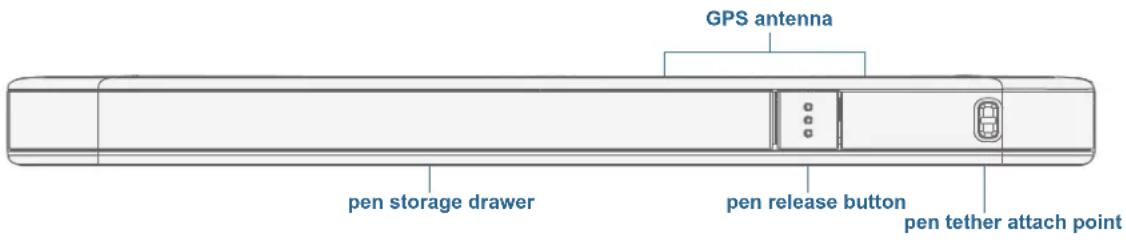
Audio issues
No sound is coming from the built-in speaker
- Ensure that nothing is connected to the audio in/out jack. Connecting headphones or external speakers disables the built-in speaker.
- The volume may be set too low or muted. You can use Motion Dashboard to increase the volume or turn mute off. Open Motion Dashboard, then tap Audio and move the slider to the desired volume.
No sound is coming from the built-in speaker or external speakers
- The volume may be set too low or muted. You can use Motion Dashboard to increase the volume or turn mute off. Open Motion Dashboard, then tap Audio and move the slider to the desired volume.
- The integrated audio components may have been overwritten. If you install a third-party audio device (such as a USB or Bluetooth device), the integrated audio may stop working. If this happens, reinstall the audio drivers. After you install these, if you still have problems recording, contact your system administrator or service provider.
Motion QuickNav issues
Motion QuickNav doesn't respond
- Try to switch to another application then return to Motion QuickNav.
- Close Motion QuickNav from the Windows® notification area. Tap and hold the Motion QuickNav icon, and select Exit.
- If it still isn't responding, the Motion QuickNav process may have hung. Press Ctrl+Alt+Delete, tap Start Task Manager, tap the Processes tab, select DialKeys.exe, then End Process.
Photos are backward (display mirror image)
- Set the camera rotation to Flip X. Open the Motion QuickNav toolbar then tap the
camera icon 📄, tap Options icon 🎋, tap the Camera tab, tap the Camera tab, then under Rotation, select Rotate 180 & Flip X.
Camera makes a whirring sound and doesn't take a photo
- You may be covering up the camera lens.
- This can occur if you take many photos in sequence. Wait a few seconds before taking another photo. If that doesn't work, close the viewfinder and reopen it.
Barcode scanner is slow
- Remove any codes that you don't use. Tap the barcode scanner icon then tap the Options icon and disable the codes that you don't use.
- Lower the resolution. Be aware, however, that this affects accuracy. Tap the Options icon and select a lower resolution.
System issues
I forgot my BIOS password and can't access my tablet
- You can enter several incorrect passwords before the BIOS temporarily locks the system. You can try again by restarting the system. If you still can't log on, contact your system administrator.
The tablet seems to be operating slower than usual
- Reboot.
- The hard drive or solid state drive (SSD) may be full or nearly full. You can use Disk Cleanup to free up space on your drive. For instructions, open Windows® Help and search for "disk cleanup."
- The hard disk drive may need to be defragmented. You can use the Disk Defragmenter to consolidate files and folders on the hard drive. For more information, open Windows® Help and Support and search for "disk defragmenter."
Note: Unlike traditional hard drives, SSD drives, like the one available on the CL910, see no performance benefit from traditional HDD defragmentation tools. Using these tools simply adds unnecessary wear to the SSD. It is recommended that you disable any automatic or scheduled defragmentation utilities on your tablet.
I want to make my tablet run faster
- Change the Power plan to High Performance from the Motion Dashboard Power tab.
- Adjust your Windows® settings. For instructions, open Windows® Help and search for "improve performance."
Frequently asked questions
How can I make the battery charge last longer?
- By default, the power plan for the CL910 is a balance between optimal performance and a long battery charge. If you want the tablet to run longer between charges, use the Power saver power plan. Open Motion Dashboard, tap Power. Tap Power Options and select Power saver.
- Use the Dynamic display setting. This automatically controls the display to conserve power. Open Motion Dashboard, tap Display then tap Dynamic.
- Set the display to the dimmest level you are comfortable with. Open Motion Dashboard, tap Display then move the Brightness slider to the desired level.
- Disconnect any Ethernet connections that aren't being used. Disable the wireless adapter and Bluetooth adapter if you aren't using them. Disconnect unnecessary USB devices. To disable the adapter, open Motion Dashboard, tap Wireless and clear the checkbox next to the adapters you aren't using.
- Stop unnecessary background applications and processes.
How do I know if the tablet is charging when I plug it in to a power adapter?
- The battery gauge button on the left side of the tablet is amber when the tablet is charging.
How do I check the battery charge when I'm running on the battery?
- From the Windows® notification area, tap the battery icon.

- When you press the battery gauge button on the left side of the tablet, battery gauge lights appear on the front. The number of lights that appear indicate the level of charge where five green lights indicate a full charge and one light indicates that about 20% charge is remaining. If the lights are flashing amber, the battery is low and requires immediate charging.
How do I clean the display screen?
- To clean the display screen, wipe it with a soft cloth (like the one supplied). Do not spray cleaners, pour any liquid, or wipe any abrasive cleaner on the screen or any surface of the tablet PC. Do not use tissues or paper towels to clean the screen. They contain wood fibers that may scratch the surface.
- Motion Computing maintains a list of tested cleaning solutions and chemical disinfectants on its website.
Will scratches affect the performance of the display or digitizer?
- Our testing has not found appreciable loss of performance on a scratched display.
How sensitive is the screen to various elements?
- As with any computer or electronic device, you should protect the tablet PC from liquids, dirt and sand, other contaminants, and extreme heat.
Will any monitor, USB device, keyboard, or mouse work with the tablet PC?
- If the device has a driver for Windows ^® , it will work with the tablet PC. For best result, an external monitor should be digital—and capable of connecting with the CL910 through the Micro-HDMI port. For a list of products that have been tested for Windows ^® , look for the Windows ^® Marketplace Tested Products page on the Microsoft ^® website.
How do I adjust the tablet PC for left-handed use?
- From the Motion Dashboard, tap Pen and Tablet, then Tablet PC Settings, then the Other tab. You can select left- or right-handed, which changes the location of the menus.
How can I stop the display screen from rotating automatically?
- From the navigation area, tap the Motion icon 📂 then tap Options and clear Automatic Display Rotation.
How do I calibrate my finger and pen for touch input?
- If the touchscreen doesn't respond as expected or if it responds to unintentional input, you can re-tune it. Open Motion Dashboard, then tap Pen & Tablet, tap Touch Settings, tap Touch Tuning, then Start. A calibration program begins. Do not touch the display during the calibration process.
What do I need to use the tablet PC in another country?
- You will need a travel plug adapter, which you can find in airports and travel stores. You do not need to buy a voltage converter; the Motion AC adapter will automatically adjust to different voltages.
Where can I learn more about my CL910?
- To learn more about the CL910, check out our training tutorials and knowledge base articles. Motion Computing also offers corporate training classes.
Can I recycle my old computer?
- Yes. Motion Computing has a recycling program that allows free return of all Motion-branded products and non-Motion-branded electronics with the purchase of a similar Motion tablet for processing and disposal in an environmentally safe manner. For details, go to Motion Computing recycling program.
Index
Numerics
802.11 Wi-Fi 9
A
AAAA battery 7
AC adapter 6
AC power 8
accessing 51
accessories 14, 54
amber light 67
ambient light sensor 4, 39
antenna, GPS 65
application
inserting photos in 34
Atom Intel processor 1
audio
drivers 65
settings 18
troubleshooting 65
audio in/out jack 1,6
automatic display rotation 19
enabling or disabling 39
Automatic Updates 50
B
backup
scheduling 52
barcode scanner 29
slow performance 66
battery
checking status 47, 67
health 19, 57
optimizing 49, 67
replacing 46
tips 49
using 46–49
battery gauge 4, 47
battery gauge button 6, 8, 47
battery status lights 4
BIOS
boot options 54
troubleshooting password 66
BIOS setup utility 51
blinking power button 58
Bluetooth
discovery 63
setting up 10, 64
tips 64
boot options 54
brightness of display 39
C
calibrate 23, 61, 68
camera
using 31
cameras 5
documentation camera 5
documentation, using 31
stalls 66
switching between front and rear 36
using 30
using QuickNav to access 30
web camera 4
care and maintenance
display 56
general care 55
pen 56
tablet pen 56
checking battery status 47
cleaning
display 56
Computrace® Complete 2
conditioning the battery 57
connecting
docking station 13
monitor 13
context-sensitive menu 19, 22
Corning Gorilla glass 1
credit card 20
crop photos 36
Ctrl+Alt+Del 6, 11, 66
D
desktop
Getting Started doc 16
introduction 15
QuickNav 16
Dial Keys 28, 66
DialKeys.exe 66
dictation mode 43
digital ink 23
digital monitor 6, 68
digitizer
Motion Dashboard options 20
N-trig 20
tuning 21
disinfectants 56, 67
display
automatic display rotation 19, 39, 68
care and cleaning 56
Display Scheme 41
extended 41
fixed brightness 39
locking display orientation 39
mirror 40
orientation 68
rotating 39
scratch resistance 1
scratches 67
settings 39–42
touch with multiple 23, 42
troubleshooting 59–60
turning off automatic rotation 68
using 39
Display Scheme 41
dock connector 3
docking input panel on the screen 25
docking station 13
documentation camera 5, 31
double-tap 19, 20, 22
downloads, free 54
E
editing photos 35
email messages
attaching photos to 33
End key 26
eraser 22
use pen function button as 22
extended display 41
external display, using 40
F
FAA wireless air travel requirement 57
features
optional 2
flicks 19, 21
folder options
changing 20
free downloads 54
G
gestures 21
enable multi-touch 21
Getting Started 16
Gobi Mobile Broadband with GPS module 2
Gorilla glass 1
GPS antenna 65
GPS receiver 2, 9
troubleshooting 65
H
handwriting recognition applications 26
hard drive activity 19
HDMI port 6
hibernate 11, 58
about 50
Home key 26
|
inking 21, 23
input mode 20
input panel
docking 25
docking or floating 25
numbers pad 25
Insert key 26
Intel processor, Atom 1
Internet Options 50
K
keyboard 68
show special keys 26
Knowledge Base 14
knowledge Base 68
L
landscape mode 39
left-handedness 18, 22, 23, 25, 68
locking
the tablet 11
locking display orientation 39
M
micro HDMI port 1, 6, 13, 41, 68
microphones 3, 18, 42, 43
Microsoft Word 31
mirror display 40
mobile broadband 2, 9
Mobile Broadband with GPS module 2
mobile broadband, GPS 2
monitor
connecting external 13
monitor. See also digital monitor 68
monitors
touch 42
touch input 23
using multiple 40
Motion Computing Accessories 14, 54
Motion Computing Store 14, 27
Motion Computing Support 14, 46, 58
Motion Connection Manager 9, 64, 65
Motion Dashboard 16, 19
opening 9, 16
using 16
Motion Optimized power plan 49
Motion utilities 18
moving taskbar location 16
multi-touch gestures 21
N
notification area 18, 39
N-trig 20
numbers pad 25
0
optimization
battery 49
power plan 49
overview
ports and connectors 4
P
Page down key 26
Page up key 26
passwords and user accounts 51
Pause key 26
pen 5
care and maintenance 56
digitizer pen 7
disable function button 22
disabling pen input 20
eraser 22
inserting battery 12
storage drawer 5, 56
taking care of 56
tether 5
troubleshooting 60
use function button as eraser 22
Pen & Input Devices 21
pen release button 5
photos
attaching to email messages 33
editing 35
inserting in applications 34
taking with QuickNav 31
troubleshooting 66
portrait mode 39
portrait orientation 39
power adapter port 6
power button 6, 50
blinking 58
power plan
Motion Optimized 49
Power Saver 67
power switch on battery 50
Print screen key 26
Q
QuickNav 16, 66
help 29
hiding and showing 29
keyboard 28
review mode 35
setting options 29
starting 27
stopping 29
tool bar 28
troubleshooting 66
R
recycle old computer 68
repairing Windows 53, 54
restoring your system 52, 53
right-click 19, 22
rotating photos 36
rotating the display 39, 68
S
scheme
display 41
scratch resistance 1
scratches 67
screen. See display 68
Scroll lock key 26
SD card slot 1, 6
serial number 51
setting up
Bluetooth 64
docking station 13
external monitor 13
mobile broadband 9
the tablet PC 8
Wi-Fi 9
setting up users and passwords 51
shortcut menu 19
Shut down 58
shut down 50
SIM card slot 6
Skype 30
SlateMate 2
sleep 11
about 50
software solutions 54
spatial tolerance 22
speaker 3, 18, 65
specifications 1
speech recognition 43–44
setting up 44
storage drawer 5
system image 12, 52
T
tablet PC
accessories 14
desktop 15
managing with Motion Dashboard
16
optional features 2
shutting down 50
software 54
specifications 1
training tutorials 68
Tablet PC input panel 25
Tablet PC Tips & Tricks 14
taskbar 9, 16
moving to left 16
text
entering 23-??
touch
and pen 20
calibrate 23, 61
configuring settings 20
disabling touch input 20
gestures 21
on multiple displays 42
pointer, adjusting 21
pointer, show or hide 21
setting spatial tolerance, speed, and
duration 22
troubleshooting 60
using 19
using multiple monitors 23
touch tuning 21, 68
touchscreen display 1, 4
caring for 56
training 14
training classes
corporate 68
training tutorials 68
traveling with your tablet PC 57
troubleshooting
audio 65
battery 59
input 60
Trusted Platform Module (TPM) 1
tuning touch 21
U
USB 2.0 port 6
USB 2.0 ports
troubleshooting 62
user accounts 51
using
external display 40
external monitors 40
microphones 42
Motion Dashboard 16
power plans 49
sleep mode 50
speech recognition 43
V
video recorder 30
viewfinder
QuickNav 32
voice commands 43
voice recorder 30
W
web camera 4 using 31
Wi-Fi 9
Windows
Action Center 50
Advanced Boot Options 53
notification area 18, 39
repairing 53, 54
restoring 53
Security button 6
Setup wizard 8
speech recognition 43
Windows.old directory 54
Windows Action Center 50
Windows Firewall 50
Windows Live 30
Windows Security Center 50
wireless
setting up 802.11 Wi-Fi 9
setting up Bluetooth 10
setting up mobile broadband 9
wireless network
setting up 8
troubleshooting ??-63
wireless networking 9, 10
WWLAN. See mobile broadband
Z
zoom in and out 19