D250 - Camera WHISTLER - Free user manual and instructions
Find the device manual for free D250 WHISTLER in PDF.


| Product Type | Digital Camera |
| Brand | Whistler |
| Model | D250 |
| Dimensions (approx.) | 105 x 65 x 35 mm |
| Weight (approx.) | 180 g (with battery) |
| Power Source | Rechargeable Li-ion battery (USB-C charging) |
| Battery Life | Up to 2 hours of continuous recording |
| Image Sensor | 5 MP CMOS |
| Video Resolution | Full HD 1080p @ 30fps |
| Photo Resolution | 12 MP (interpolated) |
| Storage | microSD card up to 128 GB (not included) |
| Lens | Fixed focus, f/2.8 aperture |
| Display | 2.0 inch LCD screen |
| Connectivity | USB-C (data/power), micro HDMI |
| Main Functions | Video recording, photo capture, loop recording, motion detection, time-lapse |
| Care & Cleaning | Wipe with a soft, dry cloth. Avoid solvents. Keep lens clean. |
| Safety | Do not disassemble. Avoid extreme temperatures. Use only approved charger. |
| Spare Parts & Repairability | Battery and USB cable replaceable. Contact Whistler support for service. |
| General Information | Designed for everyday use. Compatible with Windows/macOS. |
Frequently Asked Questions - D250 WHISTLER
User questions about D250 WHISTLER
0 question about this device. Answer the ones you know or ask your own.
Ask a new question about this device
Download the instructions for your Camera in PDF format for free! Find your manual D250 - WHISTLER and take your electronic device back in hand. On this page are published all the documents necessary for the use of your device. D250 by WHISTLER.
USER MANUAL D250 WHISTLER
natural_image
Close-up of a black digital camera with lens and control panel (no visible text or symbols)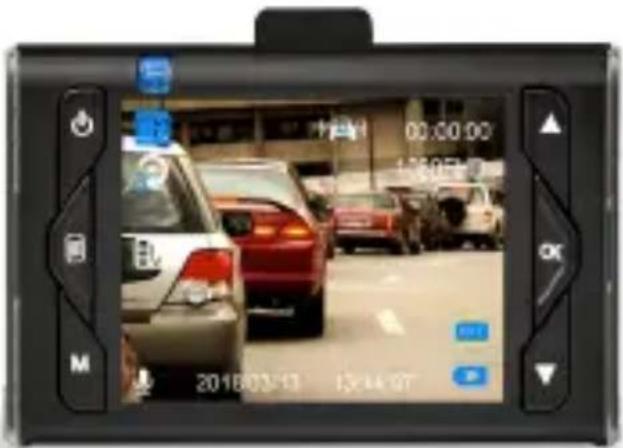
WHAT'S INCLUDED
natural_image
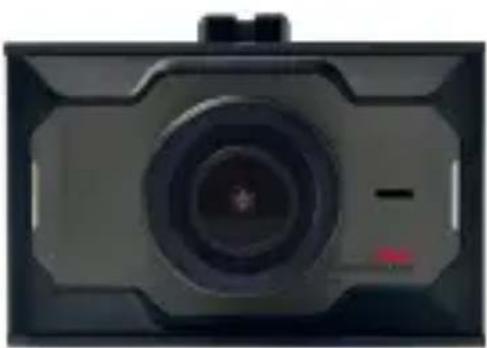
Front view of a black digital camera with lens and control panel (no visible text or symbols)D250
natural_image
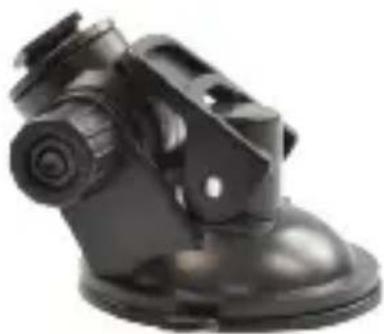
Black mechanical component with attached mounting bracket (no visible text or symbols)WINDSHIELD BRACKET
natural_image
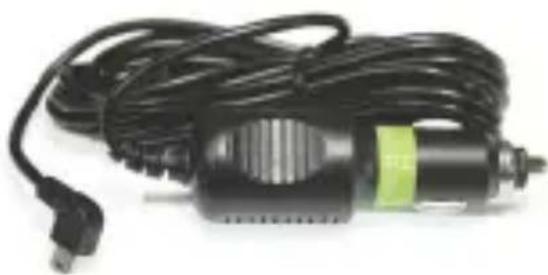
Black and white photo of a handheld electric drill bit with coiled cable and power plug (no visible text or symbols)DC POWER CORD
natural_image
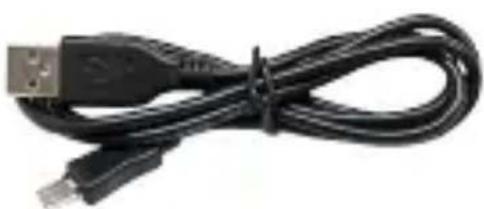
Coiled black USB cable with connectors (no text or symbols visible)USB CABLE
natural_image
Blank white page with a corner curled corner (no text or symbols)USER GUIDE
Welcome
Thank you for choosing a Whistler product. We are dedicated to providing products that represent both quality and value. Please read the user guide carefully before using this product. If you have additional questions, call toll free
Customer Service Representative 1-800-531-0004
Monday - Friday • 8:00 am - 5:00 pm CT
or visit our website
www.whistlergroup.com
PRODUCT INTRODUCTION
Features
natural_image
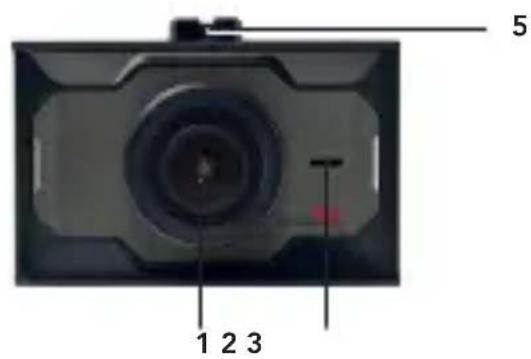
Close-up of a black camera module with ventilation grille and lens, labeled with number 6 (no text or symbols on device body)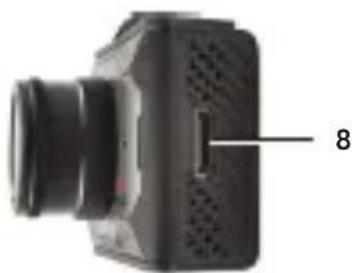
natural_image
Close-up of a black camera lens mounted on a rectangular base, with a numbered label pointing to the lens (no text or symbols on the device itself)- Lens with CPL Filter
- Speaker
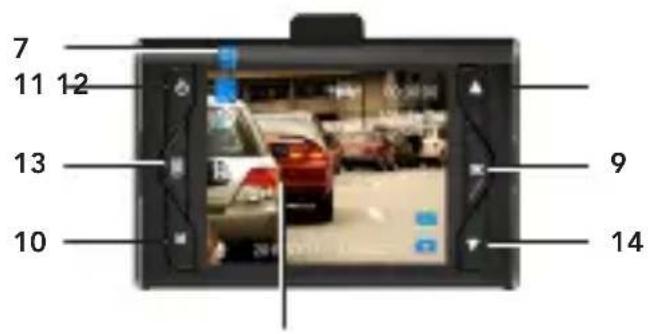
- LCD Display
- Microphone
- Bracket Mount
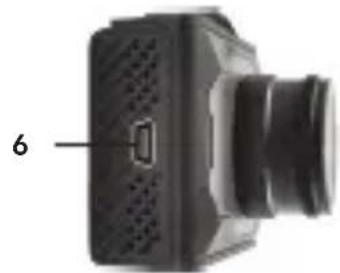
- USB Jack
- Status LED
- Mini HDMI Jack
-
OK Button
-
Mode Button
- Power Button
- Up / Lock Button
- Menu Button
- Down / Microphone Button
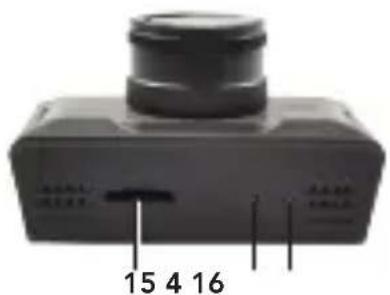
- Micro SD Card Slot
- Reset Button
FEATURE DESCRIPTION
- Camera Lens with CPL Filter – 170^ wide-angle lens with a Circular Polarization Lens (CPL) filter to minimize glare.
- Speaker – Provides audio for playback and device tones.
- LCD Display – To view photo and video.
- Microphone – Audio receiver for video recording.
- Bracket Mount – Includes windshield bracket attachment.
- USB Jack – Allows PC interface to access micro SD card, PC camera and charge the battery.
- Mini HDMI Jack – Provides connection to HDMI monitor, (not included).
FEATURE DESCRIPTION
- Mode – Press to switch modes: Video, Camera, Play back.
- Power Button – Press and hold to power ON/OFF. Can also be briefly pressed during operation to temporarily put display into screen saver.
- Up/Lock Button – In menu allows scrolling of menu items. Press while in record mode to lock current file. When in camera mode press to zoom in.
- Menu Button – Press button once to display setting for video or camera settings. Press button twice to display general settings.
- Down/Microphone Button – In menu, allows scrolling of menu items. In record mode press to mute video audio. In camera mode press to zoom out.
- Micro SD Card Slot – Slot for memory card.
- Reset Button – Using a small pin, push in to reset the device.
OPERATIONS
Designed exclusively for motor vehicles operating at 12 or 24 volts DC.
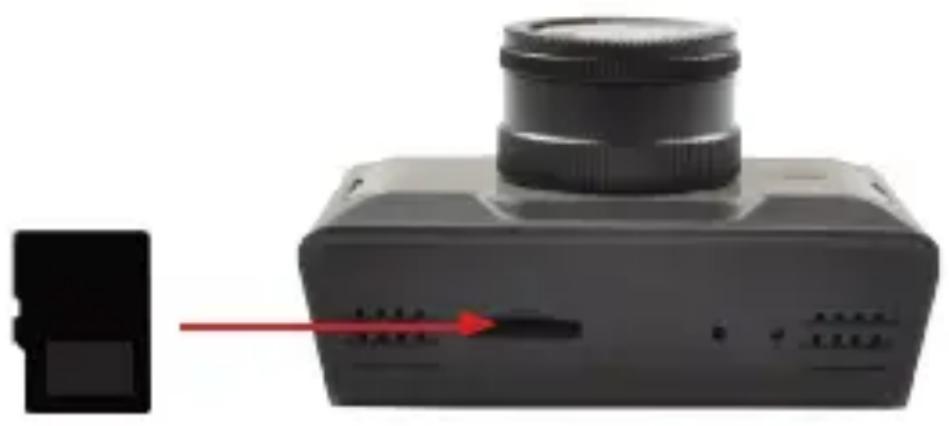
Inserting a micro SD Card
Before initial use, insert a micro SD card (We suggest at least an 8GB, Class 10 minimum, up to 32GB.)
natural_image
Close-up of a black camera module with a lens and control buttons, showing a red arrow pointing to a component (no text or symbols visible)NOTE: Turn Dash Cam off before inserting or removing the micro SD card.
OPERATIONS
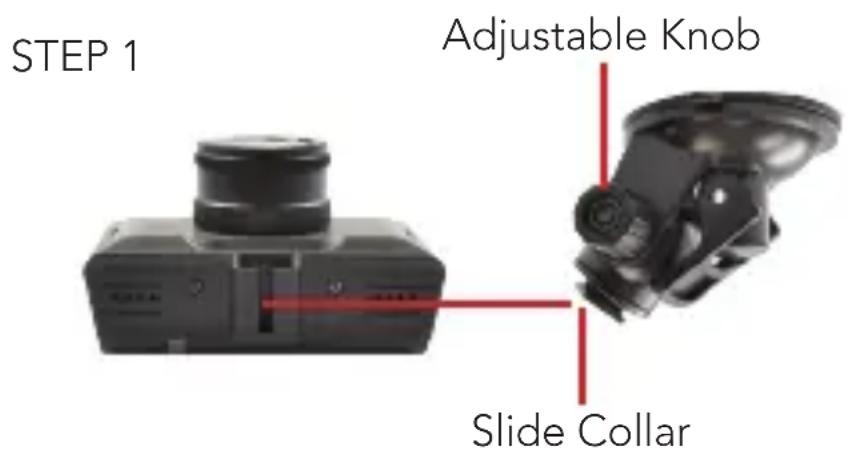
Installing the Windshield Bracket
The included windshield bracket securely places the Dash Cam onto the vehicle's windshield.
Follow the procedure below to secure the bracket:
- Slide the collar into the bracket mounting point on top of the Dash Cam.
- If applicable, remove protective film from the suction cup.
- Clean the selected area of the windshield for mounting using a quality glass cleaner.
- Press the bracket onto the windshield. To secure the suction cup press the locking tab toward the windshield.
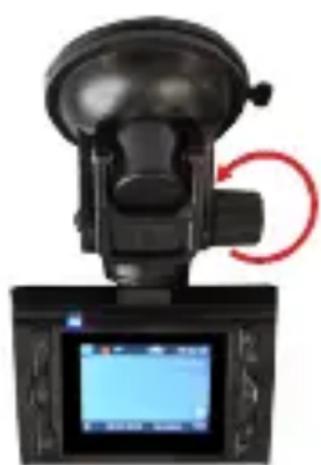
- Loosen the knob on the bracket to adjust the angle of the Dash Cam. Tighten knob securely to secure the Dash Cam position.
natural_image
Close-up of a black mechanical device with a red circular arrow indicating rotational motion (no text or symbols visible)STEP 4
STEP 5
OPERATIONS
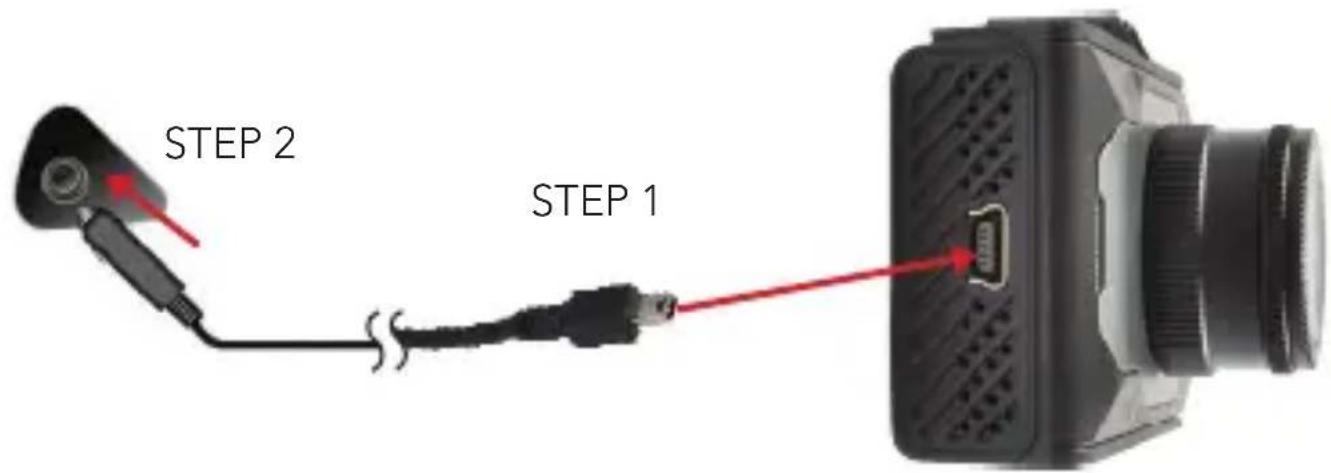
Power Connection in Vehicle
- Plug the mini USB end of the vehicle power cord into the USB jack of the Dash Cam.
- Insert the other end of the power cord into the vehicle's lighter socket / power port.
NOTE: Unit will automatically turn on and start recording when power is applied. It will turn off when power is removed.
Power ON/OFF
Power On: Press and hold ⏻ to turn on. Blue Status LED illuminates.
Power Off: Press and hold ⏻ to turn off.
NOTE: The unit will automatically power OFF when power is removed.
OPERATIONS
Initial Settings
Date & Time Setting
- Once connected with car charger, the device will start power ON and start recording. Press the OK button to switch into standby mode.
- Press the MENU button twice to enter General Settings. Press to select Date/Time. Press OK to enter into setting.
- Press or to choose the specific number, press OK to enter into next setting. Once finished with settings, press MENU button to return to General Settings.
MENU Settings
There are 3 available levels; Video, Camera, and Playback

NOTE: Video or Camera menus have different option selections. Use the MODE (M) button to select the correct level.
- Press the menu button to see available settings.
- Press the or to scroll through the settings.
- Press OK to make a selection.
OPERATIONS
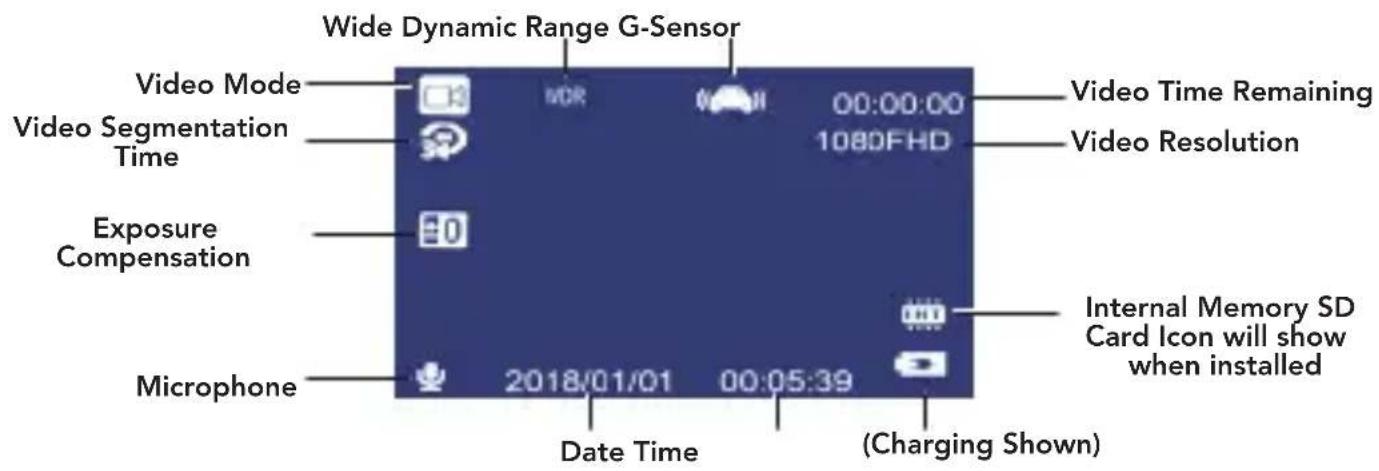
Recording or Review a Video or Image Recording Video
- Power on: Press and hold ⏻ to turn on Dash Cam.
- The neon is shown in the top left corner with a blinking red dot when recording. Press OK to stop recording if desired.
NOTE: When powered externally the Dash Cam will automatically be in Video Record mode and begin recording after initial power ON.
Recording Image
-
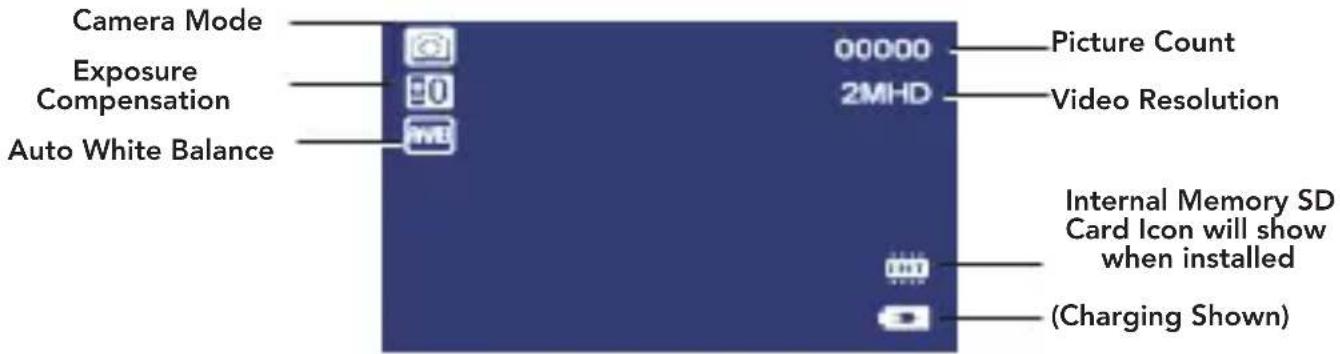
Take Picture: Press MODE (M) button. Camera icon will be displayed in upper left corner.
-
Press OK to take an image.
OPERATIONS
Review
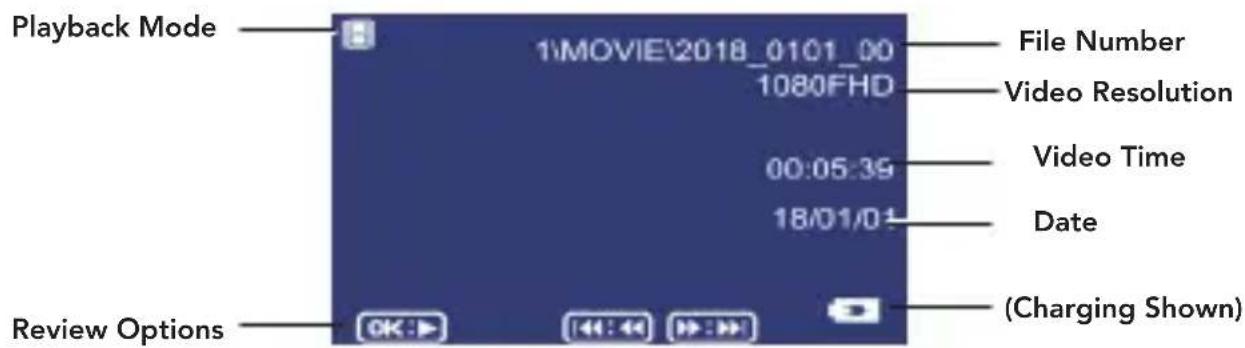
- Press MODE (M) to enter review screen.
- Use ▲ or ▼ to highlight a file. Press OK to select it.
- Press OK again to play a video. Use OK to pause the video.
- After video ends, press ▲ or ▼ to select another file.
- When in this mode press MENU to select Delete, Protect or Slide Show.
- Press MODE (M) to exit review mode.
OPERATIONS
USB Settings – Connect the unit to a computer using the USB cable included. Two options are available. Use ▲ or ▼ and OK buttons to select an option.
Mass Storage – In this mode the recorded files can be accessed directly from the micro SD card installed into the Dash Cam. They can be viewed directly from the card or transferred to the computer for storage.
PC Camera – In this mode the Dash Cam can be selected from a computer as an attached USB device and used as a webcam (additional drivers may be required and are not included).
View DVR Screen on TV or Monitor – Simply plug in a compatible HDMI cable into the mini HDMI jack and to an HDMI input on a TV or video monitor for larger viewing.
NOTE: The unit is intended to be used with an external power source with either cord included.
OPERATIONS
Special Functions
- G-sensor function - If a sudden shock is detected (such as in an accident) the video segment recorded is protected from being overwritten.
- Seamless loop recording - Allows camera to record over oldest video when the micro SD card is full.
- Mini HDMI output jack - Provides connection to HDMI monitor, (not included).
- Screen saver mode - When enabled will minimize night time distraction by turning off screen after a specified amount of time, while still recording.
- Wide Dynamic Range (WDR) - When enabled enhances details to the shadows of the image.
- Lens with CPL filter - The CPL filter can reduce/remove reflections from non-metallic surfaces like water and glass. With this filter, color saturation can be improved significantly especially outdoors.
CPL FILTER
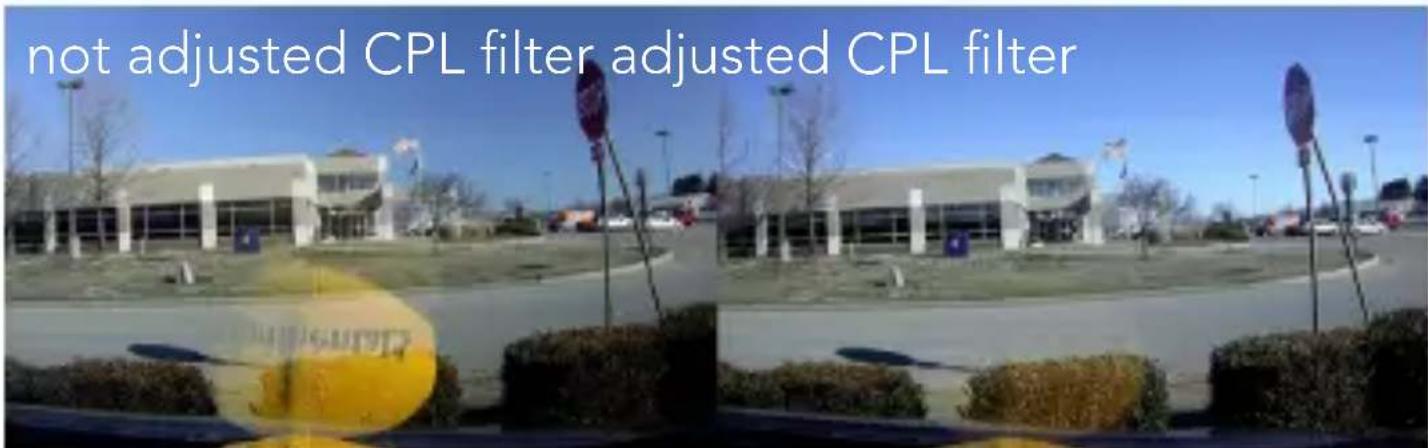
The included CPL filter will help to reduce dashboard reflections which can otherwise inhibit details in some scenes.
Initial adjustment of the CPL filter is necessary. Place an object on your dashboard and aim the camera at the windshield where the object reflection is visible. Rotate the outer ring of the CPL filter until the reflection viewed in the display has been reduced/removed.
Below is an example of the reduction in glare and reflection when using the CPL filter.
TROUBLESHOOTING
| Can't record or take photo | Confirm that the micro SD card is of proper class (class 10 min.) and has available capacity. |
| Unit doesn't work with my SD Card | If the unit does not recognize the card, remove the SD card and insert it again. If still not recognized, the SD card may be damaged or the device does not support this type of memory card. Try another memory card. (SanDisk recommended) |
| "files error" appears during replay | Uncompleted files due to micro SD card storage error. Reformat or replace card. |
| Video or Photo unclear | Check lens for fingerprints, protective film or other obstruction. Use a soft cloth to clean lens. |
| Black image when recording sky or water scene | Scenes with large contrast can influence the automatic exposure function of the unit. Adjust Exposure setting in the Global menu settings ✗ to correct image. |
| Cross stripe interference in image | This is caused by incorrect "Light Frequency" setting. Check setting for 50Hz or 60Hz in MENU Settings. |
TROUBLESHOOTING
Reset
Operation can be restored by pushing the reset button.
NOTE: There are no user serviceable parts inside. Do not open product.
Use and Care
- This unit does not use a Touch Screen to control its functions! Do not touch screen with any objects as damage to screen may occur.
- Do not leave unit in direct sunlight for extended periods of time, especially in a vehicle.
- Avoid using the unit in dusty and damp environments.
SPECIFICATIONS
Specifications are subject to change without notice.
| Features HD camera, FHD video recording | |
| Unit Dimensions HxWxD | 65.3 x 45 x 37.4 mm (2.6" x 1.8" x 1.5") |
| Unit Weight 145 g (5.11 oz) | |
| LCD Screen Size | 1.5" LCD |
| Zoom 4X Digital | |
| Resolution | 1080FHD 1920*1080 @30fps HD 720P 1280*720 @ 30fps |
| Files Format MOV | |
| Loop Recording | 1 MIN. / 2 MIN. / 3 MIN. |
| Frequency 50Hz / 60Hz | |
| Motion Detection | Off/On |
| Record Audio Off/On | |
| Date Stamp Off/On | |
SPECIFICATIONS
| G-Sensor | Off, Low Sensitivity, Medium Sensitivity, High Sensitivity |
| Screen Saver Off | / 30 Seconds / 1 Minute / 2 Minutes |
| Photo JPEG | |
| Lens 170° 6 Glass | Lens |
| Memory Micro SD card – C10MIN/ 32GB Max | |
| USB Mini USB port | |
| Backup Power Super Capacitor | |
| Operating Temperature Range | -10° ~ 60°C (14° ~ 140°F) @ Humidity of 10% - 80% |
MENU OPTIONS
Video resolution: 1080FHD 1920 x 1080 / 720P 1280 x 720
/ WVGA 800 x 480 / VGA 640 x 480
Loop recording: 1 Minute / 2 Minutes / 3 Minutes
WDR: OFF / ON
Exposure: -2.0 -- +2.0
Motion detection: OFF / ON
Record audio: OFF / ON
Date stamp: OFF / ON
G-sensor: OFF / Low Sensitivity / Medium Sensitivity /
High Sensitivity
Plate Number: OFF / ON
System Settings
Date/Time: 2018/01/01 00:00:00 Year / month / day
Beep Sound: OFF / ON
Language: English / Dutch / Spanish / French / Chinese /
Italian / Portuguese / Japanese / Korean
Frequency: 50Hz / 60Hz
Screen Saver: OFF / 30 Seconds / 1 Minute / 2 Minutes
Format: Cancel / OK
Default setting: Cancel / OK
Version: ********
Playback Options
Delete: Delete current / Delete all
Protect: Lock current / Unlock current / Lock all / Unlock all
Slide Show: 2 Seconds / 5 Seconds / 8 Seconds
WARRANTY INFORMATION
Consumer Warranty
This Whistler product is warranted to the original purchaser for a period of one (1) year from the date of original purchase against all defects in materials and workmanship, when purchased from an authorized Whistler retailer. This limited warranty is void if the unit is abused, misused, modified, installed improperly, or if the housing and/or serial numbers have been removed. There are no express warranties covering this product other than those set forth in this warranty. All express or implied warranties for this product are limited to one (1) year. Whistler is not liable for damages arising from the use, misuse, or operation of this product including but not limited to loss of time, inconvenience, loss of use of your product or property damage caused by your product or its failure to work, or any other incidental or consequential damages including personal injury.
DO NOT RETURN ITEM TO STORE WHERE PURCHASED FOR WARRANTY INFORMATION, CONTACT WHISTLER CUSTOMER SERVICE AT 1-800-531-0004
Representatives are available to answer your questions
Monday – Friday
8:00 a.m. to 5:00 p.m. CT
WARRANTY INFORMATION
Service Under Warranty
During the warranty period, defective units will be repaired or replaced (with the same or a comparable model), at Whistler's option, without charge to the purchaser when returned prepaid, with dated proof of purchase to the address below. Units returned without dated proof of purchase will be considered out-of-warranty and therefore are not covered by the described Limited Warranty. (Refer to Service Out-of-Warranty section.)
- Due to the specialized equipment necessary for testing Whistler products, there are no authorized service centers other than Whistler. When returning a unit for service under warranty, please follow these instructions:
- Ship the unit in the original carton or in a suitable sturdy equivalent, fully insured, with return receipt requested to:
Whistler Repair Dept.
1412 South 1st St.
Rogers, AR 72756
Please allow 3 weeks turnaround time.
IMPORTANT: Whistler will not assume responsibility for loss or damage incurred in shipping. Therefore, please ship your unit insured with return receipt requested. CODs will not be accepted!
WARRANTY INFORMATION
-
Include with your unit the following information, clearly printed:
-
Your name and physical street address for shipping (no PO Boxes), a daytime telephone number, and an email address (if applicable).
- A detailed description of the problem (e.g., "device will not power ON").
-
A copy of your dated proof of purchase or bill of sale.
-
Be certain your unit is returned with its serial number. Units without serial numbers are not covered under warranty.
IMPORTANT: To validate that your unit is within the warranty period, make sure you keep a copy of your dated proof of purchase. For warranty verification purposes, a copy of your dated store receipt must accompany any Whistler product sent in for warranty work.
Service Out-Of-Warranty
Units will be repaired at "out-of-warranty" service rates when:
- The unit's original warranty has expired.
- A dated proof of purchase is not supplied.
- The unit has been returned without its serial number.
- The unit has been misused, abused, modified, installed improperly, or had its housing removed.
WARRANTY INFORMATION
The minimum out-of-warranty service fee for your Whistler DVR Camera is \50.00 (U.S.). If you require out-of-warranty service, please return your unit as outlined in the section "Service Under Warranty" along with a cashier's check or money order in the amount of \50.00. Payment may also be made by MasterCard, VISA or American Express. Personal checks are not accepted.
In the event repairs cannot be covered by the minimum service fee, you will be contacted by a Whistler technical service specialist who will outline options available to you.
IMPORTANT: When returning your unit for service, be certain to include a daytime telephone number and an email address (if applicable).
Customer Service
If you have questions concerning the operation of your Whistler product, or require service during or after the warranty period, please call
Customer Service at 1-800-531-0004.
Representatives are available to answer your questions Monday - Friday from 8:00 a.m. to 5:00 p.m. (CT) or visit the FAQ at
www.whistlergroup.com.
CORPORATE HEADQUARTERS
1716 SW Commerce Dr. Ste. 8
Bentonville, AR 72712
Toll Free (800) 531-0004
TEL (479) 273-6012
www.whistlergroup.com
CUSTOMER RETURN CENTER
1412 South 1st St.
Rogers, AR 72756
Email: support@whistlergroup.com
P/N
03B18 © 2018 The Whistler Group, Inc.