Studio 5.5 - Smartphone BLU - Free user manual and instructions
Find the device manual for free Studio 5.5 BLU in PDF.


User questions about Studio 5.5 BLU
0 question about this device. Answer the ones you know or ask your own.
Ask a new question about this device
Download the instructions for your Smartphone in PDF format for free! Find your manual Studio 5.5 - BLU and take your electronic device back in hand. On this page are published all the documents necessary for the use of your device. Studio 5.5 by BLU.
USER MANUAL Studio 5.5 BLU
Appearance and Key Function 4
Introduction 5
Call Functions....6
Contacts....7
Messaging 8
Internet Browser 9
Bluetooth.... 10
Camera....11
Gallery.... 12
Music.... 13
Sound Recorder 14
Alarm Clock.... 15
FM Radio 15
Settings.... 16
Storage 20
Safety Information
Please carefully read the terms below :
Use Safely
Do not use your mobile phone w here it might cause danger.
Transportation Safety
Please observe all transportation laws and regulations.
Please drive w ith both hands on the w heel.
DO NOT TEXT AND DRIVE
Hospitals
Please follow limitations.
Please turn off your mobile phone w hen near medical instruments.
Airports
Please follow all flight safety regulations and do not use your phone during flight.
Toxic Chemicals
Do not use your mobile phone around fuels or chemicals.
Explosion Hazard
Please observe related limitations and do not use your mobile phone around an area w here explosions may occur.
Accessories and Batteries
Please use only Blu authorized accessories and batteries.
Backup
Please remember to keep a written record of all important information.
Water
Your phone is not waterproof. Keep it aw ay from water and liquids.
SOS Emergency Calls
Make sure your mobile phone is sw itched on and in a service area. In home screen, tap the phone key and dial 911 and send.
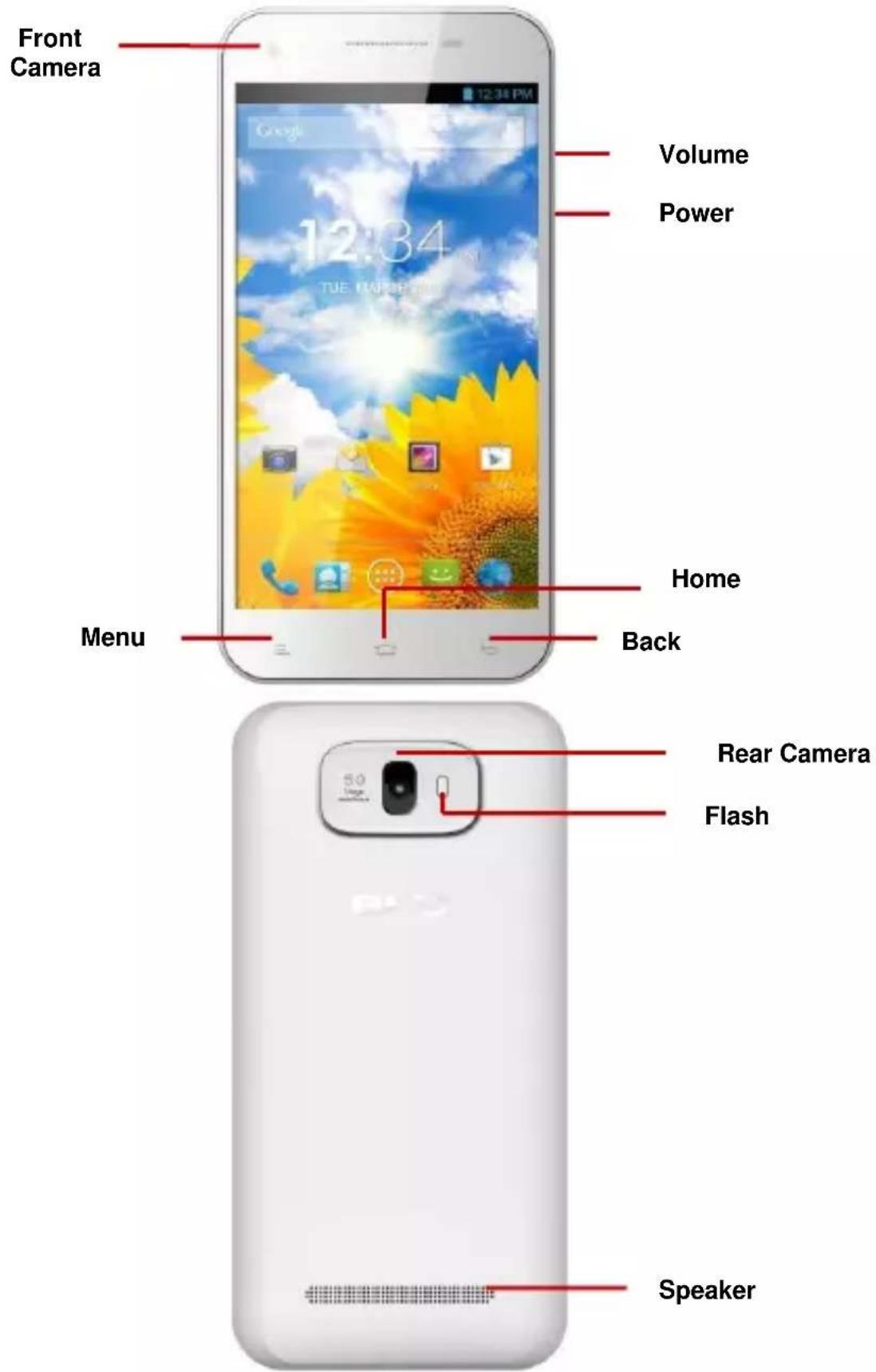
Appearance and Key Function
text_image
Front Camera Volume Power 12:34 TUE MARCE Home Back Menu Speaker Rear Camera FlashIntroduction
Installation of the SIM Card
Please install the SIM card before using your phone.
Note: Please keep the SIM card out of the reach of children. The SIM card and its contact are easily damaged due to scratching or bending. Please be cautious when carrying, installing or taking out the SIM card.
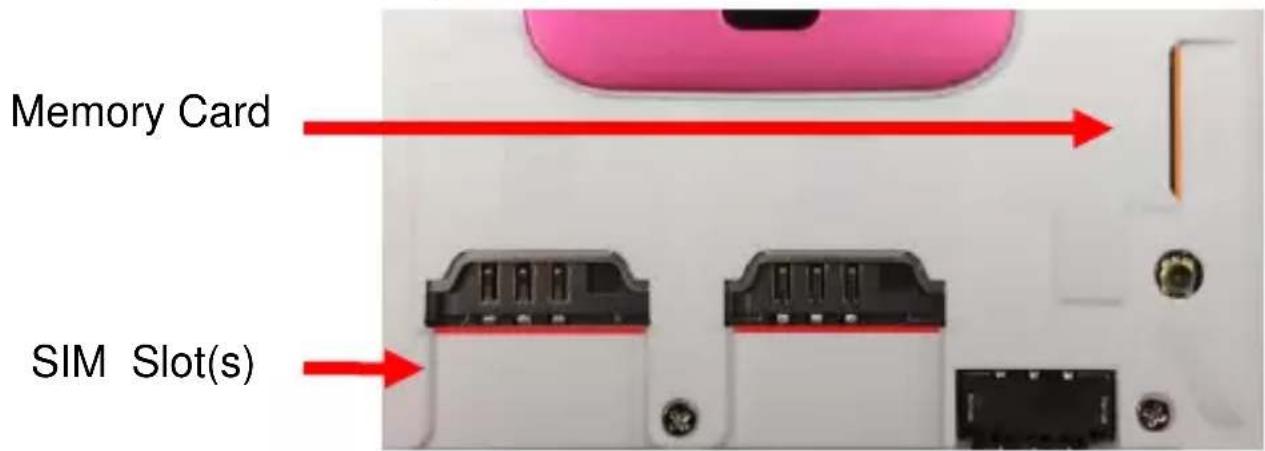
To insert SIM card(s):
- Sw itch off the mobile phone and remove the rear cover and battery.
- Insert the SIM card(s).
text_image
Memory Card SIM Slot(s)- Insert the battery and replace the rear cover of the mobile phone.
Power On and Off
On - Please ensure the SIM card has been properly inserted into the phone. Long press the Power key to switch the phone on.
Off - In standby mode, long press on Power key until an options menu appears. Select OFF in the menu and confirm in the pop-up prompt to switch off the phone.
PasswordLock
You may set a screen unlock picture or a PIN code lock as a security measure. For further information regarding password locks, password revision and other functions please enter the security settings of the phone.
Call Functions
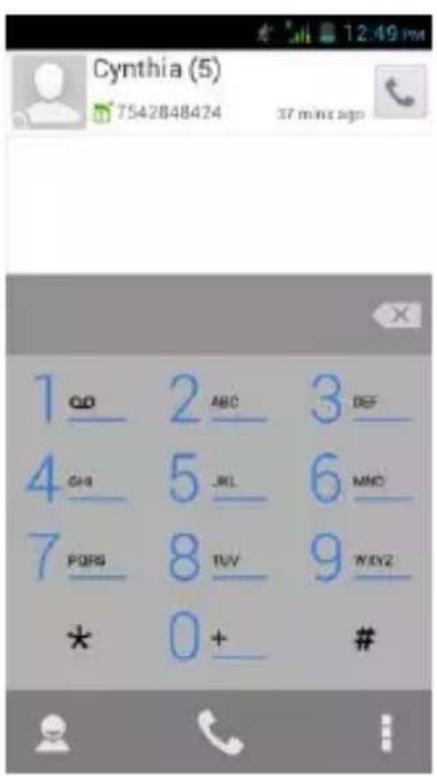
At the dial keyboard, enter the phone number and then click the dial key. If dialing an extension, you may click the dial pad icon in the bottom of the screen to open the interface and enter the number of the extension.
text_image
Cynthia (5) 7542848424 37 min sgp 1_00 2_ABC 3_DEF_ 4_GH 5_JKL 6_MNO_ 7_PQPS 8_RUV 9_WXY2_ * 0+ _ #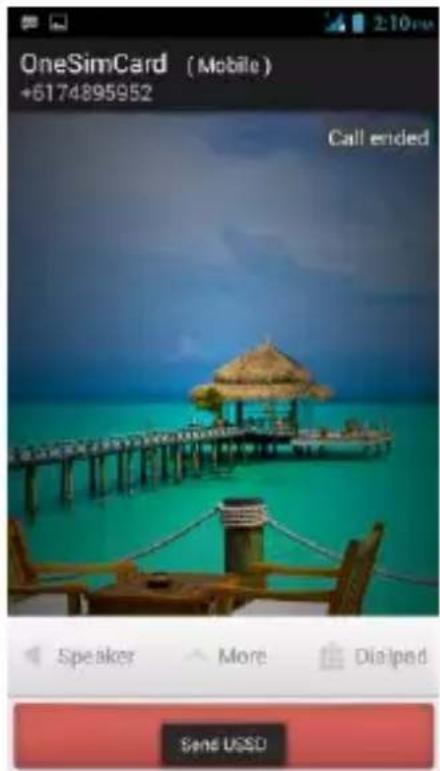
text_image
OneSimCard (Mobile) +6174895952 Call ended Speaker More Dialpad Send USSDCall Logs
Every telephone number called and received w ill be saved in the phones call log. All numbers in the call log can be dialed directly by clicking the dial icon on the right side of the screen. When the number appears on the list, click it to view details.
Proximity Sensor
The proximity sensor determines how far away an object is from the device. During the call or when you place the phone close to the ear, the backlight will turn off automatically which conserves battery and prevents inadvertently touching.
Contacts
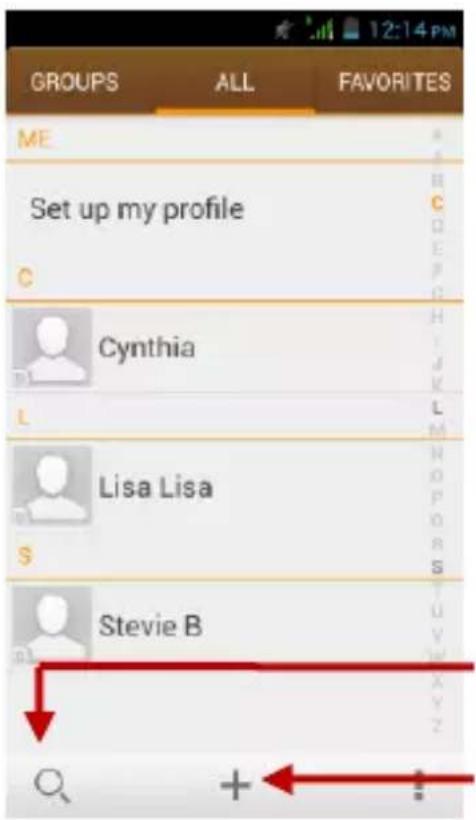
Enter: Click on the applications menu and select contacts
• The default display is the phone contacts and SIM card contacts
• The contacts are organized alphabetically by default.
text_image
GROUPS ALL FAVORITES ME Set up my profile C Cynthia L Lisa Lisa S Stevie B X Y Z + -1Search
Add Contact
Click the Search icon to enter the contact search interface.
- Any numbers or letters associated with any of the contacts saved in the list will be shown in the search results.
- If there were no matches for the inputted contact, the interface will display no contacts found.
Add New Contact
- Click "Add Contact" icon
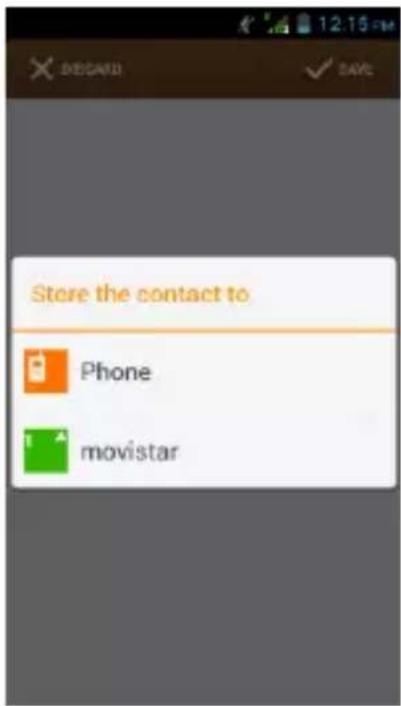
- Select to save contacts to phone or SIM card
- You may edit contact picture, name, telephone number, group, address, and email among other options
- Click to finish and save contact.
text_image
Store the contact to Phone movistar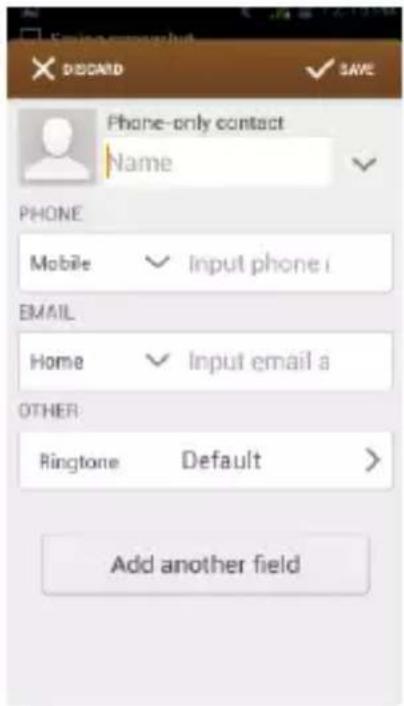
text_image
Phone-only contact Name PHONE Mobile √ Input phone i EMAIL Home √ Input email a OTHER: Ringtone Default > Add another fieldMessaging
You may use this function to exchange text messages and multimedia messages with your family and friends. The messages to and from the same contact or phone number will be saved into a single conversation so you may see the entire message history conveniently.
Send an SMS
Application Menu » Messaging » New message (or use shortcut icon)
- Click to enter recipient (You may enter contacts from contact book or enter a new number)
- Compose Message
- Send
Send an MMS
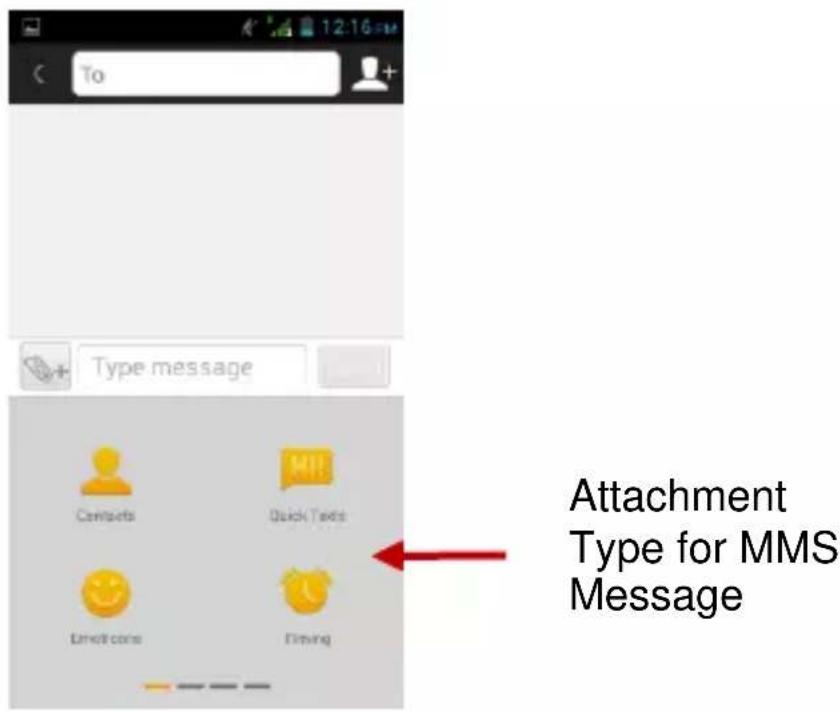
When creating message, the default message style is SMS. The message will automatically convert to MMS when adding an attachment.
- Click the Paperclip icon in the messaging interface.
- Click to add the following attachments.
text_image
To + Type message Contacts Quick Texts Email cone Timing Attachment Type for MMS MessageInternet Browser
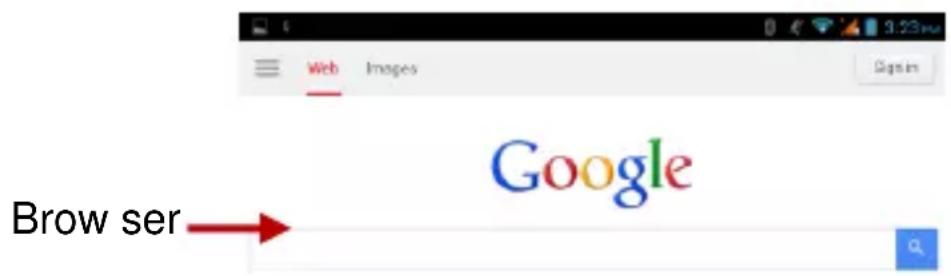
Menu Functions
Backw ard
- After browsing through multiple pages, this option will return the user to the previous page.
Forward
- After browsing through multiple pages, this option will move to a web page after the current page.
Windows
- You may view all windows open by clicking the windows icon in the upper right part of the browser.
Bookmarks
- Click the Bookmarks option to make the current URL as a saved Bookmark.
- Click Bookmarks to opened saved bookmarks.
More
Find on page: Search current page.
Share page: Select to share the current page.
Save for offline reading: Saves page for offline reading.
Page info: Display page address and other information of the current brow sing
History: Show your browsing history and view the most visited pages.
Settings: Contains a variety of brow ser settings.
text_image
Web Images Google BrowseBluetooth
Bluetooth is a short-range wireless communications technology that devices can use to exchange information and connect to different types of devices which include headsets, car kits, and other devices.
Power on Bluetooth
1) Settings » Wireless & Networks » Bluetooth and select to power on Bluetooth.
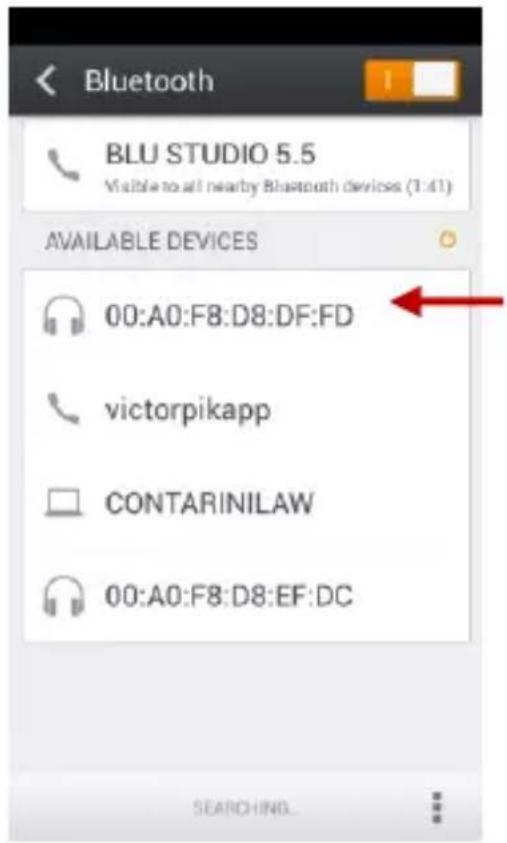
2) The Bluetooth icon will appear grey in the notification bar. Click "scan for devices" and the phone will start to scan for all devices within range.
3) In Bluetooth settings all the devices found will be displayed in the list under the icon.
Note: The maximum detecting time of the phone is 2 minutes.
text_image
Bluetooth BLU STUDIO 5.5 Visible to all nearby Bluetooth devices (1:41) AVAILABLE DEVICES 00:A0:F8:D8:DF:FD victorpikapp CONTARINILAW 00:A0:F8:D8:EF:DC SEARCHING...List of available devices
Camera
Camera
Prior to use: Install memory card before using the camera or video camera. All photos or videos taken by the phone are stored in the memory card.
Open Camera
- Applications Menu » Camera
- Switch to video mode if you want to record videos.
Note: You may also place a camera shortcut on any of the screens
Take Pictures
- Aim the object that the picture will be taken.
- Press the "Shutter" button on the screen.
- After taking the picture, the file will be saved in the camera's gallery folder.
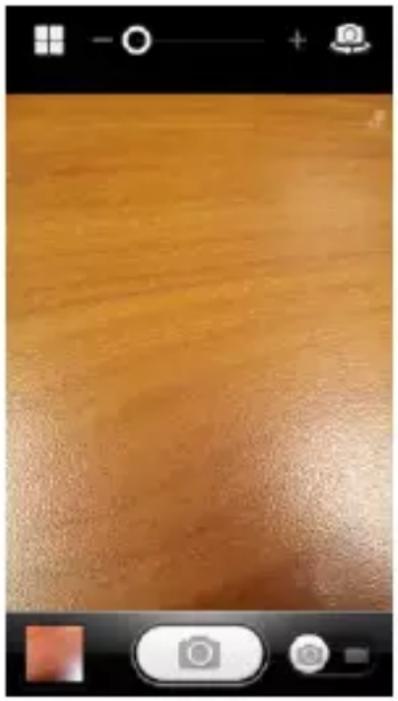
- You can view the photos by clicking the preview box button.
You may adjust various settings for the camera by pressing Menu while in the camera interface.
When in the camera view finder mode, you can switch to video or photos' gallery. On the camera view finder mode, you will find the display the preview of the previous picture taken. Click the "preview box" and the photo will display in full screen.
natural_image
Close-up of a wooden surface with no visible text, numbers, or symbols← Camera Mode
Switch from Camera to Video
Gallery
Open Images
Applications Menu » Gallery
Share Pictures
You may share pictures by sending them through Gmail or the E-mail application. You may also send pictures through the MMS message function by composing a message and attaching the picture. Any image can also be sent via the Bluetooth function by selecting Bluetooth equipment that has been paired.
Adjust Image
Press Menu and Edit to adjust images
You may select different effects options which include but not limited to: Fill Light, Highlights, Shadows, Auto-Fix, Cross-process, Posturize, Logo, Documentary, and Fish Eye, Warmth, Saturation, B&W, Sepia, Negative, Tint, Duo-tone, Doodle, Crop, Red Eye, Straighten, Rotate, Flip, Sharpen.
View Images
In the picture interface, click on an album to view images
In the photo album, scroll the picture tow ards left to view the next picture or tow ards right to view the previous one.
Crop Pictures
- If you want to adjust the size of the picture, use the crop tools. Once the arrow appears, pinch your fingers in or out to adjust the size.
- If you want to adjust the image and keep its proportion, please hold down any of the four corners of the image and adjust accordingly.
Music
Open Music
You may choose to search for music from media folder through artist name, song name, album name. The following formats are available: AMR, M4A, MIDI, MP3, WAV, and OGG.
Sound Recorder
The Sound Recorder can record voice or any audio.
You may send any recorded audio via Bluetooth or MMS and also have the option to make any recorded audio the phones default ring tone.
Notice: The recorder only uses AMR 3GPP format.
Record
-Keep the phone's microphone near the voice source.
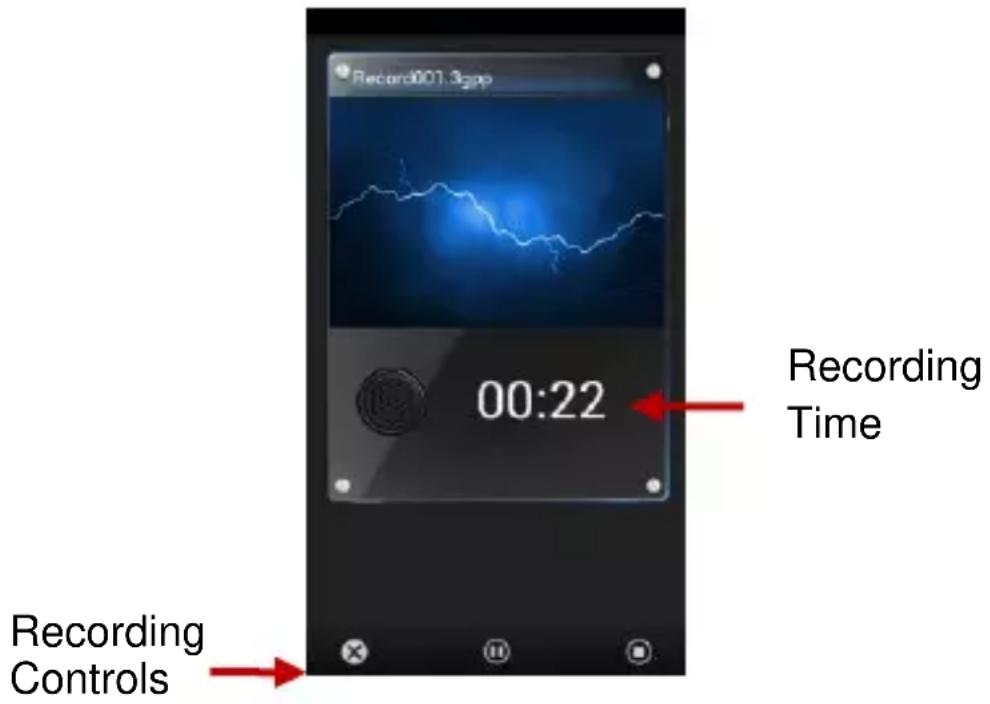
-Click the record button to record the audio.
-Click the stop button to stop recording the audio.
All recordings will be saved in my recording folder in the default music program.
text_image
Record001.3gap 00:22 Recording Time Recording ControlsAlarm Clock
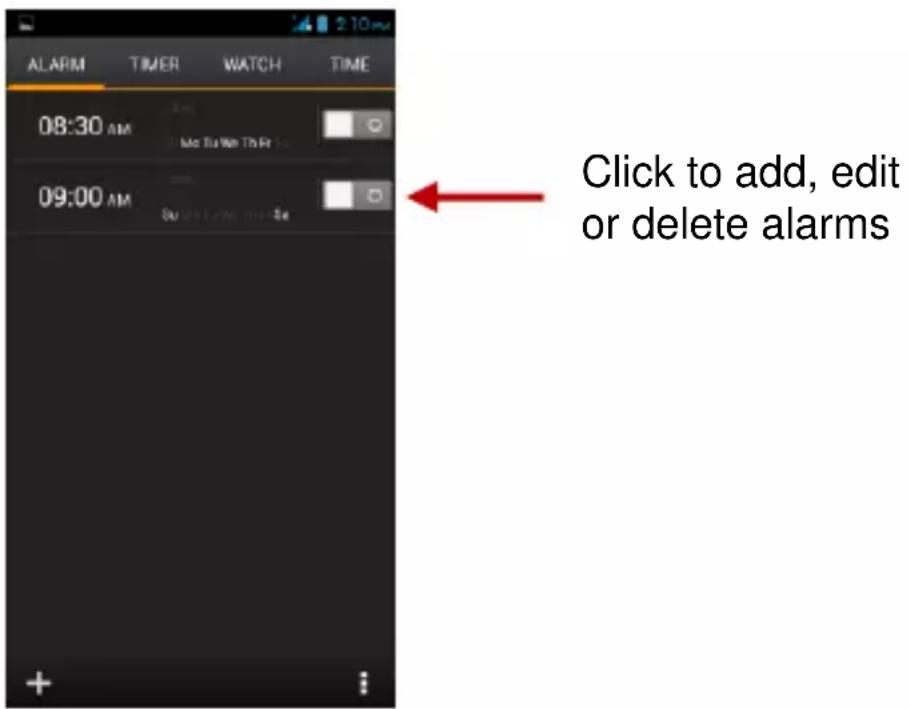
- Click on the Clock icon in the application menu
- Click set alarm button and enter the alarm clock set interface w here you may add and edit alarms
text_image
ALARM TIMER WATCH TIME 08:30 AM Mac Tu Web To Rx 09:00 AM Click to add, edit or delete alarmsFM Radio
FM Radio
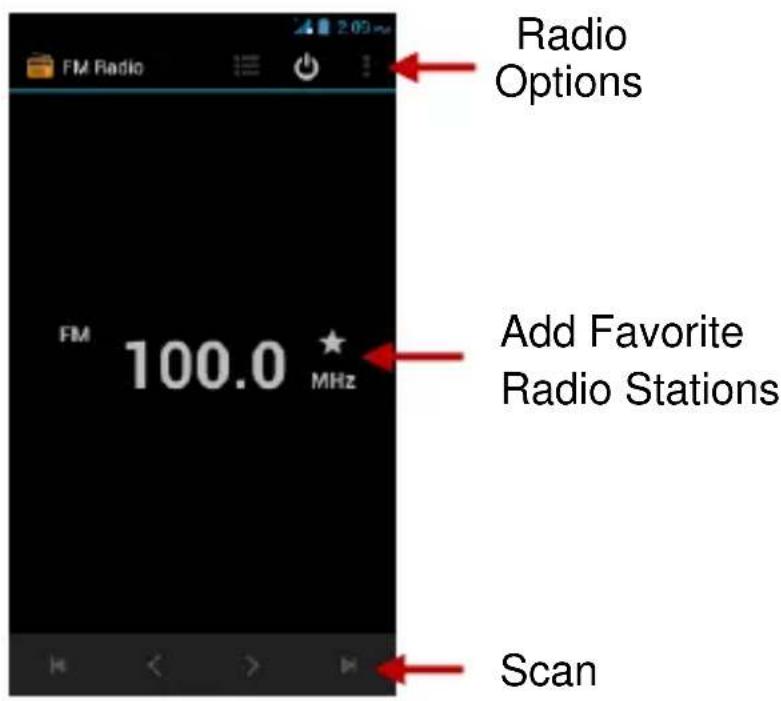
Through this function, you may listen to FM radio on the device. The FM radio uses the wired headphones as an antenna in order to receive signal. Before using this function, connect the original equipment headphones that came with the phone.
Open FM radio
Press the FM Radio icon to open the application.
- Click "Search" automatic scans of FM channels.
- Click to add favorite radio stations.
text_image
FM Radio Radio Options FM 100.0 MHz Add Favorite Radio Stations ScanFM Radio as Background
Click on the Home key to move the FM Radio program to the background.
Settings

Airplane Mode
- Turn on Airplane Mode.
Note: When in flight mode, all network connections will turn off automatically.

Dual SIM Settings
- Select SIM card and Network Operators.

Mobile Networks
- Select Mobile Data Connection.

Wi-Fi / WLAN
- Settings » Wi-Fi » Click Wi-Fi to power on. When on, the Wi-Fi will automatically search for available networks. Any
unsecured network can be used directly and any secured network requires a password or credentials prior to connection.

Bluetooth
- Press the switch to power on Bluetooth. Once on, the Bluetooth will automatically scan for any nearby open equipment.

More Wireless
- Data Usage
- VPN
• Tethering & Portable hotspot

Sound and Vibrate
This option sets the phone tone settings for receiving calls or notifications. Some of the settings include
- Vibrate, volume, ring tones, ring tones notification and haptic feedback tones

Display
Brightness, Auto rotating screen, Wallpaper, Screen Timeout

Security
Set up screen locks: Use a pattern, PIN or password to lock the screen.
- Pattern: The first time there will be simple unlock instructions and examples. Click “next step” to continue the security pattern step.
- PIN: Enter PIN number to unlock the screen.
- Passw ord: Set password to unlock the screen.
You may stop the security feature at any time.
Set up SIM card PIN lock
- SIM card PIN (Personal Identification Number) is used to prevent unauthorized use of SIM cards.
To change a blocked PIN code, you will need to unlock the SIM lock then go to the Change Password screen. The phone will
automatically prompt you enter the old PIN code and ask to enter a new PIN code twice. The phone will then prompt you that the change was successful. If you enter the PIN incorrectly three times, the SIM and PIN codes will be automatically locked. You will need the PUK code to unlock the phone which is available through your service provider. If you enter the PUK code incorrectly 10 times, the SIM card will be permanently locked. Please see your service provider for a new SIM card.
- Password visible – Make the password visible when it's typed.
- Use security credentials - Allow applications to visit security credentials or other credentials.
- Install from SD card - Install the encrypted certificate from SD card.

Location Access
- Use wireless - Use wireless services to find locations in applications.
- When using the GPS satellite positioning, set accuracy to street level (Cancel it to save battery).

Power Saving
- Power Saving Settings

Battery
- General power usage

Storage
• View the SD card and phone memory usage.
- Allow s the removal or formatting of the SD card.
- Allow s selection of the default memory.

Apps
- Manage applications - Manage and delete installed applications.
- Running services - Press any of the services listed in the two o-button operation box. Press the 'Stop' button to stop
any of the services listed and removes from the "running services" list.

Date & Time
- Automation - Use date and time provided by Network.
- Date and Time adjustment.
- Time Zone - Select Time Zone according to w here your location.
- Select Date Format - There are 3 kinds of formats you can choose from: Month-Day-Year, Day-Month-Year and Year-Month-Day, and Year-Month-Day which is the default setting

Schedule Power On & Off
- Schedule power on and off

Schedule airplane On/off
- Schedule airplane mode on and off

Language and Input
• Language – Change the language of the phone.
- Custom Dictionary - Add or delete words to the custom dictionary.
- Keyboard Settings – Haptic vibration, Haptic tones, Capitalizing, Speech Input, Inputting words, Predictive text function, Auto-Text, Input keyboard method

Reset to Factory Setting
- Backup Data – Will back up all application data, WLAN passwords, and other settings to Google's servers
- Restore to Factory Settings - Clear all data stored on the phone.

Accessibility
• Power button ends call
- Speak Passwords
- Web accessibility

Developer Options
If the phone does not display Developer options, to access: Press 'Build number' seven (7) times in the about phone tab in settings.
- The developer options gives access to USB Debugging and other developer options

About Phone
- You can check the information on status and remaining power
- Check for software or firmware updates
Storage
Connect the phone with the USB cable provided. Once connected, a connection icon will appear in the status bar. Slide down bar and click on connection icon. Once in the connection mode interface, select USB mass storage and turn on from the connection screen.

text_image
3:30 PM PR APR 25 USB connected Touch to copy files to/from your computer. Connected as USB Storage Touch for other USB options. Invalid IMCI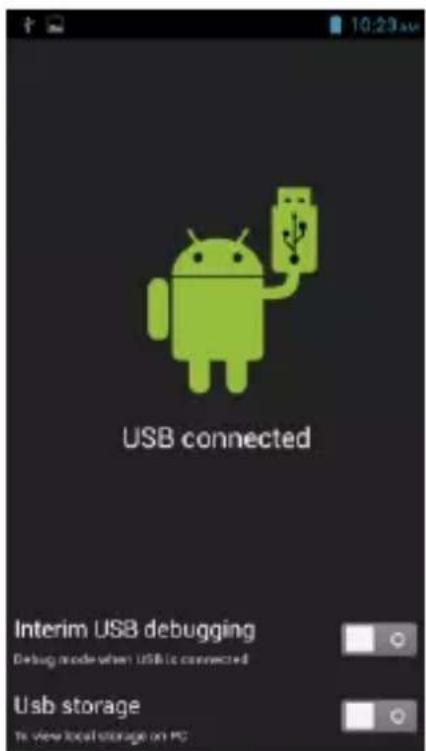
text_image
USB connected Interim USB debugging Debug mode when USB is connected USB storage To view local storage on PC
Some system settings and UI may vary depending on final SW version.