AT2010 - TV ACER - Free user manual and instructions
Find the device manual for free AT2010 ACER in PDF.


| Product Type | LED TV |
| Screen Size | 20 inches (51 cm) |
| Resolution | 1366 x 768 pixels (HD Ready) |
| Aspect Ratio | 16:9 |
| Contrast Ratio | 1000:1 (typical) |
| Brightness | 250 cd/m² |
| Viewing Angle | 178° horizontal / 178° vertical |
| Dimensions (with stand) | 490 x 370 x 180 mm |
| Dimensions (without stand) | 490 x 310 x 60 mm |
| Weight (with stand) | 4.5 kg |
| Power Supply | AC 100-240V, 50/60Hz |
| Power Consumption (max) | 45 W |
| Standby Power Consumption | < 1 W |
| Inputs | HDMI, VGA, Composite AV, USB, Antenna |
| Outputs | Headphone jack, Audio out (RCA) |
| Audio | 2 x 5W speakers, Dolby Audio |
| Remote Control | Included (battery type: AAA) |
| Wall Mount | VESA 100 x 100 mm |
| Operating Temperature | 5°C to 35°C |
| Storage Temperature | -20°C to 60°C |
| Certifications | CE, RoHS, ENERGY STAR |
Frequently Asked Questions - AT2010 ACER
User questions about AT2010 ACER
0 question about this device. Answer the ones you know or ask your own.
Ask a new question about this device
Download the instructions for your TV in PDF format for free! Find your manual AT2010 - ACER and take your electronic device back in hand. On this page are published all the documents necessary for the use of your device. AT2010 by ACER.
USER MANUAL AT2010 ACER
Important safety instructions 3
Disposal instructions 4
First things first 5
Basic features and benefits of your Acer LCD TV 5
Packing checklist 5
Your LCD TV overview 6
Front panel view 6
Rear / Bottom panel view 7
Remote control 8
General keys 8
Teletext 9
Basic connections 10
Connecting the power cord 10
Setting up the remote control 1 0
Enjoying analog TV 11
Connecting an antenna/cable 11
Getting started watching your TV 1 1
Connecting external audio/video devices 14
Connecting a DVD, VCR, STB or audio/video equipment 14
Connecting a camera, camcorder, video game or headphones 15
Connecting a PC or notebook computer 15
Selecting the input source 15
OSD navigation
Navigating the OSD with the remote control 16
Adjusting the OSD settings 17
Empowering Technology
Set-up Empowering mode 18
Default setting in different Empowering mode 19
Advanced features
PIP/PBP 20
Widescreen display mode 23
Dimensions
AT2010 / AT2011 24
Appendix-Source Options
PIP/PBP 25
Troubleshooting
Product specifications 27
Copyright © 2006. Acer Incorporated.
All Rights Reserved.
Acer LCD TV User's Guide
Original Issue: 04 / 2006
Changes may be made periodically to the information in this publication without obligation to notify any person of such revisions or changes. Such changes will be incorporated in new editions of this manual or supplementary documents and publications. This company makes no representations or warranties, either expressed or implied, with respect to the contents hereof and specifically disclaims the implied warranties of merchantability or fitness for a particular purpose.
Record the model number, serial number, purchase date, and place of purchase information in the space provided below. The serial number and model number are indicated on the label affixed to your device. All correspondence concerning your unit should include the serial number, model number, and purchase information.
No part of this publication may be reproduced, stored in a retrieval system, or transmitted, in any form or by any means, electronically, mechanically, by photocopy, recording, or otherwise, without the prior written permission of Acer Incorporated.
Model Number: ____
Serial Number: ____
Purchase Date: ____
Place of Purchase:
Acer and the Acer Logo are registered trademarks of Acer Inc. Other companies' product names or trademarks are used herein for identification purposes only and belong to their respective companies.
Important safety instructions
Read these instructions carefully. Please put them somewhere safe for future reference.
1 Follow all warnings and instructions marked on the product.
2 Unplug this product from the wall outlet before cleaning. Do not use liquid cleaners or aerosol cleaners. Use a damp cloth for cleaning.
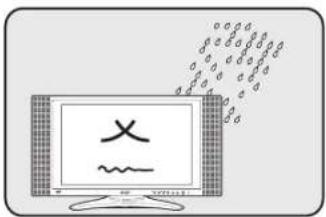
3 Do not use this product near water.
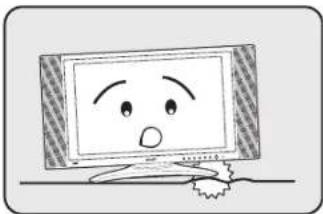
4 Do not place this product on an unstable cart, stand or table. The product may fall, sustaining serious damage.
natural_image
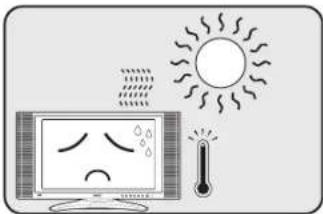
Cartoon illustration of a computer monitor with a sad face and surprised expression (no text or symbols)5 Slots and openings are provided for ventilation; to ensure reliable operation of the product and to protect it from overheating, these openings must not be blocked or covered. The openings should never be blocked by placing the product on a bed, sofa, rug or other similar surface. This product should never be placed near or over a radiator or heat register or in a built-in installation unless proper ventilation is provided.
natural_image
Illustration of a computer monitor displaying a sad face with steam and a thermometer, next to a sun (no text or symbols)6 This product should be operated from the type of power indicated on the marking label. If you are not sure of the type of power available, consult your dealer or local power company.
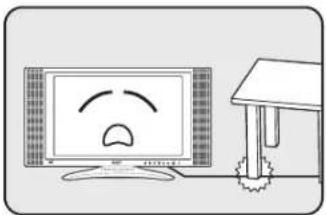
7 Do not allow anything to rest on the power cord. Do not locate this product where the cord will be stepped on.
natural_image
Cartoon illustration of a computer monitor with a sad face and a desk, no text or symbols present8 If an extension cord is used with this product, make sure that the total ampere rating of the equipment plugged into the extension cord does not exceed the extension cord ampere rating. Also, make sure that the total rating of all products plugged into the wall outlet does not exceed the fuse rating.
9 Never push objects of any kind into this product through cabinet slots as they may touch dangerous voltage points or short-out parts, which could result in a fire or electric shock. Never spill liquid of any kind on the product.
10 Do not attempt to service this product yourself, as opening or removing covers may expose you to dangerous voltage points or other risks. Refer all servicing to qualified service personnel.
11 Unplug this product from the wall outlet and refer servicing to qualified service personnel under the following conditions:
a. When the power cord or plug is damaged or frayed.
b. If liquid has been spilled into the product.
c. If the product has been exposed to rain or water.
d. If the product does not operate normally when the operating instructions are followed. Adjust only those controls that are covered by the operating instructions. Improper adjustment of other controls could result in damage; extensive work by a qualified technician might then be required to restore the product to normal condition.
e. If the product has been dropped or the case has been damaged.
f. If the product exhibits a distinct change in performance, indicating a need for service.
12 Use only the proper type of power supply cord set (provided in your accessories box) for this unit. Always disconnect the power cord from the wall outlet before servicing or disassembling this equipment.
13. Do not overload an electrical AC outlet, power strip, or convenience receptical. The overall system load must not exceed 80% of the branch circuit rating. If power strips are used, the load should not exceed 80% of the power strip input rating.
14 Some products are equipped with a three-wire electrical grounding-type plug that has a third pin for grounding. This plug only fits into a grounded electrical outlet. This is a safety feature. Make sure the AC outlet is properly grounded. Do not defeat the safety purpose of the grounding-type plug by trying to insert it into a non-grounded outlet. If you cannot insert the plug into the outlet, contact your electrician to replace the obsolete outlet.

The grounding pin is an important safety feature. It is possible to receive an electric shock from a system that is not properly grounded

The grounding pin is also providing good immunity ability against unexpected noise that interferes performance of this product and is produced by other nearby electrical devices.
Disposal instructions
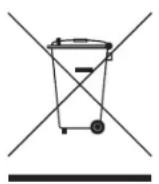
Do not throw this electronic device into the rubbish bin / container when discarding. To minimize pollution and ensure utmost protection of the global environment, please recycle.
For more information regarding WEEE, please refer to http://global.acer.com/about/environmental.htm
USA
For electronic products containing a LCD/CRT monitor or display:
Lamp(s) inside this product contain mercury and must be recycled or disposed of according to local, state or federal laws. For more information, contact the Electronic Industries Alliance at www.eiae.org. For lamp-specific disposal information, check www.lamprecycle.org.
FCC Notice
This device complies with Part 15 of the FCC Rules. Operation is subject to the following two conditions: (1) this device may not cause harmful interference, and (2) this device must accept any interference received, including interference that may cause undesired operation.
However, there is no guarantee that interference will not occur in a particular installation. If this device does cause harmful interference to radio or television reception, which can be determined by turning the device off and on, the user is encouraged to try to correct the interference by one or more of the following measures:
- Reorient or relocate the receiving antenna.
- Increase the separation between the device and receiver.
- Connect the device into an outlet on a circuit different from that to which the receiver is connected.
- Consult the dealer or an experienced radio/television technician for help.
Notice: Shielded cables
All connections to other computing devices must be made using shielded cables to maintain compliance with FCC regulations.
Notice: Peripheral devices
Only peripherals (input/output devices, terminals, printers, etc.) certified to comply with the Class B limits may be attached to this equipment. Operation with non-certified peripherals is likely to result in interference to radio and TV reception.
Caution
Changes or modifications not expressly approved by the manufacturer could void the user's authority, which is granted by the Federal Communications Commission, to operate this computer.
Operation conditions
This device complies with Part 15 of the FCC Rules. Operation is subject to the following two conditions: (1) this device may not cause harmful interference, and (2) this device must accept any interference received, including interference that may cause undesired operation.
Notice: Canadian users
This Class B digital apparatus complies with Canadian ICES-003.
This device complies with the essential requirements of the European Council:
The EMC Directive 89/336/EEC as attested by conformity with the following harmonized standards:
EN55013: 2001+A1: 2003: Sound and television broadcast receivers and associated equipment - Radio disturbance characteristics - Limits and methods of measurement.
EN55020: 2002+A1: 2003: Sound and television broadcast receivers and associated equipment - Immunity characteristics - Limits and methods of measurement.
EN55022:1998/A1:2000; AS/NZS CISPR 22: 2002: Limits and methods of measurement of Radio Interference characteristics of Information Technology Equipment.
EN55024: 1998/A1: 2001; AS/NZS CISPR 24: 1997: Information technology equipment-Immunity characteristics - Limits and methods of measurement.
The Low Voltage Directive 73/23/EEC as attested by conformity with the following harmonized standard:
EN60065: 1998: Audio, video and similar electronic apparatus-safety requirements.
EN60950: 2000 3rd: Safety of Information Technology Equipment Including electrical business equipment.

Compliant with Russian regulatory certification

ME61
First things first
We would like to thank you for making the Acer LCD TV your choice. With proper care, your new Acer LCD TV will provide you with years of entertainment and satisfaction.
This User's Guide introduces you to the various features your LCD TV can offer, and provides clear and concise information about the product, so please read it thoroughly and retain it for future reference.
Basic features and benefits of your Acer LCD TV
- Widescreen display with HDMI-ready / HD-ready (*) display
- Widescreen display with 1366 x 768 resolution
• Picture-in-picture mode for simultaneous previewing of programmes - Remote control for ultimate convenience
• Gamma Correction for brilliant colour
• 3D motion-adaptive de-interlacing - DCRe™ and 3D comb filtering for sharp and accurate images
- Acer Empowering Technology for selecting and defining personalized user preferences
Packing checklist
Your LCD TV package should contain the following accessories, in addition to the accessory box. Please ensure that they are all present. If any of the items is missing, then please contact your retailer.
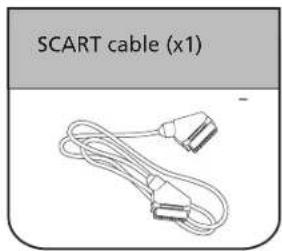
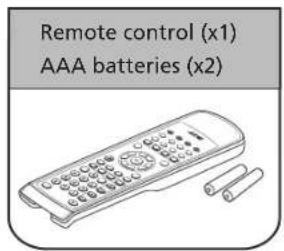
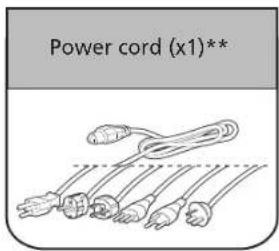
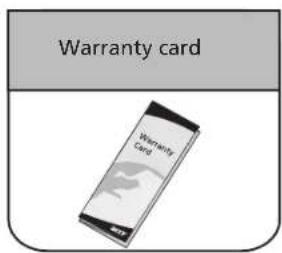
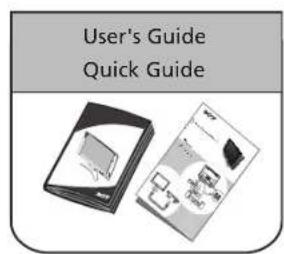

* HDMI-ready / HD-ready only for AT2011.
** The power cord supplied varies according to your region.
English
Your LCD TV overview
| Front panel view | |
| 1 Volume + / - | |
| 2 Input key | |
| 3 Menu key | |
| 4 Channel up / down | |
| 5 Power On / Off |
AT2010 / AT2011
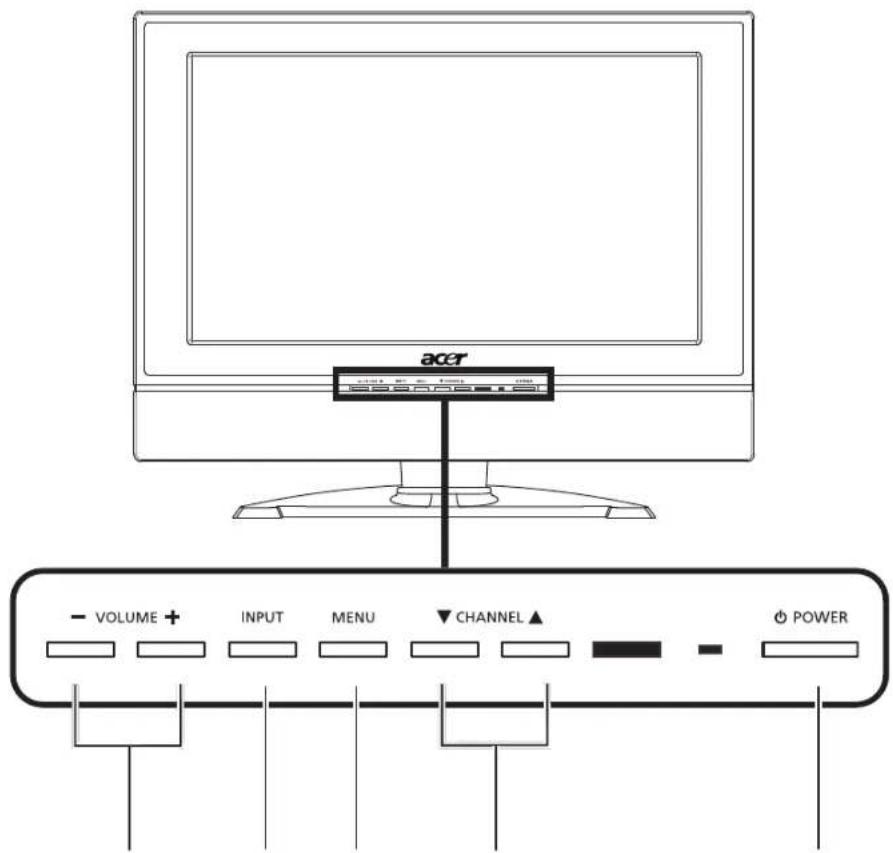
12345
| 1 | Volume up When the OSD is on, functions the same as the Right arrow | |
| Volume down When the OSD is on, functions the same as the Left arrow | ||
| 2 Input key When the OSD is on, press this button to confirm selection | ||
| 3 Menu key Turns the OSD menu ON and OFF | ||
| 4 | Channel up When the OSD is on, functions the same as the Up arrow | |
| Channel down When the OSD is on, functions the same as the Down arrow | ||
English
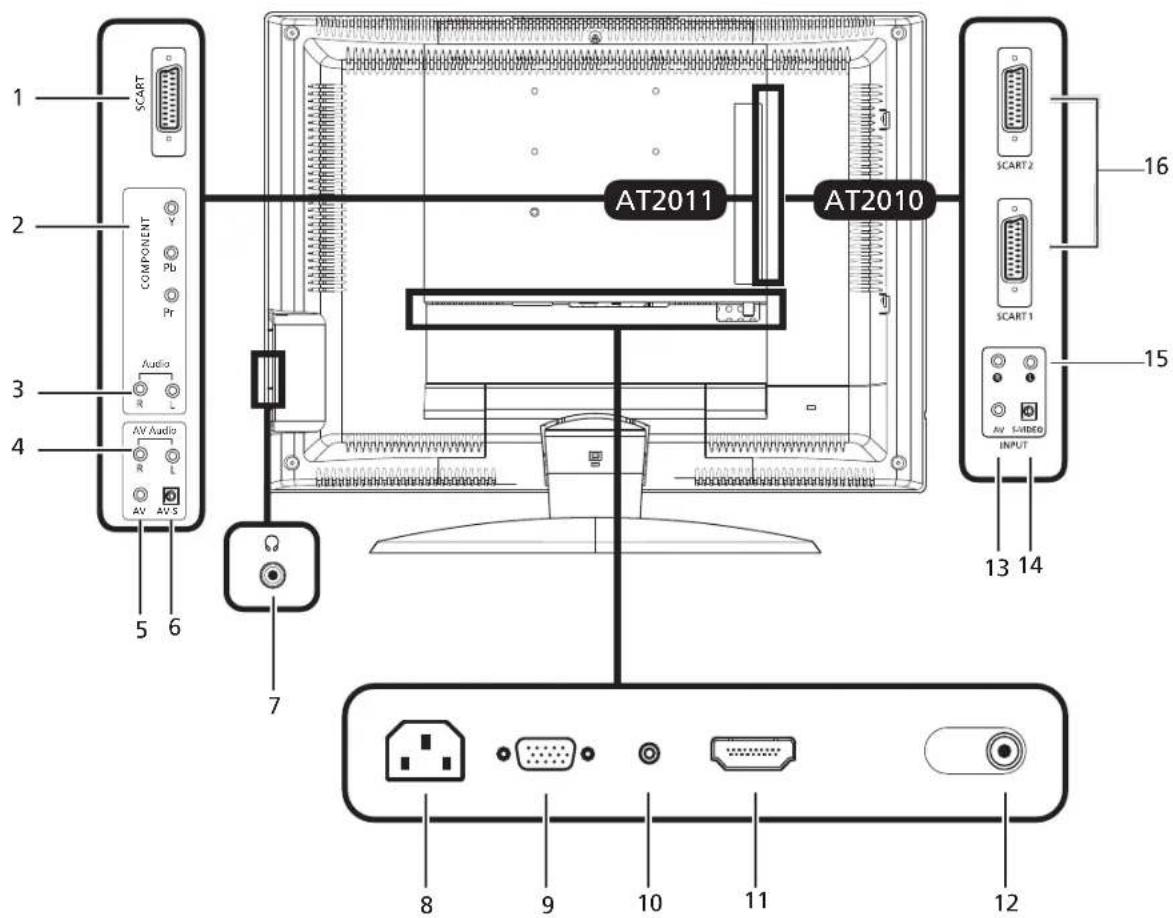
| Rear / Bottom panel view | |||
| 1/16 SCART 2 COMPONENT | |||
| 3 AUDIO L/R 4/15 AUDIO L/R | |||
| 5/13 CVBS 6/14 S-VIDEO | |||
| 7 | EARPHONE 8 | POWER SOCKET | |
| 9 VGA-IN 10 AUDIO-IN | |||
| 11 HDMI * 12 ANALOG | ANTENNA | ||

* HDMI only for AT2011.
Remote control
General keys
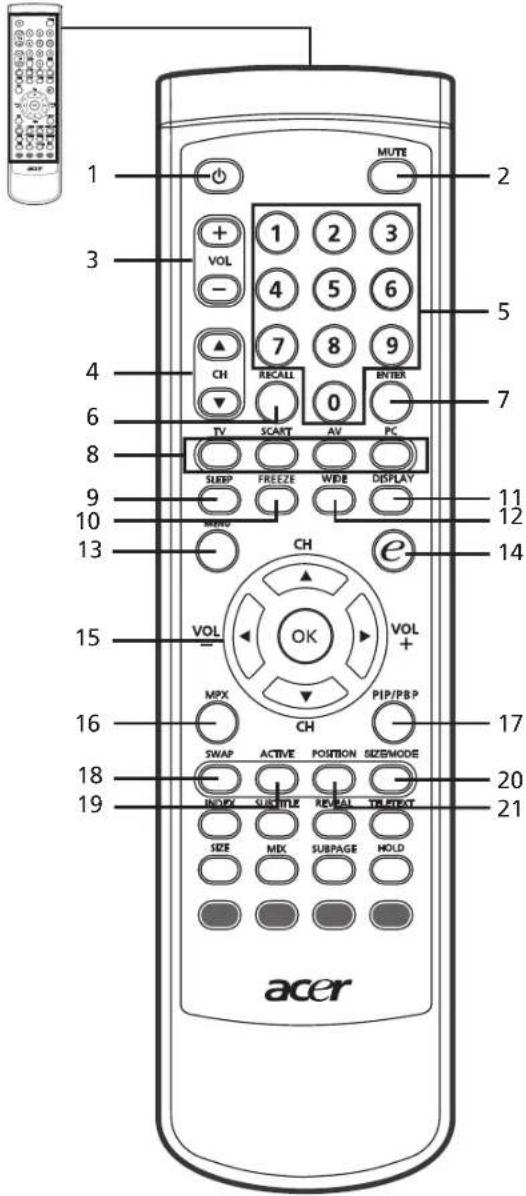

1 POWER
Press to turn your TV on/off.
2 MUTE
Press to toggle audio on and off.
3 VOL (+ / - )
Press to increase or decrease the volume.
4 CH (up / down)
Press to sequentially select the TV channel.
5 Number keys
6 RECALL
Press to return to the previous channel.
7 ENTER
Press to confirm channel number selection.
8 Input buttons ( TV / SCART / AV / PC )
Press to select correct input mode.
9 SLEEP
Press to set a time period after which the TV will switch itself to standby (15, 30, 45, 60, 90 or 120 minutes).
10 FREEZE
Press to freeze the displayed picture.
11 DISPLAY
Press to display input/channel information (dependent on input/source type).
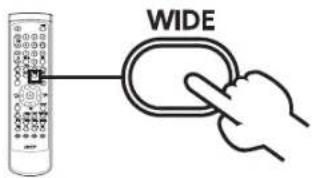
12 WIDE
Press to toggle scaling mode between 4:3, 16:9, Panorama and Letterbox 1, 2, 3 modes.
13 MENU
Press to open or close the Menu.
14 e (Empowering Technology)
Press to activate Acer Empowering Technology. See page 18.
15 Directional keys/OK
VOL (+ / -), CH (up / down)
16 MPX
Press to select the sound input, displayed in the top right-hand corner (mono, stereo, bilingual).
17 PIP/PBP
Switch between PIP / PBP modes. See page 20.
18 SWAP
For PIP/PBP mode: Toggle between the primary and subscreens.
19 ACTIVE
Toggle between primary and subscreens.
20 SIZE/MODE
When in PIP mode: Change subscreen size. See page 25.
21 POSITION
When in PIP mode: Change subscreen position.
Teletext
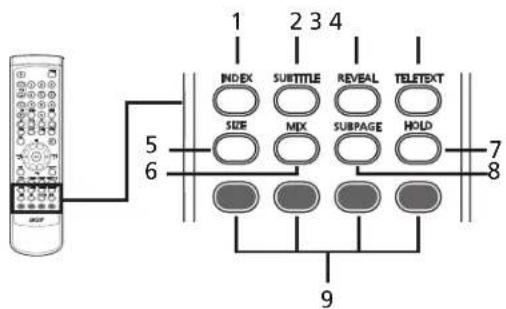
1 INDEX
Press to go to the index page
2 SUBTITLE
Press to view subtitles on the screen.
3 REVEAL
Press to reveal hidden telext information
4 TELETEXT
Press to switch from TV/AV to Teletext mode.
5 SIZE
Press once to zoom teletext page to 2X.
Press again to resume.
6 MIX
Press to overlay teletext page on the TV image.
7 HOLD
Press to pause the current teletext page in multi-page viewing mode.
8 SUBPAGE
Press to access the teletext's subpages directly.
9 Colour buttons (R/G/Y/B)
Operates corresponding button on the teletext page.
English
Basic connections
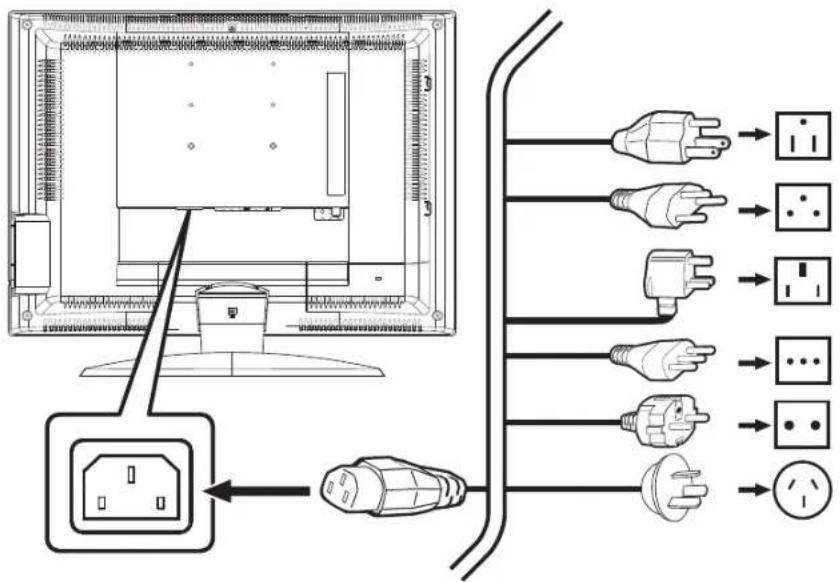
Connecting the power cord
1 Connect the AC cord into the AC input on the back of the set.
2 Connect the plug to the wall outlet as shown.

Setting up the remote control
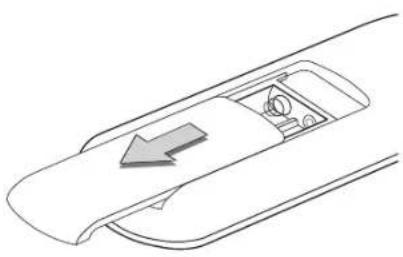
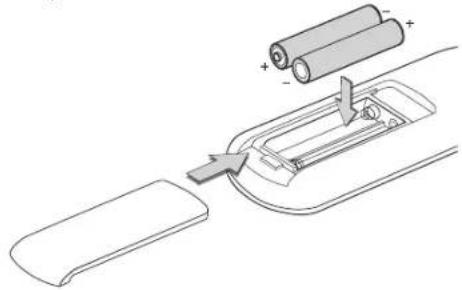
1 Open the cover on the back of the remote unit.
natural_image
Diagram of a car interior showing a directional arrow and dashboard (no text or symbols)2 Insert two AAA batteries (supplied) to match the polarity indicated inside the battery compartment.
natural_image
Diagram of a battery assembly with two cylindrical batteries and a connector (no text or symbols)| Looking after your remote control | |
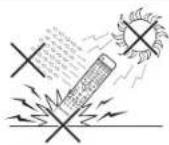 | ·Handle the remote control with care. Dropping, wetting or placing the remote control in sunlight may damage it. |
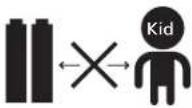 | ·Do not tamper with batteries. Keep them away from children. |
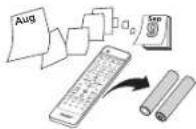 | ·When you anticipate that the remote control will not be used for an extended period, remove the batteries to prevent possible damage as a result of battery leakage. |
 | ·Dispose of used batteries according to local regulations. Recycle if possible. |
Enjoying analog TV
Connecting an antenna/cable
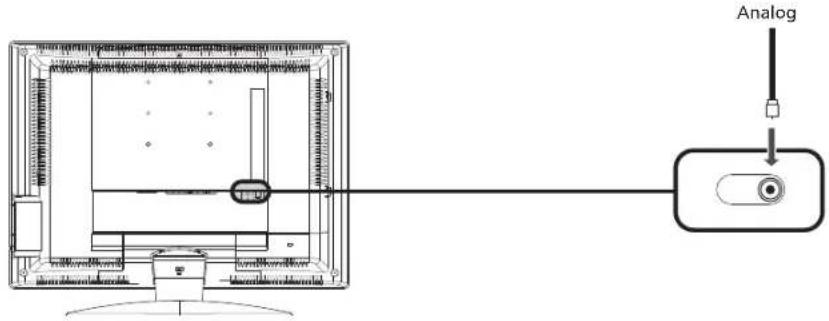
Connect the antenna cable to the appropriate antenna terminal on the back of the TV set as shown below.
Getting started watching your TV
| 1 | Power | |
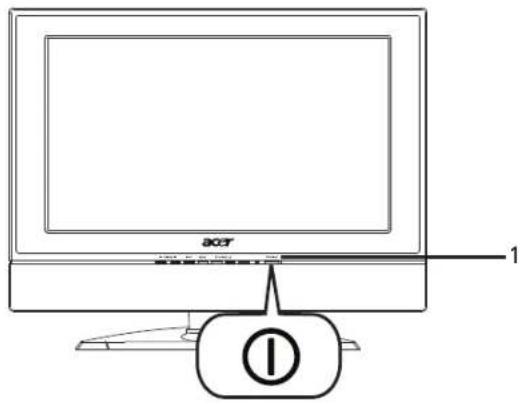
 | a. Turn on the power switch beneath the screen. | |
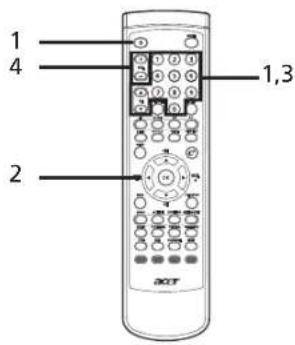
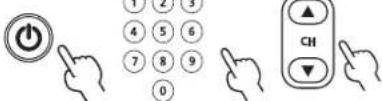 | b. Press thepowerbutton,numberkeys or channel up / downbutton on the remote control. | |
| 2 | Setup Wizard | The first time you switch on the TV, the Setup Wizard will guide youto complete the language selection and channel scanning. |
 | Press theOKkey to begin the setup process. | |

You can also adjust these settings using the front control panel. Please see "Front panel view" on page 6 for details.
| Setup Wizard | ||
| accrSetup WizardStep 1. Please select the language of menu.EnglishGermanFrenchSpanishItalianDutchDanishPortugueseWENI EXIT | Step 1. Select the setup language you prefer. | |
| accrSetup WizardStep 2. Please select the country.UKSpainGermanySwitzerlandFranceAustriaBelgiumItalyPortugalNetherlandsIrelandWENI EXIT | Step 2. Please select country. | |
| accrSetup WizardStep 3. Plug in the TV cable and then press "OK" keyOKWENI EXIT | Step 3. Ensure that your co-axial cables are connected correctly before proceeding (see page 11 for details). | |
| accrSetup WizardStep 4. Scanning analogue channels, please waitStopVHF-L 176.75 MHz Total: 0WENI EXIT | Step 4. Scan for analog channels. | |
| Step 5. Setup is now complete. You are ready to begin watching TV.If you leave the setup process before it is complete, you will be given a choice of options:1. Resume setup at next startup2. Resume setup3. Exit and don't remind meSelect an option and press OK to exit. | ||
| 3 | Changing channels | |
  | a. Press 0 - 9 on the remote control to select a channel. The channel changes after 2 seconds. Press ENTER to select the channel immediately. | |
 | b. Pressing the channel (CH) up / down button on the remote control will also change the channel. | |
| 4 | Adjusting the volume | |
| Adjust the volume level using the (VOL) +/ - button on the remote control. | ||

Setup may vary due to local broadcast differences.
Connecting external audio/video devices
Connecting a DVD, VCR, STB or audio/video equipment
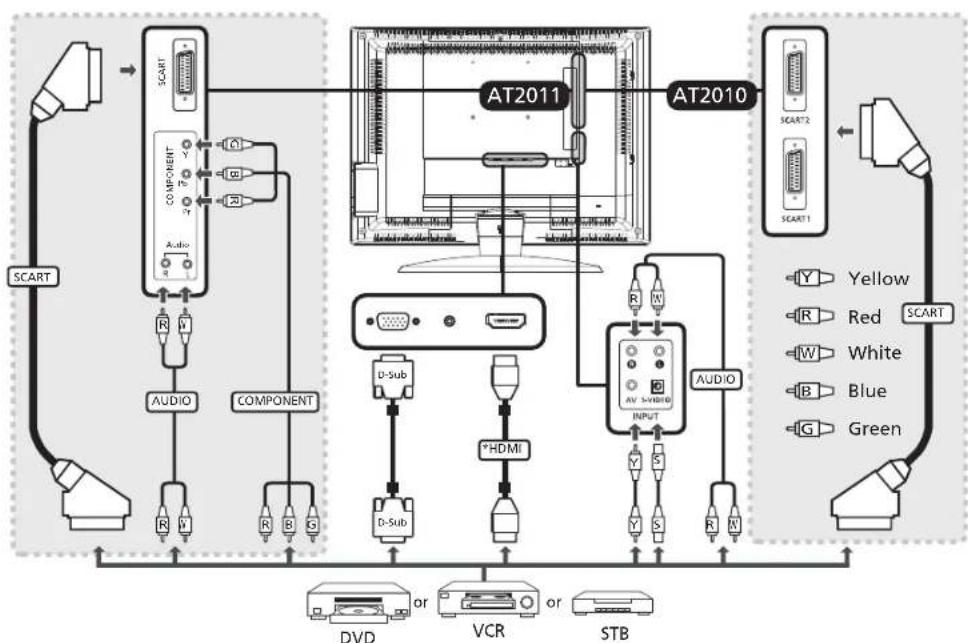
Connect your DVD player, VCR or audio/video equipment using the SCART port located at the rear of your LCD TV as shown below.
Source-IN
flowchart
graph TD
    subgraph_AT2011["AT2011"]
        A["SCART"] --> B["COMPONENT"]
        B --> C["Audio"]
        C --> D["SCART"]
        D --> E["SCART"]
        E --> F["COMPONENT"]
        F --> G["SCART"]
        G --> H["SCART"]
        H --> I["COMPONENT"]
        I --> J["SCART"]
    end

    subgraph_AT2010["AT2010"]
        K["SCART2"] --> L["COMPONENT"]
        L --> M["AV-5VDDO INPUT"]
        M --> N["COMPONENT"]
        N --> O["SCART"]
        O --> P["COMPONENT"]
        P --> Q["SCART"]
    end

    subgraph AT2010
        R["Y"] --> S["Yellow"]
        T["R"] --> U["Red"]
        V["IW"] --> W["White"]
        X["B"] --> Y["Blue"]
        Z["G"] --> AA["Green"]
        AB["DVD"] --> AC["or"]
        AD["VCR"] --> AE["or"]
        AF["STB"] --> AG["or"]
        AH["AUDIO"] --> AI["D-Sub"]
        AJ["HDMI"] --> AK["D-Sub"]
    end

    AT2010 --> AT2011
    AT2011 --> AT2010
    AT2010 --> AT2011
    AT2011 --> AT2010
    AT2010 --> AT2011
    AT2011 --> AT2010
    AT2010 --> AT2011
    AT2011 --> AT2010

* HDMI only for AT2011
** Acer recommends the following priority for connection types: HDMI* -> Component -> SCART -> S-Video -> Composite.
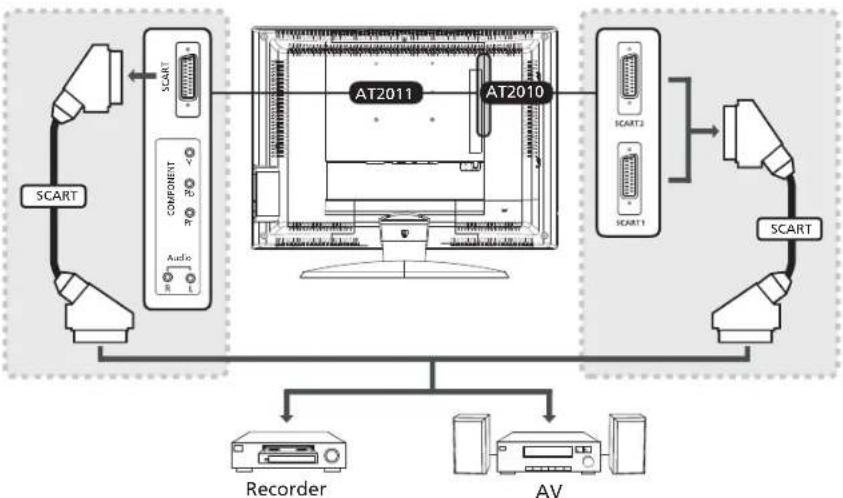
TV-OUT
flowchart
graph TD
    A["SCART"] --> B["COMPONENT"]
    B --> C["AT2011"]
    C --> D["AT2010"]
    D --> E["SCART2"]
    D --> F["SCART1"]
    G["Recorder"] --> C
    H["AV"] --> D
    I["Audio"] --> C

*SCART-out only works with analog broadcasts.
Connecting a camera, camcorder, video game or headphones
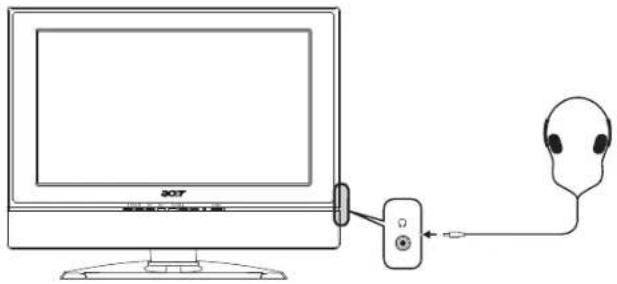
Connect your camera or camcorder to the video/audio ports on the right side of the TV set as shown below.
Connecting a PC or notebook computer
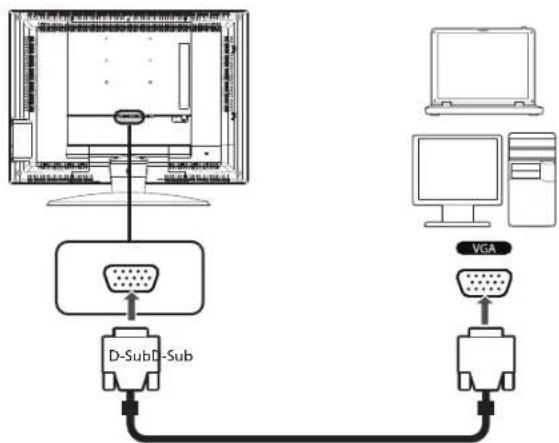
To display PC output on your TV, connect your PC or notebook computer to the TV as shown below.
flowchart
graph TD
    A["Computer"] --> B["D-Sub-D-Sub"]
    B --> C["Switch"]
    C --> D["VGA"]
    D --> E["Computer"]

For VGA input, Acer recommends setting your PC's external monitor resolution to 1280 x 768 pixels @ 60 Hz refresh rate.
Selecting the input source
Once you have connected your antenna or external equipment to the TV, you need to select the correct input source.
Press the corresponding button on the remote control to select the correct input source.
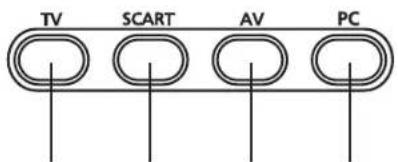
1234
Input button guide:
1 TV key
Toggle Analog TV (ATV) between input sources.
2 SCART key
Toggle SCART1 and SCART2 (*) between input sources.
3 AV key
Toggle Component ( ^ ) and AV and HDMI ( ^ ) between input sources.
4 PC key
Toggle VGA between input sources.

* SCART2 only for AT2010
** Component and HDMI only for AT2011
English
OSD navigation
Many of the advanced settings and adjustments are available through using the OSD (onscreen display) menus, as shown in the example screenshot below.
Basic operations required to navigate these menus (Picture, Audio, Channel management, Options, Settings, Empowering) are described in this section.
Navigating the OSD with the remote control
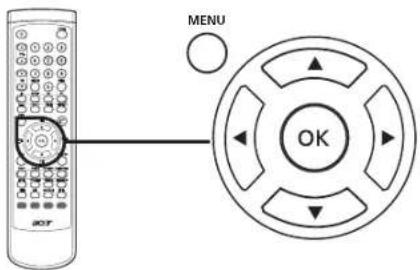
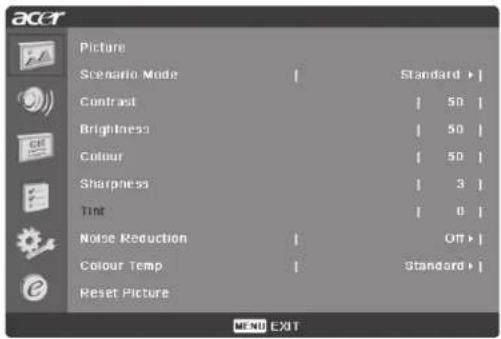

You can also interact with these menus using the front panel controls. Please see "Front panel view" on page 6 for details.
| There are six main OSD menus. These are: Picture, Audio, Channel management, Options, Settings and Empowering. Use the following method to navigate these menus. | ||
| 1 |  | Press the MENU button on the remote control or the MENU button on the control panel. |
| 2 | 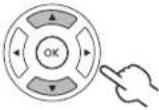 | Select your desired menu by using the up and down directional keys to switch between the six menus. |
| 3 | 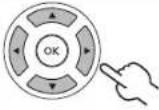 | Use the directional keys to interact with the menu. The up / down directions will scroll through the menu options, while left/right will adjust the different settings (for example, in the Picture menu, settings such as brightness, contrast, etc.). Press MENU to exit. |
Adjusting the OSD settings
The OSD can be used for adjusting the settings of your LCD TV.
Press the MENU key to open the OSD. You can use the OSD to adjust the picture quality, audio settings, channel settings, general settings and the Empowering Technology settings. For advanced settings, please refer to following page:
Adjusting the picture quality
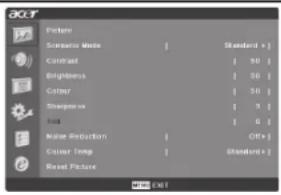
1 Press the MENU key to bring up the OSD.
2 Using the directional keys, select Picture from the OSD. Then navigate to the picture element you wish to adjust.
3 Use the left or right keys to adjust the sliding scales.
4 The Picture menu can be used to adjust the current Scenario mode, brightness, contrast, colour, sharpness and other image-related qualities.
Adjusting the audio settings
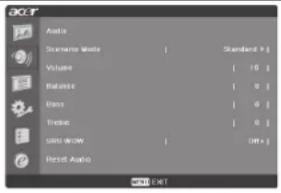
1 Press the MENU key to bring up the OSD.
2 Using the directional keys, select Audio from the onscreen display. Then navigate to the feature you wish to adjust.
3 Use the left or right keys to adjust the sliding scale. Press OK to save.
4 The Audio menu can also be used to adjust the treble, balance, sound effects and other important sound-related settings
Adjusting the channel management
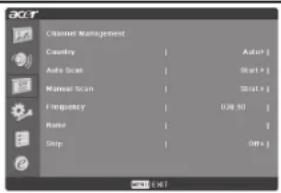
1 Press the MENU key to bring up the OSD.
2 Using the directional keys, select Channel management from the OSD.
3 Use the directional keys to navigate the menus.
4 The Channel management menu can be used to adjust frequency, and set the channel namings.
Adjusting other options
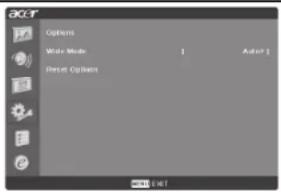
1 Press the MENU key to bring up the OSD.
2 Using the directional keys, select Options from the OSD.
3 Use the directional keys to navigate the menus.
4 The Options menu can be used to select the picture aspect-ratio mode and reset options.
Adjusting the settings
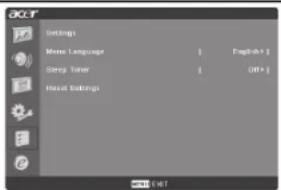
1 Press the MENU key to bring up the OSD.
2 Using the directional keys, select Settings from the OSD. Then navigate to the feature you wish to adjust.
3 The Settings menu can be used to adjust the menu language, set the sleep timer and other important settings.

The options available on the OSD may vary depending on the TV signal source.
English
Empowering Technology
flowchart
graph LR
    A["Default setting in different mode"] --> C["e"]
    B["Set-up Empowering mode"] --> C
    C --> D["Remote Control"]
    D --> E["OK"]
    style C fill:#f9f,stroke:#333
    style D fill:#ccf,stroke:#333
    style E fill:#cfc,stroke:#333
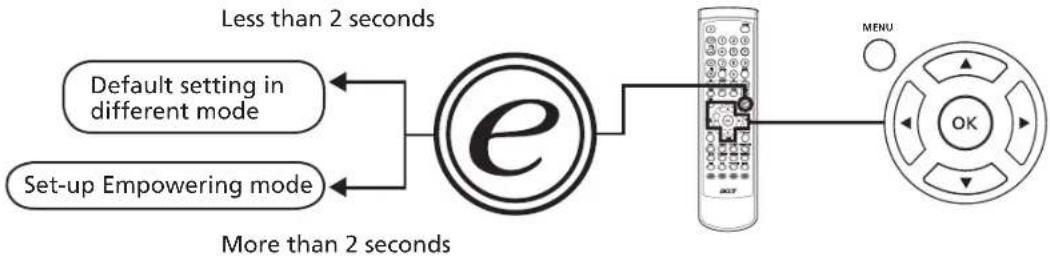
The Empowering Key opens up the Acer Empowering Technology functions. In TV mode, the choice is between Scenario mode and Favourite channel; see page 19 for details. The default setting for both modes is Scenario mode.
Set-up Empowering mode
To change your Empowering Key's default setting:
| 1 |  | Press and hold the Empowering Key for more than two seconds to open the menu. |
| 2 | More than 2 seconds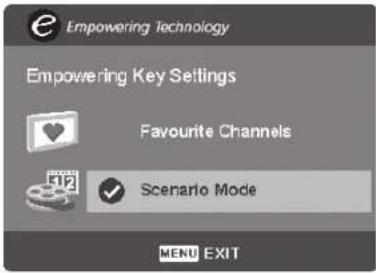 TV mode Empowering Key settings menu TV mode Empowering Key settings menu | |
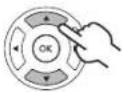 | Use the directional keys to navigate the menu and select the Empowering Technology icon. | |
| 3 | MENU | Press MENU to exit. Now, when you press the Empowering Key, your chosen selection will be accessed. |
Default setting in different Empowering mode
Scenario mode in TV (default setting)
Scenario mode has five preset viewing modes designed to give you the best picture quality when watching a particular kind of programme. There are five pre-defined audio and video settings for optimal enjoyment of the following scenarios: Standard TV, Movie, Sport, Concert, Game, User.
 | Pressing the Empowering Key for less than two second will toggle between the different modes. | |
| Mode Information | ||
| Standard | Standard mode allows you to watch your favourite channels with sharp, brilliant imagery via adaptive brightness and contrast adjustments, and listen to clear-sounding audio. | |
| Movie | For comfortably enjoying movies at home, Movie mode displays dim scenes in clear detail; compensates for colour; and smoothly presents motion images. This is accomplished through optimal Gamma correction plus saturation, brightness and contrast adjustments. Movie mode makes the most of high-definition movie soundtracks. | |
| Game | Game mode carefully details the exquisite graphics of modern video games, providing lifelike entertainment while protecting your eyesight by adjusting brightness and contrast. What's more, Game mode provides a heightened audio experience. | |
| Sports | Sports mode is suited for outdoor sports programmes, with accurate background depth and clear gradation between the bright, outdoor playing field and darker auditoriums. Sports mode also brilliantly enhances colours and presents swiftly moving pictures without residual images. All of this is achieved via specific Gamma corrections and saturation adjustments. Precise audio can be heard. | |
| Concert | Concert mode places you in a virtual concert hall, opera house or other dim environment by means of adaptive brightness and contrast adjustments. Concert mode accentuates symphonic harmonies and the tenor audio range. | |
Favourite channel mode in TV
Favourite channel allows you to store five of your favourite TV channels and flick between them at the touch of a single button.
To set Favourite channel as the default, follow the steps described on page 18.
| Storing favourite channels | ||
| 1 | MENU | Select your desired channel, then press theMENUkey on the remote control. |
| 2 | 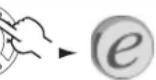 ▶Favorite Channels [Edit+] ▶Favorite Channels [Edit+] | Use thedirectional keysto navigate the menu and select the Empowering Technology icon. |
| 3 | Favourite Channels008 2836049 69018 38002 22Use number keys or CH+/- to select channelPress OK key to Add/Remove favouriteWENT EXIT | Navigate to a channel slot, use CH up/down button or number key to change channel.There are a total of five slots in which you can store TV programmes. |
| Viewing your favourite channels | ||
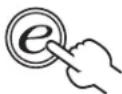 | On the remote control, if you press theEmpowering Keyfor less than two second, the TV will toggle between the five stored TV channels sequentially according to your list of favourites. | |
English
Advanced features
PIP/PBP
flowchart
graph LR
    A["Device"] --> B["SWAP"]
    B --> C["ACTIVE"]
    C --> D["POSITION"]
    D --> E["SIZE/MODI"]
    E --> F["PIP/PBP"]
    F --> G["PIP (Picture-in-Picture)"]
    G --> H["PBP (Picture-by-Picture)"]
    style A fill:#f9f,stroke:#333
    style H fill:#bbf,stroke:#333
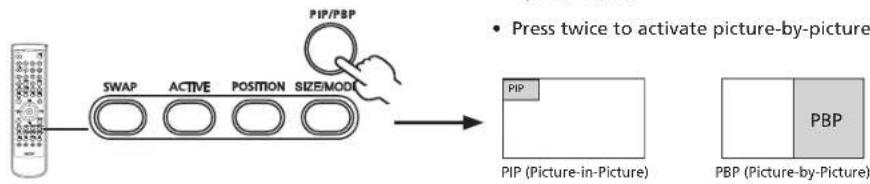
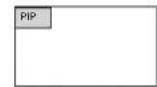
- Press the PIP/PBP button once to display activate picture-in-picture (PIP).
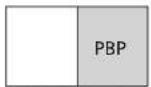
- Press twice to activate picture-by-picture (PBP).

- For a list of the available sources for this feature, please refer to the appendix at the end of this manual.
| PIP | 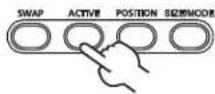 | 1a. Press theACTIVEkey to toggle between PIP screens. |
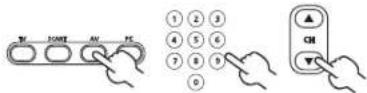 | 1b. Press the TV, SCART, AV or PC keys, number keys or CH up or down to change the content of the active screen. | |
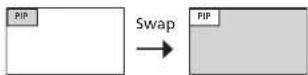
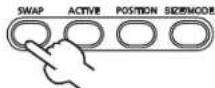 | 2. Press theSWAPkey to change the content between the primary and the subscreen. | |
 | ||
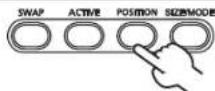 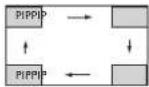 | 3. Press thePOSITIONkey to select the location of the subscreens, from upper left -> upper right -> lower right -> lower left, as shown in the image. | |
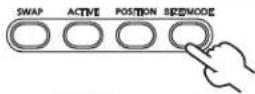 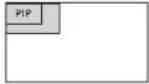 | 4. Press theSIZE/MODEkey to select the size of the subscreen, from 37.5% -> 50%, as shown in the image. | |
| PBP | 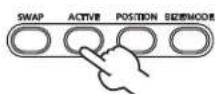 | 1a. Press theACTIVEkey to toggle between PBP screens. |
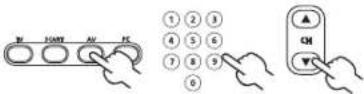 | 1b. Press theTV, SCART, AV orPCkeys, number keys orCHup or down to change the content of the active screen. | |
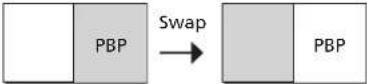
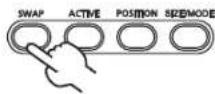 | 2. Press theSWAPkey to change the content between the primary and the PBP screen. | |
 |
English
Re-scan for channels
The first time you completed the setup wizard, all available channels were listed. If you need to re-scan for new channels, please follow the steps below:
| Scanning for channels | |||
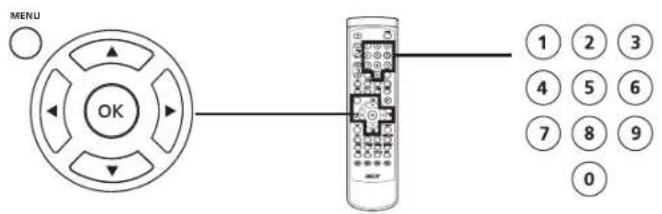
| 1 |  | Press theMENUkey on the remote control to bring up the OSD. | |
| 2 | 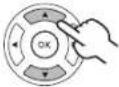 | Use thedirectional keysto navigate and selectChannel Management. | |
| 3 | 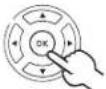 | 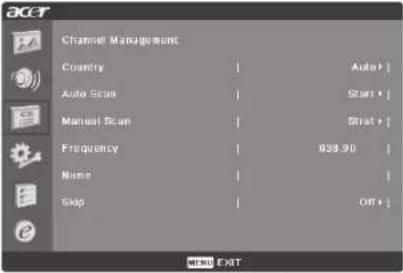 | HighlightAuto Scan.Then, select Start and press OK to begin. |
| 4 | 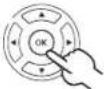 | Select OK and press MENU to exit. | |
Widescreen display mode
Your Acer LCD TV has a special widescreen mode that allows you to toggle between 4:3, 16:9, Panorama, and Letterbox 1, 2 and 3. type views.
Press the WIDE key on the remote control to toggle the display between the four wide modes.
Wide mode
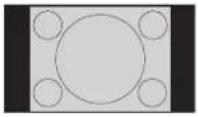
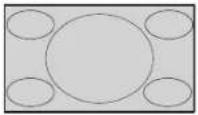
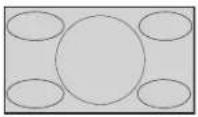
The Acer LCD contains four widescreen modes, including 4:3, 16:9, Panorama, and Letterbox 1, 2 and 3.
| 4:3 | For 4:3 standard pictures. A side bar appears on each side. |
 | |
| 16:9 | In this mode, the whole picture is stretched toward each side of the screen. |
 | |
| Panorama | In this mode, the picture is progressively stretched toward each side of the screen. |
 | |
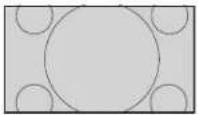
| Letterbox 1, 2, and 3 | In this mode, the picture is enlarged linearly to fit the screen. The top and bottom portions of the picture may be cut off. |
 |
English
Dimensions
AT2010 / AT2011
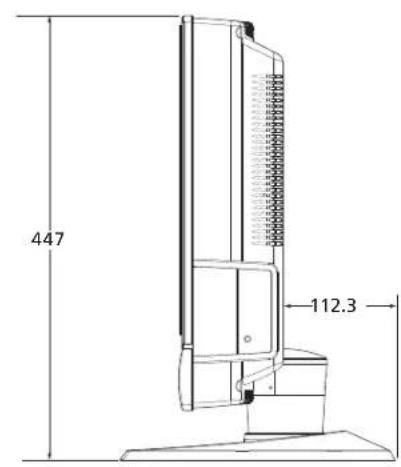
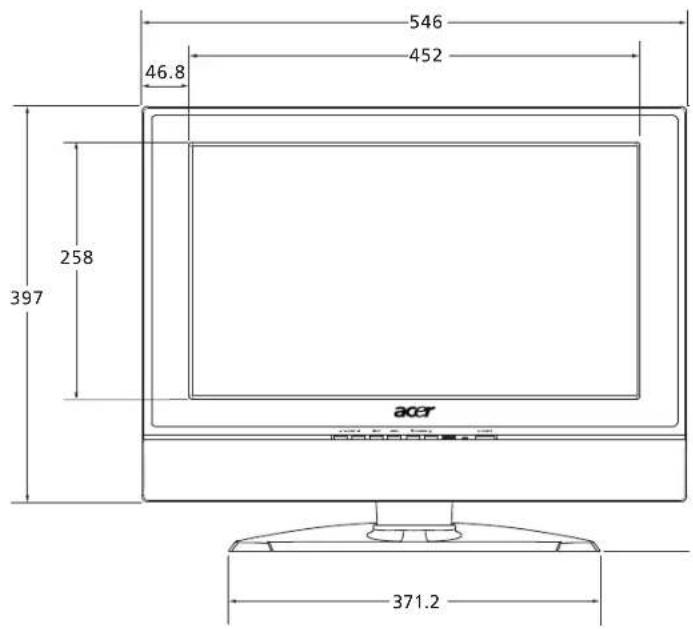
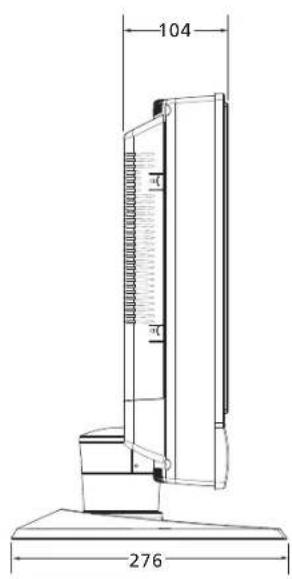
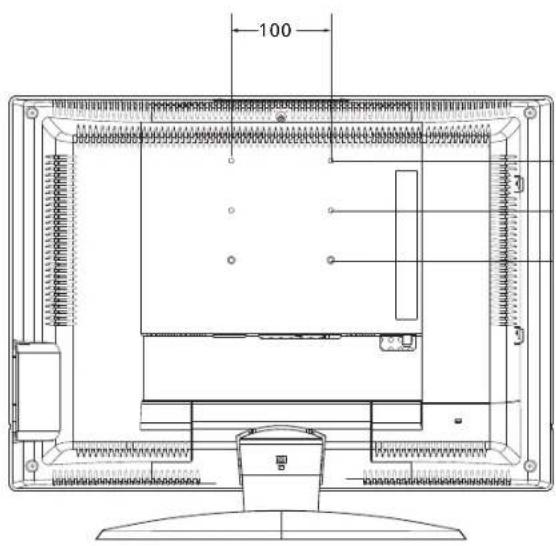
Unit: mm
Appendix-Source Options
PIP/PBP
| Sub\Main | CVBS | S-Video | TV | VGA | SCART1-CVBS | SCART1-RGB | SCART2-CVBS * | SCART2-RGB * | COMPONENT ** | HDMI ** |
| CVBS X | ● | ● | ● | ● | ● | ● | ● | ● | ● | |
| S-video XXXXX | XXX | XX | ||||||||
| TV X | ● | ● | ● | ● | ● | ● | ● | ● | ● | |
| VGA XXXXX | XXX | |||||||||
| SCART1-CVBS X X | ● | ● | ● | ● | ● | ● | ● | ● | ||
| SCART1-RGB XX X | ● | ● | ● | ● | ● | ● | ● | |||
| SCART2-CVBS * X | XX | ● | ● | ● | ● | ● | ||||
| SCART2-RGB * X | XX | ● | ● | ● | ● | ● | ||||
| COMPONENT ** | XXX | XXX | XXX | |||||||
| HDMI ** XXXX | XXX | XXX |
English

* SCART2 only for AT2010
** Component and HDMI only for AT2011
●: Supported
X: Not supported
Troubleshooting
Before you call the Acer service center, please check the following items:
Here is a list of possible situations that may arise during the use of your LCD TV. Easy answers and solutions are provided for each.
There is no picture or sound.
- Make sure the power cord is properly inserted in the power outlet.
- Make sure the input mode is correctly set by your selected input.
- Make sure the antenna at the rear of the TV is properly connected.
- Make sure the main power switch is turned on.
- Make sure the volume is not set to minimum or the sound is not set to mute.
- Make sure the headphones are not connected.
- Reception other than those of broadcasting stations can be considered.
Picture is not clear.
- Make sure the antenna cable is properly connected.
- Consider whether your TV signal is being properly received.
- Poor picture quality can occur due to a VHS camera, camcorder, or other peripheral being connected at the same time. Switch off one of the other peripherals.
- The 'ghost' or double image may be caused by obstruction to the antenna due to high-rise buildings or hills. Using a highly directional antenna may improve the picture quality.
- The horizontal dotted lines shown on the pictures may be caused by electrical interference, e.g., hair dryer, nearby neon lights, etc. Turn off or remove these.
Picture is too dark, too light or tinted.
- Check the colour adjustment.
- Check the brightness setting.
- Check the sharpness function.
- The fluorescent lamp may have reached the end of its service life.
Remote control does not work.
- Check the batteries of the remote control.
- Make sure the remote sensor window is not under strong fluorescent lighting.
- Try to clean the remote control sensor lens on the TV with a soft cloth.
- Use the buttons (hotkeys) on the TV before the remote control works.
If the above suggestions do not solve your technical issue, please refer to the warranty card for service information.
Product specifications
| Model AT2010 / AT2011 | |
| Panel spec | |
| Resolution (pixels) 1366 x 768 | |
| Brightness (tpe.) 500 cd / m2 | |
| Contrast Ratio (tpe.) 800:1 | |
| Display colour 16.2 M | |
| Viewing angle (tpe.) H: 176 | °; V:176° |
| Response (tpe.) 16 ms (gray to gray) | |
| Power supply | |
| Input 100 V ~ 240 V - AC. (50 / 60 Hz) | |
| Max. power consumption < 90 W | |
| Power saving 5 W | |
| Mechanical | |
| Dimensions (W x H x D mm) 5 | 46 x 447 x 276 |
| Weight (Kg) 8.2 | |
| Weight (lbs) 18 | |
| Wall Mounting Yes | |
| Analog TV system | |
| TV Colour system PAL, SECAM | NTSC |
| Sound system B / G / D / K / I / L ( multi-European ) | |
| Stereo system NICAM / A2 | |
| TV Tuner System | PLL, 45.25 Mhz - 862.25 Mhz |
| Subtitles | Teletext 1.5 |
| Analog TV-tuner quantity | 1 |
| Terminal | |
| Analog Tuner In | Yes |
| SCART1 | CVBS ( In / Out), RGB ( In ), Audio R / L |
| SCART2 ( * ) | CVBS ( In / Out ), S-Video ( In ), Audio R / L |
| Component ( ** ) | YPbPr, YCbCr, CVBS, Audio R / L |
| AV | CVBS , Audio R / L |
| S-Video | S-Video, audio R / L share with AV |
| HDMI in ( ** ) | Yes |
| PC D-sub in | Yes |
| PC audio-in | Yes |
| Audio system | |
| Speaker | 3 W + 3 W |

* SCART2 only for AT2010
** Component and HDMI only for AT2011