SoundStation VTX 1000 - Video conference system PLANTRONICS - Free user manual and instructions
Find the device manual for free SoundStation VTX 1000 PLANTRONICS in PDF.


User questions about SoundStation VTX 1000 PLANTRONICS
0 question about this device. Answer the ones you know or ask your own.
Ask a new question about this device
Download the instructions for your Video conference system in PDF format for free! Find your manual SoundStation VTX 1000 - PLANTRONICS and take your electronic device back in hand. On this page are published all the documents necessary for the use of your device. SoundStation VTX 1000 by PLANTRONICS.
USER MANUAL SoundStation VTX 1000 PLANTRONICS
User's Guide Administrator's Guide
natural_image
Abstract line drawing of a computer with geometric shapes and a circular inset showing concentric triangular patterns (no text or symbols)IMPORTANT SAFETY INSTRUCTIONS
When using your telephone equipment, the following safety precautions should always be followed to reduce the risk of fire, electric shock, and injury to people.
▼ Read and understand all instructions.
▼ Follow all warnings and instructions marked on the instrument.
▼ Installation must be performed in accordance with all national wiring rules.
The outlet to which this apparatus is connected must be installed near the equipment, and must always be readily accessible.
This instrument can be hazardous if immersed in water. To avoid the possibility of electrical shock, do not use the telephone equipment while you are in the bathtub or shower, or when you are wet. If you accidentally drop the equipment into water, do not retrieve it until you have first unplugged all cords. Do not reconnect the telephone equipment until it has dried thoroughly.
Avoid using the telephone equipment during electrical storms in your immediate area. There is a remote risk of electric shock from lightning. Urgent calls should be brief. Even though protective measures may have been installed to limit electrical surges from entering your home or business, absolute protection from lightning is impossible.
If you suspect a natural gas leak, report it immediately, but use a telephone away from the area in question. The telephone equipment's electrical contacts could generate a tiny spark. While unlikely, it is possible that this spark could ignite heavy concentrations of gas.
Never push objects of any kind into the telephone equipment through housing slots as they may touch hazardous voltage points or short out parts that could result in a risk of electric shock. Never spill liquid of any kind on the telephone. If liquid is spilled, however, contact service personnel.
To reduce the risk of electric shock, do not disassemble this telephone equipment. Opening or removing covers may expose you to hazardous voltages. Using incorrectly reassembled equipment can cause electric shock. If your telephone equipment does not work properly, refer to the section describing how to connect service. The support telephone number can be found on the outside back cover of this book.
▼ Never install telephone wiring during a lightning storm.
▼ Never install telephone jacks in wet locations unless the jack is specifically designed for wet locations.
▼ Never touch uninsulated telephone wires or terminals unless the telephone line has been disconnected from the network interface.
▼ Always use caution when installing or modifying telephone lines.
SAVE THESE INSTRUCTIONS
Table of Contents
User's Guide ....1
Introduction 3
SoundStation VTX 1000 Interface 4
Manage a Call....5
Answer a Call 5
Dial a Call 5
Mute and Unmute a Call....6
Hold and Resume a Call 6
End a Call....7
Redial a Call 7
Dial a Call Using the Phone Book 7
Speed Dial a Number....8
Add a Call 8
Adjust Volumes 9
Turn Wideband Off 10
Use the Phone Book 11
Access the Phone Book.... 11
Sort the Entries....11
Find an Entry....12
Dial an Entry 12
Add a New Entry 13
Assign a Speed Dial Number....14
Edit an Entry 15
Remove an Entry....15
Exit the Phone Book 15
Adjust the Settings....16
Access the Settings 16
Select a Setting to Display 16
Adjust a Setting....16
Back Light....17
Ringer Type....17
Contrast....17
Adjust the Audio Setup 17
Access the Audio Settings.... 17
Select a Setting to Display 18
Adjust an Audio Setting.... 18
Treble EQ....19
Bass EQ....19
Subwoofer Volume....19
Aux Input 19
Aux Output....20
Console Mics 20
Console Speak er....20
Automatic Gain Control.... 21
Noise Reduction....21
View Phone and Software Information 21
Peripheral Devices 22
Using the VTX Subwoofer....22
Using the Extended Microphones.... 22
Using the Polycom Wireless Microphone System.... 23
Troubleshooting 24
No Dial Tone 24
SoundStation VTX 1000 Does Not Ring....24
Cannot Connect In Wideband Mode.... 24
No Caller ID....25
Flickering LCD 25
Quick Keypad Input Is Not Registered 25
Muffled or "In a Well" Reception 25
Variable Sound Quality.... 25
Problematic Sound Quality or No Sound.... 26
Excessive Noise 26
Remote Party Cannot Hear You 26
Reverting to Narrowband.... 27
Short Silences, Echoes, or Clipped Speech 27
Physical Damage.... 27
For Best Performance....28
Maintenance 28
Administrator's Guide 29
Parts List....30
Connection Diagram 31
Administrative Setup Overview 32
Access Administrative Setup 33
Select an Item to Display 33
Administrative Setup Navigation Overview 34
From the Admin Setup Menu.... 34
From a Submenu.... 34
From an Item Screen.... 34
Enter Location Information 35
Location Name 35
Character Entry 35
This Phone # 35
Save 35
Phone System 36
Flash Timing 36
Caller ID....36
Modem Setup....36
Wideband Quality Monitor....37
Passcode 38
Assign a Passcode.... 38
Remove a Passcode.... 38
Assign a New Passcode.... 39
Diagnostics 40
Mic Test 40
Console Speaker Test 40
External Speaker Test 41
Aux In and Aux Out Specification Table 41
Modem Statistics 42
Restore All Defaults....43
Software 44
Upgrade Software 44
Configure Dialing Number 45
Configure as DL Server 45
Specifications and Warranty Information....47
Limited Warranty and Limitation of Liability 48
FCC Rules 50
Canadian Department of Communications Notice....50
US Telco Requirements 51
REN 51
Automatic Dialing....51
Telco Connector 52
Canadian Telco Requirements....52
CE Mark R & TTE Directive....53
Australia 54
Japan 54
User's Guide
User's Guide

natural_image
Abstract geometric pattern with white lines and shapes on black background, no text or symbols present— | SoundStation VTX 1000 Operation Manual
Introduction
Polycom Has Revolutionized Voice Conferencing... Again.
The revolutionary SoundStation VTX 1000 ^TM is the world's first conference phone that automatically adapts to each meeting environment enabling amazingly clear voice quality for all participants.
The SoundStation VTX 1000 features:
▼ Amazing Room Coverage
Allows participants to automatically be heard by remote participants when speaking from 2ft or even 20ft away from the microphone.
▼ Revolutionary Voice Quality
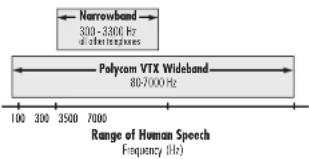
If 2 SoundStation VTX 1000 units are connected together, the call automatically enters Wideband Mode delivering life-like presence via VTX Wideband!
▼ Removes Annoying Background Noises
Automatically reduces PC, projector fan, and other noises from the meeting room for clear sound quality.
- Handset Quality Conference Calls Automatically turns off the mics that are furthest away from the speaker to remove the “in the well” sound.
text_image
Narrowband 300-3300 Hz dottedlines Polycom VTX Wideband 80-7000 Hz Range of Human Speech Frequency (Hz)▼ Acoustic Clarity Technology
Polycom's legendary technology that automatically allows two people to speak at the same time.
▼ Maximum Configuration Flexibility Independent input and output,
Bass/Treble controls, and internal mic and speaker control for multiple uses and applications including external speakers, so you can be assured that your conference provides amazingly clear voice quality for all participants.
▼ SoundStation VTX 1000 is Future-Proof
The SoundStation VTX 1000 platform also provides investment protection by enabling software downloads for future voice enhancements and other media collaboration applications.
SoundStation VTX 1000 Key Features Summary
▼ Automatic Gain Control
▼ High-Fidelity VTX Wideband
▼ Dynamic Noise Reduction
▼ Gated Microphones with Intelligent Microphone Mixing
▼ Acoustic Clarity Technology
▼ User Selectable Auxiliary Audio Input and Output Options
▼ Dial-Up Software
Download Functionality
▼ Backlit Graphical LCD
▼ Phone Book with Search/Sort Functions
▼ Bass and Treble Controls
▼ And much more . . .
SoundStation VTX 1000 Interface
LEDs
Green - Your call is in progress Blinking Green - A call is incoming. Red - Your call is muted. Blinking Red - Your call is on hold.

natural_image
Pure diagram of a curved line with triangular supports and a label 'ning.' (no text or symbols beyond the label)Buttons
text_image
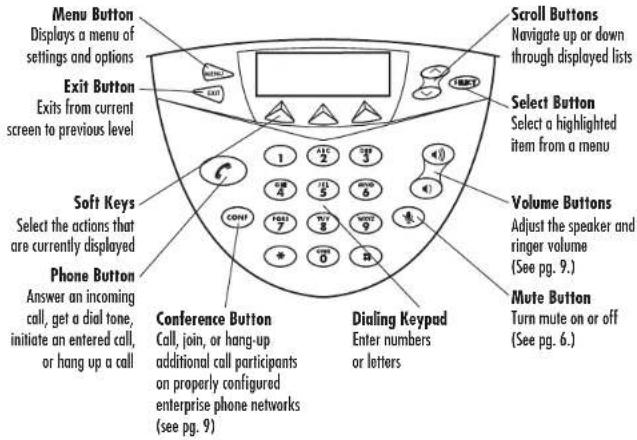
Menu Button Displays a menu of settings and options Exit Button Exits from current screen to previous level Soft Keys Select the actions that are currently displayed Phone Button Answer an incoming call, get a dial tone, initiate an entered call, or hang up a call Conference Button Call, join, or hang-up additional call participants on properly configured enterprise phone networks (see pg. 9) Scroll Buttons Navigate up or down through displayed lists Select Button Select a highlighted item from a menu Volume Buttons Adjust the speaker and ringer volume (See pg. 9.) Mute Button Turn mute on or off (See pg. 6.) Dialing Keypad Enter numbers or lettersLCD
text_image
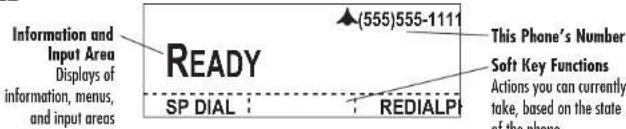
Information and Input Area Displays of information, menus, and input areas READY SP DIAL : REDIALPH ▲(555)555-1111 This Phone's Number Soft Key Functions Actions you can currently take, based on the state of the phoneMultipoint Conference Bridging
The SoundStation VTX1000 is a conference phone and can only perform multipoint bridged conference calls on a properly configured enterprise phone network or when multipoint calls are
placed through a conference bridge or a bridging service. Please contact your telephone system administrator for further details.
Manage a Call
Answer a Call
Press the (Phone) button to pick up an incoming call.

The three LEDs blink green when the phone rings.
When you answer a call from another VTX phone, your SoundStation VTX 1000 tests the quality of your line, and then initiates a wideband connection. This process takes 12 seconds, during which you hear music, and both ends of the call are unable to converse. The w icon is displayed once a wideband connection has been established.
Note: If you have a high quality line you can change the line testing process from 12 seconds to 6 seconds. Please see page 36 for details, and refer to the troubleshooting guide for more information on line quality. The subwoofer (see "Using the VTX Subwoofer", pg. 22) allows you to experience the full spectrum of wideband sound.
Receiving an Additional Call
If you are on a call when another call is received, you may or may not hear a Call Waiting tone and/or see Caller ID.
If you are on a regular, narrowband call, and the most common types of Call Waiting and Caller 1D* are ordinarily provided to you through your phone network, then these services will work in the usual way, as specified by your provider. (Note that it is not possible to join the incoming call to the ongoing one.)
Important: If you are on a wideband call, Call Waiting and Caller ID are unavailable and Call Waiting signals will actually disrupt wideband operation, preventing you from maintaining a wideband connection. It is highly recommended that Call Waiting be disabled by the phone company (or PBX administrator) for lines used for VTX 1000 wideband calls. * Namely, Telcordia (formerly Bellcore) Standard Type I Caller ID.
Dial a Call
You can dial a call the traditional way, getting a dial tone first, or you can dial the way cellular phones do, entering and editing all the numbers before you outpulse them, as shown below.
Speed Dial numbers are not supported by this method.
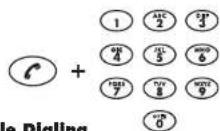
Dial Tone Dialing
1 Press the ⬤ (Phone) button to get a dial tone.
2 Dial the phone number. Each number is dialed when you press it.
Editable Dialing
1 Dial the phone number
▼ If you make an error,
press the <DEL soft key to erase it.
▼ If you want to cancel the call, press the CANCEL soft key.
2 Press the button or the SEND soft key, and the complete number will be dialed.
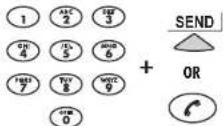
If you place a call to another wideband-capable phone, will appear on your LCD, indicating that your call is bene tting from the enhanced audio quality of a wideband connection.
Note: The subwoofer (see "Using the VTX Subwoofer," pg. 22) allows you to experience the full spectrum of wideband sound.
A wideband connection takes several seconds to establish. Music will play while you wait.
Mute and Unmute a Call
When a call is muted, you can hear the remote party, but they cannot hear you.
Mute
To mute a call, press the ⚪ (Mute) button.
A Muted Call
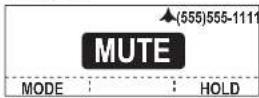

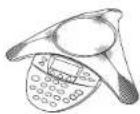
The three LEDs are red when a call is muted, and green when it is not.
Unmute
Press the ⚙ button again to unmute a call.
Hold and Resume a Call
When a call is on hold.
you cannot hear your remote party, and they cannot hear you.
Hold
To hold a call, press the HOLD soft key.
Hold Soft Key During an Active Call
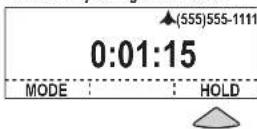

The three LEDs blink red when a call is on hold and are green when it is resumed.
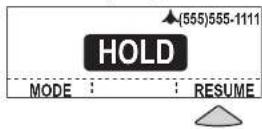
Resume
Press the RESUME soft key to resume the conversation.
Resume Soft Key During a Held Call
End a Call
To end a call, press the button.
If you initiate a multi-point call, all calls will disconnect when you press the 📞 button.
The duration of your ended call will be displayed for 6 seconds.
(555)555-111
0:05:23
SP DIAL PH BOOK REDIAL
Redial a Call
To redial the last number dialed out from the SoundStation VTX 1000, press the REDIAL soft key.
The screen will display the phone number of the party being dialed.
REDIAL

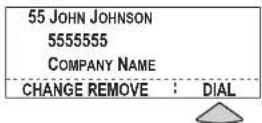
Dial a Call Using the Phone Book
Please refer to "Dial an Entry," in the Phone Book section, pg. 12, for instructions on calling a number in your Phone Book.
Speed Dial a Number
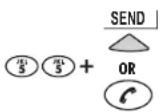
You can speed dial any entry in your Phone Book, in either of these ways:
Speed Dial Number First
1 Enter the 1- or 2-digit Speed Dial number.
2 Press the 📞 button or the SEND soft key.
If a Speed Dial entry does not exist, a NOT ASSIGNED notice will appear. You can enter a new Speed Dial number or press the CANCEL soft key.
Note: For 1-digit numbers, you do not have to dial a leading 0 (e.g., for 02, you can also just press 2). Note: To create Phone Book entries and assign Speed Dial numbers, see "Add a New Entry," pg. 13, and "Assign a Speed Dial Number," pg. 14.
Soft Key First
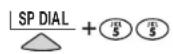
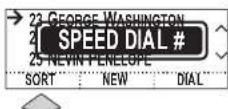
1 Press the SP DIAL soft key.
2 Enter the 1- or 2-digit Speed Dial number (if you enter one digit, wait through the brief delay).
Add a Call
If your phone system provides one of the typical forms of multi-party call conferencing, then you can establish multi-party calls with your SoundStation VTX 1000, as described next.
Please check with your System Administrator (not Polycom) to determine the number of parties that can be conferred together, given your phone system's multi-party capabilities.
If you cannot connect multiple parties using the method described below, please check with your System Administrator (not Polycom).
Your System Administrator may need to activate multi-party conferencing features, adjust the Flash Timing (as described in "Flash Timing," pg. 36), or provide you with instructions specific to your phone system.
If your phone line supports Call Waiting, you can answer an incoming call using the CONF button, but the incoming call cannot be joined into the existing call. Only outgoing calls can be joined into a multi-point call.
During an ongoing call:
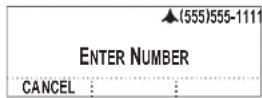
1 Press the CONF button.
If you prefer, you can press the HOLD soft key first, and then the CONF button. Either way, your original call is put on hold.
Important: If you have already connected as many parties as your system can support, then pressing CONF will drop the last party you connected. (This response is a function of how your phone company or PBX works, not the SoundStation VTX 1000.)
2 At the dial tone, enter the next party's phone number.
Note: Only conventional dialing is supported for added calls. Redial, Speed Dial, and dialing from the Phone Book are unavailable.
3 When the next party has answered, press the CONF button again, or the JOIN soft key to join all the calls, so all parties can hear and speak to each other.
Note: All multi-party calls are narrowband calls. When you press the CONF button to add another party, any wideband connection you may have with your first party will revert to narrowband, and you will no longer see the √ symbol on your display. Your connection will also revert to narrowband if another party picks up a phone connected in parallel with your SoundStation VTX 1000. The CONF key provides identical functionality to FLASH or R on most phone networks.
Note: If you change your mind before beginning to enter a phone number, press CONF again or the CANCEL soft key to return to your on-hold call, then press the RESUME soft key to reactivate that call, if you placed the caller on hold prior to pressing CONF.
Adjust Volumes
Adjust Speaker Volume
While the phone is in active use, press the ◀ button to lower the speaker volume, and the ◀ button to raise the speaker volume.
Adjust Ringer Volume
While the phone is in a ready state (not actively in use), press the ◀ button to lower the ringer volume and the ◀ button to raise the ringer volume.
Adjust Dial Tone
While the phone is in ready state, press the button to get dial tone, then use 📋 and 🔒 to adjust the volume up or down.

Turn Wideband Off
To turn wideband off
1 Press the MODE soft key.
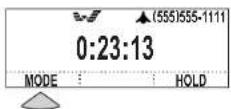
2 Press the OFF soft key (or press the BACK soft key to return to the Call Screen without turning wideband off).
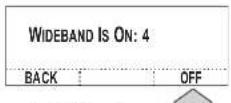
3 Press the BACK softkey (or wait several seconds) to return to the Call Screen.
Use the Phone Book
Access the Phone Book
To access the Phone Book, use either of these methods:
Soft Key
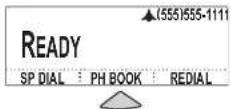
Press the PH BOOK soft key if it is on your screen.
Menu
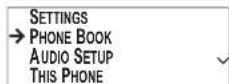
Press the MENU button, use the √ button to highlight "Phone Book," and press the SELECT button.
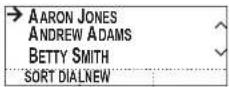
Sort the Entries
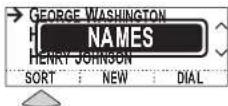
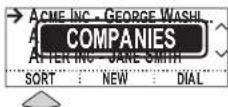
Press the SORT soft key to cycle through the entry views by name, company, or Speed Dial number.
When you access the Phone Book, the entries are listed in order by name, with the first entry name highlighted.
Note: When sorted by company, entries that lack company data are displayed at the top of the list, with the name in brackets.
Find an Entry
You can look through the entries using the ∨ or ∨ buttons, or you can jump to them using the number buttons.
Find Name
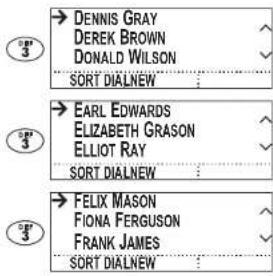
To jump to the entries that begin with a particular letter, press the number button with that letter on it.
▼ Press the same number button again to jump to the entries that begin with each of its letters; e.g., pressing 3 repeatedly will jump to D, E, F, D, etc.
Note: Jumping by letter works when the entries are listed by name or by company.
text_image
→ DENNIS GRAY DEREK BROWN DONALD WILSON SORT DIALNEW → EARL EDWARDS ELIZABETH GRASON ELLIOT RAY SORT DIALNEW → FELIX MASON FIONA FERGUSON FRANK JAMES SORT DIALNEWFind Speed Dial Number
To jump to an entry with a particular Speed Dial number:
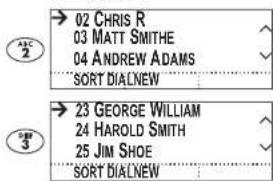
Make sure the entries are sorted by Speed Dial number (see "Sort the Entries," above).
2 Press the number buttons to jump to the entry with the 1- or 2-digit Speed Dial number you select.
For 1-digit numbers, you do not have to dial a leading 0 (e.g., for 02, you can also just press 2).
For 2-digit numbers, press both digits in succession, ignoring the jump that occurs when you enter the first digit.
text_image
02 CHRIS R 03 MATT SMITHE 04 ANDREW ADAMS SORT DIALNEW 23 GEORGE WILLIAM 24 HAROLD SMITH 25 JIM SHOE SORT DIALNEWDial an Entry
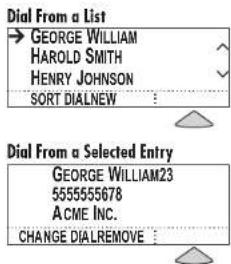
Entries in the Phone Book can be automatically dialed.
1 Highlight the entry you want to dial. (See "Find an Entry," above.)
2 Press the DIAL soft key. You will see and hear the call being dialed.
Note: You can also access the DIAL soft key after selecting an entry with the SELECT button. Note: If another call is ongoing, the DIAL soft key will not appear.
text_image
Dial From a List → GEORGE WILLIAM HAROLD SMITH HENRY JOHNSON SORT DIALNEW : Dial From a Selected Entry GEORGE WILLIAM23 555555678 ACME INC. CHANGE DIALREMOVE :Add a New Entry
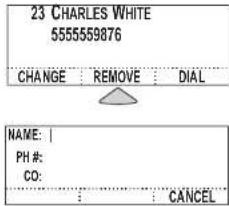
To add a new entry:
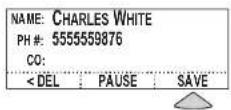
1 Press the NEW soft key.
2 Enter a name, using the number buttons.
Character Entry
For each letter you want, press the number button that has that letter on it. Press the same button repeatedly to cycle through the letters on that button; e.g., pressing 3 repeatedly will display D, E, F, 3, D, etc.
Advance a Character
For the next letter, press another number key. The cursor will advance automatically. To enter the same character, wait for 3 seconds then press the same key again.
Add a Space
Press the SPACE soft key (when available).
Delete a Character
Press the < DEL soft key
3 Press the √ button, and enter the phone number, using the number buttons. Pressing the PAUSE soft key will insert a 1.5 second pause (shown as a comma), which is often necessary when dialing from a PBX (or other enterprise) system that requires a prefix such as 9 for an external call.
4 If desired, press the ∨ button again and enter a company, as above. (You can continue to move among the fields with the ∧ or ∨ buttons.)
text_image
23 CHARLES WHITE 5555559876 CHANGE REMOVE DIAL NAME: | PH #: CO: CANCEL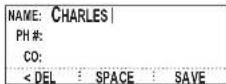
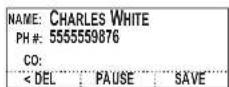
5 Press the SAVE soft key.
The SAVE soft key appears once you have entered data in the name and phone number fields.
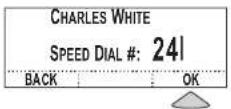
When you press the SAVE soft key, your entry will automatically be assigned the lowest available SpeedDial number.
6 Press the OK soft key, to accept the displayed Speed Dial number.
You will be returned to the Phone Book list, with your new entry included.
Note: To assign a different Speed Dial number, see "Assign a Speed Dial Number," below.
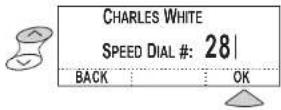
Assign a Speed Dial Number
If you do not want to use the automatically assigned Speed Dial number (above), you can change it.
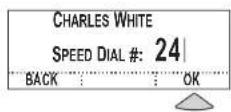
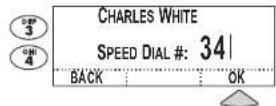
Enter the desired Speed Dial number with the number buttons, or use the ▲ or ▼ buttons to scroll through available Speed Dial numbers.
If you choose a Speed Dial number that has already been assigned to another entry, you will be asked whether you wish to reassign the Speed Dial number to the new entry. Press OK to do so and return to the Phone Book list, or CANCEL to back up one screen and choose another number.
To leave the New Entry screen without saving, press the EXIT button. You will be returned to the Phone Book list.
Edit an Entry
1 Highlight the entry you want (see "Find an Entry," pg. 12), and then press the SELECT button.
2 Press the CHANGE soft key.
3 Proceed to edit the contents as described in "Add a New Entry," pg. 13.
Remove an Entry
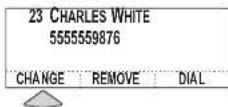
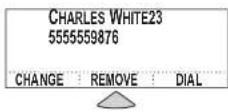
1 Make sure that the entry you want is highlighted (see "Find an Entry," pg. 12), and then press the SELECT button.
2 Press the REMOVE soft key.
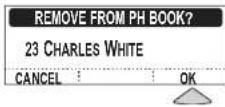
3 You'll be asked to confirm by pressing OK before the entry is removed and you are returned to the Phone Book list. If you don't wish to remove the entry, press the CANCEL soft key instead, and the entry will be kept.
Exit the Phone Book
In the entry view press the EXIT button to return to the Phone Book list view. Use EXIT to move from the Phone Book list view back to the Ready Screen, the Call Screen, or another previous display.
Adjust the Settings
Access the Settings
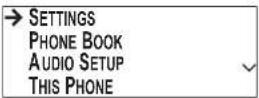
Press the MENU button. With "Settings" highlighted, press the SELECT button.
The Settings Menu will appear.
Main Menu
Select a Setting to Display
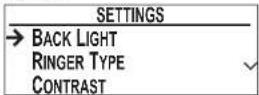
From the Settings Menu, use the ↗ or ∨ buttons to highlight the desired setting, and press the SELECT button.
Settings Menu
Adjust a Setting
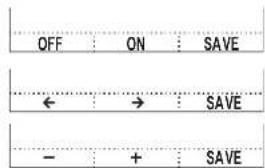
1 Depending on the setting, use your soft keys to
▼ Turn the BACK LIGHT OFF or ON
▼ Select a RINGER TYPE (← or →)
Adjust the screen CONTRAST (− or +)
Note: You can also use the ▲ or ▼ buttons to cycle through each setting's options.
text_image
OFF ON SAVE ← → SAVE - + SAVE2 Important: Press the SAVE soft key or SELECT button to apply the new adjustment and return to the Settings Menu. Otherwise, you can use the EXIT button or MENU button to return to the Settings Menu or Main Menu, but your new setting will not be saved.
Details of each setting's purpose and options follow.
Back Light
The SoundStation VTX 1000 screen offers back lighting for easy viewing in dim light environments. Use this setting to turn the back light use display style ON or OFF.

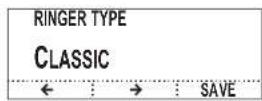
Ringer Type
You can select from 10 ringer options and OFF for Sound Station VTX 1000. Each ringer type is briefly auditioned when it is first displayed while pressing the or → soft keys.
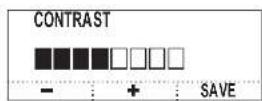
Contrast
To adjust the visibility of the screen, increase or decrease contrast with the - or + soft keys.
Adjust the Audio Setup
Access the Audio Settings
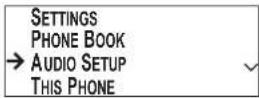
Press the MENU button. Use the √ button to highlight "Audio Setup," then press the SELECT button.
The Audio Setup Menu will appear.
Main Menu
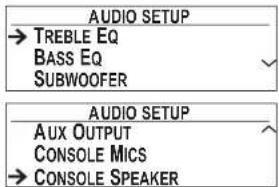
Select a Setting to Display
Use the ↗ or ↕ buttons to highlight the desired setting, and press the SELECT button.
Audio Setup Menu
text_image
AUDIO SETUP → TREBLE EQ BASS EQ SUBWOOFER AUDIO SETUP AUX OUTPUT CONSOLE MICS → CONSOLE SPEAKERAdjust an Audio Setting
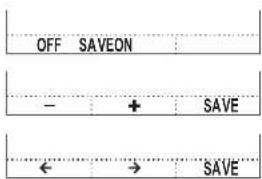
1 Depending on the setting, use your soft keys to
Adjust the TREBLE (- or +)
Adjust the BASS (- or +)
▼ Indicate the presence and type of AUX INPUT device (← or →)
▼ Indicate the presence and type of AUX OUTPUT device (← or →)
▼ Turn the CONSOLE MICS OFF or ON
▼ Turn the CONSOLE SPEAKER OFF or ON
▼ Turn the AUTOMATIC GAIN CONTROL OFF or ON
▼ Turn the NOISE REDUCTION OFF or ON
Note: You can also use the ▲ or ▼ buttons to cycle through each setting's options.
2 Important: Press the SAVE soft key or SELECT button to apply the new adjustment and return to the Audio Setup Menu. Otherwise, you can use the EXIT button or MENU button to return to the Audio Setup Menu or Main Menu, but your new setting will not be saved.
Details of each setting's purpose and options follow.
text_image
OFF SAVEON - + SAVE ← → SAVETreble EQ
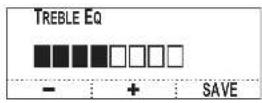
The Treble Equalizer adjusts the tone of the high frequency sound from the speakers. Use this setting to adjust the sharpness of the sound - (down) or + (up).
Bass EQ
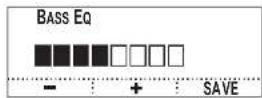
The Bass Equalizer adjusts the tone of the low frequency sound from the speakers. Use this setting to adjust the amount of bass = (down) or + (up).
Subwoofer Volume
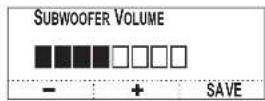
The subwoofer volume adjusts the volume of low frequency sound from the subwoofer and is used in concert with the Bass EQ to drive the appropriate low frequency level for the room (80-300 Hz). When the system is balanced, users should not perceive any sound coming from the subwoofer during normal operation, and the speech from the console speaker should sound warm and natural. Use this setting to adjust the amount of subwoofer volume - (down) or + (up).
Aux Input
Besides its built-in microphones and extension microphones, the SoundStation VTX 1000 can also accept audio input from external sources, such as an external wireless microphone or microphone mixer. (See "Using the Extension Microphones," pg. 22, for one option, and see "Connection Diagram," pg. 31, for installation.) To use these optional devices, the Aux Input setting must reflect the device connected. If no external source is in use, you can turn Aux Input OFF, if you prefer.
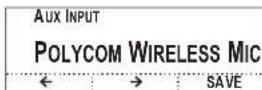
POLYCOM WIRELESS MIC, OTHER INPUT, OFF
Note: For specifications related to auxiliary input, see "Aux In and Aux Out Specification Table." pg. 40.
Aux Output
The SoundStation VTX 1000 combines sound from you and your remote party(s), and can output that sound to a subwoofer, or to another external audio device, such as a tape recorder or P.A. (public address) system. (See "Using the VTX Subwoofer," pg. 22, for one option, and see "Connection Diagram," pg. 31, for installation.) For these optional devices to work appropriately, the Aux Output setting must reflect whether a subwoofer or other device is connected.
OFF, SUBWOOFER, EXT SPEAKER, RECORD OUT
Note: Connections to some third party audio output devices may impair full duplex performance.
Aux OUTPUT
SUBWOOFER
← → SAVE
Console Mics
When using external microphones, you might prefer to turn off the SoundStation VTX 1000's console microphones. Use this setting to turn the console microphones OFF or ON. (Using this setting does not turn the extended microphones OFF or ON, so they should be disconnected if not required. Turning console mics OFF does not affect any other mics you may have connected to the AUX IN port.
CONSOLE MICS
ON
OFF SAVEON
Console Speaker
When using external speakers, you might prefer to turn off the SoundStation VTX 1000's console speaker. Use this setting to turn the console speaker OFF or ON.
CONSOLE SPEAKER
ON
OFF SAVEON
Automatic Gain Control
During a call, Automatic Gain Control can be turned OFF from the default ON setting to reduce the amount of audio pick-up in the room if side conversations become a problem for the far-end party. This feature is also useful for demonstrating the benefits of Automatic Gain Control. Once the desired setting is selected, press the SAVE soft key to activate that setting.
AUTOMATIC GAIN CONTROL
ON
OFF SAVEON
Noise Reduction
During a call, Noise Reduction can be turned OFF to demonstrate the benefits of this feature. Once the desired setting is selected, press the SAVE soft key to activate that setting.
NOISE REDUCTION
ON
OFF SAVEON
View Phone and Software Information
To view information about your phone:
- Press the MENU button.
- Press the √ button to highlight "This Phone," then press the SELECT button.
- With "Location and Number" selected, press the SELECT button to display your phone's location and phone number. OR
Press the ∨ button to highlight “System Info,” then press the SELECT button to display your phone’s software version and date, hardware version, and serial number.
Press the EXIT button to step back through the submenu and Main Menu, and again to return to the Ready Screen.
THIS PHONE
→ 1. LOCATION AND NUMBER
- SYSTEM INFO
MAIN CONFERENCE ROOM
(555) 555-1111
VTX.00.02.035 JAN 22 2003
CONSOLE FPGA REV.: A
SERIAL #1146270302
Peripheral Devices
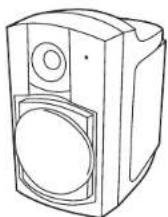
Using the VTX Subwoofer
The SoundStation VTX Subwoofer allows you to experience the full spectrum of wideband sound and provides the low-frequency output that optimizes speech intelligibility and distinguishability.
To install the VTX Subwoofer, see the Connection Diagram on pg. 31.
Once it is connected, if you experience any problems with sound output, access the Audio Setup (as described on pg. 17) and restore Aux Output (pg. 19) to SUBWOOFER (which is the default setting).
Note: When the subwoofer is properly balanced, users should not perceive sound to be coming out of the subwoofer itself. Instead, users should perceive the sound to be coming from the console speaker only, with the subwoofer adding warmth (bass) to the overall sound in the room. If users perceive sound to be coming from the subwoofer, then either the Bass EQ or subwoofer volume control, or both, are
set too high. In large rooms or highly absorbent rooms, extra energy may be required from the subwoofer. Use the Bass EQ and Subwoofer volume controls in the Audio Setup menu to balance the system. If you suspect problems with the subwoofer, follow the External Speaker Test instructions on page 40.
You can control the treble and base tones in the Audio Setup's Treble EQ and Base EQ screens, as described on pg. 19.
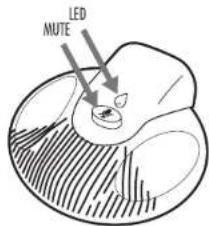
Your SoundStation VTX 1000 can provide greater microphone coverage in larger conference rooms with the addition of Extension Microphones. If not purchased with your SoundStation VTX 1000, these SoundStation VTX 1000 Extension Microphones are available as an accessory from your Polycom Distributor.
To mute all microphones from an Extension Microphone, press 🖱. (When a call is muted, you can hear the remote party, but they cannot hear you.) All system LEDs will turn red to indicate the mute status. To resume two-way communication, press 🖱 again. All the red LEDs will return to green.
LED
Green — Your call is in progress. Red — Your call is muted.
text_image
LED MUTEUsing the Polycom Wireless Microphone System
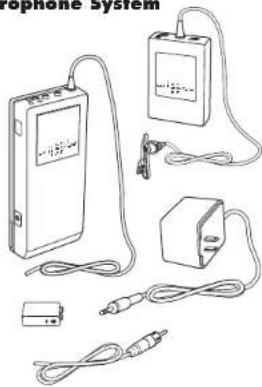
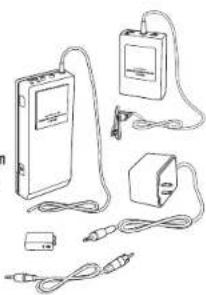
Your SoundStation VTX 1000 can integrate with an optional Wireless Microphone System for presenters who stand or are mobile. If not purchased with your SoundStation VTX 1000, this Polycom Wireless Microphone System is available as an accessory from your Polycom Distributor.
For information about the components and setup of a Polycom Wireless Microphone System, as well as directions for its use, please refer to the Uscr Guide that ships with it. Note: The Polycom Wireless Microphone System is available only in North America.
text_image
Telephone systemTroubleshooting
No Dial Tone
▼ Check that all connections are tight and in place.
▼ Make sure all connections are correct. (See "Connection Diagram," pg. 31.)
▼ Make sure that the console speaker is enabled. Refer to page 20.
SoundStation VTX 1000 Does Not Ring
▼ Check that the ringer is not turned off. (See "Ringer Type," pg. 17.)
If the volume is turned all the way down, increase the volume with the ◀ button.
▼ Make sure that the console speaker is enabled. Refer to page 20.
Cannot Connect In Wideband Mode
▼ You must be connected to another SoundStation VTX 1000 to enter wideband mode.
▼ Modem Train Time: The short train mode (6 seconds) should only be used on high quality phone lines. If you consistently have problems achieving wideband mode, set the modem train time to long (12 seconds). Refer to page 36.
▶ Bridged Calls: Wideband mode currently does not work with external conference bridges (i.e. multiple calls).
Line Quality: The VTX 1000's modem operates in two modes, wideband voice mode and software download mode. In software download mode, the modem connects at higher rates, typically those rates achieved with a data modem on the same lines. However, in wideband mode, the connection rate is optimized for reliability rather than speed. The maximum rate used for wideband is 19.2 kbps while the maximum rate for software download is 33 kbps.
Poor line quality can prevent connections in wideband mode. The VTX 1000 will connect in wideband mode on connections as low as 12 kbps. However, if the line quality does not consistently support 12 kbps, the unit will connect in narrowband mode. This will be the case if your local loop is longer than 12,000 feet. Also, this can be the case with shorter loops if there is a problem on the line. Please contact your local phone company for resolution. In general, a typical data modem should be able to achieve 24 kbps connections in order to support a VTX call.
In order to test your line quality, perform the following test: Configure a VIX 1000 which has a good line as a software download server in accordance with instructions on page 44. Configure the unit with the line problems to receive a software download from the unit configured as a download server.
When the software download starts, note the connect rate that is displayed as the connection is established. You may cancel the software download once the connect rate has been displayed. If the software download connect rate is below 19.2 kbps, the line will not support wideband calls.
▼ Call Waiting: Call Waiting signals will interfere with wideband operation. It is highly recommended that Call Waiting be disabled by the phone company (or PBX administrator) for lines used for VTX 1000 wideband calls.
No Caller ID
Caller ID is supported only through your local phone company and only if you have subscribed to Caller ID service.
Type II "Caller ID on Call Waiting" is not supported, only Type I.
PBX (and other enterprise phone system Caller ID), which is proprietary, is not supported.
Flickering LCD
If your screen appears to flicker, it may be because you are using a certain type of older fluorescent
lighting in your building. Move the SoundStation VTX 1000 away from the lights or replace the lights.
Quick Keypad Input Is Not Registered
▼ Press the buttons more slowly. Because of system responsiveness, some buttons may not be recognized if you press them quickly.
If the problem you are experiencing is not resolved here, please contact your System Administrator.
Muffled or "In a Well" Reception
This is caused by highly reverberant rooms and people speaking too far from a mic.
▼ Add more sound absorbency to the room.
▼ Speak closer to the unit so the microphones can pick up your speech.
Variable Sound Quality
You will enjoy the highest sound quality when you are on a wideband call, which you can determine by the presence of on your screen.
If you are on a multi-party call, or a call with a party whose phone is not wideband enabled, your SoundStation VTX 1000 establishes a narrowband call, and you may notice a change in sound quality.
Problematic Sound Quality or No Sound
If sound quality is problematic, or there is no sound, first determine whether any external audio output devices are in use, such as a subwoofer, PA system, or tape recorder.
If such devices are in use, check that all the connections are secure. (See "Connection Diagram," pg. 31.) Then, access the Audio Setup (as described on pg. 17) and make sure that Aux Output (pg. 19) is set correctly. If a Subwoofer is in use, set Aux Output to SUBWOOFER. If any other device is in use, set Aux Output to EXT SPEAKER, RECORD OUT, or OFF.
Excessive Noise
▼ Noisy equipment, such as a computer or fan, may make it difficult for you to hear the other party. Both parties should turn off any noisy equipment.
▼ Try calling again to see if another line provides a better connection.
Remote Party Cannot Hear You
If a remote party cannot hear you at all, cannot hear you well, or cannot hear you via particular microphones, first determine whether any external audio input devices are in use, such as a wireless microphone or mic mixer.
If such devices are in use, check that all the connections are secure. (See "Connection Diagram," pg. 31.) Then, access the Audio Setup (as described on pg. 17) and make sure that Aux Input (pg. 19) is ON, so that input from these devices is recognized.
If such devices are not in use, access the Audio Setup (as described on pg. 17) and make sure that Console Mics (pg. 20) are ON.
If the only such devices in use are the VTX's Extended Microphones, access the Audio Setup (as described on pg. 17) and make sure that Console Mics (pg. 20) are ON. This setting controls both the internal microphones and the Extended Microphones.
Reverting to Narrowband
All multi-party calls are narrowband calls. When you press the CONF button to add another party, any wideband connection you may have had with your first party will revert to narrowband, and you will no longer see on your screen.
Your connection will also revert to narrowband if another party picks up a phone which is connected in parallel with your SoundStation VTX 1000.
Excessive noise on the line will also cause the phone to automatically switch to narrowband. If this problem persists, contact your pone line telephone service provider or system administrator. VTX 1000 is designed to provide wideband service on business quality phone lines.
Short Silences, Echoes, or Clipped Speech
▼ Do not move the SoundStation VTX 1000 console while it is in use.
▼ Keep your hands away from the unit during calls.
▼ Keep papers, cups, coffee pots, etc., away from the unit.
At the beginning of a call, let someone at each location speak in turn for a few moments, to enable SoundStation VTX 1000 to adapt to its environment.
The other party may be using lower-quality equipment or a half-duplex conference bridge, in which case there may be little you can do.
▼ Try calling again to see if another line provides a better connection.
Physical Damage
If physical damage is severe enough that the internal parts become visible, disconnect the SoundStation VTX 1000 immediately. Do not reconnect it to the telephone network until the SoundStation VTX 1000 has been repaired.
For Best Performance
Your SoundStation VTX 1000 performs optimally when you follow these guidelines:
▼ Position the SoundStation VTX 1000 in the center of a conference table or desk.
▼ Do not move the SoundStation VTX 1000 while on a call.
▼ Do not shuffle papers near the SoundStation VTX 1000.
▼ Position extended microphones 7 feet from the SoundStation VTX 1000 console.
Speak at normal conversation levels, and direct your voice toward the SoundStation VTX 1000, or toward the extended microphone.
Maintenance
Unplug all cords from the modular wall jack before cleaning. Do not use liquid cleaners or aerosol cleaners. Use a damp cloth for cleaning.
Administrator's Guide

natural_image
Abstract black and white geometric pattern with curved lines and circular shapes (no text or symbols)Parts List
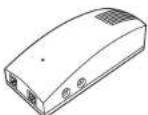
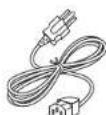
Your SoundStation VTX 1000 audio conferencing system includes the following items:
This Operation Manual

Phonejack Cable

Optional Equipment
Extension Microphones
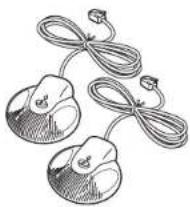
Interface Module
RJ 45 Cable

Interface Module Power Cord (Yours may differ.)
Wireless Microphone System (Available only in North America)
natural_image
Line drawing of electronic devices including a battery, charging case, and power cord (no text or symbols)If any of the above parts is missing, please contact your Polycom representative or authorized dealer.
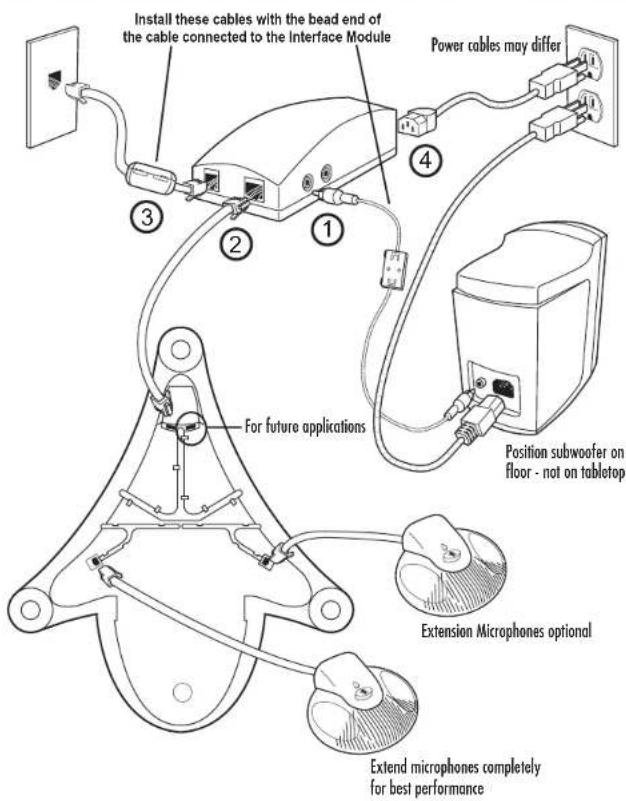
Connection Diagram
text_image
Install these cables with the bead end of the cable connected to the Interface Module Power cables may differ ① ② ③ ④ For future applications Position subwoofer on floor - not on tabletop Extension Microphones optional Extend microphones completely for best performanceATTENTION!
Connect Cables in sequence 1 to 4.
1) Cable 1 is for Subwoofer. Ships with Subwoofer ONLY.
2) Start with Cable 2 if Subwoofer is not included.
3) If unit fails to power up, disconnect all cables and reconnect in sequence shown.
Administrative Setup Overview
The following items are part of the Administrative Setup area.
- Location
| 1 Location Name Enter a name for this SoundStation VTX 1000's location. |
| 2 This Phone # Enter this SoundStation VTX 1000's telephone number. |
- Phone System
| 1 Flash Timing Set the flash delay to 75, 100, 300, or 600 milliseconds. | |
| 2 Caller ID Turn Caller ID (if available) on or off. | |
| 3 Modem Setup | Select short train time (6 seconds) for high quality line or long train (12 seconds) otherwise. |
| 4 Wideband Monitor | Selecting "ON" (default) monitors wideband calls for line quality degradation. |
- Passcode
| Set whether or not to require a passcode, and assign a new passcode. |
- Diagnostics
| 1 Mic Test View the relative level of the sample received by each individual microphone. | |
| 2 Console Spkr (Speaker) Test | Select acoustic test signals to drive through the SoundStation VTX 1000 speakers |
| 3 Ext Spkr Test(External Speaker) | Select acoustic test signals to drive through external audio output devices, such as speakers, PA systems, etc. |
| 4 Modem Statistics | View the SoundStation VTX 1000 modem performance for the last call that made use of a modem connection. |
| 5 Restore Defaults | Completely eliminate all settings and data that have been entered since the phone was first installed and restores original default settings. |
- Software
| 1 Upgrade Software | Dial in to download updated software directly to the SoundStation VTX 1000. |
| 2 Configure Dialing Number | Enter the number to be dialed to upgrade software. |
| 3 Configure as DL Server | Activate or deactivate the SoundStation VTX 1000's capability to provide software upgrades to other VTXs that call it. |
The following pages explain how to access, select, adjust, use, and exit these settings and functions.
Access Administrative Setup
Press the MENU button. Use the √ button to highlight ADMIN SETUP, then press the SELECT button.
No Passcode Assigned
If there is no Passcode assigned, the Admin Setup Menu will be displayed.
| ADMIN SETUP |
| → 1. LOCATION2. PHONE SYSTEM3. PASSCODE |
| 4. DIAGNOSTICS5. SOFTWARE |
Passcode Assigned
If there is a Passcode assigned, use the number keypad to enter your 3-digit code, and then press ENTER.
| ADMIN SETUP | ||
| PASSCODE: 1 | ||
| CANCEL : < DEL : ENTER |
▼ Use the CANCEL soft key to return to the Main Menu.
▼ If you make an error, press <DEL to delete characters.
Caution: Be sure to write down your passcode in a safe place in case you forget it. If you cannot remember or find your passcode, please contact Polycom Support at www.polycom.com/support and click on "How to Contact Support and Service" for your local support contact information.
Note: You can set whether or not to require a passcode in the "Passcode" section, pg. 37.
| INCORRECT PASSCODE | ||
| PASSCODE: | ||
| CANCEL | < DEL | ENTER |
If you enter an incorrect passcode, the digits you entered will disappear and you will be returned to the Admin Setup menu to re-enter your passcode.
Select an Item to Display Standard Selection
Use the ∧ or ∨ buttons to highlight the desired item, and press the SELECT button.
| ADMIN SETUP | |
| → | 1. LOCATION |
| 2. PHONE SYSTEM | |
| 3. PASSCODE | |
| 4. DIAGNOSTICS | |
| 5. SOFTWARE | |
Selection Shortcuts
For quick selection of the desired item, press its number on the keypad.
Some Admin Setup sections have submenus, which are also numbered for quick selection, so you can enter a two-digit number for quickest access. For example, pressing 2 3 at the main Admin Setup Menu will select the 2. PHONE SYSTEM submenu's 3. MODEM SETUP item.
Administrative Setup Navigation Overview
From the Admin Setup Menu
| ADMIN SETUP | |
| → | 1. LOCATION |
| 2. PHONE SYSTEM | |
| 3. PASSCODE | |
SELECT button
Display the Submenu or Item Screen of the current selection.
EXIT button
Return to the Main Menu.
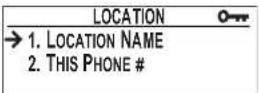
From a Submenu
| LOCATION | |
| → | 1. LOCATION NAME |
| 2. THIS PHONE # | |
(i.e., the Location Submenu, Phone System Submenu, Diagnostics Submenu or Software Submenu)
SELECT button
Display the Item Screen of the current selection.
EXIT button or MENU button
Return to the Admin Setup Menu or Main Menu.
From an Item Screen
(i.e., a Location screen, Phone System screen, Passcode screen, Diagnostics screen, or Software screen)
SELECT button or SAVE soft key
Apply the new setting, information, or adjustment and return to the previous menu.
Note: For Passcode screens, this is the Admin Setup Menu, while for all the other subscreens, it's the corresponding submenu.
EXIT button
Return to the previous menu without saving your new settings, information, or adjustments.
Note: For Passcode screens, this is the Admin Setup Menu, while for all the other subscreens, it's the corresponding submenu.
MENU button
Return to the Main Menu without saving your new settings, information, or adjustments.
Enter Location Information
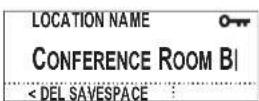
Location Name
Use the number keypad to enter a location name, which will be displayed when "This Phone" is selected from the Main Menu.
Character Entry
Character Entry
For each letter you want, press the number button that has that letter on it. Press the same button repeatedly to cycle through the letters on that button; e.g., pressing 3 repeatedly will display D, E, F, 3, D, etc.
Add a Space
Press the SPACE soft key (when available).
Delete a Character
Press the < DEL soft key.
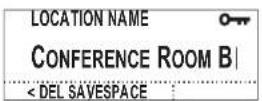
Advance a Character
To enter the same character, wait for 3 second then press the same key again.
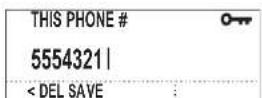
This Phone #
Use the number keypad to enter this SoundStation VTX 1000's phone number.
If you make an error, use the <DEL soft key to erase it.
Save
Important: Press the SAVE soft key or
SELECT button to retain the new location name and return to the Location Submenu. Otherwise, you can use the EXIT button to return to the Location Submenu, or the MENU button to return to the Main Menu, but your new location will not be saved.
Phone System
Flash Timing
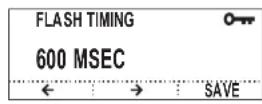
You can adjust the timing of the Flash delay to 75, 100, 300, or 600 milliseconds. Use the and soft keys or the or buttons to cycle through these Flash Timing options. Press the SAVE soft key to save the change.
Caller ID
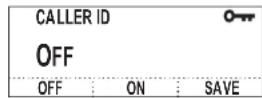
If available, you can turn Caller TD ON or OFF with your soft keys or the ∧ or ∨ buttons. Press the SAVE soft key to save the change.
Modem Setup
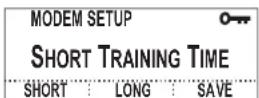
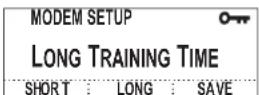
The ability for two SoundStation VTX 1000s units to connect in wideband mode is largely dependent on telephone line quality. The longer the “training” time (the time between when two VTX phones connect until a wideband call is established) the higher the probability two SoundStation VTX units can establish a wideband call, even on relatively poor quality phone lines.
SoundStation VTX 1000 assumes poor line quality by default, defaulting to a Long Training Time of 10 - 12 seconds. However, a Short Training Time can be configured on higher quality phone
lines, such as analog lines on enterprise telephone systems (PBXs, etc.), in order to save wideband connection time.
Training time can be decreased to 4 - 6 seconds by selecting SHORT, then pressing SAVE to save the change. If Short Training Time does facilitate consistent connections in wideband mode, return SoundStation VTX 1000 to LONG Training Time.
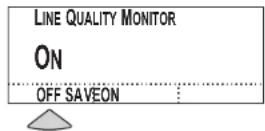
Wideband Line Quality Monitor
During the course of a wideband call line quality on a telephone network can degrade, which can impact the clarity and overall audio quality of a VTX Wideband call. SoundStation VTX 1000s Wideband Line Quality Monitor will automatically revert a wideband call to narrowband mode if significant line quality degradation is detected, and is severe enough to impact wideband audio quality over time. The Wideband Line Quality Monitor is ON by default, but can be deactivated by selecting OFF and then SAVE. For shorter conference calls, the benefit of turning off the Wideband Line Quality Monitor is that it may be likely that your wideband call will end before any detectable degradation in audio quality can be detected, thus avoiding an unnecessary "drop" to narrowband.
Passcode
You have the option to decide if a passcode should be required to enter the Admin Setup area. If a passcode is required, you may select your own passcode.
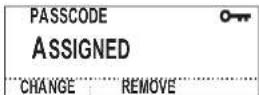
When you select PASSCODE from the menu, the screen will display whether or not a passcode is currently assigned.
Assign a Passcode
If no passcode is currently assigned, you can press the ASSIGN soft key to create one.
▼ Use the number keys to enter three digits, and then press the SAVE soft key.
▼ If you make an error,
press the <DEL soft key to erase it.
▼ If you change your mind about assigning a passcode, press the CANCEL soft key.
PASSCODE NOT ASSIGNED
ASSIGN
ENTER NEW
PASSCODE: I
CANCEL SAVE<DEL
Remove a Passcode
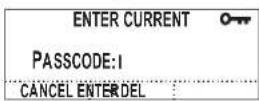
Removing a passcode means that you will no longer need a passcode to enter the Admin Setup area. After you press the REMOVE soft key, you will have to enter the current passcode before you can change it.
▼ Use the number keys to enter three digits, and then press the ENTER soft key.
▼ If you make an error,
press the <DEL soft key to erase it.
When you press the ENTER soft key, if the passcode you entered is incorrect, you will be notified to try again.
▼ Press the CANCEL key if you change your mind about removing the passcode.

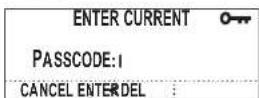
Assign a New Passcode
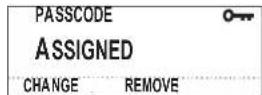
To change the passcode, press the CHANGE soft key. You will be asked to enter the current passcode before the SoundStation VTX 1000 will allow you to change it.
Use the number keys to enter three digits, and then press the SAVE soft key.
▼ If you make an error,
press the <DEL soft key to erase it.
When you press the ENTER soft key, if the passcode you entered is incorrect, you will be notified to try again.
You will then be prompted to enter the new passcode.
▼ Use the number keys to enter three digits, and then press the SAVE soft key.
▼ If you make an error,
press the <DEL soft key to erase it.
If you change your mind about changing the passcode, press the CANCEL soft key.

ENTER NEW
PASSCODE:
CANCEL SAVE<DEL
Diagnostics
Mic Test
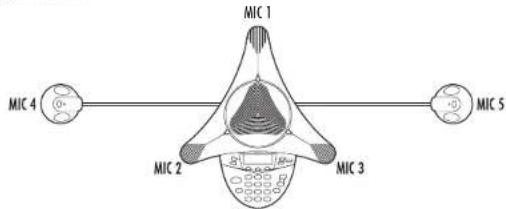
To test the SoundStation VTX 1000's microphones from within the Mic Test portion of the Diagnostics section, highlight the microphone you wish to test, and then press the SELECT button. The microphones are numbered according to the diagram below:
text_image
MIC 1 MIC 4 MIC 2 MIC 3 MIC 5When you have selected a microphone:
▼ That microphone's LED will light up red.
▼ That microphone will begin sampling at a 1 Hz rate, 50% duty cycle.
The display will show a meter that modulates according to the relative sample received by that microphone.
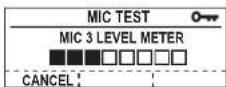
If a microphone's meter indicates that it is receiving an atypically low or high sample, despite appropriately controlled input, contact Polycom Technical Support.
Console Speaker Test
From the Console Speaker Test portion of the Diagnostics section, you can select an acoustic test signal to drive through the SoundStation VTX 1000's speaker for speaker testing and to sample the room acoustics.
Highlight the desired signal, and press the SELECT button soft key to activate the signal.
Sine Sweep is a test signal consisting of a 100 Hz to 14,000 Hz sine wave whose frequency is swept according to a linear progression of frequency as a function of time, or (t)=A*sin(kt).
▼ Onc kHz Tone is a constant tone generated at exactly 1000 Hz.
- White Noise is a signal whose energy is distributed uniformly among all frequencies within a band of interest, which for the SoundStation VTX 1000 is 100 Hz to 14,000 Hz.
External Speaker Test
The External Speaker Test portion of the Diagnostics section works just as described above but drives the signal through the audio output device you have connected, such as a speaker, subwoofer, or PA system. (See the Connection Diagram, pg. 31, for setup of audio output devices. See also "Aux Output," pg. 19, for information on configuration.)
Note: The External Speaker Test signals can be used for the VTX Subwoofer (see "Using the VTX Subwoofer," pg. 22, and also see "Aux Output," pg. 19, for information on configuration), but output signal levels with the Subwoofer will not exceed 300 Hz.
Aux In and Aux Out Specification Table
| External Device Output | Interface Module Input |
| Polycom Wireless Mic | |
| 100 Hz < BW < 14 kHzZout < 200 ohms, typicalMax Vout 0.25 Vpp to 1.0 Vpp | 100 Hz < BW < 14 kHzZin = 24k ohms, nom |
| Ext Mic | |
| 100 Hz < BW < 14 kHzAudio out = 600 ohms, typicalLevel = 0.5 Vpp, nom | 100 Hz < BW < 14 kHzZin = 24k ohms, nom |
| Ext Mixer | |
| 100 Hz < BW < 14 kHzAudio out = 600 ohms, typicalLevel = 0.5 Vpp, nom | 100 Hz < BW < 14 kHzZin = 24k ohms, nom |
| External Device Input | Interface Module Output |
| Subwoofer | |
| 80 Hz < BW < 300 HzInput impedance = 7k ohms, nomSensitivity = 97 dBspl/Volt | 80 Hz < BW < 300 HzOutput Impedance < 100 ohmsOutput Level = 0.7 Vrms, max |
| External Speaker(s) | |
| 80 Hz < BW < 14 kHzAudio in = 10k ohms, typicalSensitivity = 100 dBspl/Volt, nom | 80 Hz < BW < 14 kHzOutput Impedance < 100 ohmsOutput Level = 0.7 Vrms, max |
| Record Out | |
| 80 Hz < BW < 15 kHzAudio in = 10k ohms, nomLevel = 0.7 Vrms, max | 80 Hz < BW < 14 kHzOutput Impedance < 100 ohmsOutput Level = 0.7 Vrms, max |
Modem Statistics
In the Modem Statistics portion of the Diagnostics section, you can view the SoundStation VTX 1000 modem performance for the last call that made use of a modem connection.
| MONITORING LINE QUALITY | |
| TX BIT RATE | 28800 |
| RX BIT RATE | 28800 |
| SNR | +18 |
| ROUND TRIP DELAY | 30 |
| CRC ERRORS | 0 |
The statistics provided are:
▼ Tx Bit Rate (Transmit Bit Rate) The achievable rate for sending data over a given phone line with the modem, in bits per second
▼ Rx Blt Rate (Receive Bit Rate) The achievable rate for receiving data over a given phone line with the modem, in bits per second
▼ SNR (Signal to Noise Ratio)
A measure, in microvolts, of signal strength relative to background noise as expressed in decibels
Round Trip Delay
The elapsed round trip time for transit of a signal over the analog telephone circuit
▼ CRC Errors
(Cyclical Redundancy Check Errors)
The cumulative number of lost data packets, a good measure of the robustness of the data connection
▼ Monitoring Line Quality
VTX 1000 provides text-based status indicators on the display to communicate the real-time operational details of the phone when testing line quality and negotiating wideband and narrowband connections. Below is a description of each.
- "Line Quality Standby"
This will be displayed if the prior phone call did not use the modem. (i.e. narrow band). - "Monitoring Line Quality"
This is displayed during a wideband call. - "Narrowband Select on Poor Sync"
This will be displayed if the local VTX 1000 decided to fall to Narrowband because it believed the modem had lost sync due to detected errors in V.34's so called superframe bit inversion synchronization pattern. - "Narrowband Select on CRC Level 1"
This will be displayed if the unit detects a 15% or greater CRC Error Rate consistently at our local receiver for 60 seconds. -
"Narrowband Select on CRC Level 2"
This will be displayed if we detect a 20% or greater CRC Error Rate consistently at our local receiver for 6 seconds. -
"Narrowband Select on CRC Level 3"
This will be displayed if the unit detects a 40% or greater CRC Error Rate consistently at our local receiver for 6 seconds. - "Narrowband Select on CRC Level 4"
This will be displayed if the unit detects an 80 % or greater CRC Error Rate consistently at our local receiver for 3 seconds. - "Wideband Signal Loss Detected"
This will be displayed if the remote VTX 1000 shut off wideband. This will also be displayed if the remote side hangs up.
When you select Restore Defaults, you will be prompted to confirm or cancel the complete elimination of all settings and data that have been entered since the phone was first installed.
▼ Important: If you Restore Defaults, all data entered since the phone was first installed, including, but not limited to, all Settings, Audio Setup entries, Administrative Setup passcode and data, etc., is irretrievably lost.
Note: Phone Book entries and Speed Dial numbers are not lost when restoring all defaults.
Press the OK soft key to confirm that you wish to Restore Defaults, or the CANCEL soft key to return to the Diagnostics submenu without restoring defaults.
Software
Upgrade Software
SoundStation VTX 1000 is the world's first analog telephone capable of software upgrades, via software download, over ordinary telephone lines. You can dial in to download software whenever free or purchased upgrades, improvements, or new functions are made available for your SoundStation VTX 1000.
(If no dialing number has ever been established for your SoundStation VTX 1000, then configure the dialing number as described in the next section, before proceeding with your upgrade.)
When you select Upgrade Software from the Software submenu, you will be prompted to indicate when you are ready for the SoundStation VTX 1000 to begin dialing in for a download. To initiate the process, press the OK soft key (or, to return to the Software submenu, press the CANCEL soft key).
Note: For an alternate way to receive upgrades, see "Configure as DL Server," pg. 43.
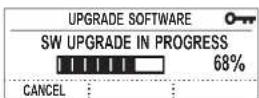
The SoundStation VTX 1000 will dial, connect, and begin downloading. Displays will indicate the number being dialed, the connection rate, and then download progress.
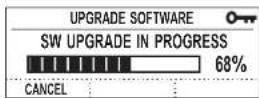
Generally, the download will take about 12 minutes on a high quality line which achieves 24 kbps connection rates. If the connection rate is lower or the bit errors (due to line noise) are high, download could take up to 1 hour. If you wish to cancel the download process, press the CANCEL soft key. After a confirmation prompt, a message will indicate that downloading was cancelled. Press the BACK soft key to return to the Software submenu.
Upon completion of the software downloading process, a secondary process of writing the software to memory will occur accompanied by a warning message to not unplug the unit during this secondary process. Writing software to memory takes approximately 1 minute 30 seconds, followed by a message indicating that download was successful. Once the successful download message is displayed, the phone is ready for use.
Configure Dialing Number
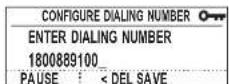
To download software, your SoundStation VTX 1000 needs the phone number of the VTX Download Server for your area. Use the number keypad to enter the dialing number that should be used, in the Configure Dialing area of the Software section.
Pressing the PAUSE soft key will insert a 1.5 second pause (shown as a comma), which is often necessary when dialing from a PBX (or other enterprise) system that requires a prefix such as 9 for an external call.
New software download availability and dialing numbers for your area are posted on the SoundStation VTX 1000 page on Polycom's web site:
WWW.POLYCOM.COM
▼ If you make an error, use the <DEL soft key to erase it.
▶ Important: Press the SAVE soft key to retain the new dialing number and return to the Configure Software Upgrade submenu. Otherwise, you can use the EXIT button to return to the Software Submenu, or the MENU button to return to the Main Menu, but your new dialing number will not be saved.
Configure as DL Server
Once a single SoundStation VTX 1000 within your organization has upgraded software, if you configure it as a download server, other VTX phones can call it to receive the upgrade, rather than each calling the main VTX Download Server for your area.
Any SoundStation VTX 1000 can be configured as a download server.
When you select Configure as DL Server from the Configure Software Upgrade submenu, if the phone is not already configured as a server, you will be asked whether to activate it as a server. Press the OK soft key to activate it as a server, or the CANCEL soft key to return to the Configure Software Upgrade submenu.
If, instead, the phone is already configured as a server when you select Configure as DL Server, you'll be asked whether to deactivate it as a server. Press the OK soft key to deactivate the phone as a server, or the CANCEL soft key to return to the Configure Software Upgrade submenu.
Once a SoundStation VTX 1000 unit is configured as a download server, other SoundStation VTX 1000 units can dial into it to download software. The process of configuring the dialing number and upgrading software is identical when using another SoundStation VTX 1000 as your download server, as described on pg. 42.
Note: When VTX 1000 is configured for Server Mode, no audio calls are possible on VTX 1000 until it is deactivated as a download server.
Specifications and Warranty Information

natural_image
Abstract black-and-white line art design with geometric shapes and a 'Polycom' logo (no text or symbols beyond the logo)Limited Warranty and Limitation of Liability
Limited Warranty
Polycom warrants to the end user ("Customer") that this product will be free from defects in workmanship and materials, under normal use and service, for one year from the date of purchase from Polycom or its authorized reseller.
Polycom's sole obligation under this express warranty shall be, at Polycom's option and expense, to repair the defective product or part, deliver to Customer an equivalent product or part to replace the defective item, or if neither of the two foregoing options is reasonably available, Polycom may, in its sole discretion, refund to Customer the purchase price paid for the defective product. All products that are replaced will become the property of Polycom. Replacement products or parts may be new or reconditioned. Polycom warrants any replaced or repaired product or part for ninety (90) days from shipment, or the remainder of the initial warranty period, whichever is longer.
Products returned to Polycom must be sent prepaid and packaged appropriately for safe shipment, and it is recommended that they be insured or sent by a method that provides for tracking of the package. Responsibility for loss or damage does not transfer to Polycom until the returned item
is received by Polycom. The repaired or replaced item will be shipped to Customer, at Polycom's expense, not later than thirty (30) days after Polycom receives the defective product, and Polycom will retain risk of loss or damage until the item is delivered to Customer.
LIMITATION OF LIABILITY, TO THE FULL EXTENT ALLOWED BY LAW, POLYCOM EXCLUDES FOR ITSELF AND ITS SUPPLIERS ANY LIABILITY, WHETHER BASED IN CONTRACT OR TORT (INCLUDING NEGLIGENCE), FOR INCIDENTAL, CONSEQUENTIAL, INDIRECT, SPECIAL, OR PUNITIVE DAMAGES OF ANY KIND, OR FOR LOSS OF REVENUE OR PROFITS, LOSS OF BUSINESS, LOSS OF INFORMATION OR DATA, OR OTHER FINANCIAL LOSS ARISING OUT OF OR IN CONNECTION WITH THE SALE, INSTALLATION, MAINTENANCE, USE, PERFORMANCE, FAILURE, OR INTERRUPTION OF ITS PRODUCTS, EVEN IF POLYCOM OR ITS AUTHORIZED RESELLER HAS BEEN ADVISED OF THE POSSIBILITY OF SUCH DAMAGES, AND LIMITS ITS LIABILITY TO REPAIR, REPLACEMENT, OR REFUND OF THE PURCHASE PRICE PAID, AT POLYCOM'S OPTION. THIS DISCLAIMER OF LIABILITY FOR DAMAGES WILL NOT BE AFFECTED IF ANY REMEDY PROVIDED HEREIN SHALL FAIL OF ITS ESSENTIAL PURPOSE.
Exclusions
Polycom will not be liable under this limited warranty if its testing and examination disclose that the alleged defect or malfunction in the product does not exist or results from
Failure to follow Polycom's installation, operation, or maintenance instructions;
▼ Unauthorized product modification or alteration;
▶ Unauthorized use of common carrier communication services accessed through the product;
Abuse, misuse, negligent acts or omissions of Customer and persons under Customer's control; or
Acts of third parties, acts of God, accident, fire, lighting, power surges or outages, or other hazards.
WARRANTY EXCLUSIVE, IF A POLYCOM PRODUCT DOES NOT OPERATE AS WARRANTED ABOVE, CUSTOMER'S SOLE REMEDY FOR BREACH OF TIAT WARRANTY SHALL BE REPAIR, REPLACEMENT, OR REFUND OF THE PURCHASE PRICE PAID. AT POLYCOM'S OPTION. TO THE FULL EXTENT ALLOWED BY LAW, THE FOREGOING WARRANTIES AND REMEDIES ARE EXCLUSIVE AND ARE IN LIEU OF ALL OTHER WARRANTIES, TERMS. OR CONDITIONS, EXPRESS OR IMPLIED, EITHER IN FACT OR BY OPERATION
OF LAW, STATUTORY OR OTHERWISE, INCLUDING WARRANTIES, TERMS, OR CONDITIONS OF MERCHANTABILITY, FITNESS FOR A PARTICULAR PURPOSE, SATISFACTORY QUALITY, CORRESPONDENCE WITH DESCRIPTION, AND NON-INFRINGEMENT, ALL OF WHICH ARE EXPRESSLY DISCLAIMED. POLYCOM NEITHER ASSUMES NOR AUTHORIZES ANY OTHER PERSON TO ASSUME FOR IT ANY OTHER LIABILITY IN CONNECTION WITH THE SALE. INSTALLATION, MAINTENANCE OR USE OF ITS PRODUCTS.
Service Agreements
If you purchased your product from a Polycom Authorized Reseller, contact the Authorized Reseller for information about service agreements applicable to your product. For technical assistance
or information on service programs. please visit Polycom's website at www.polycom.com and select the Support menu.
Disclaimer
Some countries, states, or provinces do not allow the exclusion or limitation of implied warranties or the limitation of incidental or consequential damages for certain products supplied to consumers, or the limitation of liability for personal injury, so the above limitations and exclusions may be
limited in their application to you. When the implied warranties are not allowed to be excluded in their entirety, they will be limited to the duration of the applicable written warranty. This warranty gives you specific legal rights which may vary depending on local law.
Governing Laws
This Limited Warranty and Limitation of Liability shall be governed by the laws of the State of California, U.S.A., and by the laws of the United States, excluding their conflicts of laws principles. The
United Nations Convention on Contracts for the International Sale of Goods is hereby excluded in its entirety from application to this Limited Warranty and Limitation of Liability.
FCC Rules
This device complies with part 15 of the FCC Rules. Operation is subject to the following two conditions:
(1) This device may not cause harmful interference, and
(2) This device must accept any interference received, including interference that may cause undesired operation.
NOTE: This equipment has been tested and found to comply with the limits for a Class A digital device, pursuant to Part 15 of the FCC Rules. These limits are designed to provide reasonable protection against harmful interference when the equipment is operated in a commercial environment. This
equipment generates, uses, and can radiate radio frequency energy and, if not installed and used in accordance with the instructions, may cause harmful interference to radio communications. Operation of this equipment in a residential area is likely to cause harmful interference in which case the user will be required to correct the interference at his own expense.
In accordance with part 15 of the FCC rules, the user is cautioned that any changes or modifications not expressly approved by Polycom Inc. could void the user's authority to operate the equipment.
Canadian Department of Communications Notice
This Class [A] digital apparatus complies with Canadian ICES-003.
US Telco Requirements
This equipment complies with part 68 of the FCC Rules. Please refer to the labeling on equipment for the following information:
▼ Registration Number
▼ Ringer Equivalence
Grantee's Name
▼ Model Number
▼ Serial Number and/or Date of Manufacture
Country of Origin
If requested this information must be provided to the telephone company.
Notes:
▼ This registered equipment may not be used with party lines or coin lines.
If trouble is experienced, the customer shall disconnect the registered equipment from the telephone line to determine if the registered equipment is malfunctioning and that if the registered equipment is malfunctioning, the use of such equipment shall be discontinued until the problem has been corrected.
If, in the unlikely event that this equipment causes harm to the network, the telephone company will notify you in advance that temporary discontinuance of service may be required. However if advance notice is not practical, the telephone company will notify you as soon as possible. Also, you will be advised of your right to file a complaint with the FCC if you believe it necessary.
The telephone company may make changes to its facilities, equipment, operations or procedures that could affect the operation of the equipment. If this happens, the telephone company will provide advance notice so you can make the necessary modifications to maintain uninterrupted service.
REN
The REN is used to determine the quantity of devices that may be connected to the telephone line. Excessive RENs on the telephone line may result in the devices not ringing in response to an incoming
call. Typically the sum of RENs should not exceed five (5.0). To be certain of the number of devices that may be connected to a line (as determined by the total RENs) contact the local telephone company.
WHEN PROGRAMMING EMERGENCY NUMBERS AND/OR MAKING TEST CALLS TO EMERGENCY NUMBERS:
Automatic Dialing
- Remain on the line and briefly explain to the dispatcher the reason for the call.
- Perform such activities in the off-peak hours, such as early morning or late evening.
Telco Connector
A FCC compliant telephone cord and modular plug is provided with this equipment. This equipment is designed to be connected to the telephone network or premises wiring using a compatible
modular jack that is Part 68 complaint. See the rest of these installation instructions for details.
Canadian Telco Requirements
“NOTICE: The Industry Canada label identifies certified equipment. This certification means that the equipment meets telecommunications protective, operational and safety requirements as prescribed in the appropriate Terminal Equipment Technical Requirements document(s). The Department does not guarantee the equipment will operate to the user’s satisfaction.
Before installing this equipment, users should ensure that it is permissible to be connected to the facilities of the local telecommunications company. The equipment must also be installed using an acceptable method of connection. The customer should be aware that compliance with the above conditions may not prevent degradation of service in some situations. Repairs to certified equipment should be coordinated by a representative designated by the supplier. Any repairs or alterations made by the user to this equipment, or equipment malfunctions, may give the telecommunications company cause to request the user to disconnect the equipment.
Users should ensure for their own protection that the electrical ground connections of the power utility, telephone lines and internal metallic water pipe system, if present, are connected together. This precaution may be particularly important in rural areas.
Caution: Users should not attempt to make such connections themselves, but should contact the appropriate electric inspection authority, or electrician, as appropriate."
“NOTICE: The Ringer Equivalence Number (REN) assigned to each relevant terminal device provides an indication of the maximum number of terminals allowed to be connected to a telephone interface. The termination on an interface may consist of any combination of devices subject only to the requirement that the sum of the Ringer Equivalence Numbers of all the devices does not exceed 5.”
The term “IC:” before the certification/registration number dignifies only that the Industry Canada technical specifications were met.
CE Mark R & TTE Directive
This SoundStation VTX 1000 has been marked with the CE mark. This mark indicates compliance with EEC Directives 1999/5/EC. A full copy of the Declaration of Conformity can be obtained from Polycom Ltd, 270 Bath Road, Slough, Berkshire, SL1 4DX, UK.
Declaration of Conformity
Hereby, Polycom Ltd. declares that this SoundStation VTX 1000 is in compliance with the essential requirements and other relevant provisions of Directive 1999/5/EC.
Mains Powered POT's Voice Telephony Without Emergency 000 Dialing
Warning This equipment will be inoperable when mains power fails
Japan
VCCI Class A
Technical Support in the United States Internet http://www.polycom.com/support
Polycom WW Headquarters:
Polycom, Inc. Corporate Headquarters 6001 America Center Drive San Jose, CA 95164 USA