LT-3280 - TV MITSUBISHI - Free user manual and instructions
Find the device manual for free LT-3280 MITSUBISHI in PDF.


| Product Type | LCD Television |
| Brand | Mitsubishi |
| Model | LT-3280 |
| Screen Diagonal | 32 inches (81 cm) |
| Display Resolution | 1366 x 768 pixels |
| Aspect Ratio | 16:9 |
| Dimensions (W x H x D) with stand | 78.5 x 53.2 x 21.5 cm |
| Dimensions (W x H x D) without stand | 78.5 x 49.0 x 9.5 cm |
| Weight with stand | 12.5 kg |
| Weight without stand | 11.0 kg |
| Power Consumption (typical) | 100 W |
| Power Consumption (standby) | < 1 W |
| Power Supply | AC 100-240V, 50/60Hz |
| Video Inputs | 2x HDMI, 1x VGA, 1x Component, 1x Composite |
| Audio Outputs | 1x Headphone jack, 1x Analog audio out |
| Remote Control | Included (model unknown) |
| Built-in Speakers | 2 x 10 W |
| Tuner | ATSC (digital) / NTSC (analog) |
| Special Features | Sleep timer, closed captioning, parental lock |
| Care and Cleaning | Use a soft dry cloth; avoid liquids on screen |
| Safety | Do not block ventilation; use stable surface; avoid power overload |
| Repairability | Spare parts available from authorized service centers; some components user-replaceable (e.g., remote batteries) |
Frequently Asked Questions - LT-3280 MITSUBISHI
User questions about LT-3280 MITSUBISHI
0 question about this device. Answer the ones you know or ask your own.
Ask a new question about this device
Download the instructions for your TV in PDF format for free! Find your manual LT-3280 - MITSUBISHI and take your electronic device back in hand. On this page are published all the documents necessary for the use of your device. LT-3280 by MITSUBISHI.
USER MANUAL LT-3280 MITSUBISHI
DIGITAL TELEVISIONS™
LT-3280/LT-3780
LCD FlatPanel HDTV
Display & Media Center
Owner's Guide

NET
Command®

HDMI
HIGH DEFINITION MULTIMEDIA INTERFACE
For Your Records
Use this space to record the serial numbers, purchase date, and dealer information of the two companion devices—the display and media center. The serial numbers are on the rear of these devices.
Note: In this guide and all on-screen instructions, the HD-4001 Receiver/Controller is referred to as the “media center.” The terms “TV” and “HDTV” are used interchangeably to refer to the LCD Flat Panel HDTV.
To operate as a complete HDTV, the display must be connected to the media center using both required MonitorLink™ cables. See Chapter 2 for more information.
MODEL NUMBER: LT-3280/LT-3780 Flat Panel HDTV
DISPLAY SERIAL NUMBER ____
MEDIA CENTER SERIAL NUMBER ____
PURCHASE DATE
DEALER NAME
STREET ADDRESS
CITY STATE ZIP ____ ____
PHONE ____
Contents
Important Information
General Warnings and Cautions 1
Declaration of Conformity....2
Important Safeguards 3
Stand Removal Instructions 5
Chapter 1: Product Overview
Package Contents 8
Special Features 9
Display Top Control Panel 10
Media Center Front Control Panel....11
Remote Control Overview.... 12
Remote Control Operation 13
Battery Installation 13
Care 13
Sleep Timer 13
Display Rear Panel.... 14
Media Center Rear Panel 15
Chapter 2: Connecting
Essential MonitorLink™ Connections 18
AC Power Cords 19
External Devices and NetCommand ^® Overview....20
Wall Outlet Cable 21
Cable Box 21
Antenna with Twin Flat Leads 22
Separate UHF and VHF Antennas....22
Using a CableCARD™ 23
Antenna or Wall Outlet Cable to a VCR 24
Cable Box to VCR 25
A/V Receiver or Stereo System 26
Satellite Receiver or Other S-Video Devices 26
DVD Player or Other Component Video Device 27
HDMI Output Device 28
DVI Output Device 29
IR Emitters and NetCommand® 30
Compatible IEEE 1394 Device 32
Connection Styles 33
Helpful Hints 34
Chapter 3: NetCommand ^® Setup and Editing
NetCommand ^® Introduction 36
NetCommand® Initial Setup 37
Edit NetCommand® 39
Add an A/V Receiver 39
Add Devices 42
Change Devices 45
Delete Devices.... 46
Finish Screen 46
Setup Reminder Screen 46
Using the Remote Control with NetCommand ^® 47
NetCommand® On-Screen Buttons 48
3D Graphical ▶ViewPoint® Menu System 49
Chapter 4: IEEE 1394 Devices and NetCommand® Controlled Recordings
Using the "Learn" Feature to Control IEEE 1394 Devices. 52
Adding IEEE 1394 Devices Automatically 53
Device Selection Menu 55
Using the DEVICE MENU Button to Display Menus 56
Device Menu 56
IR Controlled Devices 56
Using the GUIDE Button to Display ChannelView™ and Menus 57
NetCommand® Controlled Recordings.... 58
Peer-to-Peer Connections 59
Using A/V Discs 60
MediaCommand™ and Memory Card Playback 61
Direct VCR Recording from an Antenna or Cable Source 63
Chapter 5: Using the TV Menu
Main Menu Choices 66
Setup Menu 67
NetCommand Menu....68
Antenna Menu 69
Time Menu....71
Captions Menu 72
Customizing Digital Settings 73
V-Chip Rating Guidelines 74
V-Chip Lock Menu 75
V-Chip Menu 75
Audio/Video Menu 77
A/V Setting Descriptions 78
Chapter 6: Connecting and Using a PC
Connecting a PC to the Display.... 82
Setting PC Resoluiton 83
PC Display Formats 84
PC Video Settings 85
Supported PC Timings 85
Chapter 7: Troubleshooting and Support
Troubleshooting 88
Using the System Reset Button 92
Using the Reset Menu....92
Support 92
Appendices
Appendix A: Specifications 94
Appendix B: On-Screen Information Displays 96
Appendix C: Bypassing the V-Chip Lock: 97
Appendix D: Input Connection Compatibility 99
Appendix E: Scan Rates for Input/Output Sources 100
Appendix F: Using PIP and POP.... 101
Appendix G: TV Display and DVD Formats 102
Appendix H: Remote Control Programming Codes 104
Appendix I: Device Control with NetCommand ^® 107
Appendix J: NetCommand® Specialized Device Keys. 109
Appendix K: Changing the Color Temperature of the Display.... 110
Appendix L: Cleaning 111
Trademark and License Information 112
Warranty 114
Index 115
CAUTION
RISK OF ELECTRIC SHOCK DO NOT OPEN

CAUTION: TO REDUCE THE RISK OF ELECTRIC SHOCK, DO NOT REMOVE COVER (OR BACK). NO USER SERVICEABLE PARTS INSIDE. REFER SERVICING TO QUALIFIED SERVICE PERSONNEL.
The lightning flash with arrowhead symbol within an equilateral triangle is intended to alert the user of the presence of uninsulated “dangerous voltage” with UUhin the product’s enclosure that may be sufficient magnitude to constitute a risk of electric shock.

The exclamation point within an equilateral triangle is intended to alert the user to the presence of important operating and maintenance (servicing) instructions in the literature accompanying the appliance.
Portions of the advanced circuitry of this Media Center must continue to operate even when the Media Center is turned off. Some of these circuits therefore need to be cooled at all times. A low power standby fan may be heard in a quiet environment. This is normal operation.
WARNING:
TO REDUCE THE RISK OF FIRE OR ELECTRIC SHOCK, DO NOT EXPOSE THIS PRODUCT TO RAIN OR MOISTURE.

LAMP(S) INSIDE THIS PRODUCT CONTAIN MERCURY AND MUST BE RECYCLED OR DISPOSED OF ACCORDING LOCAL, STATE OR FEDERAL LAWS.
CAUTION:
Changes or modifications not expressly approved by Mitsubishi could void the user's authority to operate this equipment.
NOTE TO CATV SYSTEM INSTALLER: THIS REMINDER IS PROVIDED TO CALL THE CATV SYSTEM INSTALLER'S ATTENTION TO ARTICLE 820-40 OF THE NEC THAT PROVIDES GUIDELINES FOR THE PROPER GROUNDING AND, IN PARTICULAR, SPECIFIES THAT THE CABLE GROUND SHALL BE CONNECTED TO THE GROUNDING SYSTEM OF THE BUILDING, AS CLOSE TO THE POINT OF CABLE ENTRY AS PRACTICAL.
CAUTION
When mounting this product (LT-3280D or LT-3780D) to a wall or ceiling, only the specific 'Chief Manufacturing' Wall Mount Kit PSM-2048 may be used. Use of any other wall mount kit may result in instability, causing possible injury. Complete mounting instructions will be stated in the user manual for PSM-2048.
Wall Mount Kit Part # PSM-2048
Manufacturer's name: Chief Manufacturing, Inc.
To order a PSM-2048 Wall Mount Kit, please call the Mitsubishi Parts Department at (800) 553-7278, or call Chief Manufacturing at (800) 582-6480.
DECLARATION OF CONFORMITY
U.S. Responsible Party: Mitsubishi Digital Electronics America
Address: 9351 Jeronimo Road
Irvine, CA 92618
Tel. No.: (949) 465-6000
Type of Product: LCD Flat Panel HDTV (Display and Media Center)
Equipment Classification: Class B Peripheral
Models: LT-3280/LT-3780
This device complies with Part 15 of the FCC Rules. Operation is subject to the following two conditions. (1) This device may not cause harmful interference, and (2) this device must accept any interference received, including interference that may cause undesired operation.
Note: This equipment has been tested and found to comply with the limits for a Class B digital device, pursuant to part 15 of the FCC Rules. These limits are designed to provide reasonable protection against harmful interference in a residential installation. This equipment generates, uses and can radiate radio frequency energy and, if not installed and used in accordance with the instructions, may cause harmful interference to radio communications. However, there is no guarantee that interference will not occur in a particular installation. If this equipment does cause harmful interference to radio or television reception, which can be determined by turning the equipment off and on, the user is encouraged to try to correct the interference by one or more of the following measures:
• Reorient or relocate the receiving antenna.
- Increase the separation between the equipment and the receiver.
- Connect the equipment into an outlet on a circuit different from that to which the receiver is connected.
- Consult the dealer or an experienced radio/TV technician for help.
NOTE: Changes or modifications not expressly approved by Mitsubishi could cause harmful interference and would void the user's authority to operate this equipment.

We hereby declare that the equipment specified above conforms to the technical standards as specified in the FCC Rules.
IMPORTANT SAFEGUARDS
Please read the following safeguards for your LCD Flat Panel HDTV and retain for future reference. Always follow all warnings and instructions marked on the LCD Flat Panel HDTV.
1. Read, Retain and Follow All Instructions
Read all safety and operating instructions before operating the LCD Flat Panel HDTV. Retain the safety and operating instructions for future reference. Follow all operating and use instructions.
2. Heed Warnings
Adhere to all warnings on the appliance and in the operating instructions.
3. Cleaning
Unplug the LCD Flat Panel HDTV from the wall outlet before cleaning. Do not use liquid, abrasive or aerosol cleaners. Use a lightly dampened cloth for cleaning.
4. Attachments and Equipment
Never add any attachments and/or equipment without approval of the manufacturer as such additions may result in the risk of fire, electric shock or other personal injury.
5. Water and Moisture
Do not use the LCD Flat Panel HDTV where contact with or immersion in water is possible. Do not use near bath tubs, wash bowls, kitchen sinks, laundry tubs, swimming pools, etc.
6. Accessories
Do not place the LCD Flat Panel HDTV on an unstable cart, stand, tripod, or table. The LCD Flat Panel HDTV may fall, causing serious injury to a child or adult and serious damage to the LCD Flat Panel HDTV. Use only with a cart, stand, tripod, bracket or table recommended by the manufacturer, or sold with the LCD Flat Panel HDTV. Any mounting of the LCD Flat Panel HDTV should follow the manufacturer's instructions, and should use mounting accessories recommended by the manufacturer.
An appliance and cart combination should be moved with care. Quick stops, excessive force, and uneven surfaces may cause the appliance and cart combination to overturn.
7. Ventilation
Slots and openings in the cabinet are provided for ventilation and to ensure reliable operation of the LCD Flat Panel HDTV and to protect it from overheating. Do not block these openings or allow them to be obstructed by placing the LCD Flat Panel HDTV on a bed, sofa, rug, or other similar surface. Nor should it be placed over a radiator or heat register. If the LCD Flat Panel HDTV is to be placed in a rack or bookcase, ensure that there is adequate ventilation and that the manufacturer's instructions have been adhered to.
8. Power Source
This LCD Flat Panel HDTV should be operated only from the type of power source indicated on the marking label. If you are not sure of the type of power supplied to your home, consult your appliance dealer or local power company.
9. Grounding or Polarization
This LCD Flat Panel HDTV is equipped with a polarized alternating current line plug having one blade wider than the other. This plug will fit into the power outlet only one way. If you are unable to insert the plug fully into the outlet, try reversing the plug. If the plug should still fail to fit, contact your electrician to replace your obsolete outlet. Do not defeat the safety purpose of the polarized plug.
10. Power-Cord Protection
Power-supply cords should be routed so that they are not likely to be walked on or pinched by items placed upon or against them, paying particular attention to cords at plugs, convenience receptacles, and the point where they exit from the LCD Flat Panel HDTV.
11. Lightning
For added protection for this LCD Flat Panel HDTV during a lightning storm, or when it is left unattended and unused for long periods of time, unplug it from the wall outlet and disconnect the antenna or cable system. This will prevent damage to the LCD Flat Panel HDTV due to lightning and power-line surges.
IMPORTANT SAFEGUARDS, continued
12. Power Lines
An outside antenna system should not be located in the vicinity of overhead power lines or other electric light or power circuits, or where it can fall into such power lines or circuits. When installing an outside antenna system, extreme care should be taken to keep from touching such power lines or circuits as contact with them might be fatal.
13. Overloading
Do not overload wall outlets and extension cords as this can result in a risk of fire or electric shock.
14. Object and Liquid Entry
Never push objects of any kind into this LCD Flat Panel HDTV through openings as they may touch dangerous voltage points or short-out parts that could result in fire or electric shock. Never spill liquid of any kind on or into the LCD Flat Panel HDTV.
15. Outdoor Antenna Grounding
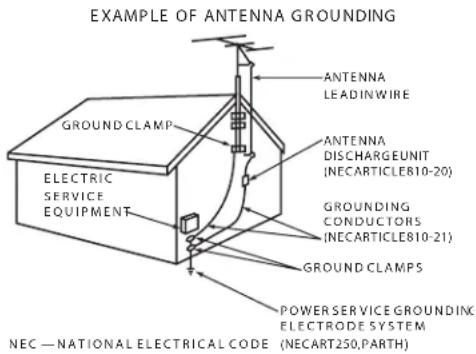
If an outside antenna or cable system is connected to the LCD Flat Panel HDTV, be sure the antenna or cable system is grounded so as to provide some protection against voltage surges and built-up static charges.
Article 810 of the National Electric Code, ANSI/NFPA No. 70-2002, provides information with respect to proper grounding of the mast and supporting structure, grounding of the lead in wire to an antenna discharge unit, size of grounding conductors, location of antenna discharge unit, connection to grounding electrodes, and requirements for the grounding electrode.
16. Servicing
Do not attempt to service this LCD Flat Panel HDTV yourself as opening or removing covers may expose you to dangerous voltage or other hazards. Refer all servicing to qualified service personnel.
17. Damage Requiring Service
Unplug the LCD Flat Panel HDTV from the wall outlet and refer servicing to qualified service personnel under the following conditions:
(a) When the power-supply cord or plug is damaged.
(b) If liquid has been spilled, or objects have fallen into the LCD Flat Panel HDTV.
(c) If the LCD Flat Panel HDTV has been exposed to rain or water.
(d) If the LCD Flat Panel HDTV does not operate normally by following the operating instructions, adjust only those controls that are covered by the operating instructions as an improper adjustment of other controls may result in damage and will often require extensive work by a qualified technician to restore the LCD Flat Panel HDTV to its normal operation.
(e) If the LCD Flat Panel HDTV has been dropped or the cabinet has been damaged.
(f) When the LCD Flat Panel HDTV exhibits a distinct change in performance - this indicates a need for service.
18. Replacement Parts
When replacement parts are required, be sure the service technician has used replacement parts specified by the manufacturer or have the same characteristics as the original part. Unauthorized substitutions may result in fire, electric shock or other hazards.
19. Safety Check
Upon completion of any service or repair to the LCD Flat Panel HDTV, ask the service technician to perform safety checks to determine that the LCD Flat Panel HDTV is in safe operating condition.
20. Heat
The product should be situated away from heat sources such as radiators, heat registers, stoves or other products (including amplifiers) that produce heat.
Stand Removal Instructions
CAUTION
- A minimum of TWO PEOPLE are needed to safely remove the stand.
- One person needs to hold the stand while the other person removes the stand screws. This is necessary to prevent the stand from falling to the floor.
- Failure to follow these recommendations may result in personal injury as well as damage to the product.
-
Before performing work, make sure to disconnect the AC power cord from the display.
-
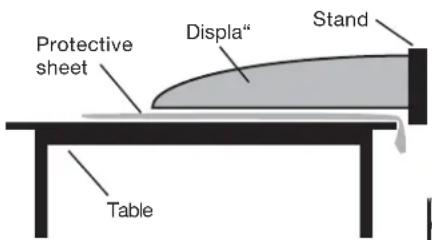
Before performing work, spread the protective sheet that was wrapped around the display on a flat, even surface (such as a table). The protective sheet will prevent the display from being damaged.
-
Gently place the display face down on the protective sheet with the display stand hanging over the edge of the table. See the illustration to the right.
CAUTION: The stand is heavy and can fall, so two people are needed to safely remove it.
-
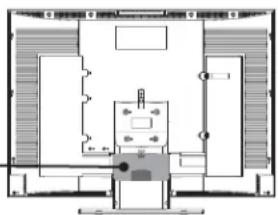
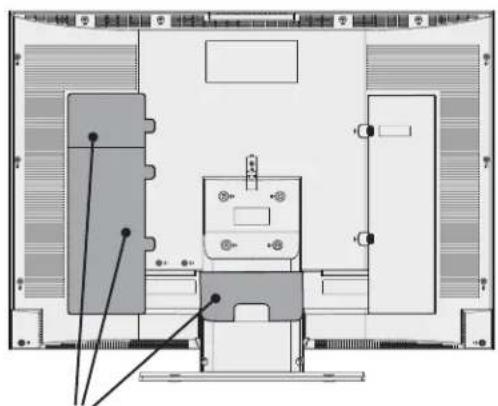
Remove the small cover on the back of the display. See the illustration to the right. Press on the small tab to release the cover. Keep the cover and reinstall it after connecting the display to the media center.
-
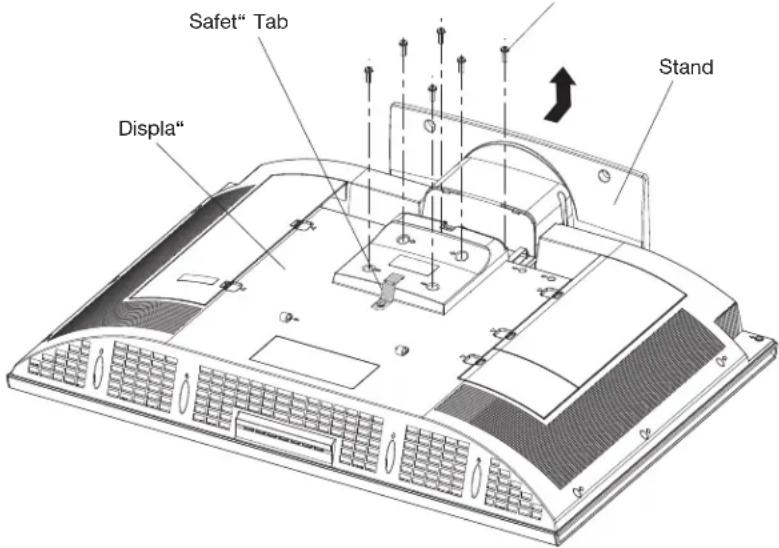
With the stand hanging over the edge of the table, have one person hold the stand firmly with both hands while the other person uses a screwdriver to remove the six (6) stand screws. See the illustration to the right.
-
While the first person continues to hold the stand firmly, have the other person unscrew the Safety Tab screw. See the illustration to the right.
-
The person holding the stand can now put the stand carefully in a safe place for future use.
-
The display is now ready for mounting. Refer to the instructions provided with the Wall Mount Kit (purchased separately).
Wall Mount Kit
To order a Wall Mount Kit (Part # PSM-2048):
Please call the Mitsubishi Parts Department at: (800) 553-7278
or call Chief Manufacturing, Inc. at: (800) 582-6480.
Step 4: Remove the small cover to access stand screws and the AC power input.
natural_image
Floor plan diagram of a room with furniture layout (no text or labels)6 Stand Screws
IMPORTANT
BEFORE MOUNTING THE DISPLAY TO A WALL:
Be sure to connect a VGA cable to the display PC (video) Input, and if applicable, a stereo mini cable to the PC Audio Input. Otherwise, you will not be able to access the PC Inputs after wall-mounting.
The media center does not have PC inputs.
See Chapter 6 for more information.
Chapter
1
Product Overview
Package Contents 8
Special Features 9
Display Top Control Panel.... 10
Media Center Front Control Panel 11
Remote Control Overview 12
Remote Control Operation 13
Battery Installation 13
Care.... 13
Sleep Timer 13
Display Rear Panel 14
Media Center Rear Panel 15
Package Contents
Please take a moment to review the following list of items to ensure that you have received everything including:
- Display
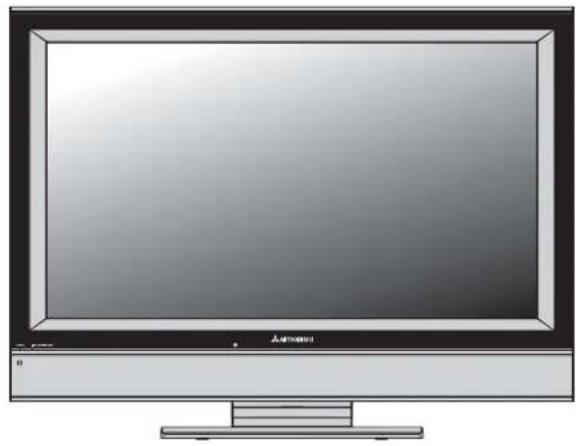
natural_image
Illustration of a flat-screen computer monitor with no visible text or symbols on the screen or side.- Media Center
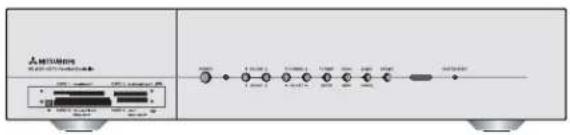
- Remote Control
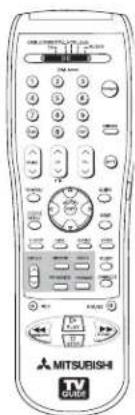
- Two AA Batteries
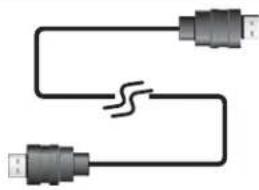
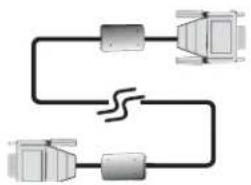
The display and media center must be connected together with these two cables.
5. One MonitorLink™ Digital A/Vcable.
Sends audio and video signals from the media center to the display.
natural_image
Pure electrical circuit lines without any symbols6. One MonitorLink™ Control RS-232C cable.
Sends control signals between the media center and the display, allowing IR signals from the remote control and other control signals to reach the media center.
flowchart
graph TD
    A["Device 1"] --> C["Processing Unit"]
    B["Device 2"] --> C
    D["Device 3"] --> C
    C --> E["Output Device"]
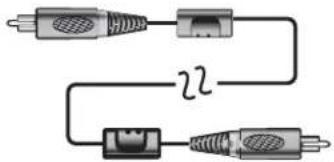
7. One Digital Audio cable.
Sends audio from digital TV channels to a digital Audio/Video (A/V) Receiver.
natural_image
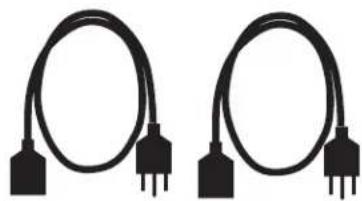
Pure electrical circuit lines without any symbols- Two AC Power cords. One for the display and one for the media center.
natural_image
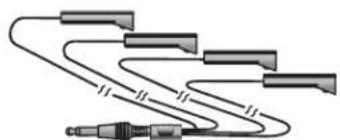
Two identical black cable connectors with terminal pins, shown side by side (no text or symbols)9. One Quadruple IR Emitter cable.
Allows NetCommand to control up to four (4) A/V devices.
natural_image
Pure electrical circuit lines without any symbols-
LT-3280/LT-3780 Owner's Guide (not pictured)
-
LT-3280/LT-3780 Quick Setup /Reference Guide (not pictured)
12 Product Registration Card (not pictured)
- TV Guide On Screen® Interactive Guide: User's Manual (not pictured)
Special Features
Your new LT-3280/LT-3780 LCD Flat Panel HDTV (display + media center) has many special features, which include:
Two-Piece Design for Maximum Installation Flexibility
The LT-3280/LT-3780 display and media center are designed to work exclusively together as an integrated HDTV. You can place the display on one side of the room, and with only two connecting cables, place the media center on the other side of the room with your A/V Receiver, VCR, DVD Player, and other A/V devices.
Multiple Connection Capability
On the compact media center rear panel you will find a full complement of the connections needed for the most sophisticated home theater system. Included are standard Audio/Video/S-Video, wideband component video, FireWire®, IEEE 1394, CableCARD, and two HDMI Inputs.
Digital Cable Ready (CableCARD™)
Your Mitsubishi media center is “Plug-and-Play” ready. It can de-scramble a cable provider’s one-way digital signals with the use of a CableCARD security module. The CableCARD is used in place of a traditional cable box to access digital cable programming (including high definition). Contact your local cable provider for availability information and service details.
NetCommand® Home Network Control System
Your Mitsubishi media center offers a new level of networking to combine selected older products with new and future digital products. NetCommand supports IEEE 1394 connections, Audio Video Control system (AV/C), 5C copy protection and IR control of selected older products such as VCRs, DVD players, cable boxes or satellite receivers. NetCommand includes the ability to learn remote control signals directly from the remote control of many devices, allowing you to customize the NetCommand system in a way that works best for your viewing.
PC Connectivity
The display has a PC video connector that supports VGA, SVGA, XGA, or SXGA signals. Please see Chapter 6 for signal compatibility. A stereo audio input is also provided.
Memory Card Reader
The four card slots in the front of the media center provide easy access to your pictures and audio files stored on memory cards. This includes JPEG pictures from many types of digital cameras, as well as MP3 or WMA audio files recorded from computers or other digital recording devices.
Display Top Control Panel
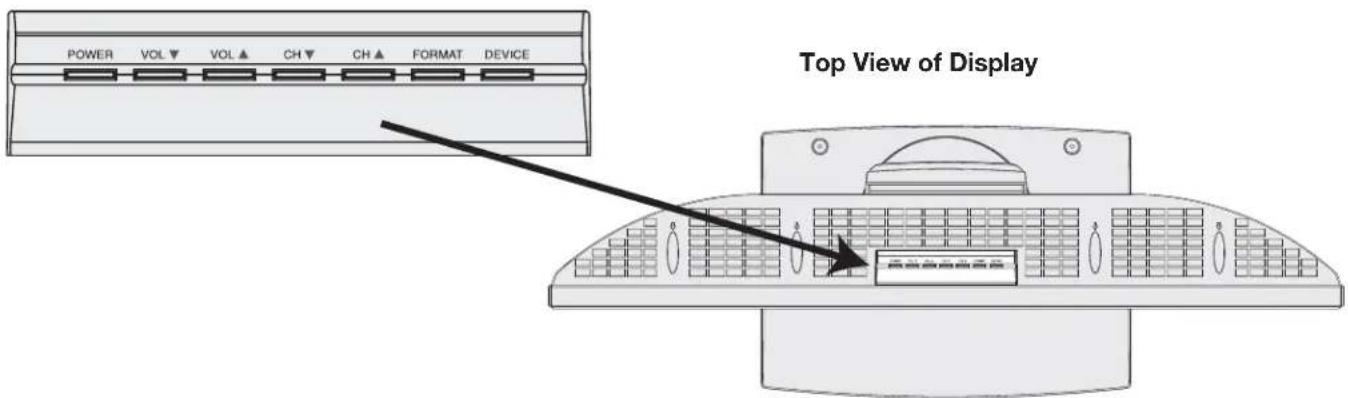
The buttons on the top control panel of the display are also found on the remote control and media center front panel. See Remote Control Overview in this chapter for information about how to use these buttons.
Display Power Indicator and IR Sensors
Power Indicator
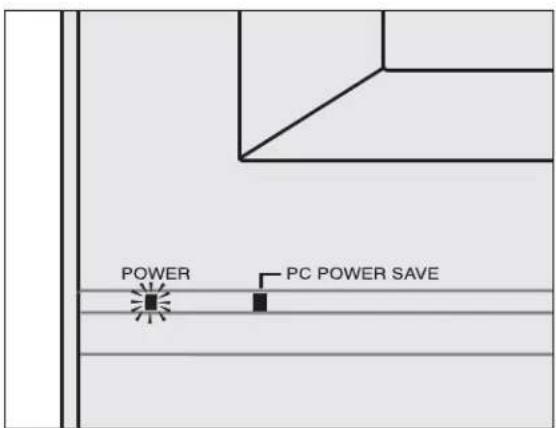
The media center and display power on and off together when you press the POWER button on the remote control. The display POWER indicator is lit during normal operation of the TV. The indicator is in the lower left corner of the display, below the screen, as shown in the diagram below.
IR Sensors
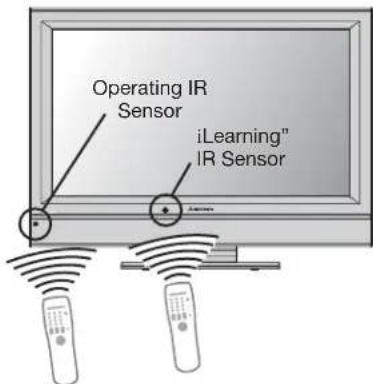
The display has two IR sensors, one for ordinary TV operation and one for "Learning."
- Under normal conditions, point the remote at the display and the IR signal will reach both sensors.
- If using the remote close to the TV, point the remote control at the sensor you wish to activate. For ordinary TV operation, point the remote at the operating sensor.
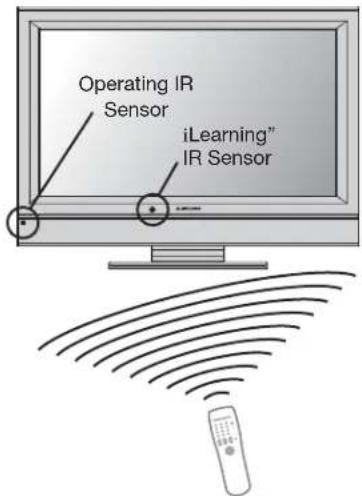
During typical use, the signal from the remote reaches both sensors.
When close to the TV, aim the remote at the sensor you wish to activate.
Media Center Front Control Panel
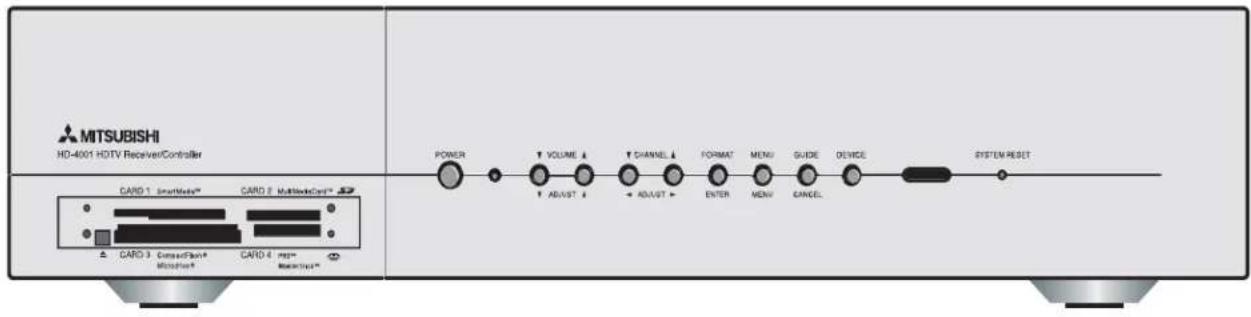
Except for SYSTEM RESET and the memory card reader Eject buttons, the buttons on the media center Front Control Panel are also found on the remote control and display top control panel. The top row of labels show the control functions when no TV menus are displayed on the screen. The bottom row of labels show the control functions when the TV menus are displayed on the screen or when a special function has been activated. See Remote Control Overview in this chapter for information about how to use these buttons.
Power Indicator Light
The Power Indicator Light is located to the right of the Power button. Each time the media center is plugged into a wall electrical outlet, or when power is restored after a power failure, or after pressing the SYSTEM RESET button, a blue light will flash rapidly for about one minute. Do not attempt to turn on the media center during this period. Wait for the flashing to stop. While the media center is powered on, the blue light illuminates steadily.
System Reset
If the media center will not respond to the remote control, the media center front-panel controls, or the display top-panel controls (and/or will not power Off), press the SYSTEM RESET button by inserting a pointed item (like the end of a paperclip) into the SYSTEM RESET opening. The media center will turn Off and the front panel Power Indicator Light will flash quickly for about one minute. When the light stops flashing, you may again turn on the media center. The changes you made the last time the media center was on before you used the SYSTEM RESET button may be lost, however, the changes that were previously saved are not lost.
A/V Reset
There may be times when you wish to reset the A/V (Audio and Video) settings back to the factory defaults. To return all of the settings at once, press GUIDE and FORMAT on the front panel at the same time. To reset the defaults for individual devices, use the A/V Memory Reset selection on the Audio/Video menu.
Memory Card Reader
The four memory card slots are located on the front of the media center allow you to view JPEG pictures and listen to MP3 or WMA audio files recorded from computers or other digital recording devices.
NOTE: The memory card slots are designed for the specific types of cards listed below. Do NOT insert other cards or objects, as this may damage the card reader. See Memory Card Playback on page 61 for more information.
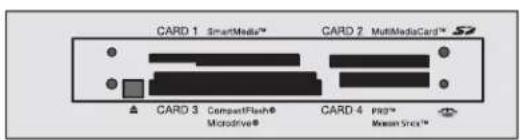
Slot Card Types Slot Card Types
| CARD 1 SmartMediaTM CARD 2 | MultiMediaCardTMSecure Digital (SD) | ||
| CARD 3 | CompactFlash®, Types I and II MicrodriveTM Memory StickTM | CARD 4 | Memory Stick PROTM |
Remote Control Overview
Figure 1, following page
To send signals to the TV, point the remote control at the display.
- Slide Switch: Selects the A/V product controlled by the remote control. For NetCommand® device control, select CABLE/DBS/DTV.
- Numbers: Individually select channels or enter information into menus.
- SQV (SuperQuickView™): Scans through memorized lists of favorite channels.
- CHANNEL/PAGE: Scans up or down through memorized channels. Pages up and down through screens when used with TV Guide On Screen®, ChannelView, a satellite receiver, or some cable boxes.
- DEVICE: Displays the Device Selection menu in which you can select the device to view (ANT-1 and ANT-2, or devices connected to the TV's inputs, including IEEE 1394 devices).
- ADJUST: Press ▲▼◀to navigate menus, change settings, and move the PIP on-screen location. Operates many NetCommand functions. Navigate TV Guide On Screen® and change settings.
- TV MENU: Displays the ViewPoint screen menu system.
- ENTER: Selects a channel number or menu item.
- DEVICE MENU: Displays the menu for devices connected to the TV, including CableCARD™. For VCR or DVDs, the first press displays the transport menu, the second press displays the VCR or DVD menu. Displays and removes options menus for TV Guide On Screen.
- INFO: Press to display an on-screen summary of the current device used and any broadcast information available (including current V-Chip information). See Appendix B for details.
While in the TV Guide On Screen, press repeatedly to cycle through the available info box sizes. - V-CHIP: Turns the V-Chip Lock on or off.
- PIP/POP: Turns on PIP and cycles through PIP and POP display choices.
- PIP CH: Scrolls up or down through memorized channels for PIP
- PIP DEVICE: Displays PIP Selection menu to select the PIP or POP image source device
- REC (Record): Displays the Record menu for setting up recordings, such as recordings for a
DVCR or IEEE 1394 devices, or while in ChannelView. Records with a VCR. Starts a recording when the Listings screen for TV Guide On Screen is displayed.
- REW/REV: Rewinds a VCR. Reverses scan with a DVD, A/V Disc, or memory card file.
- POWER: Turns power on and off for the TV and other A/V products.
- QV (QuickView™): Switches between the current channel and last channel viewed.
- SUB/CANCEL: Clears SQV and some menu entries, and cancels recordings. For digital channels, adds separator between main and sub-channel numbers.
- VOLUME: Changes sound level.
- MUTE: Turns sound on or off.
- GUIDE: Displays or removes TV Guide On Screen or ChannelView for ANT-1 and 2. Displays Track List for A/V Disc. Displays program guide for satellite receiver, or DVD Disc menu. Displays thumbnails or playlists for memory card files.
- Light: Located on the right side of the remote control, this button illuminates buttons or labels when pressed.
- HOME: Exits TV on-screen menus and the TV Guide On Screen system and returns to TV viewing.
- AUDIO: Selects and adjusts individual audio settings.
- VIDEO: Selects and adjusts individual video settings.
- EXCH: Exchanges PIP or POP and main TV picture.
- SLEEP: Sets the TV to turn off within 2 hours. See the next page for setup instructions.
29 CONNECT: Initiates IEEE 1394 peer-to-peer connections. - FORMAT: Changes the shape and size of the main TV picture. This feature is not available when in PC mode.
- PAUSE: Pauses a live TV picture when no PIP or POP image is displayed. When PIP image is visible, pauses that image. Pauses a VCR, DVD, A/V Disc, or memory card file.
- PLAY: Plays a VCR, DVD, A/V Disc, or memory card file.
- FF/FWD: Fast forward a VCR or memory card file, or fast play a DVD.
- STOP: Stops play of a VCR, DVD, A/V Disc, or memory card file.
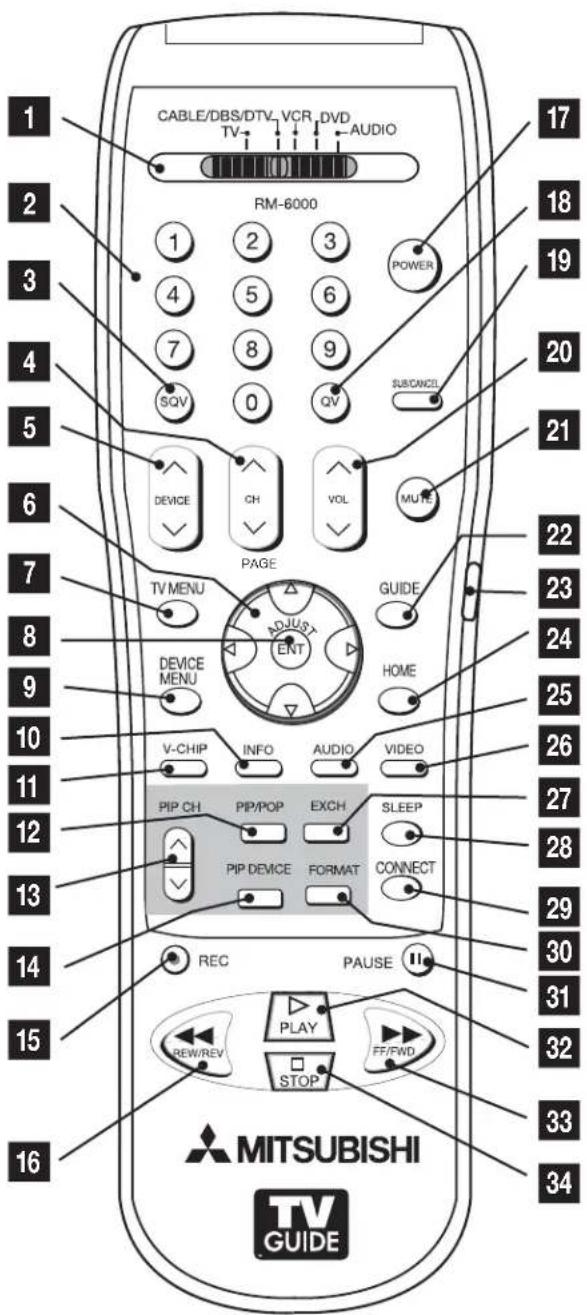
Figure 1. Remote Control Overview
Remote Control Operation
Battery Installation
Figure 2
Installing the Batteries:
-
Remove the remote control's rear cover by gently pressing the ribbed tab in the direction of the arrow and sliding off the cover.
-
Load the batteries, making sure the (-) and (+) polarities are correct. For best results, insert the negative (-) side first.
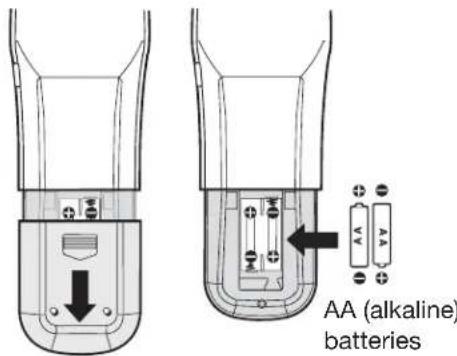
Figure 2. Operation: Installing the Batteries
Care
For Best Results from the Remote Control:
- Be within 20 feet of the equipment.
- Do not press two or more buttons at the same time unless instructed.
- Do not allow unit to get wet or become heated.
- Avoid dropping on hard surfaces.
- Do not use harsh chemicals to clean. Use only a soft cloth, lightly moistened with water.
- Do not mix new and old batteries.
- Do not heat, take apart or throw batteries into fire.
- Use only AA alkaline batteries.
Hint: If the remote is in the Cable/DBS/DTV layer and will not operate the media center, press and hold POWER and enter 1, 9, 7 to reset the remote control.
Sleep Timer
Setting the Sleep Timer:
- Press SLEEP on the remote control.
- Each press of SLEEP increases the time displayed by 30 minutes, until the maximum value of 120 minutes is reached.
- After 5 seconds of inactivity, the message will disappear.
- Press SLEEP to view the remaining time before the timer turns the TV off.
Canceling the Sleep Timer:
- Press SLEEP to display the on-screen message.
- Press SLEEP repeatedly until OFF is displayed.
Note: After 5 seconds of inactivity, the message box disappears.
Display Rear Panel
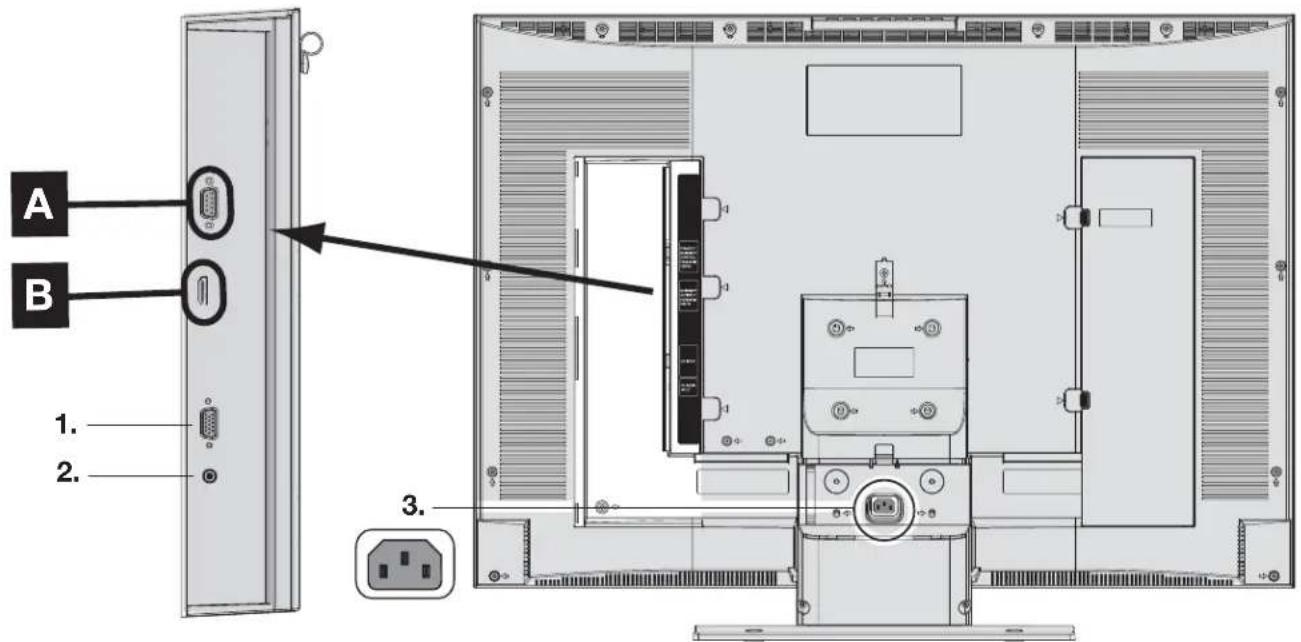
To provide complete HDTV funtionality, the display and media center must be connected using both MonitorLink™ terminals [A] and [B].
Remove the covers shown in the lower diagram to access the inputs described on this page.
A. MonitorLink™ RS-232C Control
Use the supplied RS-232C cable to connect the RS-232C terminal on the display [A] to the RS-232C terminal on the media center [A]. This input only supports the media center.
B. MonitorLink™ A/V Input
Use the supplied A/V cable to connect the MonitorLink A/V Input terminal on the display [B] to the MonitorLink A/V Output terminal on the media center [B]. This input only supports the media center.
1. PC Video Input
Use this RGB video terminal to connect to the Video Out terminal on a PC. This terminal supports VGA, SVGA, XGA, and SXGA resolutions. See Chapter 6 for more information.
2. PC Audio Input
Use this Stereo Mini jack to connect to the Audio Out terminal on a PC (the Headphone terminal can be used).
3. AC Power Input
natural_image
Interior layout diagram of a room with furniture and control panel (no text or labels)Remove covers to access the signal and AC power inputs.
Media Center Rear Panel

To provide complete HDTV funtionality, the display and media center must be connected using both MonitorLink™ terminals [A] and [B].
A. MonitorLink™ RS-232C Control
Use the supplied RS-232C cable to connect the RS-232C terminal on the display [A] to the RS-232C terminal on the media center [A]. This output only supports the display.
B. MonitorLink™ A/V Output
Use the supplied A/V cable to connect the MonitorLink A/V Input terminal on the display [B] to the MonitorLink A/V Output terminal on the media center [B]. This output only supports the display.
1. IR Emitters and NetCommand®
Two terminals are provided for connecting IR emitters. IR Emitters connected to these terminals are used by the NetCommand system of the media center to control external analog devices such as a VCR, DVD player, cable box, satellite receiver and A/V receiver.
2. Input-1, -2
Input 1 and 2 can be used for the connection of a VCR, Super VHS (S-VHS) VCR, DVD player, standard satellite receiver or other A/V device to the media center. Either S-VIDEO or (Composite) VIDEO can be selected, but both cannot be connected at the same time.
3. HDMI Input-1, -2
Use this input to connect to EIA/CEA-861 compliant devices such as a high definition cable box, satellite
receiver or DVD player. This input supports 480i, 480p, 720p and 1080i video formats. It is not intended for use with personal computers or devices outputting video signals with computer resolutions.
This input can also be used as a DVI connection with separate analog audio inputs (see item 4). An optional HDMI-to-DVI adaptor or cable will be necessary to make this connection and may be available from your local electronics retailer. When using the optional HDMI-to-DVI adapter, the DVI analog audio inputs on your media center allow you to receive left and right audio from your DVI device.
This input is HDCP (High-Bandwidth Digital Copy Protection) compliant.
4. DVI Audio Input
Use these analog stereo audio inputs when using the HDMI input with a device that outputs DVI instead of HDMI. A DVI-to-HDMI video adapter (purchased separately) is needed. Unlike HDMI, DVI does not carry audio information on the same cable.
5. Component-1, -2 Inputs
YPbPr (480i/480p/720p/1080i)
These inputs can be used for the connection of devices with component video outputs, such as a high definition cable box, satellite receiver, DVD player or compatible video game system. Please see Appendix D for signal compatibility.
Media Center Rear Panel, continued
6. Antenna (ANT-1 MAIN, ANT-2 AUX)
ANT-1 MAIN and ANT-2 AUX can each receive both digital and analog over-the-air channels from a VHF/UHF antenna or non-scrambled digital/analog cable channels.
Your primary viewing signal source should be connected to ANT-1 MAIN. ANT-1 MAIN must be used to view premium subscription cable TV service authorized by the CableCARD™ access card. The CableCARD access card is provided by your local cable company. ANT-2 AUX can continue to receive over-the-air or non-scrambled cable signals.
7. Audio Line Out
These analog L/R audio output terminals provide an additional option for connecting to an A/V Receiver or other audio device.
NOTE: For the best audio quality, use the Digital Audio Out terminal if supported by your A/V receiver. For analog audio, it is generally preferable to connect directly to the A/V receiver from the cable box, satellite receiver, DVD player, etc.
8. CableCARD™ Slot
The CableCARD access card provided by your cable TV service provider is inserted into this slot. The top of the card should face upwards.
NOTE: If you are using a CableCARD, be sure to connect the cable from the cable wall outlet to ANT-1 MAIN on the media center.
CableCARD is a nationwide standard system that allows your local cable TV provider to supply you with an access card customized to your account. This card allows the HDTV (display + media center) to receive, decode and unscramble the premium digital channels included in your cable TV subscription without the use of a cable box. See page 23 for additional CableCARD information and activation instructions.
If your cable company is not currently offering CableCARD access cards, you will need to use a cable box provided and authorized by your local cable company to view scrambled channels.
9. Digital Audio Output
This output will automatically send Dolby® Digital audio from digital channels and IEEE 1394 devices to a digital Audio/Video receiver. Connect this output to the A/V receiver's coaxial digital audio input. The output will automatically turn off when viewing an analog channel or device. Use Audio Line Out to send analog sound to your A/V receiver.
Some digital cable channels send MPEG-1 digital audio instead of Dolby Digital, however, not all A/V receivers can decode MPEG-1 digital audio. This can cause the A/V receivers to produce a loud noise that can damage speakers. For this reason, the media center will automatically turn off the digital audio output when tuned to a channel or device that has MPEG-1 digital audio and send it to the A/V receiver as analog left and right audio from Monitor Output.
10. Monitor Output
Use this Composite video and analog audio outputs under the following circumstances:
- Output to VCR for recording, or other A/V device.
• Output to an auxiliary monitor.
11. IEEE 1394
These terminals allow the media center to connect to external IEEE 1394 digital products by means of a single cable. Two terminals are provided for this purpose, which allow for a high degree of flexibility for connecting your NetCommand controlled system. Detailed information regarding IEEE 1394 connection requirements are in Chapter 4.
12. AC Power Input
Chapter
2
Connecting
Essential MonitorLink™ Connections 18
AC Power Cords. 19
External Devices and NetCommand® Overview.... 20
Wall Outlet Cable 21
Cable Box 21
Antenna with Twin Flat Leads 22
Separate UHF and VHF Antennas 22
Using a CableCARD 23
Antenna or Wall Outlet Cable to a VCR 24
Cable Box to VCR 25
A/V Receiver or Stereo System 26
Satellite Receiver or Other S-Video Devices 26
DVD Player or Other Component Video Device 27
HDMI Output Device.... 28
DVI Output Device 29
IR Emitters and NetCommand® 30
Compatible IEEE 1394 Device 32
Connection Styles 33
Helpful Hints 34
Essential MonitorLink™ Connections MonitorLink™ RS-232C Control and Digital A/V
Figure 1. MonitorLink™ RS-232C Control cable (required and provided) Figure 2. MonitorLink™ Digital A/V cable (required and provided)
To operate as a complete HDTV, the display must be connected to the media center using both required MonitorLink™ cables. See the instructions below.
The media center is designed specifically to work with the LT-3280 and LT-3780 displays. The MonitorLink™ RS-232C control connection allows the media center to turn the display and media center automatically on or off and control A/V devices connected to the media center. The MonitorLink™ Digital A/V cable carries video and audio signals from connected devices to the display.
A. Connect the MonitorLink™ Control cable from the MonitorLink Control terminal on the media center rear panel to the MonitorLink™ Control terminal on the display left rear panel (MonitorLink is also called MonLink or M-Link). Finger-tighten the retaining screws to ensure snug connections.
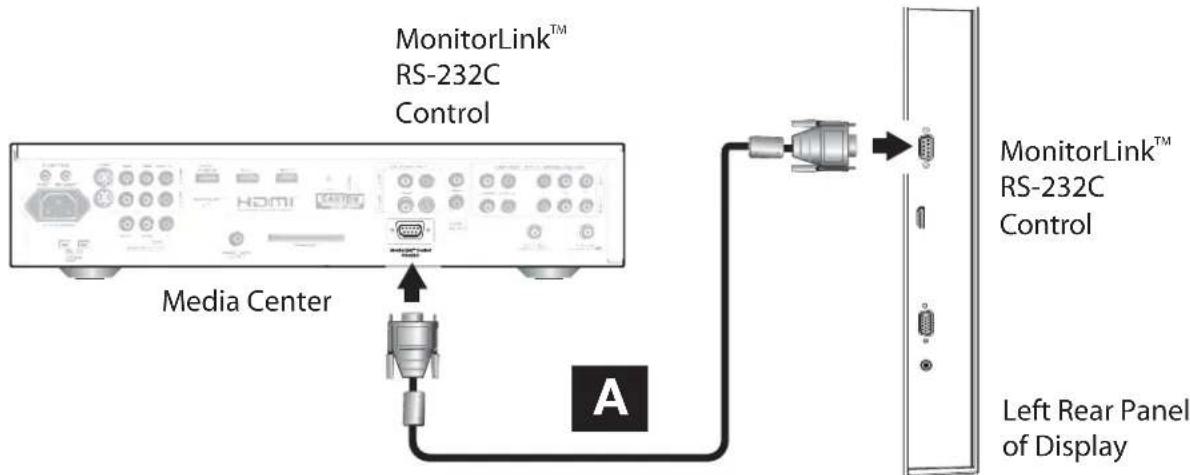
Figure 1. Connecting MonitorLink™ RS-232C Control cable from Media Center to Display
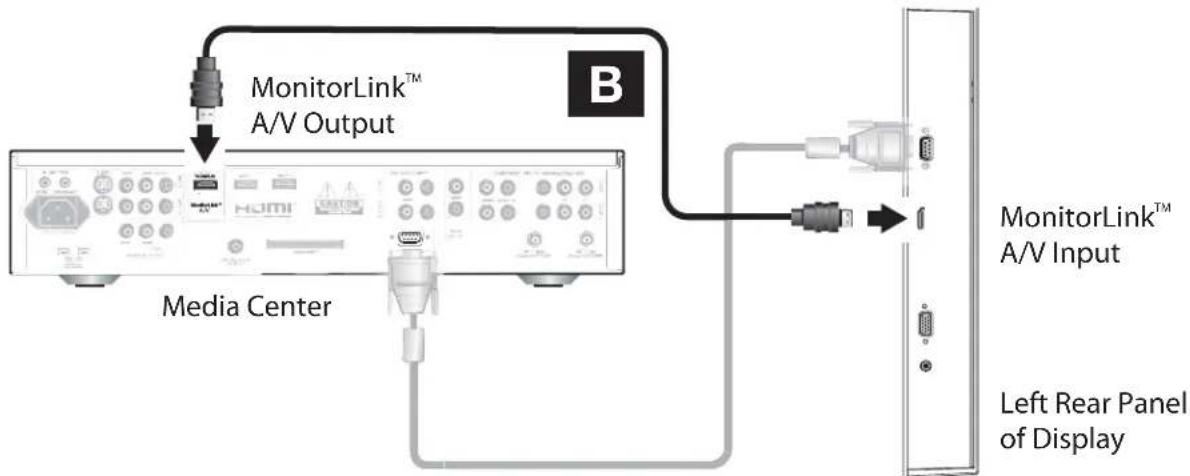
B. Connect the supplied Digital A/V cable from the MonitorLink™ A/V Output on the media center rear panel to the MonitorLink™ A/V Input on the display left rear panel. You can secure in place the two cables just connected by routing them through the cable clip mounted next to the AC power input on the back of the display.
flowchart
graph TD
    A["MonitorLink™ A/V Output"] --> B["Media Center"]
    B --> C["USB Port"]
    C --> D["Left Rear Panel of Display"]
    D --> E["USB Port"]
    style A fill:#f9f,stroke:#333
    style B fill:#ccf,stroke:#333
    style C fill:#cfc,stroke:#333
    style D fill:#fcc,stroke:#333
Figure 2. Connecting MonitorLink™ Digital A/V cable from Media Center to Display.
AC Power Cords
Figure 3. AC power cords for display and media center
After you have connected all A/V devices to the media center, connect the display to a nearby AC wall outlet, then connect the media center to a AC wall outlet. The blue light next to the Power button on the front panel of the media center will start blinking. Wait for the blinking to stop (about 1 minute) before pressing the Power button on the remote control.
NOTE: After a power outage (or after the media center power cord has been accidentally unplugged), the blue light on the front of the media center will start to blink.
- This is normal; the media center is re-initializing.
- Wait for the blue light to stop blinking (about 1 minute), then press Power on the remote control.
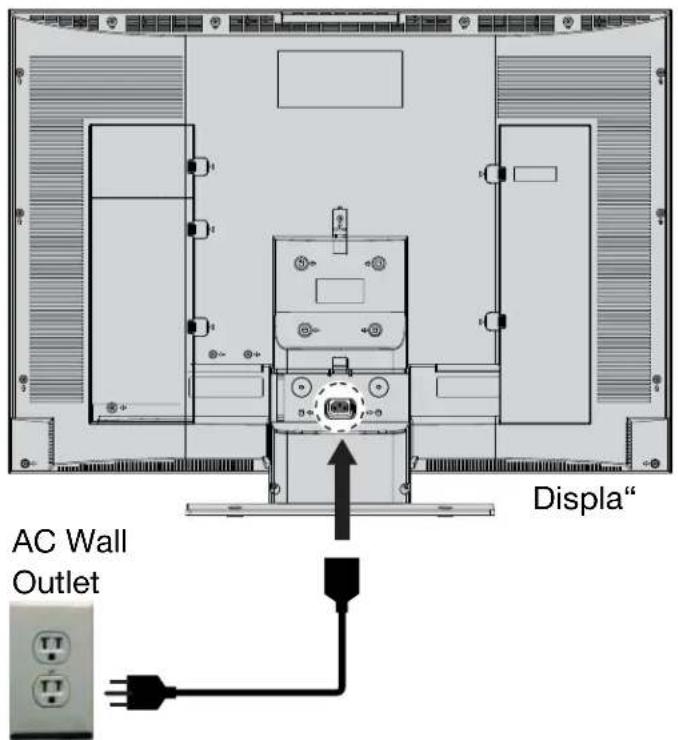
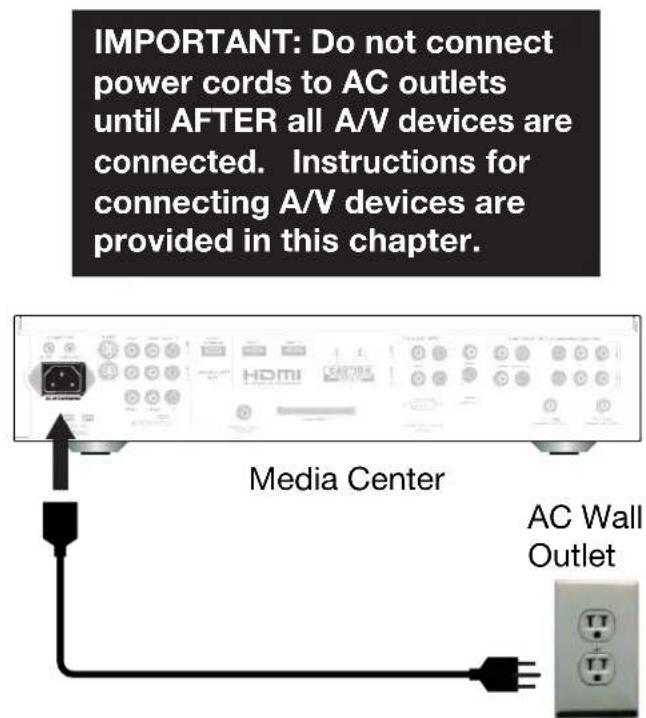
Figure 3. Connecting display and media center power cords to AC wall outlets. Wait until after you have connected all A/V devices to the medial center before plugging in the AC power cords.
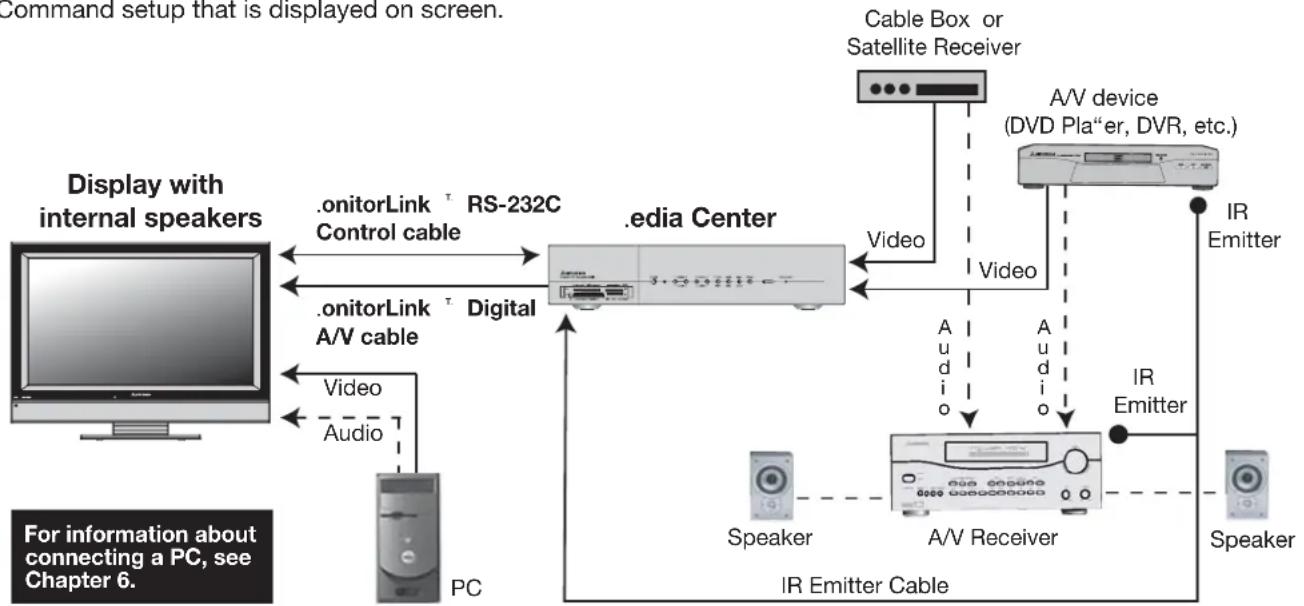
External Devices and NetCommand® Overview
NetCommand is able to control many current audio and video devices by sending remote control signals from the media center to each device through IR emitters. Additionally, it is also able to learn the remote control signals used by most audio video devices not already in the media center's memory. NetCommand can automatically switch to compatible Audio/Video (A/V) devices or those that have or "learned" NetCommand settings. It is important that the inputs on the media center and A/V receiver rear panels match the NetCommand setup that is displayed on screen.
To simplify the installation of NetCommand, step-by-step on-screen NetCommand Setup procedures are provided in Chapter 3, which includes the types and brands of devices you are connecting to the media center. NetCommand Setup also assigns preset media center and A/V receiver inputs for each device. Typically, each device is connected to the media center input (video) and to the A/V receiver (audio) as shown in the figure below. Connections will vary depending on your requirements.
flowchart
graph TD
    A["PC"] -->|Display with internal speakers| B[".onitorLink RS-232C Control cable"]
    B --> C[".onitorLink A/V cable"]
    C -->|Digital| D[".Media Center"]
    D -->|Video| E["A/V Receiver"]
    E -->|Audio| F["IR Emitter Cable"]
    F --> G["Speaker"]
    G --> H["IR Emitter"]
    H --> I["Speaker"]
    I --> J["IR Emitter"]
    J --> K["Cable Box or Satellite Receiver"]
    K --> L["A/V device (DVD Pla"er, DVR, etc.)"]
    L --> M["IR Emitter"]
    M --> N["Speaker"]
    N --> O["IR Emitter Cable"]
    O --> P["Cable Box or Satellite Receiver"]
    P --> Q["A/V device (DVD Pla"er, DVR, etc.)"]
    Q --> R["IR Emitter"]
    R --> S["Cable Box or Satellite Receiver"]
    S --> T["A/V device (DVD Pla"er, DVR, etc.)"]
    T --> U["IR Emitter"]
    U --> V["Cable Box or Satellite Receiver"]
    V --> W["A/V device (DVD Pla"er, DVR, etc.)"]
    W --> X["IR Emitter"]
    X --> Y["Cable Box or Satellite Receiver"]
    Y --> Z["A/V device (DVD Pla"er, DVR, etc.)"]
    Z --> AA["IR Emitter"]
The following charts show which preset inputs you should use on the media center and A/V receiver.
Chart 1 shows media center inputs.
Chart 2 shows the inputs used by A/V receiver models already known by NetCommand.
| Chart 1 Device Audio and Video Outputs to Media Center Inputs | |
| Cable for CableCARDTM Service | ANT-1 |
| Antenna/Cable (digital/analog) | ANT-1 if primary viewing source, ANT-2 if secondary viewing source |
| Cable box | ANT-2 |
| VCR | Input-1 |
| Satellite Receiver (DBS) | Input-2 |
| DVD Player | Component-1 |
| Chart 2 | .itsubishi 1 | .itsubishi 2 | Bose | Denon | Integra | Kenwood | .arantz | Pioneer 1 | Pioneer 2 | Hotel | $ony | Yamaha 1 | Yamaha 2 |
| .odel-VR800 & -VR1000 | .odel-VR900 & -VR700 | .odel Lifestyle ¥ 28 | .odel AVR-2700 | .odel DTR-9.1 | .odel VR-2080 | .odel SR8200 | .odel VSX-D557 | .odel VSX-49TX | .odel RSX-1065 | .odel STR-DE825 | .odel RV-X2095 | .odel RX-V2200 | |
| Device Audio Output to AV Receiver Inputs by Name | |||||||||||||
| VCR | VCR 1 | VCR | VCR | VCR-1 | Video 1 | Video 1 | VCR1 | VCR/Tape | VCR 1/DVR | Video 2 | Video 1 | VCR 1 | VCR 1 |
| Satellite Receiver | Aux | Cable/DBS | AUX | CD | Video 3 | Video 3 | DSS | CD | SAT | Video 4 | TV/DBS | TV/DBS | D-TV/LD |
| DVD Pla'er | DVD | DVD | (built-in) | DVD | DVD | Video 4 | DVD | LD/SAT | DVD/LD | Video 5 | TAPE/MD | CD | DVD |
| TV Monitor Output (& Digital Audio) | TV | TV | TV | TV/DBS | Video 4 | Video 4 | TV | DVD/TV | TV | Video 1 | DVD/LD | DVD/LD | CBL/SAT |
After setting up NetCommand, you may go to the NetCommand menu at any time to change the inputs you used for connecting each device, create custom names for devices, add devices not included in the presets above or delete devices no longer used. See Helpful Hints, at the end of this chapter for additional information on device setup.
Wall Outlet Cable
(can be used with a CableCARD™)
Figure 4
It is very important to connect the incoming cable for your primary viewing source to ANT-1, especially for CableCARD™ use.
- Connect the primary incoming coaxial lead cable to ANT-1 MAIN on the media center rear panel.
- For an optional secondary antenna source, connect an antenna (or cable) to ANT-2 AUX.
- If you have subscribed to a CableCARD™ service, the CableCARD can now be inserted into the CableCARD SLOT. The top of the card should face upwards. Additional CableCARD information is on page 23.
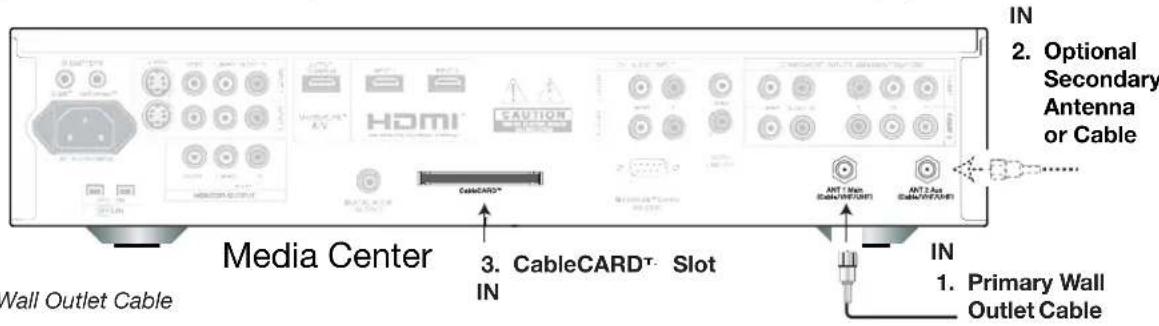
Figure 4. Wall Outlet Cable
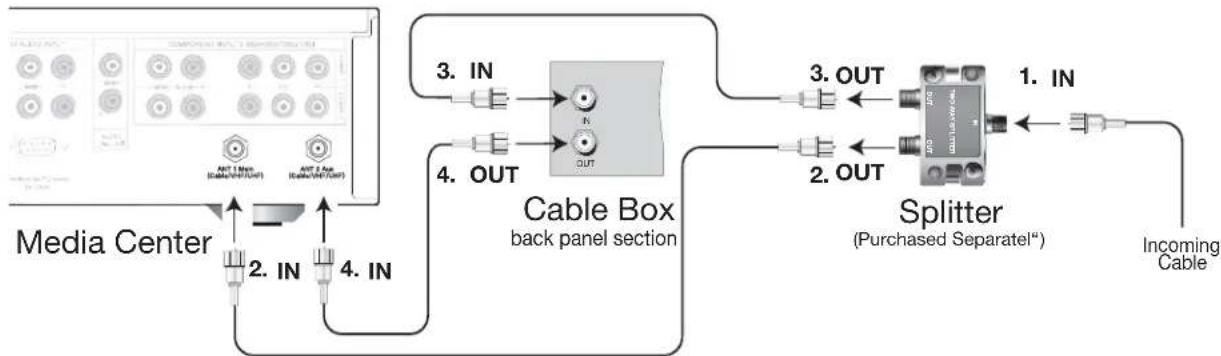
Cable Box
Figure 5
3 coaxial cables and one two-way RF splitter are required. These are not included with the media center.
It is very important to connect the incoming cable for your primary viewing source to ANT-1, especially for CableCARD™ use.
- Connect the incoming cable to IN on an RF splitter.
- Connect one coaxial cable from OUT on the RF splitter to ANT-1 MAIN on the media center rear panel.
- Connect one coaxial cable from OUT on the RF splitter to IN on the cable box.
- Connect one coaxial cable from OUT on the cable box to ANT-2 AUX on the media center rear panel.
flowchart
graph TD
    A["Media Center"] -->|2. IN| B["Cable Box back panel section"]
    A -->|4. IN| B
    B -->|3. IN| C["Cable Box back panel section"]
    B -->|4. OUT| D["Splitter (Purchased Separatel)"]
    D -->|1. IN| E["Incoming Cable"]
    D -->|2. OUT| F["Splitter (Purchased Separatel)"]
Figure 5. Connecting a Cable Box
IMPORTANT
Additional connection cables are not provided with the product. They are available at most electronic stores.
NOTE: Net Command® will assume that your Cable Box is connected as shown here. Also, that Channel 3 is the default output channel for the cable box. If either the connections or output channel are different, use the Change option of Edit NetCommand to apply the changes.
Antenna with Twin Flat Leads
(not for use with CableCARD™)
Figure 6
For an antenna with twin flat leads:
A 300-ohm to 75-ohm transformer is required. This is not included with the media center, but is available at most electronics stores.
1. For antenna with twin flat leads, connect the 300-ohm twin leads to a 300-ohm to 75-Ohm transformer (purchased separately).
2. Push the 75-ohm side of the transformer onto ANT-1 MAIN on the media center rear panel.
OR For cable or an antenna with coaxial lead:
- Connect the coaxial lead directly to ANT-1 MAIN on the media center rear panel.
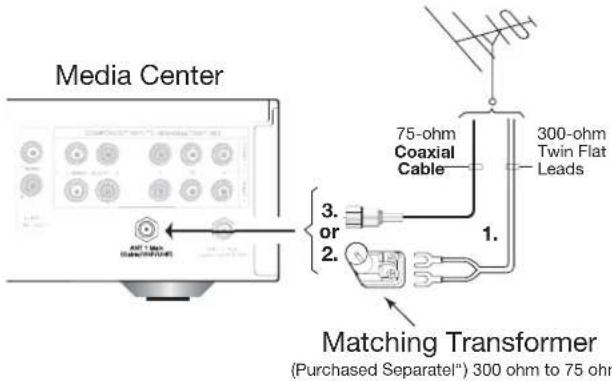
Figure 6. Connecting an Antenna with Twin Flat Leads
NOTE: Mitsubishi strongly recommends that you use an antenna with coaxial cable—NOT an antenna with twin flat leads. Twin flat lead antenna wires are subject to interference which may adversely affect the performance of the TV.
Separate UHF and VHF Antennas
Figure 7
A UHF/VHF combiner is required. This is not included with the media center.
- Connect the UHF and VHF antenna leads to the UHF/VHF Combiner.
- Insert the Combiner into ANT-1 MAIN on the media center rear panel.
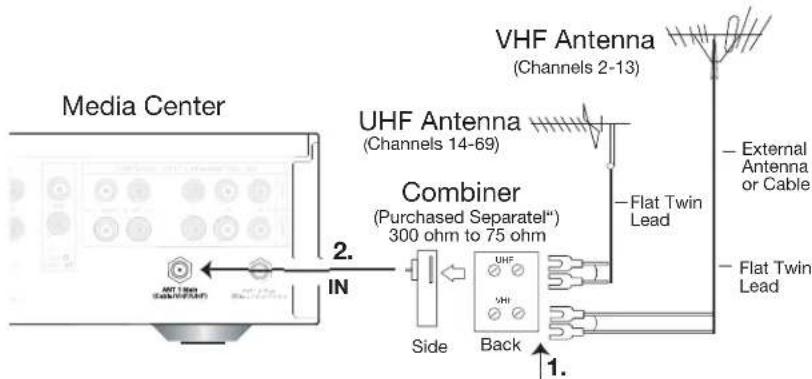
Figure 7. Connecting separate UHF and VHF Antennas
Using a CableCARD™
To start the CableCARD initialization process, insert a CableCARD into the CableCARD slot located on the media center rear panel, then press Power on the remote control. An initial screen will automatically display for a few minutes, with information that your Cable Provider will need in order to start service. Please write down this information before calling your cable provider.
Please call XYZ Cable
at xxx-xxx-xxxx to
activate cable service.
They will need these numbers:
Host ID X-XXX-XXX-XXX-XXX
CableCARD™ ID: X-XXX-XXX-XXX-XXX
See owner's manual for
further information
An example of an initial screen is shown here. Your screen will display specific information from your cable provider and may not look like this screen.
If you were unable to record the information, you can press TV MENU on the remote and then enter the number 999 and the screen will re-display. You can also press DEVICE MENU when the CableCARD is the selected source and you will be able to select the startup application.
IMPORTANT
To use a CableCARD, the primary incoming cable must be connected to ANT-1 MAIN.
About CableCARD™ Technology
CableCARD is a nationwide system standard that allows your local cable TV provider to supply you with an access card customized to your account. This card allows your media center to receive, decode and unscramble the premium digital channels included in your cable TV subscription, without the use of a cable box. It also allows your cable provider to automatically update and change your subscription. When you move to a new cable provider's area, you simply return the CableCARD to the original cable provider and get a new card from your new cable provider.
Please note that CableCARD is a new technology and your local cable provider may not currently be offering this service. As time passes, this system will become broadly supported by most cable providers.
The CableCARD system is “unidirectional” which means your cable provider can send updates to the access card and media center, however, the media center cannot send back signals such as requests for Video-On-Demand or Pay-per-View by remote control.
Digital cable channels authorized by the CableCARD will be available on the Firewire® IEEE 1394 network and can be shared by other products on the network. Some digital channels or programs may not be copied or recorded because of copy restriction limits set by the content owners or copyright holders.
The media center is capable of receiving analog basic, digital basic and digital premium cable television programming by direct connection to a cable system providing such programming. A security card (CableCARD) provided by your cable operator is required to view encrypted digital programming. Certain advanced and interactive digital cable services such as video-on-demand, a cable operator's enhanced program guide and data-enhanced television services may require the use of a set-top box. For more information call your local cable operator.
Antenna or Wall Outlet Cable to a VCR
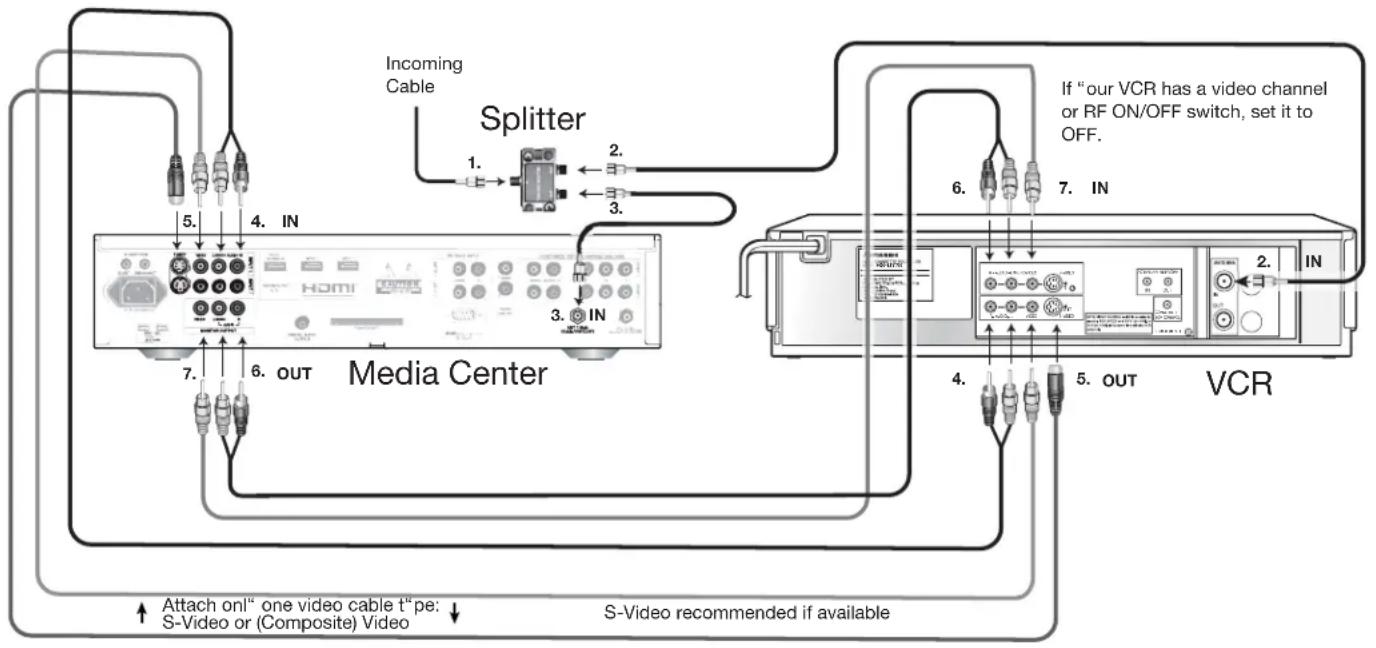
Figure 8
A two-way RF splitter, 3 coaxial cables, right and left audio cables and a S-Video or (Composite) Video cables are required. These are not included with the media center.
- Connect the incoming cable or Antenna to IN on the RF splitter.
- Connect one coaxial cable from OUT on the RF splitter to ANTENNA IN on the VCR rear panel.
- Connect one coaxial cable from OUT on the RF splitter to ANT-1 MAIN on the media center rear panel.
- To use the display's internal speakers with the VCR, connect a Left/Right set of audio cables from AUDIO OUT on the VCR rear panel to INPUT-1 AUDIO-LEFT (MONO) and AUDIO-RIGHT on the media center rear panel. The red cable connects to the R (right) channel and the white cable connects to the L (left) channel. If your VCR is mono (non-stereo), connect only the white (left) cable.
- Connect either an S-Video or Video cable from VIDEO OUT on the VCR rear panel to INPUT-1 VIDEO on the media center rear panel. Only one type of video cable should be connected. S-Video is recommended, if available.
- For NetCommand® controlled recordings, connect a set of audio cables from AUDIO IN on the VCR rear panel to MONITOR OUTPUT AUDIO-LEFT (MONO) and AUDIO-RIGHT on the media center rear panel. The red cable connects to the R (right) channel and the white cable connects to the L (left) channel.
- Complete the NetCommand controlled recordings connections by connecting a Video cable from VIDEO IN on the VCR rear panel to MONITOR OUTPUT on the media center rear panel.
Note: With this connection configuration, it is possible to view live cable programs through the VCR. For best picture quality, however, always view live cable programs directly from the cable box (connected to ANT-1) instead of the VCR.
flowchart
graph TD
    A["Media Center"] -->|1. Incoming Cable| B["Splitter"]
    A -->|2. IN| B
    A -->|3. IN| B
    A -->|4. OUT| B
    A -->|5. IN| B
    A -->|6. IN| B
    A -->|7. OUT| B
    B --> C["VCR"]
    C -->|2. IN| D["Output"]
    C -->|4. OUT| D
    C -->|5. IN| D
    C -->|6. IN| D
    style A fill:#f9f,stroke:#333
    style B fill:#ccf,stroke:#333
    style C fill:#cfc,stroke:#333
Figure 8. Connecting a VCR to an Antenna or Wall Outlet Cable
Note: NetCommand® will assume your VCR is connected to inputs as shown on this page. If you use any other inputs for your VCR or add a second VCR, this change must match in the NetCommand system. See Edit NetCommand... in Chapter 3 for more information.
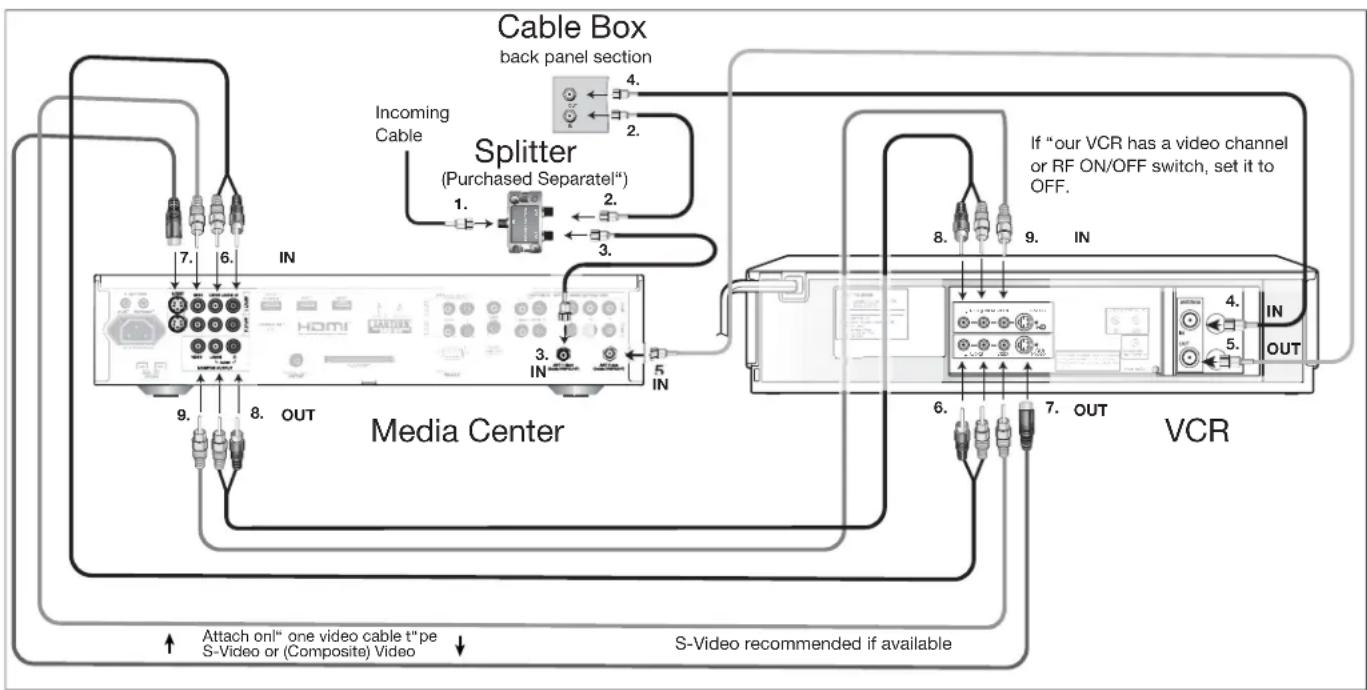
Cable Box to VCR
Figure 9
A two-way RF splitter, 4 coaxial cables, right and left audio cables and an S-Video or Video cable are required. These are not included with the media center.
- Connect the incoming cable to IN on the RF splitter.
- Connect one coaxial cable from OUT on the RF splitter to IN on the cable box rear panel.
- Connect one coaxial cable from OUT on the RF splitter to ANT-1 MAIN on the media center rear panel.
- Connect one coaxial cable from OUT on the cable box to ANTENNA IN on the VCR rear panel.
- Connect one coaxial cable from ANTENNA OUT on the VCR rear panel to ANT-2 AUX on the media center rear panel (optional).
- To use the display's internal speakers with the VCR, connect a set of audio cables from AUDIO OUT on the VCR rear panel to INPUT-1 AUDIO-LEFT (MONO) and AUDIO-RIGHT on the media center rear panel. The red cable connects to the R (right) channel and the white cable connects to the L (left) channel. If your VCR is mono (non-stereo), connect only the white (left) cable.
- Connect either an S-Video or Video cable from VIDEO OUT on the VCR rear panel to INPUT 1 VIDEO on the media center rear panel. Only one type of video cable should be connected. S-Video is recommended, if available.
- For NetCommand® controlled recordings, connect a set of audio cables from AUDIO IN on the VCR rear panel to MONITOR OUTPUT AUDIO-LEFT (MONO) and AUDIO-RIGHT on the media center rear panel. The red cable connects to the R (right) channel and the white cable connects to the L (left) channel.
- Complete the NetCommand controlled recordings connections by connecting a Video cable from VIDEO IN on the VCR rear panel to MONITOR OUTPUT VIDEO on the media center rear panel.
Note: With this connection configuration, it is possible to view live cable programs through the VCR. For best picture quality, however, always view live cable programs directly from the cable box (connected to ANT-1) instead of the VCR.
flowchart
graph TD
    A["Media Center"] -->|1. Incoming Cable| B["Cable Box back panel section"]
    A -->|2. Splitter (Purchased Separatel)| C["Data Collection"]
    A -->|3. IN| D["VCR"]
    A -->|4. IN| E["Video Channel"]
    A -->|5. OUT| F["Video Signal"]
    A -->|6. OUT| G["Video Signal"]
    A -->|7. OUT| H["Video Signal"]
    A -->|8. OUT| I["Video Signal"]
    A -->|9. OUT| J["Video Signal"]
    A -->|10. OUT| K["Video Signal"]
    style A fill:#f9f,stroke:#333
    style B fill:#ccf,stroke:#333
    style C fill:#cfc,stroke:#333
    style D fill:#fcc,stroke:#333
    style E fill:#cff,stroke:#333
    style F fill:#ffc,stroke:#333
    style G fill:#fcc,stroke:#333
    style H fill:#cff,stroke:#333
    style I fill:#fcc,stroke:#333
    style J fill:#cff,stroke:#333
    style K fill:#fcc,stroke:#333
    style_L["Media Center"] --> M["Audio Cable"]
    L --> N["Splitter"]
    L --> O["Video Channel"]
    style M fill:#fff,stroke:#333
    style N fill:#fff,stroke:#333
    style O fill:#fff,stroke:#333
Figure 9. Connecting a VCR to a Cable Box
Note: NetCommand® will assume your VCR is connected to inputs as shown on this page. If you use any other inputs for your VCR or add a second VCR, this change must match in the NetCommand system. See Edit NetCommand... in Chapter 3 for more information.
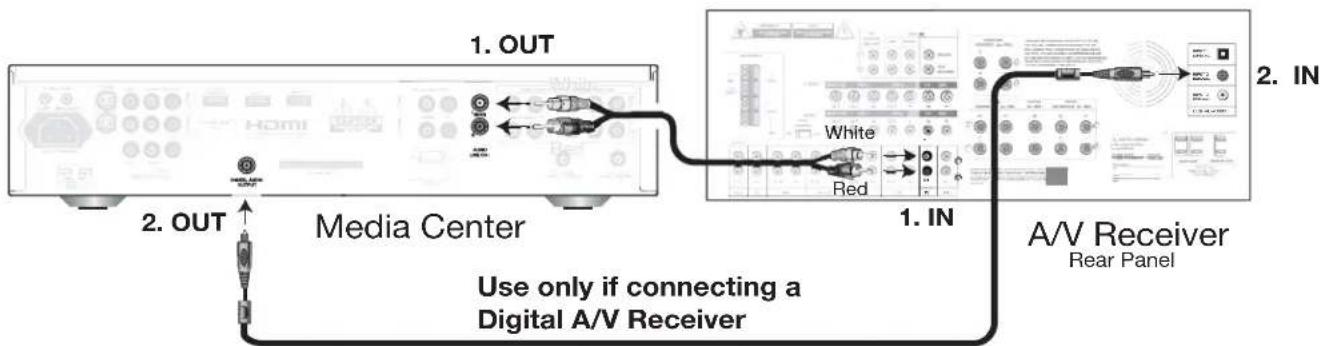
A/V Receiver or Stereo System
Figure 10
A digital audio cable and stereo audio cables are required. The digital audio cable is provided. The stereo audio cables are not included with the media center. "Y" splitter cables may also be required.
- Connect a set of stereo audio cables from AUDIO LINE OUT on the media center rear panel to the TV AUDIO INPUT on the back of the A/V receiver. The red cable connects to the R (right) channel and the white cable connects to the L (left) channel.
To connect a digital A/V receiver with Dolby® Digital surround sound:
- Connect one end of the digital audio cable supplied with the media center to DIGITAL AUDIO on the back of the media center. Connect the other end to the COAXIAL DIGITAL INPUT on the back of the A/V receiver.
Check A/V receiver's Owner's Guide for information concerning the use of the digital input and switching between the digital sound and analog stereo sound from the display.
flowchart
graph TD
    A["Media Center"] -->|1. OUT| B["Black Wire"]
    A -->|2. OUT| C["Black Wire"]
    B --> D["White"]
    B --> E["Red"]
    D --> F["A/V Receiver Rear Panel"]
    E --> F
    style A fill:#f9f,stroke:#333
    style B fill:#ccf,stroke:#333
    style C fill:#cfc,stroke:#333
    style D fill:#fcc,stroke:#333
    style E fill:#cff,stroke:#333
    style F fill:#ffc,stroke:#333
Figure 10. Connecting an A/V receiver
Satellite Receiver or Other S-Video Devices
Figure 11
An S-Video cable and audio cables are required. These are not included with the TV sytem.
- Connect an S-Video cable from VIDEO OUT on the satellite receiver rear panel to INPUT-2 VIDEO on the media center rear panel.
- Connect a set of audio cables from AUDIO OUT on the satellite receiver rear panel to INPUT-2 AUDIO, on the media center rear panel. The red cable connects to the R (right) channel and the white cable connects to the L (left) channel. Refer to the Satellite Receiver Owner's Guide for Dish Antenna connections.
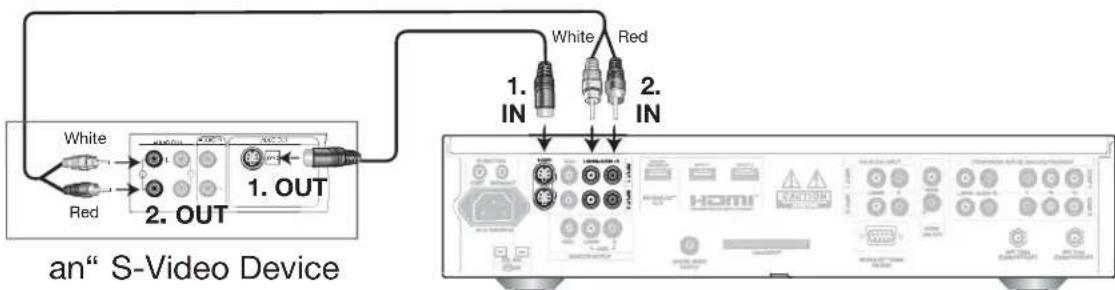
Figure 11. Connecting a Satellite Receiver with S-Video
Media Center
Note: NetCommand® will assume you connected your Satellite Receiver to Input-2. If you add a second Satellite Receiver or use any other inputs for your Satellite Receiver, this change must match in the NetCommand system. See Editing NetCommand Setup in Chapter 3 for more information.
DVD Player or Other Component Video Device
Figure 12 Component video cables and audio cables are required. These are not included with the media center.
- Connect the Component Video cables from Y/Pr/Pb VIDEO OUT on the back of the DVD player to COMP-2 on the media center rear panel, matching the correct connection:
Y to Y (Green), Pr to Pr (Red), Pb to Pb (Blue)
- Connect a set of audio cables from AUDIO OUT on the back of the DVD player to COMPONENT-1 AUDIO Input on the media center rear panel. The red cable connects to the R (right) channel, and the white cable connects to the L (left) channel.
NOTE: For the best audio quality, if your A/V receiver supports digital audio, connect the DVD Coaxial or Optical digital audio directly to the A/V receiver (instead of using the L/R analog audio ports).
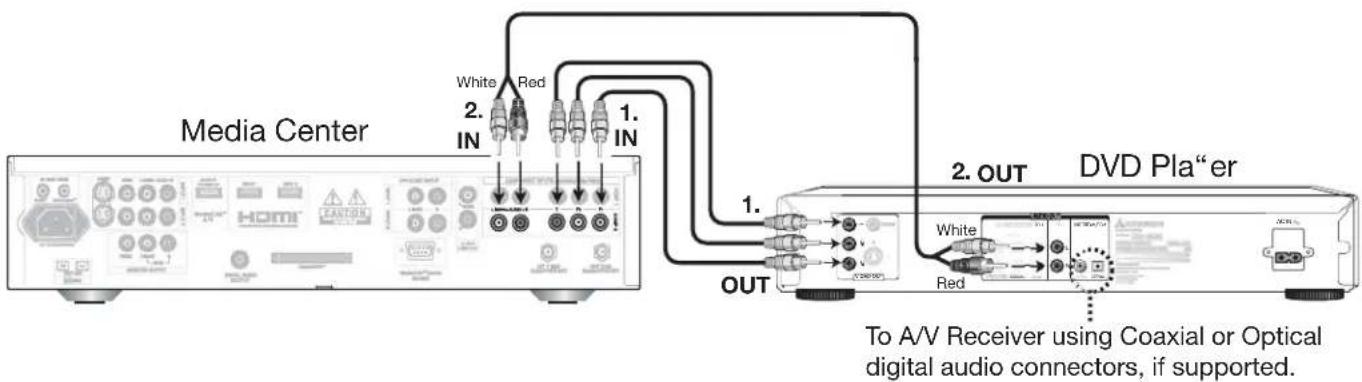
Figure 12. Connecting a DVD Player with Component Video
NOTE: NetCommand® will assume you connected your DVD player to Component-1. If you add a second DVD or use any other inputs for your DVD, this change must match in the NetCommand system. See Edit NetCommand in Chapter 3 for more information.
IMPORTANT
See Appendix D for component video signal compatibility information.
For digital audio connections, see your DVD Owner's Guide.
HDMI Output Device
(Cable Box, Satellite Receiver, DVD Player, Etc.)
Figure 13
An HDMI to HDMI cable is required. This cable is not included with the media center.
Connect an HDMI cable from the HDMI input on the media center rear panel to the HDMI output on the source device output. HDMI devices provide video and audio through this cable.
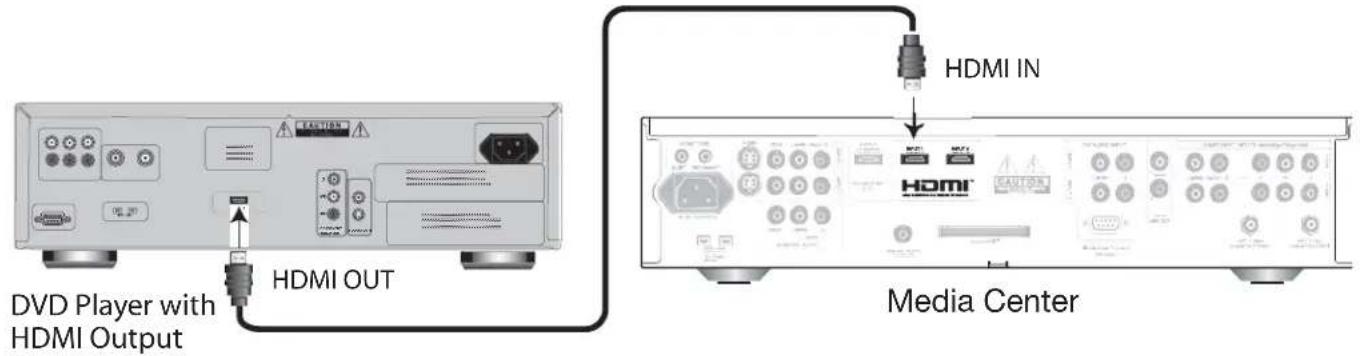
Figure 13. Connecting the media center's HDMI Device Input
NOTE: The HDMI™ input terminals are compliant with the EIA-861 Standard and are not intended for use with personal computers.
DVI Output Device
Figure 14
A DVI-to-HDMI cable or DVI/HDMI adaptor and HDMI cable and audio cables are required. These are not included with the media center. They may be available at your local electronics retailer.
- Connect the DVI-to-HDMI cable (recommended) (or DVI/HDMI adaptor with an HDMI cable) from the DVI device's rear panel to the media center's rear panel.
NOTE: If you are using a DVI/HDMI adaptor, it is important to connect the adaptor to the DVI side for best performance. - Connect a set of audio cables from AUDIO OUT on the DVI device rear panel to the DVI Analog Audio input on the media center rear panel. The red cable connects to the R (right) channel, and the white cable connects to the L (left) channel.
NOTE: The HDMI connection supports copy protection (HDCP). Some devices require connecting to an analog input first, in order to view on-screen menus and select DVI as the output. Please review your equipment instructions for DVI connectivity and compatibility.
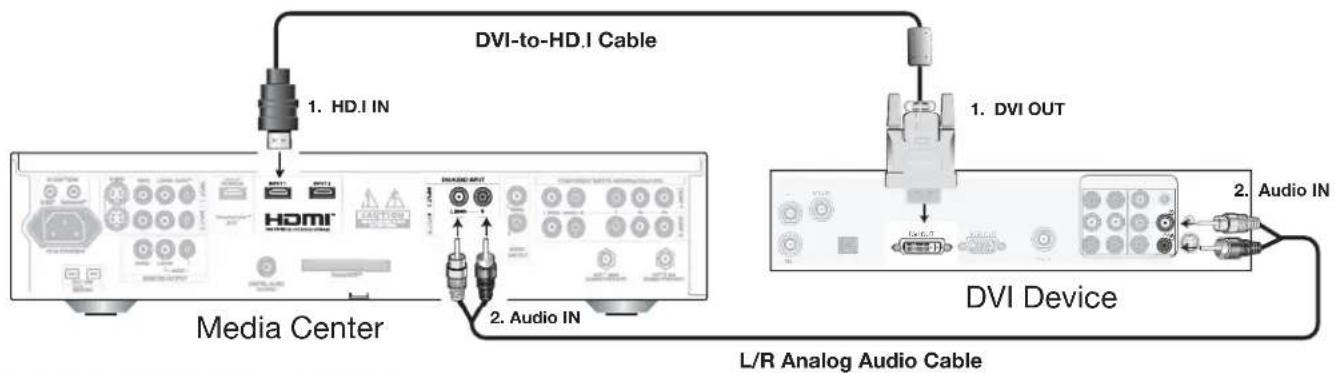
Figure 14. Connecting a DVI Device
NOTE: The HDMI™ input terminals are compliant with the EIA-861 Standard and are not intended for use with personal computers.
IMPORTANT
The HDMI/DVI connection does not support audio. For audio, you must connect left and right analog audio cables.
IR Emitters and NetCommand®
Figures 15 and 16
A quadruple IR Emitter cable is included with the TV
The four (4) IR emitters connected to the IR emitter cable (see Accessories in Chapter 1) are used by the NetCommand system to control up to four other devices, such as a VCR, DVD player, Cable box, and a Satellite receiver.
- Connect the plug end of the supplied quadruple IR Emitter Cable to one of the IR Output NetCommand terminals on the media center rear panel.
- Run the cable for each of the emitter ends under, along side or over the top of each device to be controlled to the area of the front where the remote control sensor is located.
- Place one of the emitters in front of the remote control sensor of the device to be controlled. The emitter bulb should face the remote control sensor on each device. This bulb emits infrared light in a cone shaped pattern. The bulb needs to be placed far enough from the remote control sensor to allow the cone pattern to include the sensor.
Note: See Figures 15 and 16 for examples of emitter placement.
The remote control sensor is usually behind the plastic window of the front display panel. It is sometimes visible when you look through the display plastic using a flashlight and is normally a round or square cutout behind the plastic. If you cannot see the sensor and the device's Owner's Guide does not specify the location, you can find it by using the device's remote control. Hold the remote about 1/2 inch from the front of the device. Starting from one end of the display window plastic, press the POWER button.
If the device does not respond, move the remote control 1 inch toward the center and try again. Repeat this until the device responds. Note this location then start over from the other end of the display window plastic, repeating until the device responds again. The remote control sensor will be somewhere between these two positions. This is usually enough accuracy for the placement of the IR emitters.
- With some devices, the emitter will work better facing downward from the top of the device. Some experimentation may be needed.
- The emitter end being used can be secured in place using double stick tape.
- If you are not going to be using all emitter ends, place the unused ends behind the devices so that they cannot send signals to the remote control sensors.
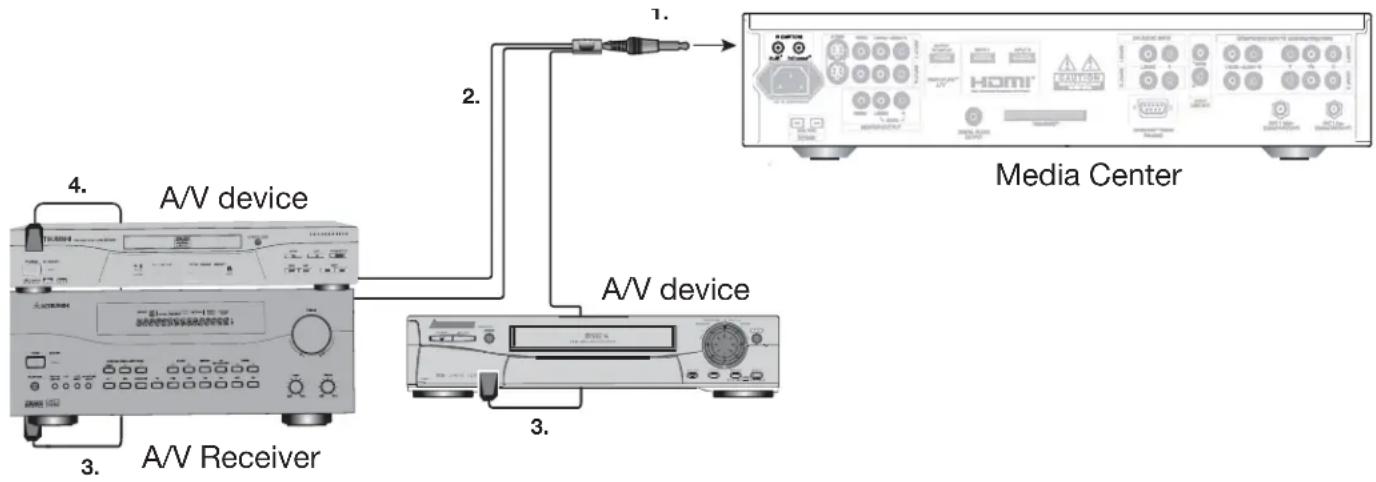
flowchart
graph TD
    A["Media Center"] -->|1.| B["A/V device"]
    A -->|2.| C["A/V receiver"]
    A -->|3.| D["A/V device"]
    A -->|4.| E["A/V device"]
Figure 15. Connecting IR Emitter NetCommand
IMPORTANT
If a single emitter end can be placed in a position that will operate more than one device, do not use a separate emitter end for the additional device. A single device receiving remote control signals from too many emitters or remote controls may not respond at all.
IR Emitter Placement
Figure 16
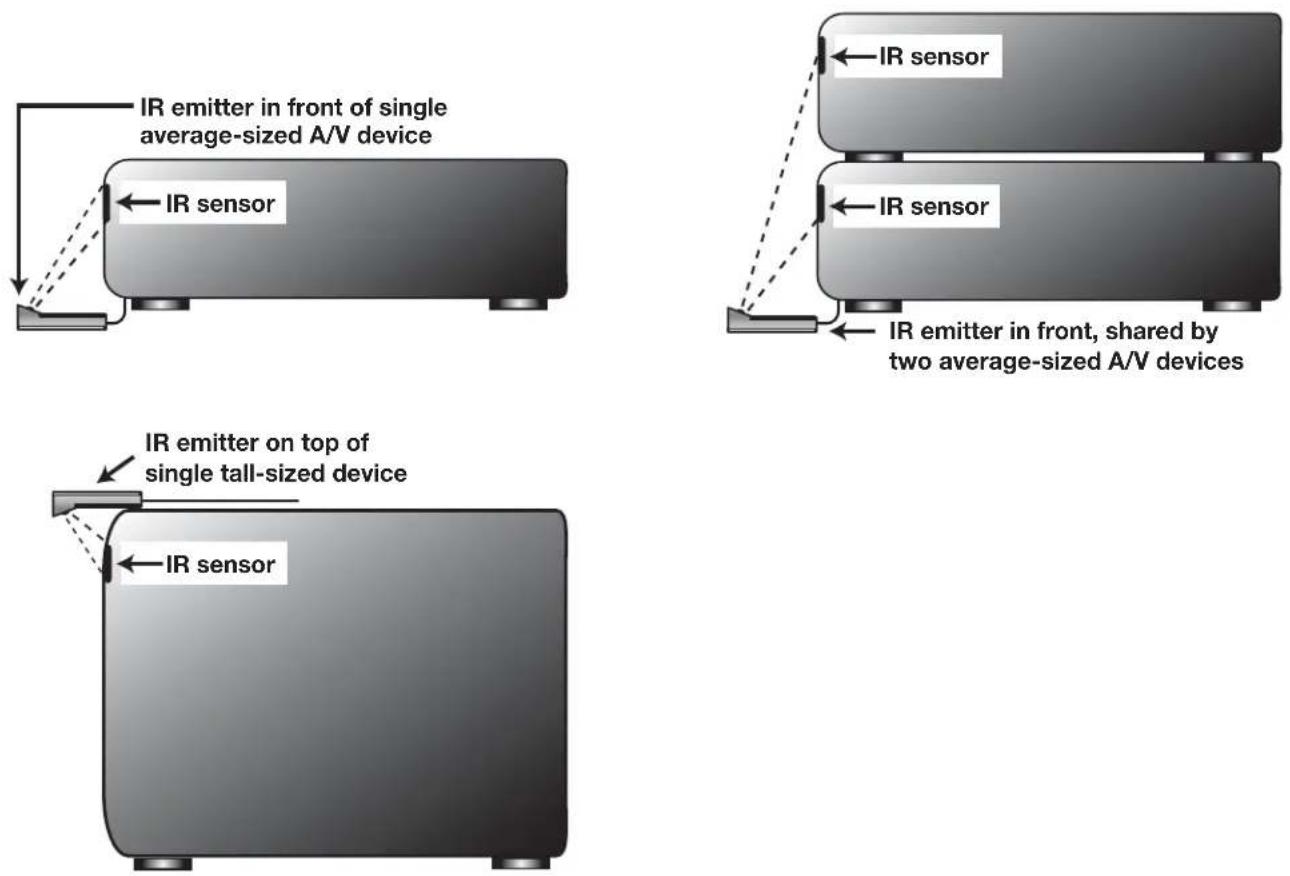
Figure 16. IR Emitter Placement Recommendations
Compatible IEEE 1394 Device
It is possible to connect devices to the media center that have IEEE 1394 connectors but are not compatible with the media center or with the NetCommand® control system. Areas of compatibility to consider are:
1. Digital Video Signals
The media center is able to decode MPEG2 video. Other types of digital video, such as DV video provided by some camcorders, must be decoded by the source device and sent to the media center as analog video or S-Video. If the camcorder uses a compatible digital control system, the IEEE 1394 cable can still provide control for the camcorder while the display is receiving the analog video or S-Video signals.
2. Digital Audio Signals
The media center is able to decode Dolby Digital signals and MPEG audio signals. Other types of digital audio as provided by some digital recording devices, such as MP3 audio and DTS audio, cannot be decoded by the media center when received over IEEE 1394.
The media center may not be able to pass incompatible digital audio signals on the coaxial digital audio output, however these signals may pass on the IEEE 1394 cable to other devices.
3. Digital Control Signal
The media center is able to act as the control center for IEEE 1394 audio/video devices, such as VCRs, A/V Discs, tuners, cable boxes and amplifiers that are compatible with the following IEEE 1394 control standards.
- EIA-775 is designed for tuning devices such as cable boxes allowing the device to send simple graphics. However, this standard does not allow the media center to control the cable box by IEEE 1394.
- AV/C (Audio Video Control) is designed to provide basic controls such as play, stop, channel selection and volume, as appropriate for the device.
Some devices may be a combination of two or more types of devices. For example, there may be a recording device that is also a tuning device. Each portion of the device is called a sub-unit. When you select a device on the Device Selection menu that has sub-units, a pop-up menu will appear so you can select which sub-unit section you wish to use.
- Do not place an IEEE 1394 device between the media center and the display.
- Do not make a loop with the last device in the chain. When the device chain is looped, the media center may not be able to work with the other devices.
- Place devices that have only a mechanical (two-position) power switch at the end of the chain or leave the power switch in the On position. When turned Off, IEEE 1394 signals may not be able to pass through the device to other devices.
- Place devices with the slowest communication speed at the end of the chain. Sometimes the communication speed will be marked near the IEEE 1394 connector with an "S" number. The higher the number, the faster the communication speed. This media center has a communication speed of S400. Devices with slow communication speed can interfere with IEEE 1394 signals from faster devices. When using NetCommand to set up a digital recording between a faster and slower device, the slower device should be the source and the faster device should be the recorder.
- Do not use an IEEE 1394 cable longer than 15 feet between each device.
- The media center is an IEEE 1394a Device. IEEE 1394b is currently under development. This system will provide for longer distances and multi-room applications. Included in the IEEE 1394b systems are IEEE 1394a to IEEE 1394b converters to maintain compatibility with this media center and other IEEE 1394a devices.
Connection Styles
There are two different connection styles that can be used when connecting IEEE 1394 devices. Use the style that fits your network of audio/video products.
Direct Device-To-Device Style
The IEEE 1394 offers you the capability to chain devices, unlike previous audio and video connections where you had to individually connect each device directly to the media center. For example, you can connect a D-VHS to a 1394 DVD Player and then to the media center. The resulting IEEE 1394 chain will allow you to add more devices to the chain. You will be able to see each video device on the media center's Device Selection Menu and send information from any IEEE 1394 device to other compatible devices.
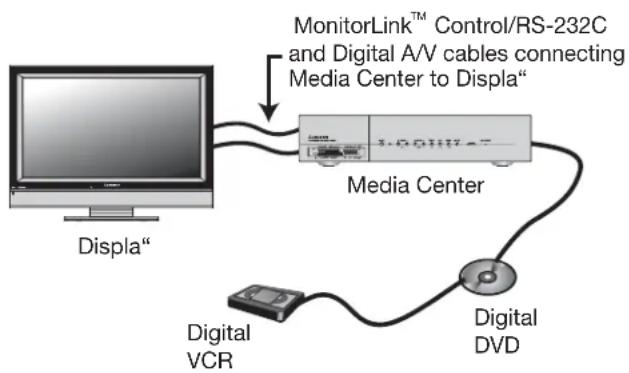
flowchart
graph TD
    A["Displa""] --> B["Media Center"]
    B --> C["Digital VCR"]
    B --> D["Digital DVD"]
    B --> E["MonitorLink™ Control/RS-232C and Digital A/V cables connecting Media Center to Displa""]
Hub Connection Style
The IEEE 1394 also offers you the capability to connect your devices using the media center as a hub within the audio/video network. Each device can send information, which may include audio and video, to any other device in the network.
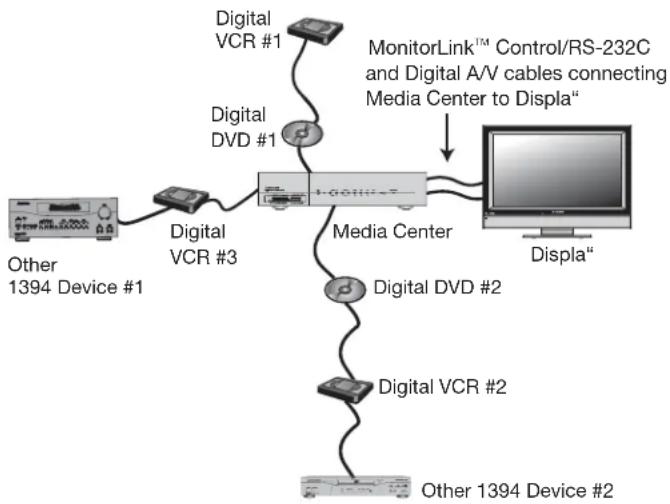
flowchart
graph TD
    A["Other 1394 Device #1"] --> B["Digital VCR #3"]
    B --> C["Digital VCR #1"]
    C --> D["Digital DVD #1"]
    D --> E["MonitorLink™ Control/RS-232C and Digital A/V cables connecting Media Center to Displa""]
    E --> F["Display"]
    B --> G["Media Center"]
    G --> H["Digital DVD #2"]
    H --> I["Digital VCR #2"]
    I --> J["Other 1394 Device #2"]
4-Pin Style vs. 6-Pin Style Connectors
There are two different types of connectors used for IEEE 1394 terminals and cables, a 4-pin and a 6-pin style.
The 4-pin connector sends digital audio signals, digital
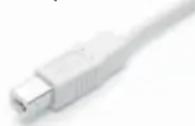
4 pin connector
video signals and digital control signals back and forth between devices. Your media center has two (2) 4-pin type connection terminals available on the rear panel.
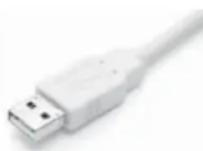
6 pin connector
The 6-pin connector is capable of sending the same digital audio, video and control signals as the 4-pin connector, but the 6-pin connector is also able to send low voltage electrical power. This media center does not have 6 pin connectors.
The purpose of this low voltage electrical power is to provide the needed operating power to a device that is not connected directly to the household AC power such as a camcorder. A device with a 6-pin connector can send this electrical power to another device, or receive electrical power from another device, or simply use a 6-pin connector without using the two additional pins.
A 6-pin connector cannot be connected directly to a 4-pin terminal, and vice versa. To connect a 6-pin device
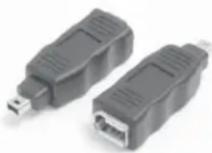
6-pin to 4-pin adaptor
to a 4-pin device, you will need to obtain a 6-pin to 4-pin adaptor or adaptor cable. These cables are available from electronic and computer stores.
When connecting a 6-pin device (such as a camcorder) to the media center, (if it is designed to receive electrical power from another 6-pin
device) you will need to connect the camcorder directly to the household AC, or use the camcorder's battery for power. If this is not possible, then the camcorder will need to be connected directly to another 6-pin device in the network that can provide the electrical power.
Helpful Hints
Q My VCR (or other device) does not have two sets of stereo audio outputs. How can I connect this device's audio to both the media center and the A/V Receiver?
A. There are two solutions:
- Connect the single set of stereo audio outputs to the media center only. Use Edit NetCommand® to change the setup of this device. In the Connection screen of "Change" make sure both audio and video for the media center input are check marked and neither the audio or the video for the AVR input are check marked. This will allow the NetCommand system to use the media center outputs to transfer the device's audio to the A/V Receiver. See Edit NetCommand in the next chapter for details.
- Use RCA type "Y" splitter cables to split the device's audio output to be connected to both the TV and the A/V Receiver.
Q. I have both the media center/Audio Line Out stereo audio output and media center digital audio output connected to the same input designation on my A/V Receiver. How do I switch between analog audio and digital audio?
A. This depends on the individual A/V Receiver. Some A/V Receivers will switch automatically to digital when a digital audio signal is supplied. Other A/V Receivers can be manually switched by remote control. For these types of A/V Receivers, see Edit NetCommand in the next chapter for NetCommand control of these features. Some A/V Receivers will require that you make this change on the front panel of the A/V Receiver.
Q. The front panel of my A/V Receiver is too tall or too convex for the IR emitter signal to reach the remote control sensor of the A/V Receiver. What can I do?
A. There are several possible solutions.
- Mount the IR Emitter on the top, front edge of the A/V Receiver over the remote control sensor. Use tape to secure it in place.
- Mount the IR Emitter on the underside of the shelf above the A/V Receiver (if the A/V Receiver is in a cabinet). Use double sided tape to secure it in place.
- Some small stick-on emitters from other manufacturers may be compatible with this media center's IR Emitter terminals. These may be used instead of the supplied IR Emitters.
Q. I occasionally need to see the menu from my A/V Receiver. How can I connect it to the HDTV receiver for this purpose?
A. You can connect the video output of the A/V Receiver to an unused input on the media center. Then use Edit NetCommand to "Add" this as an "Other" device, not a A/V Receiver. On the "Connection" screen, indicate which media center input was used and check mark the video box. Make sure the media center input audio box and both the audio and video boxes for the AVR input are not check marked. You should also name this device so you can easily identify it on the Device Selection Menu. You can also use Input 3 (Camcorder) on the front panel.
Q. I have a separate high definition receiver I would like to connect and it also has an S-video output and would like to be able use it as well. Is there any way to connect this receiver both ways?
A. Yes, this item will appear twice in the Device Selection Menu. Just add this unit once using the Input-DTV receiver and once using one of the S-video inputs. Make sure you learn the remote control twice, on for each input. We suggest that you connect stereo audio outputs with the S-video to the media center so that you do not need to use two inputs on the A/V Receiver. If this is a NetCommand compatible media center that HD or SD outputs can be switched by remote control, see Edit NetCommand in the next chapter for NetCommand control of this feature.
Chapter

NetCommand® Setup and Editing
NetCommand® Introduction 36
NetCommand® Initial Setup 37
Edit NetCommand® 39
Add an A/V Receiver 39
Add Devices 42
Change Devices 45
Delete Devices 46
Finish Screen 46
Setup Reminder Screen 46
Using the Remote Control with NetCommand® 47
NetCommand® On-Screen Buttons 48
3D Graphical ▶ViewPoint® Menu System 49
NetCommand® Introduction
NetCommand makes your TV the heart of your Home Theater
NetCommand® is an intelligent control system that makes your Mitsubishi TV the heart of your home theater. With NetCommand, the TV sends signals to the other devices in the system via the IR emitters, telling the devices to play, record, change inputs, adjust volume, change channels and many more functions. All of this is accomplished with one remote control and without changing control layers.

IR Learning and IEEE 1394 Support
The IR “Learning” feature of NetCommand allows the TV to learn the remote control signals for new devices that the TV is not preprogrammed to operate. NetCommand® also includes the capability of controlling IEEE 1394 devices by sending control signals on a FireWire® cable.
Using NetCommand is completely optional
When you first turn on the TV, the NetCommand Setup Wizard launches. If you decide to use NetCommand, follow the on-screen instructions. If you choose not to use it right away, simply quit the Setup Wizard and NetCommand will remain inactive. Later, if you decide to use NetCommand, you can easily access the Setup Wizard.
NetCommand and Levels of Control
When you set up NetCommand, you decide how much control you want the TV to have over your home theater system. You have the choice of performing a basic, limited, or complete NetCommand setup.
- Basic Setup
In a basic setup, NetCommand will:
◇ automatically switch to the correct TV input when you want to view programming from a different device. All you do is select the device from the on-screen device selection menu. This saves you from having to search for the correct input every time you want to change devices. Unused inputs are automatically deactivated so that you don't see them in the menu.
◇ show an on-screen icon for each device connected to the TV so you always know what devices are available.
Note that with a basic setup, you still need to use the remote control specific to each device.
- Limited Setup
In a limited setup, you get the benefits of the basic setup plus NetCommand control over the specific devices you have chosen. Use this type of setup if you:
only want NetCommand to control a few devices, such as the TV, a playback device (like a DVD player), and a cable box. With this setup, you can use the TV's remote to control these devices.
◇ want to use TV Guide On Screen® to control your cable box and VCR and/or A/V disc. After performing this setup, you can use the TV's remote to control these devices.
◇ want the ease and flexibility of NetCommand-controlled recording, with seamless setup of time-delayed or immediate recordings among networked devices.
- Full Setup
Perform a full setup if you want NetCommand to:
◇ control a surround sound A/V receiver.
◇ automatically change input selections for the A/V receiver.
◇ control all devices with the TV's remote, including the A/V receiver.
◇ provide seamless setup of time-delayed or immediate recordings among networked device.
NetCommand Helps Manage Your Home Theater
With the NetCommand Review screen you can:
• view a summary of all devices connected to the TV and the input used for each device.
- deactivate or turn off unused input connections, then reactivate or turn them on when needed.
If you need to change your setup, the NetCommand sub-menu lets you easily
- add new devices.
- delete devices you have disconnected.
- change device and input selections.
IMPORTANT
To take advantage of the versatility of your new HDTV, Mitsubishi recommends that you set up NetCommand® as soon as you finish connecting your A/V devices and power on the LCD Flat Panel TV for the first time. Although setting up NetCommand is optional, TV Guide On Screen® can not control connected cable boxes or record TV programs unless NetCommand is set up. You also have the option of setting up NetCommand at a later time.
NetCommand® Initial Setup
Setting up NetCommand gives you centralized control of all A/V devices connected to the media center and allows you to record TV shows using TV Guide On Screen®. After you place IR emitters in front of connected A/V devices, you will only need one remote control because NetCommand can learn the IR codes used by the remotes controls of A/V devices.
Welcome Screen
Figure 1
When you first turn on your TV, the Welcome screen displays and asks you to select either English or Spanish as the language for the on-screen menus. The default language is English. To change Language later, select Setup from the Main Menu.
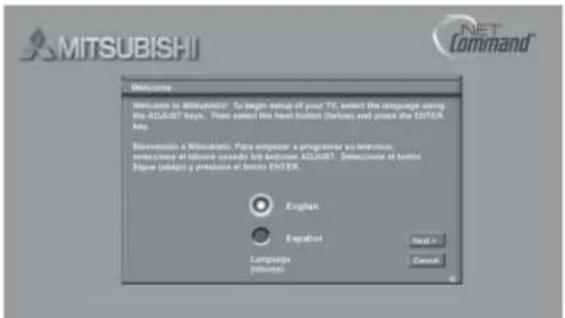
Figure 1. Welcome screen
IMPORTANT: If the NetCommand Welcome screen does not appear the first time you turn on the HDTV system, check to make sure the media center and the display are connected using both MonitorLink™ cables (Control & A/V).
NetCommand (Information) Screen
Figure 2
After the Welcome screen, the NetCommand (Information) screen displays automatically the first time you power On your TV. This screen describes how to start or delay the initial NetCommand Setup.
To set up NetCommand: select Next> and press ENTER.
If you cancel NetCommand Setup before it is completed, you can restart the NetCommand setup by doing the following:
-
Press TV MENU on the remote control to display the TV Main menu.
-
Select NetCommand. The available options will be: Add, Review and Initial. Change and Delete will be grayed out.
- Press ADJUST ▲, ▼, ◀ or ▶ to select Initial.
- Press ENTER. The Device Setup screen displays.
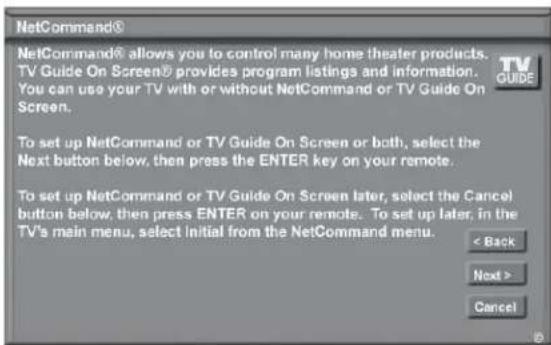
Figure 2. Information screen
Device Setup Screen
Figure 3, next page
If the devices connected to the media center are already in NetCommand memory, you can quickly select them at this screen. Press ADJUST or ▶ move to each device type. Press ADJUST ▶ to select the manufacturer. Select "Other" if the manufacturer is not listed. Later, you can use the Change setting in the Edit NetCommand menu to learn the remote control signals for this device. Select "None" for device types that are not connected.
For the A/V Receiver, if the manufacturer is not listed, you cannot select "Other". Instead, select "None". Later, you can use the "Add" feature in the NetCommand menu to have the media center add and learn the remote control signals for this device. After completing your choices, select Next> and press ENTER.
NetCommand® Initial Setup, continued
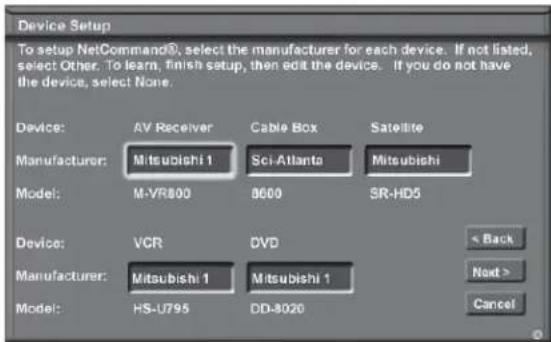
Figure 3. Device Setup screen
Note: If you selected "Other" for any of the device names, the media center can "Learn" the connected device by following the Edit NetCommand instructions. For many device types, non-listed models will operate in the same way as the listed models and you can still use the pre-loaded setting.
TV Guide On Screen® System Setup
Figure 4
The TV Guide On Screen option allows you to select whether you want to enable the Guide and which devices you want to include in the listing. In order to get the correct listings for your area, you will need to enter your 5-digit ZIP code.
Depending on your setup, you can select either or both antenna inputs, or antenna inputs and a cable box, or Cable CARD™ on Antenna 1 and an over-the-air antenna on Antenna 2. If you have multiple cable connections such as direct cable without a box on one antenna and a cable box on the other antenna or an input, these will share the same channel number assignment and as a result may not match correctly for both connections.
For detailed information on using the TV Guide On Screen system, please see the TV Guide On Screen® Interactive Program Guide User's Manual.
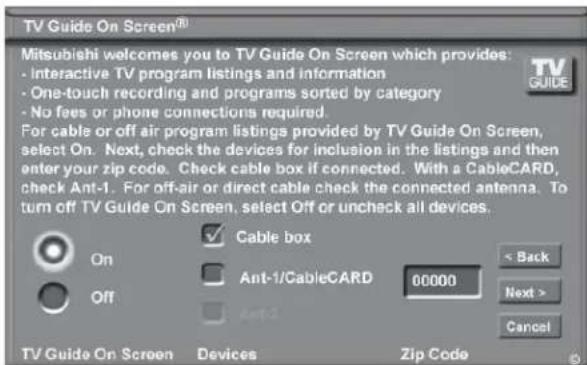
Figure 4. TV Guide On Screen
Note: Inputs to TV Guide On Screen can include only one over-the-air source and one cable source.
If you connect an HDTV cable box to the TV using Component 1 or 2, HDMI Input 1 or 2, or IEEE 1394, and plan to use TV Guide On Screen to control this cable box, also connect an over-the-air antenna in order to download TV Guide On Screen data.
Review Screen
Figure 5
After you have made your device choices the Review Screen will display. It is important to review the settings to ensure that they are correct. If necessary, you can use <Back to return to the Device Setup screen to make changes.
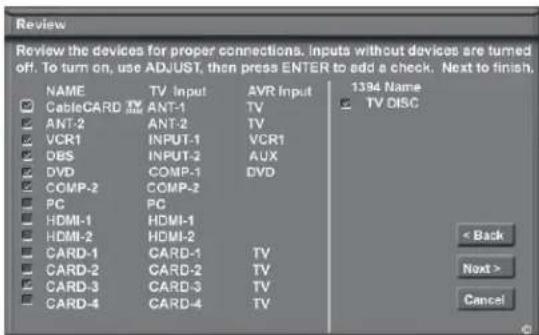
Figure 5. Review screen
Note: The Review screen lists the media center input and A/V receiver input used with each device. You must correctly identify the inputs you used when you connected the devices. If you have not connected your devices, write down these inputs as a guide. If you cannot use these inputs, or if you would like to change the name of a device, use the instructions in Edit NetCommand to make necessary changes.
Note: If you select Next> on the Review screen, all selections made are finalized.
On the Review screen, adding or deleting check marks will turn the adjacent devices, memory cards or inputs On or Off. 1394 device names only appear on the Review screen when the devices are connected to the media center.
Finish Screen
Figure 6, next page
To complete the NetCommand setup, select Finish from the Finish screen.
If you wish to change any of the pre-configured inputs or names for the devices, or add devices not in the pre-configured setup, select Edit to display Edit NetCommand menu.
If your A/V receiver (AVR) was not listed, select Edit to add the AVR and then assign all devices to new AVR inputs.
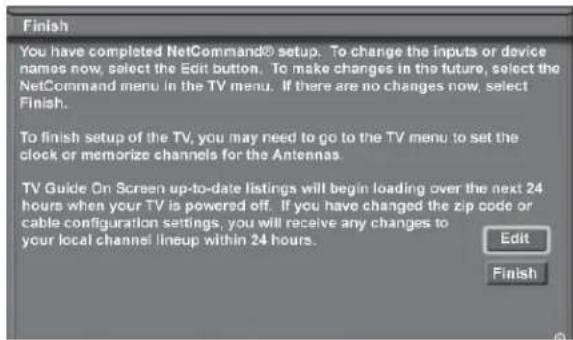
Figure 6. Finish screen
It is still necessary to memorize the available channels for Antenna-1 (and Antenna-2, if used). You may do that by going to the TV Main menu and selecting Antenna. Instructions to memorize channels are found in the Antenna menu section.
Edit NetCommand®: Add an A/V Receiver
A/V Receiver Screen
Figure 7
If your A/V Receiver manufacturer was not listed, and you selected "None" during the initial NetCommand setup, you may add the A/V Receiver and have NetCommand learn its remote control's functions.
- If you are in the Finish screen for initial setup, select Edit.
- If you have already finished initial setup, change the audio source to TV Audio. Press the DEVICE key to verify the current audio source. To change, press the AUDIO key to access the audio section and change the source. Next open the Main menu, select NetCommand, then press ENTER. The Edit NetCommand screen will display.
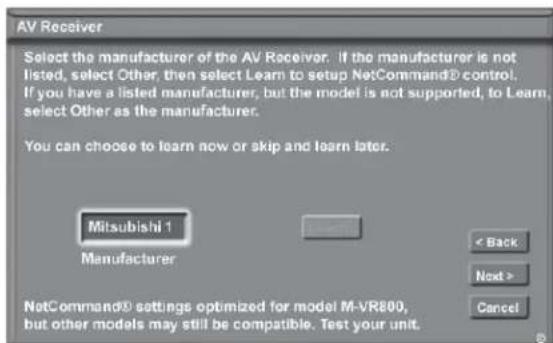
Figure 7. A/V Receiver screen
Highlight Add and press ENTER. When the New Device screen displays (see figure 15), press ADJUST ▲ or ▼
until you see A/V Receiver as the device type. Highlight Next and press ENTER to open the A/V Receiver screen.
IMPORTANT
To make changes to the A/V receiver setup, first ensure that the current audio source is TV Audio.
Choose ONE of these options:
- Select a recognized manufacturer. The model number optimized for NetCommand will display at the bottom of the screen. If a number follows the manufacturer's name, (example: Mitsubishi 1), this indicates additional models are optimized for that manufacturer. For many device types, non-listed models will operate in the same way as the listed models and you can still use the pre-loaded setting.
After selecting Next>, the screens that follow are: the Name Screen (Figure 11), Audio Line Out to AVR screen (Figure 12), ending with the Finish screen (Figure 13). - Select "Other", then highlight "Learn" and press ENTER. This will allow you to have NetCommand learn the remote control signals of this new device.
After selecting "Learn" and pressing ENTER, the screens that follow are: the A/V Receiver Input screen (Figure 8), A/V Receiver Input Learn screen (Figure 9), A/V Receiver Learn screen (Figure 10), Name screen (Figure 11), Audio Line Out to AVR screen (Figure 12), ending with the Finish screen (Figure 13). - Select "Other", skip Learn and select Next>. This will allow the device to appear and will allow NetCommand to switch inputs to use this device. However, NetCommand will not be able to control this device. Later you may use the "Change" option in the NetCommand menu to learn the remote control signals.
After selecting Next>, the screens that follow are: the A/V Receiver Input screen (Figure 8), Name screen (Figure 10), Audio Line Out to AVR screen (Figure 12), ending with the Finish screen (Figure 13).
A/V Receiver Inputs
Figure 8
If you select "Other" as the manufacturer, you will see the A/V Receiver Input screen after selecting "Learn" and pressing ENTER. After selecting the number of inputs, this screen will not appear again.
Depending on your A/V Receiver's capability, you may connect up to seven (7) A/V inputs. Select the number of inputs by pressing ADJUST ▲ or .▼
If the number of connected inputs changes, you will need to delete the A/V receiver through Edit NetCommand and add it again, as described above.
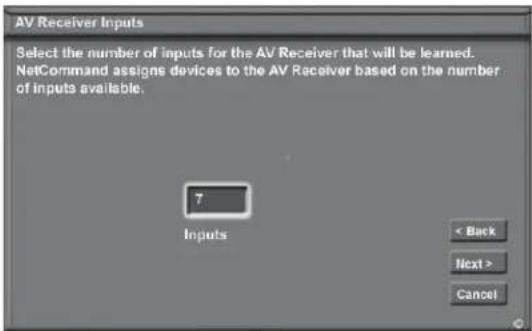
Figure 8. A/V Receiver Input screen
A/V Receiver Input Learn Screen
Figure 9
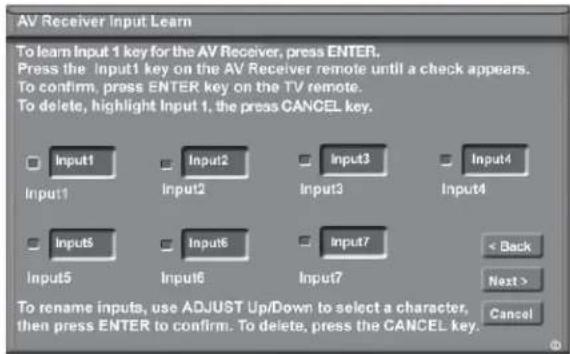
Figure 9. A/V receiver Input Learn screen
NetCommand can now learn the remote control signals used to select each input on the A/V receiver.
- Press ADJUST◀ o▶ on the TV remote control to select the check box for each function to be learned.
- Press ENTER and the function name will begin to flash to confirm the ready-to-learn status.
- Point the A/V receiver's remote control at the display. If close to the screen, see page 10 for the location of the Learning IR sensor. Press the button on the remote control that corresponds to the selected function. A check mark will appear and the function name will stop flashing. This confirms the signal learned status.
- To test the learned command, while the function is selected, press ENTER on the TV remote control. The A/V receiver will perform the selected function. The A/V receiver needs to be turned on and the IR emitters properly placed for the test to be successful (see page 30 for IR emitter placement).
- To customize the input names, press ADJUST ▶ to move to the Input Name text box and then press ADJUST ▲
and ENTER to select each letter of the name. These names will appear on the Review screen as the A/V receiver's input names.
- To erase the learned input signal, highlight the check box for that input and press CANCEL.
- Repeat for each connected input.
- When the input selection signals have been learned and the inputs named, press ADJUST ▶ to select Next> and move to the A/V receiver Learn screen.
A/V Receiver Learn Screen
Figure 10
- Press ADJUST on the TV remote to select the check box for each function to be learned.
- Press ENTER and the function name will begin to flash to confirm the ready-to-learn status.
- Press the button on the A/V receiver's remote control that corresponds to the selected function, A check mark will appear and the function name will stop flashing. This confirms the signal learned status.
- To test the learned command, press ENTER on the TV remote control. The A/V receiver will perform the selected function. The A/V receiver needs to be turned on and the IR emitters properly placed for the test to be successful (see page 30 for IR emitter placement).
- Repeat for each function to be learned.
- To erase a learned function, highlight the check box for that function and press CANCEL.
- When the function signals have been learned, press ADJUST▶ to select Next> and move to the Name screen.
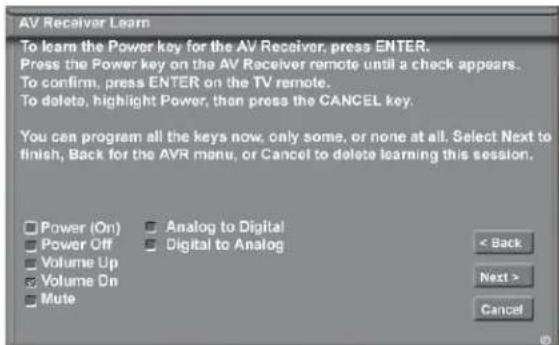
Figure 10. A/V receiver Learn screen
Hint: If your A/V receiver remote control uses a single button for both Power On and Power Off, don't learn the Power Off function. If your A/V receiver uses a single button to toggle between digital and analog sound, then learn only Analog to Digital. If your A/V receiver automatically switches between analog and digital audio, then you don't need to learn either Analog to Digital or Digital to Analog functions.
Add an A/V Receiver, continued
Name Screen
Figure 11
The Name screen allows you to change the default name for the A/V receiver to a custom name of up to eight characters (including a blank space), selecting from letters, numbers, and nine different characters. Using the media center's remote, press ADJUST ▲r to select each letter, then press ENTER to move to the next position. Press CANCEL to delete the current letter and move back one character position. When in the first position, the CANCEL button will return the name to the default name.
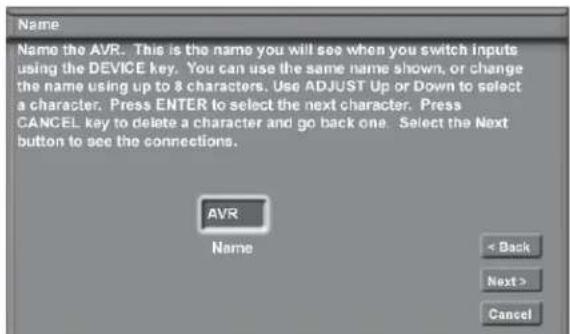
Figure 11. Name screen
Audio Line Out to AVR Screen
Figure 12
If you connected the media center Audio Line Out to an A/V Receiver (AVR), use this screen to select the name of the analog input you're using on the A/V receiver.
If the A/V receiver also has a digital audio input, then connect the media center Digital Audio Output to the A/V receiver digital audio input.
Note that the media center MONITOR OUTPUT AUDIO connection is only for VCR recording and is not synchronized with the video display. Do not use MONITOR OUTPUT AUDIO as input to an A/V receiver.
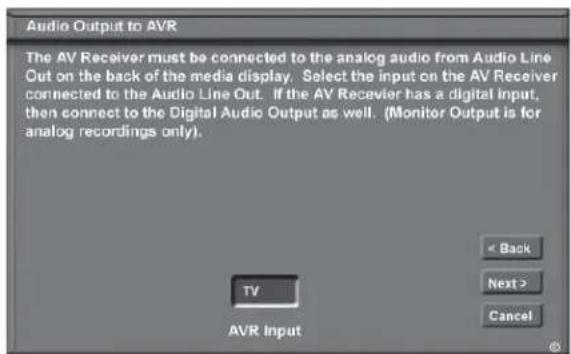
Figure 12. Audio Line Out to AVR screen
Finish Screen
Figure 13
To finalize your selections and complete the A/V receiver setup, select Finish from the Finish screen.
Note: If you connected the audio output of any device directly to the A/V Receiver, you must use the "Change" function of the Edit NetCommand menu and select the device to assign the correct A/V Receiver input to be used with each device.
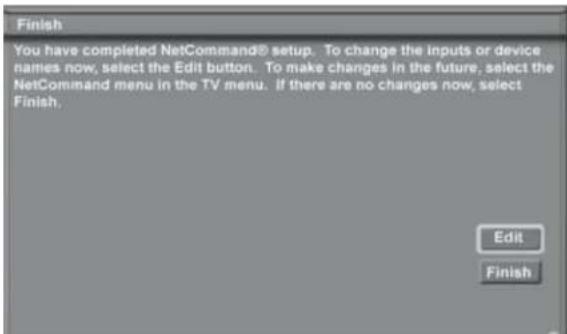
Figure 13. Finish screen
Edit NetCommand®: Add Devices
Note: Mitsubishi's NetCommand allows you to edit your home theater configuration. You can add new devices, change device settings and connections, delete devices and learn remote control IR signals not already in NetCommand memory.
Edit NetCommand Screen
Figure 14
If you selected Edit when you were at the Finish screen, the Edit NetCommand screen displays. The choices are:
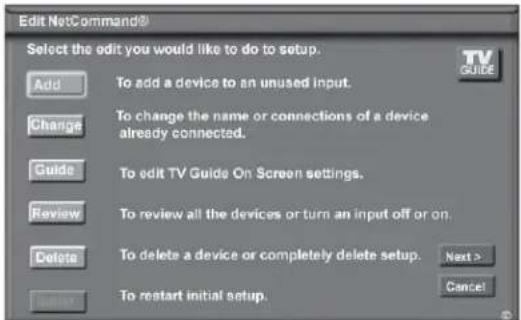
Figure 14. NetCommand Menu, Edit NetCommand Option
Add
Add a new device to the NetCommand setup. See Figure 15 and "New Device Screen" for more information.
Change
Change the brand/model or input connections of a device already listed in the configuration. Learn the remote control signals of devices listed as "Other" brands. See Figure 24 for more information.
Guide
Edit TV Guide On Screen® zip code and input selections. See the separate TV Guide On Screen Interactive Program Guide System manual for more information about customizing the Guide.
Review
View a list of all devices and input connections in the NetCommand home theater configuration. This is also where you can turn On or Off unused media center inputs or devices. See Figure 5 for more information.
Delete
Remove a device or erase the complete NetCommand home theater configuration. The learned remote control signals are erased when the associated device is deleted. See Figure 25 for more information.
Initial
Start the setup at the beginning. This button only becomes available after deleting the entire configuration, or if NetCommand was not set up when the media center was first powered On. If you select Initial, the first screen that will display is the Device Setup Screen. See Figure 3 for more information.
Note: If you have completed the NetCommand setup, you can access the Edit menu at any time by pressing TV MENU, then selecting NetCommand. See page 66 for details.
Use these settings to change the NetCommand setup to reflect a change in your home theater system. To learn the remote control IR signals of a device that is not already in the NetCommand memory, add this device as manufacturer of "Other." The learning screens will then automatically be included in the series of screens used for adding the device.
New Device Screen
Figure 15
Select "Add" from the Edit NetCommand screen, and the New Device screen will display. Select the Device type that you would like to add. You may add your A/V receiver (if not added in Initial setup) Cable Box, Camcorder, DBS, DVD, Laser Disc, PC and VCR.
At the next screen, choose the manufacturer. If you choose “Other” for the manufacturer, the device (A/V receiver, Cable, DBS, DVD or VCR) can be learned. For device types Laser Disc, Camcorder, Game and PC, the “Learn” screen is skipped. There is no NetCommand support or learning for these devices.
At the next screen, you can keep the default Name or select a custom Name for the device, using ADJUST ▲ or ▼ to select letters A-Z, numbers 0-9, and/or symbols (!.&'/:*- and blank) for each character of the name you would like for the selected channel.
The next screen displays the Connection screen (RF Connection for Cable, Figure 23). Select the media center and A/V receiver inputs that the device is connected to. Only audio can be connected to the A/V receiver. The A/V receiver may need configuring for digital audio.
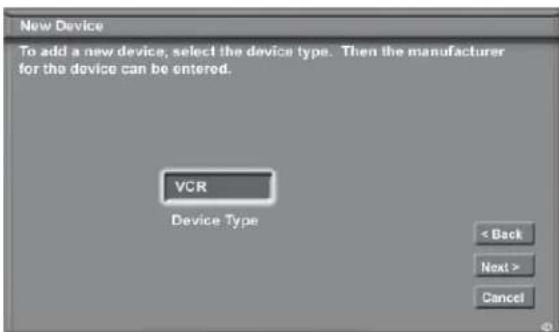
Figure 15. New Device screen
Add Devices, continued [Device] Screen
Figure 16
If you selected "None" for a device type during initial setup, you can later add a device with this screen. This screen also opens when you select the Change option in the Edit NetCommand screen.
The sample screens here show the choices for adding a VCR; similar screens will appear for any satellite receiver, DVD player, or cable box.
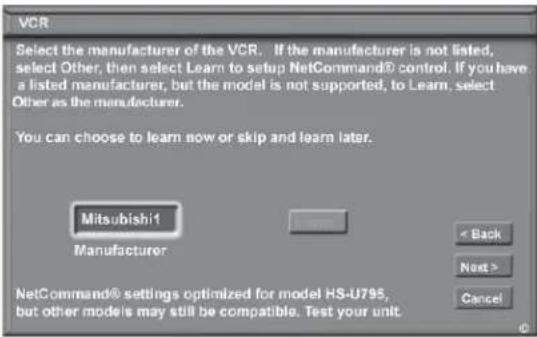
Figure 16. [Device] screen
Our examples show the choices for adding a VCR, however, the same type of screens will appear for any DBS (Satellite receiver), DVD player or Cable Box.
Choose ONE of these options:
- Select a recognized manufacturer. The model number optimized for NetCommand will display at the bottom of the screen. If a number follows the manufacturer's name, (example: Mitsubishi 1), this indicates additional models are optimized for that manufacturer. For many device types, non-listed models will operate in the same way as the listed models and you can still use the pre-loaded setting.
After selecting Next>, the screens that follow are: the Name Screen (Figure 19), Connection for [Device] screen (Figure 20) and specialized device screens (Figures 21–23), ending with the Finish screen (Figure 26).
- Select "Other," then highlight "Learn" and press ENTER. This will allow you to have NetCommand learn the remote control signals of this new device.
After selecting "Learn" and pressing ENTER, the screens that follow are: [Device] Learn screen (Figure 17), [Device] Advanced Learn screen (Figure 18), Name screen (Figure 19), Connection for [Device] screen (Figure 20), and specialized device screens (Figures 21–23), ending with the Finish screen (Figure 26).
- Select "Other," skip Learn and select Next>. This will allow the device to appear and will allow NetCommand to switch inputs to use this device. However, NetCommand will not be able to control this device. Later you may use the "Change" option in the Setup menu to learn the remote control signals.
[Device] Learn Screen
Figure 17. Shown only if "Learn" was selected
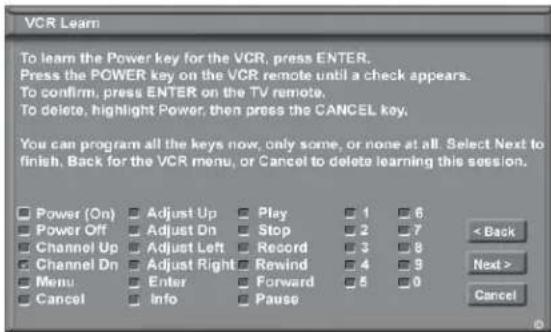
Figure 17. [Device] Learn screen
- Press ADJUST ▲, ▼, ◀ or ▶ to select the check box for each function to be learned.
- Press ENTER and the function name will begin to flash to confirm the ready-to-learn status.
- Point the device's remote control at the display and press the button that corresponds to the selected function. A check mark will appear and the function name will stop flashing. This confirms the signal learned status.
- To test the learned command, press the ENTER button on the remote control while the learned function is still highlighted. The device should perform the selected function. The device needs to be turned on and the IR emitters properly placed for the test to be successful (see page 30 for IR emitter placement). If the functions are not learned the first time, try Learn again.
- Repeat for each function to be learned.
- To erase a learned function, highlight the check box for that function and press CANCEL.
- When the function signals have been learned, press ADJUST▶ to select Next> and move to the [Device] Advanced Learn screen.
Hint: If the device's remote control uses a single button for both Power On and Power Off, don't learn the Power Off function.
IMPORTANT
When learning the device's remote control signals, point the device's remote control at the display. If close to the screen, see page 10 for the location of the Learning IR sensor.
Add Devices, continued
[Device] Advanced Learn Screen
Figure 18
After learning the basic device keys, the [Device] Advanced Learn screen allows you to learn any special keys for your device. Most common IR remote control signal formats can be learned by NetCommand.
A table of specialized device keys is shown in Appendix J. You only need to learn the functions your devices respond to and can ignore the functions that do not apply to your device.
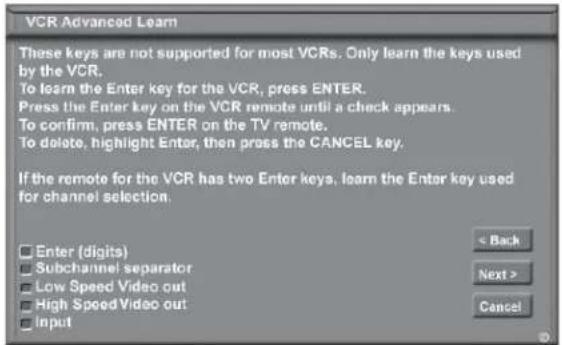
Figure 18 [Device] Advanced Learn screen
Name Screen
Figure 19
The Name screen allows you to change the default name for each device to a custom name of up to eight characters (including a blank space), selecting from letters, numbers and nine different characters. Press ADJUST ▲ or ▼ select each letter, then press ENTER to move to the next position. Press CANCEL on the remote to delete the current letter and move back one character position. When in the first position, the CANCEL button will return the name to the default name.
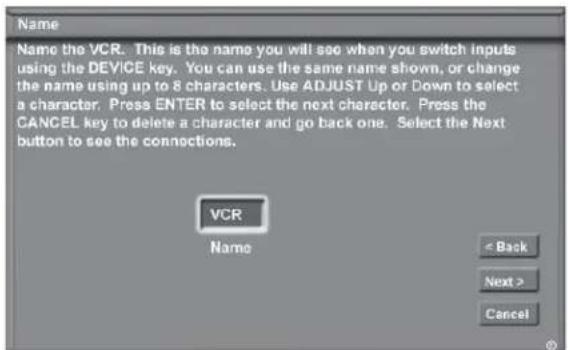
Figure 19. Name screen
Connection for [Device] Screen
Figure 20
This screen allows the media center to learn the connection between device(s) and input(s). Inputs 1 & 2, HDMI Input 1 & 2, Component 1 & 2, and/or the inputs for the A/V Receiver all need to be checked, if connected. Add or remove check marks to indicate what type of connections (Audio, Video or both) are used with each media center and A/V Receiver input.
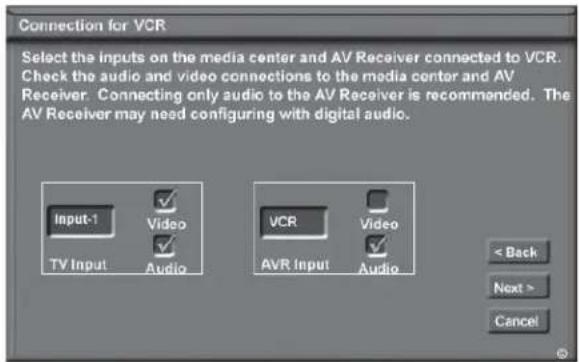
Figure 20. Connection for [Device] screen
The Add Devices screens described below may not be necessary for your home theater setup. If they do not display automatically on screen, they are not required.
VCR for Recordings Screen
Figure 21
If more than one analog VCR is connected to the media center, you need to select the one to be used for recording. Make sure Line In video and audio ports of the recording VCR are connected to Monitor Out ports of the media center.
You may also select whether you want the recorded 16:9 signals from digital channels or IEEE-1394 devices to be cropped (sides are cut off) or Anamorphic (full screen). If Anamorphic is selected for viewing, choose the Standard format for the best quality playback.
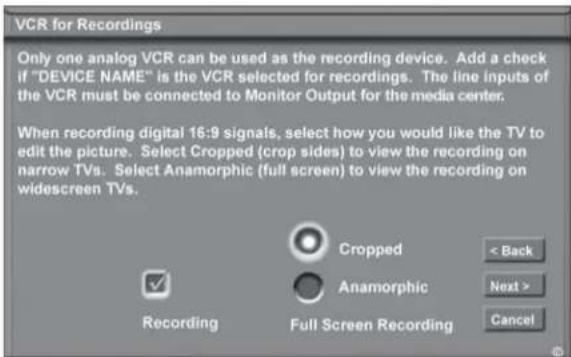
Figure 21. VCR for Recordings screen
Add Devices, continued IR Code for [Device] Screen
Figure 22
This screen only displays if an added device has the same IR code as a previously added device of the same type and manufacturer. You can specify the IR setting for the new device. For example, for the second Mitsubishi VCR you can specify the IR Code setting to VCR-B, if the primary Mitsubishi VCR is using the VCR-A IR code.
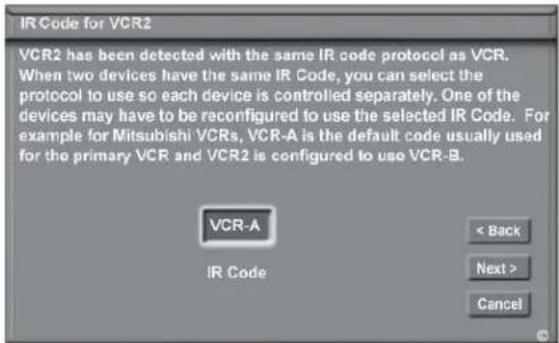
Figure 22. IR Code for [Device] screen
RF Connection for Cable Screen
Figure 23
The RF Connection screen displays only when adding or changing a Cable Box. If your Cable Box is connected to a media center antenna input, check the RF check box. Select the antenna input that is used with the Cable Box. Select the channel number used for output by your cable box. The default channel is 003. If the Cable Box is also connected to a VCR for recording, select that VCR.
If your Cable box is connected using Audio/Video cables, make sure the RF check box is unchecked. Then the next screen will be Connection for [Device] screen (Figure 20), to allow the selection of the media center input used with the Cable Box.
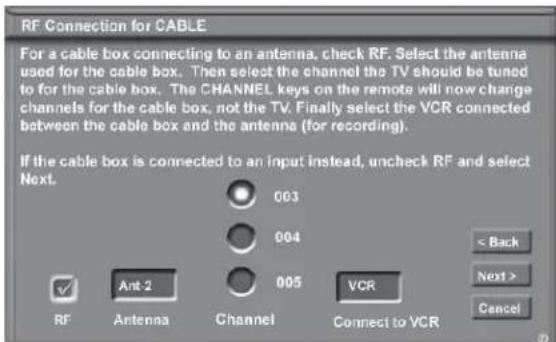
Figure 23. RF Connection for Cable screen
Edit NetCommand®: Change Devices Change Device Screen
Figure 24
Selecting Change from the Setup menu screen, displays the Change screen. To change a device, select the device by name, not type. You can change the name or input connections to the media center and A/V receiver. If "Other" is selected for the manufacturer then you can also "Learn." The rest of the screens that follow are the same as when you Add a device.
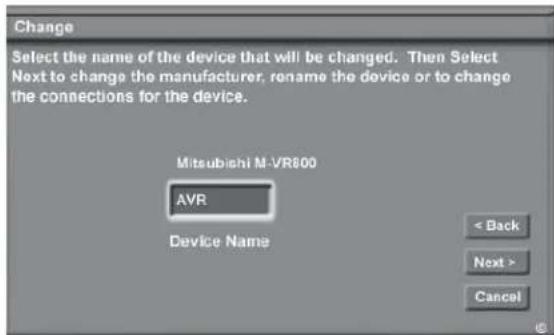
Figure 24. Change screen
IMPORTANT
To delete a device or change connections for a device (like a VCR or a DVD player), you must first switch the TV to a different input device. Press the DEVICE key and select a different input device from the Device Selection menu.
To make changes to the A/V receiver setup, set the current audio source to TV Audio. First press the DEVICE key to verify the current audio source. To change, press the AUDIO key to acess the audio selection window and select TV Audio.
IMPORTANT
NetCommand must be set up and the IR emitters properly placed for your cable box and VCR so the TV Guide On Screen system can control these devices.
Edit NetCommand®: Delete Devices Delete Device Screen
Figure 25
Selecting Delete from the Setup menu, displays the Delete screen. You can choose to delete a single device by selecting the device you would like to delete, or you can delete the entire NetCommand configuration. After you have chosen the device, or the entire configuration, you will be prompted to confirm your choice to delete. If you select the Entire Configuration, the Initial button becomes available on the Edit NetCommand screen. If you delete a device that you learned the remote control signals for the learned signals are erased.
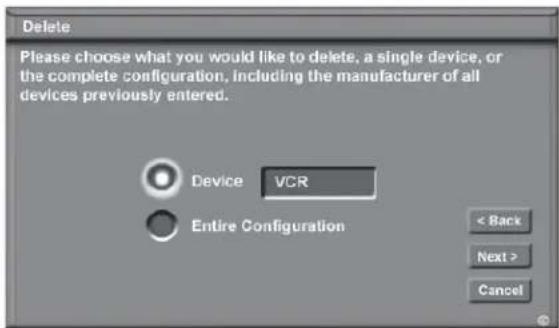
Figure 25. Delete screen
Edit NetCommand®: Finish Screen
Figure 26
To finalize your selections and complete the NetCommand setup, select Finish from the Finish screen.
Note: To change any of the inputs or names for the devices, or add devices not included in the initial settings, select Edit to display the Edit NetCommand menu.
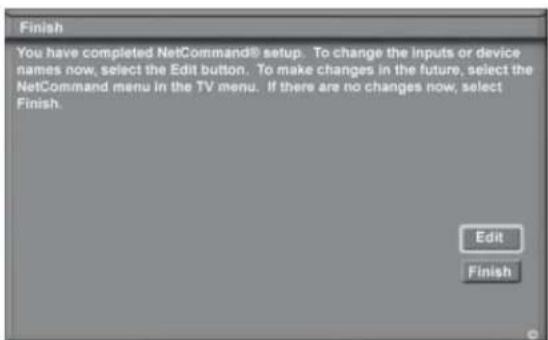
Figure 26. Finish screen
Setup Reminder Screen
Figure 27
This screen only appears if you did not set up NetCommand when the TV was first turned on. The Setup Reminder screen displays each time you power on the TV for six times.
If you would like to set up NetCommand and/or the TV Guide On Screen system, select Next and press ENTER. If you do not wish to setup NetCommand and/or the TV Guide On Screen system, then select Cancel and press ENTER.
Refer to the separate TV Guide On Screen Interactive Program Guide System manual for details on using the TV Guide On Screen system and special guide customization instructions.
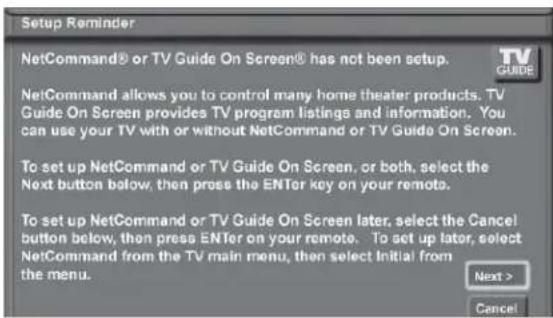
Figure 27. Setup Reminder screen
Using the Remote Control with NetCommand®
Below is a list of several manufacturers devices tested and shown to be compatible with NetCommand. These devices can be controlled without changing the setting of the remote control from the media center to another device. NetCommand may be able to operate additional models since many manufacturers use the same control signals to operate some or all of the models they offer. This chart lists only the models that have been tested with NetCommand. The NetCommand Learning feature is able to learn the remote control signals of most Audio Video devices. For devices not listed in the table, or if your device does not operate using the same remote control as the models listed below, use the learning feature by selecting "Other" as the Manufacturer at the [Device] screen. See the Edit NetCommand section of this Guide.
NOTE: There are many different types of remotes and not all of them may be compatible with the learning feature. Bright light near the front of the display can also adversely affect the learning feature. If it is not possible to learn a device, you will need to use the original remote control of the device, or program the TV remote control to operate these devices in the traditional manner.
NetCommand Pre-Memorized Devices
| DEVICE | |||||
| Manufacturer A/V receiver Cable Box SAT (Satellite) | Receiver) | DVD Player VCR | |||
| Mitsubishi M-VR800, | M-VR900 | SR-HD5 DD-6000, | DD-8020 | HS-U795,HS-U778 | |
| Bose Lifestyle® 28 Lifestyle® 28 | |||||
| Denon AVR-2700 | |||||
| Echostar 6000 | |||||
| Funai | F260LA | ||||
| General Instruments CFT2200 | |||||
| Hitachi | DV-P415U | VT-FX665A | |||
| Hughes | HIRD-E45,HIRD-E86 | ||||
| Integra | DTR-9.1 | DPS-9.1 | |||
| JVC | XV-S65GD | HR-VP 650U | |||
| Kenwood | VR2080 | ||||
| Marantz | SR8200 | ||||
| Microsoft | XBox^TM (requires the DVD kit from Microsoft) | ||||
| Motorola | DCT2244 | ||||
| Panasonic | TU-HDS20 | DVD-A310 | PV-8662 | ||
| Philips | VR620CAT | ||||
| Pioneer | VSX-D557,VSX-49TX | DV-414 | |||
| RCA | DRD480RE,DTC-100 | ||||
| Rotel | RSX-1065 | ||||
| Scientific Atlanta | 8600 | ||||
| Sharp | VC-H810U | ||||
| Sony | STR-DE825 | SAT-A55 | DVP-S500D, PlayStation® 2(Playstation® 2 requires the DVD Remote Controller kit from Sony; DVD Player software disc version 2.10) | SLV-778HF | |
| Toshiba | DTS-3000 | SD-9200,SD-5109 | W-717 | ||
| Yamaha | RX-V2095,RX-V2200 | DVD-S520,DVD-C996 | |||
| Zenith | DTV1080 | ||||
NetCommand® On-Screen Buttons
To use the media center's NetCommand feature, you need to provide some detailed information during the setup. You must define the manufacturer of the devices that are connected to the media center, or "learn" the IR code remote control signals for the device connected. For each device, the input to the media center and A/V receiver, and the names for the device are pre-set during Initial NetCommand setup. You may change those inputs or names using the Edit NetCommand or Learn screens. The buttons described below will help you navigate the screens.
On your remote control, the ADJUST ▲ and ▶ buttons allow you to navigate left and right to different selections on the screen. The ADJUST ▲ and ▶ buttons allow you to:
- Change the radio button
- Change current text box selection
- Navigate up and down on the screen
The ENTER button allows you to:
- Confirm the selected character when naming a device
- Add or delete check marks in check boxes
- Select on-screen buttons to change screens
Text Box
Press ADJUST ▲ or ▼ make a selection.
Check Box

Check marks indicate the item or input is added or turned On. Press ENTER when the check box is highlighted to add or delete a check mark. When viewing the Review screen, a check box reflects which devices are turned On or Off, or connected to the media center.
Radio Buttons

The setting changes when one of the choices is highlighted.
Control Buttons
Much like the software on your computer, you will use graphic buttons to navigate through the NetCommand Setup screen. Highlight the button and press ENTER to select the function.

Use the Next> Button
Use the Next> button to navigate forward to the next screen.
Cancel Button
The Cancel button will cancel out any changes you are currently making without saving them into memory. When you select the Cancel key, NetCommand will prompt you to confirm that you want to cancel the changes you are currently making. If you select Cancel during Initial Setup, you can setup NetCommand later by selecting the NetCommand menu, then choosing Initial.
3D Graphical ▶ ViewPoint® System
Your TV also has Mitsubishi's exclusive 3D Graphical ▶ViewPoint on-screen operating system, which provides on-screen information for menu choices and changes, using the media enter's remote control.
▶ViewPoint®
Menu Screens

A picture (icon) will be highlighted on the menu screen when selected with the ADJUST arrows. You may then make changes within the menu or access submenus, if available.

You can also access sub-menus from a button. Sometimes when you select a button, an automatic function begins.
The ▶ViewPoint® system includes the following special features:
- The currently selected icon or button is highlighted with a yellow outline; the text color is yellow.
- On-screen instructions, shown in the message line at the bottom of the menu, provide feature selection and adjustment information.
- Some on-screen menu options must be set before other options are available.
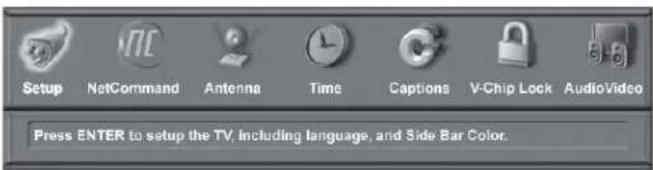
Main Menu: This screen will always be the first screen that appears when you press the remote's TV MENU button.
▶ViewPoint®
Remote Control Buttons
The following buttons on your remote control help you navigate within the ▶ViewPoint®
- ADJUST ◀ or ▶ to select the menu item you want to change.
- ADJUST ▲ or ▼ to change the settings.
- ENTER to enter into a menu, start an automatic function or select a check box.
- CANCEL to clear a setting or stop an automatic function.
- TV MENU to display the display's main menu or move back one menu screen at a time.
- HOME to exit all menus and return to TV viewing.
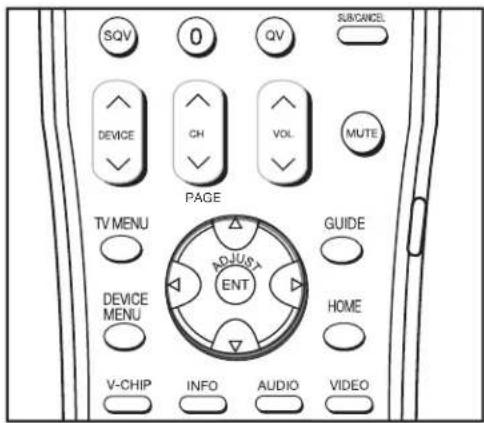
Press ADJUST ▲ or to change text boxes. Some text boxes have preset labels. Other boxes allow you to select letters, numbers or characters to customize names.
Chapter
4
IEEE 1394 Devices and NetCommand® Controlled Recordings
Using the "Learn" Feature to Control IEEE 1394 Devices ..... 52
Adding IEEE 1394 Devices Automatically 53
Device Selection Menu 55
Using the DEVICE MENU Button to Display Menus 56
Device Menu.... 56
IR Controlled Devices 56
Using the GUIDE Button to Display ChannelView™ and Menus ..... 57
NetCommand® Controlled Recordings.... 58
Peer-to-Peer Connections 59
Using A/V Discs 60
MediaCommand™ and Memory Card Playback 61
Direct VCR Recording from an Antenna or Cable Source 63
Using the “Learn” Feature to Control IEEE 1394 Devices
NOTE: See pages 32–33 for information regarding compatible IEEE 1394 devices and connection styles. The media center is not able to control IEEE 1394 devices that use other types of control protocols. Incompatible digital audio, video and/or control information will still be able to pass from one device through the media center to another device on the network. These incompatible devices may not appear on the Device Selection menu or in the Review screen of the Edit NetCommand menu.
Some IEEE 1394 devices such as cable boxes or satellite receivers will not have compatible digital control signals or require the use of the device's own remote control. Some of these IEEE 1394 devices will not display on-screen information through the IEEE 1394 connection and will require using an analog connection for on-screen displays. In many cases, to control these digital devices, the Learning feature of NetCommand can be used.
- Place an IR Emitter for NetCommand in front of the device's remote control sensor (see IR Emitters, page 30–31).
- On the Name for 1394 Device screen (Figure 2, page 53) use ADJUST and ENTER to check mark the Analog Connection box.
- Select the device type on the IEEE 1394 Device Type screen (Figure 3, page 54) of DBS (Satellite receiver) or similar tuning device.
- If desired, use the ADJUST buttons enter a custom Name on the Name screen (Figure 19, page 44).
- At the Device Screen, Select "Other" as a manufacturer and then highlight "Learn" and press ENTER (Figure 4, page 54).
- Follow the device learning instructions found on the screen(s) or in the Edit NetCommand section of Chapter 3.
- The Connection screen (Figure 5, page 54) follows the learning screens. If analog connections are used, select the correct inputs.
- Proceed with the Finish screen.
This will allow NetCommand to use the learned remote control signal to control these IEEE 1394 devices.
Note: When using the NetCommand learning feature for IEEE 1394 devices that do not have analog connections, the GUIDE function will require pressing GUIDE twice. The first press of GUIDE will display the media center's digital channel guide. The second press will display the program guide for the device if an IEEE 1394 Guide is available.
Adding IEEE 1394 Devices Automatically
When an IEEE 1394 device is connected into the media center and is powered On, the new device will automatically announce its presence. This process is called device discovery and can take up to 1 minute. Some non-audio/video or non-compatible IEEE 1394 devices, such as Personal Computers (PCs), may not announce their presence to the media center. The media center will not be able to show these devices in the Device Selection menu, however, they can coexist and will still be available to other devices on the IEEE 1394 network that are compatible with these non-audio/video devices.
IEEE 1394 cable boxes and satellite receivers may require that you use the remote control that came with those devices. For some compatible devices, the other slide switch positions of the HDTV remote control may be able to control operation.
New 1394 Device Screen
Figure 1
When your media center discovers a new IEEE 1394 device, the New 1394 Device screen will appear. Selecting “Add” will include the device in the Device Selection menu. Selecting “Do Not Add” will not add the device to the Device Selection menu. If the IEEE 1394 device does not provide audio and video, you may not want to add that device to the media center’s Device Selection menu. Devices that were discovered but not added to the Device Selection menu will still be listed in the Review screen of the Edit NetCommand® menu.
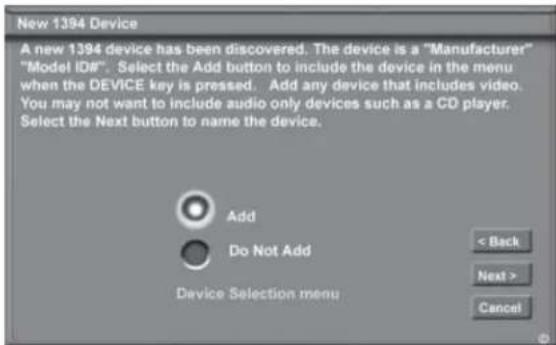
Figure 1. New 1394 Device screen
Name for 1394 Device Screen
Figure 2
If you choose to add the discovered IEEE 1394 device, the Name for 1394 Device screen will appear. Name the device or use the default name that appears automatically.
Some IEEE 1394 digital devices, such as some DVCRs, can also operate as analog devices. For example, some DVCRs can record and play as VHS or S-VHS, in addition to D-VHS. This allows you to play analog rental tapes or analog tapes from your established library or make analog recordings from antenna or cable systems. To use the analog capability, check the Analog Connection box.
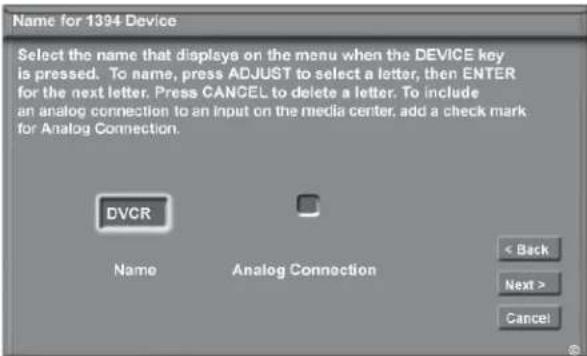
Figure 2. Name for 1394 Device screen
Adding IEEE 1394 Devices Automatically, continued
IEEE 1394 Device Type Screen
Figures 3 and 4
If the new IEEE 1394 device is also connected using analog inputs, you will need to define the device type. Select the type of device, such as a VCR.
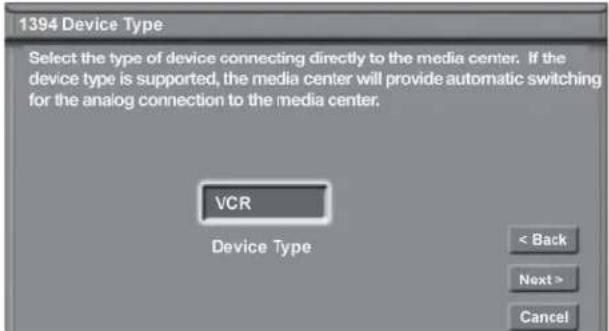
Figure 3. IEEE 1394 Device Type screen
Once the device type is selected, then the Device screen is displayed so the manufacturer can be selected. If the manufacturer is listed, then you may be able to control this device while it is operating as an analog VCR. For example, if the IEEE 1394 device you have added is a Mitsubishi DVCR, and you have selected an analog connection as a second connection, then you will select Mitsubishi for the manufacturer. If the manufacturer is not listed, select "Other" and use the Learn screens.
Be sure to place an IR Emitter in front of the remote control sensor, just as you have done for other NetCommand® devices. It is necessary to use the IR Emitter only when the DVCR is being used as an S-VHS or VHS VCR. When the DVCR is playing or recording digital signals in D-VHS, the media center will control the VCR through the IEEE 1394 cable
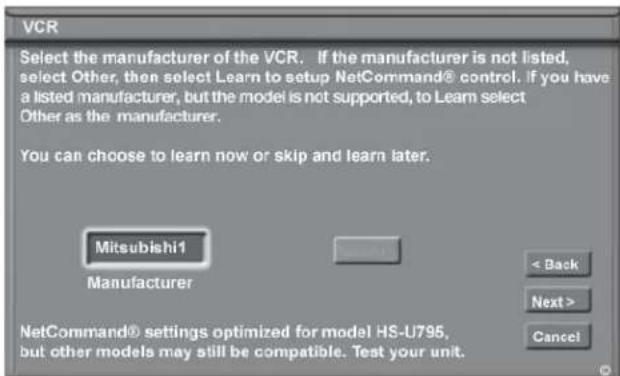
Figure 4. Device screen
Connection Screen
Figure 5
Select the media center input that you used when you connected the video or S-Video cables. You may also select the media center or A/V receiver input you used when you connected the stereo audio cables. The media center will learn the input names for the media center input and A/V Receiver input selections. If your A/V receiver has other inputs than those listed in the menu, those other inputs are not available for NetCommand.
The playback and record control of some DV camcorders may still operate by the IEEE 1394 cable automatically, even though you must use the video or S-video cable for the picture. In this case, when you select the Camcorder, be sure to select analog (not digital) from the pop up when a camcorder is selected from the Device Selection menu. Then the picture is shown via the analog connection but control is from IEEE 1394.
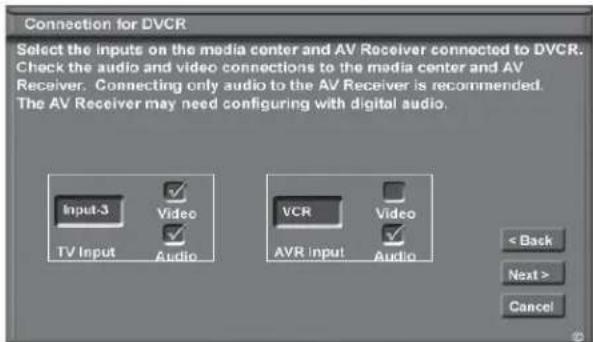
Figure 5. Connection screen
Finish Screen
Figure 6
To finalize your selections and complete the NetCommand setup, select Finish from the Finish screen.
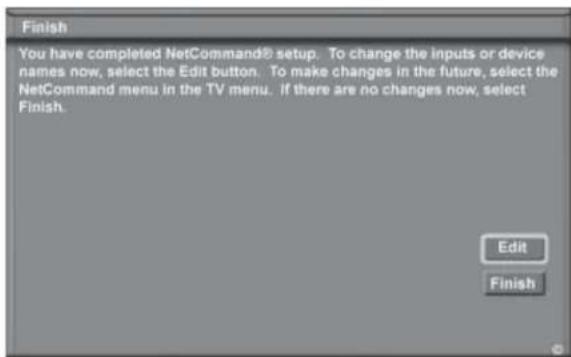
Figure 6. Finish screen
Device Selection Menu
When you press DEVICE on the media center's remote control, the Device Selection menu (Figure 7) displays. If NetCommand® has not been set up, the Device Selection menu allows you to select an input for viewing. If NetCommand is set up, the Device Selection menu allows you to select the device for viewing, select audio from the display's internal speakers or A/V receiver, power compatible devices On or Off, and verify the destination of signals. On the Device Selection menu, the device or input currently displayed appears as a gold-colored icon.
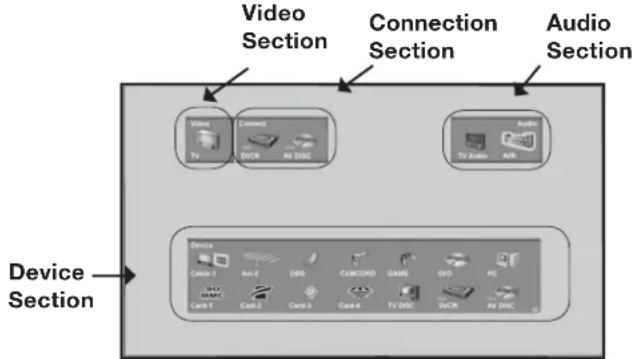
Figure 7. Device Selection Menu with NetCommand
Power On/Off Devices
Devices that have separate On and Off remote control buttons will power On automatically when you select the device and will power Off when you turn off the media center. For devices that do not power On or Off automatically, display the Device Selection menu, press ADJUST ▶or ▶to highlight the device icon and press POWER on the remote control. For the A/V receiver, press AUDIO to move the navigation to the Audio Section. Highlight the A/V receiver icon and press POWER. If you press POWER on the remote control when the Device Selection menu is not displayed, the media center will turn Off.
Device Section
To select another device or input, press ADJUST ◀▶ ▲▼ on the media center's remote to move the highlight. Press ENTER to select the device to view and hear. The media center inputs are automatically changed. If NetCommand is set up, the inputs on compatible A/V receivers are automatically changed at the same time.
Video Section
The TV icon shows the destination for the device highlighted in the Device Section.
Connection Section
The Connection Section shows the other devices currently connected to the device highlighted in the Device Section. For example, if the Digital VCR (D-VCR) is currently recording, when you move the highlight to the Ant-1 icon, the D-VCR icon will appear in the Connection Section. This icon will disappear when you move the highlight to another icon, Press CANCEL to stop recording.
Audio Section
When a NetCommand pre-memorized or learned IR controlled A/V receiver has been connected to the media center and added to NetCommand Setup, an AVR icon will appear in the audio section. Press AUDIO to change navigation to the audio section. Then press ADJUST
◀▶ ▲▼ to select the display's internal speakers icon or the A/V receiver icon. Press ENTER to change the audio selection. Press DEVICE to return the navigation to the Device Section.
NOTE: Muting of the speaker occurs automatically when the A/V receiver is selected through NetCommand.
PIP Device Selection Menu
Figure 8
The PIP Selection menu displays when you press the PIP DEVICE button on the remote control. This menu has the same general format as the Device Selection menu. The source for the Video Section is the sub picture and the Audio and Connection Sections are not available.
Use ADJUST ◀▶ ▲▼ to move the highlight to the device to show in the PIP or POP screen, then press ENTER. Device icons that are grayed out are not available for use as PIP/POP sources or with the current source.
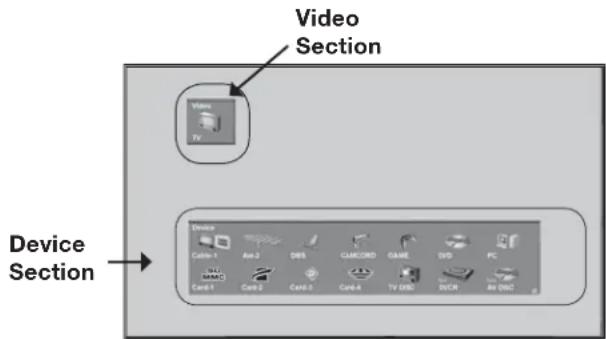
Figure 8. PIP Device Selection Menu
IMPORTANT
If a device does not respond to separate On or Off remote control signals, the manufacturer has not provided that ability for the device.
Using the DEVICE MENU Button to Display Menus
Device Menu
If NetCommand is setup, pressing the remote control's DEVICE MENU button displays the transport menu if the input is a VCR or DVD. Another press of the DEVICE MENU button will display menu for the current device source, if available.

Figure 9. Transport menu
IR Controlled Devices
For a NetCommand compatible traditional IR controlled device, pressing DEVICE MENU once or twice will display the menu for that device. While the menu for the device is displayed, press ADJUST ◀▶ ▲▼ and ENTER to navigate the screen. For some NetCommand traditional devices you will also be able to use the number buttons and other additional buttons on the HDTV remote control.
For traditional DVD players, DEVICE MENU is also known as the setup menu.
CableCARD™ Menu
Figure 10.
When using a CableCARD, pressing DEVICE MENU will display a list of up to 8 links to applications that contain basic CableCARD information made available from your cable provider. Press ADJUST ▲ or ▼ to move through the application links. To select a link (blue text) to an application, press ADJUST ▲ or ▼ highlight the link, then press ENTER to access the linked page. Pressing DEVICE MENU will return to the CableCARD menu screen and pressing HOME will return to TV viewing. If there are technical problems with the CableCARD, an error screen will automatically display with information that may be needed by your Cable provider when you call them for assistance. The screen shown below is an example of the type of screen that may display. Specific
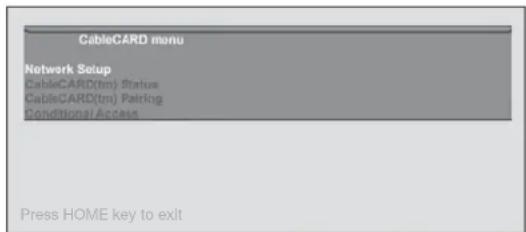
Figure 10. Possible Device Menu for CableCARD
Moving Through Other CableCARD Screens
In addition to CableCARD menus, other CableCARD application screens may display and require you to make additional selections. While CableCARD application screens are customized in each area, some general rules apply in using these screens with your Mitsubishi media center.
- Blue text denotes a link to another screen. Press ENTER to move to the next application. When screens do not have blue text, there are no more links.
- You cannot move backward through the links. If you want to exit the CableCARD system, press HOME to exit and return to TV viewing. CANCEL may not apply to some CableCARD screens.
All information on these application screens is provided by your local cable company. Please contact your cable provider if you have any problems with the application screen displays.
IMPORTANT
Most CableCARD screens are status or diagnostic in nature and do not allow you to make changes. These screens are meaningful only to your local cable provider.
Using the GUIDE Button to Display ChannelView™ and Menus
GUIDE and Devices (1394 or IR Controlled)
For NetCommand compatible satellite receivers and some cable boxes, GUIDE will display the on-screen programming guide for the receiver or cable box. Press ADJUST ◀▶ ▲▼ or ▼ and ENTER to navigate the displayed Guide. For NetCommand compatible satellite receivers, you may also be able to use the number or other additional buttons.
For NetCommand compatible DVD players, GUIDE will display the DVD disc "top" menu (not the setup menu). For A/V Discs, pressing GUIDE will display the Track List screen. For IEEE 1394 devices with digital connections, press GUIDE twice to display the device's Guide.
GUIDE and the Device Selection Menu
For compatible traditional VCRs, pressing GUIDE when the VCR is highlighted on the Device Selection menu will change the VCR's input.
When the A/V Receiver icon is highlighted in the Audio Section, pressing GUIDE switches the A/V Receiver from analog audio to digital audio and vice versa.
GUIDE and the Record To Menu
When in the Record To menu, pressing GUIDE will display the current list of programmed recordings. Please see Record List, page 59 for more information.
GUIDE and ChannelView
Figures 11 and 12
Press GUIDE while viewing Ant-1 or Ant-2 to display a list of available memorized digital channels (D) and analog (A) channel information (if available from the broadcaster). This list is called ChannelView™.
ChannelView for digital channels will show the major and sub-channels (or bitstreams). Analog channel information will display as sent. Press ADJUST ▲ or ▼ to scan through the all the channels in memory one by one. To cycle through the choices quickly, press CH ▲ or ▼
For detailed program information, press ADJUST ▶T o return to basic information press ADJUST ◀ This information is sent by the broadcaster. If limited data is shown or no program data appears, it is because the broadcaster is not sending the information. This is not a defect of your media center.
Recording a Current Program
To record a current program, press REC (record) when your program choice is highlighted on the program list in ChannelView. A red "R" will be added after the input name. The media center will immediately switch to the selected channel and start recording.
| ChannelView™ | 5:47 pm, Friday, Apr 25,05 | ||
| 2 | CBS | A Ant-1 | |
| 2-1 | KCBS-DT | D Ant-1 | CBS Local News |
| 4 | A Ant-1 | ||
| 4-1 | KNBC-DT | D Ant-1 | NBC Evening News |
| 7 | ABC | A Ant-1 | |
| 7-1 | KABC-DT | D Ant-1 | ABC World News with Dan Rather ... |
| 28 | PBS | A Ant-1 | |
| 28-1 | KCET-DT | D Ant-1 | The 2005 Rose Parade |
| 28-2 | KCET-DT | D Ant-1 | Nightly Business Report |
| 30 | A Ant-1 | ||
| 62-101 | D Ant-1 | ||
| 62-102 | D Ant-1 | ||
| 128 | CNN | A Ant-1 | |
| 1104 | KNBC-DT | D Ant-1 | NBC Evening News |
Figure 11. ChannelView screen, current programs
Recording Future Programs
To record a future program, press ADJUST ▲ or ▼ to select the channel you want to record from. For detailed program information, press ADJUST ▶ Press REC (record) when your choice is highlighted. A red "R" will be added after the input name. The message, The recording has been added to the Record List will display. To view, change or cancel a recording, use the Record List (page 59). If a program title was not sent by the broadcaster, you will be unable to set up a recording and a message will display.
| ChannelView™ | Programs for KCET Digital Int... | ||||
| 2 | CBS | A | A0-1 | 5:30 PM | Nightly Business Report |
| 2.1 | KCBS-DT | D | Ant-1 | 6:00 PM | NewsHour with Jim Loh... |
| 4 | B | Ant-1 | 7:00 PM | Life and Times | |
| 6.1 | AMBC-DT | U | Ant-1 | 7:30 PM | California's Gold |
| 7 | ABC | A | Ant-1 | 8:00 PM | Washington Week |
| 7.1 | KATC-DT | D | Ant-1 | 8:30 PM | Wall Street Week with F... |
| 10 | FBS | B | Ant-1 | 9:00 PM | Now with Bill Moyers |
| 15.1 | KCT-DT | D | Ant-1 | 10:00 PM | Culture of Hate: Who ar... |
| 28-2 | KCET-DT | D | Ant-1 | 11:00 PM | Life and Times |
| 29 | A Ant-1 | 11:30 PM | Charlie Rose | ||
| 02-191 | D Ant-1 | ||||
| 82-102 | D Ant-1 | 12:20 PM | Classic Arts Show | ||
| 1.28 | CNN | A Ant-1 | |||
| 11.04 | KNBC-DT | D Ant-1 | |||
Figure 12. ChannelView screen, future programs
IMPORTANT
For complete ChannelView information to be refreshed daily, the media center must be powered Off between 5 to 15 minutes a day, depending on the number of channels in memory. If the media center loses power, the program listings will be temporarily lost.
NetCommand® Controlled Recordings
Setting up Recordings
Figure 13
Through NetCommand, you can automatically start and stop recordings and send signals from one playback device to a recording device. Recordings can be made on recordable devices connected to the media center.
The media center can convert digital channels and IEEE 1394 device signals to analog signals that can be recorded on NetCommand compatible analog VHS and S-VHS VCRs.
You can schedule the recording to take place at a later time and program the recording duration for a minimum of 30 minutes and a maximum of 6 hours (in 30 minute increments). The default is 1 hour. During the recording, the media center can be powered Off. If the media center is powered On, it must be tuned to the source that is being recorded.
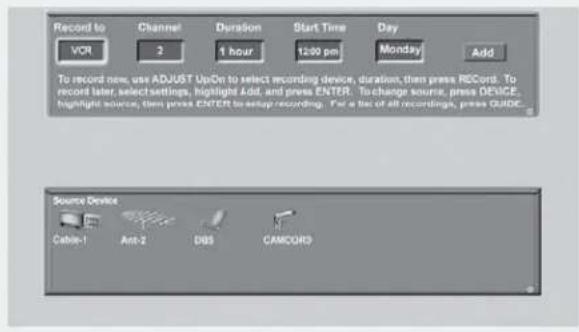
Figure 13. Record To screen
Recording Now
Can be used when viewing Antenna 1 or 2, an IEEE 1394 device or a non-recording traditional device.
To initiate recording now:
- Press REC (record) on the TV remote.
- Press DEVICE on the remote control to move to the Source Device section.
- Press ADJUST ◀ or ▶ to select the source device you will record from. If a source is not displayed, it is not available as a recording source.
- Press ENTER to confirm selection and return to the "Record to" section.
- In the "Record to" section, review the destination device and duration. Use ADJUST ▲ or ▼ change if necessary.
- Press REC a second time to initiate recording.
Time-Delayed Recording
To initiate a time-delayed recording:
- Press REC (record) on the TV remote.
- Press DEVICE on the remote control to move to the Source Device section.
- Press ADJUST ◀▶ ▲▼ to select the source device you will record from.
- Press ENTER to confirm your source device selection and move to the Record to section.
- Press ADJUST ◀ or ▶ to select the Record to device, duration time, start time (press ENTER after selecting hour, minutes and AM or PM to set the time) and day. For devices that can select channels, select the channel.
- Select Add and press ENTER to add the recording to the record list. If your selection is successful, a confirmation message will be displayed. If you pick overlapping times, day(s), or destination devices, you will see a message stating there is a conflict.
- To exit, press HOME on the TV remote after all recordings have been added.
Record List
Figure 14
Press GUIDE while viewing the Record To screen to see a list of all currently programmed recordings. A maximum of 32 recordings can be scheduled.
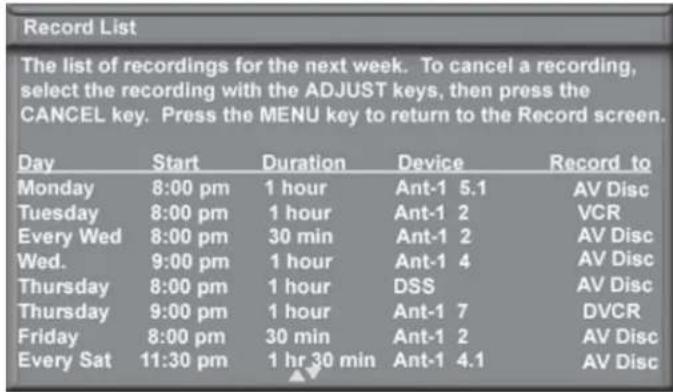
Figure 14. Record List screen
Cancel Current Recordings
To cancel a recording in progress, press DEVICE to display the Device Selection menu and highlight the source of the recording. Confirm that the icon for VCR (or recording device) is in the Connection Section next to the TV icon. Press the CANCEL button. The icon for the VCR (or recording device) will disappear from the Connection Section to confirm the cancellation.
To cancel a recording on the Record List, press ADJUST ▲ or ▼ to select the recording, then press CANCEL. To page through the list, press CH ▲r . ▼
Peer-to-Peer Connections
A peer-to-peer connection allows the IEEE 1394 devices in your media center network to talk to each other without the further need of media center intervention once the peer-to-peer connection is established. For example, the media center can set up a connection for an or DVCR that sends a recorded program to an IEEE 1394 monitor in another room. NetCommand will establish the connection between the two devices. Once the connection has been established, the media center can be turned off or be used to display another device on the monitor. Recording from digital channels to a DVCR is also a peer-to-peer connection. In this case, the media center is one of the devices in the peer-to-peer connection.
NOTE: Multiple peer-to-peer connections can occur simultaneously, sometimes with the same source device.
Setting up a Peer-to-Peer Connection
To establish a peer-to-peer connection:
- Press CONNECT on the HDTV remote.
- Press DEVICE on the remote control to move to the Source Device section.
- Press ADJUST ◀ or ▶ to select the source device you will record from.
- Press ENTER to confirm selection and return to the "Record to" section.
- In the "Record to" section, review the destination device (example: DVCR) and duration. Change if necessary.
- Press CONNECT a second time to initiate recording.
Canceling a Peer-to-Peer Connection
After a peer-to-peer connection has been established, you can cancel it by highlighting the source device in the Device Selection menu. Confirm that the on-screen icon for the peer-to-peer connection is in the Connection Section next to the TV icon, then press CANCEL. The connection will end and the destination icon will be removed. If there is more than one peer-to-peer connection for the same device, all of the connections will all be canceled.
Using A/V Discs
An A/V Disc is an external hard drive that stores music, picture and/or video files, and is usually connected using an IEEE 1394 cable.
A/V Disc Track List Screen
Figure 15
When viewing an A/V Disc, press GUIDE to display its Track List. The Channel, Station, Date, Time, Program name and whether it has been Watched (Y=yes, N=no) will be displayed. Tracks will be listed in date and time order and will vary in size.
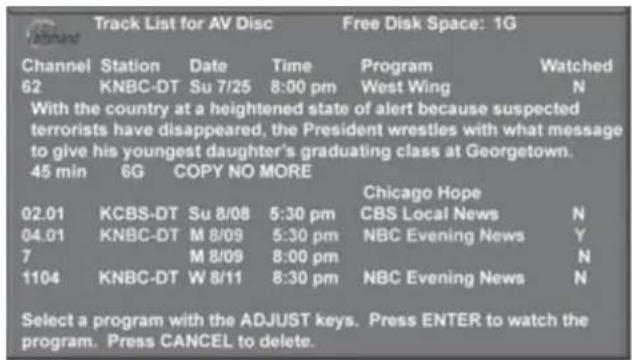
Figure 15. A/V Disc Track List screen
Press ADJUST ▲ or ▼ to navigate through the Track List. Press INFO to see the recording's length and the amount of memory it will use. Free disc space is displayed in the upper right. If the broadcaster has sent detailed information regarding the program, it will also display when you press INFO. To play a track, select it on the list, then press ENTER. To change pages, press CH ▲ or ▼ To delete a track, select it on the list and press CANCEL. Press CANCEL again to confirm.
A/V Disc Search
NetCommand is able to search to a specific time in a recording on an IEEE 1394 A/V Disc.
- Start the desired track's playback on the A/V disc.
- Use the number buttons to enter the time code position of hours followed by minutes. For example, to enter one hour and twenty-two minutes (1:22) into the track, enter 1, 2, 2.
- Press ENTER to skip to the time code position.
- To cancel the request or to start over, press CANCEL instead of ENTER.
Using the Remote Control with an A/V Disc
After selecting from the Device Selection menu, you may use the following remote control keys:
GUIDE: displays the Track List of recorded programs.
PLAY: resumes playback of paused program.
PAUSE: pauses or resumes playback of program.
FF/FWD: forward picture search, multiple presses increase the speed.
REW/REV: reverse picture search, multiple presses increase the speed.
ADJUST◀ skip backward 12 seconds per press.
ADJUST▶ skip forward 30 seconds per press.
ADJUST ▲ skip to the end of the track.
ADJUST ▼ skip to the beginning of the track.
REC: Display the Record Menu to schedule recordings
MediaCommand™ and Memory Card Playback
Warning: Some memory cards available on the market are not properly certified to follow the card type specifications noted below and cannot be used by the Card Reader. If the Card Reader is unable to read one of your memory cards, please transfer the files to a properly certified card.
Inserting a Memory Card
- Insert a memory card into a matching card slot on card reader on the media center. Be sure to use the correct card slot. Card 1 will accept MultiMediaCard™ and SD Memory Card. Card 2 will accept SmartMedia™. Card 3 will accept CompactFlash®. Card 4 will accept MEMORY STICK™. Cards up to 128mb, with a file format of FAT 16 (block size = 1024 or 2048) are supported.
Normally the label side should be up, but if the card does not fit, try turning the card over and insert again. When properly inserted, the light next to the slot will light up. - Press DEVICE on the remote control to display the Device Selection Menu and then select the correct card slot from the list, using ADJUST ◀▶ ▲▼.
- The Media Dialog box (Figure 16) will automatically display. Use the AUDIO button to switch from JPEG Picture Slideshow setup to MP3 or WMA7 Audio Playlist setup or use the VIDEO button on the remote to switch from the MP3 or WMA Audio Playlist setup to JPEG Picture Slideshow setup.
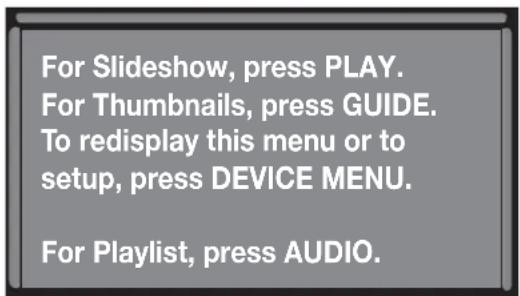
Figure 16. Media Dialog Box
NOTE: Don't pull a memory card out while it is playing.
- On the remote control, press:
PLAY: to start the slideshow or play audio.
GUIDE: to display the JPEG Thumbnail menu (Figure 17) or Audio track playlist (Figure 18).
DEVICE
MENU: to display the Media Setup menu (Figure 19).
Using Remote Control Buttons for Controlling Playback
For JPEG Pictures Slideshow:
PLAY: begins or resumes slideshow playback
PAUSE: pauses or resumes playback while in the automatic advance mode.
FF: skips to the next slide.
REW: returns to the previous slide.
FORMAT: single press rotates the slide 90°. Multiple press continues to rotate the slide.
STOP: Stop slideshow, return to Memory Card screen.
For MP3 or WMA Audio Playback
PLAY: begins or resumes playlist playback.
PAUSE: pauses or resumes playback.
FF: skips to the next track/song.
REW: skips to the previous track/song.
STOP: Stop playback and returns to Memory Card screen.
JPEG Picture Thumbnail Menu
Figure 16
- Press GUIDE on the remote to display the JPEG picture Thumbnail menu.
- Press ADJUST ◀▶▲▼ to move the highlight to different images (CH up/down will change pages of the Thumbnail menu). Use REW to go to the first slide and FF to go to the last slide on the page.
- Press FORMAT to rotate the selected image 90° (pressing FORMAT four times will rotate the image completely around to the original position).
- Press PLAY to begin playback of the Slideshow from the selected image. The Thumbnail menu will be taken down.
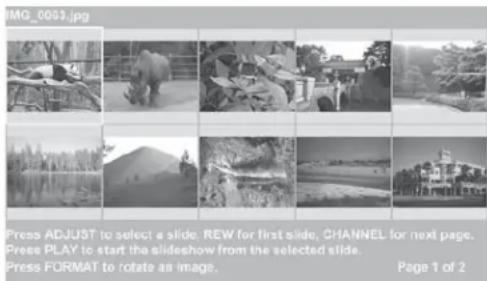
Figure 17. JPEG Thumbnails
MediaCommand™ and Memory Card Playback, continued
MP3 or WMA7 Audio Playlist Menu
Figure 18
- Press GUIDE to display the Playlist menu.
- Using ADJUST ▲ or ▼ move the highlight to different tracks (CH up/down will change pages of the Playlist).
- Press PLAY to begin playback. The Playlist menu will be taken down. An asterisk (*) will be next to the song currently playing.
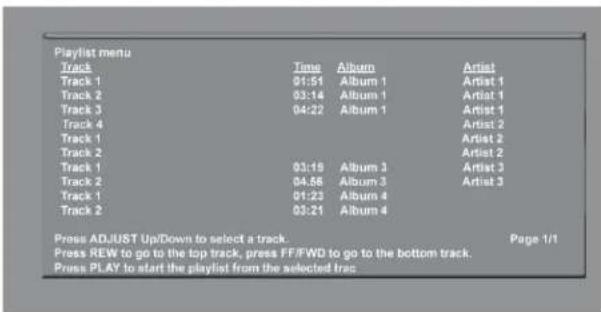
Figure 18. Audio Playlist
For JPEG Pictures up to 128MB
- Still images recorded on digital cameras using the Exchangable Image File Format, version 2.1 (EXIF 2.1) standard for digital still cameras and Design Rules for Camera File Systems version 1.0 (DCF 1.0).
Some images opened and resaved on a computer may not playback or may not be able to display a picture in the thumbnail list because the computer program that opened and resaved the images changed the file to an incompatible format. - Standard digital images with a maximum size of 5-megapixels for each image, or 2560 x 1920 pixels. Pictures will be scaled to the display. Some pictures may be cropped to fit.
- Full path file names can be no longer than 50 characters and must end in a .jpg extension. Not all 50 characters will display.
For MP3 or WMA7 Audio files
- Files recorded with sampling rates of 32 kHz, 44.1 kHz or 48 kHz.
- Files recorded with fixed bit rates
- File names with .mp3 or .wma extensions
NOTE: During MP3 or WMA7 audio playback, audio from the cards will be sent to the A/V receiver as analog audio. Digital out is not available.
Media Setup Menu
Figure 19
Press DEVICE MENU at any time to display the Media Setup screen, where you can adjust the Slideshow Display, Frequency, Interval or Playlist Frequency.
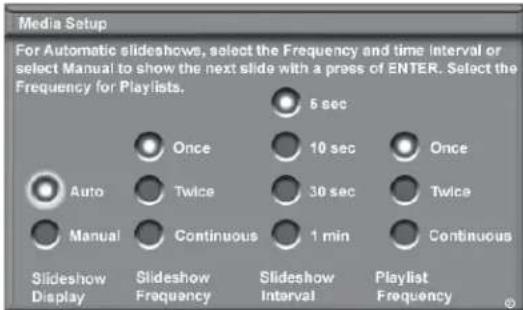
Figure 19. Media Setup Menu
For JPEG Picture Slideshow Setup
- For JPEG picture Slideshow playback, select Automatic or Manual advance. For manual operation, press PLAY or ENTER on the remote control to advance each slide.
- For automatic advance, select the frequency or number of times to show the complete slide show, Once, Twice or Continuously.
- For automatic advance, select the interval time each slide is shown, for example, 5 seconds, or 30 seconds.
For MP3 or WMA7 Audio Playlist Setup
- Select the frequency or number of times to play the complete playlist. Once, Twice or Continuously.
- To exit, press DEVICE MENU on the remote control to re-display the memory card screen or press HOME to return to TV viewing.
IMPORTANT
JPEG images cannot be edited through the TV. To avoid file incompatibility problems, temporarily move the JPEG images to your PC, and change the name file names. MP3's must have at least 32 kHz sampling rate.
Direct VCR Recording from an Antenna or Cable Source
Pressing REC (record) on the media center's remote control will function the same way as pressing the record button on the VCR's remote control or front panel.
To record directly from antenna or cable:
- Press DEVICE on the media center's remote to display the Device Selection menu. Highlight the traditional VCR and press POWER to turn on the VCR. If necessary, press GUIDE to select the input the VCR is on, such as Antenna input (or line input).
- Press ENTER to switch the media center to the VCR.
- Select the correct channel for recording on the VCR and then press REC to start recording. You will need to manually stop the recording at the end of the program.
OR...
- Press the DEVICE MENU button to display the VCR's menu to schedule a delayed recording directly from antenna or cable.
To record from Ant-1, Ant-2 or other devices, see NetCommand Controlled Recordings.
Copy-Protected Material
When attempting to record copy-protected material, the Record functions of the NetCommand and IEEE 1394 systems may be prevented or stopped. If you have a recording that is tagged “Record Once”, NetCommand will not allow the recording to be moved.
Restrictions for Traditional VCRs
If turned On, the media center must be tuned to the source device.
- Your VCR should be connected directly to Monitor ☒ Output Audio and Video.
- The VCR must be set manually to "Line Input". Display the Device Selection menu, highlight the VCR and press GUIDE to change VCR inputs.
- The media center can select channels on compatible cable boxes for recordings. Leave the cable box turned on.
- If the source device or recording device does not have separate power On and Off features, then leave that device powered On.
Chapter

TV Menu Operations
Main Menu Choices 66
Setup Menu 67
NetCommand Menu 68
Antenna Menu 69
Time Menu 71
Captions Menu. 72
Customizing Digital Settings 73
V-Chip Rating Guidelines 74
V-Chip Lock Menu 75
V-Chip Menu 75
Audio/Video Menu 77
A/V Setting Descriptions 78
Main Menu Choices Setup Menu
Figure 1
Use the Setup menu to select English or Spanish as the language for the menus and on-screen displays.
Adjust Color Balance Automatically or manually (PerfectColor™). Color Balance uses six colors, Magenta, Red, Yellow, Green, Cyan and Blue to obtain color balance. Reset the Color Balance to the factory default settings.
Choose Side Bar Color of black or gray. View the media center's software version on this screen.

Figure 1. Main menu, Setup selected
NetCommand® Menu
Figure 2
Add, change, review or delete NetCommand® settings and devices. If you have more than one digital recording device connected, use this menu to change the default digital Record To device. Turn the transport menu off and change the order of the icons in the Device Selection menu. Set up TV Guide On Screen®.

Figure 2. Main menu, NetCommand selected
Antenna Menu
Figure 3
Memorize available analog and digital channels for both Ant-1 and Ant-2. After memorization, if a channel displays as digital and analog, you can choose to see the channel digitally every time it is selected. Manually add or delete channels from memory, name channels or add your favorite channels to a SQV (SuperQuickView™) list.

Figure 3. Main menu, Antenna selected
Time Menu
Figure 4
Manually set the time for the media center, or select Auto and the media center will automatically set the time based upon Extended Data Service (XDS) time data. This time data is usually broadcast by your local PBS station. This menu is also used to set the TV timer.

Figure 4. Main menu, Time selected
Captions Menu
Figure 5
Display Closed Captions if sent by the broadcaster, select settings for analog or digital captions.

Figure 5. Main menu, Captions selected
V- Chip Lock Menu
Figure 6
Block or allow programing based upon rating signals sent by the broadcast station or lock by time.

Figure 6. Main menu, V-Chip Lock selected
Audio/Video Menu
Figure 7
Reset the A/V Memory to return to the original factory A/V settings for a selected device. Customize the individual audio and video settings. Display a blue screen when viewing a device with no signal.

Figure 7. Main menu, Audio/Video selected
Setup Menu
Figure 8
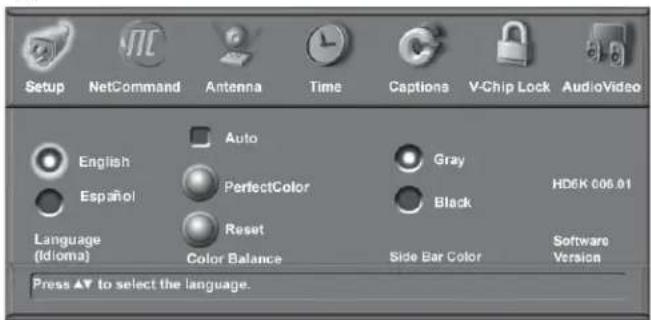
Figure 8. Setup Menu, NetCommand Option
Language
Display the on-screen menus in either English or Spanish (Español). The first time you powered On your media center, you were requested to select an on-screen menu language. If you choose to change the selection, all menu text will immediately switch to the language of your choice.
Program titles and other information sent by a broadcaster will be shown in the original language.
Color Balance
Your media center uses six colors (Magenta, Red, Yellow, Green, Cyan and Blue) to create color balance. You may adjust the intensity of the colors automatically or manually (PerfectColor™) or reset them to the default settings. Each input or device has a memory for PerfectColor.
Auto (Color Balance)
If the Auto box is checked, your media center will optimize color automatically and continuously. Both PerfectColor and Reset options for Color Balance are grayed out and unavailable.
PerfectColor™ (Manual Color Balance)
Figure 9
The PerfectColor (manual) option is only available when Auto (Color Balance) is not checked. Select PerfectColor and press ENTER to display the menu. Individual sliders for Magenta, Red, Yellow, Green, Cyan and Blue will be displayed. The sliders have a numeric value, where 63 is the maximum. The default setting for each color is 31 (center). Highlighted text will show which slider you are adjusting. Each active input can be individually adjusted. Press ADJUST ▲ or ▶ navigate between colors and ADJUST◀ or ▶ to change the color slider settings.
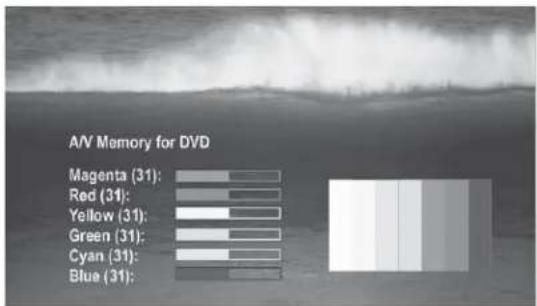
Figure 9. PerfectColor Menu, Manual Color Correction
Reset
Select to reset the Color Balance settings. Each active input can be individually reset, if Auto is not checked.
Side Bar Color
For some TV formats sidebars are visible (see TV Display Formats, G). You can choose to display these sidebars in gray or black. When used with the LCD display, black is recommended.
Software Version
For some service related issues, it may be necessary to know which software version is in your media center. This information is displayed on the Setup menu screen.
NetCommand Menu
Figure 11
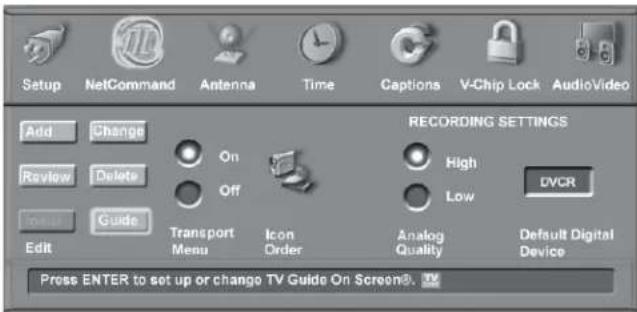
Figure 11. NetCommand Menu
NetCommand
Detailed information regarding setting up and editing the NetCommand menu is found in Chapter 3. The Edit NetCommand screens allow you to add new devices, change or edit traditional and IEEE 1394 devices, turn devices and unused inputs On or Off, set up TV Guide On Screen®, delete a single device or delete the entire setup configuration. If you choose to delete the entire configuration, or if the NetCommand setup was cancelled, deleted or not completed, you can start at the Initial NetCommand screen. The Review screen shows all devices connected to the media center.
Transport Menu
Figure 12
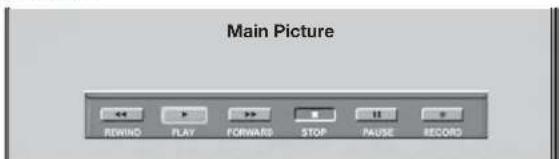
Figure 12. Transport Menu
NetCommand uses the Transport menu to control the VCRs, DVDs, IEEE 1394 AV Discs, digital VCRs, and similar devices. If you choose to turn off this menu when viewing the devices, the transport buttons (rewind, play forward, stop, pause and record) on the media center's remote control will continue to operate these devices. In the Device Selection menu selecting a VCR or DVD Player will automatically display the Transport menu. You can re-display this menu by pressing DEVICE MENU.
Select Transport menu functions by pressing ADJUST or ▶ and then ENTER. For example, to pause playback, press ADJUST ▶ or ▶ to move to PAUSE, then press ENTER. If a function is not possible, such as record for a DVD Player, the Transport menu button will be grayed out. Note: Transport buttons (rewind, play forward, stop, pause and record) on the remote control are located in the bottom section of the remote control.
Default Digital Device
If multiple digital recording devices are available in NetCommand, this setting allows you to choose the device to use when recording digital programs. A digital recording can be made on either a digital or analog device although the quality will not be as good if recorded on an analog device. For best playback quality, record digital programs on a digital recording device.
If multiple devices were not connected and then added in the NetCommand setup, this setting will be unavailable (grayed out). Analog recordings can only be made on the one analog device connected to Monitor Out (usually a VCR) and are not affected by this setting. This feature is most useful when recording from ChannelView™ (page 57).
Icon Order
Figure 13
The Icon Order screen allows you to arrange the device icon order on the Device Selection menu to a different sequence, for ease of selection and operation. To change the order, press ADJUST ◀▶ ▲▼ to highlight the icon to be moved and then press ENTER. Press ADJUST ◀▶ ▲▼ to move the icon to the desired position and then press ENTER to release the icon.
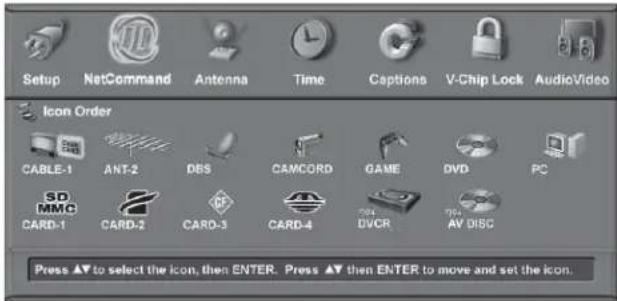
Figure 13 Icon Order Menu
Antenna Menu
Figure 14
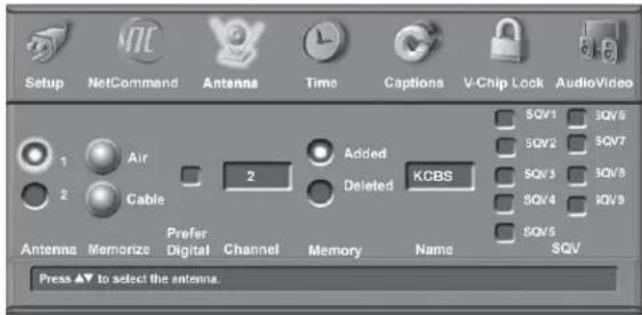
Figure 14. Antenna Menu
The Antenna Menu options are available for use with analog and digital channels on Antenna-1 and Antenna-2. You can memorize channels, add or delete channels, name channels and add channels to an SQV (Super Quick View™) bank.
Memorize
For Antenna 1 (Main) or Antenna 2 (Aux)
Select either Air (when used with an indoor/outdoor antenna) or Cable (when used with direct cable) then press ENTER to start the automatic channel memorization process. If a CableCARD™ is being used, memorized channels are provided by your cable provider through the CableCARD.
To stop the automatic channel memorization process, press CANCEL. Channels memorized before you pressed CANCEL are retained in memory.
After memorizing channels, the channels in the memory can be accessed in ascending or descending order by pressing CH ▲ or .▼
The memorization will occur twice, as the media center memorizes analog and digital channels separately.
Prefer Digital
When a memorized channel is available as both analog and digital, a check mark in the Prefer Digital box will allow digital channels to display and analog channels to be hidden (when using CH). Removing the checkmark will show both analog and digital choices. This function is unavailable (grayed out) when TV Guide On Screen® has been set up
Channel
Channels can be changed in 3 ways:
-
By pressing ADJUST ▲ or ▼ select the channel.
-
By pressing CH ▲ or for channels already in memory.
-
Directly entering the number. With so many current and potential channels, the number range is greatly expanded. Channels can be one part, analog or digital (up to the number 16383) or two part, for digital channels (these use a separator). For a two part digital channel, you may press SUB/CANCEL on the remote to enter a separator after the first, second or third number, depending on the broadcaster's channel information.
For digital channels, when the broadcaster has sent a virtual channel number, the virtual channel number is shown in the text box and as a reference, the original digital channel is shown below the text box.
Memory
After the available channels have been memorized with Memorize, weaker channels can be added. Unwanted channels can also be deleted. Press CH ▲ or ▼ the remote control to see the channels in memory. Press ADJUST ▲ or ▼ select Added or Deleted for the channel shown in the Channel number box.
Name
Analog channels shown on Antenna-1 or Antenna-2 can be named (up to four characters). After you enter a name, it will appear on the TV screen, next to the channel number.
-
Press ADJUST ▲ or ▶ select each letter.
-
Press ENTER to set the letter and move to the next letter position.
-
Press CANCEL to move back one position.
Digital channels are automatically named if the broadcaster sends the information.
Antenna Menu, continued
SQV (SuperQuickView™) Using The Menu Screen
Figure 15
SQV (SuperQuickView™) allows you to put together banks of your favorite channels from Antenna 1 and Antenna 2. You can store channels in any of the 9 different SQV memory banks. You can also store the same channel in multiple memory banks. Once you have added a channel to an SQV memory, “SQV” and the memory bank number will appear under the tuned channel number on the display screen.
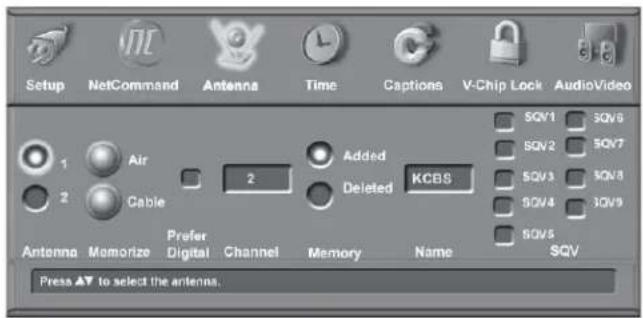
Figure 15. Antenna Menu, SQV (SuperQuickView)
Adding SQV Channels
- Select the channel using the "Channel" option box or press CH ▲ or .▼
- Highlight the bank (SQV1-SQV9).
- Press ENTER to check mark the selected SQV memory bank.
- Repeat for additional channels or banks.
Removing SQV Channels
- Highlight the box for the SQV bank number.
- Press ENTER to remove the check mark.
SQV (SuperQuickView™) Using The Remote Control
Viewing and changing SQV banks using the remote control:
- Press the SQV button.
- To change memory banks, press a number button within 5 seconds of pressing the SQV button.
- Press the SQV button repeatedly to cycle through the channels available in that bank.
Adding SQV channels using the remote control:
- Press CH▲,▼or number buttons to select the channel you want to add to the current SQV memory bank.
- Press and hold the SQV button for about 2 seconds. When "SQV" and the memory bank number appear under the channel number, the channel has successfully been added.
Removing SQV channels using the remote control:
- Press the SQV button and then the memory bank number.
- Press the SQV button repeatedly until you see the desired channel.
- While the channel number and SQV indicator (with correct bank number) are still displayed on the screen, press the CANCEL button. If the CANCEL button is not pressed before the SQV indicator disappears automatically, the channel will not be removed.
- When the SQV indicator disappears, the channel has successfully been removed only from that bank. "Other" banks remain unchanged.
Time Menu
Setting the Clock
You may choose to manually or automatically set the clock that your media center will use for recording or timer functions. You cannot schedule recordings if the clock is not properly set.
Manual
Figure 16
To manually set the clock, you need to select the current time, including AM or PM, current date, time zone for your area and the Daylight Savings time setting.
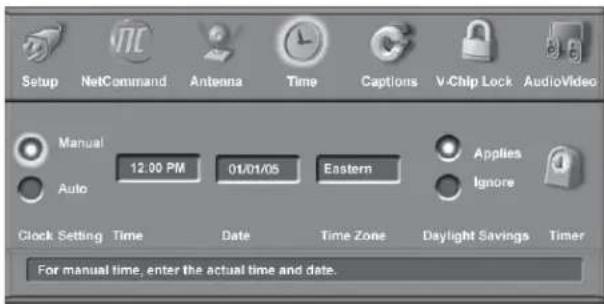
Figure 16. Time Menu, Manual Clock Setting
Set Time
Press ADJUST ▲ or ▼peatedly to slowly select the hour or press and hold to quickly select the hour. Press ENTER to move to the minutes options. Press ADJUST ▲ or ▼to select minutes, then press ENTER to select AM or PM.
Set Date
Press ADJUST ▲ or to select the correct date.
Time Zone
Select your correct time zone. Press ADJUST ▲ or to select the time zone (Atlantic, Eastern, Central, Mountain, Pacific, Alaska or Hawaii) for your area. Then press ADJUST ▶ to move to the Daylight Savings time option.
Daylight Savings Time
Select the Daylight Savings time (DST) option that your state uses. Press ADJUST ▲ or ▼ to select Applies if your state or area uses DST, or Ignore if DST does not apply.
Auto
Select the Time Zone and Daylight Savings time setting, as noted above. You may then tune to a channel (on Ant-1 or Ant-2) that uses Extended Data Service (XDS) time data, typically a PBS channel. The Auto selection will automatically retrieve the correct time and date information from this channel. Be aware that if a channel displays incorrect time information, it is because of information sent from the broadcaster and is not a defect of the media center.
Timer On/Off
Figure 17
The timer can be turned to On or Off. When On, you need to select the time and day to turn the TV On and the device and channel to display. With the TV off and the timer active, the blue POWER LEDs on the front of the display and media center blink slowly as reminders. At your preselected time, the timer will turn the TV on, and this message will be displayed: "Press a button for the media center to stay on." Press any button on the remote control within 5 minutes or the TV will turn itself off.
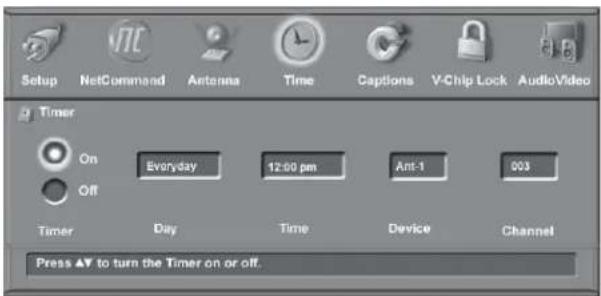
Figure 17. Timer Menu (Timer On/Off)
Set Time
Press ADJUST ▲ or ▼ repeatedly to slowly select the hour or press and hold to quickly select the hour. Press ENTER to move to the minutes options. Press ADJUST ▲ or ▼ to select minutes, then press ENTER to select AM or PM.
Set Day
Select the day or days that the media center will turn on automatically. Press ADJUST ▲ or ▼ select Everyday, Mon-Fri (Monday through Friday), or the individual days of the week.
Device
Press ADJUST ▲ or to select the device to use when the timer turns on media center. If the media center is already on, the timer select this pre-selected device.
Channel
When an antenna is the selected device, you may select any memorized channel. Press ADJUST ▲ or to select the channel and the media center will tune to this channel in memory when the timer turns it on. This includes sub-channels for digital choices.
Captions Menu
Figure 18
For analog channels broadcasters can send either Standard or Text closed captioning. Standard Closed Captions follows the dialogue of the characters on-screen and displays in a small section of the screen. Text Closed Captions often contain information such as weather or news and covers a large portion of the screen. On digital channels, broadcasters can send up to 6 different captioning selections. Each TV station may broadcast only one or two types of captions or none at all. The media center cannot decode Closed Captions received on Component 1 or 2.
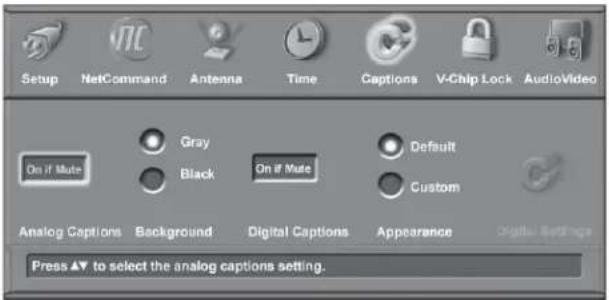
Figure 18. Captions Menu
Analog Captions
The media center can display one of the following captions for Analog sources:
- CC1, CC2, CC3, or CC4. (Standard closed captioning signals).
- Text1, Text2, Text3, or Text4. (Text closed captioning signals).
- On if mute. Closed captions when mute. When selected, the standard closed captioning signal (CC1) will turn on/off by pressing MUTE on the HDTV remote control.
- Off. No closed captions.
IMPORTANT
When analog text closed captioning is selected, a large black or gray box appears on the display's screen if no text is being sent.
Background
To make the analog closed captions easier to read, you can choose to display the background color as either black or gray behind the captions.
Digital Captions
The media center can display one of the following Captions for Digital sources:
- Captions 1-6. Sent by broadcaster.
- On if Mute. Closed captions when mute. When selected, the captioning signal (Caption 1) will turn on/off by pressing MUTE on the HDTV remote control.
- Off. No closed captions.
Note: If the broadcaster is only sending analog captions converted to digital, then the analog captions settings apply.
Appearance
The Default options shows what the closed caption provider intended to send. You may select the Custom option to override and customize Closed Captions appearance. These settings do not apply to analog Closed Captioning converted to digital.
Digital Settings
Figures 18 and 19
Digital Settings are available only when Custom was selected from Appearance (Figure 18) and do not apply to analog closed captions converted to digital. Select Digital Settings by moving the ADJUST buttons and pressing ENTER. You can select Font, Size, Color, Background, Opacity (Font) and Background Opacity.
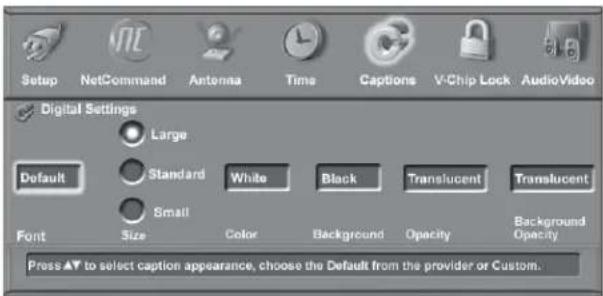
Figure 19. Closed Captions Menu Digital Settings
Captions Menu, continued: Customizing Digital Settings
Fonts
You can customize the text of digital captions by selecting the font of your choice. The available Font options are as follows:
- Default - Selected by the Closed Captions provider
- Font 1 - Mono-spaced font with Serif
- Font 2 - Proportional spaced font with Serif
- Font 3 - Mono-spaced font without Serif
- Font 4 - Proportionally spaced without Serif
- Font 5 - Casual font
- Font 6 - Cursive font
• Font 7 - Small Capitals font
Size
You can also customize the text of digital captions by selecting your desired size of font. Large is the recommended font size.
Color
You can customize the text of digital captions by selecting the color of font. The available font colors are as follows:
- White
- Yellow
- Black
- Green
- Magenta
- Cyan
- Red
- Blue
Background
To make the digital closed captions easier to read, you can choose the background color. The available background colors are as follows:
- White
- Yellow
- Black • Green
- Magenta
- Cyan
- Red
- Blue
Opacity (Font)
You can customize the visibility of your fonts using the following categories:
- Transparent - See-through text to the TV program
- Translucent - TV program is visible behind the text
- Opaque - Solid color text; blocks the TV program
- Flashing - Text flashes in intervals
IMPORTANT
We recommend you use contrasting colors between captions and background. In particular, Black background with translucent opacity and White font are best.
Care must be exercised when selecting customized colors. Your choice may change the legibility or readability of captions.
Background Opacity
You can customize the background for digital captions using the following categories:
- Transparent - See-through background to the TV program
- Translucent - TV program is visible behind the background
- Opaque - Solid background; blocks TV program
- Flashing - Background flashing in intervals
IMPORTANT
The content of captions is determined by the broadcaster. If your captions show strange characters, misspellings or odd grammar, it is not a malfunction of the media center.
V- Chip Rating Guidelines
V-Chip Signal Information
When provided by the broadcaster, V-Chip ratings can be used to control which programs can be viewed or will be blocked. When V-Chip ratings are sent, you will see the ratings when you change the channel or when you press the INFO button on the remote control. Both TV and Movie ratings will display. TV ratings apply to programs and movies developed for TV and may have supplemental blocking by content categories. Movie ratings use MPAA ratings for movies released in theaters.
V-CHIP EXCEPTIONS:
- V-Chip is not effective for programs viewed on devices connected to Component input or HDMI.
- Videotapes, laser discs and DVDs may not contain V-Chip rating signals. If they don't contain the V-Chip signal, V-Chip cannot block the program or movie.
- Broadcasters are not currently required to include V-Chip rating signals at this time. If the broadcaster does not include the V-Chip rating signal, V-Chip cannot block the program.
TV Ratings:
Used with TV programs and Made-for-TV movies.
TV-Y Youth, for children under the age of 7.
TV-Y7 Youth, 7 years old and older. For children 7 years old and older.
TV-G General Audience. For the entire family to view.
TV-PG Parental Guidance. Parental Guidance is recommended, may not be suitable for some children.
TV-14 Adolescent 14 years old and older. Not recommended for children under the age of 14.
TV-MA Mature Audience. For adults only.
| TV Rating | FV | D | L | S | V |
| TV-Y | |||||
| TV-Y7 | X | ||||
| TV-PG | X | X | X | X | |
| TV-14 | X | X | X | X | |
| TV-MA | X | X | X |
Content Categories:
Used in association with the TV ratings above.
FV Fantasy Violence- applies to TV-Y7 only.
D Sexual Dialog- applies in different degrees to TV-PG and TV-14.
L Adult Language-applies in different degrees to TV-PG, TV-14, and TV-MA.
S Sexual Situations- applies in different degrees to TV-PG, TV-14, and TV-MA
V Violence (graphic or realistic)- applies in different degrees to TV-PG, TV-14, and TV-MA.
When you select a TV rating, you are selecting the least-restricted program level that can be viewed. As an example, if you select TV-PG, you are allowing programs rated TV-Y, TV-Y7, TV-G and TV-PG to be seen and blocking programs rated TV-14 and TV-MA. When you select a TV Content category, you will block all TV programs that have the same content category listing. As an example, if you select to block V (Violence) at the TV-14 level, you will also block any program that has the V category listing at the TV-PG rating level as well.
Movie Ratings:
Used with theater released movies and direct-to-video movies.
G General Audience- Designed for the entire family to view.
PG Parental Guidance- Parental Guidance is recommended, may not be suitable for some children.
PG-13 Parental Guidance 13 years old and older- Not recommended for children under the age of 13.
R Restricted- Restricted in the theater to 17 years old and older unless accompanied by an adult.
NC-17 No Children- Restricted in the theater to 18 years old and older.
X Adult- Designed for and restricted in the theater to adult audiences only.
When you select a Movie rating, you are selecting the least restricted program level that can be viewed. As an example, if you select a movie rating of PG-13, you are allowing movies rated G, PG and PG-13 to be seen and
blocking movies rated R, NC-17, and X.
Programs Not Rated: Used for programs that are not rated like news, sports, weather, emergency bulletins, or movies such as those prior to or without MPAA Ratings.
This does not include programs without V-Chip signals.
IMPORTANT
If you select to block programs that carry the V-Chip rating "Programs Not Rated," you may block News or Emergency Bulletins, when "None" or "NR" Not Rated V-Chip rating is included. Care should be used when blocking programming that is not rated.
V- Chip Lock Menu
V-Chip Lock Menu Overview
Figure 20
The V-Chip Lock menu gives you access to V-Chip options and to non-V-Chip TV-locking options as well. You must use a pass code to open this menu to enable/disable the lock options. The two different types of locks available are:
• V-Chip
Lets you restrict access to programming based on program-rating signals sent by the broadcaster. You can also set the time of day for these restrictions to be in effect.
- Lock by Time
Lets you restrict all TV viewing by time of day.
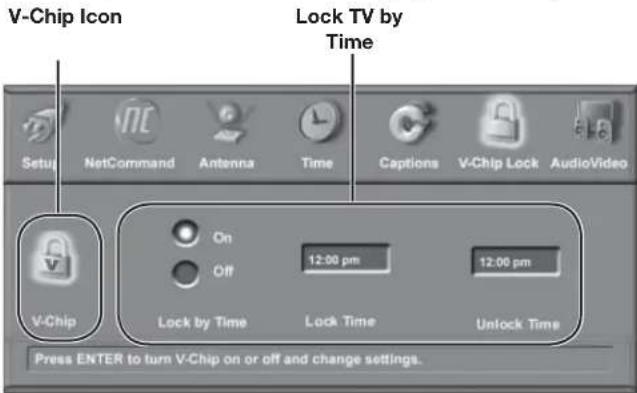
Figure 20. V-Chip Lock Menu
Setting a Pass Code
You are prompted to enter a pass code whenever you select V-Chip Lock on the menu or press the V-CHIP key on the remote control. To set a pass code for the first time:
1. Do one of the following:
- Press V-CHIP on the remote control.
- Press TV MENU, highlight V-Chip Lock, then press ENTER.
The V-chip Parent Lock screen in Figure 21 displays.
2. Input a four-digit pass code using the number keys on the remote control.
- Press CANCEL to delete a number and move back one space.
- Press MENU or HOME to exit without setting a pass code.
3. Press ENTER to confirm the pass code just input.
To reset the pass code, see the procedure in Appendix C.
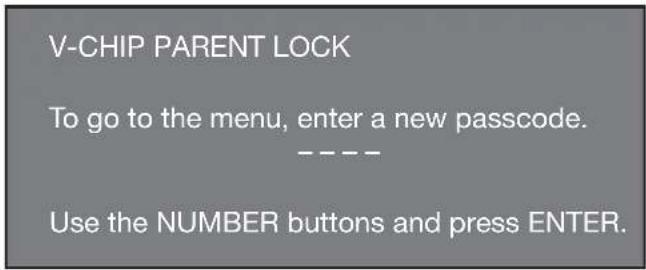
Figure 21. The V-Chip Parent Lock screen
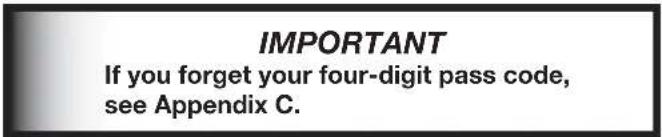
V- Chip Menu
Figure 22
The V-Chip menu allows you to:
- Turn the V-Chip Lock on or off
- Change the permitted V-Chip rating level
- Set the time of day to enforce rating restrictions
The TV comes from the factory with pre-set V-Chip ratings and with the V-Chip Lock turned off. The preset ratings are TV-PG (TV rating) and PG (movie rating). If you turn on the V-Chip, these presets will allow only programs rated TV-PG/PG or lower. You can turn on V-Chip from this menu or by using the V-CHIP button on the remote control. Use the V-Chip menu to change the permitted rating levels.
After changing channels or devices, there may be a delay of up to five seconds before the V-Chip lock takes effect.
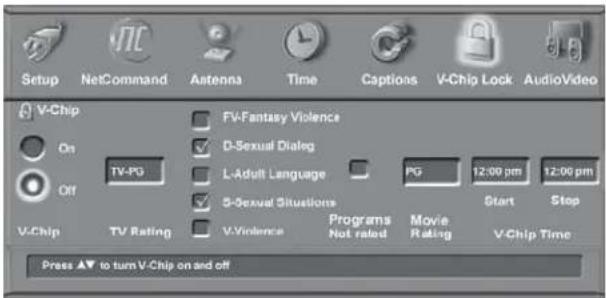
Figure 22. V-Chip Menu
Setting V-Chip Options
- Highlight the V-Chip icon on the V-Chip Lock menu and press ENTER to open the V-Chip menu.
- Press ADJUST ▲r to select On or Off.
- If you selected On, press ADJUST ▶ move to the TV Rating box.
- Press ADJUST ▲ to select the TV rating level you want to allow.
- Press ADJUST to move to the TV content categories.
- Press ADJUST ▲ to▼move between categories.
- Press ENTER to add check marks to the TV content categories you want to block.
- Press ADJUST to move to the Programs Not Rated box. Press ENTER to add or delete a check mark to allow or block programs that are not rated.
NOTE: Use care when choosing to block unrated programming. News programs and emergency bulletins carry the “None” or “NR” (Not Rated) V-Chip rating, and these are blocked with this option active.
- Press ADJUST ▶to move to the Movie Rating box. Press ADJUST ▶or ▶to select the movie rating level you want to allow. See the next page for detailed information on rating guidelines.
- To set the time of day when these restrictions will be in effect, press ADJUST ▶to move to the Start box. To set the time:
a. With the highlight on the hour number, press ADJUST ▲ or ▼ repeatedly to change the hour. You can also just press and hold to change the hour.
b. Press ENTER to move the highlight to the minutes.
c. With the highlight on the minutes number, press ADJUST ▲ or ▼peatedly to change the minutes. Just press and hold to move quickly through the numbers.
d. Press ENTER to move the highlight to the am/pm option. Press ADJUST ▲ or ▼ to make a selection.
- Press TV MENU to save the settings and close the menu.
NOTE: To make the V-Chip restrictions active twenty-four hours a day, make the V-Chip Start and Stop the same time.
The V-CHIP Button
Press the V-CHIP button on the remote control to turn the V-Chip lock on and off without going through the menu. A screen will appear prompting you for your pass code. To change V-Chip settings, you must open the V-Chip Lock Menu and then open the V-Chip menu.
Lock by Time
Lock by Time allows you to entirely block use of the TV during specified hours. During the lock time, you must use your pass code to view the TV. To lock the TV by time:
- Press ADJUST ▲ to select On or Off for Lock by Time.
- Press ADJUST ▶ move to the Lock Time box.
a. With the highlight on the hour number, press ADJUST ▲ or ▼ repeatedly to change the hour. You can also just press and hold to change the hour.
b. Press ENTER to move the highlight to the minutes.
c. With the highlight on the minutes number, press ADJUST ▲ or ▼ repeatedly to change the minutes. Just press and hold to move quickly through the numbers.
d. Press ENTER to move the highlight to the am/pm option. Press ADJUST ▲ or ▶ to make a selection.
To make Lock by Time active 24 hours a day, set the Lock and Unlock Times to the same time.
Bypassing V-Chip Lock and Lock by Time
If you try to watch blocked programming, a notice appears prompting you for a pass code. To use the TV:
- Input your four-digit pass code and press ENTER.
- Change to a channel airing an allowed program or change to another device.
If you try to use the TV when it is locked by time, a similar screen appears, prompting you for your pass code.
To reactivate the V-Chip lock or TV lock by time after using the pass code, power the TV off and then on.
Audio/ Video Menu
Figure 23
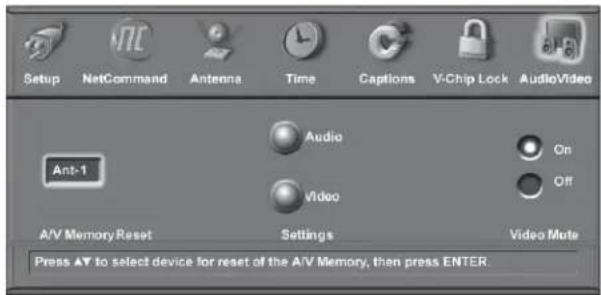
Figure 23. Audio/Video Menu, Settings
A/V Memory Reset
A/V Memory Reset allows you to select the device which will have the A/V Settings returned to the original factory settings. To return a device's memory to the original factory settings, select the device and then press ENTER.
Settings
Each device has its own A/V memory. Select the device in A/V Memory Reset, then select Audio or Video to adjust the device's individual settings. Press ENTER, the menu is removed, and the individual settings are displayed.
Use the AUDIO and VIDEO buttons on the remote control to change settings, as these options are not accessible from this screen.
Use ADJUST ▲ or ▼ to select the individual settings for adjustment. Use ADJUST ▲ or ▼ to adjust. For descriptions of the individual A/V settings, see pages 78–79.
Video Mute
Video Mute lets you display a blue background when no signal is being received on Inputs 1-2, Component 1-2, HDMI Inputs 1-2, and PC.
A/V Setting Descriptions: Audio
NOTE: The effects of the Audio Settings of Bass, Treble, Balance and Surround affect the sound heard through the display's internal speakers only.
Using the AUDIO Button on the Remote Control
To adjust individual Audio settings directly with the remote control:
- Press AUDIO to cycle through the available settings.
- Press ADJUST ◀ or ▶ to adjust the setting. After 5 seconds of inactivity, the setting display will disappear.
Analog and Digital Audio Setting
A slider will display on-screen for most settings. When the slider is displayed it has a numeric value, where 63 is the maximum, 31 is the mid-point and 0 is the minimum.
◇ Bass
Enhances or reduces low-pitch sound.
Treble
Enhances or reduces high-pitch sound.
Balance
Adjusts the level of sound between the left and right speakers.
◇ Surround
Creates simulated stereo and surround effects through the display's internal speakers. Your choices are:
- Off: No surround effects.
- Surround Sound: Will create a simulated surround effect when watching a stereo program.
- Simulated Stereo: Will create a simulated stereo effect when watching a non-stereo program.
Analog-Only Audio Settings
◇ Listen to
Determines how your media center will receive a broadcast audio signal and play back the sound you hear. Your choices are:
- Stereo: Default setting. Will play stereo broadcasts in stereo and mono broadcasts in mono. The word “Stereo” will be displayed when you tune to a channel broadcasting stereo.
- SAP (Second Audio Program): Additional monaural sound track that you cannot hear during normal TV viewing. The SAP signal might be related to the program you are watching, such as a sound track in a foreign language, or unrelated to the program you are watching, such as a weather report. If a SAP signal is broadcast, the letters “SAP” will be displayed when you tune to the channel.
- Mono: Reduces background noise and should be used when receiving a weak stereo audio signal. All audio will be played mono with this setting.
Listen to is not available for devices connected to the video inputs, component inputs or 1394 devices.
◇ Level Sound
Turn On or Off to automatically equalize the volume level of programs containing significant level differences from one segment to another (for example, regular programming to commercials). To receive the best fidelity with music programs, you can turn this setting to Off.
Digital-Only Audio Settings
Language
Determines what possible language you will hear. Your choices are:
- English
- French
- German
- Italian
- Portuguese
- Spanish
- "Other"
◇ Level Sound
Automatically reduces loud passages and boosts soft passages to a more uniform loudness. When connecting to an A/V receiver, set level sound to OFF and turn the display's internal speakers off to send full dynamics to the A/V receiver.
This feature only works with Dolby Digital sources. Other digital audio formats do not offer this dynamic range control. In these cases, no effect will be heard when changing the level sound setting.
A/V Setting Descriptions: Video
Using the VIDEO Button on the Remote Control
To adjust individual Video settings directly with the remote control:
- Press VIDEO to cycle through the available settings.
- Press ADJUST ◀ or ▶ to adjust the setting. After 5 seconds of inactivity, the setting display will disappear.
Video Settings
◇ Contrast
Provides a slider to adjust the white-to-black level. Low contrast shows a variety of shades in darker images, while high contrast shows darker images more uniformly black and makes colors appear more vibrant. In most home lighting situations, a medium contrast looks best. High contrast is good for brightly lit environments.
Brightness
Provides a slider to adjust the overall brightness of the picture.
◇ Sharpness
Provides a slider to adjust the detail and clarity.
◇ Color
Provides a slider to adjust the color intensity.
◇ Tint
Provides a slider to adjust the proportion of red to green.
◇ Video Noise
Use to reduce minor noise (graininess) in the broadcast received on Ant-1 and Ant-2, Inputs 1 and 2, and Component 1 and 2. Use standard with good quality signals.
◇ Film Mode (Auto) - On or Off
On is the automatic setting and will automatically detect and apply film decoding correction for signals that originated on 24 frames per second film cameras and then were converted for broadcast to 30 frames per second video.
When the original signals originated on 30 frames per second video cameras, the On setting will automatically apply video decoding, the same as used with the Off setting. Try the Off setting when the TV seems to have difficulties and adds too many jagged edges to the images.
Film Mode is not effective for progressive scan (480p) devices, and high definition signals.
Backlight
Use to manually adjust the contrast of the PC screen image.
NOTE: A slider will display on-screen for most settings. When the slider is displayed it has a numeric value, where 63 is the maximum, 31 is the mid-point and 0 is the minimum.
NOTE: For PC video settings, see Chapter 6.
Chapter

Connecting and Using a PC
Connecting a PC to the Display 82
Setting PC Resoluiton....83
PC Display Formats 84
PC Video Settings 85
Supported PC Timings 85
Connecting a PC to the Display
Figure 1. A 15 pin PC monitor cable and an audio video cable is required. These are not included with the TV.
To connect a PC to the display (audio and video), do the following:
- Connect a VGA video cable (purchased separately) from the PC to the VGA port on the rear panel of the display. Refer to the Supported PC Timings table on page 85.
- Connect a Stereo Mini audio cable (purchased separately) from the display rear panel to the PC (the Headphones terminal can be used for this purpose).
Note: The display's PC video input is only compatible with VGA, SVGA, XGA, or SXGA resolutions.
If your PC has digital audio output, connect that terminal to a digital input of your digital A/V receiver, if available. The HDTV (display and media center) only supports analog PC audio.
-
Add the device (PC) in the NetCommand® menu.
-
Select the PC through the Device Selection menu.
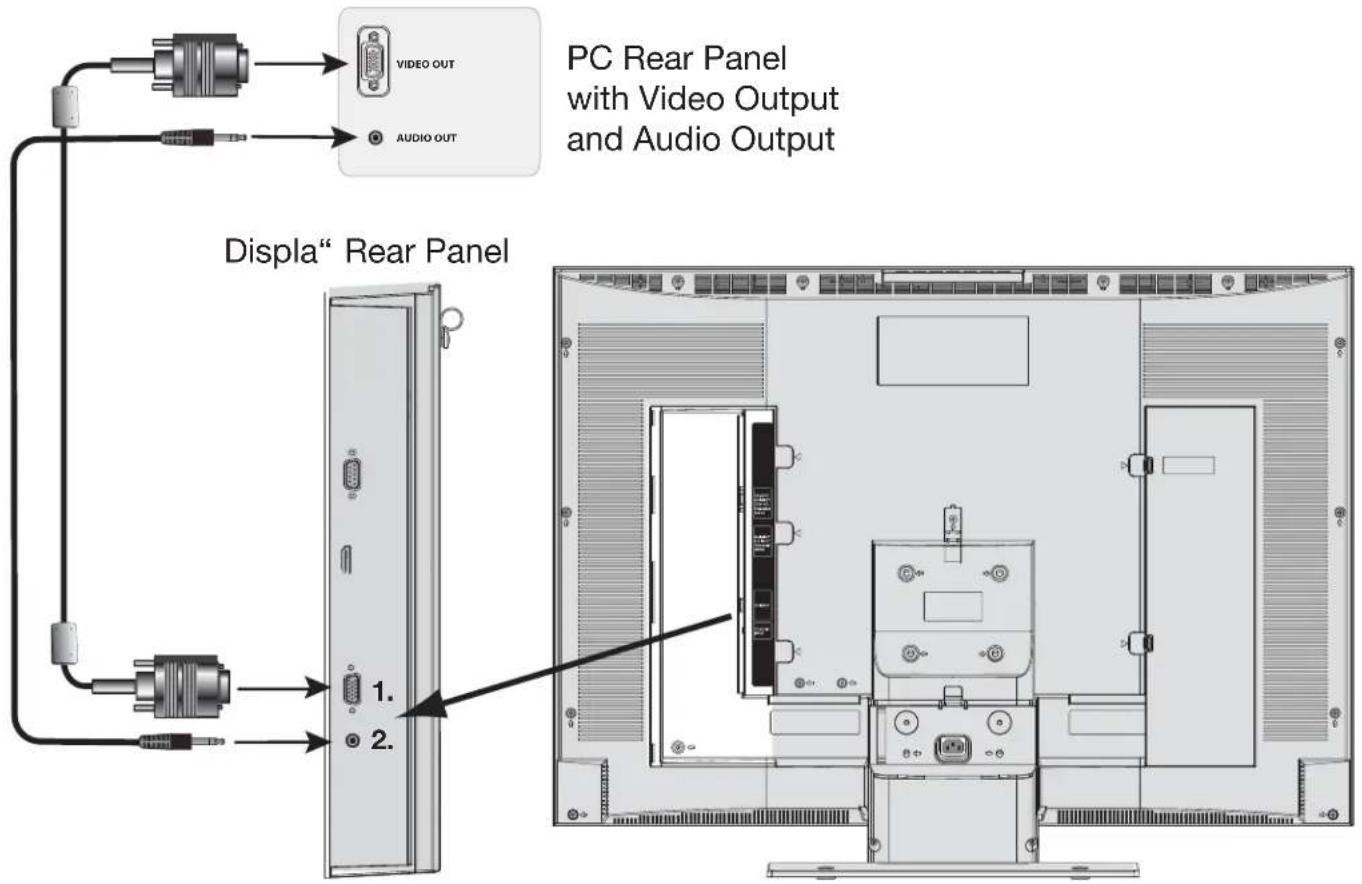
Figure 1. Connecting a PC to the Display
IMPORTANT: BEFORE MOUNTING THE DISPLAY TO A WALL
Be sure to connect a VGA cable to the display PC (video) Input, and, if applicable, a stereo mini cable to the PC Audio Input. Otherwise, you will not be able to access PC Inputs after wall-mounting. The media center does not have PC inputs.
Setting PC Resoluiton
Figure 16
For the correct screen resolution (pixels), while the PC is displayed on screen, use the PC's Control Panel settings, as shown below (for most PC's). Your display can display VGA, SVGA, XGA, and SXGA refresh rates.
- In the PC's "Start" menu, select "Settings".
- Select "Control Panel".
- Select "Display".
- Select the "Settings" tab.
- Depending on your PC, use either the Screen Area slider or the Screen Resolution slider to adjust the resolution.
You may need to restart your PC for this change to take effect.
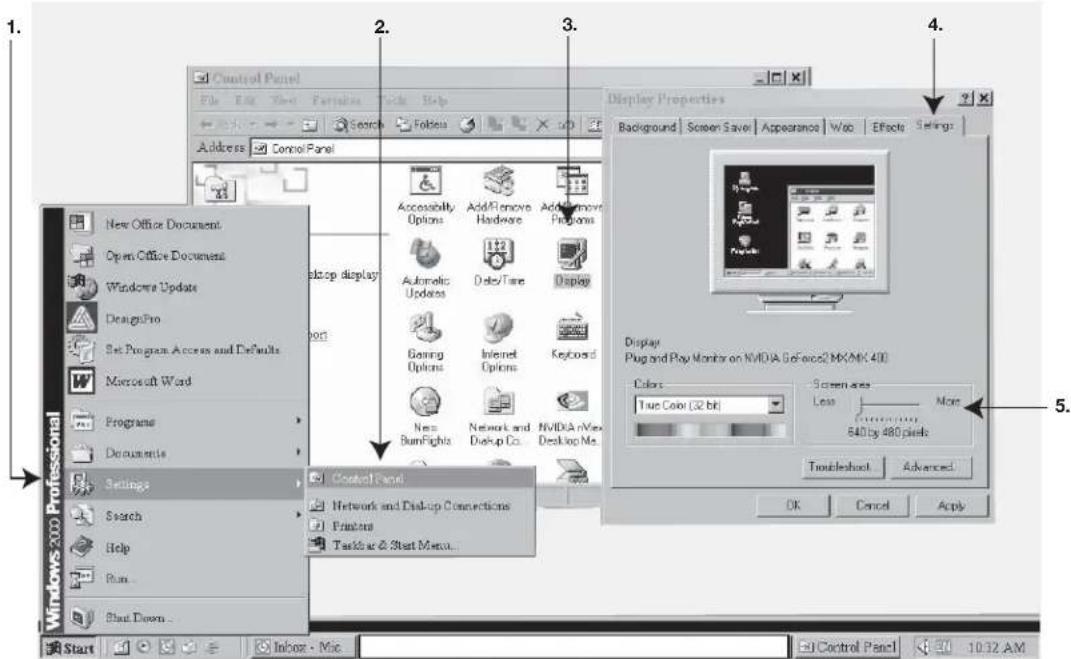
Figure 16. Selecting VGA resolution for a PC
PC Display Formats
LT-3280 Display
| PC Video Signal | Displayed Format |
VGA (640 x 480) | 1366 x 768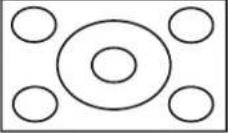 |
SVGA (800 x 600) | 1366 x 768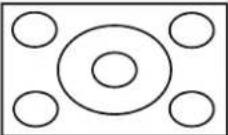 |
XGA (1024 x 768)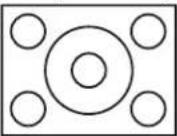 | 1366 x 768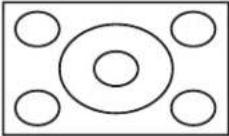 |
WXGA (1280 x 768)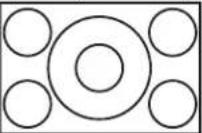 | 1366 x 768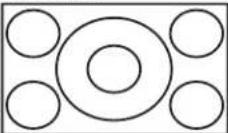 |
SXGA (1280 x 1024)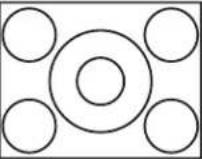 | 1366 x 768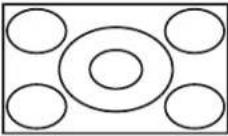 |
PC720P (1280 x 720) | 1366 x 768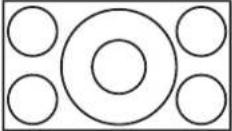 |
(1360 x 768)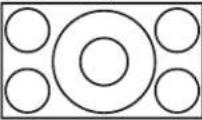 | 1366 x 768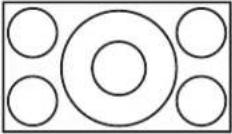 |
LT-3780 Display
| PC Video Signal | Displayed Format |
VGA (640 x 480)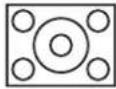 | 1920 x 1080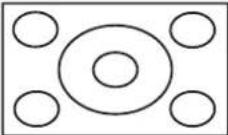 |
SVGA (800 x 600)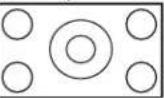 | 1920 x 1080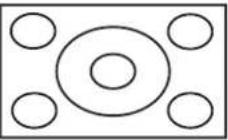 |
XGA (1024 x 768)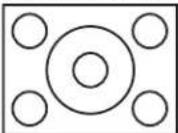 | 1920 x 1080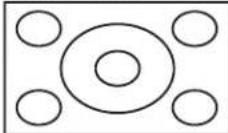 |
WXGA (1280 x 768)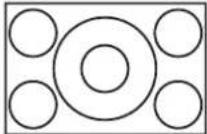 | 1920 x 1080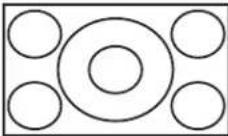 |
SXGA (1280 x 1024)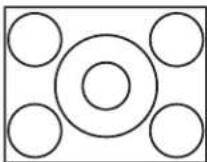 | 1920 x 1080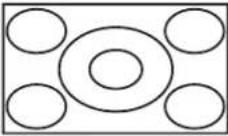 |
PC720P (1280 x 720)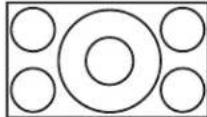 | 1920 x 1080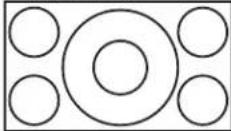 |
(1360 x 768)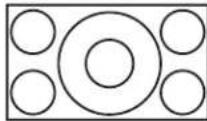 | 1920 x 1080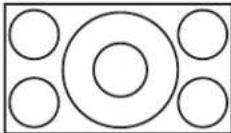 |
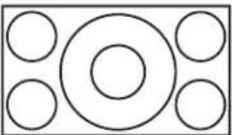 | 1920 x 10801920 x 1080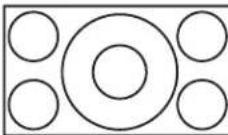 |
PC Video Settings
Press the VIDEO key on the remote control repeatedly to cycle through the Video options to the one you want to change. Use ADJUST ◀▶ to change settings.
◇ Contrast
Manually adjusts the contrast of the PC screen image.
◇ Bightness
Manually adjusts the brightness of the PC screen image.
◇ Back Light
Manually adjusts the contrast of the PC screen image.
◇ Video Clock
Manually adjusts the PC clock frequency.
◇ Horiz Res (Horizontal Resolution)
Manually adjusts the horizontal size of the PC screen image.
◇ Vert Res (Vertical Resolution)
Manually adjusts the vertical size of the PC screen image.
◇ HorizPosition (Horizontal Position)
Manually adjusts the horizontal position of the PC screen image. This selection will override the Auto Position selection.
◇ VertPosition (Vertical Position)
Manually adjusts the vertical position of the PC screen image. This selection will override the Auto Position selection.
◇ Fine Detail
Manually adjusts the flicker (clock phase) of the PC screen image. This selection will override the Auto Position selection.
Auto Position
Press ENTER on the remote control to automatically center the PC screen image.
Supported PC Timings
| Resolution | Horizontal Vertical LT-3280 LT-3780 | ||||
| 1 | 640 X 480(VGA) | 31.47kHz 60Hz Expanded Expanded | |||
| 2 | 37.56kHz 72Hz | Expanded Expanded | |||
| 3 | 37.50kHz 75Hz | Expanded Expanded | |||
| 4 | 800 X 600(SVGA) | 37.88kHz 60Hz Expanded Expanded | |||
| 5 | 48.06kHz 72Hz | Expanded Expanded | |||
| 6 | 46.88kHz 75Hz | Expanded Expanded | |||
| 7 | 1024 X 768(XGA) | 48.36kHz 60Hz Expanded Expanded | |||
| 8 | 56.48kHz 70Hz | Expanded Expanded | |||
| 9 | 60.02kHz 75Hz | Expanded Expanded | |||
| 10 | 1280 X 768(WXGA) | 47.40kHz 60Hz Expanded Expanded | |||
| 11 | 47.76kHz 60Hz | Expanded Expanded | |||
| 12 | 60.29kHz 75Hz | Expanded Expanded | |||
| 13 | 1280 X 1024(SXGA) | 63.98kHz 60Hz Comp. Expanded | |||
| 14 | 80.00kHz 75Hz | Comp. Expanded | |||
| 15 | 1280 X 720 44.4 | 4kHz 60Hz Expanded Expanded | |||
| 16 | 44.77kHz 60Hz | Expanded Expanded | |||
| 17 | 56.46kHz 75Hz | Expanded Expanded | |||
| 18 | 1360 X 768 47.3 | 37kHz 60Hz Expanded Expanded | |||
| 19 | 47.72kHz 60Hz | Expanded Expanded | |||
| 20 | 60.29kHz 75Hz | Expanded Expanded | |||
| 21 | 1920 X 1080 | 66.59kHz | 60Hz | N/A | 1 to 1 |
NOTE: All timings in the table above are in Expanded Mode (expanded from the resolution of the PC video signal), except for the following:
◇ #13 and #14 "Comp." The PC video signal resolution has been compressed.
◇ #21 N/A This timing is not supported for this display.
◇ #21 "1 to 1" The PC signal resolution is the same as the displayed resolution.
Chapter

Troubleshooting and Support
Troubleshooting 88
Using the System Reset Button 92
Using the Reset Menu....92
Support....92
Troubleshooting
| Problem | Possible Solution |
| 1. When the HDTV is turned on for the first time, the NetCommand WELCOME screen does not appear (see figure 1, page 36). | Check to make sure the media center and the display are connected using both MonitorLinkTM cables (A/V and Control).See Essential MonitorLinkTM Connections in Chapter 2 for complete instructions. |
| 2. The HDTV remote control does not work. Check that the batteries are installed correctly.Check that the selected switch is set to CABLE/DBS/DTV.Be within 20 feet of the media center when using the remote control.Program the remote control to operate the media center (Appendix H). | |
| 3 The media center takes several seconds to respond. | It is normal for digital channels to take longer to tune in.Press ENTER after a channel number to avoid delays.Use a 4 digit number for an over-the-air digital channelUse a 6 digit number for cable digital channels |
| 4. Cable provider needs information to start CableCARDTM service. | On the remote control, press TV MENU and then enter the numbers 999 to display the Host ID and CableCARDTM ID information. |
| 5. You cannot access a channel. Use number keys instead of CHANNEL up/down.Be sure the channel you want to view is in memory. See page 69.Check that the media center is turned to the correct device or antenna for that channel, by pressing the DEVICE button.Make sure the V-Chip lock is off.If unable to tune to a digital channel, tune to the physical channel first. | |
| 6. On-screen displays appear each time you change a function. | This is part of normal TV operation. |
| 7. You cannot program the media center to turn on automatically (timer function) | The media center may be locked.The clock may not be set. |
| 8. There is no sound even when the volume is turned up. | Check audio source in Device Menu.Check to see if the MUTE button is on.The media center's "Listen to:" setting may be set to SAP.If you are listening through a DVI device, check that the analog audio has been connected to the media center and your DVI device. |
| 9. NetCommand unable to learn specific device keys. | Device does not use IR format for remote control signal. ITT and RF formats cannot be learned.Room lighting may affect the signal. Have the remote very close (6 inches or less) to the display during Learning. See page 10 for the location of the Learning IR sensor.If using a Mitsubishi remote control, make sure the slide switch is not set to the CABLE/DBS/DTV position.Some, but not all, device key functions can be learned by NetCommand. For example, POWER and PLAY may be learned, but other functions may not.The signal from the remote control may not be strong enough. Insert fresh batteries and try Learning again. |
| 10. You have forgotten your V-Chip passcode. See Appendix C, Bypassing the V-Chip Lock. | |
| 11. PIP does not display a picture. | Make sure the V-Chip lock is off.Not all inputs can be displayed as a PIP. |
| 12. Digital channels do not appear in PIP/POP. | Normal PIP/POP operation. |
| 13. You cannot see a picture when playing a VHS tape. | Open the Review screen and verify that the input for the current VCR as listed in NetCommand is the same as the physical connection.Display the Device Selection menu and select the correct VCR.Check your VCRs owner's guide for further trouble shooting. |
Problem
| 14. V-Chip is not working. • Make sure that V-Chip is On. | • If V-Chip Hours are currently set to disable the V-Chip lock, the V-Chip will not block programming. |
| 15. The media center will not turn on after being plugged in. | • If blue light on front panel is blinking, wait for at least one minute for the light to turn off, then press Power again. |
| 16. After a power outage (or after the media center power cord was accidentally unplugged), the blue light on the front of the media center starts to blink. | • This is normal; the media center is re-initializing.• Wait for at least one minute for the light to turn off, then press Power. |
| 17. The media center turned itself Off and the blue light on the front panel starts to blink. | • Momentary power fluctuation caused the media center to turn off to prevent damage. Wait for the blue light to stop flashing and turn On again.• If the media center does not stay turned On, use the System Reset button. If this happens frequently, obtain an AC line power conditioner/surge protector. |
| 18. Media center functions do not respond to the remote control or to front panel control and will not Power Off. | • Use the System Reset button as explained at the end of this section. |
| 19. Name options are not available for some channels | • Only memorized analog channels can be named. |
| 20. When viewing a stopped VCR, white lines are rolling on the screen. | • Turn off video mute for the VCR.• Begin playing the tape.• Change the VCR input to the antenna input. |
| 21. When a Device is selected from the Device Selection menu, the screen is blue (no signal source). | • Make sure the selected device is turned on.• From the Edit NetCommand® menu select Review. Verify that the inputs are actually connected to the media center . If they are not, either change the physical connections on the rear panel, or select Change on the Edit NetCommand menu to change the media center NetCommand settings for the connection screen for each device. |
| 22. The Device does not respond to button presses from the remote. | • Remote has not been set up for NetCommand® use.• The incorrect manufacturer was selected during setup. Select Change from the Setup menu and then the device to display the manufacturer selection. Change if necessary.• The device is not supported and keys have not been learned.• The requested function is not supported by NetCommand. Verify that the function is supported or keys are learned.• The IR emitter is incorrectly placed. Make sure the IR emitter is facing the IR sensor in the device.• The IR emitter is not plugged into the IR emitter Output NetCommand.• The IR emitter is facing the display, causing double signals. Be sure that the IR emitter cannot send to the display. |
| 23. The A/V Receiver is the selected audio source but there is no sound. | • Check to see if the A/V Receiver power is turned on. After the power is turned on, redisplay the Device Selection menu and press ENTER to allow NetCommand to correctly select the A/V Receiver input.• From the NetCommand Menu select Review. Check the Review screen to see if the A/V Receiver inputs and device correspond to the actual connections on the A/V Receiver. If they do not match, either change the actual connections, or select Change on the Edit NetCommand menu to change the AVR input on the Connection screen.• Verify the connections and NetCommand setup for the A/V receiver and the desired source device, if any.From the NetCommand menu, select Review. Check the Review screen to see if the A/V Receiver inputs and device listed correspond to the physical connections on the A/V Receiver. If they do not match, either change the physical connections or change the NetCommand setup. To change the NetCommand setup, make the audio source TV Audio and select a source device other than the one you want to change. Next select the Change option on the Edit NetCommand menu to change the A/V receiver input for the device on the Connection screen. |
| Problem | Possible Solution |
| 24. The TV Audio icon or A/V Receiver icon is grayed out and not selectable. | Select the Change setting from the Edit NetCommand menu, and then select the device (for example VCR). Once the Connection screen is displayed, check if the audio checkbox is selected for the TV input and/or AVR input.Verify the connections and NetCommand setup for the A/V receiver and the desired source device, if any. See the instructions for item 23, previous page. |
| 25. Devices are grayed out in the Device Selection menu or the PIP Selection menu. | A recording is in progress requiring the use of Monitor Out. Cancel the recording to select the device.Digital channels and media cards cannot display in the PIP or POP. |
| 26. Cannot see the A/V Receiver menu. • The A/V Receiver is not connected to any input of the media center.To check the A/V Receiver menu temporarily plug into an unused input of the media center. Then select Review from the NetCommand Menu, turn the input On to view the A/V Receiver menu. | |
| 27. Screen is black when trying to view digital channels or IEEE 1394 device. | The PerfectColorTM color balance has been incorrectly set. Use the Setup menu to reset the color balance. |
| 28. The REC button is not working, or, on the Transport menu the record key is grayed out and not available. | The device does not support recording, such as a DVD player.Recordings can not be initiated from the Transport menu when using an IEEE 1394 device. Press REC instead. The Record menu displays allowing setup of a recording. |
| 29. Excessive digital artifacts. • The IEEE 1394 cable is too long (15 feet between devices is the maximum length).There may be a slow device in the middle of the IEEE 1394 network.Move the slow devices to the end so that connections for faster devices do not pass through them. | |
| 30. DVCR analog/digital problems. • If the tape is currently playing but no picture displays, there may be a mismatch of the media with the display. Press DEVICE to display the Device Selection menu. Press ENTER for the DVCR device. If digital is selected, try analog, or if analog is selected, try digital. | |
| 31. D-VHS recordings for digital cable have drop-outs (loss of picture or sound), or no playback. | Digital cable signals on IEEE 1394 can exceed the data rate standards supported by DVCR. |
| 32. There is no audio and video from the IEEE 1394 device. | The device is not turned on - turn the device power on.No media (tape or disc) is inserted into the device.The media is blank (has no recording).The play command failed - Try pressing play again on the device's remote control or front panel.The device is already in use (for example: the device is currently recording).The source is copy-protected or violates copy protection.The device's digital video signal is not supported by the TV, such as DV video, common with camcorders. Use analog connections instead, if available.The device is not an audio/video device.Too many other devices are already communicating over IEEE 1394. Remove or stop some devices and try again. |
| 33. The IEEE 1394 Device is not listed in the Device Selection menu. | The device is unchecked in the Review screen. Select the NetCommand menu. Through Review, verify the device is checked.The IEEE 1394 plug is disconnected or loose.The IEEE 1394 Device has not been powered On. Turn on.The device has not been discovered.The device is not an Audio/Video device. |
| 34. The IEEE 1394 device cannot be selected. • The device may be busy, either recording or a peer-to-peer connection has been established. Cancel the recording or peer-to-peer connection. | |
| 35. DEVICE MENU button does not display a menu. | The IEEE 1394 device does not provide a menu.The TV cannot support IEEE 1394 menus. See page 32. |
Possible Solution
Problem Possible Solution
| 36. All IEEE 1394 devices disappear. • The connected devices must not be in a loop that returns to the media center. Make sure a device is connected at the end.• Disconnect all the cables and devices from the TV. Replace them one by one to locate the problem device or cable.• Use System Reset (front control panel). | ||
| 37. Cannot rediscover a deleted IEEE 1394 device • The device has been disconnected. Plug it in.• The device is unchecked in the Review screen. Select NetCommand from the Main menu, then select Review. Check the device.• Remove IEEE 1394 plug. Go to the Edit NetCommand menu. Delete the IEEE 1394 device. Plug the device in again so it can be discovered again. | ||
| 38. An IEEE 1394 device has been plugged in but does not appear in the Device Selection menu (not discovered). | • The IEEE 1394 connection to the media center or another device is not secure or is loose.• The IEEE 1394 device is not powered on.• A device in the IEEE 1394 chain is not powered on - turn on all the devices.• The device discovery can take as long as a minute to initiate.• IEEE 1394 cable is too long (maximum of 15 feet between devices).• The IEEE 1394 device uses an incompatible protocol and will not be discovered | |
| 39. Cannot record to or from the IEEE 1394 device, including Dub recordings. | • To initiate a recording to IEEE 1394 device press the REC key. The Record menu displays allowing setup of the recording.• The source device for the recording is not powered on.• When dubbing, the destination device for the recording is not powered on.• The wrong media, (analog tape for digital recording, or digital tape for the analog recording) is in the device.• Either the program is copy protected, or if there are multiple subchannels and one of the programs (not necessarily the program requested) is copy protected.• The program has already been recorded once and the copy protection only allows one recording.• Unapproved source device for copy protected material.• The recording device can not decode the copyright signal included in the signal source (try another device if available).• The playing device (for dubbing) does not support copyrighted material.• Source for recording is copyrighted.• Too many IEEE 1394 devices in network. Insufficient bandwidth available. Disconnect unused devices.• Source Device has higher speed (S 400) than record device. If possible, reverse devices, play in the slower device and record in the faster device. | |
| 40. Cannot control the IEEE 1394 device from the Transport Menu. | • Device may not support the command.• Selected function is gray (such as Record for a DVD, which does not support the Record function). | |
| 41. When ChannelViewTM list is displayed, information appears incomplete. | • Available information is sent from the broadcaster or cable provider. No other data is available. | |
| 42. Program to be recorded was correctly selected from ChannelView, however, incorrect program was recorded. | • The broadcaster supplied program information that was incorrect and/or was changed after a recording was added to the Record List. | |
| 43. Incomplete ChannelView program recorded. • Recording device may have lack of space availability and there is not enough blank space to make a full recording. | ||
| Problem Possible Solution | ||
| 44. | ChannelView program recording failed. | • Connection and compatibility issues with IEEE 1394 (FireWire®) digital devices. This may include too many Firewire devices in use at one time, or the recording device not understanding the record command.• The media center lost power long enough to lose current clock time.• Analog VCR power was left Off. |
| 45. | After pulling out a memory card during playback , the media center is not responding, | • Press STOP or wait until playback is complete before removing media card. |
| 46. | Can’t see a thumbnail picture in the JPEG menu, or can’t see a track/song name in the Playlist menu. | • The image or audiofile does not meet file standards for playback. |
Using the System Reset Button
If the media center doesn't respond to either the remote control or the front panel controls or will not power off, press the SYSTEM RESET button on the front panel with a pointed item such as the point of a ball point pen or end tip of a paperclip.
The media center will turn off and the blue LED (light next to the Power button) will flash quickly for about one minute. When the blue LED stops flashing, you may turn on the media center again. The changes you made while the media center was most recently on—before you used the SYSTEM RESET button—may be lost. However, the changes you made previously will not be lost—only those changes since the last power On may be lost when the system reset button is pressed. All other settings will be retained.
Using the Reset Menu
- Press Device Menu on the remote control, and select a device.
- Press TV Menu followed by the "1, 2, 3" buttons.
- Use the Reset Service Menu to reset the media center.
Read on-screen warnings before proceeding, as some user data or settings may be erased.
Reset the System Defaults
CAUTION: All settings, except V-Chip, will be reset to the original factory defaults. Service and Support
If you are unable to correct a problem with your display or media center, consult your Mitsubishi dealer or a Mitsubishi Authorized Warranty Service Center.
Support
Telephone: 800-332-2119
Email: MDEAservice@mdea.com
Website: www.mitsubishi-tv.com
- DO NOT adjust any controls other than those described in this owner's guide.
- DO NOT remove the protective rear cover of your display or media center.
Menus not described and shown in this owner's guide are designed for factory use and for authorized service personnel. Damage caused to the display or media center by non-authorized changes or changes to these menus made by non-authorized persons are not covered under warranty.
Appendices
Appendix A: Specifications 94
Appendix B: On-Screen Information Displays 96
Appendix C: Bypassing the V-Chip Lock: 97
Appendix D: Input Connection Compatibility ..... 99
Appendix E: Scan Rates for Input/Output Sources 100
Appendix F: Using PIP and POP 101
Appendix G: TV Display and DVD Formats 102
Appendix H: Remote Control Programming Codes ..... 104
Appendix I: Device Control with NetCommand® 107
Appendix J: NetCommand® Specialized Device Keys 109
Appendix K: Changing the Color Temperature of the Display ..... 110
Appendix L Cleaning.... 111
Software Updates: From time to time, Mitsubishi may offer software updates to expand the features or operation of this media center. When these updates are available they will be announced on our web site, Mitsubishi-tv.com. If you return your Owner's registration card, with your model and serial number, you may receive written notification of available software updates.
Display and Media Center Specifications
| Channel Frequency Reception Over-the-Air: VHF | 2 - 13, UHF 14 - 69Analog Cable: 1 - 125Digital Cable: 1 - 135 |
| Channel Type Over the Air: Analog NTSC, Digital ATSC with sub-channels(all 18 video formats)Cable: Analog NTSC (non-scrambled)Digital QAM 64 and 256 with sub-channels (non-scrambled)CableCARDTM: Authorized scrambled and non-scrambled digital channels | |
| Note for Digital Channels: The channel numbers displayed on screen are determined by the broadcaster or cable company and can vary from the standard frequency number. If there is no channel number information included from the broadcaster or cable company, then the TV will create a channel number based on the frequency number as the main channel number and the program number as the sub-channel number. When using an authorized CableCARD, the channel numbers are determined by the cable company. | |
| Inputs | |
| Antenna/Cable input, Qty 2 F connector, 75 ohm | |
| HDMI (digital video/audio), Qty 2Signal Type | HDMI standard connectors (on media center)HDMI standards for digital audio and video. Not intended for use with personal computers |
| Video/S-Video, Qty 2 eachSignal Type | Video: RCA Pin Plug, 1.0 V p-p, 75 ohmS-Video: Four Pin DIN PlugY: 1.0 Vp-p 75 ohmC: 0.286 Vp-p (burst signal), 75 ohmNTSC 480i only |
| Component Video (Y/Pr/Pb), Qty 2 setsSignal Type | RCA Pin Plug (EIA-770.3 Standard Levels and Timing)Y: 1.0 Vp-p (includes sync), 75 ohmPr: 700 mVp-p, 75 ohmPb: 700 mVp-p, 75 ohmEIA-770.1 & EIA 770.2 480i, 480p, EIA 770.3 720p and 1080i (video standards) |
| PC Input (RGB), Qty 1Signal Type | Mini-D Sub, 15 pin (Note: located on display rear panel)VGA, SVGA, XGA, WXVGA, SXGA |
| Audio Inputs, Qty 6 pair RCA Pin Plug 500mV (ful scale), 43kohm | |
| MonitorLinkTM Control | RS-232C NOTE: Must connect to MonitorLinkTM RS-232C terminal on display. |
| Outputs | |
| Video | |
| Monitor Output, Qty 1Signal Type | Video: RCA Pin Plug 1.0 Vp-p, 75 ohmNTSC 480i only for recording only |
| Audio | |
| Monitor Output, Qty 1 pair RCA Pin Plug, 500 mV | rms ± 200 mV (full scale) for analog sources.1.5 V ± 0.5 V (full scale) for digital sources. |
| Audio Line Out, Qty 1 pair RCA Pin Plug, 500 mV | rms ± 200 mV (full scale) for analog sources.1.5 V ± 0.5 V (full scale) for digital sources.Fixed audio output when connected to A/V Receiver. |
| Outputs (continued) | |
| Video and Audio | |
| MonitorLinkTM A/V (digital audio/video), Qty 1 | NOTE: Must connect to MonitorLinkTM A/V Input terminal on display. Not intended for use with personal computers |
| Digital Interfaces | |
| Digital Audio Output, Qty 1 RCA Pin Plug, Signal | Type, Dolby Digital |
| IEEE 1394, Qty 2 IEEE 1394 Four Pin type Terminal, S400 | |
| Screen Size LT-3280 Display: 32" | LT-3780 Display: 37" |
| Aspect Ratio LT-328 0/LT-3780 : 16:9 (widescreen) | |
| Dimensions(Display with stand) | Media Center: H 3.8" x W 17.0" x D 17.3"LT-32 8 0 Display: H 25.4" x W 32.4" x D 12.8"LT-3780 Display: H 28.5" x W 37.3" x D 12.8" |
| Weight(Display with stand) | Media Center: 12.4lbs.LT-32 8 0 Display: 68 lbs.LT-3780 Display: 81 lbs |
| Power Consumption Media Center: 82 watts | LT-32 8 0 Display: 171 wattsLT-3780 Display: 229 watts |
| Net command® IEEE 1394 System Compatibility:This television system is designed to conform to IEEE 1394 AV/C Software standards in effect at the time of development. This exciting new networking and control technology is designed to provide high-performance digital connections and product control, making the product easier to use.Mitsubishi D-VHS VCRs are fully compatible with this media center in audio, video and control. Many DV camcorders that have IEEE 1394 connections will be compatible with the control features of this media center, but not compatible with the audio or video decoder.As other manufacturers distribute products that use the IEEE 1394 AV/C standards, they will be responsible for developing products that meet the standards of the technology, as well as compatibility testing with other products. Mitsubishi cannot be responsible for their efforts, and therefore cannot promise compatibility with these other products. Any compatibility problems with other manufacturers products should be brought to the attention of those manufacturers.The HDMI input is compliant with EIA-861B standards for standard, extended and high definition video, digital audio and HDCP copy protection. However, this input is not intended for use with personal computers or devices outputting video signals with computer resolutions. | |
Appendix B: On-Screen Information Displays
When you turn on the HDTV (media center and display), change Devices, change Channels or when you press the INFO button on the remote control the current status will display. Below are the most common displays; please note that seldom or never do all of the different status indicators appear at the same time.
Analog Program
- Antenna or Device being viewed
- Analog channel being received: If antenna being viewed
- Channel name (if manually programmed)
- Signal Type being received
Possible:
Ant-1, Ant-2 or Input 1, 2 - 480i
Component 1, 2 - 480i, 480p, 720p or 1080i
- Screen format being used
Possible:
Analog 480i/480p signals – Standard, Expand, Zoom, Stretch, Stretch Plus, Narrow 720p/1080i signals - Standard, Wide Expand
-
Stereo and/or SAP being broadcast
-
V-Chip Ratings
-
Channel in SuperQuickView bank 2
-
Day and Time
-
Sleep Timer remaining time
-
PIP source and channel
-
Special Message Line (shows only when a special message is needed)
Digital Program
- Digital Major and Sub channel number
- Digital Channel Name (only if broadcast)
- Signal Type being broadcast/received Possible: SD 4:3, SD 16:9 or HD
- Screen format being used
Possible:
SD 4:3 - Standard, Expand, Zoom, Stretch, Stretch Plus, Narrow SD 16:9 or HD - Standard, Wide Expand
-
Language(s) being broadcast
-
Program Name (if broadcast)
-
Special Message Line (shows only when a special message is needed)
Digital IEEE 1394 Device
- Status of D-VHS VCR or IEEE 1394 device
- Counter of D-VHS VCR
- Media type in D-VHS VCR
- Special message line (shows only when a special message is needed; may be seen with Analog signals)
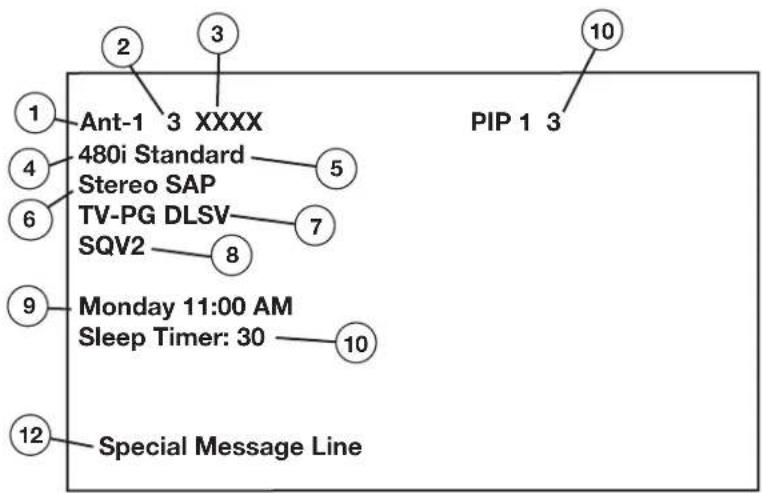
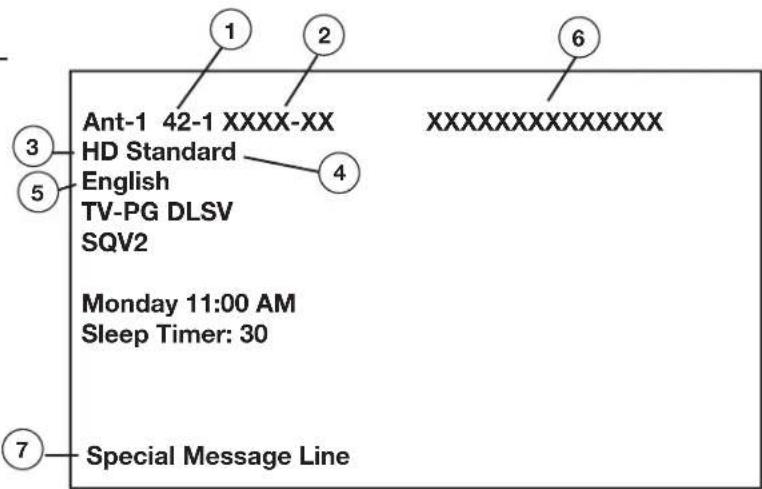
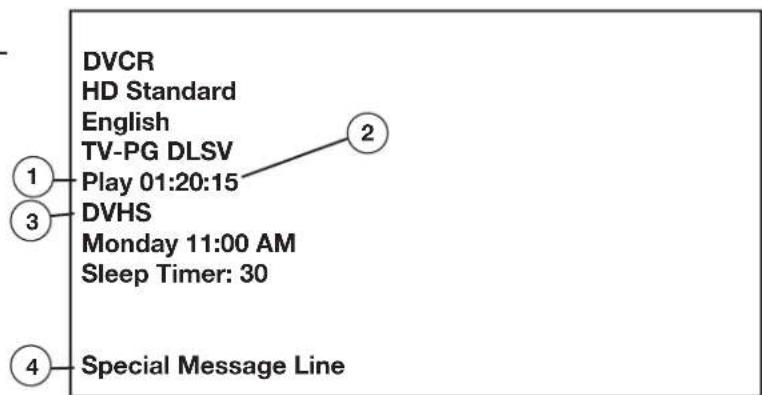
Appendix C: Bypassing the V-Chip Lock:
Lock Bypass Instructions Have Been Filed for Future Reference
Cut_Along_This_Line

Bypassing the V-Chip Lock
After you set the lock, you need your passcode to view a V-Chip locked program, view the locked TV, cancel the lock, or enter the V-Chip Lock menus.
If you forget your passcode, you can view the locked media center without entering your passcode. This is done by pressing the number 9 and QV buttons on the HDTV remote control at the same time, when your passcode is requested. This process temporarily unlocks the media center.
When entering the V-Chip Lock menu, this process deletes your old passcode and prompts you to enter a new passcode. Press HOME to exit the menu.
IMPORTANT
Cut along the dotted line and file bypass instructions in a safe place for future reference.
IMPORTANT
When changing or deleting your passcode, you must use the remote control included with this media center. You cannot use a Mitsubishi remote control from another component or a "universal" remote.
This page intentionally blank
Component-1 and Component 2 Inputs
These inputs are compatible with component video signals from standard DVD players and other equipment sending a standard NTSC component video signal (480i). These inputs are also compatible with newer DVD players sending a progressive NTSC component video signal (480p). These inputs are also compatible with most standard DTV and satellite receivers with component video outputs (YPbPr). Compatible DTV signals are SDTV 480i, 480p, 720p and HDTV 1080i.
Component 1 and 2 Input Levels and Timings
EIA - 770.1 and EIA - 770.2 Standard Levels & Timing
Y = 1.0Vp-p (includes sync) 75ohm
Pb = 700mVp-p, 75ohm (can also receive signals from outputs labeled B-Y and Cb)
Pr = 700mVp-p, 75ohm (can also receive signals from outputs labeled R-Y and Cr)
VGA Input (on rear panel of display)
This input will accommodate most computers capable of supporting a VGA monitor. See page 85 for supported PC timings.
NetCommand® IEEE 1394 System Compatibility
The supplied LCD Flat Panel HDTV is designed to conform to IEEE 1394 AV/C software standards in effect at the time of development. This exciting new networking and control technology is designed to provide high-performance digital connections and product control, making products easier to use.
As other manufacturers produce products that use IEEE 1394 AV/C, they will be responsible for the development of their products to meet the standards of the technology, as well as compatibility testing with other products. Mitsubishi cannot be responsible for their efforts, and therefore cannot promise compatibility with these other products. Any compatibility problems with other manufacturers products should be brought to the attention of those manufacturers.
HDMI Input Levels
NTSC 480i only
Y = 1.0Vp-p (includes sync) 75ohm
C = 0.286 Vp-p (burst signal), 75 ohm
| Input Scan Rate\Source\Input | Gbpy Protection | HDCPLT-3280/LT-3780 Display |
| ANALOG | ||
| 480i signals from Ant-1, Ant-2, Input- 1, 2 | none 1080i | |
| 480i signals from Ant-1, Ant-2, Input- 1, 2 | yes 1080i | |
| 480i, 480p signals from Component 1 & 2 | none | 1080i |
| 480i, 480p signals from Component 1 & 2 | yes 1080i | |
| DIGITAL | ||
| 480i or 480p signals from Ant-1 or IEEE 1394 | none 1080i | |
| 480i or 480p signals from Ant-1, Ant-2 or IEEE 1394 | yes 1080i | |
| 720p signals from Ant-1, Ant-2 or IEEE 1394 | none 1080i | |
| 720p signals from Ant-1, Ant-2 or IEEE 1394 | yes 1080i | |
| 1080i signals from Ant-1, Ant-2 or IEEE 1394 | none 1080i | |
| 1080i signals from Ant-1, Ant-2 or IEEE 1394 | yes 1080i | |
| HDMI inputs yes or none 1080i | ||
Scan Rates for VCR or Non-HD Monitor OUTPUT source
| Input Scan Rate\Source\Input Signal | Copy Protection | Video Output VCR or Non-HD Monitor |
| ANALOG | ||
| 480i signals from Ant-1, Ant-2, Input- 1, 2 yes or none | 480i | |
| 480p signals from Component 1 & 2 yes or none none | ||
| DIGITAL | ||
| 480i or 480p signals from Ant-1, Ant 2 or IEEE 1394 no | one 480i | |
| 480i or 480p signals from Ant-1, Ant 2 or IEEE 1394 | yes | 480i |
| 720p signals from Ant-1, Ant 2 or IEEE 1394 | none 480i | |
| 720p signals from Ant-1, Ant 2 or IEEE 1394 | yes | 480i |
| 1080i signals from Ant-1, Ant 2 or IEEE 1394 | none 480i | |
| 1080i signals from Ant-1, Ant 2 or IEEE 1394 | yes | 480i |
Appendix F: Using PIP and POP
You can display programs from analog channels, analog inputs or devices as Picture-In-Picture (PIP) and Picture-Outside-Picture (POP). The media center has a second analog tuner for non-scrambled analog channels received on Ant-1 and will display them as the PIP/POP sub-pictures. Digital channels and devices can be shown as the main picture but cannot be the sub-picture. NOTE: PIP, POP and Side-by-Side modes do not support PC input.
Press PIP/POP to activate the PIP/POP option. With each press of the PIP/POP button on the remote control (within seconds of each other), the PIP/POP will cycle through the following display options:
| MAINPICTURE | Side-by-Side |
To turn PIP/POP off:
- Press PIP/POP repeatedly until the TV returns to full-screen mode.
- Press PIP/POP and wait at least 10 seconds. Press PIP/POP again. The next time you activate PIP/POP, the last-used PIP/POP option will be displayed.
Changing PIP/POP Device
Press PIP DEVICE to change the PIP or POP picture source device. A menu similar to the Device Selection menu will be displayed.
Changing PIP/Side-by-Side Channels
Press PIP CH to scroll up and down through memorized channels on Ant-1 and Ant-2.
Exchanging Program Images
Press EXCH to exchange the main picture and the PIP/POP picture. Pictures from digital channels can only be shown as the main picture.
Moving PIP Image
If no menus are on screen, press ADJUST ▲, ▼, ◀ or ▶ to move the PIP display anywhere on the main screen.
Automatic POP Switching
When automatic POP switching is active, the TV will cycle through memorized analog channels on Ant-1 or Ant-2 or strobe pictures from other A/V components in the POP display. Press PAUSE to pause or restart automatic POP switching.
Selecting POP "Live" Image
Press ADJUST ▲, ▼, ◀ or ▶ to select a different POP "live" image (automatic POP switching must be paused.)
Freezing the PIP and Side-By-Side Picture
Press PAUSE to freeze the PIP and side-by-side images. Press PAUSE again to return to a "live" image.
IMPORTANT
Side-by-Side mode cannot show the same channel or device on both sides.
If Ant-1 or Ant-2 is the main picture, Ant-2 is not available as a PIP, POP or Side-by-Side.
PIP, POP and Side-by-Side mode are not compatible with signals from memory cards.
PIP, POP and Side-by-Side modes are not compatible with PC input.
TV Display Formats
The media center is designed to work with widescreen TVs (also known as 16:9 TVs). This shape reflects the new types of images available from HDTV and many DVDs. There are still many older style narrow screen images (called 4:3 aspect ratio) you will encounter. While there will never be a perfect solution for displaying a narrow image on a wide screen, Mitsubishi offers several display formats to choose from.
To cycle through the available display formats, press FORMAT on the HDTV remote control. The last used format for each device will be used when you return to that device.
Note: Not all formats are available for PIP/POP. Side-by-Side, 3 POP and 9 POP are only available in Standard and Expand formats. PC formats vary depending on PC signal.
TV Signal Definitions
480i Signals: Traditional analog interlaced signals from or through Ant-1 & 2, Inputs 1 & 2, Component 1 & 2, Input-DTV and HDMI.
480p Signals: Progressive scan analog DVD signals on Ant-1 & 2, Component-1 & 2, Input-DTV and HDMI.
720p & 1080i Signals: High definition analog signals received through Component-1 & 2, Input-DTV and HDMI. These signals are always 16:9 (widescreen).
SD 4:3: Standard definition narrow screen format signals from digital channels and IEEE 1394 devices.
SD 16:9: Standard definition wide screen format signals from digital channels and IEEE 1394 devices.
HD: High definition wide screen format signals from digital channels and IEEE-1394 devices. These signals are always 16:9 (widescreen).
TV Format Definitions
Standard: This is the full screen format. HDTV signals use this format. This format is useful to display Anamorphic DVDs that have 1.78:1 or 1.85:1 aspect ratios. Anamorphic DVDs that have a 2.35:1 aspect ratio will still display black bars at the top and bottom, but will show the entire image correctly. Narrow (4:3) images will be stretched evenly from side to side. Available for all signals.
Expand: This will enlarge the picture to fill the screen, cropping off some of the image at the top and bottom. This is useful to reduce the letterbox top and bottom bars of non-anamorphic DVD. Available for analog 480i, 480p and digital SD 4:3 signals only.
Zoom: This will enlarge the picture, cropping off some of the image at each side and top and bottom. This is useful to remove or reduce the black top and bottom bars on anamorphic DVDs with a 2.35:1 aspect ratio. Available for analog 480i and 480p and SD 4:3 signals only.
Stretch: This format will stretch a narrow (4:3) image across the screen, however, there is less stretch in the center than the sides. This will allow the entire narrow image to be displayed across the screen with less distortion than seen in the Standard format. Available for analog 480i and 480p and SD 4:3 signals only.
Stretch Plus: Similar to stretch mode, however to minimize distortions on the side, the picture is expanded to crop off portions of the top and bottom. Useful when no important information is shown at the top and/or bottom of the screen. Available for analog 480i and 480p and SD 4:3 signals only.
Narrow: This format will display narrow (4:3) images in their original shape, and add stationary black or gray side bars to fill the screen. Available for 480i, 480p and digital SD 4:3 signals only.
Wide Expand: Enlarges the picture, cropping some of the image on both sides. This Expand format is useful to remove or reduce black side bars added to narrow images that are converted to 16:9 signals for digital broadcast. Available for analog 1080i, 720p, digital SD 16:9 and digital HD signals.
DVD Formats
Anamorphic (or Enhanced for Widescreen TV's):
These DVDs are recorded in a special way to properly show widescreen images on 16:9 TV sets in the Standard format mode. This is the recommended choice.
Non-Anamorphic (or 4:3, 1:33:1, Letterbox or Full Screen):
These DVDs are recorded for use with traditional shaped TVs. They may be full screen (4:3 or 1:33:1) which crops movies to fit the narrow TV, or Letterboxed which adds black top and bottom bars.
This information may or may not be listed on the DVD case. Some DVDs support both types of recordings.
Appendix G: TV Display and DVD Formats, continued
TV Display Formats
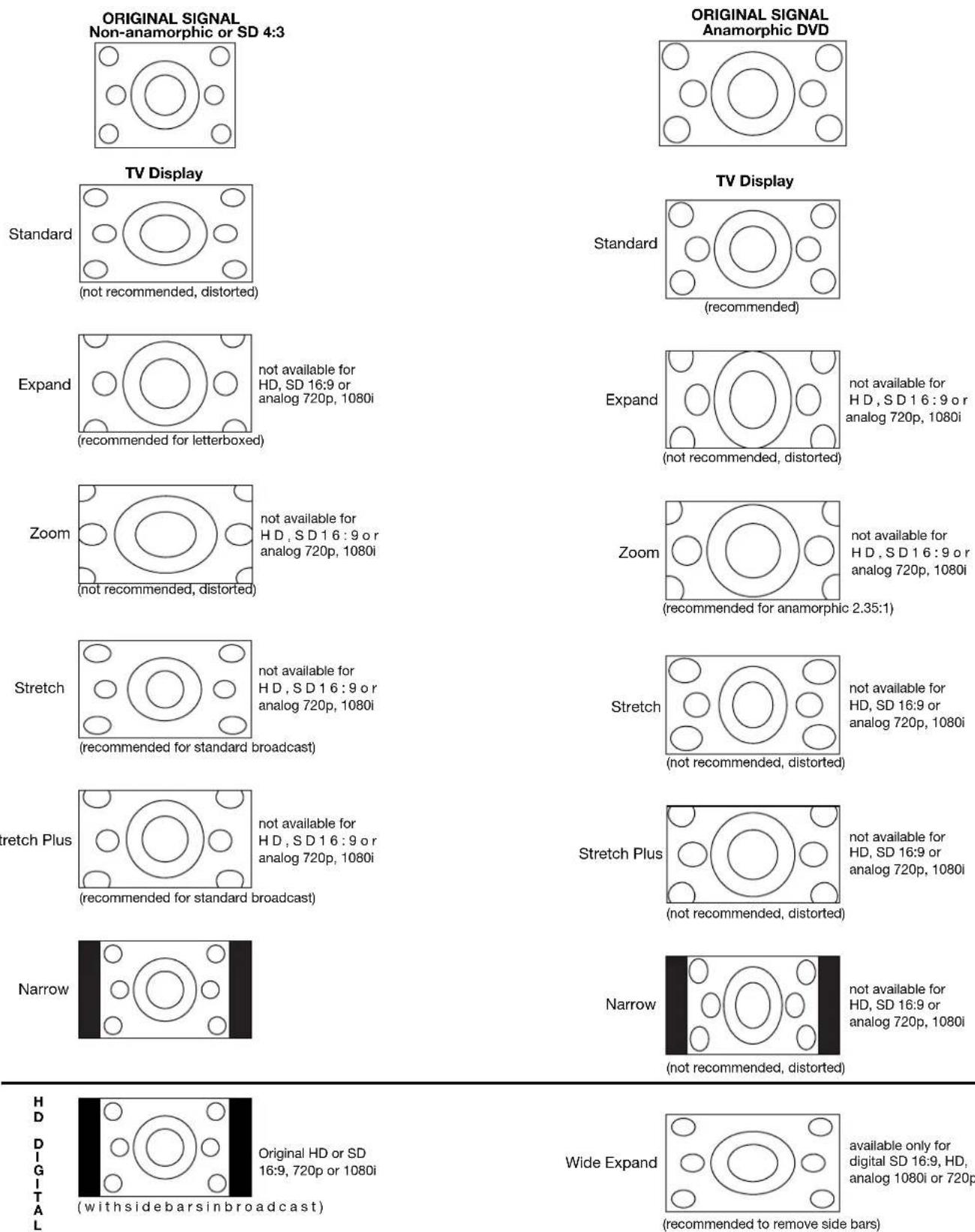
H D DIGITAL
Wide Expand
IMPORTANT
The remote control may return to its initial setting when the batteries are changed. You may need to reprogram.
Programming the Remote to Control NetCommand A/V Products
- Move the slide switch at the top of the HDTV remote to the CABLE/DBS/DTV position.
- Press and hold POWER on the remote control.
- Enter the three digit code of 197, and then release POWER.
- When the remote control is in the CABLE/DBS/DTV position, it is now programmed to send NetCommand signals to the media center so that it can control the IEEE 1394 devices and older NetCommand supported or learned IR devices.
(This is the default setting for the remote control.)
Programming the Remote to Control Other Brands of Audio and Video Products
- Move the slide switch at the top of the remote to the product you want to control.
- Press and hold POWER on the remote control.
- Enter the first three digit code listed for your equipment, and then release the POWER button on the remote control.
- Point the remote control at the equipment and press the POWER button. If the equipment responds, the remote control is properly programmed to operate the equipment. If the equipment does not respond, repeat steps 2-4 with the next three digit code listed in step 3 for your equipment.
A/V Receivers
| A/V Receiver Brand | Code |
| MITSUBISHI 010, 011, 012, 013, 014 | |
| AIWA | 225, 226, 241 |
| BOSE | 351 |
| B&K 352 | |
| DENON 234, 235, 236, 245, 246, 359, 361 | |
| FISHER | 204 |
| GARRARD | 213 |
| HARMAN KARDON | 215, 223, 242, 362 |
| JENSEN | 223, 229 |
| JVC | 232, 233 |
| KENWOOD | 200, 208 |
| KLH | 363 |
| KOSS | 357 |
| MAGNAVOX | 227, 228 |
| MARANTZ | 224, 350, 360 |
| MCINTOSH | 216 |
| NAKAMICHI | 206, 217 |
| ONKYO 209, 214, 240, 247 | |
| OPTIMUS | 203, 227, 231, 230 |
| PANASONIC | 219, 218, 221 |
| PARASOUND | 356 |
| PHILIPS 223, 248 | |
| PIONEER | 205, 207 |
| POLK AUDIO 353 | |
| QUASAR 219, 218, 221 | |
| RCA | 203, 205, 227, 231, 230 |
| ROTEL | 366 |
| SANSUI | 203, 211, 239 |
| SHARP | 234, 237 |
| SHERWOOD | 354, 355 |
| SONY | 222, 249, 364, 365 |
| TEAC | 212, 213, 211, 210 |
| TECHNICS | 221, 218, 219 |
| VICTOR | 232, 233 |
| YAMAHA | 201, 202, 243, 244 |
Cable Boxes
| Cable Brand Code | |
| ABC 124 | |
| ARCHER 125 | |
| CABLEVIEW 105, | |
| CITIZEN 122, 105 | |
| COLOR VOICE 128, 129, 130, 106, 107 | |
| COMTRONICS 128, 129, 130, 106, 107 | |
| CURTI S 112, 113 | |
| DIAMOND | 124, 125 |
| EAGLE | 129 |
| GCBRAND | 105 |
| GE | 112, 113 |
| GEMINI 122 | |
| GENERAL INSTRUMENT/JERROLD | 119, 123, 124, 125, 126, 127, 120, 121, 122 |
| HAMLIN | 112 |
| HITACHI | 103, 124 |
| MACOM | 103, 104, 105, 108 |
| MAGNAVOX | 128, 129, 130, 106, 107, 133, 138 |
| MOTOROLA | 123, 146 |
| MEMOREX | 130 |
| MOVIETIME | 105, |
| PANASONIC | 114 |
| PARAGON | 117 |
| PHILIPS 128, 129, 130, 106, 107, | 131, 133, 138 |
| PIONEER | 101, 106, 116 |
| PULSAR | 105 |
| RCA 115 | |
| REGAL | 112 |
| REMBRANDT | 105, 138 |
| SAMSUNG | 105 |
| SONY | 147, 177 |
| ZENITH/DRAKE SATELLITE | 100 |
| SCIENTIFIC ATLANTA | 112, 113, 194 |
Appendix H: Remote Control Programming Codes, continued

Cable Boxes, continued
| SIGNATURE | 119,124,125,126,127,120,121,122 |
| SLMARK | 105,101 |
| SPRUCER | 105 |
| STARCOM | 119,124,125,126,127,120,121,122 |
| STARGATE | 105 |
| TELEVIEW | 101,105 |
| TOCOM | 135,136 |
| TOSHIBA | 104 |
| UNIKA | 125 |
| UNITED CABLE | 119,124,125,126,127,120,121,122 |
| UNIVERSAL | 122 |
| VIDEOWAY | 106 |
| VIEWSTAR | 129,130 |
| ZENITH | 117,100 |
DVD Players
| DVD Brand | Code |
| MITSUBISHI 003 | |
| AIWA | 261, 274 |
| APEX | 266, 283 |
| BOSE | 286 |
| DENON | 250, 273 |
| FERGUSON | 251 |
| HARMAN KARDON | 282, 288 |
| HITACHI | 270 |
| JVC | 257 |
| KENWOOD | 271, 289 |
| MINTEK | 285 |
| NORDMENDE | 251 |
| ONKYO | 267, 280 |
| ORITRON | 263, 268 |
| PANASONIC | 250 |
| PHILIPS/MAGNAVOX | 258, 253, 272, 290 |
| PIONEER | 252 |
| RCA/GE/PROSCAN | 251, 256 |
| ROTEL | 292 |
| SABA | 251 |
| SAMSUNG | 261 |
| SAMPO | 263 |
| SHARP | 260 |
| SYLVANIA | 264 |
| SONY | 254, 278, 279 |
| THOMSON | 251 |
| TOSHIBA | 253 |
| V INC. (BRAVO D1) | 291 |
| YAMAHA | 250, 272, 276, 287 |
| ZENITH | 259 |
Satellite Receivers(SAT)/DTV
| SAT Brand | Code |
| MITSUBISHI | 006 (same as 173) |
| ECHOSTAR/DISH NETWORK | 175, 182, 183, 188 |
| EXPRESS VU | 175 |
| G.E. | 176 |
| HITACHI | 173, 181, 184 |
| HNS(Hughes) 173 | |
| JVC (ECHOSTAR) | 175 |
| MAGNAVOX | 171, 172 |
| PANASONIC | 174 |
| PHILIPS | 171, 172 |
| PROSCAN | 176, 179, 180, 185 |
| RCA | 176, 179, 180, 185 |
| SAMSUNG - TERRESTRIAL | 192 |
| SONY | 177 |
| STAR CHOICE | 173 |
| TOSHIBA | 170, 189, 190, 191 |
| UNIDEN | 171, 172 |
| WEBTV | 187 |
| ZENITH/LG | 193 |
VCRs
| VCR Brand Code | |
| MITSUBISHI 001, 060, 067, 068, 061, 062, 002 | |
| AKAI 049, 034, 035, 036 | |
| AUDIO DYNAMIC 031 | |
| BELL&HOWELL 025, | |
| BROKSONIC 040, 046 | |
| CANON 043, 045 | |
| CITIZEN 026 | |
| CRAIG 025, 049, 026 | |
| CURTIS MATHES 065, 044, 047 | |
| DAEWOO | 063, 021, 044, 078 |
| DBX | 030, 031 |
| DIMENSIA | 065 |
| EMERSON | 063, 046, 038, 039, 023, 045, 062, 040 |
| FISHER | 025, 028, 029, 027 |
| FUNAI | 047, 046, 040 |
| GE | 053, 065, 044, 079 |
| GO VIDEO | 057, 069, 070, 071 |
| GOLDSTAR 026 | |
| HITACHI | 043, 065, 020, 047 |
| INSTANT REPLAY | 044, 043 |
| JVC | 030, 031, 076, 077 |
| KENWOOD | 030, 026, 031 |
| LXI | 047, 026, 020, 027, 028, 025, 029 |
| MAGNAVOX | 051, 043, 044 |
| MARANTZ | 030, 031 |
| MARTA | 026 |
| MEMOREX | 044, 029 |
| MGA | 060, 067, 068, 061, 062 |
| MINOLTA | 020, 065 |
| MULTITECH | 067, 047 |
| NEC | 030, 031 |
| OLYMPIC | 044, 043 |
| OPTIMUS | 048, 041, 055, 026 |
| ORION | 046, 040 |
| PANASONIC | 043, 044, 041, 042 |
| PENNEY | 044, 020, 065, 025, 030, 031 |
| PENTAX | 020, 031, 065 |
| PHILCO | 051, 044, 047, 043, 046, 040, 063 |
| PHILIPS | 051, 043, 044 |
| PIONEER | 043 |
| PROSCAN | 065, 020, 043, 044, 051, 066, 021, 022, 053 |
| QUASAR | 041, 042, 043, 044 |
| RADIO SHACK | 053, 044, 025, 056, 029, 060, 047 |
| RCA | 020, 021, 022, 043, 044, 049, 051, 053, 065, 066 |
| REALISTIC | 044, 025, 056, 029, 060, 047 |
| SAMSUNG | 057, 022, 053 |
| SANSUI | 046, 040 |
| SANYO | 025, 029 |
| SCOTT | 021, 022, 029, 060, 067, 068, 046, 040 |
| SEARS | 025, 026, 027, 028, 020 |
| SHARP | 055, 056 |
| SIGNATURE 2000 | 047, 055 |
| SONY | 048, 049, 050, 073, 074, 075 |
| SV2000 | 047 |
| SYLVANIA | 051, 043, 044, 047 |
| SYMPHONIC | 047 |
| TASHIRO | 026 |
| TATUNG | 030, 031 |
| TEAC | 030, 047, 031 |
| TECHNICS | 041, 042, 043, 044 |
| TEKNIKA | 044, 047 |
| TOSHIBA | 021, 066 |
| TOTEVISION | 026 |
| VECTOR RESEARCH | 031 |
| WARDS 055, 056, 029, 064, 026 | |
| YAMAHA | 025, 030, 031 |
| ZENITH | 064, 026 |

Appendix H: Remote Control Programming Codes, continued
IMPORTANT
Some manufacturers may change their products, or they may use more than one remote control system. If this is the case, the HDTV receiver/controller remote control may not be able to operate your VCR, DVD, cable box, satellite receiver, or A/V receiver.
After entering the correct codes in each position of the remote control, use the slide switch to select which product will respond when an operational button is pressed. Only one of the below devices is allowed for each slide switch position.
TV position:
• Mitsubishi TVs
Cable/DBS/DTV position:
• Media Center (provided)
- NetCommand® controlled devices
DVD position:
- DVD player
- LD player
VCR position:
• VCR
Audio position:
- A/V receiver
- DVD player
- Cable box
If you have a Mitsubishi A/V receiver, the audio position may be used in conjunction with select Mitsubishi CD players. Your audio position must be programmed to 010.
When your remote control has been programmed to operate another manufacturer's product, the function performed on each layer can vary. The most common functions are:
VCR
- POWER
- CHANNEL up/down
- PLAY
• REC - PAUSE
- STOP
- FF/FWD
- REW/REV
Mitsubishi VCRs will be compatible with some additional buttons
Cable Boxes and Satellite Receivers
- POWER
- CHANNEL up/down
- 0-9 number buttons (on some models)
- ENTER (on some models)
• CANCEL (on some models) - ADJUST up/down/ left/right (on some models)
• GUIDE (on some models)
A/V Receivers
- POWER
• VOLUME
• MUTE
Mitsubishi A/V Receivers
- Direct Input Selection buttons: numbers, SQV and QV (on some models)
Mitsubishi CD Players
(not all functions for all models)
- PLAY
- FF/FWD
- REW/REV
- PAUSE
- STOP
DVD and Laser Disc Players
(not all functions for all models)
- POWER
- MENU
• 0-9 number buttons (on some models) - PLAY
- STOP
• ARROW up/down/left/right (on some models)
• FF/FWD - REW/REV
- PAUSE
• CANCEL (on some models) - ENTER
• CHANNEL (on some models)
| NetCommand Compatible Traditional Devices (Analog) | ||||
| When Device Selection Menu is Displayed and the Device is Highlighted (Yellow Outline) | ||||
| DeviceRemoteControl Button | A/V RECEIVER | VCR DVD CABLE BOX/SAT | ||
| POWER | Power On/Off (toggle) | Power On/Off (toggle) | Power On/Off (toggle) | Power On/Off (toggle) |
| GUIDE | Changes between digital and analog audio | Changes VCR inputs n/a Changes antenna inputs (RCA model DTC-100 only) | ||
| FORMAT | n/a n/a Changes output between inter- | laced and progressive | Changes output between HD and SD select models | |
| When Net Command® Compatible Traditional Device is Viewed or Played | ||||
| DeviceRemoteControl Button | A/V RECEIVER V | CR DVD | CABLE/SAT | |
| CH up/down | Channel up/down | Skip Forward/Backwards Chapter or Track | Channel up/down Page up/down when guide showing | |
| VOL up/down | Volume Up/Down | |||
| MUTE | Mute On/Off | |||
| 0-9 (digits) | number functions | number functions | number functions | |
| QV | Last Channel Recall | |||
| DEVICE Menu | 1st press Transport Menu, 2nd press Setup Menu display | 1st press Transport Menu, 2nd press Setup Menu display | Setup menu display or Action function | |
| HOME | ||||
| ENTER | Enter or select | Enter or select | ||
| CANCEL | Counter Reset | Exit or return | Exit or return | |
| GUIDE | Disc menu display | Channel Guide | ||
| ADJUST | up/down left/right | up/down left/right | ||
| PLAY | Play Play | |||
| STOP | Stop | Stop | ||
| RECORD | Record | |||
| REW/REV | Rewind/Reverse | Reverse | ||
| FF/FWD | Fast Forward or Fast Play | Fast Play | ||
| IEEE 1394 Devices | ||||
| When Device Selection Menu is Displayed and the Device is Highlighted (Yellow Outline) | ||||
| DeviceRemoteControl Button | TUNER/CABLE BOX/SAT | A/V DISC | DVCR | AMPLIFIER |
| POWER | Power On/Off(toggle) | Power On/Off(toggle) | Power On/Off(toggle) | Power On/Off(toggle) |
| GUIDE | n/a | n/a | n/a | n/a |
| FORMAT | n/a | n/a | n/a | n/a |
| When an IEEE 1394 Device is Viewed or Played | ||||
| DeviceRemoteControl Button | CABLE/SAT A/V DISC | DVCR AMPLIFIER | ||
| CH up/down | Channel up/down Page up/down (when track list is displayed) | Index search forward/reverse (if supported by DVCR) | ||
| VOL up/down | Volume Up/Down | |||
| MUTE | Mute On/Off | |||
| 0-9 (digits) | number functions Search by time (when followed by ENTER) | |||
| QV | Last Channel Recall | |||
| DEVICE Menu | n/a Transport Menu redisplay Transport Menu redisplay Device Menu | |||
| HOME | Exit menus/displays Exit menus/displays Exit menus/displays Exit menus/displays | |||
| ENTER | Enter or select Enter or select Enter or select | |||
| CANCEL | Cancel function | Cancel function | Cancel function or Counter Reset | Cancel function |
| GUIDE | Digital Channel Guide | Track or program list display | Digital Channel Guide | |
| ADJUST | up/down left/right | Skip Forward 30 seconds (during playback)Skip Backwards 12 seconds (during playback)Skip to end or beginning of programPage up/down in track list | up/down left/right | up/down left/right |
| PLAY | Play | Play | ||
| STOP | Stop | Stop | ||
| RECORD | Record | Record | ||
| REW/REV | Reverse picture scan or Slow Play | Reverse or Slow Play | ||
| FF/FWD | Fast picture scan or Fast Play | Fast Play | ||
Appendix J: NetCommand® Specialized Device Keys

| A/V RECEIVER | CABLE or SAT | VCR | DVD | LEARNING SCREEN CHECKBOX NAME | FUNCTION NAME ON REM | OTE CONTROL |
| X X X X Power* | Power On or Power On | Power On | Power On | Off POWER** | ||
| X X X X Power (Off)* | Power Off | Power Off | Power Off | ** | ||
| X Volume Up | Volume Up | VOL ▲ | ||||
| X Volume Down | Volume Down VOL | ▼ | ||||
| X Mute | Mute | MUTE | ||||
| X Analog to Digital* | Analog/Digital Switch | GUIDE** | ||||
| X Digital to Analog* | Digital/Analog Switch | GUIDE** | ||||
| X | Input (1-7) | AVR Input Select | Automatic (when device is selected) | |||
| X X | Channel | Up | Channel | Scan Up CHAN | ▲ | |
| X | X | Channel Down | Channel Scan Down | CHAN▼ | ||
| X | Recall | Last Channel Recall | QV | |||
| X | X | Guide | Guide | GUIDE | ||
| X X | Adjust | Up | Arrow/ move | Up | ADJUST ▲ | |
| X X | X | Adjust | Down Arrow/ move Down | move Down | ADJUST▼ | |
| X | X | X | Adjust Left | Arrow/ move Left | ADJUST◀ | |
| X | X | X | Adjust Right | Arrow/move Right | ADJUST▶ | |
| X | X | X | Enter | Enter/Select | ENT | |
| X | X | X | Menu | Device Menu or Setup Menu | DEVICE MENU | |
| X | X | X | Cancel | Cancel or Exit | CANCEL | |
| X | X | X | Info | Status Information Display | INFO | |
| X | Page Up | Guide Page Up | CHAN ▲ *** | |||
| X | Page Down | Guide Page Down | CHAN▼ *** | |||
| X | X | X | Play | Play | PLAY | |
| X | X | X | Stop | Stop | STOP | |
| X | X | X | Forward | Fast Forward/Fwd Search | FF | |
| X | X | X | Rewind | Rewind/Reverse Search | REW | |
| X | X | X | Pause | Pause | PAUSE | |
| X | X | X | Record | Record | REC | |
| X | X | X | Enter (digits)† | Enter for channel numbers | ENT | |
| X | X | X | Low Speed Out* | LowSpeed 480i out | FORMAT** | |
| X | X | X | High Speed Out* | Hi Speed 480p/1080i out | FORMAT** | |
| X | X | X | 1,2,3,4,5,6,7,8,9,0 | 1,2,3,4,5,6,7,8,9,0 | 1,2,3,4,5,6,7,8,9,0 | |
| X | X | Input | Input Change | GUIDE** | ||
| X | Sub channel separator‡ | Digital Sub channel | CANCEL | |||
| X | Chapter + | Chapter Skip Forward | CHAN ▲ | |||
| X | Chapter - | Chapter Skip Reverse | CHAN▼ |
* These are paired functions (e.g. Power and Power Off). When the original remote control uses a single button for both functions, learn only the first of the paired functions.
† If there are two Enter keys, learn the Enter key used for channel selection here. The ENT button on the remote sends the correct IR code when digits are entered.
Learn the subchannel separator if a special key is used to add a separator (dash or dot) in a digital channel. Press the CANCEL button on the remote to add the separator
** This function is performed only when the Device Selection Menu is displayed and the device icon is highlighted.
*** Channel Up/Down as Guide Page Up/Down happens only after pressing GUIDE and returns to channel functions after pressing ENTER or CANCEL.
IMPORTANT
Be sure to follow the procedure below exactly as stated, step by step.
Changing the Color Temperature
To change the color temperture of the display, do the following:
- If the TV is on, power it off by pressing Power on the remote control. Then disconnect the display and the media center power cords from the AC wall outlets. Both power cords must be disconnected.
- Disconnect the MontiorLink™ RS-232 Control cable from the media center. It is not necessary to disconnect the MonitorLink™ cable from the display.
- Set the remote control to TV (see illustration to the right). Re-connect the display power cord to the AC wall outlet, then power On the display by pressing Power on the remote control.
- Press MENU on the remote control, then select Color Temperature from the on-screen menu. Select the color temperature setting you prefer (low, medium, or high). See the Color Temperature Options table to the right.
- Power Off the display and disconnect the display power cord from the AC wall outlet. Then set the remote control back to CABLE/DBS/DTV (see illustration to the right).
- Connect the MonitorLink™ RS-232 Control cable to the media center.
- Connect the display and the media center power cords to the AC wall outlets. Then, to power On both the display and the media center, press Power on the remote control.
The color temperature you selected will remain for all images shown on the display until you re-set it by following the above procedure.
NOTE: The default color temperature setting for the LT-3280 and LT-3780 displays is "high."
Color Temperature Options
Low Medium High
| Whites appear warm, more red | Whites are more neutral | Whites appear cool, more blue |
| Best for a room with low incandescent lighting | Best for a room with moderately bright incandescent lighting | Best for a room with bright incandescent or florescent lighting |
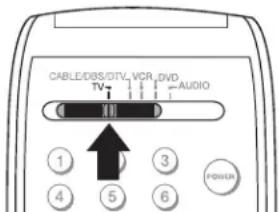
TV setting
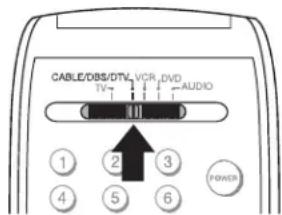
CABLE/DBS/DTV setting
IMPORTANT
DO NOT use any kind of abrasive cleaner on the surface of the display screen.
Cleaning
Normally, light dusting with a dry, non-scratching duster will keep your LCD Flat Panel HDTV clean. If cleaning beyond this is needed, please use the following guidelines:
First, press the Power button on the remote control to turn off the display and the media center. Then unplug both power cords from their power outlets.
Top and Sides of the Display and Media Center:
- Gently wipe down both devices with a soft, non-abrasive cloth (such as cotton flannel or a clean cloth diaper) that is lightly moistened with water. Dry with a second dry, soft, non-abrasive cloth.
- For oily dirt, add a few drops of mild liquid de-tergent (such as dishwashing detergent) to a container of water, then moisten the cloth with this solution and wipe-down both devices. Rinse with a second cloth moistened only with water. Dry with a third dry, soft, non-abrasive cloth.
Display Screen:
- Follow the instructions for cleaning the top and sides stated above, however wipe gently in an up and down motion.
- Clean the entire screen evenly, not just sections of the screen.
- Do not allow liquid to drip down the grooves of the screen, as some liquid may enter the devices.
General Cleaning Warnings:
- DO NOT allow liquid to enter the display or media center through the ventilation slots or any crevice.
- DO NOT use any strong or abrasive cleaners as these can scratch the surfaces.
- DO NOT use any cleaners with ammonia, bleach, alcohol, benzine, or thinners as these can dull the surfaces.
- DO NOT spray liquids or cleaners directly onto the surfaces of the display or media center.
- DO NOT scrub or rub the display or media center harshly. Wipe them gently.
Trademark and License Information
LICENSOR'S SUPPLIERS DO NOT MAKE OR PASS ON TO END USER OR ANY OTHER THIRD PARTY, ANY EXPRESS, IMPLIED OR STATUTORY WARRANTY OR REPRESENTATION ON BEHALF OF SUCH SUPPLIERS, INCLUDING, BUT NOT LIMITED TO THE IMPLIED WARRANTIES OF NON-INFRINGEMENT, TITLE, MERCHANTABILITY OR FITNESS FOR A PARTICULAR PURPOSE.
CableCARD™ is a trademark of Cable Television Laboratories, Inc.
CompactFlash® and CF are trademarks of the CompactFlash Association.
DCR™ Certification Logo is a trademark of the Consumer Electronics Association.
Manufactured under license from Dolby Laboratories. Dolby® and the double-D symbol are registered trademarks of Dolby Laboratories.
DTVLINK™ Certification Logo is a trademark of the Consumer Electronics Association.
Firewire® is a trademark of Apple Computer, Inc. registered in the U.S. and other countries.
HDMI™ the HDMI logo and High-Definition Multimedia Interface are trademarks or registered trademarks of HDMI Licensing LLC.
Lifestyle® 28 is a trademark of the Bose Corporation.
This product incorporates copyright protection technology that is protected by U.S. patents and other intellectual property rights. Use of this copyright protection technology must be authorized by Macrovision, and is intended for home and other limited pay-per-view uses only unless otherwise authorized by Macrovision. Reverse engineering or disassembly prohibited.

Memory Stick™ and Memory Stick PRO™ are trademarks of Sony Corp.
Microdrive® is a registered trademark of Hitachi Global Storage Technology, Inc. in the United states and other countries.
This product includes technology owned by Microsoft Corporation and cannot be used or distributed without a license from Microsoft Licensing, Inc.
MultiMediaCard™ is trademark of Infineon Technologies and licensed to the MultiMediaCard Association.

The PanelLink Cinema Partners logo and the “PanelLink Cinema,” “PLC” and “PLC Content Ready” word marks are trademarks of Silicon Image, Inc. and are used under a license from Silicon Image, Inc or PanelLink Cinema, LLC.
Playstation® 2 is a trademark of the Sony Corporation.

SD logo is a trademark.
SmartMedia™ is a trademark of Toshiba Corp.
In the United States, TV GUIDE and other related marks are registered marks of Gemstar-TV Guide International, Inc. and/or one of its affiliates.
The TV Guide On Screen® system is manufactured under license from Gemstar-TV Guide International, Inc. and/or one of its affiliates.
The TV Guide On Screen® system is protected by one or more of the following issued United States patents: 6,498,895; 6,418,556; 6,331,877; 6,239,794; 6,154,203; 5,940,073; 4,908,713; 4,751,578; 4,706,121.
XBox^TM is a trademark of the Microsoft Corporation.
MonitorLink™, NetCommand®, ViewPoint®, QuickView™, SuperQuickView™, PerfectColor™, MediaCommand™, ChannelView™ are trademarks of Mitsubishi Digital Electronics America, Inc.
WARNING: This product contains chemicals known to the State of California to cause cancer and/or birth defects or other reproductive harm.
IMPORTANT
Do not attempt to update the software of this media center with software or cards that are not provided by or authorized by Mitsubishi Digital Electronics America, Inc. Non-authorized software may damage the media center and will not be covered by the warranty.
MITSUBISHI LT-3280/LT-3780 LCD FLAT PANEL HDTV SOFTWARE END-USER LICENSE AGREEMENT FOR EMBEDDED SOFTWARE
IMPORTANT – READ CAREFULLY: This License Agreement is a legal agreement between you (either an individual or an entity) and Mitsubishi Digital Electronics America, Inc. (MDEA) for all software (“Software”) preinstalled and/or provided along with this LT-3280/LT-3780 HDTV (Display & Media Center). By utilizing this receiver and Software, you agree to be bound by the terms of this License Agreement.
The Software is protected by United States copyright laws and international treaty provisions, as well as other intellectual property laws and treaties. The Software is licensed, not sold.
-
LICENSE GRANT. MDEA grants you a non-exclusive, non-transferable, limited right and license to use one copy of the Software only with the Mitsubishi HDTV (display & media center) model that included this owner's guide and owned by you.
-
RIGHTS AND LIMITATIONS.
Software Not for Resale. You may not resell or otherwise transfer for value the Software, except in conjunction with a sale of the HDTV that Software has been preinstalled.
Prohibition on Reverse Engineering, Decompilation and Disassembly. The Software contains trade secrets or other proprietary material in its human perceivable form and to protect them, you may not reverse engineer, decompile, or disassemble, or otherwise reduce the Software to any human perceivable form, except to the extent that the foregoing restriction is expressly prohibited by applicable law.
Separation of Components. The Software is licensed as a single product. Its component parts may not be separated for use on more than one High-Definition TV System.
No Rental. You may not rent, lease, lend, or sublicense the Software.
Trademarks. This License Agreement does not grant you any rights to any trademarks of MDEA.
-
VIOLATIONS. You understand that any use, copying or transfer of the Software, except as permitted pursuant to this License, may subject you to serious criminal and civil penalties including damages and an award to MDEA of attorneys' fees in connection with any violation of this License. You further understand that you may be held legally responsible for any copyright infringement or other violation of intellectual property rights that is caused, encouraged, or induced by your failure to abide by the terms of the License. This license is effective until terminated, and will terminate immediately without notice from MDEA or judicial resolution if you fail to comply with any provision of this License.
-
COPYRIGHT. All title and intellectual property rights in and to the Software (including but not limited to any images, photographs, animations, video, audio, music, text, and "applets" incorporated into the Software), and any accompanying printed materials are owned by or licensed to MDEA. All title and intellectual property rights in and to the content which may be accessed through use of the Software is the property of the respective content owner and may be protected by applicable copyright or other intellectual property laws and treaties. This License Agreement grants you no rights to use such content, except that you own the media on which the Software is recorded, but MDEA and its licensors retain ownership of the Software itself. All rights not expressly granted are reserved by MDEA.
-
EXPORT RESTRICTIONS. MDEA is licensing the Software for use within the United States. You agree that you will not export or re-export the Software. You specifically agree not to export or re-export the Software: (i) to any country to which the U.S. has embargoed or restricted the export of goods or services, which currently include, but are not necessarily limited to Cuba, Iran, Iraq, Libya, North Korea, Sudan, and Syria, or to any national of any such country, wherever located, who intends to transmit or transport the Software back to such country; (ii) to any person or entity who you know or have reason to know will utilize the Software in the design, development, or production of nuclear, chemical, or biological weapons; or (iii) to any person or entity who has been prohibited from participating in U.S. export transactions by any federal agency of the U.S. government. You warrant and represent that neither the BXA nor any other U.S. federal agency has suspended, revoked, or denied your export privileges.
-
DISCLAIMER OF WARRANTY. EXCEPT AS OTHERWISE PROVIDED IN THIS LICENSE OR IN THE LIMITED WARRANTY APPLICABLE TO THE LT-3280/LT-3780 HDTV (Display & Media Center), MDEA MAKES NO OTHER WARRANTIES OF ANY KIND WHATSOEVER REGARDING THE SOFTWARE AND HEREBY EXPRESSLY DISCLAIMS ALL WARRANTIES OF ANY KIND WHATSOEVER, EXPRESS OR IMPLIED, WITH RESPECT TO THE SOFTWARE. ALL IMPLIED WARRANTIES, INCLUDING, WITHOUT LIMITATION, THE IMPLIED WARRANTIES OF MERCHANTABILITY AND FITNESS FOR A PARTICULAR PURPOSE ARE HEREBY EXPRESSLY DISCLAIMED BY MDEA. IN NO EVENT SHALL MDEA BE LIABLE TO YOU OR ANY THIRD PARTIES, IN CONTRACT, IN TORT OR OTHERWISE, FOR ANY DIRECT, INDIRECT, SPECIAL, INCIDENTAL OR CONSEQUENTIAL DAMAGES OF ANY KIND OR NATURE. BECAUSE SOME JURISDITIONS DO NOT ALLOW THE EXCLUSION OR LIMITATION OF IMPLIED WARRANTIES, THE ABOVE LIMITATION MAY NOT APPLY TO YOU.
-
LIMITATION OF LIABILITY. MDEA SHALL NOT, UNDER ANY CIRCUMSTANCES BE LIABLE TO YOU OR ANY THIRD PARTIES FOR ANY DAMAGES OF ANY NATURE, WHETHER INDIRECT, SPECIAL, INCIDENTAL, CONSEQUENTIAL OR OTHERWISE, INCLUDING, BUT NOT LIMITED TO, ANY CLAIMS FOR LOST PROFITS, LOSS OF GOOD WILL OR EXPENDITURES MADE OR COMMITTED FOR IN RELIANCE ON THE CONTINUATION OF THIS LICENSE. YOU AGREE THAT NEITHER MDEA'S BREACH OF THIS LICENSE NOR ITS FAILURE TO REPAIR A DEFECT, ERROR OR BUG SHALL CONSTITUTE A FAILURE OF THE ESSENTIAL PURPOSE OF THIS LICENSE. BECAUSE SOME JURISDICTIONS DO NOT ALLOW THE EXCLUSION OR LIMITATION OF LIABILITY FOR CONSEQUENTIAL OR INCIDENTAL DAMAGES, THE ABOVE LIMITATIONS MAY NOT APPLY TO YOU. MDEA's liability to you for direct damages for any cause whatsoever and regardless of the form of the action, will be limited to the money paid by you for the HDTV (based on fair market value of these devices) that caused the damages.
-
GENERAL. This License Agreement will be governed by the laws of the State of California.
MITSUBISHI LT-3280/LT-3780 LCD FLAT PANEL HDTV LIMITED WARRANTY
MITSUBISHI DIGITAL ELECTRONICS AMERICA, INC. ("MDEA") warrants to the original purchaser of this LT-3280/LT-3780 HDTV (display and media center) that if purchased from an authorized MITSUBISHI Audio/Video Dealer, should it prove defective by reason of improper workmanship and/or material:
a. Parts. All parts (except any software incorporated into this HDTV are warranted for a period of one year from the date of the original purchase at retail. We will repair or replace, at our option, any defective part without charge for the part. Parts used for replacement may be replaced with those of like kind and quality and may be new or remanufactured. Parts used for replacement are warranted for the remainder of the original warranty period.
b. Embedded Software. MDEA warrants that all software incorporated into this HDTV (the "Embedded Software") will perform in accordance with the functional description of Embedded Software in all material respects, but MDEA does not warrant that the Embedded Software is error-free. MDEA also does not warrant that the Embedded Software will be compatible under IEEE 1394 AV/C and HAVi software standards with products produced by any other manufacturer. The warranty contained in this section shall continue for a period of one year, from the date of the original purchase from the dealer. If, after prompt notice within the warranty period, MDEA determines that the Embedded Software has failed to perform in accordance with such functional description in all material respects and if such failure is not due to accident, misuse, modification or misapplication of the Embedded Software, then MDEA shall modify or replace the nonconforming Embedded Software at no charge to you, which at MDEA's sole discretion may be fulfilled by means of modification or replacement software contained on a replacement memory card for Customer installation. The foregoing shall be MDEA's sole obligation to you under this limited warranty. All rights under this limited warranty on the Embedded Software also subject to your compliance with the terms of the Software License Agreement applicable to this HDTV, and this limited warranty on the Embedded Software shall be null and void if the Embedded Software is modified or changed in any manner except as specifically authorized by MDEA.
c. Labor. For certain items that are designed to be replaced by the consumer, including (but not limited to) some Embedded Software, the consumer is solely responsible for any replacement labor. For all other parts, we will provide the labor for a warranty repair by an authorized MITSUBISHI service center without charge for one year from the original date of purchase at retail.
d. Notice. To obtain warranty service, you must notify an authorized MITSUBISHI service center of any defect within the applicable warranty time period.
BEFORE REQUESTING SERVICE, please review the instruction booklet to insure proper installation and correct customer control adjustment. If the problem persists, please arrange for warranty service.
1. TO OBTAIN WARRANTY SERVICE:
a. Return your HDTV (display & media center) to your nearest authorized MITSUBISHI service center whose name and address can be obtained from your MITSUBISHI dealer, by writing at the address provided below, calling MDEA at the 800-332-2119, or by using the support feature of our website at www.mitsubishi-tv.com.
b. Proof of purchase date from an authorized MITSUBISHI dealer is required when requesting warranty service. Present your sales receipt or other document which establishes proof and date of purchase. THE RETURN OF THE OWNER REGISTRATION CARD IS NOT A CONDITION OF WARRANTY COVERAGE. However, please return the Owner Registration Card so that we can contact you should a question of safety arise which could affect you.
2. THIS LIMITED WARRANTY DOES NOT COVER:
a. Up to .01% pixel outages (small dot picture elements that are dark or incorrectly illuminated).
b. Cosmetic damage or any other damage where such damage is caused by unauthorized modification, alteration, repairs to or service of the product by anyone other than an authorized
MITSUBISHI service center; physical abuse to or misuse of the product (or any product damaged by excessive physical or electrical stress); any products that have had a serial number or any part thereof altered, defaced or removed; product use in any manner contrary to the Owner's Guide; freight damage; or any damage caused by acts of God or other factors beyond the reasonable control of MDEA, such as power surge damage caused by electrical system or damages caused by use of third party mounting brackets or stands. This limited warranty also excludes service calls where no defect in the product covered under this warranty is found, service calls related to unsatisfactory audio or visual reception or signal unless caused by a defect in the product that is covered under this limited warranty, all costs, expenses or any other damages arising from product installation, or set-ups, any adjustments of user controls (including contrast, brightness, color, tint, fine tuning, sharpness), other adjustment necessary to prepare the unit for display or use, connection with any external audio receiver, antenna, cable or satellite systems, or service of products purchased or serviced outside the U.S.A. Please consult the operating instructions contained in the Owner's Guide furnished with the product for information regarding user controls.
- ANY EXPRESS WARRANTY NOT PROVIDED HEREIN, AND ANY REMEDY WHICH, BUT FOR THIS PROVISION, MIGHT ARISE BY IMPLICATION OR OPERATION OF LAW, IS HEREBY EXCLUDED AND DISCLAIMED. THE IMPLIED WARRANTIES OF MERCHANTABILITY AND OF FITNESS FOR ANY PARTICULAR PURPOSE ARE EXPRESSLY LIMITED TO A TERM OF ONE YEAR.
- UNDER NO CIRCUMSTANCES SHALL MDEA BE LIABLE TO PURCHASER OR ANY OTHER PERSON FOR ANY INCIDENTAL, SPECIAL OR CONSEQUENTIAL DAMAGES, WHETHER ARISING OUT OF BREACH OF WARRANTY, BREACH OF CONTRACT, OR OTHERWISE.
- Some states do not allow limitations on how long an implied warranty lasts, or the exclusion or limitation of incidental, special, or consequential damages, so the above limitations or exclusions may not apply to you.
- This limited warranty gives you specific legal rights, and you may also have other rights which vary from state to state.
In no event shall Mitsubishi have any liability, including without limitation, for general, consequential, incidental, or special damages for loss, destruction, damage or corruption of recorded data, media or software resulting from use of this television, or cost of recovery of lost data, media or software therefore.
MITSUBISHI DIGITAL ELECTRONICS AMERICA, INC. 9351 Jeronimo Road
Irvine, CA 92618-1904
Index
A
A/V Discs 60
A/V Memory Reset. See Reset
A/V Receiver
Adding 39
Connecting 26
Inputs 39
Input Learn Screen 40
Learn Screen 40
A/V Setting Descriptions
Audio 78
Video 79
Accessories 8
Advanced Learn Screen, [Device] 44
Antennas, Separate UHF and VHF 22
Antenna inputs (ANT-1 MAIN, ANT-2 AUX) 16
Antenna Menu 69
Antenna with Twin Flat Leads 22
Audio/Video Menu 77
Audio Inputs 15, 26
B
Back Panel, Display & Media Center (Illustrated) 15
Batteries. See Remote Control
C
CableCARD™ 21, 23
CableCARD™ Menu 56
Cable Box 20, 104
Connecting 21
Captions Menu 66, 72
Change Device Screen. See NetCommand®
Channels 69
Changing 69
Memorizing 69
Name 69
ChannelView™ 57, 68
Channel Menu 70, 71. See also SQV and PIP viewing 12
Cleaning 111
Clock. See Time, Date
Color Adjustments 79
Color Balance 66, 67, 90
Color Temperature 110
Connecting
A/V Receiver or Stereo System 26
Cable Box to VCR 25
Connecting External Devices 20
Connection for [Device] Screen 44
DVD Player 27
DVI output device 29
HDMI output device 28
Helpful Hints 34
IR Emitters. See IR Emitters and NetCommand
MonitorLink™, RS-232C and A/V cables 18
PC (computer). See PC
Satellite Receiver 26
Connection Screen 54
Copy-Protected Material 63
D
Date, How to set 71
Daylight Savings Time 71
Device Menu 56
Device Selection Menu 55
Digital Audio Output 16
Display Formats 102
PC Display Formats 84
DVD Player with Component Video 27
DVI Analog Audio 29
DVI Device 29
F
Film Mode 79
Format Definitions 102
Front Control Panel, Display & Media Center 10, 11
G
GUIDE Key (button) 12, 57
and A/V Reset 11
H
HDMI Device. See Connecting
HDMI Input. See Connecting
|
Icon Order 68
IEEE 1394
Adding IEEE 1394 Devices Automatically 54
IEEE 1394 Device Type Screen 54
IMPORTANT SAFEGUARDS 3
Indicator Light, Power 11, 18
Inputs 15, 16
IR (Infrared)
IR Code for [Device] Screen 45
IR Controlled Devices 56
IR Emitters and NetCommand 15, 30
J
JPEG, for Picture Slide Show 62
L
"Learn" Feature in NetCommand
Advanced Learn Screen 44
Description 20, 23, 39, 52
GUIDE Key 34
Remote Control Programming Codes 104
Troubleshooting 88
Language 67
"Learn" Feature
Description 36
Learn Screen, [Device] 43
Lock
Lock TV By Time 76
V-Chip Lock Options 75
M
Memorize Channels. See Channels
Memory Cards
Media Setup Menu 62
Memory Card Playback 61
Memory Card Playback and MediaCommand™ 62
Memory Card Reader 9, 11
Mute
Audio 72
Mute key 12
Video Mute
77
N
Name Screen 44
NetCommand®
Add Device 42
Change Device 45
Connecting External Devices 20
Delete Device 46
Description 9
Device Control - Reference Chart 107
Device Setup Screen 37
Edit NetCommand Screen 42
Initial Setup 37
NetCommand Menu 68
Pre-Memorized Devices 47
Specialized Device Keys 109
0
On-Screen Information 96
P
PC
Connecting 82
Display Formats 84
Setting PC Resoluiton 83
Supported Timings 85
Video Settings 85
Peer-to-Peer Connections 59
PIP (Picture in Picture)
PIP Device Selection Menu 55
Using PIP and POP 101
Playlist Menu, MP3 or WMA7 61
R
Rating Definitions, TV Program 74
Recording
Cancel Current Recordings 59
Default Digital (Record) Device 68
REC key (button) 12, 57, 60
Setting Up Recordings 58
Time-Delayed 58
Remote Control
and NetCommand 47
Batteries 13
Functions, Overview of 12
Programming Codes 104
Reset
A/V (all settings) 11
A/V Memory (for individual devices) 77
Pass Code 97
Reset Menu 92
Sleep Timer 13
System Reset Button 11, 89, 92
Review Screen 38
RF Connection for Cable Screen 45
S
S-Video 26
Safeguards, Important 3
Search A/V Disc. See A/V Discs
Setup Menu 66, 67
Signal Definitions 102
Specifications 94
SQV (SuperQuickView™) 12
Stand, Removing the Display 5
Stand Removal Instructions 5
Stereo. See A/V Receiver
System Reset. See Reset
T
Time, How to Set 71
Timer 71
Time Zone 71
Transport Menu 68
Troubleshooting 88
TV Guide On Screen 12, 37, 38, 46
V
V-Chip 12, 74, 96
Bypassing the V-Chip Lock 97
Rating Definitions 74
V-Chip Lock Menu 66, 75
V-Chip Menu 75
VCR 32, 56, 68
and NetCommand 9, 15, 30, 41, 43, 44, 45, 58
Connecting 9, 15, 16, 24, 25, 34
GUIDE Key 57
NetCommand Default Input 20
NetCommand Pre-Memorized Models 47
NetCommand Specialized Device Keys 109
Programming Codes 105
Restrictions for Traditional VCRs 63
Transport Menu 68
Video Inputs 15
Video Settings 79
W
Wall Mount Kit 5

MITSUBISHI ELECTRIC
DIGITAL TELEVISIONS
To order replacement or additional remote controls, or Owner's Guides, call 800-553-7278.
For questions, contact Consumer Relations at:
Telephone: 800-332-2119.
Email: MDEAservice@mdea.com
Website: www.mitsubishi-tv.com