
DT-X71C - Tracking JVC - Free user manual and instructions
Find the device manual for free DT-X71C JVC in PDF.


| Product Type | 7" On-Camera LCD Monitor |
| Model | DT-X71C |
| Brand | JVC (Manufactured by SWIT Electronics) |
| Display Size | 7.0 inches |
| Resolution | 1024 × 600 |
| Aspect Ratio | 16:9 / 4:3 switchable |
| Brightness | 400 cd/m² |
| Contrast Ratio | 900:1 |
| Viewing Angle | 160° horizontal / 160° vertical |
| Color | 16.77 million |
| Inputs | 1 HDMI, 1 Composite (BNC), L/R stereo audio (RCA) |
| Outputs | 1 Composite loop through (BNC) |
| Power Supply | DC 12V (4-pin XLR) or battery (JVC BN-VF823 / SWIT BN-S8823) |
| Power Consumption | ≤ 6W |
| Dimensions | 192 × 139 × 47 mm |
| Net Weight | 550 g |
| Special Features | DSLR scale zoom, Image flip (180°), User definable function keys, Front/Rear 3-color TALLY light, Black & White mode, Overscan/Underscan, Video title editing |
| Cleaning | Use dry soft cloth or LCD cleaner; avoid water and chemical cleansers |
| Warranty | 2 years conditional (misuse voids warranty) |
| Package Contents | Monitor, user manual, power adaptor, power cable, sun hood, screw ball head, LCD protection film |
Frequently Asked Questions - DT-X71C JVC
User questions about DT-X71C JVC
0 question about this device. Answer the ones you know or ask your own.
Ask a new question about this device
Download the instructions for your Tracking in PDF format for free! Find your manual DT-X71C - JVC and take your electronic device back in hand. On this page are published all the documents necessary for the use of your device. DT-X71C by JVC.
USER MANUAL DT-X71C JVC
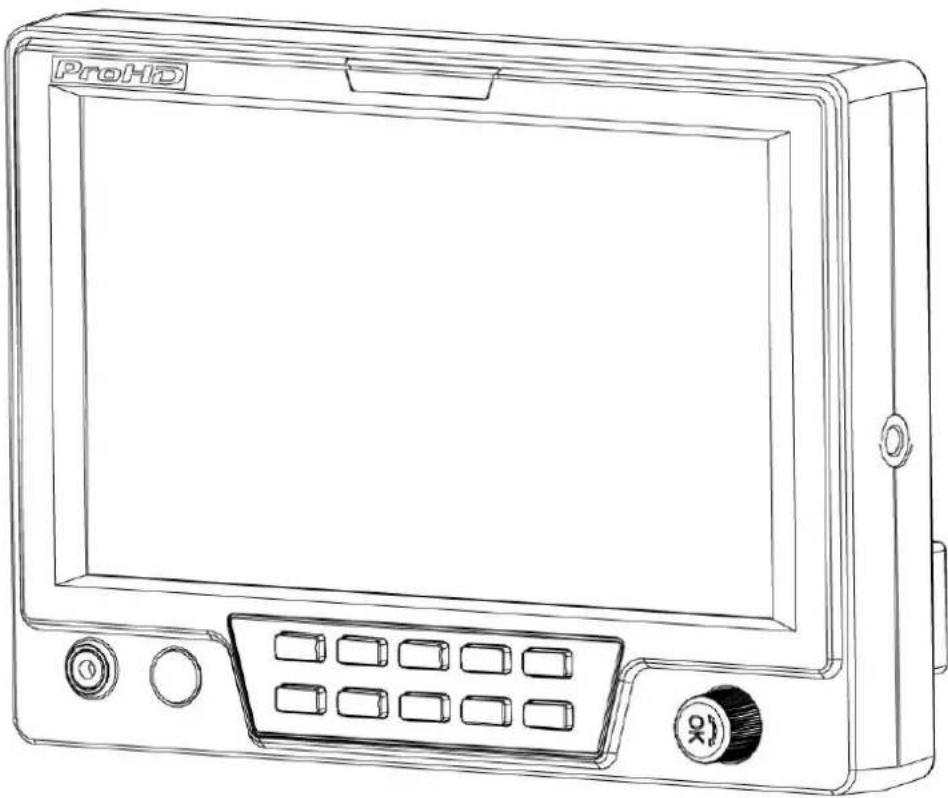
7" Portable On-camera LCD Monitor
natural_image
Line drawing of a ProHD device with control panel and buttons (no text or symbols)User Manual
Model: DT-X71F HDSDI&HDMI, Waveform, Audio meter, Focus assist
DT-X71H HDSDI&HDMI
DT-X71C HDMI
Please read this User Manual throughout before using.
Preface
Congratulations on your purchase of this product. Please read this user manual carefully.
- All internal technologies of this product are protected, including device, software and trademark. Reproduction in whole or in part without written permission is prohibited.
- All brands and trademarks are protected and other relative trademarks in this user manual are the properties of their respective owners.
- Due to constant effort of product development, Swit Electronics reserves the right to make changes and improvements to the product described in this manual without prior notice.
- This product is covered by 2 years conditional warranty, and misuse, abnormal handling, alterations or modifications in design or construction will void this warranty. It is considered normal that the LCD bright dot defects are not to exceed three.
- For any suggestions and requirements on this product, please contact us through phone, fax, Email, etc.
SWIT Electronics Co., Ltd. / SWIT Electronics USA, LLC.
Address: 4300 Stevens Creek Blvd. Suite 230
San Jose, CA 95129
Toll free: 1 866 986-SWIT(7948)
Tel: 408 260-8258
Fax: 408 228-8438
Email: info@swit.us
Website: www.swit.us
Maintenance
- Monitor
- Please keep the signal terminals and the cooling vent away from knife-edge, metal or liquid in order to avoid short-circuit and damage.
- Please don't try to disassemble any parts of the monitor by yourself, which would probably damage the monitor and do harm to human body, and it will cause the invalidation of product warranty.
- Please don't touch the screen with your fingers, which would probably deface the screen.
- Please don't press the screen; the LCD is extremely exquisite and flimsy.
- The power
Please use the provided power adapter or the battery recommended by the manufacturer in order to avoid damage.
Please never use the light connector (2-pin, female) in right front of camera handle to power the monitor; otherwise it will damage the circuit of the monitor.
Please disconnect the power cable or take off the battery under the following situations:
- If you do not operate this monitor for a period of time;
- If the power cable or power adaptor is damaged;
- If you operate this monitor by the methods different from this User Manual, and cause unknown problems;
- If the monitor housing is broken.
● Working Environment
- Please don't lay this product on the unstable place.
- Please don't lay this product in hot, cold or wet location.
- Cleaning
- Please clean the screen with dry and downy cloth or special LCD cleanser.
- Please do not press hard when cleaning the screen.
- Please do not use water or other chemical cleanser to clean the screen. The chemical may damage the LCD.
- For first time use, please tear off the factory LCD film. To protect the LCD screen, please post the LCD protection film offered in the package.
1. Features
DT-X71F
◆ New high resolution 7" LCD Panel
16:9, 1024×600, 16.77 million colors, 900:1
contrast, and H160° / V160° viewing angle.
◆ Multiple inputs
2 HD/SD-SDI, 1 HDMI and 1 Composite input.
◆ Loop through outputs
Each of the 2 input HD/SD-SDI has loop through output.
◆ HDMI converted to SDI output
Supported HDMI formats: 480i / 576i / 720p (50, 59.94, 60) / 1080i (50, 59.94, 60) / 1080P (23.98, 24, 25, 29.97, 30), and the output SDI will embed the audio (48KHz) from HDMI.
◆ Waveform (Y, Cb, Cr, R, G, B) and full scale
There are totally 6 kinds of waveform display, available under both SDI and HDMI, to check the Luminance (Y), Blue-difference (Cb),
Red-difference (Cr), Red (R), Green (G), Blue (B), and the Y, Cb, Cr can be simultaneously displayed, R, G, B can be simultaneously displayed, and each of the waveforms can be set to full scale display.
◆ Vector scope
The displayed vector scope pattern is available under both SDI and HDMI, represents saturation as distance from the center of the circle, and hue as the angle, in standard position, around it.
◆ Histogram (R, G, B)
The histogram is a bar graph that shows the distribution of luminance values in the picture. There're R, G, B histograms that individually displayed simultaneously, available under both SDI and HDMI.
◆ 16-ch audio meter
Under HDSDI, it displays 16 channels audio bars, with mark, and under SDSDI or HDMI, it displays 2 channels audio bars with mark. The audio bar is green, and will turn yellow when audio exceeds -20dB, and turn red when exceeds -10dB.
◆ SDI timecode
Under SDI input, it can display the SMPTE timecode, which is used extensively for synchronization, and for logging and identifying material in recorded media.
◆ Peaking focus assist (red/blue switch)
The Peaking focus assist function is to mark the sharpest edges of the image with red or blue color, for users to check if the subjects are focused.
◆ Zebra stripes
Zebra Stripes are used to check if the image is over exposed or not by showing black and white lines on the monitor. It is considered over exposed when luminance value exceeds 90%.
False color
The false color is used to aid in the setting of camera exposure. Under false color mode, there's a false color key on the bottom of screen for reference. The over exposed subjects (above 101 IRE) on the monitor will display as RED, and the underexposed subjects will display as BLUE. For correct exposed subjects, it will display as green and pink.
◆ Blue Only
Under the Blue Only Mode, only the blue pixels are used to generate the image, because hue and saturation can be adjusted quicker and more accurately.
◆ DSLR scale zoom in
The Canon DSLR outputs the CMOS sensor ratio HDMI and this zoom in mode can make the effective image scale full screen on the monitor.
◆ G-sensor auto flip
Enable the G-sensor auto flip, the image will rotate automatically when monitor is bottom up.
◆ User definable function keys
There are 3 function keys on the monitor front panel, and users could define the functions to the keys to achieve shortcut.
◆ User editable video title
User can edit a video title for the current camera, and the title will display on the top of screen.
◆ Front and Rear 3-color TALLY light
2 TALLY lights design, to give "live" signals to people in front of the camera, as well as the camera operator behind.
DT-X71H
◆ New high resolution 7" LCD Panel
16:9, 1024×600, 16.77 million colors, 900:1 contrast, and H160° / V160° viewing angle.
◆ Multiple inputs
2 HD/SD-SDI, 1 HDMI, 1 Composite input and L/R stereo audio.
◆ Loop through outputs
1 HD/SD-SDI loop through output.
◆ DSLR scale zoom in
The Canon DSLR outputs the CMOS sensor ratio HDMI and this zoom in mode can make the effective image scale full screen on the monitor.
◆ Image Flip
Set image to rotate by 180° .
◆ User definable function keys
There are 2 function keys on the monitor front panel, that permit users to define shortcuts for the various functions.
◆ User editable video title
User can edit a video title for the current camera, and the title will display on the top of screen.
◆ Front and Rear 3-color TALLY light
2 TALLY lights design, to give "live" signals to people in front of the camera, as well as the camera operator behind.
DT-X71C
◆ New high resolution 7" LCD Panel
16:9, 1024×600, 16.77 million colors, 900:1 contrast, and H160° / V160° viewing angle.
◆ Multiple inputs
1 HDMI, 1 Composite input and L/R stereo audio input.
◆ Loop through outputs
1 Composite loop through output.
◆ DSLR scale zoom in
The Canon DSLR outputs the CMOS sensor ratio HDMI and this zoom in mode can make the effective image scale full screen on the monitor.
◆ Image Flip
Set image to rotate by 180° .
◆ User definable function keys
There are 2 function keys on the monitor front panel, and users could define the functions to the keys to achieve shortcut.
◆ User editable video title
User can edit a video title for the current camera, and the title will display on the top of screen.
◆ Front and Rear 3-color TALLY light
2 TALLY lights design, to give "live" signals to people in front of the camera, as well as the camera operator behind.
2. Panel Instruction
Front view
DT-X71F
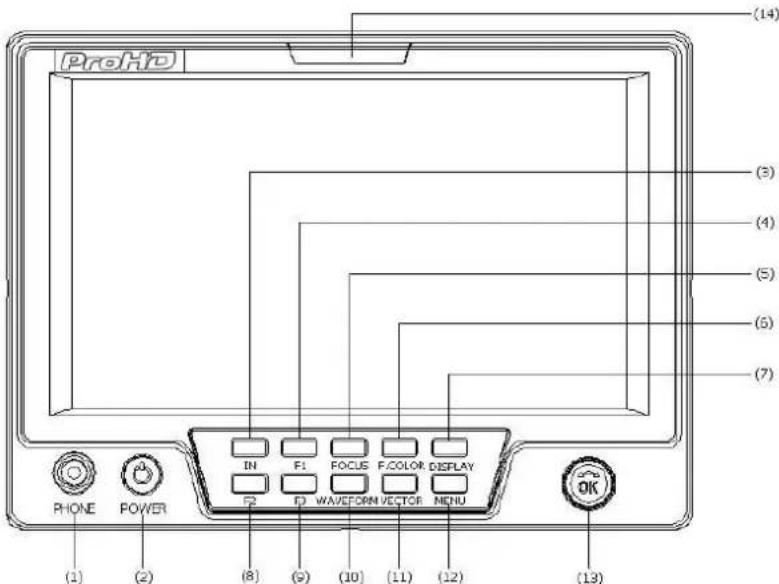
(1) PHONE: Earphone jack
(2) POWER: Power on/off
Connect with power cable or mount battery, press the "POWER" and the power indicator is turned on and after 10 seconds, the monitor will be switched on and get into normal working status. Press the "POWER" again, the indicator is turned off and monitor is switched off.
Disconnect with power cable or take off the battery if the monitor will not be used for a period of time.
(3) IN: Input signal selection
Press "IN" and revolve the "OK" to select the input video signal.
(4) F1: User definable function key 1
(5) FOCUS: Peaking Focus Assist
Press "FOCUS" once, it will display the current peaking on/off status. Press "FOCUS" again to switch on RED line focus assist, switch on BLUE line focus assist, and switch off in turn.
(6) F.COLOR: False color
Press "F.COLOR" once, it will display the current false color on/off status. Press "F.COLOR" again to switch on/off the false color mode.
(7) DISPLAY: Display current settings
Press "Display" to display safety mark, title and the current input signal information
(8) F2: User definable function key 2
(9) F3: User definable function key 3
(10) WAVEFORM: Display waveform
Press "WAVEFORM" once, it will display the waveform menu as: Revolve "OK" to select a waveform display mode and turn it on. The selected waveform will display on the screen.
(11) VECTOR: Display vector scope
Press "VECTOR" to switched on/off the Vector scope
(12) MENU: Press to enter Menu
(13) OK: Select and Apply
Under menu system, revolve "OK" to adjust settings and press to apply; and out of menu system, directly revolve "OK" to adjust volume.
(14) TALLY Light: Red, Green and Yellow 3-color TALLY indicator

(1) DC 12V IN: Connect with DC12V 4-pin XLR power adapter.
(2) TALLY Light: Red, Green and Yellow 3-color TALLY indicator
(3) Battery mount:
Connect with JVC battery BN-VF823 or SWIT battery BN-S8823 to power the monitor.
(4) HDSDI IN1/2: HD/SD-SDI input (BNC connector)
(5) HDSDI OUT: HD/SD-SDI loop through output (BNC connector)
(6) HDSDI LOOP1/2: HD/SD-SDI loop through output (BNC connector)
(7) VIDEO IN: Composite video input (BNC connector)
(8) TALLY controlling port (RJ45)
(9) HDMI: HDMI input
Input formats
| Input | Supported formats | |
| CVBS | PAL / NTSC | |
| HDMI | 480I / 576I / 480P / 576P | |
| 1080i (60 / 59.94 / 50) | ||
| 720p (60 / 59.94 / 50) | ||
| 1080p (60 / 59.94 / 50 / 30 / 29.97 / 25 / 24 / 23.98) | ||
| SDI | SMPTE-274M | 1080i (60 / 59.94 / 50) |
| 1080p (30 / 29.97 / 25 / 24 / 23.98) | ||
| SMPTE-296M | 720p (60 / 59.94 / 50) | |
| SMPTE-125M | 480i (59.94) | |
| ITU-R BT.656 | 576i (50) | |
DT-X71H
Front view
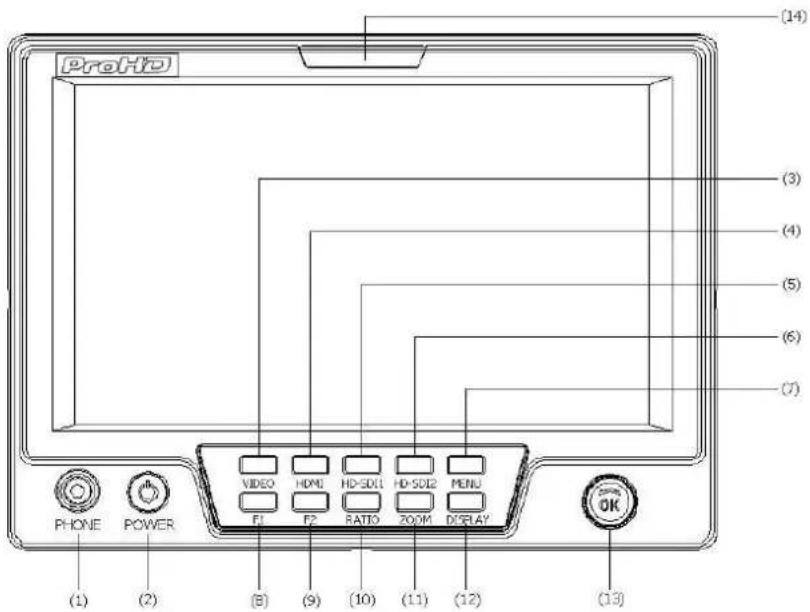
(1) PHONE: Earphone jack
(2) POWER: Power on/off
Connect with power cable or mount battery, press the "POWER" and the power indicator is turned on and after 10 seconds, the monitor will be switched on and get into normal working status. Press the "POWER" again, the indicator is turned off and monitor is switched off.
Remark: Disconnect with power cable or take off the battery if the monitor will not be used for a period of time.
(3) VIDEO: Press to switch the input signal to Composite video
(4) HDMI: Press to switch the input signal to HDMI
(5) HD-SDI1: Press to switch the input signal to the first HD-SDI channel
(6) HD-SDI2: Press to switch the input signal to the second HD-SDI channel
(7) MENU: Press to enter Menu
(8) F1: User definable function key 1
(9) F2: User definable function key 2
(10) RATIO: 16:9 and 4:3 switch
(11) ZOOM: Picture Zoom-in
Press "ZOOM" to switch ZOOM1: Canon DSLR scale zoom-in, and ZOOM2: pixel to pixel zoom-in.
(12) DISPLAY: Display current settings
Press "Display" to display safety mark, title and the current input signal information
(13) OK: Select and Apply
Under menu system, revolve "OK" to adjust settings and press to apply; and out of menu system, directly revolve "OK" to adjust volume.
(14) TALLY Light: Red, Green and Yellow 3-color TALLY indicator
Rear view
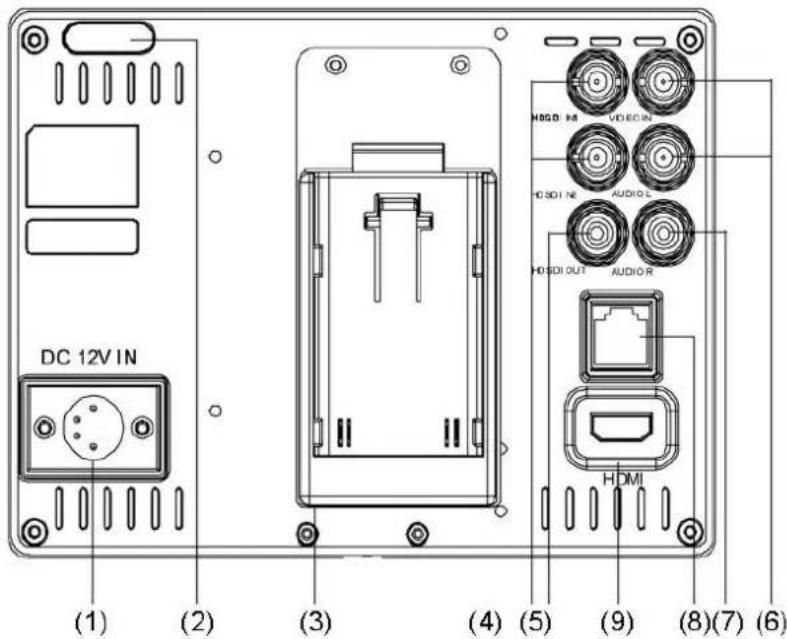
(1) DC 12V IN: Connect with DC12V 4-pin XLR power adapter.
(2) TALLY Light: Red, Green and Yellow 3-color TALLY indicator
(3) Battery mount:
Connect with JVC battery BN-VF823 or SWIT battery BN-S8823 to power the monitor.
(4) HDSDI IN1/2: HD/SD-SDI input (BNC connector)
(5) HDSDI OUT: HD/SD-SDI loop through output (BNC connector)
(6) VIDEO IN: Composite video input (BNC connector)
(7) AUDIO L/R: Stereo audio L/R input (RCA connector)
(8) TALLY controlling port
(9) HDMI: HDMI input
Input formats
| Input | Supported formats | |
| CVBS | PAL / NTSC | |
| HDMI | 480I / 576I / 480P / 576P | |
| 1080i (60 / 59.94 / 50) | ||
| 720p (60 / 59.94 / 50) | ||
| 1080p (60 / 59.94 / 50 / 30 / 29.97 / 25 / 24 / 23.98) | ||
| SDI | SMPTE-274M | 1080i (60 / 59.94 / 50) |
| 1080p (30 / 29.97 / 25 / 24 / 23.98) | ||
| SMPTE-296M | 720p (60 / 59.94 / 50) | |
| SMPTE-125M | 480i (59.94) | |
| ITU-R BT.656 | 576i (50) | |
DT-X71C
Front view

(1) PHONE: Earphone jack
(2) POWER: Power on/off
Connect with power cable or mount battery, press the "POWER" and the power indicator is turned on and after 10 seconds, the monitor will be switched on and get into normal working status. Press the "POWER" again, the indicator is turned off and monitor is switched off.
Remark: Disconnect with power cable or take off the battery if the monitor will not be used for a period of time.
(3) VIDEO: Press to switch the input signal to Composite video
(4) HDMI: Press to switch the input signal to HDMI
(5) B/W: Black and White mode
(6) OVERSCAN: Overscan / Underscan switch
(7) MENU: Press to enter Menu
(8) F1: User definable function key 1
(9) F2: User definable function key 2
(10) RATIO: 16:9 and 4:3 switch
(11) ZOOM: Picture Zoom-in
Press "ZOOM" to switch ZOOM1: Canon DSLR scale zoom-in, and ZOOM2: pixel to pixel zoom-in.
(12) DISPLAY: Display current settings
Press "Display" to display safety mark, title and the current input signal information
(13) OK: Select and Apply
Under menu system, revolve "OK" to adjust settings and press to apply; and out of menu system, directly revolve "OK" to adjust volume.
(14) TALLY Light: Red, Green and Yellow 3-color TALLY indicator
Rear view

(1) DC 12V IN: Connect with DC12V 4-pin XLR power adapter.
(2) Battery mount:
Connect with JVC battery BN-VF823 or SWIT battery BN-S8823 to power the monitor.
(3) VIDEO OUT: Composite video loop through output (BNC connector)
(4) AUDIO L/R: Stereo audio L/R input (RCA connector)
(5) VIDEO IN: Composite video input (BNC connector)
(6) HDMI: HDMI input
(7) TALLY controlling port
(8) TALLY Light: Red, Green and Yellow 3-color TALLY indicator
Input formats
| Input | Supported formats |
| CVBS | PAL / NTSC |
| HDMI | 480I / 576I / 480P / 576P |
| 1080i (60 / 59.94 / 50) | |
| 720p (60 / 59.94 / 50) | |
| 1080p (60 / 59.94 / 50 / 30 / 29.97 / 25 / 24 / 23.98) |
3. Menu Operation
Press "MENU" and it will display menu system
➢ Revolve "OK" to select an item. The selected item will be highlighted display.
➢ Press "OK" to enter the selected item.
Under menu system, press "MENU" to back to previous menu.
The menu will automatically save and quit if it remains idle.
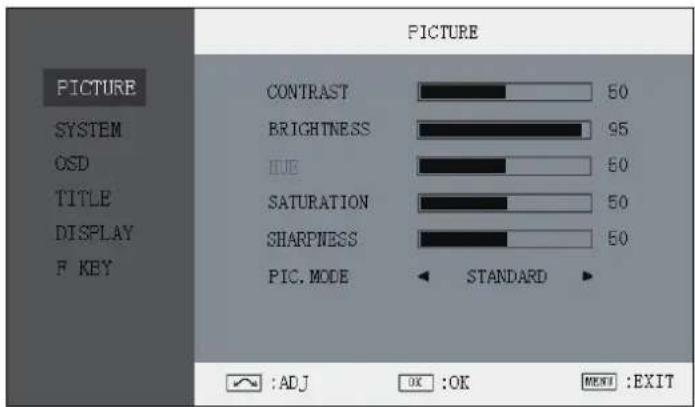
4. Picture Settings Submenu
The Picture Settings Submenu includes:
(1) CONTRAST: 0-100 value adjustment
(2) BRIGHTNESS: 0-100 value adjustment
(3) HUE: 0-100 value adjustment
(Only available under Composite input)
(4) SATURATION: 0-100 value adjustment
(5) SHARPNESS: 0-100 value adjustment
(6) PIC.MODE: User defined and preset picture modes: standard, soft and vivid selection
5. System Configuration Submenu
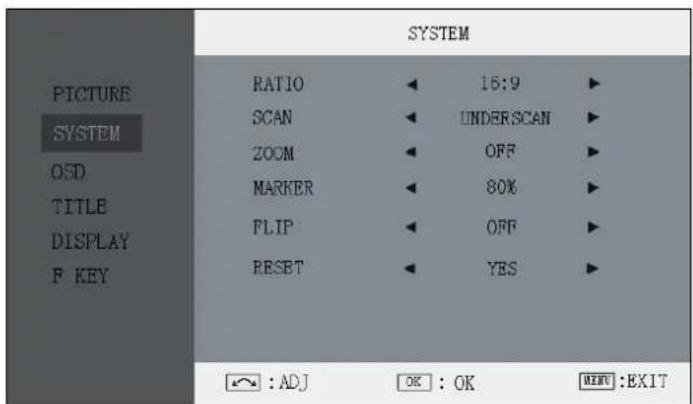
The System Configuration Submenu includes:
(1) RATIO: Select "16:9" or "4:3" to adjust the aspect ratio.
(2) SCAN: "UNDERSCAN" / "OVERSCAN" selection
(3) ZOOM: "OFF", "ZOOM1" and "ZOOM2" selection
ZOOM1: Canon DSLR scale zoom-in
ZOOM2: Pixel to Pixel zoom-in
(A) MARKER: Select and set the safety mark scale from 80%, 85%, 90% and 95%.
(5) FLIP: Select "YES" to enable G-sensor auto flip.
(6) RESET: Revolve "OK" to RESET and press to recover all to factory setting.
6. OSD Settings Submenu
The OSD Settings Submenu includes:
(1) LANGUAGE: Menu language English / Chinese selection
(2) H-POSITION: Menu horizontal position (0-100) adjustment, real-time preview, default value: 50, center.
(3) V-POSITION: Menu vertical position (0-100) adjustment, real-time preview, default value: 50, center.
(4) DURATION: Menu timeout setting
Set a time (in seconds) in which the menu will automatically quit if remains idle.
Default: 10 seconds; Range: 5 seconds to 60 seconds.

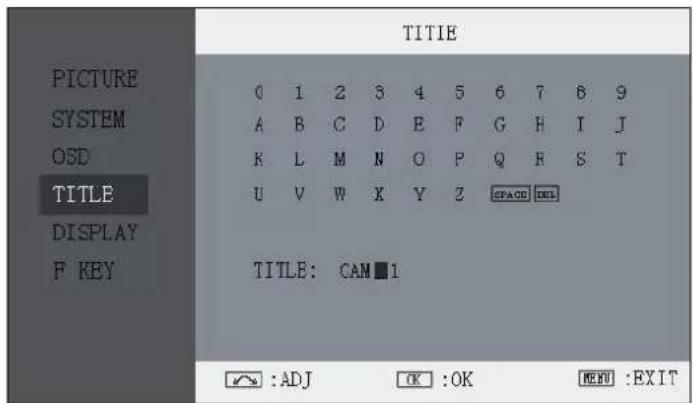
7. Title Settings Submenu
Revolve "OK" button to select the letters, and press "OK" to input. Select SPACE to input space and DEL to delete the left letter. Max 10 letters are supported.
After setting, press "MENU", the system will save data to current user and quit menu. The menu will automatically save and quit if it remains idle.
8. Display Settings Submenu
The DISPLAY settings submenu is to select the items to be displayed on screen when
'DISPLAY' button is pressed. Revolve "OK" to turn on/off the items:
(1) INFO: Including Input format, aspect ratio, underscan/overscan, zoom status
(2) MARKER: Safety mark
(3) TITLE: User edited title

9. FUNCTION KEY Settings Submenu
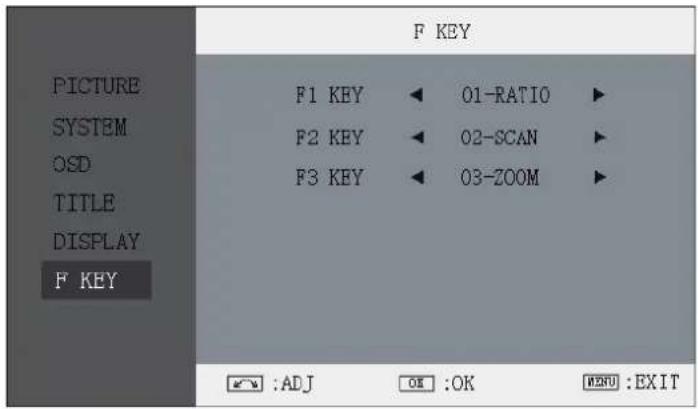
The F KEY Settings Submenu is to define Function Keys on the front keyboard.
The DT-X71F has 3 function keys:
F1, F2 and F3;
The DT-X71H and DT-X71C has 2 function keys:
F1 and F2.
The available function items of each model are:
-DT-X71F-
01-RATIO: Aspect ratio switch
02-SCAN: Underscan / Overscan switch
03-ZOOM: Picture Zoom-in
04-PIC. MODE: Preset picture mode switch
05-B/W: Color / Black & white switch
06-BLUE ONLY: Blue only mode switch on/off
07-ZEBRA: Zebra over exposure switch on/off
08-VECTOR: Vector scope switch on/off
09-PATTERN: Internal colorbar switch on/off
10-RGB HIST: R, G, B Histogram switch on/off
11-TIMECODE: SDI timecode display switch on/off
12-F.COLOR: False color mode switch on/off
13-AUDIO BAR: Audio meter display switch on/off
14-FOCUS: Peaking focus assist switch on/off, and red/blue selection
-DT-X71H
01-RATIO: Aspect ratio switch
02-SCAN: Underscan / Overscan switch
03-ZOOM: Picture Zoom-in
04-CLR.TEMP: Color-temperature switch
05-PIC MODE: Preset picture mode switch
06-B/W: Color / Black & white switch
07-REVERSE: Image flip
DT-X71C
01-RATIO: Aspect ratio switch
02-SCAN: Underscan / Overscan switch
03-ZOOM: Picture Zoom-in
04-CLR.TEMP: Color-temperature switch
05-PIC MODE: Preset picture mode switch
06-B/W: Color / Black & white switch
07-REVERSE: Image flip
10. TALLY Light Operation
There are front and rear TALLY lights on the monitor, which can display RED, GREEN and YELLOW signals. The TALLY light controlling port is the RJ45 socket at the rear panel, and terminal description is as follows:
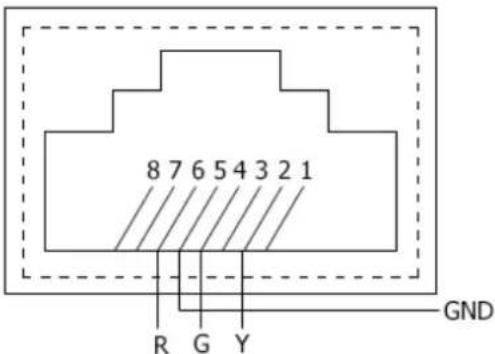
| Terminal | 1 | 2 | 3 | 4 | 5 | 6 | 7 | 8 |
| Description | Y | G | GND | R |
The RED light is on when connecting the terminal "R" with "GND", and goes out when disconnecting. The GREEN light is on when connecting the terminal "G" with "GND", and goes out when disconnecting. The YELLOW light is on when connecting the terminal "Y" with "GND", and goes out when disconnecting
11. Specifications
| LCD Performance | |||
| Size | 7.0 inches | ||
| Resolution | 1024×RGB×600 | ||
| Aspect ratio | 16:9/4:3 | ||
| Color system | NTSC/PAL | ||
| Brightness | 400cd/m2 | ||
| Contrast | 900:1 | ||
| Color | 16.77 million colors | ||
| Viewing angle | H/V:160/160 | ||
| Video Format | |||
| SDI * | SMPTE-274M | 1080i (60 / 59.94 / 50) | |
| 1080p (30 / 29.97 / 25 / 24 / 23.98) | |||
| SMPTE-296M | 720p (60 / 59.94 / 50) | ||
| SMPTE-125M | 480i (59.94) | ||
| ITU-R BT.656 | 576i (50) | ||
| HDMI | 480I / 576I / 480P / 576P | ||
| 1080i (60 / 59.94 / 50) | |||
| 720p (60 / 59.94 / 50) | |||
| 1080p (60 / 59.94 / 50 / 30 / 29.97 / 25 / 24 / 23.98) | |||
| General | |||
| Working voltage | DC12V, or Battery 6.5V-17V | ||
| Power consumption | DT-X71F | ≤15W | |
| DT-X71H | ≤8W | ||
| DT-X71C | ≤6W | ||
| Working temperature | 0°C~+40°C | ||
| Working humidity | 10%~90% | ||
| Storage temperature | -15°C~+60°C | ||
| Storage humidity | 10%~90% | ||
| Dimensions | 192×139×47mm | ||
| Net weight | 550g | ||
* DT-X71C doesn't support SDI input.
12. Packing List
-
Monitor ×1
-
User Manual ×1
-
Power adaptor ×1
-
Power cable ×1
-
Sun hood ×1
-
Screw ball head ×1
-
LCD protection film ×1
ProHD
This model is manufactured, warranted and supported by SWIT Electronics Co., Ltd. / SWIT Electronics USA, LLC, and distributed in North America by JVC Professional Video Products.
To obtain service or for further information, please contact:
Address: 4300 Stevens Creek Blvd., Suite 230, San Jose, CA 95129
Toll free: 1 866 986-SWIT (7948) • Tel: 408 260-8258 • Fax: 408 228-8438
Email: info@swit.us • Website: www.swit.us


- User Manual
- Preface
- Maintenance
- - Monitor
- - The power
- Please never use the light connector (2-pin, female) in right front of camera handle to power the monitor; otherwise it will damage the circuit of the monitor.
- ● Working Environment
- - Cleaning
- Features
- DT-X71F
- DT-X71H
- ◆ New high resolution 7" LCD Panel
- ◆ Multiple inputs
- ◆ Loop through outputs
- ◆ DSLR scale zoom in
- ◆ Image Flip
- ◆ User definable function keys
- ◆ User editable video title
- ◆ Front and Rear 3-color TALLY light
- DT-X71C
- Panel Instruction
- Front view
- Input formats
- Rear view
- Menu Operation
- Picture Settings Submenu
- System Configuration Submenu
- OSD Settings Submenu
- Title Settings Submenu
- Display Settings Submenu
- FUNCTION KEY Settings Submenu
- -DT-X71F-
- -DT-X71H
- TALLY Light Operation
- Specifications
- Packing List
- ProHD
Brand : JVC
Model : DT-X71C
Category : Tracking