TD4114 IP II - Security Camera Elmo - Free user manual and instructions
Find the device manual for free TD4114 IP II Elmo in PDF.


User questions about TD4114 IP II Elmo
0 question about this device. Answer the ones you know or ask your own.
Ask a new question about this device
Download the instructions for your Security Camera in PDF format for free! Find your manual TD4114 IP II - Elmo and take your electronic device back in hand. On this page are published all the documents necessary for the use of your device. TD4114 IP II by Elmo.
USER MANUAL TD4114 IP II Elmo
Please read this instruction manual carefully before using TD4114 IPII and keep it for future reference.
IMPORTANT SAFETY INSTRUCTIONS
- Read these instructions.
- Keep these instructions.
- Heed all warnings.
- Follow all instructions.
- Do not use this apparatus outdoors.
- Do not use this apparatus near water.
- Clean only with dry cloth.
- Do not install near heat sources such as radiators, heat registers, stoves or other apparatus (including amplifiers) that produce heat.
- Do not touch this apparatus during lightning storms.
- Unplug when unused for long periods of time.
- Refer all servicing to qualified personnel. Servicing is required when the apparatus has been damaged in any way, such as power-supply cord or plug is damaged, liquid has been spilled or objects have been fallen onto the apparatus, the apparatus has been exposed to rain or moisture, does not operate normally, or has been dropped.
WARNING: Handling the cord on this product or cords associated with accessories sold with this product, will expose you to lead, a chemical known to the State of California to cause birth defects or other reproductive harm.
Wash hands after handling.
CAUTION
RISK OF ELECTRIC SHOCK DO NOT OPEN

CAUTION : TO REDUCE THE RISK OF ELECTRIC SHOCK.
DO NOT REMOVE COVER (OR BACK).
NO USER SERVICEABLE PARTS INSIDE. REFER SERVICING TO QUALIFIED SERVICE PERSONNEL.

The lightning flash with arrowhead symbol, within an equilateral triangle, is intended to alert the user to the presence of uninsulated "dangerous voltage" within the product's enclosure that may be of sufficient magnitude to constitute a risk of electric shock to persons.

The exclamation point within an equilateral triangle is intended to alert the user to the presence of important operating and maintenance (servicing) instructions in the literature accompanying the appliance.
CAUTION
- Do not use any power supply other than specified.
WARNING
TO REDUCE THE RISK OF FIRE OR ELECTRIC SHOCK, DO NOT EXPOSE THIS APPLIANCE TO RAIN OR MOISTURE.
* The CAUTION label is attached on the base of product.
INFORMATION
This equipment has been tested and found to comply with the limits for Class A digital device, pursuant to Part 15 of the FCC Rules. These limits are designed to provide reasonable protection against harmful interference when the equipment is operated in a commercial environment.
This equipment generates, use, and can radiate radio frequency energy and, if not installed and used in accordance with the instruction manual, may cause harmful interference to radio communications. Operation of this equipment in a residential area is likely to cause harmful interference in which case the user will be required to correct the interference at his own expense.
USER-INSTALLER
CAUTION: Your authority to operate this FCC verified equipment could be voided if you make changes or modifications not expressly approved by the party responsible for compliance to Part of the FCC Rules.
HANDLING PRECAUTIONS
■Do not use any AC adapter other than the one supplied with the product.
■This Camera has no power switch. Before maintenance, disconnect the power plug from the outlet.
■This Camera is designed only for use indoors. Do not use this Camera out of doors.
■Do not leave the Camera under direct sunlight or by heater, or the Camera may be discolored, or damaged.
■Do not place the Camera in any humid, dusty, windy or vibrating location. Use the Camera in the following environmental condition:
Temperature: (Recommended) -10°C to 40°C
(Working) -10^ to 50^
Humidity: 30% \~ 90% (Non condensing)
■Use a soft, dry cloth for cleaning. Do not use any volatile solvent, such as thinner or benzin.
■Do not directly point the camera lens into the sun, or the camera may be damaged.
■This Camera is designed only for installation to the ceiling.
When installing this Camera, use only the dedicated fixing plate, refer to the pages 9 to 14 of this manual, and carefully check the safety, such as falling prevention.
■Exclusions
- We will not be liable for any damage arising out of or resulting from acts of God (including earthquakes, floods, and lightning), fires, accidents, conducts or other accidents by third parties, or your misuse, whether intentional or unintentional, or use of the product under undesired conditions.
- We will not be liable for any incidental damage to the use of the product (including loss of business profit, interruption of business, and change or loss of records).
-
We will not be liable for any damage arising out of or resulting from failure to observe the instructions stated in the operation manual for the product.
-
We will not be liable for any damage arising out of or resulting from malfunction or hung-up of the product due to the use of an appliance or software we are not involved in for the product.
- We will not be liable for any damage arising out of or resulting from repairs or tampering of the product by yourself or any unauthorized third party.
- Our monetary liability shall not exceed the unit price of the product in any case within the scope provided by laws.
■Precautions about copyrights and rights of portraits
Please keep the following in mind:
- You may infringe the copyrights, rights of portraits or any other rights to images you record using the product if you use such images in any way (including distribution, disclosure, and exhibition thereof) without the right holders' prior consent.
- The filming of demonstrations, performances, exhibits, etc. may be restricted even for the purpose of monitoring.
- All copyrighted images and data may be used within the scope permitted by the Copyright Law.
■Longevity of parts
- The product uses some life-limited parts that must be replaced periodically (aluminum electrolytic capacitor, backup battery, etc.).
- The service life of each part depends on the working environment or conditions, and we recommend that you periodical inspections be performed. Before performing inspections, consult the shop or our nearby branch or sales office.
CONTENTS
IMPORTANT SAFETY INSTRUCTIONS ....1
HANDLING PRECAUTIONS....3
CONTENTS....5
1. PART NAMES AND FUNCTIONS ......7
[1] Main unit....7
[2] Back panel ....8
2. SETTING UP....9
[1] Installation....9
[2] How to adjust the video....12
[3] Drawing the Composite Cable from the Camera Back Face ....13
[4] Connection of the Camera ....14
3. Alarm 15
4. SOUND 16
5. INITIALIZING THE SETTINGS ....17
6. OPERATION PROCEDURES....18
[1] Preparations for connection .....18
[2] Install 21
[3] Web browser 22
(1) Restrictions 22
(2) Connection 23
(3) Live display ....26
(4) Capture display ....28
(5) Settings 29
(6) External GPIO Setup 30
(7) MPEG4 Setup ....30
(8) JPEG Setup ....31
(9) Network Setup 32
(10) Alarm Setup ....34
(11) E-mail Setup 35
(12) FTP Setup 37
(13) User Setup ....39
(14) IP filtering Setup 41
(15) Camera Control Setup ....42
(16) Camera Settings ....43
(17) Camera Settings (AE Settings) 43
(18) Camera Settings (Picture Settings) 45
(19) System Time Setup 46
[4] MPEG4 Viewer software [ELMO 1Channel Viewer] ....47
(1) Restrictions 47
(2) Connection ....47
(3) Live display ....49
(4) Sound 50
(5) Settings ....51
(6) MPEG4 Setup ....52
(7) JPEG Setup ....53
(8) Network Setup ....54
(9) Alarm Setup ....56
(10) E-mail Setup 57
(11) FTP Setup 58
(12) Motion Detection Setup 60
(13) User Setup ....61
(14) IP filtering Setup 63
(15) Snapshot Setup 64
(16) Color Setup 65
(17) Camera Control Setup ....66
(18) External GPIO Setup 67
(19) Camera Settings (AE Settings) 67
(20) Camera Settings (Picture Settings) 68
(21) System Time Setup 68
(22) Tools 69
(23) Firmware update ....70
[5] Set items....72
7. TROUBLESHOOTING HINTS 84
8. SPECIFICATIONS ....87
9. SUPPLIED ACCESSORIES....91
1. PART NAMES AND FUNCTIONS
[1] Main unit
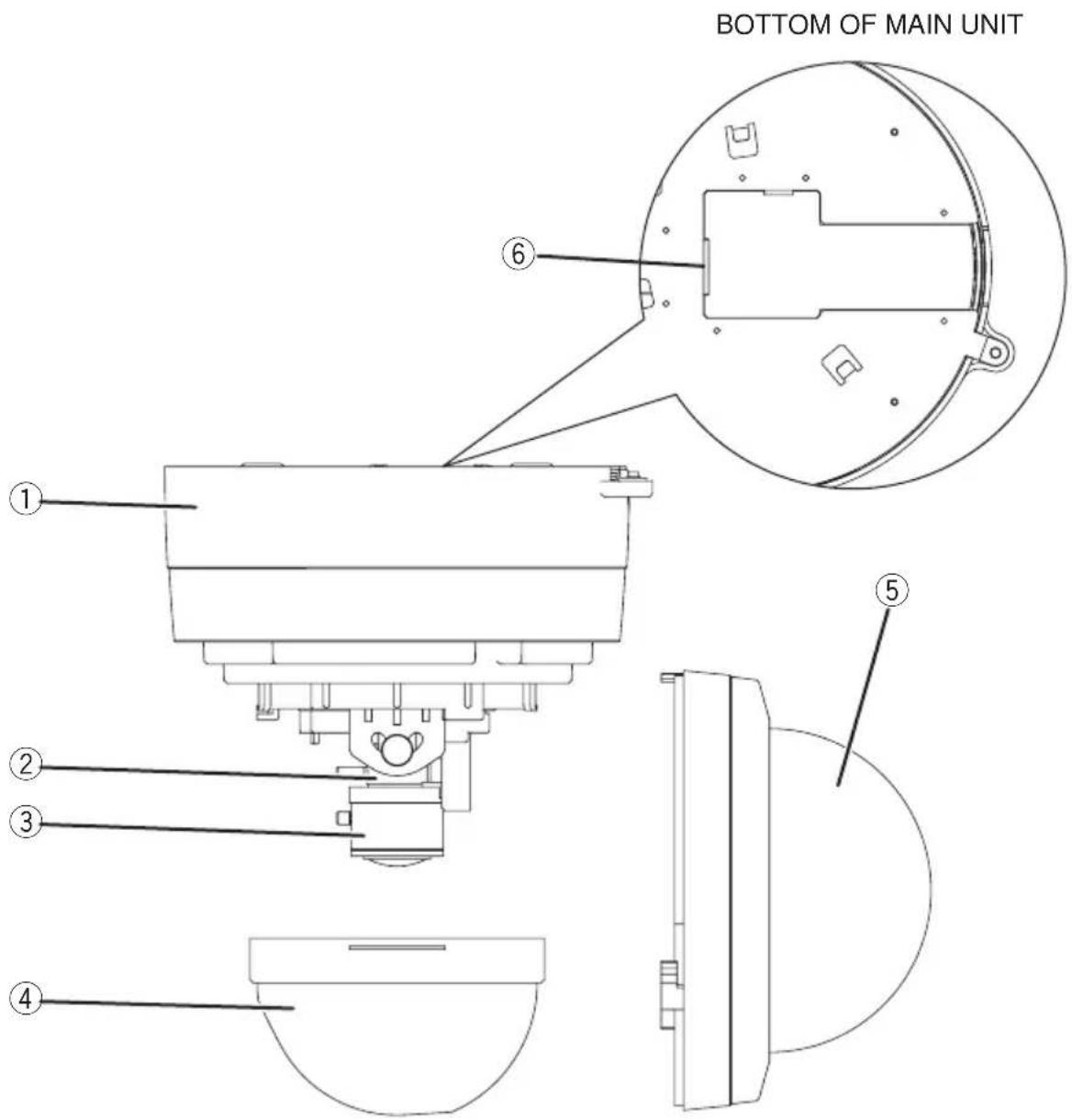
| No. | Name Function | |
| 1 | MAIN UNIT Main unit of the camera. | |
| 2 | ZOOM RING Adjusts the image size. | |
| 3 | FOCUS RING Adjusts the focus. | |
| 4 | LENS COVER Protects the lens. | |
| 5 | MAIN UNIT COVER Protects the main unit. | |
| 6 | ETHERNET TERMINAL | RJ-45 connector for Ethernet. |
[2] Back panel
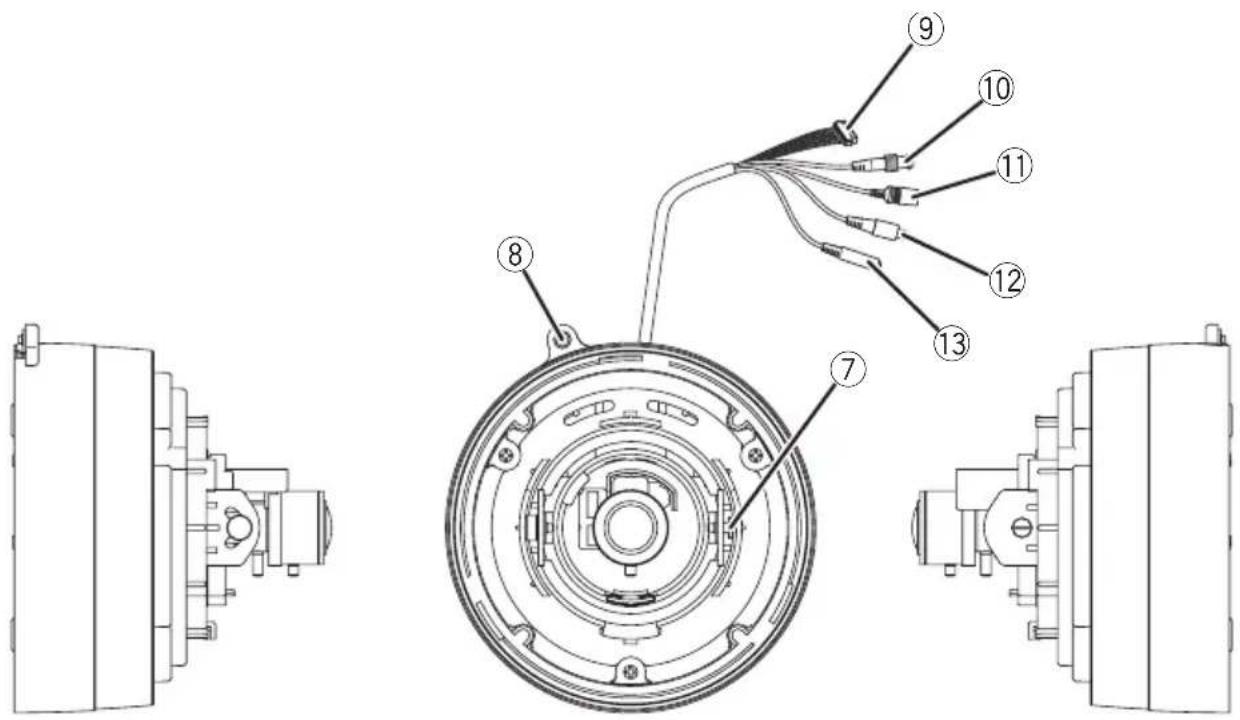
| No. | Name Function | |
| 7T | LT SET SCREW Fixes the up/down direction of video after its adjustment. | |
| 8 | MAIN UNIT SET SCREW HOLE | Fixes the main unit. |
| 9 | ALARM IN-OUT TERMINAL (6P connector (black)) | To be connected to an alarm device. |
| 10 | VIDEO OUT TERMINAL (BNC jack) monitor TV or VTR. | To be connected to the image input terminal of a TV or VTR. |
| 11DC | IN To be connected to an AC adapter. | |
| 12AUDIO OUTPUT To be connected to the audio input terminal of an (green) amplifier-equipped speaker or the like | ||
| 13AUDIO INPUT To be connected to a microphone.(blue) | ||
2. SETTING UP
[1] Installation
(1) Mounting the Fixing Plate
- Make mounting holes and a cord hole in the place (ceiling) to which this Camera is installed.
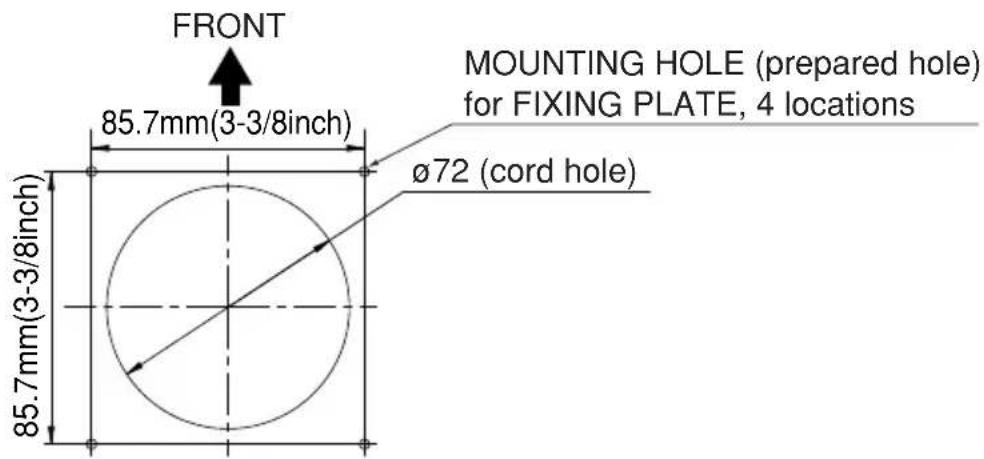
WARNING: The total mass of the main unit and fixing plate is approx. 1,000g. Check whether the ceiling to which the Camera is installed is strong enough to hold the total mass of the main unit and fixing plate. If not, the Camera could fall, causing injury.
- Lock the fixing plate (supplied) firmly with 4 fixing screws (supplied).
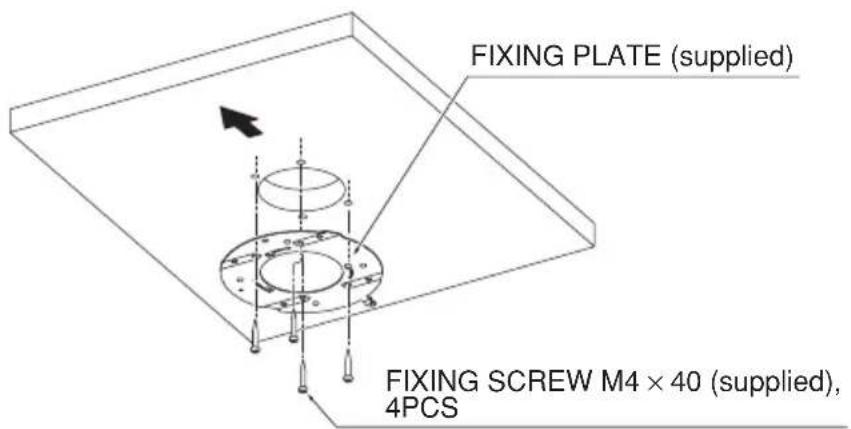
WARNING: Fasten the fixing screws of the fixing plate firmly, or the Camera could fall, causing injury.
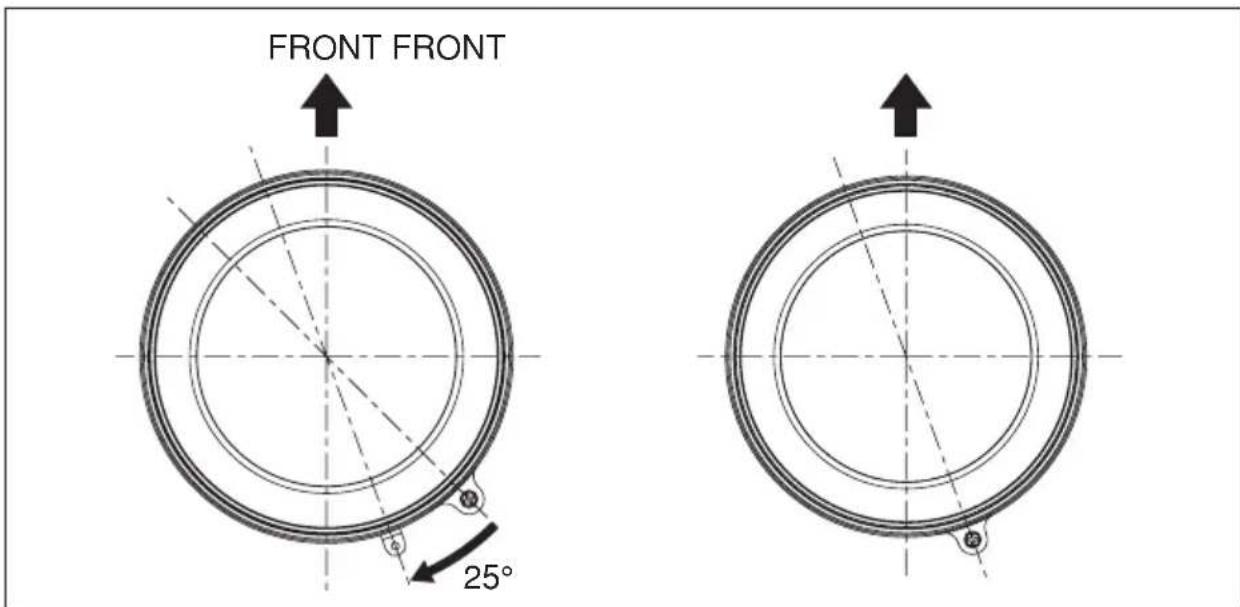
- Match the [ ] mark on the fixing plate with the [ ] mark on the back face of the main unit, set the tabs (3 locations) of the back face of the main unit in the mating cuts (3 locations) of the fixing plate, and turn the main unit clockwise by 25^ (Refer to A).
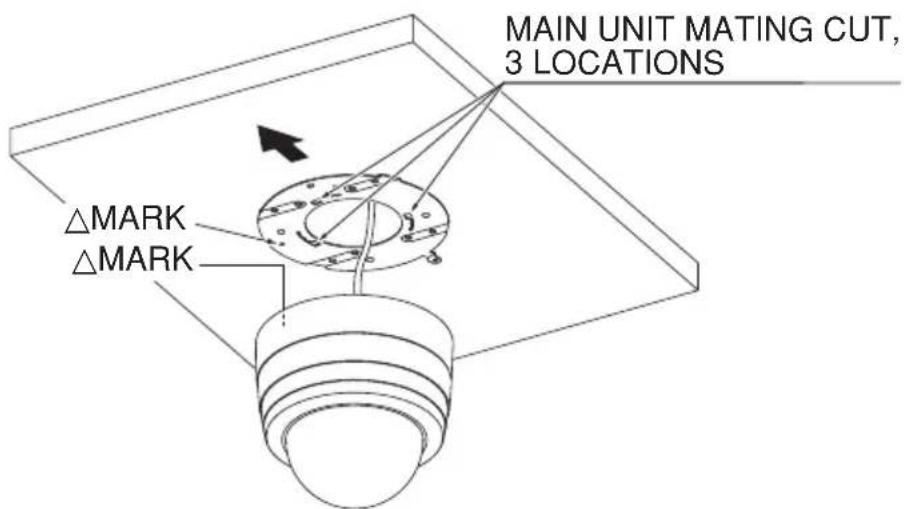
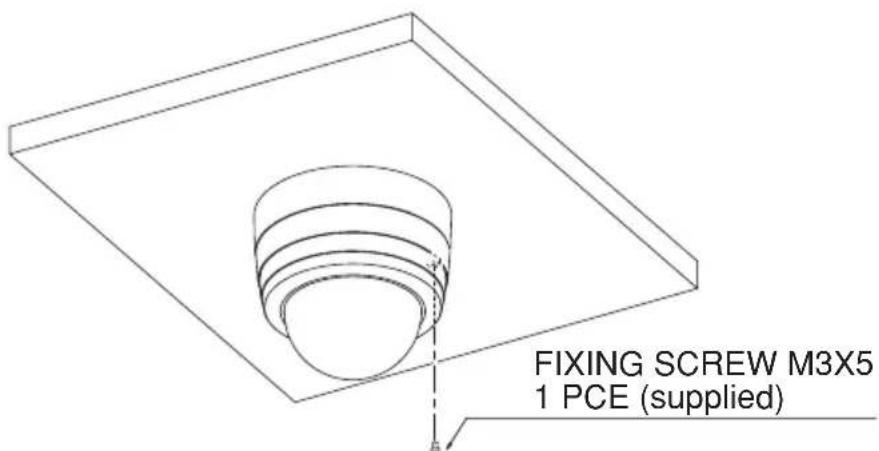
- Lock the Camera and the fixing plate with the set screws (supplied).
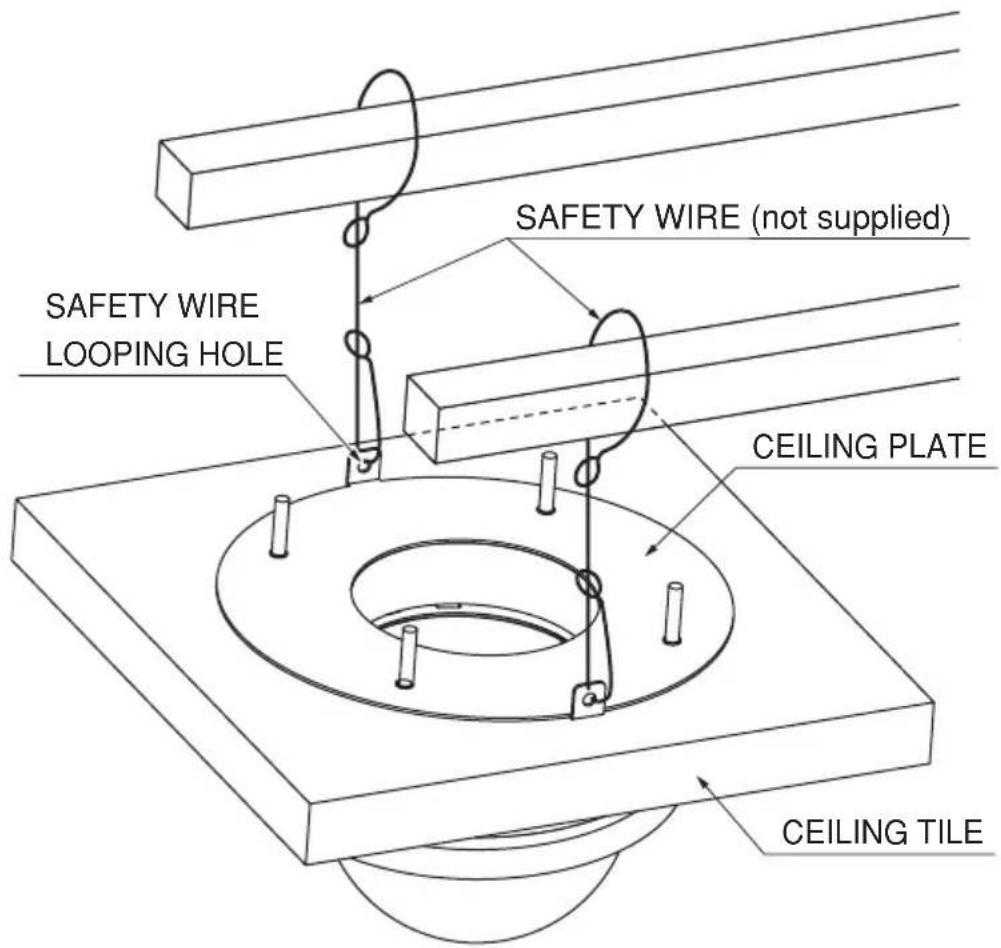
(2) Mounting the Safety Wires
- Loop up one end of the Safety Wires through the respective safety wire looping holes made on the Ceiling Plate, and then loop up the other end of the same around the beams or anything that is used to mount ceiling tile channel for structure safety.
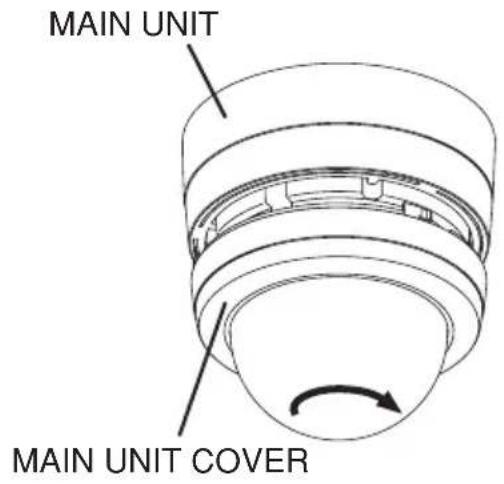
[2] How to adjust the video
-
Turn the main unit cover counterclockwise (in the direction indicated by arrows).
-
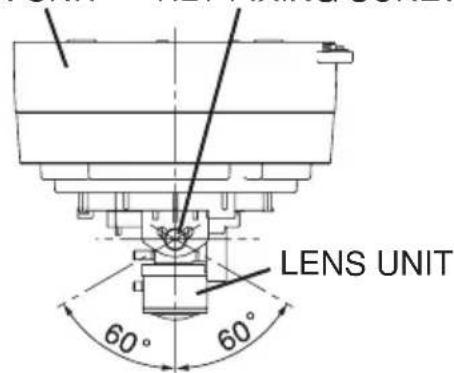
Watching the monitor, adjust the shooting direction.
-
Clockwise/counterclockwise direction Turn the pan base clockwise/ counterclockwise to adjust the right/left direction.
- Up/down direction Loosen the tilt fixing screw to adjust the up/down direction.
After adjusting the direction, fasten the tilt fixing screw.
*Be careful not to drop the tilt fixing screw.
*Fasten the tilt fixing screw by hand.
Do not use nippers or the like, or the tilt fixing screw could be broken.
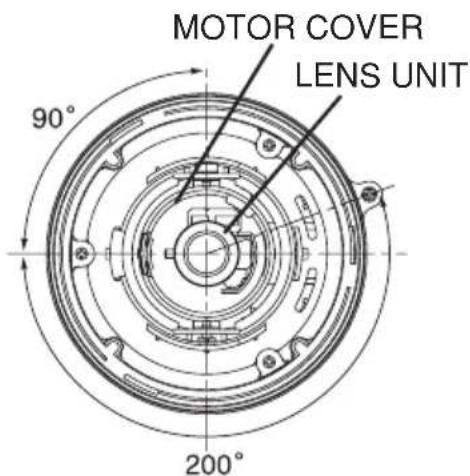
- Correct the tilt of the video.
*Be sure to hold the motor cover.
MAIN UNIT COVER
![Elmo TD4114 IP II - [2] How to adjust the video - 1](/content/2026/06/1199002/images/51e1a70fd1be31c451ca052cb99a14291cf421bf0a6e8b492bec24ac2012a375.jpg)
natural_image
Diagram of a cylindrical container with a curved arrow indicating rotation (no text or symbols)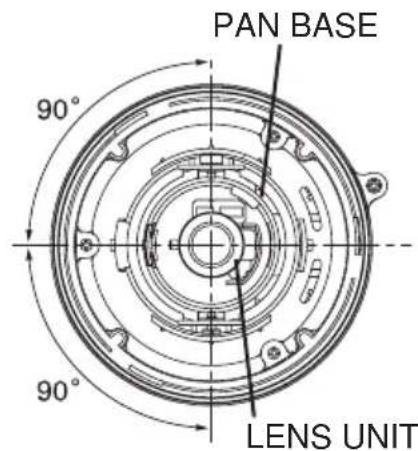
MAIN UNIT TILT FIXING SCREW
- Attach the lens cover.
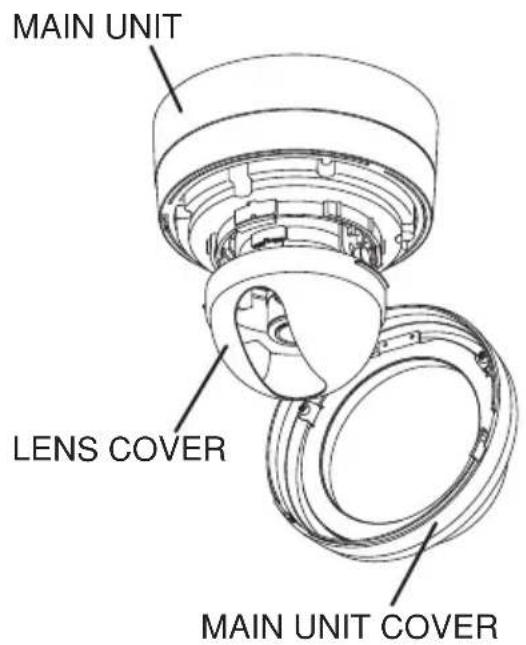
- Attach the main unit cover and turn it clockwise (in the direction indicated by arrows).
[3] Drawing the Composite Cable from the Camera Back Face
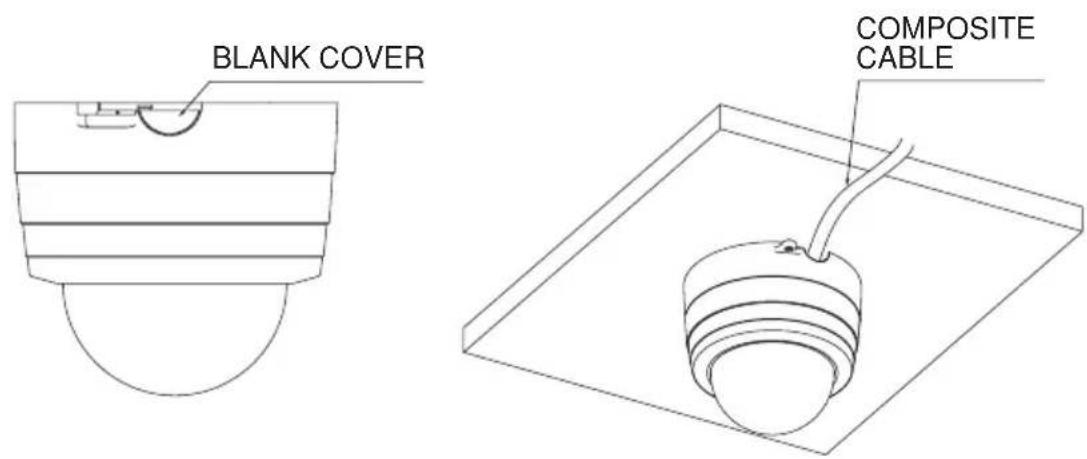
- Remove the blank cover from the back face of the Camera base, and draw the composite cable from the back face of the Camera.
[4] Connection of the Camera
![Elmo TD4114 IP II - [4] Connection of the Camera - 1](/content/2026/06/1199002/images/07119177921187c1b4109b5c5c4b25d8b89631c007227e00c4cb416b3fe2c728.jpg)
flowchart
graph TD
    A["Speaker with amplifier"] --> B["AUDIO OUTPUT (Green)"]
    C["Microphone"] --> D["AUDIO INPUT (Blue)"]
    B --> E["RELAY CABLE (supplied)"]
    D --> E
    E --> F["To SENSOR and EXTERNAL CONTROL"]
    G["VIDEO CABLE (commercial item, BNC, co-axial)"] --> H["VIDEO OUT"]
    I["To MONITOR VIDEO IN"] --> J["AC adaptor (supplied)"]
    K["POWER CABLE (supplied)"] --> L["COMPOSITE CABLE (part of the Camera)"]
    M["To OUTLET (AC100-240V)"] --> N["POWER CABLE (supplied)"]
    O["DC IN"] --> P["ALARM IN-OUT TERMINAL (6P connector (black))"]
    Q["PC"] --> R["Ethernet CROSS CABLE (supplied)"]
    S["Camera main unit"] --> T["Power Cable (supplied)"]
ALARM IN-OUT terminal (6P connector (black))
| Pin No. | Terminal Name Cord Color | |
| 1 | ALARM IN1 | Blue |
| 2 | GND | Purple |
| 3 | ALARM IN2 | Gray |
| 4 | GND | White |
| 5 | ALARM OUT | Black |
| 6 | General-purpose output | Pink |
Note: When wiring, note the following:
- For the ALARM IN-OUT cable, insulate the bare conductor part not to be exposed after wiring.
- For the video cable, keep the BNC connector (metal part) away from any other metal material.
3. Alarm
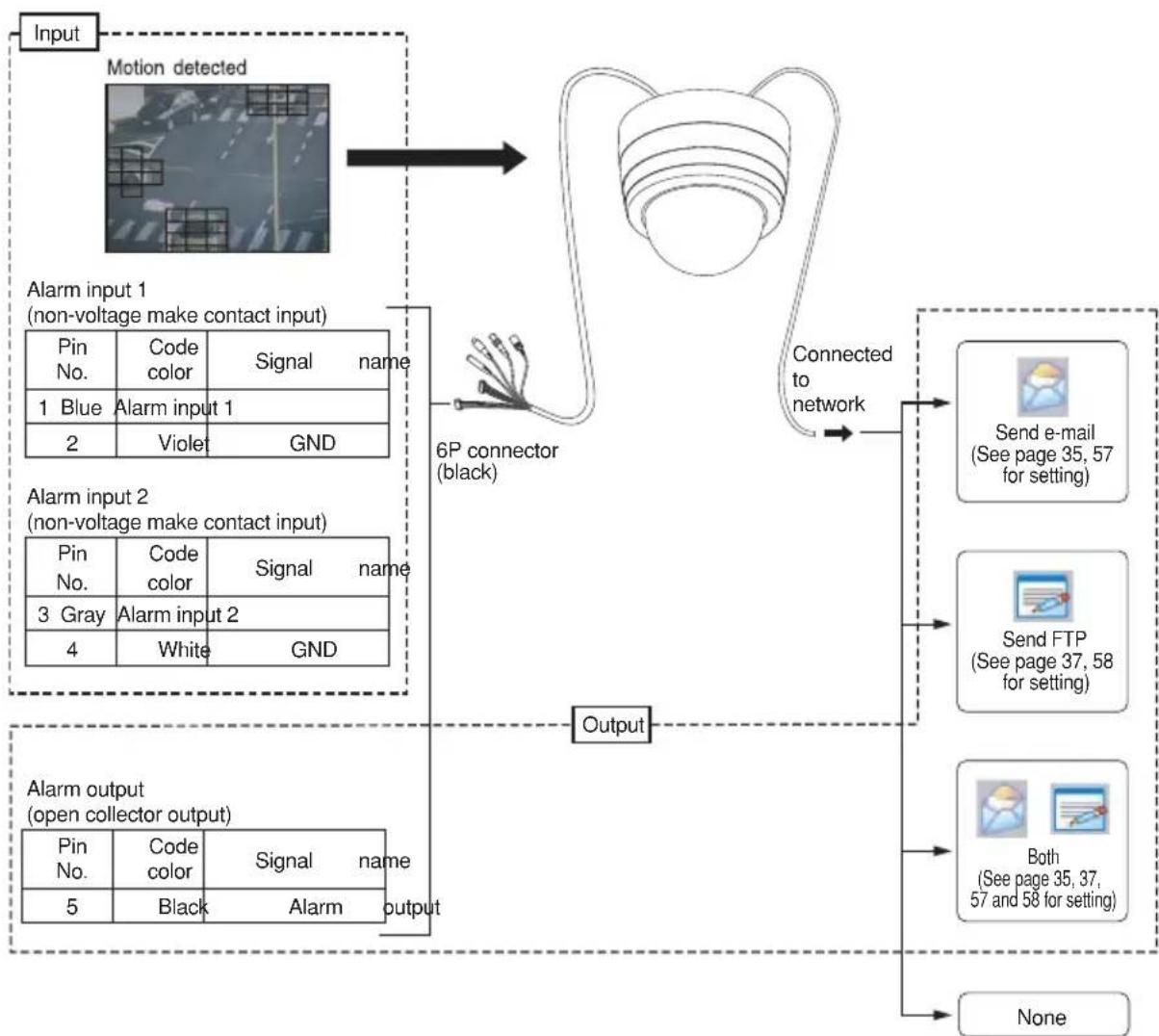
Alarms are caused by “alarm 1”, “alarm 2”, and “motion detection”.
You can set an alarm action for each cause. "With/Without alarm", "Send e-mail/Send FTP/Both/None" are available.
Note: An alarm remains output from the alarm output terminal for ten seconds. The alarm output period is fixed.
Specifications of the alarm output terminal: Open collector output, maximum rating: DC12 V, 30 mA
Note: The next alarm input can work normally three seconds after the current alarm is input. If the alarm input is active again within three seconds, the alarm input may not work normally depending on the equipment status.
flowchart
graph TD
    A["Input"] --> B["Motion detected"]
    B --> C["6P connector (black)"]
    C --> D["Connected to network"]
    D --> E["Send e-mail (See page 35, 57 for setting)"]
    D --> F["Send FTP (See page 37, 58 for setting)"]
    D --> G["Both (See page 35, 37, 57 and 58 for setting)"]
    H["Alarm input 1 (non-voltage make contact input)"] --> I["Pin No."]
    H --> J["Code color"]
    H --> K["Signal name"]
    L["Alarm input 2 (non-voltage make contact input)"] --> M["Pin No."]
    L --> N["Code color"]
    L --> O["Signal name"]
    P["Alarm output (open collector output)"] --> Q["Pin No."]
    P --> R["Code color"]
    P --> S["Signal name"]
    T["Output"] --> U["Black"]
    T --> V["Alarm"]
    W["None"] --> X["Output"]
4. SOUND
Sound of the microphone connected to the Camera can be output from the speaker connected to a client (PC, etc.) on the network, and sound of the microphone connected to a client can be output from the speaker with amplifier connected to the Camera. For further information about operation, see “Speaker” on page 27 and “(4) Sound” on page 50.
Note: When the dedicated software, "ELMO 1Channel Viewer", is used for the connection between a client and the Camera, no sound will be transmitted or received if you select [MPEG4 Setting] – [Frame Rate] (page 30 or 52) and set "1" or "5" at "Frame Rate".
Note: When a Web browser is used for connecting a client to the Camera, sound will not be transmitted from the Camera to the client.
Note: Sound can not be played on the PC if a sound card is not installed.
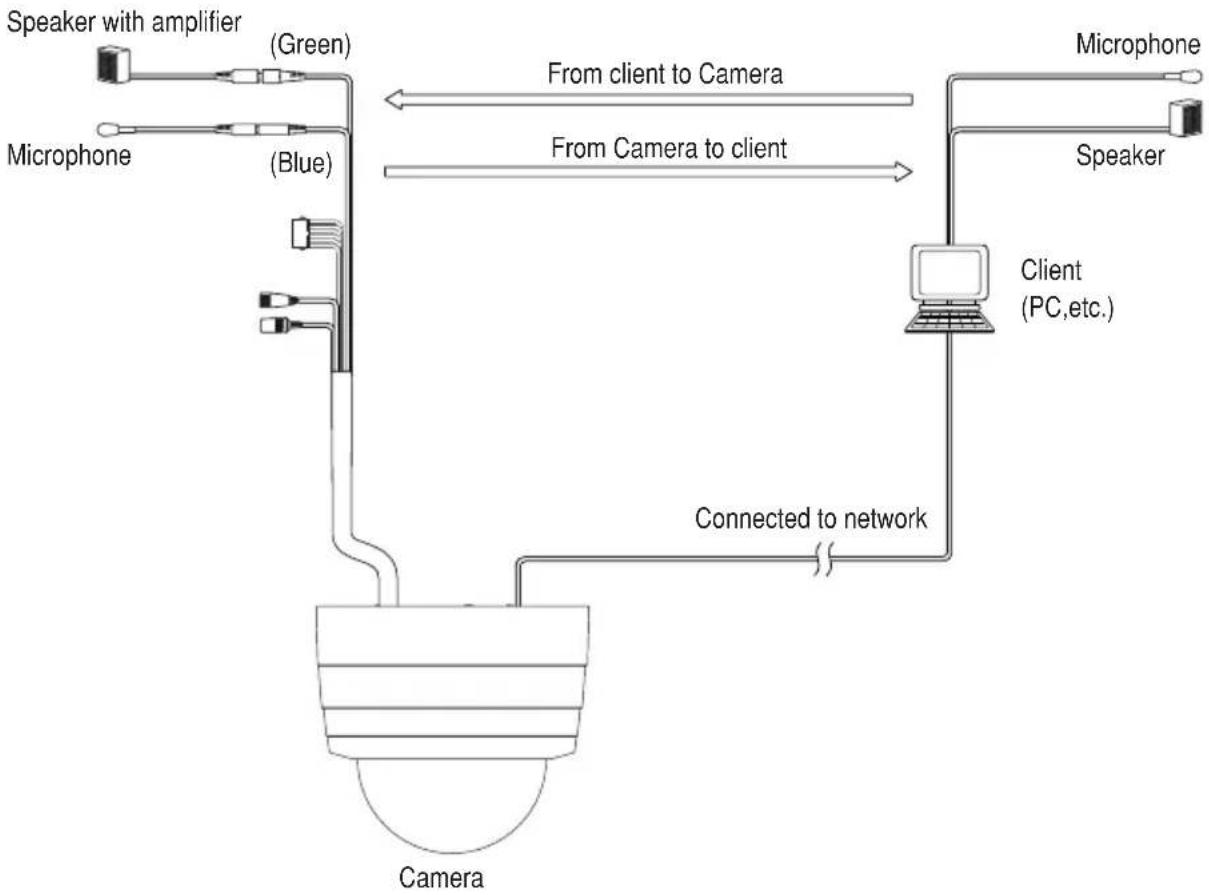
flowchart
graph TD
    A["Speaker with amplifier"] -->|Green| B["Camera"]
    C["Microphone"] -->|Blue| B
    B -->|Connected to network| D["Client (PC,etc.)"]
    D --> E["Speaker"]
    E --> F["Microphone"]
    style A fill:#f9f,stroke:#333
    style C fill:#f9f,stroke:#333
    style B fill:#ccf,stroke:#333
    style D fill:#cfc,stroke:#333
    style E fill:#fcc,stroke:#333
5. INITIALIZING THE SETTINGS
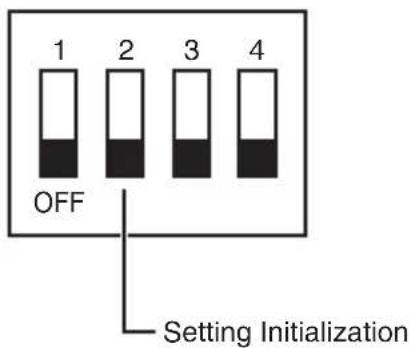
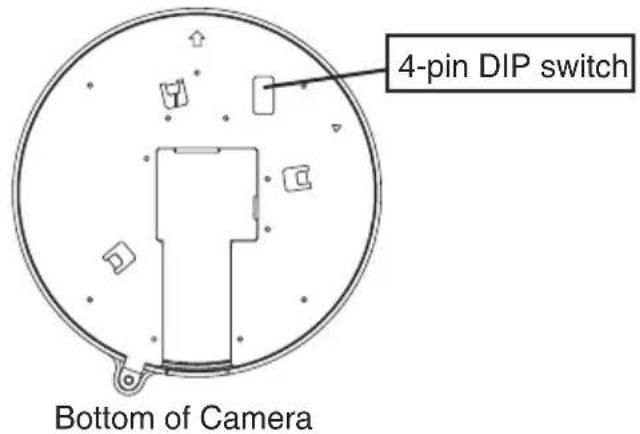
●Set the DIP switch No. 2 to ON to turn on the power. In ten seconds, all of the camera and network settings will be reset to the factory settings.
After the power is turned OFF, set the DIP switch No. 2 to OFF.
Note: Set the DIP switch to OFF after initialization. If the power is turned ON with the switch kept ON, all settings will be initialized each time and will not be saved.
●Pin assignment
| Pin No. | Normal Operation Function | |
| 1 OFF | Leave in OFF | — |
| 2 OFF | ON OFF To initialize the settings | |
| 3 OFF | Leave in OFF | — |
| 4 OFF | Leave in OFF | — |
●4-pin DIP switch
6. OPERATION PROCEDURES
You can use the following functions of the Camera from the host (PC) on a network by connecting it to the network via Ethernet (10BASE-T/100BASE-TX):
- Web server function...... For displaying live images and snapshots and remote-operating the Camera on a Web browser.
- MPEG4 server function ...... For displaying live images and snapshots and remote-operating the Camera on dedicated client software (ELMO 1 Channel Viewer: hereinafter called “Viewer”).
- Sound server function...... For receiving sound on a Web browser. For receiving or transmitting sound on a Viewer.
- Alarm function...... For saving image files in the server and transmitting e-mail by alarm input.
- IP filtering function ...... For restricting hosts permitted to access the Camera.
Note: The Camera is not connectable to some network systems.
Note: Some restrictions may be placed on the host in access to the Camera via a Web browser or Viewer. For further information, see “(1) Restrictions under [3] Web browser” and “(1) Restrictions under [4] MPEG Viewer software ELMO 1Channel Viewer”.
[1] Preparations for connection
Before connecting the Camera to a network, an IP address and other settings relating to the network must be made.
The Camera offers the following two ways to make network settings:
- Accessing the Camera from the host on the network via a Web browser
- Accessing the Camera from the host on the network via Viewer
●Preparations before connection
Before connection, determine an IP address and a subnet mask to be set in the Camera. For the IP address and the subnet mask, contact the administrator of the network you intend to use.
The network settings of the Camera made by the factory are as follows:
IP address: 192.168.1.10
Subnet mask: 255.255.255.0
Note: If the address of the network you are going to use is not 192.168.1.0 or there is a host on the network whose IP address is 192.168.1.10, you cannot connect the Camera to the network and make settings. In this case, it is necessary to configure a network of 192.168.1.0 comprising the Camera and a host for setting it. Prepare a host with an IP address of 192.168.1.X (X: 1 to 254 except 10) and a subnet mask of 255.255.255.0, and connect the Camera to it.
●Connection to the network
- Connection using a hub
Connect the Ethernet terminal (RJ-45) of the Camera and a port of the hub with each other using an Ethernet straight cable (UTP category 5 or more) commercially available. Do not use the MDI port of the hub.
When the PoE (Power over Ethernet) is used, a PoE load dispatching device (e.g., HUB) is required.
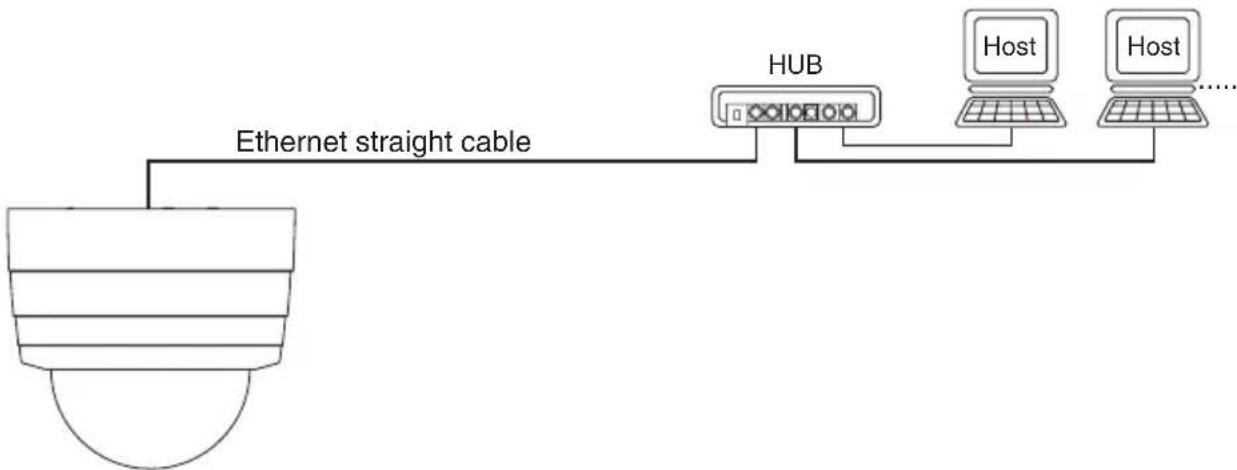
flowchart
graph TD
    A["Router"] -->|Ethernet straight cable| B["HUB"]
    B --> C["Host"]
    B --> D["Host"]
- Connection to a host (For operation at DC12V)
Connect the Ethernet terminal (RJ-45) of the Camera and that of the host with each other using the attached Ethernet cross cable or an Ethernet cross cable (UTP category 5 or more) commercially available.
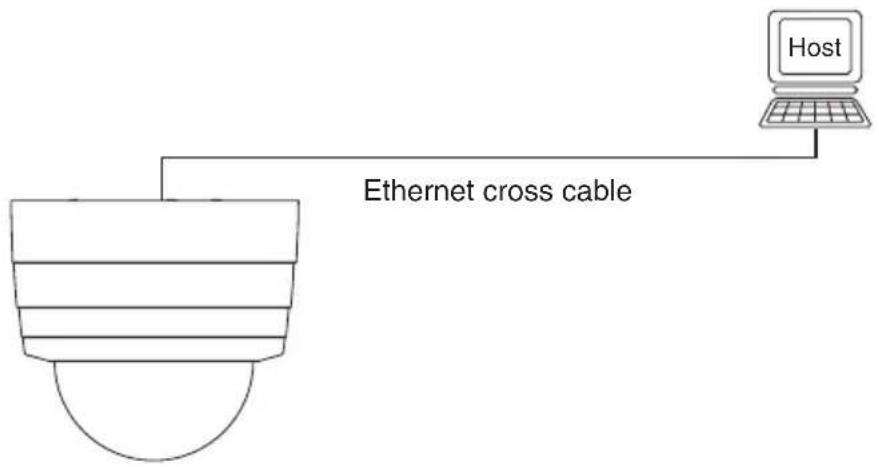
flowchart
graph TD
    A["Host"] -->|Ethernet cross cable| B["Server"]
    B --> C["Computer"]
Note: As soon as a network unit is connected to its Ethernet terminal, the Camera automatically adjusts and sets the 10BASE-T/100BASE-TX and half-duplex/full-duplex communication conditions with the connected unit (automatic negotiation).
The Camera does not always guarantee operation with all devices compatible with automatic negotiation.
[2] Install
●Using a Web browser
Access to the Camera via a Web browser requires JRE1.5.0 (Sun Microsystems) or a later version to have been installed and valid.
You can download Java Runtime Environment (JRE) from the company's website. For the installation of JRE, see the website.
●Using Viewer
Access to the Camera via Viewer requires DirectX 9.0C or a later version to have been installed.
DirectX is contained in the Viewer install program on the CD-ROM. Install it according to the instructions of the Viewer Install wizard.
●Installing Viewer
Install Viewer by running the “ELMO 1Channel Viewer install program” on the attached CD-ROM and opening Install Wizard.
As soon as the wizard begins to run, the following screen appears.
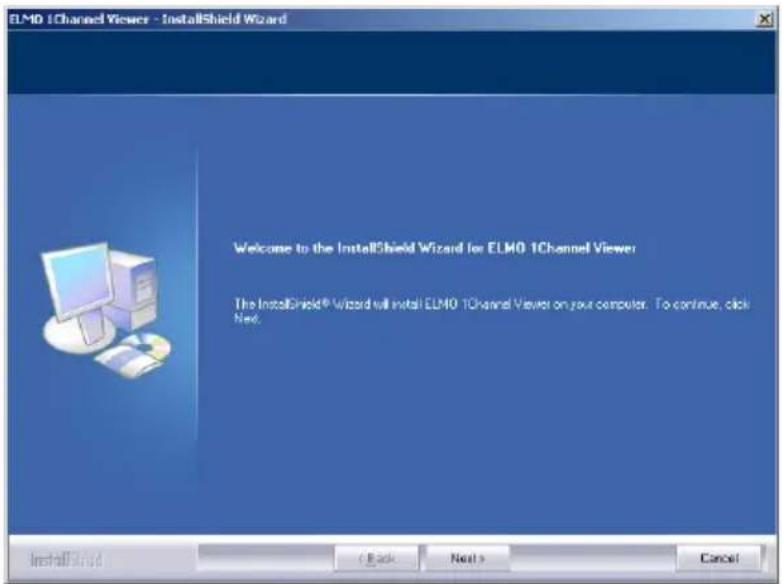
Install the program according to the instructions displayed on Wizard.
Upon completion of installation, an icon for “ELMO 1Channel Viewer” is displayed on the desktop. You can start the Viewer software by clicking on this icon.
●Uninstalling Viewer
Open “Add/Delete Software” (“Add/Delete Applications” for Windows2000) on “Control Panel” then select “ELMO 1Channel Viewer” from the installed programs, and press the [Change] button.
When the following screen is displayed, select "Remove" and press the [Next] button to uninstall the ELMO 1Channel Viewer.
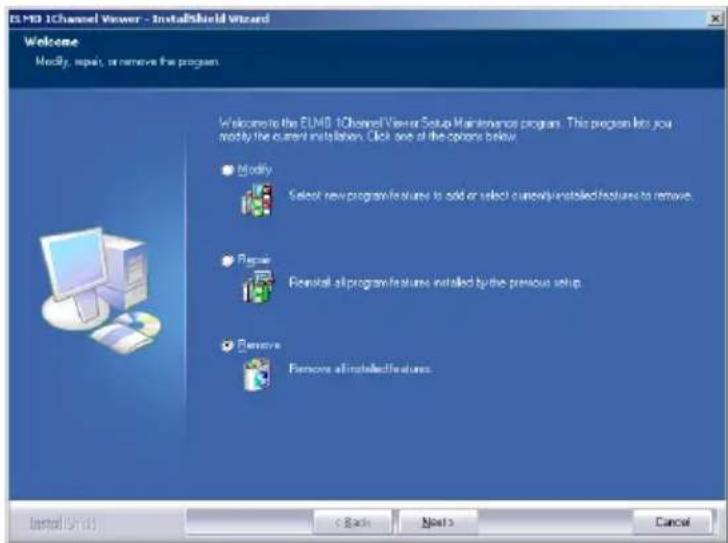
[3] Web browser
(1) Restrictions
Access to the Camera via a Web browser requires the PC to meet the following requirements:
- Microsoft Windows 2000 or XP.
- JRE (Java Runtime Environment) 1.5.0 (Sun Microsystems) or a later version is installed and valid.
- A browser is installed, which properly runs on Microsoft Windows 2000 or XP.
Note: The Camera does not ensure access via some Web browsers.
Note: Depending on the settings of Windows, anti-virus software or any other software, the connection to the Camera may not be established, the image may not be displayed or some other trouble may occur.
Therefore, when setting Windows, anti-virus software and any other software, comply with the instructions in their manuals to ensure the appropriate settings.
Note: In the factory setting, the Camera uses the ports of TCP: 80, 3490 – 3495 and UDP: 3000 – 4000.
When connecting the Camera to a router, a firewall unit or any other unit, set the ports of these units appropriately.
(2) Connection
Start the Web browser on the host networked to the Camera.
Note: In the example of connection, Microsoft Internet Explorer is used.
-
Enter the IP address of the Camera in the URL input field on the Web browser.
-
Enter http:// at [Address].
- When the IP address or host name of the Camera is assigned, enter the host name, and put “/” at the end.
Example)
Since the IP address of the Camera set by the factory is 192.168.1.10, enter http://192.168.1.10/.

- Entry of the ID and password are requested.
When “User Authentication” is set to “Enable” on the Camera Control Setup, enter the registered ID and password for login. In the factory setting, administrator ID and password are both “root”.
When “User Authentication” is set to “Disable”, press the [OK] button with the login ID and password left blank for login. Then, the login will be enabled by the operator authority.
To log in by the administrator authority, enter the registered administrator ID and password.
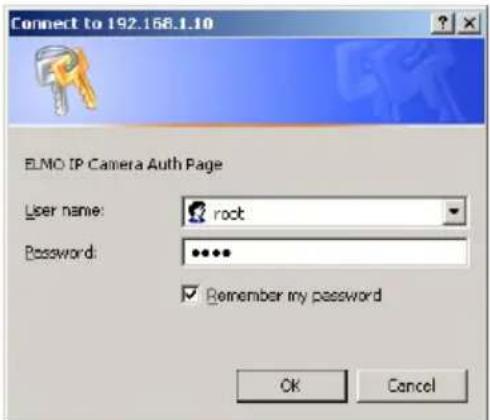
- The page shown below is displayed on the Web browser.
- Select English or Japanese.
Note: To display information in Japanese, the browser must be capable of properly displaying Japanese pages.
- The main page is displayed.
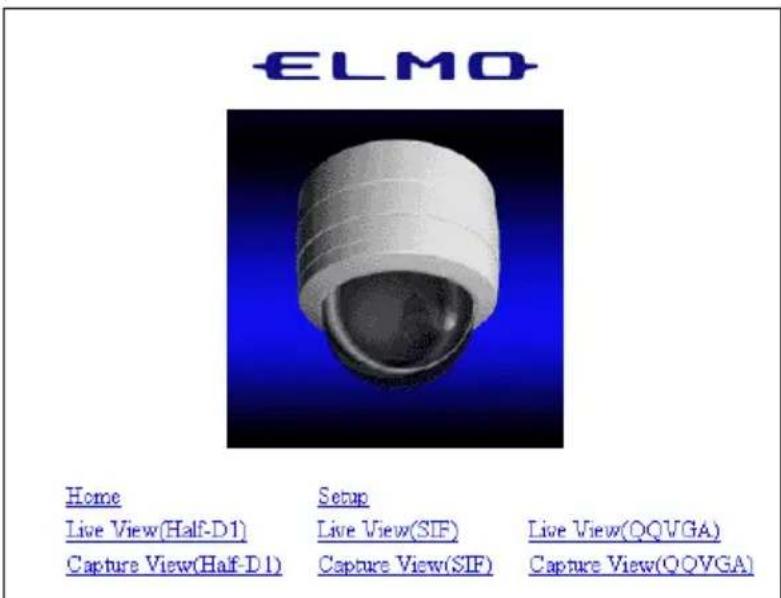
• Home ...... Displays the main page.
- Setup ...... Displays the Setup screen.
- Live View (Half-D1) ...... Displays live images with a size of 704 ×480.
- Live View (SIF).... Displays live images with a size of 352 × 240 .
- Live View (QQVGA) ...... Displays live images with a size of 160 × 120 .
- Capture View (Half-D1)...... Displays capture images with a size of 704 × 480 .
- Capture View (SIF) ...... Displays capture images with a size of 352 × 240 .
-
Capture View (QQVGA)...... Displays capture images with a size of 160 × 120 .
-
For each function, see (3) to (19) that follow.
(3) Live display
Live images taken by the Camera are displayed.
On the main page, select the size of images you want to display live from [Live View (Half-D1)], [Live View (SIF)], and [Live View (QQVGA)].
The sizes of live images are shown below.
• Half-D1 (704 ×480)
- SIF (352 × 240)
- QQVGA (160×120)
Note: Half-D1 displays 704 x 240 images in the size of 704 x 480.
Example) Live View (SIF) (352× 240)
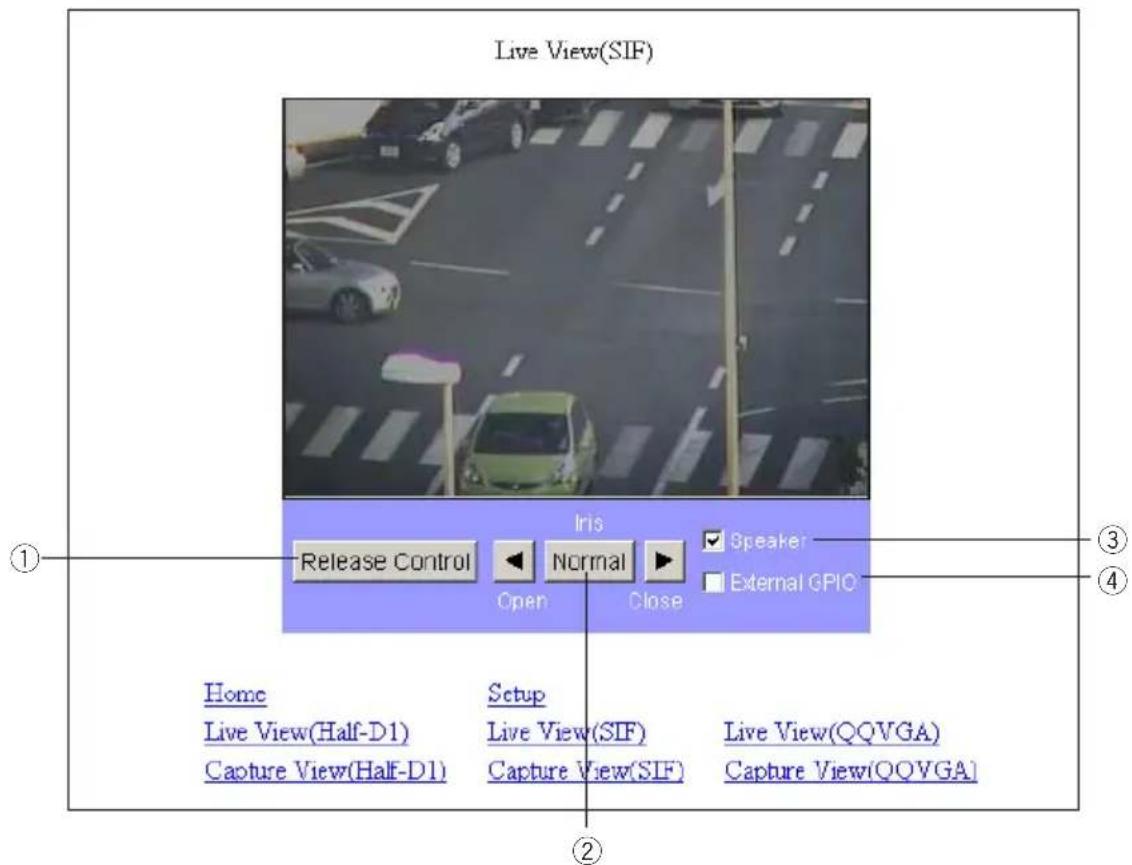
① Release Control...... Releases the camera control policy. It is available when the control policy is set to the Time Slice Share on the Camera Control Setup screen (page 42). When there is no other client to request the control policy, it is not released.
② Iris .... Adjusts the iris. The auto iris (the automatic adjustment function to keep brightness at the same level even if the state of the object changes) is valid at all times. Use the “Open” and “Close” buttons to “increase” or “decrease” brightness. By clicking on the “Normal” button, brightness will be adjusted to the normal level.
③ Speaker..... Set whether to output sound from the client when sound is input through a microphone or another device connected.
④External GPIO.... Turns ON or OFF a external GPIO terminal.
(4) Capture display
Snapshots can be obtained in the JPEG format.
On the main page, select the image size you want to obtain from [Capture View (Half-D1)], [Capture View (SIF)], and [Capture View (QQVGA)].
The sizes of capture images are shown below.
- Half-D1 (704 ×480)
- SIF (352 × 240)
- QQVGA (160×120)
Note: Half-D1 displays 704 x 240 images in the size of 704 x 480.
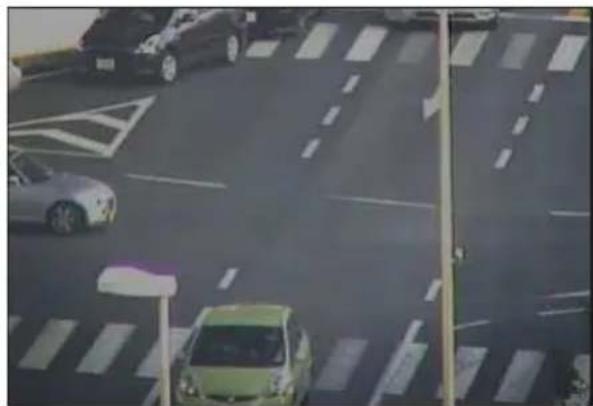
Example) Capture View (SIF) (352 × 240)
Capture View(SIF)
natural_image
Aerial view of a busy urban intersection with cars and pedestrian markings (no readable text or symbols)
• How to save snapshots
- Click the right mouse button on the image.
- Select "Save Image As" from the menu.
- The image to be saved appears. Set a location for saving and a file name, and click on the [Save] button.
Note: Half-D1 size images are saved in 704 x 240, meaning that they are landscape. They can be viewed in the size of 704 x 480 on "Image Viewer" that is installed together with "ELMO 1Channel Viewer".
Note: The procedure described above may depend on the browser.
(5) Settings
You can make all settings relating to the Camera.
You can jump to pages on which settings for the Camera can be made. To go to each setup page, click on the corresponding link on the screen shown below.
Note: To change the settings, login by the administrator authority should have been completed.
Note: Those characters available for setting each item are only the one-bite alphanumeric characters and special characters (@, -, _, ¥, /, ', ", .). The two-bite characters, including Japanese characters, are not available.
Note: If the setting of any item is outlying or wrong, the equipment will not operate normally. Be sure to set each item correctly within the settable range.
Note: If the [Refresh] button of the browser is pressed on the Setup screen, the Camera may not operate normally. In this case, redo the connection.
ELMO
ELMO IP Camera Setup
Home
MPEG4 Setup
Setup
JPEG Setup
Ext. GPIO Setup
Network Setup
Alarm Setup
User Setup
E-mail Setup
IP Filtering Setup
FTP Setup
Camera Setup
System Time Setup
Camera Control Setup
(6) External GPIO Setup
You can set the activation mode of the external GPIO.
External GPIO Setup
Activation Mode
Normal Open



- Activation Mode...... Used to set the output mode of the external GPIO output terminal.
The GPIO is controlled by the ON/OFF of the activation mode and GPIO.
When the Camera is activated, the output is in the inactive state (GPIO: OFF).
Normal Open..... Close the contact during output to keep continuity.
Normal Close .... Open the contact during output.
(7) MPEG4 Setup
Make settings for obtaining MPEG4 images.
Note: By changing this setting, the Camera itself may be reset and become incapable of distributing images for a while.
MPEG4 Setup
Bit Rate
Framerate
Resolution
Mode
2000


OK
Cancel
- Bit Rate...... Designate the upper limit to the data amount to limit the data amount generated during communication or image distribution (setting range: 64 to 2000 kbps).
- Framerate ...... Designate the number of frames to be displayed per second (setting range: 30, 15, 10, 5, and 1 frames/second).
Note: When the frame rate is set to "1" or "5", sound can not be transmitted or received by using "ELMO 1Channel Viewer".
- Resolution...... Designate the size of images to be displayed.
D1: 704×480
SIF: 352 ×240
- Mode.... Set a delay for images according to the network environment.
Frame .... Reduces the delay for images.
GOP...... Enables the Camera to deal with a poor-performance network environment to some extent although the delay for image is long.
(8) JPEG Setup
Set image quality for JPEG images.
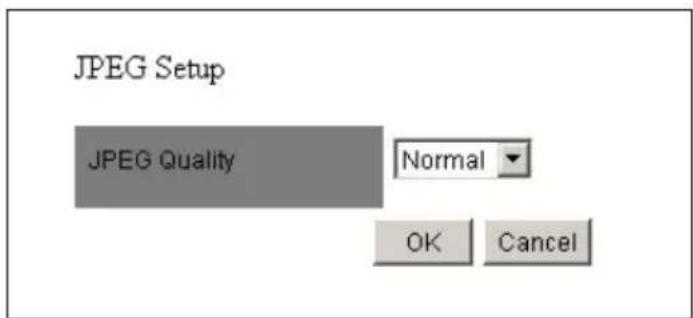
- JPEG Quality ...... Designate image quality.
High..... High image quality. Although high-quality images can be obtained, the load on the transmission line increases.
Normal .... Medium image quality with a compression rate between High and Low.
Low .... Low image quality. The load on the transmission line decreases.
(9) Network Setup
Make settings relating to the network.
Note: Prior to making network settings, be sure to consult the network administrator of the network to be used.
Note: If the setting of this item is changed, the connection setting of the Camera may need to be changed. In this case, make the proper connection setting and reconnect the Camera.
Note: If the same port number is redundant in port setting, the Camera will not operate normally. Set different port number for each port.
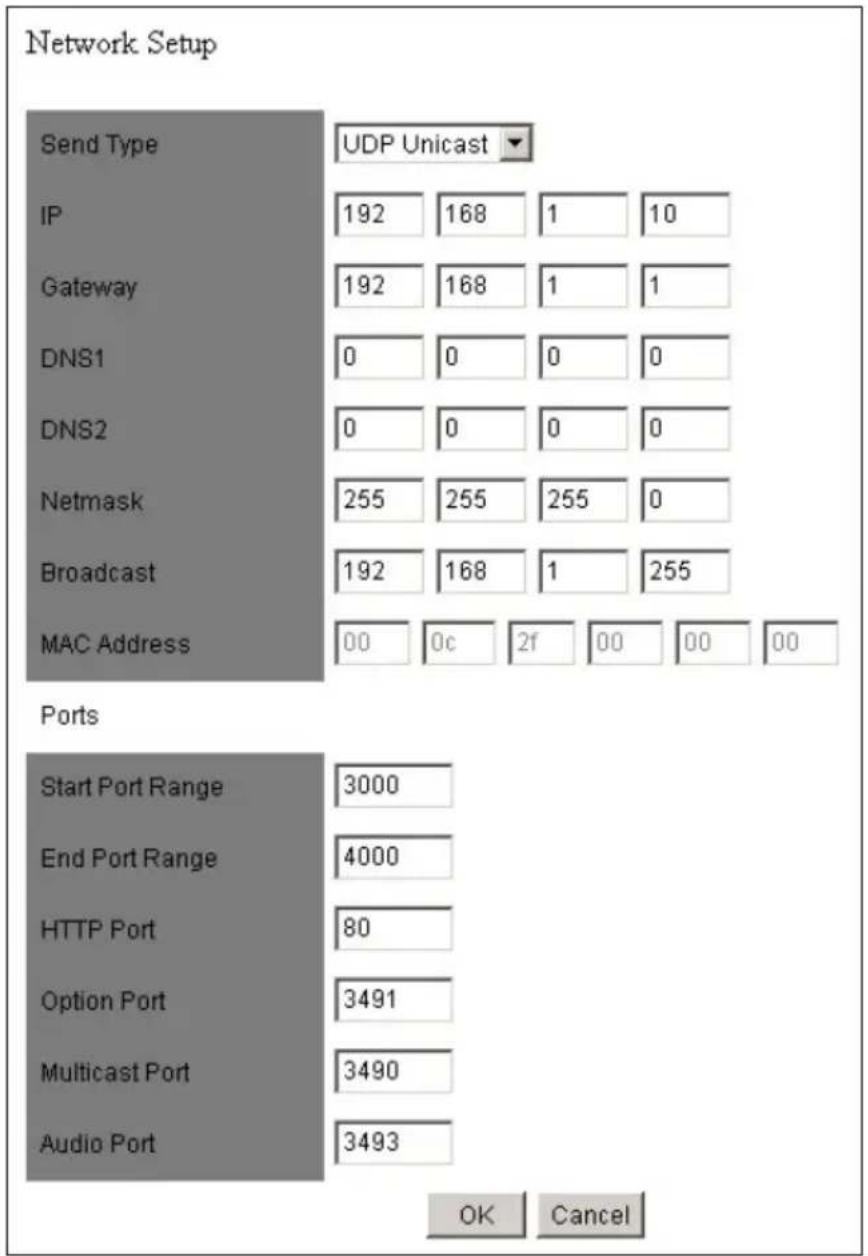
- Send Type ...... Select a mode of distributing MPEG4 images. UDP Unicast...... UDP Unicast image data is distributed at the request of the host for connection. Up to 3 addresses can be connected from Viewer to the Camera.
Multicast .... UDP image data is distributed, irrespective of whether the Camera is connected or is not connected from the host, resulting in a decrease in the load on the Camera and the transmission line. Although any number of addresses can be set, image data may not be distributed properly depending on the network environment.
TCP Unicast...... TCP Unicast image data is distributed at the request of the host for connection. Up to 3 addresses can be connected from Viewer to the Camera.
- IP.... Set the IP address of the Camera.
- Gateway ...... Designate the IP address of a router when it is used to connect the Camera to an external network.
- DNS1/DNS2.... Set the address of a DNS server to which the Camera is to be connected. At DNS2, set the address of the DNS server to which the Camera will be connected if it cannot connect to DNS1.
- Net mask .... Set the subnet mask address of the Camera.
- Broadcast .... Set the broadcast address of the Camera.
- MAC Address ...... Displays the MAC address of the Camera.
- Start Port Range...... Designate the first of the ports the Camera opens to the network (1024 to 65535).
- End Port Range...... Designate the last of the ports the Camera opens to the network (1024 to 65535).
- HTTP Port...... Designate the port to be used for the Web server for the Camera (80, 1024 to 65535).
- Option Port ...... Designate the port to be used for distributing images from the Camera (1024 to 65535).
- Multicast Port ...... Designate the port to be used when the Camera is in multicast mode (1024 to 65535).
(10) Alarm Setup
Make settings relating to alarms.
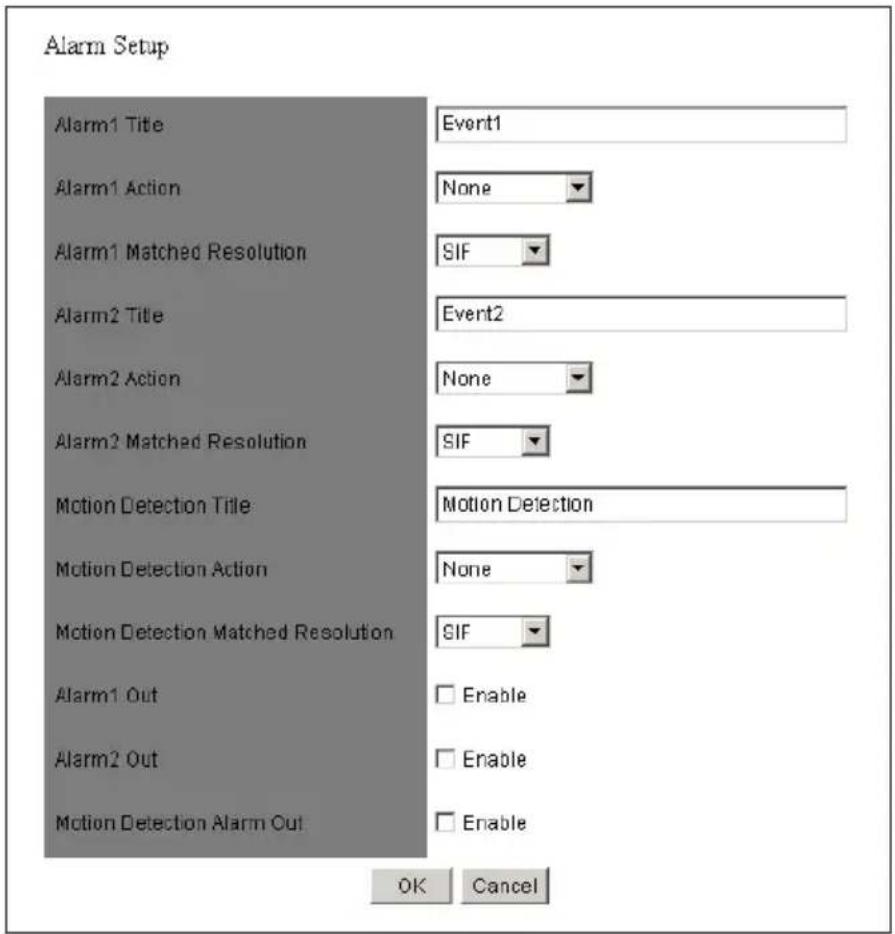
• Alarm 1 / 2 / Motion Detection Title
......Set any desired title of alarm 1/2 or motion detection (with up to 32 characters).
Note: Two-byte characters, including Japanese characters, are not available for a title. Use one-byte alphanumerical characters.
Note: The alarm title will be displayed on the Viewer in about one second.
• Alarm 1 / 2 / Motion Detection Action
......Select the action of the alarm when an alarm signal is input to the alarm input terminal.
None...... No action will take place.
Send FTP...... The JPEG file of the obtained snapshot will be transferred by FTP.
Send E-Mail ....E-mail will be transmitted.
Both..... The JPEG file of the obtained snapshot will be transferred
by FTP and e-mail will be transmitted at the same time.
- Alarm 1 / 2 / Motion Detection Matched Resolution
......Designate the size of JPEG images to be attached when transferring the FTP or transmitting e-mail as set at Alarm 1/2 Action.
Half-D1: 704×240 SIF: 352×240 QQVGA: 160×120
- Alarm 1/2 Out...... Set whether to output an alarm when an alarm signal is input to alarm input 1 or 2.
- Motion Detection Alarm Out..... Set whether to give alarm output when a motion is detected.
(11) E-mail Setup
Make settings relating to e-mail.
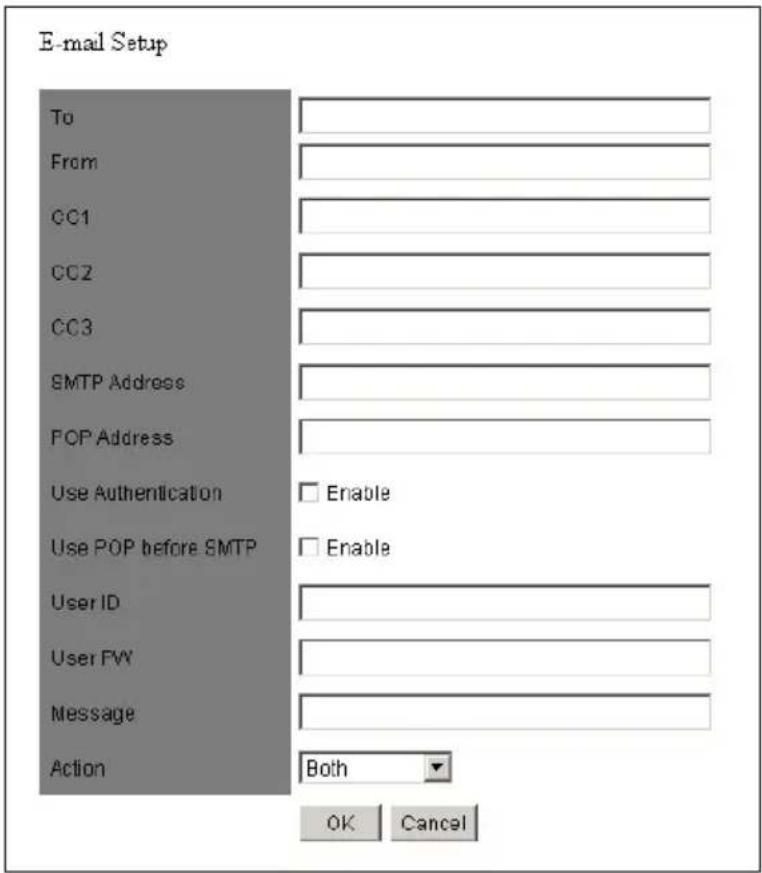
- To...... Designate the address to which e-mail will be transmitted (with up to 64 characters).
- From...... Designate the e-mail address of the Camera (with up to 64 characters).
- CC1 to CC3 ...... Designate an address to which e-mail will be transmitted at the same time when it is sent to the e-mail address set at To (with up to 64 characters).
- SMTP Address...... Designate the SMTP server to be used (with up to 32 characters).
- POP Address...... Designate the POP server to be used (with up to 32 characters).
- Use Authentication ...... Designate whether to use user authentication on the SMTP server to be used.
- Use POP Before SMTP ...... Designate whether to use POP before SMTP on the SMTP server to be used.
- User ID ....Set a login ID for logging in to the SMTP server (with up to 16 characters).
- User PW.... Set a password for logging in to the SMTP server (with up to 16 characters).
- Message ...... Set a character string to be sent as a message when transmitting e-mail (with up to 64 characters).
Note: Two-byte characters, including Japanese characters, are not available for a message. Use one-byte alphanumerical characters.
- Action ...... Select what to be sent when transmitting e-mail.
Text Only .... Only a character string will be sent when e-mail is transmitted.
Picture Only .... Only an image will be sent when e-mail is transmitted.
Both.... Both a character string and an image will be sent when e-mail is transmitted.
(12) FTP Setup
Make settings relating to FTP connection.
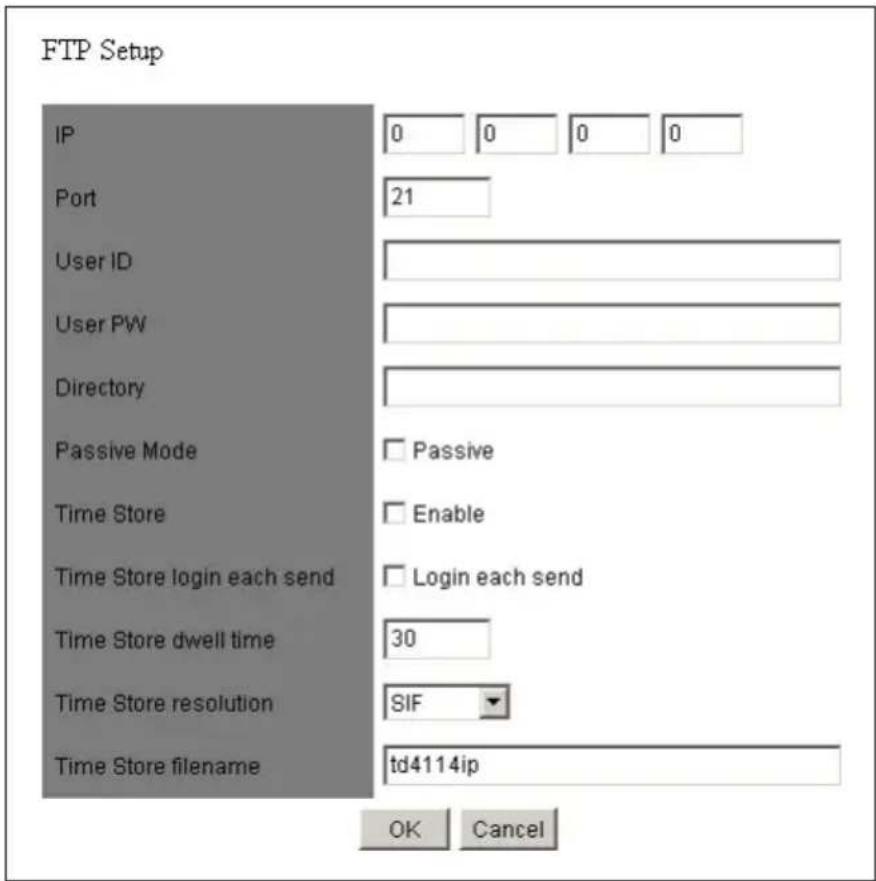
- IP...... Designate the IP address of the server to which the FTP will be transmitted.
- Port...... Designate the port number of the FTP server to which the FTP will be transmitted. It is not generally necessary to change the setting (21, 1024 to 65535).
- User ID ...... Designate an account name for connection to the server to which the FTP will be transmitted (with up to 16 characters).
- User PW...... Designate a password for the account name shown above (with up to 16 characters).
- Directory...... Designate a directory for saving an image file, or a directory with a write authority for the designated account name (with up to 32 characters).
-
Passive Mode...... Designate whether to use passive mode or active mode for transmitted the FTP. Use passive mode when there are restrictions on the ports because of a firewall, etc.
-
Time Store .... Set whether to regularly transmit and save images in the FTP server.
- Time Store login each send .. Set whether to connect to the FTP server each time images are transmitted or not (always connected).
- Time Store dwell time ...... Set the interval at which images will be saved when Time Store is valid (30 to 180 seconds).
- Time Store resolution ...... Designate the size of images to be saved.
Half-D1: 704 ×240
SIF: 352 × 240
QQVGA: 160×120
- Time Store filename ...... Designate a file name for the file to be saved. A file name consists of the “entered file name” and “time”. The extension “.jpg” will be added automatically to each file name. If a file with the same name already exists in the directory for saving, the data of the older file will be overwritten. Designate a different file name (with up to 32 characters).
Note: Two-byte characters, including Japanese characters, are not available for a file name to be saved. Use one-byte alphanumeric characters.
Note: If any of such characters as “¥”, “/”, “.” is used for the Time Store file name, the Camera may not operate normally depending on the environment of the destination FTP server.
(13) User Setup
Make settings relating to user administration.
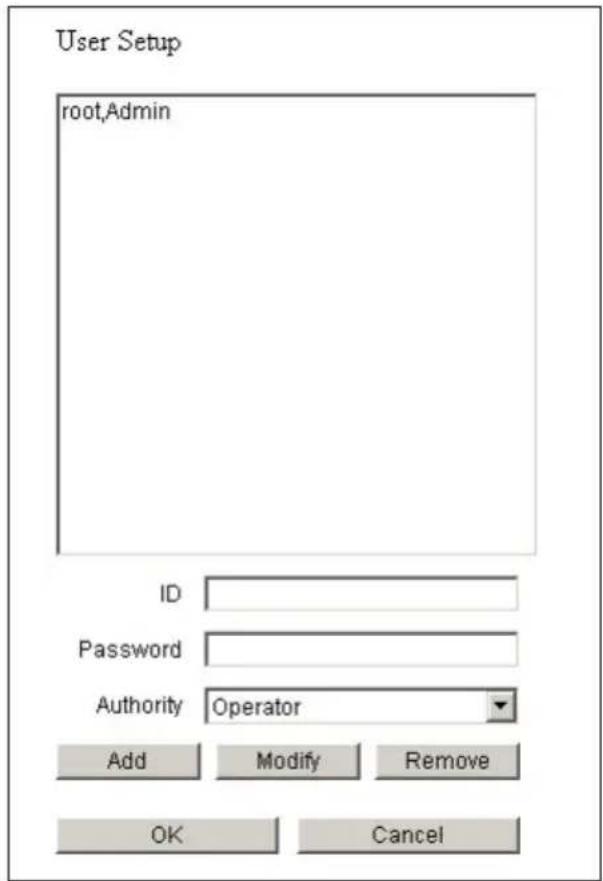
- Adding a new user
You can register a login ID, a password, and authority for connection to the Camera. Designate an authority, enter a login ID and a password, and then click on the [Add] button. The entered data will be displayed in the list.
The following three items can be registered.
- Administrator...... The administrator authority. The login ID is fixed to "root". With this ID, you can view images, operate the Camera, and make settings.
- Operator .... You can view images and operate the Camera.
- User...... You can only view images.
* Only “root” can be registered for Administrator, and up to 99 names can be registered for Operator and User combined. You can use up to 16 one-byte characters for a name, including alphanumeric characters and upper-case and lower-case alphabetic characters.
Note: Two-byte characters, including Japanese characters, are not available for a login ID and pass word. Use one-byte alphanumeric characters.
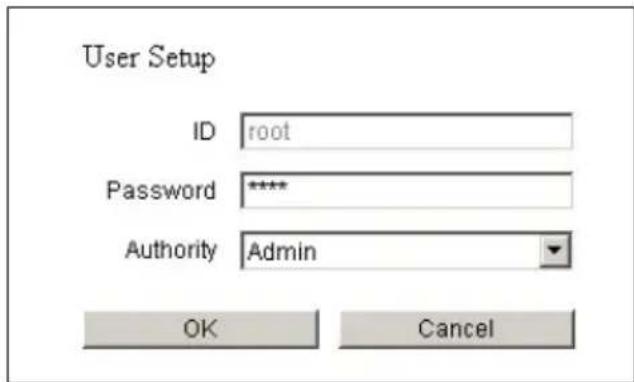
- Modifying a user
You can modify the registered login ID, password, and authority of any user for connection to the Camera.
Select the user you want to modify from the list.
Designate the authority, enter the login ID and password, and press the [Modify] button.
Note: With regard to "root", only the password can be changed.
- Deleting a user
You can delete the registered login ID, password, and authority of any user for connection to the Camera.
Select the user you want to delete from the list, and click on the [Remove] button.
Note: You can not delete "root".
Note: When "User Authentication" in "Camera Control Setup" is set to "Disable", only the password of the administrator authority can be changed.
(14) IP filtering Setup
Make settings relating to the IP filter.
Note: Making the settings described here may prevent connection to the Camera. Perform the setting operation with extreme care.
Note: "Start IP" cannot be set larger than "End IP".
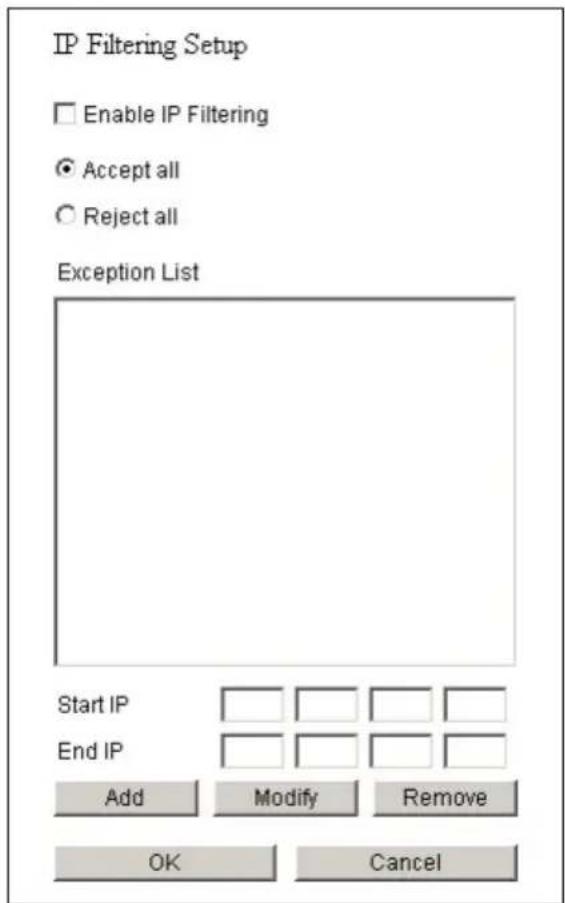
- Enable IP Filter...... Select whether to use the IP filter function.
- Accept all.... Accepts any client connected to the Camera, except connections from the IP addresses shown in Exception List. (Only connections from the IP addresses contained in the client list will be rejected.)
- Reject all.... Rejects all clients attempting to connect to the Camera. It can be connected from the IP addresses shown in Exception List. (Only connections from the IP addresses in Exception List will be permitted.)
- Adding an address
You can add addresses between the start and end addresses to the list. Enter an address at each of "Start IP" and "End IP", and click on the [Add] button.
Note: Up to 100 addresses can be registered.
- Modifying an address
Select the address you want to modify from the list.
Change the “start address” and the “end address”, and click on the [Modify] button. The data will be corrected.
- Deleting an address
Select the address you want to delete from the list, and click on the [Remove] button.
(15) Camera Control Setup
Make settings relating to the Camera.
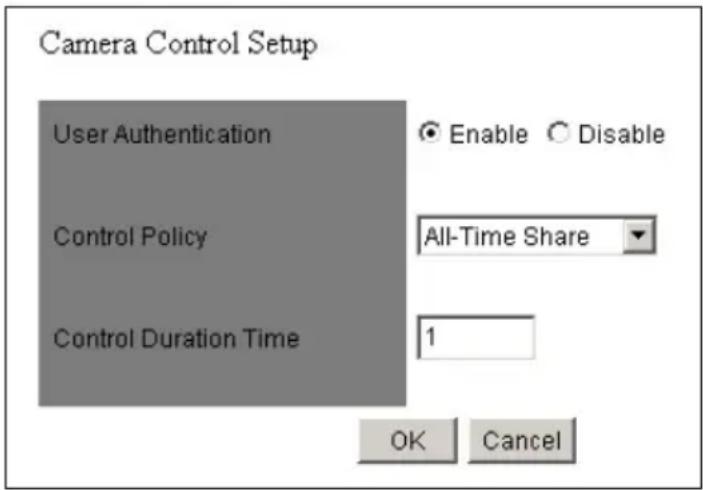
- User Authentication...... When the connection is made to the Camera, select whether the user authentication should be “Enable” or “Disable”. When “Disable” is selected, press the [OK] button with the login ID and password left blank on the Authentication screen displayed upon the connection. Then, the login is enabled by the operator authority. To log in by the administrator authority, enter the registered login ID and password.
- Control Policy...... Designate the mode of controlling the Camera.
All-Time Share...... Constantly accepts operations from all clients.
Time Slice Share .... The operation authority will be released as soon as the time set at “Control Duration Time” passes away, and will be assigned to anther connecting client. It will remain when there is no other connecting client.
Note: When the control is set as “Time Slice Share” in “Control Policy”, it may occur temporarily that all connectors are in the state with no control. Since this is a phenomenon due to the state of transmission, the normal status can be resumed in seconds to minutes.
- Control Duration Time ...... Designate the period during which a client maintains control when “Time Slice Share” is selected at “Control Policy” (setting range: 1 to 60 minutes).
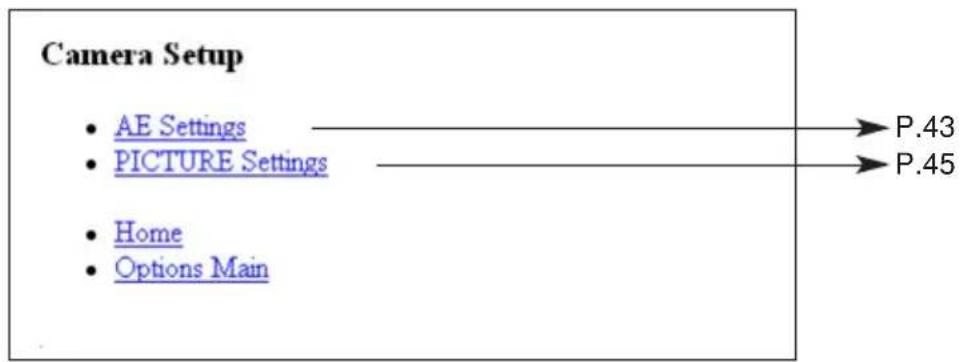
(16) Camera Settings
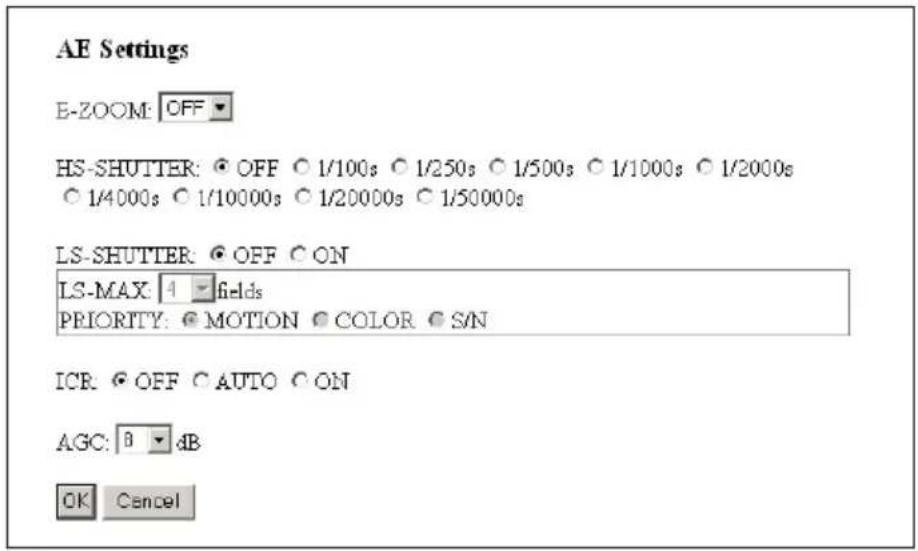
(17) Camera Settings (AE Settings)
| Name Function | ||
| E-ZOOM | To set the maximum magnification [OFF, 1.1×, 1.2×, 1.4×, 1.6×, 1.8×, 2.0×, 2.2×, 2.4×, 2.6×, 2.8×, 3.0×, 3.5×, 4.0×] | |
| HS-SHUTTER | To select the high-speed shutter speed [OFF (1/60s), 1/100s, 1/250s, 1/500s, 1/1000s, 1/2000s, 1/4000s, 1/10000s, 1/20000s, 1/50000s].When [LS-SHUTTER] is [ON], the shutter speed can be selected from [OFF (1/60s) 1/100s].If the shimmer of fluorescent lamp is annoying when the shutter speed is set to [OFF (1/60s), set the shutter speed to [1/100s], and the shimmer will be eased. | |
| LS-SHUTTER | To set the low-speed shutter (electronic sensitivity up) to [ON/OFF].When the object becomes dark, this function automatically varies the CCD accumulated time across several fields up to the set maximum level to optimize the brightness of the object. | |
| LS-MAX | ||
| PRIORITY | ||
| ICR | To set the image attributes [MOTION, COLOR, S/N (fineness)] to be prioritized when [LS-SHUTTER] is selected and the object becomes dark. | |
| AGC GAIN | To set the maximum gain of the AGC [0dB, 4dB, 8dB, 12dB, 16dB, 20dB, 24dB].The AGC is a function of amplifying the signal from the CCD to make the object visible when the object becomes dark.NOTE: When [ICR] is [AUTO], [AGC GAIN] can be set only to a range of [12 – 24dB]. | |
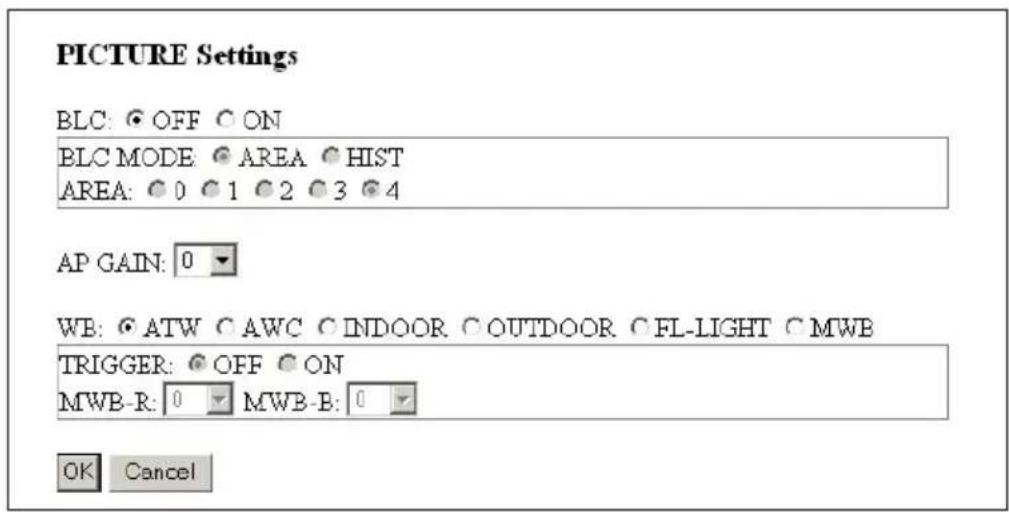
(18) Camera Settings (Picture Settings)
| Name Function | ||
| BLC | To set the backlight compensation function to [ON/OFF].When there is an intensive light in the background, this function prevents the object from becoming dark. | |
| BLC MODE | ||
| About the Backlight Compensation Setting mode | ||
| AREA | ||
| HIST | ||
| AREA | ||
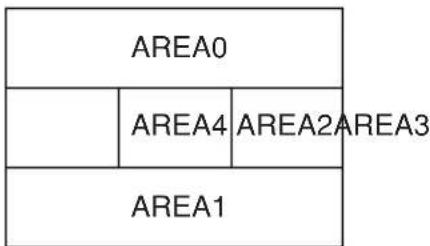 | ||
| AP GAIN | To select the detail compensation level [-5~+10] | |
| Name Function | |||
| WB | To select the White Balance Setting mode [ATW, AWC, INDOOR, OUTDOOR, FL-LIGHT, MWB]. | ||
| About the White Balance Setting mode | |||
| ATW | To adjust the white balance by way of continuous, automatic following.(When the image is in a single color all over, the white balance may not be ajusted correctly.) | ||
| AWC | To adjust the white balance according to the then shooting status.When the Setting mode is changed to [AWC] from the modes other, be sure to set [TRIGGER] to ON. | ||
| INDOOR | This function is selected to shoot indoors.The color temperature is assumed to be 3200K. | ||
| OUTDOOR | This function is selected to shoot outdoors.The color temperature is assumed to be 6300K. | ||
| FL-LIGHT | This function is selected when the Camera is used under the fluorescent illumination. The color temperature is assumed to be 4200K. | ||
| MWB | To change the color tendency as desired. | ||
| TRIGGER | When [AWC] is selected and [TRIGGER] is set to “ON”, the white balance is adjusted according to the current shooting status, by selecting the [OK] button. | ||
| MWB-R | To set the red color tendency [-30~+30] when [MWB] is selected. | ||
| MWB-B | To set the blue color tendency [-30~+30] when [MWB] is selected. | ||
(19) System Time Setup
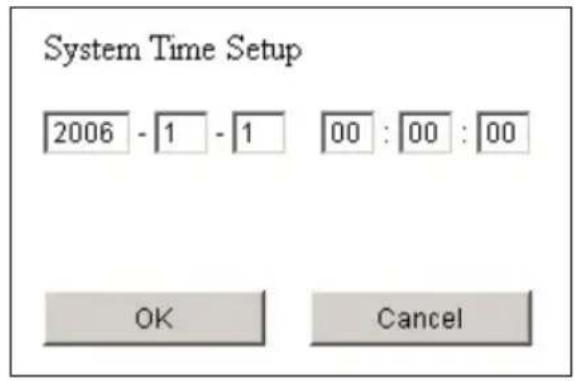
Set the internal clock of the Camera. The time of this clock will be added to the file name when sending an E-mail or FTP.
Note: The built-in clock of the Camera can be set until December 31, 2036. To operate each function of the Camera normally, use this system time within the settable range.
[4] MPEG4 Viewer software [ELMO 1Channel Viewer]
(1) Restrictions
Access to the Camera through “ELMO 1Channel Viewer” (hereinafter referred to as “Viewer”) needs your computer to meet the following operating requirements:
- Microsoft Windows 2000 or XP.
- DirectX 9.0C or a later version is installed.
Note: The camera does not always ensure the proper operation of Viewer in all environments.
Note: Depending on the settings of Windows, anti-virus software or any other software, the connection to the Camera may not be established, the image may not be displayed or some other troubles may occur.
Therefore, when setting Windows, anti-virus software and any other software, comply with the instructions in their manuals to ensure the appropriate settings.
Note: In the factory setting, the Camera uses the ports of TCP: 80, 3490 – 3495 and UDP: 3000 – 4000.
When connecting the Camera to a router, a firewall unit or any other unit, set the ports of these units appropriately.
(2) Connection
- When running the Viewer program for the first time, Select Language window appears to choose a language from “Japanese” or “English”.
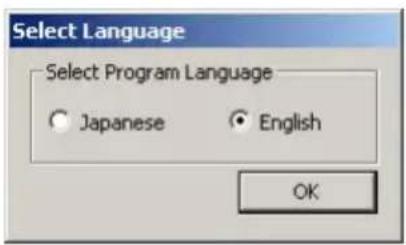
Note: The language can also be changed after running the Viewer program.
- Viewer's main screen is displayed.
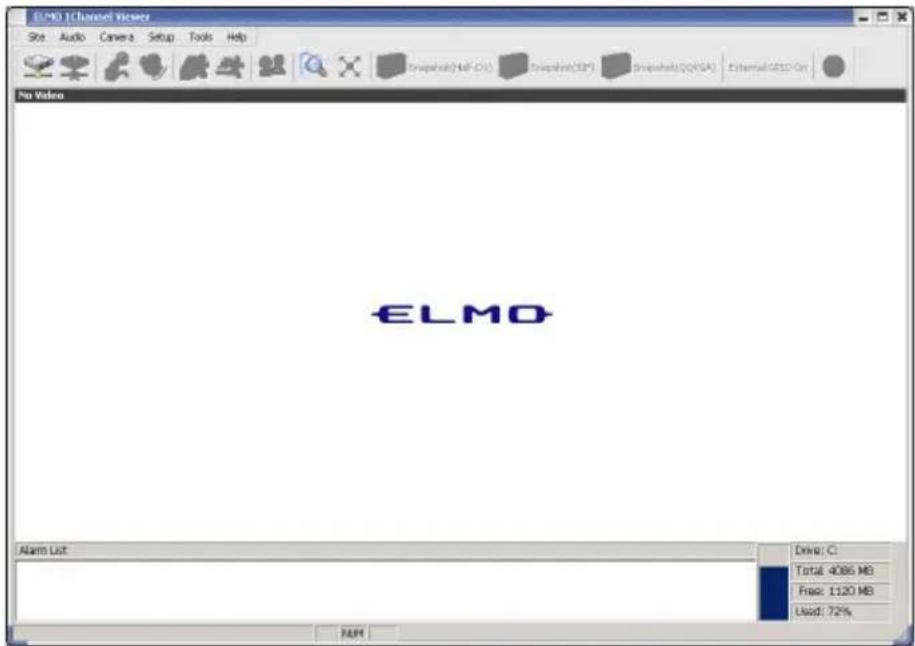
- Select [Camera] - [Connect], and the Connect Dialog screen appears.
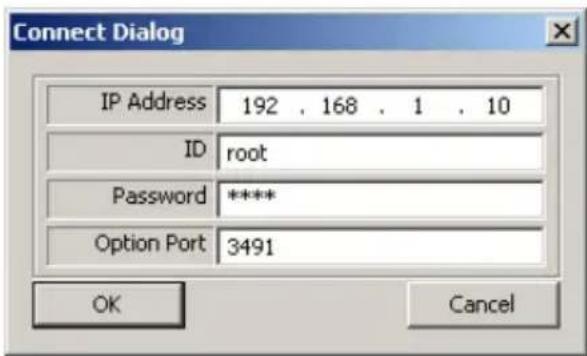
- Enter the IP address, login name (ID), password, and connection port of the Camera you want to connect, and click on the [OK] button. Viewer will be connected to the Camera, and the screen will display an MPEG4 image and the Control Panel.
(3) Live display
![ELMO 1Channel Viewer Site Audio Camera Setup Tools Help Snapshok(Half-D1) Snapshot(SIF) Snapshot(Q2VGA) External GPIO On [192.168.1.10] Alarm List: 192.168.1.10 : 2006-01-01 00:00:00 Connection success. Drive: C: Total: 4036 MB Free: 1118 MB Used: 72%](/content/2026/06/1199002/images/85980c65420391d02366278cf99df953640ba2e1dd5d2fe858147866db26e845.jpg)
When double-clicking on the image, the image is enlarged to full screen. When double-clicking again on the image, the image display returns to the original size.
- Obtaining snapshots
You can save snapshots, which are in sizes of Half-D1, SIF, and QQVGA, on the Camera in a specific folder.
Select [Still] from the menu bar, or click on one of the [Half-D1], [SIF], and [QQVGA] buttons on the tool bar.

The specific sizes of snapshots are shown below.
- Half-D1 (704 ×240)
- SIF (352 × 240)
- QQVGA (160×120)
- Control Panel
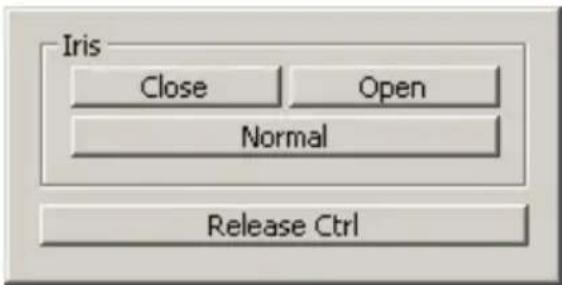
- Iris
Open / Close.... Adjusts the iris.
Normal .... Adjusts the brightness to the normal level.
*The auto iris (the automatic adjustment function to keep brightness at the same level even if the state of the object changes) is valid at all times.
- Release Ctrl...... This function is available when Time Slice Share is set for Control Policy in camera control setup (page 66) and opens the control of the Camera. It does not open control when there is no client requesting it.
(4) Sound
Note: When using the Viewer and [MPEG4 Setup] – [Frame Rate] is selected, the Frame rate must be set other than [1] · [5] for sound to be transmitted.
- Receiving sound
Confirm that the speaker is connected properly to the host. When sound is input into the Camera with the [Audio] – [Speaker] button in the Viewer menu or the icon on the icon bar clicked on, the speaker connected to the host outputs it. No sound will be output from the speaker connected to the host if the icon is not clicked on.
- Outputting sound
Confirm that the connection between the Camera and the loudspeaker with an amplifier and the connection between the client and the microphone are proper. When sound is input into the microphone connected to the client with [Audio] – [Microphone] button in the Viewer menu or the 📄 icon on the icon bar clicked on, the loudspeaker with an amplifier connected to the Camera outputs it. No sound will be output from the loudspeaker with an amplifier connected to the Camera if the 📄 icon is not clicked on.
Note: The sound can be output only from Viewer to which login is made by the administrator authority.
(5) Settings
You can change the settings for the Camera.
Select [Setup] from the menu bar, and the setting menu shown below appears.
Note: To change the settings, login by the administrator authority should have been completed.
Note: Those characters available for setting each item are only the one-bite alphanumeric characters and special characters (@, -, _, ¥, /, ', ", .). The two-bite characters, including Japanese characters, are not available.
Note: If the setting of any item is outlying or wrong, the equipment will not operate normally. Be sure to set each item correctly within the settable range.
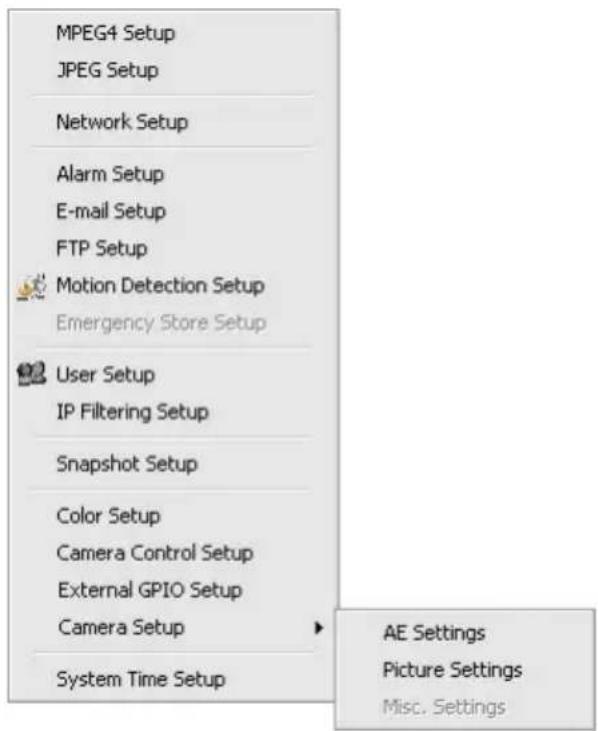
For further information about each setting, see (6) to (21) that follow.
(6) MPEG4 Setup
Make settings for obtaining MPEG4 images.
Note: By changing this setting, the Camera itself may be reset and become incapable of distributing images for a while.
![MPEG4 Setup - [192.168.1.10] MPEG4 Setup Quality 2000 kbps (500 ~ 2000) Frame Rate 30 frame/sec Resolution D1 (704x480) Mode Frame OK Cancel](/content/2026/06/1199002/images/8d7bbfb69003e13ad5a8fe47f9e24f0eb7d725b04cafe18617243455484b15f8.jpg)
• Quality ...... Designate the upper limit to the data amount to limit the data amount generated during communication or image distribution (GOP: 64 to 2000 kbps, Frame: 500 to 2000 kbps).
- Frame Rate...... Designate the number of frames to be displayed per second (setting range: 30, 15, 10, 5, and 1 frames/second).
Note: Sound will not be received or transmitted if Frame rate is set to [1], [5].
- Resolution...... Designate the size of images to be displayed.
D1: 704 × 480
SIF: 352 × 240
- Mode.... Set a delay for images according to the network environment.
Frame ....Reduces the delay for images.
GOP...... Enables the Camera to deal with a poor-performance network environment to some extent although the delay for image is long.
(7) JPEG Setup
Set image quality for JPEG images.
![JPEG Setup - [192.168.1.10] JPEG Quality Normal OK Cancel](/content/2026/06/1199002/images/5f1eb46a3756062afbede393393b93f8cfbc2f14a818df753145c8c07122a0e1.jpg)
- JPEG Quality ...... Designate image quality.
High.... High image quality. Although high-quality images can be obtained, the load on the transmission line increases.
Normal .... Medium image quality with a compression rate between High and Low.
Low .... Low image quality. The load on the transmission line decreases.
(8) Network Setup
Make settings relating to the network.
Note: Before making network settings, consult the administrator of the network you are going to use.
Note: If this item is changed, the connection setting for the Camera may need to be changed. In this case, make the proper connection setting, and reconnect the Camera.
Note: If the same port number is redundant in port setting, the Camera will not operate normally. Set different port number for each port.
![Network Setup - [192.168.1.10] Send Type UDP Unicast Network IP 192 . 168 . 1 . 10 Broadcast 192 . 168 . 1 . 255 Netmask 255 . 255 . 255 . 0 Gateway 192 . 168 . 1 . 1 DNS1 0 . 0 . 0 . 0 DNS2 0 . 0 . 0 . 0 MAC address 00:0c:2f:00:00:00 Port HTTP Port 80OPTION Port 3491 Multicast Port 3490 Audio Port 3493 Unicast Mode Port Range Start Port 3000 End Port 4000 OK Cancel](/content/2026/06/1199002/images/e55be83bb3013ec8c9808ac47e507cbf223437956a0d90ac3bc20d770e00462f.jpg)
- Send Type ...... Select a mode of distributing MPEG4 images.
UDP Unicast .... UDP Unicast Image data is distributed at the request of the host for connection. Up to 3 addresses can be connected from Viewer to the Camera.
Multicast .... UDP Image data is distributed, irrespective of whether the Camera is connected or is not connected from the host, resulting in a decrease in the load on the Camera and the transmission line. Although any number of addresses can be set, image data may not be distributed properly depending on the network environment.
TCP Unicast .... TCP Unicast image data is distributed at the request of the host for connection. Up to 3 addresses can be connected from Viewer to the Camera.
- IP.... Set the IP address of the Camera.
- Broadcast .... Set the broadcast address of the Camera.
- Net mask .... Set the subnet mask of the Camera.
- Gateway ...... Designate the IP address of a router when it is used to connect the Camera to an external network.
- DNS1/DNS2.... Set the address of a DNS server to which the Camera is to be connected. At DNS2, set the address of the DNS server to which the Camera will be connected if it cannot connect to DNS1.
- MAC Address ...... Displays the MAC address of the Camera.
- HTTP Port...... Designate the port to be used for the Web server for the Camera (80, 1024 to 65535).
- Option Port ...... Designate the port to be used for distributing images from the Camera (1024 to 65535).
- Multicast Port ...... Designate the port to be used when the Camera is in multicast mode (1024 to 65535).
- Audio Port...... Designate the port to be used for transmitting and receiving sound to/from the Camera (1024 to 65535).
- Start Port Range...... Designate the first of the ports the client uses (1024 to 65535).
- End Port Range...... Designate the last of the ports the client uses (1024 to 65535).
(9) Alarm Setup
Make settings relating to alarms.
![Alarm Setup - [192.168.1.10] Alarm Alarm1 Title Event1 Send FTP Send E-mail Alarm1 Matched Resolution SIF Alarm2 Title Event2 Send FTP Send E-mail Alarm2 Matched Resolution SIF Motion Detection Title Motion Detection Send FTP Send E-mail Motion Matched Resolution SIF Alarm1 Out Alarm2 Out Motion Detection Alarm Out OK Cancel](/content/2026/06/1199002/images/58449091f4fdcd72a22b3199cf1dee1ac1767f9bbb2a266e5dc093fbe276da2f.jpg)
• Alarm 1 / 2 / Motion Detection Title
...... Set any desired title of alarm 1/2 or motion detection (with up to 32 characters).
Note: Two-byte characters, including Japanese characters, are not available for a title. Use one-byte alphanumerical characters.
Note: The alarm title will be displayed on the Viewer in about one second.
• Alarm 1 / 2 / Motion Detection Action
...... Select the action of the alarm when an alarm signal is input to the alarm input terminal.
None...... No action will take place.
Send FTP...... The JPEG file of the obtained snapshot will be transferred by FTP.
Send E-Mail ...... E-mail will be transmitted.
- Alarm 1 / 2 / Motion Detection Matched Resolution
...... Designate the size of JPEG images to be attached when transferring the FTP or transmitting e-mail as set at Alarm 1/2 Action or motion detection.
Half-D1: 704 ×240
SIF: 352 × 240
QQVGA: 160×120
- Alarm 1/2 Output...... Set whether to output an alarm when an alarm signal is input to alarm input 1 or 2.
- Motion Detection Alarm Out.....Set whether to give alarm output when a motion is detected.
(10) E-mail Setup
Make settings relating to e-mail.
![E-mail Setup - [192.168.1.10] E-mail E-mail From E-mail CC1 E-mail CC2 E-mail CC3 E-mail Act Both SMTP PCP User ID User PW Message Use Authentication Use POP before SMTP OK Cancel](/content/2026/06/1199002/images/bca6ee7412f672c011f8a49b817023e0a64717fd7479ed34908c36900a893997.jpg)
• E-mail ...... Designate the address to which e-mail will be transmitted (with up to 64 characters).
- E-mail From...... Designate the e-mail address of the Camera (with up to 64 characters).
- E-mail CC1 to CC3...... Designate an address to which e-mail will be transmitted at the same time when it is sent to the e-mail address set at To (with up to 64 characters).
- E-mail Act...... Select what to be sent when transmitting e-mail. Text Only ...... Only a text will be sent when e-mail is transmitted. Picture Only ...... Only an image will be sent when e-mail is transmitted. Both...... Both a text and an image will be sent when e-mail is transmitted.
- SMTP...... Designate the SMTP server to be used (with up to 32 characters).
- POP...... Designate the POP server to be used (with up to 32 characters).
- User ID .... Set a login ID for logging in to the SMTP server (with up to 16 characters).
- User PW.... Set a password for logging in to the SMTP server (with up to 16 characters).
- Message .... Set a text to be sent as a message when transmitting e-mail (with up to 64 characters).
Note: Two-byte characters, including Japanese characters, are not available for a Message. Use one-byte alphanumerical characters.
- Use Authentication ...... Designate whether to use user authentication on the SMTP server to be used.
- Use POP before SMTP ...... Designate whether to use POP before SMTP on the SMTP server to be used.
(11) FTP Setup
Make settings relating to connection.
![FTP Setup - [192.168.1.10] FTP Server IP 0 . 0 . 0 . 0 Port 21 Directory User ID Passive Mode Action Time Store Dwell Time(sec) 30 (30 ~ 180) Time Store Resolution SIF Time Store filename Hydro td4114ip Time Store Enable Login each send OK Cancel](/content/2026/06/1199002/images/a9312a411e79cacc29588b1e1e5ca81351112215c7762c34e0190d49c6197fb4.jpg)
- IP...... Designate the IP address of the server to which the FTP will be transmitted.
- Port...... Designate the port number of the FTP server to which the FTP will be transmitted. It is not generally necessary to change the setting (21, 1024 to 65535).
- Directory ...... Designate a directory for saving an image file, or a directory with a write authority for the designated account name (with up to 32 characters).
- User ID ...... Designate an account name for connection to the FTP server to which the FTP will be transmitted (with up to 16 characters).
- User PW...... Designate a password for the account name shown above (with up to 16 characters).
- Passive Mode...... Designate whether to use passive mode or active mode for transferring the FTP. Use passive mode when there are restrictions on the ports because of a firewall, etc.
- Time Store Dwell Time ...... Set the interval at which images will be saved when Time Store is valid (30 to 180 seconds).
- Time Store Resolution ...... Designate the size of images to be saved.
Half-D1: 704 × 240
SIF: 352 × 240
QQVGA: 160 × 120
- Time Store filename ...... Designate a file name for the file to be saved. A file name consists of the “entered file name” and “time”. The extension “jpg” will be added automatically to each file name. If a file with the same name already exists in the directory for saving, the data of the older file will be overwritten. Designate a different file name (with up to 32 characters).
Note: Two-byte characters, including Japanese characters, are not available for a file name to be saved. Use one-byte alphanumeric characters.
Note: If any of such characters as “¥”, “/”, “.” is used for the file name, the Camera may not operate normally depending on the environment of the destination FTP server.
- Time Store Enable .... Set whether to regularly save images in the FTP server.
- Login each send.... Set whether to connect to the FTP server each time images are transmitted or not (always connected).
(12) Motion Detection Setup
![Motion Detection Setup - [192.168.1.10] Use Motion Detection Sensitivity High Low Tools Select Delete Reset Select All Reverse Apply OK Cancel](/content/2026/06/1199002/images/a97324bc648d4580d26e8a7ac114d4898cbd83b11c09665f605730b666bd7514.jpg)
- Use Motion Detection...... Set whether to perform motion detection.
- Sensitivity .... Set the sensitivity of motion detection.
- Area settings
When “Select” under “Tools” is checked, the area on the screen that is selected by drag & drop will be set for a motion detection area. When “Delete” is checked, the set motion detection area will be cancelled.
[Reset] button: Cancels all areas.
[Select All] button: Sets all areas.
[Reverse] button: Reverses a detection area to non-detection area and vice versa.
[Apply] button: Applies the settings made.
(13) User Setup
Make settings relating to user administration.
![User Setup - [192.168.1.10] User ID root User Authority Admin ID Password Authority Operator Confirm Add Modify Remove OK Cancel](/content/2026/06/1199002/images/ea31cf5ee79460512bf0e76910e98178b07ee0cdd05b21cb987474b280543ca2.jpg)
- Adding a new user
You can register a login ID, a password, and authority for connection to the Camera. Designate an authority, enter a login ID and a password, and then click on the [Add] button. The entered data will be displayed in the list.
The following three items can be registered.
- Administrator...... The administrator authority. The login ID is “root” that is unchangeable. With this ID, you can view images, operate the Camera, and make settings.
- Operator .... You can view images and operate the Camera.
- User............ You can only view images.
* Only “root” can be registered for Administrator, and up to 99 names can be registered for Operator and User combined. You can use up to 16 one-byte characters for a iogin ID and password, including alphanumeric characters and upper-case and lower-case alphabetic characters.
Note: Two-byte characters, including Japanese characters, are not available for a login ID and password. Use one-byte alphanumeric characters.
- Modifying a user
You can modify the registered login ID, password, and authority of any user for connection to the Camera.
Select the user you want to modify from the list.
Designate the authority, enter the login ID and password, and press the [Modify] button.
Note: For to "root," only the password can be changed.
- Deleting a user
You can delete the registered login ID, password, and authority of any user for connection to the Camera.
Select the user you want to delete from the list, and click on the [Remove] button.
Note: You cannot delete "root".
Note: When "User Authentication" in "Camera Control Setup" is set to "Disable", only the password of the administrator authority can be changed.
![User Setup - [192.168.1.10] Administrator ID root Password ***** Confirmation ***** Modify OK Cancel](/content/2026/06/1199002/images/b7fb2f838198c417b0a5baec83ddaaa172387de662ab44fe57c3c43cc2bac440.jpg)
(14) IP filtering Setup
Make settings relating to the IP filter.
Note: Making the settings described here may prevent connection to the Camera. Perform the setting operation with extreme care.
Note: "Start IP" cannot be set larger than "End IP".
![IP Filtering Setup - [192.168.1.10] Exception List No. Start IP End IP 1 0.0.0.0 0.0.0.0 2 0.0.0.0 0.0.0.0 3 0.0.0.0 0.0.0.0 4 0.0.0.0 0.0.0.0 5 0.0.0.0 0.0.0.0 6 0.0.0.0 0.0.0.0 7 0.0.0.0 0.0.0.0 8 0.0.0.0 0.0.0.0 9 0.0.0.0 0.0.0.0 10 0.0.0.0 0.0.0.0 11 0.0.0.0 0.0.0.0 12 0.0.0.0 0.0.0.0 13 0.0.0.0 0.0.0.0 No. O Start IP 0 . 0 . 0 . 0 End IP O . 0 . 0 . 0 Modify Renove Reset Accept All Reject All Enable IP Filtering OK Cancel](/content/2026/06/1199002/images/cb856f57bb447ca9559c4e645fe17c0da1d476a1af6c2432461366d28d8faa88.jpg)
- Enable IP Filtering...... Select whether to use the IP filter function.
- Accept All.... Accepts any client connected to the Camera, except connections from the IP addresses shown in Exception List. (Only connections from the IP addresses contained in the client list will be rejected.)
- Reject All...... Rejects all clients attempting to connect to the Camera. It can be connected from the IP addresses shown in Exception List. (Only connections from the IP addresses in Exception List will be permitted.)
- Modifying an address
Select the address you want to modify from the list.
Change the address set at each of "Start IP" and "End IP", and click on the [Modify] button.
- Deleting an address
Select the address you want to delete from the list, and click on the [Remove] button.
- Reset
The button sets all addresses registered in the list at "0.0.0.0".
(15) Snapshot Setup
Make settings relating to snapshots on this screen.
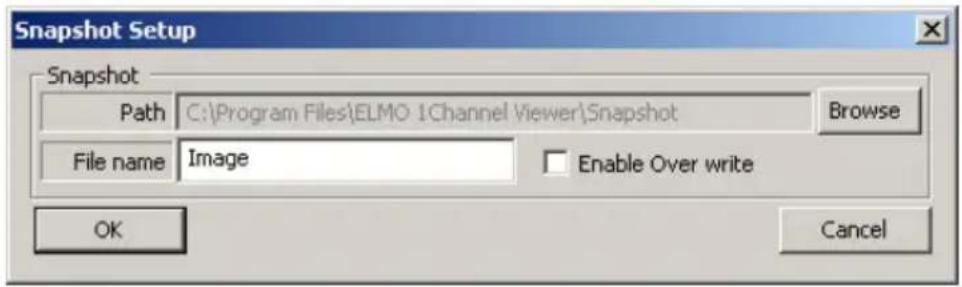
- Path.... Set a directory for saving snapshots. In snapshot saving, the [MAC address] folder and [Date] folder of the Camera connected to the set path folder are created, and snapshots are saved there. These folders can be referred to by pressing the [Browse] button.
- File name ...... Designate the saving file name. The file name consists of "Input file name" + "Time" + "Image size". The file name is attached with the .jpg extension.
- Enable Overwrite...... Enables the overwrite of the last saved snapshot when saving a new snapshot with the same file name.
Note: Depending on the OS in use, the file name length and the directory name length are determined. Therefore, set the file name and the directory name appropriately according to the OS in use.
(16) Color Setup
Set the brightness, contrast, hue, and saturation of images on this screen.
![Color Setup - [192.168.1.10] Brightness 0 50 100 Contrast 0 50 100 Hue -50 50 0 0 50 Saturation 0 50 100 OK Reset Cancel](/content/2026/06/1199002/images/c47ab94efa58dcb718132bd641e14aacb3fcc7e0bdb7e5d0596f71966b7abe5f.jpg)
- Brightness ...... Sliding the control knob to the right makes the image brighter.
- Contrast...... Sliding the control knob to the right makes the contrast stronger.
- Hue...... Sliding the control knob to the right and left changes the hue.
- Saturation.... Sliding the control knob to the right makes the color deeper.
Note: The color setup will not be reflected on the image to be output from the image output terminal.
(17) Camera Control Setup
Make settings relating to the Camera.
![Camera Control Setup - [192.168.1.10] Camera Control Control Policy All-Time Share Control Duration Time (min) 1 Use Authentication Enable Disable OK Cancel](/content/2026/06/1199002/images/2b2c30dc27f3a9e6b9453ec9094b5bfcdd8ebb8b0611ba64f977be9b8c451841.jpg)
- Control Policy...... Designate the mode of controlling the Camera.
All-Time Share...... The control policy remains unless the client having an operation authority cuts off the connection.
Time Slice Share .... The operation authority will be released as soon as the time set at “Control Duration Time” passes away, and will be assigned to anther connecting client. It will remain when there is no other connecting client.
Note: When the control is set as "Time Slice Share" in "Control Policy", it may occur temporarily that all connectors are in the state with no control. Since this is a phenomenon due to the state of transmission, the normal status can be resumed in seconds to minutes.
- Control Duration Time ...... Designate the period during which a client maintains control when “Time Slice Share” is selected at “Control Policy” (setting range: 1 to 60 minutes).
- User Authentication...... Select whether the login ID and the password should be entered on the Authentication screen for a client to be connect to the Camera. When “Disable” is selected, press the [OK] button with the login ID and password left blank for login on the Connection Setting screen. Then, the login will be enabled by the operator authority. To log in by the administrator authority, enter the registered administrator ID and password.
(18) External GPIO Setup
You can set the activation mode of the external GPIO.
![External GPIO Setup - [192.168.1.10] External GPIO Activation Mode Normal Open OK Cancel](/content/2026/06/1199002/images/71eb0c742df028506a7523db91aa252d2f08d7a2b1310314b8139e49bd0cf916.jpg)
- Activation Mode .... Used to set the output mode of the external GPIO output terminal. The GPIO is controlled by the ON/OFF of the activation mode and GPIO. When the Camera is activated, the output is in the inactive state (GPIO: OFF).
Normal Open...... Closes the contact during output to keep continuity.
Normal Close ...... Opens the contact during output.
(19) Camera Settings (AE Settings)
![Camera AE Settings - [192.168.1.10] E-ZOOM OFF HS-SHUTTER OFF 1/100s 1/250s 1/500s 1/1000s 1/2000s 1/4000s 1/10000s 1/20000s 1/50000s LS-SHUTTER OFF ON LS-MAX 4 fields PRIORITY MOTION COLOR S/N ICR OFF AUTO ON AGC 8 dB Apply OK Cancel](/content/2026/06/1199002/images/09693565631928cd25f174a068178f1068ed743ce101b1e1c5b09821480e6754.jpg)
For each setting item, see the description of each function on page 44.
(20) Camera Settings (Picture Settings)
![Camera Picture Settings - [192.168.1.10] BLC OFF ON BLC MODE AREA HIST AREA 0 1 2 3 4 AP GAIN 0 WB ATW AWC INDOOR OUTDOOR FL-LIGHT MWB TRIGGER OFF ON MWB-R 0 MWB-B 0 Apply OK Cancel](/content/2026/06/1199002/images/d8791ffba27b1c54259be02705bbacf16e9bf43cde4cc961d79c592347d7243b.jpg)
For each setting item, see the description of each function on page 45.
(21) System Time Setup
![System Time Setup - [192.168.1.10] System Time 2006-01-01 00:00:00 OK Cancel](/content/2026/06/1199002/images/6e14c8c9b83ae1f8bfd5c8b98843e8c7af1ebc8560dc684bc898f32efe09303d.jpg)
Set the internal clock of the Camera. The time of this clock will be added to the file name when sending an E-mail or FTP.
Note: The internal clock of the Camera can be set until December 31, 2036.
The system clock must be set within this range or the camera will not function normally.
(22) Tools
Select [Tools] from the menu bar, and the Tool menu shown below appears.
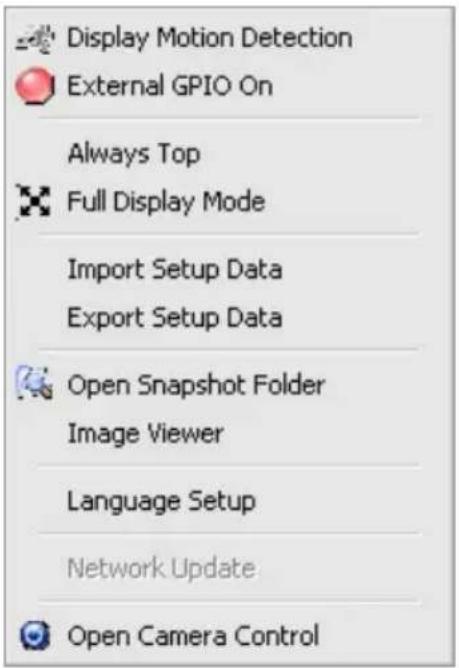
- Display Motion Detection .... Displays an area in which some motion is detected on the MPEG4 live image screen.
- External GPIO On ....Turns ON or OFF output from the general-purpose output terminal.
- Always Top...... Displays Viewer on top of the other screens displayed at all times even if it is not active.
- Full Display Mode...... Displays the image in the entire window, irrespective of the image's aspect ratio.
- Import Setup Data...... Reads the setup file created in “Export Setup Data” and sets the Camera. Press the [Browse] button and designate the setup file to be read, and press the [Import Start] button and import the settings (available only when the Camera is connected).
- Export Setup Data...... Creates each setting values of the Camera in a setup file and saves the setup file in the PC. Press the [Browse] button and designate the setup file path, and press the [Export Start] button and export the settings (available only when the Camera is connected).
Note: "Import/Export Setup Data" must be executed on the cameras of the same firmware version.
- Open Snapshot Folder ...... Opens the file designated at Path on the Snapshot Setup screen.
- Image Viewer .... Displays the JPEG images saved in the PC. Displays the JPEG images in D1, which was acquired in Half-D1.
- Language Setup .... Set English or Japanese for Viewer (the selection becomes valid after Viewer is turned OFF and ON again).
- Network Update...... Rewrites the firmware for the Camera networked.
- Camera Control...... Displays the camera control on the right side of the Main screen of Viewer.
(23) Firmware update
You can update the firmware for the Camera (Camera operation programs) via a network for the purpose of improving its functions.
Since an update changes the key functions of the Camera, it may fail to get started or malfunction if the update is not carried out correctly.
Update the firmware according to the procedure described below with extreme care.
Do not attempt to modify the firmware for firmware updating that was distributed by the shop where you purchased the product or our branch or sales office nearby. Using another firmware or modified firmware may cause the Camera to malfunction.
-
Turn OFF the power to the Camera, and connect it and the host one-to-one with a cross cable.
-
Set the network for the host according to the network address of the Camera.
-
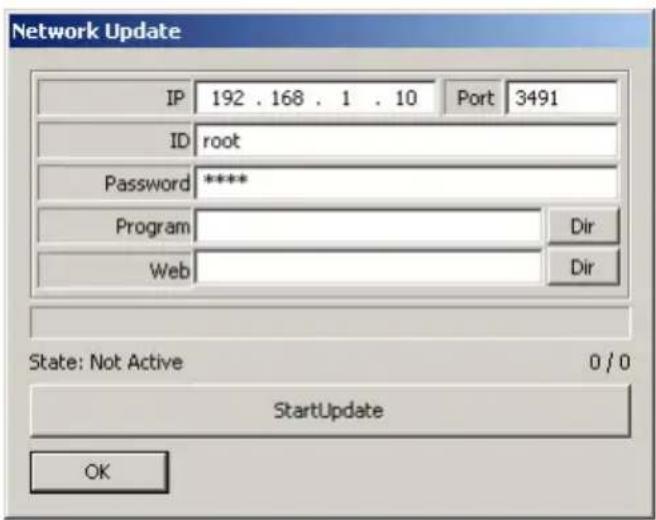
Turn ON the power to the Camera, and select [Tool] – [Network Update] from the menu bar of Viewer on the host.
-
The Net Update window opens. Set correct data at each of IP (the Camera's IP address), Port (the Camera's optional port number), ID (the Camera's administrator login name), and Password (the Camera's login password).
-
Designate the program file for updating firmware distributed by the shop where you purchased the product or our branch or sales office nearby, and the program file for the Web.
-
Click on the [Start Update] button at the bottom of the screen.
-
The state shown on the line named [State] is updated, and “Complete” is displayed after the update is properly completed. If “Error Connect” is displayed, the connection or any of the network settings is incorrect. Reconfirm the connection between the Camera and the host and the network settings.
-
After the firmware is updated properly, the Camera completes getting restarted within several seconds and gets ready to be connected. Click on the [OK] button to close the Firmware Update window.
-
Reset the Camera to the default factory settings by referring to P. 17 [5] Initializing the settings.
-
Redo the setting, and confirm the normal operation.
[5] Set items
●AE Settings
| Name Function | Factory settings | |
| E-ZOOM To set the maximum magnification [OFF, 1.1x, 1.2x, OFF 1.4x, 1.6x, 1.8x, 2.0x, 2.2x, 2.4x, 2.6x, 2.8x, 3.0x, 3.5x, 4.0x] | ||
| HS-SHUTTER | To select the high-speed shutter speed [OFF (1/60s), OFF 1/100s, 1/250s, 1/500s, 1/1000s, 1/2000s, 1/4000s, 1/10000s, 1/20000s, 1/50000s].When [LS-SHUTTER] is [ON], the shutter speed can be selected from [OFF (1/60s) 1/100s].If the shimmer of fluorescent lamp is annoying when the shutter speed is set to [OFF (1/60s), set the shutter speed to [1/100s], and the shimmer will be eased. | |
| LS-SHUTTER | To set the low-speed shutter (electronic sensitivity up) OFF to [ON/OFF]. When the object becomes dark, this function automatically varies the CCD accumulated time across several fields up to the set maximum level to optimize the brightness of the object. | |
| LS-MAX To set the maximum number of fields of the low-speed 4fields shutter [2fields, 3fields, 4fields, 5fields, 6fields, 8fields, 12fields, 20fields, 40fields, 80fields].If the CCD accumulated time is set longer, the image frame rate will decrease, and moving object could not be seen well. | ||
| PRIORITY | To select the image attributes [MOTION, COLOR, S/N MOTION (fineness)] to be prioritized when [LS-SHUTTER] is selected and the object becomes dark. | |
| ICR To set the DAY/NIGHT function (IR cut filter removable OFF function).When this function is set to [AUTO], the filter is attached/removed automatically according to the brightness. When the IR cut filter is removed, the color image is switched to B&W image. | ||
| AGC GAIN To set the maximum gain of the AGC [0dB, 4dB, 8dB, 8dB 12dB, 16dB, 20dB, 24dB].The AGC is a function of amplifying the signal from the CCD to make the object visible when the object becomes dark. | ||
●PICTURE Settings
| Name Function | ction | Factory settings | |||
| BLC | To set the backlight compensation function to [ON/OFF].When there is an intensive light in the background, this function prevents the object from becoming dark. | OFF | |||
| BLC MODE | To select the Backlight Compensation Setting mode AREA[HIST]. | EA | |||
| About the Backlight Compensation Setting mode | |||||
| AREA | To select the image area of the object that needs an appropriate brightness and weighing according to the selected area. | ||||
| HIST | To make the dark (blackened) part of the image visible regardless of the area. | ||||
| AREA To select the area [0 ~ 4] on the image where the 4 backlight compensation function works when [AREA] is selected. | |||||
| AP GAIN To select the detail compensation level [-5 ~ 10] ±0 | |||||
| WB | To select the White Balance Setting mode [ATW, AWC,INDOOR, OUTDOOR, FL-LIGHT, MWB]. | ATW | |||
| About the White Balance Setting mode | |||||
| ATW To adjust the white balance by way of continuous,automatic following.(When the image is in a single color all over, the whitebalance may not be ajusted correctly.) | |||||
| AWC To adjust the white balance according to the thenshooting status. When the Setting mode is changed to[AWC] from the modes other than [AWC], be sure toset [TRIGGER] to ON. | |||||
| Name Function | Function | Factory settings | |||
| INDOOR | This function is selected to shoot indoors.The color temperature is assumed to be 3200K. | ||||
| OUTDOOR | This function is selected to shoot outdoors.The color temperature is assumed to be 6300K. | ||||
| FL-LIGHT | This function is selected when the Camera is used under the fluorescent illumination. The color temperature is assumed to be 4200K. | ||||
| MWB | To change the color tendency as desired. | ||||
| TRIGGER | When [AWC] is selected and [TRIGGER] is set to “ON”, the white balance is adjusted according to the current shooting status, by selecting the [OK] button. | OFF | |||
| MWB-R To set the red color tendency [-30 ~ +30] when [MWB] ±0 is selected. | |||||
| MWB-B To set the blue color tendency [-30 ~ +30] when ±0 [MWB] is selected. | |||||
●Camera ID, password
| Name Function | Factory settings |
| ID The following three items can be set according to the root user settings: (Admini-Administrator: The administrator authority. The login ID is “root” that is unchangeable. With this login ID, you can view images, operate the Camera, and make settings.Operator: You can view images and operate the Camera.User: You can only view images.* Only “root” can be registered for Administrator, and up to 99 names can be registered for Operator and User combined.* You can use up to 16 one-byte characters for a name, including alphanumerical characters and upper-case and lower-case alphabetic characters. | strator) |
| Password Set a password for the ID. root* You can use up to 16 one-byte characters for a password, including alphanumerical characters and upper-case and lower-case alphabetic characters. |
●External GPIO
| Name Function | Factory settings |
| Activation Set the output mode. Normal ModeNormal Open: High impedance is usually activated, Open and the GND level becomes valid during output.Normal Close: The GND level is usually activated, and high impedance becomes valid during output. |
●MPEG4
Make settings for MPEG4 display using "ELMO 1Channel Viewer".
| Name Function | Factory settings |
| Quality Designate the upper limit to the data amount to limit 2000(kbps)the data amount generated during communication or image distribution.Frame: 500 - 2000 (kbps)GOP:64 - 2000 (kbps) | |
| Framerate Designate the number of frames to be displayed per 30(frames/second.(setting range: 30, 15, 10, 5, and 1 frames/second). | second) |
| Resolution Designate the size of images to be displayed. D1D1 (704 x 480), SIF(352 x 240) | |
| Mode Set a delay for images according to the network Frame environment.Frame: Reduces the delay for images.GOP: Enables live images to be viewed even on a poor-performance network although the delay for images is long. |
●JPEG
Make settings for motion JPEG display and capture display using a browser and for snapshot acquisition using "ELMO 1Channel Viewer".
| Name Function | Factory settings | |
| JPEG Design Quality | Rate image quality. NormalHigh: High image quality.Normal: Medium image quality with a compression rate between High and Low.Low: Low image quality. | |
●Network
Consult the administrator of the network you intend to use before making network settings.
| Name Function | Factory settings | |
| MPEG4 Select Send Type | ct a MPEG4 distribution method. UDPUDP Unicast: A method of sending the UDP image Unicast data by the connection request from the client.Multicast: A method of sending the same UDP image data to the multiple addresses in the same network.TCP Unicast: A method of sending the TCP image data by the connection request from the client. | |
| IP address Set the IP address of the Camera. 192.168.1. | 10 | |
| Gateway Designate the IP address of a router when it is used to 192.1 connect the Camera to an external network. 1 | 68.1. | |
| DNS1 Set the address of a DNS server to which the Camera 0.0.0.0 is to be connected. | ||
| DNS2 Set the address of the DNS server to which the 0.0.0.0 Camera will be connected if it cannot connect to DNS1. | ||
| Subnet Set the subnet mask of the Camera. 255.255. mask 255.0 | ||
| Broadcast | Set the broadcast address of the Camera. | 192.168.1.255 |
| Start Port Range | Designate the first of the ports the client uses. | 3000 |
| End Port Designate the last of the ports the client uses. 4000 Range | ||
| HTTP Port | Designate the port to be used for the Web server for the Camera. | 80 |
| Option Port | Designate the port to be used for distributing images from the Camera | 3491 |
| Multicast Port | Designate the port to be used when the Camera is in multicast mode. | 3490 |
| Audio Port | Designate the port to be used for transmitting and receiving sound to/from the Camera. | 3493 |
●Alarm
| Name Function | Factory settings | |
| Alarm 1 Title | Set any desired title of alarm 1. Event1* Two-byte characters, including Japanese characters, are not available for a title.Use one-byte alphanumerical characters. | |
| Alarm 1 Select Action an alarm | ct the mode of the alarm to be effective when Nonem input signal (no-voltage make contact) isinput to alarm IN-OUT terminal (six-pinconnector (black)) pin 1 “ALARM IN1 (blue)".None: No action will take place.Send FTP: The JPEG file of the obtained snapshotwill be transmitted by FTP.Send E-Mail: E-mail will be transmitted.Both: The JPEG file of the obtained snapshot will betransmitted by FTP and e-mail will be transmitted at thesame time. | |
| Matched Designate the size of JPEG images to be attached SIFResolution when transmitting the FTP or transmitting e-mail as(Alarm 1) set at Alarm 1 Action.Half-D1/SIF/QQVGA | ||
| Alarm 2 Title | Set any desired title of alarm 2. Event2* Two-byte characters, including Japanese characters,are not available for a title.Use one-byte alphanumerical characters. | |
| Alarm 2 Select Action an alarm | ct the mode of the alarm to be effective when Nonem input signal (no-voltage make contact) isinput to alarm IN-OUT terminal (six-pinconnector (black)) pin 3 “ALARM IN2 (gray)".None: No action will take place.Send FTP: The JPEG file of the obtained snapshotwill be transferred by FTP.Send E-Mail: E-mail will be transmitted.Both: The JPEG file of the obtained snapshot will betransferred by FTP and e-mail will be transmitted at thesame time. |
| Name Function | Factory settings |
| Matched Designate the size of JPEG images to be attached SIF Resolution when transmitting the FTP or transmitting e-mail as (Alarm 2) set at Alarm 2 Action. Half-D1/SIF/QQVGA | |
| Motion Set any desired title of Motion Detection. Motion Detection Two-byte characters, including Japanese characters, Detection Title are not available for a title. Use one-byte alphanumerical characters. | |
| Motion Select an alarm action to take place when an action is None Detection detected under the action detection settings made on Action Viewer. None: No action will take place. Send FTP: The JPEG file of the obtained snapshot will be transmitted by FTP. Send E-Mail: E-mail will be transmitted. Both: The JPEG file of the obtained snapshot will be transmitted by FTP and e-mail will be transmitted at the same time. | |
| Matched Designate the size of JPEG images to be attached SIF Resolution when transmitting the FTP or transmitting e-mail as (Motion set at Motion Detection Action. Detection) Half-D1/SIF/QQVGA | |
| Alarm 1 An alarm output signal (open collector output) will None Output be output to alarm IN-OUT terminal (six-pin connector (black)) pin 5 “ALARM OUT (black)” when alarm 1 is activated. | |
| Alarm 2 An alarm output signal (open collector output) will None Output to alarm IN-OUT terminal (six-pin connector (black)) pin 5 “ALARM OUT (black)” when alarm 2 is activated. | |
| Motion An alarm output signal (open collector output) will None Output to alarm IN-OUT terminal (six-pin connector (black)) pin 5 “ALARM OUT (black)” when a motion is detected. |
| Name Function | Factory settings | |
| E-mail Designate the address to which e-mail will be None transmitted. | ||
| E-mail from Designate the e-mail address of the Camera. None | ||
| E-mail CC1 Designate an address to which e-mail will be None / CC2 transmitted at the same time when it is sent to the / CC3 e-mail address set at To. | ||
| SMTP Designate the SMTP server to be used. None | ||
| POP Designate the POP server to be used. None | ||
| Use Designate whether to use user authentication on the None Authentica- SMTP server to be used. | ||
| POP before SMTP SMTP Designate whether to use POP before SMTP on the server to be used. | None | |
| User ID | Set a login ID for logging in to the SMTP server. | None |
| User PW | Set a password for logging in to the SMTP server. | None |
| Message | Set a text to be sent as a message when transmitting e-mail. | None |
| Action | Text Only: Only a text will be sent when e-mail is transmitted.Picture Only: Only an image will be sent when e-mail is transmitted.Both: Both a text and an image will be sent when e-mailis transmitted. | Both |
●FTP
| Name Function | Factory settings | |
| IP address Designate the IP address of the server to which the 0.0.0.0 FTP will be transferred. | ||
| Port number Designate the port number of the FTP server to which 21 the FTP will be transferred. | ||
| User ID Designate an account name for connection to the None name server to which the FTP will be transmitted. | ||
| User Designate the password necessary for connection to None Password the server to which the FTP will be transmitted. | ||
| Directory Designate a directory for saving an image file, or a None directory with a write authority for the designated account name. | ||
| Passive Designate whether to use passive mode or active None Mode mode for transmitting the FTP. | ||
| Time Store Set whether to regularly save images in the FTP server. None | ||
| Time Store S et whether to connect to the FTP server each time None login each send images are transmitted or not (always connected). | ||
| Time Store S set the interval at which images will be saved when 30 dwell time (seconds) Time Store is valid (30 to 180 seconds). | ||
| Image size Designate the size of images to be saved. Half-D1: 704 × 240SIF: 352 × 240QQVGA: 160 × 120 | SIF | |
| Time Store D filename Designate a file name for the file to be saved. A file to d4114ip name consists of the “entered file name” and “time”. The extension “.jpg” will be added automatically to each file name. If a file with the same name already exists in the directory for saving, the data of the older file will be overwritten. Designate a different file name. | ||
●User
| Name Function | Factory settings |
| User list Registered login IDs and authorities are displayed. root,Admin | |
| Adding a You can register a login ID, a password, and authority (None) new user for connection to the Camera. Designate one of the following authorities, and enter a login ID and a password. Administrator: The administrator authority. The login ID is “root” that is unchangeable. With this ID, you can view images, operate the Camera, and make settings. Operator: You can view images and operate the Camera. User: You can only view images.* You can use up to 16 one-byte characters for a name, including alphanumeric characters and upper-case and lower-case alphabetic characters. | |
| Modifying a user authority You can modify the registered login ID, password, and (None) of any user for connection to the Camera. Designate one of the following authorities, and correct the login ID or password. Administrator: The administrator authority. The login ID is “root” that is unchangeable. With this ID, you can view images, operate the Camera, and make settings. Operator: You can view images and operate the Camera. User: You can only view images.* You can use up to 16 one-byte characters for a name, including alphanumeric characters and upper-case and lower-case alphabetic characters. | |
| Deleting a user authority You can delete the registered login ID, password, and (None) of any user for connection to the Camera. |
●IP Filtering
| Name Function | Factory settings |
| Start IP Set in End IP the Camera | the Exception list IP addresses whose access to 0.0.0.0 camera will not be permitted or rejected.Example:When Start IP is 192.168.1.50 and End IP is 192.168.1.100All addresses between them will be set. |
| Add Adds all | addresses between the addresses set at Start (None)IP and End IP to the list. |
| Modify Modifi | es addresses selected in the Exception list. (None) |
| Remove Delet | tes selected addresses in the list. (None) |
| IP Filter | Select whether to use the IP filtering function. None |
| Accept all Permits | access from all IP addresses except those in Effective the range of addresses set in the Exception list. |
| Reject all Rejects | access from all IP addresses except those in Invalidity the range of addresses set in the Exception list. |
●Camera Control
| Name Function | Factory settings | |
| Camera Policy client | All-Time Share: The control policy remains unless the having an operation authority cuts off the Share connection.Time Slice Share: The operation authority will be released as soon as the time set at “Control Duration Time” passes away, and will be assigned to another connecting client. It will remain when there is no other connecting client. | All-Time |
| Control Duration Time | Designate the period during which a client maintains control when “Time Slice Share” is selected at “Control Policy” (setting range: 1 to 60 minutes). | 1 minute |
| User Authentication | Select whether to authenticate access from the Web browser and from Viewer. | Enable |
●Motion Detection Setup (for ELMO 1Channel Viewer only)
| Name Function | Factory settings |
| Use Motion Detection | Used to set whether to use motion detection. No |
| Sensitivity Set | the sensitivity of motion detection. HighHigh – (adjustable using the scroll bar) – Low |
| Set/Clear Used | to select Set or Clear. SetSet: Sets the area dragged on the screen as a detection area.Clear: Sets the area dragged on the screen as a non-detection area. |
| Detection Area Not Detect | Detect: Hatching display enabled (None)Hatching display disabled |
| Reset Sets all | areas on the screen as non-detection areas. (None) |
| Select All Sets | all areas on the screen as detection areas. (None) |
| Reverse Reverses | set detection and non-detection areas. (None) |
| Apply Applies | area settings. (None) |
- Select Language (for ELMO 1Channel Viewer only)
| Name Function | Factory settings | |
| Select Program Language | Japanese/English | (None) |
●System Time Setup
| Name Function | Factory settings | |
| System Time | Used to set the current date and time of the Camera. | (None) |
7. TROUBLESHOOTING HINTS
| Symptom Checking Point | Ref.Page | |
| No image or Is the Camera main unit connected correctly with the P. 14 dark image on monitor with the video cable? Isn't the MONITOR IN the monitor terminal of the monitor wrong? | ||
| Is the power cord connected correctly to the outlet? P. 14 | ||
| Is the plug of the AC adapter connected correctly to the DC jack on the Camera? | ||
| Aren't the power cord, the AC adapter cord, and the P. 14 video cable damaged, broken or contacted incompletely? | ||
| Is the iris in proper position? P. 27 | ||
| Isn't the zoom on the TELE side and imaging a dark, P. monochromatic object? | ||
| Is the high-speed shutter set? P. 44 | ||
| Isn't the monitor TV system different from the signal of this Camera (NTSC)? | ||
| B&W image This | Camera has the B&W/color switching function. P. 44 Check the settings. | |
| No switching to B&W image Check the setting. | This camera has the Black/White switching function. P. 44 Check the setting. | |
| Shimmer when imaging fluorescent lamp | If [AE Settings] – [HS-SHUTTER] is [OFF], set it to [1/100s], and this trouble will be alleviated.(Since the brightness will change, the brightness level of the lens iris may need adjustment.) | P. 44 |
| The network function does the not work. | Recheck the Camera and the network configuration of PC connected to it, and check them for the 47 phenomena described below.Recheck the restraints on the Camera, including the number of connections, and the settings as well. | P. 22, |
| The operation of the network is unstable. | • The network operates only in the environment shown below when it is connected to the Web:1. The OS is Microsoft Windows 2000 or XP.2. JRE 1.5.0 or a later version is installed.3. Java (Sun) is enabled.“ELMO 1Channel Viewer” operates only in the environment shown below.1. The OS is Microsoft Windows 2000 or XP.2. DirectX 9.0C or a later version is installed. | P. 18 |
| The Ethernet cable cannot be back of connected | The Ethernet connector (RJ45) is provided in the P. 7 of the Camera. | |
| The Ethernet connector link is not turned ON. indicator lamp Confirm that the cable is connected securely, and does not light. turn ON the power. | • The power to the Camera or a device connected to it not turned ON. | - |
| • The Ethernet cable is broken. - Check if continuity appears across cable connector terminals. | ||
| • A wrong cable is used. P. 19, Basically, use a “Ethernet cross cable (supplied)” when a PC is connected to the Camera, or a “straight cable”when a hub or router is used. Check the specifications of the device to be connected. When the PoE is used, make the connection by using the connection method for the PoE load dispatching device. | 20 | |
| The PC cannot be connected to the Camera. | • The IP address of the Camera is not designated. P. 23, Designate the IP address set in the Camera. 32, 48, | 54 |
| • The IP address set on the PC does not match the P. 19, network. 20 The connection from a client to the Camera requires the network address to be the same (192. 168.1.* when the Camera is in the initial setting). | 9 | |
| • The setting for the router is not correct. P. 19, Check the network configuration of the Camera 20 and PC, and set the router correctly. * If you have forgotten the IP address of the Camera, see “5.INITIALIZING THE SETTING state (page 17)". | ||
| The Camera cannot be not entered. 39logged in from Enter the login ID and password set on the the Web Camera.browser. * If you have forgotten the login ID or password set on the Camera, see “5.INITIALIZING THE SETTING (page 17)”. | P. 23, | |
| The Camera cannot be not designated. 61logged in from “ELMO * If you have forgotten the login ID or password set 1Channel on the Camera, see “5.INITIALIZING THE Viewer”. SETTING (page 17)”. | P. 48, | |
| The Camera cannot be Log in operated. | • It is logged in with the authority “user”. with the authority “administrator” or 48 “operator”. | P. 23, |
| A setting page cannot be accessed. | • It is logged in with the authority “user” or “operator”. Log in with the authority “administrator”. | P. 23,48 |
If the problem still remains after checking the above and apply the remedy, consult our dealer from whom you have purchased the Camera or our branch office or sales office nearest to you.
8. SPECIFICATIONS
Note: The specifications are subject to change without notice.
●General
| Item | Specifications | |
| Power source | DC12V (DC9V-13V) | |
| Current consumption | MAX. 0.6A | |
| Power over Ethernet (IEEE802.3af compliant)*1 | Powered DeviceDC44V-57VPower Classification:Class3 | |
| Outside dimensions | Diameter 146mm (5.84in.), Height 133mm (5.32in.) (Projections and fitting plate not included) | |
| Weight / mass | 1200g (2.6lb) (Fitting plate included) | |
| Television system | NTSC | |
| External output terminal | Composite video BNC jack / 75Ω unbalanced 1 | |
| External input terminal | ALARM IN-OUT 6P connector (black) 1 | |
| DC power input terminal | External power jack (EIAJ RC-5320A voltage category 4) | |
| Audio input | 3.5mm monaural mini-Jack | |
| Audio output | RCA pin Jack | |
*1 It is not guaranteed that all types of the PoE load dispatching device can be connected to the camera.
●Lens
| Item Specifications | |
| Optical zoom | 2.4-power varifocal |
| Focal length | f = 2.5 – 6.0mm |
| F No. | F1.3 – 1.9 |
| Field of view (horizontal) | 108.2° – 47.6° |
| Iris | Auto |
●Camera
| Item Specifications | |
| Image pickup device | 1/3-in CCD |
| Effective picture element | 768 (Horizontal) × 494 (Vertical) |
| Total picture element | 811 (Horizontal) × 508 (Vertical) (410,000 pixels) |
| Minimum illumination (Note) | Color: 0.5 lx (30IRE)B&W: 0.05 lx (30IRE) |
| Digital zoom | Max. 4 times |
| Backlight compensation | ON/OFF |
| White balance | Auto / One-push / Manual / Indoor mode / / Outdoor mode / Fluorescent lamp mode |
| Sync. system | Internal sync |
| Resolution | Horizontal: 470 TV lines or moreVertical: 360 TV lines or more |
| S/N ratio | 49dB |
| DAY/NIGHT function | Provided |
| AGC gain adjustment | Provided |
| Detail compensation level adjustment | Provided |
| High-speed shutter | Provided |
| Low-speed shutter | Provided |
Note: Measured in flat lamp light. The numeric value depends on the light source.
● Network
| Item Description | |
| Interface 10Base-T/100Base | e-TX (automatic switching) |
| Compatible protocol IP, ARP | P, ICMP, TCP, UDP, HTTP, FTP, SMTP |
| IP filtering IP filtering Function | on (Packet filtering by connection source IP address/network address) |
| Web server functions | |
| Compatible browser Internet Explorer 6.0 or later version | |
| Compatible OS Windows | 2000/XP |
| Number of ports TCP 80, | 1024 to 65535 (changeable) |
| User authentication BASIC authentication (enabled/disabled switchable) | |
| Number of registrable 100 (Administrator, operator, and viewer authorities accounts can be set for each account.) | |
| Language Japanese, English | |
| Live image display | |
| Image format Motion-JPEG | |
| Image size Half-D1(704 | ×240)/SIF(352×240)/QQVGA(160×120), simultaneous distribution possible. |
| Frame rate Up to 30 fps | (when SIF is selected). The rate is variable dynamically according to the bandwidth. |
| Image quality setting function | Three levels |
| Number of simultaneous logins | 50 clients |
| Compatibility with sound | Image asynchronous (enabled/disabled switchable) |
| Snapshot display | |
| Image format JPEG | |
| Image size Half-D1(704 | ×240)/SIF(352×240)/QQVGA(160×120), simultaneous distribution possible. |
| Remote operation | |
| Iris Move at constant value (Close/Open), NORMAL | |
| General-purpose output control | Provided |
| Control management | Time sharing (1 to 60 minutes, infinite) or normal is selectable. |
| Setting | |
| Set value import/export function | Provided (text data) (for Viewer only) |
| Firmware update function | Provided (for Viewer only) |
| Firmware version information display function | Provided (for Viewer only) |
| Stream server functions | |
| Transmission mode Unicast/Multicast (switchable) | |
| Live image display | |
| Compatible browser Dedicated application | |
| Compatible OS Microsoft Windows 2000/XP | |
| Image format MPEG4 | |
| Image size | D1 (704×480) / SIF (352×240) |
| Frame rate 30/15/10/5/1 | fps (changeable according to setting) |
| Bandwidth limit function | Can be set between 64 kbps and 2 Mbps. |
| Number of simultaneous logins | Three clients (in Unicast) |
| Compatibility with sound | Image synchronization (enabled/disabled switchable) |
| Snapshot display Snapshots can be displayed by using a Web server. | |
| Motion detection Provided | |
| Remote operation According to the Web server function. | |
| Sound reproduction server function | Provided |
| FTP client functions | |
| Alarm transmission function | A JPEG image file of the designated size will be saved in the designated FTP server when an alarm is input. |
| Periodical save function A Select and use either of the abovementioned functions. “Connect each | JPEG image file of the designated size will be saved in the designated FTP server at the designated intervals. (For the control connection, “Maintain” or time” can be selected.) |
| SMTP client functions | |
| Alarm transmission When function | an alarm is input, the input channel and the time of the alarm will be transmitted to the designated e-mail address.Transmits a JPEG image file of the designated size. |
| JPEG image attachment function | Half-D1, SIF, QQVGA or not attached can be selected. |
| Authentication | Compatible with POP before SMTP and SMTP AUTH. |
9. SUPPLIED ACCESSORIES
| Name | |
| AC adapter (100V-240V 50 / 60Hz) | 1 |
| Power code | 1 |
| ALARM IN-OUT, Relay cable (6P connector color: Black) | 1 |
| Ethernet cross cable | 1 |
| Ceiling plate | 1 |
| Main unit set screw M3 × 5 | 1 |
| Fixing plate (for under the roof) | 1 |
| Fixing screw M4 × 40 | 4 |
| CD-ROM (MPEG4 view software “ELMO 1Channel Viewer”, instruction manual) | 1 |
| Installation manual | 1 |
Quantil
ELMO is a trademark of ELMO CO., LTD.
“Microsoft”, “Windows”, and “Internet Explorer” are registered trademarks of Microsoft Corporation of the U.S. in the U.S. and other countries.
Java is a trademark of Sun Microsystem, Inc.
All other companies and product names contained herein are each company's trademarks or registered trademarks.
WARNING:
■ Unauthorized recording of copyrighted, materials, photographs, etc. may infringe on the rights of copyright owners and be contrary to copyright laws.
ELMO CO., LTD.
6-14, Meizen-cho, Mizuho-ku
Nagoya, 467-8567, Japan
OVERSEAS SUBSIDIARY COMPANIES
ELMO USA CORP.
Headquarters
1478 Old Country Road
Plainview, NY 11803-5034, U.S.A.
Tel. (516) 501-1400 Fax. (516) 501-0429
E-mail:elmo@elmousa.com
Web:http://www.elmousa.com
West Coast Branch
Cypress Pointe Business Park
5676 Corporate Avenue
Cypress, CA 90630, U.S.A.
Tel. (714) 828-8457 Fax. (714) 828-8429
ELMO (Europe) G.m.b.H.
Neanderstr. 18,
40233 Düsseldorf, Germany
Tel. (0211) 386470 Fax. (0211) 376630
E-mail:info@elmoeurope.com
Web:http://www.elmoeurope.com