PD50A - Television OPTOMA - Free user manual and instructions
Find the device manual for free PD50A OPTOMA in PDF.


| Product Type | LED Television |
| Brand | Optoma |
| Model | PD50A |
| Screen Size | 50 inches (127 cm) |
| Display Resolution | 1920 x 1080 (Full HD) |
| Backlight Type | LED |
| Refresh Rate | 60 Hz |
| Dimensions (without stand) | 112.8 x 65.5 x 8.5 cm (44.4 x 25.8 x 3.3 in) |
| Weight (without stand) | 12.5 kg (27.6 lbs) |
| Power Consumption | 120 W (typical), < 0.5 W standby |
| Power Supply | AC 100-240 V, 50/60 Hz |
| Connectivity | HDMI x2, USB x2, AV input, RF input, Ethernet, Wi-Fi, Bluetooth |
| Audio Output | 2 x 10 W speakers |
| Smart TV | Yes, with built-in streaming apps |
| Remote Control | Included (battery type: AAA) |
| Cleaning Instructions | Wipe with dry soft cloth; avoid chemicals |
| Safety Warning | Do not open casing; risk of electric shock |
| Spare Parts Availability | Contact Optoma support for replacement parts |
| Repairability Index | 6.5 / 10 (based on EU scoring) |
| General Information | Manufactured in China; CE, FCC certified |
Frequently Asked Questions - PD50A OPTOMA
User questions about PD50A OPTOMA
0 question about this device. Answer the ones you know or ask your own.
Ask a new question about this device
Download the instructions for your Television in PDF format for free! Find your manual PD50A - OPTOMA and take your electronic device back in hand. On this page are published all the documents necessary for the use of your device. PD50A by OPTOMA.
USER MANUAL PD50A OPTOMA
Safety Instructions 4
Safety Precautions 5
Accessories....7
Batteries 8
Remote Control....9
Control Panel 10
Front Control Panel 10
Back Control Panel 11
Connections 12
How to connect the Cable TV or Antenna 12
How to connect the Computer 12
How to connect the VHS 13
How to connect the DVD player ....13
How to connect the HDTV 14
How to connect the Speakers ....15
On-Screen Menu 16
PIP/POP 16
PICTURE 18
SCREEN....23
AUDIO 25
SETTINGS 28
OPTIONS 30
TUNER 34
Hot Key Functions 36
Appendices 38
Troubleshooting 38
Specifications 39
VESA Monitor Timing Spec 40
Warnings
text_image
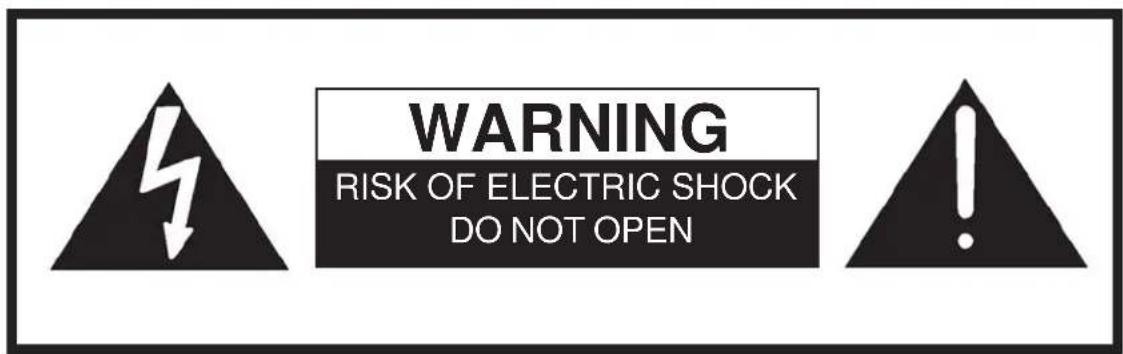
WARNING RISK OF ELECTRIC SHOCK DO NOT OPEN
The lightening flash with arrow-head within a triangle is intended to tell the user that parts inside the product are a risk of electric shock to persons.

The exclamation point within a triangle is intended to tell the user that important operating and servicing instructions are in the papers with the appliance.
WARNING: To prevent damage which may result in fire or shock hazard, do not expose this appliance to rain or moisture. Do not place containers with water (flower vase, cups, cosmetics, etc.) above the set. (including on shelves above, etc.)
WARNING: 1) To prevent electric shock, do not remove cover. No user serviceable parts inside. Refer servicing to qualified service personnel. 2) Do not remove the grounding pin on the power plug. This apparatus is equipped with a three pin grounding-type power plug. This plug will only fit a grounding-type power outlet. This is a safety feature. If you are unable to insert the plug into the outlet, contact an electrician. Do not defeat the purpose of the grounding plug.
FCC Statement
This equipment has been tested and found to comply with the limits for a Class B digital device, pursuant to Part 15 of the FCC Rules. These limits are designed to provide reasonable protection against harmful interference in a residential installation. This equipment generates, uses and can radiate radio frequency energy and, if not installed and used in accordance with the instructions, may cause harmful interference to radio communications. However, there is no guarantee that interference will not occur in a particular installation. If this equipment does cause harmful interference to radio or television reception, which can be determined by turning the equipment off and on, the user is encouraged to try to correct the interference by one of the following measures:
■ Reorient or relocate the receiving antenna.
■ Increase the separation between the equipment and receiver.
■ Connect the equipment into an outlet on a circuit different from that to which the receiver is connected.
■ Consult the dealer or an experienced radio/TV technician for help.
This device complies with Part 15 of the FCC Rules. Operation is subject to the following two conditions: (1) This device may not cause harmful interference, and (2) this device must accept any interference received, including interference that may cause undesired operation.
Safety Instructions
-
Read these instructions.
-
Keep these instructions.
-
Heed all warnings.
-
Follow all instructions.
-
Do not use this apparatus near water.
-
Clean only with dry cloth.
-
Do not block any ventilation openings. Install in accordance with the manufacturer's instructions.
-
Do not install near any heat sources such as radiators, heat registers, stoves, or other apparatus (including amplifiers) that produce heat.
-
Do not defeat the safety purpose of the polarized or grounding-type plug. A polarized plug has two blades with one wider than the other. A grounding type plug has two blades and a third grounding prong. The wide blade or the third prong are provided for your safety. If the provided plug does not fit into your outlet, cosult an electrician for replacement of the obsolete outlet.
-
Protect the power cord from being walked on or pinched particularly at plugs, convenience receptacles, and the point where they exit from the apparatus.
-
Only use attachments/accessories specified by the manufacturer.
-
Use only with the cart, stand, tripod, bracket, or table specified by the manufacturer, or sold with the apparatus. When a cart is used, use caution when moving the cart/apparatus combination to avoid injury from tip-over.

text_image
PORTABLE CART WARNING-
Unplug this apparatus during lightning storms or when unused for long periods of time.
-
Refer all servicing to qualified service personnel. Servicing is required when the apparatus has been damaged in any way, such as power-supply cord or plug is damaged, liquid has been spilled or objects have fallen into the apparatus, the apparatus has been exposed to rain or moisture, does not operate normally, or has been dropped.
Safety Precautions
Set up
Do not place the High Definition Plasma Display on sloped or unstable surfaces.
■ The High Definition Plasma Display may fall off or tip over.
Do not place any objects on top of the High Definition Plasma Display.
If water spills onto the High Definition Plasma Display or foreign objects get inside it, a short-circuit may occur which could result in fire or electric shock. If any foreign objects get inside the High Definition Plasma Display, please consult an Authorized Service Center.
Do not cover the ventilation holes.
■ Doing so may cause the High Definition Plasma Display to overheat, which can cause fire or damage to the High Definition Plasma Display.
If using the pedestal (optional accessory), leave a space of 10 cm (approx. 4 inches) or more at the top, left and right, 6 cm (approx 2.5 inches) or more at the bottom, and 7 cm (approx. 3 inches) or more at the rear. If using some other setting-up method, leavea space of 10 cm (approx. 4 inches) or more at the top, bottom, left and right, and 1.9 cm (approx. 1 inches) or more at the rear.
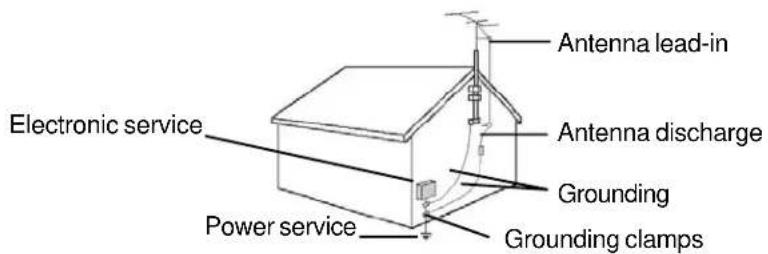
As illustrated below, if an outside antenna is connected to the television equipment, be sure the antenna system is grounded so as provide protection against voltage surges. US section 810 of the National Electrical Code provides information with respect to proper grounding of the mast and supporting structure. Grounding of the lead-in wire to an antenna discharge unit, size of grounding conductors, location of antenna discharge unit, connection to grounding electrodes, and requirements for the grounding electrode.
text_image
Electronic service Power service Antenna lead-in Antenna discharge Grounding Grounding clampsAC Power Supply Cord
Securely insert the power cord plug as far as it will go.
If the plug is not fully inserted, heat may be generated which could fire. If the plug is damaged or the wall socket plate is loose, they should not be used.
Do not handle the power code plug with wet hands.
■ Doing so may cause electric shocks.
Do not do anything that might damage the power cable. When disconnecting the power cable, hold the plug, not the cable.
■ Do not make any modifications, place heavy objects on, place near hot objects, heat, bend, twist or forcefully pull the power cable. Doing so may cause damages to the power cable which can cause fire or electric shock. If damage to the cable is suspected, have it repaired at an Authorized Service Center.
If the Plasma Display is not in use for a long period of time, unplug the power cord from the wall outlet.
NOTE
■ Do not allow a still picture to be displayed for an extended period, as this may cause a permanent after-image to remain on the High Definition Plasma Display, which will not be covered by the product.
Safety Precautions
CAUTION
If Problems occur during use
If a problem occurs(such as no picture or no sound), or if smoke or an abnormal odor is detected from the High Definition Plasma Display, unplug the power cord immediately.
■ Continuous use of the Display under these conditions might cause fire or permanent damage to the unit. Have the Display evaluated at an Authorized Service Center. Services to the Display by any unauthorized personnel are strongly discouraged due to its high voltage dangerous nature.
If water or foreign objects get inside the High Definition Plasma Display, if the High Definition Plasma Display is dropped, or if the cabinet becomes damaged, disconnect the power code plug immediately.
■ A short may occur, which could cause fire. Contact an Authorized Service Center for any repairs that need to be made.
When using the High Definition Plasma Display
Do not bring your hands, face or objects close to the ventilation holes of the High Definition Plasma Display.
■ Top of High Definition Plasma Display is usually very hot due to the high temperature of exhaust air being released through the ventilation holes. Burns or personal injuries can happen if any body parts are brought too close. Placing any object near the top of the display could also result in heat damages to the object as well as to the Display if its ventilation holes are blocked.
Be sure to disconnect all cables before moving the High Definition Plasma Display.
■ Moving the Display with its cables attached might damage the cable which, in turn, can cause fire or electric shock.
Disconnect the power plug from the wall outlet as a safety precaution before carrying out any cleaning
■ Electric shocks can result if this is not done.
Clean the power cable regularly to prevent it from becoming dusty.
■ Built-up dust on the power cord plug can increase humidity which might damage the insulation and cause fire. Unplug the cord from the wall outlet and clean it with a dry cloth.
Cleaning and maintenance
The front of the display panel has been specially treated. Wipe the panel surface gently using only a cleaning cloth or a soft, lint-free cloth.
If the surface is particularly dirty, soak a soft, lint-free cloth in a weak detergent solution and then wring the cloth to remove excess liquid. Use this cloth to wipe the surface of the display panel, then wipe it evenly with a dry cloth, of the same type, until the surface is dry.
■ Do not scratch or hit the surface of the panel with fingernails or other hard objects. Furthermore, avoid contact with volatile substances such as insect sprays, solvents and thinner, otherwise the quality of the surface may be adversely affected.
If the cabinet becomes dirty, wipe it with a soft, dry cloth.
If the cabinet is particularly dirty, soak the cloth in a weak detergent solution and then wring the cloth dry. Use this cloth to wipe the cabinet, and then wipe it dry with a dry cloth.
■ Do not allow any detergent to come into direct contact with the surface of the High Definition Plasma Display. If water droplets get inside the unit, operating problems may result.
■ Avoid contact with volatile substances such as insect sprays, solvents and thinner, otherwise the quality of the cabinet surface may be adversely affected or the coating may peel off. Furthermore, do not leave it for long periods in contact with articles made from rubber or PVC.
Accessories
Accessories Supplied
Check that you have the Accessories and items
■ Operating instruction book
natural_image
Simple line drawing of a document with a horizontal line above a square (no text or symbols)■ Remote control transmitter
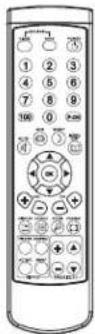
■ Betteries for the remote control transmitter (AAA Battery ×2)
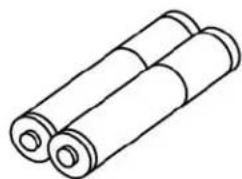
natural_image
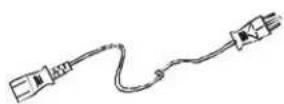
Simple line drawing of two rolled cylindrical objects (no text or symbols)Power cord
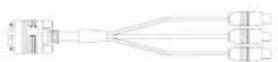
D-sub to RCA cable
■ Phone plug/RCA jack audio input

Warranty Card
Optional Accessories
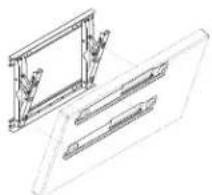
Wall mount bracket
natural_image
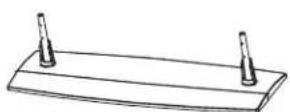
Technical line drawing of two mechanical components with no visible text or symbolsPedestal
NOTE
■ Please only use attachments/accessories specific by manufacturer.
■ Recommend to use the qualified accessories with your PDP only.
Requires two AAA batteries
natural_image
Illustration of a hand holding a mobile phone with a finger pointing to the screen (no text or symbols visible)-
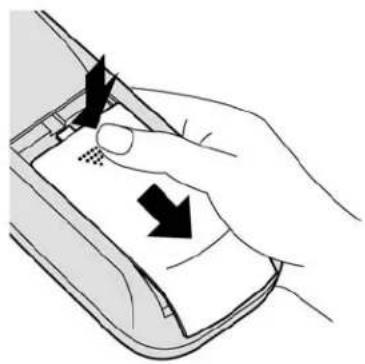
Install the batteries as shown in the battery compartment. (Polarity + or - must match the markings in the compartment).
-
Turn the transmitter face down. Press and slide off the battery cover.

text_image
Two AAA size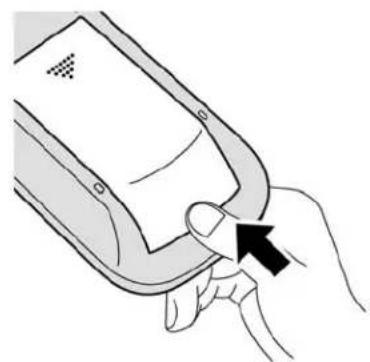
natural_image
Illustration of a hand inserting a device into a device (no text or symbols visible)- Replace the cover and slide in reverse until the lock snaps.
HINT
For frequent remote control users, we suggest to replace batteries with Alkaline batteries for longer life.

Precaution on battery use
Incorrect installation may cause battery leakage and corrosion that will damage the remote control transmitter, please follow the precautions below to replace battery.
- Batteries should always be replaced as a pair. Always use new batteries when replacing the old set.
- Do not combine a used battery with a new one.
- Do not mix battery types (for example: Zinc Carbon with Alkaline)
- Do not attempt to charge, short-circuit, disassemble, heat or burn used batteries.
- Battery replacement is necessary when the remote control acts sporadically or stops operating the Plasma Display.
Remote Control
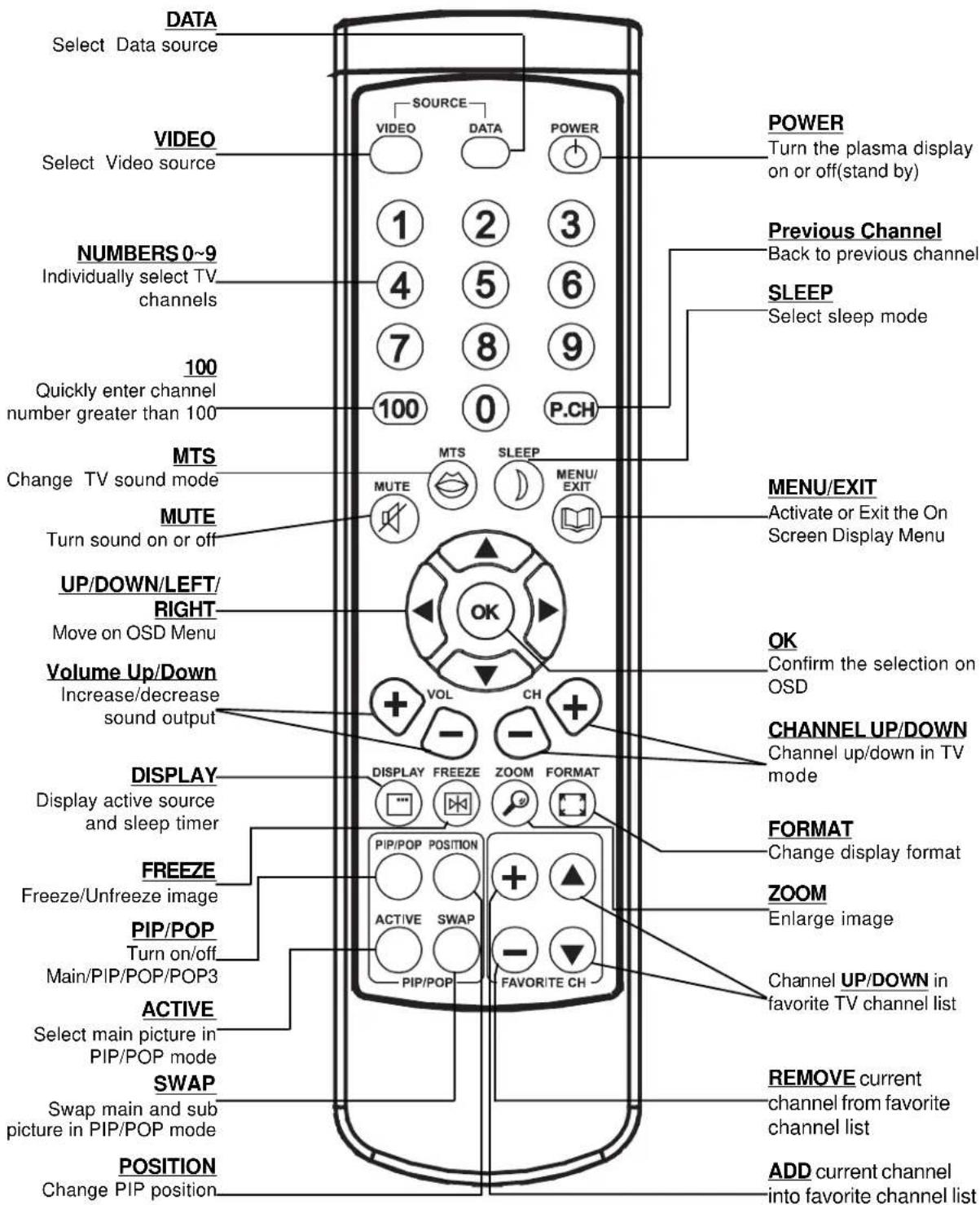
text_image
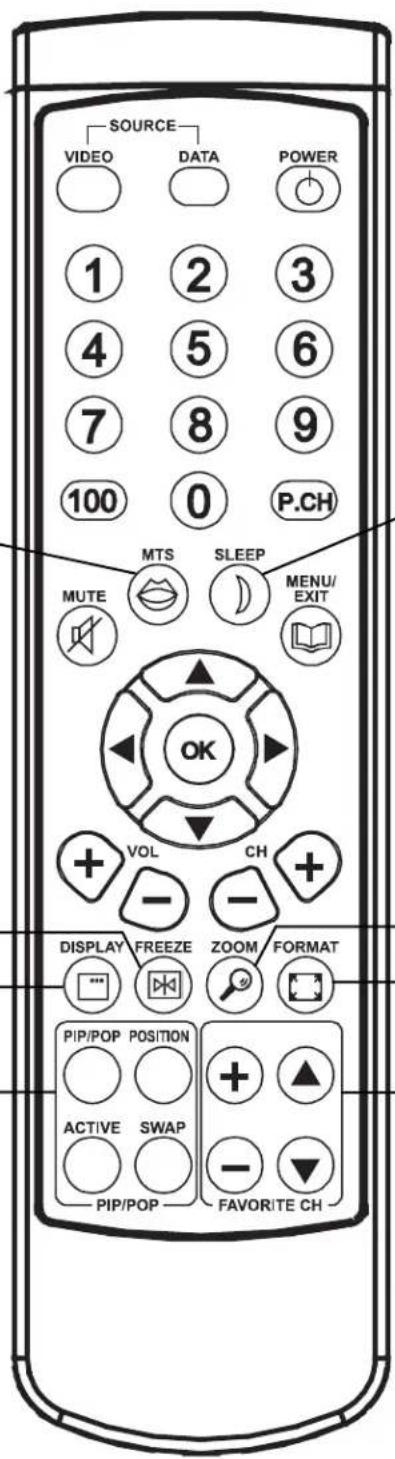
DATA Select Data source VIDEO Select Video source NUMBERS 0~9 Individually select TV channels 100 Quickly enter channel number greater than 100 MTS Change TV sound mode MUTE Turn sound on or off UP/DOWN/LEFT/ RIGHT Move on OSD Menu Volume Up/Down Increase/decrease sound output DISPLAY Display active source and sleep timer FREEZE Freeze/Unfreeze image PIP/POP Turn on/off Main/PIP/POP/POP3 ACTIVE Select main picture in PIP/POP mode SWAP Swap main and sub picture in PIP/POP mode POSITION Change PIP position SOURCE VIDEO DATA POWER 1 2 3 4 5 6 7 8 9 100 0 P.CH MTS SLEEP MENU/ MUTE EXIT OK VOL CH + DISPLAY FREEZE ZOOM FORMAT PIP/POP POSITION ACTIVE SWAP FAVORITE CH POWER Turn the plasma display on or off(stand by) Previous Channel Back to previous channel SLEEP Select sleep mode MENU/EXIT Activate or Exit the On Screen Display Menu OK Confirm the selection on OSD CHANNEL UP/DOWN Channel up/down in TV mode FORMAT Change display format ZOOM Enlarge image Channel UP/DOWN in favorite TV channel list REMOVE current channel from favorite channel list ADD current channel into favorite channel listControl Panel
■ Front Control Panel
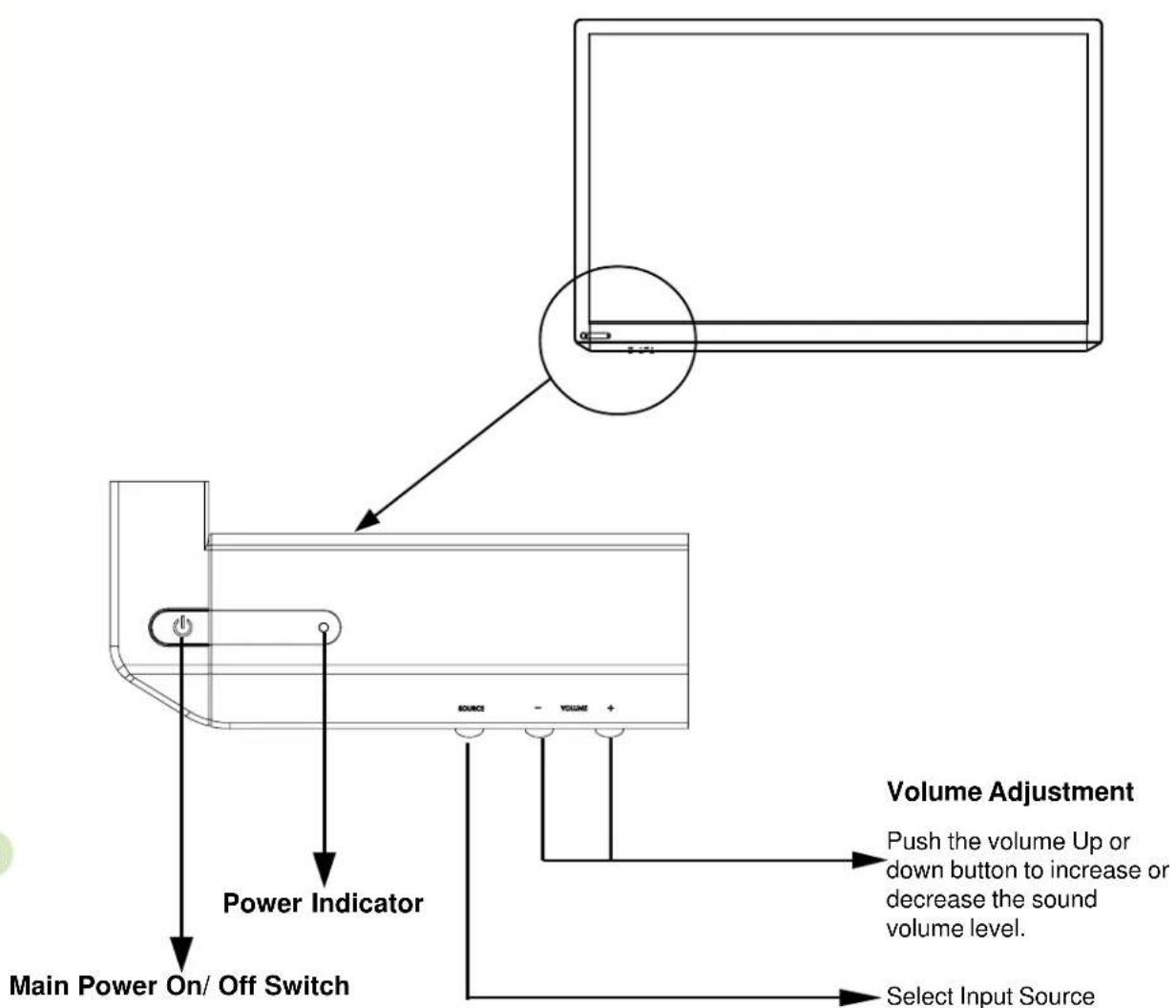
The control keys and LED indicator light are in the front display as illustrated below.
text_image
Volume Adjustment Push the volume Up or down button to increase or decrease the sound volume level. Select Input Source Power Indicator Main Power On/ Off SwitchThe Power Indicator will light under below condition.
■ Power-OFF.....Indicator not illuminated (The unit will still consume some power as long as the power cord is still inserted into the wall outlet.)
■ Stand-by.....Red
■ Power-ON.....Green
■ fan unwork.....Flash red
Control Panel
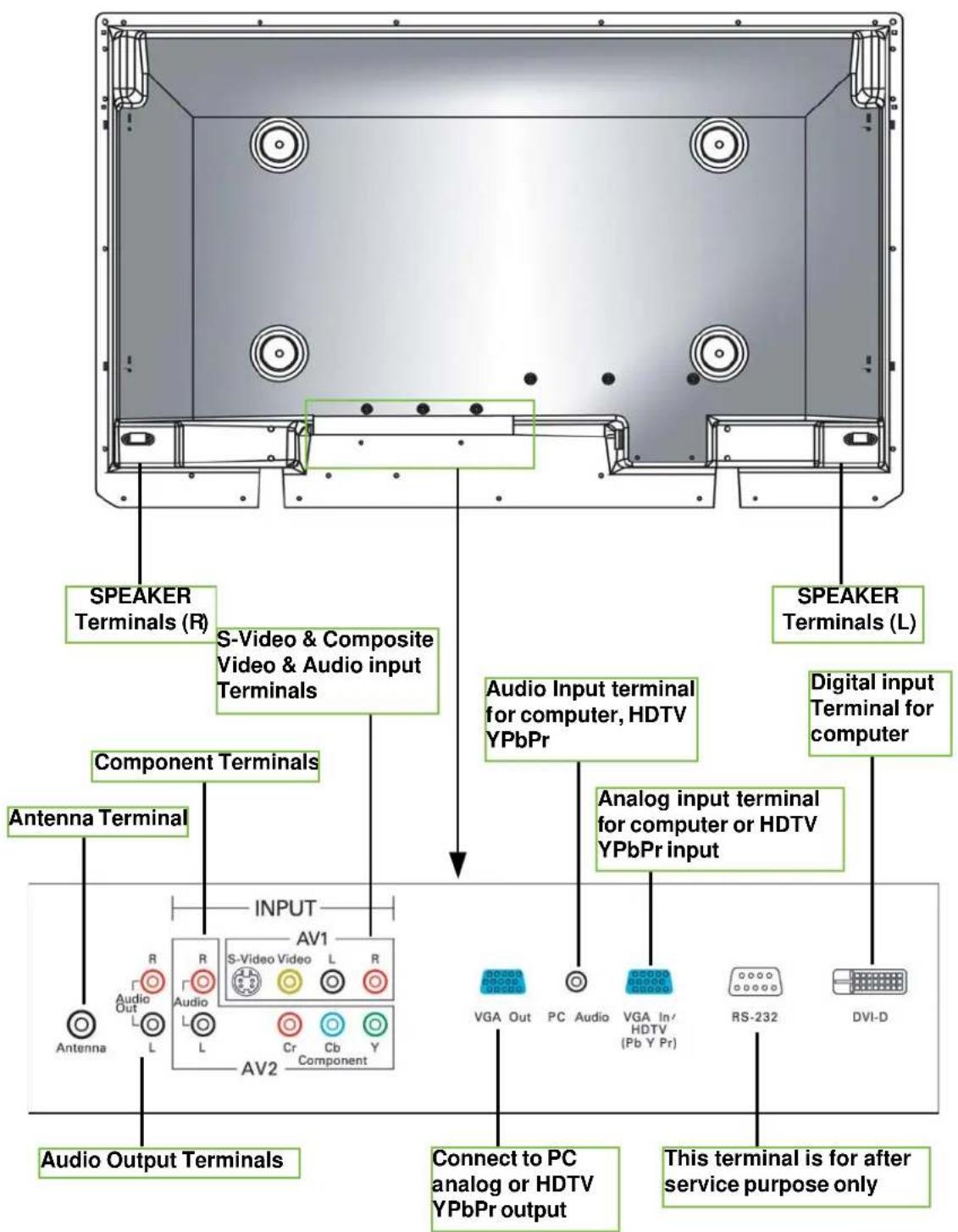
■ Back Control Panel
text_image
SPEAKER Terminals (R) S-Video & Composite Video & Audio input Terminals Component Terminals Antenna Terminal INPUT AV1 S-Video Video L R L L Cr Cb Y Component AV2 Audio Output Terminals SPEAKER Terminals (L) Audio Input terminal for computer, HDTV YPbPr Digital input Terminal for computer Analog input terminal for computer or HDTV YPbPr input VGA Out PC Audio VGA In/ HDTV (Pb Y Pr) RS-232 DVI-D Connect to PC analog or HDTV YPbPr output This terminal is for after service purpose onlyConnections
This unit can receive and display programs and signal from VHS, DVD, HDTV, video game and etc. Here we list and explain some kinds of familiar apparatus. Please ensure the correct connection between display and external equipment.
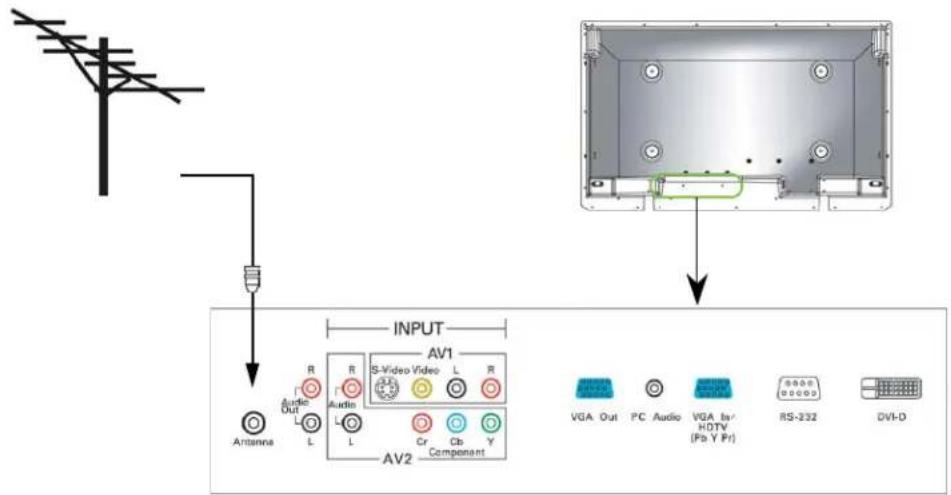
How to connect the Cable TV or Antenna
Use Antenna cable to connect ANTENNA socket of F connector with 75 Ohms impedance.
text_image
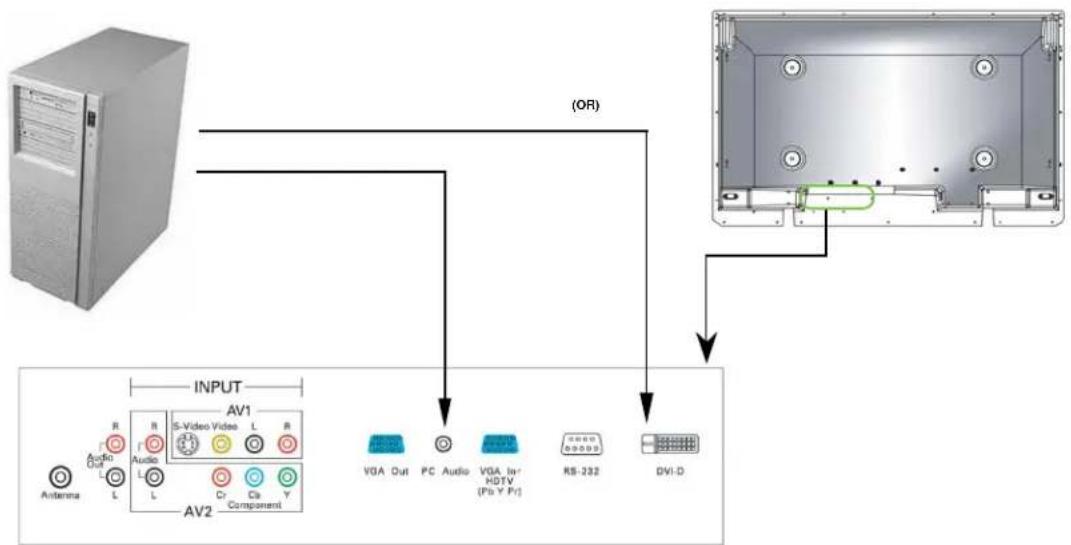
INPUT AV1 S-Video Video L R R Audio Audio L L Cr Cb Y Component AV2 Antenna L R L AV2 VGA Out PC Audio VGA In HDTV (Pb Y Pr) RS-232 DVI-DHow to connect the computer
If you want to connect with computer, you may use the rear input terminal - VGA IN or DVI for Video input and PC Audio for Audio input
flowchart
graph TD
    A["Server"] -->|INPUT| B["AV1"]
    A -->|INPUT| C["AV2"]
    B --> D["VGA Out"]
    B --> E["PC Audio"]
    B --> F["VGA In-HDTV (Pb Y P+)"]
    C --> G["RS-232"]
    C --> H["DVI-D"]
    style A fill:#f9f,stroke:#333
    style B fill:#ccf,stroke:#333
    style C fill:#cfc,stroke:#333
    style D fill:#ffc,stroke:#333
    style E fill:#ffc,stroke:#333
    style F fill:#ffc,stroke:#333
    style G fill:#ffc,stroke:#333
    style H fill:#ffc,stroke:#333
How to connect the VHS
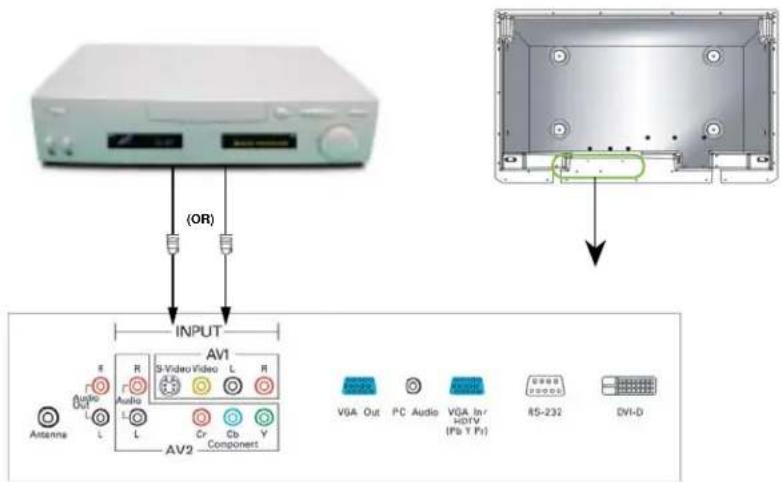
If your VHS does not support S-Video output, you may use three RCA audio cables(Video, L/R audio channels) and connect with AV1.
If your VHS supports S-Video output, you may use S-Video input and two RCA audio cables(L/R audio channels).
text_image
(OR) INPUT AV1 S-Video Video L R Audio L L Cr Cb Y Component AV2 Antenna R Audio L L VGA Out PC Audio VGA In r HDTV ( Pb Y Pr ) RS-232 DVI-DNOTE
■ AV1 S-Video input priority is always higher than Composite video, we strongly suggest not to connect S-Video and Video in the same AV terminal at the same time.
■ Connect TV game set to Display is the same as VHS connection.
How to connect the DVD player
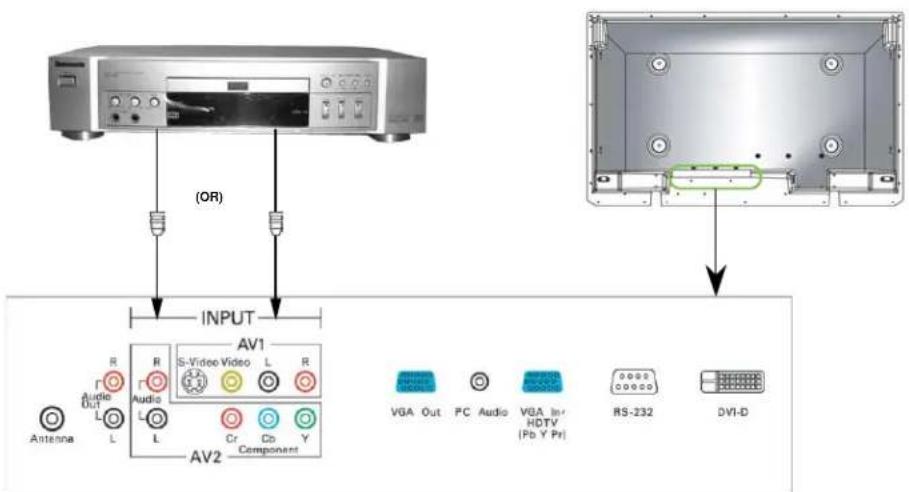
Most of DVD player can support various input types, and this unit can support all kinds of output types as well. Before connecting to DVD, please check the input type first.
- Use Y, Cb, Cr input (AV2), it could have higher signal quality. Here you have to connect to five sockets, including three image control sockets(Y, Cb, Cr) and two audio control sockets(L/R audio channel.
- Use S-Video input, it could have secondly signal quality. Here you have to connect three sockets, including S-Video input and two audio control sockets(L/R audio channel).
- Use regular AV input. Here you have to connect to three sockets, including Video input and two audio control sockets. (L/R audio channel)
text_image
(OR) INPUT AV1 S-Video Video L R AV2 Component Antenna Audio Out L R Audio L L Cr Cb Y VGA Out PC Audio VGA In HDTV [Pb Y Pr] RS-232 DVI-DConnections
How to connect the HDTV
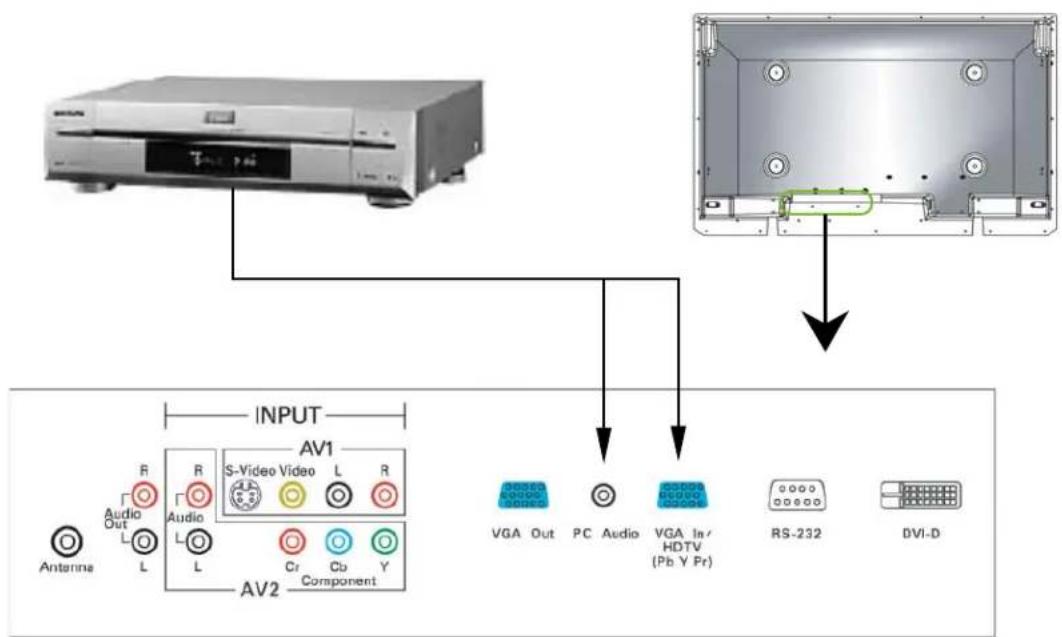
For HDTV Tuner or D-VHS user, please connect Y, Pb, Pr cable to VGA IN/HDTV input.
text_image
OUTPUT AV1 S-Video Video L R R Audio Audio L L L Cr Cb Y Component VGA Out PC Audio VGA In/ HDTV (Pb Y Pr) RS-232 DVI-D AntennaNOTE
■ You may need a VGA-to-Y, Pb, Pr adapter to connect VGA IN/ HDTV input with HDTV.
■ For better picture quality, please use YCbCr connector for 480i signal.
How to connect the speakers (Optional)
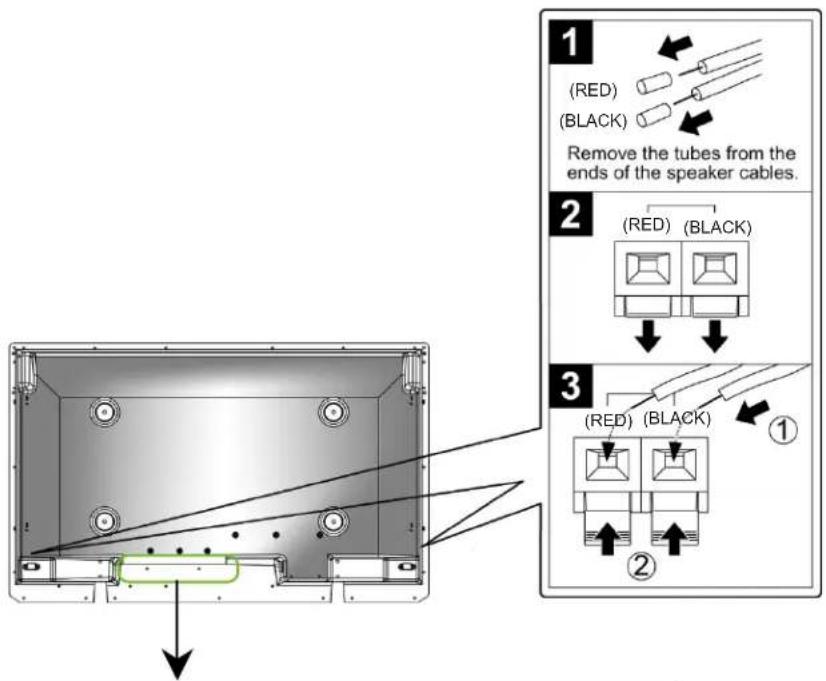
- If you have purchased our optional speakers, please connect the speaker wires to L/R speaker terminals. These terminals only be suit to use in 6 ohm speaker.
- You can also connect to other speakers by using Audio out sockets, you need to connect to external amplifier then connect to speaker.
text_image
1 (RED) (BLACK) Remove the tubes from the ends of the speaker cables. 2 (RED) (BLACK) 3 (RED) (BLACK) ① ②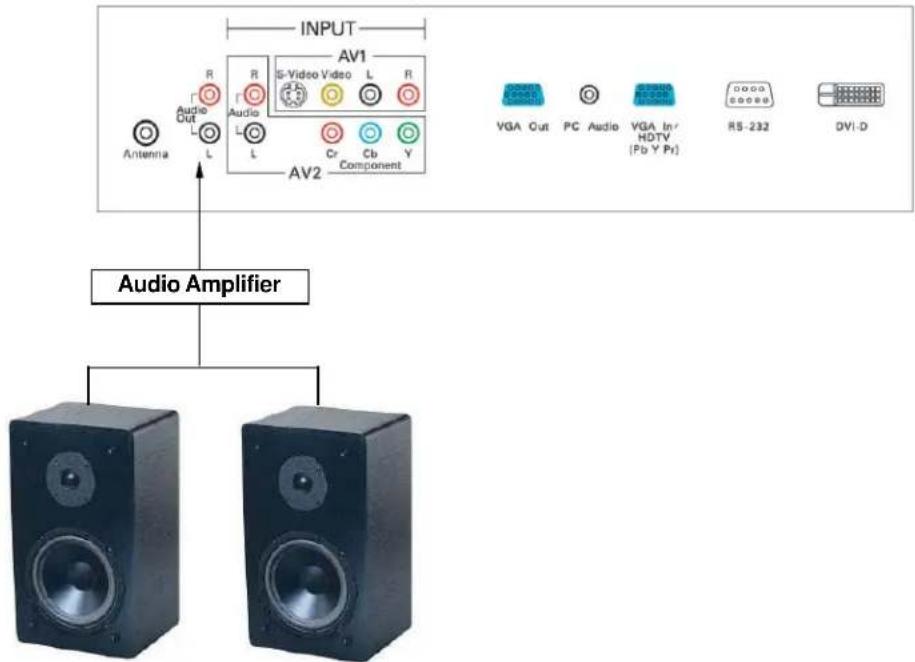
flowchart
graph TD
    A["Antenna"] --> B["Audio Out"]
    B --> C["L"]
    C --> D["AV1"]
    D --> E["Si-Video Video L R"]
    E --> F["AV2 Component"]
    F --> G["AV1"]
    G --> H["VGA Out PC Audio VGA In HDTV Pb Y Pr"]
    H --> I["RS-232 DVI-D"]
On-Screen Menu
PIP/POP
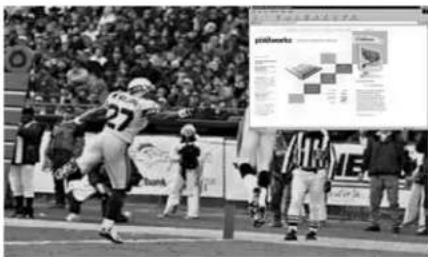
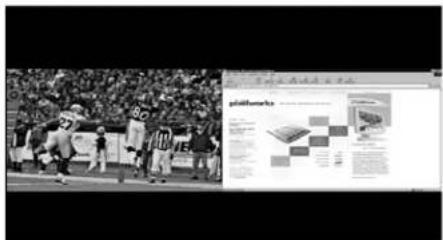
It is possible to view two programs simultaneously using either the PIP or the POP function. The PIP (Picture-In-Picture) function allows the user to watch two video programs simultaneously, one on the full screen and one on a smaller pop-up screen. The POP (Picture-Outside-Picture) function essentially splits the viewing area into two halves, allowing the simultaneous viewing of two programs in side-by-side windows.
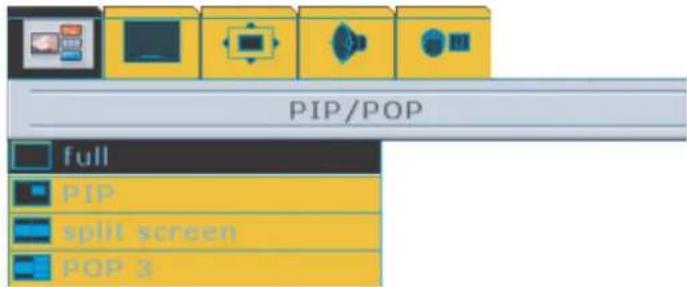
1. Select from OSD Menu
text_image
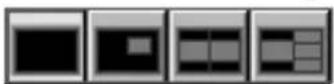
PIP/POP full PIP split screen POP 3Step 1 :
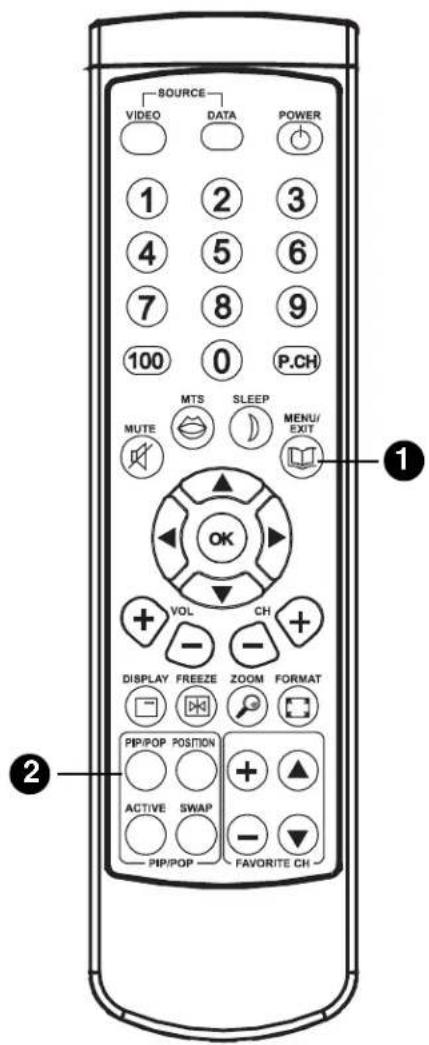
Press the MENU/EXIT button on the remote control ① to call up the on screen display to enter PIP/POP function list.
Step 2 :
Press the▼button to enter the sub-selection and then use ▲▼button to select your preferable watching format. There are full, PIP, split screen and POP3 selections for selecting referring the page 17 for more information.
Step 3 :
Press the OK button to confirm your selection and then press MENU/EXIT to exit sub-menu, re-pressing MENU/EXIT to exit main menu. The display mode will activate immediately after selecting.
2. Select from Hot key
Step 1 :
Direct press PIP/POP button on the remote control ② to call up the function.
Step 2 :
Select your preferable format from the list with re-pressing PIP/POP button. The display mode will activate immediately after pressing.
text_image
SOURCE VIDEO DATA POWER 1 2 3 4 5 6 7 8 9 100 0 P.CH MUTE MTS SLEEP MENU/ EXIT OK + VOL CH + DISPLAY FREEZE ZOOM FORMAT PIP/POP POSITION ACTIVE SWAP PIP/POP FAVORITE CHHINT
- You can use the above hot keys in PIP/POP area for quick operation. PIP/POP, ACTIVE, POSITION and SWAP. Please refer to page 36 to see the function usage.
- Some items of adjustment might not be available when PIP or POP function is activated.
On-Screen Menu
More Information
Full screen
- This function can be spread frame to all screen(1366 x 768).
- It is suitable to watch HDTV and 16:9 format DVD.
PIP(Picture-In-Picture)
- PIP mode lets you view 2 different inputs (picture sources) on your monitor screen at the same time. One source will be large, and another source will show a smaller inset image.
text_image
Black-and-white photo of a football player celebrating on the field with an inset showing a poster titled 'Millionworks' and team logos.Split screen(side by side)
- Split screen mode lets you view 2 different inputs (picture sources) on your monitor screen at the same time.
text_image
Black-and-white photo of a football field with visible NFL team logos and an adjacent display panel showing NFL team information and charts.POP 3
- This function lets you view 2 different inputs (picture sources) on your monitor screen at the same time.
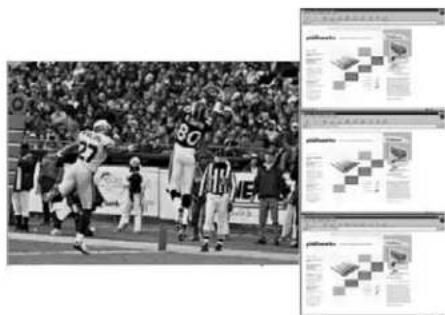
text_image
Black-and-white photo of a football match with visible jersey numbers and surrounding descriptive text panelsHINT
Selecting a Source for the pip, split screen and pop3,
- In TV for main picture, you can select AV1, HDTV/VGA IN and DVI for sub picture.
- In AV1 for main picture, you can select HDTV/VGA IN and DVI for sub picture.
- In AV2 for main picture, you can select AV1, HDTV/VGA IN and DVI for sub picture.
- In HDTV/VGA IN for main picture, you can select TV, AV1 and AV2 for sub picture.
- In DVI for main picture, you can select TV, AV1 and AV2 for sub picture.
NOTE
■ POP3 sub window only supports max. resolution up to 800x600.
It is normal if POP3 sub window displays still for 1\~2 sec., this causes of source scan circularly.
On-Screen Menu
PICTURE
This menu allows the user to modify the individual components of the picture quality or to simply choose from one of several factory-present picture settings or user present settings. And the different sources input will have different menu function, referring to following menu.
- During Composite, S-Videio and TV input signal modes
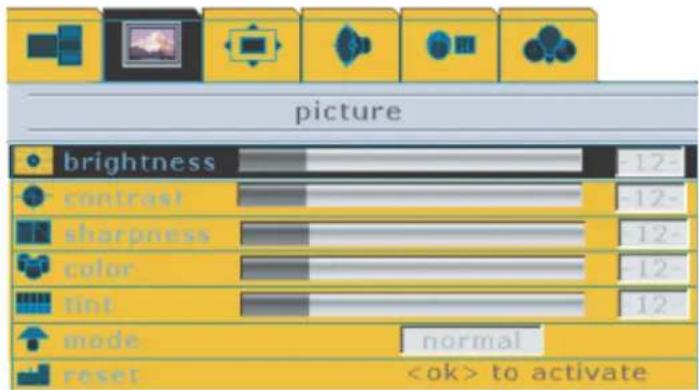
text_image
picture brightness contrast sharpness color tint mode reset normal- During YCbCr 480i input signal mode.
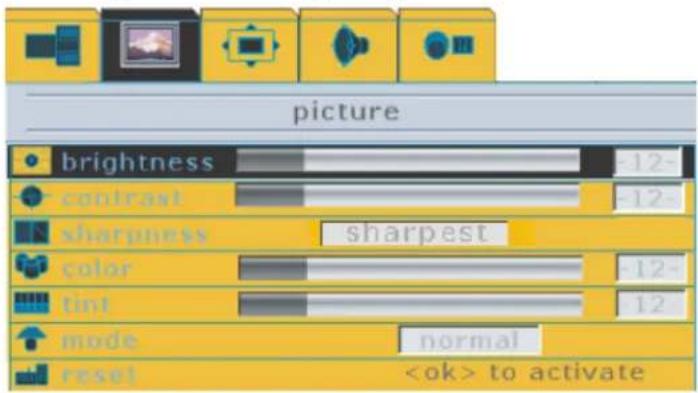
text_image
picture brightness contrast sharpest color tiny mode reset normal- During Analog RGB input signal mode.
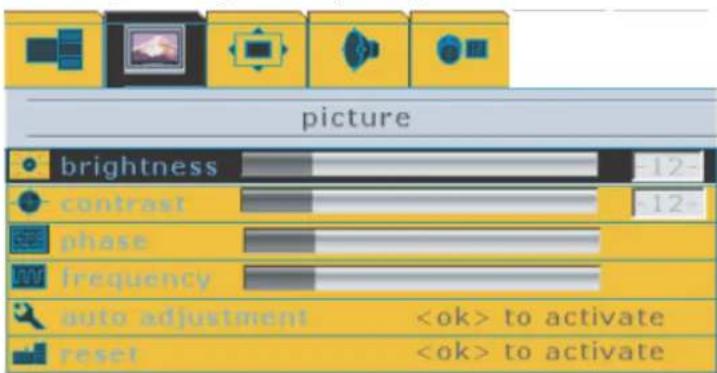
text_image
picture brightness contrast phase frequency auto adjustmentPICTURE
- During Digital RGB input signal mode.
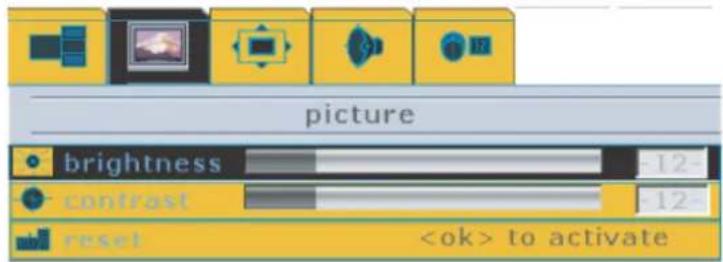
text_image
picture brightness contrast reset- During HDTV input signal mode.
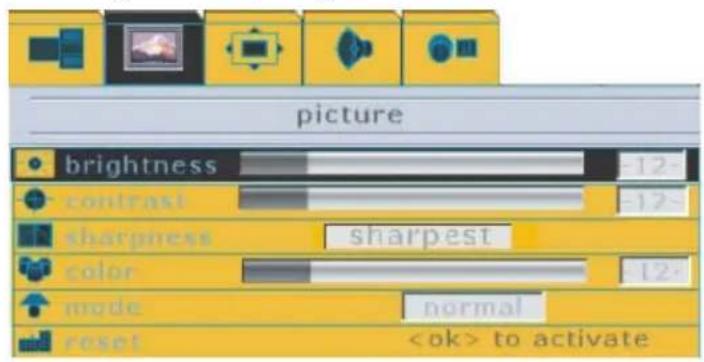
text_image
picture brightness contrast sharpness color mode reset sharpest normalStep 1 :
Press the MENU/EXIT button on the remote control to call up on screen display and then use ◀▶button to select the picture function.
Step 2 :
Press the ▼button to enter the sub-selection and then use ▲▼button to select picture items.
Step 3 :
Selecting one of picture items then press◀▶button to adjust picture quality. All adjustments made will be automatically saved after adjusting.
Step 4 :
Press MENU/EXIT to exit sub-menu, re-pressing MENU/EXIT to exit main menu.
NOTE
■ Please refer to next page for detailed OSD operation information.
On-Screen Menu
More Information
Brightness

Description : Adjust for easier viewing of dark pictures such as night scences and black hair
Steps : Selecting brightness item then press
◀▶ button to enter the function. The
brightness bar appears on the bottom of screen, selecting ◀▶button to adjust brightness range from 0 to 63. Re-pressing MENU/EXIT to exit adjusting.
Mode : This function operates in every mode.
Contrast

Description: Adjust the white to black level
Steps: Selecting contrast item then press
◀▶ button to enter the function. The
contrast bar appears on the bottom of screen, selecting ◀ button to adjust contrast range from 0 to 63. Re-pressing MENU/EXIT to exit adjusting.
Mode: This function operates in every mode.
Phase

Description: Harmonizes the signals from the plasmas dispaly and the computer
Steps: Selecting contrast item then press
◀▶ button to enter the function. The
phase bar appears on the bottom of screen, selecting ◀ button to adjust phase. Re-pressing MENU/EXIT to exit adjusting.
Mode: This function works only in PC analog mode.
Sharpness

Description: Adjust the sharpness of image.
Steps: Selecting sharpness item then press ◀ button to enter the function. The sharpness bar appears on the bottom of screen, selecting ◀ button to adjust sharpness range from 0 to 12. Re-pressing MENU/EXIT to exit adjusting.
Mode: This function works only in Composite, S-Video and TV modes.
On-Screen Menu
More Information
Sharpness

Description: Adjust the sharpness of image.
Steps: Selecting sharpness item then press ◀ button to select normal, soft, softest, sharp, sharpest. Re-pressing MENU/EXIT to exit sub menu.
Mode : This function works only in YCbCr and HDTV modes.
Color

Description: Adjust image lightly to a lighter color.
Steps: Selecting color item then press ◀ button to enter the function. The color bar appears alone on the bottom of screen, selecting ◀ button to adjust color range from 0 to 63. Re-pressing MENU/EXIT to exit adjusting.
Mode : This function works only in Composite, S-Video, TV and HDTV modes.
Frequency

Description: Adjust for various ambient signal interference.
Steps: Selecting frequency item then press ◀ button to enter the function. The frequency bar appears on the bottom of screen, selecting ◀ button to adjust frequency. Re-pressing MENU/EXIT to exit adjusting.
Mode : This function works only in PC analog mode.
Tint

Description: Balance the red and green level of image.
Steps: Selecting tint item then press ◀ button to enter the function. The tint bar appears on the bottom of screen, selecting ◀ button to adjust tint range from 0 to 63. Re-pressing MENU/EXIT to back to sub-menu.
Mode : This function works only in Composite, S-Video, TV and HDTV modes.
On-Screen Menu
More Information
Auto adjustment
Description: Automatically center the image on the screen.
Steps: Selecting auto adjustment item then press OK button to confirm the selection, re-pressing MENU/EXIT to exit sub-menu.
Mode: This function works only PC analog mode.
Mode
Description: Preset picture quality settings.
Steps: Selecting mode item then press ◀ button to select normal, cinerma and bright modes, re-pressing MENU/EXIT to exit sub-menu.
Mode: This function works only in Video, TV and HDTV modes.
Reset
Description: Back to factory default value.
Steps: Selecting mode item then press OK button to activate reset, re-pressing MENU/EXIT to exit sub-menu.
Mode: This function operates every mode.
SCREEN
This menu allows the user to alter the screen dimensions to suit the image being viewed.
- During Video, TV, Digital RGB and HDTV input signal modes
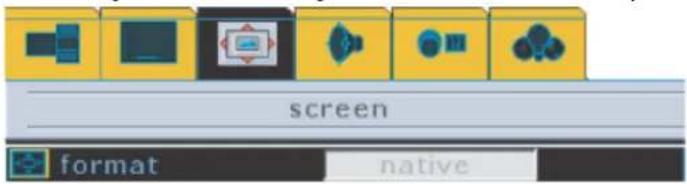
text_image
screen format native- During Analog RGB input signal mode
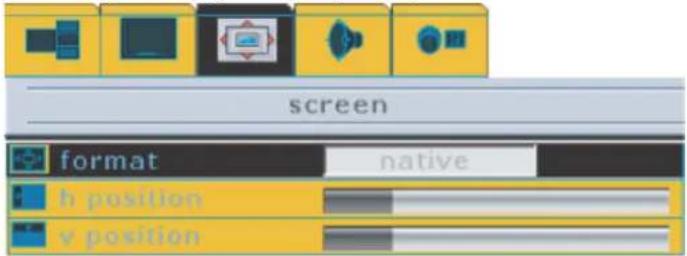
text_image
screen format native h position v positionStep 1 :
Press the MENU/EXIT button on the remote control to call up on screen display and then use ◀▶ button to select the screen function.
Step 2 :
Press the ▼button to enter the sub-selection and then use ▲▼button to select screen items.
Step 3 :
Selecting one of screen items then press ◀ button to adjust function. All adjustments made will be automatically saved after adjusting.
Step 4 :
Press MENU/EXIT to exit sub-menu, re-pressing MENU/EXIT to exit main menu.
NOTE
■ Please refer to next page for detailed OSD operation information.
On-Screen Menu
More Information
Format
Description: Alter the dimensions of the screen image.
Steps: Selecting format item then press
◀▶ button to select full, 4:3, stretch, wide
and native selection, re-pressing MENU/EXIT to exit sub menu.
Mode: This function operates in every mode.
HINT
- Full : The picture will be enlarged to take up the entire screen area, Suitable for HDTV programs and compressed 16x9 DVD programs.
- Native : Simply displays the picture the way it is being transmitted without any modifications. Unused portions of the screen will be left in black.
- 4:3 : This format will enlarge picture signals to 1024 x 768 in the center of the screen. Unused portions of the screen will be left in black.
- Stretch: This format uses non-linear scaling to extend a normal 4 x 3 picture signal so that the left and right edges of the picture are stretched to encompass the full width of the screen area.
- Wide : This format is used to view feature films, which are normally viewed with a screen ratio of 2.35.
H. position

h position
Description: Adjust horizontal position.
Steps:
Selecting H. position item then press ◀ button to enter the function. The H. position bar appears on the bottom of screen, selecting ◀ button to adjust horizontal position. Re-pressing MENU/EXIT to exit adjusting.
Mode: This function works only in PC analog mode.
V. position

v position
Description: Adjust horizontal position.
Steps: Selecting H. position item then press
◀▶ button to enter the function. The
H. position bar appears on the bottom of screen, selecting ◀ button to adjust horizontal position. Re-pressing MENU/EXIT to exit adjusting.
Mode: This function works only in PC analog mode.
AUDIO
This menu allows the user to adjust the sound settings to suit the program being viewed or to suit the user preference.
- During Video, analog RGB, digital RGB, HDTV input signal modes
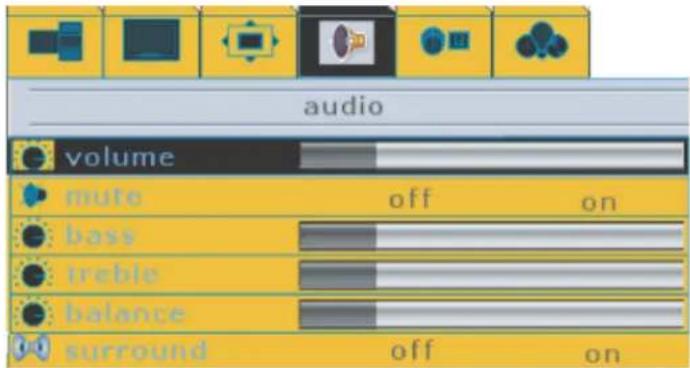
text_image
audio volume mute off on bass treble balance surround off onDuring TV input signal mode
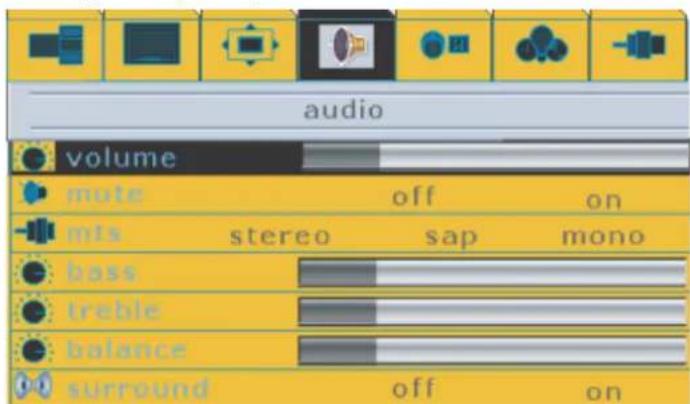
text_image
audio volume mute off on mts stereo sap mono bass treble balance surround off onStep 1 :
Press the MENU/EXIT to call up on screen display and then use ◀ button to select the audio function.
Step 2 :
Press the ▼button to enter the sub-selection and then use▲▼button to select audio items.
Step 3 :
Selecting one of audio items then press ◀ button to adjust audio performance. All adjustments made will be automatically saved after adjusting.
Step 4 :
Press MENU/EXIT button to exit, re-pressing MENU/EXIT button to exit main menu.
NOTE
■ Please refer to next page for detailed OSD operation information.
On-Screen Menu
More Information
Volume

volume
Description: Allows to increase or decrease sound output.
Steps: Selecting volume item then press
◀▶ button to enter the function. The
volume bar appears on the bottom of screen, selecting ◀▶button to adjust volume. Re-pressing MENU/EXIT to exit adjusting.
Mode : This function operates in every mode.
Mute
Description: Disable or enable sound output.
Steps: Selecting mute item then press
◀▶ button to select on or off to enable or
disable the sound, re-pressing MENU/EXIT to exit sub menu.
Mode: This function operates in every mode.
Bass
Description: Enhance or reduce low frequency sound.
Steps: Selecting bass item then press
◀▶ button to adjust bass bar on menu, re-
pressing MENU/EXIT to exit sub menu.
Mode : This function operates in every mode.
Treble
Description: Enhance or reduce high frequency sound.
Steps: Selecting treble item then press
◀▶ button to adjust treble bar on menu, re-
pressing MENU/EXIT to exit sub menu.
Mode : This function operates in every mode.
Balance
Description: Adjust the sound allocation between the left and right speakers.
Steps: Selecting balance item then press
◀▶ button to adjust balance bar on menu,
re-pressing MENU/EXIT to exit sub menu.
Mode : This function operates in every mode.
On-Screen Menu
More Information
Surround
Description: To activate surround mode.
Steps: Selecting surround item then press
◀▶ button to select on or off to enable or
disable the surround mode, re-pressing MENU/EXIT to exit sub menu.
Mode: This function operates in every mode.
MTS
Description: Choose the sound mode.
Steps: Selecting MTS item then press
◀▶ button to select stereo, SAP or mono to
changeTV sound mode in NTSC system. To press MENU/EXIT to exit sub
menu.
Mode: This function works only in TV mode.
NOTE
■ You can also use hot key to select MTS function, please refer to the section of hot key introduction.
On-Screen Menu
SETTINGS
This menu allows the user to modify selections of OSD timeout, language, source select and source enable. Refer to the next page for descriptions.
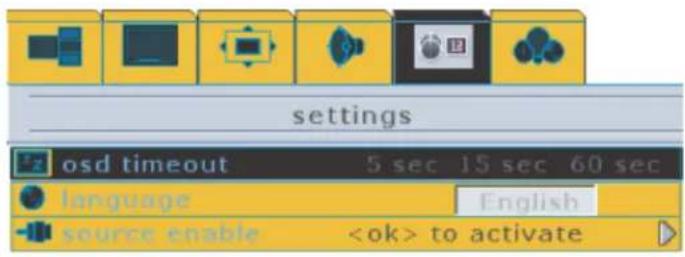
text_image
settings osd timeout 5 sec 15 sec 60 sec language English source enableStep 1 :
Press the MENU/EXIT button to call up on screen display and then use ◀ button to select the settings function.
Step 2 :
Press the▼button to enter sub-selection and then use▲▼button to select settings items.
Step 3 :
Selecting one of settings items then press◀▶button to adjust your preferable setting. All adjustments made will be automatically saved after adjusting.
Step 4 :
Press MENU/EXIT button to exit, re-pressing MENU/EXIT button to exit main menu.
NOTE
■ Please refer to next page for detailed OSD operation information.
On-Screen Menu
More Information
OSD timeout
Description: Allows on-screen menu to disappear automatically on the screen.
Steps: Selecting OSD timeout item then press
◀▶ button to select 5 sec., 15 sec.
or 60 sec. to change OSD disappear timing on display. To press MENU/EXIT to exit sub menu.
Mode: This function operates in every mode.
Language
Description: The menus can be shown on the disaply in the selected language.
Steps: Selecting language item then press
◀▶ button to select OSD showing in
English, French and Spanish, pressing MENU/EXIT to exit sub menu.
Mode: This function operates in every mode.
Source enable
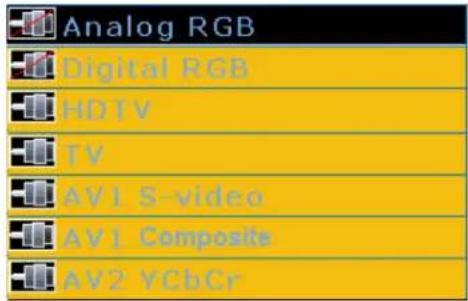
text_image
Analog RGB Digital RGB HDTV TV AV1 S-video AV1 Composite AV2 YCbCrDescription: Allows to enable or disable sources input.
Steps: Selecting source enable item then press OK to activate selection, pressing ▲▼button to select sources of analog RGB, digital RGB, HDTV, TV, AV1 or AV2 YCbCr. Press OK to disable source, pressing again OK to enable source. To press MENU/EXIT to exit source selection and sub menu.
Mode: This function operates in every mode.
On-Screen Menu
OPTIONS
This menu allows the user to turn on/off the closed caption, select the text mode, and block the TV program with particular rating. Refer to the next page for descriptions.
1. During Composite input signal mode
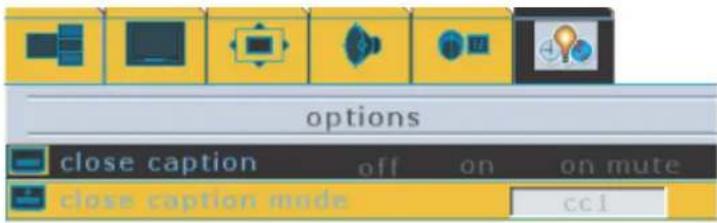
text_image
options close caption off on on mute close caption mode cci2. During TV input signal mode
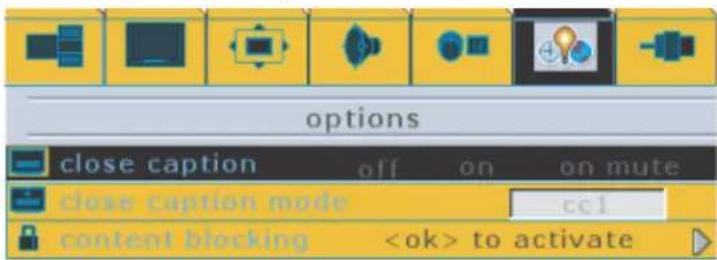
text_image
options close caption off on on mute close caption mode cc1 content blockingStep 1 :
Press the MENU/EXIT to call up on screen display and then use ◀ button to select the options function.
Step 2 :
Press the ▼button to enter sub-selection and then use▲▼button to select options items.
Step 3 :
Selecting one of options items then press◀▶button to adjust your preferable setting. All adjustments made will be automatically saved after adjusting.
Step 4 :
Press MENU/EXIT button to exit, re-pressing MENU/EXIT to exit main menu.
On-Screen Menu
More Information
Close caption
Description: Allows to close texts on the display.
Steps: Selecting close caption item then press ◀▶ to select off, on or on mute to change caption on display. To press MENU/EXIT to exit sub menu.
Mode: This function works only in composite (AV1) and TV modes.
Close caption mode
Description: Allows to set texts mode on the display.
Steps: Selecting close caption mode item then press ◀▶ to select cc1, cc2, t1 or t2 to change caption mode on display. To press MENU/EXIT to exit sub menu.
Mode: This function works only in composite (AV1) and TV modes.
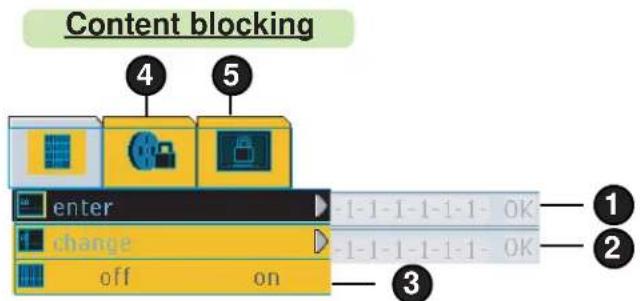
text_image
Content blocking 4 5 enter change off on 1 2 3Description: Some TV programs and movies may contain inappropriate material for viewers at all ages, therefore, are rated base on the following and be categorised in different levels: violence (V), Sexual situation (S), coarse language (L), or suggestive dialogue (D). Content blacking feature (V-chip) can detect the programs or movie rating signal and block accordingly.
Steps : To enable or disable this function, please enter 6-digit password (default: 000000) with pressing ▲▼◀▶ button then press OK to confirm entry. Complete password setting, the other functions just can be called up as follows.
- Enter password as 1: Enter password every time if you want to activate content blocking
- Change password as 2 : To change your password.
- Blocking enable/disable as 3 : Enable or disable the selected TV blocking or movie blocking.
- Movie blocking as 4 : Select the blocking programs from MPAA rating list
- TV blocking as 5 : Select the blocking programs TV rating list
Mode: This function works only in TV mode.
NOTE
■ When the close caption mode function is activated, 3D comb filter will be no function.
■ If password forgotten case occurred, please use universal password- 000000 to re-enter, but original password will be reset.
On-Screen Menu
More Information
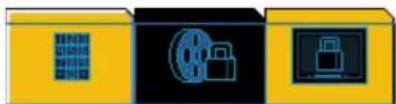
Movie blocking
Description : Independent rating system for movies.
Steps :
Press ▲▼button to highlight the desired rating then press MENU/EXIT to exit selection. Move to blocking enable/disable item to activate function.
natural_image
Three abstract icons: a binary code, a padlock, and a lock on a black background (no text or symbols)| MPAA Rating | Description |
| G | General Audiences-All ages admitted |
| PG | Parental Guidance Suggested |
| PG-13 | Parents Strongly Cautioned - Content may be inappropriate for children under 13 |
| R | Restricted - Under 17 requires accompanying parent or adult guardian |
| NC-17 | No one under 17 is admitted |
| X | Restricted to adults only |
| NR | No rating |
On-Screen Menu
More Information
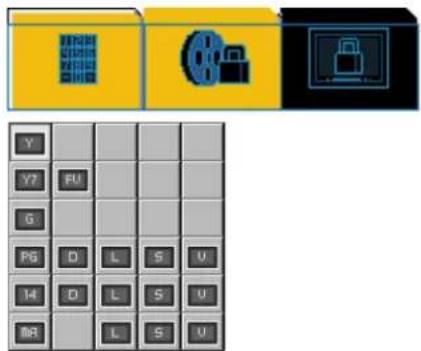
TV blocking
Description : Independent rating system for broadcasters.
Steps :
Press ▲▼button to highlight the desired rating then press MENU/EXIT to exit selection. Move to blocking enable/disable item to activate function.
text_image
Water Water Water Water Water Water Water Water Water Water Water Water Water Water Water Water Water Water Water Water Water Water Water Water Water Water Water Water Water Water Water Water Water Water Water Water Water Water Water Water Water Water Water Water Water Water Water Water Water Water Water| TVgnitaR | noitpircseD |
| Y | All Children- This program is designed to be appropriate for all children |
| Y7 | Directed to Older Children- This program is designed for children age 7 and elva |
| G | General Audience- Most parents would find this program suitable for all ga |
| PG | Parental Guidance Suggested- This program contains material that parents may find unsuitable for younger children |
| 14VT | Parents Strongly Cautioned- This program contains some material that many parents would find unsuitable for children under 14 years of age |
| MA | Mature Audience Only- This program is specially designed to be viewed by adults and therefore may be unsuitable for children under 17 |
On-Screen Menu
TUNER
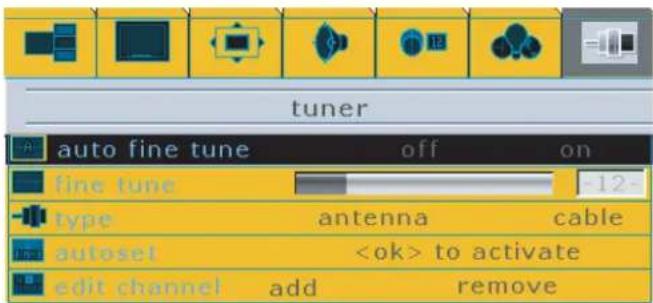
This menu allows the user to make channel fine tune, channel source type selection and channel search/edit. Refer to the next page for descriptions.
During TV input signal mode
text_image
tuner auto fine tune off on fine tune type antenna cable autosetStep 1 :
Press the MENU/EXIT to call up on screen display and then use ◀ button to select the tuner function.
Step 2 :
Press the▼button to enter sub-selection and then use▲▼button to select tuner items.
Step 3 :
Selecting one of options items then press ◀ button to adjust your preferable setting. All adjustments made will be automatically saved after adjusting.
Step 4 :
Press MENU/EXIT to exit, re-pressing MENU/EXIT to exit main menu.
NOTE
■ Please note Tuner feature only works in TV mode.
On-Screen Menu
More Information
Auto fine tune
Description: Select correct tune set to channels automatically
Steps: Selecting auto fine tune item then press
◀▶ button to select on or off to
correct tune set automatically, re-pressing MENU/EXIT to exit sub menu.
Mode: This function works only in TV mode.
Fine tune

Description: Select correct tune set to channels manually.
Steps: Selecting fine tune item then press OK to activate function. The bar appears on the bottom of display, selecting ◀ button to correct tune set to channels . Re-pressing MENU/EXIT to exit.
Mode : This function works only in TV mode.
Type
Description: Select channels source from antenna or cable.
Steps: Selecting type item then press
◀▶button to select antenna or cable source.
Pressing again MENU/EXIT to exit sub menu.
Mode : This function works only in TV mode.
Auto set
Description: Search for available TV channels automatically and memorize the channels.
Steps: Selecting autoset item then press OK to activate function, pressing MENU/EXIT to exit sub menu.
Mode : This function works only in TV mode.
Edit channel
Description: Allow to add or erase channels manually.
Steps: Selecting edit channel item then press
◀▶ button to select add or erase
channel, pressing again MENU/EXIT to exit sub menu.
Mode : This function works only in TV mode.
Hot Key Functions
There are some hot key functions on remote control. It helps easy and quick to use these functions.
MTS
Change TV sound mode in NTSC system if available. There are Mono, SAP, and Stereo mode for selecting.
FREEZE
Freeze the image to look at the detail content. This function only works on full screen mode. Do not freeze the image for a long time. It may cause after-image (please refer to the troubleshooting page).
NOTE
After the freeze, only the keys of Zoom, UP, Left, Right, Down, Power, Mute and Vol +/- will function normally. And only pressing the freeze key could unfreeze the situation.
DISPLAY
Three lines information will show up on the right upper corner. The first line is the source selection: TV, AV1, AV2, HDTV, Digital, and Analog. The second line is the connector type, channel number, or the resolution of the image. The third line is the remaining time to enter into sleep mode.
PIP/POP
PIP/POP
Toggle among full screen, PIP, POP, and
POP3
ACTIVE
To select an active window on PIP/POP mode and the volume activates along with the active window only. Please notice the OSD menu can be called up when the active window is on POP
mode POSITION
To change the position of the sub image among four corners in PIP mode. This function does
not support HDTV, anglog and digital.
To swap the main and sub images in PIP/POP mode. This function does not support some PIP/POP/POP3 combinations, reading the
text_image
SOURCE VIDEO DATA POWER 1 2 3 4 5 6 7 8 9 100 0 P.CH MTS SLEEP MUTE MENU/ EXIT OK VOL CH + DISPLAY FREEZE ZOOM FORMAT *** + + ACTIVE SWAP PIP/POP POSITION PIP/POP FAVORITE CHHot Key Functions
SLEEP
Preset a sleep timer to automatically shut off the display after the specified time(in minutes).
Range among 0min, 30min, 60min, 90min and 120min. Sleep timer is off when 0 min is selected.
ZOOM

step
-2-
Enlarge image. The image can be magnified to 2x, 4x, 9x and 16x.
This function only works on full screen mode.
STEP
Press ZOOM button to enlarge image; press
◀▶button to pan to the left and right sides.
FORMAT
Change current display format.
There are Full, Native, 4:3, stretch and wide mode for selecting.(About Format description, please refer to page 21)
FAVORITE
ADD
To add current TV channel to available favorite TV channel list.
ERASE
To remove current TV channel from TV favorite channel list.
UP
To switch to next upward channel on the favorite channel list.
DOWN
To switch to next downward channel on the favorite channel list.
Appendices
Troubleshooting
If you experience problems with the Plasma High Definition Display as below items, please refer to the following suggestions. If the problems still occur continuously, please contact with your seller or local dealer.
| smelbor | P | s |
| on | Make sure A/C Power is supplied at the wall and/or if a power tap is used, power is available at the tap.Manually press the Power button located under the front panel controls.Check the batteries on the remote control | |
| No Image and No on | Check whether the Monitor is turned on.Power cord inserted into wall outlet?Plug another product's power cord into the wall outlet where the Monitor's power cord was plugged in to verify the power supply. | |
| Image OK but No on | Press the Volume button.Sound muted? Press Mute button. | |
| No Image but Sound OK | If a signal with a non-applicable color system format, or frequency is input, only the input terminal indication is displayed. | |
| No Color but Sound OK | Color controls set an minimum level. | |
| The remote control doesn't work | Check to see if there is any object between the Plasma Display and the remote control causing obstruction.Check to see if the batteries are installed with the correct polarities. | |
| Some parts of the screen do no light up | The plasma display panel is manufactured using an extremely high level of precision technology, however, sometimes some parts of the screen may be missing picture elements or have luminous spots.This is not a malfunction. | |
| After- images appear | Do not allow a still picture to be displayed for an extended period, as this can cause a permanent-image to remain on the High Definition Plasma Display. Examples of still pictures include logos, video games, computer images, teletext and images displayed in 4:3 mode :NoThe permanent after-image on the Plasma Display resulting from fixed image use is not an operating defect and as such is not covered by the Warranty. This product is not designed to display fixed images for extended periods of time. | |
| Whirring sounds can be heard from the display ni | The display unit is fitted with a cooling fan to dissipate heat geerated during normal use. The whirring sound is caused by rotation of the fan and is not a malfunction. | |
| Only green image appear in HDTV mode | Select HDTV source by pressing "VIDEO" button on remote control. | |
| Display turns into stand by mode and LED is flashing red | Contact the dealer where you purchased the High Definition Plasma Display. Fans could be failed. | |
| the | Contact the dealer where you purchased the High Definition Plasma play | |
NOTE
■ System will be in stand by modes if there is no any singal input.
Appendices
Specifications
| snoisnemmiD | ||
| CAtupnl | V | 021~00 |
| noitpmusnoCreRo | ||
| Normal use | 535W (maximum) | |
| Stand-by condition | <3W | |
| Plasma Display | ||
| Panel | Drive method AC type50-inch, 16:9 aspect ratio | |
| Contrast Ratio | 3000:1 | |
| Brightness Capability | Panel only : 500 cd/m2As a set : 280 cd/m2 | |
| Screen size | 50" (127cm) Diagonal wide WXGA PDP module | |
| Operating Condition | ||
| Temperature | Operating : +0°C~40°2-gatC0 063~C | |
| Humidity | Operating : 20%~90% RH (non-condensing)Storage : 20%~90% RH (non-condensing) | |
| Applicable Signals | ||
| Color system | NTSC/ PAL / SECAM | |
| Scanning format | 480i, 480p, 720p, 1080i | |
| PC signals | WXGA displayVGA, SVGA, XGA, SXGA, UXGA (compressed)Horizontal scan frequency : 31.5 ~ 91 KHzVertical refresh frequency : 56 ~85 Hz | |
| alsimreTncdennoC | ||
| PC | DVI-D | Digital RGB Signal input |
| VGA IN | 1. Analog RGB signal input or2. Surrport HDTV/YPbPr signal via through D-sub to RCA cable | |
| VGA OUT | 1. Analog PC signal output or2. HDTV/YPbPr output | |
| Serial RS-232 | For after service only | |
| PC Audio input | 1. PC audio input or2. Support HDTV/YPbPr audio input | |
| AV (cartridge) | AV1 | S-Video inComposite in (RCA x 1)Audio in L/R (RCA x 2) |
| AV2 | Y/Cb/Cr (RCA x 1)Audio in L/R (RCA x 2) | |
| Antenna | RF input (F connector) x 1 | |
| Audio Out | Audio output L/R (RCA x 2) | |
| Speaker Terminal | Speaker Out | Speaker out terminal (6 Ohm, 8W) x 2 |
| Dimmensions(WxDxH) | 216.2mm x 764.6mm x100.3mm | |
| Weight | Net weight : 38 kgs (without optional pedestal)Gross weight : 43 kgs | |
VESA Monitor Timing Spec
| Standard | Resolution | Refresh rate (Hz) | latr/tiz leiyoneurate F | golan | ||
| xH | (MH | |||||
| VGA | 640x480 | 60 | 31.5 | 25.18 | Y | Y |
| 72 | 37.9 | 31.50 | Y | Y | ||
| 75 | 37.5 | 31.50 | Y | Y | ||
| 85 | 43.3 | 36.00 | Y | Y | ||
| SVGA | 800x600 | 56 | 35.1 | 36.00 | Y | Y |
| 60 | 37.9 | 40.00 | Y | Y | ||
| 72 | 48.1 | 50.00 | Y | Y | ||
| 75 | 46.9 | 49.50 | Y | Y | ||
| 85 | 53.7 | 56.25 | Y | Y | ||
| XGA | 1024x768 | 60 | 48.4 | 65.00 | Y | Y |
| 70 | 56.5 | 75.00 | Y | Y | ||
| 75 | 60.0 | 78.75 | Y | Y | ||
| 85 | 68.7 | 94.50 | Y | Y | ||
| SXGA | 1280x1024 | 60 | 64.0 | 108.00 | *Y (compress) | *Y (compress) |
| 75 | 80.0 | 135.00 | *Y (compress) | N | ||
| 85 | 91.0 | 157.50 | **Y (down sampling) | N | ||
| UXGA | 1600x1200 | 60 | 75.0 | 162.00 | **Y (down sampling) | N |
al
* The signal has been resized to meet panel's true resolution; some detail information might be lost during this process.
** These two modes are made possible to display by down sampling the original analog signal. Some detail information might be lost during this process and might cause some artifacts.