SD-P101S - Portable DVD Player TOSHIBA - Free user manual and instructions
Find the device manual for free SD-P101S TOSHIBA in PDF.


User questions about SD-P101S TOSHIBA
0 question about this device. Answer the ones you know or ask your own.
Ask a new question about this device
Download the instructions for your Portable DVD Player in PDF format for free! Find your manual SD-P101S - TOSHIBA and take your electronic device back in hand. On this page are published all the documents necessary for the use of your device. SD-P101S by TOSHIBA.
USER MANUAL SD-P101S TOSHIBA
SAFETY PRECAUTIONS
CAUTION: This equipment employs a Laser System.
To ensure proper use of this product, please read this owner's manual carefully and retain for future
reference. Should the unit require maintenance, contact an authorized service location - see service procedure.
Use of controls or adjustments or performance of procedures other than those specified herein may result in hazardous radiation exposure.
To prevent direct exposure to laser beam, do not try to open the enclosure.
Visible and invisible laser radiation when open and interlocks defeated.
DO NOT STARE INTO BEAM.
CLASS I LASER PRODUCT
The remote control battery contains Perchlorate Material - special handling may apply. See www.dtsc.ca.gov/hazardouswaste/perchlorate
CAUTION: Danger of explosion If battery Is Incorrectly replaced. Replace only with the same or equivalent type.
WARNING: Handling the cord on this product or cords associated with accessories sold with this product, will expose you to lead, a chemical known to the State of California to cause birth defects or other reproductive harm. Wash hands after handling.
This product contains mercury. Disposal of mercury may be regulated due to environmental considerations. For disposal or recycling information, please contact your local authorities or the Electronic Industries Alliance: www.eiae.org.
Toshiba is a proud sponsor of Call2Recycle™, a program of the Rechargeable Battery Recycling Corporation (RBRC). By placing RBRC's Battery Recycling Seals on the rechargeable batteries that power Toshiba cordless products, Toshiba is dedicated to preserving the environment. For more information and for drop-off locations, visit www.rbrc.org or call 800-8-BATTERY.
2
[NO TEXT]


FCC NOTICE "Declaration of Conformity Information"
This equipment has been tested and found to comply with the limits for a Class B digital device, pursuant to part 15 of the FCC Rules. These limits are designed to provide reasonable protection against harmful interference in a residential installation.
This equipment generates, uses and can radiate radio frequency energy and, if not installed and used in accordance with the instructions, may cause harmful interference to radio communications.
However, there is no guarantee that interference will not occur in a particular installation.
If this equipment does cause harmful interference to radio or television reception, which can be determined by turning the equipment off and on, the user is encouraged to try to correct the interference by one or more of the following measures:
- Reorient or relocate the receiving antenna.
- Increase the separation between the equipment and receiver.
- Connect the equipment into an outlet on a circuit different from that to which the receiver is connected.
- Consult the dealer or an experienced radio/TV technician for help.
WARNING: Only peripherals complying with the FCC class B limits may be attached to this equipment. Operation with non-compliant peripherals or peripherals not recommended by Toshiba is likely to result in interference to radio and TV reception.
Shielded cables must be used between the external devices and the computer's external monitor port, Universal Serial Bus (USB 2.0) ports, Serial port and Microphone jack.
Changes or modifications made to this equipment, not expressly approved by Toshiba, or parties authorized by Toshiba, could void the user's authority to operate the equipment.
This device complies with part 15 of the FCC Rules. Operation is subject to the following two conditions:
(1) This device may not cause harmful interference, and
(2) this device must accept any interference received, including interference that may cause undesired operation.
Responsible party: Toshiba America Consumer Products, L.L.C.
82 Totowa Rd.; Wayne, N.J.07470
Phone:
(800)631-3811
CAUTION: These servicing instructions are for use by qualified service personnel only. To reduce the risk of electric shock do not perform any servicing other than that contained in the operating instructions unless you are qualified to do so.

Introduction


SAFETY PRECAUTIONS
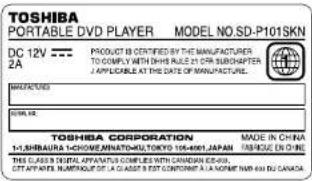
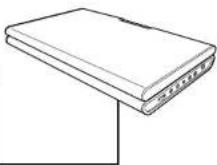
Location of the required label
Introduction
ADDITIONAL SAFETY INSTRUCTIONS
- Read these instructions.
- Keep these instructions.
- Heed all warnings.
- Follow all instructions.
- Do not use this apparatus near water.
- Clean only with dry cloth.
- Do not install near any heat sources such as radiators, heat registers, stoves, or other apparatus (including amplifiers) that produce heat.
- Do not insert any foreign objects into the memory card slot. Heat build-up or fi re may result.
-
Protect the power cord from being walked on or pinched particularly at plugs, convenience receptacles, and the point where they exit from the apparatus.
-
Only use attachments/accessories specified by the manufacturer.
- Unplug this apparatus during lightning storms or when unused for long periods of time. However, while it is thundering or lightning, do not touch the apparatus and any connected cable and/or equipment. This will prevent you from receiving the electric shock by an electric surge.
- Refer all servicing to qualified service personnel. Servicing is required when the apparatus has been damaged in any way, such as power-supply cord or plug is damaged, liquid has been spilled or objects have fallen into the apparatus, the apparatus has been exposed to rain or moisture, does not operate normally, or has been dropped.
ADDITIONAL SAFETY INSTRUCTIONS
Introduction
- When you use headphones, keep the volume at a moderate level. Using headphones continuously with high volume levels may permanently damage your hearing.
- Do not overload wall outlets; extension cords, or integral convenience receptacles as this can result in a risk of fire or electric shock.
- Apparatus shall not be exposed to dripping or splashing and no objects filled with liquids, such as vases, shall be placed on the apparatus and/or around it.
- Be careful not to catch your fingers in the disc holder when closing the lid. It may cause personal injury.
- Do not place a vessel containing liquid (such as a vase), or a metal object on top of the apparatus. Fire or Electric shock may result if liquid or metal objects enter the apparatus.
- Do not use a cracked, deformed, or repaired disc. These discs are easily broken and may cause serious personal injury and apparatus malfunction.
-
Do not touch a spinning disc. When you open the disc holder, the disc may have not stopped spinning. Touching a spinning disc may cause personal injury or damage to the product.
-
Do not rest the product on your lap or other parts of body. The product may become warm during use. Even low temperatures may cause personal injury when exposed to your skin for prolonged periods.
- Use the supplied AC adapter to operate the product. Substitute devices not specified by the manufacturer may result in file or product malfunction. Do not cover the AC adapter with a blanket or place it near heating or on electric carpet when it is in use.
- When you use this product in an airplane, follow the instructions of the airline. Disregarding them may cause harmful interference to radio communication.
- Do not stare at the pick-up lens or look at the laser beam. Doing so may cause damage to eyesight.
- Do not use this product while walking or driving. Neglecting this may cause a traffic accident.
- WARNING: To prevent the spread of fi re, keep candles or other open fl ames away from this product at all times.


- CAUTION: If the DVD player is dropped and the cabinet or enclosure surface has been damaged or the DVD player does not operate normally, take the following precautions:
- ALWAYS turn off the DVD player and unplug the power cord to avoid possible electric shock or fl re.
- NEVER allow your body to come in contact with any broken glass or liquid from the damaged DVD player. The LCD panel inside the DVD player contains glass and a toxic liquid. If the liquid comes in contact with your mouth or eyes, or your skin is cut by broken glass, rinse the affected area thoroughly with water and consult your doctor.
- ALWAYS contact a service technician to inspect the DVD player any time it has been damaged or dropped.
- Use the player in a location that facilitates the immediate removal of the plug if there is a malfunction or failure.
-
Do not allow children to scratch, lick or put the memory card into their mouth. Keep the memory card out of the reach of children. Injury to the child or malfunction may result.
-
Battery Pack (Lithium ion battery pack)
a) WARNING: Do not use a battery pack other than the one specified as it can result in a fire or damage to the unit.
b) Never throw the battery pack into a fi re, as that could cause the battery pack to explode. Never heat the battery pack, as that could cause leakage of alkaline solution or other electrolytic substance.
c) Never disassemble the battery pack, as that could cause leakage of alkaline solution or other electrolytic substance.
d) Never short-circuit the battery pack by either accidentally or intentionally bringing the terminals in contact with another metal object. This could cause personal injury or a fire, and could also damage the battery pack.
e) Never drive a nail into the battery pack.
Never strike the battery pack with a hammer.
Never step or tread on the battery pack.
f) If you ever smell an unusual odor, excessive heat, discoloration, or deformation of the battery pack, remove it from the player after confi rming safety and discontinue use of it. Take the battery pack to an authorized Toshiba service provider.
g) Keep the battery pack away from heat or fire.
Introduction

7

ADDITIONAL SAFETY INSTRUCTIONS
Introduction
h) Never dispose of used battery packs with other ordinary solid wastes, since they contain toxic substances. Always dispose of used battery packs in accordance with community regulations that apply to the disposal of batteries. Cover the metal terminals with insulating tape, in order to prevent accidental short-circuiting.
i) Always confirm that the battery pack is compatible with your player, before attaching the battery pack to the player.
j) Never expose the terminals of the battery pack to any other metal object. Wrap the battery or place it in a protective plastic bag, whenever transporting it.
k) Always confirm that the temperature is between 5°C and 35°C (41°F and 95°F) before you charge the battery. Leakage, excessive heat, or deterioration of the battery pack may occur if this caution is not heeded.
I) Never immerse the battery pack in any liquid.
m) Never expose the battery pack to direct sunlight. Never store or use the battery pack in a locked and unventilated vehicle. (where excessive internal temperatures may be encountered.)
n) Always keep the battery pack out of reach of infants or small children.
o) Never shock the battery pack by dropping or throwing it.
p) If the liquid contained within the battery pack leaks, use a large amount of water and immediately wash off any liquid which may accidentally contact any part of the body. Remove any liquid that has contacted your clothing by washing it immediately with a detergent. If symptoms develop or persist, consult your doctor.
q) Always confi rm that a "click" sound has resulted, when attaching the battery pack to the player. This sound confi rms that the battery pack has been properly attached.
30. Coin-shaped Battery
a) CAUTION: Danger of explosion if battery is incorrectly replaced. Replace only with the same or equivalent type.
b) The remote control battery contains Perchlorate Material - special handling may apply. See www.dtsc.ca.gov/hazardouswaste/perchlorate
c) Keep coin-shaped batteries out of children's reach. Be careful not to ingest internally, especially by children, as doing so may cause poisoning.
d) Do not install the battery backwards. Follow the instructions for battery replacement.
e) Do not charge, heat, open, or short-circuit the batteries. Do not throw the batteries into a fire.
f) Do not leave a dead or exhausted battery in the remote control.
g) If you do not use the remote control for a long period of time, remove the battery to avoid possible damage from battery corrosion.
31. After unpacking coin-shaped batteries, store them in poly bags, etc. separately one by one when unused. If you leave them unwrapped, they may be short-circuited by contact with metal objects, resulting in battery leakage, heat or bursting. This may cause burns or injury.
The batteries must be completely discharged when they are deposited in collection containers for old batteries. If a charge remains, countermeasures to prevent short circuits must be taken.
32. To reduce the risk of fire or electric shock, do not expose this apparatus to rain or moisture.
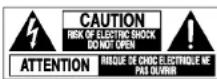
33. Following mark means "CAUTION - RISK OF ELECTRIC SHOCK - DO NOT OPEN".
- Vehicle adapter and operation in a car
a) NEVER operate the apparatus or view a DVD Video while operating an automobile or other vehicle. Note: doing so is illegal in many jurisdictions.
NEVER place an apparatus within the eyesight of a driver while he/she is driving an automobile/vehicle. Note: an apparatus located in the front seating section of a vehicle is illegal in many jurisdictions.
Failure to observe the above instructions could result in the driver's inattention to and/or distraction from road hazards.
b) NEVER place an apparatus in a location where it could interfere with the proper deployment and/or performance of an air bag.
Failure to observe this instruction could result in the prevention of an air bag to properly and/or effectively deploy.
c) Do not use a vehicle adapter other than the model supplied, to power the apparatus. Do not use the supplied vehicle adapter to power an apparatus other than this apparatus. Neglecting these may cause smoke, fire or electrical shock to human body.
ADDITIONAL SAFETY INSTRUCTIONS
Introduction
d) This adapter is intended for exclusive use in automobiles/vehicles with a DC 12V negative ground electrical system.
NEVER use this adapter with a DC 24V confi gured or a DC 12V positive ground electrical system automobile/vehicle.
Consult your vehicle owner's manual before using this adapter.
e) When handling, using or storing the adapter power cord NEVER:
- Place or locate near any apparatus that produces heat.
- Disassemble, splice or extend the cord.
- Pull, force or place any heavy objects on the cord.
- Bend, twist or bind the cord.
f) Keep away from moving parts (such as brake pedals, a seat rails, car windows, doors, etc.).
g) NEVER disassemble or alter this adapter in any manner.
h) ALWAYS use caution when touching the adapter, cigarette lighter socket or power port. The adapter, lighter socket and power port may become heated after prolonged use.
i) ALWAYS remove the adapter from the cigarette lighter socket or power port when not in use.
j) Do not charge the battery pack which is attached to the apparatus by the adapter. Doing so may cause smoke, fi re or electrical shock to human body. Whenever you use the adapter, be sure to remove the battery pack from the apparatus to prevent it from being charged by the adapter.
k) Some cars may not have a compatible socket. NEVER modify this adapter to fi t an incompatible cigarette lighter socket and/or power port. NEVER modify an incompatible cigarette lighter socket and/or power port to accept this adapter.
Failure to observe the above warnings could cause smoke, fi re, burns and/or electric shock.
I) ALWAYS locate the apparatus on a level and secure surface. If placed on an uneven, shaky, unsecured or unstable surface, apparatus may fall.
Failure to observe the above caution could result in the apparatus striking a person.
m) When using the adapter, insert the plug of the adapter into the cigarette lighter socket or power port fully.
The incomplete insertion will cause smoke or fire.
n) Do not touch the adapter with wet hands. Do not expose the adapter to water of liquid.
Precautions
Notes on handling
■ Do not shock the LCD monitor. It may cause unit damage and malfunction.
■ Do not use the player in a place subject to vibration. Neglecting this may cause malfunction of the player or damage to the disc.
When transporting the player, the original shipping carton and packing materials come in handy. For maximum protection, repack the unit as it was originally packaged at the factory.
Do not use volatile liquids, such as insect spray, near the player. Do not leave rubber or plastic products in contact with the player for a long time. They will leave marks on the fi nish.
■ The player may become warm after a long period of use. This is not a malfunction.
■ When the player is not in use, be sure to remove the disc and turn off the power.
If you do not use the player for a long period, the unit may not function properly in the future. Tum on and use the player occasionally.
Notes on use in a vehicle
■ Do not use this product while driving. Neglecting this may cause a traffic accident.
■ Never operate the player in a moving vehicle.
Vibration may prevent proper playback of the player or cause damage to the disc.
■ Do not leave the player in a vehicle. Rise or drop in temperature may result in malfunction of the player.
Notes on locating
■ When you place this player near a TV, radio, or VCR, the playback picture may become poor and the sound may be distorted. In this case, move the player away from the TV, radio, or VCR.
Notes on cleaning
■ Use a soft, dry cloth for cleaning.
Do not use any type of solvent, such as thinner and benzine, as they may damage the surface of the player.
■ When cleaning the LCD monitor, use a soft, dry cloth.
Precautions (continued)
Notes on moisture condensation
Moisture condensation damages the player. Please read the following carefully.
Moisture condensation occurs, for example, when you pour a cold drink into a glass on a warm day. Drops of water form on the outside of the glass. In the same way, moisture may condense on the optical pick-up lens inside this unit, one of the most crucial internal parts of the player.
■ Moisture condensation occurs during the following cases.
- When you transport the player directly from a cold place to a warm place.
- When you use the player in a room where you just turned on the heater, or a place where the cold air from the air conditioner directly hits the unit.
- In summer, when you use the player in a hot and humid place just after you move the unit from an air conditioned room.
● When you use the player in a humid place.
■ Do not use the player when moisture condensation may occur.
If you use the player in such a situation, it may damage discs and internal parts. Remove the disc, connect the AC adapter, turn on the player, and leave it for two or three hours. After two or three hours, the player will have warmed up and evaporated any moisture.
Notes on products incorporated laser system
- This product incorporates laser system. For proper and safety use of this product, read this owner's manual carefully, and keep near at hand for future reference.
When you need any repair of this product, consult your dealer where you purchased this product.
● Never disassemble or modify this product. Changes or modifications may result in exposure to laser radiation.
About this owner's manual
This owner's manual explains the basic instructions of this player. Some DVD video discs are produced in a manner that allows specific or limited operation during playback. As such, the player may not respond to all operating commands. This is not a defect in the player. Refer to instruction notes of discs.
"∅" may appear on the screen during operation. A "∅" means that the operation is not permitted by the player or the disc.
Notes on region numbers
The region number of this player is 1. Region numbers, corresponding to specifi c geographical playback area, are printed on your DVD video disc. If you do not find or , disc playback will not be allowed by the player. (In this case, the player will display a message on-screen.)
Introduction
Table of contents
Introduction
SAFETY PRECAUTIONS 2
ADDITIONAL SAFETY INSTRUCTIONS .... 5
Precautions.... 11
Identifi cation of Controls 16
Accessories 19
Notes and Information 20
Playable discs 20
Preparations
Preparation of the remote control 26
Power connection 27
Using the battery pack 28
Powering on/off 31
Changing the mode 32
Playback
14 Loading a disc 34
Connecting to headphones 35
Playing a disc 36
Pausing playback (Still mode) 37
Adjusting the volume of the speakers or the
connected headphones 37
Using the top menu 37
Changing a playback speed 39
Playing in fast reverse or fast forward ....39
Playing frame by frame 39
Playing in slow-motion 39
Playing a desired scene 40
Skipping chapters or tracks 40
Locating by entering numbers 40
Marking the desired position to locate
(Bookmark function) 41
Playing in random order 42
Playing repeatedly 42
Repeating a specific segment 42
Repeating a title, chapter or track ....43
Playing in a favorite order 44
Zooming a picture 45
Changing the camera angle 46
Selecting subtitles 46
Selecting a playback sound. 47
Playing audio/video/picture fi les 48
Selecting the sound enhancement .... 52
Adjusting the picture 52
On-screen Display mode 53
Function Settings
Customizing the function settings 56
Connections
Viewing on a connected TV 64
Viewing pictures from connected video equipment 65
Connecting to audio equipment 66
Connecting to an AV amplifier (via digital audio input)....66 Connecting to an audio system equipped with analog audio inputs....67
Using the automobile/vehicle adapter or power port 68
To turn the LCD monitor 71
Others
Output sound conversion table 74
Before calling service personnel 75
Specifi cations 77
Limited United States Warranty 79
Limited Canadian Warranty 82
Identification of Controls
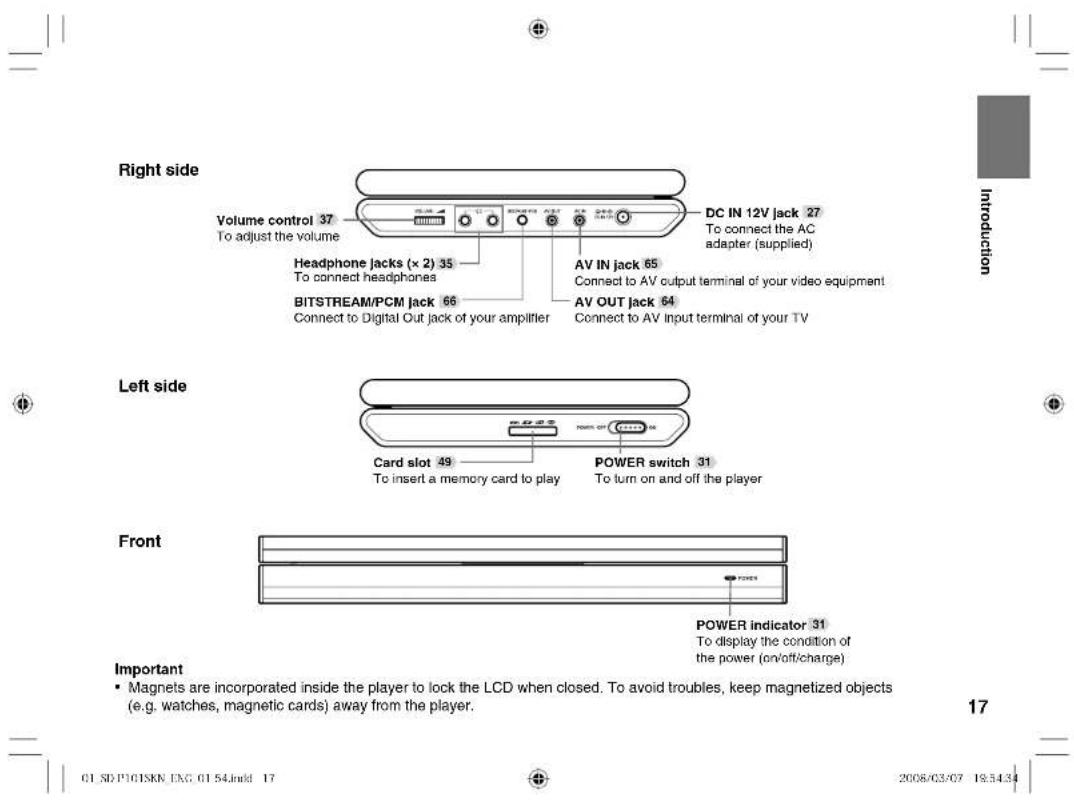
Instructions and actual buttons
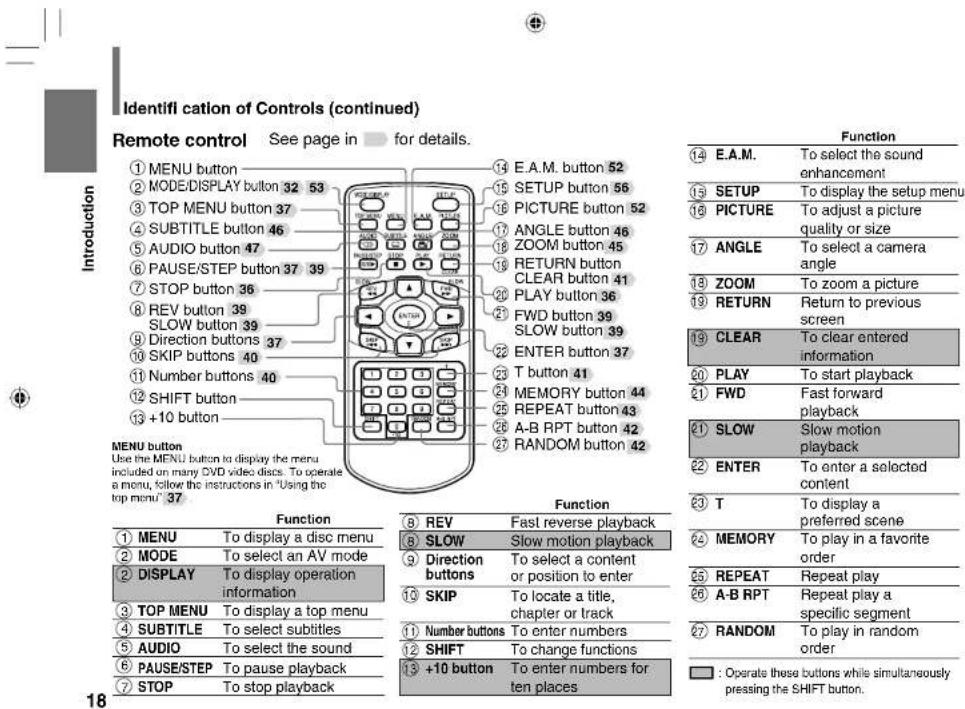
Most Instructions are based on remote control operation, unless otherwise noted. You can use the buttons on the remote control and those on the main unit as well when they have the same function. Some functions are available only from the remote control.
Main Unit See page in for details.
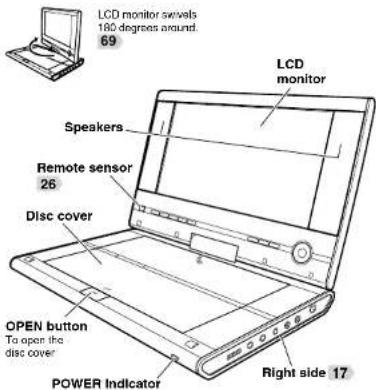

① Remote sensor 26
Point the remote control here
⑥ TOP MENU button37
To display a top menu of DVD video disc
② MODE button 32
To select the mode
⑦ MENU button
To display a disc menu
③ ■ STOP button 36
To stop playback
④ SETUP button 56
To display the setup menu
④ SKIP buttons (←/←) 40
To locate a lille, chapter or track
⑤ Direction button 37
To select a content or position to enter
▶/II PLAY/PAUSE button
To switch between playback and pause (PLAY/PAUSE)
ENTER button 37
To enter a selected content


17
2006/03/07 19:54:34
18
[NO TEXT]
Accessories
Check that the following accessories are supplied.
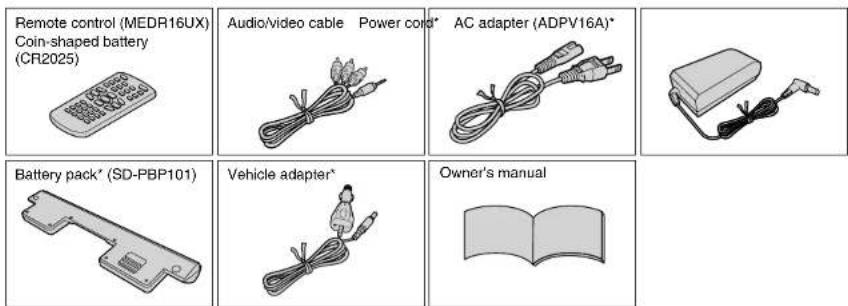
* Do not use an AC adapter, a power cord, a battery pack and a vehicle adapter other than one specified. Also, do not use these supplied accessories with any device other than this player. Neglecting this may cause serious danger.
Introduction
Notes and Information
playable discs
This player can play the following discs.
| Disc Disc Mark Disc Size | Contents | ||
| DVD Video disc | [IMAGE] | 12cm/8cm | •Video(moving pictures)+Audio |
| DVD-RW | [IMAGE] | 12cm | •Video+Audio (DVD VR format (compatible with CPRM)/DVD video format)** Finalized discs only. |
| DVD-R | [IMAGE] | 12cm | •Video+Audio (DVD VR format (compatible with CPRM)/DVD video format)** Finalized discs only. |
| Video CDs | [IMAGE] | 12cm/8cm | •Video(moving pictures)+Audio |
| Audio CDs | [IMAGE] | 12cm/8cm(CD single) | •Audio |
| CD-ROM | [IMAGE] | 12cm | •Audio(MP3/WMA files)•Movie(DivX)•Photograph(JPEG files) |
| CD-R/RW | [IMAGE] | 12cm | •Audio(CD-DA, MP3/WMA files)•Movie(DivX)•Photograph(JPEG files) *CD-R/RW discs of VIDEO CD format can also be played. Some of these discs may be incompatible. |
DVD is a trademark of DVD Format/Logo Licensing Corporation.

Notes and Information (continued)
Introduction
On handling discs
- Do not touch the playback side of the disc.
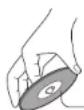
Playback side
- Do not attach paper or tape to discs.
On cleaning discs
● Fingerprints and dust on the disc may cause picture and sound deterioration. Wipe the disc from the center outwards with a soft cloth. Always keep the disc clean.
- Do not use any type of solvent such as thinner, benzine, commercially available cleaners or antistatic spray for vinyl LPs. It may damage the disc.
On storing discs
- Do not store discs in a place subject to direct sunlight or near heat sources.
- Do not store discs in places subject to moisture and dust such as a bathroom or near a humidifier.
- Store discs vertically in a case. Stacking or placing objects on discs outside of their case may cause warping.
Notes on copyright
The unauthorized recording, use, distribution, or revision of copyrighted materials including, without limitation, television programs, videotapes, and DVDs, is prohibited under the Copyright Laws of the United States and other countries, and may subject you to civil and criminal liability.
This product incorporates copyright protection technology that is protected by method claims of certain U.S. patents and other intellectual property rights owned by Macrovision Corporation and other rights owners.
Use of this copyright protection technology must be authorized by Macrovision Corporation, and is intended for home and other limited viewing uses only unless otherwise authorized by Macrovision Corporation. Reverse engineering or disassembly is prohibited.
playable memory cards
playable memory cards
| Card Card Mark Contents | ||
| SDMemoryCard | Audio (MP3/WMA)Video (DivX*)Photograph (JPEG) | |
| MultiMediaCard | MMC | |
| MemoryStick | ||
| xD-PictureCard | ||
- SD is a trademark.
- MMC and MultiMediaCard are trademarks of Infi neon Technologies AG and licensed to MMCA (MultiMediaCard Association).
- "Memory Stick" and are trademarks of Sony Corporation.
- or xD-Picture Card™ is a trademark of Fuji Photo Film Co. Ltd.
- You cannot play back DivX DRM written to a memory card.
Notes on memory cards
Some memory cards may not be played back due to its capacity and/or manufacturer, etc.
Do not insert any memory card other than those memory cards referred to left. Failure to follow this instruction may cause a malfunction of the player and/or card.
Saving data
- It is recommended that you back up your memory card data. Toshiba is not liable for any damage caused by the use of any memory card with this player. Toshiba will not compensate for any lost data or recording(s) caused by the use of such cards.
- For instructions on using your memory card, refer to the owner's manual for your memory card.
- Failure to take proper care of a memory card may prevent the display of pictures from the card. Such damage is not covered by your Toshiba Warranty.
Notes and Information (Continued)
Introduction
■ Notices for use
- Ensure that you insert the memory card correctly into this player.
- Do not eject the memory card while it is in use. If ejected while in use information on the memory card may be lost.
● This memory card is a precision electrical instrument. Do not bend, drop or apply strong force to it. - Do not use or store the memory card in an environment of high static electricity or electrical interference.
● Avoid using or storing in areas of high temperature and humidity. - Be careful not to touch with your fingers, nor allow foreign objects to come in contact with nor dirt to accumulate on the metal area (gold-coloured area) of the memory card. Wipe off any dirt with a soft, dry cloth.
- When carrying or storing the memory card always place it inside of its antistatic case to avoid any effects from static electricity. If there is a storage case, place the memory card in the antistatic area of the storage case.
- If you place a memory card that has been exposed to static electricity in this player, there is a chance that this player could malfunction.
24
- Do not place the memory card in your trouser pocket. The memory card may break if any strong force is applied, such as when sitting.
- When ejecting the memory card after extended use it may feel warm to the touch. This is normal. The memory card is not malfunctioning.
● The memory card is designed to have a long life but after extended use you will not be able to delete from or write to it. Please purchase another.
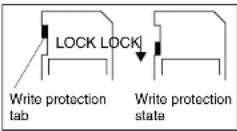
■ Write Protection of SD Memory Card
- Switch the write protect tab at the side of the SD card to "LOCK".
■ About Memory Stick
Magic Gate and high speed data transmission are not available on this player.
Preparations
Preparations before using.
● Preparation of the remote control
● Power connection
● Using the battery pack
● Powering on/off
● Changing the mode
Preparation of the remote control
Insert the specified battery to the remote control. See page 8, 9 for safety use of coin-shaped batteries.
Gently insert a fingernail in groove ^① and pull out the holder in direction ^② .
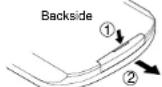
Take care not to break your fi ngemail.
2 Place a coin-shaped battery (CR2025) with the side up on the holder.
Keep the holder horizontal so that the battery does not fall through.
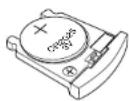
CAUTION: Danger of explosion If battery is incorrectly replaced. Replace only with the same or equivalent type.
3 Insert the holder into the remote control.
The remote control battery contains Perchlorate Material - special handling may apply. See www.dtsc.ca.gov/hazardouswaste/perchlorate
Operating with the remote control
Point the remote control at the remote sensor and press the buttons.
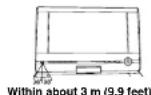

Distance: About 3 m (9.9 feet) from the front of the remote
sensor
Angle: About 30^ in each direction of the front of the remote sensor
Do not expose the remote sensor of the player to a strong light source such as direct sunlight or other illumination. If you do so, you may not be able to operate the player via the remote control.
- Aim the remote control at the remote sensor of the player.
- Do not drop or give the remote control a shock.
- Do not leave the remote control near an extremely hot or humid place.
- Do not spill water or put anything wet on the remote control.
- Do not disassemble the remote control.
- If the remote control does not function correctly or if the operating range becomes reduced, replace the battery with new one.
- Inserting a battery other than the specified one or an object may damage the remote control.
Power connection
Connect the supplied AC adapter to wall outlet as below.
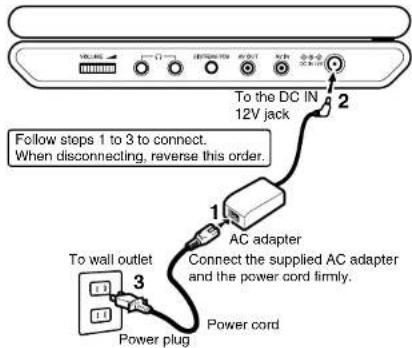
CAUTION
- Do not connect the power plug to a power outlet other than that indicated on the label, as this can result in a risk of fire or electric shock.
- Do not connect or disconnect the power plug with wet hands. Doing so may cause electric shock.
- Do not use an AC adapter other than one specified, as it can cause a fire or damage to the player.
- When the AC adapter is in use, its temperature may increase. However, it is not a malfunction. Make sure that the power cord is disconnected and the temperature decreases before carrying it.
Note
- Do not use the supplied AC adapter with any device other than this player.
Using the battery pack
The supplied battery pack (lithium lon battery pack) can power the player for operation outdoors or in a place with no outlets.
WARNING
- Do not use a battery pack other than one specified as it can result in a fire or damage to the unit.
- Do not heat, open, or short-circuit the battery pack. Do not throw the battery pack into a fi re. Doing so may cause an explosion or a fi re.
- Attach the battery pack properly following the explanation below. Make sure that the battery pack is attached firmly to the player when using it. Otherwise, the battery pack may become detached and cause personal injury.
■ Attaching the battery pack
1 Turn the player off.
2 Disconnect all cables and cords from the player.
3 Turn the player upside down.
4 Remove the connector cover on the bottom of the player.
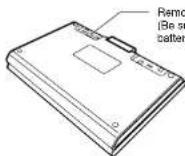
Remove the connector cover (Be sure to attach it whenever the battery pack is not attached.)
5 Slide the battery pack in the direction of the arrow until a "click" is heard.
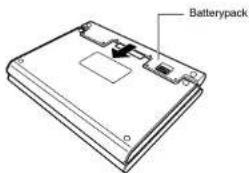


Important
- Detach the battery pack from the player after being used.
It is possible to leave the battery pack attached while powering the player with the AC adapter.
■ Charging the battery pack
The battery pack needs to be charged before use. (The battery indicator (☐) is shown in the upper left corner of the screen when the power in the battery pack is running low.) Perform a full charge before the first use.
1 Turn off the player.
The battery pack cannot be charged when the player is on. Be sure to turn off the player before charging the battery pack.
2 Attach the battery pack to the player.
3 Connect the supplied AC adapter and the power cord to the player.
Charging starts, and the POWER indicator illuminates in orange.
When the charging is completed, the POWER indicator turns off.
Notes
- Charge the battery pack with a surrounding temperature of +10°C to +30°C (+50°F to +86°F).
- While the charge is in progress, do not disconnect the AC adapter and the power cord until the POWER indicator turns off.
- The attached battery pack may get warm when you are charging it or operating the player. This is not a defect.
Charging time of a battery pack Approximately ?.fours
- The battery pack can be charged when the player is turned off.
- This value is for reference only. Charging time may vary depending on battery pack status and environment.
Continuous playback time while using the battery pack Up to approximately 5 hours
- This value is for reference purpose only, it is not guaranteed. (Conditions: 25^ , output from the headphones, new battery pack in use.)
- Continuous playback time may vary depending on battery pack status, operational status and environment conditions.
- Low temperature will shorten the playback time.

Using the battery pack (continued)

Preparations
■ Detaching the battery pack
1 Turn the player off.
2 Disconnect the AC adapter and the power cord from the player.
3 Turn the player upside down.
4 While holding the lock switch, slide the battery pack in the direction of the arrow.
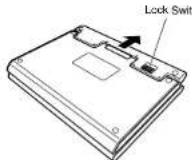
5 Attach the connector cover on the bottom of the player.
Important
- After detaching the battery pack, be sure to attach the battery cover in order to avoid a short-circuiting which may be caused by contact with metal objects to the connector.
- Do not detach the battery pack while the POWER indicator illuminates in green or orange.
■ About battery pack life
Battery pack has a limited service life. The length of service life varies depending on product use and user settings. If you use the battery pack beyond its service life, you may notice that playback time becomes remarkably shorter, even if the battery pack is fully charged. If you notice that playback time has become remarkably shorter, even when the battery pack is fully charged, it is recommended that you replace the battery pack with battery pack model number SD-PBP101.

Powering on/off
Slide the power switch to turn the power on or off.
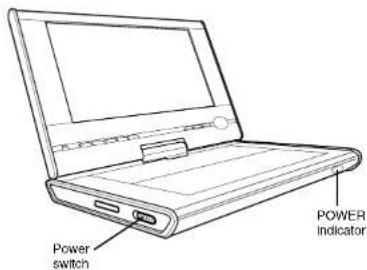
| Condition | Power Switch | POWER indicator |
| On | Green | |
| Off | Off | |
| Charging | Orange |
Preparations
Changing the mode
You can enjoy various contents of discs, memory cards and other external equipments by changing the mode. Change it depending on your needs.
Press MODE repeatedly to select the mode.
Each time you press MODE, the mode changes on the screen as below.

Select when you want to view the picture of a disc on the LCD monitor of this player.
- Make sure that (Normal) is selected when you play a disc. Cannot be played any discs other than normal mode.

Select when you want to play a memory card.

Select when you want to view the picture played using a VCR or other external equipment on the LCD monitor of this player.
(Back to ▪Normal)
Playback
Play your favorite disc.
- Loading a disc
- Changing the camera angle
● Connecting to headphones ● Selecting subtitles
● Playing a disc ● Selecting a playback sound
● Changing a playback speed ● Playing audio/video/picture fi les
● Playing a desired scene ● Selecting the sound
● Playing in random order enhancement
● Playing repeatedly ● Adjusting the picture
● Playing in a favorite order ● On-screen Display mode - Zooming a picture
Loading a disc
For disc compatibility information, see page 20.
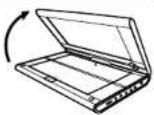
1 Open the LCD monitor.
2 Press OPEN on the main unit.
The disc cover opens.
Before using the player for the first time, remove the protective sheet beneath the disc cover.
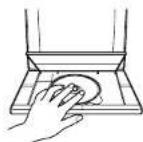
3 Set a disc.
Place a disc with the playback side down, and push gently on the center of the disc to affi x it to the spindle.
The player will be unable to recognize or correctly play the disc if it is not affixed to the spindle properly.
34
01 SD P101SKN ENG 01 54.indd 34
4 Close the disc cover.
Press the edge around "CLOSE".
■ To remove the disc
Press OPEN on the main unit to open the disc cover and remove the disc from under the rim while gently pressing down on its center.
2008/03/07 19:54:3
Connecting to headphones
CAUTION
- Keep your fingers clear of the disc as it is spinning.
Neglecting to may cause serious personal injury. - Be careful not to catch your fingers in the disc holder.
- Do not use a cracked, deformed, or repaired disc.
- Do not tilt, shake or move the main unit while playing. It may damage the disc.
- Do not put any discs or any objects in the disc holder other than those disc types listed on page 20.
- Do not touch the spindle immediately after prolonged play, as it may have become hot. Be careful in loading/removing a disc.
You can connect headphones to the headphone jack using a stereo mini plug.
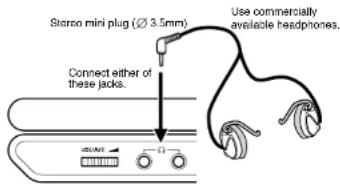

- Before connecting, temporarily turn down the volume with the headphone volume control. Readjust to your preference when playback starts.
- Turn off the player before you connect or disconnect the headphone cable. Possible shakes produced by plug connecting/disconnecting may cause damage to the disc.
- You can connect up to 2 headphones.
CAUTION
When you use headphones, keep the volume at a moderate level. If you use the headphones continuously with high volume sound, it may cause hearing damage.
Playing a disc
DVD-V
VCD
CD
■ Preparations
- Turn on the power of the player.
- Place a disc to the player.
Caution
Never operate the player in a moving vehicle.
Vibration may prevent proper playback of the player or cause damage to the disc.

Press MODE repeatedly to select
(Normal).

Press PLAY.
Playback starts.
- If you select a DVD video disc that contains a top menu, or select a PBC (Playback Control)-featured VIDEO CD, a menu may appear. See "Using the top menu".
- You may need to press the TOP MENU or MENU button to display the disc menu (depending on the actual DVD video disc.)
- When you play an audio CD, "menu" screen appears.
See "Playing audio/video/picture files" about the operation.


Press STOP to stop playback.
About Resume playback function
The player memorizes the location where playback is stopped and resumes playback from the location where you stopped.
If you press PLAY after stopping playback, playback starts from the location where you stopped.
- The player memorizes the information for resume playback up to 5 discs. The oldest memory is deleted if 6th disc is inserted.
- If you want to return to the beginning of a DVD video disc, press STOP twice.
Notes
- The player's memory is cleared when you use a PBC-featured VIDEO CD while "PBC" is set to "On". (Refer to "Function Settings".)
- There may be a difference in the location where playback resumes depending on the disc.

Pausing playback (Still mode)
Press PAUSE/STEP during playback.
The picture gets still and sound is muted.
To resume normal playback, press PLAY.

Adjusting the volume of the speakers or the connected headphones
Right: Increase volume.
Left: Decrease volume.

Note
In many instances, a menu screen will appear after playback of a movie is completed. If you have connected the DVD player to a television, and depending on the type of television that you have, prolonged display of an on-screen menu may result in the on-screen menu becoming permanently ingrained in the screen. This type of damage is not covered by your Toshiba Warranty. To avoid this, be sure to press the STOP button once the movie is completed.

Using the top menu


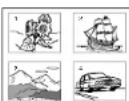
1 Press TOP MENU.
The top menu appears.
2 Press ▲ ▼ / ◀ to select the title you want.
If the titles in the top menu are assigned a number, you can select the title by pressing number buttons.
3 Press ENTER.
Playback starts from chapter 1 of the selected title.
e.g.

Playback
Notes
- This method of locating a title is available only on a disc that contains a top menu.
- Instruction notes of discs may refer to the button that displays the top menu as TITLE button.
- The instructions above describe basic procedures which may vary depending on the contents of the DVD video disc. If different instructions appear on the screen, follow those instructions.
Playing a disc (continued)
■ About the screen saver
If 20 minutes elapse while the power is on and there is no disc in the player or while the disc is stopped, the screen saver is automatically displayed (when "Screen saver" (refer to "Function Settings") is set to "On"). To turn off the screen saver, press any button on the main unit or remote control.
■ Automatic power off function
If the player is stopped or the screen saver is engaged for approximately 20 minutes, the LCD power automatically turned off. To turn on the LCD monitor, slide the power switch to off once and then turn the power on again.
■ About the LCD
- The LCD panel contained in this product is manufactured using an extremely high level of precision technology; however, there may be an occasional pixel (dot of light) that does not operate properly (does not light, remains constantly lit, etc.).
This is a structural property of LCD technology, is not a sign of malfunction, and is not covered under your warranty. Such pixels are not visible when the picture is viewed from a normal viewing distance. - The brightness of the LCD monitor differs slightly depending on the viewing angles. Adjust the LCD monitor angle to obtain the best viewing. (The recommended viewing angle is 90 degrees to the monitor.)
Changing a playback speed
Playing in fast reverse or fast forward
DVD-V VCD CD
Press REV or FWD on the remote control during playback.
◀: Fast reverse playback
▶▶: Fast forward playback
Each time you press the REV or FWD button, the playback speed changes.
Press PLAY to resume normal playback.
• Also, playback changes to fast reverse or fast forward when you press and hold SKIP on the main unit.
Notes
- The player mutes sound and omits subtitles during reverse
and forward scan of DVD video discs. - The playback speed may differ depending on the disc.
- This equipment supports playback of DVD-RW (VR mode) discs. However, playback or fast-forward/rewind may not function properly depending on how the disc was created, the status of titles on the disc or the condition of the disc itself.
Playing frame by frame
DVD-V VCD CD
Press PAUSE/STEP repeatedly during playback.
The sound is muted during frame by frame playback.
Press PLAY to resume normal playback.
Playing in slow-motion
DVD-V VCD CD
Press SLOW (◄◄/►►) while pressing SHIFT during playback.
If you press the SLOW (◀◀) during playback, you can view the picture in reverse slow-motion. (Only when using a DVD video disc.)
Each time you press the SLOW (◀◀ /▶▶) button, the slow-motion speed changes.
The sound is muted during slow-motion playback.
Press PLAY to resume normal playback.
Note
- The playback speed may differ depending on the disc.
Playback
Playing a desired scene
DVD-V VCD CD
Skipping chapters or tracks
1 Press SKIP (◀◀) repeatedly to locate the chapter or track you want.
Playback starts from the selected chapter or track.
▶▶1: Playback starts from the beginning of the next chapter or track.
Playback starts from the beginning of the current chapter or track. When you press twice, playback starts from the beginning of the preceding chapter or track.
Locating by entering numbers
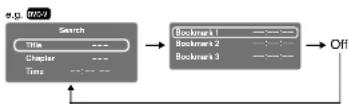
1 Press T several times to display "Search".
The display changes each time this button is pressed.
40
01_SD-P101SKN_EKG_01_54.indd 40
⊕
2 Press ▲ / ▼ to select the category you want to search.
| Category To search by specifying: |
| Title* Title number |
| Chapter* Chapter number |
| Track Track number |
| Time Elapsed time of the current track |
| Disc Time Elapsed time in the entire disc |
*: Not available in CD playback.
3 Press the number buttons to enter a number.
• e.g. To enter 25:
2→5
• e.g. To enter the time 1 hour 25 minutes 30 seconds:
1 2 5 3
4 Press PLAY or ENTER.
Playback starts from the selected section.
⊕
2008/03/07 19:54:38
Notes
- Press the CLEAR button while pressing the SHIFT button resets the numbers.
- Some discs may not respond to this process.
- Some scenes may not be located precisely as you specified.
Marking the desired position to locate (Bookmark function)
First register a bookmark referring to "To register a bookmark" of the next paragraph, then operate these steps below.
1 During playback, press T repeatedly to display "Bookmark".
The display changes each time this button is pressed.
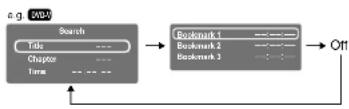
2 Press ▲ to select a number (1, 2, 3) of "Bookmark", then press ENTER.
Playback starts from the selected point.
■ To register a bookmark
You can register up to 3 bookmarks.
1 At a scene where you want to register a bookmark, press PAUSE/STEP to pause.
2 Press T repeatedly to display "Bookmark".
3 Press ▲ / ▼ to select a number (1, 2, 3) of "Bookmark", then press ENTER.
Select a vacant (“--:--:--”) number.
To cancel the procedure, press T to turn the display off.
To cancel your entry, press CLEAR while pressing SHIFT to erase the digits to return to “--:--:--”.
4 Press ENTER.
The scene is registered to the bookmark.
(A registered bookmark information is cleared if another disc is inserted or the power of the player is turned off.)
Note
- Bookmarks may not be able to be registered for some discs or scenes.

Playing in random order
DVD-V VCD CD
Playing repeatedly
DVD-V VCD CD
1 During playback, press RANDOM to display "Shuffle On" on the screen.
Each time you press the button, the random mode "Shuffle On" and "Shuffle off" alternate.
The mode on the screen will disappear in a few seconds if not operated.
If you display "Shuffle On", random playback starts after finishing the current chapter or track.
■ To resume normal playback
Press RANDOM repeatedly until "Shuffle off" appears.
Notes
- Some discs may not permit random playback.
• The random mode will be canceled when you: - turn off the power
- open the disc cover.
- If you press STOP twice, the random mode ends and playback stops.
Repeating a specific segment
1 Press A-B RPT at the beginning of the segment (point A) you want to play repeatedly.
"Rep A-" appears.
2 Press A-B RPT again at the end of the segment (point B).
"Rep A-B" appears and the player automatically returns to point A and starts playback of the selected segment (A-B).
■ To resume normal playback
Press A-B RPT repeatedly until "RepAB Off" appears.
Notes
- If you press STOP twice, the A-B repeat function ends and playback stops.
- You can specify a segment only within the current title or track.
- There may be a slight difference between point A and the location where playback starts actually resumes depending on the disc.
- Functions other than STOP and A-B RPT may not be available during A-B repeat playback.
Repeating a title, chapter or track
1 During playback, press REPEAT repeatedly to select the repeat mode.
Each time you press the button, the repeat mode changes on the screen.
Repeat playback starts after fi nishing the current chapter or track.
中
| Disc Mode Repenting range | ||
| DVD-V | Repeat Chapter | Current chapter |
| DVD-V | Repeat Title | Current title |
| VCD CD | Repeat single | Current track |
| VCD CD | Repeat all | Whole disc |
| DVD-V | Repeat off | Returns to normal playback. |
| VCD CD | ||
Notes
- Some discs may not permit repeat playback.
• The repeat mode will be canceled when you: - turn off the power.
- open the disc cover.
- If you press STOP twice, the repeat mode ends and playback stops.

Playing in a favorite order


1 During stop, press MEMORY.
The programming display appears.

Playback
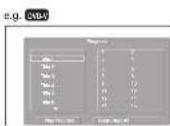
Enter a track number when using a video CD.
2 Setting the title, chapter or track in the order you wish to play.
1) Select the number of title you want to set using
▲ /▼then press ENTER.
2) Select the number of chapter you want to set using
▲ /▼ then press ENTER.
3) Setting another memory, select [...] then press
ENTER. After that the programming display
appears.
Follow steps 1 to 2 for the setting.
• Some discs may not exist chapter or track number.
If so chapter or track number cannot be entered.
3 Press▶ to select "Play Program" then press ENTER.
The player starts memory playback.
■ To cancel the programmed selections
- Select "Clear" on the screen and press ENTER to clear the programmed selection.
- Select "Clear All" on the screen and press ENTER. All of the programmed selections are cleared.
■ To stop memory playback
Press STOP twice.
(The programmed selection is cleared.)
Notes
- Some discs may not permit memory playback operation.
-
The programmed selection will be cleared when you:
-
turn off the power.
- open the disc cover.
- Memory playback pauses if you press MEMORY while being executed.

Zooming a picture
DVD-V
VCD

1 Press ZOOM during playback.
The zoom icon appears.
This operation is available also during slow, still, fast forward or fast reverse playback.
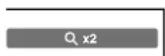
2 Select the zoom point and magnifi cation level.
• Magnifi cation level:
Press ZOOM repeatedly.
The magnifi cation level changes as follows:
"Q X2" (Twice the size)
"Q X3" (Three times the size)
"Q X4" (Four times the size)
"Off" (Normal size)
Zoom point:
Press ▲/▼/ ↔ repeatedly.
■ To resume normal playback
Press ZOOM repeatedly until "Off" appears.
Notes
- Some discs may not respond to zoom feature.
- Depending on scenes, the buttons may not work as
described. - Zooming does not work on characters selected on menus.
• Zoom playback will be canceled when you: - turn off the power.
– open the disc cover.

Playback
⊕

Changing the camera angle Selecting subtitles
DVD-V
VCD
CDD

1 Press ANGLE while playing a scene recorded with multiple camera angles.
The angle icon ( ) appears on the screen.
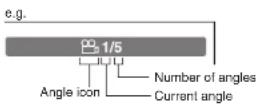
This display does not appear if the disc includes no scenes recorded with multiple angles.
If you press ANGLE while playing a scene not recorded with multiple angles, the angle selection is not possible.
2 Press ANGLE to select the camera angle.
Each time you press the button, the camera angle changes.
Notes
• After selecting angle, it will take a few moments to change the camera angle of the scene you are viewing.
- If you pause a picture immediately after changing a camera angle, the resumed playback picture may not display the new camera angle.
46
1 Press SUBTITLE during playback.
The current subtitle setting is displayed.
2 Press SUBTITLE while the subtitle setting is displayed on the screen.
Each time you press the SUBTITLE button, you can select a subtitle language from those included on the DVD video disc.
Notes
- When you select a subtitle language which is not included on the disc, the player plays a prior language programmed on the disc.
- Depending on scenes, the subtitles may not appear immediately after you change the subtitle language.
- Some discs may not include any subtitle languages.
■ To turn subtitles on or off
Press SUBTITLE several times during playback until "Off" is displayed.
Notes
- Some discs display subtitles automatically, and you cannot turn them off even if you set the subtitle function to off.
- Some discs will allow you to make subtitle selections and turn subtitles on or off only via the disc menu.

Selecting a playback sound


1 Press AUDIO during playback.
The current audio setting is displayed.

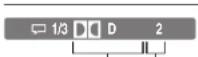
Sound recording Audio language system
■ Selecting sound channels of VIDEO CDs
During playback, press AUDIO repeatedly to select the sound channel.
Notes
- Some discs allow you to change audio selections only via the disc menu. In such a case, press MENU and choose the appropriate language from the selections on the disc menu.
- If you select a sound track which is not included on the disc, the player plays a prior sound track programmed on the disc.

Playback
⊕

2 Press AUDIO while the audio setting is displayed on the screen.
Each time you press the button, you can select a preferred sound from those included on the DVD video disc.

Playing audio/video/picture fi les

You can play audio CDs, MP3/WMA (audio), DivX ^© (video) or JPEG (picture) files on this player.
This player requires discs/recordings to meet certain technical standards in order to achieve optimal playback quality. There are many different types of recordable disc formats (including CD-R containing MP3/WMA fi les). Not all recordable discs will operate or produce optimal playback quality. The technical criteria set forth in this owner's manual are meant only as a guide. Use of CD-RW for MP3 fi les is not recommended. You must obtain any required permission from copyright owners to download or use copyrighted content. Toshiba cannot and does not grant such permission.
■ MP3/WMA or DivX® media compatibility with this player
| Playable media | CD-ROM, CD-R, CD-RW, DVD-R, SD Memory Card, Multi Media Card, Memory Stick, xD-Picture Card |
| Sampling Frequency 32 kHz, 44.1 kHz, 48 kHz | |
| Bit rate MP3: 32 kbps - | 320 kbps (CBR) |
| WMA: 48 kbps - 192 kbps (CBR) | |
| DivX: Less than 8 Mbps | |
| CD physical format Mode | 1 |
| MP3 File system ISO966D, UDF without interleave | |
| DivX File system ISO14496 | |
| MP3/WMA File name | File names are limited to eight characters or less and must incorporate "MP3" or "WMA" extension.e.g.*******MP3",*******WMA"File names cannot contain special characters such as "?<+"][*[@];*/," etc.Less than 50 bytes |
| DivX File name File name | es are limited to eight characters or less and must incorporate "DivX" extension.e.g.*******avi",*******DivX"File names cannot contain special characters such as "?<+"][*[@];*/," etc.Less than 50 bytes |
| Total number of files Less | than 650 |
| DivX codec version | 3, 4, 5, 6 (Plays all versions of DivX ^® video (including DivX ^® ) with standard playback of DivX ^® media files) |
| DivX resolution 720 x 57b | (Less or equal) |
■JPEG media compatibility with this player
| Playable media | CD-ROM, CD-R, CD-RW. SD Memory Card, Multi Media Card, Memory Stick, xD-Picture Card |
| File system ISO9660, UDF without interleave | |
| File name File names are limited to eight characters or less and must incorporate "JPG" extension.e.g.""********.JPG"File names cannot contain special characters such as "?><+"}[@];:¥/.," etc. | |
| Total number of files Less than 650 | |
| File size Unrestricted | |
| File format | BASELINE, PROGRESSIVE |
| Resolution | Baseline JPG: 5760 x 4320Progressive JPG 5760 x 4320 |
Note
- Some media files may not be played back due to its capacity and/or manufacturer, etc.
48
[NO TEXT]
How to use a memory card
1 Insert a memory card into the slot.
2 Press MODE repeatedly until "■ (Memory card)" appears.
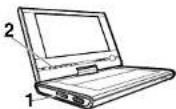
How to eject the memory card
Press on the center of the memory card and then, pull the memory card straight and slowly out.
Note
- Do not eject the memory card while it is in use. If ejected while in use, information on the memory card may be lost.
1 Insert a media you want to play.
The menu appears.
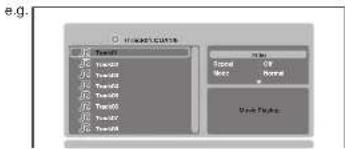
■ To select the category of file
1 Select "Filter" using ▲/▼/◄/► then press ENTER.
The screen appears as below.
The check mark (✔) appears next to the category currently selected.
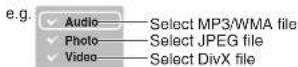
2 Select the track/fi le you want to play using ▲ / ▼ then press ENTER or PLAY.
Playback starts.
A slide show begins when playing JPEG file.
3 Press STOP to stop playback.
2 Select the category using ▲ / ▼ then press ENTER to add/remove the check mark.
3 When complete, press ◀ to return to the previous screen.
The setting will be saved.
Note
- When using a commercially available audio CD, this function cannot be used.

Playing audio/video/picture fi les (continued)
■ Playing repeatedly
Select "Repeat" on the screen using ▲▼/◄► during playback then press ENTER.
Each time you press ENTER, the repeat mode changes.
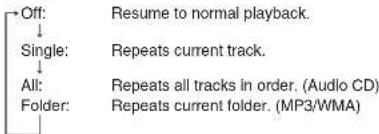
■ Playing In Random/Intro order
Select "Mode" on the screen using ▲/▼/◄► during playback then press ENTER.
Each time you press ENTER, the playback mode changes.
50
Normal: Resume to normal playback. ↓ Shuffle On: Plays in random order. ↓ Music Intro: Plays only music intro in order
01 SD P101SKN ENG 01 54.inkd 50
Notes
- Some media may not permit repeat, or random playback. - Some functions such as REPEAT, RANDOM and SKIP (I◄◄/►►) can be operated from the remote control directly.
Notes of audio fi le playback
- WMA tracks copy-protected cannot be played. - The BITSTREAM/PCM jack outputs MP3/WMA or DivX ^3 sounds in the linear PCM format regardless of the current "Digital Out" selection. (Refer to "Function Settings")
■ Rotating a picture (JPEG fi les)
Press ▶ while a picture is played. The picture will be rotated toward the designated direction.
Note
- Rotation does not start immediately after a direction button is pressed.
[NO TEXT]
2008/03/07 19:54:40


■ Playing in a favorite order
You can combine your favorite track/fi le and play in the order you determine.
1 Select "Edit mode" on the screen using ▲/▼ ↗ then press ENTER.
2 Position the cursor using ◀ to the screen displayed track/fi ie.
3 Select track/fi le you want to play using ▲ / ▼ then press ENTER.
The check mark ( appears next to the selected track/fi le.
4 Select "Add to program" using ▲ /▼/ ◀ then press ENTER.
The player memorizes the selected track/fi le.
5 Select "Program view" on the screen using ▲ / ▼ ↗ then press ENTER.
Programmed selections appear.
6 Press PLAY.
Playback starts in the order you programmed.
■ To display recorded track/fi le
Select "Browser view" on the screen then press ENTER.
The track/fi le list of the media appears.
■ To cancel the programmed selections
1 Press STOP twice to stop playback.
2 Position the cursor using ◀ to the screen displayed track/fi le.
3 Select track/fi le you want to cancel then press ENTER.
The check mark (♥) appears next to the selected track/fi le.
4 Select "Clear program" using ▲ /▼/ the press ENTER.
Program selections are cleared.
Note
• Some media may not permit this function.


Selecting the sound enhancement


Adjusting the picture


1 Press E.A.M.\*
The current sound enhancement setting appears.
* E.A.M. = Enhanced Audio Mode
2 Press E.A.M. repeatedly.
• [3D Off]
Normal sound.
• [3D On]
To obtain expansive virtual surround sound effects from just two speakers.
Notes
- Actual effects to sounds may vary depending on the speaker system. Make the selection to your preference.
• Actual effects to sounds may vary depending on the disc.
This function operates on the LCD of this player only. Cannot be effected on the screen of connected external equipment.
1 Press PICTURE.
The current picture setting appears.
2 Press PICTURE repeatedly to select the item.
Each time you press the button, the setup items changes as follows.
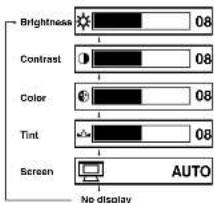
See the list of next page about items and set contents.
The setting screen will disappear in a few seconds if not operated.


On-screen Display mode
DVD-V
VCD
CD
3 Press ▶ ▶ adjust the value.
| Brightness 0 | (Darker) to 16 (Brighter) |
| Contrast 0 (Lower) to 16 (Higher) | |
| Color 0 (Paler) to 16 (Deeper) | |
| Tint 0 (Red) to 16 (Green) | |
| Screen 4:3: | The picture recorded on the DVD video disc will be played back in 4:3 picture format.16:9: 4:3 format picture will be played back in 16:9 picture format.AUTO: The picture will be played back in the format (4:3 or 16:9) recorded on the DVD video disc. |
1 Press DISPLAY while pressing SHIFT during playback.
The current instructional information appears.
e.g.: DVD video disc
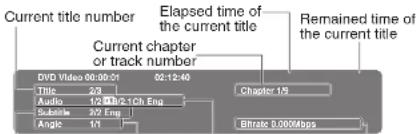
Current language
Camera Current playback
Current
bitrate value

Playback
中
Press DISPLAY while pressing SHIFT to turn off the display.


01 SD P101SKN ENG 01 54.inkd 54

2006/03/07 19:54:4
Function Settings
You can change the default settings to customize performance to your preference.
- Customizing the function settings
Customizing the function settings
DVD-V VCD CD
You can change the default settings to customize performance to your preference.
1 Press SETUP during stop.
The setting menu appears.
2 Press ▲ / ▼ to select the icon of the setting (listed below) to change, then press ▶.
3 Press ▲ / ▼ to select the setting you want to change, then press ENTER.
4 Change the selection by ▲ /▼ or other buttons, by referring to the corresponding pages 58, then press ENTER.
To change other settings, press 2 to 4.
5 Press SETUP.
The setting menu disappears, and the procedure finishes.
Function Settings
| Icon | Setting Disc Details | ||
| Language | OSD Menu | DVD-V VCD CD | To select a preferred language for on-screen displays. |
| Subtitle | DVD-V VCD CD | To select a preferred language for subtitles. | |
| Audio | DVD-V VCD CD | To select a preferred language for the sound track. | |
| DVD menu | DVD-V VCD CD | To select a preferred language for disc menus. | |
| DivX subtitle | — | To select the font for subtitles of the DivX file. |
56
⊕
| Video | Aspect Ratio | DVD-V VCD CD | To select a picture size according to the aspect ratio of your TV, when connected to this player to monitor playback picture. |
| View Mode | DVD-V VCD CD | To select a picture size of the LCD. | |
| Audio | E.A.M. | DVD-V VCD CD | You can easily switch to a preferred audio enhancement. (E.A.M. = Enhanced Audio Mode) |
| D.R.C. | DVD-V VCD CD | To turn on or off a function that makes faint sounds easier to hear even if you lower the volume during late hours playback. (D.R.C. = Dynamic Range Control) | |
| Digital Out | DVD-V VCD CD | To select an output sound format corresponding to your system connection. | |
| Rating | Parental control | DVD-V VCD CD | To turn the parental lock function on or off. |
| PBC | DVD-V VCD CD | To use the menu screen when playing a PBC-controllable VIDEO CD. | |
| Screen saver | DVD-V VCD CD | To turn the screen saver on or off. | |
| Default | Default | — | To restore all settings to the factory set. |
| DivX Registration | — | To display information about DivX. |

Function Settings
Customizing the function settings (continued)
Language
OSD Menu DVD-V VCD CD
English: To view on-screen displays in English.
Français: To view on-screen displays in French.
Español: To view on-screen displays in Spanish
Subtitle DVD-V VCD CD
English: To display subtitles in English.
French: To display subtitles in French.
Spanish: To display subtitles in Spanish.
Off: To display no subtitles.
Function Settings
Notes
- Some DVD video discs may be set to display subtitles in a different language than you selected. A prior subtitle language may be programmed on the disc.
- Some DVD video discs allow you to change subtitle selections only via the disc menu. If this is the case, press the MENU button and choose the appropriate subtitle language from the selection on the disc menu.
58
01_SD-P101SKN_EKG_55 88.indd 58
⊕
Audio DVD-V VCD CD
English: To play sound tracks in English.
French: To play sound tracks in French.
Spanish: To play sound tracks in Spanish.
Note
- Some DVD video discs may be played in a different language than you selected. A prior language may be programmed on the disc.
DVD Menu DVD-V VCD CD
English: To display disc menus in English.
French: To display disc menus in French.
Spanish: To display disc menus in Spanish.
Note
- Some DVD video discs may not include your preselected language. In this case, the player automatically displays disc menus consistent with the disc's initial language setting.
#
2008/03/07 20:18:27
DivX subtitle
Western European: To display subtitles in west European language.
Central European: To display subtitles in Central European language.
Cyrillic: To display subtitles in Slavonic Cyrillic language.
Notes
- Some DVD video discs may be set to display subtitles in a different language than you selected. A prior subtitle language may be programmed on the disc.
- Some DVD video discs allow you to change subtitle selections only via the disc menu. If this is the case, press the MENU button and choose the appropriate subtitle language from the selection on the disc menu.
Video
Aspect Ratio DVD-V VCD CD
4:3 : Select when a standard 4:3 TV is connected.
16:9 : Select when a 16:9 wide TV is connected.
Notes
- The displayable picture size is preset on the DVD video disc. Therefore, the playback picture of some DVD video discs may not conform to the picture size you select.
- When you play DVD video discs recorded in the 4:3 picture size only, the playback picture always appears in the 4:3 picture size regardless of the TV shape setting.
- If you select "16:9" and you own a 4:3 TV set, the DVD playback picture will be horizontally distorted during playback. Images will appear to be horizontally compressed. Always be sure that your TV shape conforms to the actual TV in use.
View Mode DVD-V VCD CD
FIII: Pictures are expanded horizontally and vertically to fit the shape of the screen. No picture cropping.
Original: Pictures are displayed in their original aspect ratios.
Auto Fit: Aspect ratios are automatically adjusted. Masking bars may appear on the top and bottom or left and right of picture.
Pan Scan: Pictures are cropped horizontally or vertically to fit the shape of the screen.
Note
• Actual views may depends on disc content or the TV. You may occasionally change the setting to your preference.

Function Settings
The image is too blurry to recognize any text content.
Customizing the function settings (continued)
Audio
E.A.M. DVD-V VCD CD
Normal:
Normal sound.
3D:
To obtain expansive virtual surround sound effects from just two speakers.
Note
- Pressing the E.A.M. button on the remote control also allows you to achieve the same setup.
D.R.C. DVD-V VCD CD
On :
Dynamic range is reduced.
Off :
Full dynamic range is maintained.
Notes
• This function works only during playback of Dolby Digital
recorded discs.
- The level of Dynamic Range Control may differ depending on the DVD disc.
Digital Out DVD-V VCD CD
Bitstream:
Select when connected to an amplifier equipped with a Dolby Digital, DTS, MPEG1 or MPEG2 decoder.
The player outputs digital audio signal in the bitstream format when you play a DVD video disc recorded in the Dolby Digital, DTS, MPEG1 or MPEG2 recording
Analog 2ch:
Select when connected to a TV or stereo system via the analog audio jacks.
PCM:
Select when connected to a 2 channel digital stereo amplifier.
The player outputs sounds in the PCM 2ch format when you play a DVD video disc recorded on the Dolby Digital, MPEG1 or MPEG2 recording system.
Rating
Parental control DVD-V VCD CD
DVD video discs equipped with the parental lock function are rated according to their content. The contents allowed by a parental lock level and the way a DVD video disc can be controlled may vary from disc to disc. For example, if the disc allowed you could edit out violent scenes unsuitable for children and replace them with more suitable scenes, or lock out playback of the disc altogether.
DVD video discs may or may not respond to the parental lock settings. This is not a defect in the player. Make sure this function works with your DVD video discs.
■ To set the parental level
1 Press ▲ ▼ ◀/▶ to select "Parental control" and then press ENTER.
The password setting display appears.
2 Press the number buttons to create a personal 5-digit security code then press ENTER.
The password sets.
3 Press ▲ to select "Parental control" and enter the password you set then press ENTER.
4 Press ENTER while selecting "Parental control".
5 Press ▲ to select the parental level to set and then press ENTER.
8: Adult 7: NC-17 6: R
5: PG-R 4: PG-13 3: PG
2: G 1: Kid Safe
■ To change the parental lock level
1 Press ▲ /▼ to select "Set password".
2 Press the number buttons to enter the 5-digit security code then press ENTER.
Follow the step "To set the parental level" to change the parental level.

Function Settings
Customizing the function settings (continued)
■ To change your 5-digit security code
1 After selecting "Set password", press the 9 button five times then press ENTER.
The 5-digit security code is cleared.
2 After selecting "Set password", press the number buttons to create a new 5-digit security code.
PBC DVD-V VCD CD
On :
Function Settings
To use the menu when playing a PBC-featured VIDEO CD.
Off :
When playing a VIDEO CD without using the menu.
Screen saver DVD-V VCD CD
On :
The screen saver operates.
Off :
The screen saver is disengaged.
62
01_SD-P101SKN_EKG_55 88.indd 62
Default
Default
No :
To not restore the function settings to their default settings.
Yes :
To restore the function settings to their default settings.
DivX Registration
The DivX information appears.
Return to "Default" if you press ENTER while it is displayed.

2008/03/07 20.18/2
Connections
You can connect the player to a TV or audio system.
● Viewing on a connected TV
● Viewing pictures from connected video equipment
● Connecting to audio equipment
● Using the automobile/vehicle adapter or power port
● To turn the LCD monitor
Viewing on a connected TV
You can connect a TV to this player to view playback picture on it.
1 Connect a TV to the AV OUT jack of this player.
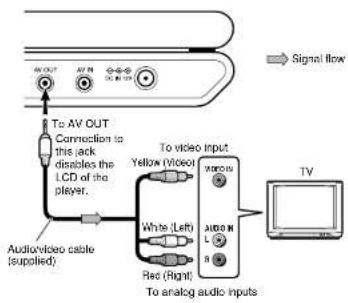
flowchart
graph TD
    A["Signal flow"] --> B["To AV OUT Connection to this jack disables the LCD of the player."]
    B --> C["To video Input Yellow (Video)"]
    C --> D["TV"]
    E["Audio/video cable (supplied)"] --> F["White (Left)"]
    F --> G["Red (Right)"]
    G --> H["To analog audio inputs"]
| Make the following setting. | Setting Select: | Page |
| “Digital Out” “Analog 2ch” | 60 |
64
01 SD P101SKN ENG 55 88.Indd 64
Notes
- Refer to the owner's manual of the connected TV as well.
- When you connect the player to your TV, be sure to turn off the power and unplug both units from the wall outlet before making any connections.
- Connect the player directly to your TV. If you connect the player to a VCR, TV/VCR combination or video selector, the playback picture may be distorted as DVD video discs are copy protected.
2008/03/07 2018.2
Viewing pictures from connected video equipment
You can use the LCD of this player to monitor pictures of connected video equipment.
1 Connect video equipment to the AV IN jack of this player.
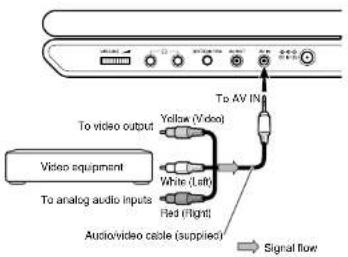
2 Press MODE repeatedly so that “(AV IN)” appears on the LCD.
The player is ready to display pictures of the connected equipment on the LCD. (AV Input mode)
Notes
- When supplying non-standard signals such as playback images from a video deck or images from a game player, some images may be displayed incorrectly. For example, shooting games, which shoots at a target on the screen with a light gun, may not work because of the LCD Color monitor properties.
- In the external AV input mode (→ (AV-IN) appears on the screen), screen saver function/auto power OFF function becomes ineffective.
Connections
Connecting to audio equipment
You can enjoy high quality dynamic sounds by connecting the player to audio equipment.
The connecting method depends on the types of audio input, digital or audio.
Select the method according to the type of your equipment.
Caution
- When you connect the player to other equipment, be sure to turn off the power and unplug all of the equipment from the wall outlet before making any connections.
- Turn off the amplifi er before you connect or disconnect the player's power cord. If you leave the amplifi er power on, the speakers may be damaged.
- The output sound of the player has a wide dynamic range. Be sure to adjust the receiver's volume to a moderate listening level. Otherwise, the speakers may be damaged by a sudden high volume sound.
Notes
- Refer to the owner's manual of the connected equipment as well.
- If you place the player near a tuner or radio, the radio broadcast sound might be distorted. In this case, place the player away from the tuner and radio.
Connecting to an AV amplifier (via digital audio input)
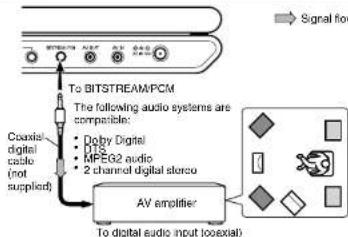
| Make the following setting. | Setting Select: Page | ||
| “Digital Out” | “Bitstream” or “PCM” | 60 | |
Manufactured under license from Dolby Laboratories. Dolby and the double-D symbol are trademarks of Dolby Laboratories. Confl dential Unpublished Works. ©1992-1997 Dolby Laboratories, Inc. All rights reserved.
Manufactured under license under U.S. Patent #: 5,451,942 & other U.S. and worldwide patents issued & pending. DTS and DTS Digital Out are registered trademarks and the DTS logos and Symbol are trademarks of DTS, Inc. © 1996-2007 DTS, Inc. All Rights Reserved.

CAUTION
- When you are connecting (via the BITSTREAM/PCM jack) an AV decoder that does not have Dolby Digital, Digital Theater Systems (DTS) or MPEG2 decoding function, be sure to set "Digital Out" to "PCM" from the on-screen displays 60. Otherwise, high volume sound may damage your hearing as well as the speakers. - When playing DTS-encoded discs (audio CDs), excessive noise may be output from the analog audio output jacks. To avoid possible damage to the audio system, you should take proper precautions when the analog audio output jacks of the player are connected to an amplification system. To enjoy DTS Digital Surround playback, an external 5.1 channel DTS Digital Surround ^p decoder system must be connected to the BITSTREAM/PCM jack of the player.
Note
- DO NOT connect the BITSTREAM/PCM jack of the player to the AC-3 RF input of a Dolby Digital Receiver. This input on your A/V Receiver is reserved for Laserdisc use only and is incompatible with the BITSTREAM/PCM jack of the player.
Connecting to an audio system equipped with analog audio inputs
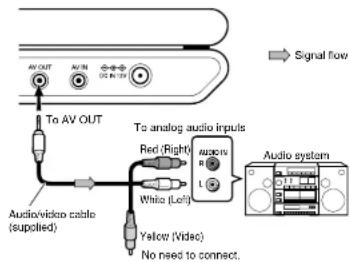
| Make the following setting. | Setting Select: Page | ||
| “Digital Out” | “Analog 2ch” | 60 | |
Connections

Using the automobile/vehicle adapter or power port
For use of the DVD player in a car, this adapter can power the DVD player from the cigarette lighter socket.
WARNING
- NEVER operate the DVD player or view a DVD Video while operating an automobile or other vehicle. Note: doing so is illegal in many jurisdictions.
NEVER place a DVD player within the eyesight of a driver while he/she is driving an automobile/vehicle. Note: A DVD player located in the front seating section of a vehicle is illegal in many jurisdictions.
Failure to observe the above instructions could result in the driver's inattention to and/or distraction from road hazards.
NEVER place a DVD player in a location where it could interfere with the proper deployment and/or performance of an air bag.
Failure to observe this instruction could result in the prevention of an air bag to properly and/or effectively deploy. Do not use an adapter other than the model supplied, to power the player. Do not use the supplied vehicle adapter to power an apparatus other than this player. Neglecting these may cause smoke, fire or electrical shock to human body. This adapter is intended for exclusive use in automobiles/vehicles with a DC 12V negative ground electrical system. NEVER use this adapter with a DC 24V confl gured or a DC 12V positive ground electrical system automobile/vehicle.
Consult your vehicle owner's manual before using this adapter.
Connections
68
- ALWAYS use caution when touching the adapter, cigarette lighter socket or power port. The adapter, lighter socket and power port may become heated after prolonged use.
- Do not charge the battery pack which is attached to the DVD player by the adapter. Doing so may cause smoke, fire or electrical shock to human body. Whenever you use the adapter, be sure to remove the battery pack from the DVD player to prevent it being charged by the adapter.
- Do not touch the adapter with wet hands. Do not get liquid on the adapter.
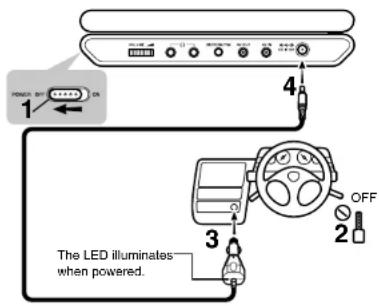
1 Be sure to turn off the DVD player then remove the battery pack from the player.
It will be in danger if the battery pack is not removed.
2 Turn on the vehicle engine so that the cigarette lighter socket or power port is powered. In some vehicles the cigarette lighter socket or power port is powered even when the vehicle's engine is not running. It is important that the vehicle owner's manual be consulted.
3 Insert the plug of the adapter into the cigarette lighter socket or power port fully.
4 Insert the pin plug of the adapter into the DC IN 12V Jack of the DVD player.
5 Turn on the DVD player.
6 When disconnecting the DVD player, fi rst turn off the DVD player, then remove the adapter pin plug from the DVD player and then the power plug from the cigarette lighter socket or power port.
7 Before turning off the vehicle engine or leaving the vehicle, be sure to turn off the player then remove the adapter pin plug from the DVD player.
Specification
Operating temperature: 5 - 35°C (41 - 95°F)
Operating humidity: 30 \~ 80%
Storage temperature: -10 \~ 50°C (14 \~ 122°F)
Storage humidity: 20 \~ 80%
Notes
- Before turning on the vehicle engine, remove the power plug of the adapter from the cigarette lighter socket or power port. Neglecting this may cause malfunction of the DVD player.
- If the cigarette lighter socket or power port is dirty, be sure to clean it before connecting the power plug of the adapter. Dusts or stains of the cigarette lighter socket or power port may heat the connected plug while operating, and may damage the adapter.
- Do not leave the adapter in an unoccupied vehicle to avoid exposing it to unusually high ambient temperatures.
- Before turning off the vehicle engine, first turn off the DVD player then remove the plug of the adapter from the cigarette lighter socket or power port. Turning off the vehicle engine while the DVD player is powered via the adapter may cause damage to the DVD player.
- When the DVD player is not in use be sure to remove the adapter power plug from the cigarette lighter socket or power port and the pin plug from the DVD player.
(Continue)
69
Using the automobile/vehicle adapter or power port (continued)
Notes
- Do not force the adapter into an incompatible lighter socket
or power port. - Avoid dropping the adapter or placing heavy objects on it.
Never use the damaged adapter. - Do not pull the adapter power cord when removing it from a
socket or power port.
Always grasp and pull the body
Failure to do so could cause damage to and malfunction of
the adapter. - Do not operate the DVD player using the adapter for a
prolonged period with the car engine off. The car battery may
be too exhausted to turn the engine on. - Depending on the vehicle model or the location of the
cigarette lighter socket, this adapter may not be applied - In some vehicles the cigarette lighter socket is powered even
when the vehicle's engine is not running. Using the cigarette
lighter socket for power when the engine is not running will
drain the car's battery - Never add any devices to the cigarette lighter socket or
power port to apply the adapter. These may damage the
DVD player or themselves or may cause fl re - If noises are heard while operating the car radio, etc, remove
the power plug of the adapter from the cigarette lighter
socket or power port. - If playback pictures are distorted while operating, move the
DVD player away from the adapter.
70
[NO TEXT]
To turn the LCD monitor
You can turn the LCD monitor 180 degrees.
■ To turn the LCD monitor
1 Put the player on a level place such as a desk.
2 Open up the LCD monitor vertically.
3 While holding the lower side of the player, turn the LCD monitor slowly 180 degrees to the direction of "TURN" until it clicks.
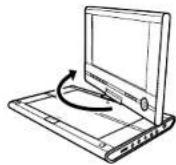
4 Adjust the angle of the LCD monitor. The LCD monitor can be laid fl at at the maximum.
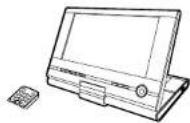
■ To put back the LCD monitor
1 Open up the LCD monitor vertically.
2 While holding the lower side of the player, turn the LCD monitor slowly 180 degrees to the direction of "REVERSE" until it clicks.
Notes
- The LCD monitor does not turn over 180 degrees or to the opposite direction. Do not force the LCD monitor to turn over 180 degrees or to the opposite direction. It may damage the LCD monitor.
- Do not store the player or attach/detach the battery pack with the screen side up. Otherwise, the LCD monitor will get dust on the screen or be damaged by an unexpected shock.
Connections
71

⊕
©

01_SD-P101SKN_ENG_55 88.indd 72
©
Others
Useful Informations.
● Output sound conversion table
● Before calling service personnel
● Specifi cations
● Limited United States Warranty
● Limited Canadian Warranty
Output sound conversion table
| Discs | Sound recording system | Audio selection and outputs | ||||||
| “Bitstream” | “Analog 2ch” “PCM” | |||||||
| BITSTREAM/PCM jack | SpeakersAV OUT jack Headphone jacks | BITSTREAM/PCM jack | SpeakersAV OUT jack Headphone jacks | BITSTREAM/PCM jack | SpeakersAV OUT jack Headphone jacks | |||
| DVD video discs | Dolby Digital Bitstream | Yes | Bitstream | Yes | PCM Yes | |||
| Linear PCM | 48 kHz | PCM | Yes | No | Yes | PCM | Yes | |
| 96 kHz | PCM* | Yes | No | Yes | PCM* | Yes | ||
| DTS | Bitstream | No | Bitstream | No | Bitstream | No | ||
| MPEG1, MPEG2 | Bitstream | Yes | Bitstream | Yes | PCM Yes | |||
| VIDEO CDs | MPEG1 | Bitstream | Yes | Bitstream | Yes | PCM Yes | ||
| AUDIO CDs | Linear PCM 44.1 kHz | PCM | Yes | PCM Yes | PCM Yes | |||
| DTS | Bitstream Bitstream NMo | Bitstream No | ||||||
*PCM: down sampling PCM
- Signals of 88.2 kHz or higher from the BITSTREAM/PCM jack are down converted to 44.1 kHz or 48 kHz when:
- "3D On" is selected.
- a copyright protected disc is played.
- Quantization will be limited to 16 bits in a copyright protected disc.


Before calling service personnel
Check the following guide for the possible cause of a problem before contacting service.
| Symptom Cause Correction | ||
| No power. • The AC adapter or power plug is disconnected. | • Connect the AC adapter or power plug securely. | |
| • The battery pack has been removed. • Install the battery pack. | ||
| • Battery empty. • Re-charge the battery. | ||
| The LCD turned off by Itself. | • The automatic LCD off function turned the LCD off. | • Turn on the player again. |
| No picture on the LCD monitor. | • The AV OUT jack is connected. • When you use the LCD of the player, unplug the AV OUT jack. | |
| No picture. (Other than built-in LCD monitor) | • The connected TV is not set to receive DVD signal output. | • Select the appropriate video input mode on the TV so the picture from the player appears on the TV screen. |
| No sound. • The equipment connected via the audio/video cable is not set to receive DVD signal output. | • Select the correct input mode of the audio receiver so you can listen to the sound from the player. | |
| • The volume is too low. • Adjust the volume by turning the volume control. | ||
| • The audio receiver or TV is turned off. • Turn on the equipment connected with the audio/video cable. | ||
| • The setting of output sound format is incorrect. • Select the proper audio setting. | ||
| The playback picture has occasional distortion. | • The disc is dirty. • Eject the disc and clean it. | |
| • Player is in fast forward or fast reverse mode. | • Sometimes a small amount of picture distortion may appear. This is not a malfunction. | |
| • The player was moved or given a shock. | • Vibrating or shaking the player during playback may produce distortion. This is not a malfunction. If not restored to usual status, stop playback and start again. | |
| • The disc is not set firmly. • Remove the disc and set it again. | ||
| Brightness is unstable or noises are present in the playback pictures. (Other than built-in LCD monitor) | • The effect of copy protection. If you connect the player to a VCR, TV/VCR combination or video selector, the playback picture may be distorted as DVD video discs are copy protected. | • Connect the player directly to the TV. Avoid connecting the player to a VCR or TV/VCR combination. |
Before calling service personnel (continued)
| Symptom Cause Correction | ||
| The player does not start playback. | No disc is inserted. Insert a disc.An unplayable disc is inserted. Insert a playable disc. (Check the disc type, color system and region number.) | |
| The disc is inserted upside down. Insert the disc with the playback side down.The disc is not inserted securely. Insert the disc securely in the disc holder.The disc is dirty. Clean the disc. | ||
| The parental lock function is set. Cancel the parental lock function or change the parental lock level.The player is set to the external input mode (AV-IN). | To play a disc with the player, Normal needs to be set. Press MODE repeatedly so that you can view playback picture. | |
| Playback does not follow the course of the disc's program. | It is in the repeat playback mode, memory playback, etc. | These operations may prevent a proper progression of the contents. |
| Buttons do not work. Power supply fl ectuations or other abnormalities such as static electricity may interrupt correct operation. | Turn the power on or off with the POWER switch. Or disconnect the power cord and insert it into the wall outlet again. | |
| The remote control does not work properly. | The remote control is not pointed at the remote sensor of the player. | Point the remote control at the remote sensor of the player. |
| The remote control is too far from the player. | Operate the remote control within about 3 m (9.9 feet). | |
| The batteries in the remote control are exhausted. | Replace the batteries with new ones. | |
| The player's remote sensor is exposed to a strong light source such as direct sunlight or other illumination. | Avoid the player from being exposed to a strong light source. | |
Others
Specifications
Player
| Power supplyDC 12 V (Rated current : 2 A (Maximum: during battery pack charging))120 V AC, 60 Hz (with the supplied AC adapter) |
| Massapproximately ?kg |
| External dimensions?? × ?? × ??nm (W/H/D) |
| Signal systemStandard NTSC |
| LaserSemiconductor laser, wavelength 650 nm / 795 nm |
| Frequency rangeDVD linear sound :48 kHz sampling 4 Hz to 22 kHz96 kHz sampling 4 Hz to 44 kHz |
| Operating conditionsTemperature: 5°C to 35°C (41°F to 95°F),Operation status: Horizontal |
Connectors
| AV output (AV OUT)ø3.5mm mini jack x 1Video: 1.0 V (p-p), 75 Ω, negative sync.,Audio: 2.0 V (rms), 100 Ω |
| AV input (AV IN)ø3.5mm mini jack x 1Video: 1.0 V (p-p), 75 Ω, negative sync.,Audio: 2.0 V (ms), 10kΩ |
| Audio output (BITSTREAM/PCM)Coaxial digital terminal (ø3.5mm) x 1 |
| Headphone terminalø3.5mm stereo mini jack x 2 |

Others
77
[NO TEXT]
Specifi cations (continued)
Liquid crystal display
| Panel size25.9 cm (10.2 inches diagonally measured) |
| Projection systemTN color transmission |
| Driving systemAmorphous silicon TFT active matrix |
| Resolution800 (H) × 480 (V) pixels (effective pixel rate : more than 99.99%) |
■ Supplied accessories
| Audio/video cable | 1 |
| Remote control (MEDR16UX) | 1 |
| Coin-shaped battery (CR2025) | 1 |
| AC adapter (ADPV16A) | 1 |
| Power cord | 1 |
| Battery pack (SD-PBP101) | 1 |
| Vehicle adapter (MEDC01AX) | 1 |
| Owner's Manual | 1 |


78
CI SD P101SKN ENG 55 88.indd 78

2008/03/07 2018/2

Limited United States Warranty
Digital Audio Video ("DAV") Product - Depot Repair Warranty
Toshiba America Consumer Products, L.L.C. ("TACP") makes the following limited warranties to original consumers in the United States. THESE LIMITED WARRANTIES EXTEND TO THE ORIGINAL CONSUMER PURCHASER OR ANY PERSON RECEIVING THIS DAV PRODUCT AS A GIFT FROM THE ORIGINAL CONSUMER PURCHASER AND TO NO OTHER PURCHASER OR TRANSFEREE.
DAV PRODUCTS PURCHASED IN THE U.S.A. AND USED ANYWHERE OUTSIDE OF THE U.S.A., INCLUDING, WITHOUT LIMITATION, CANADA AND MEXICO, ARE NOT COVERED BY THESE WARRANTIES.
DAV PRODUCTS PURCHASED ANYWHERE OUTSIDE OF THE U.S.A., INCLUDING, WITHOUT LIMITATION, CANADA AND MEXICO, AND USED IN THE U.S.A., ARE NOT COVERED BY THESE WARRANTIES.
Limited Ninety (90) Day Warranty on Labor\*
TACP warrants this DAV Product and its parts against defects in materials or workmanship for a period of ninety (90) days after the date of original retail purchase.
DURING THIS PERIOD, TACP WILL, AT TACP'S OPTION, REPAIR OR REPLACE A DEFECTIVE PART WITH A NEW OR REFURBISHED PART WITHOUT CHARGE TO YOU FOR PARTS OR LABOR.
Limited One (1) Year Warranty on Parts\*
TACP further warrants the parts in this DAV Product against defects in materials or workmanship for a period of one (1) year after the date of original retail purchase.
DURING THIS PERIOD, TACP WILL, AT TACP'S OPTION, REPAIR OR REPLACE A DEFECTIVE PART WITH A NEW OR REFURBISHED PART WITHOUT CHARGE TO YOU FOR THE PART, PROVIDED THAT IF A DEFECTIVE PART
IS REPAIRED OR REPLACED AFTER NINETY (90) DAYS AFTER THE DATE OF ORIGINAL RETAIL PURCHASE, THE CONSUMER SHALL PAY ALL LABOR CHARGES INVOLVED IN THE REPAIR OR REPLACEMENT THEREOF.
\*Rental Units
The warranty for DAV Product rental units begins on the date of the first rental or thirty (30) days after the date of shipment to the rental firm, whichever comes first.
\*Commercial Units
DAV Products sold and used for commercial purposes have a limited warranty for all parts and labor, which warranty begins on the date of original retail purchase and ends on the date that is ninety (90) days thereafter.

Others

Limited United States Warranty
Digital Audio Video ("DAV") Product - Depot Repair Warranty (continued)
Owner's Manual and Product Registration Card
Read this owner's manual thoroughly before operating this DAV Product.
Complete and mail the enclosed product registration card or register your DAV Product on-line at www.tacp.toshiba.com/service as soon as possible. By registering your DAV Product you will enable TACP to bring you new products specifically designed to meet your needs and help us to contact you in the unlikely event a safety notification is required under the U.S. Consumer Product Safety Act.
Failure to complete and return the product registration card does not diminish your warranty rights.
Your Responsibility
THE ABOVE WARRANTIES ARE SUBJECT TO THE FOLLOWING CONDITIONS:
(1) You must retain your bill of sale or provide other proof of purchase.
(2) All warranty servicing of this DAV Product must be made by the Depot Warranty Repair Center specified by the TACP Consumer Solutions Center.
(3) The warranties from TACP are effective only if the DAV Product is purchased and operated in the Continental U.S.A. or Puerto Rico.
(4) Labor service charges for set installation, setup, adjustment of customer controls, and installation or repair of antenna systems are not covered by this warranty. Reception problems caused by inadequate antenna systems are your responsibility.
(5) Warranties extend only to defects in materials or workmanship as limited above, and do not extend to any DAV Product or parts that have been lost or discarded by you or to damage to the DAV Product or parts caused by fi res, misuse, accident, Acts of God (such as lightning or fl uctuations in electric power), improper installation, improper maintenance, or use in violation of instructions furnished by TACP; use or malfunction through simultaneous use of this DAV Product and connected equipment; or to units that have been modified or had the serial number removed, altered, defaced, or rendered illegible.
©
Others
80
⊕
How to Obtain Warranty Services
If, after following all of the operating instructions in this manual and checking the section "Troubleshooting," you find that service is needed:
(1) For instructions on how to obtain warranty service for your DAV Product, contact TACP's Consumer Solution Center toll free at 1-800-631-3811.
(2) You must include a copy or original bill of sale or other proof of purchase along with the entire DAV Product to the Depot Warranty Repair Center specified by the TACP Consumer Solutions Center. You are responsible for all inbound transportation and insurance charges for the DAV Product to the Depot Warranty Repair Center specified by the TACP Consumer Solutions Center.
For additional information, visit TACP's website: www.tacp.toshiba.com.
ALL WARRANTIES IMPLIED BY THE LAW OF ANY STATE OF THE U.S.A., INCLUDING THE IMPLIED WARRANTIES OF MERCHANTABILITY AND FITNESS FOR A PARTICULAR PURPOSE, ARE EXPRESSLY LIMITED TO THE DURATION OF THE LIMITED WARRANTIES SET FORTH ABOVE. WITH THE EXCEPTION OF ANY WARRANTIES IMPLIED BY THE LAW OF ANY STATE OF THE U.S.A. AS HEREBY LIMITED, THE FOREGOING WARRANTY IS EXCLUSIVE AND IN LIEU OF ALL OTHER WARRANTIES, GUARANTEES, AGREEMENTS, AND SIMILAR OBLIGATIONS OF TACP WITH RESPECT TO THE REPAIR OR REPLACEMENT OF
ANY PARTS. IN NO EVENT SHALL TACP BE LIABLE FOR CONSEQUENTIAL OR INCIDENTAL DAMAGES (INCLUDING, BUT NOT LIMITED TO, LOST PROFITS, BUSINESS INTERRUPTION, OR MODIFICATION OR ERASURE OF RECORDED DATA CAUSED BY USE, MISUSE OR INABILITY TO USE THIS DAV PRODUCT).
No person, agent, distributor, dealer, or company is authorized to change, modify, or extend the terms of these warranties in any manner whatsoever. The time within which an action must be commenced to enforce any obligation of TACP arising under the warranty or under any statute or law of the United States or any state thereof is hereby limited to ninety (90) days from the date you discover, or should have discovered, the defect. This limitation does not apply to implied warranties arising under state law.
THIS WARRANTY GIVES YOU SPECIFIC LEGAL RIGHTS AND YOU MAY ALSO HAVE OTHER RIGHTS WHICH MAY VARY FROM STATE TO STATE IN THE U.S.A. SOME STATES OF THE U.S.A. DO NOT ALLOW LIMITATIONS ON HOW LONG AN IMPLIED WARRANTY LASTS, WHEN AN ACTION MAY BE BROUGHT, OR THE EXCLUSION OR LIMITATION OF INCIDENTAL OR CONSEQUENTIAL DAMAGES, SO THE ABOVE PROVISIONS MAY NOT APPLY TO YOU UNDER SUCH CIRCUMSTANCES.

Others


Limited Canadian Warranty
For Toshiba Brand DVD Players, DVD Recorders, DVD/VCR Combo Players and Portable DVD Players
Toshiba of Canada Limited ("TCL") makes the following limited warranties to original consumers in Canada. THESE LIMITED WARRANTIES EXTEND TO THE ORIGINAL CONSUMER PURCHASER OR ANY PERSON RECEIVING THIS TOSHIBA BRAND DVD PLAYER, DVD RECORDER, DVD/VCR COMBO PLAYER OR PORTABLE DVD PLAYER (the "PLAYER(S)") or "Player(s)") AS A GIFT FROM THE ORIGINAL CONSUMER PURCHASER AND TO NO OTHER PURCHASER OR TRANSFEREE.
PLAYERS PURCHASED IN CANADA, AND USED ANYWHERE OUTSIDE OF CANADA INCLUDING, WITHOUT LIMITATION, THE UNITED STATES AND MEXICO, ARE NOT COVERED BY THESE WARRANTIES.
PLAYERS PURCHASED ANYWHERE OUTSIDE OF CANADA, INCLUDING, WITHOUT LIMITATION, THE UNITED STATES AND MEXICO, AND USED IN CANADA, ARE NOT COVERED BY THESE WARRANTIES.

Limited One (1) Year Warranty on Parts and Labour (home/non-commercial use)
Subject to the more limited warranty if the Player is used for any commercial or business purposes as set out below, TCL warrants the Player and its parts against material defects in materials or workmanship that result in the Player failing for a period of one (1) year after the date of original retail purchase. DURING THIS PERIOD, TCL WILL, AT TCL'S OPTION, REPAIR OR REPLACE A DEFECTIVE PART WITH A NEW OR REFURBISHED PART, WITHOUT CHARGE TO YOU FOR PARTS OR LABOUR. YOU MUST DELIVER THE ENTIRE PLAYER TO THE CLOSEST TCL DESIGNATED DVD PLAYER, DVD RECORDER, DVD/VCR COMBO PLAYER OR PORTABLE DVD PLAYER AUTHORIZED SERVICE DEPOT ("ASD"). YOU MUST PAY FOR ALL TRANSPORTATION AND INSURANCE CHARGES FOR THE PLAYER TO AND FROM THE ASD.
Rental Units
The warranty for Player rental units begins with the date of fi rst rental or thirty (30) days from the date of shipment to the rental fi rm, whichever comes fi rst.
Limited Warranty for Commercial Units
TCL warrants Players that are used for any commercial or business purposes as follows: all parts are warranted against material defects in materials or workmanship that result in the Player failing for a period of ninety (90) days after the date of original retail purchase. DURING THIS PERIOD, TCL WILL, AT TCL'S OPTION, REPAIR OR REPLACE A DEFECTIVE PART WITH A NEW OR REFURBISHED PART, WITHOUT CHARGE TO YOU FOR PARTS OR LABOUR. YOU MUST DELIVER THE ENTIRE PLAYER TO THE CLOSEST ASD. YOU MUST PAY FOR ALL TRANSPORTATION AND INSURANCE CHARGES FOR THE PLAYER TO AND FROM THE ASD.
Others
82

Your Responsibility
THE ABOVE WARRANTIES ARE SUBJECT TO THE FOLLOWING CONDITIONS:
(1) You must provide your bill of sale or other proof of purchase.
(2) All warranty servicing of this Player must be performed by a Toshiba Factory Service Depot.
(3) The warranties from TCL are effective only if the Player is (i) purchased as new and unopened from TCL or from TCL's authorized distributors, dealers or resellers ("ADR's") and (ii) located/operated in Canada.
(4) Warranties extend only to material defects in materials or workmanship as limited above, and do not extend to:
a. Service, repairs or replacement made necessary by accident, misuse, abuse, moisture, liquids, dust, dirt, neglect, accident, damage, 24/7 applications, improper installation, improper operation, improper cleaning, improper maintenance, normal wear and tear, or any other external cause or event, act or omission outside the control of TCL, including fi re, theft, acts of God, alteration, power failures, power surges or power shortages, lightning, other electrical faults, or repairs, modified cations or replacements by persons other than those authorized by TCL to service the Player;
b. Replacement of missing, discarded or lost parts, the provision of retrofits, or preventive maintenance;
c. Repair of damage that is cosmetic only or does not affect the Player functionality, such as wear and tear, scratches and dents;
d. Service on Toshiba-branded accessory items (such accessory items may be covered by their own warranty);
e. Service on third party products or service made necessary by use of incompatible third party products;
f. Service made necessary by the simultaneous use of this Player and connected equipment;
g. Modifi cations to the Player not approved in writing by TCL, and service made necessary by the use or installation of non-Toshiba modifi cations to the Player;
h. Service of a Player on which the TOSHIBA label or logo, rating label or serial number have been defaced or removed;
i. On-site service and repair of the Player; and
j. Damage to the Player caused by failure to follow the specifications, User manuals or guides as to usage and/or storage.

Others


Limited Canadian Warranty
For Toshiba Brand DVD Players, DVD Recorders, DVD/VCR Combo Players and Portable DVD Players (continued)
Disclaimer and Limitation of Remedy
TO THE EXTENT NOT PRECLUDED BY LAW, ALL OTHER EXPRESS AND IMPLIED WARRANTIES, CONDITIONS AND REPRESENTATIONS FOR THIS PLAYER, INCLUDING THE IMPLIED WARRANTIES AND CONDITIONS OF MERCHANTABILITY AND FITNESS FOR A PARTICULAR PURPOSE, ARE HEREBY DISCLAIMED AND EXCLUDED. IF THE APPLICABLE LAW, STATUTORY OR OTHERWISE, PRECLUDES THE EXCLUSION OF ANY IMPLIED WARRANTIES, CONDITIONS AND REPRESENTATIONS THEN SUCH IMPLIED WARRANTIES, CONDITIONS AND REPRESENTATIONS ARE OTHERWISE LIMITED IN DURATION TO THE TERM OF THIS EXPRESS WRITTEN LIMITED WARRANTY. TO THE EXTENT NOT PRECLUDED BY LAW, THIS WRITTEN WARRANTY SUPERCEDES AND SPECIFICALLY DISCLAIMS ANY OTHER WARRANTY, CONDITION OR REPRESENTATION NOT STATED IN THIS WARRANTY, WHETHER MADE BY TCL, TOSHIBA CORPORATION, THEIR AFFILIATES, ADRs AND ASDs AND WHETHER MADE ORALLY OR IN WRITING (INCLUDING ANY STATEMENT IN ANY BROCHURE, PRESS RELEASE, ANNOUNCEMENT, ADVERTISEMENT, POINT OF SALE DISPLAY, ETC.).
Others
YOU MUST READ AND FOLLOW ALL SET-UP AND USAGE INSTRUCTIONS IN THE APPLICABLE USER GUIDES AND/OR MANUALS. IF YOU FAIL TO DO SO, THIS PLAYER MAY NOT FUNCTION PROPERLY AND YOU MAY SUFFER DAMAGE. THIS WARRANTY WILL NOT COVER ANY
SERVICE THAT IS REQUIRED, IN PART OR IN WHOLE, AS A RESULT OF ANY FAILURE TO FOLLOW THE SET-UP AND USAGE INSTRUCTIONS. THIS WARRANTY DOES NOT APPLY AND SHALL BE VOID AND UNENFORCEABLE IF THE PLAYER IS OPENED, SERVICED, OR REPAIRED BY PERSONS OTHER THAN THOSE AUTHORIZED BY TCL TO SERVICE OR REPAIR THE PLAYER.
IF THE PLAYER FAILS TO WORK AS WARRANTED ABOVE, YOUR SOLE AND EXCLUSIVE REMEDY SHALL BE REPAIR OR REPLACEMENT OF THE DEFECTIVE PART. IN NO EVENT WILL TCL, TOSHIBA CORPORATION, THEIR AFFILIATES, ADRs OR ASDs (THE "RELATED PARTIES") BE LIABLE TO YOU OR ANY THIRD PARTY FOR ANY DAMAGES, MONEY, REIMBURSEMENT, COSTS OR EXPENSES. THIS LIMITATION APPLIES TO DAMAGES, MONEY, REIMBURSEMENT, COSTS OR EXPENSES OF ANY KIND WHATSOEVER INCLUDING ANY DIRECT OR INDIRECT DAMAGES, DAMAGE TO PROPERTY OR PERSON, LOST PROFITS, LOST SAVINGS, INCONVENIENCE OR OTHER SPECIAL, INCIDENTAL, EXEMPLARY OR CONSEQUENTIAL DAMAGES, WHETHER FOR BREACH OF WARRANTY, BREACH OF CONTRACT, TORT (INCLUDING NEGLIGENCE), UNDER A STATUTE OR UNDER ANY OTHER LAW OR FORM OR ACTION, OR WHETHER ARISING OUT OF THE USE OF OR INABILITY TO USE THE PLAYER, EVEN IF ANY OF THE RELATED PARTIES HAS BEEN ADVISED OF THE POSSIBILITY OF SUCH DAMAGES OR OF ANY CLAIM BY ANY OTHER PARTY.


No person, agent, distributor, dealer or company is authorized to change, modify or extend the terms of these warranties in any manner whatsoever.
Arbitration and Dispute Resolution
To the extent not precluded by law, any claim, dispute, controversy or disagreement (whether for breach of warranty, breach of contract, tort (including negligence), under a statute or under any other law or form of action) against any of the Related Parties arising out of, or otherwise relating to: (i) this warranty; (ii) the Player; (iii) any oral or written representations, statements, brochures, press releases, advertising, announcement, point of sale display, or promotional material relating to the Player; (iv) the relationships that result from this warranty, (the foregoing claims, disputes controversies and disagreements are collectively referred to as the "Dispute"), shall be referred to and resolved by fil nal and binding arbitration (to the exclusion of the courts). To the extent not precluded by law, you agree to waive any right that you may have to commence or participate in any representative or class proceeding against the Related Parties relating to any Dispute. If and where applicable and to the extent not precluded by law, you further agree to opt out of any such representative or class proceedings. Arbitration of any Dispute will be conducted in the forum and in the manner as agreed to between you and TCL. Failing such agreement, the arbitration will be conducted by one arbitrator pursuant to the laws and rules relating to arbitration generally in force in the jurisdiction
in which you reside at the time that the Dispute arises. To the extent not precluded by law, no claim, dispute, controversy or disagreement of any other person may be joined or combined with any Dispute by you, without the prior written consent of TCL.
Critical Applications
The Player you have purchased is not designed for any "critical applications." "Critical applications" means life support systems, medical applications, connections to implanted medical devices, commercial transportation, nuclear facilities or systems or any other applications where Player failure could lead to injury to persons or loss of life or catastrophic property damage.
IF THE CUSTOMER USES THE PLAYER IN ANY CRITICAL APPLICATION, THE CUSTOMER – AND NOT TCL, ITS AFFILIATES, ADRs OR ASDs – ASSUME SOLE AND FULL RESPONSIBILITY FOR SUCH USE. TCL RESERVES THE RIGHT TO REFUSE TO SERVICE ANY PLAYER USED IN A CRITICAL APPLICATION. TCL, ITS AFFILIATES, ADRs AND ASDs HEREBY DISCLAIM ANY AND ALL LIABILITY, DAMAGES AND CONSEQUENCES ARISING OUT OF THE SERVICE OR REFUSAL TO SERVICE SUCH PLAYER AND FURTHER DISCLAIM ANY AND ALL LIABILITY, CONSEQUENCES AND DAMAGES THAT MAY ARISE OR RESULT FROM THE USE OF THE PLAYER IN ANY CRITICAL APPLICATIONS.

Others


Limited Canadian Warranty
For Toshiba Brand DVD Players, DVD Recorders, DVD/VCR Combo Players and Portable DVD Players (continued)
General Provisions
If and to the extent that any provision of this limited warranty should generally be found to be unenforceable, the unenforceable provision shall be severed from the warranty and deemed not to form part of the warranty. The remaining provisions of this warranty shall be and remain valid and enforceable. If and to the extent that any provision of this limited warranty as it relates to any of the Related Parties is found to be invalid or unenforceable in respect of that party (the "Excluded Party"), the Excluded Party shall be deemed to be severed or excluded from the provision, and the provision shall remain valid, enforceable and applicable in respect of the other or remaining Related Parties.
To the extent permitted by law, this limited warranty shall be governed and construed in accordance with the laws of Ontario.
If there is any inconsistency between this limited warranty, on the one hand, and any statement in the packaging of the Player or in any other document enclosed with, or used in the context of the promotion or sale of, the Player, on the other hand, the provisions of this limited warranty shall prevail.
How to Obtain Warranty Services
If, after following all of the operating instructions in this manual and checking the "Troubleshooting" section, you find that service is needed:
(1) To find the nearest TCL Authorized Service Depot, visit TCL's web site at www.toshiba.ca, or call toll free 1-866-275-6372.
(2) Present your bill of sale or other proof of purchase to the Toshiba Factory Service Depot.
For additional information, visit TCL's website: www.toshiba.ca


01 SD P101SKN ENG 55 88.inkd 87

2008/03/07 2018/25


TOSHIBA
© 2008 Toshiba Corporation
Printed in China

CI SD P101SKN ENG 55 88,indd 88

2008/03/07 2018.26
