H16B - Smartphone Opticon - Free user manual and instructions
Find the device manual for free H16B Opticon in PDF.


User questions about H16B Opticon
0 question about this device. Answer the ones you know or ask your own.
Ask a new question about this device
Download the instructions for your Smartphone in PDF format for free! Find your manual H16B - Opticon and take your electronic device back in hand. On this page are published all the documents necessary for the use of your device. H16B by Opticon.
USER MANUAL H16B Opticon
OPTICON
Manual
Contents
Chapter 1. Knowing Your Device 09
1.1 Introduction 10
1.2 Accessories 14
1.3 Install SIM Card and Battery 15
1.4 Battery Information 16
1.5 Mini-SD Cards 18
Chapter 2. Basic Operations 19
2.1 Getting Started 20
2.2 Input Methods 23
2.3 Today Screen Components 28
2.4 The Start Menu 30
2.5 Settings 32
2.6 Using Calendar 34
2.7 Using Notes 41
2.8 Using Tasks 49
Charter 3. Phone Features 55
3.1 Using the Phone
3.2 Making a Call
3.3 In-Call options
3.4 SIM Manager
56
58
63
67
H-16

Chapter 4. Synchronizing Information 69
4.1 Installing and setting up ActiveSync 70
4.2 Synchronizing Information 71
4.3 Changing Settings for an Information Type 73
4.4 Synchronizing with Exchange Server 73
4.5 Synchronizing via Bluetooth 74
Chapter 5. Bluetooth Connections 77
5.1 Overview of Bluetooth 78
5.2 Bluetooth Partnership (Bonding) 81
5.3 Beaming Information (Bluetooth) 84
Chapter 6. Transferring Files To and From Your Device 87
6.1 Using ActiveSync 88
6.2 Transferring from Memory Cards 89
6.3 Using Bluetooth 90
6.4 Transferring to a PC or Other Devices 90
Chapter 7. Connecting to the Internet 91
7.1 Setting up Internet connections 92
7.2 Using Internet Explorer Mobile 97
7.3 Using Wireless Manager 101
7.4 Using Wi-Fi Connection 104
H-16

Chapter 8. Messaging & Contacts 109
8.1 Text Messaging 110
8.2 E-mail 112
8.3 Changing Messaging Account Options 116
8.4 Using Contacts 116
Chapter 9. Using Barcode Reader 121
9.1 Setting Barcode Reader 122
9.2 Scanning and Reading Barcode labels 133
Chapter 10. Other Applications 135
10.1 Word Mobile 136
10.2 Excel Mobile 138
10.3 PowerPoint Mobile 140
10.4 MSN Messenger 141
10.5 Backup/Recover 144
10.6 Managing Memory 147
Appendix 149
A.1 Regulatory Notices 150
A.2 PC Requirement to Run ActiveSync 4.5 155
A.3 Specifications 156
CAUTION: This information is subject to change without prior notice.
Copyright © 2007 Opticon. All Rights Reserved.
This manual may not, in whole or in part, be copied, photocopied, reproduced, translated or converted to any electronic or machine readable form without prior written consent of Opticon.
Warranty
Unless otherwise agreed in a written contract, all Opticon products are warranted against defects in materials and workmanship for two years after purchase. Opticon will repair or, at its option, replace products that are defective in materials or workmanship with proper use during the warranty period. Opticon is not liable for damages caused by modifications made by a customer. In such cases, standard repair charges will apply. If a product is returned under warranty and no defect is found, standard repair charges will apply. Opticon assumes no liability for any direct, indirect, consequential or incidental damages arising out of use or inability to use both the hardware and software, even if Opticon has been informed about the possibility of such damages.
Packaging
The packing materials are recyclable. We recommend that you save all packing material to use if you need to transport your scanner or send it for service. Damage caused by improper packaging during shipment is not covered by the warranty.
IMPORTANT SAFETY INFORMATION
Please read the following information carefully before you start using this Opticon device to avoid any damages caused by improper usage:
H-16

- The device is not charged when you take it out of the box. The battery should be charged for at least 8 hours before first use. Do not remove the battery while charging.
- Do not use batteries, which have not been specified by the manufacturer, as this may cause leakage or rupture.
- Do not charge the battery with an unspecified AC Adapter, as this may cause damage to both the device and the battery.
- When discarding the batteries, dispose of them in a proper manner, according to the battery manufacturer's instructions and your local laws.
• Power off the device and remove the battery before inserting SIM card. Make sure the SIM card snaps correctly into the SIM socket.
- Do not open the device housing or tamper with the device, as it will void your warranty.
- Do not apply excessive force on this product, as it may cause damage to the screen or the internal component.
- Do not use the device at gas or refueling stations, chemical plants, and places containing explosives or flammable materials. Observe local guidelines.
- Use only manufacturer specified stylus. Do not scratch the screen with sharp objects.
- Do not clean the screen with chemical detergents. Only use cloths, specifically designed for cleaning liquid displays, or a soft cloth moisturized with water drops, to wipe the device screen.
- Do not expose the device to direct sunlight, or leave the device in a humid environment, for extended periods of time, as this may cause damage to the device and battery.
H-16

- Do not immerse the device in water.
- The device may interfere with the navigation and/or communication systems on aircraft. The use of the device on aircraft is prohibited by laws in most countries. Observe local guidelines.
• This product may cause medical equipment to malfunction. The use of this device is forbidden in most hospitals and medical clinics. Observe local guidelines. - Use hands-free devices, if you need to use the telephony services, while driving a vehicle. Observe local guidelines.
Safety of Laser Products
International Standards (Japan/EU/USA) Laser Class 1

cautions about the Laser Device
This product using laser complies with JIS C6802: 2005 Class 1, IEC60825-1+A2: 2001 Class 1 and 21CFR 1040.10 and 1040.11 except for deviations pursuant to Laser Notice No.50, dated July 26, 2001.
Class 1 Laser devices are not considered to be hazardous when used for their intended purpose. Use of controls, adjustment of procedures other than those specified herein may result in hazardous laser light exposure.
The user should not view directly into the light beam with optical instruments, it may pose an eye hazard.
H-16

Trademarks
Trademarks used are the property of their respective owners.
Opticon is a registered trademark. Microsoft, MS-DOS, Windows, Windows NT, Windows Server, Windows Mobile, ActiveSync, Excel, Internet Explorer, MSN, Outlook, PowerPoint, and Word are either registered trademarks or trademarks of Microsoft Corporation in the United States and/or other countries.
1.1 Introduction
Views of the Device
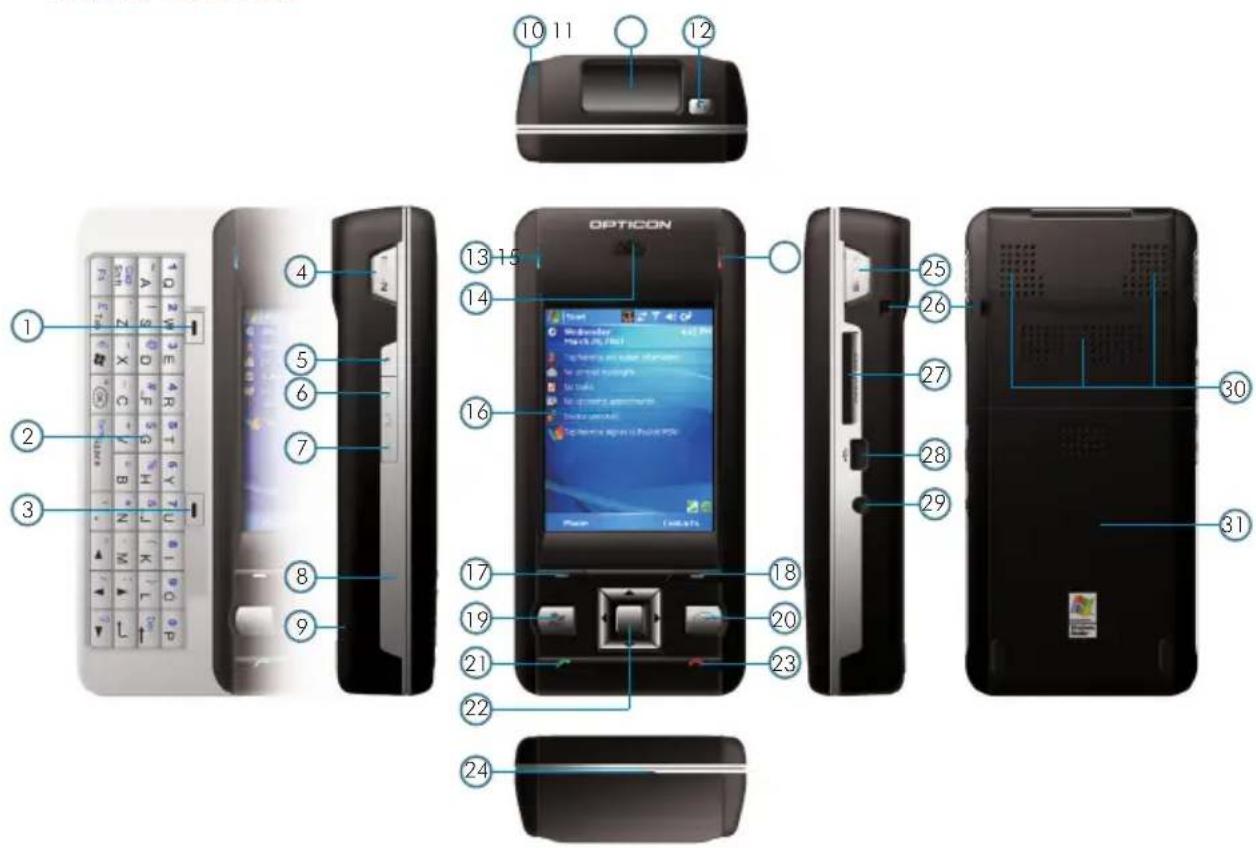
| 1 Soft key 1 | Performs the command shown in the label above the button |
| 2 QWERTY keyboard | A hardware keyboard similar to a standard one on your PC |
| 3 Soft key 2 | Performs the command shown in the label above the button |
| 4 Scan key (Left) | Press the key to scan and decode bar code/2D code |
| 5 Record key | Press and hold this key to record a voice note |
| 6 Volume up | Press the Volume up button to turn up the PDA receiver volume |
| 7 Volume down | Press the Volume down button to turn down the PDA receiver volume |
| 8 RESET button | Press the RESET button with stylus to soft-reset your device |
| 9 Eyelet for wrist strap(Left) | Fix a wrist strap here |
| 10 Stylus | Write, draw, or make selection on the touch screen |
| 11 Scanner | Point the reading window of the scanner in the direction of bar code/ 2D code |
| 12 Power button | Power on or off the device |
| 13 Wi-Fi/Bluetooth LED | Indicates Wi-Fi/Bluetooth Status |
| 14 Telephone receiver | Listen to a phone call here |
| 15 GSM/Battery LED | Indicates GSM/Battery LED |
| 16 Display | 2.8-inch TFT LCD with touch screen |
| 17 Soft key 3 | Performs the command shown in the label above the button |
| 18 Soft key 4 | Performs the command shown in the label above the button |
| 19 Start key | Pull down the Start menu |
| 20 OK key | Press OK key to make a selection |
| 21 Talk key | Press this key to dial or answer a call |
| 22 5-way navigation key | Press this button up, down, left, or right to move through menus; carry out the selection by pressing the center button |
| 23 End key | End a call or close phone application |
| 24 Microphone | Speak into the microphone when talking on the phone or recording a voice note |
| 25 Scan key(Right) | Press the key to scan and decode bar code/ 2D code |
| 26 Eyelet for wrist strap(Right) | Fix a wrist strap here |
| 27 Mini-SD card slot | Insert a mini-SD card to expand device memory |
| 28 Mini USB connector | Mini USB connector for PC sync and battery charging |
| 29 Earphone Jack | Connect a 2.5 mm Earphone |
| 30 Speaker | Listen to audio media or listen to a phone call hands-free |
| 31 Battery pack | Remove to place battery and SIM card |
Be sure to save all data in your device and then press the POWER button to switch your device off before resetting the device or replacing the battery.
Cold Booting Your Device
You can execute a system cold boot to format both user store and DiskOnChip on your device. To prompt the instruction for cold boot, press and hold the POWER button longer than 10 seconds immediately after pressing the RESET button. You can then choose one of the following steps:
- Pressing the left key of the 5-way navigation key to format user store.
- Pressing the right key of the 5-way navigation key to format DiskOnChip.
- Press the up key of the 5-way navigation key to format both user store and DiskOnChip.
- Press any other key to exit.
H-16

The Stylus
- Use the stylus to tap a selection, to drag-and-drop an item, to write, or to draw on the touch screen.
- Tap and hold the stylus on the screen, icon is displayed and then a pop-up submenu is displayed.
Notification LEDs
The device has 2 notification LEDs: the left is Wi-Fi/Bluetooth LED and the right is GSM/Battery LED.
Bluetooth/Wi-Fi LED tells you about the device's Bluetooth/Wi-Fi status:
| Color Bluetooth on Wi-Fi on | |
| Green Off Blink | |
| Blue Blink Off |
Green and blue blink alternately while both Bluetooth and Wi-Fi are on.
GSM/Battery LED lets you know that you have unanswered calls or tells you about the device's GSM/battery status:
| Color | Missed Call/ Low Power | GSM on (battery full) | GSM on (battery low) | Charging |
| Red Blink Off Blink Off | ||||
| Orange Off Off Off Constantly on | ||||
| Green Off Blink Off Off |
1.2 Accessories
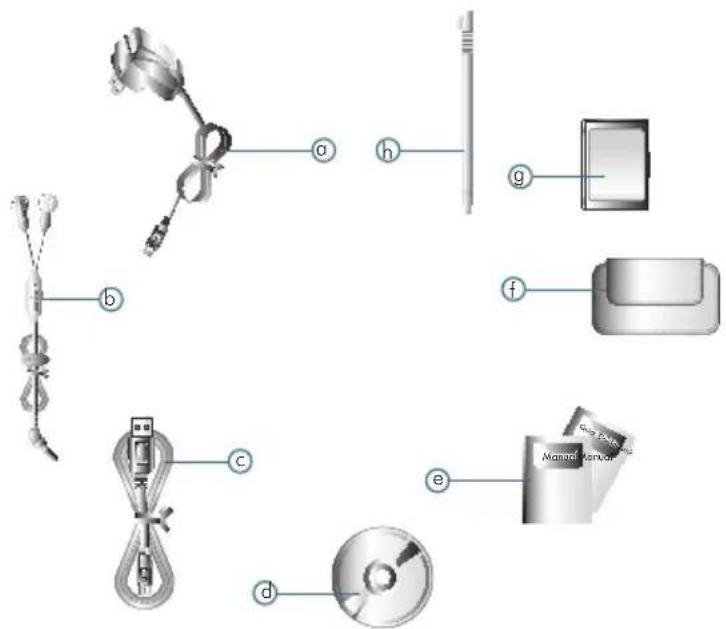
| a AC Adapter | Recharge the device battery |
| b Stereo Headset | Listen to a phone conversation hands-free |
| c USB Cable | Connect the device to a PC |
| d Getting Started CD | Windows MobileTM. Getting Started Disc |
| e User Manual/Quick Guide | Provide instructions of device functions |
| f Pouch | Protect the device |
| g Battery | Rechargeable Li-ion polymer battery |
| h Stylus | Write, draw, or make selection on the touch screen |
1.3 Install SIM Card and Battery
Installing the SIM Card
If you want to use phone features, you must install a GSM SIM card.
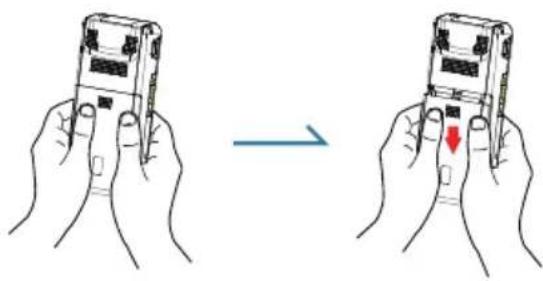
- Push upper corners and slide down the battery cover to remove it.
- Place the SIM card in the SIM card slot with the gold contacts facing down. The SIM card's cut-off corner should match the cut-off corner in the SIM card slot.
natural_image
Illustration of two hands holding a mobile phone, one with a red arrow indicating a drop (no text or symbols present)Installing the Battery
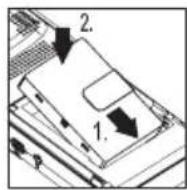
- Press the battery down forcefully into the battery slot and close the back cover.
The device contains a rechargeable Li-ion polymer battery completely discharged and should be charged for at least 8 hours before first use. Use only manufacturer-specified original batteries. Damages caused by using batteries not specified by manufacturer are not covered under warranty.
⚠️ Please follow normal power off procedure to remove the battery or reboot the device, otherwise unsaved data may be lost. For information of power off procedures, see “Chapter 2.1 Powering On/Off the Device”.
1.4 Battery Information
Battery performance depends on many factors, including your wireless service provider's network configuration, signal strength, the temperature of the environment in which you operate your phone, the features and/or settings you select and use, items attached to your phone's connecting ports, and your voice, data, and other program usage patterns.
Battery life estimates (approximations):
• Talk time: 4 hours
• Standby time: 150-200 hours
Reducing Risk of Fire or Burns
- Do not attempt to open, disassemble, or service the battery pack.
- Do not crush, puncture, short the external contacts, or dispose of in fire or water.
- Do not expose to temperatures above 60^ C (140°F).
- Replace only with the battery pack designated for this product.
- Recycle or dispose of used battery as stipulated by local regulation.
Checking the Battery Power
- Tap > Settings > System tab > Power.
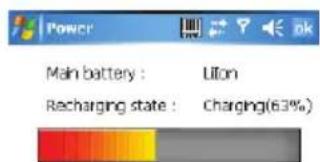
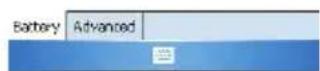
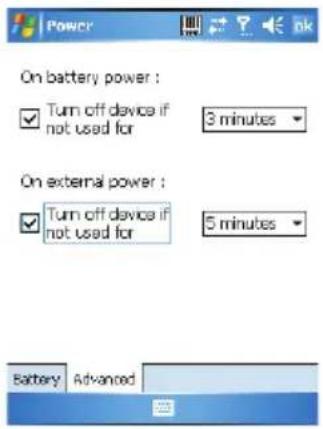
Optimizing the Power Performance
- Tap > Settings > System tab > Power > Advanced, and adjust the time for turning off the device if it is not in use.
Managing a Low Battery
When the low-battery warning appears, do the following:
- Immediately save your current data.
- Start charging the battery or turn off your phone.
Charging the Battery
- To charge the battery, place the battery into the battery slot correctly. See previous section for how to install the battery.
-
Do one of the following:
-
Connect the device with the AC adapter and plug the AC adapter into a power outlet.
- Connect the device to a PC with the USB cable.

To charge the device with the USB cable, you must connect the device to a functioning USB port on a PC that is powered on.

Do not operate your device to temperatures above 40^ C ( 72^ F) while charging the battery.

Do not leave the battery in a place above 60^ C ( 140^ F).
1.5 Mini-SD Cards
Mini-SD is one of the most popular formats for mobile devices. Your device contains a mini-SD card slot in which you can expand the device's memory up to 2GB. Mini-SD provides functions such as built-in security for copyrighted content along with great performance for storing music, video, and photographs. Please note that mini HCSD (High Capacity SD) is not supported by this device.
Inserting a Mini-SD Card into the Device
Insert the mini SD card with the logo side down and push into place until it clicks down and is held in place.
Mini-SD cards can only be inserted in one direction. Inserting the card in the wrong direction by force can cause damage to the card and the card slot.
Removing a Mini-SD Card from the Device
- Gently press the mini-SD card inward (you may feel some resistance) and the card will eject itself.
- Take out the mini-SD card from the card slot by hand.
Chapter 2.
Basic Operations
2.1 Getting Started
2.2 Input Methods
2.3 Today Screen Components
2.4 The Start Menu
2.5 Settings
2.6 Using Calendar
2.7 Using Notes
2.8 Using Tasks
2.1 Getting Started
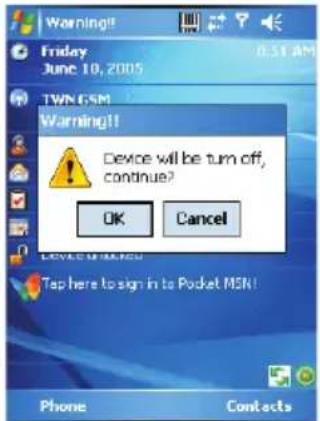
Powering On/Off the Device
Press the POWER button to turn on the device. The POWER button is located on the top side of the device. When you power on the device for the first time, you are asked to calibrate the device. Please refer to the "Calibrating your device" section in this chapter for calibration steps. Press the POWER button again to switch the device to sleep mode. You can still receive phone calls and messages when the device is operating on sleep mode. To power off the device completely, press and hold the POWER button for 3 seconds and the system will prompt you to power off the device.
Calibrating Your Device
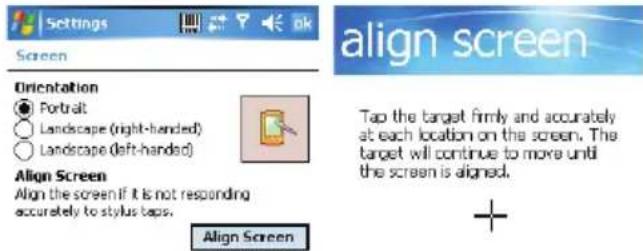
Calibrating the device ensures the tapped item is activated. To calibrate your device, tap the center of the cross with the stylus as the cross moves around the screen. If you would like to re-calibrate the device, follow the steps below:
-
Tap > Settings > System tab > Screen.
-
Tap the Align Screen button and follow the on-screen instructions.

H-16

Locking/Unlocking the Device
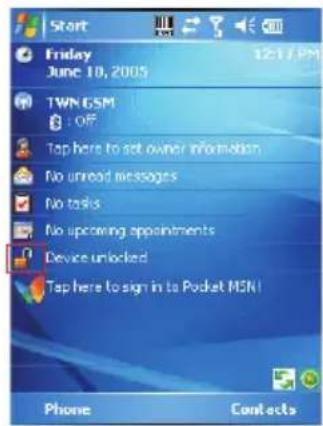
Locking the device turns off keyboard and touch screen functionality. This is a helpful feature if, for example, the device is turned on and in your pocket, and you want to prevent accidental key presses.
• To lock the device, tap on the 📄icon on the Today Screen. Once the device is locked, the left soft key label changes to Unlock.
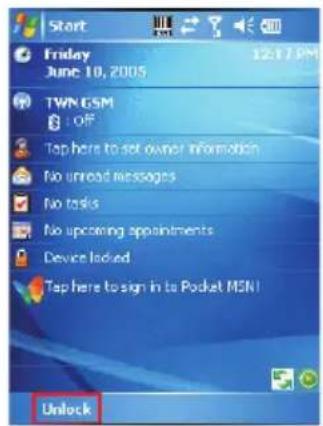

You can still receive calls and make emergency calls when the keypad is locked.
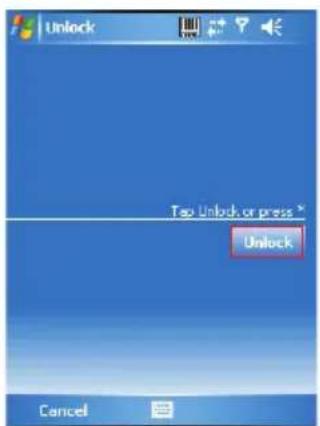
To unlock the device, tap the Unlock button on the Today screen first, a screen as below will show. Press the "Fn" key and * to unlock the device, or just tap the Unlock button on the screen.
Setting Buttons
To change functions for specific buttons in your device, do either of the following:
- Tap > Settings > Buttons > Program Buttons tab. Select a button (Record, Start or OK key) and assign a new program to replace the default one.
- Tap > Settings > Buttons > Up/Down Control tab. Drag the slider on the screen to customize the way your Up/Down control repeats.
- Tap > Settings > Buttons > Buttons Lock tab. Choose to lock all buttons or not when your device is in sleep mode.
Changing the Backlight Settings
- Tap > Settings > System tab > Backlight.
-
You can customize the following settings:
-
Backlight settings while your device is using battery power.
- Backlight settings while your device is using external power.
• Brightness of backlight.
2.2 Input Methods
The device contains 4 different input methods: Keyboard, Letter Recognizer, Block Recognizer, and Transcriber.
| Icon Input Method | |
| Keyboard | |
| Letter/Block Recognizer | |
| Transcriber | |
Keyboard
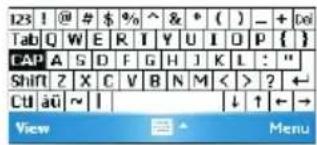
- Tap to launch the on-screen keyboard. If on-screen Keyboard is not the selected input method, tap the input method selector arrow (the upward arrow next to the input method icon) and select Keyboard.
• To enter text, tap the keys on the on-screen keyboard.
![123 1 2 3 4 5 6 7 8 9 0 - = ♦ Tab q w e r t y u i o p [ ] CAP a s d f g h j k l ; * Shift z x c v b n m , . / | ← Ctrl äü ` \ View Menu](/content/2026/06/1198502/images/10fcd120a3835cf013096752eeb994f1ae7f50931402c00cff07a55b203fba1f.jpg)
- Tap the CAP key on the on-screen keyboard to enter capital letters and/or symbols.
Letter Recognizer
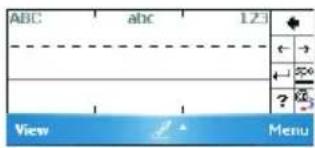
Letter Recognizer recognizes one letter, number, or symbol at a time.
- To launch Letter Recognizer, tap the input method selector arrow (the upward arrow next to the input method icon) and select Letter Recognizer.
- Write uppercase letters in the left recognition area (the ABC box).
- Write lowercase letters in the middle recognition area (the abc box).
- Write numbers and symbols in the right recognition area (the 123 box).
Block Recognizer
Block Recognizer recognizes letters written in one stroke.
- To launch Block Recognizer, tap the input method selector arrow (the upward arrow next to the input method icon) and select Block Recognizer.
- Write lowercase letters in the text recognition area (the abc box).
- Write numbers in the numeric recognition area (the 123 box).
- To input symbols, tap any recognition area, text or numeric, once and write symbols.
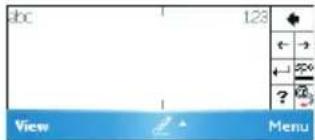

Tap ?In Letter or Block Recognizer to see a demo on how to write recognizable characters.
Transcriber
Transcriber recognizes handwritings in cursive and/or print. It uses the full screen as its recognition area. It interprets the movement of the stylus on the screen as you write.
- To launch Transcriber, tap the input method selector arrow (the upward arrow next to the input method icon) and select Transcriber.
- Write anywhere on the screen.
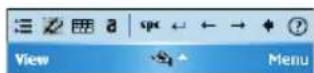

The Transcriber comes with a detailed help. Tap ☐ if you need further assistance.
Hardware Keyboard
Besides the on-screen keyboard, this device is equipped with a QWERTY keyboard. Please slide the main screen to the right to reveal it.
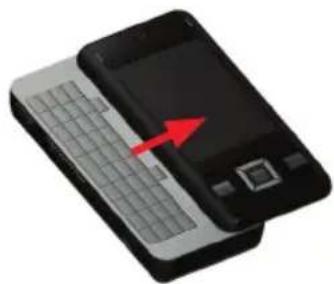
natural_image
Two smartphones with keyboard and display screen, one black and one gray, showing internal components (no text or symbols visible)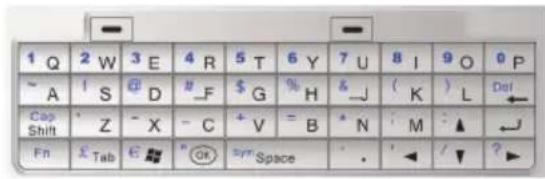
To enter capital letters/numbers, or to delete/backspace by using the hardware keyboard:
 | The “Fn” key is used to access the symbols in blue on the keypad. Press this key once and the icahrap-pears; the next character you enter will be a symbol or number (for example: @abc). Press the “Fn” key twice can enter numbers and symbols constantly (for example: $25). You can also hold down the “Fn” key and press another key at the same time to enter its corresponding symbol. |
 | Press this key once, the next character you enter will be a capital letter (for example: Abc). Hold down this key and press another key at the same time to enter capital letters constantly. Alternatively, you can press the “Fn” key once and then press this key (appears) to enter capital letters constantly. For returning to enter lower-case letters, press the “Fn” key and then the “Cap” key. |
 | Press this key to erase the letter in the left side of the cursor. Press the “Fn” key once (appears) then press this key to delete the first letter in the right side of the cursor. To disable the “Fn” key, press it again (will Fn disappear). |
 | You can press this key to enter symbols or special characters such as accented letters (e.g. à, é...etc.). After pressing a character, press the “Fn” key and then the “Sym” key once to show an accent type of this character. To show another accent type, repeat the same steps until the desired type is displayed. |
Corresponding symbols for each character/key
| a | à á à ä æ æ ã a ă | u | ù ú û ü ï ñ μ |
| A | À Á Ä Ä Å Æ Ä A Ä | U | Ù Ú Ù Ù Ù Ù μ |
| c | ç c c © | y | ý |
| C | ç c c © | Y | ý |
| d | ð | z | ź z |
| D | Đ | Z | ź Z |
| e | è é è è ç | 0 | ° |
| E | È É É É É | 1 | 1 |
| i | ì í î î î j | 2 | ^2 12 |
| l | ì lí lí lí Ï | 3 | 3 |
| l | ł | 4 | 14 34 |
| L | Ł | 8 | 18 38 58 78 |
| n | ñ | $ | € £ ¥ ¢ x |
| N | Ñ | / | \ | |
| o | ò ó ô ô ô ó ø oe | " | " |
| O | ò ó ô ô ô Ô Ø CE | ( | [ { < ≤ « |
| p | þ ¶ | ) | ] } > ≥ » |
| P | þ ¶ | + | ± & - _ |
| r | ® | ! | i ? ¿ |
| R | ® | . | • ÷ |
| s | ß ş š | @ | ~ |
| S | ß ş š | % | ^ ° ‰ % 0 § |
| t | ṭ | = | ≠ ≈ |
| T | T |
2.3 Today Screen Components
Today Screen
The Today Screen is usually the first screen that appears when you turn on the device for the first time each day. It displays a summary of information for the day, shows you the system status and contains a list of shortcuts to programs. The Today screen looks like this:
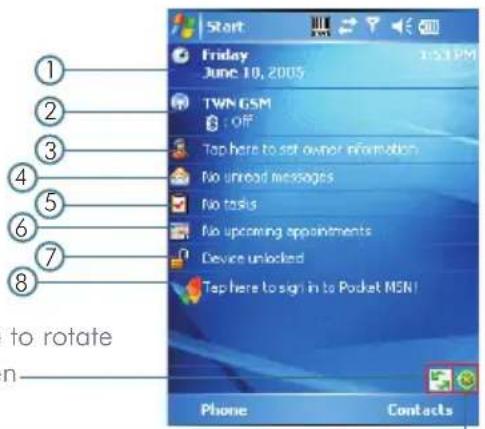
Tap here to rotate the screen____
Tap here to trigger the Wireless Manager
| 1 | Date and time |
| 2 | Wireless status (GSM, Wi-Fi, and Bluetooth) |
| 3 | Owner information |
| 4 | Unread messages including text messages, MMS messages, and e-mails |
| 5 | Active tasks |
| 6 | Upcoming appointments |
| 7 | Device lock status |
| 8 | Sign in to Pocket MSN |

You can also access the Today screen by selecting Today from the Start menu.

To change the items showed in the Today screen, tap > Settings > Today > Items tab.
Icon Indicators
Status indicators appear at the top of the screen and on the Today screen. The following table lists common status indicators and their meanings
| New e-mail or text message (SMS) Connection is not active | |||
| New voice mail Synchronization in progress | |||
| New instant message Ringer on | |||
| Voice call Ringer off | |||
| Voice call in progress | Roaming | ||
| Data call in progress No Voice mail | |||
| Calls are forwarded Voice mail Lines 1 | |||
| Call on hold Call Forwarding Lines 1 | |||
| Missed call Alarm | |||
| Battery level 1 GPRS available | |||
| Battery level 2 GRPS in use | |||
| Low battery No SIM card installed | |||
| Extremely low battery EDGE available | |||
| Battery charging EDGE in use | |||
| Signal strength Wi-Fi connection in progress | |||
| Bluetooth bonding in progress Ringer in vibration mode | |||
| No signal Function key on | |||
| Flight mode Synchronization error | |||
| No service Barcode reader off | |||
| PC Connection is active | Barcode reader on |
2.4 The Start Menu
The Start menu is divided into 3 groups as described in the following:
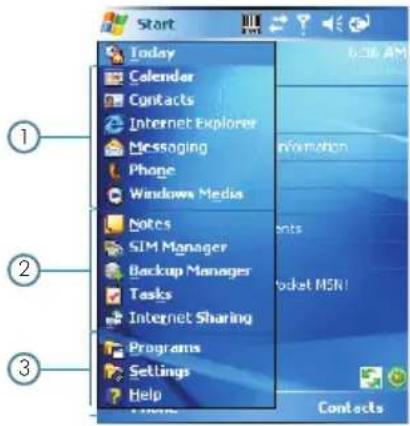
| 1 | Commonly used items |
| 2 | Recently accessed applications |
| 3 | List of all programs, device settings, and system help |
List of All Programs
The following table lists icons of programs that are already installed on your device.
 | Games | Windows Mobile comes with 2 games: Bubble Breaker and Solitaire. |
 | ActiveSync | Synchronizes information between your device and a PC. See “Chapter 4. Synchronizing Information” for details. |
 | Backup Manager | Lets you backup and recover your date. See "10.5 Backup/Recover" for details. |
| [WXBT] | Calculator | Performs basic arithmetic and calculations such as addition, subtraction, multiplication, and division. |
 | Download Agent | Lets you download Windows Mobile updates. |
 | Excel Mobile | See "10.2 Excel Mobile" for details. |
| [2TCA] | File Explorer | Lets you organize and manage the files on your device. |
 | Internet Sharing | Lets you use your device as an external modem for a PC, connecting through an USB port and Bluetooth. |
 | Notes | See "2.7 Notes" for details. |
 | Pictures & Video | Collects, organizes, and sorts picture and video files in the My Pictures folder on your device or on a storage card. |
 | Pocket MSN | Lets you send and receive instant messages with your MSN Messenger contacts. |
 | PowerPoint Mobile | See "10.3 PowerPoint Mobile" for details. |
 | Search | Searches the data stored in your device. |
 | SIM Manager | Lets you manager your SIM card. See "3.4 SIM Manager" for details. |
 | Tasks | Keeps track of your tasks. See "2.8 Using Tasks" for details. |
 | Ter m in a l S e r v i c e s Client | Allows you to log on to a PC running Terminal Services or Remote Desktop. |
 | Word Mobile | See "10.1 Word Mobile" for details. |
2.5 Settings
Personal
 | Buttons Configures the device's buttons. | |
| [A7GB] | Input Input method configurations. | |
 | Lock Set a password to unlock the device. | |
 | Menus Configure the Start menu. | |
| [4CZX] | MSN Options Configure MSN services. | |
 | Owner Information Enter information about the owner of the device. | |
 | Phone | Configure the Phone features. See “Chapter 3 Phone Features” for details. |
| [HBCT] | Sounds & Notifications | Configure program and event sounds. |
| [DHOK] | Today Configure the Today screen items and theme. |
System
| [0Y24] | About Windows Mobile information and device name. |
| [07XX] | Backlight Configures the display backlight. |
 | Barcode Settings Change settings of barcode scanner. |
 | Certificates Manages personal and root certificates. |
 | Clock & Alarms Sets time and alarms. |
 | Device Info Display the device software and hardware version. |
 | Error Reporting Enable or disable Microsoft product error reporting. |
 | Factory Reset Lets you reset all settings to manufacturer default. |
 | Keyboard Backlight Enable or disable the slide keyboard backlight. |
 | Memory Memory and process management. |
 | Power Power management settings. |
 | Regional Settings Configure the device's locale. |
 | Remove Programs Remove an installed application. |
 | Screen Lets you align the screen. See "Calibrating Your Device" of Chapter 2 for details. |
Connections
 | Beam Turn on/off the beam feature. | |
 | Bluetooth Configure Bluetooth settings. See “Chapter 5 Bluetooth Connections” for detail. | |
 | Connections Configure the device’s connections. | |
 | Network Cards Configure Network adapter. | |
 | USB to PC Enable/Disable advanced network functionality. | |
 | Wi-Fi Network Manager | Display detail information of Wi-Fi Network including signal strength, IP information...etc. |
 | Wireless Manager Turn on/off wireless and phone features with the Wireless Manager. |
2.6 Using Calendar
Use Calendar to schedule appointments, including meetings and other events. Your appointments for the day can be displayed on the Today screen. If you use Outlook on your PC, you can synchronize appointments between your device and PC. You can also set Calendar to remind you of appointments with a sound or flashing light, for example.
You can look at your appointments in several different views (Day, Week, Month, Year and Agenda). To see detailed appointment information in any view, tap the appointment. For information about changing the Calendar view, see Change views in Calendar.
Scheduling an Appointment
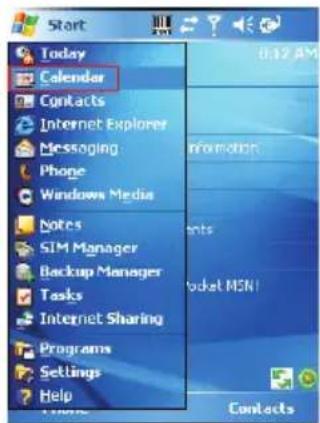
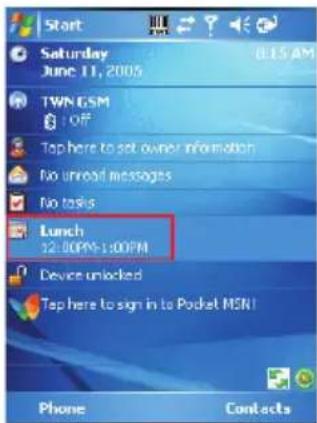
- Either tap 📋>Calendar or tap the appointment reminder on the Today Screen.
H-16

-
Tap Menu > New Appointment.
-
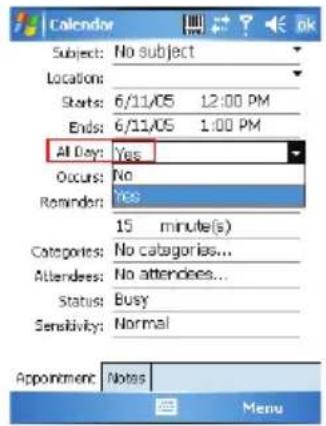
Enter information about the appointment.
-
To schedule an all-day event, 5. Select categories and attendees. under All Day, select Yes.
- Tap ok .
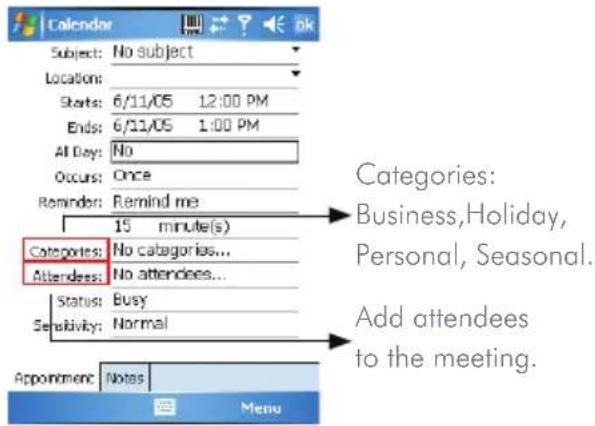

All-day events do not occupy blocks of time in Calendar; instead, they appear in banners at the top of the calendar.
Deleting an Appointment
- Tap > Calendar.
- Tap Menu > Delete Appointment.
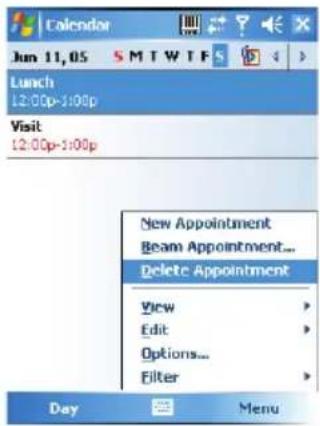
- In Agenda view, select the appointment to delete.
- If the appointment is recurring, tap Yes to delete the series, or tap No to delete only the current occurrence.
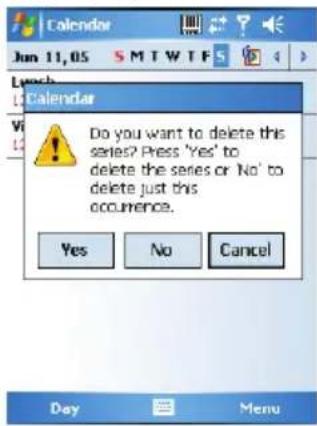
When you delete an appointment in Calendar on your phone, it is also deleted on your PC the next time you synchronize. If the appointment has not been synchronized with a PC, it will be deleted only form the phone.
Calendar items can be deleted only from Agenda view or from an open calendar appointment. To delete from other views, open the appointment, and Tap Menu > Delete.
H-16

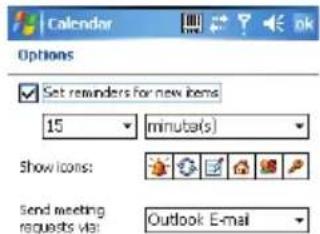
Changing the Reminder Time
By default, the reminder time is set 15 minutes prior to an appointment.
-
Tap > Calendar.
-
Tap Menu > Options.
-
Tap Appointment tab and change the time.
-
Tap ok

Changing Calendar Views
You can look at your appointments in Agenda, Day, Week, or Month view. To see detailed appointment information in any view, tap the appointment. To see a list of available actions for an appointment, tap and hold the appointment.
- Tap > Calendar.
- TapMenu > View and select the view you want.
| View See | Screen | ||
| Agenda Your | Your current day's activities at a glance.Upcoming appointments are bold; past appointments are dimmed. | 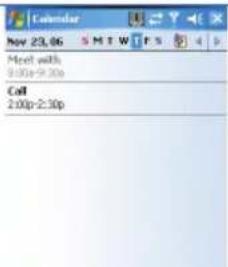 | |
| Day Your | schedule for a single day in a day-planner layout. Free and busy times in time slots of 1/2 hour or 1 hour. | 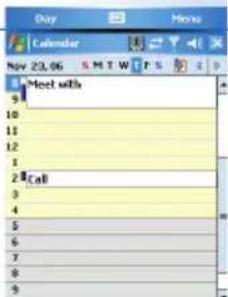 | |
| Week Your | schedule for the whole week. | 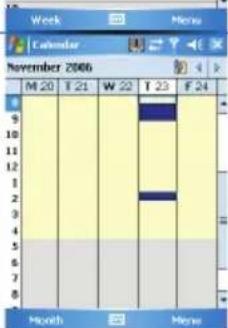 | |
| Month Your free and booked days for a month:☐: Current day▶: morning appointment▶: afternoon appointment■: morning and afternoon appointments☐: all-day event with time not marked free | 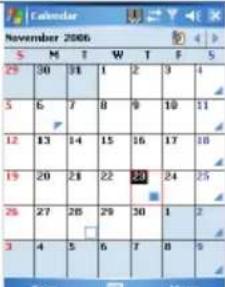 | ||
| Year A calendar for the entire year. | 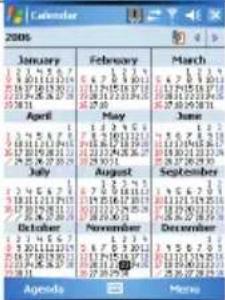 | ||
In Month view, a date will appear in red when the Holiday category is assigned to any appointment for that day.
You can also change the view by tapping Agenda, Day, Week, Month, or Year on the menu bar.
To quickly see your appointments for the current day, tap Start > Today.
Changing the Display of the Work Week
- Tap > Calendar.
- Tap Menu > Options and do one of the flowing:
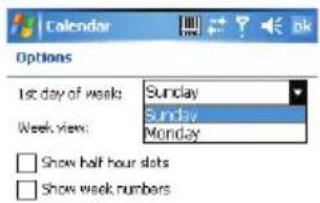
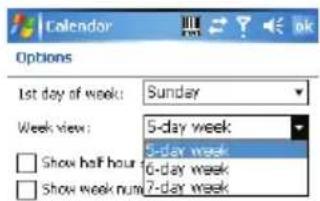
• To specify the first day of the week, in 1st day of week, tap Sunday or Monday.
• To specify the number of days you want to appear in a week, in Week view, tap 5-day week, 6-day week, or 7-day week.


- Tapok .
2.7 Using Notes
Notes helps you to quickly capture thoughts, questions, reminders, to-do lists, and meeting notes. You can create handwritten and typed notes, record voice notes, convert handwritten notes to text for easy readability, and send notes to others.
Your notes and recordings are displayed in the note list. If you have a long list, tap the sort list (labeled Name by default), and select the option you want. To open a note or play a recording, tap it. To see a list of available actions for a note or recording, tap and hold the note or recording.
Setting the Default Input Mode
- Tap > Programs > Notes.
- TapMenu > Options.
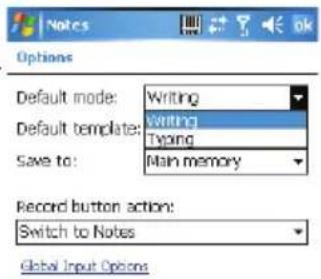
- Select one of the following modes in Default mode:
- Select Writing if you prefer your notes to be handwritten.
- Select Typing if you would like your notes to be typed.
- Tap ok .

Creating a Note
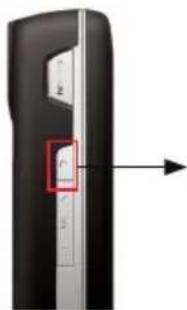
- Either tap > Programs > Notes or press the Voice Record button on the left side of the device.
natural_image
Close-up of a black electronic device with a red button and arrow pointing to the side panel (no visible text or symbols)Press the Voice Record button on the left side to launch Notes.
- Tap New and enter text.
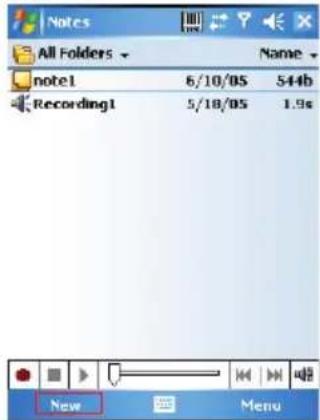
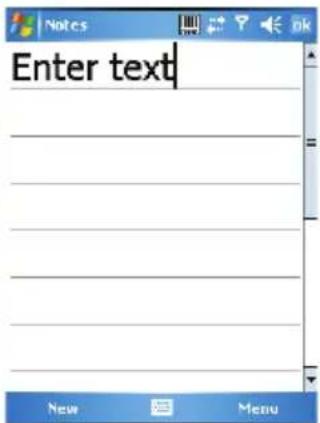
- Tap ok to save your note.
H-16

Creating a Stand-alone Voice Recording
-
Tap > Programs > Notes.
-
If the recording toolbar is not shown, tapMenu > View Recording Toolbar.
-
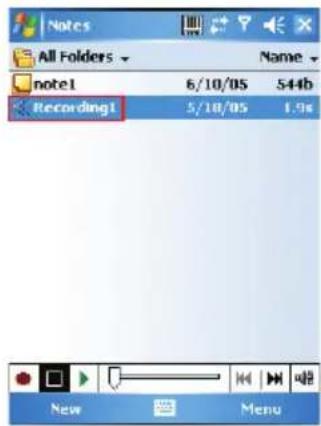
Tap the RECORD button on the tap recording toolbar and speak to the device's microphone to record your voice in the notes list.
-
Tap the STOP button ■ on the recording toolbar when finished.
-
Tap ok to return to the notes list. In the notes list a stand-alone voice recording is listed with a icon.
Switching between Typing/Writing Modes
-
Tap > Programs > Notes.
-
Create a new note or open an existing note from the notes list.
-
Tap Menu > Draw to switch to a different mode.
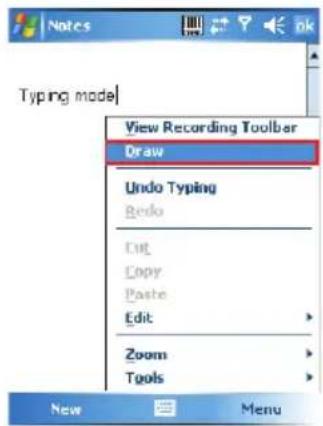
While in typing mode, tap Draw to switch to writing mode.
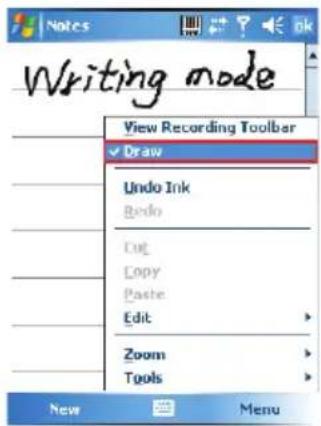
While in writing mode, tap Draw to switch to typing mode.
Editing a Handwritten Note
- Undo/Redo Ink
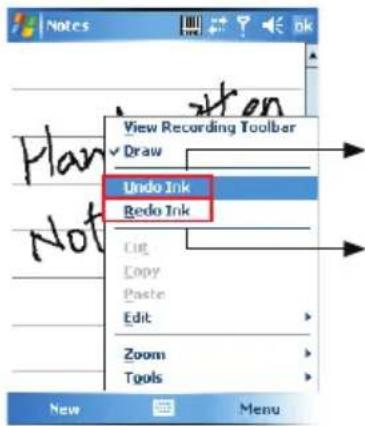
Tap Undo Ink to cancel or reverse an action.
Re-execute an undone action by tapping Redo Ink.
- Select All/Clear
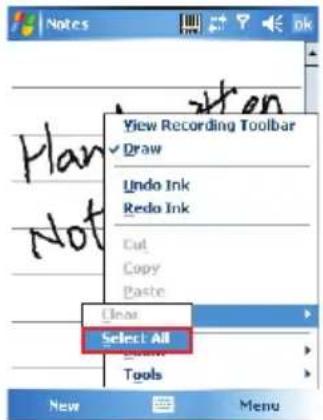
Tap Select All to select all handwriting
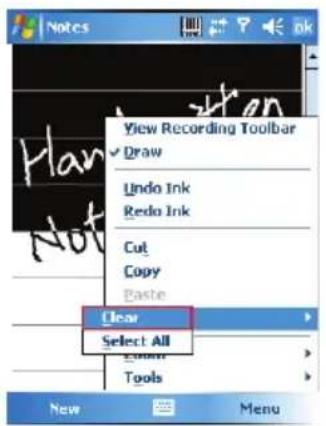
Tap Clear to clear selected handwriting
Adding a Voice Recording to a Note
- Tap > Programs > Notes.
- Create a new note or open an existing note from the notes list.
-
If the recording toolbar is not shown, tap Menu > View Recording Toolbar.
-
Tap the RECORD Button on the recording toolbar and speak to the device's microphone.
-
Tap the STOP button on the recording toolbar when finished.
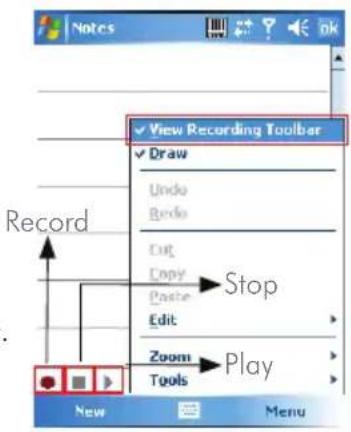
- Tap of to return to the notes list if you are adding a voice recording to a note.
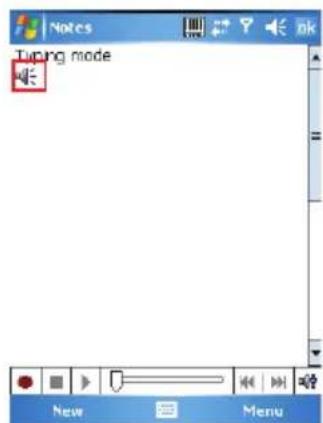
Add a voice recording to a note in typing mode
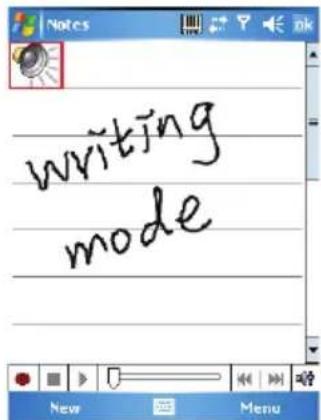
Add a voice recording to a note in writing mode
Deleting a Note
- Tap > Programs > Notes.
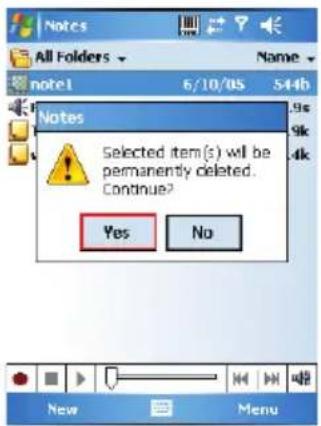
- Tap and hold the note and tap Delete.
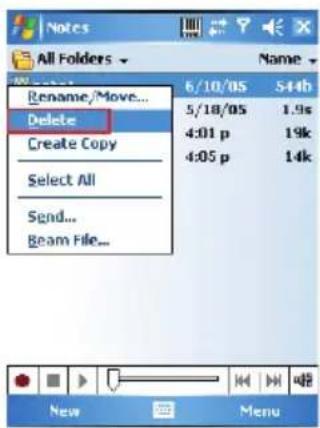
- Tap the Yes button to delete the selected note.
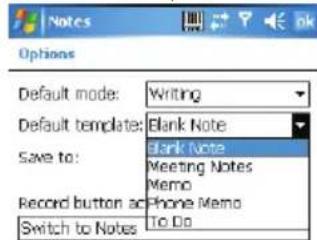
Creating a Default Template
- Tap > Programs > Notes.
- Tap Menu > Options.
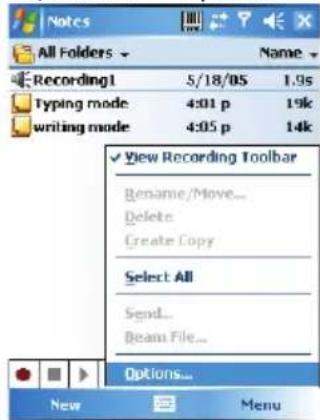
- Select a template from Default template.
Global Input Options

| Template Screen Template Screen | |||
| Blank Phone Memc | 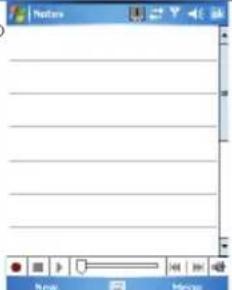 | 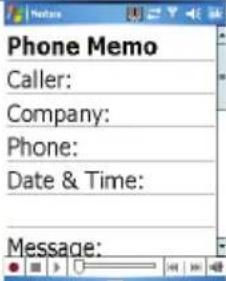 | |
| Meeting Notes To [ | 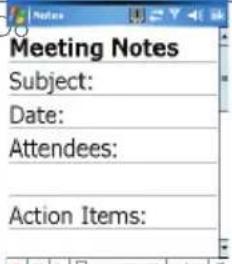 | 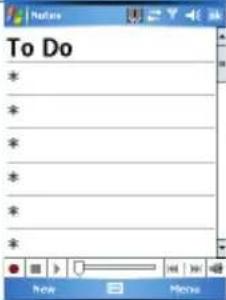 | |
| Memo | MemorandumTo:CC:From:Date: | ||
2.8 Using Tasks
Use Tasks to keep track of things you need to do. A task can occur once or repeatedly (recurring). You can set reminders for your tasks and you can organize them by using categories.
Your tasks are displayed in a task list. Overdue tasks are displayed in red.
If you use Outlook on your PC, you can synchronize tasks between your device and PC so that tasks you create or update on your PC will also be updated on your device and vice versa.

To quickly see the number of active tasks you have, tap Start > Today.
Creating a Task
- Tap > Programs > Tasks.
-
Do one of the following:
-
In the Tap here to add a new task box enter the task name and press the ENTER key.
- Tap Menu > New Task and enter details about the new task.
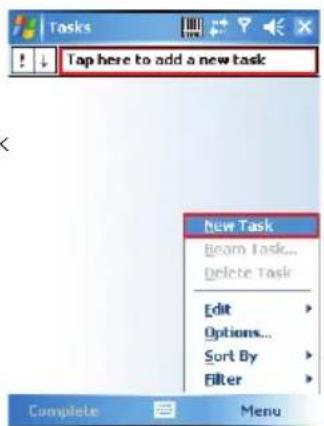
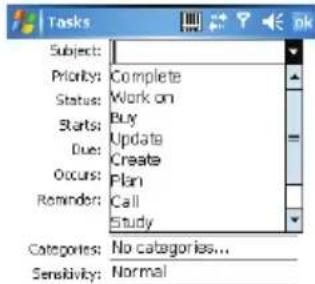
- Enter or select a subject.
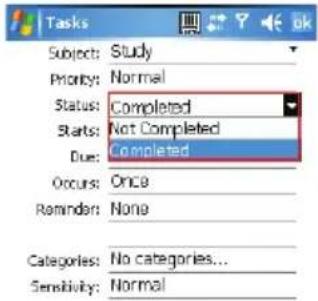
- Select a completion status.
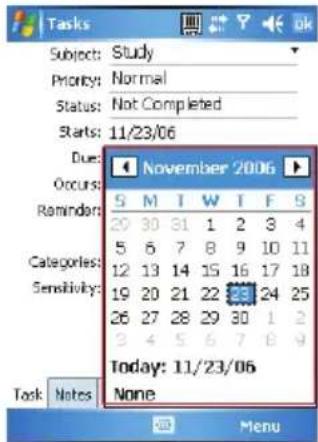
- Pick the start and due time.
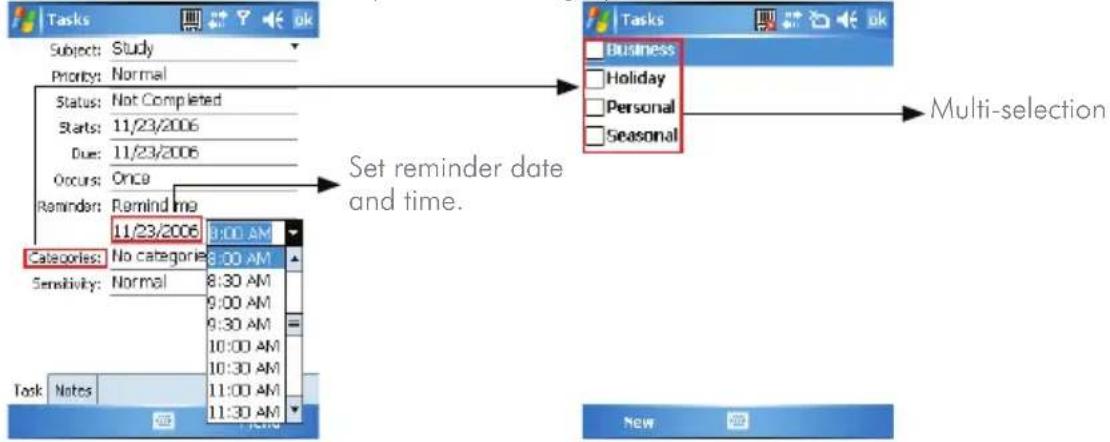
- Set a reminder date/time and pick a task category.
flowchart
graph TD
    A["Set reminder date and time."] --> B["Multi-selection"]
    B --> C["Business"]
    B --> D["Holiday"]
    B --> E["Personal"]
    B --> F["Seasonal"]
    C --> G["Categories: No category"]
    D --> H["Sensitivity: Normal"]
    E --> I["9:00 AM 8:30 AM"]
    F --> J["9:00 AM 9:30 AM"]
    G --> K["11:30 AM 11:00 AM"]
    H --> L["11:30 AM 11:30 AM"]
    I --> M["New"]
- Select task sensitivity.
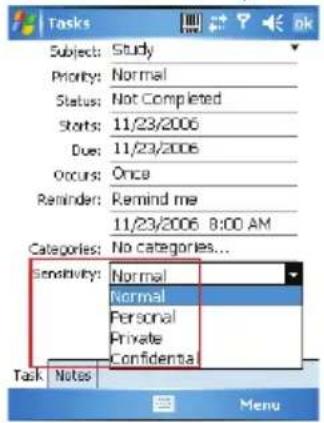
You can synchronize information on your phone with your PC to keep your task list up to date in both locations.
If you create a new task with a reminder on your PC and then synchronize tasks with your phone, the reminder will play at the time it was set on your PC.
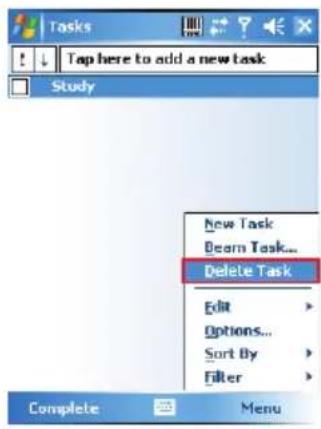
Deleting a Task
- Tap > Programs > Tasks.
- Select the task, and tap Menu > Delete Task.
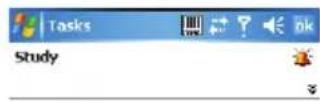
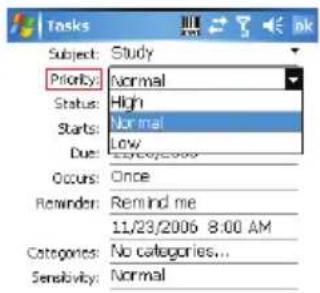
Changing Task Priority
- Tap > Programs > Tasks.
-
Select an existing task, and tap Edit.
-
In the Priority box, select a priority.

Sorting/Filtering Your Tasks
- Tap > Programs > Tasks.
- Do one of the following:
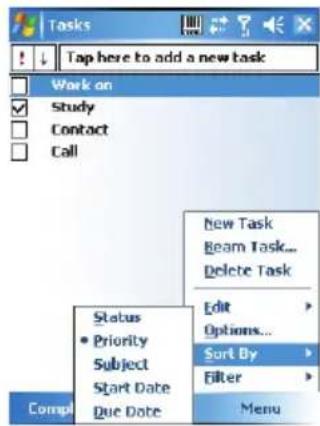
• To sort the tasks, tap Menu > Sort by and select a sorting option.
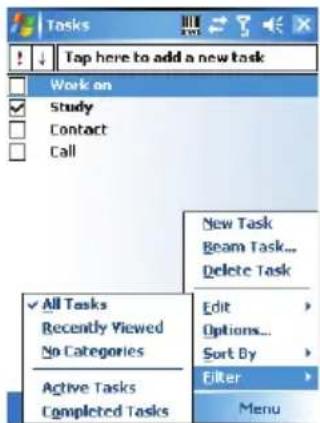
• To filter the tasks by category, tap Menu > Filter and select a category to display.
Setting Tasks Options
- Tap > Programs > Tasks.
-
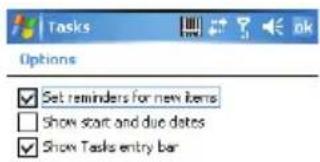
Tap Menu > Options, there are 3 options you can set:
-
Set reminders for new items
• Show start and due dates
• Show Tasks entry bar
Viewing Task Details
- Tap > Programs > Tasks.
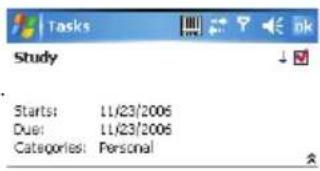
- Tap twice on a task to view the details.
Chapter 3.
Phone Features
3.1 Using the Phone
3.2 Making a Call
3.3 In-Call options
3.4 SIM Manager
3.1 Using the Phone
You can use your phone to make, receive, and keep track of calls, and send text messages (SMS, Short Message Service) and MMS (Multimedia Messaging Service) messages. You can also dial a phone number directly from Contacts, and easily copy SIM contacts to Contacts on the phone.
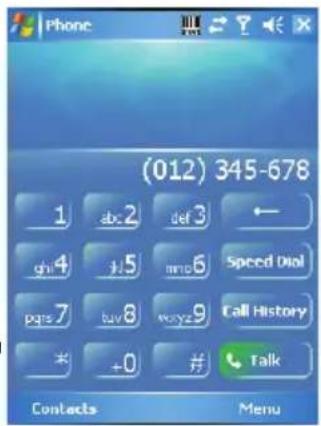
The Phone Screen
From the Phone screen, you can open, call, or find a contact, and even save a new number in Contacts. To access the Phone screen, do any of the following:
- Press the Talk key ( ).
- Tap > Phone.
Activating PIN Security
Most Subscriber Identity Module (SIM) cards are preset with a personal identification number (PIN) that is provided by your wireless service provider. When PIN Security is activated, you need to enter the PIN whenever you use your phone.
- Tap > Settings > Phone > Select Require PIN when phone is used.
- Enter the preset PIN provided by your wireless service provider.
- Tap Enter.

If your PIN is entered incorrectly three times, the SIM card will be blocked. If this happens, you can unblock it with the PIN Unblocking Key (PUK) obtained from your wireless service provider.
H-16

Setting Ring Tones
You can choose how to be notified for incoming calls, reminders, new messages, alarms, and more.
To set a ring tone for incoming calls:
- Tap > Settings > Phone.
- In the Ring tone list, select a ring tone.
- Tap ok .

To adjust the earpiece volume during a call, press the VOLUME control on the phone side panel. Adjusting the volume at any other time can affect the ring and notification and MP3 sound levels.
3.2 Making a Call
Making a Call by Entering a Phone Number
- On the Phone screen, begin entering the phone number.
-
Do one of the following after entering the phone number:
-
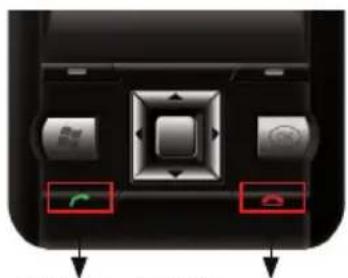
If you see the number or contact name to call, select it, then tap on the screen or press TALK ( ).
- If you do not see the number or contact name, finish entering the number, then tap

or press TALK (

natural_image
Close-up of a black computer control panel with buttons and a central scroll (no visible text or symbols)TALK Key END Key

Tap the Backspace button once to erase one single number; tap and hold the Backspace button to erase a whole string of numbers.
Making a Call from Call History
Call History displays calls you have made, received, and missed.
- On the Phone screen, tap the Call History button on the Phone keypad.
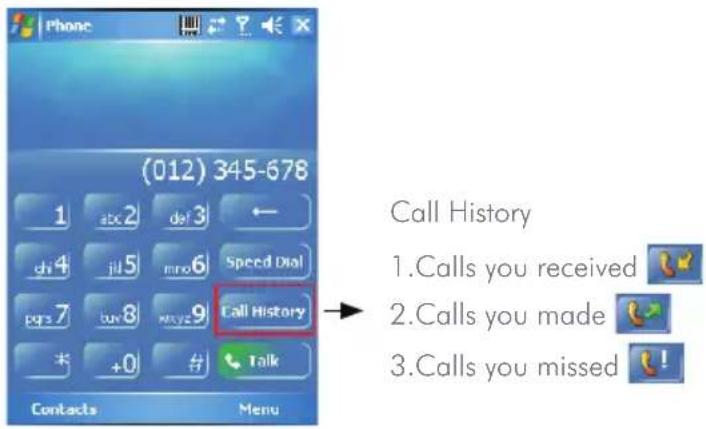
- Select the name or phone number to call.
- Tap Call or press the TALK key.
Making a Call from Contacts
- On the Phone screen, tap Contacts.
- Tap the desired contact and tap Call or press the TALK Key to dial.

You can tap on the desired contact in the list and tap on the number you want to dial.

You can also tap and hold the desired contact in the list and select Call Work, Call Home, or Call Mobile from the pop-up submenu.
Making a Call from Speed Dial
You can create speed dial entries for frequently-called numbers or frequently-accessed items so you can dial a number by pressing a single key. For example, if you assign location 2 to a contact in Speed Dial, you can simply press and hold 2 on the Phone keypad to dial the contact's number. Speed dials can be created only for numbers that are stored in Contacts.
To create a speed dial entry for a contact
- On the Phone screen, tap Contacts.
-
Tap the contact for whom to create a speed dial.
-
Select the phone number for which to create a speed dial.
-
Tap Menu > Add to Speed Dial. number to use.
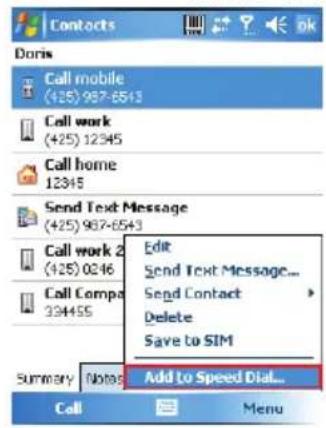
- In Location, select the speed dial
![Contacts Speed Dial Contact: Doris Name: Doris Number: [425] 987-6543 m Location: 2:](/content/2026/06/1198502/images/04c0f19f3e4568f0eeb6df2a3d6ab97154d6c9a7dd17a2266028b07cfb374b26.jpg)

- Tap of when finished.
H-16

Tap the Speed Dial button on the phone screen to check the success of creating a Speed Dial entry.

The first speed dial location is generally reserved for your voicemail. Speed Dial uses the next available location by default. If you want to place a number in a location that is already used, the new number replaces the existing number.
To delete a speed dial entry
• In the Speed Dial list, tap Menu > Delete.
Receiving/Rejecting a Call
When you receive a phone call, you have the option to answer it or ignore it.
To receive a call
- Tap Answer or press the TALK ( ) key to accept an incoming call.
To end a call
- Tap Ignore or press END ( ) to hang up a call.
To block incoming or outgoing calls
You will not be able to receive or make calls according to the options you choose.
- Tap > Settings > Personal tab > Phone > Services tab.
2. Tap Call Barring > Get Settings.
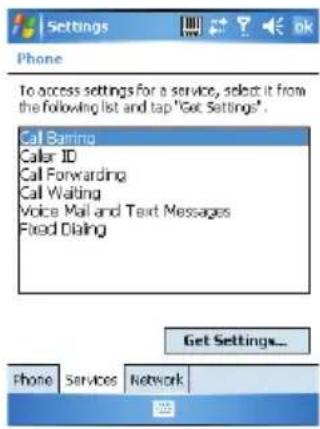
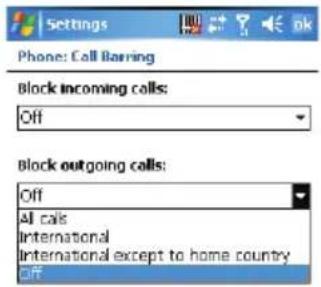
3. Choose the calls you want to block, and tap

- Block incoming calls: All calls, When roaming, Off.
- Block outgoing calls: All calls, International, International except to home country, Off.

3.3 In-Call options
Your phone provides various options for managing multiple calls at the same time. You are notified when you have another incoming call, and you have the choice of ignoring or accepting the call. If you are already on a call and accept the new call, you can choose to switch between the two callers, or set up a conference call between all three parties.
Conference Call
- Either put a call on hold and dial a second number; or accept a second incoming call when you have one in progress.
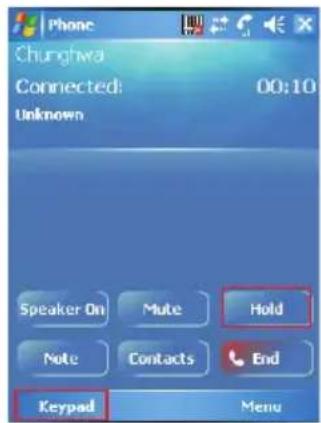
To dial a second number, tap the Hold button first then tap Keypad to enter phone numbers.
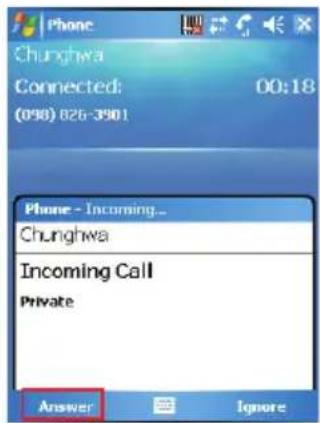
To accept a second incoming call, tap Answer.
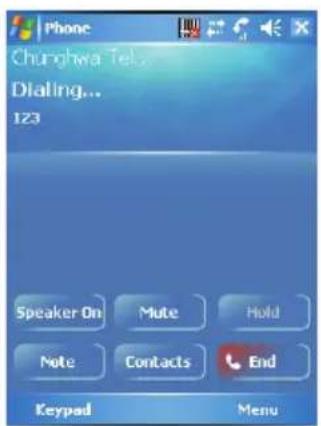
In-Call Options.
2. Tap Menu and select Conference.
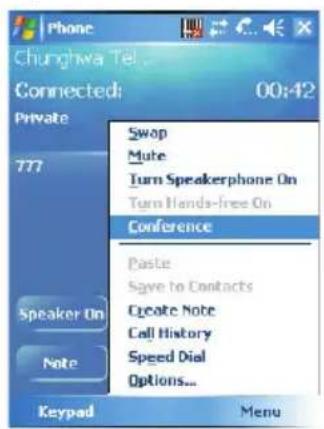
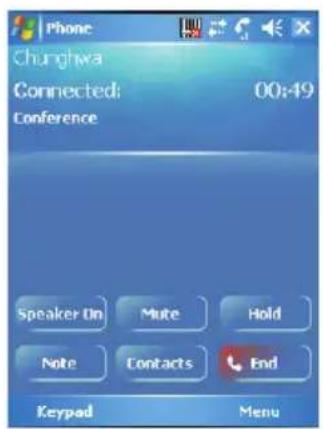

If the conference connection is successful, the word "Conference" will appear at the top of the screen. To add additional persons to your conference call, tap Hold, enter the phone number, and then tap Swap to return and continue.

Not all service providers support conference calling. Contact your service provider for details.
Call waiting
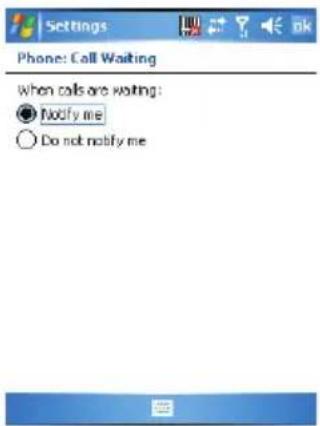
To turn call waiting notifications on and off
When you are in another call, you will be notified of an incoming call if this option is selected.
H-16

- Tap > Settings > Phone > Services tab > Call Waiting > Get Settings.
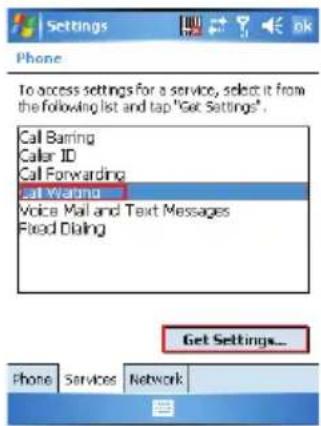
- Select Notify me or Do not notify me, and tap ok
To answer another call
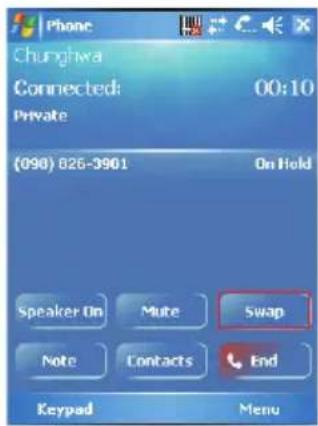
- Click Answer to take the second call and put the first call on hold.
- To end the second call and return to the first call, press END ( ).
To switch between calls
• To switch between two calls, click Swap.
Turning On/Off the Speakerphone
Talk hands-free or let others hear your conversation with the built-in speakerphone in your device.
- Tap Speaker On during a call to turn the speaker on.
• Tap Speaker Off to turn the speaker off.
To avoid damage to your hearing, do not hold your phone against your ear when the Speakerphone is turned on.
Muting the microphone
The device's microphone can be turned off during a call. If you turn off the microphone the caller cannot hear you. However, you can still hear the caller.
- Tap Mute during a call to turn the microphone off.
- Tap Unmute to turn the microphone on.
3.4 SIM Manager
The SIM Manager helps you to manage the phonebook in your SIM card. Using the SIM Manager, you can easily transfer phonebook entries from your SIM card to Contacts.
Adding a Phonebook Entry to SIM Card
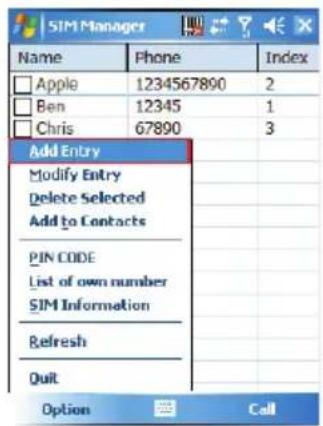
- Tap > Programs > SIM Manager.
- Tap Option > Add Entry and enter the name and phone number you want to add.
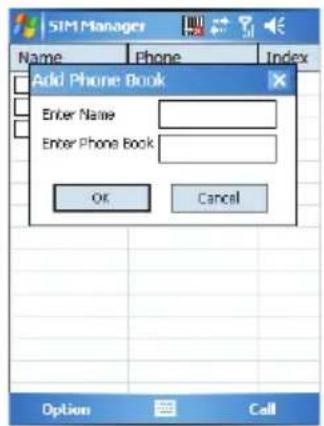
- Tap the OK button.
Deleting Phonebook Entries from SIM Card
- Tap > Programs > SIM Manager.
H-16
Chapter 3. Phone Features

- Select the entries you want to delete by checking the checkboxes in front.
- Tap Option > Delete Selected.
Saving Phonebook Entries to Contacts
- Tap > Programs > SIM Manager.
- Select the entries you want to save to Contacts by checking the checkboxes in front.
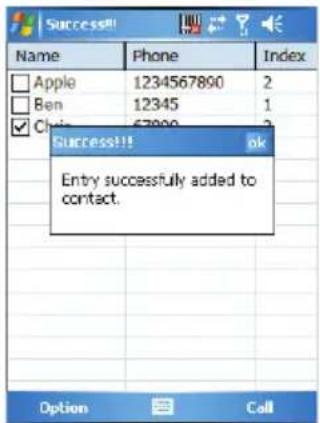
- Tap Option > Add to Contacts..
- Tap to close the notification dialog box.
Chapter 4.
Synchronizing Information
4.1 Installing and setting up ActiveSync
4.2 Synchronizing Information
4.3 Changing Settings for an Information Type
4.4 Synchronizing with Exchange Server
4.5 Synchronizing via Bluetooth
ActiveSync synchronizes information on your phone with information on your PC such as Outlook content. ActiveSync can also synchronize over a wireless or cellular network with Exchange Server, if your company or service provider is running Exchange Server with Exchange ActiveSync.
Specifically, you can use ActiveSync to:
- Synchronize information such as Outlook e-mail, contacts, calendar, or tasks information on your phone with your PC, as well as pictures, video, and music.
- Synchronize Outlook e-mail, contacts, calendar appointments, and tasks on your phone directly with Exchange Server so that you can stay up to date even when your PC is turned off.
- Copy files between your phone and your PC without synchronizing.
- Select which types of information are synchronized and specify how much information is synchronized. For example, you can choose how many weeks of past calendar appointments to synchronize.
4.1 Installing and setting up ActiveSync
- Install ActiveSync on your PC, as described on the Windows Mobile™ Getting Started Disc. After Setup completes, the Synchronization Setup Wizard automatically starts when you connect your device to the PC.
-
Follow the instructions on the screen to complete the wizard. In the Sync Setup Wizard, you can:
-
Create a synchronization relationship between your PC and the device.
- Configure an Exchange Server connection to synchronize directly with Exchange Server. To synchronize your device with Exchange Server, obtain the name of the Exchange Server, your user name, password, and domain name from your administrator before completing the wizard.
- Choose information types to synchronize.

When you finish the wizard, ActiveSync synchronizes your phone automatically. Once synchronization completes, you can disconnect your phone from your PC.
4.2 Synchronizing Information
To synchronize using ActiveSync, you must install ActiveSync on your PC before connecting your device to the PC.
Starting and Stopping Synchronization Manually
- Turn on the device.
-
Connect your device to your PC using a USB cable or Bluetooth. For more detailed information, see "Connecting a mobile device to a PC" in ActiveSync Help on your PC.
-
Tap > Programs > ActiveSync.
-
To start synchronizing, tapSync.
-
To stop synchronizing, tapStop.

You can start and stop synchronization only if your device already has a sync relationship with a PC or Exchange Server.

Some Anti-Virus software may conflict with ActiveSync.
ActiveSync synchronizes a limited amount of information by default to save storage space on your phone. You can change the amount of information that is synchronized by performing the following steps.
Changing Which Information is Synchronized
You can change this setting only if your device already has a sync relationship with a PC.
Please disconnect your device from your PC before changing this setting.
- Tap > Programs > ActiveSync.
- Tap Menu > Options.
-
Do one or more of the following:
-
Select the check box for the items you want to synchronize. If you cannot select a check box, you might have to clear the check box for the same information type elsewhere in the list.
- Clear the check box for any items you want to exclude.
- To customize synchronization of a computer, select the computer name then click Settings.
- To customize synchronization of particular information, select the information type then click Settings.
- To stop synchronizing with one computer completely, select the computer name and click Delete.

Outlook e-mail can be synchronized with only one computer.
4.3 Changing Settings for an Information Type

Before changing settings for an information type on the device, disconnect it from your PC.
- Tap > Programs > ActiveSync > Menu > Options.
- Select one of the information types.
-
Do one of the following:
-
To view or change settings for an information type (when available), tap Settings.
• To view or change settings for a computer or Exchange Server, tap Settings. -
Change the amount of information to be synchronized or other settings.
-
Tap ol (or Finish in the Exchange Server settings wizard).
4.4 Synchronizing with Exchange Server
To set up your device to synchronize directly with Exchange Server, you will need to get the name of the server and the server domain name from your service provider or system administrator. You must also know your Exchange user name and password.

Before changing synchronization settings on the device, disconnect it from your PC.
- On your device screen, tap > Programs > ActiveSync > Menu > Configure Server. If you have not yet set up sync with Exchange Server, this will say Add Server Source.
- In Server address, enter the name of the server running Exchange Server, and tap Next.
- Enter your user name, password, and domain name, and tap Next.
- If you want the device to save your password so that you will not need to enter it again when connecting, select the Save password check box.
- Select the check boxes for the types of information items that you want to synchronize with Exchange Server.
- To change available synchronization settings, select the type of information, and tapSettings.
- To change the rules for resolving synchronization conflicts, tapAdvanced.
- TapFinish.

You can also use the Sync Setup Wizard to set up the phone to synchronize remotely with the Exchange Server. This wizard is started when you connect your phone to your PC after installing ActiveSync on the PC.
4.5 Synchronizing via Bluetooth
Connecting to a PC Using Bluetooth
- Follow the instructions in ActiveSync Help on the PC for configuring Bluetooth on your PC to support ActiveSync.
- Tap > Programs > ActiveSync.
- Tap Menu > Connect via Bluetooth. Ensure that the device and PC are within close range.
H-16

- If this is the first time you have connected to this PC via Bluetooth, you must complete the Bluetooth wizard on the phone and set up a Bluetooth partnership with the PC before synchronizing.
- TapSync.
- When finished, tapMenu > Disconnect Bluetooth.

To preserve battery power, turn off Bluetooth.
H-16
Chapter 4. Synchronizing Information

Chapter 5.
Bluetooth Connections
5.1 Overview of Bluetooth
5.2 Bluetooth Partnership (Bonding)
5.3 Beaming Information (Bluetooth)
5.1 Overview of Bluetooth
Bluetooth is a short-range wireless communications technology. Devices with Bluetooth capabilities can exchange information over a distance of about 10 meters without requiring a physical connection. You can even beam information to a device in a different room, as long as it is within range.
The software included with your phone allows you to use Bluetooth in the following ways:
- Beam information, such as files, appointments, tasks, and contact cards, between devices that have Bluetooth capabilities.
- Create a connection between your device and a Bluetooth phone to use the phone as a modem.
Bluetooth Modes
Bluetooth on your phone operates in three different modes:
- On. Bluetooth is turned on and you can use Bluetooth features.
- Off. Bluetooth is turned off. In this mode, you can neither send nor receive information using Bluetooth. You might want to turn off the radio at times to conserve battery power, or in situations where radio use is prohibited, such as onboard an aircraft and in hospitals.
- Visible. Bluetooth is turned on, and all other Bluetooth-enabled devices within a range of 10 meters can detect your phone.

By default, Bluetooth is turned off. If you turn it on, and then turn off your phone, Bluetooth also turns off. When you turn on your phone again, Bluetooth automatically turns on.
Turning Bluetooth On or Off
- Tap > Settings > Connections tab> Bluetooth.
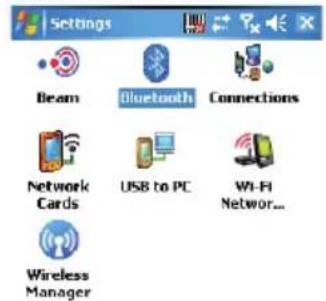
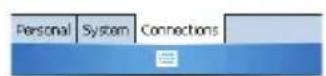
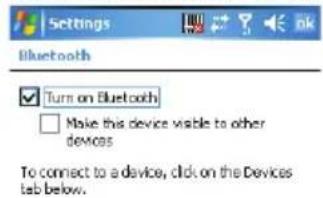
- Check or uncheck the checkbox in front of Turn on Bluetooth to turn on or off Bluetooth.
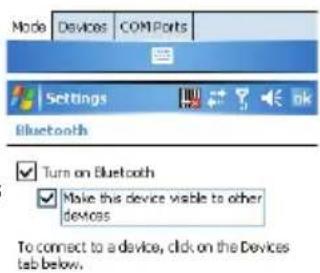
Making Your Device Visible
To receive beamed information, beaming devices or computers must be able to detect your device.
-
Tap > Settings > Connections tab> Bluetooth.
-
Select Make this device visible to other devices, and tap ok
Other Bluetooth-enabled devices can now detect your phone and attempt to beam information to it, establish a Bluetooth partnership, or use a Bluetooth service.

Selecting Make this device visible to other devices also turns on Bluetooth.

Turning off Bluetooth will make your device not visible, and it will also prevent you from sending a Bluetooth beam.
5.2 Bluetooth Partnership (Bonding)
A Bluetooth partnership is a relationship that you create between your phone and another Bluetooth-enabled device in order to exchange information in a secure manner. Creating a partnership between two devices involves entering the same personal identification number (PIN) on both devices, and this is a one-time process. Once a partnership is created, the devices can recognize the partnership and exchange information without entering a PIN again. Make sure the two devices are within a range of 10 meters, and Bluetooth is turned on and in discoverable mode.
Creating a Bluetooth Partnership
- Tap > Settings > Connections tab > Bluetooth > Devices tab.
- Tap Add new device. Your device searches for other Bluetooth-enabled devices and displays them in the list.
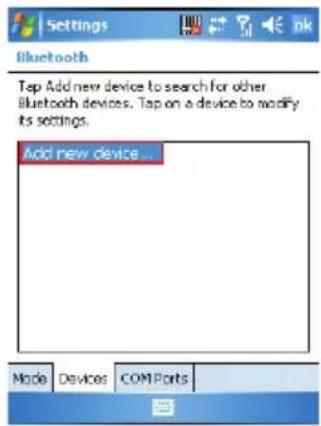
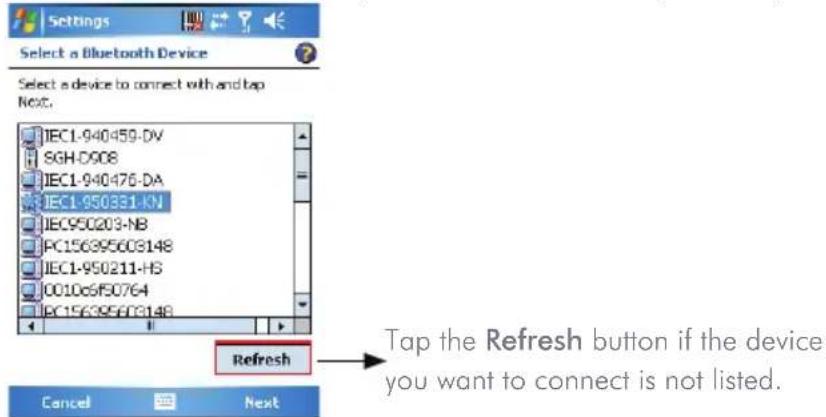
- Select the device with which you want to a Bluetooth partnership, and tap Next.
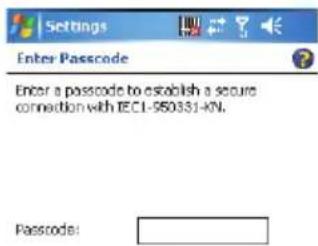
- In Passcode, if you want to use a passcode (recommended for enhanced security), enter alphanumeric passcode between 1 and 16 characters, and tap Next. Otherwise, leave the passcode blank.

H-16

- Enter the same passcode on the other device.
- Select the service to use from the device, and tap Finish.
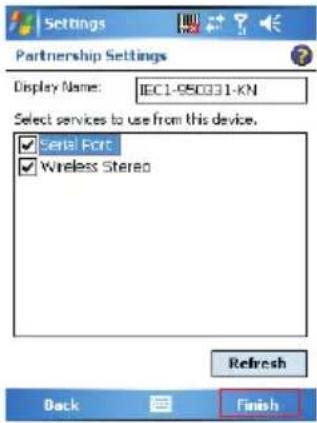

Once you create a partnership, the Bluetooth-enabled devices don't need to be visible to beam information between them; Bluetooth needs only to be turned on.
5.3 Beaming Information (Bluetooth)
Receiving Beamed Information
- Tap > Settings > Connections tab> Beam.
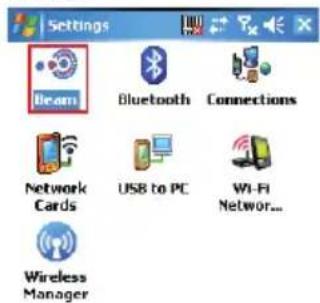
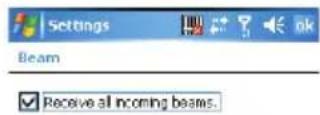
- Select Receive all incoming beams.

-
To receive beams by using Bluetooth, ensure Bluetooth is turned on and that your phone is discoverable and within close range.
-
Tap ok .
Once you select Receive incoming beams, your phone automatically receives beams until you clear this check box.
Your phone can receive all types of beamed files, but you may not be able to view all types of files on the phone. You may need to copy some files to a PC for viewing.
H-16

Beaming an Item
In the Calendar, Contacts, Notes, Tasks, and Pictures programs, you can beam files and information to other devices using Bluetooth.
-
From the program, select the item you want to beam, such as an appointment in Calendar, a task in Tasks, a contact card in Contacts, a picture in Pictures, a file in File Explorer. In Calendar, for example, first open the appointment in Agenda view.
-
TapMenu >Beam.
-
Your device will search and show visible devices, select the device to which you want to send the item.

When using Bluetooth, if the device that you want to beam to doesn't appear in the list, ensure that the device is turned on, visible, and within close range of your phone. Also, ensure that Bluetooth is turned on.

You can obtain the Bluetooth BD Address of your device. Tap > Settings > System tab > Device Info > Identity tab.
H-16
Chapter 5. Bluetooth Connections

Chapter 6.
Transferring Files To and From Your Device
6.1 Using ActiveSync
6.2 Transferring from Memory Cards
6.3 Using Bluetooth
6.4 Transferring to a PC or Other Devices
You may need to transfer application data such as Word documents, Excel spreadsheets, PowerPoint slides, and/or media files from your PC to your device. This section describes different methods to transfer files from a PC to your device.
6.1 Using ActiveSync

To transfer files from PC to your device with ActiveSync, you must install Microsoft ActiveSync on the PC first. Please refer to "Chapter 4. Synchronizing Information" for detail on how to install and set up ActiveSync.
- Connect your device to the PC with the USB cable. Microsoft ActiveSync should be automatically launched on the PC if it is set up correctly.
- Select an information type under Synchronization Options in the Synchronization Setup Wizard by checking the checkbox in front of it.
- Click the Settings button and add the files you want to transfer. Click the OK button when you finish.
- Click Next, and then click Finish to start the synchronization process.
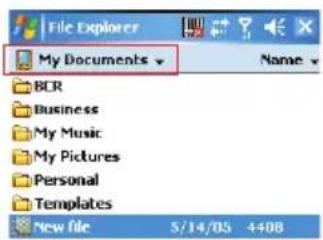
- On your device, tap > Programs > File Explorer. The files should be saved to My Documents. Check to see if the files have been transferred to your device successfully.

OPTICON
always scanning for new ID's
6.2 Transferring from Memory Cards
- Insert your memory card into the device's mini-SD card slot. (See "1.5 Mini-SD cards" for details.)
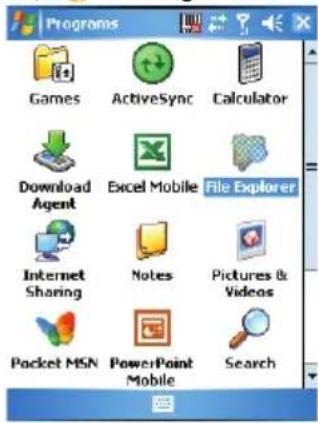
- Tap > Programs > File Explorer.
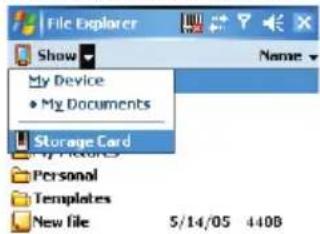
- In the Show list, select Storage Card.
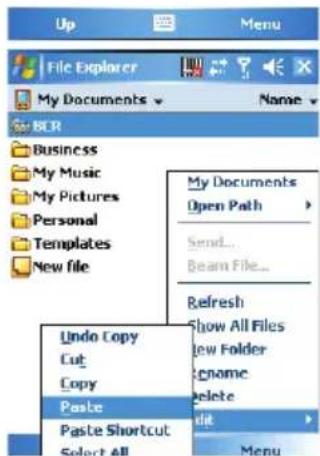
- File Explore should display all the files stored in your memory card. Tap and hold the file you want to transfer, and select Copy.
- From the Show list in File Explorer, go to destination folder. (For example, My Device > My Documents.)
- TapMenu > Edit > Paste.
6.3 Using Bluetooth

Before receiving files, you must turn Bluetooth on and establish a Bluetooth partnership between your PC and your device. (See "Chapter 5. Bluetooth Connections" for details.)
- On your PC, locate the file you want to send using Bluetooth with Windows Explorer.
- Right-click the file and select the device you want to transfer the file to under "Send To > Bluetooth"
- Tap Yes when your device prompts about receiving a file.
- After the transmission process is finished, the file should be saved in your device under My Documents in the File Explorer.
6.4 Transferring to a PC or Other Devices
Please refer to Section 5.3 "Beaming Information (Bluetooth)" for details.
Chapter 7.
Connecting to the Internet
7.1 Setting up Internet connections
7.2 Using Internet Explorer Mobile
7.3 Using Wireless Manager
7.4 Using Wi-Fi Connection
7.1 Setting up Internet connections
Your device's powerful networking capabilities allow you to access the Internet or your corporate network at work through wireless and conventional connections. Specifically, you can configure your device to establish a connection via GPRS or Proxy.
With an active connection on your device, you can browse the Web, download e-mails, or use Windows Live Messenger. Check with your service provider to see if a connection has already been set up for you, and if over-the-air configuration is supported.
If you need to manually set up a connection, it is important that you obtain the following information from your Internet Service Provider (ISP) or the company whose intranet you are trying to access:
- User name
- Password
- Access point name (required for GPRS connection)
- Domain name (required for accessing a corporate network or an intranet)
Creating a GPRS Connection
Every network connection is different. You should gather all of the relevant information or network settings you need before starting this process.
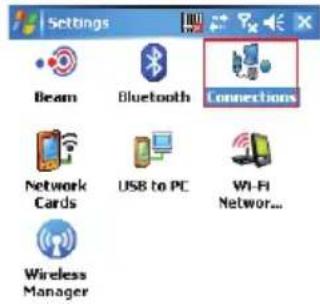
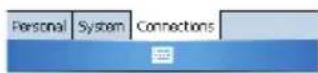
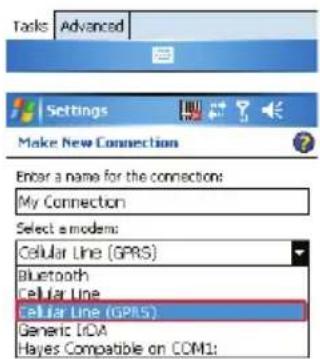
- Tap > Settings > Connections tab > Connections.
-
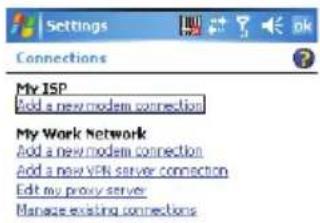
Enter the following information (you may or may not need to enter all of the following information), and tap Finish.
-
Enter a name for the connection.
• In Select a modem, select Cellular Line (GPRS). -
Tap Add a new modem connection.

H-16
Chapter 7. Connecting to the Internet

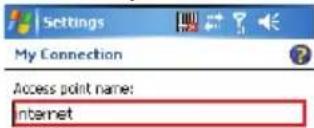
• In Access point name, enter the access point name.

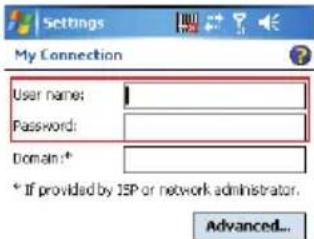
• In User name, enter your user name for the GPRS network, if required.
• In Password, enter your password, if required.

H-16

- Tap Advanced > Servers tab. In DNS, enter the primary Domain Name System (DNS) address, if required.
• In Alt DNS, enter the secondary DNS address, if required.
- Tap TCP/IP tab. In Use specific IP address, enter the Internet Protocol (IP) address for the device, if required.
The phone uses this connection when you open a program that connects to the Internet.
Creating a Proxy Connection
Every network connection is different. You should gather all of the relevant information or network settings you need before starting this process.
-
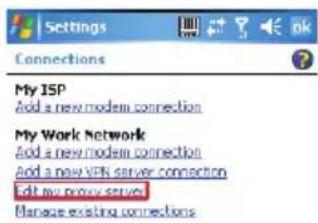
Tap > Settings > Connections tab > Connections.
-
Tap Edit my proxy server.

- Check the checkbox in front of This network connects to the Internet.
- Check the checkbox in front of This network uses a proxy server to connect to the Internet.
- Under Proxy server, enter the proxy server name.
- If the proxy server uses a different port or requires a username and password tap Advanced, select the proxy type to change its settings, then enter username, password and/or port number in the proper fields.
- Tap ok
Deleting a Connection
- Tap > Settings > Connections tab > connections.
- Tap Manage existing connections.
- Tap and hold on the connection you want to delete and select Delete.
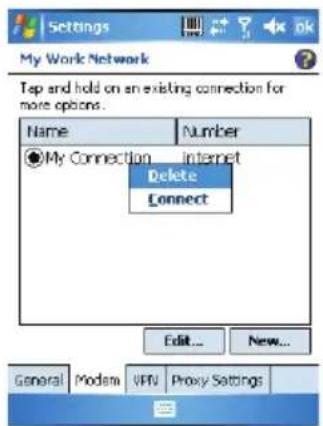

The device can not connect to a PC through ActiveSync while connecting to the Internet using GPRS.
7.2 Using Internet Explorer Mobile
Internet Explorer Mobile is a full-featured Web browser, optimized for use on your phone. You can use Internet Explorer Mobile to browse the Internet once you have set up your Internet connection (if you haven't done so, please read the previous chapter before continuing).
Browsing the Internet
- To browse the Internet you must have a valid connection established.
- Tap > Internet Explorer.
-
Do either of the following:
-
Enter the address in the address bar, and tap
- Tap Favorites then select a Web Page.
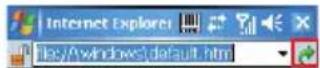

Microsoft Internet Explorer Mobile




Adding a Web Page to the Favorite List
- Tap > Internet Explorer.
- To go to the page you want to add, tap Menu > Add to Favorites.
- Confirm or change the name and Web page address.
- In Create in, select a folder for this favorite.
- Tap Add.

A quick way to add favorites to your phone is to synchronize with your PC using ActiveSync. For more information, see ActiveSync Help on your PC.
Deleting a Favorite
- Tap ➤ Internet Explorer.
- Tap Favorites.
- Tap Add / Delete tab.
- Select the favorite to delete.
- Tap the Delete button.
- Tap Yes to confirm the deletion.
Changing the Size of Text on Web Pages
- Tap > Internet Explorer.
- Tap Menu > Zoom and select the size you want.
There are five zoom options you can select: Largest / Larger / Medium / Smaller / Smallest.
Showing or Hiding Pictures on Web Pages
- Tap > Internet Explorer.
- TapMenu > View > Show Pictures.
A check mark next to Show Pictures indicates that pictures will be displayed.
Changing Web Page Display Options
- Tap > Internet Explorer.
- TapMenu > View.
- Select one of the following:
• One Column. Arranges the content into one column that is as wide as the screen. This means that you will rarely have to scroll horizontally.
- Default. Maintains a layout similar to what you see on a desktop computer, but makes items smaller and arranges the content so that you can see most of it without having to scroll horizontally.
- Desktop. Keeps the same layout and size as on a desktop computer, which will require both horizontal and vertical scrolling.
Clearing History, Cookies, or Temporary Files
- Tap > Internet Explorer.
- Tap Menu > Tools > Options.
- Tap Memory tab.
-
Select the type of memory to clear.
-
Tap Clear History or Delete Files, then tap ok
Viewing a Page in Full Screen Mode
- Tap 📋 Internet Explorer.
- Do either of the following:
- Tap Menu > View > Full Screen.
- Tap and hold on the screen with stylus, and then tap Full Screen on the pop-up menu.

To exit full screen mode, press either SOFT KEY, and then tap Menu > View > Full Screen to cancel the selection.
7.3 Using Wireless Manager
Wireless Manager is a program that allows you to conveniently turn on or off the various wireless connections on the Windows Mobile-based device, including cellular phone, Bluetooth and Wi-Fi.
Opening Wireless Manager
To open the Wireless Manager, do one of the following:
- Tap the signal strength icon ( 📋 ) at the top of the screen, and tap Wireless
Manager.
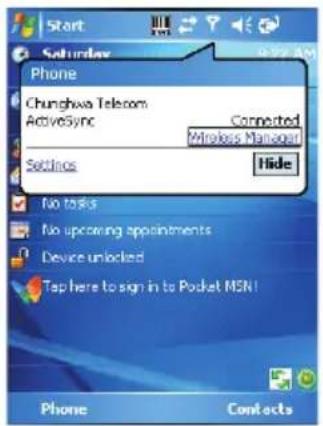
- Tap > Settings > Connections tab > Wireless Manager.
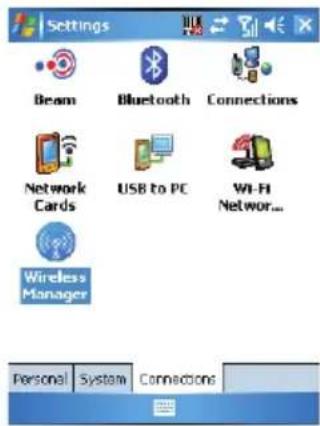
Enabling and Disabling a Feature
There are three buttons in the Wireless Manager; each of them represents a certain feature. You can simply tap a button to activate its corresponding feature.
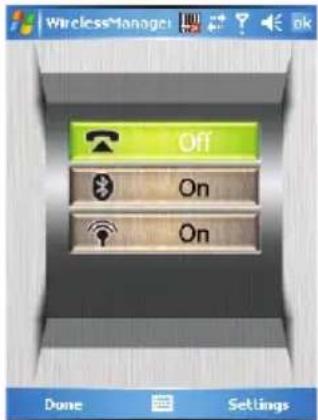
- Tap the first button to toggle between enabling or disabling the phone.
- Tap the second button to toggle between turning on or off Bluetooth.
- Tap the third button to toggle between turning on or off Wi-Fi.
H-16

Changing Regulatory Setting
The regulations for the frequency, channel and power of Wi-Fi and Bluetooth are varied in different regions. You can adapt a country's telecommunications regulatory settings while you use your device to access wireless networks in the country.
- Open Wireless Manager and then tap Settings > Regulatory.
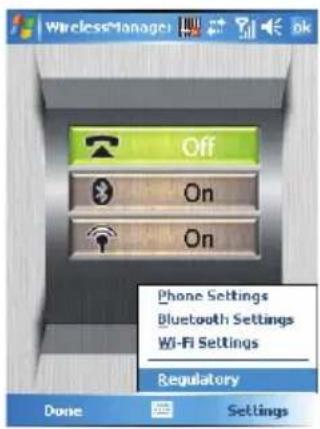
- Select a country/region in which you use this device. Tap Save to confirm the setting.
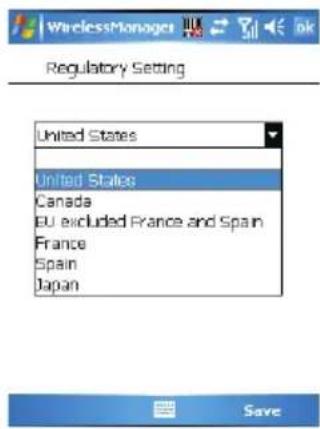
⚠️ Wi-Fi and Bluetooth can not be turned on if the Regulatory Setting is blank.
7.4 Using Wi-Fi Connection
Wi-Fi is an enabling technology that allows you to quickly access e-mail, the internet, and broadband multimedia content. When your device encounters a hotspot (a place where you can access Wi-Fi networks), it can then connect to that network wirelessly. While some hotspots are free, the most robust public Wi-Fi networks are provided by private internet service providers (ISPs) that charge a fee for users to connect to the internet.
Connecting to a Wi-Fi Network
- Tap > Settings > Connections tab > Wireless Manager.
- Tap the third button to turn on Wi-Fi connection.
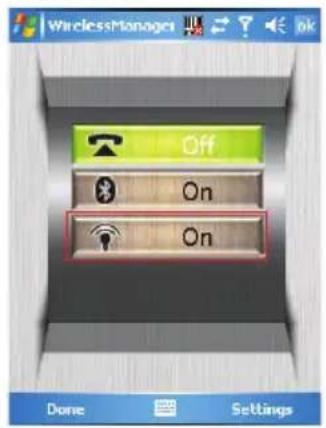
- Available wireless networks will be detected and showed on a pop-up window. Select the desired wireless network and tap OK.
![Wireless-Man: Off On Off Multiple Networks Detected Select a network to connect to: IEC [Security-enabled] linksys-g [Security-enabled]](/content/2026/06/1198502/images/8af8fbb182151d50ed7c4e2dd4e5a1b3a61c8b722a20213aa8104a7430b8acf5.jpg)
H-16

- Select The Internet if the wireless network connects your device to the Internet; select Work if the wireless network connects to a private network. Then tap Connect.
![Wireless fan Off On Off New Network Detected "Inksys-g [Security-enabled]" network connects me to: The Internet (or work via a YPN) Work Settings Connect Menu](/content/2026/06/1198502/images/f222ea1edfa37a31d7dd0f0a6ba94d5d57c9670f63609d706f7d1f5c43b4d77b.jpg)
- Enter a network key if required. Then tap Connect.
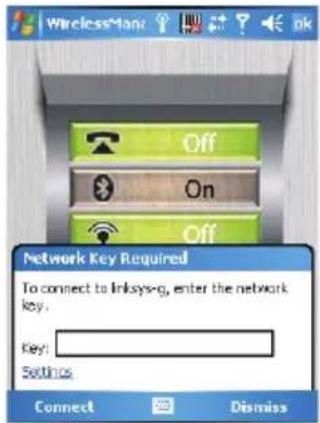
- When Wi-Fi connection is activated, the 🎨 icon shows on the title bar.

You may need to consult your ISP before you try to run this utility.

You can obtain the Wi-Fi address of your device. Tap > Settings > System tab > Device Info > Identity tab and refer to Wireless LAN MAC Address.
Checking Wi-Fi Connection
You can check the current wireless connection status via Wi-Fi Network Manager after connecting to a Wi-Fi Network.
- Tap > Settings > Connections tab > Wi-Fi Network Manager.
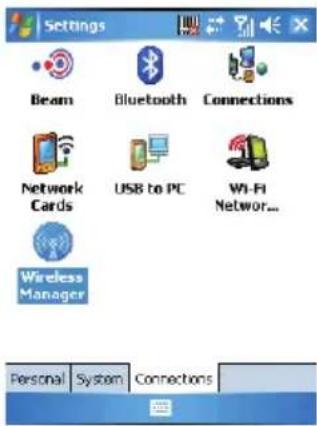
- In Status tab, you can see information of link status, SSID, Signal strength...etc.
- InInfo tab, you can check values of servers and IP address and renew IP if needed.
- InAdvanced tab, you can refer to Wireless LAN MAC address and version information.
H-16

Configuring Wi-Fi Settings
You can configure wireless networks on your device, including adding new Wi-Fi connections and editing currently available networks.

The screen for wireless networks configure can only be accessed after a Wi-Fi network is connected.
Creating Wireless Connections
- Open Wireless Manager and then tap Settings > Wi-Fi Settings.
- InWireless tab, tap Add New... on the screen.
- Enter the Network name and Network type and then tap Next. If you want to connect to another device instead of a network through an access point, select This is a device-to-device (ad-hoc) connection.
- SelectAuthentication type and Data Encryption and enter the Network key and Key index if needed. Tap Next.
- Select Use IEEE 802.1 x network access control to use EAP (Extensible Authentication Protocol). Select EAP type: PEAP or Smart Card or Certificate.
- TapFinish.
Editing Wireless Networks
- Open Wireless Manager and then tap Settings > Wi-Fi Settings.
- In Wireless tab, you can see currently available wireless networks. Tab and hold the network you want to edit, and then tap Edit on the pop-up screen.
- You can then select the network type and specify the network key and other required information of this wireless network.
Chapter 8.
Messaging & Contacts
8.1 Text Messaging
8.2 E-mail
8.3 Changing Messaging Account Options
8.4 Using Contacts
Messaging is the unified point of access for all message types within your device. With Messaging, you can send and receive text messages, e-mails, and MMS messages.
Contacts helps you to manage your contact information. Using Contacts you can quickly communicate with people.
This section describes the procedure on sending and receiving different kinds of messages, and using Contacts to manage addresses and phone numbers.
8.1 Text Messaging
Creating a Text Message
- Tap > Messaging.
- In the message list, tapMenu > Go To > Text Messages.
- TapNew.
-
Enter your message and tap Send. Text messages are sent immediately.
-
Enter the recipient's text message number in the To field. Insert a semicolon (;) between multiple text message numbers.

You can quickly enter text message numbers from your contact cards. In To, press ENTER and select a recipient from the list. Then, select the recipient's phone number.
H-16

Using Preset Text Messages
You can quickly insert preset or frequently used messages into your text message. While composing a message, tap Menu > My Text and select a preset message to insert.
To edit a preset message:
- While composing a message, tap Menu > My Text > Edit My Text Messages.
-
Select a message and edit.
-
Tap ok
Reading a Text Message
- Tap > Messaging.
- TapInbox ▼ and select Inbox under Text Messages.
- In the message list, tap the text message you want to read.
Changing Message Options
- Tap > Messaging, and select Text Messages account.
- TapNew.
- TapMenu > Message Options.
- Select this check box to request a message delivery notification.
- Tap ok
8.2 E-mail
Setting Up an Internet E-mail Account Manually
Before you set up your Internet e-mail account, please ensure that you have the necessary information.
| Setting Description | |
| User name Usually the first part of your e-mail address, which appears before the “at” sign (@). | |
| Password Choose a strong password. You will have the option to save your password, so that you do not need to enter it each time you connect to your e-mail server. | |
| Domain The domain name. This may be required. | |
| Server type The type of e-mail server that hosts your mailbox (POP3 or IMAP4). | |
| Account name A name for this account. You must use a different name for each account that you set up. | |
| Network The type of network your e-mail server connects to. | |
| Incoming mail server The name of your e-mail server (POP3 or IMAP4). | |
H-16

| Require SSL connection Select this | to ensure you always receive e-mail for this account using an SSL connection. This enables you to receive personal information more securely. Please note that if you select this and your ISP does not support an SSL connection, you will not be able to connect to receive e-mail. |
| Outgoing mail server The name of your outgoing e-mail server (SMTP). | |
| Outgoing server requires authentication | Your outgoing e-mail server (SMTP) may require authentication. Note: Your user name and password from above will be used. |
| Outgoing server settings Your outgoing e-mail server may require different authentication settings than your incoming e-mail server. | |
| Use different user name for outgoing server | A check box that lets you enter separate settings for your outgoing e-mail server. |
| User name Your user name for the outgoing e-mail server. | |
| Password Your password for the outgoing e-mail server. | |
| Domain The domain name of the outgoing e-mail server. | |
| Require SSL connection (Out-going mail server only) | A connection that enables you to send personal information more securely. Note that if you select this and your ISP does not support an SSL connection, you will not be able to send e-mail. |
Now you are ready to set up your account:
- Tap > Messaging.
- TapMenu > Tools > New Account.
- Select your e-mail provider then tap Next.
- Enter your e-mail address and tap Next.
- On the Auto configuration setup page, tap Next. Auto configuration attempts to obtain necessary e-mail server settings from your service provider.
- If auto configuration was successful, the Your name and User name are automatically filled out for you. Tap Next and then tap Finish to complete the account setup. If auto configuration was not successful, enter information above appropriate until setup is complete.

Enter a name that you want to display when you send e-mail in the Your name field.

If you save your password and then lose your phone, someone finding your phone might be able to gain access to your e-mail.
Composing an E-mail Message
- Tap > Messaging.
- Select an e-mail account.
-
TapNew.
-
In To, Cc and/or Bcc, enter recipient e-mail addresses. Insert a semicolon (;) between multiple addresses.
H-16

- In Subject, enter a subject.
- Enter a message.
- TapSend. E-mail messages are stored in Outbox and are sent to recipients the next time you synchronize or connect to your e-mail server and send and receive mail.

You can quickly enter e-mail addresses from your contact cards. In To, press ENTER and select a recipient from the list. Then, select the recipient's e-mail address.
Reading an E-mail Message
- Tap > Messaging.
- TapInbox ▼ and select Inbox under Text Messages.
- In the message list, tap the text message you want to read.
Message Options
- Tap > Messaging, and select an e-mail account.
- TapNew.
- TapMenu > Message Options.
- Select the type of options to change.
- Tapok .
8.3 Changing Messaging Account Options
- Tap 📋 Messaging, and select the Messaging account you want to change options for.
- TapMenu > Tools > Options.
- Select the type of options to change.
- Tap ok .
8.4 Using Contacts
Contacts is your address book and information storage for the people and businesses you communicate with. It stores phone numbers, e-mail addresses, home addresses, and any other information that relates to a contact, such as a birthday or an anniversary date. You can also add a picture or assign a ring tone to a contact.
From the contact list, you can quickly communicate with people. Click a contact in the list for a summary of contact information. From there, you can call or send a message.
If you use Outlook on your PC, you can synchronize contacts between your phone and PC.
Creating a New Contact
- Tap > Contacts > New.
- Enter information for the new contact.
- Tap ok .
If someone who isn't in your list of contacts calls you or sends you a message, you can create a contact from Call History or from the message by tapping Menu > Save to Contacts.
To save an existing contact to your SIM, open the contact and tap Menu > Save to SIM.
Viewing and Editing Contact Information
- Tap > Contacts.
- Tap the contact whose information you want to view.
- To edit the information, tapMenu > Edit.
- When finished making changes, tap ok.
Adding a Picture to a Contact
- Tap > Contacts.
- Tap the contact you want to add a picture to.
- TapMenu > Edit.
- Tap Picture.
- Tap the picture you want to add.
Assigning a Ring Tone to a Contact
To easily identify who is calling you by the ring tone, you can assign a custom ring tone to each contact.
- Tap > Contacts.
- Tap the contact you want to assign a ring tone to.
- TapMenu > Edit.
- Tap Ring tone and select the ring tone you want.
- Tap ok .
Finding a Contact
- Tap > Contacts.
- Begin entering the name or phone number of the contact until the contact is displayed.
Sending an E-mail to a Contact
- Tap > Contacts.
- Tap the contact you want to send an e-mail to.
- Tap the e-mail address.
- Select the e-mail account to use.
- Enter a subject, compose your message, and then tap Send.
H-16

Sending a Text Message to a Contact
- Tap > Contacts.
- Tap the contact you want to send a text message to, and tapMenu > Send Text Message.
- Compose your message, and tap Send.
Creating a SIM Contact
Contacts can be created and stored on a subscriber identity module (SIM.) If you move the SIM to another phone, your SIM contacts are moved as well.
- Tap > Contacts.
- TapMenu > New SIM Contact.
- Enter the name and phone number of the contact and tap ok.

SIM contacts appear at the bottom of the contacts listed in alphabetical order.
H-16
Chapter 8. Messaging & Contacts

Chapter 9.
Using Barcode Reader
9.1 Setting Barcode Reader
9.2 Scanning and Reading Barcode labels
In the top of your device, a reader for barcode/2D code reading and decoding is built in, with which various types of barcode/2D code labels are decoded into readable information such as letters and numbers. Settings of barcode/2D code reader can be changed to fit your specific requests.
9.1 Setting Barcode Reader
Changing Options in Barcode Reader
Barcode reader is set to be disabled by default, please remember to activate it before scanning.
- Tap ok > Settings > System tab > Barcode Settings > Options tab. Check the check box of Barcode reader or/and Keyboard hook.
When Keyboard hook is enabled, data is received as key message; when Keyboard hook is disabled, data is stored in the memory buffer temporarily. To retrieve the data, use specific software development kit (SDK) and compatible Windows application program interfaces (APIs). You can download the SDK from http://www.opticon.com
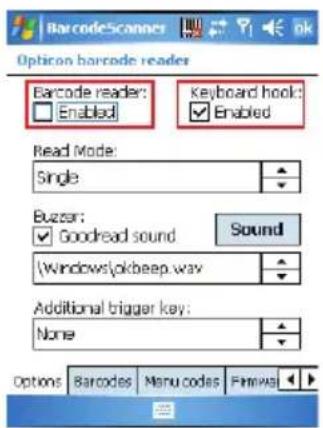

Keyboard hook can convert received characters to keyboard messages; therefore, you can read barcode in applications such as Notes, Tasks, Excel Mobile and Word Mobile as long as you enable the keyboard hook.
H-16

- In Read Mode, tap the upward/downward arrow to toggle between Multiple and Single. Multiple read mode enables reading of multiple barcodes within a specified time after one time triggering, while single read mode needs the reader to be triggered again to read another label.
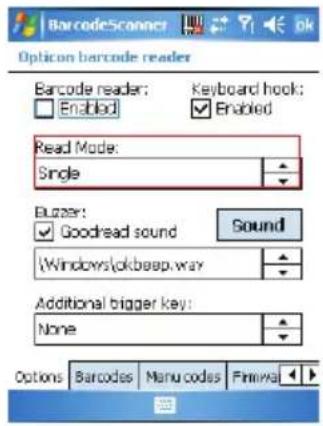
- In Buzzer, check the checkbox of Goodread sound. It enables the function of playing a sound effect after a barcode has been decoded successfully. You can change the sound effect by tapping the upward/downward arrow and playback the sound effect you choose by tapping the Sound button on the screen.
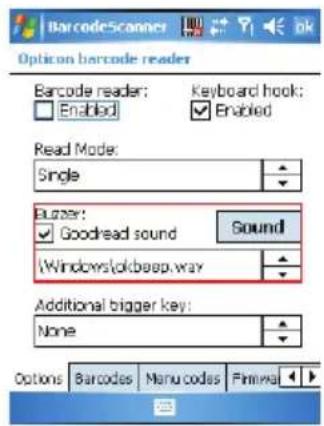
- In Additional trigger key, tap the upward/downward arrow to choose another access key for the reader. Otherwise you can set the additional trigger key to be none.
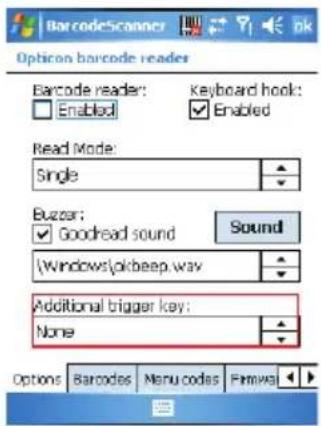
Choosing Barcode Types
Your device is capable of scanning and decoding various barcode types; to check what kind of barcode is readable and to assign specific barcode types to scan for, do as follows:
- Tap > Settings > System tab > Barcode Settings > Barcodes tab.
- Select specific barcode types or select all of them.
- Tap ok .
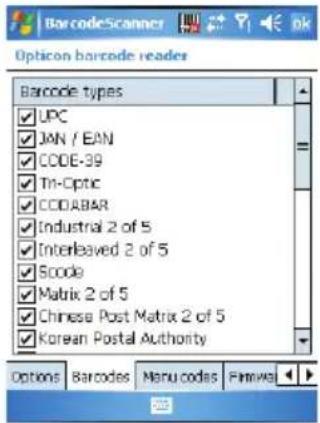
Advanced Setting
You can set specific configuration to your barcode reader by editing a list of codes in the menu codes file. The codes you input will be stored in the menu code file and replace default settings. For descriptions of menu codes, refer to Universal Menu Book (you can download it from www.opticon.com). Please note that supported menu codes depend on the module type or the firmware version of your device.
Inputting Menu Codes from a File
You can input menu codes automatically from a file, please do as follow to access the file and configure the barcode reader.
- Tap > Settings > System tab > Barcode Settings > Menu codes tab.
- Tap ☐ to view available files in your device.
![BarcodeScanner Option barcode reader Custom Settings: provide a file for user to edit a list of menu codes to configure the BCR module Update Edit [My Documents]BCR\UnitBCR. ... The menu codes and their description can be found in the Universal Menu Book: Set Defaults Options Barcodes Menu codes Fineva](/content/2026/06/1198502/images/851b06cc81928ef9ba0c9829ece1f16f351e69820067a1f2924f47614584a7e6.jpg)
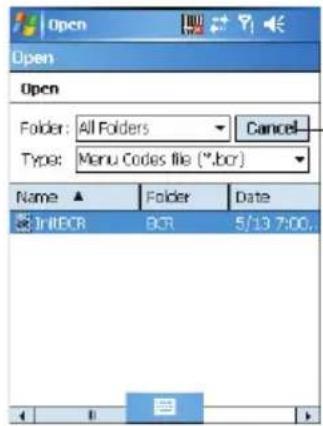
Tap Cancel if you want to stop the procedure.
- Tap after you select a file.
- Tap Yes to continue.
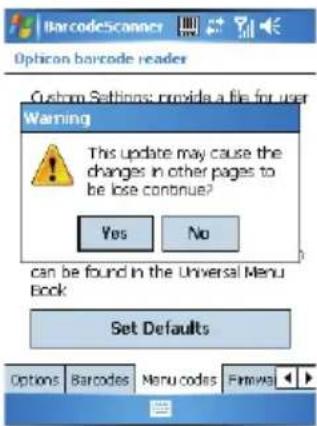
Editing Existent Menu Codes
You can input characters directly to edit an existent menu codes file.
- Tap > Settings > System tab > Barcode settings > Menu codes tab.
- Tap Edit .
5.Tap ok
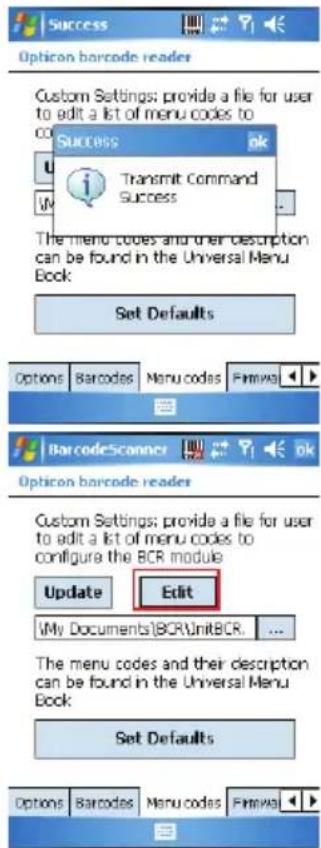
H-16

- Input or delete menu codes.

- Tap ok .
Returning to Defaults
You can cancel all personalized settings in the barcode reader.
-
Tap > Settings > System tab > Barcode settings > Menu codes tab.
-
Tap Set Defaults
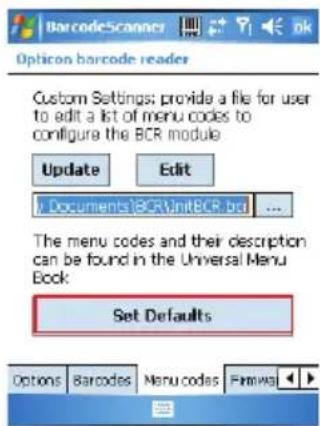
3. Tap to continue.
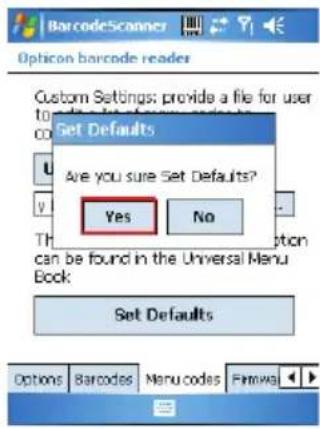
4. Tap
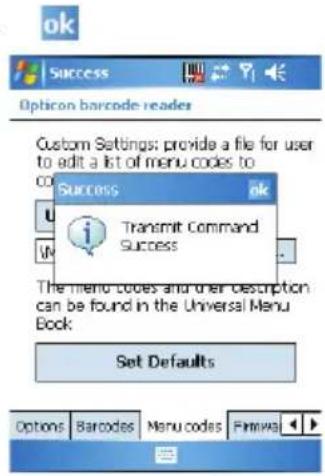
Firmware Update
How to update the firmware of your device
You can update the firmware of barcode reader from an adapted file on your device or a Mini-SD card inserted to your device. Please connect your device with the AC adaptor before updating firmware.
-
Tap > Settings > System tab > Barcode setting > Firmware Update tab.
-
Tap☐to view available files and select one of them.
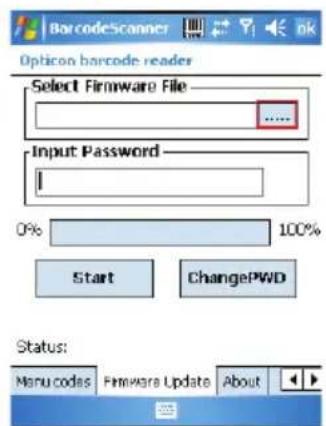
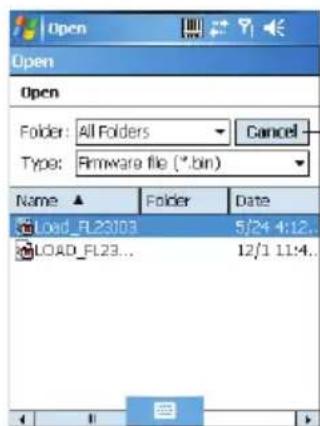
Tap Cancel if you want to stop the procedure.
- Tap the file you want to update the firmware from. The selected file will be showed on the screen then.
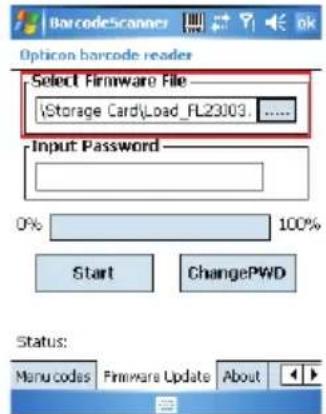
- Input the default password "1234567890AB" and tap 📋 can then see current completed percentage of the update to be displayed on the screen.
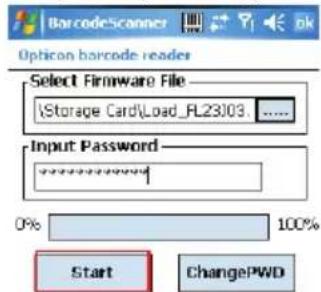
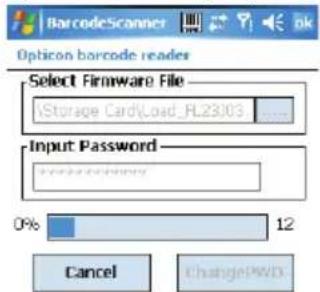
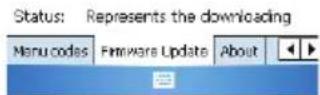
- Tapok to complete the operation.
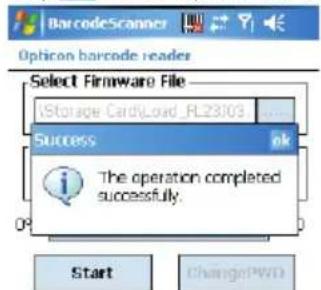
Change Password
You can change the default password of firmware update to another one.
- Tap > Settings > System tab > Barcode setting > Firmware Update tab.
- Tap ChangePWD
- Input old password first. In Password
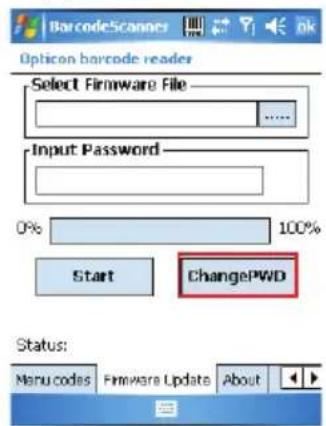
Information, input your new password in both of the boxes in sequence for double confirmation. Then tap . ok
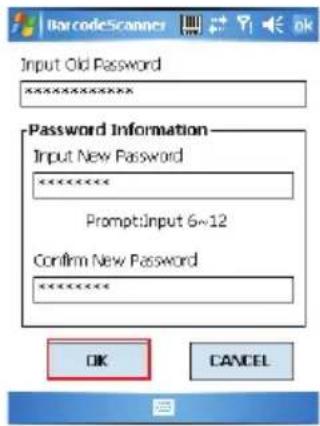
- Tap to complete the procedure.
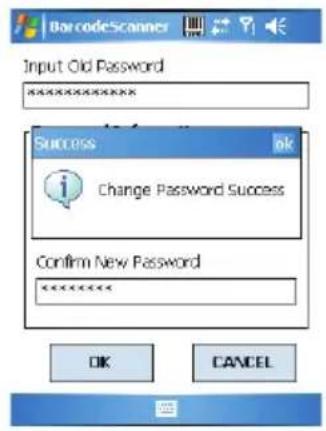
You can see more information about the barcode reader such as scanner version, please tap
Settings > System tab > Barcode Settings > About tab.
9.2 Scanning and Reading Barcode labels
Your device can scan and decode barcode labels depending on the scanner equipped with your device. If you prefer to read a barcode on your device right after scanning, open an application in which letters and numbers can be displayed before you activate the barcode reader.
- Open an application, e.g. Notes, Tasks and Contacts, in which you want to display converted barcode information after scanning.
-
Do one of the following to enable barcode reader and keyboard hook:
-
Tap > Settings > System tab > Barcode Settings > Options tab. Then check the checkboxes of Barcode reader and Keyboard hook.
- Tap 📊ton on the screen and tap in the dialog box to active barcode reader and keyboard hook directly.
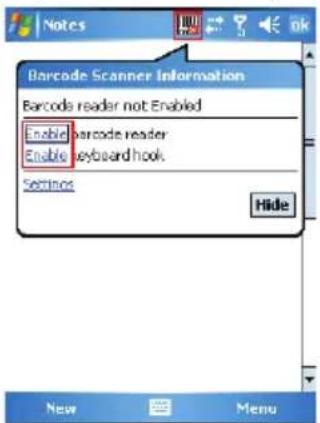
H-16
Chapter 9. Using Barcode Reader

-
Point the barcode reader to a barcode label and press the scan key (left scan key, right scan key or the assigned trigger key).
-
Adjust the distance between your device and the label, and make sure the light emitted from the scanner exceeds the width of the label.
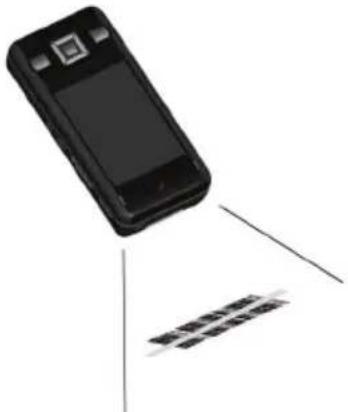
natural_image
Black mobile phone with a screen and three wires below it (no visible text or symbols)- A Goodread Sound plays and the content of the barcode shows when the label is decoded successfully.
Chapter 10.
Other Applications
10.1 Word Mobile
10.2 Excel Mobile
10.3 PowerPoint Mobile
10.4 MSN Messenger
10.5 Backup/Recover
10.6 Managing Memory
Your device comes with a variety of useful companion applications. This chapter describes the procedure on how to utilize these applications.
10.1 Word Mobile
With Word Mobile, you can create and edit Microsoft Word documents and templates, plain text files, and/or rich text format files.

Unlike Microsoft Word, you can only have one document open at a time in Word Mobile.
Creating a Document
- Tap > Programs > Word Mobile.
- Tap New, if a new document is not opened by itself.
- Enter text as desired.
- Tap Menu > File > Save As.
- Enter a name for the document and tap the Save button.

You can also tap Ok to save a document after you finish entering text. This way, the first few words of the document is being used as the filename.
Word Mobile Formatting Toolbar
The Formatting toolbar in Word Mobile provides a quick way to apply common formatting such as bold type, bulleted or numbered lists, and paragraph indentation to your text.
• In a Word Mobile document, tap View > Toolbar.
A check mark appears next to Toolbar when the toolbar is visible.
| Tap | To |
| B | Make the selected text bold |
| I | Make the selected text italic |
| U | Underline the selected text |
| Align text to the left | |
| Center the text | |
| Align text to the right | |
| Add or remove a numbered list in the selected text | |
| Add or remove bullets in the selected text | |
| Increase the indent of numbered or bulleted list text one tab stop to the right | |
| Decrease the indent of numbered or bulleted list text one tab stop to the left |
10.2 Excel Mobile
With Excel Mobile, you can create and view spreadsheet on you device.

Unlike Microsoft Excel, you can only have one document open at a time in Excel Mobile.
Creating a New Spreadsheet
- Tap > Programs > Excel Mobile.
- Enter text, numbers, and formulas as desired.
- Tap Menu > File > Save As.
- Enter a name for the document and tap the Save button.

You can also tap Ok to save a spreadsheet and Excel Mobile gives it a name automatically.
Excel Mobile Formatting Toolbar
The formatting toolbar in Excel Mobile provides a quick way to apply common functions such as create a chart or align text to the left.
- In an Excel Mobile workbook, tap View > Toolbar. A check mark appears next to Toolbar when the toolbar is visible.
Tap To
| Create a chart from the selected cells | |
| Align text to the left | |
| Center the selected text | |
| Align text to the right | |
| Add all contiguous numbers in a column or row | |
| Add a currency symbol | |
| Add the default thousands separator | |
| .00 | Add a decimal point |
| Increase and decrease the magnification |
10.3 PowerPoint Mobile
With PowerPoint Mobile, you can view PowerPoint slides on you device.

PowerPoint Mobile only supports slides in .ppt and .pps formats.
Starting a PowerPoint Presentation
- Tap > Programs > PowerPoint Mobile.
- Tap the slide show you want to view in the presentation list.
- Tap the current slide to advance to the next slide if slides don't advance automatically.
- Tap Menu > Rename/Move.
- Enter a name for the document and tap ok.
Stopping a PowerPoint Presentation
• In a slide show, tap ▲ End Show.
Navigating Between Slides
- Tap ▲ Next to go to the next slide.
- Tap ▲ Previous to go back to the previous slide.
- To jump to any slide in the slide show, tap Go to Slide and tap on the slide you want to view.
10.4 MSN Messenger
You can send instant messages with MSN Messenger.

Your device must be connected to the Internet before you can start using MSN Messenger.
Signing In/Out MSN Messenger
With MSN Messenger, you can send and receive instant messages from other MSN Messenger users.

You must have a valid Microsoft .NET Passport or Hotmail account before you can sign in to MSN Messenger.
To sign in MSN Messenger
- Tap > Programs > Pocket MSN.
- Tap MSN Messenger.
- Tap Sign In, anywhere on the MSN Messenger screen, or Menu > Sign In to sign in MSN Messenger.
- Enter your e-mail and password and tap Sign In.
To sign out MSN Messenger
- Tap Menu > Sign out.
Adding/Deleting a MSN Messenger Contact
- Sign in MSN Messenger.
- Do any of the following:
• To add a contact, tap Menu > Add a Contact, and follow the on-screen instructions.
• To delete a contact, tap and hold the contact name in the MSN contact list, then tap Delete Contact.
Sending an Instant Message
- Sign in MSN Messenger.
- Tap the contact's name to whom you want to send a message to.
- Enter a message and tap Send.

To add a preset message, tap Menu > My Text and select a preset message.
Changing MSN Messenger Display Name
- Sign in MSN Messenger.
- Tap Menu > Options > Messenger tab.
- Enter a new display name and tap ok.
H-16

Blocking/Unblocking a Contact
- To block a contact from seeing you on-line, tap and hold the contact's name and select Block.
- To unblock a contact, tap and hold the contact's name and select Unblock.
Changing MSN Messenger Settings
- Sign in MSN Messenger.
- Tap Menu > Options.
- Select the type of options to change.
- Tap ok
10.5 Backup/Recover
It is advisable to take backups of your device data regularly in case important data is accidentally lost or damaged. You can recover your data from those backup copies as needed. Device data can be backed up to or be recovered from DiskOnChip of your device or a compatible memory card.

DiskOnChip is flash memory device (essentially a hard disk on a chip) which locates in an independent area of OS. DiskOnChip keeps the data even after a factory reset.
Backup data
- Tap > Programs > Backup Manager.
- Tap the Backup button.
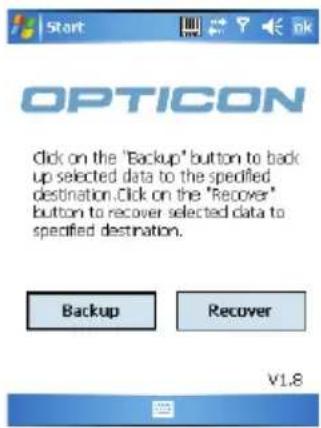
- Select the check box(es) of the item(s) that you want to backup.
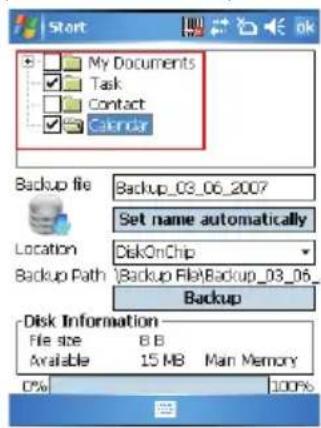
- Input a file name for the backup copy. To name it automatically, tap Set name automatic
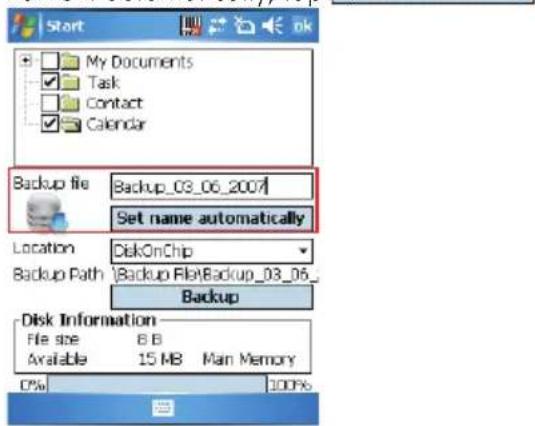
- Tap the Backup Button.
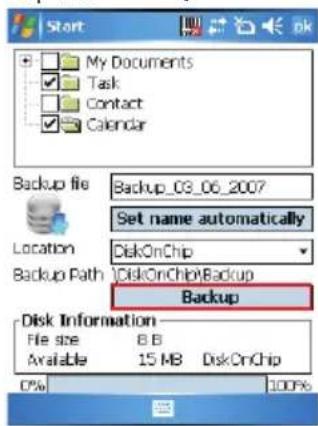
- Select a destination for storing the backup copy: Storage Card or DiskOnChip.
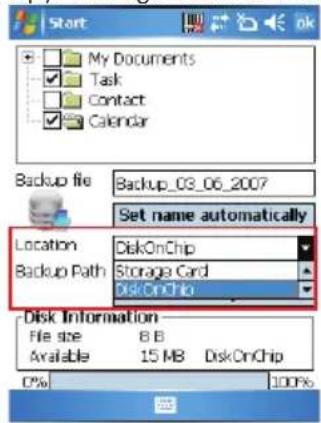
- Tap
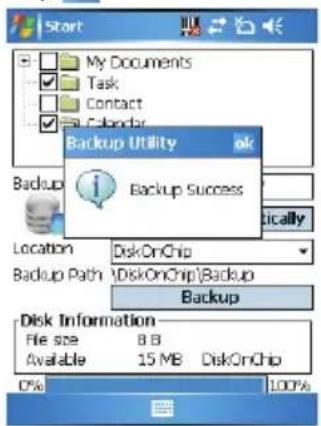
Recover data
- Tap > Programs > Backup Manager.
- Tap the Recover button.

OPTICON
click on the "Backup" button to back up selected data to the specified destination. Click on the "Recover" button to recover selected data to specified destination.

V1.8

-
Do one of the following to select a file:
-
Tap > File Explorer > Backup File folder and select a file.
- Tap on the screen to view available files. You can then select one of them.
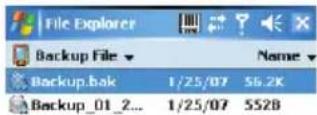
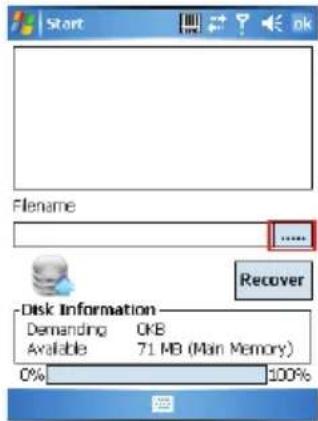
- Tap the Recover Button.
- Tap ok
Only items that have already been backed up can be recovered from their backup copies.
⚠️ Installed applications will not be backed up.
10.6 Managing Memory
Checking Available Storage
- Tap > Settings > System tab > Memory.
- In Main tab, you can see how much storage is available on the main memory of your device.
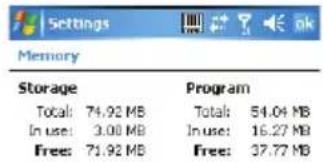
- To see how much storage is available on your storage cards, tap Storage Card tab.
- Use the drop-down menu to select your available storage cards and view their available memory.
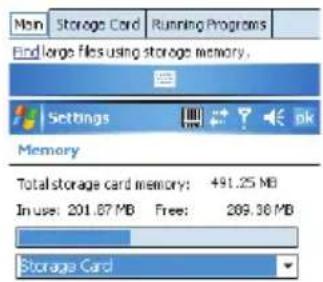
Closing a Running Program
-
Tap > Settings > System tab > Memory > Running Programs tab.
-
In Running Program List, select a program. You can tap Stop on the screen to close the program or tap Stop All to close all programs.
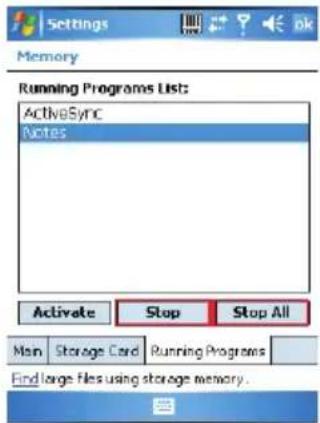
Appendix
A.1 Regulatory Notices
A.2 PC Requirement to Run ActiveSync 4.5
A.3 Specifications
A.1 Regulatory Notices
European Union Notice
Product with CE marking comply with the R&TTE Directive (99/5/EC), the EMC Directive (89/336/EEC), and the Low Voltage Directive (73/23/EEC) issued by the Commission of the European Community.
Compliance with these directives implies conformity to the following European Norms (in parentheses are the equivalent international standards).
• ETSI EN 301 481-1
Electromagnetic compatibility and Radio spectrum Matters (ERM); ElectroMagnetic Compatibility (EMC) standard for radio equipment and services; Part 1: Common technical requirements.
• ETSI EN 300 328
Electromagnetic compatibility and Radio spectrum Matters (ERM); Wideband Transmission systems; data transmission equipment operating in the 2.4 GHz ISM band and using spread spectrum modulation techniques.
• EN 50360:2001
Product standard to demonstrate the compliance of mobile phones with the basic restrictions related to human exposure to electromagnetic fields (300MHz – 3GHz)
• ETSI EN 301 489-7
Eletromagnetic compatibility and Radio spectrum matters (ERM); ElectroMagnetic Compatibility (EMC) standard for radio equipment and services; Part 7: Specific conditions for mobile and portable radio
H-16

and ancillary equipment of digital cellular radio telecommunications systems (GSM and DCS).
• ETSI EN 301 489-17 Electromagnetic compatibility and Radio spectrum Matters (ERM); ElectroMagnetic Compatibility (EMC) standard for radio equipment and services; Part 17: Specific conditions for 2.4 GHz wideband transmission systems and 5 GHz high performance RLAN equipment.
• EN 60950-1 (IEC 60950-1) Safety of information Technology Equipment.
- ETSI EN 301 511 Global system for mobile communications (GSM); Harmonized EN for mobile stations in the GSM 900 and GSM 1800 bands, covering essential requirements of article 3.2 of the R&TT directive (1995/5/EC).
CE0682!
Federal Communications Commission Notice
This device complies with part 15 of the FCC Rules. Operation is subject to the following two conditions: (1) This device may not cause harmful interference, and (2) this device must accept any interference received, including interference that may cause undesired operation. This equipment has been tested and found to comply with the limits for a Class B digital device, pursuant to Part 15 of the FCC Rules. These limits are designed to provide reasonable protection against harmful interference in a residential installation. This equipment generates, uses, and can radiate radio frequency energy and, if not installed and used in accordance with the instructions, may cause harmful interference to radio communications. However, there is no guarantee does cause harmful interference to radio or TV reception, which can be determined by turning the equipment on and off, the user is encourage to try to correct the interference by one or more of the following measures:
• Reorient or relocate the receiving antenna.
- Increase the separation between the equipment and receiver.
- Connect the equipment into an outlet on a circuit different from that to which the receiver is connected.
- Consult the dealer or an experienced radio or television technician for help.
RF Exposure Information (SAR)
This device meets the government's requirements for exposure to radio waves. This device is designed and manufactured not to exceed the emission limits for exposure to radio frequency (RF) energy set by the Federal Communications Commission of the U.S. Government.
The exposure standard for wireless devices employs a unit of measurement known as the Specific Absorption Rate, or SAR. The SAR limit set by the FCC is 1.6W/kg. *Tests for SAR are conducted using
H-16

standard operating positions accepted by the FCC with the device transmitting at its highest certified power level in all tested frequency bands. Although the SAR is determined at the highest certified power level, the actual SAR level of the device while operating can be well below the maximum value. This is because the device is designed to operate at multiple power levels so as to use only the poser required to reach the network. In general, the closer you are to a wireless base station antenna, the lower the power output.
While there may be differences between the SAR levels of various devices and at various positions, they all meet the government requirement.
The FCC has granted an Equipment Authorization for this device with all reported SAR levels evaluated as in compliance with the FCC RF exposure guidelines. SAR information on this device is on file with the FCC and can be found under the Display Grant section of http://www.fcc.gov/oet/ea after searching on FCC ID: DGIBC0129AAA190.
For body worn operation, this device has been tested and meets the FCC RF exposure guidelines for use with an accessory that contains no metal and the positions the handset a minimum of 1.5 cm from the body. Use of other enhancements may not ensure compliance with FCC RF exposure guidelines. If you do not use a body-worn accessory and are not holding the device at the ear, position the handset a minimum of 1.5 cm from your body when the device is switched on.
SAR Information
• 0.605W/Kg @1g FCC (head)
- 0.863W/Kg @1g FCC (body)
- 0.2W/Kg @10g (CE)
Exposure to Radio Frequency (RF) Signals
Your wireless phone is a radio transmitter and receiver. It is designed and manufactured not to exceed the emission limits for exposure to radio frequency (RF) energy set by the Federal Communications Commission of the U.S. Government. These limits are part of comprehensive guidelines and establish permitted levels of RF energy for the general population. The guidelines are based on the safety standards previously set by both U.S. and international standards bodies:
•American National Standards Institute (ANSI) IEEE. C95.1-1992
• National Council on Radiation Protection and Measurement (NCRP). Report 86. 1986
• International Commission on Non-Ionizing Radiation Protection (ICNIRP) 1996
- Ministry of Health (Canada), Safety Code 6. The standards include a substantial safety margin designed to assure the safety of all persons, regardless of age and health.
In the U.S. and Canada, the SAR limit for mobile phones used by the public is 1.6 Watts/kg (W/kg) averaged over one gram of tissue. The standard incorporates a substantial margin of safety to give additional protection for the public and to account for any variations in usage. Normal conditions only ensure the radiative performance and safety of the interference. As with other mobile radio transmitting equipment, users are advised that for satisfactory operation of the equipment and for the safety of personnel, it is recommended that no part of the human body be allowed to come too close antenna during operation of the equipment.
Warning!
DANGER OF EXPLOSION IF BATTERY IS INCORRECTLY REPLACED. TO REDUCE RISK OF FIRE OR BURNS, DO NOT DISASSEMBLE, CRUSH, PUNCTURE, SHORT EXTERNAL CONTACTS, EXPOSE TO TEMPERATURE ABOVE 60.C (140.F), OR DISPOSE OF IN FIRE OR WATER. REPLACE ONLY WITH SPECIFIED BATTERIES. RECYCLE OR DISPOSE OF USED BATTERIES ACCORDING TO THE LOCAL REGULATIONS OR REFERENCE GUIDE SUPPLIED WITH YOUR PRODUCT.

A.2 PC Requirement to Run ActiveSync 4.5
To connect your device to the PC, you must have Microsoft® ActiveSync® program installed on your PC. ActiveSync 4.5 is included in the Installation CD, which is compatible with the following operating systems and applications:
- Microsoft® Windows® 2000 Service Pack 4
- Microsoft® Windows® Server 2003 Service Pack 1
- Microsoft® Windows® Server 2003 IA64 Edition Service Pack 1
- Microsoft® Windows® Server 2003 x64 Edition Service Pack 1
- Microsoft® Windows® XP Professional Service Packs 1 and 2
- Microsoft® Windows® XP Home Service Packs 1 and 2
- Microsoft® Windows® XP Tablet PC Edition 2005
- Microsoft® Windows® XP Media Center Edition 2005
- Microsoft® Windows® XP Professional x64 Edition
- Microsoft® Outlook® XP and Microsoft® Outlook® 2003 messaging and collaboration clients
- Microsoft® Office XP
• Microsoft® Office 2003
- Microsoft® Internet Explorer 6.0 or later (required)
- Microsoft® Systems Management Server 2.0
A.3 Specifications
System Information
| CPU | Samsung | S3C2440A, 400MHz |
| Operating System Windows | Mobile 5.0 for Pocket PC, Phone Edition | |
| Memory | 64 MB | RAM128 MB ROM |
Dimension and Weight
| Dimension | 126.7 x 60 x 25.8(27.4) mm |
| Weight | H-16A 169g H-16B 171 g(excluded Main Battery) |
Key and Indication
| Key | •5-way navigation with action input•2 Scan key•Volume up and down•Power button•Talk key and End key•Warm reset button•Record key•2 Soft key•Start and OK key•41 key QWERTY keyboard |
| Indication •Vibrate |
Display
| Type Transflective TFT LCD with touch panel and backlight | |
| Size/Resolution/Color 2.8" | 240x320, 65,536 colors |
Scanner/Barcode Reader
| Red laser diode | |
| Supported Symbologies1D : EAN, JAN, UPC-A, UPC-E, Industrial 2 of 5, IATA, Interleaved 2 of 5, NW-7 (CODABAR), CODE-39, CODE-93, CODE-128, and so on | |
| CMOS Area Sensor | |
| Supported Symbologies1D : EAN, JAN, UPC-A, UPC-E, Industrial 2 of 5, IATA, Interleaved 2 of 5, NW-7 (CODABAR), CODE-39, CODE-93, CODE-128, and so on2D : PDF417, Micro PDF417, QR Code, Data Matrix, Maxi Code, and so on |
Connectivity
| Bluetooth Bluetooth 1.2 compliant | |
| Wi-Fi IEEE802.11 b/g compliant | |
| Telecom GSM/GPRS/EDGE | 850/900/1800/1900,GPRS class 12, EDGE class 10 |
| USB mini USB (ver.1.1 client) |
External Memory Card
| Card Slot Mini-SD card slot (ver.1.0) |
Battery and Power
| Main Battery Li-Ion Polymer | 4.2V 1440mAh |
| Talk Time 4 hours | |
| Standby Time 150 hours | |
| Battery Charing Time 4 Hours |
WEEE Notice
The Waste Electrical and Electronic Equipment (WEEE) Directive is designed to encourage and regulate the collection, reuse, recycling and recovery of waste electrical and electronic equipment, which entered into force as European law on 13th February 2003. The Directive aims to improve the level of recycling of electrical and electronic equipment (EEE) and encourages designers to develop products with recycling efficiency in mind; it also aims to improve our environment, reduce risks to human health through the proper treatment of discarded goods.
The WEEE logo ( ) on the product and its accessories or on its box indicates that this product must be disposed of or dumped with your other household wastes. You are liable to dispose of all your electronic or electrical waste equipment by relocating over to the specified collection point for recycling of such hazardous waste. Isolated collection and proper recovery of your electronic and electrical waste equipment at the time of disposal will allow us to help conserving natural resources. Moreover, proper recycling of the electronic and electrical waste equipment will ensure safety of human health and environment.
For more information about electronic and electrical waste equipment disposal, recovery and collection point, please contact your local city centre, household waste disposal service, shop from where you purchased the equipment, or manufacturer of the equipment.
RoHS Compliance
This product is in compliance with Directive 2002/95/EC of the European Parliament and of the Council of 27 January 2003, on the restriction of the use of certain hazardous substances in electrical and electronic equipment (RoHS) and its amendment.