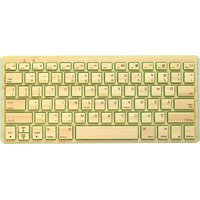
KBB78BTG - Keyboard Impecca - Free user manual and instructions
Find the device manual for free KBB78BTG Impecca in PDF.


| Product Type | Wireless Bluetooth Keyboard |
| Brand | Impecca |
| Model | KBB78BTG |
| Connectivity | Bluetooth 3.0 |
| Bluetooth Range | Up to 35 feet (10.7 meters) |
| Battery Type | Built-in Rechargeable Lithium-Ion |
| Battery Life | Approximately 30 days standby; up to 40 hours continuous use |
| Charging Time | Approximately 2–3 hours for full charge (do not exceed 5 hours) |
| Charging Port | Micro USB |
| Material | Bamboo wood finish |
| Compatibility | iPad, iPhone, Android smartphones and tablets, Galaxy devices |
| Hotkeys | Home, Brightness, Search, Slideshow, Keyboard Toggle, Media Control, Volume, Mute, Lock |
| Power Button | On/Off switch on underside |
| Included Accessories | Micro USB charging cable, User Guide |
| Dimensions (Approx.) | 11.0 x 4.8 x 0.8 inches (279 x 122 x 20 mm) |
| Weight (Approx.) | 10.6 oz (300 g) |
| Color | Bamboo / Natural wood finish |
| Supported Operating Systems | iOS, Android |
| Warranty | Limited Warranty by Impecca |
| Care & Cleaning | Wipe with dry cloth; avoid water and solvents |
Frequently Asked Questions - KBB78BTG Impecca
User questions about KBB78BTG Impecca
0 question about this device. Answer the ones you know or ask your own.
Ask a new question about this device
Download the instructions for your Keyboard in PDF format for free! Find your manual KBB78BTG - Impecca and take your electronic device back in hand. On this page are published all the documents necessary for the use of your device. KBB78BTG by Impecca.
USER MANUAL KBB78BTG Impecca

natural_image
Yellow computer keyboard with standard keys (no visible text or symbols on keys)Compact Wireless Bamboo Bluetooth Keyboard
User's Guide
IMPECCA USA® is a division of Luzerne Trading Co. Wilkes-Barre PA. All rights reserved. All trademarks are the property of their respective owners and are used by Luzerne Trading Company solely for descriptive purposes.
iPad® is the trademark of Apple Inc., registered in the U.S.A. and other countries.
“Made for iPad” means that an electronic accessory has been designed to connect specifically to iPad, and has been certified by the developer to meet Apple performance standards. Apple is not responsible for the operation of this device or its compliance with any safety and regulatory standards.
Please note that the use of this accessory with iPad® may affect wireless performance.
This product is serviced and supported exclusively by IMPECCA USA and its Limited Warranty.
TABLE OF CONTENTS
Table of Contents....02
Welcome / Main Features 03
In The Box / Layout of Controls....04
Precauons 05
Charging the Baery 06
Connecng to Your iPad....06
Using the Hotkeys 09
Troubleshoong.... 10
WELCOME
Congratulations on your purchase of the Impecca™ Compact Bamboo Bluetooth Wireless Keyboard. Now you can enjoy enhanced access to your iPad™, Android, Galaxy, and many other tablets by using a wireless keyboard featuring Bluetooth 3.0 technology.
The Compact Bamboo Bluetooth Wireless Keyboard was designed for convenience and comfort, and is sleek, stylish, and elegant. Powered by a highly eminent lithium-ion baery capable of providing up to 30 days of stand-by me, the Impecca Bluetooth Wireless Keyboard is perfect for business and daily use.
Embrace modern technology while surrounding yourself with a bamboo wood themed environment. The original Bamboo keyboard brought friendly sustainability to a domain dominated by metal and plasc. Now Impecca is taking the bamboo look to a completely new level. Welcome to the all-new Bluetooth version for tablets and smartphones. Lean back and relax as you type away on a product that matches your sensibilities.
Before using this product, it is recommended that you familiarize yourself with the features, funcons, and operang procedures described in this manual. Due to slight modicaons in producon, the instrucons, features, and/or descripons found in this manual might be slightly dierent from your product.
MAIN FEATURES
Comparable with most Tablets and Smartphones
Slim & Elegant: Top quality design with a low prole
Environmentally sustainable
Features:
Hotkeys for easy funconality
Energy saving keyboard sleep mode
Bluetooth Version 3.0
Built-in Rechargeable Lithium Baery
IN THE BOX


natural_image
Close-up of a wooden keyboard with square keys (no text or symbols visible)1
- Bamboo Keyboard
- Micro USB cable
- User's Guide
2

LAYOUT AND CONTROLS

PRECAUTIONS
Follow these ps and safety instrucons to preserve the operaonal lifespan of your Bluetooth Compact Bamboo Keyboard:
- Do not use this player in extreme temperatures. Keep away from extreme hot, cold, dry, or damp areas. Also keep away from water, re, and radiaon.
- It is recommended that you allow the baery to fully charge before using the device for the rst me (approximately 2 to 3 hours. Do not recharge unaended for longer than 5 hours.
- The eecve range for this wireless device is up to 35 feet. Performance may be aected by distance and interference from other devices or conditions within the operang environment.
- Barriers and other wireless devices may act the performance of headset.
- Check the laws and regulaons on the use of mobile phones and hands-free equipment in areas you intend to use this product.

Warning
- Do not disassemble your Bluetooth Wireless Bamboo Keyboard.
- Do not allow young children to use your player unsupervised.
- Observe all signs and instrucons that require an electrical device or radio product to be switched in designated areas, such as petrol/refueling staons, hospitals, blasng areas, potenally explosive atmospheres or aircra.
- Do not use or connect adaptors and/or chargers to this product that are not approved of or specied by IMPECCA™.
CHARGING THE BATTERY
The Red LED will connually ash when baery power is low. When the baery is completely drained, no indicator lights will funcon. Before using, allow the baery to charge for 4 to 5 hours.
- Connect the Micro USB cable to the USB Jack on wireless keyboard.
- Connect the larger end of the USB cable to a USB port on your PC or Laptop.
- The Red LED will stop ashing and will remain solid red.
- When charging has nished, the Red LED will turn o.
CONNECTING TO YOUR IPAD
- Turn the On/O switch (located in the upper right corner on the underside of the keyboard) to the ON posion. The Status light will glow red for a few seconds.
- On your iPad screen, tap the "Sengs" icon to open the Sengs Menu.

- In the Sengs menu panel (on the le) press the "General" icon. In the main panel of your iPad screen, tap the Bluetooth row.

- Slide the O switch to the On posion (or press the O icon once).

Your iPad will begin searching for any available Bluetooth Device. Be sure that the keyboard is on.

- If your iPad is able to discover your keyboard, you will see the screen below. If you do not see this screen, press the Connect buon on your keyboard (located in the upper right corner on the underside of the keyboard).

- Tap the "Bluetooth Keyboard" row on the iPad screen to pair the device. You will be provided with a 4 digit PIN code.
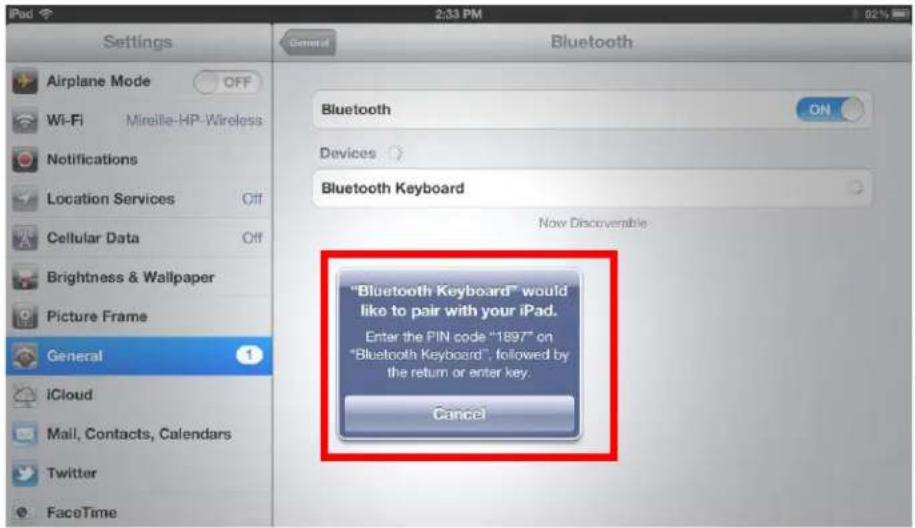
- Using your wireless keyboard, type the four digit PIN code and press the Enter / Return key. Your device should now be connected. You can now begin using your wireless keyboard.
Note the following about the Bluetooth conneccon between the keyboard and your iPad:
- If the devices are connected and you turn the keyboard o, the devices will reconnect when you turn the keyboard back on. Likewise, if the devices are connected and you turn your iPad o, the devices will reconnect when you turn the iPad back on.
- If the devices are connected and you disable Bluetooth from the sengs on your iPad, when you turn Bluetooth back on, you need to reconnect the devices again by following the steps above.
USING THE HOTKEYS
Your wireless keyboard is equipped with mulple hot keys for easy access to some of the applicaons and funcons on your iPad, tablet, or smartphone.
 | (Esc) | Home | Displays the iPad home screen. |
 | (F1) | Brightness decrease | Decreases the screen brightness. |
 | (F2) | Brightness increase | Increases the screen brightness. |
 | (F3) | Search | Displays the iPad search screen. |
 | (F4) | Slide-Show | Plays a slide-show of pictures saved on the iPad. |
 | (F5) | Keyboard toggle | Toggles the keyboard on or o. |
 | (F7) | Previous Track | Skips to previous track. |
 | (F8) | Play/Pause | Starts or stops current playlist. |
 | (F9) | Next Track | Skips to the next track. |
 | (F10) | Mute | Mutes iPad audio. |
 | (F11) | Volume Decrease | Decreases volume. |
 | F12 | Volume Increase | Increases volume. |
 | del | Lock | Acvates lock screen on the iPad. |
TROUBLESHOOTING
If you experience any of the following, please refer to the steps below to resolve these issues before contacting technical support.
| ISSUE | Troubleshoong Soluon |
| Status light does not come on | Turn the On/O switch on the keyboard to the OFF posion. Turn the switch to the On posion. If the status light does not ash, baery needs to be recharged. Connect the mini USB cable to the wireless keyboard player and plug into the USB port on your computer. |
| Unable to pair device | Make sure you have installed and set up Bluetooth correctly on your iPad. See “Connecng to the iPad” secon of this manual.Make sure that the Keyboard is within range of your iPad. Maximum Bluetooth range is about 10 meters/33 feet.If your iPad is connected to other Bluetooth devices, you may need to disconnect some devices before you can connect to the Keyboard. |
| Keyboard does not respond properly or some keys do not work. | When the keyboard does not respond properly, the baery power is low. Recharge the baery fully before using. |
If you experience any issues that are not listed above, or if you are unable to resolve your issue aer trying the methods and soluons described above, please contact Impecca's technical support team:
Email: service@impeccausa.com
Website: www.impeccausa.com
Brand : Impecca
Model : KBB78BTG
Category : Keyboard