
ITD 59 - Digital TV Receiver SAGEM - Free user manual and instructions
Find the device manual for free ITD 59 SAGEM in PDF.


| Product type | Digital TV receiver |
| Brand | SAGEM |
| Model | ITD 59 |
| Dimensions (L x D x H) | 25 x 15 x 4 cm |
| Weight | 0.5 kg |
| Power supply | 5V DC, 1A (power adapter included) |
| Power consumption | 5 W (max) |
| Broadcast standards | DVB-T/T2, MPEG-2/4 |
| Video resolution | Up to 1080i (HD) |
| Audio formats | MPEG Layer I/II (Musicam) |
| Video outputs | HDMI, SCART, Composite RCA |
| Audio outputs | Optical digital, stereo RCA audio |
| USB ports | 1 x USB 2.0 (multimedia playback) |
| Antenna connector | F-type input (75 ohms) |
| Main functions | Automatic channel search, electronic program guide (EPG), timer, parental control |
| Care and cleaning | Use a soft, dry cloth. Do not use chemical or abrasive products. |
| Safety | Do not expose to moisture, heat, or an open flame. Disconnect before cleaning. |
| Spare parts and repairability | Remote control and power adapter available as spare parts. Repair possible by a professional. |
| General information | User manual available for free download at notice-facile.com |
Frequently Asked Questions - ITD 59 SAGEM
User questions about ITD 59 SAGEM
0 question about this device. Answer the ones you know or ask your own.
Ask a new question about this device
Download the instructions for your Digital TV Receiver in PDF format for free! Find your manual ITD 59 - SAGEM and take your electronic device back in hand. On this page are published all the documents necessary for the use of your device. ITD 59 by SAGEM.
USER MANUAL ITD 59 SAGEM
DIGITAL TERRESTRIAL TV RECEIVER
ITD 58 - ITD 59 - ITD 60
ITD 61 - ITD 62 - ITD 64
ITD 68 - ITD 72
*Top Up TV compatible


USER MANUAL
ENGLISH

QUICK START
CONGRATULATIONS!
This new generation of Set Top Box gives you access to new digital services and makes it easy for you and your family to choose the very best experiences of Digital TV.
Once you have connected your Set Top Box and adjusted it according to your preference, you can enjoy all the services.
You can update your Set Top Box through the antenna stream as new functions and services become available.
Sagem set top box operates a policy of continuous development. Therefore we reserve the right to make changes and improvements to any of the products described in this manual without any prior notice.
The EMC Directive 89/336/EEC is applied to this product.
SAGEM is a registered trademark of SAFRAN.
The CE marking certifies that the product meets the essential requirements of Directive 1999/5/CE of the European Parliament and of the Council pertaining to microwave radio equipment and telecommunication terminal equipment, for the safety and health of users, for electromagnetic interference. Furthermore, it efficiently uses the frequency spectrum attributed to ground and spatial communication to prevent damaging interference.
The declaration of compliance may be looked up on the www.sagem.com site, section "support" or can be obtained from the following address:
Sagem Communication - Customer relations department
Copyright © Sagem Communication (SAFRAN Group)
All rights reserved
ITD 58 / ITD 60 / ITD 61 / ITD 62 / ITD 64 / ITD 68 / ITD 72
Digital TV Receiver
Quick Start Guide
IMPORTANT NOTICE
Before unpacking this product further,
Your Set Top Box is supplied with default code 1234.
Have you or your local store checked your Postcode for reception?
Telephone number for your local store is on your till receipt.
Should your Store be unable to help, please check the following Website Links for Digital
Terrestrial signal coverage:
http://www.dtg.org.uk/consumer/freeview.html
http://www.freeview.co.uk
http://www.bbc.co.uk/digital
Please note : In order to receive quality digital signal
you may need an aerial upgrade.
QUICK START
Connection diagram
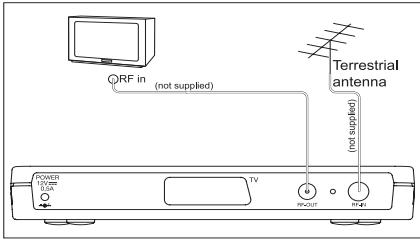
ITD 60 and TV without scart
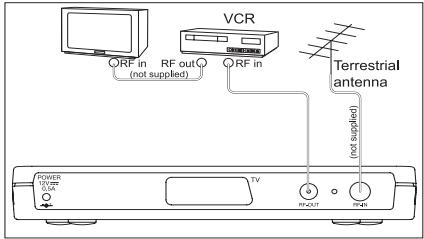
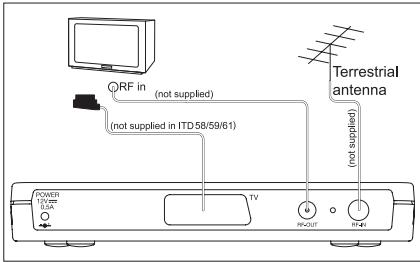
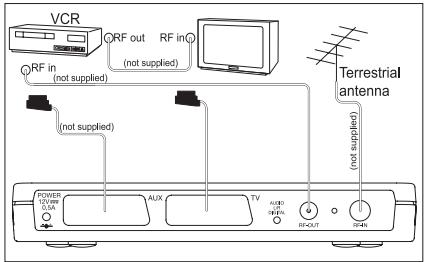
ITD 58/59/60/68 and TV with scart
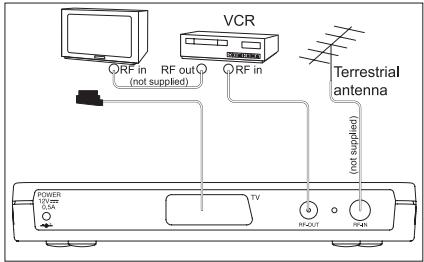
On ITD 58/59, only analog channels can be recorded.
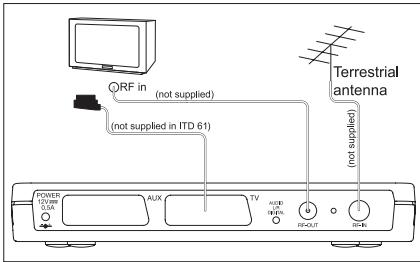
ITD 61/62/64/72
QUICK START
Installation Guide
Getting Started
Unpack your Sagem Communication digital receiver and check for the following accessories : User Manual, remote control, batteries and power cable.
Disconnect power to all your existing equipment.
Locate product in preferred position.
Connect all equipment as shown in the diagram on the adjacent page.
Finally, once all other connections are made, connect power and switch on your television set.
Setting up your Set Top Box
Switch on your Set Top Box. Your television switches to external input. If your television does not switch automatically, select the external input to which the Set Top Box is connected (refer to your TV handbook for details).
The Set Top Box displays a first time installation message. Press OK to continue.
Press OK to confirm menu language and user country set up.
Your Set Top Box will now search for all available channels.
Please be patient as this process takes a few minutes.
When completed, press OK to save the channel list. You should now be watching Digital Television.
Select your preferred digital channel using the Up arrow/Down arrow key button or the numbered keys on your remote control.
Reception issues
If no reception or less than 10 channels are found, picture freezes, blanking out or blocking occurs, please re-check all connections and repeat the automatic tuning procedure above.
Problems with setting up your Set Top Box could be caused by incorrect signal levels. Your aerial system may need realignment or to be upgraded. Contact your retailer for details.
In case of persistent problems despite of correct signal level, contact your retailer or call Sagem Communication helpdesk at 0905 77 48 081 (0.15 £/min, tariff cost effective form 27/06/2005).
Reasons to upgrade your aerial installation
They are 3 main reasons why you may need to upgrade your aerial :
- your current aerial and cabling may not be able to receive all the digital channels due to its age and condition,
- in your location the digital channels may be transmitted on a different frequency to your analog signal and you may need a different type of aerial to receive them,
- the new digital channels may be transmitted from a new transmitter and if this is the case, the aerial would have to be realigned. Alternatively you could add a second aerial to your system.
For further informations, please contact your retailer.
Warnings
Interference - Do not place your Set Top Box near appliances which may cause electromagnetic interferences (i.e. hi-fi speakers). If you do, it may adversely affect the working of the unit, causing the picture or sound to distort.
Covers - Do not remove any fixed covers as this may expose dangerous voltages.
Weather - It is advisable to unplug the aerial during a thunderstorm. Even if your Set Top Box and TV are switched off they can still be damaged by lightning strikes.
Ventilation - The ventilation holes in the casing of your Set Top Box prevent it from over heating. Do not block or cover these holes, especially with cloth or paper. If your Set Top Box is to be built into a compartment or similar enclosed, make sure that there is a gap of at least 10cm on both sides and 20~cm at the top and back of the unit.
Damage - Never use your Set Top Box if it is damaged in any way. Always place your television on a flat level surface avoiding anywhere which may be subject to strong vibration.
Batteries - Batteries are easily swallowed by young children. Do not allow young children to play with the remote control unit.
Temperature - Avoid extreme temperature, either hot or cold. Place your Set Top Box well away from heat sources such as radiators or gas/ electric fires. Do not place candles or table lamps on or near your Set Top Box.
Moisture - Do not allow your Set Top Box to be exposed to rain, moisture or dust. Do not place a plant or flowers which may need watering on your TV. If any liquid is split into your Set Top Box it can cause serious damage. If you spill any liquid into your Set Top Box switch it off at the mains immediately and contact your retailer.
CONTENTS
QUICK START
1. GENERAL INFORMATION 1
1-1.SAFETY 1
1-2.PACKING LIST 1
1-3. CONNECTION TO THE MAINS SUPPLY 1
2. GENERAL DESCRIPTION 2
2-1. FRONT PANEL DESCRIPTION 2
2-2. REAR PANEL DESCRIPTION 2
2-3. REMOTE CONTROL UNIT 2
2-3-1. Battery installation 2
2-3-2. RCU operation 3
3. CONNECTIONS 4
3-1. INTRODUCTION 4
3-2. INSTALL TOP UP TV CARD (only ITD 68/72) 4
3-3. CONNECTION TO TV SET, VCR AND ANTENNA 4
3-4.AUDIO AMPLIFIER (only ITD 64) 4
4. FIRST TIME INSTALLATION 5
4-1. GENERAL INFORMATION 5
4-2. FIRST TIME INSTALLATION 5
4-3. LANGUAGE 5
4-4. COUNTRY 6
4-5.CHANNEL SEARCH IN PROGRESS 6
4-6.AERIAL FAILURE 6
5. BOX ADVANCED SETTINGS 7
5-1. PRELIMINARY/ INSTALLATION CODE 7
5-2.CHANNEL SEARCH: AUTO TUNE 8
5-3.AUDIO/VIDEO INSTALLATION 9
5-3-1. TV 9
5-3-2. VCR (Not available on ITD58/59/60/68) 9
5-3-3.Modulator (Only ITD60) 10
5-3-4. Digital output (Only ITD64) 10
5-4. REINSTALLATION - RESET 10
CONTENTS
6. USER SETTINGS 11
6-1. LANGUAGE SETTING 11
6-2. USER PREFERENCES 11
6-3. FAVOURITE LISTS INSTALLATION (not available on ITD 58/59/60/68) .. 12
6-3-1.CREATION 12
6-3-2. MODIFICATIONS 12
6-4. LOCKING (not available on ITD 58/59/60/68) 13
6-5.CHANGING INSTALLATION CODE 14
7. USING YOUR SET TOP BOX 15
7-1.CHANNEL CHANGE 15
7-2.PROGRAM INFORMATION 15
7-3. EXTENDED PROGRAM INFORMATION 16
7-4. TV CHANNELS LIST 17
7-5.AUDIO LANGUAGE AND SUBTITLE LANGUAGE SELECTION 17
7-5-1. Audio language 17
7-5-2.Subtitle language 17
7-6.VOLUME ADJUSTMENT 18
7-7. TV MODE 18
7-8.DIGITAL TEXT SERVICES 18
7-9. TIMER PROGRAMMING (not available on ITD 58/59/60/68) 18
7-9-1. Sleep timer 18
7-9-2. Events timer 19
7-10. ENHANCED PROGRAM GUIDE (not available on ITD 58/60/68) 20
7-11. FREEZE VIDEO (not available on ITD 58/59/60/68) 20
7-12. RADIO MODE 21
7-13. SET TOP BOX ENHANCEMENT 21
7-14.TROUBLESHOOTING 22
7-15. OUTLINE SPECIFICATIONS 23
7-16.GUARANTEE (TERMS AND CONDITIONS) 24
8.ENVIRONMENT 25
8-1.PACKAGING 25
8-2.BATTERIES 25
8-3. THE PRODUCT 25
1. GENERAL INFORMATION
1-1 SAFETY
Use of your Set Top Box is subject to safety measures designed to protect users and their environment. In order to keep the high performance of your Set Top Box, it should:
- be located in an indoor place to protect it from lightning, rain and direct sunlight,
be located in a dry and well-ventilated place, - be protected from damp, be installed in a way to avoid violent shocks,
- be plugged directly into the mains with the cords provided with the Set Top Box. The use of an extension cord is not recommended,
- do not place anything on top of your Set Top Box as this will restrict ventilation.
Be careful
- Contact with a liquid would lead to deterioration of your Set Top Box, which could cause failure. Never open your Set Top Box.
- Like any electronic device, the Set Top Box contains fragile components. It should thus be installed in a place where it is unlikely to fall and out of reach of children.
- The case of the Set Top Box can be cleaned with a soft and dry cloth. Do not use any type of abrasive pad, scouring powder or solvents, such as alcohol or turpentine, as they could damage the surface of the case.
- The Set Top Box must be disconnected from mains supply (from wall socket or rear panel) before any modification of connection between TV, VCR or antenna.
- Use only the Sagem Communication power adaptor given with the Set Top Box to connect the STB to the mains. Other practice may be dangerous.
- Do not forget to put the batteries inside the remote control unit.
1-2 PACKING LIST
Your Set Top Box is delivered with the following components:
- a remote control unit,
- 2 batteries (R6) for the remote control unit,
- a scart cord for connection to the TV set (Not available with ITD 58/59/61/68),
- AC/DC adapter,
- this user's manual.
1-3 CONNECTION TO THE MAINS SUPPLY
The Set Top Box must be connected by the AC/DC adapter to a 220-240 V wall socket. Turn on the mains power on the wall.
As a safety measure, you can use the power adaptors to cut off the 230V current in case of danger. They must be located near to the device, and must be easily accessible.
Be advised to put your Set Top Box in standby when not used.
2. GENERAL DESCRIPTION
2-1 FRONT PANEL DESCRIPTION
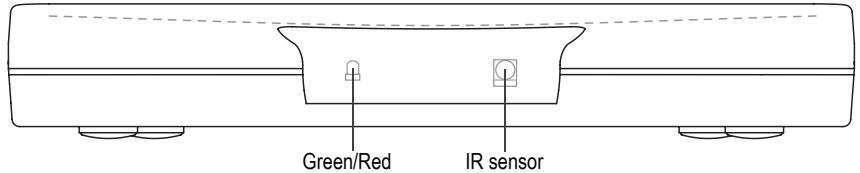
Red LED Stand-by mode.
Green LED Reception of commands from remote control.
2-2 REAR PANEL DESCRIPTION
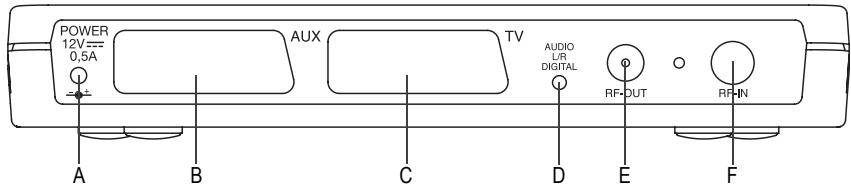
A - Connector for external AC/DC adapter
B - Scart socket for VCR/AUX connection ()
C - Scart socket for TV set connection
D - mini jack 3.5 for DIGITAL audio and AUDIO L/R output (^)
E - RF output for TV
F-Aerial input
() Not available on ITD 58/59/60/68
(**) Only ITD64
2-3 REMOTE CONTROL UNIT
2-3-1 Battery installation
The remote control unit requires two AA or R6 batteries for operation.
The diagram inside the battery compartment will show you how to insert the batteries.


Warning:
Only use the appropriate batteries, according to the manufacturer specifications (see "Outline specifications" page 23). The provided batteries are not rechargeable. Bring back the defective or empty batteries to your local waste disposal in accordance with the current regulations. Do not dispose of used batteries in your dustbin.
2. GENERAL DESCRIPTION
2-3-2 RCU operation
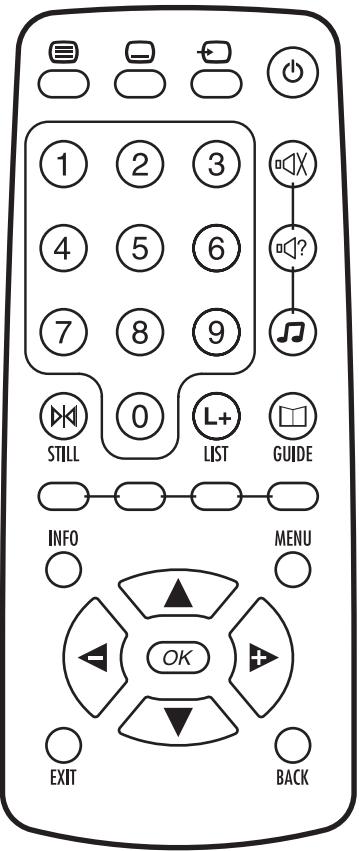
| KEY | FUNCTION |
| ◎ | Standby/Switch on |
| ∃ | Text |
| ∅ | Subtitles |
| ○ | TV/VCR |
| 0-9 | Numerical keys |
| ◎ | Audio mute |
| ◎ | Audio track |
| ∅ | Radio mode |
| ◎H | Still video (*) (**) |
| L | Change favourite lists (*) (**) |
| L | Guide (*) |
| Red | Function key colour |
| Green | Function key colour |
| Yellow | Function key colour |
| Blue | Function key colour |
| INFO | Information |
| MENU | Menu |
| EXIT | Exit |
| BACK | Previous channel and Back in menus |
| △ | Audio volume - and Left arrow for navigation |
| △ | Audio volume + and Right arrow for navigation |
| ▼ | Channel - and Down arrow for navigation |
| ▲ | Channel + and Up arrow for navigation |
| ○ | Smart List and Confirm in setup menu |
Be sure to point the remote control unit directly towards the Set Top Box.
() Function not available on ITD 58/60/68
(^*) Function not available on ITD 59
3. CONNECTIONS
3-1 INTRODUCTION
There are several ways of connecting the Set Top Box to your audio/TV system. Some of the methods enable you to listen to music in stereo sound of CD like quality (ITD 64 only).
Consult your local supplier for assistance in setting up an audio/video configuration best suited to your unique requirements.
Warning: Disconnect the Set Top Box from the mains before connecting or disconnecting any device to it.
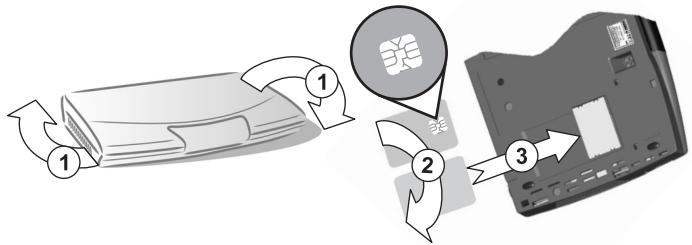
3-2 INSTALL TOP UP TV CARD (only ITD 68/72)
To access, Top Up TV channels, you may turn the receiver and place the smard card as indicated below.
3-3 CONNECTION TO TV SET, VCR AND ANTENNA
Only connect your terrestrial antenna when the Set Top Box is unplugged.
The Set Top Box connects directly to your TV by a scart connector which includes RGB signals to guarantee optimum image quality. Connect the scart cable between the TV scart connector of the Set Top Box and the main scart connector of the TV (the one with 3 points indicating that RGB provision is available).
Then connect the Set Top Box (AUX scart connector) to your VCR or DVD player (main scart connector on the VCR or DVD player). See Connection diagram page II.
Note: ITD 60 is equipped with an RF modulator. You can't see digital programs via the RF lead on another TV set.
3-4 AUDIO AMPLIFIER (only ITD 64)
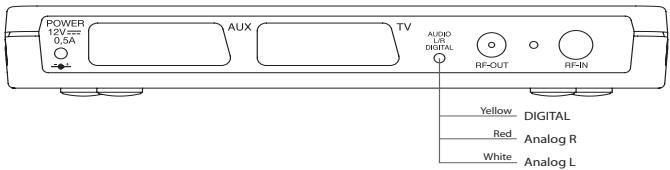
You can connect your Set Top Box to your Hi-Fi amplifier (standard or home cinema) by using a standard jack 3.5 to 3 RCA cable(*) to obtain excellent listening comfort comparable to those of audio programs. Volume adjustment is possible directly from your Set Top Box only on analog output.
(*) This kind of cable is also intended for digital and analog camcorder.
4. FIRST TIME INSTALLATION
4-1 GENERAL INFORMATION
Once you have correctly connected the Set Top Box, you also have to perform a "First time installation". During this procedure, helpful information is displayed at the bottom of the menus.
Please note!
The OK button always confirms a selection within these menus, and pressing it will take you to the next step in the installation process. However, and this is important, often more than one value has to be entered in a menu. First, perform all necessary settings on the different lines. Then, confirm them all simultaneously by pressing OK.
- Use cursors and to move upwards and downwards from one line to another.
Use cursors and to change settings.
You can also use the numerical keys on the remote control to enter numeric values.
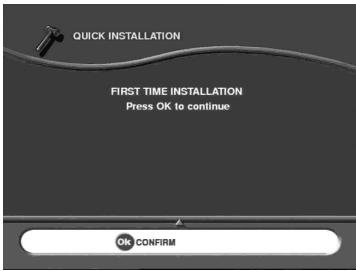
4-2 FIRST TIME INSTALLATION
- Plug in your Set Top Box.
- The "First time installation" menu is shown.
- Press OK to continue.
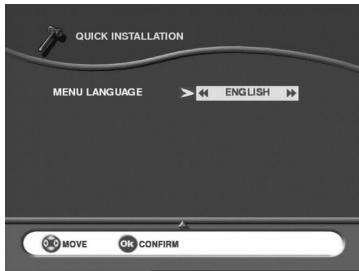
4-3 LANGUAGE
- Select the desired language with cursors and .
- Press OK to continue.
4. FIRST TIME INSTALLATION
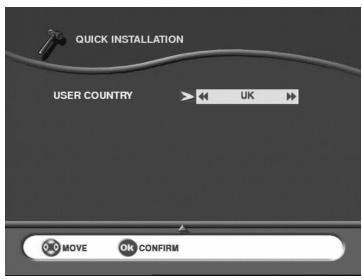
4-4 COUNTRY
- Select the desired country with cursors and . This will also set the current time.
- Press OK to continue.
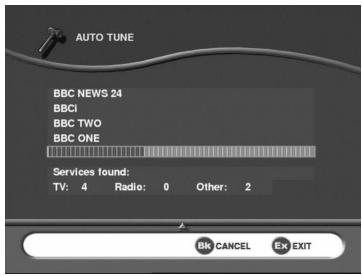
4-5 CHANNEL SEARCH IN PROGRESS
This menu will be shown as the Set Top Box is searching for TV and radio channels.
Please note that the search procedure may take a few minutes.
You can cancel the search at any time by pressing EXIT.
When the search procedure has ended, a message will indicate how many TV and radio channels have been found.
- Press OK to finish the first time installation and to open the door of Digital TV.
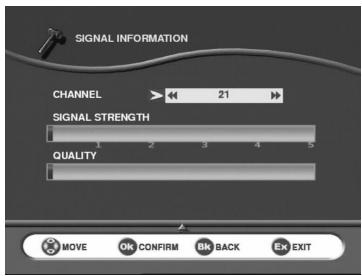
4-6 AERIAL FAILURE
If the channel search has found no channel, this screen is displayed to help you adjust the aerial.
Enter a channel number
(refer to http://www.dtg.org.uk/retailer/tx_details/_tx_index.htm. For example, Oxford channel numbers are 29, 34, 48, 51, 52, 68. These numbers depend on broadcasters and are subject to change.) and move the antenna until the signal and quality bars are green.
When signal and quality are green, press BACK to launch a new channel search.
5. BOX ADVANCED SETTINGS
Go to MENU/INSTALLATION/BOX SETTING/CHANNEL SEARCH.
5-1 PRELIMINARY/ INSTALLATION CODE
Your Set Top Box is supplied ready to use for a standard configuration.
TV:4/3 format, RGB (Letterbox)
VCR: PAL (none on ITD 58/59/60/68)
Access to the installation screens shown below will enable you to adapt your Set Top Box to your favourite equipment.
The access to main menu is obtained by pressing the MENU key.
You can memorise your selections by pressing the OK key.
Return to the previous screen by pressing the BACK key.
Exit from all the screens by pressing the EXIT key.
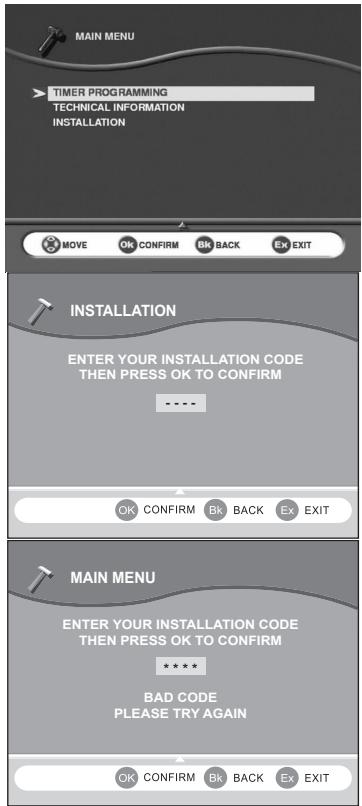
Use cursor to move down to the INSTALLATION line and press OK to confirm.
Access to the installation menus is protected by a secret installation code to avoid any unintentional misadjustment.
Your Set Top Box is supplied with default code 1234.
Note: you will not be prompted to enter any code, if the installation code is «0000».
Enter your code.
As soon as each value is entered, the segment is replaced by a star.
Using cursor of the remote control unit, you can come back to a value that has already been entered and modify it provided the code has not been confirmed by OK.
After entering the four digits press OK to confirm.
An error message will be displayed if the code you have entered is not correct.
5. BOX ADVANCED SETTINGS
5-2 CHANNEL SEARCH: AUTO TUNE
This installation will complete list "All services" with all the channels found during the scanning of all the frequencies.
This list is a summary of all the channels and will not be modified. It will be possible to create personal lists based on this reference list, also called list "All services" (see page 12).
It would be advisable to launch a channel search monthly in order to keep your Set Top Box up to date.
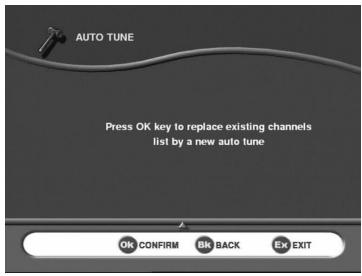
Press OK to start channel tuning.
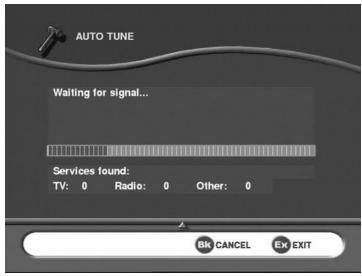
An indicator at the bottom of the screen will indicate the percentage of the scanned frequency band.
The number of different services found is displayed in real time.
A message at the end of the scanning process will ask you to memorize. Press OK
You can cancel the scanning process at any time by pressing the EXIT key.
You can memorize or not.
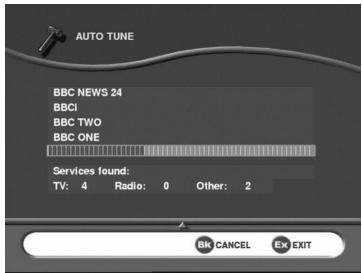
Note: You may observe a difference between the number of channel found and the number of channel present in the channel list. This may happen when you are in area where you receive same channel from different transmitters.
5. BOX ADVANCED SETTINGS
5-3 AUDIO/VIDEO INSTALLATION
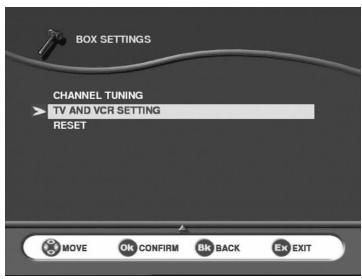
Use cursor to move down to the TV AND VCR SETTING line and press OK to confirm.
5-3-1 TV
Several choices are available.
Scroll through the choices using cursors or
- TV format: 4/3 (Letterbox or Pan-scan) or 16/9.
- TV RGB Output: low,medium, high or none if you want to have PAL video output (^*)
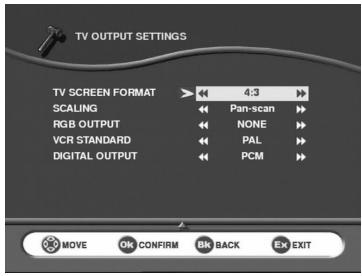
(*) Note that if you choose low, medium or high you will not be able to choose the VCR standard format.
5-3-2 VCR (Not available on ITD58/59/60/68)
Several choices are available.
Scroll through the choices using cursor or
PAL or S-Video standard.
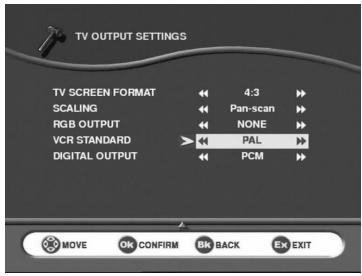
After a final check, press OK to memorize the settings. Press BACK to continue installation or EXIT to terminate.
5. BOX ADVANCED SETTINGS
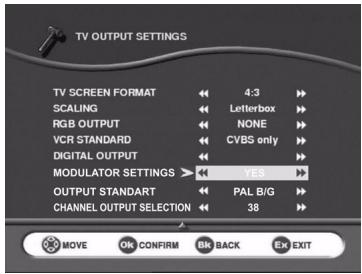
5-3-3 Modulator (Only ITD60)
If you want to adjust the channel for another TV set:
directly access the menu,
- choose the channel (21 to 69) by entering the number,
- choose the standard of your country (B/G, I or K).
The channel is factory set to 38.
5-3-4 Digital output (Only ITD64)
Several choices are available.
Scroll through the choices using cursors 4 or 7 :
Home cinema: Send AC3 audio data to the digital output when available (^*)
- PCM: Send to the digital output stereo audio data.
Default configuration is PCM.
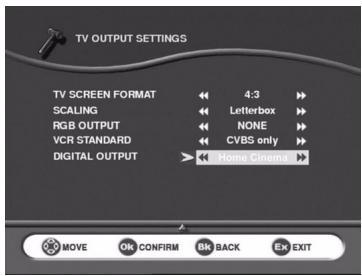
(*) If no AC3 audio data are available default audio track will be played.
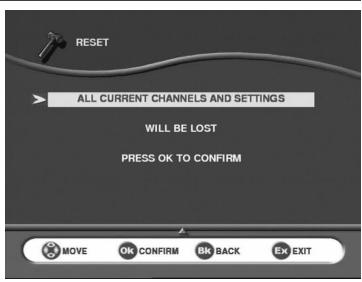
5-4 REINSTALLATION - RESET
Use this option only if you have to start the complete installation procedure all over again. If you continue from here, all your previous settings, access code and favourite channels, etc. will be erased!
If you do not want to perform a reinstallation, you can leave this menu when the warning is displayed by pressing the BACK or EXIT key.
6. USER SETTINGS
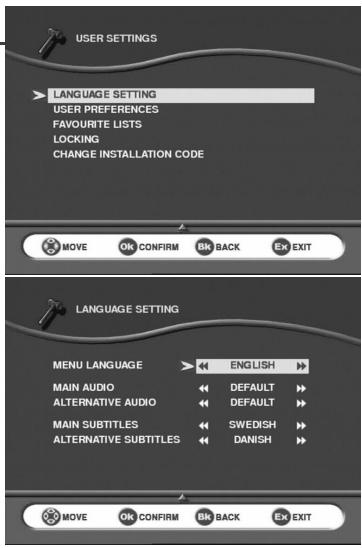
6-1 LANGUAGE SETTING
Go to main MENU/INSTALLATION/USER SETTINGS
Press OK for access to various configurations. Select LANGUAGE SETTING and press OK to confirm.
- MENU LANGUAGE
You may select the menu displayed languages.
MAIN AND ALTERNATIVE AUDIO LANGUAGES
If more than one audio language is transmitted, you may select the main and the alternative languages.
- MAIN AND ALTERNATIVE SUBTITLES
If more than one subtitle is transmitted, you may select the main and the alternative subtitles. To have no subtitle, select NONE for main or alternative subtitle.
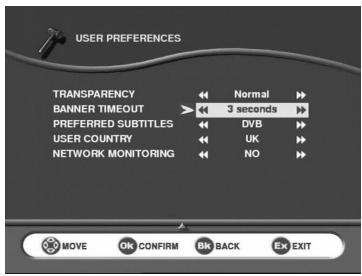
6-2 USER PREFERENCES
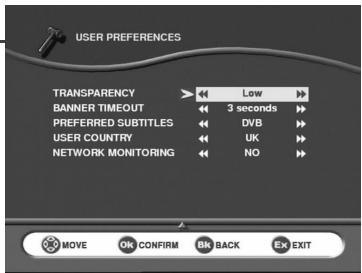
(APPEARANCE PREFERENCES)
- BANNER TRANSPARENCY When you switch channels, an information banner will be shown for a few seconds.
You can select the transparency aspect of the banner (none for full blue, high for full transparency).
- BANNER TIME OUT
When you switch channels, an information banner will be shown for a few seconds. You can select for how long the banner will be shown (0 to 10 seconds).
0 second to have no banner displayed when zapping.
6. USER SETTINGS
6-3 FAVOURITE LISTS INSTALLATION (not available on ITD 58/59/60/68)
To go main MENU/INSTALLATION/USER SETTINGS/FAVOURITE LISTS
This function will enable you to make up a FAVOURITE list of the TV or radio type from the reference list All Services.
6-3-1 CREATION
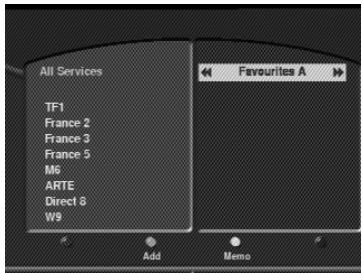
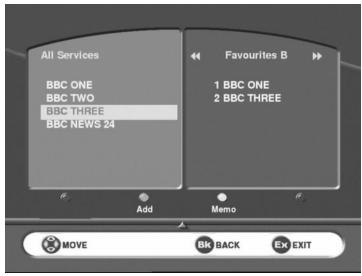
Two lists are displayed simultaneously.
- The list on the left side is the reference list (issued scanning installation).
- The list on the right side is the list under construction.
Use cursors 4 and 7 of the remote control to select the main of the list to be created.
Use to validate the list to be created.
Press the green key to integrate the selected channel.
Repeat as many times as necessary.
At the end of the creation, memorise using the yellow key.
Use cursors + and + of the remote control unit to move from one list to another.
To copy a channel from list "All services" to favourite list (A to G), place the index on the program to be transferred and press the green key.
Repeat as many times as necessary.
At the end of creation, memorise using the yellow key.
6-3-2 MODIFICATIONS
At any time, you can modify your favourite list (A to G). Memorize at the end using the yellow key.
To erase, place the index on the channel to be erased and press the red key.
- To insert a new channel from main list "All services" (for example if you have forgotten to put it in number 5). Move the index in the list "All services" (all channels), select it by pressing the green key (the channel is added at the end of your favourite list). Move the index in your favourite list up to the channel, press the blue key to select it, then use or key to move it, and press blue key again when you are at the right place.
- To move a channel from one place to another in a favourite list, delete it and then insert it from the main list to the place you want.
6. USER SETTINGS
6-4 LOCKING (not available on ITD 58/59/60/68)
To go main MENU/INSTALLATION/USER SETTINGS/LOCKING
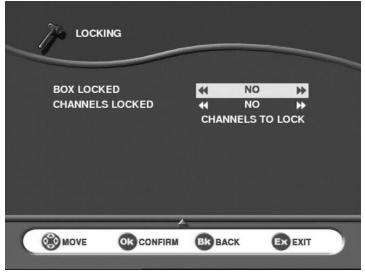
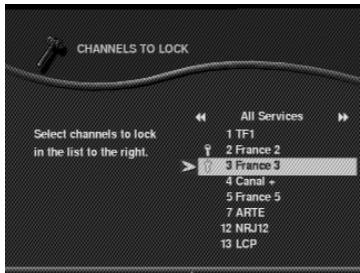
3 types of locking are provided:
- Select Box Locked (yes/no) for general locking. This represents the highest Set Top Box locking level. You will be prompted to enter your code each time you switch on your Set Top Box.
Note: this locking will be activated after one standby/on cycle.
- Select Lock Channels (yes/no) for locking activation. This locks or unlocks all the locked channels in one operation. This offers the advantage of being able to lock several channels and unlock them temporarily.
- Select Channels To Lock for individual channel locking: you can choose to lock only selected channels. To do so, navigate through the channels using cursors and and OK press each time you want to lock a channel.
6. USER SETTINGS
6-5 CHANGING INSTALLATION CODE
To go main MENU/INSTALLATION/USER SETTINGS/CHANGING INSTALLATION CODE
Enter your new code.
As soon as the value has been entered, the segment is replaced with a star.
Use cursor on the remote control unit to come back to a value that has been entered and modify it.
In this case, the value becomes a blinking segment again, indicating that entry is possible.
Enter the same new code to confirm it.
"CORRECT" appears, the code is validated automatically.
If you have not entered the right code, you will see the error message according to appearing "BAD CODE CONFIRMED", enter again the code.
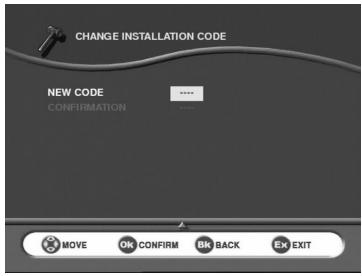
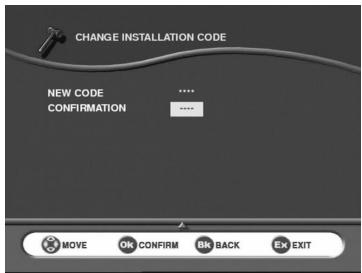
Note: use value "0000" if you do not want to enter any protection code.
7. USING YOUR SET TOP BOX
7-1 CHANNEL CHANGE
Using the keys and , or keys 0-9
Press the keys and to change channel or enter its number on numeric keypad of the remote control unit to access the desired channel directly. It is possible to go back to the previous channel viewed by pressing the BACK key.
Using the channel list
Press the OK key to display the channel list, select your channel, press OK key again to validate. It is possible to go back to the previous channel viewed by pressing the BACK key.
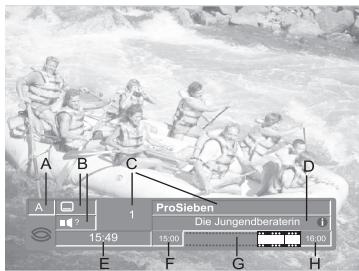
7-2 PROGRAM INFORMATION
Every time you change channels, you will receive program information for a few seconds (in the User preferences menu (see page 11), you can select how long this information will be shown). The information may include:
A - Channel list
B - Number of audio tracks and subtitles available
C - Channel number and name
D - Name of the current program
E - Current time
F - The start and end time of the current program
G - A bar, indicating the elapsed time of the current program
H - The start and end time of the next program.
7. USING YOUR SET TOP BOX
7-3 EXTENDED PROGRAM INFORMATION
The Set Top Box can display information about programs currently being broadcasted as well as those that will be broadcasted next.
By pressing INFO while watching TV, you will get the "Program information" banner.
A - Program information (see page 15)
B - Short summary
C - Next program
If necessary, use + key to continue reading on the next info page.
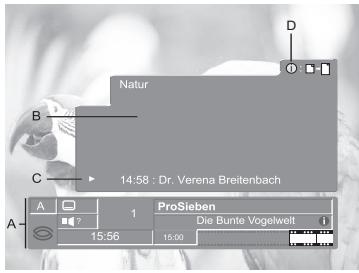
If the 1 icon is displayed (see D), an extended summary is available.
Press INFO to display it.
Use cursors 4 and 7 to switch between the current and the next program information.
When there is a lot of text information, use cursors and to continue reading on the next info page.
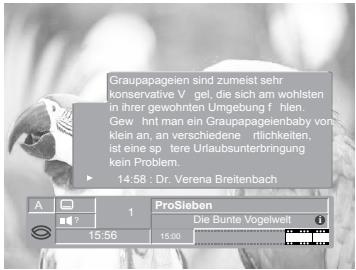
You can see another channel information by pressing cursors and
By pressing OK, you will watch the video. Press INFO or EXIT to return to TV mode.
7. USING YOUR SET TOP BOX
7-4 TV CHANNELS LIST
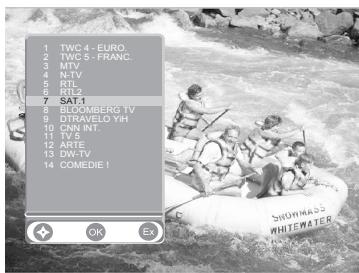
- When viewing TV programs, press OK to display the current channels list.
- Move with cursors , , and select channel with OK
You can Change favourite lists with ^+ key.
- Without displaying TV list, you can directly Change favourite lists by pressing L+ key.
7-5 AUDIO LANGUAGE AND SUBTITLE LANGUAGE SELECTION
By pressing or , you open the menu that lets you enter temporary settings. Settings made in this "options menu" are only valid for the program you are currently watching. If you leave the program and return to it again, the temporary settings will be lost.
7-5-1 Audio language
When available, you can choose select among the different languages being broadcast.

ITD 64 only: If a digital audio stream is available, "DA" eg
digital audio - will be displayed on the same line than the audio language tag. This allows you to choose between stereo or home cinema audio tracks.
Please note: when you select a digital audio, there will be no sound output from the analogue audio connections.
7-5-2 Subtitle language
When available, you can select among different subtitle languages.
Each time you press one of these two keys, you change language.
- A time out automatically closes this menu.
- The number on the left of each language indicates how many languages are available on this current channel.
7. USING YOUR SET TOP BOX
7-6 VOLUME ADJUSTMENT
To increase or reduce the volume, use cursor or
To turn off the sound quickly, press the mute key.
Press the mute key again to restore the sound.
The audio volume cannot be adjusted in the VCR and TV modes.
7-7 TV MODE
With the button, you can toggle between external connected equipment, such as e.g. a digital terrestrial TV or a video recorder (the video must be switched on).
(This is only valid when the units are connected via SCARTcables, and not by RF connection).
7-8 DIGITAL TEXT SERVICES
Pressing key will launch digital text services when broadcast. These interactive applications give you access to various information.
7-9 TIMER PROGRAMMING (not available on ITD 58/59/60/68)
Go to main MENU/TIMER PROGRAMMING
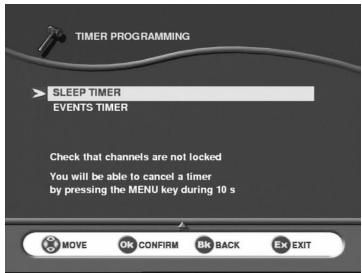
The Timer programming function enables the Set Top Box to:
- switch off at a selected hour (sleep timer),
- automatically switch to your preselected channels at preselected times (events timer).
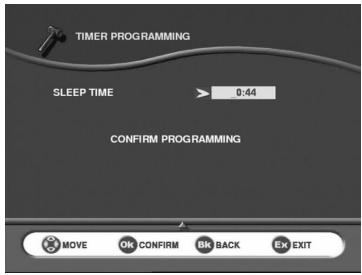
7-9-1 Sleep timer
Enter the selected sleep hour.
Confirm with OK
7. USING YOUR SET TOP BOX
7-9-2 Events timer
You can make the Set Top Box start and stop at a predefined time.
The timer function is very useful when you want to record a program and you are unable to start/stop the recording event yourself, or when you just want to be reminded of the start of a program you do not want to miss.
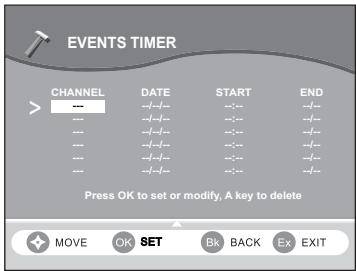
- Press OK to set an event.
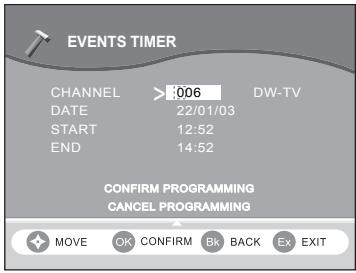
- First, select Channel list with or key.
- Set the date using the numerical keys on your remote control (dd/mm/yy).
If you enter a wrong digit, you can erase it with cursor - Set the start and stop time using the numerical keys on your remote control.
The different start times must not overlap each other.
- Select Confirm and press OK to save.
- Select Cancel and press OK to abort.
Up to 6 different events can be predefined.
At each stop time, the box will return to standby.
During the predefined event in process, you can stop it by pressing the MENU key during 10 seconds.
7. USING YOUR SET TOP BOX
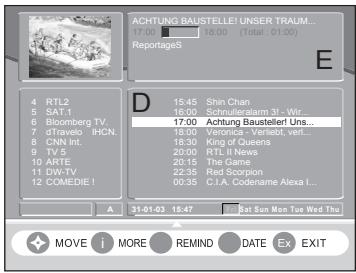
7-10 ENHANCED PROGRAM GUIDE (not available on ITD 58/60/68)
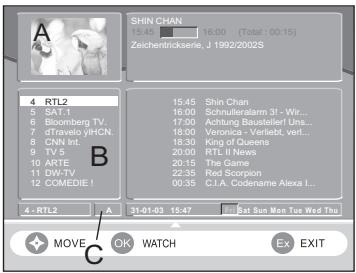
To display more detailed information about a selected program, press the key l . To remove this information, press EXIT key.
A - Resized video is displayed. The video displayed is the current channel's one before entering the EPG.
B - Channels list of the current list is displayed. Select the chosen channel with and and see the associated resized video by pressing OK
C - Displays the name of the favourite list used.
D - By pressing , the current event is highlighted. You can see all events of the day if broadcast by pressing and .
E - The following information about the selected program is displayed at the top of the screen:
the time the program begins and ends,
- a bar which fills in as the program progresses,
the name of the program,
- information about the program's contents (press INFO key to have extended content shown by...).
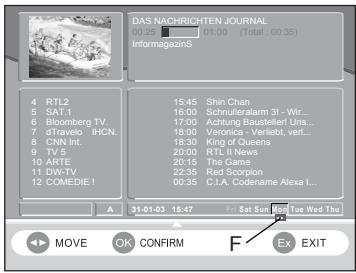
F - Press red key to be able to change the date. Then press cursors + and + to change the date (7 days available according to the data sent by the provider) (Only one day present and following events on ITD 62/72).
Note: information about a selected program can be displayed only if available from the broadcaster.
7-11 FREEZE VIDEO (not available on ITD 58/59/60/68)
The current video can be frozen using the STILL key.
Pressing the STILL key again video is then released.
In order to avoid screen burning, brightness is automatically decreased after some minutes. Normal brightness can be recovered pressing the STILL key again.
WARNING: keeping the video frozen with full brightness for a long time can damage your TV.
7. USING YOUR SET TOP BOX
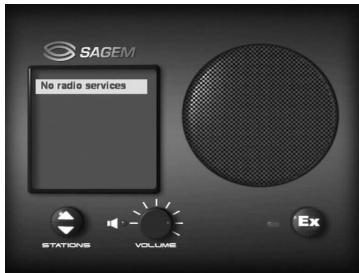
7-12 RADIO MODE
Press the l key on the remote control unit of the Set Top Box.
You can move through the list displayed using and .
You can adjust the volume with and .
7-13 SET TOP BOX ENHANCEMENT
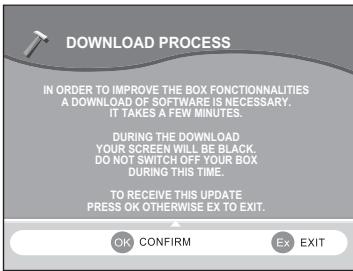
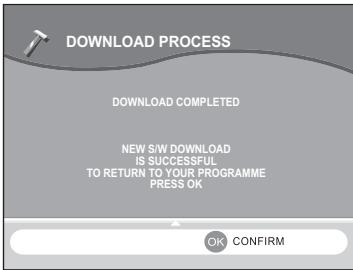
The Set Top Box goes in this state when a new version of software is available on the network after startup.
Red led flashes.
- The Welcome screen is displayed.
Then a screen for "download process" request is displayed.
You can delay the downloading process by pressing the EXIT key. This process will be displayed again the next time you switch on your Set Top Box. When pressing the key, the downloading will be performed:
- Then the screen becomes black,
- Flash on led.
During this mode, no action from the user is authorized.
Once the process is completed, the receiver will switch on automatically. After startup an information screen is displayed on download completed. Then press OK and enjoy with your last viewed program.
Note: if the download process is not correctly performed, the screen stays black and the green led flashes indicating the cause of the failure (see table below).
When an error occurs, press any key on the remote to continue. Then put the Set Top Box in standby mode and switch it back on to perform downloading again.
If this operation does not succeed, unplug the main cord and the antenna cord. Then plug them again to perform downloading again.
7. USING YOUR SET TOP BOX
7-14 TROUBLESHOOTING
| Error Code | Origin of Error | User Action |
| 1, 2 or 3 flashes | Reception error | Acknowledge the message by pressing any key on the remote control. If necessary, repeat your request. |
| 4, 5 or 6 flashes | Flow validity errors | Acknowledge the message by pressing any key on the remote control. If necessary, repeat your request. |
| 7 or 8 flashes | Local errors | Acknowledge the message by pressing any key on the remote control. If necessary, repeat your request. |
| 9, 10, 11 or 12 flashes | Various errors | Acknowledge the message by pressing any key on the remote control. If necessary, repeat your request. |
| 14, 15, 16 or 17 flashes | Defective Set Top Box | Contact your retailer for replacement. |
The remote control has no effect on the Set Top Box
The red front panel LED remains on
A black screen or an error message is displayed
Bad reception with a portable antenna
Point the remote control towards the terminal.
Check the state and polarity of the batteries.
Switch terminal from standby to on ()
Perform a new auto tune.
Move the antenna away from the Set Top Box.
7. USING YOUR SET TOP BOX
7-15 OUTLINE SPECIFICATIONS
Transmission standards
DVB-T, MPEG 2, COFDM
Tuner (RF Input)
Input Connector: IEC 169-2
Female
RF input frequency range :
UHF 470-862 MHz (8 MHz BW)
RF input level: -90 to -20 dBm
RF impedance: 75 Ohm
COFDM bandwidth: 8Mhz
Tuning step: 166,66Khz
RF booster/modulator CH 21-69
(ITD 60 only)
Tv standard: B/G, K, I (selectable)
Output Connector: IEC 169-2 Male
Loopthrough F. Range: 47-862 MHz
Demodulator
COFDM mode : 2k / 8k supported
Support SFN
Modulation: QPSK, 16-QAM
64-QAM
Code rate: 1/2 to 7/8
Mode: Non hierarchical
Guard interval: 1/4, 1/8, 1/16, 1/32
De-interleaver: 12x17 Forney
convolutional
Outer decoder: Reed Solomon
(204,188,8)
Demultiplexing/Descrambling
CD ISO/IEC 13818-1 compliant
Video Decoder
MPEG-2 (ISO/IEC 13818-2)
Profile level: MP@ ML
Input rates: 1.5 to 15 Mbit/s
Aspect Ratio: 4:3 and 16:9
Video resolution: 720x576, 704x576
544x576, 480x576, 352x576,
352x288
Conversion: Pan and Scan, Letter box
Resizing: Down/Up (1/4, 1/16)
Audio Decoder
CD ISO/IEC 13818-3 compliant
Mode: Mono, Stereo, Joint stereo
Sampling frequency:
32/44.1/48 KHz
A/V Data Input/Output
TV scart
RGB, CVBS, Audio stereo
AUX scart (ITD 62/64/72 only)
RVB in, CVBS, S-video out,
Audiostereo
Jack 3.5mm (ITD 64 only)
Audio L/R (volume and mute control)
- Digital audio output (AC3 and PCM)
External Power supply
AC:220-240V\~50Hz
Output: 12 V DC 700 mA
Power consumption max. 11 W
(stand-by 9.5 W)
Front Panel
1 leds
IR sensor : 38 KHz
Rear Panel
1 x IEC female (signal input)
1 x IEC male (RF Loopthrough)
1xTVSCART
1 x AUX SCART (ITD 62/64/72 only)
1 x 3.5 mm jack (digital and analog audio output)
Physical Specifications
Size (wxdxh): 220x135x35 mm
Total weight: 400g
Operating temp. +5^ to +40^
Total packing (carton box)
Total weight: 1.0 kg
Size (wxdxh) : 247x236x80 mm
Storage temp. -25^ to +65^
Accessories
33 keys Remote Control
NEC Code
Operating range up to 7m
Batteries 2 × 1.5V (type AA)
Power cord
Scart cord (ITD 60/62/64/72 only)
User manual
External AC/DC adapter
7. USING YOUR SET TOP BOX
7-16 GUARANTEE (TERMS AND CONDITIONS)
ATTENTION
In order to apply the guarantee, you should contact your dealer
or Sagem Communication helpdesk at 0905 77 48 081 (0.15 £/min, tariff cost effective form 27/06/2005).
Proof of purchase will be required. Should any malfunctioning arise,
the dealer or Sagem Communication helpdesk will advise you what to do.
If you bought your equipment from Sagem Communication directly, the following shall apply:
1) Sagem Communication undertakes to remedy by repair, free of charge for labour and replacement parts, any defects in the equipment during a period of twelve (12) months from the date of original delineavit of the equipment, where those defects are a result of faulty workmanship.
During this twelve-month guarantee period, the defective equipment will be repaired free of charge; the customer must however return the defective equipment at his/her own expense, to the address given by Sagem Communication After Sales Department, the phone number of which can be found on the delivery slip. Unless the customer has concluded with Sagem Communication a maintenance contract for the equipment which specifically provides for repairs to be carried out at the Customer's place, the repairs will not be carried out on the equipment at the Customer's place.
The following sentence applies to purchases of equipment for the customer's trade, business or profession. Except as otherwise expressly provided in this Document and to the extent permitted by law, Sagem Communication makes no representations or warranties, express or implied, statuette or otherwise, and to such extent, all terms and conditions implied by law are hereby excluded.
This guarantee does not affect the Customer's statutory rights.
2) Exclusions from Guarantee
Sagem Communication shall have no liability under the guarantee in respect of:
-
damage, defects breakdown or malfunction due to:
-
failure to properly follow the installation process and instructions for use, or
- an external cause to the equipment (including but not limited to, lightening, fire, shockor water damage of any nature), or
- modifications made without the written approval of Sagem Communication, or
- a failure or neglect to maintain the equipment or inappropriate maintenance, or
- unsuitable operating conditions, particularly of temperature and humidity, or
-
repair or maintenance of the equipment by persons not authorised by Sagem Communication,
-
wear and tear from normal daily use of the equipment and its accessories,
- damage due to insufficient or bad packaging of equipment when returned to Sagem Communication,
supply of new versions of software, - work on any equipment or software modified or added without the prior written consent of Sagem Communication,
- malfunctions not resulting from the Equipment or from software installed in user workstations for the purpose of use of the equipment,
-
communication problems related to an unsuitable environment, including:
-
problems related to access and/or connection to the Internet such as interruptions by access networks or malfunction of the line used by the subscriber or his correspondent,
- transmission faults (for example poor geographical coverage by radio transmitters, interference or poor line quality),
-
the local network fault (wiring, servers, workstations) or the failure of the transmission network,
-
the normal servicing (as defined in the user guide supplied with the equipment) as well as malfunctioning due to servicing not being carried out, servicing costs are in any event always borne by the customer.
8. ENVIRONMENT
Preservation of the environment is an essential concern of Sagem Communication. The desire of Sagem Communication to operate systems observing the environment and consequently it has decided to integrate environmental performances in the life cycle of its products, from manufacturing to commissioning, use and elimination.
8-1 PACKAGING

The presence of the logo (green dot) means that a contribution is paid to an approved national organisation to improve packaging recovery and recycling infrastructures.
To facilitate recycling, please respect the sorting rules set up locally for this kind of waste.
8-2 BATTERIES
If your product contains batteries, they must be disposed of at appropriate collection points.
8-3 THE PRODUCT

The crossed-out waste bin stuck on the product or its accessories means that the product belongs to the family of electrical and electronic equipments.
In this respect, the European regulations ask you to dispose of it selectively:
- At sales points in the event of the purchase of similar equipment.
- At the collection points made available to you locally (drop-off centre, selective collection, etc.).
In this way you can participate in the re-use and upgrading of Electrical and Electronic Equipment Waste, which can have an effect on the environment and human health.
User Guide
Data subject to change without notice

SAGEM COMMUNICATION
- DIGITAL TERRESTRIAL TV RECEIVER
- USER MANUAL
- ENGLISH
- QUICK START
- CONGRATULATIONS!
- Quick Start Guide
- Connection diagram
- Installation Guide
- Getting Started
- Setting up your Set Top Box
- Reception issues
- Reasons to upgrade your aerial installation
- Warnings
- CONTENTS
- GENERAL INFORMATION 1
- GENERAL DESCRIPTION 2
- CONNECTIONS 4
- FIRST TIME INSTALLATION 5
- BOX ADVANCED SETTINGS 7
- USER SETTINGS 11
- USING YOUR SET TOP BOX 15
- 8.ENVIRONMENT 25
- GENERAL INFORMATION
- 1-1 SAFETY
- Be careful
- 1-2 PACKING LIST
- 1-3 CONNECTION TO THE MAINS SUPPLY
- GENERAL DESCRIPTION
- 2-1 FRONT PANEL DESCRIPTION
- 2-2 REAR PANEL DESCRIPTION
- 2-3 REMOTE CONTROL UNIT
- 2-3-1 Battery installation
- 2-3-2 RCU operation
- CONNECTIONS
- 3-1 INTRODUCTION
- 3-2 INSTALL TOP UP TV CARD (only ITD 68/72)
- 3-3 CONNECTION TO TV SET, VCR AND ANTENNA
- 3-4 AUDIO AMPLIFIER (only ITD 64)
- FIRST TIME INSTALLATION
- 4-1 GENERAL INFORMATION
- Please note!
- 4-2 FIRST TIME INSTALLATION
- 4-3 LANGUAGE
- 4-4 COUNTRY
- 4-5 CHANNEL SEARCH IN PROGRESS
- 4-6 AERIAL FAILURE
- BOX ADVANCED SETTINGS
- 5-1 PRELIMINARY/ INSTALLATION CODE
- Your Set Top Box is supplied with default code 1234.
- 5-2 CHANNEL SEARCH: AUTO TUNE
- 5-3 AUDIO/VIDEO INSTALLATION
- 5-3-1 TV
- 5-3-2 VCR (Not available on ITD58/59/60/68)
- 5-3-3 Modulator (Only ITD60)
- 5-3-4 Digital output (Only ITD64)
- 5-4 REINSTALLATION - RESET
- USER SETTINGS
- 6-1 LANGUAGE SETTING
- 6-2 USER PREFERENCES
- (APPEARANCE PREFERENCES)
- 6-3 FAVOURITE LISTS INSTALLATION (not available on ITD 58/59/60/68)
- 6-3-1 CREATION
- 6-3-2 MODIFICATIONS
- 6-4 LOCKING (not available on ITD 58/59/60/68)
- 6-5 CHANGING INSTALLATION CODE
- USING YOUR SET TOP BOX
- 7-1 CHANNEL CHANGE
- 7-2 PROGRAM INFORMATION
- 7-3 EXTENDED PROGRAM INFORMATION
- 7-4 TV CHANNELS LIST
- 7-5 AUDIO LANGUAGE AND SUBTITLE LANGUAGE SELECTION
- 7-5-1 Audio language
- 7-5-2 Subtitle language
- 7-6 VOLUME ADJUSTMENT
- 7-7 TV MODE
- 7-8 DIGITAL TEXT SERVICES
- 7-9 TIMER PROGRAMMING (not available on ITD 58/59/60/68)
- 7-9-1 Sleep timer
- 7-9-2 Events timer
- 7-10 ENHANCED PROGRAM GUIDE (not available on ITD 58/60/68)
- 7-11 FREEZE VIDEO (not available on ITD 58/59/60/68)
- 7-12 RADIO MODE
- 7-13 SET TOP BOX ENHANCEMENT
- 7-14 TROUBLESHOOTING
- 7-15 OUTLINE SPECIFICATIONS
- Transmission standards
- Tuner (RF Input)
- Demodulator
- Demultiplexing/Descrambling
- Video Decoder
- Audio Decoder
- A/V Data Input/Output
- External Power supply
- Front Panel
- Rear Panel
- Physical Specifications
- Accessories
- 7-16 GUARANTEE (TERMS AND CONDITIONS)
- ATTENTION
- ENVIRONMENT
- 8-1 PACKAGING
- 8-2 BATTERIES
- 8-3 THE PRODUCT
- SAGEM COMMUNICATION
Brand : SAGEM
Model : ITD 59
Category : Digital TV Receiver