
RPS150 - Computer Adapter TP-LINK - Free user manual and instructions
Find the device manual for free RPS150 TP-LINK in PDF.


| Product Type | Redundant Power Supply (RPS) for managed switches |
| Input Voltage | 100-240 V AC, 50/60 Hz |
| Output Voltage / Current | +12 V DC, 12.5 A |
| Maximum Output Power | 150 W |
| LED Indicators | Power (green on/flashing/off), FAN (green on/flashing/off) |
| Protection | Over current, over voltage |
| Installation Options | Desktop or rack-mount via optional RPS2 chassis |
| Weight | 5.5 kg (approx.) |
| Operating Temperature | 0 °C to 40 °C |
| Storage Temperature | -40 °C to 70 °C |
| Operating Humidity | 20% to 90% RH (non-condensing) |
| Storage Humidity | 10% to 95% RH (non-condensing) |
| Safety Compliance | FCC Class A, CE, ICES-3 (A) |
| Package Contents | RPS150 unit, AC power cord, DC power cord, grounding cable, rubber feet, quick installation guide |
| Cleaning Instructions | Disconnect power before cleaning; use a dry cloth; do not use liquid cleaners |
| Repairability | No user-serviceable parts; contact TP-Link support for service |
Frequently Asked Questions - RPS150 TP-LINK
User questions about RPS150 TP-LINK
0 question about this device. Answer the ones you know or ask your own.
Ask a new question about this device
Download the instructions for your Computer Adapter in PDF format for free! Find your manual RPS150 - TP-LINK and take your electronic device back in hand. On this page are published all the documents necessary for the use of your device. RPS150 by TP-LINK.
USER MANUAL RPS150 TP-LINK
Redundant Power Supply
About this Installation Guide
This Installation Guide describes the hardware characteristics, installation methods and the points that should be attended to during the installation. This Installation Guide is structured as follows:
Chapter 1 Introduction.
This chapter describes the features and external components of RPS150.
Chapter 2 Installation.
This chapter illustrates how to install RPS150.
Chapter 3 Connection.
This chapter illustrates how to do the physical connection of RPS150.
Appendix A Specifications.
Audience
This Installation Guide is for:
Network Engineer
Network Administrator
Conventions
This Guide uses the specific formats to highlight special messages. The following table lists the notice icons that are used throughout this guide.

Remind to be careful. A caution indicates a potential which may result in device damage.
Remind to take notice. The note contains the helpful information for a better use of the product.
Related Document
This Installation Guide is also available in PDF on our website. To obtain the latest documentation and product information, please visit the official website:
http://www.tp-link.com
Contents
Chapter 1 Introduction ———— 01
1.1 Product Overview....01
1.2 Features....01
1.3 Appearance....01
Chapter 2 Installation 03
2.1 Package Contents....03
2.2 Safety Precautions....03
2.3 Installation Tools....06
2.4 Product Installation....06
Chapter 3 Connection ———— 08
3.1 Connect to Ground.....08
3.2 Connect to the Powered Device....09
3.3 Power On....10
3.4 Verify Installation....10
Appendix A Specifications 11
Chapter 1 Introduction
1.1 Product Overview
The TP-Link Redundant Power Supply (RPS) RPS150 is designed to maximize availability for the business network. RPS150 is used as a redundant power supply for TP-Link RPS capable L2 and L3 Managed switches. When worked with these switches, RPS150 provides a quick failover feature to ensure that the connected switches can work uninterruptedly in the event of an internal power supply failure. Without any necessary configuration, RPS150 can be easily installed as an independent power supply unit, or placed inside RPS2 chassis which is designed to accommodate two RPS150 for rack-mount installation. Overall, the system integration between TP-Link's managed switches and RPS devices, provides you a resilient and highly available converged network at an affordable price.
1.2 Features
- Redundant power supply for the switch's built-in power supply
■ 100 to 240 Volts, 50 to 60Hz AC input range
■ +12V/12.5A DC output
■ Up to 150 watts output power
■ LED status indicators
■ Over current/voltage protection
■ Independent or rack-mount installation.
1.3 Appearance
Front Panel
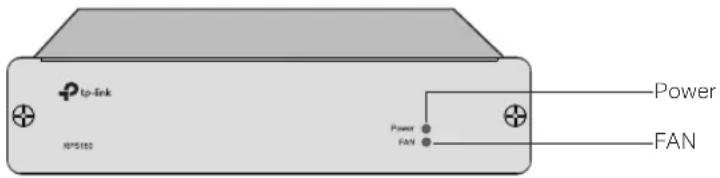
The front panel of RPS150 is shown as the following figure.
Figure 1-1 Front Panel of RPS150
Indicators
You can monitor the running status of RPS150 through the Power and FAN LEDs.
| LED Status | Indication | |
| Power | On The system power supply is normal | |
| Flashing The system power supply is abnormal | ||
| Off The system power supply is off or abnormal | ||
| FAN | On | The fan works normally |
| Flashing The fan works abnormally | ||
| Off The power supply is off or the fan works abnormally | ||
Rear Panel
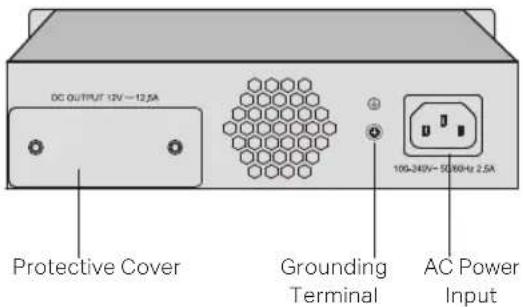
The rear panel of RPS150 is shown as the following figure.
Figure 1-2 Rear Panel of RPS150
AC Power Input
On the right side of the rear panel, and the input AC power should be 100-240V\~50/60Hz.
Grounding Terminal
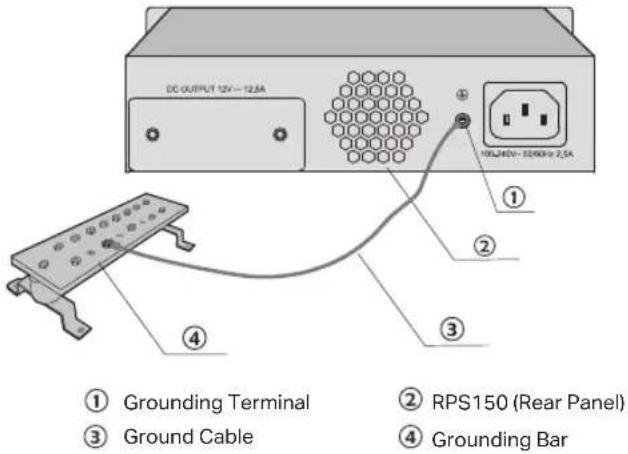
On the left side of the AC Power Input, please ground the device with the provided Ground Cable. You can also ground the device through the PE (Protecting Earth) cable of AC cord. For detailed information, please refer to section 3.1 Connect to Ground.
Protective Cover
It is used to protect the DC Power Output Socket. Remove it to connect RPS150 to the powered device.

Caution:
- Please use the provided power cord and verify the power supply is 100-240V\~50/60Hz.
- The electrical outlet shall be installed near the device and shall be easily accessible.
2.1 Package Contents
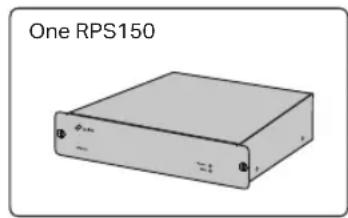
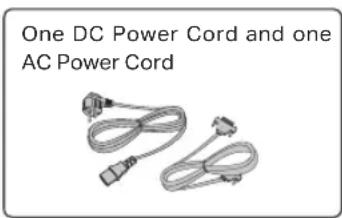
Make sure that the package contains the following items. If any of the listed items is damaged or missing, please contact your distributor.

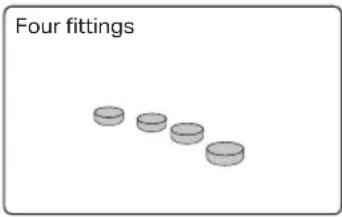
2.2 Safety Precautions
To avoid any device damage and bodily injury caused by improper use, please observe the following rules:
■ Safety Precautions
- Keep the power off during the installation. Wear an ESD-preventive wrist strap, and make sure that the wrist strap has a good skin contact and is well grounded.
- Make sure that the input AC power voltage matches the specifications indicated on the rear panel of the RPS150.
- Before switching on the power, make sure that the power circuit will not be overloaded, otherwise the RPS150 will work abnormally or be damaged.
- Do not open or remove the cover of the RPS150, even if it is not electrified.
- Before cleaning the device, cut off the power supply. Do not clean it by the waterish cloth, and never use any other liquid cleaning method.
■ Site Requirements
To ensure normal operation and long service life of the device, please install it in an environment that meets the requirements described in the following subsection.
Temperature/Humidity
natural_image
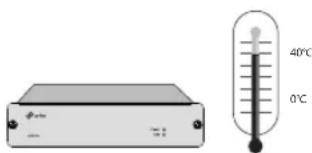
Illustration of a temperature measurement device with a thermometer showing 40°C and 0°C (no text or symbols on the device itself)Please keep a proper temperature and humidity in the equipment room. Too high/low humidity may lead to bad insulation, electricity leakage, mechanical property changes and corrosions. Too high temperature may accelerate aging of the insulation materials and can thus significantly shorten the service life of the device. For normal temperature and humidity of the device, please check the following table.
| Environment Temperature Humidity | ||
| Operating 0 | °C to 40°C | 20% to 90%RH Non-condensing |
| Storage -40 | °C to 70°C | 10% to 95%RH Non-condensing |
Clearness

natural_image
Illustration of a device emitting noise with a prohibition sign (no text or symbols on the device itself)The dust accumulated on the device can be absorbed by static electricity and result in poor contact of metal contact points. Some measures have been taken for the device to prevent static electricity, but too strong static electricity can cause deadly damage to the electronic elements on the internal circuit board. To avoid the effect of static electricity on the operation of the device, please attach much importance to the following items:
- Dust the device regularly, and keep the indoor air clean.
- Keep the device well grounded and ensure static electricity has been transferred.
Electromagnetic Interference
natural_image
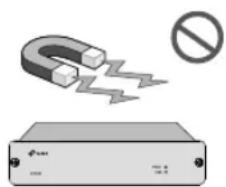
Illustration of a U-shaped magnet with a lightning bolt and a prohibition symbol (no text or labels)Electronic elements including capacitance and inductance on the device can be affected by external interferences, such as conducted emission by capacitance coupling, inductance coupling, and impedance coupling. To decrease the interferences, please make sure to take the following measures:
- Use the power supply that can effectively filter interference from the power grid.
- Keep the device far from high-frequency, strong-current devices, such as radio transmitting station.
- Use electromagnetic shielding when necessary.
Lightening Protection
natural_image
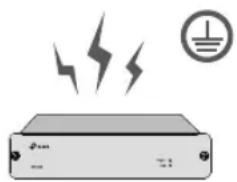
Illustration of a portable electronic device with lightning bolts and a circuit symbol (no text or labels)Extremely high voltage currents can be produced instantly when lightning occurs and the air in the electric discharge path can be instantly heated up to 20,000°C. As this instant current is strong enough to damage electronic devices, more effective lightning protection measures should be taken.
- Ensure the rack and device are well earthed.
■ Make sure the power socket has a good contact with the ground. - Keep a reasonable cabling system and avoid induced lightning.
- Use the signal SPD (Surge Protective Device) when wiring outdoor.

Note:
For detailed lightning protection measures, please refer to section 3.1 Connect to Ground.
Installation Site

natural_image
Simple line drawing of a device with a power outlet connected to a box (no text or symbols)When installing the device on a rack or a flat workbench, please note the following items:
- The rack or workbench is flat and stable, and sturdy enough to support the weight of 5.5kg at least.
- The rack or workbench has a good ventilation system. The equipment room is well ventilated.
- The rack is well grounded. Keep the power socket less than 1.5 meters away from the device.
2.3 Installation Tools
Phillips Screwdriver
■ ESD-preventive wrist wrap
2.4 Product Installation
The RPS150 can be installed either in a standard 19-inch rack via RPS2 or directly on a tabletop.
■ Desktop Installation
To install the device on the desktop, please follow the steps:

Caution:
- Please set 5 to 10cm gaps around the device for heat dissipation and air circulation.
-
Please avoid any heavy thing placed on the device.
-
Set the device upside down on the flat desktop strong enough to support the entire weight of the device with all fittings.
- Remove the adhesive backing papers from the supplied rubber feet and attach the rubber feet to the recessed areas on the bottom at each corner of the device.
Figure 2-1 Desktop Installation
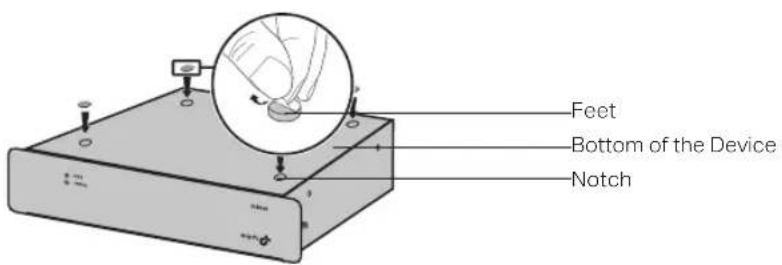
- Turnover the device and place it stably on the tabletop.
Rack Installation
RPS150 can be installed in the standard rack via the RPS2 chassis. One RPS2 chassis is designed to hold up to 2 RPS150s. You should install the RPS2 chassis to the rack first, and then insert RPS150 into the RPS2. The detailed instructions are described below:
- Check the grounding and stability of the rack.
-
Place the RPS2 horizontally to an appropriate position in the rack and then support it with bracket.
-
Secure the RPS2 to each side of the fixed guide slot with screws. Verify the stability and horizontality of RPS2 in the rack.
Figure 2-2 Install the RPS2 to a standard rack

- Insert the RPS150 in to the RPS2 and fix it with screws, as illustrated in the figure below:
Figure 2-3 Insert RPS150 into RPS2

natural_image
Technical line drawing of a mechanical assembly with two components, no text or symbols present
Note:
- Do not attach the supplied rubber feet on the bottom of RPS150 if it is supposed to be inserted into RPS2 in the bracket.
- A well grounded bracket can largely prevent the device from static electricity, electric leakage, lightning and electromagnetic interference. Make sure the grounding cable of the bracket is correctly installed.
- Ensure the device is well ventilated for the purpose of heat dissipation.
Chapter 3 Connection
3.1 Connect to Ground
Connecting the device to ground is to quickly release the lightning over-voltage and over-current of the device, which is also a necessary measure to protect the body from electric shock.
In different environments, the device may be grounded differently. The following will instruct you to connect the device to the ground in two ways, connecting to the grounding bar or connecting to the ground via the power cord. Please connect the device to ground in the optimum way according to your specific operation environment.
■ Connecting to the Grounding Bar
If the device is installed in the Equipment Room, where a grounding bar is available, you are recommended to connect the device to the grounding bar as shown in the following figure.
Figure 3-1 Connecting to the Grounding Bar

Note:
The grounding bar and ground cable are not provided with our product. If needed, please self purchase them.
■ Connecting to the Ground via the Power Supply
If the device is installed in the normal environment, the device can be grounded via the PE (Protecting Earth) cable of the AC power supply as shown in Figure 3-4.
To connect the device to the ground via the PE (Protecting Earth) cable of AC power cord, please make sure the PE (Protecting Earth) cable in the electrical outlet is well grounded in advance.
3.2 Connect to the Powered Device
The RPS150 can be used as a redundant backup power supply unit for multiple switch models. Follow the steps below to connect the RPS150 to a powered device.
-
Confirm that the power supply of the RPS150 is cut off.
-
Remove the protective covers covering the redundant power socket of RPS150 and the switch. Here we take the removing process of RPS150 for example:
Figure 3-2 Removing the RPS Protective Cover

① Protective Cover
② RPS DC Output
- Connect the RPS150 and the switch with DC power cord, as illustrated in Figure 3-3. One end of the DC power cord is marked by the letters "TOP" and the other end has a positioning card attached to it. Plug the end with the letters "TOP" into the input socket of the switch with "TOP" facing up and the other end with positioning card into the DC output socket of the RPS150 with the positioning card facing up.

Caution:
Make sure the power supply of RPS150 is cut off when connecting or disconnecting RPS150 and the switch, otherwise both RPS150 and the switch may work abnormally or even be damaged.
Figure 3-3 Connecting to the Powered Switch

① RPS150
② Positioning Card
③ Switch One connector with letters "TOP"
3.3 Power On
The RPS150 requires 100-240V\~50/60HZ AC power input.
-
Confirm that the power supply satisfies the requirement of the input voltage of RPS150:
-
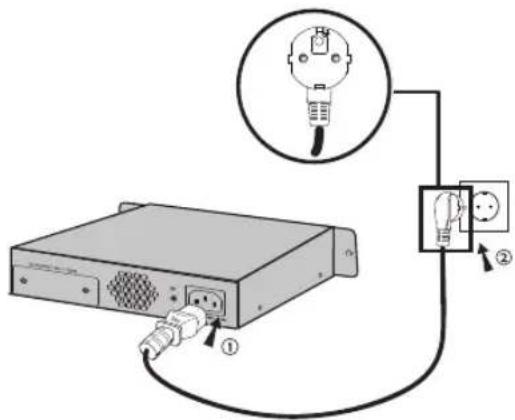
Plug the negative connector of the provided AC power cord into the power socket of RPS150, and the positive connector into a power outlet as the following figure shown. After RPS150 is powered on normally, the Power LED and FAN LED indicators on its front panel will light on all the time.
Figure 3-4 Connecting to Power Supply

Caution:
- Make sure that the power supply is well grounded. Locate the switch of the power supply in advance, so that you can cut it off in time when needed.
- Disconnect RPS150 from its AC power supply when plugging or removing the DC power cable.
- The figure is to illustrate the application and principle. The power cord you get from the package and the socket in your situation will comply with the regulation in your country, so they may differ from the figure above.
3.4 Verify Installation
After completing the installation, please verify the following items:
- There is enough room around the sides of RPS150 for heat dissipation and the air flow is adequate:
- The voltage of the power supply meets the requirement of the input voltage of the device:
■ The power socket, device and rack are well grounded.
Appendix A Specifications
| Item Content | |
| AC Power Input 100-240V~ 50/60Hz 2.5A | |
| DC Power Output 12V 12.5A | |
| Maximum Power Output | 150W |
| LEDs Power, FAN | |
| Operating Temperature 0 | °C to 40°C |
| Storage Temperature -40 | °C to 70°C |
| Operating Humidity 20% | to 90%RH Non-condensing |
| Storage Humidity 10% | to 95%RH Non-condensing |
FCC STATEMENT
This equipment has been tested and found to comply with the limits for a Class A digital device, pursuant to part 15 of the FCC Rules. These limits are designed to provide reasonable protection against harmful interference when the equipment is operated in a commercial environment. This equipment generates, uses, and can radiate radio frequency energy and, if not installed and used in accordance with the instruction manual, may cause harmful interference to radio communications. Operation of this equipment in a residential area is likely to cause harmful interference in which case the user will be required to correct the interference at his own expense.
This device complies with part 15 of the FCC Rules. Operation is subject to the following two conditions:
1) This device may not cause harmful interference.
2) This device must accept any interference received, including interference that may cause undesired operation.
Any changes or modifications not expressly approved by the party responsible for compliance could void the user's authority to operate the equipment.
CE Mark Warning
CE
This is a class A product. In a domestic environment, this product may cause radio interference, in which case the user may be required to take adequate measures.
Industry Canada Statement
CAN ICES-3 (A)/NMB-3(A)
Korea Warning Statements
- When product has power button, the power button is one of the way to shut off the product; when there is no power button, the only way to completely shut off power is to disconnect the product or the power adapter from the power source.
- Don't disassemble the product, or make repairs yourself. You run the risk of electric shock and voiding the limited warranty. If you need service, please contact us.
- Avoid water and wet locations.
Explanation of the symbols on the product label
| AC voltage. | |
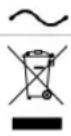 | RECYCLINGThis product bears the selective sorting symbol for Waste electrical and electronic equipment (WEEE). This means that this product must be handled pursuant to European directive 2012/19/EU in order to be recycled or dismantled to minimize its impact on the environment.User has the choice to give his product to a competent recycling organization or to the retailer when he buys a new electrical or electronic equipment. |
- Redundant Power Supply
- About this Installation Guide
- Chapter 1 Introduction.
- Chapter 2 Installation.
- Chapter 3 Connection.
- Audience
- Conventions
- Related Document
- Contents
- Chapter 1 Introduction ———— 01
- Chapter 2 Installation 03
- Chapter 3 Connection ———— 08
- Appendix A Specifications 11
- Chapter 1 Introduction
- Product Overview
- Features
- Appearance
- Front Panel
- Indicators
- Rear Panel
- AC Power Input
- Grounding Terminal
- Protective Cover
- Caution:
- Package Contents
- Safety Precautions
- ■ Safety Precautions
- ■ Site Requirements
- Temperature/Humidity
- Clearness
- Electromagnetic Interference
- Lightening Protection
- Note:
- Installation Site
- Installation Tools
- Product Installation
- ■ Desktop Installation
- Rack Installation
- Chapter 3 Connection
- Connect to Ground
- ■ Connecting to the Grounding Bar
- ■ Connecting to the Ground via the Power Supply
- Connect to the Powered Device
- Power On
- Verify Installation
- FCC STATEMENT
- CE Mark Warning
- CE
- Industry Canada Statement
- Korea Warning Statements
- Explanation of the symbols on the product label
Brand : TP-LINK
Model : RPS150
Category : Computer Adapter