
Rome NV - Mp3 player Sunstech - Free user manual and instructions
Find the device manual for free Rome NV Sunstech in PDF.


| Product Type | MP3 Player |
| Model | Rome NV by Sunstech |
| Display | 3.0 inch TFT touchscreen |
| Audio Formats | MP3 (8-320 kbps), WMA (5-384 kbps) |
| Video Formats | AVI, RM, RMVB, DAT |
| Photo Formats | JPEG, BMP, GIF, PNG |
| Memory | Internal memory (capacity not specified) + MicroSD card slot (up to 32GB) |
| Battery | Li-Polymer rechargeable |
| Dimensions | 90 × 50 × 12 mm |
| Weight | 70 g |
| Interface | USB 2.0 High Speed |
| Frequency Response | 20 Hz – 22 kHz |
| Signal-to-Noise Ratio | >85 dB |
| Distortion | <0.5% |
| Speaker | 8 ohm, 1W |
| Key Features | Music player, video player, photo viewer, FM radio, voice recorder, e-book reader, calendar, calculator, stopwatch, Flash games |
| Equalizer | Normal, Rock, Pop, Classic, Soft, Jazz, DBB, SRS WOW, SRS WOWHD, User EQ |
| FM Tuner Regions | China, USA, Japan, Europe |
| Recording | Voice and FM recording (WAV/MP3/WMA) |
| Supported Languages | Multiple (selectable in settings) |
| Included Accessories | USB cable, earphones, warranty card, user manual |
Frequently Asked Questions - Rome NV Sunstech
User questions about Rome NV Sunstech
0 question about this device. Answer the ones you know or ask your own.
Ask a new question about this device
Download the instructions for your Mp3 player in PDF format for free! Find your manual Rome NV - Sunstech and take your electronic device back in hand. On this page are published all the documents necessary for the use of your device. Rome NV by Sunstech.
USER MANUAL Rome NV Sunstech
natural_image
Simple line drawing of a rectangular device with rounded corners and a blank center (no text or symbols)1
Carga de la batería
Reproducir música
Volumen
En reproducción
natural_image
Simple line drawing of a rectangular device with rounded corners and a blank center (no text or symbols)What's in the box
Operating Unit,
User Manual
Warranty Card
USB Cable
Earphone
Optional Accessories
Micro SD card
Battery Charger
Content
Buttons location and usages.... 4
Basic Operation.... 5
Main interface.... 5
Charging the batteries.... 5
Music Player interface....6-11
Video mode.... 12-14
Buttons location and usages
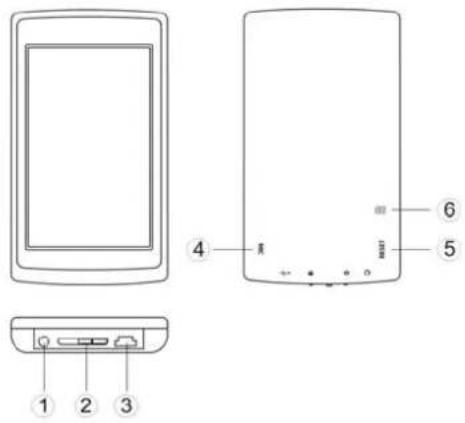
(7) Earphone Jack
(8) ON/OFF/Lock Button
(9) USB Port
(10) Microphone
(11) Reset
(12) Micro SD Card Slot
Basic Operation
Power on/off and Lock
Slide the ON/OFF/HOLD switch to the on position and hold for 3 seconds to switch on the device. Slide the switch to the LOCK position to key-lock the player.
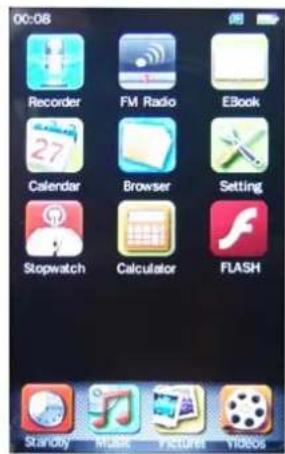
Main interface
Once your switch the player on you'll reach to the main interface as below...
Charging the batteries
Connect the player to PC via USB cable and select "USB Charge" or "Charge & Play", the device will
be charging. While charging, if the battery logo is running, means it is still charging, if the battery logo is full, means the charging finished.
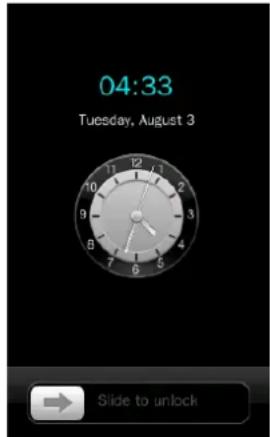
Standby
Touch "Standby" icon on the main menu to enter the standby mode, slide the → icon to unlock and return to the main menu.
Operation of Music mode
Touch on the main menu to enter the music mode. Once you've entered the music mode, the
following screen would show up.
Now Playing
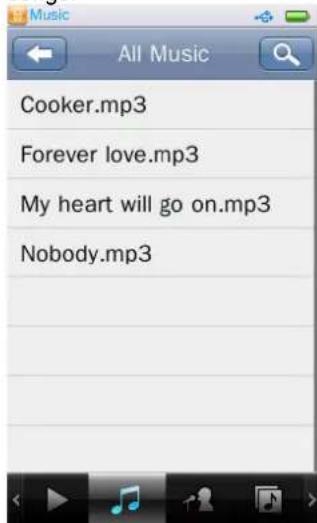
The screen will show all the now playing songs All Music
Click in the bottom of screen to browse all of songs.
Artist
Click on at the bottom of screen to browse the songs of that artist. click any particular artist to show the songs of that artist. click a song to start playing.
Album
Click icon to browse all of your artists, click any particular artist to show the songs of that artist. click a song to start playing.
Genre
Click icon to show the genre of all songs.
My Music list
Click 📋 icon to show all the music lists.
Directory Browser
Click icon to enter the Directory Browsing, If you inserted a Micro SD card, there are Internal Memory and Card Memory for selection, if no card inserted, only Internal memory will be showed here.
Music Player interface
Whenever you start playing a song you'll reach the Music Player Interface as below.
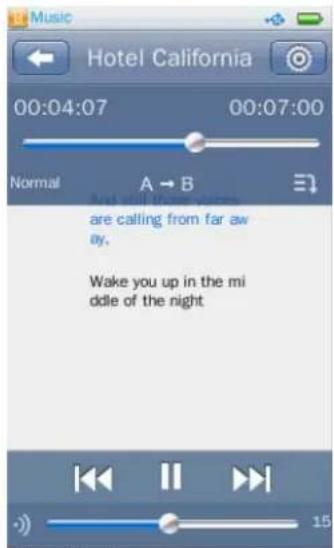
Play Music
Click ▶ in the middle to start playing, click again to pause.
Volume
Slide the volume bar at the bottom of screen to adjust the volume.
Previous / Next
Click ▶to jump to the next song, and click to jump back to the previous song.
While playing the music, the scroll bar will be hidden; click the screen, the scroll bar will be showed.
EQ Selection
Click “Normal” to change the EQ sel, there are Normal, Rock, Pop, Classic, Soft, Jazz, DBB, SRS WOW and SRS WOWHD for selection.
A - B Repeat
Click "A-B" to select the A-B repeat mode.
Play mode
Click icon to select the play mode from Normal / Repeat One / Folder / Repeat Folder / Repeat All / Intro.
Click icon to enter the submenu:
Variable Speed Playback
Click it to select the playback speed from -2X / -1X / 0X / 1x / 2X / 3X / 4X, click Back to return.
Add Tag
Click Add Tag, the current music and its current time point can be added to tag list, then it returns to playing interface. You may find the music in the
corresponding list in
Delete
Click it to delete the current song, and the screen will pop up "Confirm to delete?" Click Ok to delete, click Cancel to exit.
Information
Click it to check the detailed information of current playing song.
Set Rating
Click to select the Rating.
Add to my playlist
Click it to add the current song into the Music List.
User EQ
Click it to adjust your own EQ Setting. Slide the bar to adjust your desired sound effect.
SRS user mode
Click it to adjust the SRS user mode. Slide the bar to adjust the SRS 3D (0 \~ 10), TruBass(0 \~ 10), FOCUS(0 \~ 10), Center(1 \~ 10), Definition(0 \~ 10), Speaker (60Hz, 100Hz, 150Hz), Limiter (On / Off),
Advanced
Click it to select the Replay Times / Replay Interval
from 1 to 8, select ON / OFF for Fade in/Out.
Click Back to exit the submenu, click ← icon to return to the main menu.
Pictures
Click pictures to enter its mode.
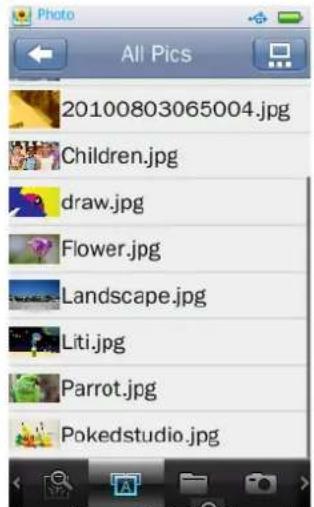
Now Browsing: Click icon to browse the now
playing photos.
All Pics.: Click 📄 icon to browse all pictures.
Directory Browsing: Click 📄 icon to enter the Directory browsing. If you inserted a Micro SD card, there are Internal Memory and Card Memory for selection, if no card inserted, only Internal memory will be showed here.
Click any particular photo enter the photo playing mode,
Auto mode / Manual mode: Click 📷 icon to start the slide show, click it again to enter the manual mode.
Background picture: Click 📄 icon to set the current playing photo as the background picture.
Zoom in /out: Click the Scale Bar on the right of the picture to zoom in/out the picture; when the picture is zoomed in, you may drag it up/down/left/right correspondingly; to exit Scale mode, click 📋 (note: the previous or next file cannot be selected in Zoom-In state).
Rotate: Click Icon to rotate the current picture
by 90 degrees.
Click 📄 icon to enter the submenu of Picture.
Slide Effect: Click it to select the slide effect from Move page / Louver / Fade Display.
Delete: Click delete, it will pop up "Confirm to delete?", click Ok to delete the picture, click Cancel to exit.
Information: Click it to check the file name ./ Resolution / Created Date of playing picture.
Screen size: Click it to select the screen size of picture from Full screen / Original Size / Scale.
Click Back to exit the submenu, click icon to return to main menu.
Videos
Click it to enter the Video mode.
Now playing
Click ▶ icon to browse the now playing videos.
All Videos
Click 📄 on to browse all video files.
Directory Browsing
Click ☐, If you inserted a Micro SD card, there are Internal Memory and Card Memory for selection, if no card inserted, only Internal memory will be showed here.
Tag list
Click icon to browse all the videos with tag list.
Search
Click to search videos by inputting the file name.
Click any particular video to enter the playing mode
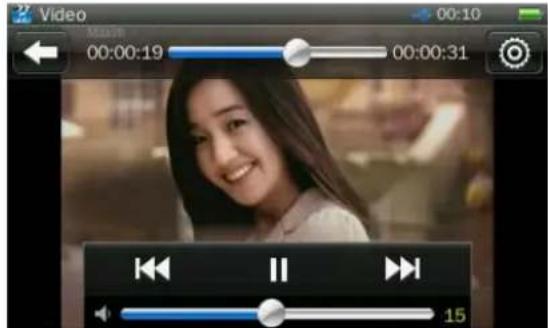
Volume
Slide the volume bar at the bottom of screen to adjust the volume.
Previous / Next
Click ▶ to jump to the next video, and click ▶ to jump back to the previous video.
Click icon to enter the submenu.
Subtitle
Click it to select the subtitle On / Off, if the video without subtitle, there is only Off option.
Playback mode
Click it to select the play mode from Sequence / Repeat one / Repeat All / Shuffle / Shuffle + Repeat
Add Tag
Click it add the tag for current playing video.
Screen size
Click it to select the screen size from Full screen / Original size / Scale.
Click Back to exit the submenu, click to return to main menu.
Note: The videos will be played in horizontal direction.
Recorder
Click Recorder to enter its mode.
Click icon to start the recording, click it again to
pause, click icon, it will pop up" Stop recording?" click Ok to stop the recording and saved the recorded files directly, it could be found in menu of Browser, click Cancel to resume the recording.
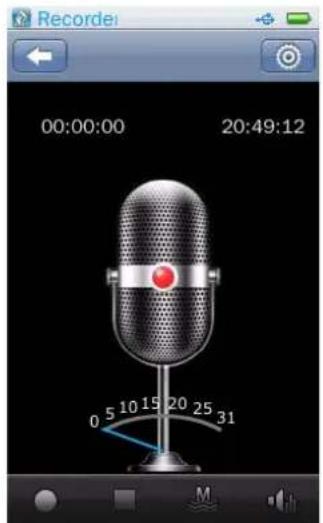
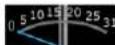
Real time indication of external sound
energy value.
Record Quality
Click the select the quality from: Low, Mid,
High.
Record gain
Click adjust the volume from 1 to 5. In stop mode, click to return to the main menu.
FM Radio
Click FM Radio to enter its mode.
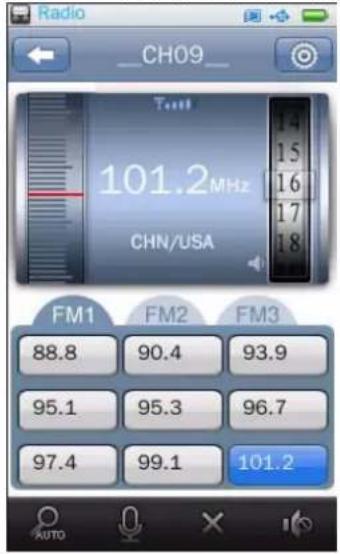
Listen In
It will enter the frequency which the system exited last time. Default is 87.5MHz.
Volume Control
adjust the volume by sliding up and down, 31
levels in total.
Manual Search
Tune the frequency by clicking the upper or lower
part of the red line of

Auto Arch
click ATO start auto search. When the search finishes, it will automatically saves the channels searched and play the first one. If no channel is found, it will stop at the first frequency point. During searching, exit by clicking ATO, the system stops at the last channel.
FM Record
Click to enter FM Record interface, options are the same as
saved to
Channel List:

to 9 channels can be saved in each list.
Save/Remove Channel
click save the current channel; if a channel is broadcasting, it functions as Delete; otherwise, it functions as Save.
Click icon to enter the submenu.
Channel list
Click it to select the channel list from Default / M2 / M3.
Tuner Region
Click it to select the tuner region from China / USA / Japan / Europe.
FM Sensitivity.
Click it to select FM sensitivity from High / Medium / Low.
Record Quality
Click it to select record quality from High / Medium / Low.
Record gain
Click it to select the record gain from 1 to 5.
Save path
Options include Internal Memory Device, Card Device. It just shows Internal Memory in case no card is plugged in.
Record format
Click it to select the record format from WAV / MP3 / WMA.
Click Back to exit the submenu, and click return to the main menu.

E-book
Touch "E-book" on the main menu to enter the e-book menu. Once you've entered the e-book menu, the following screen would show up.
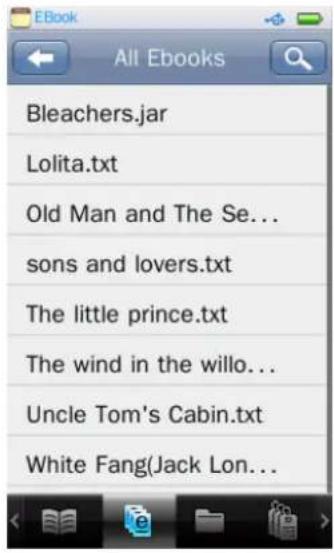
Now reading
Click 📄 icon to check all the now now-playing or previously played ebook in the now reading ebook files, click the file name to select one and begin to play. It shows "No files" if no ebook file
exists.
All Ebooks
Click

to browse all Ebook files
Directory list
Click ☐, If you inserted a Micro SD card, there are Internal Memory and Card Memory for selection, if no card inserted, only Internal memory will be showed here.
Tag list
Click

to check all tag files with page
number.
Search
Click to search ebook files by inputting the file name.
Click any particular ebook files to read.
Slide the progress bar

to turn to certain
page quickly.
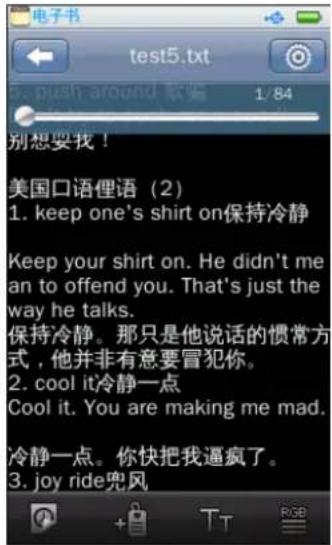
Manual / Auto page turning
Click 📷 icon, the text will stop in manual mode and start the auto page up / down, click 🔊 to return the manual page up / down, slide left/right to turn to
the previous or next page.
Add Tag
Click + icon to add the tag to Tag List automatically. Up to 32 tags supported.
Font size
Click T T icon to select the font size from Small (12) / Mid (16) / Big (24).
Font color
Click RGB to select the font color from Pure White, Blue, Dark Grey, Pure Black.
Click in Text Browser interface to enter submenu, in which options include <Select
Coding>,
Select Coding: support up to 22 languages.
Delete: Click it, screen pop up "Confirm to delete?"
click OK to delete the file, click cancel to exit.
click to return to the main menu.
Calendar
Click Calendar in the main menu to enter the mode.
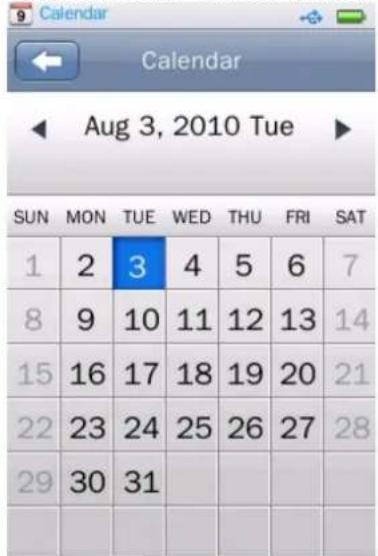
Click / to switch to the previous or next Year,
Month, or touch any digital directly to change the date. click to return to the main menu.
Browser
Click Browser to enter its mode
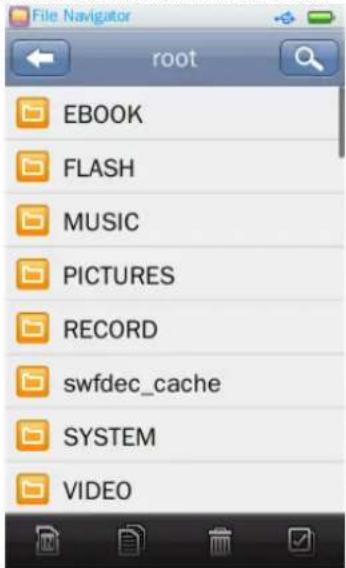
If no external card plugged in, it shows Internal
Memory only, which includes EBOOK, FLASH, MUSIC, PICTURES, RECORD, SYSTEM, VIDEO and other files.
Select the folder to be browsed and enter by clicking it. All the files under the folder will be listed. Click a file and enter, Click ← to exit.
Operations of external card are the same as Internal Memory.
-
☐: Switch between Internal Memory and External card.
-
Click to select the file/ folder to be
copied, and then click 📄 to copy the selected file or folder to external card.
- Click to select the file/folder to be
deleted; it pops out the confirmation box.
- ☑: select all files/folders under the current folder/dir. Once selected, a red √ will show on the
small icon before the file/folder. Click it again to cancel the Select All.
click to return to the main menu.
Setting
Click Setting in the main menu to enter its mode.
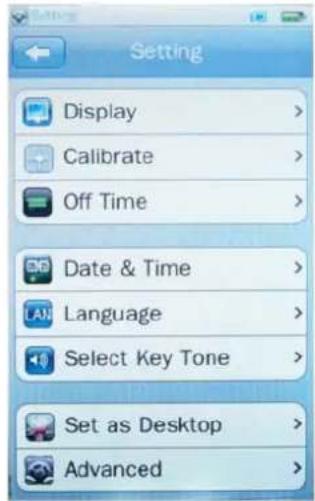
8. Display
Backlight: 0S means Off; 0 \~ 60s; step: 5s. If backlight time is set as Off, the screen will not shut down automatically; if it is not set as Off, the player will shut down in case no operation during the set backlight time. In picture display interface, Camera/DV Framing interface, Video Playing interface, E-book Reading interface, Flash Game Playing Interface (including Pause), Stop Watch Operation interface, FM Auto Search interface, Backlight Time are ineffective.
Backlight Brightness: level 1\~5 for your selection.
9. Calibrate
Calibrate the touch screen.
3. Off Time
Idle Time: 0Min means Off, 0 \~ 60Min; Step: 2Min. The player will not be shut down automatically if it is set as Off; otherwise, the player is shut down automatically if no operation is done during the set power saving time. In Now-playing music mode (including foreground
and background playing, excluding Pause/Stop Mode), picture viewing interface (excluding manual browsing mode), now-recording interface (excluding Stop mode), now-listening radio mode (including foreground and background, excluding Stop mode), Now-recording DV interface (excluding Stop mode), video playing interface, E-book reading interface (excluding manual reading mode), now-playing Flash game interface, stop watch operation interface, now-charging (including foreground and background charging), Idle time set are ineffective.
Sleep Time: 0Min means Off, setting range:: 0 \~ 120Min; Step: 5Min; the player will shutdown automatically after the set time period.
10. Date & Time
Set Date: Click it to set the system date: Year, Month, and Date. Slide the three bars up or down to change the system date and click ← to confirm and exit.
Adjust Date & Time: Set system time, including Hour, Min, AM/PM, slide the three values bars up or down to choose, click → to confirm and exit.
11. Language
Click Language to select the any particular language as default, there are English, Spanish, Portuguese, French, Chinese, German, Italian etc for selection.
12. Select Key Tone
Click it to select the key tone from Off / Key Tone 1 / Key Tone 2 / Key Tone 3 / Key Tone 4 for selection.
13. Set as desktop
Default: On / Off selection
User Setting: If the default in Off mode, you can choose the User setting and select any favorite picture as desktop.
14. Advanced
Player Info: User name, Firmware Version, Memory Total Space, Memory Free Space, Card Capacity, Card Free Space, All Music, All Pictures, All Video, All E-books, Flash Game.
Set Font: System Default Font
Set User Name: Enter user name by handwriting, delete by clicking 📧 and confirm by clicking Ok.
Check System: Click and enter, dialog box "May require a few minutes" pops out; now select Yes, the system starts checking and prompts "Self-checking..."
Reset: The system prompts whether to recover factory setting; settings of each application will be recovered to factory setting if Yes is selected.
Format Internal Memory: The player's memory can be formatted; make sure to copy the data necessary before formatting.
Format Card: Card can be formatted; make sure to copy the data necessary before formatting.
click to return to the main menu.
Stopwatch
Click it to enter the mode of Stopwatch
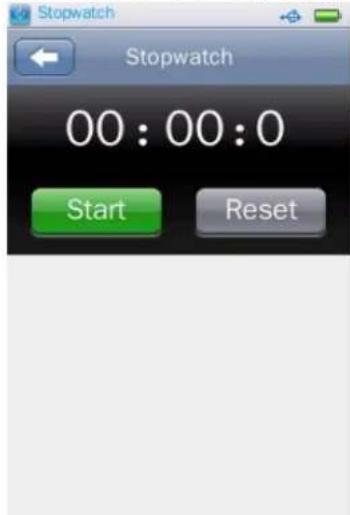
Click Start to start timing; click Stop to save counts
and continue to time. When timing is stopped, click Reset to clear the records.
click to return to the main menu.
Calculator
Click it to enter the mode of Calculator.
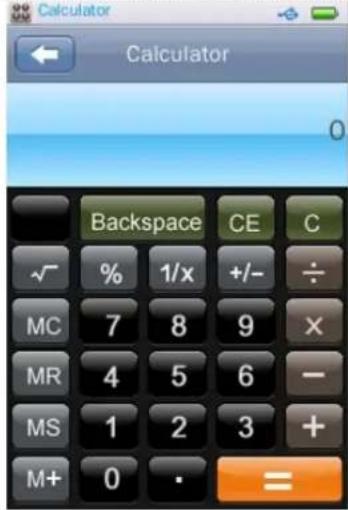
Input any digits to calculate.
Flash
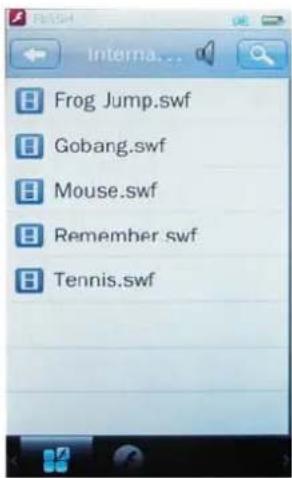
Select FLASH Main Interface to enter FLASH
game list.
- Click ← to exit to Main Interface.
- Search: Click 🔒 to enter the search mode and input any files to search the games
- Volume: Click 📋 to adjust the volume for the music of Flash game
- FLASH Game List: click to select FLASH game.
- f: Animation list
- No key operation is supported. In Flash Game, load game and save game are not available.
Technical Specification
| External Memory Card | MicroSD card up to 32GB |
| MP3 compressed rate supported | MP3(8 – 320 kbps)WMA(5-384kbps) |
| Video format supported | AVI,RM,RMVB, DAT |
| Photo format supported | JPEG / BMP / GIF /PNG |
| Battery | Li-Polymer |
| Interface USB2.0 high speed | |
| Display | 3.0" Co |
| Frequency Response 20Hz – 22KHz | |
| Distortion | <0.5% |
battery
TFT
| Rate of Signal-to-noise >85dB | |
| Speaker Output 8ohm1W | |
| Weight | 70g |
| Dimensions 90(W) * 50(H) * 12(D) mm | |
Trouble Shooting
What should I do if there's no sound when playing? You should check the volume first. If the volume has been turned up, maybe the memory format of the device is incorrect..


Specifications are subject to change without notice. No part of this document may be reproduced or transmitted in any form or by any mean, electronics or
mechanical
including photocopying and recording
or translated to another language for any purpose
without the prior written consent of the manufacturer.
All brand names, logos and registered trademarks mentioned
are property of their respective owners.
2008 © Sysbay International Technology. All right reserved.
Warranty conditions
- The warranty of this product is for 2 years since the purchase date.
- The warranty will exclude breakdowns caused by bad use of the product, wrong installation or installation in not desirable places for a proper maintenance of the product, rips, updates of the products that are not the supplied by the brand, pieces wore away for its use or for not domestic or
inappropriate use. Also are excluded breakdowns caused for manipulations of the products by people or companies alien to our company.
- For any request regarding the warranty terms, the purchase receipt must be attached.
Warranty conditions
- The warranty of this product is for 2 years since the purchase date.
- The warranty will exclude breakdowns caused by bad use of the product, wrong installation or installation in not desirable places for a proper maintenance of the product, rips,
updates of the products that are not the supplied by the brand, pieces wore away for its use or for not domestic or inappropriate use. Also are excluded breakdowns caused for manipulations of the products by people or companies alien to our company.
- For any request regarding the warranty terms, the purchase receipt must be attached.
ROME NV
Manual do Utilizador
Português
natural_image
Simple line drawing of a rectangular device with rounded corners and a central blank space (no text or symbols)O que há na caixa
Carregar as baterias
Tocar música
Click if you inserted a Micro SD card, there are Internal Memory and Card Memory for selection, if no card inserted, only Internal memory will be showed here.
Todos os vídeos
Volume
Lendo agora
Clique no ícone

no seu modo.
1. Exibir
- Carga de la batería
- Volumen
- En reproducción
- What's in the box
- Optional Accessories
- Content
- Basic Operation
- Power on/off and Lock
- Main interface
- Charging the batteries
- Standby
- Operation of Music mode
- Now Playing
- Album
- Genre
- My Music list
- Directory Browser
- Music Player interface
- Play Music
- Volume
- Previous / Next
- EQ Selection
- A - B Repeat
- Play mode
- Add Tag
- Delete
- Information
- Set Rating
- Add to my playlist
- User EQ
- SRS user mode
- Advanced
- Pictures
- Videos
- All Videos
- Directory Browsing
- Tag list
- Search
- Subtitle
- Playback mode
- Screen size
- Recorder
- FM Radio
- Listen In
- Volume Control
- Manual Search
- Auto Arch
- FM Record
- Channel List:
- Save/Remove Channel
- Channel list
- Tuner Region
- FM Sensitivity.
- Record Quality
- Record gain
- Save path
- Record format
- E-book
- Now reading
- All Ebooks
- Directory list
- Manual / Auto page turning
- Calendar
- Browser
- Setting
- Display
- Calibrate
- Off Time
- Date & Time
- Language
- Select Key Tone
- Set as desktop
- Advanced
- Stopwatch
- Calculator
- Trouble Shooting
- Warranty conditions
- ROME NV
- Carregar as baterias
- Tocar música
- Todos os vídeos
- Lendo agora
- Exibir
Brand : Sunstech
Model : Rome NV
Category : Mp3 player