Idea 3G - Smartphone ZTE - Free user manual and instructions
Find the device manual for free Idea 3G ZTE in PDF.


User questions about Idea 3G ZTE
0 question about this device. Answer the ones you know or ask your own.
Ask a new question about this device
Download the instructions for your Smartphone in PDF format for free! Find your manual Idea 3G - ZTE and take your electronic device back in hand. On this page are published all the documents necessary for the use of your device. Idea 3G by ZTE.
USER MANUAL Idea 3G ZTE
Copyright © 2011 ZTE CORPORATION.
All rights reserved.
No part of this publication may be quoted, reproduced, translated or used in any form or by any means, electronic or mechanical, including photocopying and microfilm, without the prior written permission of ZTE Corporation.
The manual is published by ZTE Corporation. We reserve the right to make modifications on print errors or update specifications without prior notice. Every effort has been made in the preparation of this manual to ensure accuracy of the contents, but all statements, information, and recommendations in this manual do not constitute a warranty of any kind, expressed or implied.
Version No.: R1.0
Edition Time : 201101
Manual No.: 079584503945
Contents
For Your Safety 12
General Safety 12
Radio Frequency (RF) Exposure ....13
General Statement on RF Energy 13
Specific Absorption Rate (SAR) 13
Body Worn Operation....14
Limiting Exposure to Radio Frequency (RF) Fields..14
Regulatory Information ....15
Distraction....15
Driving 15
Operating Machinery 16
Product Handling 16
General Statement on Handling and Use......16
Small Children 17
Demagnetization 17
Electrostatic Discharge (ESD)....17
Antenna 18
Normal Use Position....18
Air Bags....19
Seizures/ Blackouts....19
Repetitive Motion Injuries ....19
Emergency Calls 20
Loud Noise ....20
Phone Heating....20
Electrical Safety 20
Accessories.... 20
Connection to a Car 21
Faulty and Damaged Products 21
Interference 21
General Statement on Interface....21
Pacemakers 22
Hearing Aids 22
Medical Devices.... 22
Hospitals 22
Aircraft.... 23
Interference in Cars 23
Explosive Environments 23
Petrol Stations and Explosive Atmospheres...... 23
Blasting Caps and Areas 24
Getting Started....25
Overview 25
Keys Explained....26
Starting up 27
Installing the SIM/microSD Card and Battery .....27
Removing the Battery and SIM/microSD Card ..... 29
Charging the Battery 30
Switching Your Phone On/Off 31
Setting Up Your Phone for the First Time 31
Switching to Sleep Mode 32
Waking Up Your Phone 32
Getting Around Idea 3G Smrtphone 33
Touch Control....33
Home Screen 33
Status and Notification Icons....36
Applications and Settings Preview ....37
Phone Calls 43
How to Make Calls....43
Calling from the Dialer....43
Calling from Your Contacts ....44
Calling from Your Call History ....44
Calling from a Text Message....44
Using Speed Dial....45
Making Emergency Calls....45
Making International Calls 45
How to Receive Calls....46
Answering a Call 46
Rejecting a Call 46
Muting a Call 46
Putting a Call on Hold....47
Turning the Speakerphone On/Off 47
Ending a Call 47
Adjusting Your Call Settings 47
Contacts 49
Importing and Exporting Contacts ....49
Import Contacts from the SIM Card or Export to the Card....49
Import Contacts from the microSD Card or Export to
the Card 50
Creating a Contact ....50
Adding a Contact to Favorites 50
Searching for a Contact.... 51
Editing a Contact 51
Deleting a Contact....51
Creating a New Group.... 52
Entering Text....53
Android Keyboard.... 53
XT9 Text Input 54
Entering Text through Handwriting....57
Entering Text via On-screen Keyboard 58
Entering Numbers and Symbols.... 58
Choosing Touch Input Settings 58
Android Keyboard Settings 58
XT9 Text Input 59
Messaging 60
Sending an SMS 60
Sending an MMS....60
Managing Messages and Their ‘Threads’ 62
Reply to a Message 62
Delete a Message Thread or a Message.... 62
Message Settings 63
Email 65
Creating an Email account....65
Composing and sending an Email 66
Replying to or Forwarding an Email....67
Email Settings....67
Getting Connected to the Internet....69
Adding a New GPRS/EDGE/3G Connection....69
Turning on Wi-Fi 70
Connecting to a Wi-Fi Network 71
Checking the Wi-Fi Network Status ....71
Using the Phone as a Modem 71
Enabling the Phone as a Modem 72
Disabling the Modem Function....73
Using the Phone as a Wi-Fi Hotspot....73
Enabling the Wi-Fi Hotspot....74
Disabling the Wi-Fi Hotspot....74
Browsing the Internet....75
Browsing Options....75
Opening Links in Web Pages 76
Downloading Apps from the Web 77
Using Bookmarks....77
Edit a Bookmark 77
Delete a Bookmark....78
Browser Settings....78
Bluetooth ^® 80
Turning Bluetooth on/off 80
Making Your Phone Visible 80
Change Your Phone's Name.... 81
Hook up with Another Bluetooth Device....81
Making the Most of Multimedia....82
Taking Pictures with Your Camera.... 82
Adjusting Camera Settings 82
Shooting Video with Your Camcorder 82
Adjusting Your Video Settings 83
Listening to Your FM Radio.... 83
Playing Your Music.... 84
Creating Playlists 85
Managing Playlists 86
Setting a Song as Ringtone 86
Playing Your Videos 86
Opening Your Gallery....87
Making Memorable Memos 88
Using Your Google™ Applications .....90
Gmail 90
Using Google Calendar 91
Using Google Talk.... 91
Opening Google Talk 91
Adding a New Friend 91
Changing Your Online Status 92
Starting a Chat 92
Places 92
Latitude 93
Sorting out Your Phone Settings ....94
Setting Time and Date 94
Changing Display Settings....94
Adjusting Screen Brightness 94
Adjusting Screen-timeout 95
Switching Screen Orientation Automatically....95
Showing Animation when Opening/Closing Windows 95
Sound Settings....96
Choosing Your Ringtone 96
Setting the Default Notification Ringtone....96
Switching Your Phone to Silent Mode .....96
Switching to Vibrate....97
Flipping to Turn off Ringtone 97
'Haptic' (touch) Keypad Feedback .....98
Adjusting Volume 98
Turning on Touch Tones 98
Turning on Selection Tones ......99
Turning on Screen Lock Sound....99
Language Settings....99
Mobile Network Services 99
Getting Data Services while Roaming....99
Enabling Data Services 100
Enabling Always-on Data Services ....100
Switching Network Modes.... 100
Switching Networks.... 101
Setting Access Point Names.... 101
Security Settings 101
Protecting Your Phone with a Screen Unlock Pattern 102
Protecting Your Phone with a PIN or Password .... 104
Disabling Screen Unlock Security.... 105
Protecting Your SIM with a PIN 105
Setting up Credential Storage.... 106
Managing Your Memory Card 107
Checking Memory Card Space ....107
Unmounting Your Memory Card 107
Formatting Your Memory Card 108
Managing Phone Memory 108
Privacy: Reset to Factory Settings 108
Managing Applications and Their Settings 109
Viewing Your Phone's Applications 109
Allowing Installation of Non-market Applications ... 109
How to Install an Application.... 109
Removing an Application ....110
Moving an Application to or from the Memory Card 110
Managing Other Settings.... 111
Search Settings.... 111
Voice Interaction ....112
Other Applications....113
Alarms....113
Idea Mall 113
Facebook 114
Opening Facebook 114
Twitter 114
Opening Twitter 114
Docs To Go....114
Note Pad 114
Calculator....115
Global Time....115
Idea Power....115
Task Manager 115
Stopwatch 116
Specifications 117
Declaration of RoHS Compliance....118
Disposal of Your Old Appliance 119
EC DECLARATION OF CONFORMITY...... 120
Warranty Card....122
For Your Safety
General Safety
 | Don't make or receive handheld calls while driving. And never text while driving. |  | Don't use at petrol stations. |
 | Keep your phone at least 15mm away from your ear or body while making calls. |  | Your phone may produce a bright or flashing light. |
 | Small parts may cause a choking. |  | Don't dispose of your phone in fire. |
 | Your phone can produce a loud sound. |  | Avoid contact with anything magnetic. |
 | Keep away from pacemakers and other electronic medical devices. |  | Avoid extreme temperatures. |
 | Switch off when asked to in hospitals and medical facilities. |  | Avoid contact with liquids. Keep your phone dry. |
 | Switch off when told to in aircrafts and airports. |  | Don't take your phone apart. |
 | Switch off when near explosive materials or liquids. |  | Only use approved accessories. |
 | Don’t rely on your phone for emergency communications. | ||
Radio Frequency (RF) Exposure
General Statement on RF Energy
Your phone contains a transmitter and a receiver. When it is ON, it receives and transmits RF energy. When you communicate with your phone, the system handling your call controls the power level at which your phone transmits.
Specific Absorption Rate (SAR)
Your mobile device is a radio transmitter and receiver. It is designed not to exceed the limits for exposure to radio waves recommended by international guidelines. These guidelines were developed by the independent scientific organization ICNIRP and include safety margins designed to assure the protection of all persons, regardless of age and health.
The guidelines use a unit of measurement known as Specific Absorption Rate, or SAR. The SAR limit for mobile devices is 2 W/kg and the highest SAR value for this device when tested at the ear was 1.35 W/kg*. As mobile devices offer a range of functions, they can be used in other positions, such
as on the body as described in this user guide**.
As SAR is measured utilizing the device's highest transmitting power, the actual SAR of this device while operating is typically below that indicated above. This is due to automatic changes to the power level of the device to ensure it only uses the minimum power required to communicate with the network.
* The tests are carried out in accordance with EN 50360; EN 62209-1; IEC 62209-2.
** Please see body worn operation.
Body Worn Operation
Important safety information regarding radio frequency radiation (RF) exposure:
To ensure compliance with RF exposure guidelines the phone must be used with a minimum of 15 mm separation from the body.
Failure to observe these instructions could result in your RF exposure exceeding the relevant guideline limits.
Limiting Exposure to Radio Frequency (RF) Fields
For individuals concerned about limiting their exposure to RF fields, the World Health Organization (WHO) provides the following advice:
Precautionary measures: Present scientific information does not indicate the need for any special precautions for the use of mobile phones. If individuals are concerned, they might choose to limit their own or their children's RF exposure by limiting the length of calls, or using ‘hands-free’ devices to keep mobile phones away from the head and body.
Further information on this subject can be obtained from the WHO home page http://www.who.int/peh-emf (WHO Fact sheet 193: June 2000).
Regulatory Information
The following approvals and notices apply in specific regions as noted.
Please find the section Declaration of RoHS Compliance and CE DOC in the end of this manual.
Distraction
Driving
Full attention must be given to driving at all times in order to reduce the risk of an accident. Using a phone while driving (even with a hands free kit) can cause distraction and lead to an accident. You must comply with local laws and regulations restricting the use of wireless devices while driving.
Operating Machinery
Full attention must be given to operating the machinery in order to reduce the risk of an accident.
Product Handling
General Statement on Handling and Use
You alone are responsible for how you use your phone and any consequences of its use.
You must always switch off your phone wherever the use of a phone is prohibited. Use of your phone is subject to safety measures designed to protect users and their environment.
- Always treat your phone and its accessories with care and keep it in a clean and dust-free place.
- Do not expose your phone or its accessories to open flames or lit tobacco products.
- Do not expose your phone or its accessories to liquid, moisture or high humidity.
- Do not drop, throw or try to bend your phone or its accessories.
- Do not use harsh chemicals, cleaning solvents, or aerosols to clean the device or its accessories.
-
Do not paint your phone or its accessories.
-
Do not attempt to disassemble your phone or its accessories, only authorized personnel can do so.
- Do not expose your phone or its accessories to extreme temperatures, minimum - [5] and maximum + [50] degrees Celsius.
- Please check local regulations for disposal of electronic products.
- Do not carry your phone in your back pocket as it could break when you sit down.
Small Children
Do not leave your phone and its accessories within the reach of small children or allow them to play with it.
They could hurt themselves or others, or could accidentally damage the phone.
Your phone contains small parts with sharp edges that may cause an injury or may become detached and create a choking hazard.
Demagnetization
To avoid the risk of demagnetization, do not allow electronic devices or magnetic media close to your phone for a long time.
Electrostatic Discharge (ESD)
Do not touch the SIM card's metal connectors.
Antenna
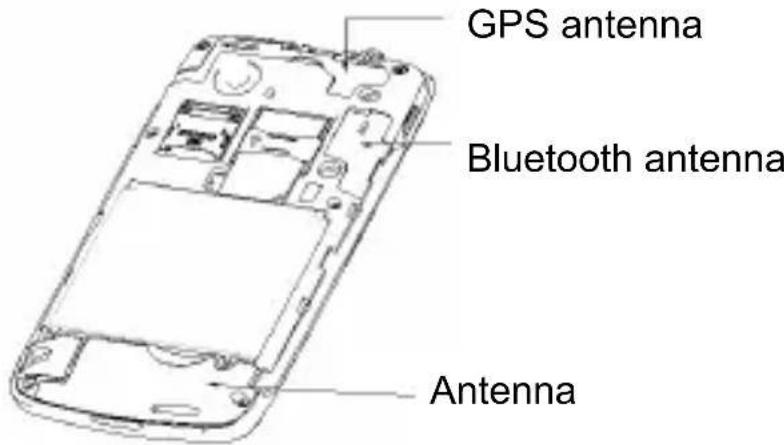
text_image
GPS antenna Bluetooth antenna AntennaDo not touch the antenna unnecessarily.
Normal Use Position
When placing or receiving a phone call, hold your phone to your ear, with the bottom towards your mouth.
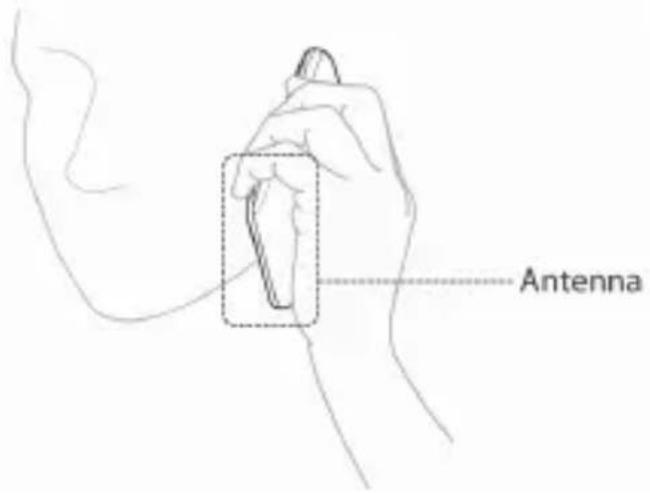
text_image
Antenna
text_image
AntennaAir Bags
Do not place a phone in the area over an air bag or in the air bag deployment area.
Store the phone safely before driving your vehicle.
Seizures/ Blackouts
The phone can produce a bright or flashing light.
Repetitive Motion Injuries
To minimize the risk of RSI when texting or playing games with your phone:
- Do not grip the phone too tightly.
-
Press the buttons lightly.
-
Use the special features which are designed to minimize the times of pressing buttons, such as Message Templates and Predictive Text.
• Take lots of breaks to stretch and relax.
Emergency Calls
This phone, like any wireless phone, operates using radio signals, which cannot guarantee connection in all conditions. Therefore, you must never rely solely on any wireless phone for emergency communications.
Loud Noise
This phone is capable of producing loud noises, which may damage your hearing. Turn down the volume before using headphones, Bluetooth stereo headsets or other audio devices.
Phone Heating
Your phone may become warm during charging and during normal use.
Electrical Safety
Accessories
Use only approved accessories.
Do not connect with incompatible products or accessories.
Take care not to touch or allow metal objects, such as coins or key rings, to contact or short-circuit in the battery terminals.
Connection to a Car
Seek professional advice when connecting a phone interface to the vehicle electrical system.
Faulty and Damaged Products
Do not attempt to disassemble the phone or its accessory.
Only qualified personnel can service or repair the phone or its accessory.
If your phone or its accessory has been submerged in water, punctured, or subjected to a severe fall, do not use it until you have taken it to be checked at an authorized service centre.
Interference
General Statement on Interface
Care must be taken when using the phone in close proximity to personal medical devices, such as pacemakers and hearing aids.
Pacemakers
Pacemaker manufacturers recommend that a minimum separation of 15 cm be maintained between a mobile phone and a pacemaker to avoid potential interference with the pacemaker. To achieve this, use the phone on the opposite ear to your pacemaker and do not carry it in a breast pocket.
Hearing Aids
People with hearing aids or other cochlear implants may experience interfering noises when using wireless devices or when one is nearby.
The level of interference will depend on the type of hearing device and the distance from the interference source, increasing the separation between them may reduce the interference. You may also consult your hearing aid manufacturer to discuss alternatives.
Medical Devices
Please consult your doctor and the device manufacturer to determine if operation of your phone may interfere with the operation of your medical device.
Hospitals
Switch off your wireless device when requested to do so in hospitals, clinics or health care facilities. These requests are designed to prevent possible interference with sensitive
medical equipment.
Aircraft
Switch off your wireless device whenever you are instructed to do so by airport or airline staff.
Consult the airline staff about the use of wireless devices on board the aircraft. If your device offers a ‘flight mode’, this must be enabled prior to boarding an aircraft.
Interference in Cars
Please note that because of possible interference to electronic equipment, some vehicle manufacturers forbid the use of mobile phones in their vehicles unless a hands-free kit with an external antenna is included in the installation.
Explosive Environments
Petrol Stations and Explosive Atmospheres
In locations with potentially explosive atmospheres, obey all posted signs to turn off wireless devices such as your phone or other radio equipment.
Areas with potentially explosive atmospheres include fuelling areas, below decks on boats, fuel or chemical transfer or storage facilities, areas where the air contains chemicals or particles, such as grain, dust, or metal powders.
Blasting Caps and Areas
Power off your mobile phone or wireless device when in a blasting area or in areas posted power off “two-way radios” or “electronic devices” to avoid interfering with blasting operations.
Getting Started
Overview
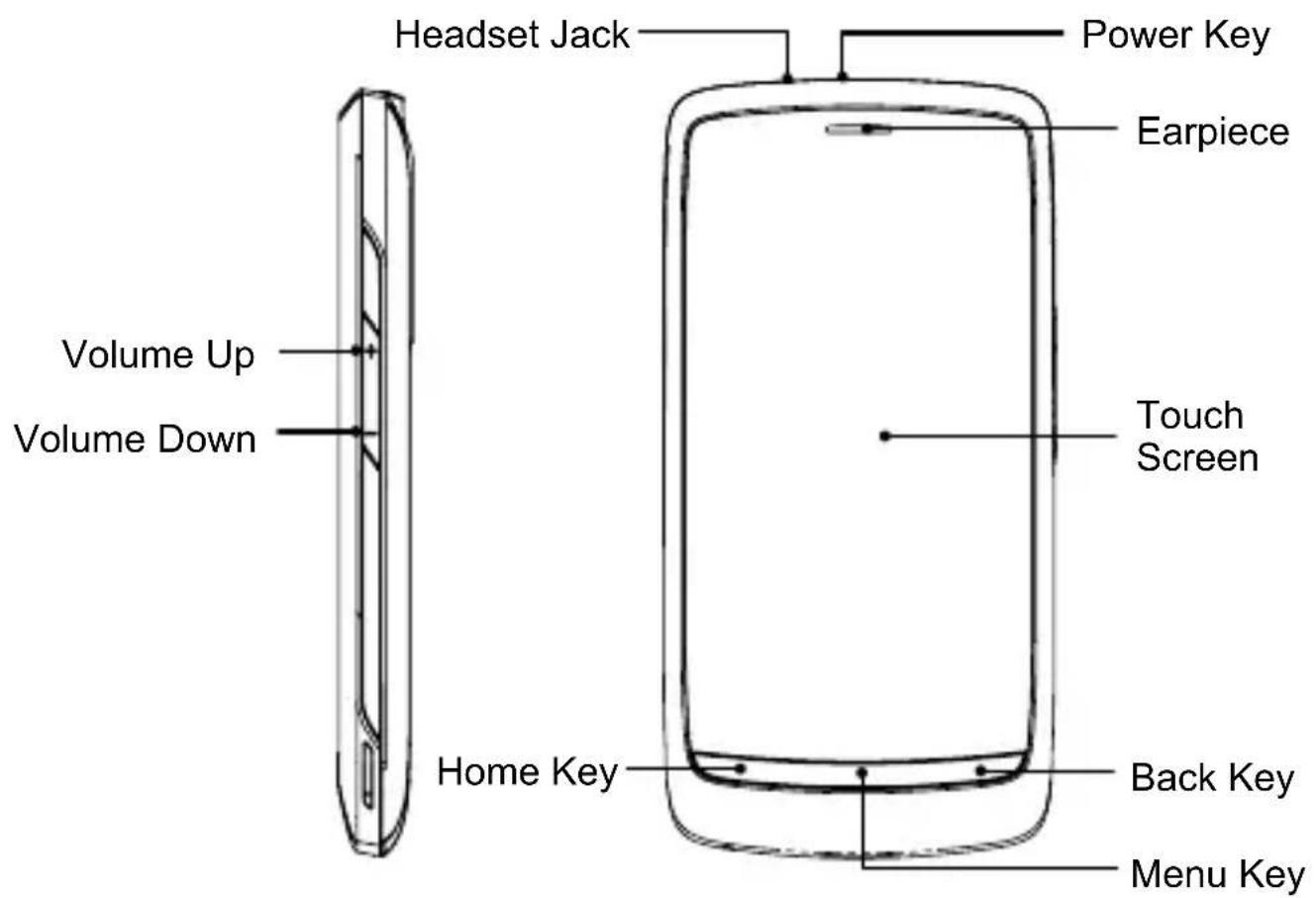
text_image
Headset Jack Power Key Earpiece Volume Up Volume Down Touch Screen Home Key Back Key Menu Key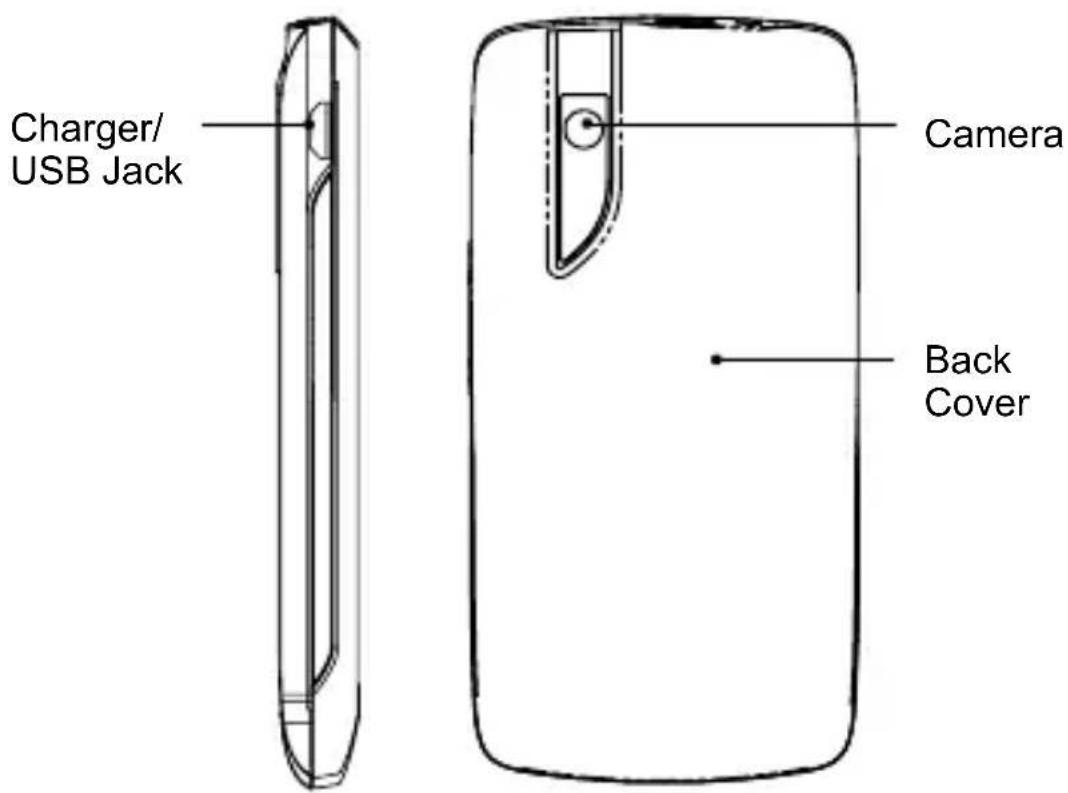
text_image
Charger/ USB Jack Camera Back CoverKeys Explained
| Key | Function |
| Power Key • Hold to select phone modes: Silent, Vibration, Airplane or Power off. • Press to switch your phone to Sleep mode. • Press to wake up your phone. | |
| Home Key • Press to return to the Home Screen from any application or screen. • Hold to see recently used applications. | |
| Menu Key Press | ss to get the options on the current screen. |
| Back Key Press | s to go to the previous screen. |
| Volume Keys | Press Volume Up Key to turn the volume up.Press Volume Down Key to turn the volume down. |
Starting up
Installing the SIM/microSD Card and Battery
Switch off your phone before installing or replacing the battery, SIM, or memory card.
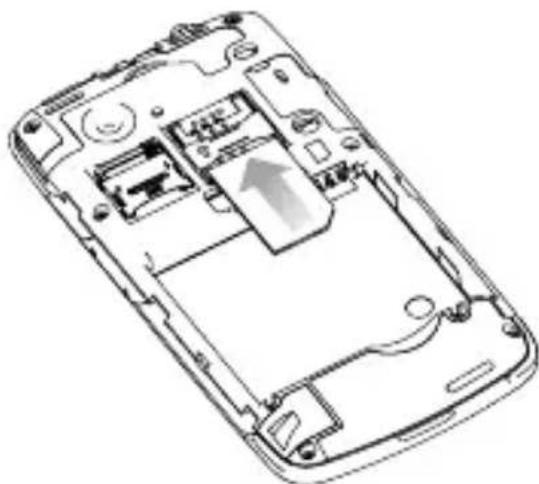
- Remove the back cover.

natural_image
Line drawing of a smartphone showing the open lid and internal structure with an upward arrow (no text or symbols)- Hold the SIM with the cut corner oriented as shown and slip it into the card holder.
natural_image
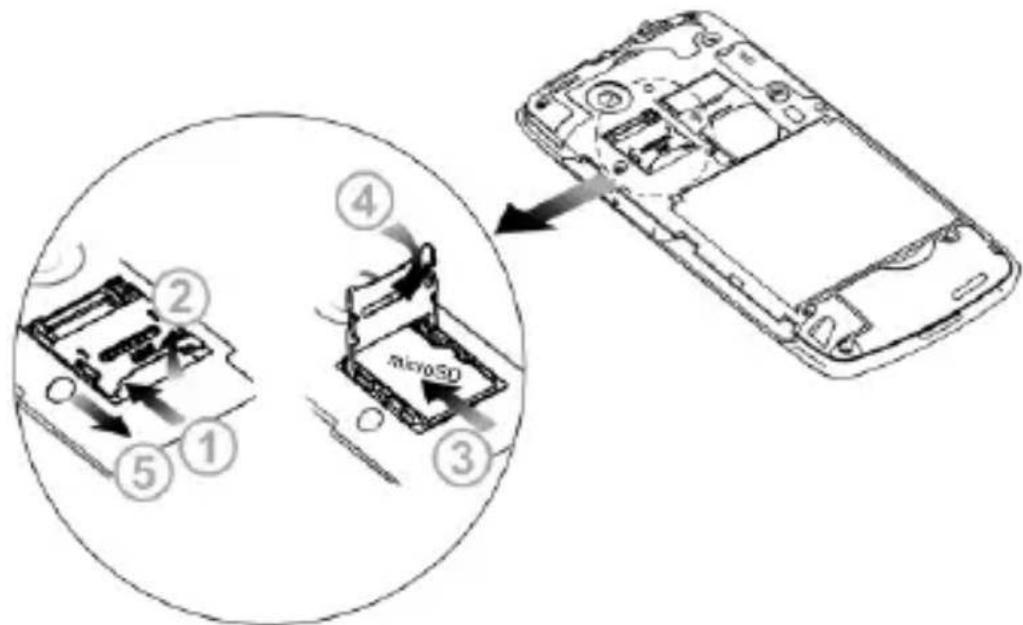
Line drawing of a smartphone internal circuit board with no visible text or symbols- Open the microSD card holder, hold your microSD card by the cut corner end and slide it in.
text_image
① ② ③ ④ microSDmicroSD logo is a trade mark of the SD Card Association.
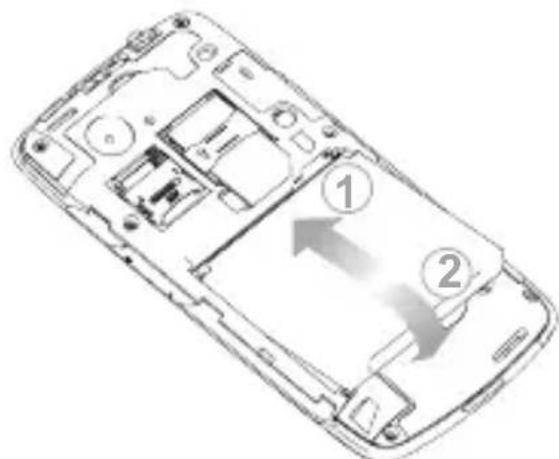
- Insert the battery by aligning the gold contacts on the battery with the gold contacts in the battery compartment. Gently push down on the battery until it clicks into place.
text_image
Diagram of a smartphone showing internal components with numbered labels ① and ② indicating specific areas or functions.- Press the cover gently back into place until you hear a click.
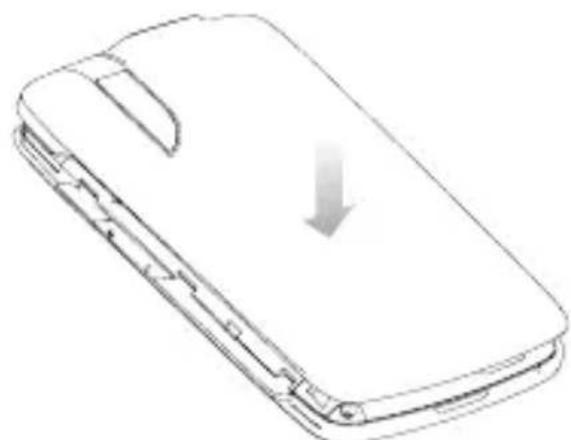
natural_image
Line drawing of a smartphone case with a downward arrow indicating compression or disassembly (no text or symbols)Removing the Battery and SIM/microSD Card
-
Make sure that your mobile phone is off.
-
Remove the back cover.
-
Lift the battery up and out.
- Slide the SIM out.
- Open the microSD card holder. Sliding the microSD card down gently and remove it.
Charging the Battery
When you first get your new phone you'll need to charge the battery like this...
- Connect the adapter to the charger jack. Ensure that the adapter is inserted with the correct orientation. Do not force the connector into the charger jack.
- Connect the charger to a standard AC wall outlet.
- Disconnect the charger when the battery is fully charged.
how much charge have you got?
If the battery is low, there will be a pop-up message on the screen and the indicator light will be red. As you charge your phone, the indicator light will change according to the battery level:
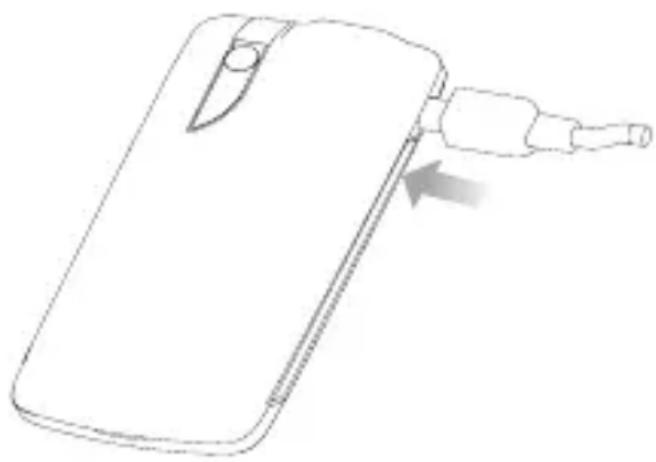
natural_image
Line drawing of a smartphone with a cable being inserted, showing the cable being inserted (no text or symbols present)| Indicator color Battery level | |
| Red Less than 5% of the total battery level | |
| Green More than 90% of the total battery level |
If the phone is on, you'll see this charging icon / 📄 appear on the status bar. As soon as charging is completed, this icon 📋 appears on the status bar.
Switching Your Phone On/Off
- Make sure the SIM is in your device and the battery is charged.
- Hold Power Key to switch on your phone.
- To switch it off, hold Power Key to get the phone options. Select Power off, and then tap OK.
Setting Up Your Phone for the First Time
When you first power on your Idea 3G Smartphone after you purchase it or reset it to factory settings (see Sorting out Your Phone Settings – Privacy: Reset to Factory Settings), you need to do some settings before using it.
- Tap Change language to change the language you want to use, if needed.
- Tap the Android robot on the screen.
- Tap Skip to skip the tutorial, or tap Begin to continue.
In the tutorial, learn how to use the onscreen keyboard and how to set up your Idea 3G Smartphone with a Google account.
- Create a Google Account or Sign in your account.
You can also tap Skip to set up an account later. - Configure the Google location options and tap Next.
- Configure the date and time options, and tap Next.
Switching to Sleep Mode
To save battery power, Sleep Mode suspends your device to a low-power-consumption state while the display is off. Your device also goes into Sleep Mode by itself when the display is automatically turned off after a certain period of time, which you can set in Settings > Display > Screen timeout.
Press Power Key to switch to Sleep Mode.
Waking Up Your Phone
- Press Power Key to activate your screen display.
- Drag the icon to the right.
NOTE: If you have set an unlock pattern, PIN or password for your phone (see Sorting out Your Phone Settings – Security Settings) you’ll need to draw the pattern or enter the PIN/password to unlock your screen.
Getting Around Idea 3G Smrtphone
Touch Control
You can use finger gestures to control your phone. The controls on your touch screen change dynamically depending on the tasks you're performing.
- Tap the buttons, icons, or applications to select items or to open applications.
- Keep your finger on an item to see the available options.
- Flick the screen to scroll up, down, left or right.
- Point, drag and drop to move particular items across the screen.
- Pinch with two fingers, or double-tap the screen, to zoom in/out on a web page or an image.
NOTE: You can view the phone screen in portrait or landscape orientation simply by holding it upright or turning it on its side.
Home Screen
You choose what is shown on your Home Screen. Just add or remove stuff to make it your own.
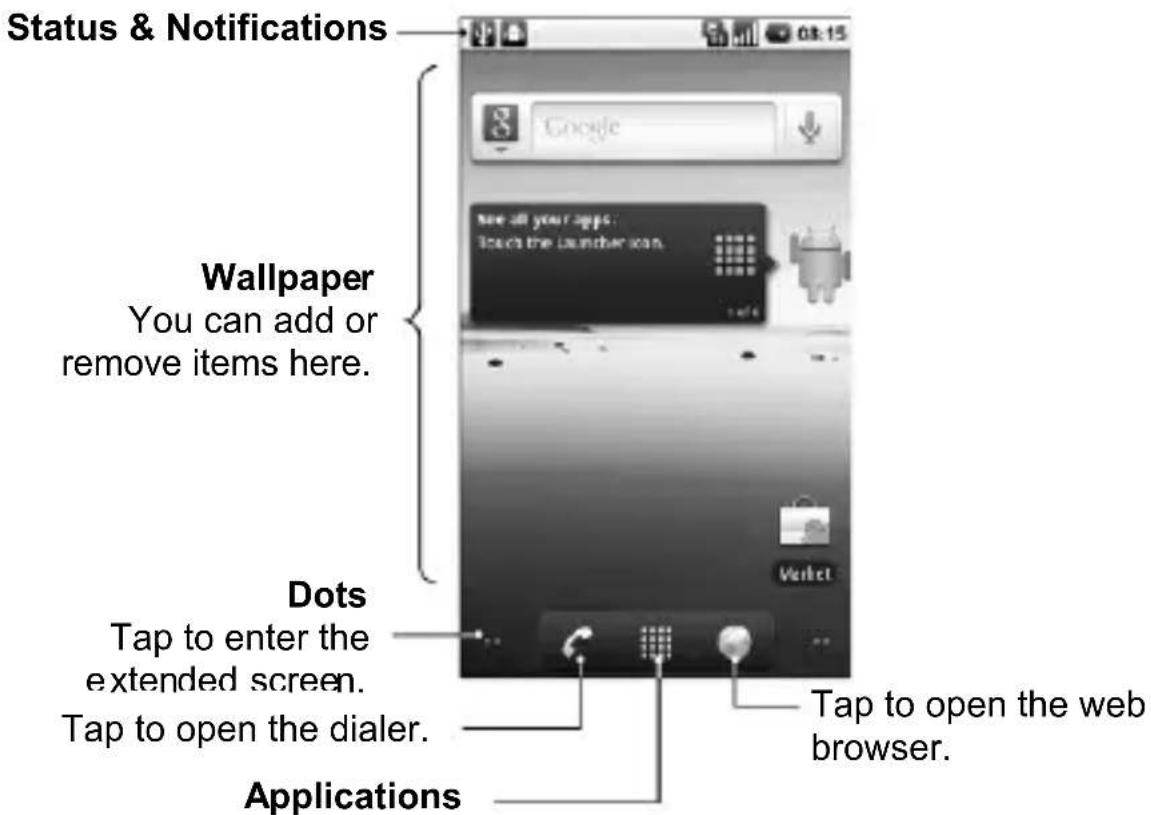
text_image
Status & Notifications Wallpaper You can add or remove items here. Dots Tap to enter the extended screen. Tap to open the dialer. Applications Tap to open the web browser.Tap to open the main menu.
Extended Home Screen
The Home Screen extends beyond the screen width, giving you loads more space to add more stuff. Simply slide your finger to the left or right, or tap the dots on the bottom corners of the screen, to see the extended Home Screen.
Choosing Your Wallpaper
- Tap Home Key to return to the Home Screen.
- Tap Menu Key and select Wallpaper.
- Select the wallpaper you want to use from Gallery, Live wallpapers, or Wallpapers.
- Tap Save or Set wallpaper.
Adding Things to Your Home Screen
- Tap Home Key to return to the Home Screen.
-
Slide left or right to find an extended Home Screen where there is space to add an item.
-
Tap Menu Key and select Add.
You can also tap and hold the blank area of the Home Screen to get the Add to Home screen menu.
- Select a category and the item you want to add to the Home Screen.
Removing Things from Your Home Screen
- Tap Home Key to return to the Home Screen.
- Tap and hold the item you want to delete until the icon appears on the screen.

- Drag the item to 📄.
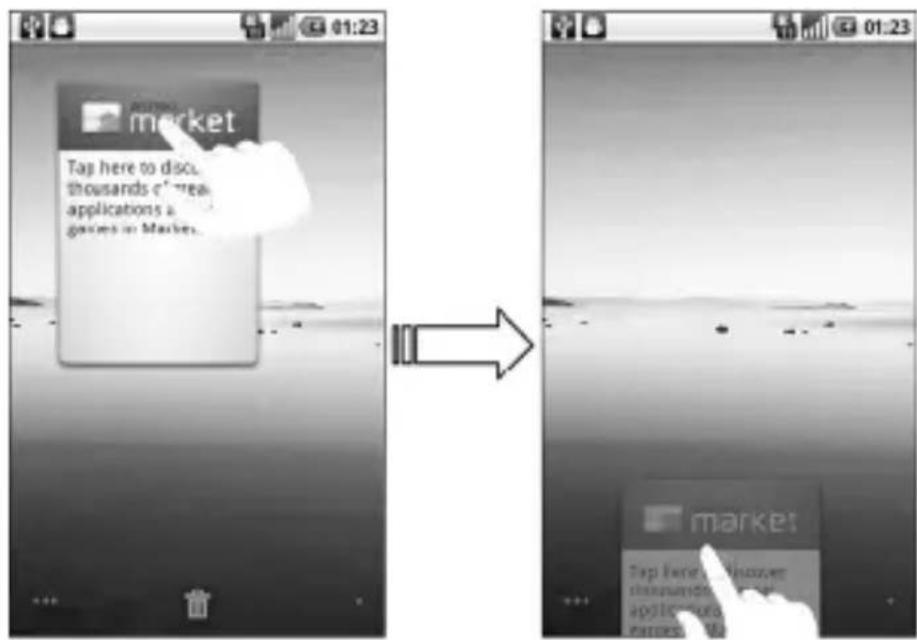
text_image
market Tap here to discu thousands of new applications a glasses in Market. market Tap here to discu thousands of new applications a glasses in Market.Status and Notification Icons
Your handset will tell you exactly what's going on by showing you simple icons. Here's what they mean.
 | GPRS connected |  | No signal |
 | GPRS in use |  | Signal strength |
 | EDGE connected |  | Roaming |
 | EDGE in use |  | Phone speaker off |
 | 3G connected |  | Phone microphone off |
 | 3G in use |  | No SIM installed |
 | USB connected |  | GPS connecting |
 | Battery very low |  | GPS connected |
 | Battery low |  | Connected to a Wi-Fi network |
 | Battery partially drained |  | Alarm set |
 | Battery full |  | Wired microphone headset |
  | Battery charging |  | Bluetooth on |
| Vibrate mode |  | Speaker on | |
 | Airplane mode |  | Problem with SMS/MMS delivery |
 | New mail |  | New instant message |
 | New SMS/MMS/voicemail |  | Upcoming event |
 | New Gmail message |  | Song is playing |
 | Missed call |  | Downloading data |
 | Call in progress |  | Content downloaded and installed successfully |
 | Call on hold |  | Sending data |
 | Call forwarding |  | USB tethering is on |
 | More (not displayed) notifications |  | Portable Wi-Fi hotspot is on |
Using the Notification Panel
Flick the status bar downwards to open the Notification Panel, where you can see your calendar events, new messages, and current settings – such as call forwarding or call status. From here you can also open new messages, reminders, etc.
TIPS: You can also open the Notification Panel by tapping Menu Key > Notifications from the Home Screen.
Applications and Settings Preview
Programs Preview
Your Idea 3G Smartphone has lots of functions. Tap see the following.

| Applications | Benefit |
| Alarm | Set alarms. |
| Browser Browse the Internet. | |
| Calculator Do basic calculation. | |
| Calendar Schedule appointments and events. | |
| Call log | View the calls you made, received, and missed. |
| Camcorder Shoot video clips. | |
| Camera Take some great pictures. | |
| Contacts | Keep contact details of friends and colleagues. |
| Dialer Dial a number. | |
| Docs To Go View your documents. | |
| Email Send and receive Emails. | |
| Filer Manage files on your microSD card. | |
| FMRadio Search, listen to and save radio channels. | |
| Gallery Manage multimedia files. | |
| Global Time Check the local time around the world. | |
| Gmail | Access your Gmail account and check your Gmail on your mobile phone. |
| Applications Benefit | |
| Google Search | Search for information online or on your phone. |
| Latitude | See your friends' locations and share yours with them via Google Maps Latitude. |
| Maps | Track your current location, view real-time traffic, and receive detailed directions to your destination. |
| Market | Access useful applications and fun games to download. |
| Messages | Open the Messages screen, where you can send and receive SMS and MMS messages. |
| Music | Browse your audio files and listen to them. |
| Navigation | Find your way with Google Maps Navigation. |
| News & Weather | Check out the latest news and weather forecast. |
| Note pad Create text notes. | |
| Places | Find restaurants, ATMs, and other businesses or attractions near you. |
| Settings Adjust phone settings. | |
| SIM Toolkit | Only appears on the screen if your SIM provides this function. Please contact your service provider for more information. |
| Applications | Benefit |
| Sound Recorder | Capture audio clips. |
| Stopwatch | Measure exactly how long it takes to do something. |
| Talk Use Google | e Talk. |
| Task Manager | Manage all the programs running on your phone. |
| Videos Browse | and watch video files. |
| Voice Search | Use your voice to search, control, and communicate. |
| YouTube | Watch YouTube videos and upload your own. |
Check Your Settings
To change or view your phone's settings, tap Home Key >

Settings.
Or From the Home Screen tap Menu Key > Settings.
| Wireless & networks | Configure and manage wireless connections, such as Wi-Fi, Bluetooth®, mobile networks, mobile data connection sharing, and Virtual Private Networks. You can also select Airplane mode from here. |
| Call settings | Set up fixed dialing numbers, voicemail, speed dial, call barring, call forwarding, call waiting, caller ID, and cell broadcast, etc. |
| Sound | Set sound settings, such as ringtones and notifications. |
| Display | Set display settings, such as screen brightness. |
| Location & security | Set up screen locks or SIM lock, or manage the phone's credential storage. You can also select the sources to use when determining locations from My Location. |
| Applications | Manage your apps and the installation of new ones. |
| Accounts & sync | Manage your accounts and configure synchronization settings. |
| Privacy | Configure privacy settings, such as back-up settings, and personal data. |
| SD card & phone storage | Check available memory on the external card and the internal phone storage. |
| Search Set the search options. | |
| Language & keyboard | Set the system language and region, plus text input options. |
| Voice input & output | Set up voice recognition and text-to-speech options. |
| Accessibility | Choose accessibility options after you have installed accessibility-related applications. |
| Date & time | Set the date, time, time zone, and date/time format. |
| About phone | View phone status, battery use, legal information, and tutorial on how to use your phone. You can also check for system updates. |
Open Recently-used Applications
- Hold Home Key from any screen until the following recently used applications screen appears.

text_image
Recent Browser Calendar Contacts Alarm Dialer Settings- Tap the application you want to open.
Phone Calls
How to Make Calls
There are many ways to make a call with your Idea 3G Smartphone. And they're all easy to do.
Calling from the Dialer
-
Tap Home Key > 📄 > Dialer or 📞 on the Home Screen.
-
Enter the phone number or the contact name you want to call with the on-screen phone keypad.

text_image
1 00 2 ABC 3 DEF 4 GHI 5 JKL 6 MNO 7 PORS 8 TUV 9 WXYZ *. 0+ #;If you make a mistake, tap 📁 to erase a wrong entry, or hold this key to clear all digits. Your phone automatically lists the matching contacts. You can tap 📁 to hide the keypad and to see if there are more matching numbers or contacts.
- Tap
Calling from Your Contacts
- Tap Home Key > □ > Contacts.
- Slide your finger to scroll the contacts list and tap the contact you want to call.
You can search for a contact by tapping Menu Key > Search. - Tap
Calling from Your Call History
- Open the call log in one of the following ways.
➢ Tap Home Key > Call log.
➢ Tap Home Key > □ > Dialer >
➢ Tap Home Key > □ > Contacts > Call log.
- Tap 📋 next to the number you want to call.
Calling from a Text Message
If a text message contains a phone number that you want to call, you can make the call while viewing the text message.
-
Tap Home Key > Messages and tap the conversation and then the message that contains the phone number you want to call..
-
Tap the number.
-
Tap Call
Using Speed Dial
Press and hold 1 - 9 key from the dialer to call the corresponding speed dial number.
The number key 1 is reserved to speed dial your voicemail.
Assigning a speed dial key:
- Tap Menu Key > Settings > Call settings > Speed dial from the Home Screen.
- Tap a speed dial key.
- Enter a phone number or tap 📁 to select one from the contact list.
- Tap OK.
Making Emergency Calls
- Enter the emergency number for your location from the dialer.
- Tap

TIPS: It's possible to dial emergency numbers when your SIM is not inserted. Please call your service provider to find out more information. For instance, what emergency numbers are supported.
Making International Calls
- Hold ^0 from the dialer to enter ‘+’.
- Enter the full phone number.
For example: +49-123-12345678 in the following format: + country code / area code / phone number.
3. Tap Call
Whether you can make international calls depends on network status and/or your tariff. Please call your service provider to find out more.
How to Receive Calls
Answering a Call
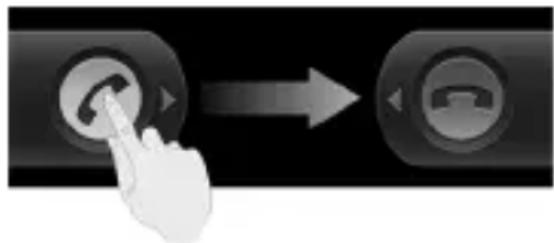
Drag to the right to answer the call.
natural_image
Hand interacting with a touchscreen button next to a telephone icon (no text or symbols)Rejecting a Call
Drag to the left to reject the call.
Muting a Call
During a call, you can mute your microphone so that the person you are speaking to cannot hear you, but you can still hear them:
Tap Mute to turn your microphone off. The mute icon will appear on the status bar. To turn your microphone back on, tap Mute again.
Putting a Call on Hold
During a call, you can put it on hold by tapping . The icon will appear on the screen.

TIPS: If you accept an incoming call while you're on another call, the first call automatically goes on hold. Just tap 📋 to switch between the two callers.
Turning the Speakerphone On/Off
Tap Speaker during a call to turn the speakerphone on. This icon will appear in the status bar. Tap Speaker again to turn off the speakerphone.
Ending a Call
Tap to finish a call.
Adjusting Your Call Settings
From the Home Screen, you can open the call settings menu by going from Menu Key > Settings > Call settings.
| Fixed dialing numbers | Restrict outgoing calls to a fixed set of numbers. To do this you must know your SIM’s PIN2 code. | ||
| Voicemail service | Select a voicemail service provider. | ||
| Voicemail settings | Specify a voicemail number. | ||
| Speed dial Set speed dialing keys and numbers. | |||
| GSM/WCDMA call settings | Call forwarding | Forward your incoming calls to a different number. And choose when to forward: Always forward; Forward when busy; Forward when unanswered, or Forward when unreachable. | |
| Additional settings | Caller ID | Choose whether people you call can see your number. | |
| Call waiting | See new incoming calls while you're on another call. | ||
| Call barring settings | Forbid certain types of calls. | ||
| Cell broadcast settings | Set cell broadcast channel and language. | ||
Contacts
You can save contacts to your phone memory or your SIM. More information can be saved on the phone memory for a contact than on the SIM. For instance, postal addresses, pictures, nicknames, websites, etc.
To go your contacts, tap Home Key > □ > Contacts.
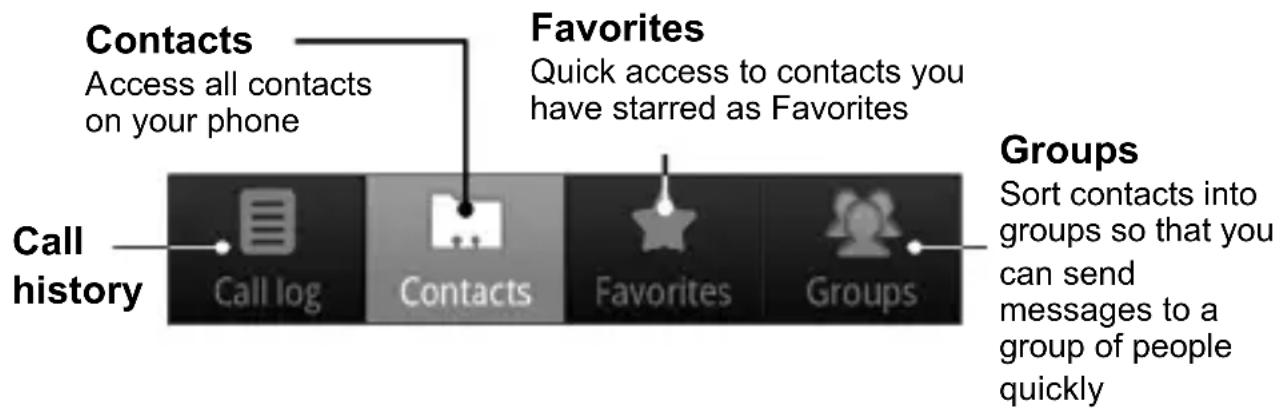
There are four tabs on the Contacts Screen: Call log, Contacts, Favorites, and Groups.
flowchart
graph TD
    A["Call history"] --> B["Contacts Access all contacts on your phone"]
    B --> C["Favorites Quick access to contacts you have starred as Favorites"]
    C --> D["Groups Sort contacts into groups so that you can send messages to a group of people quickly"]
Importing and Exporting Contacts
You can import/export contacts from/to your SIM card (or microSD card).
Import Contacts from the SIM Card or Export to the Card
-
Tap Menu Key > Import/Export from the Contacts Screen.
-
Choose to import or export contacts. Your handset will automatically read the contacts.
- Select the contacts you want to import/export. Or, just tap Menu Key > Select all.
- Tap Done.
Import Contacts from the microSD Card or Export to the Card
- Tap Menu Key > Import/Export from the Contacts Screen.
- Choose to import or export contacts. If you want to import contacts from the microSD card, you should have vCard files saved in the microSD card. If there's more than one vCard file, you need to select the vCard file and tap OK.
Creating a Contact
- Tap Menu Key > New contact from the Contacts Screen.
- Select where you want to save your contact.
- Enter their name and phone number(s), email addresses, chat addresses, postal addresses, etc.
- Tap Done to save the contact.
Adding a Contact to Favorites
- Tap and hold from the Contacts Screen the contact you want
to add to Favorites.
- Tap Add to favorites from the shortcut menu.
TIPS: You can also tap a contact and then tap ☆ next to the contact's name to add it to Favorites.
Searching for a Contact
- Tap Menu Key > Search from the Contacts Screen.
- Input the contact name you want to search for.
The contacts matched will be listed.
Editing a Contact
- Tap the contact you want to edit from the Contacts Screen.
- Press Menu Key > Edit contact.
- Edit the contact and tap Done.
TIPS: You can also edit a contact by holding it in the Contacts Screen and selecting Edit contact from the pop-up shortcut menu.
Deleting a Contact
- Tap and hold the contact you want to delete from the Contacts Screen.
-
Tap Delete contact from the pop-up shortcut menu.
-
Tap OK.
TIPS: You can also delete contacts by tapping Menu Key > Delete contacts from the Contacts Screen. Select the contacts you want and tap Done.
Creating a New Group
- Tap Groups from the Contacts Screen.
- Tap Menu Key > New Group.
- Enter the group name and tap OK.
- Tap the group in the group list and tap Menu Key > Add.
- Select the contacts as the group members and tap Done.
To send messages to the group members, you can hold a group in the group list and tap Send SMS by group from the pop-up shortcut menu.
Entering Text
When you enter a field that needs text or numbers, a keyboard automatically appears on the screen. Hold the input box and select Input method from the pop-up menu to change input method.
Android Keyboard
The Android Keyboard provides a layout similar to a desktop computer keyboard. Turn the phone sideways and the keyboard will change from portrait to landscape.
To use the landscape keyboard, just tick the Auto-rotate screen check box in Settings > Display. (The landscape QWERTY keyboard is not supported in all applications.)

text_image
Tap to switch between uppercase and lower-case. Tap twice to lock uppercase input. Q W E R T Y U I O P A S D F G H J K L Z X C V B N M DEL x ?123 Tap to select digits and symbols. Tap to Google's networked voice input. Tap to delete text before the cursor. Tap or hold to input emoticons.XT9 Text Input
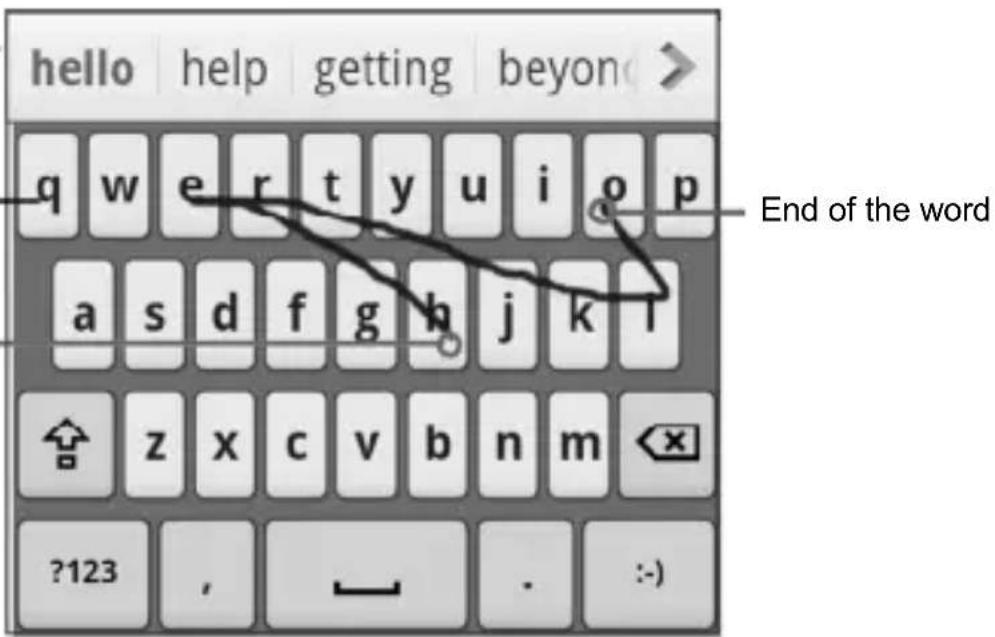
XT9 Text Input can speed up text input by replacing the letter tapping/typing motion of input with a tracing gesture where you move your finger from letter to letter without lifting the finger until you reach the end of the word.
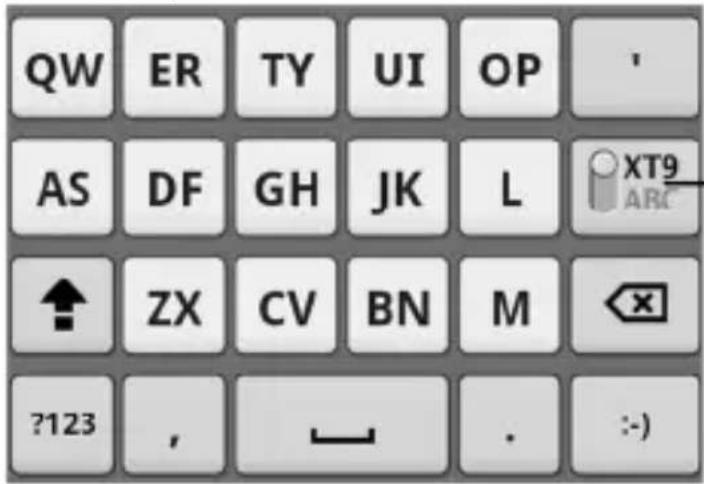
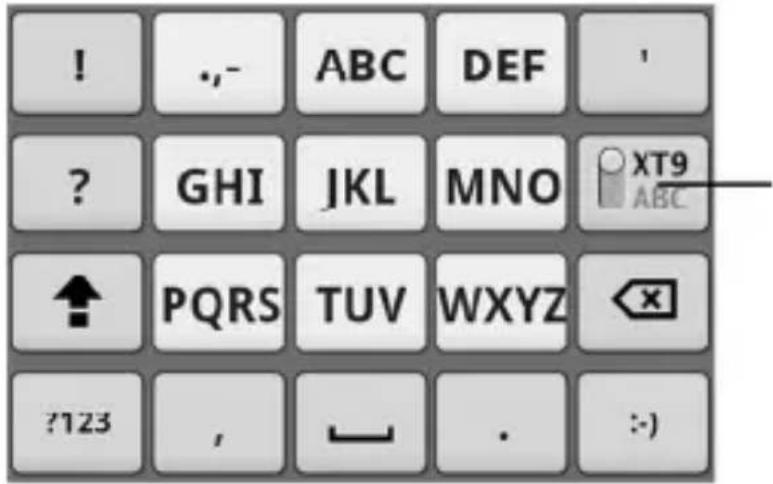
You can select to use one of the three layouts (Keyboard, Reduced keyboard, Phone keypad) of XT9 Text Input Keyboard.
- Keyboard
text_image
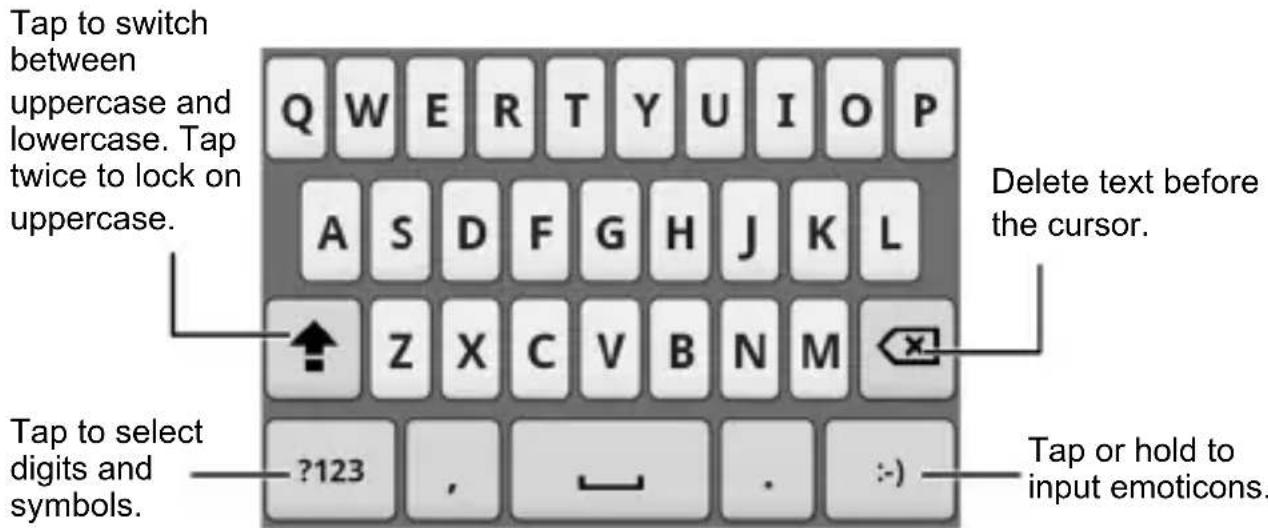
Tap to switch between uppercase and lowercase. Tap twice to lock on uppercase. Q W E R T Y U I O P A S D F G H J K L Z X C V B N M Tap to select digits and symbols. ?123 , - . >) Delete text before the cursor. Tap or hold to input emoticons.Move your finger from letter to letter to trace a word without lifting the finger until you reach the end of the word.
The trace feature is also available in the Reduced keyboard layout and Phone keypad layout.
Move your finger on the letters without lifting it up.
Start of the word
text_image
hello help getting beyond q w e r t y u i o p a s d f g h j k l ?123 , - . :)- Reduced keyboard
text_image
QW ER TY UI OP AS DF GH JK L XT9 ABC ↑ ZX CV BN M ?123 , — . :-)Hold to switch between multi-tap and predictive text input.
- Phone keypad
text_image
! ,,- ABC DEF ? GHI JKL MNO XT9 ? ABC ↑ PQRS TUV WXYZ ?123 , - . :)Hold to switch between multi-tap and predictive text input.
Using the toolbar
Tap to open the toolbar.
Tap to access the settings menu.

flowchart
graph LR
    A["Arrow"] --> B["Arrow"]
    B --> C["Arrow"]
    C --> D["Arrow"]
    D --> E["Arrow"]
    style A fill:#f9f,stroke:#333
    style B fill:#ccf,stroke:#333
    style C fill:#cfc,stroke:#333
    style D fill:#fcc,stroke:#333
    note right of D: Tap to close the toolbar.
Tap to switch the keyboard layouts. Hold until a shortcut menu pops up, then select a keyboard layout.
Tips for using XT9 Tracing Input:
- Ignore double letters – XT9 Text Input will figure those out for you automatically.
- Lift your finger at the end of the word. A space is added automatically when you begin to trace the next word.
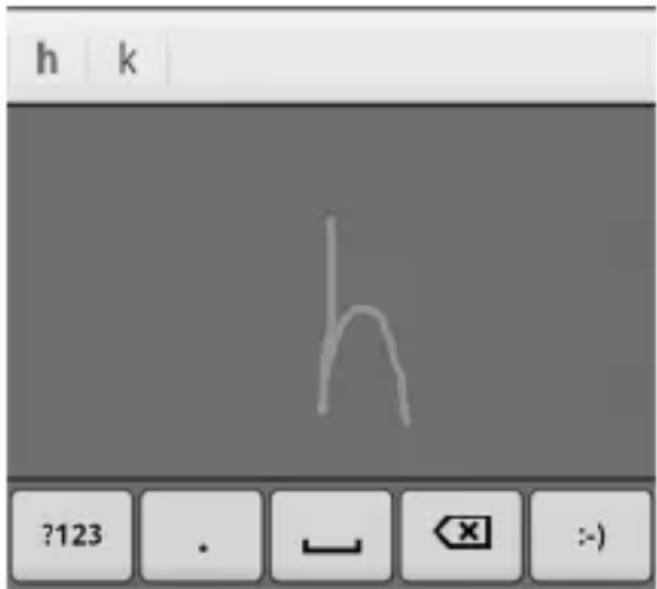
Entering Text through Handwriting
- Switch to handwriting input mode by tapping the handwriting symbol on the XT9 Toolbar.

natural_image
Four gray icons representing tools: pencil, grid, wrench, and double arrow (no text or symbols)- When the handwriting input screen appears, write the letters of your word one letter at a time, until your word is complete.
text_image
h k h ?123 . - < X > -)- When you are finished with the word, tap the correct word in the selection list, or tap ☐.
TIPS: Flick horizontally across the handwriting area on the screen to delete one letter left of the cursor.
Entering Text via On-screen Keyboard
- Enter a field that needs text or numbers.
- Tap or hold the letters on the keyboard to enter your text.
Entering Numbers and Symbols
- Enter a field that needs text or numbers.
- Tap 7123 / 12# / ?123 to open the symbol panel.
- Select the numbers and symbols.
Choosing Touch Input Settings
Choose the touch input settings by tapping Menu Key > Settings > Language & keyboard from Home Screen.
In the Text settings section, you can choose the settings for Android keyboard and XT9.
Android Keyboard Settings
You can tick the check boxes to enable
- Vibration on keypress
- Sound on keypress
• Auto-capitalization of the first letter in each sentence.
You can also select multiple input languages, or set voice input option.
XT9 Text Input
- Languages and settings: Select input languages. Tap a language to set up keyboard layout, word suggestion settings, key input settings, and trace input settings.
- Preferences: Set up keypress vibration, keypress sound, auto-capitalization, and auto-punctuation.
- About: View the XT9 version information.
Messaging
Your SMS (text message) and MMS (multimedia messaging service) files are located in Messages (Home Key > □ > Messages).
When you receive a new message, you can open it from the Notification Panel, or from the Messages Screen. Simply tap on the new message to read it.
Your phone will tell you when message(s) arrive by showing this icon 😊 in the status bar.
Sending an SMS
- Tap Home Key > Messages.
- Tap New message.
- Tap the To field and enter the recipient's number, or tap Menu Key > People to select recipients from Contacts.
TIPS: You can also enter the first letters of the recipient's name to display a list of matching names stored in Contacts, and then select their name from the list. - Tap Type to compose and type your message.
- Tap Send to send your text.
Sending an MMS
- Tap Home Key > Messages.
-
Tap New message.
-
Enter the recipient's number and, if necessary, message text, just like you do with a text message.
-
Tap Menu Key > Add subject to enter the subject of your MMS.
-
Tap Menu Key > Attach if you want to add an attachment to your MMS.
Pictures: Select a picture to add to your MMS.
Capture picture: Take a photo to attach to your MMS.
Videos: Select a video clip to attach to your MMS.
Capture video: Shoot a video clip and attach to your MMS.
Audio: Select an audio file to attach to your MMS.
Record audio: Record an audio file to attach to your MMS.
Slideshow: Edit a slideshow to attach to your MMS.
- When you've finished, tap Send.
NOTE: Add an attachment to text message and it will be converted into an MMS automatically. Likewise if you remove all attachments from an MMS, it'll automatically become a text message.
Managing Messages and Their 'Threads'
SMS and MMS messages sent to and received from the same number are grouped into one message thread in the Messages Screen. Tap the message thread and you can see the conversation you have had with someone (similar to a chat program). Message threads are sorted by the time when you received them, with the latest one on the top.
Reply to a Message
- Tap the message thread you want to reply to from the Messages Screen.
- Tap Type to compose and type your message.
- Tap Send.
Delete a Message Thread or a Message
- Tap Menu Key > Delete threads from the Messages Screen.
- Select the threads you want to delete. If you want to delete all threads, tap All.
- Tap Delete.
- Tap Delete again to confirm.
NOTE: To delete one message in a message thread, hold the message and select Delete message from the pop-up menu.
Message Settings
To configure your message settings, tap Menu Key > Settings from the Messages Screen.
Storage settings:
- Delete old messages: Select to delete old messages when your storage limits are reached.
- Text message limit: Set the maximum number of text messages allowed in a single thread.
- Multimedia message limit: Set the maximum number of multimedia messages allowed in a single thread.
Text message (SMS) settings:
- Delivery reports: Request a delivery report for every text message you send.
- Manage SIM card messages: Manage the messages saved in your SIM card.
- SMS validity: Set the validity time limit for outgoing text messages.
- SMS priority: Set the priority of outgoing messages.
- Service Center: Enables you to view and edit the service center number.
Multimedia message (MMS) settings:
- Delivery reports: Request a delivery report for every MMS message you send.
- Read reports: Request a read report for every MMS message you send.
• Auto-retrieve: Automatically retrieve MMS messages. - Roaming auto-retrieve: Automatically retrieve MMS messages when you're roaming.
- MMS validity: Set the validity time limit for outgoing multimedia messages.
- MMS creation mode: Select MMS creation restrictions. An MMS created under restricted mode is more likely to be displayed properly on other devices than those created under free mode.
Notification settings:
- Notifications: Show message notifications in the status bar.
- Select ringtone: Choose a ringtone for your incoming messages.
- Vibrate: Make your phone vibrate when a new message arrives.
Signature settings:
- Edit signature: Edit your signature, which can be added automatically to outgoing messages.
- Add signature: Add the signature to all outgoing messages.
NOTE: Tap Menu Key > Restore default settings to change all the message settings back to the original.
Tap Home Key > 📄 > Email. You can enter the Email Screen to setup your Email account and exchange Emails.
Creating an Email account
- Enter your Email address and password. Then tap Next when you enter the Email Screen for the first time.
- Select the type of your account, edit the incoming server settings, and then tap Next or Next [Check].
After you press Next [Check], your phone will check the incoming server settings. If you are notified that setup could not be finished, you might need to correct some settings to finish it. If there is any problem, please contact your mobile service provider and Email service provider.
- Edit the outgoing server settings and tap Next or Next [Check].
After you press Next [Check], your phone will check the outgoing server settings.
NOTE: Your Idea 3G Smartphone knows the client settings for lots of Email service providers. If the Email service you use is from those providers, the phone will automatically check the incoming and outgoing settings after you enter your Email account and password.
- Set the Email checking frequency, select whether to use this account by default or be notified when Email arrives, and then tap Next.
- Give your account a name and set a name displayed on outgoing messages, and then tap Done.
Your phone will show the inbox of the Email account and start to download Email messages.
Composing and sending an Email
After creating an Email account, you can compose and send Email messages.
- Tap Menu Key > Compose from the Email Screen.
- Tap To field if needed, and enter the recipient's address.
When you enter the address, the matching addresses saved in your Contacts will be displayed. You can tap the recipient from the list.
TIP: You can also tap Menu Key > Add Cc/Bcc to add recipients.
- Enter the subject and the content of your Email. If necessary, change the email priority.
Tap Menu Key > Add attachment to add files to the Email.
- Tap Send.
Replying to or Forwarding an Email
- Open the Email you want to reply to or forward from Email Screen.
- Tap Reply or Menu Key > Forward to reply to/forward the Email.
You can also tap Reply all to reply to all recipients of the Email. - Enter the contents/recipients of your Email.
- Tap Send.
Email Settings
Tap the account you want to set from the Email Screen and tap Menu Key > Account settings. You can get the Email settings.
General settings
• Account name: Set your account name.
- Your name: Set the name displayed on outgoing message.
- Email address: View and change your Email address.
• Use signature: Select to use signature.
• Signature: Set your signature.
- Email check frequency: Choose how often you want the phone to automatically check for Emails.
- Power-saving mode: Enable the automatic adjustment of email check frequency when the battery is low.
- Default account: Select the check box to send email from this account by default.
- Sync deleted message: Delete an Email on the phone and the Email will be deleted on the server, too.
Notification settings
- Email notifications: Select to be notified in the status bar when Email arrives.
- Select ringtone: Select the notification ringtone for incoming Emails.
• Vibrate: Make the phone vibrate when Emails arrive.
Server settings
- Incoming settings: Set the incoming server settings.
- Outgoing settings: Set the outgoing server settings.
Getting Connected to the Internet
Your phone's impressive networking capabilities allow you to access the Internet or your corporate network with ease.
You can use default connection settings to connect to the web via your mobile network (GPRS/EDGE/3G), or Wi-Fi.
The GPRS/EDGE/3G connection can be enabled/disabled manually. Just select > Settings > Wireless & networks > Mobile networks from the Home Screen and tick or clear the Data enabled check box.
Adding a New GPRS/EDGE/3G
Connection
To get connected via GPRS/EDGE/3G you need a data plan with your service provider. Also if the GPRS/EDGE/3G settings are not pre-configured on your phone, please contact your provider to get the following information.
Changing the settings without talking to your service provider could stop your phone from working.
- Access Point Name (APN).
- Your user name and password if needed.
-
Server IP and the port number if the network uses a proxy server.
-
Tap Home Key > Settings > Wireless & networks > Mobile networks > GSM/UMTS Options > Access Point Names.
- Tap Menu Key > New APN.
- Tap Name to enter your APN name (it can be whatever you like).
- Tap APN to enter the APN you want to add.
- Tap Proxy and Port to enter the Server IP and port if the network uses a proxy server.
- Tap and enter Username and Password. (If there's no user name or password, leave them blank.)
- If needed, tap and enter APN type.
- Tap Menu Key > Save to complete.
TIPS: To set the APN to default settings, tap Menu Key > Reset to default.
Turning on Wi-Fi
Wi-Fi provides wireless Internet access over distances of up to 300 feet (100 meters).
-
Tap Home Key > Settings > Wireless & networks.
-
Tick the Wi-Fi box to turn it on.
Connecting to a Wi-Fi Network
- Tap Home Key > Settings > Wireless & networks > Wi-Fi settings.
The Wi-Fi network names and security settings (open or secured) that your phone has detected are shown in the Wi-Fi networks section.
- Tap a network to connect to it.
If the network is secured, you'll need to enter a password.
Checking the Wi-Fi Network Status
You can check the Wi-Fi network by looking at the icon in the status bar.
Or tap Home Key > ☐ > Settings > Wireless &
networks > Wi-Fi settings. Next, tap the wireless network that the phone is currently connected to. You can check the network status from the pop-up window.
Using the Phone as a Modem
You can access the Internet on your PC via your phone as a modem. Note the function may result in data charges from your mobile phone carrier. Please contact them for detail.
Enabling the Phone as a Modem
TIP:
- Make sure that USB storage is turned off before enabling the modem function. You can flick down the notification panel and tap Turn off USB storage > Turn off USB storage.
-
The PC accesses the Internet via the phone's mobile network. Therefore, set up the GPRS/EDGE/3G connection correctly before you try to use the phone as a modem.
-
When you connect your phone to your PC with the provided USB cable for the first time, a window will pop up and prompt you to install the driver.
-
Double click the executable file (.exe) in the window and follow the prompt to finish the driver installation.
NOTE: If the window doesn't pop up automatically for some reason, please open the new CD-ROM drive on your PC manually and find the executable file to run it.
-
Tap on the phone Home Key > Menu Key > Settings > Wireless & networks > Tethering & portable hotspot and tick the USB tethering check box. A new network connection will be created on your PC.
-
Go to Control Panel > Network on your PC to enable the new network connection.
Now you can launch the Internet browser on your PC and start surfing.
Disabling the Modem Function
Tap Home Key > Menu Key > Settings > Wireless & networks > Tethering & portable hotspot and clear the USB tethering check box.
You can also just pull out the USB cable.
Using the Phone as a Wi-Fi Hotspot
You can use the phone as a portable WLAN router, providing Wi-Fi connection for one or multiple PC or other devices. The function need data connection on a mobile network and may result in data charges.
TIP:
- The PC accesses the Internet via the phone's mobile network. Therefore, set up the GPRS/EDGE/3G connection correctly before you try to use the phone as a Wi-Fi hotspot.
- When the portable Wi-Fi hotspot function is enabled, you cannot access the internet with any application on your phone via its Wi-Fi connection.
- At most 6 devices are allowed to connect to your phone simultaneously.
Enabling the Wi-Fi Hotspot
- Tap Home Key > Menu Key > Settings > Wireless & networks > Tethering & portable hotspot and tick the Portable Wi-Fi hotspot check box.
- Tap Portable Wi-Fi hotspot settings > Configure Wi-Fi hotspot.
- Change the name of the hotspot and its security setting, if necessary.
The default hotspot is set as an open one. You can tap Open and choose WPA/WPA2 PSK to set up a password. The password must have at least 8 characters. - Tap Save. Now you can find the hotspot on other devices and connect to it.
Disabling the Wi-Fi Hotspot
Tap Home Key > Menu Key > Settings > Wireless & networks > Tethering & portable hotspot and clear the Portable Wi-Fi hotspot check box.
Browsing the Internet
You can use your phone to get on the Internet. Your phone automatically creates an GPRS, EDGE, or 3G connection while you browse web pages.
Tap Home Key > 📋 > Browser.
There are different ways to open web pages:
- Tap the address bar to enter the website you want to browse. Then tap Go.
- Tap beside the address bar or tap Menu Key > Bookmarks. Select a bookmark to open.
- Tap beside the address bar or tap Menu Key > Bookmarks. Choose an item from the Most visited tab or History tab.
Browsing Options
- Refresh: Menu Key > Refresh.
- Go to the next page: Menu Key > More > Forward.
- Add the page to Bookmarks: Menu Key > More > Add bookmark.
-
Search: Menu Key > More > Find on page and enter the search item.
-
Copy: Menu Key > More > Select text and slide your finger on the page to select the text you want to copy. Your phone automatically copies the selected text to the clipboard.
- Share pages: Menu Key > More > Share page to send a page by Bluetooth, Email, Gmail or Messages.
- Downloads/page info: Menu Key > More > Downloads/ Page info.
- Landscape browser: Menu Key > More > Settings.
Tick the Landscape-only display box and rotate your phone sideways to view the landscape browser screen. - Open new browser window: Menu Key > New window.
Then tap the address bar to enter the website you want to browse. - Switch browser windows: If you have more than one browser windows opened, you can switch between these windows by tapping Menu Key > Windows. Then tap the
page you want to browse. You can also tap ✗ to close a window.
Opening Links in Web Pages
When the web page has a link to another site, either tap the link to open the page, or hold on the link to open the shortcut menu, giving you these options:
- Open
- Open in new window
- Bookmark link
- Save link
- Share link (by Bluetooth, Email, Gmail, or Messages)
- Copy link URL
Downloading Apps from the Web
If a web page has link to an application you'd like to download, just hold on the link and select Save link. The application will be saved to your microSD card.
Using Bookmarks
To bookmark a web page, open it and tap 📄 or Menu Key > Bookmarks. Then tap Add or Add bookmark. Give the bookmark a name and tap OK.
TIPS: You can press Menu Key > List view/Thumbnail view to change how you view bookmarks on your phone screen.
Edit a Bookmark
- Open a Browser window.
- Tap or Menu Key > Bookmarks.
-
Select an item you want to edit and hold on it until the shortcut menu pops up.
-
Select Edit bookmark.
- Edit the name or location, and then tap OK to save it.
Delete a Bookmark
- Open a Browser window.
- Tap or Menu Key > Bookmarks.
- Select an item you want to delete and hold on it until the shortcut menu pops up.
- Select Delete bookmark and tap Continue to confirm.
Browser Settings
You can set the browser text size, home page etc. by tapping Menu Key > More > Settings from a browser window.
Page content settings
- Text size
- Default zoom
- Open pages in overview
- Text encoding
- Block pop-up windows
- Load images.
- Auto-fit pages
- Landscape-only display
- Enable JavaScript
-
Enable plug-ins
-
Open in background
- Set home page
Privacy settings
- Clear cache: Delete all cached page contents.
- Clear history: Clear the browser navigation history.
- Accept cookies: Allow websites to use cookies.
- Clear all cookie data: Clear the browser cookies – deleting all history data.
- Remember form data: Remember the data you type in forms for later use.
- Clear form data: Clear all the saved form data.
- Enable location: Allow sites to request access to your location.
- Clear location access: Clear location access.
Security settings
- Remember passwords: Save usernames and passwords for web sites.
- Clear passwords: Clear saved passwords.
- Show security warnings: Warn if there’s a problem with a site’s security.
Advanced settings
- Website settings: View advanced settings for individual websites. (Only available for some websites.)
- Reset to default: Clear all browser data and reset all settings to default.
Bluetooth®
Bluetooth ^® is a short-range wireless communication technology. Phones or other devices with Bluetooth capabilities can exchange information wirelessly within a distance of about 10 meters. The Bluetooth devices must be paired before the communication is performed.
Turning Bluetooth on/off
Tap Home Key > Settings > Wireless & networks and tap the check box by Bluetooth.
When Bluetooth is on, the 📋 icon will appear in the status bar. If you want to turn Bluetooth off, just clear the Bluetooth check box.
NOTE: If you switch off your phone while Bluetooth is turned on, when you switch on the phone again, Bluetooth will turn on automatically.
Making Your Phone Visible
In order to work with other phones or devices that have Bluetooth, you need to make your phone ‘visible’ to them.
- Tap Home Key > Settings > Wireless & networks > Bluetooth settings.
- Tick the Bluetooth check box if it isn't already ticked.
- Tick the Discoverable box to make your device visible.
Change Your Phone's Name
When your phone is visible to other Bluetooth devices it will be seen by its name, and you can make that anything you want – like ‘Dave’s Idea 3G Smartphone’.
- Tap Home Key > Settings > Wireless & networks > Bluetooth settings.
- Select the Bluetooth box if it is not already ticked.
- Tap Device name.
- Enter the name and tap OK.
Hook up with Another Bluetooth Device
You can pair your phone with another device that has Bluetooth capabilities. Once you do this, the two devices can exchange information with Bluetooth turned on but do not need to be visible to each other.
- Tap Home Key > Settings > Wireless & networks > Bluetooth settings.
- Tap Scan for devices. Your phone will show all visible Bluetooth devices (in range) in its Bluetooth devices.
- Select the device you want to pair with.
- If required, enter your PIN and tap OK.
If a PIN is required, the same PIN should be entered on the other device.
Making the Most of Multimedia
Taking Pictures with Your Camera
Your phone has a 3.2 megapixel camera. Open it by tapping Home Key > 📋 > Camera.
Aim the camera at the subject and then tap 📷 to take a shot. To view it, just tap the picture in the right corner of the screen. Or select Menu Key > Gallery to view all your pictures.
Adjusting Camera Settings
From the Camera Screen tap to set up focus mode, exposure, picture size/quality, color effect, ISO, anti-banding, saturation, contrast, sharpness, and camera reset.
Tap 📄 to enable or disable saving of pictures' locations. Tap 🔒 to change white balance.
Tap Zoom to zoom in or out.
TIP: To change quickly from camera to camcorder or vice versa, use the switch icon. Use the bar to adjust the brightness.
Shooting Video with Your Camcorder
Open the camcorder by tapping Home Key > Camcorder. Then select ⏻ to start shooting, and ⏱ to stop. Select the picture in the right corner of the screen to
view the video you've just shot. Or tap Menu Key > Gallery to see all your video clips.
Adjusting Your Video Settings
From the Camcorder Screen, tap to adjust color effect, video quality, video/audio encoder, video duration, and camcorder reset.
Tap AW to change white balance setting.
Tap High/Low/MMS/YouTube to change video quality, video/audio encoder, and video duration together based on the purpose of the video.
Listening to Your FM Radio
With the FM Radio, you can search for radio channels, listen to them, and save them on your phone. Note that the quality of the radio broadcast depends on the coverage of the radio station in your area. The wired headset that comes with your phone works as an antenna, so always connect the headset when using the radio. When you receive an incoming call while listening to the radio, the radio will be turned off.
To tune in, plug your headset into your phone. Tap Home Key > FMRadio. This icon will pop up in the status bar.
Tap or to scan for available FM channels. If you need to fine tune the radio's reception, tap Menu Key > Adjust. Tap + / change the frequency by +/-0.1 MHz.
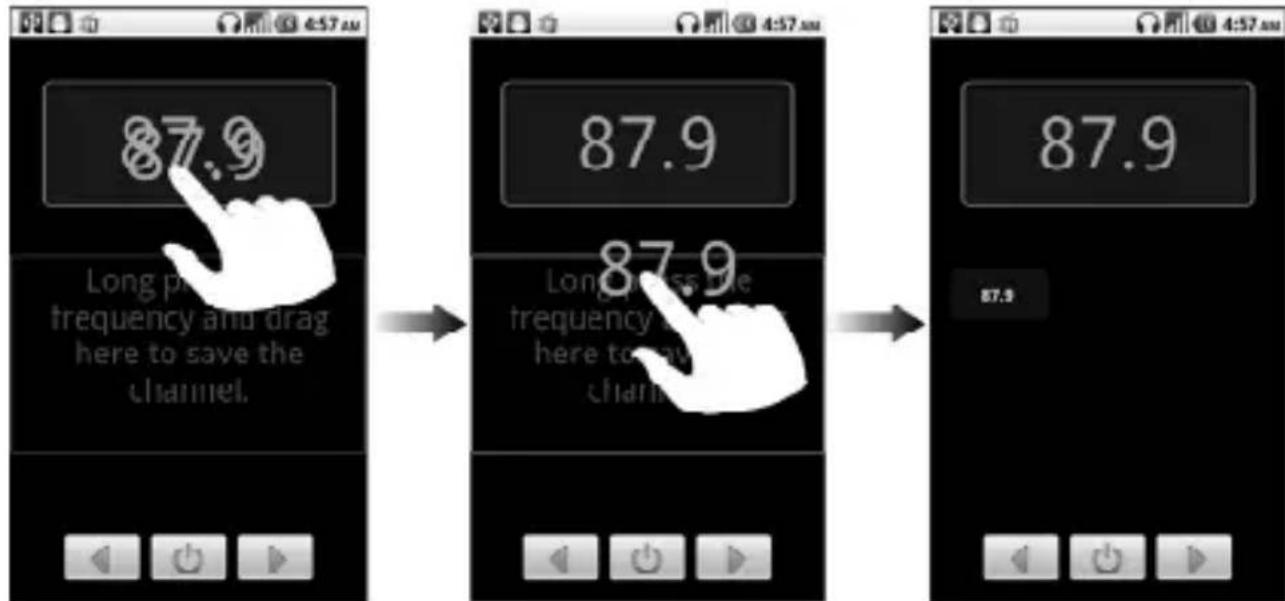
Once you get the best reception of a channel, hold the frequency shown until a red box appears on the screen, and then drag it into the box to save, as shown in the next diagram.
text_image
87.9 Long press the frequency and drag here to save the channel. 87.9 Long press the frequency and drag here to save the channel. 87.9 87.9- Press Volume Keys to adjust the volume.
- Tap Menu Key > Sleep to set the FM radio sleep timer.
- Tap to switch off the radio.
Playing Your Music
You can play digital audio files from your phone's memory card in Music.
- Tap Home Key > Music to open the Music Screen.
- Select Artists/Albums/Songs/Playlists to see the songs you want to play.
-
Tap a song from the list to start playing.
-
Adjust the volume with Volume Keys.
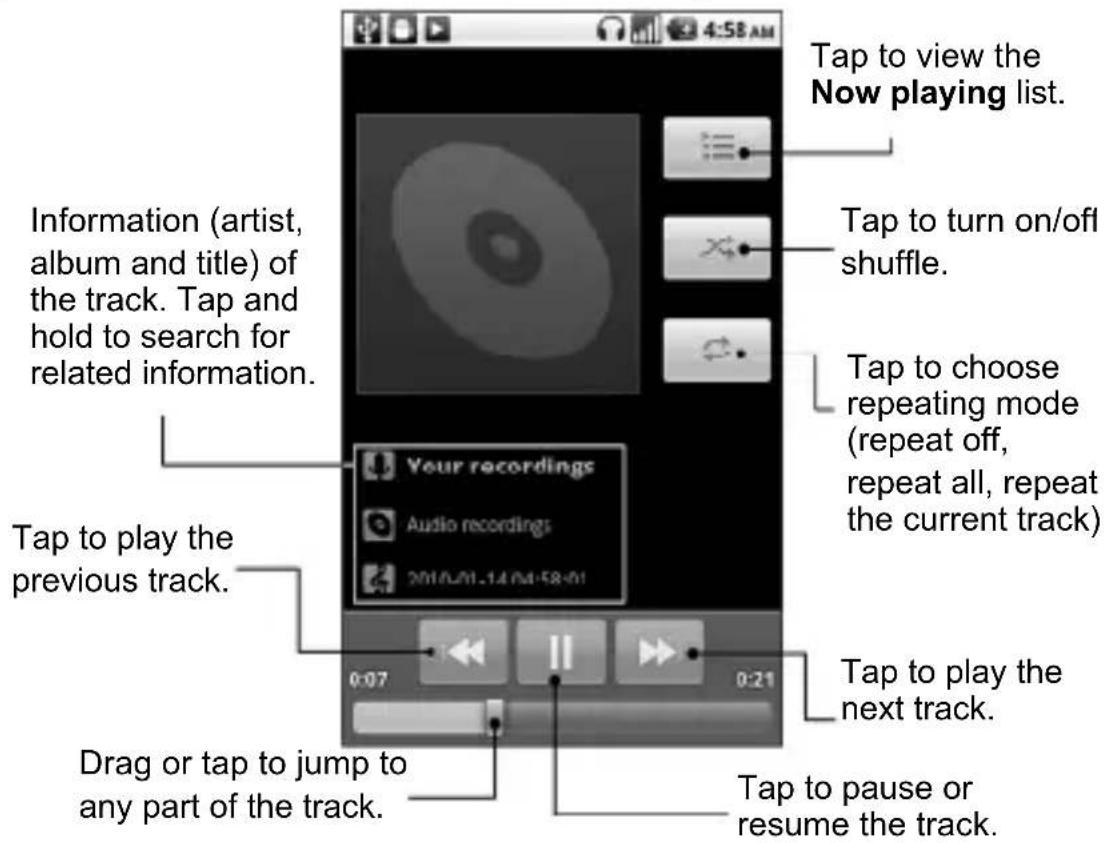
text_image
4:58 AM Tap to view the Now playing list. Tap to turn on/off shuffle. Tap to choose repeating mode (repeat off, repeat all, repeat the current track) Your recordings Audio recordings 2010/01.14/04-58-01 Tap to play the previous track. 0:07 0:21 Tap to play the next track. Drag or tap to jump to any part of the track. Tap to pause or resume the track.Creating Playlists
Playlists help you organize your music files:
- Select a music file you want to add to a new playlist.
- Tap and hold on the file until a shortcut menu pops up.
- Tap Add to playlist.
- Tap New.
- Type the playlist name and tap Save.
Managing Playlists
- From the Music Screen tap Playlists to see them all.
- Hold on the playlist you want to play or edit until a shortcut menu pops up.
- Tap Play, Delete or Rename.
Adding a Song to a Playlist
- Open Music and find the song you need under Artists, Albums, Songs, or Playlists.
- Hold on the song until a shortcut menu pops up.
- Select Add to playlist.
- Select a playlist.
Setting a Song as Ringtone
- Open the folder where the song is.
- Hold on the song until a shortcut menu pops up.
- Select Use as phone ringtone.
TIPS: You can also set a song as ringtone when you are playing it by tapping Menu Key > Use as ringtone.
Playing Your Videos
To play a video file, tap Home Key > Videos. This will open the Videos Screen and show the video files saved to your memory card.
Tap a video file and the video player will open. Tap on the screen and the control bar will appear as below. So now you can play, pause, fast forward, etc.

text_image
Tap to rewind. Tap to fast forward. Hold and drag to jump to any part of the video. 01:23 03:28 Tap to pause/resume video.Opening Your Gallery
Gallery helps you view pictures and play videos. You can also do some basic editing of your pictures – such as setting them as wallpaper or contact icons, and sharing with friends.

text_image
Tap to return to the previous folder Tap to return to Gallery. Show the number of pictures in the folder Tap to view pictures in the folder in a slideshow Tap to zoom Slideshow MenuMaking Memorable Memos
Sound Recorder enables you to record your voice memos. You need a microSD card to use it.
- Tap Home Key > □ > Sound Recorder.
- Make sure your mouth is near the phone's microphone.
- Tap to start recording.
- Tap to stop recording.
-
Tap ▶ to play back the voice recording.
-
Tap OK to save the voice recording, or tap Discard to delete the recording.
TIPS: You can find your recordings in Home Key > Music > Playlists > My recordings. If you want to set an audio clip as ringtone, hold the recording and select Use as phone ringtone from the pop-up shortcut menu.
Note: Please transfer all your downloaded applications to memory card for better processing speed and to optimize internal memory space.
Using Your Google™ Applications
Signing in to your Google Account lets you synchronize Gmail, Calendar, and Contacts between your phone and the web. And if you don't have an account, you can easily create one.
- Tap a Google application that need a Google account, such as Market.
- Read the instructions and select Next.
- If you've got a Google account, tap Sign in. Enter your user name and password. Then tap Sign in. (Or tap Create if you don't have a Google account.)
Gmail
Gmail is a web-based email service that's configured when you sign in to your Google account. Depending on your synchronization settings, the Gmail on your phone can be automatically synchronized with your Gmail account on the web.
This is how you create and send a Gmail:
- Open Gmail by tapping Home Key > > Gmail.
- Press Menu Key >Compose.
- Enter the email address of the person you're contacting in the 'To' field. If you're sending the email to several people, separate the email addresses with a comma. You can add
as many recipients as you want.
- Enter the email subject, and then write your email.
- Tap Menu Key > Send.
Using Google Calendar
Tap Home Key > 📄 > Calendar to use Google Calendar, Google’s time management application. You can use the calendar to schedule appointments, including meetings and other events. Your appointments will be displayed on the screen as are scheduled. You can also synchronize appointments to your Google account, which enables you to manage your schedule online on your PC.
Using Google Talk
Google Talk is Google's instant messaging program, which enables you to communicate with other people who also use it.
Opening Google Talk
Tap Home Key > □ > Talk.
Adding a New Friend
You can only add people who have a Google Account.
- In the Friends list, press Menu Key > Add friend.
- Enter the Google Talk instant messaging ID or Google email address of the friend you want to add.
Your friend will receive an invitation from Google. Press Menu Key > More > Invites to see pending invitation.
Changing Your Online Status
- Tap the online status icon beside your status message, and then select the status you want on the menu.
- Tap the status message box and then enter your status message using the on-screen keyboard.
Starting a Chat
- Tap a friend in the Friends list.
- Chat with your friend by entering text in the message box.
- Tap Send.
Places
Google Places helps you find all kinds of businesses near you.
- Tap Home Key > Settings > Location & security and tick the Use GPS satellites or Use wireless networks check box.
- Tap Home Key > Places. Wait while you are being located. Your location, when found, is shown at the bottom of the screen.
- Select a business category and the information of that type of business near you will be displayed.
You can also use the Find places search box on the top to find the business you need.
Note: Tap Add to add new business categories.
- Tap a result you are interested in and check out the details and reviews about that place. You can also see the place on Google Maps, find out how to get there, or give that business a call.
Latitude
Google's Latitude service is a social tool for sharing your location information with selected friends.
Tap Home Key > > Latitude to enable Latitude service.
Each time you launch Maps application, your location will be determined using GPS or the phone network, and your Latitude status will be updated. You can tap Menu Key >
Latitude in Maps or Home Key > 📄 > Latitude to see your status as well as that of your selected friends.
In Latitude, tap Menu Key to refresh friends status, see them on Maps, add new friends, or change privacy settings.
You can also turn off Latitude service by tapping Sign out of Latitude in Privacy settings of Latitude.
Sorting out Your Phone Settings
Setting Time and Date
- Tap Home Key > Menu Key > Settings > Date & time.
- Clear the Automatic tick box if you want to set the time and date by yourself.
- Tap Set date. Adjust the date, and tap Set to save it.
- Tap Select time zone and tap where you are in the world.
- Tap Set time. Adjust the time, and tap Set to save it.
- Tap the tick box behind Use 24-hour format if you want to change the time format.
- Tap Select date format to select the one you prefer.
Changing Display Settings
By tapping Home Key > Menu Key > Settings > Display, you can adjust the display settings as you like – changing Auto-rotate screen, Animation, Brightness, and Screen timeout.
Adjusting Screen Brightness
- Select Brightness from the display settings.
- Tick the Automatic brightness box and your phone can adjust the screen brightness automatically. Clear the tick box to adjust the screen brightness manually.
3. Tap OK.
Adjusting Screen-timeout
When not in use, your phone will turn the screen off after a set length of time. If that time is too long or short, you can adjust it.
- Tap Screen timeout from the display settings.
- Select your preferred time from the list.
Switching Screen Orientation Automatically
You can select to switch your screen orientation to landscape or portrait automatically when rotating your phone. Simply tick the Auto-rotate screen box from the display settings.
If you want to disable this function, just clear the Auto-rotate screen check box.
Showing Animation when Opening/Closing Windows
- Tap Animation in the display settings.
- Select the animation type you like.
When you want to disable this function, select No animations.
Sound Settings
By tapping Home Key > Menu Key > Settings > Sound, you can adjust the sound settings, such as ringtones and alerts.
Choosing Your Ringtone
- Tap Phone ringtone in sound settings.
- Select the ringtone you want to use from the pop-up list.
- Tap OK to save.
Setting the Default Notification Ringtone
- Select Notification ringtone from the Sound settings.
- Scroll through the ringtone list and select one as the default notification ringtone.
- Tap OK to save.
Switching Your Phone to Silent Mode
- In the Sound settings tick the Silent mode box.
- You can also switch to Silent mode by holding the Volume Key (down) or – if the screen is locked – by dragging the Sound off bar to the left, as shown below.

text_image
Airplane mode Emergency calls only 02:18 Thursday, March 31 Charged.By default, vibration is enabled in silent mode, and the icon appears in the status bar. If vibration is disabled, the silent icon will appear in the status bar.
Switching to Vibrate
In Sound settings tap Vibrate and choose the condition for vibration. If your phone is already in Silent mode, the vibration icon 📋 will appear in the status bar when vibration is enabled.
Flipping to Turn off Ringtone
In Sound settings tick the Turn to forbid phone ring box. Then you can flip your phone over to mute the ringtone when there is an incoming call.
'Haptic' (touch) Keypad Feedback
If you'd like your phone to vibrate in response to your keypresses or certain UI interactions, then you need to turn on the haptic feedback.
- Tap Home Key > Settings > Sound.
- Tick the Haptic feedback box.
Adjusting Volume
- Make sure your phone isn't in Silent mode.
- Tap Volume from Sound settings.
- Adjust the ringtone volume, media volume, and alarm volume and tap OK to save.
TIPS: You can adjust the media volume when a media application is in use by pressing the Volume Keys. If no media application is active, press the keys to adjust ringtone volume. And if you'd like to adjust the notification volume together with the ringer volume, tick the Use incoming call volume for notifications box.
Turning on Touch Tones
To make your phone play tones whenever you use the dial pad, tick the Audible touch tones box in Sound.
Turning on Selection Tones
Tick the Audible selection box in Sound. Your phone will play a sound when you touch the screen to make a selection.
Turning on Screen Lock Sound
Tick the Screen lock sounds box in Sound settings. When you lock or unlock the screen, sound will be played as a notification.
Language Settings
You can change the language of your phone's operating system in two simple steps.
-
Tap Home Key > Settings > Language & keyboard > Select language.
-
Select a language from the list given.
Mobile Network Services
Both GSM and WCDMA are supported by your phone. You can configure the network settings according to the phone service you use.
Getting Data Services while Roaming
-
Tap Home Key > Settings > Wireless & networks > Mobile networks.
-
Tick the Data roaming box.
IMPORTANT: Data roaming may incur significant roaming charges.
Enabling Data Services
- Tap Home Key > Settings > Wireless & networks > Mobile networks.
- Tick the Data enabled box to enable data services over the mobile network. To disable data services, just clear the tick box.
Enabling Always-on Data Services
-
Tap Home Key > Settings > Wireless & networks > Mobile networks.
-
Tick the Enable always-on mobile data box to allow applications to update data automatically.
IMPORTANT: When this option is enabled, more data traffic will be generated for automatic updates of applications data. And your phone will consume more power.
Switching Network Modes
-
Tap Home Key > Settings > Wireless & networks > Mobile networks > Network Mode.
-
Select one of the following: GSM/WCDMA auto, WCDMA only, or GSM only.
Switching Networks
- Tap Home Key > Settings > Wireless & networks > Mobile Networks > GSM/UMTS Options > Network operators. The phone automatically searches for all available networks.
- Tap a network to register manually, or tap Select automatically.
Setting Access Point Names
To connect to the Internet you can use the default Access Point Names (APN). And if you want to add a new APN, please contact your service provider to find out more.
-
Tap Home Key > Settings > Wireless & networks > Mobile networks > GSM/UMTS Options > Access Point Names.
-
Tap Menu Key > New APN.
- Set the necessary parameters. (See how to add a GPRS/3G/EDGE connection on page 69.)
- Tap Menu Key > Save.
Security Settings
Here's how to protect your phone and SIM from unauthorized use.
Protecting Your Phone with a Screen Unlock Pattern
Creating Your Screen Unlock Pattern
-
Tap Home Key > Settings > Location & security > Set up screen lock > Pattern.
-
Read the instructions and tap Next.
-
Watch the example pattern and tap Next.
-
With a finger, draw your own pattern and tap Continue.
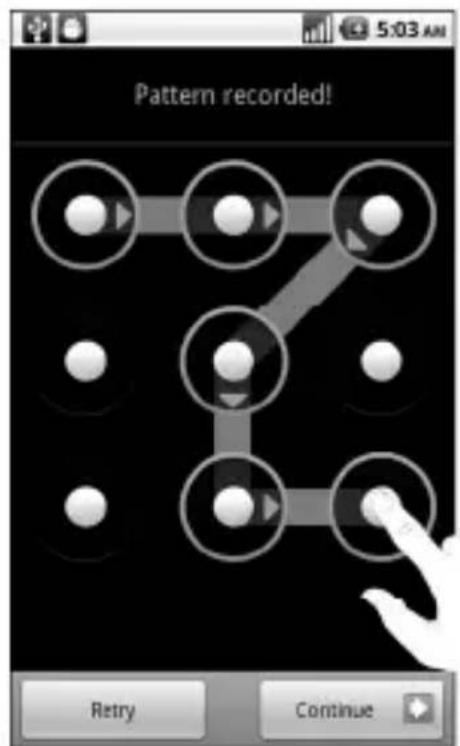
text_image
Pattern recorded! Retry Continue-
Draw the pattern again and tap Confirm.
-
Press Power Key to lock the screen.
TIPS: You can also clear the Use visible pattern box in the Location & security screen if you don't want your screen
unlock pattern to display as you draw it on the screen.
Unlocking the Screen with Your Pattern
- Press the Power Key.
- Draw the pattern you set to unlock the screen.
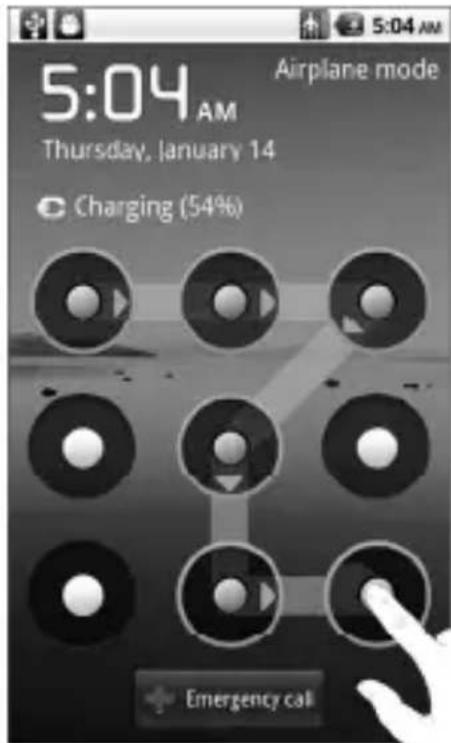
text_image
5:04 AM Thursday, January 14 Airplane mode Charging (54%) Emergency callIf you make a mistake, your phone will ask you to try again.
Forgot your screen unlock pattern?
If you’ve forgotten your screen unlock pattern, you have up to five attempts to unlock your phone. If the pattern has been drawn incorrectly five times, you can enter your Google account user name and password to unlock your phone.
IMPORTANT: You must sign in or create a Google account on your phone before using the following method to reset the lock pattern.
- Draw the unlock pattern on the screen.
- After the fifth attempt, you're prompted to try again in 30 seconds. Then tap OK.
Note: If the display turns off, press the Power Key to turn the display on.
-
Tap Forgot pattern? on the bottom right of the screen.
-
Enter your Google account user name and password, and then tap Sign in.
-
You will be asked to draw a new unlock pattern. If you do not need an unlock pattern, tap Cancel.
Protecting Your Phone with a PIN or Password
Creating a PIN or Password
-
Tap Home Key > Settings > Location & security > Set up screen lock.
-
Tap PIN or Password.
-
Enter the numeric PIN or any password you like, and tap Continue.
-
Enter it again and tap OK to confirm.
Unlocking the Screen with Your PIN or Password
- Press Power Key to wake up the phone.
- Drag the icon to the right.
- Enter the PIN or password you set.
- Tap OK.
Disabling Screen Unlock Security
If you have created an unlock pattern, PIN or password, you can disable it.
- Tap Home Key > Settings > Location & security > Change screen lock.
- Draw the screen unlock pattern or enter your PIN/password you have created.
- Tap None.
Protecting Your SIM with a PIN
Every SIM card comes with a PIN. The initial PIN is provided by your service provider. It's best to lock your SIM as soon as you can.
- Tap Home Key > Settings > Location & security > Set up SIM/USIM card lock.
- Tick the Lock SIM/USIM card check box.
- Enter the PIN you've been given and tap OK.
Changing Your SIM PIN
You can change the PIN you've been given to one easier for you to remember and harder for others to guess.
- Tap Home Key > Settings > Location & security > Set up SIM/USIM card lock.
- Make sure you already tick the Lock SIM/USIM card check box.
- Tap Change SIM/USIM PIN.
- Enter the old PIN and tap OK.
- Enter your new PIN and tap OK.
- Enter the new PIN again and tap OK.
Restoring a Locked SIM Card
Put all your confidential passwords in a safe place for future use. If you enter the wrong SIM PIN more times than allowed, your SIM card will be locked and you cannot access the mobile phone network. Contact your operator for a PIN Unlock Key (PUK) to restore the SIM card.
Setting up Credential Storage
This lets you select applications to access secure certificates and other credentials.
Enabling Secure Credentials
- Tap Home Key > Settings > Location & security.
- Tap Set password and create a password for the
credential storage.
- Tick the Use secure credentials box.
TIPS: You can also install encrypted certificates from your microSD card by tapping Install from SD card.
Deleting Secure Credentials
- Tap Home Key > Settings > Location & security.
- Tap Clear storage to clear credentials.
Managing Your Memory Card
Checking Memory Card Space
Tap Home Key > Settings > SD card & phone storage.
You can view the space information from Total space/Available space in SD card section.
Unmounting Your Memory Card
Unmounting makes your memory card unavailable to the phone's operating system, and ready for removal or replacement.
- Tap Home Key > Settings > SD card & phone storage.
- Tap Unmount SD card.
The icon will appear in the status bar. You can tap Mount SD card to mount the memory card again.
Formatting Your Memory Card
- Unmount your memory card (as above).
- Tap Format SD card.
- Tap Format SD card to confirm.
- Tap Erase everything.
Managing Phone Memory
- Tap Home Key > Settings > SD card & phone storage.
- Scroll down to view the Available space in the Internal phone storage section.
Privacy: Reset to Factory Settings
- Home Key > > Settings > Privacy.
- Factory data reset.
- Reset phone.
- Erase everything.
WARNING: All your personal information and downloaded applications on your phone will be erased after the resetting.
Managing Applications and Their Settings
Viewing Your Phone's Applications
Tap Home Key > Settings > Applications > Manage applications.
You can check the running applications or view the applications installed on your phone and memory card.
Allowing Installation of Non-market Applications
- Tap Home Key > Settings > Applications.
- Tick the Unknown sources box.
How to Install an Application
You can install an application from the Android Market (Home Key > 📄 > Market) by selecting the item you want to download and tapping Install.
You can also install a non-Marketing application if you have allowed the installation of it. Make sure that you select an application developed for your device and processor type before installing it.
-
Tap Home Key > Filer, and open the folder where the application you want to install is.
-
Tap the application to start installation.
- Read the installation instructions that come with the application and follow it to complete the setup.
Removing an Application
- Tap Home Key > Settings > Applications > Manage applications.
- Select the application you want to delete.
- Tap Uninstall and OK to confirm.
TIPS: Market applications can also be removed by going to the Downloads page in Market, selecting the unwanted application, and tapping Uninstall.
Moving an Application to or from the Memory Card
You can move the applications downloaded or installed on your phone to the memory card when the phone memory is full. You can also move applications to your phone if the memory card is getting full.
NOTE: Not all applications can be move to your phone or memory card.
- Tap Home Key > Settings > Applications > Manage applications.
-
Tap the application you want to move on the Downloaded tab.
-
Tap Move to phone or Move to SD card.
Managing Other Settings
Search Settings
You can manage search settings and search history by tapping Home Key > □ > Settings > Search.
Google Search Settings
- Show web suggestions: Tick the check box to allow Google to show you search suggestions while you enter the keywords.
- Use My Location: Tick the check box to allow Google to access your location data.
- Search history: Show search history as you type keywords in the Google search box.
- Manage search history: Open the browser to manage your search history.
Searchable Items
When you search for an item on your phone, only the searchable items will be looked for.
Tap Home Key > Settings > Search > Searchable items.
Clear Search Shortcuts
Clear shortcuts to the recently used search keywords.
Voice Interaction
You can set the text-to-speech and voice recognition options by tapping Home Key > Settings > Voice input & output.
NOTE: You need to download voice data in order to use the text-to-speech function. Just tap Install voice data in Text-to-speech settings.
Other Applications
Alarms
- Tap Home Key > Alarm.
- Tap the default alarm set to configure it. Or, to create a new alarm, tap Menu Key > Add alarm.
- Tick the Turn on alarm box and set up Name, Time, Repeat, Snooze, Duration, Vibrate, Ringtone, Volume, Volume crescendo, and Delay.
Idea Mall
Tap Home Key > Idea Mall
Idea Mall is Idea's App Store with thousands of apps and games, both free and paid. The store is a one stop shop for sports update, weather forecast, breaking news or latest online game. You can now have access to a new, enriched experience of mobile entertainment, gaming, services and information.
Troubleshooting – Unable to open Idea Mall Go to Settings->Wireless Networks-Mobile Network-APN Settings, change the APN from default to Ideafresh.
A social networking application to help you communicate more efficiently with your family, friends and coworkers
Opening Facebook
Tap Home Key > 📋 > Facebook
A social networking application to instantly connect to what's important to you. Follow your friends, experts, favorite celebrities, and breaking news
Opening Twitter
Tap Home Key > □ > Twitter
Docs To Go
A handy application suite that'll open Word, Excel, Powerpoint, or PDF files.
Read the on-screen instructions for detailed information.
Note Pad
Note pad is for your memos. Tap Menu Key to add or delete them. Hold an existing note to edit, delete it or change its title.
Calculator
Tap Home Key > □ > Calculator.
TIPS: Tap Menu Key > Advanced panel to use scientific calculation.
Global Time
Tap Home Key > Global Time. Tap Menu Key > Show time zone to see what time it is in the world's major cities.
Idea Power
Tap Home Key > □> Idea Power
Idea Power enables you to use Idea VAS services like cricket, games, news, ringtones etc .Insert your SIM in the phone first and select Idea Power
Task Manager
Go to Task Manager to view or stop applications.
Tap a task in the Task tab to switch to its screen, abort it, or see its detail. Tap Resource to view real-time allocation of system resources.
Stopwatch
- Tap Home Key > □ > Stopwatch.
- Tap Start to start timing, Pause to pause time, and Resume to continue.
- Reset will take the stopwatch back to 00:00.0.
Specifications
| Dimensions | Approx. 114 mm × 56.5 mm × 11.8 mm | |
| Weight Approx. 130g (with battery) | ||
| Bearer | GSM/WCDMA | |
| Main display dimension, resolution | 3.5 inches 800*480 | |
| Back Camera | Sensor type CMOS | |
| Still image capture resolution | 3.2M Pixels with auto focus | |
| Internal memory ROM: 512MB, RAM: 256MB | ||
| Removable memory card | Support microSD card, max. capacity 32 GB | |
| Battery | Capacity | 1250mAh |
| Standby time | Approx. 165 hours (subject to network status) | |
| Voice talk time | Approx. 240 min (subject to network status) | |
| WAP browser version WAP | P2.0 | |
su
Declaration of RoHS Compliance
To minimize the environmental impacts and take more responsibilities to the earth we live on, this document shall serve as a formal declaration that the Idea 3G Smartphone manufactured by ZTE CORPORATION is in compliance with the Directive 2002/95/EC of the European Parliament - RoHS (Restriction of Hazardous Substances) with respect to the following substances:
- Lead (Pb)
- Mercury (Hg)
- Cadmium (Cd)
- Hexavalent Chromium (Cr (VI))
- Polybrominated biphenyls (PBBs)
- Polybrominated diphenyl ethers (PBDEs)
The Idea 3G Smartphone manufactured by ZTE CORPORATION, meets the requirements of EU 2002/95/EC.
Disposal of Your Old Appliance

natural_image
Symbol of a trash bin crossed with no text or numbers, representing environmental protection (no text present)- When this crossed-out wheeled bin symbol is attached to a product, it means the product is covered by the European Directive 2002/96/EC.
- All electrical and electronic products should be disposed of separately from the municipal waste stream via designated collection facilities appointed by the government or the local authorities.
- The correct disposal of your old appliance will help prevent potential negative consequences for the environment and human health.
For this product's recycling information based on WEEE directive, please send an e-mail to weee@zte.com.cn
EC DECLARATION OF CONFORMITY
C€1588 Ⓖ
It is hereby declared that following designated product:
Product Type: WCDMA/GSM (GPRS) Dual-Mode Digital Mobile Phone
Model No: ZTE-BLADE
Complies with the essential protection requirements of the Radio and Telecommunication Terminal Equipment Directive (EC Directive 1999/5/EC) and the Electromagnetic Compatibility Directive (2004/108/EC)
This declaration applies to all specimens manufactured identical to the samples submitted for testing/evaluation.
Assessment of compliance of the product with the requirements relating to the Radio and Telecommunication Terminal Equipment Directive (EC Directive 1999/5/EC) was performed by American TCB (Notified Body No.1588), based on the following standards:
| Safety | EN 60950-1:2006 |
| EMC | EN 301 489-1 V1.8.1; EN 301 489-7 V1.3.1;EN 301 489-17 V1.3.2; EN 301 489-19 V1.2.1;EN 301 489-24 V1.4.1; EN 55013:2001+A2:2006EN 55020:2007; |
| Radio | EN 301 511 V9.0.2;EN 301 908-1 V3.2.1; EN 301 908-2 V3.2.1;EN 300 328 V1.7.1; |
| Health | EN 50360:2001; EN 62209-1:2006;IEC 62209-2:2010;EN 50332-1:2001; EN 50332-2:2003 |
This declaration is the responsibility of the manufacturer:
ZTE Corporation
ZTE Plaza, Keji Road South, Hi-Tech, Industrial Park, Nanshan District, Shenzhen, Guangdong, 518057, P.R.China
Authorised person signing for the company:
Xu Feng Quality Director Of ZTE Corporation
Name in block letters & position in the company
Shenzhen, 21st July 2010
Place & date
Legally valid signature
Warranty Card
The warranty is valid only if the registration card is duly filled in, stamped and signed by supplier/dealer.
| Name of customers | |
| Address/Phone | |
| Product model and type | |
| IMEI / ESN / SN | |
| Invoice Number | |
| Date of purchase |
Dealer Signature and Stamp
Limited Warranty Statement
This Limited Warranty is subject to the following terms and conditions:
- This warranty of the Product extends for a period of 12 months for the Host unit, 6 months for Battery and Charger, and 3 months for Earphone commencing from the date of purchase.
- The defective unit along with the sales invoice must be brought or sent to the Authorized Service Centre, during normal working hours, by end customer at his own expense.
- Any defect arising due to misuse of the unit, damages due to liquid ingress, or physical abuse, or normal wear and tear will not be covered by this warranty. Plastic components like front & back cover plus rubber
component like key pads, antenna will not be treated under warranty coverage.
- The Limited Warranty is void if the unit is tampered with, altered or repaired by unauthorized persons.
- The Limited Warranty is void if the serial number of the unit is deleted, defaced or altered rendering it difficult to identify the instrument.
- This Limited Warranty does not include user manuals or any third party software, settings, content, data or links, whether included/downloaded/inserted in the Product, whether included during installment, assembly, shipping or at any other time in the delivery chain or otherwise and in any way acquired by you.
- There are no customer serviceable parts inside the unit and hence the same should not be opened by the user or any person other than the authorized service personnel. The warranty is void if the warranty seal on the unit is broken.
- Damages caused to the unit, by accidents, lightning or any other acts of God are not covered by this warranty. This Limited Warranty does not apply if the Product has been exposed to moisture, to dampness or to extreme thermal or environmental conditions or to rapid changes in such conditions, to corrosion, to oxidation, to spillage of food or liquid or to influence from chemical products.
- Whether defective items or components are to be replaced or repaired shall be left to the sole discretion of Supplier, (put
the Supplier's name). In case of replacement of a part, the defective part removed from the unit becomes the property of ZTE Technologies Co. Ltd ('ZTE').
-
This Limited Warranty is your sole and exclusive remedy against ZTE and ZTE's sole and exclusive liability in respect of defects in your Product. However, this Limited Warranty shall neither exclude nor limit any of your legal (statutory) rights under the applicable national laws or any of your rights against the seller of the Product.
-
This Limited Warranty replaces all other ZTE warranties and liabilities, whether oral, written, (non-mandatory) statutory, contractual, in tort or otherwise, including, without limitation, and where permitted by applicable law, any implied conditions, warranties or other terms as to satisfactory quality or fitness for purpose. To the extent permitted by applicable law(s) ZTE does not assume any liability for loss of or damage to or corruption of data, for any loss of profit, loss of use of Products or functionality, loss of business, loss of contracts, loss of revenues or loss of anticipated savings, increased costs or expenses or for any indirect loss or damage, consequential loss or damage or special loss or damage. To the extent permitted by applicable law, ZTE's liability shall be limited to the purchase value of the Product. The above limitations shall not apply to death or personal injury resulting from ZTE's proven negligence.
| Region | Circle | City Name | Address | Pincode | |
| Central | Gujarat | Ahmedabad | Adonis Electronics Pvt.Ltd | 10/B, Harishchandra Park, Opp. Roopal Park, Nr. PRERNA School, Nr. Ankur Circle, LIC Road, Naranpura, Ahmedabad | 380013 |
| Central | Gujarat | Navragpura | The Mobile Car | B/1, Samrat Complex, Choice Restaurant Lane, Near Swastik Gross Road, CG.Road, Navrangpura, Ahmedabad | 380009 |
| Central | Gujarat | Bhavnagar | Adonis Electronics Pvt.Ltd. | B/14, Ruturaj Complex, Opposite AV School Ground, Crescent Road, Bhavnagar. | 364001 |
| Central | Gujarat | Mehsana OM CARE | b/55krishna shopping centre,mehsana | 384001 | |
| Central | Gujarat | Himmatnagar | NAVKAR MOBILE AND XEROX | DG/5 DURGA COMPLEX, HIMATNAGAR | 383001 |
| Central | Gujarat | Jamnagar | A. S. COMPUTERS | 107,CROSS ROAD COMPLEX , OPP. DKV COLLEGE | 361008 |
| Landline No. | E/Mail Working Hrs | Mch Name | Contact number | Email Id | |
| 079/32942148 | mch.baroda@adonis.co.in | 09:30AM / 06:30PM, Sunday Closed | Haresh Pathak | 9925200106 | mch.baroda@adonis.co.in |
| 7930028232 | themobilecare@gmail.com | 10.00AM / 06:30PM, Sunday Closed | Haresh Pathak | 9925200106 | mch.baroda@adonis.co.in |
| 01278-2522523 | bhavnagar.service@adonis.co.in | 09.30 AM / 06:30PM, Sunday Closed | Haresh Pathak | 9925200106 | mch.baroda@adonis.co.in |
| 0276-22240601 | omcare@yahoo.com | 09:30AM / 06:30PM, Sunday Closed | haresh pathak | 9925200106 | mch.baroda@adonis.co.in |
| buntyshah_shah@yahoo.com | 09:30AM / 06:30PM, Sunday Closed | haresh pathak | 9925200106 | mch.baroda@adonis.co.in | |
| amrut_as@yahoo.com | 09:30AM / 06:30PM, Sunday Closed | Haresh Pathak | 9925200106 | mch.baroda@adonis.co.in |
| Region | Circle | City Name | Address | P | Incode | |
| Central | Gujarat | Rajkot Aum | Tele Service | AUMTELESERVICE,KALANDI COMPLEX,NEARAMRAAPALIFATAK,CHUDASAMAPLOT MASINROAD,RAJKOT | 360001 | |
| Central | Gujarat | Godhra | Pavan Mobile Shop | Panjra Polo RD,Dhankawad, Godhra | 389001 | |
| Central | Gujarat | Surat | Adonis Electronics Pvt.Ltd. | 7/,8 & 9A, Mirambika Complex , Nr. Civil Hospital, Near Interwood Showroom, Opposite Gandhibaug,Chowk, Surat. | 395004 | |
| Central | Gujarat | Baroda | Adonis Electronics Pvt.Ltd. | Plot No.3, Ground Floor, Bhavanipura Society, Opposite Bhavanipura Garba Ground, Near Jain Mandir, delux chardasta Nizampura, Baroda,Delux | 390002 | |
| Central | Gujarat | Vapi | Balaji Sales & Services | Shop No:10,Bhagyalakshmi Complex, Opposite A1 Furniture, Koprali Road, Gunjan GIDCVapi. | 396195 | |
| Landline No. E/Mall Working Hrs | Mch Name | Contact number | Email Id | ||
| aum_tvs@yahoo.com | 09:30AM / 06:30PM, Sunday Closed | Haresh Pathak | 9925200106 | mch.baroda@adonis.co.in | |
| pavanmobile29@yahoo.com | 10.00 AM / 06.00 PM, Sunday Closed | Haresh Pathak | 9925200106 | mch.baroda@adonis.co.in | |
| 2612465633 | KALPESH.bodar040@gmail.com | 09:00AM / 06:00PM, Sunday Closed | Haresh Pathak | 9925200106 | mch.baroda@adonis.co.in |
| 0265-3253267 | mch.baroda@adonis.co.in | 09:00AM / 06:30PM, Sunday Closed | Haresh Pathak | 9925200106 | mch.baroda@adonis.co.in |
| 0260-3295757 | bsns.vapi@gmail.com | 10.00AM / 06:00PM, Sunday Closed | Haresh Pathak | 9925200106 | mch.baroda@adonis.co.in |
| Region | Circle | City Name | Address | Pincode | |
| Central | Gujarat | Valsad | M/S Rajwadi Electronics | M.G ROAD,VALSAD, 396001 | |
| Central | Gujarat | Dabhoi | M/S HITARTH MOBILE | LAL BAZER,DABHOI 391110 | |
| Central | Gujarat | Navsari | BHARAT TELECOM | SHREE CHAMBER,NANI PANDYA KHADKI,CHANDNI CHOWK, OPP HARI COLLECTION,NAVSA RI | 396445 |
| Central | Gujarat | Anand Mahalaxmi mobile | Aryasamaj shopping complex,Gopal chokdl,Anand | 388001 | |
| Central | Madhya Pradesh | Ujjain | Abhishek Enterprises | 110,CENTRAL KOTWALI ROAD UJJAIN | 456001 |
| Central | Madhya Pradesh | Balaghat | MAYA COMMUNICATION | Opp. Digamber jain mandir, subhash chowke, main road, balaghat | 481001 |
| Central | Madhya Pradesh | Betul | SHRI DADAJI MOBILE SERVICE | OPP. KHANDELWAL GENERAL STORES, BETULGANJ, BETUL | 460001 |
| Landline No. | E/Mall Working Hrs | Mch Name | Contact number | Email Id | |
| rajwadi@yahoo.com | 11:00AM / 05:00PM, Sunday Closed | Haresh Pathak | 9925200106 | mch.baroda@adonis.co.in | |
| hitarchmobile@yahoo.co.in | 09:00AM / 06:00PM, Sunday Closed | Haresh Pathak | 9925200106 | mch.baroda@adonis.co.in | |
| bharat.telecom77@yahoo.com | 09:00AM / 09:00PM, Sunday Closed | Haresh Pathak | 9925200106 | mch.baroda@adonis.co.in | |
| 09:30AM / 06:30PM, Sunday Closed | Haresh Pathak | 9925200106 | mch.baroda@adonis.co.in | ||
| 7342553031 | rhythmpalaceujain@gmail.com | 09:30AM / 06:30PM, Sunday Closed | Dharmendra jain | 9300050503 | mch.indore@adonis.co.in |
| 0763-2241108 | mayacommunication108@gmail.com | 10:00AM / 07:00PM, Sunday Closed | Dharmendra jain | 9300050503 | mch.indore@adonis.co.in |
| 9302744313 | kapoorandson s@yahoo.in | 10:00AM / 07:00PM, Sunday Closed | Dharmendra jain | 9300050503 | mch.indore@adonis.co.in |
| Region | Circle | City Name | Address | Pincode | |
| Central | Madhya Pradesh | Bhopal | Adonis Electronics Pvt.Ltd. | HIG/1, Old subhash ng, | 462023 |
| Central | Madhya Pradesh | Dewas | Taj | Electronics Road | 455001 |
| Central | Madhya Pradesh | Gwalior | Adonis Electronics Pvt.Ltd. | D/4, Basant Vilhar 4740 | 01 |
| Central | Madhya Pradesh | Indore | Adonis Electronics Pvt.Ltd. | Qasis Building, 1st Floor, 20/22, Yeshwant Niwas Road | 452003 |
| Central | Madhya Pradesh | Jabalpur | Adonis Electronics Pvt.Ltd. | 1381.Nr Sai Sadan Girls Hostel,Napier Town | 482001 |
| Central | Madhya Pradesh | Sagar | Samay | Dour murti, Teen batti Desbaire, parkota hills, Sagar | 470002 |
| Landline No. E/Mall Working Hrs | Mch Name | Contact number | Email Id | ||
| 0755-3240900 | bhopal.mobileservice@adonis.co.in,bhopal.service@adonis.co.in | 09:30AM / 06:30PM,Sunday Closed | Dharmendra jain | 9300050503 | mch.indore@adonis.co.in |
| 0727-240406 | tajdws@gmail.com | 09:30AM / 06:30PM,Sunday Closed | Dharmendra jain | 9300050503 | mch.indore@adonis.co.in |
| 0751-3240900 | gwallor.mobileservice@adonis.co.in,gwallor.service@adonis.co.in | 09:30AM / 06:30PM,Sunday Closed | Dharmendra jain | 9300050503 | mch.indore@adonis.co.in |
| 0731-3249000 | indore.mobileservice@adonis.co.in;indoremobile.service@gmail.com | 09:30AM / 06:30PM,Sunday Closed | Dharmendra jain | 9300050503 | mch.indore@adonis.co.in |
| 0761-3240900 | jabalpur.mobileservice@adonis.co.in,jabalpur.service@adonis.co.in | 09:30AM / 06:30PM,Sunday Closed | Dharmendra jain | 9300050503 | mch.indore@adonis.co.in |
| 0758-2243977 | agrawal_shsh@yahoo.com,samaydrishtl123@gmail.com | 09:30AM / 06:00PM,Sunday Closed | Dharmendra jain | 9300050503 | mch.indore@adonis.co.in |
| Region | Circle | City Name | Address | Pincode | |
| Central | Madhya Pradesh | Agar Malwa Gopi | Printers | Madhavganj, Agar Malwa | 465441 |
| Central | Madhya Pradesh | Mandsor | Sky link | 16, Opium Godown Mobiles Rd, Nai Abadi | 458001 |
| Central | Madhya Pradesh | Guna | M/S Raj Mobiles Shop | Khan Market, Sadar Bazar, Guna | 473001 |
| Central | Rajasthan | Behror New | JMD Mobile | NEAR BUS STAND, BEHROR | 301701 |
| Central | Rajasthan | Bansur | Ramsingh Brothers | NARAYANPUR ROAD, NEAR BUS STAND, THE BANSUR ALWAR 301402 | 301402 |
| Central | Rajasthan | Hanumangarh | ARSHIT ENTERPRISES | SHOP NO 3, UNDER RAILWAY OVERBRIDGE, SRIGANGANAGAR ROAD, HANUMANGARH JUNCTION, JODHPUR | 335512 |
| Landline No. E/Mall Working Hrs | Mch Name | Contact number | Email Id | ||
| 0736-2258398 | pankajkothari90@yahoo.com;jyotienterprizes@gmail.com | 09:30AM / 06:00PM,Sunday Closed | Dharmendra jain | 9300050503 | mch.indore@adonis.co.in |
| 0742-2408401 | 112.gaurav@gmail.com,gauravmittal112002@yaho.com | 09:30AM / 06:00PM,Sunday Closed | Dharmendra jain | 9300050503 | mch.indore@adonis.co.in |
| 0754-2404478 | raj180000@yahoo.in | 10:00AM / 07:00PM,Sunday Closed | Dharmendra jain | 9300050503 | mch.indore@adonis.co.in |
| newjmdpuran@yahoo.com | 09:30AM / 06:30PM,Sunday Closed | Chandrakant | 9829188006 | mch.jaipur@adonis.co.in | |
| rmwbansur@gmail.com | 09:30AM / 06:30PM,Sunday Closed | Chandrakant | 9829188006 | mch.jaipur@adonis.co.in | |
| mittalanil@ymail.com | 09:00AM / 06:00PM,Sunday Closed | Chandrakant | 9829188006 | mch.jaipur@adonis.co.in | |
| Region | Circle | City | Name | Address | Pincode | |
| Central | Rajasthan | Ajmer | Bunty | Electricals | House no.480a ,Near Sbbj Bank, Opp. Center Academy School, Lohagarh Road, Sastri Nagar, Ajmer | 305001 |
| Central | Rajasthan | Alwar | Nice | Electronics | C/O Jeevan Rekha Hospital, Vijay Mandir Rd, Opp Dhashara Ground, Jail Ka Chauraha | 301001 |
| Central | Rajasthan | Bharatpur | M/s Raj | Mobile | Heeradash , Opp. Bus Stand , Bharatpur | 321001 |
| Central | Rajasthan | Bhilwara | siddharth trading company | behind dharam kantha , opp vishal mega mart , pur rd, bhilwara | 311001 | |
| Central | Rajasthan | Bikaner | Krishna Computers | Station Road 334001 | ||
| Central | Rajasthan | Chittorgarh | M/s Geetanjali telecom pvt ltd | 61,kidwai Nagar Nr/meera BED College CHITORGARH | 312001 | |
| Central | Rajasthan | Churu | Lucky Mobile Gallery | Phankha Road , Near Marda School, Churu | 300100 | |
| Landline No. E/Mall Working Hrs | Mch Name | Contact number | Email Id | ||
| 0145-2632548 | almer.mobile@gmail.com | 09:30AM / 06:30PM, Sunday Closed | Chandrakant | 9829188006 | mch.jaipur@adonis.co.in |
| 0144-2731176 | alwar.servicecenter@gmail.com | 09:00AM / 06:00PM, Sunday Closed | Chandrakant | 9829188006 | mch.jaipur@adonis.co.in |
| ral26380@yahoo.com | 09:00AM / 06:00PM, Tuesday Closed | Chandrakant | 9829188006 | mch.jaipur@adonis.co.in | |
| 01482-242329 | navkarmobile@rediffmail.com | 10:00AM / 07:00PM, Sunday Closed | Chandrakant | 9829188006 | mch.jaipur@adonis.co.in |
| 0151-2527565 | krishnacomputers2002@gmail.com | 09:00AM / 06:00PM, Sunday Closed | Chandrakant | 9829188006 | mch.jaipur@adonis.co.in |
| 01472-512260 | geetanjalienteprises.in@rediffmail.com / rockstarrohit23@gmail.com | 09:00AM / 06:00PM, Sunday Closed | Chandrakant | 9829188006 | mch.jaipur@adonis.co.in |
| tejkarangahlot@yahoo.in | 09:00AM / 06:00PM, Sunday Closed | Chandrakant | 9829188006 | mch.jaipur@adonis.co.in | |
| Region | Circle | City Name | Address | Pincode | |
| Central | Rajasthan | Ganganagar | Gera telecom | 41, D Block, Near vakilo wali diggi, Sriganganagar | 335001 |
| Central | Rajasthan | Gangapur | Vicky Mobile Po | JAIN KATLA, MACHHARI ROAD, GANGAPURCITY | 322201 |
| Central | Rajasthan | Jaipur | Adonis Electronics Pvt.Ltd. | A5, Yudhister Marg, C Scheme, Jaipur | 302005 |
| Central | Rajasthan | Jaipur | AASHIRVAAD ENTERPRISES | F27, RAMESH MARG, C/SCHEME, | 302005 |
| Central | Rajasthan | Jhunjhunu | Saini Electronics | opp.traffic police station, old bus stand | 333001 |
| Central | Rajasthan | Jodhpur | Adonis Electronics Pvt.Ltd. | Gulab Singh Building, First Floor, 11Th chopsani Road, Jodhpur | 342001 |
| Central | Rajasthan | Karauli | Ghungharu Enterprises | Nr. Roadways Bus Stand, Gahlot Niklan, Karauli | 322241 |
| Central | Rajasthan | Kota | M/s Shiv Shakti Electronics | Shop No S-3-B, lInd Floor, Deep shree parisar, Infront of HDFC Bank, Near Fly over, | 324007 |
| Landline No. E/Mall Working Hrs | Mch Name | Contact number | Email Id | ||
| gera_000sanjay@yahoo.co.in | 09:00AM / 06:00PM, Sunday Closed | Chandrakant | 9829188006 | mch.jaipur@adonis.co.in | |
| rahuljan59@rediffmail.com | 09:30AM / 06:30PM, Sunday Closed | Chandrakant | 9829188006 | mch.jaipur@adonis.co.in | |
| 0141-4048685/4048684 | mch.jaipur@adonis.co.in | 09:30AM / 06:30PM, Sunday Closed | Chandrakant | 9829188006 | mch.jaipur@adonis.co.in |
| tp.aashirvaad@gmail.com | 09:30AM / 06:30PM, Sunday Closed | Chandrakant | 9829188006 | mch.jaipur@adonis.co.in | |
| jhunjhunuservicecenter@gmail.com | 09:30AM / 06:30PM, Sunday Closed | Chandrakant | 9829188006 | mch.jaipur@adonis.co.in | |
| 0291-2622366/2633449 | mch.jaipur@adonis.co.in, rajeev99gehlot@gmail.com | 09:00AM / 06:00PM, Sunday Closed | Chandrakant | 9829188006 | mch.jaipur@adonis.co.in |
| tp.karauli@gmail.com | 09:30AM / 06:30PM, Sunday Closed | Chandrakant | 9829188006 | mch.jaipur@adonis.co.in | |
| abdulhamidmansuri@gmail.com | 09:30AM / 06:30PM, Sunday Closed | Chandrakant | 9829188006 | mch.jaipur@adonis.co.in | |
| Region | Circle | City Name | Address | Pincode | |
| Central | Rajasthan | Pali M/s Mansi Mobile | 2nd floor, mudontmention,suraj pole | 306401 | |
| Central | Rajasthan | Simalwara | Yash MobileParlar | Nr. Kendriya Bank,Main Road,Samalwara,Dist/DungarpurRajasthan | 314403 |
| Central | Rajasthan | Tonk | M/s New DelhiCare centre | Opp. UCO Bank,Jawahar Bazar, Tonk | 304001 |
| Central | Rajasthan | Udaipur | M/s VinayakCommunication | Shop No.34,1stFloor,VinayakComplex/B,DurgaNursery,MainRoad,Udaypur | 313001 |
| Central | Rajasthan | SINGHPUR | ANIL MOBILEPOINT | BUS STAND,SINGHPUR, THEKAPASAN, DISTRICT- CHITTORGARH | 312207 |
| East | Assam | Agartala | Sarala Electronics | Melarmath,H.G.B.Roadronics,d,Agartala,Tripura(w). | 799001 |
| East | Assam | Guwahati | Adonis ElectronicsPvt.Ltd. | Adonis Electronics Pvt.Ltd., Opp. ManikyaApartment, 39,Bhaskar Nagar, NearAunty's Shop,R.G.Baruah Road | 781021 |
| Landline No. E/Mall Working Hrs | Mch Name | Contact number | Email Id | ||
| 0293-206036 | dineshparihari ya@live.com\pail.mansi@gmail.com | 09:00AM/06:00PM,Sunday Closed | Chandrakant | 9829188006 | mch.jaipur@adonis.co.in |
| dhawal_shah 10@yahoo.com | 10:00AM/07:00PM,Sunday Closed | Chandrakant | 9829188006 | mch.jaipur@adonis.co.in | |
| laxman_tonk1 0@yahoo.in | 09:00AM/06:00PM,Sunday Closed | Chandrakant | 9829188006 | mch.jaipur@adonis.co.in | |
| 0294-2416086 | bharat.khathuria@gmail.com | 09:00AM/06:00PM,Sunday Closed | Chandrakant | 9829188006 | mch.jaipur@adonis.co.in |
| anil.bhootra@yahoo.com | 09:00AM/06:00PM,Sunday Closed | Chandrakant | 9829188006 | mch.jaipur@adonis.co.in | |
| surajitde09@gmail.com | 09:30AM/06:30PM,Sunday Closed | Damodar Sharma | 9706038227 | mch.guwahati@adonis.co.in | |
| 03612413158 | mch.guwahati@adonis.co.in | 09:30AM/06:30PM,Sunday Closed | Damodar Sharma | 9706038227 | mch.guwahati@adonis.co.in |
| Region | Circle | City Name | Address | P | Incode | |
| East | Assam | Jorhat | Adonis Electronics Pvt.Ltd. | Adonis Electronics Pvt. Ltd, 1st Floor / Jorhat Press Building/Choladhara Tiniali/ A. T. Road/Jorhat | 785001 | |
| East | Assam | Dimapur | Real | D | Real Deal,H.P.S, Haji Park , Dimapur , Nagaland | 797112 |
| East Assam | Dibrugarh | Hello Hai mobile | hello hai mobile , nr.to krishna complex , ground floor dibrugarh | 786001 | ||
| East | Assam | Silchar | Mobile City | Mobile City, Tarapur moszid complex, Ist floor, silchar, Assam | 788003 | |
| East | Assam | NAOGAON | GANDHI CYCLE AND MUSICAL CORNER | DHAKAPATTI, NAOGAON, AASAM | 782001 | |
| East | Bihar | Arrah | M/S Shayama International | Lakh no/1,Near Sone canal Office, Ara, Bojpur | 802301 | |
| East | Bihar | Bhagalpur | M.S. | Electronics | Super Market/ Patel Babu Road/ Bhagalpur | 812002 |
| Landline No. E/Mall Working Hrs | Mch Name | Contact number | Email Id | ||
| 03672309008 | bratati.c@rediffmail.com,'bis wajit.rajkhowa@rediffmail.com' | 09:30AM / 06:30PM, Sunday Closed | Damodar Sharma | 9706038227 | mch.guwahati@adonis.co.in |
| 03862229380 | realdealcorner@gmail.com | 09:30AM / 06:30PM, Sunday Closed | Damodar Sharma | 9706038227 | mch.guwahati@adonis.co.in |
| 9954599930 | hellohimobile@yahoo.com | 09:30AM / 06:30PM, Sunday Closed | Damodar Sharma | 9706038227 | mch.guwahati@adonis.co.in |
| 9435600407 | cool.hussain123@rediffmail.com,'hussainl askar039@gmail.com' | 09:30AM / 06:30PM, Sunday Closed | Damodar Sharma | 9706038227 | mch.guwahati@adonis.co.in |
| singh_ngg@yahoo.com | 09:30AM / 06:30PM, Sunday Closed | Damodar Sharma | 9706038227 | mch.guwahati@adonis.co.in | |
| shyamainternational2000@gmail.com | 09:30AM / 06:30PM, Sunday Closed | Sanjay Kar | 7488295334 | mch.patna@adonis.co.in | |
| tp.bhagalpura donis@gmail.com | 09:30AM / 06:30PM, Sunday Closed | Sanjay Kar | 7488295334 | mch.patna@adonis.co.in | |
| Region | Circle | City Name | Address | Pincode | |
| East | Bihar | Muzaffarpur | Adonis Electronics Pvt.Ltd. | Near St. Mary'S School, Beside Tvs Chakkar Chowk, Post Office Hpo Muzaffarpur, Ps Kazi Mohammadpur, Muzaffapur | 842001 |
| East | Bihar | Patna | Adonis Electronics Pvt.Ltd. | Satyshree, Boring Patilputra Road, Patna | 800013 |
| East | Chattisgarh | Ambikapur | M/S Chhabra Electronics | Devi Ganj Road, Opp. Union Bank, Ambikapur | 497001 |
| East | Chattisgarh | Raipur | Adonis Electronics Pvt.Ltd. | Bhamra House,Plot No/26/975,Noorani chowk ,Rajatalab,Raipur | 492004 |
| East | Chattisgarh | Bilaspur | Vasu Mobile Repair | M/s. Vasu Mobile Repair, Maha Maya Complex, Opp Shaym Talkies,Bilaspur,Chhat isgarh | 495001 |
| East | Chattisgarh | Korba | Adonis Electronics Pvt.Ltd. | c/44,commercial complex,t.p nagar | 495677 |
| East | Chattisgarh | Bhilai | Bharti Enterprise | Sector 6 , 'c'-market near /supala bilai | 490006 |
| Landline No. E/Mall Working Hrs | Mch Name | Contact number | Email Id | ||
| bsimuzaffarpur23@rediffmail.com | 09:30AM / 06:30PM, Sunday Closed | Sanjay Kar 74 | 488295334 | mch.patna@adonis.co.in | |
| mch.patna@adonis.co.in | 09:30AM / 06:30PM, Sunday Closed | Sanjay Kar 74 | 488295334 | mch.patna@adonis.co.in | |
| 07774-222316 | harjinderschhabra@gmail.com | 10:30AM / 07:00PM, Sunday Closed | Shakir Ahmed Shah | 9977504907 | mch.raipur@adonis.co.in |
| 0771-4074325, 26 | mch.raipur@adonis.co.in | 09:30AM / 06:30PM, Sunday Closed | Shakir Ahmed Shah | 9977504907 | mch.raipur@adonis.co.in |
| 0775-2411605 | lalumobile@yahoo.com | 09:30AM / 06:30PM, Sunday Closed | Shakir Ahmed Shah | 9977504907 | mch.raipur@adonis.co.in |
| 07759-245857 | premangsu.onida@gmail.com | 09:30AM / 06:30PM, Tuesday Closed | Shakir Ahmed Shah | 9977504907 | mch.raipur@adonis.co.in |
| 0788-2221878 | bhartienterprisesgp@gmail.com | 09:30AM / 06:30PM, Wednesday Closed | Shakir Ahmed Shah | 9977504907 | mch.raipur@adonis.co.in |
| Region | Circle | City Name | Address | Pincode | |
| East | Jharkhand | Dhanbad | Tanya | Rev Talkies, Bank Services More, Dhanbad | 826001 |
| East | Jharkhand | Jamshedpur | Prasad Electronics | H No. 293, Lane No. 10, Kasidih, Jamshedpur | 831001 |
| East | Jharkhand | Ranchi | Adonis Electronics Pvt.Ltd. | 101 A, Old Ag Colony, Kadru, Ranchi | 834002 |
| East | Kolkata | Kolkata | Adonis Electronics Pvt.Ltd. | 70 Beckbagan Row; 1st Floor; Park Circus; Kolkata | 700017 |
| East | Kolkata | Barrackpur | SYSTEMS & SERVICES | 6/2 RASAMAY BISWAS ROAD, TALPUKUR, BARRACKPORE | 700123 |
| East | Kolkata | Behrampur | Parjas Entertainment Pvt.Ltd. | 78/1/Saranamyee Road, Ist Floor, Behind Of Swaranmayee Municipal Market Complex, Beharampur, Murshidabad | 742101 |
| East | Kolkata | Malda | Excel Services | Nh 34,Rath Bari,Panta Polly, Opp Chamaka Hotel, Malda | 732101 |
| East | Kolkata | Siliguri | Adonis Electronics Pvt.Ltd. | 87/Raja Ram Mohan Roy Road Bylane, Opp Dolly Distributors, Hakimpara, Siliguri | 734401 |
| Landline No. | E/Mall Working Hrs | Mch Name | Contact number | Email Id | |
| 9308149980 | tanya.services@gmail.com | 09:30AM / 06:30PM, Sunday Closed | Sanjay Kar 7 | 488295334 | mch.patna@adonis.co.in |
| 0657-2442216, | prasadelectronics@roddiffmail.com | 09:30AM / 06:30PM, Sunday Closed | Sanjay Kar 7 | 488295334 | mch.patna@adonis.co.in |
| 0651-2341049 | ranchi.service@adonis.co.in | 09:30AM / 06:30PM, Sunday Closed | Sanjay Kar 7 | 488295334 | mch.patna@adonis.co.in |
| 9230424247 | mch.kolkata@adonis.co.in | 09:30AM / 06:30PM, Sunday Closed | Pinaki Mukharjee | 9163326307 | mch.kolkata@adonis.co.in |
| 9230529653 | sysser2001@yahoo.com | 09:30AM / 06:30PM, Sunday Closed | Pinaki Mukharjee | 9163326307 | mch.kolkata@adonis.co.in |
| 03482-320691 | pariasent@gmail.com | 09:30AM / 06:30PM, Sunday Closed | Pinaki Mukharjee | 9163326307 | mch.kolkata@adonis.co.in |
| 03512-257537 | excel.service@rediffmail.com | 09:30AM / 06:30PM, Sunday Closed | Pinaki Mukharjee | 9163326307 | mch.kolkata@adonis.co.in |
| 9163326323 | service.siliguri@adonis.co.in | 09:30AM / 06:30PM, Sunday Closed | Pinaki Mukharjee | 9163326307 | mch.kolkata@adonis.co.in |
| Region | Circle | City Name | Address | Pincode | |
| East | Kolkata | Durgapur | Silica service | 12, Kabiguru Sarani, City Center, Durgapur | 713216 |
| East | Kolkata | Howrah | Air Voice | 274 Bellious Road ,Near maidan (Christian para Maszid Goli) | 711101 |
| East Kolkata | Krishna | Nagar MOBILE GHAR | INDIRA GANDHI MUNICIPAL COMMERCIAL COMPLEX, ROOM NO/21,KRISHNANAG AR, NADIA | 741101 | |
| East | Kolkata | Serampore | HI CARE | AGNISHA APPARTMENT 19,MUKHERJEE PARA LANE P.O.:SERAMPORE DT:HOOGHLY | 712201 |
| East | Kolkata | Bankura | JOYGURU ENTERPRISE | 722101 | |
| East | Kolkata | Burdwan | A.R INFOTI | 380,SEALDANGA,BID BONNPALLY, GHOSH PARA,BURDWAN | 713103 |
| East | Kolkata | Baruipur | Aryan Network Solution | Kalpukur Road, Baruipur,Kolkata/'144 | 700144 |
| Landline No. E/Mall Working Hrs | Mch Name | Contact number | Email Id | ||
| 9233305799 | dgp_silica@re diffmail.com | 09:30AM / 06:30PM, Sunday Closed | Pinaki Mukharjee | 9163326307 | mch.kolkata @adonis.co.in |
| 9143400707 | howrah.airvoi ce@gmail.co m | 09:30AM / 06:30PM, Sunday Closed | Pinaki Mukharjee | 9163326307 | mch.kolkata @adonis.co.in |
| 9851191234 | satlnath.halde r@yahoo.co.in | 09:30AM / 06:30PM, Sunday Closed | Pinaki Mukharjee | 9163326307 | mch.kolkata @adonis.co.in |
| 9231396184 | hi.care@rediff mail.com | 09:30AM / 06:30PM, Sunday Closed | Pinaki Mukharjee | 9163326307 | mch.kolkata @adonis.co.in |
| 9233672140 | goutam.kr@re diffmail.com | 09:30AM / 06:30PM, Sunday Closed | Pinaki Mukharjee | 9163326307 | mch.kolkata @adonis.co.in |
| 9333218904 | arinfotech.bwn@gmail.com | 09:30AM / 06:30PM, Sunday Closed | Pinaki Mukharjee | 9163326307 | mch.kolkata @adonis.co.in |
| 9230616191 | abhijit.marik0 07@yahoo.co .in | 09:30AM / 06:30PM, Sunday Closed | Pinaki Mukharjee | 9163326307 | mch.kolkata @adonis.co.in |
| Region | Circle | City Name | Address | P | Incode | |
| East | Orrisa | Balasore | Adonis Electronics Pvt.Ltd. | Plot No 194/980, Opp. old SBI, Near Neelam Motors, Shrikanthpur, Balasore | 756001 | |
| East | Orrisa | Bhubaneswar | Adonis Electronics Pvt.Ltd. | 10, Satya Nagar, Bhubaneshwar | 751007 | |
| East | Orrisa | Bhadrak | M/S BABAMANI STORE (Now for all) | BYPASS ,DIST/BHADRA K, P/O/BHADRAK, | 756100 | |
| East Orrisa Rourkela | OM Tele service | Bisra Road, Infront of Radhlka Agency, Rourkela ,ROURKELA /769001 | 769012 | |||
| East | Orrisa | Jagatsinghpur Channel Parther | MARKET COMPLEX, MAIN ROAD, RAHAMAA,JAGATSINGHPUR ,J AGATSINGHPUR /754103 | 754103 | ||
| East | Orrisa | Kendrapara | Bajarangi Services | NEAR BUSSTAND, LUCKY MOBILE STORE, KENDRAPARA,ODISHA ,KENDRAPARA /754211 | 754211 | |
| East Orrisa Cuttack | M/S CHANNEL 4 | CHANNEL 4,BESIDE KEDARSON,SINGH PLAZA,DULMUNDAI, CUTTACK,753001 | 753001 | |||
| Landline No. E/Mall Working Hrs | Mch Name | Contact number | Email Id | ||
| 6782329442 | balasore.mobi Ieservice@ad onis.co.in | 09:30AM / 06:30PM, Sunday Closed | Bitun Khan 9 | 9337333330 | mch.bhubane shwar@adoni s.co.in |
| 6743203233 | mch.bhubane shwar@adoni s.co.in | 09:30AM / 06:30PM, Sunday Closed | Bitun Khan 9 | 9337333330 | mch.bhubane shwar@adoni s.co.in |
| babamanistor e@gmail.com | 09:30AM / 06:30PM, Sunday Closed | Bitun Khan 9 | 9337333330 | mch.bhubane shwar@adoni s.co.in | |
| ommtelegroup 969@gmail.com | 09:30AM / 06:00PM, Sunday Closed | Bitun Khan 9 | 9337333330 | mch.bhubane shwar@adoni s.co.in | |
| rmohanty92@gmail.com | 09:30AM / 06:00PM, Sunday Closed | Bitun Khan 9 | 9337333330 | mch.bhubane shwar@adoni s.co.in | |
| Bajarangi.serv ices@gmail.com | 09:30AM / 06:00PM, Sunday Closed | Bitun Khan 9 | 9337333330 | mch.bhubane shwar@adoni s.co.in | |
| 6712326797 | channel4.ctc @gmail.com | 09:30AM / 06:00PM, Sunday Closed | Bitun Khan 9 | 9337333330 | mch.bhubane shwar@adoni s.co.in |
| Region | Circle | City Name | Address | P | Incode | |
| East | Orrisa | Behrampur | Adonis Electronics Pvt.Ltd. | Plot No 375/1, 1st Line,Gandhi Nagar,BEHRAMPUR /760001 | 760001 | |
| East | Orrisa | Puri | M/S. SHREE JAGANNATH TELESYSTEMS | SANTI APARTMENT, GROUND FLOOR, PURI,PURI /752002 | 752002 | |
| East | Orrisa | Angul | M/S | FLOWERS | 150, KALINGA MARKET, ANGUL,ANGUL /759122 | 759122 |
| East | Orrisa | Sambalpur | Adonis Electronics Pvt.Ltd. | VSS MARG, NEAR RANI LODGE, SAMBALPUR 768001 | 768001 | |
| North | Haryana | Kurukastra | Shree Communication | 1085/10 Kachcha Gher Near Municipal Committee | 136118 | |
| North | Haryana | Yamuna Nagar | Teleword | FIRST FLOOR,NEAR RAM GADIYA DHARMSHALA OPP.GULATI SWEET'S BHATIA NAGAR | 135001 | |
| North | Haryana | Gurgaon | Adonis Electronics Pvt.Ltd. | plot no /170 bhim nagar chowk new railway road. | 122001 | |
| Landline No. E/Mall Working Hrs | Mch Name | Contact number | Email Id | ||
| 6802221574 | behrampur.mobileservice@adonis.co.in | 09:30AM / 06:00PM,Sunday Closed | Bitun Khan 9 | 9337333330 | mch.bhubaneshwar@adonis.co.in |
| motopuri@gmail.com | 09:30AM / 06:00PM,Sunday Closed | Bitun Khan 9 | 9337333330 | mch.bhubaneshwar@adonis.co.in | |
| activeorissa@hotmail.com | 09:30AM / 06:00PM,Sunday Closed | Bitun Khan 9 | 9337333330 | mch.bhubaneshwar@adonis.co.in | |
| 6633295442 | sambalpur.mobileservice@adonis.co.in | 09:30AM / 06:00PM,Sunday Closed | Bitun Khan 9 | 9337333330 | mch.bhubaneshwar@adonis.co.in |
| pinku9100@gmail.com | 09:30AM / 06:30PM,Sunday Closed | Sunil Harish | 9355226007 | mch.karnal@adonis.co.in | |
| teleworld.yam@gmail.com | 09:30AM / 06:30PM,Sunday Closed | Sunil Harish | 9355226007 | mch.karnal@adonis.co.in | |
| 0124-4202835 | excellentservice@rediffmail.com,gurgaon.service@gmail.com | 09:30AM / 06:30PM,Sunday Closed | Sunil Harish | 9355226007 | mch.karnal@adonis.co.in |
| Region | Circle | City Name | Address | Pincode | |
| North | Haryana | Ambala | Adonis Electronics Pvt.Ltd. | 1101/1, Behind S.D.Public School, Near TCI Office, Ambala Cantt., Haryana / 133001 | |
| North | Haryana | Kamal | Adonis Electronics Pvt.Ltd. | Adonis Customer Relation Center, Plot No.27, Sector No/3, HSIDC, Nr Namaste Chowk, Karnal | |
| North | Haryana | Panipat | M/s Luxmi telecom | Shop no 2,1090 Ram Gopal Estate,Bishan Swaroop colony ,Panipat/1321 03 | |
| North | Haryana | Palwal | M/S GARG MOBILE POINT | NEW COLONY ROAD OPP,ICICI BANK ,Palwal,Faridabad | |
| North | Haryana | Rohtak | Adonis Electronics Pvt.Ltd. | Shop No/07, Near Soham Mandir | |
| North | Haryana | Sonipat | Luxmi Telecom | 107,1st Floor,PP Tower,Near Subhash Chowk | |
| North | Haryana | Jind M/s.Dev Mobile | Housing Board Road, Shiv Colony ,Nr.Bus stand, jind | ||
| North | Haryana | Hissar | M/s. Shree Balaji Communications | Near neelam Cinema, Parijat Chowk, Hissar | |
| Landline No. E/Mall Working Hrs | Mch Name | Contact number | Email Id | ||
| 0171-4006270 | ambala.service@adonis.co.in | 09:30AM / 06:30PM, Sunday Closed | Sunil Harish | 9355226007 | mch.kamal@adonis.co.in |
| 0184/2220525 / 2220725 / 3293794, | mch.karnal@adonis.co.in | 09:30AM / 06:30PM, Sunday Closed | Sunil Harish | 9355226007 | mch.kamal@adonis.co.in |
| 0180-4015598 | karambir.saagar@gmail.com | 09:30AM / 06:30PM, Sunday Closed | Sunil Harish | 9355226007 | mch.kamal@adonis.co.in |
| sunil.garg83@gmail.com | 09:30AM / 06:30PM, Sunday Closed | Sunil Harish | 9355226007 | mch.kamal@adonis.co.in | |
| 01262-250335 | rohtak.service@adonis.co.in | 09:30AM / 06:30PM, Sunday Closed | Sunil Harish | 9355226007 | mch.kamal@adonis.co.in |
| luxmitelecom61@gmail.com | 09:30AM / 06:30PM, Sunday Closed | Sunil Harish | 9355226007 | mch.kamal@adonis.co.in | |
| devmobile_jind@rediffmail.com | 09:30AM / 06:30PM, Sunday Closed | Sunil Harish | 9355226007 | mch.kamal@adonis.co.in | |
| shribalaji comm@rediffmail.com | 09:30AM / 06:30PM, Sunday Closed | Sunil Harish | 9355226007 | mch.kamal@adonis.co.in | |
| Region | Circle | City Name | Address | Pincode | |
| North | Haryana | Bhadhurgarh | M/s Baba Communication C/o GAJNAYAK MOBILE | SHOP NO (G1)SHYAM JI COMPLEX | 124507 |
| North | Haryana | Rowari | Vicky Mobile Repair Center | Nr. Old tehsil and old thana, Rowari | 123401 |
| North | Haryana | Bhiwani | M/S Rakhi Communication | SHOP NO 5 OLD BUS STAND WALI GALI NEW BAZAR BHIWANI | 127021 |
| North | Haryana | Faridabad | Adonis Electronics Pvt.Ltd. | H.No.5/G/55 NIT ,Near valid Electronics Faridabad | 121001 |
| North | Haryana | Kaithal | M/s SHRI GANESH TELECOM | LATKA STREET,SHASTRI MARKET,NEAR TOPPIYAN WALA GURUDAWAR OPP SAHIL TAILOR KAITHAL | 136034 |
| North | Himachal Pradesh | Shimla | Adonis Electronics Pvt.Ltd. | 2nd Floor, Hari Om Bhawan, Circular Road | 171001 |
| Landline No. E/Mall Working Hrs | Mch Name | Contact number | Email Id | ||
| 01276-220081 | sumit9918@yahoo.in | 09:30AM / 06:30PM, Sunday Closed | Sunil Harish | 9355226007 | mch.kamal@adonis.co.in |
| vocky_mobile999@yahoo.com | 09:30AM / 06:30PM, Sunday Closed | Sunil Harish | 9355226007 | mch.kamal@adonis.co.in | |
| bhoopsngh47@gmail.com | 09:30AM / 06:00PM, Sunday Closed | Sunil Harish | 9355226007 | mch.kamal@adonis.co.in | |
| 0129-4050637 | faridabad.service@adonis.co.in | 09:30AM / 06:30PM, Sunday Closed | Sunil Harish | 9355226007 | mch.kamal@adonis.co.in |
| varun_sgcp@yahoo.co.in | 09:30AM / 06:30PM, Sunday Closed | Sunil Harish | 9355226007 | mch.kamal@adonis.co.in | |
| 0177/2655136 | ashokshimla123@gmail.com , shimla.service@adonis.co.in , shimla.mobileservice@adonis.co.in | 09:30AM / 06:30PM, Sunday Closed | Pradeep Mishra | 9646135813 | mch.chandigarh@adonis.co.in |
| Region | Circle | City Name | Address | Pincode | |
| North | Himachal Pradesh | Srinagar | M/s.Irfan Trading Corporation | 1st floor ,Habib Trade Centre,Sarai Bala,Shrinagar | 190001 |
| North J & K | Jammu | Adonis Electronics Pvt.Ltd. | 14, JDA Colony,behind shakuntala theatre Jammu | 180001 | |
| North | Punjab | Amrltsar | Adonis Electronics Pvt.Ltd. | 152, City Centre, Behind Azad Hotel, Near Bus Stand, Amrltsar / 143001 | 143001 |
| North | Punjab | Bathlnda | Adonis Electronics Pvt.Ltd. | Back side gole market, | 151001 |
| North | Punjab | Chandigarh | Adonis Electronics Pvt.Ltd. | Sco 85,1st Floor Ekta Market , Nr.Police Post , burail sec/45,c, chandigarh | 160045 |
| North | Punjab | Hoshiarpur | Adonis Electronics Pvt.Ltd. | 177R, model town opp gurudwara kalgidhar, nr punjab gramin bank | 146001 |
| North | Punjab | Ludhiana | Adonis Electronics Pvt.Ltd. | 3761/1 , basement of bindra complex, jwadhi rd, model town ext.nr.trikona park | 141001 |
| Landline No. | E/Mall Working Hrs | Mch Name | Contact number | Email Id | |
| imran.majid7@gmail.com | 09:30AM / 06:30PM, Sunday Closed | Pradeep Mishra | 9646135813 | mch.chandiga rh@adonis.co_in | |
| 191/2562258 | Jammu.mobil esservice@gmail.com , naveon.hans12@gmail.com | 09:30AM / 06:30PM, Sunday Closed | Pradeep Mishra | 9646135813 | mch.chandiga rh@adonis.co_in |
| 0183-2530349 | amritsar.service@adonis.co_in , amritsar.mobil eservice@adonis.co.in , | 09:30AM / 06:30PM, Sunday Closed | Ashwani Verma | 9646135827 | mch.ludhiana @adonis.co.in |
| 0164-5012075 | bhatinda.mobil eservice@gmail.com | 09:30AM / 06:30PM, Sunday Closed | Ashwani Verma | 9646135827 | mch.ludhiana @adonis.co.in |
| 0172/5067133 | chandigarh.service@adonis.co.in , dpk.deepika.5@gmail.com | 09:30AM / 06:30PM, Sunday Closed | Pradeep Mishra | 9646135813 | mch.chandiga rh@adonis.co.in |
| 01882-245508 | hoshiarpur.service@adonis.co.in | 09:30AM / 06:30PM, Sunday Closed | Ashwani Verma | 9646135827 | mch.ludhiana @adonis.co.in |
| 9988881759 | priyanka.dogr a88@gmail.com & ludhiana.mobil leervice@adonis.co.in | 09:30AM / 06:30PM, Sunday Closed | Ashwani Verma | 9646135827 | mch.ludhiana @adonis.co.in |
| Region | Circle | City Name | Address | Pincode | |
| North | Punjab | Pathankot | M/s Ganpati mobile world | sh no/23,dhangu road. | 145001 |
| North | Punjab | Patiala | Adonis Electronics Pvt.Ltd. | SCF/21,sst shoping complex | 147001 |
| North | Punjab | Jallandhar | Adonis Electronics Pvt.Ltd. | 163, Ranjit Nagar, Ground Floor Behind International Hotel, Jallandhar - 144 001 | 144001 |
| South | Andhra Pradesh | Kaklnada | maha Lakkshmi Cell Point&Electronics | D.NO.27/4/12/1,Temple Street,Beside Old Kazana Jewellers,Kakinada. | 533002 |
| South | Andhra Pradesh | Vijayawada | Adonis Electronics Pvt.Ltd. | Saptagiri College Road, Vijaywada | 520002 |
| South | Andhra Pradesh | Srikakulam | Sri Jayakahshmi Enterprises | D.No. 11-5-40/1A, Near Union Bank, Kalinga Road, Srikakulam | 532001 |
| South | Andhra Pradesh | Visakhapatnam | NOOKAMBIKA ELECTRONICS | D.No.49/14/16/2.Lilitha Nagar,Near Sankarmattam raod,VISAKHAPATNA M | 530016 |
| South | Andhra Pradesh | Ongole | Sri deepika cell plaza | Jyothiplaza,Kumool road, Ongole | 523002 |
| Landline No. E/Mall Working Hrs | Mch Name | Contact number | Email Id | ||
| 9217839000 | ganpatimobileworld@rediffmail.com,ganpatimobiloworld@gmail.com | 09:30AM / 06:30PM,Sunday Closed | Ashwani Verma | 9646135827 | mch.ludhiana@adonis.co.in |
| 0175-2370315 | patiala.service@adonis.co.in | 09:30AM / 06:30PM,Sunday Closed | Ashwani Verma | 9646135827 | mch.ludhiana@adonis.co.in |
| 0181-5061534 | jallandhar.mobileservice@gmail.com,ritbhagat@gmail.com | 09:30AM - 06:30PM,Sunday Closed | Ashwani Verma | 9646135827 | mch.ludhiana@adonis.co.in |
| mahalaxmi_suresh@yahoo.com | 09:30AM / 06:30PM,Sunday Closed | Chanti Babu | 9395530888 | mch.vijayawada@adonis.co.in | |
| 0866-6536040 | mch.vijayawada@adonis.co.in | 09:30AM / 06:30PM,Sunday Closed | Chanti Babu | 9395530888 | mch.vijayawada@adonis.co.in |
| srijayalakshmisklm@gmail.com | 09:30AM / 06:30PM,Sunday Closed | Chanti Babu | 9395530888 | mch.vijayawada@adonis.co.in | |
| nanieddy1432@gmail.com | 09:30AM / 06:30PM,Sunday Closed | Chanti Babu | 9395530888 | mch.vijayawada@adonis.co.in | |
| srinivasnalluri@yahoo.co.in | 09:30AM / 06:30PM,Sunday Closed | Chanti Babu | 9395530888 | mch.vijayawada@adonis.co.in | |
| Region | Circle | City Name | Address | Pincode | |
| South | Andhra Pradesh | Guntur | M/S.V.D. Technologies | D.no:6/6/48, First floor,6/1, Arundelpet,Guntur | 522002 |
| South | Andhra Pradesh | Rajahmundry | M/S. Sri Ratnam Electronics | D/No.29-33-52, Nr.Devi Chowk, Alluri Sitaramaraju, Junction, Opp. Krishna Denta Cure, Rajahmundry | 533101 |
| South | Andhra Pradesh | Nalgonda | M/S.Naga Venkateswara Agencies. | OPP.N.G.College, C/O.Subham Mobiles,HYD Road,NALGONDA | 508001 |
| South | Andhra Pradesh | Tadepalligudem | M/S CELL COMMUNICATION & FIRE EQUIPMENT | D.No.3/1/48,Shop No.2, N.V.Raju shopping Complex,K.N.Road,TA DEPALLI GUDEM | 534101 |
| South | Andhra Pradesh | Godavari Khani | Balaji Services | Indira Lodge lane, Godavankhani, Lakshmi Nagar, GodavariKhani | 505209 |
| South | Andhra Pradesh | Hyderabad | Adonis Electronics Pvt.Ltd. | Bala, 5/9/77, Chapel Road, Near Stanley Girls High School, Abids , Hyderabad | 500001 |
| South | Andhra Pradesh | Suryapet | M/s Sri Lakshmi Mobiles | Shop No. 12, PSR Centre, Near Teja Movi Max, Suryapet, PIN: 508213, Nalgonda (Dst.) | 508213 |
| South | Andhra Pradesh | Karimnagar | Maniharsha Mobiles | Dno : 2/9/56, Vegetable Market, Makrampura, Karimangar | 505001 |
| Landline No. E/Mall Working Hrs | Mch Name | Contact number | Email Id | ||
| vdtechnologie s@rediffmail.com | 09:30AM / 06:30PM, Sunday Closed | Chanti Babu | 9395530888 | mch.vijayawa da@adonis.co.in | |
| rajahmundrym obiles@gmail.com | 09:30AM / 06:30PM, Sunday Closed | Chanti Babu | 9395530888 | mch.vijayawa da@adonis.co.in | |
| ksr.kolanu@yahoo.com | 09:30AM / 06:30PM, Sunday Closed | Chanti Babu | 9395530888 | mch.vijayawa da@adonis.co.in | |
| srlsurya_2009@yahoo.com | 09:30AM / 06:30PM, Sunday Closed | Chanti Babu | 9395530888 | mch.vijayawa da@adonis.co.in | |
| 9849262806 | balajiservices_2006@yaho o.co.in | 09:30AM / 06:30PM, Sunday Closed | Krishna Reddy | 9866998085 | mch.hyderaba d@adonis.co.in |
| 970035091964 541753 | mch.hyderaba d@adonis.co.in | 09:30AM / 06:30PM, Sunday Closed | Krishna Reddy | 9866998085 | mch.hyderaba d@adonis.co.in |
| 9989075920 | suryapetonida@gmail.com | 09:30AM / 06:30PM, Sunday Closed | Krishna Reddy | 9866998085 | mch.hyderaba d@adonis.co.in |
| 9052782828 | maniharsham obils@gmail.com | 09:30AM / 06:30PM, Sunday Closed | Krishna Reddy | 9866998085 | mch.hyderaba d@adonis.co.in |
| Region | Circle | City Name | Address | Pincode | |
| South | Andhra Pradesh | Kurnool | Swapna Communications | Shop No : 38, Bhoopal Complex, Park Road, Kurnool | 518001 |
| South | Andhra Pradesh | Mahabubnagar | Karthikeya Wireless Solution | 2/2/2/E/E1, Opp Modern Hgh school, Mahabub Nagar | 509001 |
| South | Andhra Pradesh | Nellore | DIGITRONICS | house no.16/2/82, beside raghava cine complex , pogathola , nellore | 524001 |
| South | Andhra Pradesh | Nellore | Lakshmi | Kanakamahal road, Teleaside babu icecream, Nellore | 524001 |
| South | Andhra Pradesh | Tirupati | RAGHU MOBILES CLINIC | #10/14/548/A2, V V MAHAL ROAD, TIRUPATHI / 517501 | 517501 |
| South | Andhra Pradesh | Warrangal | M/s.Mercury Electronics | Nirmala mahal, Shop No.10,JPN road, Warangal / 506002 | 506002 |
| South | Andhra Pradesh | Secundrabad | Sai Mobiles | Shop.No/29,1 st Complex, Hardy Complex,M.G..Road | 500003 |
| South | Andhra Pradesh | Mancheriyal | M/s RAJU COMMUNICATIONS | Shop No. 5,6, Mamatha super bazaar complex Opp: RTC Bustand, Mancheriyal/504208, Adilabad Dst | 504208 |
| Landline No. | E/Mall Working Hrs | Mch Name | Contact number | Email Id | |
| 9247847715 | kumool.tp@gmail.com | 09:30AM / 06:30PM, Sunday Closed | Krishna Reddy | 9866998085 | mch.hyderabad@adonis.co.in |
| 9849412435 | kunchamsroe dhar@gmail.com | 09:30AM / 06:30PM, Sunday Closed | Krishna Reddy | 9866998085 | mch.hyderabad@adonis.co.in |
| 924691666 | ramdigi@gmail.com | 09:30AM / 06:30PM, Sunday Closed | Krishna Reddy | 9866998085 | mch.hyderabad@adonis.co.in |
| Lakshmitelico m@yahoo.co.in | 09:30AM / 06:30PM, Sunday Closed | Chanti Babu | 9395530888 | mch.vliayawada@adonis.co.in | |
| 9395525559 | raghunath.avya@gmail.com | 09:30AM / 06:30PM, Sunday Closed | Krishna Reddy | 9866998085 | mch.hyderabad@adonis.co.in |
| 9963931565 | mercurydeven@gmail.com | 09:30AM / 06:30PM, Sunday Closed | Krishna Reddy | 9866998085 | mch.hyderabad@adonis.co.in |
| 9032347665 | raju_jogi1@yahoo.co.in | 09:30AM / 06:30PM, Sunday Closed | Krishna Reddy | 9866998085 | mch.hyderabad@adonis.co.in |
| 9000896216 | vennala.g@gmail.com | 09:30AM / 06:30PM, Sunday Closed | Krishna Reddy | 9866998085 | mch.hyderabad@adonis.co.in |
| Region | Circle | City Name | Address | Pincode | |
| South | Andhra Pradesh | Nirmal / Adilabad | Kushal Mobiles | M/s.Kushal Mobiles, New Narayan Reddy Market, Nimal/504106, Adilabad Dist. | 504106 |
| South | Andhra Pradesh | Anantapur | M/s.Teja enterprises | Shop no. 35, police welfare complex , anatapur | 515001 |
| South | Andhra Pradesh | Produtur | M/S .Sai Varun Mobile Park | Pavan Complex, Opp: Nikhil Nursing Home, Holmespet, Proddatur/ 516230. | 516230 |
| South | Andhra Pradesh | Khammam | M/S.VENKAT RAMANA ELECTRONICS | #9/3/137, Vinodha talkies road, Khammam, Pin/507001 | 507001 |
| South | Andhra Pradesh | Nizamabad | M/S.SS Communication | #6/23/674/3&4, Goutham Nagar, Nizamabad/503002 Ph:9392165577 | 503002 |
| South | Andhra Pradesh | Nandyal | M/S .VAMSI CELL POINT | A/47, BALAJI COMPLEX, NANDYAL - 518501, PH: 9885596227 | 518501 |
| South | Andhra Pradesh | Hindupur | M/S Reyaz Cell Care | Door No 2/3/27, Room No. 9,Dasa Plaza,Ambedkar Circle, Penukonda Road, Ph:9390045982 | 515201 |
| South | Andhra Pradesh | Viziaanagaram | M/s. Lakshmi Narasimha Cell Communication | Shop No. 6, Vasu Complex, Near Ganta Sthabam Cebtere, Vizianagaram, Pin/ 535003 | 535003 |
| Landline No. E/Mall Working Hrs | Mch Name | Contact number | Email Id | ||
| 9885540143 | kushal_mobile@s@yahoo.com | 09:30AM/06:30PM,Sunday Closed | Krishna Reddy | 9866998085 | mch.hyderabad@adonis.co.in |
| 9848104402 | ideasudha@gmail.com | 09:30AM/06:30PM,Sunday Closed | Krishna Reddy | 9866998085 | mch.hyderabad@adonis.co.in |
| 9704766767 | venulaxmi_008@yahoo.com | 09:00AM/05:30PM,Sunday Closed | Krishna Reddy | 9866998085 | mch.hyderabad@adonis.co.in |
| 9849441236 | venkataramanaele.414@gmail.com | 09:00AM/05:30PM,Sunday Closed | Krishna Reddy | 9866998085 | mch.hyderabad@adonis.co.in |
| 9392165577 | sscom_79@yahoo.com | 09:00AM/05:30PM,Sunday Closed | Krishna Reddy | 9866998085 | mch.hyderabad@adonis.co.in |
| 9885596227 | vamsicell@gmail.com | 09:00AM/05:30PM,Sunday Closed | Krishna Reddy | 9866998085 | mch.hyderabad@adonis.co.in |
| 9390045932 | riyazcellcare@gmail.com | 09:00AM/05:30PM,Sunday Closed | Krishna Reddy | 9866998085 | mch.hyderabad@adonis.co.in |
| kspvizianagaram@yahoo.in | 09:00AM/05:30PM,Sunday Closed | Chanti Babu | 9395530888 | mch.vijayawada@adonis.co.in | |
| Region | Circle | City Name | Address | Pincode | |
| South | Andhra Pradesh | Bhimavaram M/s | I MOBILES | #116/2/183, Opp: Annapurna theater, P.P.Road, Bhimavaram, Pin: 534201, | 534201 |
| South | Andhra Pradesh | Zaheerabad | M/s RENUKA TECHNOLOGIES | ,#123/2 Main road, Allipur, Zaheerabad, Pin: 502220, Medak Dst | 502220 |
| South | Andhra Pradesh | Gadwal M/s R R | MOBILES | Rajumarg Street, Opp: Vijaya mess, Gadwal-509125, Mhaboobnagar (Dst.) | 509125 |
| South | Andhra Pradesh | Eluru | TP - SAKETH EXECELENT MOBILES-VIJAY WADA | #7-A-9-91/2, Sri rama complax, 1st flore opp:butter fly home needs,one town main bazar, elur, Pin: 534001, | 534201 |
| South | Karnataka | Gulbarga | Sri Lakshmi Electronics | "Shivkedar",Plot No.8,3rd Cross,KUBA Plot,GULBARGA - 585102 | 585012 |
| South | Karnataka | Shimoga | M/S Aditya Customer Care | "Chinnu" 2nd Cross, Durgigudi, Shimoga | 577201 |
| South | Karnataka | Davangere | M/s Shivu Electronics | Door No.692/1,Near Shivappa Circle,1st Cross,K.T.J.Nagar,Da vangere -577002. | 577002 |
| South | Karnataka | Bijapur | Mobile Solutions | First Floor,Opp Ram mandir,Ram Mandir Road, Bijapur,Karnataka | 586101 |
| Landline No. E/Mall Working Hrs | Mch Name | Contact number | Email Id | ||
| imobilesbvm@gmail.com | 09:00AM / 05:30PM, Sunday Closed | Chanti Babu | 9395530888 | mch.viljayawa da@adonis.co.in | |
| 9392611423 | sairam@gmail.com | 09:00AM / 05:30PM, Sunday Closed | Krishna Reddy | 9866998085 | mch.hyderaba d@adonis.co.in |
| 8121215053 | rmobilesgadwal@gmail.com | 09:00AM / 05:30PM, Sunday Closed | Krishna Reddy | 9866998085 | mch.hyderaba di@adonis.co.in |
| sakethexemo bilecommunications@gmail.com | 09:00AM / 05:30PM, Sunday Closed | Chanti Babu | 9395530888 | mch.vilayawa da@adonis.co.in | |
| vhjagirdar@gmail.com | 09:30AM / 06:30PM, Sunday Closed | Venkatesh Babu | 9886865282 | mch.bangalore@adonis.co.in | |
| 08182/401886 | adityacistome rcare@gmail.com | 09:30AM / 06:30PM, Sunday Closed | Venkatesh Babu | 9886865282 | mch.bangalore@adonis.co.in |
| 08192 - 231456 | shivuonida@gmail.com | 09:30AM / 06:30PM, Sunday Closed | Venkatesh Babu | 9886865282 | mch.bangalore@adonis.co.in |
| mobilesolution sbip@gmail.com | 09:00AM / 05:30PM, Sunday Closed | Venkatesh Babu | 9886865282 | mch.bangalore@adonis.co.in | |
| Region | Circle | City Name | Address | Pincode | |
| South | Karnataka | Bangalore | Adonis Electronics Pvt.Ltd. | No 488,5th A Main,11th Cross,WOC,2nd Stage,Mahalaxmipura m,Rajaji nagar,Bangalore | 560086 |
| South | Karnataka | Bangalore Indiranagar | DHARSHINI ELECTRONICS | No 770, 1st cross, 1st stage, Indira nagar, Bangalore | 560038 |
| South | Karnataka | Bangalore Basavangudi | Adonis Electronics Pvt.Ltd. | 40, Khazi Street, Basavangudi, Near Southend Circle, Bangalore / 560 004 | 560004 |
| South Karnataka Mysore CRC M/S.Sly Service | MIG/47,1st Stage,Kuvempu nagar,Mysore | 570023 | |||
| South | Karnataka | Kolar S.L.V.Mobiles | # 20 , Municipal Complex , Opp Head Post Office ,Gowripet , Kolar | 563101 | |
| South Karnataka Belgaum Sri sai services | Renuka Complex No2903,First Floor,Khade Bazar,Belgaum/59000 2 | 590002 | |||
| South | Karnataka | Hubli | Adonis Electronics Pvt.Ltd. | ONIDA CUSTOMER RELATION CENTRE,PLOT NO :104,A/74/B OLD BADAMI NAGAR,NR SUDHA APARTMENT KESHWAPUR HUBLI/580023 | 580023 |
| Landline No. E/Mall Working Hrs | Mch Name | Contact number | Email Id | ||
| 080 - 23195539 | mch.bangalore@adonis.co.in , james.anthonyzte@gmail.com | 09:30AM / 06:30PM, Sunday Closed | Venkatesh Babu | 9886865282 | mch.bangalore@adonis.co.in |
| 080 - 32969993 | darshini_onida@gmail.com | 09:30AM / 06:30PM, Sunday Closed | Venkatesh Babu | 9886865282 | mch.bangalore@adonis.co.in |
| 080 - 32022673 | suhas.bv88@gmail.com | 09:30AM / 06:30PM, Sunday Closed | Venkatesh Babu | 9886865282 | mch.bangalore@adonis.co.in |
| 0821/4266179 / 2463437 | mysore.mobileservice@gmail.com | 09:30AM / 06:30PM, Sunday Closed | Venkatesh Babu | 9886865282 | mch.bangalore@adonis.co.in |
| jeeva_ara@yahoo.co.in | 09:30AM / 06:30PM, Sunday Closed | Venkatesh Babu | 9886865282 | mch.bangalore@adonis.co.in | |
| 0831 - 2469139 | belgaum.mobile01@gmail.com | 09:30AM / 06:30PM, Sunday Closed | Venkatesh Babu | 9886865282 | mch.bangalore@adonis.co.in |
| 0836 - 2288712 | hubli.mobileservice@gmail.com | 09:30AM / 06:30PM, Sunday Closed | Venkatesh Babu | 9886865282 | mch.bangalore@adonis.co.in |
| Region | Circle | City Name | Address | P | Incode | |
| South | Karnataka | Raichur | Cell Care | C/o Adil's Shop, Netaji Road, Raichur | 584101 | |
| South | Karnataka | Mangalore | M/s Wipras | #3/30/2418,Seller floor,Prathibha eye clinic building,Opp Mangala Hospital,Kadri Road,Mangalore | 575003 | |
| South | Karnataka | Udupi | ROYAL ELECTRONICS | Sapthagiri Kalkambanagar, Ambalpadi Post, National Highway/17, Udupi | 576103 | |
| South | Karnataka | Hassan | RR Mobiles | Sri Maruti Krupa ,Old post office Road ,Hassan / 573201 | 573201 | |
| South | Karnataka | Bellary | Sujytothi Eterprises | # DOOR NO.18/11, RAMNILAYAM,BHRA HM SHASTRI COMPOUND,GANDHI NAGAR,BELLARY/58 0313, | 580313 | |
| South | Kerala | Tirur | CREATIVE SERVICES | 20/245, THOTTIYIL BUILDING, BEHIND COURT, TIRUR, MALAPPURAM, KERALA | 676101 | |
| South | Kerala | PATHANAMTH ITTA | KAIRALI COMMUNICATION | CENTRAL JUNCTION, PATHANAMTHITTA, KERALA, PIN-689645 | 689645 | |
| Landline No. | E/Mall Working Hrs | Mch Name | Contact number | Email Id | |
| 08532/250250 | adils.shop@gmail.com | 09:30AM / 06:30PM, Sunday Closed | Venkatesh Babu | 9886865282 | mch.bangalore@adonis.co.in |
| 0824 - 2216324 / 2216445 | wiprasrcmangalore@gmail.com | 09:30AM / 06:30PM, Sunday Closed | Venkatesh Babu | 9886865282 | mch.bangalore@adonis.co.in |
| 0820 - 2532810 /2532830 | srikanth.udupi@gmail.com ,sachinbarkur@gmail.com | 09:30AM / 06:30PM, Sunday Closed | Venkatesh Babu | 9886865282 | mch.bangalore@adonis.co.in |
| shreetronics@gmail.com | 09:30AM / 06:30PM, Sunday Closed | Venkatesh Babu | 9886865282 | mch.bangalore@adonis.co.in | |
| jlgoudadvg@gmail.com | 09:30AM / 06:30PM, Sunday Closed | Venkatesh Babu | 9886865282 | mch.bangalore@adonis.co.in | |
| creativeservicestirur@gmail.com | 09:00AM / 05:30PM, Sunday Closed | Krishna Das | 9567854850 | mch.calicut@adonis.co.in | |
| kairalicomunication@yahoo.co.in | 09:00AM / 05:30PM, Sunday Closed | Kevin (Temperory Handaling) | 8086398230 | mch.cochin@adonis.co.in | |
| Region | Circle | City Name | Address | Pincode | |
| South | Kerala | Pattambi | Phoenix Communication | ROOM NO;22/31, ROYAL ARCADE, PERINTHALMANNA ROAD, MELE PATTAMBI | 679306 |
| South | Kerala | Alleppy | Emmanuel Electronics | SOUPARNA",NO 27/45,Palace Ward, | 688001 |
| South Kerala Calicut | Smile N' Care | Muthappan Complex,Pattery Bus Stop, P.O. Kuthiravattom,Mavoor Road/Calicut | 673016 | ||
| South | Kerala | Kannur | Ashwin Electronics | Chettipeedika, Pallikunnu Post Office, Kannur | 670004 |
| South | Kerala | Kollam | Aryans Wave | Lal Bhavan / Opposite Manorama / Kadappakada/ Kollam | 691008 |
| South | Kerala | Kottayam | Video Care | No. 655,Ozees Bhavan,Puthupalli Road,Muttambalam Post Office,Kanjikuzhi,Kottayam | 686004 |
| South | Kerala | Palakkad | R.R. ELECTRONICS | 14/464(4),Supreme Towers,Opp. Kunnathurnedu Post Office , Palakkad /678 013 | 678 013 |
| Landline No. E/Mall Working Hrs | Mch Name | Contact number | Email Id | ||
| agkalesh@yahoo.com | 09:00AM / 05:30PM, Sunday Closed | Krishna Das | 9567854850 | mch.calicut@adonis.co.in | |
| 0477-3203162 , 2237065 | alleppy.crc@adonis.co.in | 09:00AM / 05:30PM, Sunday Closed | Kevin (Temperory Handaling) | 8086398230 | mch.cochin@adonis.co.in |
| 0495-2740 858 / 2743 502 | calicut.crc@adonis.co.in | 09:00AM / 05:30PM, Sunday Closed | Krishna Das | 9567854850 | mch.calicut@adonis.co.in |
| 0497-2766 581 / 2711733 | kannur.crc@adonis.co.in | 09:00AM / 05:30PM, Sunday Closed | Krishna Das | 9567854850 | mch.calicut@adonis.co.in |
| 0474-2765 721 / 2743 701 | kollam.crc@adonis.co.in | 09:00AM / 05:30PM, Sunday Closed | Kevin (Temperory Handaling) | 8086398230 | mch.cochin@adonis.co.in |
| 0481-2575 446 / 2575 336 | kottayam.crc@adonis.co.in | 09:00AM / 05:30PM, Sunday Closed | Kevin (Temperory Handaling) | 8086398230 | mch.cochin@adonis.co.in |
| 0491-2510727 | palakkad.crc@adonis.co.in | 09:00AM / 05:30PM, Sunday Closed | Krishna Das | 9567854850 | mch.calicut@adonis.co.in |
| Region | Circle | City Name | Address | Pincode | |
| South | Kerala | Trichur | Technocraft | TC 29/287."OOLIAMPURATHHOUSE " VELLATTLANE.THIRUVAMBADI(P.O) , NEARCATHOLIC SYRIANBANKSTATATIONARY/PRINTINGDIVISION. TRICHUR-1 | 680001 |
| South | Kerala | Trivandrum | The Window | Tc 28/943(43/1259),Kalpalathika,KpcBuilding,PunnapuramRoad,Kaithamukku,Trivandrum | 695023 |
| South | Kerala | Kasargode | Speed care | Kaban ShoppeArcade ,Nayaksroad ,Kasargode | 671121 |
| South | Kerala | Ravipuram | Angel TechnoServices Pvt. Ltd. | Tharkandam Estate, D / Block, KurusapallyRoad, Ravipuram,Cochin | 682015 |
| South | Kerala | Edapal | Yem Ess Mobile | PattambiRoad,Edapal. | 679576 |
| South | Kerala | THALASSERY | Telstra MobileService | JUBILEE ROADTHALASSERY | 670101 |
| Landline No. E/Mall Working Hrs | Mch Name | Contact number | Email Id | ||
| 0487-3249666,2337667,3296725 | trichur.crc@adonis.co.in | 09:00AM / 05:30PM,Sunday Closed | Krishna Das | 9567854850 | mch.calicut@adonis.co.in |
| 0471-2465 426 /2462 924 | trivandrum.crc@adonis.co.in | 09:00AM / 05:30PM,Sunday Closed | Kevin (Temperory Handaling) | 8086398230 | mch.cochin@adonis.co.in |
| 04994-224619 | kasargode.crc@adonis.co.in | 09:00AM / 05:30PM,Sunday Closed | Krishna Das | 9567854850 | mch.calicut@adonis.co.in |
| 0484-2358111 | angel@angelt echno.com | 09:00AM / 05:30PM,Sunday Closed | Kevin (Temperory Handaling) | 8086398230 | mch.cochin@adonis.co.in |
| yemess@gmail.com | 09:00AM / 05:30PM,Sunday Closed | Krishna Das | 9567854850 | mch.calicut@adonis.co.in | |
| smarttelecom hpd@gmail.com | 09:00AM / 05:30PM,Sunday Closed | Krishna Das | 9567854850 | mch.calicut@adonis.co.in | |
| Region | Circle | City Name | Address | Pincode | |
| South | Kerala | Vadagara | Sun Electronics | Near JTS ,Opp Lalith collections , Villiyapally Road ,Nut Street po ,Vadakkara | 673104 |
| South | Kerala | Kattappana | Ajay Electronics | T.B. Junction,Near Service Co/Operative Bank,Kattappana | 685515 |
| South | Kerala | Kalpetta | A2Z MOBILES | Chungam Jn, Kalpeta , Wayanad District, Pin/ 673121 | 673121 |
| South | Kerala | KANHANGAD | NASS COMMUNICATION | Nr.Dhanalakshmi tex, Opp. Bus Stand, Kenhangad, Kasadgod | 671315 |
| South | Kerala | OCHIRA | CELL WORLD MOBILE SHOPPE | PREMERE JN NEAR NORTH GRAMIN BANK OCHIRAPIN/690526 | 690526 |
| South | Kerala | PAYYANNUR | POPULAR TIMES & MOBILES | PERUMBA NEAR KAIRALI HOTEL PAYYANNUR | 670610 |
| South | Kerala | Thodupuzha | Orbit Times & Mobiles | Saro Plast Building, Idukki Road , Thodupuzha | 685584 |
| South | Kerala | Irinjalakuda | Johns Service | Nr. Geojit financial service, tana , irinjalakuda | 680121 |
| Landline No. | E/Mall Working Hrs | Mch Name | Contact number | Email Id | |
| sunbadagara@gmail.com | 09:00AM / 05:30PM, Sunday Closed | Krishna Das | 9567854850 | mch.calicut@adonis.co.in | |
| 04868-250124 | kajayelectroni cs@yahoo.com | 09:00AM / 05:30PM, Sunday Closed | Kevin (Temperory Handaling) | 8086398230 | mch.cochin@adonis.co.in |
| a2zshail@gmail.com | 09:00AM / 05:30PM, Sunday Closed | Krishna Das | 9567854850 | mch.calicut@adonis.co.in | |
| 0467-2203001 | nass.kanhang ad@yahoo.in | 09:00AM / 05:30PM, Sunday Closed | Krishna Das | 9567854850 | mch.calicut@adonis.co.in |
| 0476-2693111 | anshadcellwor ld@gmail.com | 09:00AM / 05:30PM, Sunday Closed | Kevin (Temperory Handaling) | 8086398230 | mch.cochin@adonis.co.in |
| popularonida@gmail.com | 09:00AM / 05:30PM, Sunday Closed | Krishna Das | 9567854850 | mch.calicut@adonis.co.in | |
| saijomorbit@yahoo.com | 09:00AM / 05:30PM, Sunday Closed | Kevin (Temperory Handaling) | 8086398230 | mch.cochin@adonis.co.in | |
| johnsons123@rediffmail.com | 09:00AM / 05:30PM, Sunday Closed | Kevin (Temperory Handaling) | 8086398230 | mch.cochin@adonis.co.in | |
| Region | Circle | City Name | Address | Pincode | |
| South | Kerala | Cherthala | XPRESS SOLUTIONS | ROOM NO:147/N BEHIND DEVITEMPLE SKYLINETOWERSHOPPINCOMPLEXCHERTHALA/688524 | 688524 |
| South | Kerala | BALARAMAPU RAM | SBS MOBILES | SHOP NO.10 & 21, HOUSING BOARD COMPLEX ,BALARAMPURAM | 695501 |
| South | Kerala | ALUVA | SAFE LINK | KAJA SHOPPING CENTER, R.S ROAD, ALUVA | 683101 |
| South | Kerala | HARIPAD | SMART MOBILE | LAKSHMI BUILDING ,THEKKENDDA ,N H47, OPP.IOCPUMPHARIPAD | 690514 |
| South | Kerala | MANJERY | CAMBUSMOBILE | VENGARACOMPLEX ,NEW BUSSTAND, MANJERY | 676121 |
| South | Kerala | Thiruvalla | PHONE PALL | Kodiyattu Building, TKACERoad,Thiruvalla.pin:689101 | 689101 |
| South | Kerala | angamali | STAR MOBILE | KALOORKARANESWER,OPP.JOYALUKAS, ANGAMALY | 683572 |
| South | Tamilnadu | Salem | Bala Electronics | Shop No 12, ARRS Multiplex Complex,Meyyanur Bye PassRoad, Salem 636 004 | 636 004 |
| Landline No. | E/Mall Working Hrs | Mch Name | Contact number | Email Id | |
| xpresssolutionctla@gmail.com | 09:00AM / 05:30PM,Sunday Closed | Kevin (Temperory Handaling) | 8086398230 | mch.cochin@adonis.co.in | |
| sbsmobiles@gmail.com | 09:00AM / 05:30PM,Sunday Closed | Kevin (Temperory Handaling) | 8086398230 | mch.cochin@adonis.co.in | |
| safelink.link@gmail.com | 09:00AM / 05:30PM,Sunday Closed | Kevin (Temperory Handaling) | 8086398230 | mch.cochin@adonis.co.in | |
| smarttelecomhpd@gmail.com | 09:00AM / 05:30PM,Sunday Closed | Kevin (Temperory Handaling) | 8086398230 | mch.cochin@adonis.co.in | |
| faisalncbritco@gmail.com | 09:00AM / 05:30PM,Sunday Closed | Krishna Das | 9567854850 | mch.callcut@adonis.co.in | |
| phonepalace@yahoo.com | 09:00AM / 05:30PM,Sunday Closed | Kevin (Temperory Handaling) | 8086398230 | mch.cochin@adonis.co.in | |
| anjabob2001@gmail.com | 09:00AM / 05:30PM,Sunday Closed | Kevin (Temperory Handaling) | 8086398230 | mch.cochin@adonis.co.in | |
| 0427 | 2449525 | gbalamurali23@gmail.com | Chandradevan | 9941345736 | mch.chennai@adonis.co.in |
| Region | Circle | City Name | Address | Pincode | |
| South | Tamilnadu | Karur | Pradeepa Electronics | 6/39 Sengundha Puram, 2nd Cross Street, Karur | 639 002 |
| South | Tamilnadu | Chennai | Adonis Electronics Pvt.Ltd. | Onida House/18/4Th Laneoff.Nungambakka m High Roadnear Cainstitutenungambak kam , chennai | 600034 |
| South | Tamilnadu | Chennai / | Adonis Electronics Adyar Pvt.Ltd. | 11/1/MG Road, Near Airtel Office, Shahstri Nagar, Adyar, Chennai | 600020 |
| South | Tamilnadu | Chennai / Annanagar | M/S. Sree Srinivasa Service | 2109/3, 13th Main Road, Anna Nagar West, Chennai 40 | 600040 |
| South | Tamilnadu | Chennai / Tambaram | Adonis Electronics Pvt.Ltd. | Old No 106/New No 912 A, Gst Road, Tambaram Sanitiorium, Chennai | 600047 |
| South | Tamilnadu | Chennai / Ayanawaram | M/S. Sakthi Network | No.1 VP Colony South Road, Ayanavaram, Chennai/ 600023 | 600023 |
| South | Tamilnadu | Chennai / Valasarawakam | Venus Electronics | No 10, 5th Cross Streets, Brindhavan Nagar, Valasarawakam, Chennai | 600087 |
| Landline No. | E/Mall Working Hrs | Mch Name | Contact number | Email Id | |
| 9367155287 | praveen.onida@gmail.com | 09:30AM / 06:00PM, Sunday Closed | Chandradevan | 9941345736 | mch.chennai@adonis.co.in |
| 044 28330220 | mch.chennai@adonis.co.in | 09:30AM / 06:30PM, Sunday Closed | Chandradevan | 9941345736 | mch.chennai@adonis.co.in |
| 044/24525067 / 24525068 | service.adyar@adonis.co.in | 09:30AM / 06:30PM, Sunday Closed | Chandradevan | 9941345736 | mch.chennai@adonis.co.in |
| 044/32973243/3 2973244 | chennai.crc@adonis.co.in | 09:30AM / 06:30PM, Sunday Closed | Chandradevan | 9941345736 | mch.chennai@adonis.co.in |
| 044/22413337/2 2410557 | service.tamba ram@adonis.co.in | 09:30AM / 06:30PM, Sunday Closed | Chandradevan | 9941345736 | mch.chennai@adonis.co.in |
| 044 26442099 / 26448878 | shakthioutsource.adonis@gmail.com ;ayanavaram.crc@adonis.co.in | 09:30AM / 06:30PM, Sunday Closed | Chandradevan | 9941345736 | mch.chennai@adonis.co.in |
| 044 24865500 | onidaravi@yahoo.co.in ;vasara.crc@gmail.com | 09:30AM / 06:30PM, Sunday Closed | Chandradevan | 9941345736 | mch.chennai@adonis.co.in |
| Region | Circle | City Name | Address | Pincode | |
| South | Tamilnadu | Cuddalore | M/S.Guru Se | Devi Building, Ground Railcar, 88E Lawrence Road, Cuddalore | 607002 |
| South | Tamilnadu | Pondicherry | Sree Vigneshwar Electroncis | No. 159, Shankar Iliam., Eswaran Koil Street, Pondicherry | 605001 |
| South Tamilnadu | Vellore | V.K.S. Electronics | 46,Arcot Road | Vellore 632004 | |
| South | Tamilnadu | Kanchipuram | Adonis Electronics Pvt.Ltd. | M/s Sree Srinivasa Service, No. 80/7, Vilakkadi Koil Street,Opp. To PMS Salammal Chatiram,Kanchipuram | 631501 |
| South | Tamilnadu | Coimbatore | Adonis Electronics Pvt.Ltd. | 10 B K R Nagar, Sathy Road, Coimbatore | 641012 |
| South | Tamilnadu | Erode | S.J.Electronics | 35,Annamalaigounder Nagar,Gandhiji Street No2,Veerappanchatram,Erode | 638004 |
| South | Tamilnadu | Tiruppur | M/S.Jayam Troniks | N.No 10,Oi.No 13 Bharathi SI,Valipalayam,Tirupur | 641601 |
| South | Tamilnadu | Nagercoil | Varsha Enterprises | No 30/654, Trivandrum Road, Near BSNL Exange, Vadaserri, Nagercoil | 629001 |
| Landline No. E/Mall Working Hrs | Mch Name | Contact number | Email Id | ||
| 04142 / 324566/ 236677 | cuddalore.crc@adonis.co.in | 09:30AM / 06:30PM, Sunday Closed | Chandradevan | 9941345736 | mch.chennai@adonis.co.in |
| 0413 / 2342467/2348856 /2222368 | pondicherry.crc@adonis.co.in | 09:30AM / 06:30PM, Sunday Closed | Chandradevan | 9941345736 | mch.chennai@adonis.co.in |
| 0416 / 2235946/2235964/4203946 | vellore.crc@adonis.co.in | 09:30AM / 06:30PM, Sunday Closed | Chandradevan | 9941345736 | mch.chennai@adonis.co.in |
| 044/67270964 | chennai.crc@adonis.co.in , chennaicrc@gmail.com | 09:30AM / 06:30PM, Sunday Closed | Chandradevan | 9941345736 | mch.chennai@adonis.co.in |
| 0422 / 252 7314/ 3258032 | coimbatore.mobileservice@adonis.co.in | 09:30AM / 06:30PM, Sunday Closed | Chandradevan | 9941345736 | mch.chennai@adonis.co.in |
| 0424 / 222 7211/ 222 7201 | erode.crc@adonis.co.in | 09:30AM / 06:30PM, Sunday Closed | Chandradevan | 9941345736 | mch.chennai@adonis.co.in |
| 0421 / 223 4526/ 223 0407 | tiruppur.crc@adonis.co.in | 09:30AM / 06:30PM, Sunday Closed | Chandradevan | 9941345736 | mch.chennai@adonis.co.in |
| 04652 274362 /274363. | nagercoil.crc@adonis.co.in | 09:30AM / 06:30PM, Sunday Closed | Chandradevan | 9941345736 | mch.chennai@adonis.co.in |
| Region | Circle | City Name | Address | P | Incode | |
| South | Tamilnadu | Tirunelveli | Kalyan | electronics | 66A/8/1,Ground Floor,Babuji Nagar,Madurai Road,Tirunelveli | 627001 |
| South | Tamilnadu | Madurai | M/S. Gaurdian Electronics | DOOR NO 14/10, PANAGAL 2ND STREET, SHENOY NAGER, MADURAI | 625 020 | |
| South | Tamilnadu | Trichy | M/s.WINTRONIC S | NO: 14,RAJARATHINAM PILLAI STREET,OPP:ARUNA THEATRE, WORAIYUR,TRICHY | 623003 | |
| South | Tamilnadu | Thanjavur | SRI SAKTHI ELECTRONICS | 24 A, MALAIYERI AMMAN ILLAM , 7th CROSS,ARULANAND A NAGAR , ROHINI HOSPITAL BACKSIDE , TANJAVUR | 613007 | |
| South Tamilnadu | Chennai / Padi JVC | Electronics | 7/11, Solamedu Road, Thirumullaivoil, Chennai / 600 062 | 600 050 | ||
| South | Tamilnadu | Dindugal | M/S Sundar Electronics | No. 20 , 53 Nehruji Nagar 3rd Street, Dindigul | 624 001 | |
| Up | UP (E) | Allahabad | Adonis Electronics Pvt.Ltd. | 60,B/2 Sardar Patel Marg, Thornhill Road Civil Line, Allahabad | 211001 | |
| Landline No. E/Mall Working Hrs | Mch Name | Contact number | Email Id | ||
| 0462-2331731/2331831/2331901 | tirunelveli.crc@adonis.co.in | 09:30AM / 06:30PM, Sunday Closed | Chandradevan | 9941345736 | mch.chennai@adonis.co.in |
| 0452-3259062 /2533033 | sesakkipandi@gmail.com | 09:30AM / 06:00PM, Sunday Closed | Chandradevan | 9941345736 | mch.chennai@adonis.co.in |
| 0431-2770433 | trichyadonis@gmail.com | 09:30AM / 06:30PM, Sunday Closed | Chandradevan | 9941345736 | mch.chennai@adonis.co.in |
| 04362 271719 | gsaravananonida@gmail.com;thanjavur.crc@adonis.co.in | 09:30AM / 06:30PM, Sunday Closed | Chandradevan | 9941345736 | mch.chennai@adonis.co.in |
| 044-42872895 | ambattur.crc@adonis.co.in | 09:00AM / 05:30PM, Sunday Closed | Chandradevan | 9941345736 | mch.chennai@adonis.co.in |
| 0452 3293496 /2433747 | dindigul.crc@adonis.co.in | 09:30AM / 06:30PM, Sunday Closed | Chandradevan | 9941345736 | mch.chennai@adonis.co.in |
| 0532/2260768 | allahabad.service@adonis.co.in | 09:30AM / 06:30PM, Sunday Closed | Kamlesh | 9598068418 | mch.lucknow@adonis.co.in |
| Region | Circle | City | Name | Address | P | Incode | |
| Up | UP (E) | Gorakhp | Adonis Electronics Pvt.Ltd. | 85 D, Civil Line, Park Road, Gorakhpur | 273001 | ||
| Up | UP (E) | Varanasi | Adonis Electronics Pvt.Ltd. | D 63/13A ,Mahmoorganj,Near Police Chowkivaranasi | 221010 | ||
| Up | UP (E) | Faizabad | Adonis Electronics Pvt.Ltd. | H. No.5/4/61/2A ,Amaniganj., Bh New Wave Academy, Ayodhya Road, Faizabad | 224001 | ||
| Up UP (E) | Jhansi | Unicom | Mobile | Basement city center,(Near Danik jagran press ) Jeevan Shah Jhansi | 284001 | ||
| Up UP (E) | Ballia | M/S | G S SALES | 45, GOLA WARD NO/9, NEAR SHISH MAHAL CINEMA JAPLIN GANJ BALLIA | 277001 | ||
| Up | UP (E) | Kanpur | Adonis Electronics Pvt.Ltd. | 107/263 nehru nagar ,(brahm nagar chauraha) Kanpur | 208012 | ||
| Up | UP (E) | Bahraich | Balaj | HOSPITAL ROAD KANOON Electronics GOPURA ,SHANTI MARKET | 271801 | ||
| Up | UP (E) | Lucknow | Adonis Electronics Pvt.Ltd. | B/38, Sector/P, Aliganj, Lucknow | 226020 | ||
| Landline No. E/Mall Working Hrs | Mch Name | Contact number | Email Id | ||
| 0551/2346126 | gkp.service@adonis.co.in | 09:30AM / 06:30PM, Sunday Closed | Kamlesh | 9598068418 | mch.lucknow@adonis.co.in |
| 0542/ 2227704 | deep.chand@adonis.co.in | 09:30AM / 06:30PM, Sunday Closed | Kamlesh | 9598068418 | mch.lucknow@adonis.co.in |
| 05278/241314 | faizabad.service@adonis.co.in | 09:30AM / 06:30PM, Sunday Closed | Kamlesh | 9598068418 | mch.lucknow@adonis.co.in |
| 9935071630 / 9235193723/ 05102333223 | jhansi.mobiles@redliffmail.com | 09:30AM / 06:30PM, Sunday Closed | Kamlesh | 9598068418 | mch.lucknow@adonis.co.in |
| 9807892737 | gssalesballia@sifymall.com | 09:30AM / 06:30PM, Sunday Closed | Kamlesh | 9598068418 | mch.lucknow@adonis.co.in |
| 0512/3047110 | manju_gupta92@yahoo.com | 09:30AM / 06:30PM, Sunday Closed | Kamlesh | 9598068418 | mch.lucknow@adonis.co.in |
| 525/2237366/9335554089/9807267817 | balaji.bahraich@gmail.com | 09:30AM / 06:30PM, Sunday Closed | Kamlesh | 9598068418 | mch.lucknow@adonis.co.in |
| 0522/2323306/2335764 | mch.lucknow@adonis.co.in | 09:30AM / 06:30PM, Sunday Closed | Kamlesh | 9598068418 | mch.lucknow@adonis.co.in |
| Region | Circle | City | Name | Address | P | Incode | |
| Up | UP (E) | Etawah | Modern Computer World | 11 A Commercial Complex, Pakka Talab Etawah | 206001 | ||
| Up | UP (E) | SONEBHADRA ENTERPRISES | M/S MAA JANKI | NEAR NOKIA CARE MAIN MARKET , ANPARA, SONEBHADRA | 231225 | ||
| Up UP (E) | lakhimpur | durga enter prises | Aira road near Auranga bad churaha, Lakhimpur | 262701 | |||
| Up | UP (E) | Baraban | M/S SKY MOBILES | SHOP NO/3, 1ST FLOOR, MUGAL DARBAR MARKET STATION ROAD,BARABANKI | 225001 | ||
| Up | UP (E) | Balrampur | M/S JHA PCO & MOBILE CENTER | SHOP NO/2,BALRAMPUR CHINI MILLS MAIN GATE, BALRAMPUR | 271201 | ||
| Up | UP (E) | Akbarpur | M/S SHANTI MOBILE SHOP | 9 B, NIC MARKET AKBARPUR , AMBEDKAR NAGAR | 224122 | ||
| Up | UP (E) | Sultanpur | M/S NEW CHINA CARE | D/7 , SUPER MARKET SULTANPUR | 228001 | ||
| Up | UP (E) | Pratapgarch ELECTRONICS | 79/ CHILBILA CHURAHA, PRATAPGARCH | 230403 | |||
| Landline No. E/Mall Working Hrs | Mch Name | Contact number | Email Id | ||
| 9219668829 | atulmishra_etawah@yahoo.com | 09:30AM / 06:30PM,Sunday Closed | Kamlesh | 9598068418 | mch.lucknow@adonis.co.in |
| 8874480130 | maajankienterprises.anpara@gmail.com | 09:30AM / 06:30PM,Sunday Closed | Kamlesh | 9598068418 | mch.lucknow@adonis.co.in |
| 9415574382 /9696693712 | sklalwani123@yahoo.co.in | 09:30AM / 06:30PM,Sunday Closed | Kamlesh | 9598068418 | mch.lucknow@adonis.co.in |
| 9839174378 / | lmranahmad.dso@rediffmall.com | 09:30AM / 06:30PM,Sunday Closed | Kamlesh | 9598068418 | mch.lucknow@adonis.co.in |
| 9125236006 /9935848498 | jhapcoblp@gmail.com | 09:30AM / 06:30PM,Sunday Closed | Kamlesh | 9598068418 | mch.lucknow@adonis.co.in |
| 9838587463 /9794102648 | kumaramit_1390@yahoo.in | 09:30AM / 06:30PM,Sunday Closed | Kamlesh | 9598068418 | mch.lucknow@adonis.co.in |
| 9125246963/9889880274 | mani2235@gmail.com | 09:30AM / 06:30PM,Sunday Closed | Kamlesh | 9598068418 | mch.lucknow@adonis.co.in |
| 9044001625 | rajeevchilbila@gmail.com | 09:30AM / 06:30PM,Sunday Closed | Kamlesh | 9598068418 | mch.lucknow@adonis.co.in |
| Region | Circle | City | Name | Address | P | Incode | |
| Up | UP | (W) | Muzaffarnagar | Computer Help Line | 2 Upper story, Hasnain Market, Ansari Road, Muzaffarnagar. | 251001 | |
| Up | UP | (W) | Agra | Adonis Electronics Pvt.Ltd. | 17 Dwarikapuram by pass road Agra | 282001 | |
| Up | UP | (W) | Aligarh | Adonis Electronics Pvt.Ltd. | 476 vishupuri, near sumunglam nursing home, Ramghat road, Aligarh. | 202001 | |
| Up UP (W) | Kasganj | Electa Vision | Biram Gate , Kasganj, East Up | 207123 | |||
| Up | UP | (W) | Mathura | R.K | Hotel Athitya Palace, Services Sankh Adda, Mathura | 281005 | |
| Up | UP | (W) | Firozabad | Dayal Computers & Mobile Shop | Infront of SRK digree collage kotla road Firozabad | 283203 | |
| Up UP (W) | Hathras | Pankaj Electricals | Navipur Chauraha sadabad gate | 281308 | |||
| Up | UP | (W) | Dehradun | Adonis Electronics Pvt.Ltd. | 11/ Mohini Road, Near Water Tank, Dehradun | 248001 | |
| Landline No. | E/Mall Working Hrs | Mch Name | Contact number | Email Id | |
| 1312433063 | chlmzn@gmai.com | 09:30AM / 06:30PM, Sunday Closed | Udayveer Singh | 9311139565 | mch.ghaziaba d@adonis.co.in |
| 0562-4058189 | agra.service @adonis.co.in | 09:30AM / 06:30PM, Sunday Closed | Udayveer Singh | 9311139565 | mch.ghaziaba d@adonis.co.in |
| 571-3205995 | allgarh.servic e@adonis.co.in | 09:30AM / 06:30PM, Sunday Closed | Udayveer Singh | 9311139565 | mch.ghaziaba d@adonis.co.in |
| electradeepu@gmail.com | 09:30AM / 06:30PM, Sunday Closed | Udayveer Singh | 9311139565 | mch.ghaziaba d@adonis.co.in | |
| lmran.tpmathura@gmail.com | 09:30AM / 06:30PM, Sunday Closed | Udayveer Singh | 9311139565 | mch.ghaziaba d@adonis.co.in | |
| atulporwalfzb@gmail.com | 09:30AM / 06:30PM, Sunday Closed | Udayveer Singh | 9311139565 | mch.ghaziaba d@adonis.co.in | |
| pankajsharma hts@gmail.com | 09:30AM / 06:30PM, Sunday Closed | Udayveer Singh | 9311139565 | mch.ghaziaba d@adonis.co.in | |
| rajesh.dabral @adonis.co.in | 09:30AM / 06:30PM, Sunday Closed | Udayveer Singh | 9311139565 | mch.ghaziaba d@adonis.co.in |
| Region | Circle | City | Name | Address | P | Incode | |
| Up | UP | (W) | Haldwar | Adonis Electronics Pvt.Ltd. | 8/267/3 Pant Colony Mukhani kaladhungi road | 263139 | |
| Up | UP | (W) | Ghaziabad | Adonis Electronics Pvt.Ltd. | R/11/16 Raj nagar, Ghaziabad | 201001 | |
| Up | UP | (W) | Noida | Adonis Electronics Pvt.Ltd. | Baishoya Complex Ground Floor Sec/15,Noida | 201301 | |
| Up | UP | (W) | Bareilly | Adonis Electronics Pvt.Ltd. | 35/V/04 B Rampur Garden, Opp Dhanvantari Tomer Hospital,Civil Line, Bareilly | 243004 | |
| Up UP (W) | Bijnore | Ujjwal Telecom | First Floor Ajaj All Hall Near Roadways Busstand.Bijnore | 246701 | |||
| Up | UP | (W) | Meerut | Adonis Electronics Pvt.Ltd. | 115/ Naya Bazar/ Opp Mateshwari Mandir, Sadar, Meerut | 250001 | |
| Up UP (W) | Moradabad | Reliable Infosys | Bhoora Crossing Opp Do Kuan Wali Masjid Moradabad | 244001 | |||
| Up | UP | (W) | Saharanpur | Pal Communication | Shop no.17 , Mahavir Complex ,Nr. Hathi gate high court rd, Saharanpur | 247001 | |
| Landline No. E/Mall Working Hrs | Mch Name | Contact number | Email Id | ||
| 5946254969 | haldwani.servi ce@adonis.co .in | 09:30AM / 06:30PM, Sunday Closed | Udayveer Singh | 9311139565 | mch.ghaziaba d@adonis.co. in |
| 9910686809 | ghaziabad ser vico@adonis. co.in | 09:30AM / 06:30PM, Sunday Closed | Udayveer Singh | 9311139565 | mch.ghaziaba d@adonis.co. in |
| 0120-3229094 | noida.service @adonis.co.in | 09:30AM / 06:30PM, Sunday Closed | Udayveer Singh | 9311139565 | mch.ghaziaba d@adonis.co. in |
| 9319782889 | bareilly.servic e@adonis.co.l n | 09:30AM / 06:30PM, Sunday Closed | Udayveer Singh | 9311139565 | mch.ghaziaba d@adonis.co. in |
| 9359352224 | pratushg1@g mail.com | 09:30AM / 06:30PM, Sunday Closed | Udayveer Singh | 9311139565 | mch.ghaziaba d@adonis.co. in |
| 1213254424 | meerut servic e@adonis.co.i n | 09:30AM / 06:30PM, Sunday Closed | Udayveer Singh | 9311139565 | mch.ghaziaba d@adonis.co. in |
| 9219755555 | reliableinfosys .mbd@gmail.com | 09:30AM / 06:30PM, Sunday Closed | Udayveer Singh | 9311139565 | mch.ghaziaba d@adonis.co. in |
| 8126799889 | palcomunicati onsre@yahoo .co.in | 09:30AM / 06:30PM, Sunday Closed | Udayveer Singh | 9311139565 | mch.ghaziaba d@adonis.co. in |
| Region | Circle | City | Name | Address | P | Incode | |
| Up UP (W) | Bulandshahar | FM Telecom | Shop number.19,Navyug Market,Opposite Roadways Busstand ,Satha Road,Bulandshahr. | 203001 | |||
| Up | Delhi | Nangloi | BHAGWATI TELECOM | A42, VEER BAZAR ROAD, AMAR COLONEY, NANGLOI, DELHI/110041 | 110041 | ||
| Up Delhi | Delhi | Adonis Electronics Pvt.Ltd. | A/19/ B/1 Mohan Co/Op Industrial Estate, Opp Ntpc, Mathura Road, Badarpur, New Delhi | 110044 | |||
| Up Delhi | Delhi | Adonis Electronics Pvt.Ltd. | 55/ Patparganj Industrial Area, Behind Mgf Motors , Delhi/92 | 110092 | |||
| Up Delhi | Delhi | Adonis Electronics Pvt.Ltd. | A/33, New Krishna Park, Near Janakpuri West Metro Station, New Delhi | 110018 | |||
| Up Delhi | Delhi | Kanica Electronics | M/3, Ist Floor, Vishal Market Complex, West Mukherjee Nahgar,Dhaka Chowk, New Delhi | 110009 | |||
| West | Mumbai | Dadar | MONEY ENTERPRISES | A/2,Ground floor, Karishma bldg. plot no.185, naigaio cross road madhadas pasta road behind Kohinoor TV showroom Dadar east Mumbai (400014) | 400014 | ||
| Landline No. E/Mall Working Hrs | Mch Name | Contact number | Email Id | ||
| 9359230111 | fmtelecomm@yahoo.com, fmtelecomm@gmail.com | 09:30AM / 06:30PM, Sunday Closed | Udayveer Singh | 9311139565 | mch.ghazlabad@adonis.co.in |
| 07503411411/0971671811 | bhagwatitelec om1999@yahoo.in | 09:30AM / 06:30PM, Sunday Closed | Anil Bazaz | mch.delhi@adonis.co.in | |
| 011-26944824 | delhisouth.mobileservice@gmail.com | 09:30AM / 06:30PM, Sunday Closed | Anil Bazaz 98 | 11836764 | mch.delhi@adonis.co.in |
| 011-65656241 | east.delhi@adonis.co.in | 09:30AM / 06:30PM, Sunday Closed | Anil Bazaz 98 | 11836764 | mch.delhi@adonis.co.in |
| 011-32023823 | delhlwest.mobileservice@gmail.com | 09:30AM / 06:30PM, Sunday Closed | Anil Bazaz 98 | 11836764 | mch.delhi@adonis.co.in |
| 011-27455617 | delhinorth.crc@gmil.com | 09:30AM / 06:30PM, Sunday Closed | Anil Bazaz 98 | 11836764 | mch.delhi@adonis.co.in |
| 022-20588888 | nagesganji@gmail.com | 09:30AM / 06:30PM, Sunday Closed | Arvind Mishra | 9819292824 | mch.mumbai@adonis.co.in |
| Region | Circle | City Name | Address | P | Incode | |
| West | Mumbai | Andheri | Adonis Electronics Pvt.Ltd. | Adonis Electronics Pvt. Ltd, Onida House II, Mahal Industrial Estate, Off Mahakali Caves Road, Andheri East | 400093 | |
| West | Mumbai | Vashi | Marshal Services | E7/01/02, sect /1 , Nr ,Opp Apana Bazar, Vashi | 400076 | |
| West | Mumbai | Vasai | S.G.Infotech | A/1.ASHOK VAN,VASANT KARISHMA COMPLEX, AMBADI ROAD,60FT CROSS ROAD,VASAI/WEST | 401301 | |
| West | Mumbai | Kalyan | Technocraft Technology | 4, Mahek Plaza, Kala Talav, Kalyan (West) | 421301 | |
| West | Mumbai | Pen | Reliable mobile care center | Shop no.16 sudarshan co/oppretive society beside BSNL office opp. LIC office taluka pen dist Raigad | 402107 | |
| West | Mumbai | Nasik | Electronics Media | Shop/ FJ/39, Thakkar Bazar, New CBS,Nasik | 422001 | |
| West | RoM | Jalna | Sanskriti Mobiles & Enterprises | Udan Complex,Shop No- 33, Jalna | 431203 | |
| Landline No. | E/Mall Working Hrs | Mch Name | Contact number | Email Id | |
| 022-26878136/37 | mch.mumbai@adonis.co.in | 09:30AM / 06:30PM, Sunday Closed | Arvind Mishra | 9819292824 | mch.mumbai@adonis.co.in |
| 022-27827503 | vashicrc@gmail.com | 09:30AM / 06:30PM, Friday Closed | Arvind Mishra | 9819292824 | mch.mumbai@adonis.co.in |
| 9503022828 | tp.vasai@gmail.com | 09:30am to 06:30pm,Sunday closed | Arvind Mishra | 9819292824 | mch.mumbai@adonis.co.in |
| 9323082885 | technocraft.mumbai@gmail.com | 09:30am to 06:30pm,Sunday closed | Arvind Mishra | 9819292824 | mch.mumbai@adonis.co.in |
| 9270786706 | raflqtadvi786@gmail.com | 09:30am to 06:30pm,Sunday closed | Arvind Mishra | 9819292824 | mch.mumbai@adonis.co.in |
| 9028007984 | media.servicensk@gmail.com | 09:30AM / 06:30PM, Sunday Closed | Arvind Mishra | 9819292824 | mch.mumbai@adonis.co.in |
| 9326109688 | umesh.p@gmail.com | 09:30AM / 06:30PM, Sunday Closed | Arvind Mishra | 9819292824 | mch.mumbai@adonis.co.in |
| Region | Circle | City Name | Address | P | Incode | |
| West | RoM | Ambajogai | M/s.Digital | M/s.Digital Valley, 3 ground floor, dindayal Bhakgan, prashant nagar,Ambajogi, dist/beed | 431517 | |
| West | RoM | Jalgaon | Ekhankar Mobile Shop | G/21 GROUND FLOOR GOLANI MARKET JALGAON MAHARASHTRA 425001 | 425001 | |
| West | RoM | Dhule | M/S Hrishiyog Mobiles | Plot No13 A "kulswamini" Donday Col.Datta Mandir,Devpur, Dhule. | 424005 | |
| West | RoM | Malegaon | SKY SYSTEM AND SOLUTIONS | GHODEWALA COMPUND, OLD AGRA ROAD, OPP.RAMESH PETROL PUMP. | 423203 | |
| West | RoM | Nanded | Adonis Electronics Pvt.Ltd. | Adonis electronics pvt.ltd 30, gargi nivas opp.iti Vishava nagar near Ruby Hospital Nanded | 431602 | |
| West | RoM | Madgaon | Agnelo Elec | Shop No 15 & 16 Paramount Shopping complex, Near Roary Obuish, Behind Apollo ,Pharmacy, Navelim,Madgaon,Go a 403707 | 403707 | |
| West | RoM | Panaji | Adonis Electronics Pvt.Ltd. | 1 & 4 / Caritas Complex, Opp SBI Regional Office, St. Inez, Panaji Goa | 403001 | |
| Landline No. E/Mall Working Hrs | Mch Name | Contact number | Email Id | ||
| 9175200004 | sham.panhale@gmail.com | 09:30AM / 06:30PM, Sunday Closed | Arvind Mishra | 9819292824 | mch.mumbai@adonis.co.in |
| 9423768625 | raj_9860677402@yahoo.com | 10:00AM / 07:00PM, Sunday Closed | Arvind Mishra | 9819292824 | mch.mumbai@adonis.co.in |
| 0256-2274529 | hrishikesh.yeo le007@gmail.com | 09:30AM / 06:30PM, Sunday Closed | Arvind Mishra | 9819292824 | mch.mumbai@adonis.co.in |
| 9823592143 | skysolutions@yahoo.in | 10:00AM / 07:00PM, Sunday Closed | Arvind Mishra | 9819292824 | mch.mumbai@adonis.co.in |
| 02462-252142 | adil.khan@gmail.com | 10:00AM / 07:00PM, Sunday Closed | Arvind Mishra | 9819292824 | mch.mumbai@adonis.co.in |
| rakshatelecom@gmail.com | 09:00AM / 06:00PM, Sunday Closed | Priti Saha 9373605529 | mch.pune@adonis.co.in | ||
| agneloelectronics@rediffmail.com | 09:30AM / 06:30PM, Sunday Closed | Priti Saha 9373605529 | mch.pune@adonis.co.in | ||
| Region | Circle | City Name | Address | Pincode | |
| West | RoM | Ponda | Raksha Telecom | G21 AKASH DARSHAN APPTS BEHIND CANARA BANK PONDA GOA | 403401 |
| West | RoM | Pune | M/S New Friends Electronics | Guru Kripa App.47,Mukund nagar,opp Sujay Gardan,Sop no :2, | 411040 |
| West | RoM | Kothurd | SAI ELECTRONICS | 6/2/3 Godawari Apartment/ Behind Nisarg Hotel, Opp. Padale Palace/ Erandawane, Pune | 411004 |
| West | RoM | PCMC | New Om Sai Service | Sai Chowk behind Ashvini Hospital,Vijay Plaza Shop No.1 Pimpri. pune -17 | 400019 |
| West | RoM | Ahmednagar | Adonis Electronics Pvt.Ltd. | Onida Service Centre ,KALANAGAR CHOWK SAPKAL HOSPITAL ROAD,BHINGARDIVE MALA SAVEDI ,AHMEDNAG AR | 414001 |
| West | RoM | Ratnagiri | Adonis Electronics Pvt.Ltd. | Onida Cust Relation Center, Zadgaon , Sherenaka, Near Reliance web world express , Ratnagiri | 415612 |
| West | RoM | Sangli | Adonis Electronics Pvt.Ltd. | 1/14/ Rajwada Colony, Near Patwardhan High School, Sangli | 416416 |
| Landline No. | E/Mall Working Hrs | Mch Name | Contact number | Email Id | |
| 0832222736 | ulhas.naik@adonis.co.in | 09:30AM / 06:30PM, Sunday Closed | Priti Saha 93 | 73605529 | mch.pune@adonis.co.in |
| 020-40084077 | punenew.crc@gmail.com | 09:30AM / 06:30PM, Sunday Closed | Priti Saha 93 | 73605529 | mch.pune@adonis.co.in |
| 020-25461876 | kothrud.crc@adonis.co.in | 09:30AM / 06:30PM, Sunday Closed | Priti Saha 93 | 73605529 | mch.pune@adonis.co.in |
| janardhan.mulk@gmail.com | 09:30AM / 06:30PM, Sunday Closed | Priti Saha 93 | 73605529 | mch.pune@adonis.co.in | |
| 0241-2322660 | ahmad.shaikh75@gmail.com | 09:30AM / 06:30PM, Sunday Closed | Priti Saha 93 | 73605529 | mch.pune@adonis.co.in |
| 02352-271683 | ratnagiri.stores@gmail.com | 09:30AM / 06:30PM, Sunday Closed | Priti Saha 93 | 73605529 | mch.pune@adonis.co.in |
| 0233-2381642 | sangli.crc@adonis.co.in , pramodchgl@gmail.com | 09:30AM / 06:30PM, Sunday Closed | Priti Saha 93 | 73605529 | mch.pune@adonis.co.in |
| Region | Circle | City Name | Address | P | Incode | |
| West | RoM | Kolhapur | Omkar Mobile Shoppe | Omkar Mobile shoppe,646 e,shahupuri,pendhark ar,complex,nr.youth bank, venus corner | 416002 | |
| West | RoM | Solapur | Vijayalakshmi Mobile Shoppy | 105.55/56,Bhavani Peth,Chatla sari center,Solapur/ 413002 | 413007 | |
| West | RoM | Baramati | Diside | Tele | A/P Pride Complex,Kacheri Road Baramati Tel/Baramati Dist/Pun 413102, | 413102 |
| West | RoM | Chandrapur | Adonis Electronics Pvt.Ltd. | Opp. Gadegone sohitkar hos., C/o kotharwal building , Vivek nagar, mul road. | 442401 | |
| West | RoM | Nagpur | Electro Servi | Electro Services, Plot No.205, Chhatrapati Society, Bh Pragati Hall , Near Wazalwar Driving School,Chhatrapati Nagar Square, Nagpur | 440015 | |
| West | RoM | Akola | M/s.Mobile | Tou | 13,Padiya complex lower chowk station rd, akola | 444001 |
| West | RoM | Amravati | Tulsi | Mobile | Khandelwal Complex, Suderlal Square , Cmp , Amravati. | 444602 |
| Landline No. | E/Mall Working Hrs | Mch Name | Contact number | Email Id | |
| -2316419101 | tp.kolhapur09@gmail.com | 09:30AM / 06:30PM, Sunday Closed | Priti Saha 93 | 73605529 | mch.pune@adonis.co.in |
| vyankateshshrigiri@gmail.com | 09:30AM / 06:30PM, Sunday Closed | Priti Saha 93 | 73605529 | mch.pune@adonis.co.in | |
| 02112-25090 | disidetelecom@gmail.com | 09:30AM / 06:30PM, Sunday Closed | Priti Saha 93 | 73605529 | mch.pune@adonis.co.in |
| 07172-277166 | chandrapur.crc@adonis.co.in | 09:30AM / 06:30PM, Sunday Closed | Shakir Ahmed Shah | 9977504907 | mch.raipur@adonis.co.in |
| 0712-2252366 | southnagpur.crc@adonis.co.in | 09:30AM / 06:30PM, Sunday Closed | Shakir Ahmed Shah | 9977504907 | mch.raipur@adonis.co.in |
| 9370053353 | om.jaswani@yahoo.co.in | 11:00AM / 07:00PM, Sunday Closed | Shakir Ahmed Shah | 9977504907 | mch.raipur@adonis.co.in |
| 0721-2550178 | tulsi.mobile@gmail.com | 09:30AM / 06:30PM, Sunday Closed | Shakir Ahmed Shah | 9977504907 | mch.raipur@adonis.co.in |
| Region | Circle | City Name | Address | Pincode | |
| West | RoM | Yavatmal | Genuine | MwBathaniRoad,Yavatmal | 445001 |
| Landline No. | E/Mail Working Hrs | Mch Name | Contact number | Email Id | |
| 9860600643 | lionaydas300@gmail.com | 10:00AM / 07:00PM, Sunday Closed | Shakir Ahmed Shah | 9977504907 | mch.raipur@adonis.co.in |
Customer Care: Idea Subscribers dial 12345 for assistance on Idea 3G Smartfone.