A25+ - Smartphone Karbonn - Free user manual and instructions
Find the device manual for free A25+ Karbonn in PDF.


User questions about A25+ Karbonn
0 question about this device. Answer the ones you know or ask your own.
Ask a new question about this device
Download the instructions for your Smartphone in PDF format for free! Find your manual A25+ - Karbonn and take your electronic device back in hand. On this page are published all the documents necessary for the use of your device. A25+ by Karbonn.
USER MANUAL A25+ Karbonn
Android 4.2 (Jelly Bean) is the Operating System for your Touch Screen smartphone
INTRODUCTION
T hanks for choosing the A25 + , Dual SIM A ndroid smart
phone based on 1.3 GHz
smartphone is running
y du like your phone to live
read this guide carefully
You never know when yo
And don't worry if the p
your phone's functions look a lit
you see o's theits sometimes It
Table of Contents
1 Safety.... 4
1.1 Safety Precautions 4
1.2 Using your phone safely.... 4
2 Undledestaining yourPhone....Phone....7
2.1 Your Phone 7
2.2 Description ......Jcans...... 8
2.3 Inserting & Removing 8
2.4 Charging ....the.....battery.... 9
2.5 Power ON/OFF ....9....
2.6 Enter Main....Menu.... 10
2.7 Enter Sub....Menu.... 10
2.8 Use Notification 1Panel
2.9 Expand Main....Interface.... 10
2.10 Add icons ......on......the... 10 main
2.11 Move icons on the main
2.12 Delete icons....on..... the ma
2.13 Change ....wallpapers.... 11
2.14 Install APK ......through..... 11 F
3 Using your Phone you Phone 12
3.1 Main Menu & Its 1functions
3.2 Wi-Fi 16
4 Inportuding Text.... 18 8
5 Matratenace....10
5 TaRikin Care of You Office....Device....20
1 Safety
1.1 Safety Precautions

Please read through the following briefings carefully, and act in accordance with these
so as to prevent causing
SAR Value Value
| ● | Your designed requirements | mobile | to | phone compile for ε |
| The a unit | radio of | wave measurement | exposure | |
| Absorption SAR | limit | for | Rate (SA mobile) | |
| averaged over human | a volume tissue. | over | a 6 n containin |
| ● | The phone over volume tissue. | highest model a 6 minutes containing | SAR is | va 0.710 per | |
| ● | Use | cell | phone | when |
| good. | Keep | your | call | |
| headset | or | send | a to | |
| applies | especially | |||
| and pregnant | women. | |||
| ● | If you device, emitter. | are please | using make |
1.2 Using your phone safely

On The Road Road
| Using Please | a phone follow | while local | driving laws |
Near Sensitive Electromiss
Don't use your phone near sensitive electronic
equipment
— particularly
pacemakers
- as it could
can
also
interfere
with
t|
other automatic-control
equi
For
more
information
pacemakers
or
other
(
contact
the
manufacturer
Your
phone
may
cause
radios
or
automated
office

While Flying
Flying
Your
phone
can
cause
equipment.
's essential
So
it you
follow
And
if
airline
personnel
or
disable
its
wireless
func

In Hospital
Your
phone
may
interfere
medical
equipment.
Follow
turn
it off
when
you
're
medical
staff.
At a Petredstation
Station
Don
't use
your
phone's
at
best
to
switch
off
whenever
or
explosives.

Around Water
Water
Keep
your
phone
away
It's not
a
waterproof
model.

Making Repairs
Repairs
Never take your phone apart. Please leave that to the professionals. Unauthorised repairs could break the terms of your warranty.

Broken Antenna Antenna
Don 't use your phone if could cause injury.

Around Children Children
Keep your mobile reach. It should of be used as a toy and it might
Original Accessories Accessories
Only use the original acc phone or those approved unapproved accessories the warranty void, break of mobile phones, or even

Near ExplosiveExplosives
Turn off your phone in materials are used. Always your phone when requested.

Emergency Calls Calls
To make an emergency cal on and in an 's anework where cov the national emergency '. Explain exactly where you are a arrived.

Working Temperature Temperature
The working temperature Degree and 50 Degree phone outside the range.
or too low temperature might cause problems.

At very high volume, prolonged listening to a mobile phone can
2Understanding your Phone
2.1 YourPhone
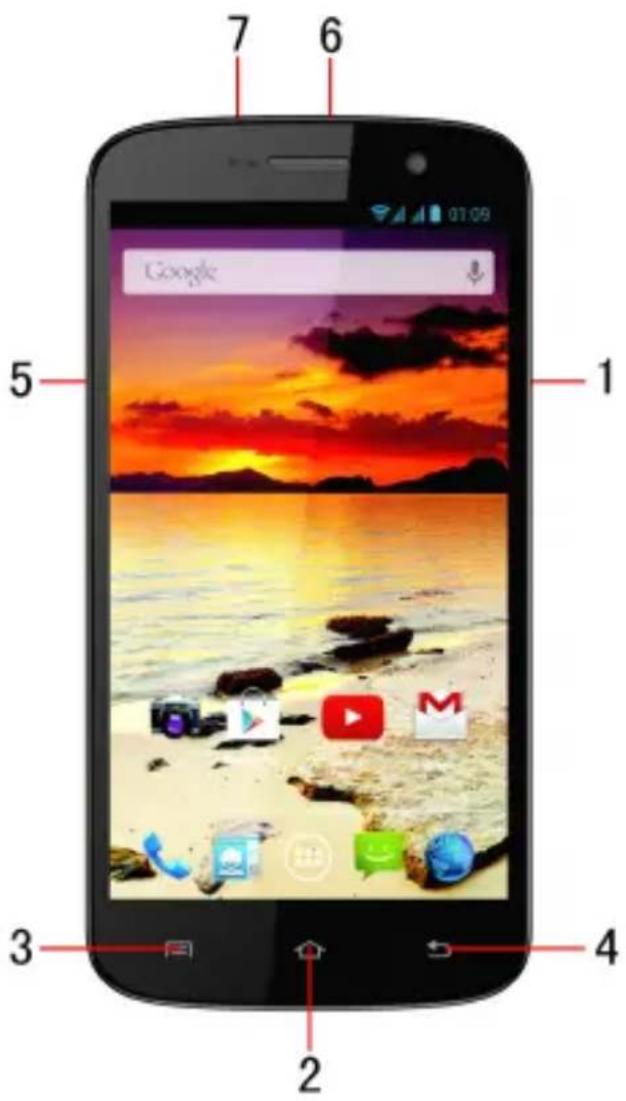
Keys/Touch PBronits
(1)Power Key :To power on/off A25 + , press and ho power key for a few seconds A25 + is ON, press the pc deactivate the screen.
(2)Home Key ( ): Touch the key to return to the home screen.
(3)Options key ≡ ( ): In standby
set wallpaper, manage
Touch it to view menu options.

(4)Back key (key): Touch to go menu.
(5) Volume Keys: control
your phone.
(6) USB jack: connect cable
on top of your phone
(7) 3.5 mm audio jack: ins
2.2 Description Icons
| Icons | Description | Icons | Description |
 | Shows's the network signal strength. |  | Showthe phone battery capacity. |
 | Speaker activated. |  | beYou have unread SMS. |
 | Call on hold |  | USB storage on. |
 | The ringing set on Vibration |  | type is Flight Mode |
 | Wi fi is ON |  | 2G |
 | You have calls. |  | sseal clock alarm active. |
 | In call | BT ON |
2.3 Inserting & Removing the Battery
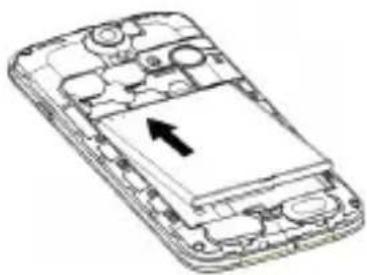
Inserting the Battery
- Open the battery cover on the back of your phone.
- Align the battery's cont phone and gently press
- Replace the battery position.
Inserting
the Bactesying
the
Back
natural_image
Line drawing of a smartphone showing internal circuitry and a central screen with an arrow pointing to the screen (no text or symbols present)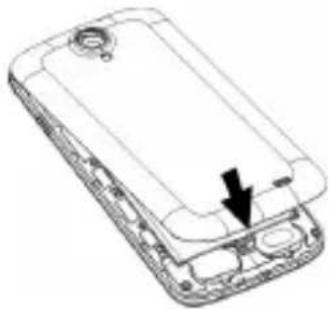
natural_image
Diagram of a smartphone showing internal components and a black arrow indicating a specific part (no text or symbols present)Removing
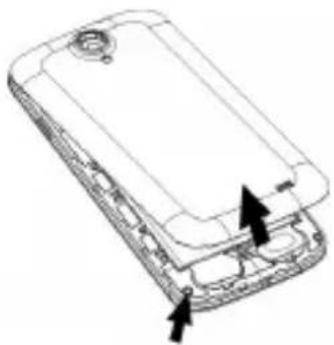
the battery
- Switch off your phone.
- Open the battery cover.Gently and open
- Lift the battery up and
Open the Back
Cover Removing
the Batter
natural_image
Line drawing of a smartphone rear panel with arrows indicating component movement (no text or symbols)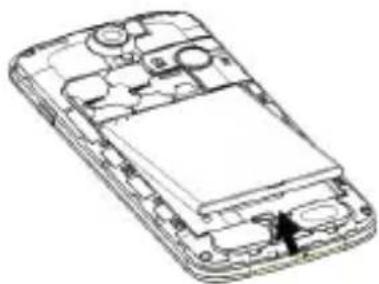
natural_image
Line drawing of a smartphone internal structure showing battery, circuit board, and casing (no text or symbols)Note: The images may differ with actual product.
2.4 Charging the battery
The rechargeable Li-ion battery that comes with your
phone is ready to be used, do & can be done in 3 simple
- Connect the charger into a socket.
- The battery indicator will scroll 's tohargisgow you
- When fully charged, stop scrolling.
- Disconnect the charger unplug.
2.5 Power ON/OFF
| Press | the | power | key | to | p | ||
| When | you | turn | your | phone | |||
| the | SIM | and | show | the | folio | ||
| ●Input SIM1 PIN | SIM1PINf | you | ' ve | set | a | l | |
| ●Input SIM2 PIN | SIM2PINf | you | ' ve | set | a | l | |
Note:
| The | PIN | is | supplied | with | |
| your | own | PIN | code | as soon | |
| PIN | three | times, | and | ll your | |
| need | to | contact | your | network | |
| PUK | code | to | unlock | it. It | |
| you | are | using | 2 SIM | Cards. |
2.6 Enter Main Menu
In Idle mode, press the N on the desktop and click
2.7 Enter Sub Menu
Once at the main menu, click the icon to select the submenu, press BbakiKey to return to and press the Home Screen S to return
2.8 Use Notification Panel
As a new notification app slide down in the area notification.
2.9 Expand Main Interface
| The width and tools. | main to | interface provide | may more |
| Slide extend | your to | finger the left | horizontally or right |
2.10 Add icons on the main interface
| You enlarged icons | can in | long and the | press the main | the's mobile menu |
2.11 Move icons on the main interface
- Long press the icon on enlarged and the mobile
- Drag the icon to the release it.
2.12 Delete icons on the main interface
- Long press the icon on the main interface until it's enlarged and the mobile
- Drag the icon to “Remo
2.13 Change wallpapers
- Long press "Touch menu.
- Choose from “ Gallery “ Wallpaper's and Select the press “ Set wallpaper
2.14 Install APK through File Manager
APK is a supported file for operating system.
● Please copy the downlc the SD card, and then ir phone
- In Idle mode, c lick main menu.
- Click "File Manager of SD card.
● Click the APK file you follow the installation
3Using your Phone
3.1 Main Menu & Its Functions
Select to enter the main menu ...
Allows you to view a list phone-
Clock
Allows you to set the Alarm
BroBuser
Browse the internet. Se Google .
Calculator
Allows you to make tedious
CalGadendar
View the calendar & add
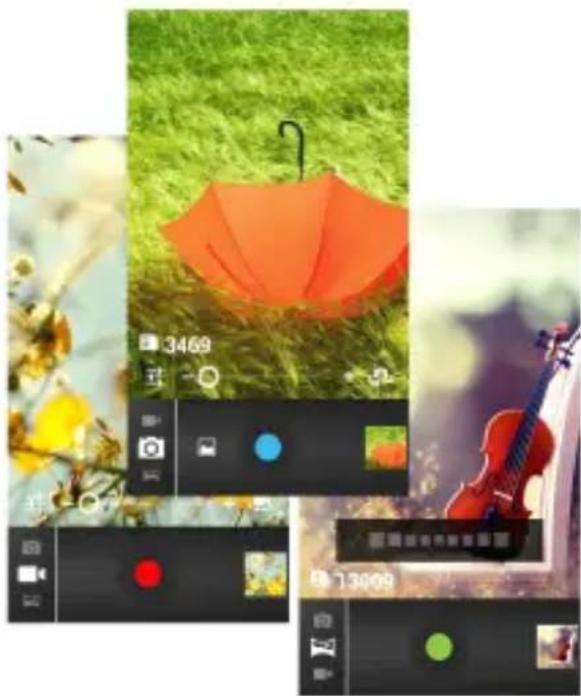
Camera
Allows you to click pictures has a High Definition came click good quality of pictures Gallery folder. In Camera, record Video Files.
natural_image
Collage of photos showing a red umbrella on grass, a violin, and camera interface elements (no readable text or symbols)- Contact Contact
To see your list of Contacts. Access phonebook through this function.
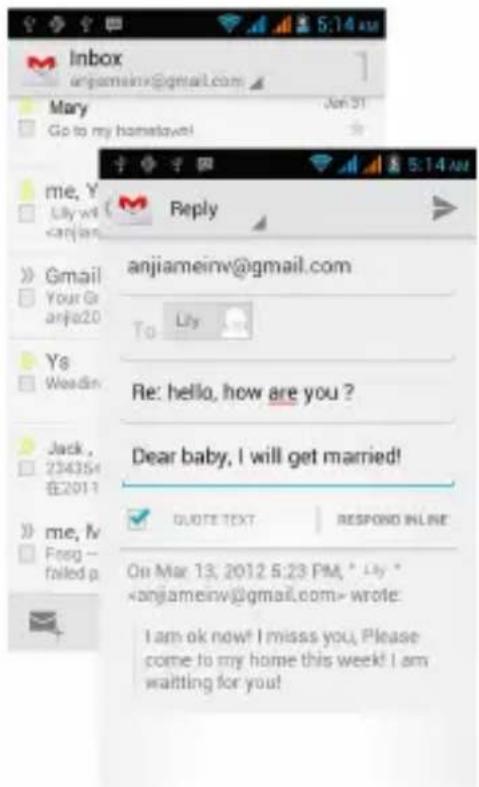
- Email Email
Allows
you
set
up
your
● Gallery Gallery
Allows you to save & view photos & videos.
Play Stone
| Log applications | in | to | your | Gmail & download available | ac |
| applications called | |||||
| Play | Store. |
Note:
| To use connection. | this | app | please | co |
- Messaging
Allow you to view messages
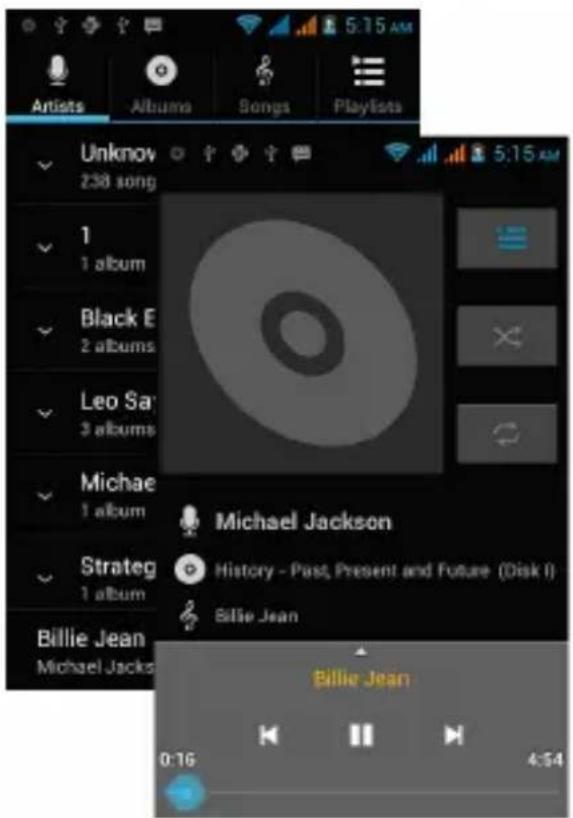
● Music Music
View the list of songs available artists, albums, playlists
- Phone Phone
Allow you to make quick outgoing calls.
File Manager
You could install the files files
- Settings Settings
Modify settings under the following:
Wi-Fi
BT
Data Usage
Multi SIM Settings
Sound & Display
Storage & Battery
Apps
Accounts & Sync
Location Services &
Language & Input
Backup & Reset
Date & Time
Accessibility
System Updates
About phone
• SIM SIM ToodKitt
T h is service is provided types of personalized mes
● Sound Recorder Recorder
Allows you to record sounds
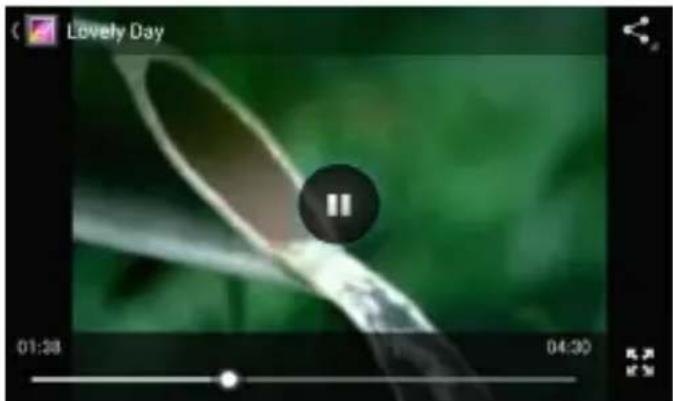
Videos
View from list of videos.
3.2 WI-FI
Karbonn A25 + supports Wi-Fi which allows you to
connect with a Wireless
surfing internet on phone
a. Enter "Settings" interface
NETWORKS. Select the
4Inputting Text
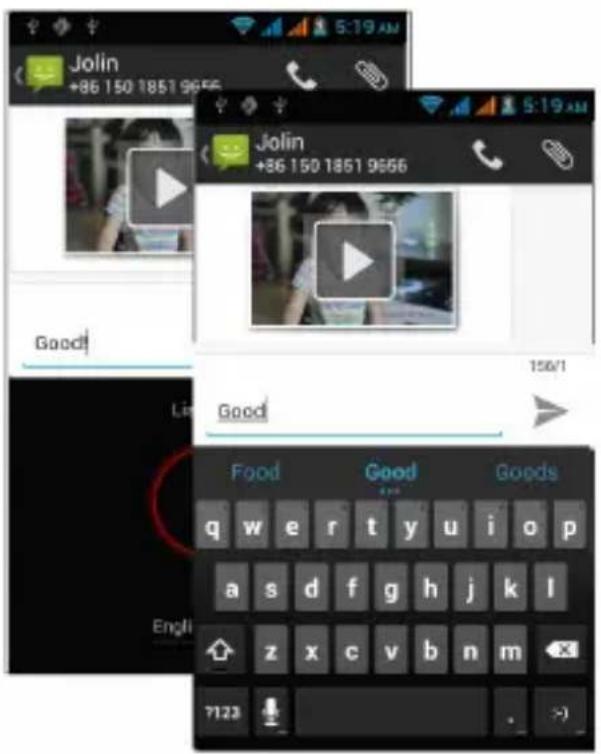
Intelligent keyboard
A25 + automatically corrects and suggests words as you type.
Cut, CopyandPaste Paste
| Touch | and | hold | text | content |
| glass, | and | then | slide | your |
| points. | Then | choose | to | |
| to copy | text | from | web | pag |
5Maintenance
Use a dry soft cloth to wipe general dirt.
Do not use a hard cloth, phone, otherwise, the scratched or could even
6Taking Care of your Device
Your device is a product of superior design and craftsmanship and should be handled with care: following suggestions wi
● Always keep the small from children.
- Keep the device dry. all types of liquids or minerals that will rust device does get wet, allow the device to replacing it.
- Do not use or store the Its moving parts and damaged.
- Do not store the device temperature. High term life of electronic devices
- Do not attempt to open instructed in this guide.
- Do not drop, knock, handling can break inte mechanics.
- Do not use harsh chemically strong detergents to soft, clean, dry cloth device.
- Do not paint the device. parts and prevent proper
- Use indoor chargers