MP4212 - Mp3 player CURTIS - Free user manual and instructions
Find the device manual for free MP4212 CURTIS in PDF.


| Product Type | MP3 Player |
| Brand | Curtis |
| Model | MP4212 |
| Dimensions (W x H x D) | 88.7 x 33.4 x 22.0 mm |
| Weight | 26 g |
| Memory Capacity | 128 MB / 256 MB / 512 MB / 1 GB (depending on version) |
| Supported Audio Formats | MP3 (8–320 kbps), WMA (5–384 kbps) |
| Signal-to-Noise Ratio (SNR) | > 100 dB |
| Dynamic Range | > 80 dB (1 kHz) |
| Distortion | < 0.05% |
| Output Power | 5 mW x 2 |
| Battery Life | Approximately 8 hours |
| USB Interface | USB 2.0 Full Speed |
| Display | LCM window (132 x 32 pixels) |
| Voice Recording | Sampling rates: 8000 Hz, 16000 Hz, 32000 Hz |
| Additional Functions | Lyric sync, ID3 tag display, DRM10 support, A-B repeat, equalizer presets |
| Operating Conditions | Temperature -10°C to 40°C, humidity <85% |
| Storage Conditions | Normal temperature, humidity <90% |
| Auto Shutdown Timer | Disable, 2 min, 10 min, 30 min |
| Supported Languages | English |
| Included Accessories | Earphone, USB cable, driver CD (for Windows 98 SE) |
| Maintenance & Cleaning | Clean with soft damp cloth; do not use alcohol or thinner. |
| Safety Precautions | Do not use while driving; avoid direct sunlight, heat, water; disconnect USB safely. |
Frequently Asked Questions - MP4212 CURTIS
User questions about MP4212 CURTIS
0 question about this device. Answer the ones you know or ask your own.
Ask a new question about this device
Download the instructions for your Mp3 player in PDF format for free! Find your manual MP4212 - CURTIS and take your electronic device back in hand. On this page are published all the documents necessary for the use of your device. MP4212 by CURTIS.
USER MANUAL MP4212 CURTIS
Reminder : Thank you for choosing the MP3 player! Please read the following user manual carefully to ensure easy to operation of the player.
Attention....3
- Installation instruction....4
- Connect to PC and download....4
- Basic operation....3
- How to use your MP3 player....6
- Lock function....12
- USB mode....12
7 .Lyric sync 13 - Troubleshooting....14
- Technical specifications....15
10.Support DRM10 function....15
Attention
1). Please do not use the player with earphone while driving an vehicle or riding a bicycle, It is not only dangerous, but also against the law. And please keep your volume down when crossing streets.
2). Please insert earphone into earphone jack before opening the player, in order to avoid spoiling the earphone. By this way, player can be taken good care.
3). Please do not expose to direct sunlight, heat sources or dusty areas and please keep away from water. Please use soft wet-cloth to clean the dirty surface.
4). Please do not cleaning the player with chemicals such as alcohol or thinner.
5). To prevent static, avoid the extreme dry surroundings.
6). Do not disconnect the player with PC while you are doing "format" or "download" file.
7). When you use this player as a USB stick, please always follow the correct operation method. Any misuse may cause file lost.
1. Installation instruction
1.1 Install the driver for Windows operating system 98se (For windows operating system ME/2000/XP or greater, you need not install the driver.)
a. Click installation driver then computer will installation automatic.
2. Connecting and downloading
2.1 Connecting PC
Before operation, please verify the player is turned off, and one end of the USB cable came with the system is inserted into PC with another end into the MP3 player.
2.2 Download MP3 songs
MP3 player connects to the USB interface to download MP3 music to the player. The indicator light is twinkling When the player is transferring data.
Transferring Data
Reminder: the player can only hold no more than 500 pieces songs.
2.3 Removing USB device
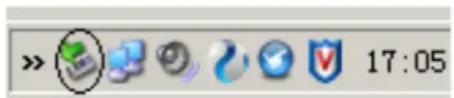
a. Double click the Safely Remove Hardware icon in taskbar:
b. From Safely Remove Hardware screen, highlight "USB Mass Storage Device" item, then click "Stop" button. "Stop to hardware device" appears as shown below.
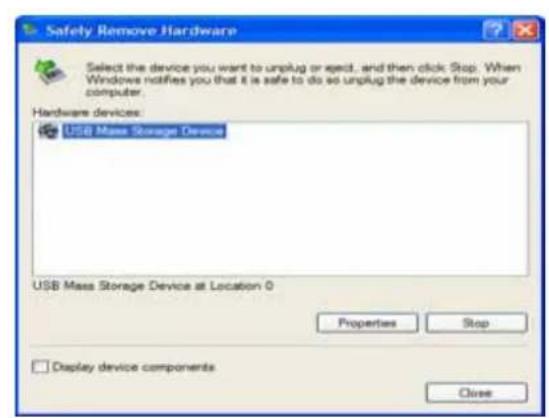

c. Click "OK" button. After the "Safe to Remove Hardware" window appears, the player can be disconnected from PC safely.

Warning: An error might occur if remove the connection of the USB cable when transferring data. After data transferred and "Safe to remove hardware" window appeared the player can be removed from PC safely! While the USB cable is operating, other keys on the pl
3.Basic operation
3.1 Button and function

LCD window

3.2 Turn on/off
From shutdown mode, press ▶ II 3 seconds to power on, Firstly player will update the music library then create new music play list after finish update. Lastly player enter MP3 standby mode.
MP3 standby mode:

From MP3 standby and play mode, press and hold ▶ II 3 seconds, the system will
save the data and enter power off mode.
3.3 Main menu
From standby or play mode, press MENU button 2 seconds to enter main menu. Press the ◀ or ▶ button to select Music, Voice, Music Library, Settings, Record, About, Exit, and press the MENU button to enter the appointed setting.
4. How to use the MP3 player
4.1 Playing MP3 files
a. From MP3 standby mode, you can press the ▶ II button to play MP3 music as well as pause and resume playing.
Playing:
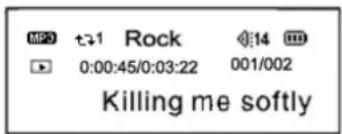
Pause:
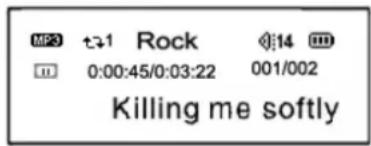
b. From play or pause mode, you can press the ▶ II button 2 second to return to MP3 standby mode, and press ▶ II button again to repeat step "a".
c. From MP3 standby or Play mode, you can press the ◀ or ▶ button to select last or next music.
d. From STOP status, you can keep holding the ◀ or ▶ button to effectively find and play your desired music.
e. From play mode, you can press + or - button to adjust volume.
f. From MP3 standby, play or pause mode, press ▶ II button 3 seconds, the player will save the data and enter shutdown mode.
4.2 Setting voice mode
From MP3 mode or voice standby mode, you can press the MENU button 2 seconds to enter the main menu setting, and press the ◀ or ▶ button to select Voice mode, and then press the MENU button to enter the voice playing mode, during which you can repress ▶ II button to pause and resume playing.
Playing voice file menu

Play voice file
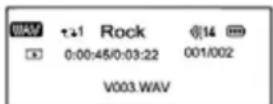
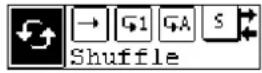
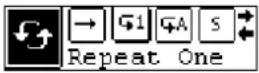
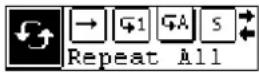
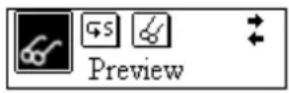
a. Voice play mode including :Normal.repeat one.repeat all and shuffle.shuffle repeat.preview
Normal

Shuffle
Repeat one
Shuffle repeat

Repeat all
preview
b. From voice standby or play mode, you can press the ◀ or ▶ button to select last or next voice file.
c. From the STOP status, you can press the ◀ or ▶ button to effectively find and play your desired music.
d. From Play mode, press and hold◀ or ▶ button to fast backward or forward this music.
e.From Voice standby, play or pause mode, press ▶ II button 3 seconds, the player will save the data and enter shutdown mode.
4.3 Music library
From MP3 mode or voice standby mode, you can press the MENU button 2 seconds to enter the main menu, and push the ◀ or ▶ button to select music library, and press the MENU button to enter which includes:Play all, Artist, Album, Track, Genre, Year, Voice record, Fm record and Exit, press MENU button to return to forward menu.

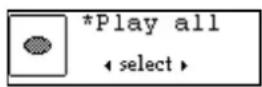
4.3.1 Play all
Under the Music Library mode ,press the◀ or ▶ button to select play all function ,press the MENU button to select and then the player begin playing all the songs saved in it.
4.3.2 Artist
Under the Music Library mode ,press the ◀ or ▶ button to select artist function ,All the songs will be sorted according to the artist. you can select certain artist which you love, or select the play all then press the MENU button to confirm. then the system will play automatically.

4.3.3 Album
Under the Music Library mode, press the ◀ or ▶ button to select Album function, the files saved in it, you can select certain file which you love, or select the play all then press the MENU button to confirm. then the system will play automatically.

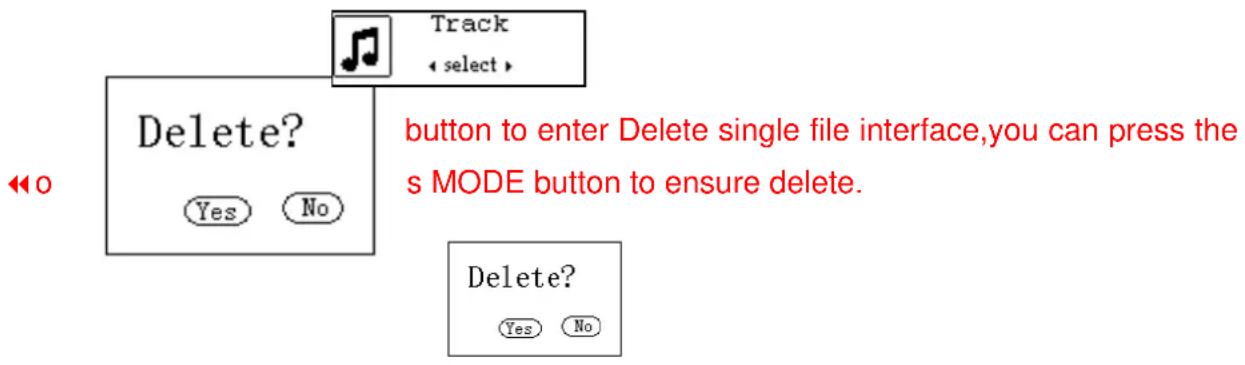
4.3.4 Track
Under the Music Library mode ,press the ◀ or ▶ button to select track function ,All the songs will be sorted according to the track. you can select certain track which you love, or select the play all then press the MENU button to confirm. then the system will play automatically.
4.3.5 Genre
Under the Music Library mode, press the ◀ or ▶ button to select genre function, All the songs will be sorted according to the genre. you can select certain genre which you love, or select the play all then press the MENU button to confirm. then the system will play automatically.

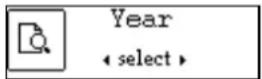
4.3.6 Year
Under the Music Library mode ,press the ◀ or ▶ button to select year function ,All the songs will be sorted according to the published time. you can select certain song
which you love, or select the play all then press the MENU button to confirm. then the system will play automatically.
4.3.7 Voice record
Under the Music Library mode ,press the ◀ or ▶ button to select Voice record function ,All the voice files are saved in this folder, you can select certain file which you love, or select the play all then press the MENU button to confirm. then the system will play automatically.°
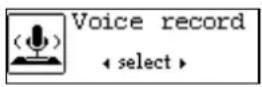
You can press REC button to enter Delete single file interface, and press the ◀ or ▶ button to select, Press MODE button to ensure delete.

4.3.8 Exit
Under the Music Library mode, press the ◀ or ▶ button to select exit function, press the MENU button to return forward mode.

4.4 Setting function
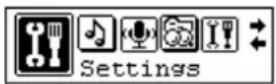
From MP3 mode or voice standby mode, you can press the MENU button to enter the main menu, and press the ◀ or ▶ button to select the setting menu. The setting menu includes: EQ set, play mode, contrast, display time, power set, record set, text scroll speed, language, load default and exit. press MENU button to enter the setting which you
want.
4.4.1 EQ setting
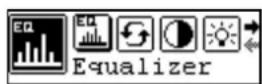
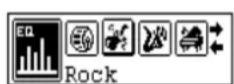
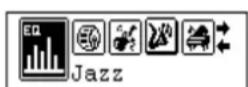
press the◀ or ▶ button to select EQ mode which includes: Normal, Rock, Jazz, Classical, Pop, Treble, and Bass, press the MENU button to save.

![graph LR A["Pop"] --> B["Bass"] B --> C["Treble"] C --> D["Normal"]](/content/2026/06/1195154/images/7fd3413cdc0029252c5d4c6667b02398046b8b6f572e9c6d57d3fa09b6a7a8fc.jpg)
4.4.2 play mode setting
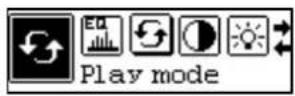
press the◀ or ▶ button to select play mode which includes the following options: Normal, Repeat one, Repeat all, Shuffle ,Shuffle Repeat and Preview. Press the MENU button to save.
4.4.3 Contrast setting
press the ◀ or ▶ button to select the contrast, press the MENU button to enter the contrast setting, repress the ◀ or ▶ button to adjust the contrast of LCD,Repress the MENU to save.

4.4.4 Display time setting
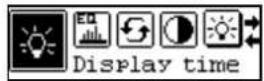
press the ◀ or ▶ button to select display time setting which includes the following options: 0 seconds, 5 seconds, 10 seconds, on(100%). Press the MENU button to save.
4.4.5 Backlight color setting
press the◀ or ▶ button to select Backlight color mode which includes: Blue, Red, Green, White, Yellow, Sky blue, Pink, press the MENU button to save.
![graph LR A["Backlight Color"] --> B["Seven colors"] C["Green"] --> D["White"] E["Pink"] --> F["Yellow"] B --> G["Blue"] D --> H["Red"] F --> I["Sky blue"]](/content/2026/06/1195154/images/57b2f998519a19e0114dcf03a21aaa2dd00d97da8e16fad943f6372d1892e989.jpg)
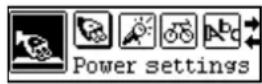
4.4.6 Power set
press the ◀ or ▶ button to select power setting which includes the following options: disable, 2 minutes, 10 minutes, 30 minutes. Press the MENU button to save.
4.4.7 Record set
press the ◀ or ▶ button to select recording setting which includes the following options: 8000Hz, 16000Hz, 32000Hz. Press the MENU button to save

4.4.8 Text scroll speed
press the ◀ or ▶ button to select Display speed setting which includes the following options: normal, fastest, slowest, faster, slower. Press the MENU button to save.

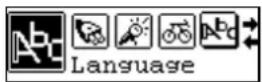
4.4.9 Language set
press the ◀ or ▶ button to select language setting which includes the following options: English, Press the MENU button to save.
4.4.10 Load default set
Under the function setting mode, press the ◀ or ▶ button to select load default set .Press the MENU button to enter. and repress the ◀ or ▶ button to select "YES" or "NO".press MENU button to confirm. if you select "YES", all the setting will come back to the original set, then the player shut off.

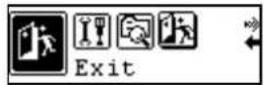
4.4.11 Exit
Under the function setting mode, press the ◀ or ▶ button to select exit set. Press the M E N U button to enter the exit setting, and the player return main menu.

4.5 Recording function
From MP3 mode or voice standby mode, you can press the MENU button 2 seconds to enter the main menu setting, and push the ◀or▶ button to select record mode, and then press the MENU button to start recording, during which you can press MENU button to pause, and keep pressing the MENU button to finish recording and save, You can play
the voice file under the voice mode.

4.6 About
From MP3 mode or voice standby mode, you can press the MENU button 2 seconds to enter the main menu and press the ◀or▶ button to select the "About" and press the M EN U button to view the total capacity and available capacity.

4.7 Exit
Return to MP3 Menu. On any Menu press the ▶ II to return to the last menu directly.
4.8 REC/A-B Repeat Mode
From MP3 or voice play mode:
1) Press REC/A-B button to select start point A;
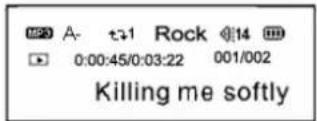
2) Press REC/A-B button to select end point B, MP3 will play between A-B.
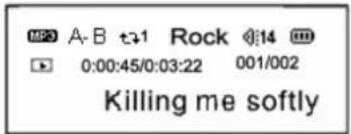
3) Press REC/A-B button again to cancel setting and resume playing MP3 or voice.
5 Lock function
Under any mode, press the HOLD switch in the direction of arrow, a lock icon will appear on the LCD. All the buttons will be nonfunctional; to disable the lock function, press the HOLD switch in the opposite direction, then the lock icon will disappear, and all the buttons will be functional.
6 USB mode
Plug the Player into the USB interface of PC, relative icons appears on the LCD screen. The LCD screen may display relative icon during data transmitting. For software upgrading and formatting the removable disk, please refer to the website.
7 Lyric sync:
This player supports lyric sync function.
Notice: The lyric name shall be the same as music with extension of *. LRC and saved in the same directory, and only the lyrics with time indication can be displayed properly
8. Troubleshooting
| Symptom | Causes | Solution |
| No display after pressing the power button | The battery is out of power. Please | charge in time. |
| No sound during playing. | 1. Volume is too low, or without music in the player, or battery low.2. The MP3 or WMA file is broken. | 1. Adjust the volume, or charge during downloading.2. Download the documents again. |
| Unable to download files after connection. | 1. The HOLD button is on, the disk is write protected2. The USB is not connected to PC properly.3. Wrong storage directory. | 1. Push the HOLD switch to the opposite direction2. Connect to the USB interface again and verify PC identified the removable disk.3. Maximum 256 folders or files can be saved under root folder (if the file name over 8 characters, the folder or file number will also decrease accordingly); if exceeded, please create another subdirectory under root directory and then copy. |
| The individually compressed MP3 files can not be played | he MP3 files currently are compressed with different compress rate and format, while this Player supports the standard compressed MP3 only, please do not adopts layer one or two compression. | Download the standard MP3 files again. |
| MP3 player can not be recognized by PC. | Improper operation or the driver is not installed. | 1. Install the driver properly.2. Format the removable disk. |
| No response after pressing button. | HOLD switch is on, button s are locked | Push the HOLD switch to the opposite direction |
| Can not open the disk or prompt I/O error after connecting PC | Caused by some improper operation. | Press the PLAY button, and then connect USB cable and click relative upgrading problem, release after the upgrading box appears after scanning, then press START to format and upgrade will solve the problem. |
9. Technical specifications
Bit rate: 8\~320Kbps (Mp3) 5\~384Kbps (WMA)
SNR: < 100db
Dynamic range: >80(1KHZ)
Distortion: <0.05%
USB interface: USB2.0 full speed
Memory: 128MB/256MB/512MB/1GB
Size: 88.7*33.4*22.0mm
Working condition: Humidity <85%, -10\~40°C
Auto Shutdown: 2min, 10min, 30min, Disable
Condition of storage: Humidity<90%, normal temperature
Output: 5 m W * 2
Battery life: 8h
Weight: 26g
Voice recording: 8000Hz /16000Hz /32000Hz
LCM Window: 132*32
Lyric sync, ID3 information display.
Language: English,
10.Support DRM10 function
SDK35FD DRM10 DEMO INTRODUCE
10.1 Demo songs
Download the DRM ( Digital Rights Management ) format song from PC to player, actually the PC has the DRM songs before. That songs has been encrypt, need license to decode , This Demo use Microsoft to sample songs be empolder by Drm, songs can free download from http://wmtap.smdisp.net/janus/website , the license and song save the local PC.°
At the homepage, click STC1 :
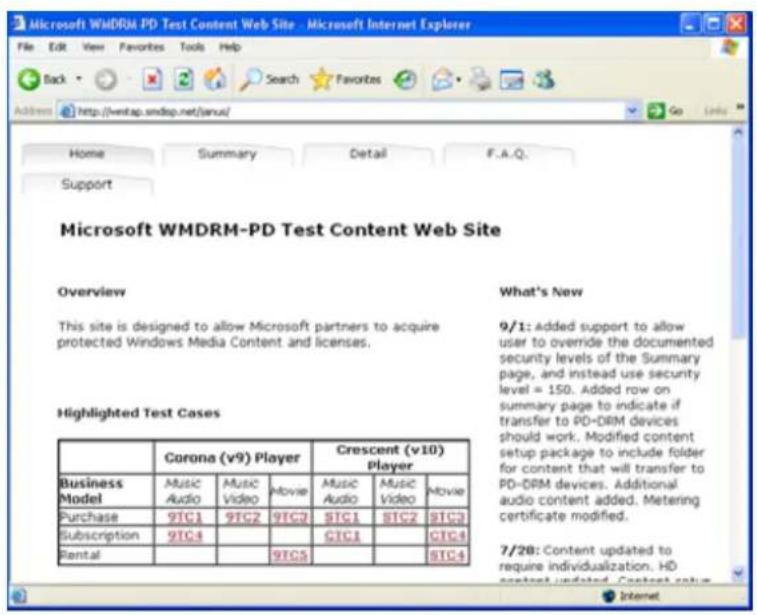
save songs,
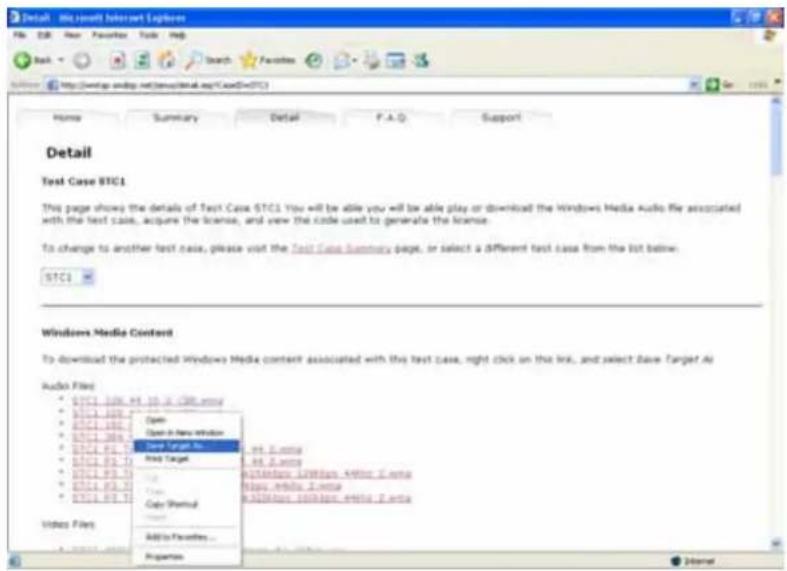
after download Audio Files, push down web-page, click "Acquired License(Security Level=150)" button to download the license of songs.

15.2 Download songs
- 2.1 PC condition : Windows XP + SP1operating system 'Windows Media Player 10 above °
15.2.2 The ways of Download songs :
Download WMP10 : WMP10 is used to download music with copyright protection. USB devices not supporting the MTP protocol cannot be used to acquire the license although the music can be downloaded. MPT is only available in Windows XP, there is now no DRM capability forWindows98,Windows2000,etc
U-disk copy song directly : be equal WMP10 download songs with MTP Device.
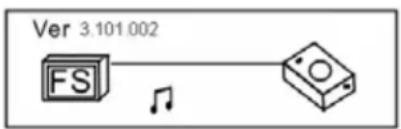
Demo player connecting to PC
![graph LR A["FS"] --> B["Device"] style A fill:#f9f,stroke:#333 style B fill:#ccf,stroke:#333 note right of A: Ver 3.101.002](/content/2026/06/1195154/images/b8ac150259c276b9d25bd960cb717149991efdfa827b8c3cffc2eaeba57ef000.jpg)
Communion data Demo player and PC
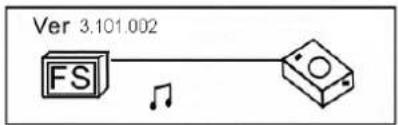
PC scanning MTP Device for about 10s °To select "OK" or "Cancel":
Run the "Window Media player" program, found the Media Device Play the Music as follower interface:
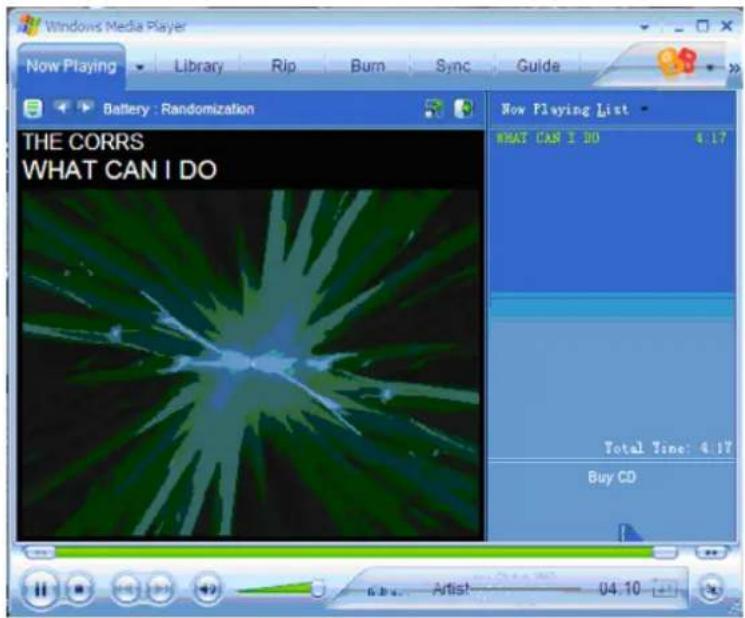
Click "Library", display as follows interface:

And then select the playing music, click mouse left key, display as follower interface, and select "add to Sync List".
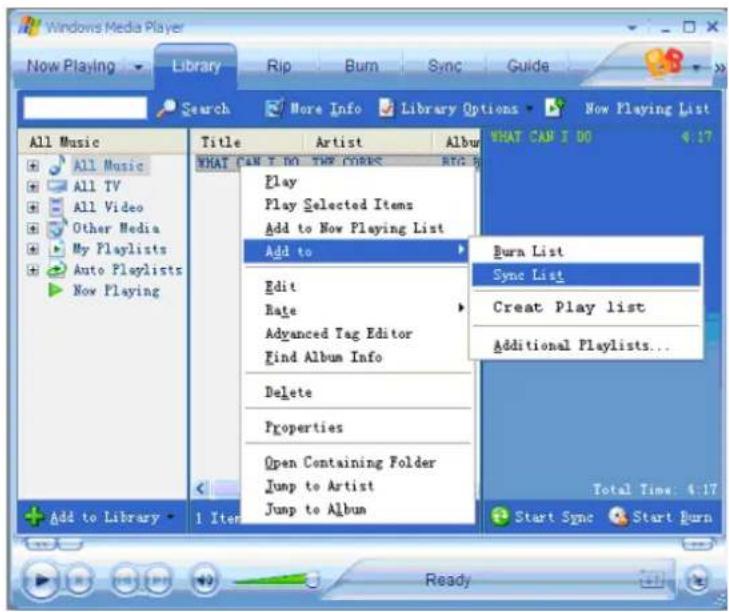
And then click the "Sync" window enter as follower interface:
![Sync "Sync List" to "USB DISK [G:]" Start Sync Edit Playlist Set up Sync Sync List Synchronize to device Title WHAT CAR I DO USB DISK (G:) Title Size There are no items on the device. 0 bytes / 232.40 MB (232.39 MB free space) 1 Item(s), Total Time: 4:17, 3....](/content/2026/06/1195154/images/cdfd9568078a245301417f2987baab4c39b261e374d7340212c9ac13994b73ce.jpg)
Click "Star Sync" window, display as follower interface:
![Sync "Sync List" to "USB DISK [6.1]" Step Sync Edit PlayList Set-up Sync Item in synchronization Title WHAT CAN T DO Synchronizing 37 percent complete 可移动磁盘 (C:) Title Size Synchronization in progress 0 bytes / 232.60 MB (232.28 MB free space) Synchronizing 00:31](/content/2026/06/1195154/images/f630b9cb52b96442dc236e852200ee9a9212c0d9530976472c3392ae5bfda0a2.jpg)
Interface display" Synchronization in progress", after about 10 seconds, display as follower interface:

After the music have been transferred to the player, Unplug the USB connector, player enter to select the music mode :
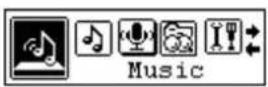
Enter music mode

And press PLAY button to start play music of DRM songs
- ATTENTION....3
- ATTENTION
- INSTALLATION INSTRUCTION
- CONNECTING AND DOWNLOADING
- 2.1 CONNECTING PC
- 2.2 DOWNLOAD MP3 SONGS
- 2.3 REMOVING USB DEVICE
- 3.BASIC OPERATION
- 3.1 BUTTON AND FUNCTION
- 3.2 TURN ON/OFF
- 3.3 MAIN MENU
- HOW TO USE THE MP3 PLAYER
- 4.1 PLAYING MP3 FILES
- 4.2 SETTING VOICE MODE
- 4.3 MUSIC LIBRARY
- 4.3.1 PLAY ALL
- 4.3.2 ARTIST
- 4.3.3 ALBUM
- 4.3.4 TRACK
- 4.3.5 GENRE
- 4.3.6 YEAR
- 4.3.7 VOICE RECORD
- 4.3.8 EXIT
- 4.4 SETTING FUNCTION
- 4.4.1 EQ SETTING
- 4.4.2 PLAY MODE SETTING
- 4.4.3 CONTRAST SETTING
- 4.4.4 DISPLAY TIME SETTING
- 4.4.5 BACKLIGHT COLOR SETTING
- 4.4.6 POWER SET
- 4.4.7 RECORD SET
- 4.4.8 TEXT SCROLL SPEED
- 4.4.9 LANGUAGE SET
- 4.4.10 LOAD DEFAULT SET
- 4.4.11 EXIT
- 4.5 RECORDING FUNCTION
- 4.6 ABOUT
- 4.7 EXIT
- 4.8 REC/A-B REPEAT MODE
- 5 LOCK FUNCTION
- 6 USB MODE
- 7 LYRIC SYNC
- TROUBLESHOOTING
- TECHNICAL SPECIFICATIONS
- 10.SUPPORT DRM10 FUNCTION
- SDK35FD DRM10 DEMO INTRODUCE
- 10.1 DEMO SONGS
- 15.2 DOWNLOAD SONGS
- 15.2.2 THE WAYS OF DOWNLOAD SONGS
Brand : CURTIS
Model : MP4212
Category : Mp3 player