MPK4230BUK - Mp3 player CURTIS - Free user manual and instructions
Find the device manual for free MPK4230BUK CURTIS in PDF.


| Product Type | MP3 Player |
| Brand | Curtis |
| Model | MPK4230BUK |
| Display | 3.6" Color TFT Touch Screen |
| Internal Memory | Available in capacities from 128MB to 8GB |
| Expandable Memory | Micro SD card slot |
| Audio Formats | MP3, WMA, FLAC, WAV |
| Video Formats | RM, RMVB, AVI, WMV |
| Photo Formats | JPG, BMP, GIF |
| Battery | Lithium rechargeable, charges via USB or charger |
| Interface | USB 2.0 High Speed |
| Speaker | 8 ohm, 1W |
| Dimensions | 96 (W) x 63.6 (D) x 12.7 (H) mm |
| Weight | 75 g |
| Functions | Music, Video, Photo, eBook, Explorer, Record, Stopwatch, Settings |
| Touch Calibration | Accessible via main menu or power button shortcut |
| EQ Settings | Normal, MSEQ, Rock, Pop, Classic, Bass, Jazz, User EQ |
| Cleaning | Clean screen with soft, dry cloth; avoid sharp objects and chemicals |
| Safety Note | Do not use sharp tools on touch screen; insert/remove SD card when device is off |
| Box Contents | Operating Unit, User Manual, Quick Start Guide, USB Cable, Earphone, Battery Charger |
Frequently Asked Questions - MPK4230BUK CURTIS
User questions about MPK4230BUK CURTIS
0 question about this device. Answer the ones you know or ask your own.
Ask a new question about this device
Download the instructions for your Mp3 player in PDF format for free! Find your manual MPK4230BUK - CURTIS and take your electronic device back in hand. On this page are published all the documents necessary for the use of your device. MPK4230BUK by CURTIS.
USER MANUAL MPK4230BUK CURTIS
What's in the box?
Operating Unit
User Manual
Quick Start Guide
USB Cable
Earphone
Battery Charger
Content
Buttons Location and Usages Basic Operation
Operation of Music Mode 9-13
Operation of Video Mode 13-14
Operation of Photo Mode 15
Operation of eBook Mode 16-17
Operation of Explorer Mode 17
Operation of Record Mode 17-18
Operation of Other Mode 18-19
Operation of Settings Mode 19-20
Technical Specification Trouble Shooting
Buttons Location and Usages
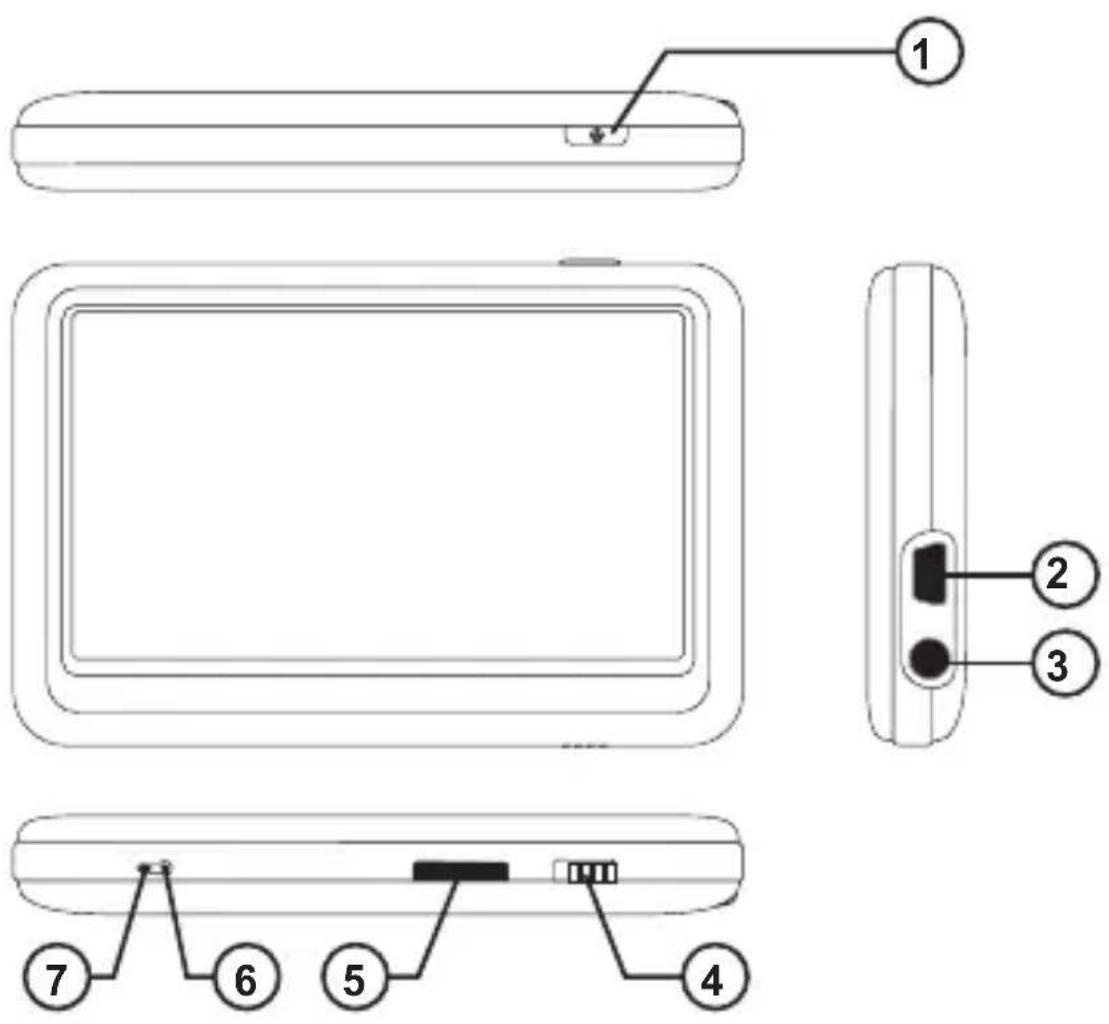

1. ON/OFF 2. USB PORT 3. Earphone Jack 4. HOLD 5. MICRO SD CARD SLOT 6. RESET 7. MIC 8. SPEAKER
Basic Operation
Power on/off and Enter function
Press the Power button and hold for 3 seconds to switch on the device and hold for 3 seconds to switch off.
When using this device, the Power button also acts as an ENTER function for selecting options.
Lock
Slide the Lock button toward the Micro SD card slot position to key-lock the player and slide to the opposite position to unlock.
Reset
If the player encounters a dead halt during use, press the RESET button to restart the player.
How to insert and pull out Micro SD card
How to insert: with the front (the side with characters) of the Micro SD card up (towards the screen of the player), slightly push to insert into the card holder of the player to connect. After the card is inserted, the player can play the files in the Micro SD card.
How to pull out: slightly push the Micro SD card and the Micro SD card will partly come out, and then pull the card out.
Note: please insert or pull out the card when the player is off, or the internal files of the player will be lost or damaged.
Connection to PC and Data Exchange

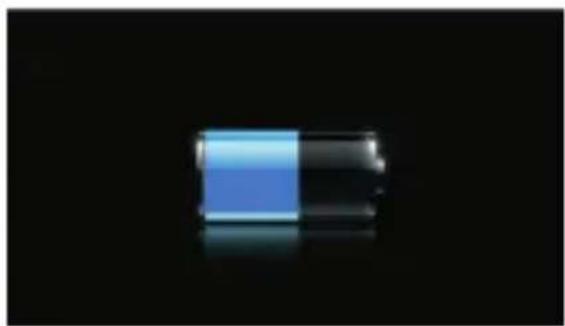
Connect the player to PC with the USB cable, and the player will enter "U disk" mode. Press MENU button or safely remove U disk, and the player will be under USB charging mode. In USB charging mode, touch the screen or press MENU to enter the main applications interface.
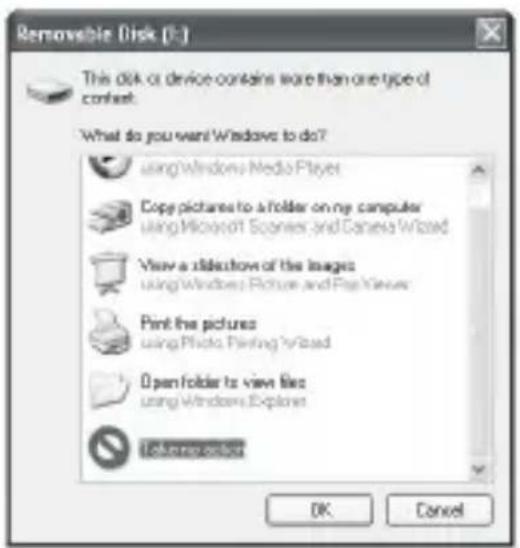

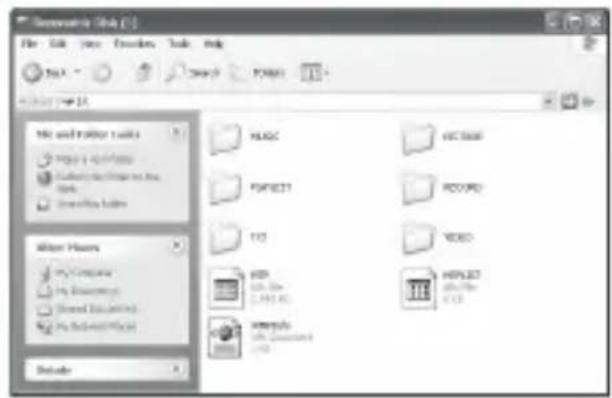
The above screen would appear. (Apply only to Window XP) Choose Take no action and click OK to close the window. Double click My Computer on your desktop and the above window would appear. Look for the Removable Disk Icon.
Double click the Removable Disk icon. Note: Do not disconnect the USB cable once you click into the removable disk window. Such action may cause data loss or problems to the player.
Drag and drop your media files into the removable disk. You can create any folder or directory in the removable disk. Close the removable disk window and disconnect the player from your PC after the data transfer.
Charging
This player has high capacity lithium battery. For charging, connect the player to the USB port of the PC or to a charger. When the charger is used for charging, the battery blue bar will keep moving; when battery is fully charged, it will stop moving.
Low Power
When battery power is low, the player will prompt and power off and enter Standby mode automatically. Do not power on and charge the player instead.
Touch Calibration
Initial setup or if you cannot select objects accurately with your finger or a stylus, You may need to recalibrate the touch screen:
- Enter the calibration setting screen by short key: In the main menu interface, press power button of the player to enter touch calibration screen directly.
- Or press “Settings” option on the main menu, enter into submenu. Choose “Touch Panel Calibration” to enter the setting mode.
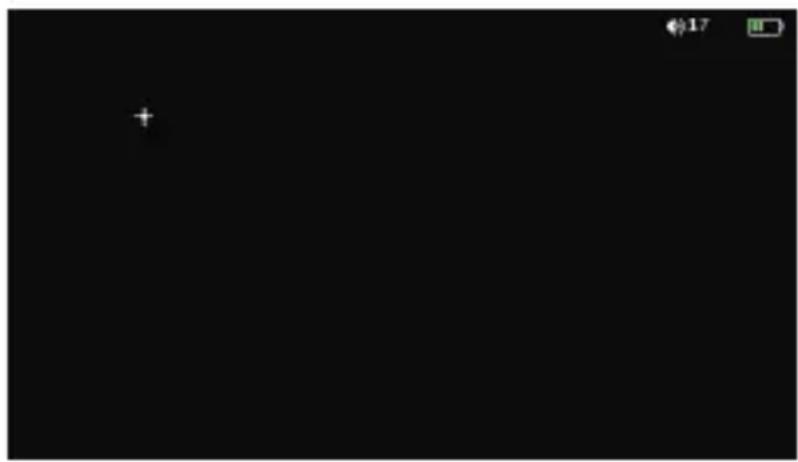
- After the player enters this mode, touch the center of the calibration sign + three times by stylus (optional) or your finger to calibrate.
Notes: Never use sharp, hard, or abrasive tools on the touch screen, they will damage the screen. If the touch screen has been contaminated by chemicals, it must be cleaned immediately with a soft and clean cloth. The cloth can be dry or dampened with neutral detergent or alcohol.
Main interface
Once you switch the player on you'll reach to the main interface as below.

Operation of Music Mode
Double click the Music icon on the main menu to enter the music mode. Once you've entered the music mode, the following screen would show up.
Current play
Double click the Current Play icon to resume playing the current song.
All Music
Double Click the All Music icon to show your library of music, double click any particular song to start playing.
Artist
Double Click the Artist icon to show all of your artists, double click any particular artist to show the songs of that artist. Double click a song to start playing.
Album
Double Click the Album icon to browse all of your albums, double click any particular album to browse the songs of that album. Double click a song to start playing.
Genre
Double-click the Genre icon to browse all of your genres. Double-click any particular genre to browse the songs in that genre. Double-click a song to start playing.
My Favorite
Double-click the My Favorite icon to browse all songs that you have added to your favorites. Double-click a song to start playing.
Record
Double-click the Record icon to browse all recorded files. Double-click a file to start playing.
Dir List
Double-click the Dir List icon to browse all folders in the directory. Double-click a folder to select a file to open.
MediaLib Update
Double-click the MediaLib Update icon to update all song information and details.
Click ↩ to jump back to the main menu.
Music Player interface
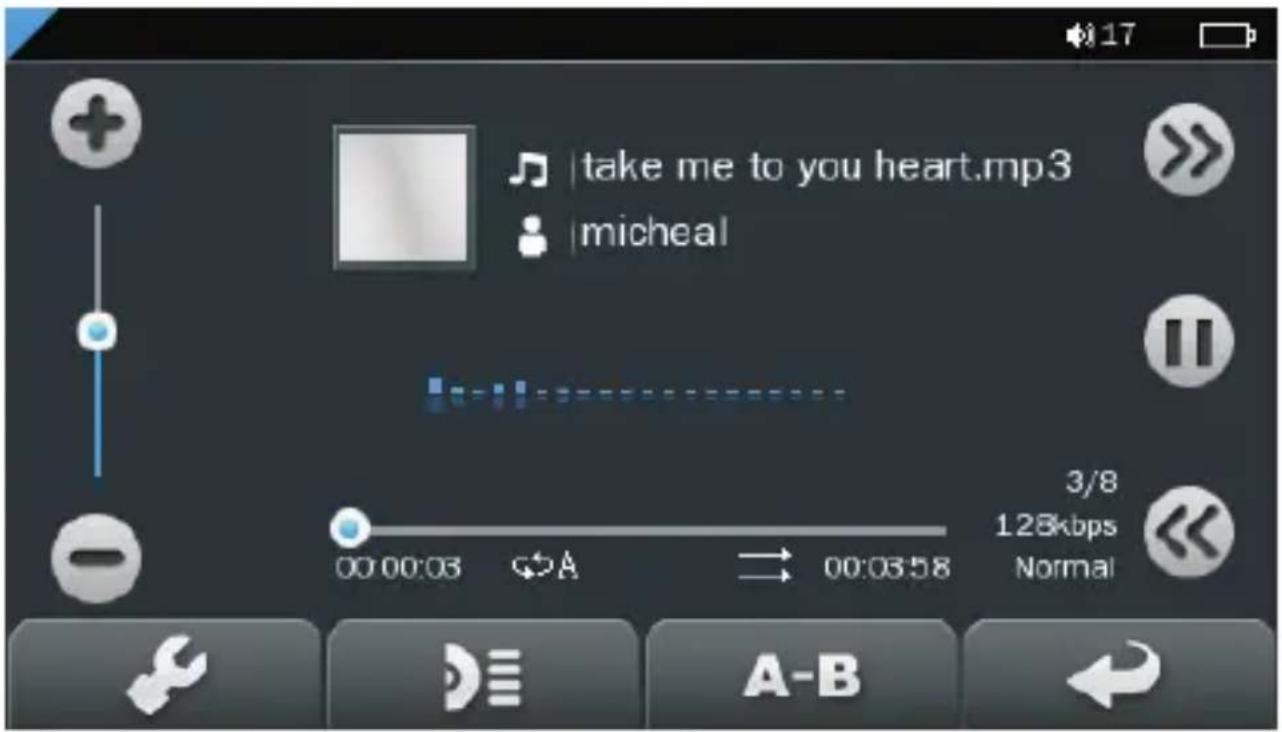
Whenever you start playing a song, you will reach the Music Player Interface as shown below.
Play Music
Click the Play button to start playing; click again to pause. Drag the horizontal bar to adjust the playing progress to a specific time slot.
Volume
Click + or - to adjust the volume.
Previous / Next
Click >> to jump to the next song, and click to jump back to the previous song.
Add songs into Favorite List
Open a playlist and choose the selected song and then click √ to add song into favorite list. Click Yes to confirm once the window pop-up.
Play Option
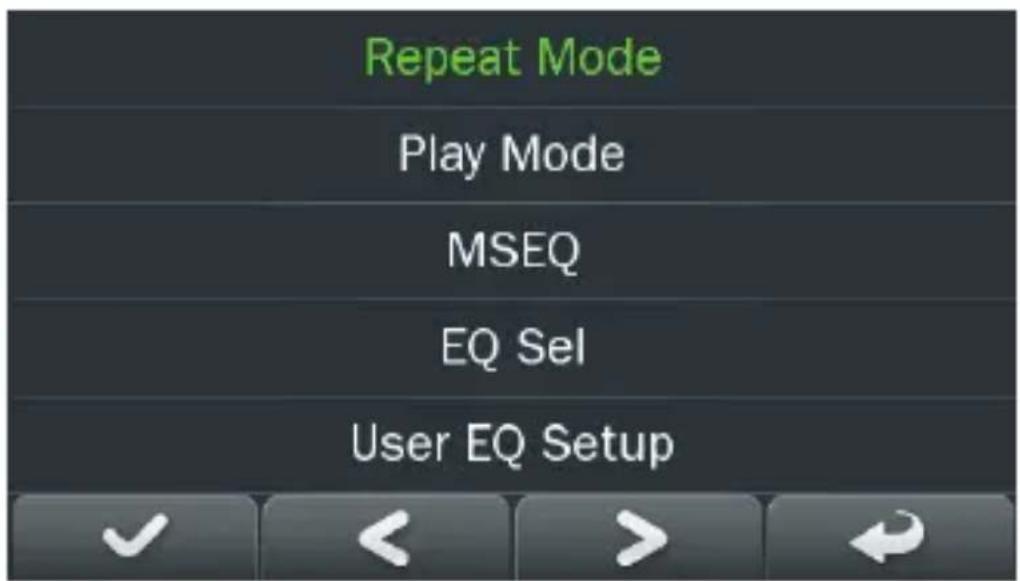
Click the 📁 to enter the Play Option Menu. You can set your preference in Repeat Mode / Play Mode / MSEQ / EQ Setting / User EQ Setup.
Repeat Mode
Double click Repeat Mode to choose from Repeat / All / All Repeat / Intro. Double click selected options to confirm setting. Once you've selected, click return to sub-menu.

Play Mode
Double click Play Mode to choose from In Order or Shuffle. Double click selected options to confirm setting. Once you've selected your choice, click to return to sub-menu.

MSEQ
Double click MSEQ to choose different sound effect from 3D / Bass / LEQ. Double click selected options to confirm setting. Once you've selected your choice, click → to return to sub-menu.
EQ Sel
Double click EQ Sel to choose different EQ from
Normal / MSEQ / Rock / Pop / Classic / Bass / Jazz /
UserEQ. Double click selected options to confirm
setting. Once you've selected your choice, click to return to sub-menu.

USER EQ Setup
Double click User EQ Setup to adjust your own EQ
Setting. Double click selected options to confirm
setting. Once you've selected your choice, click to return to sub-menu.

A - B Repeat
Click A-B once to set the starting point of the A-B
Repeat, then click A-B again to set the ending point.
The A-B repeat setting is done. To cancel A-B repeat mode, click A-B again.
Lyrics
Click to choose to display lyrics.
*The player only supports .LRC lyric.
Operation of Video Mode
Double click the Video icon on the main menu to enter the Video mode. Once you've entered the video mode, the following screen would show up.

Click any particular movie in the list to start playing.
Basic Video Control
The following control panel will show up when a video start playing.

Click << to choose previous movie, hold << to rewind. Click >> to choose next movie, hold >> to fast-forward. Click ← / → to adjust the volume. Click ↓ to resume playing from where the video stopped last time.
Operation of Photo Mode
Double click the Photo icon on the main menu to enter the Photo mode. Once you've entered the photo mode, the following screen would show up.

Basic photo control
Double click on a particular photo to open it. Click to rotate 90 degree clockwise, and click to rotate 90 degree anti-clockwise. Click to zoom in and click to zoom out the photo. Click to play photo in slide show.
Operation of eBook
Double click the eBook icon on the main menu to enter the Record mode. Once you've entered the e-book menu, the following screen would show up.

Basic eBook control
Double click on a particular .txt file to open the eBook. When opened an eBook file, click < to go back to previous page, click > to skip to the next page.
Click 📋 to enter the E-book Option Menu. You can set your preference with followings:
E-book Option Menu
Page Jump: Input the page number that you'd like to jump to.
SaveMark: Choose any empty slot to save your bookmark to.
LoadMark: Load any previously saved bookmarks.
DelMark: Delete any unwanted bookmark from slots.
SetFont: Set the font size from Small, Middle to Big.
SetColor: Set the font color.
Browser Mode: Choose from automatic flipping and manual flipping.
FlipTime: Choose the time interval between every auto flip, from 10 sec to 30 sec.
Operation of Explorer Mode
Click on “Explorer” to enter the file managing mode. An additional folder “TF Card” will be shown after inserting a SD card. To delete a file, click a file to highlight it, and then click 📄 to delete it.
Operation of Record Mode
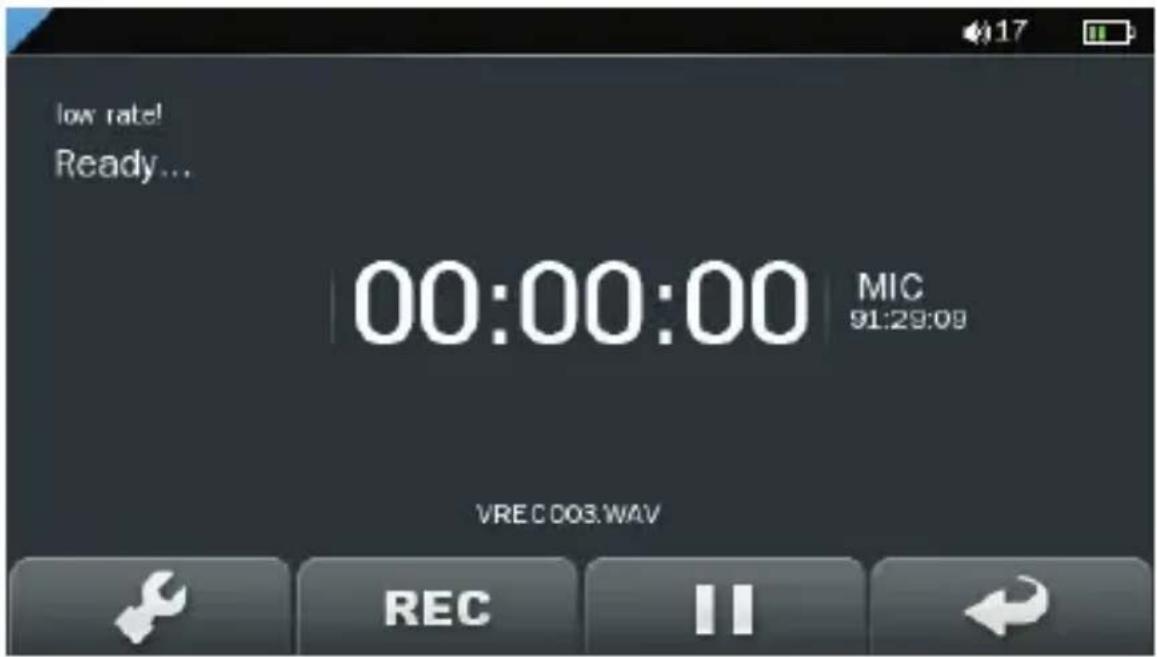
Double click the Record icon on the main menu to enter the Record mode. Once you've entered the record mode, the following screen would show up.
Basic record control
Click REC to start recording. Click 11 to pause recording, click 11 again to resume recording. Click REC to stop recording and then click "Yes" to save the record file.
Double click the 🔍 to enter the Record Option Menu. You can set your preference in quality of record file. There are two options: Low rate and High rate. Once you've selected, click 🔍 to return to sub-menu.
Operation of Other Mode
Double click the Other icon on the main menu to enter the Other mode. Once you've entered the Other mode, the Stopwatch option could be double clicked to select.
Stopwatch
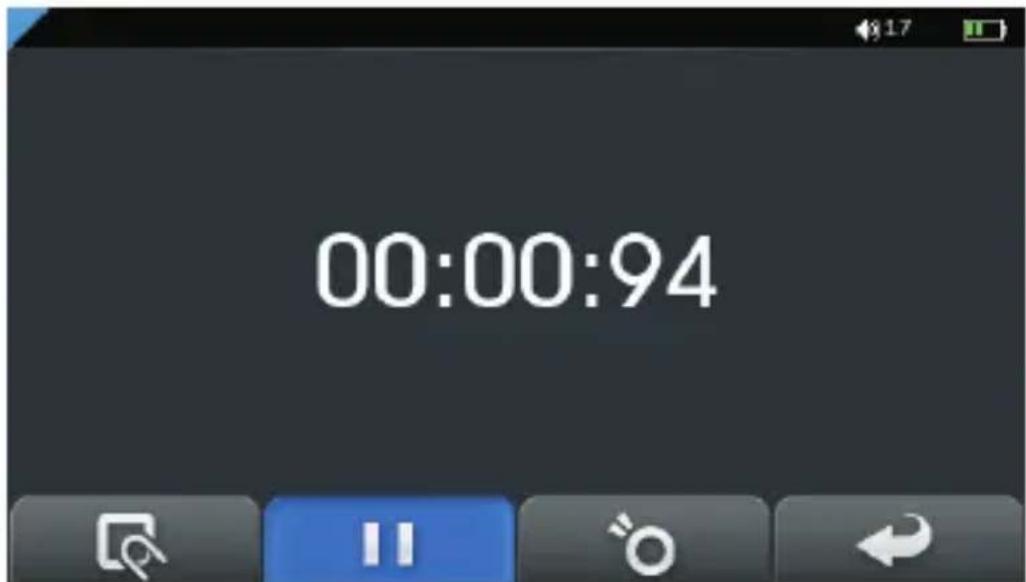
Click on the “Stopwatch” to enter the stopwatch mode. Press the power button or click once to start counting time, click // to pause it and click once again to resume counting. Press the power button or click once again to finish the time counting. Click to reset the current time count to be zero.
Operation of Settings Mode
Double click the Settings icon on the main menu to enter the Settings mode. Once you've entered the settings menu, the following screen would show up.

Display Setting
Click in to adjust Light Time, Brightness, Light Mode.
System Setting
Click in to upgrade firmware, to restore to default setting or to calibrate your screen.
Language
Click in to choose your desired language.
System Information
Click into system information to check the firmware version, the memory size and card memory size.
Slide Show
Click to select from 5 to 20 seconds for the slideshow when reviewing photos.
Auto Shut Time
Click into Auto Shut Time to set the auto shutdown time of the player, from 3 minutes to No Automatic Shutdown.
Technical Specifications
| Flash Memory | 128MB / 256MB / 512MB / 1GB / 2GB / 4GB / 8GB |
| MP3 Format Supported | MP3/WMA/FLAC/WAV |
| Video Format Supported | RM/RMVB/AVI/WMV |
| Photo Format Supported | JPG/BMP/GIF |
| Battery | Lithium Rechargeable Battery |
| Interface | USB2.0 High Speed |
| Display | 3.6” Color TFT Touch Screen |
| Speaker Output | 8ohm1W |
| Weight | 75g |
| Dimensions | 96(W) x 63.6(D) x 12.7(H) mm |
Troubleshooting
What should I do if there's no sound when playing?
You should check the volume first. If the volume has been turned up, maybe the memory format of the device is incorrect.
Cannot select objects accurately with your finger or a stylus (optional)
You may need to recalibrate the touch screen.
Specifications are subject to change without notice.
No part of this document may be reproduced or transmitted in any form or by any means, electronic or mechanical, including photocopying and recording
or translated to another language for any purpose
We trust you are completely satisfied with this product from Argos Ltd, however please feel free to contact us if you experience any difficulties, or if you would like to express your views regarding our products.
Please write to:
Customer Services
Argos Ltd
489-499 Avebury Boulevard
Saxon Gate West
Central Milton Keynes
MK9 2NW
Telephone: 0870 600 3030
Through the process of continuous improvement, Argos Ltd. reserves the right to change or alter specifications without prior notice. E&OE
- WHAT'S IN THE BOX
- CONTENT
- BUTTONS LOCATION AND USAGES BASIC OPERATION
- TECHNICAL SPECIFICATION TROUBLE SHOOTING
- BUTTONS LOCATION AND USAGES
- BASIC OPERATION
- POWER ON/OFF AND ENTER FUNCTION
- LOCK
- RESET
- HOW TO INSERT AND PULL OUT MICRO SD CARD
- CONNECTION TO PC AND DATA EXCHANGE
- CHARGING
- LOW POWER
- TOUCH CALIBRATION
- MAIN INTERFACE
- OPERATION OF MUSIC MODE
- CURRENT PLAY
- ALL MUSIC
- ARTIST
- ALBUM
- GENRE
- MY FAVORITE
- RECORD
- DIR LIST
- MUSIC PLAYER INTERFACE
- PLAY MUSIC
- VOLUME
- PREVIOUS / NEXT
- ADD SONGS INTO FAVORITE LIST
- PLAY OPTION
- REPEAT MODE
- PLAY MODE
- MSEQ
- EQ SEL
- USER EQ SETUP
- A - B REPEAT
- LYRICS
- OPERATION OF VIDEO MODE
- BASIC VIDEO CONTROL
- OPERATION OF PHOTO MODE
- BASIC PHOTO CONTROL
- OPERATION OF EBOOK
- BASIC EBOOK CONTROL
- E-BOOK OPTION MENU
- OPERATION OF EXPLORER MODE
- OPERATION OF RECORD MODE
- BASIC RECORD CONTROL
- OPERATION OF OTHER MODE
- STOPWATCH
- OPERATION OF SETTINGS MODE
- DISPLAY SETTING
- SYSTEM SETTING
- LANGUAGE
- SYSTEM INFORMATION
- SLIDE SHOW
- AUTO SHUT TIME
- TECHNICAL SPECIFICATIONS
- TROUBLESHOOTING
Brand : CURTIS
Model : MPK4230BUK
Category : Mp3 player