MPK2066UKAB - Mp3 player CURTIS - Free user manual and instructions
Find the device manual for free MPK2066UKAB CURTIS in PDF.


| Product Type | MP3 Player |
| Brand | Curtis |
| Model | MPK2066UKAB |
| Display | 1.44 inch 65K color CSTN, 128x128 resolution |
| Dimensions | 74 x 40 x 11.5 mm |
| Weight | Less than 40 g (without accessories) |
| Battery | Built-in rechargeable Li-polymer, 350 mAh |
| Battery Life | Up to 9 hours music playback, up to 4 hours video playback |
| Audio Formats | MP3, WMA, WAV |
| Photo Formats | JPEG, BMP |
| Video Format | MTV (converted) |
| E-book Format | TXT |
| Recording | Built-in microphone, WAV format |
| Equalizer | Normal, Pop, Rock, Classic, Jazz, Ultra Bass, Custom |
| Playback Modes | Normal, Repeat One, Repeat All, Random & Repeat, Folder Normal, Folder Repeat, Folder Random |
| Interface | USB 2.0 High Speed |
| Languages | English, German, Italian, Spanish, French, Dutch, Portuguese |
| Frequency Response | 20 Hz - 20 kHz |
| Signal-to-Noise Ratio | ≥80 dB |
| Distortion | <0.2% |
| Power Output | 2 x 5 mW (32 ohm load) |
| Storage Condition | Humidity <90%, normal temperature |
| Working Condition | Humidity <85%, -10°C to 40°C |
| Charging Time | Approx. 2 hours for 80%, approx. 4 hours for full charge |
Frequently Asked Questions - MPK2066UKAB CURTIS
User questions about MPK2066UKAB CURTIS
0 question about this device. Answer the ones you know or ask your own.
Ask a new question about this device
Download the instructions for your Mp3 player in PDF format for free! Find your manual MPK2066UKAB - CURTIS and take your electronic device back in hand. On this page are published all the documents necessary for the use of your device. MPK2066UKAB by CURTIS.
USER MANUAL MPK2066UKAB CURTIS
Important Safety Precautions....2
Features 3
Location of Controls 4
Connecting with Computer....5
System requirements....5
Installing the drive for windows 98 SE ....5
Connecting player to computer....6
Loading files to the player....6
Disconnecting the USB cable 7
Charging the battery....8
Basic Operation....9
Turning on/off the player 9
Adjusting the volume 9
Resetting the player....9
Hold function 9
Selecting main menu or mode....9
Listening to Music....11
Turning on and playing 11
Display 11
Pausing playback 12
Stopping playback and escape Music mode....12
Skipping tracks....12
Searching backward or forward within a track....12
A-B function....12
Using the music menu....13
Displaying lyric synchronously....17
Viewing Picture....18
Watching Video....19
Pausing playback 19
Skipping video files....19
Searching backward or forward....19
Setting video repeat mode....20
Recording Voice 21
Listening to Recordings 22
Reading E-book....23
Moving to previous/next page....23
Skipping to next page automatically 23
Settings 24
Navigating the settings menu 24
Setting language 25
Setting play mode....25
Setting record quality....26
Setting contrast 26
Setting time off 27
Reset settings....27
Deleting Files....28
About....28
Converting Video to MTV Format....29
Troubleshooting....31
Specifications 32
Introduction
Congratulations on purchasing the MP3 Player.
Before using the player, read this manual thoroughly and keep it for future reference. This manual will help you use all of the exiting features to make your player view more enjoyable.
This manual contains important safety information and correct operation instructions. Read the manual carefully before you use the player in order to avoid any confusion.
We have done our best to produce a complete and accurate manual; however, we cannot ensure that there are no errors or omissions. We have no responsibility for damages or loss of data caused by improper operation.
The instruction manual is subject to change for improvement without notice.
The player may power off if suffers in lightning strikes or certain static electricity. You can turn on the player again or press the RESET hole to re-initialize the system of your player.
Trademarks and trade names used in this instruction manual are owned by their respective companies or organizations.
Important Safety Precautions
Always follow these basic safety precautions when using your player. This will reduce the risk of product damage and personal injury.
• Do not disassemble, repair or modify the player by yourself. Refer servicing to qualified personnel.
• Do not dispose of the player in fire to avoid explosion because the player has built-in battery.
- Do not touch the player with bare hands if the built-in battery is leaking. In this case, contact service center for help since the liquid may remain in the player. If your body or clothes has contacted with the battery liquid, wash it off thoroughly with water. Also, if some of liquid gets into your eyes, do not rub your eyes but immediately wash them with clean water, and consult a doctor.
- Keep the player away from direct sunlight and heat source.
• Do not expose the unit to rain or moisture to avoid any malfunction.
• Do not use the player in rather dry environment to avoid static.
• Never apply heavy impact on the player like dropping it or placing it on the magnet.
• Route USB cable so that people and pets are not likely to trip over or accidentally pull on them as they move around or walk through the area.
- Disconnect the USB cable from the computer when you do not use the player for a long time.
• Clean only with dry cloth. Make sure the player is turned off before cleaning. Do not use liquid cleanser.
- Be sure to back up your files. We will not be liable for the loss of data due to improper operation, repair or other causes.
Precautions in using the earphone
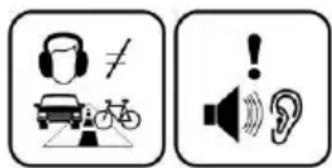
- Do not use the earphone while driving an automobile or riding a bicycle. It is not only dangerous, but also against the law. To avoid an accident, do not turn up the volume of the earphones too high while walking.
It's not recommended that you use the earphones at a high volume for an extended time as this may cause hearing damage.
Features
• 1.44 inch 65K color CSTN with 128*128 resolution
• Built-in rechargeable Li-polymer battery
• USB 2.0 high speed transmission
• Supports playback of MP3, WMA and WAV files
• Supports multiple equalizer (EQ) and 3D sound effects
• Supports multiple playback mode: section repeat, file repeat, folder repeat and random
• Supports the basic information of titles, artists and albums of music files(ID3 tag) or lyrics synchronization show while music is playing
• Supports browse of JPEG and BMP picture files
• Supports converted MTV video format (file transformation tool included)
• Supports browse of e-book in TXT format
• Supports Voice recording via the build-in microphone
- Multiple language user's interface
Location of Controls
- Earphone jack
- USB cable connection port
- A-B/REC
- [ 🔊/■] Power on/off; Stop; Open sub-menu; Return to previous menu.
- RESET hole
- Screen display
- [▶▶] Next, Fast Forward
- [▶II/M] Enter main menu, Play/Pause, Confirm
- [VOL+] Volume up
- [ ◀◀] Previous, Fast Rewind
- [VOL-] Volume down
- Hold switch
- Microphone

Connecting with Computer
System requirements
You computer system must meet the following specifications:
- Pentium 200MHz or above
• Microsoft Windows 98SE/2000/ME/XP/Vista
• 120MB of available hard disk space - USB port supported
- CD-ROM drive
Installing the drive for windows 98 SE
If your computer is running Windows ME/2000/XP/Vista, no driver is required to install.
If your computer is running Windows 98 SE, you must install the drive provided on the CD before connecting the player to your computer.
- Insert the installation CD into the CD-ROM driver.
- Execute the "USB Disk Win98 Driver Version xxx.exe" file in the CD and follow the instructions in window to complete the installation.
- Restart the computer.
Note: Make sure the player is disconnected from the computer when installing the drive.
Connecting player to computer
Files can be transferred directly into the player using the USB data cable. Make sure that your computer is powered on. Below is the procedure of connecting with computer:
- Plug the larger USB connector of the USB cable into the USB port on the computer.
- Plug the other end (the smaller end) of the USB cable to the player.
- The computer system detects "New hardware" and starts to install the driver automatically. Wait for the system to finish the installation.
When it has finished, a new "Removable Disk" will be created in "My Computer".
Loading files to the player
To download the files from your computer, perform the following steps:
- Open the Windows Explorer or My computer.
"Removable Disk" is displayed. - Select the files on your computer and simply move it into the "Removable Disk" in the usual way (drag and drop, copy and paste). After copying is completed, the data will be available on the MP3 player.
Note:
• Please do not disconnect the USB cable during loading. It may cause malfunction of the player and the files.
Disconnecting the USB cable
After completing the file transfer, please disconnect the USB cable as the following way:
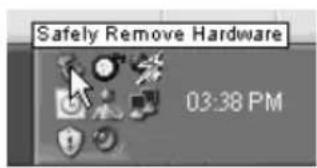
1 Double click the green arrow "Safely Remove Hardware" in the taskbar on the bottom right of the window.
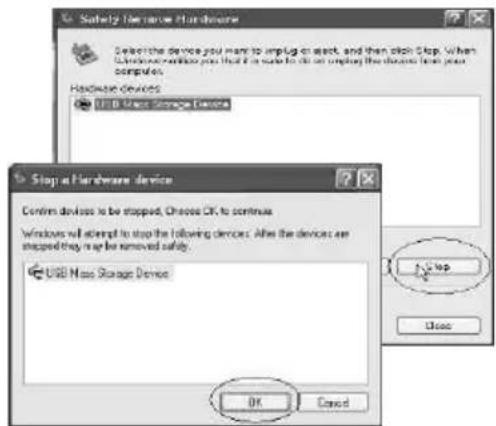
2 Select "USB Device" and click "Stop".
3 When the "Stop a Hardware device" appears, click "OK" to disconnect the USB mass storage device. Then you can unplug the player safely.
Charging the battery
The battery of the player is charging automatically when the player is connected to the computer. Make sure the computer is turned on.
The battery of the player is 80-percent charged in about two hours and fully charged in about four hours. If you charge the player while loading files to the player, it might take longer.
indicates that the battery is full and battery power will be reduced when using.
indicates the low battery and the player should be recharged right now.
Important:
• Recommended temperature for battery charging is 0°C to 35 °C.
- Fully charge it before you use the player for the first time or when you haven't used it for a long time.
- Charge the player right now when the "Low battery" message is displayed.
• Do not over charge or discharge the player. Over charging or discharging will shorten the battery life.
- The battery could be over discharged if the player is not used for a long time (over three months). To avoid over discharge, fully charge the player every two or three month and always keep the voltage of the battery above 50%.
- If the player is not used for a long time, keep it under the temperature of 23 ± 5° C and the moisture of 65 ± 20 % RH to maintain the performance of the battery.
Basic Operation
Turning on/off the player
• To turn on the player, press and hold the [⏻/■] button for two seconds.
- To turn off the player, press and hold the [ 🎨/■] button for two seconds.
Adjusting the volume
Press the [VOL+] button to increase the volume. Press the [VOL-] button to decrease the volume.
Resetting the player
If a malfunction of the player occurs, take a metal pin, e.g. the end of a paper clip, and press it into the RESET hole to re-initialize the system of your player.
Hold function
The hold function can help you lock all buttons to avoid accidental player operation.
• To lock all buttons of MP3 player, slide the HOLD switch in the direction of the arrow. All buttons are disabled.
• To deactivate the lock function, slide back the HOLD switch.
Selecting main menu or mode
The MP3 player has different modes. Press and hold the [▶II/M] button for approx. 1 second to open the main menu. Use the [◀◀] or [▶◀] button to select an item and press the [▶II/M] button to confirm your selection. All available options are listed as the below table.
| Music Music playback | ||
| Photo Photo playback | ||
| Movie Video playback | ||
| Voice Voice playback | ||
| Mic. Record Voice recording | ||
| E-Book Text view | ||
| Settings | Language English | German | Italian | Spanish | French | Dutch | Portuguese | |
| Play Mode Normal | Repeat One | Repeat All | Random & Repeat | ||
| Record Settings 8000Hz | 11025Hz | 16000Hz | 22050Hz | 32000Hz | 44100Hz | ||
| Contrast | ||
| Timer Off | Stop off: 15s | 30s | 1m | 2m | 5m | 10m | 30m | Disable | |
| Sleep Off: 10m | 15m | 30m | 60m | 90m | 2h | 3h | Disable | ||
| Backlight Off: 1m | 5m | 10m | 30m | 60m | Always on | ||
| Reset Yes | No | ||
| Delete Delete files and folders | ||
| About Software version, total and free memory of the player | ||
Listening to Music
Turning on and playing
- Make sure that the battery is enough and the earphone is connected correctly.
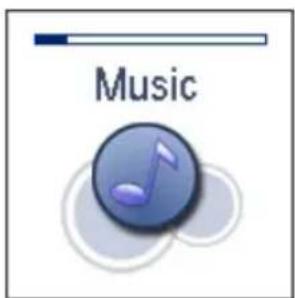
- Press and hold the [ 🔊/■] button to turn on the player. The DISPLAY lights up. The MP3 player enters Main menu with Music option selected by default.
- Press the [▶H/M] button to enter the Music mode. By default the player will be in STOP mode.
- Press the [▶II/M] button to start playing the music.
D i s p l a y
- Remaining battery power indicator
- Music indicator
- Repeat mode indicator
- Key locked indicator
- Volume indicator
- Music format
-
Play/Pause/Stop/Fast forward/backward
-
Audio frequency
- Current track / Total track number
- EQ mode indicator
- Sample rate
- Elapsed time of current track
- Total time of current track
- Music name/ID3 tag/lyrics

Pausing playback
While a song is playing, press the [▶II/M] button to pause the playback. To resume the playback, press the [▶II/M] button once again.
Stopping playback and escape Music mode
While a song is playing, press and hold the ▶HI/M] button to stop the playback, and escape Music mode to return to Main Menu.
Skipping tracks
- Press the [◀◀] button to skip to the previous track.
- Press the [ ▶▶] button to skip to the next track.
Searching backward or forward within a track
- Press and hold the [|◀|] button to search backward within a track.
- Press and hold the [▶] button to search forward within a track.
• Once you release the pressed button, the file will be played back from the searched point.
A-B function
A desired section of a track can be played back repeatedly by using the A-B function.
• While a track is playing, press the [A-B/REC] button to set the beginning point of the section. The icon 📐 is displayed.
- Press the [A-B/REC] button again to set the ending point of the section. The icon → B is displayed and the selected section starts playing back repeatedly.
• To cancel the A-B repeat playback and return to the normal playback, press the [A-B/REC] button again.
Note: The A-B repeat function can only be used within the same track.
Using the music menu
The music menu allows you to manage all factors of listening, such as repeating tracks, selecting equalizers, and so on.
Note: After finishing the music setting, press the [💡/■] button to exit the music setting menu.
To set play mode
The play mode setting enables you to select a play mode to enjoy the music in desired order.
-
Press the [ 🔊/■] button while listening to music. The music menu appears on the screen.
-
Press the [◀◀] or [▶▶] button to select Repeat, and press the [▶▶▶▶▶▶▶▶▶▶▶▶▶▶▶▶▶▶▶▶▶▶▶▶▶▶▶▶▶▶▶▶▶▶▶▶▶▶▶▶▶▶▶▶▶▶▶▶▶▶▶▶▶▶▶▶▶▶▶▶▶▶▶▶▶▶▶▶▶▶▶▶▶▶▶▶▶▶▶▶▶▶▶▶▶▶▶▶▶▶▶▶▶▶▶▶▶▶▶▶>
-
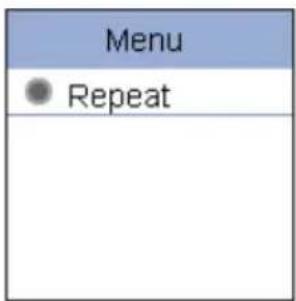
Press the [◀◀] or [▶▶] button to select the desired mode as below and press the [▶▶▶/▶] button to confirm and exit.
| Menu |
| Repeat |
| Equalizer |
| 3D |
| Play Rate |
| File |
• Normal: Play all saved music files in order once.
• Repeat One: Play the current or selected file repeatedly.
• Repeat All: Play all the music files in order repeatedly.
• Random &Repeat All: Play all the files in random repeatedly.
• Folder Normal: Play all the files in the current folder in order once.
• Folder Repeat: Play all the files in the current folder repeatedly.
- Folder Random: Play all the files in the current folder in random.
| Repeat |
| Normal |
| Repeat One |
| Repeat All |
| Random&Repeat |
| Folder Normal |
To set equalizer
The equalizer setting enables you to select an equalizer from the six preset equalizer settings to suit the type of audio output or customize your personal equalizer effect.
- Press the [ ⏻/■] button while listening to music. The music menu appears on the screen.
- Use the [◀] or [▶] button to select Equalizer, and press the [▶II/M] button. The equalizer menu appears on the screen.
- Use the [◀◀] or [▶◀] button to select the desired equalizer from Normal, Pop, Rock, Classic, Jazz and Ultra Bass. Press the [▶II/M] button to confirm and exit.
| EQ |
| ● Normal |
| ○ Pop |
| ○ Rock |
| ○ Classic |
| ○ Jazz |
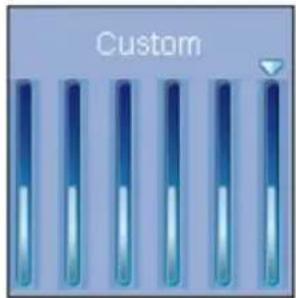
To customize EQ, select Custom, and press the ▶H/M button. The Customer EQ menu appears on the screen.
Press the [◀◀] or [▶▶] button to navigate between value bars.
Use the [VOL+] or [VOL-] button to adjust the value and press the ▶II/M button to confirm.
After completing the setting, press the [⏻/■] button to exit.
To set 3D effect
-
Press the [ ⏻/■] button while listening to music. The music menu appears on the screen.
-
Use the [◀◀] or [▶◀] button to select 3D, and press the [▶◀◀/M] button. The 3D menu appears on the screen.
-
Use the [◀◀] or [▶▶] button to select On or Off. Press the [▶▶▶▶▶▶▶▶▶▶▶▶▶▶▶▶▶▶▶▶▶▶▶▶▶▶▶▶▶▶▶▶▶▶▶▶▶▶▶▶▶▶▶▶▶▶▶▶▶▶▶▶▶▶▶▶▶▶▶▶▶▶▶▶▶▶▶▶▶▶▶▶▶▶▶▶▶▶▶▶▶▶▶▶▶▶▶▶▶▶▶▶▶▶▶▶▶▶▶▶>

T o s e t p l a y r a
- Press the [ ⏻/■] button while listening to music. The music menu appears on the screen.
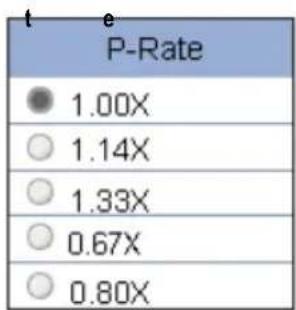
- Use the [◀] or [▶] button to select Play Rate, and press the [▶II/M] button. The play rate menu appears on the screen.
- Use the [◀◀] or [▶▶] button to select a play rate from 1.00X, 1.14X, 1.33X, 0.67X and 0.80X. Press the ▶▶▶▶/▶▶▶▶▶▶▶▶▶▶▶▶▶▶▶▶▶▶▶▶▶▶▶▶▶▶▶▶▶▶▶▶▶▶▶▶▶▶▶▶▶▶▶▶▶▶▶▶▶▶▶▶▶▶▶▶▶▶▶▶▶▶▶▶▶▶▶▶▶▶▶▶▶▶▶▶▶▶▶▶▶▶▶▶▶▶▶▶▶▶▶▶▶▶▶▶▶▶▶▶>
To navigate music files
- Press the [ 🔊/■] button while listening to music. The music menu appears on the screen
- Use the [◀◀] or [▶◀] button to select File, and press the ▶▶▶▶/▶▶ button. The music file list appears on the screen.
- Use the [◀◀] or [▶◀] button to select a folder or file and press the ▶▶▶▶▶▶▶▶▶▶▶▶▶▶▶▶▶▶▶▶▶▶▶▶▶▶▶▶▶▶▶▶▶▶▶▶▶▶▶▶▶▶▶▶▶▶▶▶▶▶▶▶▶▶▶▶▶▶▶▶▶▶▶▶▶▶▶▶▶▶▶▶▶▶▶▶▶▶▶▶▶▶▶▶▶▶▶▶▶▶▶▶▶▶▶▶▶▶▶▶▶>

Displaying lyric synchronously
This player supports lyrics display while playing the music. Only the lyrics in LRC format can be displayed. To add lyrics to the music, perform the following steps:
- Choose an MP3/WMA file, for example "love music. Mp3".
- Download the corresponding lyrics with extension ".lrc" from the Internet.
- Rename the lyrics file. Make sure that the lyrics filename is the same as the music file name. For example "love music.lrc"
- Copy both files into the same folder on the player.
- Start playback of the music file. The lyrics will be displayed on the screen synchronously while the music is being played.
Viewing Picture
This player supports the playback of pictures in formats of JPEG and BMP.
- Press and hold the [▶H/M] button to enter the main menu.
- Use the [◀◀] or [▶▶] button to select Photo and press the [▶▶▶▶▶▶▶▶▶▶▶▶▶▶▶▶▶▶▶▶▶▶▶▶▶▶▶▶▶▶▶▶▶▶▶▶▶▶▶▶▶▶▶▶▶▶▶▶▶▶▶▶▶▶▶▶▶▶▶▶▶▶▶▶▶▶▶▶▶▶▶▶▶▶▶▶▶▶▶▶▶▶▶▶▶▶▶▶▶▶▶▶▶▶▶▶▶▶▶▶>
-
Use the [◀◀] or [▶▶] button to select a manual from Manual, Slide Show, Thumbnail and press the ▶II/M button to view your pictures.
-
Manual: To view pictures manually. Use the [◀◀] or [▶▶] button to display the previous or next picture.
- Slide Show: To play a slide show. Once you select it, all pictures on your player starts slide show.
-
Thumbnail: To view pictures in thumbnails. Up to four pictures are displayed on the screen at a time. Use the [◀◀] or [▶▶] button to navigate between pictures and press the [▶▶▶▶▶▶▶▶▶▶▶▶▶▶▶▶▶▶▶▶▶▶▶▶▶▶▶▶▶▶▶▶▶▶▶▶▶▶▶▶▶▶▶▶▶▶▶▶▶▶▶▶▶▶▶▶▶▶▶▶▶▶▶▶▶▶▶▶▶▶▶▶▶▶▶▶▶▶▶▶▶▶▶▶▶▶▶▶▶▶▶▶▶▶▶▶▶▶▶▶>
-
Press the [ 🔊/■] button to exit the picture view mode return to the previous menu.

Manual mode

Thumbnail mode
Watching Video
This player supports the playback of converted videos in MTV format.
- Press and hold the [▶H/M] button to enter the main menu.
- Use the [◀◀] or [▶▶] button to select Movie and press the ▶▶▶▶▶▶▶▶▶▶▶▶▶▶▶▶▶▶▶▶▶▶▶▶▶▶▶▶▶▶▶▶▶▶▶▶▶▶▶▶▶▶▶▶▶▶▶▶▶▶▶▶▶▶▶▶▶▶▶▶▶▶▶▶▶▶▶▶▶▶▶▶▶▶▶▶▶▶▶▶▶▶▶▶▶▶▶▶▶▶▶▶▶▶▶▶▶▶▶▶▶>
- Use the [ ◀◀] or [▶▶] button to select a video and press the ▶H/M] button to play the selected video.
Pausing playback
While a video is playing, press the [ ] button to pause the playback.
To resume the playback, press the ▶II/M button once again.
Press the [💡/■] button to stop playback.
Skipping video files
Press the [◀◀] or [▶▶] button to skip to the previous or next video file.\
Searching backward or forward
Press and hold the [◀◀] or [▶◀] button to search backward or forward within a video file.


Stop mode

Play mode
Setting video repeat mode
You to select a mode to enjoy the movie in desired order.
- Press the [
/■ button to stop the playback.
- Press the [
/■] button again to open the video menu, and select Repeat and press the ▶II/M button.
- Use the [
◀◀] or [▶◀] button to select the desired mode as below and press the [▶◀/M] button to confirm.
• Normal: Play all saved files in order once.
• Repeat One: Play the current or selected file repeatedly.
• Repeat All: Play all the files in order repeatedly.
• Random & Repeat: Play all the files in random repeatedly.
- Press the ⏻/■ button to exit the video sub-menu.
Recording Voice
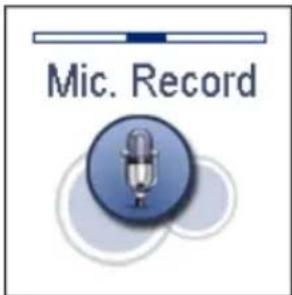
In Mic.Record mode, you can activate the voice recording with integrated microphone. You also can directly press and hold [A-B/REC] button to start recording in Music or Voice mode.
- Press and hold the [▶H/M] button to enter the main menu.
-
Use the [ ◀◀] or [▶▶] button to select Mic.Record and press the [▶▶/M] button. The recording menu appears and the player starts recording.
-
To pause the recording, press the [▶H/M] button. To resume the recording, press the [] button again.
-
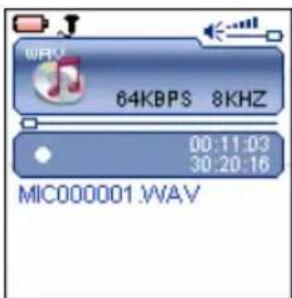
To save recording and return to main menu, press the [ 🔊/■ button. The player will go to the Voice playback interface.
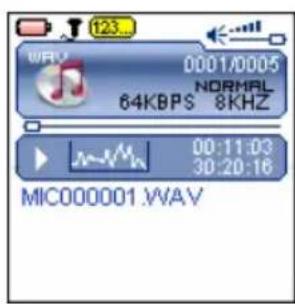
The recorded files are saved in the MICIN.DIR folder of the MP3 player as WAV files (format: MIC0000X.WAV) and can be listened to in the Voice mode.
- Press the [▶II/M] button to start playing the recorded files or press and hold the [▶II/M] button to exit the voice mode.
Note: Voice recording is automatically stopped when the memory of the player is full or the battery power is no longer sufficient. Data that has been already recorded is automatically saved.
Listening to Recordings
All recordings can be played in the voice mode.
- Press and hold the ▶II/M button to enter the main menu.
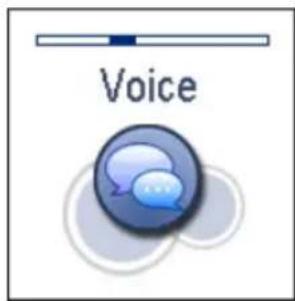
- Use the [◀◀] or [▶▶] button to select the Voice and press the [▶II/M] button. The screen displays the voice mode and will be in stop mode.
- Press the [▶II/M] button to play the recording files.
- Press and hold the [▶II/M] button to stop the playback and return to main menu.
File selected, file searched, and playback function in the Voice mode correspond to the functions in the Music mode.
Note: To exit the Voice mode, press and hold the [▶II/M] button to return the main menu.
Reading E-book
This player only supports the playback of files in TXT format. Other formats must be saved as TXT format before transfer.
- Press and hold the [▶H/M] button to enter the main menu.
- Use the [◀◀] or [▶◀] button to select E-BOOK and press the [▶II/M] button. The E-book list appears on the screen if you use the E-BOOK function for the first time or reset the player.
- Use the [◀◀] or [▶◀] button to select a folder or file and press the [▶◀◀/◀◀] button to open the folder or view the selected file.
Moving to previous/next page
• Press the [◀◀] button to move to the previous page.
- Press the [▶▶] button to move to the next page.

Skipping to next page automatically
- Press the [▶II/M] button while viewing the text. The player will skip to the next page after a shot time automatically until reaching the last page. Press the [▶II/M] button to stop the automatic skipping.
Note:
• To return to the E-book list, press the [ 🔊/■] button.
- The last page you read is saved as a bookmark automatically when you exit the E-book mode. The bookmark page will be displayed on the screen when you switch to E-BOOK mode next time.
Settings
The unit settings can be customized by accessing the Settings Menu. The Settings Menu consists of several items where various functions can be selected concerning language, play mode, recording, contrast, time off, storage, reset, etc.
Navigating the settings menu
This section describes how to access and change various features through the MP3 player settings menu.
-
Press and hold the [▶H/M] button to open the main menu.
-
Select the Settings using the [◀◀] or [▶▶] button and press the ▶II/M button to open the sub-menu.
-
To select a submenu, press the [ ◀◀] or [▶▶] button.
-
To enter a submenu, press the [▶H/M] button.
-
To save an option, press the [◀◀] or [▶▶] button to select the option and press the [▶▶▶▶▶▶▶▶▶▶▶▶▶▶▶▶▶▶▶▶▶▶▶▶▶▶▶▶▶▶▶▶▶▶▶▶▶▶▶▶▶▶▶▶▶▶▶▶▶▶▶▶▶▶▶▶▶▶▶▶▶▶▶▶▶▶▶▶▶▶▶▶▶▶▶▶▶▶▶▶▶▶▶▶▶▶▶▶▶▶▶▶▶▶▶▶▶▶▶▶>
-
To return to the superior directory, press the [ 🔊/■] button.
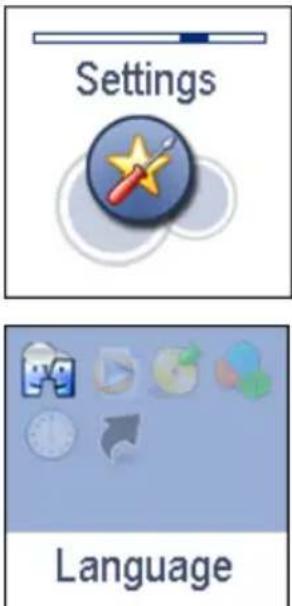
Setting language
• To select a desired menu language.
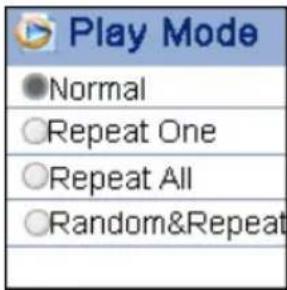
Setting play mode
• To select the repeat mode for the music, voice and movie playback.
Normal: Play all saved files in order once.
Repeat One: Play the current or selected file repeatedly.
Repeat All: Play all the files in order repeatedly.
Random & Repeat: Play all the files in random repeatedly.

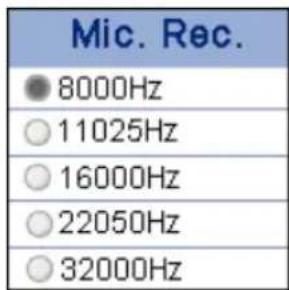
Setting record quality
• To set the microphone recording quality.
Note: The higher the frequency, the higher the quality, however, the recordable time will be shorten.
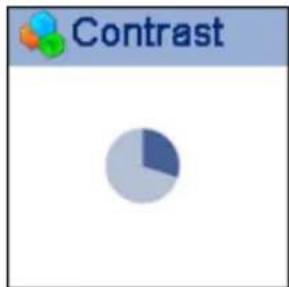
Setting contrast
• To adjust the contrast of screen display.
Setting time off
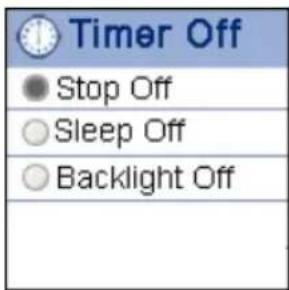
- Stop Off: To set the shutdown time. The player will turn off automatically if the player is non-usage for the set time.
- Sleep Off: To set the sleep time. The player will turn off automatically after the set time.
Backlight Off: To set the LCD off time. The backlight will turn off automatically if no button is pressed for the set time.
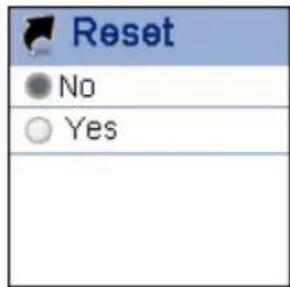
Reset settings
• To restore all settings of the player to factory default settings.
Deleting Files
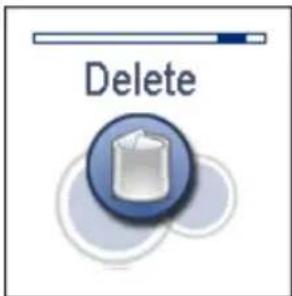
In the Delete mode, you can delete the files and folders stored on your player without a computer.
- Press and hold the [▶H/M] button to enter the main menu.
- Use the [◀◀] or [▶▶] button to select Delete and press the [▶II/M] button. The file list appears on the screen.
- Press the [ ◀◀] or [▶▶] button to navigate between files or folder.
- To delete a file, select the file and press the [▶H/M] or [○/■] button. To delete a folder, select the folder and press the [○/■] button. The Delete menu appears on the screen.
- Use the [◀◀] or [▶▶] button to select Yes (continue delete) or No (cancel delete), and press the [▶▶▶▶▶▶▶▶▶▶▶▶▶▶▶▶▶▶▶▶▶▶▶▶▶▶▶▶▶▶▶▶▶▶▶▶▶▶▶▶▶▶▶▶▶▶▶▶▶▶▶▶▶▶▶▶▶▶▶▶▶▶▶▶▶▶▶▶▶▶▶▶▶▶▶▶▶▶▶▶▶▶▶▶▶▶▶▶▶▶▶▶▶▶▶▶▶▶▶▶>
About
In the About mode, you can check and review the firmware version, total memory and free memory of the player.
- Press and hold the [▶II/M] button to enter the main menu.
- Use the [◀◀] or [▶▶] button to select About and press the [▶▶▶▶▶▶▶▶▶▶▶▶▶▶▶▶▶▶▶▶▶▶▶▶▶▶▶▶▶▶▶▶▶▶▶▶▶▶▶▶▶▶▶▶▶▶▶▶▶▶▶▶▶▶▶▶▶▶▶▶▶▶▶▶▶▶▶▶▶▶▶▶▶▶▶▶▶▶▶▶▶▶▶▶▶▶▶▶▶▶▶▶▶▶▶▶▶▶▶▶>
The firmware version, total/free memory of the player is displayed on the screen. - Press the [▶H/M] button to exit.

Converting Video to MTV Format
This player supports the playback of videos in MTV format. Other formats (AVI, WMV, MEPG1, Quick Time, MPEG2, RealMedia, MPEG4, 3GP) must be converted to MTV format. The "MTVVideo Converter" is supplied on the CD to enable you to convert the other formats to MTV format.
- Insert the provided CD to the CD-ROM driver of your computer.
- Double-click the file "Video Conveter.exe" in the folder "MTVVideoConverter" of the CD. The Video Converter V2.9 window appears.

Video Convert V2.9 Open dialog box
![Open Look in: Removeable Disk (H:) VideoConverter_12.9 [2(314-234).jpg] [2(480-234).jpg] [2(600-647).jpg] [2(645-627).jpg] [2(720-8540).jpg] [4(800-8600).jpg] [4(128x-960).jpg] [4(160x-1200).jpg] [5(720-890).jpg] [5(750-8500).jpg] [5(800-8520).jpg] [5(958-761).jpg] S(1600-1200).jpg S(1985-1323).jpg…](/content/2026/06/1195151/images/b91211d03e981d848885e18fe08990eea4e6d9c7c39a65958143e036e486525c.jpg)
- Click Input Video, and then select the input source from the Open dialog box.
Note: If your video files (e.g. MP4 file) cannot be found in the Open dialog box, select All Files (*.*) in the File of type box.
-
Click Output Video to select an output directory.
-
Click Advanced Settings. Select 128x128 in the Output Frame Size box and select MTV in the Output Format box.
-
Click Start Conversion.
For detailed operations, click Help.

Note:
- To make your video playable on the player, you must select 128x128 or less in the Output Frame Size box (Advanced Setting). Otherwise, the message "Device Not Support" will appear on the screen when you play the video file.
- You have to install relevant codec package before running "Video Converter.exe". If not, the system will prompt "Load Video Failed!" when you attempt to convert the video files. Click "OK" and follow the prompt to download and install codec from the web sites.

Troubleshooting
If you have problems in operating your player, please check the points below before sending it to service center.
Cannot power on
- The battery may be exhausted. Please recharge the battery.
Files cannot be downloaded
• Check if the driver is installed correctly in the computer.
- Check the connection between the player and PC.
No sound from the earphone
• Please ensure the volume is not 0, and the connection of earphone is no problem.
• Check if the format of music file is supported by the player.
Recording cannot be done
- Check if there is enough memory and battery capacity.
The words of LCD display abnormality
- Please ensure you select the correct language.
The buttons do not work
• The key may be locked. Slide the HOLD switch to the off position.
- Press the reset hole with metal pin to re-initialize the system of the player.
Specifications
| Audio Format MP3/WMA Size 74*40*11.5mm | |||
| Photo Format | JPEG/BMP | weight | <40g (without accessories) |
| Video Format MTV Frequency response 20Hz~20KHz | |||
| MP3 bit Rate | 8Kbps-320Kbps | Dynamic current | ≤40mA (Play Mp3, backlight off) |
| WMA bit Rate | 5Kbps-320Kbps | Dynamic current | ≤75mA (Play movie) |
| S/N rate | ≥80dB | Power off current | ≤250uA |
| Distortion | <0.2% | Storage condition | Humidity <90%, Normal temperature |
| Power out | 2*5mW(32 ohm load) | Working condition | Humidity <85%, -10~40°C |
| Battery | 350mAh, up to 9 hours playback for music and 4 hours for video | ||
| EQ | Normal//Rock/Pop/Classic/Jazz/Ultra bass/Custom EQ | ||
- INTRODUCTION
- IMPORTANT SAFETY PRECAUTIONS
- PRECAUTIONS IN USING THE EARPHONE
- FEATURES
- LOCATION OF CONTROLS
- CONNECTING WITH COMPUTER
- SYSTEM REQUIREMENTS
- INSTALLING THE DRIVE FOR WINDOWS 98 SE
- CONNECTING PLAYER TO COMPUTER
- LOADING FILES TO THE PLAYER
- NOTE
- DISCONNECTING THE USB CABLE
- CHARGING THE BATTERY
- IMPORTANT
- BASIC OPERATION
- TURNING ON/OFF THE PLAYER
- ADJUSTING THE VOLUME
- RESETTING THE PLAYER
- HOLD FUNCTION
- SELECTING MAIN MENU OR MODE
- LISTENING TO MUSIC
- TURNING ON AND PLAYING
- D I S P L A Y
- PAUSING PLAYBACK
- STOPPING PLAYBACK AND ESCAPE MUSIC MODE
- SKIPPING TRACKS
- SEARCHING BACKWARD OR FORWARD WITHIN A TRACK
- A-B FUNCTION
- USING THE MUSIC MENU
- TO SET PLAY MODE
- TO SET EQUALIZER
- TO SET 3D EFFECT
- TO NAVIGATE MUSIC FILES
- DISPLAYING LYRIC SYNCHRONOUSLY
- VIEWING PICTURE
- WATCHING VIDEO
- SKIPPING VIDEO FILES
- SEARCHING BACKWARD OR FORWARD
- SETTING VIDEO REPEAT MODE
- RECORDING VOICE
- LISTENING TO RECORDINGS
- READING E-BOOK
- MOVING TO PREVIOUS/NEXT PAGE
- SKIPPING TO NEXT PAGE AUTOMATICALLY
- SETTINGS
- NAVIGATING THE SETTINGS MENU
- SETTING LANGUAGE
- SETTING PLAY MODE
- SETTING RECORD QUALITY
- SETTING CONTRAST
- SETTING TIME OFF
- RESET SETTINGS
- DELETING FILES
- ABOUT
- CONVERTING VIDEO TO MTV FORMAT
- TROUBLESHOOTING
- CANNOT POWER ON
- FILES CANNOT BE DOWNLOADED
- NO SOUND FROM THE EARPHONE
- RECORDING CANNOT BE DONE
- THE WORDS OF LCD DISPLAY ABNORMALITY
- THE BUTTONS DO NOT WORK
Brand : CURTIS
Model : MPK2066UKAB
Category : Mp3 player