MPK1021 - Mp3 player CURTIS - Free user manual and instructions
Find the device manual for free MPK1021 CURTIS in PDF.


| Product Type | MP3 Player |
| Brand | Curtis |
| Model | MPK1021 |
| Display | 1.5-inch Color CSTN Display |
| Supported Audio Formats | MP3 (MPEG1/2 Layer2), WMA |
| Supported Video Format | SMV (converted from AVI, WMV, MPG) |
| Supported Photo Formats | JPG, BMP |
| E-book Format | TXT |
| Voice Recording Format | WAV |
| Memory Capacity | 128MB / 256MB / 512MB / 1GB / 2GB internal flash memory |
| Battery | 250 mAh Lithium battery |
| Charging | Via included power charger or USB cable |
| USB Interface | USB 2.0 Full Speed |
| Dimensions | 39 mm (W) x 90 mm (H) x 8 mm (D) |
| Weight | 45 g |
| Signal-to-Noise Ratio | 90 dB |
| Equalizer Modes | 5 modes: Normal, Rock, Classic, Pop, Jazz |
| Play Modes | Normal, Repeat One, Repeat All, Shuffle, Shuffle All, Intro |
| Supported Operating Systems | Windows 98SE/Me/2000/XP, Mac OS 9.0/10.0 |
| Games | Boxman and Tetris |
| Maintenance & Cleaning | Wipe with a dry cloth; avoid moisture and extreme temperatures. |
| Safety | Do not expose to water; improper charging may cause battery to explode. |
| Spare Parts & Repairability | Contact manufacturer for service; not user-serviceable. |
| General Information | Includes earphone, USB cable, power charger, CD with driver and software. |
Frequently Asked Questions - MPK1021 CURTIS
User questions about MPK1021 CURTIS
0 question about this device. Answer the ones you know or ask your own.
Ask a new question about this device
Download the instructions for your Mp3 player in PDF format for free! Find your manual MPK1021 - CURTIS and take your electronic device back in hand. On this page are published all the documents necessary for the use of your device. MPK1021 by CURTIS.
USER MANUAL MPK1021 CURTIS
THIS INSTRUCTION BOOK MAY CONTAIN ERRORS AND OMISSIONS. DESIGN AND SPECIFICATION ARE SUBJECT TO CHANGE WITHOUT NOTICE.
No part of this document may be reproduced or transmitted in any form or by any means, electronics or mechanical, including photocopying and recording or translated to another language for any purpose without the prior written consent of the manufacturer.
All brand names, logos and registered trademarks mentioned are property of their respective owners.
© 2006. All right reserved. Version 1.0 10092006
Please read this booklet and note the warning statements before using the product.
Warning! Improper use of charger might cause the battery to turn hot or explode.
Note:
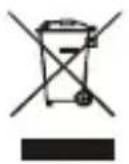
Electrical and electronic equipment (EEE) contains materials, parts and substances which can be dangerous to the environment and harmful to human health if waste of electrical and electronic equipment (WEEE) is not disposed of correctly.
Equipments which are marked with the WEEE logo (as shown on the left), should not be thrown away with your household waste. Contact your Local Authority Waste Disposal Department as they will be able to provide details of the recycling options available in your area. 1
English
Table of Contents
Introduction-3
Features----3
Package Contents----3
Overview----4
Buttons Operation----5
Display 6
On-screen-menu Operation----7
Power On and Off 8
Changing Mode 8
Entering Main Menu Page----8
Music Play 9
Skip a Song----9
Fast Forward and Backward----9
Record----10
Voice Play 10
Skip a voice----11
Fast Forward and Backward----11
Video Play 11
Skip a voice---- 12
Fast Forward and Backward----12
Photo---- 12
E-Book 13
System Set 13
Language 13
Power Off Set 14
Power Save Mode 14
Record Mode Set 14
LCD Contrast 15
About 15
Game 15
File list 15
EQ Set 16
PlayMode Set---- 16
Delete files----17
Installing Driver----18
System Requirements----18
Format the MTP Player----19
Synchronize MP3 and WMA Files to the Player----20
MTP Function being changed into USB Storage Function----26
USB Storage Function being changed into MTP Function----29
Trouble Shooting 31
Technical Specifications 33
How to convert video format---- 34
English
Introduction
Thank you for choosing our digital MP3 player. You can use this versatile MP3 player not only for playing MP3 and WMA songs, but also recording voice and serving as a USB flash disk, etc.
Features
● Colour 1.5-inch CSTN display
● Support MP3 (MPEG1/2 Layer2) and WMA music playback
● Support Game function
● Support E-Book function
● Support JPG and BMP picture
● Digital voice recorder
- USB mass storage function for data storage
- 5 EQ settings
● Lithium battery supports long playing time
- No driver installation is required (except Windows® 98/98SE)
Package Contents
- User's manual
- Earphone
● Power charger - USB cable
● CD including the driver and software utilities
English
Overview
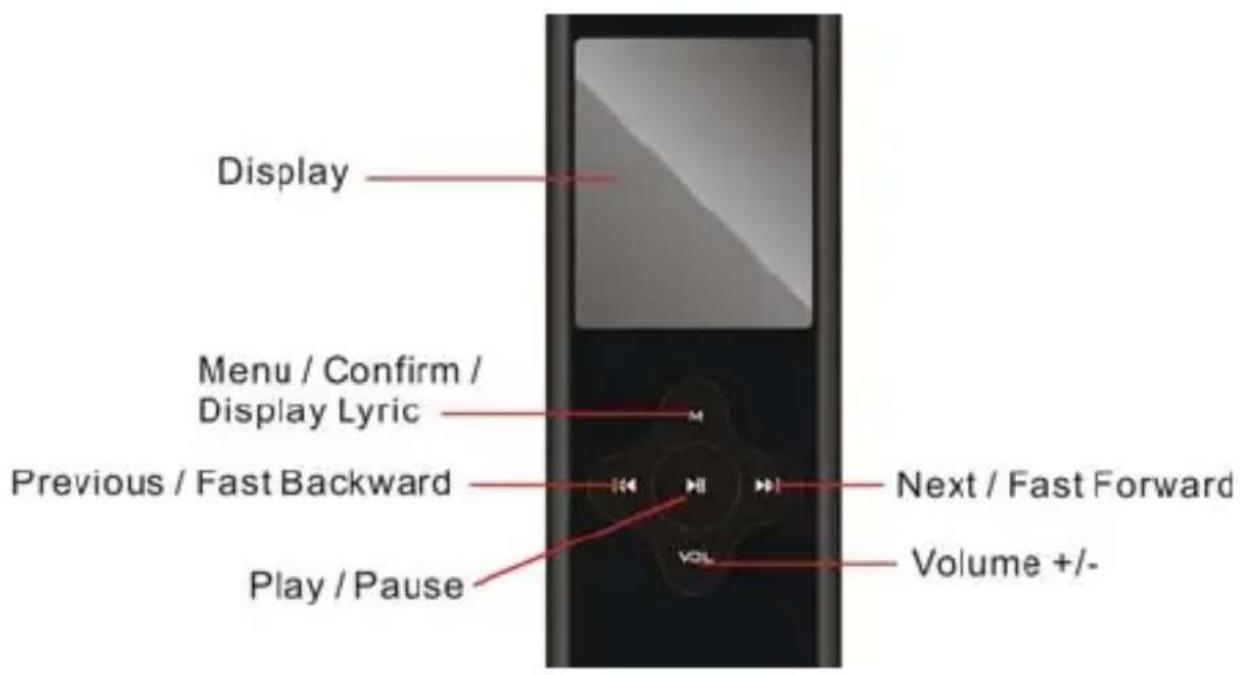
Front
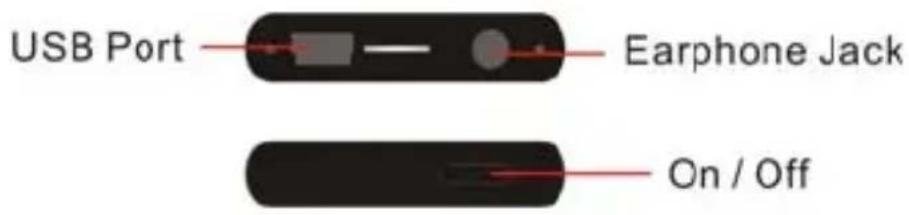
Top and Bottom
Buttons Operation
| Operation | |
| EARPHONE JACK | Insert the earphone plug into the earphone jack |
| USB PORT Connect | the USB cable to the USB port of the computer for uploading the songs |
| MICROPHONE Microphone for voice recording | |
| NEXT/FAST FORWARD | In PLAYING mode, press the button and release immediately to jump to next song.In PLAYING mode, press and hold the button to fast forward |
| MENU/CONFIRM/DISPLAY LYRIC | In STOP mode, press and hold the button to enter the Main Menu page for changing the modes.Under Menu or Sub-menu page, press the button to confirm to the selection of menu items.the lyric will show on the display automatically. (The lyric is necessary edited by the user before shown on the LCD display) |
| PREVIOUS/FAST BACKWARD | In PLAYING mode, press the button and release immediately to jump to previous songIn PLAYING mode, press and hold the button to fast backward the song |
| *VOLUME +VOLUME - | Press the VOL button to tune volume, increase the volume by pressing NEXT button.Press the VOL button to tune volume, decrease the volume by pressing PREVIOUS button. |
| ON/OFF/ | In IDLE mode, push the button to power on the playerIn STOP mode, push the button to power off the player |
| *PLAY/PAUSE/ | In STOP mode, press the button to play the songsIn PLAYING mode, press the button to pause the playing songWhen the ON/OFF button is locating at ON, press and hold the button to turn on and turn off the player. |
| DISPLAY Display the operating status, lyrics with backlight | |
*Reset the player by pressing PLAY/PAUSE and VOLIME+/- at the same time.
English
Display
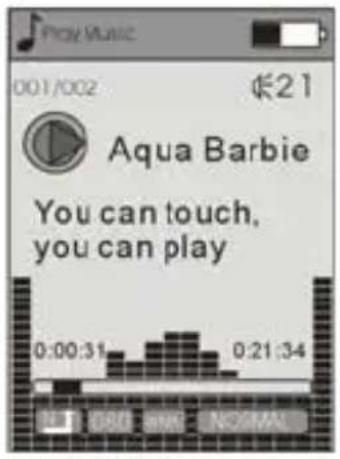
| Display Icon Function | |
 | Repeat ModeShow the current repeat mode used. |
Battery  | Show the battery level. |
Volume increase or decrease | Show the current volume |
 | Mode of EqualizerIndicate the current mode of equalizer used. 5 different EQ settings are available for selection. |
 Bit Rate Bit Rate | Show the bit rate of the song |
 | The Name of Playing SongShow the playing song currently |
English
On-screen-menu Operation
![graph TD A["Main Menu"] --> B["Play Music\nRecord\nPlay Voice\nPlay Video\nMy Photo\nEbook\nSystem Set\nAbout\nGame"] A --> C["Files List\nEQ Set\nPlayMode Set\nReturn"] C --> D["Normal\nRock\nClassic\nPop\nJazz"] C --> E["Files List\nPlayMode Set\nDelete File\nReturn"] C --> F["Normal\nRepeat One\n…](/content/2026/06/1195138/images/d834e3bdb2797edca50dd87387b244c313b88e07fa47ad86073834cbb185e29c.jpg)
English
Power On and Off
Power On
Push the ON/OFF button to power on the player. The "LOGO" appears on the display.
Power Off
Push the ON/OFF button to power off the player. The player is off.
Note: When the ON/OFF button is locating at ON, press and hold the PLAY/STOP button to turn on and turn off the player.
Battery Level
The battery icon ■ on the display shows the battery level.
Low Battery
When the battery icon shows in ☐, it indicates the battery power is running out. You should connect the player to power charger for charging.
*Remark: the player can be charged while the ON/OFF button is in ON status. When you connect the player to power charger, the player turn on automatically and enter the Main Menu mode, the jumping battery icon will show on the display of STOP mode. You can use the player when the player is charging.
Changing Mode
Entering Main Menu Page
- Press and hold the MENU button and enter the main menu page. You've entered the Main Menu page.
* Remark: "FM" is only applicable for the player with built-in FM function.
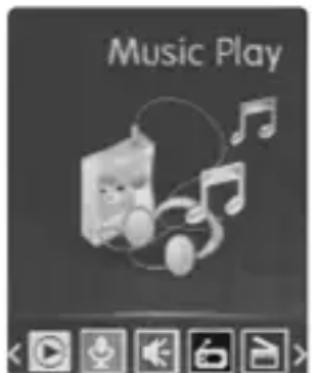
- Press PREVIOUS/NEXT button to jump to other menu items in sequence of Music Play, Record, Play Voice, Photo, E-book System Set, About and Game
English
- Select your desired menu item and press MENU/CONFIRM button again to enter sub-menu page.
Music Play
- After entering Main Menu page, select Music and press MENU/CONFIRM button to enter Playing Song mode.
Note: Only .MP3 and .WMA format will be played under Playing Song mode.
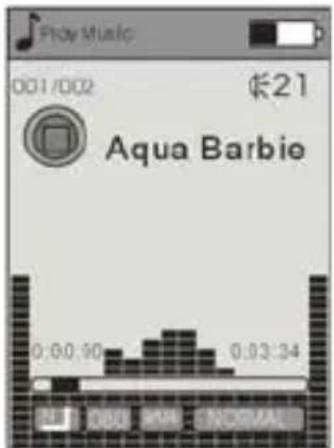
- The display will enter to the following screen in STOP mode.
-
Press PREVIOUS/NEXT button to select your desired song.
-
Press PLAY/PAUSE button to start playing selected .MP3 or .WMA music. If there is no .MP3 and .WMA files, "No Music Files" will show on the display.
Skip a Song
Press NEXT/PREVIOUS button to jump to next or previous song.
Fast Forward and Backward
Fast forward or backward by press and hold PREVIOUS/NEXT during playing music
English
Record
- After entering Main Menu page, select Record and press MENU button to enter Recording Voice mode.
Note: The recorded voice will be saved in .WAV only.
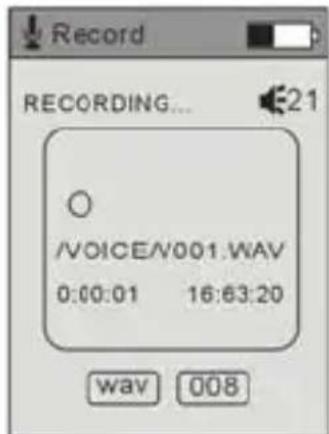
- Following display will show once you've entered Recording Voice mode, and the recording will start once you enter.
-
Press the PLAY/PAUSE button to stop the recording.
-
When you finished the recording, press MENU/CONFRIM button. The wording of "Save success" appears on the display and the recorded audio files will be automatically saved under Voice folder Directory as default. You can check the recorded audio files in Voice folder of Voice play mode by pressing PREV/NEXT button.
Voice Play
- After entering Main Menu page, select Voice and press MENU/CONFIRM button to enter Playing Recorded Voice mode.
Note: Only. WAV format will be played under Playing Voice Mode
English

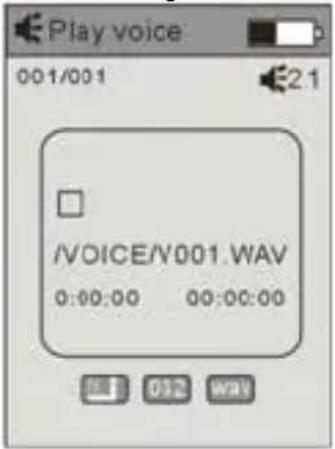
- The display will return to the following screen in STOP mode.
-
Press PREVIOUS/NEXT button to select your desired voice.
-
Press PLAY/PAUSE button to start playing selected audio files. If there is no recorded audio file, "No Files!" will show on the display.
Skip a Voice
Press PREVIOUS/NEXT button and release immediately to jump to previous or next recorded voice.
Fast Forward and Backward
Press and hold PREVIOUS/NEXT button to fast backward or forward.
Video Play
- After entering Main Menu page, select Video Play and press MENU/CONFIRM button to enter Playing movie mode.
Note: Only .smv format will be played under Playing Movie mode.
English
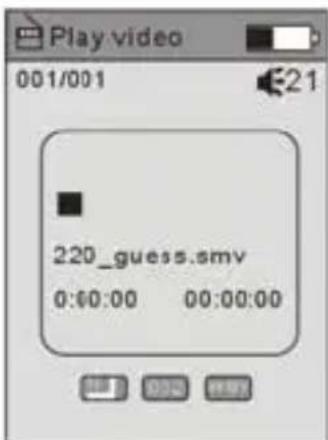
- The display will return to the following screen in STOP mode.
-
Press PREVIOUS/NEXT button to select your desired movie.
-
Press PLAY/PAUSE button to start playing selected .smv movie. If there is no .smv files, "No Movie Files" will show on the display.
Skip a Movie
Press PREVIOUS/NEXT button to jump to next or previous movie.
Fast Forward and Backward
Fast forward or backward by press and hold the PREVIOUS/NEXT button during playing movie
Photo
- After entering Main Menu page, select PHOTO and press MENU/CONFIRM button to enter View photos function.
Note: Only .JPG and .BMP format will be played under View PHOTO function.
- Press the desired view way to start the photo viewing, there are 2 ways to choose: Manual View and Auto View.
English
Ebook
- After entering Main Menu page, select Ebook and press MENU/CONFIRM button to enter E-book function.
Note: Only .TXT format will be played under Ebook function.
- Press PREVIOUS/NEXT button to select your desired article, then press PLAY button to start reading the article.
System Set
- After entering Main Menu page, press PREV/NEXT button to select System Function.

- Press MENU/CONFIRM button to enter System Set Function menu page.
Language Power Off Set Power Save Mode Record Mode Set LCD Contrast Return
Language
After entering System Set Function menu page, press MENU/CONFIRM button to select Language Function. Press PREV/NEXT button to select the desired language and press MENU/CONFIRM to confirm the Language.
English French Italian German
English
Power Off Set
- After entering System Set Function menu page, press PREVIOUS/NEXT button to select Power off Set Function. Press MENU/CONFIRM button to confirm.
- To set the off time in 2/5/10 minutes. In the STOP mode, the player will be off automatically based on the duration you set. You may set "Disable" to disable this function.
Power Save Mode
- After entering System Set Function menu page, press PREVIOUS/NEXT button to select Power Save Mode Function. Press MENU/CONFIRM button to confirm.
- To set the Save time in 5/20/30/60 seconds, In the IDLE mode (no button is pressed), the display will come to be black automatically based on the duration you set. You can press any key to light the display. Also you may set "Disable" to disable this function.
Record Mode Set
After entering Setting menu, select Record Mode Set by pressing MENU/CONFIRM button to enter this menu.
Press the PREVIOUS/NEXT button to select items including Source, Encoder, Sample, channel and Return.
Source
Only MIC mode is available in Source.
Encoder
Press MENU/CONFIRM button to select the different Encoder including IMADPCM, MSADPCM and PCM.
Sample
Press MENU/CONFIRM button to select the different data including 8000Hz, 11025Hz and 16000Hz.
Channel
Only Mono mode is available in Channel.
English
LCD Contrast
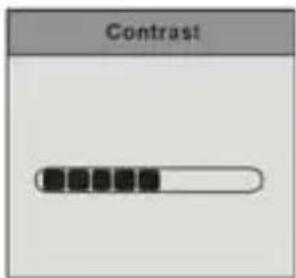
After entering Setting menu, select LCD contrast by pressing MENU/CONFIRM button to enter this menu. A suitable contrast can be set accordingly.
About
After entering Setting menu page, select About item by pressing MENU/CONFIRM button. The version of the firmware and the Memory Info will be shown on the display for reference.

Game
After entering Main Menu page, select Game and press MENU/CONFIRM button to enter Game function. Two games in this player are available: Boxman and Tetris.

Files List
Folder Management
Under the ROOT directory, you may create the folder to manage the songs for easy navigation and management. Under the each folder, subfolder or ROOT directory.
Folder Navigation
- In the Stop mode, press the MENU button and select Files list.
- The created folder names in the first layer are listed on the display. Choose your desired folder name by pushing PREV/NEXT button.
- Press the PLAY button to confirm your selection
English
Sub-folder
You may enter each folder in order to locate your desired sub-folder. Then press MENU button for confirmation.
EQ Set
In PLAYING mode, press MENU/CONFIRM button and select EQ Select to enter the EQ mode. Five EQ modes are available: normal, Rock, Classic, Pop and Jazz Press PREVIOUS/NEXT button to change the EQ mode and press MENU/CONFIRM button to confirm the EQ mode.
PlayMode Set
In PlayMode Menu, press PREV/NEXT button to select the desired Repeat mode. Seven Repeat Modes are available: Normal, Repeat One, Repeat All, Random, Random All, Preview.
Normal
All music will be played one by one and stopped at the last music until you disable this function.
Repeat One
The playing music will be re-played until you disable this function.
Repeat All
All music will be played from the beginning to the last one and then repeated again and again until you disable this function.
Shuffle
All music in the player will be randomly played until all music are finished playing.
Shuffle All
All music in the player will be randomly playback until you disable this function.
Intro
All music from the current one to the last one will play for 10 seconds one by one until you disable this function.
English
The setting of Repeat mode is able to apply in Playing Song and Playing Recorded Voice mode.
Delete files
In STOP mode, press MENU/CONFIRM button and select Delete files to enter the deletion function. Select "YES" or "No" by pressing MENU/CONFIRM button, then press PLAY/PAUSE button to confirm your selection. The wording "delete success" will show on the display.
Exit this function by pressing VOL button.
English
Driver
Windows® 98 and MAC OS
Windows® 98 (first edition) and MACOS are not supported.
Windows® 98SE
If the player is running on Windows® 98SE, please install the driver by going through the following instruction in details before using the player. The driver must be installed on your computer to make your player work properly with your computer. Please skip the following instructions for driver installation.
Step 1. Before you install the driver, please don't connect the player to the computer
Step 2. Insert the CD into your computer, click Setup.exe and the installation will start.
Step 3. Follow the on-screen instructions to complete the driver installation and restart your computer.
Step 4. Connect the player to your computer and a Removable Disk will appear for drag-and-drop of the music files
*Note"For Windows®Me/XP platform, it is unnecessary for installing driver before using.
System Requirements
● PC with Pentium class or faster processor
64MB RAM
- USB port
- CD-ROM drive for software installation
● 30MB free hard disk space
- Windows® 98SE
English
Format the MTP Player
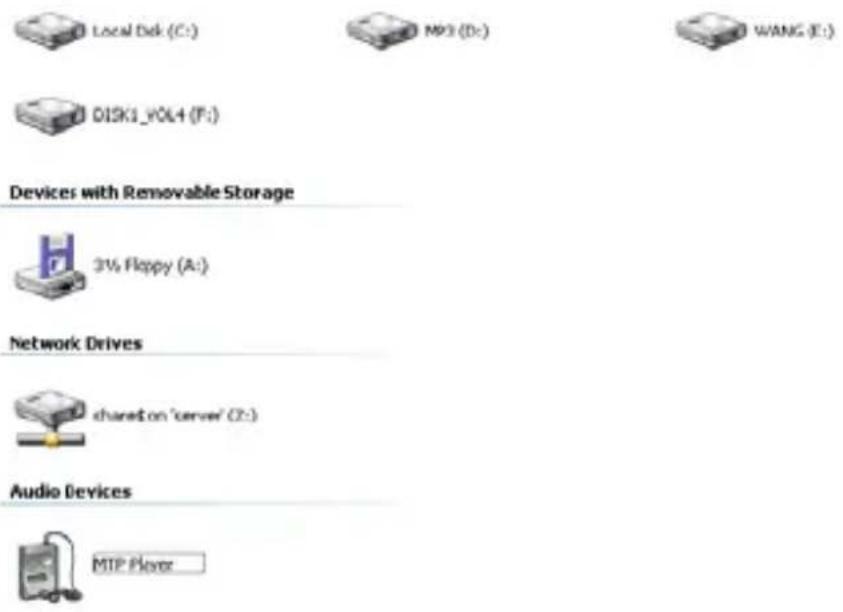
Step 1: Click the MTP Player in My Computer by pressing the right button of the mouse and select "Format..."
Step 2: A dialog box will appear to guide how to format. Click OK to proceed.
Audio Devices
MTP Player
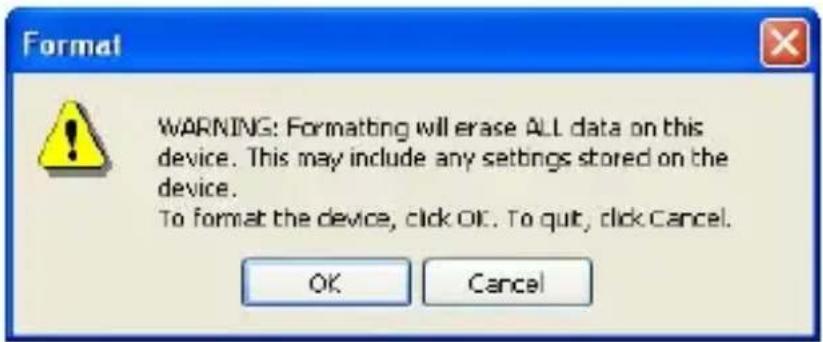
Then the MTP Player will be format accordingly.
English
Synchronize MP3 and WMA Files to the Player
Please operate the following procedure in licensed Windows® XP operation system with Windows® Media Player 10.
Noted: MAC OS and Windows® 98/98SE/Me are not supported for WMDRM songs playback.
Note: The player with WMDRM10 is only allowed for user to download music legally and validly from the distribution licensees of WMA songs which are posted on the corporate website of Microsoft®. Please make sure that the WMA songs are downloaded from these distribution licensees and frequently check the most updated distribution licensees on the corporate website of Microsoft®.
If the music is downloaded illegally, the songs could not be played normally.
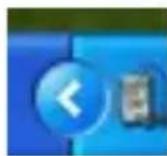
Step 1. Connect the MP3 player to the computer with USB Cable, It will show an icon at the right-bottom corner of the desktop.
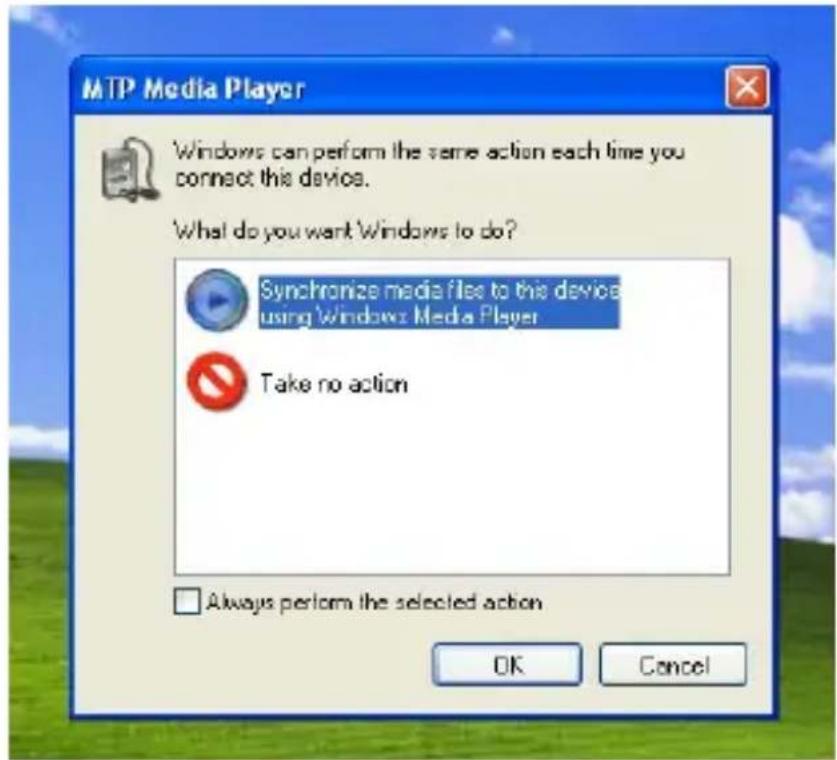
Step 2. A dialog box will appear as follows, choose the Media Player icon and click OK to proceed.
English
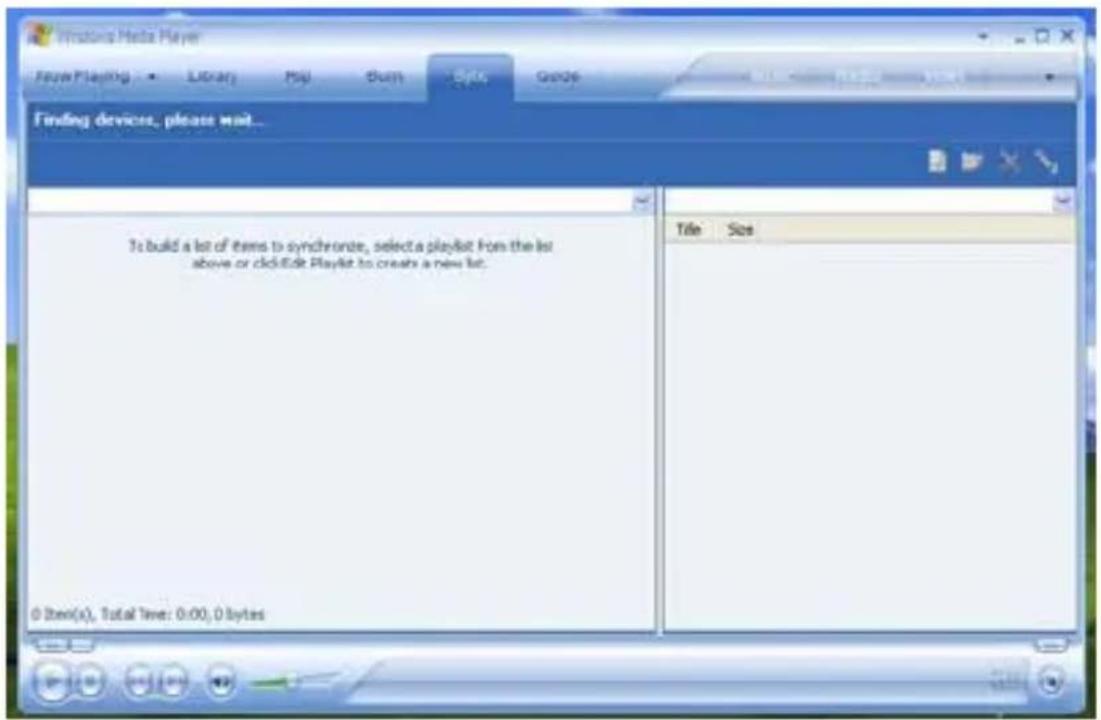
Step 3. The Media Player will find device automatically as follows
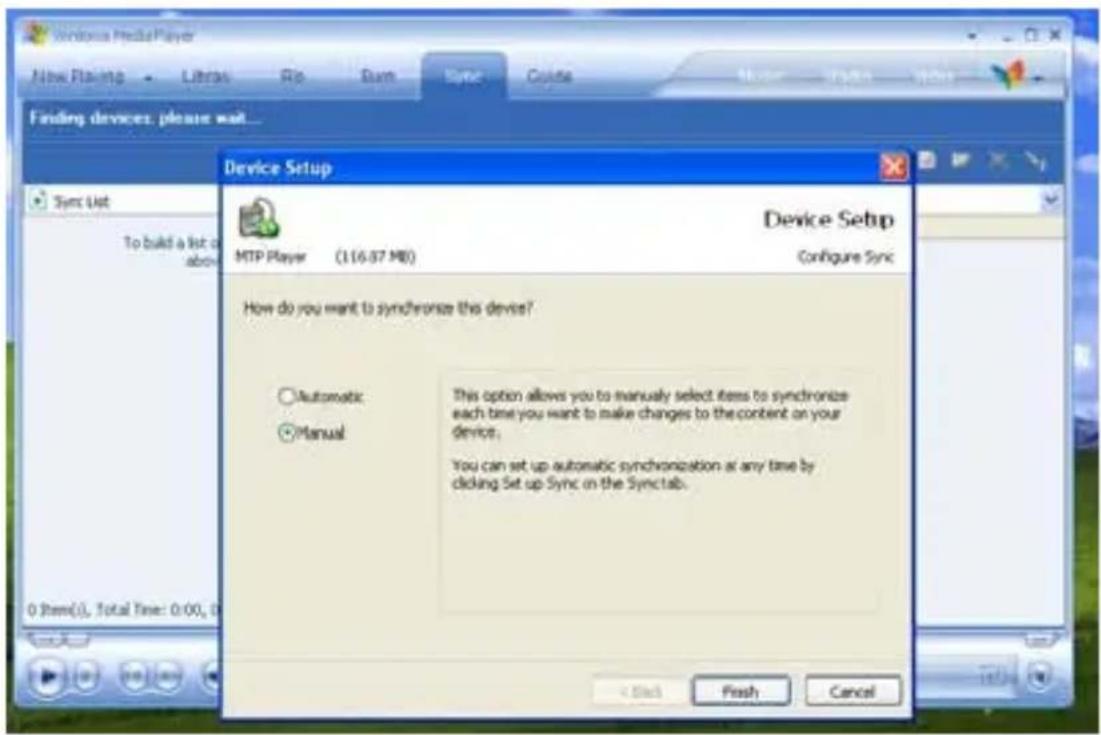
Step 4. Soon a dialog box will appear, Choose Manual and click Finish to proceed.
English
Step 5. The Media Player will enter the operation status as follows.
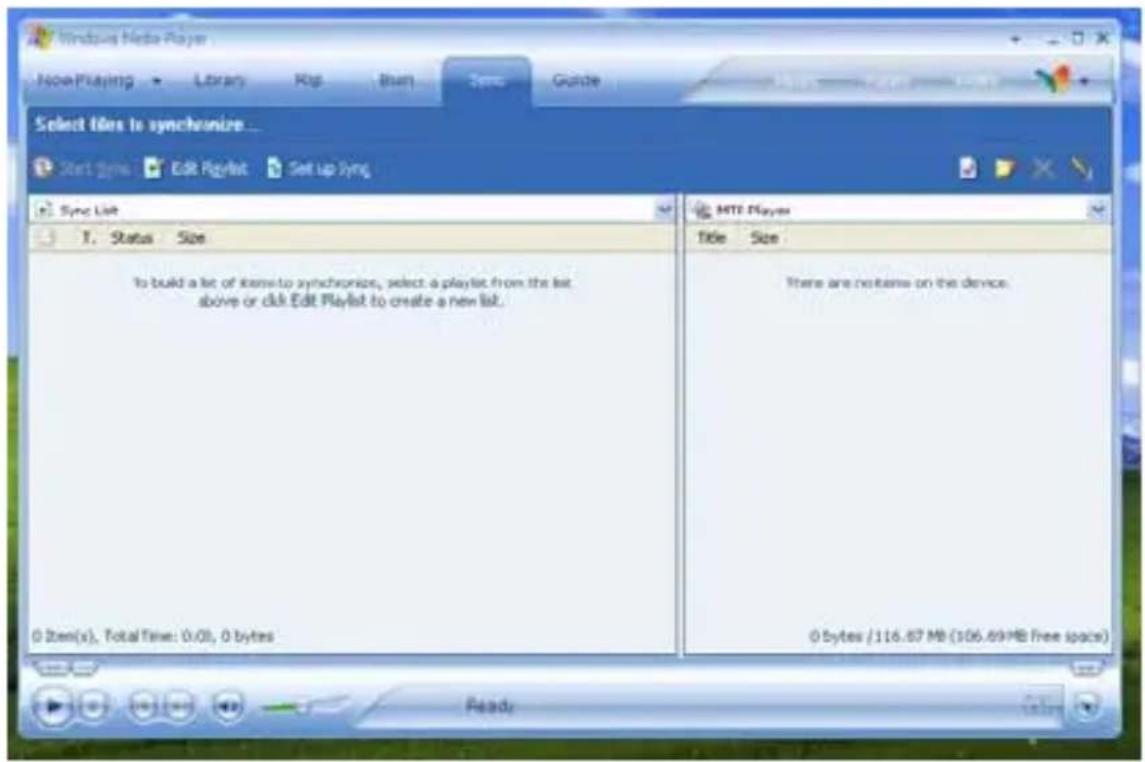
Step 6. Select your desired songs into the Media Player and press Start Sync.
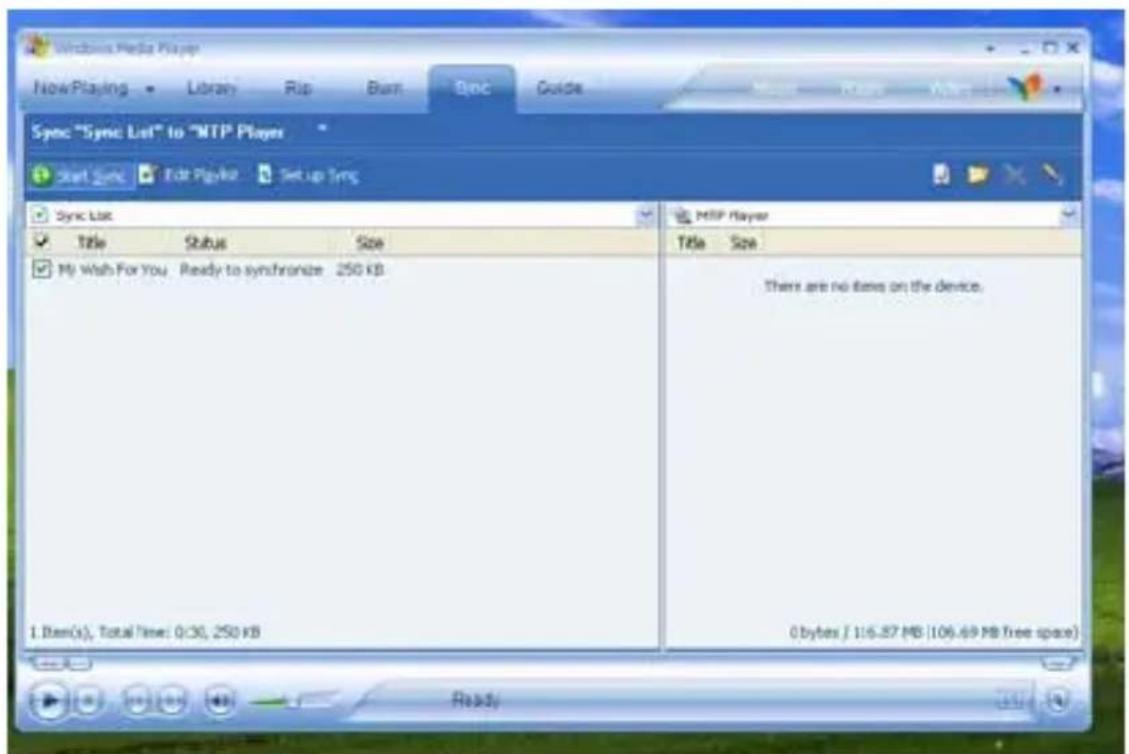
English
Step 7. The song you selected will be synchronized into the Software of Media Player and the MP3 Player.
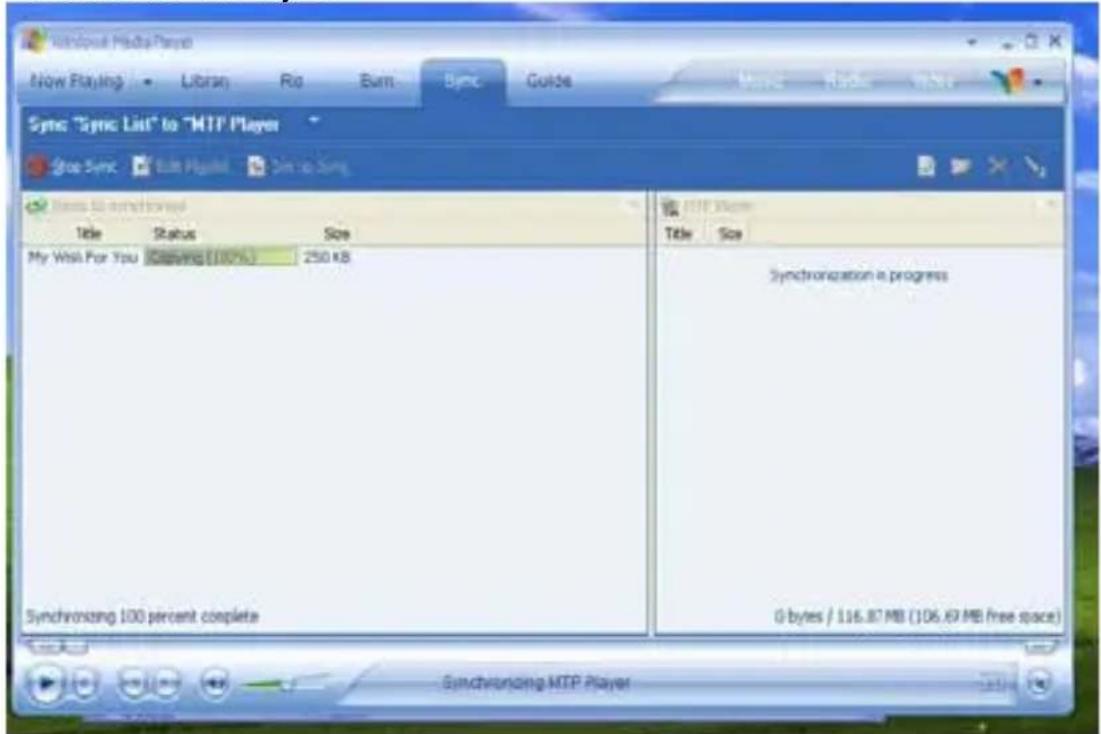
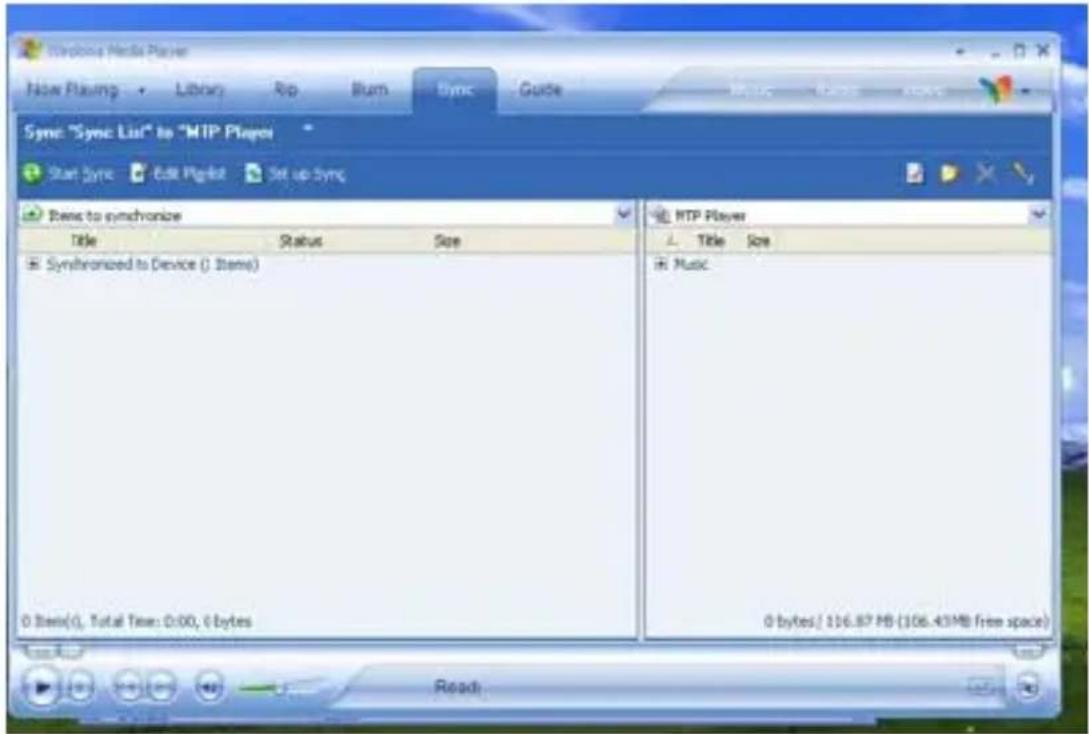
Step 8.Once the song has been synchronized, it will appear as follows.
English
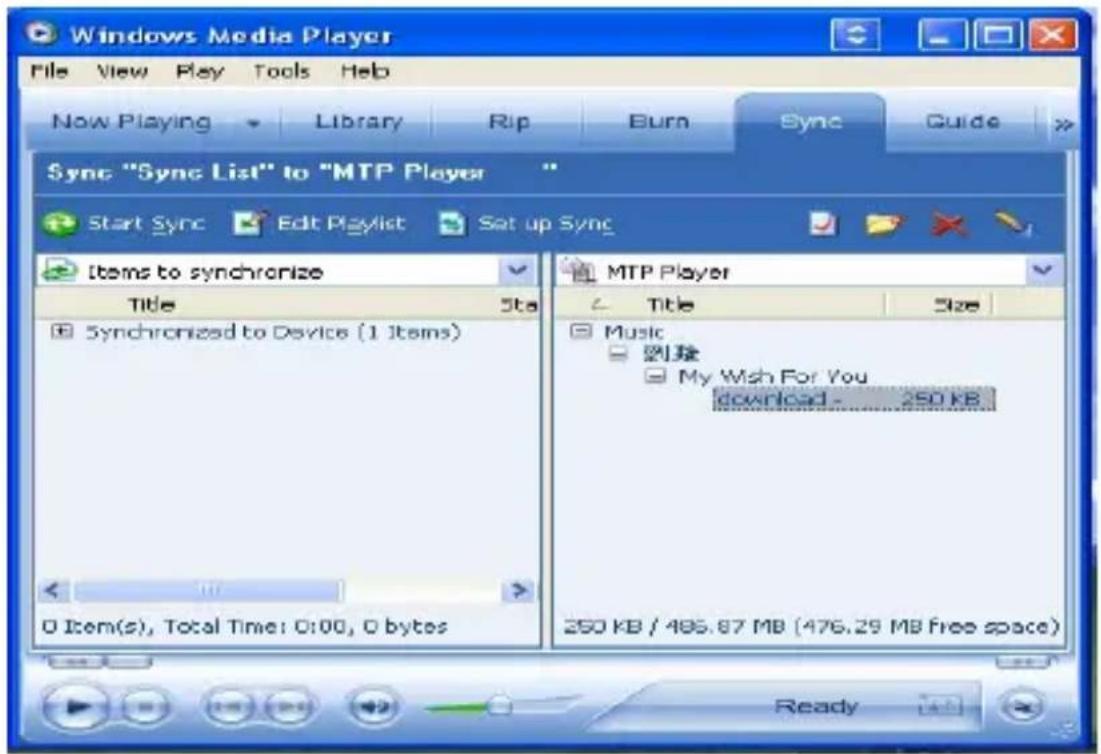
Step 9. click + on the right hand side to expand "Music", the same song name of "My Wish For You" should appear on the right hand side. It will appear as follows:
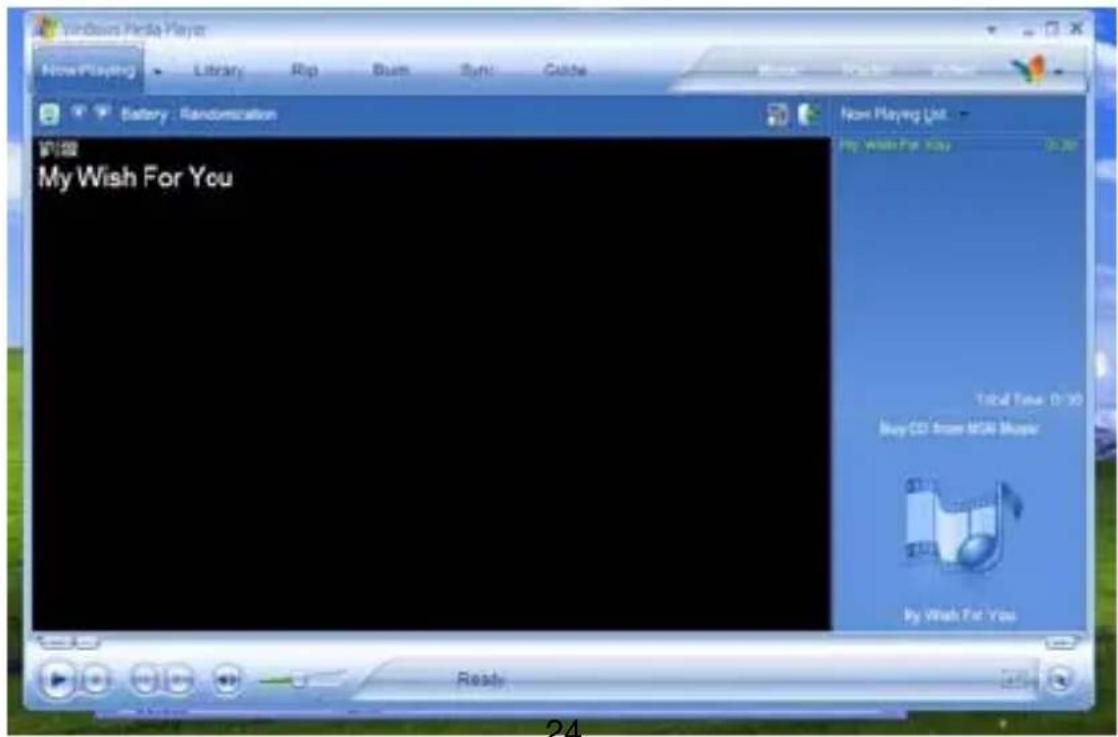
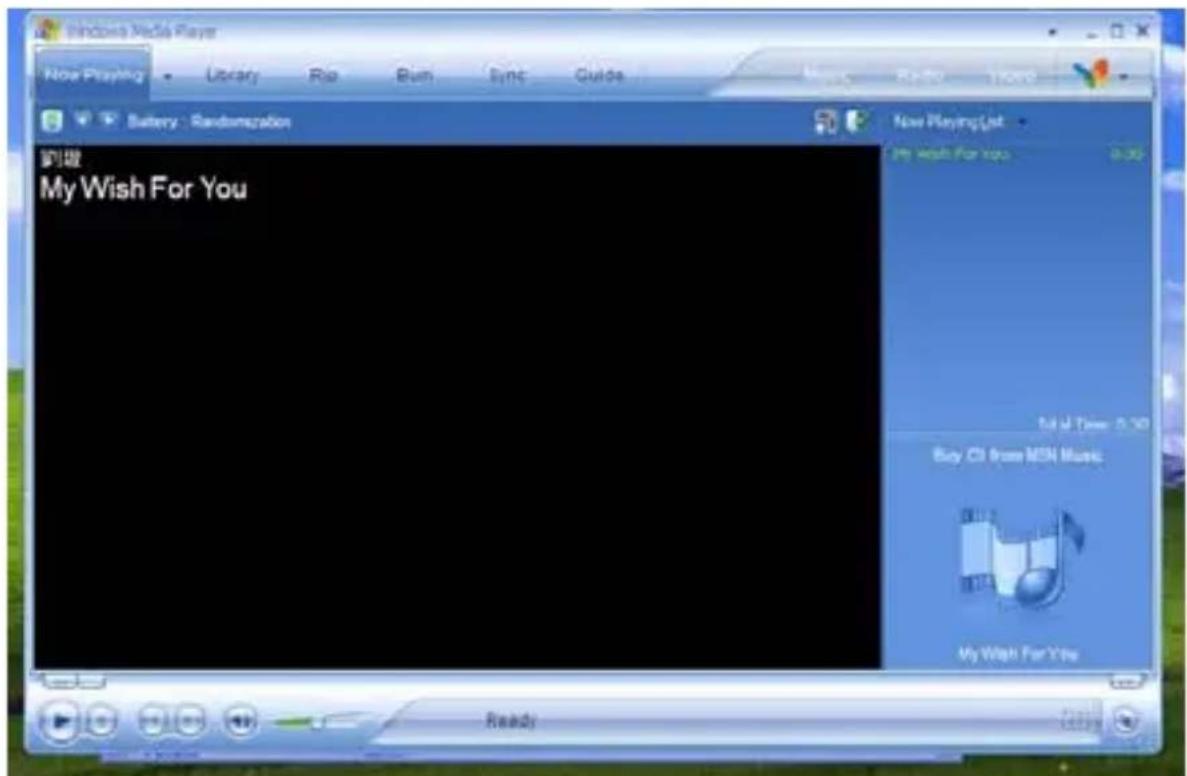
Step 10. Click Now Playing and start to play your desired song.
English
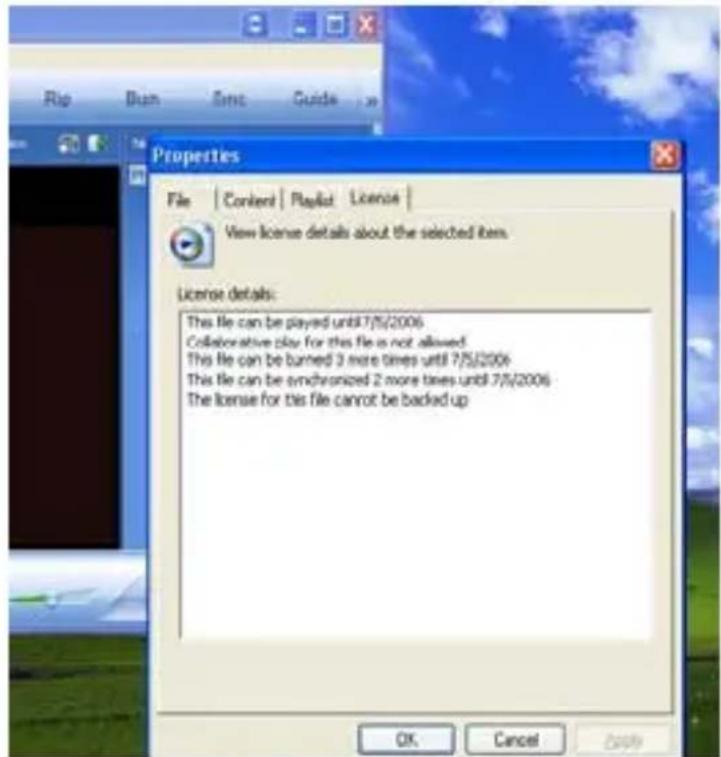
Tips: Each WMDRM song is limited by an expiry date or number of times for synchronization from the computer to the player. This limitation of the expiry dates the synchronization times depend on different distribution licensees and different songs when you purchase. The WMDRM songs should be synchronized from the computer to the player within number of synchronization times by the specified expiry date.
Note: The songs cannot be played if the synchronization times is exceeded or the synchronization is performed beyond the expiry date.
If WMDRM song cannot be played on the player normally or the synchronization cannot done successfully from the computer to the player, please check whether the song is expired or not. Please operate the following procedure.
Step1: Click the song by pressing the right button of the mouse and select" Properties".
English
Step 2. A dialog box will appear as follows, Click the license for checking the song is expired or not.
MTP Function being changed into USB Storage Function
MTP function is the default one for the MP3 player with WMDRM10. It could be used as a Portable USB also. The following steps could be guided to finish this transformation
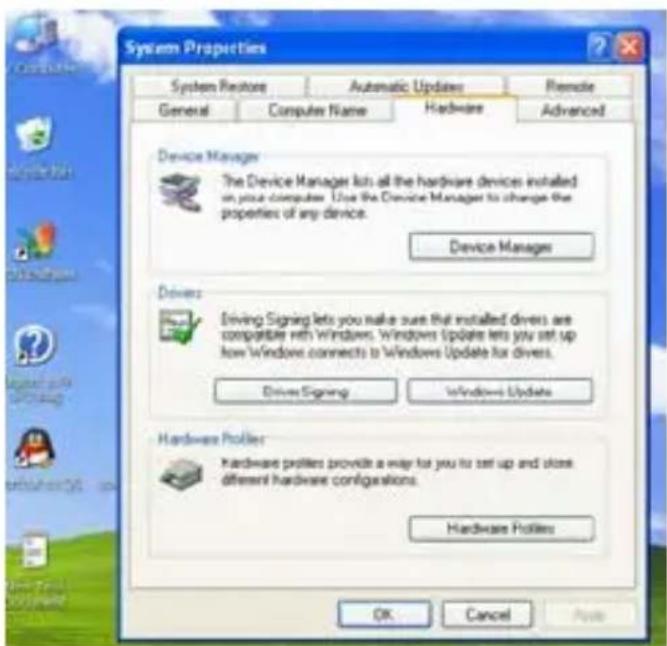
Step 1 : Click My Computer by pressing the right bottom of the mouse, choose the Hardware menu.
English
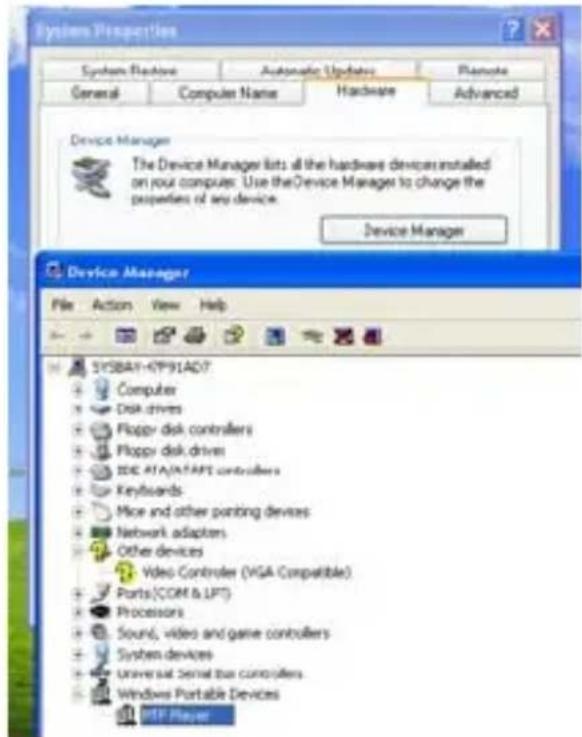
Step 2 : Select Device Manager and pick up MTP Player on the sub-menu of Windows Portable Devices.
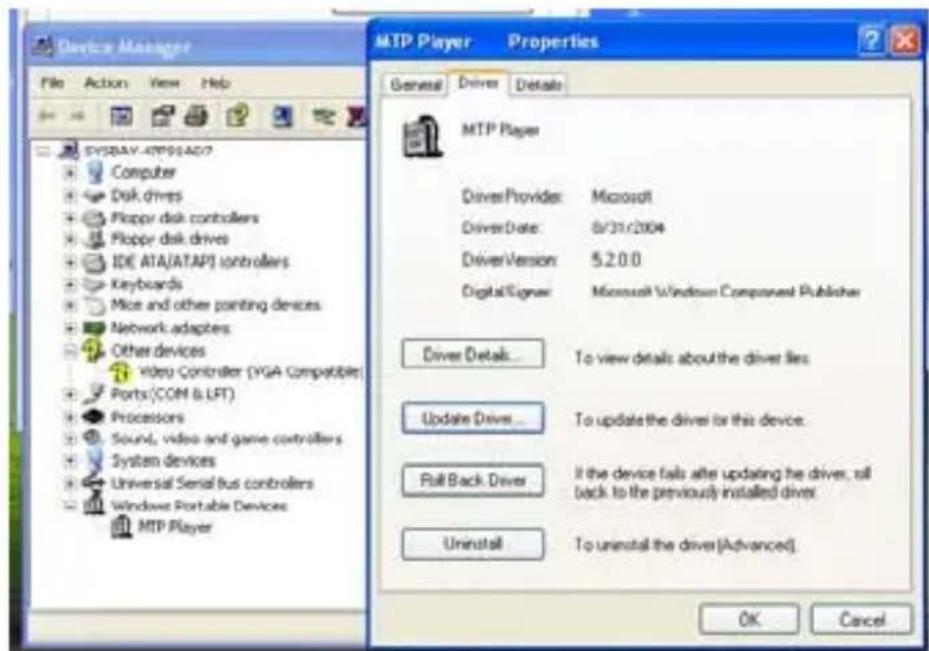
Step 3 : Click MTP Player by pressing right Button of the mouse and choose Driver menu.
English
Step 4 : Click "Update Driver ..." to proceed.
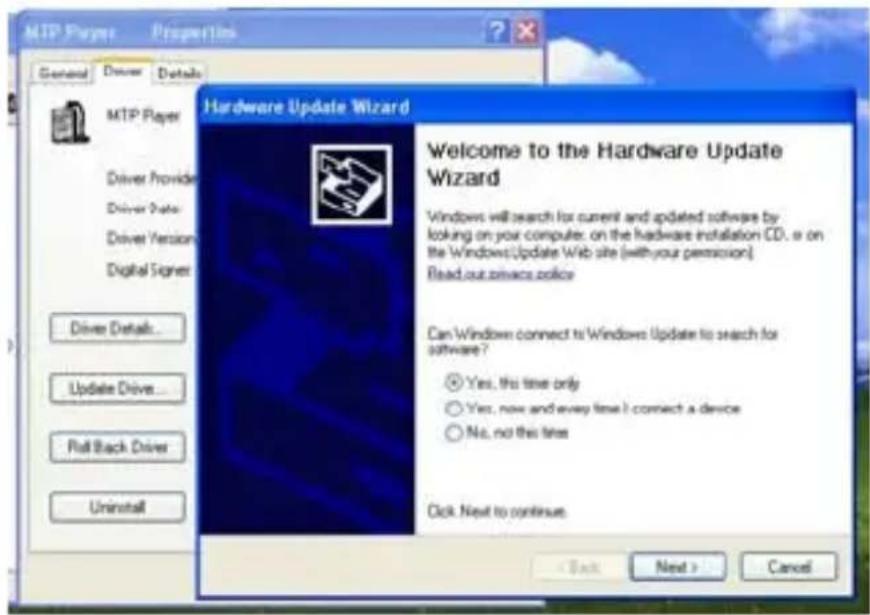
Step 5 :Follow the tips of Dialog Box by clicking the "Next >" button to finish updating. The procedure should be : Install from a list or specific location (Advanced) — Don't search. I will choose the driver to install — USB Mass Storage Device— Finish. The Removable Disk will appear in My Computer.
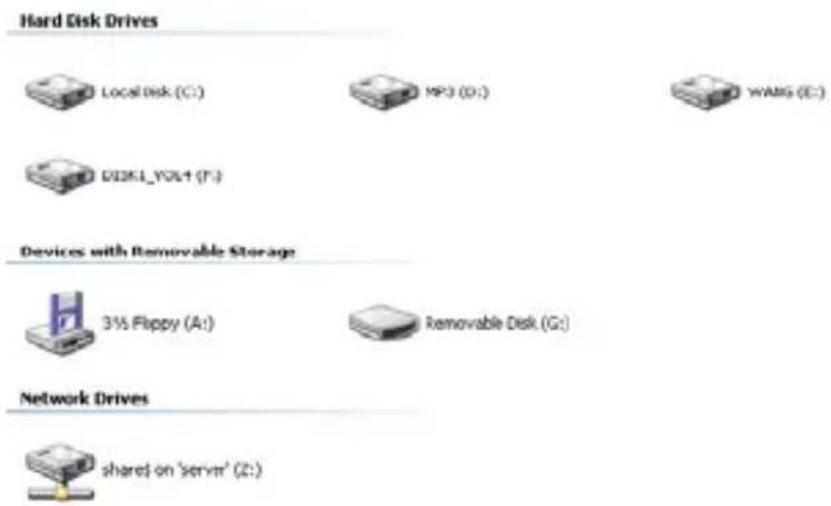
English
USB Storage Function being changed into MTP Function
Step 1 : Click My Computer by pressing the right bottom of the mouse, choose the Hardware menu.
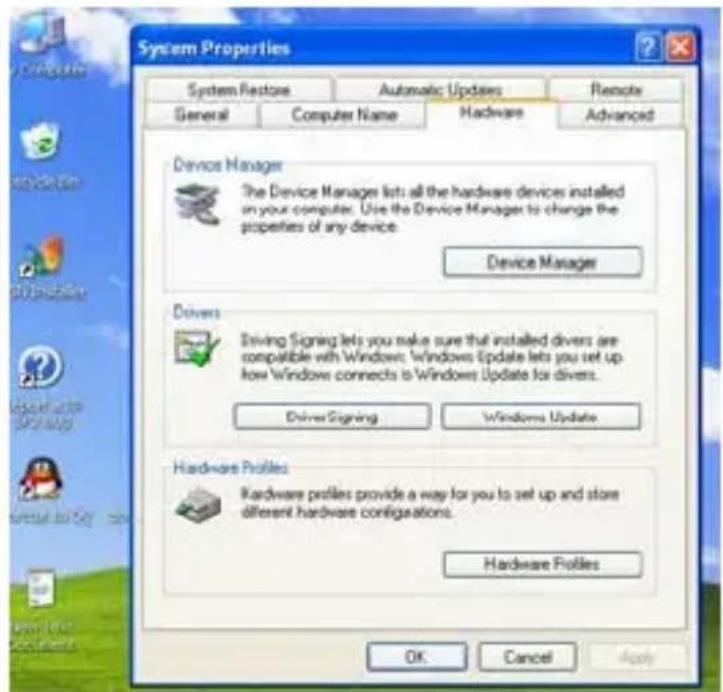
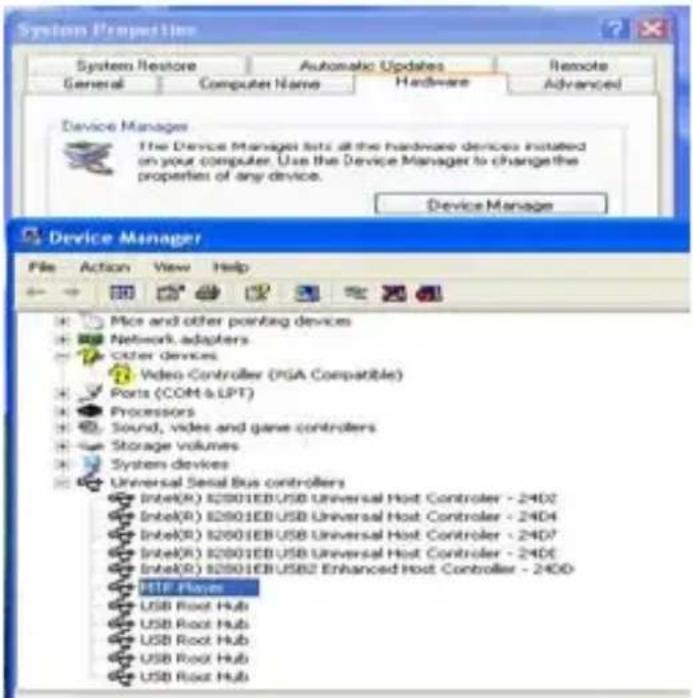
Step 2 : Select Device Manager and pick up MTP Player on the sub-menu of Universal Serial Bus controllers.
English
Step 3 : Click MTP Player by pressing right Button of the mouse and choose Driver menu.
Step 4 : Click "Update Driver ..." to proceed.
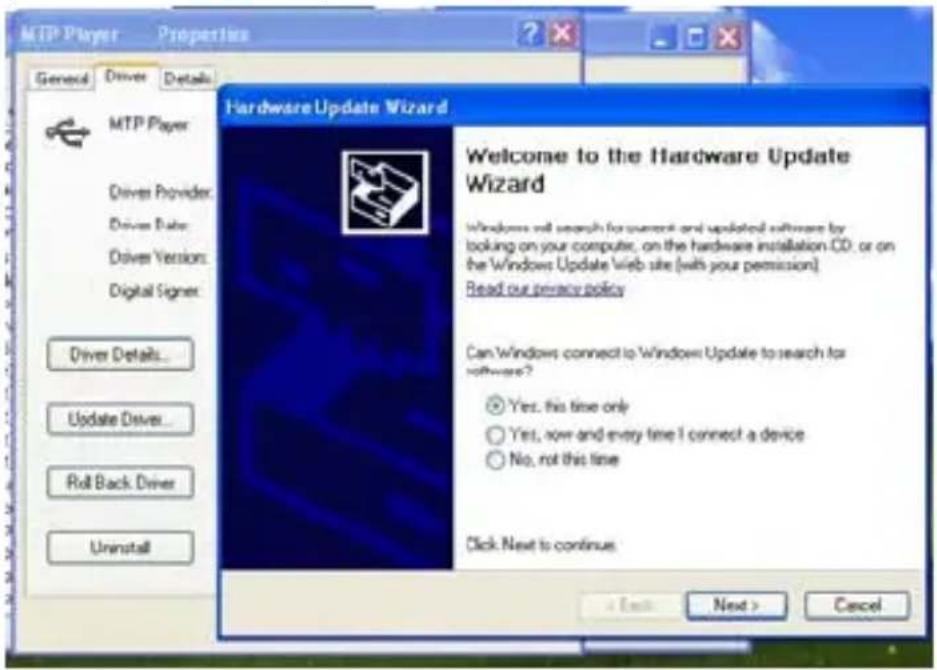
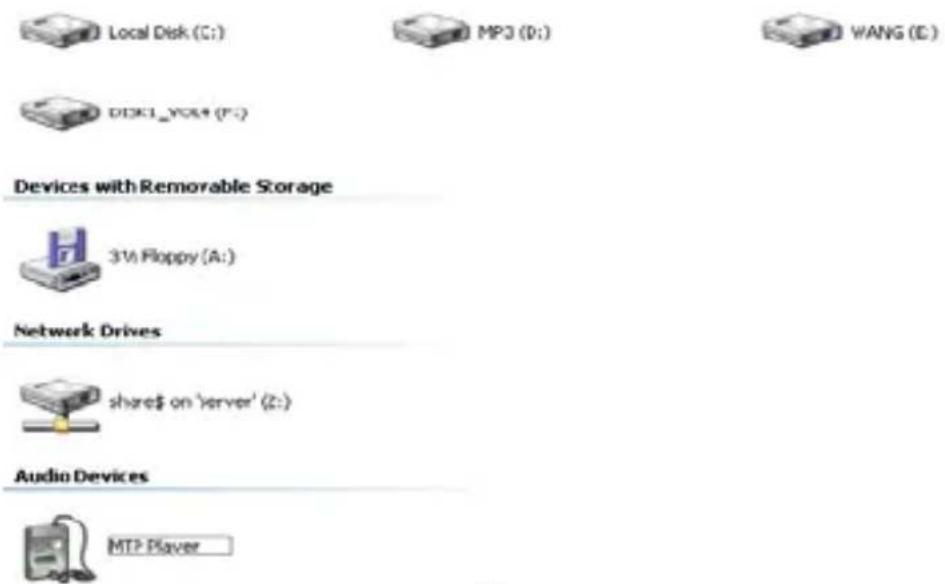
Step 5 :Follow the tips of Dialog Box by clicking the "Next >" button to finish updating. The procedure should be : Install from a list or specific location (Advanced) — Don't search. I will choose the driver to install — MTP Player — Finish. The MTP Player will appear in My Computer.
Trouble Shooting
| Symptom | Reasons | Solution |
| Press the POWER button, the display does not turn on | The battery has run out ● | Replace battery with a new one. |
| After plugging the player into the USB port of your computer,Removable Disk Drive cannot be found in My Computer | The software utilities (included in CD) has not yet installed on Windows® 98/98SE | ● Insert the CD● Click the setup to install the software utilities● Follow the on-screen instructions to finish installation |
| The software utilities of the player (included in CD) conflicts with other software drivers which were installed on your computer | ● Uninstall software utilities of the player● Restart computer● Re-install the software utilities again | |
| Your motherboard doesn't support the USB connection | Contact the manufacturer of your motherboard to upgrade the motherboard driver | |
| The music file on the player cannot be deleted | The attribute of the music file sets as Read Only | Change the attribute of the music file |
| The playing time displays in disorder when playing a mp3 music | An mp3 music file is currently compressed in VBR format, which can vary the compression speed of an mp3 music. When the mp3 music is playing, the variable speed will cause the playing time displays in disorder | Compress the mp3 music in fix compression speed rather than variable compression speed |
| When the player is connected or disconnect to/from your computer, there is an unusual error on the computer | It's due to the sudden disconnection of USB port during transferring the files | It is recommended the user should not suddenly unplug the player from the USB port of computer when the files are being transferred or the internal memory is being formatted. |
| My player can't play the mp3 music files | Most of mp3 music files in the market are compressed in MPEG1, MPEG2, LAYER3 standard. In earlier days, some mp3 music are compressed in MPEG1 | If the mp3 player can't play the mp3 music file, skip to the next song until the mp3 music files are not compressed in MPEG1 LAYER1 /MPEG1 LAYER2. |
English
| LAYER1 and MPEG1 | LAYER2. Please note our player doesn't support MPEG1 LAYER1, MPEG1 LAYER2 or an mp3 compressed in more than one compression standards. | Delete those files which can't be played in the player |
| Change the compression standard of a mp3 music file in MPEG1 LAYER3 | ||
| If the music file can't be played normally or you hear a long beep sound | The player doesn't support such compression standard of the playing music file | The player just can support MPEG1 MPEG2 LAYER3 and WMA music files |
| Out of the range of compression speed | ● The range of MP3 compression speed: 32Kbps~384Kbps● The range compression speed: 64Kbps~128Kbps | |
| Tips: If you don't know the compression standard and speed of the music file, you should use those common music players (i.e. Winamp) to check the music information. | ||
| After formatting the internal memory of the player by using our software utilities, close and re-open the software, the mp3 player can't be detected | Some system information may be deleted during formatting | Disconnect the player and re-plugged |
| the USB cable | No driver was installed on Windows® 98/98SE | Install driver The computer can't detect |
| Unsafely remove the USB cable | Format the internal memory | |
Technical Specifications
| Capacity | 128MB/256MB/512MB/1GB/2GB internal flash memory |
| Display Colour STN display | |
| Interface USB 2.0 full speed | |
| Power 250 MA Lithium battery | |
| File type | .MP3 (32kbps - 384kbps), .WMA (64kbps - 128kbps) for music at Constant Bit Rate.WAV for recorded audio files.TXT for E-Book files.JPG and .BMP for photo files |
| S/N ratio 90dB | |
| Earphones output power | 9mWx, 32ohm |
| Operating System | Windows® 98/98SE/Me/2000/XP MAC OS 9.0, 10.0 |
| Dimensions 39mm(W) x9 | 0mm(H) x 8mm(D) |
| Weight 45g |
English
How to convert video format
- Video format
The player can only play movies after converting other video formats to SMV format. The player supports the following video formats to be converted to SMV format: AVI, WMV, MPG.
- Converting video format
Accessory disk has been provided with video converting tool. It is unnecessary to install. You can use it by copying it to your PC directly. For example: copy the whole folder of "SMV Transcoding" to the folder "c:\program files\" of your PC. Then enter this folder, click "video2smv.exe" to open video converting tool:
Converting video file to SMV format file
Notice: Before playing video file, please use SIGMATEL MOTION, the VIDEO software to convert other format to SMV format. Operating steps are as follows:
- Please make sure that the target video source (the video that needs to be converted) is / has been saved in your PC and save it under C:\converting objects. The format of the video should be AVI, MPG. or WMA.

SK Trip,mpa
The Raceani
Germ, engineering Arab technology. www
- Running "video2smv" program under folder of SMV Transcoding in accessory CD.
English
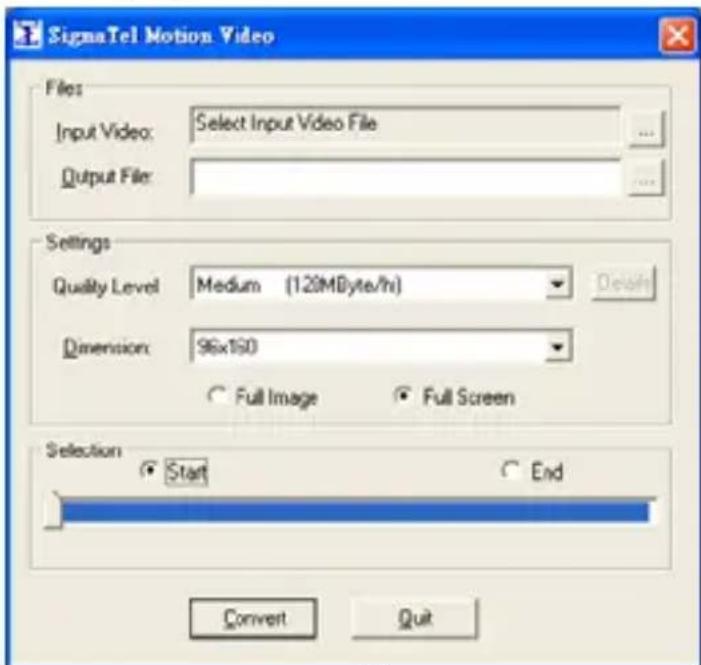
3. Setting:
- Click …” to select the video source file you want to convert in “Input”
- Click “...” to select the position you want to preserve and file name after converting in “Output”.
- Select the level of video quality you would like the output to be converted to:
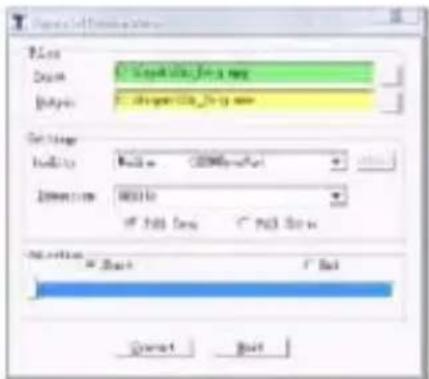
Generally, they are 3 levels of video quality:
![Settings Quality Level Medium [128MByte/hr] High [200MByte/hr] Medium [128MByte/hr] Low [83MByte/hr] Custom... Full Image Full Screen](/content/2026/06/1195138/images/7386433627c97ec97a8eecd6908f15fa5adbdbb00f90bb9bfe748dad66419ff1.jpg)
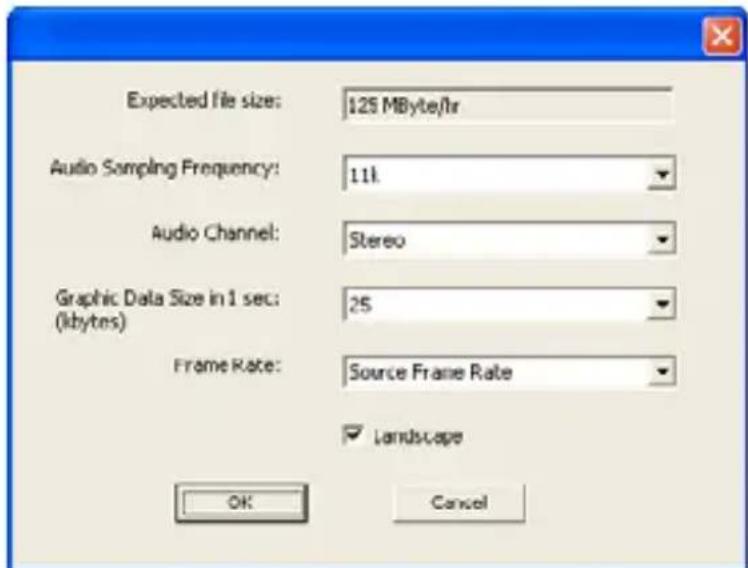
High: video playback length is one hour; it takes up about 200MByte space. Medium: video playback length is one hour; it takes up about 128MByte space. Low: video playback length is one hour; it takes up about 83MByte space.
Custom: User-defined video quality
English
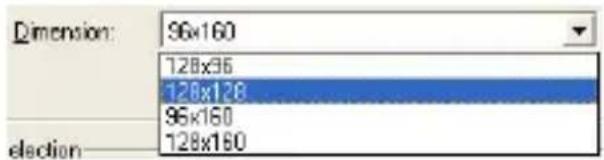
- Dimension: Choose resolution 128*128, best suited for your screen size of 1.5"
- Choose start point of the video you want to convert.
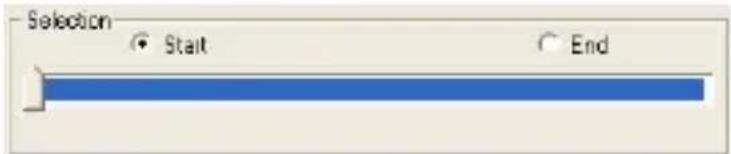
- Choose ending point of the video you want to convert.
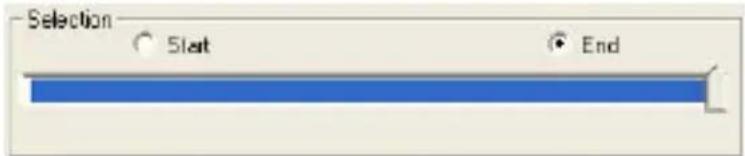
-
After setting, click "Convert" at last to start converting.
-
After converting, connect the MP3 player to your PC by USB cable.
-
Enter C:\Output\

- Copy Ski_trip.smv to the folder of "MVIDEO" of your MP3 player.
Disconnect the MP3 player from PC, turn on the player and enter Video menu to watch the converted video.
Notice:
You'd better use the windows default of the software if you are not so familiar with video converting.
- ENGLISH
- TABLE OF CONTENTS
- INTRODUCTION
- FEATURES
- PACKAGE CONTENTS
- OVERVIEW
- DISPLAY
- ON-SCREEN-MENU OPERATION
- POWER ON AND OFF
- POWER ON
- POWER OFF
- BATTERY LEVEL
- LOW BATTERY
- CHANGING MODE
- ENTERING MAIN MENU PAGE
- MUSIC PLAY
- SKIP A SONG
- FAST FORWARD AND BACKWARD
- RECORD
- VOICE PLAY
- SKIP A VOICE
- VIDEO PLAY
- SKIP A MOVIE
- PHOTO
- EBOOK
- SYSTEM SET
- LANGUAGE
- POWER OFF SET
- POWER SAVE MODE
- RECORD MODE SET
- SOURCE
- ENCODER
- SAMPLE
- CHANNEL
- LCD CONTRAST
- ABOUT
- GAME
- FILES LIST
- FOLDER MANAGEMENT
- FOLDER NAVIGATION
- SUB-FOLDER
- EQ SET
- PLAYMODE SET
- NORMAL
- REPEAT ONE
- REPEAT ALL
- SHUFFLE
- SHUFFLE ALL
- INTRO
- DELETE FILES
- DRIVER
- WINDOWS® 98 AND MAC OS
- WINDOWS® 98SE
- SYSTEM REQUIREMENTS
- FORMAT THE MTP PLAYER
- AUDIO DEVICES
- SYNCHRONIZE MP3 AND WMA FILES TO THE PLAYER
- STEP 3. THE MEDIA PLAYER WILL FIND DEVICE AUTOMATICALLY AS FOLLOWS
- STEP 4. SOON A DIALOG BOX WILL APPEAR, CHOOSE MANUAL AND CLICK FINISH TO PROCEED
- MTP FUNCTION BEING CHANGED INTO USB STORAGE FUNCTION
- USB STORAGE FUNCTION BEING CHANGED INTO MTP FUNCTION
- HOW TO CONVERT VIDEO FORMAT
- VIDEO FORMAT
- CONVERTING VIDEO FORMAT
- CONVERTING VIDEO FILE TO SMV FORMAT FILE
- SETTING
- NOTICE
Brand : CURTIS
Model : MPK1021
Category : Mp3 player